EZR34T.Router.Works/LTE
Scan QR code or visit URL link to see the
complete edition of the online manual.
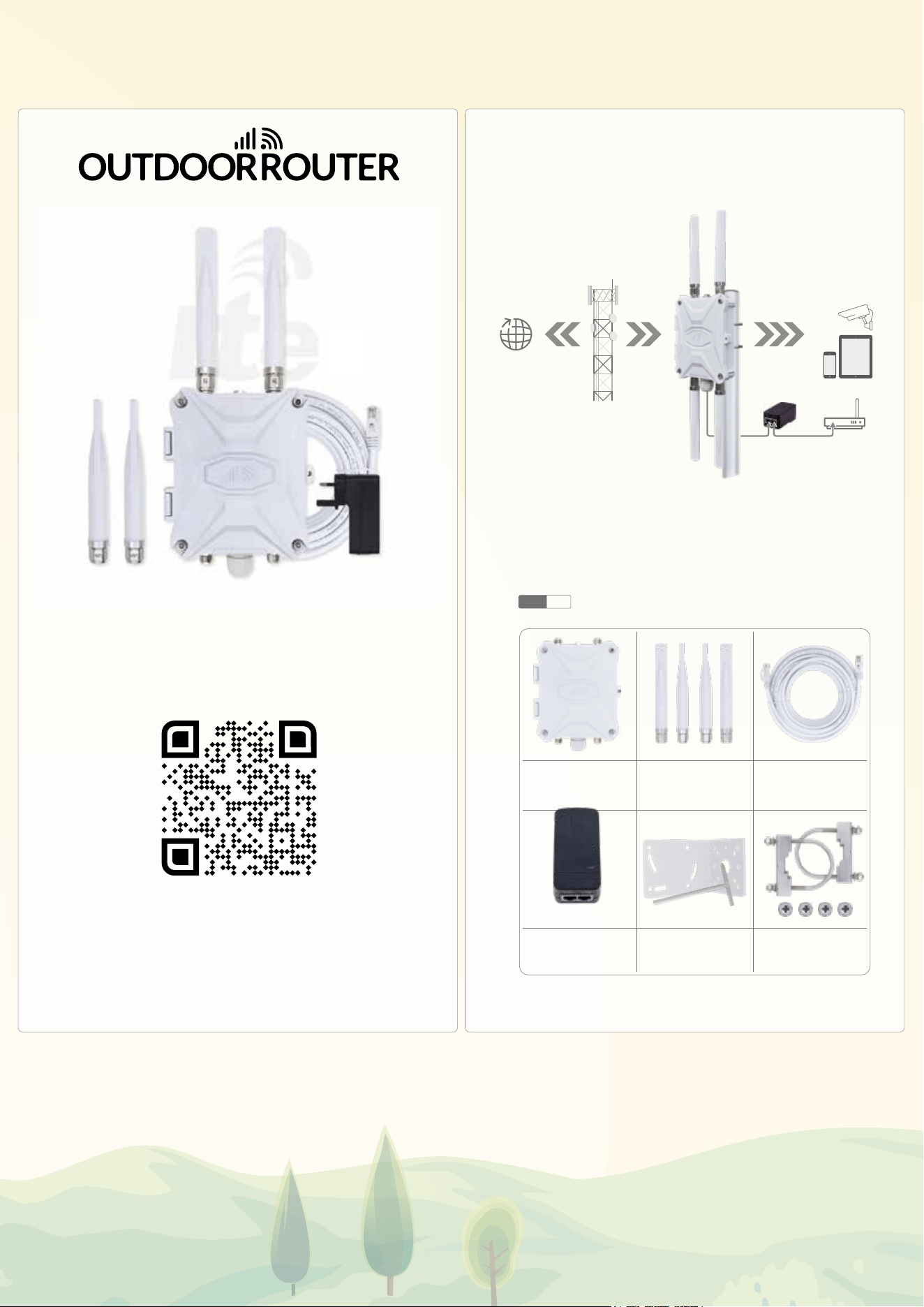
EZR34T-LTE QUICK GUIDANCE
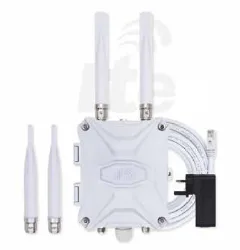
Outdoor Router
2x 4G and 2x Wi-Fi
Omni Antennas
10-Meter LAN Cable
L-Bracket & T-Wrench
PoE Injector
Mounting Kit
STEP
1.1
Check and count the package contents.
PACKAGE CONTENTS
INTERNET
OUTDOOR
ROUTER
WORKING PRINCIPLE
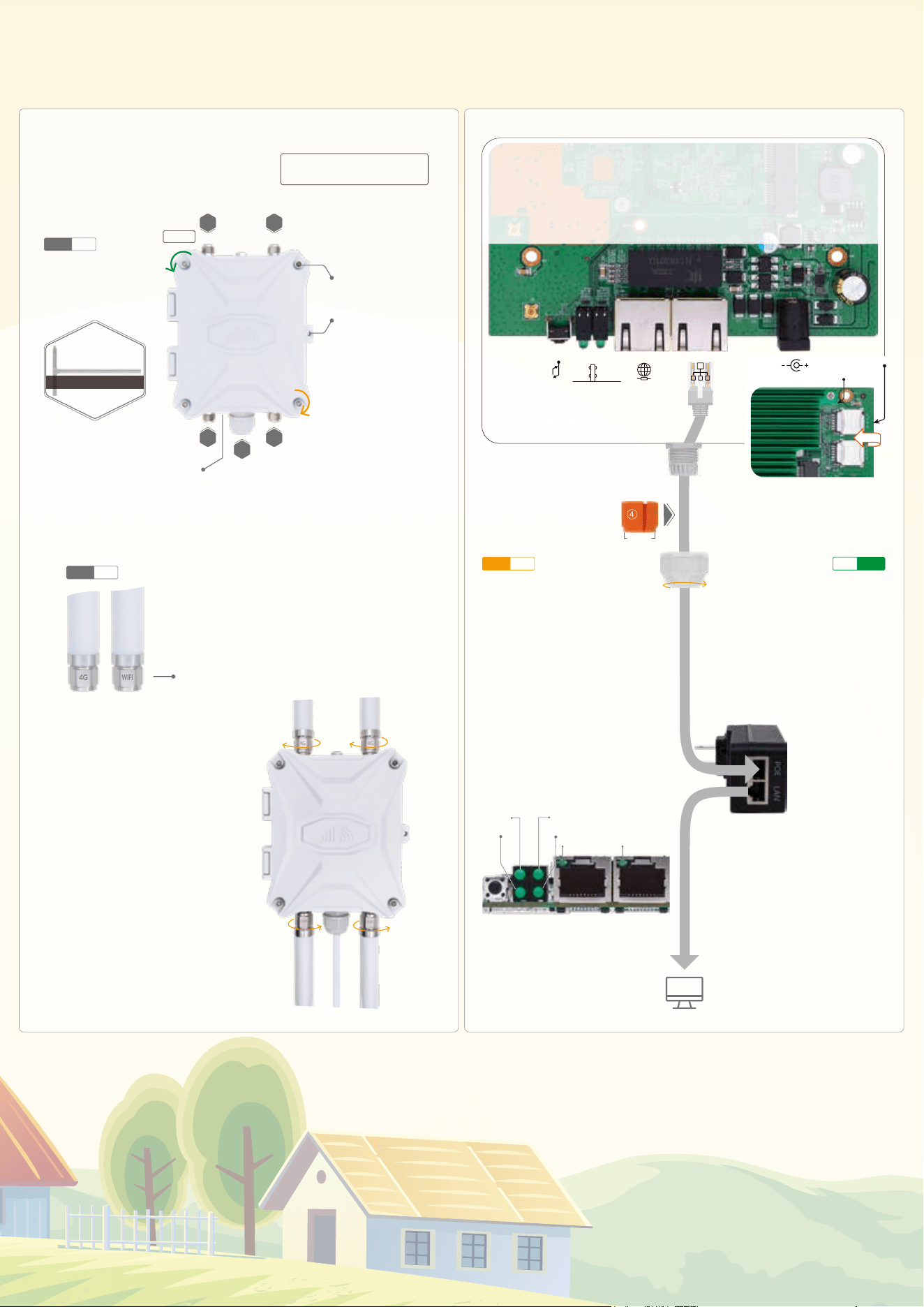
INSTALL ANTENNAS
LOCATE ANTENNA SOCKETS
Locate embossed numbers
1~6 on the top & bottom sides
1 &3 are for 4G antennas
4 & 6 are for WIFI antennas
Put antennas aligned at corresponding
sockets, turn the milled part on the
antenna head in the clockwise
direction to tighten them.
4G
WIFI
UPGRADEABLE
All of the base sockets are N-female.
Ensure alternative antennas are
with N-Male connectors.
You can install the antennas after finishing
the below step 2 or step 3.
The 4G-LTE antennas are marked 4G
and Wi-Fi antennas are engraved WIFI.
CROSS
5MM HEX
5MM HEX
T-WRENCH
STEP
1.3
4G ANTENNA
MAIN
4G ANTENNA
WIFI ANTENNA
BREATHER VALVE
WIFI ANTENNA
GLAND
1 3
4
5
6
HEXAGON BOLT
LOCKHOLE
CLOSE THE ENCLOSURE
Close the lid & press by hand.
Ensure no gap after closing.
Use T-wrench to tighten all
bolts in clockwise direction.
4G
4G
OPEN THE ENCLOSURE
Use hexagon head on the
T-wrench to lose bolts in
anti-clockwise direction
STEP
1.2
PORTS 1~6 ARE EMBOSSED
NUMBERS ON THE ENCLOSURE
INTERFACE OVERVIEW
WIFI
WIFI
PIN
PINHOLE
FOR NANO-SIM (0.5” x 0.3”)
BARREL
PoE SIM CARD
STOPPER
CAP
INSERT SIM CARD & CONNECT PoE
SIM-KARTE EINLEGEN & PoE ANSCHLIESSEN
Ensure it has a strong mobile signal.
The modem sensitivity is -101dBm,
approx 2-bar on the phone.
Please turn off the power while
inserting or taking out a SIM card.
Locate SIM1-2 slots in top right corner.
Tap the lid, slide left to open the slot.
Put a Nano SIM card in the SIM1 slot.
The gold pins should be face down.
Cover the SIM lid and slide right to lock it.
Take one end of the LAN
cable through the Cap.
Put the LAN cable through
Barrel, plug in PoE & LAN port.
Clamp the Stopper on the LAN
cable & settle it in the Barrel.
Turn the Cap clockwise to
tighten it on Barrel.
Connect another end of LAN cable
to the PoE port on the PoE injector.
LAN CABLE
Connect a computer to the LAN port
on the PoE injector to get the Ethernet.
To use another router, connect its WAN
port to the LAN port on the injector.
You can replace PoE injector with an
IEEE802.3af/at standard PoE switch and
the DC socket takes 9~52Volt power.
STEP
2.2
STEP
2.1
Firstly, take off the Cap
anti-clockwise from gland.
Push from inside of Barrel
to take out the Stopper.
Smaller
ETHERNET
ALTERNATIVE POWER
PoE & LANPoE & WANRESET
DC POWER DUAL SIM SLOTS
SIM INDICATOR
INDICATORS
WI-FI
SYS
MOBILE
POWER
SIM1
SIM2
INDICATORS
WI-FI
SYSTEM
MOBILE
POWER
WAN LAN
The SIM indicator is on the top left
corner of the router motherboard.
The indicators turn green
when a related function is activated.
They flash when having data flow.
SIGNAL COVERAGE
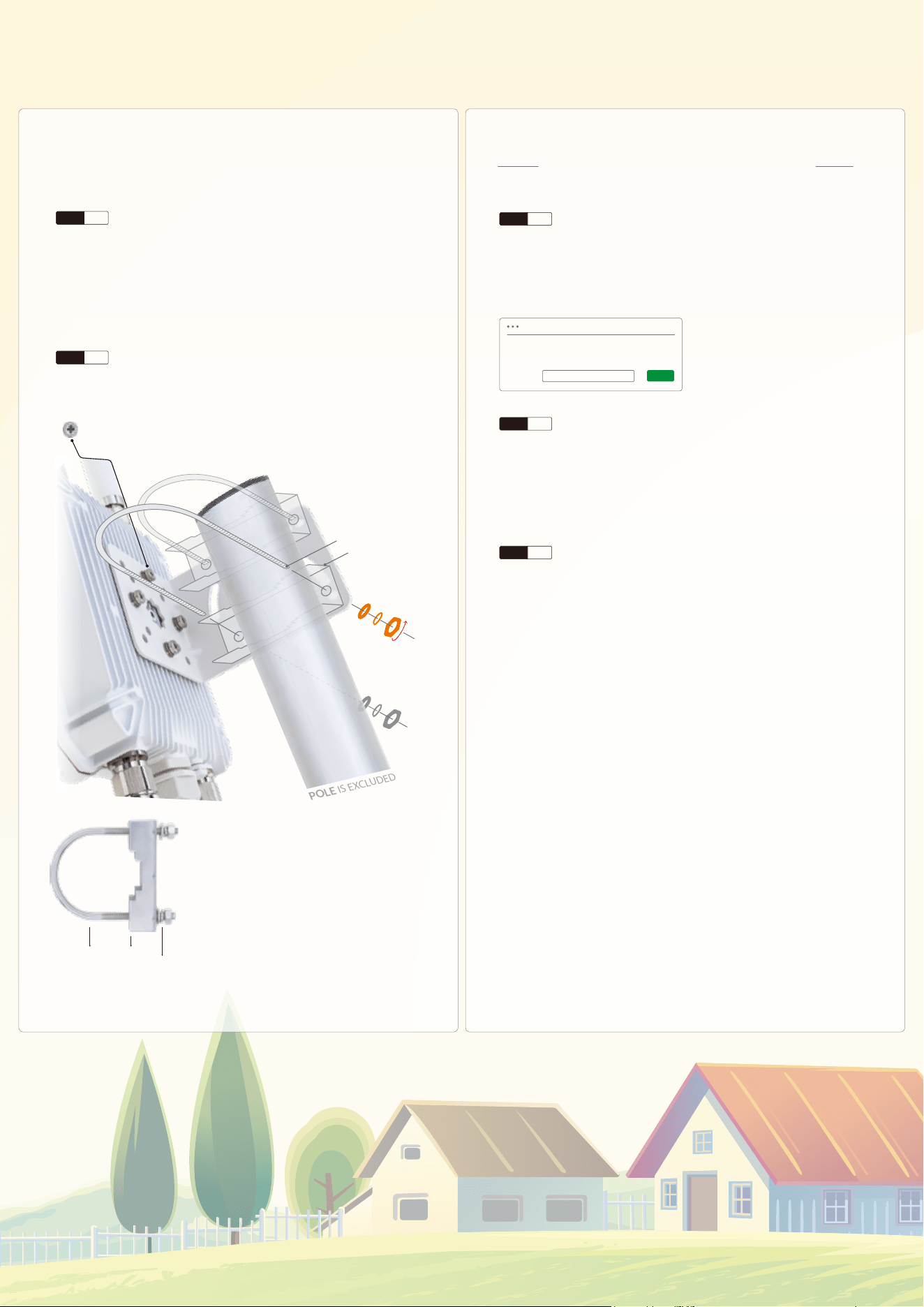
INSTALL ON A POLE
POWER ON ROUTER
Connect the AC plug on the PoE injector to the
110~240 Volt electrical outlet, and the router
will boot up automatically.
BRACKET & MOUNTING
The cellular signal quality is crucial to mobile internet speed and stability. Ensure there
is fair signal coverage. The router should install in a suitable location, such as elevated,
near a window, and away from obstructions and other RF equipment.
Suggest using a smartphone and walking around to check the signal bars.
To measure the signal quality accurately, please check tutorial at
https://www.outdoorrouter.com/signal/.
Find a pole with Ø35~50mm diameter. The typical installation is on a vertical pole.
Turn the bracket parallel to the pole when installing the router horizontally.
Use the cross end on T-wrench and M6 cross-head screws to install the
L-shape bracket on the backside of the enclosure.
Firstly, clasp the pole with U-bolts and holders,
then attach the L-shape bracket to the holders.
On another side of the bracket, put washers,
spring washers, and hex nuts on U-bolts.
Tighten the hex nuts with an M10 spanner.
STEP
3.1
STEP
3.2
WASHER
SPRING WASHER
WASHER
SPRING WASHER
HEX NUT
U-BOLT HOLDER
HEX NUT
HOLDER
U-BOLT
POLE IS EXCLUDED
FIRMWARE CONFIGURATION
After turning on power, use a phone or computer to join the open Wi-Fi hotspot
Outdoor-WiFi-xxxx-V4/5 or connect the computer to the LAN port on the PoE injector.
Open a web browser, enter the router IP http://192.168.30.1 on the address bar.
Click the Login button to access the admin panel.
http://192.168.30.1
AUTHORIZATION REQUIRED
Please enter your router password!
Password
Login
Default has no password!
* If unable to access the login page,
change a web browser and recheck
the Wi-Fi or LAN connection.
After accessing the router, navigate to System > System from the top menu.
Under the General Settings tab, click the Sync with browser button to sync the time.
Go to System > Administration, input new custom router password twice, then
click the Save and Apply button to save settings.
* Keep the password in a safe place.
Go to Network > Wireless, there are two WiFi hotspots on the wireless overview.
Click the Disable (Enable) buttons to turn off (on) the WiFi hotspots.
Associated Stations are the active WiFi connections and their working status.
Click the Edit buttons on each SSID row to enter their configuration pages.
On the General Setup tab, you can monitor the hotspot's working status.
Suggest using default settings of Mode, Channel, Width, and Transmit Power.
CONNECT BY WIFI OR LAN
STEP
4.1
SET ADMIN PASSWORDS
STEP
4.2
SET WIFI HOTSPOTS
WIFI SSID & PASSWORD
STEP
4.3
MT7615E 802.11bgn ---- SSID: Outdoor-WiFi-xxx-V4
MT7615E 802.11anac --- SSID: Outdoor-WiFi-xxx-V5
[ ra0 ]
[ rax0]
[ 2.4 GHz ]
[ 5.8 GHz ]
Scroll down to Interface Configuration, and change WiFi SSID on the ESSID field.
Click the tab of Wireless Security, and choose WPA, WPA2, or mixed mode on
the Encryption option. Input the WiFi password in the Key field.
Click the Save & Apply button on the bottom right corner. The WiFi hotspot
takes 2~3 minutes to reboot. Then re-connect to the new hotspot.
WIFI COVERAGE
For better outdoor WiFi coverage, suggest installing the router in an open space
with the fewest barriers nearby.
To cover indoor spaces, you can install the router near the windows or doors.
You can also use an indoor router and link to the LAN port on the PoE injector.
OutdoorRouter
www.outdoorrouter.com
Feel free to contact us if you need any further assistance.
E-MAIL:
sales@outdoorrouter.com
Use the default "Mobile Data" protocol. Switch to QMI or PPP when needed.
* Check the tutorial at https://www.outdoorrouter.com/protocol/
Choose the SIM card slot that inserts a SIM card.
Enable it when inserting two SIM cards on both SIM1/2 slots.
It switches to another slot when Active SIM Card is offline.
Go to Network > Interfaces. Check the
protocol, uptime, data flow, SIM, and IP.
Click the Edit button to configure the
advanced Mobile parameters.
Protocol
Active SIM
Auto Switch
SIM Card
Refer to operator's instructions to set APN, username, and password.
* Refer to the tutorial at https://www.outdoorrouter.com/apn/
Leave it blank when using the default SIM card PIN code.
Usually use PAP or PAP/CHAP authentication.
Please choose IPv4 only or both IPv4/IPv6.
APN
PIN
Authentication
IP Type
SETUP LTE-MODEM
MOBILE INTERFACE
STEP
4.4
LAN NETWORK
STEP
4.5
RECOVERY
STEP
4.6
The default mobile modem settings can adapt to most operators. You can find the
mobile modem Device information on the front page.
If the Mobile interface fails to connect, verify the mobile signal quality and check
with the operator if the SIM card is enabled and has data allowance.
Primary SIM1 / Secondary SIM2
Turn on DHCP mode on the phone or computer to obtain a local IP address from
the router. To use a static IP address, please comply with the below format.
Computer IP
Subnet mask
Gateway
192.168.30.100~249 ( pick one IP from 100~249 )
255.255.255.0 ( 24 on Windows )
192.168.30.1
Thanks for reading! If you have questions while using the router,
please check the online manual at
Please feel free to contact us if you need any further assistance.
Reboot
Soft
Reset
Hard
Reset
wwan0
MOBILE
Protocol: Mobile Data
Uptime: 12h 12m 12s
RX: 757.03 KB (1782 Pkts.)
TX: 1.66 MB (11551 Pkts.)
SIM: Primary SIM1
IPv4: 10.xx.xx.xx/xx
Rebooting the router could solve glitches after a long period of work.
Go to System > Reboot or replug the PoE injector to reboot it.
If the router works unstable after changing settings, go to System >
Backup / Flash Firmware. Click the Perform Reset button to reset it.
To run a hard reset, tap and hold the Reset button for 5 seconds when
the router is powered on. Release it and wait 5 minutes until boots up.
IMPORTANT!
DO NOT TURN OFF POWER WHILE RESETTING THE ROUTER!
EZR34T.Router.Works/LTE

FCC Caution.
(1)§ 15.19 Labelling requirements.
This device complies with part 15 of the FCC Rules. Operation is subject to the following two
conditions: (1) This device may not cause harmful interference, and (2) this device must
accept any interference received, including interference that may cause undesired operation.
§ 15.21 Changes or modification warning
Any Changes or modifications not expressly approved by the party responsible for compliance
could void the user's authority to operate the equipment.
§ 15.105 Information to the user.
Note:This equipment has been tested and found to comply with the limits for a Class A digital
device, pursuant to part 15 of the FCC Rules. These limits are designed to provide reasonable
protection against harmful interference when the equipment is operated in a commercial
environment. This equipment generates, uses, and can radiate radio frequency energy and, if not
installed and used in accordance with the instruction manual, may cause harmful interference to
radio communications. Operation of this equipment in a residential area is likely to cause harmful
interference in which case the user will be required to correct the interference at his own expense.
RF warning for Mobile device:
This equipment complies with FCC radiation exposure limits set forth for an uncontrolled
environment. This equipment should be installed and operated with minimum distance 20cm
between the radiator & your body.