Quick Start
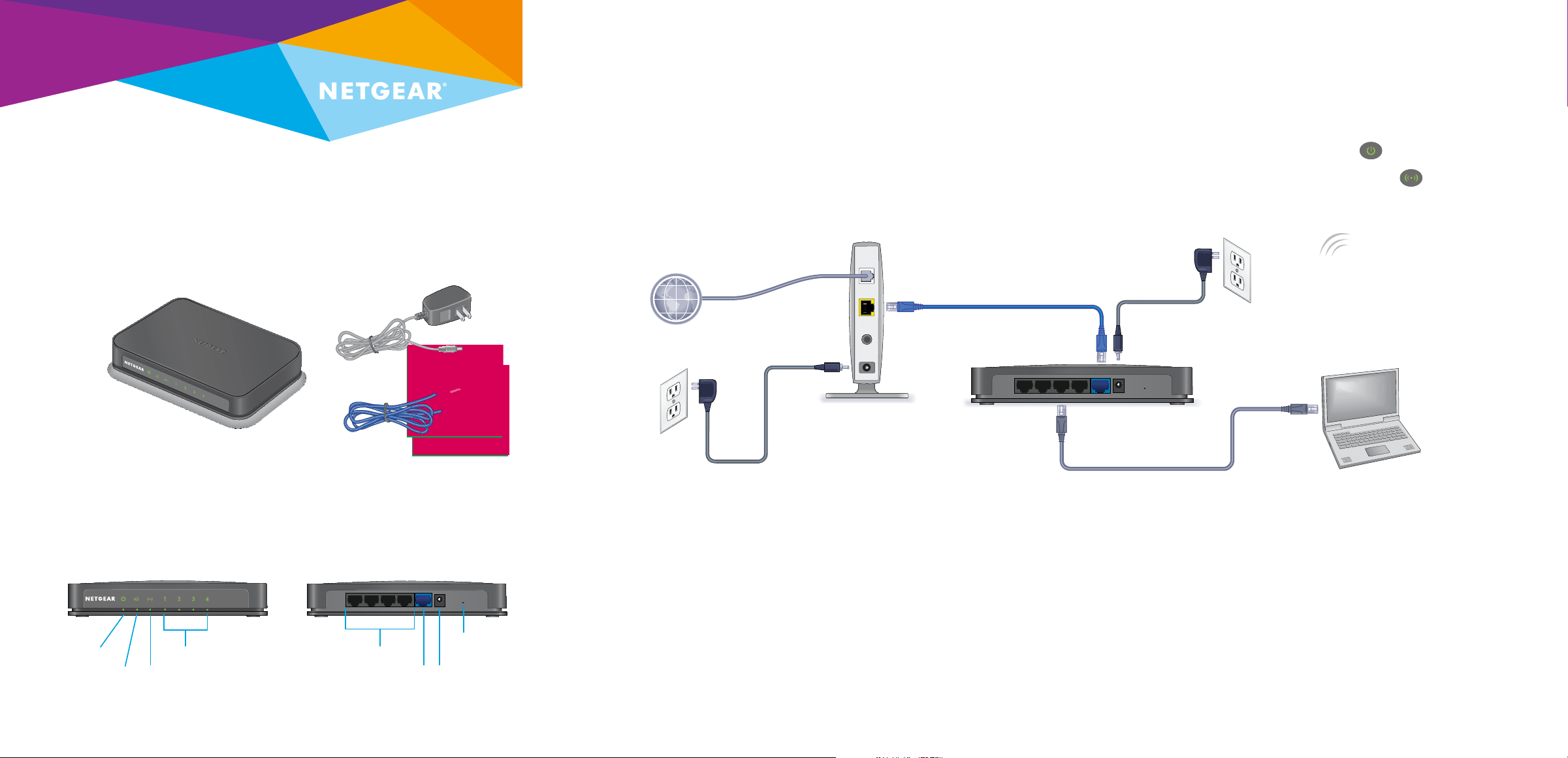
Package Contents
Front and Back Panels
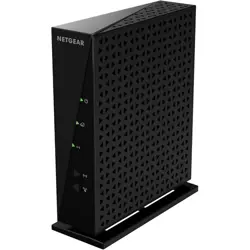
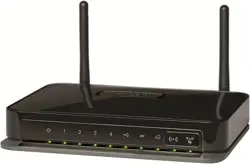
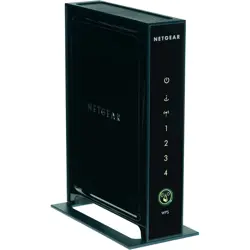
N150 and N300 Wireless Routers
Router
(product appearance
varies by model)
Ethernet cable
(only available for
some models)
Power adapter
(varies by region)
Power LED
Internet LED WiFi LED
Ethernet LEDs 1–4
Ethernet ports 1–4
Internet port
Power
connector
WPS/Reset
button
1. Prepare your modem.
Unplug your modem’s power. Remove
the battery, if present.
2. Connect your modem.
Plug in your modem. Put the battery
back in. Then cable the modem to the
router’s Internet port.
3. Power on the router.
Connect the power adapter to the
router and plug the power adapter into
an electrical outlet.
The Power LED
lights green.
Wait for the WiFi LED
to light
green.
4. Connect a computer.
Use an Ethernet cable to connect your
computer to the Ethernet port on the
router.
You can also use WiFi to connect.
To connect with WiFi, use the WiFi
network name and password on the
product label.
5. Log in to the router.
Launch a web browser.
NETGEAR genie displays.
If you do not see genie, enter
www.routerlogin.net in the address
field of the web browser . When
prompted, enter admin for the user
name and password for the password.
Follow the genie steps to connect to the
Internet.
DSL or cable
Internet
Ethernet cable
(only available for
some models)
Note: Product appearance varies by model.
Ethernet cable
(not included)
Power
adapter
Modem
6. Get the genie app.
Download the free genie app from
www.NETGEAR.com/genie.
Easily share media, files, and printers
on the network from your smartphone,
tablet, or laptop.
Router
August 2014
NETGEAR, Inc.
350 East Plumeria Drive
San Jose, CA 95134, USA
NETGEAR, the NETGEAR logo, and Connect with Innovation are trademarks and/or registered
trademarks of NETGEAR, Inc. and/or its subsidiaries in the United States and/or other countries.
Information is subject to change without notice. © NETGEAR, Inc. All rights reserved.
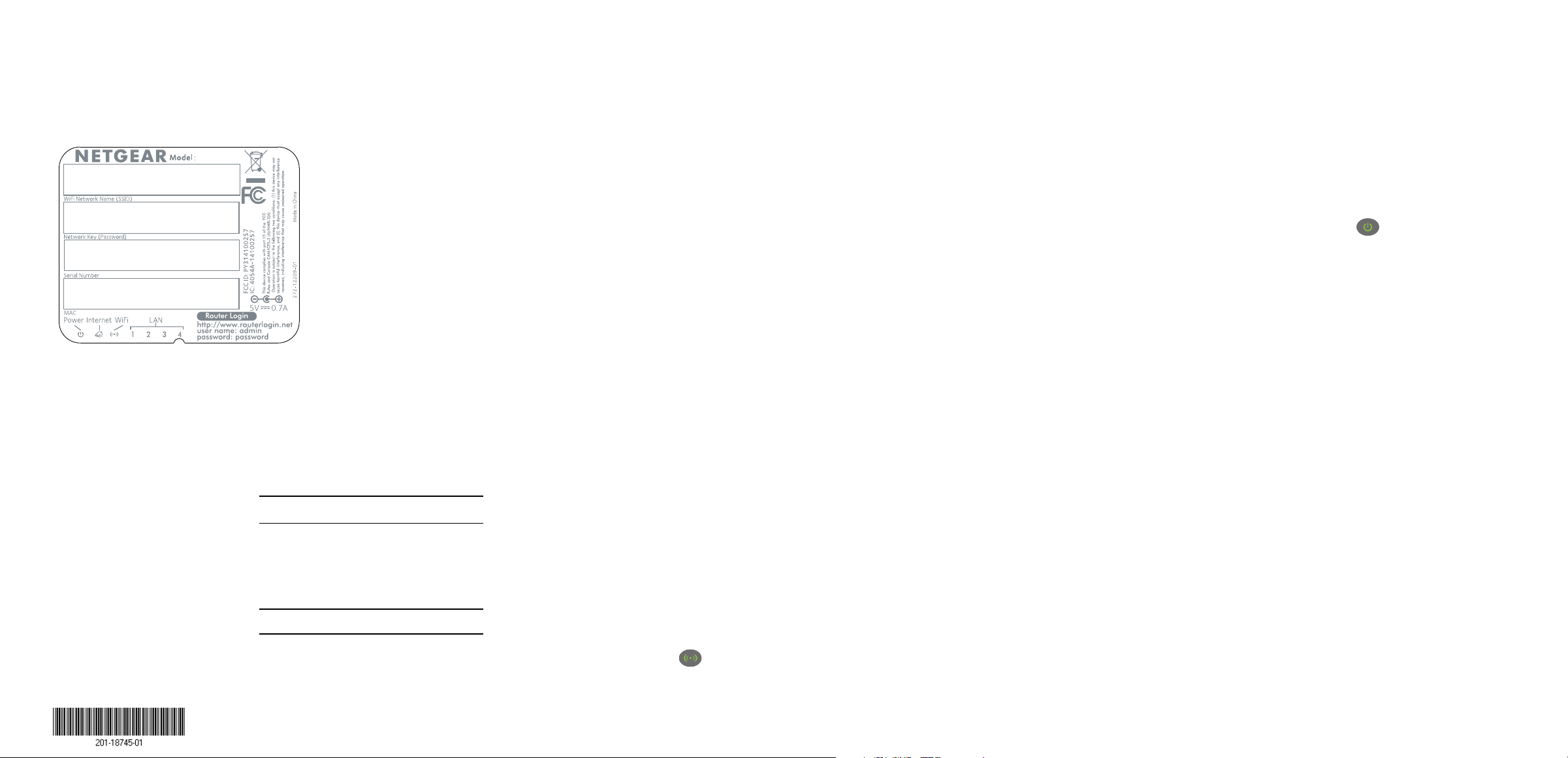
WiFi Network Name and Password
The preset WiFi network name (SSID) and password (network
key) are unique to your router, like a serial number. Because the
router automatically uses WiFi security, you don’t need to set it
up. The WiFi settings are on the product label.
NETGEAR recommends that you use the preset WiFi settings
because you can check the product label if you forget them.
NETGEAR genie lets you change these settings. If you do so, write
down the new WiFi settings and store them in a safe place.
Find the preset WiFi settings on your router and record them here:
WiFi network name (SSID)
Network key (password)
If you change the WiFi settings, write the new settings here for
easy reference and store this booklet in a safe place.
WiFi network name (SSID)
Network key (password)
Join the Router’s WiFi Network
To connect your computer or WiFi device (such as a smartphone or
gaming device) to your router’s WiFi network, you can use either
the manual method or Wi-Fi Protected Setup (WPS) method.
Manual Method
1. Open the soware utility that manages your WiFi connections
on the computer or WiFi device that you want to connect to
your router.
This utility scans for all wireless networks in your area.
2. Find and select your router’s WiFi network name (SSID).
The SSID is on the product label.
3. Enter the router’s password (or your custom password if you
changed it) and click the Connect button.
The password is on the product label.
4. Repeat Step 1 through Step 3 to add other computers or WiFi
devices.
WPS Method
If your computer or WiFi device supports WPS, you can use WPS
to join the router’s WiFi network. For help with the WPS button
on your computer or WiFi device, check the instructions or online
help that came with that computer or WiFi device. Some older
equipment cannot use WPS.
Note: WPS does not support WEP security. If you are using WEP
security, use the manual method.
1. Press and quickly release the WPS/Reset button on the router
with the end of a paper clip or a similar object.
The WiFi LED
blinks green.
Note: If you do not quickly release the WPS/Reset button, the
router will return to its factory settings.
2. Within two minutes, on your computer or WiFi device, press
its WPS button or click its onscreen WPS button.
The WPS LED on the router lights solid green when the
computer or WiFi device connects to your router.
3. Repeat this process to add other computers or WiFi devices.
Reset Router to Factory Settings
You can return the router to its factory settings. Use the end of
a paper clip or a similar object to press and hold the WPS/Reset
button on the router until the Power LED
blinks green. The
router resets and returns to the factory settings.
Support
Thank you for purchasing this NETGEAR product.
Aer installing your device, locate the serial number on the label
of your product and use it to register your product at
https://my.netgear.com. You must register your product before
you can use NETGEAR telephone support. NETGEAR recommends
registering your product through the NETGEAR website.
For product updates and web support, visit
http://support.netgear.com. NETGEAR recommends that you use
only the ocial NETGEAR support resources.
You can get this installation guide in multiple languages and the
user manual online at http://downloadcenter.netgear.com or
through a link in the product’s user interface.
For the current EU Declaration of Conformity, visit
http://support.netgear.com/app/answers/detail/a_id/11621/.
For regulatory compliance information, visit
http://www.netgear.com/about/regulatory/.
See the regulatory compliance document before connecting the
power supply.