SleepHalo H1
AI Sleep Light
Thank you for choosing SleepHalo H1. This product combines full-spectrum lighting,
relaxing audio, AI sleep plans, a touch display, and smart sensing for bedside
sleep-assistance scenarios.
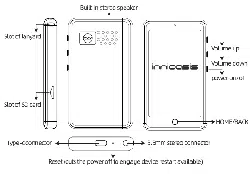
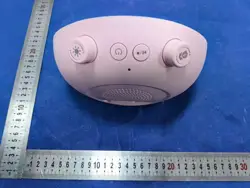
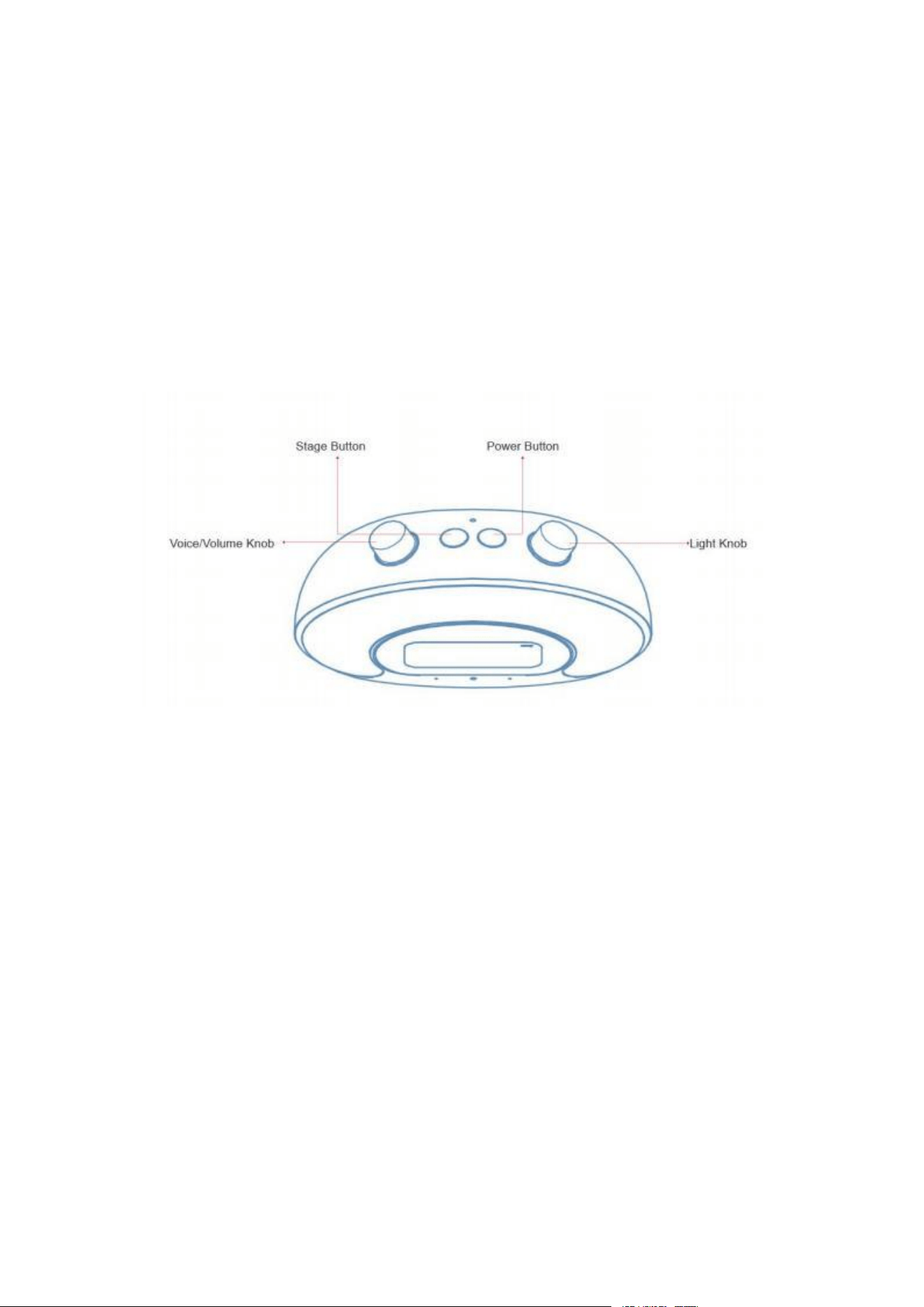
Product Three-View Line Drawing
Light Knob: Single-click to quickly turn on light (same as Quick Light). Rotate to adjust
light brightness.
Voice/Volume Knob: Single-click to wake voice assistant. Rotate to adjust current
volume.
Power Button: Single-click to jump to next sleep stage (only works if enabled in settings).
Stage Button : Double-click to force next stage. Press and hold 1.5 seconds to force end
full sleep plan.
How to quickly start using SleepHalo H1
You can build a sleep plan manually or choose AI-recommended settings. The standard
full-flow is: Pre-Sleep Single → Relax → Sleep → Wake Up → Grooming (optional).

Each stage can use independent volume and light brightness. You can tap to continue,
auto-advance by schedule, or snooze/enter like a normal alarm.
How to set up your first sleep plan
1) Open Sleep Plan.
2) Choose Manual Setup or AI Auto-Generate.
3) Configure stage durations and enable required stages.
4) Set stage-specific lighting, sound, and screensaver behavior.
5) Save and start.
How to use quick temporary modes
SleepHalo H1 supports quick temporary modes for rapid entry into common scenarios:
· Quick Light
· Nap
· Grooming
· Sleep SOS
Use these modes when you need immediate assistance without running a full sleep plan.
How to use audio, lighting, and screensaver synergy
In Relax and Sleep stages, the system can synchronize sound, light, and visual ambience.
Available content includes meditation audio, relaxing music, white noise, multi-track sleep
audio, and themed screensavers such as starry sky, campfire, mountain, and rainforest.
You can also use dynamic light scenes including static full color, custom color, breathing
mode, dynamic transitions, and star-rain effects.
How to use AI reports and recommendations
SleepHalo H1 can upload weekly sleep-related usage data to generate AI sleep-quality
reports and recommendations.

These recommendations can be applied to improve your future sleep plans and stage
parameters.
You can also use interactive AI sleep-expert features for daily guidance.
2. FAQ
1) Can I control brightness and volume independently?
Yes. Brightness and volume can be adjusted in real time using rotary controls, and can
also be configured separately for each sleep stage.
2) What content can be used as sleep audio?
You can choose bedtime stories, meditation brainwave audio, light music, white noise,
and other sleep-oriented audio materials.
3) Does the device support third-party bedside apps?
Yes. Supported preinstalled bedside-friendly apps include FM, media playback, VLC, and
audiobook services (availability may depend on software build).
4) Can I skip stages during operation?
Yes. You can move to the next stage by configured single-click action, force next stage by
double-click, or force end the plan by long-pressing the stage button for 1. 5 seconds.
About Bluetooth connection
1. How to pair Bluetooth speakers or headphones
Open Settings, enable Bluetooth, and make sure your Bluetooth speaker or headphones
are in pairing mode. Tap Search Device, then select the device name to pair.
2. If the device is found but cannot connect
· Turn Bluetooth off and on, then pair again.
· Restart SleepHalo H1 and try again.
· Remove the paired device from My Devices and pair again.
3. How to disconnect Bluetooth
Go to Bluetooth settings, open My Devices, select the connected device, and choose
Disconnect or Forget.

About Wi-Fi connection
1. How to connect to Wi-Fi
· Open Settings.
· Tap Wi-Fi.
· Turn Wi-Fi on.
· Select your network from the list.
· Enter the password. Passwords are case-sensitive.
· Tap Connect and wait for connection confirmation.
2. How to disconnect Wi-Fi
To temporarily disable Wi-Fi, go to Settings > Wi-Fi and turn Wi-Fi off. To remove a saved
network, select the network details and choose Forget Network.
Specification
Product Type: AI Sleep Light
Core Display: 3.5- inch touch display
Lighting System: Full-spectrum LED array
Speaker: 45 mm bass speaker
Sensors: Microphone, ambient light sensor
Wireless: Wi-Fi and Bluetooth functions for app, content, cloud, and optional audio
accessory use
Core Modes: Pre-Sleep Single, Relax, Sleep, Wake Up, Grooming
Quick Modes: Quick Light, Nap, Grooming, Sleep SOS
AI Features: Weekly AI sleep report and recommendation engine, interactive AI sleep
expert
FCC Warning
FCC Requirement
Any changes or modifications not expressly approved by the party responsible for
compliance could void the user's authority to operate the equipment.
This device complies with Part 15 of the FCC Rules. Operation is subject to the followingtwo
conditions:
(1) this device may not cause harmful interference
RF Warning Statemen
(2)this device must accept any interference received, including interference that may
cause undesired operation.
Note: This equipment has been tested and found to comply with the limits for a Class B
digital device, pursuant to Part 15 of the FCC Rules.
These limits are designed to provide reasonable protection against harmful interference in
a residential installation. This equipment generates, uses, and can radiate radio frequency
energy, and if not installed and used in accordance with the instructions, may cause
harmful interference to radio communications. However, there is no guarantee that
interference will not occur in a particular installation. If this equipment does
cause harmful interference to radio or television reception, which can be determined by
turning the equipment off and on, the user is encouraged to try to correct the interference
by one or more of the following measures:
-Reorient or relocate the receiving antenna.
-Increase the separation between the equipment and receiver.
-Connect the equipment into an outlet on a circuit different from that to which the receiver
is connected.
-Consult the dealer or an experienced radio/TV technician for help.
15.21 Information to user.
Any Changes or modifications not expressly
approved by the party responsible for compliance
could void the user's authority to operate the equipment.
t
Warnin
This equipment complies with FCC radiation exposure limits set forth for an uncontrolled
environment. This equipment should be installed and operated with minimum
distance 20cm between the radiator & your body.
g
>> Do not expose the device to water for extended periods.
>> Do not use in extreme temperature conditions for long durations.
>> Keep ventilation unobstructed during long operation sessions.
>> If any abnormal odor, overheating, or instability is observed, stop use and contact
support.
Warranty
Thank you for choosing SleepHalo H1.
Warranty period: 12 months from date of purchase.
Warranty scope: Main unit quality issues under normal use conditions.
The following are not covered: out-of-warranty products, unauthorized disassembly or
modification, man-made damage, and damage caused by abnormal environments or
force majeure.