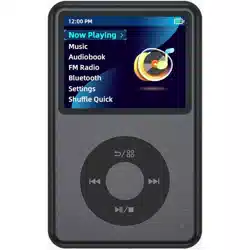
INNIOASIS Y1 MP3 Music Player
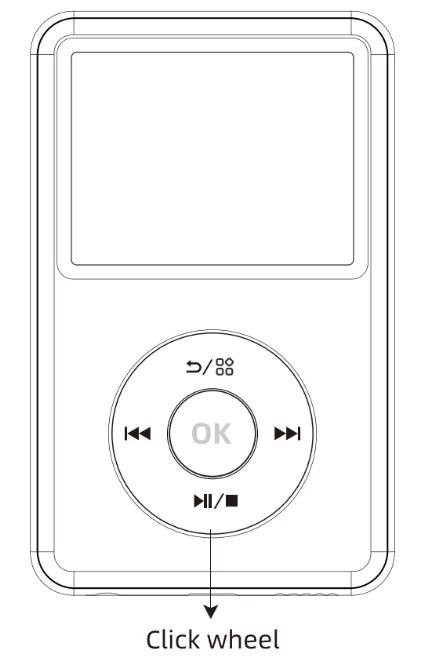
Click Wheel
 Return / MFB (Multi-Function Buttons)
Short press to go back to the previous page. long press to activate certain specific functions or shortcut menus. such as A-B repeat. bookmarks. etc.- |<< Previous (Rewind)
Short press to skip to the previous track. long press for fast rewind.
- >>| Next (Forward)
Short press to skip to the next track. long press for fast forward.
 Play(Pause)/Stop
Short press to play or pause. long press to stop playback. Volume +(-) or switch options
Swipe clockwise to increase volume or scroll down or right options.
Swipe Anticlockwise to lower volume or Scroll up or left options. OK / Power ON(OFF)
Short press to confirm the current option.
Long press for 3 seconds to power on (off).
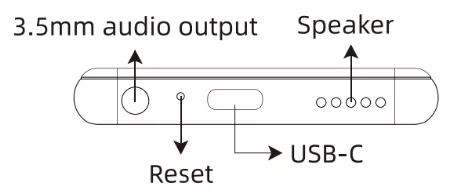
Ports and Features
3.5mm audio output
Connect external headphones or speakers.
USB-C
Connect to a computer or adapter for charging or files transfer.
Speaker
Built-in speaker for audio output.
Reset Hole
Reset hole is used to force shutdown the device in case of freezing or crash (not reset to factory settings).
How to transfer music to the player
- 1. Connect Y1 player to your computer with the included USB-C cable.
- 2. Short press the button on Y1 player to confirm "Turn on USB storage".
- 3. Click "This PC" on your computer’s desktop. you will find a USB drive added to the list of devices and drives.
- 4. Copy the music that has been downloaded on the computer and paste it into this newly added USB drive.
- 5. After completing the file transfer. click the button again to turn off USB storage. and press »/38 to return to
Tips: If you turn on USB storage. some apps you're running will stop and may be unavailable until you turn off USB storage.
Main Menu Options
List all functional options of the Y1 player. including: Now Playing. Music. Audiobook. Bluetooth. Settings. Shuffle Quick.
The following actions are available on the click wheel:
| Key |
Action |
Result |
|
Swipe clockwise |
Scroll down or right options |
| Swipe Anticlockwise |
Scroll up or left options |
|
Short press |
Confirm selected option |
| Long press |
Power on or power off |
Now Playing
Quickly enter the playback interface to view the currently playing song or audiobook.
The following actions are available on the click wheel:
| Key |
Action |
Result |
 |
Short press |
Prev track |
| Long press |
Fast rewind |
 |
Short press |
Next track |
| Long press |
Fast forward |
|
Short press |
Back to Prev-level |
| Long press |
Activate bookmark (for audiobook) / Activate A-B repeat (for music) |
|
Short press |
Play / Pause |
| Long press |
Stop playing |
|
Swipe clockwise |
Volume + |
| Swipe Anticlockwise |
Volume - |
|
Short press |
Switch between song info and lyrics |
| Long press |
Power on or off |
FAQs
1) How to shuffle?
In “Setting - Shuffle”. switch the status to On.
2) How to get list loop?
In “Setting - Repeat”. switch the status to “List loop”.
3) How to view lyrics?
In the Now playing window. short press to switch to lyrics display. Short press again to return to the song information display.
4) Can I add a bookmark to audiobooks?
Yes. When playing audiobooks. long press the key to pop up the dialog box. and then confirm to add to bookmark. All created bookmarks are preserved in Audiobook --- Bookmark lists.
5) Is there A-B repeat?
A-B repeat is only available for music playing. When playing music. long press the key 9/88 to activate A-B repeat and generate point A. long press the key again to generate point B.
* If you want to use A-B repeat while playing audiobook. please do not store the audiobook file in the Audiobooks folder. By default. only files stored in the “Audiobooks” folder are recognized as audiobook. while those stored in other folders are recognized as music.
6) Is the player equipped with an equalizer and how to use it?
Yes. Y1 is equipped with EQ. You can go to Settings -- Equalizer to select your favorite preset style. or long press the key to activate the customized EQ.
Music
| Key |
Action |
Result |
|
Swipe clockwise |
Scroll down or right options |
| Swipe Anticlockwise |
Scroll up or left options |
|
Short press |
Confirm selected track or option |
| Long press |
Power on or Power off |
|
Short press |
Back to Prev-level |
| Long press |
Activate shortcut |
About shortcut menu
Long press the key in all folders under Music to pop up a shortcut menu for file management:
- Multi Select -- Select music / file one by one.
- All Select -- One-click to select all music / files in the current folder.
- Delete File -- Delete the selected music.
- Add to Playlist 1,2,3... -- Add selected music to target playlist.
About Playlist
Y1 Player allows you to add. delete. rename playlists. Long press the key 9/88 in the playlist folder to pop up the shortcut menu. and then select the operation you want:
- New Playlist — add a new playlist, the default name of the new playlist is Playlist 6, 7...
- Delete Playlist — delete the current playlist.
- Rename — Rename the current playlist.
About Search
Y1 Player allows you to search for a target track or album by part or all of the song title. Click “Search” and enter some or all of the song names in the pop-up input box to preview the search results above the input box.
For more operations. please refer to the table below:
| Key |
Action |
Result |
|
Short press |
backspace - deletes one character per press |
| Long press |
Continuous delete |
|
Short press |
Space - Enter a space |
| Long press |
Fast forward |
|
Swipe clockwise |
Scroll down or right letter options |
| Swipe Anticlockwise |
Scroll up or left letter options |
|
Short press |
Enter the current letter |
| Long press |
Power on or off |
|
Short press |
Close the input box and return to search |
| Long press |
Activate shortcut menu |
In search results page. long press the key 9/88 to pop up a shortcut menu. which allows you to select all or multiple tracks and add them to the target playlist.
Audiobook
| Key |
Action |
Result |
|
Swipe clockwise |
Scroll down or right options |
| Swipe Anticlockwise |
Scroll up or left options |
|
Short press |
Confirm selected book or option |
| Long press |
Power on or off |
|
Short press |
Back to Prev-level |
| Long press |
Activate shortcut menu |
Note: Only books stored in the device's “Audiobooks” folder are recognized as audio books. Audiobooks stored elsewhere will be recognized as music.
About shortcut menu
Long press the key in all folders under Audiobook to pop up a shortcut menu for file management:
- MultiSelect -- select music / file one by one
- All Select -- one-click to select all book / files in the current folder.
- Delete File -- delete selected music.
About Bookmark lists
In the audiobook playback window. long press the button to activate the bookmark function. and all created bookmarks are saved in this list. Long press the button in the bookmark list to pop up a shortcut menu. allowing you to select all. multi select. and delete bookmarks.
About Settings
Note: these settings under Audiobook are only available for playing audiobooks.
- Shuffle -- enable/disable shuffle mode
- Repeat -- enable/disable loop playback. Options include: List loop. Single loop. Off.
- Speed -- Adjust playback speed. Options include: Slow. Normal. Fast. Fastest.
- Time off -- Set stop playing time. Options include: Off. 10min. 20min. 30min. 60min.
FAQs
1) How to add a bookmark?
When playing the audiobooks. press the key in the click wheel to pop up the dialog box. and then confirm to add to bookmark. All created bookmarks are preserved in Audiobook --- Bookmark lists.
2) Why didn't I find the audio books uploaded to the device?
To avoid confusion between music files and audiobooks. only books stored in “Audiobooks” folder will be recognized as audiobooks by default. Books stored elsewhere will be recognized as music. Therefore. make sure you upload the audiobooks to the audiobooks folder.
Tips: encrypted audiobooks cannot be recognized. such as .m4b. aax file.
FM Radio
| Key |
Action |
Result |
|
Short press |
Prev channel |
|
Short press |
Fast channel |
|
Short press |
Back to Prev-level |
| Long press |
Activate shortcut menu |
|
Short press |
Play / Pause |
|
Swipe clockwise |
Volume + / Scroll down or right options & frequency |
| Swipe Anticlockwise |
Volume - / Scroll up or left options & frequency |
|
Short press |
Switch between song info and lyrics |
| Long press |
Power on or off |
About shortcut menu
In the radio broadcast window, long press the key to pop up the shortcut menu:
- Play -- Play the current channel
- Pause -- Pause playback.
- Channel List -- List all saved channels for auto search and manual search.
- Frequency Range -- Change frequency area, options included: America, Asia, Australia, Europe, Japan.
- Re-search Channel-- Start Auto Channel search.
- Audio output -- Change the audio output mode: Headset, Speaker, Short press key to switch.
- Record FM-- Turn on radio recording to record your favorite radio and programs. All recordings will be stored in the “Recording files” folder by default.
FAQs
1) Is wired headset required as antenna to use FM radio?
Yes. you must connect a wired headset to start FM Radio.
2) Is Bluetooth headphone available for FM?
Of course. It is recommended that you plug in a wired headset and start FM before connecting your Bluetooth headset. Because the default audio output terminal of the player is the last connected device.
3) How to search for a station manually.
In the FM window, short press the key to call up the manual channel search, and then slide the click wheel counterclockwise or clockwise to adjust the frequency to the best. To save the channel. short press .
4) Can I record FM radio and how?
Long press the key to activate the shortcut menu, then select Record FM to start recording the current station. While recording, the upper left corner of the FM window displays a flashing recording logo. To save the recording, short press the key and confirm to save.
Photo
| Key |
Action |
Result |
| In Folder List Window |
In Picture Browse Window |
|
Short press |
Prev folder or file |
Prev picture |
|
Short press |
Next folder or file |
Next picture |
|
Short press |
Back to Prev-level |
Back to pre-level |
| Long press |
Activate shortcut menu |
Activate shortcut menu |
|
Swipe clockwise |
Scroll down or right option and file |
Switch down or right picture |
| Swipe Anticlockwise |
Scroll up or left options |
Switch up or left picture |
|
Short press |
Confirm selected option or file |
Exit picture browsing |
| Long press |
Power on or Power off |
Power on or Power off |
About shortcut menu
In the folder and picture list window and picture browsing window. long press the key 9/88 to activate the shortcut menu. You can use it to:
 Delete -- Delete the selected folder / file / picture.
 MultiSelect -- Activate the multiple selection function and select files one by one.
 All Select -- Select all folders or files at once.
 Rename -- Rename the current folder or file.
 As Wallpaper -- Set the current picture as desktop or global wallpaper.
FAQs
1) Why do I get a very blurry desktop background when I set the picture as wallpaper?
First make sure your picture pixels are greater than 480 x 360. then go to Settings – Wallpaper, and switch the value of Ground glass to Off.
2) What image formats are compatible with the player?
Both .PNG and .JPG are available.
3) Can I edit the picture?
Only rename is available, no picture editing option is provided.
4) How to operate the input keyboard when renaming?
Please refer to “About Search” in the Music section.
Bluetooth
| Key |
Action |
Result |
|
Short press |
Back to Prev-level |
| Long press |
Ignore My Device |
|
Swipe clockwise |
Scroll down or right options |
| Swipe Anticlockwise |
Scroll up or left options |
|
Short press |
Confirm option / Connect or Disconnect |
| Long press |
Power on or Power off |
FAQs
1) How to connect or disconnect devices?
Connect: After enabling Bluetooth, all available Bluetooth devices around will appear under other devices. Swipe the click wheel counterclockwise or clockwise to locate the target device, and then short press to pair and connect with the device.
Disconnect: Swipe the click wheel counterclockwise or clockwise to locate the connected device in My Device. Short press and confirm to disconnect the device.
2) How to remove a device from my device?
Swipe the click wheel counterclockwise or clockwise to locate the target device in My Device. Long press and confirm to remove the device.
3) How to refresh the device list?
Turn Bluetooth off and back on.
Settings
| Key |
Action |
Result |
|
Short press |
Back to Prev-level |
|
Swipe clockwise |
Scroll down or right options |
| Swipe Anticlockwise |
Scroll up or left options |
|
Short press |
Switch & confirm setting value |
| Long press |
Power on or Power off |
- Clear cache -- Clearing the system cache resolves common issues such as unexpected slow performance. response delays. or crashes.
- Timed shutdown -- Set the time of timed shutdown. options included: off. 10min. 20min. 30min. 60min. 90min. 120min. Short press to switch.
- Shuffle -- shuffle on or off. Short press to switch. (Only available for music. not for audiobooks)
- Repeat -- Change the loop mode: off. list loop. single loop. Short press to switch. (Only available for music. not for audiobooks)
- Equalizer -- Provide 10 preset style: Normal. Classical. Dance. Flat. Folk. Heavy Metal. Hip Hop. Jazz. Pop. Rock. And allow customization of EQ.
Tips: The currently running style is marked with green. and the style being located is marked with light blue.
- Sort by -- Sort files or tracks by file name or creation time. Options include: Name A to Z (ascending). Name Z to A (descending). Time. Time reversal.
- Key lock -- Enable or disable keylock.
- On -- In the power-saving mode (screen off). the device will execute the corresponding command only if you press the key to wake up the screen. and then press other function keys. It prevents accidental key presses from interrupting playback. unpausing or skipping tracks.
- Off -- In the power-saving mode (screen off). pressing any function key will immediately execute the corresponding operation command without waking up the screen. This means that accidental key presses may cause playback to be interrupted. pause to be cancelled. or tracks to be skipped. Need to wake up the screen. just press the key .
- Key tone -- Enable or disable key tone. Short press to switch.
- Key vibration -- Enable or disable key vibration. Short press to switch.
- Wallpaper -- Change the wallpaper of the device desktop or global.
Note: Setting “Ground glass” to “On” will blur the wallpaper.
- Backlight -- Adjust backlight time: 10s. 15s. 30s. 45s. 60s. 2m. 5m. Always. Short press to switch. When the device is idle for more than the set time. the screen will turn off and enter power-saving mode.
- Brightness -- Adjust screen brightness by sliding the click wheel clockwise or counterclockwise.
- Display battery -- Select whether to display the battery percentage in the title bar.
- Date & Time -- Set the date. time. and time format of the device. etc.
- Language -- Set the language of the device.
- Factory reset -- Reset the device to factory settings.
Warning: all saved files on the device will be deleted. Please be careful.
- About -- view device information.
Settings FAQs
1) How to use custom EQ?
Navigate to any preset style under Settings--Equalizer. and long press the key to activate the customized EQ. Then press to switch to the band to be adjusted. And swipe clockwise or anticlockwise to change the value of this band. If you are not satisfied with the current customization. you can select "Reset" to restore to the default.
2) How did shuffle and repeat work together?
| Shuffle |
Repeat |
Result |
| On |
Off |
Shuffle in the current playlist or folder. stop after all songs are played |
| List loop |
Shuffle in the current playlist or folder. continue to shuffle after all songs are played |
| Off |
Single loop |
Loop the current track |
| Off |
Play sequentially in the current playlist or folder. stop after all songs are played |
| List loop |
Play sequentially in the current playlist or folder. continue to sequential play after all songs are played |
| Single loop |
Loop the current track. |
Shuffle Quick
Quickly select a song randomly and start music playing.
Specifications
Bluetooth version: 4.2
Product Size: 3.8 x 2.4 x 0.3 inch
Weight: 2.3 oz
Screen Size: 2.4 inch (480 x 360 pix)
Battery Capacity: 1250mAh
Charging Time: 90 Minutes
Storage: 128 GB
Music Playtime: 25-35 hours
Music format: MP3. WAV. FLAC. APE. OGG. M4A. AAC. WMA. MP2. AMR. MID. M4R. MMF. WV. AIF. AIFF. AU. RA. MKA. AC3. CAF
Photos format: JPG. PNG
FM Receiving Frequency: 87.5 MHz ~ 108 MHz
Warning
>> Do not leave the device in an environment where the temperature is too low or too high (below -10°C or above 50°C) for a long time. Extreme temperature environments will cause the device to deform and shorten the service life of the device;
>> Do not use the equipment under thunderstorm weather;
>> Do not place the device in the water for a long time;
>> Do not expose the equipment to the sun for a long time.
Warranty and Service
Thank you for purchasing our products. You will enjoy the following services when using this product.
Warranty period: Within one year from the date of sale.
Warranty scope: Limited to the product host.
Warranty terms:
(1) Within 1 year after purchase. failure or damage caused by product quality problems can be replaced for free or full refund.
(2) Accessories are not included in the warranty. such as USB cable. earphones. etc.. but if quality problems occur within 7 days after purchase. they can be replaced for free.
(3) The following conditions are not covered by the warranty:
- Out of the warranty period.
- It has been disassembled or repaired privately by the customer.
- Man-made damage. accidental damage or deformation.
- Failure caused by installation and use in abnormal environments such as high temperature. high pressure. and humidity.
- Damage caused by natural disasters such as lightning strikes. floods. and earthquakes.