Product Overview
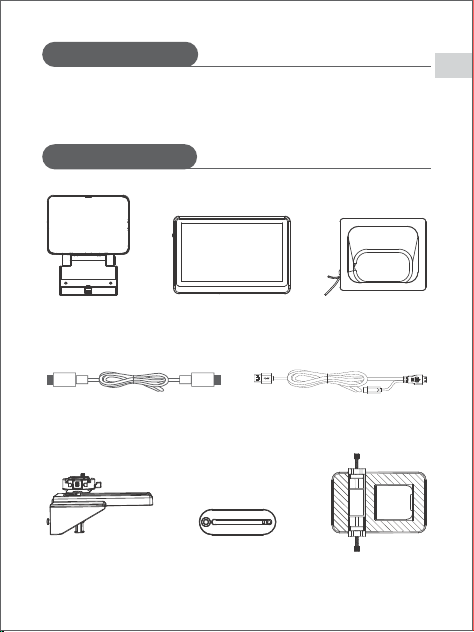
Package Contents
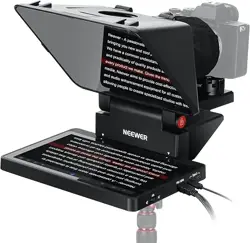
Compatible with Windows and macOS, the NEEWER Teleprompter can
transform your computer or HDMI-enabled monitor into a teleprompter.
Teleprompter ×1
Monitor ×1
Sunhood ×1
USB C to USB C Type Cable ×1
USB Type C-Mini HDMI
+ USB Type C cable ×1
Base ×1 Camera mount ×1 Phone mount ×1
EN
01
Product Illustration
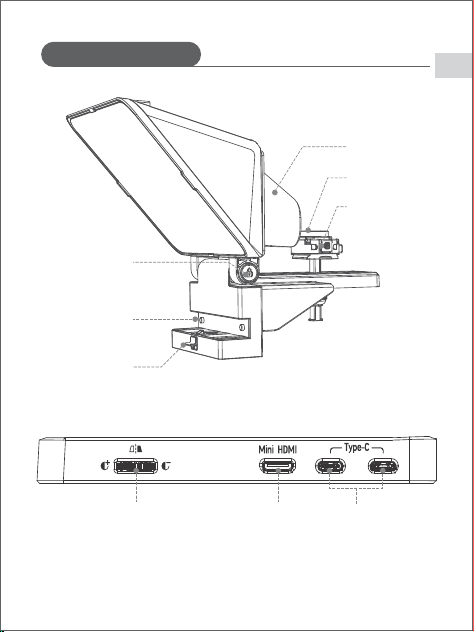
Beamsplitter angle
adjustment knob
Monitor mounting
slots
Monitor quick
release button
Sunhood
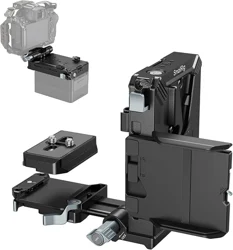
Quick release plate
Camera mounting
platform
Mode/brightness adjustment dial
Single Press: Selects teleprompting
modes
Scroll: Adjusts brightness
Mini HDMI port
USB Type C ports
EN
02
Assembly Guide
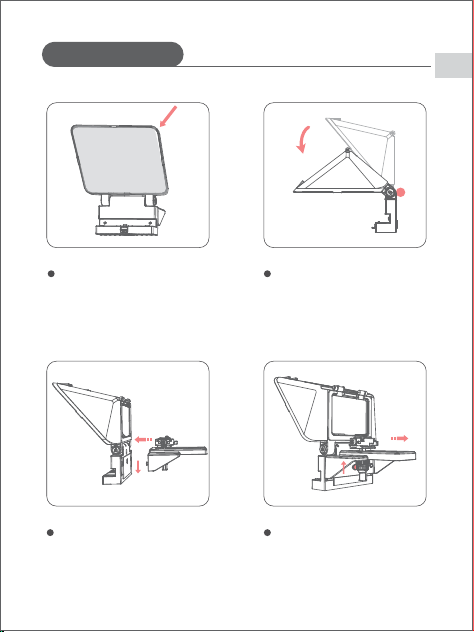
After taking the teleprompter out
of the box, please peel the
protective film from the
beamsplitter glass before first use.
Peel off the protective film
Press the beamsplitter angle
adjustment knob to adjust its
angle.
Adjusting the beamsplitter angle
Align the base with the holes on the
back of the teleprompter, insert and
push downward.
Mounting the base
Press the bottom lock button and
lift to remove the base.
Removing the base
EN
03
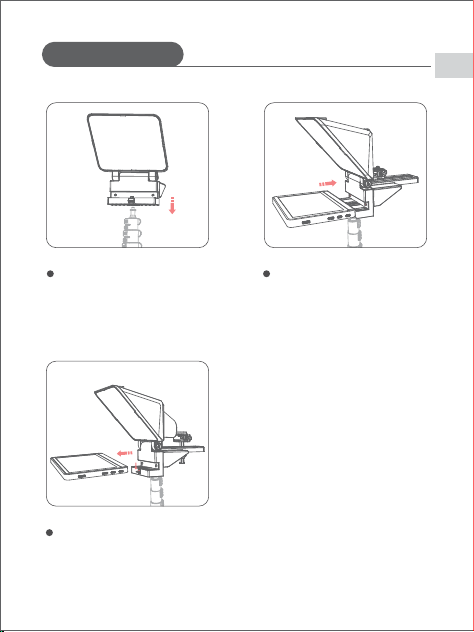
The underside of the
teleprompter has a matching
threaded hole which should be
aligned with the tripod and then
rotated gently until secured.
Connecting to a tripod
Align the monitor with the two
mounting slots on the
teleprompter. Push it in until you
hear a click which is an indication
of the monitor being securely
connected.
Installing the monitor
Press the quick-release button
downward to remove the monitor.
Removing the monitor
Assembly Guide
EN
04
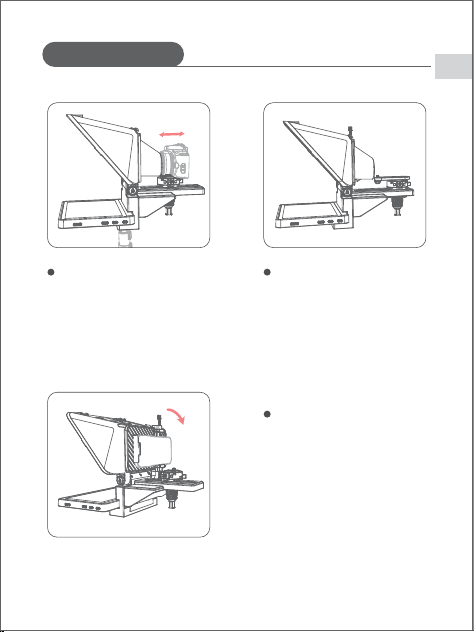
Attach the sunhood along the back
of the teleprompter. After
positioning and securing your
camera, wrap the hood around the
lens and tighten the drawstring to
prevent light leakage.
Installing the camera
Mount the quick-release plate
onto the tripod head. It can also
be used to mount monitors and
other equipment.
Installing the camera mount
Lay down the lid on top of the
teleprompter. Attach the phone
mount’s rear part neatly
against the back of the
teleprompter. Mount your
phone and fine-tune the
Installing your phone
Assembly Guide
EN
05
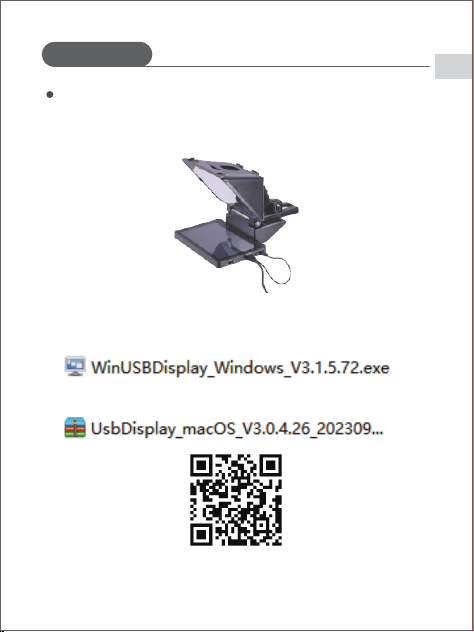
② MAC
How to Use
1. Plug the dual-head cable into the monitor's HDMI and Type-C ports,
and connect the other end to your computer.
① PC
2. A driver installation window will appear. Open the folder and install
the correct driver depending on your operating system.
3. After installation, your computer will restart. Reconnect the cable to
complete setup.
Connect to a computer
EN
06
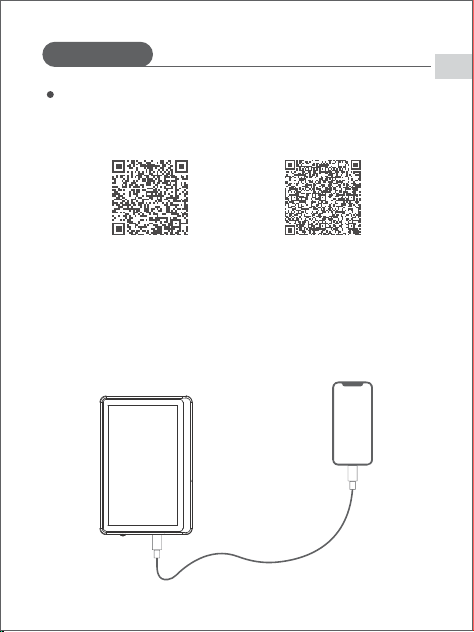
1. Download and install the dedicated teleprompter app.
2. Use a Type-C to Type-C cable to connect your phone to the monitor
for screen mirroring.
Scan the QR code above with your phone or tablet (available for both
iOS and Android).
Connect to the Mobile App
iOS
Android
How to Use
EN
07
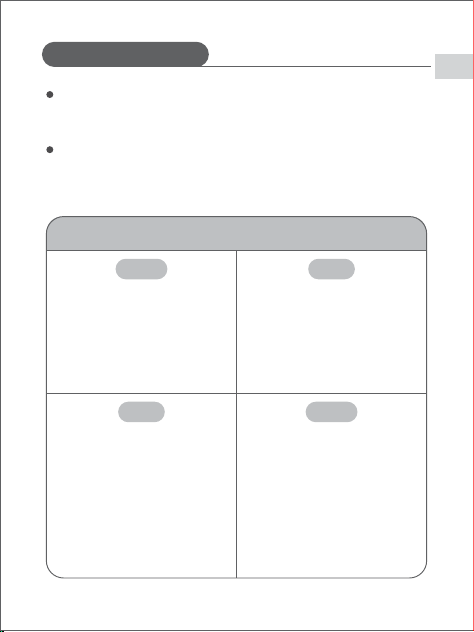
Smartphones, laptops
Compatible Devices
iOS, Android, Windows, Linux
Compatible Systems
HP
MacBook12、MacBook Air2018/
2019 /2020、MacBook Air M1、
MacBook Air M2、MacBook Pro
2016/2017/2018/2019/2020/
2021/2022/2023、Mac Mini
2018/ 2020/2023
ZHAN 66、ZHAN 99、ZHAN X、
ZHAN X13/X14/X15、OMEN4 Pro、
OMEN 5/5Air/5 Plus、OMEN6/
6Pro/6 Air/6 Plus、
OMEN7/7Pro/7Plus、OMEN8/8
Pro/8 Plus、ELITEBOOK
830/840/850、Envy13/14、
SPECTRE X360 13
YOGA 13s/14c/14s/16s、
XIAOXIN 15/Air 14/15/Pro 14/16、
Legion 7000/7000P/R7000/
R7000P、Legion Y9000P/
Y9000k/R9000P/ R9000K、
ThinkPad X1、ThinkBook
XPS13/15/17、Inspiron14 Pro/
15 /16 Pro、Vostro 13/14/15/
16/16 Plus、G15、Latitude
13/14/15、Latitude 7320/7420/
7520/9510
Compatible Devices
Supported Laptops
Apple
Lenovo
Dell
EN
08
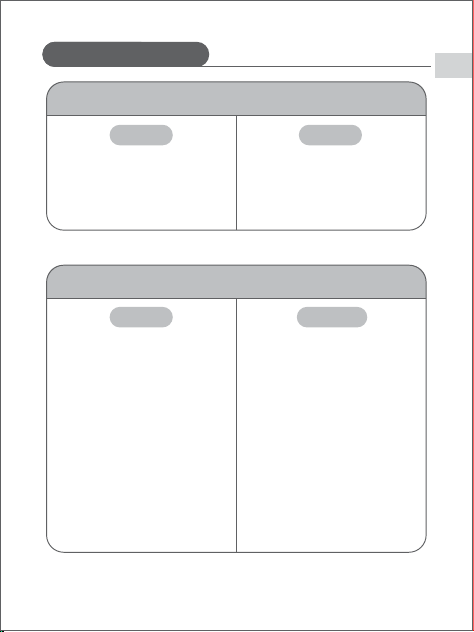
Huawei P Series: P20, P20 Pro,
P30, P30 Pro, P40, P40 Pro, P40
Pro+, P50, P50E, P50 Pro, P60,
P60 Pro, P60 Art
Mate Series: Mate 10/10 Pro,
20/20 Pro, 30/30E Pro/30
Pro/30 RS, 40/40E/40E Pro/40
Pro/40 RS, 50/50 Pro/50 RS,
60/60 Pro/60 Pro+/60 RS
Foldables: Mate X, Xs2, X2, X3,
X5, P50 Pocket
GalaxyS8/S8+、S9/S9+、
S10/S10e/S10+、
S20/S20+/S20Ultra/S20 FE、
S21/S21+/S21Ultra/S21FE、
S22/S22+/S22Ultra、
S23/S23+/S23 Ultra /S23 FE、
Note 8、Note 9、Note10/10+、
Note 20/20 Ultra、Galaxy Fold、
Galaxy Z Fold2 /Fold3/Fold4/
Fold5、W20、W21、W22、
W23、W24、Galaxy A90
Huawei
Xiaomi
Huawei
Samsung
MateBook 13/13s/14/14s/16/16s、
MateBook X/X Pro、MateBook E、
MateBook D16
Air12.5/13.3、Pro14/15、Pro
X14/X 15
How to Use
Supported Phones
Supported Laptops
Compatible Devices
EN
09
使用说明
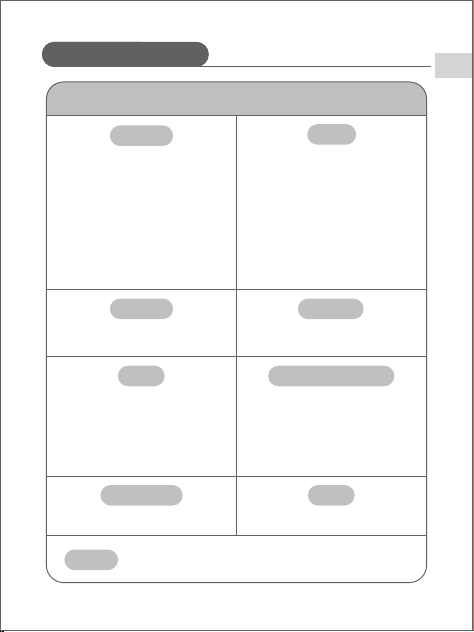
Honor
OnePlus
VIVO
Black Shark
Apple
Nubia & RedMagic
Realme
OPPO
Magic Series: Magic 3/3 Pro/3
Ultimate, Magic 4/4 Pro/4
Ultimate, Magic 5 Pro/5 Ultimate,
Magic 6 Pro
Foldables: Magic V, V2, Vs2, V2
RSR
Others: Note 10, V20
12, 10 Pro, 9, 9 Pro, 9R
X100 Pro, X90 Pro, X90 Pro+,
XFold+, X80 Pro (Snapdragon &
Dimensity), XFold, XNote, X70
Pro+
Series 4 and 5
Xiaomi
Xiaomi 14 Series
Nubia: Z50, Z50S Pro, Z50 Ultra,
Z60 Ultra
RedMagic: 7/7S/7S Pro/7 Pro,
8 Pro/8 Pro+/8S Pro/8S Pro+,
9 Pro/9 Pro+
Realme GT5 Pro
Find N Series: N2, N3
Find X Series: X2, X3, X5, X6 Pro,
X7 Ultra
Others: R17 Pro, Reno 10x Zoom
iPhone 15 Series
How to Use
Supported Phones
Compatible Devices
EN
10
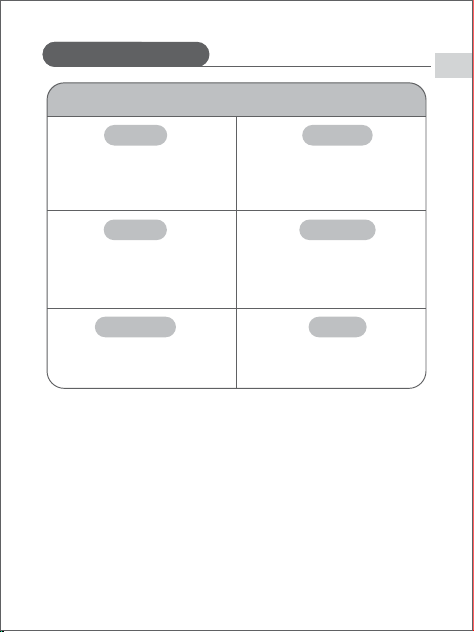
Supported Tablets
vivo/iQoo
Microsoft
HUAWEI M6、MatePad Pro、
MateBook E、MateBook E Go
Xiaoxin Pad Pro 12.6, Pad Pro
2022, Legion Y700, Legion Y900
vivo Pad Air、vivo Pad2、vivo iPad mini6、iPad 10、iPad Pro
Surface Pro 7/7+/8/9、Surface
Go2/3
GalaxyTab
S4/S6/S7/S7+/S8/S8+/
S8 Ultra/S9/S9+/S9 Ultra/S9
Apple
*Some devices may become incompatible due to irregular system
updates. For the latest info, please contact customer support.
Huawei
Lenovo
Samsung
Compatible Devices
EN
11
Safety Precautions
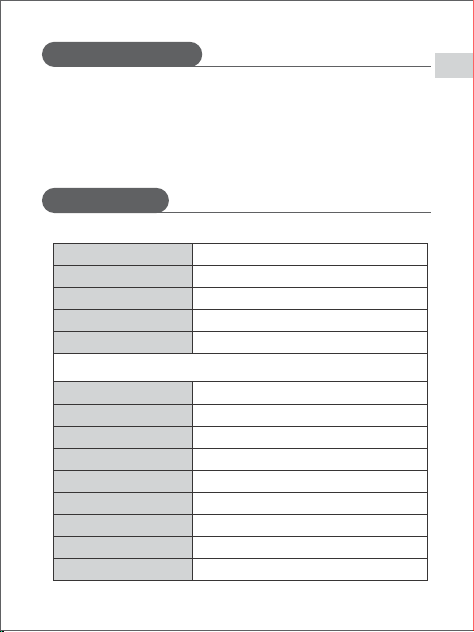
Specifications
Aluminum alloy +coated glass
Model
Material
USB-C input
Power
1. Handle with care. Do not drop the product or expose it to strong
impacts or collisions.
2. Do not attempt to disassemble the product, except for the specific
parts mentioned in the manual. In case of malfunction, please
contact our customer support team.
X11
5V/2A
10W
Beamsplitter Size 11"
Reading Range
Light Transmittance
2.5m
75%
TM8 Monitor
226.6*151.3*17.5mm
Display Size 9"
Dimensions
800:1Contrast Ratio
180PPi
80°H/80°V;80°/80°(L/R)80°/80°(U/D)Viewing Angle
Resolution
Brightness
1024*768p
Approx. 620 nits
EN
12