Product Introduction
User Manual: This mixing console is mainly used for recording karaoke on
mobile phones/computers, gaming entertainment, online live streaming,
and other fields. With the built-in new generation professional grade DSP
1. Please disconnect the charger and turn off the machine before cleaning.
2. Non professionals are not allowed to disassemble the equipment on
their own to avoid machine malfunctions and loss of warranty rights.
3. Do not place the device in direct sunlight to avoid premature aging of
electronic components.
4. Avoid using in dusty or dirty environments (dust can easily cause
equipment failure).
5. Do not place the device in an environment that is too cold or too hot, as
it may cause the device to malfunction.
6. It is recommended to use an environment with a temperature not
exceeding -10 -45 and a relative humidity of 10% -95%.
7. Do not insert any items into the device to avoid short circuits or circuit
damage.
8. Avoid friction and collision between this machine and hard objects to
prevent surface scratches, detachment, or other hardware damage.
9. The product must not be exposed to excessively hot environments such
as sunlight or fire baking.
10. This manual contains important content, please keep it
If the battery is not replaced properly, there is a risk of explosion, and only
the same or equivalent type of battery can be used for replacement.
precautions
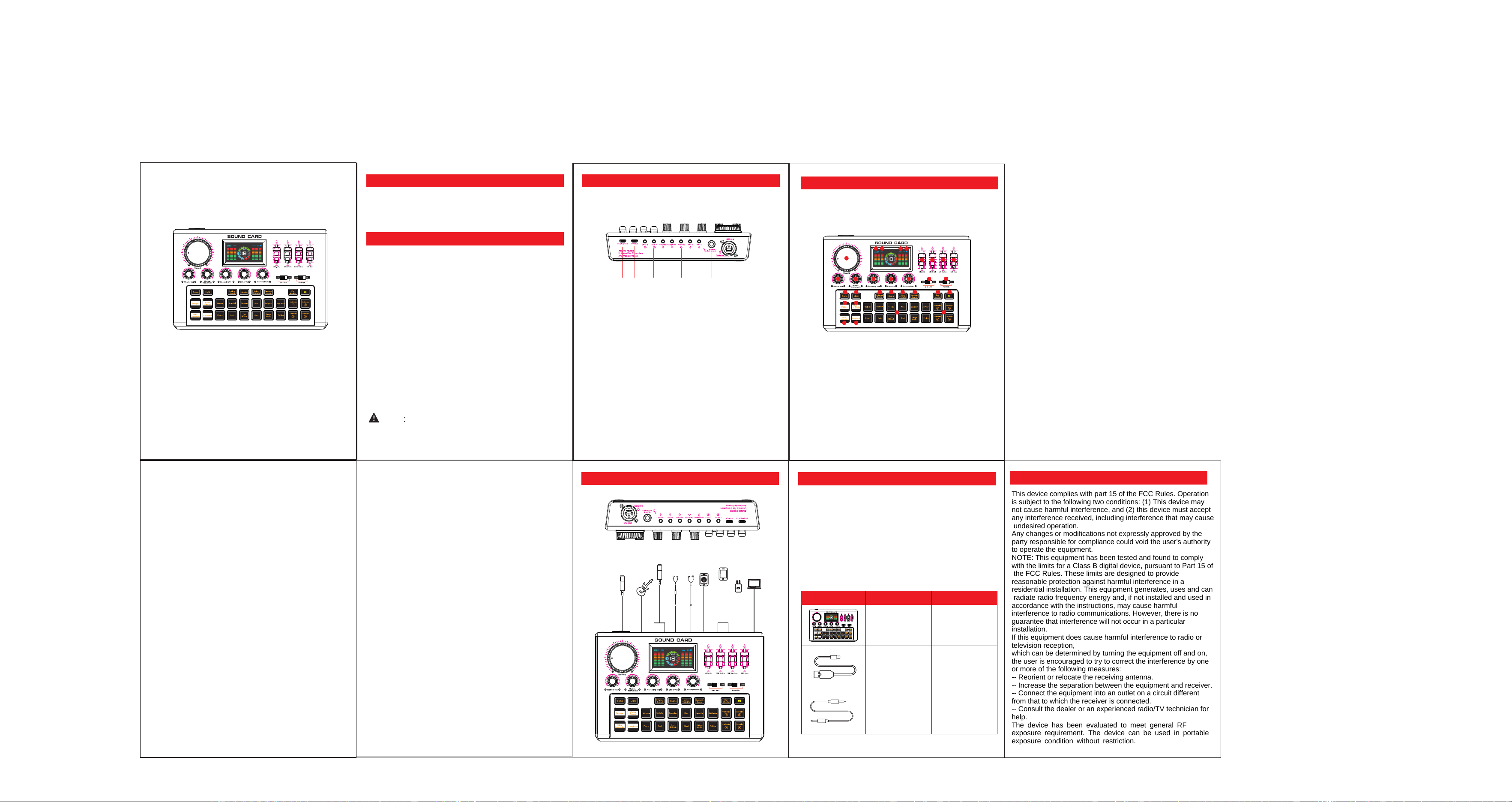
Function Introduction
Figure 1 (Sound Card Interface)
1 2 3 4 5 6 7 8 9 1 0 1 1
1. OTG interface for computer/mobile phone
2. DC5V-2A charging interface
3.3.5mm live streaming interface
4.3.5mm live streaming interface
5,3.5mm accompaniment interface
6.3mm headphone jack
7,3.5mm headphone interface
8,3.5mm microphone interface
9,3.5mm microphone interface
10,6.5mm instrument interface
11. Professional 48V large diaphragm microphone
interface
Function Introduction
1
2
3
4
5
6
7
8
9
10
11
12
13
14
16 17
18
19
20
21
22
23
24
25 26
27
28
29
30
31
user's manua
Live sound card
l
1. Power on/off: Turn the switch to 'ON' to turn on the device, and turn it to 'OFF' to turn off
the device.
2. 48V microphone switch: Turn the switch to 'ON' to turn on the 48V microphone power
supply, and turn it to 'OFF' to turn off the 48V microphone power supply.
3. Reverb size knob: Adjust the reverb effect of the device microphone.
4. Monitoring volume knob: Adjust the volume of the device's monitoring.
5. Instrument volume knob: Adjust the volume input size of external instruments on the
device.
6. Recording volume knob: Adjust the output volume of the device.
7. Special effect volume knob: Adjust the volume of the device's special effects.
8. Accompaniment volume knob: Adjust the accompaniment volume of the device.
9. Microphone volume push button: Adjust the volume of the device's microphone.
10. Microphone treble push button: Adjust the size of the device microphone's vocal
treble.
11. Microphone Midrange Push Button: Adjust the size of the device microphone's vocal
mid range.
12. Microphone Bass Push Button: Adjust the size of the device's microphone's vocal
bass.
13. Device battery indicator light: There are 4 grids displaying the battery level, and a full
grid indicates that the battery level is full. Flashing spaces indicate that the device's
battery level is too low and needs to be charged immediately. The grid flashes during the
charging process.
14. OTG indicator light: When the device is successfully connected to the mobile OTG or
computer, this indicator light stays on. If the indicator light does not light up after being
connected, please check if the plug interface is connected correctly or if the connecting
wire is inserted properly.
15. Adjustment indicator: When you adjust the equipment knob or push button, the
current adjustment level will be displayed.
16.48V indicator light: When the 48V switch is turned on, this indicator light stays on.
17. Bluetooth indicator light: The device's Bluetooth is turned on by default. The indicator
light flashes when the device is not connected to Bluetooth, and remains on after
connecting to Bluetooth. (The device's Bluetooth name is Y300)
18. Game button: Short press to turn on/off game mode. Turning off one's own voice ear
in game mode does not affect the monitoring of other sounds.
19. Light button: Short press sequentially to cycle between 3 button light modes and turn
off/on button light effects.
20. Evasion button: Short press to turn on/off the evasion function. After the evasion
function is turned on, the accompaniment music will gradually decrease with the input of
microphone sound. When there is no sound input from the microphone, the
accompaniment music returns to normal.
21. Mute button: Short press in sequence to turn on mute, turn on mute accompaniment,
and turn off mute. When turning on mute, the original vocal part of the accompaniment
music can be eliminated and used as accompaniment music. When turning on the mute
accompaniment, you are listening to the original singing music, and the output or live
broadcast is the accompaniment music. (This function is only valid for stereo audio
sources)
22. Noise reduction button: Short press to turn on/off the noise reduction function. After
turning on the noise reduction function, the microphone pickup range can be reduced to
lower the surrounding environmental noise.
23. Internal button: Short press to turn on/off the internal function. The default state for
internal playback is turned off. When the internal playback function is turned on, the
computer accompaniment/OTG accompaniment can be monitored through this device,
and can also be output/live streamed through this device. When the internal playback is
turned off, the computer accompaniment/OTG accompaniment can only be monitored
through this device and cannot be output/live streamed.
24. Original button: Short press to switch to original mode, which is suitable for use in
chat hosting scenarios.
25. Singing button: Short press to switch to singing mode, which is suitable for use in
singing scenes.
26. Sound changing button: Short press in sequence to switch between four sound
changing effects: female to male, male to female, doll sound, and monster sound. This
mode is suitable for use in entertainment and funny scenes.
27. Electronic sound button: Short press sequentially to switch between 12 electronic
sound tones. This mode is suitable for singing electronic music songs.
28. Ear return button: Short press to turn on/off this function. Ear feedback is set to the on
state by default. In the on state, it can listen to all sounds from the device. In the off state,
the headphones will not be able to listen to any sounds from the device, but it does not
affect the device's output/live sound.
29. Play/Pause button: Short press to switch Bluetooth accompaniment music
play/pause. Long press to disconnect the currently connected Bluetooth device. (This
function only works on Bluetooth accompaniment music)
30. Special effects area button: This device has a total of 12 built-in atmosphere special
effects sound sources. Short press the corresponding button to play the corresponding
special effect audio source. Short press the button again during the playback of the
special effects audio source to end the playback.
31. Custom special effects button area: This device has a total of 4 custom special effects
buttons. Long press the corresponding button to record the microphone, OTG
Bluetooth accompaniment audio source. During the recording process, the
corresponding button light flashes. After flashing, it indicates that the recording time has
been sufficient. Each button can record approximately 10 seconds of audio, and pressing
the button again will play the recorded audio. Long press again to automatically delete
the last recorded audio source and re-enter the audio source.23. Internal button: Short
press to turn on/off the internal function. The default state for internal playback is turned
off. When the internal playback function is turned on, the computer accompaniment/OTG
accompaniment can be monitored through this device, and can also be output/live
streamed through this device. When the internal playback is turned off, the computer
accompaniment/OTG accompaniment can only be monitored through this device and
cannot be output/live streamed.
Product weight: 400g
Output sampling rate: 44.1KHz
Output power: 2 × 20mw@32 Ω
Signal to Noise Ratio (D/A): -80dB-50dB
Power supply mode: 3.7V lithium battery
Charging power supply: DC5V -2A
Technical Parameter
Battery capacity: 1800mAh
Charging time: 2-3 hours
Sampling bits: 16 bits
Rated power consumption: 2.5W (5V/500mA)
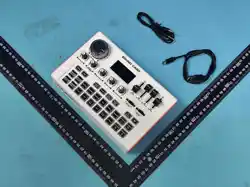
Accessories List
name
quantity
sound card
X1
X1
X1
Charging line
Accompaniment/
Live Streaming Line
Product size: 209 * 137 * 54
Product connection method
尺寸: 1 1 0 m m * 8 0 m m
warn
Figure 1 (Panel functions)
This device complies with part 15 of the FCC Rules. Operation
is subject to the following two conditions: (1) This device may
not cause harmful interference, and (2) this device must accept
any interference received, including interference that may cause
undesired operation.
Any changes or modifications not expressly approved by the
party responsible for compliance could void the user's authority
to operate the equipment.
NOTE: This equipment has been tested and found to comply
with the limits for a Class B digital device, pursuant to Part 15 of
the FCC Rules. These limits are designed to provide
reasonable protection against harmful interference in a
residential installation. This equipment generates, uses and can
radiate radio frequency energy and, if not installed and used in
accordance with the instructions, may cause harmful
interference to radio communications. However, there is no
guarantee that interference will not occur in a particular
installation.
If this equipment does cause harmful interference to radio or
television reception,
which can be determined by turning the equipment off and on,
the user is encouraged to try to correct the interference by one
or more of the following measures:
-- Reorient or relocate the receiving antenna.
-- Increase the separation between the equipment and receiver.
-- Connect the equipment into an outlet on a circuit different
from that to which the receiver is connected.
-- Consult the dealer or an experienced radio/TV technician for
help.
The device has been evaluated to meet general RF
exposure requirement. The device can be used in portable
exposure condition without restriction.
FCC Caution: