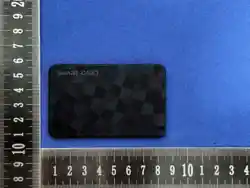

LED indicator
Power button
Wireless
charging area
• Card Finder *1pcs
• User Manual *1pcs
• Quick User Guide *1pcs
01 02 03 04 05 06 07 100908
User Manual
Model: Card Pro
Important Tip:
If you have multiple devices, please power them on and connect
them one at a time. Do not turn them all on at once to avoid some
devices not being recognized.
Google has ocially rebranded its "Find My Device" service to "Find
Hub". On some Android devices or in the Google Play Store, the
service may still appear as "Find My Device." You can download
“Google Find Hub” or ”Google Find My Device“ from the Google
Store, regardless of the displayed name, the functionality remains the
same, and you can add and use this tracker as normal.
Please refer to this manual
before using the product
1. Getting Started
To prevent accidental shutdowns that could result in the device being
unable to locate, we have re-upgraded the startup and shutdown
methods.
1.1.Power On/Off
1.1.1 Power On: Press the circular dot (power button) on the tracker
once. When you hear a "ring-ring" chime, it indicates that the device
has been powered on. (See diagram)
1.1.2 Power O: Hold the button for 3 seconds (two short beeps
will sound).
1.2.Check For Updates
To use the Apple® Find My® app to locate the item locator, the latest
version of iOS®, iPadOS®, or macOS® is recommended. The Find My app
on Apple Watch requires the latest version of watchOS®. For Android
phones(Huawei not supported), it is recommended to update to
version 9.0 or above.
2. Add Your Locator
2.1 Get started with an iOS device
2.1.1 Open Find My app on your supported iPhone® or iPad®。
2.1.2 Allow notications from the app.
2.1.3 Power on your Locator, select the "Items" tab then tap the “Add
Item" tab,tap "Other Supported ltems".
2.1.4 Make sure your ltem Locator is close to your phone. Wait... until
you see the pop-up "card pro” then tap "Connect".
2.1.5 Choose a recognizable name and emoji for your item Locator and
tap "Continue".
2.1.6 Find My will ask for conrmation to add your Locator for your
Apple ID-tap"Continue".
2.1.7 Tap "Finish" and your Locator will be set up and ready to be
connected to whatever item you wish to locate, e.g., your keys.
2.2 Get started with an Android device
2.2.1 Open Find Hub app on your supported Android Phone.
2.2.2 Make sure your Android phone's Bluetooth is ON and you are
connected to the Internet.
2.2.3 Bring your card close to your Android phone and wait for the
pop-up to show “card pro” , on the pop up bottom sheet, hit
'Connect'.Read and accept the prompts to complete the pairing.
3. Function introduction
3.1 Locate Your Item
When your item is nearby , open the Apple Find My app or Google
Find Hub app, then tap "Play Sound" to make your Locator beep, then
you can nd it. When it is out of rang, you can nd Locator's Last
Known Location.
3.2 “Notify when left Behind” Function (only
available on Apple Find My for iOS Device)
You will receive a notication when you leave your Locator behind
when it's no longer in range of your device.
Note: The “Notify When Found” feature can only be activated when the
tracker is out of the phone’s Bluetooth range.
3.3 "Notify when Found"Function (only available on
Apple Find My for iOS Device)
You'll receive a notication with the location when your card pro is
detected by another device on the Apple Find My network.
Note: "Notify When Found" can only be activated when your nder is
out of the Bluetooth range of your iOS device.
3.4 Locate your finder when it's far away
1) Open the Apple Find My app or Google Find Hub app, then tap your
card pro from the item/device list.
2) The current location of your nder will appear on the map, along
with a timestamp showing when it was last located.
3.5 Share Items (For Both iOS and Android Devices)
With the Share Items feature, you can share your tracked items with
friends or family, allowing them to view the item’s location. Shared
users will not receive any unidentied-tracking notications. To use
Share Items, make sure you and your friends have installed the latest
version of the iOS Find My app (iOS 17, iPadOS 17, or macOS 14
Sonoma public beta or newer) or the Android Find Hub app (Android
9 or later).
3.6 Lost Mode / Mark as Lost
1) Lost Mode (only available on Apple Find My for iOS Device)
When your item is lost, enable Lost Mode in the Find My app. You will
receive a notication when the location of your item is detected by
any Apple Find My–enabled device. You may leave a phone number or
email address so the nder can contact you.
2) Mark as Lost (only available on Find Hub for Android Device)
Android devices support the "Mark as Lost" function. After marking
your device as lost, its status will be displayed in the Find Hub App.
Note: When Lost Mode/Mark as Lost is enabled, your Locator is locked
and cannot be paired with any other device. Do NOT remove the item
from the app while Lost Mode/Mark as Lost is active, otherwise the
Locator will remain locked and unusable.
3.7 Remove item
Make sure your item is nearby, you can remove item in the app, it
should make a ring-ring chime indicating it is removed successfully,
then the item can be used by other people .
Note: Before removing an item in the app, make sure that “Lost Mode”
in the Apple Find My app/ Google Find Hub App is turned o.
Otherwise your Item Locator will be locked and no one else can pair
with it.
3.8 Factory Reset Your Locator
How to restore factory settings: Press the function button two times,
you can hear one beep. Then Press the function button four times
rapidly and then hold it a fth time until you hear a ring-ring chime,
now the device is reset. The device can be repaired to a new Apple ID
account as a new device.
When your item is out of the range of your phone, and your Locator is
removed from Apple Find My app/ Google Find Hub App, the device
can't be used by other people. you need reset your locator, then it can
be used by other people.
3.9 Unwanted Tracking Detection
●If any Apple Find My network accessory separated from its owner is
seen moving with you over time, you'll be notied in one of two ways:
(1) If you have a iPhone, iPad, Find My will send a notication to your
Apple device. This feature is available on iOS or iPadOS 14.5 or later.2)lf
you don't have an iOS device or smartphone, a Find My network
accessory that isn't with its owner for a period of time will emit a
sound when it's moved. These features were created specically to
discourage people from trying to track you without your knowledge.
●Find Hub is built to deter unwanted tracking. lf your Android phone
notices an unfamiliar device moving with you, you'll receive a
notication.
View the unknown device on a map, ring it to nd it by sound, or get
further help.
3.10 Privacy and Security
Your Locator sends out a secure Bluetooth signal that can be detected
by nearby devices in the Apple Find My/ Google Find Hub network.
The whole process is anonymous and encrypted to protect your
privacy.
4. Button function
4.1Power on (Find my function is on).
Press the circular dot (power button) on the tracker once. It should
emit a "ring-ring" chime, indicating that it is powered on.
If the product is not linked with your apple ID, it will be closed within
10 minutes automatically. You need to trigger the nd my function
again to continue pairing.
4.2 Power off (Apple Find my/ Google Find Hub
function is off).
Hold the function button for three seconds, then release it. Then you
will hear two beeps indicating it is powered o.
4.3 Enable learn more information query. (only
available on Apple Find My for iOS Device)
Press the function button two times rapidly and you will hear a
conrmation sound,This operation will be displayed on the nd my
app to guide the person who gets the device to obtain the device
information, such as the owner's contact information (if the item is
set to the lost mode on the app), and the serial number of the device.
4.4 Restore factory settings
Press the function button two times, you can hear one beep, then
Press the function button four times rapidly and then hold it a fth
time until you hear a ring-ring chime, now the device is reset.
A reset operation is required to make the device enter the pairing
state.
How to Charge the Smart Tracker?
1.Charge the device using a standard wireless charger.
The red indicator light will stay on while charging and turn o when
fully charged.
2.Charging Orientation: The side with the wireless charging symbol
(this is the charging induction area) should face down, and this area
should be aligned as closely as possible with the center of the
wireless charger.
FAQ
1.Why the Location Updates Are Not Always in Real Time.
Tracker does not continuously transmit its location in real time. The
update frequency depends on its environment and the presence of
nearby Apple/Google devices.
1.1.Outside Bluetooth range: The Tracker relies on the Find My/ Find
Hub network, which uses other nearby Apple/ Google devices to
update its position. Updates may be delayed if there are no
compatible devices nearby.
1.2.Limited coverage areas: In locations with few Apple/Google
devices (such as remote or underground areas), updates may be less
frequent.
1.3.lf the device has not moved, the built-in sensors willdetect this,
and the device will enter a sleep mode, with the reportedlocation
ranging from 30 minutes to several hours.
This design helps conserve battery power and ensures user privacy
while still allowing eective tracking of your items.
2. The item locator cannot connect to the phone
When pairing a device with Apple Find My/ Google Find Hub app,
the phone will link to the Apple/ Google server. Pairing may fail
because of network problems. The following action is recommend-
ed: 1. Change the phone's network, such as switching between WiFi
and mobile. The rst pairing may takes a long time, please wait
patiently.2. Reset your item. 3. Repair with Apple Find My/ Google
Find Hub APP.
FCC Statement
This equipment has been tested and found to comply with the limits
for a Class B digital device,pursuant to part 15 of the FCC Rules.
These limits are designed to provide reasonable protection against
harmful interference in a
residential installation. This equipment generates,uses and can
radiate radio frequency energy and, if not installed and used in
accordance with the instructions, may cause harmful interference to
radio communications. However, there is no guarantee that
interference will not occur in a particular installation. If this
equipment does cause harmful interference to radio or television
reception, which can be determined by turning the equipment o
and on, the user is encouraged to try to correct the interference by
one or more of the following measures:
-Reorient or relocate the receiving antenna.
-Increase the separation between the equipment and receiver.
-Connect the equipment into an outlet on a circuit dierent from that
to which the receiver is connected.v
-Consult the dealer or an experienced radio/ TV technician for help.
ISED Warning
This device complies with Innovation, Science, and Economic
Development Canada
licence-exempt RSS standard(s). Operation is subject to the following
two conditions:
(1) this device may not cause interference, and
(2) this device must accept any interference, including interference that
may cause undesired operation of the device.
Le présent appareil est conforme aux CNR d' Innovation, Sciences et
Développement
économique Canada applicables aux appareils radio exempts de licence.
L'exploitation est autorisée aux deux conditions suivantes :
(1) l'appareil nedoit pas produire de brouillage, et
(2) l'utilisateur de l'appareil doit accepter tout brouillage radioélectrique
subi, même si le brouillage est susceptible d'en compromettre le
fonctionnement.
The device is compliance with RF exposure guidelines, users can obtain
Canadian information on RF exposure and compliance.
Le présent appareil est conforme Après examen de ce matériel aux
conformité ou aux limites d’intensité de champ RF, les utilisateurs
peuvent sur l’exposition aux radiofréquences et la conformité and
compliance d’acquérir les informations correspondantes.
English
• Do not disassemble, crush, puncture, or expose the Card Finder to
re or excessive heat (above 60°C / 140°F).
• Do not short-circuit the device or allow metal objects to come into
contact with the battery terminals.
• Do not attempt to remove or replace the built-in battery. This
product contains a non-user-serviceable lithium-ion battery.
• Keep the device dry. Do not expose it to water or high humidity
environments unless the product is rated for water resistance.
• Store the Card Finder in a cool, dry place when not in use. Ideal
storage temperature: 15°C – 25°C (59°F – 77°F).
• Avoid leaving the device in direct sunlight, hot vehicles, or near heat
sources.
• Charge the Card Finder in an environment between 0°C and 45°C
(32°F – 113°F).
• Do not leave the device on the charger for extended periods after it
is fully charged.
• Use only certied wireless chargers and check that the LED indicator
functions as described.
• If the Card Finder becomes excessively hot, emits smoke, swells,
leaks, or emits an unusual odor, immediately stop using the device.
• Do not attempt to charge or power on the device again.
• Move the device to a safe, well-ventilated area away from ammable
materials.
• Contact customer service or your point of purchase for further
assistance.
• If the device catches re, use a Class D re extinguisher or sand—
never use water.
This device complies with part 15 of the FCC Rules. Operation is
subject to the following two conditions:
(1)This device may not cause harmful interference, and
(2) This device must accept any interference received, including
interference that may cause undesired operation.
Any changes or modications not expressly approved by the party
responsible for compliance could void the user's authority to
operate the equipment.
This equipment complies with FCC radiation exposure limits set
forth for an uncontrolled environment .The device has been
evaluated to meet general RF exposure requirement. The device can
be used in portable exposure condition without restriction.

