Start Second
Setup and Use
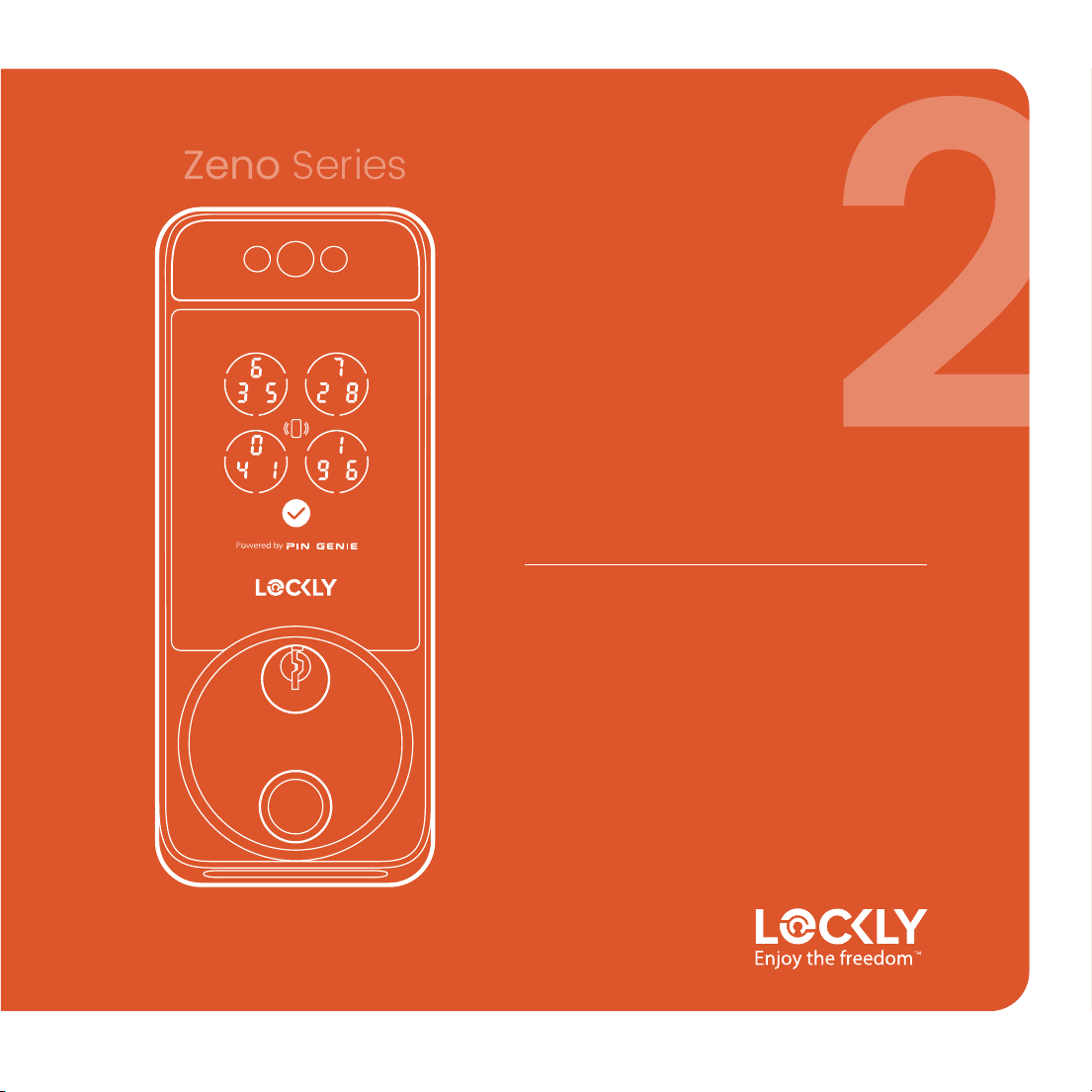
Lockly Visage
PGK728WRHK
Zeno Series
We’re Here to Help
Your Lockly smart lock comes with lifetime
technical support. Feel free to contact us with
any questions or comments.
(669) 500-8835 [email protected] support.Lockly.com
App Download 04
Charge/Install Battery 05/6
Lock Overview 07/8
Facial Recognition 09
Apple Home 10
Fingerprint Access 11
Adding a Fingerprint 12
Setup
04
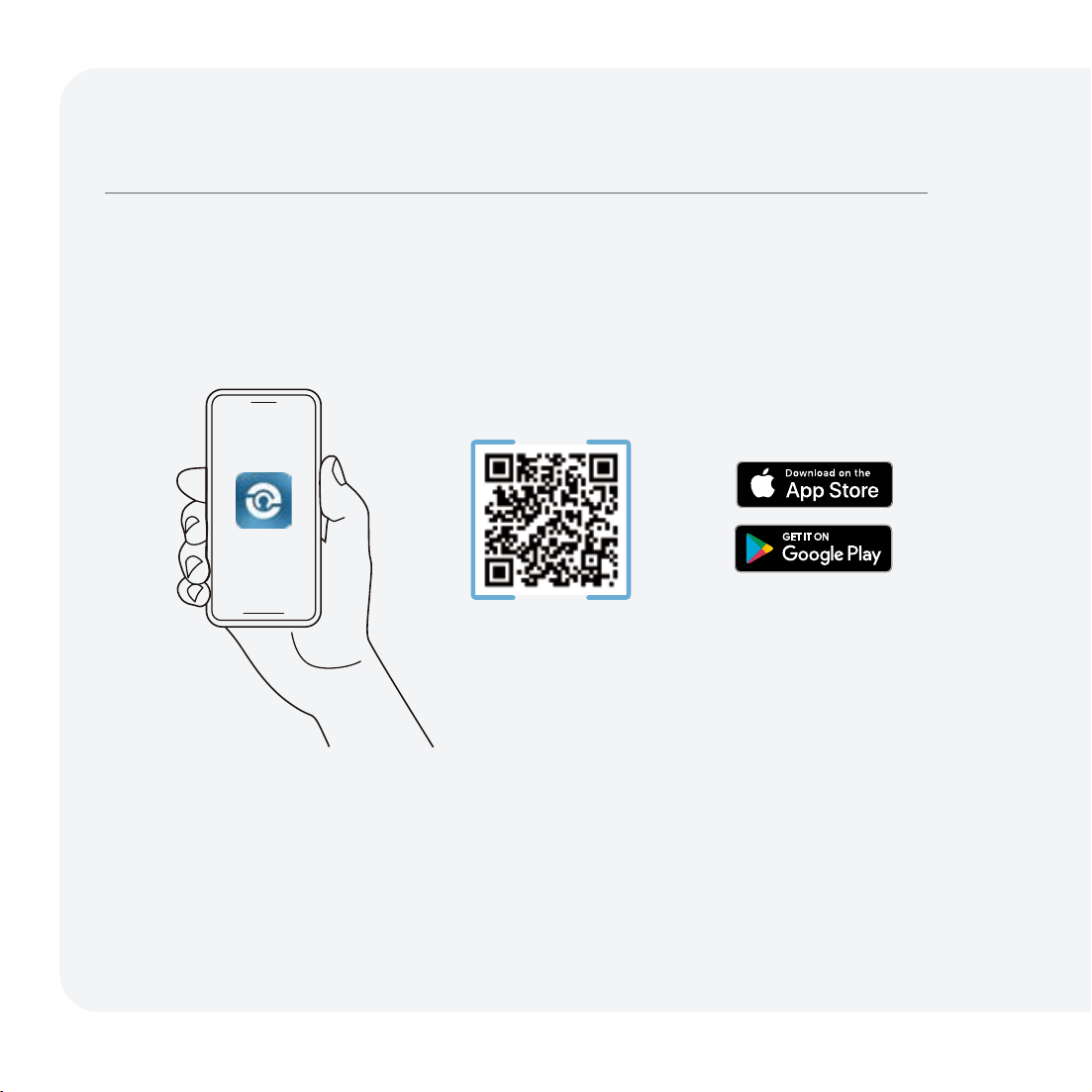
Download the Lockly Home App
Scan or visit Lockly.com/app
The Lockly Home App will guide you through final installation, setup, and creating your
user profile for a more tailored and optimized experience.
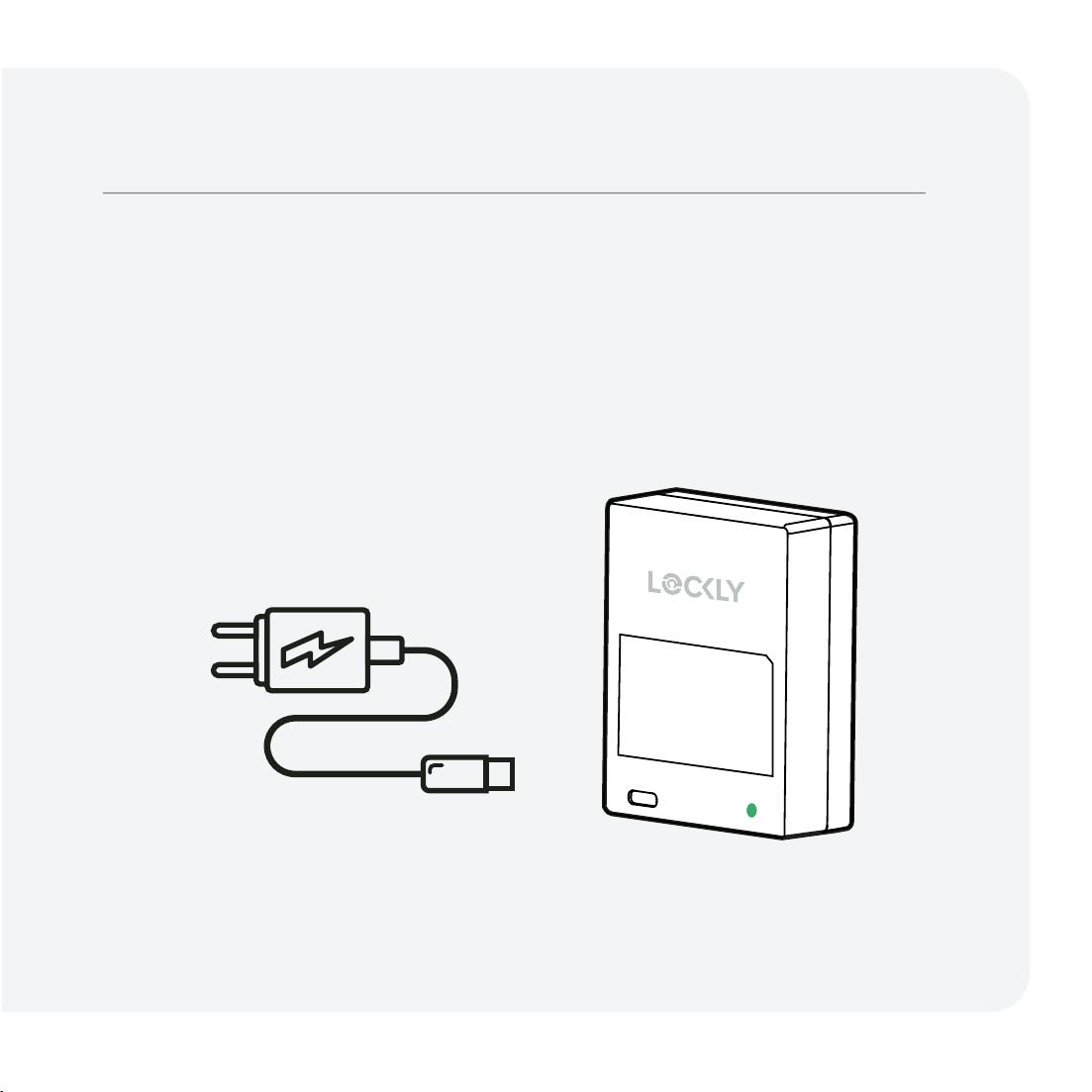
Ensure battery has been fully charged.
Charge the Battery
Charge the battery with the included USB-C cable and a common mobile
device charger (not included) rated 5V/2A or higher. A full charge can take
up to 12 hours.
05
Ensure battery has been fully charged.
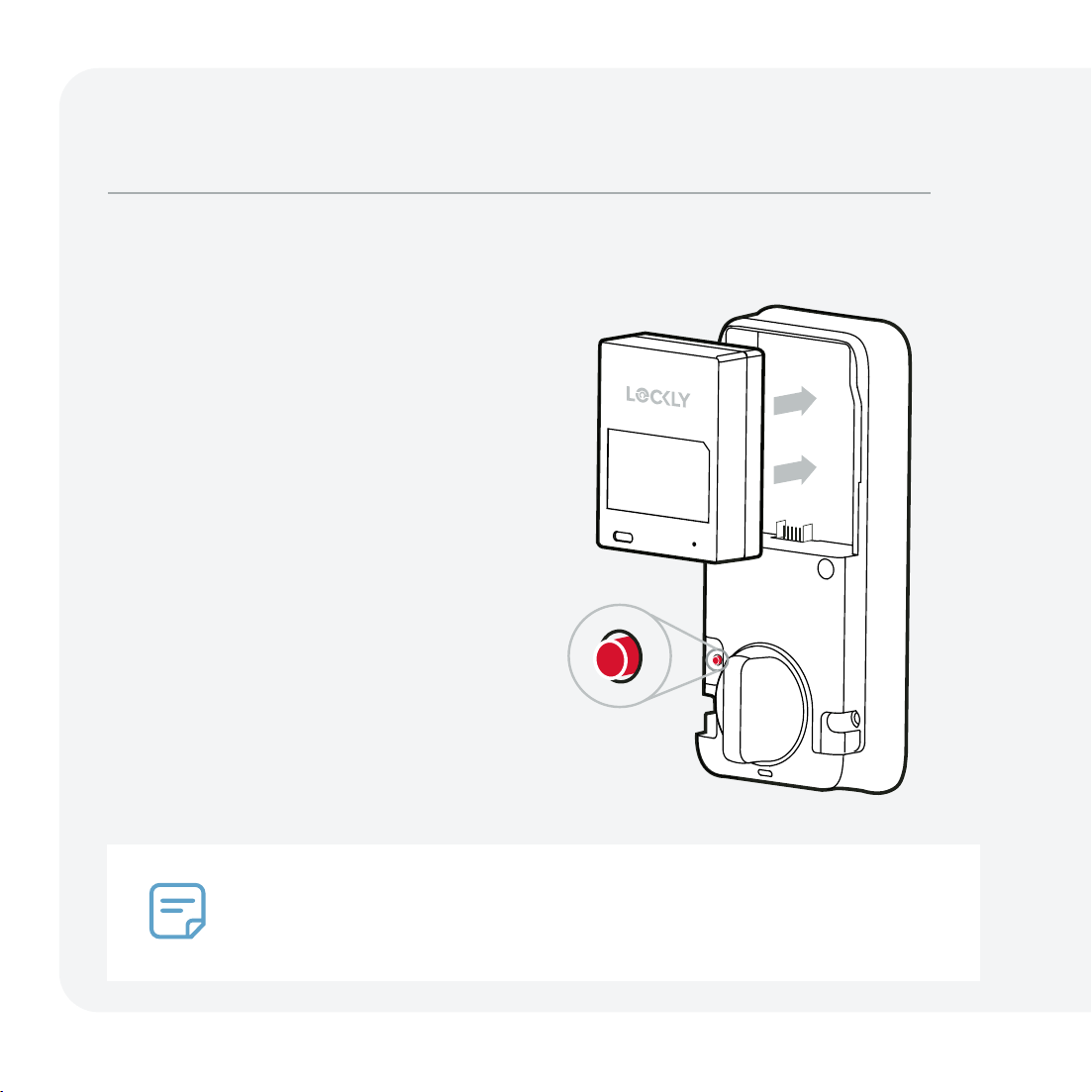
Install Battery and Start Self-Check
Install battery as shown.
Perform Self-Check (skip if done)
Immediately hold the red program
button for 4 seconds. The lock will
perform a self-diagnostic by extending
and retracting the deadbolt multiple
times.
Open the Lockly Home App and tap (+)
to add a new device. Locate your
Lockly model and follow in-app
instructions to continue setup.
06
Bluetooth pairing stops after 10 minutes of powering on and cannot be paired with
the Lockly Home App. To re-enter pairing mode, reinstall the battery or press the
Program button and click "BL" in the circle on the keypad to re-enable Bluetooth
pairing.
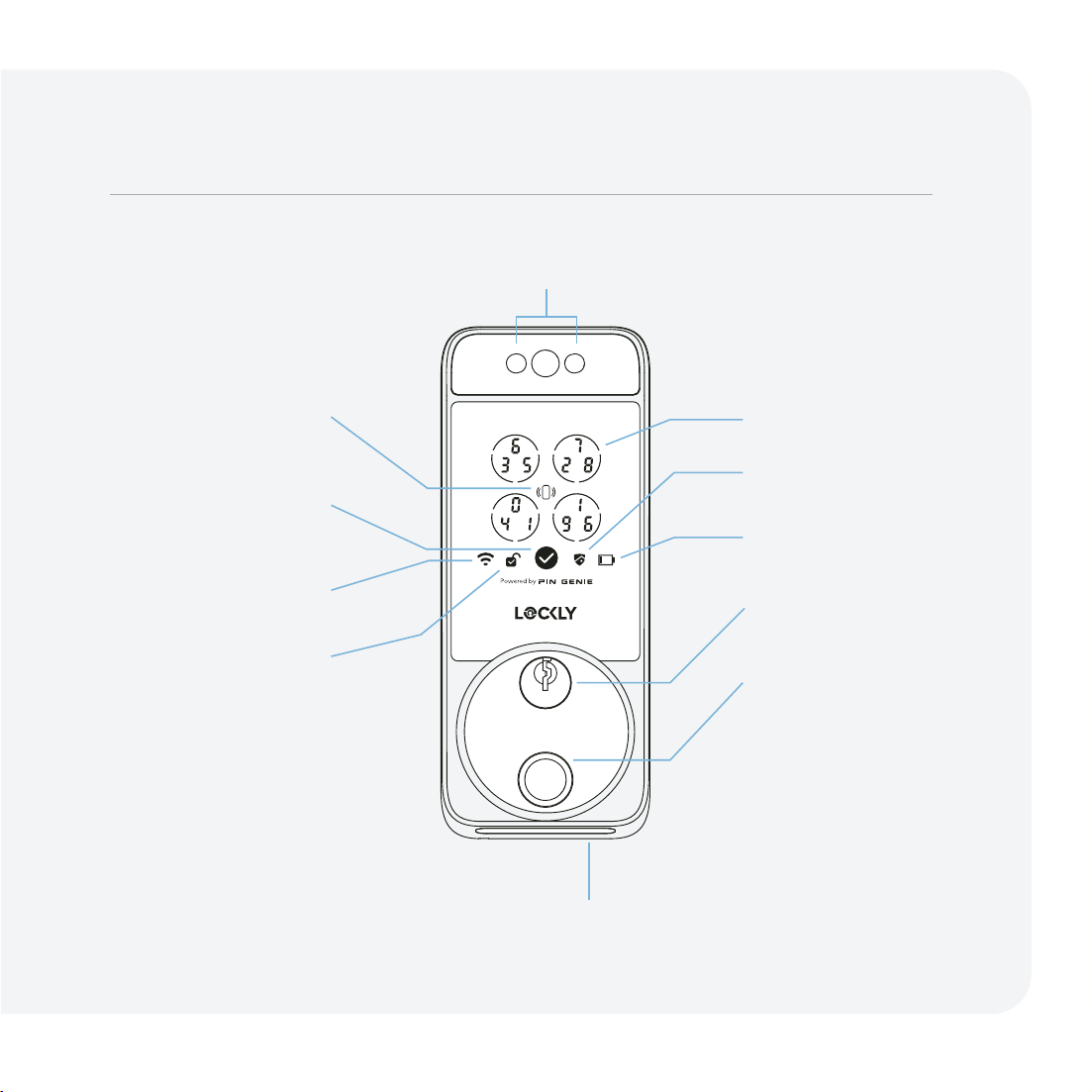
Exterior
Getting to Know Your Lockly Visage
PIN Genie
Digital Keypad
Safe Mode
Low Battery Indicator
Physical Key Hole
Fingerprint Sensor/
LED Indicator
Apple Home Key
Sensor
Wake up Screen/
Enter Button
Wi-Fi Status
Unlocked Indicator/
Welcome Mode
USB-C Backup Power Port
Facial Recognition Sensors
07
1234
5678
Visage Zeno Series Deadbolt Edition
PGKXXXXXXX
SN: PGKXXXXXXXXXXX
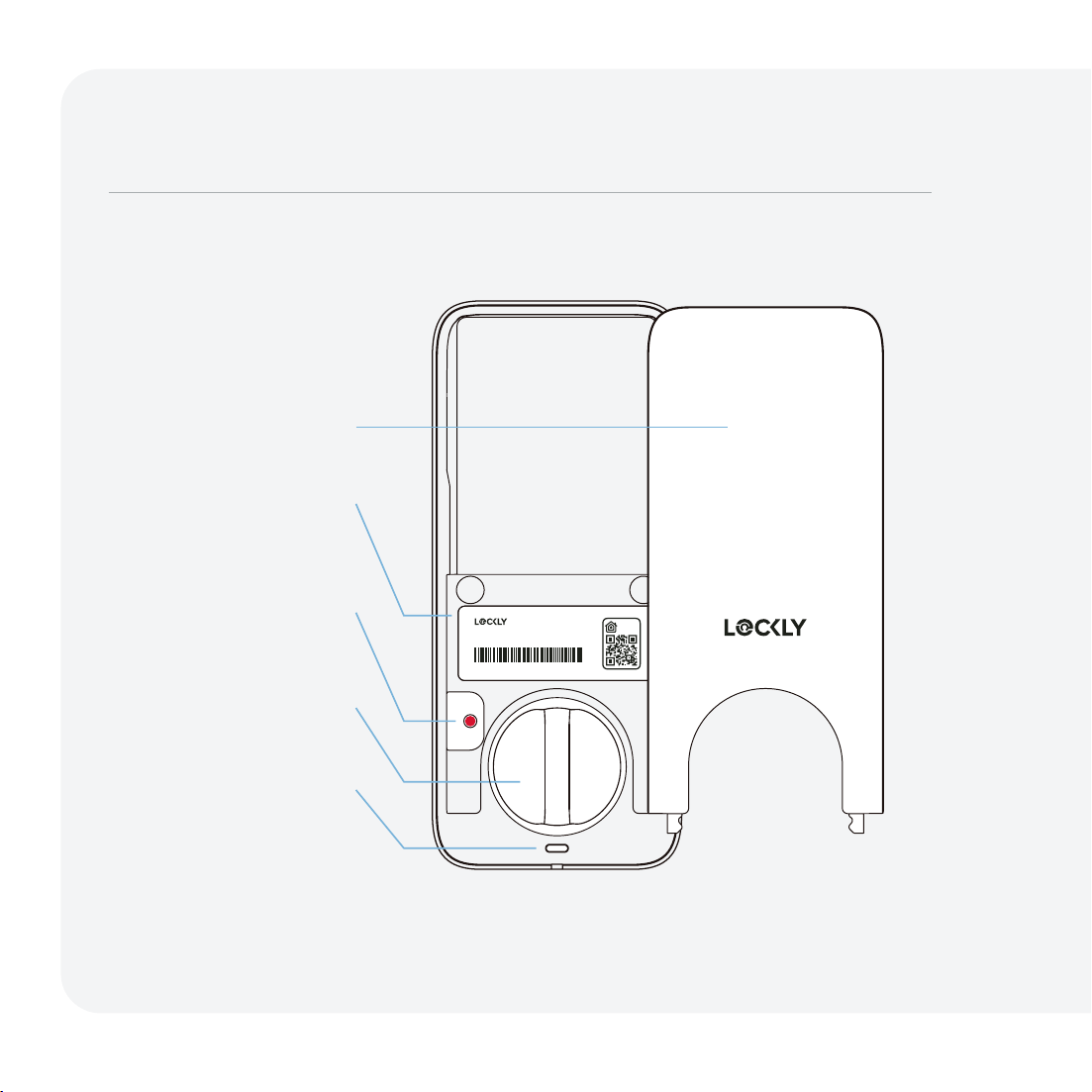
Battery Cover
SN Number/
Apple HomeKit Code
Program/
Reset Button
Lock/Unlock
Thumbturn
Interior Side LED
Indicator Light
Interior
08
Ensure battery has been fully charged.
Set up Facial Recognition
Environment
For optimum performance, ensure
the area is well-lit but not too bright.
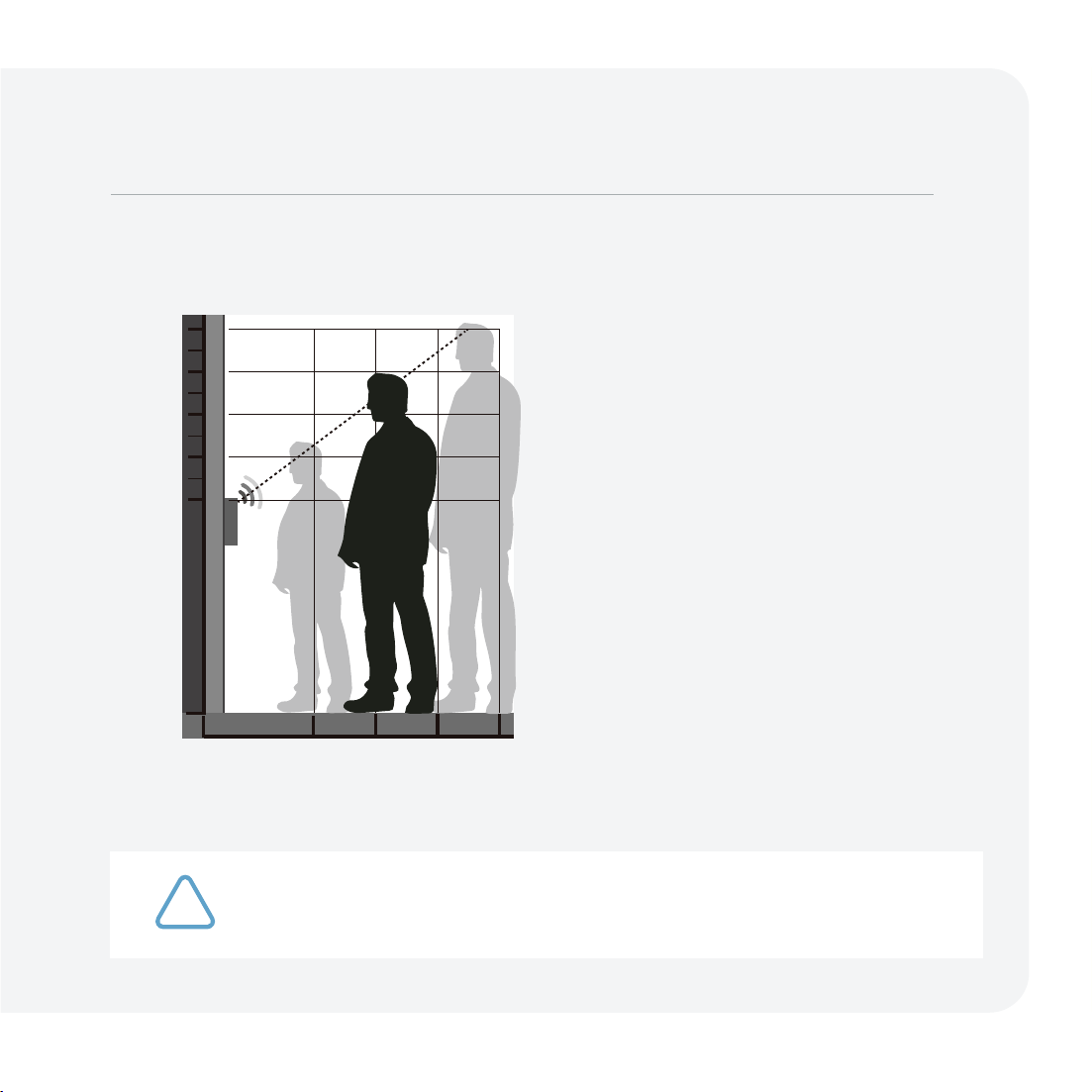
Facial Recognition Positioning
For optimal recognition stand
between 1 to 3 feet directly in front of
the lock.
Register a Face
Choose your lock in the Lockly Home
App and select access, then user,
facial recognition, and follow the
in-app instructions.
(1m = 39 in.)
If you have a twin, a look-alike sibling, or a child under 13, we recommend using a
PIN code, fingerprint, or mobile app for authentication.
0.4m 0.6m 0.8m
1.1m
1.3m
1.5m
1.7m
0m
1.9m
1m
09
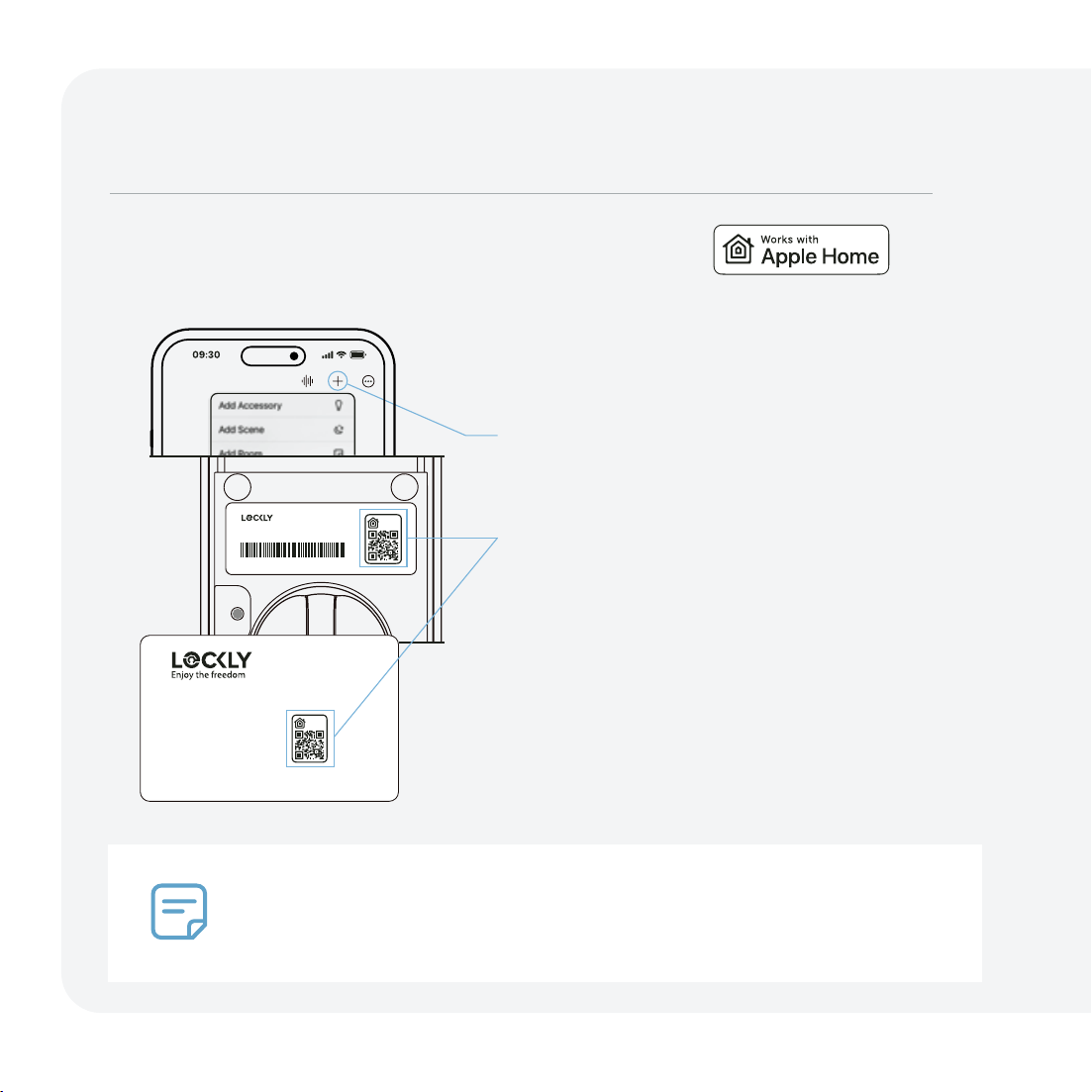
Set up Apple Home
Open Apple’s Home app and select (+),
Add Accessory.
Locate the Apple HomeKit code under
the battery cover or on the activation
card. Scan code when prompted.
Follow the in-app instructions to add
your Home Key to your Wallet app.
To share access and control remotely
through Apple Home, you will need one
of the following as a home hub:
• Apple TV® (4th gen, tvOS 12.0 or higher)
• iPad® (iOS 12.0 or higher)
• HomePod® or HomePod mini®
1234
5678
Visage Zeno Series Deadbolt Edition
PGKXXXXXXX
SN: PGKXXXXXXXXXXX
Activation Card
Need help? Email: help@Lockly.com | Support: +1(669) 500-8835
LOCK SERIAL
PGKxxxxxxxxxxxxxxxxxxxxxx
ACTIVATION CODE
PGKxxxxxxxxxxxxxxxxxxxxxx
1234
5678
Unlock your door with your iPhone or Apple Watch
and monitor its status through the Home app.
10
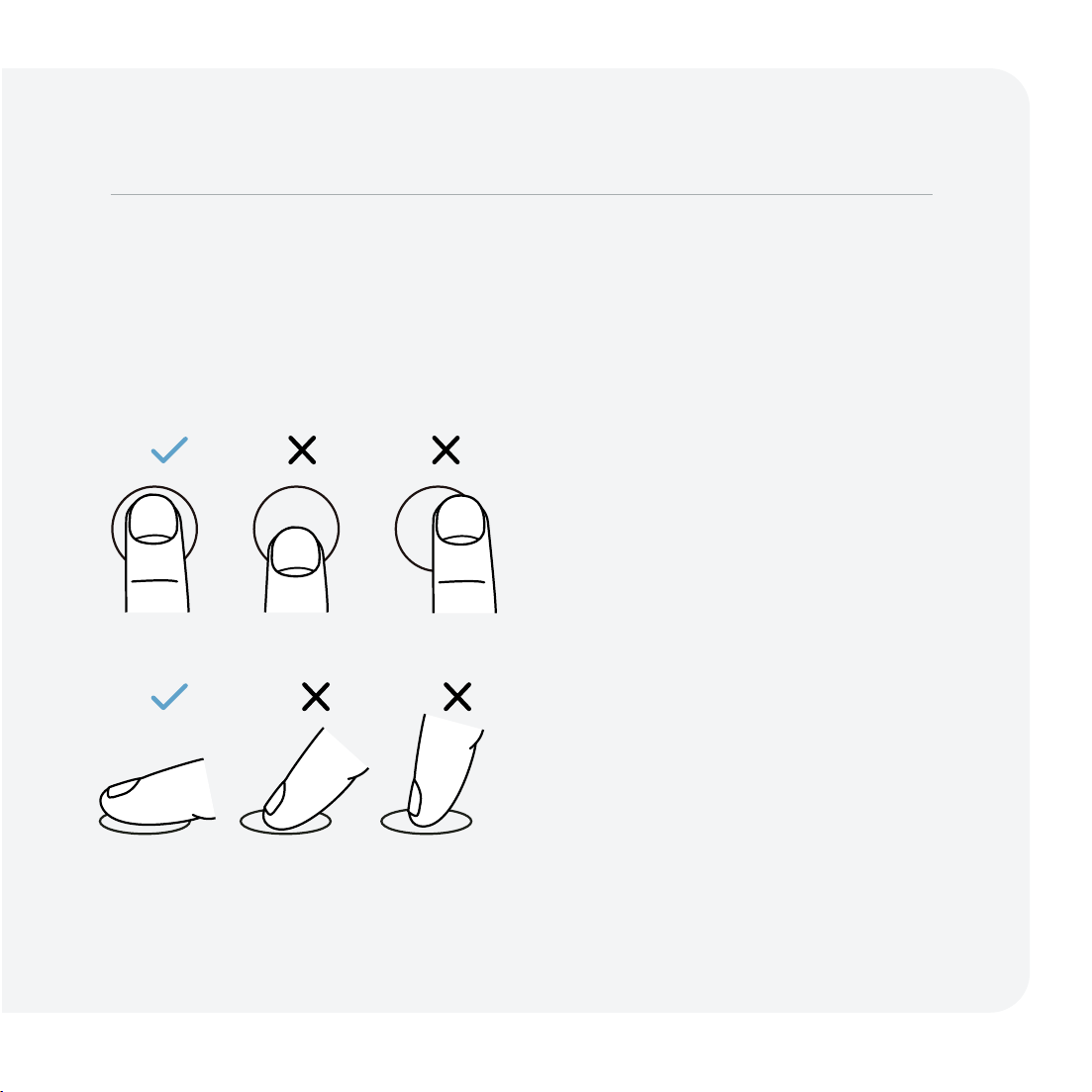
Fingerprint Scanning
Set up Fingerprint Access
For fast and reliable fingerprint recognition, it's important to follow correct finger
positioning when registering your fingerprints.
Alignment
Avoid positioning finger too high or low
on the sensor.
Avoid positioning finger too much
off-center left or right.
Angle
Keep finger straight and somewhat flat;
avoid holding at an angle.
11
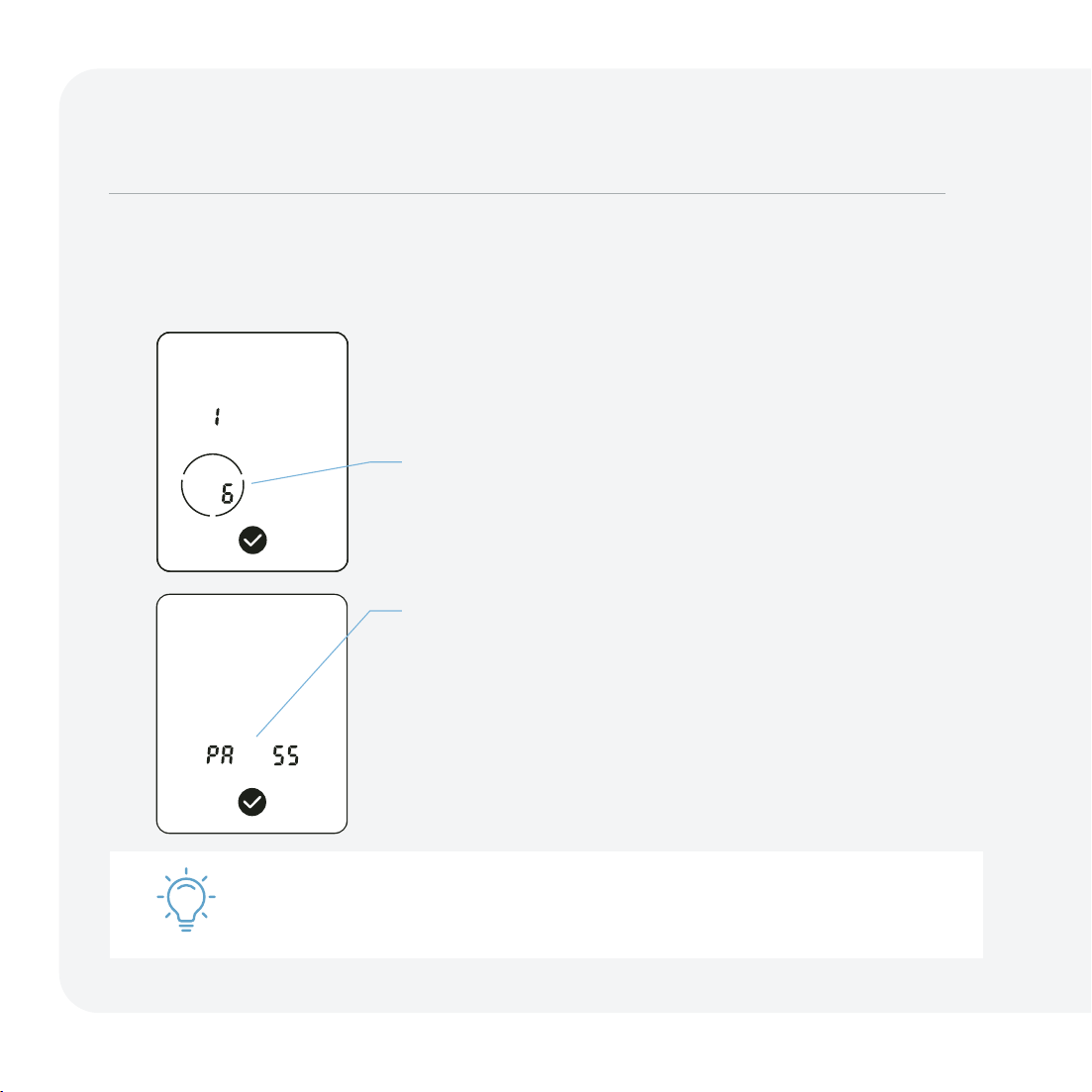
Adding a Fingerprint
If fingerprint registration fails, repeat process.
In the Lockly Home App, choose your lock then select “Access” and follow
on-screen instructions.
Scanning Process
Your finger will be scanned six times for optimal
accuracy. The countdown shows in the lower-left
circle of the digital screen, starting from six.
Place your finger on the sensor and hold still until
you hear a beep. Slightly adjust your finger position
and hold for each remaining scan until you hear
a longer beep with the word "pass" indicating a
successful scan.
12
PIN Genie Keypad 14
Unlock with Keypad 15
Adding a PIN Code 16
Auto and Manual Lock 17
Facial Recognition 18
Fingerprint Access 19
Apple Home Keys 20
Unlock with App 21
More Ways to Access 22/23
Alert and Sounds 24
Troubleshooting/FAQs 25/26
Use
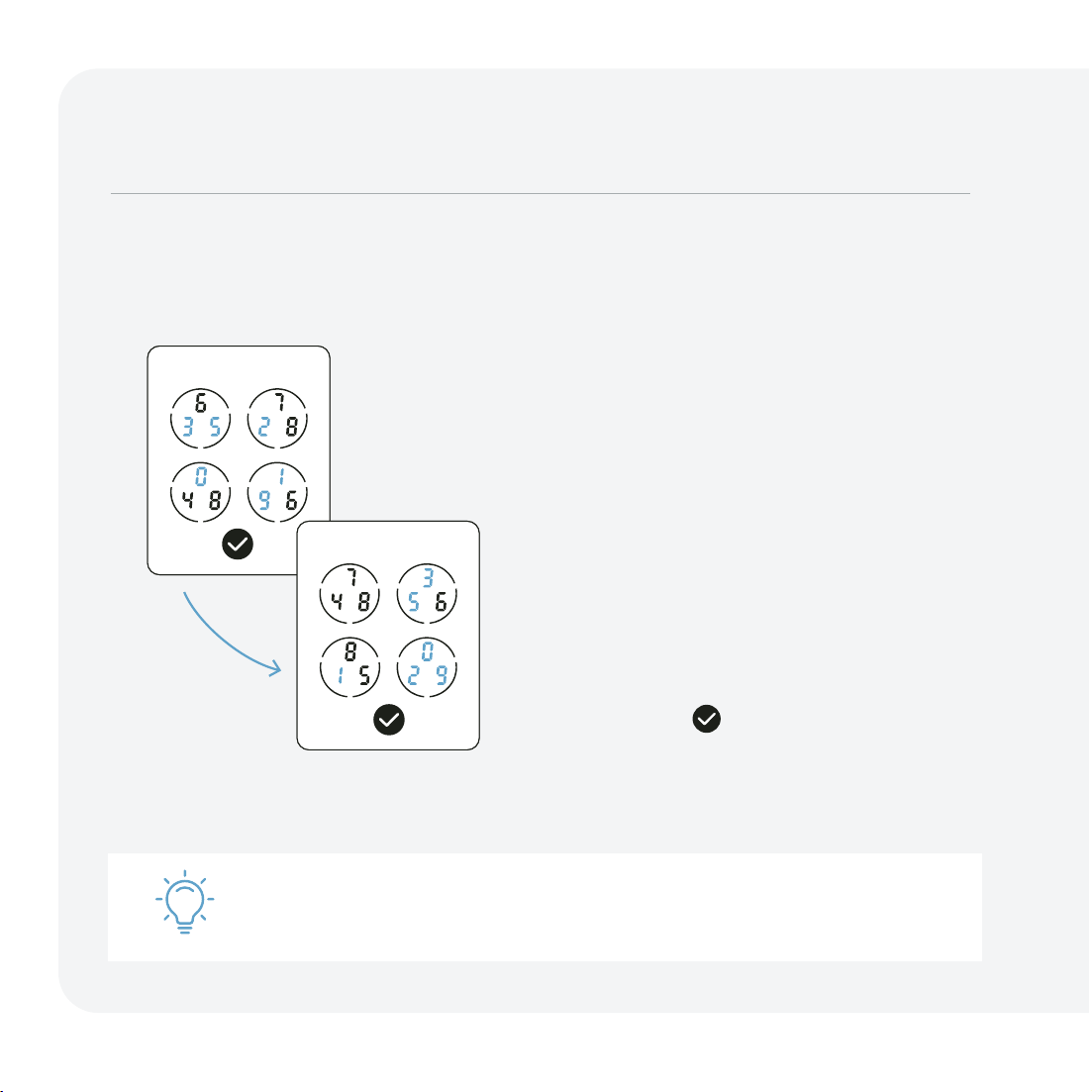
Dynamic Shuffling Technology
PIN Genie
™
Keypad
Using
PIN codes are made up of six digits, for
example 3 5 1 2 9 0. Each number can
show up anywhere in one of three
positions inside for circles.
Simply press anywhere on a circle
containing the corresponding number
to enter your six digit PIN code.
Unlocking
After all six numbers are entered press
the enter button to unlock.
Exclusive hack-proof PIN Genie digital keypad shuffles PIN (personal identification
number) between each use.
The same PIN shuffles location
between each use.
You can toggle between dynamic shuffling and always fixed number location by
pressing the enter button for 3 seconds.
Note: the default PIN code is 1 2 3 4 5 6
14
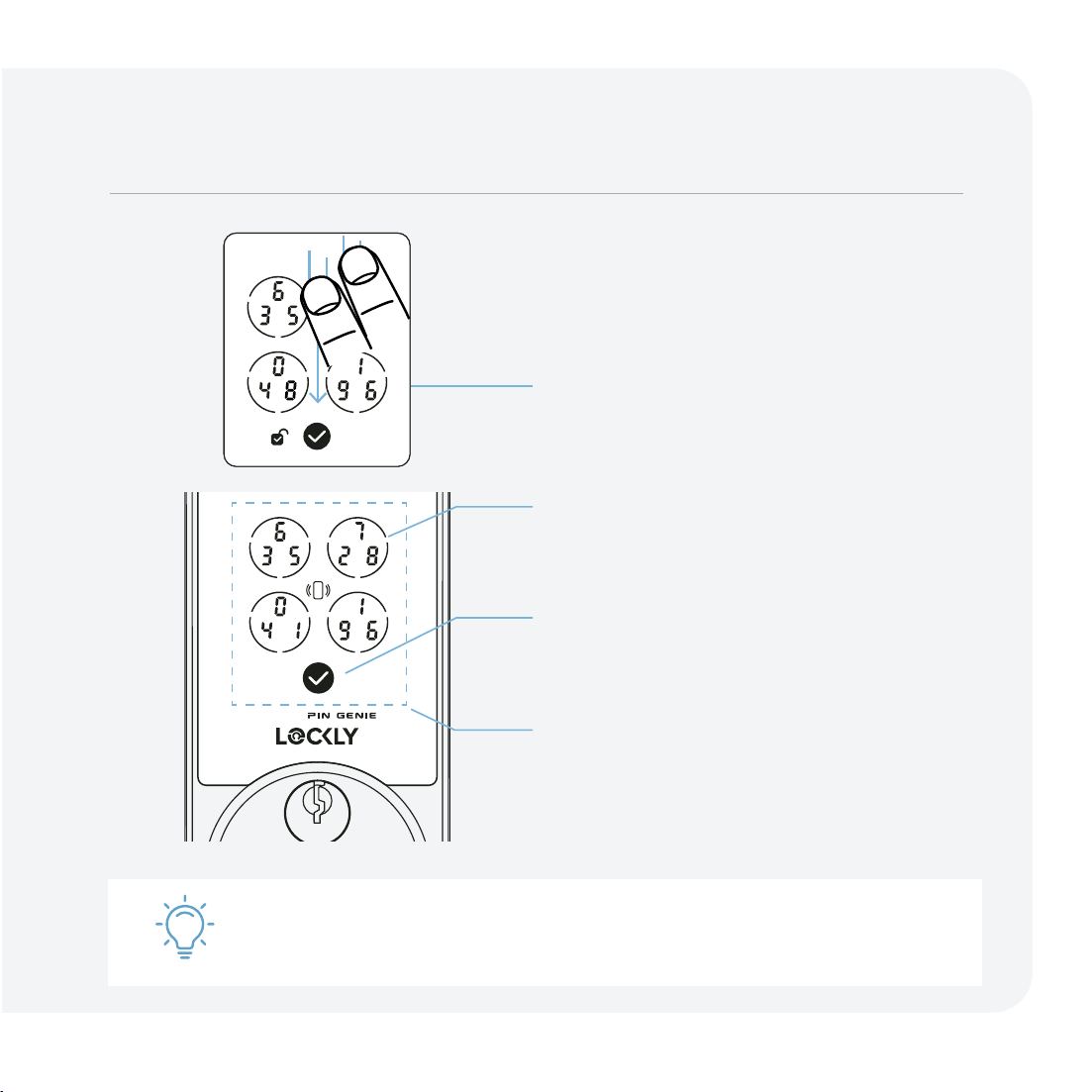
Unlock
Swipe your hand across the screen to
activate the keypad.
Enter your PIN code by pressing
anywhere in the circles that contain the
corresponding numbers; you do not
need to press the exact number.
Press the enter button after the last
digit of your PIN code has been entered.
Lock
To lock, press the enter button while the
screen is active, or swipe your hand
across the screen while the screen is
off.
Temporarily boost screen brightness by pressing and holding any of the 4 circular
number buttons for 3 seconds.
Unlock with Digital Keypad
Poweredby
15
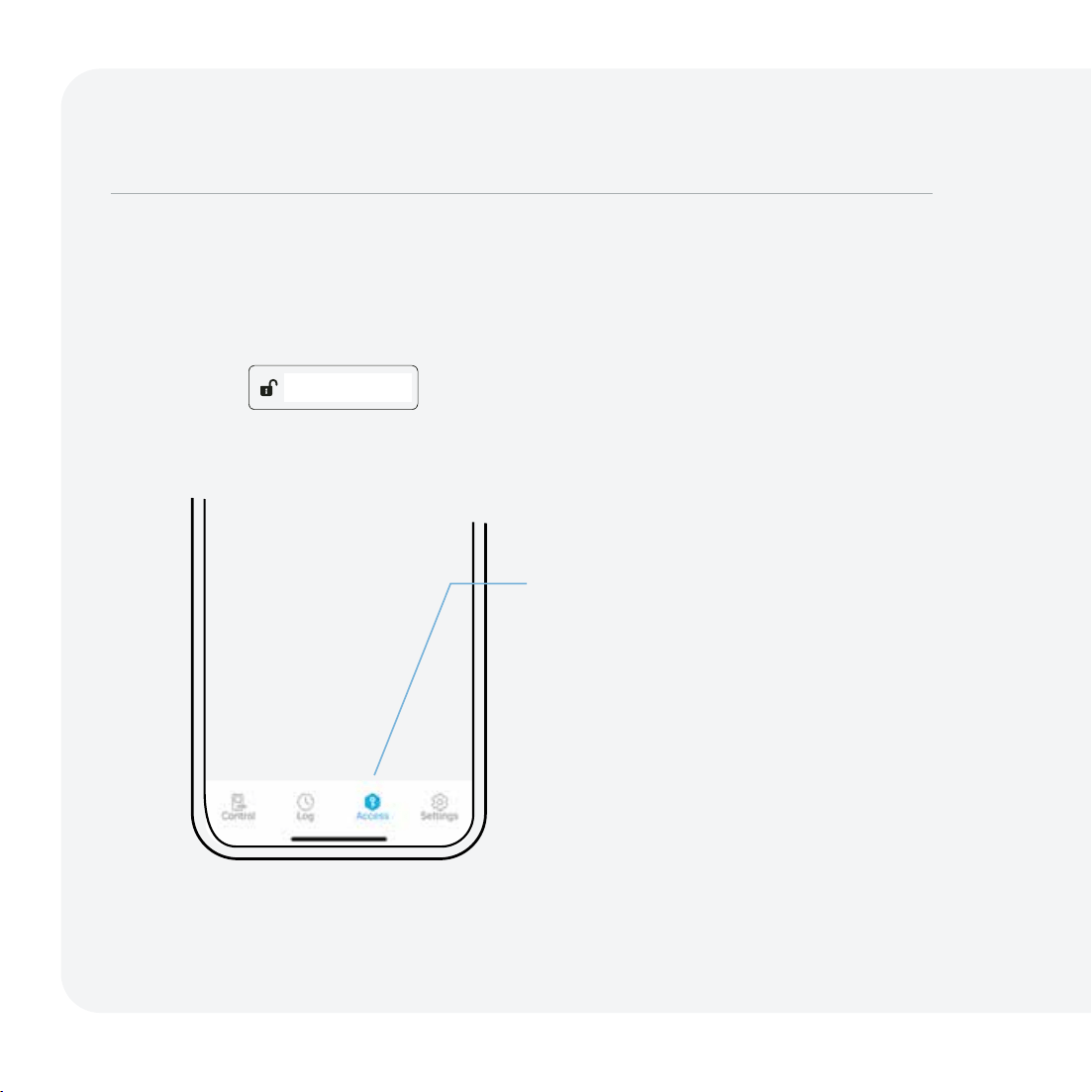
Adding Additional Access Codes
Default PIN Code
The default PIN code is 1 2 3 4 5 6.
During setup, you will be prompted
to set a new code to replace it.
Adding a Code
Select your lock from the Lockly
Home App, then select Access then
user, Access Code and follow the
on-screen instructions to setup the
various types of codes.
Access Code Types
Set permanent, recurring, time-based, or one-time use access codes.
1234 5 6
16
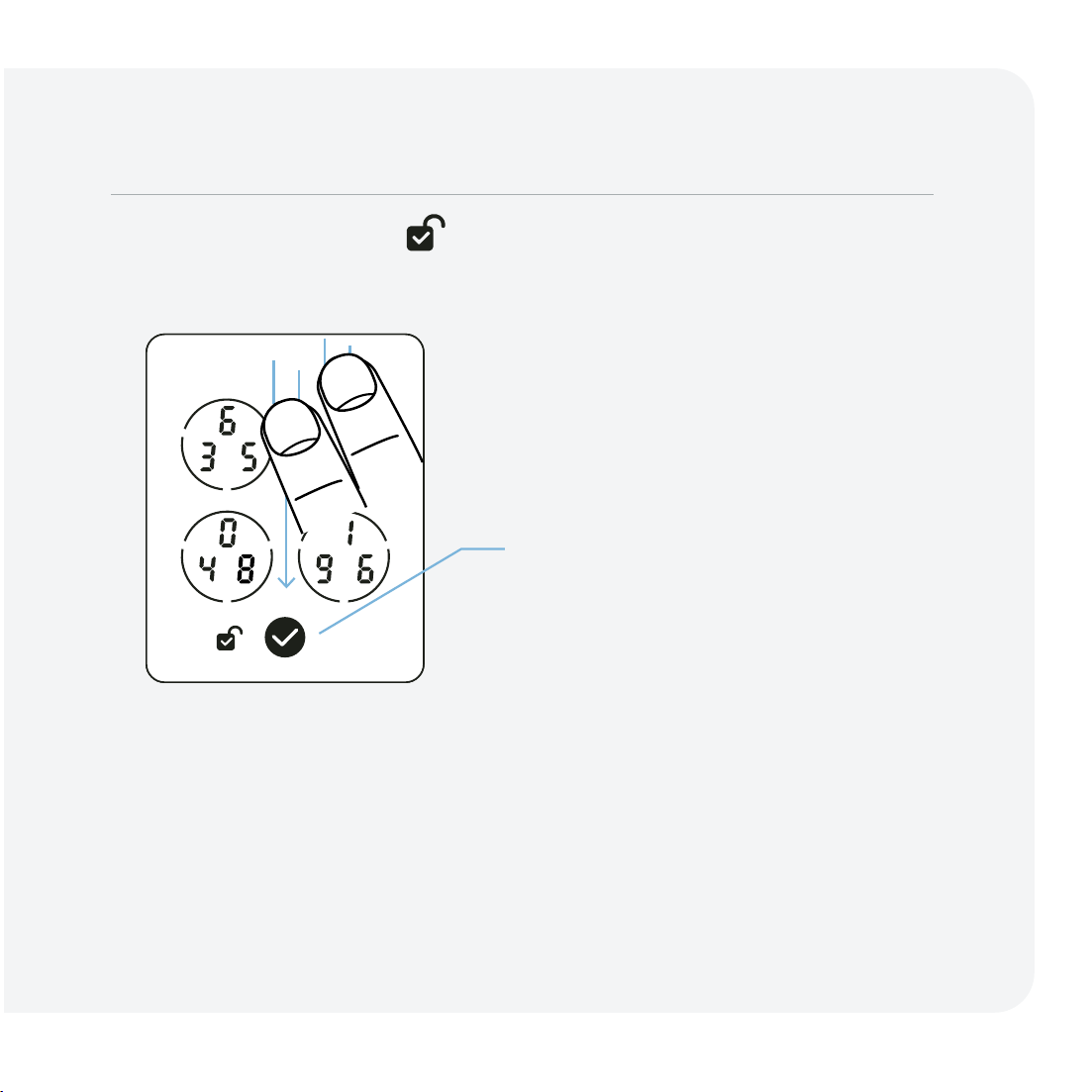
Auto and Manual Locking
Auto-Locking
In the Lockly Home App, set your
desired time (example 5-min) under
settings of your lock, auto-lock timer.
Lock Using Digital Screen
Swipe top to bottom with two fingers
when screen is off or press the enter
button when screen is on.
Interior Locking
Rotate the thumbturn on the interior
assembly.
Lock with Key
Insert physical key and rotate.
When unlocked the icon will appear on screen.
17
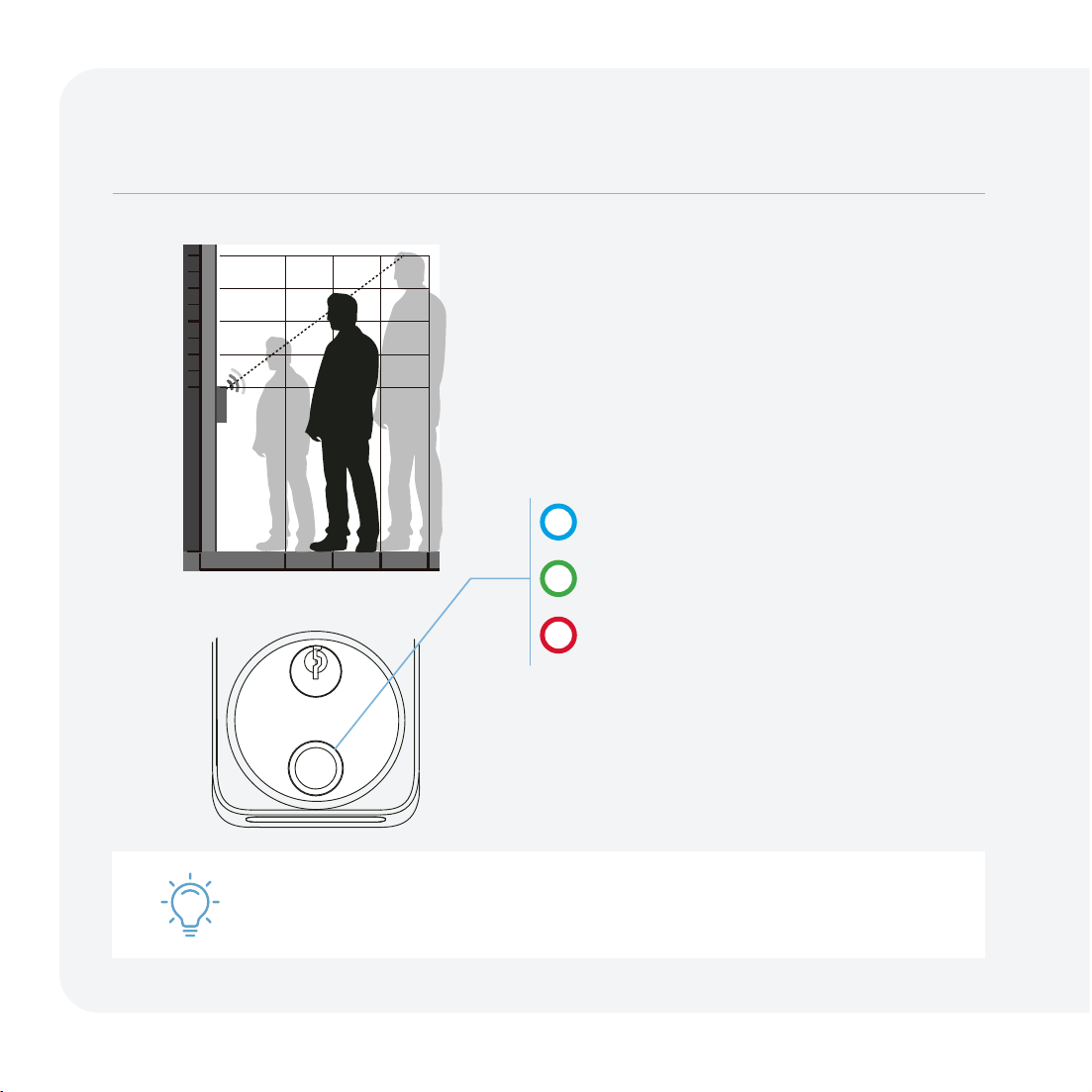
Unlock with Facial Recognition
Blue Light: face detected; scan started
Green Light: door is unlocked
Red Light: adjust your distance and
ensure nothing is obstructing your face*
The LED ring light around the fingerprint
sensor indicates the following for facial
recognition:
Recognition
Stand 1 — 3 feet (0.4m - 1m) directly in
front of the lock.
To conserve battery, facial recognition is automatically disabled when the battery
power drops below 20%. To reactivate it, install a fresh battery.
For security reasons, facial recognition will be temporarily
disabled after eight failed attempts within two minutes.
*See troubleshooting to learn more.
0.4m 0.6m 0.8m
1.1m
1.3m
1.5m
1.7m
0m
1.9m
1m
18
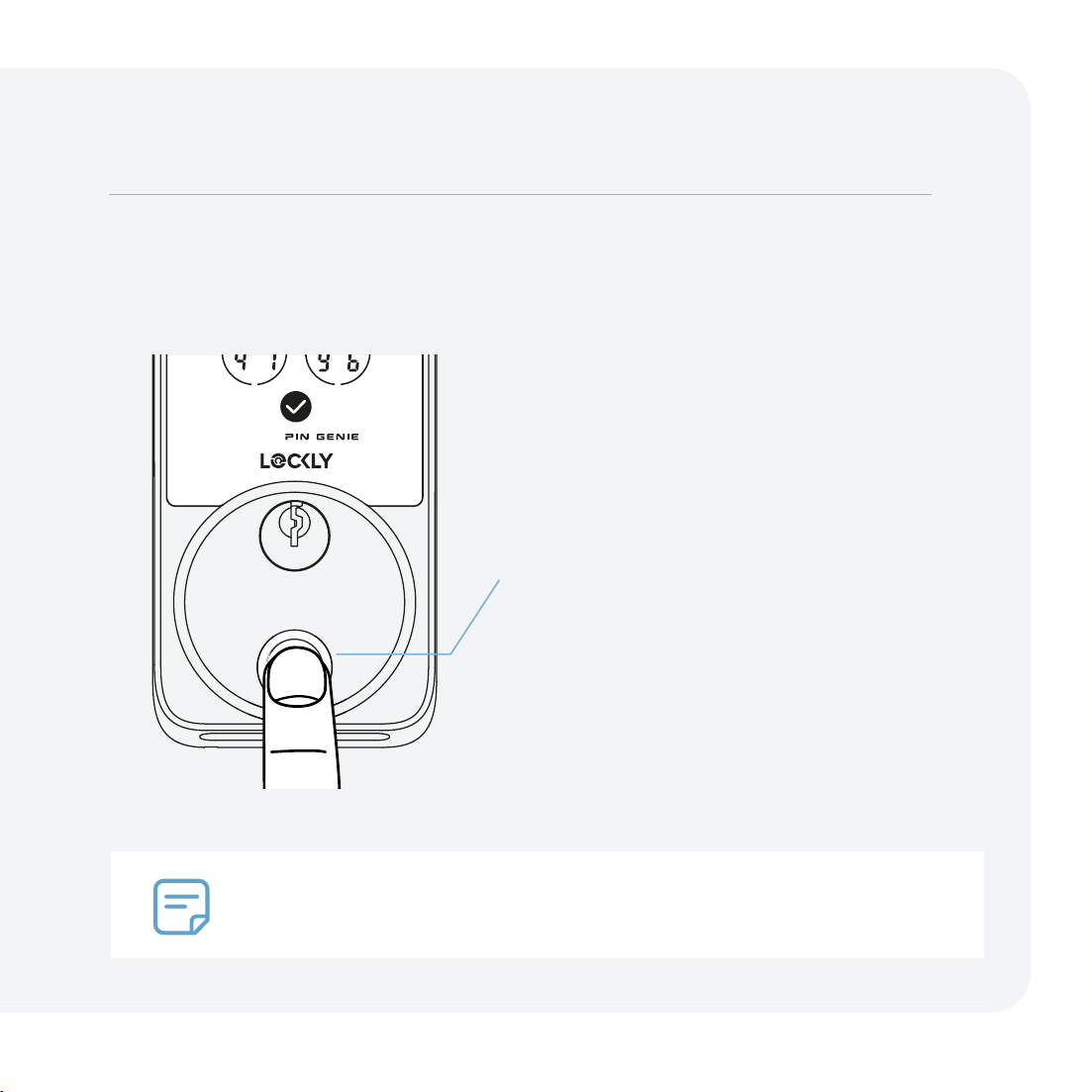
Featuring advanced AI learning technology.
Unlock with Your Finger
Place a registered finger flat and centered
on the sensor.
Green Circular LED: with a beep; door is
unlocked.
Red Circular LED: with two beeps; finger
not recognized. Try again or try another
registered finger.
Our advanced biometric sensor with AI learning technology recognizes your
fingerprint in 0.2 seconds and improves in speed and accuracy with use.
Poweredby
19
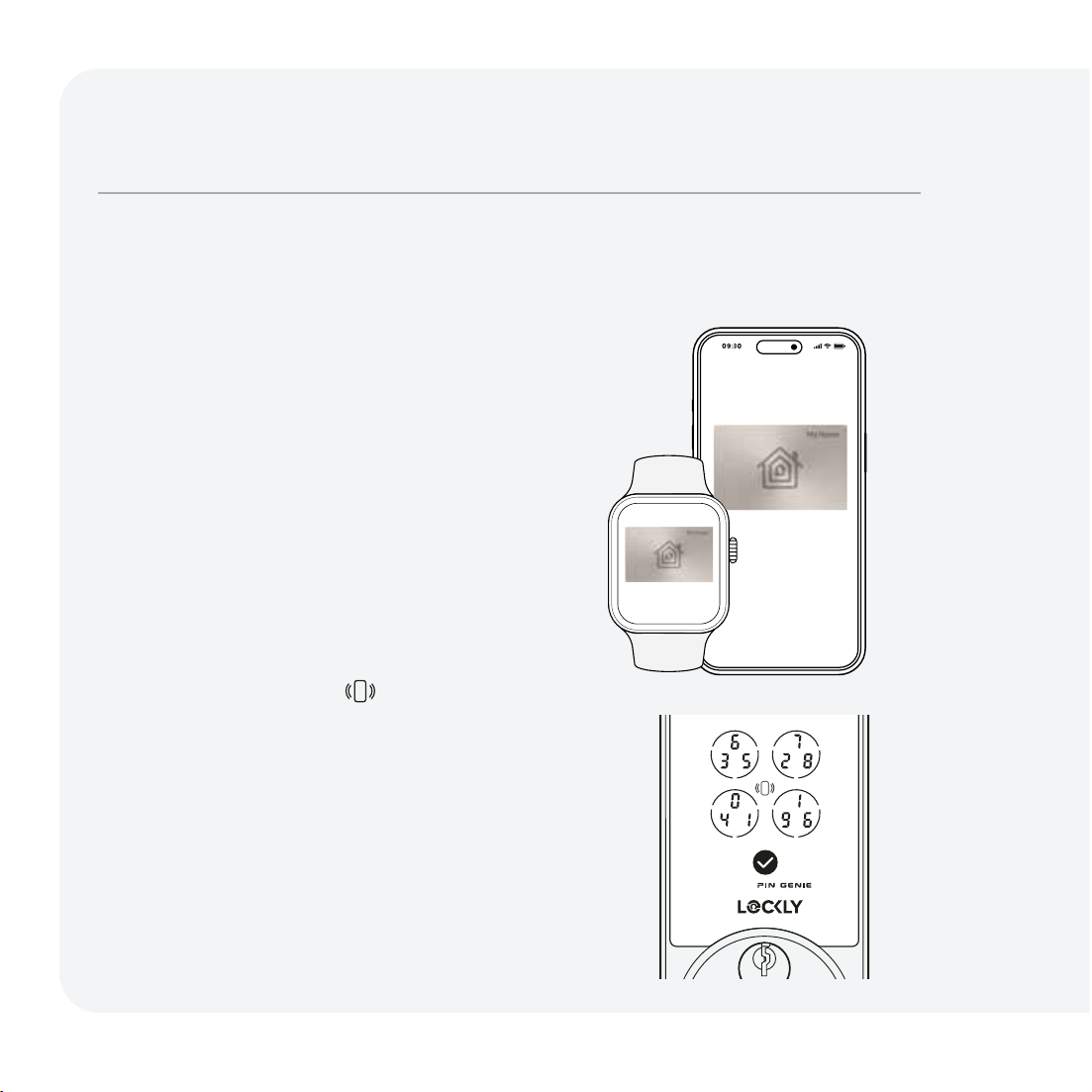
Unlock your door with home key in
Apple Wallet (on your compatible
iPhone and Apple Watch).
Set up a Home Key
Add your Lockly lock to the Home app.
Choose the "Express Mode" unlocking
option.
Unlock Your Door with a Home Key
On your iPhone or Apple Watch and
with Express Mode turned on, place
your device near the icon
to unlock.
Unlock with Apple Home Keys
Open your door with your iPhone and Apple Watch.
Learn more about home key in Apple Wallet on the
iPhone User Guide online at: support.apple.com
Poweredby
20
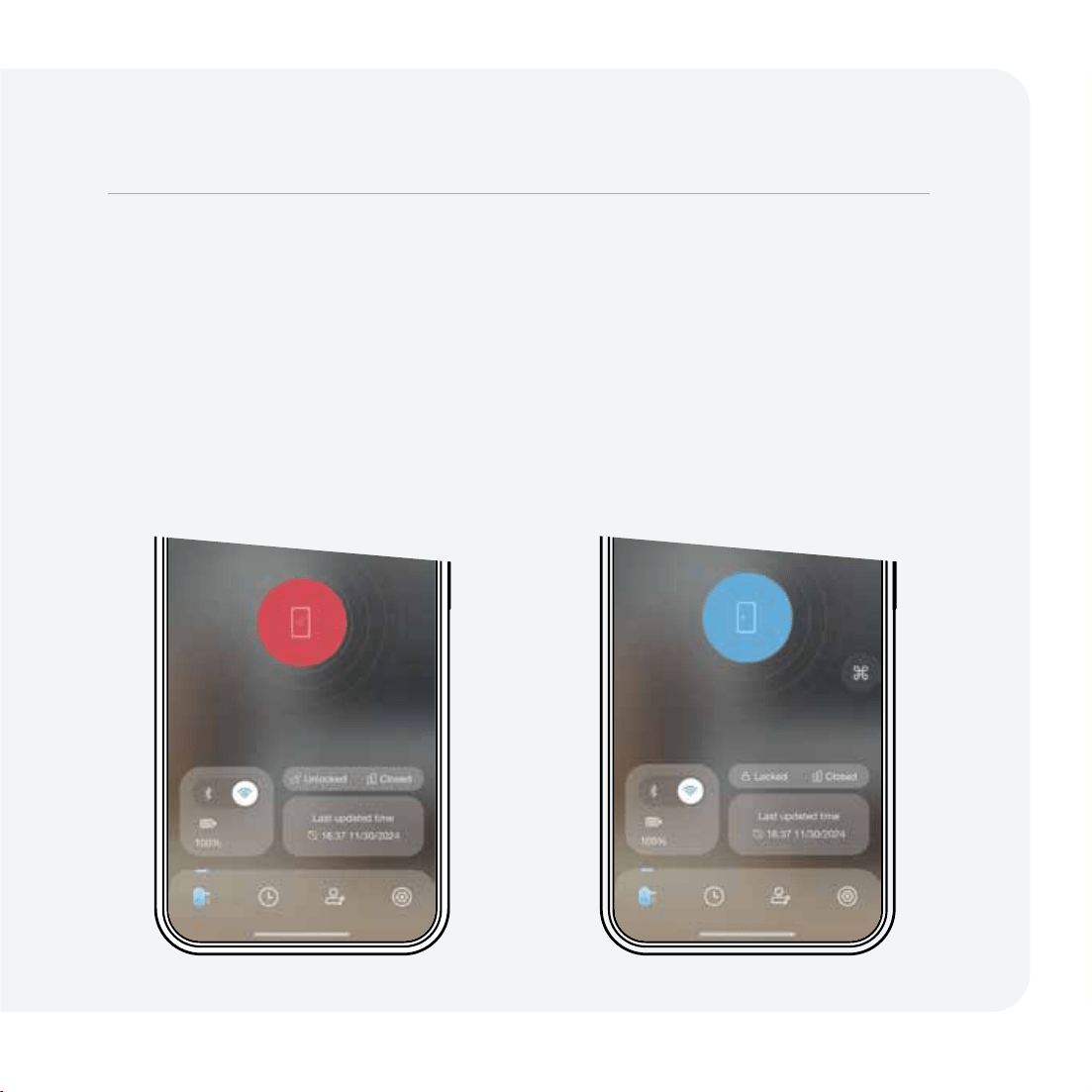
Remote App Control
Unlock, lock, check status, and get
notifications from anywhere on your
smartphone.
Unlock or Lock
Choose your lock in the
Lockly Home App, tap unlock or lock.
History and Status Monitoring
Check real-time status and history on
your smartphone.
Lock, unlock, and check status.
Unlock with Lockly Home App
21
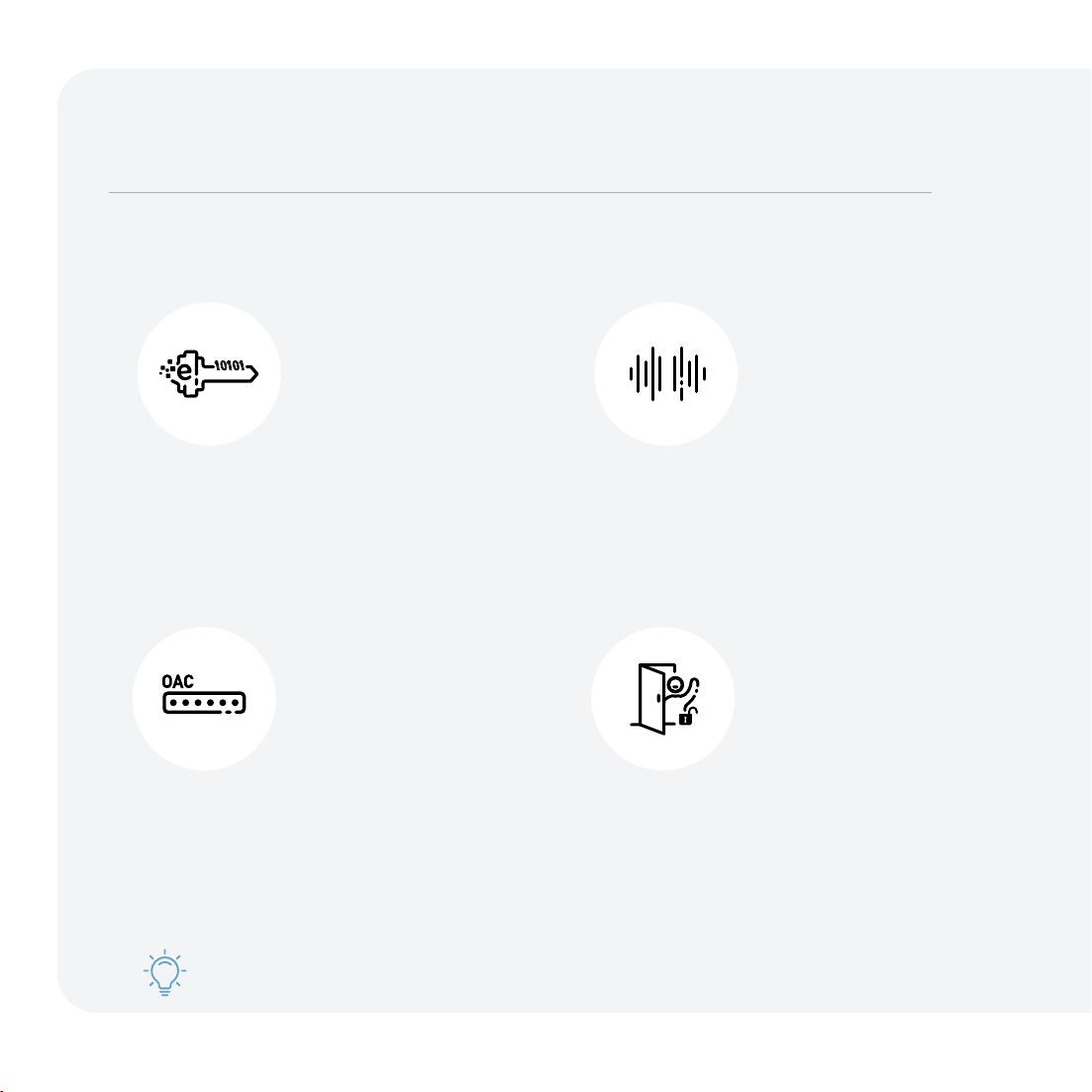
eKeys and eBadges
Share one-time, permanent, recurring,
or revocable access with people you
trust.
We introduce new features every year. Subscribe to our newsletter at lockly.com for
product updates, tips, and the latest innovations.
Secure access, control, and monitoring options.
More Ways to Access and Control
Offline Access Codes
TM
Grant one-time access through the
Lockly Home App without needing
an internet connection.
Voice Control
Unlock, lock, or check door status
through Amazon Alexa, Apple Siri,
and Google Assistant.
Welcome Mode
Temporarily keep your lock from
auto-locking for more convenient
trusted user access.
22
For more information, refer to the Lockly Home App or visit support.Lockly.com.
History and Status Monitoring
Check real-time status and history on
your smartphone.
Set up User Privileges
Grant sub-admin privileges to allow
others to manage your property.
Air Transfer™
Easily transfer user profiles between
Lockly device for seamless setup and
access management.
Manage Multiple Properties
Manage access control and reporting
with LocklyOS, the cloud platform for
property access management.
23

Exterior Assembly Alerts
Facial Recognition
Exterior LED indicator flashes blue Approach detected; Facial recognition started
Exterior LED indicator flashes green Door unlocked
Exterior LED indicator fl ashes red Facial recognition failed
Fingerptint
Exterior LED indicator flashes green with a ‘beep’
sound
sounds
Door unlocked
Exterior LED indicator fl
ashes red with two 'beep'
Fingerprint recognition failed
Access Code
Exterior LED indicator flashes green
Door unlocked
Exterior LED indicator fl ashes red Incorrect access code entered
Apple Home Key / Voice Control
Exterior LED indicator fl ashes green Door unlocked
Interior Assembly Alerts
Battery
Interior LED indicator flashes red with a beep sound
(x3)
Battery lev
el is less than 20%
Interior LED indicator flashes red with a beep sound
(x5)
Battery level is critically low (3 unlocks
remaining). Charge battery immediately.
24
Alerts and Sounds
25
Troubleshooting/FAQs
Why Is My Keypad Not Responding?
• Swipe your hand across the screen to activate the keypad.
• If is flashing, your smart lock is in Safe Mode. Unlock with other access credentials (fingerprint,
mobile app, home key or physical key) to exit.
•
If water is detected, Rain Mode may be activated. Unlock your door with other authentication
methods (Apple Home Keys, facial recognition, Lockly Home App).
• Check if battery is installed correctly.
• Refer to support.Lockly.com for more information about Safe Mode and Rain Mode.
Why Is My Keypad On Full Blackout?
• Battery may have been completely depleted. Use the physical key or a Type-C cable to connect
your Lockly to a mobile power source to temporary activate the lock. Charge the battery
immediately after unlock.
Why Is My Facial Recognition Sensor Not Responding?
• Check the battery level. To extend battery life, facial recognition will be disabled when battery
level is dropped below 20%. Charge the battery to reactivate the sensor.
• Facial recognition sensor will be temporarily disabled after consecutive incorrect attempts.
Try again after 30 minutes or unlock with other authentication methods (fingerprint, access
code,
Lockly Home App
) to re-activate.
Why Is My Fingerprint Not Recognized?
• Check that you are using a registered finger.
• Make sure your finger is clean and dry.
• Position your finger at the center of the sensor.

Why Is My Lockly Not Locked Automatically?
• Check if auto lock is disabled in the Lockly Home App.
•
Welcome mode
is currently active. Disable or change setting in Lockly Home App.
Why Is the Battery of My Lockly Visage Depleting Quickly?
• Refer to support.Lockly.com for more tips to improve battery life.
How to Pair My Smart Lock with a New Phone?
• Download the Lockly Home App on your new device and log in using the same account
credentials,
follow in-app instructions.
How to Pair My Smart Lock with a New Lockly Account?
• You will need to perform a factory reset with the following steps.
1.
On the old Lockly Home App account, go to Settings > Reset and Pairing > Perform Factory Reset
2. Download, register and log in to the new Lockly Home App account. You will need your activation
card to set up the device.
• You can perform factory reset on the lock. Refer to
Lockly Home App or support.Lockly.com for
more details.
Lockly Technical Support
26
Troubleshooting/FAQs
FCC Warning
This device complies with Part 15 of the FCC Rules. Operation is subject to the following two conditions: (1) This device may
not cause harmful interference, and (2) this device must accept any interference received, including interference that may
cause undesired operation.
NOTE 1: This equipment has been tested and found to comply with the limits for a Class B digital device, pursuant to part 15
of the FCC Rules. These limits are designed to provide reasonable protection against harmful interference in a residential
installation. This equipment generates, uses, and can radiate radio frequency energy and, if not installed and used in
accordance with the instructions, may cause harmful interference to radio communications. However, there is no guarantee
that interference will not occur in a particular installation. If this equipment does cause harmful interference to radio or
television reception, which can be determined by turning the equipment off and on, the user is encouraged to try to correct
the interference by one or more of the following measures:
- Reorient or relocate the receiving antenna.
- Increase the separation between the equipment and receiver.
- Connect the equipment to an outlet on a circuit different from that to which the receiver is connected.
- Consult the dealer or an experienced radio/TV technician for help.
NOTE 2: Any changes or modifications to this unit not expressly approved by the party responsible for compliance could void
the user's authority to operate the equipment.
FCC Radiation Exposure Statement
This equipment complies with FCC radiation exposure limits set forth for an uncontrolled environment. It should be installed
and operated with a minimum distance of 20cm between the radiator & your body.
IC WARNING
This device contains license-exempt transmitter(s) that comply with Innovation, Science and Economic Development
Canada’s license-exempt RSS(s). Operation is subject to the following two conditions:
(1) This device may not cause interference.
(2) This device must accept any interference, including interference that may cause undesired operation of the device.
L’émetteur/récepteur exempt de licence contenu dans le présent appareil est conforme aux CNR d’Innovation, Sciences et
Développement économique Canada applicables aux appareils radio exempts de licence. L’exploitation est autorisée aux
deux conditions suivantes:
1. L’appareil ne doit pas produire de brouillage;
2. L’appareil doit accepter tout brouillage radioélectrique subi, même si le brouillage est susceptible d’en compromettre le
fonctionnement.
IC Radiation Exposure Statement
This equipment meets the exemption from the routine evaluation limits in section 2.5 of RSS-102. It should be installed and
operated with a minimum distance of 20cm between the radiator and any part of your body.
Cet équipement est conforme à l'exemption des limites d'évaluation habituelle de la section 2.5 de la norme RSS-102. Il doit
être installé et utilisé à une distance minimale de 20 cm entre le radiateur et toute partie de votre corps.
WARNING: Cancer risk from exposure to Lead. See www.P65Warnings.ca.gov.
27
Have an innovative idea?
Need a new solution for a situation?
Let us know. We are always innovating based
on customer input and feedback.
(669) 500-8835 or [email protected]
Own a business?
Learn about how LocklyPRO and LocklyOS
can help you in your business.
(510) 288-9928 or [email protected]
© Copyright 2025 Lockly All rights reserved.
(See details on the inside back cover).
MPGK728WRHK250106
© Copyright 2025 Lockly All Rights Reserved
US Patent No. US 9,881,146 B2 | US Patent No. US 9,853,815 B2 | US Patent No. US 9,875,350 B2 | US Patent No. US 9,665,706 B2 |
US Patent No. US 11,010,463 B2 | AU Patent No. 2013403169 | AU Patent No. 2014391959 | AU Patent No. 2016412123 | AU Reg.
Design No. 202415844 | UK Patent No. EP3059689B1 | UK Patent No. EP3176722B1 | patternity technology patterned or parents
and pattern pending.
Use of the Works with Apple badge means that an accessory has been designed to work specifically with the technology
identified in the badge and has been certified by the developer to meet Apple performance standards. Apple is not
responsible for the operation of this device or its compliance with safety and regulatory standards.
The Bluetooth® word mark and logos are registered trademarks owned by the Bluetooth SIG, Inc. , and any use of such
marks by Lockly is under license. Other trademarks and trade names are those of their respective owners. Google, Android,
Google Play and Google Home are trademarks of Google LLC. , Amazon, Alexa and all related logos are trademarks of
Amazon.com, Inc., or its affiliates. Apple, Apple Home, Apple Watch, HomeKit, HomePod, HomePod mini, iPad, iPad Air, iPhone,
and tvOS are trademarks of Apple Inc., registered in the U.S. and other countries and regions.
Let’s co-create together!