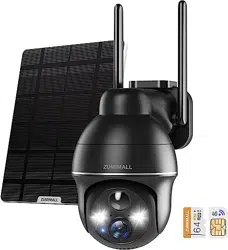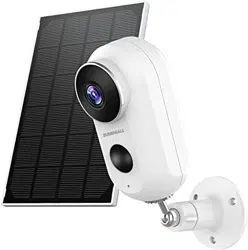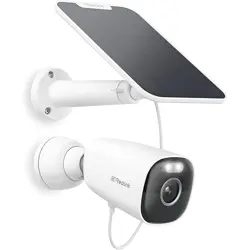
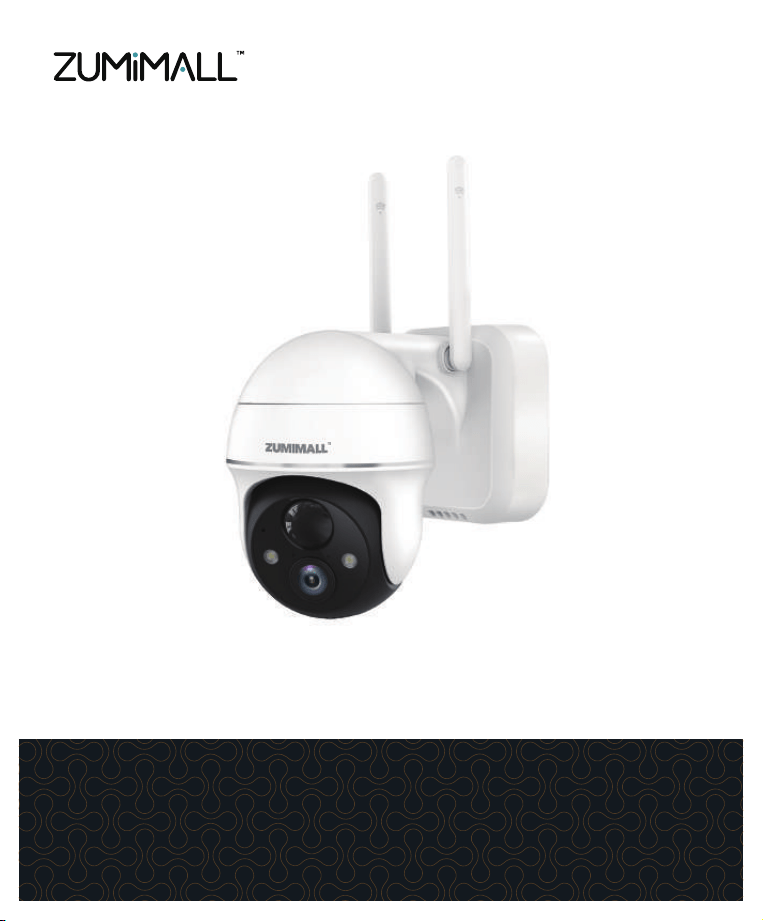
FHD Battery Security Camera
QUICK START GUIDE
X2
FCC ID: 2AZL7-ZS-GX1S
Get Smarter About Your Security
Thank you for choosing ZUMIMALL. Please read this quick start
guide carefully before using this product, for further information
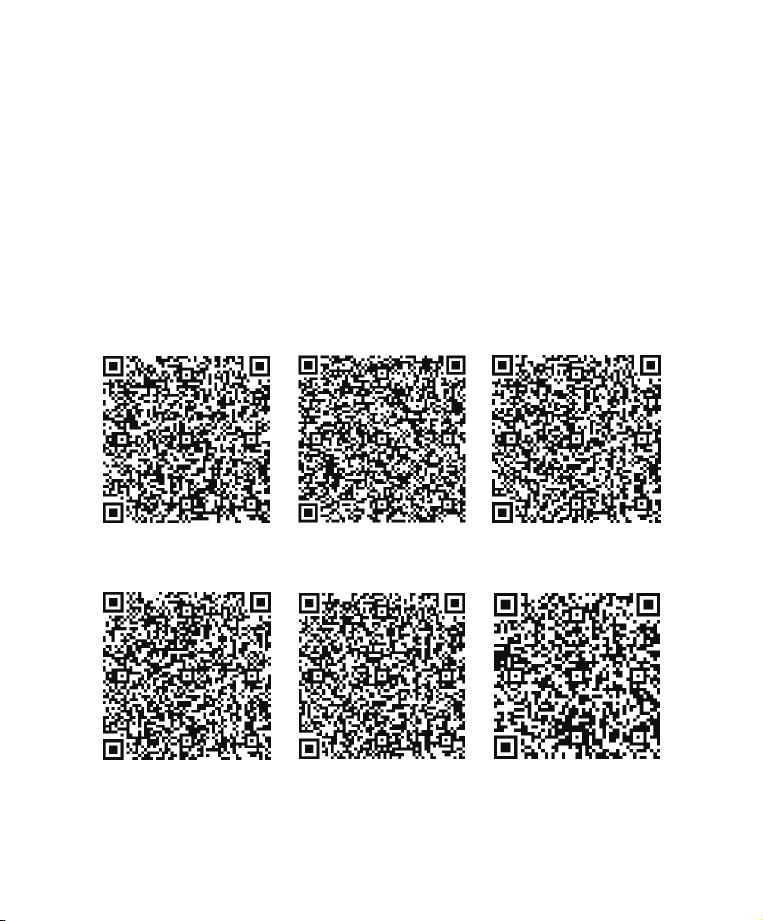
please scan the QR code below to download user manual on
ZUMIMALL website.
Welcome
English
Italian Spanish Japanese
German French
Please scan the QR code to
get the detailed electronic manual.
@zumimall
@zumimalloffice
@zumimallcam
@zumimallcamera
Follow
@zumimalloffice
on Facebook
Scan “zumimall” QR
code to purchase products
Product Service
Email: [email protected]
Distributor: [email protected]
More About Us
Web: www.zumimall.com
Facebook: www.facebook.com/zumimalloffice
Amazon Store: www.amazon.com/zumimall

Brand Story
Founded in 2008, Zumimall focuses on the design and
research of intelligent security technology. Zumimall insists
on taking consumer needs as its core and strives to create
smart home products that lead a global home fashion trend
for consumers. Zumimall believes that craftsmanship creates
top quality and technology changes life. With high-quality
products and first-class service, Zumimall won the love and
trust of millions of customers as soon as it went public. Over
the years, Zumimall has served 45 continents of America,
covering 80% of the population. Zumimall is the provider of
a smart lifestyle and a guardian of the wonderful moments
of your life.
3
YEARS
warranty
1V1
Customer Service
How to Activate it?
Email: [email protected]
Send us Order number via email or Scan the QR Code
Founded in 2008, Zumimall focuses on the design and
research of intelligent security technology. Zumimall insists
on taking consumer needs as its core and strives to create
smart home products that lead a global home fashion trend
for consumers. Zumimall believes that craftsmanship creates
top quality and technology changes life. With high-quality
products and first-class service, Zumimall won the love and
trust of millions of customers as soon as it went public. Over
the years, Zumimall has served 45 continents of America,
covering 80% of the population. Zumimall is the provider of
a smart lifestyle and a guardian of the wonderful moments
of your life.
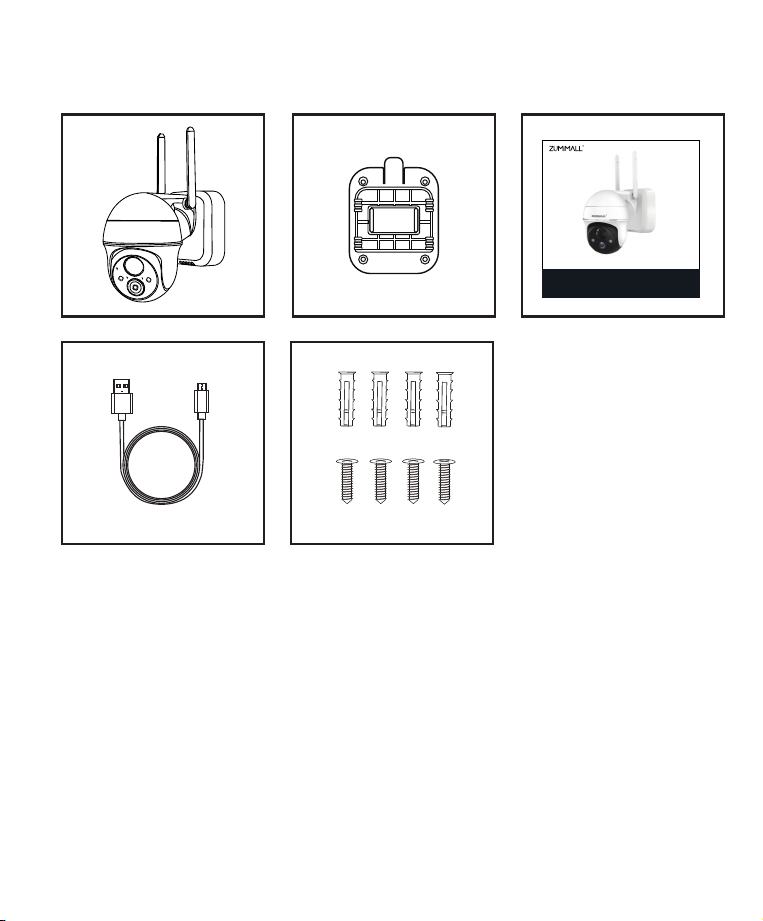
ZUMIMALL Battery Camera * 1 Outdoor Mount *1
Quick User Guide *1 Charging Cable *1
Screws Set *1
1. What’s in the Box
NOTE
: Micro SD card and power adapter are not included.
FHD Batterie-Sicherheitskamera
SCHNELLSTART-ANLEITUNG
Get Smarter About Your Security
X2
FCC ID: 2AZL7-ZS-GX1S
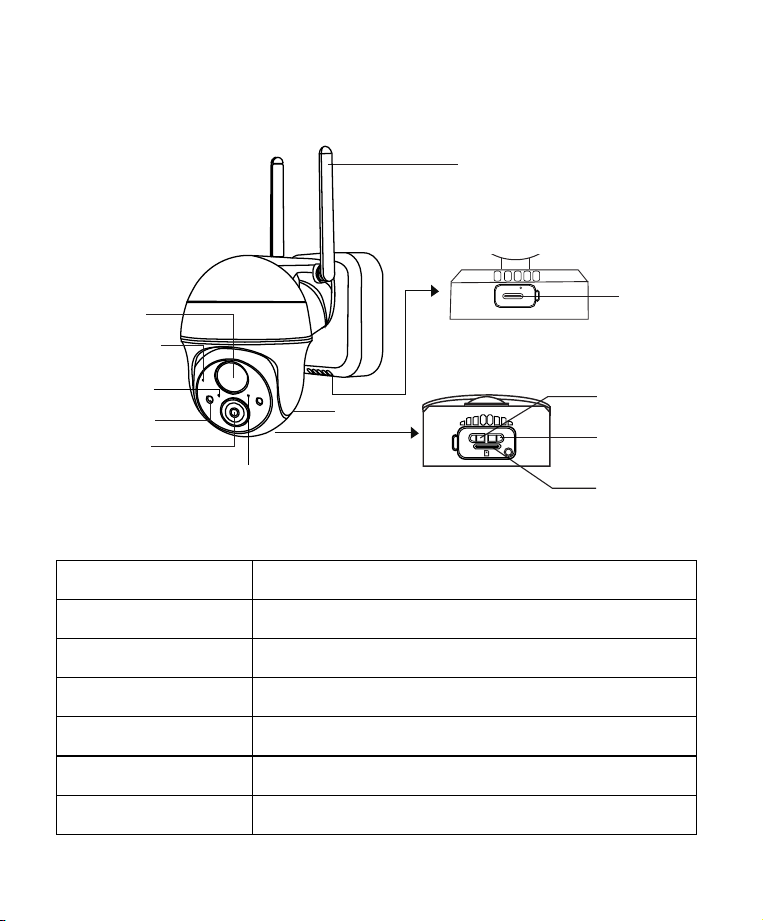
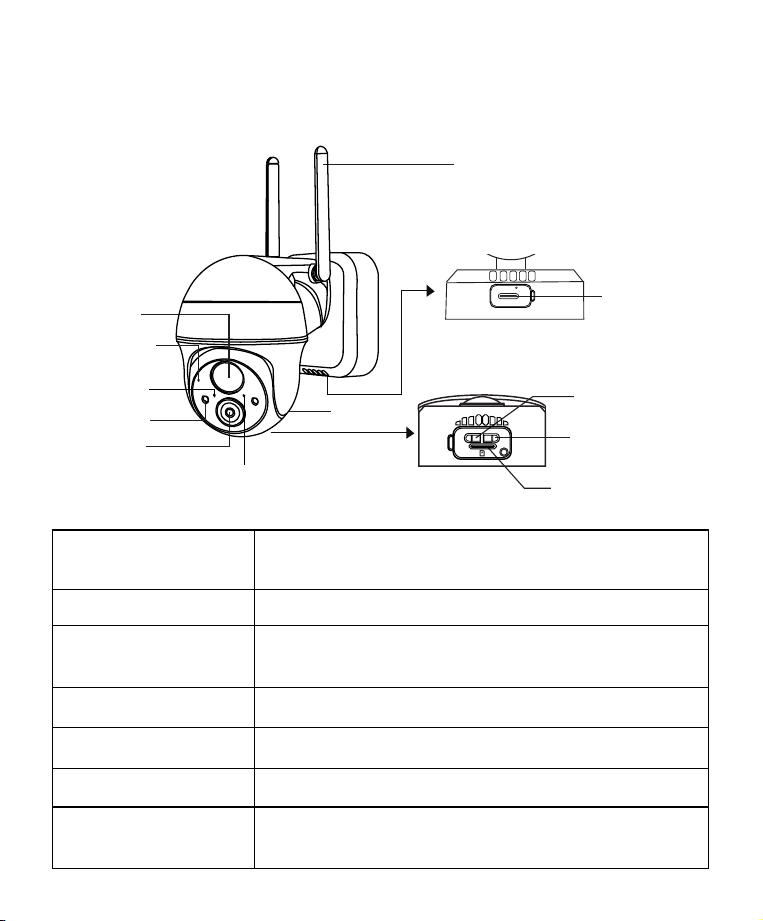
Power Button
Reset Button
Blink Slowly in Red
Blink Fast in Red
Solid in Red
Solid in Blue
Blink Slowly in Blue
Keep pressing for 5-10 seconds to power on/power off
Keep pressing for 5-10 seconds to reset
Awaiting Wi-Fi connection, ready for adding devices
Wi-Fi connecting
Network problem
Wi-Fi connected, camera running normally
Firmware update
2. Product Diagram
Lens
Mode Indicator
Power Light
White Light
Microphone
PIR Sensor
Wi-Fi Antenna
Charge Port
Speaker
SD Card Slot
Reset Key
Power Key
DC 5V
Power Reset
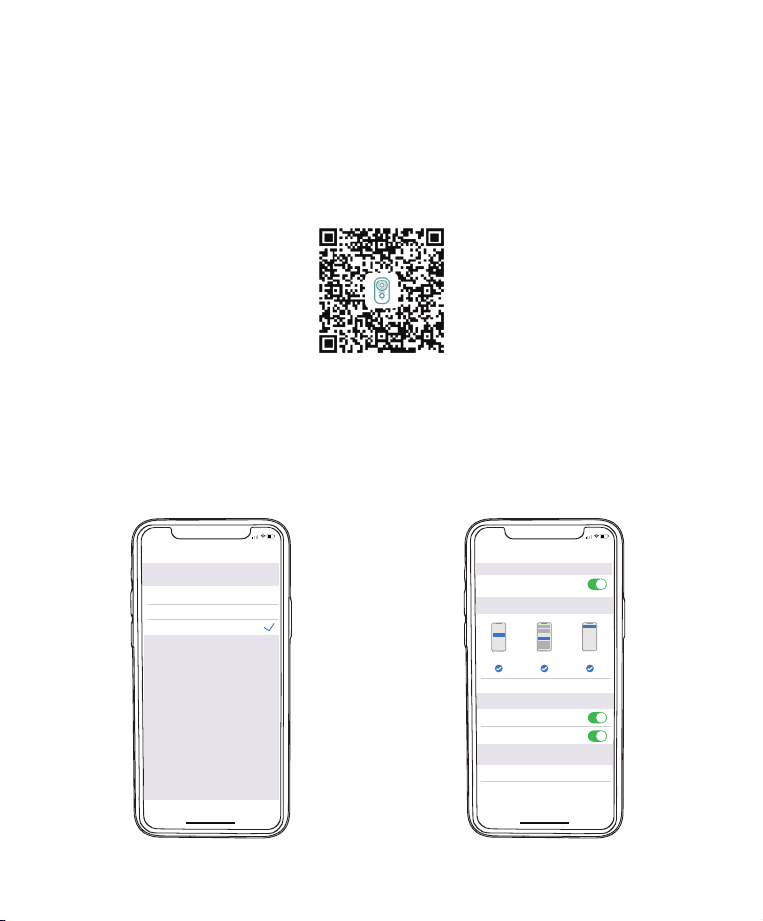
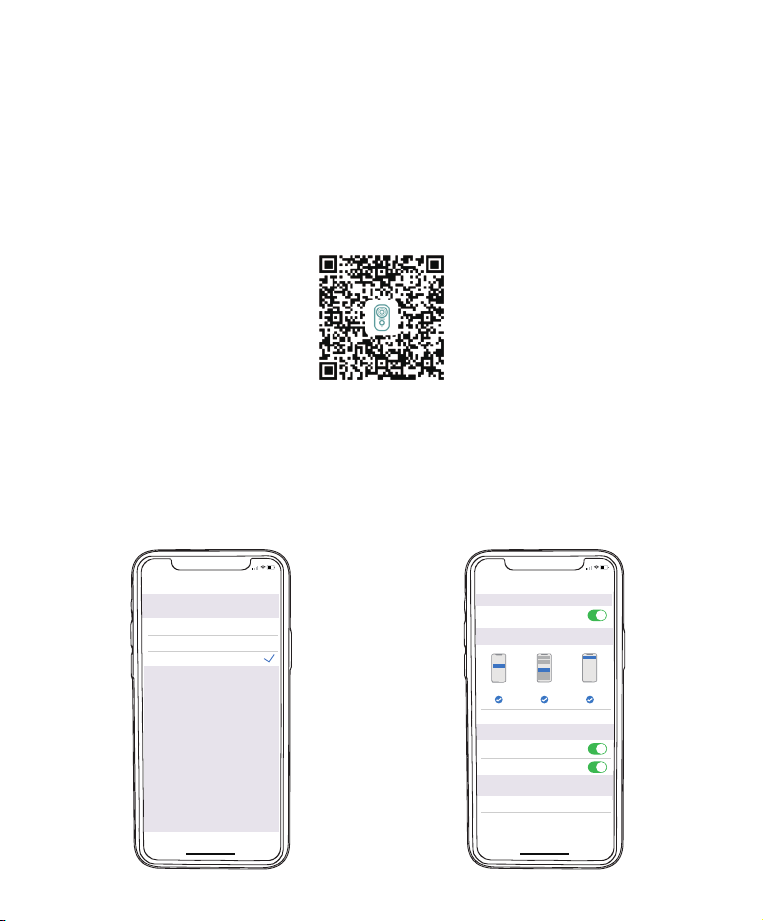
3. Download and Install App
Download ZUMIMALL App from Google Play™ or App Store™.
Or scan the QR codes as below, with your smart phone.
NOTE:
Google Play™ is a trademark of Google Inc.
App Store™ is a service mark of Apple Inc.
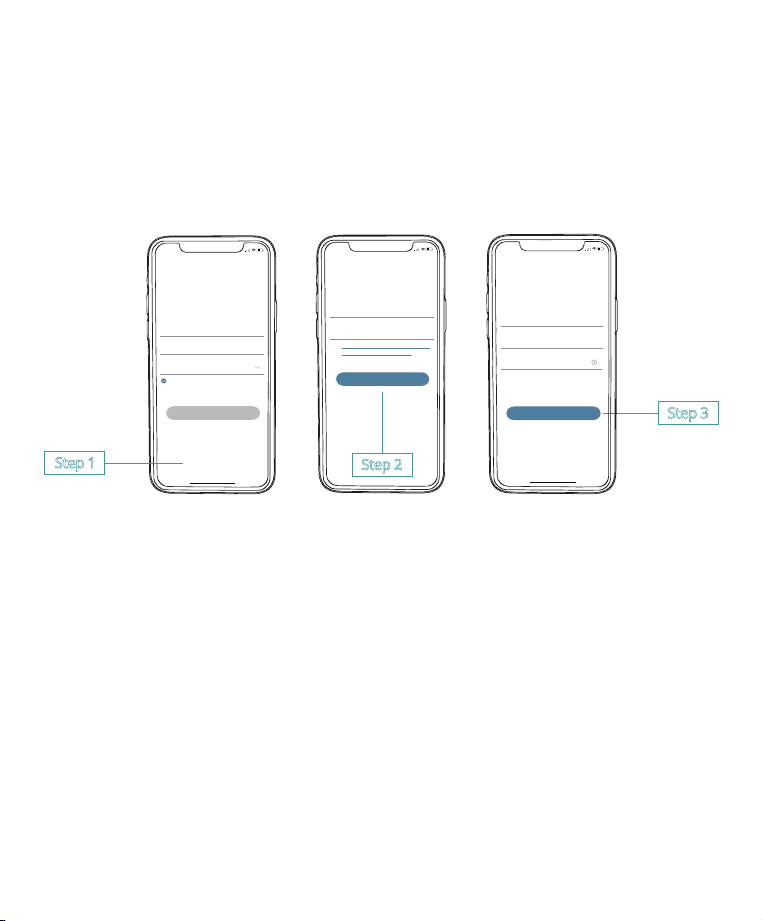
NOTE:
Please turn on both of the following permissions.
① Allow ZUMIMALL App to access mobile cellular data and wireless
LAN,otherwise it will fail to connect the camera.
② Allow ZUMIMALL App to receive pushed messages, otherwise,
the phone will not receive alarms when motion is detected.
>
>
<
Notifications
ZUMIMALL
ALERTS
Allow Notifications
9:41
Lock Screen
Banner Style
Sounds
Badges
OPTIONS
When Unlocked(Default)
Show Previews
Temporary
>
>
Automatic
Notification Grouping
>
NotificationCenter Banners
5:51
<
ZUMIMALL
Wireless Data
ALLOW”WIRELESS DATA”TO USE DATA
Off
WLAN
WLAN & Cellular Data
5:51
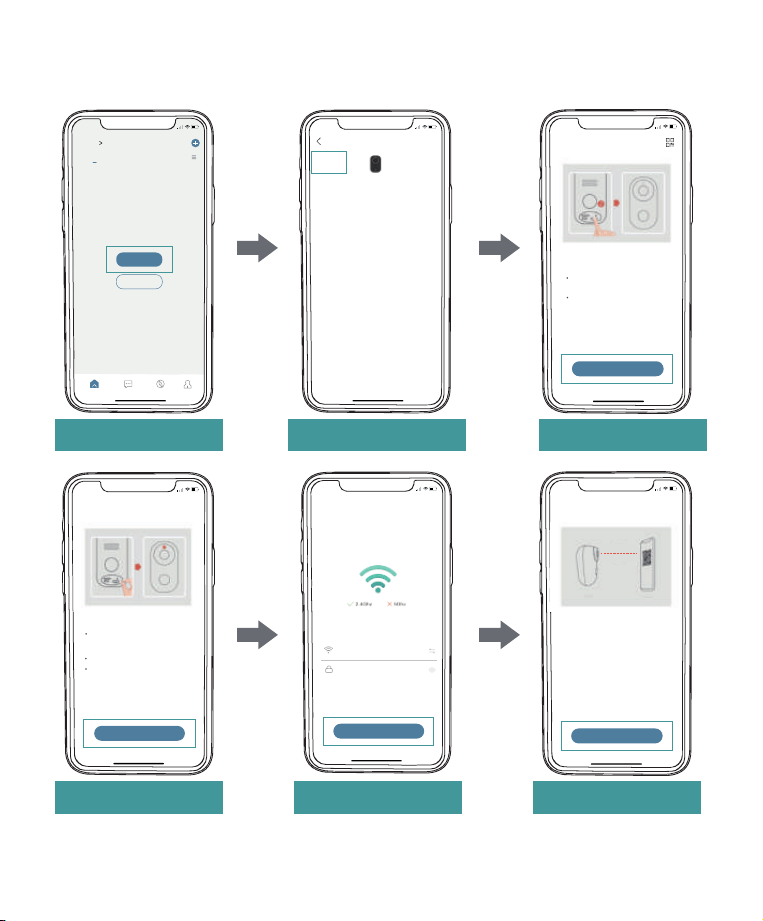
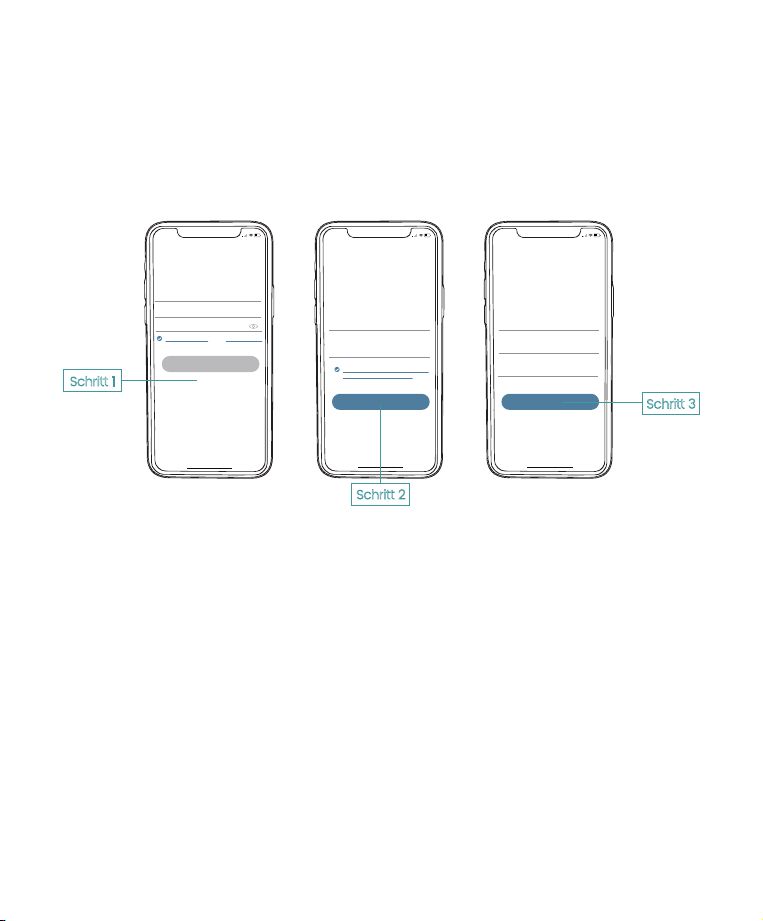
New user needs to sign up ZUMIMALL App with email address.
Click 'Sign up' tocreate a New Account and follow the steps to
complete registration.
4. Account Registration
5. Add Camera to App
5.1 Preparations for connection
① Insert a Micro SD Card into the camera to save video clips or you
can startthe 7-day free cloud service. Without Micro SD Card or cloud
service, no videowill be saved.
② The camera only works with 2.4GHz Wi-Fi, not support 5GHz.
③ When connecting to the network, please take the camera close to
the router(Recommended within 10-15ft).
Step 1
Step 3
Step 2
5:51
Log in
Forgot password?Remember password
Welcome
United States
Account
Passward
No account yet? Sign up now
5:51
<
Account
Nickname
Password
Password: 8-16 digits, including two types of
numbers,upper or lower case letters and
characters at least
Sign Up
Done
5:51
<
Registration means agreement with the user
agreement and privacy agreement.
Sign Up
United States
Email
Next
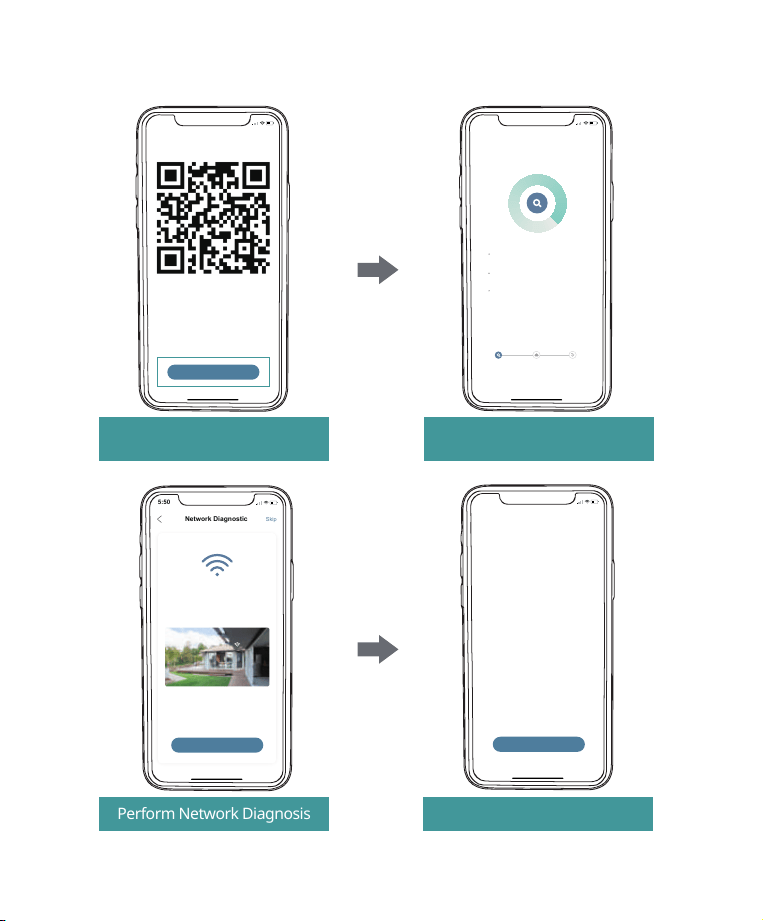
5.2 Connect Camera to App
Tap 'Add Device'
Reset the Camera Input Wi-Fi Password Prepare the Scanning
Select 'Battery Camera' Turn on the Camera
Home
Homepage Messages Search
5:48
All Devices
Me
Living room Bedroom
Add Device
Quick Guide
5:48
Battery
Camera
Smart
Doorbell
Battery Camera
Power Plug
Camera
Baby
Camera
Floodlight
Camera
Doorbell
Kits
Select Device
5:49
Add Battery Camera
Press the [battery camera] button to
wake the device if it is asleep.
Hold the device power button to start
the device.
<
Please stay near to your router for the
best signal.
Next
Hold the RESET button on your device for
4-5 seconds(please refer to the user
manual for more on this).
Wait for a flashing RED indicator light.
Tap Next
5:49
Add Battery Camera
Please reset the device.
<
Next
5:50
Wi-Fi Setup
SELECT A 2.4GHZ WIFI NETWORK AND
ENTER Your Password
The Device Does Not Work with 5G Wifi NetWorks
Common Router Setup Methods
Junan
cam2019@
<
Next
Please remove all film from the lens.Tap
Next to show a QR code, and let your
device scan the code. Keep your phone
5-8 inches from the lens.
5:50
Operation Instructions
<
15-25cm
5-8 in
Next
5:50
Scan QR Code
<
Scan the QR code below with the device
at a distance of 5-8 inches. A tone will be
heard when successfully scanned.
Next
Help
Scan QR Code when Indicator
Flashing Slowly in Red
Finished Installation
When Reaches 100%
5:50
Connect Network
<
Make sure the device in an
energized state
02:06
Make sure the device is connected to
the router
Make sure the device and the phone are
on the same network
Search device
Register to the cloud Device
initialization
Perform Network Diagnosis View Installation Tips
5:50
Network Diagnostic
Skip
<
WIFI signal strength
High
Current Place is good, you can install
the camera.
02-15-2022 11:08:17 AM
6KB/s
Next
5:50
How to install camera
Install tips:
<
1.Please use outdoor mounting bracket if you
want to install camera outside.
2.It is recommended to install the camera at a
height of 2-3 meters.
3.Avoid direct sunlight to the camera lens.
4.Avoid placing the camera lens against the
wall and glass at close range.
Done
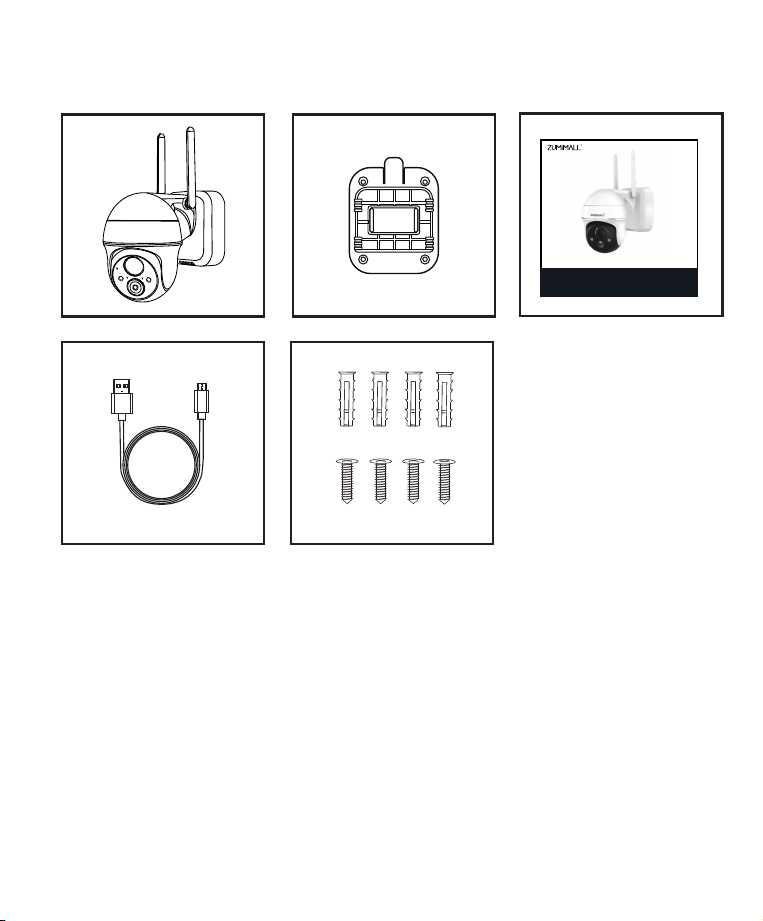
ZUMIMALL Akku-Kamera * 1 Außenmontage *1
Kurzanleitung *1 Aufladen-Kabel *1
Schraubensatz *1
1. Was ist in der Box?
HINWEIS: Micro-SD-Karte und Netzadapter sind nicht im
Lieferumfang enthalten.
FHD Battery Security Camera
QUICK START GUIDE
X2
FCC ID: 2AZL7-ZS-GX1S
Get Smarter About Your Security
2. Produkt-Diagramm
Objektiv
Modus-Anzeige
Strom Licht
Weißes Licht
Mikrofon
PIR-Sensor
Wi-Fi-Antenne
Ladeanschluss
Sprecher
SD-Kartensteckplatz
Taste zurücksetzen
Power-Taste
DC 5V
Power Reset
Einschalttaste
Reset-Taste
Langsames Blinken
in Rot
Schnelles Blinken in Rot
Solide in Rot
Solide in Blau
Langsames Blinzeln
in Blau
Halten Sie die Taste 5-10 Sekunden lang gedrückt,
um das Gerät ein-/auszuschalten
Zum Zurücksetzen 5-10 Sekunden lang gedrückt halten
Warten auf die Wi-Fi-Verbindung, bereit zum
Hinzufügen von Geräten
Wi-Fi-Verbindung
Netzwerk-Problem
Wi-Fi verbunden, Kamera läuft normal
Aktualisierung der Firmware
3. App herunterladen und installieren
Laden Sie die ZUMIMALL App von Google Play™ oder App Store™
herunter. Oder scannen Sie die QR-Codes wie unten, mit Ihrem
Smartphone.
HINWEIS: Google Play™ ist eine Marke von Google Inc.
App Store™ ist eine Dienstleistungsmarke von Apple Inc.
HINWEIS: Bitte aktivieren Sie die folgenden beiden Berechtigungen.
① Erlauben Sie der ZUMIMALL App den Zugriff auf mobile Daten und
Wireless LAN,sonst kann die Kamera nicht verbunden werden.
② Erlauben Sie der ZUMIMALL App, Push-Nachrichten zu empfangen,
sonst wird das Telefon keine Alarme empfangen, wenn eine Bewegung
erkannt wird.
>
>
<
Notifications
ZUMIMALL
ALERTS
Allow Notifications
9:41
Lock Screen
Banner Style
Sounds
Badges
OPTIONS
When Unlocked(Default)
Show Previews
Temporary
>
>
Automatic
Notification Grouping
>
NotificationCenter Banners
5:51
<
ZUMIMALL
Wireless Data
ALLOW”WIRELESS DATA”TO USE DATA
Off
WLAN
WLAN & Cellular Data
5:51
Neue Benutzer müssen die ZUMIMALL App mit ihrer E-Mail-Adresse
registrieren. Klicken Sie auf 'Anmelden', um ein neues Konto zu erstellen
und folgen Sie den Schritten, um die Registrierung abzuschließen.
4. Registrierung eines Kontos
5. Kamera zur App hinzufügen
5.1 Vorbereitungen für den Anschluss
① Legen Sie eine Micro-SD-Karte in die Kamera ein, um Videoclips zu
speichern, oder Sie können den den kostenlosen 7-Tage-Cloud-Service
nutzen. Ohne Micro-SD-Karte oder Cloud-Service wird kein Video
gespeichert werden.
② Die Kamera funktioniert nur mit 2.4GHz Wi-Fi, unterstützt aber nicht
5GHz.
③ Wenn Sie eine Verbindung zum Netzwerk herstellen, bringen Sie die
Kamera bitte in die Nähe des Routers. (Empfohlen innerhalb von 10-15ft).
5:51
<
Sign up
United States
+1 >
Email
Registrtion means agreement with the user
agreement and privacy agreement.
Next
5:51
<
Sign up
Account
Nickname
Password
Done
5:51
Log in
Forgot password?Remember password
>
Glad to meet you!
United States
Account
Passward
Sign Up
Schritt 1
Schritt 3
Schritt 2
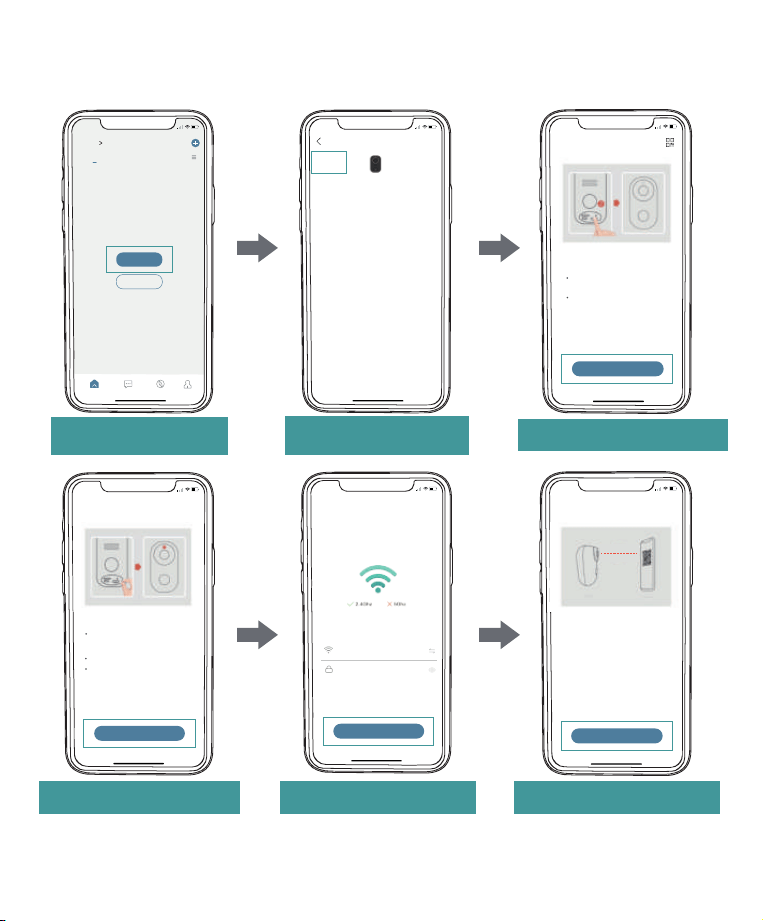
5.2 Kamera mit App verbinden
Tippen Sie auf 'Gerät
hinzufügen'
Zurücksetzen der Kamera Wi-Fi-Passwort eingeben Vorbereiten des Scannens
Wählen Sie 'Netzstecker
Kamera'
Schalten Sie die Kamera ein
Home
Homepage Messages Search
5:48
All Devices
Me
Living room Bedroom
Add Device
Quick Guide
5:48
Battery
Camera
Smart
Doorbell
Battery Camera
Power Plug
Camera
Baby
Camera
Floodlight
Camera
Doorbell
Kits
Select Device
5:49
Add Battery Camera
Press the [battery camera] button to
wake the device if it is asleep.
Hold the device power button to start
the device.
<
Please stay near to your router for the
best signal.
Next
Hold the RESET button on your device for
4-5 seconds(please refer to the user
manual for more on this).
Wait for a flashing RED indicator light.
Tap Next
5:49
Add Battery Camera
Please reset the device.
<
Next
5:50
Wi-Fi Setup
SELECT A 2.4GHZ WIFI NETWORK AND
ENTER Your Password
The Device Does Not Work with 5G Wifi NetWorks
Common Router Setup Methods
Junan
cam2019@
<
Next
Please remove all film from the lens.Tap
Next to show a QR code, and let your
device scan the code. Keep your phone
5-8 inches from the lens.
5:50
Operation Instructions
<
15-25cm
5-8 in
Next
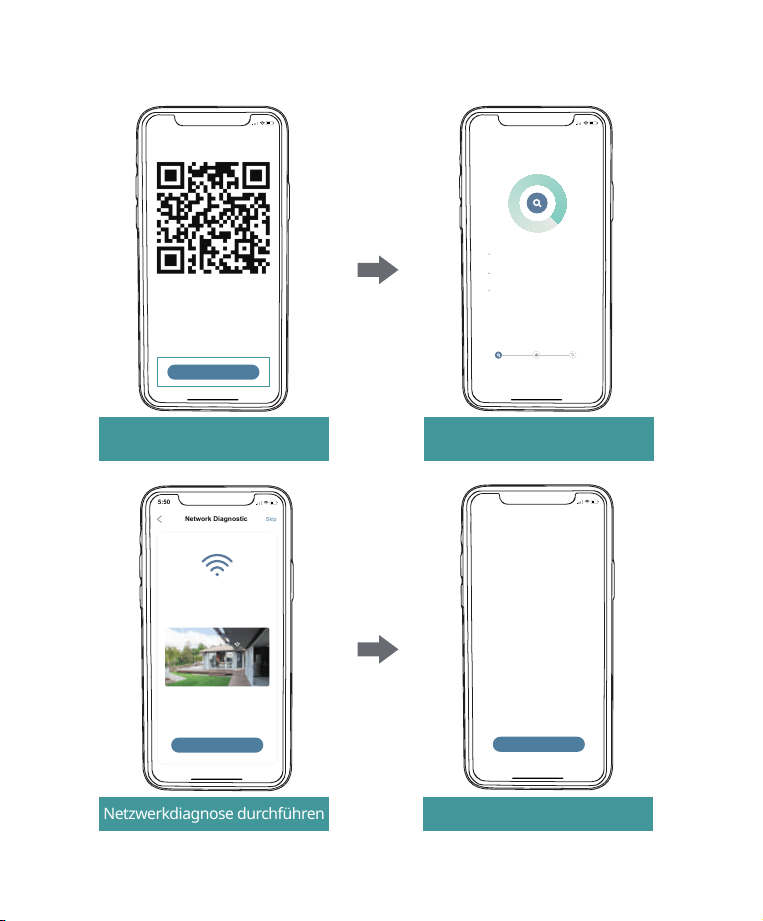
5:50
Scan QR Code
<
Scan the QR code below with the device
at a distance of 5-8 inches. A tone will be
heard when successfully scanned.
Next
Help
QR-Code scannen, wenn die
Anzeige Langsam rot blinkt
Abgeschlossene Installation
Wenn 100% erreicht sind
5:50
Connect Network
<
Make sure the device in an
energized state
02:06
Make sure the device is connected to
the router
Make sure the device and the phone are
on the same network
Search device
Register to the cloud Device
initialization
Netzwerkdiagnose durchführen Installationstipps anzeigen
5:50
Network Diagnostic
Skip
<
WIFI signal strength
High
Current Place is good, you can install
the camera.
02-15-2022 11:08:17 AM
6KB/s
Next
5:50
How to install camera
Install tips:
<
1.Please use outdoor mounting bracket if you
want to install camera outside.
2.It is recommended to install the camera at a
height of 2-3 meters.
3.Avoid direct sunlight to the camera lens.
4.Avoid placing the camera lens against the
wall and glass at close range.
Done
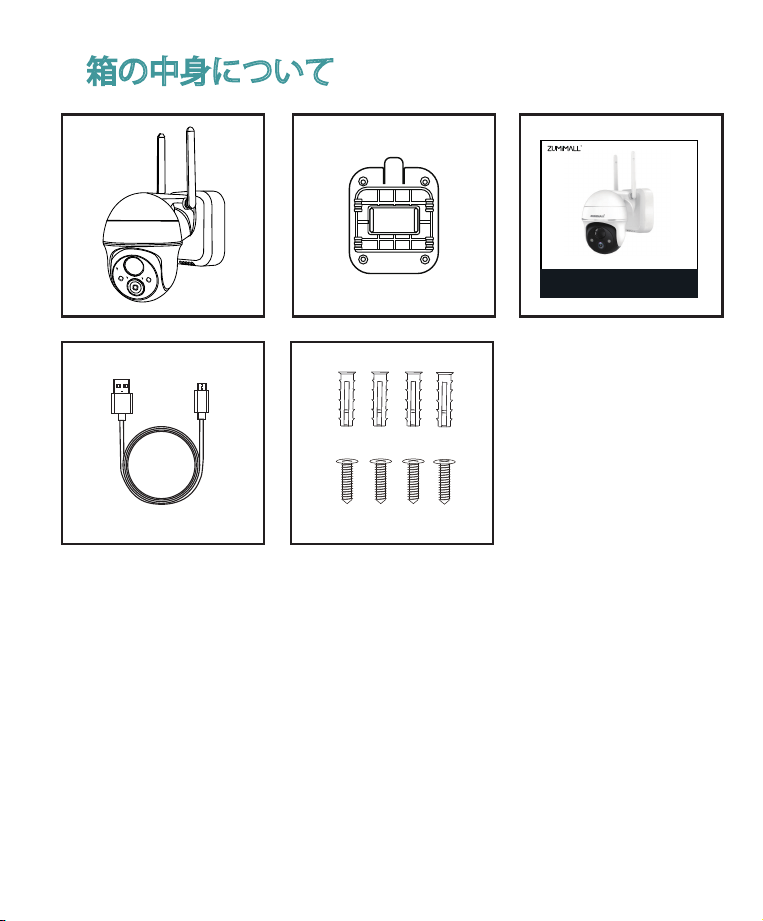
ZUMIMALL バッテリーカメラ * 1 アウトドア マ ウント *1
ク イック・ユ ー ザ ー・ガ イド *1 充電用ケーブル
ネ ジ セット *1
1. 箱の中身について
注:マイクロ SDカード、電源アダプターは付属していません。
FHDバッテリー防犯カメラ
クイックスタートガイド
X2
FCC ID: 2AZL7-ZS-GX1S
Get Smarter About Your Security
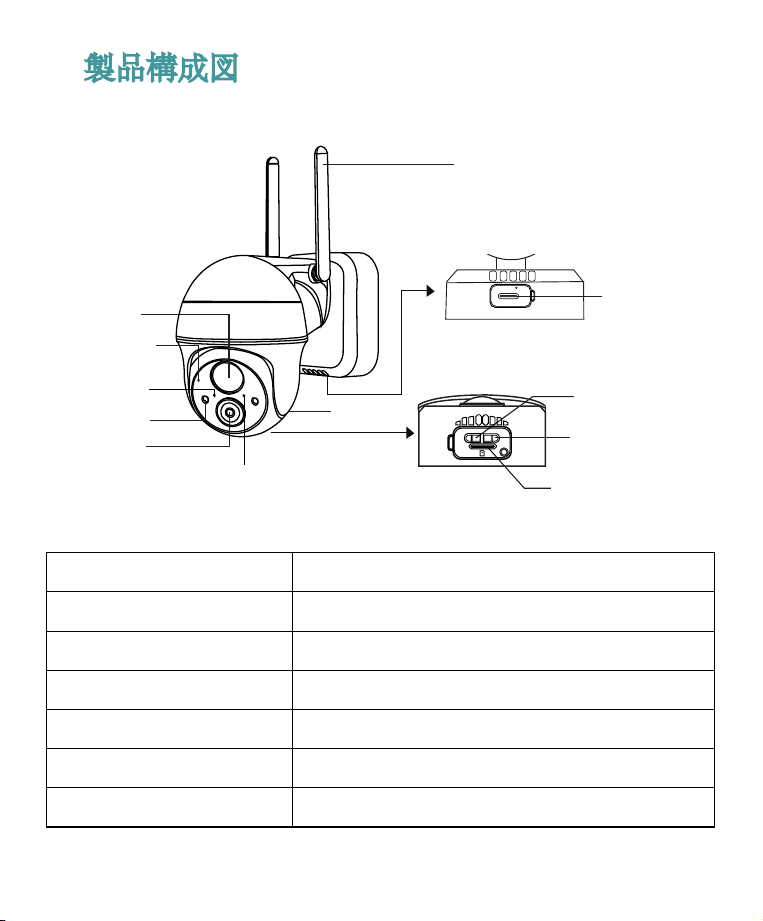
2. 製品構成図
レンズ
モードインジケータ
パ ワー ライト
白色光
マイクロフォン
PIRセンサー
Wi-Fi アンテナ
チャージポート
講演者
SDカ ード ス ロ ット
リ セ ット キ ー
パワーキー
DC 5V
Power Reset
電源ボタン
リセットボタン
赤色でゆっくり点滅する
赤色で高速点滅
ソリッド イン レ ッド
ソリッド イン ブ ル ー
ブルーにゆっくりと点滅する
5~10秒間押し続けて、電源オン/電源オフ
5~10秒間押し続けるとリセットされます
Wi-Fi接続待ち、デバイスを追加できる状態
Wi-Fi接続
ネットワークの問題
Wi-Fi接続、カメラは正常に動作しています
ファームウェアのアップデート
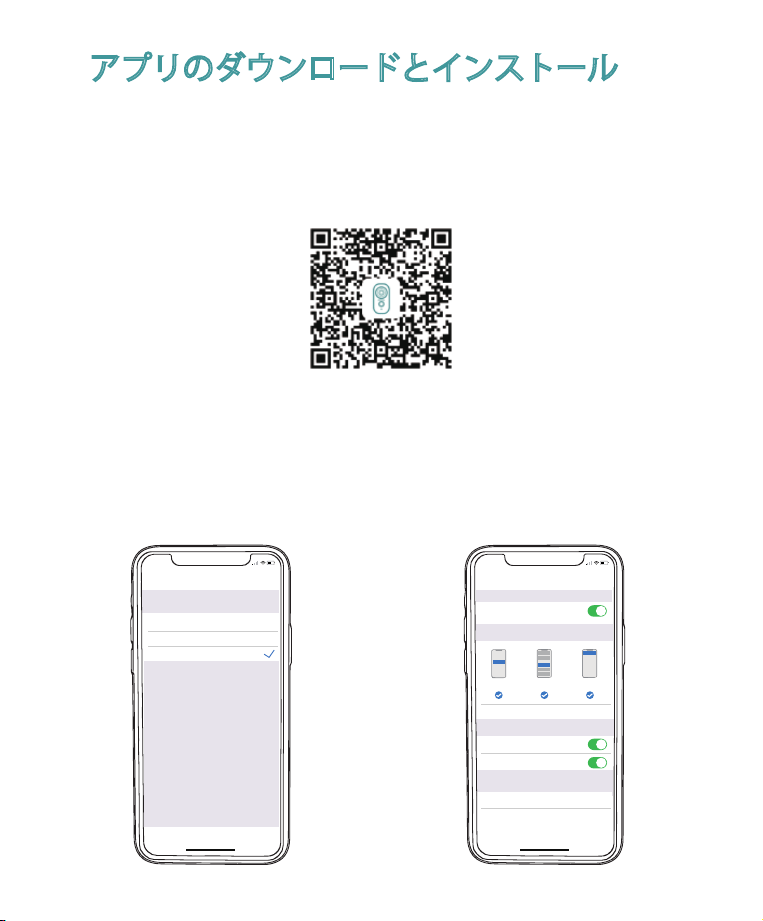
3. アプリのダウンロードとインストール
Google Play™またはApp Store™からZUMIMALLアプリをダウンロードします。
または、下記のQRコードをスマートフォンで読み取ってください。
注:Google Play™はGoogle Inc.の商標です。
App Store™は、Apple Inc.のサービスマークです。
以下の権限を両方ともオンにしてください。
① ZUMIMALLアプリが携帯電話データおよび無線LANにアクセスすること
を許可する、 に設定しないと、カメラとの接続に失敗します。
② ZUMIMALLアプリでプッシュ型メッセージの受 信を許可してください。
動体検知時にアラームを受信します。
>
>
<
Notifications
ZUMIMALL
ALERTS
Allow Notifications
9:41
Lock Screen
Banner Style
Sounds
Badges
OPTIONS
When Unlocked(Default)
Show Previews
Temporary
>
>
Automatic
Notification Grouping
>
NotificationCenter Banners
5:51
<
ZUMIMALL
Wireless Data
ALLOW”WIRELESS DATA”TO USE DATA
Off
WLAN
WLAN & Cellular Data
5:51
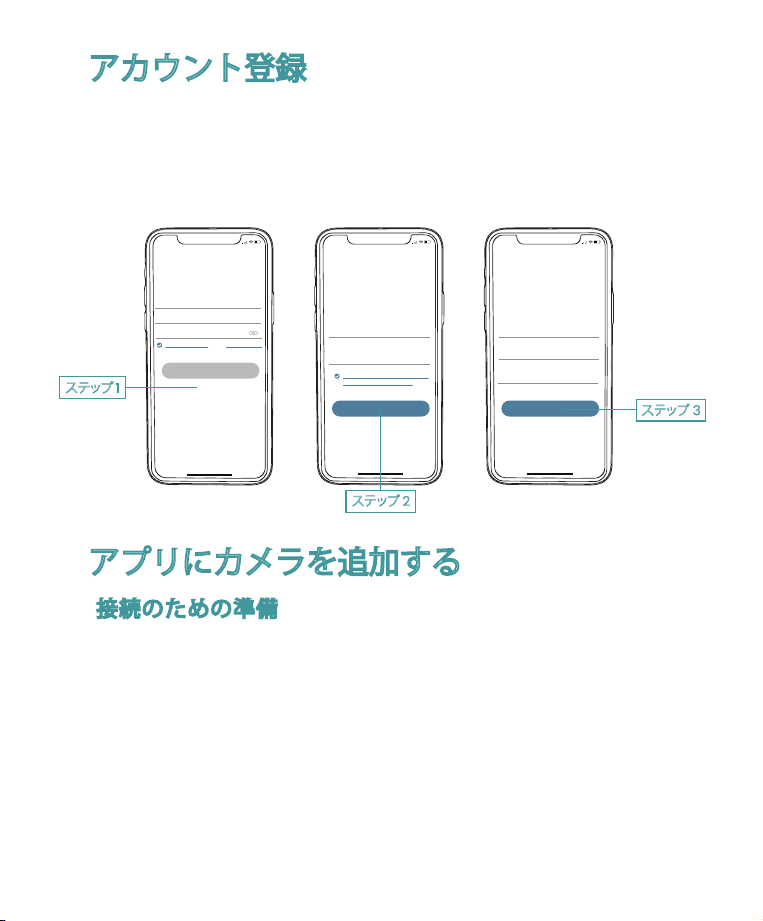
新規でご利用の方は、メールアドレスでZUMIMALLアプリのサインアッ
プが必要です。登録するをクリックして新規アカウントを作成し、手順
に従って登録を完了します。
4. アカウント登録
5. アプリにカメラを追加する
5.1 接続のための準備
①マイクロSDカードをカメラにセットして、動画を保存することもでき
ます。7日間無料のクラウドサービスです。MicroSDカードやクラウドサ
ービスがない場合は、動画はありません。は保存されます。
②カメラは2.4GHz帯のWi-Fiでのみ動作し、5GHz帯には対応していません。
③ネットワークに接続する際は、カメラをルーターに近づけてください。
(10-15ft以内を推奨)。
5:51
<
Sign up
United States
+1 >
Email
Registrtion means agreement with the user
agreement and privacy agreement.
Next
5:51
<
Sign up
Account
Nickname
Password
Done
5:51
Log in
Forgot password?Remember password
>
Glad to meet you!
United States
Account
Passward
Sign Up
ステップ 1
ステップ 3
ステップ 2
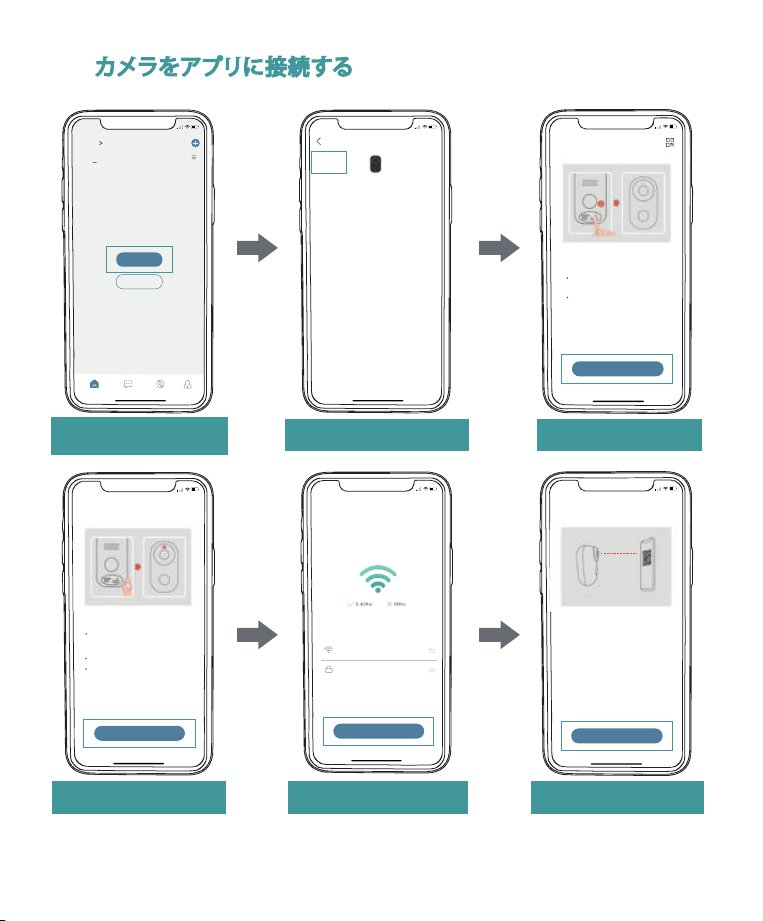
5.2 カメラをアプリに接続する
デバイスを追加する」
をタップ する
カメラをリセットする Wi-Fiパスワードの入力 スキャニングの準備
バッテリーカメラ」を選 択
カメラを起動する
Home
Homepage Messages Search
5:48
All Devices
Me
Living room Bedroom
Add Device
Quick Guide
5:48
Battery
Camera
Smart
Doorbell
Battery Camera
Power Plug
Camera
Baby
Camera
Floodlight
Camera
Doorbell
Kits
Select Device
5:49
Add Battery Camera
Press the [battery camera] button to
wake the device if it is asleep.
Hold the device power button to start
the device.
<
Please stay near to your router for the
best signal.
Next
Hold the RESET button on your device for
4-5 seconds(please refer to the user
manual for more on this).
Wait for a flashing RED indicator light.
Tap Next
5:49
Add Battery Camera
Please reset the device.
<
Next
5:50
Wi-Fi Setup
SELECT A 2.4GHZ WIFI NETWORK AND
ENTER Your Password
The Device Does Not Work with 5G Wifi NetWorks
Common Router Setup Methods
Junan
cam2019@
<
Next
Please remove all film from the lens.Tap
Next to show a QR code, and let your
device scan the code. Keep your phone
5-8 inches from the lens.
5:50
Operation Instructions
<
15-25cm
5-8 in
Next
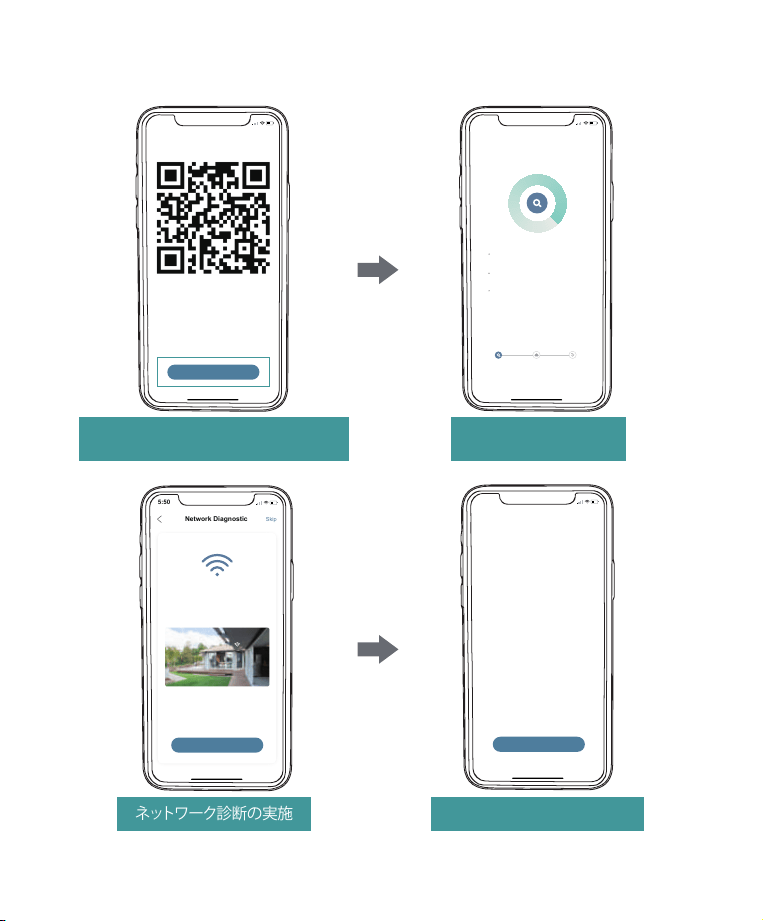
5:50
Scan QR Code
<
Scan the QR code below with the device
at a distance of 5-8 inches. A tone will be
heard when successfully scanned.
Next
Help
インジケーターでQRコードを読み取る
赤色でゆっくり点滅する
インストール完了
100%達成時
5:50
Connect Network
<
Make sure the device in an
energized state
02:06
Make sure the device is connected to
the router
Make sure the device and the phone are
on the same network
Search device
Register to the cloud Device
initialization
ネットワーク診断の実施 インストール方法を見る
5:50
Network Diagnostic
Skip
<
WIFI signal strength
High
Current Place is good, you can install
the camera.
02-15-2022 11:08:17 AM
6KB/s
Next
5:50
How to install camera
Install tips:
<
1.Please use outdoor mounting bracket if you
want to install camera outside.
2.It is recommended to install the camera at a
height of 2-3 meters.
3.Avoid direct sunlight to the camera lens.
4.Avoid placing the camera lens against the
wall and glass at close range.
Done

(Old Version)
(New Version)
ZUMIMALL Logo Change Info
FCC ID: 2AZL7-ZS-GX1S