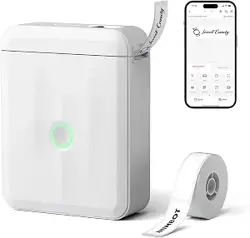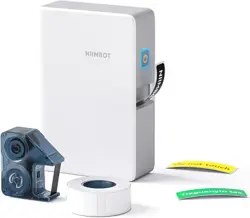
D101
Operation Manual
08
02
04
09
13
20
22
25
Basic Parameters
Basic Usage
Display of Indicator Light
Guide to APP Usage
FAQ
Cleaning Steps
Precautions
Warranties
01
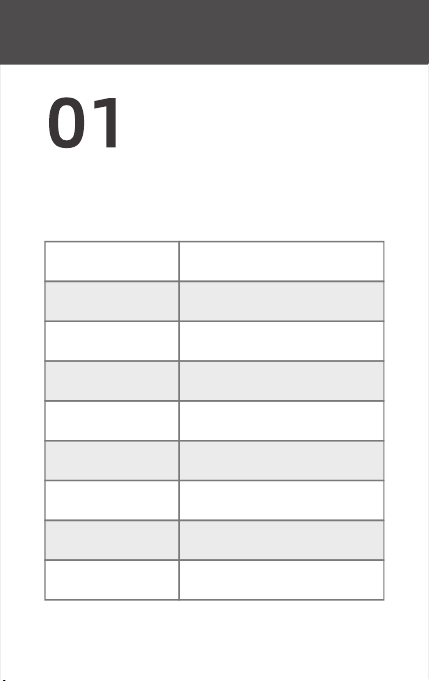
Basic Parameters
02
D101
White
ABS
Thermal printing
203dpi
30mm/s~60mm/s
10~25mm
24mm
Model
Color
Material
Printing method
Printing resolution
Printing speed
Label width
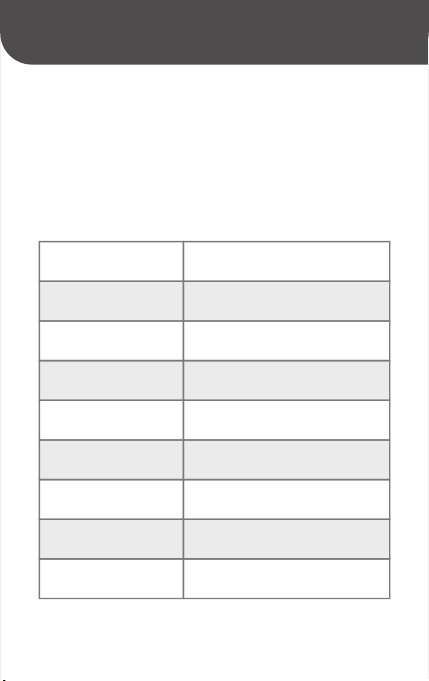
Adding machine paper and
transparent paper
Applicable paper
types
Effective printing
width
04
Bluetooth
Text/patterns/designs
1200mAh lithium battery
3~4 hours
Type-c
5V-1A
Connection mode
Barcode printing
Printing content
Charging duration
Charging interface
Battery life
One warranty card,
one type-C data cable
Supports barcodes
and QR codes
4 hours of continuous
printing
Accompanying
supplies
Battery type and
capacity
Voltage of incoming
current
03
05
Basic Usage
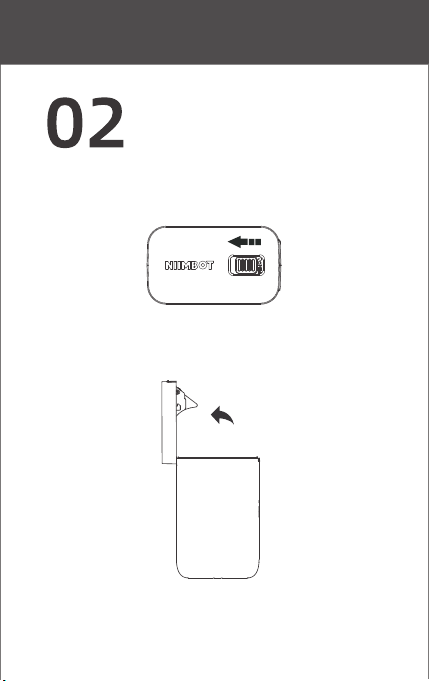
Slide to the left to
open the lid
90°
�. Slide to the left to open the lid
�.Opening angle
04
06
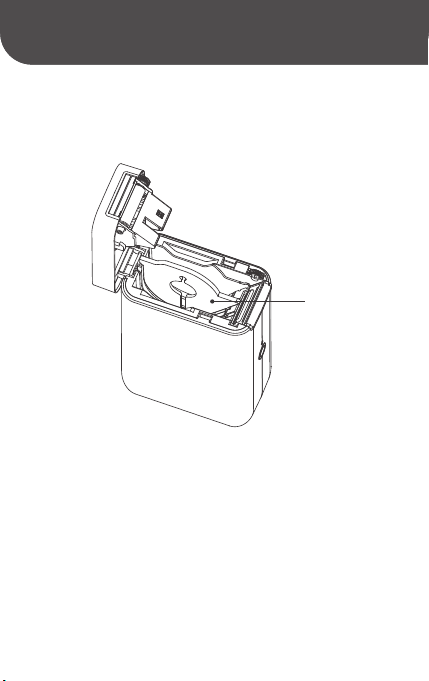
Paper case baffle
�. Requirements for installation of paper case baffle
(the baffle has been installed before delivery, and can
be used directly for ��mm backing paper labels, but
should be removed for ��mm backing paper labels).
0205
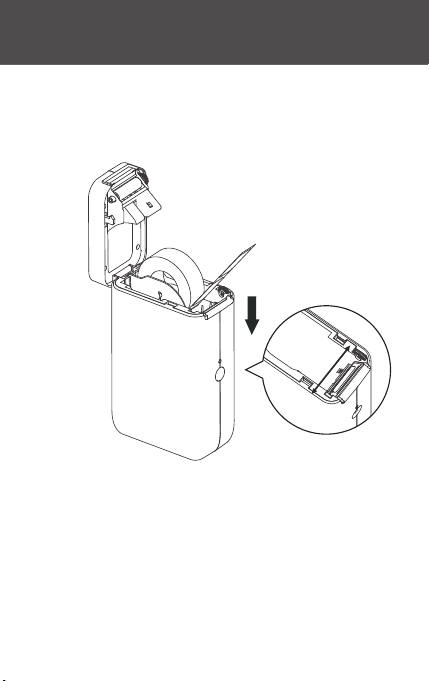
�. Installation of consumables: Insert the roll of paper
on the right, with the printing surface facing the switch.
Left
Right
0306
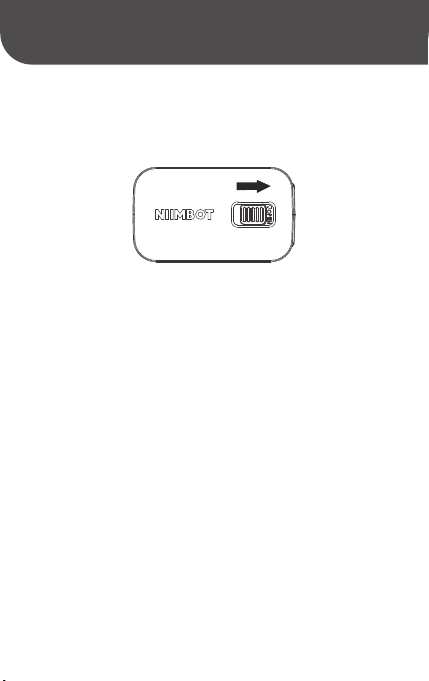
Slide to the right end
�.Close the lid, and slide to the right end
NIIMBOT label printer is generally charged before the
delivery for the startup. If you cannot start up your new
printer, one possible reason is low battery level. The
printer can be started up after being charged for 20
minutes.
About the new machine:
07
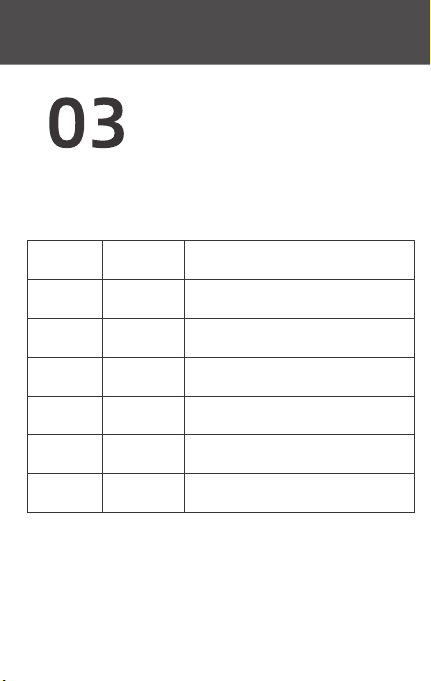
Indicator Light Descriptions
Indicator
light color
Blue
Blue
Blue
Red
Red
Red
Slow flash
Quick flash
Not flashing
Slow flash
Quick flash
Not flashing
Bluetooth not connected
Printing or charging
Bluetooth connected,
battery fully charged
Bluetooth not connected
and low battery level
Printing, or charging and
low battery level
Bluetooth connected,
low battery level
Light status Description
08
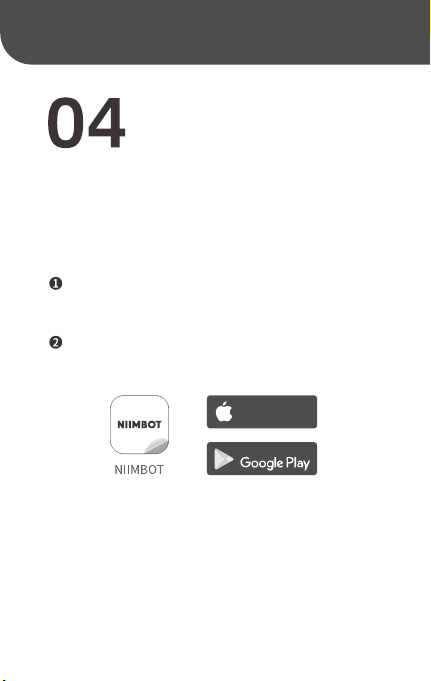
Guide to App Usage
It only takes two steps to start a new
marking experience
Download the "NiiMbot" application from the App
Store or Google Play.
APP Open the lid and place the consumables
09
App Store
Available on the
GET IT ON
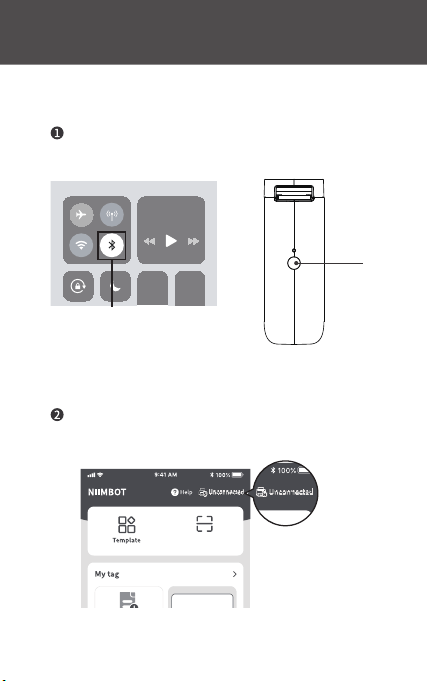
Bluetooth connection mode
On your phone or device, turn Bluetooth on. Then
start up the printer, and open the app.
Press the [Unconnected] button on the right corner
of the app, and then click [Search Device].
Screen
Mirroring
Switch on the Bluetooth
Long press the switch button
to activate the label printer
Switch
Press the
"Unconnected" button
10
scanning
More
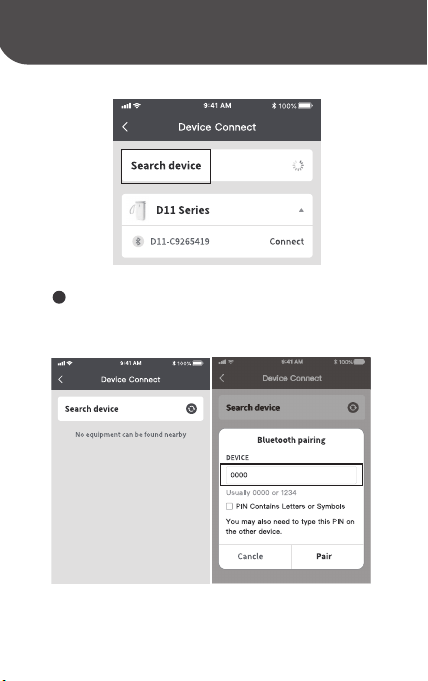
3
Press the blue [Connect] button to the right of the
correct printer model, and Bluetooth will connect.
11
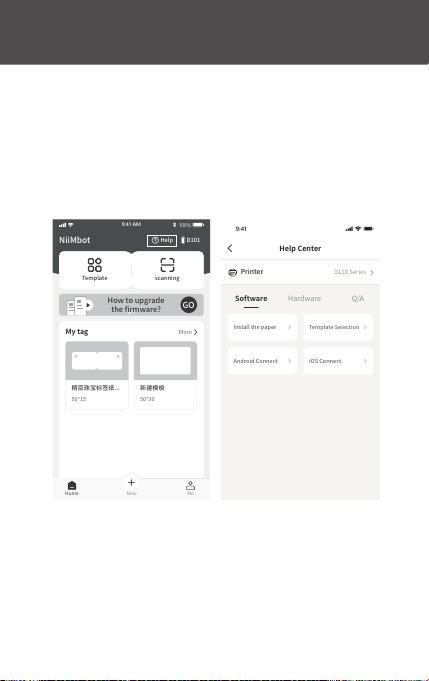
Uagse & Operation
Press the [Help] button on the right corner of the
app to choose from the demo videos that can be played
in the list of [Software - Hardware].
Printer
D110 Series
Install the paper
Template Selection
Android Connect
iOS Connect
9:41
Help Center
Hardware
Q/A
Software
My tag
More
新建模板
50*30
精臣珠宝标签纸...
50*15
NiiMbot
D101
教程
Help
Home
Me
New
scanning
Template
How to upgrade
the firmware?
GO
100%
9:41 AM
12

FAQ
A: The laptop's USB port does not have a sufficient and
stable enough voltage to ensure stable charging conditions.
Please charge the label printer using a normal power
socket.
Q: Why can’t the label printer be fully charged when it
is connected to a laptop for charging, and why does it
switch off automatically after being disconnected?
A: The label printer can be used even if you do not register
an account. But registering an account will enable you
to save label templates and retrieve any lost labels.
Q: Is the registration of an account necessary in order
to use the label printer?
A: This may be because the device has not yet been
recognized by app. You can enter 16 zeros continuous-
ly, and press OK to refresh. After refreshing, enter 0000
or 1234 again to enter the app.
Q: Why does the app not let me proceed even after
entering ���� or ���� as the PIN code?
13
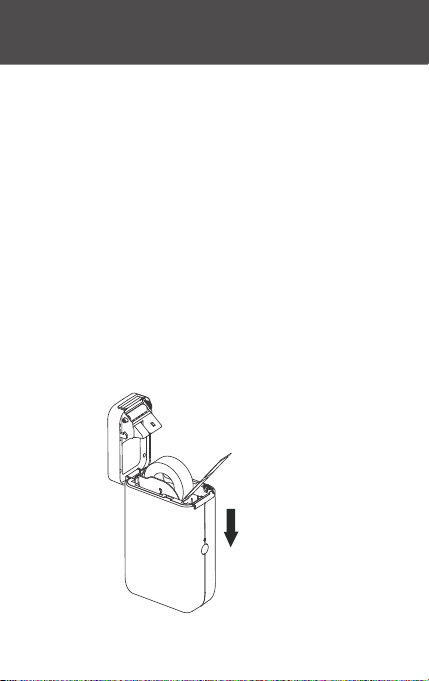
A: The label printer will shut down automatically after
Bluetooth has been disconnected or the app logged
out for 15 minutes, to save power and protect battery
life.
Q: Does the label printer support auto-shutdown?
A: It is possible that the label paper has been placed
in the wrong direction. Please keep the label’s sticker
face down (facing the power button).
Q: Why does the label printer keep printing blank labels
when working normally?
Make sure that the label
paper is placed face-down
(Facing the switch)
14

1、There may be label paper on the upper cover
detector, leading to a failure to detect the paper.
2、There may be label paper on the print head,
leading to a failure to detect the paper.
3、The size set by the template may not be
consistent with the actual size of the label paper.
4、The set paper type of the template may be wrong.
5、The paper case baffle may not be installed or
the paper case baffle may not be installed in the
correct place.
6、Detector failure may be leading to continuous
paper delivery.
A:
1、The label paper is not NIIMBOT paper and may
be chipless.
2、The actual printed quantity exceeds the
quantity required by the chip, and the self-check
page can be viewed.
3、Chip fault.
4、Machine fault.
A:
Q: Why is my label printer just continuously delivering
large amounts of label paper?
Q: Why is the color printed on the label paper very
light?
15

Q: How to solve it when My mobile phone fails to find
the label printer using Bluetooth, how can I resolve
this?
A:This suggests a clash of the mobile phone's Bluetooth
system, which can simply be restored by restarting the
mobile phone and Bluetooth in the phone settings.
Q: The Bluetooth connection is suddenly disconnect-
ed, and the connection still fails even after several
tries.
Q: What should I do if the app prompts me to use
non-universal labels after the label paper is placed
in the machine?
1、The D101 label printer currently is only applicable to
the special label papers in the D101 series. Using the
label papers of other brands will lead to failure.
2、There may be a foreign object in the paper case
covering the sensing port, leading to failure to
identify the paper, so you may only need to
remove the foreign object from the paper case.
3、It is possible that the label chip has not been
identified temporarily, you can contact customer
service and send the corresponding label number,
and the technical department will fix the problem
for you within 10 minutes.
A:
16

A: It is most likely one of the following possibilities:
1.The cover of the label printer has not been closed properly,
and so needs to be opened and closed several times.
2.The printer has suffered lumps during transportation or
loosening of cables inside the machine, which are considered
machine damage. You can contact the seller for
replacement.
Q: App error, the prompt says "uncovering".
A: D101 supports continuous printing and batch printing.
The app can currently print up to 999 labels at a time, but
the actual number of label paper sheets per roll should be
taken into account, with a maximum of 300 sheets of label
papers per roll.
Q: Does the label printer support batch printing, and
how many paper sheets can be printed at a time?
1、 If the machine is charging, and the mobile phone
fails to find the label printer using Bluetooth, simply
unplug the power cord.
2、 If Bluetooth response is slow, restart the software
or restart the printer and try to connect again.
3、If it is caused by a software version issue, uninstall
and reinstall or contact technical personnel.
A:
17

Q: After pressing "Print", no content appears, and the
machine keeps sending out "clack" sounds.
A: To ensure the safety of the label printer, we have set up
multiple protections. If problems such as "shortage of
paper", "opening of the paper case", "data error", "too
high ambient temperature", or "low battery" occur, the
equipment shall terminate printing. Please determine for
yourself which of these case may be the cause.
Q: A sudden stop occurs during the printing process.
A: It is most likely one of the following possibilities:
1. No paper is placed in the machine
2. The paper case baffle is not installed or the paper case
baffle is not installed in its proper place for 15mm backing
paper labels.
3.Machine fault.
Q: App error, the prompt says "lack of paper"
1、 The paper head may not be exposed during the
process of placing label papers, leading to failure
of paper delivery. It can be solved by simply exposing
the label paper head by 0.5cm.
2、 The paper may have run out, in which case please
replace it with new printing paper.
A:
18

A: On the right side of the edit page’s [Style] section,
where there is a button to the left or the right with the
content in the middle, press this button to adjust the
position of the label content in the edit box. You can
adjust the position of the text box on the label paper
through the [Alignment].section. In addition, you can
move the position of the edit box on the label paper by
touching the screen with your fingers, thus enabling you
to quickly adjust the label position.
Q: How can I make it so that the content is placed in the
middle when editing the label?
Q: How can I solve print offset problems?
1、 The size or template set through the software
may be inconsistent with the size of actual label
paper.
2、 The printer may not detect the label paper due
to detector failure.
3. The paper may have gotten stuck. Please check
whether there is any foreign matter or glue at the
outlet and whether the label paper has curled.
A:
19

Cleaning Steps
1.Shut down the printer;
2.Open the paper case cover and find the print head (as
shown in the figure). In case of printing having just
finished, wait for the print head to cool completely;
3. While rotating the roller, wipe off the dust and stains
on the surface of the roller with an alcohol cotton ball
(which should be wrung out);
4.Wipe off the dust and stains on the surface of the roller
with an alcohol cotton ball (which should be wrung out)
or cleaning pen of the print head;
5.Wait for 5 - 10 minutes and close the paper case cover
until the alcohol has completely volatilized.
In order to clean the platen, follow these steps:
20
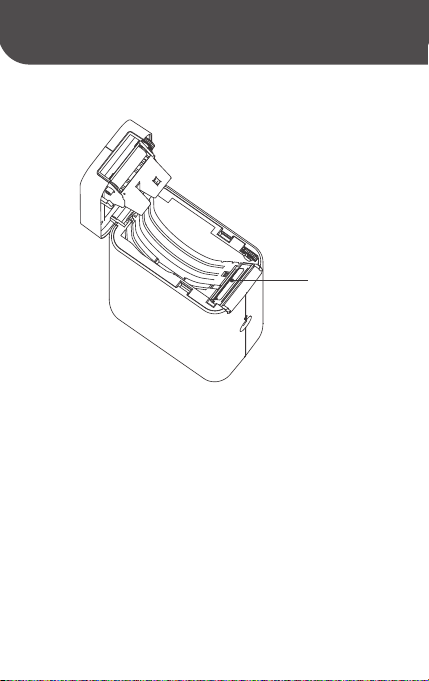
(1) Ensure the printer is powered off during daily
maintenance;
(2)Do not touch the surface of the print head with
your hands or with metal objects, and do not scratch
the surface of the print head, roller or sensor with
tweezers;
(3)Do not wipe the print head and roller with gasoline,
propanol or other organic solvents;
(4) After the alcohol has evaporated completely, turn
on the power and continue printing.
Notes:
Print head
21

Precautions
1.Please keep the product and its accessories in a
safe place that is out of the reach of children to keep
them out of harm’s way.
2.Please do not open the paper case cover when the
printer is printing.
3.Please ensure that the paper case is clean before
using the printer. Any foreign matter in the paper
case may damage the print head during printing.
4.In case of any foreign matter being present, please
use a special cleaning device or alcohol to clean the
paper case and print head. Do not use solvents,
corrosive chemicals and cleaners, such as benzene
and diluents.
5.In case of printer failure, please turn off the power
immediately.
22

6.Please do not disassemble the printer without
authorization. When the printer is disassembled,
return and exchange will not be accepted.
7.Do not use the power adapter when the power
cord is damaged, otherwise, it may result in electric
shocks, fire and power adapter damage.
8. After continuous printing for a long time, the print
head may be still hot. Do not touch the print head to
avoid being burned.
9. Please use our original printing paper. Failure to
do so may result in poor print quality or even
damage to the print head.
10. For printing documents that need to be kept for a
long time, please use long-acting thermo-sensitive
printing paper.
23

24
11. Please charge the battery in a cool and ventilated
room. Do not expose the printer and power adapter
to high temperature or high humidity, or put them in
water, so as to avoid short circuiting, which may
cause heat, smoke, or deformation damage, or even
the explosion of the battery. If the power adapter
comes into contact with water or other liquids,
disconnect the power immediately. If you discover
smoke or an unpleasant odor coming from the
printer or power adapter, please immediately unplug
the power adapter and pay attention to avoid burns.
12. While unplugging the printer, please grab onto
the power adapter. Do not pull the power cord, which
may damage it.
13. Do not use the printer near places with flammable
goods such as gas stations and fuel warehouses.
14. If you encounter any problem with your use of
the machine, please contact the dealer or our customer
service staff. NIIMBOT provides the very highest level
of after-sales service for customers all over the
world!

Warranties
1.From the date of purchase, the warranty
period of the print head of the product is 3 months
or the time when the printing distance reaches
30km (whichever comes first), and that of other
parts is 12 months.
2.Carry-in service is adopted as the warranty
method and users need to bring the product
to the sales service center.
3. If a product beyond its warranty period needs
to be repaired, please contact the after-sales
service center and ask for paid parts for repair.
4.During the warranty period, in case of the
following conditions, you may not enjoy the
warranty service:
25

Any damage caused by unauthorized disassembly
and repair or modification.
Print omissions caused by scratches on print head.
Inconsistency of purchase record with the serial
number of the machine under warranty.
Any damage due to human factors or other force
majeure.
26

Address: Creative Workshop No. 5, Creative World,
Yezhihu West Road, Hongshan District, Wuhan
Email: [email protected]om
Website: www.niimbot.net
Wuhan Jingchen Intelligent ldentificationTechnology Co., Ltd.
Thank you for your purchase.
Please check the new user guide video:
https://www.amazon.com/vdp/058ad0f38a96411189eeb6d8e381aa98