D 110
Operating Instructions

A Letter to our Customers
Dear customers
Thank you for choosing NiiMbot. NiiMbot is committed to
providing the most intelligent label solution and the best
customer service. Please feel free to contact us if you have
any questions or suggestions during the use of our products.
We pay great importance to user experience, and we are
willing to hear our customers’ voices to optimize our
products and software. The voice of every customer is the
inspiration and impetus to the development of NiiMbot.
Now, Welcome to life with intelligent labeling.
If you do not need an account to save your labels and
templates for now, please skip the registration and use the
label maker. After agreeing to the Terms and Conditions
Agreement and the permission of location access and phone
storage, no information of unregistered users will be
collected.
Meanwhile, for registered users, please do not worry too
much about the data collection:

01
Terms and Conditions Agreement is the required and legal
agreement of the application market. For unregistered users
who agree with the agreement will not be collected the
information.
The permission to location access is for a faster and more
stable Bluetooth connection. Because of different network
service providers in different countries, when accessing the
location, the app can detect the device nearby more rapidly.
This is the best Bluetooth connection solution based on
thousands of tests by our software engineers.
The permission to storage access is for registration, saving
labels and templates in future.
Registration will not affect the usage of the device. Sign Up
an account is for saving labels and templates. If labels or
templates are lost or deleted by mistake, you can contact
customer service to retrieve them.
Thank you again for choosing and trusting NiiMbot.
Choosing NiiMbot means you have chosen intelligent home
life and high-quality service. NiiMbot will not let you down!
Sincerely
NiiMbot
01
Basic Parameters
Basic Usage
01 02
03
07
08
14
20
21
22
02
Indicator Light Instructions
03
Quickstart Guide
04
Q&A
05
Cleaning Procedure
06
After-sales Service
07
Notes
08
01
Basic Parameters
03 · 04
01
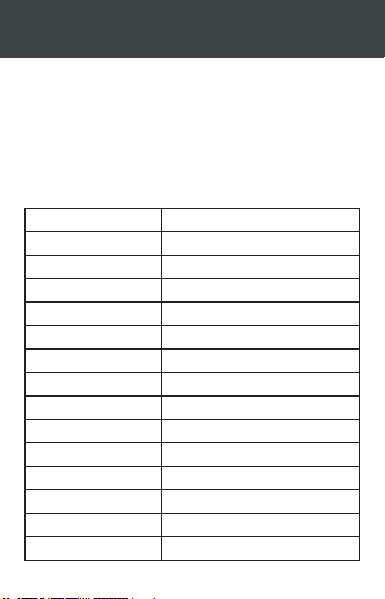
Model
Color
Material
Printing method
Resolution
Printing speed
Label widthrange
Frequency
Power
Connection
Barcodeprinting
Working temperature
BatteryType
Interface
Endurance
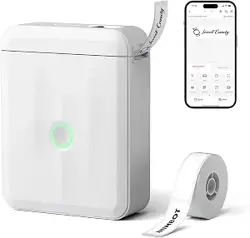
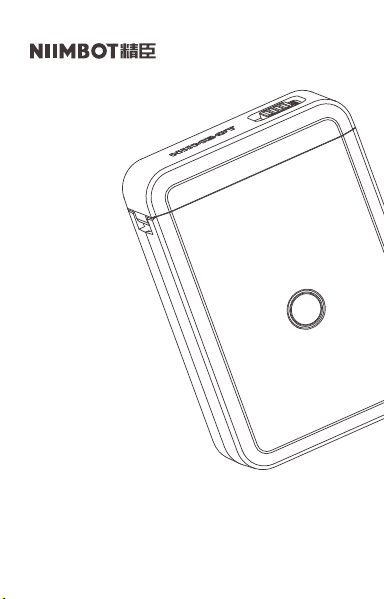
D110
White
ABS+PC
Thermal
203dpi
15mm/s~20mm/s
15mm
2.4G
BT Power
Supports barcodes andQRcodes
-10℃ — 50℃
1200mAh Lithiumbattery
Type-c
Work continuously for 4~5 hours
Bluetooth 4.0
02
Basic Usage
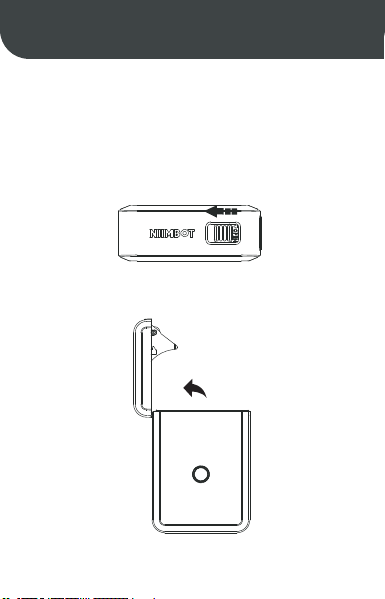
Slide left to open the lid
1.Lid opening method
2.Opening angle
90°
02
03
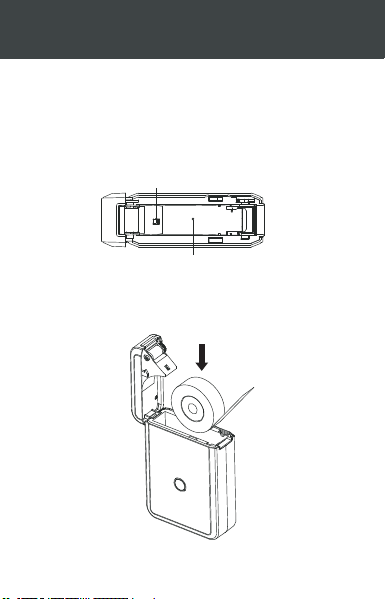
Detector
Paper bin
3.Consumable installation
04
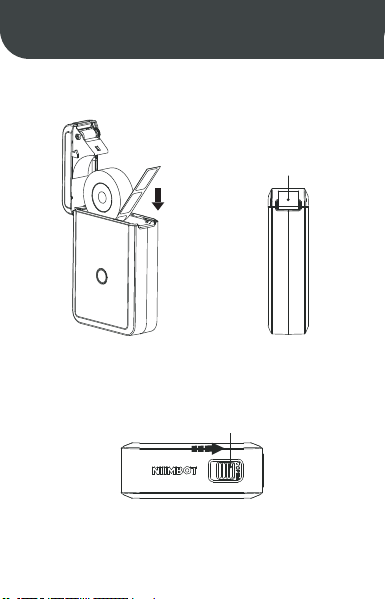
Be sure to slide to t he rightmost
4.Correct closure
Make the label sticker side down
Make sure 0.1-0.2 inch of
label paper left outside.
05
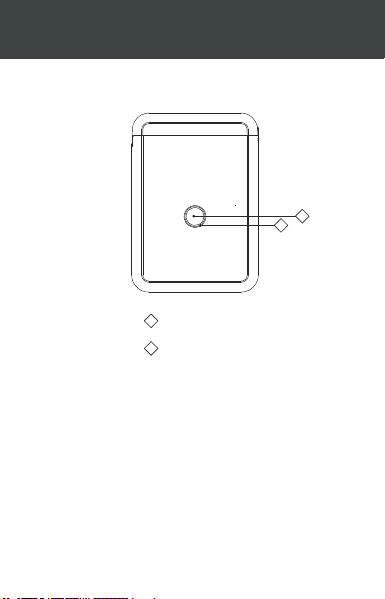
5.Press the power button about 3-5 seconds
to start printer
Connect the printer with APP to set consumable
specifications.
Edit the print contents and press OK to print.
1
2
Power Button
Indicator light
1
2
06
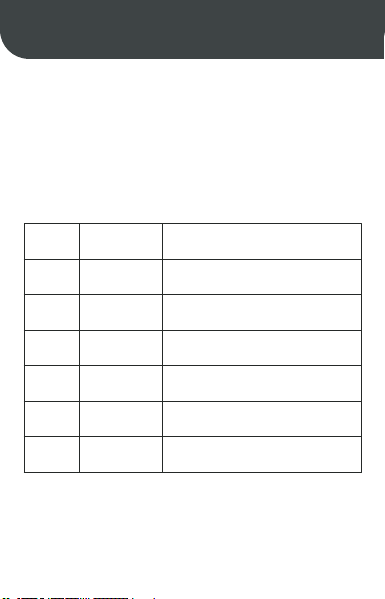
Indicator Light Instructions
Indicator
light
Blue
Blue
Blue
Red
Strobe slowly
Strobe quickly
Normally on
Strobe slowly
Strobe quickly
Normally on
Bluetooth not connected
During printing and charging
Bluetooth connected and battery
fully charged
Bluetooth not connected and low
battery
Printing and charging with low
battery
Bluetooth connected and low battery
Status Instruction
Red
Red
03
07
Screen
Mirroring
Quickstart Guide
04
1. Search NIIMBOT in Google App Store
or App Store to download.
2. NIIMBOT APP is compatible with
Android, Microsoft and iOS systems.
App Download
2
There is usually some power left for customers to boot up the
new Niimbot label maker. If there is not, please charge the
device for 20 minutes before turning on it.
About new device:
3
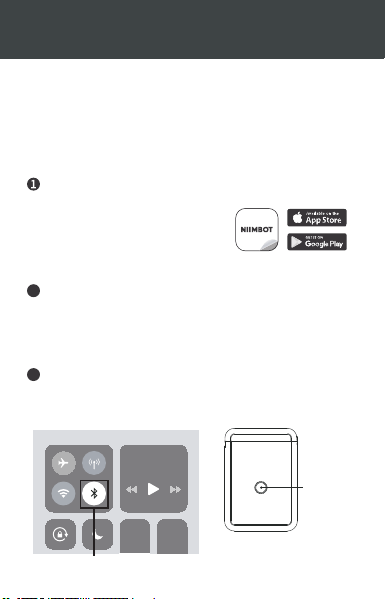
1. Turn on the Bluetooth and label maker, and then open
NIIMBOT app.
Bluetooth connection
Press the power button about
3-5 seconds to start printer.Turn Bluetooth
Power Button
08
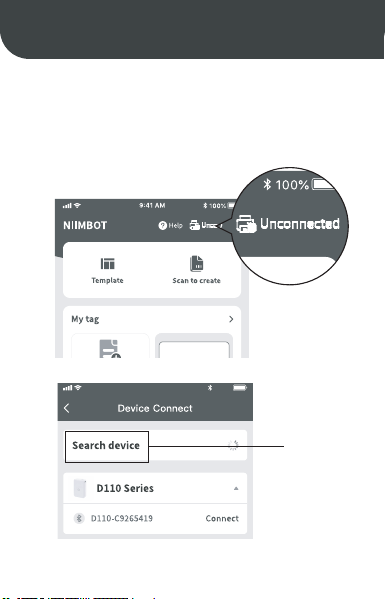
2. Click on the “unconnected” button in the top right corner of
the app, then choose the correct device (e.g. D110 series) and
click on “search”. Your device will be found.
Click on the
[unconnected ]button
100%
9:41 AM
Search device
09
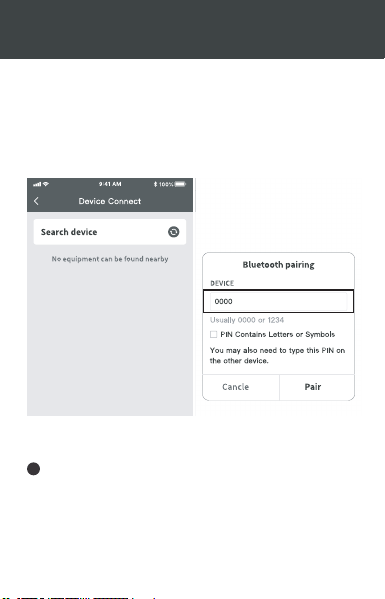
3. Click on “pair”or “connect”, you will successfully connect to
the Bluetooth.
Note: If a PIN code is needed, please enter 1234 or 0000.
4
1. Slide the button on the cover of the device to open the cover.
2. Place the label sticker facing down and load it in the paper
bin. Make sure 0.1-0.2 inch of label paper left outside.
Label loading
10
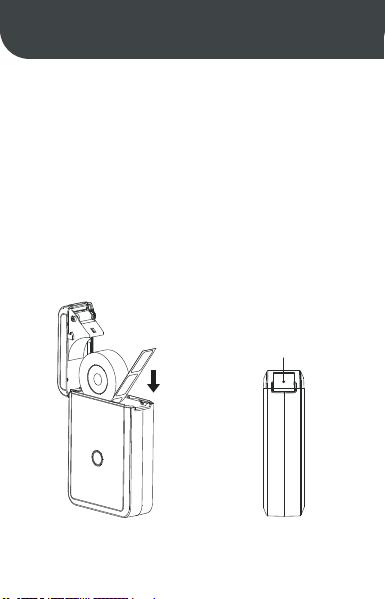
2. Close the cover and make sure some label paper is left
outside.
Note: 1. If the label is laid reversely, blank pages will continue to
be printed.
2.No label paper left outside will cause the abnormal
paper feeding. The device will not response or response
without paper feeding.
Make the label sticker side down
Make sure 0.1-0.2 inch of
label paper left outside.
11

1. After Bluetooth connection and correct paper loading, the
app automatically identifies the label template and displays it.
Click on the recognized template and go into the editing page.
2. Click on 【Text】 at the lower part of the page, the text box
pops up. Double click the text box and edit labels in the entry
bar. Click 【Confirm】 next to the entry bar to finish the editing.
Double click the text box again for modification, and edit what
you need in the entry bar and confirm.
3. After confirming the content, you can adjust the position of
the text box and font size.
4.Click the 【Print】 option at the lower right corner in the blue
area. Set number of copies and density before printing.
5
Printing Steps
12

1. D110 label maker applies direct thermal printing technology
and uses chemically-treated paper that darkens when heated
by a thermal print head. At present, the only black printout is
supported.
2.There is a number of materials in the app, including but not
limited to symbols, figures, simple images, QR codes, bar codes,
intelligent Identification function and so on, which can help to
create personalized labels.
3.Editing functions are powerful, including but not limited to
copy, paste, bold, italic, rotate, align, undo, recover, delete
functions, and so on. You can also adjust kerning and line
spacing.
6
Note:
13

Answer:Only printer means only D110, you need to buy
label paper, and we have many sets.
Q&A
05
Question: Is there one roll of label paper offered for free?
What style is it?
1
Question:
being plugged into the laptop, causing automatic shutdown
Why can not the label maker be fully charged when
after unplugging?
Answer: The output voltage of the laptop USB interface is
insufficient and unstable, which is unable to provide a stable
charging environment. Please use a wall socket for charging.
2
Question: Do I need to register to use the machine?
Answer: Registration is not necessary. Registered account can
enjoy the function of saving and retrieving label templates.
3
Question: What should I do if pin code 0000 or 1234 does not
work?
Answer: It is possible that the device is not recognized by the
app temporarily. Please enter number 0 for 16 times to
refresh. Then please try to enter 0000 or 1234 again.
4
14
Question: Will the machine be automatic shut down?
Answer: After being disconnected the Bluetooth or the app is
not used for 15 minutes, the machine will automatically shut
down, saving power and protecting the battery.
5
Question: Why does the machine work normally but keep
printing blank paper?
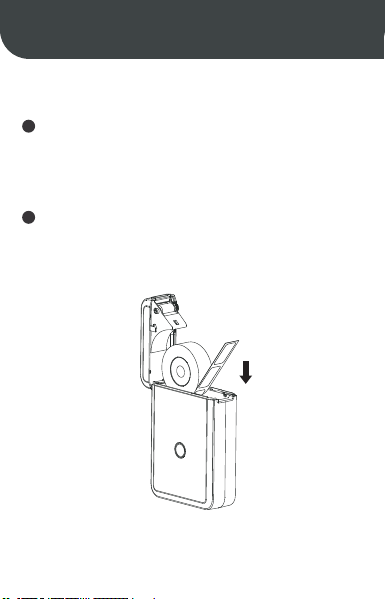
Answer: It may be because the label paper is laid reversely,
please keep the label sticker side down.
6
Make the label sticker side down
15

Question: Why does the machine keep feeding paper?
Answer:
(1) It may be because there is label or residues sticking on the
detectors on the cover or in the paper bin.
(2)It may be because there is label or residues sticking on the
print head. The label paper failed to be detected.
(3)D110 label maker is only suitable for NiiMbot label range.
Other Brand label paper will not work and cause unsatisfied
printing results.
(4)The detectors are malfunctioning,please contact the seller.
7
Question: Why does the printout look gray or in a light color?
Answer:
(1)The label used is not NiiMbot label range.
(2)The actual number of label printed exceeds the number
which is preset.
(3)The chip is malfunctioning.
8
Question: Why does the error of “use the new version paper”
pop up?
Answer:
(1) D110 label maker is only suitable for NiiMbot label range.
Other Brand label paper will not work and lead to the damage
to the machine.
9
16

(2)There are residues sticking on the detectors, resulting in
failed label detection. Please remove the residues.
(3)It may be because of temporary failure of chip detection.
Please contact customer service and provide the label code.
Our Tech Support will fix the problem for you in 10 minutes.
Question: Why is the Bluetooth suddenly disconnected and
fail to be connected for many times?
Answer: It may be because the Bluetooth system crashes.
Please reboot the phone and the Bluetooth.
10
Question: Why cannot the machine be searched by the app?
Answer:
(1)If the machine is being charged, please unplug it and try to
search it again.
(2)Bluetooth responses slowly. Please re-open the app and
reboot the machine and try to connect again.
(3)Please update or re-install the app and try. Or please
contact the customer service.
11
Question: Does the label maker support batch printing? How
many numbers of labels can be printed in one batch at most?
12
17

Question: Why does blank paper come out after printing and
the machine keeps making a cracking sound.
Answer:
(1)No label left outside when loading the label paper will lead
to failed paper feeding. Please make sure 0.1-0.2 inch of label
paper left outside.
(2)The paper has been used up, please replace.
14
Answer: D110 supports batch printing. The APP currently
supports up to 999 labels in one batch. But considering the
actual number of label paper in different sizes, around 300
label stickers can be printed in one batch at most.
Question: In what situation does the error “cover is open”
pop out?
Answer: There are possibilities as follows:
(1) The cover is not closed properly. Please repeat opening
and closing the cover for several times.
(2) Label paper is laid reversely. Please load it correctly.
(3) There are residues left in the paper bin or on the print
head. Please remove the residues or clean the print head
properly.
(4)Turbulence in transit may result in loose wiring inside the
machine. Please contact customer service.
13
18

Question: What is the reason for the sudden stopping of printing.
Answer: In order to ensure the safety of the label maker,
multiple protection modes have been programmed. In the
event of “lack of paper” , “cover open” , “data error” , “
overheat temperature” , “low on battery” and other issues,
the machine will stop printing. Please analyse the problem
according to the actual situation.
15
Question: How can I center the label content when editing?
Answer: On the right side of the [Style] section, there are options
of aligning center, left, or right-click to adjust the text position in
the text box. In the [Align] section, the position of the text box on
the label paper can be adjusted. At the same time, the text box
can be moved with fingers.
16
Question: How can I solve the offset problem in printing?
Answer:
(1)D110 label maker is only suitable for the NiiMbot label range.
Other Brand label paper will not work and cause unsatisfied
printing results.
(2)The machine can not detect the label paper and the detector
is malfunctioning.
(3) Paper Jam. Please check if there is any residue or glue
sticking in the paper bin or at the print head; if the edge of the
label paper is rolled up.
17
19
Cleaning Procedure
06
Turn off the label maker;
1
Wait the print head to cool off completely after printing. Open
the cover to find print head;
2
Clean the dust or residues with alcohol cotton ball (drained);
3
Wait 5-10 minutes to make sure the alcohol has been
volatilized before closing the cover.
4
20

After-sales Service
07
Customers enjoy free return and exchange service within 30
days from the date of receipt of the product.
1
Customers enjoy one replacement service within one year
from the date of receipt of the product.
2
Customers enjoy an additional two-year warranty service from
the date of receipt of the product. Please contact Customer
Service who will provide the perfect after-sales service.
3
Customers who order online please contact the seller through
the order details to enjoy high-quality after-sales service.
Customers who order offline please contact the sellers or
dealers.
4
21

Notes
08
Safely keep this product and accessories out of the reach of
children to prevent danger.
1
Do not open the paper bin when the machine is printing.
2
Make sure that the paper bin is clean before using. If there is
any residue inside, it may cause damage to the print head
while printing.
3
Wipe the print head and paper bin gently with a clean, soft
cloth. Solutes, corrosive chemicals , or detergents such as
benzene or thinners are prohibited.
4
Power off the printer immediately when it is malfunctioning.
5
Please do not disassemble the printer without NIIMBOT
authorization. Otherwise, the printer can not be returned or
replaced.
6
22

In the event of the damaged power cable, please do not use it
as this may result in electric shock, fire or damage to the
power adapter.
7
After printing, the print head may be still hot. Do not touch it
to avoid bums.
8
Use NiiMbot label range, otherwise, poor print quality or
damage to the printer may happen.
9
lf documents which will be preserved for long-term need to be
printed, please choose long-lasting thermal label paper.
10
Charge the battery in a cool and airy room. Do not expose the
printer and power adapter to high-temperature and
high-humidity environments, or do not expose them to water
to avoid short circuits which can cause the battery to heat,
smoke, deform, damage, or even explode. If the power
adapter comes into contact with water or other liquid, cut off
the power immediately. When you notice smoke or an odor
from your printer or power adapter, unplug the power adapter
immediately and take care to avoid burns.
11
23

Do not use the printer where there are Inflammable
substances like gas stations and fuel warehouses.
13
If there is any problem about usage, please contact the
dealers or NiiMbot after-sales service. NIIMBOT will provide
the best after-sales service for global customers!
14
Declaration of conformity
Hereby, Wuhan Jingchen Intelligent Identification Technology
Co., Ltd. declares that this device is in compliance with the
essential requirements and other relevant provisions of Radio
Equipment Directive (RED) 2014/53/EU. This product can be
used across EU member states. This device can be used in
European Union.
Hereby, [Wuhan Jingchen Intelligent Identification Technology
Co., Ltd.] declares that the radio equipment type [D110] is in
compliance with Directive 2014/53/EU.
The full text of the EU declaration of conformity is available at
the following internet address:http://www.niimbot.com.
When unplugging the printer, grab the power adapter. Pulling
the power cable directly will damage the cable.
12
24

Official website: www.niimbot.net
Wuhan Jingchen Intelligent Identification Technology Co.,Ltd.
Technical Support Email: service@niimbot.com
Twitter:Niimbot
Instagram:niimbot
Address: Creative Workshop, No. 5 Creative World,
Yezhihu West Road, Hongshan District, Wuhan