Product Introduc�on
01 02 03
Accessories
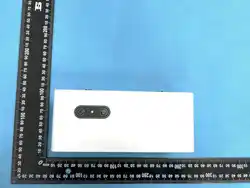
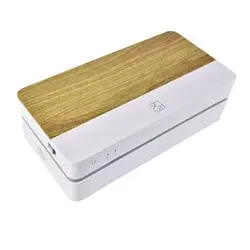
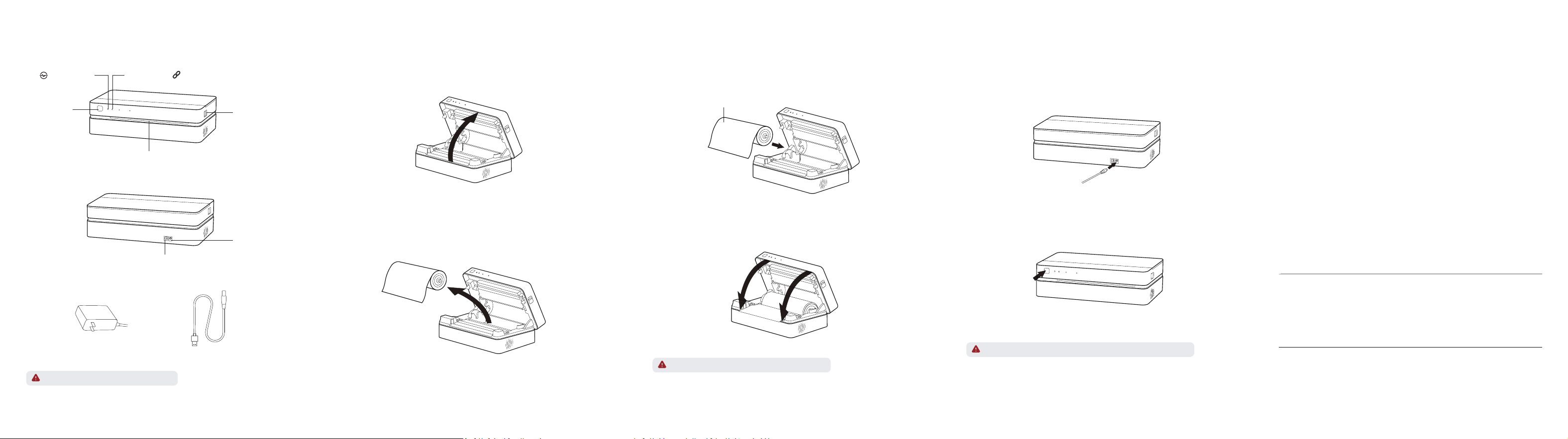
Front View:
Rear View:
Opera�on LED
Indicator
04
01
02
Power Interface
USB Interface
Loading Paper Roll
Open the top cover
Remove the paper roll
01
02 04
03
Push the cover-opening bu�ons on both sides towards the paper outlet to open the top cover.
Connec�on LED
Indicator
Power Bu�on
Paper Outlet
Cover-opening
Bu�on
Power Adapter × 1 USB Cable × 1
Remove the supplied paper roll and tear it apart along the edge.
Loading Paper Roll
Load the paper roll
Load the paper roll to the paper compartment again and pull some extra paper.
Pay a�en�on that the thermosensi�ve layer should face up.
Thermosensi�ve layer
Close the top cover
Close the top cover a�er loading paper. Please make sure both sides click into place.
Please purchase and use HPRT official thermal paper.
Power On
Connect the power supply
Plug the power cord into the power interface on the back of the printer.
Power On
Hold down the power bu�on for 3 seconds to start the printer.
To turn off the printer, also hold down the power bu�on for 3 seconds.
The power adapter varies by local or region.
Tips:
All the drawings of product and accessories in the manual are for reference only.
Due to the upda�ng and upgrading of the product, there may be some differences
between the actual product and the drawings, please refer to the actual product.
For more product informa�on, please contact HPRT customer service.
Product Name: AI Printer Dimensions: 314 x 159.5 x 92mm
Product Model: FT800 Weight: About 1.8kg (excluded accessories)
Input Parameter: DC 14V/3A Opera�ng Temperature:
Execu�ve Standard: GB4943.1-2011, GB/T9254-2008, GB 17625.1-2012
Wi-Fi Connec�on: Wi-Fi IEEE 802.11b/g/n 2.4GHz
0℃~40℃
HPRT AI Printer
Manufacturer: Xiamen Hanin Electronic Technology Co.,Ltd.
Add: 5F, 8#, Aide Airport Industrial Park, Huli District, Xiamen, China
Tel: +86-(0)592-5885991
Web: www.hprt.com
Product Homepage: �.hprt.com
FT800
05
02
01
03
07
01
“Beep-beep beep-”
“Beep beep beep-”
02
06
Download App
Scan the QR code below to download “H-Print” App.
Connect to printer via Wi-Fi
Connect the mobile phone to Wi-Fi hotspot (select 2.4 GHz frequency band);
Open “H-Print” App, click “+” in the top right corner of Home to add the device;
Select FT series according to the guide of App;
Enter the Wi-Fi password;
Scan the QR code on the bo�om of the printer and wait for the printer to complete
Wi-Fi connec�on.
Cloud Remote Prin�ng
The printer is on and the connected Wi-Fi hotspot can access the Internet;
Even when the printer is not around you, you can s�ll choose the file to print via
“H-Print” App. A�er entering the print preview, send the data to the printer through
remote prin�ng.
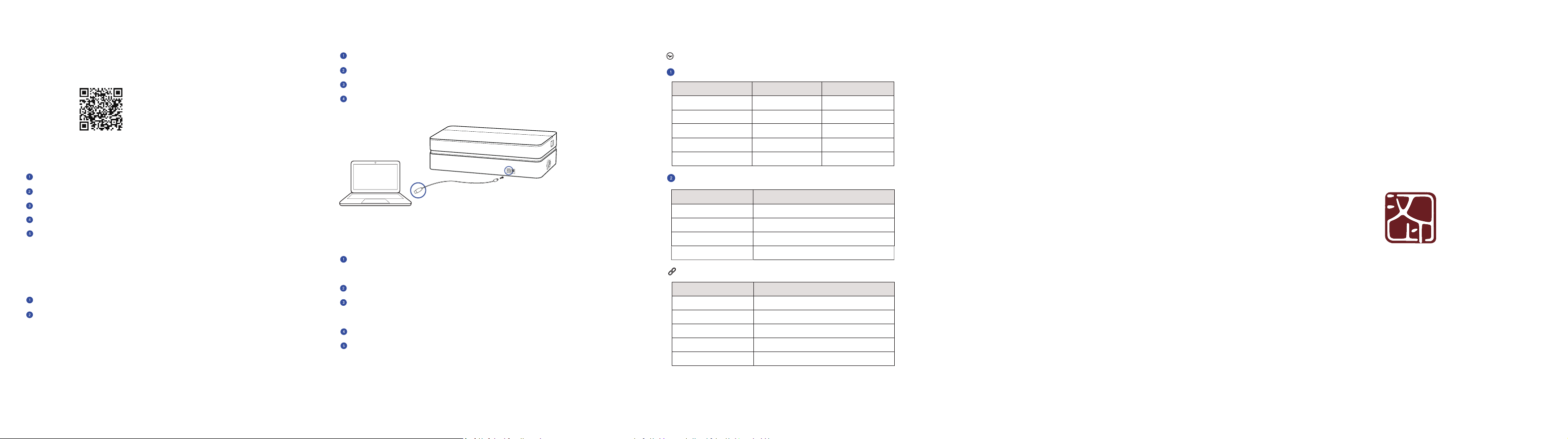
Prin�ng from Windows PC
Connect one side of the USB cable to the PC and the other side to the printer;
Turn on the printer;
Download the driver program from HPRT website and install it in the PC;
Add the printer to the PC and print the documents from PC a�er establishing
the connec�on.
Prin�ng Wirelessly from Mobile Phone
The best opera�ng temperature is 0℃~40℃, if the environmental temperature
is too low or too high, the print quality may be affected.
Please do not use the unofficial adaptor or paper roll to ensure the print quality.
During prin�ng, the area around the thermal print head is very hot. Do not touch
it, as you could be burned.
Do not pull out the paper by force during prin�ng, or else it may damage the printer.
This is a Class A product. In a domes�c environment this product may cause radio
interference in which the user may be required to take adequate measures.
Precau�ons
LED Indicator and Buzzer Defini�ons
Opera�on LED indicator, which shows the printer status itself
Error Status
Printer Status
Status LED Indicator Buzzer
Print head temperature is
too high
Red LED flashes rapidly
Red LED flashes slowly
Out of paper
Red LED flashes rapidlyCu�er jam
RFID error
Printer cover is not closed
Red LED is ligh�ng
Red LED flashes slowly
“Beep-beep-beep-”
—— ——
—— ——
Status LED Indicator
Power on White LED is ligh�ng
Power off Light off
White LED flashes slowlyPrin�ng
Firmware update Red, green and blue LED flashes alternately
Connec�on LED indicator, which shows the connec�on status of printer
Status LED Indicator
In Wi-Fi connec�on White LED is ligh�ng
White LED flashes rapidly
Green LED is ligh�ng
Green LED flashes rapidly
Light off
Wi-Fi data receiving
In USB connec�on
USB data receiving
No connec�on currently
FCC WARNING
This device complies with part 15 of the FCC Rules. Opera�on is subject to the following
two condi�ons: (1) this device may not cause harmful interference, and (2) this device
must accept any interference received, including interference that may cause undesired
opera�on.
Any changes or modifica�ons not expressly approved by the party responsible for compliance
could void the user's authority to operate the equipment.
NOTE: This equipment has been tested and found to comply with the limits for a Class B digital
device, pursuant to Part 15 of the FCC Rules. These limits are designed to provide reasonable
protec�on against harmful interference in a residen�al installa�on. This equipment generates,
uses and can radiate radio frequency energy and, if not installed and used in accordance with
the instruc�ons, may cause harmful interference to radio communica�ons.
However, there is no guarantee that interference will not occur in a par�cular installa�on. If
this equipment does cause harmful interference to radio or television recep�on, which can be
determined by turning the equipment off and on, the user is encouraged to try to correct the
interference by one or more of the following measures:
-- Reorient or relocate the receiving antenna.
-- Increase the separa�on between the equipment and receiver.
-- Connect the equipment into an outlet on a circuit different from that to which the receiver
is connected.
-- Consult the dealer or an experienced radio/TV technician for help.
To maintain compliance with FCC’s RF Exposure guidelines, This equipment should be installed
and operated with minimum distance between 20cm the radiator your body: Use only the
supplied antenna.