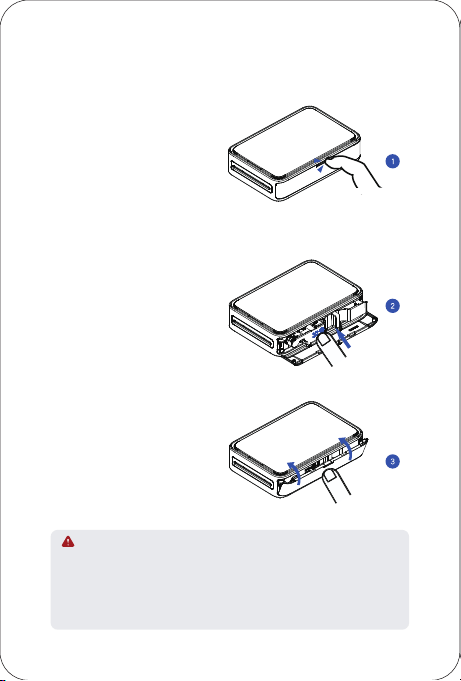
Take out a consumable, put it into
the compartment according to
the direction shown below, place
your finger in the "Push" position
and press it into place until it makes
a "click" sound;
1. The photo paper is susceptible to moisture, please use it as soon as
possible after opening.
2. This device only supports official photo paper that comes with the
ribbon, please do not replace it by yourself.
3. Avoid excessive direct sunlight and low temperature.
4. If the consumable is damaged or deformed by external force, please
do not insert it into the device by force.
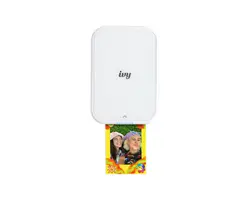
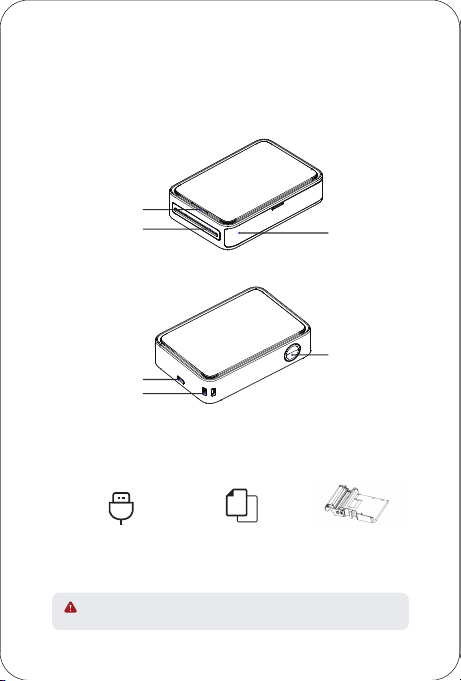
Product Introduction
Accessories
LED Indicator
Paper Outlet
USB Type-C Port
Lanyard Hole
consumable
compartment
Power Button
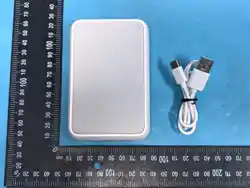
USB Type-C Cable
LED Indicator Status
Consumable Installation Instructions Printing Instructions
01
02
03
PIX22
Ouick Start Guide Consumable
If there is a paper jam or ribbon jam and cannot be solved, please
contact the after-sales service and do not remove it violently.
* Note: The items in the package are actually based on the order .
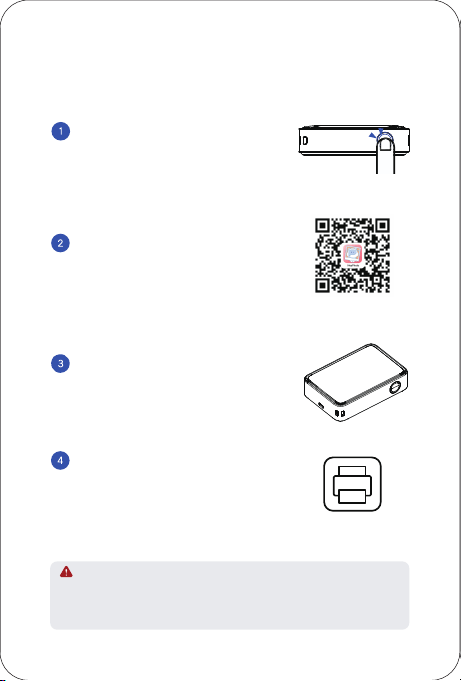
Open the consumable
compartment.
Insert the consumable.
Close the consumable
compartment.
HeyPhoto APP
Scan the QR code to download the
"HeyPhoto" APP.
Long press the power button until
the indicator light tums on, then
release. The device will power on.
Open APP, click "Add Device" , Search
for "PIX22-XXXX" and click to connect.
In the app, select the photos you want
to print. You can also edit the photos
as needed before printing.
1. After the first connection, you just need to click the print icon for
subsequent use, the printer will be automatically connected and print.
2. Do not exit the APP during the printing process, this may cause
printing failure.
3
1
1
2
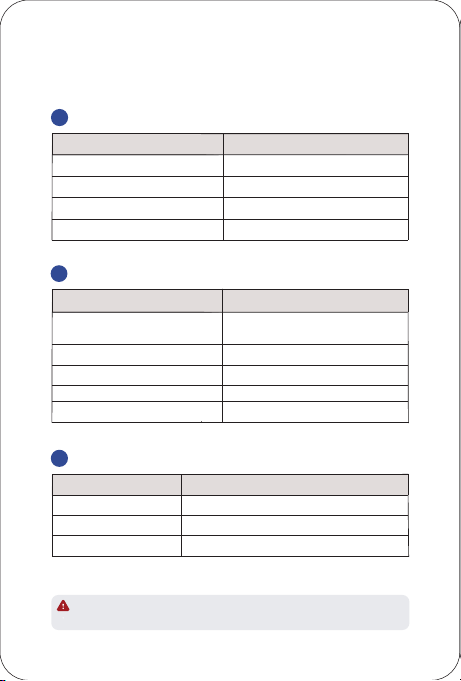
Solid orange
Flashing orange (slow)
Solid red
Flashing red (slow)
Flashing red (fast)
Status
Indicator Light Status
Indicator Light Status
Status
Indicator Light Status Status
No Photo Paper/Color Ribbon is
depleted/No Photo Paper Cartridge
inserted
Photo Paper/Color Ribbon is jammed
Low battery
Temperature/device abnormality
Color Ribbon error/
Photo Paper Cartridge not recognized
Error Status
Printer Status
Solid blue
Bluetooth is connected, ready to use
Printing/receiving data via Bluetooth
Device powering on
Flashing blue (slow)
Flashing blue (fast)
Flashing blue (fast)
Bluetooth pairing mode
Flashing green (slow)
Charging in progress
Fully charged (powered on)
Fully charged (powered off)
Solid green
Solid green (until the USB-C cable is unplugged)
Charging status
Flashing red (slow) indicator indicates the temperature is outside the safe
range for charging. Recommended charging temperature: 0℃ to 45℃.
Take out a consumable, put it into
the compartment according to
the direction shown below, place
your finger in the "Push" position
and press it into place until it makes
a "click" sound;
1. The photo paper is susceptible to moisture, please use it as soon as
possible after opening.
2. This device only supports official photo paper that comes with the
ribbon, please do not replace it by yourself.
3. Avoid excessive direct sunlight and low temperature.
4. If the consumable is damaged or deformed by external force, please
do not insert it into the device by force.
Product Introduction
Accessories
LED Indicator
Paper Outlet
USB Type-C Port
Lanyard Hole
consumable
compartment
Power Button
USB Type-C Cable
LED Indicator Status
Consumable Installation Instructions Printing Instructions
01
02
03
PIX22
Ouick Start Guide Consumable
If there is a paper jam or ribbon jam and cannot be solved, please
contact the after-sales service and do not remove it violently.
* Note: The items in the package are actually based on the order .
Open the consumable
compartment.
Insert the consumable.
Close the consumable
compartment.
HeyPhoto APP
Scan the QR code to download the
"HeyPhoto" APP.
Long press the power button until
the indicator light tums on, then
release. The device will power on.
Open APP, click "Add Device" , Search
for "PIX22-XXXX" and click to connect.
In the app, select the photos you want
to print. You can also edit the photos
as needed before printing.
1. After the first connection, you just need to click the print icon for
subsequent use, the printer will be automatically connected and print.
2. Do not exit the APP during the printing process, this may cause
printing failure.
3
1
1
2
Solid orange
Flashing orange (slow)
Solid red
Flashing red (slow)
Flashing red (fast)
Status
Indicator Light Status
Indicator Light Status
Status
Indicator Light Status Status
No Photo Paper/Color Ribbon is
depleted/No Photo Paper Cartridge
inserted
Photo Paper/Color Ribbon is jammed
Low battery
Temperature/device abnormality
Color Ribbon error/
Photo Paper Cartridge not recognized
Error Status
Printer Status
Solid blue
Bluetooth is connected, ready to use
Printing/receiving data via Bluetooth
Device powering on
Flashing blue (slow)
Flashing blue (fast)
Flashing blue (fast)
Bluetooth pairing mode
Flashing green (slow)
Charging in progress
Fully charged (powered on)
Fully charged (powered off)
Solid green
Solid green (until the USB-C cable is unplugged)
Charging status
Flashing red (slow) indicator indicates the temperature is outside the safe
range for charging. Recommended charging temperature: 0℃ to 45℃.
Take out a consumable, put it into
the compartment according to
the direction shown below, place
your finger in the "Push" position
and press it into place until it makes
a "click" sound;
1. The photo paper is susceptible to moisture, please use it as soon as
possible after opening.
2. This device only supports official photo paper that comes with the
ribbon, please do not replace it by yourself.
3. Avoid excessive direct sunlight and low temperature.
4. If the consumable is damaged or deformed by external force, please
do not insert it into the device by force.
Product Introduction
Accessories
LED Indicator
Paper Outlet
USB Type-C Port
Lanyard Hole
consumable
compartment
Power Button
USB Type-C Cable
LED Indicator Status
Consumable Installation Instructions Printing Instructions
01
02
03
PIX22
Ouick Start Guide Consumable
If there is a paper jam or ribbon jam and cannot be solved, please
contact the after-sales service and do not remove it violently.
* Note: The items in the package are actually based on the order .
Open the consumable
compartment.
Insert the consumable.
Close the consumable
compartment.
HeyPhoto APP
Scan the QR code to download the
"HeyPhoto" APP.
Long press the power button until
the indicator light tums on, then
release. The device will power on.
Open APP, click "Add Device" , Search
for "PIX22-XXXX" and click to connect.
In the app, select the photos you want
to print. You can also edit the photos
as needed before printing.
1. After the first connection, you just need to click the print icon for
subsequent use, the printer will be automatically connected and print.
2. Do not exit the APP during the printing process, this may cause
printing failure.
3
1
1
2
Solid orange
Flashing orange (slow)
Solid red
Flashing red (slow)
Flashing red (fast)
Status
Indicator Light Status
Indicator Light Status
Status
Indicator Light Status Status
No Photo Paper/Color Ribbon is
depleted/No Photo Paper Cartridge
inserted
Photo Paper/Color Ribbon is jammed
Low battery
Temperature/device abnormality
Color Ribbon error/
Photo Paper Cartridge not recognized
Error Status
Printer Status
Solid blue
Bluetooth is connected, ready to use
Printing/receiving data via Bluetooth
Device powering on
Flashing blue (slow)
Flashing blue (fast)
Flashing blue (fast)
Bluetooth pairing mode
Flashing green (slow)
Charging in progress
Fully charged (powered on)
Fully charged (powered off)
Solid green
Solid green (until the USB-C cable is unplugged)
Charging status
Flashing red (slow) indicator indicates the temperature is outside the safe
range for charging. Recommended charging temperature: 0℃ to 45℃.
Take out a consumable, put it into
the compartment according to
the direction shown below, place
your finger in the "Push" position
and press it into place until it makes
a "click" sound;
1. The photo paper is susceptible to moisture, please use it as soon as
possible after opening.
2. This device only supports official photo paper that comes with the
ribbon, please do not replace it by yourself.
3. Avoid excessive direct sunlight and low temperature.
4. If the consumable is damaged or deformed by external force, please
do not insert it into the device by force.
Product Introduction
Accessories
LED Indicator
Paper Outlet
USB Type-C Port
Lanyard Hole
consumable
compartment
Power Button
USB Type-C Cable
LED Indicator Status
Consumable Installation Instructions Printing Instructions
01
02
03
PIX22
Ouick Start Guide Consumable
If there is a paper jam or ribbon jam and cannot be solved, please
contact the after-sales service and do not remove it violently.
* Note: The items in the package are actually based on the order .
Open the consumable
compartment.
Insert the consumable.
Close the consumable
compartment.
HeyPhoto APP
Scan the QR code to download the
"HeyPhoto" APP.
Long press the power button until
the indicator light tums on, then
release. The device will power on.
Open APP, click "Add Device" , Search
for "PIX22-XXXX" and click to connect.
In the app, select the photos you want
to print. You can also edit the photos
as needed before printing.
1. After the first connection, you just need to click the print icon for
subsequent use, the printer will be automatically connected and print.
2. Do not exit the APP during the printing process, this may cause
printing failure.
3
1
1
2
Solid orange
Flashing orange (slow)
Solid red
Flashing red (slow)
Flashing red (fast)
Status
Indicator Light Status
Indicator Light Status
Status
Indicator Light Status Status
No Photo Paper/Color Ribbon is
depleted/No Photo Paper Cartridge
inserted
Photo Paper/Color Ribbon is jammed
Low battery
Temperature/device abnormality
Color Ribbon error/
Photo Paper Cartridge not recognized
Error Status
Printer Status
Solid blue
Bluetooth is connected, ready to use
Printing/receiving data via Bluetooth
Device powering on
Flashing blue (slow)
Flashing blue (fast)
Flashing blue (fast)
Bluetooth pairing mode
Flashing green (slow)
Charging in progress
Fully charged (powered on)
Fully charged (powered off)
Solid green
Solid green (until the USB-C cable is unplugged)
Charging status
Flashing red (slow) indicator indicates the temperature is outside the safe
range for charging. Recommended charging temperature: 0℃ to 45℃.
Take out a consumable, put it into
the compartment according to
the direction shown below, place
your finger in the "Push" position
and press it into place until it makes
a "click" sound;
1. The photo paper is susceptible to moisture, please use it as soon as
possible after opening.
2. This device only supports official photo paper that comes with the
ribbon, please do not replace it by yourself.
3. Avoid excessive direct sunlight and low temperature.
4. If the consumable is damaged or deformed by external force, please
do not insert it into the device by force.
Product Introduction
Accessories
LED Indicator
Paper Outlet
USB Type-C Port
Lanyard Hole
consumable
compartment
Power Button
USB Type-C Cable
LED Indicator Status
Consumable Installation Instructions Printing Instructions
01
02
03
PIX22
Ouick Start Guide Consumable
If there is a paper jam or ribbon jam and cannot be solved, please
contact the after-sales service and do not remove it violently.
* Note: The items in the package are actually based on the order .
Open the consumable
compartment.
Insert the consumable.
Close the consumable
compartment.
HeyPhoto APP
Scan the QR code to download the
"HeyPhoto" APP.
Long press the power button until
the indicator light tums on, then
release. The device will power on.
Open APP, click "Add Device" , Search
for "PIX22-XXXX" and click to connect.
In the app, select the photos you want
to print. You can also edit the photos
as needed before printing.
1. After the first connection, you just need to click the print icon for
subsequent use, the printer will be automatically connected and print.
2. Do not exit the APP during the printing process, this may cause
printing failure.
3
1
1
2
Solid orange
Flashing orange (slow)
Solid red
Flashing red (slow)
Flashing red (fast)
Status
Indicator Light Status
Indicator Light Status
Status
Indicator Light Status Status
No Photo Paper/Color Ribbon is
depleted/No Photo Paper Cartridge
inserted
Photo Paper/Color Ribbon is jammed
Low battery
Temperature/device abnormality
Color Ribbon error/
Photo Paper Cartridge not recognized
Error Status
Printer Status
Solid blue
Bluetooth is connected, ready to use
Printing/receiving data via Bluetooth
Device powering on
Flashing blue (slow)
Flashing blue (fast)
Flashing blue (fast)
Bluetooth pairing mode
Flashing green (slow)
Charging in progress
Fully charged (powered on)
Fully charged (powered off)
Solid green
Solid green (until the USB-C cable is unplugged)
Charging status
Flashing red (slow) indicator indicates the temperature is outside the safe
range for charging. Recommended charging temperature: 0℃ to 45℃.
Product Parameters
Product Name Portable Photo Printer
Printer Model HCP-2TS25L
Dimensions 125x85x33.5mm
Weight Bare Printer 286g
Print Method Thermal Dye Sublimation
Print Size 54x72mm
Print Resolution 300dpi
Battery Capacity 860mAh
Charging Interface 5V / 2A,Type-C Interface
Operating Temperature 5℃~35℃
This equipment has been tested and found to comply with the limits for a Class B digital
device, pursuant to part 15 of the FCC Rules. These limits are designed to provide
reasonable protec�on against harmful interference in a residen�al installa�on. This
equipment generates, uses and can radiate radio frequency energy and, if not installed
and used in accordance with the instruc�ons, may cause harmful interference to radio
communica�ons. However, there is no guarantee that interference will not occur in a
par�cular installa�on. If this equipment does cause harmful interference to radio or
television recep�on, which can be determined by turning the equipment off and on,
the user is encouraged to try to correct the interference by one or more of the
following measures:
—Reorient or relocate the receiving antenna.
—Increase the separa�on between the equipment and receiver.
—Connect the equipment into an outlet on a circuit different from that to which the
receiver is connected.
—Consult the dealer or an experienced radio/TV technician for help.
This device complies with Part 15 of the FCC Rules. Opera�on is subject to the following
two condi�ons:
(1) this device may not cause harmful interference, and
(2) this device must accept any interference received, including interference that may
cause undesired opera�on.
This device complies with FCC radia�on exposure limits set forth for an uncontrolled
environment and it also complies with Part 15 of the FCC RF Rules.
This equipment must not be co-located or opera�ng in conjunc�on with any other
antenna or transmi�er.
End-users and installers must be provided with antenna installa�on instruc�ons and
consider removing the no-colloca�on statement.
Cau�on!
Any changes or modifica�ons not expressly approved by the party responsible for
compliance could void the user's authority to operate the equipment.
Warning: Opera�on of this equipment in a residen�al environment could cause
radio interference.
FCC ID: 2AUTE-2TS25L
iPhone 16 Pro Max, iPhone 16 Pro, iPhone 16 Plus, iPhone 16, iPhone 15 Pro Max,
iPhone 15 Pro, iPhone 15 Plus, iPhone 15, iPhone 14 Pro Max, iPhone 14 Pro,
iPhone 14 Plus, iPhone 14, iPhone SE (3rd genera�on), iPhone 13 Pro Max, iPhone
13 Pro, iPhone 13, iPhone 13 mini, iPhone 12 Pro Max, iPhone 12 Pro, iPhone 12,
iPhone 12 mini, iPhone SE (2nd genera�on), iPhone 11 Pro Max, iPhone 11 Pro,
iPhone 11, iPhone XS Max, iPhone XS, iPhone XR, iPhone X, iPhone 8 Plus, iPhone 8
Use of the Made for Apple badge means that an accessory has been designed to
connect specifically to the Apple product(s) iden�fied in the badge and has been
cer�fied by the developer to meet Apple performance standards. Apple is not
responsible for the opera�on of this device or its compliance with safety and
regulatory standards.
Apple, iPad, iPad Air, iPad Pro, iPhone are trademarks of Apple Inc., registered in
the U.S. and other countries and regions.
Apple, iPad, iPad Air, iPad Pro, iPhone are trademarks of Apple Inc., registered in
the U.S. and other countries and regions. The trademark "iPhone" is used in Japan
with a license from Aiphone K.K.
Battery Charging FCC WARNING
Vary by country or region
1. The printer can be charged via a computer or an adapter using a USB cable.
Please note that the adapter is not equipped with the printer. Users who
use power adapters for charging should purchase and use power adapters
that are certified for safety and meet the requirements of the standard.
2. Users are prohibited from disassembling the machine themselves.
Replacing the battery with the wrong model may result in an explosion.
Please be sure to dispose of the used battery according to the instructions.
3. When the printer is low on power, charge it for a while before use to
prevent printing interruptions.
WARNING: Operating this device may cause radio interference in
a residential environment.
Charge via Adapter
Precautions
1. The best working temperature of the printer is 5℃~35℃.
If the ambient temperature is too high, the printing quality
may be affected;
2. Please use official ribbon and photo paper to ensure print quality;
3. Avoid disassembling the ribbon and photo paper by yourself.
If the glossy surface of the photo paper is contaminated, the print
quality will be affected;
4. Do not pull out the consumable forcibly during printing, this may
damage the printer;
5. When not in use for a long time, close the consumable compartment
to keep things like dust out;
6. After printing multiple photos in a row, the device may activate
overtemperature protection, which is normal, and the current task
will continue to be printed after cooling;
7. Do not perform any operations while the device is turning on.
Operating Environment
1. Place the printer on a desktop or other flat, stable surface;
2. Please make sure that there is more than 10cm space in the paper
outlet of the printer.
Manufacturer:Xiamen Hanin Co.,Ltd.
Factory Address:No.96, RongYuan Road, Tong'an District,
Xiamen City, Fujian Province, P.R. China
E-mail: [email protected]
Web: www.hprt.com
1. When the printer battery is low, please charge it promptly using the
provided USB Type-C cable. Continuing to print may cause the printer
to shut down automatically.
2. Connect one end of the USB Type-C cable to the printer's USB port and
the other end to a power adapter. The printer will begin charging once
connected.
3. Under ambient temperature conditions, a full charge takes
approximately 90‒120 minutes.

Product Parameters
Product Name Portable Photo Printer
Printer Model HCP-2TS25L
Dimensions 125x85x33.5mm
Weight Bare Printer 286g
Print Method Thermal Dye Sublimation
Print Size 54x72mm
Print Resolution 300dpi
Battery Capacity 860mAh
Charging Interface 5V / 2A,Type-C Interface
Operating Temperature 5℃~35℃
This equipment has been tested and found to comply with the limits for a Class B digital
device, pursuant to part 15 of the FCC Rules. These limits are designed to provide
reasonable protec�on against harmful interference in a residen�al installa�on. This
equipment generates, uses and can radiate radio frequency energy and, if not installed
and used in accordance with the instruc�ons, may cause harmful interference to radio
communica�ons. However, there is no guarantee that interference will not occur in a
par�cular installa�on. If this equipment does cause harmful interference to radio or
television recep�on, which can be determined by turning the equipment off and on,
the user is encouraged to try to correct the interference by one or more of the
following measures:
—Reorient or relocate the receiving antenna.
—Increase the separa�on between the equipment and receiver.
—Connect the equipment into an outlet on a circuit different from that to which the
receiver is connected.
—Consult the dealer or an experienced radio/TV technician for help.
This device complies with Part 15 of the FCC Rules. Opera�on is subject to the following
two condi�ons:
(1) this device may not cause harmful interference, and
(2) this device must accept any interference received, including interference that may
cause undesired opera�on.
This device complies with FCC radia�on exposure limits set forth for an uncontrolled
environment and it also complies with Part 15 of the FCC RF Rules.
This equipment must not be co-located or opera�ng in conjunc�on with any other
antenna or transmi�er.
End-users and installers must be provided with antenna installa�on instruc�ons and
consider removing the no-colloca�on statement.
Cau�on!
Any changes or modifica�ons not expressly approved by the party responsible for
compliance could void the user's authority to operate the equipment.
Warning: Opera�on of this equipment in a residen�al environment could cause
radio interference.
FCC ID: 2AUTE-2TS25L
iPhone 16 Pro Max, iPhone 16 Pro, iPhone 16 Plus, iPhone 16, iPhone 15 Pro Max,
iPhone 15 Pro, iPhone 15 Plus, iPhone 15, iPhone 14 Pro Max, iPhone 14 Pro,
iPhone 14 Plus, iPhone 14, iPhone SE (3rd genera�on), iPhone 13 Pro Max, iPhone
13 Pro, iPhone 13, iPhone 13 mini, iPhone 12 Pro Max, iPhone 12 Pro, iPhone 12,
iPhone 12 mini, iPhone SE (2nd genera�on), iPhone 11 Pro Max, iPhone 11 Pro,
iPhone 11, iPhone XS Max, iPhone XS, iPhone XR, iPhone X, iPhone 8 Plus, iPhone 8
Use of the Made for Apple badge means that an accessory has been designed to
connect specifically to the Apple product(s) iden�fied in the badge and has been
cer�fied by the developer to meet Apple performance standards. Apple is not
responsible for the opera�on of this device or its compliance with safety and
regulatory standards.
Apple, iPad, iPad Air, iPad Pro, iPhone are trademarks of Apple Inc., registered in
the U.S. and other countries and regions.
Apple, iPad, iPad Air, iPad Pro, iPhone are trademarks of Apple Inc., registered in
the U.S. and other countries and regions. The trademark "iPhone" is used in Japan
with a license from Aiphone K.K.
Battery Charging FCC WARNING
Vary by country or region
1. The printer can be charged via a computer or an adapter using a USB cable.
Please note that the adapter is not equipped with the printer. Users who
use power adapters for charging should purchase and use power adapters
that are certified for safety and meet the requirements of the standard.
2. Users are prohibited from disassembling the machine themselves.
Replacing the battery with the wrong model may result in an explosion.
Please be sure to dispose of the used battery according to the instructions.
3. When the printer is low on power, charge it for a while before use to
prevent printing interruptions.
WARNING: Operating this device may cause radio interference in
a residential environment.
Charge via Adapter
Precautions
1. The best working temperature of the printer is 5℃~35℃.
If the ambient temperature is too high, the printing quality
may be affected;
2. Please use official ribbon and photo paper to ensure print quality;
3. Avoid disassembling the ribbon and photo paper by yourself.
If the glossy surface of the photo paper is contaminated, the print
quality will be affected;
4. Do not pull out the consumable forcibly during printing, this may
damage the printer;
5. When not in use for a long time, close the consumable compartment
to keep things like dust out;
6. After printing multiple photos in a row, the device may activate
overtemperature protection, which is normal, and the current task
will continue to be printed after cooling;
7. Do not perform any operations while the device is turning on.
Operating Environment
1. Place the printer on a desktop or other flat, stable surface;
2. Please make sure that there is more than 10cm space in the paper
outlet of the printer.
Manufacturer:Xiamen Hanin Co.,Ltd.
Factory Address:No.96, RongYuan Road, Tong'an District,
Xiamen City, Fujian Province, P.R. China
E-mail: support@hprt.com
Web: www.hprt.com
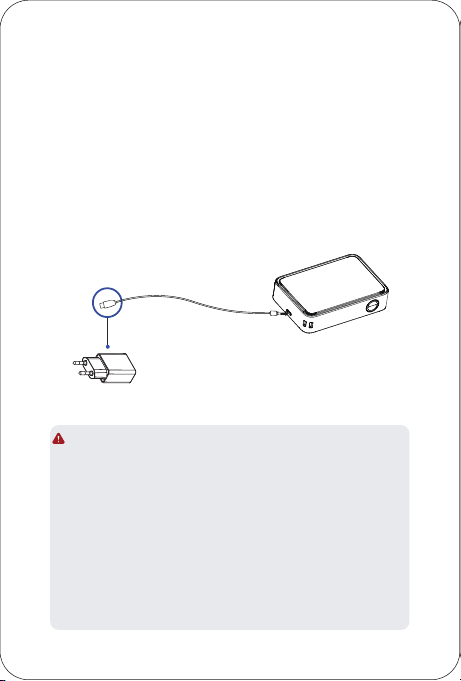
1. When the printer battery is low, please charge it promptly using the
provided USB Type-C cable. Continuing to print may cause the printer
to shut down automatically.
2. Connect one end of the USB Type-C cable to the printer's USB port and
the other end to a power adapter. The printer will begin charging once
connected.
3. Under ambient temperature conditions, a full charge takes
approximately 90‒120 minutes.
Product Parameters
Product Name Portable Photo Printer
Printer Model HCP-2TS25L
Dimensions 125x85x33.5mm
Weight Bare Printer 286g
Print Method Thermal Dye Sublimation
Print Size 54x72mm
Print Resolution 300dpi
Battery Capacity 860mAh
Charging Interface 5V / 2A,Type-C Interface
Operating Temperature 5℃~35℃
This equipment has been tested and found to comply with the limits for a Class B digital
device, pursuant to part 15 of the FCC Rules. These limits are designed to provide
reasonable protec�on against harmful interference in a residen�al installa�on. This
equipment generates, uses and can radiate radio frequency energy and, if not installed
and used in accordance with the instruc�ons, may cause harmful interference to radio
communica�ons. However, there is no guarantee that interference will not occur in a
par�cular installa�on. If this equipment does cause harmful interference to radio or
television recep�on, which can be determined by turning the equipment off and on,
the user is encouraged to try to correct the interference by one or more of the
following measures:
—Reorient or relocate the receiving antenna.
—Increase the separa�on between the equipment and receiver.
—Connect the equipment into an outlet on a circuit different from that to which the
receiver is connected.
—Consult the dealer or an experienced radio/TV technician for help.
This device complies with Part 15 of the FCC Rules. Opera�on is subject to the following
two condi�ons:
(1) this device may not cause harmful interference, and
(2) this device must accept any interference received, including interference that may
cause undesired opera�on.
This device complies with FCC radia�on exposure limits set forth for an uncontrolled
environment and it also complies with Part 15 of the FCC RF Rules.
This equipment must not be co-located or opera�ng in conjunc�on with any other
antenna or transmi�er.
End-users and installers must be provided with antenna installa�on instruc�ons and
consider removing the no-colloca�on statement.
Cau�on!
Any changes or modifica�ons not expressly approved by the party responsible for
compliance could void the user's authority to operate the equipment.
Warning: Opera�on of this equipment in a residen�al environment could cause
radio interference.
FCC ID: 2AUTE-2TS25L
iPhone 16 Pro Max, iPhone 16 Pro, iPhone 16 Plus, iPhone 16, iPhone 15 Pro Max,
iPhone 15 Pro, iPhone 15 Plus, iPhone 15, iPhone 14 Pro Max, iPhone 14 Pro,
iPhone 14 Plus, iPhone 14, iPhone SE (3rd genera�on), iPhone 13 Pro Max, iPhone
13 Pro, iPhone 13, iPhone 13 mini, iPhone 12 Pro Max, iPhone 12 Pro, iPhone 12,
iPhone 12 mini, iPhone SE (2nd genera�on), iPhone 11 Pro Max, iPhone 11 Pro,
iPhone 11, iPhone XS Max, iPhone XS, iPhone XR, iPhone X, iPhone 8 Plus, iPhone 8
Use of the Made for Apple badge means that an accessory has been designed to
connect specifically to the Apple product(s) iden�fied in the badge and has been
cer�fied by the developer to meet Apple performance standards. Apple is not
responsible for the opera�on of this device or its compliance with safety and
regulatory standards.
Apple, iPad, iPad Air, iPad Pro, iPhone are trademarks of Apple Inc., registered in
the U.S. and other countries and regions.
Apple, iPad, iPad Air, iPad Pro, iPhone are trademarks of Apple Inc., registered in
the U.S. and other countries and regions. The trademark "iPhone" is used in Japan
with a license from Aiphone K.K.
Battery Charging FCC WARNING
Vary by country or region
1. The printer can be charged via a computer or an adapter using a USB cable.
Please note that the adapter is not equipped with the printer. Users who
use power adapters for charging should purchase and use power adapters
that are certified for safety and meet the requirements of the standard.
2. Users are prohibited from disassembling the machine themselves.
Replacing the battery with the wrong model may result in an explosion.
Please be sure to dispose of the used battery according to the instructions.
3. When the printer is low on power, charge it for a while before use to
prevent printing interruptions.
WARNING: Operating this device may cause radio interference in
a residential environment.
Charge via Adapter
Precautions
1. The best working temperature of the printer is 5℃~35℃.
If the ambient temperature is too high, the printing quality
may be affected;
2. Please use official ribbon and photo paper to ensure print quality;
3. Avoid disassembling the ribbon and photo paper by yourself.
If the glossy surface of the photo paper is contaminated, the print
quality will be affected;
4. Do not pull out the consumable forcibly during printing, this may
damage the printer;
5. When not in use for a long time, close the consumable compartment
to keep things like dust out;
6. After printing multiple photos in a row, the device may activate
overtemperature protection, which is normal, and the current task
will continue to be printed after cooling;
7. Do not perform any operations while the device is turning on.
Operating Environment
1. Place the printer on a desktop or other flat, stable surface;
2. Please make sure that there is more than 10cm space in the paper
outlet of the printer.
Manufacturer:Xiamen Hanin Co.,Ltd.
Factory Address:No.96, RongYuan Road, Tong'an District,
Xiamen City, Fujian Province, P.R. China
E-mail: support@hprt.com
Web: www.hprt.com
1. When the printer battery is low, please charge it promptly using the
provided USB Type-C cable. Continuing to print may cause the printer
to shut down automatically.
2. Connect one end of the USB Type-C cable to the printer's USB port and
the other end to a power adapter. The printer will begin charging once
connected.
3. Under ambient temperature conditions, a full charge takes
approximately 90‒120 minutes.

Product Parameters
Product Name Portable Photo Printer
Printer Model HCP-2TS25L
Dimensions 125x85x33.5mm
Weight Bare Printer 286g
Print Method Thermal Dye Sublimation
Print Size 54x72mm
Print Resolution 300dpi
Battery Capacity 860mAh
Charging Interface 5V / 2A,Type-C Interface
Operating Temperature 5℃~35℃
This equipment has been tested and found to comply with the limits for a Class B digital
device, pursuant to part 15 of the FCC Rules. These limits are designed to provide
reasonable protec�on against harmful interference in a residen�al installa�on. This
equipment generates, uses and can radiate radio frequency energy and, if not installed
and used in accordance with the instruc�ons, may cause harmful interference to radio
communica�ons. However, there is no guarantee that interference will not occur in a
par�cular installa�on. If this equipment does cause harmful interference to radio or
television recep�on, which can be determined by turning the equipment off and on,
the user is encouraged to try to correct the interference by one or more of the
following measures:
—Reorient or relocate the receiving antenna.
—Increase the separa�on between the equipment and receiver.
—Connect the equipment into an outlet on a circuit different from that to which the
receiver is connected.
—Consult the dealer or an experienced radio/TV technician for help.
This device complies with Part 15 of the FCC Rules. Opera�on is subject to the following
two condi�ons:
(1) this device may not cause harmful interference, and
(2) this device must accept any interference received, including interference that may
cause undesired opera�on.
This device complies with FCC radia�on exposure limits set forth for an uncontrolled
environment and it also complies with Part 15 of the FCC RF Rules.
This equipment must not be co-located or opera�ng in conjunc�on with any other
antenna or transmi�er.
End-users and installers must be provided with antenna installa�on instruc�ons and
consider removing the no-colloca�on statement.
Cau�on!
Any changes or modifica�ons not expressly approved by the party responsible for
compliance could void the user's authority to operate the equipment.
Warning: Opera�on of this equipment in a residen�al environment could cause
radio interference.
FCC ID: 2AUTE-2TS25L
iPhone 16 Pro Max, iPhone 16 Pro, iPhone 16 Plus, iPhone 16, iPhone 15 Pro Max,
iPhone 15 Pro, iPhone 15 Plus, iPhone 15, iPhone 14 Pro Max, iPhone 14 Pro,
iPhone 14 Plus, iPhone 14, iPhone SE (3rd genera�on), iPhone 13 Pro Max, iPhone
13 Pro, iPhone 13, iPhone 13 mini, iPhone 12 Pro Max, iPhone 12 Pro, iPhone 12,
iPhone 12 mini, iPhone SE (2nd genera�on), iPhone 11 Pro Max, iPhone 11 Pro,
iPhone 11, iPhone XS Max, iPhone XS, iPhone XR, iPhone X, iPhone 8 Plus, iPhone 8
Use of the Made for Apple badge means that an accessory has been designed to
connect specifically to the Apple product(s) iden�fied in the badge and has been
cer�fied by the developer to meet Apple performance standards. Apple is not
responsible for the opera�on of this device or its compliance with safety and
regulatory standards.
Apple, iPad, iPad Air, iPad Pro, iPhone are trademarks of Apple Inc., registered in
the U.S. and other countries and regions.
Apple, iPad, iPad Air, iPad Pro, iPhone are trademarks of Apple Inc., registered in
the U.S. and other countries and regions. The trademark "iPhone" is used in Japan
with a license from Aiphone K.K.
Battery Charging FCC WARNING
Vary by country or region
1. The printer can be charged via a computer or an adapter using a USB cable.
Please note that the adapter is not equipped with the printer. Users who
use power adapters for charging should purchase and use power adapters
that are certified for safety and meet the requirements of the standard.
2. Users are prohibited from disassembling the machine themselves.
Replacing the battery with the wrong model may result in an explosion.
Please be sure to dispose of the used battery according to the instructions.
3. When the printer is low on power, charge it for a while before use to
prevent printing interruptions.
WARNING: Operating this device may cause radio interference in
a residential environment.
Charge via Adapter
Precautions
1. The best working temperature of the printer is 5℃~35℃.
If the ambient temperature is too high, the printing quality
may be affected;
2. Please use official ribbon and photo paper to ensure print quality;
3. Avoid disassembling the ribbon and photo paper by yourself.
If the glossy surface of the photo paper is contaminated, the print
quality will be affected;
4. Do not pull out the consumable forcibly during printing, this may
damage the printer;
5. When not in use for a long time, close the consumable compartment
to keep things like dust out;
6. After printing multiple photos in a row, the device may activate
overtemperature protection, which is normal, and the current task
will continue to be printed after cooling;
7. Do not perform any operations while the device is turning on.
Operating Environment
1. Place the printer on a desktop or other flat, stable surface;
2. Please make sure that there is more than 10cm space in the paper
outlet of the printer.
Manufacturer:Xiamen Hanin Co.,Ltd.
Factory Address:No.96, RongYuan Road, Tong'an District,
Xiamen City, Fujian Province, P.R. China
E-mail: support@hprt.com
Web: www.hprt.com
1. When the printer battery is low, please charge it promptly using the
provided USB Type-C cable. Continuing to print may cause the printer
to shut down automatically.
2. Connect one end of the USB Type-C cable to the printer's USB port and
the other end to a power adapter. The printer will begin charging once
connected.
3. Under ambient temperature conditions, a full charge takes
approximately 90‒120 minutes.
Product Parameters
Product Name Portable Photo Printer
Printer Model HCP-2TS25L
Dimensions 125x85x33.5mm
Weight Bare Printer 286g
Print Method Thermal Dye Sublimation
Print Size 54x72mm
Print Resolution 300dpi
Battery Capacity 860mAh
Charging Interface 5V / 2A,Type-C Interface
Operating Temperature 5℃~35℃
This equipment has been tested and found to comply with the limits for a Class B digital
device, pursuant to part 15 of the FCC Rules. These limits are designed to provide
reasonable protec�on against harmful interference in a residen�al installa�on. This
equipment generates, uses and can radiate radio frequency energy and, if not installed
and used in accordance with the instruc�ons, may cause harmful interference to radio
communica�ons. However, there is no guarantee that interference will not occur in a
par�cular installa�on. If this equipment does cause harmful interference to radio or
television recep�on, which can be determined by turning the equipment off and on,
the user is encouraged to try to correct the interference by one or more of the
following measures:
—Reorient or relocate the receiving antenna.
—Increase the separa�on between the equipment and receiver.
—Connect the equipment into an outlet on a circuit different from that to which the
receiver is connected.
—Consult the dealer or an experienced radio/TV technician for help.
This device complies with Part 15 of the FCC Rules. Opera�on is subject to the following
two condi�ons:
(1) this device may not cause harmful interference, and
(2) this device must accept any interference received, including interference that may
cause undesired opera�on.
This device complies with FCC radia�on exposure limits set forth for an uncontrolled
environment and it also complies with Part 15 of the FCC RF Rules.
This equipment must not be co-located or opera�ng in conjunc�on with any other
antenna or transmi�er.
End-users and installers must be provided with antenna installa�on instruc�ons and
consider removing the no-colloca�on statement.
Cau�on!
Any changes or modifica�ons not expressly approved by the party responsible for
compliance could void the user's authority to operate the equipment.
Warning: Opera�on of this equipment in a residen�al environment could cause
radio interference.
FCC ID: 2AUTE-2TS25L
iPhone 16 Pro Max, iPhone 16 Pro, iPhone 16 Plus, iPhone 16, iPhone 15 Pro Max,
iPhone 15 Pro, iPhone 15 Plus, iPhone 15, iPhone 14 Pro Max, iPhone 14 Pro,
iPhone 14 Plus, iPhone 14, iPhone SE (3rd genera�on), iPhone 13 Pro Max, iPhone
13 Pro, iPhone 13, iPhone 13 mini, iPhone 12 Pro Max, iPhone 12 Pro, iPhone 12,
iPhone 12 mini, iPhone SE (2nd genera�on), iPhone 11 Pro Max, iPhone 11 Pro,
iPhone 11, iPhone XS Max, iPhone XS, iPhone XR, iPhone X, iPhone 8 Plus, iPhone 8
Use of the Made for Apple badge means that an accessory has been designed to
connect specifically to the Apple product(s) iden�fied in the badge and has been
cer�fied by the developer to meet Apple performance standards. Apple is not
responsible for the opera�on of this device or its compliance with safety and
regulatory standards.
Apple, iPad, iPad Air, iPad Pro, iPhone are trademarks of Apple Inc., registered in
the U.S. and other countries and regions.
Apple, iPad, iPad Air, iPad Pro, iPhone are trademarks of Apple Inc., registered in
the U.S. and other countries and regions. The trademark "iPhone" is used in Japan
with a license from Aiphone K.K.
Battery Charging FCC WARNING
Vary by country or region
1. The printer can be charged via a computer or an adapter using a USB cable.
Please note that the adapter is not equipped with the printer. Users who
use power adapters for charging should purchase and use power adapters
that are certified for safety and meet the requirements of the standard.
2. Users are prohibited from disassembling the machine themselves.
Replacing the battery with the wrong model may result in an explosion.
Please be sure to dispose of the used battery according to the instructions.
3. When the printer is low on power, charge it for a while before use to
prevent printing interruptions.
WARNING: Operating this device may cause radio interference in
a residential environment.
Charge via Adapter
Precautions
1. The best working temperature of the printer is 5℃~35℃.
If the ambient temperature is too high, the printing quality
may be affected;
2. Please use official ribbon and photo paper to ensure print quality;
3. Avoid disassembling the ribbon and photo paper by yourself.
If the glossy surface of the photo paper is contaminated, the print
quality will be affected;
4. Do not pull out the consumable forcibly during printing, this may
damage the printer;
5. When not in use for a long time, close the consumable compartment
to keep things like dust out;
6. After printing multiple photos in a row, the device may activate
overtemperature protection, which is normal, and the current task
will continue to be printed after cooling;
7. Do not perform any operations while the device is turning on.
Operating Environment
1. Place the printer on a desktop or other flat, stable surface;
2. Please make sure that there is more than 10cm space in the paper
outlet of the printer.
Manufacturer:Xiamen Hanin Co.,Ltd.
Factory Address:No.96, RongYuan Road, Tong'an District,
Xiamen City, Fujian Province, P.R. China
E-mail: support@hprt.com
Web: www.hprt.com
1. When the printer battery is low, please charge it promptly using the
provided USB Type-C cable. Continuing to print may cause the printer
to shut down automatically.
2. Connect one end of the USB Type-C cable to the printer's USB port and
the other end to a power adapter. The printer will begin charging once
connected.
3. Under ambient temperature conditions, a full charge takes
approximately 90‒120 minutes.