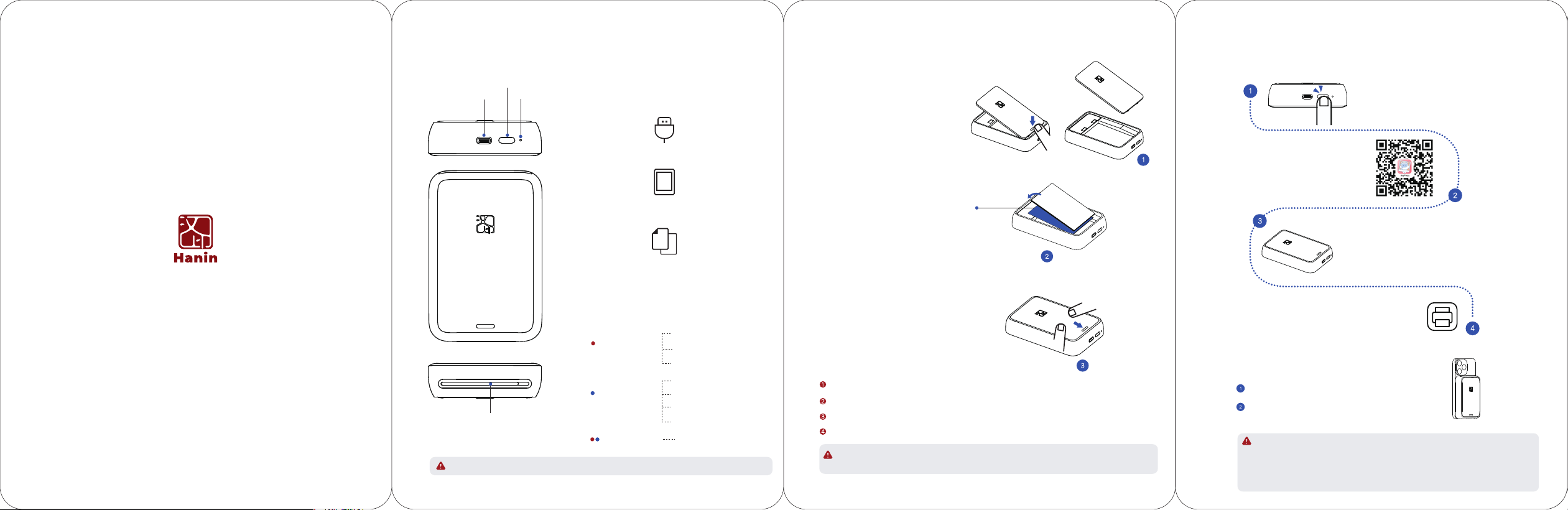
As shown in the figure, insert the lower end of the top cover into
the groove at the bo�om of the printer in the direc�on of the
arrow and press it down, assemble the top cover.
Press down with your fingers on the protruding
posi�on at the bo�om of the top cover,
the front end of the cover will pop open.
As shown in the diagram, directly remove
the top cover from the front end.
Set up the printer to automa�cally open the APP
when touching the phone
Type-C Port
OFF: Power-off
ON: Standby
Slow Flash: Charging
01
02
03
ON: Error (Paper jam/Out of
paper/Cover opened)
Fast Flash: Overtemperature
Slow Flash: Low power
Fast Flash: Prin�ng
Status Alterna�ng Flash:
Fireware is upda�ng
When touching the
phone, open the APP.
A�er connec�ng the printer and mobile phone, click on
“Device Management” in the "HeyPhoto" APP.
Click on “Open APP when touching the phone” and follow the APP
instruc�ons to complete the shortcut command se�ngs.
MT56i
RESET Bu�on
Appearance and Components
Note: The items in the package are actually based
on the order.
Power Bu�on
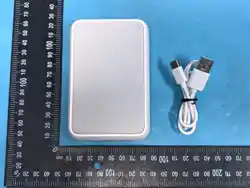
Accessories
USB Type-C Cable
Photo Paper (5pcs)+Blue Smart Sheet (1pcs)
Quick Start Guide
LED Indicator Status
Red LED
Red Blue
LED
Blue LED
Error Status
Basic Status
When red LED stays on, you can check the detailed error condi�on on APP a�er connec�ng the printer with phone.
Steps & Notes
Paper Loading
Precau�ons for Photo Paper
The photo paper is easy to get damp, please use it as soon
as possible a�er opening.
Avoid excessive direct sunlight and over low temperature.
Avoid device damage caused by using non-special paper.
Do not fold or damage the paper.
The blue smart sheet is used for color calibra�on and TPH cleaning. When prin�ng a�er loading 1 packet of paper
for the first �me, the blue smart sheet will be automa�cally out firstly, and then the photo will be printed out.
HeyPhoto App
Hold down the power bu�on for 3 seconds,
the printer will be turned on.
Scan the QR code to download
the "HeyPhoto" APP.
How to Print
Steps & Notes
In the app, select the photos you want to print.
You can also edit the photos as needed before
prin�ng.
Tumn on your phone's Bluetooth,open APP,
click “Add Device”,search for“MT56i-XXXX"
and click to connect.
1. If Bluetooth has been disconnected for 5 seconds, the printer will enter sleeping mode,
press the power bu�on to awaken it.
2. In sleeping mode, if not awakened the printer within 5 minutes, it will be off automa�cally.
3. When using it for the second �me, just click the print icon that the printer will be connected
automa�cally and transfer data to print.
4. Do not touch the photo paper during prin�ng, or else it may result in stripes on photo paper.
Blue Smart Sheet
The text side of all the photo
paper should face down
Take out one packet of photo paper (including 5pcs or
10pcs of photo paper and 1pc of blue smart sheet),
and place them into the printer as shown on Figure 2.
The photo paper should be placed a�er the blue smart
sheet and its text side should face down.
Please note that never place more than 11pcs of photo
paper (including 1pc blue smart sheet), and use the photo
paper specially for the printer, use other brands of that
may affect the print quality.
Paper Ejec�on Slot
Model: HCP-2ZK25H
Download the HeyPhoto APP
Precau�ons for Prin�ng
Before pu�ng the photo paper into the printer, do not touch the prin�ng surface of the photo paper with
your hands to ensure that the prin�ng surface is free of dirt and dust par�cles, otherwise the print quality
will be affected.
It is not allowed to con�nuously print more than 10 sheets, or else it may cause print head dust accumula�on,
which needs to be cleaned by the blue smart sheet again.
A�er prin�ng 3 sheets con�nuously, the printer may have overheat protec�on for the print head, and the
prin�ng will be suspended forcibly, which is a normal phenomenon. It can be printed again a�er cooling the
print head.
Ba�ery Charging
When the ba�ery power is low, the LED indicator will turn red and flash slowly. Please charge it by the supplied
USB cable in �me. If you con�nue prin�ng, it may power off arbitrarily.
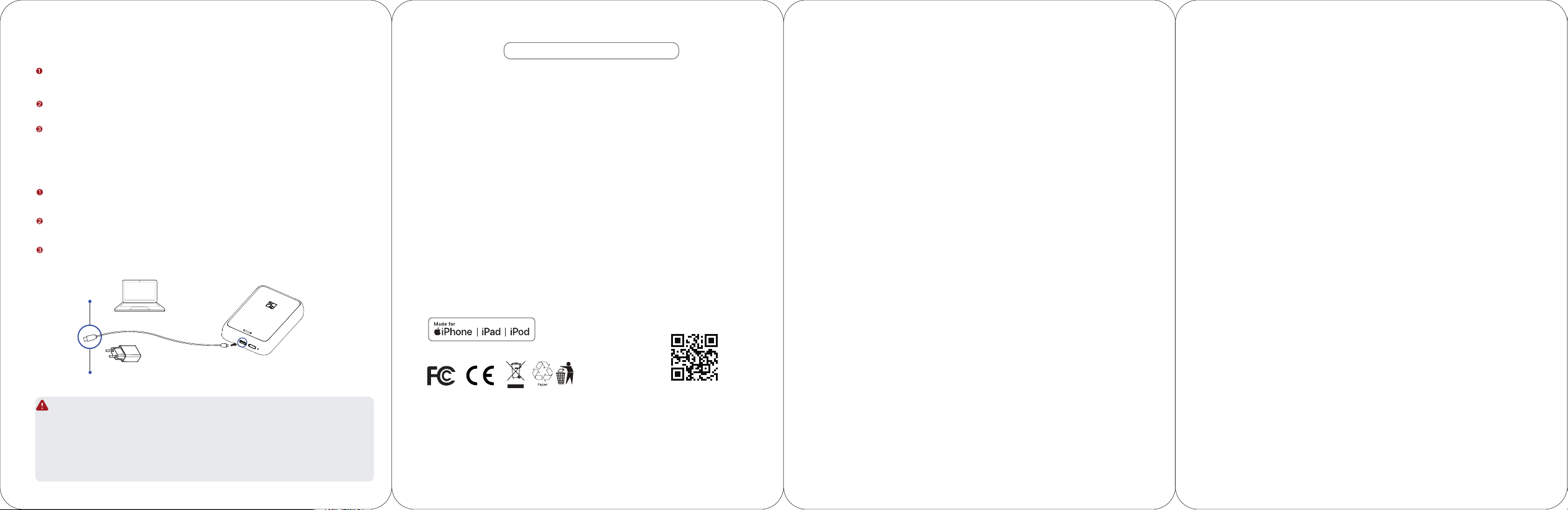
To charge, insert one end of the USB cable into the printer and the other end to the AC adapter or PC. When
connected, the LED indicator will turn blue and flash slowly to indicate charging.
It takes about 60 to 90 minutes for fully charge. A�er that, the blue LED indicator will be ligh�ng all the way.
1. The printer can be charged via computer USB port or AC adapter. Please note that the AC adapter is not supplied.
2. If charging via AC adapter, connect the USB cable to a power source of supplying DC 5V/2A.
Charge via PC
Charge via AC Adapter
Vary by country or region
Manufacturer:Xiamen Hanin Co.,Ltd.
Factory Address:No.96, RongYuan Road,
Tong'an District, Xiamen City, Fujian Province, P.R. China
E-mail: [email protected]
Web: www.hprt.com
MADE IN CHINA
Portable Photo Printer
iPhone 16e, iPhone 16 Pro Max, iPhone 16 Pro, iPhone 16 Plus, iPhone 16, iPhone 15 Pro Max, iPhone 15
Pro, iPhone 15 Plus, iPhone 15, iPhone 14 Pro Max, iPhone 14 Pro, iPhone 14 Plus, iPhone 14, iPhone SE
(3rd genera�on), iPhone 13 Pro Max, iPhone 13 Pro, iPhone 13, iPhone 13 mini, iPhone 12 Pro Max,
iPhone 12 Pro, iPhone 12, iPhone 12 mini, iPhone SE (2nd genera�on), iPhone 11 Pro Max, iPhone 11 Pro,
iPhone 11, iPhone XS Max, iPhone XS, iPhone XR, iPhone X, iPhone 8 Plus, iPhone 8, iPhone 7 Plus, iPhone
7, iPhone SE, iPhone 6s Plus, iPhone 6s, iPhone 6 Plus, iPhone 6, iPhone 5s, iPad Air 13-inch (M3), iPad Air
11-inch (M3), iPad (A16), iPad mini (A17 Pro), iPad Pro 13-inch (M4), iPad Pro 11-inch (M4), iPad Air
13-inch (M2), iPad Air 11-inch (M2), iPad Pro 12.9-inch (6th genera�on), iPad Pro 11-inch (4th genera�on),
iPad (10th genera�on), iPad Air (5th genera�on), iPad (9th genera�on), iPad mini (6th genera�on), iPad
Pro 12.9-inch (5th genera�on), iPad Pro 11-inch (3rd genera�on), iPad (8th genera�on), iPad Air (4th
genera�on), iPad Pro 11-inch (2nd genera�on), iPad Pro 12.9-inch (4th genera�on), iPad Pro 11-inch, iPad
Pro 12.9-inch (3rd genera�on), iPad Pro 10.5-inch, iPad Pro 12.9-inch (2nd genera�on), iPad Pro 9.7-inch,
iPad Pro 12.9-inch (1st genera�on), iPad Air (3rd genera�on), iPad Air 2, iPad Air, iPad mini (5th
genera�on), iPad mini 4, iPad mini 3, iPad mini 2, iPad (7th genera�on), iPad (6th genera�on), iPad (5th
genera�on), iPod touch (7th genera�on), iPod touch (6th genera�on)
RF exposure statement
This equipment complies with the FCC and ISED radia�on exposure limits set forth for an uncontrolled
environment. This transmi�er must not be co-located or opera�ng in conjunc�on with any other antenna
or transmi�er.
Cet équipement est conforme aux limites d'exposi�on aux rayonnements de la FCC et de l'ISED établies
pour un environnement non contrôlé. Cet éme�eur ne doit pas être co-localisé ou fonc�onner en
conjonc�on avec une autre antenne ou un autre éme�eur.
FCC Warning
This device complies with Part 15 of the FCC Rules. Opera�on is subject to the following two condi�ons:
(1) This device may not cause harmful interference, and (2) this device must accept any interference
received, including interference that may cause undesired opera�on.
Note: This equipment has been tested and found to comply with the limits for a Class B digital device,
pursuant to part 15 of the FCC Rules. These limits are designed to provide reasonable protec�on against
harmful interference in a residen�al installa�on. This equipment generates, uses and can radiate radio
frequency energy and, if not installed and used in accordance with the instruc�ons, may cause harmful
interference to radio communica�ons. However, there is no guarantee that interference will not occur in a
par�cular installa�on. If this equipment does cause harmful interference to radio or television recep�on,
which can be determined by turning the equipment off and on, the user is encouraged to try to correct
the interference by one or more of the following measures:
—Reorient or relocate the receiving antenna.
—Increase the separa�on between the equipment and receiver.
—Connect the equipment into an outlet on a circuit different from that to which the receiver is
connected.
—Consult the dealer or an experienced radio/TV technician for help.
NOTE 2: Any changes or modifica�ons to this unit not expressly approved by the party responsible for
compliance could void the user's authority to operate the equipment.
IC WARNING
This device contains licence-exempt transmi�er(s)/receiver(s) that comply with Innova�on, Science and
Economic Development Canada’s licence-exempt RSS(s). Opera�on is subject to the following two
condi�ons:
(1)This device may not cause interference.
(2)This device must accept any interference, including interference that may cause undesired opera�on of
the device.
Cet appareil con�ent un ou plusieurs éme�eurs/récepteurs exempts de licence conformes aux normes
RSS exemptes de licence d’Innova�on, Sciences et Développement économique Canada. Son
fonc�onnement est soumis aux deux condi�ons suivantes :
(1) Cet appareil ne doit pas causer d’interférences.
(2) Cet appareil doit accepter toute interférence, y compris les interférences pouvant entraîner un
fonc�onnement indésirable.
Use of the Made for Apple badge means that an accessory has been designed to connect specifically to
the Apple product(s) iden�fied in the badge and has been cer�fied by the developer to meet Apple
performance standards.
Apple, iPad, iPad Air, iPad Pro and iPhone are trademarks of Apple Inc., registered in the U.S. and other
countries and regions.
Apple, iPad, iPad Air, iPad Pro and iPhone are trademarks of Apple Inc., registered in the U.S. and other
countries and regions. The trademark "iPhone" is used in Japan with a license from Aiphone K.K.
3. Replacement of a ba�ery with an incorrect type that can defeat a safeguard (for example, in the case of some
lithium ba�ery types);
4. Disposal of a ba�ery into fire or a hot oven, or mechanically crushing or cu�ng of a ba�ery, that can result in an
explosion;
5. Leaving a ba�ery in an extremely high temperature surrounding environment that can result in an explosion or
the leakage of flammable liquid or gas;
6. A ba�ery subjected to extremely low air pressure that may result in an explosion or the leakage of flammable
liquid or gas.
FCC ID: 2AUTE-2ZK25H
IC: 26218-2ZK25H HVIN: HCP-2ZK25H