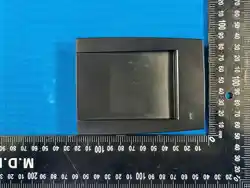

Enrollment Reader
Qui
ck Start Guide
V1
.0.1
I
Fo
reword
Gen
eral
This manual introduces the functions and operations of the Enrollment Reader (hereinafter
referred to as "the Device").
Saf
ety Instructions
T
he
following signal words might appear in the manual.
Sig
nal Words
Mean
ing
DAN
GER
Ind
icates a high potential hazard which, if not avoided, will result in
death or serious injury.
WA
RNING
In
dicates a medium or low potential hazard which, if not avoided,
could result in slight or moderate injury.
CAU
TION
I
nd
icates a potential risk which, if not avoided, could result in
property damage, data loss, lower performance, or unpredictable
result.
TIPS
Pr
ovides methods to help you solve a problem or save you time.
NOT
E
P
r
ovides additional information as the emphasis and supplement to
the text.
Re
vision History
Vers
ion
V1.0.1
V
1.
0.0
Pri
vacy Protection Notice
A
s
the Device user or data controller, you might collect the personal data of others such as their face,
fingerprints, and license plate number. You need to be in compliance with your local privacy protection
laws and regulations to protect the legitimate rights and interests of other people by implementing
measures which include but are not limited: Providing clear and visible identification to inform people
of the existence of the surveillance area and provide required contact information.
Ab
out the Manual
The
manual is for reference only. Slight differences might be found between the manual and the
product.
We
are not liable for losses incurred due to operating the product in ways that are not in
compliance with the manual.
Th
e manual will be updated according to the latest laws and regulations of related jurisdictions.
For detailed information, see the paper user’s manual, use our CD-ROM, scan the QR code or visit
our official website. The manual is for reference only. Slight differences might be found between
the electronic version and the paper version.
Al
l designs and software are subject to change without prior written notice. Product updates
might result in some differences appearing between the actual product and the manual. Please
contact customer service for the latest program and supplementary documentation.
Th
ere might be errors in the print or deviations in the description of the functions, operations and

II
technical data. If there is any doubt or dispute, we reserve the right of final explanation.
Upgrade the reader software or try other mainstream reader software if the manual (in PDF
format) cannot be opened.
All trademarks, registered trademarks and company names in the manual are properties of their
respective owners.
Please visit our website, contact the supplier or customer service if any problems occur while
using the Device.
If there is any uncertainty or controversy, we reserve the right of final explanation.

III
Im
portant Safeguards and Warnings
Th
is section introduces content covering the proper handling of the Device, hazard prevention, and
prevention of property damage. Read carefully before using the Device, comply with the guidelines
when using it, and keep the manual safe for future reference.
Tr
ansportation Requirements
Tr
ansport the Device under allowed humidity and temperature conditions.
St
orage Requirements
S
t
ore the Device under allowed humidity and temperature conditions.
Ins
tallation Requirements
WAR
NING
Co
nnect the Device to the adapter before power on.
Strictly abide by local electrical safety standards, and make sure that the voltage in the area is
steady and conforms to the power requirements of the Device.
Do
not connect the Device to more than one power supply. Otherwise, the Device might become
damaged.
Ob
serve all safety procedures and wear required protective equipment provided for your use
while working at heights.
Do n
ot expose the Device to direct sunlight or heat sources.
Do
not install the Device in humid, dusty or smoky places.
In
stall the Device on a solid and flat surface to avoid that it falls off or turns over.
Do
not place the Device on carpet or quilt.
D
o n
ot place any object on the Device.
In
stall the Device in a well-ventilated place, and do not block the ventilator of the Device.
Us
e the power adapter or case power supply provided by the Device manufacturer.
Th
e power source should meet limited power source or PS2 requirements according to IEC 60950-
1 or IEC 62368-1 and comply with SELV for IEC 60950-1 or comply with ES1 for IEC 62368-1.
Co
nnect class I electrical appliances to a power socket with protective earthing.
Op
er
ation Requirements
Mak
e sure that the power supply of the Device works properly before use.
Do
not pull out the power cable of the Device while it is powered on.
O
n
ly use the Device within the rated power range.
Us
e the Device under allowed humidity and temperature conditions.
Prev
ent liquids from splashing or dripping on the Device. Make sure that there are no objects
filled with liquid on top of the Device to avoid liquids flowing into it.
D
o
not disassemble the Device.
Changes or modifications not expressly approved by the party responsible for compliance
could
authority to operate the equipment.
void the user’s
1. This device complies with Part 15 of the FCC Rules.
Operation is subject to the following two conditions:
(1) This device may not cause harmful interference.
(2) This device must accept any interference received, including interference that may cause
undesired operation.
2.

IV
NOTE: This equipment has been tested and found to comply with the limits for a Class B
digital device, pursuant to Part 15 of the FCC Rules. These limits are designed to provide
reasonable protection against harmful interference in a residential installation. This equipment
generates, uses and can radiate radio frequency energy and, if not installed and used in
accordance with the instructions, may cause harmful interference to radio communications.
However, there is no guarantee that interference will not occur in a particular installation. If this
equipment does cause harmful interference to radio or television reception, which can be
determined by turning the equipment off and on, the user is
encouraged to try to correct the interference by one or more of the following measures:
‐‐ Reorient or relocate the receiving antenna.
‐‐ Increase the separation between the equipment and receiver.
‐‐ Connect the equipment into an outlet on a circuit different from that to which the
receiver is connected.
‐‐ Consult the dealer or an experienced radio/TV technician for help.
FCC Radiation Exposure Statement:
This equipment complies with FCC radiation exposure limits set forth for an uncontrolled environment. This
transmitter must not be co-located or operating in conjunction with any other antenna or transmitter. This
equipment should be installed and operated with minimum distance 20cm between the radiator& your
body.
ISEDC Radiation Exposure Statement:
This equipment complies with ISEDC RF radiation exposure limits set forth for an uncontrolled environment.
This transmitter must not be co-located or operating in conjunction with any other antenna or transmitter.
This equipment should be installed and operated with minimum distance 20cm between the radiator& your
body.
Cet appareil est
Conforme aux limitesd’exposition de rayonnement RF ISEDC établiespour un environnement non contrôlé.
Cetémetteur ne doit pas être co-implanté oufonctionner en onjunction avec toute autreantenne ou
transmetteur.
Cet équipement doit être installé et utilisé avec une distance minimale de 20cm entre le radiateur et votre
corps.
IC Warning:
This device contains licence‐exempt transmitter(s)/receiver(s) that comply with Innovation, Science and
Economic Development Canada's licence‐exempt RSS(s). Operation is subject to the following two
conditions:
(1) This device may not cause interference.
(2) This device must accept any interference, including interference that may cause undesired operation of
the device.
Cet appareil contient des émetteurs/récepteurs sans licence qui sont conformes aux RSS sans licence
d'Innovation, Sciences et Développement économique Canada. L'exploitation est soumise aux deux
conditions suivantes:
(1) Cet appareil ne doit pas causer d'interférences.
(2) Cet appareil doit accepter toute interférence, y compris les interférences qui pourraient causer un
fonctionnement indésirable de l'appareil.
1 Preparation. ................................................................................................................................................... 1
Preparation
2.3 Assigning Permissions .............................................................................................................................................................. 6
2.2 Issuing Cards ................................................................................................................................................................................ 2
2.1 Connecting to PC ....................................................................................................................................................................... 2
Important Safeguards and Warnings ............................................................................................................. III
Foreword ........................................................................................................................................................... I
1
Contents
2 Device Operation ........................................................................................................................................... 2
2.3.1 Adding Devices .............................................................................................................................................................. 6
2.3.2 Configuring Permissions ............................................................................................................................................ 6
Cybersecurity Recommendations ............................................................................................... 8
1
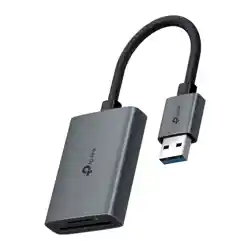
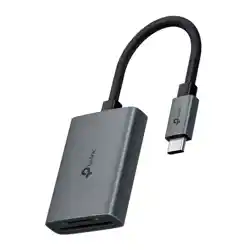
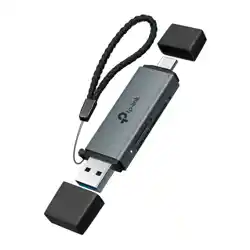
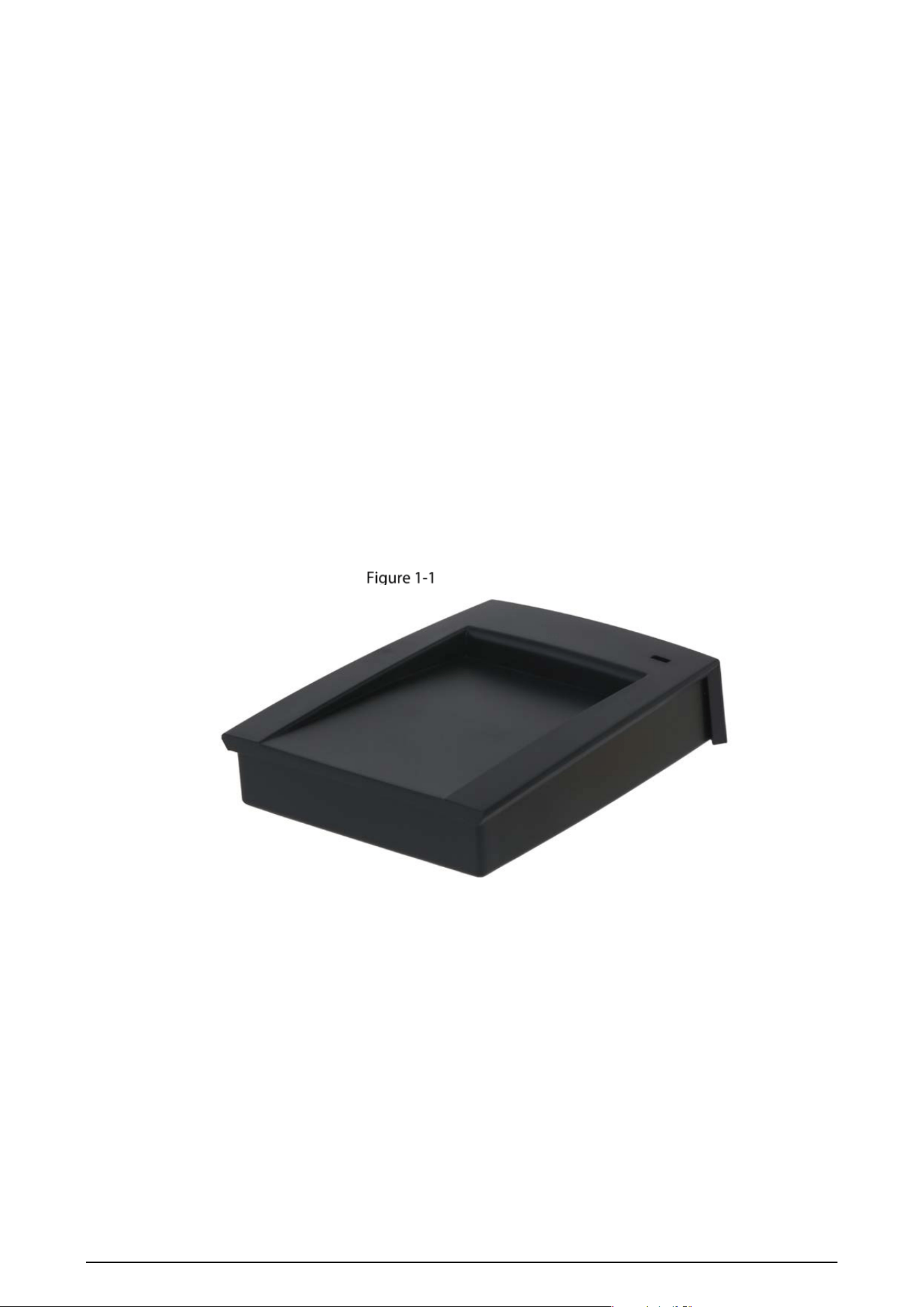
The Enrollment Reader is a plug-and-play device that connects to the PC through a USB cable. It can issue
IC or ID cards. In order to achieve the best working condition of the device, please use the device flat on
the table, do not place the device vertically on the desktop.
Appearance
2
2
Device Operation
Connecting to PC
Use a USB cable to connect the Device to your PC. You do not have to install any drivers. Make sure the
Device is successfully connected to the PC before using it.
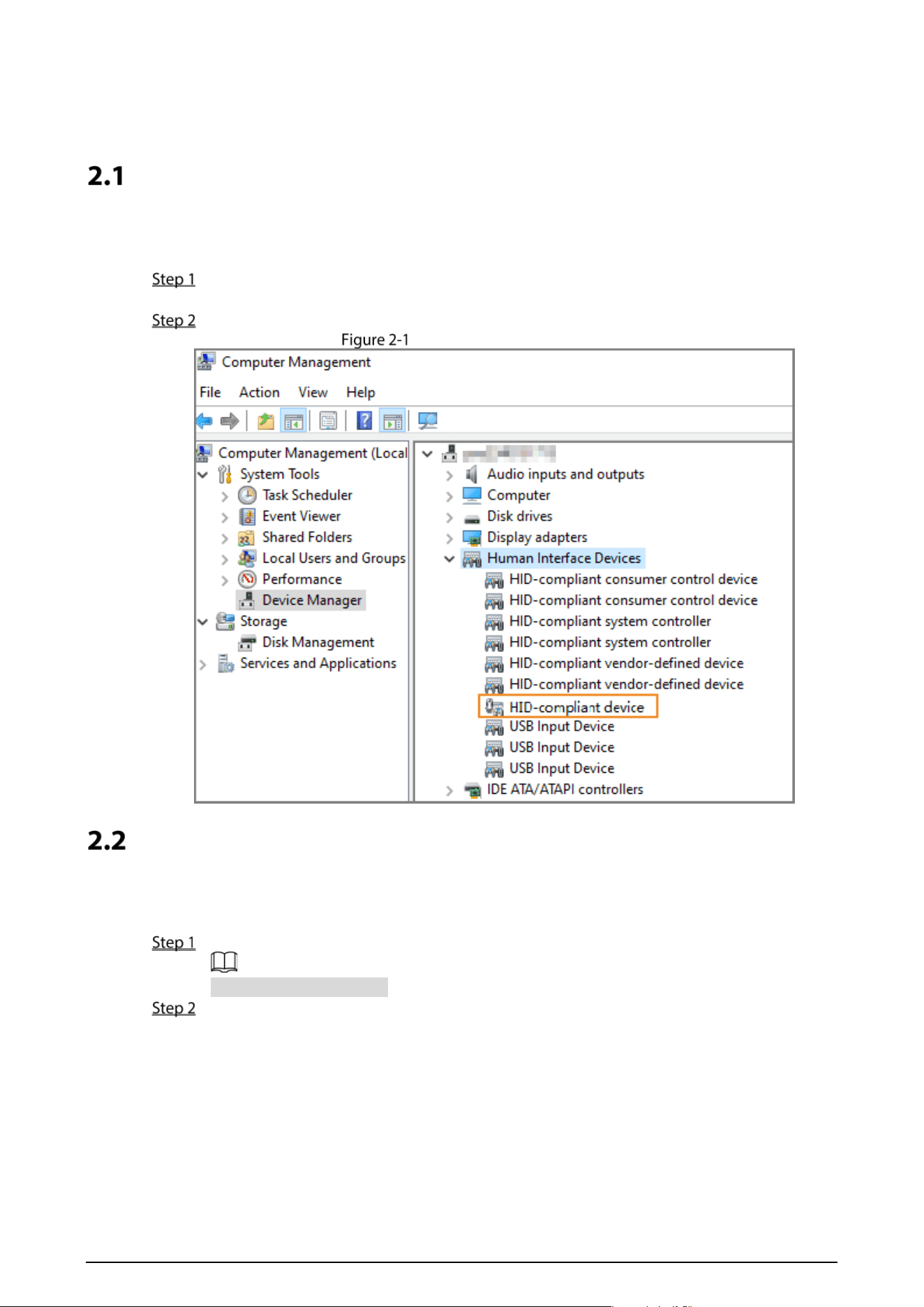
On the desktop of your PC, right-click the This PC icon, and then select Manage > Device
Manager.
Under Human Interface Devices, check whether there is an HID-compliant device.
Human interface devices
Issuing Cards
You need to install application on your PC. Issue cards to users so that they can unlock doors with
cards.
Use a USB cable to connect the Device to the PC.
The Device will buzz once.
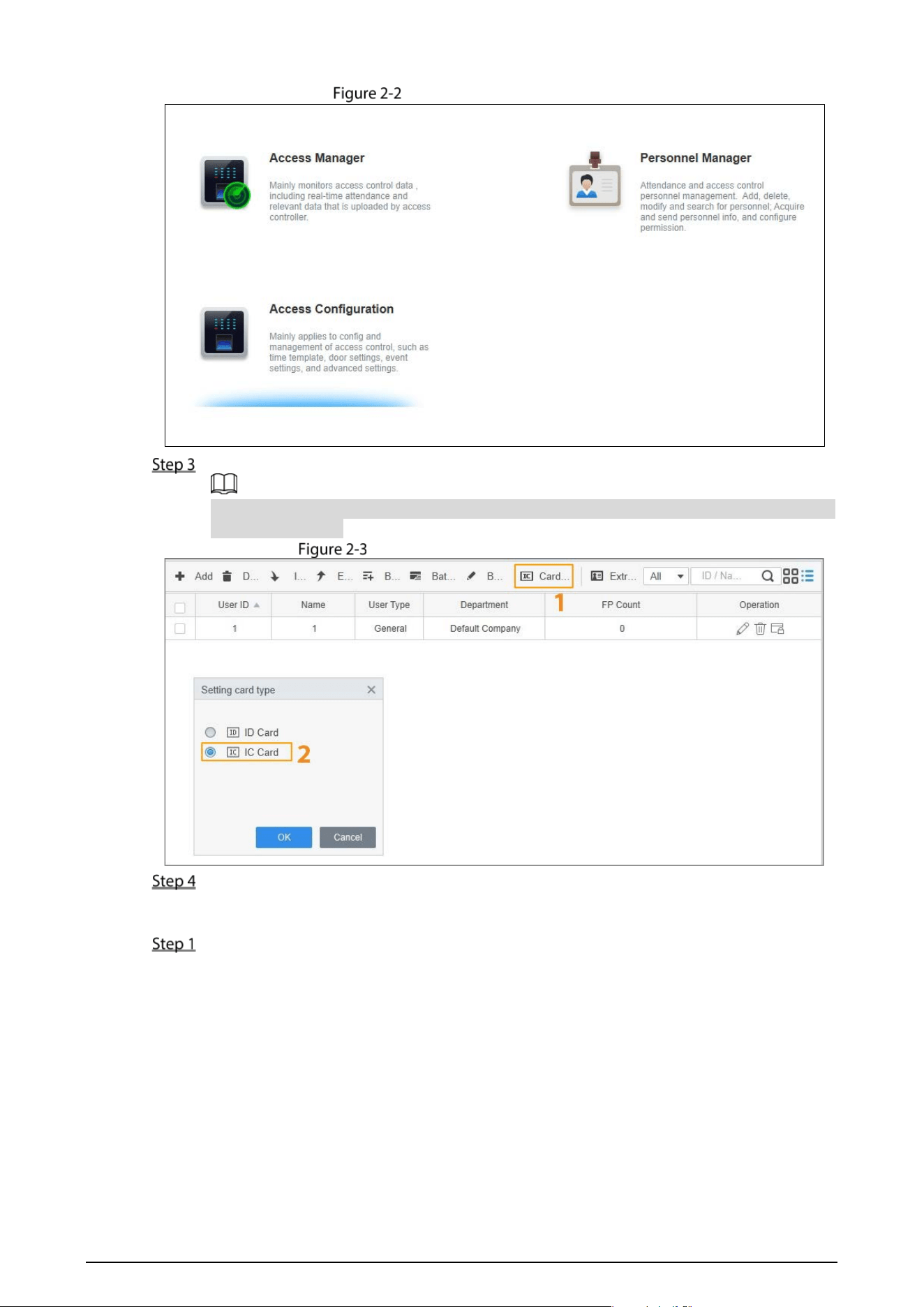
Open application, and then select Access Solution > Personnel Manager.
3
C
lick Card Issuing Type, and then select IC Card.
S
elect the card type you want to issue according to the type of the Device. Here we use IC
card as an example.
S
et the type of card you want to issue
C
lick OK.
I
ssuing a Single Card
G
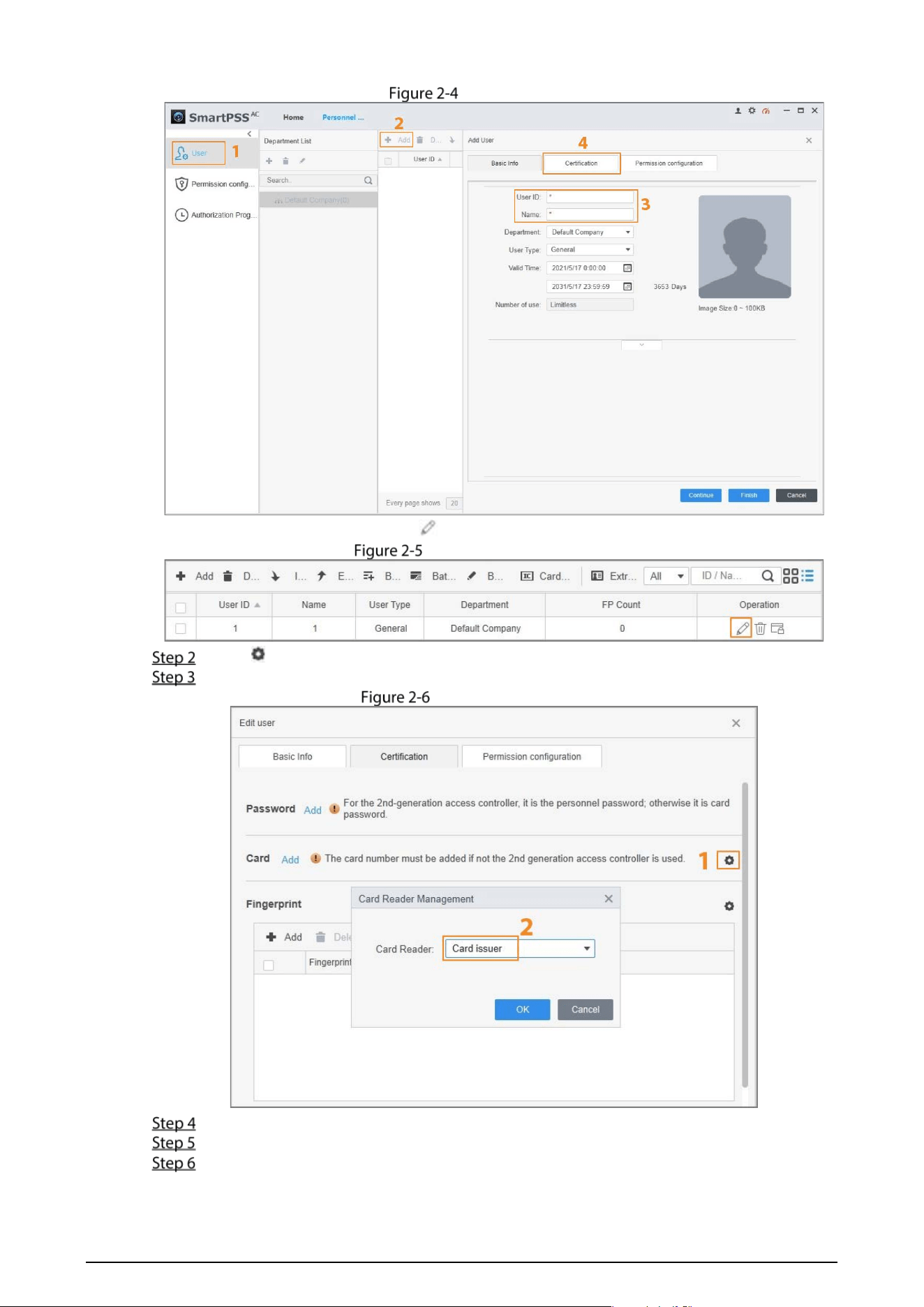
o to the Certification section of a user.
I
f you need to add a new user, select User > Add, enter the user ID and name, and then
click Certification.
4
A
dd a user
F
or an existing user, click , and then click Certification.
E
dit user information
C
lick in the Card section.
Set C
ard Reader to Card Issuer, and then click OK.
S
elect a card issuer
C
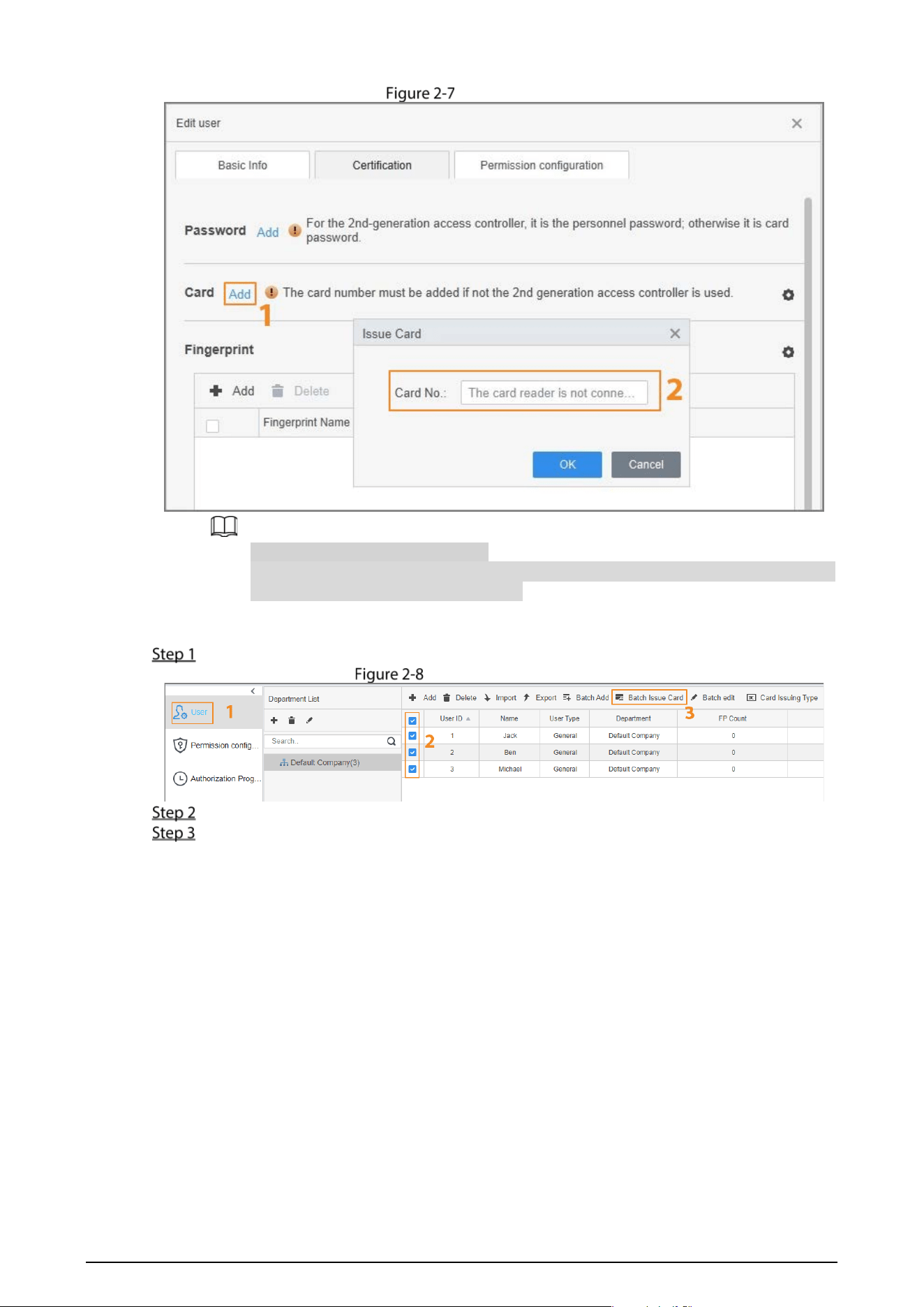
lick Add in the Card section. The Device buzzes once.
Sw
ipe a card on the Device. The card number will be automatically read.
C
lick OK.
Th
e indicator of the Device turns to solid red, indicating it is now in standby mode.
5
I
ssue a card
E
ach user can have up to five cards.
Y
ou can only issue one card at a time. When multiple cards are stacked together, the
D
evice will not be able to work properly.
I
ssuing Multiple Cards
C
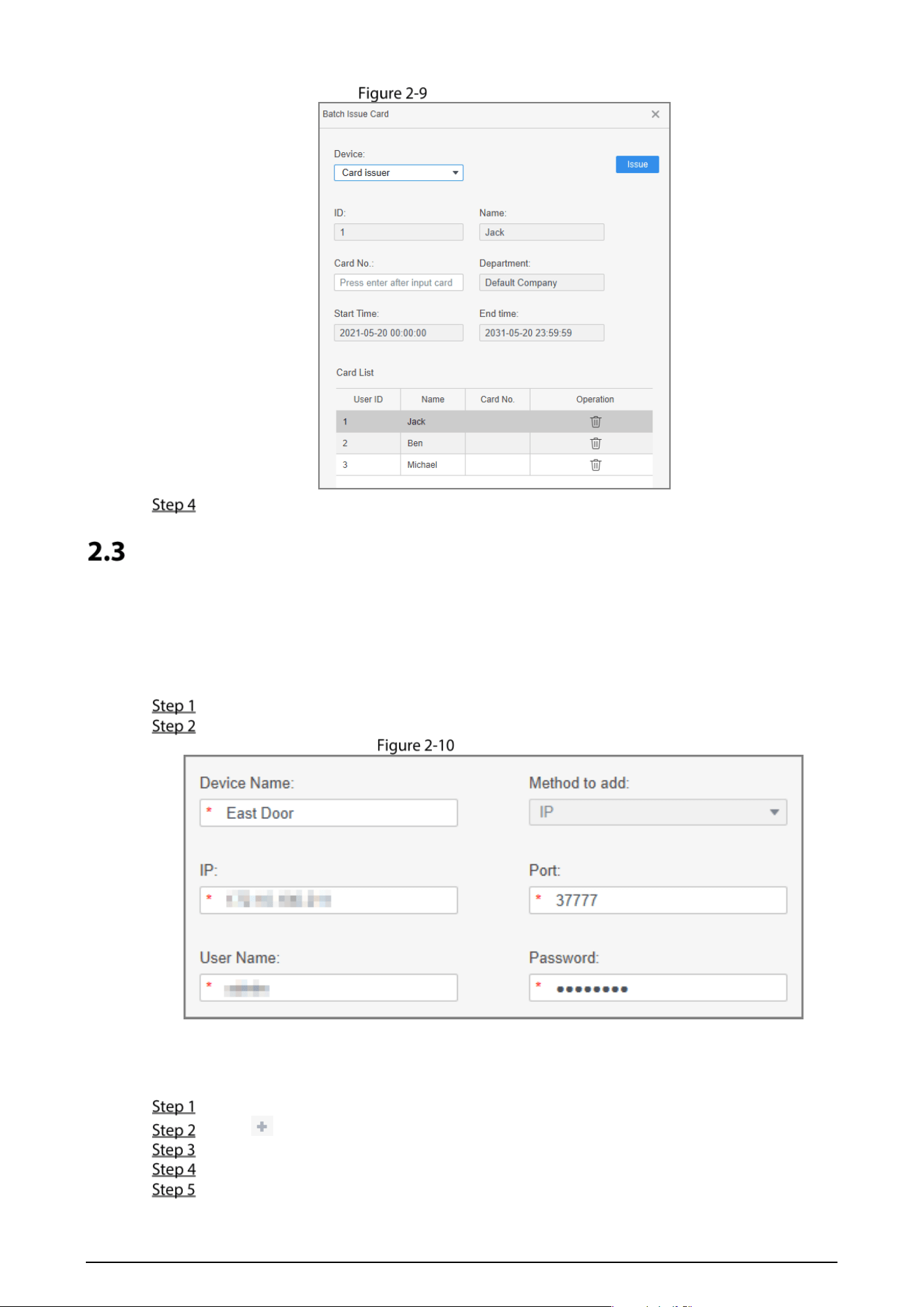
lick User, select users, and then click Batch Issue Card.
S
elect multiple users
S
et Device to Card Issuer.
C
lick Issue, and then swipe the cards one by one on the Device.
6
Issue multiple cards
Click OK.
Assigning Permissions
Add devices to a permission group, and then users in the group can unlock corresponding doors.
2.3.1 Adding Devices
On the homepage of application, select Device Manager > Add.
Enter the information of the device, and then click Add.
Add a device
2.3.2 Configuring Permissions
Click Permission configuration.
Click .
Enter the group name, remarks (optional), and select a time template.
Select the devices.
Click OK.
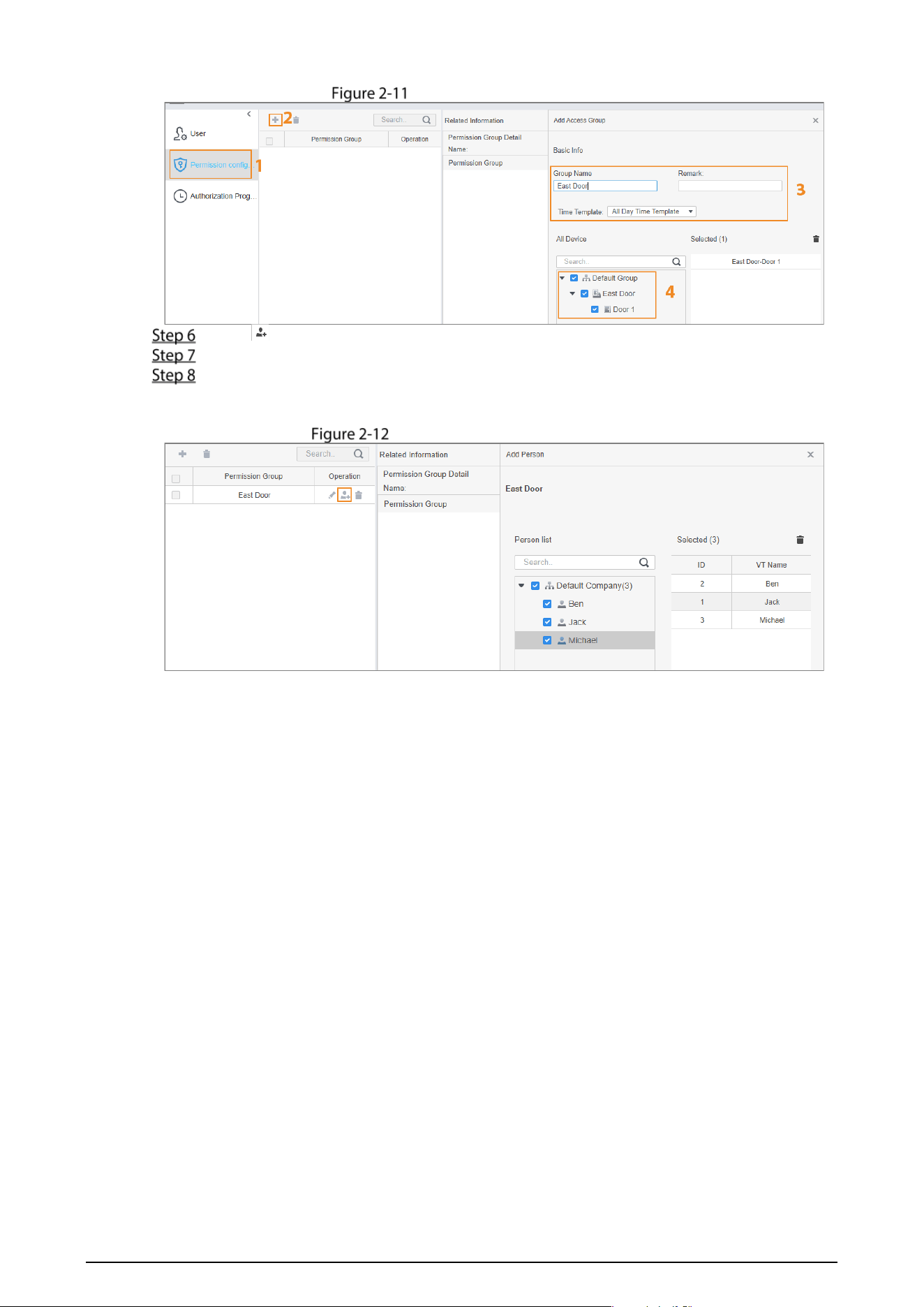
7
Create a permission group
Click of the permission group.
Select the users you want to add to the permission group.
Click OK.
Users in the permission group can now swipe their cards, or use other unlock methods to
unlock the door.
Add users to a permission group

8
Cybersecurity Recommendations
Mandatory actions to be taken for basic device network security:
1. Use Strong Passwords
Please refer to the following suggestions to set passwords:
The length should not be less than 8 characters.
Include at least two types of characters; character types include upper and lower case
letters, numbers and symbols.
Do not contain the account name or the account name in reverse order.
Do not use continuous characters, such as 123, abc, etc.
Do not use overlapped characters, such as 111, aaa, etc.
2. Update Firmware and Client Software in Time
According to the standard procedure in Tech-industry, we recommend to keep your device
(such as NVR, DVR, IP camera, etc.) firmware up-to-date to ensure the system is equipped
with the latest security patches and fixes. When the device is connected to the public
network, it is recommended to enable the “auto-check for updates” function to obtain
timely information of firmware updates released by the manufacturer.
We suggest that you download and use the latest version of client software.
"Nice to have" recommendations to improve your device network security:
1. Physical Protection
We suggest that you perform physical protection to device, especially storage devices. For
example, place the device in a special computer room and cabinet, and implement well-done
access control permission and key management to prevent unauthorized personnel from
carrying out physical contacts such as damaging hardware, unauthorized connection of
removable device (such as USB flash disk, serial port), etc.
2. Change Passwords Regularly
We suggest that you change passwords regularly to reduce the risk of being guessed or cracked.
3. Set and Update Passwords Reset Information Timely
The device supports password reset function. Please set up related information for password
reset in time, including the end user’s mailbox and password protection questions. If the
information changes, please modify it in time. When setting password protection questions, it is
suggested not to use those that can be easily guessed.
4. Enable Account Lock
The account lock feature is enabled by default, and we recommend you to keep it on to guarantee
the account security. If an attacker attempts to log in with the wrong password several times, the
corresponding account and the source IP address will be locked.
5. Change Default HTTP and Other Service Ports
We suggest you to change default HTTP and other service ports into any set of numbers between
1024–65535, reducing the risk of outsiders being able to guess which ports you are using.
6. Enable HTTPS
We suggest you to enable HTTPS, so that you visit Web service through a secure communication
channel.
7. MAC Address Binding
We recommend you to bind the IP and MAC address of the gateway to the device, thus reducing
the risk of ARP spoofing.
8. Assign Accounts and Privileges Reasonably
According to business and management requirements, reasonably add users and assign a
minimum set of permissions to them.
9. Disable Unnecessary Services and Choose Secure Modes
If not needed, it is recommended to turn off some services such as SNMP, SMTP, UPnP, etc., to
reduce risks.
If necessary, it is highly recommended that you use safe modes, including but not limited to the
following services:
SNMP: Choose SNMP v3, and set up strong encryption passwords and authentication
passwords.

9
SMTP: Choose TLS to access mailbox server.
FTP: Choose SFTP, and set up strong passwords.
AP hotspot: Choose WPA2-PSK encryption mode, and set up strong passwords.
10. Audio and Video Encrypted Transmission
If your audio and video data contents are very important or sensitive, we recommend that you
use encrypted transmission function, to reduce the risk of audio and video data being stolen
during transmission.
Reminder: encrypted transmission will cause some loss in transmission efficiency.
11. Secure Auditing
Check online users: we suggest that you check online users regularly to see if the device is
logged in without authorization.
Check device log: By viewing the logs, you can know the IP addresses that were used to log
in to your devices and their key operations.
12. Network Log
Due to the limited storage capacity of the device, the stored log is limited. If you need to save the
log for a long time, it is recommended that you enable the network log function to ensure that
the critical logs are synchronized to the network log server for tracing.
13. Construct a Safe Network Environment
In order to better ensure the safety of device and reduce potential cyber risks, we recommend:
Disable the port mapping function of the router to avoid direct access to the intranet devices
from external network.
The network should be partitioned and isolated according to the actual network needs. If
there are no communication requirements between two sub networks, it is suggested to use
VLAN, network GAP and other technologies to partition the network, so as to achieve the
network isolation effect.
Establish the 802.1x access authentication system to reduce the risk of unauthorized access
to private networks.
Enable IP/MAC address filtering function to limit the range of hosts allowed to access the
device.
If not needed, it is recommended to turn off some services such as SNMP, SMTP, UPnP, etc., to
reduce risks.
If necessary, it is highly recommended that you use safe modes, including but not limited to the
following services:
SNMP: Choose SNMP v3, and set up strong encryption passwords and authentication
passwords.
SMTP: Choose TLS to access mailbox server.
FTP: Choose SFTP, and set up strong passwords.
AP hotspot: Choose WPA2-PSK encryption mode, and set up strong passwords.
14. Audio and Video Encrypted Transmission
If your audio and video data contents are very important or sensitive, we recommend that you
use encrypted transmission function, to reduce the risk of audio and video data being stolen
during transmission.
Reminder: encrypted transmission will cause some loss in transmission efficiency.
15. Secure Auditing
Check online users: we suggest that you check online users regularly to see if the device is
logged in without authorization.
Check device log: By viewing the logs, you can know the IP addresses that were used to log
in to your devices and their key operations.
16. Network Log
Due to the limited storage capacity of the device, the stored log is limited. If you need to save the
log for a long time, it is recommended that you enable the network log function to ensure that
the critical logs are synchronized to the network log server for tracing.
17. Construct a Safe Network Environment
In order to better ensure the safety of device and reduce potential cyber risks, we recommend:
Disable the port mapping function of the router to avoid direct access to the intranet devices
from external network.

10
The network should be partitioned and isolated according to the actual network needs. If
there are no communication requirements between two sub networks, it is suggested to use
VLAN, network GAP and other technologies to partition the network, so as to achieve the
network isolation effect.
Establish the 802.1x access authentication system to reduce the risk of unauthorized access
to private networks.
Enable IP/MAC address filtering function to limit the range of hosts allowed to access the
device.