APP
soundcore
Apple and the Apple logo are trademarks of
Apple Inc.
Google Play and the Google Play
logo are
trademarks of Google Inc.
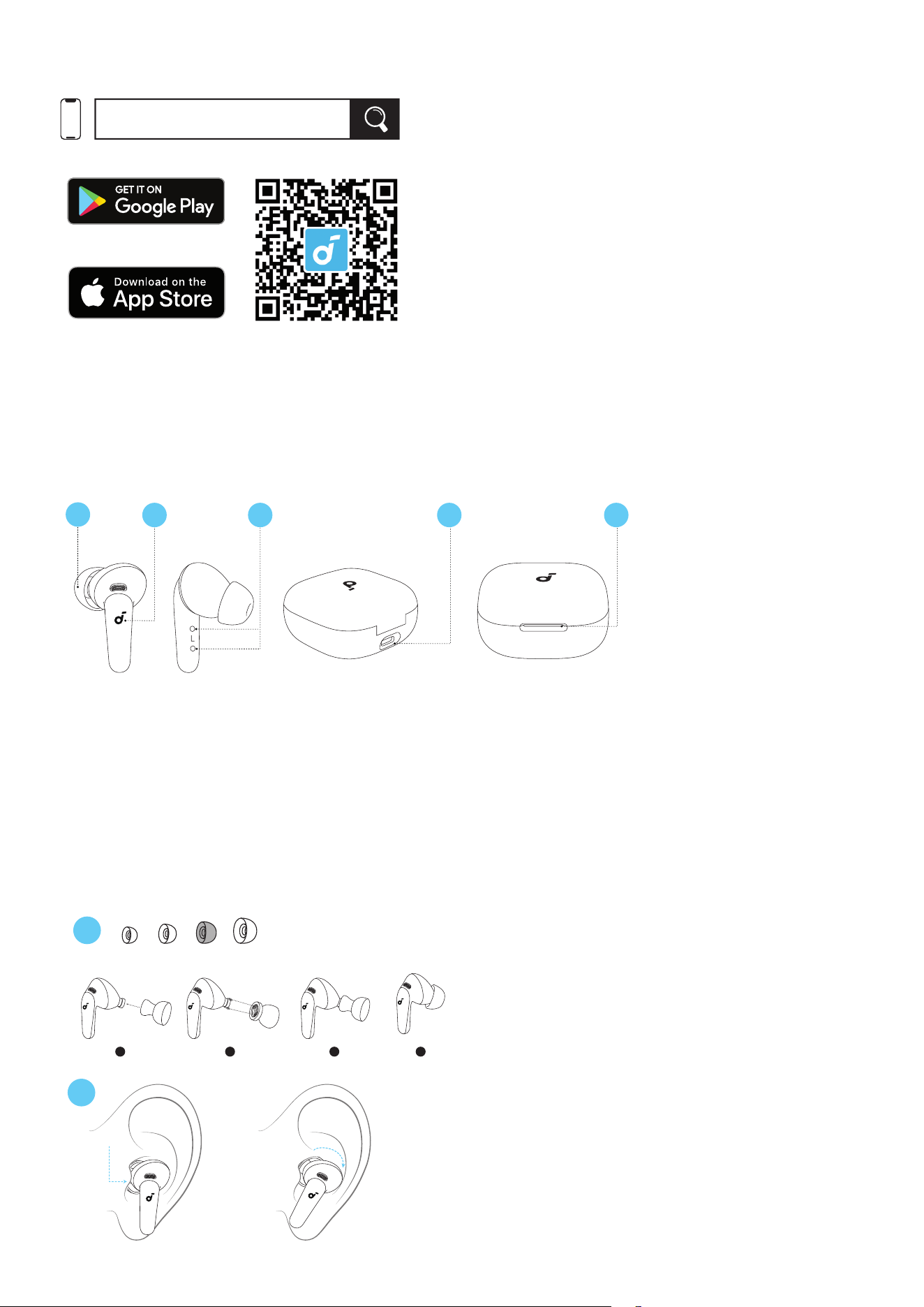
Download the soundcore app to experience ambient sound modes, EQ settings, Spatial Audio, LDAC, AI
Translation, HearID sound, firmware updates, and more exciting features.
If your earbuds cannot connect to the soundcore app, try re-installing the app or updating it to the
latest version available in your mobile app store.
OVERVIEW
1
2 3
4 5
1. Ear Tip
• M-sized ear tips come attached to the earbuds.
2. Touch Control Area
• Tap the control area on the earbud stems to manage dierent functions.
3. Earbud Charging Contacts
4. USB-C Charging Port
5. LED Light Strip
WEARING GUIDE
1 3
4
L
S M
XS
2
1
2
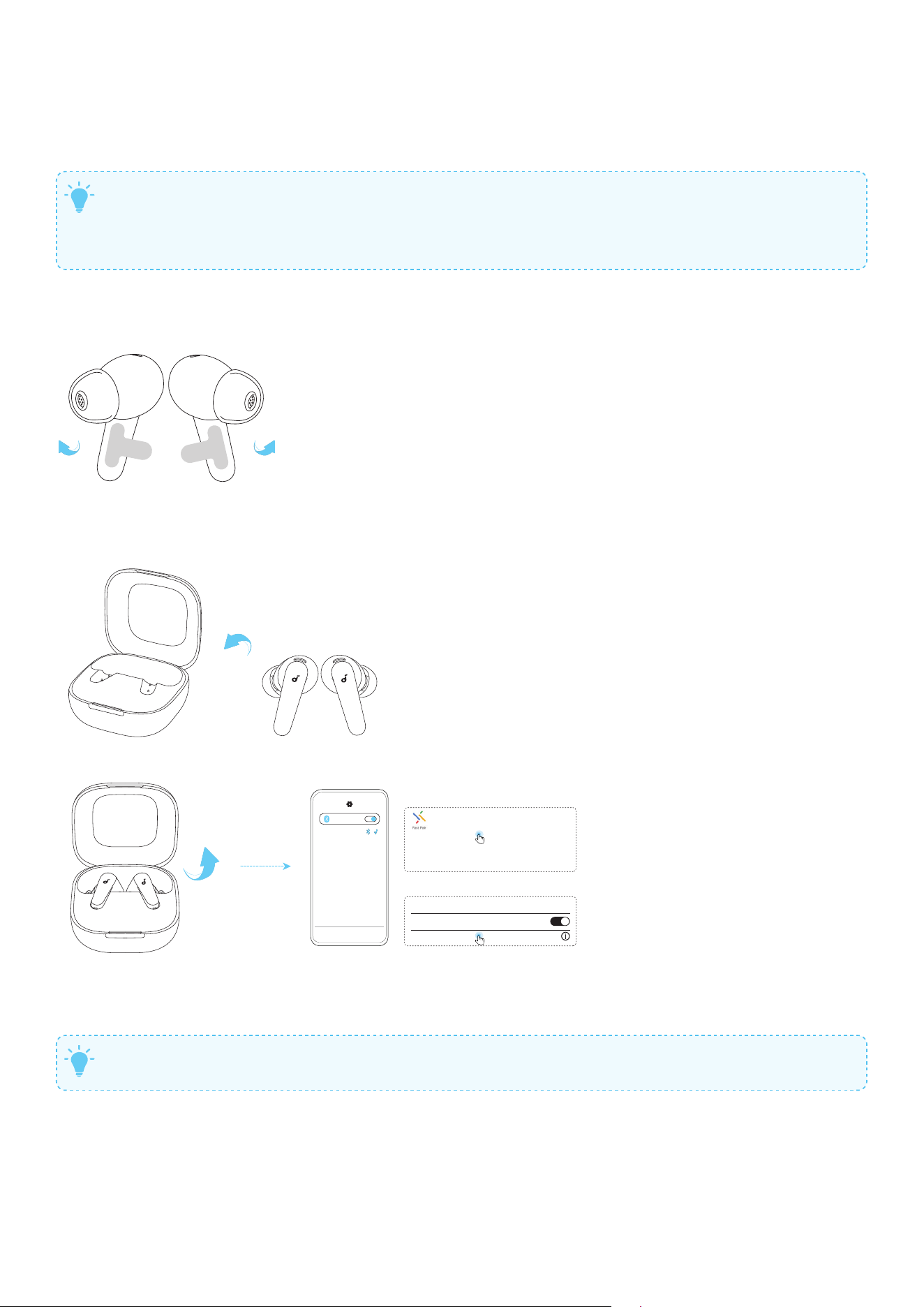
1. Try dierent ear tips for better fit, comfort, and stability.
Note: M-sized ear tips come attached to the earbuds.
2. Gently place the earbuds into your ear canal and rotate them for a snug fit.
3. Take a fit test in the soundcore app to ensure you get the best active noise cancelling peormance.
T
Dust, earwax, or other debris can accumulate in the earbuds. To maintain optimal sound quality,
regularly clean your earbuds. Use a cotton swab slightly moistened with rubbing alcohol to
gently wipe the metal mesh filter under the rubber ear tips. Ensure the alcohol on the metal
mesh filter has completely dried before using the earbuds again.
POWERING ON AND PAIRING
1. Remove the protective films on the earbuds.
1
2
soundcore P31i
Android 6.0+
Fast Pair
soundcore P31i
iOS & Others
soundcore P31i
Connected
Bluetooth
Bluetooth
<
Setting
Tap to pair. Device will be tied to Your
Google Account
2. Place the earbuds back in the charging case and close the case. Then open the lid. The earbuds will
automatically power on and enter Bluetooth pairing mode. Select "soundcore P31i / R60i NC" from
your device's Bluetooth list.
T
Product names vary in dierent sales regions.
Google Fast Pair Supported: Enjoy instant pairing with your Android smartphone (running Android 6.0 or
above) using Google Fast Pair.
DUAL CONNECTIONS & MANUAL PAIRING
3s
L R
1
2
soundcore P31i
soundcore P31i
soundcore P31i
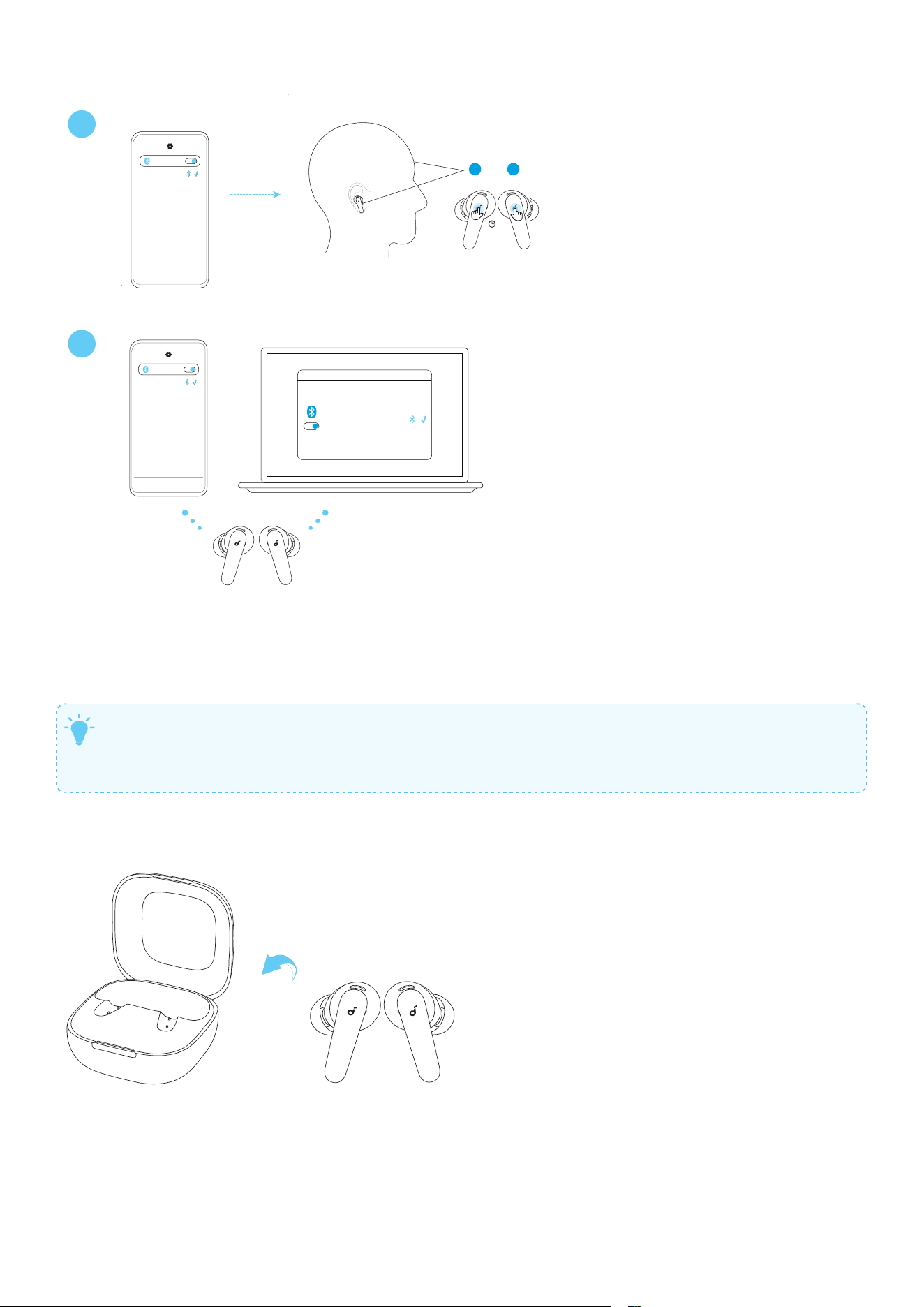
Dual Connections is enabled by default.
To connect a second device while one device is already connected, tap and hold the control area on
both earbud stems for 3 seconds until you hear a voice prompt indicating the earbuds are in pairing
mode. You can then proceed to pair with the second device.
T
Manual pairing and Dual Connections pairing follow the same procedure.
Dual Connections can be disabled in the soundcore app. Tap the gear icon in the upper-right
corner to access Settings, then tap the toggle switch for Dual Connections to turn it o.
CHARGING
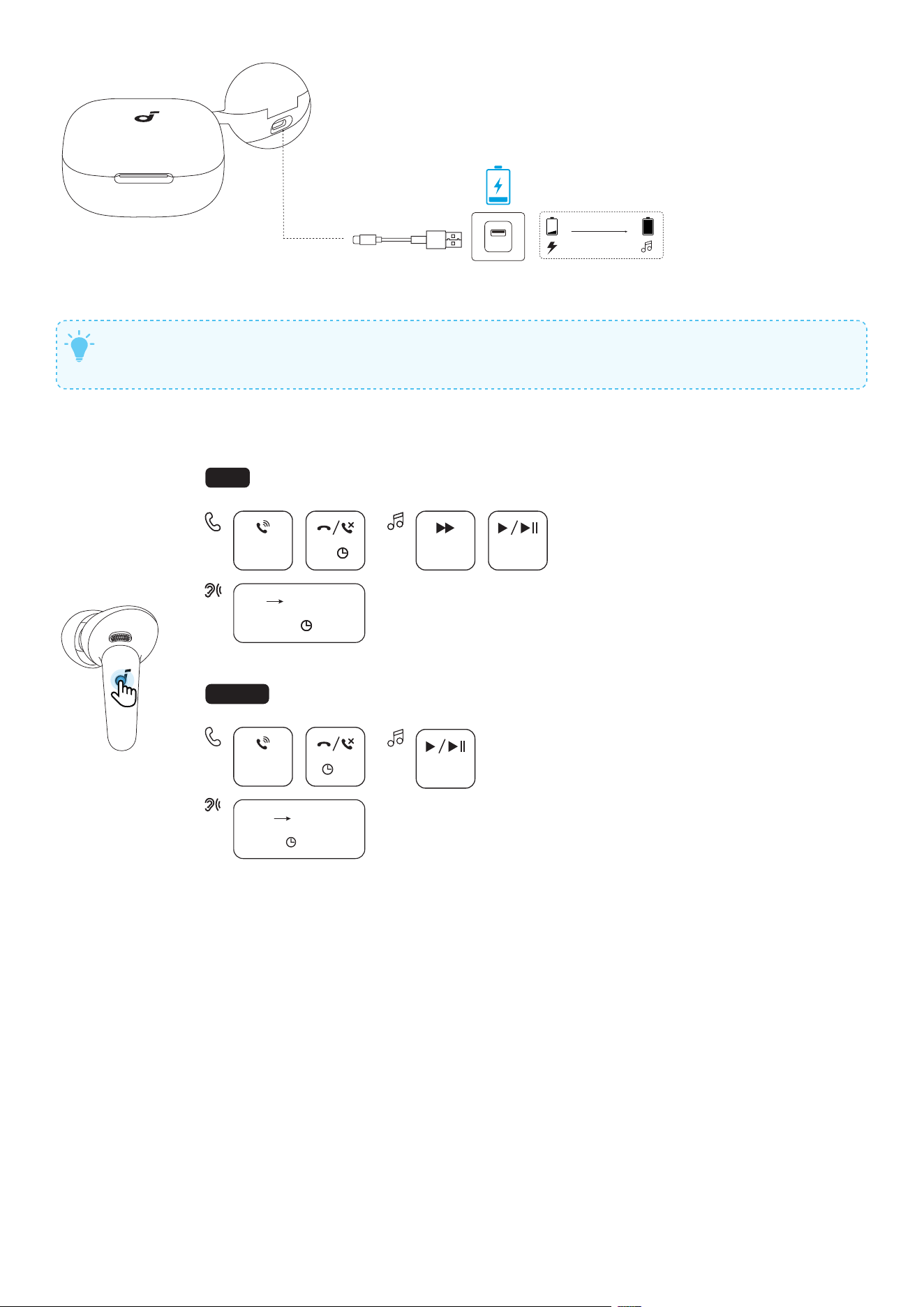
1. Place the earbuds in the charging case and close it.
Fully dry o the earbuds and the USB-C port before charging
10 m = 3.5 H
3 H
2. Connect the charging case to a power supply using the provided USB-C charging cable.
T
Fully charging the case with the earbuds inside takes about 3 hours via cable.
A quick 10-minute charge in the case gives the earbuds up to 3.5 hours of playtime.
CONTROLS
TWS
L
×2
R
×2
L/R
2s
L/R
×2
×2
2s
MONO
×2
L/R
2s
ANC Transparency
Normal Transparency
2s
AMBIENT SOUND
You can select from Noise Cancellation, Normal, or Transparency modes in the soundcore app.
• Noise Cancellation: Optimizes noise cancellation by adjusting to your ears and environment.
• Normal: Enjoy balanced sound without noise cancellation.
• Transparency: Stay aware of your surroundings while listening to music.
AI ASSISTANT
Before Use:
• Uninstall any previous versions of the soundcore app on your device and download the latest version.
• To use the AI assistant, download the soundcore app and keep it connected to your earbuds. On
Android devices, adjust system settings to allow the app to run in the background.
T
• The AI assistant prioritizes your privacy and data security.
• AI-generated responses are for reference only and may contain inaccuracies, especially
regarding political or sensitive topics. Please use your discretion.
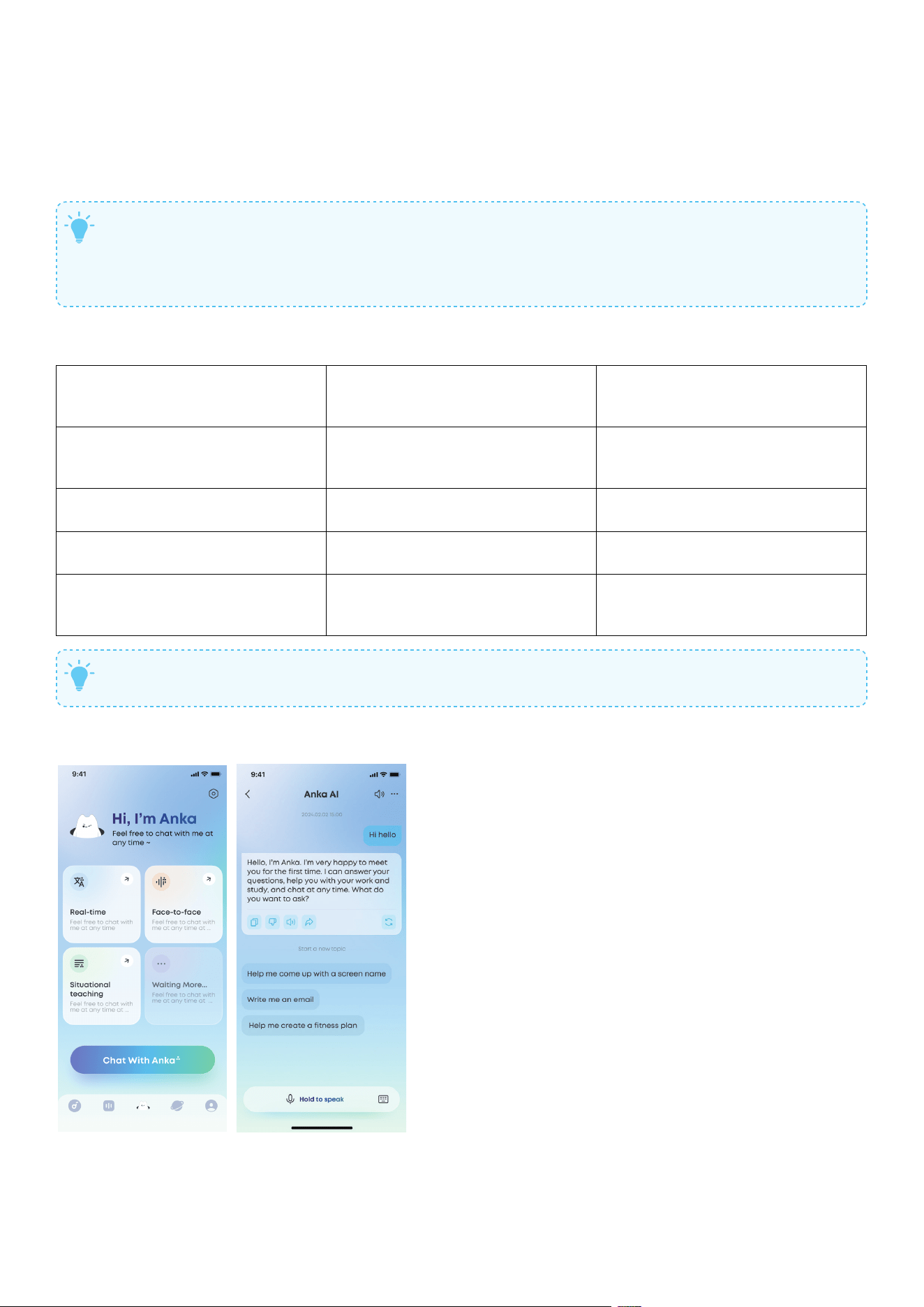
• The images provided are for illustration purposes only.
What Anka Can Do for You
Function What It Does
Example Command (Say
the following to Anka aer
activating with "Hey Anka")
Answering Questions
Acts as your portable
encyclopedia—ask any question
anytime.
"Why do giraes have such long
necks?"
Casual Conversation
Chats with you like a friend would
and helps you relax.
"Tell me a joke."
Information Aggregation
Provides you with daily news and
updates.
"Tell me the latest tech news for
today."
Information Lookup
Checks the weather, the latest
match scores, and more.
"What's the weather like in
New York today? Will I need an
umbrella when I go out?"
T
Some voice commands may not work due to app limitations.
How to Access the Feature
In the soundcore app, go to Anka Page > Chat With Anka.
AI TRANSLATION
T
Note: Feature paths and inteace visuals may change with soware updates. For the most
accurate guidance, please refer to your latest app version.
Before Use:
• Please upgrade to the latest version of the soundcore app and ensure that your earbuds are
connected to the app.
• Disable Dual Connections.
Real-Time Translation
In settings where you're exposed to content in a foreign language for extended periods (e.g., lectures,
classes), real-time translation delivers continuous text display and audio playback of the translated
content with almost no lag.
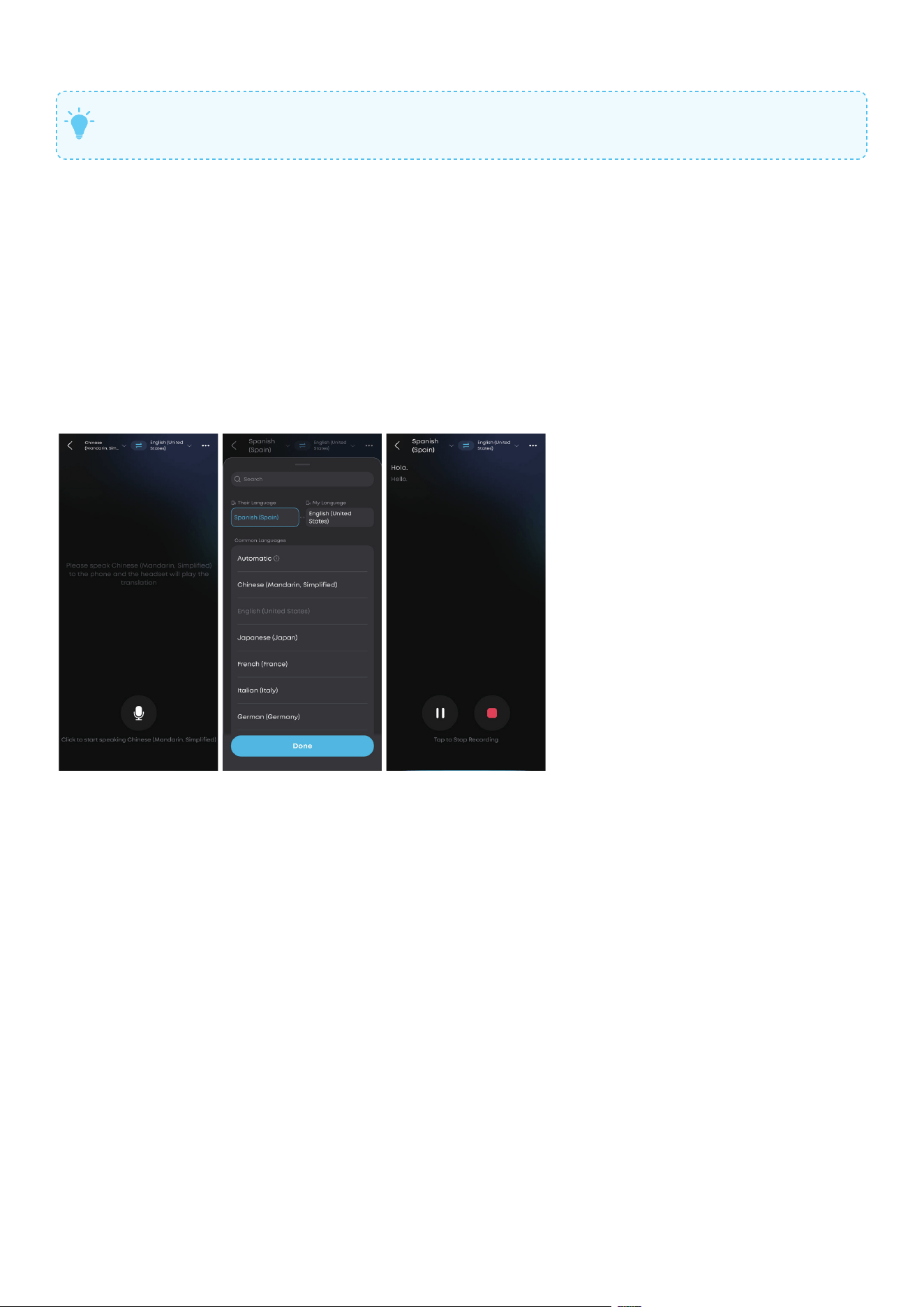
In the soundcore app, go to *Anka page*, then tap *Real-Time Translation*. Make sure your earbuds are
connected to the app.
1. Tap Real-Time Translation.
2. Tap the language section at the top of the page, then select Their Language and My Language.
3. Tap the microphone button to start recording.
Face-to-Face Translation
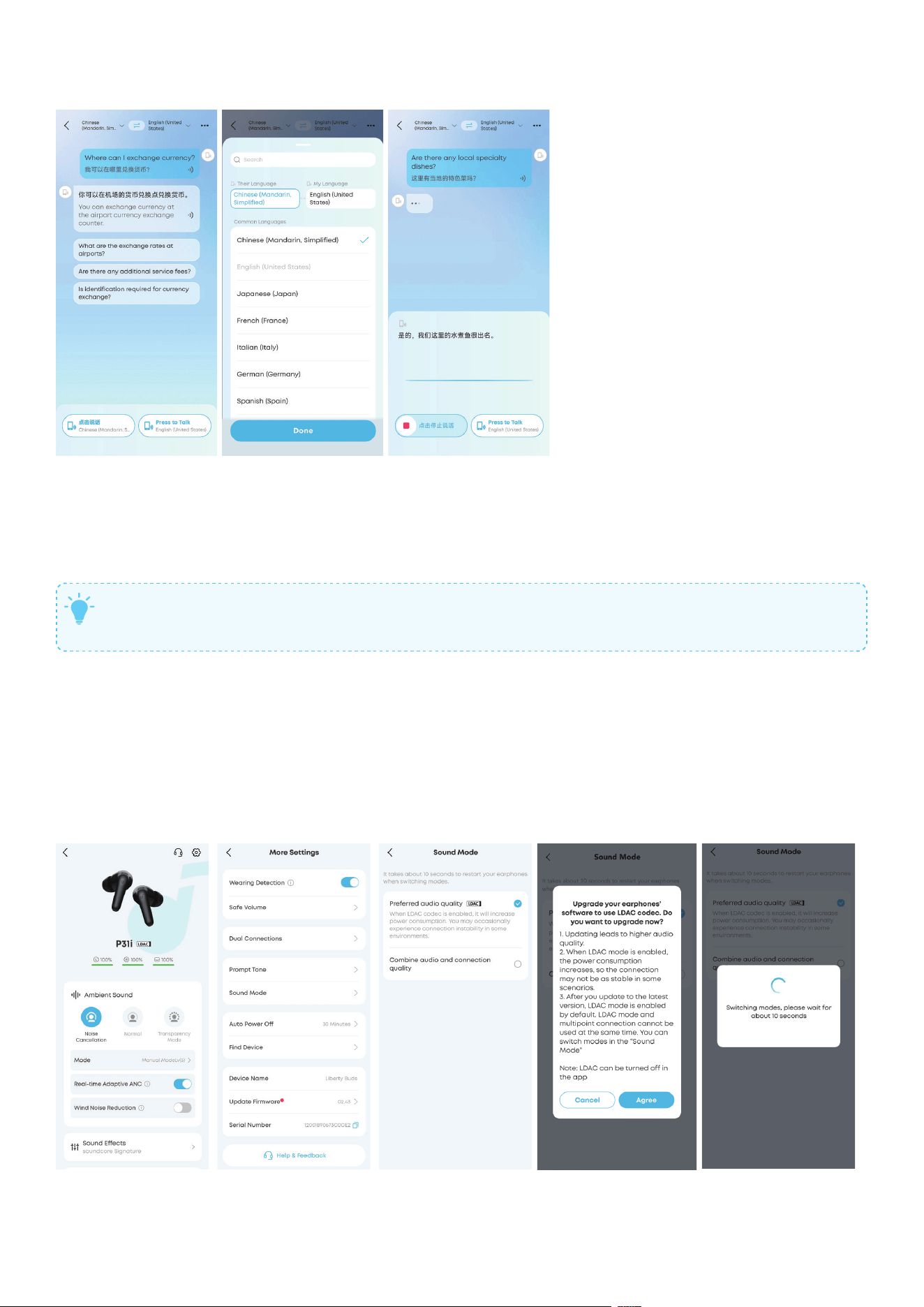
In the soundcore app, go to *Anka page*, then tap *Face-to-Face Translation*.
When your earbuds are connected to the app, follow the steps below to try out Face-to-Face
Translation.
1. Tap the language section at the top of the page, then select Their Language and My Language.
2. Tap the bottom-right button and speak into your earbuds. The translation will play from your phone.
3. Tap the bottom-le button and speak into your phone. The translation will play from your earbuds.
T
This feature works even if your earbuds aren’t connected to the app. Just speak into your
phone, and the translation will play through its speaker.
LDAC
To use the LDAC codec, your device must be running Android 8.0 or higher.
LDAC oers higher sound quality but uses more power, which may reduce battery life.
For a stable Bluetooth connection, enable LDAC in low-inteerence environments.
Note: UI images are for illustrative purposes only; actual display may vary by soware version. LDAC is
only available on Android devices.
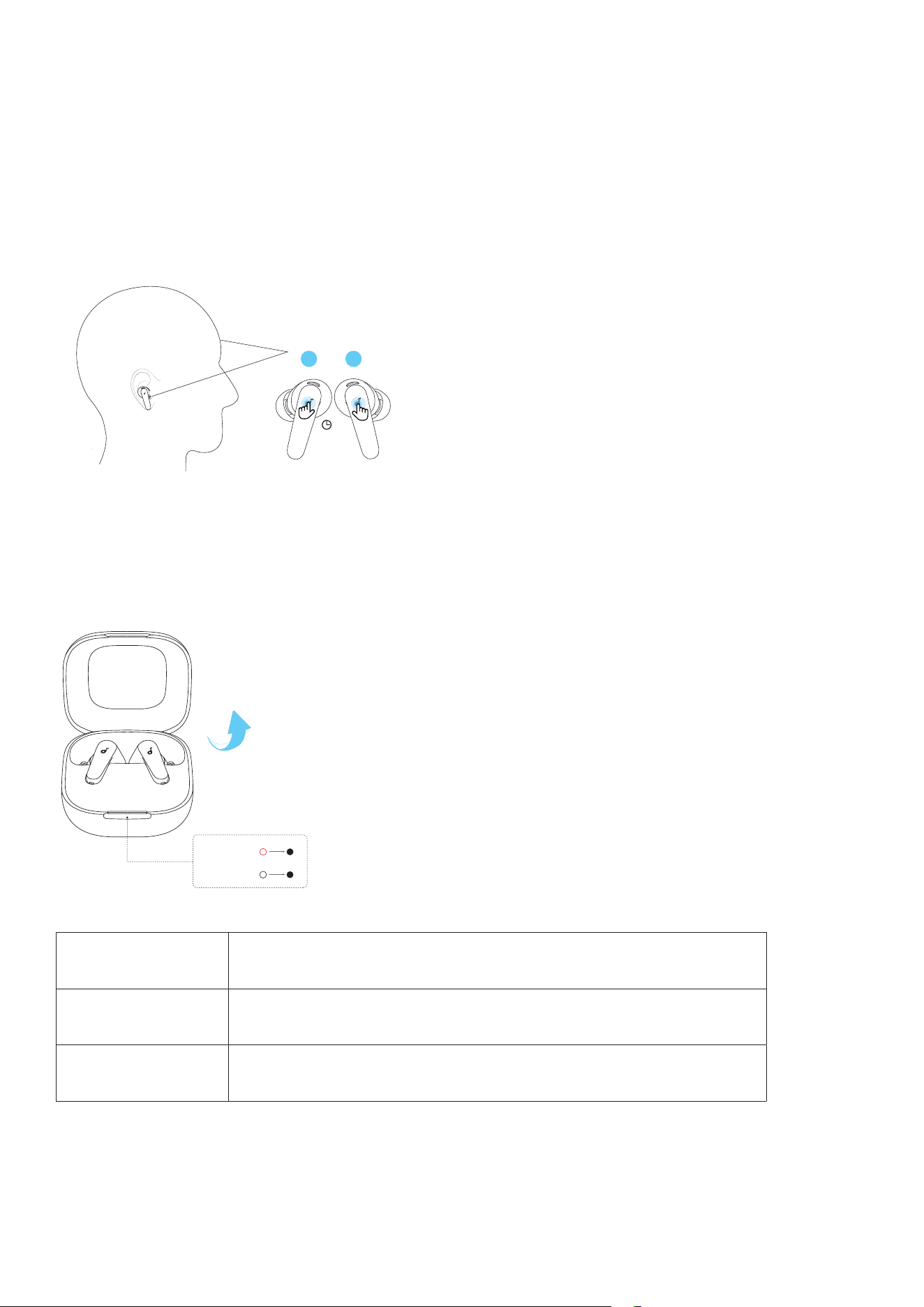
In the soundcore app:
1. Select Sound Mode.
2. Tap Preferred audio quality.
3. Tap Agree to proceed.
4. Switching audio codecs takes about 10 seconds. You may be prompted to update the firmware if a
new version is available.
RESET
10s
L R
You might need to reset the earbuds if you experience connectivity issues.
Tap and hold the touch control area on both earbuds for 10 seconds until you hear a prompt tone.
LED BEHAVIOR
Check the Battery Level
5s
5s
≤ 20%
> 20%
The LED light strip shows the battery level whenever you open the charging case.
Battery Level LED Behavior
0-20% The LED light strip turns solid red for 5 seconds and then goes o.
20-100% The LED light strip turns solid white for 5 seconds and then goes o.
Charging
5 mins
≤ 20%
20-100%
20-100%
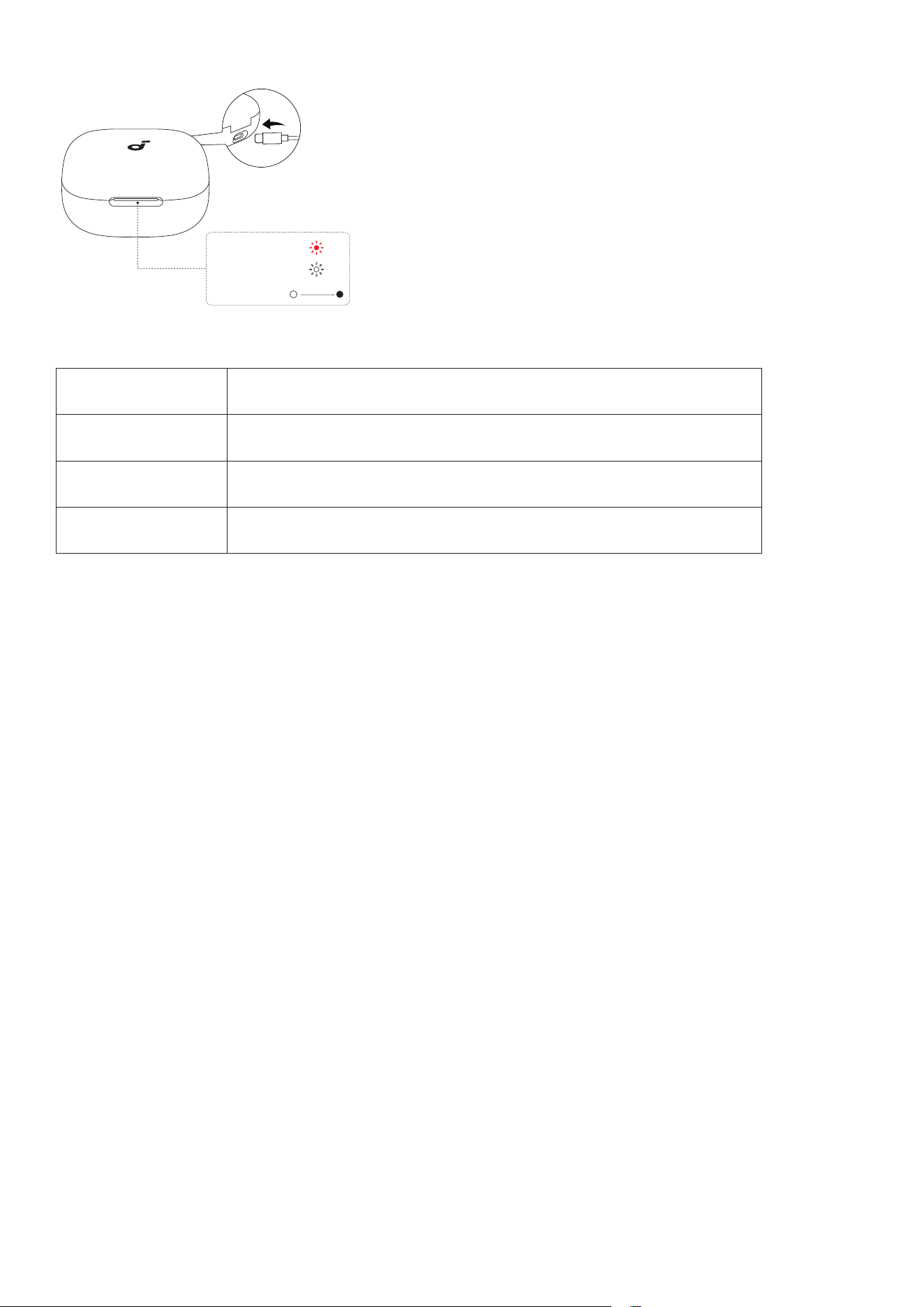
When charging, the LED behavior varies as the battery reaches dierent levels.
Battery Level LED Behavior
0-20% The LED light strip breathes red.
20-100% The LED light strip breathes white.
100% The LED light strip turns solid white for 5 minutes and then goes o.
FIRMWARE UPDATE
When you connect your earbuds to the app, you’ll be informed if a new firmware version is available.
Ensure the earbuds are placed in the charging case and the lid remains open until the firmware update
is complete. During the update, ensure the earbuds are being charged and refrain from using them.
SPECS
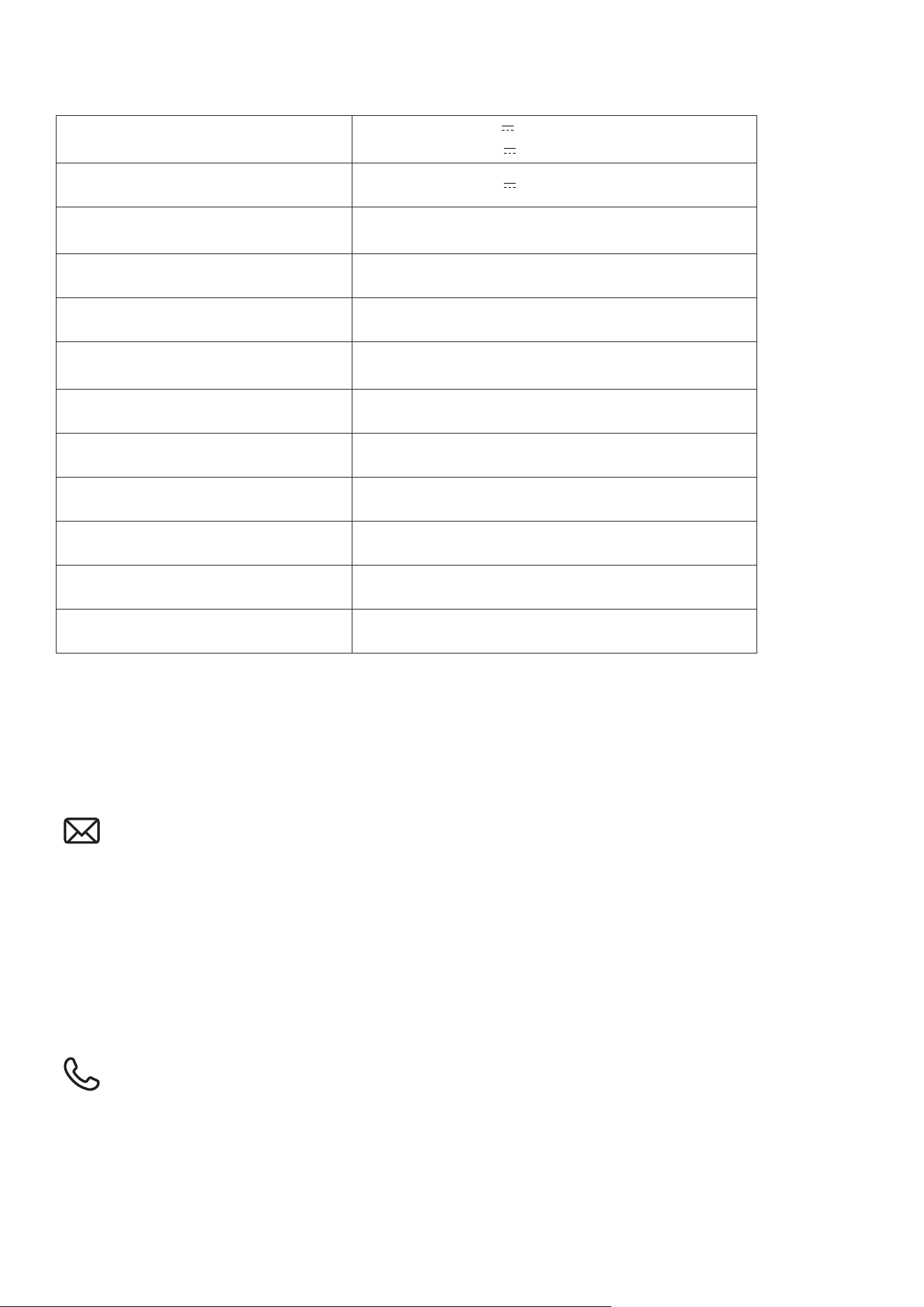
Specifications are subject to change without notice.
Input
Earbud (Single): 5V 0.18A
Charging Case: 5V 0.5A
Output Charging Case: 5V 0.36A
Battery Capacity
Earbud (Single): 60mAh
Charging Case: 800mAh
Playtime (with ANC O) 10H / 50H
Playtime (with ANC On) 8H / 40H
Charging Time
Full Charging Time for Earbuds: 1H
Full Charging Time for Charging Case: 3H
Driver Unit
11 mm
Frequency Response 20~20kHz
Impedance 14.2 Ω
Waterproof & Dustproof Rating
(Earbuds Only)
IP55
Bluetooth Version 6.1
Bluetooth Range 10 m
CUSTOMER SERVICE
service@soundcore.com
uk.support@soundcore.com (UK)
ie.support@soundcore.com (Ireland)
support.india@anker.com (India)
support.mea@anker.com (For Middle East and Africa Only)
support@anker.com (
日本
)
support.kr@anker.com (
한국
)
ced-cn@anker.com (
中国
)
+1 (800) 988-7973 (US/Canada)
+44 (0) 1604 936 200 (UK)
+49 (0) 69 9579 7960 (DE)
03 4455 7823 (
日本
)
+86 400 0550 036 (
中国
)
+82 1666-8470 (
한국
)
+971 8000 320 817 (UAE)
+966 8008 500 030 (KSA)
+965 22069086 (Kuwait)
+20 8000 000 826 (Egypt)
+90 (850) 460 1414 (Türkiye)
+91 8000 504 414 (India)

Note: The 'x' of SN Code: xxxxxxxxxxxxxxxx is a variable, see below table.
Variable 'x' Range of variable Content
Eighth 0-9 or A-F
Denotes the hardware version which is not eected on the
safety compliance.
Ninth 8,9,A,B,C...
Denotes the year, 8 means 2018, 9 means 2019, A means 2020, B
means 2021, C means 2022, and so on.
Tenth and
Eleventh
01,02,03...
Denotes weeks, 01 means the first week in this year, 02 means
the secondary week in this year, and so on.
Twelh 1-7
Denotes date, 1 means Monday, 2 means Tuesday..., 7 means
Sunday and so on.
The last five 00001-99999 Denotes serial No.
Hereby, Anker Innovations Limited declares that this device is in compliance with The Product Security
and Telecommunications Infrastructure (Security Requirements for Relevant Connectable Products)
Regulations 2023. For the Statement of Compliance, visit the website:
https://uk.soundcore.com/pages/psti-related.
Default Open Port: Classic Bluetooth
Port Description: Aer the device is powered on, Classic Bluetooth visibility (or pairing mode) is
automatically enabled, providing Bluetooth pairing (or control) services. The Bluetooth service is
disabled when the device is powered o.