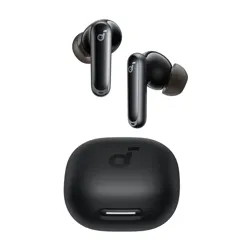
soundcore P
41
i
(
With Lightning Adapter
)
soundcore P
41
i
(
Without Lightning Adapter
)
soundcore P
41
i
(
With Lightning Adapter
)
APP
Download the soundcore app to explore the ambient sound features
,
EQ settings
,
HearID sound
,
firmware updates
,
and other exciting
features
.
If your earbuds cannot connect to the soundcore app
,
try re
-
installing the app or updating it to the latest version available in your mobile app
store
.
OVERVIEW
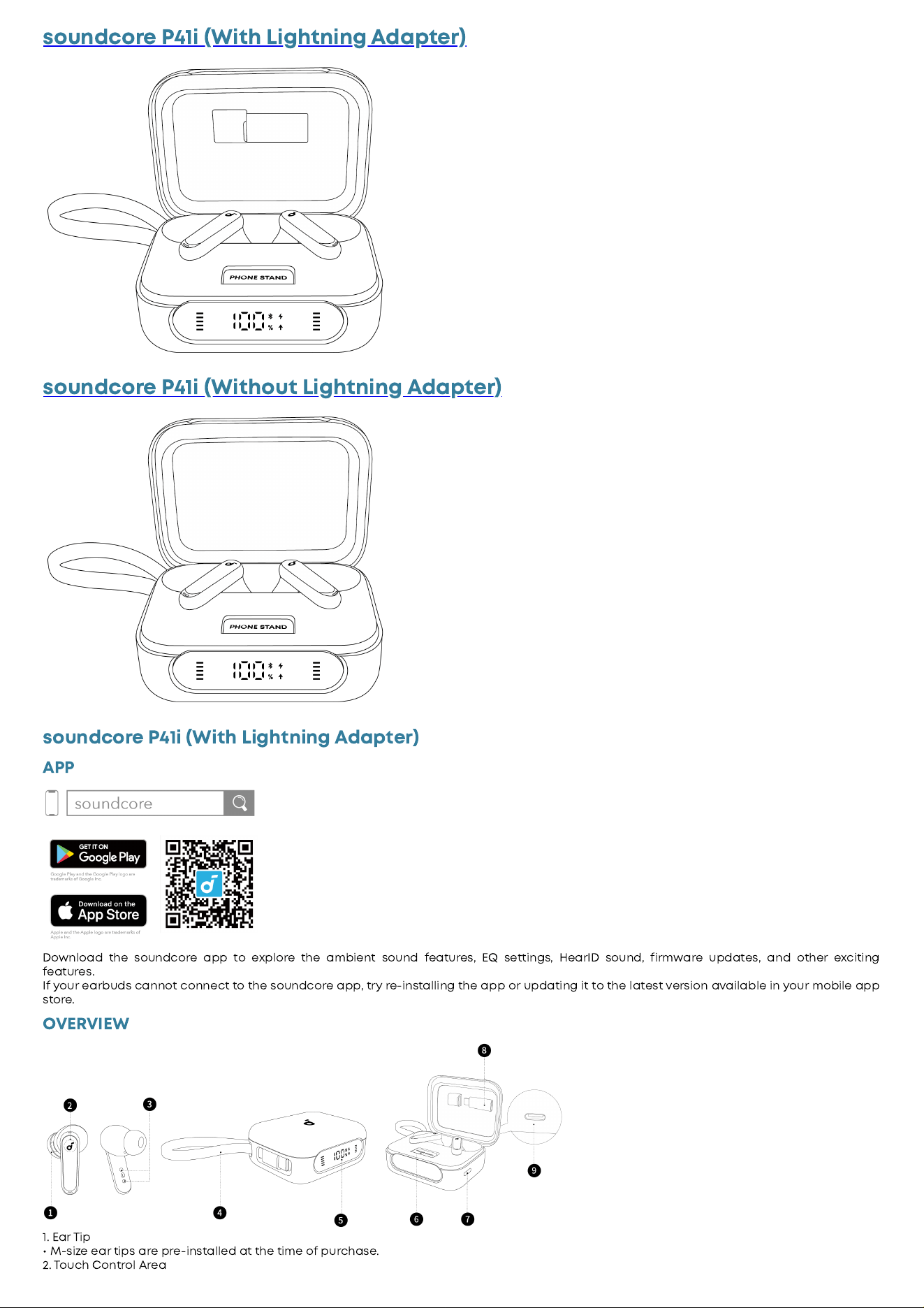
1
.
Ear Tip
•
M
-
si
z
e ear tips are pre
-
installed at the time of purchase
.
2
.
Touch Control Area
•
Tap the control area on the earbud stems to manage di
erent functions
.
3
.
Charging Contacts
4
.
Built
-
in Type
-
C Cable
5
.
LED Display
6
.
Phone Stand
7
.
Charging Case Button
8.
Lightning Converter
9.
USB
-
C Charging Port
•
Charge the case via a USB
-
A to USB
-
C or USB
-
C to USB
-
C cable
(
not included
)
.
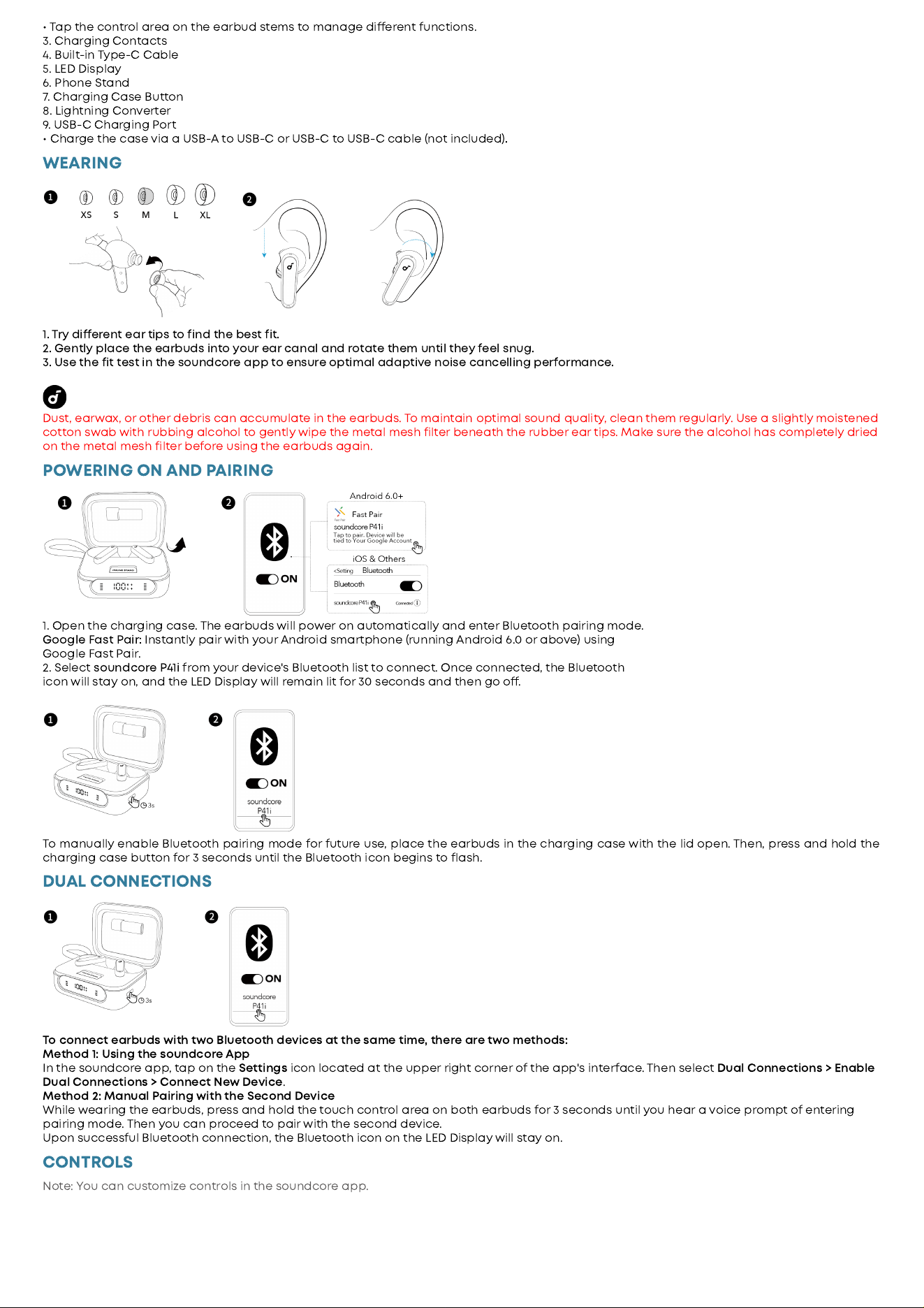
WEARING
1
.
Try di
erent ear tips to find the best fit
.
2
.
Gently place the earbuds into your ear canal and rotate them until they feel snug
.
3
.
Use the fit test in the soundcore app to ensure optimal adaptive noise cancelling pe
ormance
.
Dust
,
earwax
,
or other debris can accumulate in the earbuds
.
To maintain optimal sound quality
,
clean them regularly
.
Use a slightly moistened
cotton swab with rubbing alcohol to gently wipe the metal mesh filter beneath the rubber ear tips
.
Make sure the alcohol has completely dried
on the metal mesh filter before using the earbuds again
.
POWERING ON AND PAIRING
1
.
Open the charging case
.
The earbuds will power on automatically and enter Bluetooth pairing mode
.
Google Fast Pair
:
Instantly pair with your Android smartphone
(
running Android
6
.
0
or above
)
using
Google Fast Pair
.
2
.
Select
soundcore P
41
i
from your device
'
s Bluetooth list to connect
.
Once connected
,
the Bluetooth
icon will stay on
,
and the LED Display will remain lit for
30
seconds and then go o
.
To manually enable Bluetooth pairing mode for future use
,
place the earbuds in the charging case with the lid open
.
Then
,
press and hold the
charging case button for
3
seconds until the Bluetooth icon begins to flash
.
DUAL CONNECTIONS
To connect earbuds with two Bluetooth devices at the same time
,
there are two methods
:
Method
1
:
Using the soundcore App
In the soundcore app
,
tap on the
Settings
icon located at the upper right corner of the app
'
s inte
ace
.
Then select
Dual Connections
>
Enable
Dual Connections
>
Connect New Device
.
Method
2
:
Manual Pairing with the Second Device
While wearing the earbuds
,
press and hold the touch control area on both earbuds for
3
seconds until you hear a voice prompt of entering
pairing mode
.
Then you can proceed to pair with the second device
.
Upon successful Bluetooth connection
,
the Bluetooth icon on the LED Display will stay on
.
CONTROLS
Note
:
You can customi
z
e controls in the soundcore app
.
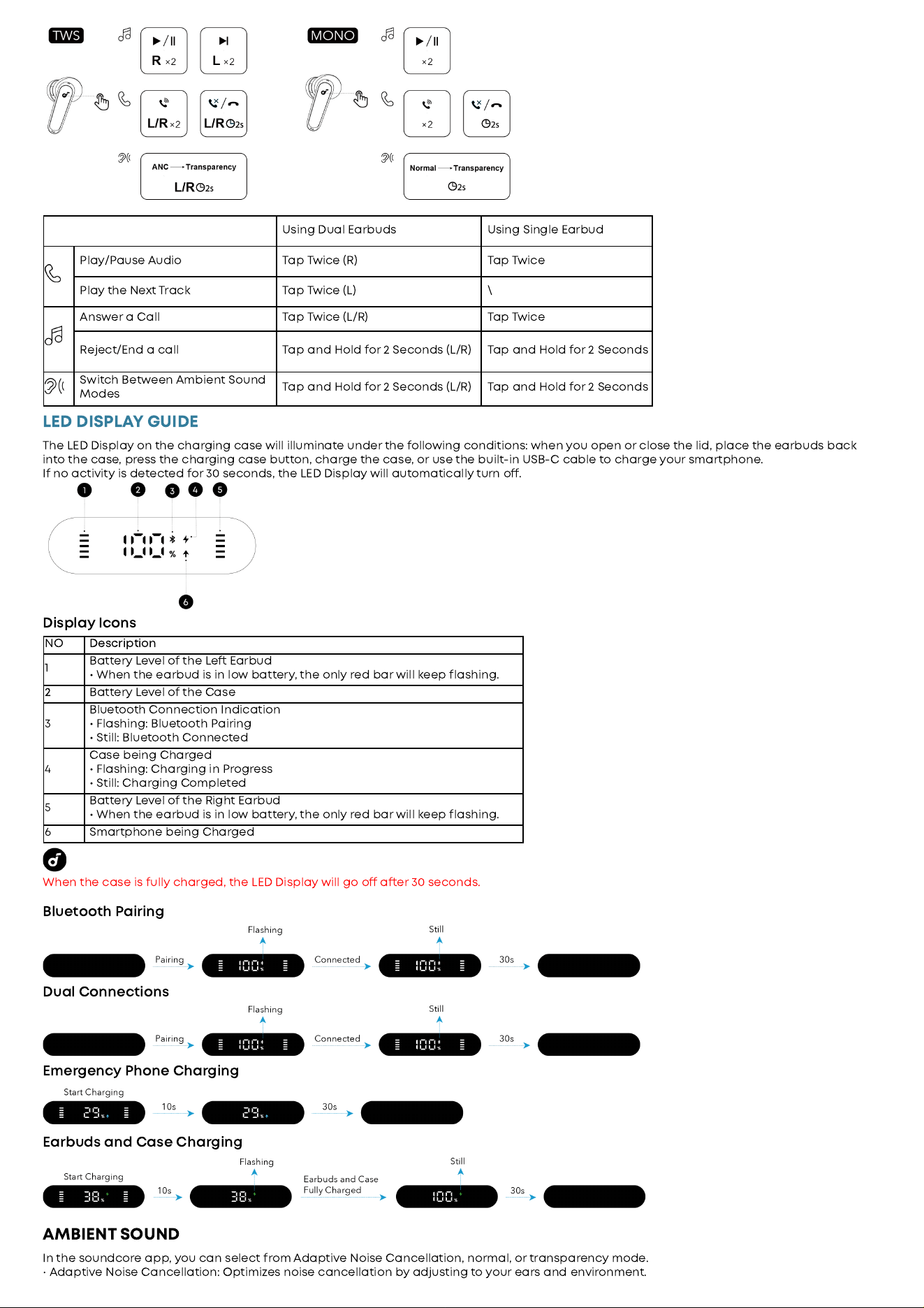
Using Dual Earbuds Using Single Earbud
Play
/
Pause Audio Tap Twice
(
R
)
Tap Twice
Play the Next Track Tap Twice
(
L
) \
Answer a Call Tap Twice
(
L
/
R
)
Tap Twice
Reject
/
End a call Tap and Hold for
2
Seconds
(
L
/
R
)
Tap and Hold for
2
Seconds
Switch Between Ambient Sound
Modes
Tap and Hold for
2
Seconds
(
L
/
R
)
Tap and Hold for
2
Seconds
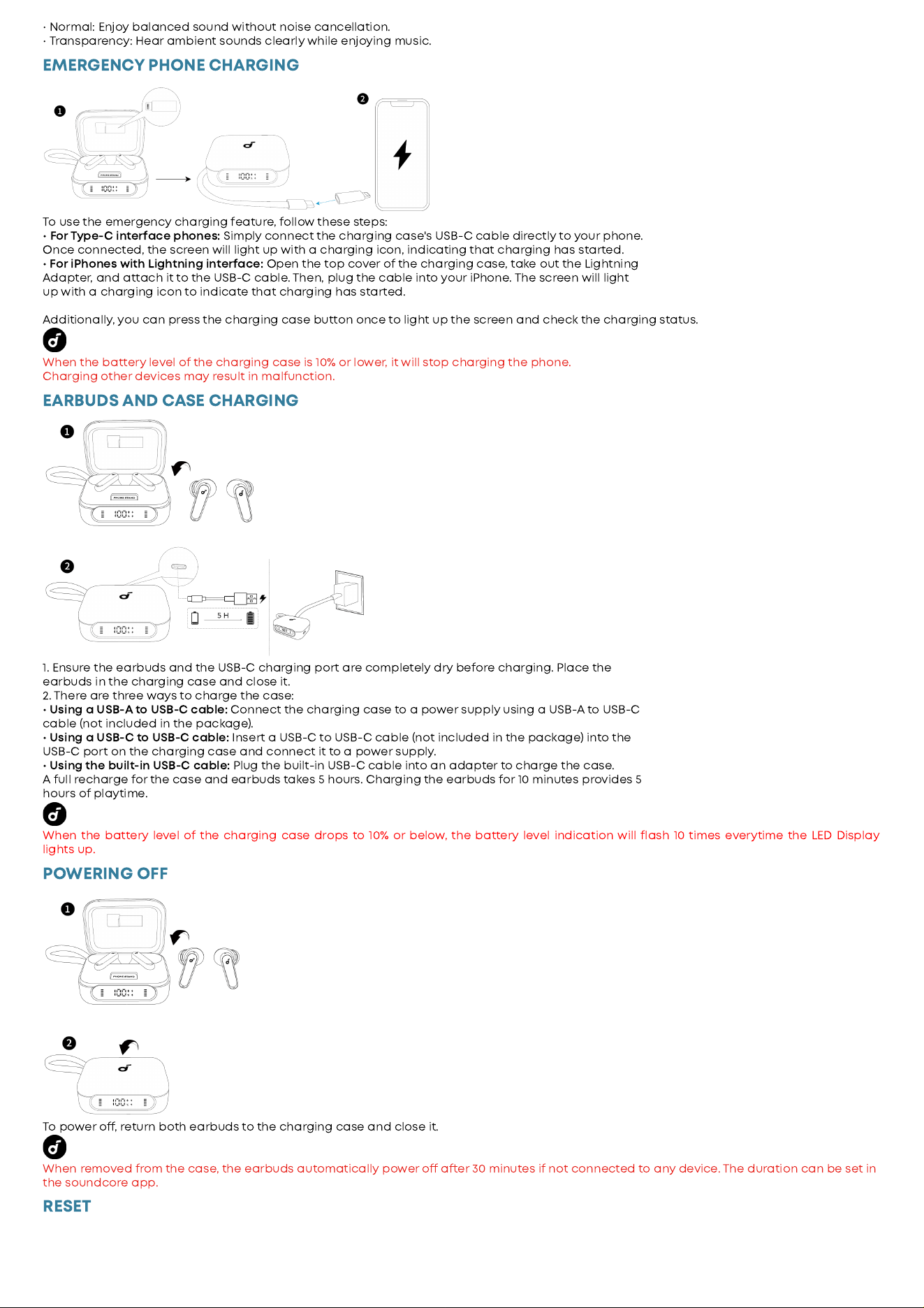
LED DISPLAY GUIDE
The LED Display on the charging case will illuminate under the following conditions
:
when you open or close the lid
,
place the earbuds back
into the case
,
press the charging case button
,
charge the case
,
or use the built
-
in USB
-
C cable to charge your smartphone
.
If no activity is detected for
30
seconds
,
the LED Display will automatically turn o
.
Display Icons
NO
Description
1
Battery Level of the Le
Earbud
•
When the earbud is in low battery
,
the only red bar will keep flashing
.
2
Battery Level of the Case
3
Bluetooth Connection Indication
•
Flashing
:
Bluetooth Pairing
•
Still
:
Bluetooth Connected
4
Case being Charged
•
Flashing
:
Charging in Progress
•
Still
:
Charging Completed
5
Battery Level of the Right Earbud
•
When the earbud is in low battery
,
the only red bar will keep flashing
.
6
Smartphone being Charged
When the case is fully charged
,
the LED Display will go o
a
er
30
seconds
.
Bluetooth Pairing
Dual Connections
Emergency Phone Charging
Earbuds and Case Charging
AMBIENT SOUND
In the soundcore app
,
you can select from Adaptive Noise Cancellation
,
normal
,
or transparency mode
.
•
Adaptive Noise Cancellation
:
Optimi
z
es noise cancellation by adjusting to your ears and environment
.
•
Normal
:
Enjoy balanced sound without noise cancellation
.
•
Transparency
:
Hear ambient sounds clearly while enjoying music
.
EMERGENCY PHONE CHARGING
To use the emergency charging feature
,
follow these steps
:
•
For Type
-
C inte
ace phones
:
Simply connect the charging case
'
s USB
-
C cable directly to your phone
.
Once connected
,
the screen will light up with a charging icon
,
indicating that charging has started
.
•
For iPhones with Lightning inte
ace
:
Open the top cover of the charging case
,
take out the Lightning
Adapter
,
and attach it to the USB
-
C cable
.
Then
,
plug the cable into your iPhone
.
The screen will light
up with a charging icon to indicate that charging has started
.
Additionally
,
you can press the charging case button once to light up the screen and check the charging status
.
When the battery level of the charging case is
10
%
or lower
,
it will stop charging the phone
.
Charging other devices may result in malfunction
.
EARBUDS AND CASE CHARGING
1
.
Ensure the earbuds and the USB
-
C charging port are completely dry before charging
.
Place the
earbuds in the charging case and close it
.
2
.
There are three ways to charge the case
:
•
Using a USB
-
A to USB
-
C cable
:
Connect the charging case to a power supply using a USB
-
A to USB
-
C
cable
(
not included in the package
).
•
Using a USB
-
C to USB
-
C cable
:
Insert a USB
-
C to USB
-
C cable
(
not included in the package
)
into the
USB
-
C port on the charging case and connect it to a power supply
.
•
Using the built
-
in USB
-
C cable
:
Plug the built
-
in USB
-
C cable into an adapter to charge the case
.
A full recharge for the case and earbuds takes
5
hours
.
Charging the earbuds for
10
minutes provides
5
hours of playtime
.
When the battery level of the charging case drops to
10
%
or below
,
the battery level indication will flash
10
times everytime the LED Display
lights up
.
POWERING OFF
To power o
,
return both earbuds to the charging case and close it
.
When removed from the case
,
the earbuds automatically power o
a
er
30
minutes if not connected to any device
.
The duration can be set in
the soundcore app
.
RESET
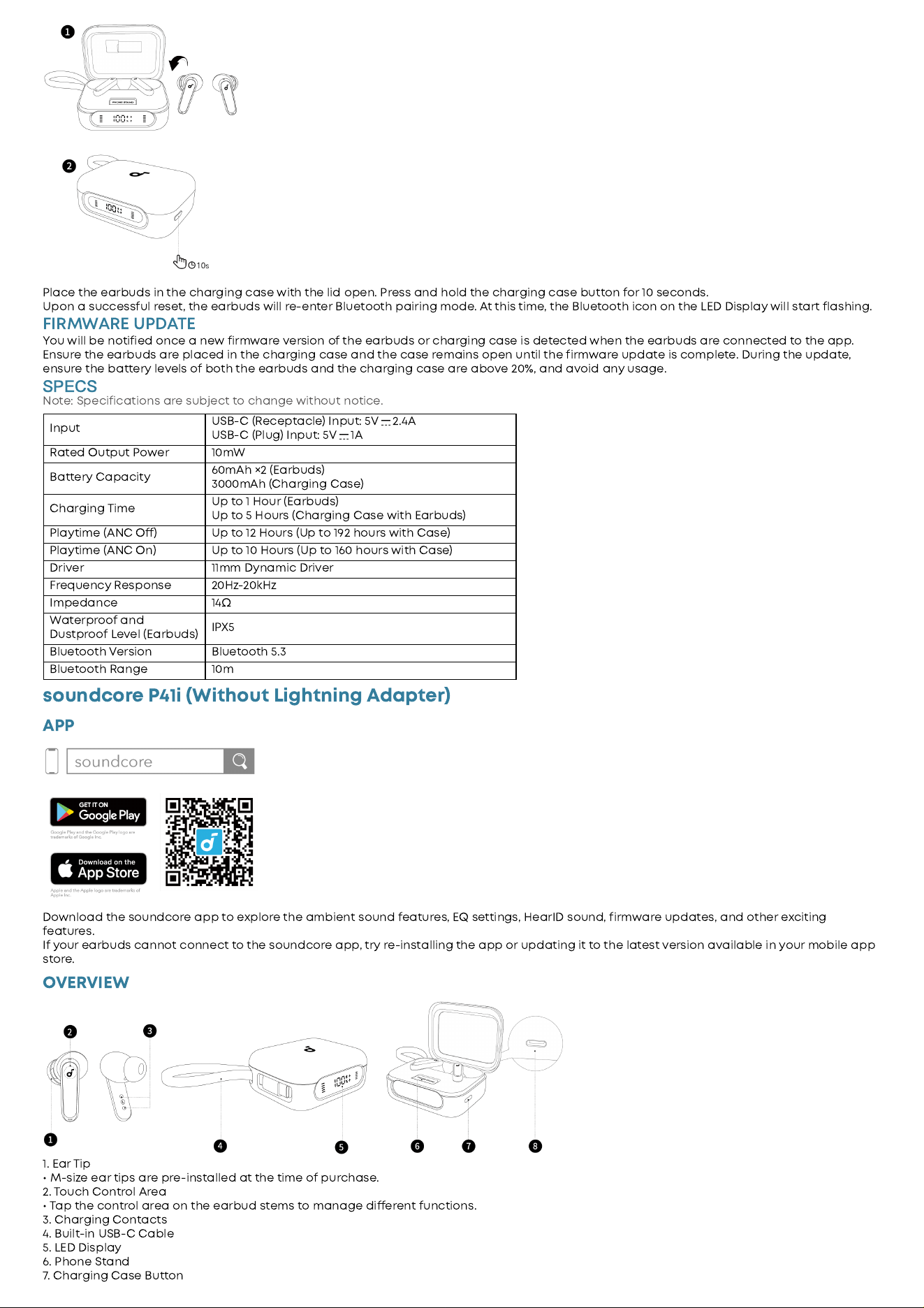
Place the earbuds in the charging case with the lid open
.
Press and hold the charging case button for
10
seconds
.
Upon a successful reset
,
the earbuds will re
-
enter Bluetooth pairing mode
.
At this time
,
the Bluetooth icon on the LED Display will start flashing
.
FIRMWARE UPDATE
You will be notified once a new firmware version of the earbuds or charging case is detected when the earbuds are connected to the app
.
Ensure the earbuds are placed in the charging case and the case remains open until the firmware update is complete
.
During the update
,
ensure the battery levels of both the earbuds and the charging case are above
20
%,
and avoid any usage
.
SPECS
Note
:
Specifications are subject to change without notice
.
Input
USB
-
C
(
Receptacle
)
Input
:
5
V
2
.
4
A
USB
-
C
(
Plug
)
Input
:
5
V
1
A
Rated Output Power
10
mW
Battery Capacity
60
mAh
×
2
(
Earbuds
)
3000
mAh
(
Charging Case
)
Charging Time
Up to
1
Hour
(
Earbuds
)
Up to
5
Hours
(
Charging Case with Earbuds
)
Playtime
(
ANC O
)
Up to
12
Hours
(
Up to
1
9
2
hours with Case
)
Playtime
(
ANC On
)
Up to
10
Hours
(
Up to
160
hours with Case
)
Driver
11
mm Dynamic Driver
Frequency Response
20
H
z
-
20
kH
z
Impedance
14Ω
Waterproof and
Dustproof Level
(
Earbuds
)
IPX
5
Bluetooth Version Bluetooth
5
.
3
Bluetooth Range
10
m
soundcore P
41
i
(
Without Lightning Adapter
)
APP
Download the soundcore app to explore the ambient sound features
,
EQ settings
,
HearID sound
,
firmware updates
,
and other exciting
features
.
If your earbuds cannot connect to the soundcore app
,
try re
-
installing the app or updating it to the latest version available in your mobile app
store
.
OVERVIEW
1
.
Ear Tip
•
M
-
si
z
e ear tips are pre
-
installed at the time of purchase
.
2
.
Touch Control Area
•
Tap the control area on the earbud stems to manage di
erent functions
.
3
.
Charging Contacts
4
.
Built
-
in USB
-
C Cable
5
.
LED Display
6
.
Phone Stand
7
.
Charging Case Button
8.
USB
-
C Charging Port
•
Charge the case via a USB
-
A to USB
-
C cable
(
not supplied
).
WEARING
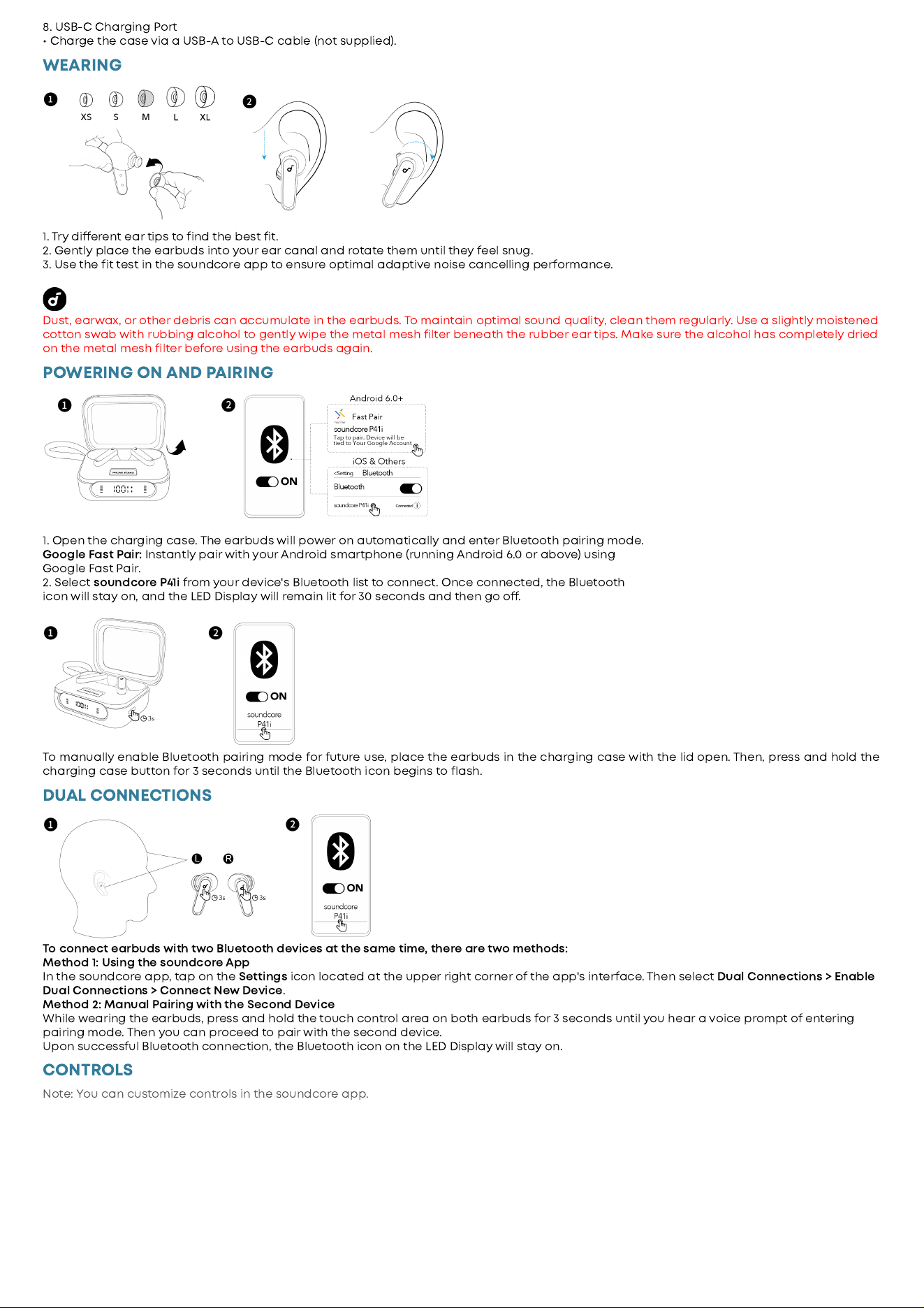
1
.
Try di
erent ear tips to find the best fit
.
2
.
Gently place the earbuds into your ear canal and rotate them until they feel snug
.
3
.
Use the fit test in the soundcore app to ensure optimal adaptive noise cancelling pe
ormance
.
Dust
,
earwax
,
or other debris can accumulate in the earbuds
.
To maintain optimal sound quality
,
clean them regularly
.
Use a slightly moistened
cotton swab with rubbing alcohol to gently wipe the metal mesh filter beneath the rubber ear tips
.
Make sure the alcohol has completely dried
on the metal mesh filter before using the earbuds again
.
POWERING ON AND PAIRING
1
.
Open the charging case
.
The earbuds will power on automatically and enter Bluetooth pairing mode
.
Google Fast Pair
:
Instantly pair with your Android smartphone
(
running Android
6
.
0
or above
)
using
Google Fast Pair
.
2
.
Select
soundcore P
41
i
from your device
'
s Bluetooth list to connect
.
Once connected
,
the Bluetooth
icon will stay on
,
and the LED Display will remain lit for
30
seconds and then go o
.
To manually enable Bluetooth pairing mode for future use
,
place the earbuds in the charging case with the lid open
.
Then
,
press and hold the
charging case button for
3
seconds until the Bluetooth icon begins to flash
.
DUAL CONNECTIONS
To connect earbuds with two Bluetooth devices at the same time
,
there are two methods
:
Method
1
:
Using the soundcore App
In the soundcore app
,
tap on the
Settings
icon located at the upper right corner of the app
'
s inte
ace
.
Then select
Dual Connections
>
Enable
Dual Connections
>
Connect New Device
.
Method
2
:
Manual Pairing with the Second Device
While wearing the earbuds
,
press and hold the touch control area on both earbuds for
3
seconds until you hear a voice prompt of entering
pairing mode
.
Then you can proceed to pair with the second device
.
Upon successful Bluetooth connection
,
the Bluetooth icon on the LED Display will stay on
.
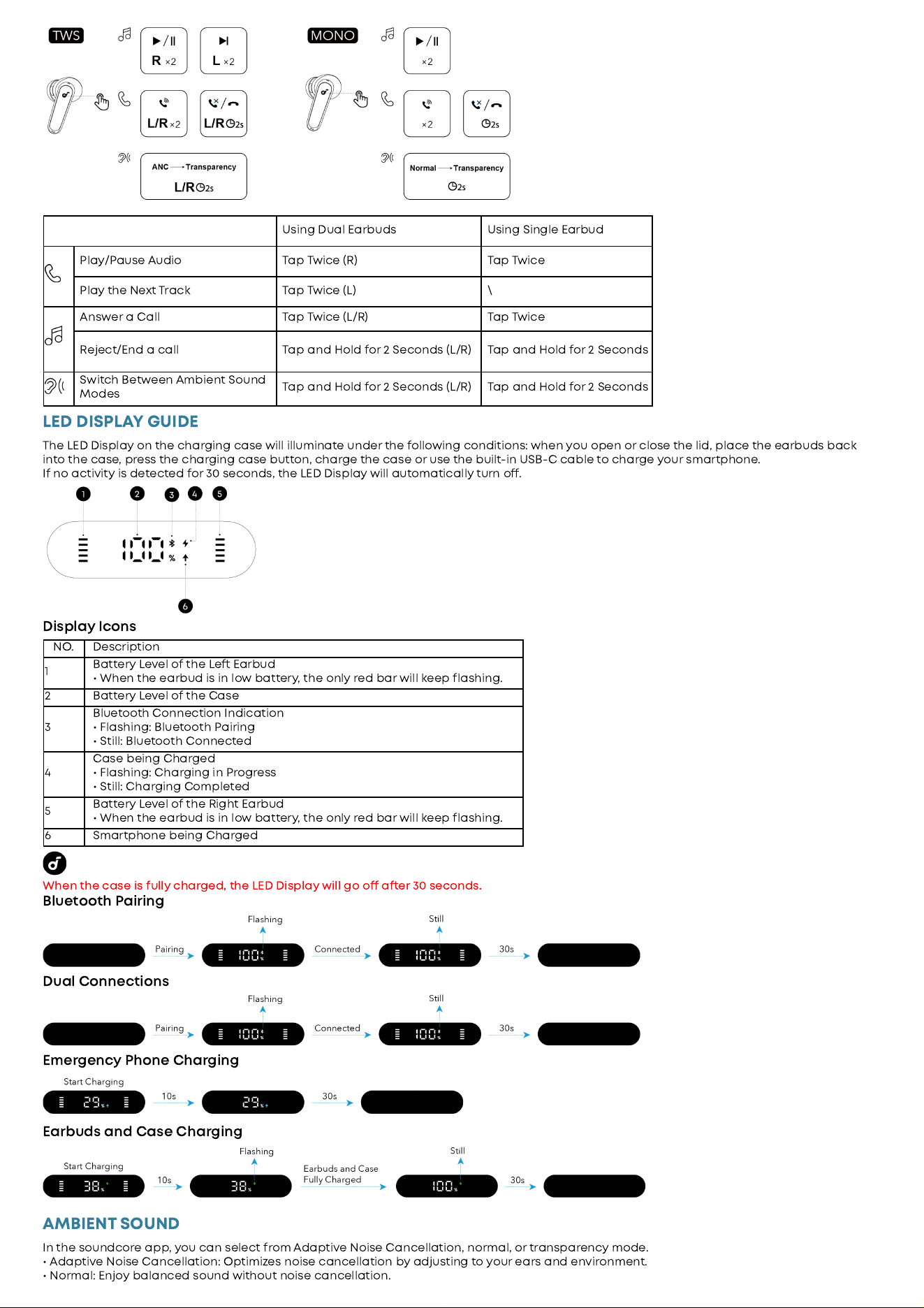
CONTROLS
Note
:
You can customi
z
e controls in the soundcore app
.
Using Dual Earbuds Using Single Earbud
Play
/
Pause Audio Tap Twice
(
R
)
Tap Twice
Play the Next Track Tap Twice
(
L
) \
Answer a Call Tap Twice
(
L
/
R
)
Tap Twice
Reject
/
End a call Tap and Hold for
2
Seconds
(
L
/
R
)
Tap and Hold for
2
Seconds
Switch Between Ambient Sound
Modes
Tap and Hold for
2
Seconds
(
L
/
R
)
Tap and Hold for
2
Seconds
LED DISPLAY GUIDE
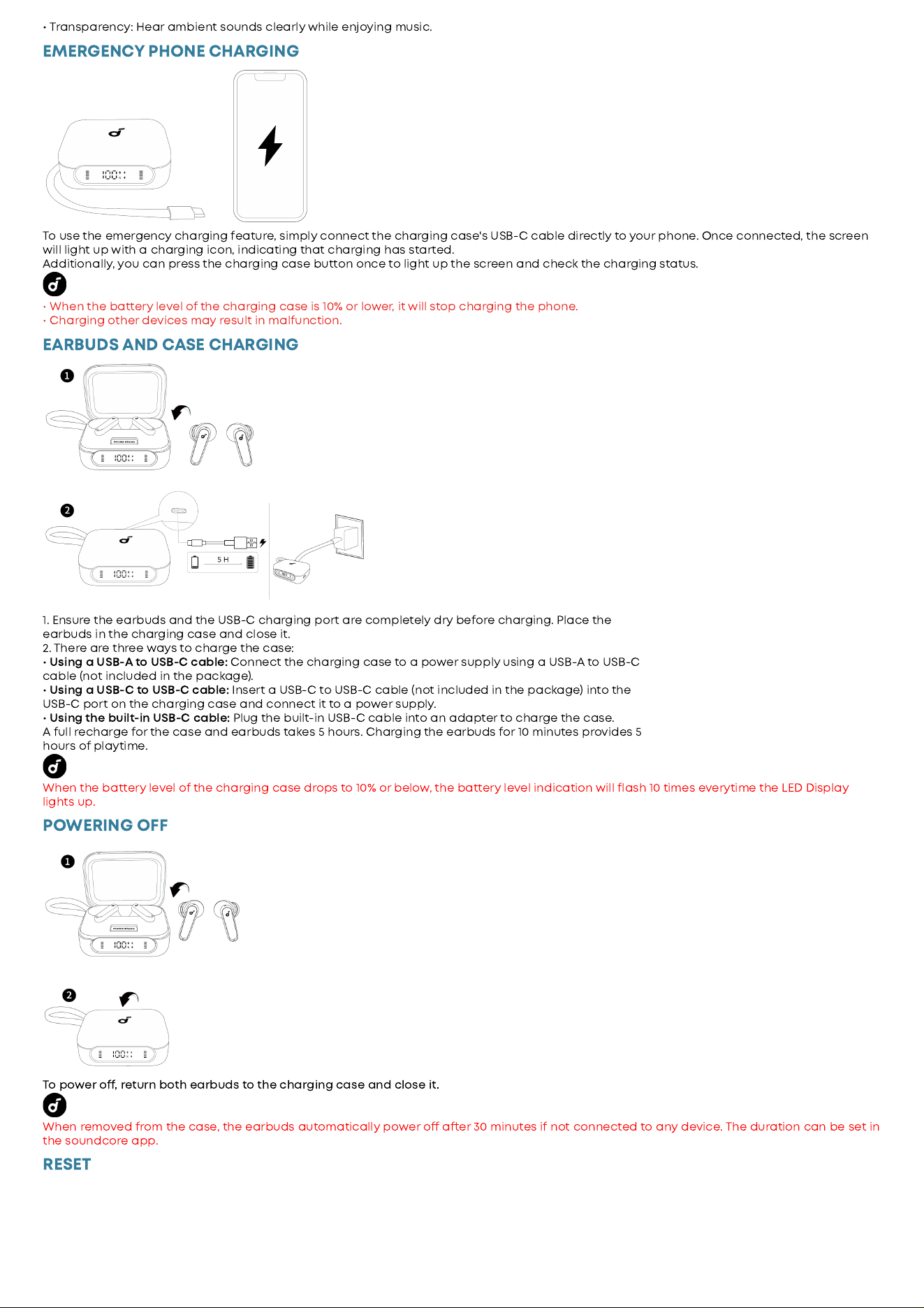
The LED Display on the charging case will illuminate under the following conditions
:
when you open or close the lid
,
place the earbuds back
into the case
,
press the charging case button
,
charge the case or use the built
-
in USB
-
C cable to charge your smartphone
.
If no activity is detected for
30
seconds
,
the LED Display will automatically turn o
.
Display Icons
NO
.
Description
1
Battery Level of the Le
Earbud
•
When the earbud is in low battery
,
the only red bar will keep flashing
.
2
Battery Level of the Case
3
Bluetooth Connection Indication
•
Flashing
:
Bluetooth Pairing
•
Still
:
Bluetooth Connected
4
Case being Charged
•
Flashing
:
Charging in Progress
•
Still
:
Charging Completed
5
Battery Level of the Right Earbud
•
When the earbud is in low battery
,
the only red bar will keep flashing
.
6
Smartphone being Charged
When the case is fully charged
,
the LED Display will go o
a
er
30
seconds
.
Bluetooth Pairing
Dual Connections
Emergency Phone Charging
Earbuds and Case Charging
AMBIENT SOUND
In the soundcore app
,
you can select from Adaptive Noise Cancellation
,
normal
,
or transparency mode
.
•
Adaptive Noise Cancellation
:
Optimi
z
es noise cancellation by adjusting to your ears and environment
.
•
Normal
:
Enjoy balanced sound without noise cancellation
.
•
Transparency
:
Hear ambient sounds clearly while enjoying music
.
EMERGENCY PHONE CHARGING
To use the emergency charging feature
,
simply connect the charging case
'
s USB
-
C cable directly to your phone
.
Once connected
,
the screen
will light up with a charging icon
,
indicating that charging has started
.
Additionally
,
you can press the charging case button once to light up the screen and check the charging status
.
•
When the battery level of the charging case is
10
%
or lower
,
it will stop charging the phone
.
•
Charging other devices may result in malfunction
.
EARBUDS AND CASE CHARGING
1
.
Ensure the earbuds and the USB
-
C charging port are completely dry before charging
.
Place the
earbuds in the charging case and close it
.
2
.
There are three ways to charge the case
:
•
Using a USB
-
A to USB
-
C cable
:
Connect the charging case to a power supply using a USB
-
A to USB
-
C
cable
(
not included in the package
).
•
Using a USB
-
C to USB
-
C cable
:
Insert a USB
-
C to USB
-
C cable
(
not included in the package
)
into the
USB
-
C port on the charging case and connect it to a power supply
.
•
Using the built
-
in USB
-
C cable
:
Plug the built
-
in USB
-
C cable into an adapter to charge the case
.
A full recharge for the case and earbuds takes
5
hours
.
Charging the earbuds for
10
minutes provides
5
hours of playtime
.
When the battery level of the charging case drops to
10
%
or below
,
the battery level indication will flash
10
times everytime the LED Display
lights up
.
POWERING OFF
To power o
,
return both earbuds to the charging case and close it
.
When removed from the case
,
the earbuds automatically power o
a
er
30
minutes if not connected to any device
.
The duration can be set in
the soundcore app
.
RESET
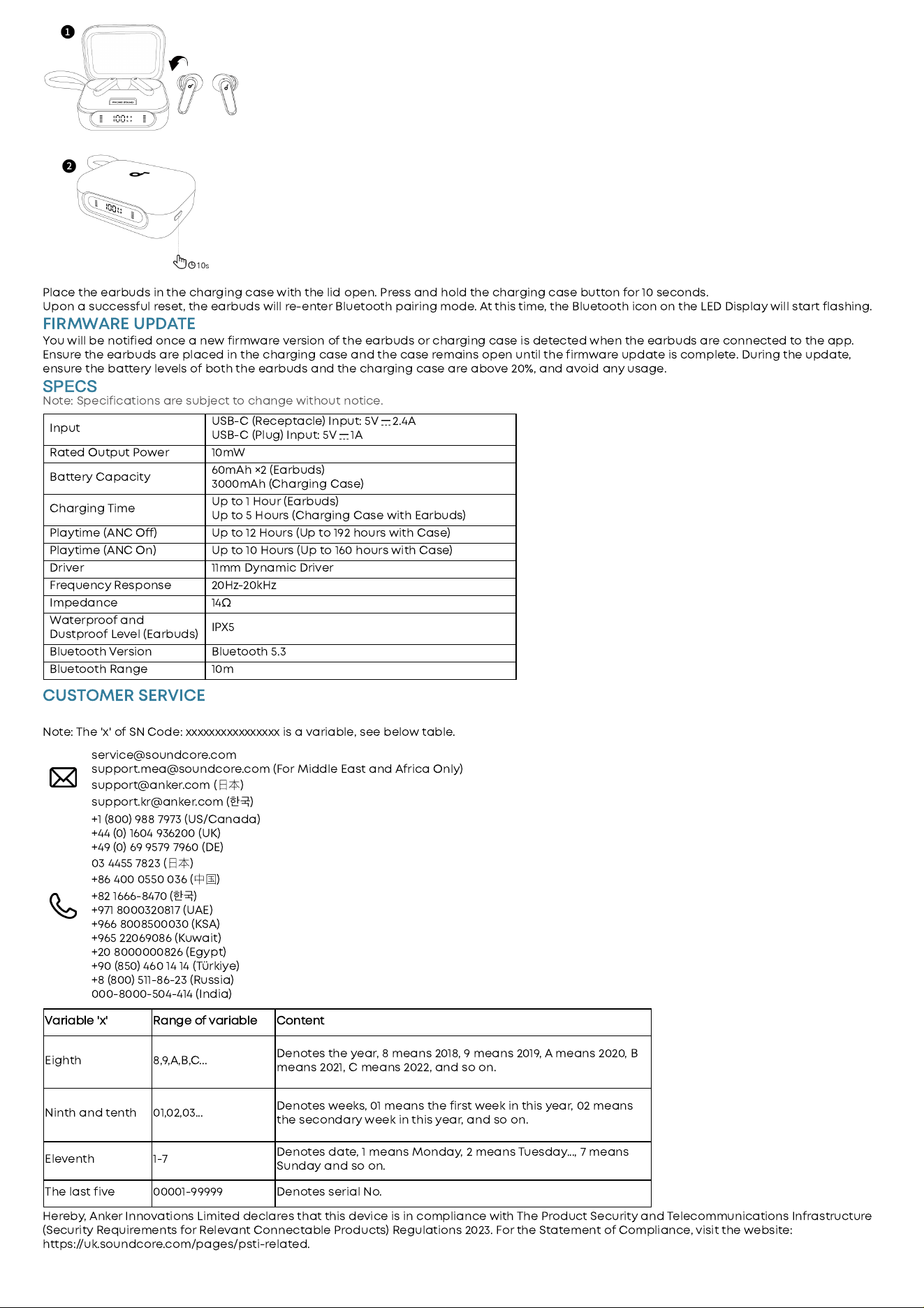
Place the earbuds in the charging case with the lid open
.
Press and hold the charging case button for
10
seconds
.
Upon a successful reset
,
the earbuds will re
-
enter Bluetooth pairing mode
.
At this time
,
the Bluetooth icon on the LED Display will start flashing
.
FIRMWARE UPDATE
You will be notified once a new firmware version of the earbuds or charging case is detected when the earbuds are connected to the app
.
Ensure the earbuds are placed in the charging case and the case remains open until the firmware update is complete
.
During the update
,
ensure the battery levels of both the earbuds and the charging case are above
20
%,
and avoid any usage
.
SPECS
Note
:
Specifications are subject to change without notice
.
Input
USB
-
C
(
Receptacle
)
Input
:
5
V
2
.
4
A
USB
-
C
(
Plug
)
Input
:
5
V
1
A
Rated Output Power
10
mW
Battery Capacity
60
mAh
×
2
(
Earbuds
)
3000
mAh
(
Charging Case
)
Charging Time
Up to
1
Hour
(
Earbuds
)
Up to
5
Hours
(
Charging Case with Earbuds
)
Playtime
(
ANC O
)
Up to
12
Hours
(
Up to
1
9
2
hours with Case
)
Playtime
(
ANC On
)
Up to
10
Hours
(
Up to
160
hours with Case
)
Driver
11
mm Dynamic Driver
Frequency Response
20
H
z
-
20
kH
z
Impedance
14Ω
Waterproof and
Dustproof Level
(
Earbuds
)
IPX
5
Bluetooth Version Bluetooth
5
.
3
Bluetooth Range
10
m
CUSTOMER SERVICE
Note
:
The
'
x
'
of SN Code
:
xxxxxxxxxxxxxxxx is a variable
,
see below table
.
service
@
soundcore
.
com
support
.
mea
@
soundcore
.
com
(
For Middle East and Africa Only
)
support
@
anker
.
com
(
⽇
本
)
support
.
kr
@
anker
.
com
(
한
국
)
+
1
(8
00
)
988
7
9
73
(
US
/
Canada
)
+
44
(
0
)
1604
9
36200
(
UK
)
+
4
9
(
0
)
6
9
9
57
9
7
9
60
(
DE
)
03
4455
7
8
23
(
⽇
本
)
+8
6
400
0550
036
(
中
国
)
+8
2
1666
-8
470
(
한
국
)
+9
71
8
000320
8
17
(
UAE
)
+9
66
8
00
8
500030
(
KSA
)
+9
65
2206
9
0
8
6
(
Kuwait
)
+
20
8
000000
8
26
(
Egypt
)
+9
0
(8
50
)
460
14
14
(
Türkiye
)
+8
(8
00
)
511
-8
6
-
23
(
Russia
)
000
-8
000
-
504
-
414
(
India
)
Variable
'
x
'
Range of variable Content
Eighth
8,9,
A
,
B
,
C
...
Denotes the year
,
8
means
201
8,
9
means
201
9,
A means
2020
,
B
means
2021
,
C means
2022
,
and so on
.
Ninth and tenth
01
,
02
,
03
...
Denotes weeks
,
01
means the first week in this year
,
02
means
the secondary week in this year
,
and so on
.
Eleventh
1
-
7
Denotes date
,
1
means Monday
,
2
means Tuesday
...,
7
means
Sunday and so on
.
The last five
00001
-99999
Denotes serial No
.
Hereby
,
Anker Innovations Limited declares that this device is in compliance with The Product Security and Telecommunications Infrastructure
(
Security Requirements for Relevant Connectable Products
)
Regulations
2023
.
For the Statement of Compliance
,
visit the website
:
https
://
uk
.
soundcore
.
com
/
pages
/
psti
-
related
.