User Manual
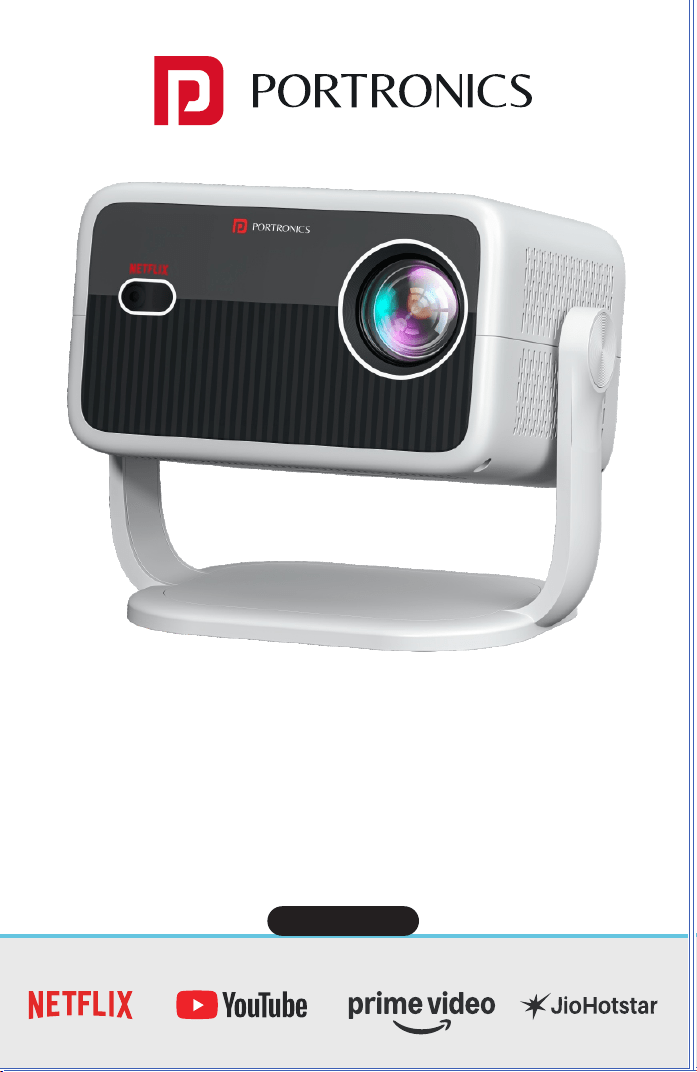
BEEM 560
Smart Led Projector
E-Waste Management
For E-Waste & ROHS compliance
refer to www.portronics.com/ewaste
www.portronics.com
For Support
Visit : www.portronics.com
E-mail : [email protected]
Contact No.: +91 9555245245
(Working Hours: Monday - Saturday, 10:00am - 6:00pm)
INTRODUCTION
/////
Thank you for purchasing the Beem 560 Smart LED Projector.
This user manual provides step-by-step guidance on setup,
operation, and maintenance to help you achieve the best
performance and extend the life of your projector.
Please read the instructions thoroughly before using the device
to ensure safe and optimal operation.
SAFETY PRECAUTIONS
/////
For the best viewing experience, it is recommended to use this
product in a dark room.
1. Do not install the projector in areas exposed to direct air
conditioning, moisture, or high temperatures, as this may
cause malfunction.
2. Ensure proper ventilation at all times. Blocked airflow can lead
to overheating or failure.
3. Never insert clips, paper, metal objects, or any foreign items
into the projector. If something accidentally falls inside, power
off immediately and contact Portronics service personnel.
4. To prevent the risk of electrical damage, do not place liquids on
or near the projector.
5. When transporting the projector, use soft protective materials
and always cover the lens with the lens cap to avoid scratches
or damage.
6. After use, the exhaust vent area may be hot. Avoid touching it
directly with bare hands.
7. Never look directly into the projector lens while it is powered on,
as this can cause serious eye injury.
CAUTIONS AND WARNINGS
/////
⚠
IMPORTANT NOTICES
/////
Notice 1
Do not attempt to open the projector casing. Internal
maintenance should only be carried out by trained
professionals.
Notice 2
Warning: The internal parts of the projector may contain
uninsulated high voltage and surface magnetic fields. Do
not touch internal components, as this can result in serious
electric shock.
Notice 3
To prevent fire or electric shock, never expose the
projector to rain, moisture, or wet conditions under any
circumstances.
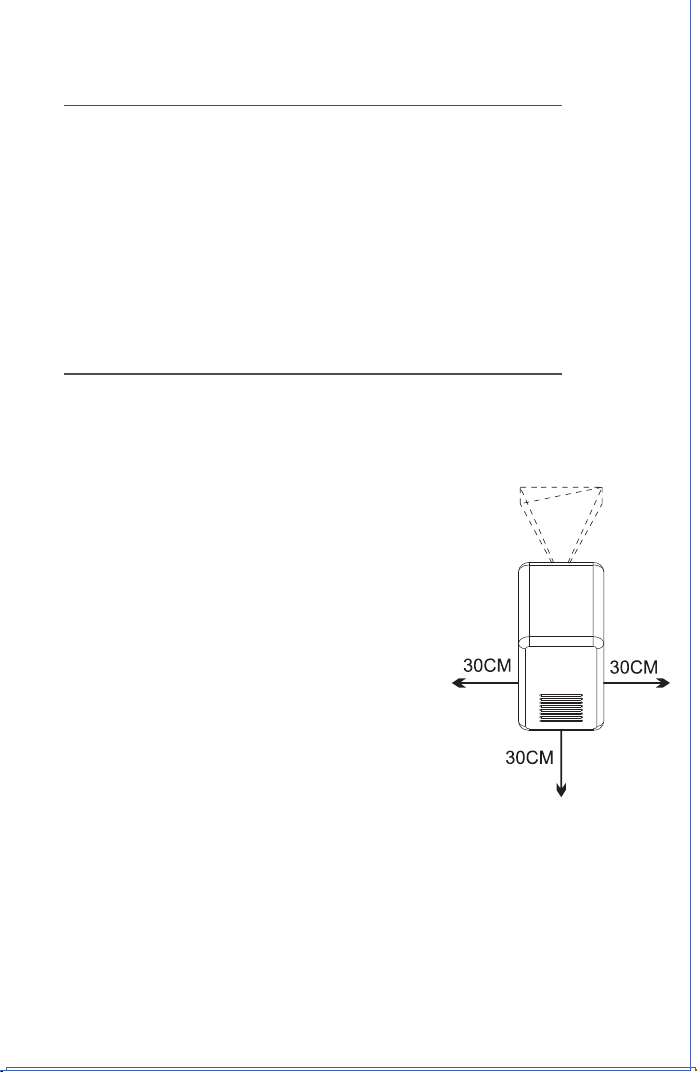
• Ensure there are no obstacles within 30
cm of the projector’s air inlet and outlet
during use.
• Provide adequate ventilation to prevent
heat buildup inside the projector.
• Blocked airflow may cause overheating
and abnormal functioning of the projector.
(Refer to the diagram for correct setup.)
Dust Maintenance
• After using the dust removal window,
always close it properly. Leaving it open
may cause serious damage to the
projector.
• Regularly clean the air inlet dust screen to
prevent dust accumulation, which can
block airflow and damage the device.
• Use soft brushes, a vacuum cleaner, or
similar tools for cleaning.
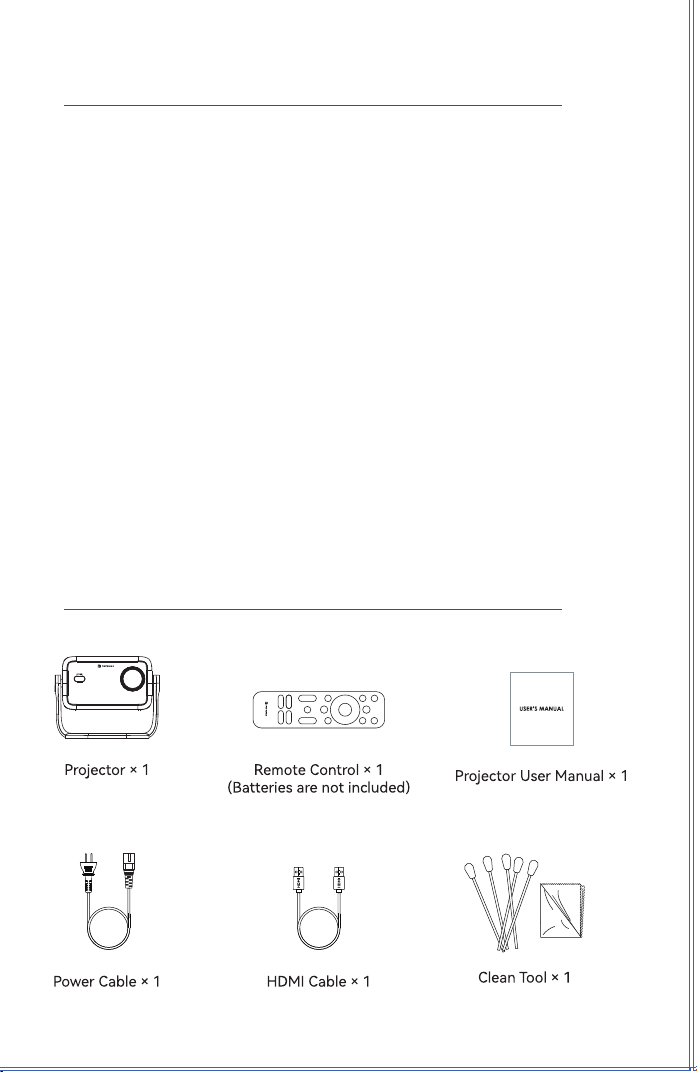
LIST OF ITEMS
/////
JioHotstar
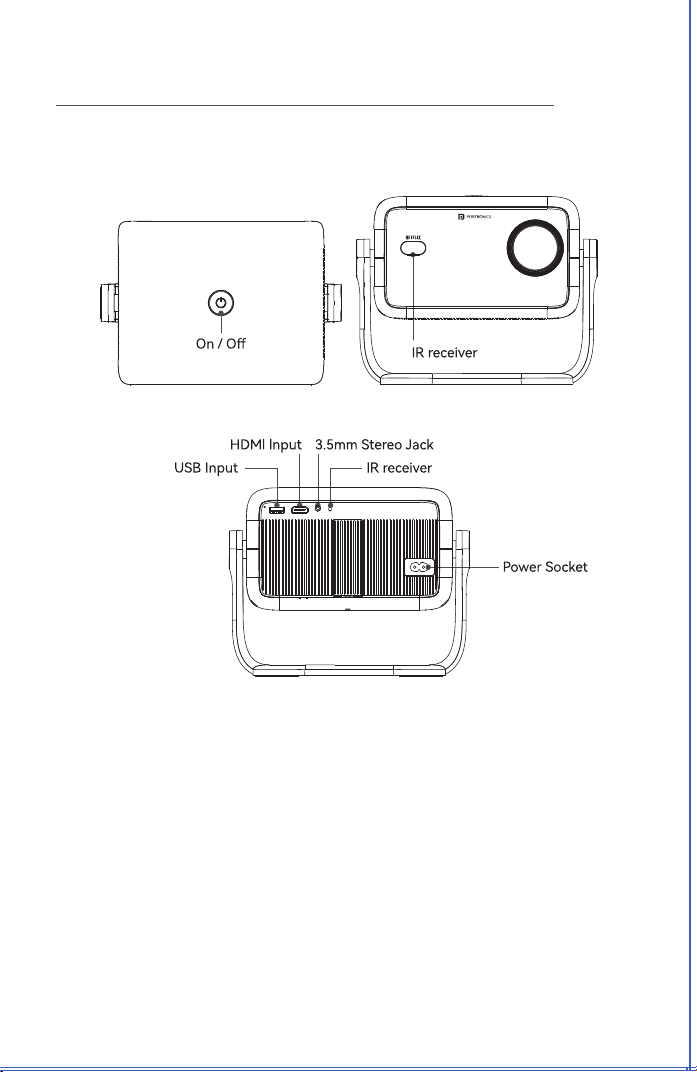
OVERVIEW
/////
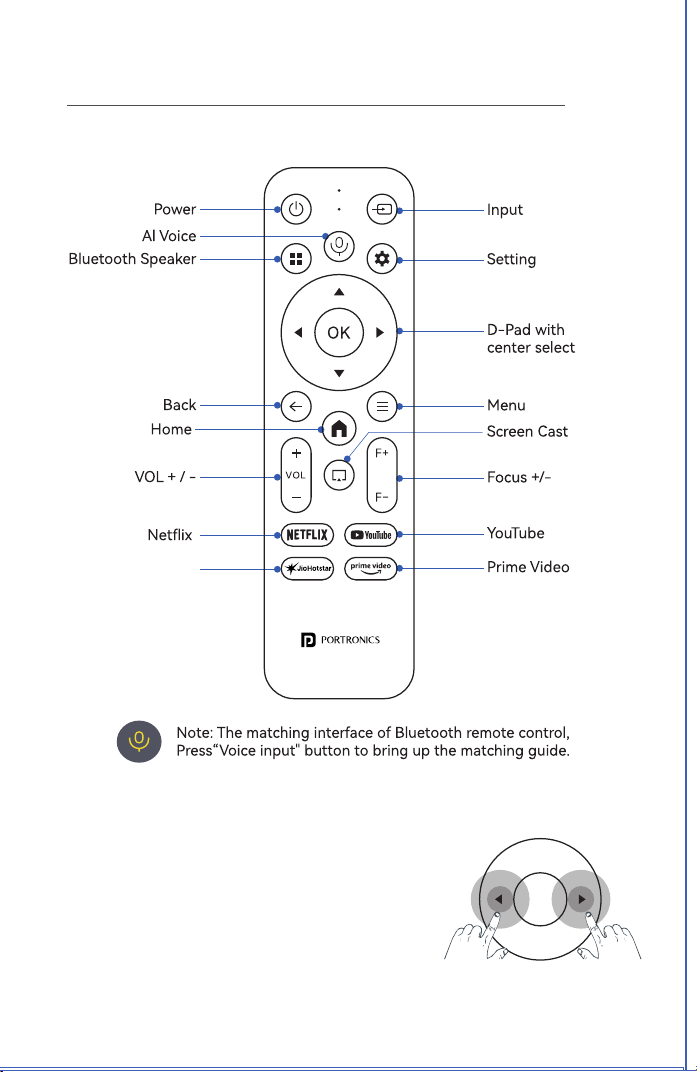
REMOTE CONTROL
/////
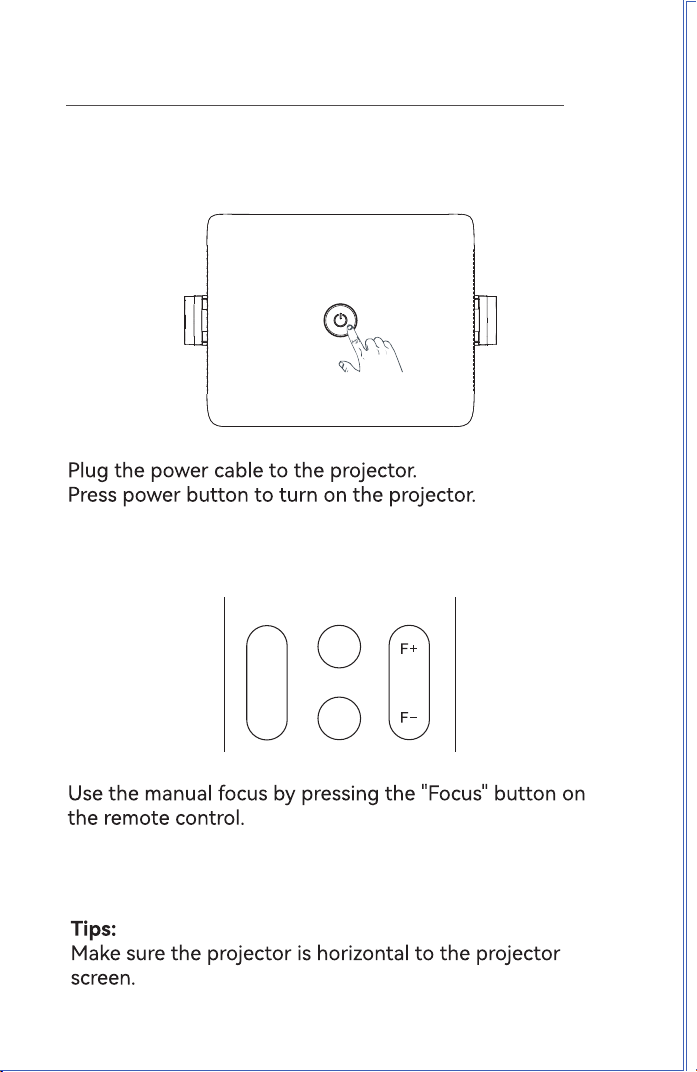
GETTING STARTED
/////
SOUND SETTING
/////
DEVICE PREFERENCE
/////
APP SETTING
/////
SOFTWARE UPDATE
/////
BLUETOOTH SPEAKER
/////
NETWORK SETTING
/////
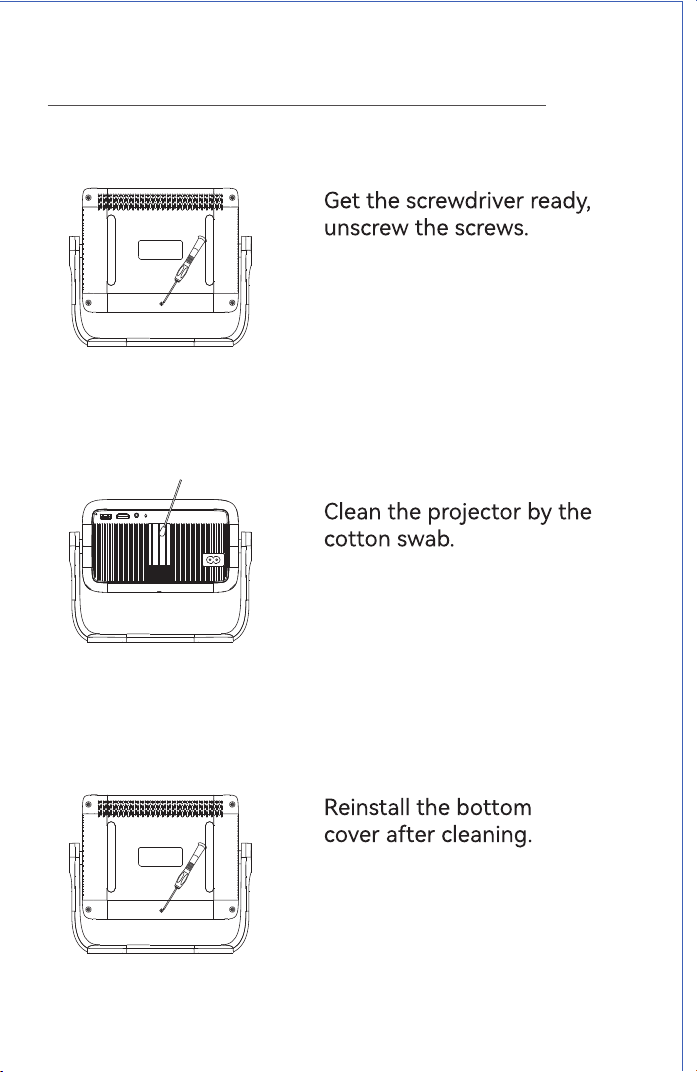
CLEANING METHOD
/////
BLUETOOTH SETTING
/////
PICTURE SETTING
/////
LENS SETTING
/////
WHALE OS CAST
/////
VOICE SERVICE
/////
FILE MANAGEMENT
/////
Tips
1. Blurry Image
· Go to Settings→ Lens → Autofocus Settings on the homepage to
adjust image clarity.
· You can also press the Focus button on the remote control to achieve
the best clarity.
2. Mounting Hole
· The projector features a dual-use single mounting hole design,
making it compatible with standard camera tripods and ¼-inch screw
projector tripod stands.
Bluetooth Remote Controller Pairing
To pair the remote controller with the projector:
1. Keep the remote controller close to the
projector.
2. Press and hold both the Left and Right
buttons simultaneously for 3 seconds.
3. The remote will pair automatically.
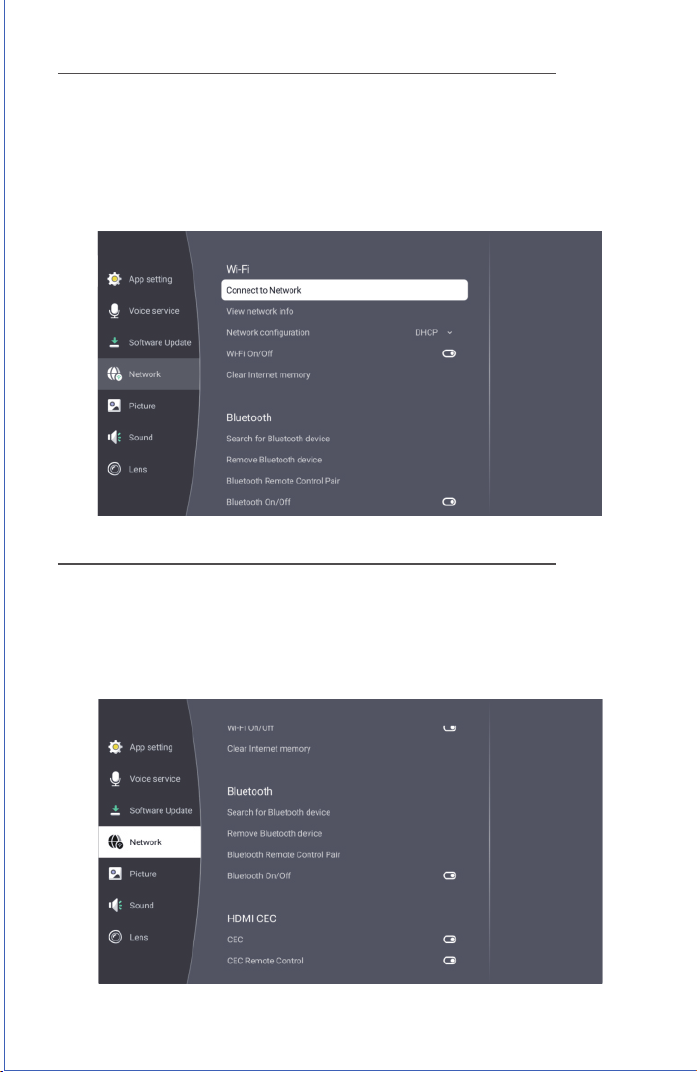
To connect the projector to Wi-Fi, go to Settings→ Network → Wi-Fi → Connect
to Network on the homepage, select your desired Wi-Fi network, and enter the
password to establish the connection.
To connect a Bluetooth device, go to Settings → Network→ Bluetooth on the
homepage, select Search for Bluetooth Device, then choose your desired
device from the list and click Pair to complete the connection.
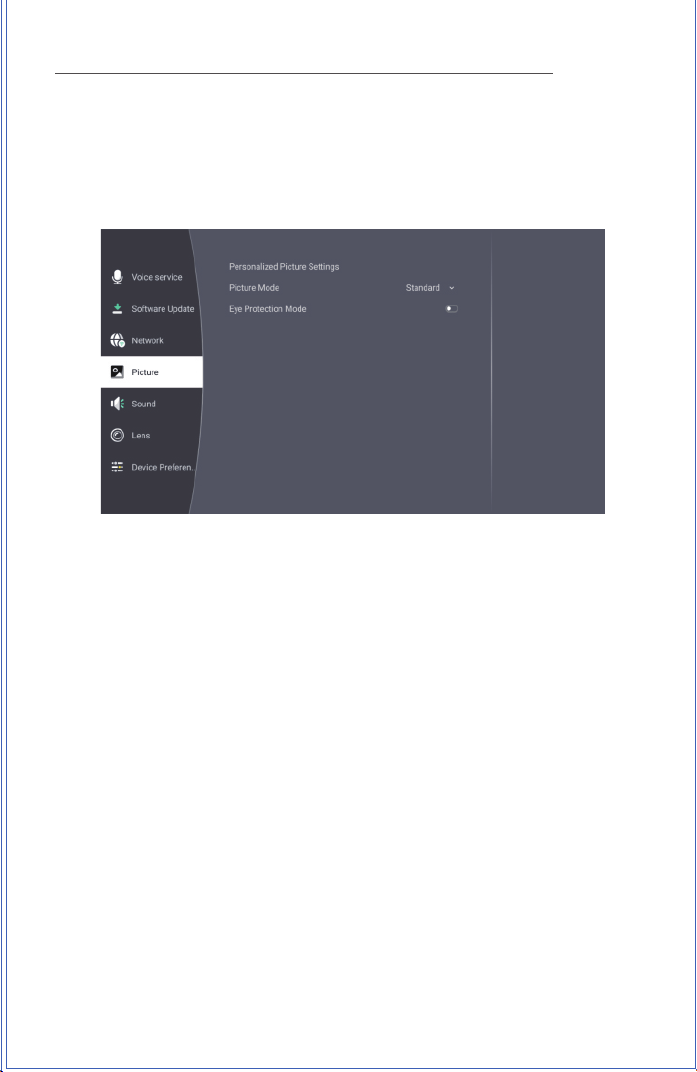
Go to Settings → Picture on the homepage to customize your viewing
experience. Here you can adjust picture settings, switch between picture
modes, and enable eye protection mode.
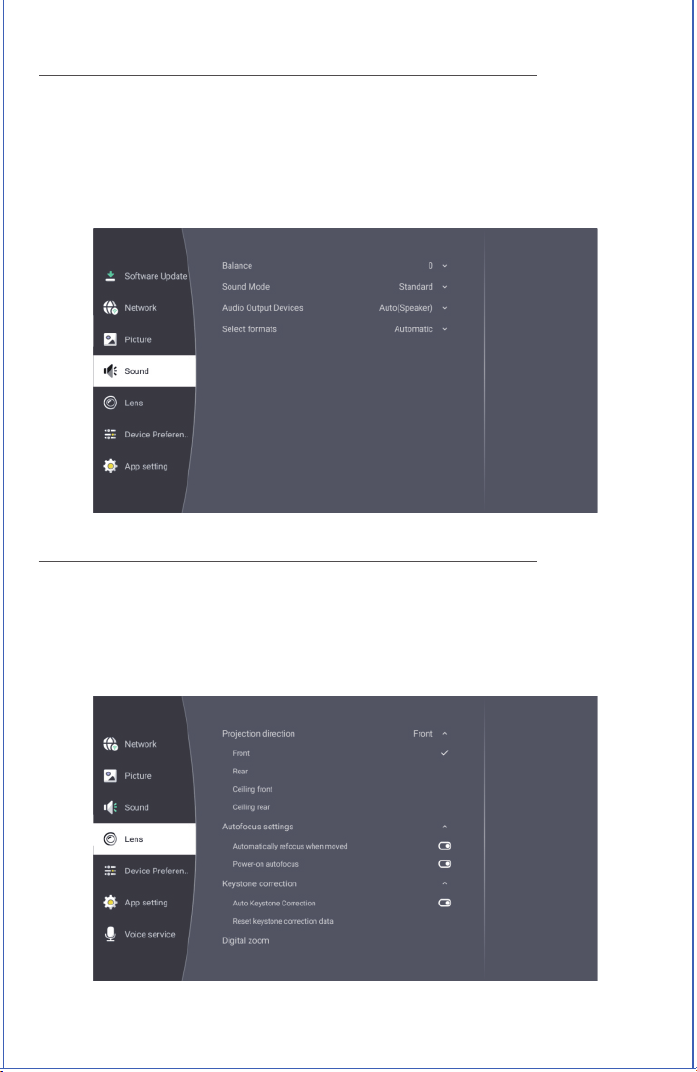
Go to Settings → Sound on the homepage to customize audio preferences. You
can adjust sound balance, change sound modes, select the output device, and
configure the output format for optimal sound quality.
Go to Settings → Lens on the homepage to adjust projection settings. Here
you can set the projection direction, enable autofocus, use keystone
correction, and apply digital zoom for the best viewing experience.
Go to Settings → Device Preferences on the homepage to customize your
projector. Here you can change the language, set date and time, choose keyboard
options, configure screen saver and sleep timer, check device information, reset or
restart the projector, enable Whale OS cast, adjust energy saver settings, and set
the menu timer
To use screen casting, first connect your phone and the projector to the same
Wi-Fi network. Then go to Settings → Device Preferences → Whale OS Cast →
TV Casting and follow the on-screen instructions to download the TV Casting
app. After installation, search for the projector device on your phone and
select it to share your screen.
Go to Settings → App Setting on the homepage to manage applications. Here
you can check recently opened apps, view all installed applications, and
manage app permissions.
Go to Settings → Voice Service on the homepage to adjust voice options.
Here you can change the language and modify the tone of the intelligent
speech feature.
Go to Settings → Software Update on the homepage to check for the latest
updates, install new software, and view the current software version of your
projector.
Insert a U disk into the projector, then click the File icon on the
homepage to access its contents. Supported files include videos,
audio, pictures, and more.
To use the projector as a Bluetooth speaker, click the Bluetooth Speaker
icon on the desktop to enter speaker mode. On your mobile phone, search
for the projector's name, then pair and connect. You can select Turn Off
Screen to switch off the display while keeping audio active, and press the
Back button to exit this mode.
User Manual
BEEM 560
Smart Led Projector
E-Waste Management
For E-Waste & ROHS compliance
refer to www.portronics.com/ewaste
www.portronics.com
For Support
Visit : www.portronics.com
E-mail : [email protected]
Contact No.: +91 9555245245
(Working Hours: Monday - Saturday, 10:00am - 6:00pm)
INTRODUCTION
/////
Thank you for purchasing the Beem 560 Smart LED Projector.
This user manual provides step-by-step guidance on setup,
operation, and maintenance to help you achieve the best
performance and extend the life of your projector.
Please read the instructions thoroughly before using the device
to ensure safe and optimal operation.
SAFETY PRECAUTIONS
/////
For the best viewing experience, it is recommended to use this
product in a dark room.
1. Do not install the projector in areas exposed to direct air
conditioning, moisture, or high temperatures, as this may
cause malfunction.
2. Ensure proper ventilation at all times. Blocked airflow can lead
to overheating or failure.
3. Never insert clips, paper, metal objects, or any foreign items
into the projector. If something accidentally falls inside, power
off immediately and contact Portronics service personnel.
4. To prevent the risk of electrical damage, do not place liquids on
or near the projector.
5. When transporting the projector, use soft protective materials
and always cover the lens with the lens cap to avoid scratches
or damage.
6. After use, the exhaust vent area may be hot. Avoid touching it
directly with bare hands.
7. Never look directly into the projector lens while it is powered on,
as this can cause serious eye injury.
CAUTIONS AND WARNINGS
/////
⚠
IMPORTANT NOTICES
/////
Notice 1
Do not attempt to open the projector casing. Internal
maintenance should only be carried out by trained
professionals.
Notice 2
Warning: The internal parts of the projector may contain
uninsulated high voltage and surface magnetic fields. Do
not touch internal components, as this can result in serious
electric shock.
Notice 3
To prevent fire or electric shock, never expose the
projector to rain, moisture, or wet conditions under any
circumstances.
• Ensure there are no obstacles within 30
cm of the projector’s air inlet and outlet
during use.
• Provide adequate ventilation to prevent
heat buildup inside the projector.
• Blocked airflow may cause overheating
and abnormal functioning of the projector.
(Refer to the diagram for correct setup.)
Dust Maintenance
• After using the dust removal window,
always close it properly. Leaving it open
may cause serious damage to the
projector.
• Regularly clean the air inlet dust screen to
prevent dust accumulation, which can
block airflow and damage the device.
• Use soft brushes, a vacuum cleaner, or
similar tools for cleaning.
LIST OF ITEMS
/////
JioHotstar
OVERVIEW
/////
REMOTE CONTROL
/////
GETTING STARTED
/////
SOUND SETTING
/////
DEVICE PREFERENCE
/////
APP SETTING
/////
SOFTWARE UPDATE
/////
BLUETOOTH SPEAKER
/////
NETWORK SETTING
/////
CLEANING METHOD
/////
BLUETOOTH SETTING
/////
PICTURE SETTING
/////
LENS SETTING
/////
WHALE OS CAST
/////
VOICE SERVICE
/////
FILE MANAGEMENT
/////
Tips
1. Blurry Image
· Go to Settings→ Lens → Autofocus Settings on the homepage to
adjust image clarity.
· You can also press the Focus button on the remote control to achieve
the best clarity.
2. Mounting Hole
· The projector features a dual-use single mounting hole design,
making it compatible with standard camera tripods and ¼-inch screw
projector tripod stands.
Bluetooth Remote Controller Pairing
To pair the remote controller with the projector:
1. Keep the remote controller close to the
projector.
2. Press and hold both the Left and Right
buttons simultaneously for 3 seconds.
3. The remote will pair automatically.
To connect the projector to Wi-Fi, go to Settings→ Network → Wi-Fi → Connect
to Network on the homepage, select your desired Wi-Fi network, and enter the
password to establish the connection.
To connect a Bluetooth device, go to Settings → Network→ Bluetooth on the
homepage, select Search for Bluetooth Device, then choose your desired
device from the list and click Pair to complete the connection.
Go to Settings → Picture on the homepage to customize your viewing
experience. Here you can adjust picture settings, switch between picture
modes, and enable eye protection mode.
Go to Settings → Sound on the homepage to customize audio preferences. You
can adjust sound balance, change sound modes, select the output device, and
configure the output format for optimal sound quality.
Go to Settings → Lens on the homepage to adjust projection settings. Here
you can set the projection direction, enable autofocus, use keystone
correction, and apply digital zoom for the best viewing experience.
Go to Settings → Device Preferences on the homepage to customize your
projector. Here you can change the language, set date and time, choose keyboard
options, configure screen saver and sleep timer, check device information, reset or
restart the projector, enable Whale OS cast, adjust energy saver settings, and set
the menu timer
To use screen casting, first connect your phone and the projector to the same
Wi-Fi network. Then go to Settings → Device Preferences → Whale OS Cast →
TV Casting and follow the on-screen instructions to download the TV Casting
app. After installation, search for the projector device on your phone and
select it to share your screen.
Go to Settings → App Setting on the homepage to manage applications. Here
you can check recently opened apps, view all installed applications, and
manage app permissions.
Go to Settings → Voice Service on the homepage to adjust voice options.
Here you can change the language and modify the tone of the intelligent
speech feature.
Go to Settings → Software Update on the homepage to check for the latest
updates, install new software, and view the current software version of your
projector.
Insert a U disk into the projector, then click the File icon on the
homepage to access its contents. Supported files include videos,
audio, pictures, and more.
To use the projector as a Bluetooth speaker, click the Bluetooth Speaker
icon on the desktop to enter speaker mode. On your mobile phone, search
for the projector's name, then pair and connect. You can select Turn Off
Screen to switch off the display while keeping audio active, and press the
Back button to exit this mode.

User Manual
BEEM 560
Smart Led Projector
E-Waste Management
For E-Waste & ROHS compliance
refer to www.portronics.com/ewaste
www.portronics.com
For Support
Visit : www.portronics.com
E-mail : [email protected]
Contact No.: +91 9555245245
(Working Hours: Monday - Saturday, 10:00am - 6:00pm)
INTRODUCTION
/////
Thank you for purchasing the Beem 560 Smart LED Projector.
This user manual provides step-by-step guidance on setup,
operation, and maintenance to help you achieve the best
performance and extend the life of your projector.
Please read the instructions thoroughly before using the device
to ensure safe and optimal operation.
SAFETY PRECAUTIONS
/////
For the best viewing experience, it is recommended to use this
product in a dark room.
1. Do not install the projector in areas exposed to direct air
conditioning, moisture, or high temperatures, as this may
cause malfunction.
2. Ensure proper ventilation at all times. Blocked airflow can lead
to overheating or failure.
3. Never insert clips, paper, metal objects, or any foreign items
into the projector. If something accidentally falls inside, power
off immediately and contact Portronics service personnel.
4. To prevent the risk of electrical damage, do not place liquids on
or near the projector.
5. When transporting the projector, use soft protective materials
and always cover the lens with the lens cap to avoid scratches
or damage.
6. After use, the exhaust vent area may be hot. Avoid touching it
directly with bare hands.
7. Never look directly into the projector lens while it is powered on,
as this can cause serious eye injury.
CAUTIONS AND WARNINGS
/////
⚠
IMPORTANT NOTICES
/////
Notice 1
Do not attempt to open the projector casing. Internal
maintenance should only be carried out by trained
professionals.
Notice 2
Warning: The internal parts of the projector may contain
uninsulated high voltage and surface magnetic fields. Do
not touch internal components, as this can result in serious
electric shock.
Notice 3
To prevent fire or electric shock, never expose the
projector to rain, moisture, or wet conditions under any
circumstances.
• Ensure there are no obstacles within 30
cm of the projector’s air inlet and outlet
during use.
• Provide adequate ventilation to prevent
heat buildup inside the projector.
• Blocked airflow may cause overheating
and abnormal functioning of the projector.
(Refer to the diagram for correct setup.)
Dust Maintenance
• After using the dust removal window,
always close it properly. Leaving it open
may cause serious damage to the
projector.
• Regularly clean the air inlet dust screen to
prevent dust accumulation, which can
block airflow and damage the device.
• Use soft brushes, a vacuum cleaner, or
similar tools for cleaning.
LIST OF ITEMS
/////
JioHotstar
OVERVIEW
/////
REMOTE CONTROL
/////
GETTING STARTED
/////
SOUND SETTING
/////
DEVICE PREFERENCE
/////
APP SETTING
/////
SOFTWARE UPDATE
/////
BLUETOOTH SPEAKER
/////
NETWORK SETTING
/////
CLEANING METHOD
/////
BLUETOOTH SETTING
/////
PICTURE SETTING
/////
LENS SETTING
/////
WHALE OS CAST
/////
VOICE SERVICE
/////
FILE MANAGEMENT
/////
Tips
1. Blurry Image
· Go to Settings→ Lens → Autofocus Settings on the homepage to
adjust image clarity.
· You can also press the Focus button on the remote control to achieve
the best clarity.
2. Mounting Hole
· The projector features a dual-use single mounting hole design,
making it compatible with standard camera tripods and ¼-inch screw
projector tripod stands.
Bluetooth Remote Controller Pairing
To pair the remote controller with the projector:
1. Keep the remote controller close to the
projector.
2. Press and hold both the Left and Right
buttons simultaneously for 3 seconds.
3. The remote will pair automatically.
To connect the projector to Wi-Fi, go to Settings→ Network → Wi-Fi → Connect
to Network on the homepage, select your desired Wi-Fi network, and enter the
password to establish the connection.
To connect a Bluetooth device, go to Settings → Network→ Bluetooth on the
homepage, select Search for Bluetooth Device, then choose your desired
device from the list and click Pair to complete the connection.
Go to Settings → Picture on the homepage to customize your viewing
experience. Here you can adjust picture settings, switch between picture
modes, and enable eye protection mode.
Go to Settings → Sound on the homepage to customize audio preferences. You
can adjust sound balance, change sound modes, select the output device, and
configure the output format for optimal sound quality.
Go to Settings → Lens on the homepage to adjust projection settings. Here
you can set the projection direction, enable autofocus, use keystone
correction, and apply digital zoom for the best viewing experience.
Go to Settings → Device Preferences on the homepage to customize your
projector. Here you can change the language, set date and time, choose keyboard
options, configure screen saver and sleep timer, check device information, reset or
restart the projector, enable Whale OS cast, adjust energy saver settings, and set
the menu timer
To use screen casting, first connect your phone and the projector to the same
Wi-Fi network. Then go to Settings → Device Preferences → Whale OS Cast →
TV Casting and follow the on-screen instructions to download the TV Casting
app. After installation, search for the projector device on your phone and
select it to share your screen.
Go to Settings → App Setting on the homepage to manage applications. Here
you can check recently opened apps, view all installed applications, and
manage app permissions.
Go to Settings → Voice Service on the homepage to adjust voice options.
Here you can change the language and modify the tone of the intelligent
speech feature.
Go to Settings → Software Update on the homepage to check for the latest
updates, install new software, and view the current software version of your
projector.
Insert a U disk into the projector, then click the File icon on the
homepage to access its contents. Supported files include videos,
audio, pictures, and more.
To use the projector as a Bluetooth speaker, click the Bluetooth Speaker
icon on the desktop to enter speaker mode. On your mobile phone, search
for the projector's name, then pair and connect. You can select Turn Off
Screen to switch off the display while keeping audio active, and press the
Back button to exit this mode.
User Manual
BEEM 560
Smart Led Projector
E-Waste Management
For E-Waste & ROHS compliance
refer to www.portronics.com/ewaste
www.portronics.com
For Support
Visit : www.portronics.com
E-mail : [email protected]
Contact No.: +91 9555245245
(Working Hours: Monday - Saturday, 10:00am - 6:00pm)
INTRODUCTION
/////
Thank you for purchasing the Beem 560 Smart LED Projector.
This user manual provides step-by-step guidance on setup,
operation, and maintenance to help you achieve the best
performance and extend the life of your projector.
Please read the instructions thoroughly before using the device
to ensure safe and optimal operation.
SAFETY PRECAUTIONS
/////
For the best viewing experience, it is recommended to use this
product in a dark room.
1. Do not install the projector in areas exposed to direct air
conditioning, moisture, or high temperatures, as this may
cause malfunction.
2. Ensure proper ventilation at all times. Blocked airflow can lead
to overheating or failure.
3. Never insert clips, paper, metal objects, or any foreign items
into the projector. If something accidentally falls inside, power
off immediately and contact Portronics service personnel.
4. To prevent the risk of electrical damage, do not place liquids on
or near the projector.
5. When transporting the projector, use soft protective materials
and always cover the lens with the lens cap to avoid scratches
or damage.
6. After use, the exhaust vent area may be hot. Avoid touching it
directly with bare hands.
7. Never look directly into the projector lens while it is powered on,
as this can cause serious eye injury.
CAUTIONS AND WARNINGS
/////
⚠
IMPORTANT NOTICES
/////
Notice 1
Do not attempt to open the projector casing. Internal
maintenance should only be carried out by trained
professionals.
Notice 2
Warning: The internal parts of the projector may contain
uninsulated high voltage and surface magnetic fields. Do
not touch internal components, as this can result in serious
electric shock.
Notice 3
To prevent fire or electric shock, never expose the
projector to rain, moisture, or wet conditions under any
circumstances.
• Ensure there are no obstacles within 30
cm of the projector’s air inlet and outlet
during use.
• Provide adequate ventilation to prevent
heat buildup inside the projector.
• Blocked airflow may cause overheating
and abnormal functioning of the projector.
(Refer to the diagram for correct setup.)
Dust Maintenance
• After using the dust removal window,
always close it properly. Leaving it open
may cause serious damage to the
projector.
• Regularly clean the air inlet dust screen to
prevent dust accumulation, which can
block airflow and damage the device.
• Use soft brushes, a vacuum cleaner, or
similar tools for cleaning.
LIST OF ITEMS
/////
JioHotstar
OVERVIEW
/////
REMOTE CONTROL
/////
GETTING STARTED
/////
SOUND SETTING
/////
DEVICE PREFERENCE
/////
APP SETTING
/////
SOFTWARE UPDATE
/////
BLUETOOTH SPEAKER
/////
NETWORK SETTING
/////
CLEANING METHOD
/////
BLUETOOTH SETTING
/////
PICTURE SETTING
/////
LENS SETTING
/////
WHALE OS CAST
/////
VOICE SERVICE
/////
FILE MANAGEMENT
/////
Tips
1. Blurry Image
· Go to Settings→ Lens → Autofocus Settings on the homepage to
adjust image clarity.
· You can also press the Focus button on the remote control to achieve
the best clarity.
2. Mounting Hole
· The projector features a dual-use single mounting hole design,
making it compatible with standard camera tripods and ¼-inch screw
projector tripod stands.
Bluetooth Remote Controller Pairing
To pair the remote controller with the projector:
1. Keep the remote controller close to the
projector.
2. Press and hold both the Left and Right
buttons simultaneously for 3 seconds.
3. The remote will pair automatically.
To connect the projector to Wi-Fi, go to Settings→ Network → Wi-Fi → Connect
to Network on the homepage, select your desired Wi-Fi network, and enter the
password to establish the connection.
To connect a Bluetooth device, go to Settings → Network→ Bluetooth on the
homepage, select Search for Bluetooth Device, then choose your desired
device from the list and click Pair to complete the connection.
Go to Settings → Picture on the homepage to customize your viewing
experience. Here you can adjust picture settings, switch between picture
modes, and enable eye protection mode.
Go to Settings → Sound on the homepage to customize audio preferences. You
can adjust sound balance, change sound modes, select the output device, and
configure the output format for optimal sound quality.
Go to Settings → Lens on the homepage to adjust projection settings. Here
you can set the projection direction, enable autofocus, use keystone
correction, and apply digital zoom for the best viewing experience.
Go to Settings → Device Preferences on the homepage to customize your
projector. Here you can change the language, set date and time, choose keyboard
options, configure screen saver and sleep timer, check device information, reset or
restart the projector, enable Whale OS cast, adjust energy saver settings, and set
the menu timer
To use screen casting, first connect your phone and the projector to the same
Wi-Fi network. Then go to Settings → Device Preferences → Whale OS Cast →
TV Casting and follow the on-screen instructions to download the TV Casting
app. After installation, search for the projector device on your phone and
select it to share your screen.
Go to Settings → App Setting on the homepage to manage applications. Here
you can check recently opened apps, view all installed applications, and
manage app permissions.
Go to Settings → Voice Service on the homepage to adjust voice options.
Here you can change the language and modify the tone of the intelligent
speech feature.
Go to Settings → Software Update on the homepage to check for the latest
updates, install new software, and view the current software version of your
projector.
Insert a U disk into the projector, then click the File icon on the
homepage to access its contents. Supported files include videos,
audio, pictures, and more.
To use the projector as a Bluetooth speaker, click the Bluetooth Speaker
icon on the desktop to enter speaker mode. On your mobile phone, search
for the projector's name, then pair and connect. You can select Turn Off
Screen to switch off the display while keeping audio active, and press the
Back button to exit this mode.
User Manual
BEEM 560
Smart Led Projector
E-Waste Management
For E-Waste & ROHS compliance
refer to www.portronics.com/ewaste
www.portronics.com
For Support
Visit : www.portronics.com
E-mail : [email protected]
Contact No.: +91 9555245245
(Working Hours: Monday - Saturday, 10:00am - 6:00pm)
INTRODUCTION
/////
Thank you for purchasing the Beem 560 Smart LED Projector.
This user manual provides step-by-step guidance on setup,
operation, and maintenance to help you achieve the best
performance and extend the life of your projector.
Please read the instructions thoroughly before using the device
to ensure safe and optimal operation.
SAFETY PRECAUTIONS
/////
For the best viewing experience, it is recommended to use this
product in a dark room.
1. Do not install the projector in areas exposed to direct air
conditioning, moisture, or high temperatures, as this may
cause malfunction.
2. Ensure proper ventilation at all times. Blocked airflow can lead
to overheating or failure.
3. Never insert clips, paper, metal objects, or any foreign items
into the projector. If something accidentally falls inside, power
off immediately and contact Portronics service personnel.
4. To prevent the risk of electrical damage, do not place liquids on
or near the projector.
5. When transporting the projector, use soft protective materials
and always cover the lens with the lens cap to avoid scratches
or damage.
6. After use, the exhaust vent area may be hot. Avoid touching it
directly with bare hands.
7. Never look directly into the projector lens while it is powered on,
as this can cause serious eye injury.
CAUTIONS AND WARNINGS
/////
⚠
IMPORTANT NOTICES
/////
Notice 1
Do not attempt to open the projector casing. Internal
maintenance should only be carried out by trained
professionals.
Notice 2
Warning: The internal parts of the projector may contain
uninsulated high voltage and surface magnetic fields. Do
not touch internal components, as this can result in serious
electric shock.
Notice 3
To prevent fire or electric shock, never expose the
projector to rain, moisture, or wet conditions under any
circumstances.
• Ensure there are no obstacles within 30
cm of the projector’s air inlet and outlet
during use.
• Provide adequate ventilation to prevent
heat buildup inside the projector.
• Blocked airflow may cause overheating
and abnormal functioning of the projector.
(Refer to the diagram for correct setup.)
Dust Maintenance
• After using the dust removal window,
always close it properly. Leaving it open
may cause serious damage to the
projector.
• Regularly clean the air inlet dust screen to
prevent dust accumulation, which can
block airflow and damage the device.
• Use soft brushes, a vacuum cleaner, or
similar tools for cleaning.
LIST OF ITEMS
/////
JioHotstar
OVERVIEW
/////
REMOTE CONTROL
/////
GETTING STARTED
/////
SOUND SETTING
/////
DEVICE PREFERENCE
/////
APP SETTING
/////
SOFTWARE UPDATE
/////
BLUETOOTH SPEAKER
/////
NETWORK SETTING
/////
CLEANING METHOD
/////
BLUETOOTH SETTING
/////
PICTURE SETTING
/////
LENS SETTING
/////
WHALE OS CAST
/////
VOICE SERVICE
/////
FILE MANAGEMENT
/////
Tips
1. Blurry Image
· Go to Settings→ Lens → Autofocus Settings on the homepage to
adjust image clarity.
· You can also press the Focus button on the remote control to achieve
the best clarity.
2. Mounting Hole
· The projector features a dual-use single mounting hole design,
making it compatible with standard camera tripods and ¼-inch screw
projector tripod stands.
Bluetooth Remote Controller Pairing
To pair the remote controller with the projector:
1. Keep the remote controller close to the
projector.
2. Press and hold both the Left and Right
buttons simultaneously for 3 seconds.
3. The remote will pair automatically.
To connect the projector to Wi-Fi, go to Settings→ Network → Wi-Fi → Connect
to Network on the homepage, select your desired Wi-Fi network, and enter the
password to establish the connection.
To connect a Bluetooth device, go to Settings → Network→ Bluetooth on the
homepage, select Search for Bluetooth Device, then choose your desired
device from the list and click Pair to complete the connection.
Go to Settings → Picture on the homepage to customize your viewing
experience. Here you can adjust picture settings, switch between picture
modes, and enable eye protection mode.
Go to Settings → Sound on the homepage to customize audio preferences. You
can adjust sound balance, change sound modes, select the output device, and
configure the output format for optimal sound quality.
Go to Settings → Lens on the homepage to adjust projection settings. Here
you can set the projection direction, enable autofocus, use keystone
correction, and apply digital zoom for the best viewing experience.
Go to Settings → Device Preferences on the homepage to customize your
projector. Here you can change the language, set date and time, choose keyboard
options, configure screen saver and sleep timer, check device information, reset or
restart the projector, enable Whale OS cast, adjust energy saver settings, and set
the menu timer
To use screen casting, first connect your phone and the projector to the same
Wi-Fi network. Then go to Settings → Device Preferences → Whale OS Cast →
TV Casting and follow the on-screen instructions to download the TV Casting
app. After installation, search for the projector device on your phone and
select it to share your screen.
Go to Settings → App Setting on the homepage to manage applications. Here
you can check recently opened apps, view all installed applications, and
manage app permissions.
Go to Settings → Voice Service on the homepage to adjust voice options.
Here you can change the language and modify the tone of the intelligent
speech feature.
Go to Settings → Software Update on the homepage to check for the latest
updates, install new software, and view the current software version of your
projector.
Insert a U disk into the projector, then click the File icon on the
homepage to access its contents. Supported files include videos,
audio, pictures, and more.
To use the projector as a Bluetooth speaker, click the Bluetooth Speaker
icon on the desktop to enter speaker mode. On your mobile phone, search
for the projector's name, then pair and connect. You can select Turn Off
Screen to switch off the display while keeping audio active, and press the
Back button to exit this mode.
User Manual
BEEM 560
Smart Led Projector
E-Waste Management
For E-Waste & ROHS compliance
refer to www.portronics.com/ewaste
www.portronics.com
For Support
Visit : www.portronics.com
E-mail : [email protected]
Contact No.: +91 9555245245
(Working Hours: Monday - Saturday, 10:00am - 6:00pm)
INTRODUCTION
/////
Thank you for purchasing the Beem 560 Smart LED Projector.
This user manual provides step-by-step guidance on setup,
operation, and maintenance to help you achieve the best
performance and extend the life of your projector.
Please read the instructions thoroughly before using the device
to ensure safe and optimal operation.
SAFETY PRECAUTIONS
/////
For the best viewing experience, it is recommended to use this
product in a dark room.
1. Do not install the projector in areas exposed to direct air
conditioning, moisture, or high temperatures, as this may
cause malfunction.
2. Ensure proper ventilation at all times. Blocked airflow can lead
to overheating or failure.
3. Never insert clips, paper, metal objects, or any foreign items
into the projector. If something accidentally falls inside, power
off immediately and contact Portronics service personnel.
4. To prevent the risk of electrical damage, do not place liquids on
or near the projector.
5. When transporting the projector, use soft protective materials
and always cover the lens with the lens cap to avoid scratches
or damage.
6. After use, the exhaust vent area may be hot. Avoid touching it
directly with bare hands.
7. Never look directly into the projector lens while it is powered on,
as this can cause serious eye injury.
CAUTIONS AND WARNINGS
/////
⚠
IMPORTANT NOTICES
/////
Notice 1
Do not attempt to open the projector casing. Internal
maintenance should only be carried out by trained
professionals.
Notice 2
Warning: The internal parts of the projector may contain
uninsulated high voltage and surface magnetic fields. Do
not touch internal components, as this can result in serious
electric shock.
Notice 3
To prevent fire or electric shock, never expose the
projector to rain, moisture, or wet conditions under any
circumstances.
• Ensure there are no obstacles within 30
cm of the projector’s air inlet and outlet
during use.
• Provide adequate ventilation to prevent
heat buildup inside the projector.
• Blocked airflow may cause overheating
and abnormal functioning of the projector.
(Refer to the diagram for correct setup.)
Dust Maintenance
• After using the dust removal window,
always close it properly. Leaving it open
may cause serious damage to the
projector.
• Regularly clean the air inlet dust screen to
prevent dust accumulation, which can
block airflow and damage the device.
• Use soft brushes, a vacuum cleaner, or
similar tools for cleaning.
LIST OF ITEMS
/////
JioHotstar
OVERVIEW
/////
REMOTE CONTROL
/////
GETTING STARTED
/////
SOUND SETTING
/////
DEVICE PREFERENCE
/////
APP SETTING
/////
SOFTWARE UPDATE
/////
BLUETOOTH SPEAKER
/////
NETWORK SETTING
/////
CLEANING METHOD
/////
BLUETOOTH SETTING
/////
PICTURE SETTING
/////
LENS SETTING
/////
WHALE OS CAST
/////
VOICE SERVICE
/////
FILE MANAGEMENT
/////
Tips
1. Blurry Image
· Go to Settings→ Lens → Autofocus Settings on the homepage to
adjust image clarity.
· You can also press the Focus button on the remote control to achieve
the best clarity.
2. Mounting Hole
· The projector features a dual-use single mounting hole design,
making it compatible with standard camera tripods and ¼-inch screw
projector tripod stands.
Bluetooth Remote Controller Pairing
To pair the remote controller with the projector:
1. Keep the remote controller close to the
projector.
2. Press and hold both the Left and Right
buttons simultaneously for 3 seconds.
3. The remote will pair automatically.
To connect the projector to Wi-Fi, go to Settings→ Network → Wi-Fi → Connect
to Network on the homepage, select your desired Wi-Fi network, and enter the
password to establish the connection.
To connect a Bluetooth device, go to Settings → Network→ Bluetooth on the
homepage, select Search for Bluetooth Device, then choose your desired
device from the list and click Pair to complete the connection.
Go to Settings → Picture on the homepage to customize your viewing
experience. Here you can adjust picture settings, switch between picture
modes, and enable eye protection mode.
Go to Settings → Sound on the homepage to customize audio preferences. You
can adjust sound balance, change sound modes, select the output device, and
configure the output format for optimal sound quality.
Go to Settings → Lens on the homepage to adjust projection settings. Here
you can set the projection direction, enable autofocus, use keystone
correction, and apply digital zoom for the best viewing experience.
Go to Settings → Device Preferences on the homepage to customize your
projector. Here you can change the language, set date and time, choose keyboard
options, configure screen saver and sleep timer, check device information, reset or
restart the projector, enable Whale OS cast, adjust energy saver settings, and set
the menu timer
To use screen casting, first connect your phone and the projector to the same
Wi-Fi network. Then go to Settings → Device Preferences → Whale OS Cast →
TV Casting and follow the on-screen instructions to download the TV Casting
app. After installation, search for the projector device on your phone and
select it to share your screen.
Go to Settings → App Setting on the homepage to manage applications. Here
you can check recently opened apps, view all installed applications, and
manage app permissions.
Go to Settings → Voice Service on the homepage to adjust voice options.
Here you can change the language and modify the tone of the intelligent
speech feature.
Go to Settings → Software Update on the homepage to check for the latest
updates, install new software, and view the current software version of your
projector.
Insert a U disk into the projector, then click the File icon on the
homepage to access its contents. Supported files include videos,
audio, pictures, and more.
To use the projector as a Bluetooth speaker, click the Bluetooth Speaker
icon on the desktop to enter speaker mode. On your mobile phone, search
for the projector's name, then pair and connect. You can select Turn Off
Screen to switch off the display while keeping audio active, and press the
Back button to exit this mode.
User Manual
BEEM 560
Smart Led Projector
E-Waste Management
For E-Waste & ROHS compliance
refer to www.portronics.com/ewaste
www.portronics.com
For Support
Visit : www.portronics.com
E-mail : [email protected]
Contact No.: +91 9555245245
(Working Hours: Monday - Saturday, 10:00am - 6:00pm)
INTRODUCTION
/////
Thank you for purchasing the Beem 560 Smart LED Projector.
This user manual provides step-by-step guidance on setup,
operation, and maintenance to help you achieve the best
performance and extend the life of your projector.
Please read the instructions thoroughly before using the device
to ensure safe and optimal operation.
SAFETY PRECAUTIONS
/////
For the best viewing experience, it is recommended to use this
product in a dark room.
1. Do not install the projector in areas exposed to direct air
conditioning, moisture, or high temperatures, as this may
cause malfunction.
2. Ensure proper ventilation at all times. Blocked airflow can lead
to overheating or failure.
3. Never insert clips, paper, metal objects, or any foreign items
into the projector. If something accidentally falls inside, power
off immediately and contact Portronics service personnel.
4. To prevent the risk of electrical damage, do not place liquids on
or near the projector.
5. When transporting the projector, use soft protective materials
and always cover the lens with the lens cap to avoid scratches
or damage.
6. After use, the exhaust vent area may be hot. Avoid touching it
directly with bare hands.
7. Never look directly into the projector lens while it is powered on,
as this can cause serious eye injury.
CAUTIONS AND WARNINGS
/////
⚠
IMPORTANT NOTICES
/////
Notice 1
Do not attempt to open the projector casing. Internal
maintenance should only be carried out by trained
professionals.
Notice 2
Warning: The internal parts of the projector may contain
uninsulated high voltage and surface magnetic fields. Do
not touch internal components, as this can result in serious
electric shock.
Notice 3
To prevent fire or electric shock, never expose the
projector to rain, moisture, or wet conditions under any
circumstances.
• Ensure there are no obstacles within 30
cm of the projector’s air inlet and outlet
during use.
• Provide adequate ventilation to prevent
heat buildup inside the projector.
• Blocked airflow may cause overheating
and abnormal functioning of the projector.
(Refer to the diagram for correct setup.)
Dust Maintenance
• After using the dust removal window,
always close it properly. Leaving it open
may cause serious damage to the
projector.
• Regularly clean the air inlet dust screen to
prevent dust accumulation, which can
block airflow and damage the device.
• Use soft brushes, a vacuum cleaner, or
similar tools for cleaning.
LIST OF ITEMS
/////
JioHotstar
OVERVIEW
/////
REMOTE CONTROL
/////
GETTING STARTED
/////
SOUND SETTING
/////
DEVICE PREFERENCE
/////
APP SETTING
/////
SOFTWARE UPDATE
/////
BLUETOOTH SPEAKER
/////
NETWORK SETTING
/////
CLEANING METHOD
/////
BLUETOOTH SETTING
/////
PICTURE SETTING
/////
LENS SETTING
/////
WHALE OS CAST
/////
VOICE SERVICE
/////
FILE MANAGEMENT
/////
Tips
1. Blurry Image
· Go to Settings→ Lens → Autofocus Settings on the homepage to
adjust image clarity.
· You can also press the Focus button on the remote control to achieve
the best clarity.
2. Mounting Hole
· The projector features a dual-use single mounting hole design,
making it compatible with standard camera tripods and ¼-inch screw
projector tripod stands.
Bluetooth Remote Controller Pairing
To pair the remote controller with the projector:
1. Keep the remote controller close to the
projector.
2. Press and hold both the Left and Right
buttons simultaneously for 3 seconds.
3. The remote will pair automatically.
To connect the projector to Wi-Fi, go to Settings→ Network → Wi-Fi → Connect
to Network on the homepage, select your desired Wi-Fi network, and enter the
password to establish the connection.
To connect a Bluetooth device, go to Settings → Network→ Bluetooth on the
homepage, select Search for Bluetooth Device, then choose your desired
device from the list and click Pair to complete the connection.
Go to Settings → Picture on the homepage to customize your viewing
experience. Here you can adjust picture settings, switch between picture
modes, and enable eye protection mode.
Go to Settings → Sound on the homepage to customize audio preferences. You
can adjust sound balance, change sound modes, select the output device, and
configure the output format for optimal sound quality.
Go to Settings → Lens on the homepage to adjust projection settings. Here
you can set the projection direction, enable autofocus, use keystone
correction, and apply digital zoom for the best viewing experience.
Go to Settings → Device Preferences on the homepage to customize your
projector. Here you can change the language, set date and time, choose keyboard
options, configure screen saver and sleep timer, check device information, reset or
restart the projector, enable Whale OS cast, adjust energy saver settings, and set
the menu timer
To use screen casting, first connect your phone and the projector to the same
Wi-Fi network. Then go to Settings → Device Preferences → Whale OS Cast →
TV Casting and follow the on-screen instructions to download the TV Casting
app. After installation, search for the projector device on your phone and
select it to share your screen.
Go to Settings → App Setting on the homepage to manage applications. Here
you can check recently opened apps, view all installed applications, and
manage app permissions.
Go to Settings → Voice Service on the homepage to adjust voice options.
Here you can change the language and modify the tone of the intelligent
speech feature.
Go to Settings → Software Update on the homepage to check for the latest
updates, install new software, and view the current software version of your
projector.
Insert a U disk into the projector, then click the File icon on the
homepage to access its contents. Supported files include videos,
audio, pictures, and more.
To use the projector as a Bluetooth speaker, click the Bluetooth Speaker
icon on the desktop to enter speaker mode. On your mobile phone, search
for the projector's name, then pair and connect. You can select Turn Off
Screen to switch off the display while keeping audio active, and press the
Back button to exit this mode.
User Manual
BEEM 560
Smart Led Projector
E-Waste Management
For E-Waste & ROHS compliance
refer to www.portronics.com/ewaste
www.portronics.com
For Support
Visit : www.portronics.com
E-mail : [email protected]
Contact No.: +91 9555245245
(Working Hours: Monday - Saturday, 10:00am - 6:00pm)
INTRODUCTION
/////
Thank you for purchasing the Beem 560 Smart LED Projector.
This user manual provides step-by-step guidance on setup,
operation, and maintenance to help you achieve the best
performance and extend the life of your projector.
Please read the instructions thoroughly before using the device
to ensure safe and optimal operation.
SAFETY PRECAUTIONS
/////
For the best viewing experience, it is recommended to use this
product in a dark room.
1. Do not install the projector in areas exposed to direct air
conditioning, moisture, or high temperatures, as this may
cause malfunction.
2. Ensure proper ventilation at all times. Blocked airflow can lead
to overheating or failure.
3. Never insert clips, paper, metal objects, or any foreign items
into the projector. If something accidentally falls inside, power
off immediately and contact Portronics service personnel.
4. To prevent the risk of electrical damage, do not place liquids on
or near the projector.
5. When transporting the projector, use soft protective materials
and always cover the lens with the lens cap to avoid scratches
or damage.
6. After use, the exhaust vent area may be hot. Avoid touching it
directly with bare hands.
7. Never look directly into the projector lens while it is powered on,
as this can cause serious eye injury.
CAUTIONS AND WARNINGS
/////
⚠
IMPORTANT NOTICES
/////
Notice 1
Do not attempt to open the projector casing. Internal
maintenance should only be carried out by trained
professionals.
Notice 2
Warning: The internal parts of the projector may contain
uninsulated high voltage and surface magnetic fields. Do
not touch internal components, as this can result in serious
electric shock.
Notice 3
To prevent fire or electric shock, never expose the
projector to rain, moisture, or wet conditions under any
circumstances.
• Ensure there are no obstacles within 30
cm of the projector’s air inlet and outlet
during use.
• Provide adequate ventilation to prevent
heat buildup inside the projector.
• Blocked airflow may cause overheating
and abnormal functioning of the projector.
(Refer to the diagram for correct setup.)
Dust Maintenance
• After using the dust removal window,
always close it properly. Leaving it open
may cause serious damage to the
projector.
• Regularly clean the air inlet dust screen to
prevent dust accumulation, which can
block airflow and damage the device.
• Use soft brushes, a vacuum cleaner, or
similar tools for cleaning.
LIST OF ITEMS
/////
JioHotstar
OVERVIEW
/////
REMOTE CONTROL
/////
GETTING STARTED
/////
SOUND SETTING
/////
DEVICE PREFERENCE
/////
APP SETTING
/////
SOFTWARE UPDATE
/////
BLUETOOTH SPEAKER
/////
NETWORK SETTING
/////
CLEANING METHOD
/////
BLUETOOTH SETTING
/////
PICTURE SETTING
/////
LENS SETTING
/////
WHALE OS CAST
/////
VOICE SERVICE
/////
FILE MANAGEMENT
/////
Tips
1. Blurry Image
· Go to Settings→ Lens → Autofocus Settings on the homepage to
adjust image clarity.
· You can also press the Focus button on the remote control to achieve
the best clarity.
2. Mounting Hole
· The projector features a dual-use single mounting hole design,
making it compatible with standard camera tripods and ¼-inch screw
projector tripod stands.
Bluetooth Remote Controller Pairing
To pair the remote controller with the projector:
1. Keep the remote controller close to the
projector.
2. Press and hold both the Left and Right
buttons simultaneously for 3 seconds.
3. The remote will pair automatically.
To connect the projector to Wi-Fi, go to Settings→ Network → Wi-Fi → Connect
to Network on the homepage, select your desired Wi-Fi network, and enter the
password to establish the connection.
To connect a Bluetooth device, go to Settings → Network→ Bluetooth on the
homepage, select Search for Bluetooth Device, then choose your desired
device from the list and click Pair to complete the connection.
Go to Settings → Picture on the homepage to customize your viewing
experience. Here you can adjust picture settings, switch between picture
modes, and enable eye protection mode.
Go to Settings → Sound on the homepage to customize audio preferences. You
can adjust sound balance, change sound modes, select the output device, and
configure the output format for optimal sound quality.
Go to Settings → Lens on the homepage to adjust projection settings. Here
you can set the projection direction, enable autofocus, use keystone
correction, and apply digital zoom for the best viewing experience.
Go to Settings → Device Preferences on the homepage to customize your
projector. Here you can change the language, set date and time, choose keyboard
options, configure screen saver and sleep timer, check device information, reset or
restart the projector, enable Whale OS cast, adjust energy saver settings, and set
the menu timer
To use screen casting, first connect your phone and the projector to the same
Wi-Fi network. Then go to Settings → Device Preferences → Whale OS Cast →
TV Casting and follow the on-screen instructions to download the TV Casting
app. After installation, search for the projector device on your phone and
select it to share your screen.
Go to Settings → App Setting on the homepage to manage applications. Here
you can check recently opened apps, view all installed applications, and
manage app permissions.
Go to Settings → Voice Service on the homepage to adjust voice options.
Here you can change the language and modify the tone of the intelligent
speech feature.
Go to Settings → Software Update on the homepage to check for the latest
updates, install new software, and view the current software version of your
projector.
Insert a U disk into the projector, then click the File icon on the
homepage to access its contents. Supported files include videos,
audio, pictures, and more.
To use the projector as a Bluetooth speaker, click the Bluetooth Speaker
icon on the desktop to enter speaker mode. On your mobile phone, search
for the projector's name, then pair and connect. You can select Turn Off
Screen to switch off the display while keeping audio active, and press the
Back button to exit this mode.
User Manual
BEEM 560
Smart Led Projector
E-Waste Management
For E-Waste & ROHS compliance
refer to www.portronics.com/ewaste
www.portronics.com
For Support
Visit : www.portronics.com
E-mail : [email protected]
Contact No.: +91 9555245245
(Working Hours: Monday - Saturday, 10:00am - 6:00pm)
INTRODUCTION
/////
Thank you for purchasing the Beem 560 Smart LED Projector.
This user manual provides step-by-step guidance on setup,
operation, and maintenance to help you achieve the best
performance and extend the life of your projector.
Please read the instructions thoroughly before using the device
to ensure safe and optimal operation.
SAFETY PRECAUTIONS
/////
For the best viewing experience, it is recommended to use this
product in a dark room.
1. Do not install the projector in areas exposed to direct air
conditioning, moisture, or high temperatures, as this may
cause malfunction.
2. Ensure proper ventilation at all times. Blocked airflow can lead
to overheating or failure.
3. Never insert clips, paper, metal objects, or any foreign items
into the projector. If something accidentally falls inside, power
off immediately and contact Portronics service personnel.
4. To prevent the risk of electrical damage, do not place liquids on
or near the projector.
5. When transporting the projector, use soft protective materials
and always cover the lens with the lens cap to avoid scratches
or damage.
6. After use, the exhaust vent area may be hot. Avoid touching it
directly with bare hands.
7. Never look directly into the projector lens while it is powered on,
as this can cause serious eye injury.
CAUTIONS AND WARNINGS
/////
⚠
IMPORTANT NOTICES
/////
Notice 1
Do not attempt to open the projector casing. Internal
maintenance should only be carried out by trained
professionals.
Notice 2
Warning: The internal parts of the projector may contain
uninsulated high voltage and surface magnetic fields. Do
not touch internal components, as this can result in serious
electric shock.
Notice 3
To prevent fire or electric shock, never expose the
projector to rain, moisture, or wet conditions under any
circumstances.
• Ensure there are no obstacles within 30
cm of the projector’s air inlet and outlet
during use.
• Provide adequate ventilation to prevent
heat buildup inside the projector.
• Blocked airflow may cause overheating
and abnormal functioning of the projector.
(Refer to the diagram for correct setup.)
Dust Maintenance
• After using the dust removal window,
always close it properly. Leaving it open
may cause serious damage to the
projector.
• Regularly clean the air inlet dust screen to
prevent dust accumulation, which can
block airflow and damage the device.
• Use soft brushes, a vacuum cleaner, or
similar tools for cleaning.
LIST OF ITEMS
/////
JioHotstar
OVERVIEW
/////
REMOTE CONTROL
/////
GETTING STARTED
/////
SOUND SETTING
/////
DEVICE PREFERENCE
/////
APP SETTING
/////
SOFTWARE UPDATE
/////
BLUETOOTH SPEAKER
/////
NETWORK SETTING
/////
CLEANING METHOD
/////
BLUETOOTH SETTING
/////
PICTURE SETTING
/////
LENS SETTING
/////
WHALE OS CAST
/////
VOICE SERVICE
/////
FILE MANAGEMENT
/////
Tips
1. Blurry Image
· Go to Settings→ Lens → Autofocus Settings on the homepage to
adjust image clarity.
· You can also press the Focus button on the remote control to achieve
the best clarity.
2. Mounting Hole
· The projector features a dual-use single mounting hole design,
making it compatible with standard camera tripods and ¼-inch screw
projector tripod stands.
Bluetooth Remote Controller Pairing
To pair the remote controller with the projector:
1. Keep the remote controller close to the
projector.
2. Press and hold both the Left and Right
buttons simultaneously for 3 seconds.
3. The remote will pair automatically.
To connect the projector to Wi-Fi, go to Settings→ Network → Wi-Fi → Connect
to Network on the homepage, select your desired Wi-Fi network, and enter the
password to establish the connection.
To connect a Bluetooth device, go to Settings → Network→ Bluetooth on the
homepage, select Search for Bluetooth Device, then choose your desired
device from the list and click Pair to complete the connection.
Go to Settings → Picture on the homepage to customize your viewing
experience. Here you can adjust picture settings, switch between picture
modes, and enable eye protection mode.
Go to Settings → Sound on the homepage to customize audio preferences. You
can adjust sound balance, change sound modes, select the output device, and
configure the output format for optimal sound quality.
Go to Settings → Lens on the homepage to adjust projection settings. Here
you can set the projection direction, enable autofocus, use keystone
correction, and apply digital zoom for the best viewing experience.
Go to Settings → Device Preferences on the homepage to customize your
projector. Here you can change the language, set date and time, choose keyboard
options, configure screen saver and sleep timer, check device information, reset or
restart the projector, enable Whale OS cast, adjust energy saver settings, and set
the menu timer
To use screen casting, first connect your phone and the projector to the same
Wi-Fi network. Then go to Settings → Device Preferences → Whale OS Cast →
TV Casting and follow the on-screen instructions to download the TV Casting
app. After installation, search for the projector device on your phone and
select it to share your screen.
Go to Settings → App Setting on the homepage to manage applications. Here
you can check recently opened apps, view all installed applications, and
manage app permissions.
Go to Settings → Voice Service on the homepage to adjust voice options.
Here you can change the language and modify the tone of the intelligent
speech feature.
Go to Settings → Software Update on the homepage to check for the latest
updates, install new software, and view the current software version of your
projector.
Insert a U disk into the projector, then click the File icon on the
homepage to access its contents. Supported files include videos,
audio, pictures, and more.
To use the projector as a Bluetooth speaker, click the Bluetooth Speaker
icon on the desktop to enter speaker mode. On your mobile phone, search
for the projector's name, then pair and connect. You can select Turn Off
Screen to switch off the display while keeping audio active, and press the
Back button to exit this mode.
User Manual
BEEM 560
Smart Led Projector
E-Waste Management
For E-Waste & ROHS compliance
refer to www.portronics.com/ewaste
www.portronics.com
For Support
Visit : www.portronics.com
E-mail : [email protected]
Contact No.: +91 9555245245
(Working Hours: Monday - Saturday, 10:00am - 6:00pm)
INTRODUCTION
/////
Thank you for purchasing the Beem 560 Smart LED Projector.
This user manual provides step-by-step guidance on setup,
operation, and maintenance to help you achieve the best
performance and extend the life of your projector.
Please read the instructions thoroughly before using the device
to ensure safe and optimal operation.
SAFETY PRECAUTIONS
/////
For the best viewing experience, it is recommended to use this
product in a dark room.
1. Do not install the projector in areas exposed to direct air
conditioning, moisture, or high temperatures, as this may
cause malfunction.
2. Ensure proper ventilation at all times. Blocked airflow can lead
to overheating or failure.
3. Never insert clips, paper, metal objects, or any foreign items
into the projector. If something accidentally falls inside, power
off immediately and contact Portronics service personnel.
4. To prevent the risk of electrical damage, do not place liquids on
or near the projector.
5. When transporting the projector, use soft protective materials
and always cover the lens with the lens cap to avoid scratches
or damage.
6. After use, the exhaust vent area may be hot. Avoid touching it
directly with bare hands.
7. Never look directly into the projector lens while it is powered on,
as this can cause serious eye injury.
CAUTIONS AND WARNINGS
/////
⚠
IMPORTANT NOTICES
/////
Notice 1
Do not attempt to open the projector casing. Internal
maintenance should only be carried out by trained
professionals.
Notice 2
Warning: The internal parts of the projector may contain
uninsulated high voltage and surface magnetic fields. Do
not touch internal components, as this can result in serious
electric shock.
Notice 3
To prevent fire or electric shock, never expose the
projector to rain, moisture, or wet conditions under any
circumstances.
• Ensure there are no obstacles within 30
cm of the projector’s air inlet and outlet
during use.
• Provide adequate ventilation to prevent
heat buildup inside the projector.
• Blocked airflow may cause overheating
and abnormal functioning of the projector.
(Refer to the diagram for correct setup.)
Dust Maintenance
• After using the dust removal window,
always close it properly. Leaving it open
may cause serious damage to the
projector.
• Regularly clean the air inlet dust screen to
prevent dust accumulation, which can
block airflow and damage the device.
• Use soft brushes, a vacuum cleaner, or
similar tools for cleaning.
LIST OF ITEMS
/////
JioHotstar
OVERVIEW
/////
REMOTE CONTROL
/////
GETTING STARTED
/////
SOUND SETTING
/////
DEVICE PREFERENCE
/////
APP SETTING
/////
SOFTWARE UPDATE
/////
BLUETOOTH SPEAKER
/////
NETWORK SETTING
/////
CLEANING METHOD
/////
BLUETOOTH SETTING
/////
PICTURE SETTING
/////
LENS SETTING
/////
WHALE OS CAST
/////
VOICE SERVICE
/////
FILE MANAGEMENT
/////
Tips
1. Blurry Image
· Go to Settings→ Lens → Autofocus Settings on the homepage to
adjust image clarity.
· You can also press the Focus button on the remote control to achieve
the best clarity.
2. Mounting Hole
· The projector features a dual-use single mounting hole design,
making it compatible with standard camera tripods and ¼-inch screw
projector tripod stands.
Bluetooth Remote Controller Pairing
To pair the remote controller with the projector:
1. Keep the remote controller close to the
projector.
2. Press and hold both the Left and Right
buttons simultaneously for 3 seconds.
3. The remote will pair automatically.
To connect the projector to Wi-Fi, go to Settings→ Network → Wi-Fi → Connect
to Network on the homepage, select your desired Wi-Fi network, and enter the
password to establish the connection.
To connect a Bluetooth device, go to Settings → Network→ Bluetooth on the
homepage, select Search for Bluetooth Device, then choose your desired
device from the list and click Pair to complete the connection.
Go to Settings → Picture on the homepage to customize your viewing
experience. Here you can adjust picture settings, switch between picture
modes, and enable eye protection mode.
Go to Settings → Sound on the homepage to customize audio preferences. You
can adjust sound balance, change sound modes, select the output device, and
configure the output format for optimal sound quality.
Go to Settings → Lens on the homepage to adjust projection settings. Here
you can set the projection direction, enable autofocus, use keystone
correction, and apply digital zoom for the best viewing experience.
Go to Settings → Device Preferences on the homepage to customize your
projector. Here you can change the language, set date and time, choose keyboard
options, configure screen saver and sleep timer, check device information, reset or
restart the projector, enable Whale OS cast, adjust energy saver settings, and set
the menu timer
To use screen casting, first connect your phone and the projector to the same
Wi-Fi network. Then go to Settings → Device Preferences → Whale OS Cast →
TV Casting and follow the on-screen instructions to download the TV Casting
app. After installation, search for the projector device on your phone and
select it to share your screen.
Go to Settings → App Setting on the homepage to manage applications. Here
you can check recently opened apps, view all installed applications, and
manage app permissions.
Go to Settings → Voice Service on the homepage to adjust voice options.
Here you can change the language and modify the tone of the intelligent
speech feature.
Go to Settings → Software Update on the homepage to check for the latest
updates, install new software, and view the current software version of your
projector.
Insert a U disk into the projector, then click the File icon on the
homepage to access its contents. Supported files include videos,
audio, pictures, and more.
To use the projector as a Bluetooth speaker, click the Bluetooth Speaker
icon on the desktop to enter speaker mode. On your mobile phone, search
for the projector's name, then pair and connect. You can select Turn Off
Screen to switch off the display while keeping audio active, and press the
Back button to exit this mode.
User Manual
BEEM 560
Smart Led Projector
E-Waste Management
For E-Waste & ROHS compliance
refer to www.portronics.com/ewaste
www.portronics.com
For Support
Visit : www.portronics.com
E-mail : [email protected]
Contact No.: +91 9555245245
(Working Hours: Monday - Saturday, 10:00am - 6:00pm)
INTRODUCTION
/////
Thank you for purchasing the Beem 560 Smart LED Projector.
This user manual provides step-by-step guidance on setup,
operation, and maintenance to help you achieve the best
performance and extend the life of your projector.
Please read the instructions thoroughly before using the device
to ensure safe and optimal operation.
SAFETY PRECAUTIONS
/////
For the best viewing experience, it is recommended to use this
product in a dark room.
1. Do not install the projector in areas exposed to direct air
conditioning, moisture, or high temperatures, as this may
cause malfunction.
2. Ensure proper ventilation at all times. Blocked airflow can lead
to overheating or failure.
3. Never insert clips, paper, metal objects, or any foreign items
into the projector. If something accidentally falls inside, power
off immediately and contact Portronics service personnel.
4. To prevent the risk of electrical damage, do not place liquids on
or near the projector.
5. When transporting the projector, use soft protective materials
and always cover the lens with the lens cap to avoid scratches
or damage.
6. After use, the exhaust vent area may be hot. Avoid touching it
directly with bare hands.
7. Never look directly into the projector lens while it is powered on,
as this can cause serious eye injury.
CAUTIONS AND WARNINGS
/////
⚠
IMPORTANT NOTICES
/////
Notice 1
Do not attempt to open the projector casing. Internal
maintenance should only be carried out by trained
professionals.
Notice 2
Warning: The internal parts of the projector may contain
uninsulated high voltage and surface magnetic fields. Do
not touch internal components, as this can result in serious
electric shock.
Notice 3
To prevent fire or electric shock, never expose the
projector to rain, moisture, or wet conditions under any
circumstances.
• Ensure there are no obstacles within 30
cm of the projector’s air inlet and outlet
during use.
• Provide adequate ventilation to prevent
heat buildup inside the projector.
• Blocked airflow may cause overheating
and abnormal functioning of the projector.
(Refer to the diagram for correct setup.)
Dust Maintenance
• After using the dust removal window,
always close it properly. Leaving it open
may cause serious damage to the
projector.
• Regularly clean the air inlet dust screen to
prevent dust accumulation, which can
block airflow and damage the device.
• Use soft brushes, a vacuum cleaner, or
similar tools for cleaning.
LIST OF ITEMS
/////
JioHotstar
OVERVIEW
/////
REMOTE CONTROL
/////
GETTING STARTED
/////
SOUND SETTING
/////
DEVICE PREFERENCE
/////
APP SETTING
/////
SOFTWARE UPDATE
/////
BLUETOOTH SPEAKER
/////
NETWORK SETTING
/////
CLEANING METHOD
/////
BLUETOOTH SETTING
/////
PICTURE SETTING
/////
LENS SETTING
/////
WHALE OS CAST
/////
VOICE SERVICE
/////
FILE MANAGEMENT
/////
Tips
1. Blurry Image
· Go to Settings→ Lens → Autofocus Settings on the homepage to
adjust image clarity.
· You can also press the Focus button on the remote control to achieve
the best clarity.
2. Mounting Hole
· The projector features a dual-use single mounting hole design,
making it compatible with standard camera tripods and ¼-inch screw
projector tripod stands.
Bluetooth Remote Controller Pairing
To pair the remote controller with the projector:
1. Keep the remote controller close to the
projector.
2. Press and hold both the Left and Right
buttons simultaneously for 3 seconds.
3. The remote will pair automatically.
To connect the projector to Wi-Fi, go to Settings→ Network → Wi-Fi → Connect
to Network on the homepage, select your desired Wi-Fi network, and enter the
password to establish the connection.
To connect a Bluetooth device, go to Settings → Network→ Bluetooth on the
homepage, select Search for Bluetooth Device, then choose your desired
device from the list and click Pair to complete the connection.
Go to Settings → Picture on the homepage to customize your viewing
experience. Here you can adjust picture settings, switch between picture
modes, and enable eye protection mode.
Go to Settings → Sound on the homepage to customize audio preferences. You
can adjust sound balance, change sound modes, select the output device, and
configure the output format for optimal sound quality.
Go to Settings → Lens on the homepage to adjust projection settings. Here
you can set the projection direction, enable autofocus, use keystone
correction, and apply digital zoom for the best viewing experience.
Go to Settings → Device Preferences on the homepage to customize your
projector. Here you can change the language, set date and time, choose keyboard
options, configure screen saver and sleep timer, check device information, reset or
restart the projector, enable Whale OS cast, adjust energy saver settings, and set
the menu timer
To use screen casting, first connect your phone and the projector to the same
Wi-Fi network. Then go to Settings → Device Preferences → Whale OS Cast →
TV Casting and follow the on-screen instructions to download the TV Casting
app. After installation, search for the projector device on your phone and
select it to share your screen.
Go to Settings → App Setting on the homepage to manage applications. Here
you can check recently opened apps, view all installed applications, and
manage app permissions.
Go to Settings → Voice Service on the homepage to adjust voice options.
Here you can change the language and modify the tone of the intelligent
speech feature.
Go to Settings → Software Update on the homepage to check for the latest
updates, install new software, and view the current software version of your
projector.
Insert a U disk into the projector, then click the File icon on the
homepage to access its contents. Supported files include videos,
audio, pictures, and more.
To use the projector as a Bluetooth speaker, click the Bluetooth Speaker
icon on the desktop to enter speaker mode. On your mobile phone, search
for the projector's name, then pair and connect. You can select Turn Off
Screen to switch off the display while keeping audio active, and press the
Back button to exit this mode.
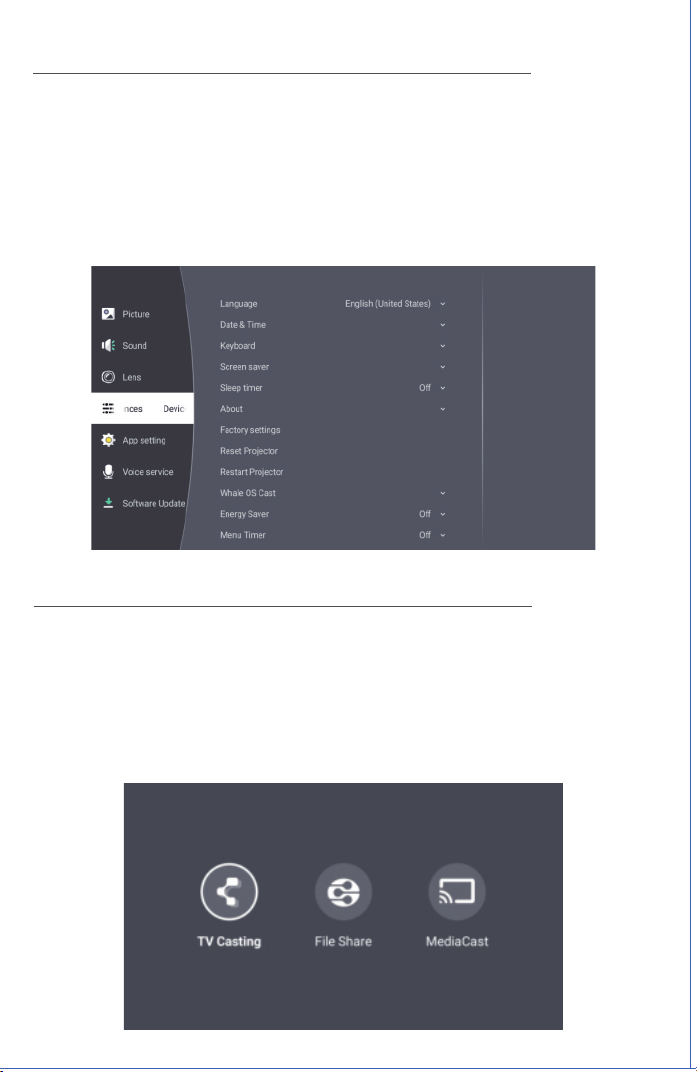
User Manual
BEEM 560
Smart Led Projector
E-Waste Management
For E-Waste & ROHS compliance
refer to www.portronics.com/ewaste
www.portronics.com
For Support
Visit : www.portronics.com
E-mail : [email protected]
Contact No.: +91 9555245245
(Working Hours: Monday - Saturday, 10:00am - 6:00pm)
INTRODUCTION
/////
Thank you for purchasing the Beem 560 Smart LED Projector.
This user manual provides step-by-step guidance on setup,
operation, and maintenance to help you achieve the best
performance and extend the life of your projector.
Please read the instructions thoroughly before using the device
to ensure safe and optimal operation.
SAFETY PRECAUTIONS
/////
For the best viewing experience, it is recommended to use this
product in a dark room.
1. Do not install the projector in areas exposed to direct air
conditioning, moisture, or high temperatures, as this may
cause malfunction.
2. Ensure proper ventilation at all times. Blocked airflow can lead
to overheating or failure.
3. Never insert clips, paper, metal objects, or any foreign items
into the projector. If something accidentally falls inside, power
off immediately and contact Portronics service personnel.
4. To prevent the risk of electrical damage, do not place liquids on
or near the projector.
5. When transporting the projector, use soft protective materials
and always cover the lens with the lens cap to avoid scratches
or damage.
6. After use, the exhaust vent area may be hot. Avoid touching it
directly with bare hands.
7. Never look directly into the projector lens while it is powered on,
as this can cause serious eye injury.
CAUTIONS AND WARNINGS
/////
⚠
IMPORTANT NOTICES
/////
Notice 1
Do not attempt to open the projector casing. Internal
maintenance should only be carried out by trained
professionals.
Notice 2
Warning: The internal parts of the projector may contain
uninsulated high voltage and surface magnetic fields. Do
not touch internal components, as this can result in serious
electric shock.
Notice 3
To prevent fire or electric shock, never expose the
projector to rain, moisture, or wet conditions under any
circumstances.
• Ensure there are no obstacles within 30
cm of the projector’s air inlet and outlet
during use.
• Provide adequate ventilation to prevent
heat buildup inside the projector.
• Blocked airflow may cause overheating
and abnormal functioning of the projector.
(Refer to the diagram for correct setup.)
Dust Maintenance
• After using the dust removal window,
always close it properly. Leaving it open
may cause serious damage to the
projector.
• Regularly clean the air inlet dust screen to
prevent dust accumulation, which can
block airflow and damage the device.
• Use soft brushes, a vacuum cleaner, or
similar tools for cleaning.
LIST OF ITEMS
/////
JioHotstar
OVERVIEW
/////
REMOTE CONTROL
/////
GETTING STARTED
/////
SOUND SETTING
/////
DEVICE PREFERENCE
/////
APP SETTING
/////
SOFTWARE UPDATE
/////
BLUETOOTH SPEAKER
/////
NETWORK SETTING
/////
CLEANING METHOD
/////
BLUETOOTH SETTING
/////
PICTURE SETTING
/////
LENS SETTING
/////
WHALE OS CAST
/////
VOICE SERVICE
/////
FILE MANAGEMENT
/////
Tips
1. Blurry Image
· Go to Settings→ Lens → Autofocus Settings on the homepage to
adjust image clarity.
· You can also press the Focus button on the remote control to achieve
the best clarity.
2. Mounting Hole
· The projector features a dual-use single mounting hole design,
making it compatible with standard camera tripods and ¼-inch screw
projector tripod stands.
Bluetooth Remote Controller Pairing
To pair the remote controller with the projector:
1. Keep the remote controller close to the
projector.
2. Press and hold both the Left and Right
buttons simultaneously for 3 seconds.
3. The remote will pair automatically.
To connect the projector to Wi-Fi, go to Settings→ Network → Wi-Fi → Connect
to Network on the homepage, select your desired Wi-Fi network, and enter the
password to establish the connection.
To connect a Bluetooth device, go to Settings → Network→ Bluetooth on the
homepage, select Search for Bluetooth Device, then choose your desired
device from the list and click Pair to complete the connection.
Go to Settings → Picture on the homepage to customize your viewing
experience. Here you can adjust picture settings, switch between picture
modes, and enable eye protection mode.
Go to Settings → Sound on the homepage to customize audio preferences. You
can adjust sound balance, change sound modes, select the output device, and
configure the output format for optimal sound quality.
Go to Settings → Lens on the homepage to adjust projection settings. Here
you can set the projection direction, enable autofocus, use keystone
correction, and apply digital zoom for the best viewing experience.
Go to Settings → Device Preferences on the homepage to customize your
projector. Here you can change the language, set date and time, choose keyboard
options, configure screen saver and sleep timer, check device information, reset or
restart the projector, enable Whale OS cast, adjust energy saver settings, and set
the menu timer
To use screen casting, first connect your phone and the projector to the same
Wi-Fi network. Then go to Settings → Device Preferences → Whale OS Cast →
TV Casting and follow the on-screen instructions to download the TV Casting
app. After installation, search for the projector device on your phone and
select it to share your screen.
Go to Settings → App Setting on the homepage to manage applications. Here
you can check recently opened apps, view all installed applications, and
manage app permissions.
Go to Settings → Voice Service on the homepage to adjust voice options.
Here you can change the language and modify the tone of the intelligent
speech feature.
Go to Settings → Software Update on the homepage to check for the latest
updates, install new software, and view the current software version of your
projector.
Insert a U disk into the projector, then click the File icon on the
homepage to access its contents. Supported files include videos,
audio, pictures, and more.
To use the projector as a Bluetooth speaker, click the Bluetooth Speaker
icon on the desktop to enter speaker mode. On your mobile phone, search
for the projector's name, then pair and connect. You can select Turn Off
Screen to switch off the display while keeping audio active, and press the
Back button to exit this mode.
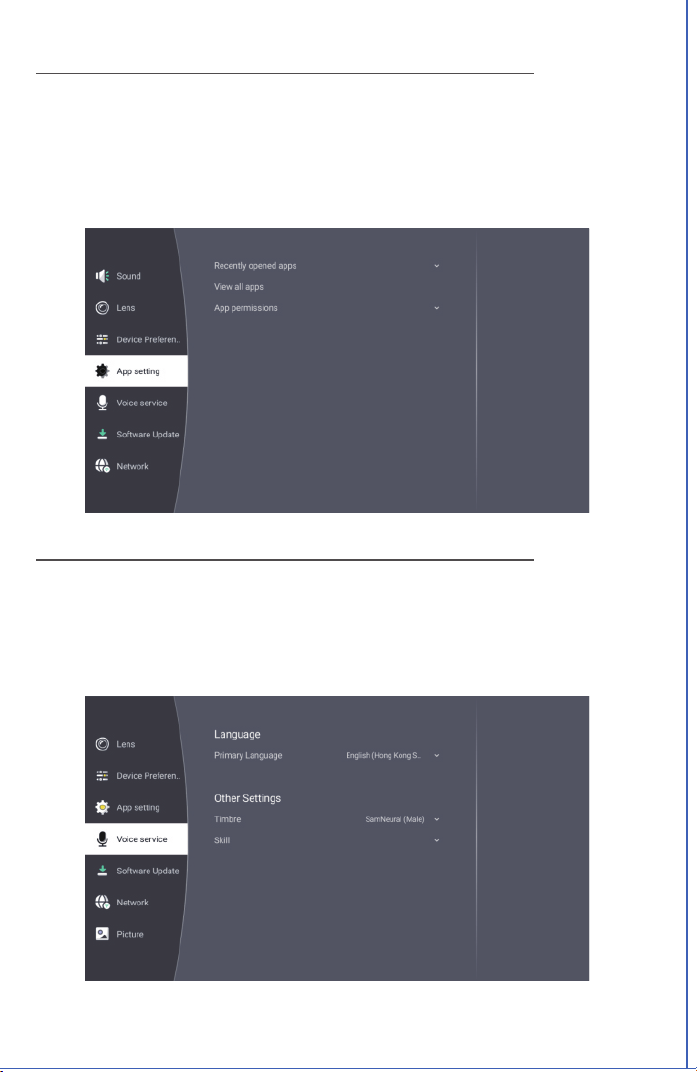
User Manual
BEEM 560
Smart Led Projector
E-Waste Management
For E-Waste & ROHS compliance
refer to www.portronics.com/ewaste
www.portronics.com
For Support
Visit : www.portronics.com
E-mail : [email protected]
Contact No.: +91 9555245245
(Working Hours: Monday - Saturday, 10:00am - 6:00pm)
INTRODUCTION
/////
Thank you for purchasing the Beem 560 Smart LED Projector.
This user manual provides step-by-step guidance on setup,
operation, and maintenance to help you achieve the best
performance and extend the life of your projector.
Please read the instructions thoroughly before using the device
to ensure safe and optimal operation.
SAFETY PRECAUTIONS
/////
For the best viewing experience, it is recommended to use this
product in a dark room.
1. Do not install the projector in areas exposed to direct air
conditioning, moisture, or high temperatures, as this may
cause malfunction.
2. Ensure proper ventilation at all times. Blocked airflow can lead
to overheating or failure.
3. Never insert clips, paper, metal objects, or any foreign items
into the projector. If something accidentally falls inside, power
off immediately and contact Portronics service personnel.
4. To prevent the risk of electrical damage, do not place liquids on
or near the projector.
5. When transporting the projector, use soft protective materials
and always cover the lens with the lens cap to avoid scratches
or damage.
6. After use, the exhaust vent area may be hot. Avoid touching it
directly with bare hands.
7. Never look directly into the projector lens while it is powered on,
as this can cause serious eye injury.
CAUTIONS AND WARNINGS
/////
⚠
IMPORTANT NOTICES
/////
Notice 1
Do not attempt to open the projector casing. Internal
maintenance should only be carried out by trained
professionals.
Notice 2
Warning: The internal parts of the projector may contain
uninsulated high voltage and surface magnetic fields. Do
not touch internal components, as this can result in serious
electric shock.
Notice 3
To prevent fire or electric shock, never expose the
projector to rain, moisture, or wet conditions under any
circumstances.
• Ensure there are no obstacles within 30
cm of the projector’s air inlet and outlet
during use.
• Provide adequate ventilation to prevent
heat buildup inside the projector.
• Blocked airflow may cause overheating
and abnormal functioning of the projector.
(Refer to the diagram for correct setup.)
Dust Maintenance
• After using the dust removal window,
always close it properly. Leaving it open
may cause serious damage to the
projector.
• Regularly clean the air inlet dust screen to
prevent dust accumulation, which can
block airflow and damage the device.
• Use soft brushes, a vacuum cleaner, or
similar tools for cleaning.
LIST OF ITEMS
/////
JioHotstar
OVERVIEW
/////
REMOTE CONTROL
/////
GETTING STARTED
/////
SOUND SETTING
/////
DEVICE PREFERENCE
/////
APP SETTING
/////
SOFTWARE UPDATE
/////
BLUETOOTH SPEAKER
/////
NETWORK SETTING
/////
CLEANING METHOD
/////
BLUETOOTH SETTING
/////
PICTURE SETTING
/////
LENS SETTING
/////
WHALE OS CAST
/////
VOICE SERVICE
/////
FILE MANAGEMENT
/////
Tips
1. Blurry Image
· Go to Settings→ Lens → Autofocus Settings on the homepage to
adjust image clarity.
· You can also press the Focus button on the remote control to achieve
the best clarity.
2. Mounting Hole
· The projector features a dual-use single mounting hole design,
making it compatible with standard camera tripods and ¼-inch screw
projector tripod stands.
Bluetooth Remote Controller Pairing
To pair the remote controller with the projector:
1. Keep the remote controller close to the
projector.
2. Press and hold both the Left and Right
buttons simultaneously for 3 seconds.
3. The remote will pair automatically.
To connect the projector to Wi-Fi, go to Settings→ Network → Wi-Fi → Connect
to Network on the homepage, select your desired Wi-Fi network, and enter the
password to establish the connection.
To connect a Bluetooth device, go to Settings → Network→ Bluetooth on the
homepage, select Search for Bluetooth Device, then choose your desired
device from the list and click Pair to complete the connection.
Go to Settings → Picture on the homepage to customize your viewing
experience. Here you can adjust picture settings, switch between picture
modes, and enable eye protection mode.
Go to Settings → Sound on the homepage to customize audio preferences. You
can adjust sound balance, change sound modes, select the output device, and
configure the output format for optimal sound quality.
Go to Settings → Lens on the homepage to adjust projection settings. Here
you can set the projection direction, enable autofocus, use keystone
correction, and apply digital zoom for the best viewing experience.
Go to Settings → Device Preferences on the homepage to customize your
projector. Here you can change the language, set date and time, choose keyboard
options, configure screen saver and sleep timer, check device information, reset or
restart the projector, enable Whale OS cast, adjust energy saver settings, and set
the menu timer
To use screen casting, first connect your phone and the projector to the same
Wi-Fi network. Then go to Settings → Device Preferences → Whale OS Cast →
TV Casting and follow the on-screen instructions to download the TV Casting
app. After installation, search for the projector device on your phone and
select it to share your screen.
Go to Settings → App Setting on the homepage to manage applications. Here
you can check recently opened apps, view all installed applications, and
manage app permissions.
Go to Settings → Voice Service on the homepage to adjust voice options.
Here you can change the language and modify the tone of the intelligent
speech feature.
Go to Settings → Software Update on the homepage to check for the latest
updates, install new software, and view the current software version of your
projector.
Insert a U disk into the projector, then click the File icon on the
homepage to access its contents. Supported files include videos,
audio, pictures, and more.
To use the projector as a Bluetooth speaker, click the Bluetooth Speaker
icon on the desktop to enter speaker mode. On your mobile phone, search
for the projector's name, then pair and connect. You can select Turn Off
Screen to switch off the display while keeping audio active, and press the
Back button to exit this mode.
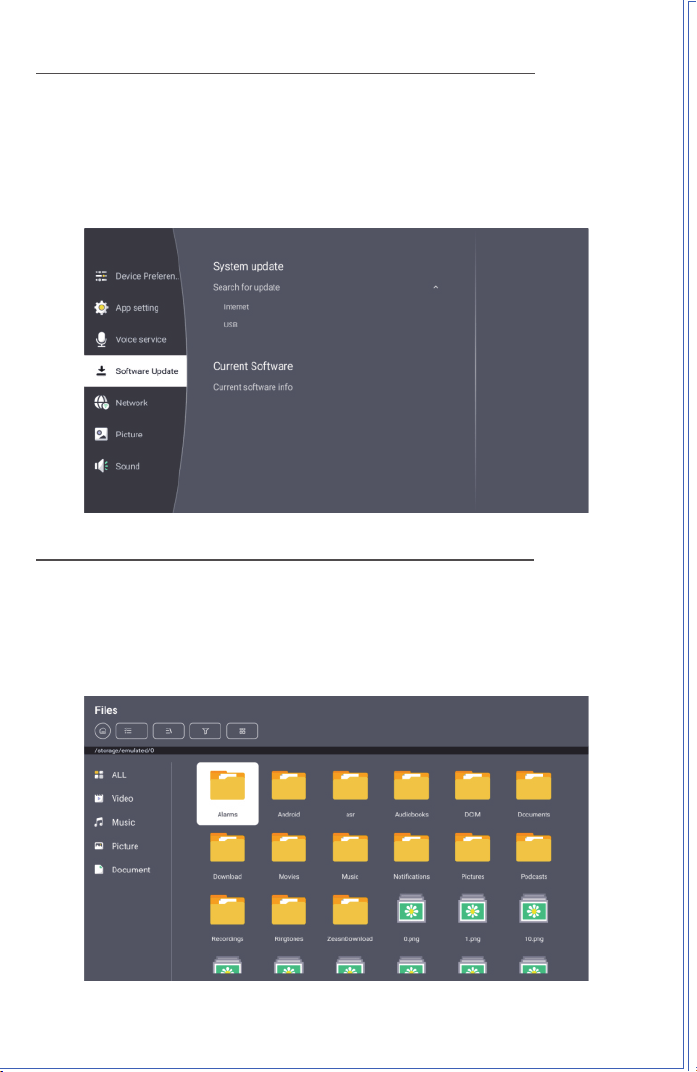
User Manual
BEEM 560
Smart Led Projector
E-Waste Management
For E-Waste & ROHS compliance
refer to www.portronics.com/ewaste
www.portronics.com
For Support
Visit : www.portronics.com
E-mail : [email protected]
Contact No.: +91 9555245245
(Working Hours: Monday - Saturday, 10:00am - 6:00pm)
INTRODUCTION
/////
Thank you for purchasing the Beem 560 Smart LED Projector.
This user manual provides step-by-step guidance on setup,
operation, and maintenance to help you achieve the best
performance and extend the life of your projector.
Please read the instructions thoroughly before using the device
to ensure safe and optimal operation.
SAFETY PRECAUTIONS
/////
For the best viewing experience, it is recommended to use this
product in a dark room.
1. Do not install the projector in areas exposed to direct air
conditioning, moisture, or high temperatures, as this may
cause malfunction.
2. Ensure proper ventilation at all times. Blocked airflow can lead
to overheating or failure.
3. Never insert clips, paper, metal objects, or any foreign items
into the projector. If something accidentally falls inside, power
off immediately and contact Portronics service personnel.
4. To prevent the risk of electrical damage, do not place liquids on
or near the projector.
5. When transporting the projector, use soft protective materials
and always cover the lens with the lens cap to avoid scratches
or damage.
6. After use, the exhaust vent area may be hot. Avoid touching it
directly with bare hands.
7. Never look directly into the projector lens while it is powered on,
as this can cause serious eye injury.
CAUTIONS AND WARNINGS
/////
⚠
IMPORTANT NOTICES
/////
Notice 1
Do not attempt to open the projector casing. Internal
maintenance should only be carried out by trained
professionals.
Notice 2
Warning: The internal parts of the projector may contain
uninsulated high voltage and surface magnetic fields. Do
not touch internal components, as this can result in serious
electric shock.
Notice 3
To prevent fire or electric shock, never expose the
projector to rain, moisture, or wet conditions under any
circumstances.
• Ensure there are no obstacles within 30
cm of the projector’s air inlet and outlet
during use.
• Provide adequate ventilation to prevent
heat buildup inside the projector.
• Blocked airflow may cause overheating
and abnormal functioning of the projector.
(Refer to the diagram for correct setup.)
Dust Maintenance
• After using the dust removal window,
always close it properly. Leaving it open
may cause serious damage to the
projector.
• Regularly clean the air inlet dust screen to
prevent dust accumulation, which can
block airflow and damage the device.
• Use soft brushes, a vacuum cleaner, or
similar tools for cleaning.
LIST OF ITEMS
/////
JioHotstar
OVERVIEW
/////
REMOTE CONTROL
/////
GETTING STARTED
/////
SOUND SETTING
/////
DEVICE PREFERENCE
/////
APP SETTING
/////
SOFTWARE UPDATE
/////
BLUETOOTH SPEAKER
/////
NETWORK SETTING
/////
CLEANING METHOD
/////
BLUETOOTH SETTING
/////
PICTURE SETTING
/////
LENS SETTING
/////
WHALE OS CAST
/////
VOICE SERVICE
/////
FILE MANAGEMENT
/////
Tips
1. Blurry Image
· Go to Settings→ Lens → Autofocus Settings on the homepage to
adjust image clarity.
· You can also press the Focus button on the remote control to achieve
the best clarity.
2. Mounting Hole
· The projector features a dual-use single mounting hole design,
making it compatible with standard camera tripods and ¼-inch screw
projector tripod stands.
Bluetooth Remote Controller Pairing
To pair the remote controller with the projector:
1. Keep the remote controller close to the
projector.
2. Press and hold both the Left and Right
buttons simultaneously for 3 seconds.
3. The remote will pair automatically.
To connect the projector to Wi-Fi, go to Settings→ Network → Wi-Fi → Connect
to Network on the homepage, select your desired Wi-Fi network, and enter the
password to establish the connection.
To connect a Bluetooth device, go to Settings → Network→ Bluetooth on the
homepage, select Search for Bluetooth Device, then choose your desired
device from the list and click Pair to complete the connection.
Go to Settings → Picture on the homepage to customize your viewing
experience. Here you can adjust picture settings, switch between picture
modes, and enable eye protection mode.
Go to Settings → Sound on the homepage to customize audio preferences. You
can adjust sound balance, change sound modes, select the output device, and
configure the output format for optimal sound quality.
Go to Settings → Lens on the homepage to adjust projection settings. Here
you can set the projection direction, enable autofocus, use keystone
correction, and apply digital zoom for the best viewing experience.
Go to Settings → Device Preferences on the homepage to customize your
projector. Here you can change the language, set date and time, choose keyboard
options, configure screen saver and sleep timer, check device information, reset or
restart the projector, enable Whale OS cast, adjust energy saver settings, and set
the menu timer
To use screen casting, first connect your phone and the projector to the same
Wi-Fi network. Then go to Settings → Device Preferences → Whale OS Cast →
TV Casting and follow the on-screen instructions to download the TV Casting
app. After installation, search for the projector device on your phone and
select it to share your screen.
Go to Settings → App Setting on the homepage to manage applications. Here
you can check recently opened apps, view all installed applications, and
manage app permissions.
Go to Settings → Voice Service on the homepage to adjust voice options.
Here you can change the language and modify the tone of the intelligent
speech feature.
Go to Settings → Software Update on the homepage to check for the latest
updates, install new software, and view the current software version of your
projector.
Insert a U disk into the projector, then click the File icon on the
homepage to access its contents. Supported files include videos,
audio, pictures, and more.
To use the projector as a Bluetooth speaker, click the Bluetooth Speaker
icon on the desktop to enter speaker mode. On your mobile phone, search
for the projector's name, then pair and connect. You can select Turn Off
Screen to switch off the display while keeping audio active, and press the
Back button to exit this mode.
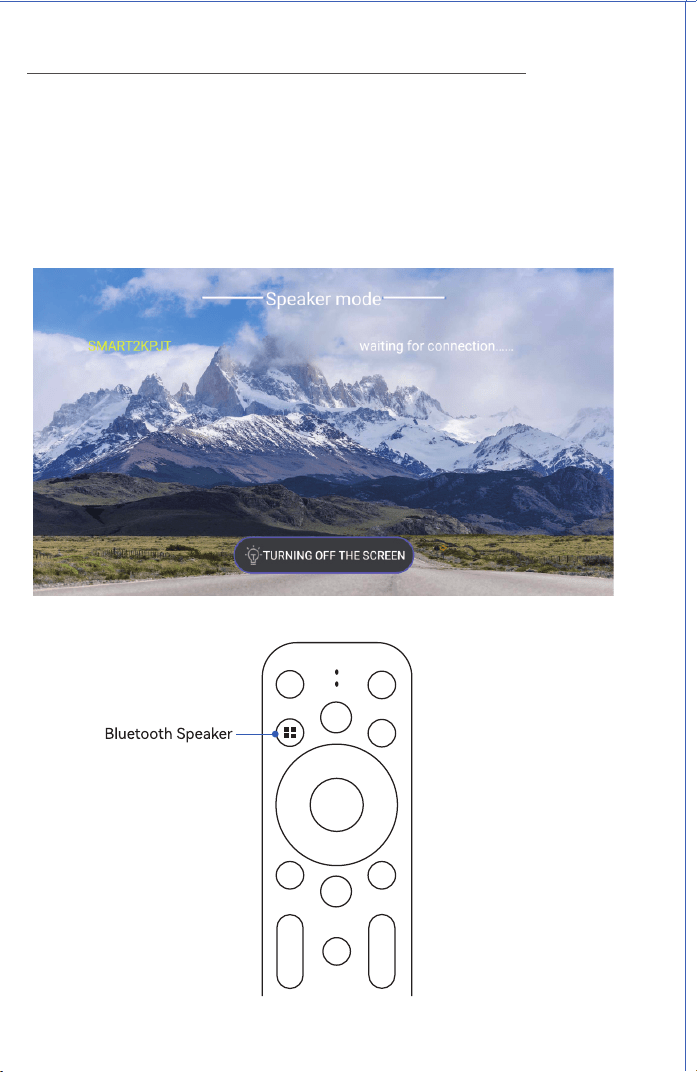
User Manual
BEEM 560
Smart Led Projector
E-Waste Management
For E-Waste & ROHS compliance
refer to www.portronics.com/ewaste
www.portronics.com
For Support
Visit : www.portronics.com
E-mail : [email protected]
Contact No.: +91 9555245245
(Working Hours: Monday - Saturday, 10:00am - 6:00pm)
INTRODUCTION
/////
Thank you for purchasing the Beem 560 Smart LED Projector.
This user manual provides step-by-step guidance on setup,
operation, and maintenance to help you achieve the best
performance and extend the life of your projector.
Please read the instructions thoroughly before using the device
to ensure safe and optimal operation.
SAFETY PRECAUTIONS
/////
For the best viewing experience, it is recommended to use this
product in a dark room.
1. Do not install the projector in areas exposed to direct air
conditioning, moisture, or high temperatures, as this may
cause malfunction.
2. Ensure proper ventilation at all times. Blocked airflow can lead
to overheating or failure.
3. Never insert clips, paper, metal objects, or any foreign items
into the projector. If something accidentally falls inside, power
off immediately and contact Portronics service personnel.
4. To prevent the risk of electrical damage, do not place liquids on
or near the projector.
5. When transporting the projector, use soft protective materials
and always cover the lens with the lens cap to avoid scratches
or damage.
6. After use, the exhaust vent area may be hot. Avoid touching it
directly with bare hands.
7. Never look directly into the projector lens while it is powered on,
as this can cause serious eye injury.
CAUTIONS AND WARNINGS
/////
⚠
IMPORTANT NOTICES
/////
Notice 1
Do not attempt to open the projector casing. Internal
maintenance should only be carried out by trained
professionals.
Notice 2
Warning: The internal parts of the projector may contain
uninsulated high voltage and surface magnetic fields. Do
not touch internal components, as this can result in serious
electric shock.
Notice 3
To prevent fire or electric shock, never expose the
projector to rain, moisture, or wet conditions under any
circumstances.
• Ensure there are no obstacles within 30
cm of the projector’s air inlet and outlet
during use.
• Provide adequate ventilation to prevent
heat buildup inside the projector.
• Blocked airflow may cause overheating
and abnormal functioning of the projector.
(Refer to the diagram for correct setup.)
Dust Maintenance
• After using the dust removal window,
always close it properly. Leaving it open
may cause serious damage to the
projector.
• Regularly clean the air inlet dust screen to
prevent dust accumulation, which can
block airflow and damage the device.
• Use soft brushes, a vacuum cleaner, or
similar tools for cleaning.
LIST OF ITEMS
/////
JioHotstar
OVERVIEW
/////
REMOTE CONTROL
/////
GETTING STARTED
/////
SOUND SETTING
/////
DEVICE PREFERENCE
/////
APP SETTING
/////
SOFTWARE UPDATE
/////
BLUETOOTH SPEAKER
/////
NETWORK SETTING
/////
CLEANING METHOD
/////
BLUETOOTH SETTING
/////
PICTURE SETTING
/////
LENS SETTING
/////
WHALE OS CAST
/////
VOICE SERVICE
/////
FILE MANAGEMENT
/////
Tips
1. Blurry Image
· Go to Settings→ Lens → Autofocus Settings on the homepage to
adjust image clarity.
· You can also press the Focus button on the remote control to achieve
the best clarity.
2. Mounting Hole
· The projector features a dual-use single mounting hole design,
making it compatible with standard camera tripods and ¼-inch screw
projector tripod stands.
Bluetooth Remote Controller Pairing
To pair the remote controller with the projector:
1. Keep the remote controller close to the
projector.
2. Press and hold both the Left and Right
buttons simultaneously for 3 seconds.
3. The remote will pair automatically.
To connect the projector to Wi-Fi, go to Settings→ Network → Wi-Fi → Connect
to Network on the homepage, select your desired Wi-Fi network, and enter the
password to establish the connection.
To connect a Bluetooth device, go to Settings → Network→ Bluetooth on the
homepage, select Search for Bluetooth Device, then choose your desired
device from the list and click Pair to complete the connection.
Go to Settings → Picture on the homepage to customize your viewing
experience. Here you can adjust picture settings, switch between picture
modes, and enable eye protection mode.
Go to Settings → Sound on the homepage to customize audio preferences. You
can adjust sound balance, change sound modes, select the output device, and
configure the output format for optimal sound quality.
Go to Settings → Lens on the homepage to adjust projection settings. Here
you can set the projection direction, enable autofocus, use keystone
correction, and apply digital zoom for the best viewing experience.
Go to Settings → Device Preferences on the homepage to customize your
projector. Here you can change the language, set date and time, choose keyboard
options, configure screen saver and sleep timer, check device information, reset or
restart the projector, enable Whale OS cast, adjust energy saver settings, and set
the menu timer
To use screen casting, first connect your phone and the projector to the same
Wi-Fi network. Then go to Settings → Device Preferences → Whale OS Cast →
TV Casting and follow the on-screen instructions to download the TV Casting
app. After installation, search for the projector device on your phone and
select it to share your screen.
Go to Settings → App Setting on the homepage to manage applications. Here
you can check recently opened apps, view all installed applications, and
manage app permissions.
Go to Settings → Voice Service on the homepage to adjust voice options.
Here you can change the language and modify the tone of the intelligent
speech feature.
Go to Settings → Software Update on the homepage to check for the latest
updates, install new software, and view the current software version of your
projector.
Insert a U disk into the projector, then click the File icon on the
homepage to access its contents. Supported files include videos,
audio, pictures, and more.
To use the projector as a Bluetooth speaker, click the Bluetooth Speaker
icon on the desktop to enter speaker mode. On your mobile phone, search
for the projector's name, then pair and connect. You can select Turn Off
Screen to switch off the display while keeping audio active, and press the
Back button to exit this mode.
User Manual
BEEM 560
Smart Led Projector
E-Waste Management
For E-Waste & ROHS compliance
refer to www.portronics.com/ewaste
www.portronics.com
For Support
Visit : www.portronics.com
E-mail : [email protected]
Contact No.: +91 9555245245
(Working Hours: Monday - Saturday, 10:00am - 6:00pm)
INTRODUCTION
/////
Thank you for purchasing the Beem 560 Smart LED Projector.
This user manual provides step-by-step guidance on setup,
operation, and maintenance to help you achieve the best
performance and extend the life of your projector.
Please read the instructions thoroughly before using the device
to ensure safe and optimal operation.
SAFETY PRECAUTIONS
/////
For the best viewing experience, it is recommended to use this
product in a dark room.
1. Do not install the projector in areas exposed to direct air
conditioning, moisture, or high temperatures, as this may
cause malfunction.
2. Ensure proper ventilation at all times. Blocked airflow can lead
to overheating or failure.
3. Never insert clips, paper, metal objects, or any foreign items
into the projector. If something accidentally falls inside, power
off immediately and contact Portronics service personnel.
4. To prevent the risk of electrical damage, do not place liquids on
or near the projector.
5. When transporting the projector, use soft protective materials
and always cover the lens with the lens cap to avoid scratches
or damage.
6. After use, the exhaust vent area may be hot. Avoid touching it
directly with bare hands.
7. Never look directly into the projector lens while it is powered on,
as this can cause serious eye injury.
CAUTIONS AND WARNINGS
/////
⚠
IMPORTANT NOTICES
/////
Notice 1
Do not attempt to open the projector casing. Internal
maintenance should only be carried out by trained
professionals.
Notice 2
Warning: The internal parts of the projector may contain
uninsulated high voltage and surface magnetic fields. Do
not touch internal components, as this can result in serious
electric shock.
Notice 3
To prevent fire or electric shock, never expose the
projector to rain, moisture, or wet conditions under any
circumstances.
• Ensure there are no obstacles within 30
cm of the projector’s air inlet and outlet
during use.
• Provide adequate ventilation to prevent
heat buildup inside the projector.
• Blocked airflow may cause overheating
and abnormal functioning of the projector.
(Refer to the diagram for correct setup.)
Dust Maintenance
• After using the dust removal window,
always close it properly. Leaving it open
may cause serious damage to the
projector.
• Regularly clean the air inlet dust screen to
prevent dust accumulation, which can
block airflow and damage the device.
• Use soft brushes, a vacuum cleaner, or
similar tools for cleaning.
LIST OF ITEMS
/////
JioHotstar
OVERVIEW
/////
REMOTE CONTROL
/////
GETTING STARTED
/////
SOUND SETTING
/////
DEVICE PREFERENCE
/////
APP SETTING
/////
SOFTWARE UPDATE
/////
BLUETOOTH SPEAKER
/////
NETWORK SETTING
/////
CLEANING METHOD
/////
BLUETOOTH SETTING
/////
PICTURE SETTING
/////
LENS SETTING
/////
WHALE OS CAST
/////
VOICE SERVICE
/////
FILE MANAGEMENT
/////
Tips
1. Blurry Image
· Go to Settings→ Lens → Autofocus Settings on the homepage to
adjust image clarity.
· You can also press the Focus button on the remote control to achieve
the best clarity.
2. Mounting Hole
· The projector features a dual-use single mounting hole design,
making it compatible with standard camera tripods and ¼-inch screw
projector tripod stands.
Bluetooth Remote Controller Pairing
To pair the remote controller with the projector:
1. Keep the remote controller close to the
projector.
2. Press and hold both the Left and Right
buttons simultaneously for 3 seconds.
3. The remote will pair automatically.
To connect the projector to Wi-Fi, go to Settings→ Network → Wi-Fi → Connect
to Network on the homepage, select your desired Wi-Fi network, and enter the
password to establish the connection.
To connect a Bluetooth device, go to Settings → Network→ Bluetooth on the
homepage, select Search for Bluetooth Device, then choose your desired
device from the list and click Pair to complete the connection.
Go to Settings → Picture on the homepage to customize your viewing
experience. Here you can adjust picture settings, switch between picture
modes, and enable eye protection mode.
Go to Settings → Sound on the homepage to customize audio preferences. You
can adjust sound balance, change sound modes, select the output device, and
configure the output format for optimal sound quality.
Go to Settings → Lens on the homepage to adjust projection settings. Here
you can set the projection direction, enable autofocus, use keystone
correction, and apply digital zoom for the best viewing experience.
Go to Settings → Device Preferences on the homepage to customize your
projector. Here you can change the language, set date and time, choose keyboard
options, configure screen saver and sleep timer, check device information, reset or
restart the projector, enable Whale OS cast, adjust energy saver settings, and set
the menu timer
To use screen casting, first connect your phone and the projector to the same
Wi-Fi network. Then go to Settings → Device Preferences → Whale OS Cast →
TV Casting and follow the on-screen instructions to download the TV Casting
app. After installation, search for the projector device on your phone and
select it to share your screen.
Go to Settings → App Setting on the homepage to manage applications. Here
you can check recently opened apps, view all installed applications, and
manage app permissions.
Go to Settings → Voice Service on the homepage to adjust voice options.
Here you can change the language and modify the tone of the intelligent
speech feature.
Go to Settings → Software Update on the homepage to check for the latest
updates, install new software, and view the current software version of your
projector.
Insert a U disk into the projector, then click the File icon on the
homepage to access its contents. Supported files include videos,
audio, pictures, and more.
To use the projector as a Bluetooth speaker, click the Bluetooth Speaker
icon on the desktop to enter speaker mode. On your mobile phone, search
for the projector's name, then pair and connect. You can select Turn Off
Screen to switch off the display while keeping audio active, and press the
Back button to exit this mode.