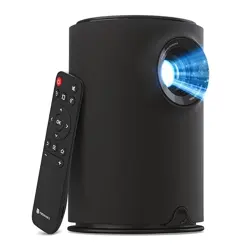
Overview
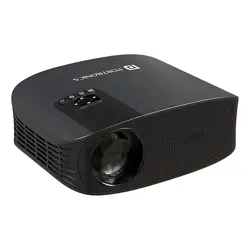
The Portronics Beem 400 is a portable LED projector designed for home entertainment and professional presentations. It delivers a 1080p HD resolution with 3600 Lumens (250 ANSI) brightness and supports screen sizes up to 160 inches. The projector runs on a built-in Android-based interface and includes wireless connectivity for screen mirroring from Android and iOS devices.

The device features a compact, portable form factor with a tabletop mount, making it suitable for use in living rooms, bedrooms, or meeting rooms. It includes a remote control for convenient operation.
What’s in the Box
- LED Projector (1 unit)
- Remote Control (1 unit)
- Power Adapter (1 unit)
- HDMI Cable (1 unit)
- User Manual
Features
Display and Image Quality
- Native Resolution: 1920 x 1080 (Full HD)
- Brightness: 3600 Lumens (250 ANSI)
- Contrast Ratio: 20000:1
- Aspect Ratio: 16:9
- Display Type: LED
- Light Source Life: Up to 30,000 hours
- Image Size: 50 to 160 inches (diagonal)
- Throw Distance: 4 to 12 feet

Electronic Focus (E-Focus)
The projector includes an electronic focus function that allows you to adjust the image sharpness using the remote control, eliminating the need for manual lens adjustments.

Audio
- Built-in Speaker: 6W (stereo)
- Provides clear and loud sound suitable for movies, games, and presentations.

Connectivity
- Wi-Fi: 2.4 GHz for wireless screen mirroring (Android/iOS)
- Bluetooth: Bluetooth 5.0 for connecting external speakers or audio devices
- HDMI: For connecting TV sticks, laptops, gaming consoles, set-top boxes
- USB: For media playback from USB flash drives
- AUX (3.5mm): For external audio output

Additional Features
- 4D Keystone Correction: Adjusts the image to a rectangular shape even when the projector is placed at an angle.
- Screen Mirroring: Wireless projection from Android and iOS devices.
- Remote Control: Included for power, volume, focus, and menu navigation.
- Portable Design: Lightweight (1.4 kg) with a tabletop mount.
Use Guide
Setting Up the Projector
- Place the projector on a stable, flat surface (tabletop) at a distance of 4 to 12 feet from the projection wall or screen.
- Connect the power adapter to the projector and plug it into a wall outlet.
- Press the power button on the projector or the remote control to turn it on.
Adjusting the Image
- Use the focus buttons on the remote control to sharpen the image (E-Focus).
- If the image appears trapezoidal, use the 4D keystone correction feature in the settings menu to adjust the shape.
- Move the projector closer or farther from the wall to achieve the desired screen size (50 to 160 inches).

Connecting to a Source
Wired Connection
- HDMI: Connect an HDMI cable from your device (laptop, TV stick, gaming console) to the HDMI port on the projector.
- USB: Insert a USB flash drive into the USB port to play media files directly.
- AUX: Connect external speakers or headphones using the 3.5mm audio jack.
Wireless Connection (Screen Mirroring)
- Ensure the projector is connected to a Wi-Fi network (2.4 GHz).
- On your smartphone or tablet, enable screen mirroring (cast/smart view).
- Select the projector from the list of available devices.
- Your device screen will be mirrored on the projector.
Bluetooth Audio
- Turn on the Bluetooth speaker or headphones.
- On the projector, go to Settings > Bluetooth and search for devices.
- Select your audio device from the list to pair.
Using the Remote Control
- Power: Turn the projector on/off.
- Focus +/-: Adjust image sharpness.
- Volume +/-: Control speaker volume.
- Menu/OK: Navigate and select options.
- Back: Return to previous menu.
Playing Media from USB
- Insert a USB flash drive containing video, audio, or image files.
- From the home screen, select the media player app.
- Browse and select the file you want to play.
Powering Off
- Press the power button on the remote or the projector.
- Wait for the cooling fan to stop before unplugging the power adapter.
Video: The product page includes a video demonstrating setup and usage. Refer to the video player on the product page for visual guidance.
Specifications
| Brand | Portronics |
|---|---|
| Model Name | Beem 400 |
| Model Number | POR-1913 |
| Display Type | LED |
| Native Resolution | 1920 x 1080 (Full HD) |
| Maximum Display Resolution | 1920 x 1080 |
| Brightness | 3600 Lumens (250 ANSI) |
| Contrast Ratio | 20000:1 |
| Aspect Ratio | 16:9 |
| Light Source Life | 30,000 hours |
| Image Size (Diagonal) | 50 – 160 inches |
| Throw Distance | 4 – 12 feet |
| Built-in Speaker | 6W |
| Connectivity | Wi-Fi (2.4 GHz), Bluetooth 5.0, HDMI, USB, AUX 3.5mm |
| Control Method | Remote Control |
| Form Factor | Portable, Tabletop Mount |
| Dimensions (L x W x H) | 21 x 16 x 21.3 cm |
| Weight | 1.4 kg |
| Colour | Black |
| Wattage | 6W (speaker) |
| Compatible Devices | Laptop, PC, Smartphone, TV stick, Gaming console, USB drive |
| Box Contents | Projector, Remote, Power Adapter, HDMI Cable, User Manual |
Warranty and Support
Warranty: 1 Year Manufacturing Warranty.
Manufacturer / Importer Contact:
- Portronics Digital Pvt Ltd
- Unit No. 1082-1090, 10th Floor, Block-B, Vegas, Dwarka, Sec-14, New Delhi-110075
- Phone: 9555-245-245
For support, contact the manufacturer using the details above. Retain the original purchase receipt and packaging for warranty service.