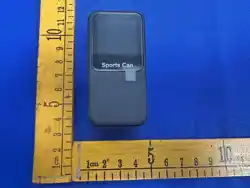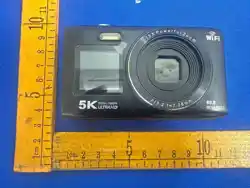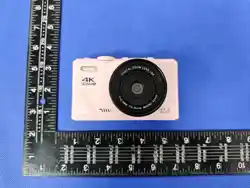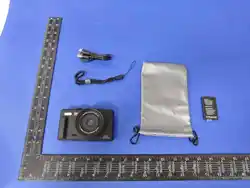
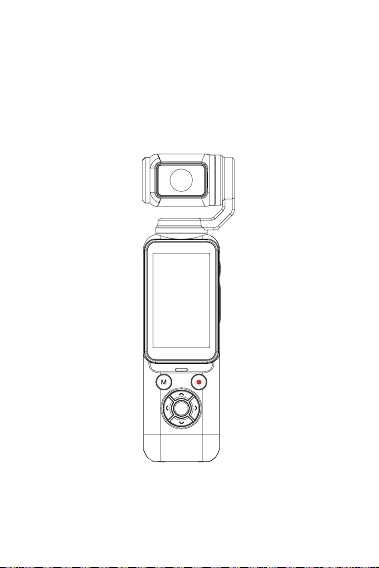
Sports Camera
Quick Guide
Read this manual carefully before use.(YD07)
OK

1
Warning
Caution
To reduce risk of fire or electric shock
Improper handling may cause battery burst,
fire or chemical burns.
1.Do not expose to rain or moisture.
2.Do not place liquid-filled objects on device.
3.Do not expose battery to excessive heat (sun, fire).
4.Do not swallow battery.
5.Keep batteries away from children.
6.If battery swallowed, seek medical help immediately.
1.Do not disassemble.
2.Do not squeeze, strike, drop or trample battery pack.
3.Avoid short-circuit. Do not let metal touch battery terminals.
4.Do not expose to temperature above 60°C (140°F).
5.Do not burn or discard in fire.
6.Do not handle damaged or leaking lithium-ion batteries.
7.Keep battery pack away from children.
8.Keep battery surface dry.
9.Only use specified battery model; wrong battery may cause
burst,fire or injury.
Contents
Warning .................................................................1
Caution ..................................................................1
Camera Parts ........................................................3
Button Description .................................................5
Power On / Off .......................................................7
Camera Settings ....................................................8
Camera Operation ...............................................10
Touch Operations ................................................11
Format Memory Card ..........................................12
Filter Functions ....................................................13
Media Playback ...................................................14
Connect to Computer ..........................................15
Wi‑Fi APP Guide ..................................................16
Maintenance ........................................................16
Troubleshooting ...................................................16
2 3
OK
1
2
3
5
7
6
10
8
4
11
12
9
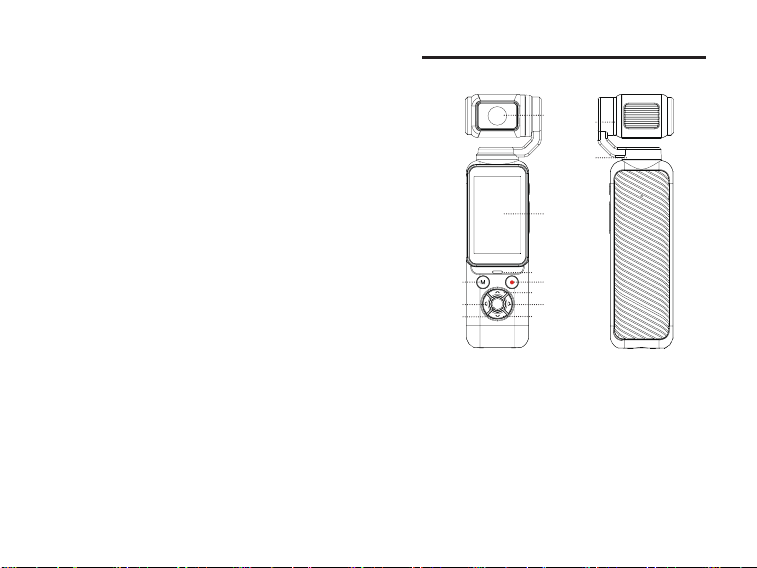
1: Lens
2: Display screen
3: Indicator
4: M button
(Mode Switch Button /
Pause Recording)
5: Power / Photo /
Record button
6: Up key
Front view Rear view
7: Right key
8: Down key
9: OK key
10: Left key
11: Vertically rotatable
lens module
12: Horizontally rotatable
lens module
Camera Parts
10.Dispose used batteries per instructions.
11.Plug AC adapter / charger into nearby wall
socket. Unplug on malfunction. Even when
indicator light goes off, power supply is still
connected.
12.Do not use charger in narrow gaps between
wall and furniture.
13.Reboot app or reconnect USB cable if static
electricity or electromagnetic interference
interrupts data transfer.
4 5
1
2
3
7
8
4
5
6
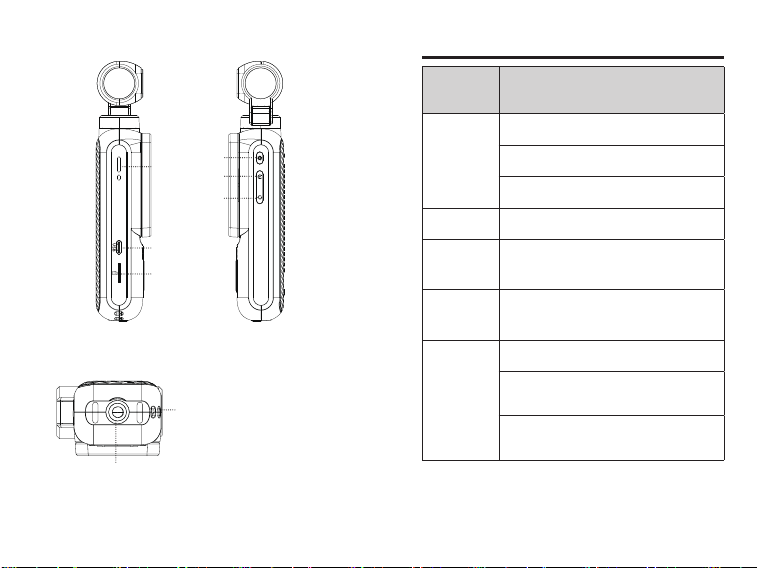
1: Speaker
2: Type‑C USB port
3: MemoryCard Slot
4: Menu Button
5: Playback button
6: Lens flip
7: Lanyard hole
8: Tripod mount
Left‑side view
Bottom View
Right‑side view
Button /
Indicator
Function
Power button
Long-press: power on / off
Short-press: start / stop recording
Short press to take photo
Menu Open menu settings / Back
Indicator Light Blue when working
M (Mode
Switch)
Switch modes (Photo/Video)Pause recording
Up
Select up
Short press: Stepwise digital zoom in
Long press: Continuous digital zoom in
Short-press: Incremental 90° upward lens flip /
Long-press: Continuous 90° upward lens flip
Button Description
6 7
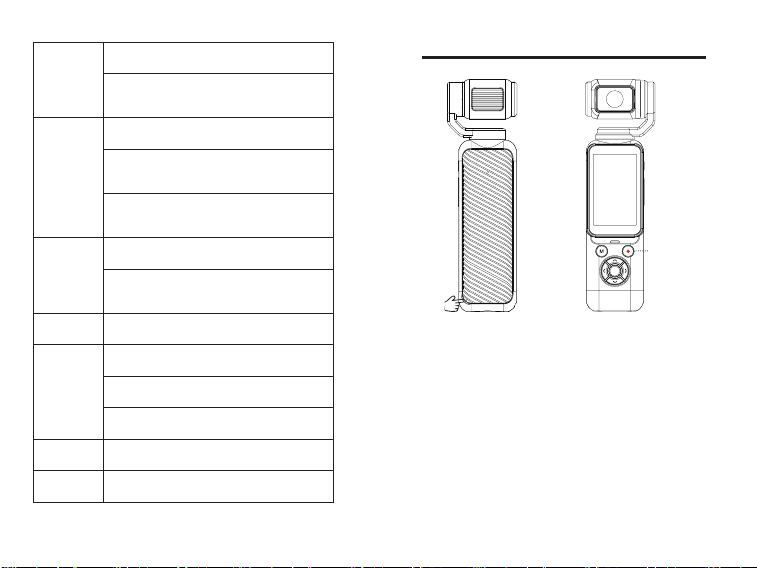
Long‑press power button
to power on.
Hold power button for 3
seconds to power off.
Open rear cover and
install battery.
Note: Long‑press power button for first‑time
startup.
OK
Power Button
Power On / Off
Right
Select right
Short press: Stepwise rightward lens rotation, 330°
Long press: Continuous rightward lens rotation, 330°
Down
Select down
Short press for step-by-step digital zoom out
Long press for continuous digital zoom out
Short-press: Incremental 30° downward lens flip /
Long-press: Continuous 30° downward lens flip
Left
Select left
Short press: Stepwise leftward lens rotation, 330°
Long press: Continuous leftward lens rotation, 330°
OK Confirm / Face tracking
USB
Charging via USB
Connect to PC via USB
Webcam
Playback Playback album/video
Flip Flip lens front/back
8 9
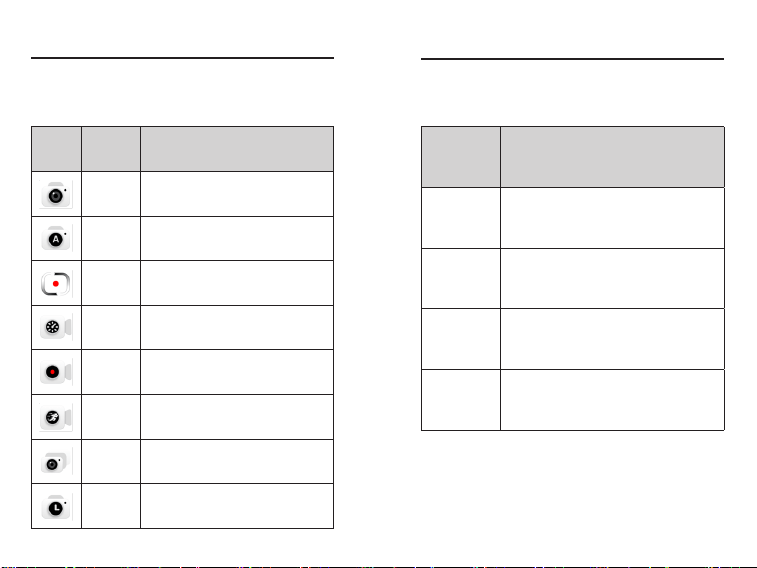
LED Indicator Off / On
Screen Saver Off / 30S / 1min / 2min
Auto Power Off Off / 3min / 5min / 10min
Motor Speed Default / High / Medium / Low
Gimbal Calibration Confirm / Cancel
Beep Volume High / Medium / Low / Off
Power On/Off Sound Off / On
Language
Simplified Chinese / Traditional Chinese
/ English / Japanese / Korean / Russian
/ German / French / Italian / Spanish
/ Portuguese / Thai / Dutch / Polish /
Swedish / Romanian / Indonesian /
Turkish / Greek···
Time Format Y/M/D / M/D/Y / D/M/Y
Date Setting Y / M / D
Time Setting H / M / S
Format Slide to format
Device Info Model & Version
Factory Reset Confirm / Cancel
Submenu Menu Options
Audio Noise Reduction High / Medium / Low / Off
Main Recording Codec H264/H265
Wi-Fi Hotspot Off / On
APP Guide Scan QR for tutorial
Light Frequency Auto / 50Hz / 60Hz
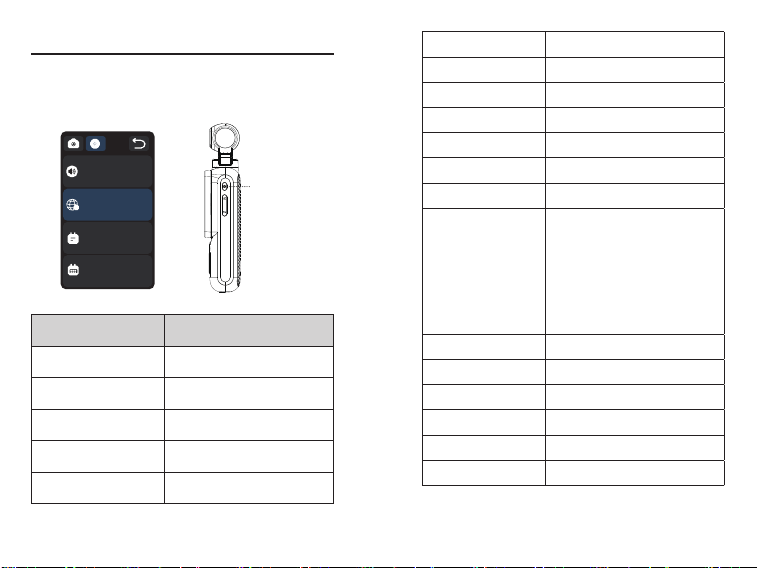
Camera Settings
Customize your camera.
Power on, press menu button to open menu and enter system
settings.
Menu Button
Power On/O Sound
Language
A
Time Format
Date Settings
10 11
Camera Operation
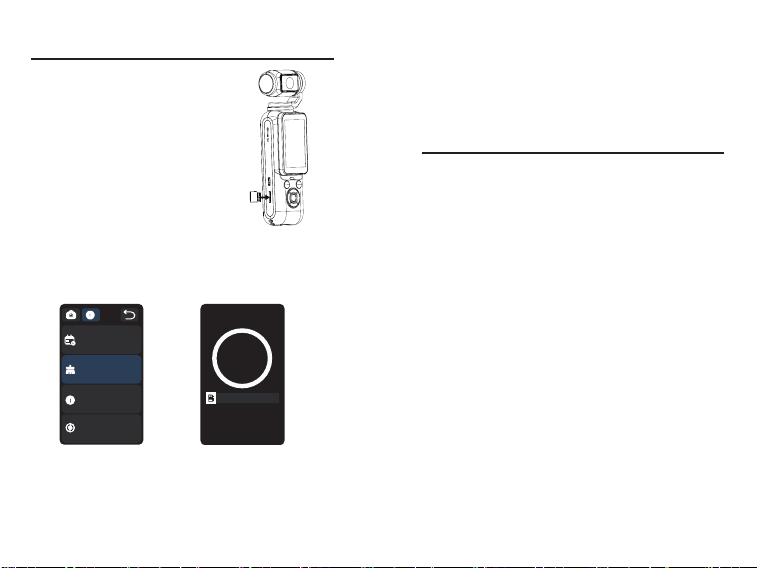
Tap icon or press M to open mode selection. Use slide or
left-right key to pick mode. Press OK to confirm.
Icon Mode Description
Normal
Photo
Take a normal photo
Auto Photo Auto continuous shooting at set intervals
Loop
Recording
Continuous recording, saves last fixed
duration
Time-lapse Time-lapse for static scenes
Normal
Video
Record normal video
Slow Motion High-speed recording for slow-mo playback
Burst
Shooting
Rapid continuous shots
Timed Photo Take a photo at a set time
Touch Operations
Swipe on touch screen (swipe near edge to avoid
mis-touch):
Swipe
Direction
Function
↓ Swipe down
Wi-Fi / Brightness / Screen Lock / Portrait/Landscape
Mode Switch / POV / Pitch Lock / Beep / Motor Speed
/ Settings
↑ Swipe up
Open Pixel Settings / Image Settings / Video
Resolution
→ Swipe right Open Playback Mode
← Swipe left
Open Filters / ISO / Exposure / White Balance /
Metering / Beauty
12 13
Format Memory Card
Use Class 10 or higher‑speed
memory card.
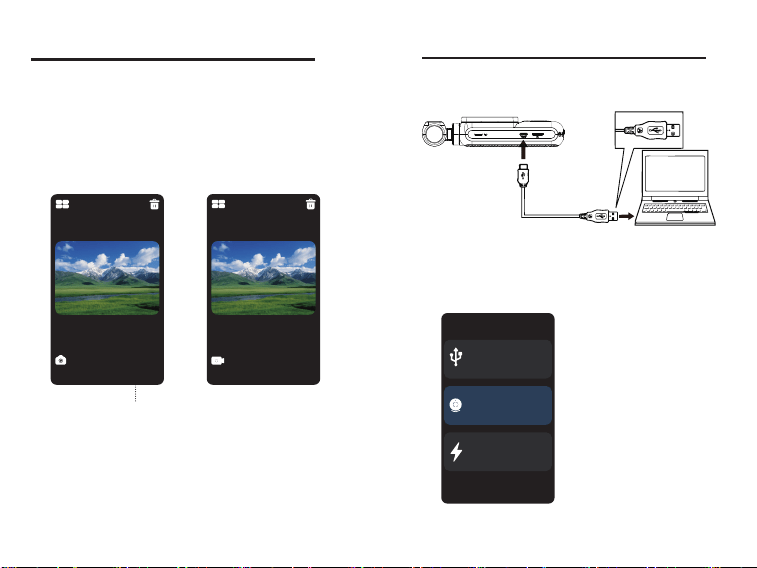
1.Insert card into slot until you
hear a “click”.
2.Push card inward to pop it out
for removal.
Format card before first use:
Notes:
Press menu button, scroll to “Format”, press OK, select
Swipe to format.
(1).If card format is not supported, screen will show:
"Unsupported file system. Format?" Select "Confirm" to
format, then camera will work normally.
(2).Formatting will delete all data on the card, and data cannot
be recovered.
(3).Please back up important data to PC before formatting.
Swipe to format
29.1G
29.1G
Time Settings
Format
Device Info
Factory Reset
Filter Functions
Built‑in filters work only under photo & video
modes; unavailable in playback.Swipe screen
left or open menu to pick filter. Select with keys
and press OK to apply.
Filter list: Normal, Black-white, Negative, Retro, Red, Green,
Blue, Purple, Cyan, Yellow, ins1977, Bronze glow, Infra-mist,
Binarization, Dusk burn, LOMO, Halo, Cross-process, Dark
tone, Red-mono, Blue-mono, Green-mono, Yellow-mono,
X-fluorescent, Red-magic, Low-saturation, High-saturation,
Dopamine···
14 15
1.Link camera Type-C port to PC USB port with supplied
cable.
2.Keep camera powered-on. Pop-up options appear. Scroll
with up-down key and press OK to select mode.
PC accesses memory-card
disk for file transfer.
Recording works while
charging. Power-off camera
charges faster.
Use camera for webcam or
live-stream.
Storage mode
Charging mode
Webcam mode
Charging Mode
Webcam Mode
Storage Mode
Connect to ComputerMedia Playback
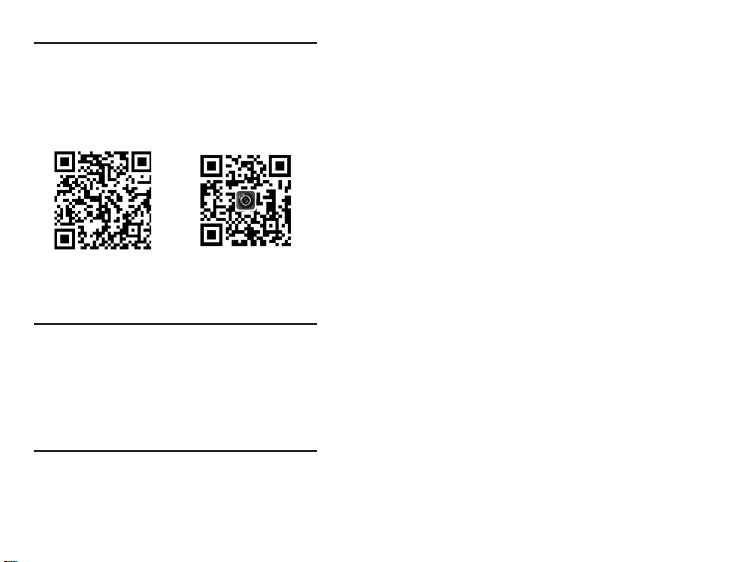
Press side playback button to open media
library.
(1)Use up / down key to browse photos & videos.
(2)Press OK to play selected video.
Display shows current‑file /
total‑file count.
ANMP����.jpg
�M ����/����
ANMR����.mp�
��:��:��
�.�K ����/����
16 17
Wi‑Fi APP Guide
Maintenance
Troubleshooting
Swipe camera main screen down and turn on Wi-Fi icon.Or
go into menu → system settings → APP guide, press photo
key to scan tutorial QR.Scan dedicated QR to
download Wi-Fi APP.
1.Charge battery at least once every month for long-term
storage. Store in dust-free dry place below 30°C.
2.Wipe lens or screen dust gently with clean soft lens cloth.
3.Do not drop or subject camera to heavy shock or vibration.
1.Cannot power on
Low battery, recharge device.
WiFi APP Guide QR Code WiFi APP Download QR Code
2.Fail to charge
(1)Indicator off: Check charger connection.
(2)Temperature below 10°C may cause slow or failed
charging.
3.System freeze
Long-press power button or reinstall battery.
Tip: Do not tap photo button rapidly during capture; wait for
loading icon.
4.Memory‑card not detected
(1)Use Class10 TF card; max capacity 256G.
(2)Check card insertion direction.
(3)Format card on first use.
Extra Notes
(1)Do not insert foreign objects into slots.
(2)Brief unstable picture after power-on is normal, not
defect.
(3)Edge color dispersion from lens optics is normal.
(4)It is normal for the memory card to become warm after
prolonged use.
(5) It is normal for the camera screen to become warm
after extended use.
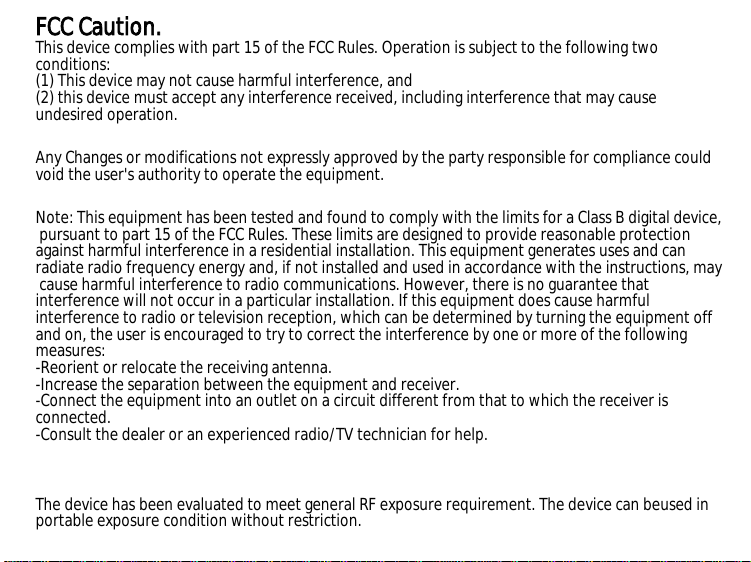
FCC Caution.
This device complies with part 15 of the FCC Rules. Operation is subject to the following two
conditions:
(1) This device may not cause harmful interference, and
(2) this device must accept any interference received, including interference that may cause
undesired operation.
Any Changes or modifications not expressly approved by the party responsible for compliance could
void the user's authority to operate the equipment.
Note: This equipment has been tested and found to comply with the limits for a Class B digital device,
pursuant to part 15 of the FCC Rules. These limits are designed to provide reasonable protection
against harmful interference in a residential installation. This equipment generates uses and can
radiate radio frequency energy and, if not installed and used in accordance with the instructions, may
cause harmful interference to radio communications. However, there is no guarantee that
interference will not occur in a particular installation. If this equipment does cause harmful
interference to radio or television reception, which can be determined by turning the equipment off
and on, the user is encouraged to try to correct the interference by one or more of the following
measures:
-Reorient or relocate the receiving antenna.
-Increase the separation between the equipment and receiver.
-Connect the equipment into an outlet on a circuit different from that to which the receiver is
connected.
-Consult the dealer or an experienced radio/TV technician for help.
The device has been evaluated to meet general RF exposure requirement. The device can beused in
portable exposure condition without restriction.