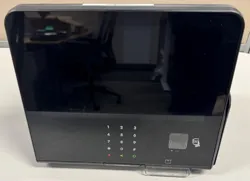

G6-400NFC (A2-09)
User Guide
DCV-00668 S2 R04
October 01, 2025
S2 Security Level Guide
No restrictions apply: customer-facing document.
Table of Contents

DCV-00668 S2 R04 ii
Table of Contents ................................................................................................................................... i
Chapter 1. Introduction ......................................................................................................................... 1
1.1. Product Model and Rating ................................................................................................. 1
1.2. Where Can the G6-400NFC be Installed? ........................................................................ 1
Chapter 2. Safety & Compliance Information ..................................................................................... 2
2.1. Preliminary Precautions .................................................................................................... 2
2.2. Safely Accessing a Fuel Pump .......................................................................................... 2
Evacuation and Barricading .............................................................................................. 2
Total Electrical Shut-Off .................................................................................................... 2
Read the Manual ............................................................................................................... 2
2.3. Follow the Regulations ...................................................................................................... 3
2.4. Replacement Parts ............................................................................................................ 3
2.5. Safety Symbols and Warning Words ................................................................................ 3
2.6. Prevent Explosions and Fires ............................................................................................ 3
No Open Flames ............................................................................................................... 4
No Sparks - No Smoking ................................................................................................... 4
2.7. Working Alone ................................................................................................................... 4
Best Practice ..................................................................................................................... 4
Safety First! ....................................................................................................................... 4
Installer Certification .......................................................................................................... 4
2.8. Safety First: Working with Electricity ................................................................................. 5
2.9. Hazardous Materials ......................................................................................................... 5
2.10. In an Emergency ........................................................................................................... 5
2.11. Computer Programs and Documentation ..................................................................... 6
Chapter 3. Approvals ............................................................................................................................ 7
3.1. European Directives .......................................................................................................... 8
3.2. UK Conformity Assessed .................................................................................................. 8
3.3. Australia and New Zealand Compliance ........................................................................... 9
3.4. FCC ................................................................................................................................... 9
3.5. Industry Canada Compliance Statements ....................................................................... 10
3.6. Hazardous Locations ....................................................................................................... 10
Chapter 4. Product Features .............................................................................................................. 11
4.1. Location of Features ........................................................................................................ 11
Chapter 5. Consumables .................................................................................................................... 13
5.1. Consumables ................................................................................................................... 13
Chapter 6. Location of Mounting Points ........................................................................................... 14
Chapter 7. Installation ......................................................................................................................... 15
7.1. Installing a Brand New OPT ............................................................................................ 15
Chapter 8. Tools Required to Mount the G6-400NFC (A2-09) ......................................................... 19
8.1. Environment .................................................................................................................... 19
Chapter 9. Installing into a New Pump or Cabinet ........................................................................... 20
Chapter 10. Upgrading an Existing Invenco OPT ............................................................................ 22
Chapter 11. Power Supply Considerations ....................................................................................... 23
Chapter 12. G6-400NFC (A2-09) Wiring ............................................................................................. 24
12.1. Protective Earth ........................................................................................................... 24
12.2. Ethernet LAN ............................................................................................................... 24
12.3. DC Power Supply ........................................................................................................ 25
Chapter 13. Main Power Supply Wiring ............................................................................................ 26
Chapter 14. Wiring Completion .......................................................................................................... 27
Chapter 15. First Power-Up ................................................................................................................ 28
15.1. Normal Start-Up .......................................................................................................... 28

DCV-00668 S2 R04 iii
15.2. Edit Configuration ........................................................................................................ 29
Chapter 16. Tamper-Detection ........................................................................................................... 30
Chapter 17. Basic Maintenance ......................................................................................................... 31
17.1. Cleaning ...................................................................................................................... 31
Chapter 18. How to Load Paper ......................................................................................................... 32
18.1. Paper Loading ............................................................................................................. 32
Insert Paper Roll ......................................................................................................... 32
Loading the Paper ....................................................................................................... 32
Detailed Photo Illustration ........................................................................................... 33
Chapter 19. Clearing a Paper Jam ..................................................................................................... 36
Chapter 20. Security Checks .............................................................................................................. 40
20.1. Built in Security ........................................................................................................... 40
20.2. Extra Security Checks ................................................................................................. 40
20.3. Escalation .................................................................................................................... 40
Security Checks .................................................................................................................................. 41
20.4. Keypad ........................................................................................................................ 41
20.5. Card-Reader Slot and Contactless Reader ................................................................ 41
Chapter 21. Removal & Reinstallation .............................................................................................. 43
21.1. How to Uninstall a G6-400NFC (A2-09)...................................................................... 43
21.2. How to Reinstall a G6-400NFC (A2-09)...................................................................... 43
Chapter 22. Drawings .......................................................................................................................... 44
22.1. Dimensions ................................................................................................................. 44
Chapter 23. Mounting – New Installation .......................................................................................... 47
Chapter 24. Typical Wiring ................................................................................................................. 49
Chapter 25. Optional Privacy Shield ................................................................................................. 50
Chapter 26. Release History ............................................................................................................... 51
Contact Details .................................................................................................................................... 52

Chapter 1. Introduction
The G6-400NFC Module (Outdoor Payment Terminal) is designed to be durable and tough, yet simple
and secure to use.
To get the best use out of the G6-400NFC (A2-09), it should be installed correctly and properly
maintained.
This guide will walk you through installation and correct care for your new G6-400NFC Module (A2-09).
Note: If you are installing an OPT using an approved retrofit kit, the instructions with the kit supersede
the instructions in this guide.
1.1. Product Model and Rating
G6-400NFC (A2-09) : 24 Vdc, 1.5 A, Class 2 or LPS
1.2. Where Can the G6-400NFC be Installed?
The G6-400NFC (A2-09) is a multi-purpose Outdoor Payment Terminal (OPT) designed for unattended
use.
It operates in a range of outdoor environments in temperatures from -30°C (-22°F) through to +70°C
(158°F)
It has been primarily designed for fuel station forecourts but can be installed into any physically secure
cabinet that has been designed for the intended environment.
Because it’s usually used in fuel stations, this guide explains the requirements for mounting it into a fuel
pump-head, however the steps are applicable to any cabinet.
Specific steps and precautions for pump head installation are highlighted.
Please, always use safety precautions when installing our products.

DCV-00668 S2 R04 2
Chapter 2. Safety & Compliance Information
STOP There are hazards and safety precautions associated with installing, inspecting, maintaining or
servicing this product.
Important: Before you start, READ! You need to understand the safety information in this manual.
Hazards and safety precautions for tasks are always listed.
Fire, explosion or electrical shock could occur and cause death or serious injury if these safe service
procedures are not followed.
2.1. Preliminary Precautions
Fuel stations can be a dangerous place to work - there are flammable fuels, vapours and high voltages.
You should only install, inspect, maintain or service this equipment when you are fully trained and
authorized to do so.
2.2. Safely Accessing a Fuel Pump
Evacuation and Barricading
If you need to access a pump/dispenser head, then you must:
• Evacuate all unauthorized persons and vehicles.
• Use safety tape or cones as a barricade to the affected unit(s).
Total Electrical Shut-Off
Before accessing the electrical components or the electronics of a pump/dispenser, you must carry out
a total electrical shut-off of that unit.
To shut off electricity find the switch or circuit breaker and turn it to the “off” position.
If you can’t turn off the power, STOP. Do not continue until the electricity has been safely turned off by
you or someone else.
Read the Manual
Read, understand and follow this manual and any other labels or related materials supplied with this
equipment. If you do not understand a procedure, call an Invenco-authorized service contractor.
Warning: For your own safety and that of others, you must understand the procedures before
beginning work.

DCV-00668 S2 R04 3
2.3. Follow the Regulations
Regulations exist to keep everyone safe.
You are expected to follow:
• OSH regulations.
• National regulations and codes.
• State regulations and codes.
• Local regulations and codes.
Note: If you do not install, inspect, maintain or service this equipment in accordance with these codes,
regulations and standards, it may affect the safe use and operation of the equipment, or lead to legal
citations with penalties.
2.4. Replacement Parts
Use only genuine Invenco supplied replacement parts on your installation.
Using parts other than genuine Invenco supplied replacement parts could create a safety hazard and
violate local regulations.
2.5. Safety Symbols and Warning Words
Throughout this guide you will see warnings and notes in boxes like below. These are used to let you
know when you need to take extra caution in order to avoid hazards and/or potential injury to yourself
or another person.
Always follow these instructions!
Warning: This alerts you to a hazard or unsafe practice that could result in death or serious injury.
Note: This designates a hazard or unsafe practice which may result in minor injury or a legal issue.
2.6. Prevent Explosions and Fires
Fuels and their vapours will become explosive if ignited.
All fuels cause vapours when they are exposed to air and transferred between containers; spilled or
leaking fuels cause even more vapours.
When a customer’s tank is filled, vapours leak into the air around the tank and island, and these vapours
can potentially catch fire or explode if they are exposed to a spark or flame.

DCV-00668 S2 R04 4
This is why every single person on a fuel station forecourt must be aware of the danger of sparks and
open flames and take precautions to avoid explosions and fires.
No Open Flames
Open flames from matches, lighters, welding torches or other sources can ignite the fuel and vapours
present on forecourts.
There should never be an open flame on a fuel station forecourt for any reason.
No Sparks - No Smoking
Sparks can also start a fire or cause an explosion on a forecourt. Be safety conscious!
Do not:
1. Smoke.
2. Light a match.
3. Use a lighter.
4. Use a mobile phone outside of your car.
5. Start or use power tools.
6. Create a flame of any kind.
Also beware of:
1. Static electricity.
Always touch the metal of your vehicle after you get out of it to discharge any electrostatic charge before
you approach the dispenser island.
2.7. Working Alone
Best Practice
Always work with at least two people if possible; one to actively work and one as an assistant/backup.
Ideally if you are working around high voltages, the backup/assistant should be trained in providing
Cardiopulmonary Resuscitation (CPR).
Safety First!
Whether working alone or with someone else:
1. Advise station personnel where you will be working.
2. Warn station personnel not to turn the power back on while you are working on the equipment.
3. Use the OSH tag out and lock out procedures.
If you are not familiar with this requirement, refer to the information in the service manual and the
OSH documentation.
Installer Certification

DCV-00668 S2 R04 5
Many countries’ authorities require people working in hazardous environments to hold additional
qualifications that prove they are suitably skilled to perform work on fuel station forecourts.
Please ensure that you have the relevant certifications and that they are current, before attending to
any site to perform installation work.
2.8. Safety First: Working with Electricity
Always:
1. Use safe and established practices.
2. Follow OSH Lock-Out and Tag-Out requirements before carrying out any service or installation
work.
3. Check all devices before use.
• Is the wiring in good condition?
• Is the grounding connection firmly attached?
• Are all sealing devices and compounds in tact and in place?
Never:
1. Use devices if they have any damage.
2. Skip over safety procedures for any reason.
• Faulty wiring or unsafe procedures can cause a fire, explosion or electrical shock.
Station employees and service contractors must understand and comply with these guidelines
completely to ensure safety while the equipment is down.
2.9. Hazardous Materials
Some materials present inside electronic enclosures may present a health hazard if not handled
correctly.
• Always wear gloves if practical to do so.
• Keep your hands away from your eyes and mouth during installation.
• Wash your hands as soon as possible.
2.10. In an Emergency
Contact your country’s emergency number immediately.
Emergency personnel will need the following information:
• Location of accident (e.g. address, front/back of building).
• Nature of accident (e.g. possible heart attack, run over by car, burns).
• Approximate age of victim (e.g. baby, teenager, middle-age, elderly).
• Whether or not victim has received first aid (e.g. stopped bleeding by pressure).
• Whether or not victim has vomited (e.g. if swallowed or inhaled something).
Warning: Oxygen may be needed at scene if gasoline has been ingested or inhaled. Seek medical
advice immediately.

DCV-00668 S2 R04 6
2.11. Computer Programs and Documentation
All Invenco Group Ltd. computer programs (including software on discs and within memory chips) and
documentation are copyrighted by, and shall remain the property of, Invenco Group Ltd. Such computer
programs and documents may contain trade secret information.
The duplication, disclosure, modification, or unauthorized use of computer programs or documentation
is strictly prohibited unless otherwise licensed by Invenco Group Ltd.

DCV-00668 S2 R04 7
Chapter 3. Approvals
Invenco develops and maintains its hardware and software products using industry-standard quality
processes and is audited by the MasterCard TQM (Terminal Quality Management) scheme.
The G6-400NFC (A2-09) has the following approvals:
Hazardous Location Safety Certification
CSA C22.2 No. 213-17 (Hazardous location safety – Class I Division 2).
UL 121201 and CAN/CSA C22.2 No. 213-17, Non-incendive Electrical Equipment (Class I Division 2,
Groups A, B, C
and D).
USA: AZOW2.E480135.
Canada: AZOW8.E480135.
ATEX Certification (Potentially Explosive Atmospheres)
EN IEC 60079-0
EN IEC 60079-7
EN 60079-11
Ordinary Location Safety Certification
IEC/EN/AS/NZS/UL 62368-1 & CSA C22.2 No. 62368-1-14 (Safety - Audio/video, information, and
communication technology equipment).
USA: AZO2.E469526.
Canada: AZOT8.E469526.
Retrofit Safety Certification
UL 1238, UL 87 & CSA C22.2 No. 213-17, CSA B346-M1980, CSA C22.2 No. 22 (Retrofit assemblies).
USA: ERKQ.MH61528.
Canada: ERKQ7.MH61528.

DCV-00668 S2 R04 8
EMC
EN 300 300 & ETSI 301 489-3 (in conjunction with ETSI 301 489-1) for Radio.
FCC certification 47 CFR Part 15C.
IC certification (RSS-Gen & RSS-210).
SIRIM (Malaysia) certified: HIDM20000040.
Environmental Compliance
RoHS compliance with Directive 2011/65/EU & Commission delegated directive (EU) 2015/863 and
The Restriction of the Use of Certain Hazardous Substances in Electrical and Electronic Equipment
Regulations 2012.
EMV Certification
The terminal is certified by EMV Co for EMV L1 Contact , L2 Contact, L1 Contactless.
It also has certifications for performing EMV transactions as defined by Visa, Mastercard,
Discover, Amex, Interac, JCB, CUP, ECB and Pure schemes.
PCI Certification: This terminal is compliant to PCI -PTS -POI – PCI 6.x.
TQM Compliance: PCD: TQM4285/01, IFM: TQM4285/02
3.1. European Directives
The G6-400NFC (A2-09) complies with the necessary European Directives for the CE mark.
3.2. UK Conformity Assessed
The G6-400NFC (A2-09) complies with the necessary UK Conformity Assessments for the UKCA mark.

DCV-00668 S2 R04 9
3.3. Australia and New Zealand Compliance
The G6-400NFC (A2-09) complies with the necessary Australia and New Zealand compliance
requirements for the RCM mark.
3.4. FCC
Supplier’s Declaration of conformity
47 CFR § 2.1077 Compliance Information
FCC ID: 2AC7B-G6400NFC
Unique Identifier:
Invenco, G6-400NFC (A2-09)
Responsible Party:
Invenco i2 Incorporated
Address: 245 Hembree Park Drive Suite 90 Roswell, GA 30076
Email: [email protected]
This device complies with part 15 of the FCC Rules. Operation is subject to the following two conditions:
1. This device may not cause harmful interference, and
2. This device must accept any interference received, including interference that may cause
undesired operation.
Note: The grantee is not responsible for any changes or modifications not expressly approved by the
party responsible for compliance. Such modifications could void the user’s authority to operate the
equipment.
Note: This equipment has been tested and found to comply with the limits for a Class B digital device,
pursuant to part 15 of the FCC Rules. These limits are designed to provide reasonable protection
against harmful interference in a residential installation. This equipment generates, uses and can
radiate radio frequency energy and, if not installed and used in accordance with the instructions, may
cause harmful interference to radio communications. However, there is no guarantee that interference
will not occur in a particular installation. If this equipment does cause harmful interference to radio or
television reception, which can be determined by turning the equipment off and on, the user is
encouraged to try to correct the interference by one or more of the following measures:
• Reorient or relocate the receiving antenna.
• Increase the separation between the equipment and receiver.
• Connect the equipment into an outlet on a circuit different from that to which the receiver is
connected.
• Consult the dealer or an experienced radio/TV technician for help.
Note: The fully assembled system requires a verification test prior to deployment. The compliance label below
must be visibly affixed to the dispenser:
DCV-00668 S2 R04 10
3.5. Industry Canada Compliance Statements
IC ID: 12614A-G6400NFC
This device complies with Industry Canada’s license-exempt RSSs. Operation is subject to the following
two conditions:
1. This device may not cause interference; and
2. This device must accept any interference, including interference that may cause undesired operation
of the device.
Le resent appareil est conforme aux CNR d’Industrie Canada applicables aux appareils radio exempts
de licence.L’exploitation est autorisée aux deux conditions suivantes:
1. l’appareil ne doit pas produire de brouillage, et
2. l’utilisateur de l’appareil doit accepter tout brouillage radioélectrique subi, même si le brouillage
est susceptible d’en compromettre le fonctionnement.
3.6. Hazardous Locations
The G6-400NFC (A2-09) is suitable for use in Class I, Division 2, Group D, Temperature Class T4 OR
non-hazardous locations only.
WARNING: EXPLOSION HAZARD – Do not connect or disconnect equipment unless power has
been removed or the area is known to be non-hazardous.
WARNING: EXPLOSION HAZARD – Substitution of any components may impair suitability for Class
I, Division 2.
WARNING: EXPLOSION HAZARD – Batteries must only be changed in an area known to be non-
hazardous.
Please refer to “DCV-00119 G6 OPT Control Drawing” for further information on installation in a Class
I, Division 2 hazardous location. Also refer to the ANSI/NFPA70 (US National Electrical Code) and
ANS/ISA RP12.06.01 (Wiring Methods for Hazardous Locations).
Chapter 4. Product Features
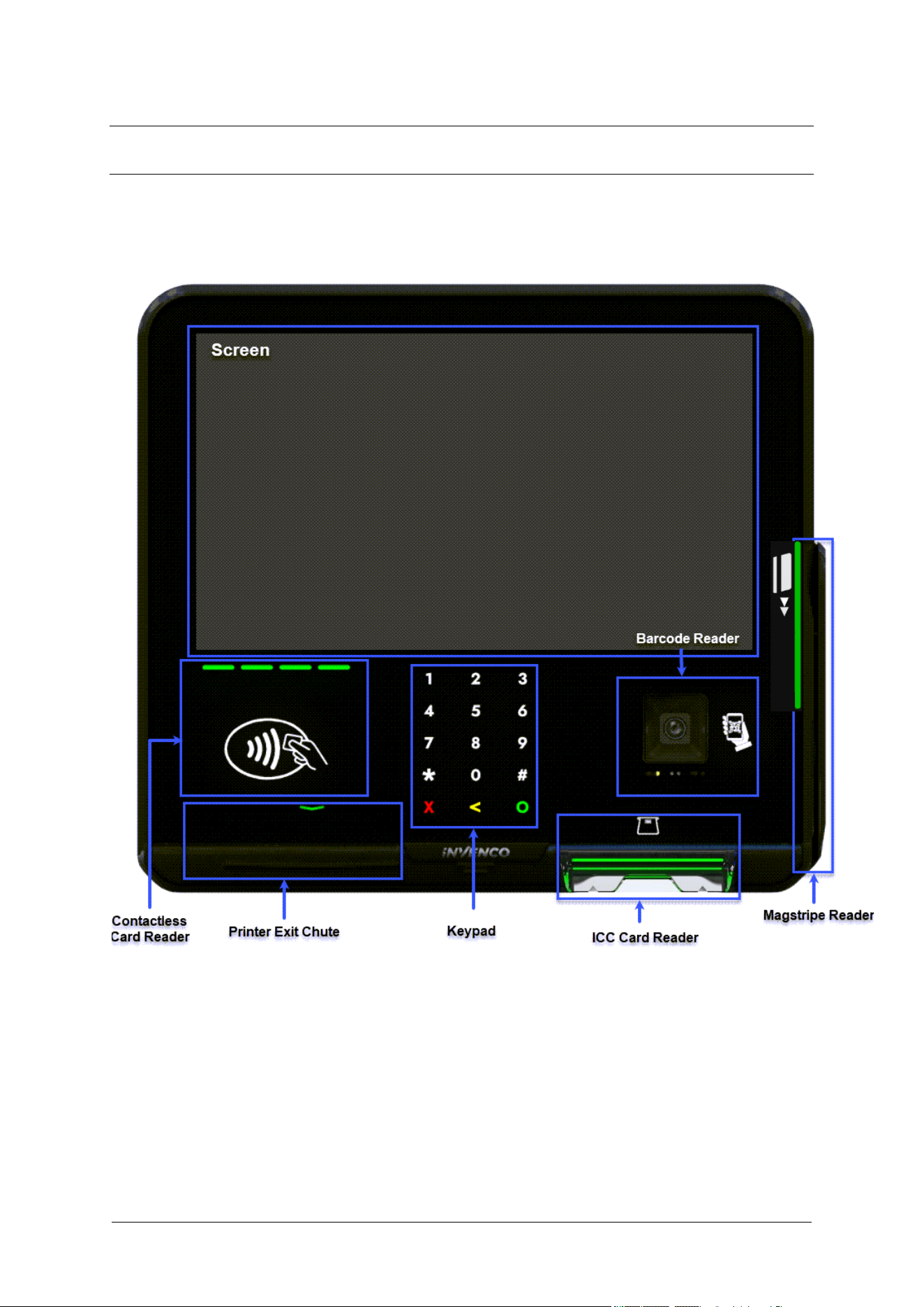
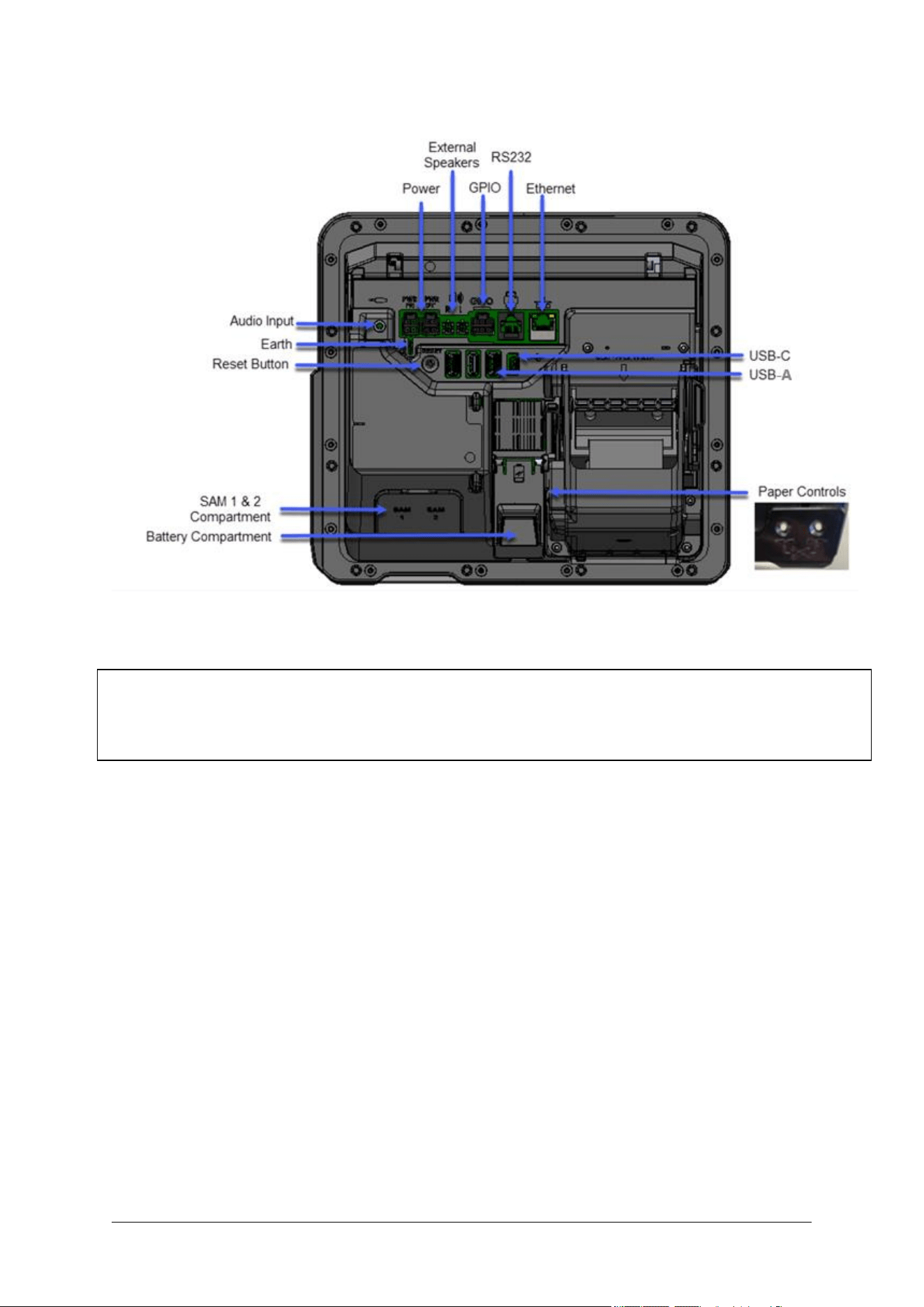
4.1. Location of Features
Fig. 4.1: G6-400NFC (A2-09) Front Features
DCV-00668 S2 R04 12
Fig. 4.2: G6-400NFC (A2-09) Rear Features
Note: To ensure safe and optimal operation of the device:
• The maximum total load current of the 4 USB Ports should be limited to a total of 2A.
• The maximum load current per USB Port should be limited to 1A.

Chapter 5. Consumables
5.1. Consumables
If the G6-400NFC (A2-09) has a printer fitted, then a roll of paper should be installed (see Chapter 17).
Invenco’s recommended paper is part number CP0006. The specification for this paper is:
• Thermal paper, top-coated (BPA free can be used)
• Paper weight = 60 to 80gsm
• Width = 57 ± 1 mm
• Roll Diameter = 110mm max
• Core Diameter = 12mm
• Recommended Suppliers
o Nippon Paper
▪ TF60KS-E
o Oji Paper
▪ FTP-020PU001 (58mm)
▪ PD105R
▪ FTP-020P0701 (58mm)
Use good-quality paper in the G6-400NFC (A2-09) to reduce the build-up of dust and fibres, and to
extend the life of the printer.
DCV-00668 S2 R04 14
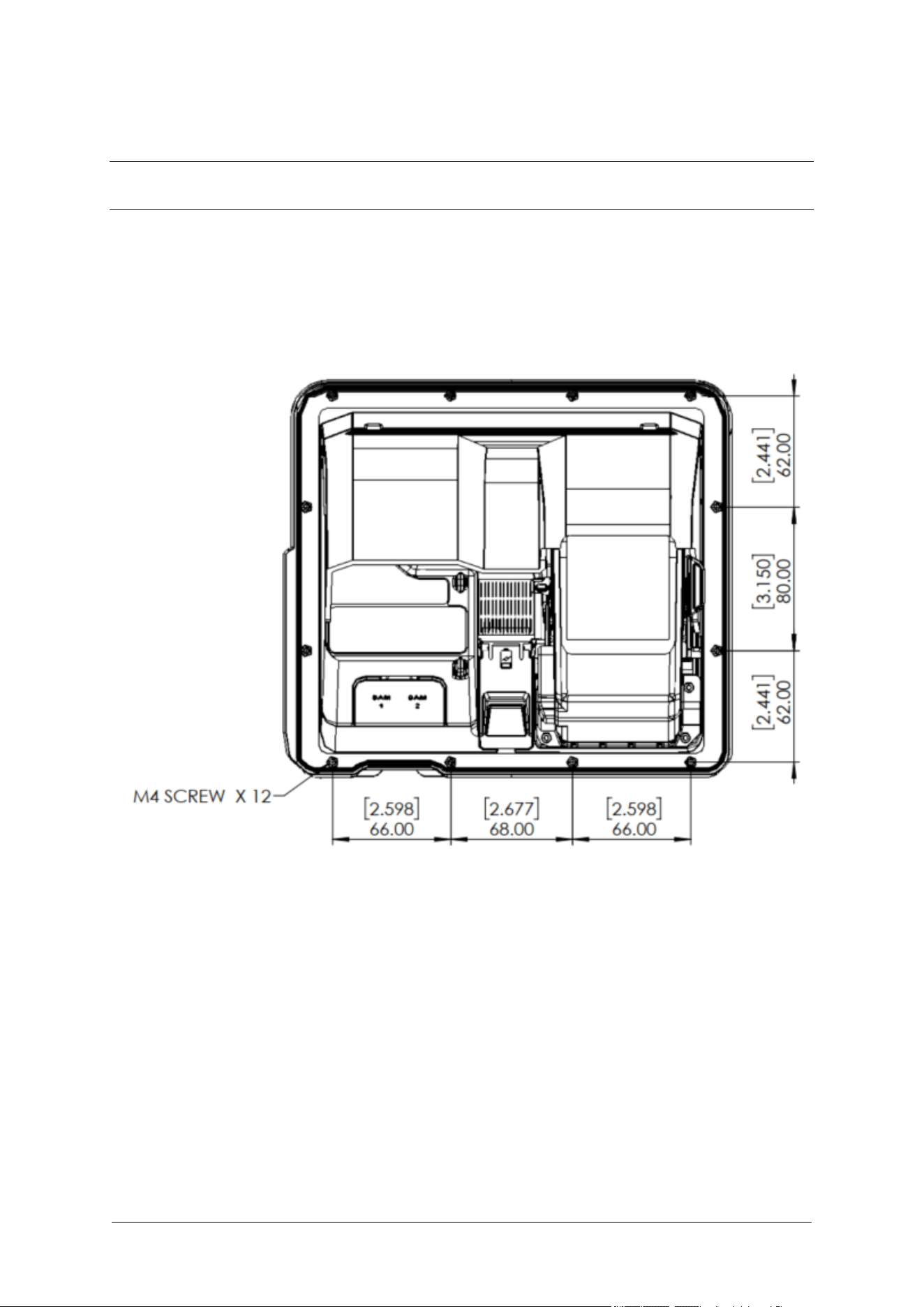
Chapter 6. Location of Mounting Points
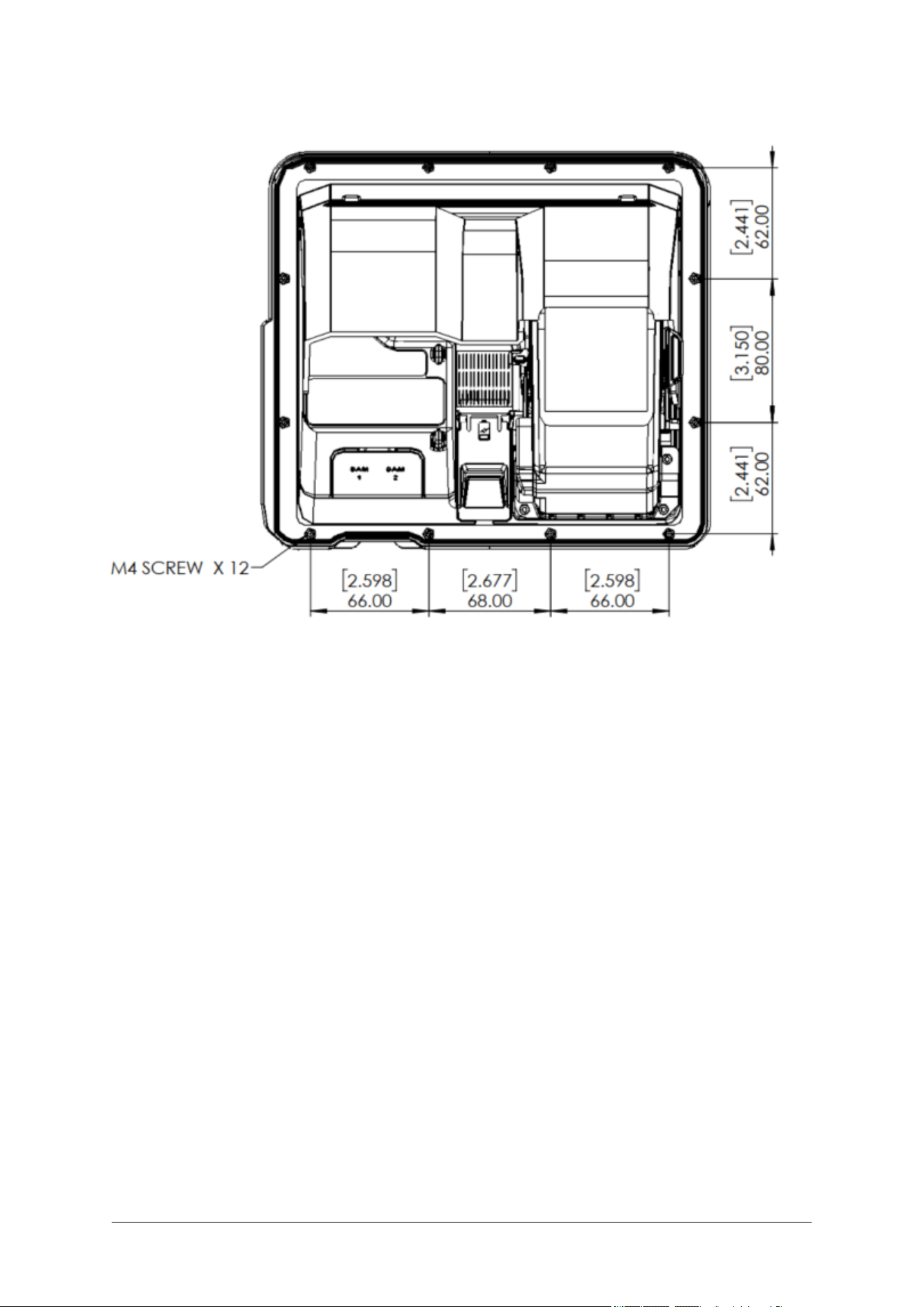
Each mounting point has an M4 threaded brass insert. The maximum depth into the G6-400NFC
(A2-09) case is 8mm.
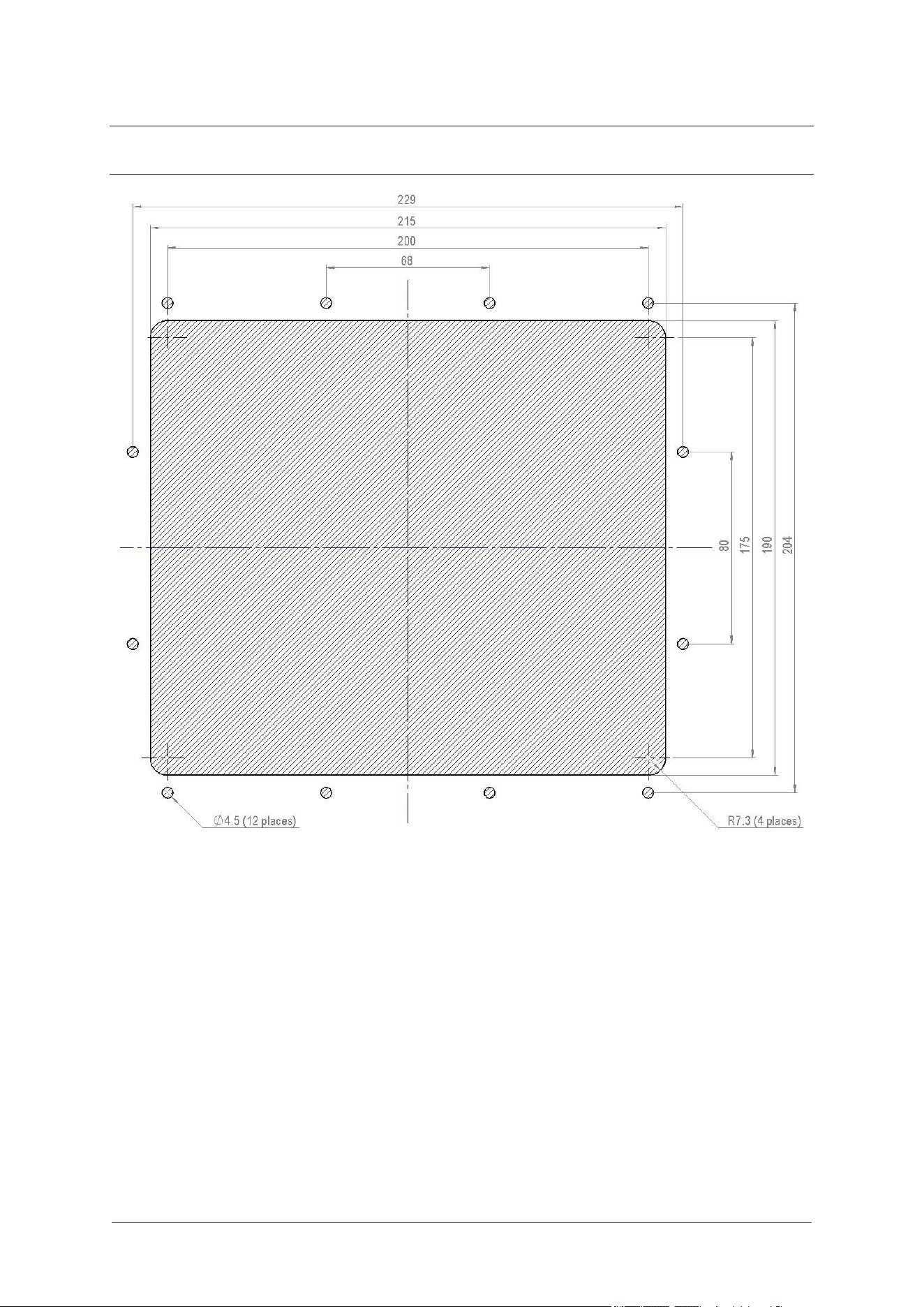
See the Drawings at the end of this guide for panel cut-out information.
Fig. 6.1: Location of mounting points.

Chapter 7. Installation
7.1. Installing a Brand New OPT
In most cases a new installation must be done by the pump manufacturer, not a third party. Each pump
has safety certifications that can be invalidated if anyone other than the manufacturer modifies it.
Before a G6-400NFC (A2-09) can be installed, the pump enclosure must meet the following standards:
1. Fire.
The enclosure must be designed to meet the requirements of ISO/EN 60950-1 for fire
enclosures.
2. ATEX (Explosive Atmospheres).
The G6-400NFC (A2-09) has openings that prevent it being gas-tight. Because of this, it should
be installed away from all hazards. Refer to local laws and regulations for hazardous zones to
work out the best mounting place for the A2-09. The pump or cabinet that the A2-09 is mounted
in should also be designed to prevent a dangerous build-up of explosive gases.
3. Security.
The pump or cabinet should offer physical security to protect the public from the hazards within,
and to reduce the ability of anyone to tamper with the OPT.
4. Power & Data.
a. The pump or cabinet must provide mains power. The requirements are:
i. A permanently wired connection or a socket to plug it into.
ii. A protective earth connection.
iii. The outlet may be switched if it is a socket and must be switched if it is permanently wired.
iv. We recommend one Power Supply Unit (PSU) per G6-400NFC (A2-09) . The use of two
A2-09 on a single PSU may lead to erratic start up behaviour and is not recommended.
b. The pump or cabinet must provide an Ethernet data connection. The requirements are:
v. Capable of at least 10Mbps (preferably 100Mbps).
vi. The connection must be either a socket into which a standard Ethernet patch cable can
be connected, or a cable that is terminated in a standard RJ45 plug suitable for direct
connection into the OPT LAN socket.
vii. Minimum cable standard should be Cat5e.
c. The enclosure may provide an alternative data connection for terminals that have optional
communications modules installed. Please consult with Invenco for what options are available.

DCV-00668 S2 R04 16
5. Accessibility.
The enclosure must be designed and mounted so that disabled persons are able to operate the
OPT. Height must be compliant with PCI 6.X standards. The G6-400NFC (A2-09) has an
optional ADA kit that can be purchased and installed if required in order to meet this compliance.
6. Materials.
The enclosure and all its components must be constructed of durable materials suitable for the
intended location.
7. Door cut-out.
d. Use the wireframe in Chapter 22 Drawings at the end of this manual to determine the extra
space required for the front of the terminal (the terminal is larger than cut-out).
e. The edge of the cut-outs should be smooth and free of burrs, and the surface of the door around
the cut-out should be clean, and planar within ± 1mm.
8. Water Tightness.
The G6-400NFC (A2-09) is rated for IP66 for the front except the printer which is IP54.
The parts sitting inside the pump/pedestal enclosure are designed to reduce the likelihood of rain
splashes entering the electronics but the enclosure must provide protection from water.
The door should have a water seal against the enclosure, and there should be good drainage
and/or a system to reduce excessive condensation build-up and dripping.
9. Protection from Weather Extremes. | While the G6-400NFC (A2-09) is intended for use
outdoors, exposure to direct sunlight and/or heavy rain can affect customers’ experience using
the product. | The pump or enclosure should provide a canopy that prevents the OPT from being
exposed to direct sunlight and heavy rain. | If the OPT cannot be protected from direct sunlight, a
warning sign should be provided close to the OPT advising that the screen may become too hot
to touch.
10. In humid climates where the temperature regularly falls below 5°C it is probable that occasional
condensation will occur overnight inside the OPT cabinet, which can cause printer paper jams. In
this case, it is recommended, in the absence of any other heat source, that a thermostatic heater
is installed inside the cabinet, with attention to possible overheating.
11. Placement.
The G6-400NFC (A2-09) should be installed a maximum of 20° from vertical position, or in
accordance with instructions for an Invenco supplied Retrofit Kit.
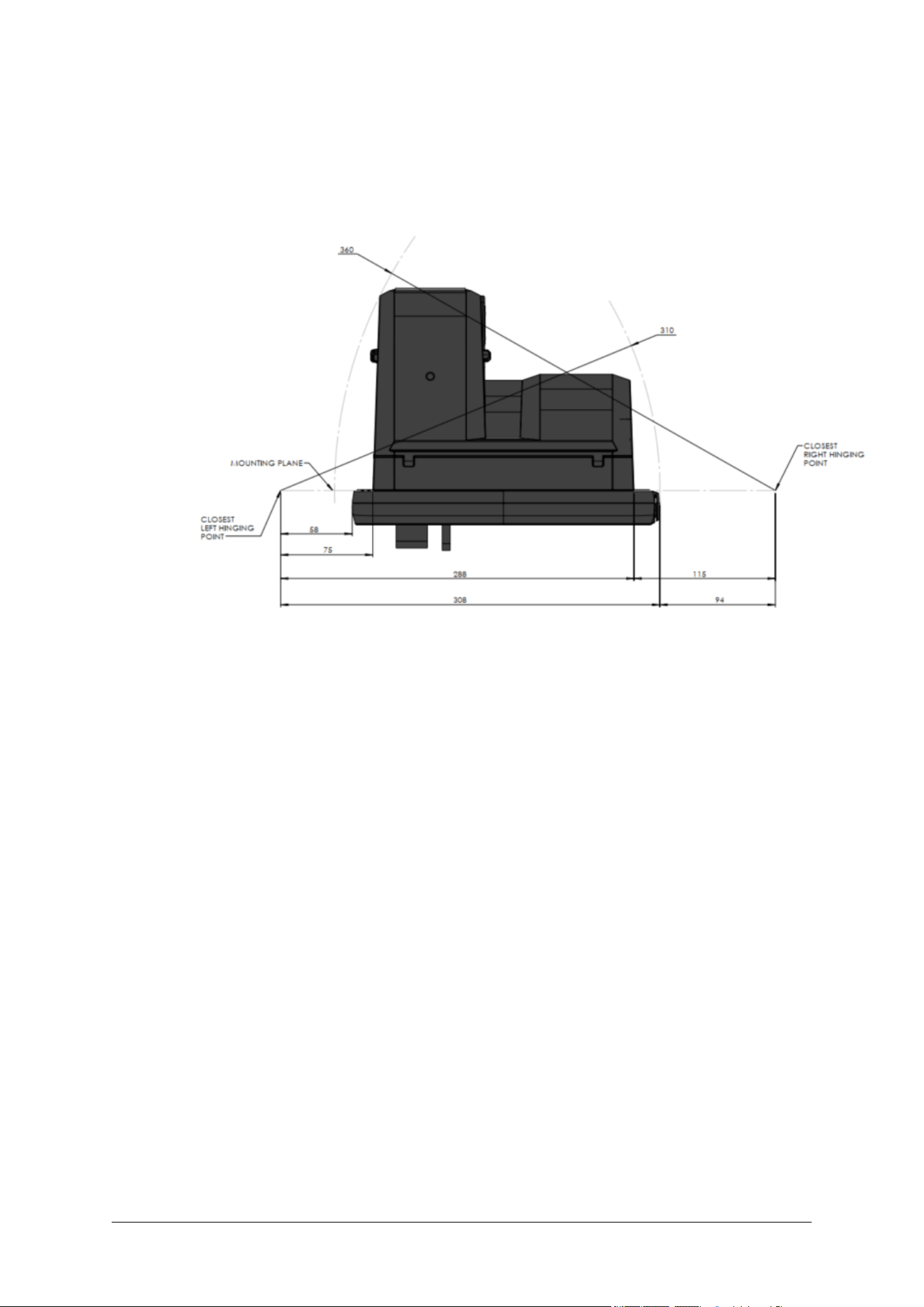
12. Hinging.
Use the following diagrams as a guide when designing an enclosure and/or door to house the G6-
400NFC (A2-09). This will ensure there is a clearance between the A2-09 housing and the opening.
Note: Invenco Recommends Right-side hinging only. Hinging on the left side may cause cables
to be pulled out.
DCV-00668 S2 R04 17
Hinging Option 1 – Side Hinge (recommended)
For models without an internal printer, or for models with a printer where the paper has been mounted
with the spindle moving right to left through the paper roll (with the point to the center of the terminal):
Fig. 7.1: G6-400NFC (A2-09) Side hinging diagram, spindle pointed left or with no printer.
DCV-00668 S2 R04 18
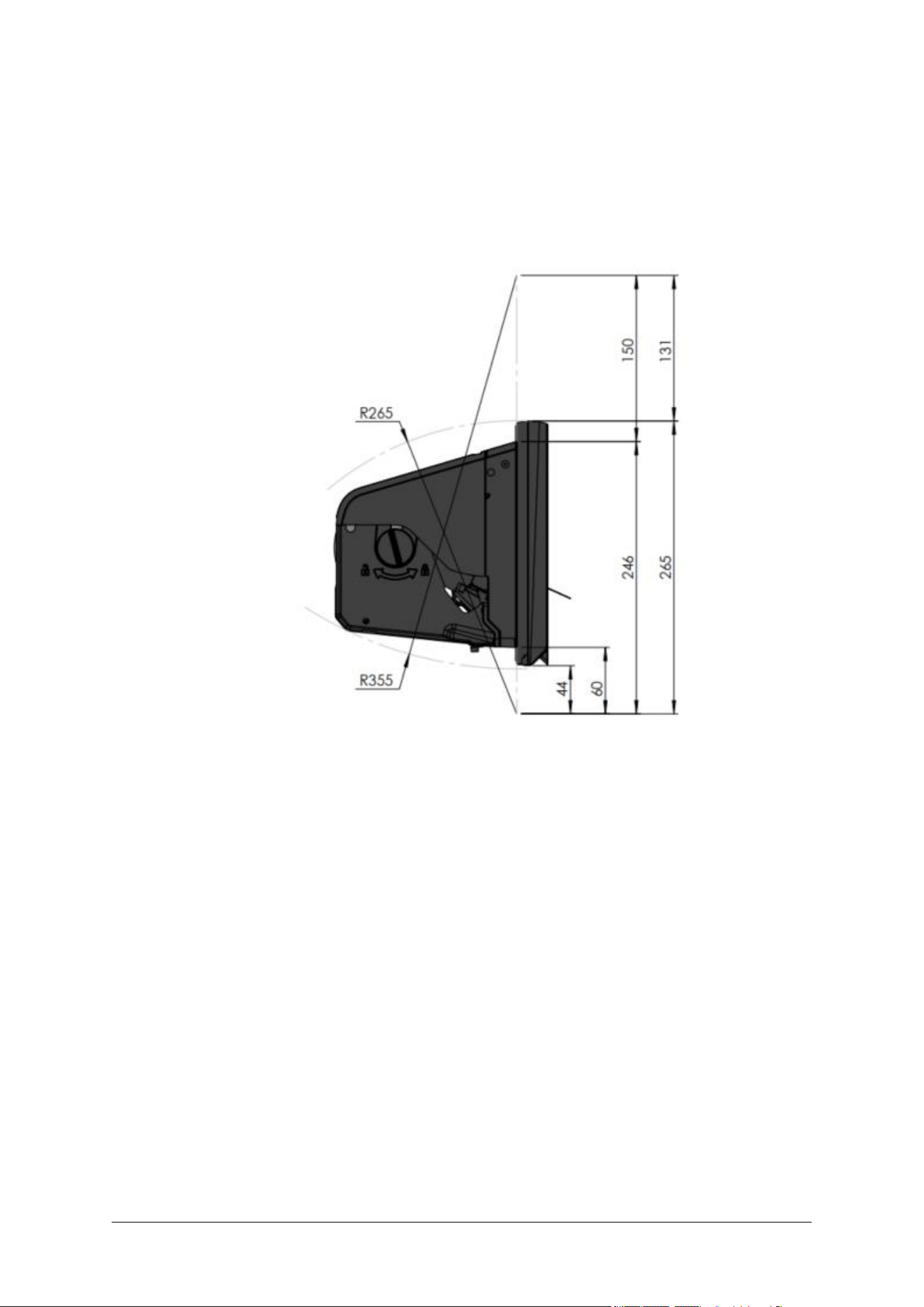
Hinging Option 2 – Top or Bottom
Top and bottom hinging points. The G6-400NFC (A2-09) can be hinged on either top or bottom, for
installations where side hinging isn’t possible.
Fig. 7.2: G6-400NFC (A2-09) Top-bottom hinging diagram.

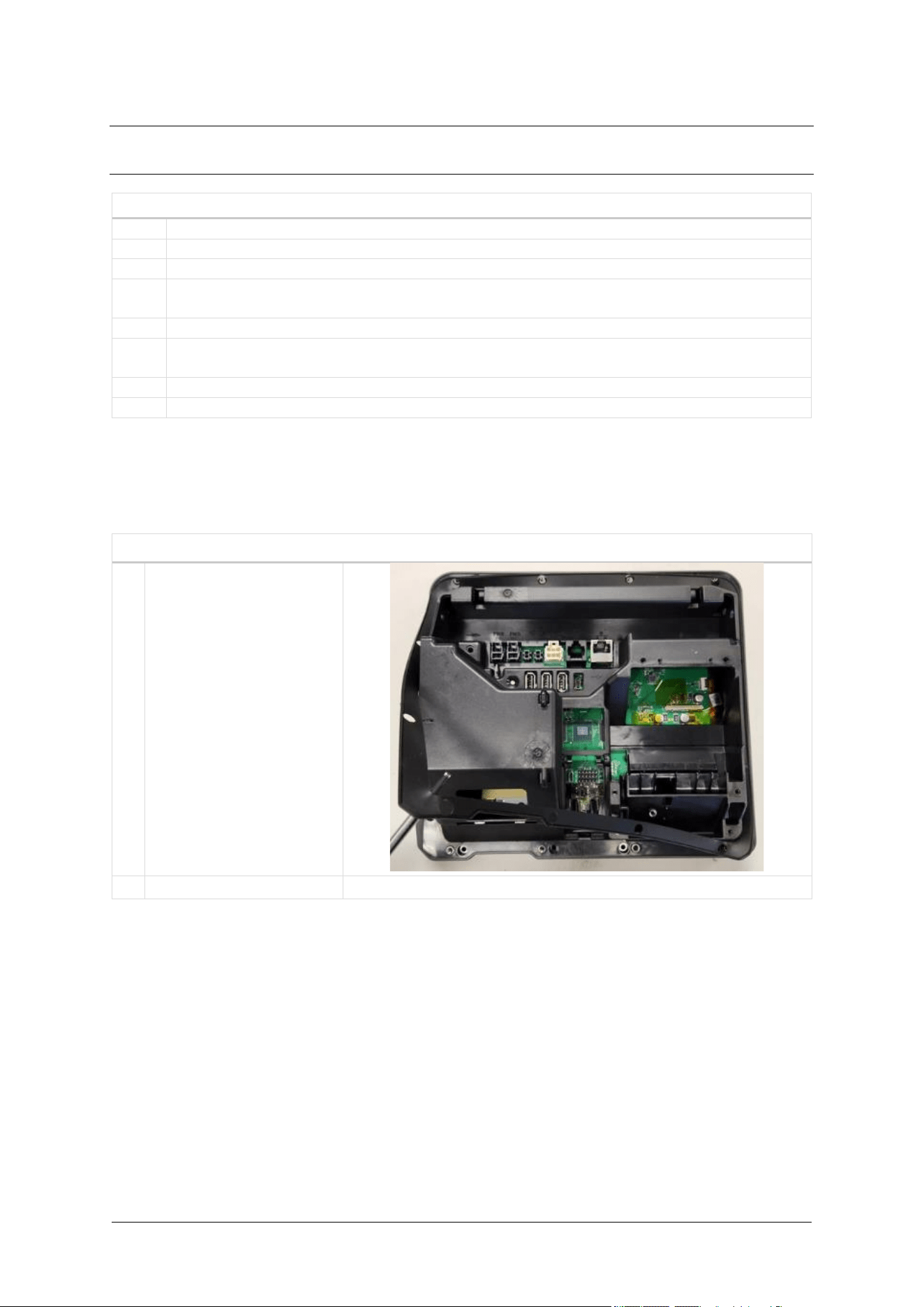
Chapter 8. Tools Required to Mount the G6-400NFC (A2-09)
8.1. Environment
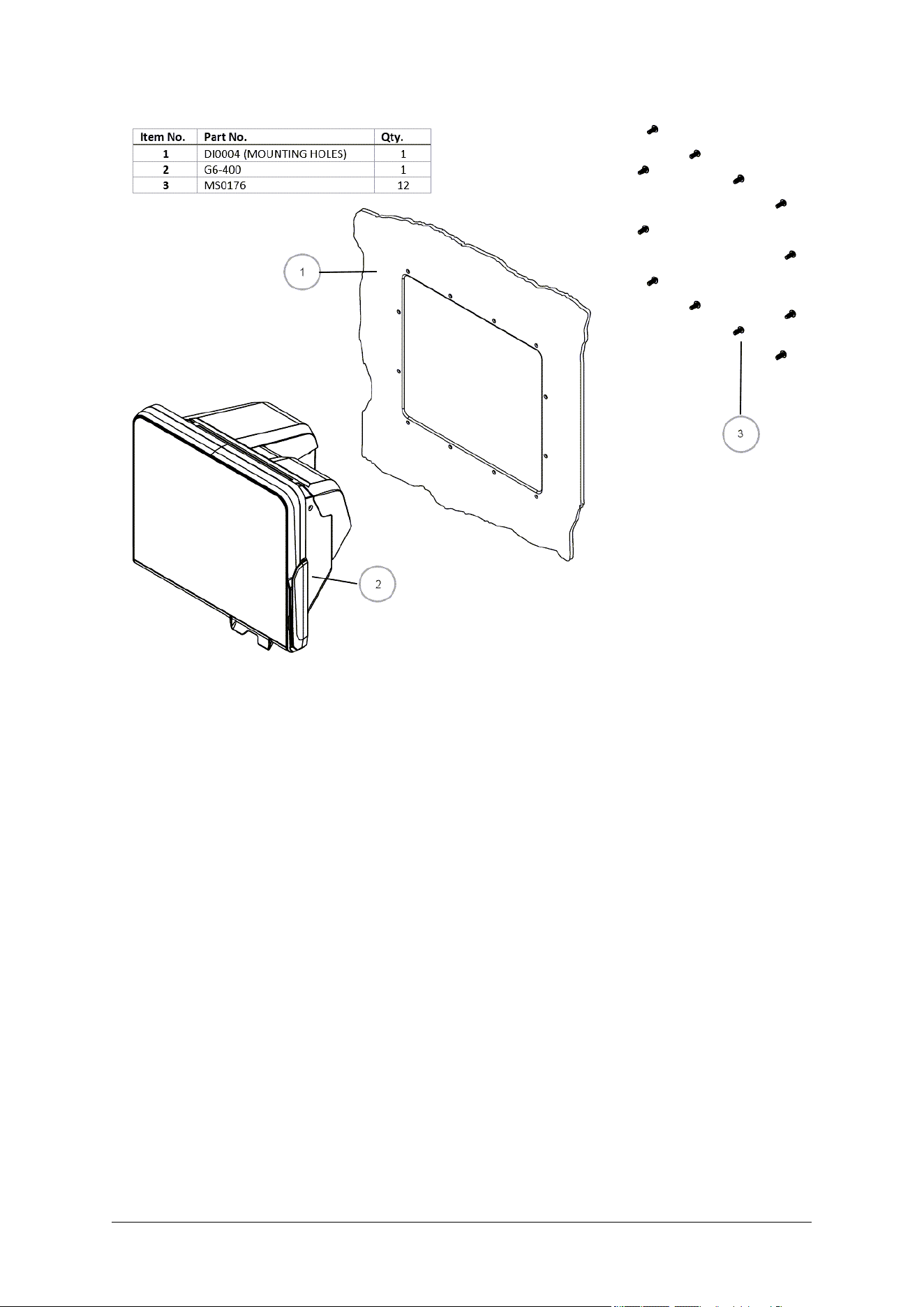
• 12 x M4 screws of the correct length to attach the OPT to your pump/cabinet.
• A screwdriver to fit the M4 screws.
• Philips #1 or Flat 5mm screwdriver - for connections on the power supply.
• For earth connections inside the cabinet please consult with Invenco RFK Install guides for
instructions depending on the Retro-Fit Kit and Dispenser you are working with.
• Cable ties.
• Side cutters - to trim the cable tie(s).
• You may require other tools if retrofitting into a non-standard enclosure.
Warning: Do not use power tools if working on a fuel station forecourt. Any spark could cause a fire
or explosion.
Chapter 9. Installing into a New Pump or Cabinet
Unpack and Install
1.
Unpack the G6-400NFC (A2-09) as per the Invenco Shipping Guide.
2.
Open the pump/cabinet door.
3.
Attach the gasket to the back of the unit, following the separate instructions below.
4.
Hold the A2-09 outside the pump/cabinet and locate at least one of the top mounting
screws. Loosely screw it in.
5.
Start several of the remaining support screws around the edge of the A2-09.
6.
Check that the A2-09 is aligned with any features on the pump/cabinet door and then
tighten the screws.
7.
Insert and tighten all remaining screws.
8.
Once the A2-09 is secure, move onto the wiring section to complete installation.
Installing the Rubber Gasket.
1.
Lay the rubber gasket over
the back of the G6-
400NFC (A2-09) unit,
placing the long tamper
prongs to the right-hand
side as per the photo
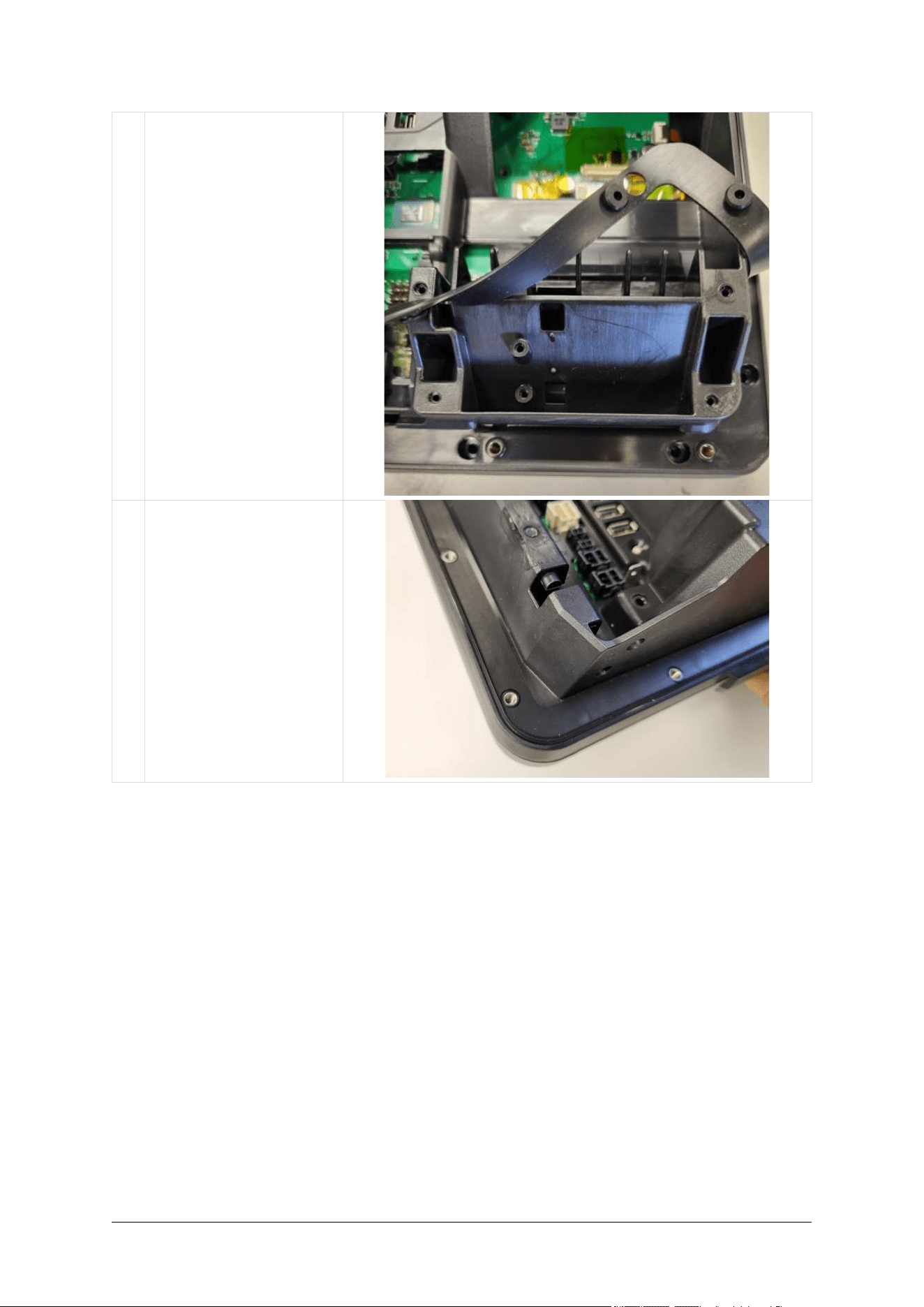
DCV-00668 S2 R04 21
2.
Continue to line up prongs
and mouldings around the
edge of the OPT to the
gasket and gently push
down
3.
When pressed down the
full way around, the
gasket will sit flush
9.1: How to Attach the Gasket

Chapter 10. Upgrading an Existing Invenco OPT
The G6-400NFC (A2-09) is designed to fit into the existing cut-out created for an earlier G6 or G6-300
model to allow for an easy upgrade.
It will also fit onto legacy upgrade kits for those customers who have upgraded in the past from a G5 to
a G6-100 or G6-200.
Step
Instruction
1.
Make sure that the terminal is not in use.
2.
Open the enclosure door.
3.
Use the reverse paper feed button to feed the paper out of the terminal, then remove the
paper roll. (Models with printer only).
4.
Switch off the mains power.
5.
Carefully cut the cable ties holding cables in place to the existing OPT.
6.
Disconnect the low-voltage power cable and discard it.
7.
Disconnect the ethernet cable and put it aside for reuse.
8.
Disconnect the earth cable and put it aside for reuse.
9.
Loosen then remove the screws holding the old OPT to the door.
10.
Remove the old OPT from the door and package it for disposal or return.
11.
Prepare the pump for the new terminal by scraping off any pieces of old gasket that may
have stuck down over time. Clean any old adhesive residue from the mounting surface.
12.
Remove the new G6-400NFC (A2-09) from its packaging and inspect it for damage. Note
that the sealing gasket is also in the carton.
13.
Place the A2-09 face down onto a soft, clean surface and attach the sealing gasket
following the instructions in the previous section (above).
14.
Place the A2-09 carefully into the cut-out in the door and align it with the screw-holes (or
brackets if this is a retrofit.)
15.
Loosely place all the screws, then check alignment before tightening them.
16.
Plug in the 2x new power cables (EK0171) and the saved ethernet cable
(refer to Chapters 12 — 14).
note: Most upgrades will be from the G6-300, which already contains 1x EK0171 cable in
the dispenser. This existing cable must be removed and discarded.
17.
Connect the saved ground wire.
18.
Use new cable ties to gather all the cables together, then close the door making sure not to
snag or pinch any cables.
19.
Have your work inspected if necessary, then switch on the mains power.
20.
Load a paper roll and feed the paper through into the printer (see Chapter 18).
21.
Check that the A2-09 has come online correctly, then close the cabinet/pump door.

Chapter 11. Power Supply Considerations
The G6-400NFC (A2-09) has been certified using a one-to-one ratio of A2-09 to power supply unit. All
other configurations are not certified.
There is one power supply certified for use worldwide the G6-400NFC (A2-09) .
• Meanwell HLG-185H-24
This power supply also requires a UL-listed Barrier Block with an approved Fire Enclosure, for
connecting its output to the EK0171 low-voltage DC cable. This power supply may also require a
Barrier Block or other UL-approved connector block for mains connection if its pre-installed wires
cannot be connected directly into the cabinet mains wiring.
Suitable barrier blocks are:
o TE Connectivity “Buchanan” 1546670-4
o Marathon “Kulka” 601 GP 04
DCV-00668 S2 R04 24
o
Chapter 12. G6-400NFC (A2-09) Wiring
Three connections need to be made to the G6-400NFC (A2-09):
1. Protective Earth.
2. Ethernet LAN.
3. DC Power supply.
The DC power supply cable also needs to be connected to the power supply.
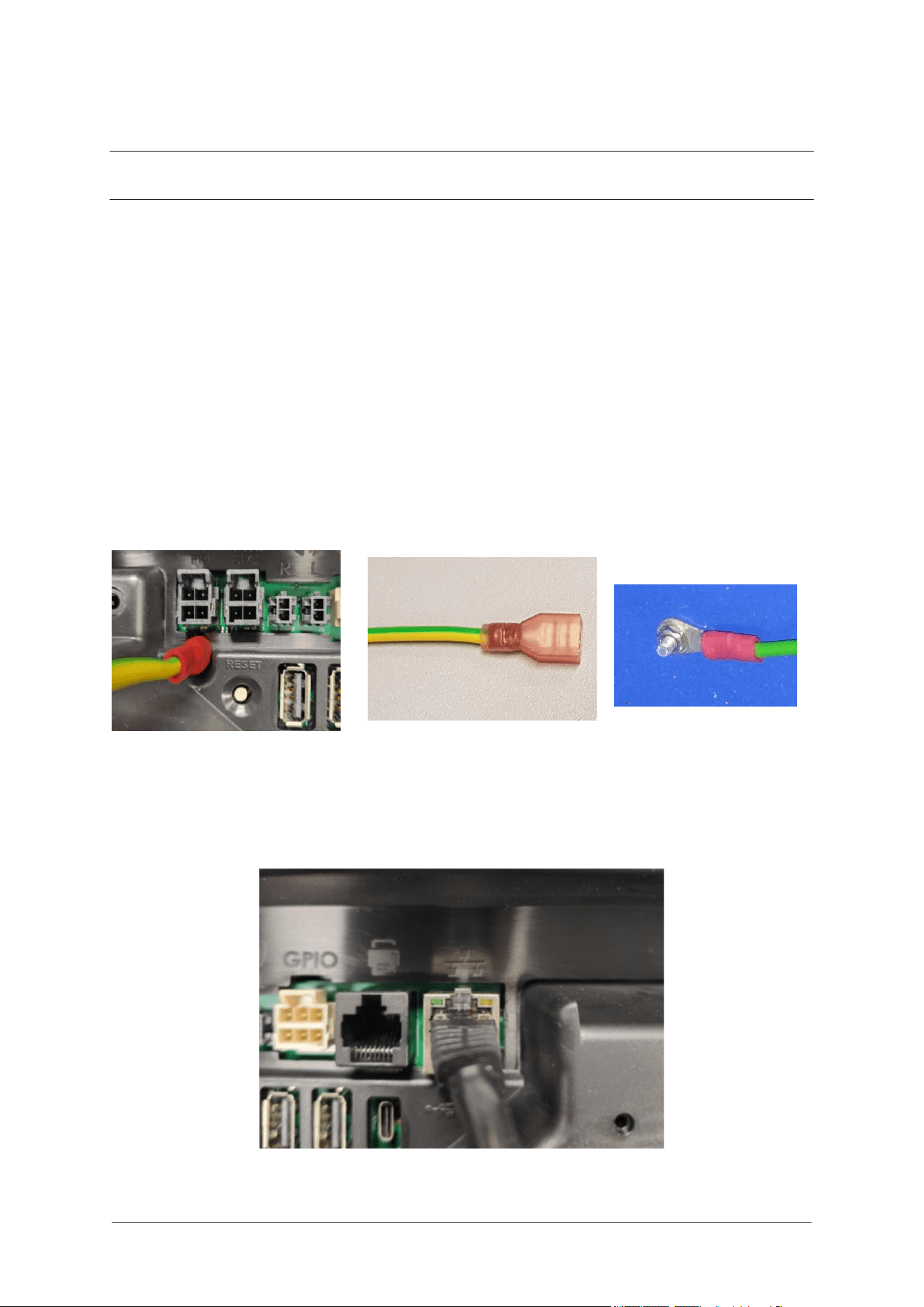
12.1. Protective Earth
The G6-400NFC (A2-09) is provided with an Earth Tab and is recommended to be earthed.
The tab must be connected to the pump (or cabinet) frame to provide protection from both power faults
and static discharges. The earth wire thickness must be minimum 1.5mm
2
(or 16awg) and both it and
the earth stud must meet local regulations.
Fig. 12.1: Protective Earth
12.2. Ethernet LAN
The Ethernet cable is plugged into the correct connector on the rear of the G6-400NFC (A2-09) :
Fig. 12.2: Ethernet connection
DCV-00668 S2 R04 25
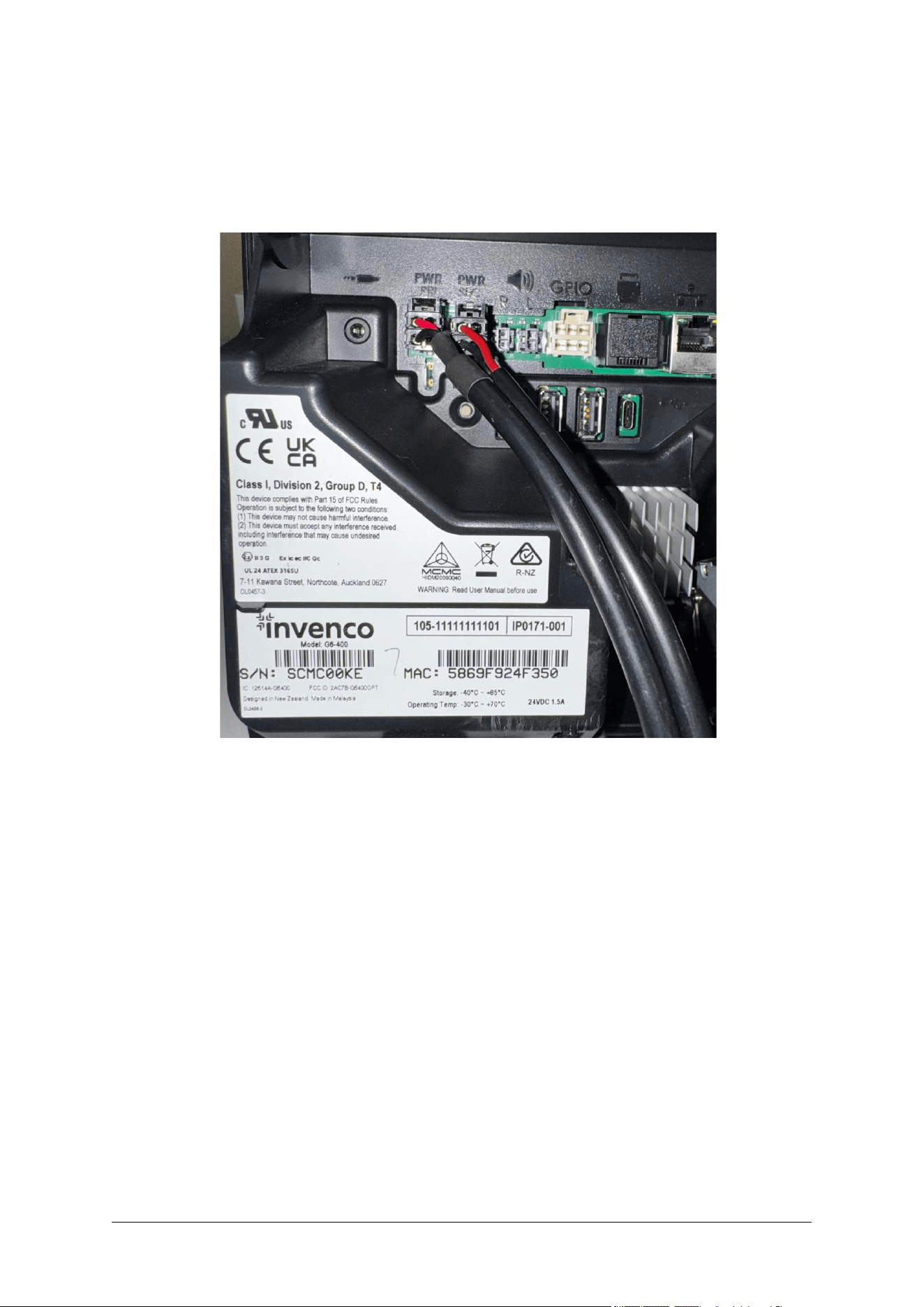
12.3. DC Power Supply
The low-voltage DC cables are plugged into the correct connectors on the rear of the G6-400NFC
(A2-09) :
Fig. 12.3: Low-voltage DC cables
The low-voltage DC cable carries the part number EK0171, and it can be obtained from Invenco
partner companies.
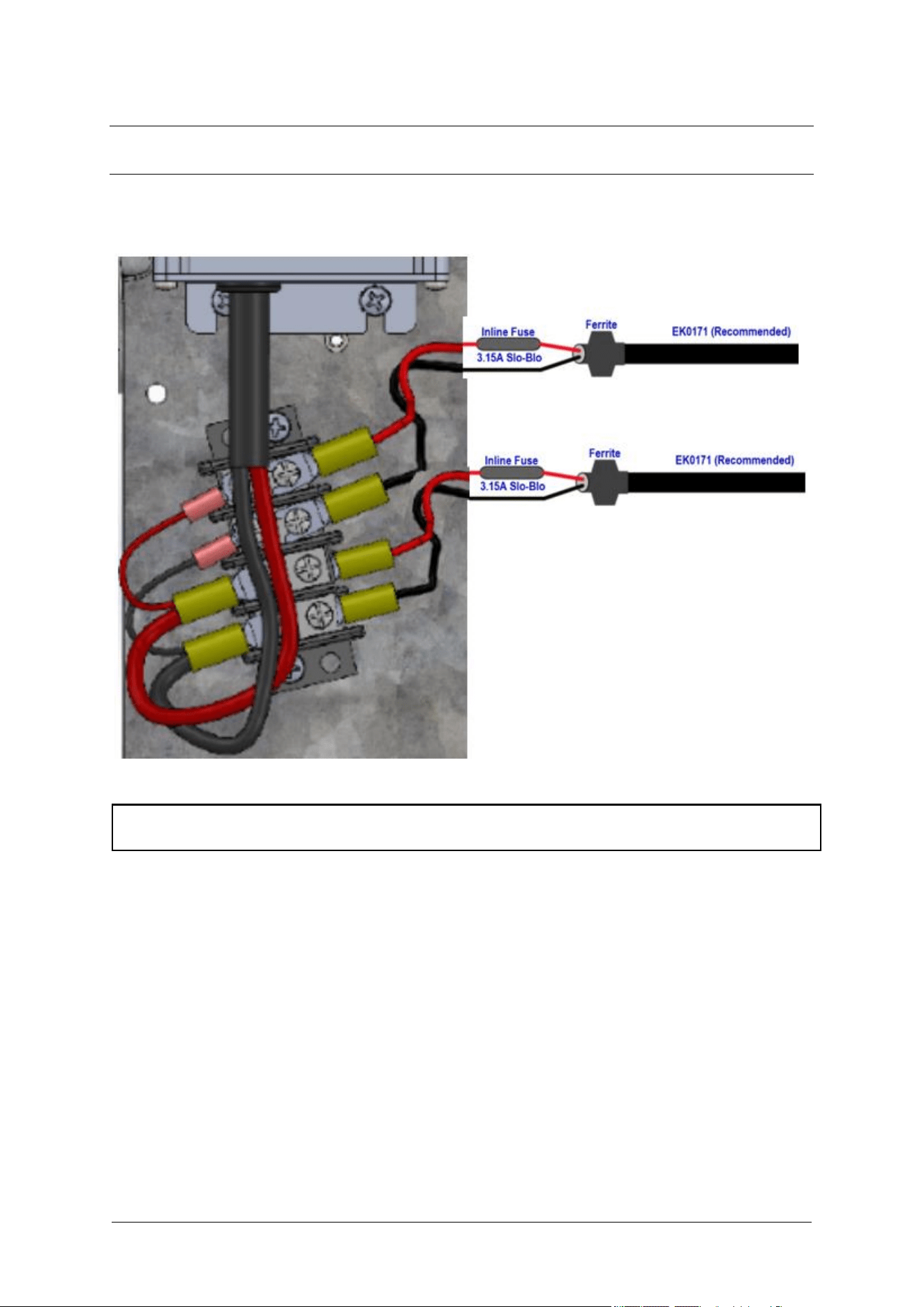
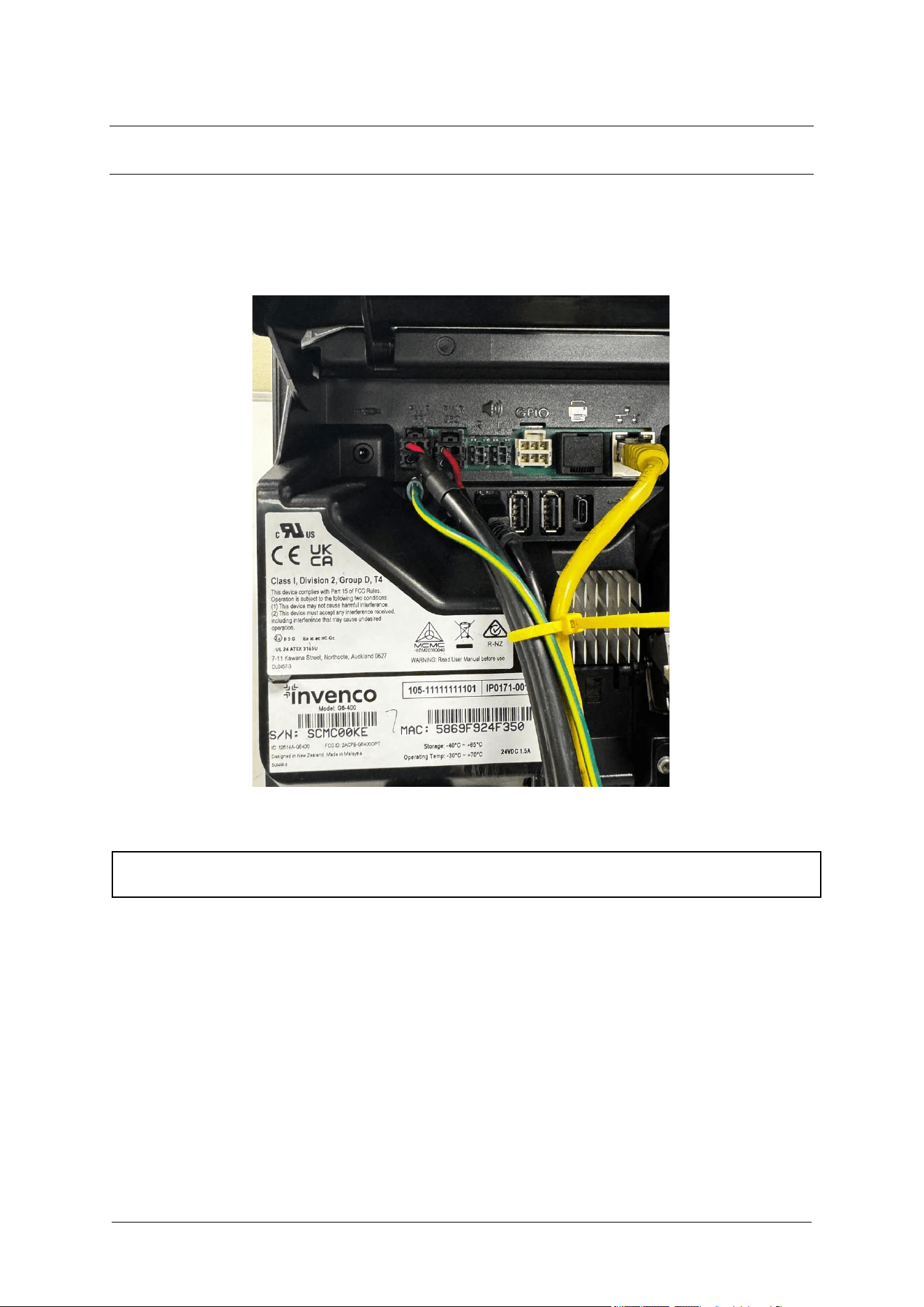
Chapter 13. Main Power Supply Wiring
The other end of the low-voltage DC Cables are connected into the AC-DC power supply:
Fig. 13:1 Power Supply Wiring
Warning: Once all the wiring to the power supply terminals has been completed, install the terminal
cover (TBC-07) to prevent accidental contact with the live mains connections
Installation within dispensers require specific, approved instructions for every variation of cabinet, and
is beyond the scope of this guide.
Please consult with Invenco for instructions and Retro-Fit Kits that are available for many dispenser
models.
Chapter 14. Wiring Completion
When all the cables have been installed, use cable ties to provide strain relief.
Ensure that all cables are tidy and cannot become snagged or pinched when the door of the cabinet is
opened and closed.
Warning: Local regulations may also require that the installation is electrically tested and certified
BEFORE switch-on, and periodically over the life of the unit
Chapter 15. First Power-Up
Once the installation is complete and the wiring is certified (if necessary), the main power can be
switched on.
15.1. Normal Start-Up
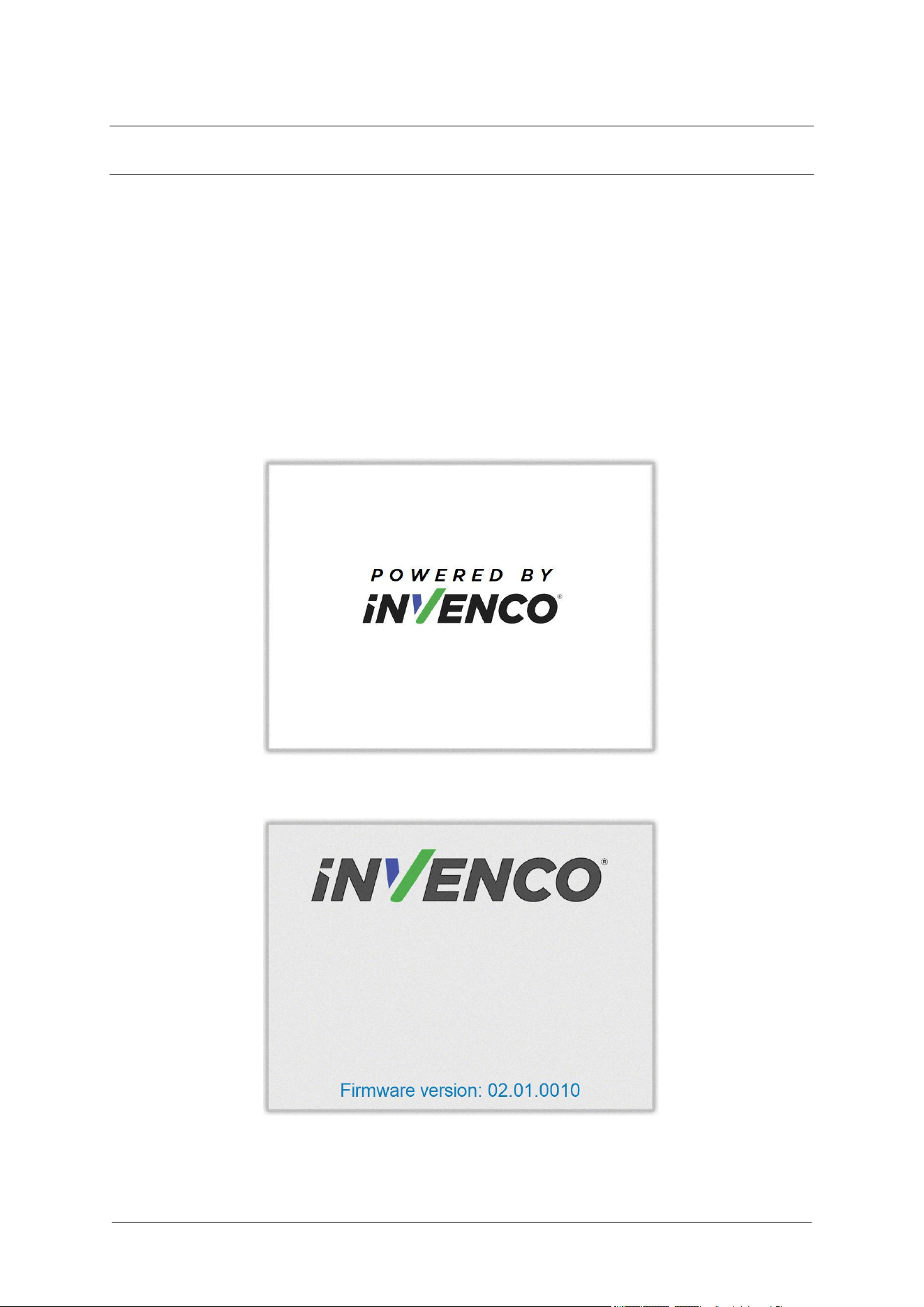
The G6-400NFC (A2-09) takes a couple of minutes to complete its start-up phase.
During this, several standard information screens will display.
There may be other screens as well, depending on customer configuration.
Start-up screen:
Fig. 15.1: G6-400NFC (A2-09) Start up screen.
Connecting to ethernet screen:
Fig. 15.2: Trying to establish ethernet connection.
DCV-00668 S2 R04 29
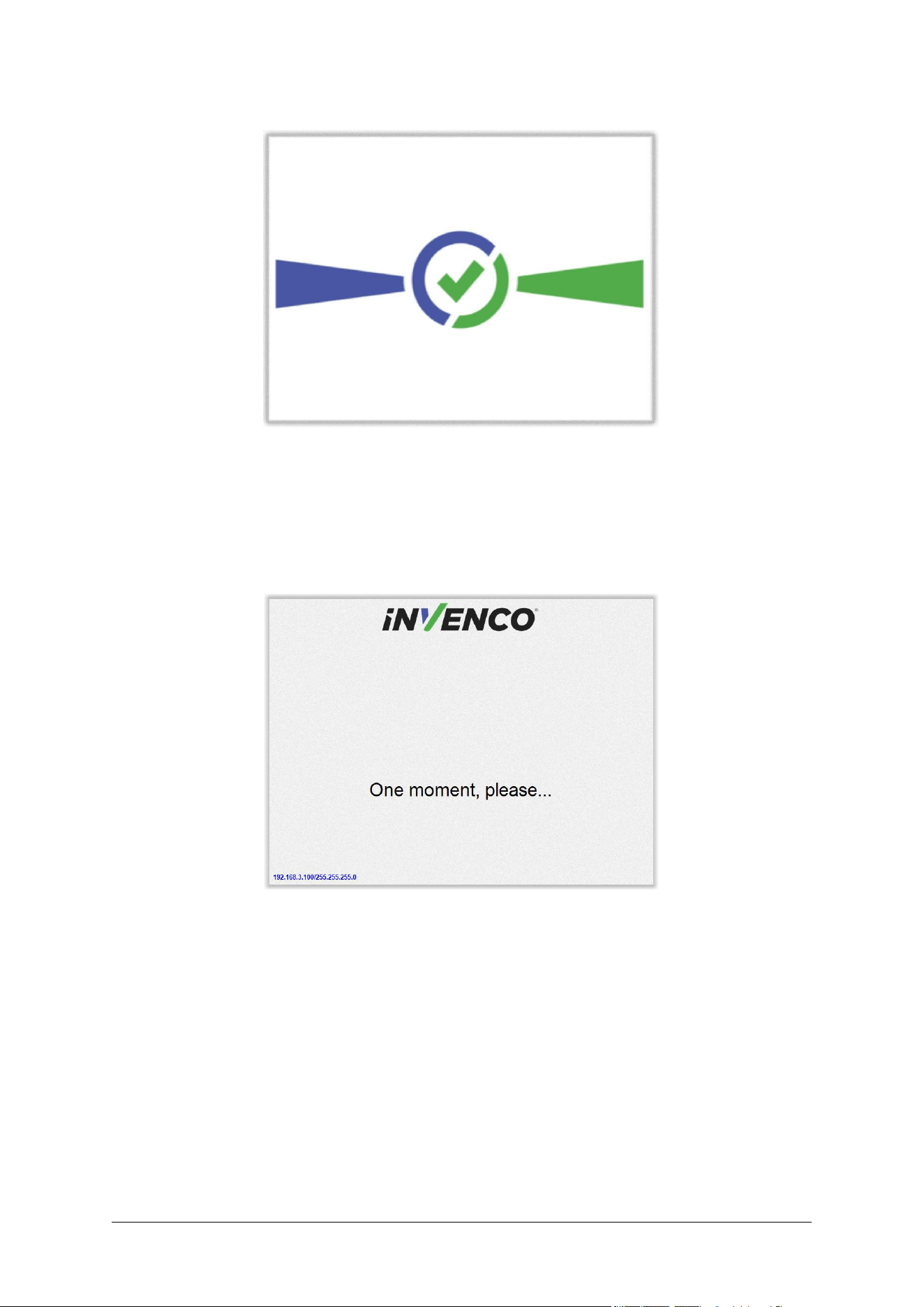
When the terminal has successfully connected to the Ethernet LAN it will display the following screen:
Fig. 15.3: Ethernet connection established.
After this the start-up will continue. The screens that are presented will vary depending on individual
customer configuration.
If a screen showing “One moment please…” is presented, it means that the G6-400NFC (A2-09)
requires its configuration to be set up. Please follow the directions in Invenco Document DCV-00260.
Fig. 15.4: Service App settings are available.
15.2. Edit Configuration
The G6-400 should have been configured during staging; however sometimes things change, and you
may need to modify various settings.
Please see Invenco document DCV-00260 for information on accessing and changing the G6-400NFC
(A2-09) configuration options; alternatively, your helpdesk will be able to assist you over the phone.
Chapter 16. Tamper-Detection
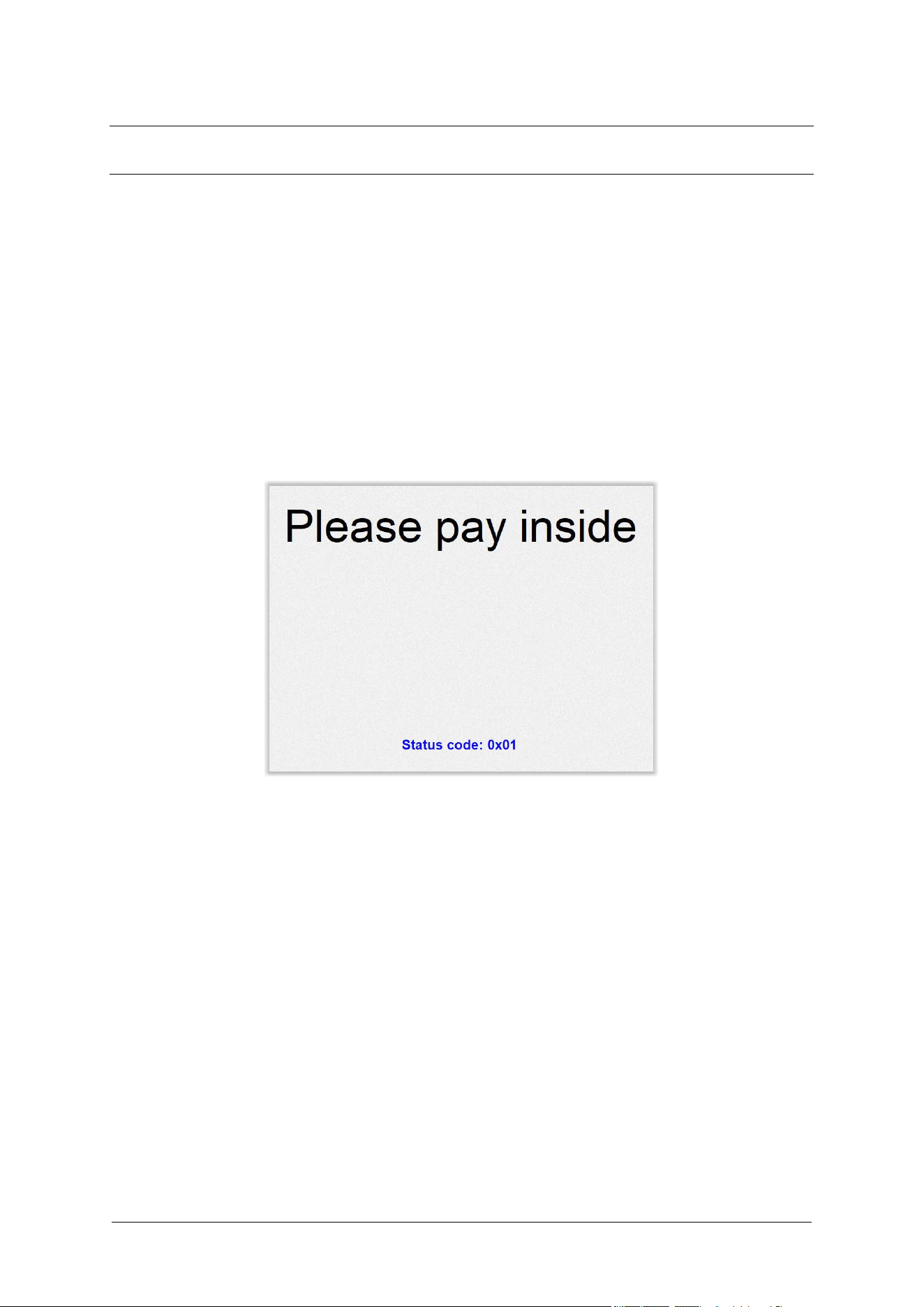
The G6-400NFC (A2-09) is a secure device, and it contains various technologies that help it detect if
someone tries to tamper with it.
Occasionally a G6-400NFC (A2-09) tamper-detection may be triggered after the device has been
staged and before installation, e.g. if the A2-09 was dropped onto a hard surface, that may trigger a
tamper-detection event.
If, on power-up or at any time when the G6-400NFC (A2-09) is powered, a tamper is detected, the A2-
09 will immediately lock out of “normal” operation and enter a “tampered” state. When this happens, the
A2-09 will not process any transactions and, depending on the nature of the tamper it may be almost
completely unresponsive.
If a tamper has been detected, after power-up the A2-09 will display a screen similar to this:
Fig. 16.1: Tamper has been detected.
The lights in the Card Reader slot will flash RED at about five times per second (i.e. rapid) if a
Destructive Tamper has been detected:
A Destructive Tamper cannot be restored on-site and requires the G6-400NFC (A2-09) to be returned
to an Invenco Service Centre for service/repair.

Chapter 17. Basic Maintenance
17.1. Cleaning
The G6-400NFC (A2-09) is designed to be low maintenance.
Daily cleaning:
Wipe with a soft damp cloth using only water.
If dirt or grime builds up:
• Use a diluted mild detergent and wipe with a soft cloth.
• Dry the screen using a lint-free or microfiber cloth.
Things to watch out for:
• Always clean off excess detergent.
• Do not use a high-pressure water stream to clean your G6-400NFC (A2-09) . Water pressure may
damage the card reader or printer chute.
• Do not rub the screen if it is dry - dust or dirt can scratch the anti-reflective coating on the screen
protector.
• Do not use petroleum based solvent cleaners, they will damage the surface and shorten the life
of your product.
• Over time the printer may build up dust and/or debris from the paper cutting function. Please do
not clean this yourself - refer cleaning to a qualified service agent.
Chapter 18. How to Load Paper
18.1. Paper Loading
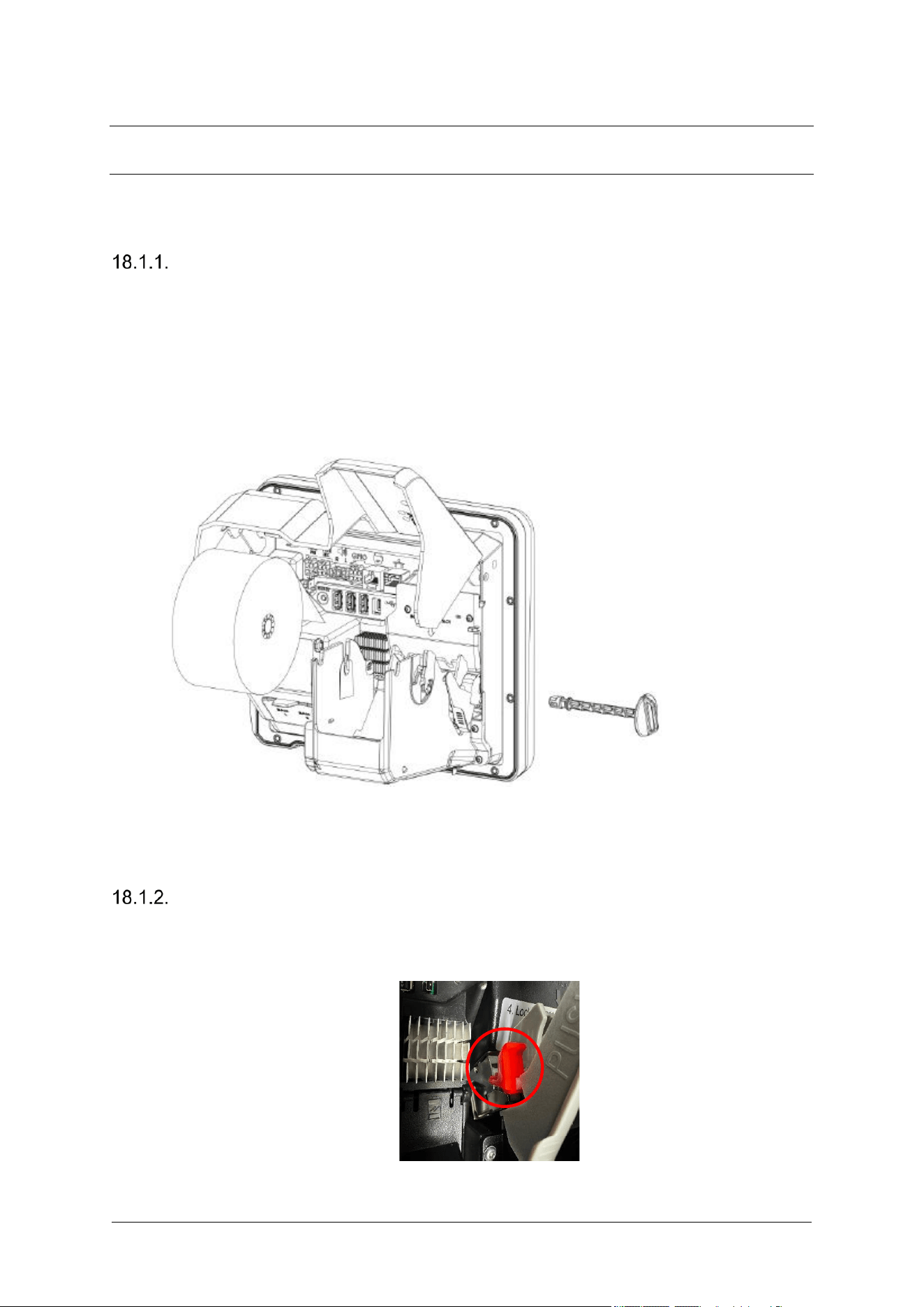
Insert Paper Roll
1. Open Cover at the back of the OPT
2. Locate the spindle lock
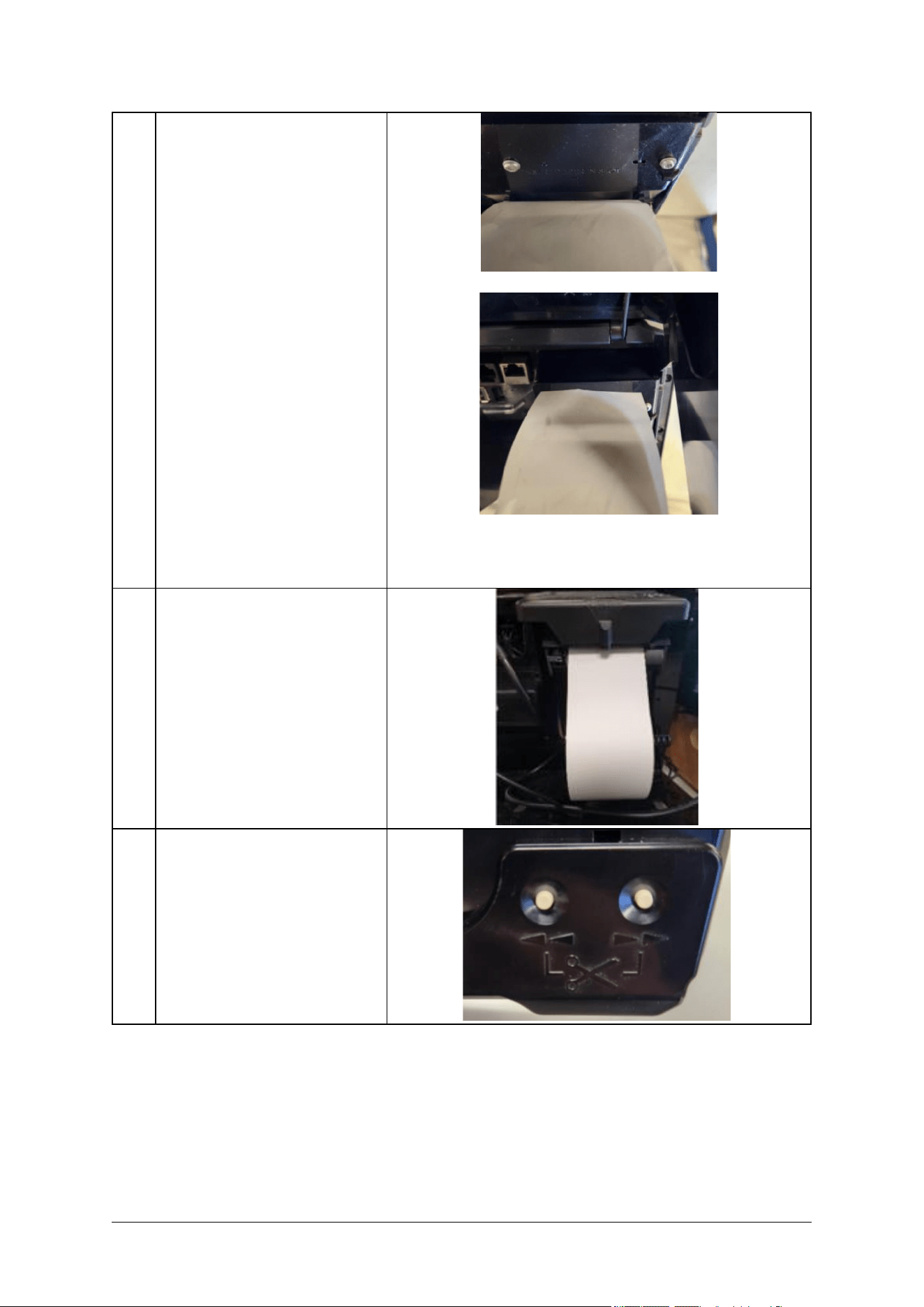
3. Turn the spindle counter-clockwise into the unlock position
4. Remove the spindle
5. Remove old roll
6. Insert the spindle through the paper core and place into the printer
7. Turn the spindle lock clockwise into the lock position
Fig. 18.1: Setting paper roll in paper holder
Loading the Paper
1. Insert the paper roll following the above instructions.
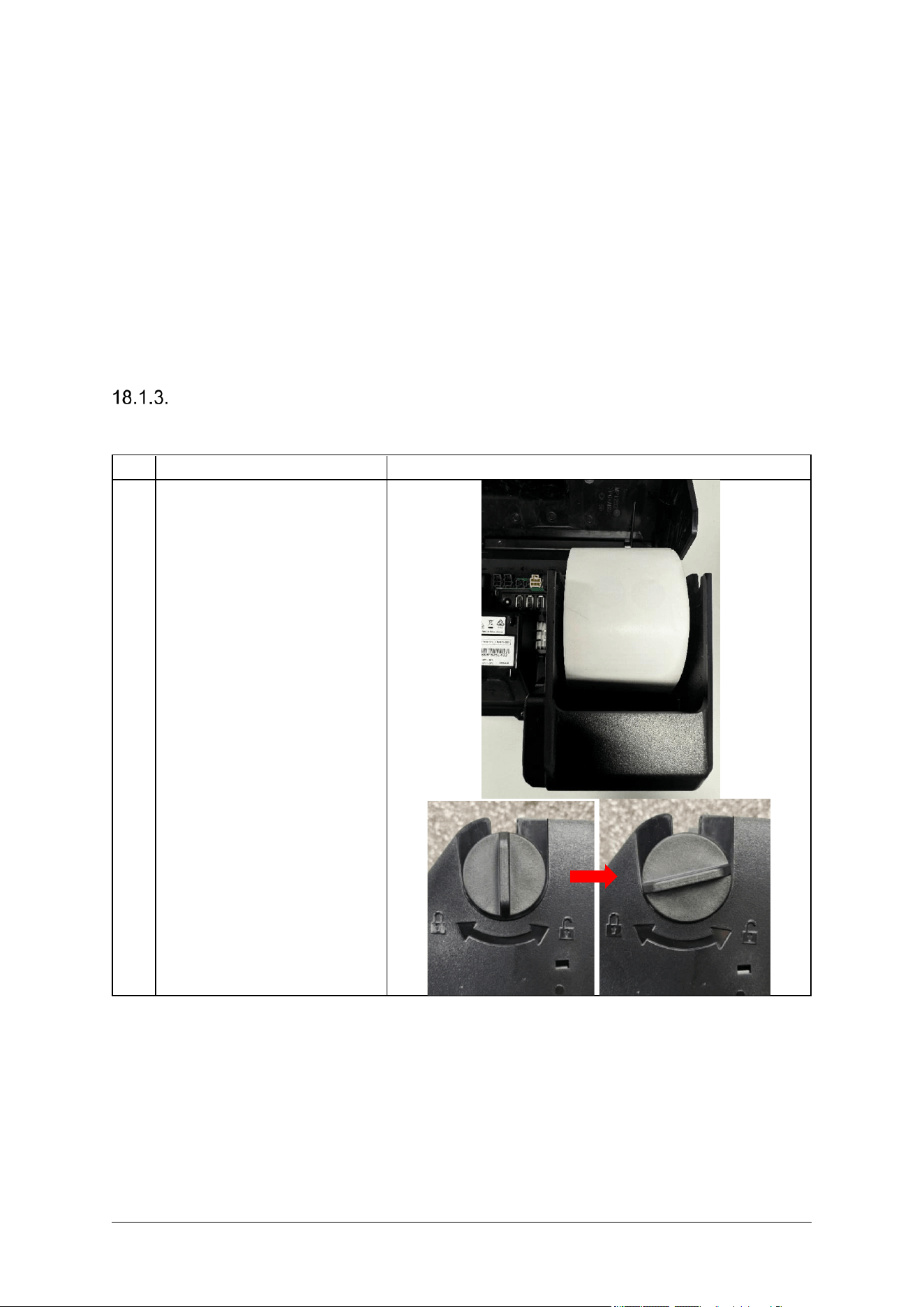
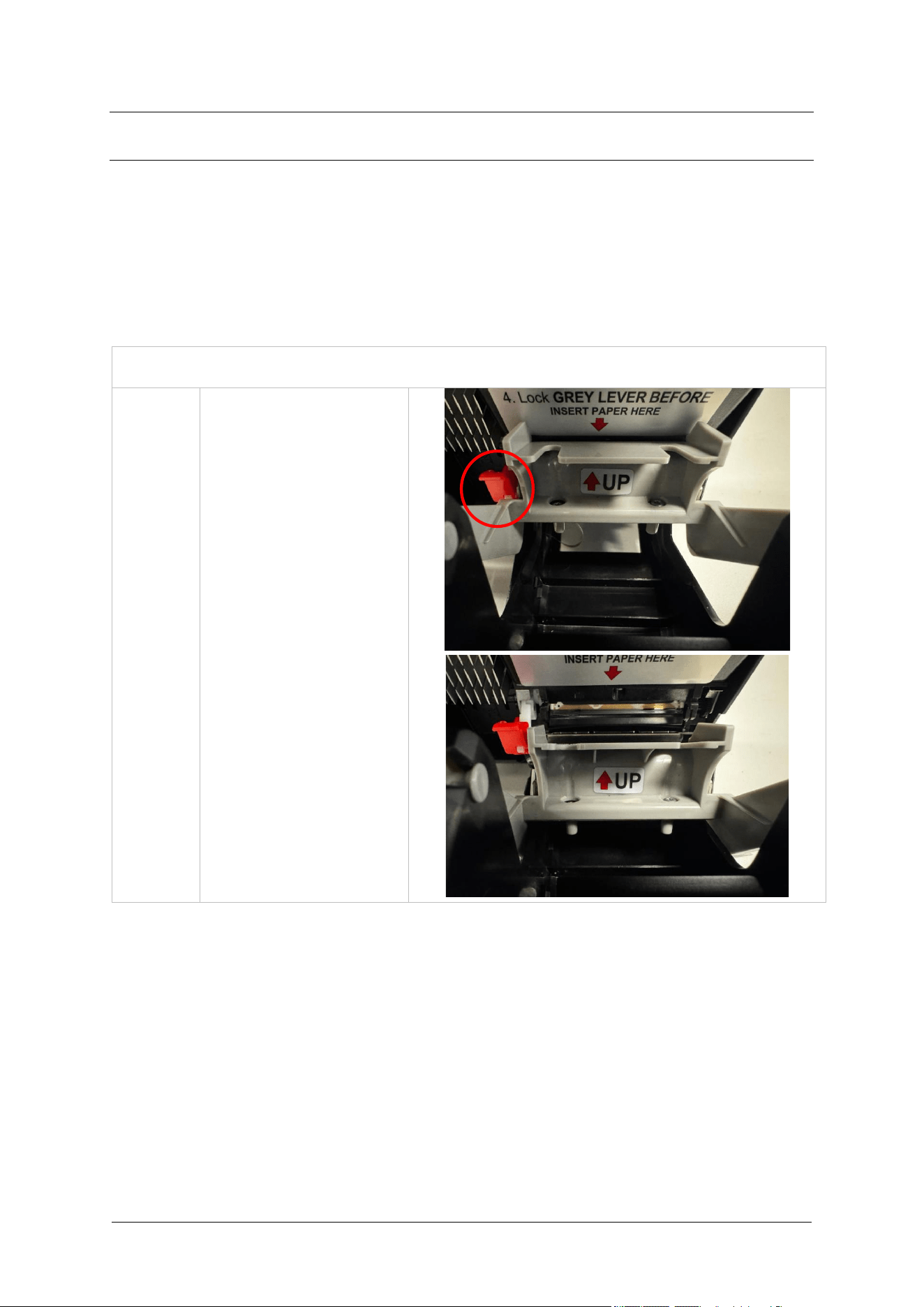
2. Release the paper guide by pushing the red lever up on the side of the printer mechanism.
DCV-00668 S2 R04 33
3. Push Up on the grey lever gently by pressing both ends until you hear a motor click, ensuring
it is locked securely in place.
4. Feed the paper, the printer will automatically grip the paper and feed it through.
Notes:
• Remove the old core before inserting the new paper roll.
• Set paper correctly with no slack (this may cause a paper jam).
• Make sure not to apply excessive force on the grey lever (printer platen assembly) when
opening or closing it.
• If the inserter paper is not straight or flat, open the printer platen and straighten the paper.
Detailed Photo Illustration
Step
Instruction
Photo
1
Place the paper roll in the correct
position, then take the spindle and
insert it through the middle of the
paper roll
Note: The paper tension flap is
spring loaded so you will need to
apply some pressure.
DCV-00668 S2 R04 34
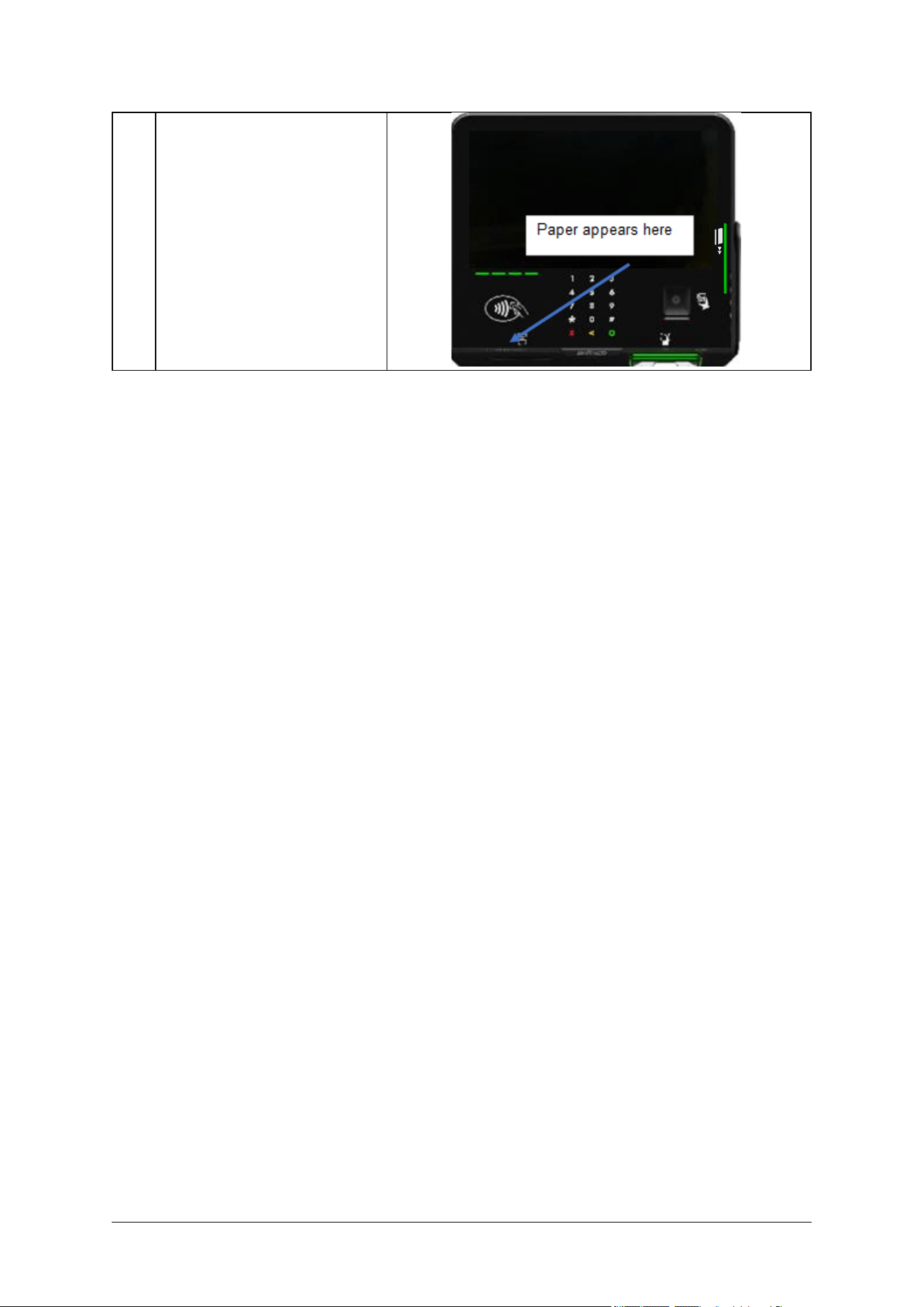
2
Make sure the paper has a clean-
cut edge, then insert the edge into
the marked slot.
If the mechanism is closed (side
arrows aligned), the printer will
automatically grip the paper and
feed it through. Otherwise feed it
through manually.
3
When the paper is loaded
correctly, it looks like this:
4
Use the feed buttons to move the
paper back or forward.
DCV-00668 S2 R04 35
5
The Paper will automatically feed
through the terminal and exit
through the chute located at the
front.
Cut the excess paper using both
feed buttons.
Fig. 18.2: How to Load Paper.
Chapter 19. Clearing a Paper Jam
If you need to clear a paper jam, remember:
• Don’t use anything sharp - it could damage the printer.
• Be gentle. If you take the paper roll out, you should be able to see where the paper is jammed
and free it with a little bit of patience and a gentle touch.
• Any damage done to the printer while clearing a paper jam is not covered by warranty.
Clearing a Paper Jam
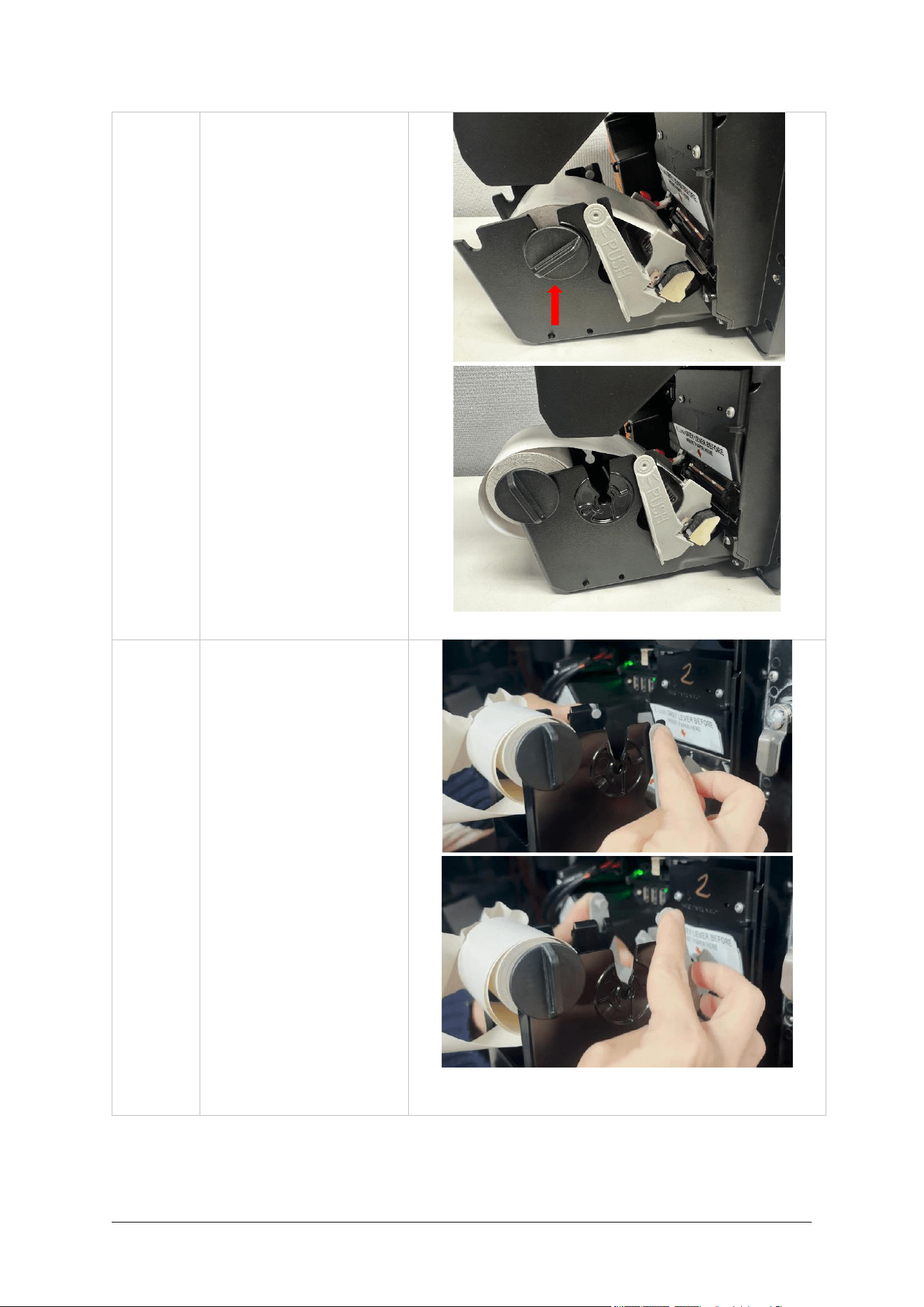
1
Push up the red lever on the
side of the printer
mechanism. This should
disengage the printer
platen.
DCV-00668 S2 R04 37
2.
Remove the paper roll if
necessary, by pulling out
the spindle. Rest the paper
holder at its designated
resting point or lift the roll up
and out of the way.
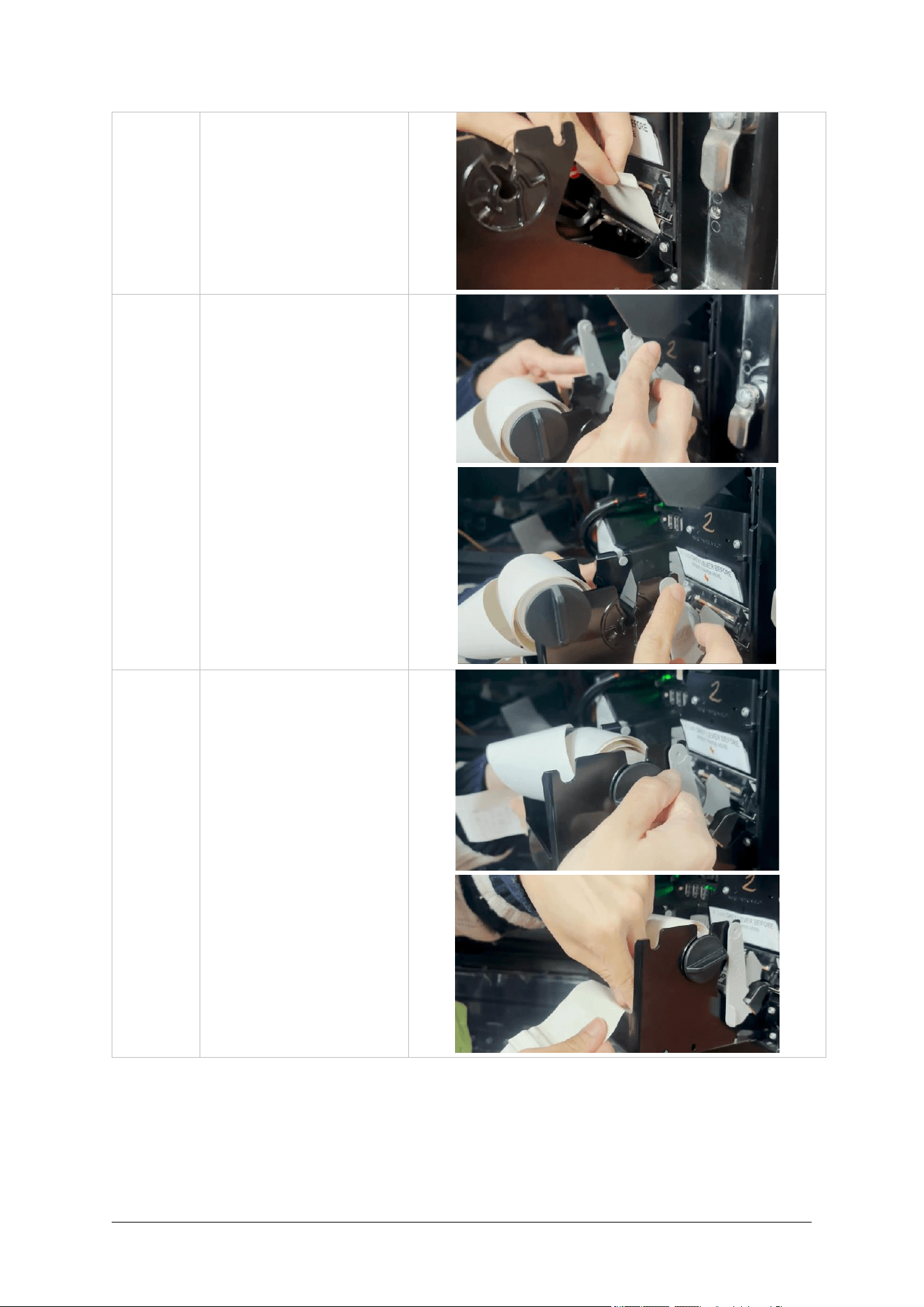
3
Press and hold the Grey
Lever to release it and lift
up.
DCV-00668 S2 R04 38
4
Carefully remove any
jammed paper. Do not use
sharp objects.
5
When the paper jam is
cleared, place the grey lever
back by gently pressing
both handles until it returns
to its original position,
confirming it clicks securely,
into place.
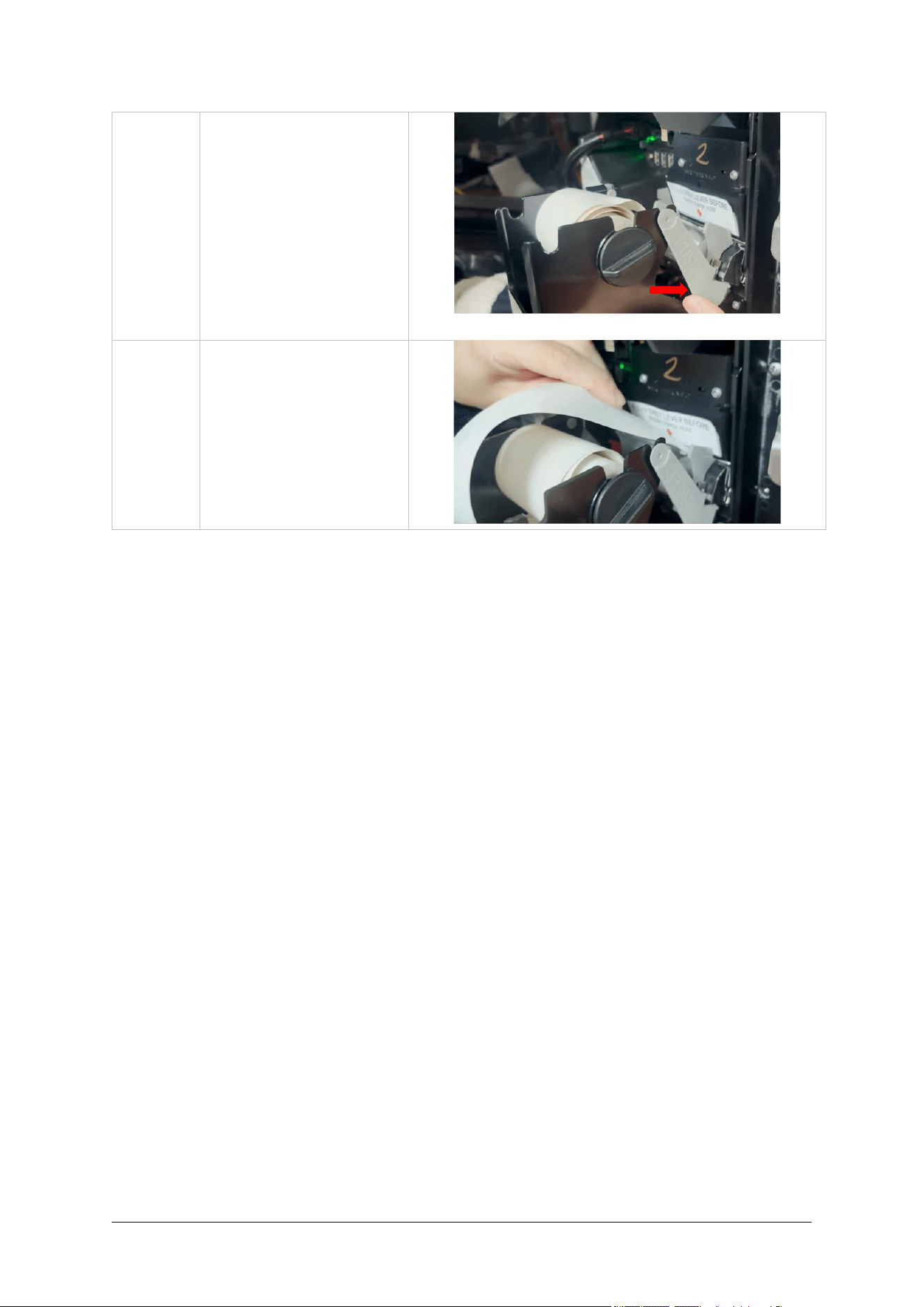
6
Return the paper roll to its
original position. Turn the
spindle lock clockwise to
lock into place.
Ensure the paper roll’s edge
is cut cleanly for optimal
feeding.
DCV-00668 S2 R04 39
7
Push front on the grey lever
gently by pressing both
ends until you hear a motor
click, ensuring it is locked
securely in place.
8
Feed the paper, the printer
will automatically grip the
paper and feed it through.
Fig. 19.1: How to clear a paper jam.

Chapter 20. Security Checks
20.1. Built in Security
Regularly check your G6-400NFC (A2-09) for signs of tampering or alteration.
If it looks different to normal, then there could be a hidden camera or PIN-disclosing bug - you might
have a problem that threatens customer security.
20.2. Extra Security Checks
Use this section to carry out extra security checks, and if you’re still not sure about your G6-400NFC
(A2-09) then call Customer Support.
The following pages include photos and descriptions of what the G6-400NFC (A2-09) components
should look like.
If your G6-400NFC (A2-09) looks different in any way, DO NOT use it.
Follow the escalation procedure below if you have any doubts at all about the integrity of your OPT.
20.3. Escalation
If you think that your G6-400NFC (A2-09) has been tampered with:
• Contact the vendor’s security person or support desk immediately.
• If neither of those contacts are available, contact Invenco’s security officer at the Auckland
address detailed at the end of this document.
• Notify local law-enforcement immediately.
Security Checks
The G6-400NFC (A2-09) has a smooth finish with an uninterrupted surface. Any breaks or uneven
surfaces should be inspected as a potential security concern.
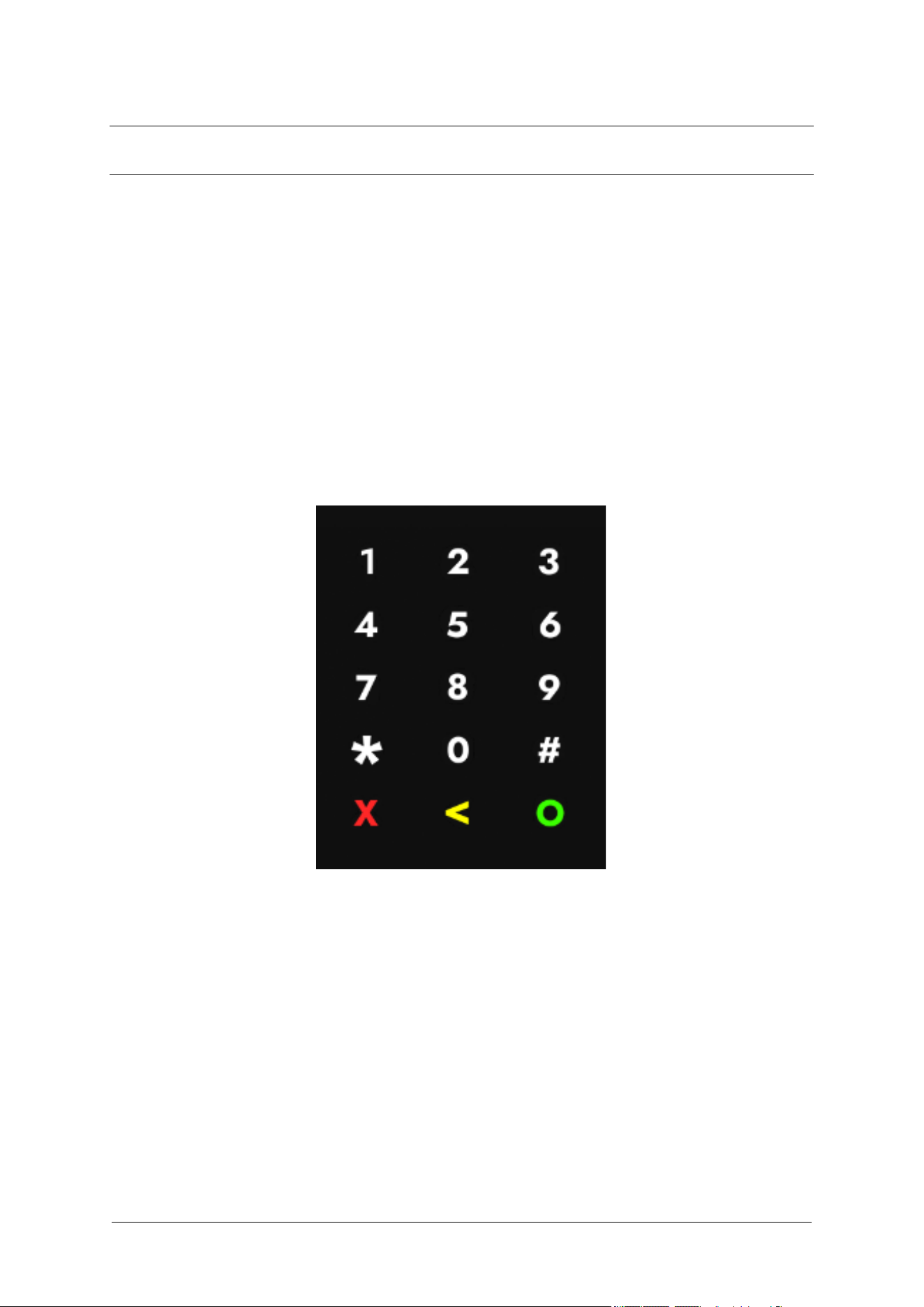
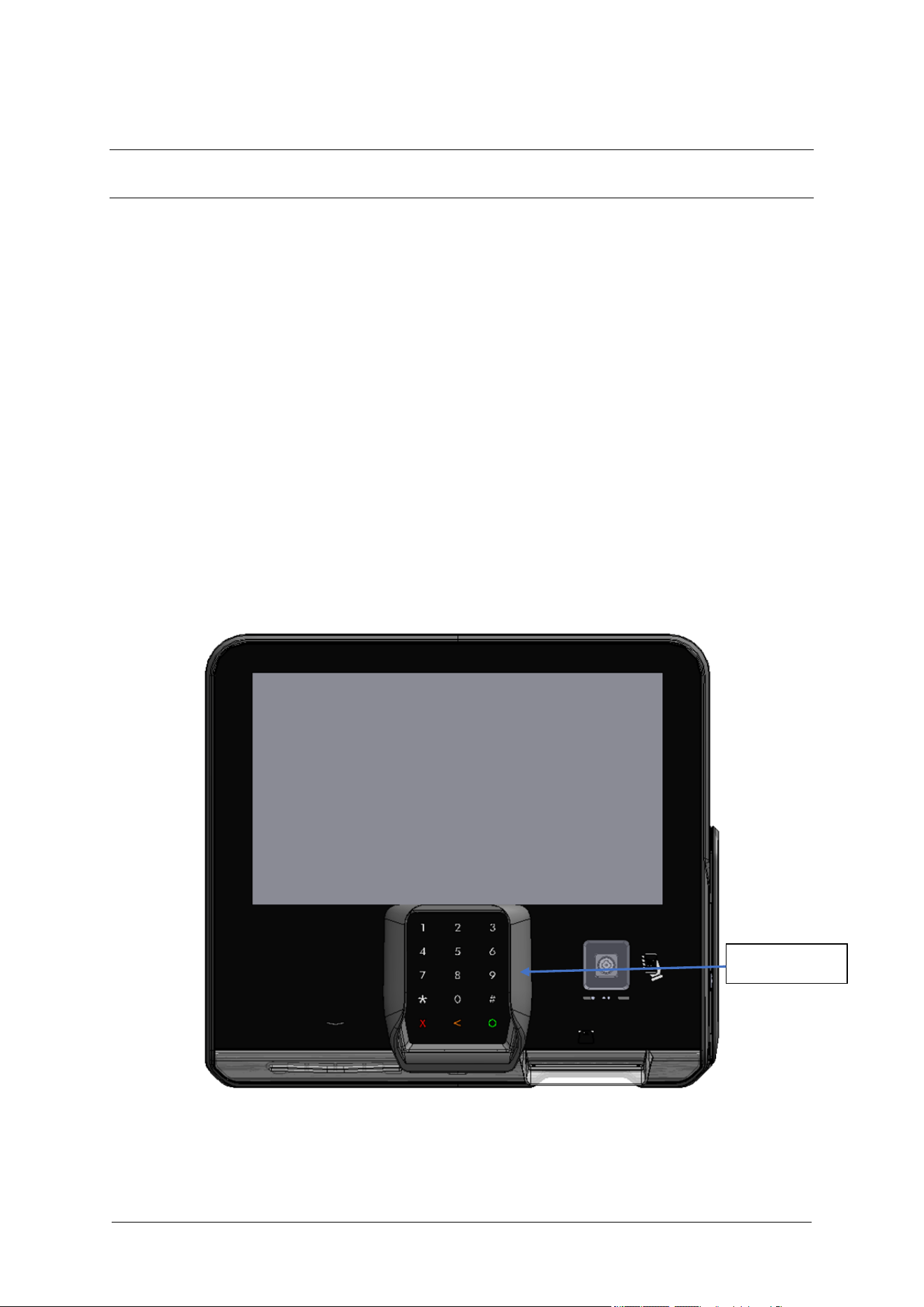
20.4. Keypad
1. The G6-400NFC (A2-09) keypad is a touchpad on the glass.
a. The keys are back-lit.
b. The numbers must be illuminated when the keypad is active.
If the numbers don’t light up when the keypad is active, then check the keypad for signs
of tampering or an overlay.
2. The key is flat. Inspect from the front and the side to make sure that nothing has been overlayed.
Use your hands to make sure the surface is smooth.
Fig. 20.1: Example of keypad.
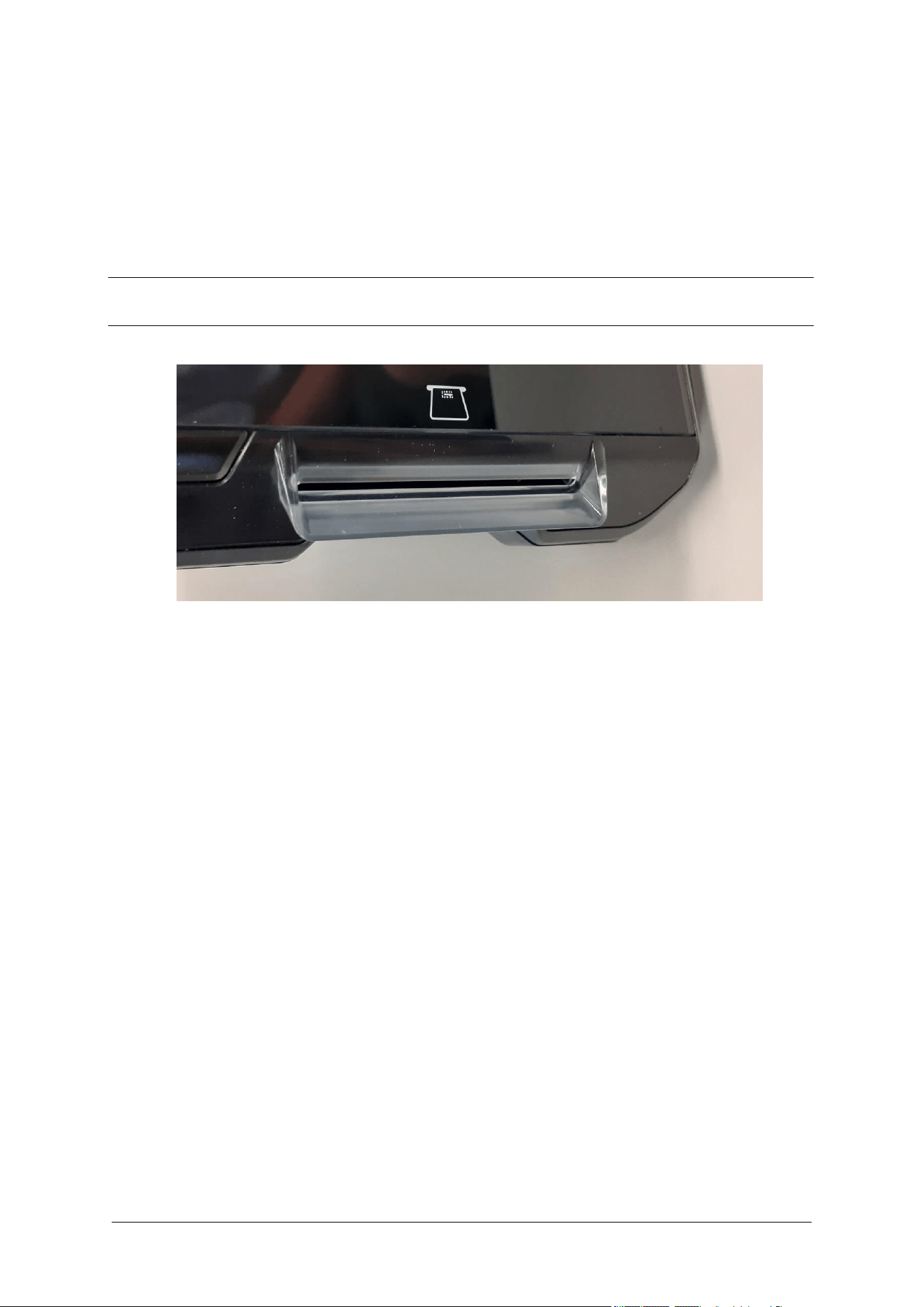
20.5. Card-Reader Slot and Contactless Reader
What to check for:
❖ Are there any wires of any kind coming out of the Card Slot?
➢ There should be no visible wires at all on or around the Card Slot.
❖ Is the OPT finish uninterrupted and consistent across the Card Slot?
➢ There should be no cracks, holes or bumps of any kind.
DCV-00668 S2 R04 42
❖ Does the card slot acceptor light:
➢ Flash green when it is ready and waiting to accept a card?
➢ Turn red when a card is inserted and a transaction is processing?
➢ Turn blue only when the card can be safely removed?
❖ Does the Contactless Reader:
➢ Show one steady green light when ready to accept a payment?
Note: Remember, if your G6-400NFC (A2-09) does not look or act like it should, do not use it. Contact
Invenco immediately for further assistance.
Fig. 20.2: Front of card slot.

Chapter 21. Removal & Reinstallation
21.1. How to Uninstall a G6-400NFC (A2-09)
Step
Instruction
1.
To remove an existing Invenco Outdoor Payment Terminal (OPT):
2.
Make sure that the terminal is not in use.
3.
Open the enclosure door.
4.
Use the reverse paper feed button to feed the paper out of the terminal, then remove the
paper roll. (Models with printer only).
5.
Switch off the mains power.
6.
Carefully cut the cable ties holding cables in place to the existing OPT. Do not cut any other
cable ties.
7.
Remove the ground wire and unplug the ethernet and low-voltage power cables.
8.
Unscrew the screws holding the OPT to the door. There will be
12 M4 screws.
9.
Carefully lift the OPT out of the enclosure and package it for return to an Invenco Service
Centre.
21.2. How to Reinstall a G6-400NFC (A2-09)
Step
Instruction
1.
Prepare the terminal by removing any traces of existing sealing gasket with a soft
scraper and/or isopropyl alcohol.
2.
Remove the G6-400NFC (A2-09) from its packaging and inspect it for damage.
3.
Place the A2-09 face down on a soft, clean surface, and attach the new sealing gasket.
4.
Place the A2-09 carefully into the cut-out in the door and align it with the screw-holes (or
brackets if there has been a previous retrofit).
5.
Loosely place all the screws, check the alignment is correct and then tighten the screws.
6.
Plug in the power cable and the LAN cable.
7.
Connect the Ground wire.
8.
Use new cable ties to gather all cables together, then close the door making sure not to
snag or pinch any of the cables.
9.
Reload a paper roll and feed the paper through into the printer.
10.
Check that the A2-09 has come online correctly, then close the cabinet/pump door.
11.
If this is a replacement A2-09 (i.e. not the same one removed) you may need to
configure it for proper operation.
Chapter 22. Drawings
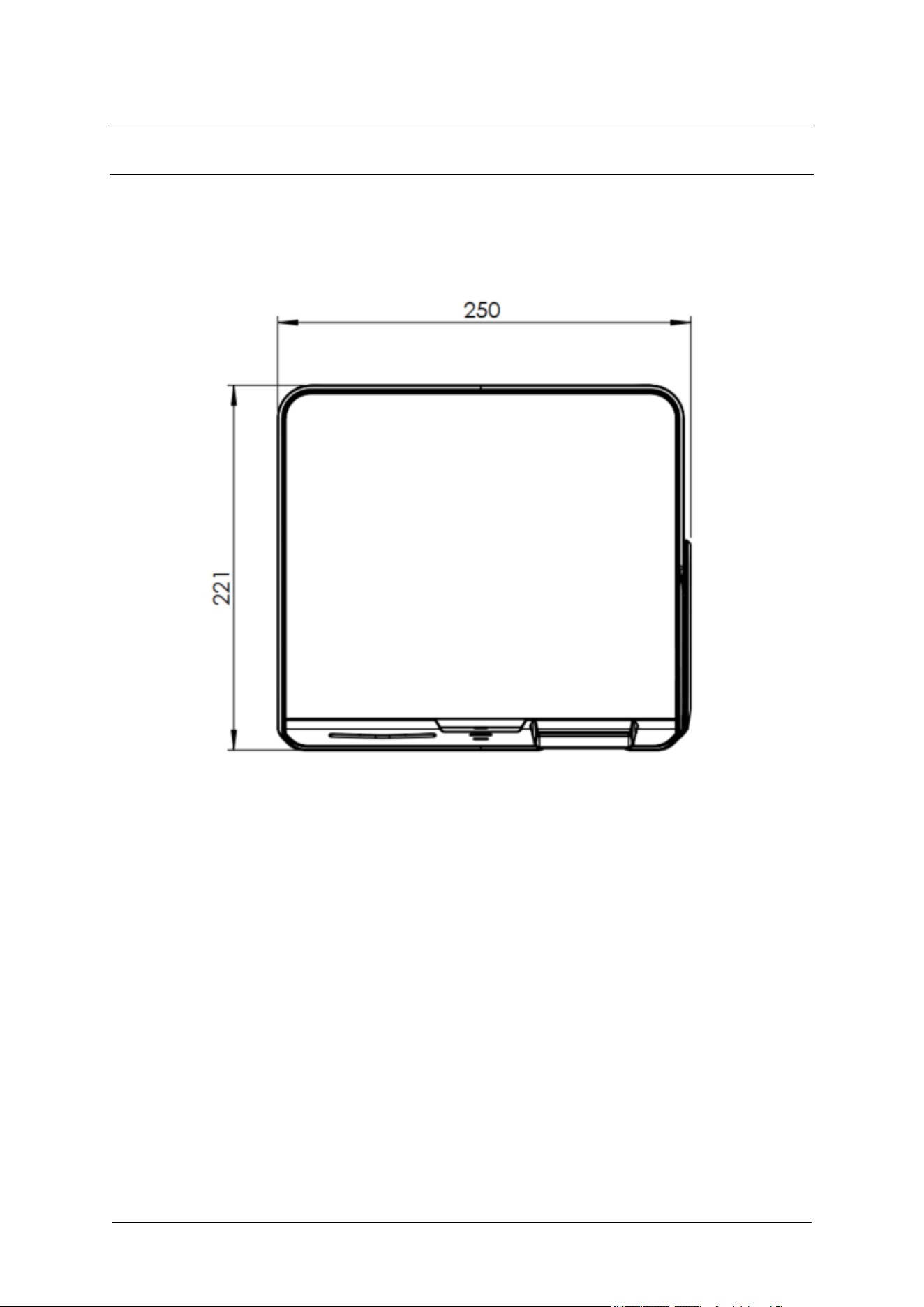
22.1. Dimensions
Fig. 21.1: G6-400NFC (A2-09) Front Dimensions.
DCV-00668 S2 R04 45
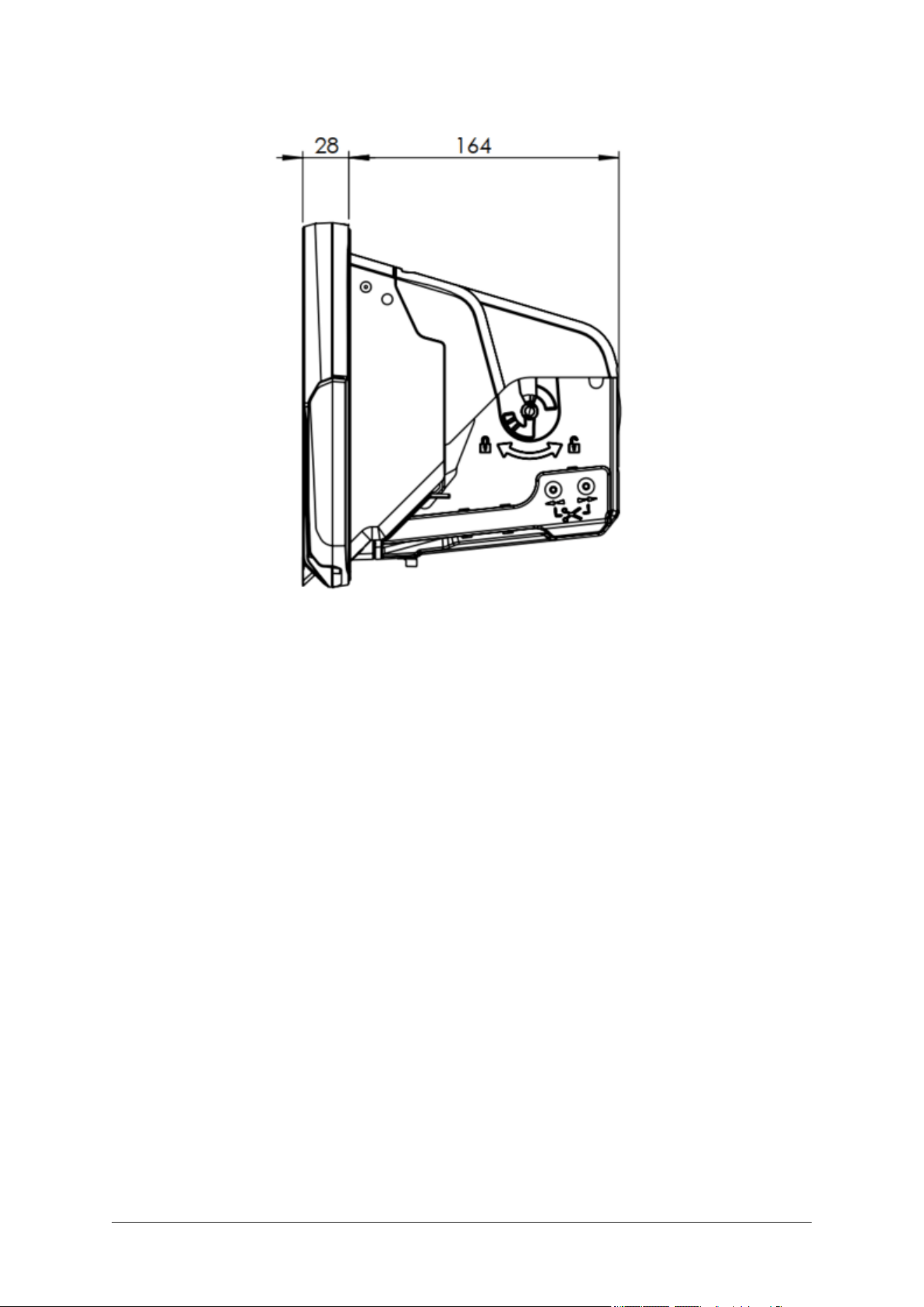
Fig. 21.2: G6-400NFC (A2-09) Side Dimensions.
DCV-00668 S2 R04 46
Fig. 21.3: G6-400NFC (A2-09) Rear Dimensions & Mounting Points.
Chapter 23. Mounting – New Installation
Fig. 22.1: Mounting guide - NOT TO SCALE. Do not use as a template.
DCV-00668 S2 R04 48
Fig. 22.2: Exploded view, mounting to panel.
Chapter 24. Typical Wiring
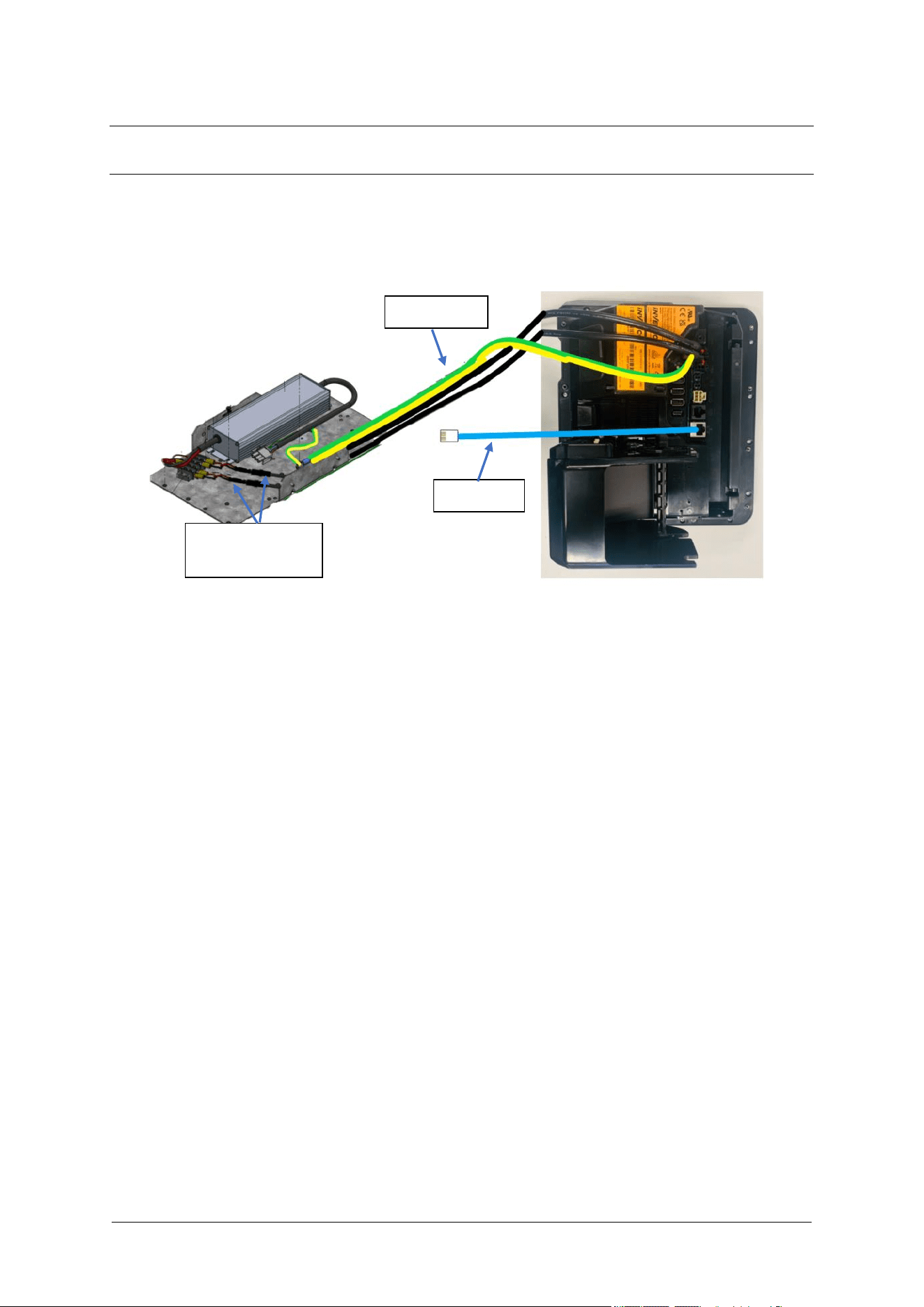
The schematic below shows the standard and typical wiring for the G6-400NFC (A2-09). We
recommend that you use this wiring for safety and correct performance.
Ethernet
Earth Wire
Low-Voltage DC
Cables
DCV-00668 S2 R04 50
Chapter 25. Optional Privacy Shield
G6-400NFC (A2-09) has an optional Privacy Shield.
To install:
1. Tear off screen protector plastic. If this has already been removed then clean the screen surface
with IPA before proceeding to the next step.
2. Peel off the adhesive backing on the Privacy Shield.
3. Place the Privacy Shield onto the screen centrally over the PIN pad, with the tab at the bottom
covering the Invenco logo badge.
The top edge of the privacy shield should align with the edge of the visible area of the screen.
4. Press down firmly along sides and bottom tab.
Note: Occasionally, a U-Shape Tempered Glass screen protector (Part No. MP1469) may be
installed before the privacy shield. This can be beneficial as it aids in aligning the privacy shield
correctly.
Privacy Shield

Chapter 26. Release History
Issue
Date of Issue
Description
Originator
R0
2023-02-03
Initial release
SJ
R01
2023-03-10
Update Security Check Photos
SJ
R02
2024-01-31
Updated ATEX mark
SJ
R03
2024-11-11
Following Updates applied:
- FCC Information;
- Invenco Brand Logo
print paper updated from CP0002 to
CP0006
-Removed Reference of Printer Chute
Plug
-Photos updates on various section
-Added MSR logo
SD
R04
2025-10-01
-Updated clearing paper jam instruction
-Updated Service center address for
Europe
SD
R05
2026-06-10
Updated for G6-400NFC Module
SD

©2025, Invenco Group Ltd. All rights reserved.
No part of this document may be copied or reproduced in any form without the prior written consent of
Invenco Group Ltd.
The information in this document is subject to change without notice and should not be construed as a
commitment by Invenco Group Ltd. Invenco Group Ltd has made all reasonable efforts to verify the
accuracy of this document but assumes no responsibility for any technical inaccuracies or typographical
errors.
Contact Details
NEW ZEALAND
7-11 Kawana St
Northcote
Auckland 0627
New Zealand
Ph: +64 9 905 5600
NORTH AMERICA
245 Hembree Park Drive
Suite 90
Roswell, GA 30076
USA
P: +1 877 515 0939
ASIA
Level 3, Wisma Ali Bawal 1
Jalan Tandang
46050 Petaling Jaya Selangor, Malaysia
Ph: +60 3 7781 0298
EUROPE
Gilbarco Vedeer-Root
Ferdinand-Henze-Straẞe 9
Salzkotten 33154
Germany
Ph: +49 (0) 173 6000 887