20251201
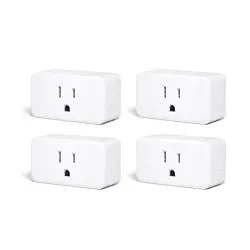
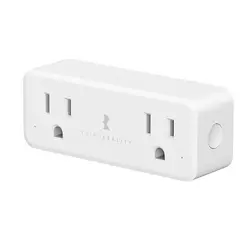
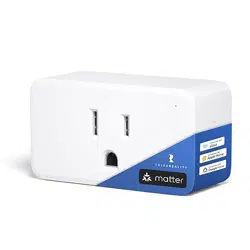
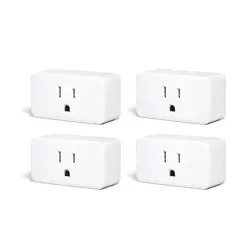
Smart Plug Gen3
User Manual
With Power Meter

Contents
Specifications
Features
Setting up your Smart Plug Gen3
Factory Reset
Pairing with compatible Zigbee devices
Pairing with SmartThings
Pairing with Amazon Alexa
Pairing with Hubitat
Pairing with Home Assistant
Mesh Network Setup
Using your smart Plug Gen3 by Alexa
Troubleshooting
FCC Regulatory Conformance
Limited Warranty
01
01
02
02
03
04
06
09
12
18
19
20
22
23
01
Features
1.
2.
3.
4.
5.
Specifications
Support real-time energy monitoring
Compatible with Zigbee devices from Amazon Echo /
SmartThings / Home Assistant / Hubitat / Homey / Third
Reality etc.
Act as a Zigbee repeater, increasing the range of your
Zigbee mesh network.
Customize On/Off state when power is restored.
Enjoy worry-free upgrades with continuous power.
Model Number
Electrical Characteristics
Working Temperature
Operating Humidity
Connectivity
App Support
3RSP02064Z
100~120V AC, 15A Max, 50/60Hz
-10°C~40°C
5%~90% RH (Non-condensing)
Zigbee 3.0
IOS/Android
02
Setting up your Smart Plug Gen3
Factory Reset
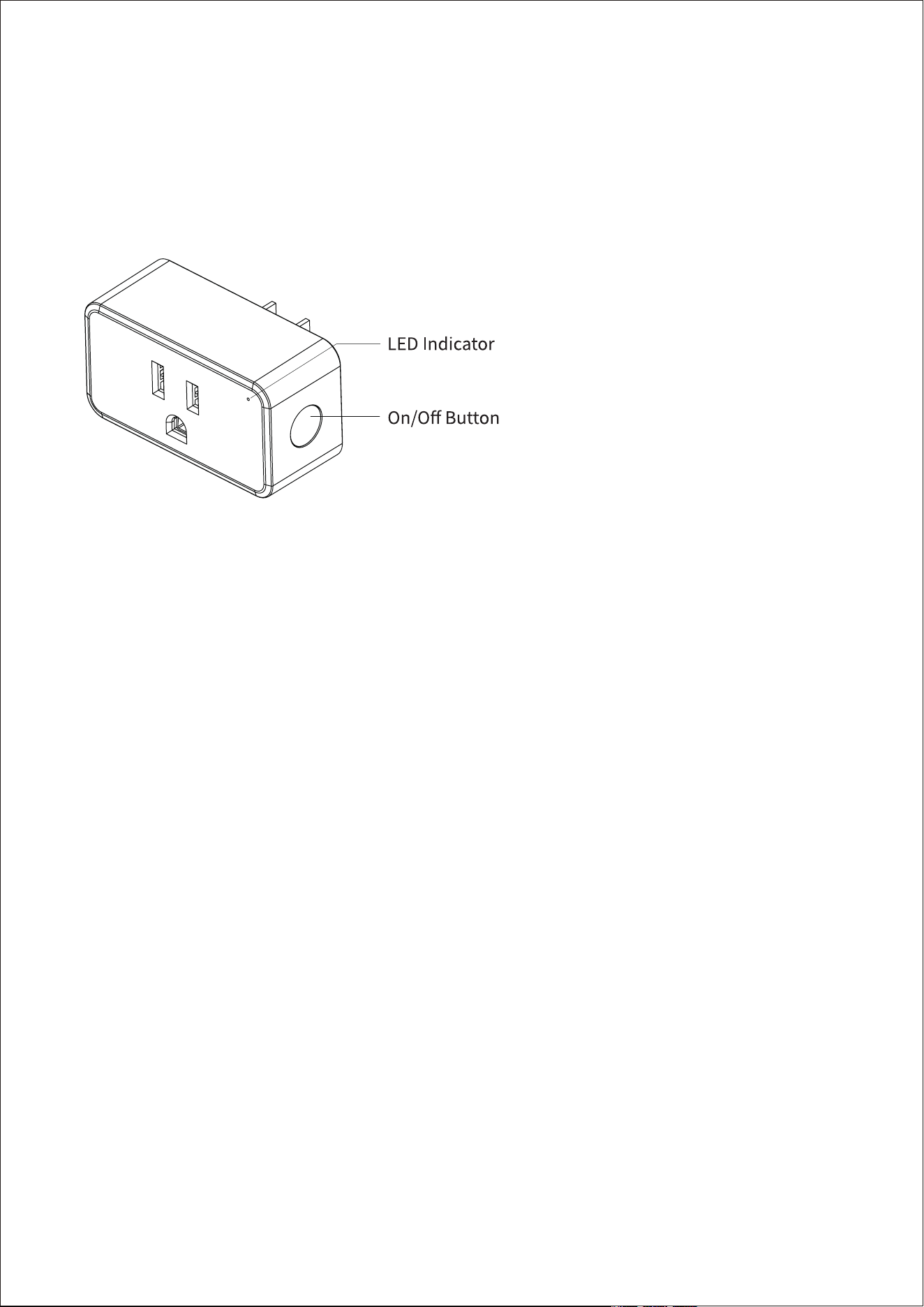
Pairing: The LE flashes in red.
Pairing Completed: LED light is OFF.
Power ON: LED light is ON in red.
Power OFF: LED light is OFF.
LED Status
After your Smart Plug is powered on, press and hold the
On/Off button for more than 10 seconds until the LED light
flashes in red indicating that your Smart Plug is in pairing
mode.
Insert the Smart Plug into an outlet, it will enter pairing mode
automatically.

03
Pairing with compatible Zigbee devices
Compatible devices: Echo 4th Gen, Echo Plus 1st Gen/2nd
Gen, Echo Show 10 2nd Gen, Echo Show 10 3rd Gen, Echo
Studio. Eero 6, Eero 6 Pro, Homey, Aeotec, SmartThings
Station,SmartThings 2015/2018, Hubitat Elevation, Home
Assistant (ZHA/Zigbee2MQTT), Third Reality Hub, Smart
Bridge MZ1.
1.
2.
3.
Update your hub firmware and phone app to the latest
version before pairing,set up your Zigbee Hub by fol-
lowing its user manual.
Insert the Smart Plug into an outlet, it will enter pairing
mode automatically.
Follow the instructions in the corresponding phone app
to complete the setup.

04
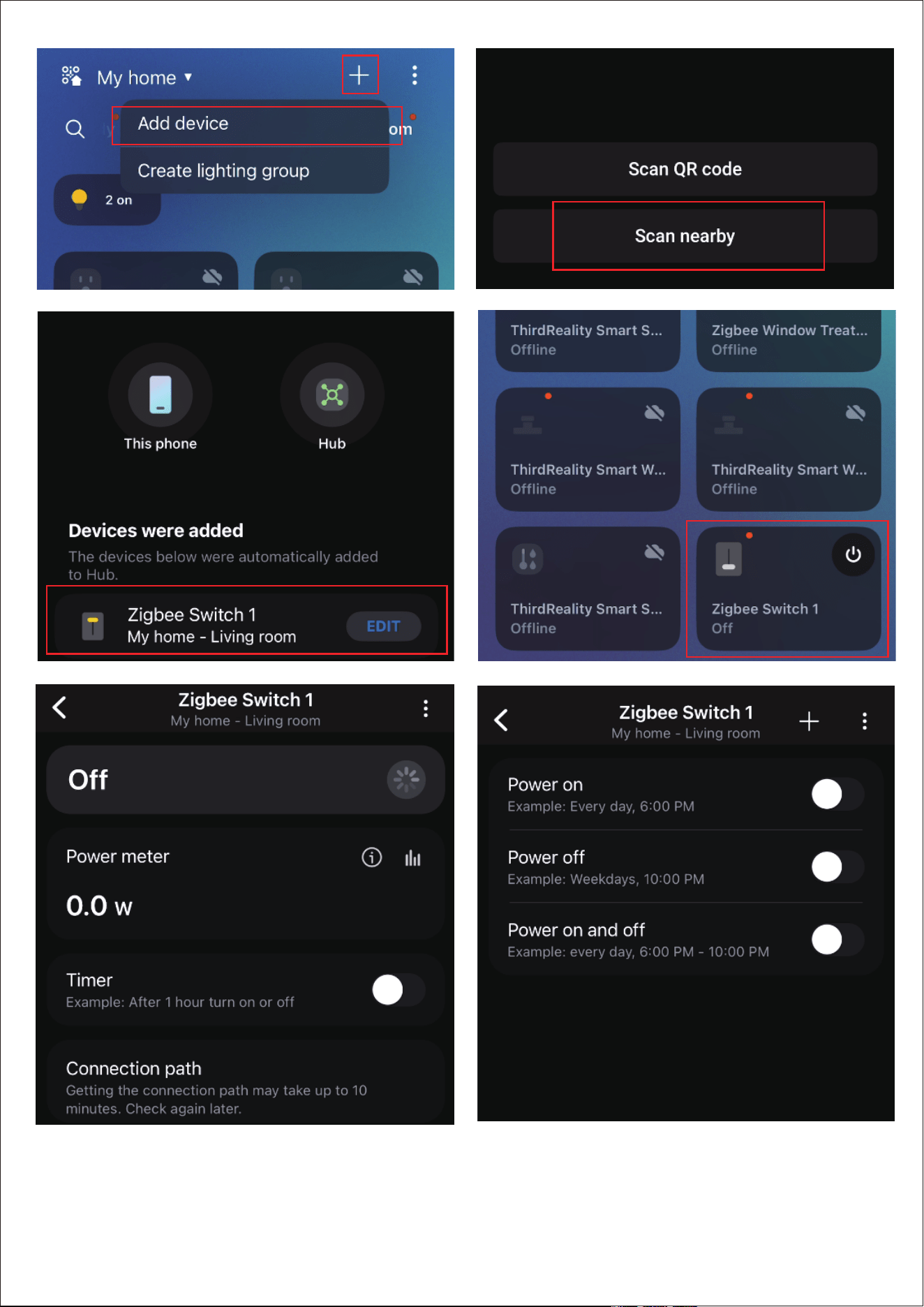
Pairing with SmartThings
Compatible Devices: SmartThings Hub 2015&2018,Aeotec
Smart Home Hub, SmartThings Station.
App: SmartThings App
Pairing steps:
1.
2.
3.
4.
Check your SmartThings Hub for firmware updates
before pairing the Smart Plug with it.
Power on the Smart Plug, press and hold the On/Off
button for more than 10 seconds until the LED light
flashes in red indicating that your Smart Plug is in pair-
ing mode. lt exits pairing mode within 3 minutes if not
successfully paired. To put it into pairing mode again.
Tap "+" in the upper right in your SmartThings app, then
tap "Scan for nearby devices", the Smart Plug will be
paired within seconds.
You can turn on or off the plug , or you can create a rou-
tine to control it.
05

06
Pairing with Amazon Echo
Compatible Devices: Echo 4th Gen, Echo Plus 1st Gen/2nd
Gen, Echo Show 10 2nd Gen, Echo Show 10 3rd Gen, Echo
Studio, Eero 6, Eero 6 Pro.
App: Amazon Alexa App
Pairing steps:
1.
2.
3.
4.
Check your Echo speaker for firmware updates before
pairing.
Power on the Smart Plug, then press and hold the On/Off
button for more than 10 seconds until the LED light
flashes in red indicating that your Smart Plug is in pair-
ing mode. lt exits pairing mode within 3 minutes if not
successfully paired. To put the device into pairing mode
again.
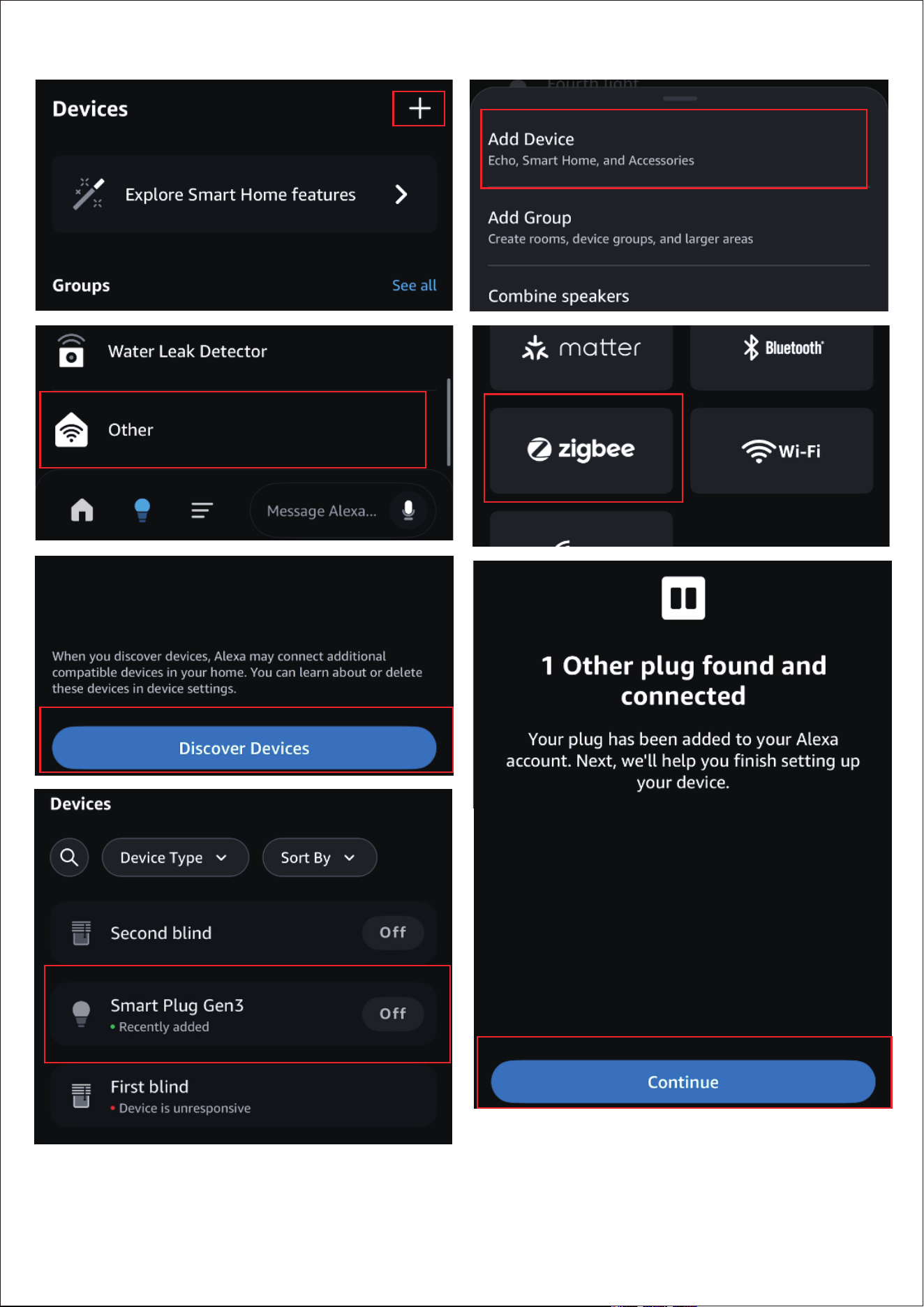
Tap "+" in the upper right in your Alexa app to "Add
Device", scroll down to select "Other", then choose
Zigbee connection to add the device, or simply ask Alexa
to discover devices, the Smart Plug will be paired within
seconds.
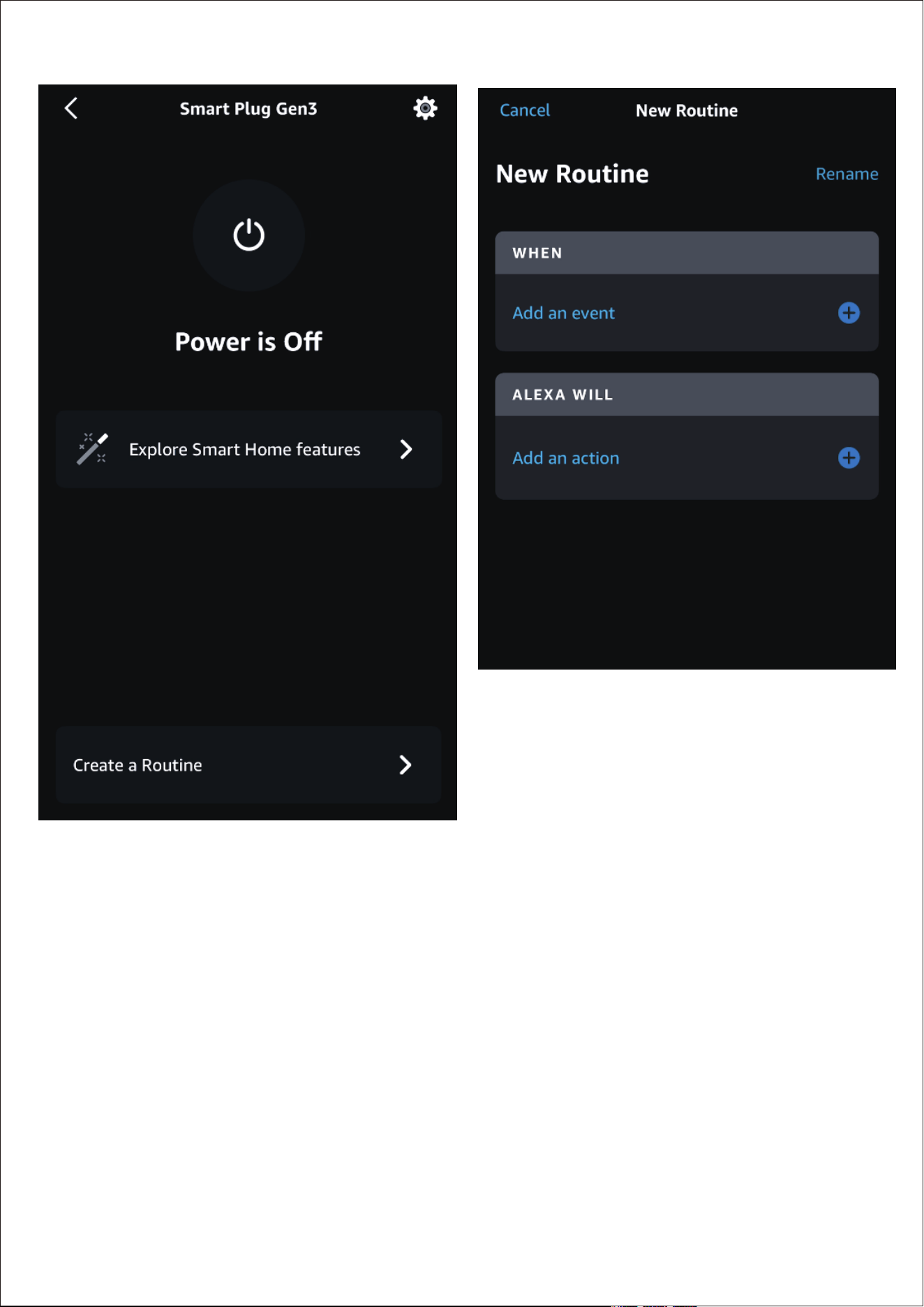
You can turn on or off the plug through the voice assis-
tant or the Echo app on your phone, or you can create a
routine to control it.
07
08

09
Pairing with Hubitat
Website: http://find.hubitat.com/
Pairing steps:
1.
2.
3.
4.
5.
6.
Before pairing the Smart Plug with Hubitat Elevation,
check for afirmware update on your Hubitat settings
page.
Power on the Smart Plug, then press and hold the On/Off
button for more than 10 seconds until the LED light
flashes in red indicating that your Smart Plug is in pair-
ing mode. lt exits pairing mode within 3 minutes if not
successfully paired. To put the device into pairing mode
again.
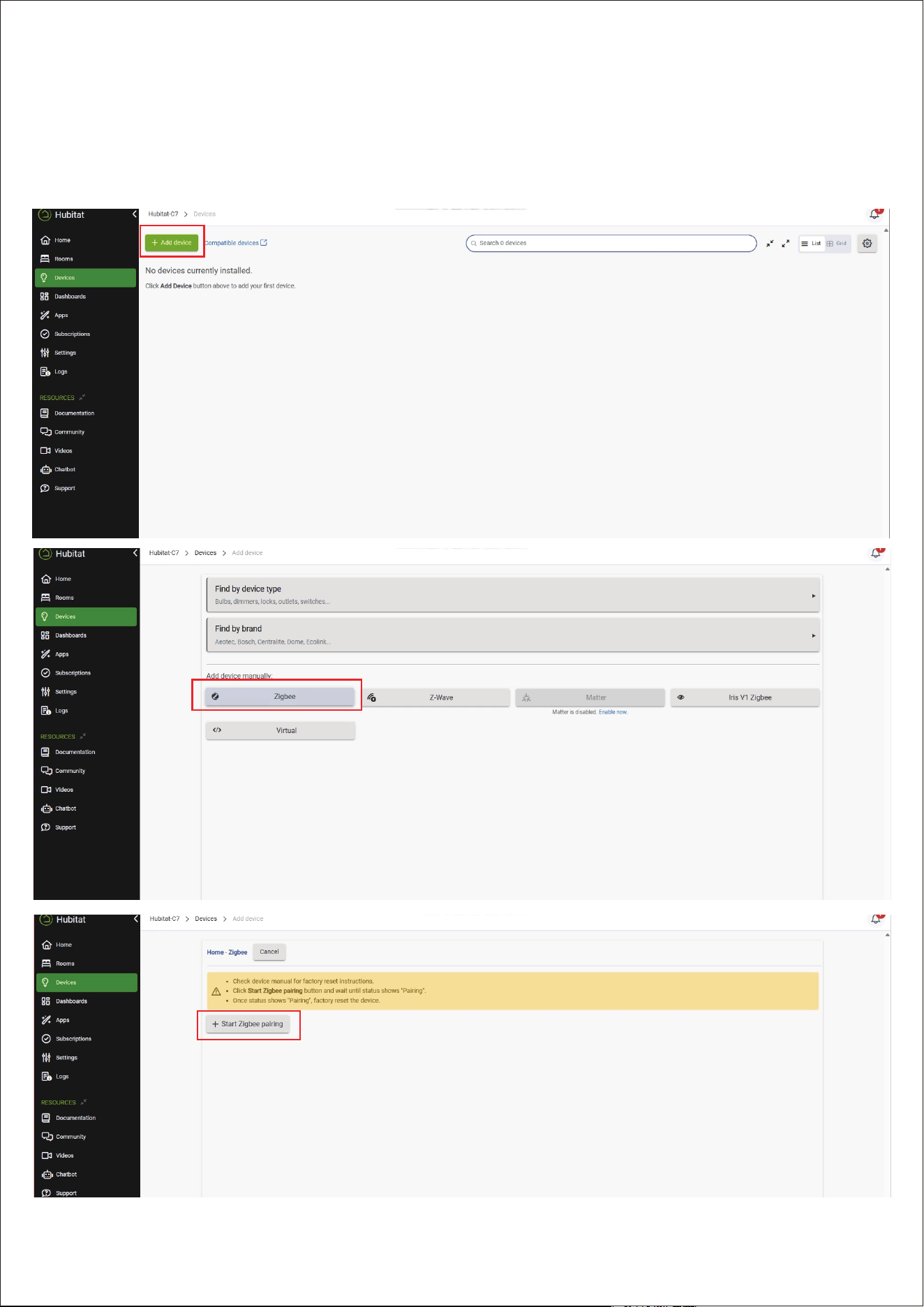
Tap + Add a device in the Devices page. Choose Zigbee to
add device manually. The Smart Plug will be paired
within seconds, then you can rename it and edit its loca-
tion.
Tap + Add a device in the Devices page.
Choose Zigbee to add device manually
The Smart Plug will be paired within seconds, then you
can rename it and edit its location.
10
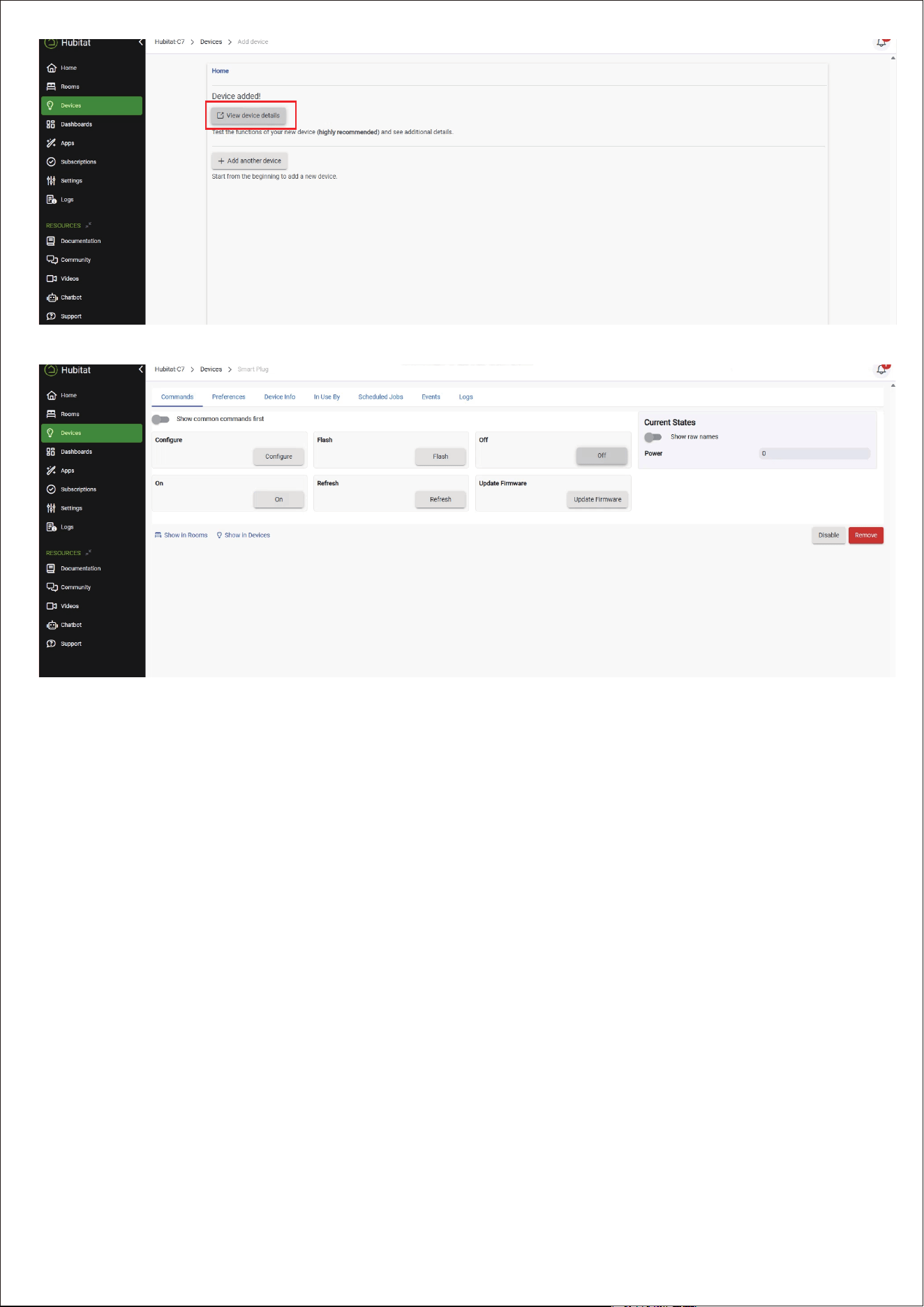
Now you can turn on or off the Smart Plug.7.
Change Type from "Device" to "Generic Zigbee Outlet".6.
11
Gen3

12
Pairing with Home Assistant
Zigbee Home Automation(ZHA)
Pairing steps:
1.
2.
3.
4.
Power on the Smart Plug, then press and hold the On/Off
button for more than 10 seconds until the LED light
flashes in red indicating that your Smart Plug is in pair-
ing mode. lt exits pairing mode within 3 minutes if not
successfully paired to the hub. To put the device into
pairing mode again.
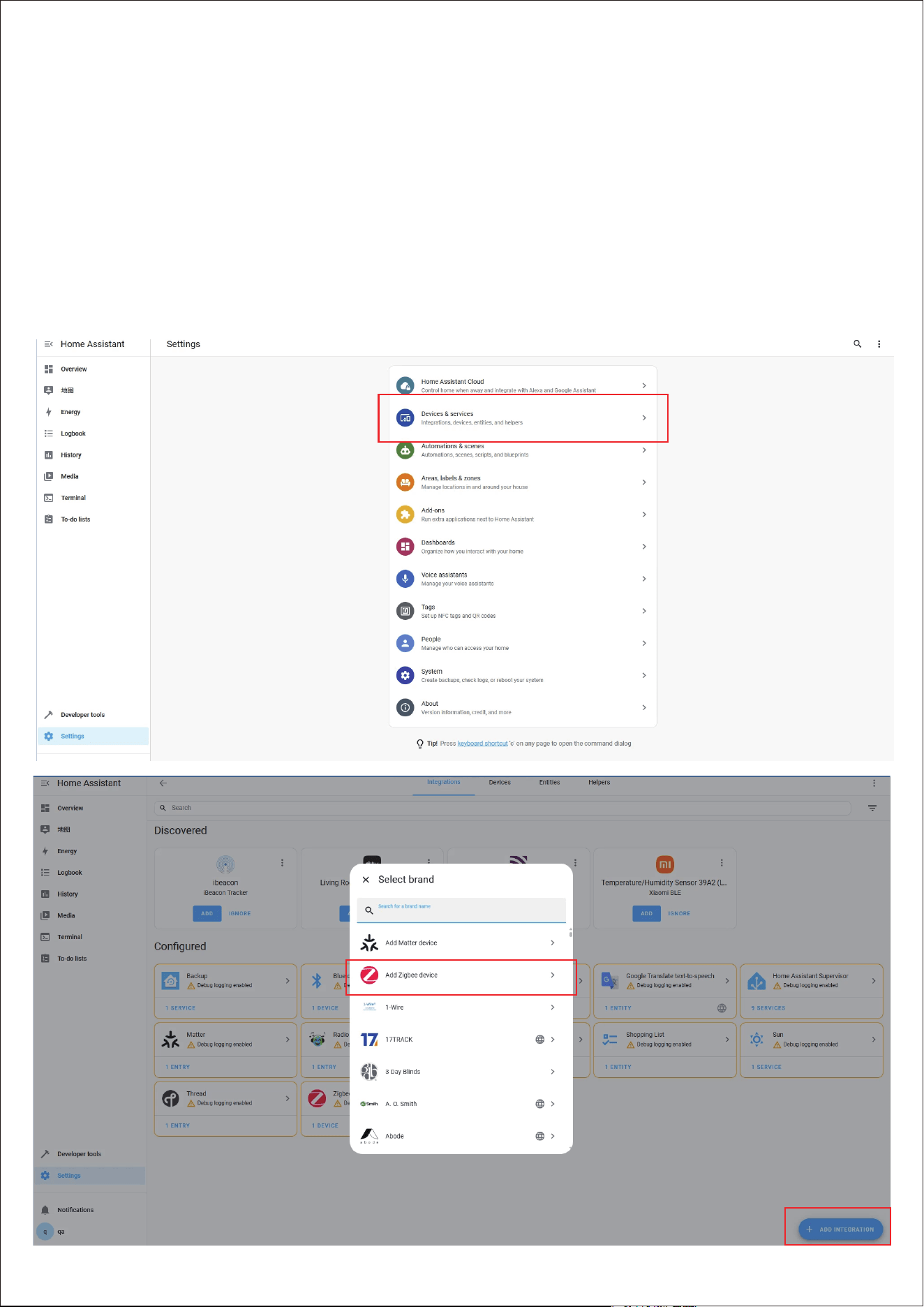
Ensure the Home Assistant Integration Zigbee Home Au-
tomation Setup is ready, then navigate to the "Settings"
page and click "Devices & Services".
After that click the "Devices" on the Zigbee item, and
then click"Add Devices".
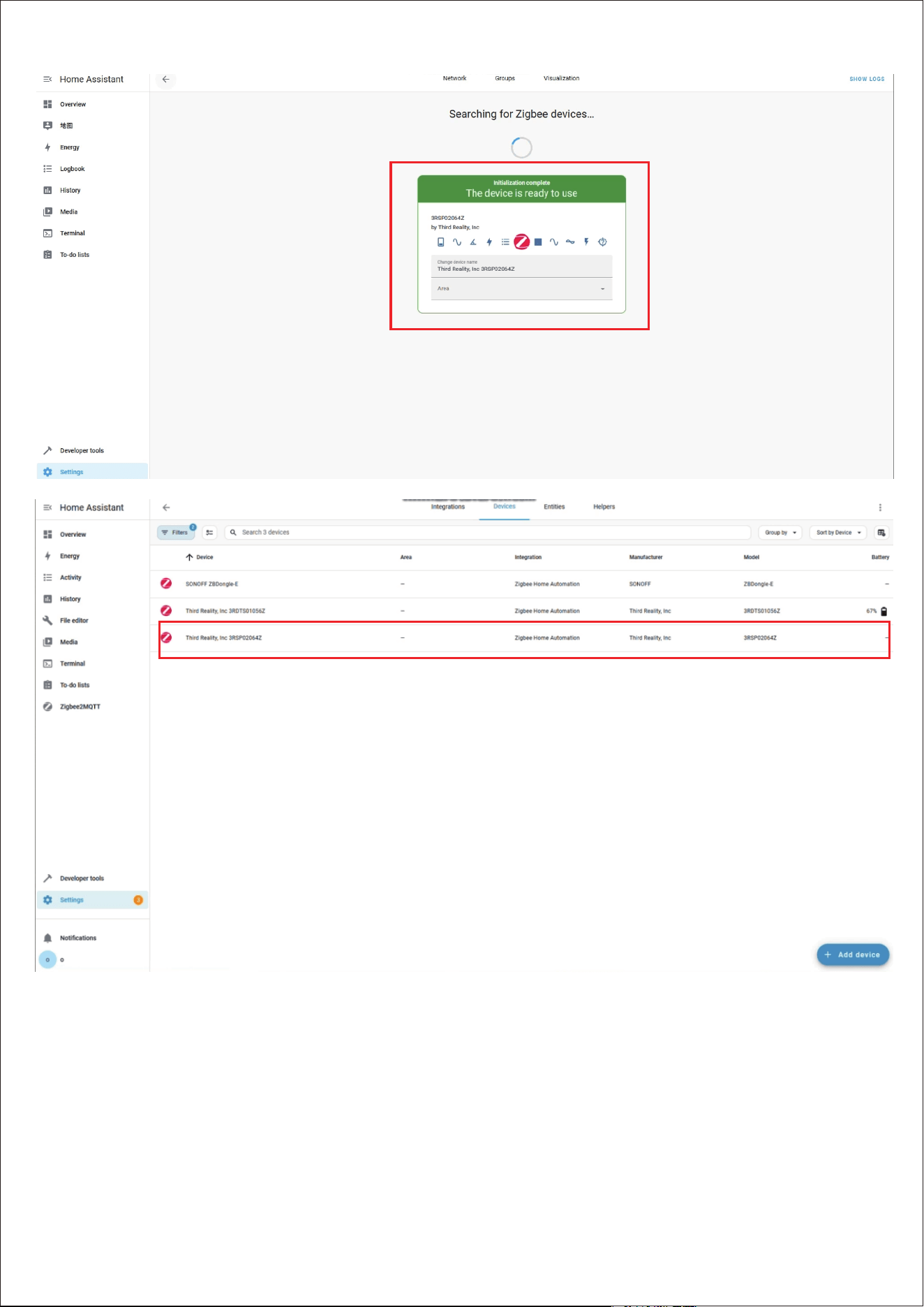
After the pairing is completed successfully, it will show
up on the page.
13
5.
6.
Back to "Devices", then you can find the smart Plug
added.
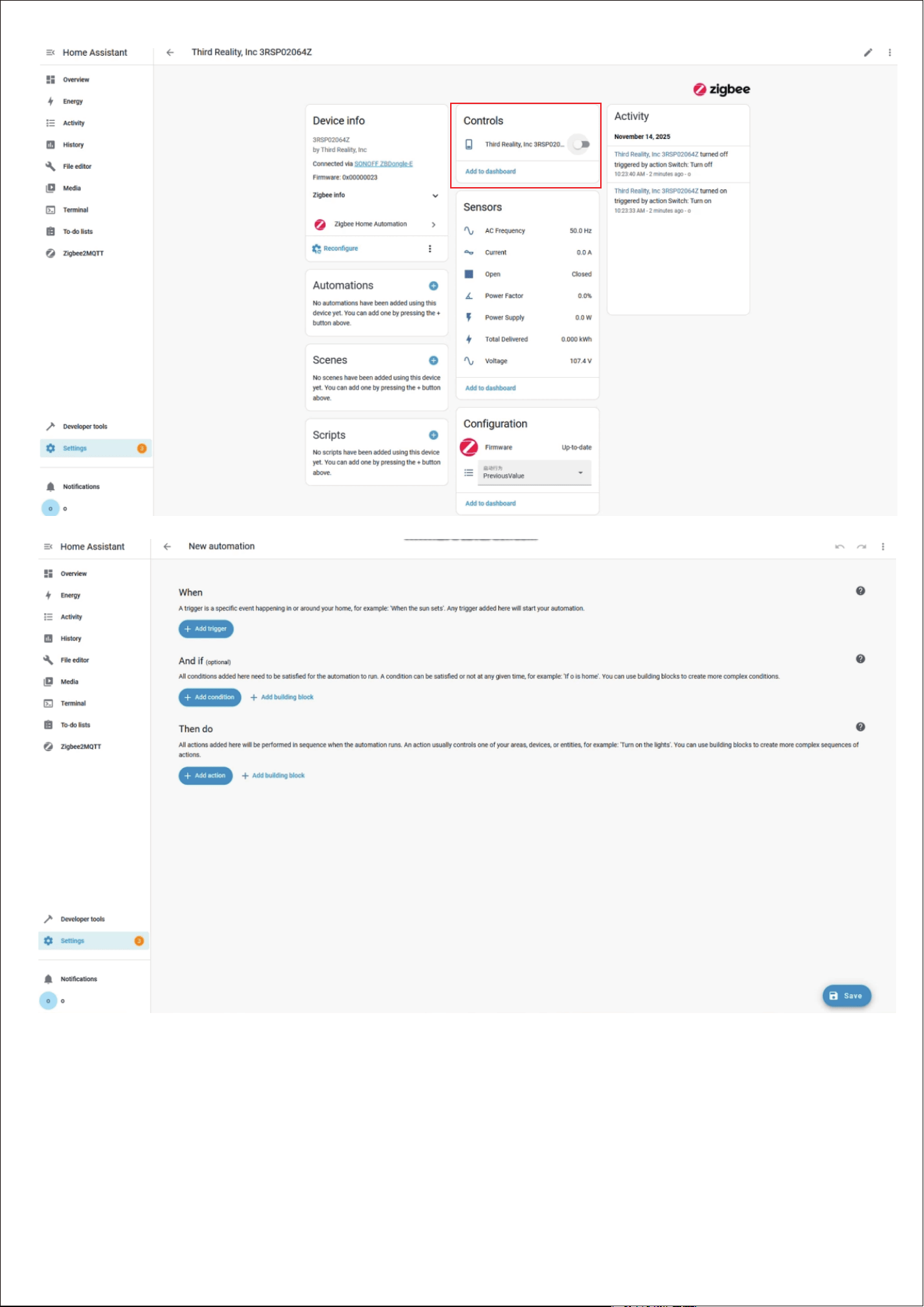
Click to enter in the control interface to set the Smart
Plug, you can then monitor the active a power and
preset on/off satates after power outage in the Devices
page.
14
15
16
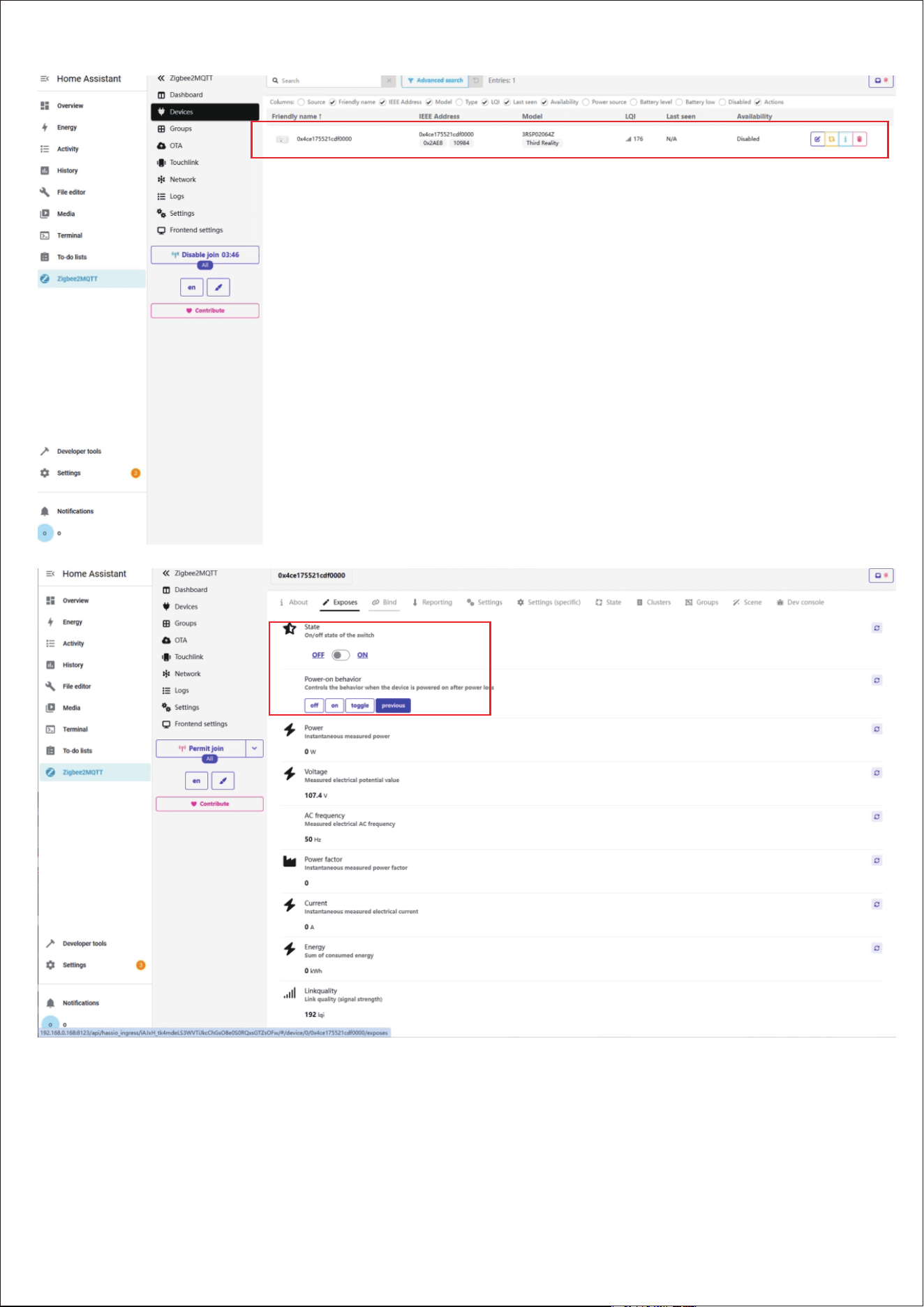
Zigbee2MQTT
1.
2.
3.
4.
5.
Power on the Smart Plug, then press and hold the On/Off
button for more than 10 seconds until the LED light
flashes in red indicating that your Smart Plug is in pair-
ing mode. It exits pairing mode within 3 minutes if not
successfully paired. To put it into pairing mode again.
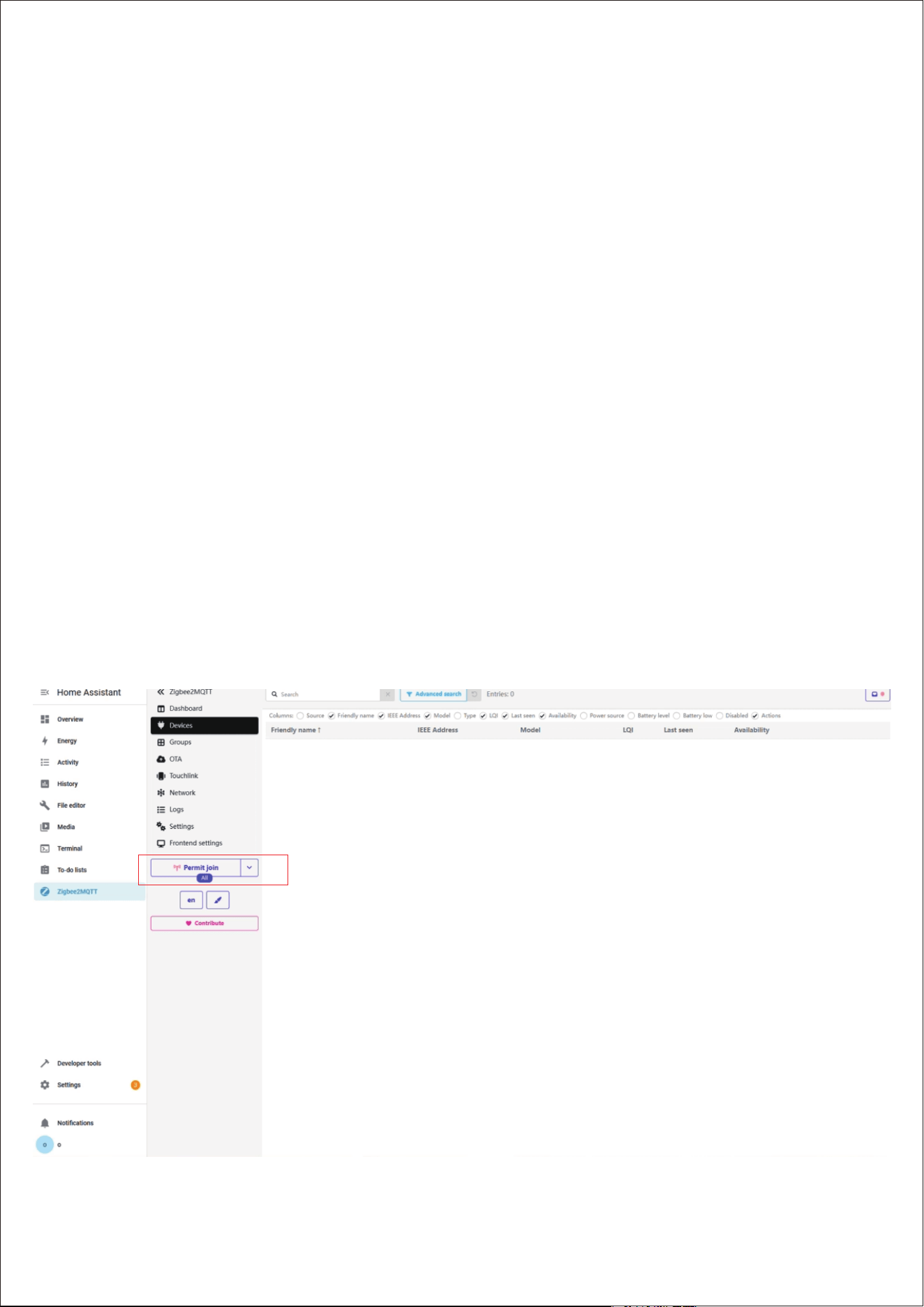
Click "Permit Join" in Zigbee2MQTT to add the device.
Smart Plug has been added successfully.
Click the device name to see detailed device informa-
tion.
Now you can turn the Smart Plug on or off in the Exposes
page.
17
-
18
Mesh Network Setup
-
1.
2.
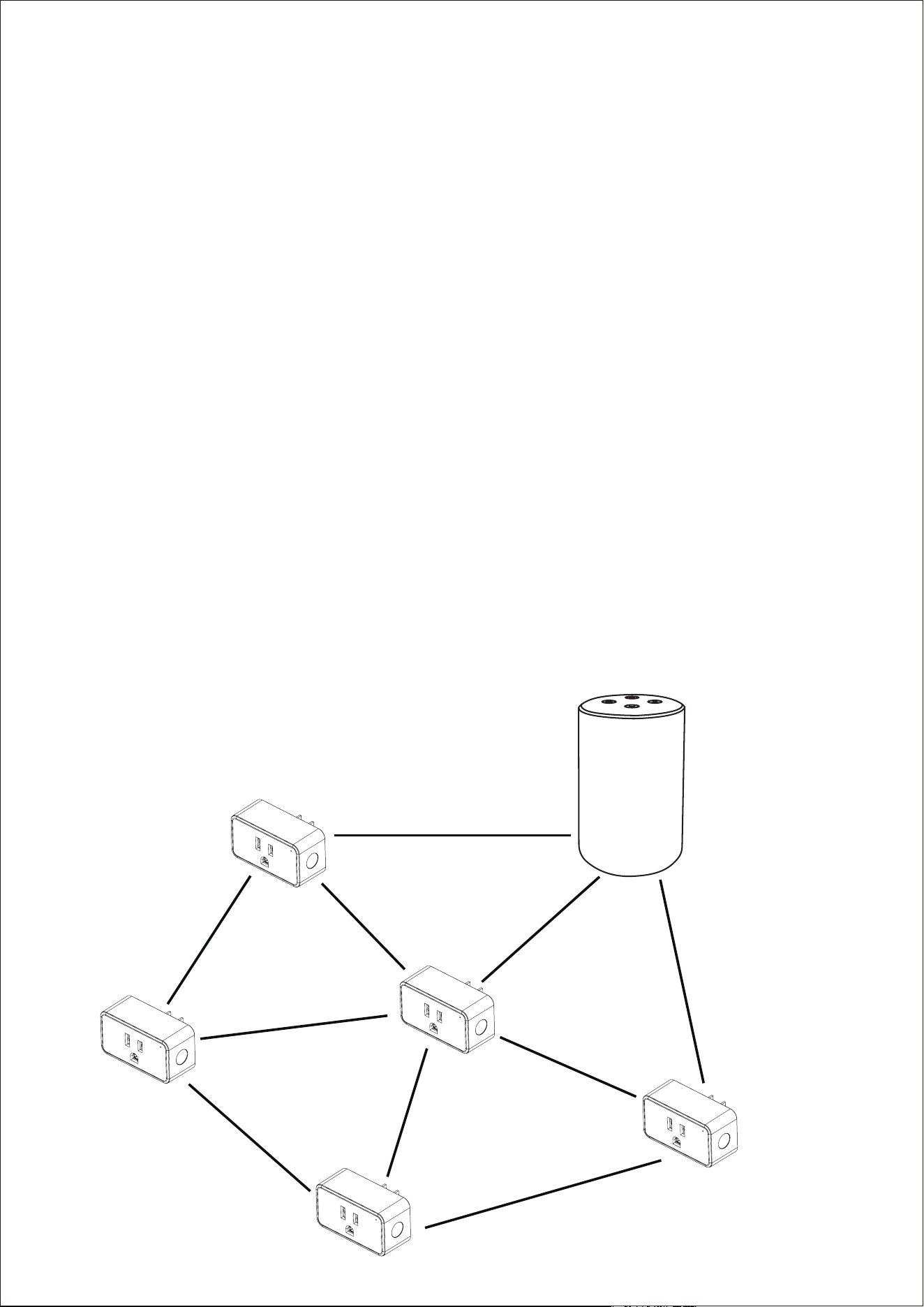
If you want to have multiple plugs set up for different rooms,
especially rooms out of the range of the Echo Devices Zigbee
signal range, you can utilize Mesh Network setup to extend
the range.
First, set up the smart plugs close to the Echo Device.
Unplug the plug and move it further away from the Echo
Device. And make sure it’s within Zigbee range of an-
other active plug, which is connected on the net work as
a node. This will form a Zigbee Mesh Network. Each con-
nected plug will connect with other plugs (nodes) within
the range.

19
Using your Smart Plug Gen3 by Alexa
1.
2.
3.
4.
5.
Control the Smart Plug via voice command, say " Alexa,
turn on/off First Plug ".
Schedules or timers to turn the Smart Plug ON/OFF auto-
matically.
Create routines to enjoy your smart life, say " Alexa, good
morning " to turn on the coffee maker, etc.
Remotely control the Smart Plug from your phone even
if you are not at home.
Use the plugs as extenders, they can help Echo Devices
or the Zigbee Hubs to connect with the plugs that are
further away from your Echo.

20
Troubleshooting
1.
2.
Factory reset the Smart Plug Gen3
After your Smart Plug is powered on, press and hold the
On/Off button for more than 10 seconds until the LED
light flashes in red indicating that your Smart Plug is in
pairing mode.
Fail to pair with Echo or Smart Plug is not responding
Make sure your Echo Speaker is compatible with Smart
Plug (See the Compatible Devices List) and the Smart
Plug is in the right mode.
Please ensure your Echo Devices are set up before
adding the Smart Plugs.
Turn on/off the Smart Plug twice in the Alexa app to
sync the plug.
Reboot the Echo Speaker or Zigbee Hub by unplug-
ging the power and plugging it back in, then try to
pair the Smart Plug with it again.
Factory reset the Echo speaker (Press and hold the
Action Button for 25 seconds. The light ring will
pulse orange, then turn off. Wait for the light ring to
turn back on and turn blue. The light ring then turns
orange again and the device enters the setup mode),
then try to pair the Smart Plug with it again.

21
Move Smart Plugs
If you want to move the paired plug from one Echo to
another, make sure to remove the plug from the
Alexa app and wait 30 minutes to allow cloud synchro
-
nization before re-pairing with a different Echo Device.
3.
If still not working, please try to deregister the Echo
Speaker and register back in,then try to pair the
Smart Plug with it.

22
This device complies with Part 15 of the FCC Rules. Operation is
subject to the following two conditions:
(1) This device may not cause harmful interference.
(2) This device must accept any interference received, including
interference that may cause undesired operation.
Changes or modifications not expressly approved by the party
responsible for compliance could void the user’s authority to
operate the equipment.
NOTE: This equipment has been tested and found to comply
with the limits for a Class B digital device, pursuant to part 15 of
the FCC Rules. These limits are designed to provide reasonable
protection against harmful interference in a residential installa-
tion.
This equipment generates uses and can radiate radio frequency
energy and, if not installed and used in accordance with the in-
structions, may cause harmful interference to radio communi-
cations.However, there is no guarantee that interference will
not occur in a particular installation. If this equipment does
cause harmful interference to radio or television reception,
which can be determined by turning the equipment off and on,
the user is encouraged to try to correct the interference by one
or more of the following measures:
FCC Regulatory Conformance

23
Limited Warranty
For limited warranty, please visit
https://3reality.com/faq-help-center/
For customer support, please contact us at
info@3reality.com or visit www.3reality.com
For questions on other platforms, please visit for corresponding
platform’s application/support page.
This equipment complies with FCC radiation exposure limits set
forth for an uncontrolled environment. This transmitter must
not be co-located or operating in conjunction with any other
antenna or transmitter.
-Reorient or relocate the receiving antenna.
-Increase the separation between the equipment and receiver.
-Connect the equipment into an outlet on a circuit different
from that to which the receiver is connected.
-Consult the dealer or an experienced radio/TV technician for
help important announcement.
NOTE: The manufacturer is not responsible for any radio or TV
interference caused by unauthorized modifications to this
equipment. Such modifications could void the user’s authority
to operate the equipment.
RF Exposure