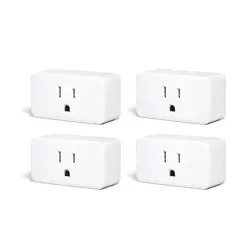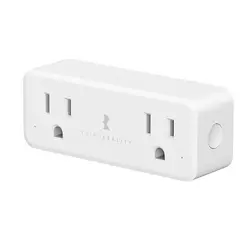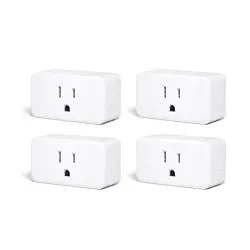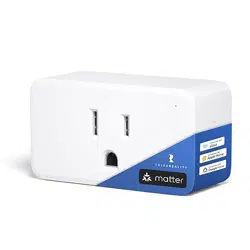

Smart Plug M1
(With Power Meter)

Contents
Product Description
Features
Specifications
Factory Reset
Set Up with 3R-Installer App
Set Up with Apple Home
Set Up with Google Home
Set Up with Alexa
Set Up with SmartThings
FCC regulatory conformance
RF Exposure
Limited Warranty
01
01
01
02
02
04
06
08
11
14
14
15
Product Description
This Smart Plug M1 is the easiest way for you to start controlling lights,
fans, humidifiers, and other home appliances. Enjoy hands-free conve-
nience by adding voice control to any outlet. Use the Matter protocol to
adapt to multiple smart home ecosystems.
Features
Power monitoring help you to save on your electric bills.
1.
Compatible with Matter support ecosystems like Apple Home,
Amazon Alexa, Google Home, and SmartThings.
2.
Home automation for customizable schedules & routines.
3.
Customize On/Off state when power is restored.
4.
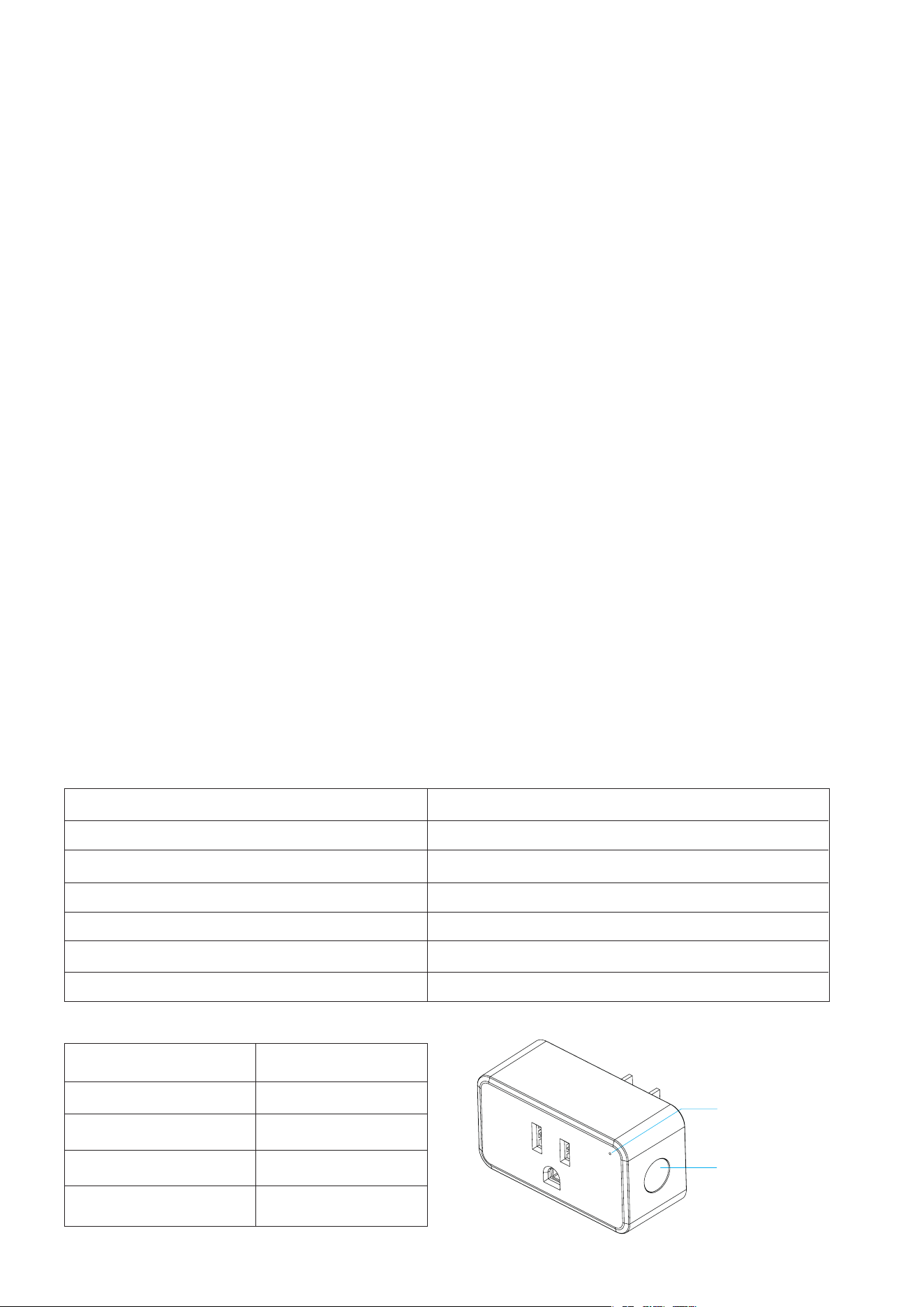
Mode
Pairing
Pairing Completed
Power ON
Power OFF
LED indicator
Red Flash
Off
Solid Red
Off
LED Indicator
On/Off Button
Model Number
Dimension
Color
Electrical Characteristics
Temperature
Operating Humidity
Connectivity
3RSP03046W
2.7 x 1.3 x 1.13 inches
White
100~120V AC,15A max,50/60Hz
-10℃~40℃
5%~90% RH(Non-condensing)
IEEE 802.11 b/g/n 2.4GHz WiFi
Specifications
01
Long press the button until the LED light flashes red rapidly.
This Matter certified device can be paired to any Matter certified ecosys-
tems.
Turn on Bluetooth on your phone, and make sure it has a stable
internet access through a 2.4GHz WiFi network.
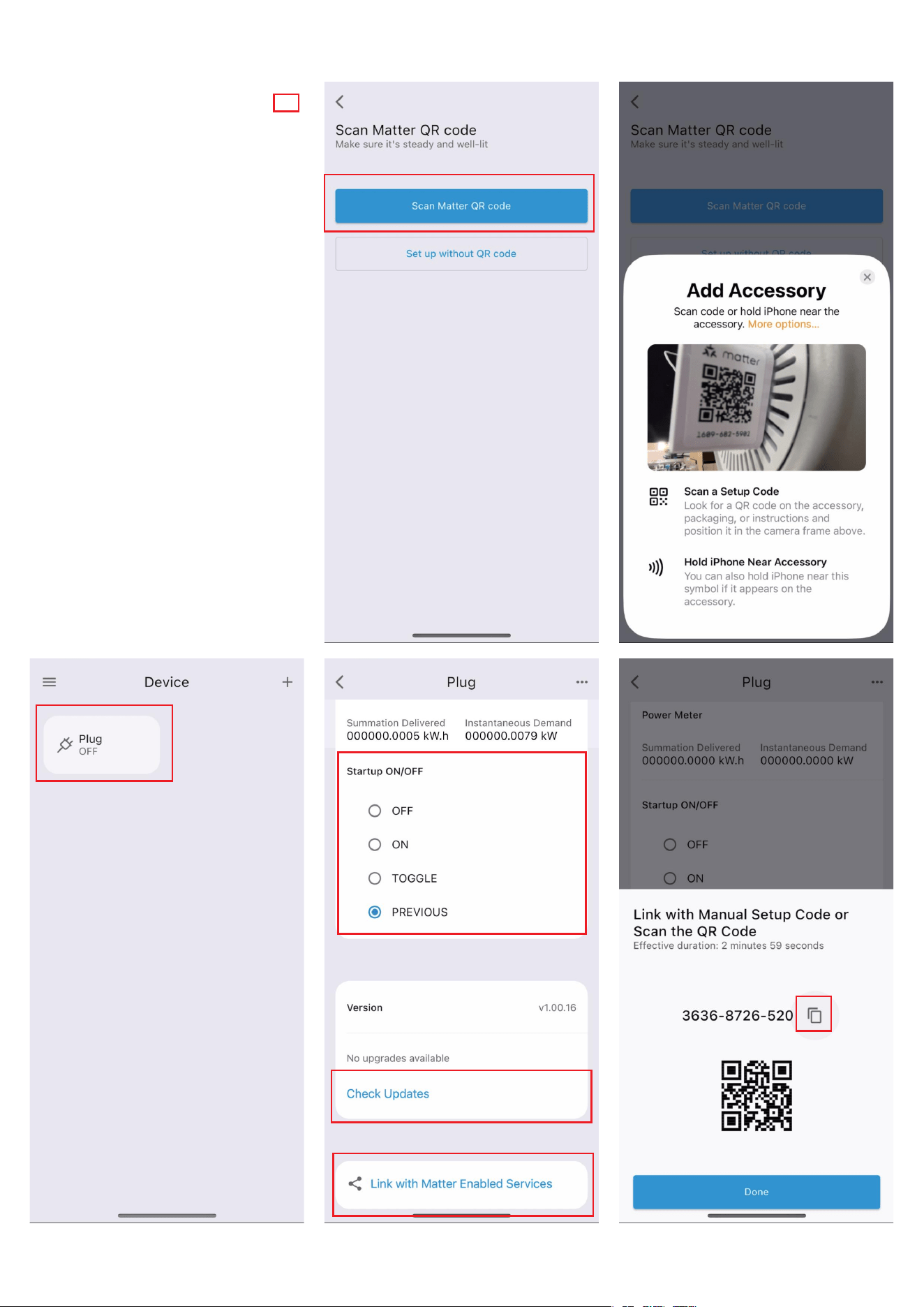
1.
Log into 3R-Installer App, make sure the app version is up to date.2.
Insert the smart plug into an power outlet, the LED light flashes red
rapidly, indicates it is in pairing mode.
3.
Tab + in 3R-Installer App, Scan Matter QR code on your Smart Plug,
or set up without QR-code.
4.
Follow the instructions in the app to complete setup.5.
Tab Check Updates to upadate the firmware to the latest version. 7.
Long press the plug icon to enter the device page, you can check the
power consumption, and customize “Startup ON/OFF” state.
6.
Tab Link with Matter Enabled Services, copy the numeric code.
Launch the app of another MATTER certified ecosystem, follow the
setup instruction to enter the setup code and follow the app instruc-
tions to complete the setup.
8.
Factory Reset
Setup with 3R-Installer App
02
03

Compatibility:
iOS system: Version 16.6 or later.
Matter-supported Controller: Home Pod, Home Pod mini, or Apple TV.
Launch your Home App. connect your Apple speaker and your
phone to the same Wi-Fi LAN network, turn on the Bluetooth con-
nection on your phone.
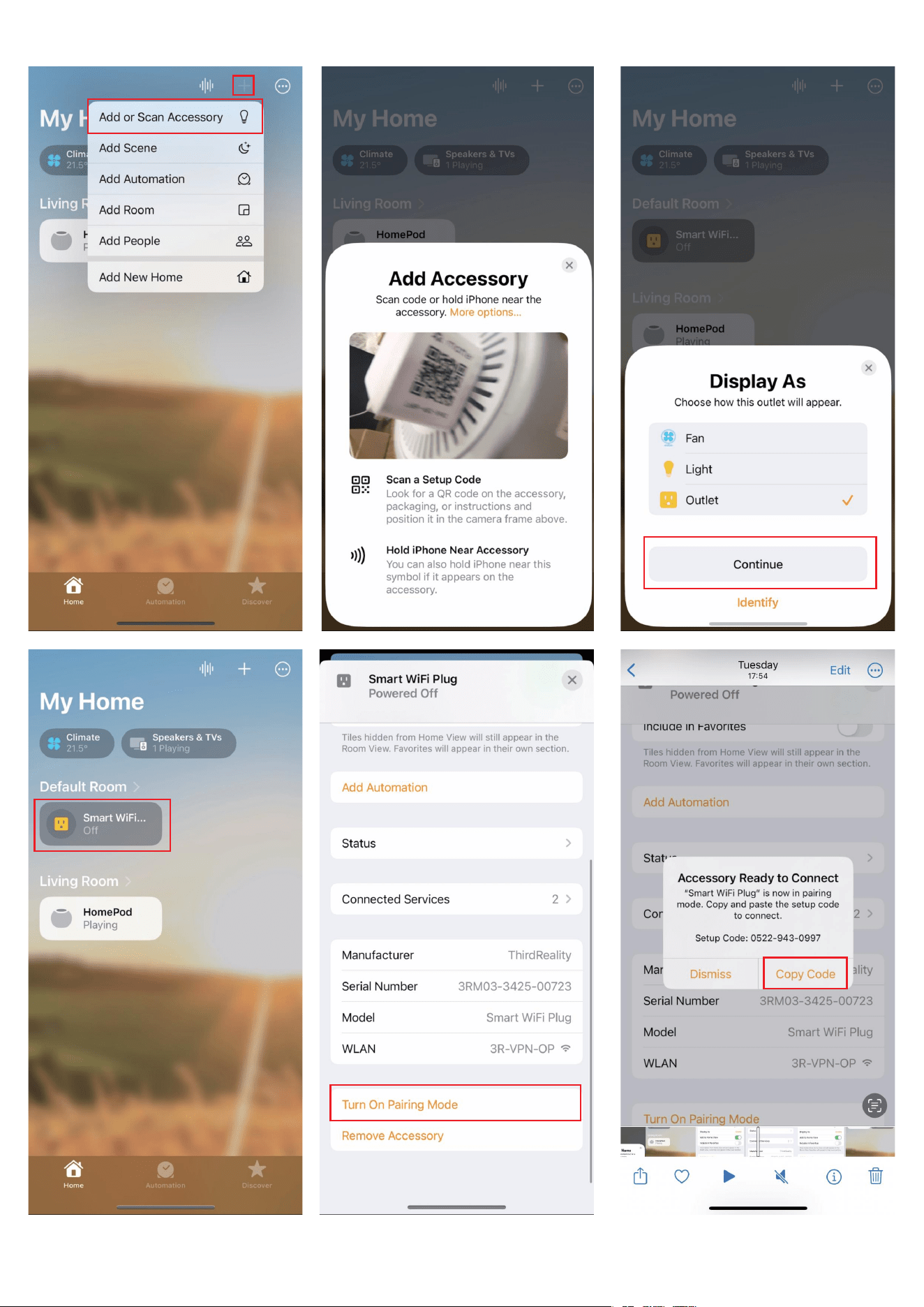
1.
Power up the Matter device, the LED light flashes rapidly in red. If it is
not in pairing mode, to put it into pairing mode again, press the
button for 5 seconds.
2.
Scan the Matter QR code on your device. Tap + and then tap Add or
Scan Accessory to add a new device.
3.
Choose a location and set a name for your device.
4.
Now you can check your device on the Device list, turn it on/off or
add automation.
5.
To connect the device to another MATTER certified ecosystem app,
you need to go to the app of the first ecosystem to generate a new
setup code. Long tab the Device Icon to open the Accessory Settings
page, scroll down, tap Turn On Pairing Mode and then Copy Code.
Launch the app of another MATTER certified ecosystem, follow the
setup instruction to enter the setup code and follow the app instruc-
tions to complete the setup.
6.
Set Up with Apple Home
04
05

Compatibility
Google Home App version:
Android: 3.3.1.4 or later
IOS: 3.3.104 or later
Set up your Google Home Speaker in your Google Home app, con-
nect your Google Home speaker and your phone to the same Wi-Fi
LAN network, turn on the Bluetooth connection on your phone.
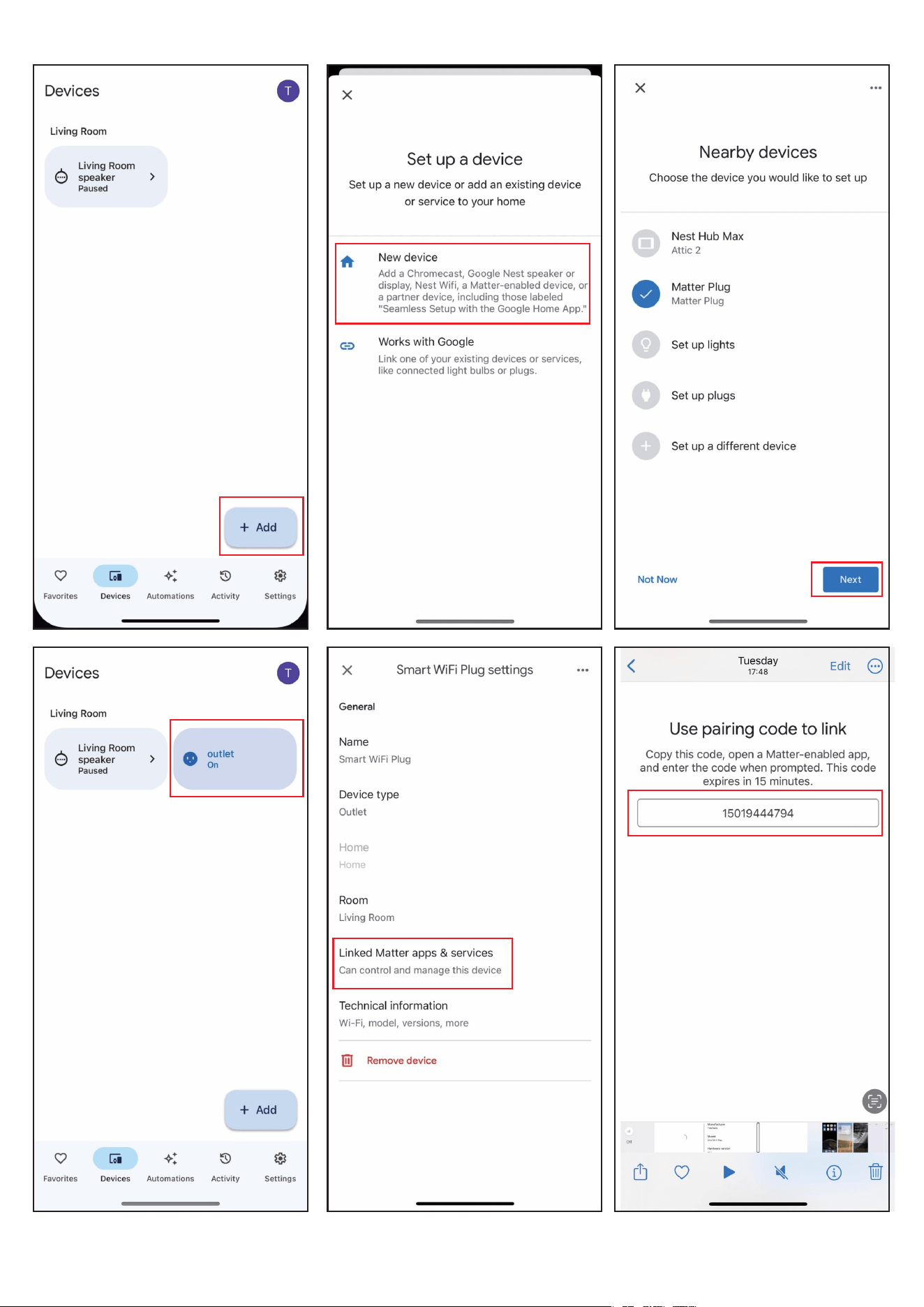
1.
Power up the Matter device, the LED light flashes rapidly in red. If it
is not in pairing mode, press the button for 5 seconds to put it into
pairing mode again.
2.
A notification “Set up your device” pops up in your Google Home
app, tab Scan QR code and follow the instructions to add the Matter
device.
3.
You can create automations with the Matter device.4.
To connect the Matter device to another Matter ecosystem app,
open the app of the first ecosystem the Matter device has already
been paired with, open the device page and tab the setting icon on
the up right, then tab Linked Matter apps & services , tab Link apps
& services and follow the app instructions to complete the setup.
5.
Set Up with Google Home
06
07

Alexa app version:
Android: 2.2.521848.0 or later for build version, and 2023.15 or later for
APP version
IOS: 2.2.548660 or later for build version, and 2023.15 or later for APP
version
Set up your Amazon Alexa Speaker, connect your phone to your
WiFi router.
1.
Power up the Matter device, the LED light flashes rapidly in red. If it
is not in pairing mode, press the button for 5 seconds to put it into
pairing mode again.
2.
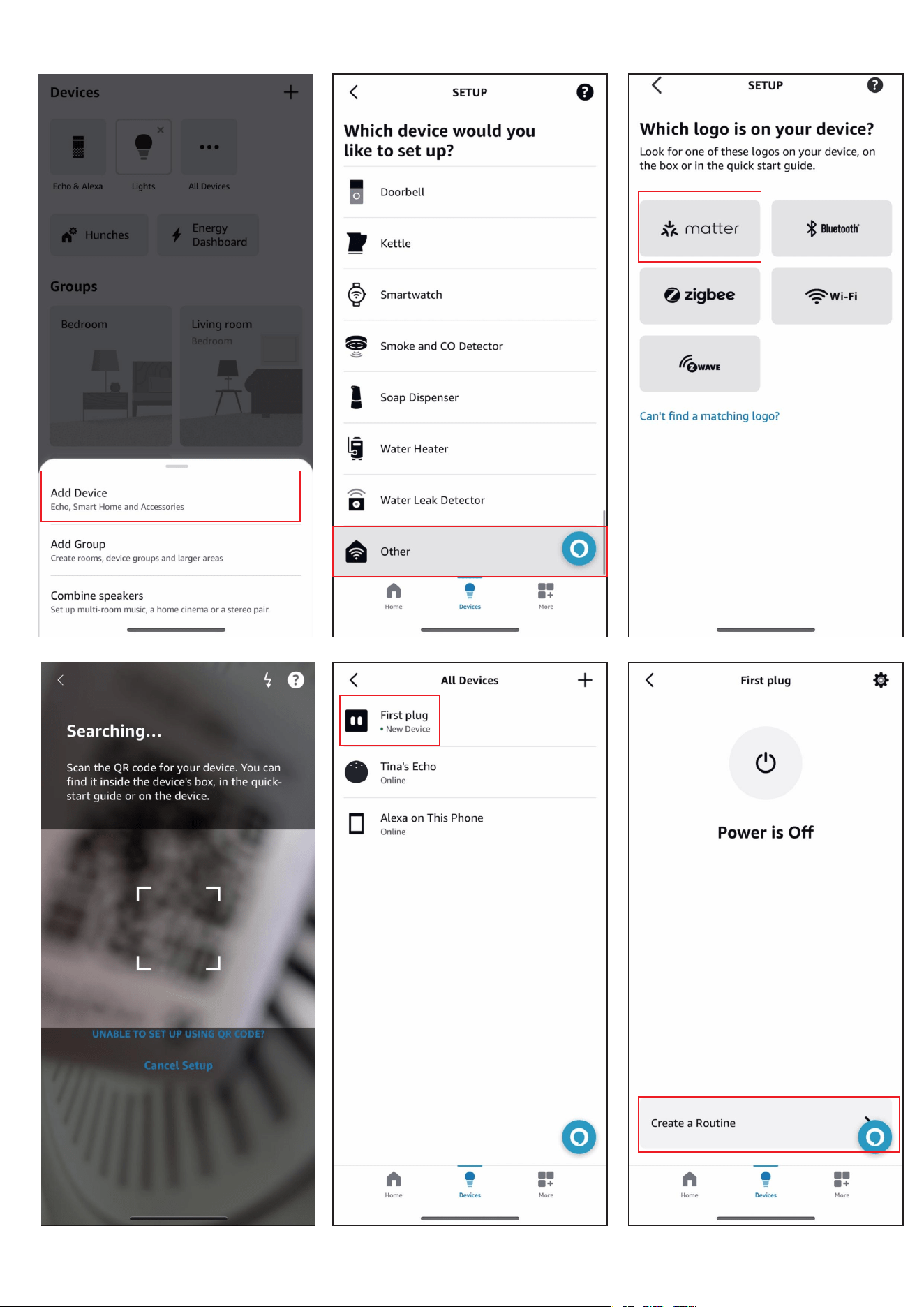
Tab + in the upper right on the devcie page in your Alexa App, tab
Device the scroll down to tab Other, tab the matter icon and follow
the instructions to add the Matter device. Make sure the Matter
device and the Echo Speaker are connected to the same W-iFi
router.
3.
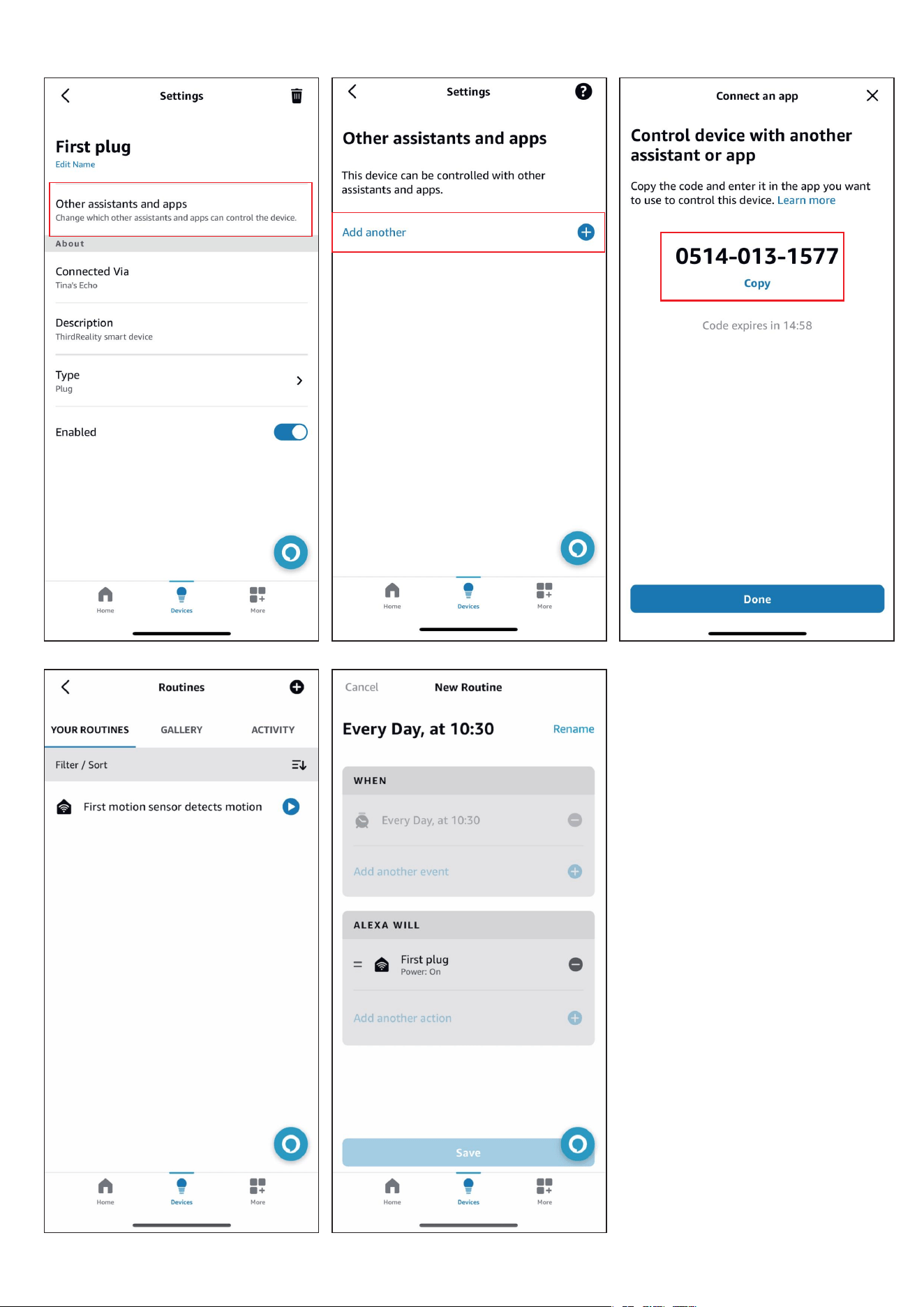
You can create routines with the Matter device.4.
To connect the Matter device to other Matter ecosystem’s Assistant
or Apps, open the app of the first ecosystem the Matter device has
already been paired with, open the device page and tab the setting
icon on the up right, then tab Other assistants and apps to add
other Assistant or App, it generates a new setup code, you can copy
this code, then open the other Matter ecosystem App, then use this
code to add the device to the second Matter ecosystem.
5.
Set Up with Alexa
08
09
10

Compatibility:
SmartThings App version 1.8.01.22 or higher. iOS SmartThings App ver-
sion 1.7.02.16
Matter-supported Controller: SmartThings Hub V2& V3, Aeotec Smart
Home Hub
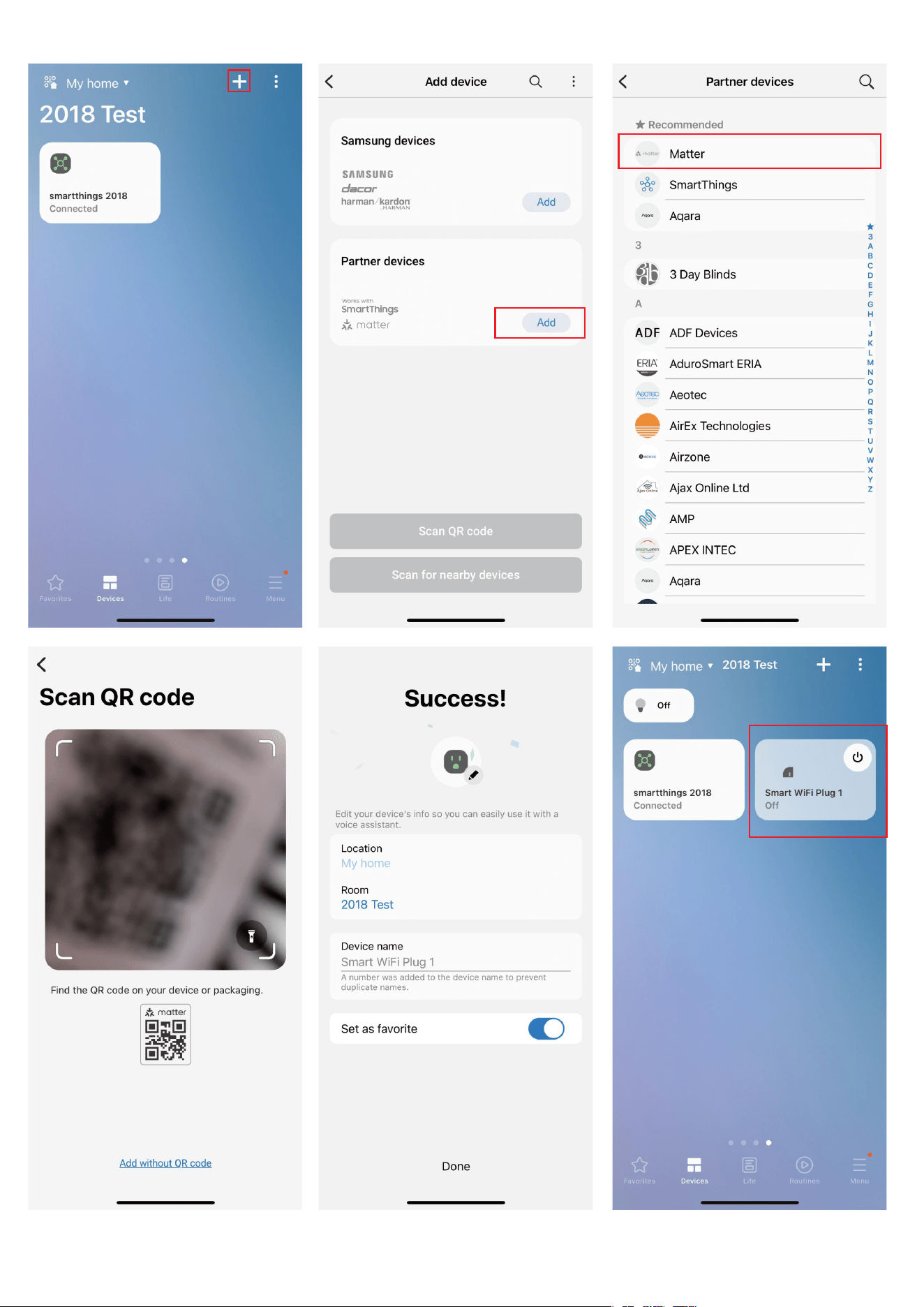
Launch your SmartThings App. Tap + to Add device., Choose Matter.1.
Scan QR code on your device.2.
Select a hub to connect your device.(You need to Add to “iCloud Ac-
count” in IOS, then create Accessory Name, then Continue)
3.
Now you can check your device on the Device list, turn on/off and
create routines.
4.
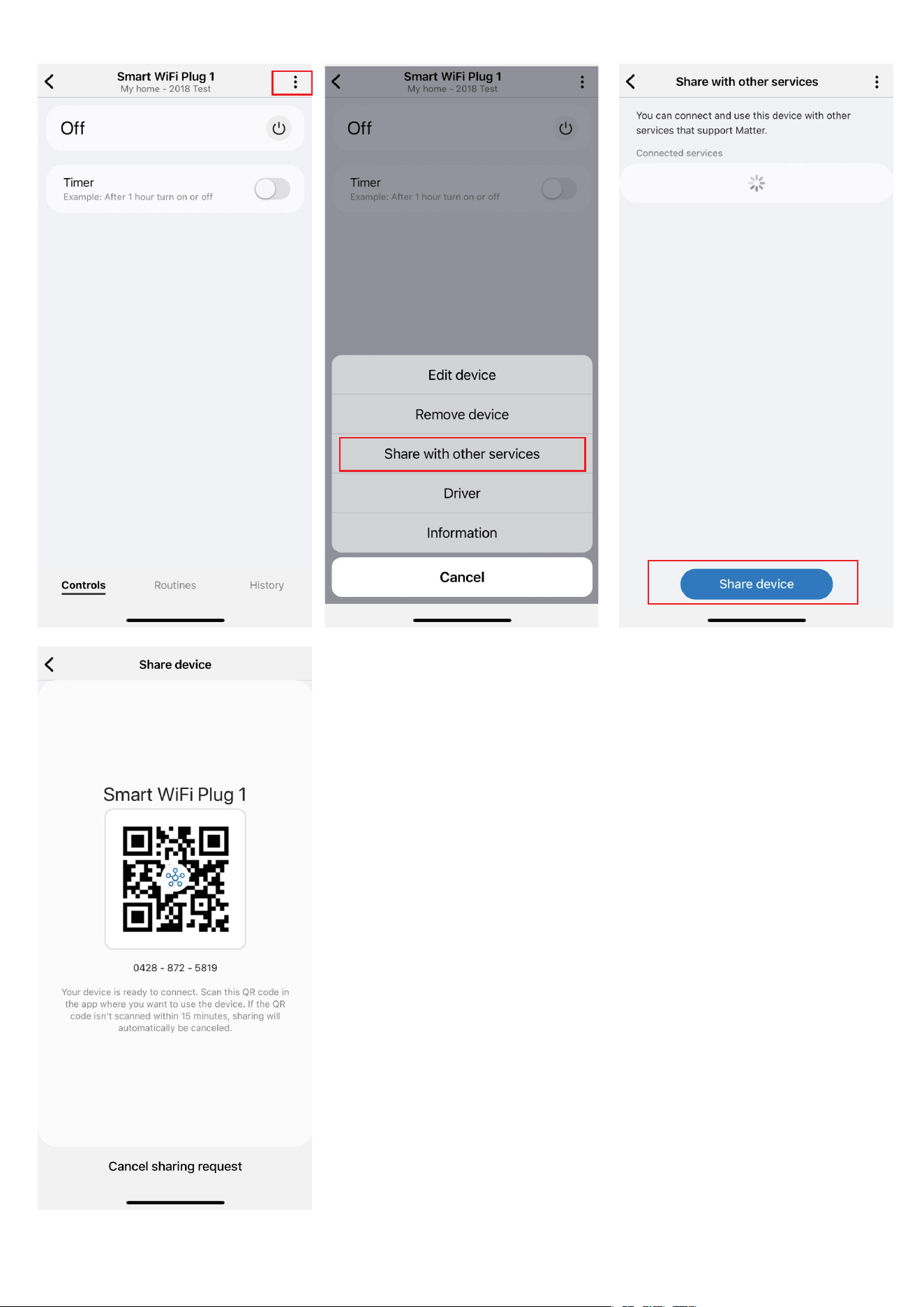
To connect the device to another Matter certified ecosystem app, go
to the app of the first ecosystem to generate a new setup code. Go
to the Device Settings page, tab Share with other services then
Share device, there will be QR code and a numeric code. Launch the
app of another MATTER certified ecosystem, follow the setup
instruction to enter the setup code and follow the app instructions
to complete the setup.
5.
Set Up with SmartThings
11
12
13

14
FCC regulatory conformance
This device complies with part 15 of the FCC rules. Operation is subject
to the following two conditions: (1) this device may not cause harmful
interference, and (2) this device must accept any interference received,
including interference that may cause undesired operation.
Changes or modifications not expressly approved by the party respon-
sible for compliance could
void the user’s authority to operate the equipment.
NOTE: This equipment has been tested and found to comply with the
limits for a Class B digital device, pursuant to part 15 of the FCC Rules.
These limits are designed to provide reasonable protection against
harmful interference in a residential installation.
This equipment generates uses and can radiate radio frequency energy
and, if not installed and used in accordance with the instructions, may
cause harmful interference to radio communications. However, there is
no guarantee that interference will not occur in a particular installation.
If this equipment does cause harmful interference to radio or television
reception, which can be determined by turning the equipment off and
on, the user is encouraged to try to correct the interference by one or
more of the following measures:

15
RF Exposure
Limited Warranty
‐Reorient or relocate the receiving antenna.
‐Increase the separation between the equipment and receiver.
‐Connect the equipment into an outlet on a circuit different from that
to which the receiver is connected.
‐Consult the dealer or an experienced radio/TV technician for help im-
portant announcement.
NOTE: The manufacturer is not responsible for any radio or TV interfer-
ence caused by unauthorized modifications to this equipment. Such
modifications could void the user’s authority to operate the equip-
ment.
This equipment complies with FCC radiation exposure limits set forth
for an uncontrolled environment.
This transmitter must not be co-located or operating in conjunction
with any other antenna or transmitter.
For limited warranty, please visit www.3reality.com/devicesupport
For customer support, please contact us at info@3reality.com or visit
www.3reality.com
For help and troubleshooting related to Amazon Alexa, visit the Alexa
app.