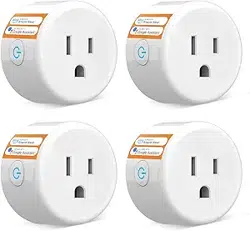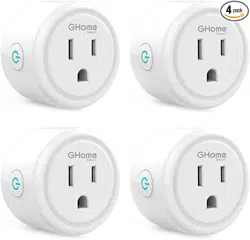
5G Smart Plug Manual
WP3-A
Both 2.4G and 5G Wi-Fi are supported.
Smart Plug
User Manual
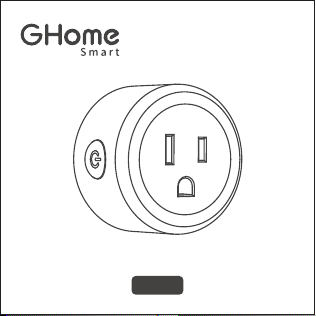
Parts Included
02
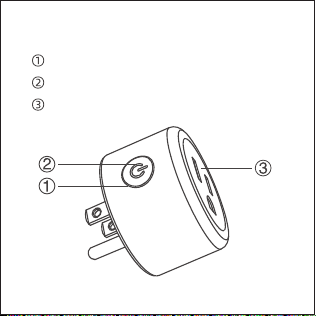
ON/OFF Button丨Reset Button
Indicator Light
Flame-Retardant Socket
At a Glance
03

Model: WP3
Input: 120V, 50/60Hz, 15A MAX
Output: 1800W MAX resistive
Frequency Range: 2400-2483.5 MHz
5725-5850 MHz
Wi-Fi Network: 802.11 b/g/n, 2.4GHz & 5GHz
WiFi MAX Transmitting Power(dbm): <20dBm
Operating Temp: -4°F ~ 104°F (-20°C ~ 40°C)
Parameters
04
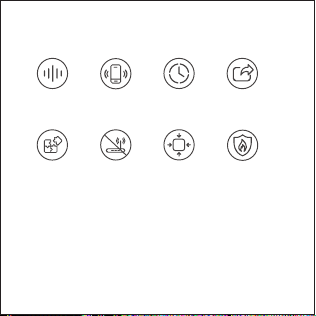
Main Features
05
Voice
Control
App
Control
Schedule
Control
Device
Share
Group
Control
No Hub
Required
Compact
Design
V0
Fireproof

1. This device supports both 2.4 GHz and 5 GHz
Wi-Fi. Please make sure your home router and
network equipment support the 5 GHz frequency
band.
2. Ensure your phone is connected to a 2.4 GHz
or 5 GHz Wi-Fi network, and have the Wi-Fi
password ready.
3. Make sure Bluetooth is turned on.
4. Ensure your phone runs iOS 11+ or Android
6.0 for a smooth connection.
Before We Start
06
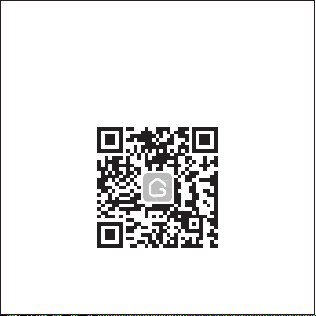
Scan the QR code or simply search for "GHome"
in the App Store (iOS) or Google Play (Android)
to download, and update to version 5.7.0 or
above.
Note: Ensure your phone runs iOS 11+ or
Android 6.0+ for a smooth connection.
Download the GHome App
07

A. Enter Network Pairing Mode
Ensure that your GHome App is update to
version 5.7.0 or above.
1. Open the GHome App and create an account.
2. Plug the smart plug into a power socket near
the router.
3. Enter network pairing mode: Press and hold
the reset button for 5 seconds until the indecator
light flashes slowly.
Connecting the Smart Plug to the
GHome App
08
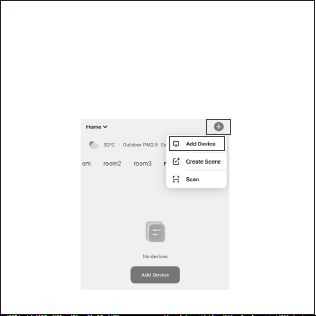
B. Add Device
1. Ensure your phone is connected to the Wi-Fi
router.
2. Open the App, tap "+" at the top right corner
and select "Add Device".
09
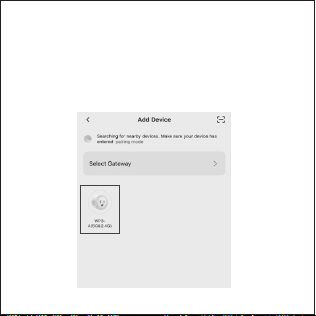
3. You can add the device in two ways:
1) Automatic Pairing (Recommended)
a. The app will automatically discover the device.
Then, tap "WP3-A (5G&2.4G)".
10
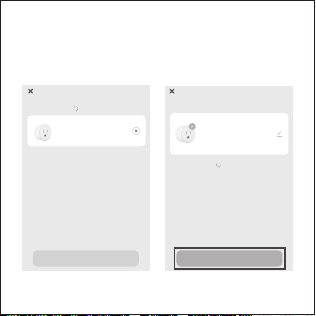
b. Follow the on-screen instructions and complete
the configuration.
11
WP3-A(5G&2.4G)
1 device(s) added successfully
0 device(s) being added
Add Device
1 device(s) being added
WP3-A(5G&2.4G)
Being added
Added successfully
room
Add Device
Done Done
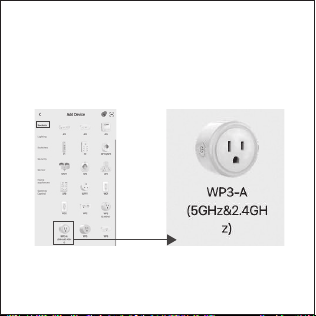
2) Manual Pairing (AP Mode)
If automatic pairing fails to discover the device:
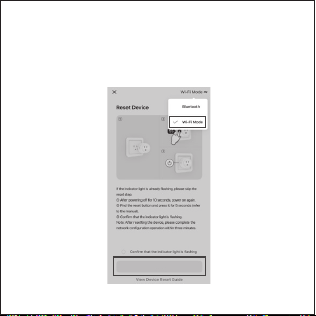
a. Go to "Add Manually", select "WP3-A (5GHz &
2.4GHz)" under "Sockets".
Note: Make sure to select "WP3-A (5GHz& 2.4GHz)",
not "WP3 (2.4GHz)".
12
Next
Note: Make sure to select "WP3-A (5GHz& 2.4GHz)",
not "WP3 (2.4GHz)".
b. Switch from "Bluetooth" to "Wi-Fi Mode" in
the top right corner. Confirm the indicator light
is blinking slowly, then tap "Next".
13
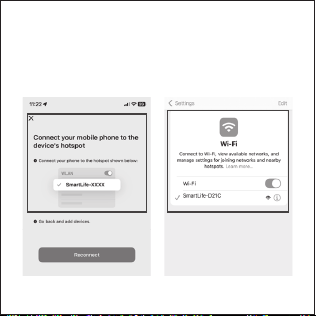
c. Select a Wi-Fi Network and enter the password.
d. Connect your phone to the device hotspot
"SmartLife-XXXX".
14
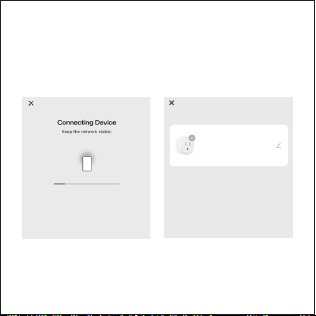
e. Return to the GHome App interface. It will
automatically connect to the router and complete
the configuration.
15
WP3-A(5G&2.4G)
1 device(s) added successfully
Add Device
Added successfully
room

Reset
Turn on the power, hold the Reset button for
5 seconds until the indicator light starts
blinking fast, the reset process is successful.
When the socket is in a new network
environment, you need to restore the factory
settings, and then reconnect to the network.
16

To control the device via Amazon Alexa or
Google Assistant, first add the device to the
GHome App, then follow the Voice Assistant
Setup Guide.
Note:
17
Warnings and Precautions
Keep it out of the reach of children and pets.
Do not use this product in humid environments
or outdoors. It's for indoor use only.
Do not place this product near heating devices,
such as microwave ovens, stoves, or radiators.
Protect the product from extreme temperatures,
direct sunlight, strong jolts, high humidity,
moisture, flammable gases, vapors and
solvents.
Do not disassemble, modify, or repair your
device, and ask help from the authorized
18

Note: The image shown in the manual is
indicative only. If there is inconsistency between
the image and the actual product, the actual
product shall govern.
professionals for device malfunction.
Do not use the device when it is no longer
working properly or visibly damaged.
Do not store the device for extended periods in
poor ambient conditions.
Never use aggressive detergents such as
alcohol or other chemical solutions because
these could damage the casing or even impair
the functioning of the product.
19
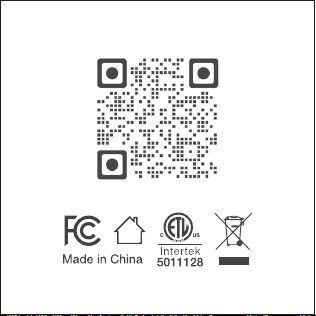
Scan the QR code to get WP3-A online manual
4.02.000.1465 V2.0
20