User Guide

2
Table of contents
Introduction
Meet the AirVisual Pro ........................ 3
Important Safety Instructions ........... 4
Operating instructions
Getting started ...................................12
AirVisual Pro controls ........................13
Home screen ......................................14
Indoor screen .....................................16
Forecast screen .................................17
Recommendations screen ................18
Advice and status icons ....................19
Air Quality Index (AQI) icons ............ 20
CO
2
icons........................................... 21
Care & maintenance ......................... 22
Air Quality introduction & FAQ’s
Air Quality Index (AQI) ..................... 23
PM2.5 introduction ........................... 24
CO
2
introduction ............................... 25
Temperature & humidity ................... 26
FAQ - View PM2.5 concentration ..... 27
FAQ - Factory reset ........................... 28
FAQ - Sleep mode .............................. 29
FAQ - Serial number .......................... 30
Join the AirVisual Community ......... 31

3
Meet the AirVisual Pro
Congratulations!
You are about to take the rst step to improving the air you breathe!
The AirVisual Pro is a comprehensive solution to optimize health and wellbeing
through clean and fresh air.
By combining laser technology and articial intelligence, your AirVisual Pro
is able
to deliver immediate and accurate
air quality measurements, as well as intuitive
recommendations based on both your indoor and outdoor environments.
Use the AirVisual Pro to see invisible threats in your air and understand where they
come from. Learn more: iqair.com
Please study this User Guide carefully to familiarize yourself with the special
features and functions of this IQAir product. Keep this document in a safe place for
future reference.

4
WARNINGS
Do not drop, disassemble, open,
crush, bend, deform, puncture,
shred, microwave, incinerate,
paint, submerge in a liquid,
damage, modify, overload the
outputs of or insert foreign
objects into the product. Do not
use the product anymore if an
object has fallen on it or it has
fallen on the floor.
Keep product out of the reach
of children. Children shall be
supervised when using the
product.
Do not expose product to heat,
re, rain or snow. Do not store in
direct sunlight or in a vehicle.
Do not use a damaged cable
or non-tting connector and do
not use or charge a damaged
product or a product with reduced
capacity of the internal battery.
In the event of leaking of internal
battery, keep away from skin and
eyes. Wash any affected area
with large amounts of water and
seek medical attention. In case of
damage or reduced capacity of
the internal battery take product
to a qualied service person/
manufacturer.
Important safety information

5
The product needs to be charged
before use. Do not leave the
product on prolonged charge
when not in use. Disconnect the
product from the charger/adapter
once full. Store the product in a
cool, dry place when not in use.
When the product is not used
for prolonged periods, it shall be
charged periodically in order to
maintain the internal battery’s life.
Do not use any charger/adapter
or cable other than that provided
by the manufacturer and do not
charge the product unattended.
Keep all instructions provided with
the product for future reference.
Equipment and accessories
are to be supplied by IQAir or its
agent only. Use of equipment,
components and accessories
other than those specied by
IQAir may impair the safety
provided by the equipment. This
equipment is to be operated with
provided accessories only. Safety
of any system incorporating the
equipment is the responsibility of
the installer of the system. If the
AirVisual Pro is used in a manner
not specied by the manufacturer,
the protection provided by the
equipment may be impaired.
Important safety information

6
This equipment is intended for
use at supply voltages with
fluctuations not exceeding +/-10
% and classied as over voltage
category II. This equipment is
intended for use in environments
classied as pollution degree 2
and it is not to be stored or used
in wet locations. The USB adapter
is not to be positioned so that it is
difcult to be unplugged.
This equipment is to be cleaned
with a damp cleaning cloth with
warm water containing a drop
of dishwashing detergent. After
cleaning, dry it with a cloth.
CAUTION
The AirVisual Pro and its
accessories are not intended for
outdoor use. The AirVisual Pro
enclosure is not weatherproof or
waterproof. Any water that enters
the inner compartment will likely
severely damage the AirVisual Pro
and may present a safety hazard.
Before plugging the USB adapter
into a socket, check if voltage and
frequency corresponds to 100 to
240 V and to 50 to 60 Hz. Do not
use the equipment at altitudes
exceeding 2’000 meters (6’560
feet). DO NOT remove any parts
Important safety information

7
from the IQAir AirVisual Pro. There
are no outputs available from the
IQAir AirVisual Pro.
The AirVisual Pro and its USB
adapter is rated to operate
between -10°C and +40°C (14°F to
104°F) with humidity ranging from
0% to 95% non-condensing.
LASER SAFETY
The AirVisual Pro contains
a PM sensor module that is
classied as a Class 1 laser-based
instrument. DO NOT open the
PM sensor inside AirVisual Pro.
During normal operation, you will
not be exposed to laser radiation.
When operated according to the
manufacturer’s instruction, this
device is a Class 1 laser product
as dened by U.S. Department
of Health and Human Services
standards under the Radiation
Control for Health and Safety Act
of 1968.
Important safety information

8
Important safety information
WARNING The use of controls,
adjustments, or procedures
other than those specied in this
manual may result in exposure to
hazardous optical radiation.
FCC Statement
Any changes or modications not
expressly approved by the party
responsible for compliance could
void the user’s authority to operate
the equipment.
Note: This equipment has been
tested and found to comply with the
limits for a Class B digital device,
pursuant to part 15 of the FCC
Rules. These limits are designed
to provide reasonable protection
against harmful interference in
a residential installation. This
equipment generates, uses and can
radiate radio frequency energy and, if
not installed and used in accordance

9
Important safety information
with the instructions, may cause
harmful interference to radio
communications. However, there is
no guarantee that interference will
not occur in a particular installation.
If this equipment does cause harmful
interference to radio or television
reception, which can be determined
by turning the equipment off and
on, the user is encouraged to try to
correct the interference by one or
more of the following measures:
• Reorient or relocate the receiving
antenna;
• Increase the separation between
the equipment and receiver;
• Connect the equipment to an outlet
of a circuit different from that to
which the receiver is connected;
• Consult the dealer or an
experienced radio/TV technician
for help.
ISED RSS notice - Avis d’ISDE
RSS
This device complies with ISED
licence exempt RSS standard(s).
Operation is subject to the following
two conditions: (1) this device may
not cause interference and (2) this
device must accept any interference,
including interference that may

10
cause undesired operation of the
device.
Cet appareil est conforme aux
normes RSS exemptes de licence
d’ISDE. Son fonctionnement
est soumis aux deux conditions
suivantes: (1) cet appareil ne doit
pas provoquer d’interférences
et (2) cet appareil doit accepter
toute interférence, y compris les
interférences susceptibles d’entraîner
un fonctionnement indésirable de
l’appareil.
ISED Radiation Exposure Statement
- Déclaration d’ISDE sur l’exposition
aux radiations
This equipment complies with
ISED RF radiation exposure limits
set forth for an uncontrolled
environment. This transmitter must
not be co-located or operating in
conjunction with any other antenna
or transmitter.
Cet équipement est conforme
aux limites d’exposition aux
rayonnements RF d’ISEDC établies
pour un environnement non
contrôlé. Cet émetteur ne doit pas
être colocalisé ou fonctionner en
conjonction avec une autre antenne
ou émetteur.
Any changes or modications not
expressly approved by the party
Important safety information

11
responsible for compliance could
void the user’s authority to operate
the equipment.
Tout changement ou modication
non expressément approuvé
par la partie responsable de la
conformité pourrait annuler le droit
de l’utilisateur à faire fonctionner
l’équipement.
Important safety information
12
Getting started
&,# ' &!'%%'/,# $&+,*-,$'&+,'* "$+, *0'-* .$ '&
$*$+-%((&'&& ,,'$$
$*$+-%
#,,(+$)$*$1*
&,# ' &!'%%'/,# $&+,*-,$'&+,'* "$+, *0'-* .$ '&
$*$+-%((&'&& ,,'$$
$*$+-%
#,,(+$)$*$1*
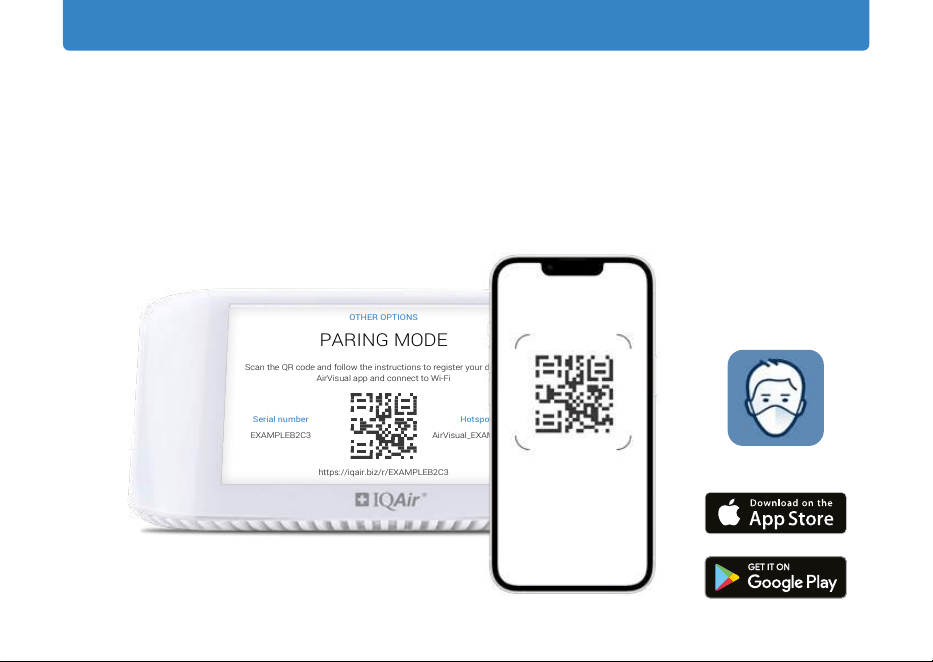
Connecting your device
Connect the supplied USB power cable to the
USB power adapter and plug it in to a suitable
electrical wall outlet.
The AirVisual Pro will now power up. Navigate
to select your desired language, and press ok.
Paring Mode
Your AirVisual Pro dispays the QR code. Scan
the QR code to download the app. Sign in and
add device and again scan the the QR code
on the pairing screen. The app will guide you
through the setup.
QAir AirVisual | Air Quality
IQAir AirVisual | Air Quality
13
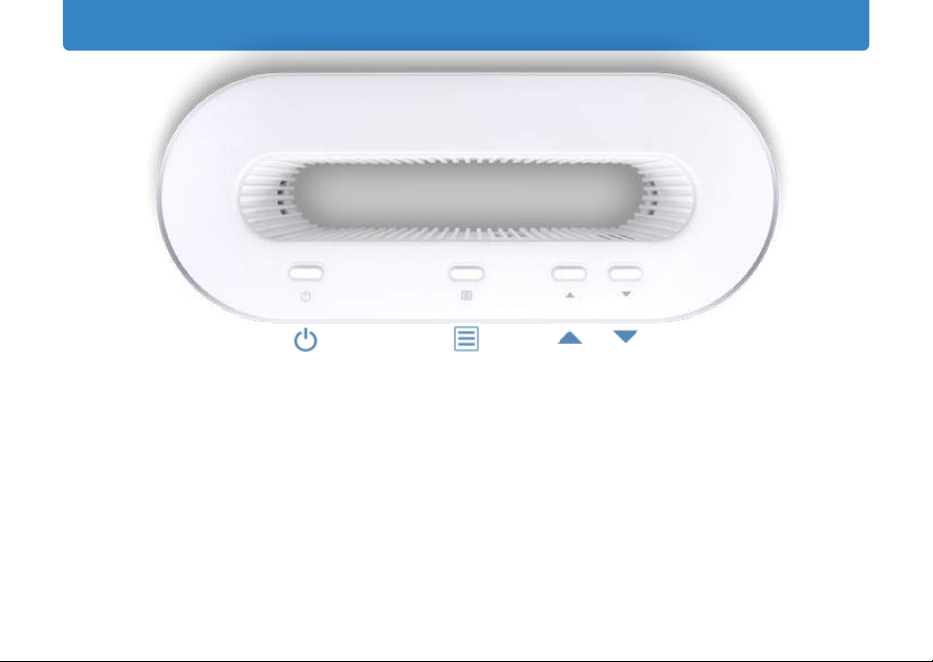
AirVisual Pro controls
Power Button
• Switch the AirVisual Pro on/
off with a 3-second press.
• Enter/exit the device’s sleep
mode with a quick press.
• Go back in the menu
settings with a quick press.
Menu Button
• Access your AirVisual Pro’s
menu and settings.
• Make selections in the menu
for: setting your clock, units,
change languages,
brightness
and power saving mode.
Navigation Button
• Navigate through your
AirVisual Pro’s settings.
• Navigate between slideshow
screens.
Power /
Sleeping Mode /
Back
Menu /
OK
Up / Down
Left / Right
14
Home screen
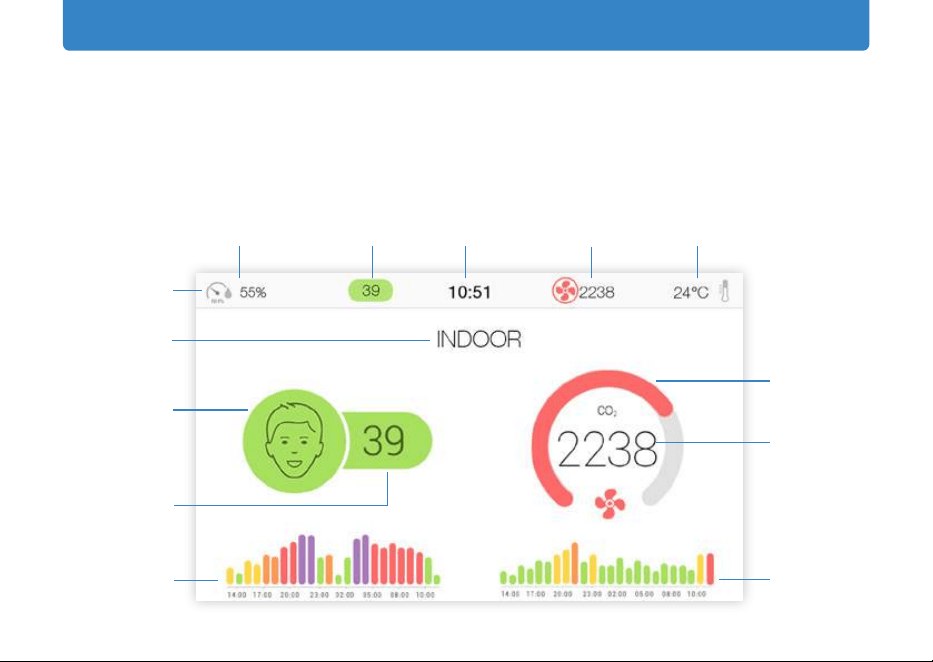
If no outdoor location is selected, the screen shows only indoor air quality
information. Please note the CO
2
sensor can take up to two days to calibrate to
display accurate readings.
AQI icon
Indoor AQI
AQI history
(last 24H)
CO
2
gauge
CO
2
value
(ppm)
CO
2
history
(last 24H)
Device name
Status bar
Humidity Indoor AQI Time
CO
2
Temperature
15
Home screen
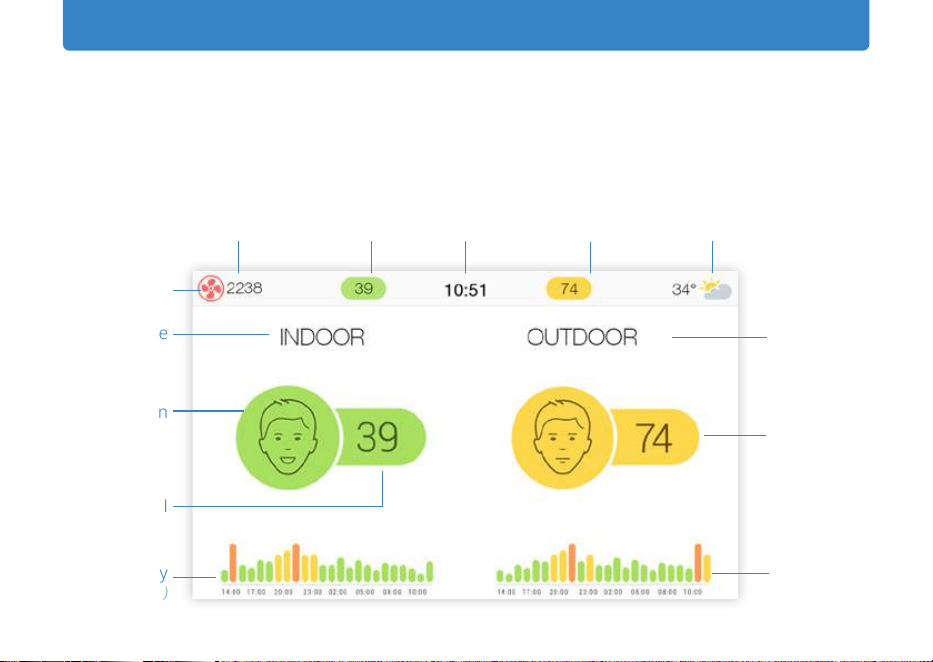
When connected to Wi-Fi and an outdoor location is selected, the home screen will
display indoor air quality on the left and outdoor air quality on the right side of the
screen.
Device name
AQI icon
Indoor AQI
A Q I h i s t o r y
(last 24H)
Outdoor AQI
Selected
outdoor
station
Outdoor AQI
history
(last 24H)
Status bar
CO
2
Outdoor AQI Outdoor temperature
& weather
TimeIndoor AQI
16
Indoor screen
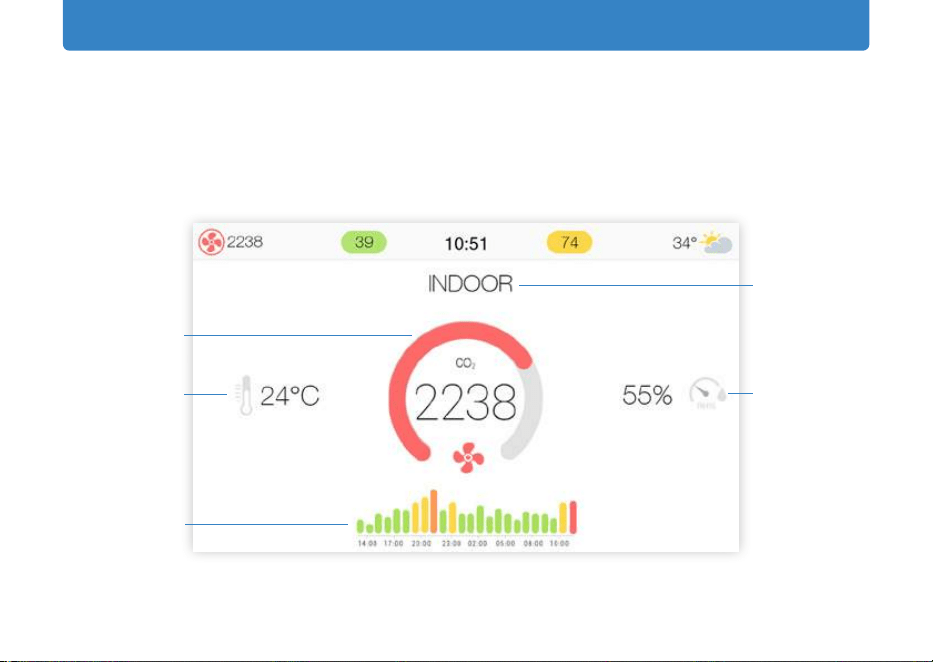
This screen provides indoor air quality data including CO
2
concentration,
temperature and humidity. The screen only appears when an outdoor location has
been selected. Please note the CO
2
sensor can take up to two days to calibrate to
display accurate readings.
CO
2
gauge
value
(ppm)
Temperature
(°F/°C)
CO
2
history
(last 24H)
Device name
Relative
humidity
(%)
17
Forecast screen
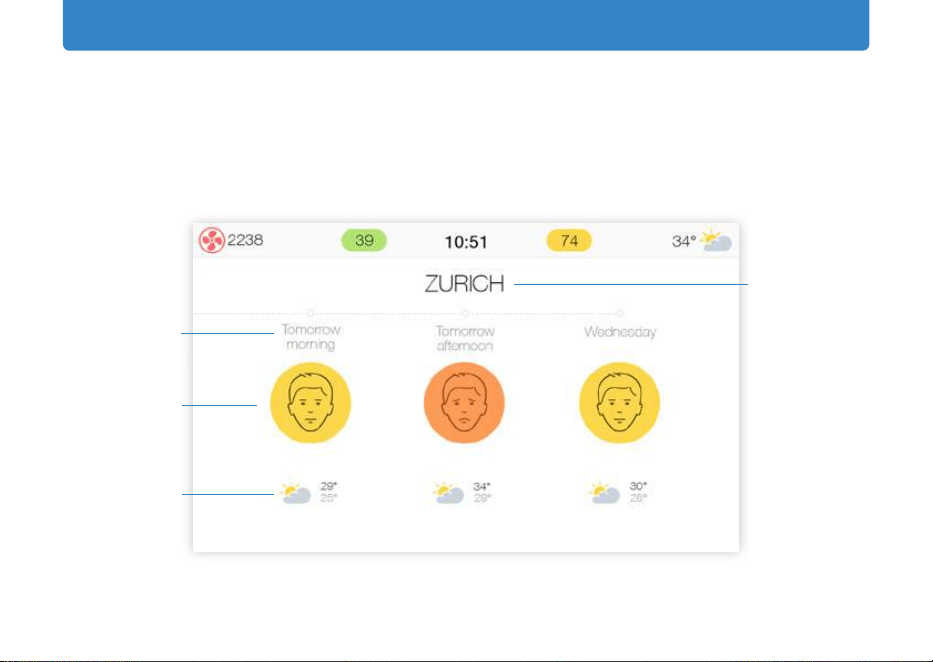
The forecast screen shows an air pollution and weather forecast for the next two
days. This requires that an outdoor comparison (your own outdoor monitor, a public
air quality station, or a city) has been selected for AirVisual Pro.
Selected
outdoor
location
Timeline
Outdoor AQI
forecast
Weather
forecast
18
Recommendations screen
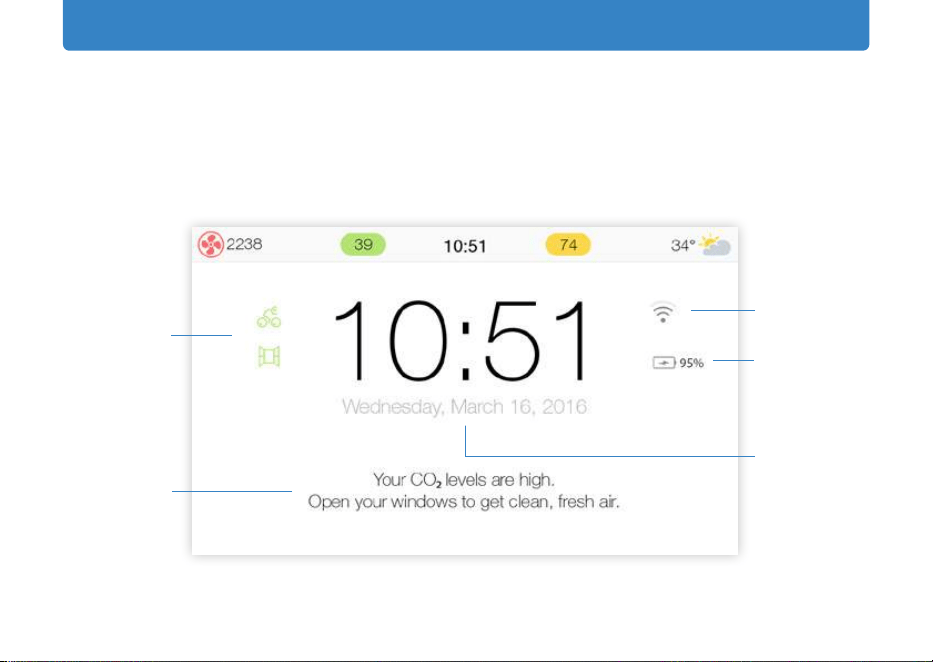
The recommendations screen prominently displays time and date and practical
insights and tips to improve air quality. The advice and status icons are described
on the next page.
Advice icons
Advice text
Wi-Fi status
Battery status
Time & date
19
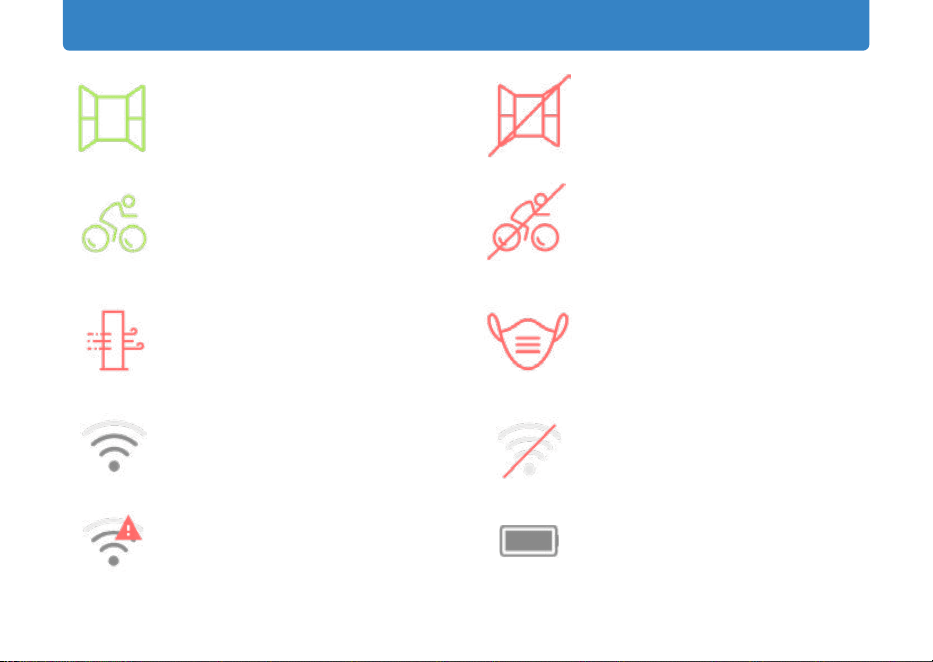
Advice and status icons
Open your windows to bring
in fresh, clean air
Enjoy your outdoor activities
Run an air purier to lower
indoor pollution
Connected to Wi-Fi and the
internet
Connected to Wi-Fi but not to
the internet
Close your windows
Avoid outdoor activities
Wear a mask outside
Not connected to Wi-Fi
100% Remaining battery life
20
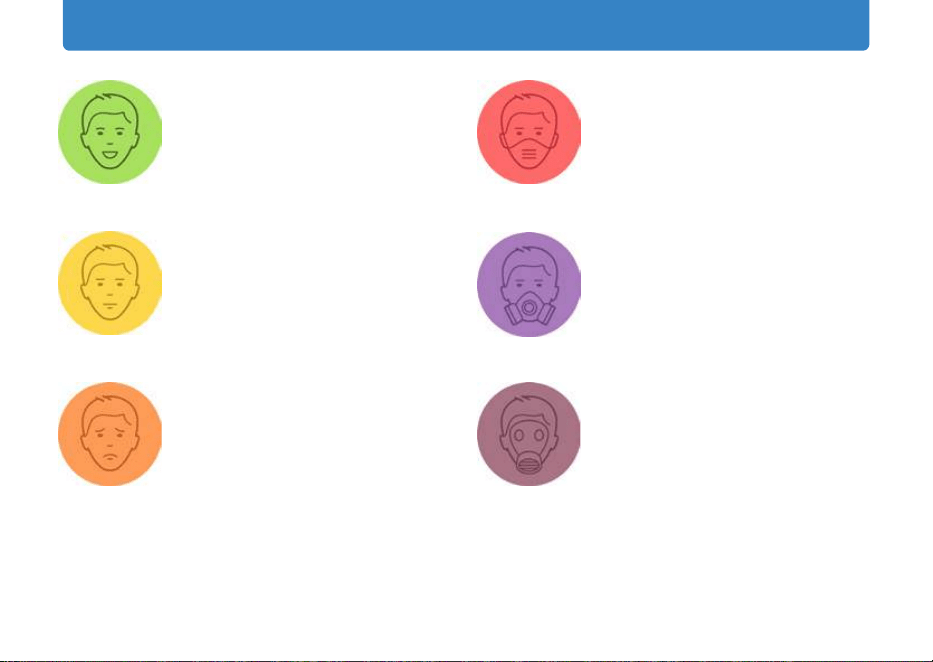
Air Quality Index (AQI) icons*
Good
0 - 50
Little to no health risk
Moderate
51 - 100
Sensitive individuals may
experience irritations
Unhealthy for
Sensitive Groups**
101 - 150
Sensitive groups should limit
outdoor exertion
Unhealthy
151 - 200
Harmful for sensitive groups,
reduced outdoor activity
Very Unhealthy
201 - 300
Everyone can be affected.
Avoid heavy outdoor activity
Hazardous
301 +
Serious risk of respiratory
effects. Everyone should avoid
outdoor activities
* Following US EPA Standards for Particle Pollution to calculate AQI
**Sensitive groups include people with respiratory or heart disease, children and the elderly
21
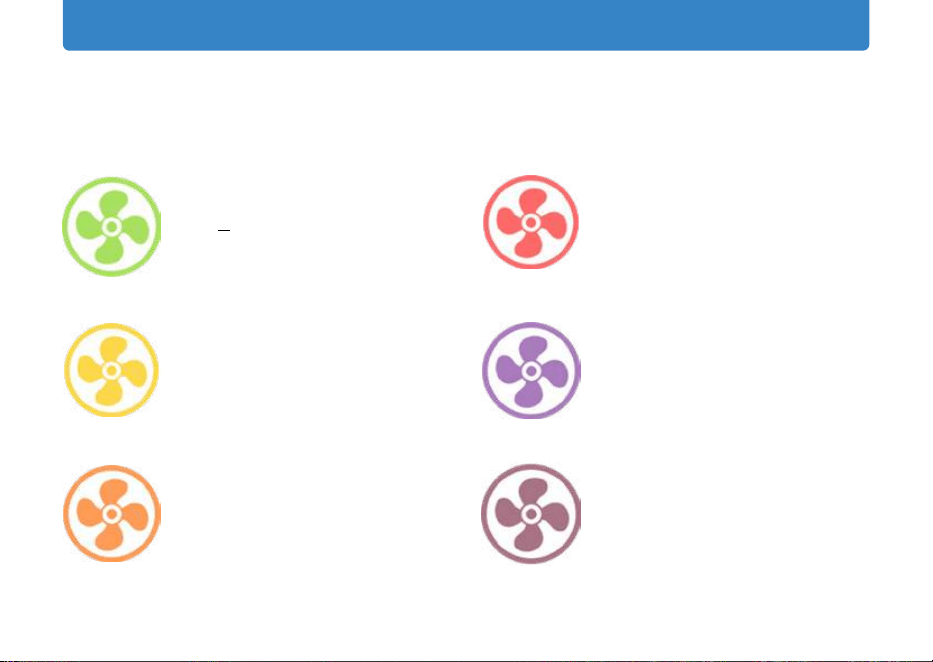
The fan and its color represent your indoor CO
2
levels. Any color beyond green is an
indication to open your window to get clean, fresh air (assuming outdoor air is clean).
Good
CO
2
< 700 ppm *
Ideal comfort level
Moderate
701 - 1,000 ppm
May experience odors and
reduce ability for complex
thinking
High
1,001 - 1,500 ppm
General drowsiness
Unhealthy
1,501 - 2,500 ppm
Fatigue and reduced
concentration
Very Unhealthy
2,501 - 5,000 ppm
Headaches and adverse
health effects
Hazardous
5,001 - 10,000 ppm
Quickened breathing, nausea
* ppm: parts per million
CO
2
icons
22
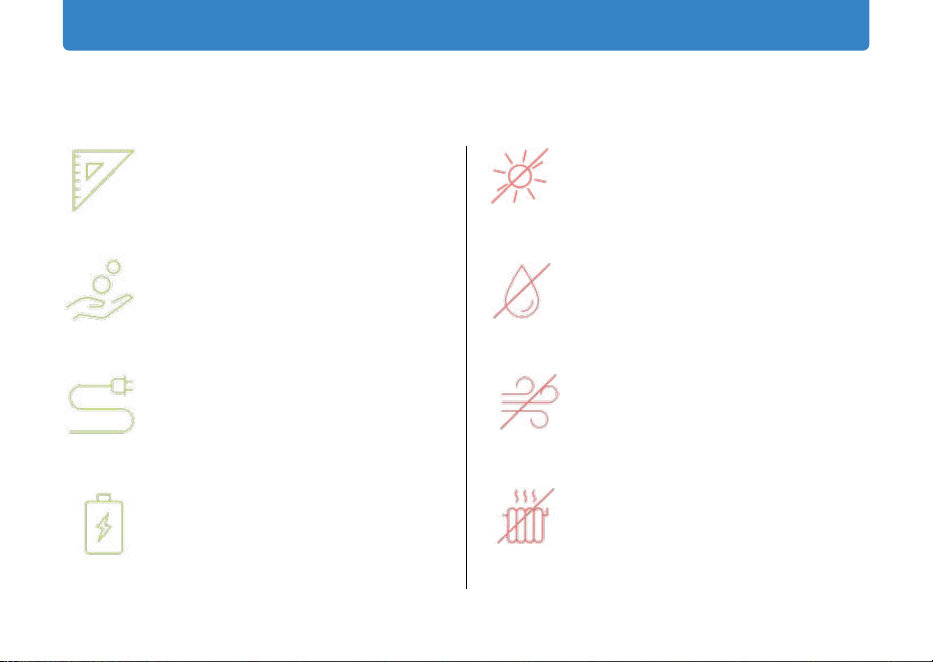
OK
Not OK
Put the AirVisual Pro on a flat,
stable surface
Clean the AirVisual Pro using a
slightly damp cloth
Connect the AirVisual Pro to
an electrical outlet
Extend the sensor’s lifetime by
using power saving mode
Expose to direct sunlight
Expose to water (e.g. rain)
The AirVisual Pro is not
waterproof
Expose to strong wind
Expose to extreme heat
(e.g. don’t place on a heater)
Care & maintenance
23
Air Quality Index (AQI)
AQI, or Air Quality Index, is a system for
reporting the severity of air quality levels
in a way that is easy to understand.
The index ranges from 0 to 500, higher
index values indicate higher levels of air
pollution.
AQI is computed in different ways
around the world. The United States and
China, however, represent the two most
widely used AQI systems. Your AirVisual
Pro supports both systems.
Chinese and USA AQI scales are comparable
for values above 200. For lower values,
the US AQI is more stringent.*
* AirVisual recommends following the US AQI.
24
WHAT IS
PM2.5?
SOURCES
HEALTH
RISKS
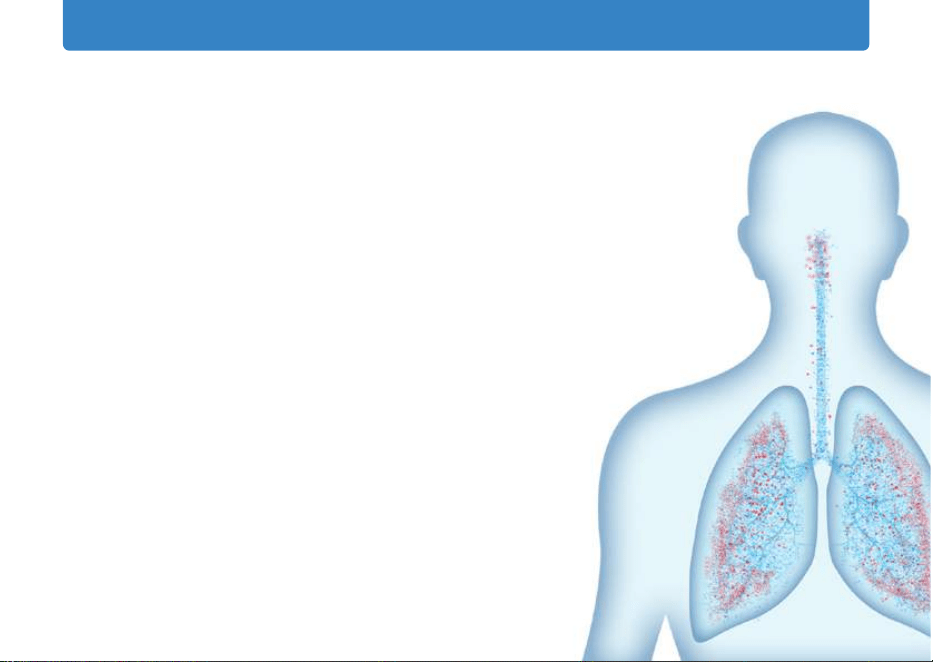
PM2.5 refers to particulate matter in the air with a diameter
of 2.5 micrometers or less. Due to its size, PM2.5 is considered
the most hazardous pollutant to human health as it can
be absorbed into the bloodstream via the lungs.
Outdoor: vehicles, wood burning, industrial activities
and other forms of combustion.
Indoor: leaky windows and doors, stove top cooking,
replaces, incense, cleaning products and fragrances.
Short term: eye and nose irritation, irregular
heartbeats, chest pain and sorethroat.
Long term: asthma, emphysema,
lung
damage, cancer, strokes, heart attacks
and premature death.
PM2.5 introduction
25
CO
2
introduction
WHAT IS
CO
2
?
CO
2
(carbon dioxide) is a naturally occurring, odorless gas that
occurs outdoors in concentrations between 380 (rural) and 500
ppm (urban). Indoors CO
2
levels are often much higher than
outdoors, since humans exhale about 38,000 ppm of CO
2
. While
CO
2
quickly mixes with surrounding air, high indoor CO
2
levels are
best reduced by opening a window and bringing in outdoor air.
SOURCES
HEALTH RISKS
Outdoors: burning fossil fuels, such as
gas and oil - transport, industry, elec-
tricity generation. Indoors: human
respiration, gas or wood burning.
High CO
2
levels rarely cause long term
health effects. In the
short term, however, it is attributed to headaches,
drowsiness,
decreased productivity and difculty concentrating. More
importantly, high CO
2
is an indication of stagnant air which tends
to have less oxygen, and more bacteria, mold and other harmful
pollutants, such as volatile organic compounds (VOCs).
26
Temperature & humidity
Temperature and humidity are important for health an comfort. Cold or dry
environments may cause respiratory irritations and eczema exacerbation, while
overly humid environments can produce dust mites and mold.
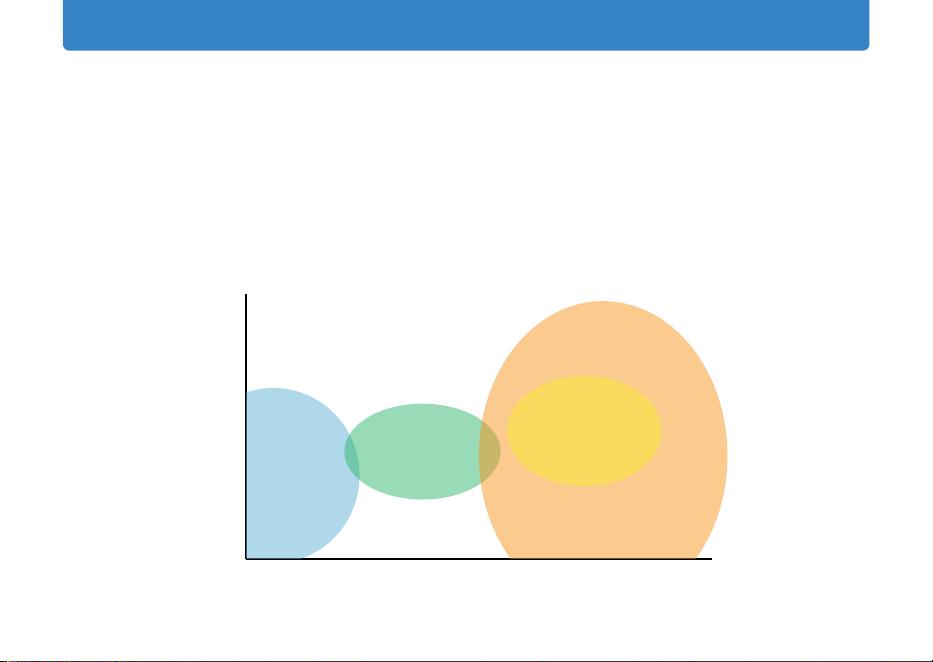
The diagram below is a rough guide for explaining the relationship between
temperature and humidity, and the long-term related effects.
Lung irritation;
Eczema
exacerbation;
Ease of virus
transmission
Ideal level for
comfort & health
Dust mites
Mold
35
30
25
20
15
10
20 30 40 50 60 70 80 90 100
Temperature °C
Relative Humidity %
27
How can I view PM2.5 concentrations?
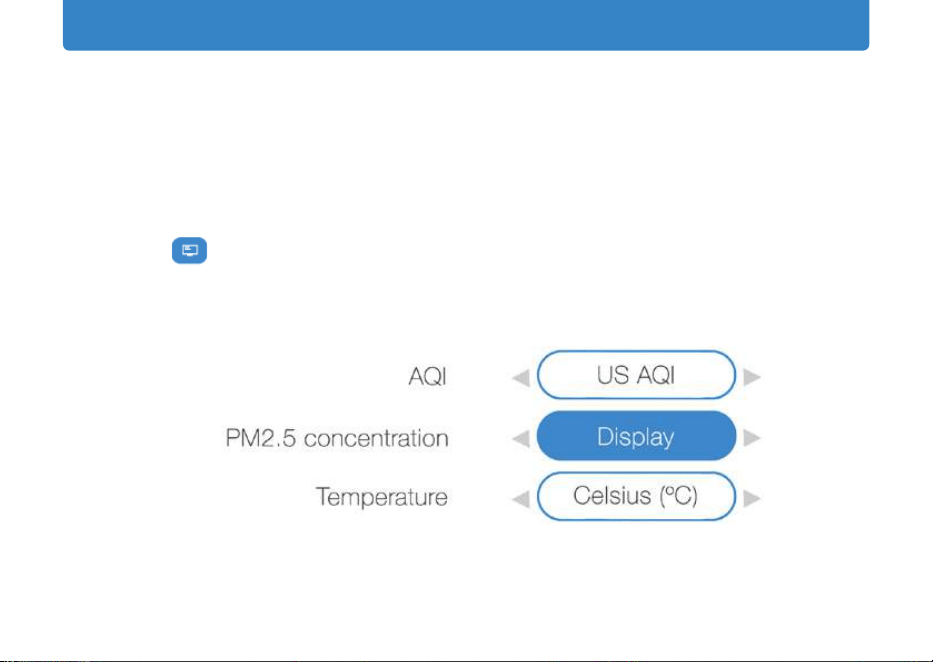
It is possible to display PM2.5 concentration along with AQI readings on the
device’s home screen.
To access this setting go to the main menu by pressing the ‘OK’ button, then
navigate to
Display > Units > AQI > ‘PM2.5 concentration’. Select ‘Display’ > ‘OK’
and ‘Back’.
FAQs - View PM2.5 concentration
28
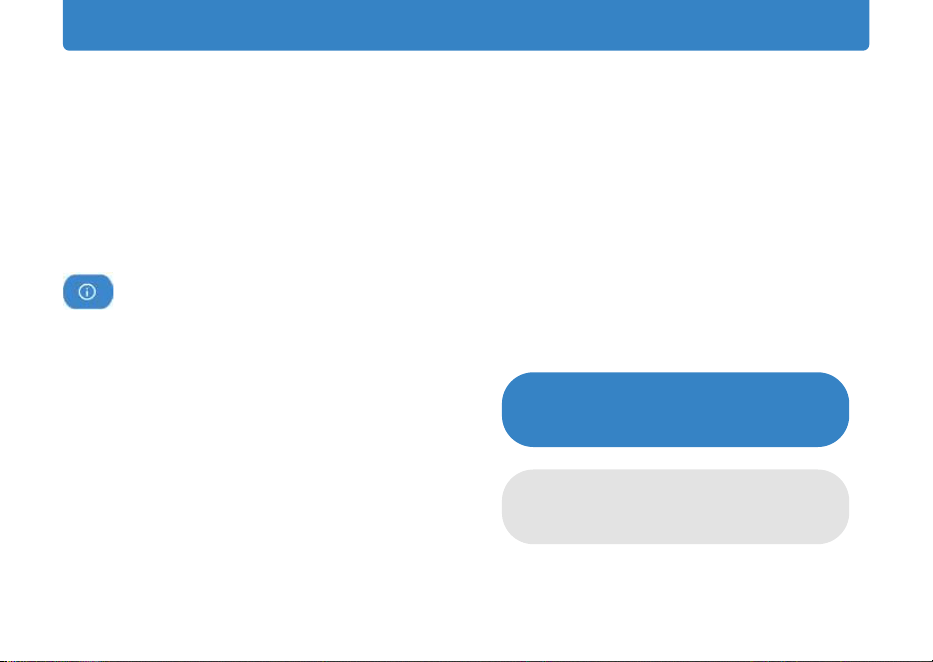
How can I reset or clear data stored on the AirVisual Pro?
Air quality measurements are automatically saved to your AirVisual Pro’s memory.
At any time you can reset your AirVisual Pro to its factory settings to wipe this
data.
To do so, go to the settings menu by clicking the ‘OK’ button and then navigate to
About > Pro Reset > Choose the option “Reset settings & clear data.”
FAQs - Factory reset
Reset settings & clear data
(Historical data will be erased)
Reset to factory settings
(Historical data will be kept)
29
Can I set the screen to go into sleep mode automatically?
There are many good reasons why you would want to put your AirVisual Pro into
sleep mode:
• Turn the screen on and off automatically
• Power savings
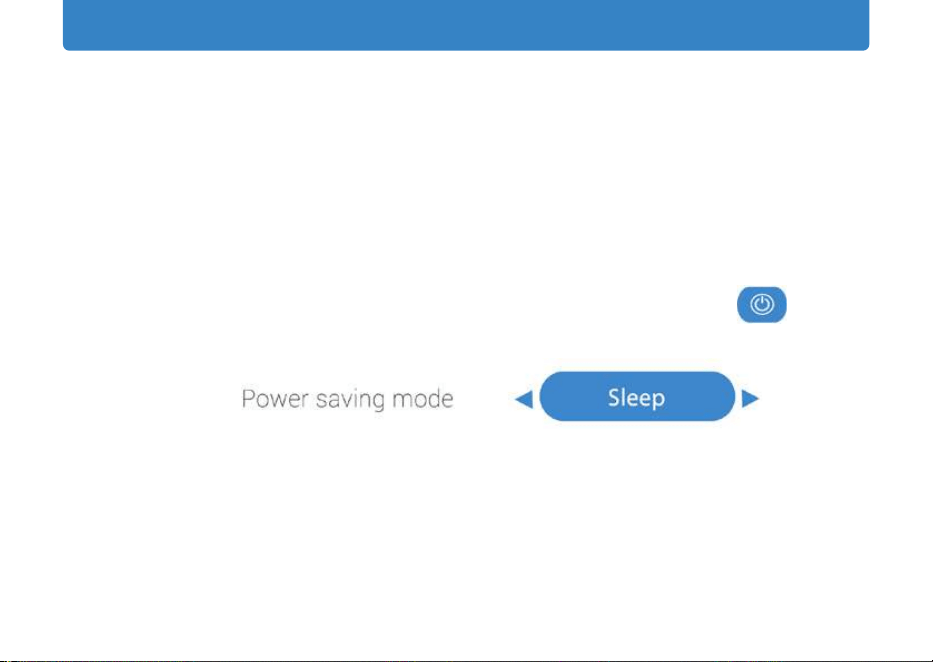
Go to the settings menu by clicking the ‘Menu’ button, then navigate to
Performance > Power saving > Select time slots, select ‘Sleep’ > ‘OK’ and ‘Back’.
During power saving sleep mode the AirVisual Pro’s display will turn off, while your
AirVisual Pro will continue take measurements.
FAQs - Sleep mode
30
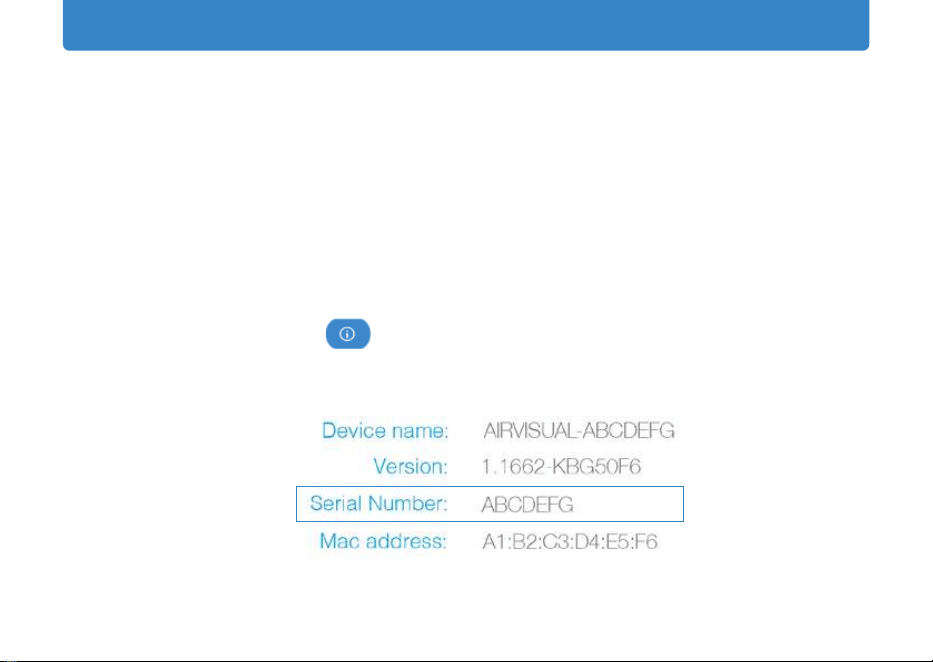
Where can I nd my AirVisual Pro’s serial number?
You may be asked for your AirVisual Pro’s serial number either when activating
your device or receiving help from AirVisual’s customer service.
Your serial number can be found in two places:
1) On a sticker on the back of your AirVisual Pro.
2) In the About settings. To nd it, press the center menu button on your
Pro, then go to
About > Device info.
FAQs - Serial number
31
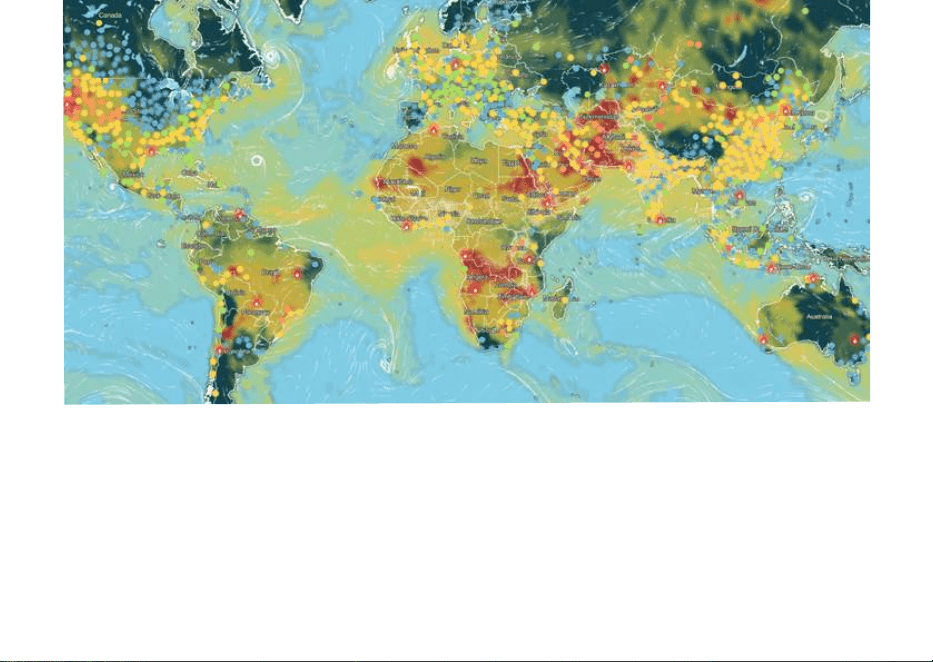
AirVisual reports data for tens of thousands of locations worldwide. Yet, still many
places lack local air quality monitoring stations.
Together, we can raise air quality awareness and provide the global air quality data
needed for people, businesses and governments to implement change.
Visit us Online for more information: iqair.com
Have a question about your AirVisual Pro? Contact us at iqair.com/contact
The Air Quality Community

360.10.80.01 IQ AVP Manual v3.5en 01122022
©2023 IQAir AG, Switzerland