
Public
AcuPad-50 (M7E) and
AcuPad-50 MUX (M7E)
User
Guide

Public
PLT-07555 A.0
January 2024

AcuPad-50
and
AcuPad-50
MUX
User
Guide
PLT-07555,
A.0
2
January
2024
Public
Copyright
© 2024 Acura/HID Global Corporation/ASSA ABLOY AB. All rights reserved.
This document may not be reproduced, disseminated, or republished in any form without the prior written permission of
HID Global Corporation.
Trademarks
Acura is a trademark or registered trademark of HID Global, ASSA ABLOY AB, or its affiliate(s) in the US and other
countries and may not be used without permission. All other trademarks, service marks, and product or service names
are trademarks or registered trademarks of their respective owners.
Contacts
For technical support, please contact: acura.support@hidglobal.com
What's new
Date
Description
Revision
January
2026
Initial
release.
A.0
A complete list of revisions is available in Revision history.
Products covered by this document
Model
Code
AcuPad-
50 (M7E)
Please
consult.
AcuPad-50 Serial RS-232 (M7E)
Please
consult.
AcuPad-50
MUX (M7E)
Please
consult.

AcuPad-50
and
AcuPad-50
MUX
User
Guide
PLT-07555,
A.0
3
January
2024
Public
Introduction _____________________________________________________________________________
6
1.1
Introduction __________________________________________________________________________________________ 7
1.2
AcuPad-50 applications _______________________________________________________________________________ 7
1.3
Mode features _______________________________________________________________________________________ 7
1.4
Interfaces ___________________________________________________________________________________________ 9
1.5
Approval notes _______________________________________________________________________________________ 9
1.5.1
Anatel (Brazil) ___________________________________________________________________________________ 9
1.5.2
FCC (USA) _____________________________________________________________________________________ 9
1.5.3
Authorized antennas ____________________________________________________________________________ 10
1.5.4
Professional installation instructions _______________________________________________________________ 10
General information ____________________________________________________________________
11
2.1
AcuPad-50 and AcuPad-50 MUX ______________________________________________________________________ 12
2.1.1
Dimensions ____________________________________________________________________________________ 12
2.1.2
RF
connectors _________________________________________________________________________________ 13
2.1.3
Connection diagram ____________________________________________________________________________ 13
2.2
Specification ________________________________________________________________________________________ 14
Operation ______________________________________________________________________________
16
3.1
Turning on the reader ________________________________________________________________________________ 17
3.2
Driver installation ____________________________________________________________________________________ 18
3.2.1
Windows 10 and 11 - Identifying a serial port _______________________________________________________ 19
3.2.2
Linux - Identifying a serial port ____________________________________________________________________ 20
3.2.3
macOS - Identifying a serial port __________________________________________________________________ 20
3.3
Reader operating modes _____________________________________________________________________________ 21
3.3.1
Autonomous mode _____________________________________________________________________________ 21
3.3.2
Turning tag reading ON and OFF - Autonomous mode _______________________________________________ 21
3.3.3
General diagram _______________________________________________________________________________ 22
3.3.4
Reading tags engine ____________________________________________________________________________ 23
3.3.5
Reading result format ___________________________________________________________________________ 23
3.3.6
Configuring the reader - Autonomous mode ________________________________________________________ 24
3.3.7
How to set up the reader ________________________________________________________________________ 24
3.3.8
Operating logic _________________________________________________________________________________ 25
3.3.9
Syntax of messages and responses _______________________________________________________________ 25
3.3.10
Windows - how to send commands to the reader __________________________________________________ 26
3.3.11
Linux and macOS - how to send commands to the reader ___________________________________________ 27
3.4
Configuration commands _____________________________________________________________________________ 28
3.4.1
help command _________________________________________________________________________________ 28
3.4.2
summary command _____________________________________________________________________________ 29
3.4.3
dumpconfig command __________________________________________________________________________ 30

AcuPad-50
and
AcuPad-50
MUX
User
Guide
PLT-07555,
A.0
4
January
2024
Public
3.4.4
Summary of configuration commands and default values ____________________________________________ 31
3.4.5
Response messages to commands _______________________________________________________________ 33
3.5
Configuration command descriptions __________________________________________________________________ 34
3.5.1
readmode _____________________________________________________________________________________ 34
3.5.2
readpowerport1 ________________________________________________________________________________ 35
3.5.3
readpowerport2 ________________________________________________________________________________ 36
3.5.4
rfon ___________________________________________________________________________________________ 37
3.5.5
rfoff ___________________________________________________________________________________________ 38
3.5.6
antennaport ___________________________________________________________________________________ 39
3.5.7
gen2blf _______________________________________________________________________________________ 40
3.5.8
gen2tari _______________________________________________________________________________________ 41
3.5.9
gen2tagencoding _______________________________________________________________________________ 42
3.5.10
gen2session __________________________________________________________________________________ 43
3.5.11
gen2target ___________________________________________________________________________________ 44
3.5.12
gen2q _______________________________________________________________________________________ 45
3.5.13
gen2accesspassword __________________________________________________________________________ 46
3.5.14
selectfilter ____________________________________________________________________________________ 47
3.5.15
initreadtag ____________________________________________________________________________________ 48
3.5.16
readtag ______________________________________________________________________________________ 49
3.5.17
tagtimeout ____________________________________________________________________________________ 50
3.5.18
rssifilter ______________________________________________________________________________________ 51
3.5.19
tagop ________________________________________________________________________________________ 52
3.5.20
reportonlytagopok _____________________________________________________________________________ 53
3.5.21
epcdecode ___________________________________________________________________________________ 54
3.5.22
separator_____________________________________________________________________________________ 55
3.5.23
endofline _____________________________________________________________________________________ 56
3.5.24
keystrokespeed _______________________________________________________________________________ 57
3.5.25
reportrssi _____________________________________________________________________________________ 58
3.5.26
reportantenna _________________________________________________________________________________ 59
3.5.27
reportreadcount _______________________________________________________________________________ 60
3.5.28
temperature __________________________________________________________________________________ 60
3.5.29
summary _____________________________________________________________________________________ 60
3.5.30
version ______________________________________________________________________________________ 60
3.5.31
rfidversion ____________________________________________________________________________________ 61
3.5.32
rfidmodule ____________________________________________________________________________________ 61
3.5.33
rfidregion _____________________________________________________________________________________ 61
3.5.34
serialnumber _________________________________________________________________________________ 61
3.5.35
dumpconfig ___________________________________________________________________________________ 61
3.5.36
enablebeep ___________________________________________________________________________________ 62

AcuPad-50
and
AcuPad-50
MUX
User
Guide
PLT-07555,
A.0
5
January
2024
Public
3.5.37
enablecapslock _______________________________________________________________________________ 63
3.5.38
echochar _____________________________________________________________________________________ 64
3.5.39
facreset ______________________________________________________________________________________ 65
3.5.40
upgradefirmware ______________________________________________________________________________ 65
3.5.41
help _________________________________________________________________________________________ 66
3.6
Switching between Autonomous and Transparent modes _________________________________________________ 66
3.6.1
Use the readmode command _____________________________________________________________________ 66
3.6.2
Use the Caps Lock key (Windows and Linux only) ___________________________________________________ 67
3.7
Read rate of the same tag ____________________________________________________________________________ 68
3.8
Use cases - Autonomous mode _______________________________________________________________________ 70
3.8.1
Checkout – GS1/EAN standard ___________________________________________________________________ 70
3.8.2
Read tag encoded in SGTIN-96/198 and show result in GS1 element string format ______________________ 71
3.8.3
Read tag encoded in SGTIN-96/198 and show result in EPC Tag URI format ____________________________ 72
3.8.4
Read TID memory bank and EPC id _______________________________________________________________ 73
3.9
Reader - Transparent mode ___________________________________________________________________________ 74
3.9.1
readmode _____________________________________________________________________________________ 74
3.9.2
Software programming and development __________________________________________________________ 74
3.9.3
Demo software – Universal Reader Assistant (URA) _________________________________________________ 75
3.9.4
Demo software instructions ______________________________________________________________________ 75
3.10
Controlling the LED and Beep ________________________________________________________________________ 78

Public
Section
01
Introduction

Public
1.1
Introduction
The AcuPad-50 is a table top, or wall mounted reader, utilizing UHF (Ultra High Frequency) RFID technology. The reader
has compact dimensions, and two RF ports for external antennas. The AcuPad-50 has an RF power output of 1W, and the
AcuPad-50 MUX has an RF power output of 0.5W.
1.2
AcuPad-50 applications
The AcuPad-50 can be used for the following (non-restricted) applications:
⚫
Self-checkout.
⚫
POS
checkout.
⚫
Laundry identification.
⚫
Tag read/write stations.
⚫
Production line points identification.
⚫
Small portals with two antennas.
1.3
Mode features
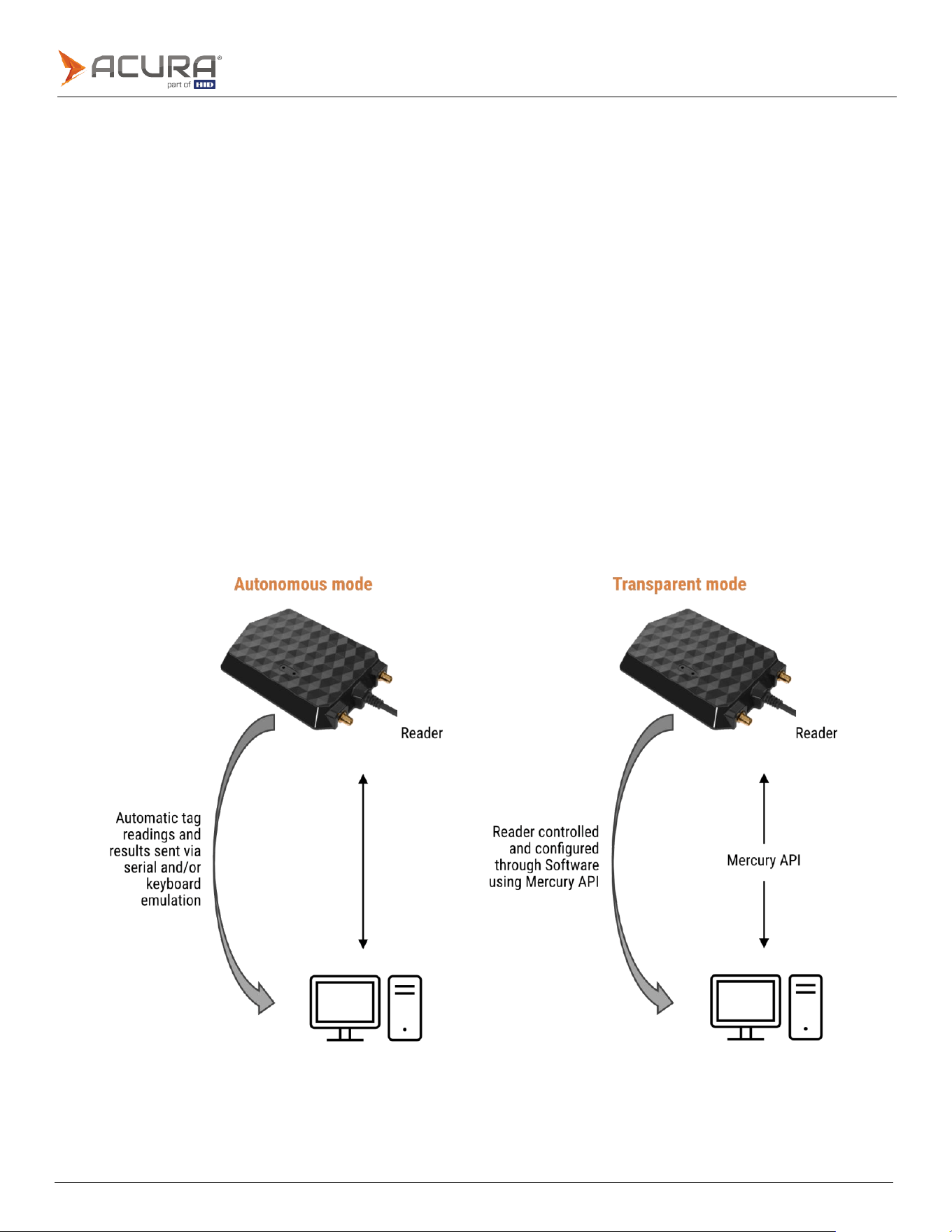
The reader has two modes, Autonomous, and Transparent.
Autonomous mode:
⚫
Automatically reads tags in a continuous loop.
⚫
Turn off/on the RF via command.
⚫
Individual power control for each antenna.
⚫
Active individually which antenna to transmit RF.
⚫
Sends the results of the tags reads in the following interfaces:
⚫
Via keyboard emulation (HID class).
⚫
Via serial communication (CDC class).
⚫
Via keyboard emulation + serial communication.
⚫
Various configuration parameters via serial terminal.
⚫
Reading power (individual for each antenna).
⚫
RF period times.
⚫
Gen2 parameters, (tag >> reader) and (reader << tag).
⚫
Reader information.
⚫
Read operations.
⚫
Read filter by RSSI value of the tag.
⚫
Can decode tags with GS1 SGTIN-96 and SGTIN-198 standards for checkout applications, sends in the following
formats:
⚫
gs1string, for example - "(01)03608449920322(21)1540341".
⚫
gs1epcuri, for example - "urn:epc:tag:sgtin-96:1.360844.0992032.1540341".
⚫
gs1epcpureuri, for example - "urn:epc:id:sgtin:360844.0992032.1540341".
⚫
gs1gtin13, for example - "3608449920322".
⚫
gs1sgtin13, for example - "3608449920322 1540341".
⚫
Can decode tags with the Acuras Autoid System standard for registering tags for vehicle identification application:
Public
⚫
autoid + autoidcs
⚫
wiegand26, for example - "172 13259".
⚫
clock and data, for example - "00001034695627".
⚫
Can decode tags with ASCII standard.
⚫
Can convert from hexadecimal to decimal with configurable range.
⚫
Can split the tag EPC identifier with a configurable range.
⚫
Option to not decode and send the tag EPC hexadecimal raw value.
⚫
Can read any memory bank of the tag as additional information to the tag EPC identifier.
Transparent mode:
⚫
The reader stays idle, does not perform autonomous tag readings.
⚫
The reader must be controlled by a Software that uses the mercuryapi, a complete API/SDK for reading and writing
tags supporting the following languages:
⚫
C, .Net (C#) and Java.
⚫
Compatible with Windows 10, macOS, and Linux, without driver required (for Windows 7 and 8 the driver is provided
for installation).
⚫
Wide variation of reading power:
⚫
0 to 27dBm for AcuPad-50 MUX.
⚫
0 to 30dBm for AcuPad-50.

Public
authority to operate this equipment.
Warning:
1.4
Interfaces
The AcuPad-50 family readers only support USB interface. They do not require an external power supply, the power
transmitted through the USB cable from a host computer is sufficient to power the reader.
HID (keyboard) and Serial modes are enabled by default. When you connect the reader USB cable to a host PC, HID will
be detected under the Human Interface Devices section, and the CDC port will be detected under the Ports section of
the Device Manager (Windows OS). The readers can be configured to HID mode, Serial mode, or both.
1.5
Approval notes
1.5.1
Anatel (Brazil)
AcuPad-50 and AcuPad-50 MUX were tested and approved under the Regulation for Certification and Homologation of
telecommunications Products, approved by Anatel Resolution No. 242 of November 30, 2000.
⚫
Types: Radio Frequency Identification Systems - Category II.
⚫
Service/Application:
Restricted
Radiation
Radiocommunication.
1.5.2
FCC (USA)
Federal Communication Commission Interference Statement (FCC)
This equipment has been tested and found to comply with the limits for a Class A digital device, pursuant to part 15 of
the FCC Rules. These limits are designed to provide reasonable protection against harmful interference when the
equipment is operating in a commercial environment. This equipment generates, uses, and can radiate radiofrequency
energy and, if not installed and used in accordance with the instruction manual, may cause harmful interference to radio
communications. Operation of this equipment in a residential area is likely to cause harmful interference in which case
the user will be required to correct the interference at his own expense.

Public
1.5.3
Authorized antennas
Vendor
MTI Wireless Edge
Model
MT009S08LH/C
Frequency
Range
(MHz)
902-928
MHz
Antenna
Gain
(dBi)
4.8 dBi (max)
Polarization
Circular
(RHCP)
Type
Patch
Vendor
MTI
Wireless
Edge
Model
MT-
262006/TRH/A/K/F
Frequency
Range
(MHz)
902-928
MHz
Antenna
Gain
(dBi)
5.2
dBi
(max)
Polarization
Circular
(RHCP)
Type
Patch
1.5.4
Professional installation instructions
⚫
Installation personal: The product is designed for specific applications and needs to be installed by a qualified
personal who has RF and related rule knowledge. The general user should not attempt to install or change the
settings.
⚫
Installation location: The product shall be installed at a location where the radiating antenna can be kept 21cm for
AcuPad-50 Mux (M7E), or 23 cm for AcuPad-50 (M7E) from nearby person in normal operation conditions to meet
regulatory RF exposure requirement.
⚫
External antenna: Use only the antennas which have been approved by the applicant. Do not use non-approved
antennas as this may produce unwanted spurious or excessive RF transmitting power. This may lead to the violation of
FCC limit and is prohibited.
⚫
Installation
procedure:
Please
refer
to
this
User
Guide
for
details.

Public
Section
02
General information
Public
2.1
AcuPad-50 and AcuPad-50 MUX
2.1.1
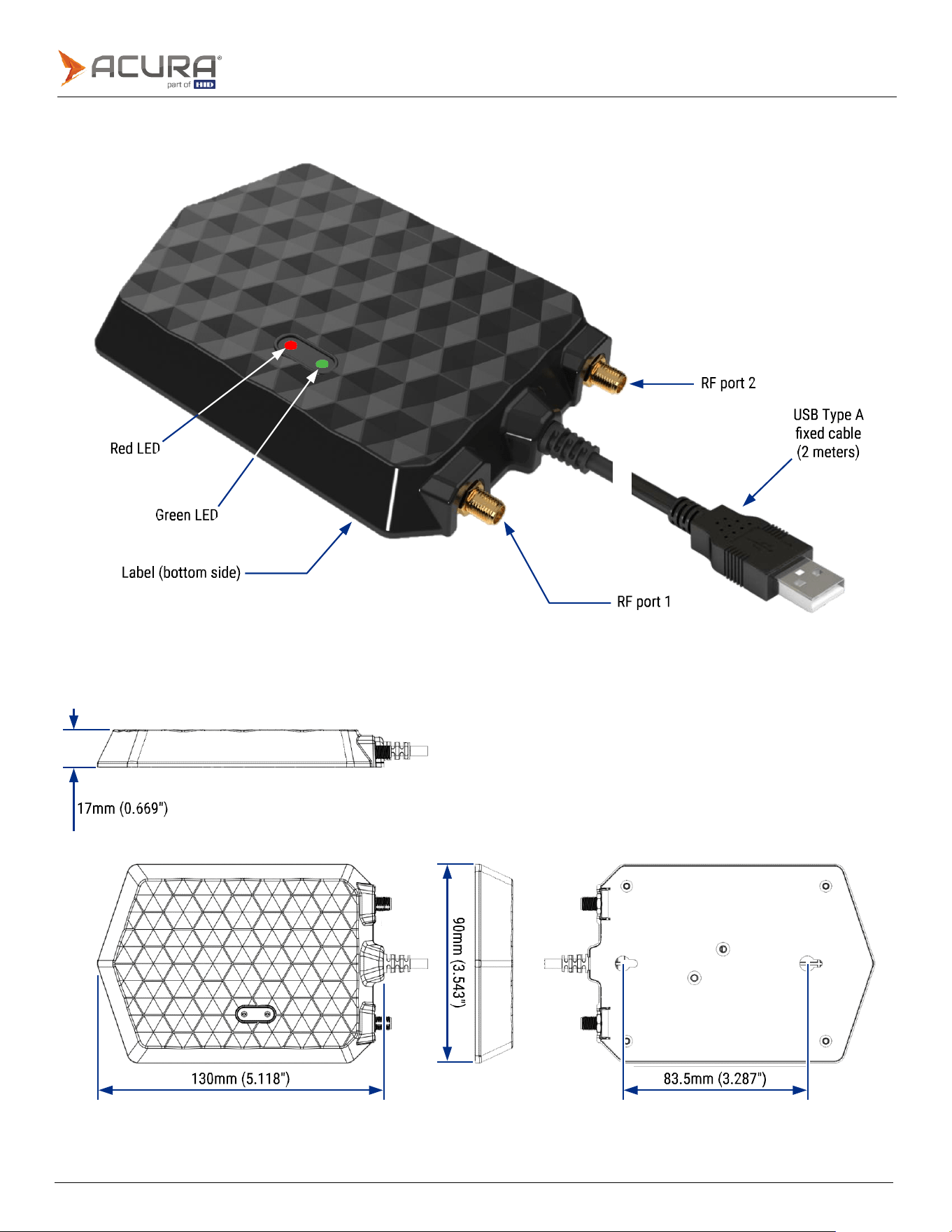
Dimensions
Public
2.1.2
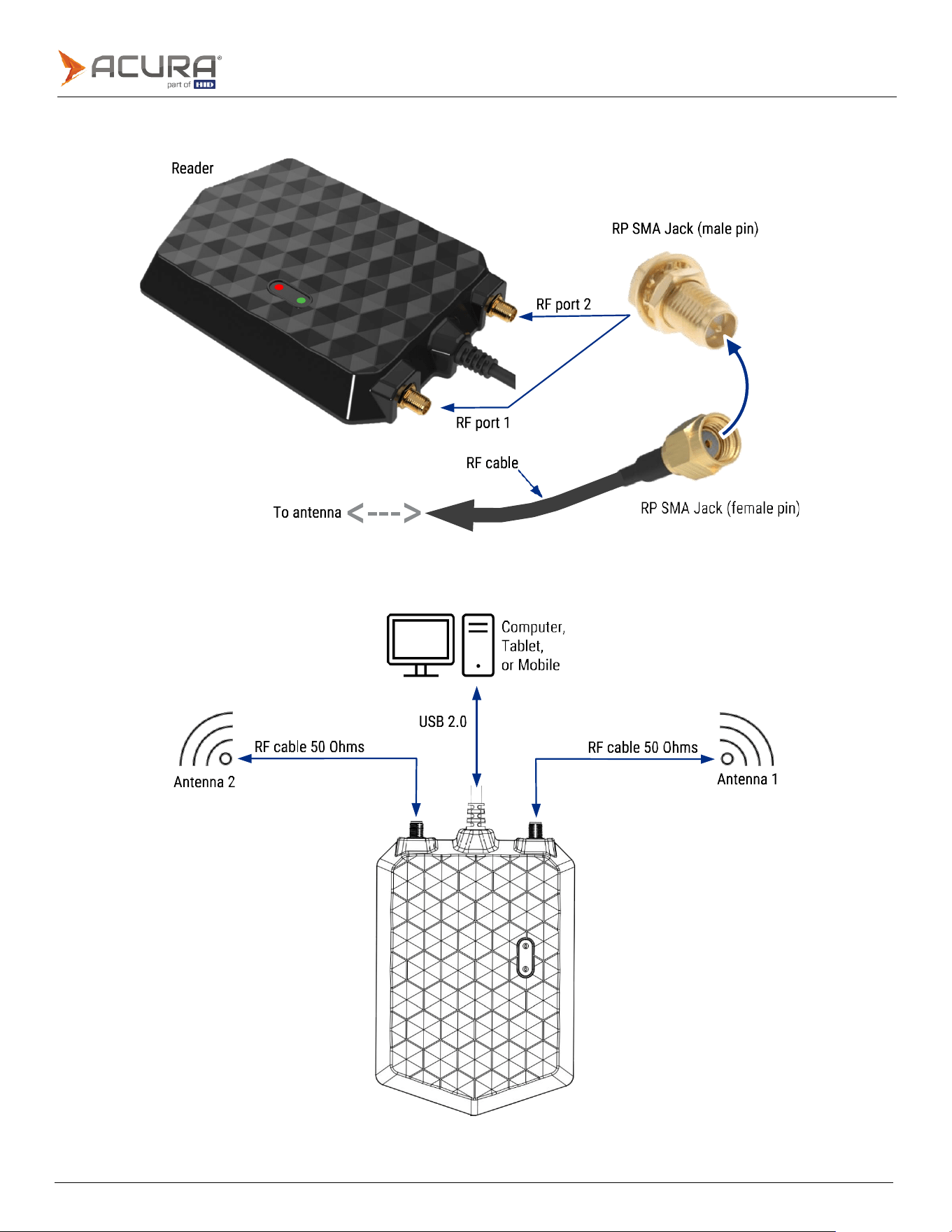
RF connectors
2.1.3
Connection diagram

Public
2.2
Specification
Transponder Protocol
Protocol
ISO
18000-6C
(EPC
Gen2)
ISO
18000-63
(EPC
Gen2
V2)
(Transparent
Mode)
RF interface
RF
Output
power
AcuPad-50 MUX: From 0 to 27 dBm with 0.5 dBm increment.
AcuPad-50: From 0 to 30 dBm with 0.5 dBm increment.
Regulation
ANATEL (BR) 902 – 907MHz and 915 – 928MHz
FCC (USA) 902 – 928MHz
Mode
Frequency
Hopping
Modulation/RF
Coding
AcuPad-50
MUX:
PR-ASK/M4
AcuPad-50: DSB-ASK/FM0, PR-ASK/M4
Backscatter
Link
Frequency
(BLF)
AcuPad-50
MUX:
250KHz
AcuPad-50:
250KHz,
320KHz
and
640KHz
Performance
Reading distance (the reading distance can vary
depending on the antenna, rf cable, tag model,
usage mode, and environment)
Depending
on
the
setup,
can
vary
from
3
to
12
meters
(9
to
39
feet).
Data/Control Interface
Connectors
Communication and Power:
USB
Type-A
male
connector
Communication
interface
USB HID keyboard: The reader is recognized by the Operating System (Windows,
macOS and Linux) as a HID device.
USB Serial CDC: When the reader is connected via USB, a serial port is
automatically
created on Windows 10, macOS, and Linux operating systems. (For
Windows 7 and 8,
driver installation is required).
Programming
Autonomous mode: The reader can be configured via serial communication
using
ASCII commands through a terminal application (such as Putty, Minicom, or
Screen,
etc) without the need to use any API or SDK.
It
supports
tag
read-only
functionality.
Transparent mode: The reader responds to software using the Mercury API and has
tag read and write functionality.
Energy
Power
5
VDC
+/-
1%
(Host
USB
port).
Max
ripple:
200
mVpp
@
20
MHz
Consumption Power (defined for operation into a
17dB return loss load or better)
AcuPad-50 MUX: max. 3,8 W @+27 dBm RF transmit
power
AcuPad-50: max. 6W @+30 dBm RF transmit
power

Public
Physical characteristics
IP
rating
Internal
use
RF
connector
2x
RP
SMA
Jack
male
pin
Dimension
(H
x
W
x
D)
(130
x
90
x
17)
mm
(5.118
x
3.543
x
0.669)
inches
Weight
200 g / 7.05 oz / 0.44 lb
Cable
length
Fixed
cable,
2
meters
(6.5
feet)
Operation
temperature
-10°C
to
55°C
(14°F
to
131°F)
Storage
temperature
-10°C
to
60°C
(14°F
to
140°F)
Humidity
95%
Mounting
type
Desktop/Table
or
Wall
mount

Public
Section
03
Operation
Public
3.1
Turning on the reader
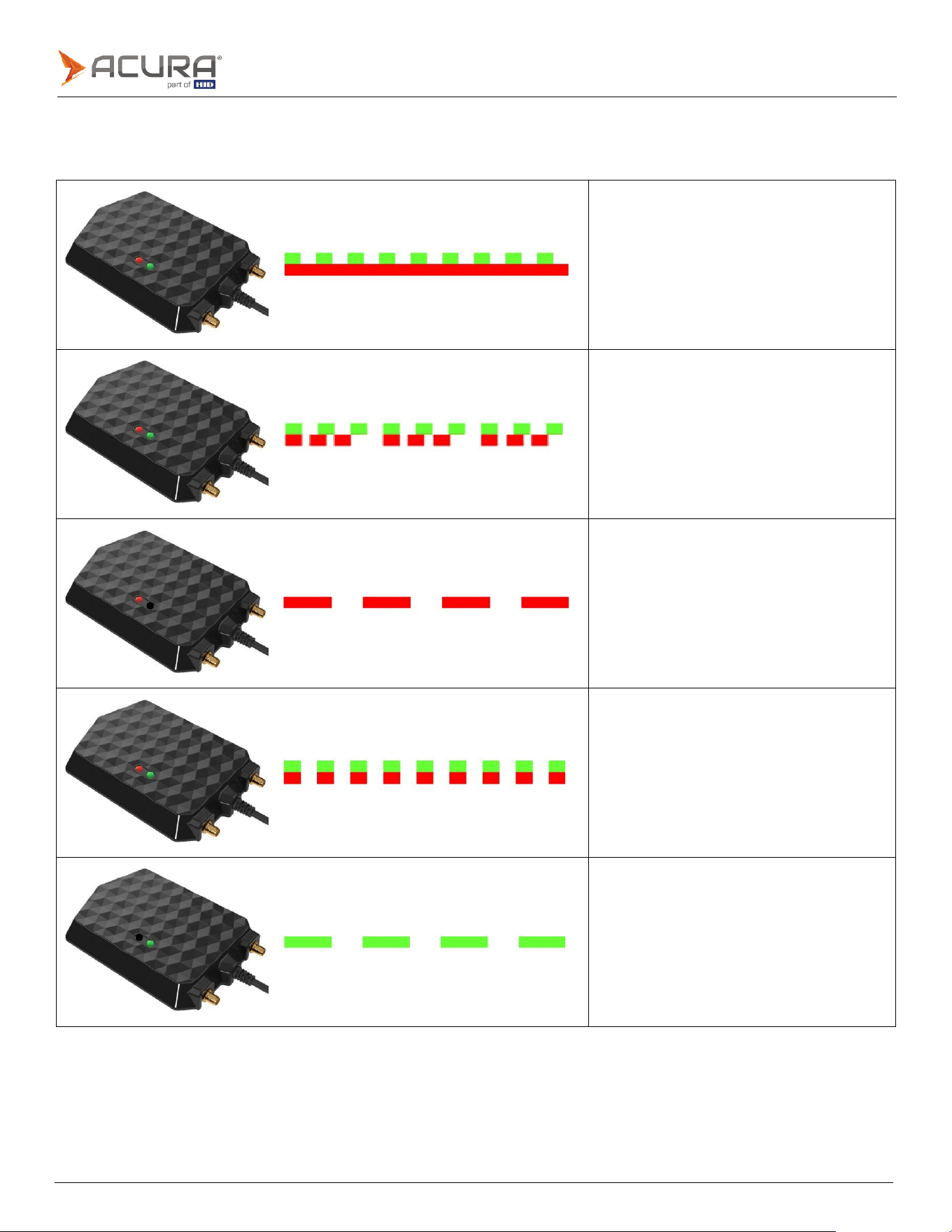
After connecting the reader to a host Computer USB port, the LED status will exhibit the following combinations:
Green LED: flashes fast.
Red LED: solid on.
Reader: in Autonomous Mode.
Reading tags: activated (RF on).
Green
LED:
flashes
fast.
Red LED: flashes asynchronous with green.
Reader: in Autonomous Mode.
No
antenna
activated
to
transmit
RF.
Green
LED:
turned
off.
Red LED: flashing at a consistent interval.
Reader: in Autonomous Mode.
Reading
tags:
deactivated
(RF
idle).
Green and Red LED: flashing at same time in a
consistent interval.
Reader is powered on but with no USB
communication with the Computer host.
Green LED: flashing at a consistent interval.
Red LED: turned off.
Reader:
in
Transparent
Mode.
Note: In Transparent Mode, the red LED and beep
are controlled by the users software.

Public
Note:
Any computer running an OS prior to Windows 10, will require a driver to be installed for the creation of the
COMxx serial communication port. Please contact our support channel support@acura.com.br for more
information.
3.2
Driver installation
For Linux, Android, and macOS, the driver is not required. When the reader is turned on, the following devices will be
created in the Operating System:
⚫
HID class type keyboard.
⚫
Serial port, (COM&LPT on Windows), (CDC on Linux, Android, and macOS).
Since the reader uses the HID class keyboard type for keyboard emulation when sending reading results in Autonomous
Mode, the Serial Port will be used for communication and configuration in both Autonomous and Transparent modes.
Public
3.2.1
Windows 10 and 11 - Identifying a serial port
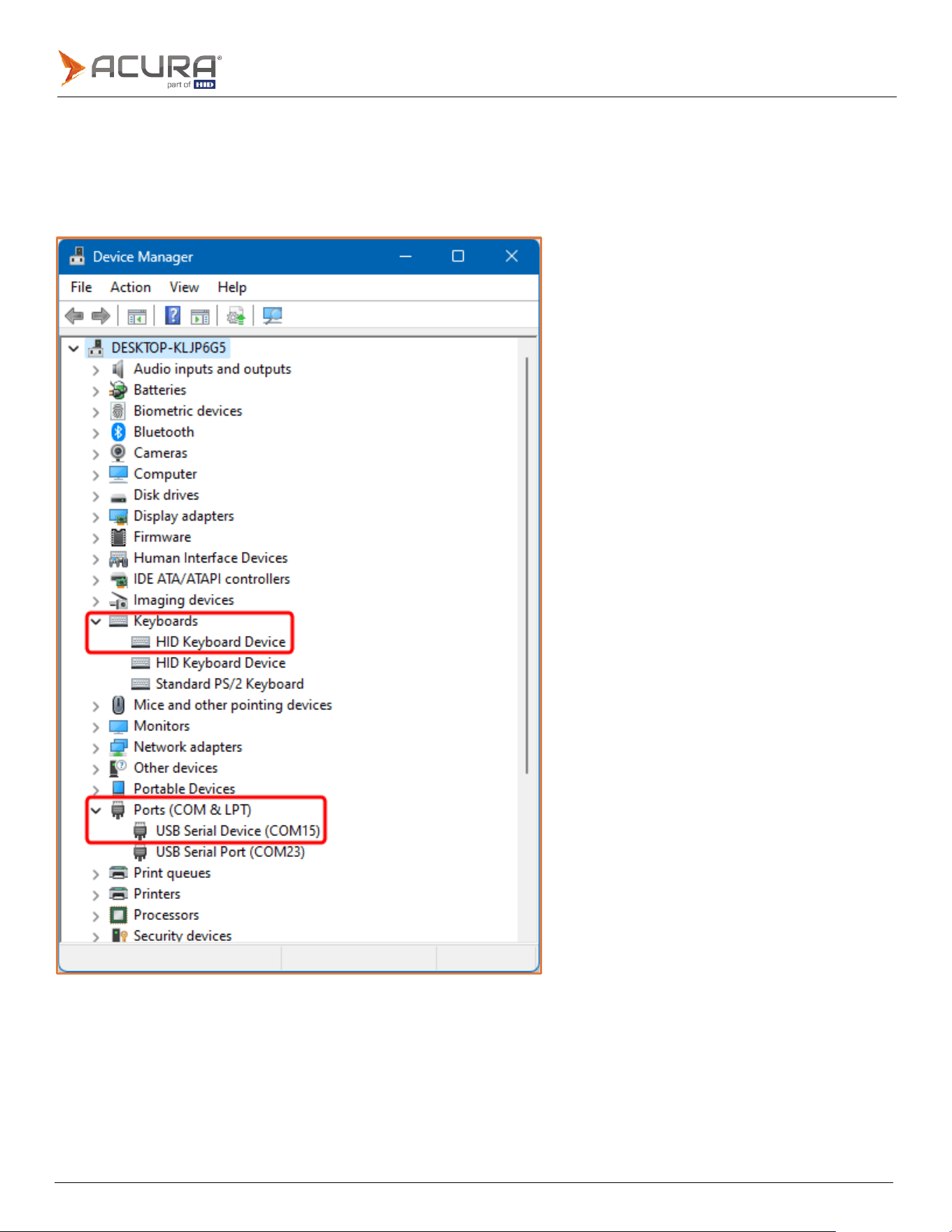
After turning on the reader, open the Device Manager. In Ports (COM and LPT), a virtual serial communication port
should appear a few seconds after the reader is connected. A new HID Keyboard Device will also appear in Keyboards.
Once the reader has been recognized by the Operating System, it is ready to start work.
-
Public
3.2.2
Linux - Identifying a serial port
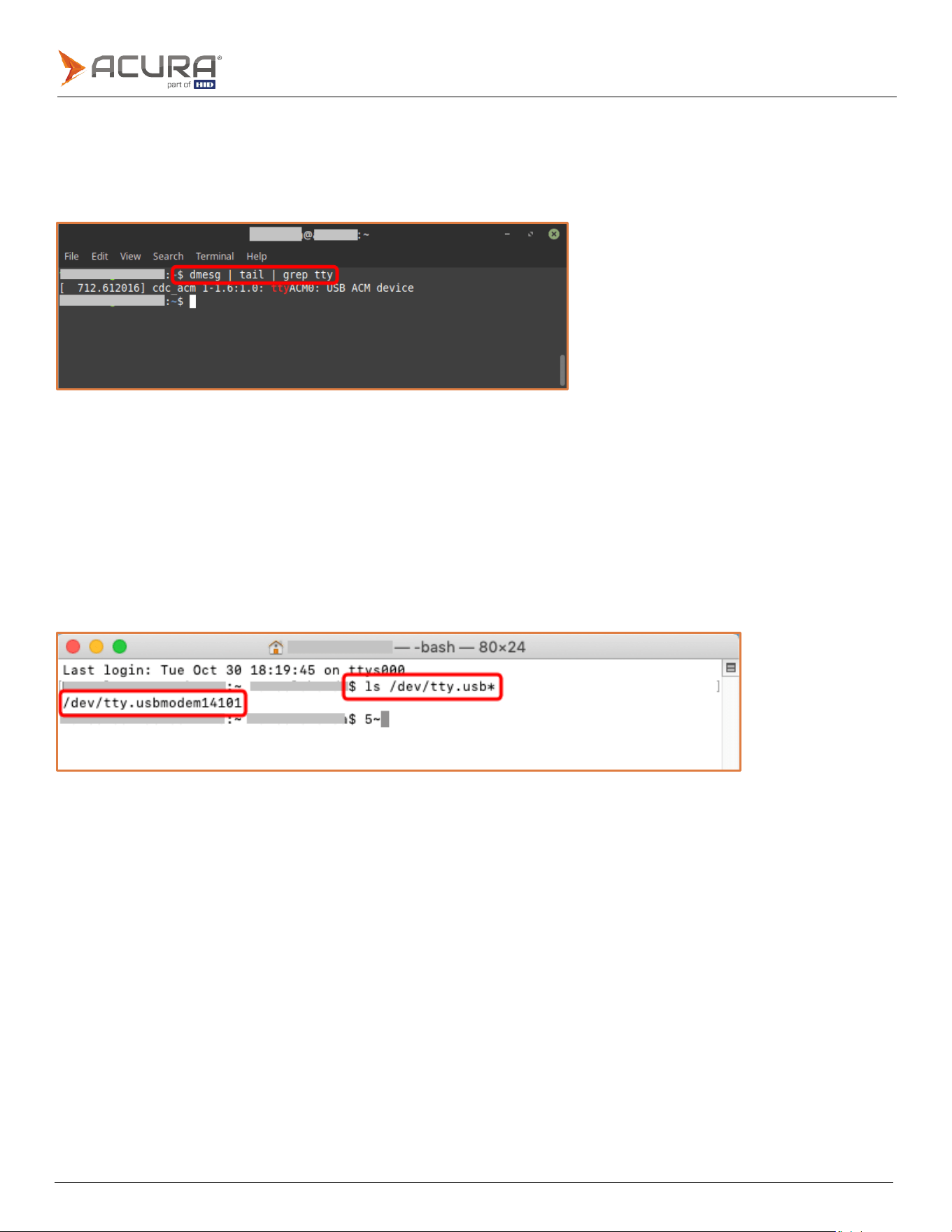
To identify the name of the serial port created after connecting the reader to a USB port, type the following in the
Terminal:
$dmesg | tail | grep tty
In the example, serial communication with the reader will be through /dev/ttyACM0.
For some Linux distribution like Ubuntu, Mint, Fedora, OpenSuse. it is recommended to disable the ModemManager
service to not try to connect to the serial port every time the reader is connect to the USB port:
$sudo systemctl stop ModemManager.service
$sudo systemctl disable ModemManager.service
3.2.3
macOS - Identifying a serial port
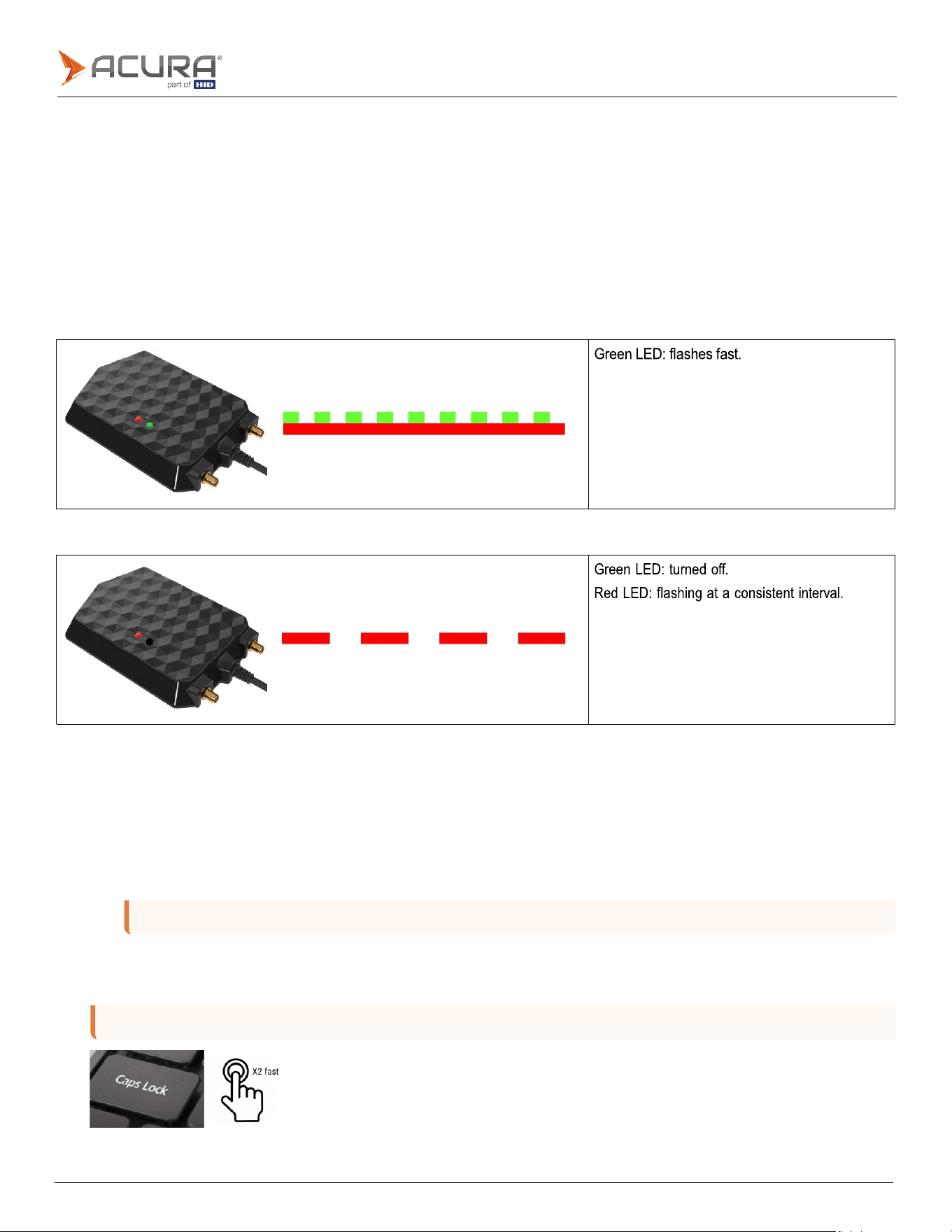
To identify the serial port name created after connecting the reader to USB port, type the following in the Terminal:
$ls /dev/tty.usb*
In the example, serial communication with the reader will be via /dev/tty.usbmodem14101.
Public
Red LED: solid on.
Note: <CR>
indicates a carriage return.
Note:
The command
enablecapslock
enables or disables this function. To use it,
enablecapslock
must be on.
3.3
Reader operating modes
3.3.1
Autonomous mode
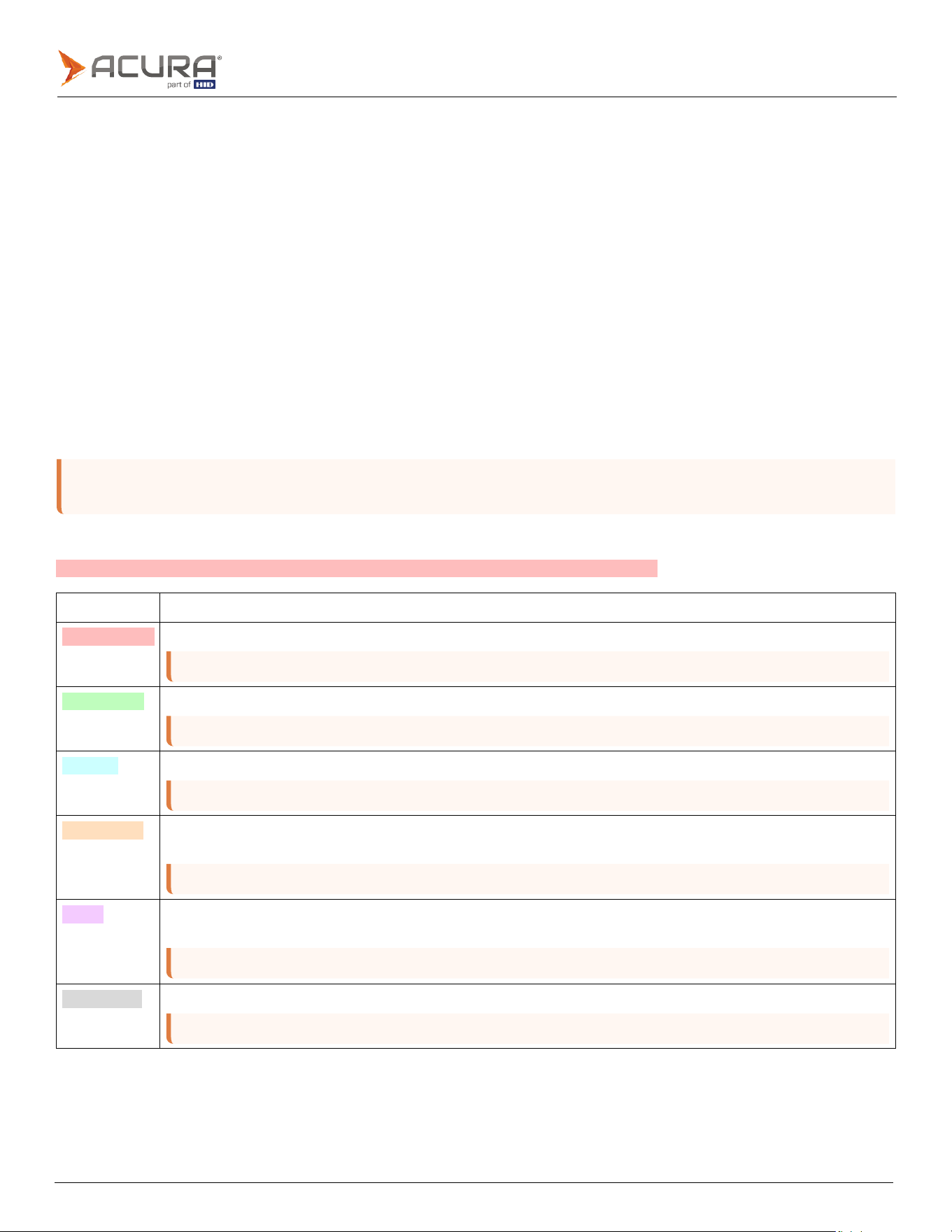
In Autonomous mode, the reader continuously attempts to read a tag. When a tag is successfully read, the information is
transmitted through the configured communication interface. Starting from firmware version 1.1.3, the option to disable
tag reading has been introduced. This is achieved by deactivating the RF signal using the readtag command or the
CapsLock key, effectively putting the reader into an idle state until tag reading is reactivated.
The antennaport command must be used to indicate which antenna will transmit RF.
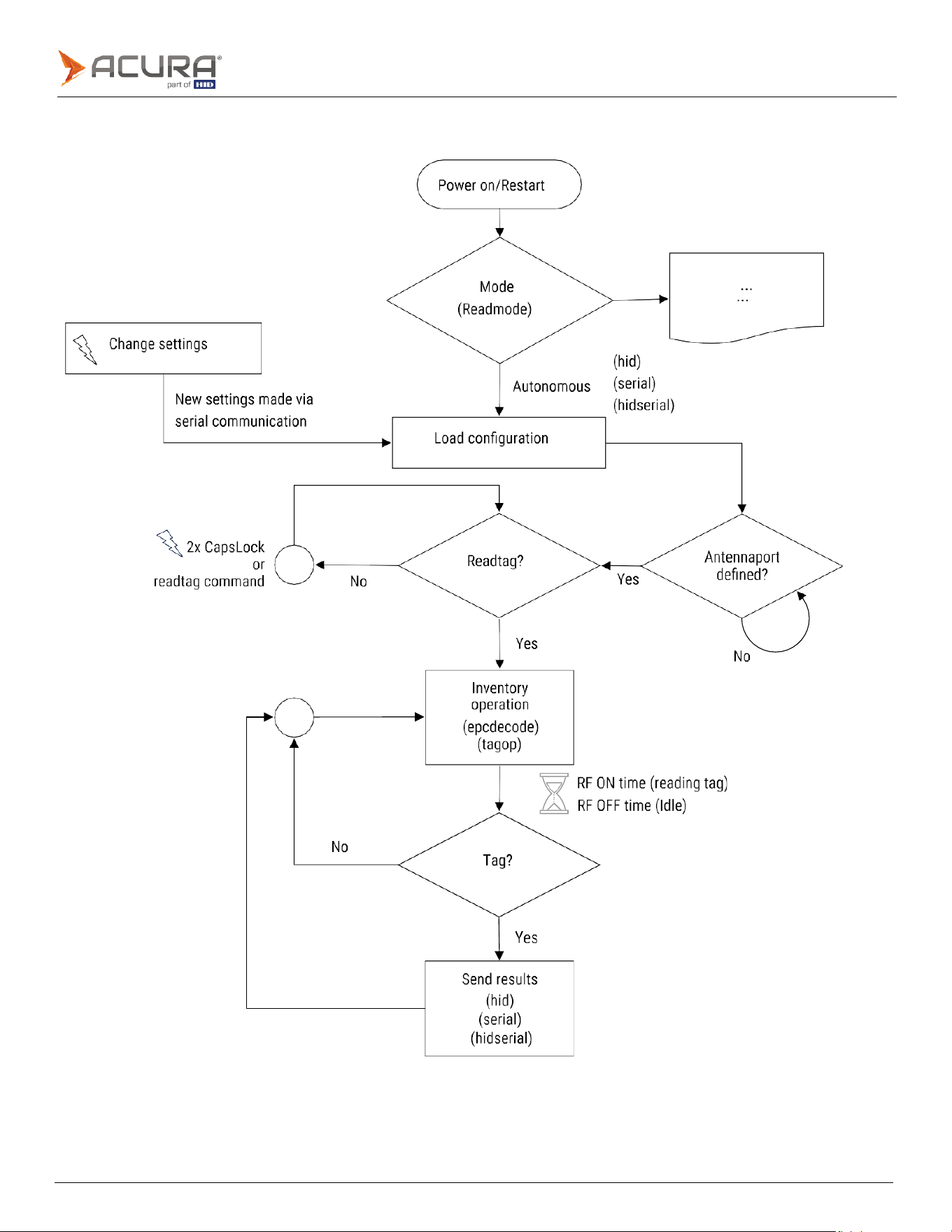
Visual feedback from the reader when it is in Autonomous mode, and performing tag reading:
Visual feedback from the reader when it is in Autonomous mode, and not performing tag reading:
3.3.2
Turning tag reading ON and OFF - Autonomous mode
To turn tag reading ON and OFF, the following options can be used:
1.
Using
the
readtag
command
:
a.
The command readtag off<CR> disables the RF (Radio Frequency) and stops reading tags and results report.
b.
The command readtag on<CR> activates the RF (Radio Frequency) and resumes tag reading and results
report.
2.
Using the Caps Lock key from the keyboard (Windows and Linux only):
To switch between ON and OFF for reading tags, quickly press the Caps Lock key two times, then check that the
readers LEDs flash and the reader beeps.
Public
3.3.3
General diagram
Public
Note:
The size of the result string may vary depending on the tags read. The software that will receive this string,
must always handle it using the
<separator>
and
<endofline>
fields to split the desired fields.
3.3.4
Reading tags engine
The algorithm for reading tags in Autonomous mode is described as follows:
⚫
The tag reading result string format is fixed, not configurable, this is explained in Reading result format section.
⚫
The EPC id of the tag will always be reported by the reader in a format determined by the epcdecode command.
⚫
Additionally, to the EPC id, a tag memory bank read operation, configured by the tagop command, will be reported by
the reader concatenated with a configurable separator character.
⚫
More tag reading data can be included in the tag reading result report, such as readcount and signal level rssi,
separated by the separator character.
If the interface chosen by the readmode command is serial, and a tag is read while there is no connection in the serial
port generated, the reader will generate audible feedback with fast beeps every time the tag is read.
3.3.5
Reading result format
In Autonomous mode, the reader transmits a fixed formatted string containing the results of tag reads via the selected
communication interface.
The format of the string is as follows:
<epcdecode><separator><tagop><separator><readcount><separator><rssi><endofline>
Command
Description
<epcdecode>
EPC
id
read
result,
decoded
as
specified
by
the
epcdecode
command.
Note:
Always
reported
by
the
reader
in
Autonomous
mode.
<separator>
Separator
character
specified
by
the
separator
command.
Note:
It
is
only
reported
by
the
reader
if
there
are
more
fields
in
addition
to
<epcdecode>
to
report.
<tagop>
The
result
of
the
reading
operation
specified
by
the
tagop
command.
Note:
Optional.
<readcount>
The quantity of readings for the same tag during an inventory period. The choice to display this value or not is
determined by the reportreadcount command.
Note:
Optional.
<rssi>
The RF signal level value in dBm and negative of tag response. The decision to display or hide this value is determined by
the reportrssi command.
Note:
Optional.
<endofline>
The
end-of-line
type
is
configured
using
the
endofline
command.
Note:
The
reader
reports
this
in
Autonomous
mode
if
it
is
configured
as
anything
other
than
none.

Public
Note:
To find out on which serial port the reader will connect to, please consult
Turning on the reader
.
3.3.6
Configuring the reader - Autonomous mode
When the reader is in Autonomous mode, the following configurations can be made:
⚫
Type of communication
⚫
Perform tag reading or stay idle
⚫
Reading power, individual for each RF port
⚫
Antenna port to transmit RF
⚫
Reading time
⚫
Idle time
⚫
EPC id tag decoding type
⚫
Reading operation in the tags memory bank
⚫
EPC Gen2 protocol parameters:
⚫
BLF (Backscatter Link Frequency)
⚫
Tari
⚫
Tag Encoding
⚫
Session
⚫
Target
⚫
Q (Anti-collision)
⚫
Access password
⚫
Character that separates the fields in the result string
⚫
Type of end-of-line in the result string
⚫
Typing speed for keyboard emulation
⚫
Filter by RSSI (Received Signal Strength Indicator)
⚫
Show or do not show the RSSI value of the read tag
⚫
Show or do not show the quantity of tag reads
⚫
Audible tag reading alert (beep)
⚫
Check internal temperature, status, and firmware versions
3.3.7
How to set up the reader
When the reader is powered on in Autonomous mode, it must be configured using ASCII commands sent through the
serial port created by the operating system.

Public
Note:
The reader echoes each character typed in the serial terminal, and with each new line the reader sends the
Note:
Only one value must be passed for each command, the reader will not accept more than one value per
command.
3.3.8
Operating logic
The configuration of the reader via ASCII commands works with the Message/Response structure:
1.
An external host sends a command to the reader.
2.
The reader interprets and executes the command included in the received message.
3.
The reader responds to the external host.
The messages and responses use ASCII characters with a carriage return terminator <CR> (13d) (0x0D), which is the
[ENTER] in terminal. The messages may be in uppercase, lowercase, or a mixture of both.
3.3.9
Syntax of messages and responses
The syntax of messages from the host to the reader:
COMMAND
VALUE<CR>
Changes
the
value
of
the
command/parameter.
COMMAND<CR>
Reads
the
value
of
the
command/parameter.
The syntax of reader response messages to host:
RESULT<CR>
Returns
the
result
of
the
execution
of
the
last
command
sent
to
the
reader.
Public
3.3.10
Windows - how to send commands to the reader
To change the readers settings in Autonomous mode, a terminal emulation software can be used. Putty is a free open-
source terminal emulation application: https://www.chiark.greenend.org.uk/~sgtatham/putty/latest.html
To configure Putty:
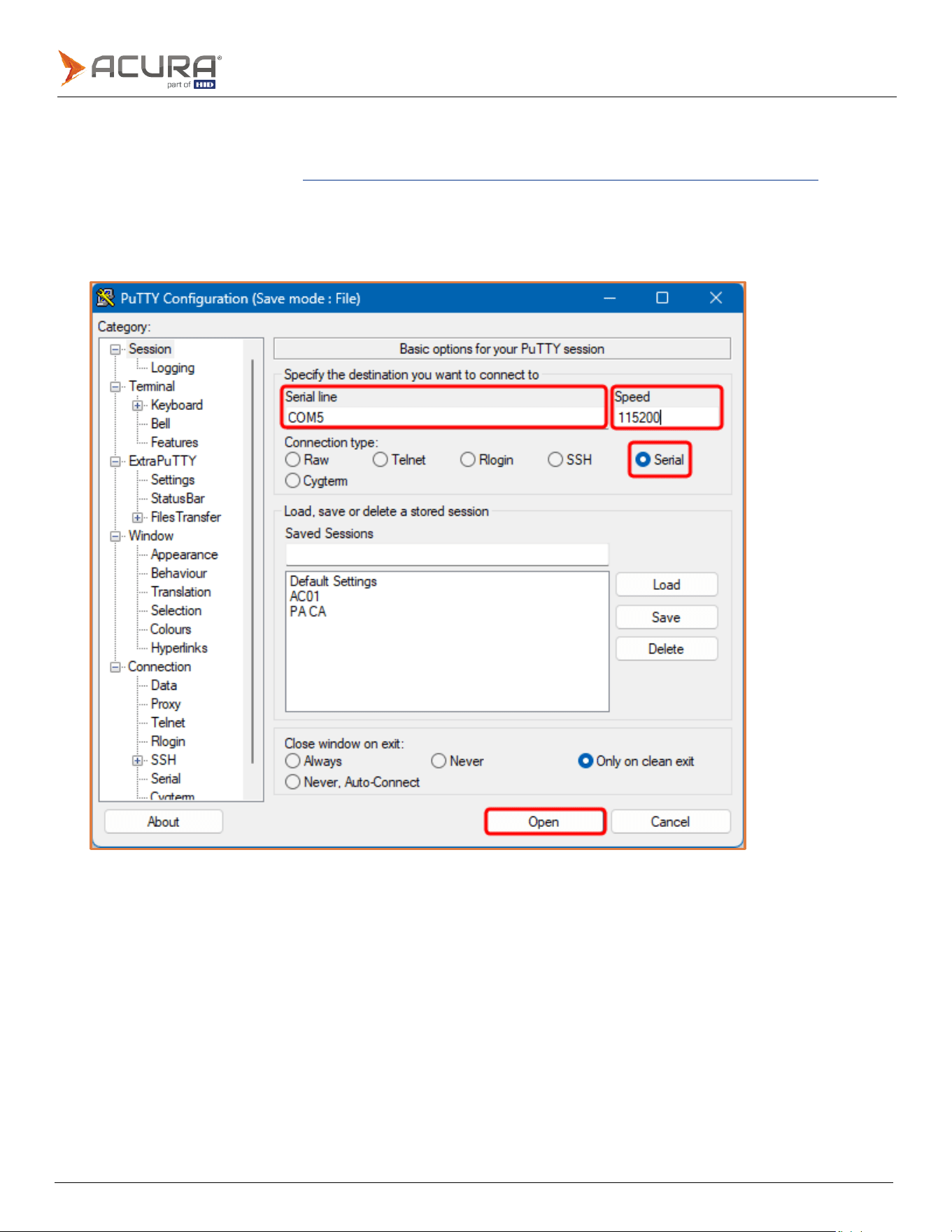
1.
Open Putty and select Connection type: > Serial, enter the Serial line as the port generated by the reader (COMxx)
and set the Speed to 115200.
2.
Click Open to open the terminal screen for entering commands.
Public
Note:
On the Linux operating system, you can also use Putty, see:
Windows - how to send commands to the
reader
.
Note:
To find out on which serial port the reader will respond, please consult
Turning on the reader
.
Note:
In Linux, to have permission to use the serial port, run the command with superuser privileges (sudo) or add
your user to the dialout group using the following command: $ sudo usermod -a -G dialout $USER
For this to take effect, you need to restart the system.
3.3.11
Linux and macOS - how to send commands to the reader
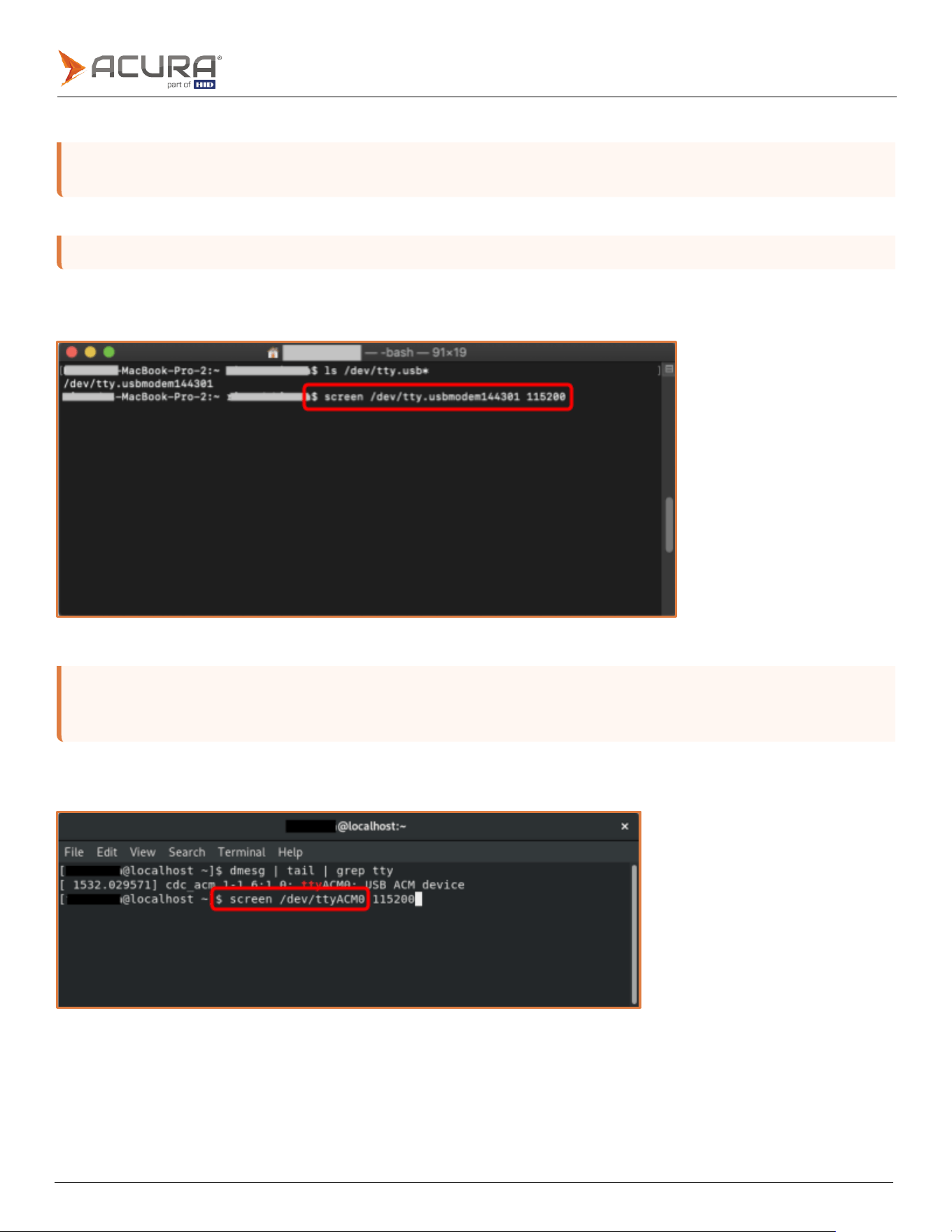
For macOS and Linux, you can use the screen program.
macOS:
$ screen /dev/tty.usbmodemXXXXXX 115200
Linux – using screen:
To connect using the screen:
$ screen /dev/ttyACMx
Public
Note:
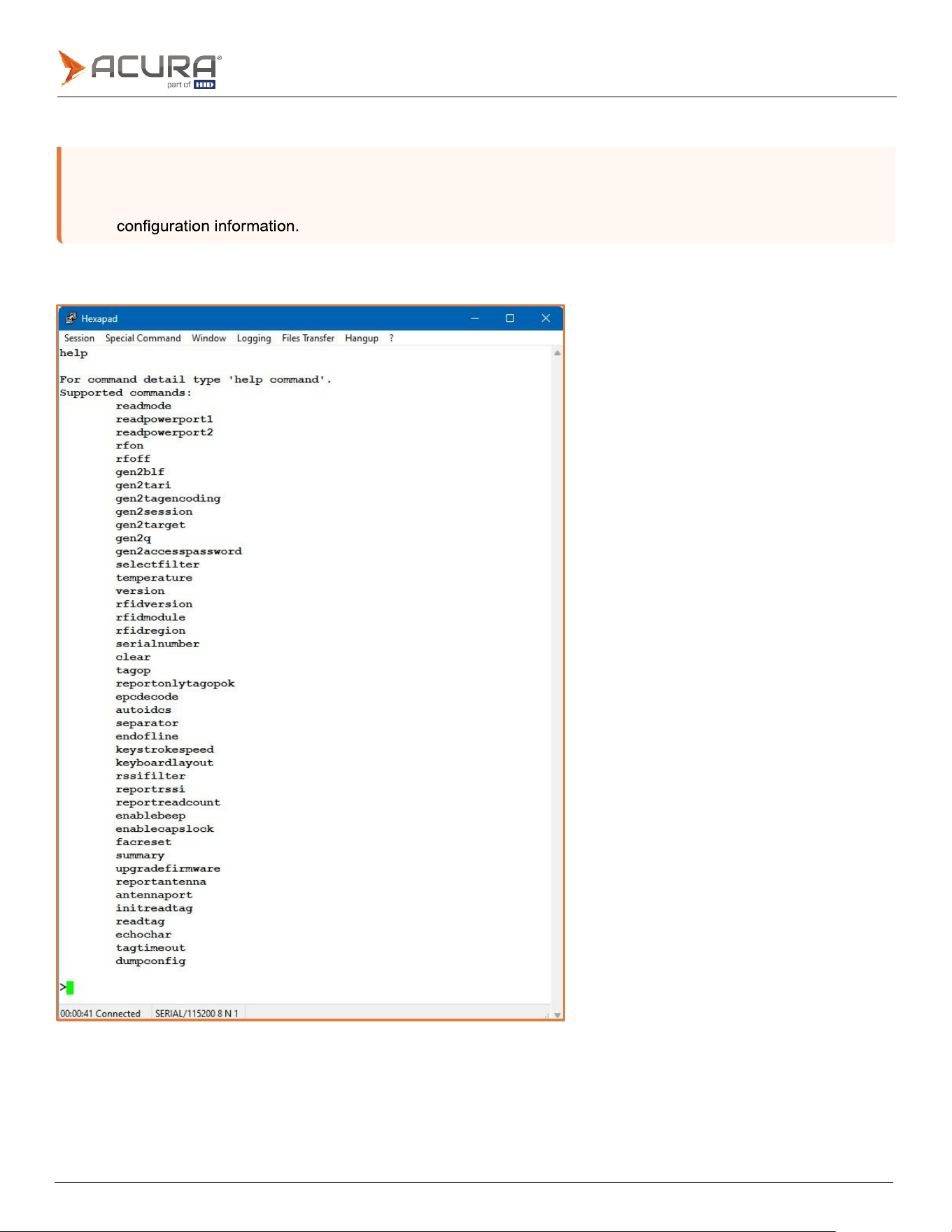
It is not always easy to remember the command name or accepted values, for that, use the
help
command.
When executed without any values, it lists all the commands supported by the reader. To get details on a
specific command, simply type help (command)<CR> – this is a quick way to access the readers
3.4
Configuration commands
3.4.1
help command
Public
3.4.2
summary command
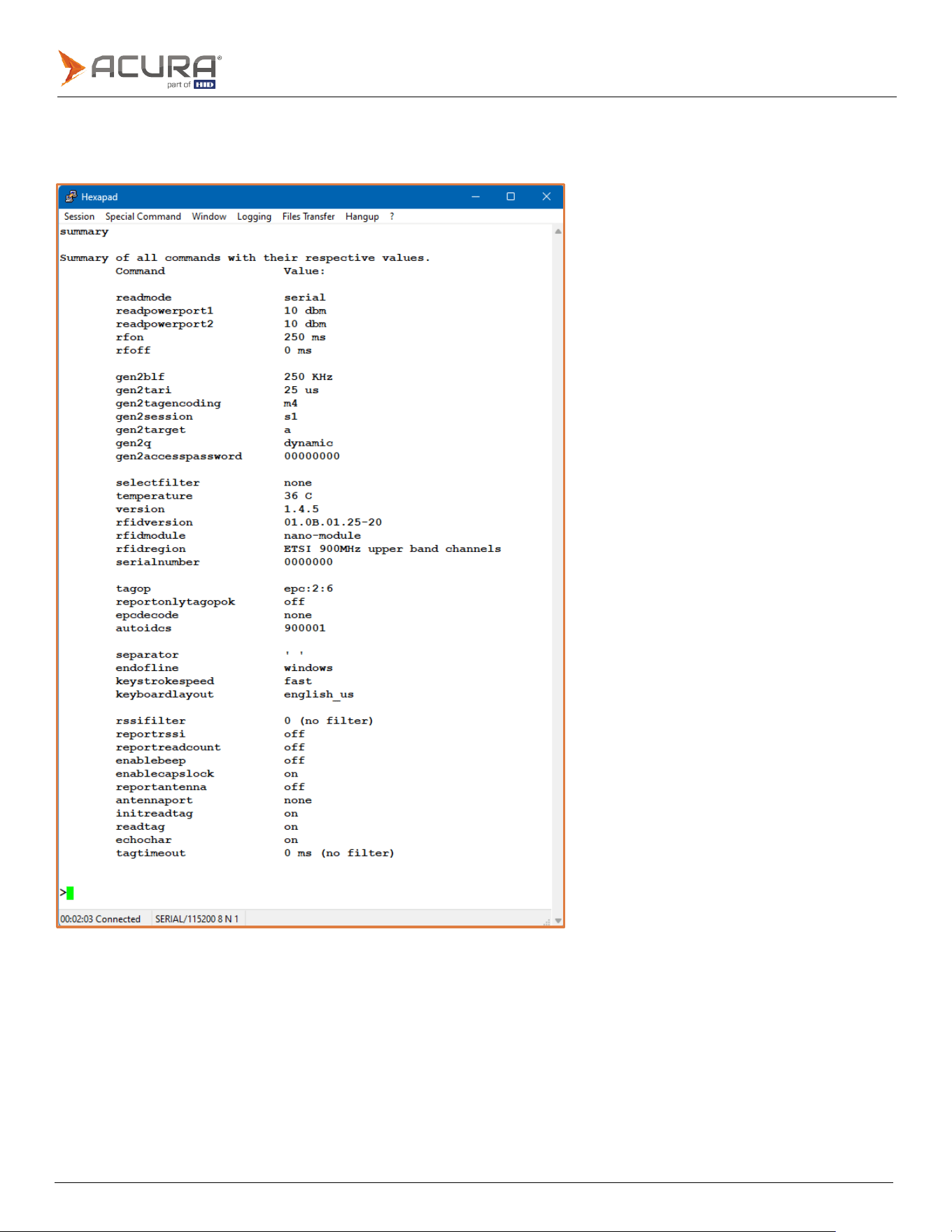
The summary command returns all the current values and status of the reader parameters in a formatted list as follows:
Public
3.4.3
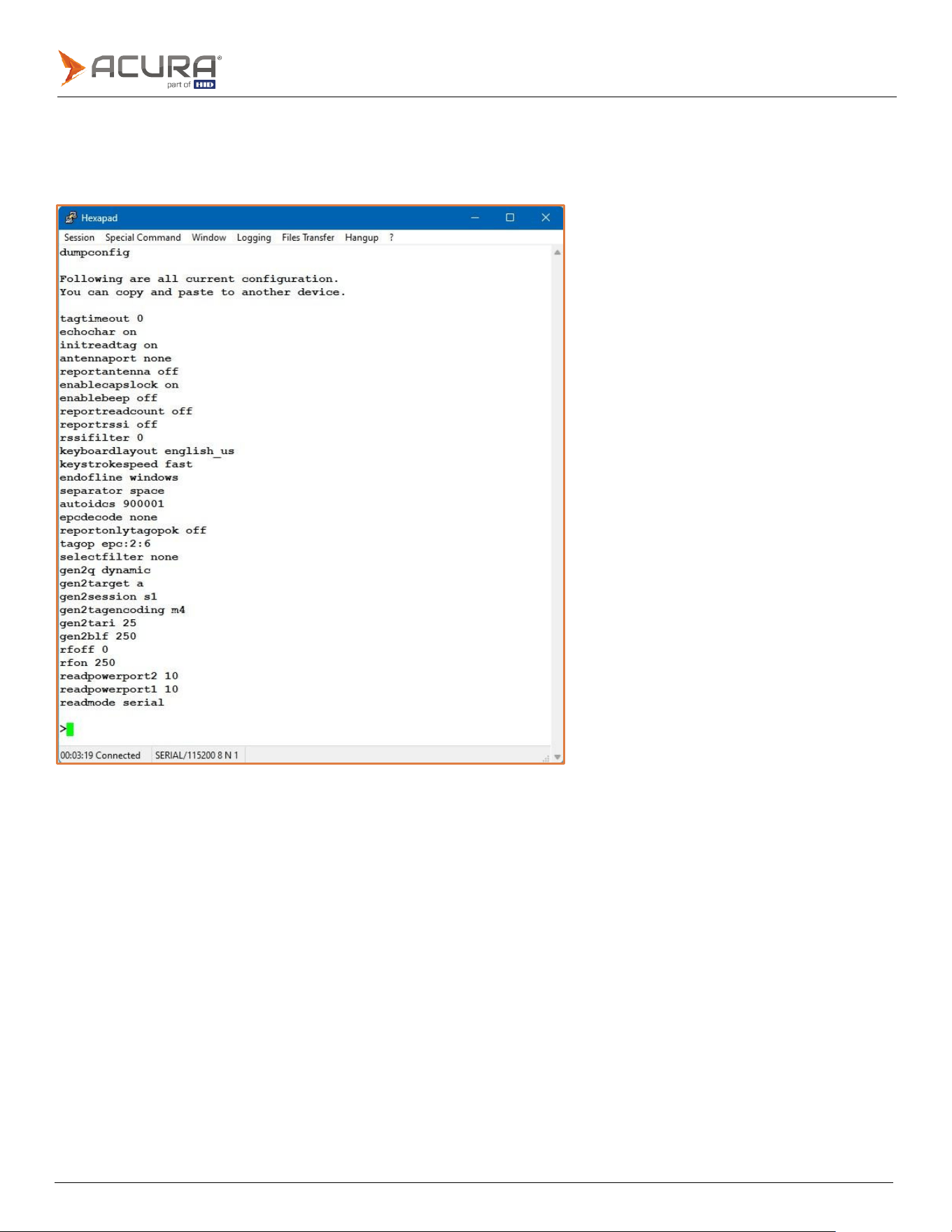
dumpconfig command
The dumpconfig command returns all the current values of the reader parameters in a simple formatted list. This entire
list can be copied from the terminal and be pasted to another terminal connected to another reader.

Public
3.4.4
Summary of configuration commands and default values
Command
Short description
Default value
Operation
readmode
Reader
operating
mode.
hid
readpowerport1
Read
power
in
dBm
for
antenna
port
1.
10
readpowerport2
Read
power
in
dBm
for
antenna
port
2.
10
rfon
Time
in
milliseconds
of
RF
ON.
250
rfoff
Time
in
milliseconds
of
RF
OFF.
250
antennaport
Antenna
port
to
use,
physically
connected.
none
Tag Gen2
protocol
gen2blf
Air
Backscatter
Link
Frequency
in
KHz.
250
gen2tari
Tari
(bit
pulse
length)
in
us.
25
gen2tagencoding
Air
tag-reader
communication
encoding.
m4
gen2session
Tag
Session
value.
s1
gen2target
Tag
Target
value.
a
gen2q
q
value,
which
determine
the
tag
population.
dynamic
gen2accesspassword
Tag
gen2
access
password.
00000000
selectfilter
Tag
select
filter.
none
Tag reading
initreadtag
Initial
state
of
reading
tag.
on
readtag
Current
reading
tag
condition.
on
tagtimeout
Same
tag
id
filter,
in
milliseconds.
0
rssifilter
Filter
by
the
value
of
tag
RSSI
in
dbm.
0
tagop
Read
tag
operation.
none
reportonlytagopok
Report
only
if
the
tagop
was
successfully
executed.
off
epcdecode
How
to
decode
the
tag
EPC.
none
autoidcs
Secure
code
for
the
Acura
Autoid
tags.
900001
Messages
reply
separator
Character
between
the
results
fields.
"space"
endofline
Endofline
for
tag
reads
report
string.
windows
keystrokespeed
Keystroke
speed
for
Wedge
emulation.
fast
keyboardlayout
Layout
for
Wedge
emulation.
english_us
reportrssi
Report
the
tag
rssi
value.
off
reportantenna
Report
the
antenna
the
tag
was
read.
off
reportreadcount
Report
the
tag
readcount
value
of
each
rfon.
off

Public
Command
Short description
Default value
Information
summary
List
all
commands
with
their
respective
values.
temperature
Temperature
of
the
reader
in
Celsius
degree.
version
Processor
firmware
version.
rfidversion
RFID
firmware
version.
rfidmodule
RFID
module
type.
rfidregion
Current
RFID
region.
serialnumber
Reader
serial
number.
dumpconfig
Lists all the current configuration of the device in a format that can be
copied and pasted via terminal in another device.
Miscellaneous
enablebeep
Enable
beep
sound.
on
enablecapslock
CapsLock
to
switch
readmode
Transparent/Hid.
on
echochar
Echo
character
through
serial
comm.
on
facreset
Returns
all
configuration
to
factory
default.
upgradefirmware
Run
the
Bootloader
to
perform
a
firmware
upgrade.
clear
To
clear
the
terminal
screen.
status
Status
of
the
reader.
help
List
all
commands
or
display
details
of
specific
one.

Public
3.4.5
Response messages to commands
Type
Message
Success
ok
-
command
executed.
ok
-
parameter
has
been
changed.
ok
-
parameter
already
has
this
value.
ok
-
transparent
mode
off,
resetting
reader.
!!!
Factory
Reset
in
action
!!!
The
reader
will
be
restarted.
!!!
Bootloader
will
be
executed
!!!
The
reader
will
be
restarted.
Errors
error - command not found.
error - too many args.
error - value not supported for this RF Module.
error - command not supported for this hardware.
error - command not supported for this comm interface.
error - value out of range.
error - gen2 wrong parameters combination.
error - internal buffer full.
error
-
need
a
command
to
send.

Public
3.5
Configuration command descriptions
3.5.1
readmode
Syntax
readmode<CR>
readmode value<CR>
Function
Check
(no
arguments)
or
change
the
mode
of
operation
of
the
reader.
Description
The reader can work in Autonomous mode, with automatic tag readings, or in Transparent mode, where a
software can have full control of the reader for tag reading and writing.
Values
hid
-
Keyboard
emulation
mode.
serial
-
Serial
communication
mode,
the
read
result
is
sent
via
serial
communication
on
the
USB
virtual
port.
hidserial - Keyboard emulation mode and USB Serial, the reading result is sent via keyboard emulation and
via
serial communication on the USB virtual port.
transparent
-
The
reader
must
be
controlled
by
a
software
that
has
full
control
to
read
and
write
tags.
Default
hid
Example
To
get
the
current
operation
mode:
readmode<CR>
hid<CR>
To change the mode of operation (Autonomous reporting via serial only):
readmode serial<CR>
ok
-
parameter
has
been
changed.<CR>
Returns
"value"<CR>
ok - parameter already has this value.<CR>
ok - parameter has been changed.<CR>
error - value out of range<CR>
error
-
too
many
args.<CR>

Public
Note:
The reading power directly influences the tags reading distance, the temperature at which the reader
operates, and its power consumption. We recommend adjusting the reading power according to your specific
application.
3.5.2
readpowerport1
Syntax
readpowerport1<CR>
readpowerport1 value<CR>
Function
Check
(no
arguments)
or
change
the
read
power
in
dBm
for
antenna
port
1.
Description
Tag
reading
distance
is
directly
related
with
the
reading
power.
Values
0..30 for AcuPad-50
0..27 for AcuPad-50 MUX
Default
10
Example
To get the current reading power:
readpowerport1<CR>
10<CR>
To change the reading power to 18 dBm:
readpowerport1 18<CR>
ok
-
parameter
has
been
changed.<CR>
Returns
"value"<CR>
ok - parameter already has this value.<CR>
ok - parameter has been changed.<CR>
error - value out of range<CR>
error
-
too
many
args.<CR>

Public
Note:
The reading power directly influences the tags reading distance, the temperature at which the reader
operates, and its power consumption. We recommend adjusting the reading power according to your specific
application.
3.5.3
readpowerport2
Syntax
readpowerport2<CR>
readpowerport2 value<CR>
Function
Check
(no
arguments)
or
change
the
read
power
in
dBm
for
antenna
port
2.
Description
Tag
reading
distance
is
directly
related
with
the
reading
power.
Values
0..30 for AcuPad-50
0..27 for AcuPad-50 MUX
Default
10
Example
To get the current reading power:
readpowerport2<CR>
10<CR>
To change the reading power to 18 dBm:
readpowerport2 18<CR>
ok
-
parameter
has
been
changed.<CR>
Returns
"value"<CR>
ok - parameter already has this value.<CR>
ok - parameter has been changed.<CR>
error - value out of range<CR>
error
-
too
many
args.<CR>

Public
⚫
The reading results are reported by the reader after the sum of the RF On and RF Off time periods.
⚫
If the application requires reading multiple tags simultaneously, set RF On time to more than 250ms to allow
sufficient time to power up all tags within the readers field.
3.5.4
rfon
Syntax
rfon<CR>
rfon
value<CR>
Function
Check
(no
arguments)
or
change
the
read
time
in
ms
(milliseconds).
Description
The reading time is equivalent to the time when the reader transmits RF power to its antenna. When you
have
large number of tags to read at the same time, the reading time should be increased.
Values
50..5000
Default
250
Note
Tag
reading
results
are
reported
by
the
reader
after
the
sum
rfon
+
rfoff
time
periods.
Example
To get the current reading period:
rfon<CR>
250<CR>
To change the reading time to 320ms:
rfon 320<CR>
ok
-
parameter
has
been
changed.<CR>
Returns
"value"<CR>
ok - parameter already has this value.<CR>
ok - parameter has been changed.<CR>
error - value out of range<CR>
error
-
too
many
args.<CR>

Public
Note:
The reading results are reported by the reader after the sum of the
RF On
and
RF Off
time periods.
3.5.5
rfoff
Syntax
rfoff<CR>
rfoff
value<CR>
Function
Check
(no
arguments)
or
change
the
period
of
RF
idle
in
ms
(milliseconds).
Description
This
is
the
period
of
RF
idle
with
no
tag
reading.
Values
0..1000
Default
250
Note
Tag
reading
results
are
reported
by
the
reader
after
the
sum
rfon
+
rfoff
periods.
Example
To get the current reading period:
rfoff<CR>
250<CR>
To change the RF idle to 0ms:
rfoff 0<CR>
ok
-
parameter
has
been
changed.<CR>
Returns
"value"<CR>
ok - parameter already has this value.<CR>
ok - parameter has been changed.<CR>
error - value out of range<CR>
error
-
too
many
args.<CR>

Public
3.5.6
antennaport
Syntax
antennaport<CR>
antennaport
value<CR>
Function
Get
(no
arguments)
or
set
the
antenna(s)
to
use,
physically
connected.
Description
The
physically
antenna
connected
to
the
reader
must
be
informed
using
this
command.
Values
none
No
antenna
connected,
the
reader
will
keep
in
an
idle
loop.
1
Use
port
1.
2
Use
port
2.
12 or 21
Use
both
ports.
Default
none
Note
It
is
a
good
practice
to
use
this
command
only
after
the
physically
antenna
connection
is
made.
Example
To check the
value:
antennaport<CR
> none<CR>
To use antenna connected on port 2 to read tags:
antennaport 2<CR>
ok
-
parameter
has
been
changed.<CR>
Returns
"value"<CR>
ok - parameter already has this value.<CR>
ok - parameter has been changed.<CR>
error - value out of range<CR>
error
-
too
many
args.<CR>

Public
3.5.7
gen2blf
Syntax
gen2blf<CR>
gen2blf value<CR>
Function
Check
(no
arguments)
or
change
the
"Backscatter
Link
Frequency"
parameter
of
the
Gen2
air
protocol.
Description
BLF
is
the
data
rate
in
KHz
of
transmission
by
air
between
a
tag
and
the
reader.
Values
250
320
640
Default
250
Note
By changing the BLF to 640 or 320 KHz, the tari value and tag encoding will automatically change to 6.25 us
and fm0 respectively.
Example
To get the current
BLF:
gen2blf<CR>
250<CR>
To change the BLF to 640Khz
gen2blf 640<CR>
ok
-
parameter
has
been
changed.<CR>
Returns
"value"<CR>
ok - parameter already has this value.<CR>
ok - parameter has been changed.<CR>
error - value out of range<CR>
error
-
too
many
args.<CR>
error
-
value
not
supported
for
this
RF
Module.<CR>

Public
Note:
The value of Tari should be combined with the value of BLF.
3.5.8
gen2tari
Syntax
gen2tari<CR>
gen2tari
value<CR>
Function
Check
(no
arguments)
or
change
the
"Tari"
parameter
of
the
Gen2
air
protocol.
Description
Tari
is
the
time
in
us
(microseconds)
of
the
pulse
of
each
bit
transmitted
by
the
tag.
Values
6.25
12.5
25
Default
25
Note
Values
12.5
us
and
25
us
can
only
be
set
if
the
gen2blf
is
set
to
250
KHz.
The values 6.25 us and 12.5 us are supported only by the internal RF module micro-module type, which can be
checked by rfidmodule command.
Example
To get the current Tari:
gen2tari<CR>
25<CR>
To change the Tari to 6.25Khz
gen2tari 6.25<CR>
ok
-
parameter
has
been
changed.<CR>
Returns
"value"<CR>
ok - parameter already has this value.<CR>
ok - parameter has been changed.<CR>
error - value out of range<CR>
error
-
too
many
args.<CR>
error - value not supported for this RF Module.<CR>
error - gen2 wrong parameters combination.<CR>

Public
3.5.9
gen2tagencoding
Syntax
gen2tagencoding<CR>
gen2tagencoding value<CR>
Function
Check
(no
arguments)
or
change
the
"Tag
data
encoding"
parameter
of
the
Gen2
air
protocol.
Description
It
is
the
encoding
format
of
the
tag
response.
Values
fm0
m2
m4
m8
Default
m4
Note
m2,
m4
and
m8
can
only
be
configured
if
the
blf
is
250
KHz.
fm0 has a low read sensitivity rate but a higher speed in decoding each bit.
m8 has a high read sensitivity rate but a lower speed in decoding each
bit.
Example
To get the current
Tari:
gen2tagencoding<CR>
m4<CR>
To change the Encoding format to FM0Khz
gen2tagencoding FM0<CR>
ok
-
parameter
has
been
changed.<CR>
Returns
"value"<CR>
ok - parameter already has this value.<CR>
ok - parameter has been changed.<CR>
error - value out of range<CR>
error
-
too
many
args.<CR>
error - value not supported for this RF Module.<CR>
error - gen2 wrong parameters combination.<CR>

Public
3.5.10
gen2session
Syntax
gen2session<CR>
gen2session value<CR>
Function
Check
(no
arguments)
or
change
the
"Session"
parameter
the
Gen2
air
protocol
inventory
operation.
Description
In
which
session
the
reader
will
read
the
tag.
Values
s0
s1
s2
s3
Default
s1
Note
The
combination
of
gen2session
and
gen2target
values
reflects
the
read
rate
of
the
same
tag.
Example
To get the current Session:
gen2session<CR>
s1<CR>
To change the Session to S0
gen2session s0<CR>
ok
-
parameter
has
been
changed.<CR>
Returns
"value"<CR>
ok - parameter already has this value.<CR>
ok - parameter has been changed.<CR>
error - value out of range<CR>
error
-
too
many
args.<CR>

Public
3.5.11
gen2target
Syntax
gen2target<CR>
gen2target value<CR>
Function
Check
(no
arguments)
or
change
the
"Target",
or
Inventory
Flag
of
the
Gen2
air
protocol.
Description
Which
inventory
flag
(target),
the
reader
should
search
for
a
tag.
Values
a
b
ab
ba
Default
a
Note
The
combination
of
gen2session
and
gen2target
values
reflects
the
read
rate
of
the
same
tag.
Example
To get the current Target:
gen2target<CR>
a<CR>
To change the Target to
ab
gen2target ab<CR>
ok
-
parameter
has
been
changed.<CR>
Returns
"value"<CR>
ok - parameter already has this value.<CR>
ok - parameter has been changed.<CR>
error - value out of range<CR>
error
-
too
many
args.<CR>

Public
Note:
Use
gen2q
as
dynamic
if the quantity of tags in the reading field varies or is unknown.
3.5.12
gen2q
Syntax
gen2q<CR>
gen2q value<CR>
Function
Check
(no
arguments)
or
change
the
"Q"
parameter
of
the
Gen2
air
protocol.
Description
It is a numeric value that the reader uses to regulate the probability of a tags response, used for anti-collision
when
multiple
tags
are
in
the
readers
reading
field.
2^q
equals
the
number
of
tags
to
be
read
at
the
same
time.
Values
dynamic - The reader automatically adjusts the Q value during readings.
0..15 - Fixed value for 2^q number of tags in the reading field of the
reader.
Default
dynamic
Note
If the number of tags to be read at the same time varies, leave the q value in dynamic, so the reader
automatically adjusts the best value for each reading.
Example
To
get
the
current
Q
value:
gen2q<CR>
dynamic<CR>
To change the Q value to an estimated tag population of 8 tags.
gen2q 3<CR>
ok
-
parameter
has
been
changed.<CR>
Returns
"value"<CR>
ok - parameter already has this value.<CR>
ok - parameter has been changed.<CR>
error - value out of range<CR>
error
-
too
many
args.<CR>

Public
Note:
To read the protected memory region of the tag (Reserved), the tags access password must be provided to
the reader through this command.
3.5.13
gen2accesspassword
Syntax
gen2accesspassword<CR>
gen2accesspassword value<CR>
Function
Check
(no
arguments)
or
change
the
"Access
password"
of
the
tag.
Description
It
is
32
bits
length
hexa
number.
Values
00000000..ffffffff
Default
0
Note
To read the reserved memory bank of the tag with the tagop command, the password must be the same as
the tag.
Example
To get the current access password:
gen2accesspassword<CR>
00000000<CR>
To change the access password to 12345678.
gen2accesspassword 12345678<CR>
ok
-
parameter
has
been
changed.<CR>
Returns
"value"<CR>
ok - parameter already has this value.<CR>
ok - parameter has been changed.<CR>
error - value out of range<CR>
error
-
too
many
args.<CR>

Public
3.5.14
selectfilter
Syntax
selectfilter<CR>
selectfilter value<CR>
Function
Check
(no
arguments)
or
set
the
Select
filter
tag
using
a
mask
value
in
a
specific
bank.
Description
This filter allows you to specify which tags should respond in an inventory. This feature allows you to isolate
specific tags in large population. Tags that do not match the specified filter will not transmit a response, which
greatly reduces the amount of RF traffic.
Values
res:mask:bp:bl - Reserved bank.*
epc:mask:bp:bl - EPC bank.*
tid:mask:bp:bl - TID bank.*
user:mask:bp:bl - User bank.*
none - No Select filter.
*
mask
-
mask
value
[hexa],
bp
-
bit
pointer,
bl
-
bit
length,
max
96.
Default
none
Example
To get the current Select filter:
selectfilter<CR>
none<CR>
To read only tags with EPC id starting with 0xAC01:
selectfilter epc:AC01:32:16
ok
-
parameter
has
been
changed.<CR>
Returns
"value"<CR>
ok - parameter already has this value.<CR>
ok - parameter has been changed.<CR>
error - value out of range<CR>
error
-
too
many
args.<CR>

Public
3.5.15
initreadtag
Syntax
initreadtag<CR>
initreadtag value<CR>
Function
Check
(no
arguments)
or
set
the
read
tag
state
(on/off)
of
the
reader
when
it
is
initialized.
Description
The
reader
can
always
be
preset
to
have
the
RF
signal
either
turned
off
or
turned
on
when
initialized.
Values
on
off
Default
on
Example
To check the initreadtag value:
initreadtag<CR>
on<CR>
To disable the reader (RF signal) when it is initialized:
initreadtag off<CR>
ok
-
parameter
has
been
changed.<CR>
Returns
"value"<CR>
ok - parameter already has this value.<CR>
ok - parameter has been changed.<CR>
error - value out of range<CR>
error
-
too
many
args.<CR>

Public
3.5.16
readtag
Syntax
readtag<CR>
readtag value<CR>
Function
Check
(no
arguments)
or
turn
RF
on/off.
Description
Enables
or
disables
tag
reading
by
turning
off
the
readers
RF
signal.
Values
on - Enables tag reading, RF on.
off - Disables tag reading, RF idle.
Default
Depends
on
how
initreadtag
is
setup.
Volatile
data.
Note
RF
on/off
can
be
toggled
by
pressing
2x
fast
the
CapsLock
key,
the
enablecapslock
must
be
set
to
on.
Example
To check the current value:
readtag<CR>
on<CR>
To change the RF to idle:
readtag off<CR>
ok
-
parameter
has
been
changed.<CR>
Returns
"value"<CR>
ok - parameter already has this value.<CR>
ok - parameter has been changed.<CR>
error - value out of range<CR>
error
-
too
many
args.<CR>

Public
3.5.17
tagtimeout
Syntax
tagtimeout<CR>
tagtimeout value<CR>
Function
Check (no arguments) or change the reading interval time in milliseconds (ms) for the same reported tag
(same EPC filter).
Description
With
this
time
filter
it
is
possible
to
manipulate
the
same
tag
read
rate.
Values
0..300000
(time
in
milliseconds)
Default
0
ms
Example
To check the reading interval time of the same tag:
tagtimeout<CR>
1000<CR>
To change the reading interval time of the same tag to 500 ms (0.5 s):
tagtimeout 500<CR>
ok
-
parameter
has
been
changed.<CR>
Returns
"value"<CR>
ok - parameter already has this value.<CR>
ok - parameter has been changed.<CR>
error - value out of range<CR>
error
-
too
many
args.<CR>

Public
Note:
The filter based on the tags RSSI value is used to restrict undesired reading areas around the reader. It should
always be used in conjunction with the reading power.
3.5.18
rssifilter
Syntax
rssifilter<CR>
rssifilter
value<CR>
Function
Check
(no
arguments)
or
change
the
cutoff
value
of
the
RSSI
filter
for
reading.
Description
The signal level of the tag indicates whether the tag is near or away from the antenna, when closer to
the
antenna, the stronger the RSSI (closer to zero) and vice versa. If a value is specified for the filter, only
tags
with RSSI equal to or greater than that specified will be reported by the reader.
The signal level of the tag is measured in dBm and is a negative value, for example, the power in Watts is
always less than 1mW.
Values
0..99
Default
0
Notes
To
disable
the
filter,
write
the
value
0.
The
specified
value
should
not
contain
the
minus
sign.
Example
To check the RSSI filter value:
rssifilter<CR>
0<CR>
To change the RSSI filter value to 45:
rssifilter 45<CR>
ok
-
parameter
has
been
changed.<CR>
Returns
"value"<CR>
ok - parameter already has this value.<CR>
ok - parameter has been changed.<CR>
error - value out of range<CR>
error
-
too
many
args.<CR>

Public
3.5.19
tagop
Syntax
tagop<CR>
tagop
value<CR>
Function
Check
(no
arguments)
or
change
the
tag
read
operation.
Description
With
the
tag
read
operation,
it
is
possible
to
read
any
memory
bank
of
the
tag.
Values
none - No memory bank read operation.
autoid - Reads Acura Autoid System tags.
reserved:wp:wl - Reads the Reserved memory bank of the tag.
epc:wp:wl - Reads the EPC memory bank of the tag.
tid:wp:wl
-
Reads
the
TID
memory
bank
of
the
tag.
user:wp:wl
-
Reads
the
USER
memory
bank
of
the
tag.
Default
none
Note
wp
-
word
pointer,
indicates
the
initial
word
(16
bits)
read
position
in
the
specified
memory
bank.
wl - word length, indicates the number of words to read in the specified memory bank. Maximum value for wp
and wl is 32.
To
read
the
entire
memory
bank,
simply
specify
zero
for
wp
and
wl.
Example
To read all the contents of the User memory bank of the tag:
tagop user:0:0<CR>
ok
-
parameter
has
been
changed.<CR>
To read four words of the Tid memory bank from the second word:
tagop tid:2:4<CR>
ok
-
parameter
has
been
changed.<CR>
To not read any specific tag memory bank, just the EPC number:
tagop none<CR>
ok
-
parameter
has
been
changed.<CR>
Returns
ok - parameter already has this value.<CR>
ok - parameter has been changed.<CR>
error - value out of range<CR>
error
-
too
many
args.<CR>

Public
3.5.20
reportonlytagopok
Syntax
reportonlytagopok <CR>
reportonlytagopok value<CR>
Function
Check
(no
arguments)
or
set
the
choice
of
report
only
if
the
tagop
was
successfully
executed.
Description
This command is used to force the reader to send only the results when the tagop command is executed
successfully.
Values
on
off
Default
off
Note
This
has
effect
only
if
the
command
tagop
is
other
than
none.
Example
To check the reportonlytagopok value:
reportonlytagopok <CR>
off<CR>
To change the value to set the reportonlytagopok on:
reportonlytagopok on <CR>
ok
-
parameter
has
been
changed.<CR>
Returns
ok - parameter already has this value.<CR>
ok - parameter has been changed.<CR>
error - value out of range<CR>
error
-
too
many
args.<CR>

Public
3.5.21
epcdecode
Syntax
epcdecode<CR>
epcdecode value<CR>
Function
Check
(no
arguments)
or
change
the
type
of
decodification
will
be
used
to
process
the
EPC
id
of
the
tag.
Description
The
tag
to
be
read
can
be
encoded
for
a
specific
application;
for
example,
in
checkout
applications,
the
tag
will
be encoded using the GS1 standard, while in maintenance applications, the tag may be encoded
using the ASCII table. The EPCID decoding provides a readable result for each respective application.
Values
none - No decoding is performed and the epcid result of the tag is reported in hexadecimal.
gs1string - GS1 standard, that returns the "GS1 element string".
gs1epcuri - GS1 standard, that returns the "EPC Tag URI".
gs1epcpureuri - GS1 standard, that returns the "EPC Pure Identity URI".
gs1gtin13 - GS1 standard, that returns code GTIN13 without the serial number.
gs1sgtin13 - GS1 standard, that returns code GTIN13 + serial number.
gs1crystal - Crystal custom standard, that returns GTIN13 + RFID + serial
12. ascii - Decodes the EPCID of the tag according to the Ascii table.
wiegand26 - Decodes the last 3 bytes of tag EPCID in Sitecode + ID.
magstripe - Decodes the last 4 bytes of the EPCID of the tag in decimal.
decimal:dp:dl - Decimal value of EPC split range of dp:dl.
mid:dp:dl
-
Substring
of
EPC
in
hexadecimal.
Max
of
64
digits.
Default
None
Note
For
the
GS1
standard,
the
sgtin-96
and
sgtin-198
schemes
are
supported.
The
wiegand26
and
magstripe
values
can
be
used
in
conjunction
with
the
autoid
type
tagop.
If the reader is set to a specific epcdecode type and the tag being reading has a wrong format, a beep sound
pattern different from the read sound pattern is executed by the reader.
dp
-
digit
pointer,
indicates
the
initial
digit
to
read
in
the
EPC.
dl - digit length, indicates the number of digits to read in the EPC.
Maximum value for dl is 64.
Example
To read the GTIN13 + serial number of a tag encoded using the GS1 standard:
epcdecode gs1sgtin13<CR>
ok
-
parameter
has
been
changed.<CR>
To read the GS1 element string of a tag encoded using the GS1 standard:
epcdecode gs1string<CR>
ok
-
parameter
has
been
changed.<CR>
Returns
ok - parameter already has this value.<CR>
ok - parameter has been changed.<CR>
error - value out of range<CR>
error
-
too
many
args.<CR>

Public
Note:
The separator character, along with the end-of-line, should be used to split the result string by the software
that will receive this string.
3.5.22
separator
Syntax
separator<CR>
separator value<CR>
Function
Check
(no
arguments)
or
change
the
separation
character
of
the
fields
of
the
reading
result
of
a
tag.
Description
It
is
a
character
that
separates
the
fields
in
the
tag
reading
result
string.
Values
space
To
have
a
space
as
a
separator.
‘char’
Any
readable
character
in
the
Ascii
table.
Default
' ' (space)
Notes
For
space,
you
must
write
space
as
a
value
for
the
command.
Example
To check the
separator:
separator<CR>
space<CR>
To change the tab to
'|':
separator |<CR>
ok
-
parameter
has
been
changed.<CR>
Returns
ok - parameter already has this value.<CR>
ok - parameter has been changed.<CR>
error - value out of range<CR>
error
-
too
many
args.<CR>

Public
Note:
The separator character, along with the end-of-line, should be used to split the result string by the software
that will receive this string.
3.5.23
endofline
Syntax
endofline<CR>
endofline value<CR>
Function
Check
(no
arguments)
or
change
the
end-of-line
character.
Description
Get
(no
arguments)
or
set
the
endofline
for
tag
reads
report
string.
Values
windows:qt
Windows
standard
end-of-line
<CR><LF>.
unix:qt
Unix
standard
end-of-line
<LF>.
macintosh:qt
macOS
standard
end-of-line
<CR>.
tab:qt
The
end-of-line
will
be
the
tabulation
character
Tab.
none
No
end-of-line
in
the
result
string.
Default
windows
Notes
qt - Number of end-of-line repetitions, values 1 to 10.
If
:qt
is
omitted,
it
is
considered
only
one
end
of
line.
Example
To check which end-of-line is configured:
endofline<CR>
windows<CR>
To change the end of line to Tab and repeat 3 times:
endofine tab:3<CR>
ok
-
parameter
has
been
changed.<CR>
To change the end-of-line to Windows and repeat it 5 times:
endofline windows:5<CR>
ok
-
parameter
has
been
changed.<CR>
Returns
ok - parameter already has this value.<CR>
ok - parameter has been changed.<CR>
error - value out of range<CR>
error
-
too
many
args.<CR>

Public
Note:
This value should only be changed if the Host that will receive the result string via keyboard emulation
experiences issues due to the typing speed exerted by the reader.
3.5.24
keystrokespeed
Syntax
keystrokespeed<CR>
keystrokespeed value<CR>
Function
Check
(no
arguments)
or
change
the
typing
speed
of
the
keyboard
emulation.
Description
The typing speed in keyboard emulation, when readmode is as hid or hidserial, can be changed to three
different values (fast, medium, and slow).
Values
fast
Keystroke
at
fast
speed,
T=4ms.
medium
Keystroke
at
medium
speed,
T=32ms.
slow
Keystroke
at
slow
speed,
T=64ms.
Default
fast
Example
To check the typing
speed:
keystrokespeed<CR>
fast<CR>
To change to slow speed:
keystrokespeed slow<CR>
ok
-
parameter
has
been
changed.<CR>
Returns
ok - parameter already has this value.<CR>
ok - parameter has been changed.<CR>
error - value out of range<CR>
error
-
too
many
args.<CR>

Public
3.5.25
reportrssi
Command
reportrssi<CR>
reportrssi value<CR>
Function
Check
(no
arguments)
or
change
the
transmission
of
the
RSSI
value
from
the
read
tag.
Description
Enables
or
disables
sending
the
RSSI
value
of
the
tag
read
in
the
result
string.
Values
on
off
Default
off
Notes
The
RSSI
value
is
reported
with
the
negative
sign
'-'.
Example
To
check
the
value:
reportrssi<CR>
off<CR>
To change the value to include the RSSI value in the result string:
reportrssi on<CR>
ok
-
parameter
has
been
changed.<CR>
Returns
ok - parameter already has this value.<CR>
ok - parameter has been changed.<CR>
error - value out of range<CR>
error
-
too
many
args.<CR>

Public
3.5.26
reportantenna
Command
reportantenna<CR>
reportantenna value<CR>
Function
Check
(no
arguments)
or
change
the
transmission
of
the
antenna
from
the
read
tag.
Description
Enables
or
disables
sending
the
antenna
the
tag
was
read
in
the
result
string.
Values
on
off
Default
off
Example
To
check
the
value:
reportrssi<CR>
off<CR>
To change the value to include the RSSI value in the result string:
reportrssi on<CR>
ok
-
parameter
has
been
changed.<CR>
Returns
ok - parameter already has this value.<CR>
ok - parameter has been changed.<CR>
error - value out of range<CR>
error
-
too
many
args.<CR>

Public
3.5.27
reportreadcount
Syntax
reportreadcount<CR>
reportreadcount value<CR>
Function
Check
(no
arguments)
or
change
the
transmission
of
the
tags
read
quantity.
Description
Enables
or
disables
the
transmission
of
the
tags
read
quantity
during
the
"rfon"
period
in
the
result
string.
Values
on
off
Default
off
Notes
The
maximum
value
for
the
read
quantity
is
255.
Example
To
check
the
value:
reportreadcount<CR>
off<CR>
To change the value to include the read quantity in the result string:
reportreadcount on<CR>
ok
-
parameter
has
been
changed.<CR>
Returns
ok - parameter already has this value.<CR>
ok - parameter has been changed.<CR>
error - value out of range<CR>
error
-
too
many
args.<CR>
3.5.28
temperature
Syntax
temperature<CR>
Function
Check
(no
arguments)
the
internal
temperature
of
the
reader
in
Celsius
degree.
Errors
error
-
too
many
args.<CR>
3.5.29
summary
Syntax
summary<CR>
Function
Lists
all
the
values
configured
in
the
reader.
Errors
error
-
too
many
args.<CR>
3.5.30
version
Syntax
version<CR>
Function
Get
(no
arguments)
the
processor
firmware
version.
Errors
error
-
too
many
args.<CR>
Public
Note:
The readers regional configuration is established within the firmware.
3.5.31
rfidversion
Syntax
rfidversion<CR>
Function
Get
(no
arguments)
the
RFID
firmware
version.
Errors
error
-
too
many
args.<CR>
3.5.32
rfidmodule
Syntax
rfidmodule<CR>
Function
Get
(no
arguments)
the
RFID
module
type.
Errors
error
-
too
many
args.<CR>
3.5.33
rfidregion
Syntax
rfidregion<CR>
Function
Get
(no
arguments)
the
current
RFID
region.
Errors
error
-
too
many
args.<CR>
3.5.34
serialnumber
Syntax
serialnumber<CR>
Function
Get
(no
arguments)
the
reader
serial
number.
Errors
error
-
too
many
args.<CR>
3.5.35
dumpconfig
Syntax
dumpconfig<CR>
Function
Lists all the current configuration of the device in a format that can be copied and pasted via terminal in
another device.
Description
This
command
can
compile
a
list
of
the
present
reader
configurations,
streamlining
the
process
of
archiving
or duplicating them across other readers with greater efficiency.
Errors
error
-
too
many
args.<CR>

Public
3.5.36
enablebeep
Syntax
enablebeep<CR>
enablebeep value<CR>
Function
Check
(no
arguments)
or
change
the
beep
with
each
reading
of
the
tag.
Description
Enables
or
disables
beeping
with
each
tag
reading.
Values
on
off
Default
on
Example
To check the
value:
enablebeep<CR
> off<CR>
To turn off the tag read alert sound:
enablebeep off<CR>
ok
-
parameter
has
been
changed.<CR>
Returns
ok - parameter already has this value.<CR>
ok - parameter has been changed.<CR>
error - value out of range<CR>
error
-
too
many
args.<CR>

Public
Note:
For more details on changing the readers operating mode, please refer to
Switching between Autonomous
and Transparent modes
.
3.5.37
enablecapslock
Syntax
enablecapslock<CR>
enablecapslock value<CR>
Function
Check
(no
arguments)
or
change
the
use
of
the
shortcut
to
change
read
mode.
Description
Enables or disables the use of the CapsLock 5x quick-type key, to switch between Autonomous and
Transparent modes.
Values
on
off
Default
on
Notes
This
feature
only
works
on
Windows
and
Linux
operating
systems.
An
alternative
to
exit
Transparent
mode
is
to send the command $ off<CR> to the reader.
Example
To check the
value:
enablecapslock<CR>
off<CR>
To change the value to disable shortcut use:
enablecapslock on<CR>
ok
-
parameter
has
been
changed.<CR>
Returns
ok - parameter already has this value.<CR>
ok - parameter has been changed.<CR>
error - value out of range<CR>
error
-
too
many
args.<CR>

Public
3.5.38
echochar
Syntax
echochar<CR>
echochar value<CR>
Function
Check
(no
arguments)
or
turn
echo
on/off.
Description
Enables
or
disables
the
echo
of
each
byte
sent
by
serial
communication
in
Autonomous
mode.
Values
on
off
Default
on
Notes
When configured to off" typing in terminal software will not appear unless character echoing is set up in the
terminal software.
It is recommended to turn off the echochar when custom developed software will send the ASCII commands
to the reader.
Example
To check the
value:
echochar<CR>
on<CR>
To disable the echo of sent bytes:
echochar off<CR>
ok
-
parameter
has
been
changed.<CR>
Returns
ok - parameter already has this value.<CR>
ok - parameter has been changed.<CR>
error - value out of range<CR>
error
-
too
many
args.<CR>
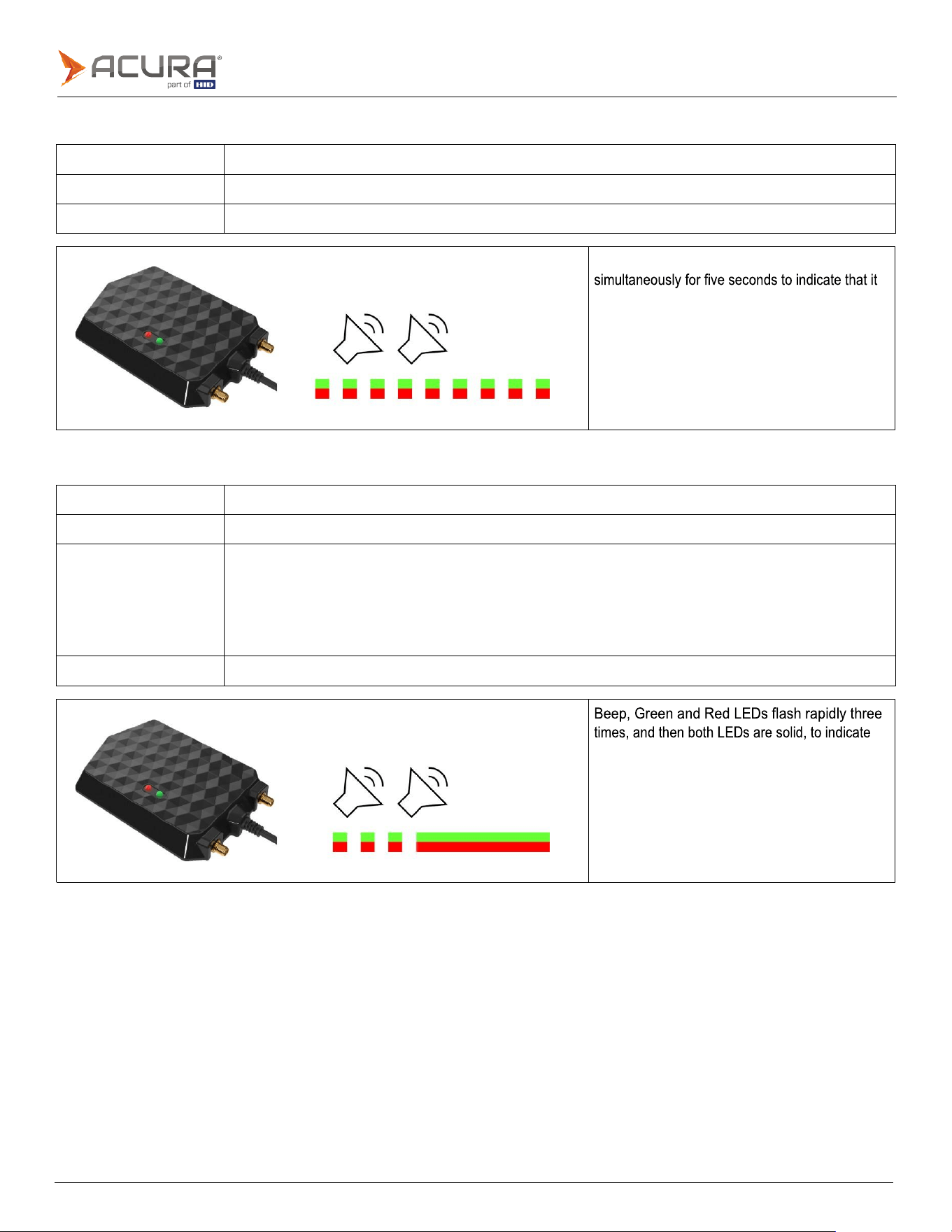
Public
Beep, Green and Red LEDs flash rapidly
is in the factory reset process.
the bootloader execution.
3.5.39
facreset
Syntax
facreset<CR>
Function
Returns
all
values
to
the
factory
default.
Errors
error
-
too
many
args.<CR>
3.5.40
upgradefirmware
Syntax
upgradefirmware<CR>
Function
Starts
the
reader
firmware
update
process.
Example
To check the commands accepted by the reader:
help<CR>
command
list...
<CR>
upgradefirmware
!!!
Bootloader
will
be
executed!!!
The
reader
will
be
restarted.
Errors
error
-
too
many
args.<CR>

Public
Note:
When in Transparent mode, the reader does not echo the characters typed in the serial terminal.
3.5.41
help
Syntax
echochar<CR>
echochar value<CR>
Function
Lists
all
commands
(no
arguments)
or
provides
detailed
help
for
the
given
command.
Description
For
detailed
help
on
a
particular
command
just
type:
"help
command<CR>".
Example
To
check
the
commands
accepted
by
the
reader:
help<CR>
command
list...
<CR>
For
detailed
help
on
the
tagop
command:
help
tagop<CR>
Command:
tagop
arg<CR>
Description:
Get (no arguments) or set the read tag operation.<CR>
Arguments: reserved:wp:wl
Reserved
bank.*<CR>
epc:wp:wl
EPC
bank.*<CR>
tid:wp:wl
TID
bank.*<CR>
user:wp:wl
User
bank.*<CR>
autoid
Acura
Autoid
tags.<CR>
pa
Artefato
SJ5511
tags.<CR>
none
No
tagop.<CR>
* wp - word pointer, wl - word length, max 32, membank:0:0 entire bank
Default:
none<CR>
Returns
ok - parameter already has this value.<CR>
ok - parameter has been changed.<CR>
error - value out of range<CR>
error
-
too
many
args.<CR>
3.6
Switching between Autonomous and Transparent modes
The following options can be used for changing the operation mode of the reader:
3.6.1
Use the readmode command
Example:
1.
The reader is in Autonomous mode, and the command readmode transparent<CR> is sent. The reader enters
Transparent mode of operation.
2.
The reader is in Transparent mode and the command $ off<CR> is sent. The reader enters Autonomous mode with
hid interface.
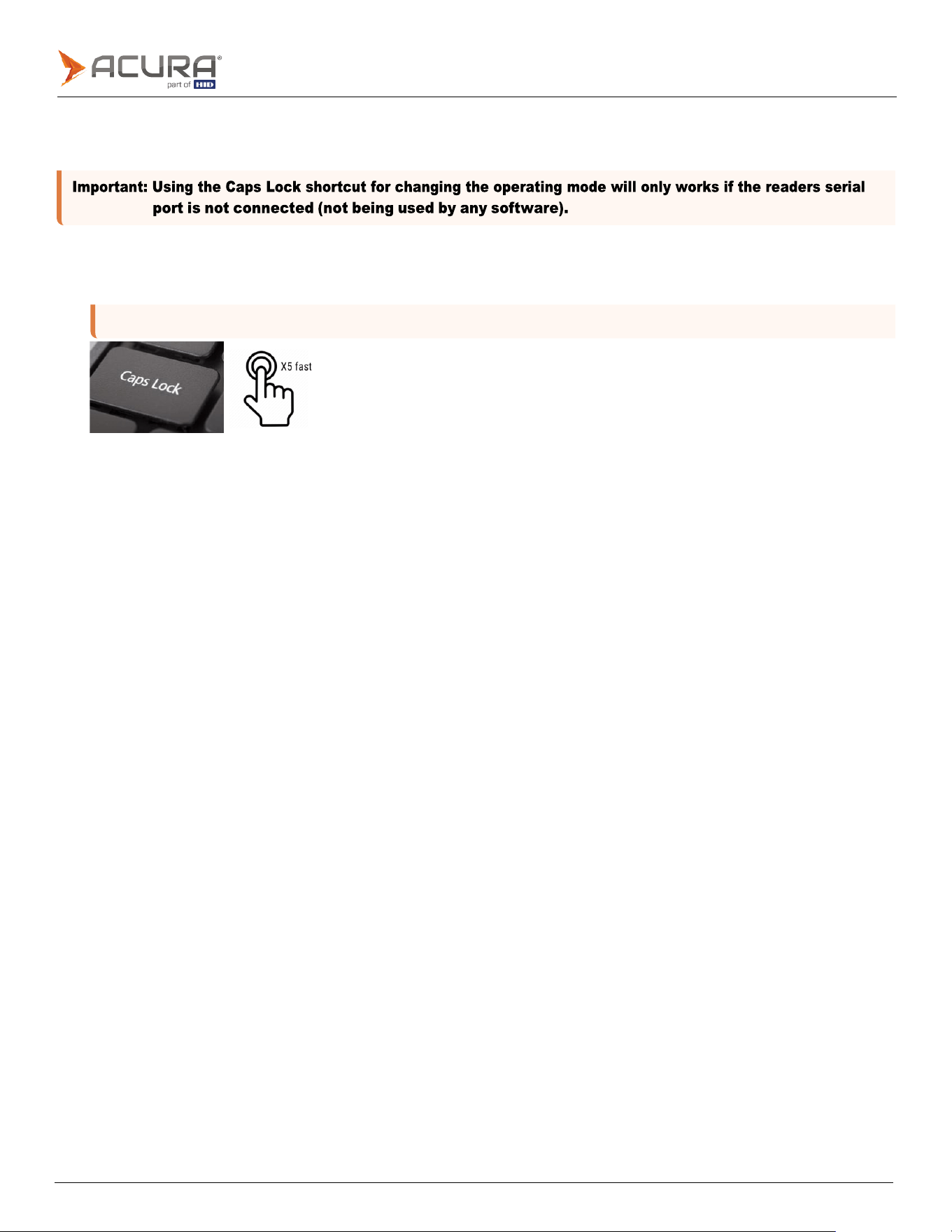
Public
Note:
The command
enablecapslock
enables or disables this function. To use it,
enablecapslock
must be on.
3.6.2
Use the Caps Lock key (Windows and Linux only)
Example:
1.
Close any serial communication with the reader.
2.
To switch between one operating mode and another, quickly click the Caps Lock key five times, and check the
readers LEDs to see the change.

Public
3.7
Read rate of the same tag
To control the read rate, it is recommended to use the tagtimeout command.
The read rate of the same tag can be controlled through the following commands:
⚫
gen2session
⚫
gen2target
⚫
rfon
⚫
rfoff
⚫
tagtimeout
The listed commands, with the exception of tagtimeout, change the parameters of the UHF EPC Gen2 air protocol, and
influence the communication between the tag and reader.
Combinations of values for the Session and Target of the tag reflect how often a tag that has already responded to an
inventory will respond again.
Examples:
a.
I would like to read the EPC id of a tag only once, and I do not want the same EPC id to be repeated while the tag is
in the reading field.
Configure it as follows:
gen2session s2<CR>
gen2target a<CR>
b.
I would like to read the same tag again and again while it is in the reading field.
Configure it as follows:
gen2session
s0<CR>
gen2target
ab<CR>
In this case, what will determine the read repetition rate are the rfon and rfoff commands, meaning the total time
will dictate the repetition rate.
The highest possible read repetition rate is every 50ms:
rfon 50<CR>
rfoff 0<CR>
The read rate of the same tag can also be tweaked through the tagtimeout command. This command acts as a filter for
tag reading, unlike the EPC Gen2 commands (Session and Target) mentioned above, which are part of the air protocol
definition.

Public
Note:
An important point is that depending on the Session and Target configurations in the reader, the tag
response time can override the time defined in
tagtimeout
.
The tagtimeout command ranges from 0 to 300000 ms, up to 5 minutes. During this time, the same tag EPC id will not
be reported by the reader again, even if it remains in the reading field.
Example:
⚫
I would like to read the tag and only be able to read it again after 20 seconds. Configure the reader as follows:
tagtimeout 20000<CR>
gen2session s0<CR
>
gen2target ab<CR>
Example:
⚫
I would like to configure the tagtimeout to 1 second, but I will keep the UHF Gen2 configuration as Session 2.
tagtimeout 1000<CR>
gen2session s2<CR>
gen2target a<CR>

Public
3.8
Use cases - Autonomous mode
The following are examples of using and applying the AcuPad-50 family readers, with details of the configuration
commands used.
3.8.1
Checkout – GS1/EAN standard
For applications that use UHF EPC Gen2 tags encoded according to the GS1 EPC Tag Data Standards (TDS) 1.11
standard, the AcuPad-50 family readers can be used and supports the following tag encodings:
⚫
sgtin-
96
⚫
sgtin-
198
Is an encoding scheme that stands for Serialized Global Trade Identification Number and is sometimes called a
serialized GTIN. The 96 in the name refers to the number of bits in the final EPC binary form.
If you need alphanumeric characters in the serial numbers, SGTIN-198 must be used. This means that you must use
RFID tags with higher capacity in the EPC memory, than if you use the SGTIN-96.
The results of reading the encoded tag can be sent in the following formats:
⚫
GS1
element
string
,
example
"(01)03608449920322(21)1540341";
⚫
EPC Tag URI, example "urn:epc:tag:sgtin-96:1.360844.0992032.1540341";
⚫
EPC
Pure
Identity
URI
,
example
"urn:epc:id:sgtin:360844.0992032.1540341";
⚫
GTIN13
without
the
serial
number
,
example
"3608449920322";
⚫
GTIN13
+
serial
number
,
example
"3608449920322
1540341";
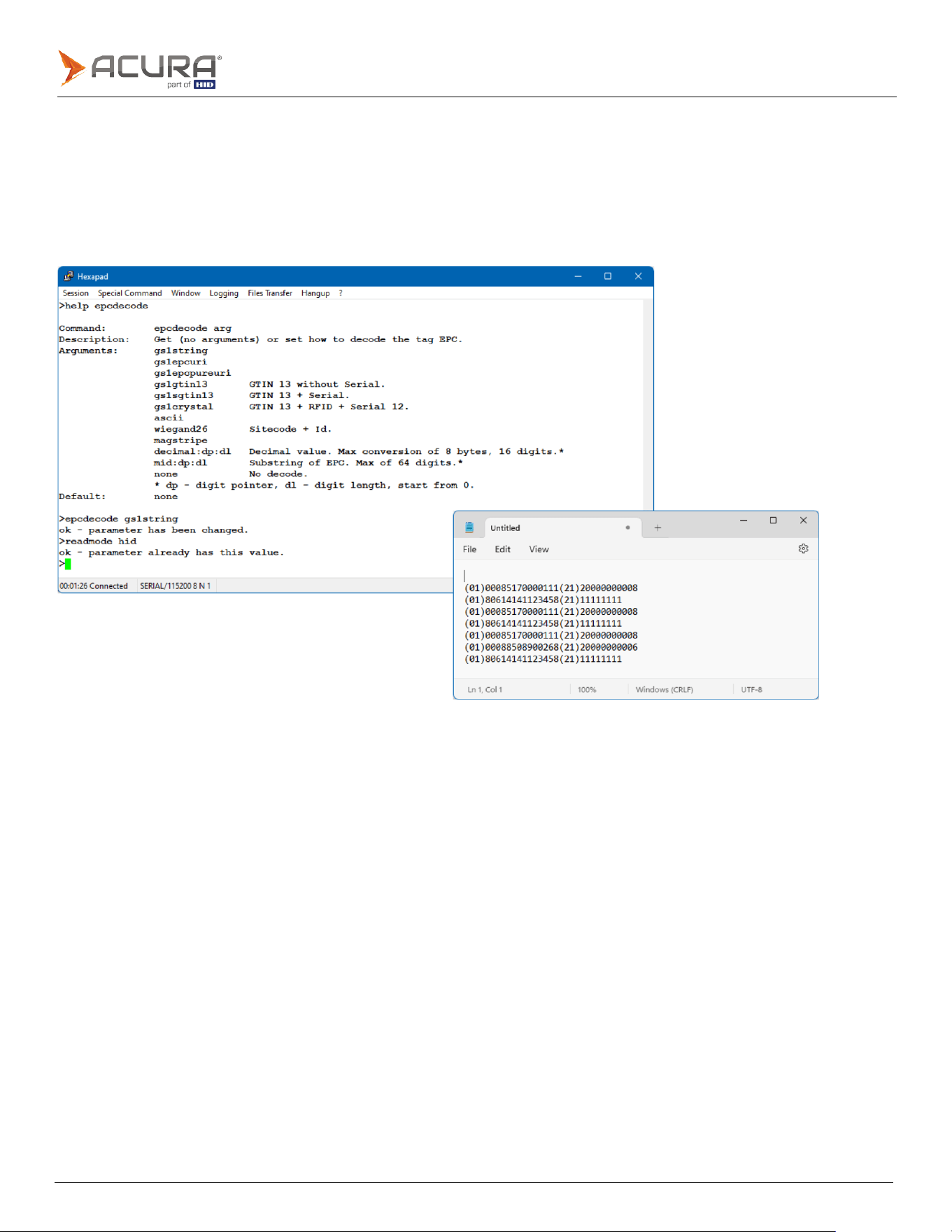
Public
3.8.2
Read tag encoded in SGTIN-96/198 and show result in GS1 element string
format
Configure the reader as follows:
epcdecode
gs1string<CR>
(to decode sgtin-96 or sgtin-198 and send in GS1 element string format)
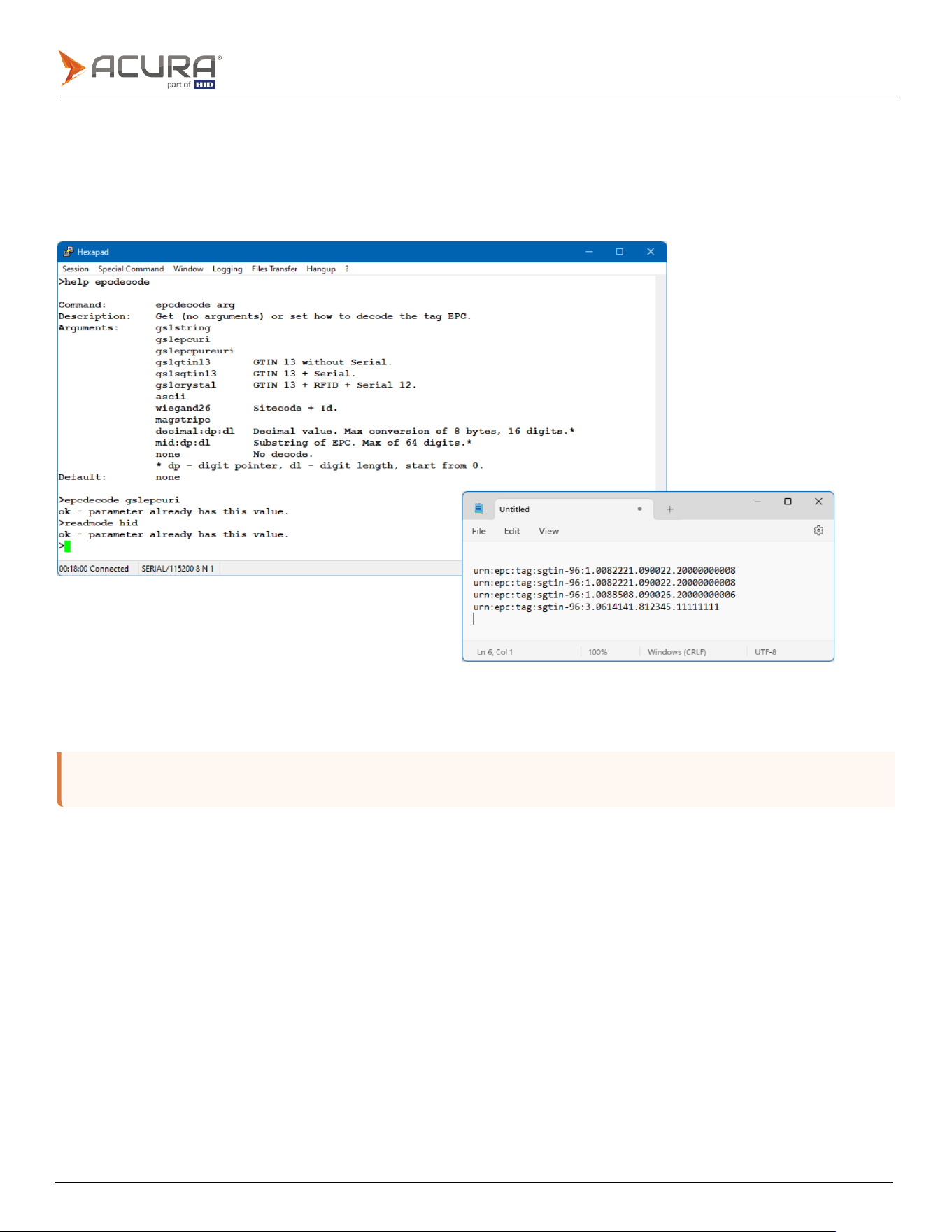
Public
Note:
The keyboard/language layout configured in the Operating System can change the "
:
" character of the result
string of the epcdecode type
gs1epcuri
and
gs1pureepcuri
.
3.8.3
Read tag encoded in SGTIN-96/198 and show result in EPC Tag URI format
Configure the reader as follows:
epcdecode
gs1epcuri<CR>
(to decode sgtin-96 or sgtin-198 and send in EPC Tag URI format)
For the other formats use the epcdecode command with the equivalent format that can be checked in Configuration
commands > epcdecode.
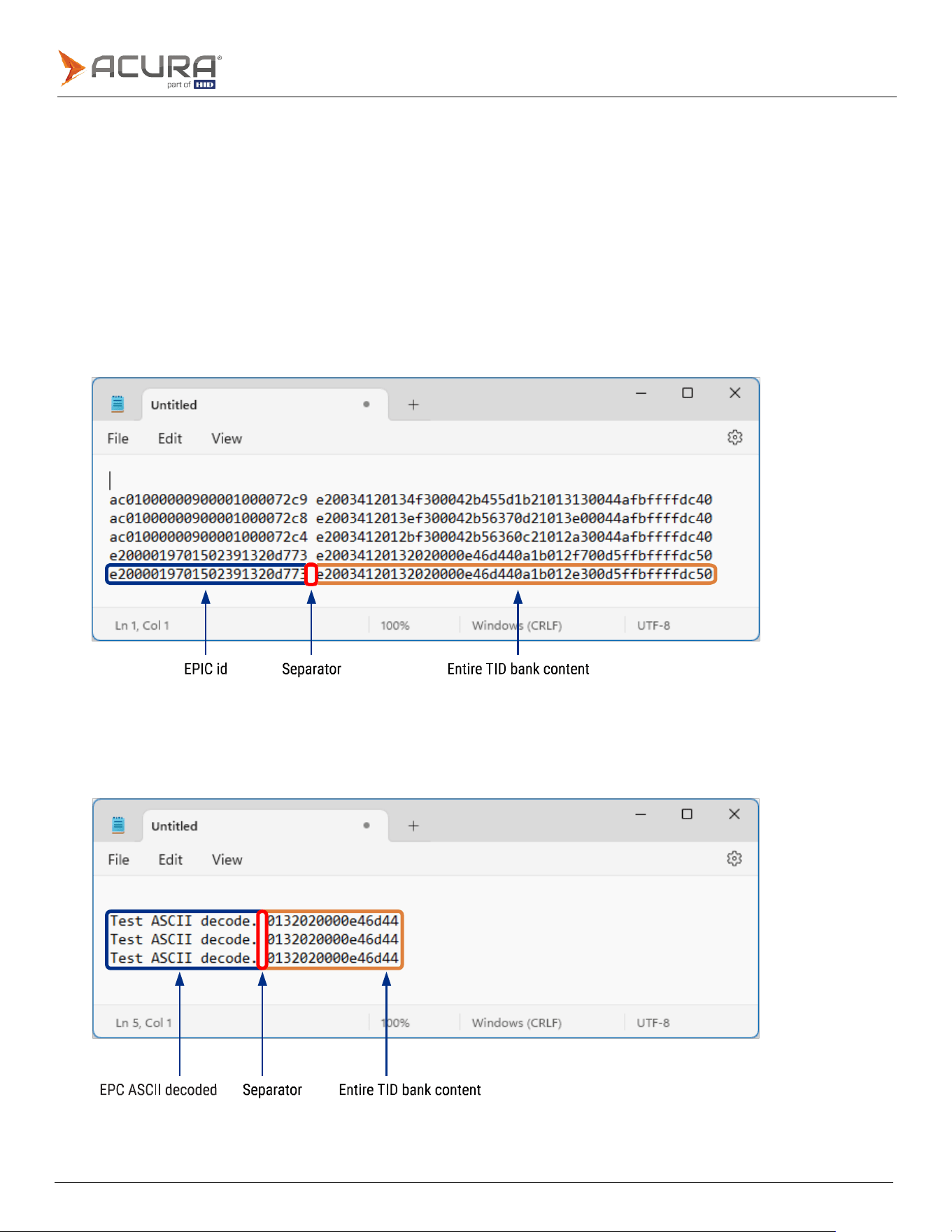
Public
3.8.4
Read TID memory bank and EPC id
The readers are able to read any memory bank of the EPC Gen2 tag, (reserved, EPC, TID and user memory). Configure
using the tagop command in whichever database you desire to read, along with the initial position and the size of the
data (in word) that you want to read.
The syntax of the tagop command is explained in detail in the tagop section.
For example:
1.
Read the entire TID bank of the tag plus the EPC id in hexa:
tagop tid:0:0<CR>
epcdecode none<CR>
Example of reading two tags with different sizes from the TID bank:
2.
Read from the TID bank 4 words skipping the first 2 words and decoding the EPC id by the ASCII table:
tagop tid:2:4<CR>
epcdecode ascii<CR>
Example of reading two different tags:
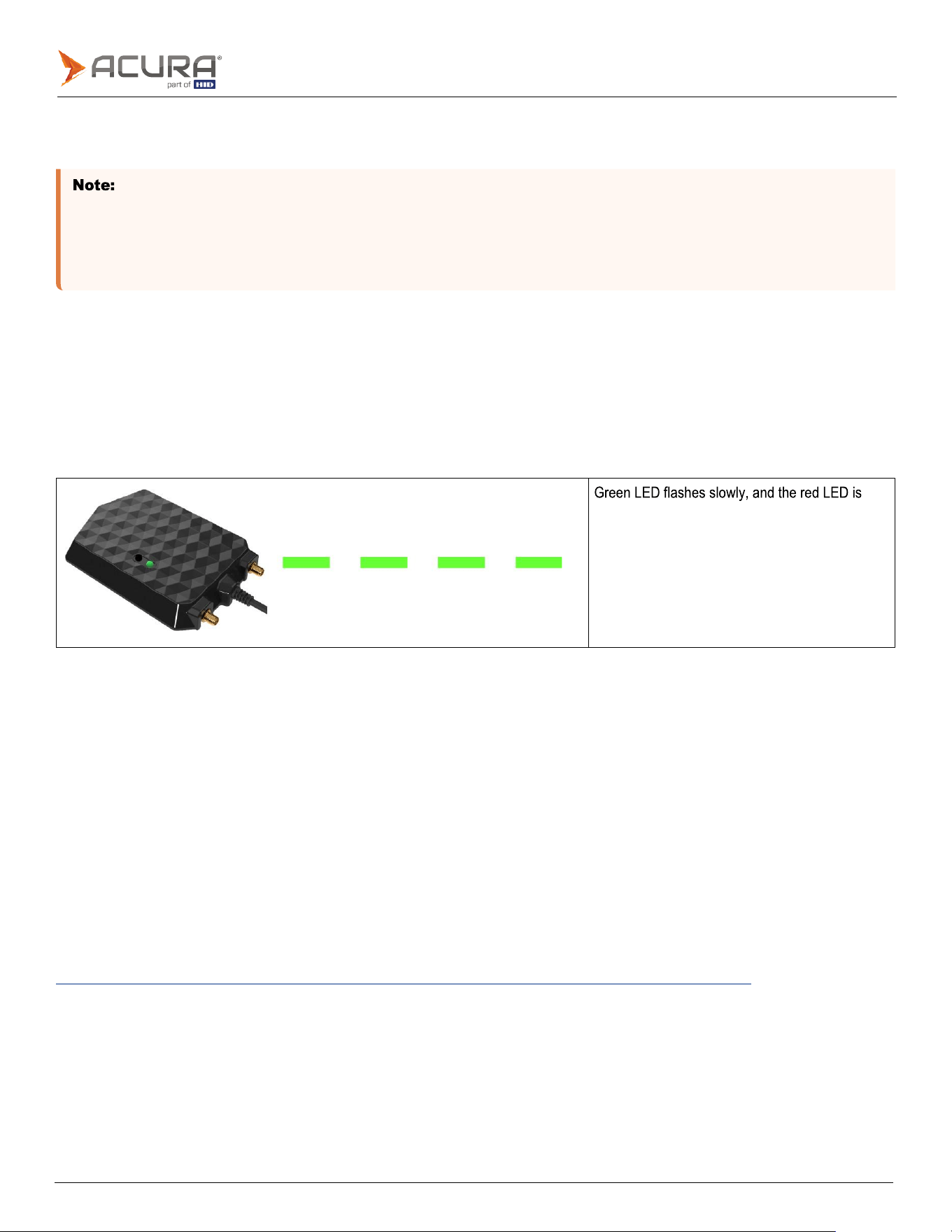
Public
⚫
The count unit in the EPC Gen2 standard is word, which is equivalent to 2 bytes or 16 bits.
⚫
For the RESERVED bank, if the tag has an access password other than 0x00000000, the tags password must be
configured in the reader using the gen2accesspassword command.
⚫
More details of commands in
Configuration commands
.
turned off.
In addition to TID bank, RESERVED, USER, and EPC banks can also be read in conjunction with the EPC tag id.
3.9
Reader - Transparent mode
In Transparent mode, the reader starts to respond through the serial to a software developed using the Mercury API,
which is a library package for C#/.Net, Java and C languages. With this development package, it is possible to develop
software that can have full control of the reader, for reading and writing UHF EPC Gen2 tags (ISO 18000-6C) and UHF
EPC Gen2 V2 (ISO 18000-63).
Visual feedback from the reader when in Transparent mode:
The default operation mode of the reader is the Autonomous mode, to change to Transparent mode please refer to
Switching
between
Autonomous
and
Transparent
modes
.
3.9.1
readmode
The readers red LED and buzzer are controlled by the users software through the manipulation of two available GPIOs in
MercuryAPI. For more details, refer to Controlling the LED and Beep.
Communication between the user software and the reader is conducted through a serial port created by the operating
system when the reader is connected via USB. To identify this port, please refer to section Turning on the reader.
3.9.2
Software programming and development
For software development, it is necessary to use the MercuryAPI SDK.
The latest recommended version for development can be found at:
https://drive.google.com/drive/folders/1AOXUCQPtyAfcvyUeZf2gsHyLh3vfAEsf?usp=drive_link
In the API file package, there are numerous examples and source code in all supported languages. This development
package has no additional cost and is open-source.
The complete API documentation is also available at the same link.
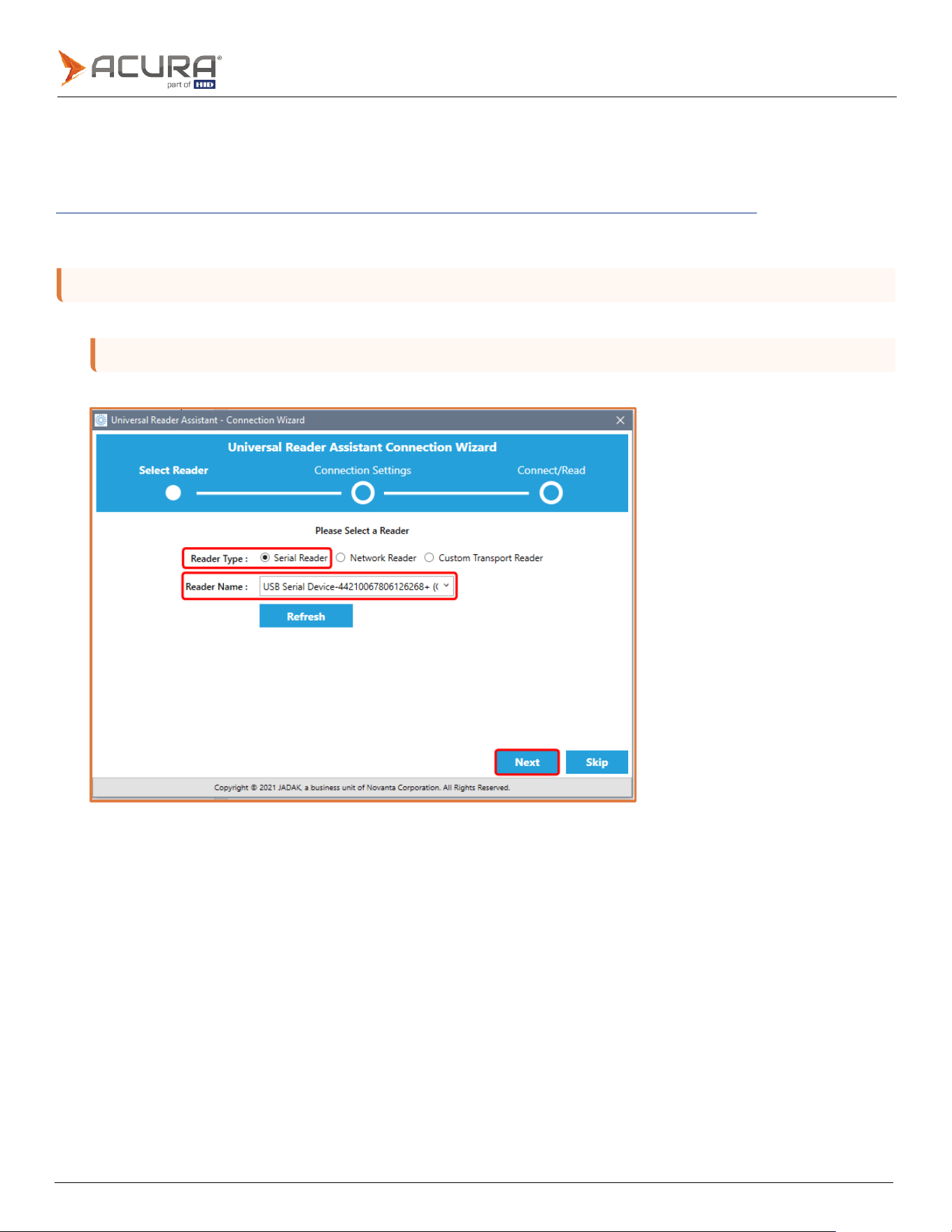
Public
Note:
Ensure that the reader is set to Transparent mode. Please refer to
Reader - Transparent mode
.
Note:
The software will automatically identify the device connected to your computer.
3.9.3
Demo software – Universal Reader Assistant (URA)
The reader in Transparent mode can be tested using the Jadak Universal Reader Assistant software. The software
download and its manual are available at:
https://drive.google.com/drive/folders/1SsEdqQSkHQI_n-WqaQb7Kx8oi2INgzj2?usp=drive_link
3.9.4
Demo software instructions
1.
Launch the Universal Reader Assistant.
2.
Click Next.
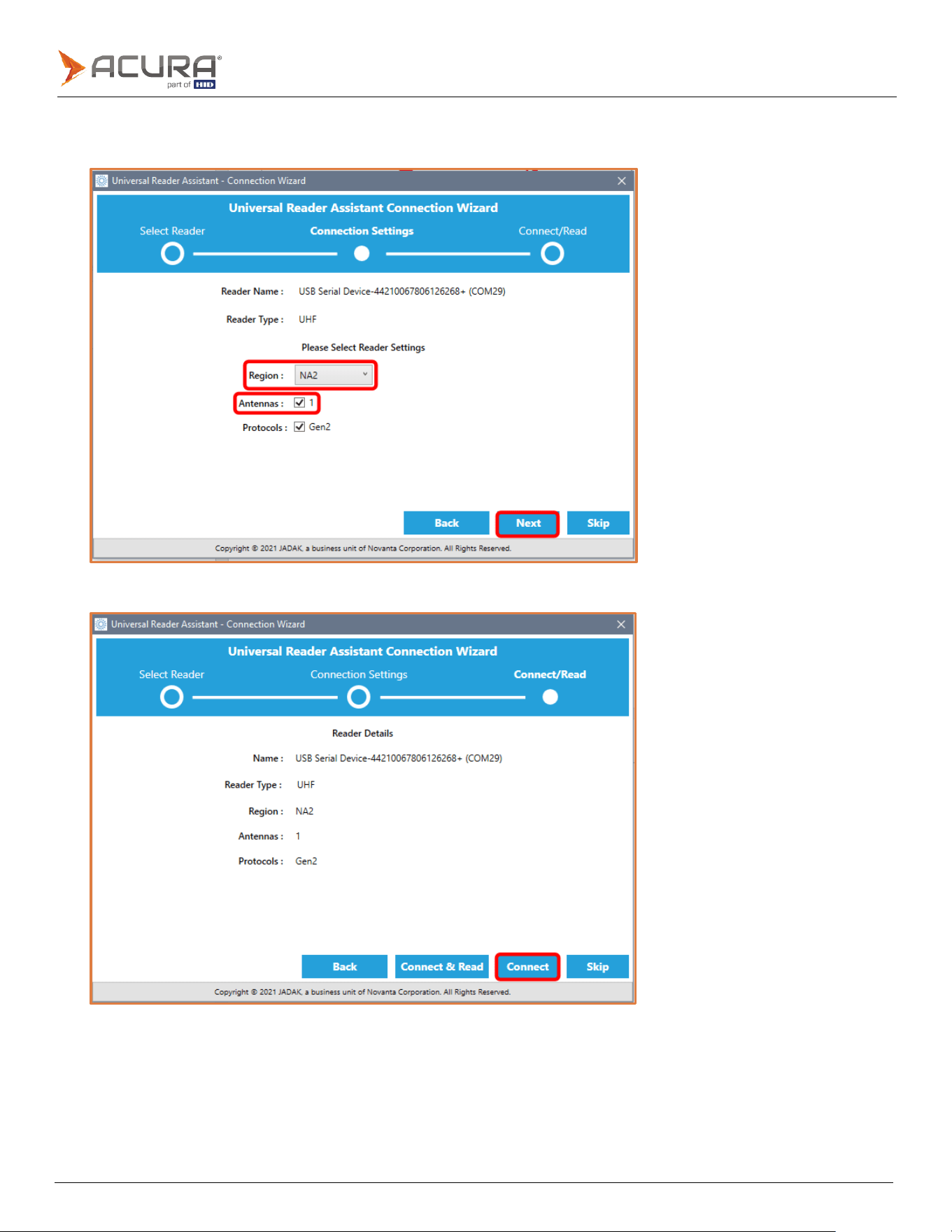
Public
3.
Select
Region
and
Antennas
.
4.
Click Next.
5.
Click Connect.
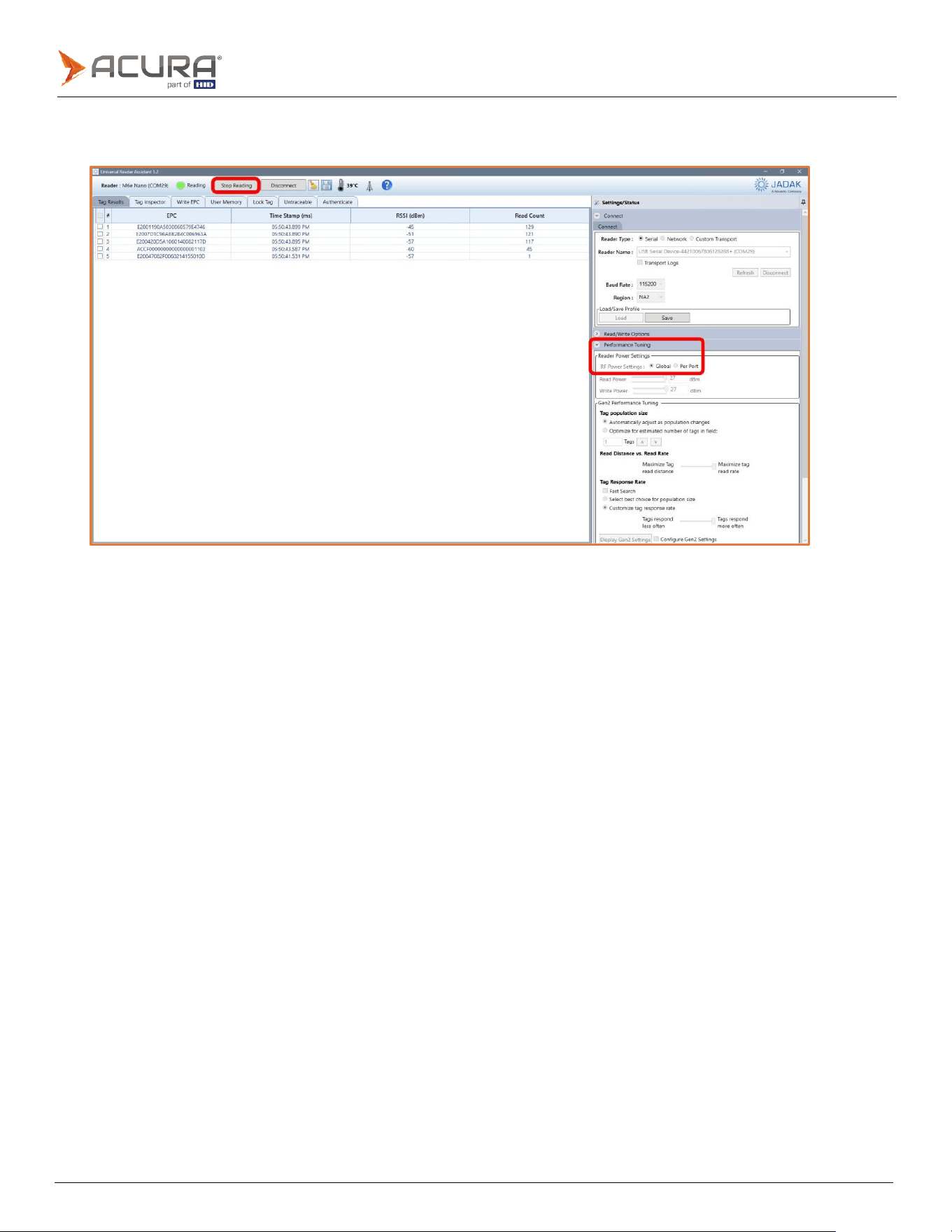
Public
6.
In
Performance Tuning
select
the
RF Power Setting
.
7.
Click Read to start the data readings.
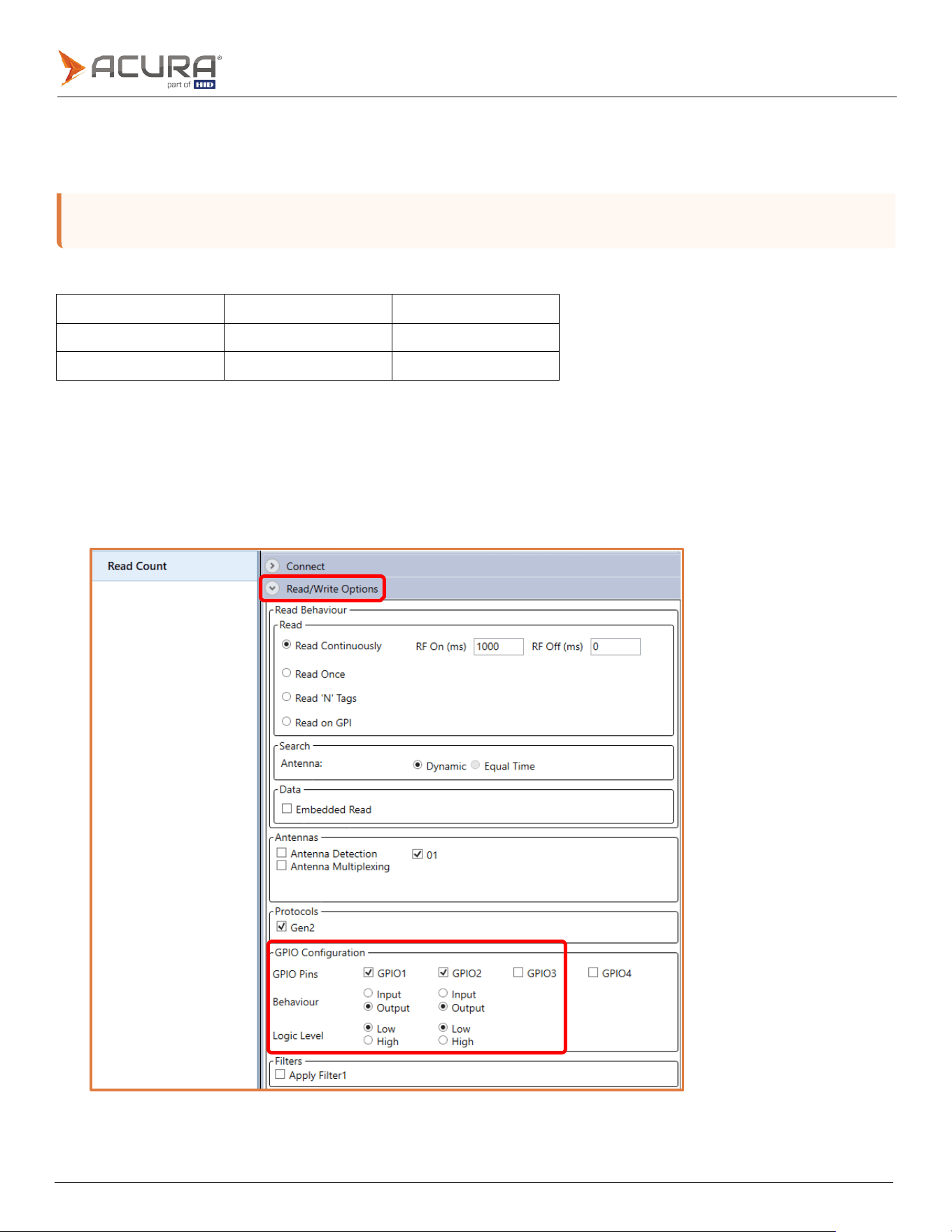
Public
Note:
In the MercuryAPI file package for all languages, there is an example for manipulating the readers GPIO
called "
gpiocommands.
"
3.10
Controlling the LED and Beep
In Transparent mode, control of the red LED and the beep should be managed by the users software using the
MercuryAPI.
The usage map for the respective GPIOs:
Output
Type feedback
Drive (on)
GPIO1
Red
LED
High
GPIO2
Beep
High
Using the URA for controlling the red LED and beep of the reader in Transparent mode:
1.
Expand the Read/Write Options to access the configuration menu.
2.
In
GPIO
Configuration
check
GPIO
Pins
GPIO1
(for
the
LED)
and
GPIO2
(for
the
buzzer).
3.
In
Behavior
set
to
Output
.
4.
The Logic Level when set to Low, causes the LED or buzzer to turn off. Setting the Logic Level to High, causes the
LED or buzzer to turn on.

Public
Revision history
Date
Description
Revision
January
2024
Initial
release.
A.0