
EN
Owner’s Manual
Before using the instrument, be sure to read “PRECAUTIONS” on pages 4-5.
For information on assembling the instrument, refer to the instructions on page 37.
Thank you for choosing this Yamaha digital piano.
This instrument provides exceptionally high-quality sound and expressive control for your
playing enjoyment. In order to make the most of the performance potential and features
of the instrument, please read the manuals thoroughly, and keep them in a handy place
for later reference.
YDP
-
166
YDP
-
146
YDP
-
S56
YDP
-
S36
DIGITAL PIANO
For United Kingdom
(559-M01 RED DoC URL 03)
SIMPLIFIED EU DECLARATION OF CONFORMITY /
SIMPLIFIED UK DECLARATION OF CONFORMITY
Hereby, Yamaha Corporation declares that the radio equipment type [YDP-166, YDP-146, YDP-S56, YDP-S36] is
in compliance with Directive 2014/53/EU and the radio equipment regulations of UK. The full texts of the EU
declaration of conformity and the UK declaration of conformity are available at the following internet address:
https://europe.yamaha.com/en/support/compliance/doc.html
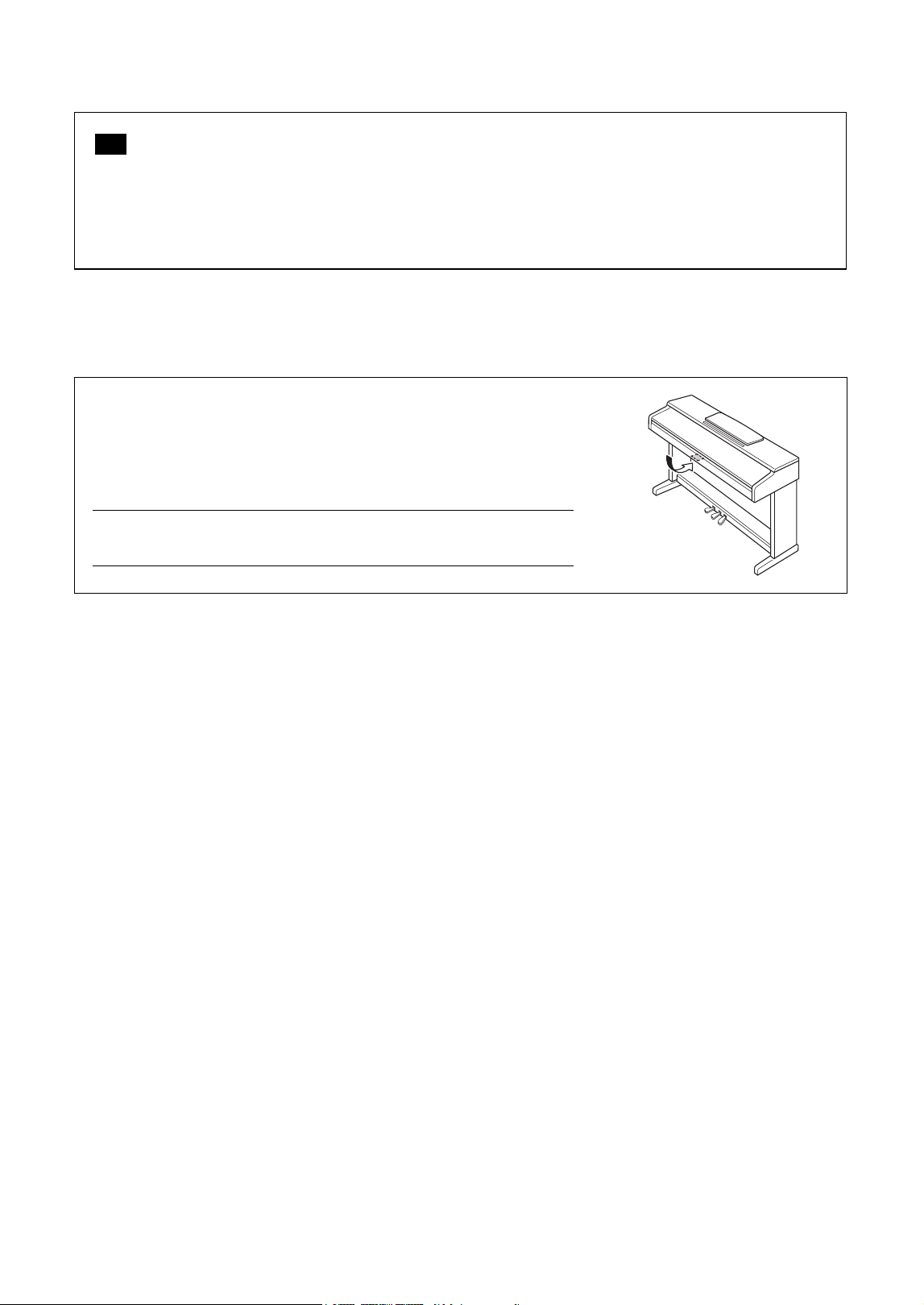
The model number, serial number, power requirements, etc., may be found on or
near the name plate, which is at the bottom of the unit. You should note this serial
number in the space provided below and retain this manual as a permanent
record of your purchase to aid identification in the event of theft.
Model No.
Serial No.
(1003-M06 plate bottom en 01)
The name plate is located
on the bottom of the unit.
EN

Important Notice: Power management information for customers in European Economic
Area (EEA), Switzerland and Turkey
(574-M06 EU erp 01)
Yamaha products are equipped with a power management function. Some products allow you to disable that
function, or to extend the amount of time that elapses before the power is turned off or set to standby. In these
cases, energy consumption will increase.
English
4
YDP-166, YDP-146, YDP-S56, YDP-S36 Owner’s Manual
PRECAUTIONS
PLEASE READ CAREFULLY BEFORE PROCEEDING
Especially in the case of children, a guardian should provide guidance on how to properly use and
handle the product before actual use.
Please keep this manual in a safe and handy place for future reference.
WARNING
Always follow the basic precautions listed below to avoid the possibility of serious injury or even death from
electrical shock, short-circuiting, damages, fire or other hazards. These precautions include, but are not limited to,
the following:
Power supply
• Do not place the power cord near heat sources such as
heaters or radiators. Also, do not excessively bend or
otherwise damage the cord, or place heavy objects on
it.
• Do not touch the product or the power plug during an
electrical storm.
• Use only the correct voltage specified for the product.
The required voltage is printed on the name plate of the
product.
• Use only the supplied/power cord.
• Do not use the supplied AC adaptor/power cord for
other devices.
• Check the power plug periodically and remove any dirt
or dust which may have accumulated on it.
• Insert the power plug firmly all the way into the AC
outlet. Using the product when it is not plugged in
sufficiently can cause dust to accumulate on the plug,
possibly resulting in fire or skin burns.
• When setting up the product, make sure that the AC
outlet you are using is easily accessible. If some trouble
or malfunction occurs, immediately turn off the power
switch and disconnect the plug from the outlet. Even
when the power switch is turned off, as long as the
power cord is not unplugged from the wall AC outlet, the
product will not be disconnected from the power source.
• Do not connect the product to an electrical outlet using
a multi-plug outlet extender. Doing so can result in
lower sound quality, or possibly cause fire at or around
the outlet.
• When disconnecting the power plug, always hold the
plug itself and not the cord. Pulling by the cord can
damage it and cause electric shock or fire.
• If not using the product for long periods of time, be sure
to pull the power plug from the AC outlet.
Do not disassemble
• This product contains no user-serviceable parts. Do not
attempt to disassemble the internal parts or modify
them in any way.
Water warning
• Do not expose the product to rain, use it near water or
in damp or wet conditions, or place on it any containers
(such as vases, bottles or glasses) containing liquids
which might spill into any openings or places where
water may drop. A liquid such as water getting into the
product may cause fire, electric shock, or malfunctions.
• Use the AC adaptor indoors only. Do not use it in any
wet environments.
• Never insert or remove a power plug with wet hands.
Fire warning
• Do not place any burning items or open flames near the
product, since they may cause fire.
Wireless unit
• Radio waves from this product may affect electro-
medical devices, such as a heart pacemaker implant or
defibrillator implant.
- Do not use the product near medical devices or inside
medical facilities. Radio waves from this product may
affect electro-medical devices.
- Do not use the product within 15 cm (6 in.) of persons
with a heart pacemaker implant or a defibrillator
implant.
Using the bench (if included)
• Do not place the bench in an unstable and slippery
position where it might accidentally fall over and cause
injury.
• Do not play carelessly with or stand on the bench.
Using it as a tool or stepladder or for any other purpose
might result in accident or injury.
• Only one person should sit on the bench at a time, in
order to prevent the possibility of accident or injury.
• Tighten the bench screws periodically using the
specified tool. Failure to do so may cause the screws to
loosen over time, and cause accident or injury.
• Keep special watch over any small children so that they
don’t fall off the rear of the bench. Since the bench does
not have a backrest, unsupervised use may result in
accident or injury.
5
YDP-166, YDP-146, YDP-S56, YDP-S36 Owner’s Manual
If you notice any abnormality
• If any of the following problems occur, immediately turn
off the power switch and disconnect the power plug
from the outlet. Finally have the device inspected by
Yamaha service personnel.
- The power cord or plug becomes frayed or damaged.
- Unusual smells or smoke are emitted.
- Some object, or water has been dropped into the
product.
- There is a sudden loss of sound during use of the
product.
- Cracks or other visible damage appear on the
product.
CAUTION
Always follow the basic precautions listed below to avoid the possibility of physical injury to you or others, or
damage to the product or other property. These precautions include, but are not limited to, the following:
Assembly
• Assemble the product in the proper sequence by
following the assembly instructions in this manual. Also,
make sure to tighten the screws or bolts regularly.
Failure to do so might result in damage to the product or
even injury.
• (YDP-S56, YDP-S36) Be sure to attach the anti-fall
brackets to the product, to ensure stability (page 41).
Failure to do so might result in damage to the product or
even injury.
Location
• Do not place the product in an unstable position or a
location with excessive vibration, where it might
accidentally fall over, resulting in malfunction and even
injury.
• Do not go near the product during an earthquake.
Strong shaking during an earthquake could cause the
product to move or tip over, possibly causing injury.
• When transporting or moving the product, always use
two or more people. Attempting to lift the product by
yourself may result in injuries, such as back injuries, or
cause the product to be dropped and broken, which
could lead to other injuries.
• Before moving the product, remove all connected
cables, to prevent damage to the cables or injury to
anyone who might trip over them.
Connections
• Before connecting the product to other devices, turn off
the power for all devices. Before turning the power on or
off for all devices, set all volume levels to minimum.
• Be sure to set the volumes of all devices at their
minimum levels and gradually raise the volume controls
while playing the product to set the desired listening
level.
Handling
• Do not insert your finger or hand in any gaps on the key
cover or product. Also take care that the key cover does
not pinch your finger.
• Do not insert foreign materials such as metal or paper
into any openings or gaps of the product. Failure to
observe this may cause fire, electric shock, or
malfunctions.
• (YDP-S56, YDP-S36)Do not apply excessive force
when closing the key cover. A key cover equipped with
the SOFT-CLOSE™ mechanism closes the cover
slowly. Applying excessive force to the key cover when
closing it could damage the SOFT-CLOSE™
mechanism, and possibly result in injury to your hands
and fingers caught under the closing key cover.
• Do not rest your weight on, or place heavy objects on
the product, and do not use excessive force on the
buttons, switches or connectors.
• Keep small parts out of the reach of children, since they
may accidentally swallow them.
• Do not use the product or headphones for a long period
of time at a high or uncomfortable volume level, since
this can cause permanent hearing loss. If you
experience any hearing loss or ringing in the ears,
consult a physician.
• Remove the power plug from the AC outlet before
cleaning the unit. Failure to observe this may cause
electric shock.
Using the bench (if included)
• For benches that can be adjusted, do not adjust the
bench height while sitting on the bench, since this can
cause excessive force applied to the adjustment
mechanism, possibly resulting in damage to the
mechanism or even injury.
• Do not place your hand between moving parts.
Otherwise, your hand could be pinched between the
parts, possibly resulting in injury.
Always turn the power off when the instrument is not in
use.
Even when the [ ] (Standby/On) is in standby status
(power lamp is off), electricity is still flowing to the
instrument at the minimum level.
When you are not using the instrument for a long time,
make sure you unplug the power cord from the wall AC
outlet.
(DMI-12)
Yamaha cannot be held responsible for damage
caused by improper use or modifications to the
product, or data that is lost or destroyed.

6
YDP-166, YDP-146, YDP-S56, YDP-S36 Owner’s Manual
NOTICE
To avoid the possibility of malfunction/ damage to the product,
damage to data, or damage to other property, follow the notices
below.
Handling
• Do not use this product in the vicinity of a TV, radio, stereo
equipment, mobile phone, or other electric devices.
Otherwise, this product or the other device may generate
noise.
• When you use the product along with an app on your smart
device, such as a smartphone or tablet, we recommend that
you enable “Airplane Mode” on the device to avoid noise
caused by communication. When turning on airplane mode,
Bluetooth® settings may be turned off. Make sure that the
setting is turned on before use.
• Do not expose the product to excessive dust or vibrations, or
extreme cold or heat (such as in direct sunlight, near a
heater, or in a car during the day) to prevent the possibility
of disfiguration, damage to the internal components or
unstable operation. (Verified operating temperature range:
5° – 40°C, or 41° – 104°F.)
• Do not place vinyl, plastic or rubber objects on the
instrument, since this might discolor the instrument.
Maintenance
• When cleaning the product, use a soft and dry (or slightly
damp) cloth. Do not use paint thinners, solvents, alcohol,
cleaning fluids, or chemical-impregnated wiping cloths.
• During extreme changes in temperature or humidity,
condensation may occur and water may collect on the
surface of the product. If water is left, the wooden parts may
absorb the water and be damaged. Make sure to wipe any
water off immediately with a soft cloth.
Saving data
• Some of the data of this product (page 34) are retained when
the power is turned off. However, the saved data may be lost
due to some failure, an operational mistake, etc.
Information
About copyrights
• The copyright of the “content”
*1
installed in this product
belongs to Yamaha Corporation or its copyright holder.
Except as permitted by copyright laws and other relevant
laws, such as copying for personal use, it is prohibited to
“reproduce or divert”
*2
without the permission of the
copyright holder. When using the content, consult with a
copyright expert.
• If you create music or perform with the contents through the
original use of the product, and then record and distribute
them, the permission of Yamaha Corporation is not required
regardless of whether the distribution method is paid or free
of charge.
*1: The word “content” includes a computer program, audio data,
Accompaniment Style data, MIDI data, waveform data, voice
recording data, music score, and score data, etc.
*2: The phrase “reproduce or divert” includes taking out the content
itself in this product, or recording and distributing it without
changes in a similar manner.
About functions/data bundled with the
product
• Some of the preset Songs have been edited for length or
arrangement, and may not be exactly the same as the
original.
About open source software
• The firmware of this product contains open source software.
For copyright information and terms of use for each open
source software, access the Yamaha website below:
Yamaha Downloads: https://download.yamaha.com/
About this manual
• The illustrations as shown in this manual are for
instructional purposes only.
• Windows is a registered trademark of Microsoft®
Corporation in the United States and other countries.
•The Bluetooth® word mark and logos are registered
trademarks owned by Bluetooth SIG, Inc. and any use of
such marks by Yamaha Corporation is under license.
• The company names and product names in this manual are
the trademarks or registered trademarks of their respective
companies.
Tuni ng
• Unlike an acoustic piano, this instrument does not need to
be tuned by an expert (although the pitch can be user-
adjusted to match other instruments). This is because the
pitch of digital instruments is always maintained perfectly.
About disposal
• When disposing of this product, please contact the
appropriate local authorities.
Button names
The names of panel buttons are enclosed in square brackets
[ ]. Also, the word “button” is omitted throughout this
manual (for example, the PLAY button is expressed as
[PLAY]).

7
YDP-166, YDP-146, YDP-S56, YDP-S36 Owner’s Manual
Table of Contents
PRECAUTIONS .................................... 4
About the Manuals ................................ 8
Included Accessories ............................. 8
Panel Controls and Terminals ............. 9
Basic Operations
Setting Up.............................................11
Key Cover (YDP-166, YDP-146)............................11
Music Rest (YDP-166, YDP-146)...........................11
Key Cover and Music Rest (YDP-S56, YDP-S36)12
Turning the Power On.............................................13
Auto Power Off Function........................................14
Setting the Operation Confirmation Sounds........14
Volume Limiter Function .......................................14
Using Headphones ...................................................15
Playing the Piano..................................16
Using Intelligent Acoustic Control (IAC) ............16
Using the Pedals........................................................17
Virtual Resonance Modeling Lite (VRM Lite)
settings .......................................................................18
Changing the Touch Sensitivity .............................18
Using the Metronome..............................................19
Advanced Operations
Playing Various Musical Instrument
Sounds (Voices)....................................20
Selecting a Voice.......................................................20
Listening to the Demo Songs ..................................21
Adding Variations to the Sound (Reverb) ............22
Transposing the Pitch in Semitones ......................23
Fine-tuning the Pitch ...............................................23
Layering Two Voices (Dual mode) ........................24
Playing Duo...............................................................25
Song Playback and Practice .................26
Listening to Preset Songs.........................................26
Practicing a One-Hand Part....................................27
Playing Back Immediately from the First Note
(Quick Play) ..............................................................27
Recording Your Performance .............28
Recording Your Performance ................................ 28
Changing the Initial Settings of the Recorded Song
....................................................................................29
Deleting Recorded Data ..........................................29
Using with a Smart Device or a
Computer .............................................30
Playback/Recording of Audio Data (USB Audio
Interface) ...................................................................30
Listening to Audio via Bluetooth on this
Instrument (Bluetooth Audio)............................... 31
Using the convenient Smart Pianist app............... 32
Backing up Data and Initializing the
Settings................................................. 34
Data Maintained When Power is Turned Off...... 34
Initializing the Settings............................................34
Confirming the firmware version of this
instrument.................................................................34
Appendix
Troubleshooting ..................................35
Keyboard Stand Assembly...................37
Assembly Precautions .............................................37
Moving/Installing .................................................... 37
YDP-166, YDP-146 Assembly................................ 38
YDP-S56, YDP-S36 Assembly................................41
Specifications .......................................44
Index.....................................................46
Song List...............................................47
Quick Operation Guide ...........at the end
8
YDP-166, YDP-146, YDP-S56, YDP-S36 Owner’s Manual
About the Manuals
This instrument has the following documents and instructional materials.
Supplied with the instrument
•Owner’s Manual (this book)
Explains the basic operations and functions of this instrument. Please read this manual first.
Available on the website
• Quick Operation Guide
Shows in chart form the functions assigned to the buttons and the keyboard for quick understanding.
https://manual.yamaha.com/mi/rt/ydp-166_s56/qg/
• MIDI Reference
Contains information about MIDI pertaining to this instrument.
• Smart Pianist User Guide
Explains how to set up and use the smart device app “Smart Pianist” (page 32) for controlling this instrument.
Included Accessories
Owner’s Manual (this book) × 1
“50 Classical Music Masterpieces” (music book) × 1
Online Member Product Registration × 1
AC adaptor × 1
Power cord × 1 (YDP-166, YDP-S56)
Bench* × 1 (YDP-166, YDP-146)
* May not be included depending on your particular area. Please check with your Yamaha dealer.
To obtain these manuals, access the website below. Enter the model name for searching
the desired manuals.
Yam a ha Do w nlo a ds
https://download.yamaha.com/
* For a general overview of MIDI and how you can effectively use it, search for “MIDI Basics” (only in English, German, French and
Spanish) on the website above.
9
YDP-166, YDP-146, YDP-S56, YDP-S36 Owner’s Manual
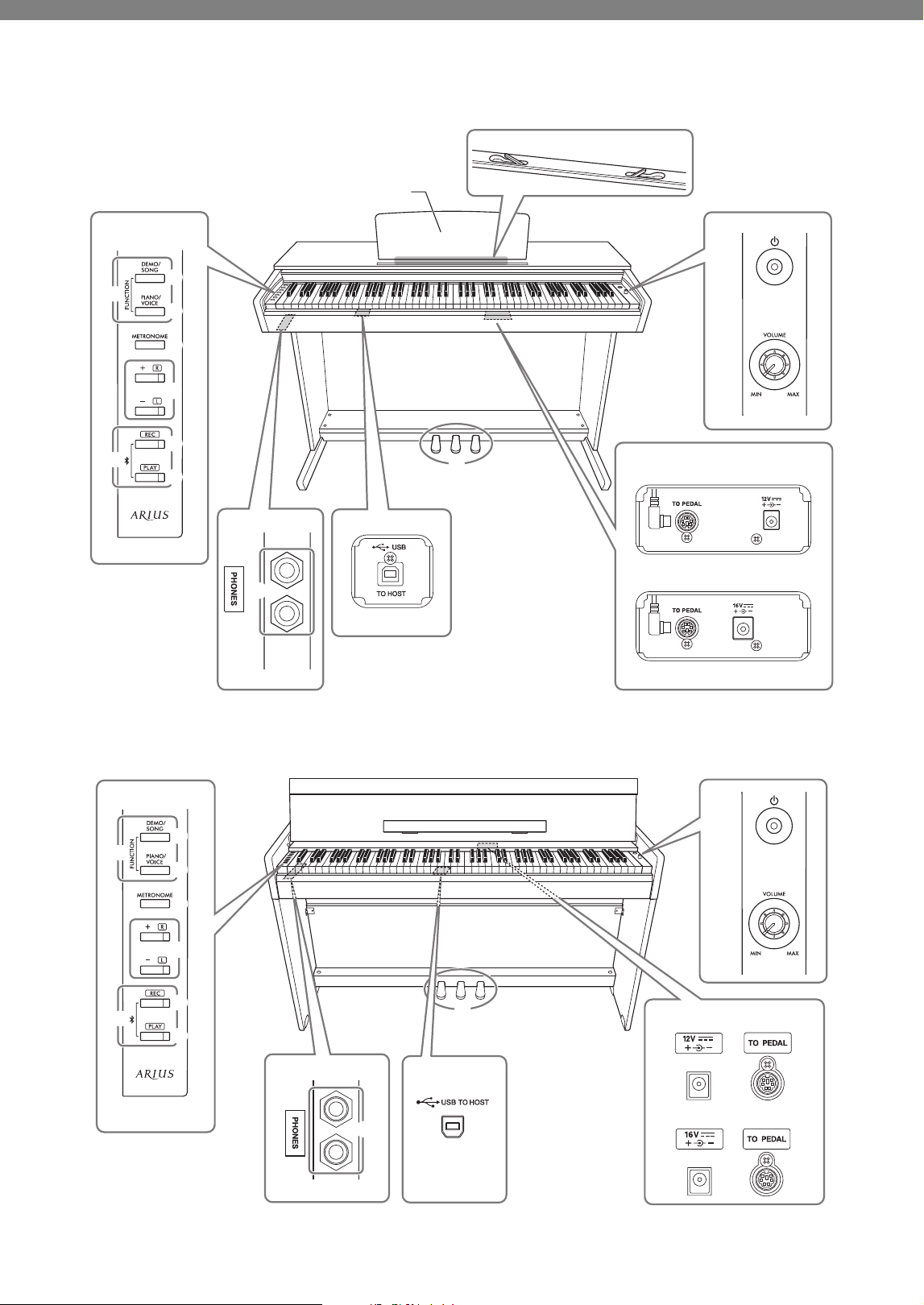
Panel Controls and Terminals
YDP-S56, YDP-S36
The illustration is YDP-S56.
3
4
5
6
7
8
9
)
1
2
!
@
%
$
#
YDP-166
YDP-146
$
#
YDP-166, YDP-146
The illustration is YDP-146.
Bottom
(Keyboard side)
Bottom
(Keyboard side)
Bottom
(Keyboard side)
Music braces (YDP-166)
Music rest
3
4
5
6
7
8
9
)
1
2
@
%
$
#
$
#
YDP-S56
YDP-S36
!
Bottom
Rear
Bottom
(Keyboard side)
(Keyboard side)

10
YDP-166, YDP-146, YDP-S56, YDP-S36 Owner’s Manual
1 [P] (Standby/On) switch......................... page 13
For turning the power on or setting to standby.
2 [VOLUME] knob...................................... page 13
For adjusting the volume of the entire sound.
Turning it to the right increases the volume, and
turning it to the left decreases the volume.
3 [DEMO/SONG] button..................... pages 21, 26
For playing the Demo Songs and the Preset Songs
(50 Classical Music Masterpieces, Lesson Songs).
4 [PIANO/VOICE] button............. pages 20, 22, 24
For selecting a single Voice, two Voices for layering or
a Reverb Type.
5 [METRONOME] button .......................... page 19
For starting or stopping the metronome.
6 [+R], [−L] buttons................. pages 19, 20, 26, 27
• These are for increase or decrease Song numbers,
tempo values, etc.
• During Song playback, turning on/off the right-
hand and left-hand Parts individually.
7 [REC] button............................................ page 28
For recording your keyboard performance.
8 [PLAY] button.......................................... page 28
For playing back the recorded performance.
9 [FUNCTION].................................... pages 14, 23
Simultaneously holding both [DEMO/SONG] and
[PIANO/VOICE] and pressing a specified key allows
you to change various settings, including Auto Power
off function, Transpose parameters, etc.
) [ ] Bluetooth Pairing.............................. page 31
Press and hold [REC] and [PLAY] simultaneously for
three seconds to pair with a Bluetooth-enabled device
such as a smartphone.
! [PHONES] jacks....................................... page 15
For connecting a set of standard stereo headphones.
@ [USB TO HOST] terminal ....................... page 30
For connecting to a computer or a smart device.
# [TO PEDAL] jack .............................. pages 39, 43
For connecting the pedal cord of the pre-installed
pedal or the separately sold FC35 pedal unit.
$ DC IN jack................................................ page 13
For connecting the AC adaptor.
% Pedals ....................................................... page 17
For controlling expression and sustain, just as on an
acoustic piano.
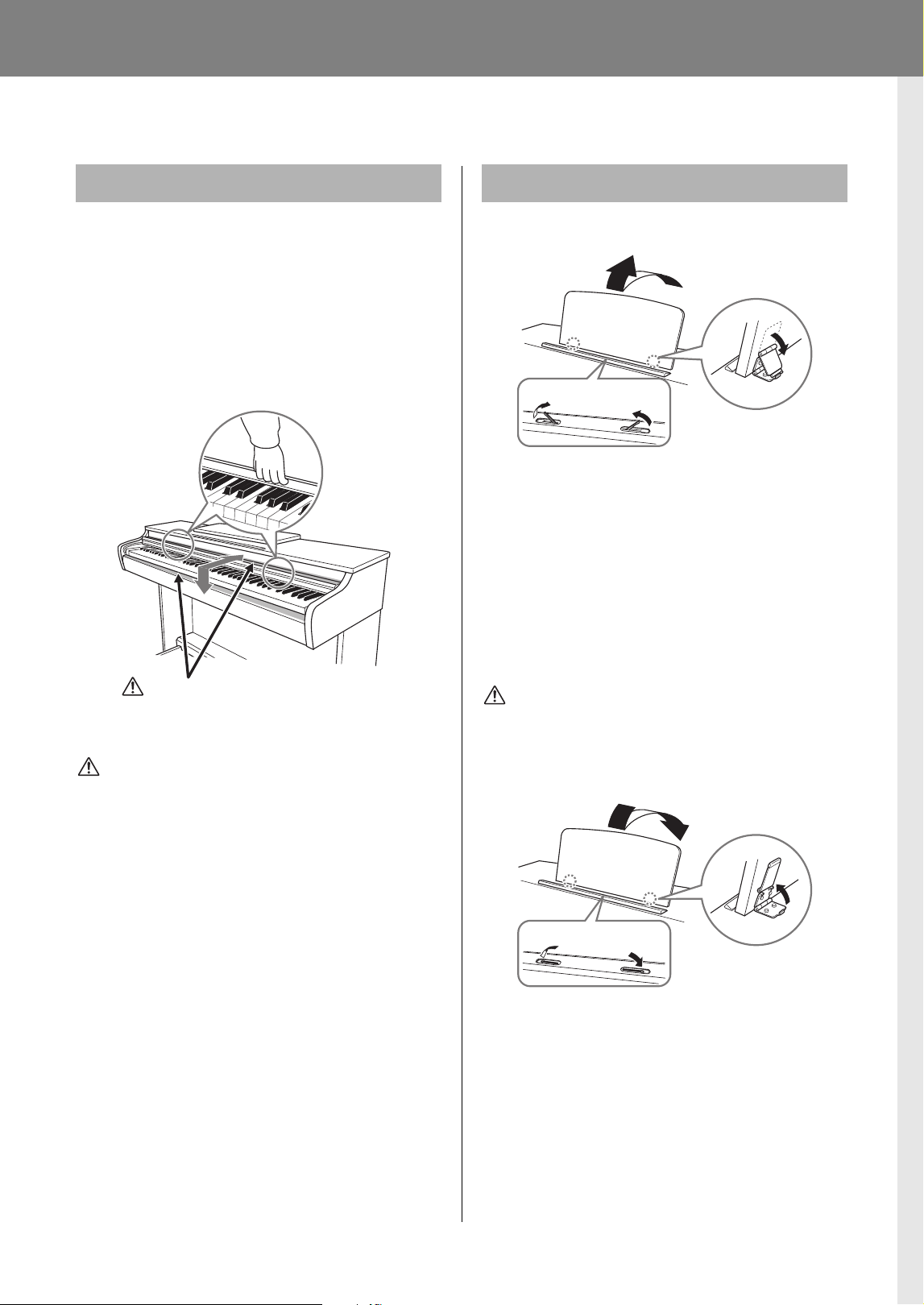
11
YDP-166, YDP-146, YDP-S56, YDP-S36 Owner’s Manual
Basic Operations
Setting Up
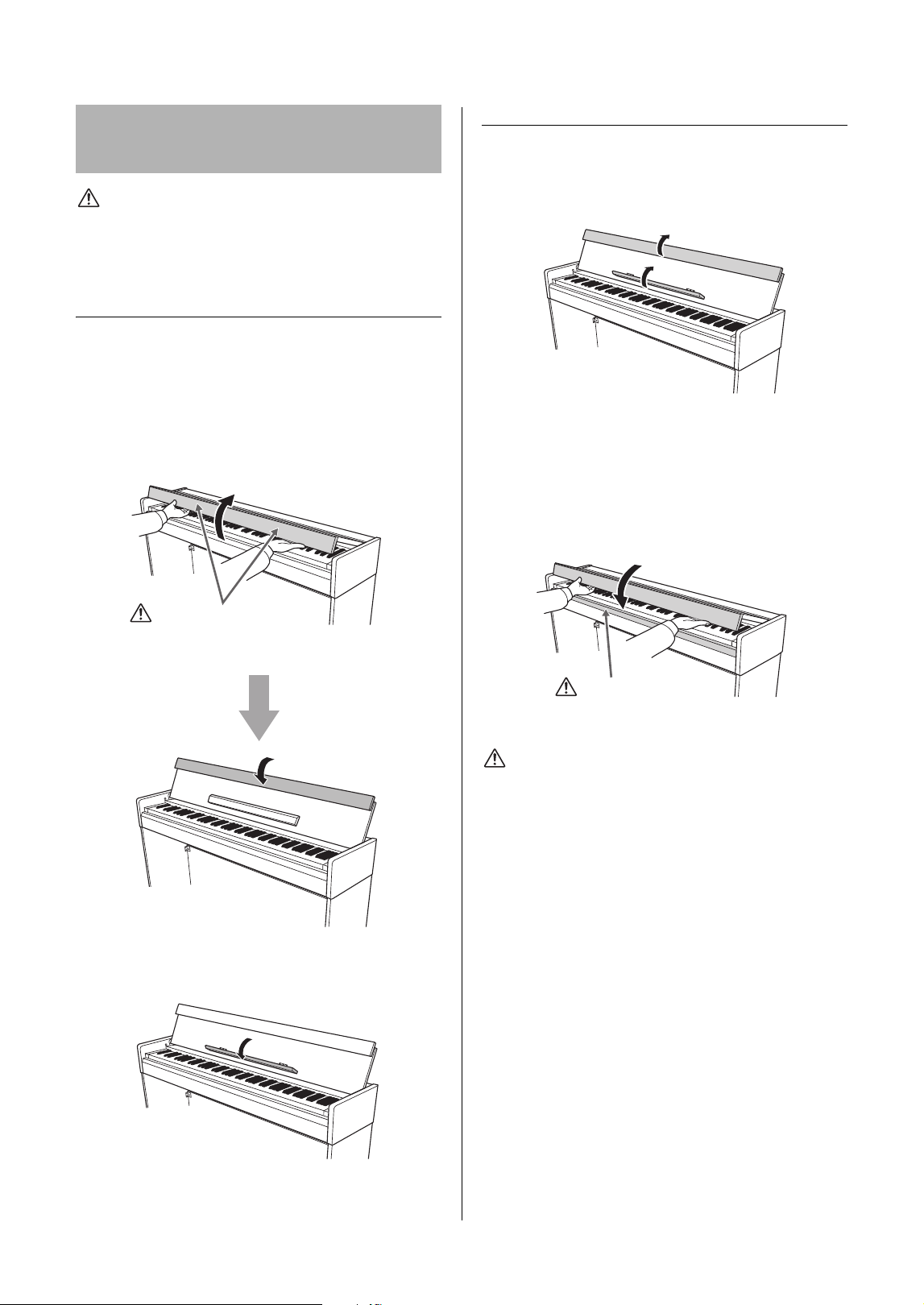
To open the key cover:
Lift the cover slightly, then push and slide it to the
end.
To close the key cover:
Slide the cover toward you and gently lower the
cover over the keys.
CAUTION
• Hold the cover with both hands when opening or closing it.
Do not release it until it is fully opened or closed. Be
careful to avoid catching fingers (yours or others,
especially children’s) between the cover and main unit.
• Do not place objects, such as a piece of metal or paper, on
top of the key cover. Small objects placed on the key cover
may fall inside the unit when the cover is opened and may
be nearly impossible to remove. This could cause electric
shock, short circuit, fire or other serious damage to the
instrument.
To raise the music rest:
1. Pull the music rest up and toward
yourself as far as it will go.
2.
Flip down the two metal supports at the
left and right on the rear of the music rest.
3. Lower the music rest so that the metal
supports latch into place.
(YDP-166) Music braces allow you to hold the
pages of music books in place.
CAUTION
Do not try to use the music rest in a half-raised position.
When lowering the music rest, do not release your hands
from the music rest until it is all the way down.
To lower the music rest:
(YDP-166) Close the Music braces if they are open,
and then lower the music rest by following the
instructions below.
1. Pull the music rest toward yourself as far
as it will go.
2. Raise the two metal supports (at the rear
of the music rest).
3. Gently lower the music rest backward
until it is all the way down.
Key Cover (YDP-166, YDP-146)
CAUTION
Be careful to avoid catching your fingers when
opening or closing the cover.
Music Rest (YDP-166, YDP-146)
1
3
2
Music braces (YDP-166)
3
1
2
Music braces (YDP-166)
Setting Up
12
YDP-166, YDP-146, YDP-S56, YDP-S36 Owner’s Manual
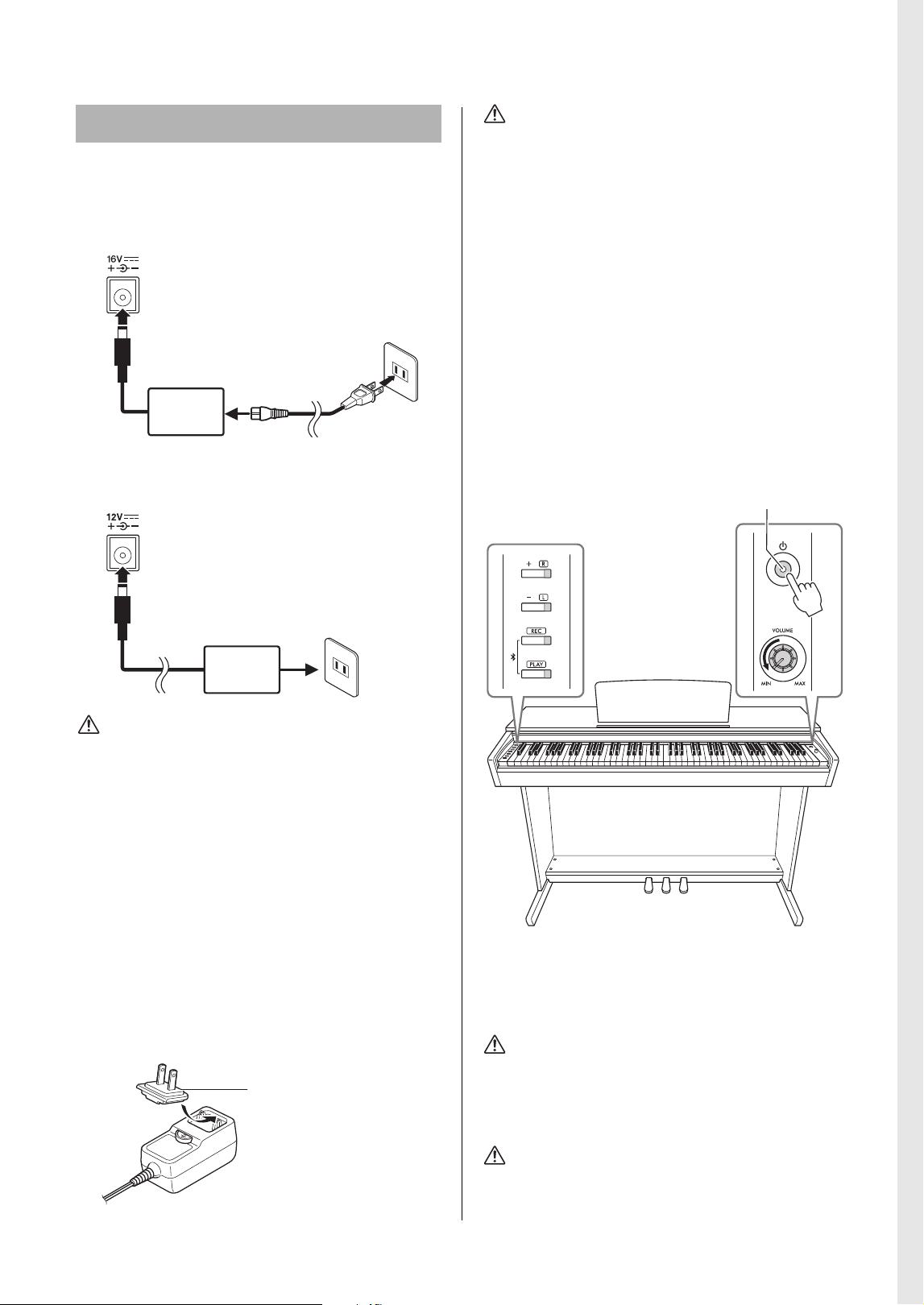
CAUTION
Hold the key cover with both hands when opening or closing
it. Do not release it until it is fully opened or closed. Be careful
to avoid catching fingers (yours or others, especially
children’s) between the key cover and main unit.
Opening the key cover
1. Hold the edge of the key cover top with
both hands, then open the key cover
slowly.
2. Fold down the front part of the key
cover.
3. Unfold the music rest.
Closing the key cover
1. Fold the music rest.
2. Unfold the front part of the key cover.
3. Hold the key cover with both hands and
close it slowly.
The key cover is equipped with the special SOFT-
CLOSE™ mechanism which closes the cover slowly.
CAUTION
Do not apply excessive force when closing the key cover.
Applying excessive force to the key cover when closing it
could damage the SOFT-CLOSE™ mechanism, and possibly
result in injury to your hands and fingers caught under the
closing key cover.
Key Cover and Music Rest
(YDP-S56, YDP-S36)
CAUTION
Be careful to avoid catching your fingers
when opening the cover.
2
1
NOTICE
Before closing the key cover, be sure to fold the music
rest and unfold the front part of the key cover.
CAUTION
Be careful to avoid catching your fingers when
closing the cover.
Setting Up
13
YDP-166, YDP-146, YDP-S56, YDP-S36 Owner’s Manual
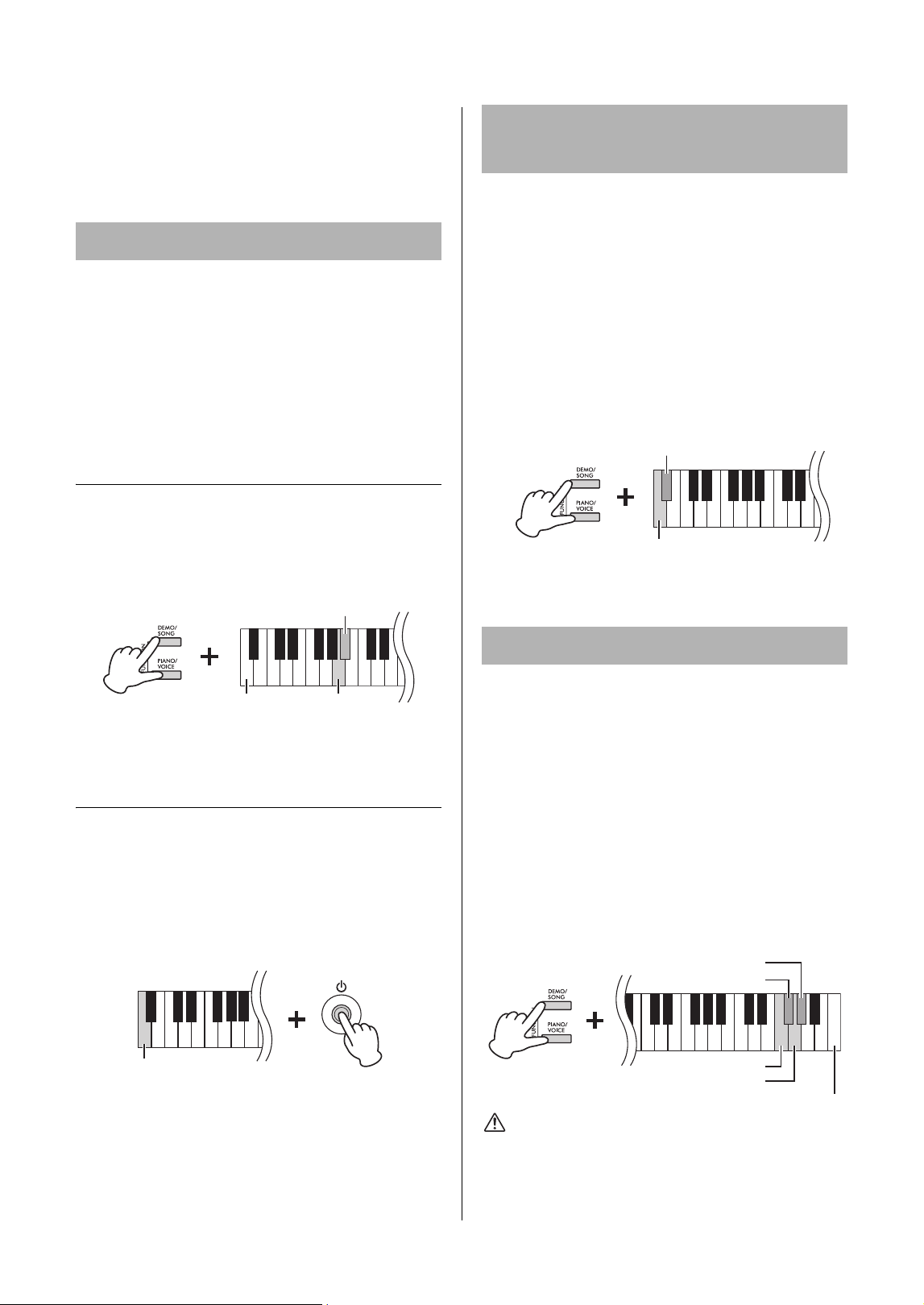
1. Connect the plugs of the AC adaptor in
the order shown in the illustration.
YDP-166, YDP-S56
YDP-146, YDP-S36
WARNING
• Use the specified adaptor (page 45) only. The use of other
adaptors may result in irreparable damage to both the
adaptor and the instrument.
• When setting up the product, make sure that the AC outlet
you are using is easily accessible. If some trouble or
malfunction occurs, immediately turn the power off and
disconnect the plug from the outlet.
NOTE
Follow the order shown above in reverse when disconnecting the
AC adaptor.
When using the AC adaptor with a
removable plug
Do not remove the plug from the power adaptor. If
it does come off, be careful not to touch the metal
parts inside, and then plug it back in fully until you
hear a click.
WARNING
• When using an AC adaptor with a removable plug, make
sure to keep the plug attached to the AC adaptor during
use and storage. Inserting just the plug into an outlet can
cause electric shock or fire.
• Never touch the inner metallic section of the plug to avoid
electric shock, short circuit, or damage. If the plug comes
off, push it in until it securely clicks in place. Also be
careful that there is no dust or other foreign matter
between the AC adaptor and plug.
2. Turn down the [VOLUME] knob to
“MIN.”
3. Press the [P] (Standby/On) to turn the
power on.
The lamps on the buttons to the left of the keyboard
light up, and when they go out, the instrument starts
up.
4. Press the [P] (Standby/On) again for
1 second to turn off the power.
The power indicator turns off.
WARNING
Even when the [P] (Standby/On) is in the standby status,
electricity is still flowing to the instrument at a minimum level.
When not using the instrument for an extended period of
time, be sure to unplug the power cord from the wall AC
outlet.
CAUTION
Do not use the instrument for a long period of time at a high
or uncomfortable volume level, since this can cause
permanent hearing loss.
Turning the Power On
1
2
3
AC outlet
AC adaptor
DC IN jack (page 10)
DC plug
Power cord
AC plug
The shape of the plug and outlet differ depending on the
locale.
1
2
AC outlet
AC adaptor
DC IN jack (page 10)
DC plug
Plug
• Place the plug against the far
side, and then firmly push it in
until it clicks.
• The shape of the plug differs
depending on your area.
2
3
The power lamp lights up.
The buttons to the left of
the keyboard go from lit
to unlit.
Setting Up
14
YDP-166, YDP-146, YDP-S56, YDP-S36 Owner’s Manual
NOTICE
Press only the [P] (Standby/On) when turning the power on.
Any other operations, such as pressing the keys, buttons or
pedals may cause the instrument to malfunction.
To prevent unnecessary power consumption, this
instrument features an Auto Power Off function
that automatically turns the power off if the
instrument is not operated for approximately
15 minutes.
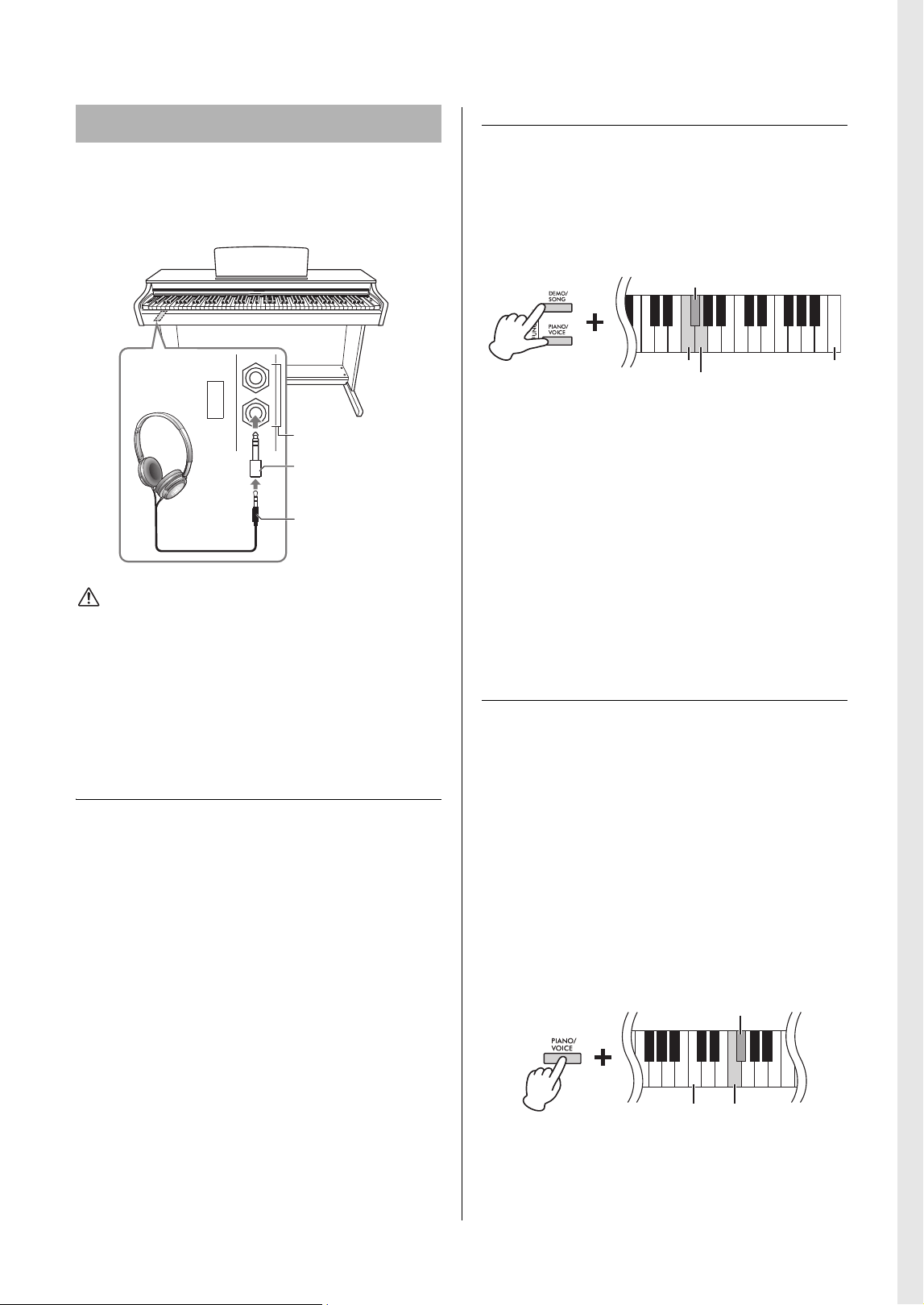
Toggle the Auto Power Off function
(Enable/Disable)
While holding down [DEMO/SONG] and
[PIANO/VOICE] simultaneously, press the A#0
key to enable the Auto Power Off function or the
A0 key to disable it.
Default setting: Enabled
Quick disable of the Auto Power Off
Function
You can also disable the function when turning on
the power to the instrument.
While holding down the A−1 key (the lowest key),
press the [P] (Standby/On) to turn the instrument
on. The [REC] indicator flashes three times,
indicating the Auto Power Off function has been
disabled.
When a setup is changed using a button and key
combination, an operation sound (on, off, click,
tempo value input) is sounded. This confirmation
sound can be enabled (on) or disabled (off) as
desired.
While holding down [DEMO/SONG] and
[PIANO/VOICE] simultaneously, press the A#−1
key to turn the sounds on or the A−1 key to turn
the sounds off.
Default setting: On
To prevent excessively loud volume, the Volume
Limiter function can be used to limit the maximum
volume. When the function is set to 20%, 50% or
80%, the volume will not increase beyond that
point even if you turn the [VOLUME] knob to the
right.
While simultaneously pressing [DEMO/SONG]
and [PIANO/VOICE], press one of the keys F#6
(20%), G6 (50%), or G#6 (80%) as shown below to
turn the function on, or press F6 to turn it off.
Default setting: Off
CAUTION
When you change the volume limit function setting, the
sound may be output at a high volume depending on the
position of the [VOLUME] knob. Be sure to set the [VOLUME]
knob to the minimum (MIN) before changing the setting.
Auto Power Off Function
A#0 (Enable)
Lowest key
A0 (Disable)
Lowest key
Setting the Operation
Confirmation Sounds
Volume Limiter Function
Lowest key A−1 (Off)
A#−1 (On)
G#6 (80%)
Highest key
F6 (Off)
G6 (50%)
F#6 (20%)
Setting Up
15
YDP-166, YDP-146, YDP-S56, YDP-S36 Owner’s Manual
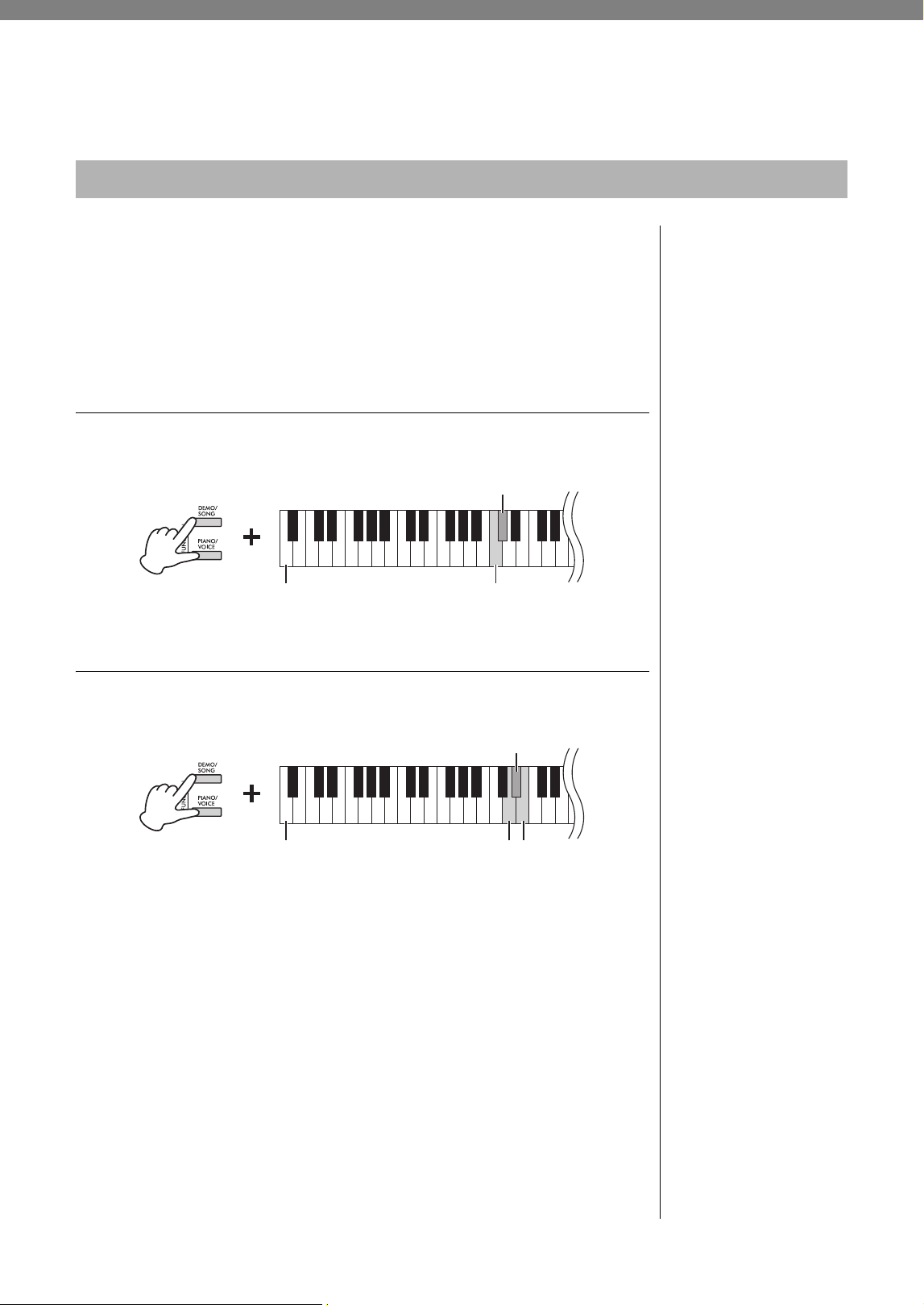
Since this instrument is equipped with two
[PHONES] jacks, you can connect two sets of
standard stereo headphones.
CAUTION
Do not use headphones at a high volume for an extended
period of time; doing so may cause hearing loss.
NOTE
When a plug is connected to the [PHONES] jack, no sound will
come out from the instrument’s speakers. If you are using an
adaptor plug, be sure to remove this as well when unplugging the
headphones.
Using the headphone hanger (YDP-166)
You can hang the headphones on this instrument.
For instructions on installing the headphone
hanger, refer to “Keyboard Stand Assembly” on
page 40.
NOTICE
Do not hang anything other than the headphones on the
hanger. Doing so may damage this instrument or the hanger.
Speaker On/Off setting
You can set whether the sound of this instrument is
always output from its built-in speaker or not.
While holding down [DEMO/SONG] and
[PIANO/VOICE] simultaneously, press one of the
F5–G5 key.
Default setting: Normal
• Off (F5): The speaker will not sound.
• On (F#5): The speaker will always sound
regardless of whether a set of headphones is
connected or not.
• Normal (G5): The speaker will sound only if
headphones are not connected. (This is the
default setting.)
NOTE
Setting this to “On” disables the Stereophonic Optimizer (below).
Reproducing a natural sense of distance
(Stereophonic Optimizer)
The Stereophonic Optimizer gives you the feeling
of playing an actual acoustic piano—even though
you’re listening through headphones. Normally, the
sound comes out from headphones sounds very
close to your ears. However, this Stereophonic
Optimizer effect recreates a natural distance or the
sense of physical space between your ears and the
instrument, just as when playing an acoustic piano.
Default setting: On
While holding down [PIANO/VOICE], press the
F#3 key to turn the function on or the F3 key to
turn the function off.
NOTE
• The Stereophonic Optimizer affects only Piano Voices
(page 20).
• When the Speaker On/Off setting is on, the Stereophonic
Optimizer is disabled.
Using Headphones
PHONES
Bottom surface
6.3 mm Standard stereo
phone jack
Adaptor plug
(3.5 mm
6.3 mm)
Stereo mini plug
(3.5 mm)
F#5 (On)
Highest key
F5 (Off)
G5 (Normal)
F3 (Off)
C3
F#3 (On)
16
YDP-166, YDP-146, YDP-S56, YDP-S36 Owner’s Manual
Playing the Piano
IAC is a function which automatically adjusts and controls the sound quality
according to the overall volume of the instrument. IAC Control is effective only
on the sound output of the instrument speakers or headphones. Even when the
volume is low, this lets you hear both low sounds and high sounds clearly.
Especially when using the headphones, the burden on the ears is reduced
without raising the overall volume excessively.
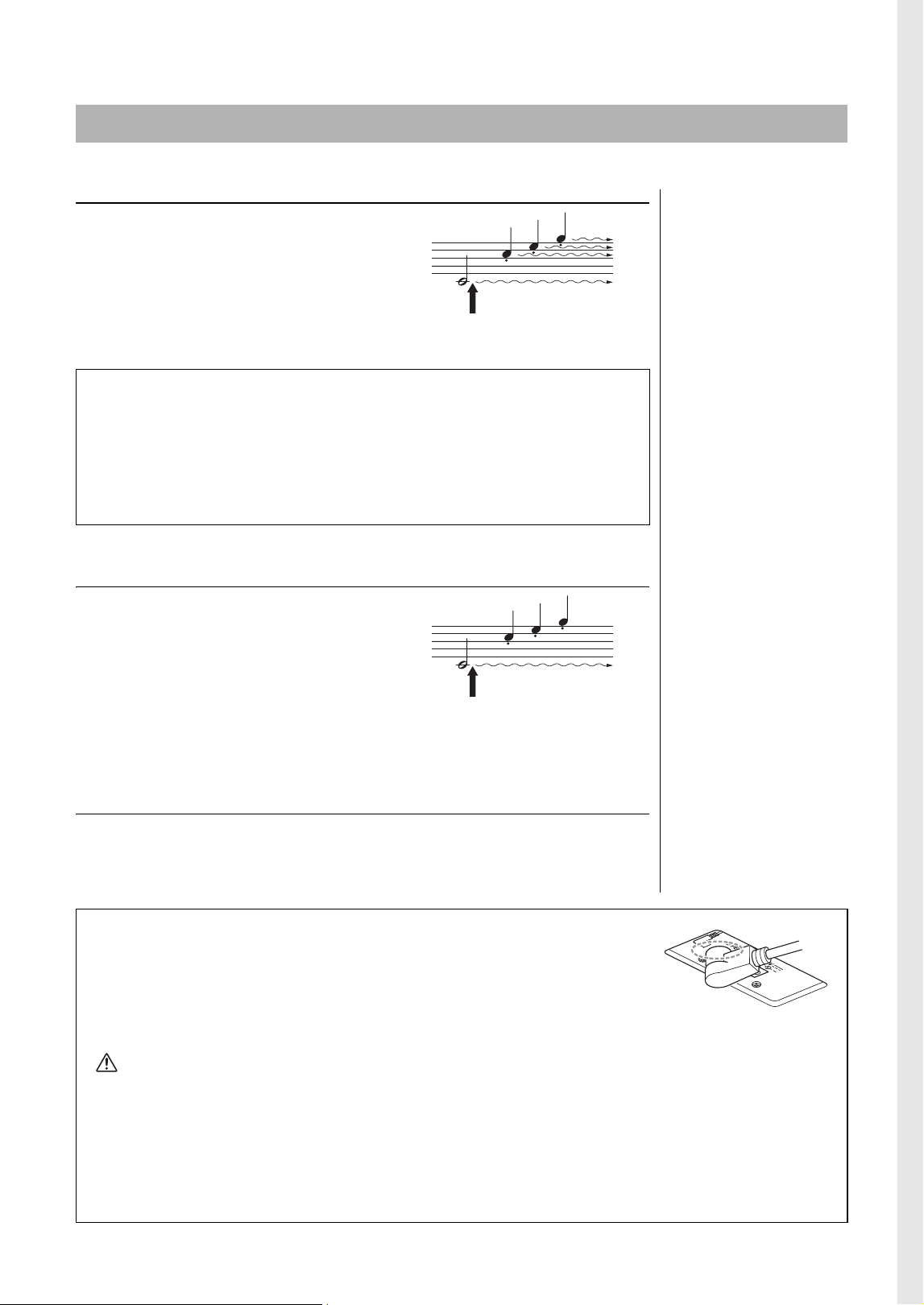
To turn on/off IAC:
While holding down [DEMO/SONG] and [PIANO/VOICE] simultaneously,
press the C#2 key to turn the function on or the C2 key to turn the function off.
To adjust IAC Depth:
While holding down [DEMO/SONG] and [PIANO/VOICE] simultaneously,
press the D2 key to decrease the value, or the E2 key to increase.
The higher the value, the more clearly that low and high sounds are heard at
lower volume levels.
Using Intelligent Acoustic Control (IAC)
Default setting:
On
C2 (Off)Lowest key
C#2 (On)
Lowest key
D2 (Depth −1) E2 (Depth +1)
D#2 (Default)
Setting range:
−3 – +3
Default setting:
0
Playing the Piano
17
YDP-166, YDP-146, YDP-S56, YDP-S36 Owner’s Manual
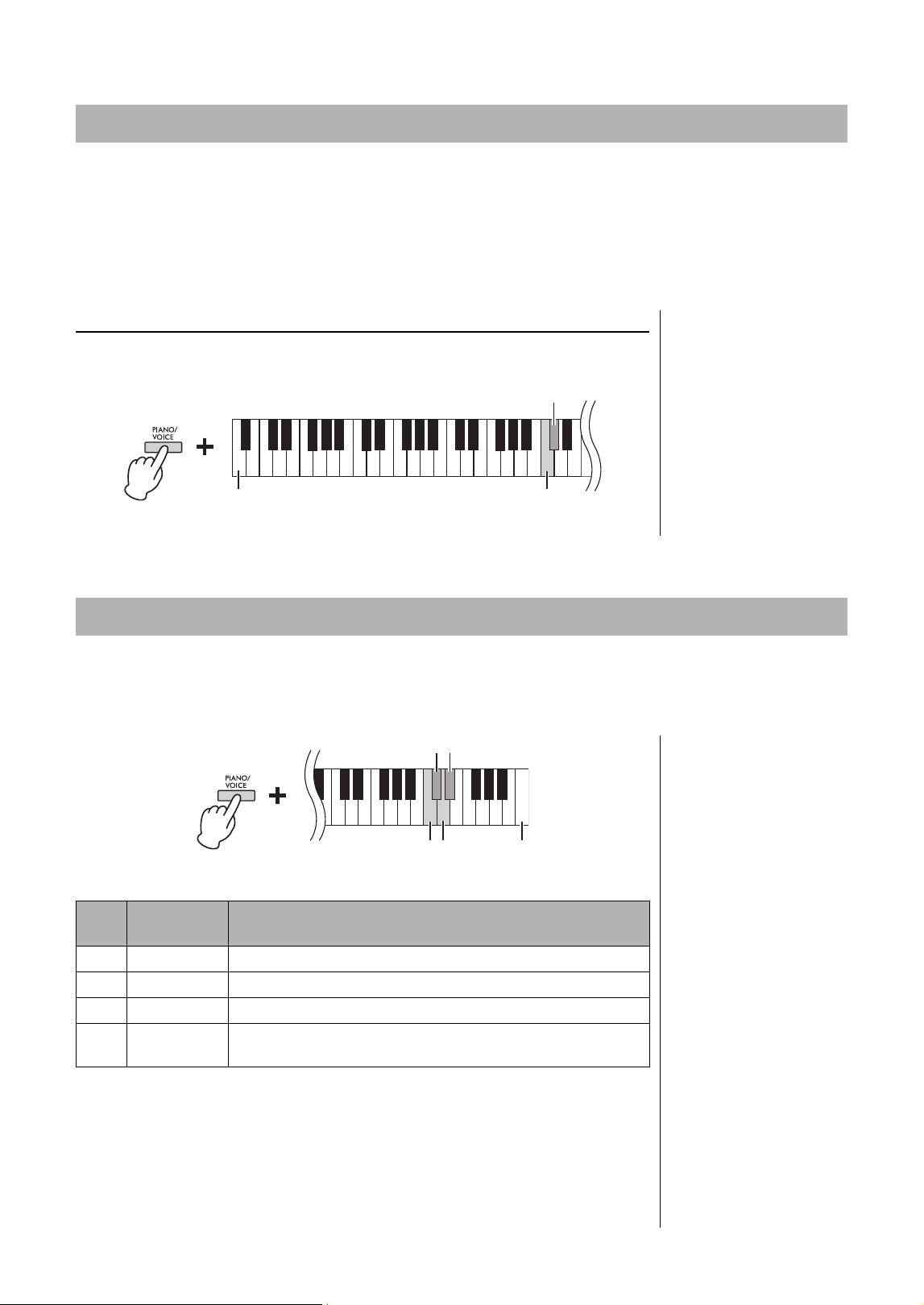
Damper Pedal (Right)
Pressing this pedal will sustain notes longer.
Releasing this pedal immediately stops
(damps) any sustained notes. This pedal also
features a “half-pedal” function that creates
partial sustain effects, depending on how far
down you press the pedal.
Sostenuto Pedal (Center)
Pressing this pedal while holding the notes
will sustain the pressed notes (as if the
Damper Pedal had been pressed), but all
subsequently played notes will not be
sustained. This makes it possible to sustain a
chord or single low note, for example, while
the other notes are played “staccato.”
Soft Pedal (Left)
Pressing this pedal will reduce the volume and slightly change the timbre of the
notes. The notes played before this pedal is pressed are not affected.
Using the Pedals
NOTE
If the damper pedal doesn’t
work, make sure that the pedal
cord is properly plugged into
the main unit (bottom of this
page).
Half-pedal function
This function allows you to vary the sustain length depending on how far the pedal
is pressed. The farther down you press the pedal, the more the sound sustains. For
example, if you press the damper pedal and all notes you are playing sound a bit
murky and loud with too much sustain, you can release the pedal half way or higher
to decrease the sustain (murkiness).
When you press the damper pedal here,
the notes you play before you release
the pedal have a longer sustain.
NOTE
While the sostenuto pedal is
held, the organ and strings
Voices sound continuously
without decay after the notes
have been released.
When you press the sostenuto pedal here
while holding the note, the note will
sustain as long as you hold the pedal.
NOTE
When Jazz Organ Voice
(page 20) is selected, pressing
the left pedal switches between
fast/slow rotation of the rotary
speaker. When the Vibraphone
Voice (page 20) is selected, the
left pedal switches Vibrato on
and off.
[TO PEDAL] jack
Make sure to connect the plug of the pedal cord securely into the [TO PEDAL] jack in
the proper direction. Otherwise, the pedal may not function properly. The FC35
Pedal Unit (sold separately) can also be connected to this terminal. You can substitute
the FC35 for the pedals of the instrument, and use the pedals at a suitable height for
you by placing the unit on a stand.
CAUTION
When placing the FC35 on a stand, make sure that the stand is sufficiently large, flat and stable to prevent the pedals from
wobbling or falling when they are pressed.
NOTICE
Be careful to connect the plug in the proper direction. Connecting in the wrong direction can result in damage to the
instrument.
NOTE
Make sure that power is off when connecting or disconnecting the plug of the pedal.
Insert the plug securely until
the metal part of the plug
disappears from view.
Playing the Piano
18
YDP-166, YDP-146, YDP-S56, YDP-S36 Owner’s Manual
The VRM (Virtual Resonance Modeling) Lite technology featured in this instrument reproduces
sophisticated string resonance faithfully using a virtual musical instrument (physical modeling), and makes
the sound more like that of a real acoustic piano. Since instantaneous resonance is made at the moment
according to the state of the keyboard or pedal, you can vary the sound expressively by changing the timing
of your pressing the keys, and the timing and depth of your pressing the pedal. This function affects only to
the Piano Voices (page 20).
To turn on/off the VRM Lite:
While holding [PIANO/VOICE], press the C#3 key to turn the function on or
the C3 key to turn the function off.
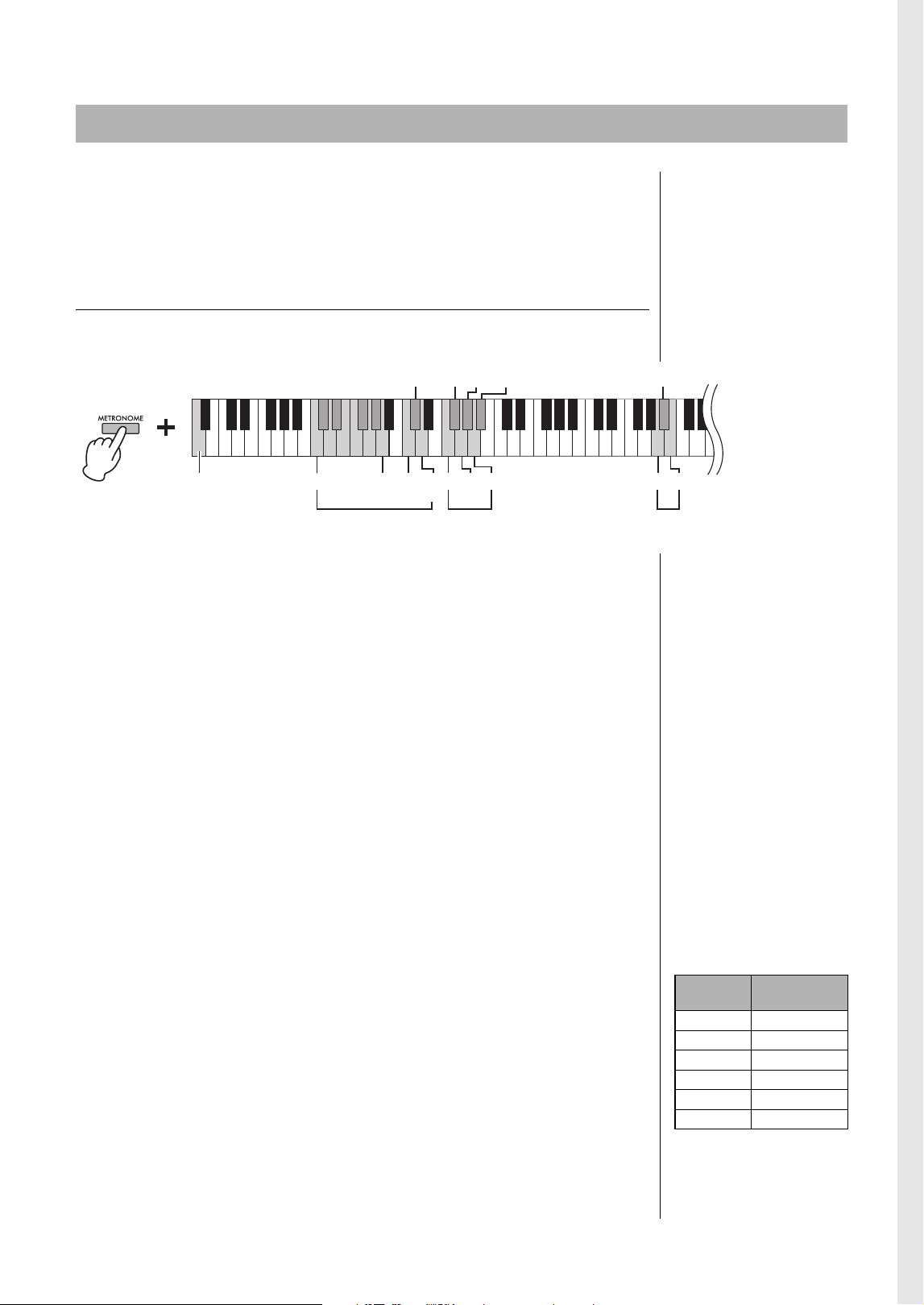
You can specify the Touch Sensitivity (how the sound responds to your playing strength). This setting does
not change the weight of the keyboard.
While holding down [PIANO/VOICE], press one of the C6 – D#6 keys.
Touch Sensitivity List
Virtual Resonance Modeling Lite (VRM Lite) settings
Default setting:
On
Lowest key C3 (Off)
C#3 (On)
Changing the Touch Sensitivity
NOTE
This setting is disabled with
some Voices, such as an organ
sound.
Default setting:
C#6 (Medium)
Key
Touch
Sensitivity
Description
C6 Soft Produces relatively high volume even with light playing strength.
C#6 Medium Standard Touch Sensitivity.
D6 Hard Requires strong playing to produce high volume.
D#6Fixed
The volume level will be the same regardless of how hard you play
the keys.
C6 Highest key (C7)D6
C#6D#6
Playing the Piano
19
YDP-166, YDP-146, YDP-S56, YDP-S36 Owner’s Manual
The metronome feature is convenient for practicing with an accurate tempo.
1. Press [METRONOME] to start the Metronome.
2. Press [METRONOME] to stop the Metronome.
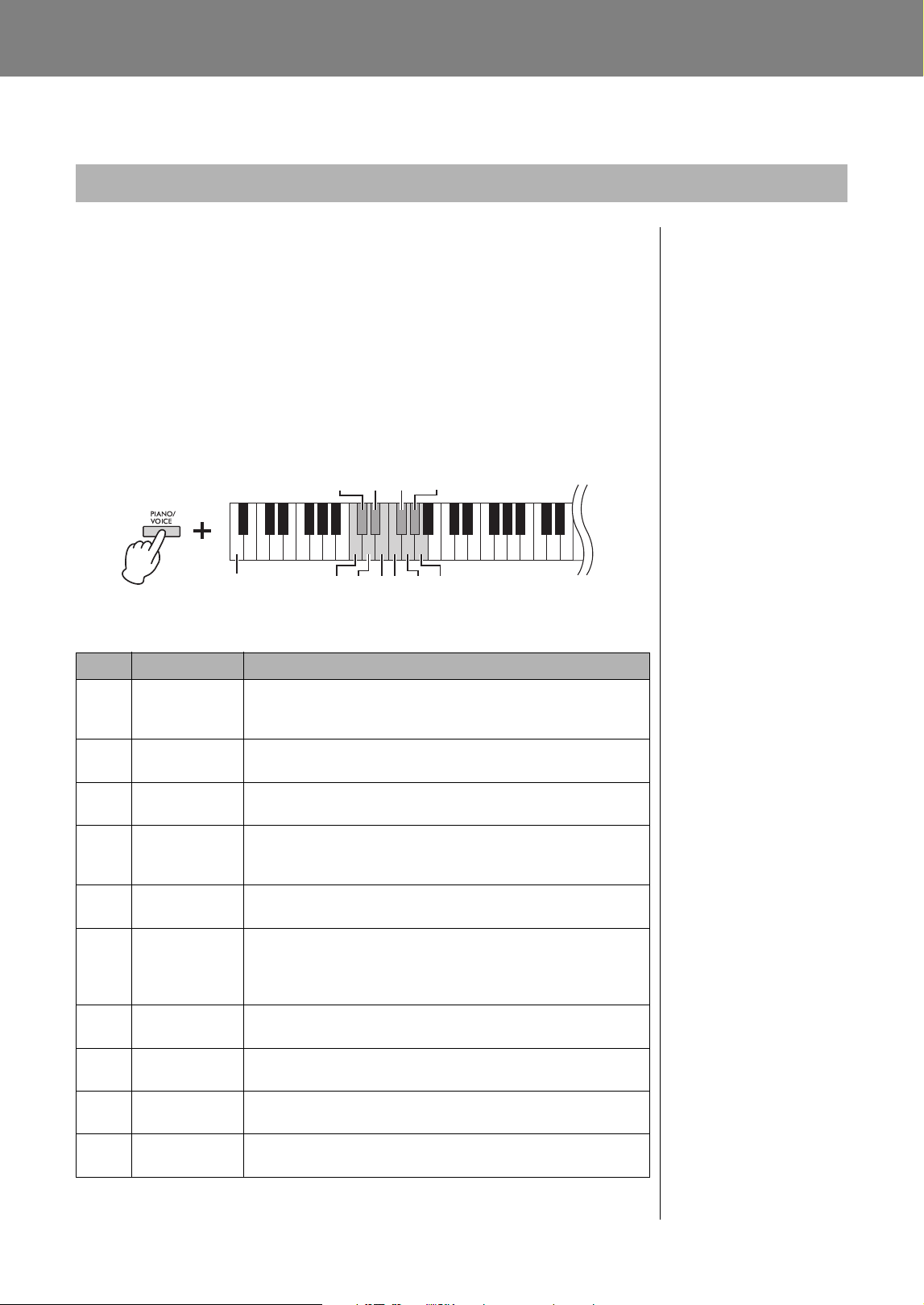
Metronome setting
While holding down the [METRONOME], press one of the highlighted keys
(shown below) or [+R]/[−L] to set the Metronome parameter.
Voice confirmation of current Tempo value (in English)
While holding down [METRONOME], press the A-1 key (lowest key).
Adjusting the Tempo
The Metronome tempo can be set from 5 to 280 beats per minute.
•To increase or decrease the value by 1:
While holding down [METRONOME], press [+R] to increase or [−L] to decrease.
While the metronome is playing, press [+R] to increase or [−L] to decrease.
•To increase or decrease the value by 10:
While holding down [METRONOME], press the D2 key to increase or the C2 key
to decrease.
•To specify a numeric value:
While holding down [METRONOME], press the relevant C1 – A1 keys one by one
in order. Specifying three digits or releasing [METRONOME] after specifying one
or two digits will enter the value.
•Resetting the value to the default (120)
While holding down [METRONOME], press [+R] and [−L] simultaneously, or
press the C#2 key. While the metronome is playing, press [+R] and [−L]
simultaneously.
Selecting the Beat (time signature)
While holding down [METRONOME], press one of the F2 – A#2 keys.
The first beat is accented with a bell sound and the rest with clicks. Default
setting is 0 (F2). In this setting, clicks sound in all beats.
Adjusting the Volume
While holding down [METRONOME], press the B4 key to increase the volume
or the A4 key to decrease. To reset to the default setting, press the A#4 key while
holding down [METRONOME].
Using the Metronome
22447
13 3056 5
6
9
80
C1 A1
C2
(-10)
D2
(+10)
F2 G2 A2 A4 B4
G#2A#2
Lowest key A-1
C#2 (Default: 120)
Adjusting
the Volume
Selecting the Beat
(time signature)
Adjusting
the Tempo
Confirming the
current Tempo
F#2
A#4 (Default: 7)
NOTE
Press the corresponding key
and the number will be read
out in English.
If the entered value is outside
the setting range, it will be
ignored.
Setting range:
1 – 10
Default setting:
7 (A#4)
Key
Beat (time
signature)
F2 0 (no accent)
F#22
G2 3
G#24
A2 5
A#26
20
YDP-166, YDP-146, YDP-S56, YDP-S36 Owner’s Manual
Advanced Operations
Playing Various Musical Instrument Sounds (Voices)
To select “CFX Grand”:
Simply press [PIANO/VOICE].
To select another Voice:
After pressing [PIANO/VOICE], press [+R] or [−L] to select the next or previous
Voi ce.
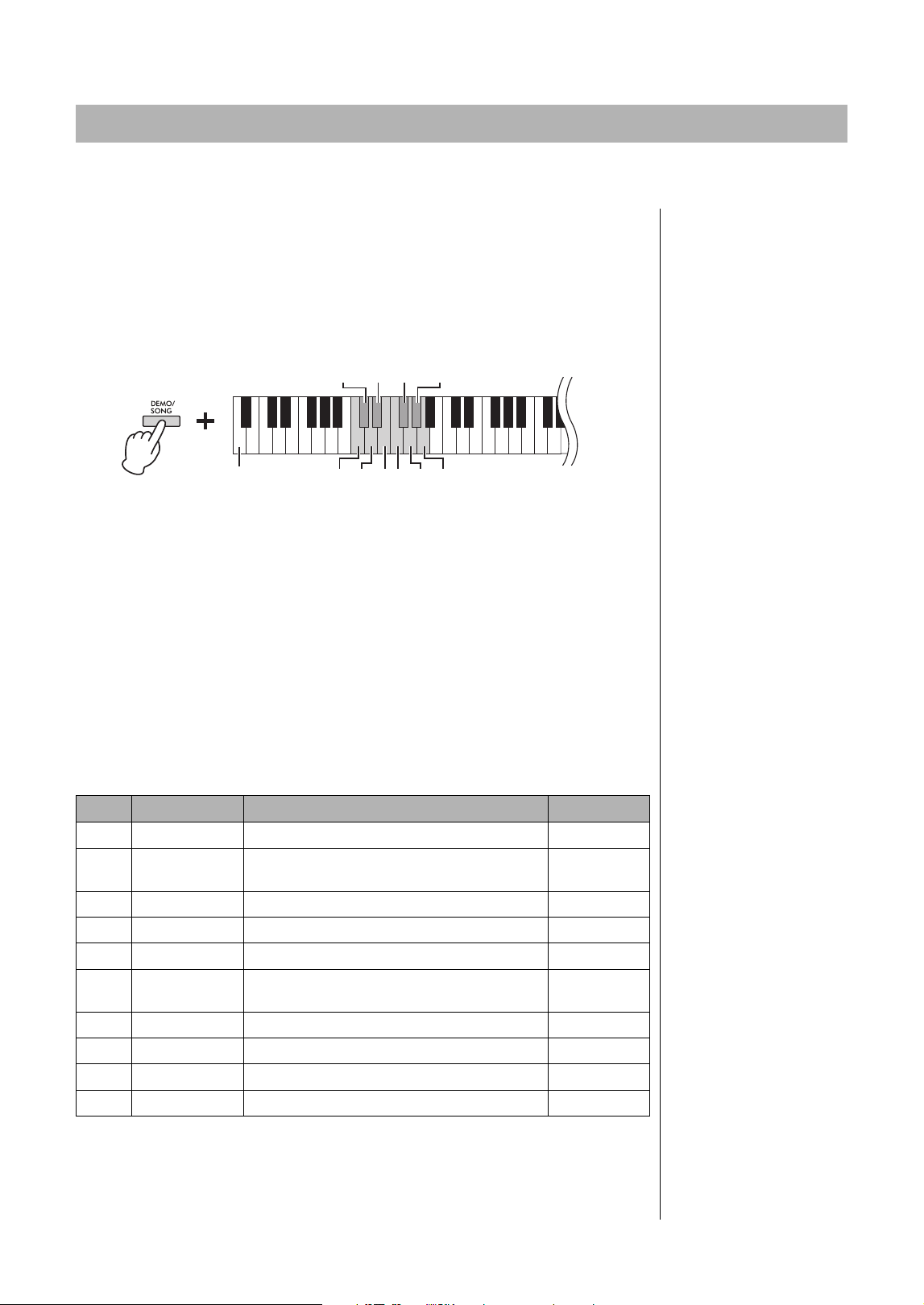
To select a specific Voice:
While holding down [PIANO/VOICE], press one of the C1 – A1 keys. For details
on which Voice is assigned to each key, see the list below.
Voice L ist
*Piano Voices.
Selecting a Voice
NOTE
To hear the characteristics of
the Voices, play back the Demo
Songs (page 21).
Key Voice Name Voice description
C1 CFX Grand*
Yamaha’s CFX flagship concert grand piano sound with a wide
dynamic range for maximum expressive control. Suitable for
playing in any music genre and style.
C#1 Mellow Grand*
Grand piano sound with a soft and warm tone. Good for playing
ballads.
D1 Pop Grand*
Bright piano sound. Good for clear expression and “cutting
through” other instruments in an ensemble.
D#1 Stage E.Piano
The sound of an electric piano using hammer-struck metallic
“tines.” Soft tone when played lightly, and an aggressive tone
when played hard.
E1 DX E.Piano
An electronic piano sound created by FM synthesis. Good for
standard popular music.
F1 Harpsichord
The definitive instrument for baroque music. Since harpsichord
uses plucked strings, there is no touch response. There is,
however, a characteristic additional sound when the keys are
released.
F#1 Vibraphone
Vibraphone played with relatively soft mallets. The tone becomes
more metallic the harder you play.
G1 Pipe Organ
This is a typical pipe organ sound (8' + 4' + 2'). Good for sacred
music from the Baroque period.
G#1 Jazz Organ
The sound of a “tonewheel” type electric organ. Often heard in
jazz and rock music.
A1 Strings
Stereo-sampled, large-scale strings ensemble with realistic
reverb. Try combining this Voice with piano in the Dual mode.
C#1D#1F#1G#1
C1
D1 E1 F1 G1 A1Lowest key
Playing Various Musical Instrument Sounds (Voices)
21
YDP-166, YDP-146, YDP-S56, YDP-S36 Owner’s Manual
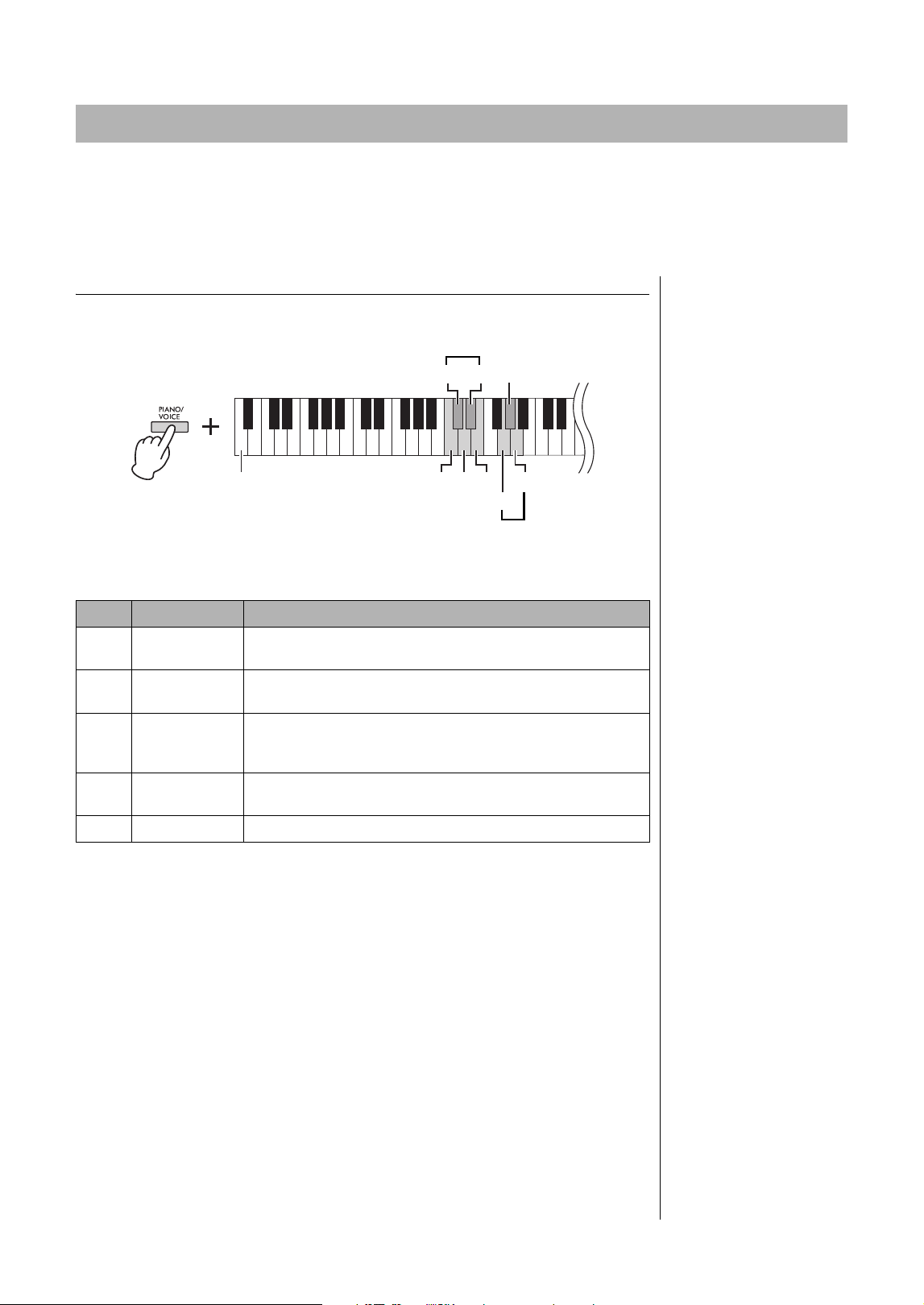
Special individual Demo Songs are provided for all of the instrument Voices.
1. Press [DEMO/SONG] to start playback.
The Demo Song for the current Voice starts. During playback, the [PLAY] lamp
flashes at the current tempo.
Starting with the selected Song, the playback of the Demo Songs will continue.
After the last Demo Song, the sequence then returns to the first Demo Song and
repeats until you stop it. To change to a specific Demo Song, simultaneously hold
down [DEMO/SONG], and then press and hold one of the C1-A1 keys.
To play back the selected Demo Song repeatedly:
While holding down the [DEMO/SONG], press and hold one of the C1-A1 keys.
The operation sound (page 14) sounds twice and the Demo Song can be played
back repeatedly.
To change the Demo Song during playback:
Press [+R] or [−L] to change to the next or previous Demo Song.
If you change to the next or previous Demo Song during repeated playback, that
Demo song will also play back repeatedly.
2. Press [DEMO/SONG] or [PLAY] to stop playback.
The [PLAY] lamp turns off.
Demo Song List
The length and actual content of the Demo Songs (excluding the original Songs) may differ from
the original compositions. The original Demo Songs are Yamaha originals (© Yamaha
Corporation).
Listening to the Demo Songs
NOTE
The tempo can only be
changed while the Demo Song
is playing. If you want to
change the playback tempo,
see page 19.
Key Voice Name Title Composer
C1 CFX Grand Mazurka No.5 op.7-1 F. F. Chopin
C#1 Mellow Grand The Nutcracker Medley
P. I.
Tchaikovsky
D1 Pop Grand Original —
D#1 Stage E.Piano Original —
E1 DX E.Piano Original —
F1 Harpsichord
Concerto a cembalo obbligato, 2 violini, viola e
continuo No.7, BWV 1058
J. S. Bach
F#1 Vibraphone Original —
G1 Pipe Organ Herr Christ, der ein'ge Gottes-Sohn, BWV 601 J. S. Bach
G#1 Jazz Organ Original —
A1 Strings Original —
C#1D#1F#1G#1
C1
D1 E1 F1 G1 A1Lowest key
Playing Various Musical Instrument Sounds (Voices)
22
YDP-166, YDP-146, YDP-S56, YDP-S36 Owner’s Manual
This instrument features several Reverb Types that add extra depth and expression to the sound to create a
realistic acoustic ambience. The appropriate Reverb Type and Depth are called up automatically when you
select each of the Voices and Songs. This is why the Reverb Type need not be selected; however, you can
change it if desired.
To select a Reverb Type:
While holding down [PIANO/VOICE], press one of the C2 – E2 keys.
Reverb Type List
To adjust Reverb Depth:
The higher the value, the greater the depth, and the lower the value, the lesser the
depth.
While holding down [PIANO/VOICE], press the G2 key to decrease the value by
1 or the A2 key to increase the value by 1.
While holding down [PIANO/VOICE], press the G#2 key to reset the Reverb
Depth to the default setting, which is the most suitable value for the current
Voi ce.
Adding Variations to the Sound (Reverb)
NOTE
In Dual Mode (page 24), an
optimum reverb type for the
combination of Voices is
assigned automatically.
Key Reverb Type Description
C2 Recital Hall
Simulates the clear reverb sound you would hear in a medium-
sized concert hall for piano recitals.
C#2 Concert Hall
Simulates the gorgeous reverb sound you would hear in a large
concert hall for orchestral performances.
D2 Chamber
Suitable for playing chamber music; simulates the intimate
reverb sound you would hear in a spacious room, such as for
classical music recitals.
D#2Club
Simulates the vivid reverb sound you would hear in a live music
venue or a jazz club.
E2 Off No effect is applied.
Lowest key
A2 (Depth +1)
G#2 (Default)
G2 (Depth -1)
C#2D#2
C2 D2 E2
Selecting a Reverb Type
Adjusting Reverb Depth
Setting range:
0 (no effect) – 20 (maximum
depth)

Playing Various Musical Instrument Sounds (Voices)
23
YDP-166, YDP-146, YDP-S56, YDP-S36 Owner’s Manual
You can shift the pitch of the entire keyboard up or down in semitones in order to facilitate playing in
difficult key signatures, or to easily match the pitch of the keyboard to the range of a singer or other
instruments. For example, if “+5” is selected, playing key C produces pitch F, letting you play a song of F
major as though it were in C major.
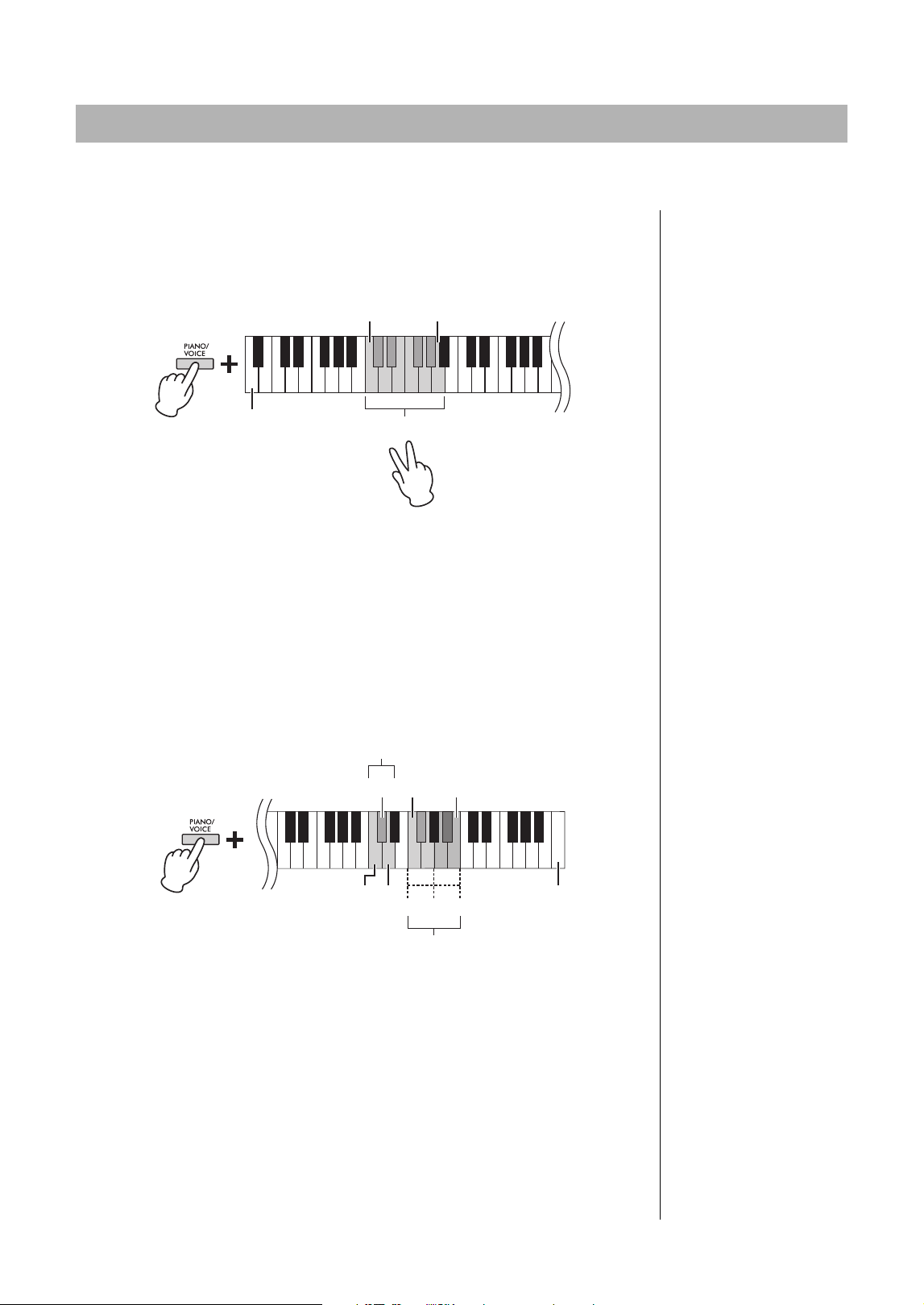
To transpose the pitch down:
While holding down [DEMO/SONG] and [PIANO/VOICE], press a key
between F#2 (−6) and B2 (−1).
To transpose the pitch up:
While holding down [DEMO/SONG] and [PIANO/VOICE], press a key
between C#3 (+1) and F#3 (+6).
To restore the normal pitch:
While holding down [DEMO/SONG] and [PIANO/VOICE], press the C3 key.
You can fine-tune the pitch of the entire instrument in about 0.2 Hz steps. This lets you accurately match the
keyboard pitch to that of other instruments or ensembles.
To tune up (in about 0.2 Hz steps):
Press and hold down [DEMO/SONG] and
[PIANO/VOICE] simultaneously, and press [+R].
To tune down (in about 0.2 Hz steps):
Press and hold down [DEMO/SONG] and
[PIANO/VOICE] simultaneously, and press [−L].
To set the pitch to 442.0 Hz:
Press and hold down [DEMO/SONG]
and [PIANO/VOICE] simultaneously,
and press the C#1 key.
To restore default pitch (440.0 Hz):
While simultaneously holding down [DEMO/
SONG] and [PIANO/VOICE], press [+R] and
[−L] simultaneously. Alternately, you can press
the C1 key while holding down [DEMO/
SONG] and [PIANO/VOICE] simultaneously.
Transposing the Pitch in Semitones
NOTE
The transposition setting affects
not only the pitch of the
keyboard but also the pitch of
Song playback (page 26).
The transposition setting of the
Transposition for the Keyboard
and the Song cannot be set
independently.
Setting range:
−6 – 0 – +6
Default setting:
0
-5 -3 -1 0 +2 +4 +5
-6 -4 -2 +1
+3 +6
F#2
Lowest key
F#3
Transpose down Transpose up
C3 (Normal pitch)
Fine-tuning the Pitch
Hz (Hertz)
This unit of measurement refers
to the frequency of a sound and
represents the number of times
a sound wave vibrates in a
second.
Setting range:
414.8 – 466.8 Hz
Default setting:
A3 = 440.0 Hz
C#1
Lowest key
C1
Playing Various Musical Instrument Sounds (Voices)
24
YDP-166, YDP-146, YDP-S56, YDP-S36 Owner’s Manual
You can layer two Voices and play them simultaneously to create a more richly textured sound.
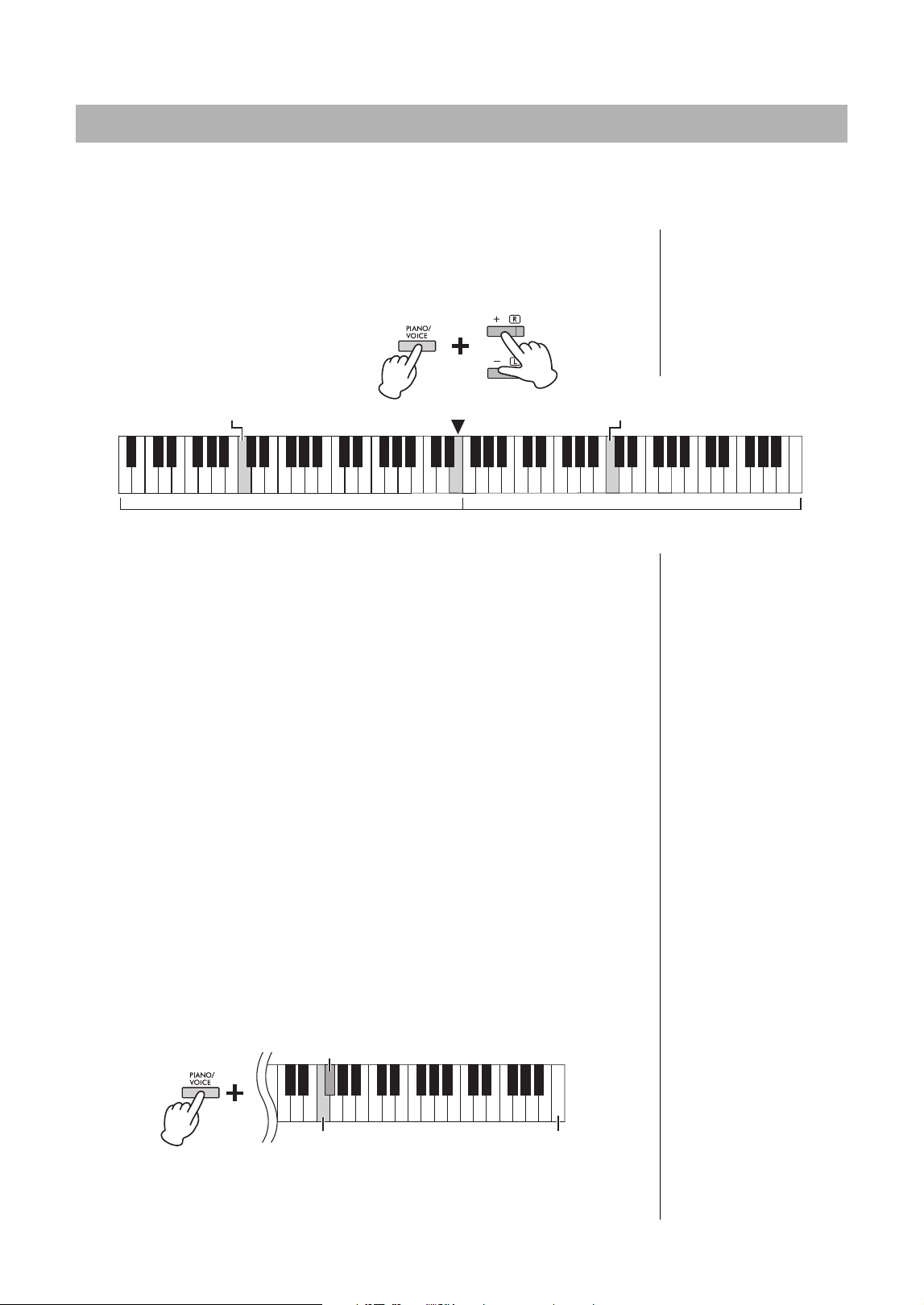
1. Engage the Dual mode.
While holding down [PIANO/VOICE], simultaneously hold down two keys
between C1 and A1 to select the two desired Voices. For information on which
Voices are assigned to the keys, refer to “Voice List” (page 20).
The Voice assigned to the lower key will be designated as Voice 1, and the Voice
assigned to the higher key will be designated as Voice 2. You cannot assign the same
Voice to both Voice 1 and Voice 2 simultaneously in Dual mode.
To shift the Octave for each Voice:
While holding down [PIANO/VOICE], press one of the keys F5 – G5 or A5 – B5 as
shown in the illustration below. For example, pressing the B5 key twice while
holding down [PIANO/VOICE] shifts Voice 1 up by two octaves. To restore the
default setting, simultaneously hold down [PIANO/VOICE] and press the A#5 key
for Voice 1 or the F#5 key for Voice 2.
To adjust the Balance between two Voices:
While holding down [PIANO/VOICE], press the C5 key to decrease the value or
the D5 key to increase. When the value is set to “0,” the volume levels of the two
Voices reset to their respective default settings. Settings below “0” increase the
volume of Voice 2, while settings above “0” increase the volume of Voice 1, in
relation to the other.
2. To exit from Dual mode, press [PIANO/VOICE].
Layering Two Voices (Dual mode)
C1 A1
Lowest key
Engaging Dual mode
NOTE
The Dual and Duo modes
(page 25) cannot be engaged
at the same time.
Setting range:
−2 – 0 – +2
-1
00
+1-1 +1 -1 +1
C5
Highest key
C#5 (Default setting) F5 B5
Shifting the octave
Adjusting the balance
Voice 2
Voice 1
D5
Setting range:
−6 – (Default Setting) – +6
Default setting:
Differs depending on the Voice
combination.
Playing Various Musical Instrument Sounds (Voices)
25
YDP-166, YDP-146, YDP-S56, YDP-S36 Owner’s Manual
This function allows two different players to play the instrument, one on the left and the other on the right,
over the same octave range.
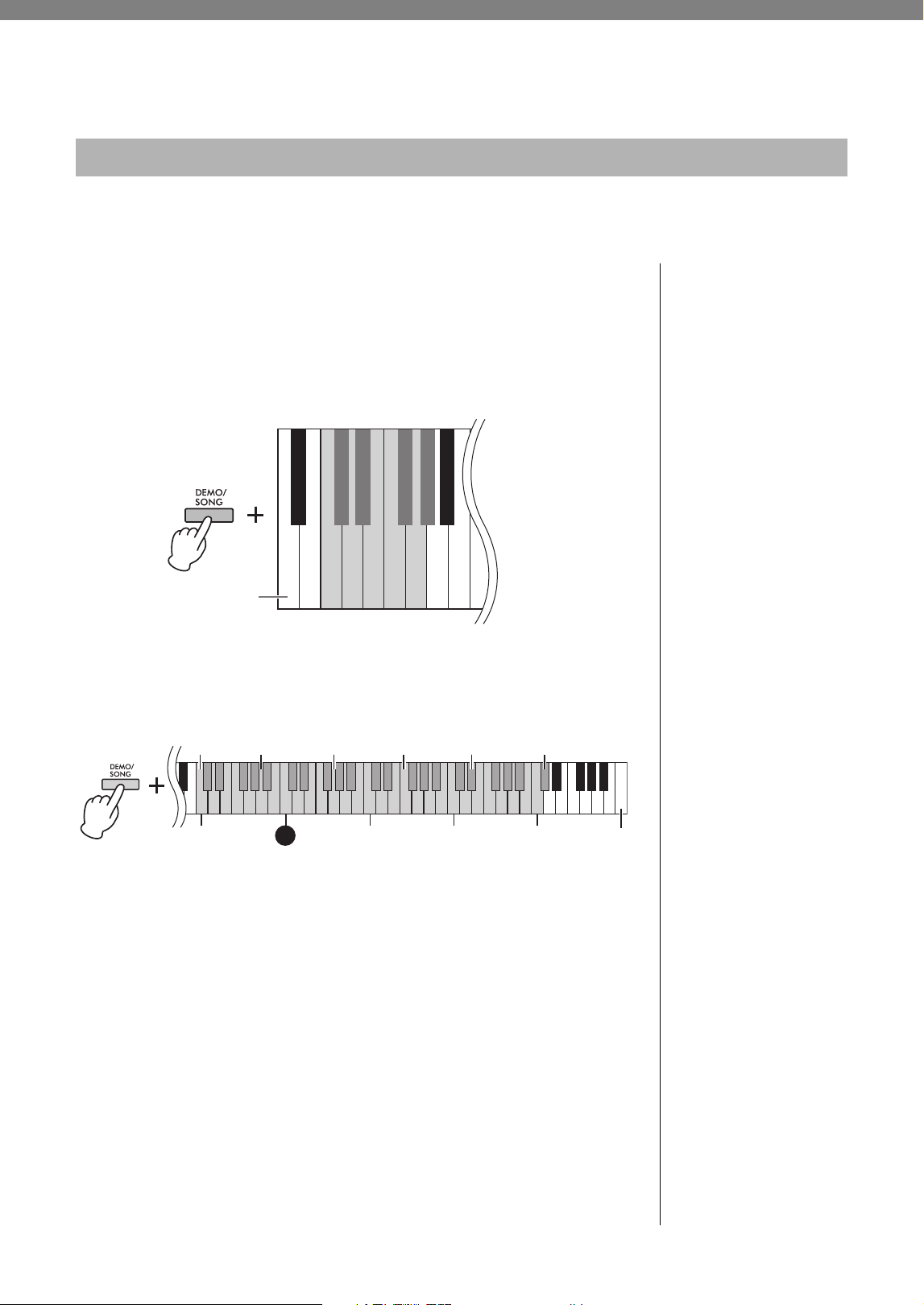
1. While holding down [PIANO/VOICE], press [+R] and [−L]
simultaneously to engage Duo.
The keyboard is divided into two sections, with the E3 key as the Split Point.
2. One person can play the left section of the keyboard while
the other plays the right.
To shift the O ctave for e ach s ection:
Same operation as in Dual (page 24).
In Duo, the left section is assigned to Voice 2, while the right section is assigned to
Voice 1.
To adjust the volume balance between two keyboard sections:
Same operation as in Dual (page 24).
Settings below “0” increase the volume of Left Voice (Voice 2), while settings above
“0” increase the volume of Right Voice, in relation to the other.
Pedal function in Duo
• Damper Pedal: Applies Sustain to the right section.
• Sostenuto Pedal: Applies Sustain to both sections.
• Soft Pedal: Applies Sustain to the left section.
To sel e ct the Du o Typ e:
You can set how the sound is emitted from the speakers.
• Separated: The sound of the left section is emitted from the left speaker, and the
sound of the right section is emitted from the right speaker.
• Balanced: The sound of both parts are emitted from both speakers in a natural
balance.
While holding down [PIANO/VOICE], press the A4 key or the A#4 key to change
the setting.
3. To exit from Duo, while holding down [PIANO/VOICE],
press [+R] and [−L] simultaneously.
Playing Duo
NOTE
• Different Voices cannot be
assigned to the Right Voice
and Left Voice.
• The Split Point cannot be
changed from E3.
Split Point E3Equivalent to C3 (middle C) Equivalent to C3 (middle C)
Left section (Voice 2) Right section (Voice 1)
Setting range:
-2 – 0 – +2
Setting range:
-6 – 0 – +6
NOTE
The way the sound is output
from the headphones is the
same as the selected Duo
Type.
NOTE
• If the keyboard is in Dual,
engaging Duo will exit from
Dual. Voice 1 is used as the
Voice of the entire keyboard.
• In Duo, VRM Lite is not
effective. When the Type of
Duo is set to “Separated,”
Reverb and Stereophonic
Optimizer are not effective.
Default Setting:
Separated
F#4 (Separated)
F4 (Balanced) Highest key
26
YDP-166, YDP-146, YDP-S56, YDP-S36 Owner’s Manual
Song Playback and Practice
In addition to the Demo Songs, Preset Songs (50 Classical Music Masterpieces and Lesson Songs) are
provided for your listening pleasure.
1. Check the song number and songbook.
For the details on the Music book and Song number, refer to the Song List (page 47)
or Quick Operation Guide (page 52).
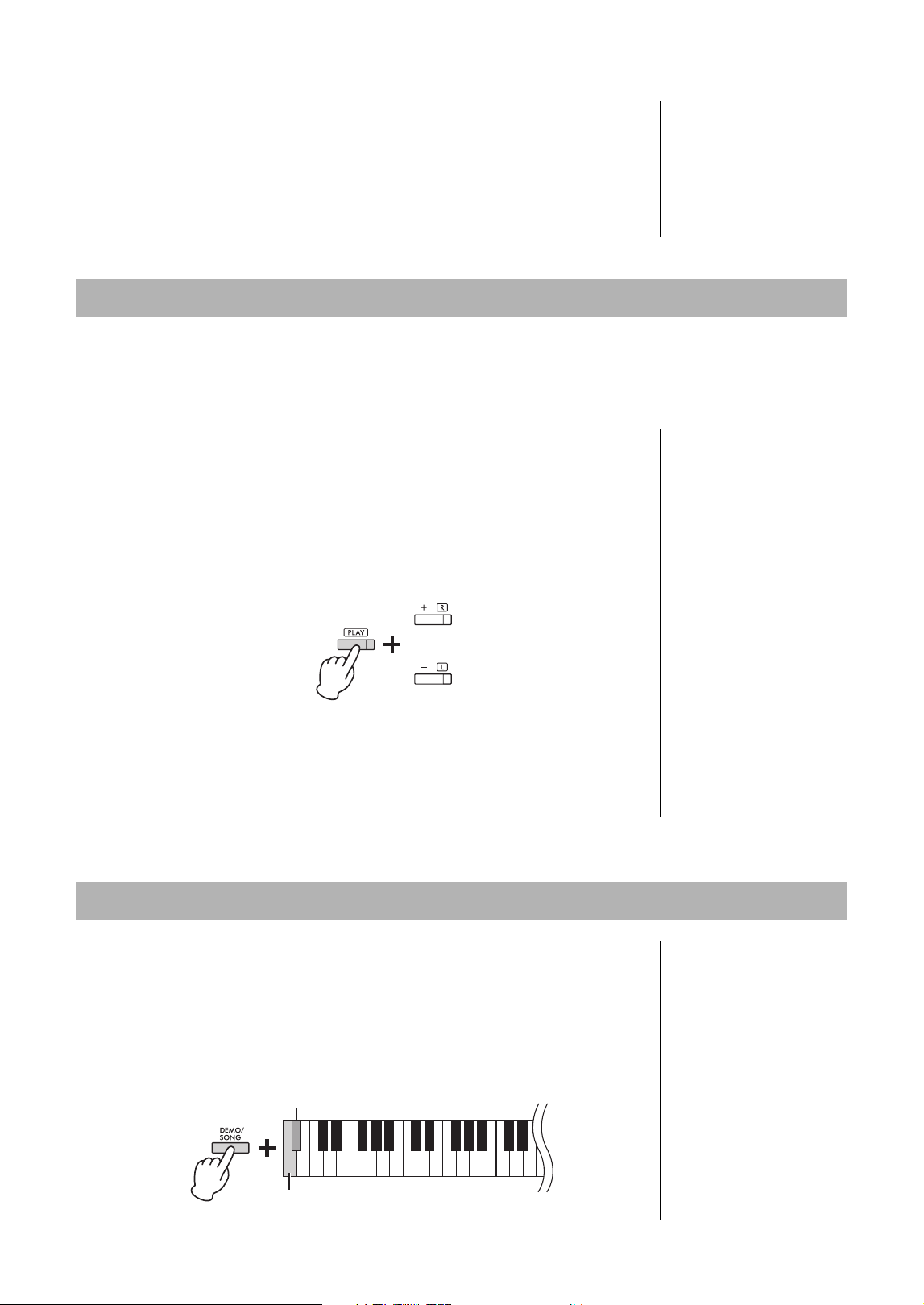
2. While holding down [DEMO/SONG], press one of the C0–
G#0 keys to select a Music book.
3. While holding down [DEMO/SONG], press one of the C2–
C#6 keys to start playback.
The number of each piano Preset Song is assigned to the C2–C#6 keys.
During playback, the [+R] and [−L] lamps light, and the [PLAY] lamp flashes at the
current tempo. Playback of the Preset Songs continues in sequence, starting with
the selected Song. After the last Preset Song, the sequence then returns to the first
Preset Song and repeats until you stop it.
To play back the selected Song repeatedly:
While holding down the [DEMO/SONG], press and hold one of the C2–C#6 keys.
The operation sound (page 14) sounds twice and the selected Song can be played
back repeatedly.
To change the Preset Song during playback:
Press [+R] or [−L] to change to the next or previous Preset Song.
If you change to the next or previous Preset Song during repeated playback, that
Preset song will also play back repeatedly.
To change the tempo during playback:
While holding down [METRONOME], press [+R] or [−L] to increase or decrease
the Tempo value by 1. Other instructions are the same as those of the Metronome
Tempo (p age 19).
Listening to Preset Songs
Default Setting (Music
book):
50 Classical Music
Masterpieces (50 Classics)
NOTE
Once you change the Music
book, the setting will be
retained until the power is
turned off.
$%
C0
'()*$%
$ᅊ&ᅊ'ᅊ)ᅊ*ᅊ$ᅊ
50 Classics
Bayer 51–100
Burgmüller 1–25
Czerny 100, 1–50
Czerny 30, 1–30
Bayer 1–50
Bayer 101–106
Czerny 100, 51–100
Hanon
Lowest key
NOTE
• You can play the keyboard
along with the playback of the
Preset Song as well as
change the Voice played from
the keyboard.
• Depending on the selected
Music book, there are some
keys to which the Song are
not applied. When pressing
such keys, no Songs are
played back.
C3
Highest key (C7)
Song 1 Song 10 Song 20 Song 30 Song 40
C4 C5
C2
Song 50 (C#6)
C6
Song Playback and Practice
27
YDP-166, YDP-146, YDP-S56, YDP-S36 Owner’s Manual
To play back from the beginning of the Song
During playback, press [+R] and [−L] simultaneously to jump to the playback
position at the beginning of the Song then continue playback at the last specified
tempo.
4. Press [DEMO/SONG] or [PLAY] to stop playback.
The [PLAY], [+R] and [−L] lamps turn off.
All the Songs except for the Demo (page 21) let you turn on or off the left-hand and right-hand Parts
individually. By turning off [+R], for example, you can practice the right-hand Part while the left-hand Part
is playing back, and vice versa.
1. Start playback of the Preset Songs (page 26; 50 Classical
Music Masterpieces and Lesson Songs) or the User Song
(page 28).
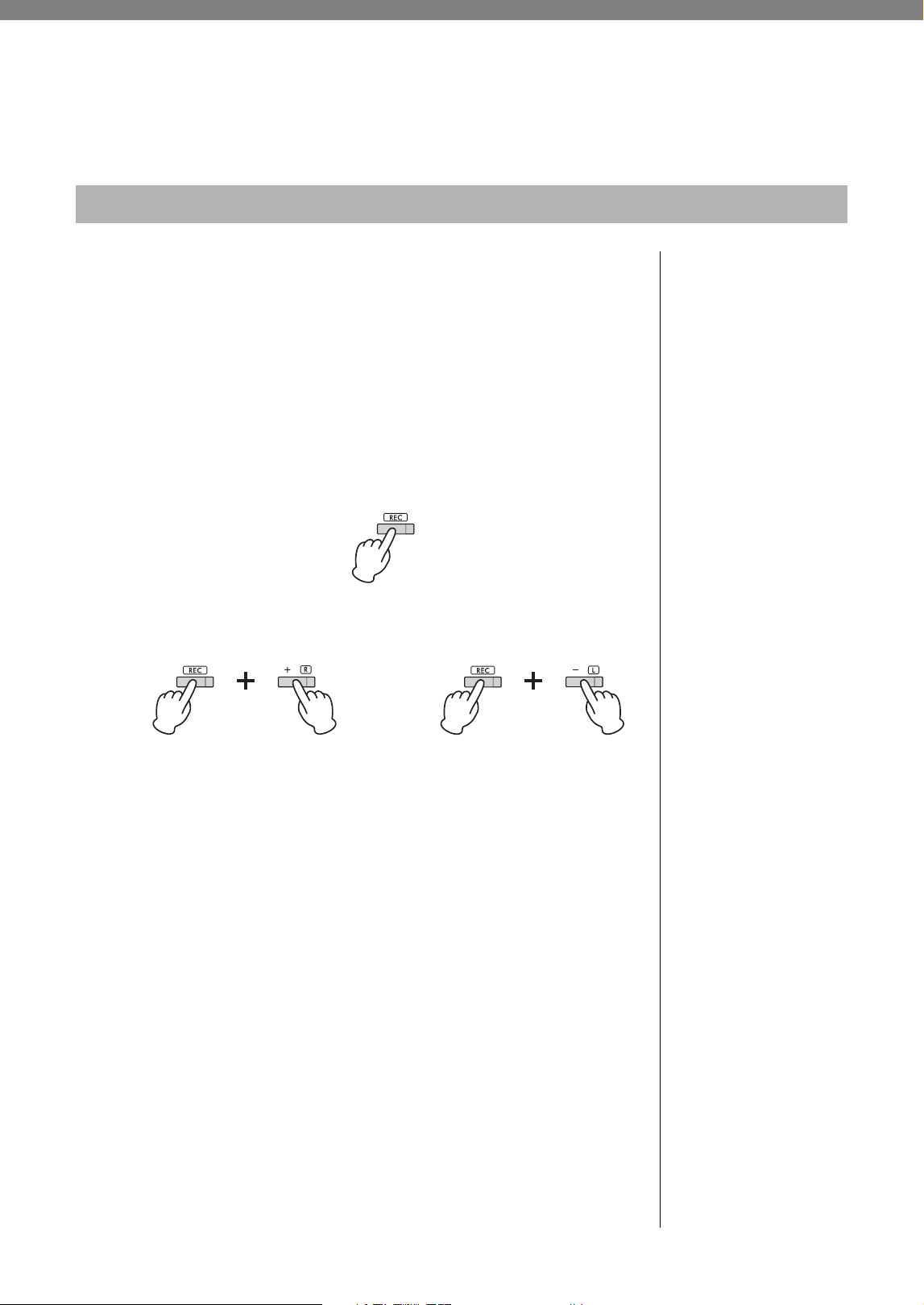
2. While holding down [PLAY], press [+R] or [−L] to turn the
Part off.
Pressing the same button repeatedly while holding down [PLAY] toggles playback on
and off.
3. Practice the Part which is turned off.
To change the Tempo :
If desired, you can change the tempo for your practice convenience. For details,
refer to page 19.
4. Press [PLAY] to stop playback.
This Quick Play feature enables you to specify whether a Song should play back
immediately from the very first note (On), or play back any silence or rests that
exist before the first note (Off).
To turn on/off Quick Play:
While holding down [DEMO/SONG], press the A#-1 to turn the function on or
A-1 key to turn the function off.
Practicing a One-Hand Part
NOTE
• Selecting another Song will
reset the on/off status.
• For the details on the Parts of
the duet Songs, refer to
page 47.
• For the User Song, Parts can
only be independently turned
on or off when recording the
right or left part
independently (step 2,
page 29).
or
The lamp of the button lights
when the corresponding Part
is on.
Playing Back Immediately from the First Note (Quick Play)
Default setting:
On
A#-1 (On)
A-1(Off)
Lowest key
28
YDP-166, YDP-146, YDP-S56, YDP-S36 Owner’s Manual
Recording Your Performance
This instrument lets you record your keyboard performance as the User Song. Up to two Parts (left-hand and
right-hand) can be recorded separately.
1. Select the desired Voice and other parameters, such as beat
(time signature), for recording.
For instructions on selecting a Voice, refer to page 20. If necessary, set other
parameters, such as beat (time signature) and effects, in this step.
2. Engage the Record Ready mode.
Quick Recording
Press [REC] to engage the Record Ready mode. Your keyboard performance will be
automatically recorded to the right-hand Part even if you play with both your right
and left hands. Note that the already-recorded data of the right- and left-hand parts
will be erased by Quick Recording.
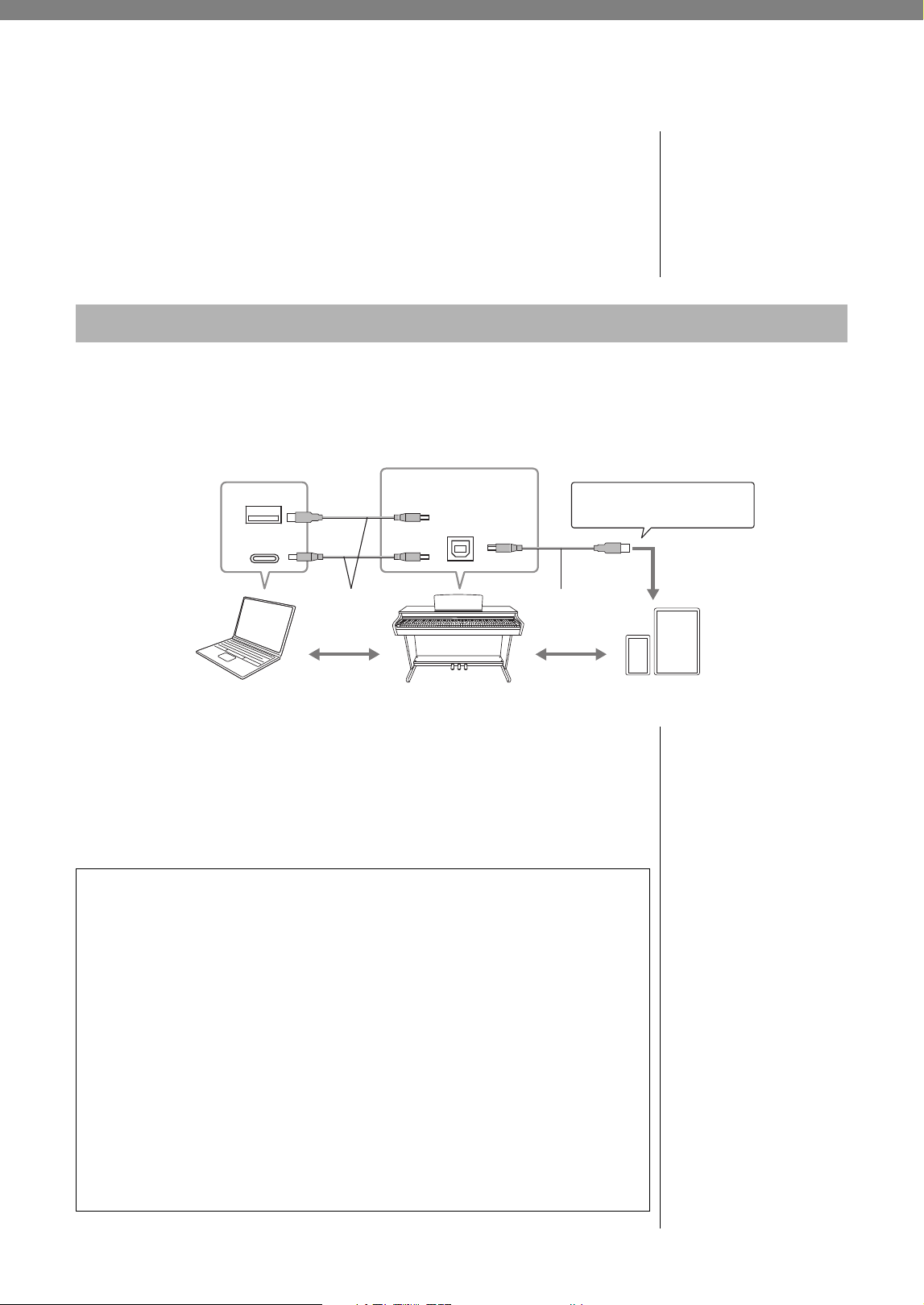
Recording to individual parts
While holding down [REC], press [+R] or [−L] to engage the Record Ready mode
for the Part you want to record.
If data has already been recorded to the other Part, the data in this Part will be
played back while recording.
To turn the Part off or on, press the appropriate part button ([+R] or [−L]) while
holding down [PLAY].
To exit from Record Ready mode:
Simply press [REC].
3. Play the keyboard or press [PLAY] to start recording.
The [REC] lamp lights up while the Recording Part lamp flashes at the current
tempo.
4. Press either [REC] or [PLAY] to stop recording.
The [REC], [PLAY], [+R] and [−L] lamps flash, indicating that the recorded data is
being stored. After the Save operation is completed, the lamps will turn off,
indicating that the Record operation has been completed.
5. To hear the recorded Song, press [PLAY] to start playback.
Press [PLAY] again to stop playback.
To record to the other part
Repeat the steps above. In step 2, follow the instructions of “Recording individual
parts.”
Recording Your Performance
NOTICE
Only one Song can be
recorded to the instrument.
Note that recording another
Song will replace already-
recorded data with the new
data.
NOTE
• The “Smart Pianist” app
(page 32) enables you to
record your keyboard
performance as MIDI/audio
data and save it on your
smart device.
• You can use the Metronome
while recording; however, the
Metronome sound will not be
recorded.
• If the keyboard is in the Duo
mode (page 25), the data will
be recorded to each Part. The
Part for recording cannot be
specified.
• If the data capacity of the
instrument approaches full
when you engage Record
Ready mode, the [REC] and
[PLAY] lamps flash quickly for
about three seconds.
NOTICE
Note that recording your
performance to a part
containing data will replace
already-recorded data with
the new data.
To record the right-hand Part ([+R]) To record the left-hand Part ([−L])
NOTICE
Never turn off the power while
the recorded data is being
stored (while the lamps are
flashing). Otherwise, all
recorded data will be lost
(page 34).
Recording Capacity
This instrument can record up
to approximately 11,000 notes.

Recording Your Performance
29
YDP-166, YDP-146, YDP-S56, YDP-S36 Owner’s Manual
The settings of the following parameters can be changed after the Record operation is completed.
• For individual Parts: Voice (page 20), Dual Volume balance (page 24), Reverb Depth (page 22)
• For the entire Song: Tempo (page 19), Reverb Type (page 22)
1. Make settings for the above parameters as desired.
2. While holding down [REC], press the desired Part ([+R] or
[−L]) to engage Record Ready mode.
The [REC], [PLAY] and selected Part lamps flash.
In this status, do not press [PLAY] again or any key. Otherwise, the originally
recorded performance data will be deleted.
3. While holding down [REC], press [PLAY] to exit from
Record Ready mode.
The [REC], [PLAY], [+R] and [−L] lamps flash. After the Save operation is
completed, the lamps will turn off, indicating that the operation has been
completed.
Confirm the setting by pressing [PLAY] to play the Song.
To delete the entire Song:
1. While holding down [REC], press [DEMO/SONG].
The [REC] and [PLAY] lamps flash alternately.
To cancel the operation, press [REC].
2. Press [PLAY] to delete the data of the entire Song.
The [REC], [PLAY], [+R] and [−L] lamps flash.
After the operation is completed, all lamps turn off.
To delete a specific Part:
1. While holding down [REC], press [+R] or [−L] (depending
on the Part you want to delete) to engage Record Ready
mode.
The [REC], [PLAY] and selected Part ([+R] or [−L]) lamps flash.
2. Press [PLAY] to start recording without playing the
keyboard.
The selected Part ([+R] or [−L]) lamp flashes.
3. Press [REC] or [PLAY] to stop recording.
All data recorded for the selected Part will be deleted, and the lamp turns off.
Changing the Initial Settings of the Recorded Song
Deleting Recorded Data
NOTE
If a User Song has not been
recorded to the instrument, the
[REC] and [PLAY] lamps flash
quickly for about three
seconds.
30
YDP-166, YDP-146, YDP-S56, YDP-S36 Owner’s Manual
Using with a Smart Device or a Computer
By connecting the instrument to a smart device such as a smartphone or tablet,
or to a computer, you can exchange performance information (MIDI data/audio
data). Connect to a smart device or computer using a USB cable or Bluetooth.
You can connect the instrument to a smart device or a computer via a USB cable
or Bluetooth.
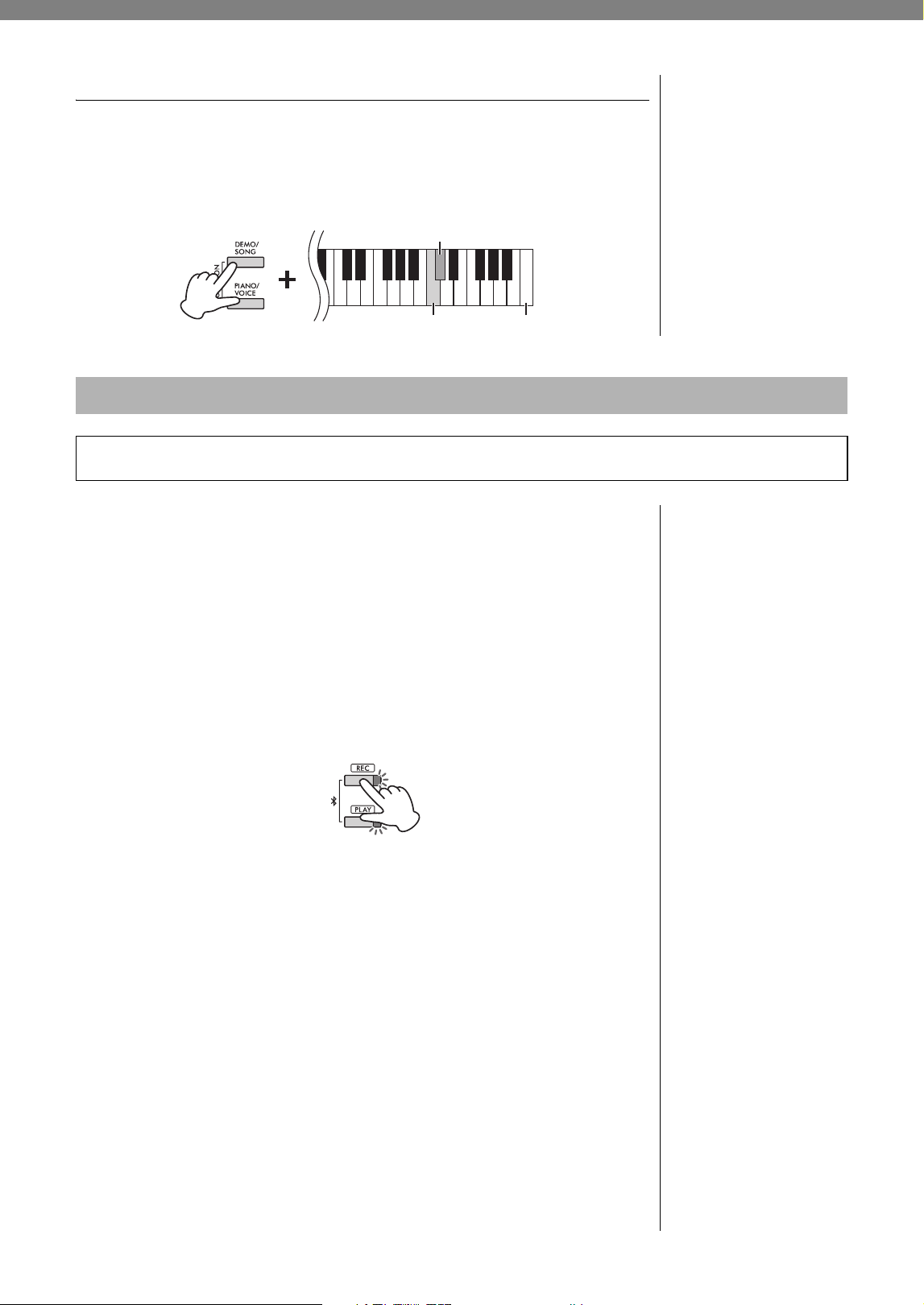
By connecting a smart device or a computer to the [USB TO HOST] terminal via a USB cable, digital audio
data can be received/transmitted. You can listen to audio data played on the connected device through the
instrument speaker, or you can record your performance on the instrument as audio data by using a music
production software or app.
When transmitting or receiving audio signals by using a computer running
Windows, if operation is unstable or delays occur, use the “Yamaha Steinberg
USB Driver.” On the website below, search for “Yamaha Steinberg USB Driver”
and install it on the computer. For instructions on installing the driver, refer to
the Installation Guide included with the download file.
https://download.yamaha.com/
NOTICE
Do not place any devices in
an unstable position. Doing
so may cause the device to
fall and result in damage.
NOTE
For instructions on using MIDI,
refer to “MIDI Reference”
(page 8).
Playback/Recording of Audio Data (USB Audio Interface)
Type-B
Type-A
Type-C
Computer
Example
[USB TO HOST] terminal
(page 9)
USB cable
Instrument
Smart device
USB cable
(AB type)
+ USB Conversion adaptor
NOTICE
If you are using a DAW (digital
audio workstation)
application with this
instrument, set the Audio
Loopback function to off
(page 31). Otherwise, a loud
sound may occur, depending
on the settings of the
computer.
NOTE
Depending on the model or OS
of the computer and smart
device, noise may occur, or this
function may not be available.
Precautions when using the [USB TO HOST] terminal
When connecting a smart device or a computer to the [USB TO HOST] terminal,
make sure to observe the following points to avoid freezing the smart device,
computer or instrument, and corrupting or losing the data.
NOTICE
• Use a USB cable of less than 3 meters. USB 3.0 cables cannot be used.
• Execute the following before turning the power to the instrument on/off or plugging/
unplugging the USB cable to/from the [USB TO HOST] terminal.
- Quit any open app on the smart device/computer.
- Make sure that data is not being transmitted from the instrument. (Data is transmitted
even when the notes on the keyboard are played or a Song is played back.)
• While the smart device/computer is connected to the instrument, you should wait for six
seconds or more between these operations: (1) when turning the power of the
instrument off then on again, or (2) when alternately connecting/disconnecting the USB
cable.
If the smart device, computer or instrument freezes, restart the app or the computer/
smart device, or turn the power to the instrument off then on again.
31
YDP-166, YDP-146, YDP-S56, YDP-S36 Owner’s Manual
Turning Audio Loop Back On/Off
You can set whether audio sound input from the [USB TO HOST] terminal is
returned to the computer/smart device or not along with the performance played
on the instrument.
While holding down [DEMO/SONG] and [PIANO/VOICE] simultaneously,
press the C6 key to turn this parameter “Off” or the C#6 key to turn it “On.”
A Bluetooth-equipped audio player such as a smart device or a computer can be
connected by using the Bluetooth Audio function. Audio playback on the
connected device is output from the built-in speakers of this instrument.
To connect via Bluetooth, the Bluetooth function of this instrument should be
turned on. By default, the Bluetooth function is set to on, however you can turn
it on/off (page 32).
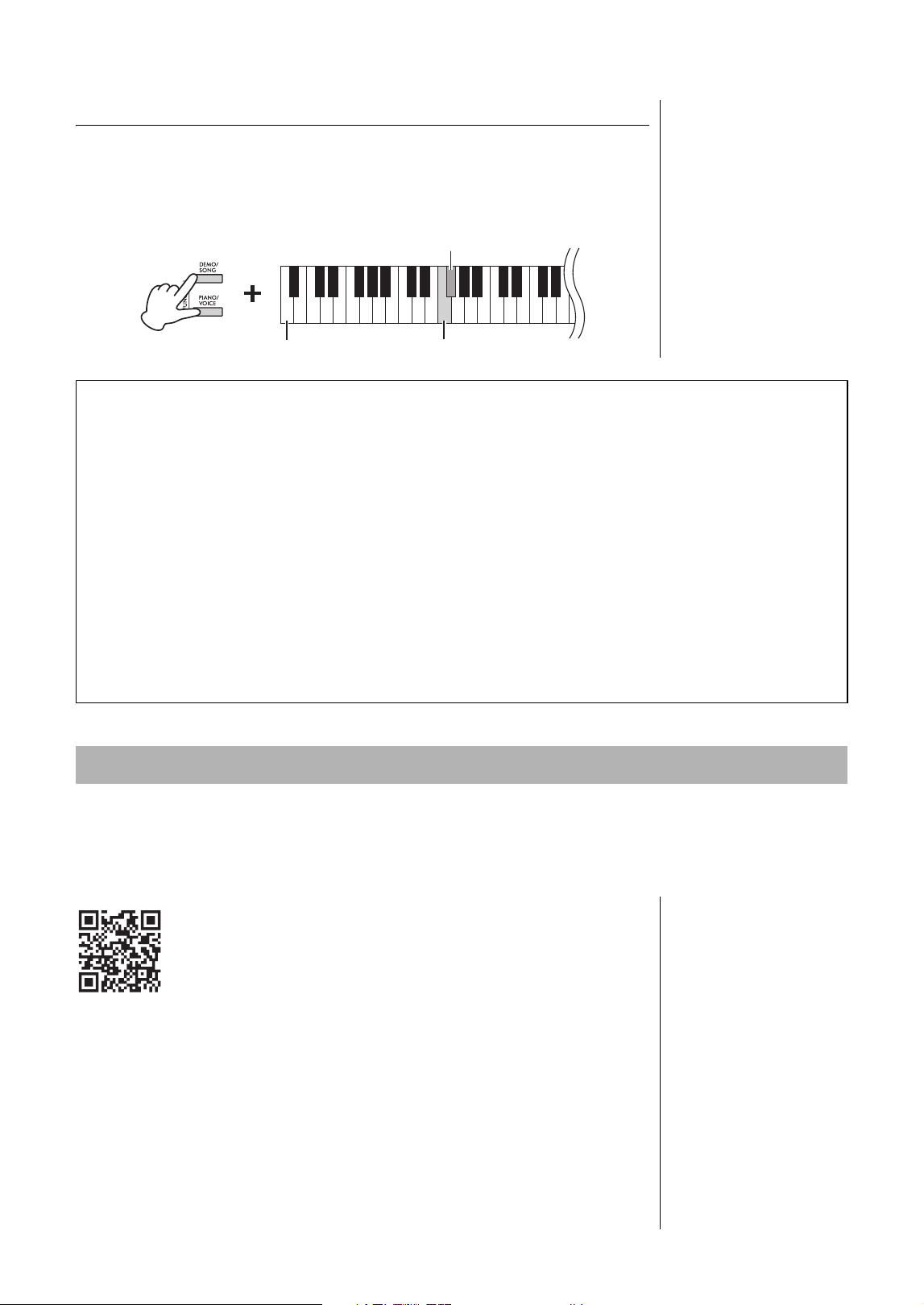
1. Hold down the [REC] and [PLAY] buttons simultaneously
for three second or longer to pair with a Bluetooth-
equipped device (Pairing*).
To cancel the paring, press any button.
2. On the audio player, set the Bluetooth function to on and
select the instrument “YDP-*** Audio” (*** is the model
name) from the connection list.
Make sure to complete this operation while the [REC] and [PLAY] buttons are
flashing.
3. Play back audio data on the Bluetooth-equipped device to
confirm that the built-in speakers of the instrument can
output the audio sound.
Default setting:
On
C#6 (On)
C6 (Off)
Highest key
Listening to Audio via Bluetooth on this Instrument (Bluetooth Audio)
Before using the Bluetooth function, be sure to read “About Bluetooth” on page 32.
NOTE
• In order to use the Bluetooth
function via wireless
communication, the audio
player must be equipped for
transmitting audio data. For
proper operation, the device
must be compatible with
A2DP (Advanced Audio
Distribution Profile).
• Since this instrument cannot
transmit audio data to
external devices via
Bluetooth, Bluetooth
headphones or speakers
cannot be connected.
* Pairing:
To register this instrument with a
Bluetooth-equipped device and
establish mutual recognition for
wireless communication
between the two.
Using with a Smart Device or a Computer
32
YDP-166, YDP-146, YDP-S56, YDP-S36 Owner’s Manual
Turning Bluetooth On/Off
To connect the instrument with a Bluetooth-equipped device via Bluetooth
Audio or Bluetooth MIDI, you need to turn Bluetooth on.
While holding down [DEMO/SONG] and [PIANO/VOICE] simultaneously,
press the F1 key to turn this parameter “Off” or the F#1 key to turn it “On.”
By connecting to a smart device such as a smartphone or tablet and using Smart Pianist, you have access to a
variety of exceptionally convenient functions, such as viewing music scores and recording your
performances to the device. The intuitive visual interface also helps you confirm the current settings of the
instrument.
For details on the app and compatible devices, access the website
below and check the “Smart Pianist” page.
https://www.yamaha.com/2/pianoapps/
After installing the Smart Pianist app on your smart device, connect this
instrument to the device via USB cables or Bluetooth. For instructions on how to
connect the device and use the app, refer to “Smart Pianist User Guide” (page 8).
Default setting:
On
F#1 (On)
F1 (Off)
Lowest key
About Bluetooth®
Bluetooth is a technology for wireless communication between devices within an area of about 10 meters (33 ft.)
employing the 2.4 GHz frequency band.
Handling Bluetooth communications
• The 2.4 GHz band used by Bluetooth compatible devices is a radio band shared by many types of equipment.
While Bluetooth compatible devices use a technology minimizing the influence of other components using the
same radio band, such influence may reduce the speed or distance of communications and in some cases
interrupt communications.
• The speed of signal transfer and the distance at which communication is possible differs according to the
distance between the communicating devices, the presence of obstacles, radio wave conditions and the type of
equipment.
• Yamaha does not guarantee all wireless connections between this unit and devices compatible with Bluetooth
function.
Using the convenient Smart Pianist app
NOTICE
All settings on the instrument
are replaced by the settings
on Smart Pianist when the
instrument is connected with
Smart Pianist.
NOTE
While Smart Pianist is
connected, you cannot use the
control panel on the instrument.
Use Smart Pianist to control the
instrument. To disconnect
Smart Pianist, close Smart
Pianist on the smart device or
press the [DEMO/SONG] and
[PIANO/VOICE] buttons
simultaneously on the
instrument. You can also
disconnect from the Smart
Pianist by turning off the power
using the [P] (Standby/On).
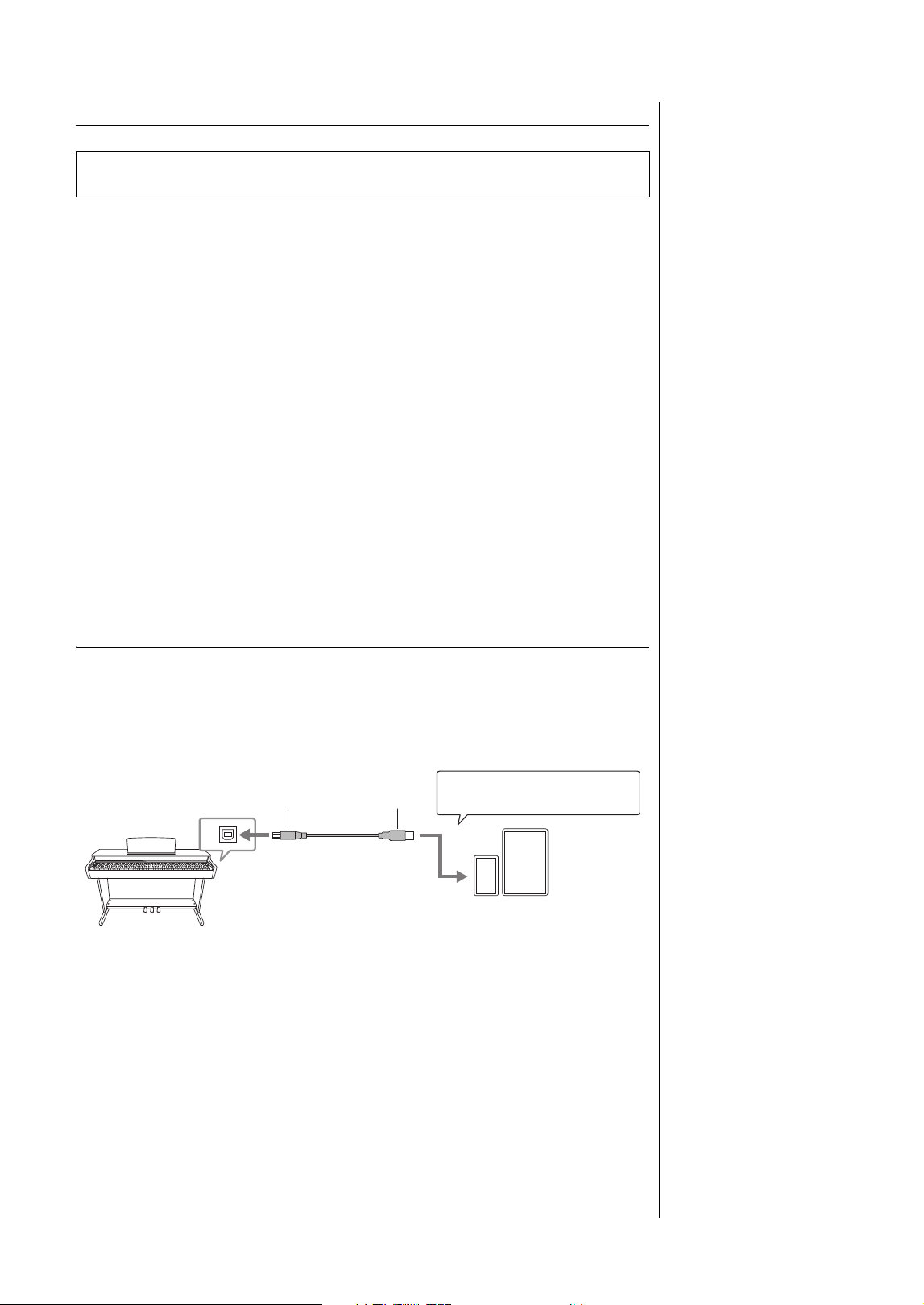
Using with a Smart Device or a Computer
33
YDP-166, YDP-146, YDP-S56, YDP-S36 Owner’s Manual
Connecting via Bluetooth
To connect the instrument and a smart device via Bluetooth, you need to make
Bluetooth MIDI and Bluetooth Audio settings individually. In order to use Smart
Pianist, Bluetooth MIDI connection is necessary. For listening to audio data on
the smart device from the instrument, Bluetooth Audio connection is required
as well.
1. Connect the instrument and the smart device by Bluetooth
Audio (page 31).
When the connection is successful, audio data can be transmitted from the smart
device to the instrument.
2. By using the Smart Pianist app, connect the instrument and
the smart device via Bluetooth MIDI.
For details on connection, refer to “Smart Pianist User Guide” (page 8). Make sure
to select “YDP-*** MIDI” (*** is the model name) for pairing. When the
connection is successful, MIDI data can be transmitted/received between the
instrument and the smart device.
Connecting with a USB cable ([USB TO HOST] terminal)
By using a USB cable, you can connect a smart device to the [USB TO HOST]
terminal on the instrument. For instructions on connection, refer to “Smart
Pianist User Guide” (page 8). Before using the [USB TO HOST] terminal,
refer to “Precautions when using the [USB TO HOST] terminal” on page 30.
Before using the Bluetooth function, be sure to read “About Bluetooth” on page 32.
NOTE
When the device is connected
by Bluetooth, you cannot record
in audio format by using Smart
Pianist. To enable audio
recording, connect via USB
cable (see below).
NOTICE
Use an AB type USB cable of
less than 3 meters. The cable
must be a communication
cable compliant with USB
standards, and not a
charging-only cable.
Ty p e AType B
Example
[USB TO HOST]
terminal (page 9)
Instrument
Smart device
USB cable
+ USB Conversion adaptor
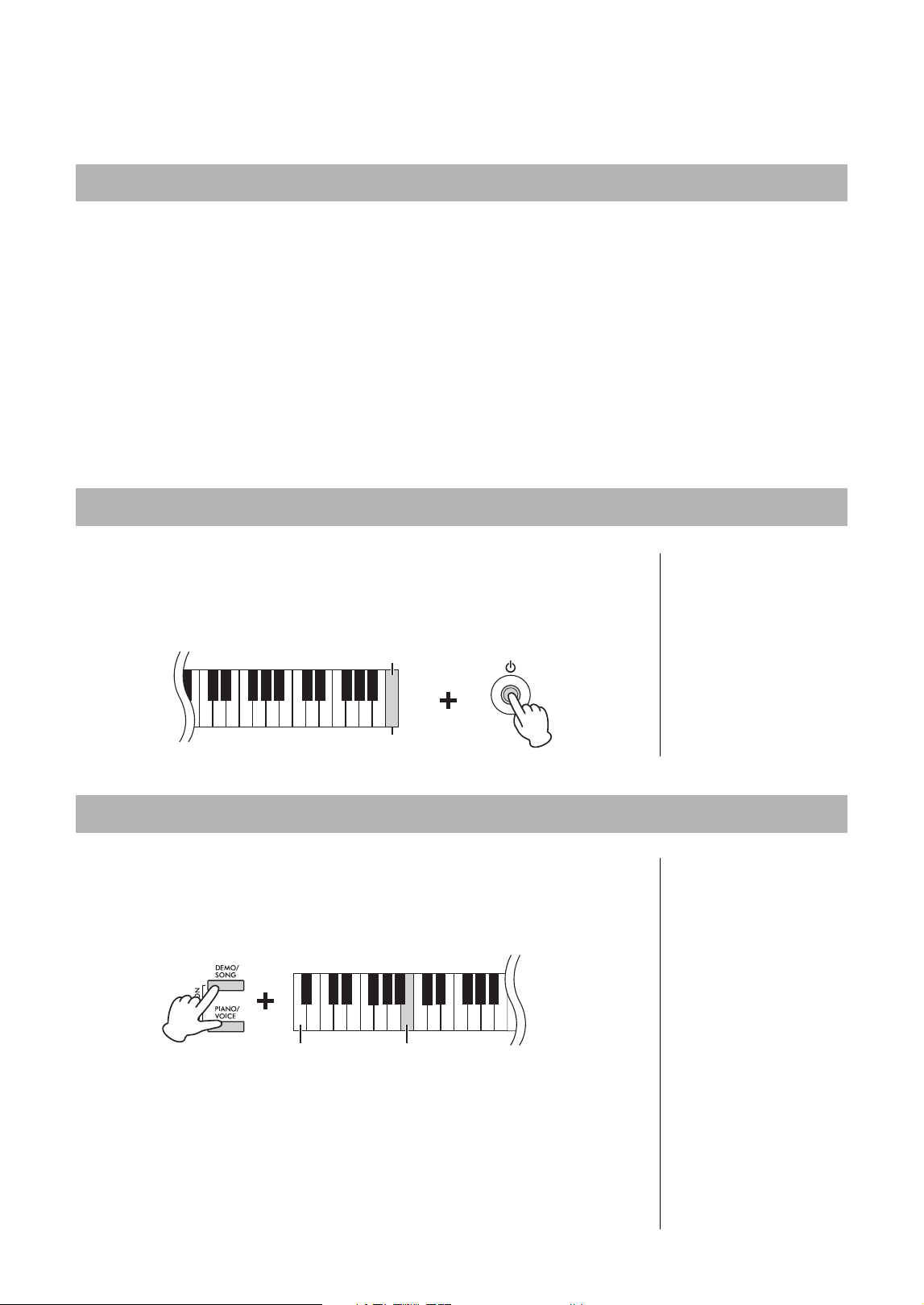
Backing up Data and Initializing the Settings
34
YDP-166, YDP-146, YDP-S56, YDP-S36 Owner’s Manual
Backing up Data and Initializing the Settings
The following settings and data are maintained even if you turn the power off.
With this operation, all data (with the exception of the User Song) will be reset to
the factory default settings.
To do this, simultaneously hold down the C7 (the highest) key and turn on the
power.
You can confirm the firmware version of your instrument by audible voice in
English.
While holding down [DEMO/SONG] and [PIANO/VOICE] simultaneously,
press the B0 key.
About the latest Firmware Version
Yamaha may from time to time update firmware of the product without notice
for improvement. Make sure to check our website for information of the latest
release and upgrade the firmware for your instrument.
Data Maintained When Power is Turned Off
•Metronome Volume
• Metronome Beat (time signature)
• Touch Sensitivity
•Tuning
• Intelligent Acoustic Control Depth
• Intelligent Acoustic Control On/Off
•Volume Limiter On/Off
• Stereophonic Optimizer On/Off
• Operation Confirmation Sounds On/Off
• Auto Power Off Enable/Disable
•Speaker On/Off
•User Song data
•Duo Type Separated/Balanced
•Bluetooth On/Off
Initializing the Settings
NOTICE
Never turn off the power while
the Initialize operation is
being executed (that is, while
the [REC], [PLAY], [+R] and
[−L] lamps are flashing).
NOTE
If this instrument somehow
becomes disabled or
malfunctions, turn off the power
then execute Initialization.
C7
Highest key
Confirming the firmware version of this instrument
Lowest key
B0
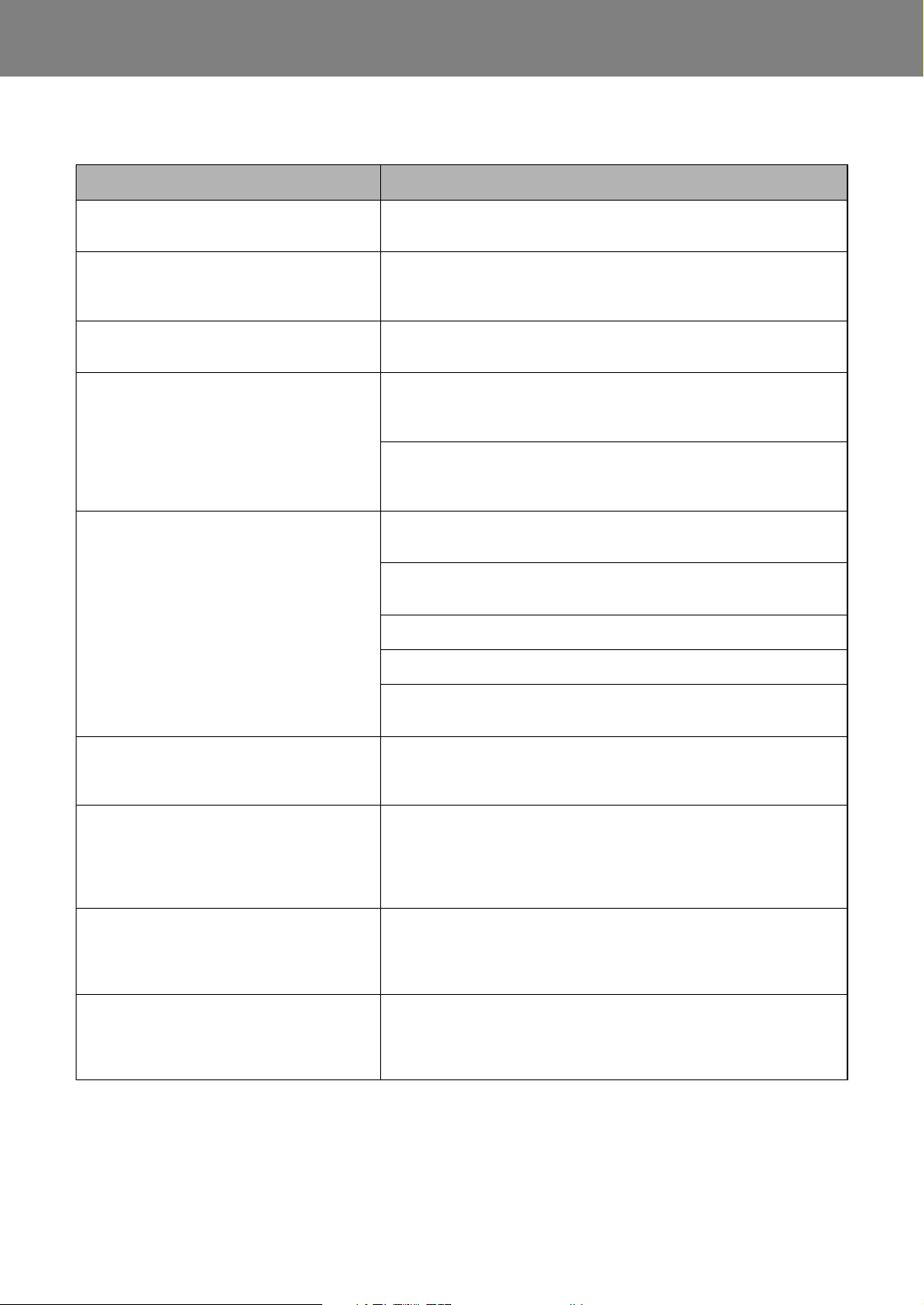
35
YDP-166, YDP-146, YDP-S56, YDP-S36 Owner’s Manual
Appendix
Troubleshooting
Problem Possible Cause and Solution
Power suddenly and unexpectedly turns off.
This is normal and the Auto Power Off function may have been activated
(page 14). If desired, disable the Auto Power Off function.
The power of the instrument does not turn on.
The plugs are not properly connected. Make sure that the DC plug is
securely inserted into the DC IN jack on the instrument, and that the AC
plug is securely inserted to the AC outlet (page 13).
A click or pop is heard when the power is
turned on or off.
This is normal when electrical current is being applied to the instrument.
Noise is heard from the speakers or
headphones.
The noise may be due to interference caused by the use of a mobile phone
in close proximity to this instrument. Turn off the mobile phone, or move it
further away from this instrument.
When you use the instrument along with the application on your smart
device, we recommend that you set “Airplane Mode” to “ON” on your smart
device in order to avoid noise caused by communication.
The overall volume is low, or no sound is heard.
The Master Volume is set too low. Set it to an appropriate level using the
[VOLUME] knob (page 10).
Make sure a pair of headphones or conversion adaptor is not connected to
the [PHONES] jack (page 15).
The Speaker setting is “Off.” Set the Speaker to “Normal” or “On” (page 15).
The Volume Limiter setting is “On.” Set the Volume Limiter to “Off” (page 14).
Make sure that Local Control is On. For details, refer to the “MIDI
Reference” (page 8).
Pedals do not function.
The pedal cord may not be securely connected to the [TO PEDAL] jack. Be
sure to insert the pedal cord all the way until the metal part of the cord plug
disappears from view (page 17).
The pitch and sound quality of the Piano Voice
is wrong in a specific key range.
This is no problem.
Yamaha develops the Piano Voices so that the original piano sound is
reproduced as faithfully as possible. This is why you may hear overtones
emphasized in a certain key range, or you may feel that the sound pitch or
quality is different from another key range.
Playing the keys produces a rattling noise.
This is no problem.
The keyboard mechanism of this product is designed to simulate the actual
noises of an acoustic piano. Such noises are produced even if you play an
acoustic piano.
The [+R] and [−L] lamps flash when this
product is started, when a Song is selected, or
when recording is finished.
This is no problem.
It is because the [+R] and [−L] lamps may flash when the internal
processing of this product is taking a long time. Note that no operations are
available while these are flashing.

Troubleshooting
36
YDP-166, YDP-146, YDP-S56, YDP-S36 Owner’s Manual
* Depending on the country in which you purchased the product, the instrument may not have Bluetooth capability. For information on
whether Bluetooth functionality is included or not, refer to ppage 31.
For more information, check the “Frequently Asked Questions (FAQ)” on the following website:
https://faq.yamaha.com/s/
* Available in English, German, French, Spanish and some other languages.
The Bluetooth-equipped audio player cannot be
paired with nor connected to the instrument.
Check that the Bluetooth function of the audio player is activated. To
connect the audio player and the instrument via Bluetooth, both devices
need to be functional.
The audio player and the instrument need to be paired to connect with
each other via Bluetooth (page 31).
In case there is a device (microwave oven, wireless LAN device, etc.) that
outputs signals in the 2.4 GHz frequency band nearby, move this
instrument away from the device that is emitting radio-frequency signals.
Problem Possible Cause and Solution
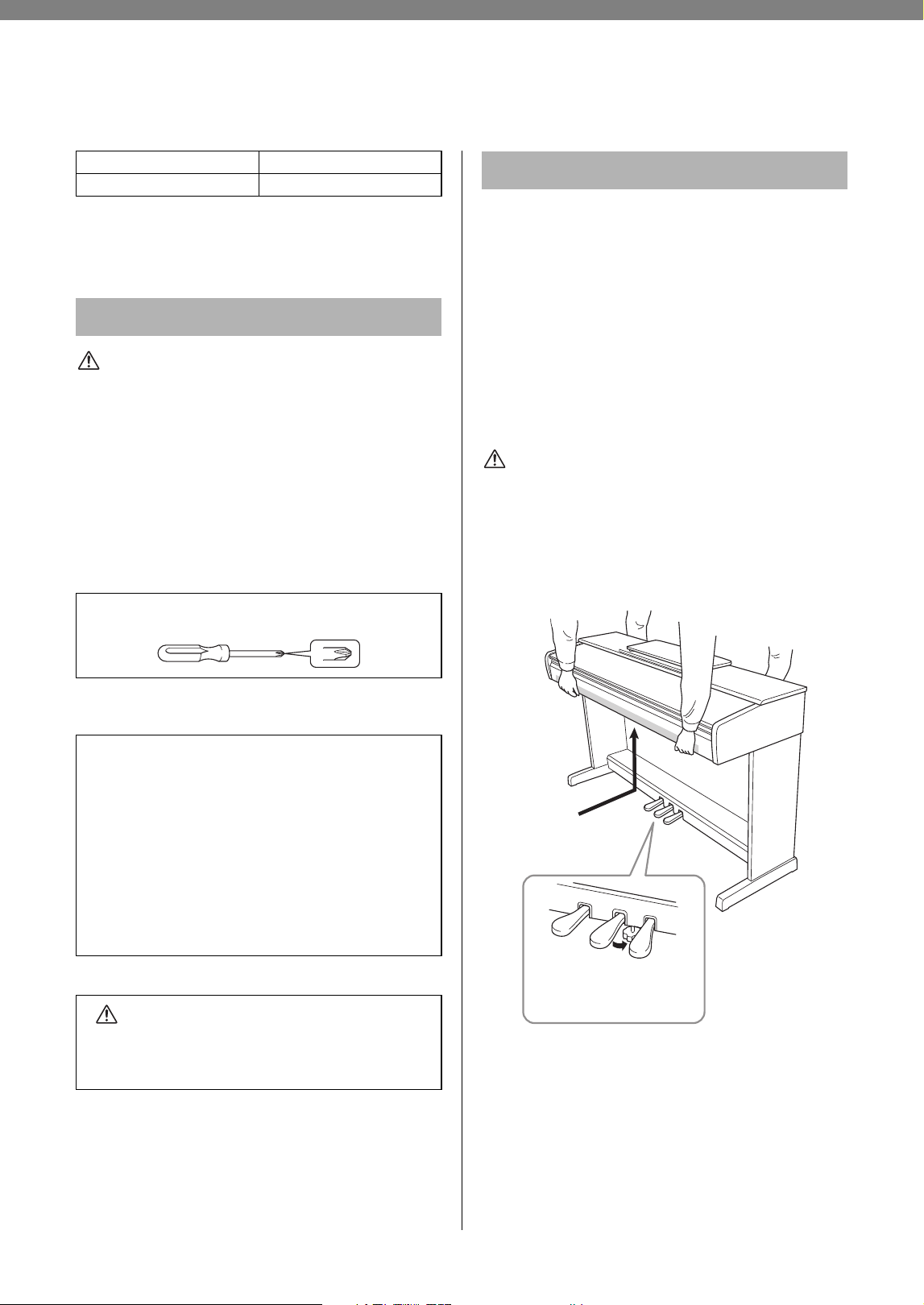
37
YDP-166, YDP-146, YDP-S56, YDP-S36 Owner’s Manual
Keyboard Stand Assembly
Before assembling the instrument, be sure to read the
precautions below.
CAUTION
• Assemble the instrument using at least two people.
• Assemble the instrument on a hard and flat floor with ample
space.
• Be sure to use the correct parts in the correct orientation,
and assemble the instrument in accordance with the
sequence given here.
• Keep small parts (such as screws) out of the reach of
infants. Children may accidentally swallow them.
• Be sure to use only the included screws of specified sizes.
Use of any other screws can cause damage or malfunction
of the product.
• To disassemble the unit, reverse the assembly sequence
given here.
When moving the instrument, be sure to keep the
instrument horizontal and hold with two or more people.
Do not subject the instrument to excessive vibration or
shock. After re-installation, check the assembly checklist.
If you move to another location, you can transport the
instrument along with other belongings. The unit can be
transported either assembled or disassembled.
We recommend that you place the instrument away
from the wall by about 5 cm to optimize and enhance
the overall sound even further.
CAUTION
Always hold the bottom of the main unit. Moving the unit by
holding any part other than the bottom may cause damage to
the unit or personal injury.
NOTICE
Rotate the adjuster under the pedal until it no longer touches
the floor surface before moving the instrument. The adjuster
can damage the floor.
YDP-166, YDP-146 page 38
YDP-S56, YDP-S36 page 41
Assembly Precautions
Have a Phillips-head (+) screwdriver of the appropriate size
ready.
Post-assembly checklist
There are no unused parts.
The instrument is stable even if you shake it.
The pedal adjuster is firmly pressed against to the
floor surface.
Both the pedal cord and power cord are plugged
securely into the correct jacks.
→ If there are any items above you haven’t confirmed,
review the assembly procedure and correct any errors.
CAUTION
If the unit creaks or is otherwise unsteady when you
play on the keyboard, refer to the assembly diagrams
and re-tighten all screws.
Moving/Installing
Be sure to hold
the bottom.
Rotate the adjuster until
it no longer touches the
floor surface.
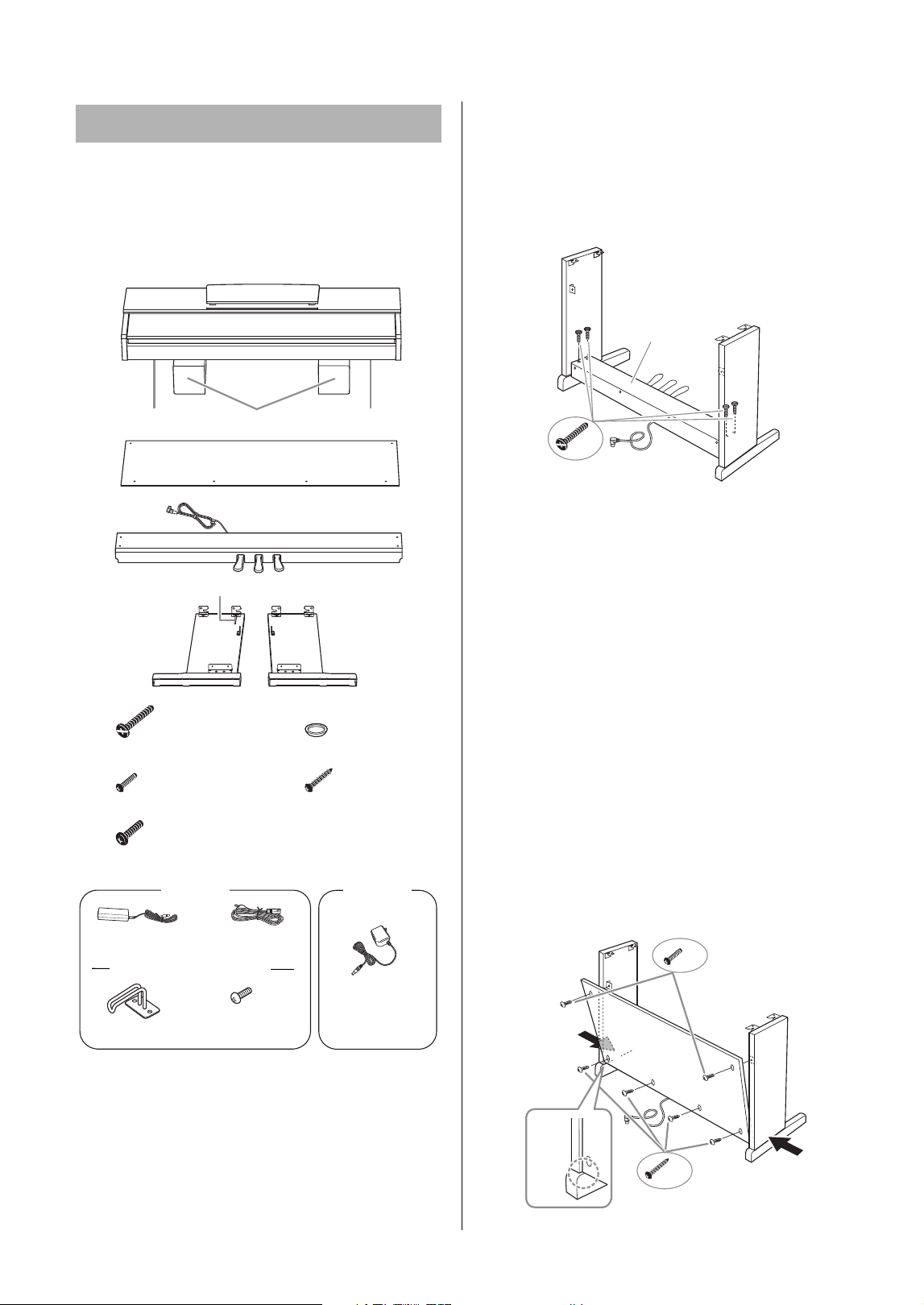
Keyboard Stand Assembly
38
YDP-166, YDP-146, YDP-S56, YDP-S36 Owner’s Manual
Check if you have all of the items indicated below.
NOTICE
Make sure to place the main unit on the polystyrene foam
pads that have been removed from the packages. Position the
pads so that they will not contact the speaker covers on the
bottom of the main unit.
* The adaptor may not be included, or may look different from the
illustration above, depending on your particular area.
1. Align the side boards with each end
of pedal box, and lightly tighten
with flat head screws (6 × 20 mm)
for temporary fastening
These screws will be tightened securely later in
step 3.
2. Attach the back board.
Depending on the model, the surface color of one
side of the back board may be different from the
other side. In this case, position the back board so
that the side facing the front (pedal side) matches
the color of the main unit.
2-1 Place the back board on each foot of side
boards.
2-2 Attach the top of the back board by
temporarily fastening the thin screws (4 ×
12 mm).
2-3 While pushing on the lower part of the side
boards from the outside, secure the bottom
ends of the back board using tapping screws
(4 × 20 mm) in the order from outside to
inside (
1 → 2).
2-4 Securely tighten the screws on the top of the
back board that were attached in step 2-2.
YDP-166, YDP-146 Assembly
YDP-166
× 2
YDP-146
× 4
× 4
× 2
× 4 × 4
Cord holder
Speaker cover Speaker coverPolystyrene foam pads
Main unit
Back board
Pedal box
Side board (L) Side board (R)
Flat head screws (6 × 20 mm) Caps
Thin screws (4 × 12 mm) Tapping screws
(4 × 20 mm)
Thick screws (6 × 16 mm)
AC adaptor Power cord
Headphone hanger
Screws
(4 × 10 mm)
AC adaptor
Headphone hanger set
× 4
Side board (R)
Side board (L)
Pedal box
Flat head screws (6 × 20 mm)
2
-
2, 2
-
4
2
-
1
2
-
3
× 2
× 4
2
2
1
1
Side board (R)
Side board (L)
Back
board
Tapping screws (4 × 20 mm)
Thin screws
(4 × 12 mm)
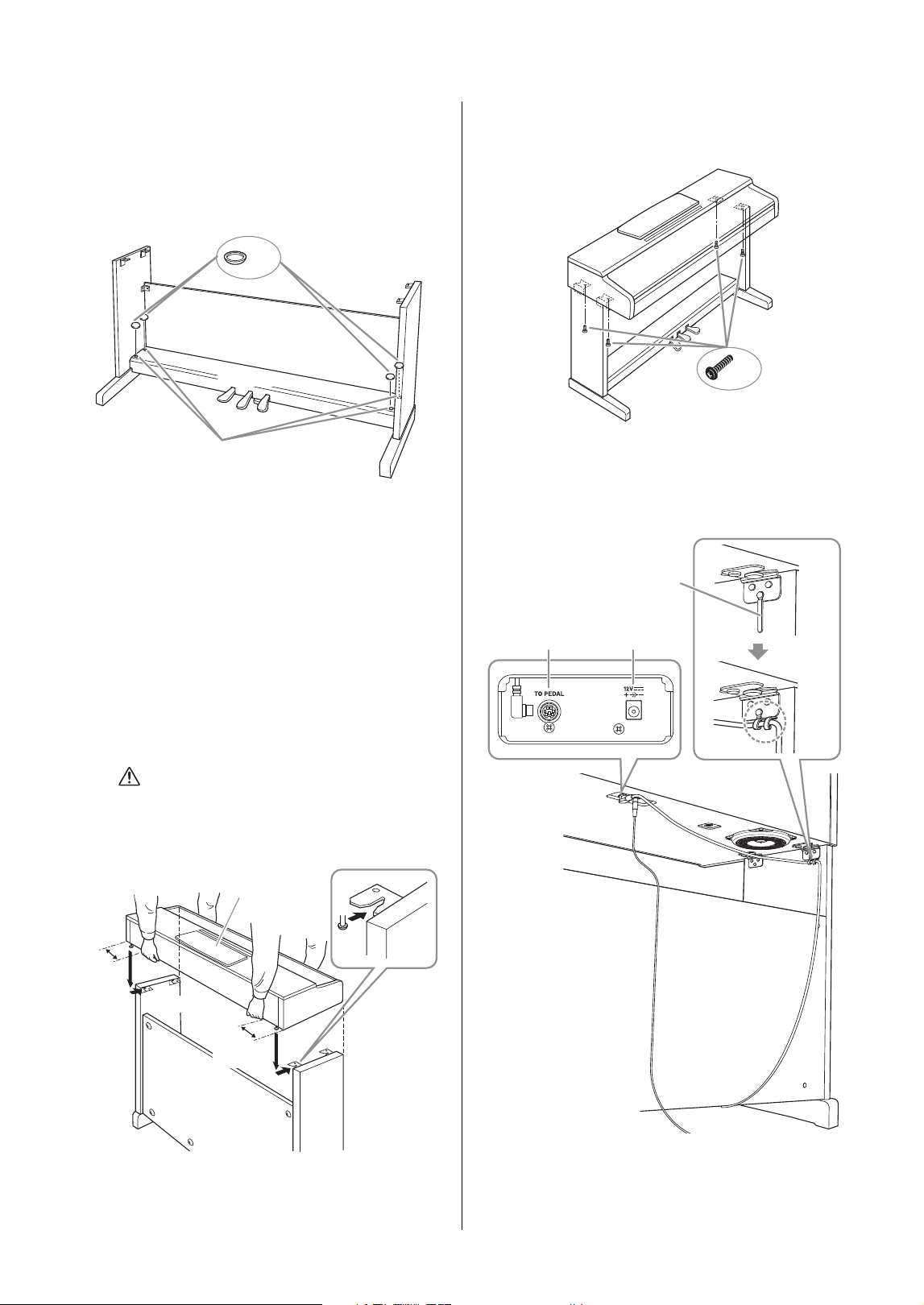
Keyboard Stand Assembly
39
YDP-166, YDP-146, YDP-S56, YDP-S36 Owner’s Manual
3. Secure the pedal box.
3-1 Securely tighten the screws on the pedal
box that were attached in step 1.
3-2 Attach the caps to the screw heads.
4. Set the main unit in place.
4-1 Be sure to hold the bottom surface at least
10 cm inside from the edge of the main unit
so that you do not pinch your hands.
4-2 Place the main unit on the side boards so
that the front of the main unit and the side
boards are aligned. Slide the main unit
forward and insert the metal fittings on the
bottom of the main unit into the metal
fittings on the side boards.
CAUTION
• Be careful not to pinch your hands or drop the main
unit.
• Do not hold anywhere other than the specified
position.
5. Secure the main unit by tightening
the thick screws (6 × 16 mm).
6. Connect the pedal cord plug and the
power plug.
3
-
1
3
-
2
× 4
Pedal box
Side board (R)
Side board (L)
Back board
Caps
At least
10 cm
At least
10 cm
Main unit
Side board (R)
Side board (L)
Back board
× 4
Main unit
Side board (R)
Side board (L)
Thick screws
(6 × 16 mm)
6
-
1
6
-
2
6
-
4
TO PEDAL DC IN
Cord holder
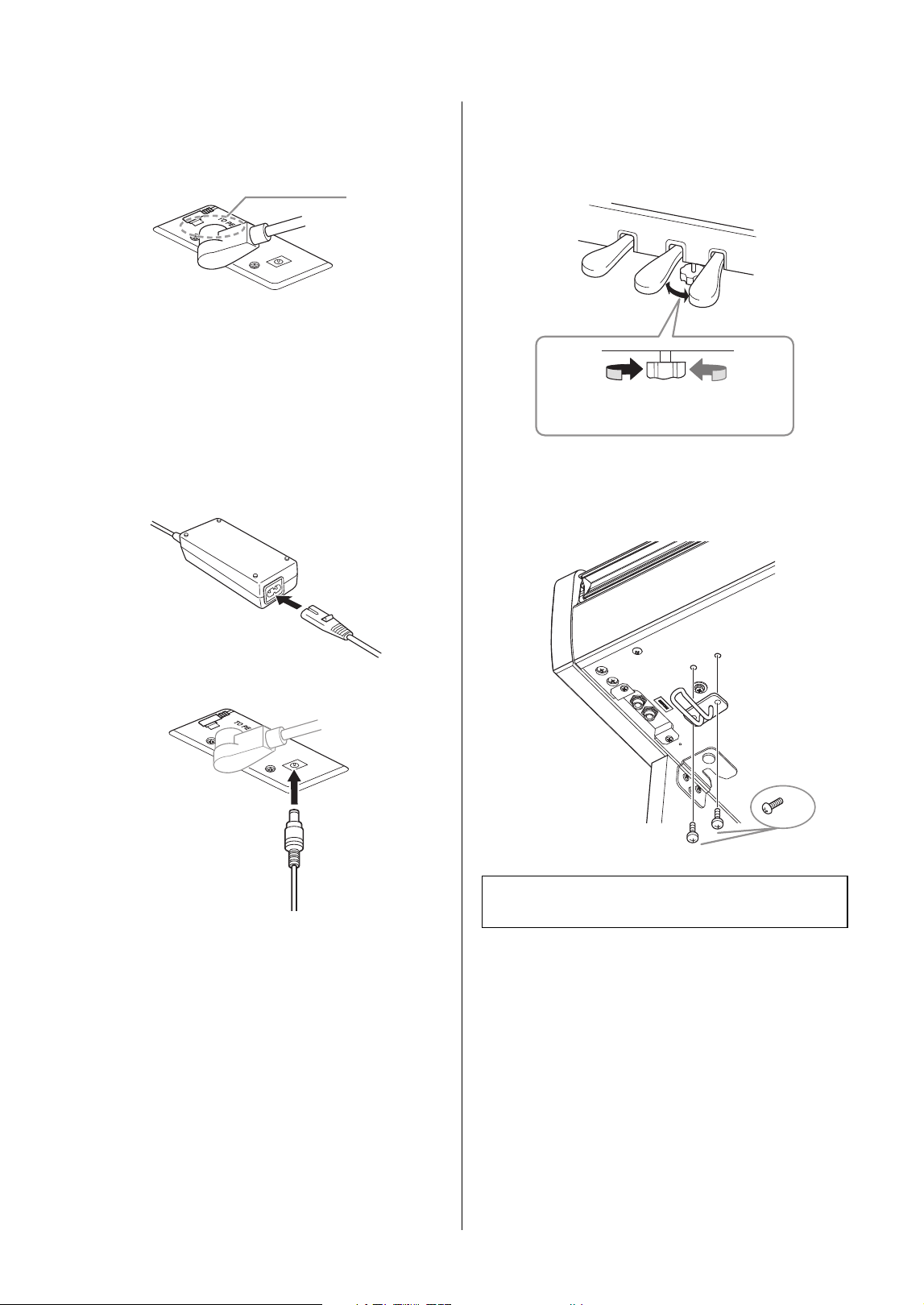
Keyboard Stand Assembly
40
YDP-166, YDP-146, YDP-S56, YDP-S36 Owner’s Manual
6-1 Insert the pedal cord plug to the
[TO PEDAL] jack from the rear.
Insert the plug until the metal part disappears
from view.
NOTICE
If it is not plugged in firmly, it may cause the pedals to
not work.
6-2
Wind the cord holders around pedal cord to
hold it.
The cord holders are attached to the side board
(L).
6-3 (YDP-166 only) Connect the power cord to
the AC adaptor.
6-4 Insert the DC plug into the DC IN jack.
7. Rotate the adjuster until it presses in
firm contact with the floor surface.
Make sure that the pedal box does not rattle or
give way when you step on the pedals.
8. (YDP-166 only) Attach the
headphone hanger.
Metal part
→ Post-assembly checklist (page 37)
To press against
the floor
To separate from
the floor
× 2
Included screws
(4 × 10 mm)
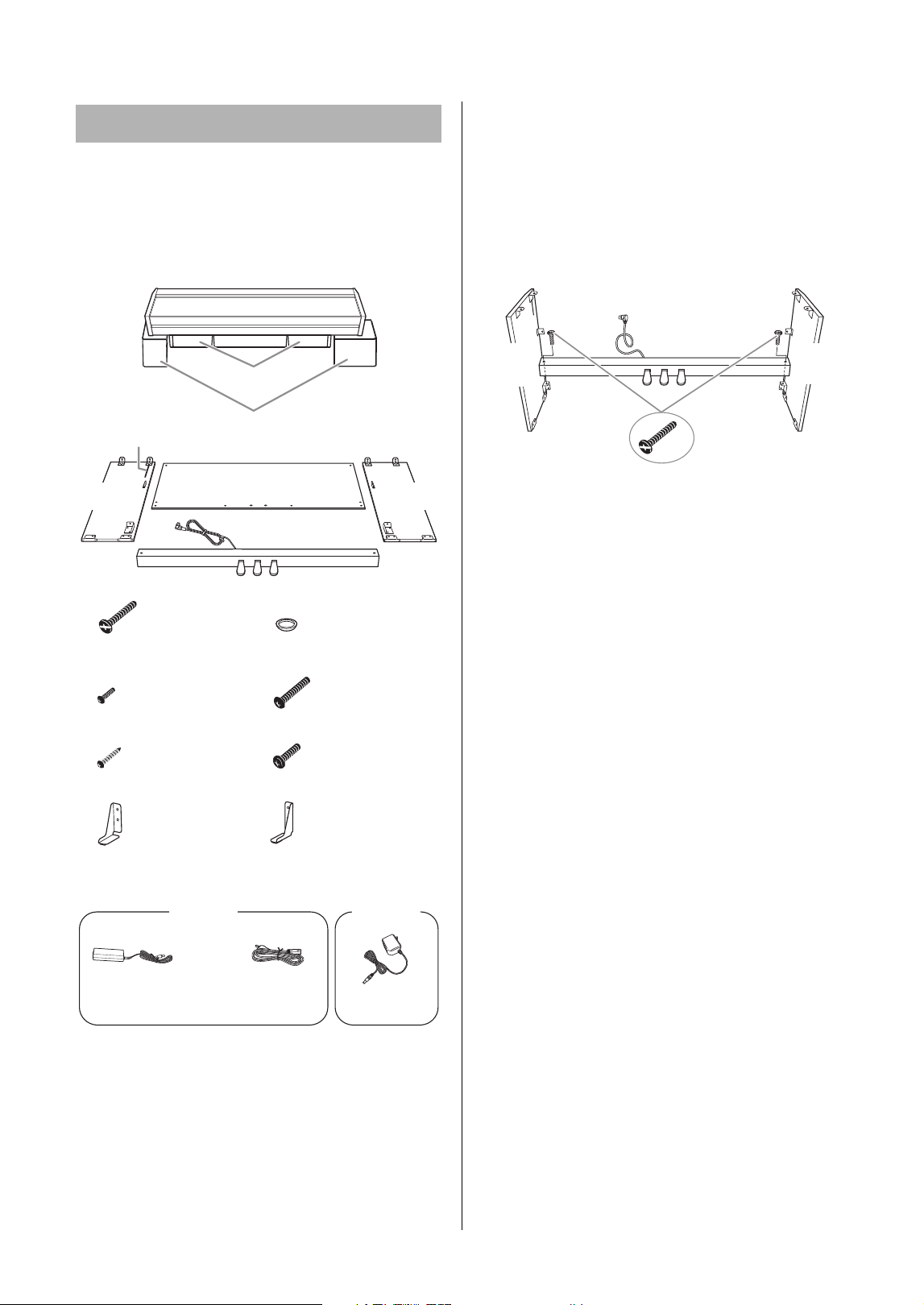
Keyboard Stand Assembly
41
YDP-166, YDP-146, YDP-S56, YDP-S36 Owner’s Manual
Check if you have all of the items indicated below.
NOTICE
Make sure to place the main unit on the polystyrene foam
pads that have been removed from the packages. Position the
pads so that they will not contact the connector panel on the
bottom of the main unit.
* The anti-fall brackets are not for earthquake countermeasures.
* The adaptor may not be included, or may look different from the
illustration above, depending on your particular area.
1.
Align the side boards with each end
of pedal box, and lightly tighten with
flat head screws (6 × 20 mm) for
temporary fastening.
These screws will be tightened securely later in
step 3.
Leave the pedal cord out on the back side of the
instrument.
2. Attach the back board.
Depending on the model, the surface color of one
side of the back board may be different from the
other side. In this case, position the back board so
that the side facing the front (pedal side) matches
the color of the main unit.
2-1 Attach the top of the back board by
temporarily fastening the thin screws (4 ×
12 mm).
2-2 While pushing the lower part of the side
board from the outside, fix the lower side of
the back board on both sides with long
screws (6 × 25 mm). Also, fix the anti-fall
brackets together here.
2-3 Secure the remaining two places on the
lower side with tapping screws (4 × 20 mm).
YDP-S56, YDP-S36 Assembly
× 2
× 2
× 2
× 2
× 4
× 4
Back board
Flat head screws
(6 × 20 mm)
Caps
Thin screws (4 × 12 mm)
Tapping screws (4 × 20 mm)
Cord holder
Long screws (6 × 25 mm)
Speaker box
Polystyrene foam pads
Side
board (L)
Side
board (R)
Pedal box
Thick screws (6 × 16 mm)
Anti-fall bracket (L) Anti-fall bracket (R)
Main unit
YDP-S56
YDP-S36
AC adaptor Power cord
AC adaptor
× 2
Side
board
(L)
Pedal box
Flat head screws
(6 × 20 mm)
Side
board
(R)
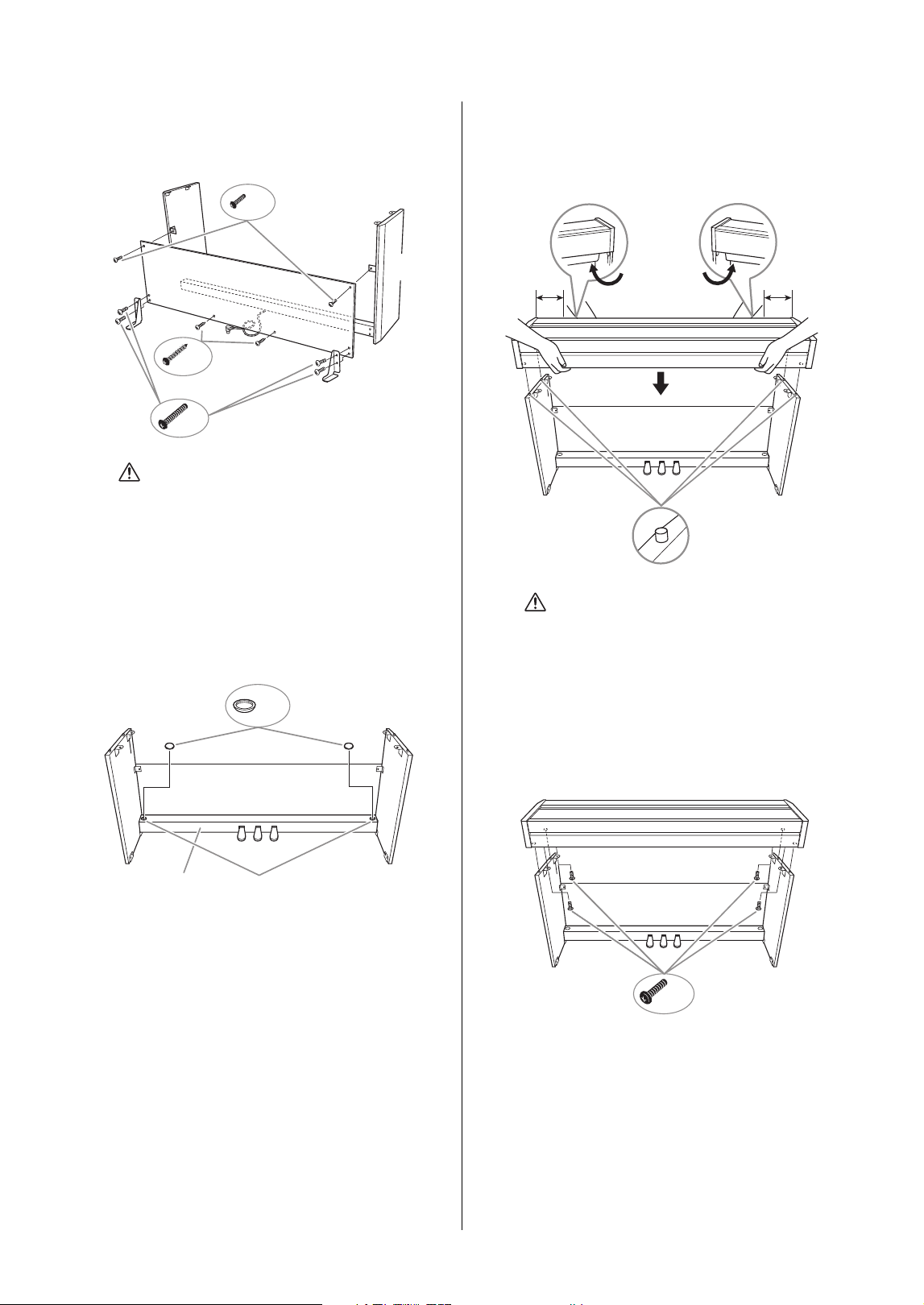
Keyboard Stand Assembly
42
YDP-166, YDP-146, YDP-S56, YDP-S36 Owner’s Manual
2-4 Re-tighten the screws on the upper side of
the back board that were temporarily
fastened in step 2-1.
CAUTION
Be sure to attach the anti-fall brackets. Failure to do so
might result in damage to the instrument or even
injury.
3. Secure the pedal box.
3-1 Securely tighten the screws on the pedal
box that were attached in step 1.
3-2
Attach the caps to the screw heads.
4. Set the main unit in place.
Be sure to hold the bottom surface 10 cm or more
inside from the edge of the main unit so that you
do not pinch your hands.
CAUTION
• Be careful not to pinch your hands or drop the main
unit.
• Do not hold anywhere other than the specified
position.
5. Secure the main unit by tightening
the thick screws (6 × 16 mm).
2-1, 2-4
2-3
2-2
× 2
× 4
× 2
Secure the anti-fall brackets using the screws.
Side
board (L)
Side
board (R)
Thin screws
(4 × 12 mm)
Back board
Anti-fall
bracket (R)
Anti-fall
bracket (L)
Tapping screws
(4 × 20 mm)
Long screws (6 × 25 mm)
3-1
3-2
× 2
Side board (L)
Back board
Side board (R)
Pedal box
Caps
At least
10 cm
At least
10 cm
Back board
Main unit
Align the dowels on the upper
part of the side boards with
the corresponding holes on
the bottom of the main unit.
× 4
Back board
Main unit
Side
board (L)
Side
board (R)
Thick screws
(6 × 16 mm)
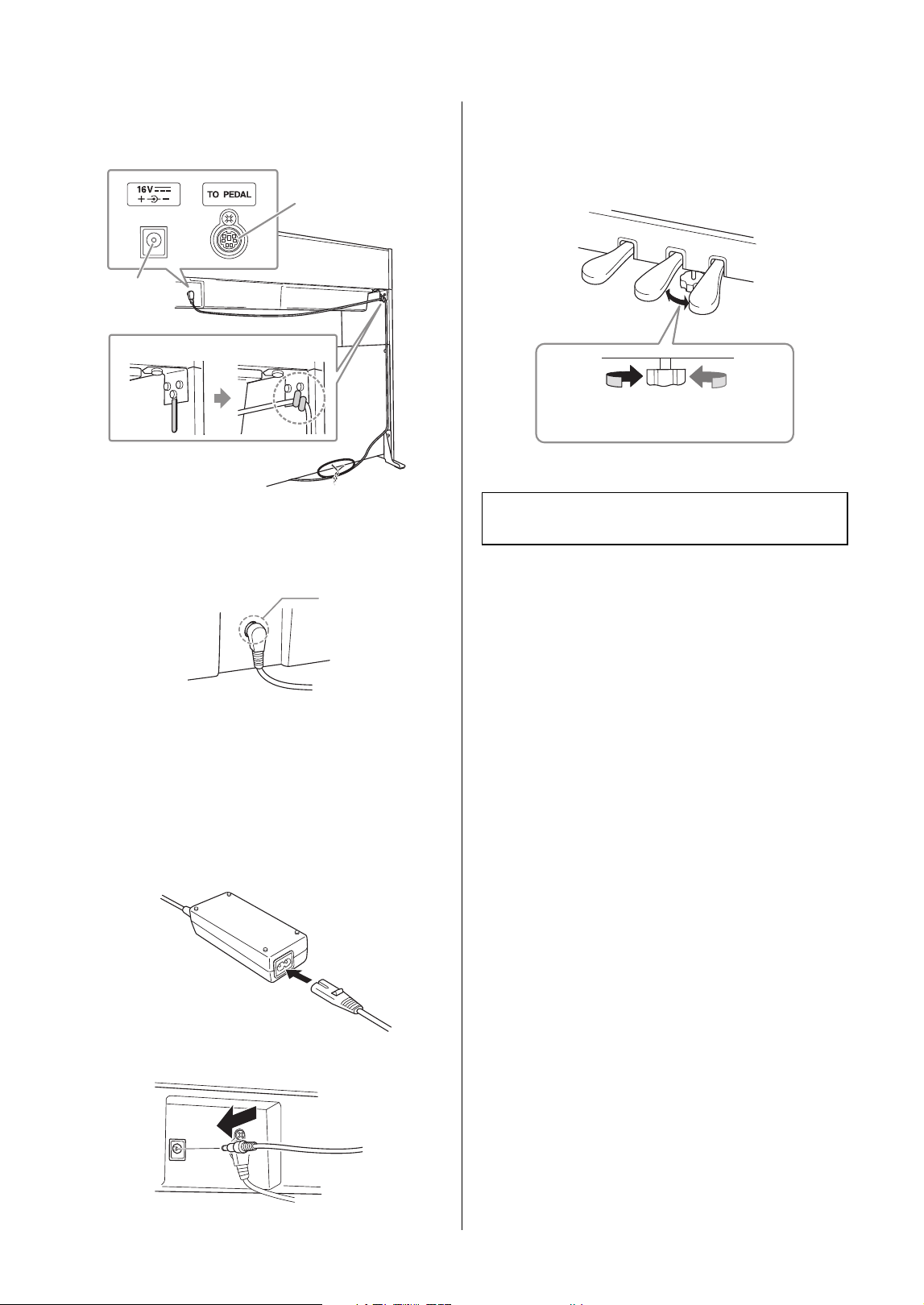
Keyboard Stand Assembly
43
YDP-166, YDP-146, YDP-S56, YDP-S36 Owner’s Manual
6. Connect the pedal cord plug and the
power plug.
6-1 Insert the pedal cord plug to the
[TO PEDAL] jack from the rear.
Insert the plug until the metal part disappears
from view.
NOTICE
If it is not plugged in firmly, it may cause the pedals to
not work.
6-2
Wind the cord holder around pedal cord to
hold it.
The cord holder is attached to the side board (L).
6-3 (YDP-S56 only) Connect the power cord to
the AC adaptor.
6-4 Insert the DC plug into the DC IN jack.
7. Rotate the adjuster until it presses in
firm contact with the floor surface.
Make sure that the pedal box does not rattle or
give way when you step on the pedals.
6-1
6-4
6-2
TO PEDAL
DC IN
Cord
holder
Metal part
→ Post-assembly checklist (page 37)
To press against
the floor
To separate from
the floor
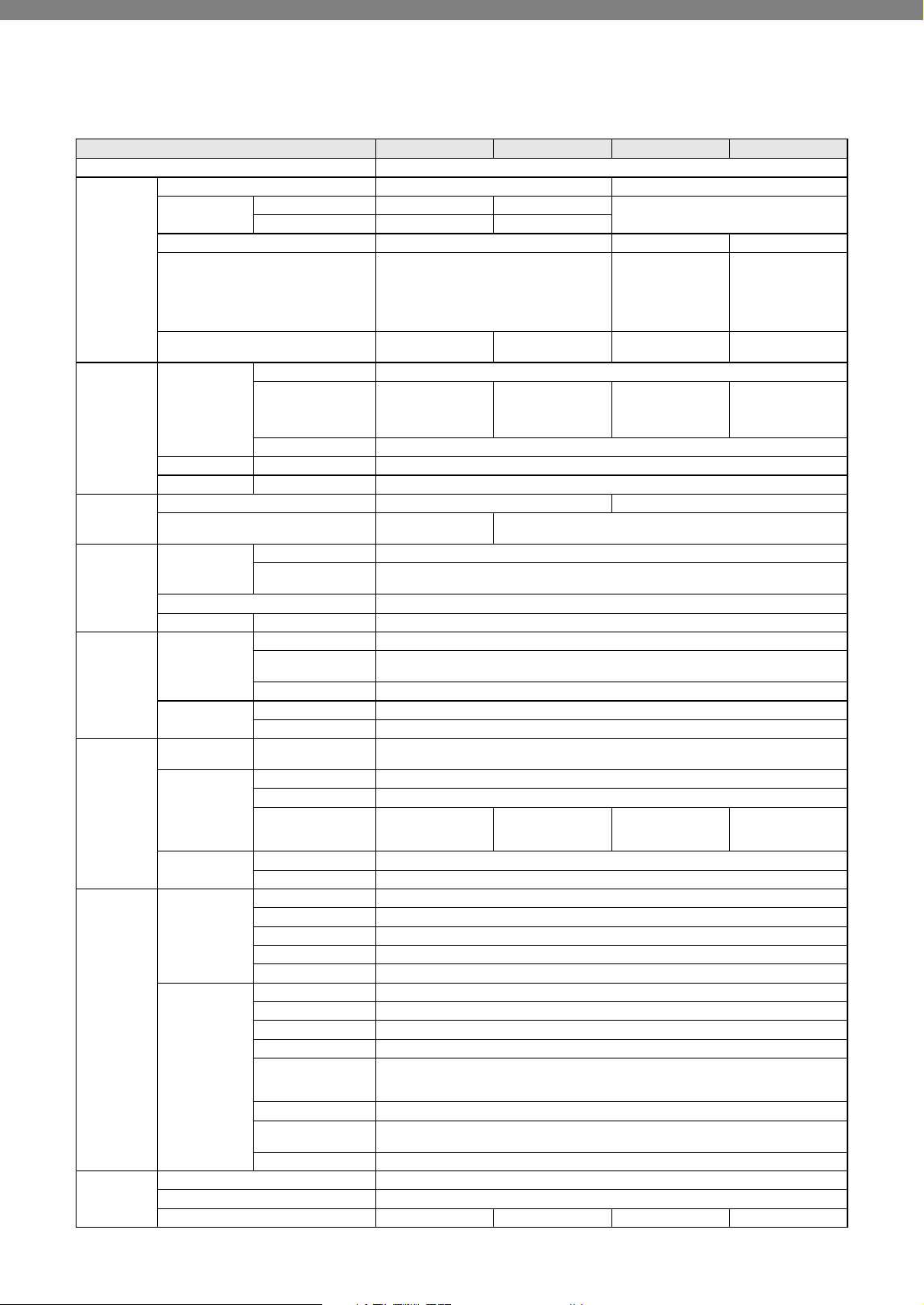
44
YDP-166, YDP-146, YDP-S56, YDP-S36 Owner’s Manual
Specifications
YDP-166 YDP-146 YDP-S56 YDP-S36
Product Name Digital Piano
Size/Weight
Width 1,357 mm [53-7/16"] 1,353 mm [53-1/4"]
Height
With music rest closed 849 mm [33-7/16"] 815 mm [32-1/16"]
792 mm [31-3/16"]
With music rest raised 1,003 mm [39-1/2"] 969 mm [38-1/8"]
Height with Key cover open — 976 mm [38-7/16"] 968 mm [38-1/8"]
Depth 422 mm [16-5/8"]
309 mm [12-3/16"]
(Key cover open:
317 mm [12-1/2"])
*With anti-fall brackets
attached, the depth is
382 mm [15-1/16"].
296 mm [11-5/8"]
(Key cover open:
309 mm [12-3/16"])
*With anti-fall brackets
attached, the depth is
366 mm [14-7/16"].
Weight
42 kg
(92 lbs., 10 oz.)
38 kg
(83 lbs., 12 oz.)
40 kg
(88 lbs., 3 oz.)
37 kg
(81 lbs., 9 oz.)
Control
Interface
Keyboard
Number of Keys 88
Type
GrandTouch-E
Keyboard: synthetic
ebony and ivory key
tops, escapement
GHS (Graded
Hammer Standard)
keyboard with matte
black keytops
GrandTouch-E
Keyboard: synthetic
ebony and ivory key
tops, escapement
GHS (Graded
Hammer Standard)
keyboard with matte
black keytops
Touch Hard/Medium/Soft/Fixed
Pedal Number of Pedals 3: Damper (with Half-pedal function), Sostenuto, Soft
Panel Language English
Cabinet
Key Cover Style Sliding Folding
Music Rest
Yes (with music
braces)
Yes
Voices
Tone Generator
Piano Sound Yamaha CFX
VRM (Virtual
Resonance Modeling)
Yes (VRM Lite)
Polyphony (max.) 192
Preset Number of Voices 10
Effects
Types
Reverb 4 types
Intelligent Acoustic
Control (IAC)
Yes
Stereophonic Optimizer
Yes
Functions
Dual Yes
Duo Yes
Songs
Preset
Number of Preset
Songs
10 Voice Demo Songs, 50 Classics, 303 Lesson Songs
MIDI Recording
Number of Songs 1
Number of Tracks 2
Data Capacity
Approx. 150 KB/Song
(approx. 11,000
notes)
Approx. 100 KB/Song
(approx. 11,000
notes)
Approx. 150 KB/Song
(approx. 11,000
notes)
Approx. 100 KB/Song
(approx. 11,000
notes)
Compatible Data
Format
Playback SMF (Format 0, Format 1)
Recording SMF (Format 0)
Functions
Overall Controls
Metronome Yes
Tempo Range 5 – 280
Transpose −6 – 0 – +6
Tuning 414.8 – 440.0 – 466.8 Hz (approx. 0.2 Hz increments)
USB Audio Interface 44.1 kHz, 24-bit, stereo
Bluetooth
(May not have
this functionality
depending on the
country in which
you purchased
the product.)
Audio Supported profile: A2DP, Compatible codec: SBC
MIDI Comply with Bluetooth Low Energy MIDI Specification
Bluetooth version 5.0
Wireless output Bluetooth Class 2
Maximum
communication
distance
Approx. 10 m
Radio Frequency 2,401 – 2,481 MHz
Maximum output
power (EIRP)
4 dBm
Type of modulation GFSK
Connectivity
Headphones Standard stereo phone jack (× 2)
USB TO HOST Type B
DC IN 16 V 12 V 16 V 12 V
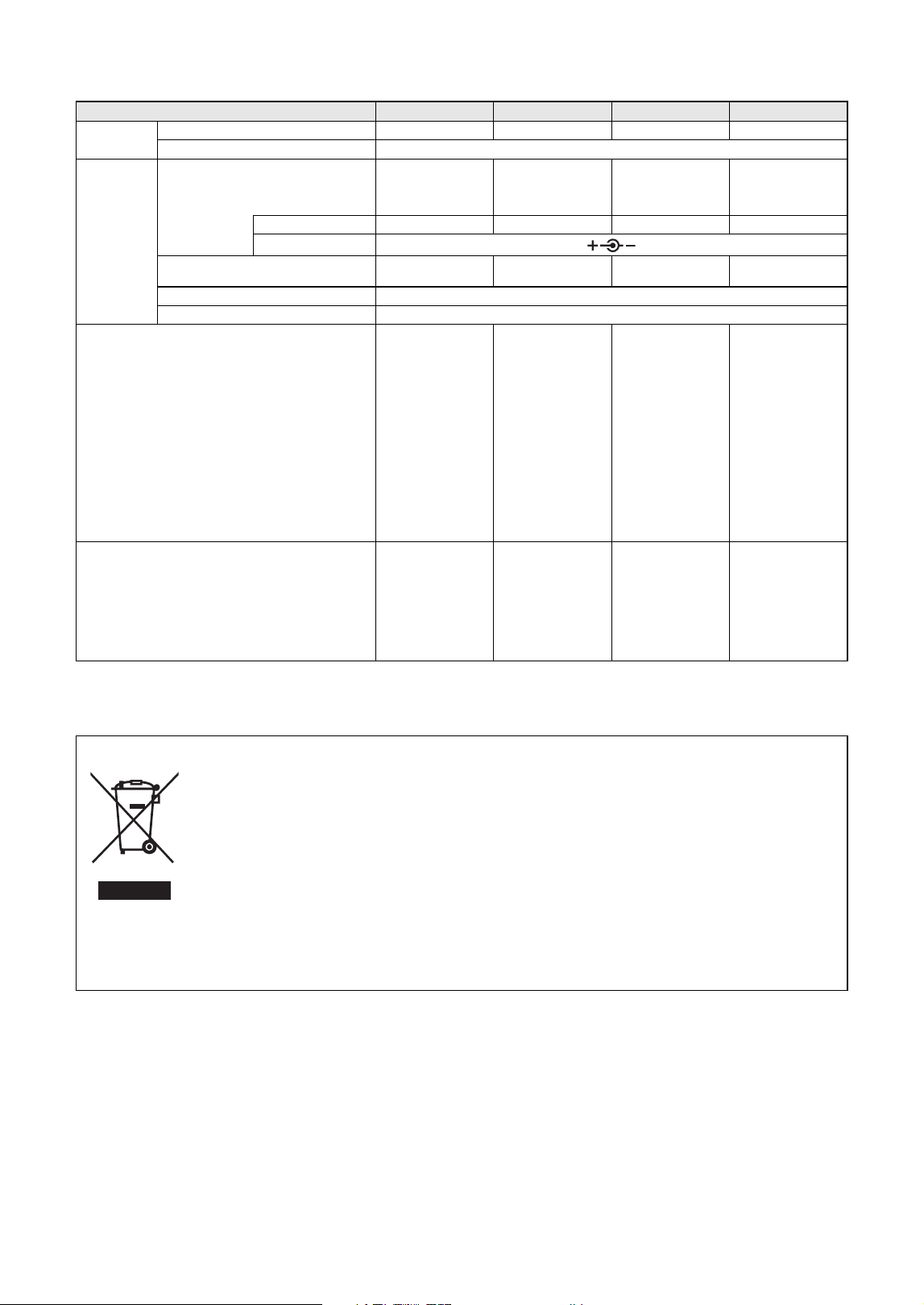
Specifications
45
YDP-166, YDP-146, YDP-S56, YDP-S36 Owner’s Manual
* The contents of this manual apply to the latest specifications as of the publishing date. To obtain the latest manual, access the Yamaha website then download
the manual file. Since specifications, equipment or separately sold accessories may not be the same in every locale, please check with your Yamaha dealer.
(58-M02 WEEE en 01)
Amplifiers and
Speakers
Amplifiers 20 W × 2 8 W × 2 20 W × 2 8 W × 2
Speakers 12 cm with diffuser × 2
Power Supply
AC Adaptor
PA-300C
PA-150 or an
equivalent
recommended by
Yama ha
PA-300C
PA-150 or an
equivalent
recommended by
Yama ha
Output DC 16 V, 2.4 A DC 12 V, 1.5 A DC 16 V, 2.4 A DC 12 V, 1.5 A
Polarity
Power Consumption
13 W (When using
PA-300C AC adaptor)
9 W (When using
PA-150 AC adaptor)
13 W (When using
PA-300C AC adaptor)
9 W (When using
PA-150 AC adaptor)
Standby Power Consumption 0.3 W
Auto Power Off Yes
Included Accessories
• Owner’s Manual
• “50 Classical Music
Masterpieces”
music book
• Online Member
Product
Registration
•AC adaptor:
PA-300C
• Power cord
• Bench*
* May not be included
depending on your
area. Check with your
Yamaha dealer.
• Owner’s Manual
• “50 Classical Music
Masterpieces”
music book
• Online Member
Product
Registration
•AC adaptor:
PA-150 or an
equivalent
recommended by
Yama ha
• Bench*
* May not be included
depending on your
area. Check with your
Yamaha dealer.
• Owner’s Manual
• “50 Classical Music
Masterpieces”
music book
• Online Member
Product
Registration
•AC adaptor:
PA-300C
• Power cord
• Owner’s Manual
• “50 Classical Music
Masterpieces”
music book
• Online Member
Product
Registration
• AC adaptor:
PA-150 or an
equivalent
recommended by
Yama ha
Separately Sold Accessories
(May not be available depending on your area.)
• Headphones:
HPH-150, HPH-100,
HPH-50
• Pedal unit: FC35
•AC adaptor:
PA-300C
• Headphones:
HPH-150, HPH-100,
HPH-50
• Pedal unit: FC35
•AC adaptor:
PA-150 or an
equivalent
recommended by
Yama ha
• Headphones:
HPH-150, HPH-100,
HPH-50
• Pedal unit: FC35
•AC adaptor:
PA-300C
• Headphones:
HPH-150, HPH-100,
HPH-50
• Pedal unit: FC35
• AC adaptor:
PA-150 or an
equivalent
recommended by
Yama ha
Information for users on collection and disposal of old equipment:
This symbol on the products, packaging, and/or accompanying documents means that used electrical and electronic
products should not be mixed with general household waste.
For proper treatment, recovery and recycling of old products, please take them to applicable collection points, in
accordance with your national legislation.
By disposing of these products correctly, you will help to save valuable resources and prevent any potential negative
effects on human health and the environment which could otherwise arise from inappropriate waste handling.
For more information about collection and recycling of old products, please contact your local municipality, your waste
disposal service or the point of sale where you purchased the items.
For business users in the European Union:
If you wish to discard electrical and electronic equipment, please contact your dealer or supplier for further
information.
Information on Disposal in other Countries outside the European Union:
symbol is only valid in the European Union. If you wish to discard these items, please contact your local authorities or
dealer and ask for the correct method of disposal.
YDP-166 YDP-146 YDP-S56 YDP-S36

46
YDP-166, YDP-146, YDP-S56, YDP-S36 Owner’s Manual
Index
Numerics
50 Classical Music Masterpieces .......................... 26, 47
A
AC adaptor .................................................................13
Accessories ....................................................................8
Assembly .....................................................................37
Audio Loop Back ........................................................31
Auto Power Off ...........................................................14
B
Backing up Data ..........................................................34
Beat .............................................................................19
Bluetooth ....................................................... 31, 32, 33
C
Computer ...................................................................30
D
Damper Pedal .............................................................17
Delete ..........................................................................29
Demo Song List ...........................................................21
Demo Songs ................................................................21
Dual mode ..................................................................24
Duo .............................................................................25
F
Firmware version ........................................................34
H
Half-pedal ...................................................................17
Headphones ................................................................15
Hz (Hertz) ...................................................................23
I
Initializing ...................................................................34
Intelligent Acoustic Control (IAC) .............................16
K
Key Cover ............................................................ 11, 12
L
Left-hand Part .............................................................27
Lesson Songs ...............................................................47
M
Manuals ........................................................................8
Metronome .................................................................19
MIDI Reference ............................................................8
Music Rest ........................................................... 11, 12
O
Octave ........................................................................24
Operation Confirmation Sounds ................................14
P
Panel Controls and Terminals ...................................... 9
Pedals .........................................................................17
Pitch ........................................................................... 23
Playback .....................................................................26
Power ......................................................................... 13
Q
Quick Operation Guide ..............................................52
Quick Play ..................................................................27
R
Recording ...................................................................28
Reverb ........................................................................22
Reverb Depth .............................................................22
Reverb Type ...............................................................22
Right-hand Part ..........................................................27
S
Smart Device ..............................................................30
Soft Pedal ...................................................................17
Song ...........................................................................26
Song List .....................................................................47
Sostenuto Pedal ..........................................................17
Speaker .......................................................................15
Stereophonic Optimizer .............................................15
T
Tempo ........................................................................19
Time signature ...........................................................19
Touch Sensitivity ........................................................18
Transpose ...................................................................23
Tuning ........................................................................23
U
USB Audio Interface ..................................................30
USB TO HOST ...............................................10, 30, 33
User Song ...................................................................28
V
Voice .......................................................................... 20
Voice List ...................................................................20
Volume .................................................................10, 19
Volume Limiter ..........................................................14
VRM Lite .................................................................... 18
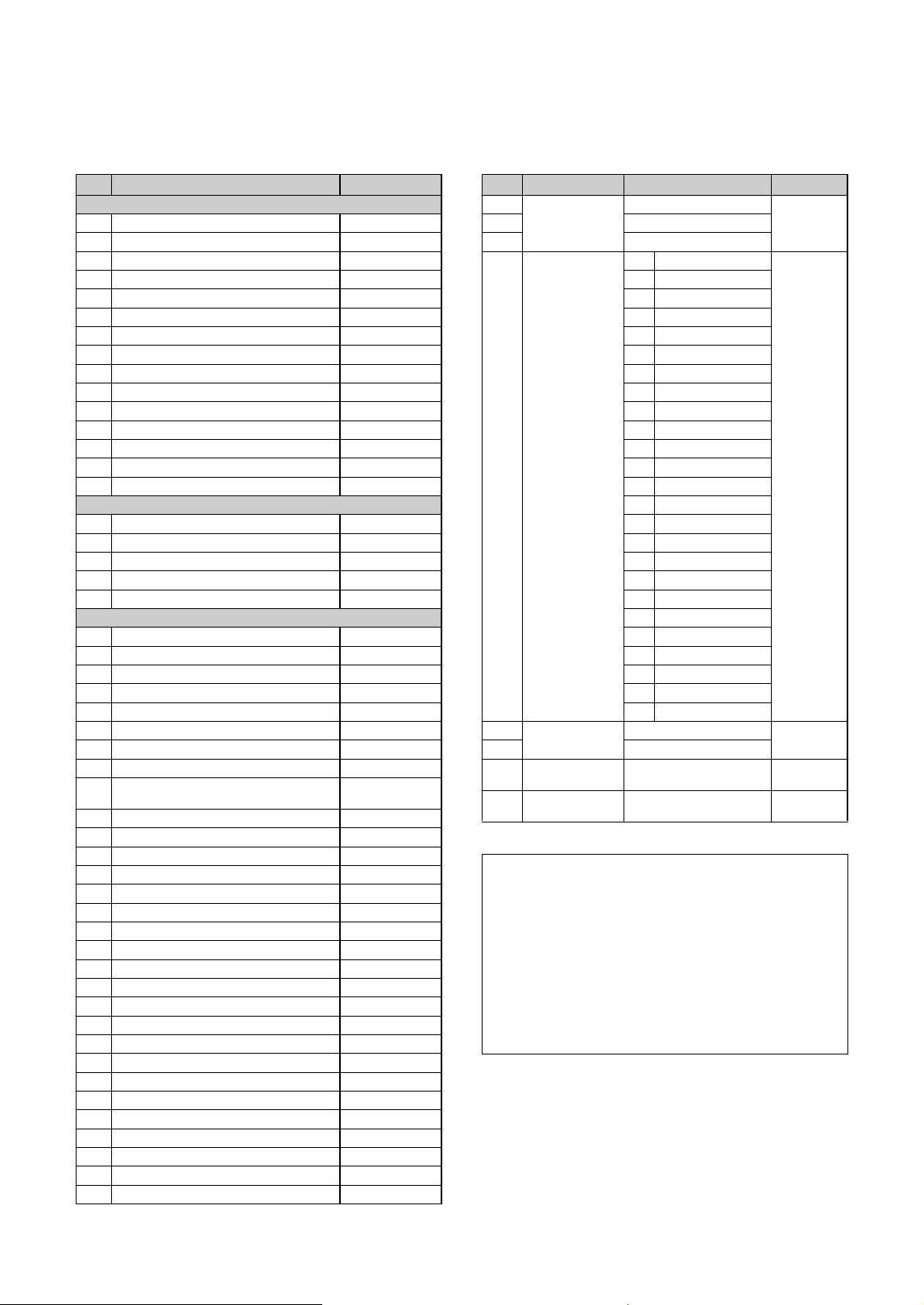
Song List
50 Classical Music Masterpieces Lesson Songs
No. Song Title Composer
Arrangements
1 Canon D dur J. Pachelbel
2 Air On the G String J. S. Bach
3 Jesus, Joy of Man’s Desiring J. S. Bach
4 Twinkle, Twinkle, Little Star Traditional
5 Piano Sonate op.31-2 “Tempest” 3rd mov. L. v. Beethoven
6 Ode to Joy L. v. Beethoven
7 Wiegenlied op.98-2 F. P. Schubert
8 Grande Valse Brillante F. F. Chopin
9 Polonaise op.53 “Héroïque” F. F. Chopin
10 La Campanella F. Liszt
11 Salut d’amour op.12 E. Elgar
12 From the New World A. Dvořák
13 Sicilienne G. U. Fauré
14 Clair de lune C. A. Debussy
15 Jupiter (The Planets) G. Holst
Duets
16 Menuett (Eine kleine Nachtmusik K.525) W. A. Mozart
17 Menuett G dur L. v. Beethoven
18 Marcia alla Turca L. v. Beethoven
19 Piano Concerto No.1 op.11 2nd mov. F. F. Chopin
20 The Nutcracker Medley P. I. Tchaikovsky
Original Compositions
21 Prelude (Wohltemperierte Klavier I No.1) J. S. Bach
22 Menuett G dur BWV Anh.114 J. S. Bach
23 Piano Sonate No.15 K.545 1st mov. W. A. Mozart
24 Turkish March W. A. Mozart
25 Piano Sonate op.13 “Pathétique” 2nd mov. L. v. Beethoven
26 Für Elise L. v. Beethoven
27 Piano Sonate op.27-2 “Mondschein” 1st mov. L. v. Beethoven
28 Impromptu op.90-2 F. P. Schubert
29 Frühlingslied op.62-6 J. L. F.
Mendelssohn
30 Fantaisie-Impromptu F. F. Chopin
31 Etude op.10-3 “Chanson de l’adieu” F. F. Chopin
32 Etude op.10-12 “Revolutionary” F. F. Chopin
33 Valse op.64-1 “Petit chien” F. F. Chopin
34 Nocturne op.9-2 F. F. Chopin
35 Nocturne KK4a-16/BI 49 [Posth.] F. F. Chopin
36 Träumerei R. Schumann
37 Barcarolle P. I. Tchaikovsky
38 La prière d’une Vierge T. Badarzewska
39 Liebesträume No.3 F. Liszt
40 Blumenlied G. Lange
41 Humoresque A. Dvořák
42 Arietta E. H. Grieg
43 Tango (España) I. Albéniz
44 The Entertainer S. Joplin
45 Maple Leaf Rag S. Joplin
46 La Fille aux Cheveux de Lin C. A. Debussy
47 Arabesque No.1 C. A. Debussy
48 Cakewalk C. A. Debussy
49 Je te veux E. Satie
50 Gymnopédies No.1 E. Satie
No. Album Title Title No. /Song Title Composer
1-50 Vorschule im
Klavierspiel op.101
1-50 F. Beyer
1-50 51-100
1-6 101-106
1-25 25 Etudes faciles
et progressives
op.100
1 La candeur J. F.
Burgmüller
2 Arabesque
3Pastorale
4 Petite réunion
5 Innocence
6 Progrès
7 Courant limpide
8 La gracieuse
9 La chasse
10 Tendre fleur
11 La bergeronnette
12 Adieu
13 Consolation
14 La styrienne
15 Ballade
16 Douce plainte
17 Babillarde
18 Inquiétude
19 Ave Maria
20 Tarentelle
21 Harmonie des anges
22 Barcarolle
23 Retour
24 L'hirondelle
25 La chevaleresque
1-50 100 Übungsstücke
op.139
1-50 C. Czerny
1-50 51-100
1-30 30 Etudes de
mécanisme op.849
1-30 C. Czerny
1-20
21-42
The Virtuoso
Pianist
1-20
1-Variation. 1-22
C-L. Hanon
Duet Songs
• Nos.16–20 of “50 Classical Music Masterpieces”
• Nos. 1–11 of the Vorschule im Klavierspiel op.101
of “Lesson Songs” as well as 32–34, 41–44, 63–64,
and 86–87
The right-hand part ([+R]) is for the right hand of the
first player, and the left-hand part ([–L]) is for the left
hand of the first player. The second player’s parts
cannot be turned off.

MEMO
Yamaha Worldwide Representative Offices
For details on the product(s), contact your nearest Yamaha representative or the authorized distributor,
found by accessing the 2D barcode below.
English
Wenden Sie sich für nähere Informationen zu Produkten an eine Yamaha-Vertretung oder einen
autorisierten Händler in Ihrer Nähe. Diese finden Sie mithilfe des unten abgebildeten 2D-Strichodes.
Deutsch
Pour obtenir des informations sur le ou les produits, contactez votre représentant ou revendeur agréé
Yamaha le plus proche. Vous le trouverez à l'aide du code-barres 2D ci-dessous.
Français
Para ver información detallada sobre el producto, contacte con su representante o distribuidor autorizado
Yamaha más cercano. Lo encontrará escaneando el siguiente código de barras 2D.
Español
Untuk detail produk, hubungi perwakilan Yamaha terdekat atau distributor resmi Anda dengan
mengakses barcode 2D di bawah ini.
Bahasa indonesia
Para mais informações sobre o(s) produto(s), fale com seu representante da Yamaha mais próximo ou com
o distribuidor autorizado acessando o código de barras 2D abaixo.
Português
ɑɬɨɛɵɭɡɧɚɬɶɩɨɞɪɨɛɧɟɟɨɩɪɨɞɭɤɬɟɩɪɨɞɭɤɬɚɯɫɜɹɠɢɬɟɫɶɫɛɥɢɠɚɣɲɢɦɩɪɟɞɫɬɚɜɢɬɟɥɟɦɢɥɢ
ɚɜɬɨɪɢɡɨɜɚɧɧɵɦɞɢɫɬɪɢɛɶɸɬɨɪɨɦ<DPDKDɜɨɫɩɨɥɶɡɨɜɚɜɲɢɫɶɞɜɭɯɦɟɪɧɵɦɲɬɪɢɯɤɨɞɨɦɧɢɠɟ
Ɋɭɫɫɤɢɣ
㞝僗⪩◲⿁氳陣篱⟔䕜陴纭硍饄䖻僄鲤氳 :BNBIB ♏辑䡝䪧儹篺ꛖら⺎鵠鲋阼ꠋ┖亡氳◅簟溞䤓⮽鲹◙
♏辑䡝篺ꛖら氳⟔䕜ն
甏⛮╈乄
㞞ꧏ榣⿁氳鎌碸鞴銻鑃绤礙艃䖼ꦗ鲥氳:BNBIBꊸす♏辑䡝䪧垷祺ꊸり䖼⺎♓䬟┖亡氳◅禵半澰刨
洇注绤礙鞴乣
竵냉╈乄
혗폋샻햋켳혐쫯삏팿얓%쨏싗폋폌켳킟폧맻뱇풯:BNBIB샯샴쟟혋쐋삏뫰탘샻잧혋폋
줳핓탨탗퐟
뭨펯
https://manual.yamaha.com/mi/address_list/
Head Office/Manufacturer: Yamaha Corporation 10-1, Nakazawa-cho, Chuo-ku, Hamamatsu, 430-8650, Japan
Importer (European Union): Yamaha Music Europe GmbH Siemensstrasse 22-34, 25462 Rellingen, Germany
Importer (United Kingdom): Yamaha Music Europe GmbH (UK) Sherbourne Drive, Tilbrook, Milton Keynes, MK7 8BL, United Kingdom
DMI37_10m
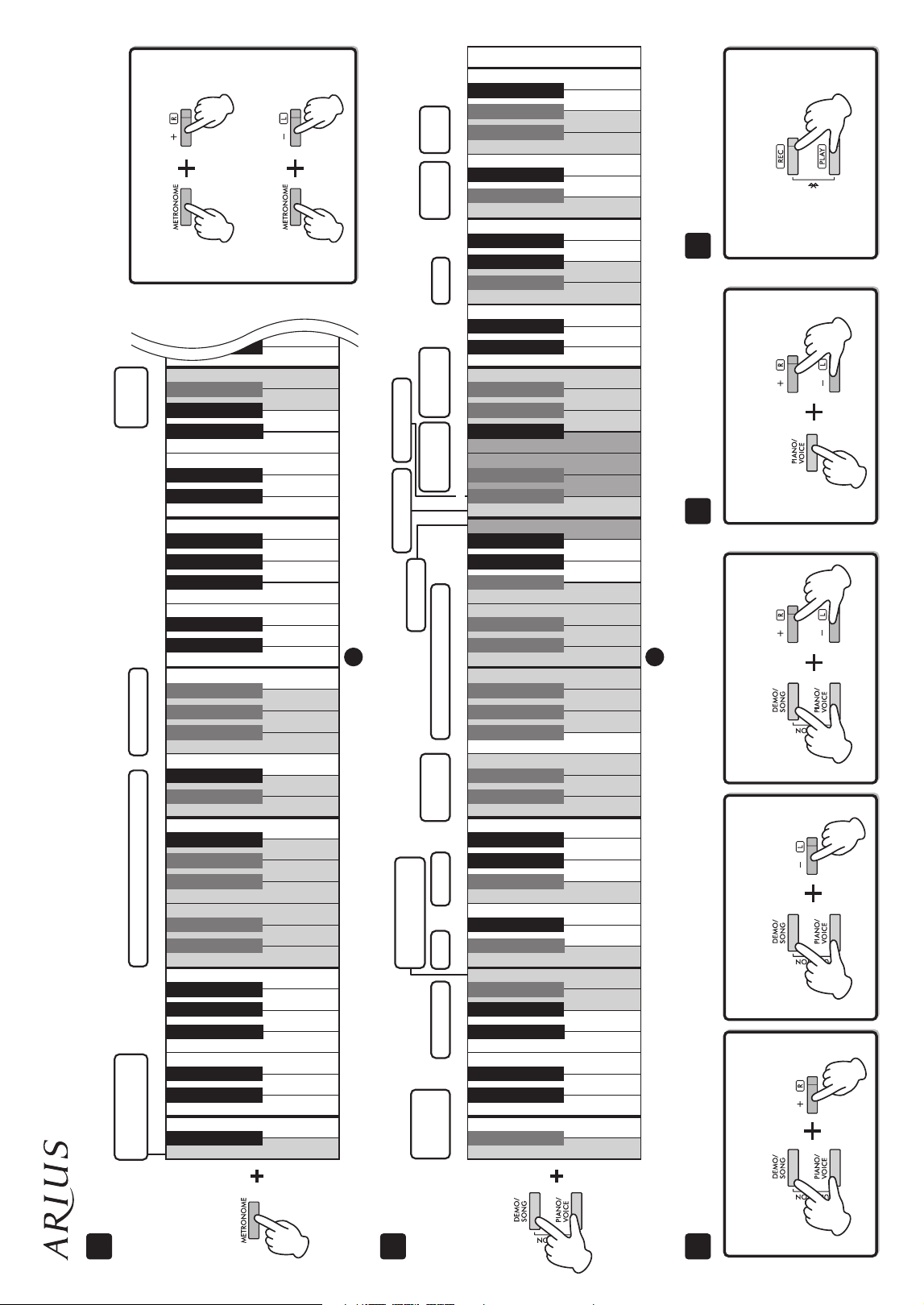
3
4
5 6 7
Voice confirmation of
current Tempo value
Operation
Confirmation
Sounds
Default tempo
2
4
6
0
3
5
Default volume
1 step down
1 step up
10 steps down
10 steps up
Tempo (Metronome, Songs, etc.)
Metronome
Volume
Metronome Beat
Default setting
440.0 Hz
1 step down
1 step up
1 step down
1 step up
Off
Ch 1+2
On/Off
On/Off
Enable
On
Off
On
Off
Off
1 step down
1 step up
ALL
On
Off
Off
Normal
On
20%
50%
80%
On/Off
Ch 1
Ch 1
Disable
Tuning
Transpose
MIDI Transmit
Channel
MIDI Receive
Channel
Audio
Loopback
Speaker
Volume
Limiter
Auto Power Off
IAC ON/OFF
and Depth
Bluetooth
$ᅊ&ᅊ'ᅊ)ᅊ*ᅊ$ᅊ&ᅊ'ᅊ)ᅊ*ᅊ$ᅊ&ᅊ'ᅊ)ᅊ*ᅊ$ᅊ&ᅊ'ᅊ)ᅊ*ᅊ$ᅊ&ᅊ'ᅊ)ᅊ*ᅊ$ᅊ
442.0 Hz
$%
C0
'()*$%
C1
'()*$%
C2
'()*$%
C3
'()*$%
C4
'()*$%
C5
$%
C0
'()*$%
C1
'()*$%
C2
'()*$%
C3
'()*$%
C4
'()*$%
C5
'()*$%
C6
'( )*$ %
C7
Local Control
Control ChangeProgram Change
Metronome settings
2
4
7
9
1
3
5
6
8
0
To turn Duo on or off:
Tuning settings Duo setting
Start pairing
(press and hold):
Bluetooth (Audio) pairing
To tune up
(in about 0.2 Hz steps):
To tune down
(in about 0.2 Hz steps):
Default pitch: 440.0 Hz
On
Off
−6
−4
−2
+1
+3
+6
−5
−3
−1
0
(normal pitch)
+2
+4
+5
Voice confirmation of
current system version
$ᅊ&ᅊ'ᅊ)ᅊ*ᅊ$ᅊ&ᅊ'ᅊ)ᅊ*ᅊ$ᅊ&ᅊ'ᅊ)ᅊ*ᅊ$ᅊ&ᅊ'ᅊ)ᅊ*ᅊ$ᅊ&ᅊ'ᅊ)ᅊ*ᅊ$ᅊ&ᅊ'ᅊ)ᅊ*ᅊ$ᅊ&ᅊ'ᅊ)ᅊ*ᅊ$ᅊ
To increase the value by 1:
To decrease the value by 1:
Other settings
YDP-166, YDP-146, YDP-S56, YDP-S36 Quick Operation Guide
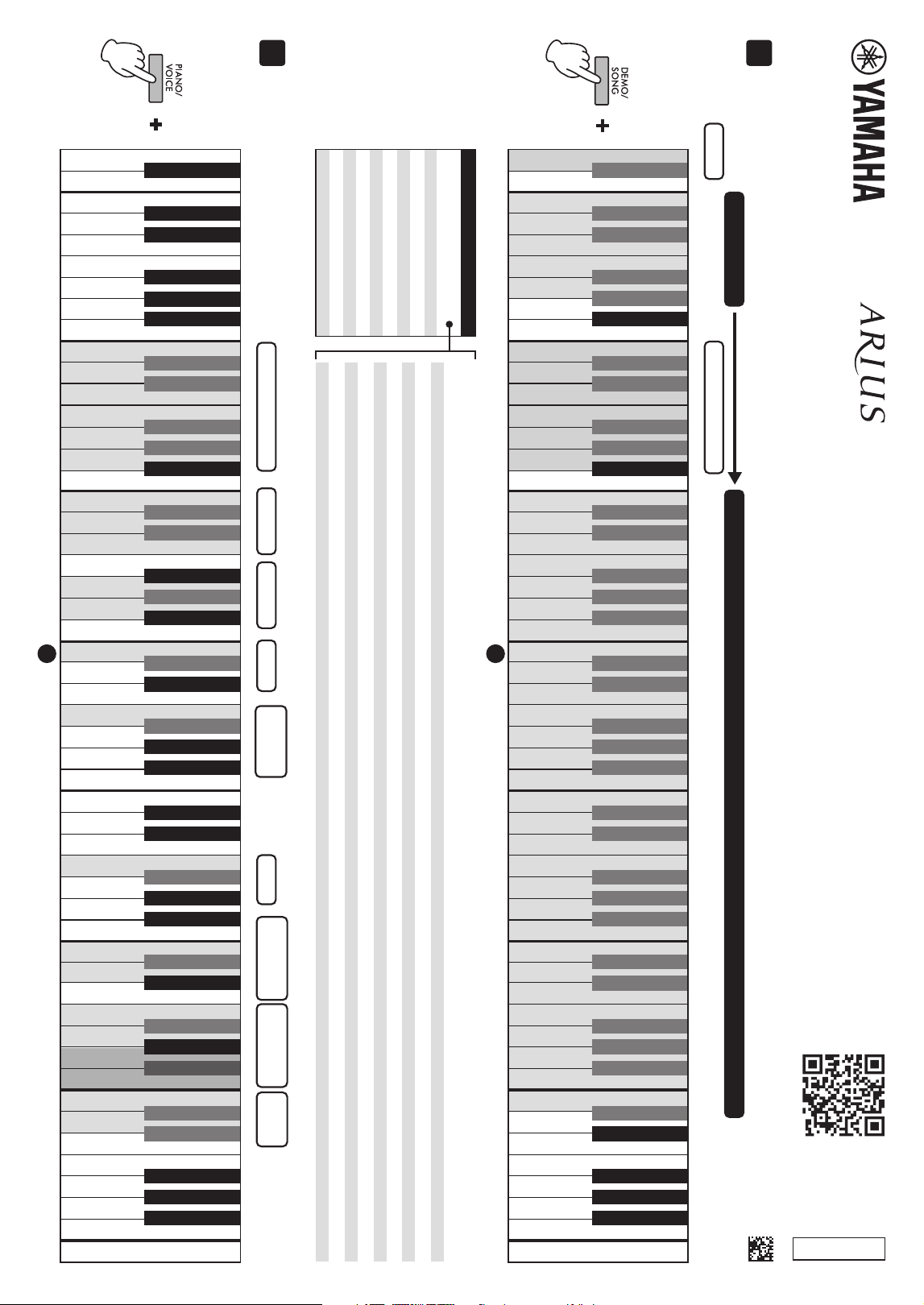
ENGLISH
2
1
Reverb Types Reverb Depth VRM Lite Duo Type
Volume Balance
(Dual/Duo mode)
Octave Shift
(Dual/Duo mode)
Touch
Sensitivity
Concert Hall
Club
Soft
2
4
7
9
11
14
16
19
21
23
26
28
31
33
35
38
40
43
45
47
50
Recital Hall
Chamber
Off
Default setting
1 step down
1 step up
Default setting
1 step down
1 step up
Off
0 (Voice 2)
−1 (Voice 2)
+1 (Voice 2)
0 (Voice 1)
−1 (Voice 1)
+1 (Voice 1)
Fixed
Medium
Hard
$%
C0
'()*$%
C1
'()*$%
C2
'()*$%
C3
'()*$%
C4
'()*$%
C5
'()*$%
C6
'( )*$ %
C7
$%
C0
'()*$%
C1
'()*$%
C2
'()*$%
C3
'()*$%
C4
'()*$%
C5
'()*$%
C6
'( )*$ %
C7
1
3
5
6
8
10
12
13
15
17
18
20
22
24
25
27
29
30
32
34
36
37
39
41
42
44
46
48
49
$ᅊ&ᅊ'ᅊ)ᅊ*ᅊ$ᅊ&ᅊ'ᅊ)ᅊ*ᅊ$ᅊ&ᅊ'ᅊ)ᅊ*ᅊ$ᅊ&ᅊ'ᅊ)ᅊ*ᅊ$ᅊ&ᅊ'ᅊ)ᅊ*ᅊ$ᅊ&ᅊ'ᅊ)ᅊ*ᅊ$ᅊ&ᅊ'ᅊ)ᅊ*ᅊ$ᅊ
$ᅊ&ᅊ'ᅊ)ᅊ*ᅊ$ᅊ&ᅊ'ᅊ)ᅊ*ᅊ$ᅊ&ᅊ'ᅊ)ᅊ*ᅊ$ᅊ&ᅊ'ᅊ)ᅊ*ᅊ$ᅊ&ᅊ'ᅊ)ᅊ*ᅊ$ᅊ&ᅊ'ᅊ)ᅊ*ᅊ$ᅊ&ᅊ'ᅊ)ᅊ*ᅊ$ᅊ
On
Off
On
Balanced
Separated
While holding down the applicable button, press one of the highlighted keys or buttons shown below to select a Song or set a parameter.
To select a Song, follow step 1 (Book Select), and then step 2 (Song No. Select).
Song playback
On
Off
Mellow Grand
Stage E.Piano
Vibraphone
Jazz Organ
CFX Grand
Pop Grand
DX E.Piano
Harpsichord
Pipe Organ
Strings
Mellow Grand
Stage E.Piano
Vibraphone
Jazz Organ
CFX Grand
Pop Grand
DX E.Piano
Harpsichord
Pipe Organ
Strings
Quick Play
1 Book Select
Demo Songs
2 Song No. Select
Beyer 1–50
Beyer 101–106
Czerny 100, 51–100
Hanon
50 Classics
Beyer 51–100
Burgmüller 1–25
Czerny 100, 1–50
Czerny 30, 1–30
50 Classical Music Masterpieces (Number/Song)
1 Canon D dur
2 Air On the G String
3 Jesus, Joy of Man’s Desiring
4 Twinkl e, Twinkle, Litt l e Star
5 Piano Sonate op.31-2 “Tempest” 3rd mov.
6 Ode to Joy
7 Wiegenlied op.98-2
8 Grande Valse Brillante
9 Polonaise op.53 “Héroïque”
10 La Campanella
11 Salut d’amour op.12
12 From the New World
13 Sicilienne
14 Clair de lune
15 Jupiter (The Planets)
16 Menuett (Eine kleine Nachtmusik K.525)
17 Menuett G dur
18 Marcia alla Turca
19 Piano Concerto No.1 op.11 2nd mov.
20 The Nutcracker Medley
21 Prelude (Wohltemperierte Klavier I No.1)
22 Menuett G dur BWV Anh.114
23 Piano Sonate No.15 K.545 1st mov.
24 Turkish March
25 Piano Sonate op.13 “Pathétique” 2nd mov.
26 Für Elise
27 Piano Sonate op.27-2 “Mondschein” 1st mov.
28 Impromptu op.90-2
29 Frühlingslied op.62-6
30 Fantaisie-Impromptu
31 Etude op.10-3 “Chanson de l’adieu”
32 Etude op.10-12 “Revolutionary”
33 Valse op.64-1 “Petit chien”
34 Nocturne op.9-2
35 Nocturne KK4a-16/BI 49 [Posth.]
36 Träumerei
37 Barcarolle
38 La prière d’une Vierge
39 Liebesträume No.3
40 Blumenlied
41 Humoresque
42 Arietta
43 Tango (España)
44 The Entertainer
45 Maple Leaf Rag
46 La Fille aux Cheveux de Lin
47 Arabesque No.1
48 Cakewalk
49 Je te veux
50 Gymnopédies No.1
Voice settings
Voices
© 2026 Yamaha Corporation
Published 03/2026
MWMA-A1
VHT6120
2 Song No.
1–50
1–50
1–50
1–6
1–25
1–50
1–50
1–30
1–20
21–42
1 Book
50 Classical Music Masterpieces
(50 Classics)
Beyer 1–50
Beyer 51–100
Beyer 101–106
Burgmüller 1–25
Czerny 100, 1–50
Czerny 100, 51–100
Czerny 30, 1–30
Hanon 1–20
Hanon 1-Variation 1–22
Stereophonic
Optimizer
YDP-166, YDP-146, YDP-S56, YDP-S36
Quick Operation Guide