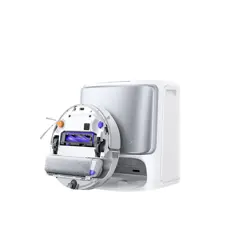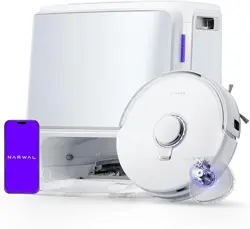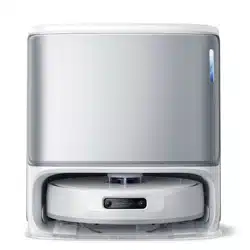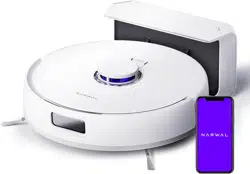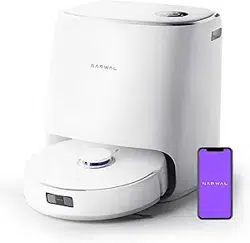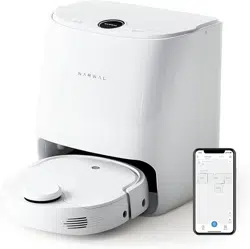

Applicable Models: YJCC036 (Self-cleaning Charging Dock: YJCB036BH)
User Manual
Robot Vacuum and Mop

CONTENTS
01
en
Dear users:
Thank you for purchasing Narwal products. To access comprehensive support from Narwal, you are recommended to read carefully the manual and
illustrations before using the product. Please keep the manual properly.
In case of any problem in using the product, please contact Narwal after-sales customer service through the following ways:
Merci d'avoir acheté les produits Narwal. Pour bénéficier d'un support complet de la part de Narwal, nous vous recommandons de lire aentivement
le manuel et les illustrations avant d'utiliser le produit. Veuillez conserver le manuel correctement.
En cas de problème lors de l'utilisation du produit, veuillez contacter le service client après-vente Narwal par les moyens suivants :
[email protected](North America)
*For other countries, please refer to the after-sales contact information provided by your local vendors.
We wish you a pleasant experience!
en
Regional Availability and Compatibility
Based on user experience consideration and relevant legal and compliant requirements, Narwal products normally sold by Narwal (and its authorized
retailers) are only available for use and after-sales service support in the country or region in which they were originally sold. If a product is shipped to
any other countries or regions, you might not be able to use the Narwal App to bind the product or perform relevant operations. We recommend
that you purchase the local version of the Narwal product from Narwal or its authorized retailers in order to obtain the best product use and service
experience.
For avoidance of doubt, Narwal products sold by Narwal (and its authorized retailers) in the PRC are only available for use and after-sales service
support in the PRC (for this purpose, excluding Hong Kong, Macao and Taiwan).
01
1. Product at a Glance
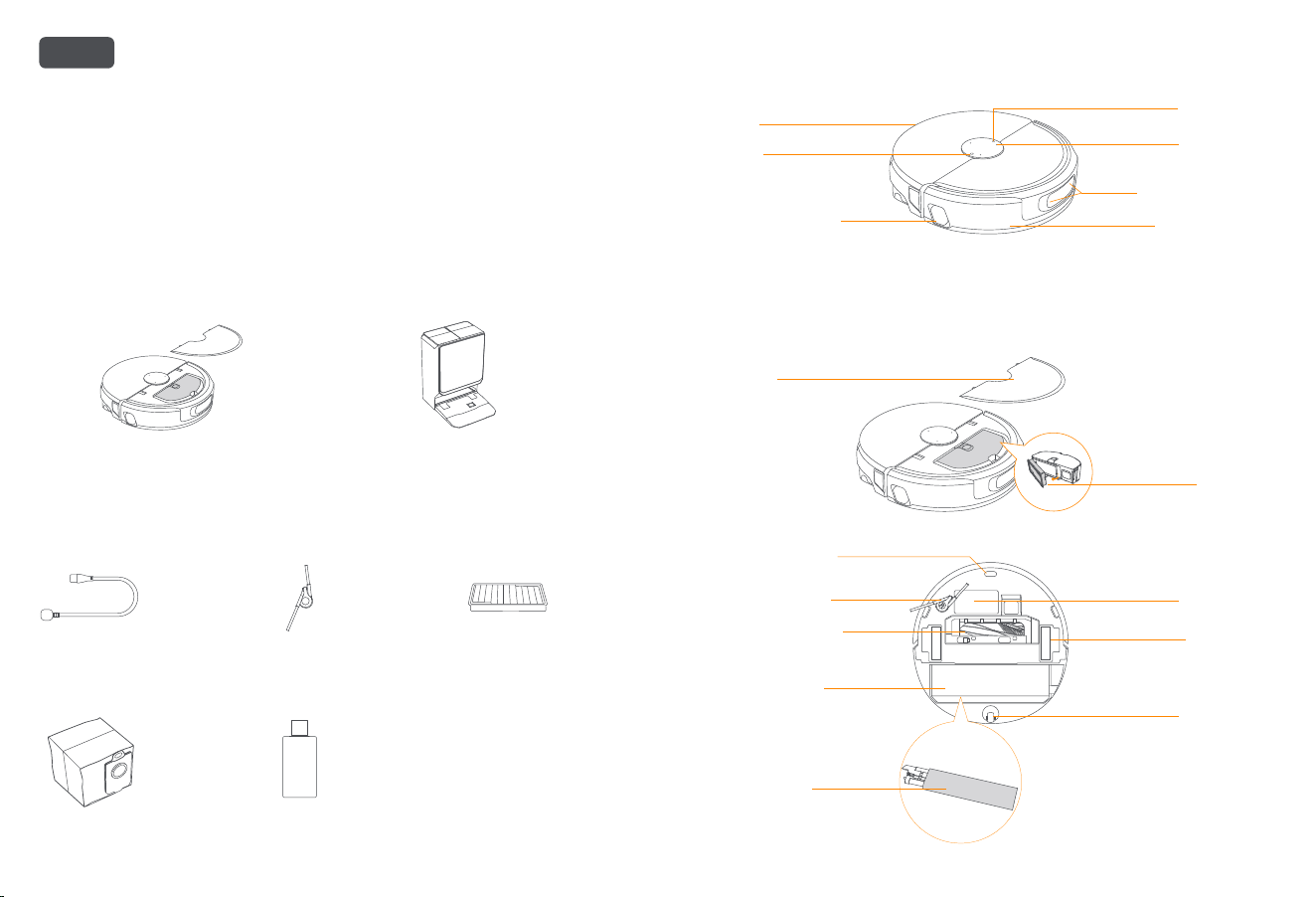
1.1 Packaging Contents
Main Body
Accessories
Microphone Array
Binocular Vision Obstacle
Avoidance Sensor
Front Collision Sensor
Dust Bin Filter
Dust Bin
Radar Sensor
Return Buon
Start/stop Buon
Structured Light Edge Sensor
Robot Top Cover
1.2 Robot Components
Robot (Front View with Top Cover Closed)
Robot (Front View with Top Cover Opened)
Robot (Boom View)
Drive Wheel × 2
Caster Wheel × 1
Infrared Anti-drop Sensor × 3
Anti-tangling Side Brush × 1
Cyclone Airflow Zero-tangling
Roller Brush × 1
Track Mopping Module × 1
Track Mop Extension × 1
Robot Nameplate
(Including Serial No.)
Robot × 1
(Pre-installed with Dust Bin × 1
and Track Mopping Module × 1)
Self-cleaning Charging Dock × 1
(Including Cleaning Base × 1, Clean Water Tank × 1,
Dirty Water Tank × 1,Cleaning Solution Reservoir × 1,
Dust Bag × 1, Replaceable Cleaning Filter × 1)
Dust Bag × 1
Power Cord × 1
Dust Bin Filter × 1
Cleaning Solution × 1
Anti-tangling Side Brush × 1
02
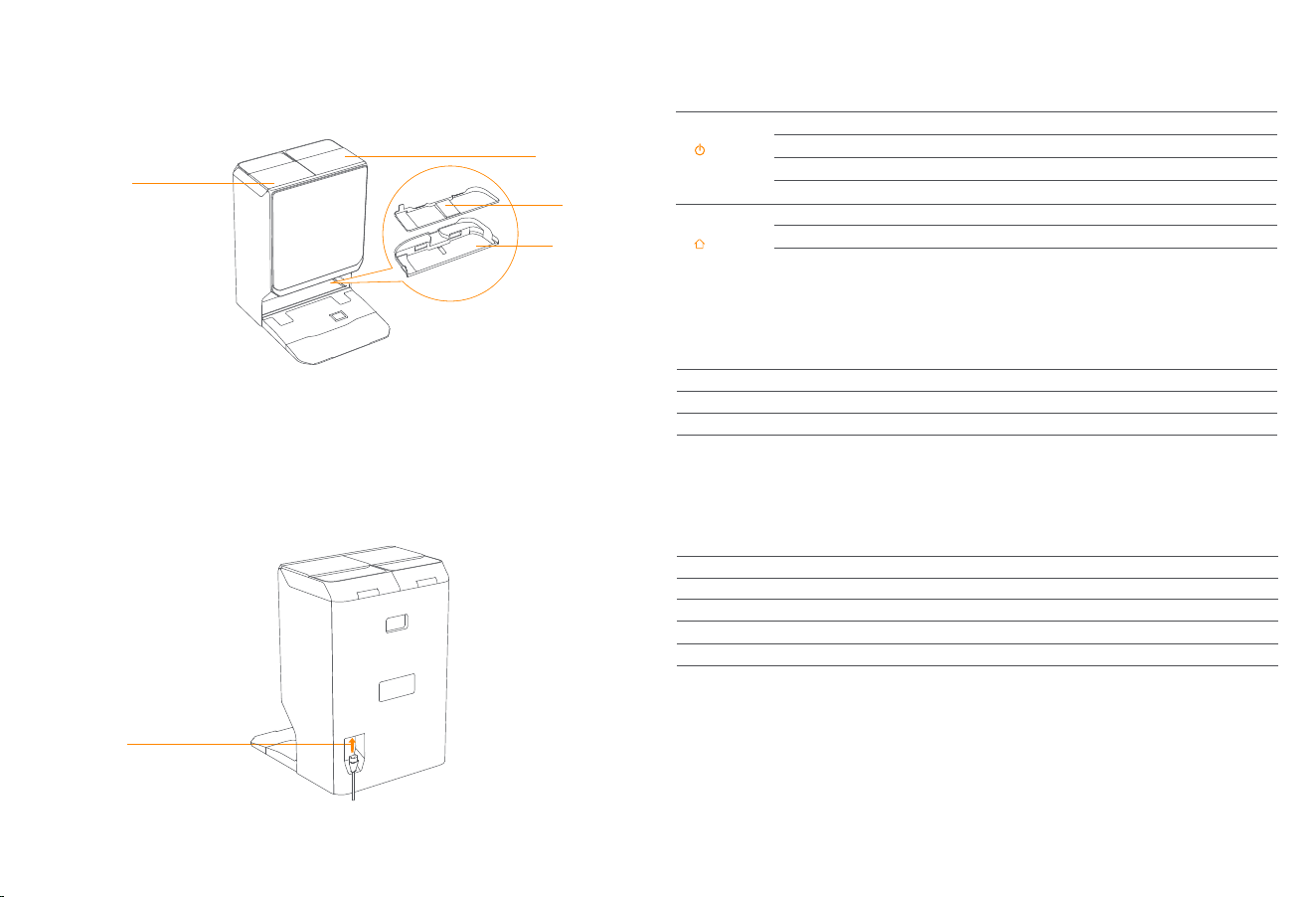
1.3 Self-cleaning Charging Dock Components
Front of Self-cleaning Charging Dock
Rear of Self-cleaning Charging Dock
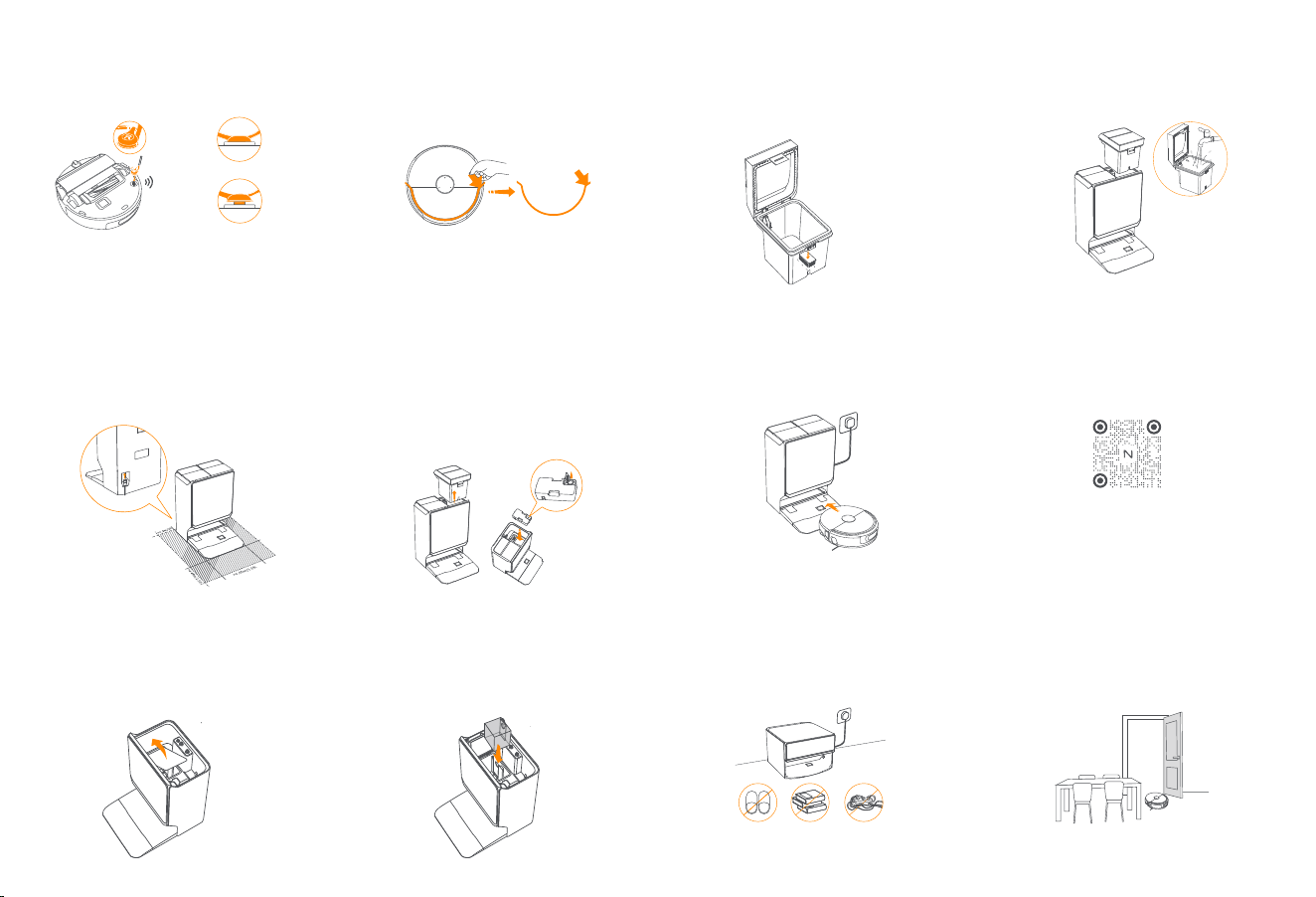
1.4 Buons and Lighting Eects
Buon
Start/stop
Start/pause/resume cleaning task
Power on/o; end task
Force power o
Enable/disable child lock
Return robot to self-cleaning charging dock
Enter pairing status
Reset system firmware and erase all user data
Short press
Long press for 2 seconds
Long press for 10 seconds
Triple press
Short press
Long press for 5 seconds and then release
Long press for 15 seconds
Return
Operation Function
Robot Buons
Indicators of the Self-cleaning Charging Dock
Status
White
Blue
Red
Orange
Idling status/Standby mode
Task status/Navo voice response status
Abnormalities
Pairing status/Updating status
Lighting Eects
Lighting Eects
Status
Robot Indicator Eects
Replaceable
Cleaning Filter
Cleaning Base
Dirty Water Tank
Clean Water Tank
Power Interface
O
Solid on
Flashing + solid on
Flashing
Flowing
Flowing + flashing
Idling status
Task status/Night light mode
Task completed/Mode switched
Abnormalities
Robot powered on
Voice interaction while robot is at the charging dock
03
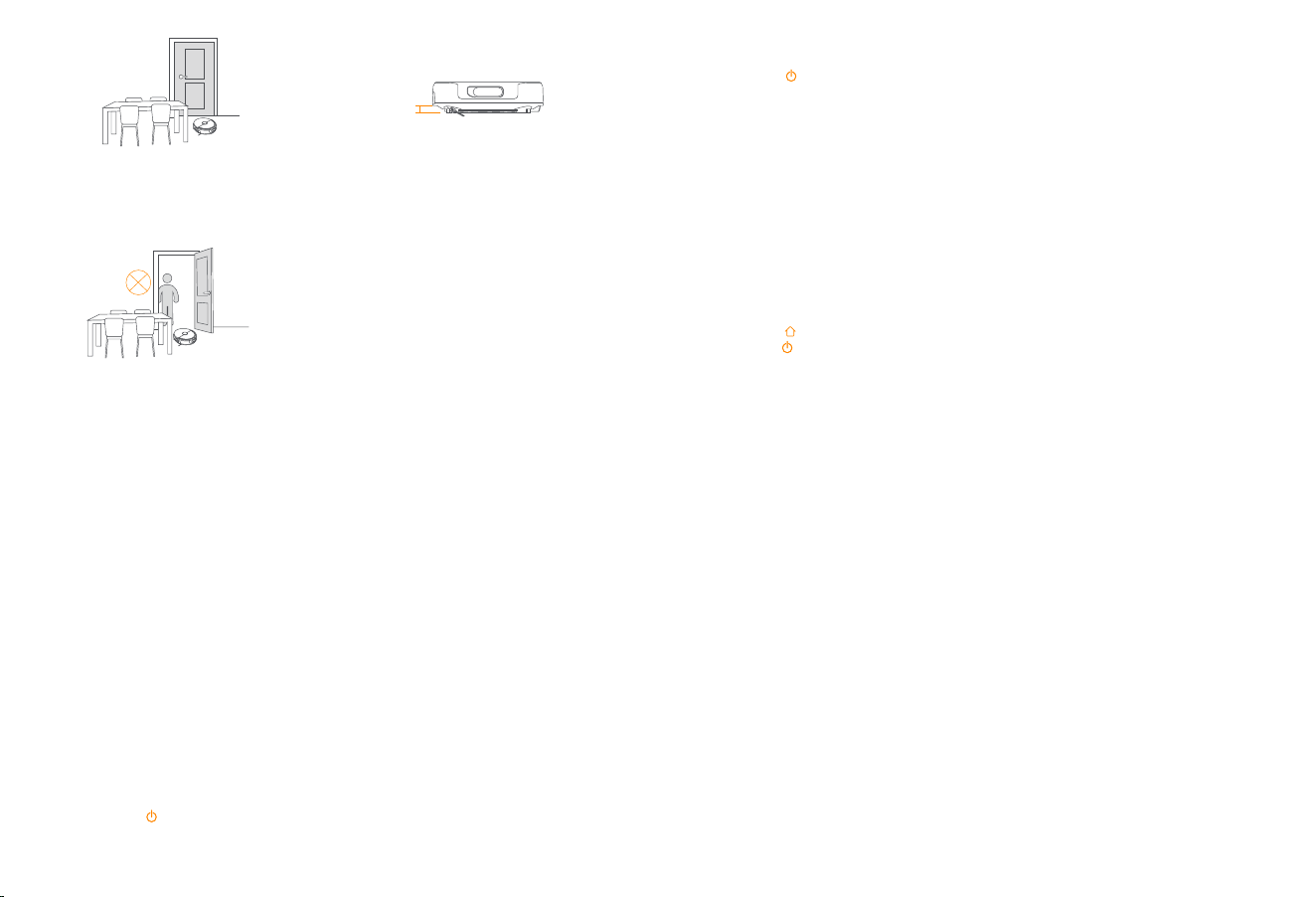
2. Preparation before Using
(1)Install the Side Brush
Firmly press the side brush into its slot until you hear a
"click", indicating secure installation.
"Click" sound
Not properly installed
Properly installed
(2)Remove Protective Foam Strips
• Lift the top cover guide sticker, open the robot's top
cover, and remove the protective foam strips.
• Close the top cover.
(3)Position the Self-cleaning Charging Dock
•Plug the power cord into the rear power port of the charging
dock and connect it to a power outlet.
• Ensure a clear space of at least 0.45 m in front of the
charging dock for the robot to enter and exit freely.
Reminder: Do not place the charging dock near heat
sources.
(6)Install the Silver Ion Antibacterial Module
(4)Add Cleaning Solution
• Open the top cover of the charging dock and remove
the clean water tank. Take out the integrated cleaning
solution reservoir, open its lid, and manually fill it with
cleaning solution.
• After filling, securely close the reservoir lid and
reinsert it into the designated slot inside the dock.
Reminder: Use only oicial Narwal cleaning solution to
avoid machine malfunction.
(7)Fill with Clean Water
Install the silver ion antibacterial module into the boom
snap-fit slot of the clean water tank, following the
orientation as illustrated. The module is properly installed
when it no longer wobbles.
Reminder: The silver ion antibacterial module must be
purchased separately.
• Open the clean water tank latch and fill it with clean
water
• Securely close the tank lid and place the tank back into
the self-cleaning charging dock.
3. Product Usage
Before using, ensure you have completed robot setup and self-cleaning charging dock configuration as described in
Section 2.
Clean Water Tank
(8)First-time Robot Power-on
Ensure the side brush and camera face outward. Push
the robot into the charging dock. When correctly
aligned, the charging dock's indicator light will stay solid
for 3s. After approx. 10 seconds, the robot will power on
automatically.
(9) Connect and Bind the Robot Via the App
Download the Narwal App and follow the instructions for
connecting and binding the robot.
Note:In the App device page, tap "Seings" > "Device" and
then press hold the "Restart Robot" for 10s to turn on/o the
power-saving mode.
_
The power-saving mode is only available in North America.
3.1 Organize the home environment
A. Remove loose items from the floor, such as cables, rags,
slippers, clothing, books, and other cluer.
B. Open doors to areas to be cleaned and arrange furniture
to maximize accessible floor space.
• Remove the clean water tank and dirty water tank
• Lift the dust cabinet cover upward
•Insert a new dust bag into the slot following the illustrated
orientation, ensuring it is fully seated at the boom of the slot
• Close the dust cabinet cover and reinstall the clean water
tank and dirty water tank into their original positions
(5)Base Station Dust Bag Installation
04
Select Cleaning Mode
The robot supports four cleaning modes: Vacuum Only, Mop Only, Vacuum & Mop Simultaneously, Vacuum First, Then
Mop. In the app, you can customize each mode by adjusting number of cleaning passes, suction power, mop moisture
level, etc.
Enable Freo Mind
Freo Mind is a smart cleaning function. When enabled, it automatically optimizes cleaning parameters, eliminating
the need for manual adjustments.
You can choose to enable Freo Mind when starting a cleaning task in the app.
Start a Cleaning Task
You can start cleaning via the app or by:
• Short pressing the Start/stop buon on the robot. By default, the robot will start in Vacuum Only mode.
Note: You can adjust the cleaning mode and parameters in the app.
Do not touch the sides of the mop module while the robot is operating.
Pause/Resume Task
Pause or resume cleaning via the app or by:
• Short pressing the Start/stop buon on the robot.
Dust Emptying of the Self-cleaning Charging Dock
After a vacuuming task begins, the self-cleaning charging dock automatically transfers debris from the robot's dust
cabinet into the charging dock's dust bag.
You can also manually trigger dust emptying via the app.
Drying
After the final mopping pass, the robot returns to the self-cleaning charging dock to wash and dry the mop, and dry the
dust cabinet.
Drying seings can be customized in the app, and you can also manually start a drying task.
3.3 Cleaning
Ensure the robot has suicient baery before starting a cleaning task. Baery level can be checked in the app.
3.2 Map Creation
Prior to the first cleaning, you can initiate mapping by: Saying the voice command "Start mapping", or tapping "Start
mapping" in the app, or short pressing the robot's Start/stop buon (which will automatically trigger mapping followed
by cleaning).
Precautions
1. After mapping is complete, you can edit and manage the map in the app, such as seing unreachable areas, or
creating secondary maps for multi-floor homes.
2. Do not move the self-cleaning charging dock after mapping, as this will require remapping. If large furniture has been
relocated, remapping is recommended.
Mop Washing
If multiple mopping passes are scheduled or the cleaning area is large, the robot will automatically return to the charging
dock to wash its mop during the task.
Mopping cycle and mop-washing frequency can be adjusted in the app before starting the task. These seings cannot be
changed once cleaning has begun. You can also manually start a mop-washing task via the app or by:
Note: Do not forcibly pull the robot out during automatic mop washing, as this may damage components.
End Task
Upon completion, the robot automatically returns to the self-cleaning charging dock. A cleaning report is available in the
app.
You can also manually end the task via the app or by:
• Short pressing the Return buon;
• Long pressing the Start/stop buon for 2s.
3.4 Component Maintenance
You can view component maintenance information in the app, including usage duration, maintenance intervals, and
replacement instructions for each component.
3.6 User Guide
You can access user guide in the app, including tutorial videos, the digital user manual, FAQs, and troubleshooting.
Advanced Features
3.5 Additional Features
You can learn how to use the intelligent assistant via the app.
Special Features
During cleaning, the robot performs real-time self-cleaning of the mop, actively untangles hair from the side brush, and
extends the mop outward for enhanced edge cleaning. The self-cleaning charging dock oers multi-level hot water
mop washing function.
Convenient Functions
In the app, you can configure no-go zones, child lock, do not disturb mode, and stairless mode (enhancing
obstacle-crossing performance).
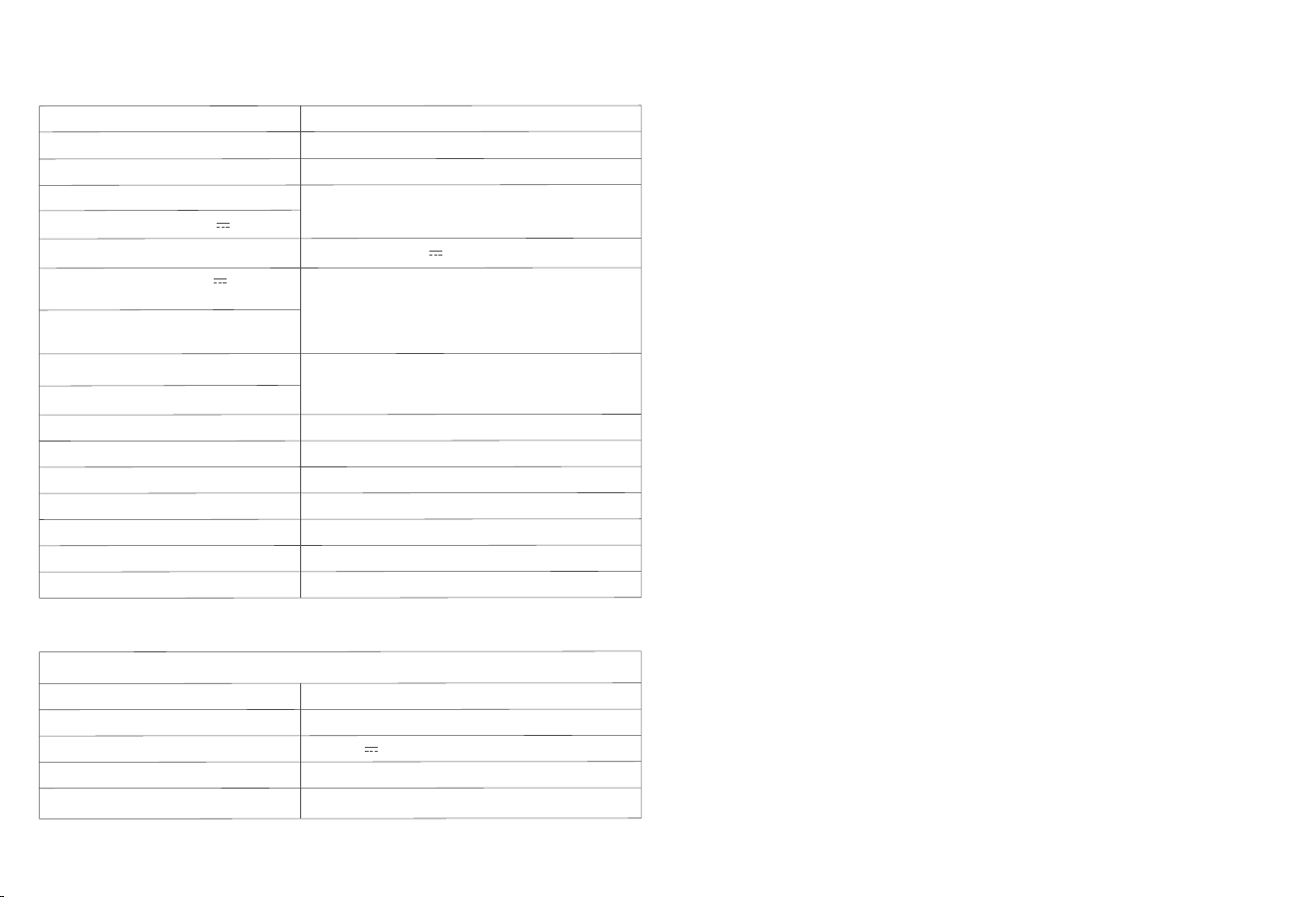
C. Close doors to rooms that do not require cleaning. Use
physical barriers to prevent the robot from entering elevated
or low-clearance areas.
D. The robot can overcome single-step thresholds up
to 30 mm in height. For thresholds exceeding 30 mm,
we recommend using the Narwal Threshold Ramp (sold
separately) to assist obstacle crossing.
E. Avoid standing directly in front of the robot, near
thresholds, or in narrow corridors during cleaning to prevent
missed spots.
30mm
05
Dimensions: 450*360*530 mm
Weight: 10 kg
Rated input: AC 220-240V 50-60Hz
AC 100-127V 50-60Hz
(The actual rated input is based on the product nameplate information.)
Rated output: 8-17.8V 0.2-3.5A
Rated power:
Charging: 65W
Water heating: 1200W
Dust Collection: 450W
Drying:110W
4. Parameters
4.1 Specifications
Dimensions: 351.2*363.5*95 mm
Weight: 5.0 kg
Wireless Connection: 2.4GHz, 802.11b/g/n
Rated input (charging): 8-17.8V 0.2-3.5A
Rated power: 65W (Max)
Rated voltage (working): 14.4V
(lithium ion baery, ≥6500mAh)
Charging takes about 3 hours at a normal
ambient temperature
Protocol: IEEE 802.11b/g/n
Frequency Range: 2412~2472MHz
Max. Transmier Power (EIRP): ≤20dBm
Protocol: BLE 5.0
Frequency Range: 2402-2480MHz
Max. Transmier Power (EIRP): ≤10dBm
Robot(YJCC036)
Wi-Fi
Bluetooth
Baery Pack Quantity Per Pack:
Baery Type:
Nominal Voltage:
Quantity of Baery Cells Per Baery Pack:
Rated Capacity, Rated Energy:
Baery (Robot)
Protocol: BLE 5.0
Frequency Range: 2402-2480MHz
Max. Transmier Power (EIRP): ≤10dBm
Inlet Water Pressure: 0.08-0.8 MPA
(The new hose-sets supplied with the appliance are to be
used and that old hose-sets should not be reused. )
1 pcs
Rechargeable Li-ion Baery
14.4V
8 pcs
6500mAh, 22.75Wh
Bluetooth
Base Station
(YJCB036BH)
Manufacturer/Fabricant : Yunjing Intelligence Innovation (Shenzhen) Co., Ltd.
Address/Adresse : Room A2901, Yunzhongcheng, Building 1, Vanke Yuncheng VI, Dashi 2nd
Road, Xili Community, Xili Street, Nanshan District, Shenzhen, Guangdong, China
Copyright © 2025 Yunjing Intelligence Innovation (Shenzhen) Co., Ltd. All Rights Reserved.
is a trademark of Yunjing Intelligence Innovation (Shenzhen) Co., Ltd.
Droits d'auteur © 2025 Yunjing Intelligence Innovation (Shenzhen) Co., Ltd. Tous droits réservés.
est une marque de commerce de Yunjing Intelligence Innovation (Shenzhen) Co., Ltd.