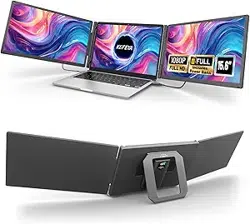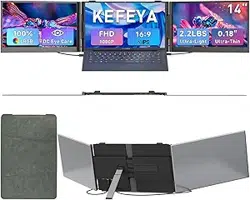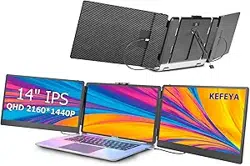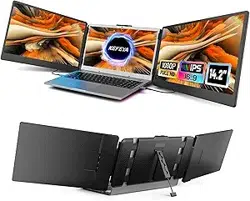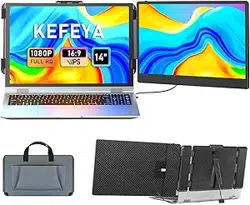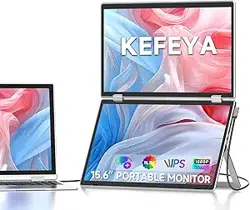
KEFEYA Portable Triple Screen Extender
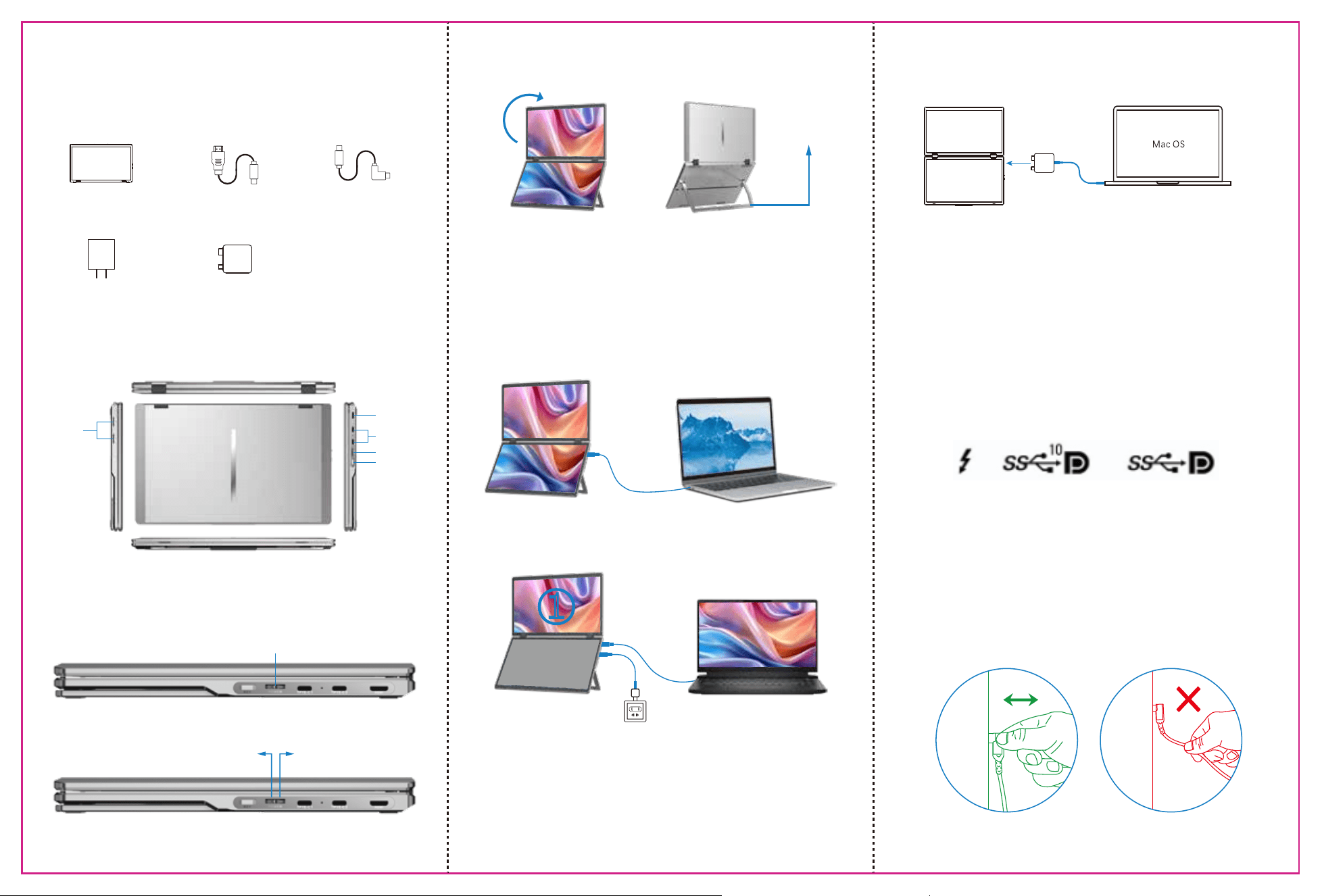
These Ports You Need to Know
How to Connect
Packing List
Operation Steps
Key Definitions
TYPE-C Connection:
If your laptop has one full-featured Type-C port, you can connect the M2 directly
to your laptop with one Type-C cable.
HDMI Connection:
Notice: If the display has no signal or the signal is unstable after connection,
please connect an external 12V/1.25A power adapter to power the laptop.
If your laptop has an HDMI interface, you can connect the M2 to your laptop using
an HDMI cable. To power the M2, you can use a USB-C to USB-C adapter and
connect it to the M2.
OK NG
Please refer to the pictures below to plug and unplug the data cable to avoid damage.
Q&A
Tips for Use
A1: A USB-C port with one of the following symbols is a full-featured one.
Thunderbolt 3 or Thunderbolt 4 ports are also full-featured ports.
You can view the port parameters in the manual or on the Web.
A2: There may be a connection failure or the computer port does not
support video output. Please contact us for troubleshooting.
We will provide you with a solution as soon as possible!
A3: It is possible that your computer does not have enough power. Please
charge the monitor with an external power supply that provides 5V/2A
power. You can also contact us for further solutions.
Q1: How can I tell if the USB-C port on my computer is full-featured?
Q2: Why does one monitor show ''No Signal'' ?
Q3: The screen does not light up after connecting,what should I do?
For more detailed information, please refer to the product brochure.
Unpack the package and inspect the contents. If anything is missing or
damaged, please contact us at kefeya_servic[email protected].
Speaker
MINI HDMI
TYPE-C
POWER
KEY
Menu/Selection/Confirmation Button
Press and hold for 2 seconds to return. Press and hold for 3 seconds to shut down
Toggle left "Minus”
Backlight Adjustment
Toggle right "Plus”
Volume Adjustment
To open the stand, you can adjust it
to a maximum angle of 135°.
Opening the Stand
The maximum opening angle of the
screen is 340°. It is strictly prohibited
to fold it excessively. Please open and
close it gently.
Note: When using an HDMI connection, the content will only be displayed on the
primary screen.
①
Item 1
HOST
Item 3
USB-C to USB-C x2
Item 2
HDMI to MINI HDMI
Item 4 Item 5
POWER
HUB
please follow these steps:
1. Connect the HUB to the M2 using the Type-C and Mini HDMI interfaces.
2. Use aUSB-C to USB-C cable to connect your computer's
Type-C interface.
3. Use a USB-C to USB-C cable to provide power to the product
through the adapter.
4. Locate the "USM USB display" driver installation file on your computer and
follow the prompts to install the driver. Once the installation is complete, both
screens light up.
Note: The USB/Type-C interface on your computer must meet or exceed the
USB 3.0 transfer rat.
If your device is with Mac OS, you will need to connect the dedicated M2 model hub
to activate both screens. Please follow the steps below:
HUB Connection
HUB