These Ports You Need to Know
How to Connect
Packing List
Operation Steps
Key Definitions
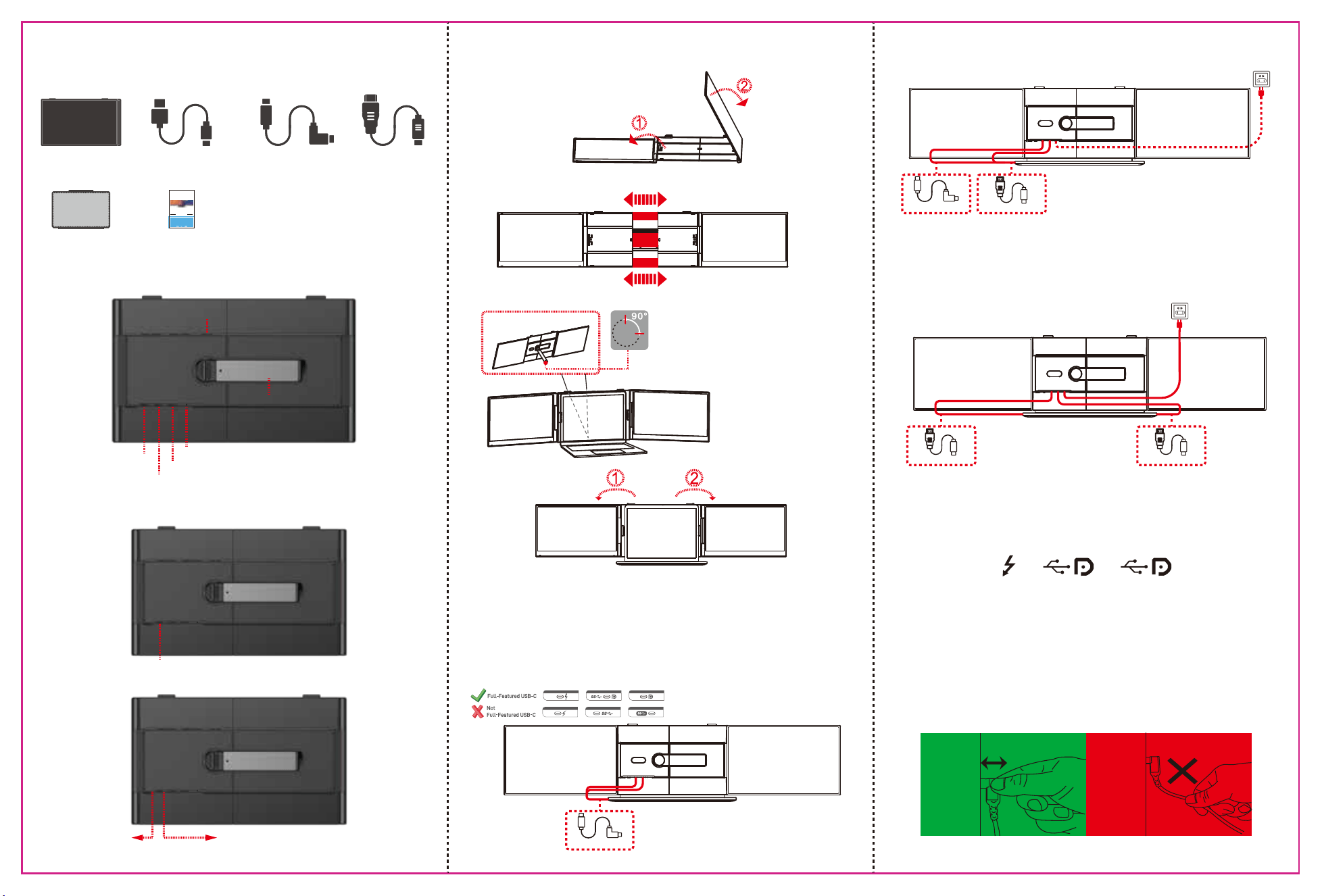
Please refer to the pictures below to plug and unplug the data cable to avoid damage.
Tips for Use
For more detailed information, please refer to the product brochure.
Q2: Why does the monitor show ''No Signal'' ?
Q3: The screen does not light up after connecting?
Q&A
A1: A USB-C port with one of the following symbols is a full-featured one.
Thunderbolt 3 or Thunderbolt 4 ports are also full-featured ports.
You can view the port parameters in the manual or on the Web.
A2: There may be a connection failure or the computer port does not
support video output. Please contact us for troubleshooting.
We will provide you with a solution as soon as possible!
A3: It is possible that your computer does not have enough power. Please
charge the portable monitor with an external power supply that provides
5V / 2A power or above. You can also contact us for further solutions.
Q1: How can I tell if the USB-C port on my computer is full-featured?
ss
10
ss
OK
NG
Toggle right "Plus”
Volume Adjustment
Menu/Selection/Confirmation Button
Press and hold for 2 seconds to return Press and hold for 3 seconds to shut down
Toggle left "Minus”
Backlight Adjustment
4. Opening Sequence
1. Opening mode
2. Outrigger stretch
3. Fixing mode of device
Note: Please follow the sequence of opening and closing to avoid damage of the device.
Opening Sequence: Slowly open the left screen first, then slowly open the right screen.
Adjust the kickstand
1. First open the support rod, and then stretch
the support to the appropriate size;
2. The support rod only supports clockwise
rotation of 90 degrees;
3. The maximum opening angle of the support
rod is 90 degrees, and excessive folding will
damage the support rod.
The screen is facing up
Compatible with 13.3 to 17.3 inch laptops
Note: If the product does not function properly or the brightness is insufficient during use,
please connect a 5V/2A or higher adapter to the power supply interface of the product.
(The adapter is not included in the product package.)
1. Connect S8 PRO With Laptop
To start, determine how many video output ports your laptop has. It is important to note
that only full-featured USB Type-C and HDMI ports are compatible with this setup.
Full-featured Type-C ports can transfer power, video, and data simultaneously. Below are
the available options based on your laptop’s ports:
1.1 Two Full-Featured Type-C Connection:
Please note that two USB-C to USB-C cables will be required.
1.2 One Full-Featured Type-C and One HDMI Connection:
Please note that you will need one USB-C to USB-C cable and one HDMI cable.
1.3 No Full-Function Type-C Connection:
In this case, your laptop must have two HDMI ports.Please use the HDMI to Type-C cable for
connection, and the product must be powered by an external 5V/2A or higher adapter.
(The adapter is not included in the product package.)
USB-C to USB-C*2
HD to TYPE-C*1 HD to TYPE-C*1
USB-C to USB-C*1
HD to TYPE-C*1
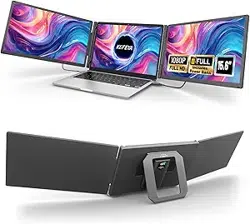
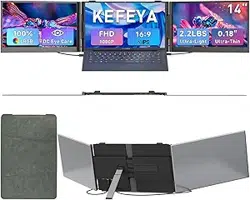
Portable Triple Screen Laptop Workstation
USB-A to USB-C *1Monitor
USB-C to USB-C *2
HD to TYPE-C *2
Item 1 Item 2 Item 3 Item 4
Bag
Item 5 Item 6
User Manual
Friendly Reminders:
1. Ensure a secure connection of the Type-C data cable to the device interface.
2. This product seamlessly supports all Type-C functions, including charging
and video, through a single integrated cable. In the event of screen power
issues or restart difficulties, kindly provide external power of 5V, 2A.
3. When using the DP interface to connect the product, please use the HDMI
To TYPE-C data cable included in the package and ensure external power is
supplied.
S8 PRO USER’S GUIDE
TRIPLE SCREEN
LAPTOP SCREEN EXTENDER
Multi-function button
TYPE-C1
TYPE-C2
Charging interface (PD)
Kickstand
Speaker
The screen supports a maximum folding angle of 180 degrees.