Product Name and Model Number User Manual
P a g e | 1 Copyright©2020 ZKTECO CO., LTD. All rights reserved.
Thank you for choosing our product. Please read the instructions carefully
before operation. Follow these instructions to ensure that the product is
functioning properly. The images shown in this manual are for illustrative
purposes only.
For further details, please visit our Company’s website
www.zkteco.com.

C2-260 Access Control Panel User Manual
P a g e |
1
Copyright©2021 ZKTECO CO., LTD. All rights reserved.
Copyright © 2025 ZKTECO CO., LTD. All rights reserved.
Without the prior written consent of ZKTeco, no portion of this manual can be copied or forwarded in any
way or form. All parts of this manual belong to ZKTeco and its subsidiaries (hereinafter the "Company" or
"ZKTeco").
Trademark
is a registered trademark of ZKTeco. Other trademarks involved in this manual are owned by
their respective owners.
Disclaimer
This manual contains information on the operation and maintenance of the ZKTeco equipment. The
copyright in all the documents, drawings, etc. in relation to the ZKTeco supplied equipment vests in and
is the property of ZKTeco. The contents hereof should not be used or shared by the receiver with any third
party without express written permission of ZKTeco.
The contents of this manual must be read as a whole before starting the operation and maintenance of
the supplied equipment. If any of the content(s) of the manual seems unclear or incomplete, please
contact ZKTeco before starting the operation and maintenance of the said equipment.
It is an essential pre-requisite for the satisfactory operation and maintenance that the operating and
maintenance personnel are fully familiar with the design and that the said personnel have received
thorough training in operating and maintaining the machine/unit/equipment. It is further essential for
the safe operation of the machine/unit/equipment that personnel has read, understood and followed the
safety instructions contained in the manual.
In case of any conflict between terms and conditions of this manual and the contract specifications,
drawings, instruction sheets or any other contract-related documents, the contract conditions/documents shall
prevail. The contract specific conditions/documents shall apply in priority.
ZKTeco offers no warranty, guarantee or representation regarding the completeness of any information
contained in this manual or any of the amendments made thereto. ZKTeco does not extend the warranty of any
kind, including, withoutlimitation, any warranty of design,merchantability or fitness for a particular purpose.
ZKTeco does not assume responsibility for any errors or omissions in the information or documents which
are referenced by or linked to this manual. The entire risk as to the results and performance obtained from
using the information is assumed by the user.
ZKTeco in no event shall be liable to the user or any third party for any incidental, consequential, indirect,
special, or exemplary damages, including, without limitation, loss of business, loss of profits, business
interruption, loss of business information or any pecuniary loss, arising out of, in connection with, or
relating to the use of the information contained in or referenced by this manual, even if ZKTeco has been
advised of the possibility of such damages.

C2-260 Access Control Panel User Manual
P a g e |
2
Copyright©2025 ZKTECO CO., LTD. All rights reserved.
This manual and the information contained therein may include technical, other inaccuracies or
typographical errors. ZKTeco periodically changes the information herein which will be incorporated into
new additions/amendments to the manual. ZKTeco reserves the right to add, delete, amend or modify the
information contained in the manual from time to time in the form of circulars, letters, notes, etc. for
better operation and safety of the machine/unit/equipment. The said additions or amendments are
meant for improvement /better operations of the machine/unit/equipment and such amendments shall
not give any right to claim any compensation or damages under any circumstances.
ZKTeco shall in no way be responsible (i) in case the machine/unit/equipment malfunctions due to any
non-compliance of the instructions contained in this manual (ii) in case of operation of the machine/
unit/equipment beyond the rate limits (iii) in case of operation of the machine and equipment in
conditions different from the prescribed conditions of the manual.
The product will be updated from time to time without prior notice. The latest operation procedures and
relevant documents are available on http://www.zkteco.com.
If there is any issue related to the product, please contact us.
ZKTeco Headquarters
Address ZKTeco Industrial Park, No. 32, Industrial Road,
Tangxia Town, Dongguan, China.
Phone +86 769 - 82109991
Fax +86 755 - 89602394
For business related queries, please write to us at: sales@zkteco.com.
To know more about our global branches, visit www.zkteco.com.

C2-260 Access Control Panel User Manual
P a g e |
3
Copyright©2025 ZKTECO CO., LTD. All rights reserved.
About the Company
ZKTeco is one of the world’s largest manufacturer of RFID and Biometric (Fingerprint, Facial, Finger-vein)
readers. Product offerings include Access Control readers and panels, Near & Far-range Facial Recognition
Cameras, Elevator/floor access controllers, Turnstiles, License Plate Recognition (LPR) gate controllers and
Consumer products including battery-operated fingerprint and face template-reader Door Locks. Our
security solutions are multi-lingual and localized in over 18 different languages. At the ZKTeco
state-of-the-art 700,000 square foot ISO9001-certified manufacturing facility, we control manufacturing,
product design, component assembly, and logistics/shipping, all under one roof.
The founders of ZKTeco have been determined for independent research and development of biometric
verification procedures and the productization of biometric verification SDK, which was initially widely
applied in PC security and identity authentication fields. With the continuous enhancement of the
development and plenty of market applications, the team has gradually constructed an identity
authentication ecosystem and smart security ecosystem, which are based on biometric verification
techniques. With years of experience in the industrialization of biometric verifications, ZKTeco was
officially established in 2007 and now has been one of the globally leading enterprises in the biometric
verification industry owning various patents and being selected as the National High-tech Enterprise for 6
consecutive years. Its products are protected by intellectual property rights.
About the Manual
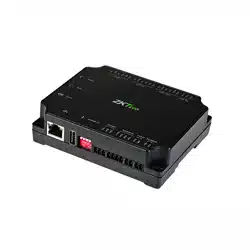
This manual introduces the operations of C2-260 Access Control Panel.
All figures displayed are for illustration purposes only. Figures in this manual may not be exactly
consistent with the actual products.
Features and parameters with ★ are not available in all devices.
C2-260 Access Control Panel User Manual
P a g e |
4
Copyright©2025 ZKTECO CO., LTD. All rights reserved.
Document Conventions
Conventions used in this manual are listed below:
GUI Conventions
For Software
Convention
Description
Bold font
Used to identify software interface template names e.g. OK, Confirm, Cancel.
>
Multi-level menus are separated by these brackets. For example, File > Create >
Folder.
For Device
Convention
Description
< >
Button or key names for devices. For example, press <OK>.
[ ]
Window names, menu items, data table, and field names are inside square
brackets. For example, pop up the [New User] window.
/
Multi-level menus are separated by forwarding slashes. For example, File/Create/
Folder.
Symbols
Convention
Description
This represents a note that needs to pay more attention to.
The general information which helps in performing the operations faster.
The information which is significant.
Care taken to avoid danger or mistakes.
The statement or event that warns of something or that serves as a cautionary
example.

C2-260 Access Control Panel User Manual
P a g e |
5
Copyright©2025 ZKTECO CO., LTD. All rights reserved.
Table of Contents
1 SAFETY INSTRUCTIONS
............................................................................................................................7
1.1 IMPORTANT SECURITY INSTRUCTIONS ................................................................................................................. 7
1.2 INSTALLATION INSTRUCTIONS ............................................................................................................................. 8
2 OVERVIEW .............................................................................................................................................. 10
2.1 SYSTEM FUNCTIONAL PARAMETERS ..................................................................................................................10
2.2 P
RODUCT
T
ECHNICAL
P
ARAMETERS
..................................................................................................................10
2.3 D
IMENSION
......................................................................................................................................................11
2.4 CONTROL PANEL INDICATORS ...........................................................................................................................13
3 INSTALLATION AND CONNECTION ........................................................................................................ 14
3.1 INSTALLATION PROCEDURE ...............................................................................................................................14
3.2 INSTALLING THE METAL ENCLOSURE ON THE WALL .............................................................................................15
3.3 I
NSTALLATION OF
A
CCESS
C
ONTROL
P
ANEL
W
IRES
........................................................................................... 16
3.4 CONTROL PANEL SYSTEM INSTALLATION ...........................................................................................................17
3.5 C
ONTROL
P
ANEL
C
ONNECTION
T
ERMINALS
...................................................................................................... 18
3.6 C
ONNECTION WITH
D
OOR
S
ENSORS
, E
XIT
S
WITCHES
, A
UXILIARY
I
NPUT
D
EVICES
,
AND
RS485 E
XTENSION
COMMUNICATION ......................................................................................................................................................... 19
3.7 C
ONNECTION WITH
RS485/W
IEGAND
R
EADERS
.............................................................................................. 22
3.8 R
ELAY
O
UTPUT
C
ONNECTION
...........................................................................................................................25
4 EQUIPMENT COMMUNICATION .............................................................................................................27
4.1 A
CCESS
C
ONTROL
N
ETWORKING
W
IRES AND
W
IRING
....................................................................................... 27
4.2 TCP/IP COMMUNICATION ................................................................................................................................28
4.3 ZKPANELWEB ..................................................................................................................................................28
5 ZKBIO CVACCESS....................................................................................................................................33
5.1 LOGIN ..............................................................................................................................................................33
5.2 A
CTIVATE THE
S
YSTEM
..................................................................................................................................... 33
5.3 MODIFY PASSWORD .........................................................................................................................................33
5.4 DEVICE ............................................................................................................................................................ 34
5.4.1 A
DDING A
D
EVICE ........................................................................................................................................................35
5.4.2 I/O BOARD ....................................................................................................................................................................42

C2-260 Access Control Panel User Manual
P a g e |
6
Copyright©2025 ZKTECO CO., LTD. All rights reserved.
5.4.3 DEVICE OPERATION ..................................................................................................................................................... 43
5.5 ADD PERSONNEL ON THE SOFTWARE ............................................................................................................... 51
5.6 A
CCESS
C
ONTROL
S
ETTINGS
............................................................................................................................ 52
5.7 REAL-TIME MONITORING ...................................................................................................................................53
5.8 ACCESS REPORTS ............................................................................................................................................. 57
APPENDIX 1 ....................................................................................................................................................58
OPERATING DEMONSTRATION OF CONNECTING C2-260, WR485 AND WIEGAND READER ............................................. 58
APPENDIX 2 ....................................................................................................................................................61
S
TATEMENT ON THE
R
IGHT TO
P
RIVACY
......................................................................................................................... 61
E
CO
-
FRIENDLY
O
PERATION
............................................................................................................................................62

C2-260 Access Control Panel User Manual
P a g e |
7
Copyright©2025 ZKTECO CO., LTD. All rights reserved.
1 Safety Instructions
1.1 Important Security Instructions
1. Read and follow the instructions carefully before operation. Please keep the instructions for
future reference.
2.
Accessories: Please use the accessories recommended by the manufacturer or delivered with the
product. Other accessories are not recommended, including major alarming systems and
monitoring systems. The primary alarming and monitoring system should comply with the local
applicable fire-prevention and security standards.
3. Installation cautions: Do not place this equipment on an unstable table, tripod mount, support,
or base, lest the equipment falls and get damaged or any other undesirable outcome resulting
in severe personal injuries. Therefore, it is essential to install the equipment as instructed by the
manufacturer.
4. All peripheral devices must be grounded.
5. No external connection wires can be exposed. All the connections and idle wire ends must be
wrapped with insulating tapes to prevent any damage to the equipment by accidental contact
of the exposed wires.
6. Repair: Do not attempt to have an unauthorized repair of the equipment. Disassembly or
detachment is risky and likely to cause shock. All repairs should be done by a qualified
technician.
7.
If any of the following cases arise, disconnect the power supply from the equipment first and
intimate the technician immediately.
The power cord or connector is damaged.
Any liquid or material spilled into the equipment.
The equipment is wet or exposed to bad weather (rain, snow, etc.).
If the equipment cannot work properly, even if it is operated as instructed, please be sure to adjust
only the control components specified in the operating instructions. Incorrect adjustments on
other control components may cause damage to the equipment; even the equipment may fail to
operate permanently.
The equipment falls, or its performance changes dramatically.
8.
Replacing components: If it is necessary to replace a component, only the authorized technician
can replace the accessories specified by the manufacturer.
9.
Security inspection: After the equipment is repaired, the technician must conduct security
inspection to ensure proper working of the equipment.
C2-260 Access Control Panel User Manual
P a g e |
8
Copyright©2025 ZKTECO CO., LTD. All rights reserved.
10. Power supply: Operate the equipment with only the type of power supply indicated on the label.
Contact the technician for any uncertainty about the type of power supply.
Violation of any of the following cautions is likely to result in personal injury or equipment
failure. We will not be responsible for the damages or injuries caused thereby.
Before installation, switch off the external circuit (that supplies power to the system),
including locks.
Before connecting the equipment to the power supply, ensure the output voltage is within the
specified range.
Never connect the power before completion of installation.
1.2 Installation Instructions
1. The conduits of wires under relay must match with the metal conduits; other wires can use PVC
conduits, to prevent failure caused by rodent damage. The Control panel is designed with
proper antistatic, lightning-proof, and leakage-proof functions, ensure its chassis and the AC
ground wire are correctly connected and the AC ground wire is grounded physically.
2. It is recommended not to plug/unplug connection terminals frequently when the system is
powered on. Be sure to unplug the connection terminals before starting any relevant welding
job.
3. Do not detach or replace any control panel chip without permission, and an unpermitted
operation may cause damage to the control panel.
4.
It is recommended not to connect any other auxiliary devices without permission. All
non-routine operations must be communicated to our engineers in advance.
5. A control panel should not share the same power socket with any other large-current device.
6. It is preferable to install card readers and buttons at the height of 1.4 to 1.5m above the ground
or subject to customers’ usual practice for proper adjustment.
7. It is advised to install control panels at places where maintenance is easy, like a weak electric
well.
8.
It is strongly recommended that the exposed part of any connection terminal should not be
longer than 4mm, and specialized clamping tools may be used to avoid short-circuit or
communication failure resulting from accidental contact with excessively exposed wires.
9.
To save access control event records, export the data periodically from control panels.
10. Prepare countermeasures according to application scenarios for unexpected power failure, like
selecting power supply with UPS.

C2-260 Access Control Panel User Manual
P a g e |
9
Copyright©2025 ZKTECO CO., LTD. All rights reserved.
11. If RS485 reader is connected externally and shared the power supply with the device (The
control panel does not support fingerprint verification of RS485 reader), it is recommended that
the connection between the RS485 reader port and the reader be no longer than 100m.
Otherwise, it is recommended that the reader use a separate power supply.
12. To protect the access control system against the self-induced electromotive force generated by
an electronic lock at the instant of switching off/on, it is necessary to connect a diode in
parallel (please use the FR107 delivered with the system) with the electronic lock to release the
self-induced electromotive force during onsite connection for application of the access control
system.
13.
It is recommended that an electronic lock and a control panel should use separate power
supplies.
14. It is recommended to use the power supply delivered with the system as the control panel
power supply.
15. In a place with substantial magnetic interference, galvanized steel pipes or shielded cables are
recommended, and proper grounding is required.

C2-260 Access Control Panel User Manual
P a g e |
10
Copyright©2025 ZKTECO CO., LTD. All rights reserved.
2 Overview
The Access Control management system is a new modernized security management system, which is an
effective measure of security and protection management. It is mainly used to manage the entrances and
exits of highly secured places, such as banks, hotels, equipment rooms, offices, smart communities, and
factories.
2.1 System Functional Parameters
High-speed 32-bit 1.0GHz CPU and 64M RAM.
Embedded LINUX operating system.
Two-door one-way/two-way.
User capacity: 30,000.
A maximum of 30,000 cardholders.
200,000 offline event records.
Use Ethernet communication technologies for reliable communications.
Control Panel with a watchdog (hardware) built in to prevent a crash.
Over-current, over-voltage, and inverse-voltage protection for the input of the power supply to
the control panel.
Over-current protection for the power supply to card readers.
Instant over-voltage protection for all input/output ports.
Instant over-voltage protection for communication ports.
2.2 Product Technical Parameters
Working Power supply: Rated voltage 12V (±20%) DC, rated current is ≥ 3A
Working environment: Temperature -10°C to 50°C; Humidity 20% to 80%.
Electronic lock relay output: The maximum switching voltage is 36V(DC); The maximum switching
current is 5A.
Auxiliary relay output: The maximum switching voltage is 36V(DC); The maximum switching
current is 2A.
The detachable connection terminals are made of alloy-steel non-magnetic flange materials.
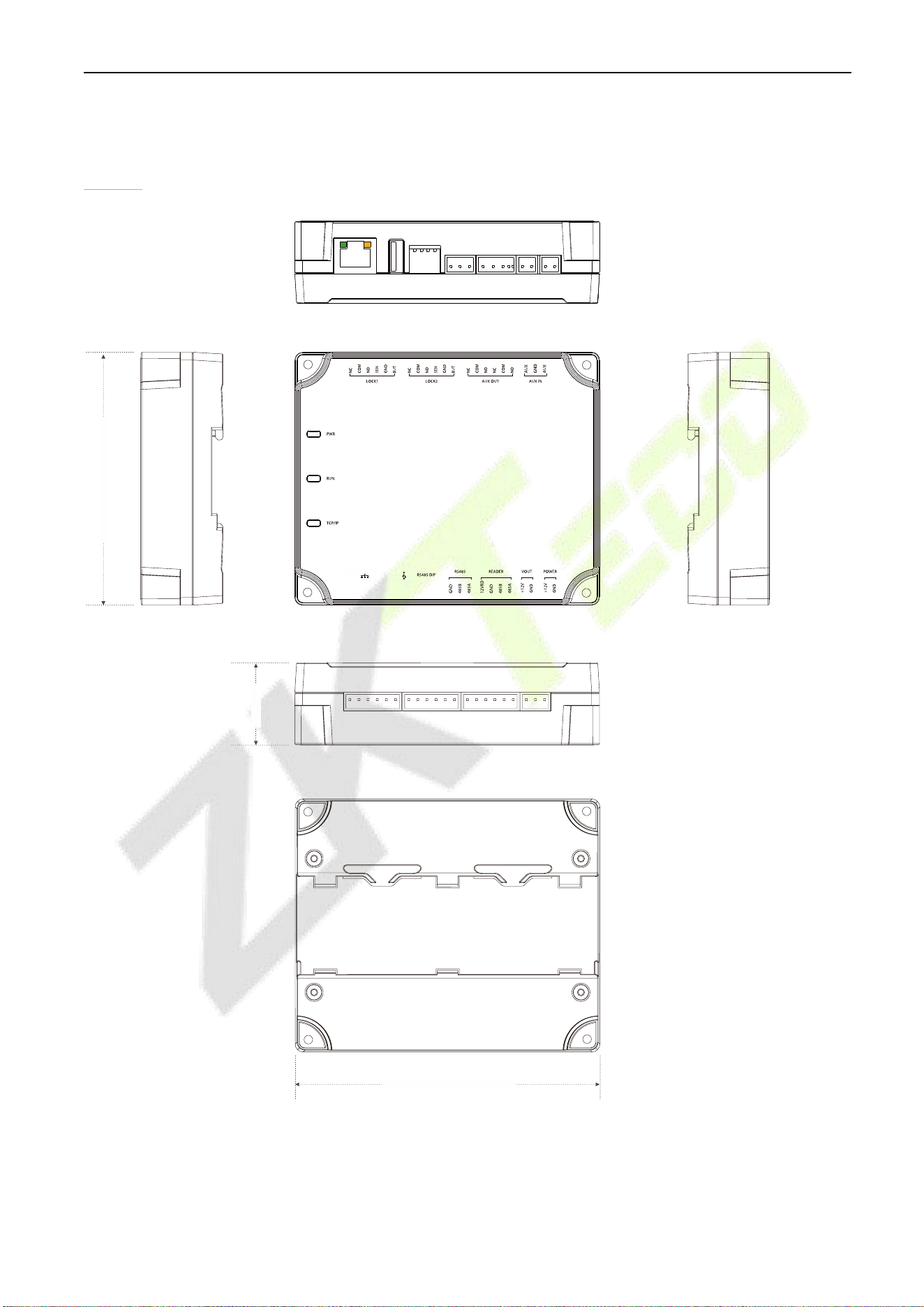
Control panel dimensions: 116.5mm*96.5mm*31.3mm
C2-260 Access Control Panel User Manual
P a g e |
11
Copyright©2025 ZKTECO CO., LTD. All rights reserved.
2.3 Dimension
C2-260
4.59" (116.5mm)
3.80" (96.5mm)
1.24"
(31.4mm)
Figure 2-1 C2-260 Appearance
C2-260 Access Control Panel User Manual
P a g e |
12
Copyright©2025 ZKTECO CO., LTD. All rights reserved.
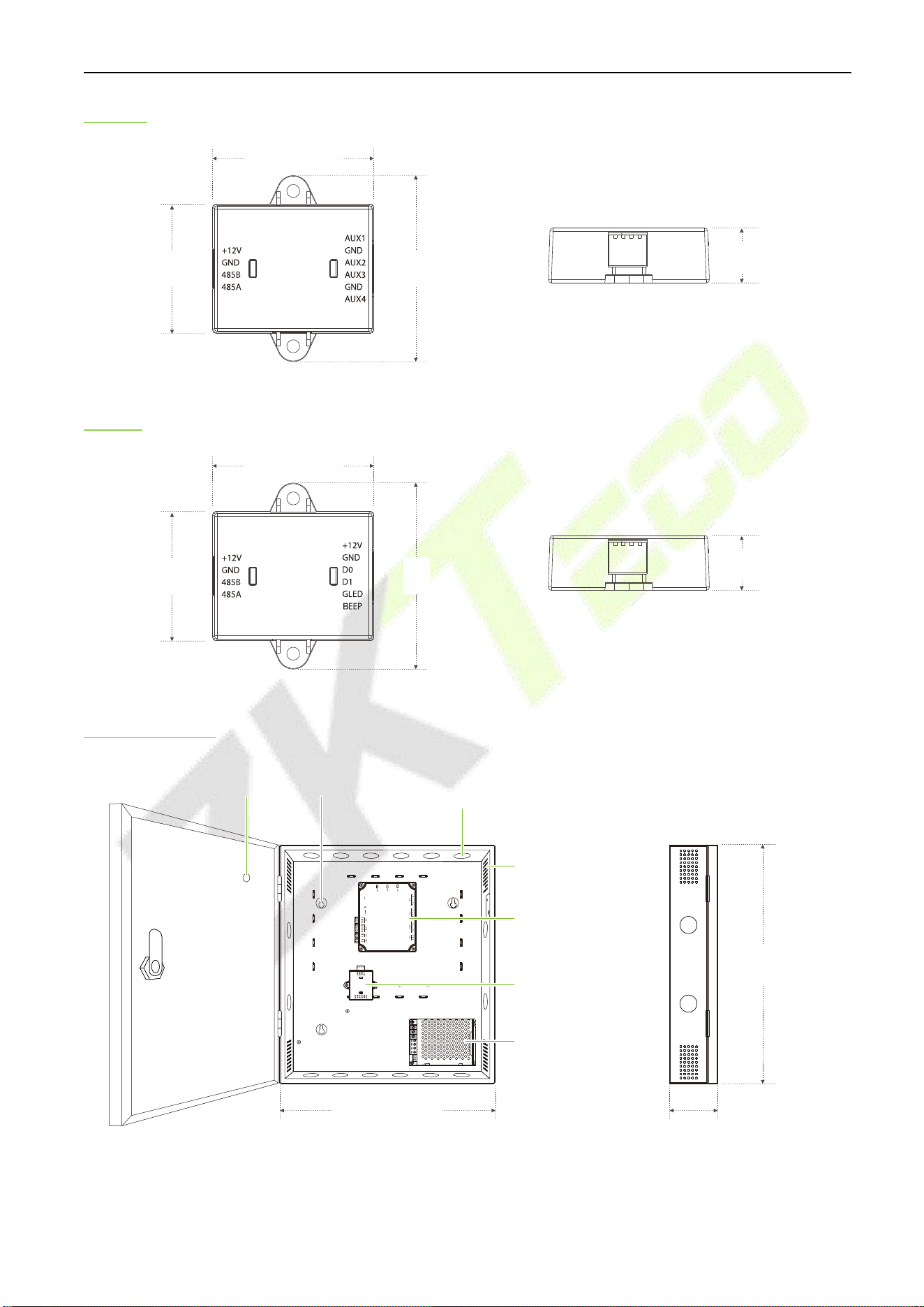
Aux485
1.97" (50.0mm)
1.57"
(40.0mm)
2.26"
(57.5mm)
0.67"
(17.0mm)
Figure 2-2 Aux485 Appearance
WR485
1.97" (50.0mm)
1.57"
(40.0mm)
2.26"
(57.5mm)
0.67"
(17.0mm)
Figure 2-3 WR485 Appearance
C2-260 Package
C2-260 Panel
Heat
Dissipation
Hole
Aux485
Power Supply
Power Indicator Cable Conduit
(Punch Hole for cables)
12.99" (330.0mm) 2.98" (75.7mm)
14.35"
(364.6mm)
Mounting Holes
Figure 2-4 C2-260 Package Appearance
C2-260 Access Control Panel User Manual
P a g e |
13
Copyright©2025 ZKTECO CO., LTD. All rights reserved.
2.4 Control Panel Indicators
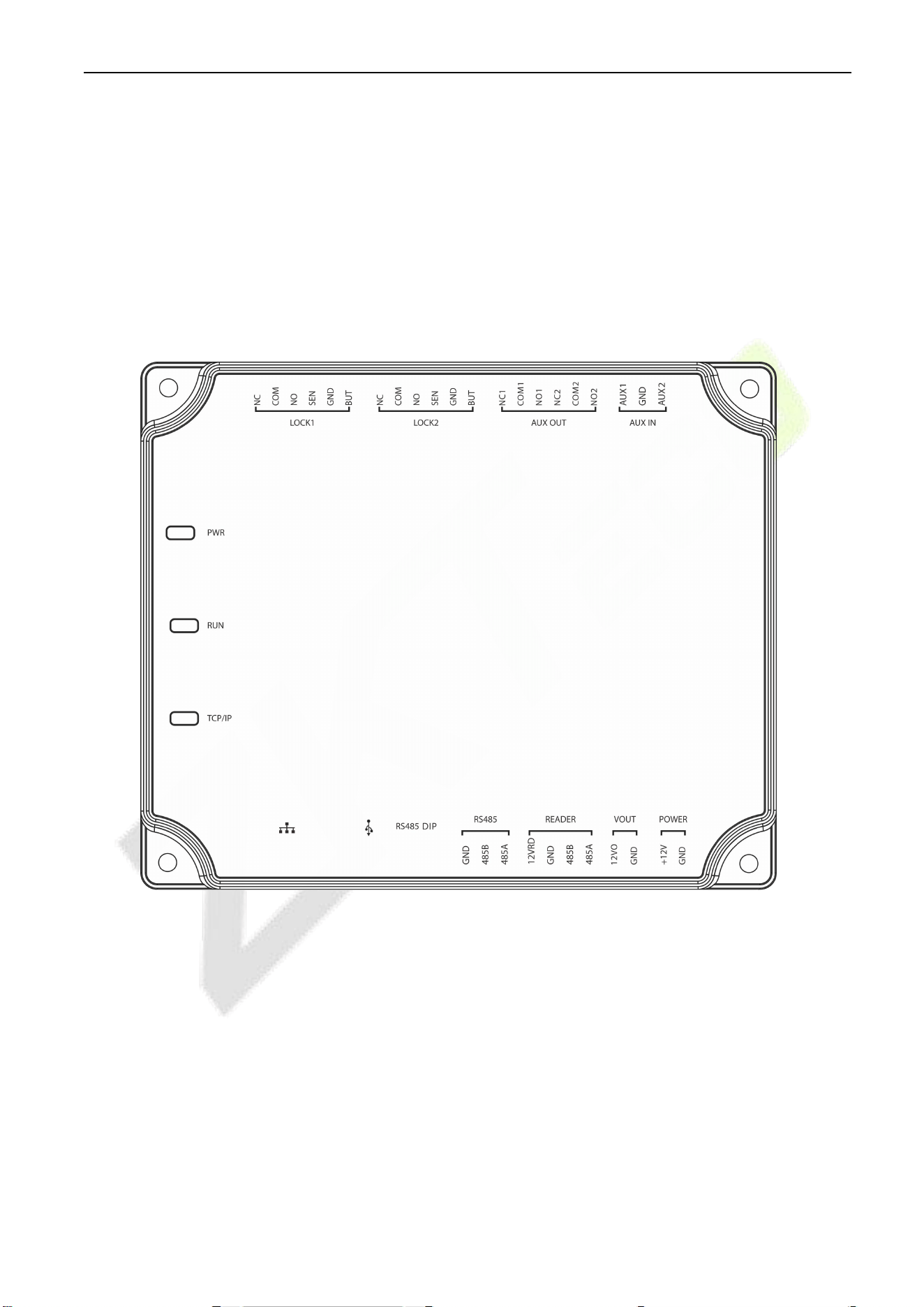
When the C2-260 is powered on, normally the POWER indicator (red) is lit constantly, the RUN indicator
(green) shall flash slowly (indicating the system is normal), and other indicators are all off.
COMM indicator (yellow): It flashes when the system is communicating with other devices (e.g., PC). When
the indicator is flashing continuously, it indicates data transmission. When the indicator is flashing slowly,
it indicates real-time monitoring status.
Indicator Diagram:
Figure 2-5 C2-260 Appearance
C2-260 Access Control Panel User Manual
P a g e |
14
Copyright©2025 ZKTECO CO., LTD. All rights reserved.
3 Installation and Connection
Ensure that the device is installed following the provided installation instructions. Failure to do so may
result in voiding of the devices warranty.
3.1 Installation Procedure
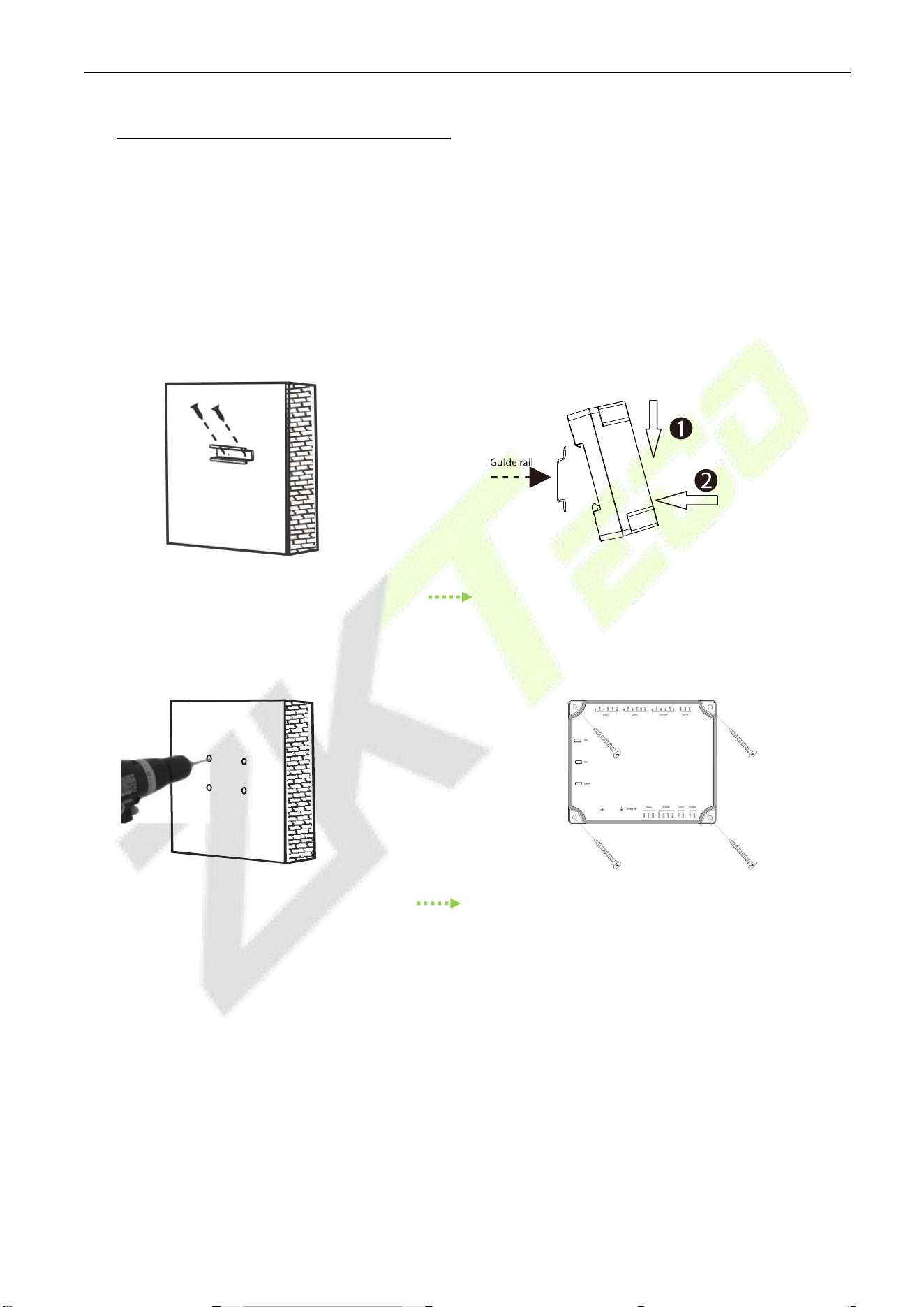
The following describes the rail installation process.
1) Fix the guide rail on the wall 2) Fix the device to the guide rail.
The following describes the wall installation process.
1) Drill holes on the wall 2) Fix the device with four screws
Figure 3-1 C2-260 Installation Diagram
C2-260 Access Control Panel User Manual
P a g e |
15
Copyright©2025 ZKTECO CO., LTD. All rights reserved.
3.2 Installing the metal enclosure on the wall
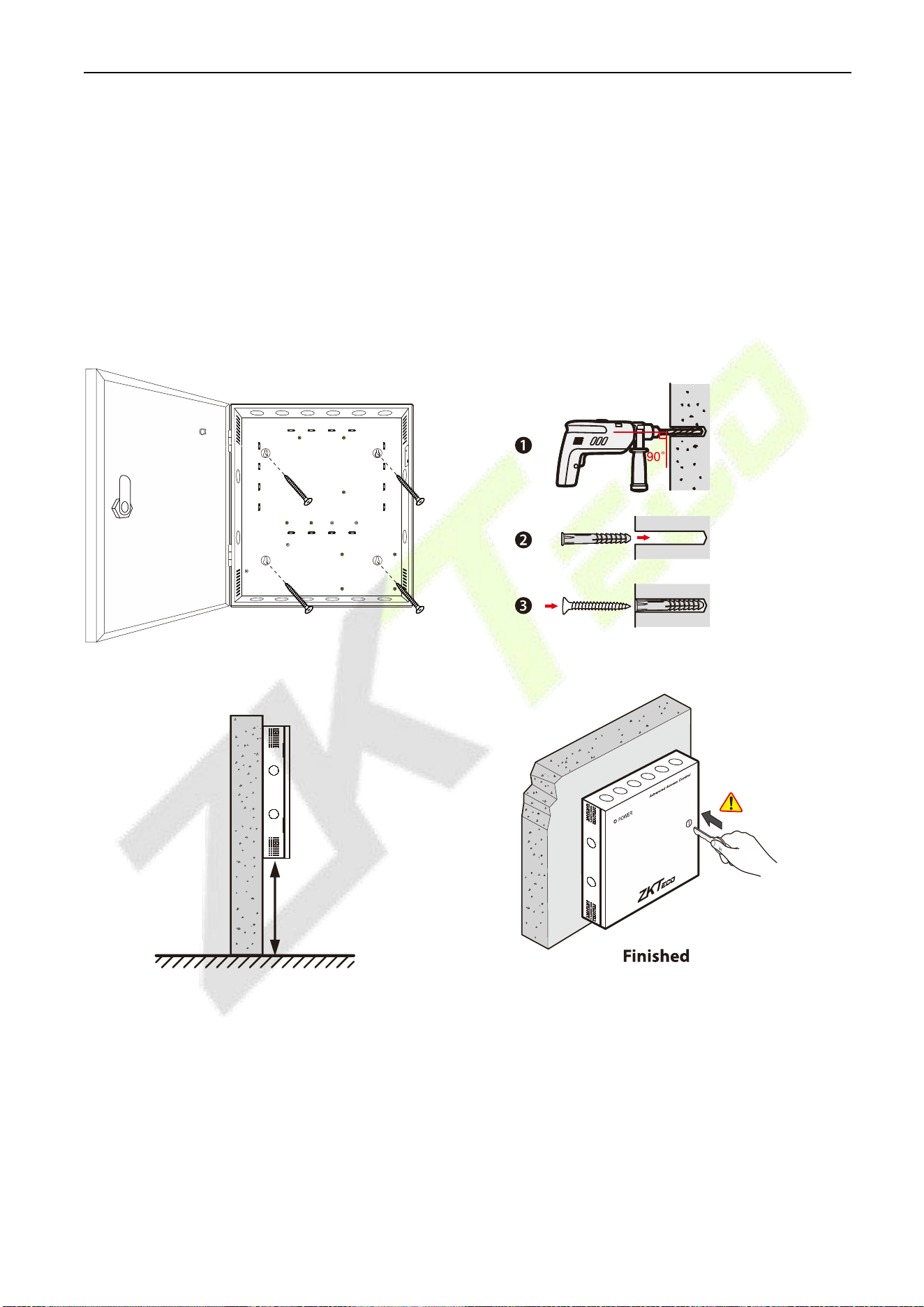
1. According to the mounting holes position of the metal enclosure. Drill three mounting holes in a
suitable spot on the wall and make sure it is about 114 inches (2.9m) above the ground, which can be
adjusted according to actual needs. Take care to leave at least 3.937 inches (100 mm) on the left side
of the metal enclosure.
2. Place the Anchors in the mounting holes.
3. Then f ix the metal enclosure with the self-tapping screws as shown below.
Percussion Drill
Anchor
Screw
Height
114 (2.9m)"
(adjustable)
Figure 3-2 Installation the metal enclosure on the wall
Note: The metal enclosure is equipped with an tamper alarm switch. When it is working normally, please
keep the enclosure closed.
C2-260 Access Control Panel User Manual
P a g e |
16
Copyright©2025 ZKTECO CO., LTD. All rights reserved.
3.3 Installation of Access Control Panel Wires
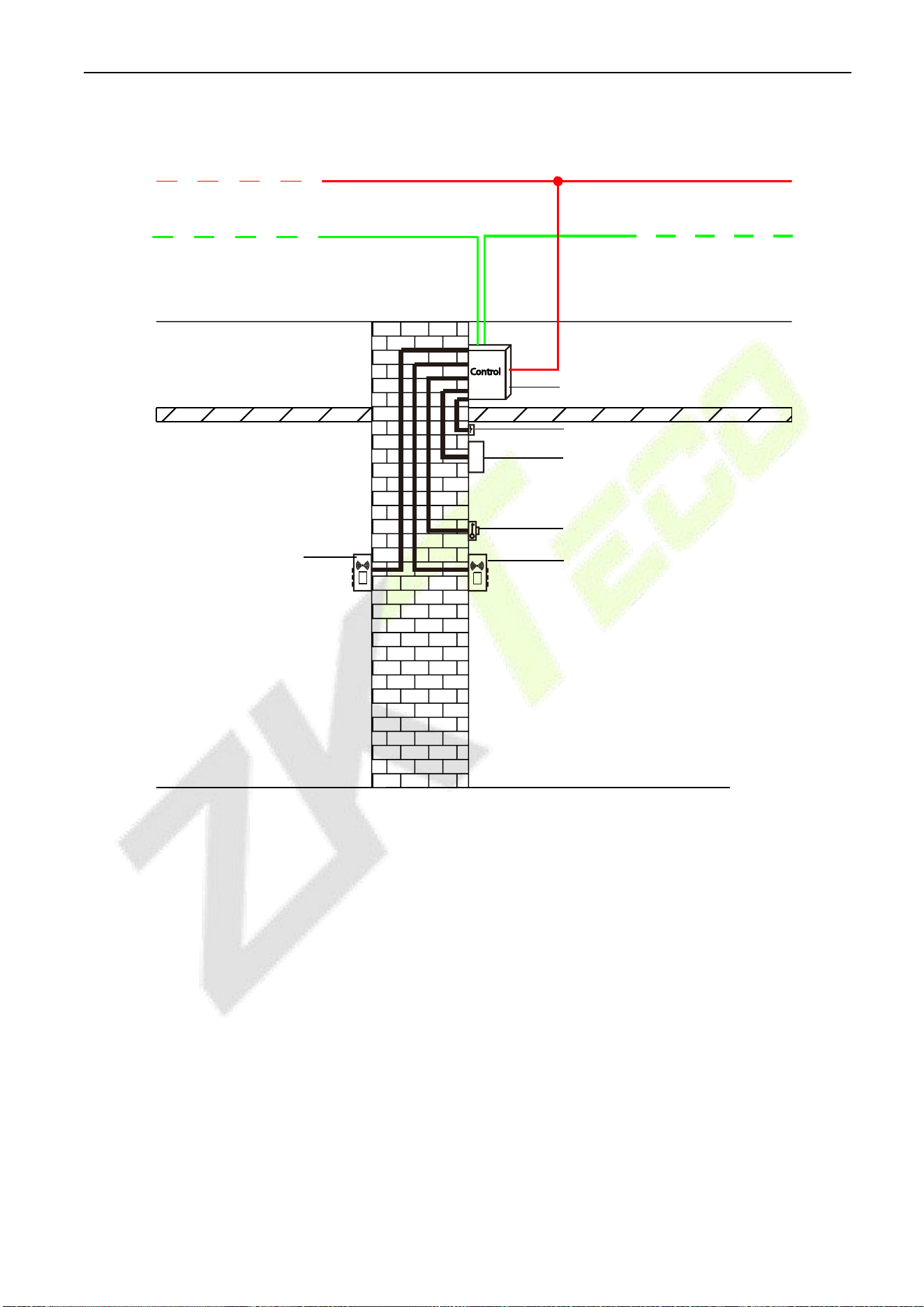
Figure 3-3 Access Control Panel Wire Installation Diagram
Remarks:
Ensure the power supply is disconnected before connecting the wires; otherwise, it may cause
severe damage to the equipment.
The access control wires must be separated according to heavy and light current; the control panel
wires, electronic lock wires, and exit button wires must run through their casing pipes, respectively.
Control Panel
Door sensor
Electronic lock
Exit button
Indoor reader
Outdoor
reader
Ceiling
TCP/IP Network communication wire
Outdoor
Indoor
+12V Power line
RS485 Network communication wire
C2-260 Access Control Panel User Manual
P a g e |
17
Copyright©2025 ZKTECO CO., LTD. All rights reserved.
3.4 Control Panel System Installation
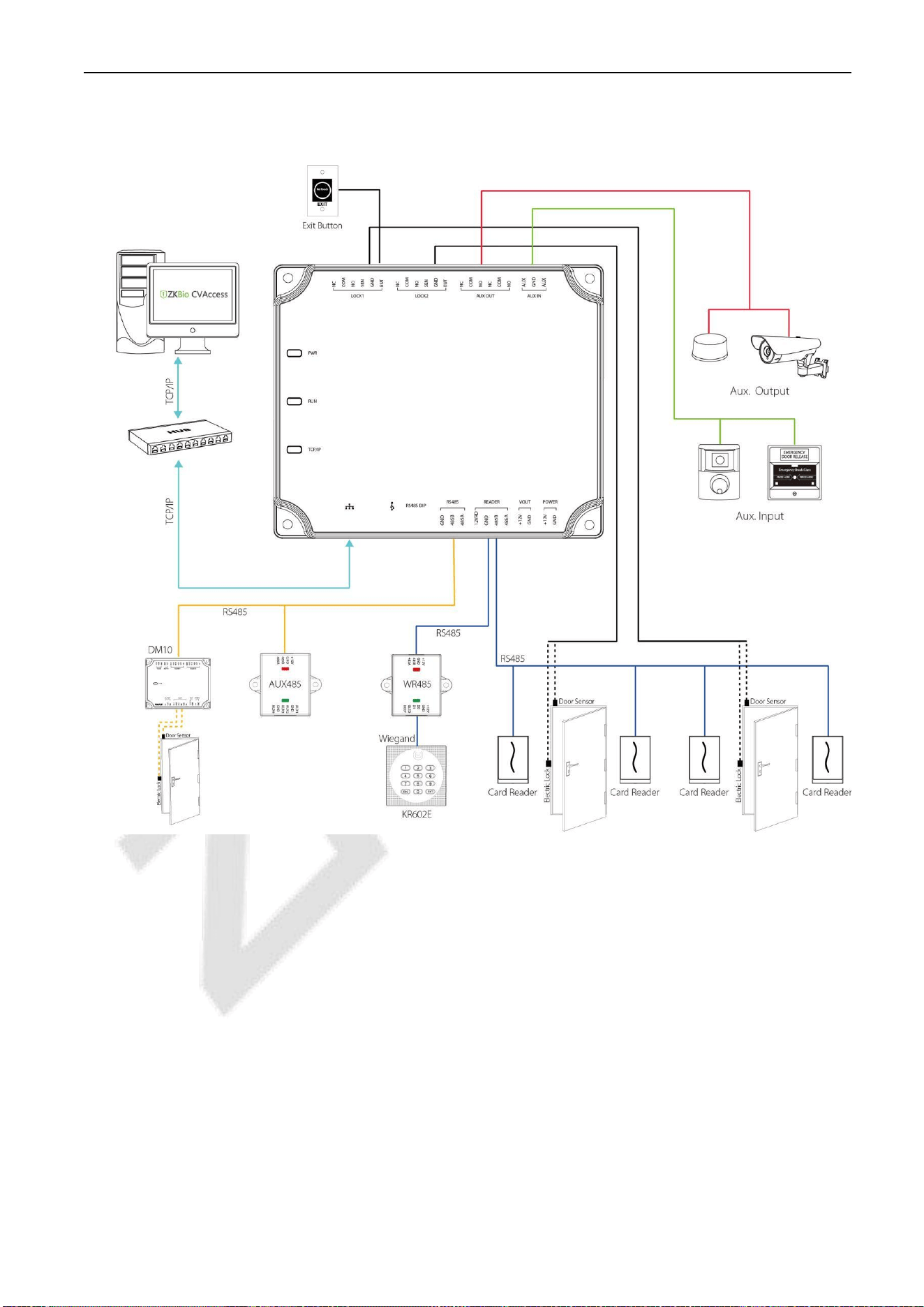
Figure 3-4 Schematic Diagram of System Installation
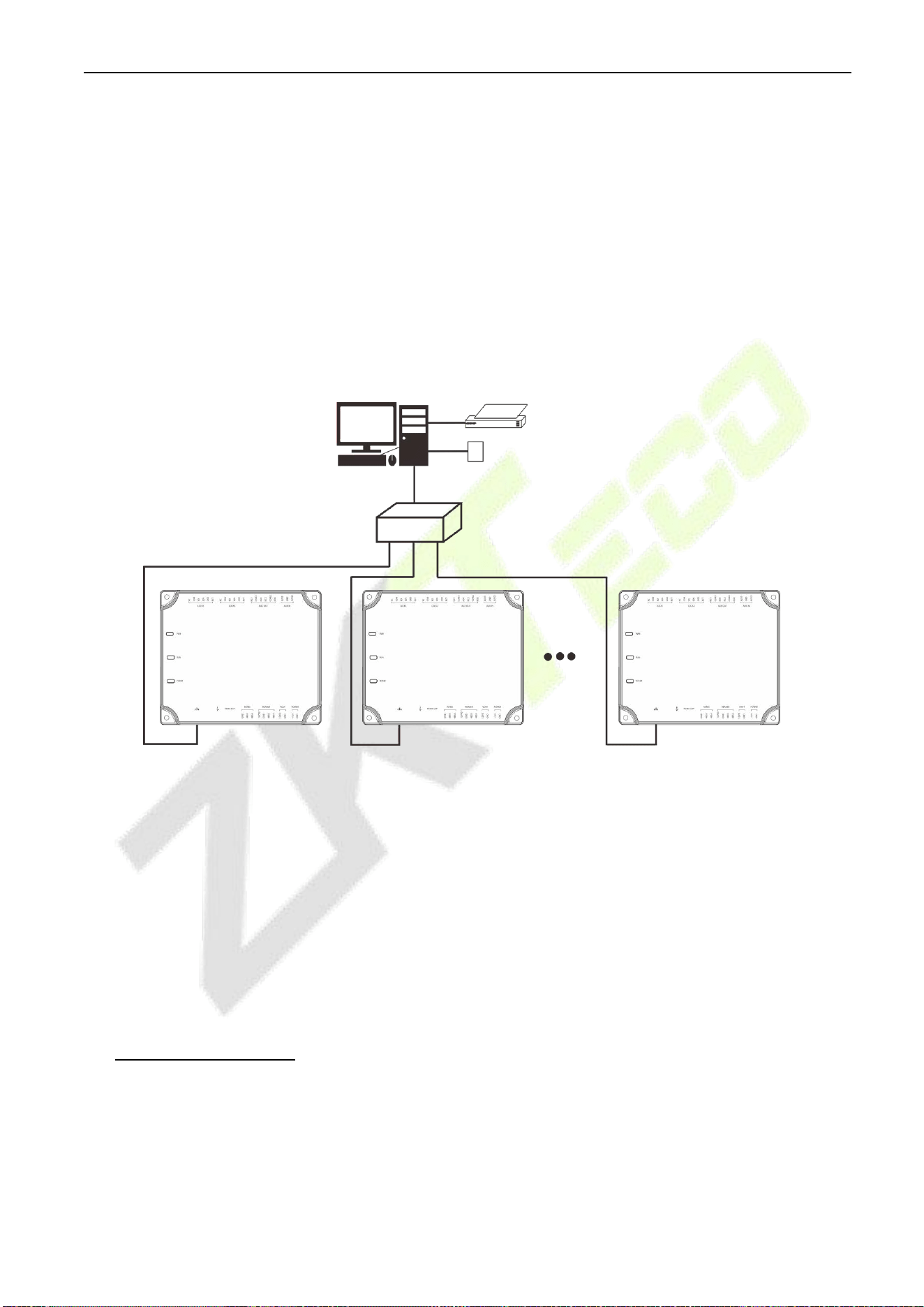
The access control management system consists of two parts: Management Workstation (PC) and Control
panel. The management workstation and control panel communicate through TCP/IP and RS485 network.
The communication wires should be kept away from high-voltage wires as far as possible and should be
neither routed in parallel with nor bundled with power wires.
A management workstation is a PC connected with the network. By running the access control
management software installed in the PC, access control management personnel can remotely perform
various management functions, like adding/deleting a user, viewing event records, opening/closing doors,
and monitoring the status of each door in real-time.
C2-260 Access Control Panel User Manual
P a g e |
18
Copyright©2025 ZKTECO CO., LTD. All rights reserved.
3.5 Control Panel Connection Terminals
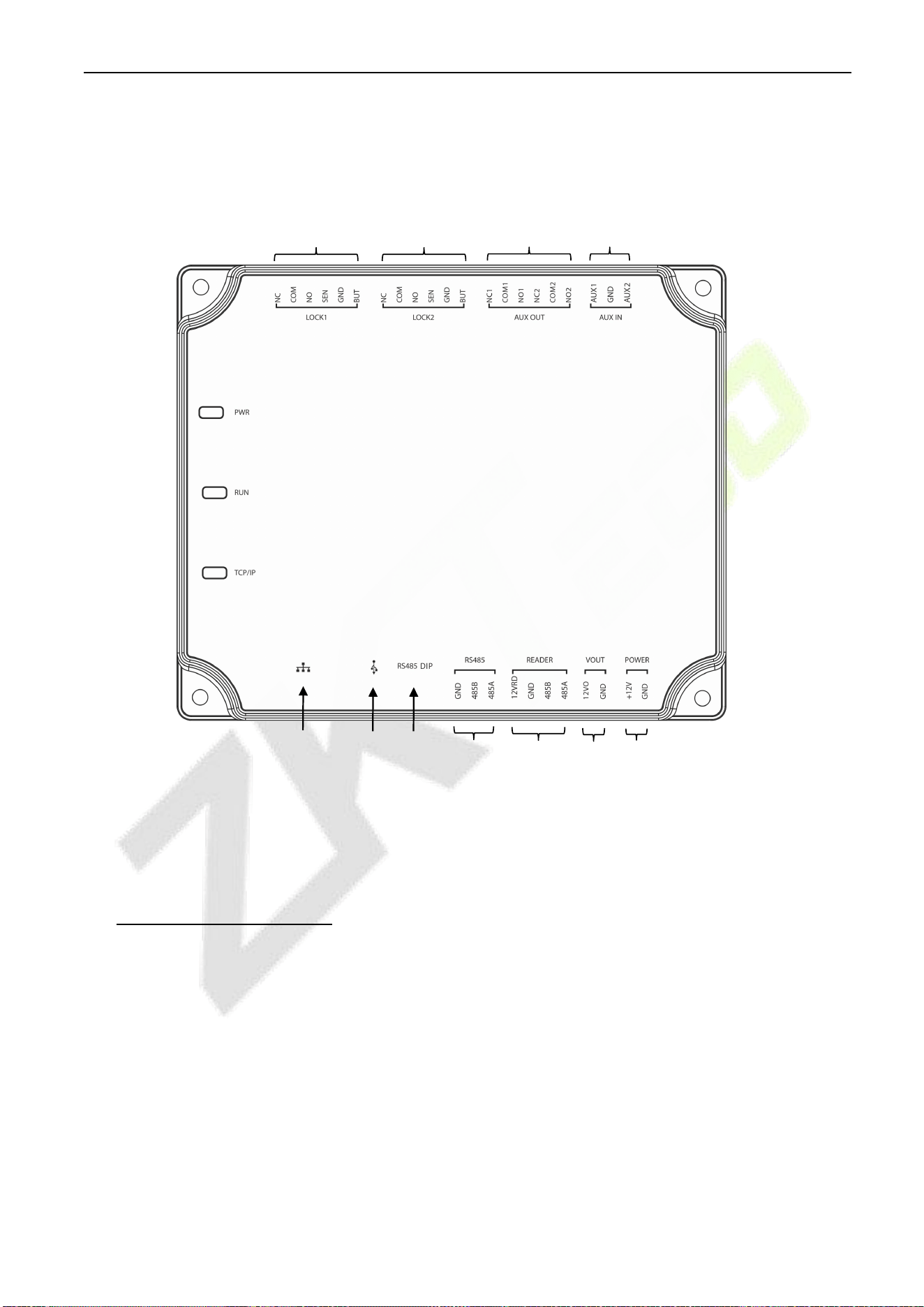
C2-260 Terminal connection diagram
Figure 3-5 C2-260 terminal description
Description of the terminals:
1. The auxiliary input may connect to infrared body detectors, fire alarms, or smoke detectors.
2. The auxiliary output may connect to alarms, cameras or doorbells, etc.
3. PC RS485 indicates the RS485 cable is connected to the DM10/AUX485 through this port. The
RS485 Reader port can be connected externally to RS485 reader.
4. Restore factory setting: The NO.4 of DIP switch is OFF by default. When it is moved up and
down for three times within 5 seconds and finally returned to ON position, the factory settings
will be restored after the access control panel is restarted, and the IP address will restore to the
default (192.168.1.201).
RS485 Reader
Power Input
RS485
Power Output
#1 Door
Auxiliary
Output
Auxiliary
Input
#2 Door
Ethernet/PoE
Interface
USB Slot
DIP Switch

C2-260 Access Control Panel User Manual
P a g e |
19
Copyright©2025 ZKTECO CO., LTD. All rights reserved.
5. The terminals above are set through the relevant access control software. Please see the respective
software manual for further details.
Ports of C2-260 Control Panel:
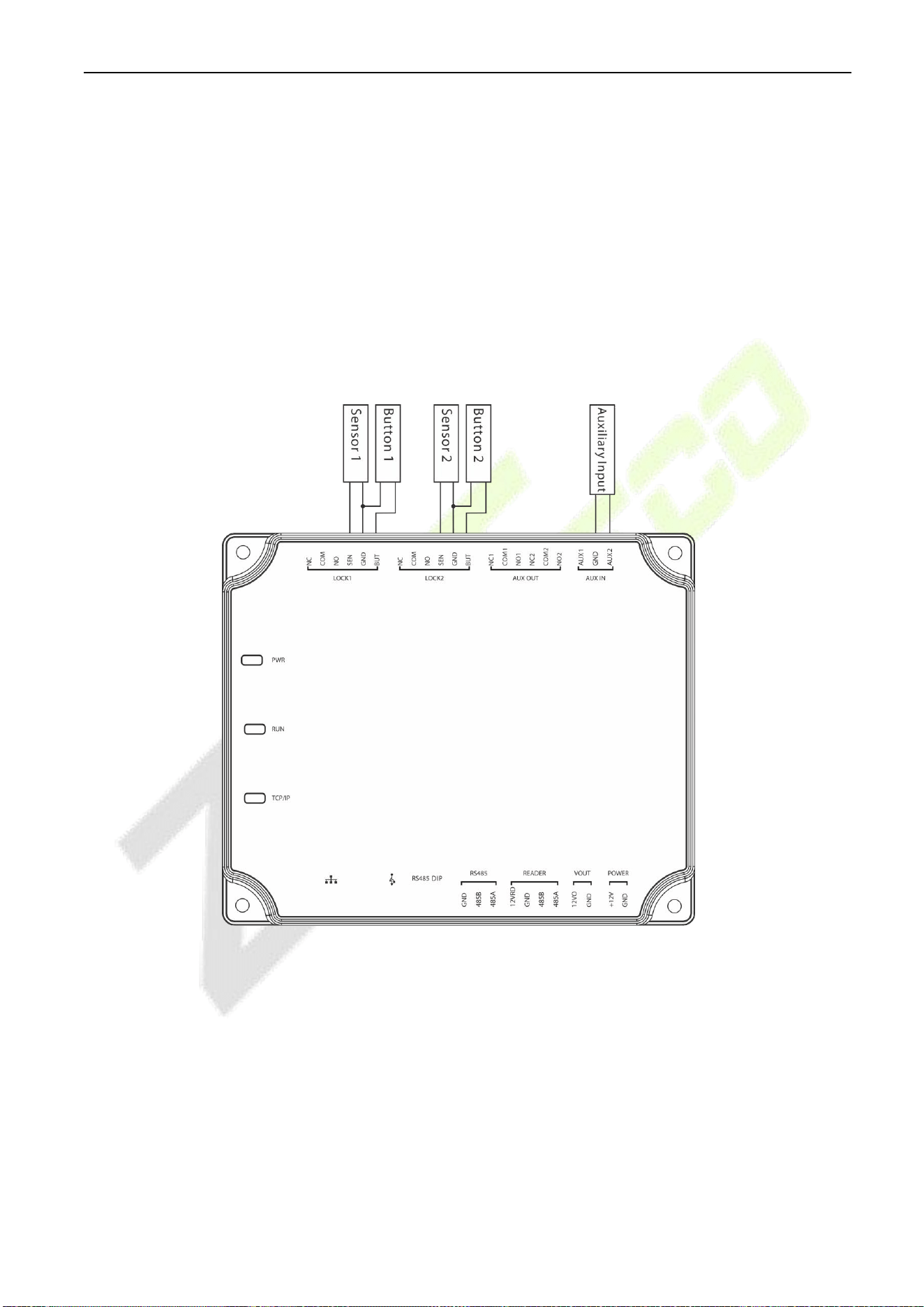
3.6 Connection with Door Sensors, Exit Switches, Auxiliary
Input Devices, and RS485 Extension Communication
1. Door sensor
A Door Sensor is used to sense the open/close status of a door. With a door sensor switch, an access
control panel can detect the unauthorized opening of a door and will trigger the output of alarm.
Moreover, if a door is not closed within a specified period after it is opened, the door control panel will
also raise the alarm. It is recommended to select two-core wires with a gauge over 0.22 mm
2
. A door
sensor can be omitted if it is unnecessary to monitor the open/closed status of a door, raise the alarm
when the door is not closed for a long time, monitor if there is unauthorized access, and use the interlock
function.
2. Exit switch
An exit switch is a switch installed indoor to open a door. When it is switched on, the door will be opened.
An exit button is fixed at the height of about 1.4m above the ground. Ensure it is located in the right
No.
Functional Port
C2-260
(Two-Door Two-Way)
1
Exit button
2
2
Control lock relay
2
3
Door Sensor
2
4
Auxiliary Input
2
5
Auxiliary Output
2
6
RS485 Reader
4
7
RS485 Extension
Communication
8
TCP/IP
C2-260 Access Control Panel User Manual
P a g e |
20
Copyright©2025 ZKTECO CO., LTD. All rights reserved.
position without slant, and its connection is correct and secure. (Cut off the exposed end of any unused
wire and wrap it with insulating tape.) Make sure to avoid electromagnetic interference (such as light
switches and computers). It is recommended to use two-core wires with a gauge over 0.3mm
2
as the
connection wire between an exit switch and the Control panel.
3. Auxiliary input
The control panel provides one auxiliary input interface which may connect to infrared body detectors,
smoke detectors, gas detectors, window magnetic alarms, wireless exit switches, etc. Auxiliary inputs are
set through the relevant access control software. Please see the respective software manual for further
details.
Figure 3-6 Connections between Control Panel, Door Sensors, Exit Switches and Auxiliary Input Devices
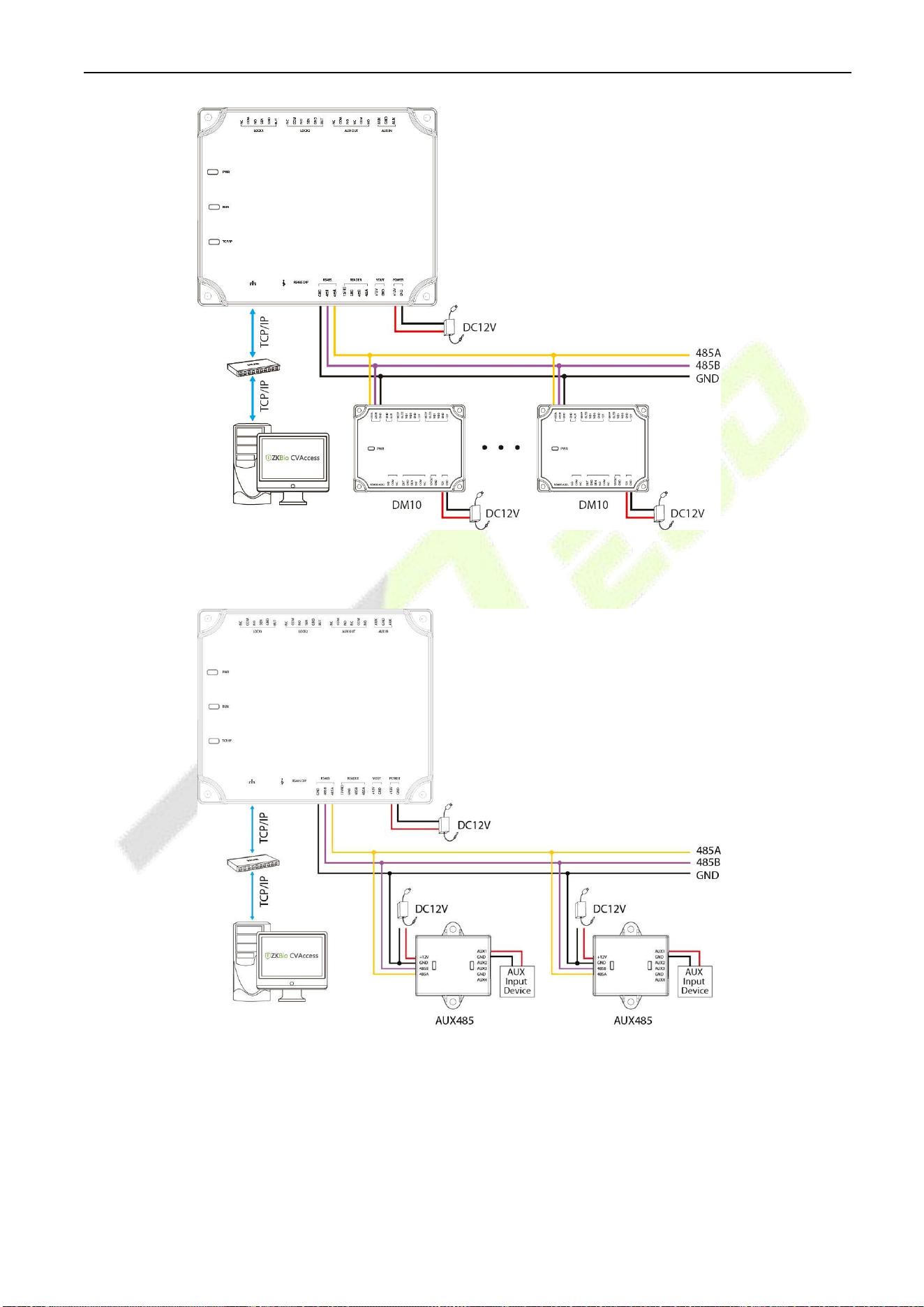
4. RS485 extension communication
The Control panel supports extensive modules which like DM10 and AUX485, through RS485. A C2-260
can connect eight DM10 at most or can connect two AUX485 at most. As shown in the following figure.
C2-260 Access Control Panel User Manual
P a g e |
21
Copyright©2025 ZKTECO CO., LTD. All rights reserved.
Figure 3-7 Connect with DM10 through RS485
Figure 3-8 Connect with AUX485 through RS485
Note:
1. A C2-260 can connect to maximum eight DM10 modules or two AUX485 modules.
2. Each AUX485 module can connect to maximum four auxiliary devices.
3. Each DM10/AUX485 module requires a separate power supply.
C2-260 Access Control Panel User Manual
P a g e |
22
Copyright©2025 ZKTECO CO., LTD. All rights reserved.
3.7 Connection with RS485/Wiegand Readers
The Control panel supports RS485 card reader. And it also supports Wiegand reader, through WR485.
Connection with RS485 Readers
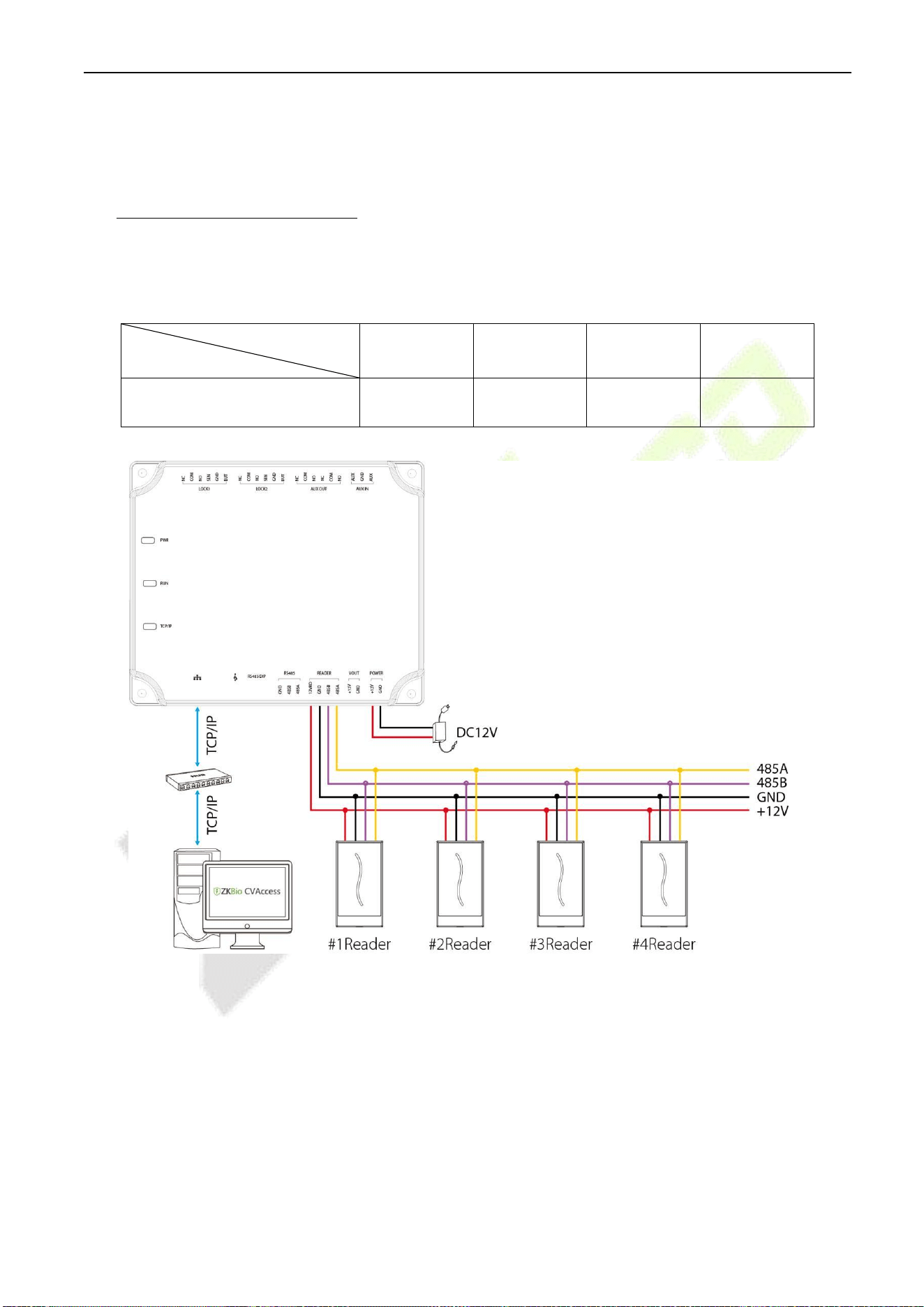
The Control panel supports four readers, which can be connected in the two-door two-way mode.
RS485 reader connection: Set the RS485 address (device number) of the reader by DIP switch or other ways.
RS485 address
Control Panel
1
2
3
4
C2-260
Door1 (In)
Door1 (Out)
Door2 (In)
Door2 (Out)
Figure 3-9 The connection between the Control Panel and RS485 Card Readers
A single RS485 reader interface can supply a maximum of 750 mA (12V) current. So, the entire current
consumption should be less than this maximum value when the readers share power with the panel. For
calculation, please use the maximum current of the reader, and starting current is usually more than twice
the standard work current.
Using the KR502M-RS card reader as an example, the standby current is less than 80mA; the maximum
current is less than 90mA. When starting the device, the instantaneous current can reach 180 mA. For an
C2-260 Access Control Panel User Manual
P a g e |
23
Copyright©2025 ZKTECO CO., LTD. All rights reserved.
RS485 reader, considered that the starting current is large, only four readers can connect to the power
supply through the RS485 reader interface. So, the power of the control panel can only connect up to 2
readers.
If RS485 reader is connected externally and shares the power supply with the device, it is recommended
that the connection between the RS485 reader port and the reader be no longer than 100m. Otherwise, it
is recommended to use a separate power supply for the reader.
For the devices which consume more power, we suggest using different power supplies to ensure
steady operation.
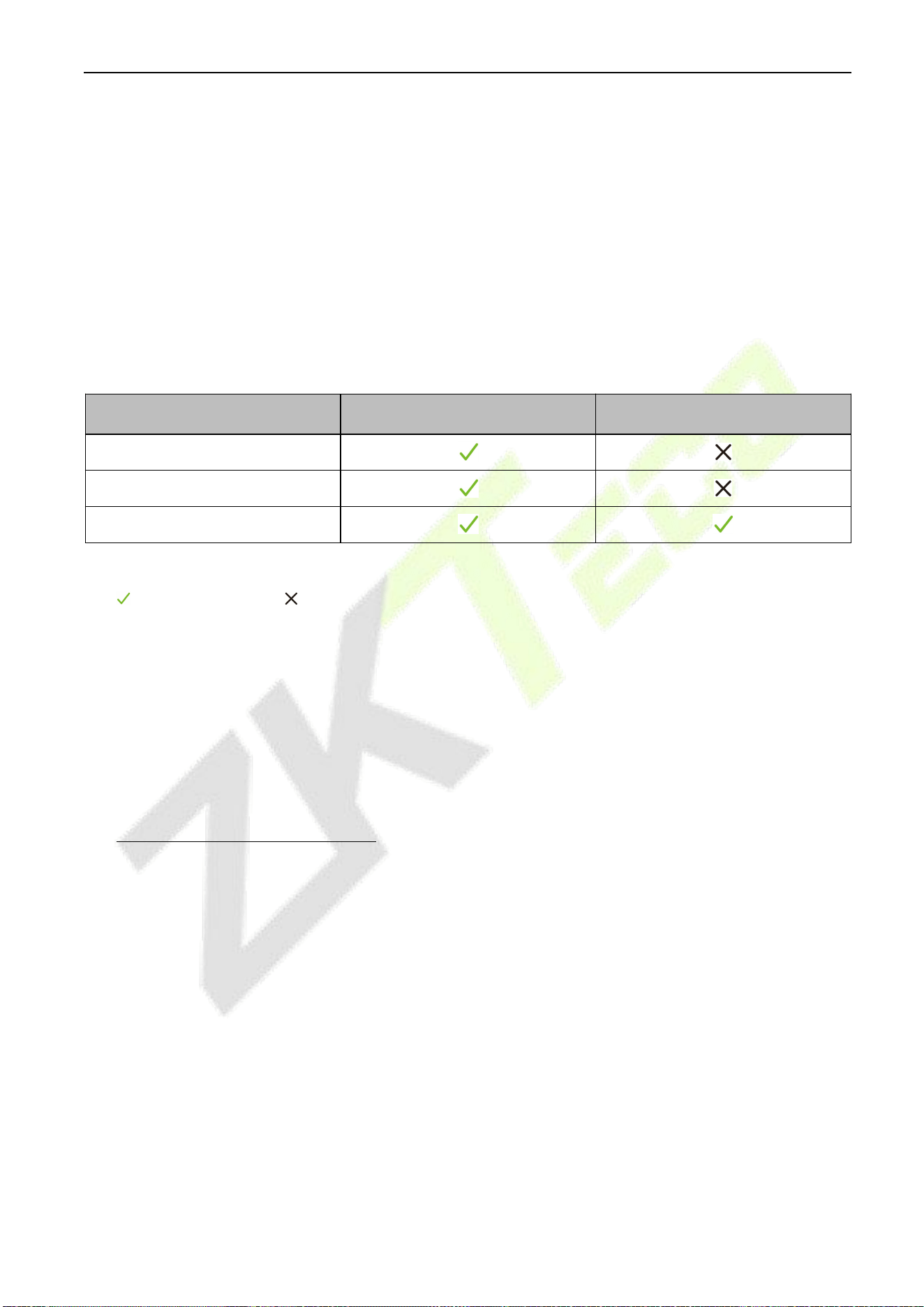
Controller Supported Reader Models:
Reader Model
485 Unencrypted
485 Encryption
ProID100 Series
ProID20/30BEMD-RS
KR900 Series
Remarks:
1. means connectable, means not connectable.
2. In 485 communication encryption mode, the ProID100/KR900 reader supports tamper alarm function.
When the reader is illegal tampering, it will send a tamper signal to the controller via 485, and the
controller will report to the software to form a tamper alarm event. Users can configure the alarm linkage
on the software side and connect the alarm to the auxiliary output. The tamper switch for the
ProID100/KR900 reader is on the back case of the unit.
3. Onthe software side, click Access > Access Device > Reader, select the reader and checkEncrypt in the pop-up
editing window to enable the encryption function. This is shown in the figure below.
Connection with Wiegand Readers
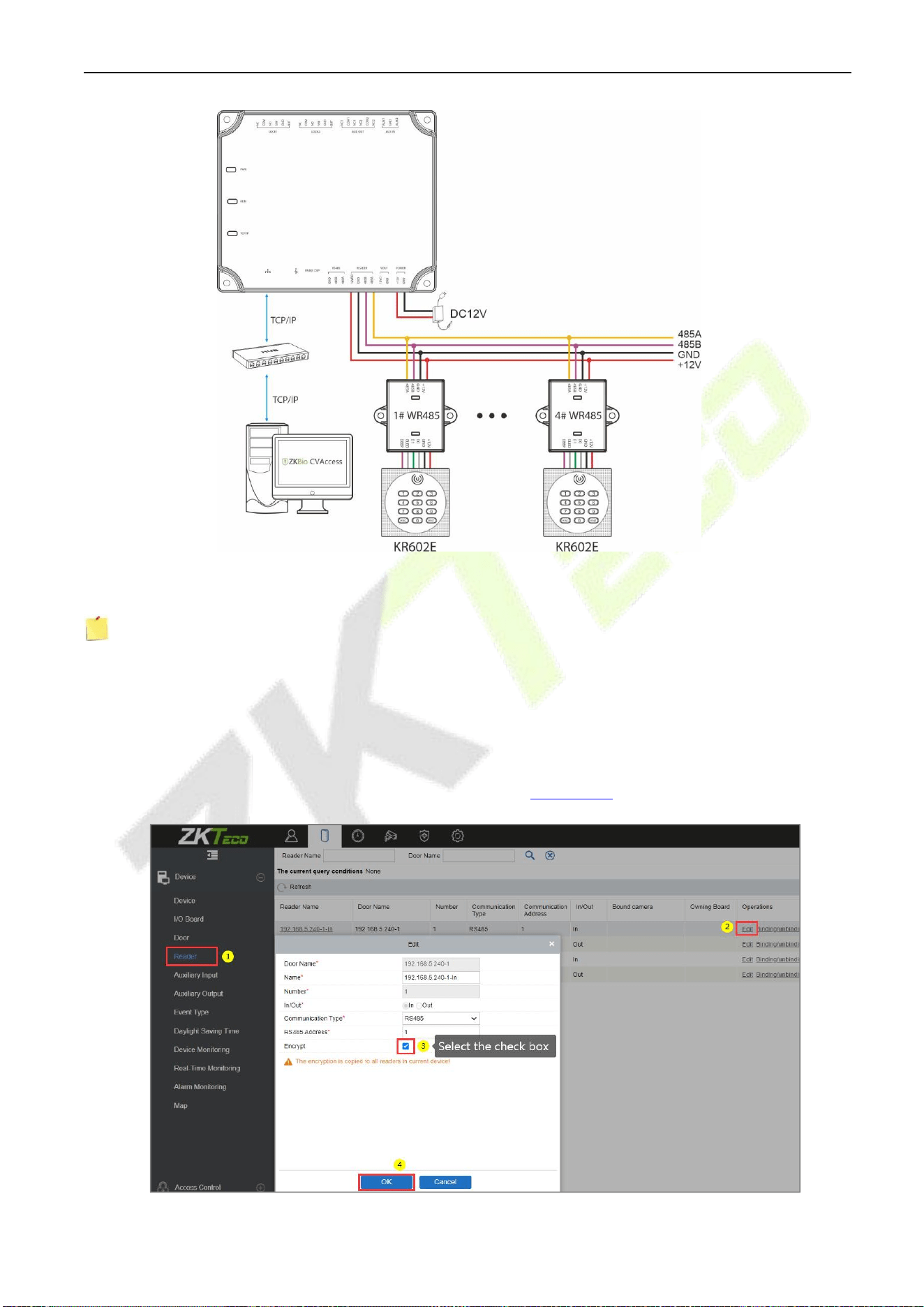
The Control panel supports the connection of Wiegand reader via WR485 module. The wiring is shown in the
figure below.
C2-260 Access Control Panel User Manual
P a g e |
24
Copyright©2025 ZKTECO CO., LTD. All rights reserved.
Figure 3-10 The connection between the Control Panel and Wiegand Readers via WR485
Notes:
A C2-260 can connect to maximum four WR485 modules.
Because the WR485 is an encryption mode, after the C2-260 control panel is added to the ZKBio
CVAccess software, you need to set the "Encrypt" option for the Wiegand reader. So that the
Wiegand reader can be used normally. As shown in the following figure.
For further details and settings of the parameters, see Appendix 1.
C2-260 Access Control Panel User Manual
P a g e |
25
Copyright©2025 ZKTECO CO., LTD. All rights reserved.
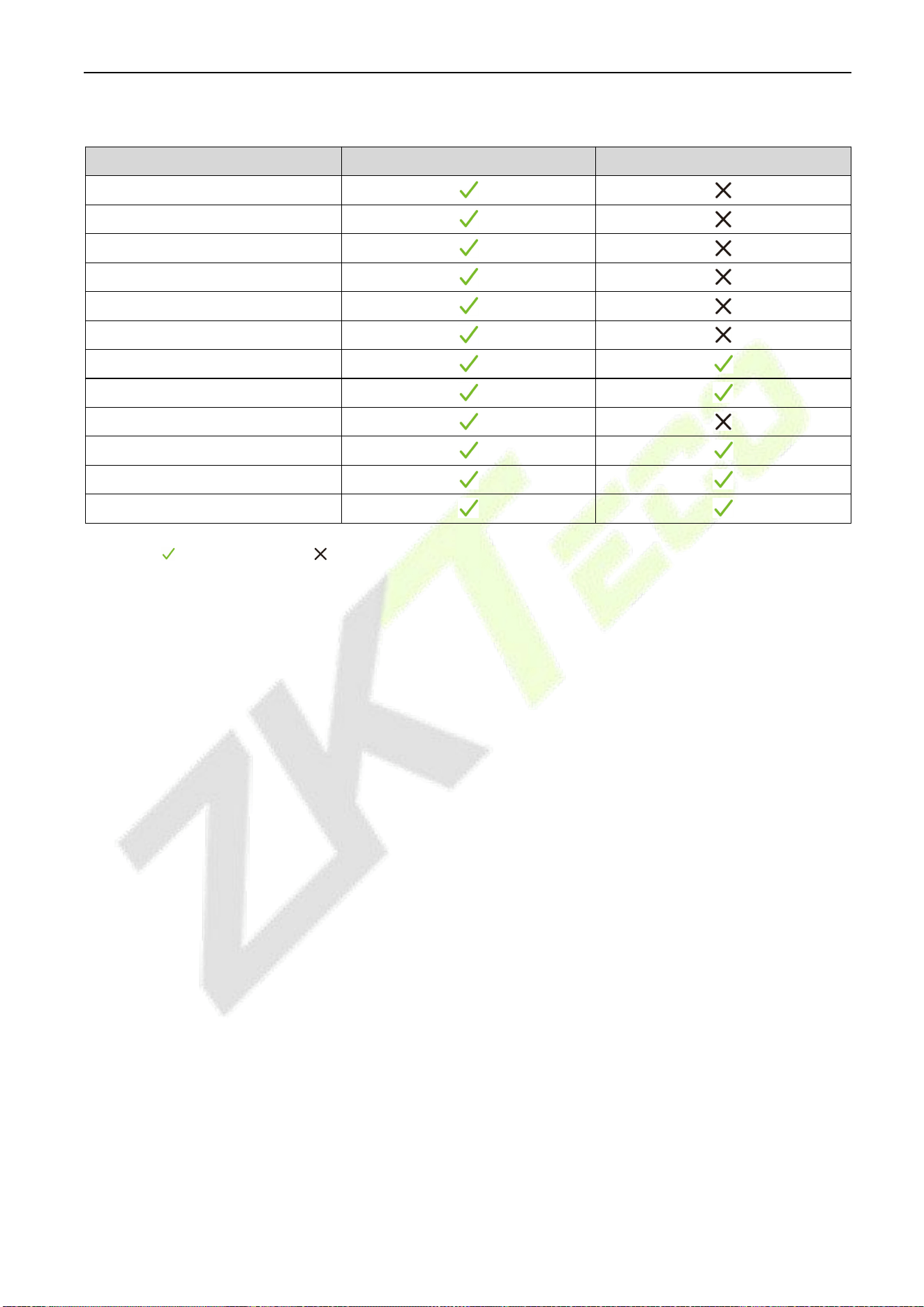
The following Wiegand reader models are supported for connection:
Reader Model
Wiegand26/34
Wiegand66
KR100/101/102E/M
KR200/201/202E/M
KR310
KR500E/501M/502E/M/503E
KR600/601/602E/M
KR610/611/612E
KR610/611/612D
KR610/611/612DL
ProID10/20/30/40 E/M
ProID10/20/30/40 D
ProID20/30BEMD-RS
KR900 Series
Remarks: indicates support, indicates no support.
3.8 Relay Output Connection
C2-260 has three relays (two used as control locks by default, and the other one used as auxiliary outputs).
The relays for auxiliary outputs may connect to monitors, alarms, doorbells, etc. Auxiliary outputs are set
through the relevant access control software. Please refer to the respective software manual for details.
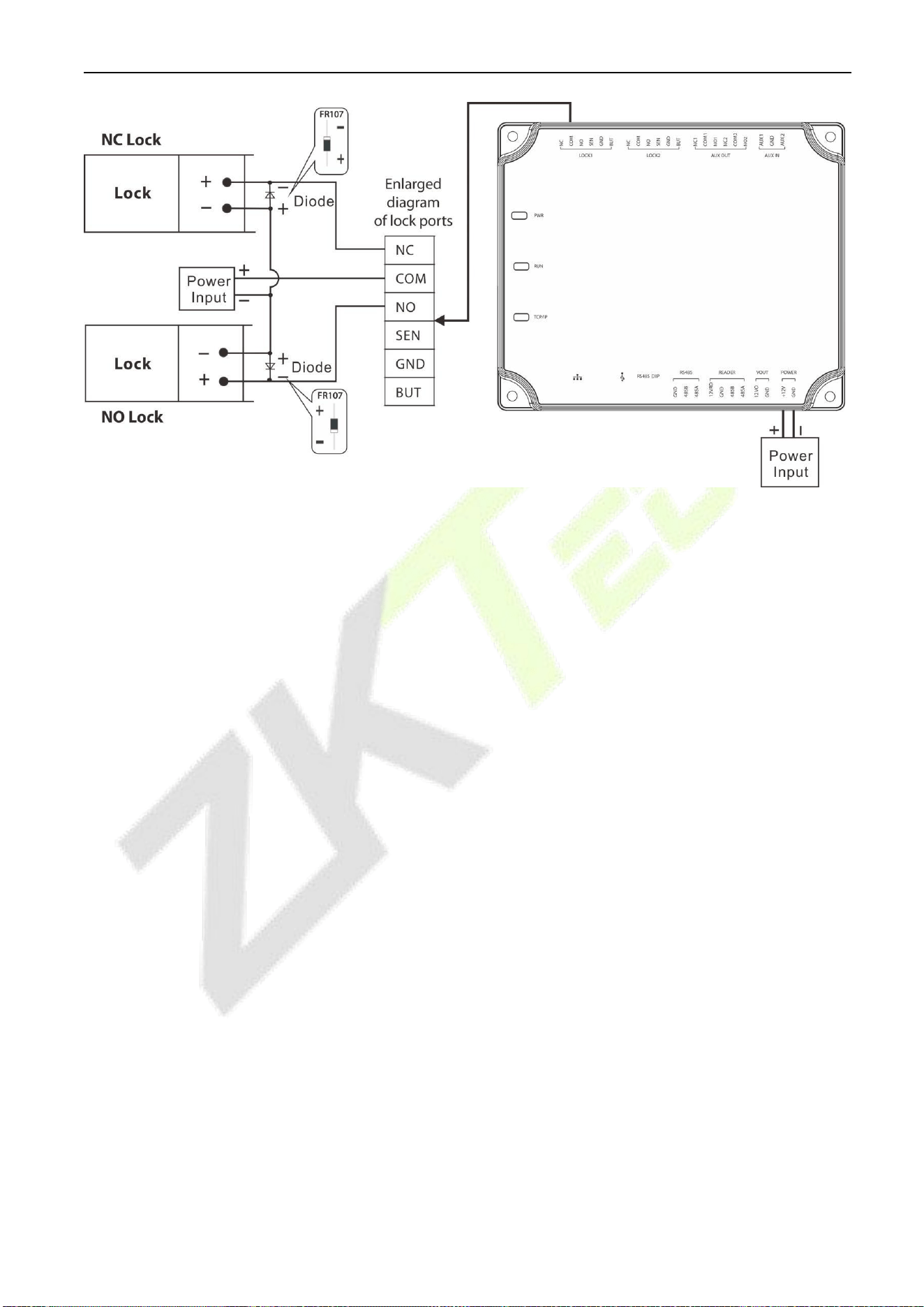
1. The default connection mode of the door lock is “dry mode.” In general, the electronic lock uses an
external power supply separately. The wiring mode of the door lock relay cannot be changed, except
that the auxiliary output relay. The diagram below uses the example of a door lock connection to
demonstrate the output relay connection.
2. An access control panel provides multiple electronic lock outputs. The COM and NO terminals apply
to the locks that are unlocked when power is connected and locked when power is disconnected.
The COM and NC terminals use the locks that are locked when power is connected and unlocked
when power is disconnected.
3. Our access control panel is powered by standard PoE or access control power. You can choose either
one of the power supplies as needed. Both two power supplies provide 12V/3A power for only the
power consumption of the control panel, Wiegand readers, and output power consumption of
RS485 reader.
4. To protect the access control system against the self-induced electromotive force generated by an
electronic lock at the instant of switching off/on, it is necessary to connect a diode in parallel (please
use FR107 delivered with the system) with the electronic lock to release the self-induced
electromotive force during the onsite connection for application of the access control system.
C2-260 Access Control Panel User Manual
P a g e |
26
Copyright©2025 ZKTECO CO., LTD. All rights reserved.
Figure 3-11 Wiring diagram of lock connection

C2-260 Access Control Panel User Manual
P a g e |
27
Copyright©2025 ZKTECO CO., LTD. All rights reserved.
4 Equipment Communication
The background PC software can communicate with the system according to two protocols (TCP/IP and
RS485) for data exchange and remote management.
4.1 Access Control Networking Wires and Wiring
1. The power supply is 12V DC converted from 220V or PoE.
2. As an electronic lock has a large current, it generates a strong interference signal while functioning.
To reduce such an effect, 4-core wires (RVVP 4
×
0.75mm
2
, two for a power supply, and two for a door
sensor) are recommended.
3. “RS485”interface uses 4-core communication shielded wires (RVVSP 4*0.5mm).
4. Other control cables (like exit switches) are all made of 2-core wires (RVVSP 2×0.5mm
2
).
5. Notes for wiring:
Signal wires (like network cables) can neither run in parallel with nor share one casing pipe with
large-power electric wires (like electronic lock wires and power cables). If parallel wiring is
unavoidable for environmental reasons, the distance must be above 50cm.
Try to avoid using any conductor with a connector during distribution. When a connector is
indispensable, it must be crimped or welded. No mechanical force can be applied to the joint or
branch of conductors.
In a building, the distribution lines must be installed horizontally or vertically. They should be
protected in casing pipes (like plastic or iron water pipes, to be selected according to the
technical requirements of the indoor distribution). Metal hoses are applicable to ceiling wiring,
but they must be secure and good-looking.
Shielding measures and shielding connection: If the electromagnetic interference in the wiring
environment is found substantial in the survey before construction, it is necessary to consider the
shielding protection of data cables when designing a construction scheme. Overall, shielding
protection is required if there is a large radioactive interference source or wiring has to be parallel
with a large-current power supply on the construction site. Generally, shielding measures
includes keeping a maximum distance from any interference source, and using metal wiring
troughs or galvanized metal water pipes to ensure reliable grounding of the connection between
the shielding layers of data cables and the metal troughs or pipes. Noted that a shielding
enclosure can have a shielding effect only when it is grounded reliably.
Ground wire connection method: Reliable large-diameter ground wires in compliance with
applicable national standards are needed on the wiring site and should be connected in a tree
form to avoid DC loop. These ground wires must be kept far away from lightning fields. No
lightning conductor can serve as a ground wire and ensure there is no lightning current through
any ground wire when there is lightning. Metal wiring troughs and pipes must be connected
C2-260 Access Control Panel User Manual
P a g e |
28
Copyright©2025 ZKTECO CO., LTD. All rights reserved.
continuously and reliably and linked to ground wires through large-diameter cables. The
impedance of this section of wire cannot exceed 2 ohms. Also, the shielding layer must be
connected reliably and grounded at one end to guarantee a uniform current direction. The
ground wire of the shielding layer must be connected through a large-diameter wire (not less
than 2.5mm
2
).
4.2 TCP/IP Communication
The Ethernet 10/100Base-T Crossover Cable, a type of crossover network cable, is mainly used for cascading hubs
and switches or used to connect two Ethernet endpoints directly (without a hub). Both 10Base-T and
100Base-T are supported.
TCP/IP Communication System Networking
In Access software: Click Device > Search Device to search for access controllers in the network, and
directly add from the search result.
4.3 ZKPanelWeb
This built-in function is newly added to assist user to manage controllers more conveniently. Users can use
the Web Server function to perform operations, such as network configuration, push communication
configuration, time synchronization, and user account management.
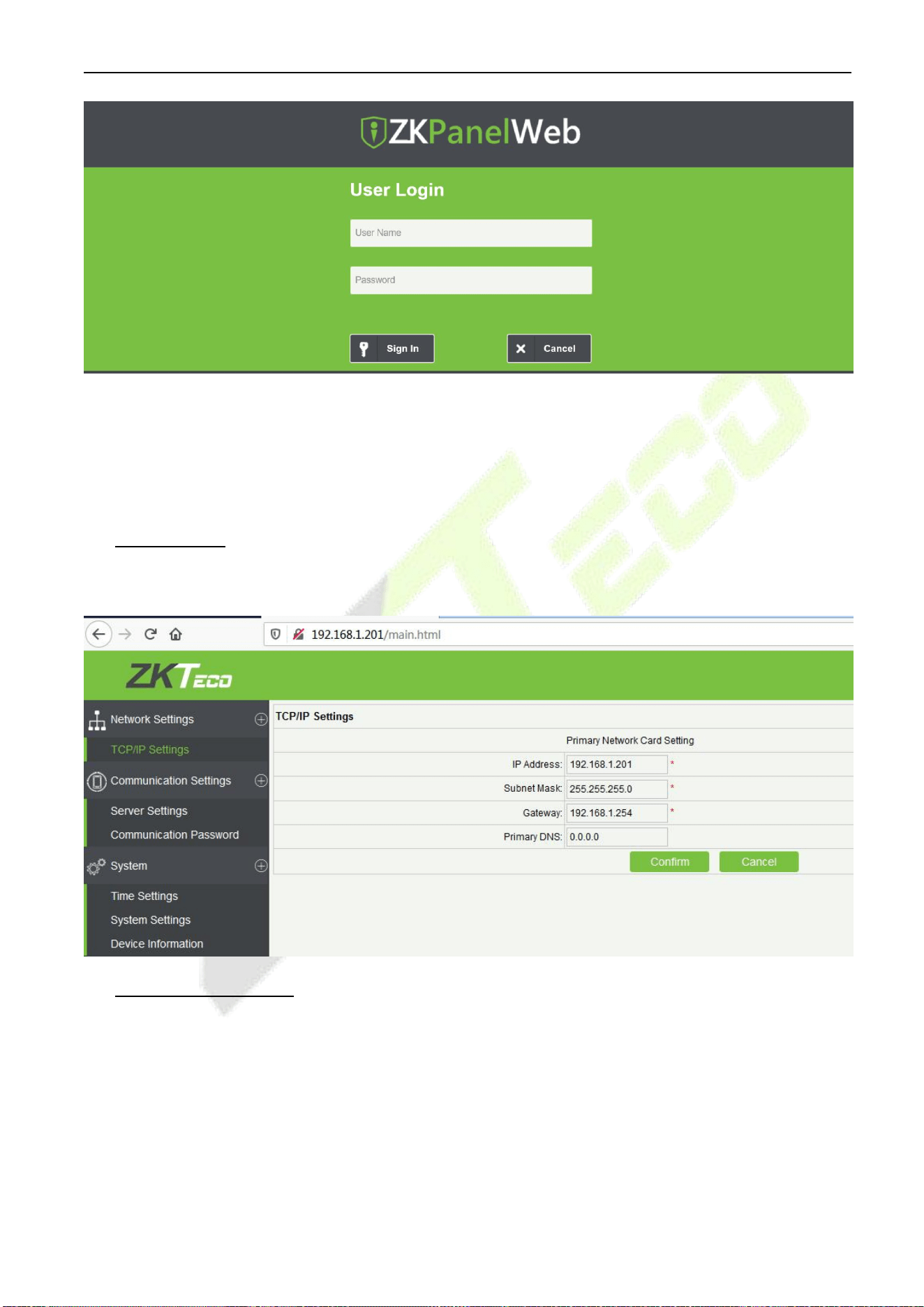
Log on to the Web Server
Create a valid connection string using TCP/IP.
Input the IP address of the controller (factory default is 192.168.1.201) in the address bar; enter the user
name and password (both are admin), and click [Sign In] to access the ZKPanelWeb.
PC
TCP/IP
Printer
Card Issuer
Switc
1# Control Panel
2# Control Panel
N# Control Panel
C2-260 Access Control Panel User Manual
P a g e |
29
Copyright©2025 ZKTECO CO., LTD. All rights reserved.
Note:
1. IP addresses of both the server (PC) and the controller must be in the same network segment.
2.
IP address of the controller could be found by searching devices with the BioSecurity software
([Access] > [Access Device] > [Device] > [Search Device]).
TCP/IP Settings
Click [TCP/IP Settings] to modify the IP address and gateway address.
Communication Settings
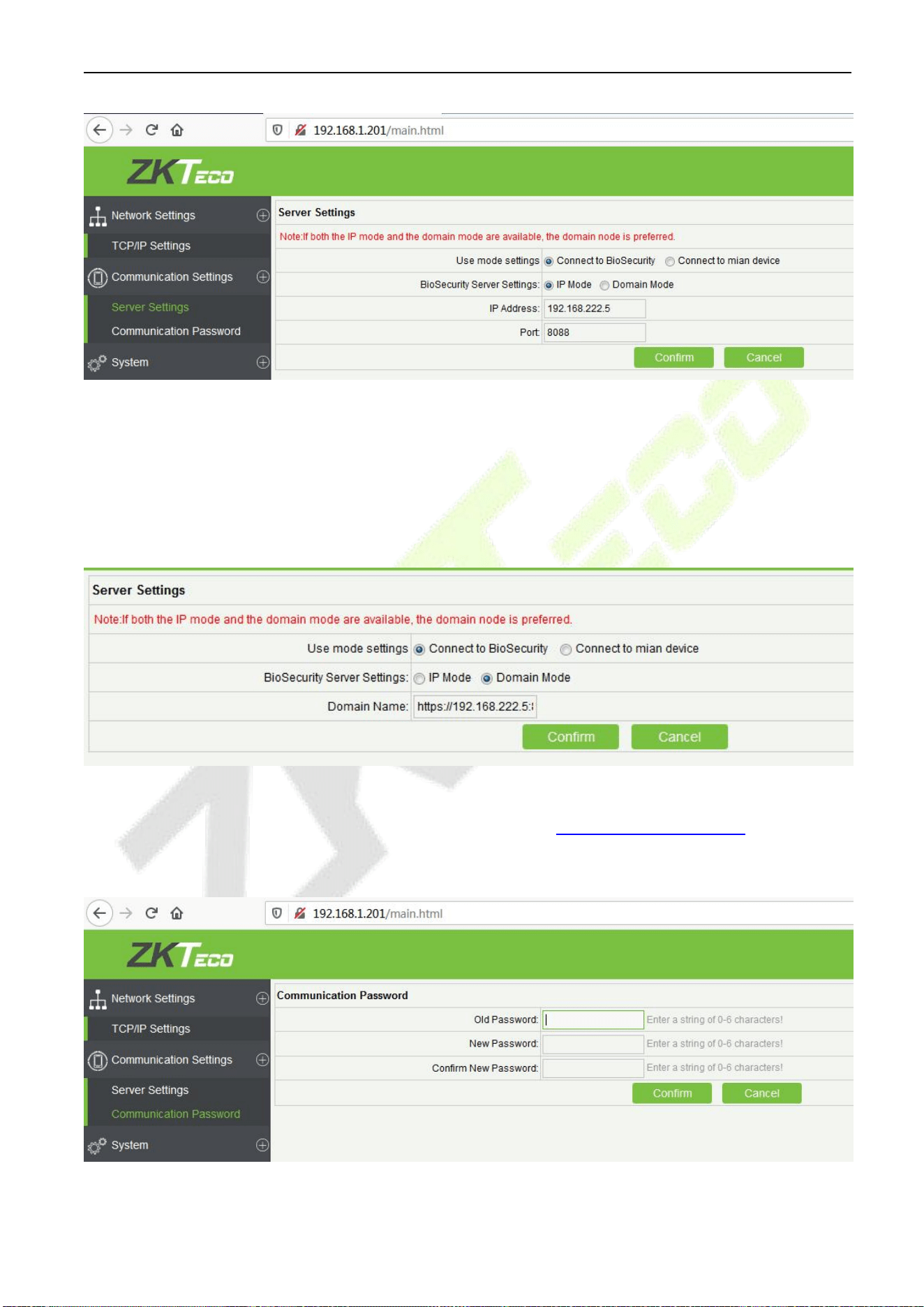
Set communication parameters in ZKPanelWeb and connect the controller to the server (PC); the controller
will automatically push information to the server.
1) Server Settings
C2-260 Access Control Panel User Manual
P a g e |
30
Copyright©2025 ZKTECO CO., LTD. All rights reserved.
Use mode settings: The default mode is Connect to BioSecurity.
BioSecurity Server Settings: To set the parameters of the IP Mode and Domain Mode.
IP Mode: The default server IP is 0.0.0.0, and you can modify it according to the practical situation.
Port: The default Port is 8088, and you can modify it according to the practical situation.
Domain Mode: The default value is null, and you can set its value. If the user wants to login to the BioSecurity
software via HTTPS, then set the domain name here. The format is: https://192.168.222.5:8088.
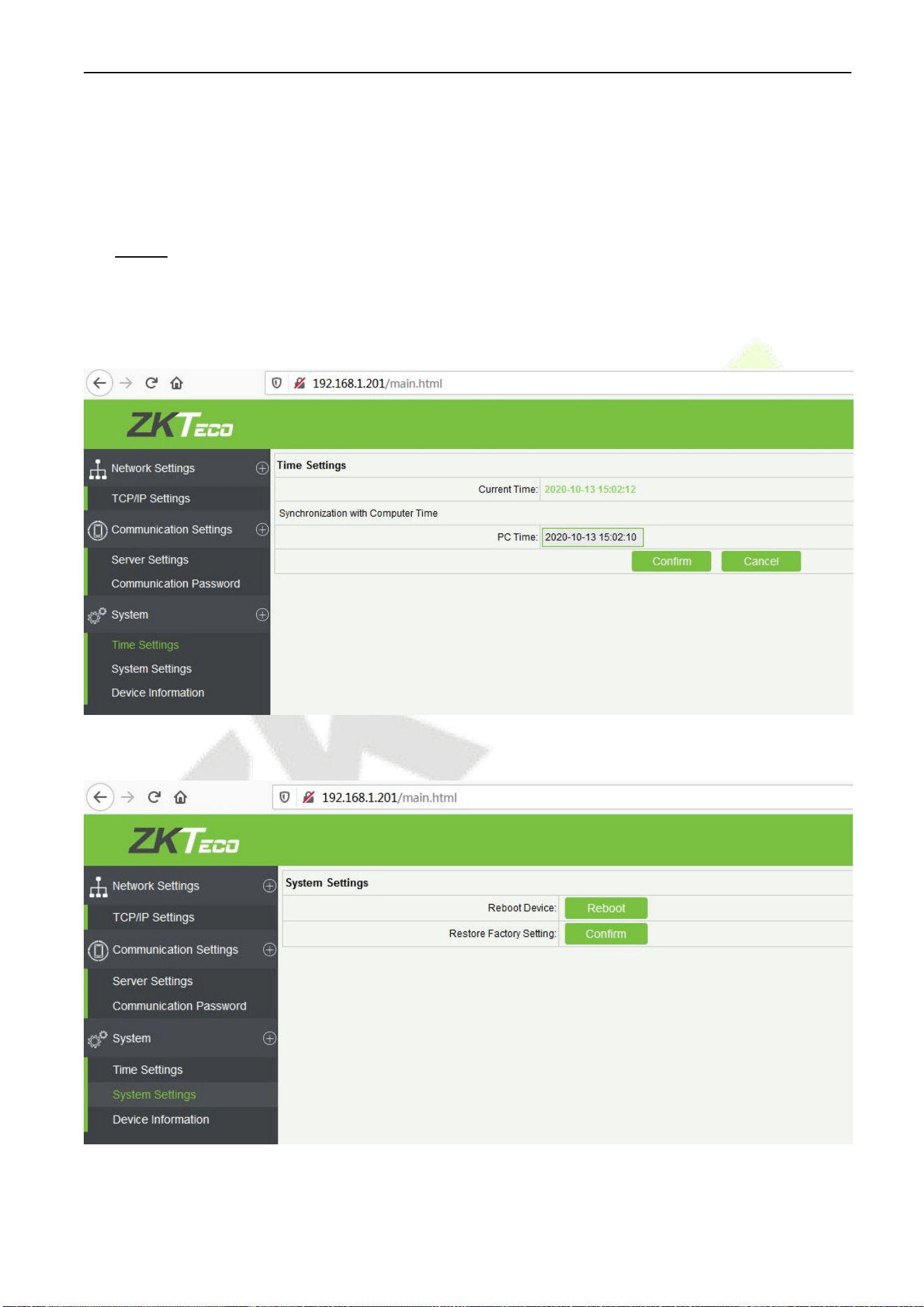
2) Communication Password
C2-260 Access Control Panel User Manual
P a g e |
31
Copyright©2025 ZKTECO CO., LTD. All rights reserved.
Communication Password: Indicates that network communication is encrypted. The default value is null,
and you can set its value.
If you configure the communication password here, the same communication password must be configured
on the server before the connection can be set up.
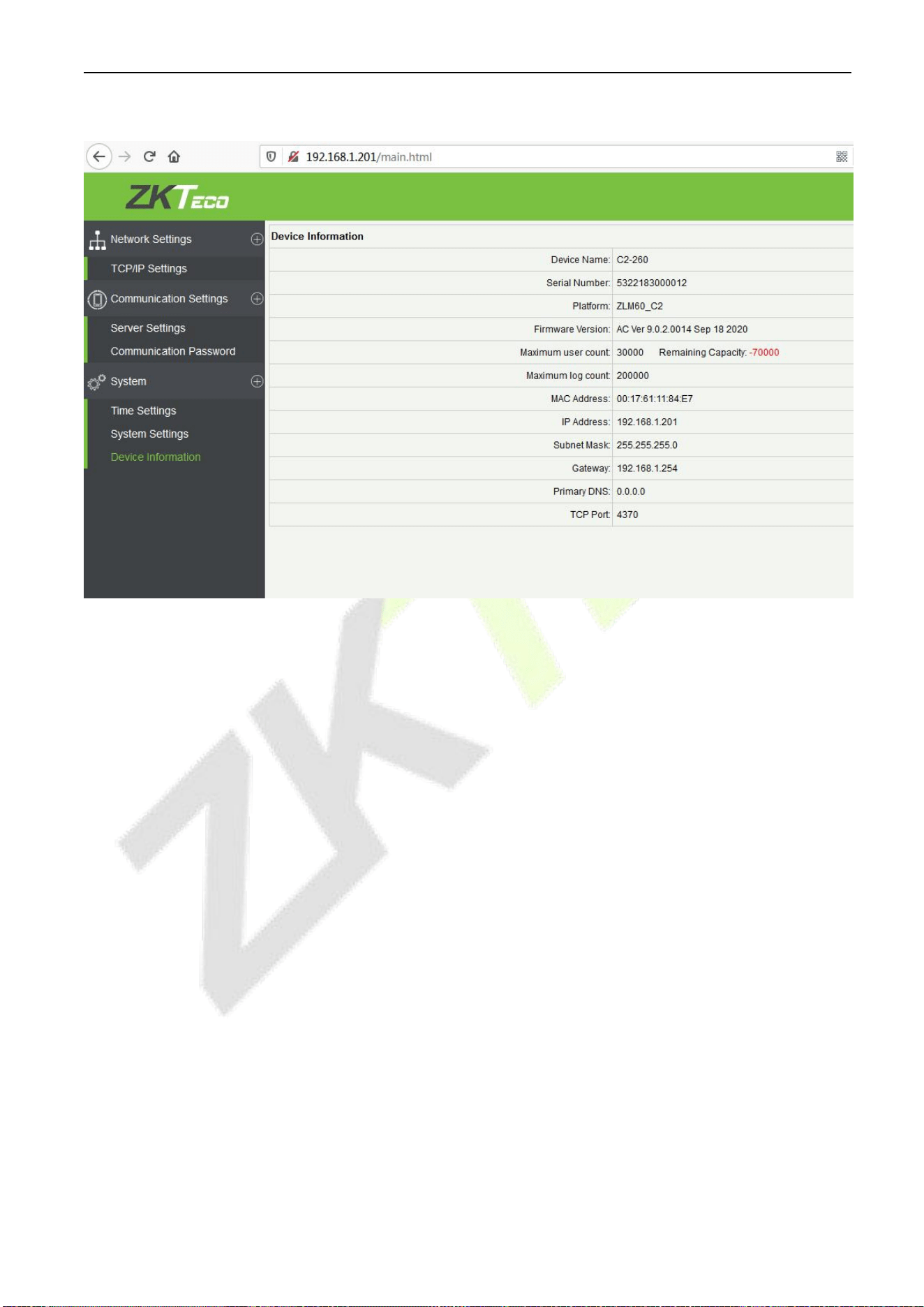
System
The user can synchronize time to the computer, set up the system and view device information here.
1) Time Settings
2) System Settings
C2-260 Access Control Panel User Manual
P a g e |
32
Copyright©2025 ZKTECO CO., LTD. All rights reserved.
3) Device Information
C2-260 Access Control Panel User Manual
P a g e |
33
Copyright©2025 ZKTECO CO., LTD. All rights reserved.
5 ZKBio CVAccess
The following sections explain the functions of ZKBio CVAccess software after the Access Controllers are
installed.
5.1 Login
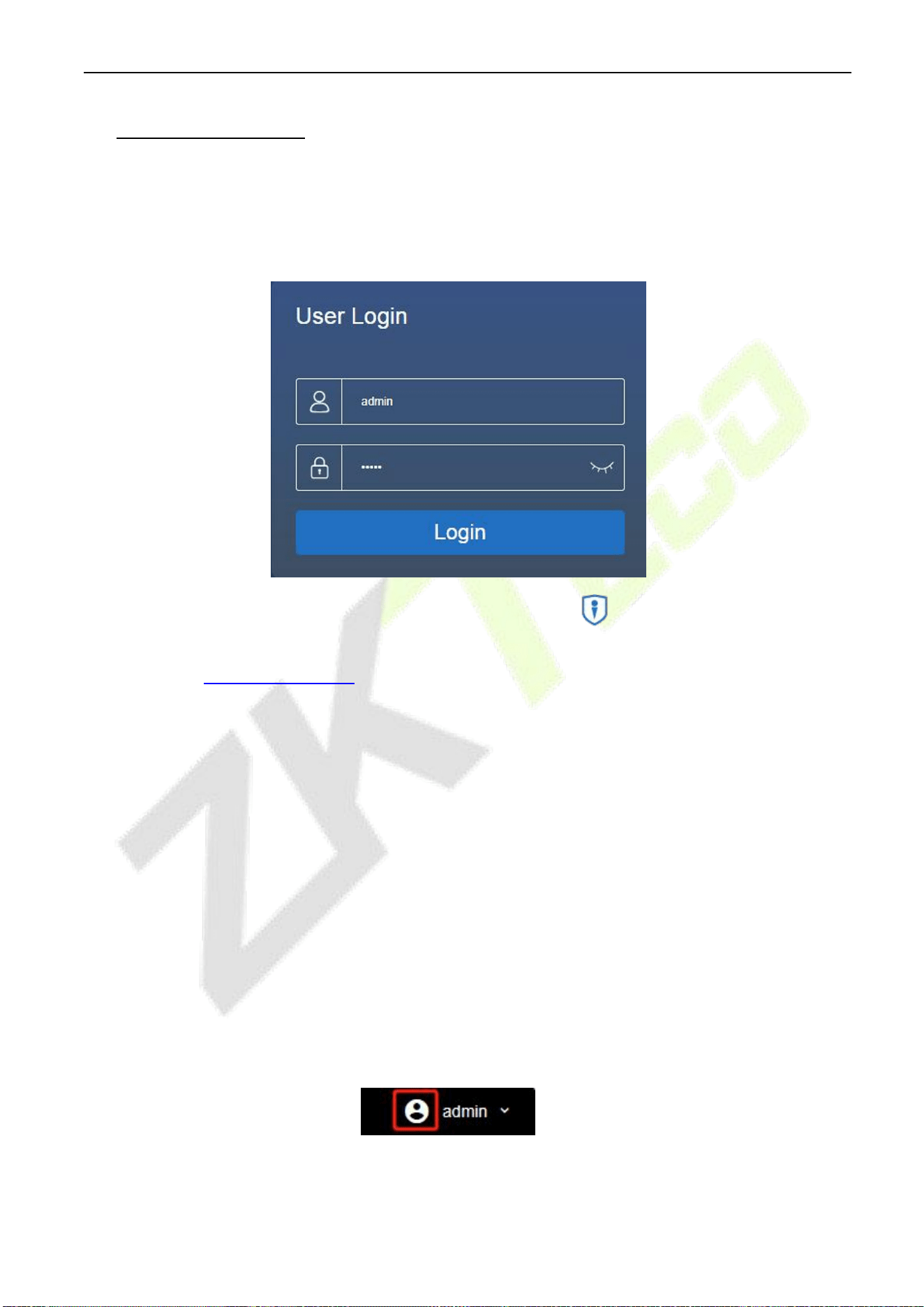
After installing the software, double-click the ZKBio CVAccess icon to open the software. You
may also open the recommended browser and enter the IP address and server port in the address bar.
The IP address is http://127.0.0.1:8098 by default.
If the software is not installed in your server, you may input the IP address and server port in the
address bar.
Note: The username of the super user is [admin], and the password is [admin], then click [Login]. After
logging-in for the first time, you need to reset your password.
5.2 Activate the System
Please refer to the corresponding license activation document.
5.3 Modify Password
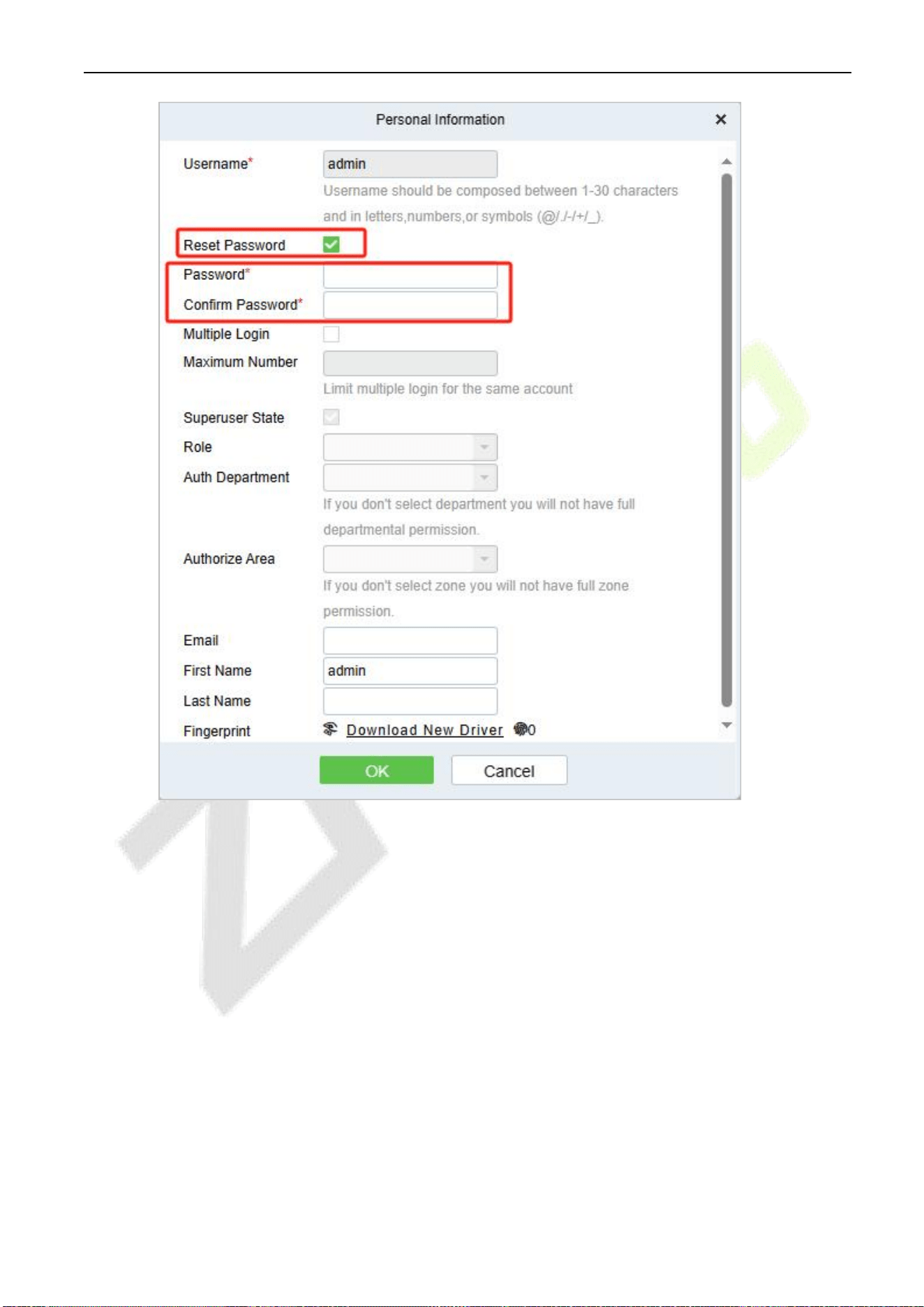
You can modify the login password in [Personal Information]. Click on the profile picture in the top
right corner.
:
C2-260 Access Control Panel User Manual
P a g e |
34
Copyright©2025 ZKTECO CO., LTD. All rights reserved.
Select the [Reset Password] check box to modify the password.
Note: Both the Superuser and the new user are created by the super user (the default password for the
new users is 111111). The username is not case-insensitive, but the password is case-sensitive.
5.4 Device
Add an access device, then set the communication parameters of the connected devices, including
system settings and device settings. When communication is successful, you can view here the
information of the connected devices, and perform remote monitoring, uploading and downloading, etc.
C2-260 Access Control Panel User Manual
P a g e |
35
Copyright©2025 ZKTECO CO., LTD. All rights reserved.
5.4.1 Adding a Device
Set the Communication Address
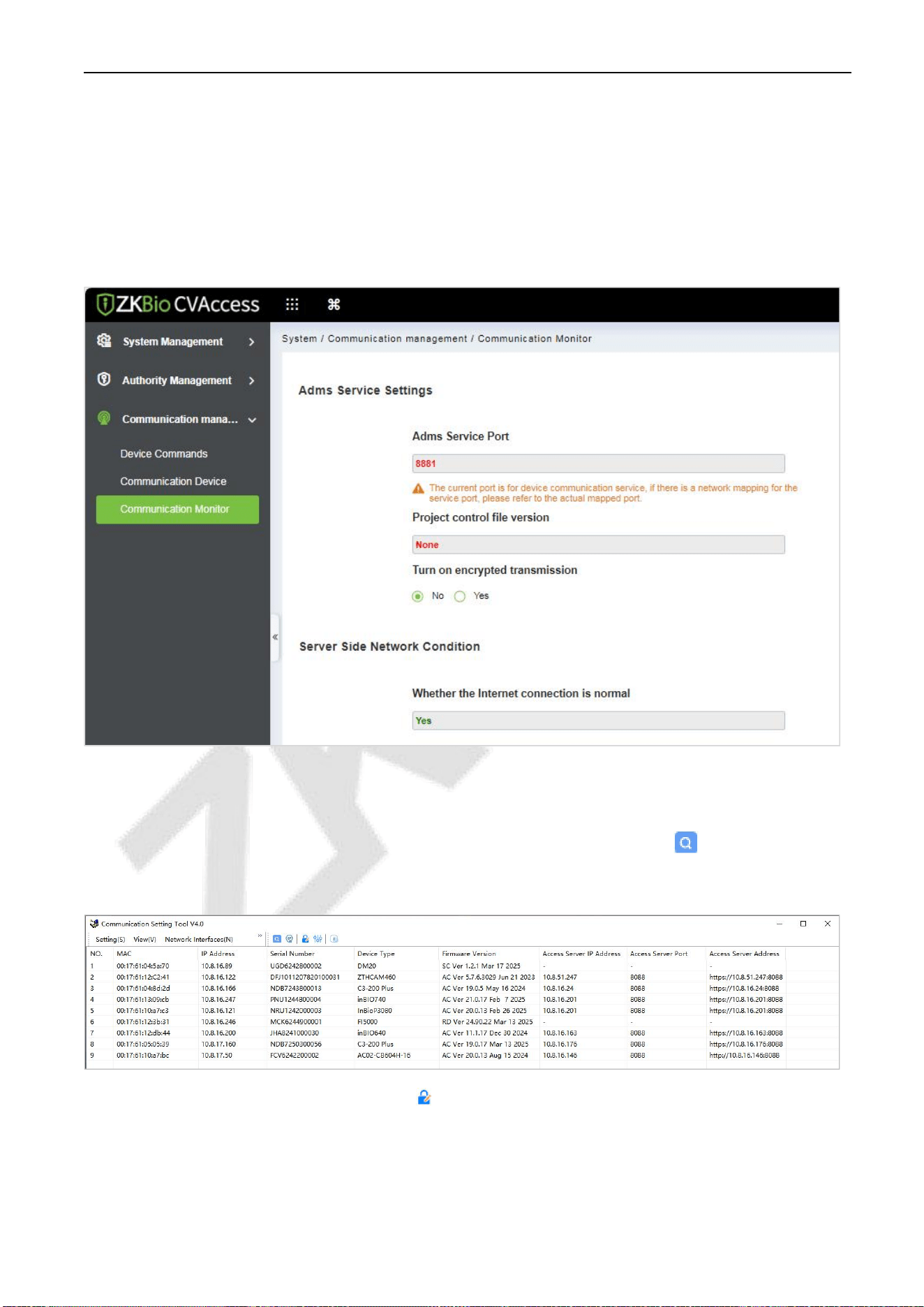
Click System > Communication management > Communication Monitor to set the ADMS service port,
as shown in the figure below:
Change Communication Password
1. Search for devices using the DeviceSettingTool _V4.0 search tool. Click the icon to search for
devices.
2. Select the searched device and click the icon to change the communication password. For the
first time to change the password, the default communication password is Zk@123, and the new
passwordis a combination of 2~6 digit alphabeticcharacters.
C2-260 Access Control Panel User Manual
P a g e |
36
Copyright©2025 ZKTECO CO., LTD. All rights reserved.
Note: If the communication password is forgotten, the device can be reset to its factory settings, and
the password will automatically revert to the default value.
Add Device on the Software
There are two ways to add Access Devices.
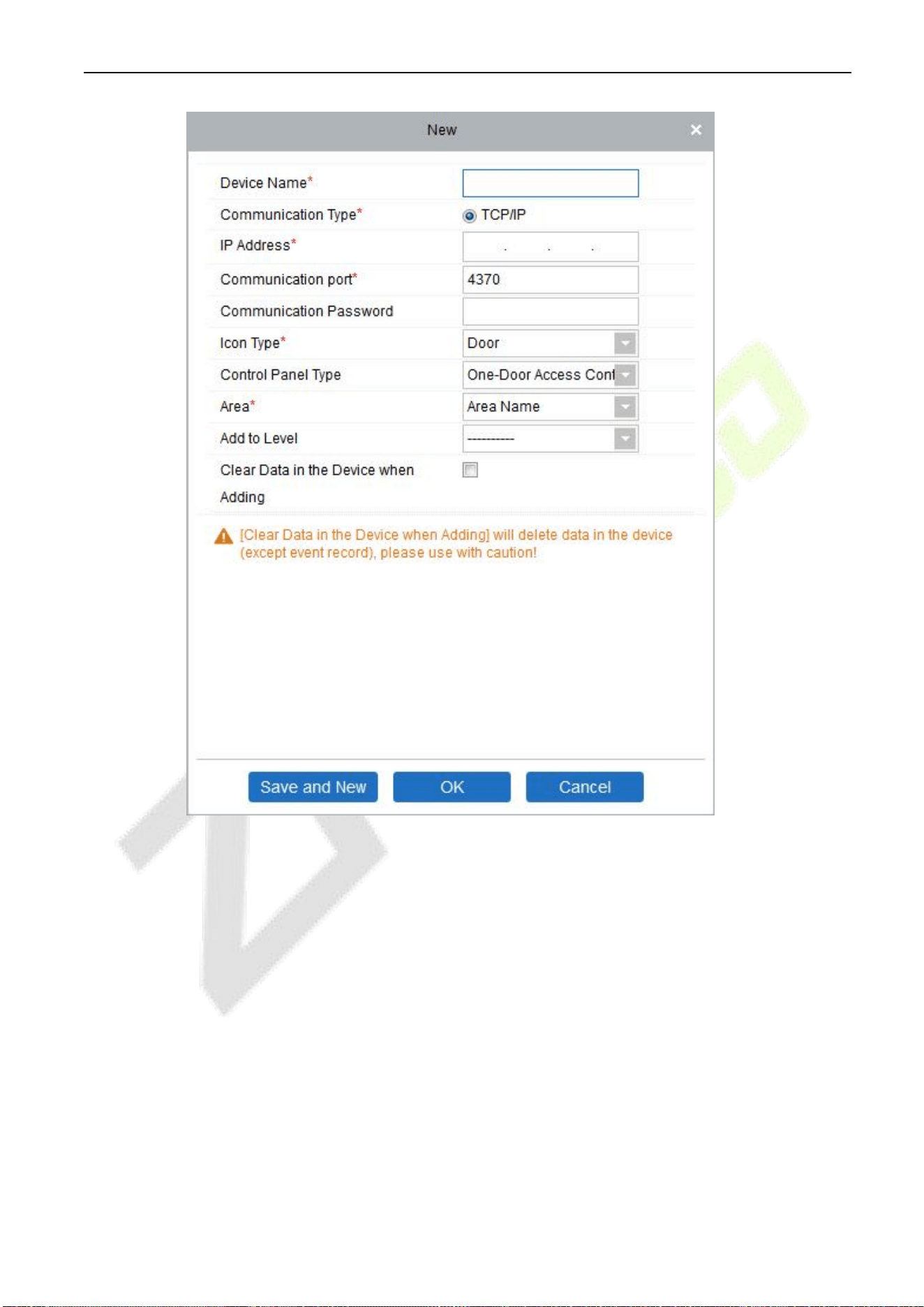
Mode 1: Add Device Manually
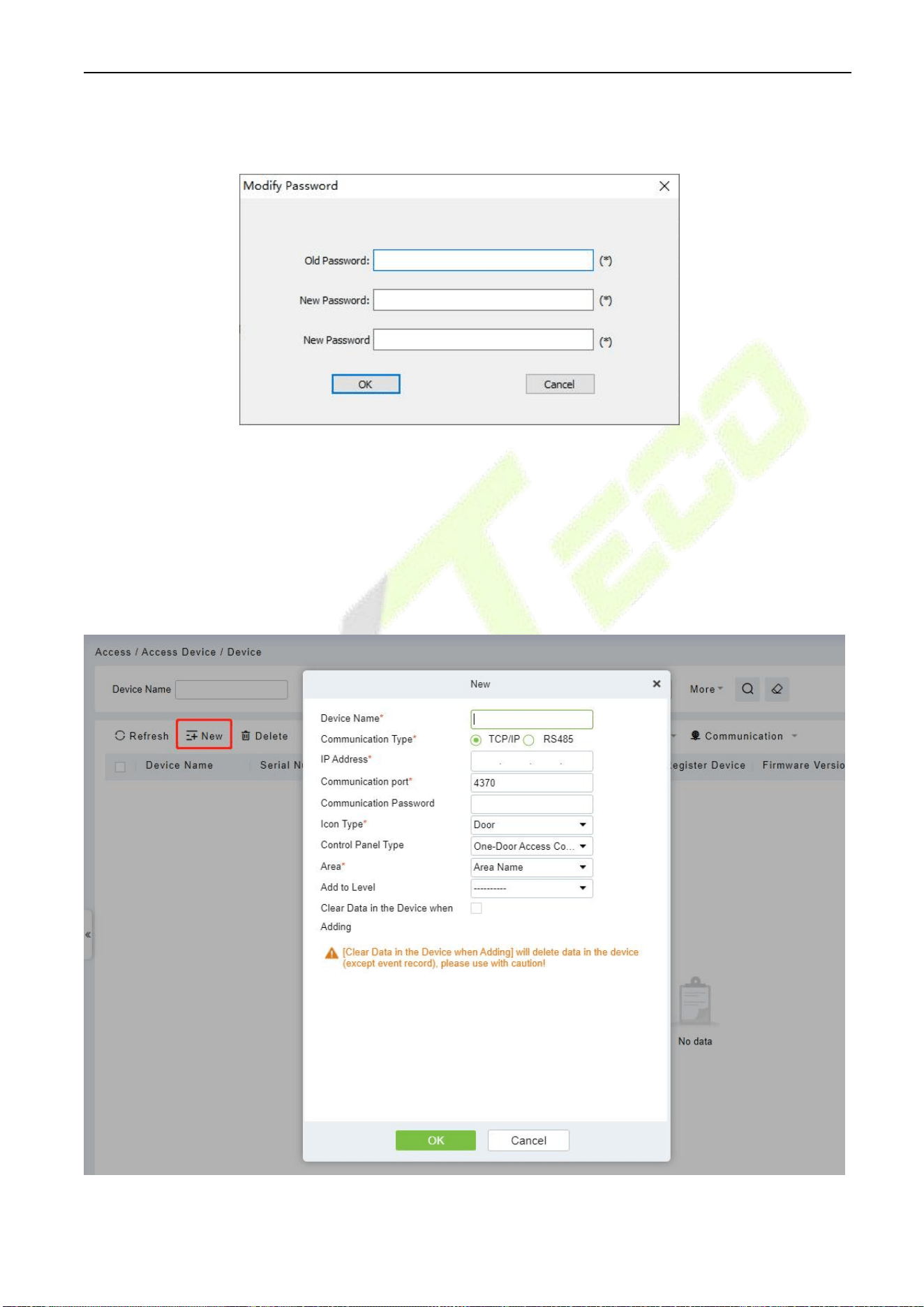
1. Click [Access] > [Device] > [New] on the Action Menu, the following interface will be shown:

C2-260 Access Control Panel User Manual
P a g e |
37
Copyright©2025 ZKTECO CO., LTD. All rights reserved.
Fields are as follows:
Device Name: Any character, up to a combination of 20 characters.
IP Address: Enter the IP Address of the device.
Communication port: The default value is 4370.
Communication Password: A Password should be a combination of numbers and letters of 6
digits.
Notes:
(1) You do not need to input this field if it is a new factory device or just completed initialization.
(2) When communication password for the standalone device is set as “0”, it means no password.
However, in case of access control panel, it means the password is 0.
(3) You need to restart the device after setting the door sensor of the standalone device.
Icon Type: It will set the representation of the device. You can choose as per the kind of device;
Door and Flap Barrier.
Control Panel Type: One-door access control panel, two-door access control panel, four-door
access control panel, Standalone Device.
Area: Select specific areas of devices. After setting areas, devices (doors) can be filtered by
areas upon Real-Time Monitoring.
Add to Level: Automatically add the device to the selected level. The device cannot be
automatically added to the selected level if the number of personnel exceeds 5000. You can add
personnel after the device is successfully added.
Clear Data in the Device when Adding: If this option is checked, the system will clear all data
in the device (except the event logs). If you add the device just for demonstration or testing, there
is no need to select it.
2. After editing, click [OK], and the system will try to connect the current device.
If it is successfully connected, it will read the corresponding extended parameters of the device.
Note: When deleting a new device, the software will clear all user information, time zones, holidays,
and access control levels settings (including access levels, anti-pass back, interlock settings, linkage
settings, etc.) from the device, except the events records (unless the information in the device is unusable,
or it is recommended not to delete the device is used to avoid loss of information).
Mode 2: Add Device by Searching Access Controllers
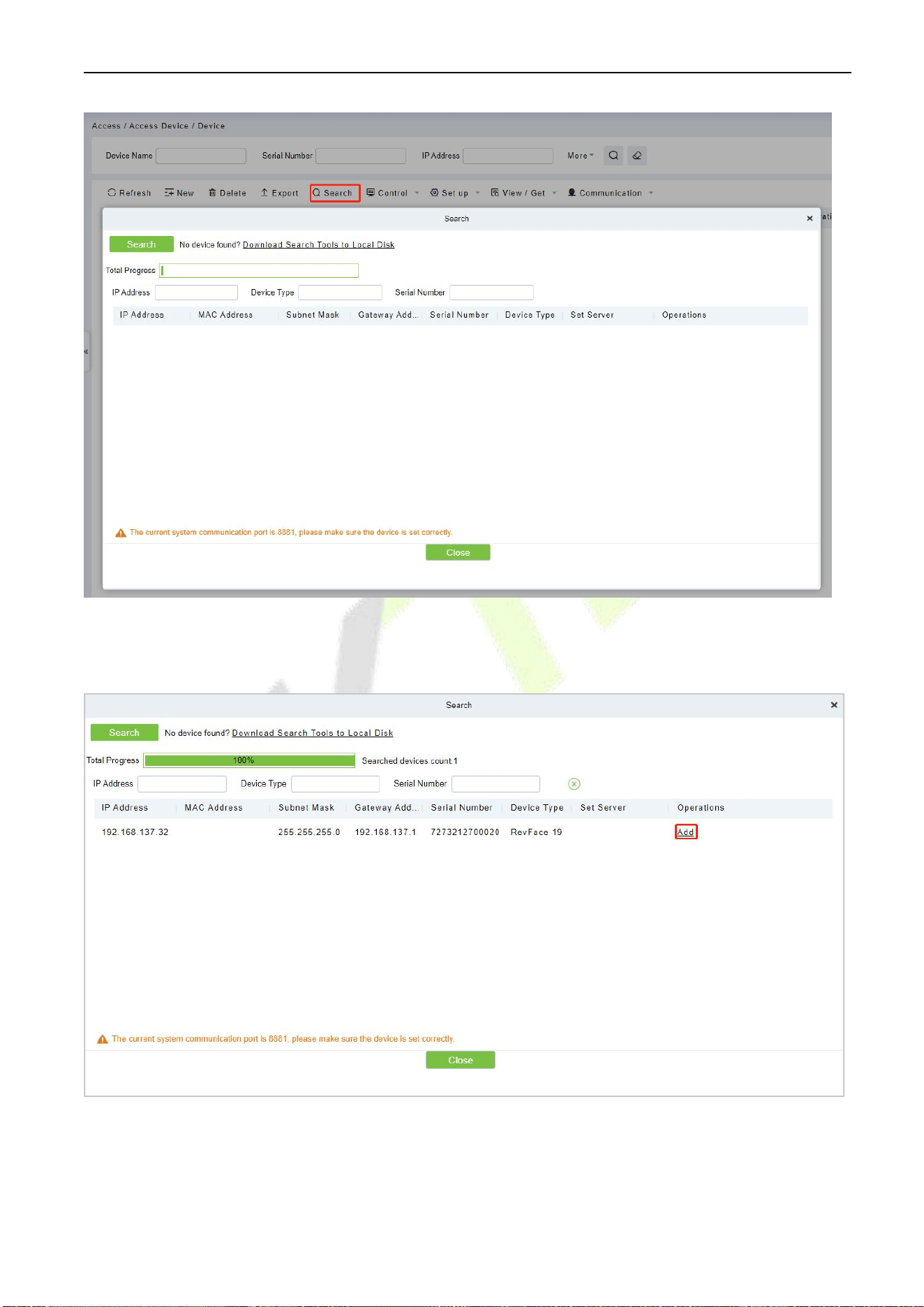
1. Click [Access] > [Device ] > [Search], to open the Search interface.
C2-260 Access Control Panel User Manual
P a g e |
38
Copyright©2025 ZKTECO CO., LTD. All rights reserved.
2. Click [Search], and it will prompt“Searching……”.
3. After the search is complete, the list and the total number of access controllers will be displayed.
Note: UDP broadcast mode will be used to search access devices. This mode cannot perform a
cross-Router function. IP address can provide cross-net segment, but it must be in the same subnet, and
needs to be configured the gateway and IP address in the same net segment.
C2-260 Access Control Panel User Manual
P a g e |
39
Copyright©2025 ZKTECO CO., LTD. All rights reserved.
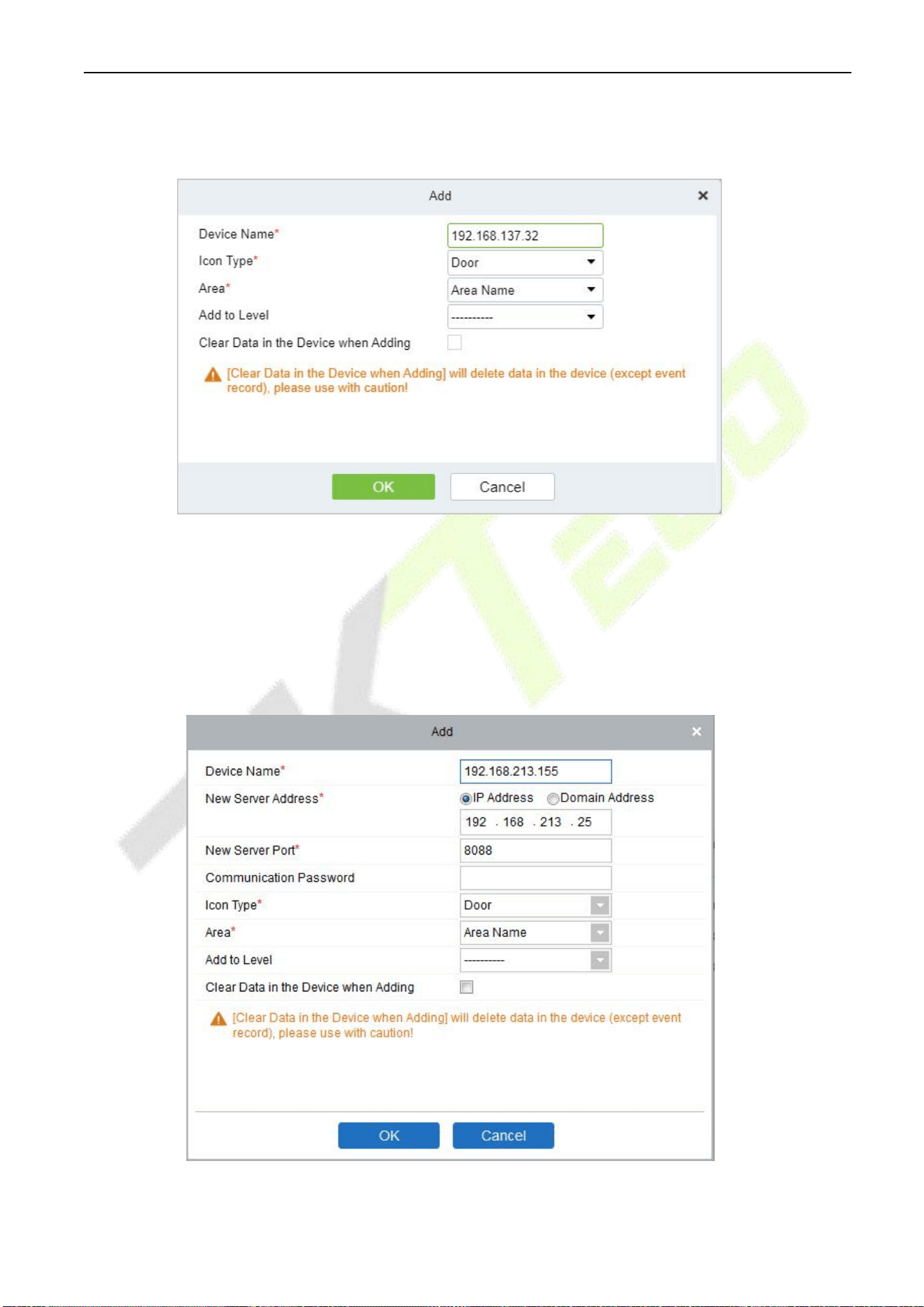
4. Click on [Add] in the search list.
If the device is a pull device, you may input a device name, and click [OK] to complete the device adding.
Clear Data in the Device when Adding: If this option is selected, after adding device, the
system will clear all data in the device (except the event logs).
If the device is a push firmware device, the following windows will pop-up after clicking [Add]. If IP
Address in [New Server Address] is selected, then configure IP address and port number. If Domain
Address in [New Server Address] option is selected, then configure domain address, port number and
DNS. The device will be added to the software automatically.
C2-260 Access Control Panel User Manual
P a g e |
40
Copyright©2025 ZKTECO CO., LTD. All rights reserved.
New Server Address: To add a device by IP Address or Domain Address, devices can be added
to the software by entering the domain address.
New Server Port: Set the access point of system.
DNS: Set a DNS address of the server.
Clear Data in the Device when Adding: If this option is selected, then after adding device, the
system will clear all data in the device (except the event logs). If you add the device merely for
demonstration or testing, there is no need to select it.
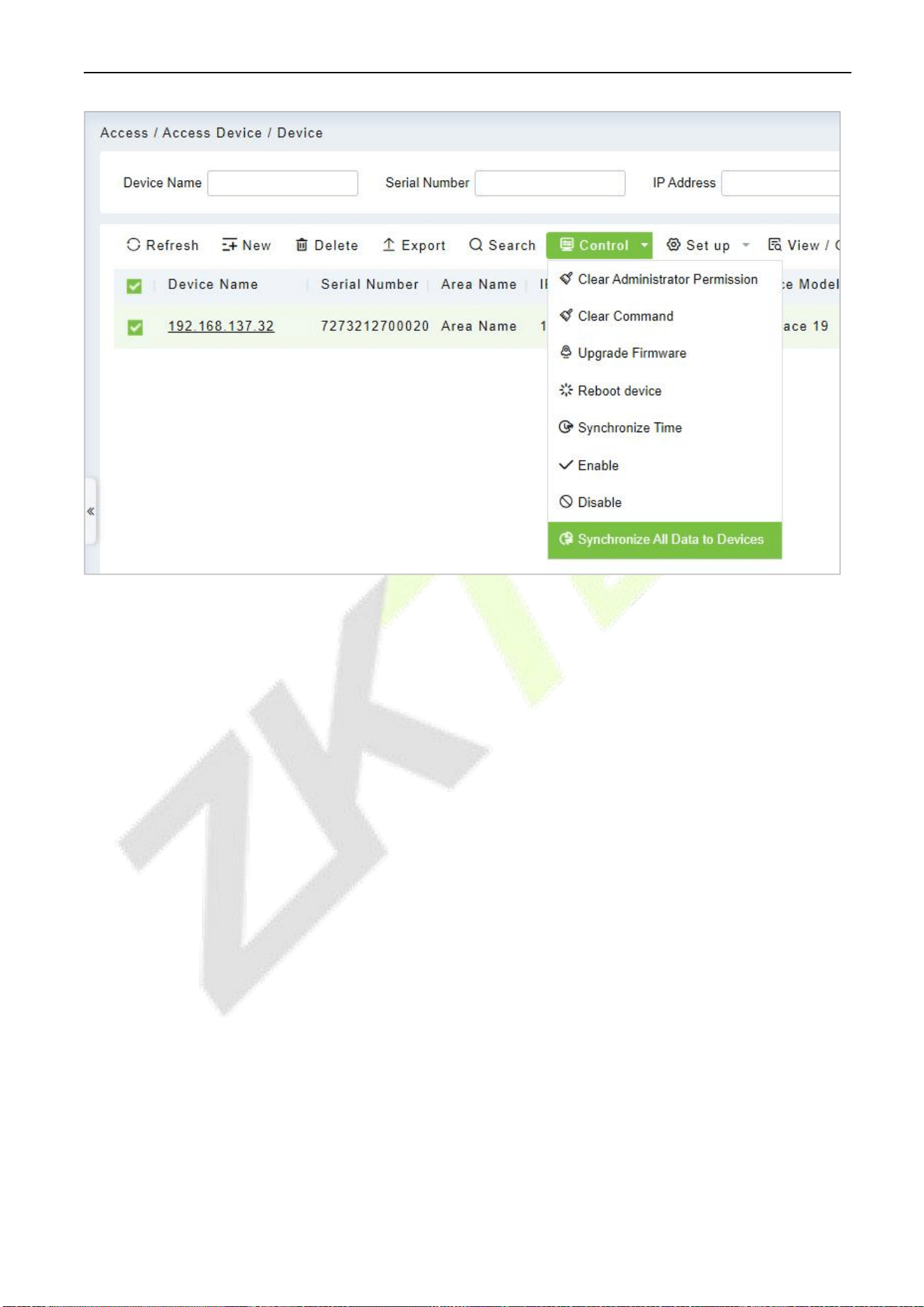
Note: When using either of the above three device adding methods, if there exist residual data in
the original device, please sync original data to it after adding a new device to the software by
clicking [Device] > [Synchronize All Data to Devices], otherwise these original data may conflict
with normal usage.
C2-260 Access Control Panel User Manual
P a g e |
41
Copyright©2025 ZKTECO CO., LTD. All rights reserved.
The default IP address of the access device may conflict with the IP of a device on the local network. You
can modify its IP address: click [Modify IP Address] beside the [Add] and a dialog box will pop up in the
interface. Enter the new IP address and other parameters (Note: Configure the gateway and IP address in
the same net segment).
Note: Some PUSH devices support SSL. To use this function, select the HTTPS port during software
installation and ensure that the device firmware supports SSL.
C2-260 Access Control Panel User Manual
P a g e |
42
Copyright©2025 ZKTECO CO., LTD. All rights reserved.
5.4.2 I/O Board
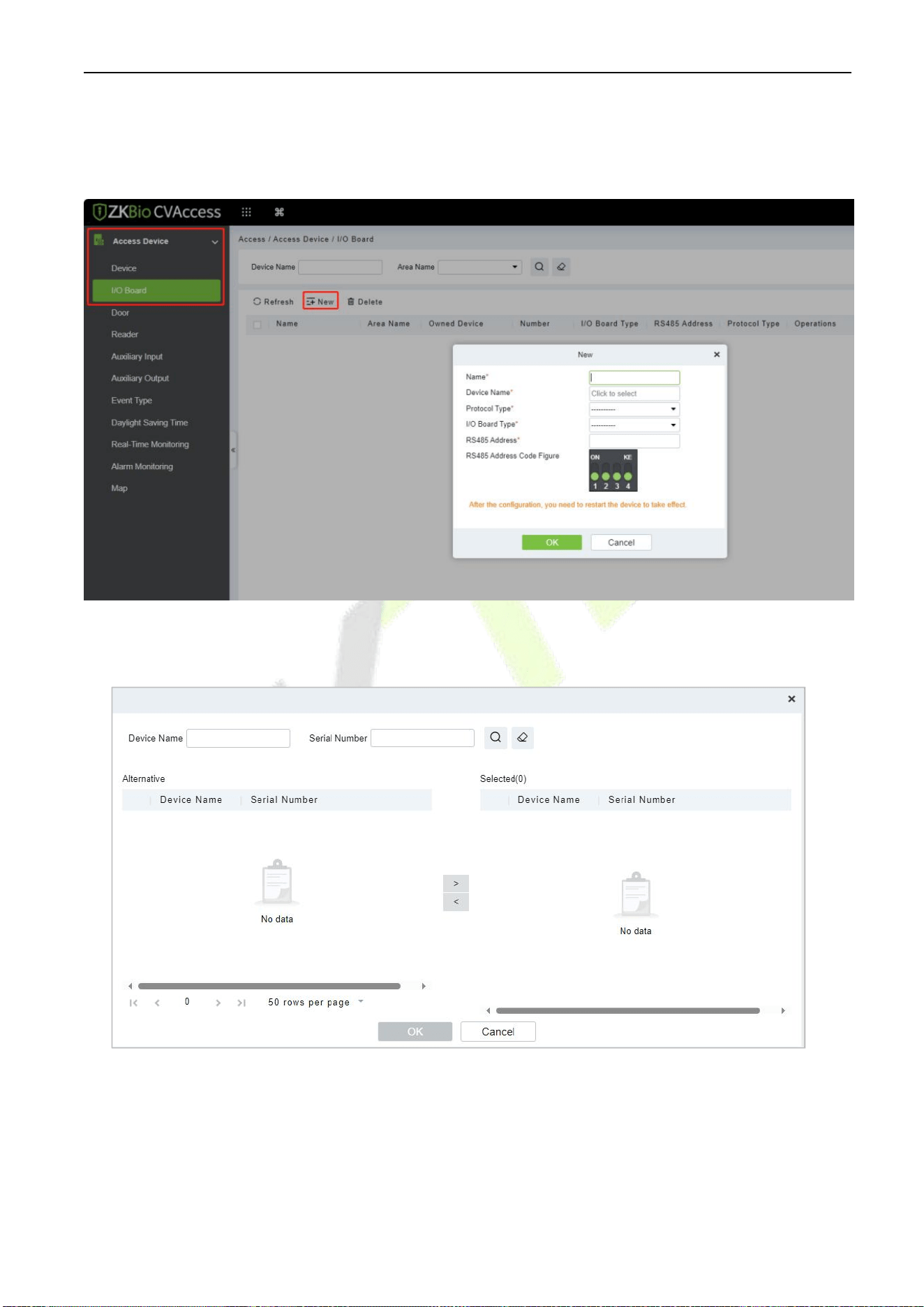
On the device module, click [Device]> [I/O Board]> [New] to add the I/O Board device to the software.
Enter the name of the I/O Board. Select the Device by clicking the Device Name field. The device list
appears as shown below:
Select the device and click OK. Select the I/O Board Type. Set the RS485 Code Address by changing the
corresponding button. Click OK to save the details. You can view all the auxiliary inputs in [Auxiliary Input]
interface.
Note: Please select this method when adding DM10 and AUX485.
C2-260 Access Control Panel User Manual
P a g e |
43
Copyright©2025 ZKTECO CO., LTD. All rights reserved.
5.4.3 Device Operation
For the communication between the system and device, data uploading, configuration downloading,
device, and system parameters shall be set. Users can edit the access controllers within the appropriate
levels in the current system; users can only add or delete devices in Device Management if needed.
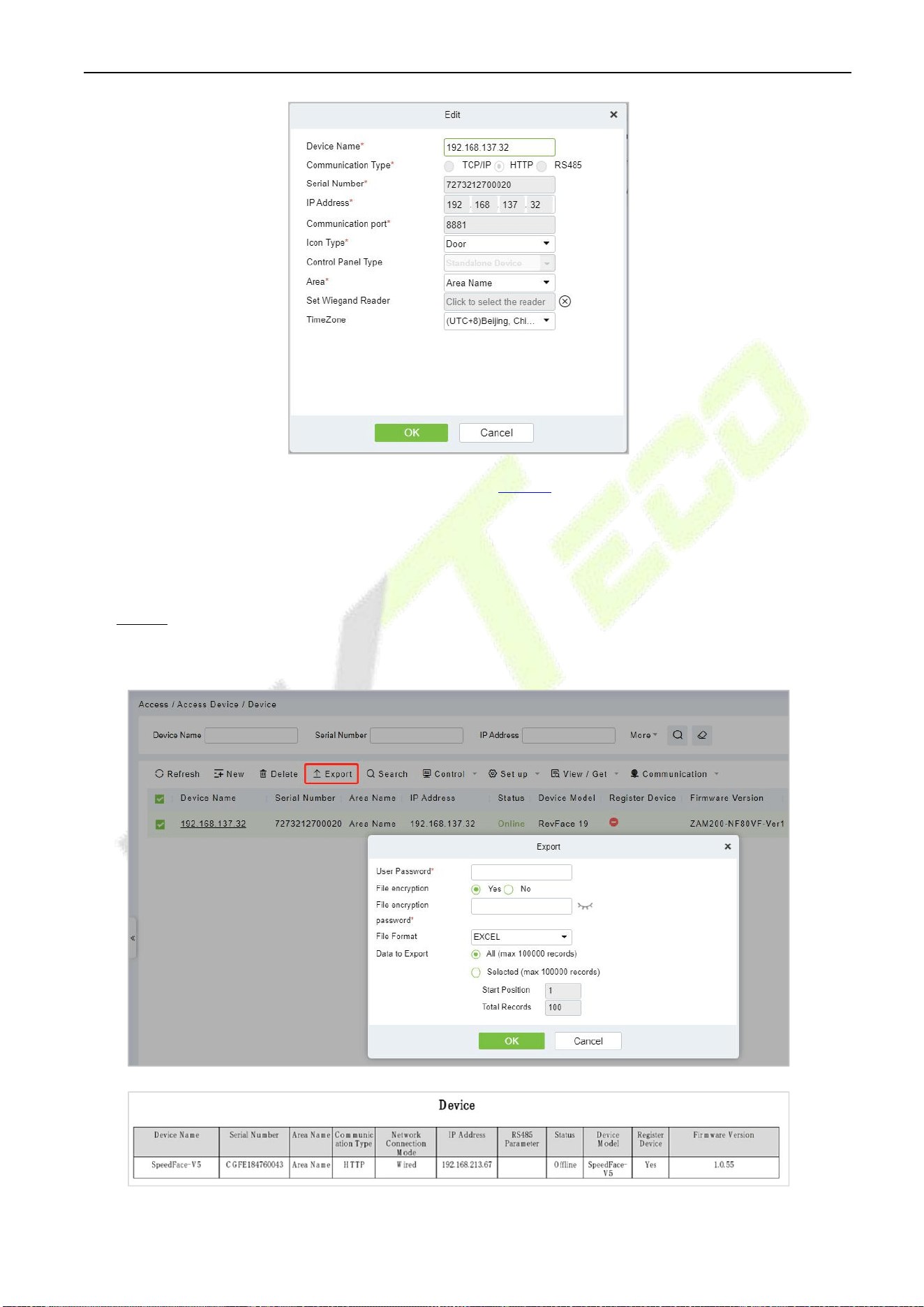
Edit or Delete a Device
Edit: Click the Device Name or click Edit to access the edit interface.
Delete: Select the device, click Delete, and click OK to delete the device.
C2-260 Access Control Panel User Manual
P a g e |
44
Copyright©2025 ZKTECO CO., LTD. All rights reserved.
For the details and settings of the above parameters, see Device. Some details cannot be edited. The
device Name should be unique and must not be identical to another device.
Control Panel Type cannot be modified. If the type is wrong, users need to manually delete the device and
add it again.
Export
Device information can be exported in EXCEL, PDF, and CSV file format.
C2-260 Access Control Panel User Manual
P a g e |
45
Copyright©2025 ZKTECO CO., LTD. All rights reserved.
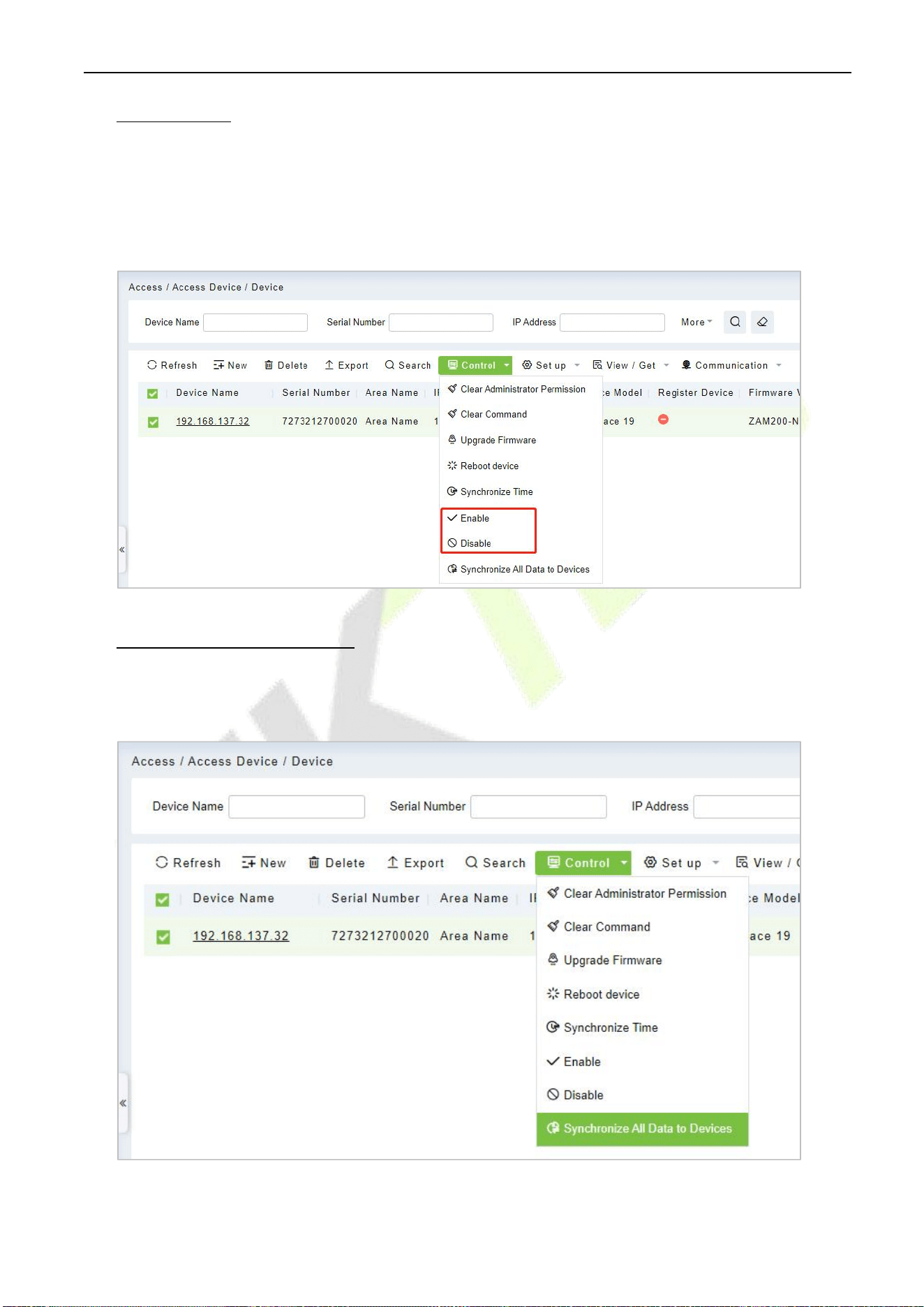
Disable/Enable
Select device, click
[Disable/ Enable]
to stop/ start using the device. When communication between the
device and the system is interrupted or the device fails, the device may automatically appear in disabled
status. After adjusting the local network or device, click
[Enable]
to reconnect the device and restore
device communication.
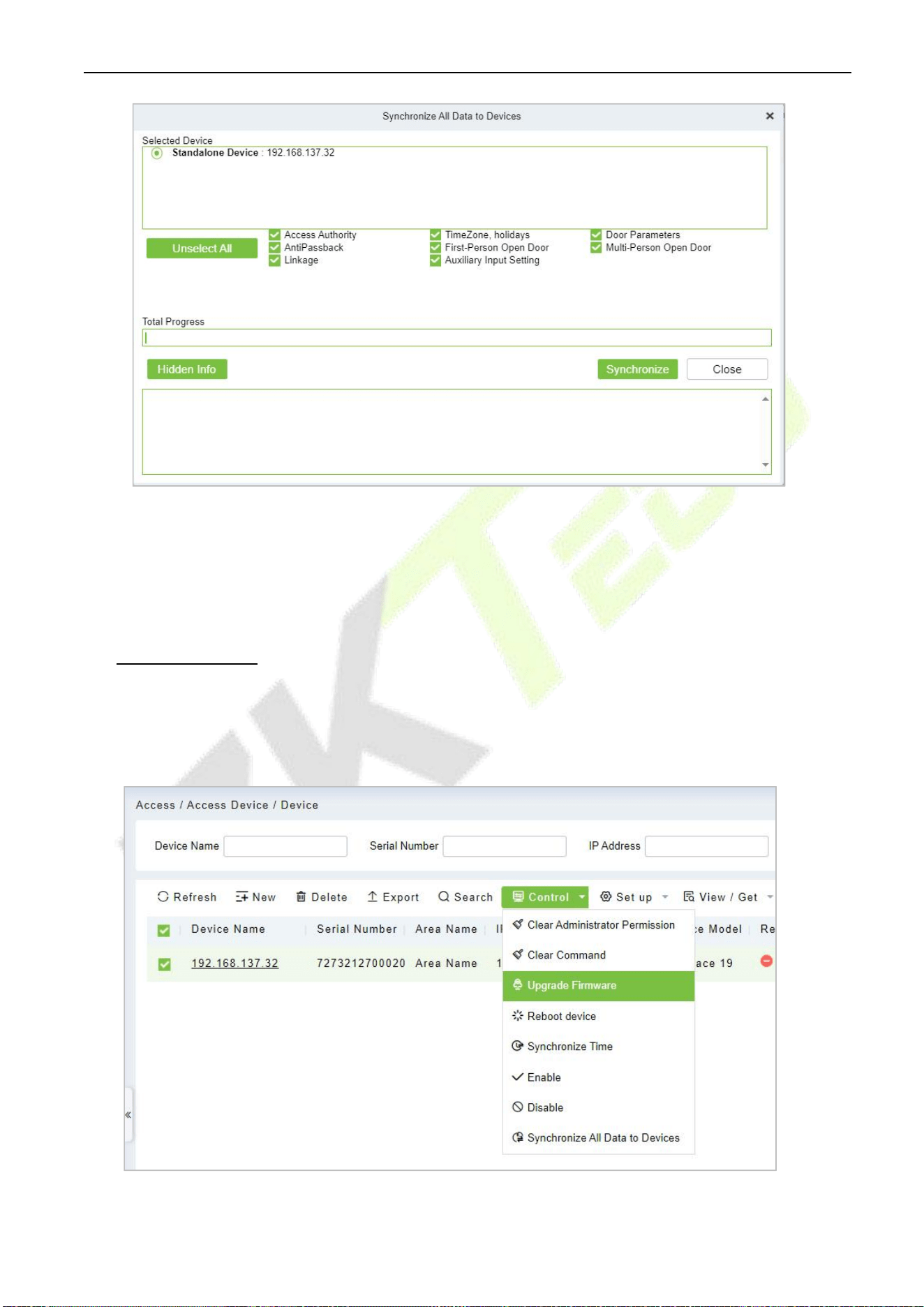
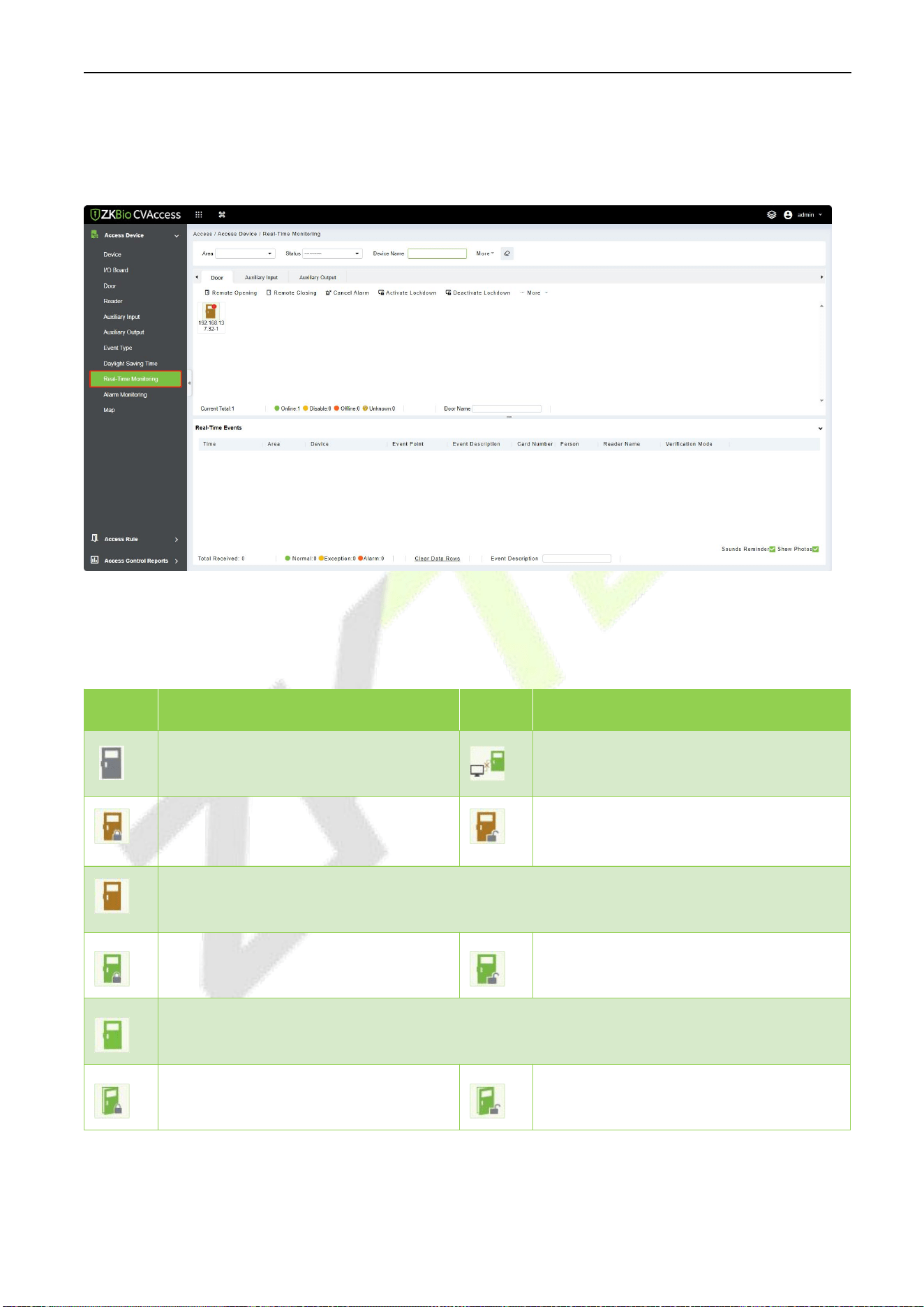
Synchronize All Data to Devices
Synchronize data of the system to the device. Select device, click
[Synchronize All Data to Devices]
and click
[OK]
to complete synchronization.
C2-260 Access Control Panel User Manual
P a g e |
46
Copyright©2025 ZKTECO CO., LTD. All rights reserved.
Note: [Synchronize All Data to Devices]
will delete all data in the device first (except transactions),
and thus download all settings again. Please keep the internet connection stable and avoid power down
situations. If the device is working normally, please use this function with caution. Execute it in rare user
situations to avoid impact on normal use of the device.
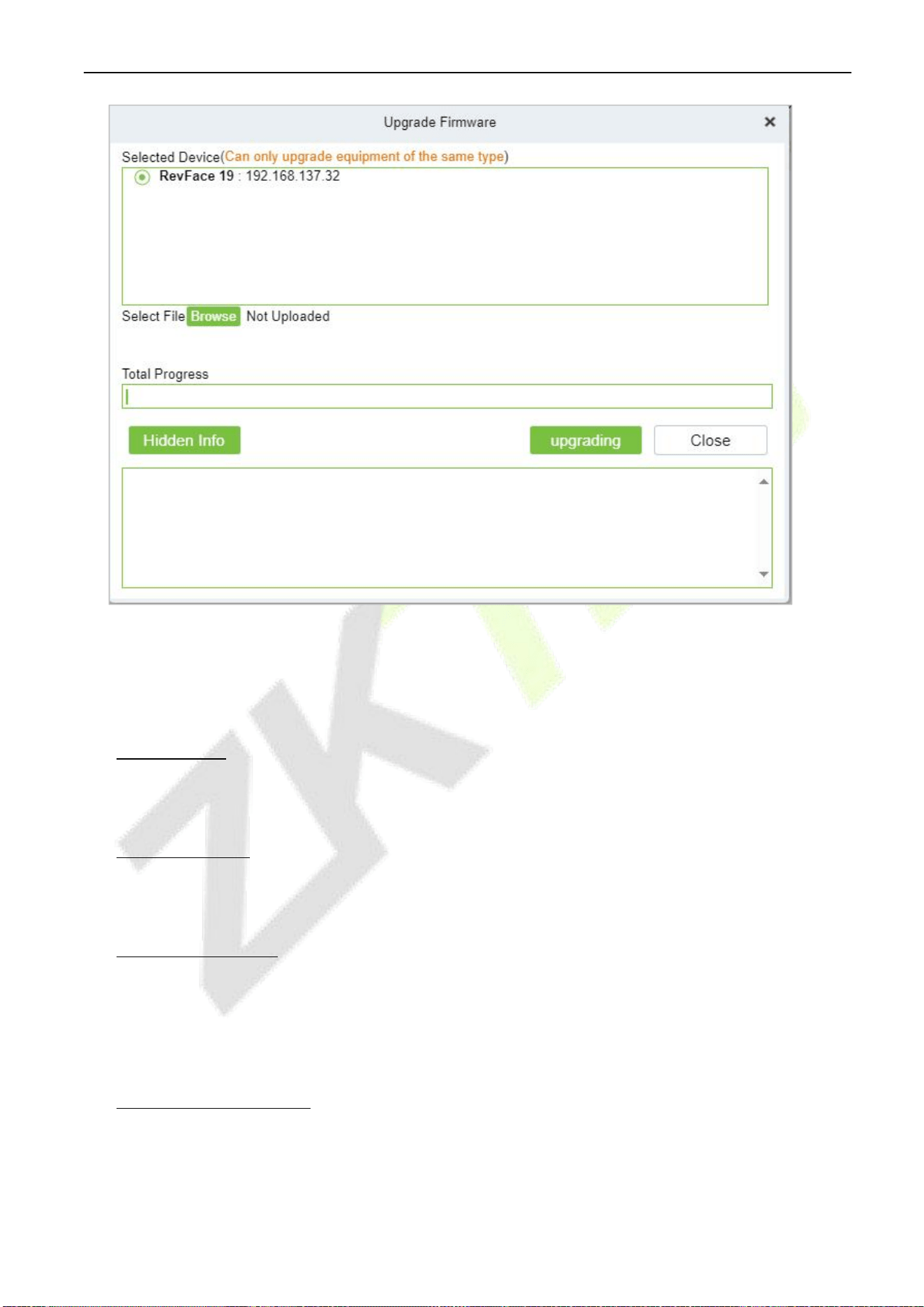
Upgrade Firmware
Select the required device that needs to be upgraded, click
[Upgrade firmware]
to enter edit interface,
then click
[Choose File]
to select firmware upgrade file (named emfw.cfg) provided by Access software,
and click
[OK]
to start upgrading.
C2-260 Access Control Panel User Manual
P a g e |
47
Copyright©2025 ZKTECO CO., LTD. All rights reserved.
Note:
The user shall not upgrade firmware without authorization. Contact the distributor before
upgrading firmware or upgrade it following the instructions of the distributor. The unauthorized upgrade
may affect normal operations.
Reboot Device
It will reboot the selected device.
Synchronize Time
It will synchronize the device time with the server’s current time.
Set Device Time Zone
If the device supports the time zone settings and is not in the same time zone with the server, you need to
set the time zone of the device. After setting the time zone, the device will automatically synchronize the
time according to the time zone and server time.
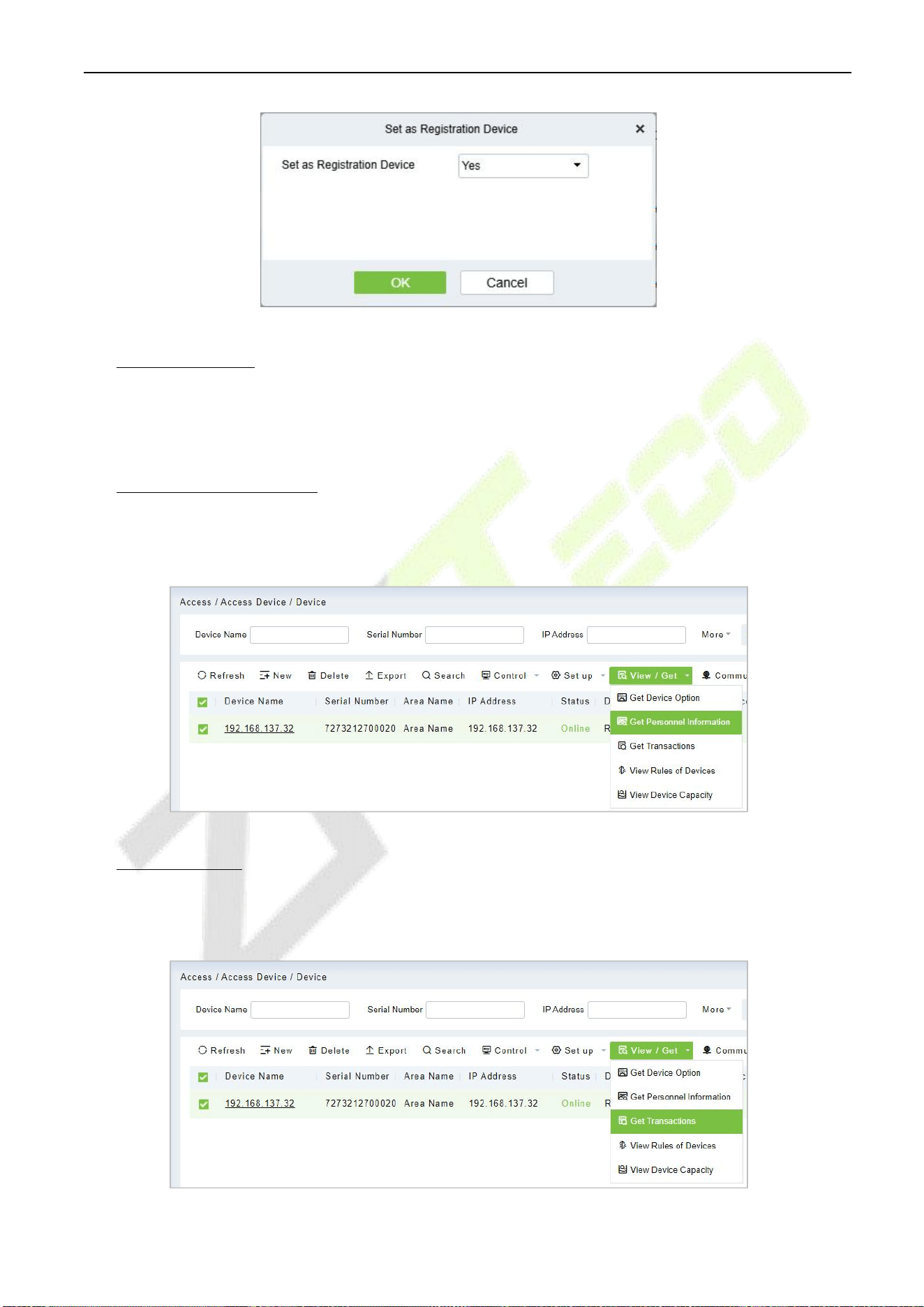
Set as Registration device
Set the registration device only when the standalone device’s data such as personnel can automatically
upload.
C2-260 Access Control Panel User Manual
P a g e |
48
Copyright©2025 ZKTECO CO., LTD. All rights reserved.
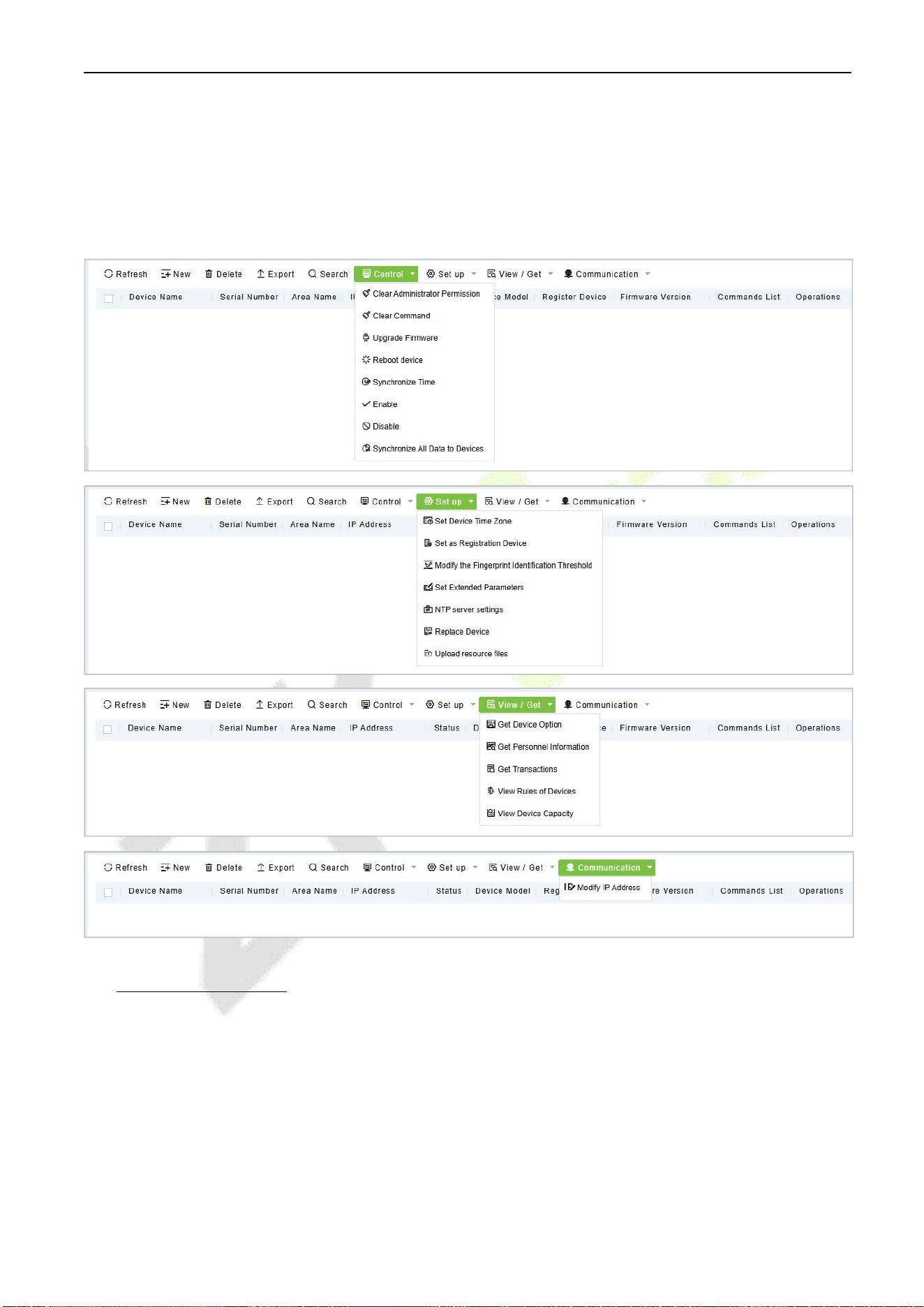
Get Device Option
It gets the common parameters of the device. For example, get the firmware version after the device is
updated.
Get Personnel Information
Renew the current number of personnel, fingerprints, finger vein and face templates in the device. The
final value will be displayed in the device list.
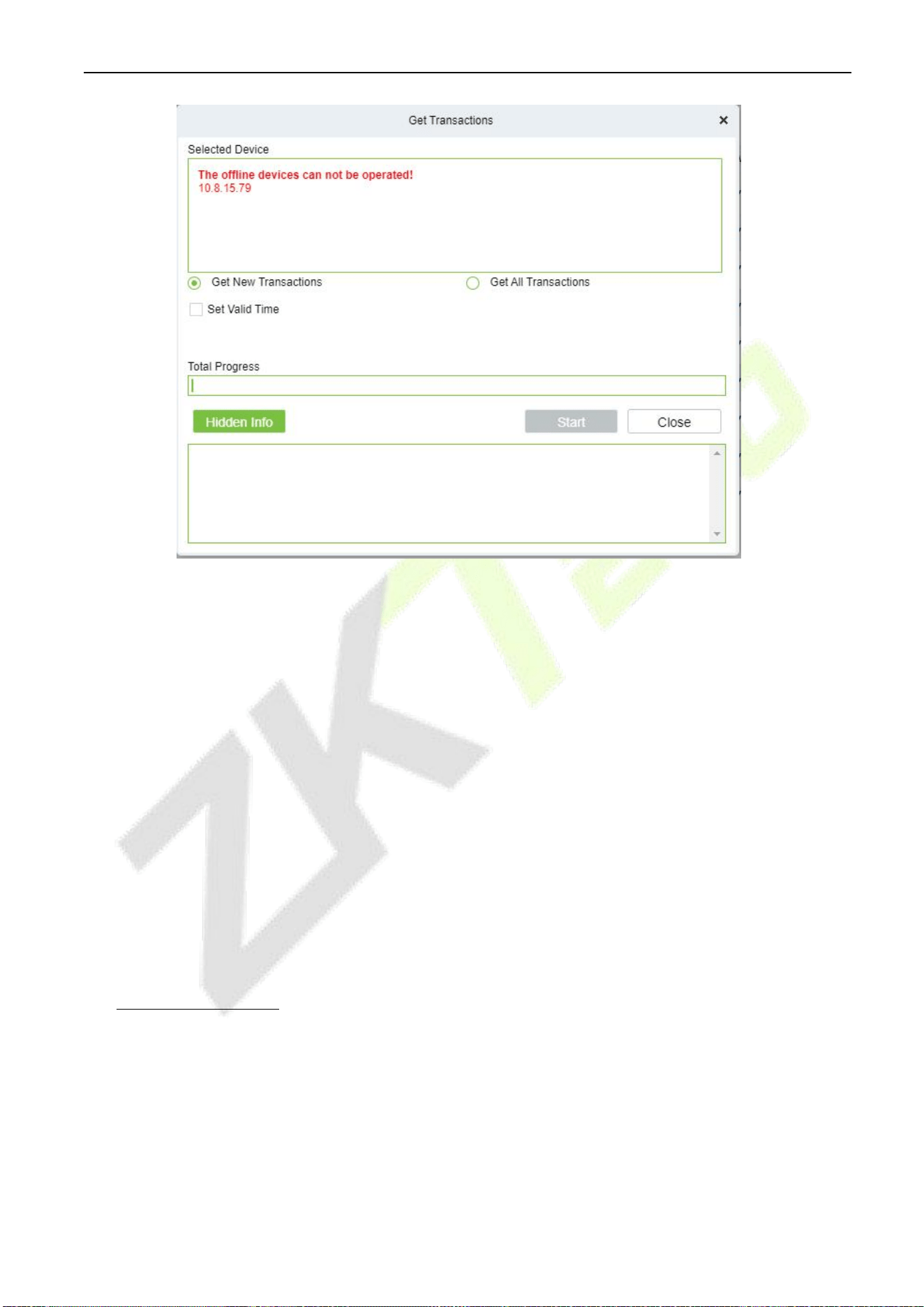
Get Transactions
Get transactions from the device into the system. Two options are provided for this operation: Get New
Transactions and Get All Transactions.
C2-260 Access Control Panel User Manual
P a g e |
49
Copyright©2025 ZKTECO CO., LTD. All rights reserved.
Get New Transactions: The system only gets new transactions since the last collected and
recorded transaction. Repeated transactions will not be rewritten.
Get All Transactions: The system will get transactions again. Repeated entries will not be
shown twice.
When the network status is healthy and the communication between the system and device is
normal, the system will acquire transactions of the device in real-time and save them into the
system database. However, when the network is interrupted or communication is interrupted for
any reason, and the transactions of the device have not been uploaded into the system in real-time,
[Get Transactions] can be used to manually acquire transactions of the device. In addition, the
system, by default, will automatically acquire transactions of the device at 00:00 on each day.
Note:
Access controller can store up to 100 thousand transactions. When transactions exceed this
number, the device will automatically delete the oldest stored transactions (deletes 10 thousand
transactions by default).
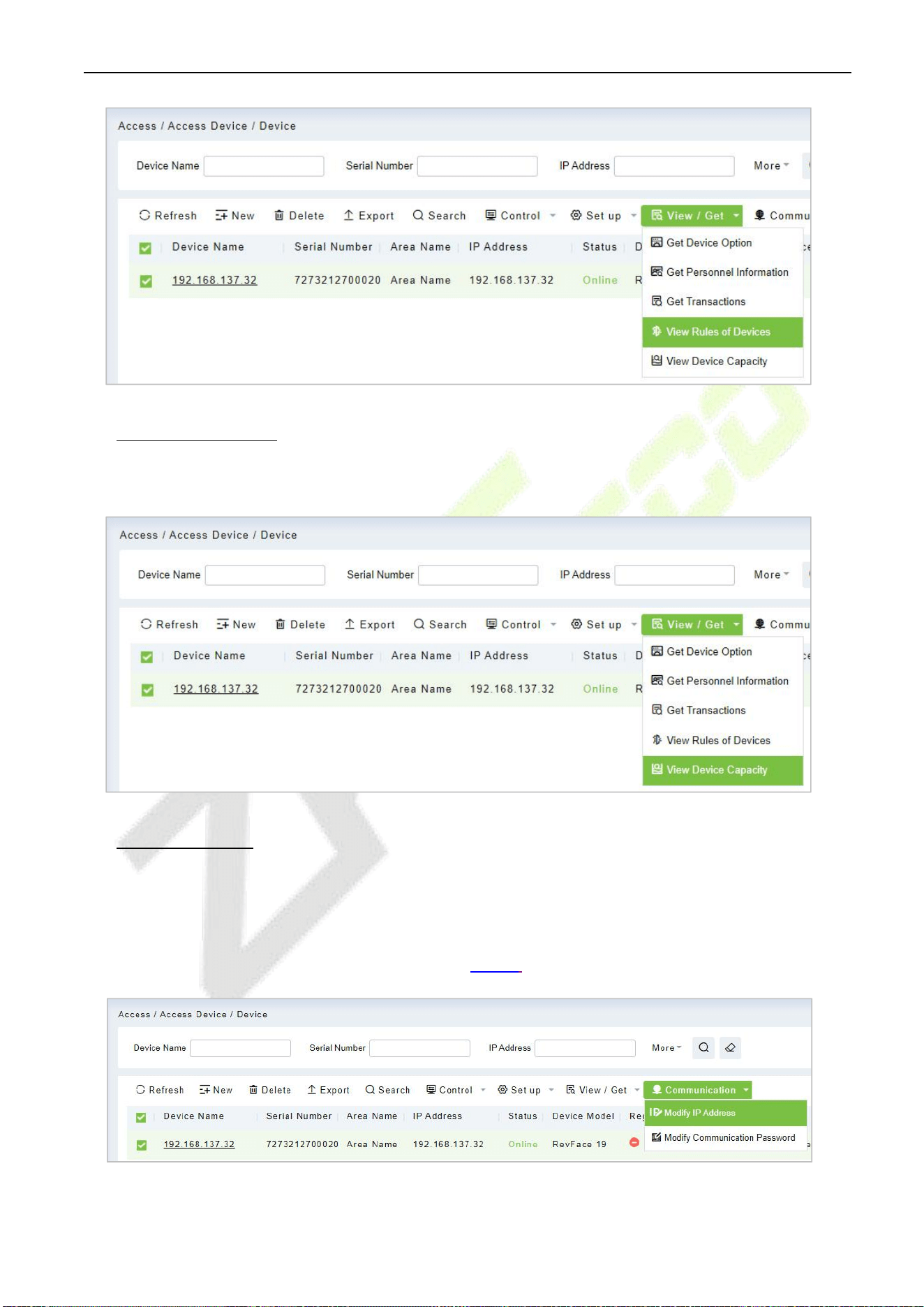
View Rules of Devices
Shows the Access rules in the device.
C2-260 Access Control Panel User Manual
P a g e |
50
Copyright©2025 ZKTECO CO., LTD. All rights reserved.
View Device Capacity
It checks the capacity of personnel’s biometric details in the device.
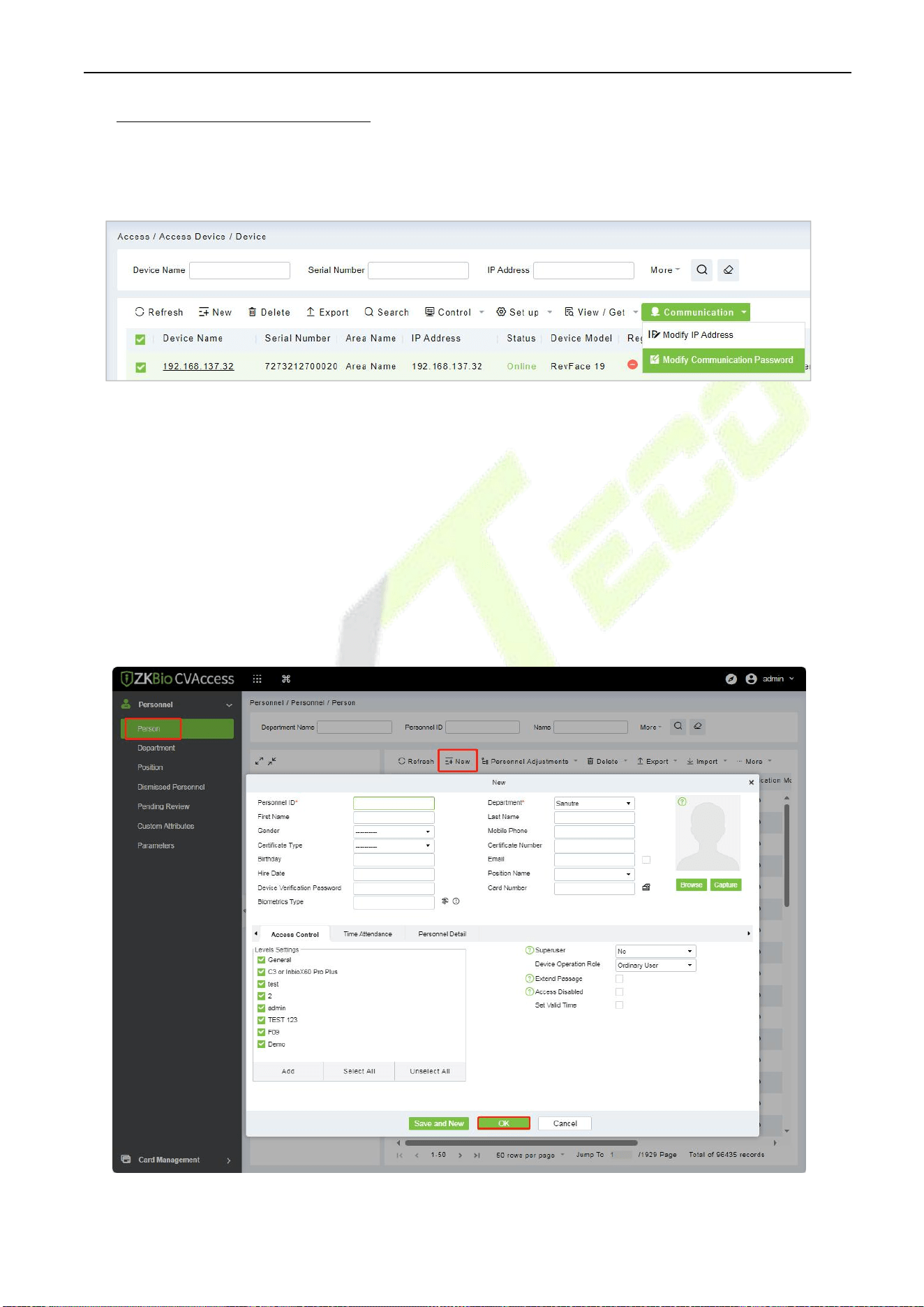
Modify IP Address
Select a device and click [Modify IP address] to open the modification interface. It will obtain a
real-time network gateway and subnet mask from the device. (Failed to do so, you cannot modify the IP
address). Then enter a new IP address, gateway, and subnet mask. Click [OK] to save and quit. This
function is similar to [Modify IP Address Function] in Device.
C2-260 Access Control Panel User Manual
P a g e |
51
Copyright©2025 ZKTECO CO., LTD. All rights reserved.
Modify Communication Password
The system will ask for the old communication password before modifying it. After verification, input
the new password twice, and click
[OK]
to modify the communication password.
Note:
A Password should be a combination of numbers and letters of 6 digits.
Users can modify the fingerprint identification thresholds in the devices; it ranges from 35 to 70 and it is
55 by default. The system will read the thresholds from the device. Users can view the threshold devices
list. More than one device can be changed by using the Batch operationfunction.
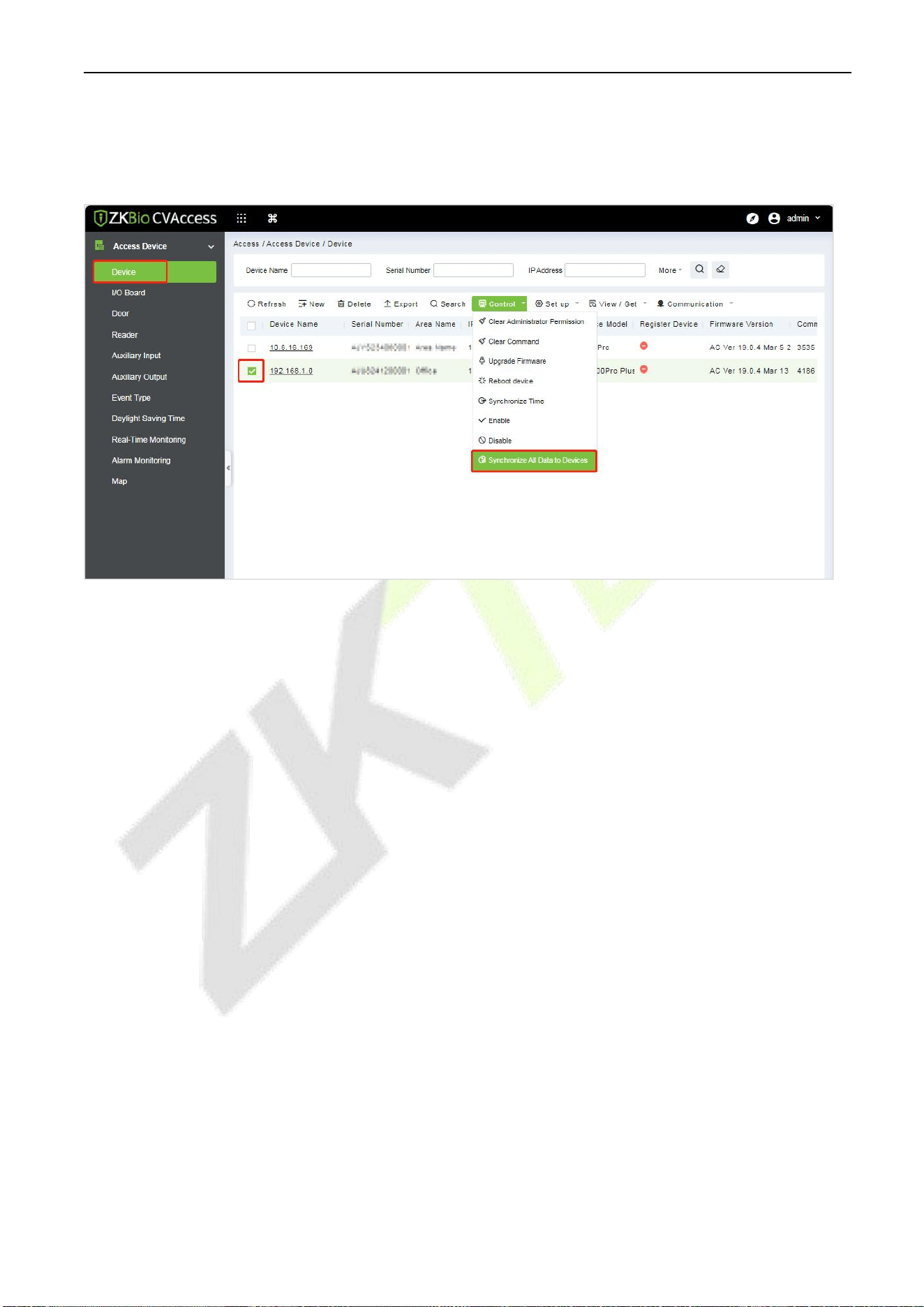
5.5 Add Personnel on the Software
1. Click Personnel > Person > New to register a new user.
C2-260 Access Control Panel User Manual
P a g e |
52
Copyright©2025 ZKTECO CO., LTD. All rights reserved.
2. Fill in all the required fields and click OK.
3. Click Access Device > Device > Control > Synchronize All Data to Devices to synchronize all the
data to the device including the new users.
5.6 Access Control Settings
The Access Control system can set the access levels of the registered users, namely, allowing some
personnel to open some doors by verification during a period. Access Control System Management
primarily includes Access Control Time Zones, Access Control Holiday, Door Settings, Access Levels,
Personnel Access Levels, Real-Time Monitoring, and Reports, etc.
Access control system parameters
255 time zones.
Unlimited access levels.
Three-holiday types and 96 holidays in total.
Anti-passback function.
Multi-Card Opening function.
Real-time monitoring.
Interlock function.
Linkage function.
First-Card Normal Open function.
Reader Settings.
Auxiliary I/O Settings.
For more details, please refer to“ZKBio CVAccess User Manual.”
C2-260 Access Control Panel User Manual
P a g e |
53
Copyright©2025 ZKTECO CO., LTD. All rights reserved.
5.7 Real-time monitoring
Click
[Access Device]
>
[Real-Time Monitoring]
.
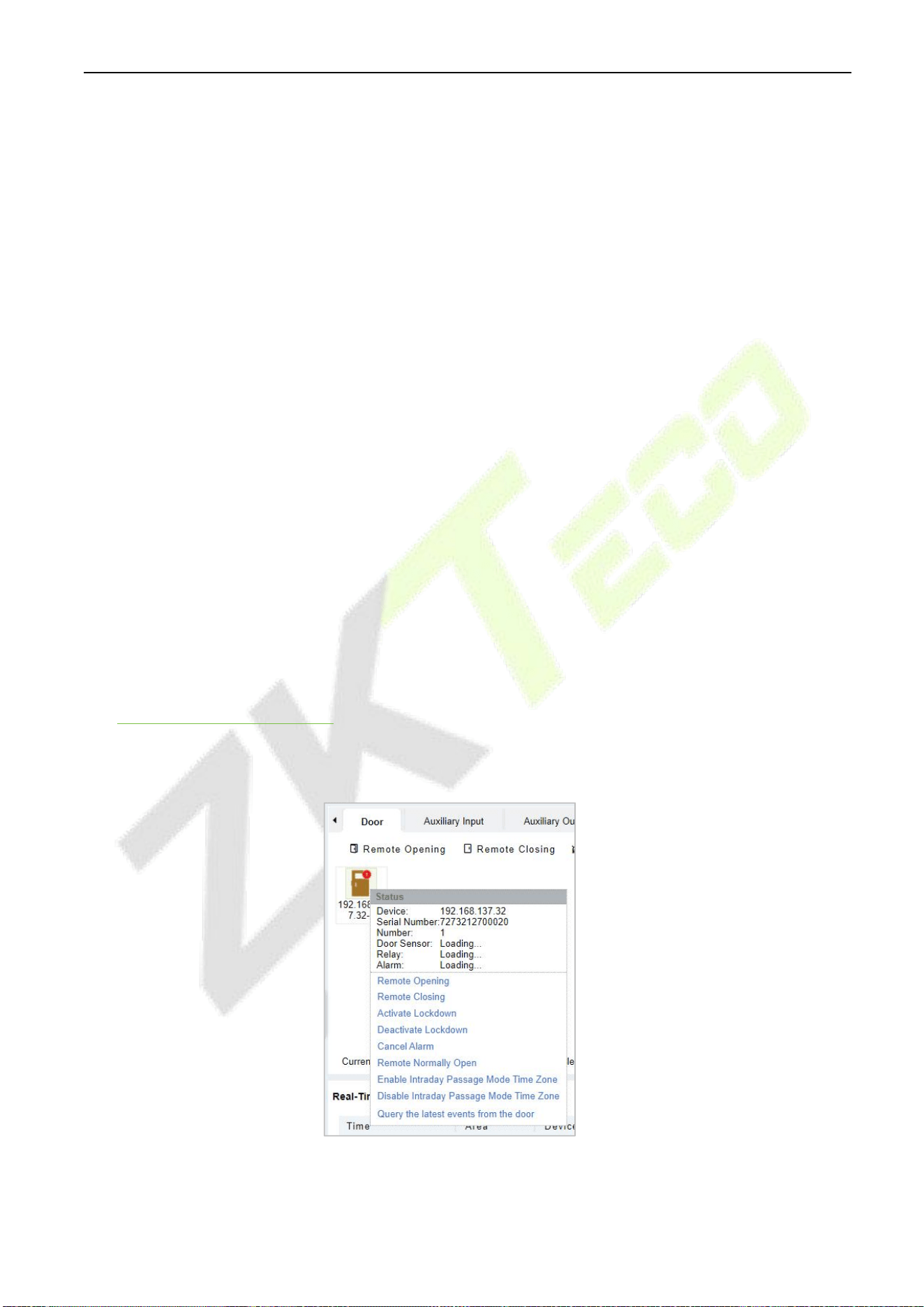
It will monitor the status and real-time events of doors under the access control panels in the system in
real-time, including normal events and abnormal events (including alarm events).
The Real-Time Monitoring interface is shown as follows:
Icons
Status
Icon
s
Status
Device blocked
Door Offline
Door sensor not set; relay closed
Door sensor not set; relay opened
Door sensor not set, and the present firmware does not support current action on the device
Online status Door closed; Relay
closed
Online status Door closed; Relay
opened
Online status Door closed, and the present firmware does not support current action on the
device
Online status Door opened; Relay
closed
Online status Door opened; Relay
opened
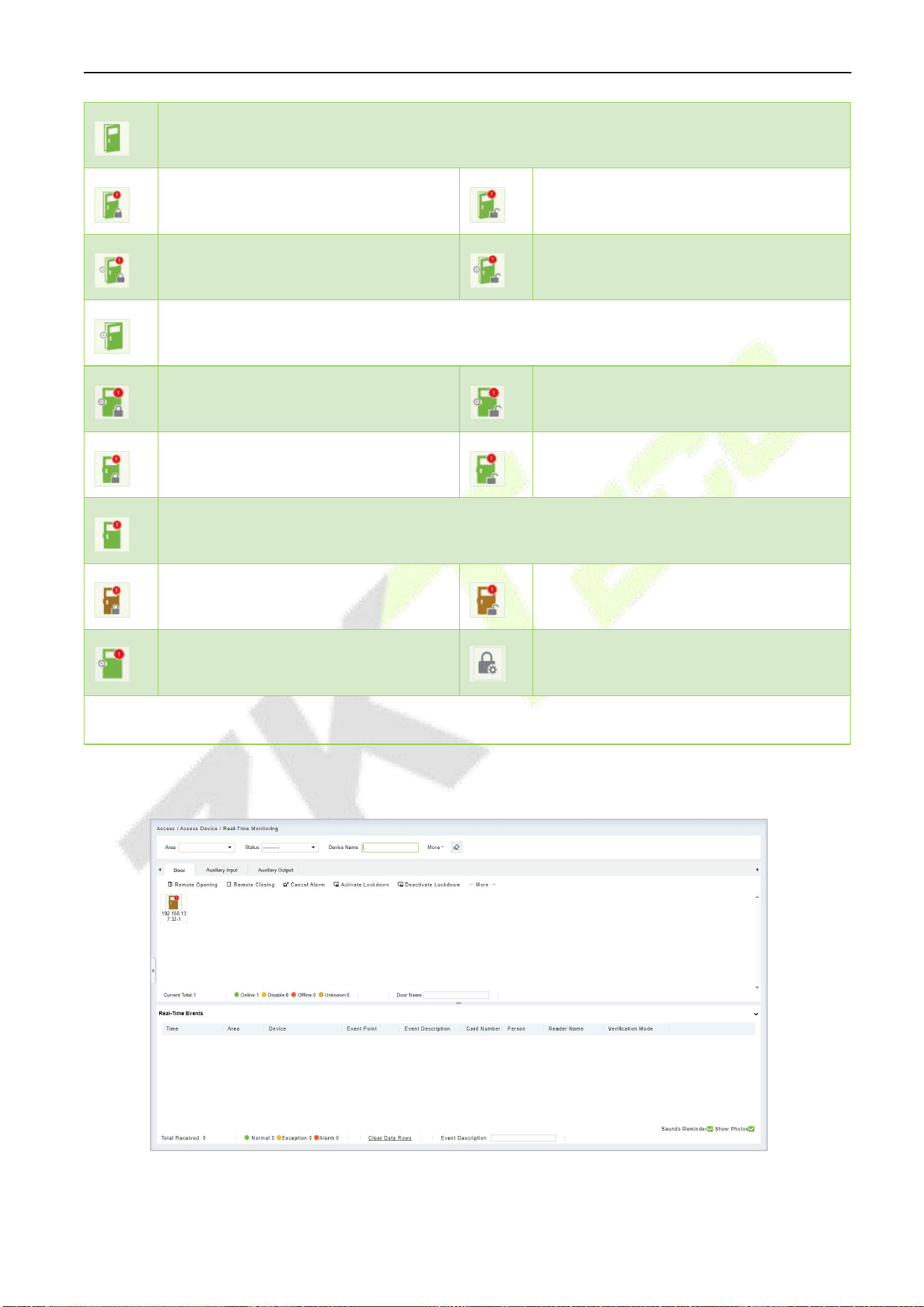
C2-260 Access Control Panel User Manual
P a g e |
54
Copyright©2025 ZKTECO CO., LTD. All rights reserved.
Online status Door opened, and the present firmware does not support current action on the
device
Door opened alarming; Relay closed
Door opened alarming; Relay opened
Door opening timeout, Relay closed
Door opening timeout, Relay opened
Door opening timeout, and the present firmware does not support current action on the
device
Door opening timeout, Relay
closed/Door Sensor Closed
Door opening timeout, Relay opened/
Door Sensor Closed
Door closed alarming; Relay closed
Door closed alarming; Relay opened
Door closed alarming, Indicates that the present firmware does not support current action
on the device
Door sensor not set, Door alarming,
Relay closed
Door sensor unset, Door alarming,
Relay opened
Door opening timeout, Without relay
status/Door Sensor Closed
Door locking
Without relay status, it indicates that the current firmware does not support action on the device.
Different icons represent status as followed:
C2-260 Access Control Panel User Manual
P a g e |
55
Copyright©2025 ZKTECO CO., LTD. All rights reserved.
1. Door
Remote Opening/Closing: It can control one door or all doors.
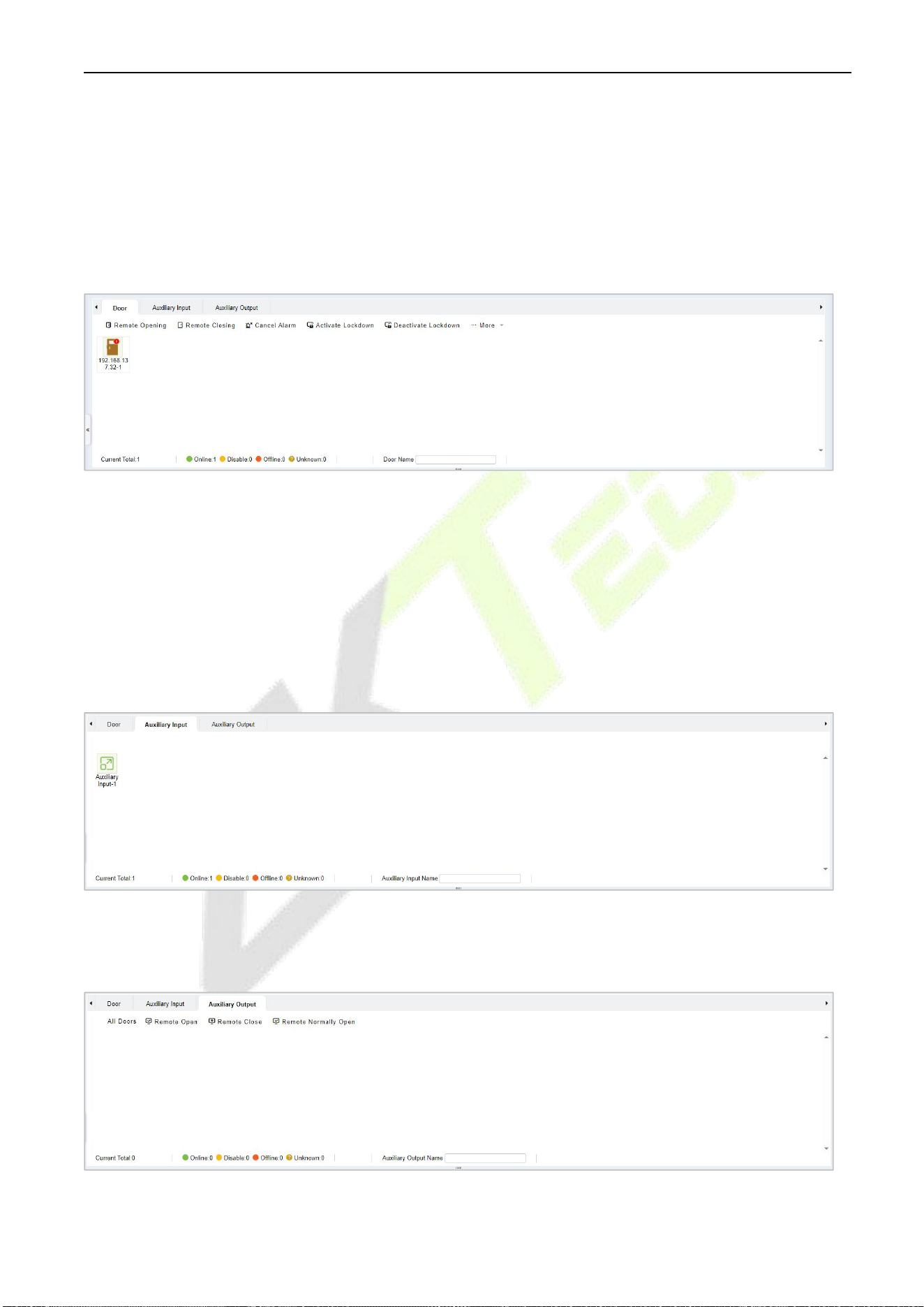
To control a single door, right click over it, and click [Remote Opening/ Closing] in the pop-up
dialog box. To control all doors, directly click [Remote Opening/ Closing] behind Current All.
In the remote opening, the user can define the door opening duration (The default is 15s). You can
select [Enable Intraday Passage Mode Time Zone] to enable the intraday door passage mode
time zones or set the door to Normal Open, then the door will not be limited to any time zones
(can be opened at any time).
To close a door, select [Disable Intraday Passage Mode Time Zone] first, to avoid enabling other
normal open time zones to open the door, and then select [Remote Closing].
Note: If [Remote Opening /Closing] fails, check whether the devices are disconnected or not. If
disconnected, check the network.
Cancel the alarm: Once an alarming door pops-up over the interface, the alarm sound will be
played. Alarm cancellation can be done for a single door and all doors. To control a single door,
move the cursor over the door icon, a menu will pop-up, then click [Remote Opening/ Closing]
on the menu. To control all doors, directly click [Remote Opening/ Closing] behind Current All.
Note: If [Cancel the alarm] fails, check if any devices are disconnected. If found disconnected,
check the network.
Remote Normally Open: It will set the device as normal open by remote.
Quick Management of Doors
If you move the cursor over a door’s icon; you can perform the above-explained operations in a quick
way. In addition, you can query the latest events from the door.
Query the latest events from the door: Click to quickly view the current events on the door.
C2-260 Access Control Panel User Manual
P a g e |
56
Copyright©2025 ZKTECO CO., LTD. All rights reserved.
Issue card to person: If you swap an unregistered card, a record with a card number will
pop-up in real-time monitoring interface. Right click that card number, and a menu will pop-out.
Click“Issue card to person”, to assign that card to one person.
Multiple selection
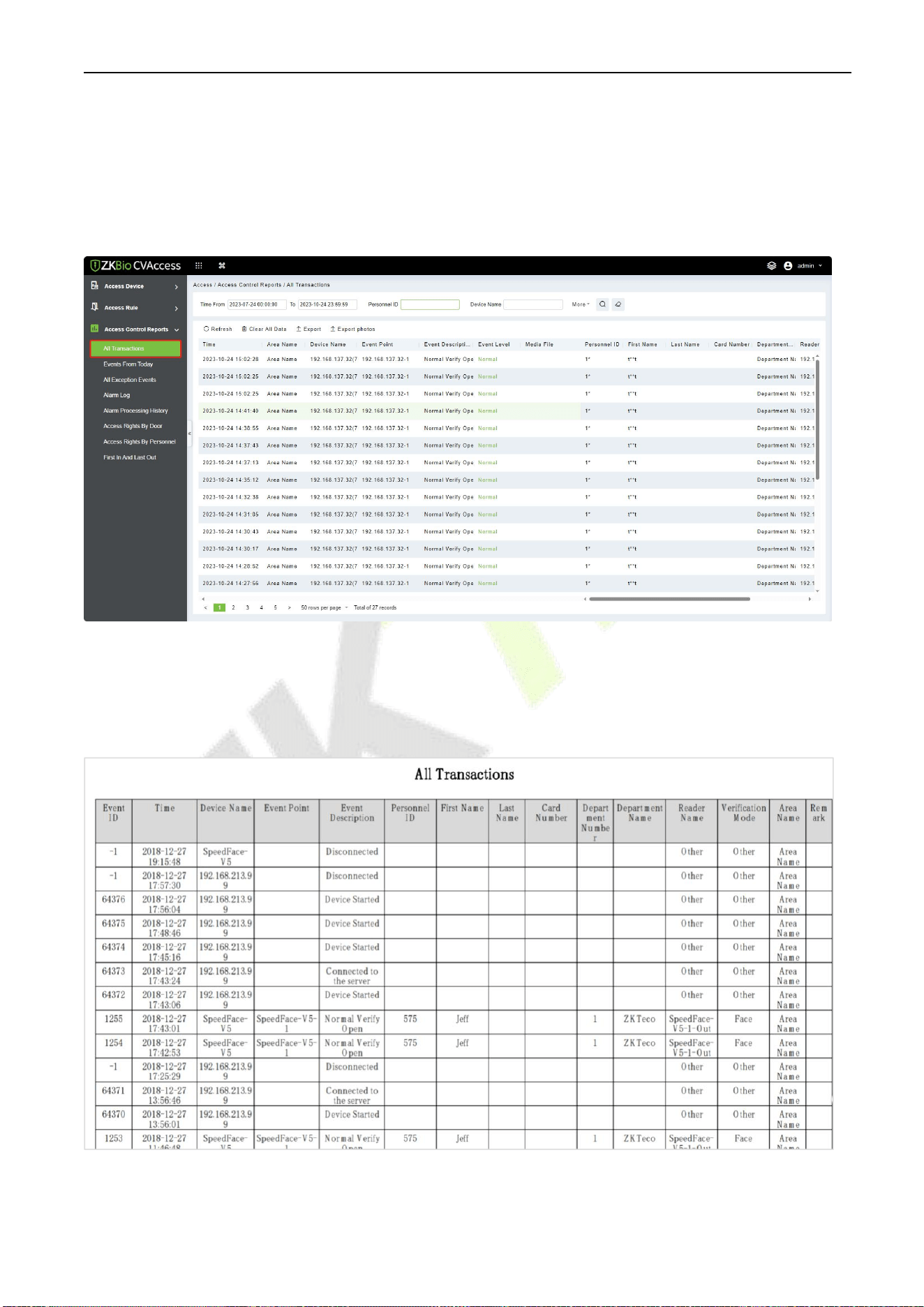
You can select multiple doors at the same time to perform operations such as remote opening, remote
closing, canceling alarm, etc. Double-click the door icon to edit the door properties.
Event monitoring
The system will automatically acquire records of devices being monitored (by default, display 200
records), including normal and abnormal access control events (including alarm events). Normal events
will appear in green; alarm events will appear in red; other abnormal events will appear in orange.
2. Auxiliary Input
It monitors current auxiliary input events in real-time.
3. Auxiliary Output
Here you can perform Remote open, Remote Close, Remote Normally Open.
C2-260 Access Control Panel User Manual
P a g e |
57
Copyright©2025 ZKTECO CO., LTD. All rights reserved.
5.8 Access Reports
Because the data quantity of access control event records is more, you can view access control events as a
specified condition when querying. By default, the system displays the latest three months’ transactions.
Click
[Reports]
>
[All Transactions]
to view all transactions:
Media File: You can view or download the photos and videos.
Clear All Data: Click [Clear All Data] to pop up prompt and click [OK] to clear all transactions.
Export: You can export all transactions in Excel, PDF, and CSV format.
C2-260 Access Control Panel User Manual
P a g e |
58
Copyright©2025 ZKTECO CO., LTD. All rights reserved.
Appendix 1
Operating demonstration of connecting C2-260, WR485 and
Wiegand reader
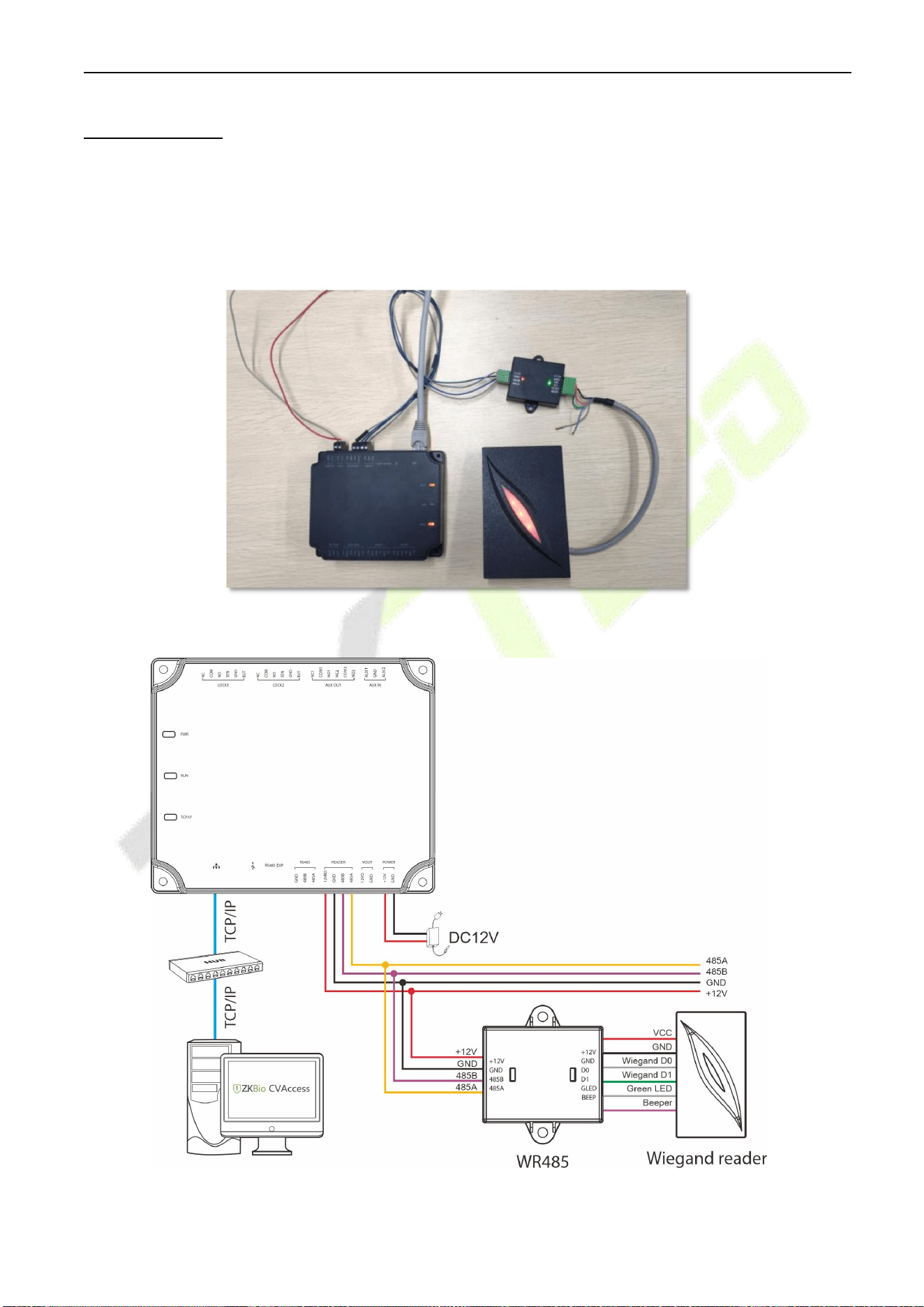
Step 1: Connect C2-260, WR485 and Wiegand reader according to the following circuit diagram.
C2-260 Access Control Panel User Manual
P a g e |
59
Copyright©2025 ZKTECO CO., LTD. All rights reserved.
Step 2: Power on the C2-260 and connect to the network.
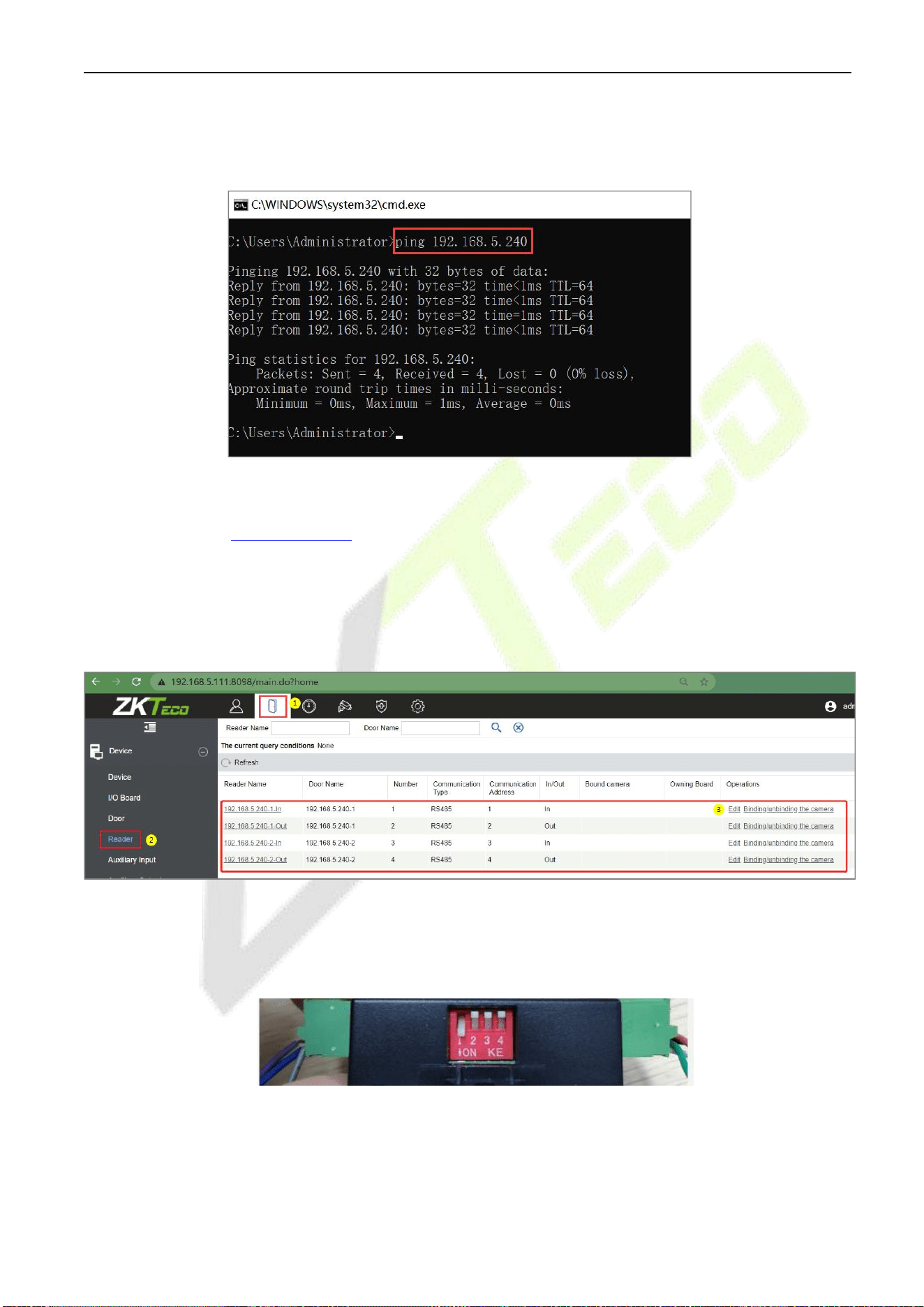
Step 3: Try to ping the C2-260 to check whether the network is good.
1) Press [Windows + R] of the computer at the same time to open the Run window and enter “cmd”.
2) Enter“ping device IP address”to ping the C2-260 to check whether the communication is
connected. As shown in the figure above.
Step 4: Setting the wiegand reader parameters.
1) After adding the C2-260 to the software, click Access > Device > Reader to view the reader.
2) Set the WR485 address as 1. By setting the NO.1 of DIP switch to the ON position. It means that
the wiegand reader which connect through WR485 be set as Door1(In) reader (Note:
Recommended setting the WR485 addresses by the DIP switch before the power supply).
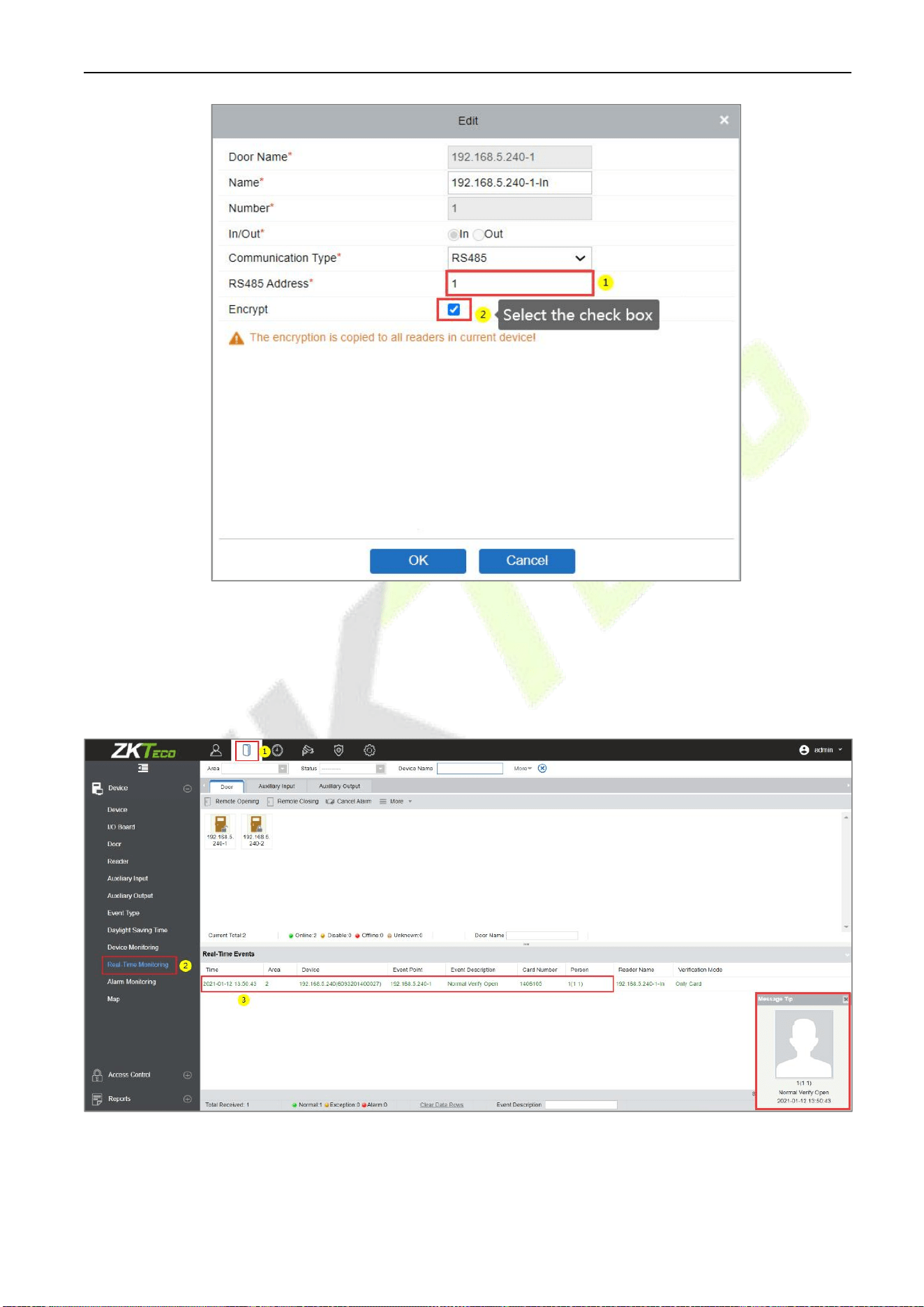
3) Click Edit of the“192.168.5.240-1-In” to set the parameters. Because the WR485 is an encryption
mode, you need to select the encryption check box. So that the Wiegand reader can be used
normally. As shown in the following figure.
C2-260 Access Control Panel User Manual
P a g e |
60
Copyright©2025 ZKTECO CO., LTD. All rights reserved.
Step 5: View the real-time records.
After the setting is successful, when the employee swipes the card on the Wiegand reader, the real-time
event can be viewed on the Real-TimeMonitoring page.
Click Access > Dvice > Real-TimeMonitoring to view the records.

C2-260 Access Control Panel User Manual
P a g e |
61
Copyright©2025 ZKTECO CO., LTD. All rights reserved.
Appendix 2
Statement on the Right to Privacy
Dear Customers,
Thank you for choosing this hybrid biometric recognition product, which was designed and manufactured by
ZKTeco. As a world-renowned provider of core biometric recognition technologies, we are constantly
developing and researching new products, and strive to follow the privacy laws of each country in which
our products are sold.
We Declare That
1. All our civilian fingerprint recognition devices capture only characteristics, not fingerprint images, and
do not involve privacy protection.
2. None of the fingerprint characteristics that we capture can be used to reconstruct an image of the
original fingerprint and do not involve privacy protection.
3. As the provider of this device, we will assume no direct or indirect responsibility for any consequences
that may result from your use of this device.
4. If you would like to dispute human rights or privacy issues concerning your use of our product, please
directly contact your dealer.
Our other law-enforcement fingerprint devices or development tools can capture the original images of
citizen's fingerprints. As to whether or not this constitutes an infringement of your rights, please contact
your Government or the final supplier of the device. As the manufacturer of the device, we will assume no
legal liability.
Note:
The Chinese law includes the following provisions on the personal freedom of its citizens:
1. There shall be no illegal arrest, detention, search, or infringement of persons.
2. Personal dignity is related to personal freedom and shall not be infringed upon.
3. A citizen's house may not be infringed upon.
4. A citizen's right to communication and the confidentiality of that communication is protected by the
law.
As a final point, we would like to further emphasize that biometric recognition is an advanced technology
that will be certainly used in E-commerce, banking, insurance, judicial, and other sectors in the future.
Every year the world is subjected to major losses due to the insecure nature of passwords. The Biometric
products serve to protect your identity in high-security environments.
C2-260 Access Control Panel User Manual
P a g e |
62
Copyright©2025 ZKTECO CO., LTD. All rights reserved.
Eco-friendly Operation
The product's "eco-friendly operational period" refers to the time period during which this
product will not discharge any toxic or hazardous substances when used in accordance
with the prerequisites in this manual.
The eco-friendly operational period specified for this product does not include batteries or
other components that are easily worn down, and must be periodically replaced. The
battery's eco-friendly operational period is 5 years.
Hazardous or Toxic substances and their quantities
Component
Name
Hazardous/Toxic Substance/Element
Lead (Pb)
Mercury
(Hg)
Cadmiu
m (Cd)
Hexavalent
chromium
(Cr6+)
Polybrominate
d Biphenyls
(PBB)
Polybrominated
Diphenyl Ethers
(PBDE)
Chip Resistor
×
○
○
○
○
○
Chip Capacitor
×
○
○
○
○
○
Chip Inductor
×
○
○
○
○
○
Diode
×
○
○
○
○
○
ESD
component
×
○
○
○
○
○
Buzzer
×
○
○
○
○
○
Adapter
×
○
○
○
○
○
Screws
○
○
○
×
○
○
○ indicates that the total amount of toxic content in all the homogeneous materials is below the
limit as specified in SJ/T 11363—2006.
× indicates that the total amount of toxic content in all the homogeneous materials exceeds the limit
as specified in SJ/T 11363—2006.
Note: 80% of this product’s components are manufactured using non-toxic and eco-friendly
materials. The components which contain toxins or harmful elements are included due to the
current economic or technical limitations which prevent their replacement with non-toxic materials
or elements.

P a g e |
1
Copyright©2021 ZKTECO CO., LTD. All rights reserved.
ZKTeco Industrial Park, No. 32, Industrial Road,
Tangxia Town, Dongguan, China.
Phone : +86 769 - 82109991
Fax : +86 755 - 89602394
www.zkteco.com
Copyright © 2025 ZKTECO CO., LTD. All Rights Reserved.






