Product Name and Model Number User Manual
Page | 1 Copyright©2020 ZKTECO CO., LTD. All rights reserved.
Thank you for choosing our product. Please read the instructions carefully
before operation. Follow these instructions to ensure that the product is
functioning properly. The images shown in this manual are for illustrative
purposes only.
For further details, please visit our Company’s website
www.zkteco.com.
User Manual
VT07-B01
Date: May 2024
Doc Version: 1.1
English

VT07-B01 User Manual
Page | 1 Copyright©2024 ZKTECO CO., LTD. All rights reserved.
Copyright © 2024 ZKTECO CO., LTD. All rights reserved.
Without the prior written consent of ZKTeco, no portion of this manual can be copied or forwarded in any
way or form. All parts of this manual belong to ZKTeco and its subsidiaries (hereinafter the "Company" or
"ZKTeco").
Trademark
is a registered trademark of ZKTeco. Other trademarks involved in this manual are owned by
their respective owners.
Disclaimer
This manual contains information on the operation and maintenance of the ZKTeco equipment. The
copyright in all the documents, drawings, etc. in relation to the ZKTeco supplied equipment vests in and is
the property of ZKTeco. The contents hereof should not be used or shared by the receiver with any third
party without express written permission of ZKTeco.
The contents of this manual must be read as a whole before starting the operation and maintenance of the
supplied equipment. If any of the content(s) of the manual seems unclear or incomplete, please contact
ZKTeco before starting the operation and maintenance of the said equipment.
It is an essential pre-requisite for the satisfactory operation and maintenance that the operating and
maintenance personnel are fully familiar with the design and that the said personnel have received
thorough training in operating and maintaining the machine/unit/equipment. It is further essential for the
safe operation of the machine/unit/equipment that personnel has read, understood and followed the
safety instructions contained in the manual.
In case of any conflict between terms and conditions of this manual and the contract specifications,
drawings, instruction sheets or any other contract-related documents, the contract conditions/documents
shall prevail. The contract specific conditions/documents shall apply in priority.
ZKTeco offers no warranty, guarantee or representation regarding the completeness of any information
contained in this manual or any of the amendments made thereto. ZKTeco does not extend the warranty
of any kind, including, without limitation, any warranty of design, merchantability or fitness for a particular
purpose.
ZKTeco does not assume responsibility for any errors or omissions in the information or documents which
are referenced by or linked to this manual. The entire risk as to the results and performance obtained from
using the information is assumed by the user.
ZKTeco in no event shall be liable to the user or any third party for any incidental, consequential, indirect,
special, or exemplary damages, including, without limitation, loss of business, loss of profits, business
interruption, loss of business information or any pecuniary loss, arising out of, in connection with, or

VT07-B01 User Manual
Page | 2 Copyright©2024 ZKTECO CO., LTD. All rights reserved.
relating to the use of the information contained in or referenced by this manual, even if ZKTeco has been
advised of the possibility of such damages.
This manual and the information contained therein may include technical, other inaccuracies or
typographical errors. ZKTeco periodically changes the information herein which will be incorporated into
new additions/amendments to the manual. ZKTeco reserves the right to add, delete, amend or modify the
information contained in the manual from time to time in the form of circulars, letters, notes, etc. for better
operation and safety of the machine/unit/equipment. The said additions or amendments are meant for
improvement /better operations of the machine/unit/equipment and such amendments shall not give any
right to claim any compensation or damages under any circumstances.
ZKTeco shall in no way be responsible (i) in case the machine/unit/equipment malfunctions due to any
non-compliance of the instructions contained in this manual (ii) in case of operation of the
machine/unit/equipment beyond the rate limits (iii) in case of operation of the machine and equipment in
conditions different from the prescribed conditions of the manual.
The product will be updated from time to time without prior notice. The latest operation procedures and
relevant documents are available on http://www.zkteco.com.
If there is any issue related to the product, please contact us.
ZKTeco Headquarters
Address ZKTeco Industrial Park, No. 32, Industrial Road,
Tangxia Town, Dongguan, China.
Phone +86 769 - 82109991
Fax +86 755 - 89602394
For business related queries, please write to us at: [email protected]om.
To know more about our global branches, visit www.zkteco.com.

VT07-B01 User Manual
Page | 3 Copyright©2024 ZKTECO CO., LTD. All rights reserved.
About the Company
ZKTeco is one of the world’s largest manufacturer of RFID and Biometric (Fingerprint, Facial, Finger-vein)
readers. Product offerings include Access Control readers and panels, Near & Far-range Facial Recognition
Cameras, Elevator/floor access controllers, Turnstiles, License Plate Recognition (LPR) gate controllers and
Consumer products including battery-operated fingerprint and face-reader Door Locks. Our security
solutions are multi-lingual and localized in over 18 different languages. At the ZKTeco state-of-the-art
700,000 square foot ISO9001-certified manufacturing facility, we control manufacturing, product design,
component assembly, and logistics/shipping, all under one roof.
The founders of ZKTeco have been determined for independent research and development of biometric
verification procedures and the productization of biometric verification SDK, which was initially widely
applied in PC security and identity authentication fields. With the continuous enhancement of the
development and plenty of market applications, the team has gradually constructed an identity
authentication ecosystem and smart security ecosystem, which are based on biometric verification
techniques. With years of experience in the industrialization of biometric verifications, ZKTeco was
officially established in 2007 and now has been one of the globally leading enterprises in the biometric
verification industry owning various patents and being selected as the National High-tech Enterprise for 6
consecutive years. Its products are protected by intellectual property rights.
About the Manual
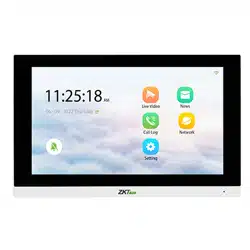
This manual introduces the operations of VT07-B01.
All figures displayed are for illustration purposes only. Figures in this manual may not be exactly consistent
with the actual products.
Features and parameters with
★ are not available in all devices.
VT07-B01 User Manual
Page | 4 Copyright©2024 ZKTECO CO., LTD. All rights reserved.
Document Conventions
Conventions used in this manual are listed below:
GUI Conventions
For Software
Convention Description
Bold font Used to identify software interface names e.g., OK, Confirm, Cancel.
>
Multi-level menus are separated by these brackets. For example, File > Create >
Folder.
For Device
Convention Description
< >
Button or key names for devices. For example, press <OK>.
[ ]
Window names, menu items, data table, and field names are inside square
brackets. For example, pop up the [New User] window.
/
Multi-level menus are separated by forwarding slashes. For example,
[File/Create/Folder].
Symbols
Convention Description
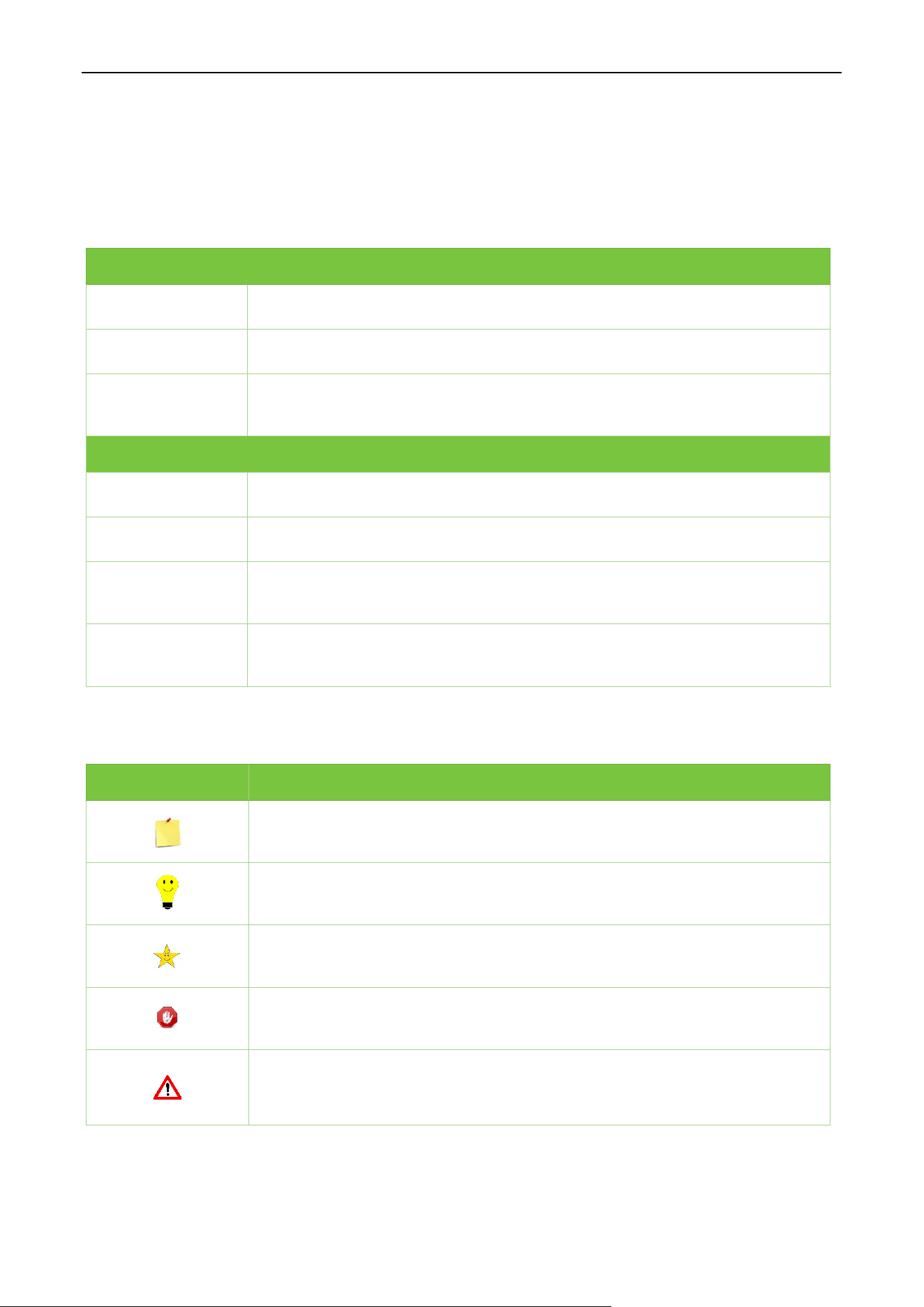
This represents a note that needs to pay more attention to.
The general information which helps in performing the operations faster.
The information which is significant.
Care taken to avoid danger or mistakes.
The statement or event that warns of something or that serves as a cautionary
example.

VT07-B01 User Manual
Page | 5 Copyright©2024 ZKTECO CO., LTD. All rights reserved.
Table of Contents
1 APPEARANCE ............................................................................................................................................ 7
2 INSTALLATION SET-UP ............................................................................................................................. 8
INSTALLATION ENVIRONMENT ................................................................................................................................................................. 8 2.1
INSTALLATION STEPS.................................................................................................................................................................................... 8 2.2
3 CONNECTION DIAGRAM ........................................................................................................................ 10
4 MAIN MENU ............................................................................................................................................ 11
5 LIVE VIDEO SETTING .............................................................................................................................. 13
OUTDOOR STATION MONITOR ............................................................................................................................................................... 13 5.1
IPC MONITOR ................................................................................................................................................................................................. 13 5.2
LIVE VIDEO ...................................................................................................................................................................................................... 14 5.3
5.3.1 REAL-TIME VIDEO OF OUTDOOR STATION .................................................................................................................................................. 14
5.3.2 REAL-TIME VIDEO OF IPC MONITOR .............................................................................................................................................................. 15
6 CALL LOG ................................................................................................................................................ 16
ALL CALL LOGS ............................................................................................................................................................................................. 16 6.1
MISSED CALL LOGS ..................................................................................................................................................................................... 17 6.2
7 NEWS SETTINGS ..................................................................................................................................... 18
8 NETWORK SETTINGS .............................................................................................................................. 19
WIRED NETWORK ......................................................................................................................................................................................... 19 8.1
WIRELESS NETWORK ................................................................................................................................................................................... 20 8.2
9 SYSTEM SETTINGS .................................................................................................................................. 22
SOUND SETTINGS ......................................................................................................................................................................................... 22 9.1
9.1.1 DO NOT DISTURB PLAN ..................................................................................................................................................................................... 23
DISPLAY SETTINGS ....................................................................................................................................................................................... 24 9.2
ADVANCED SETTINGS ................................................................................................................................................................................ 25 9.3
9.3.1 MODIFY PASSWORD ........................................................................................................................................................................................... 26
9.3.2 DEVICE MANAGEMENT ...................................................................................................................................................................................... 26

VT07-B01 User Manual
Page | 6 Copyright©2024 ZKTECO CO., LTD. All rights reserved.
9.3.3 LOCAL SETTING .................................................................................................................................................................................................... 29
9.3.4 TIME SETTING ........................................................................................................................................................................................................ 30
9.3.5 STORAGE MANAGE ............................................................................................................................................................................................. 31
9.3.6 NETWORK MANAGE ............................................................................................................................................................................................ 32
SYSTEM INFORMATION .............................................................................................................................................................................. 33 9.4
RESET SETTINGS ............................................................................................................................................................................................ 33 9.5
10 MAKE A CALL ........................................................................................................................................ 35
SET THE COMMUNICATION ADDRESS ............................................................................................................................................... 35 10.1
ADDING OUTDOOR STATION ................................................................................................................................................................ 36 10.2
MAKE A CALL ON THE DEVICE .............................................................................................................................................................. 36 10.3
APPENDIX .................................................................................................................................................. 39
FCC WARNING ...................................................................................................................................................................................................... 39
ECO-FRIENDLY OPERATION ............................................................................................................................................................................ 40
VT07-B01 User Manual
Page | 7 Copyright©2024 ZKTECO CO., LTD. All rights reserved.
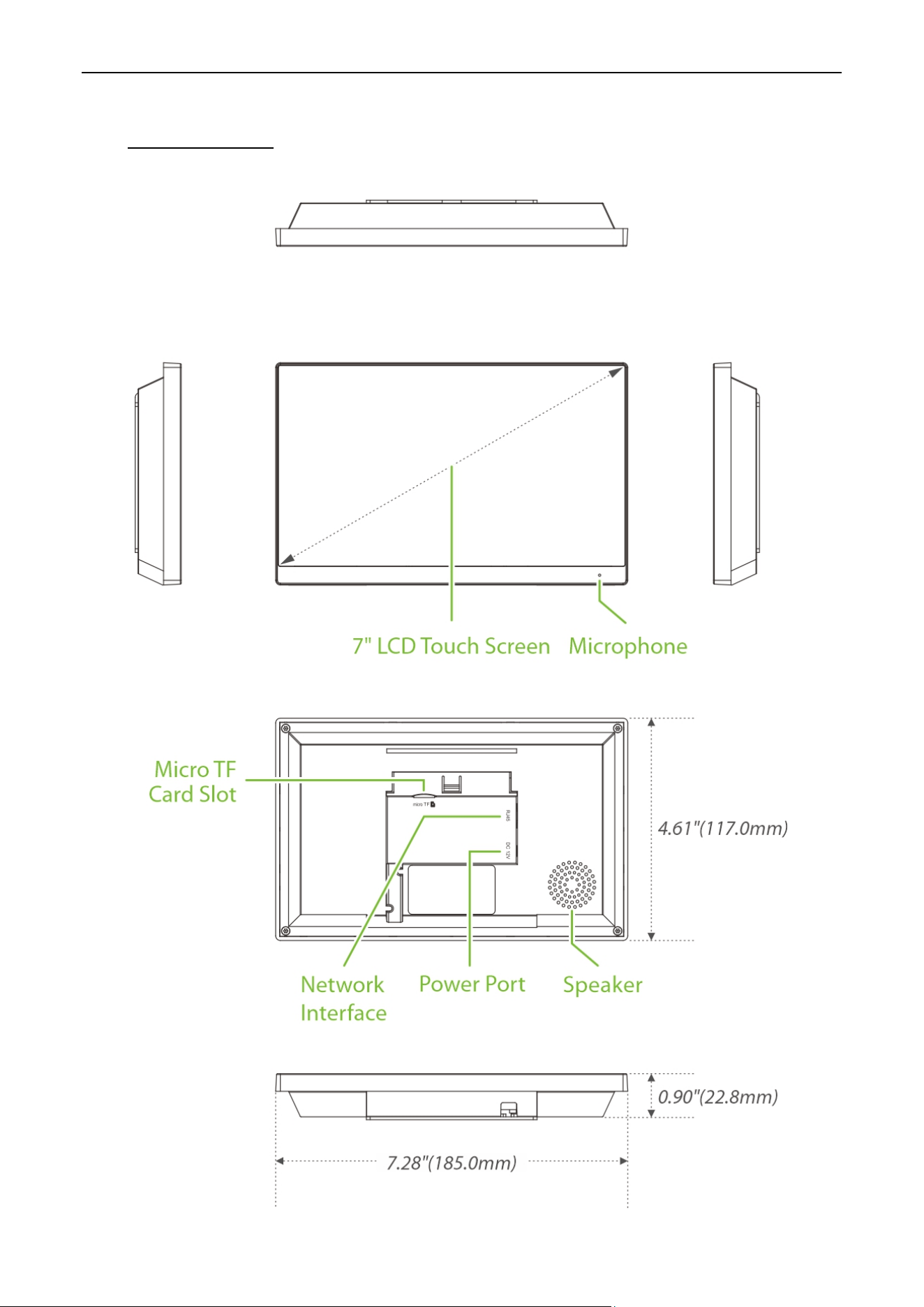
1 Appearance
VT07-B01 User Manual
Page | 8 Copyright©2024 ZKTECO CO., LTD. All rights reserved.
2 Installation Set-up
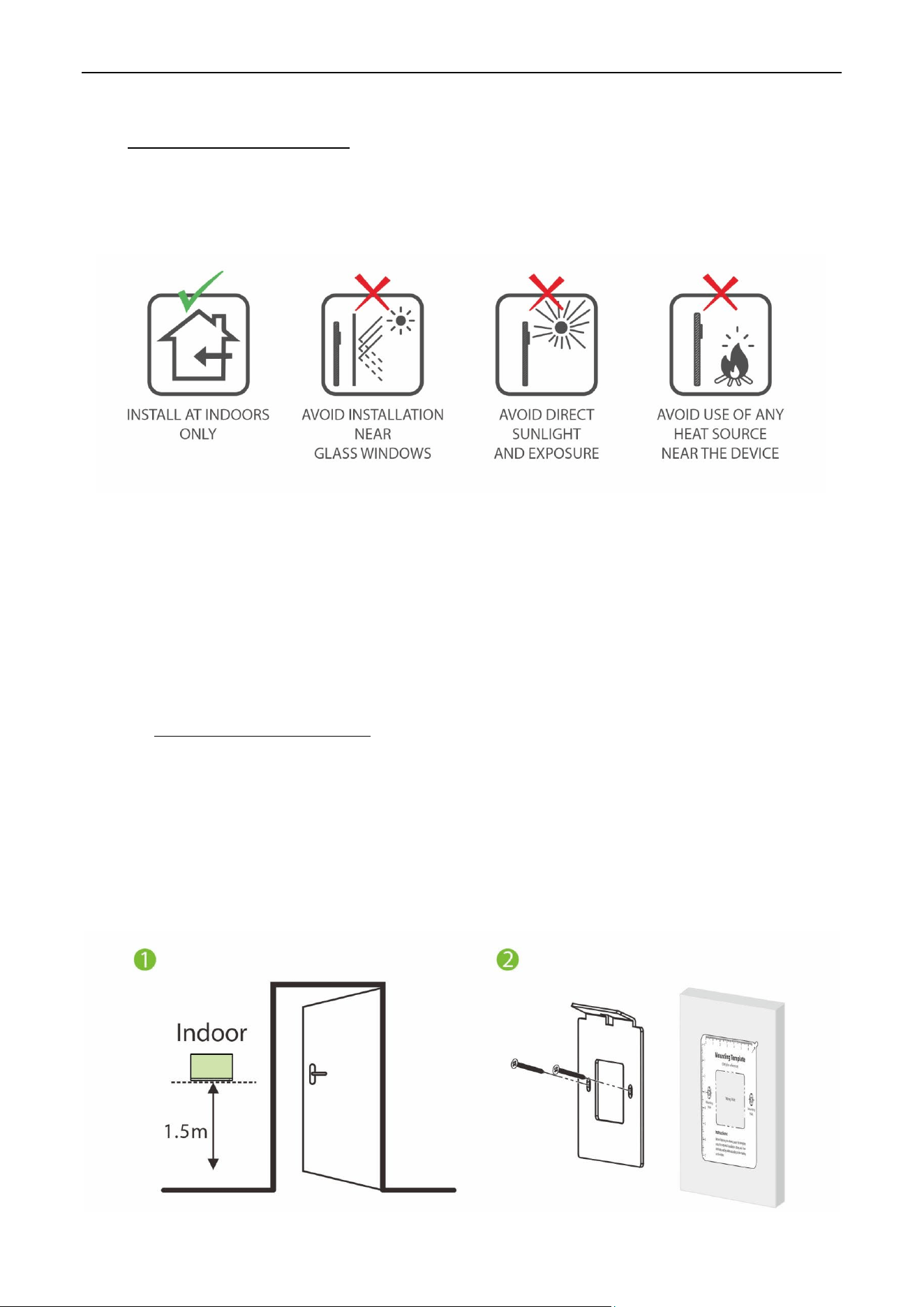
Installation Environment 2.1
Installation Steps 2.2
Make sure that the device is installed as per the installation instructions. Otherwise, you will bear any
consequence resulting from your actions.
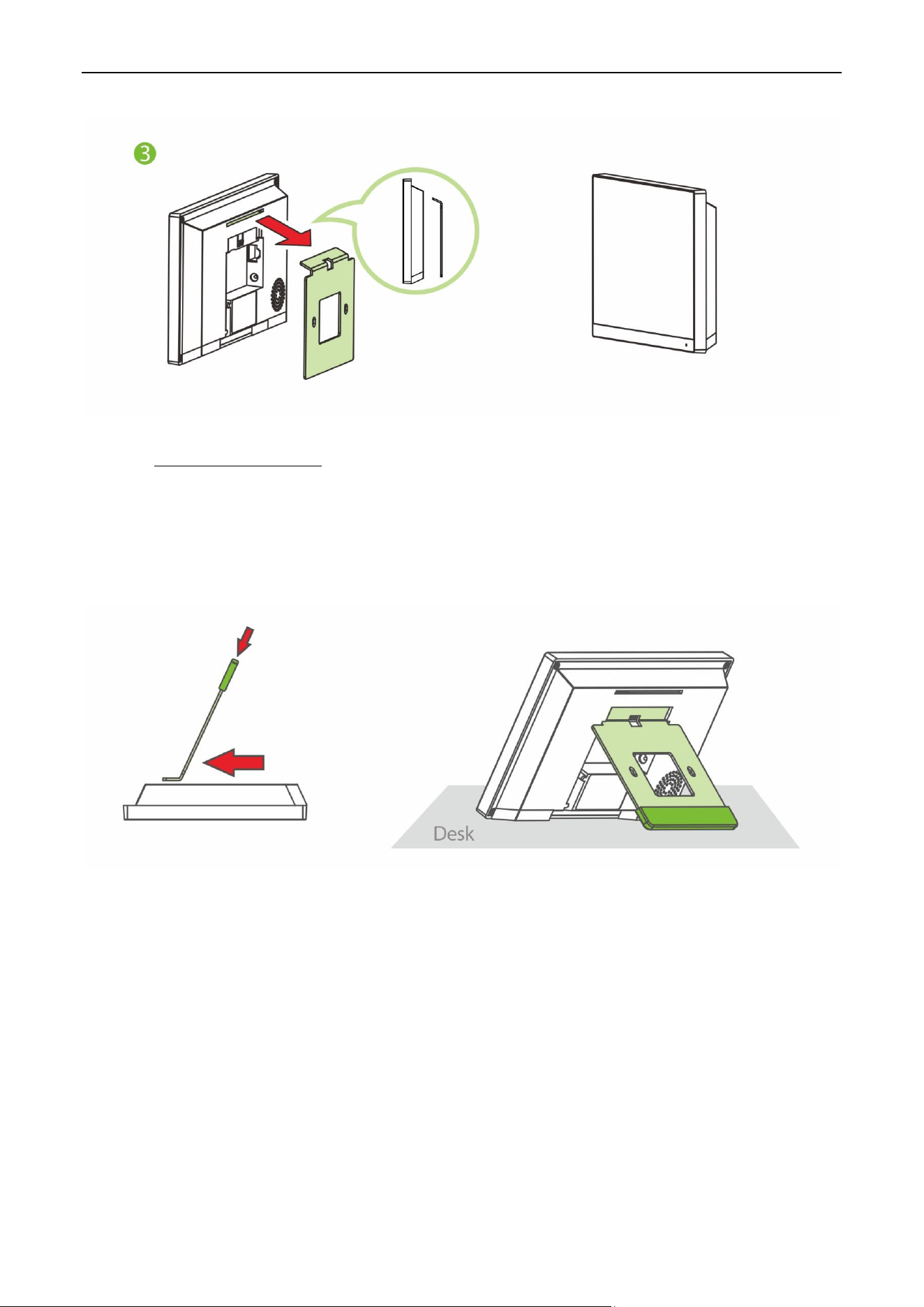
The device supports two installation methods: wall-mounted installation and desktop installation. Users
can choose according to actual needs.
Mode 1: Wall-mounted Installation
Step1: Find a suitable indoor installation location, the recommended installation height is 59.1 inches
(1.5m), which can be adjusted as needed.
Step2: Attach the mounting template stickers to the wall and drill holes, then fix the back plate on the wall
with the wall mounting screws.
Step3: Finally, push the device into the back plate and secure it to the back plate.
VT07-B01 User Manual
Page | 9 Copyright©2024 ZKTECO CO., LTD. All rights reserved.
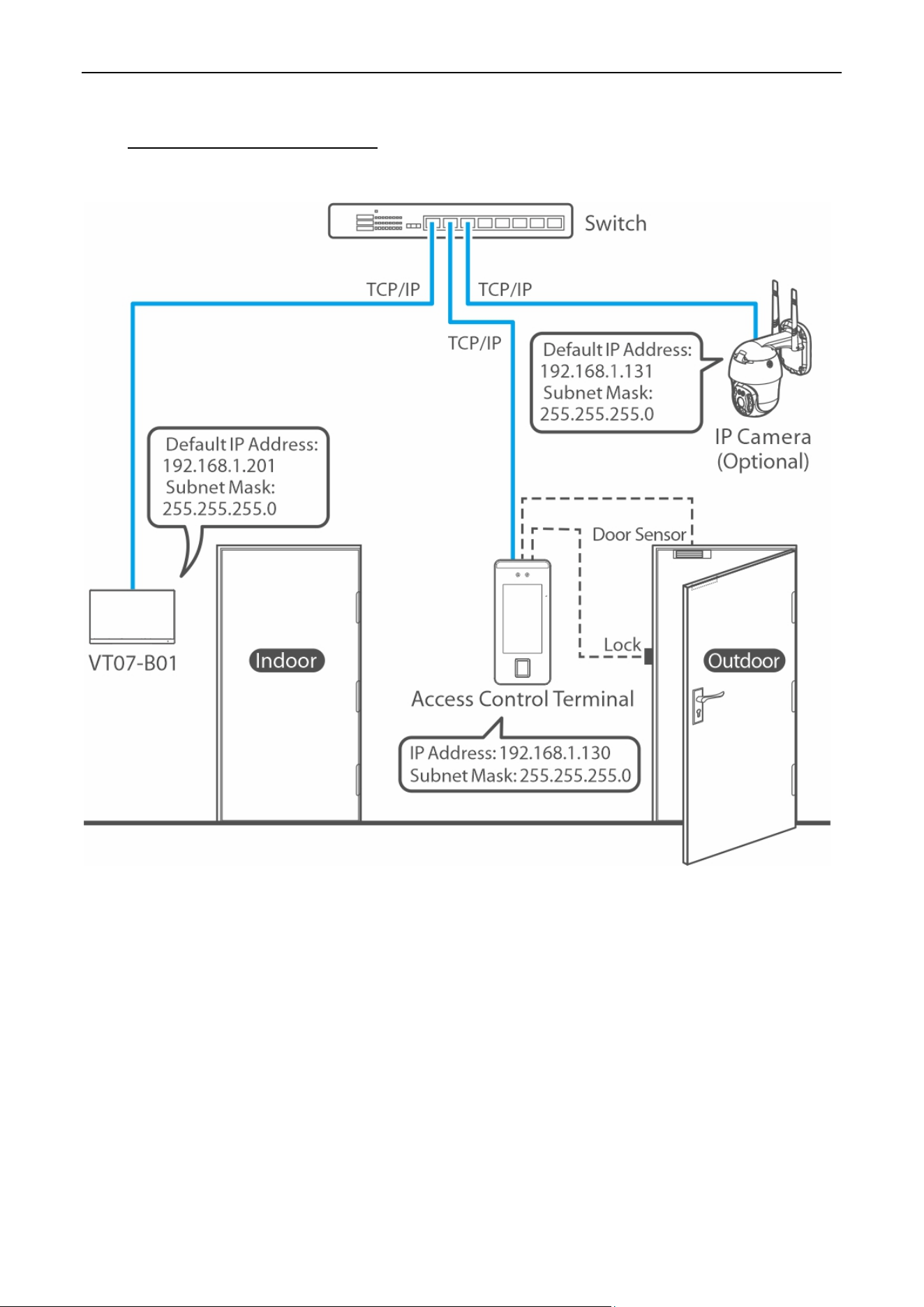
Mode 2: Desktop Installation
Step1: Take out the device and the bracket from the box.
Step2: Put the white bracket rubber sleeve on the bottom of the bracket.
Step3: Finally, insert the bracket into the mounting slot behind the device.
VT07-B01 User Manual
Page | 10 Copyright©2024 ZKTECO CO., LTD. All rights reserved.
3 Connection Diagram
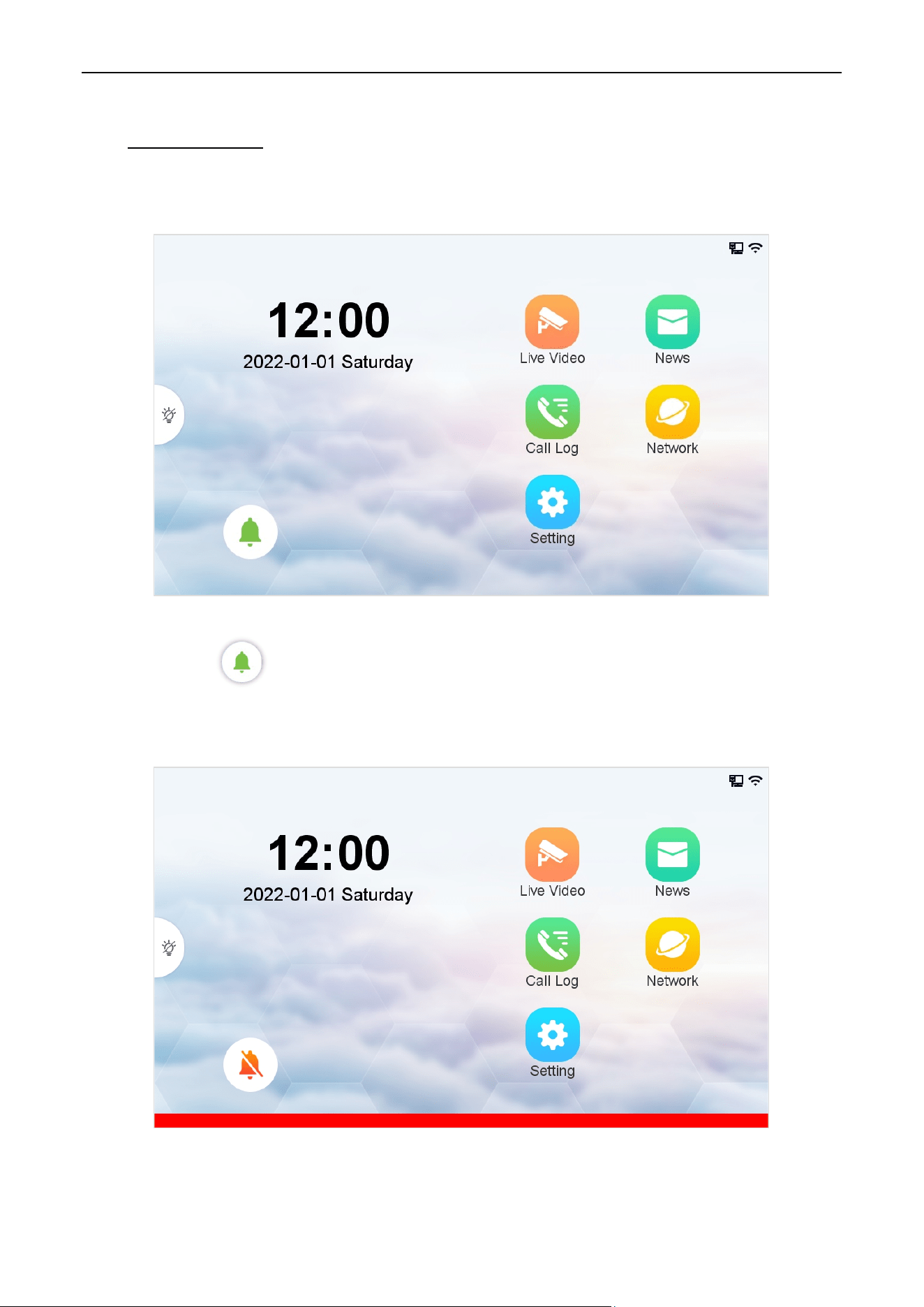
Notes:
1. VT07-B01, Access Control Terminal and IP Camera are connected through out the network cable.
2. In LAN, the IP addresses of all devices must be in the same network segment. See figure above for an
example.
VT07-B01 User Manual
Page | 11 Copyright©2024 ZKTECO CO., LTD. All rights reserved.
4 Main Menu
After powering on the device, it enters the main interface as shown below.
When you tap the icon to turn on the Do Not Disturb mode, the screen is shown below. A red bar
will appear at the bottom of the screen. Prompts you that the Do Not Disturb feature is turned on.
VT07-B01 User Manual
Page | 12 Copyright©2024 ZKTECO CO., LTD. All rights reserved.
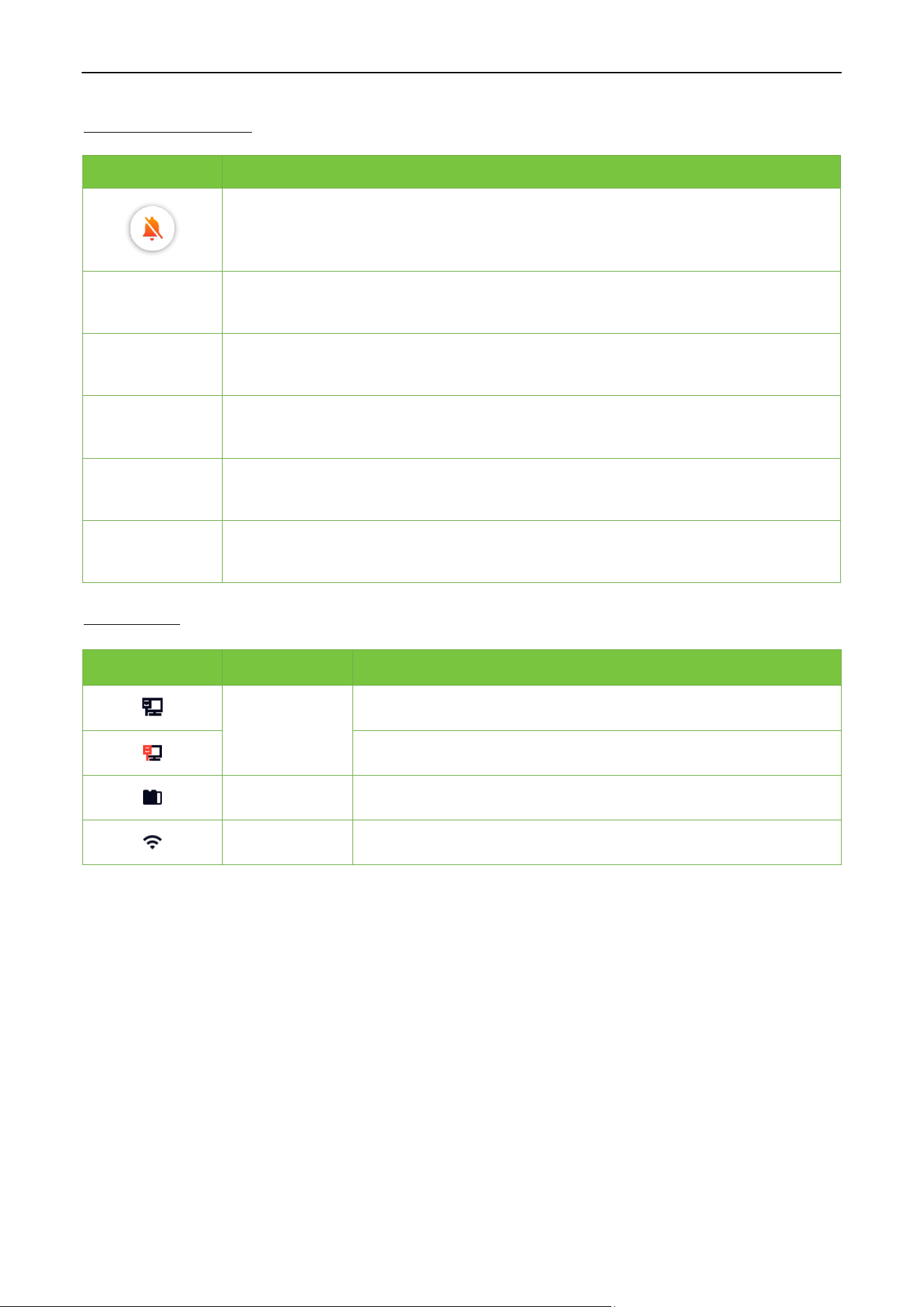
Function Description
Menu Descriptions
Do Not Disturb mode function button. Once turned on, when the outdoor station
calls, the indoor station has no response and no record, and the priority is higher
than the "Do Not Disturb Plan" in the setting interface. Applies to this device only.
Live Video
To view the real-time video of the outdoor station and the real-time video of the IPC
bound to it, and the real-time video of other IPC.
Call Log
To view the answered and missed call logs.
Setting
To set parameters related to the system, such as sound settings, display settings, advanced
settings, system information viewing and restore default/upgrade.
News
To view the video information such as call record, manual record and snap.
Network
To set the relevant parameters of Network.
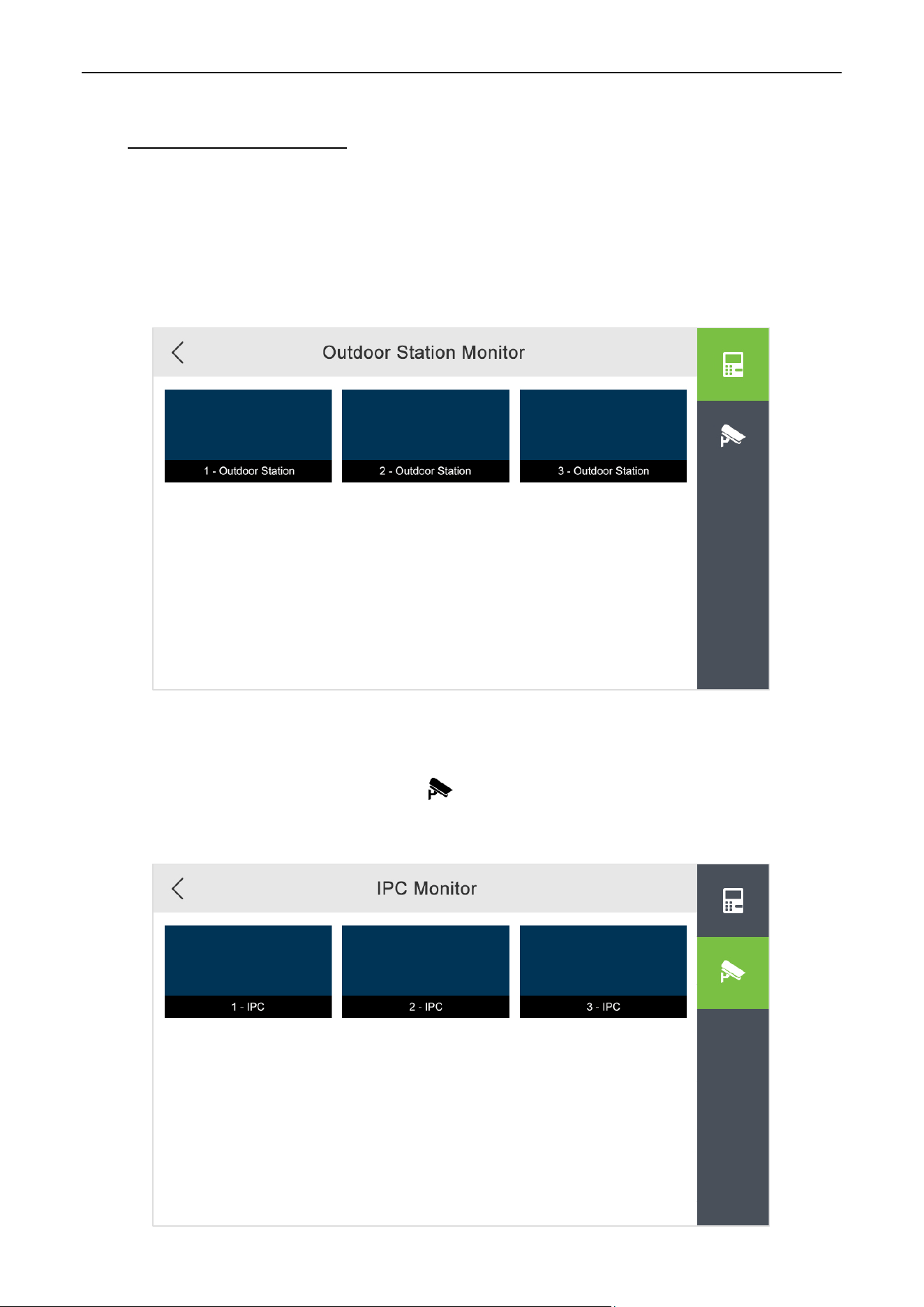
Status Icons
Status Icon
Name Description
Ethernet
Indicates that the Ethernet connection has been established.
Indicates that the Ethernet is disconnected.
TF Card Indicates that the TF card has been inserted.
Wi-Fi signal Indicates that the Wi-Fi is connected normally.
VT07-B01 User Manual
Page | 13 Copyright©2024 ZKTECO CO., LTD. All rights reserved.
5 Live Video Setting
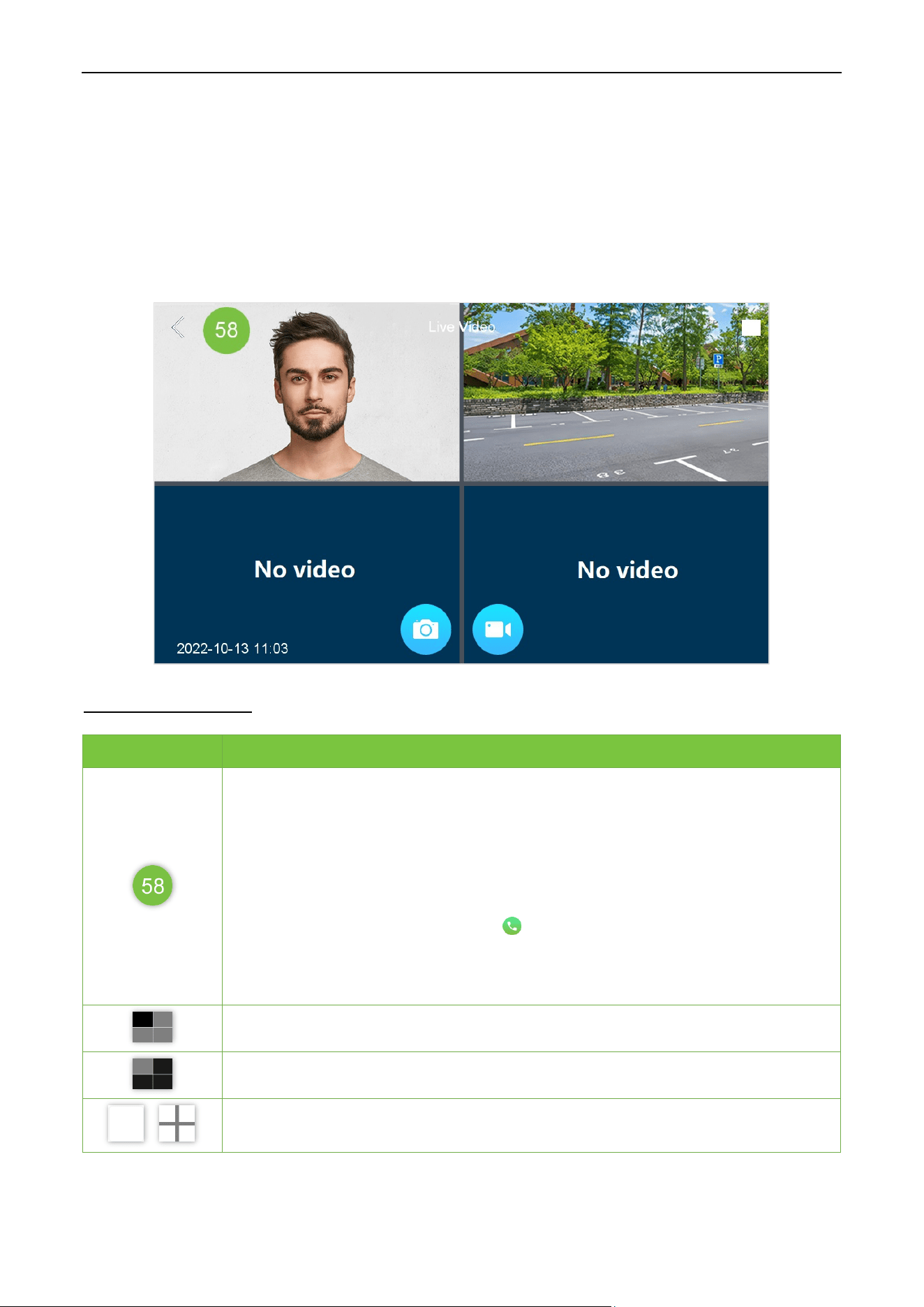
Outdoor Station Monitor 5.1
Tap Live Video on the main menu to enter the Outdoor Station Monitor interface. The added Outdoor
Station will be displayed on the interface. Note: The user can customize the position name through the
path Setting > Advanced Setting > Device Manage > +Add > Position.
IPC Monitor 5.2
Tap Live Video on the main menu. Then tap icon on the Outdoor Station Monitor interface. The
added IPC will be displayed on the interface. The user can customize the position name.
VT07-B01 User Manual
Page | 14 Copyright©2024 ZKTECO CO., LTD. All rights reserved.
Live Video 5.3
5.3.1 Real-time Video of Outdoor Station
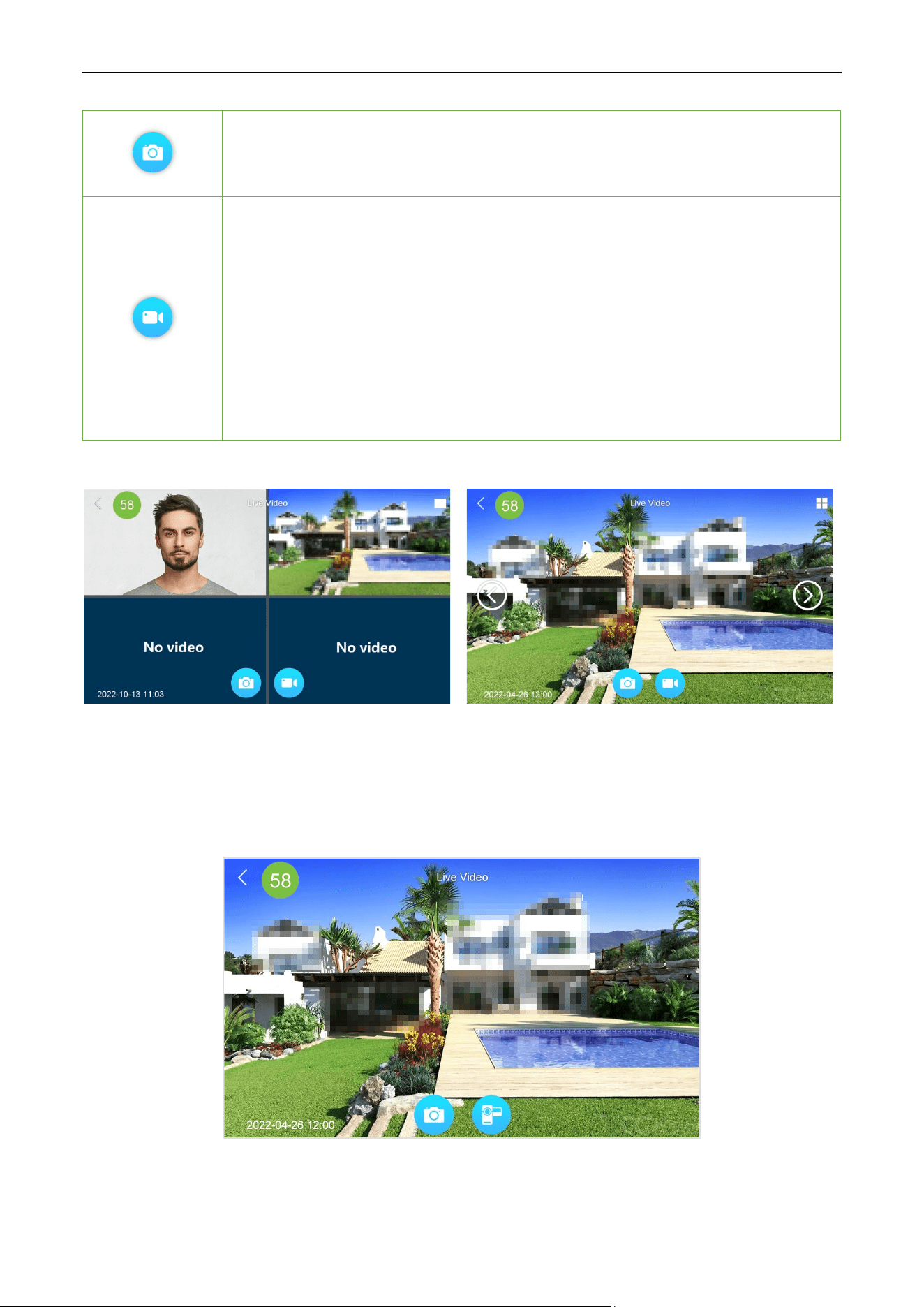
Select an outdoor station on the Outdoor Station Monitor interface to enter the screen. The screen is
shown below.
Function Description
Function Descriptions
When the monitoring countdown ends, exit the current interface. Clic
king the
"Monitor Countdown" icon before the countdown ends will reset the countdown.
Can be modified via
Setting > Advanced Setting > Local Setting > Call
Countdown path.
After the countdown is over, the indoor station automatically hangs up. If you click
the countdown icon again within the timer, the countdown will be reset and the
intercom will continue. If you click the icon again, the call is interrupted.
When set to unlimited, the intercom can continue until the call is manually hung up
or the outdoor station hangs up.
Window 1: The default is the outdoor station monitoring screen.
Window 2/3/4: The IPC video monitoring screen bound to the outdoor station
Split screen mode: Tap to switch between 4 Split Screen and 1 Split Screen.
VT07-B01 User Manual
Page | 15 Copyright©2024 ZKTECO CO., LTD. All rights reserved.
Used for manual snapshots. Click to capture the current video image.
When the screen is 1 split screens, all windows are available for snapshotting.
When the screen is 4 split screens, only window 1 is available for snapshotting.
Used for manual recording.
Click the icon to start audio/video recording, and stop recording until the countdown
ends. Or click the countdown icon during the countdown time to continue recording until
the time ends.
If the monitoring countdown is set to unlimited, it will record a
ccording to the set
"Maximum Video Recording Time" (please set the maximum recording time in Setting >
Advanced Setting > Local Setting), and stop recording when it reaches the set time, and
continue monitoring until manually exit.
In both 4 split screen and 1 split screen, only windows 1 and 2 can record.
Split screen mode:
4 Split Screen 1 Split Screen
5.3.2 Real-time Video of IPC Monitor
Select an IPC monitor on the IPC Monitor interface to enter the screen. The screen is shown below.
Only support real-time monitoring, manual capture, manual recording function, the function of the same
outdoor station real-time video.
VT07-B01 User Manual
Page | 16 Copyright©2024 ZKTECO CO., LTD. All rights reserved.
6 Call Log
All call logs 6.1
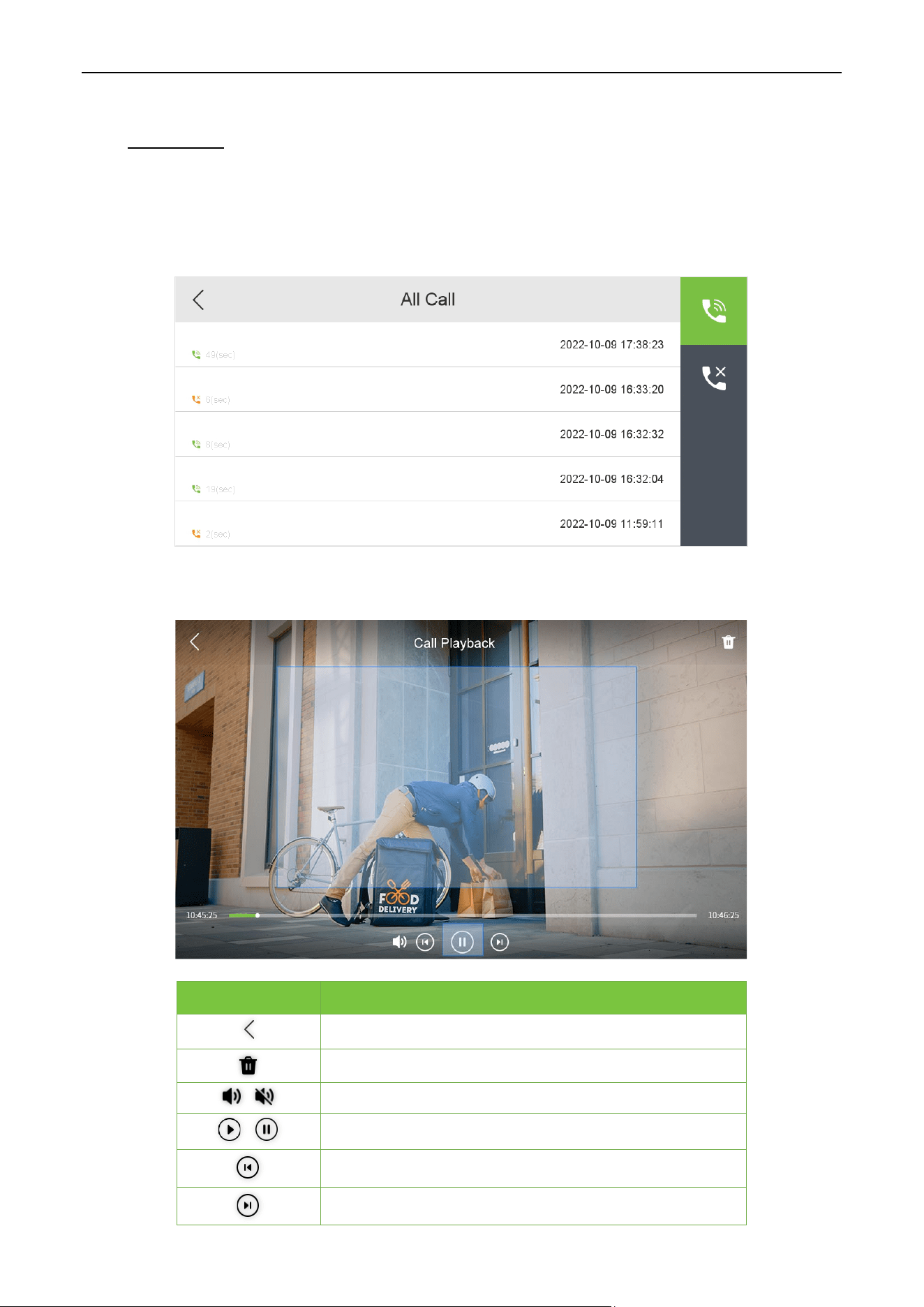
Tap Call Log on the Main Menu to enter the All Call list screen. As shown below.
Select a call log in the list to enter the call playback screen. As shown below.
Function Descriptions
Return to the previous menu.
Delete the current call log.
Turns on/off the sound of the current call log.
Play/pause the current call log.
Play the last call log.
Play the next call log.
VT07-B01 User Manual
Page | 17 Copyright©2024 ZKTECO CO., LTD. All rights reserved.
Missed call logs 6.2
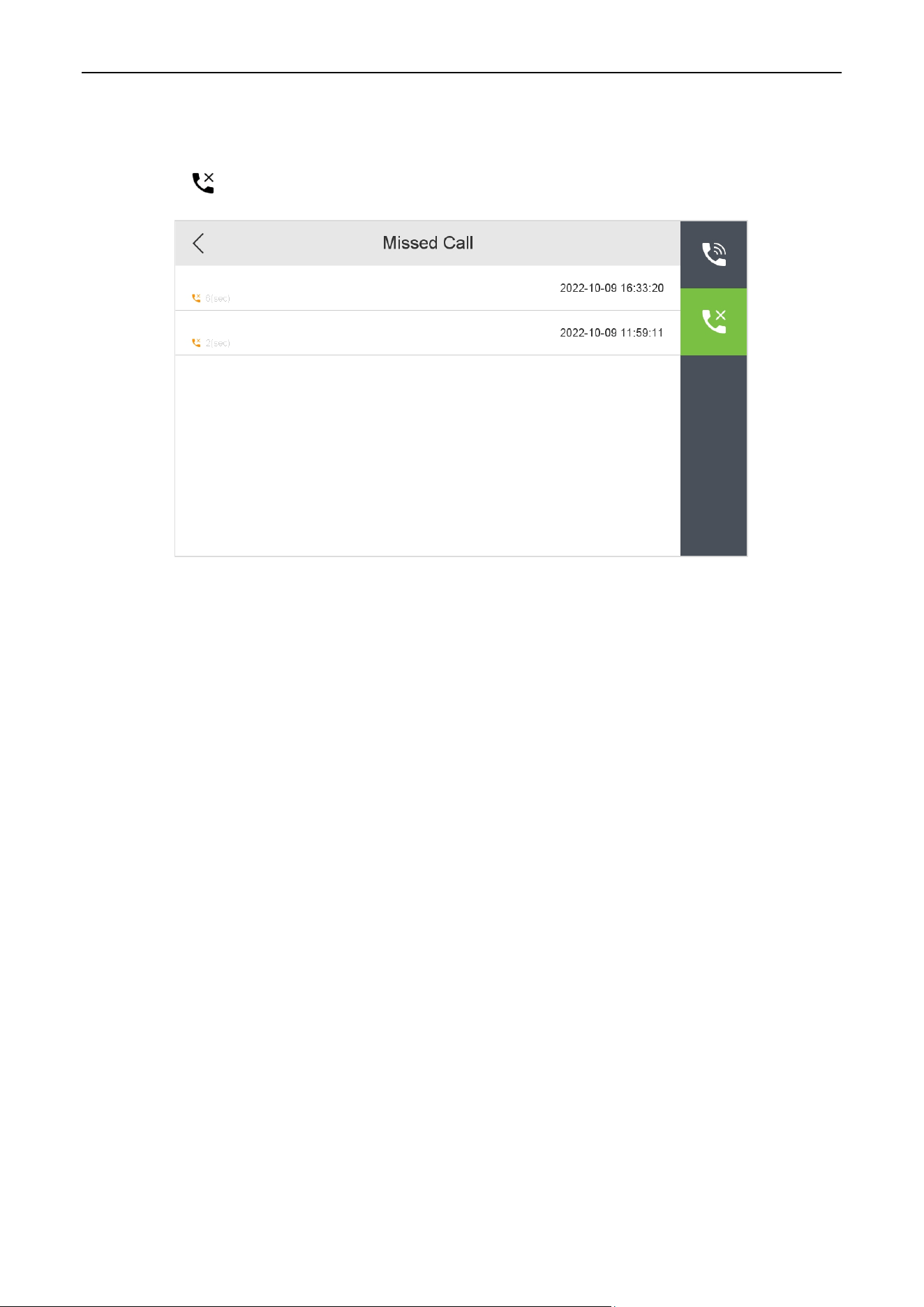
Tap Call Log > icon to enter the missed call list screen. As shown below.
Select a missed call log in the list to enter the call playback screen. The interface is the same as that of the
call log, and will not be repeated here.
VT07-B01 User Manual
Page | 18 Copyright©2024 ZKTECO CO., LTD. All rights reserved.
7 News Settings
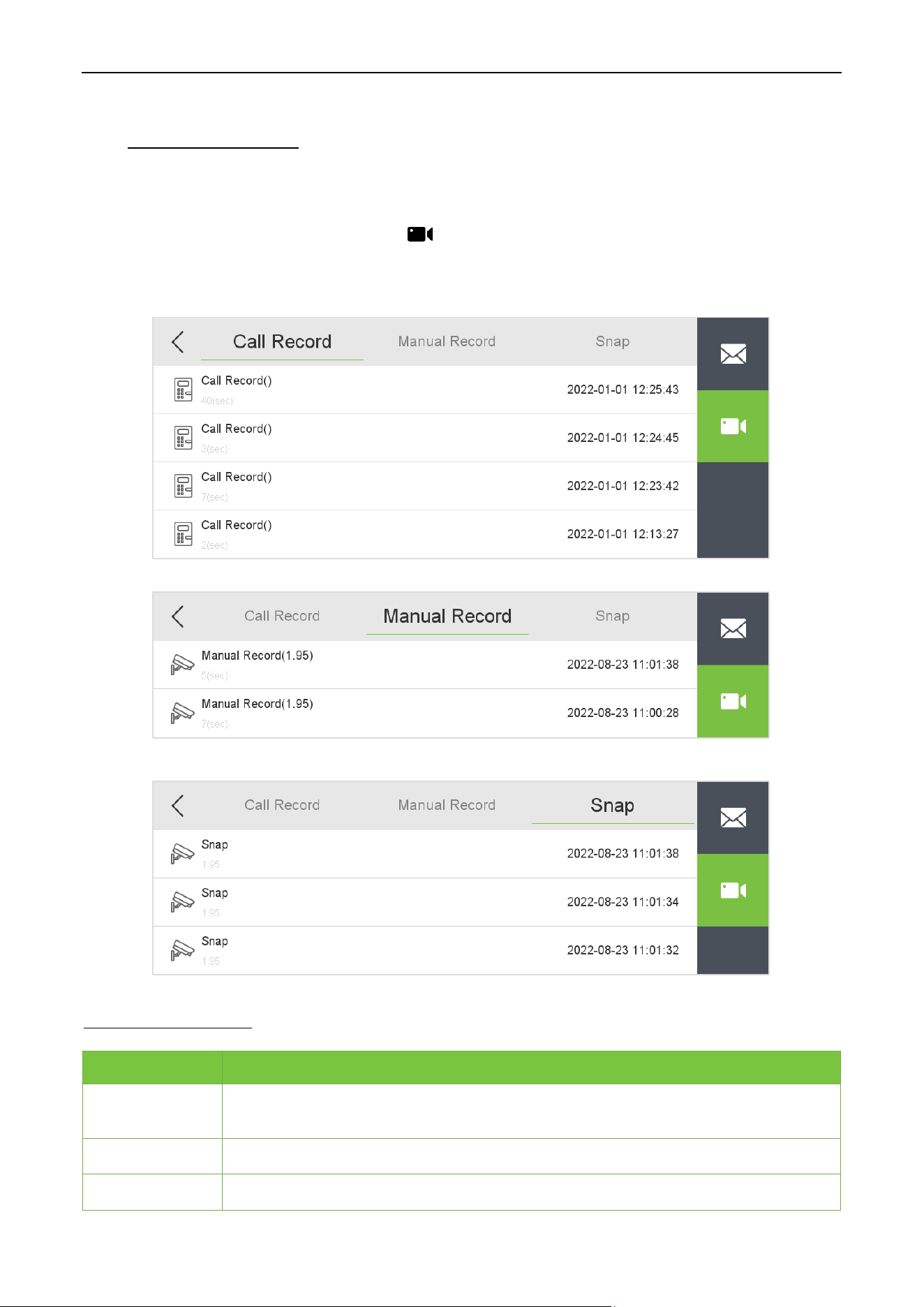
Here users can view some video information such as call logs, manual logs and snapshots.
Tap News on the Main Menu interface. Tap icon to enter the video information interface. As shown
below.
Function Description
Menu Descriptions
Call Record
Displays all received and missed call recordings as the same recording as the call log
recording.
Manual Record
Manually recorded footage during real-time video surveillance.
Snap
Live video interface manually captures images. Page turning is not supported.
VT07-B01 User Manual
Page | 19 Copyright©2024 ZKTECO CO., LTD. All rights reserved.
8 Network Settings
When the indoor station needs to communicate with the outdoor station or IPC through Ethernet, you
need to configure the network settings and ensure that all the devices are connected to the same network
segment.
Tap Network on the Main Menu to enter the network setting screen.
Wired Network 8.1
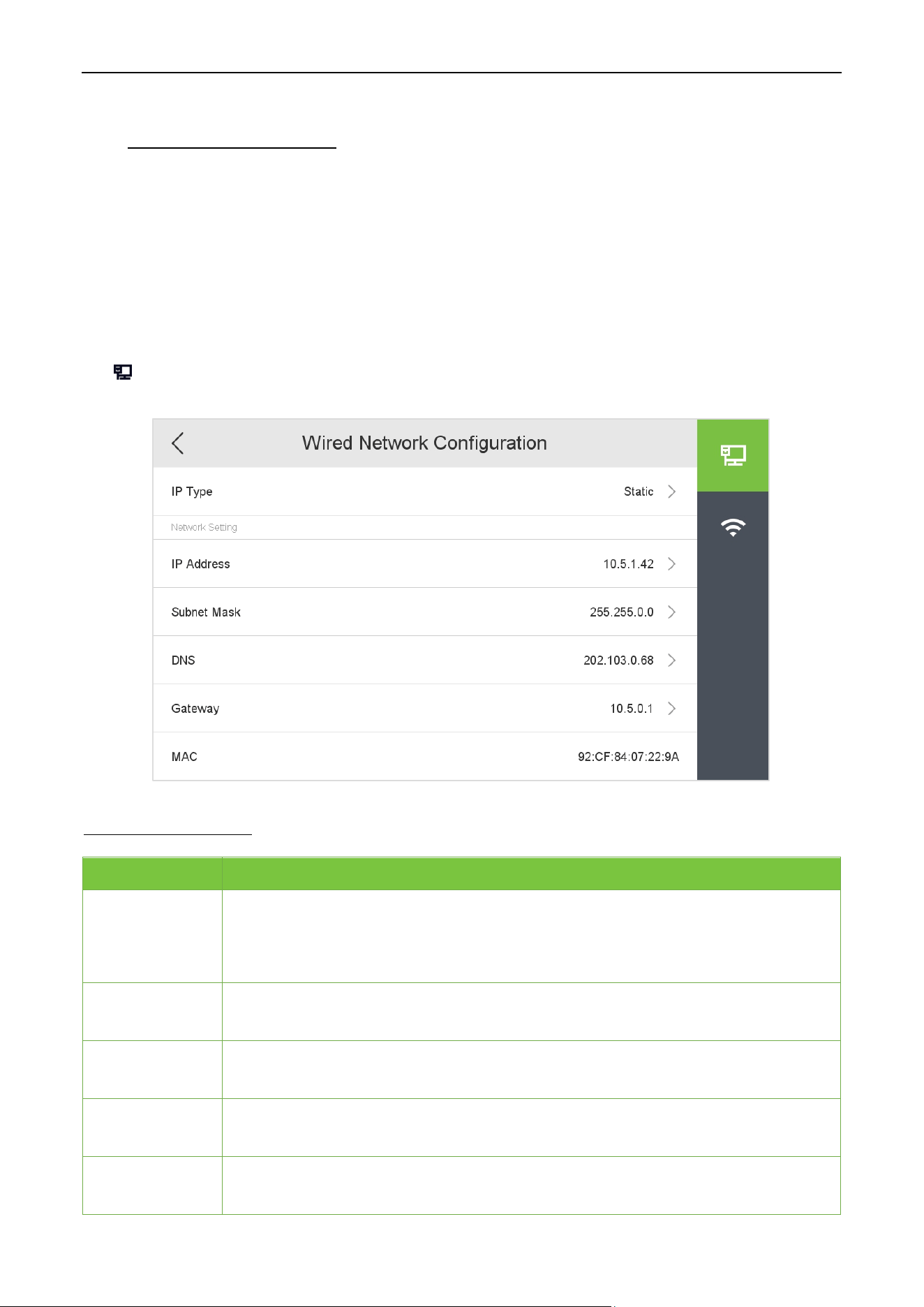
Tap icon on the Network Setting screen to enter the wired network setting screen. As shown below.
Function Description
Function Descriptions
IP Type
Select the way to enter the IP address, there are Static and DHCP options. If Static is
enabled, the IP address can be set manually. Dynamic Host Configuration Protocol,
which is to dynamically allocate the IP addresses for clients via server.
IP Address
The default IP address is 192.168.1.201. It can be modified according to the network
availability.
Subnet Mask
The default Subnet Mask is 255.255.255.0. It can be
modified according to the
network availability.
DNS
The default DNS address is 0.0.0.0. It can be modified according to the network
availability.
Gateway
The default Gateway address is 0.0.0.0. It can be modified according to the network
availability.
VT07-B01 User Manual
Page | 20 Copyright©2024 ZKTECO CO., LTD. All rights reserved.
Remark:
A direct connection to the local area network can be used. Connect the indoor station and the outdoor
station directly through the network cable, and the outdoor station can preview, record, and talk normally
in the indoor station.
Wireless Network 8.2
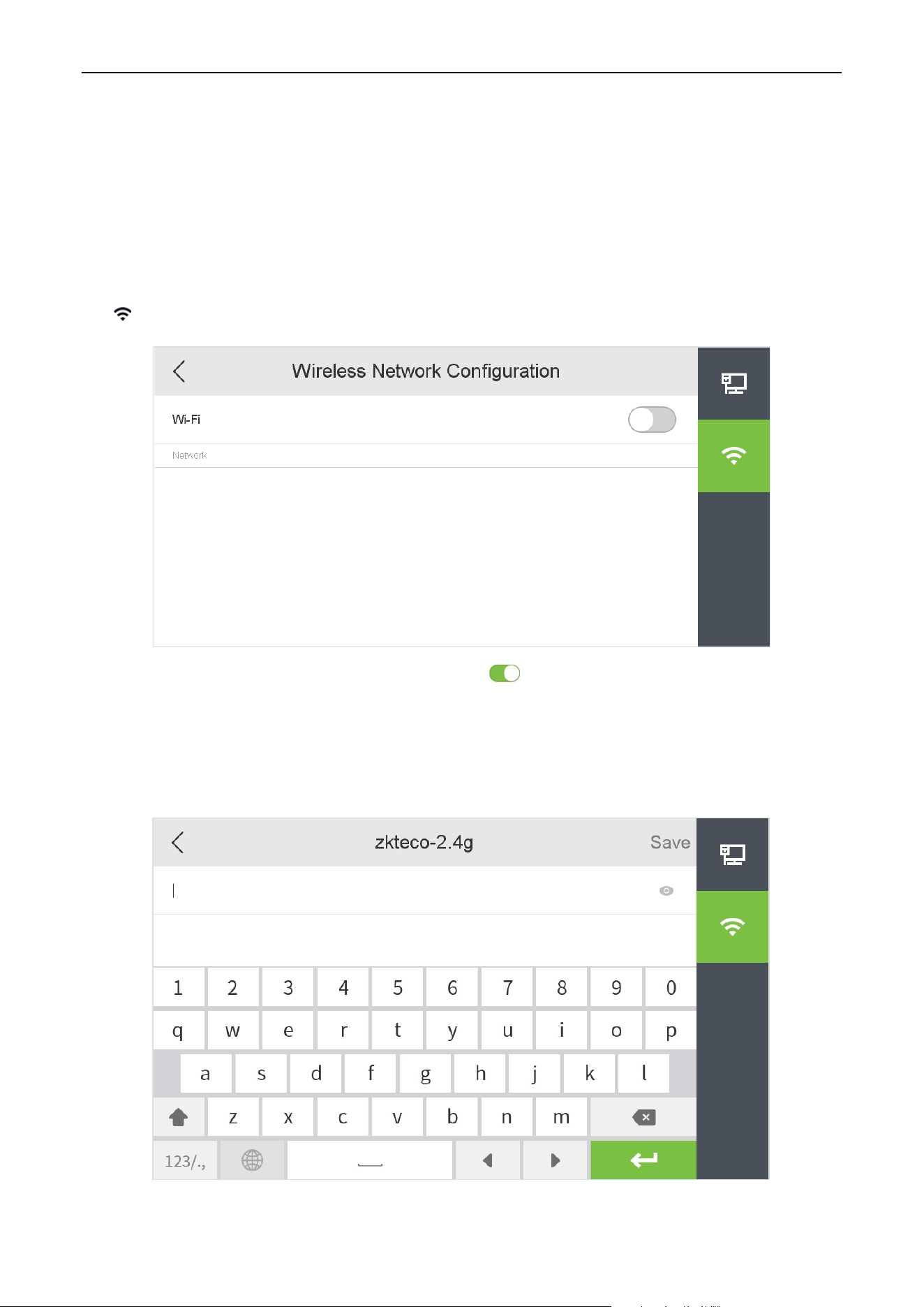
Tap icon on the Network Setting screen. Settings interface to configure the Wi-Fi settings.
Wi-Fi is enabled in the device by default. Toggle the button to enable or disable Wi-Fi.
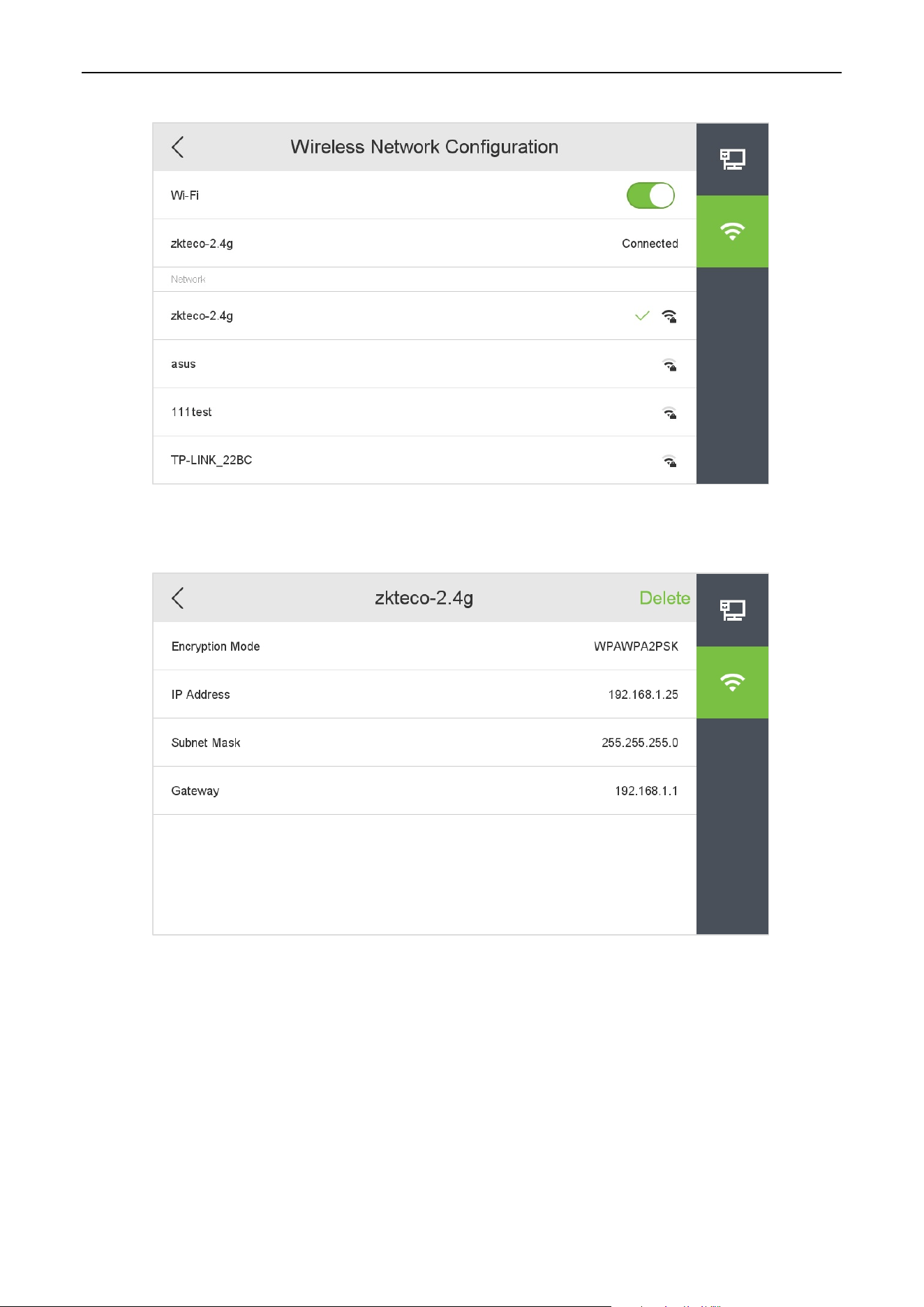
Once the Wi-Fi is turned on, the device searches for the available Wi-Fi within the network range.
Choose the required Wi-Fi name from the available list and input the correct password in the
password interface, and then select Save to confirm.
VT07-B01 User Manual
Page | 21 Copyright©2024 ZKTECO CO., LTD. All rights reserved.
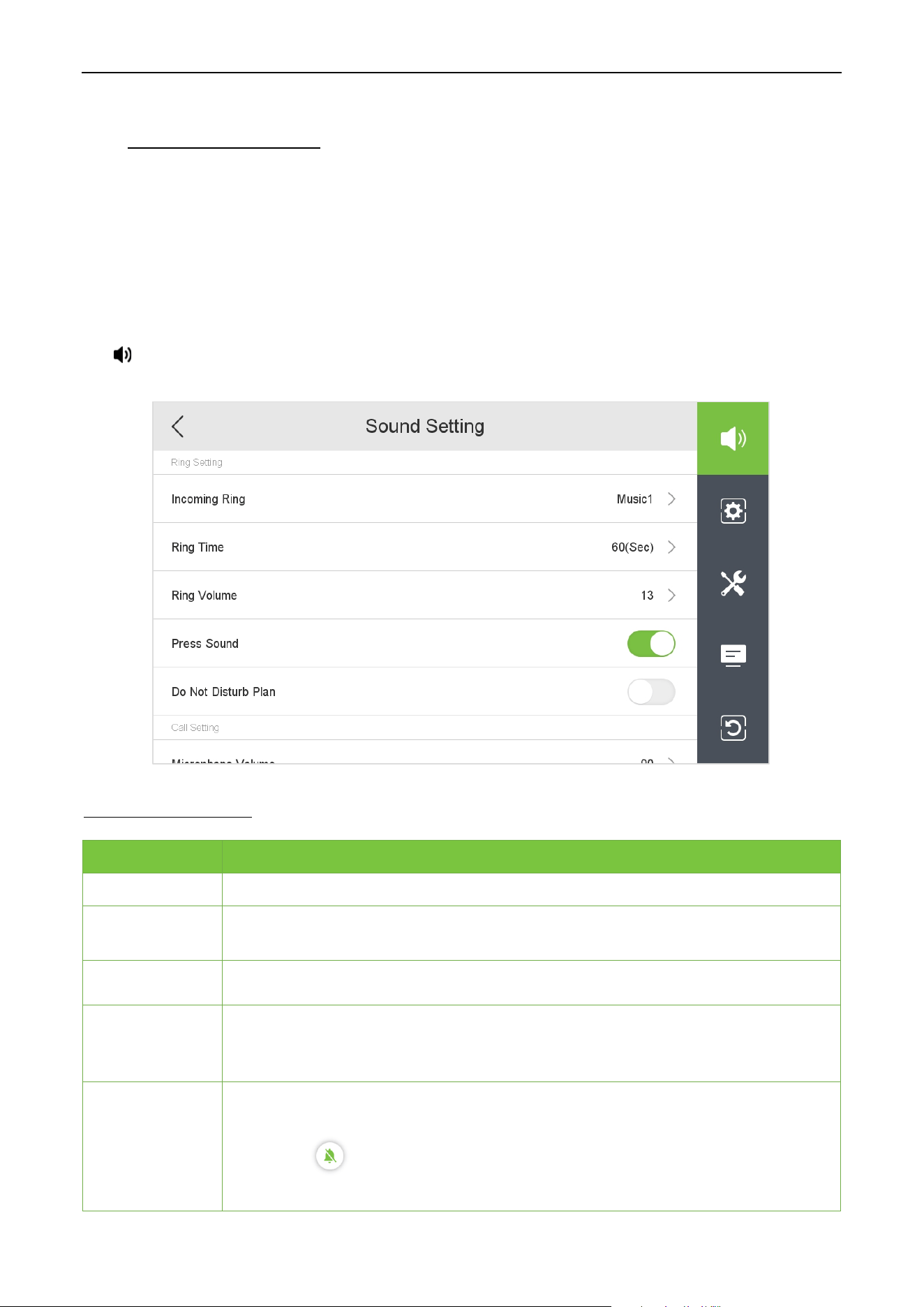
You can click on the connected Wi-Fi to view more information.
VT07-B01 User Manual
Page | 22 Copyright©2024 ZKTECO CO., LTD. All rights reserved.
9 System Settings
It helps to set related system parameters to optimize the accessibility of the device.
Tap Setting on the Main Menu interface to get into its menu options.
Sound Settings 9.1
Mainly used to set ringtones and call volume settings.
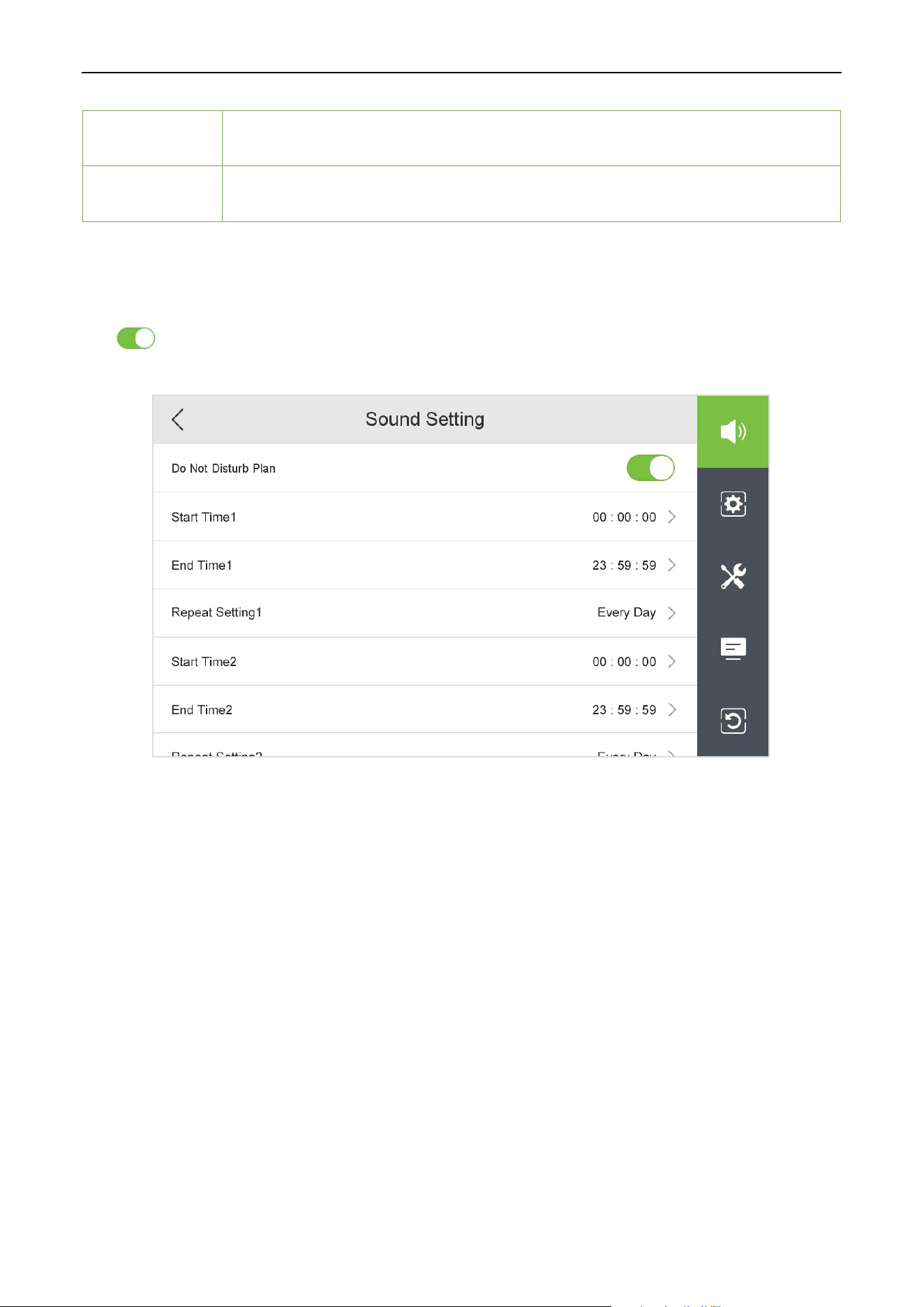
Tap icon on the Setting screen to configure the sound settings. As shown below.
Function Description
Function Descriptions
Incoming Ring
Built-in function for changing the ringtone of incoming calls in different styles.
Ring Time
Start timing from the outdoor station call, after ringing time reaches the set time, the
incoming call rings off and hangs up. Includes 6 options: 10s, 20s, 30s, 40s, 50s and 60s.
Ring Volume
Adjust the volume of the incoming call ringtone, valid value: 0-100.
Press Sound
Select whether to enable the touch screen key sound. Note: Whether to turn on/off this
function, touch anywhere on the screen of the call interface, the ringing will stop, but the
call will not be interrupted.
Do Not Disturb
Plan
When enabled the Do Not Disturb Plan, the indoor station does not respond and
does not record when the outdoor station calls.
Note: The
icon on the main interface has higher priority than the Do Not
Disturb plan and is limited to this device.
VT07-B01 User Manual
Page | 23 Copyright©2024 ZKTECO CO., LTD. All rights reserved.
Microphone
Volume
Adjust the volume of the indoor station input sound, i.e. the volume that can be
heard at the outdoor station, valid value: 0-100.
Speaker
Volume
Adjust the volume of the indoor station out
put sound, i.e. the volume that the
indoor station can hear, valid value: 0-100.
9.1.1 Do Not Disturb Plan
Tap icon to enable the Do Not Disturb Plan on the Sound Setting screen. As shown below.
Start Time: After the start time is set, when the set time is reached, the indoor station will
automatically turn on the Do Not Disturb function, and the outdoor station will call, but the indoor
station will not respond or record.
End Time: After the end time is set, when the set time is reached, the indoor station will automatically
turn off the Do Not Disturb function, the outdoor station will call, and the indoor station will respond
and record.
Repeat Setting: You can select every day of the week to repeat, or select a day of the week to repeat.
Note:
1. The end time must be later than the start time. Otherwise, the prompt time setting is wrong.
2. Each set of times needs to be added manually. When it comes to spanning days, two sets of times need
to be set. When multiple sets of times are set, the repeat section records only one set of times.
VT07-B01 User Manual
Page | 24 Copyright©2024 ZKTECO CO., LTD. All rights reserved.
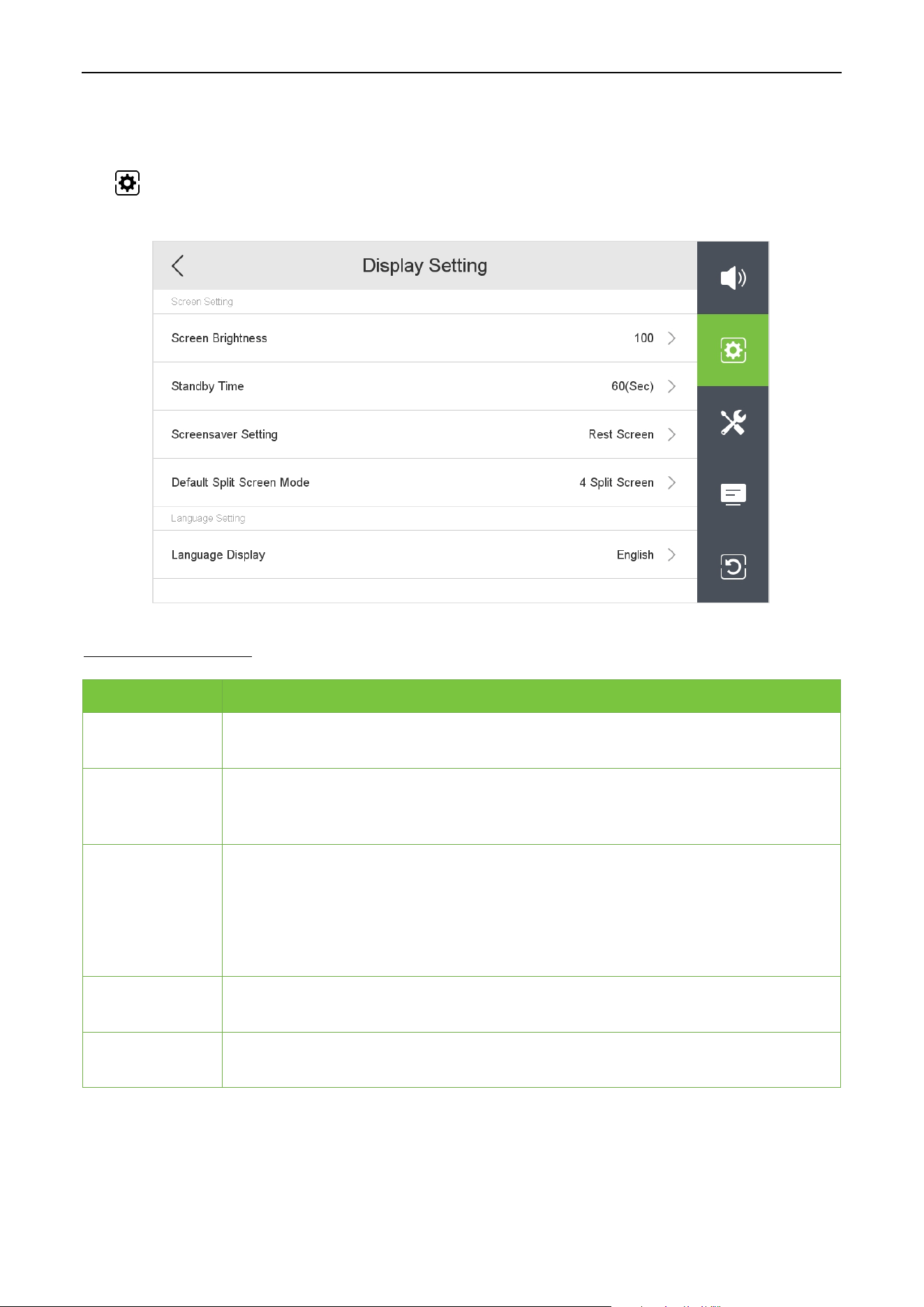
Display Settings 9.2
Tap icon on the Setting screen to get into its menu options. As shown below.
Function Description
Function Descriptions
Screen
Brightness
Adjust the brightness of the indoor station screen, the range is 0-100.
Standby Time
When the indoor station does not operate within the set time, the screen will be
automatically changes to a rest screen or clock screensaver. Time options include:
30s, 60s, 90s and 120s.
Screensaver
Setting
There are two options, the rest screen and the clock screensaver.
Rest screen: The indoor station will turn into a black screen if th
ere is no
operation within the set time.
Clock screensaver: The indoor station will turn into a black screen if there is no
operation within the set time, and only display the date and time in real time.
Default Split
Screen Mode
It helps to set the split screen mode, including 1 Split Screen and 4 Split Screen.
Language
Display
It helps to select the language of the device.
VT07-B01 User Manual
Page | 25 Copyright©2024 ZKTECO CO., LTD. All rights reserved.
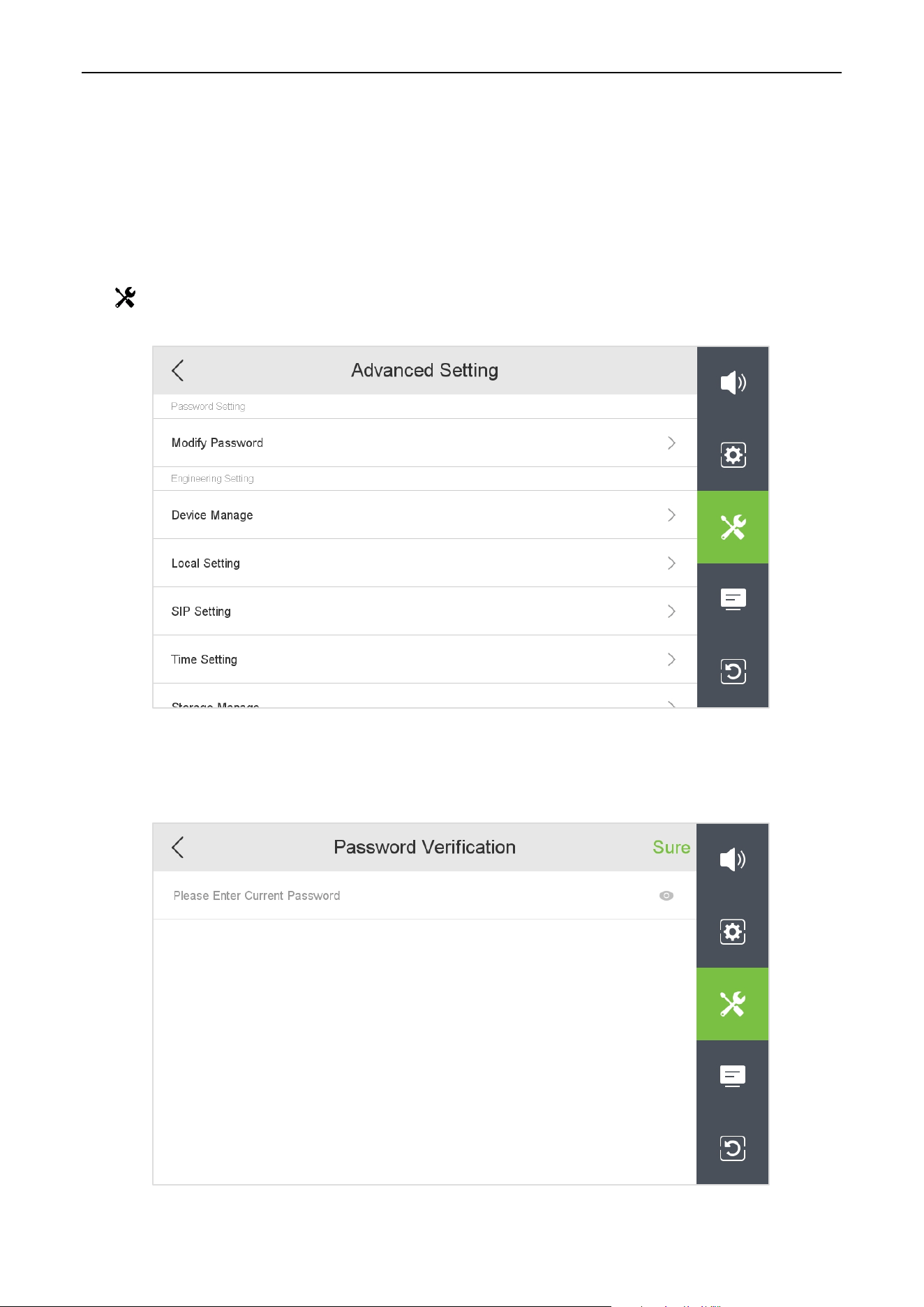
Advanced Settings 9.3
When entering any interface of advanced settings, you need to enter a password. After entering the
interface with the correct password, you do not need to enter the password again to enter other interfaces
of advanced settings. However, if you exit the Advanced Settings screen and enter it again, you need to
enter the password again.
Tap icon on the Setting screen to get into its menu options. As shown below.
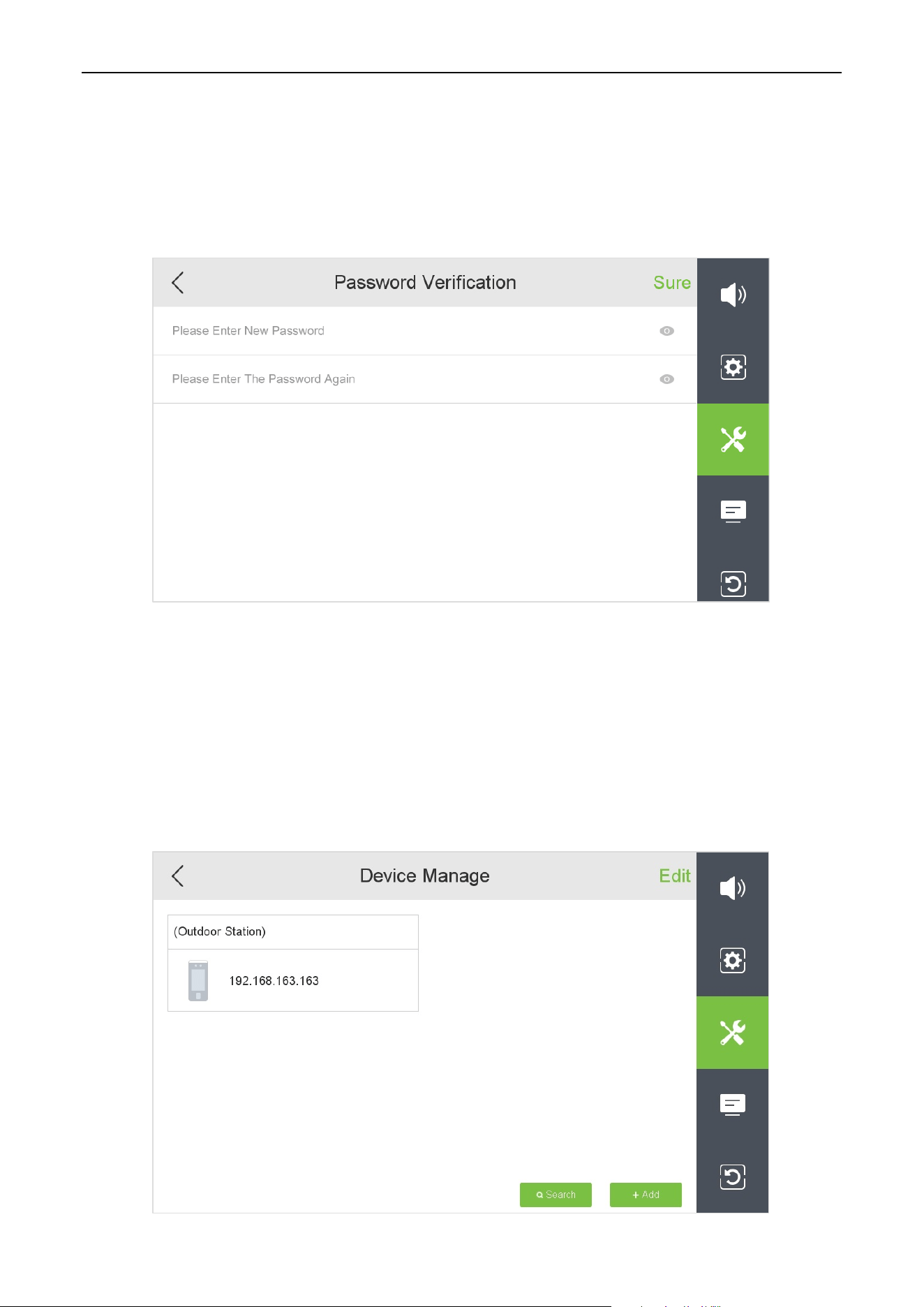
Select an option to be set, enter the password verification interface, enter the current password, and click
Sure to enter the setting interface.
VT07-B01 User Manual
Page | 26 Copyright©2024 ZKTECO CO., LTD. All rights reserved.
9.3.1 Modify Password
It is used to set the password for entering the advanced setting interface.
Tap Modify Password on the Advanced Setting interface.
Enter the new password twice, then click Sure to confirm and exit to the previous menu.
Note: The password can be set up to 31 characters, and the character types include: letters, numbers, and
symbols.
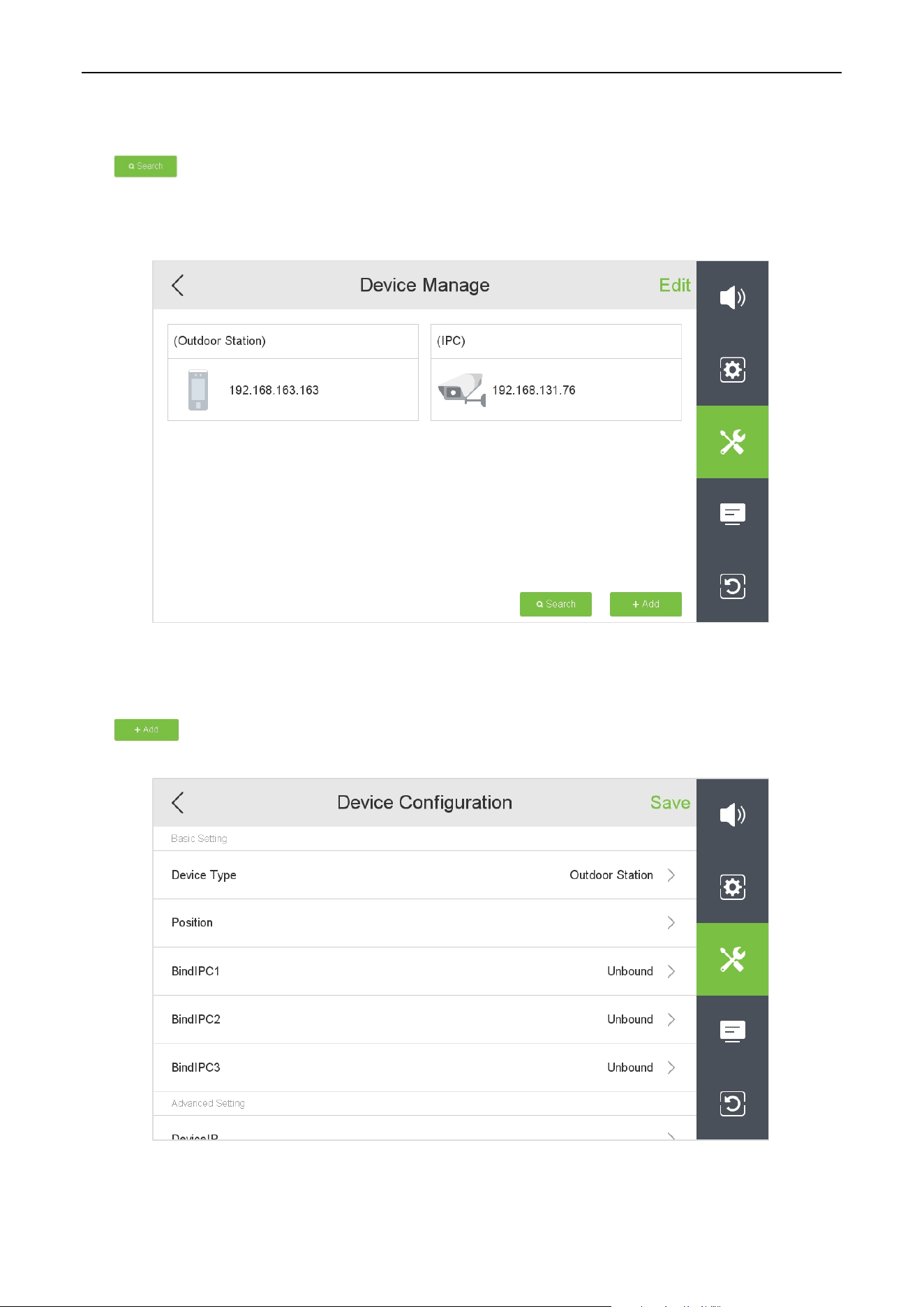
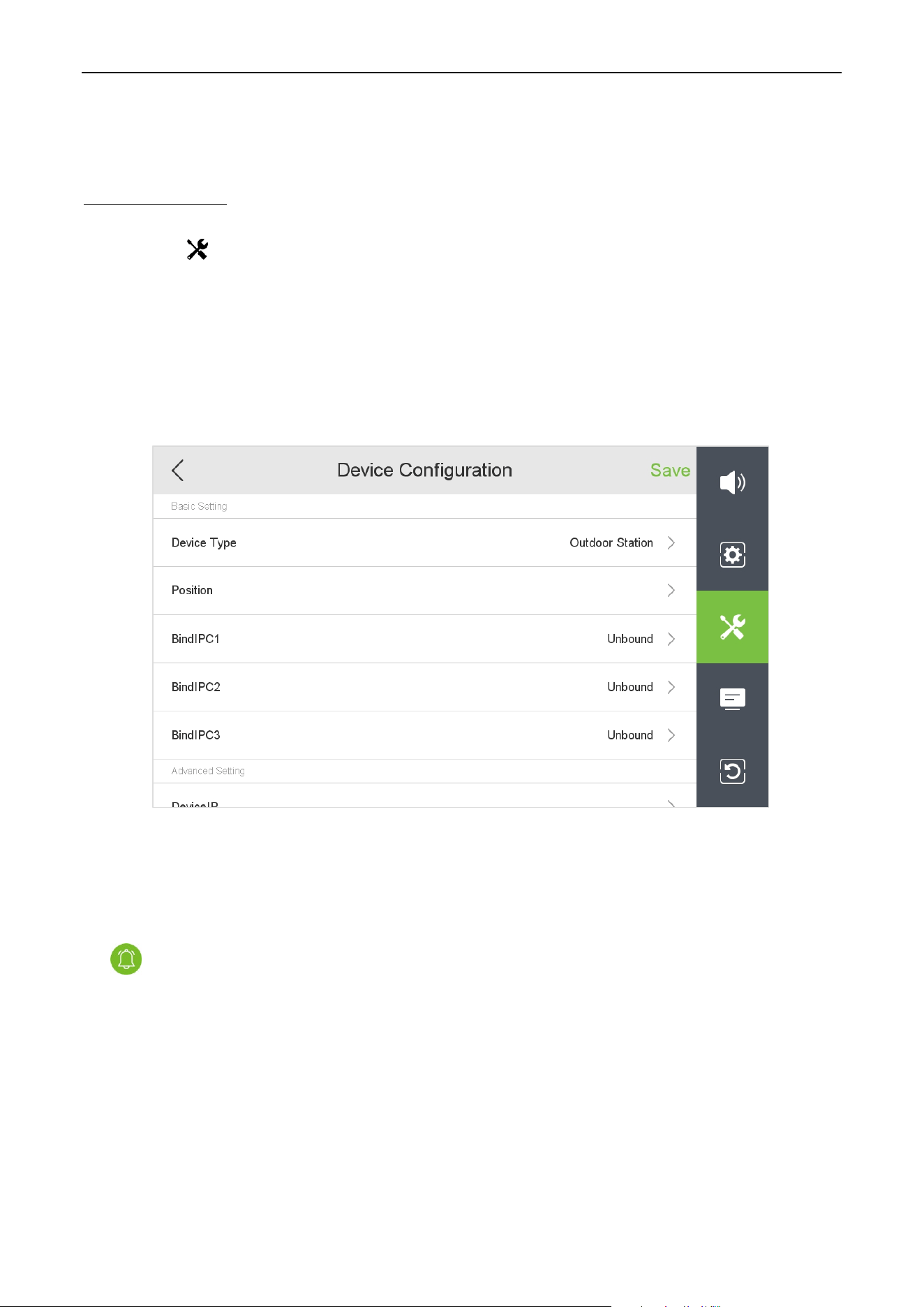
9.3.2 Device Management
Tap Device Manage on the Advanced Setting interface.
VT07-B01 User Manual
Page | 27 Copyright©2024 ZKTECO CO., LTD. All rights reserved.
9.3.2.1 Search Device
Tap icon on the Device Manage interface to search the device.
The device will search for all online outdoor stations and IPCs in the LAN.
9.3.2.2 Add Device
Tap icon on the Device Manage interface to add the device.
VT07-B01 User Manual
Page | 28 Copyright©2024 ZKTECO CO., LTD. All rights reserved.
Function Description
Function Descriptions
Device Type
Used to set the type of device, including the Outdoor Station and IPC.
Position
Customize the device location.
BindIPC1/2/3
When the device type is set to outdoor station, the added IPC can be selected for
binding.
By default, the outdoor station and the bound IPC1 are authorized to record and
capture images.
Device IP
Customize the IP address of the device.
User Name
Enter the login user name of the camera.
Password
Enter the login password of the camera.
After the setting is completed, click Save to save and exit to the previous menu.
9.3.2.3 Edit Device
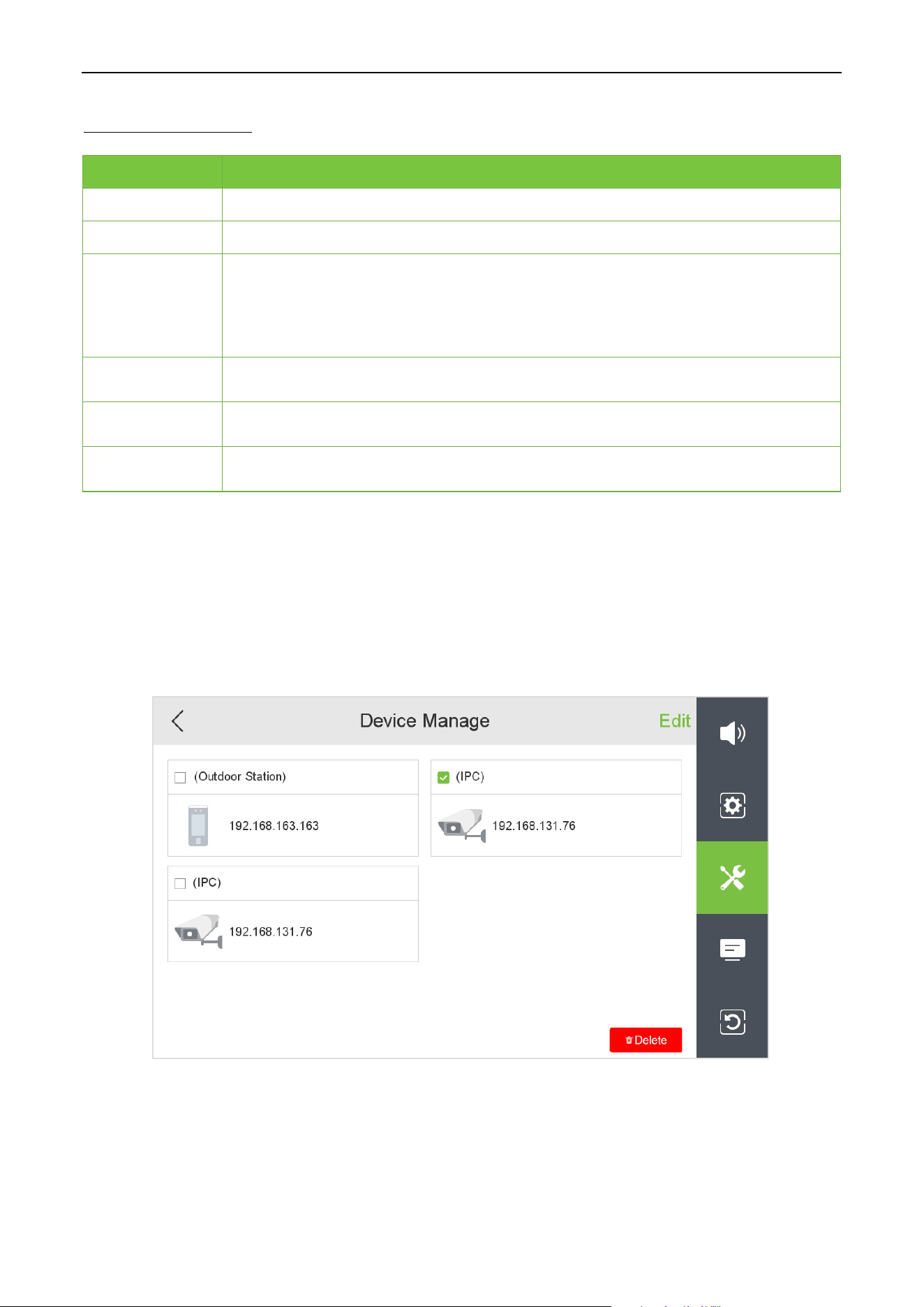
The edit function is only used to delete devices.
Tap Edit on the Device Manage interface to edit the device. As shown below.
Select the device to be deleted and click Delete to delete it.
VT07-B01 User Manual
Page | 29 Copyright©2024 ZKTECO CO., LTD. All rights reserved.
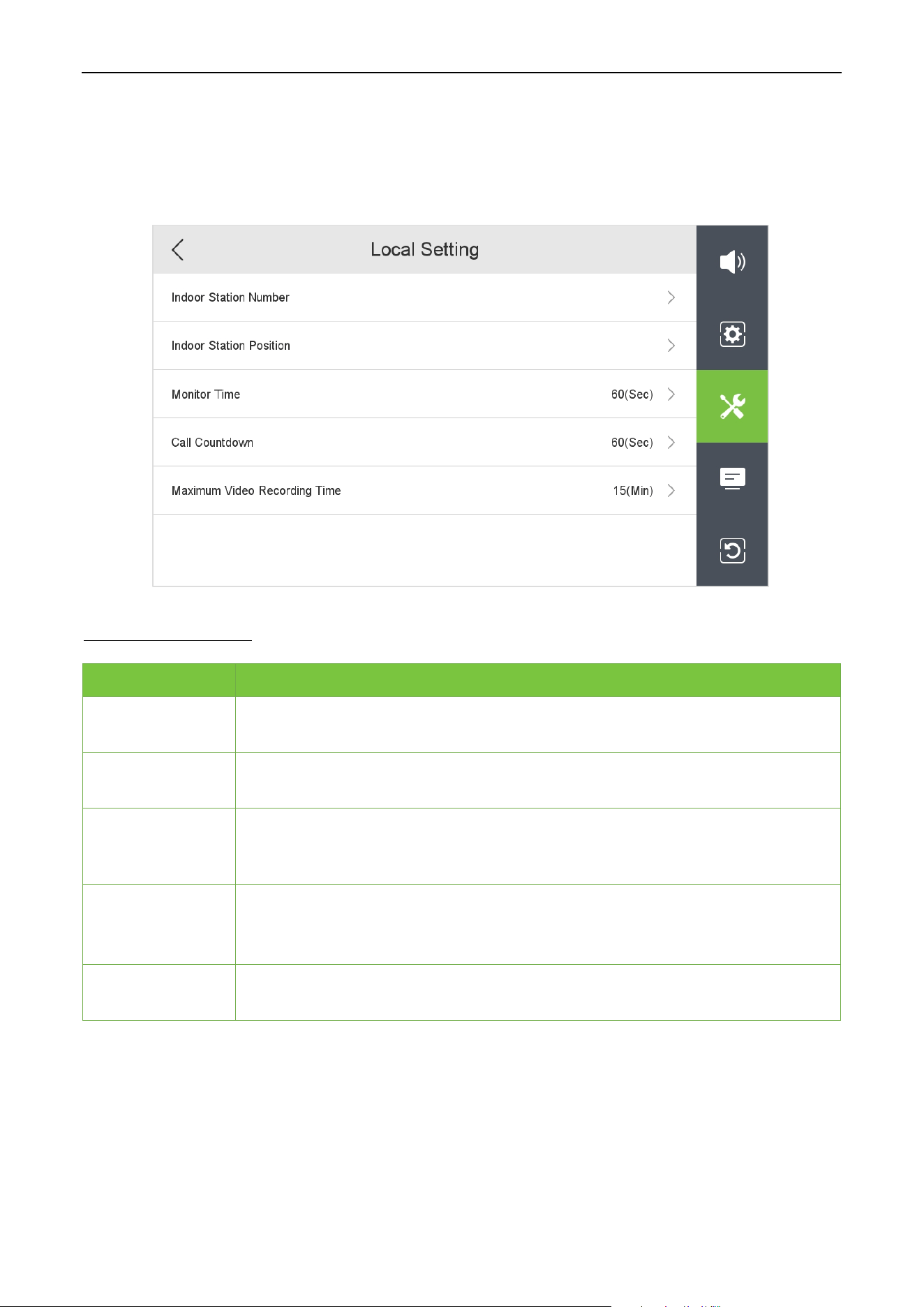
9.3.3 Local Setting
Tap Local Setting on the Advanced Setting interface. As shown below.
Function Description
Function Descriptions
Indoor Station
Number
Customize the indoor station number.
Indoor Station
Position
Customize the indoor station location.
Monitor Time
After the monitoring reaches the set time, exit the monitoring interface. When set
to unlimited, the nativ
e device continues to monitor until manually exited.
Includes: 10s, 20s, 30s, 40s, 50s, 60s and Unlimited.
Call Countdown
Used to set the call countdown time, including: 10s, 20s, 30s, 40s, 50s, 60s and
Unlimited. When set to unlimited, the intercom can c
ontinue until the call is
manually hung up or the outdoor station hangs up.
Maximum Video
Recording Time
Maximum recording time when recording manually, including: 5min, 10min,
15min and 20min.
VT07-B01 User Manual
Page | 30 Copyright©2024 ZKTECO CO., LTD. All rights reserved.
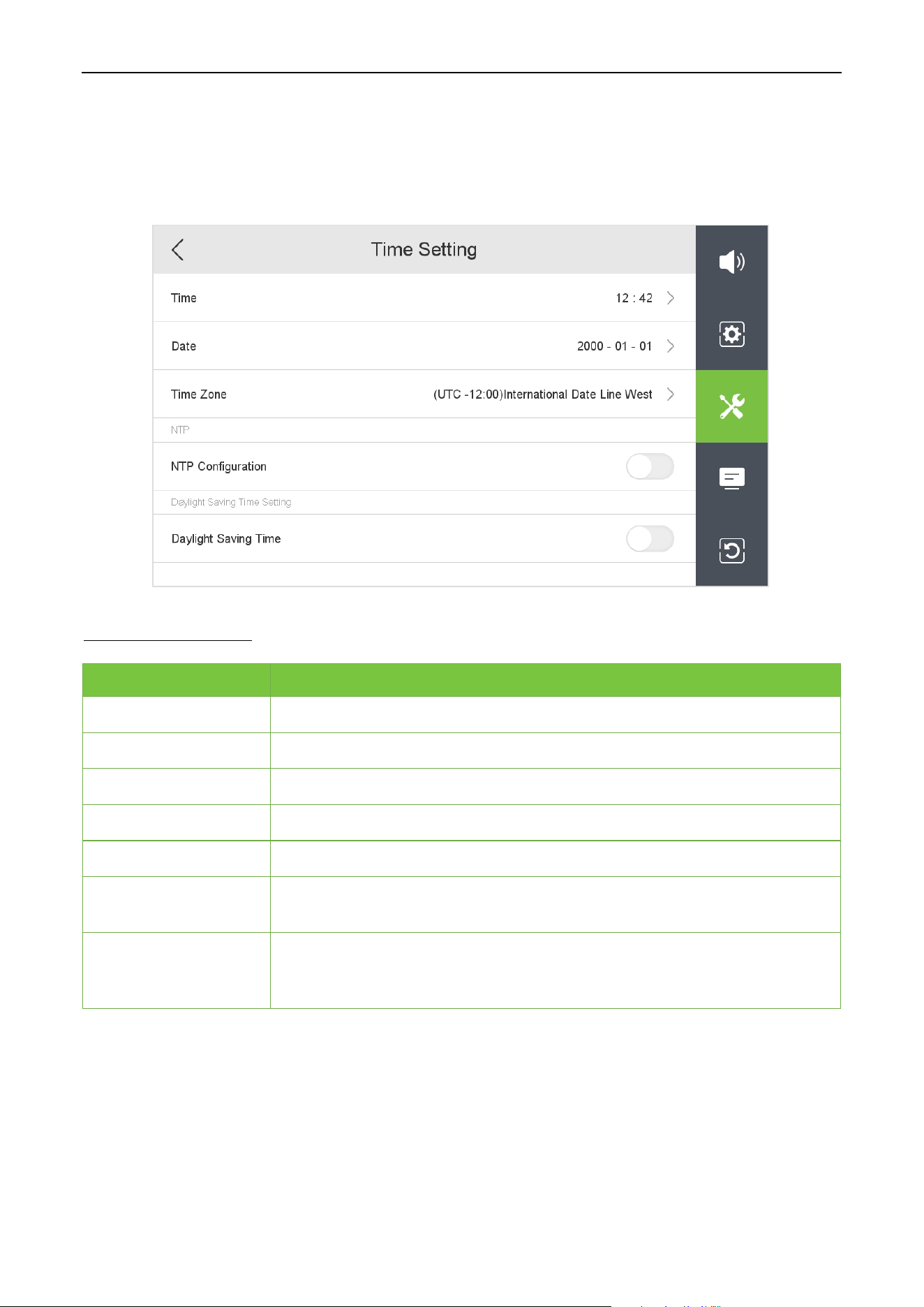
9.3.4 Time Setting
Tap Time Setting on the Advanced Setting interface. As shown below.
Function Description
Function Descriptions
Time
Modify the device time manually.
Date
Modify the device date manually.
Time Zone
To select a time zone.
NTP Configuration
Whether to enable NTP configuration.
Server Address
Turn on the switch to display the server address asia.pool.ntp.org (default).
Adjust Time
Interval(h)
The adjustment time interval is customized, the range is 1-72 hours.
Daylight Saving Time
Tap Daylight Saving Time to enable or disable the function. If enabled, set the
start time (Month, Week, Day, Hour, Minute) and end time (Month, Week, Day,
Hour, Minute). Offset time customization, range 1-120 minutes.
How to set the Daylight Saving Time?
For example, adjust the clock forward one hour at 08: 00 on April 1 and backward one hour at 08: 00 on
October 1 (the system turns back to the original time).
VT07-B01 User Manual
Page | 31 Copyright©2024 ZKTECO CO., LTD. All rights reserved.
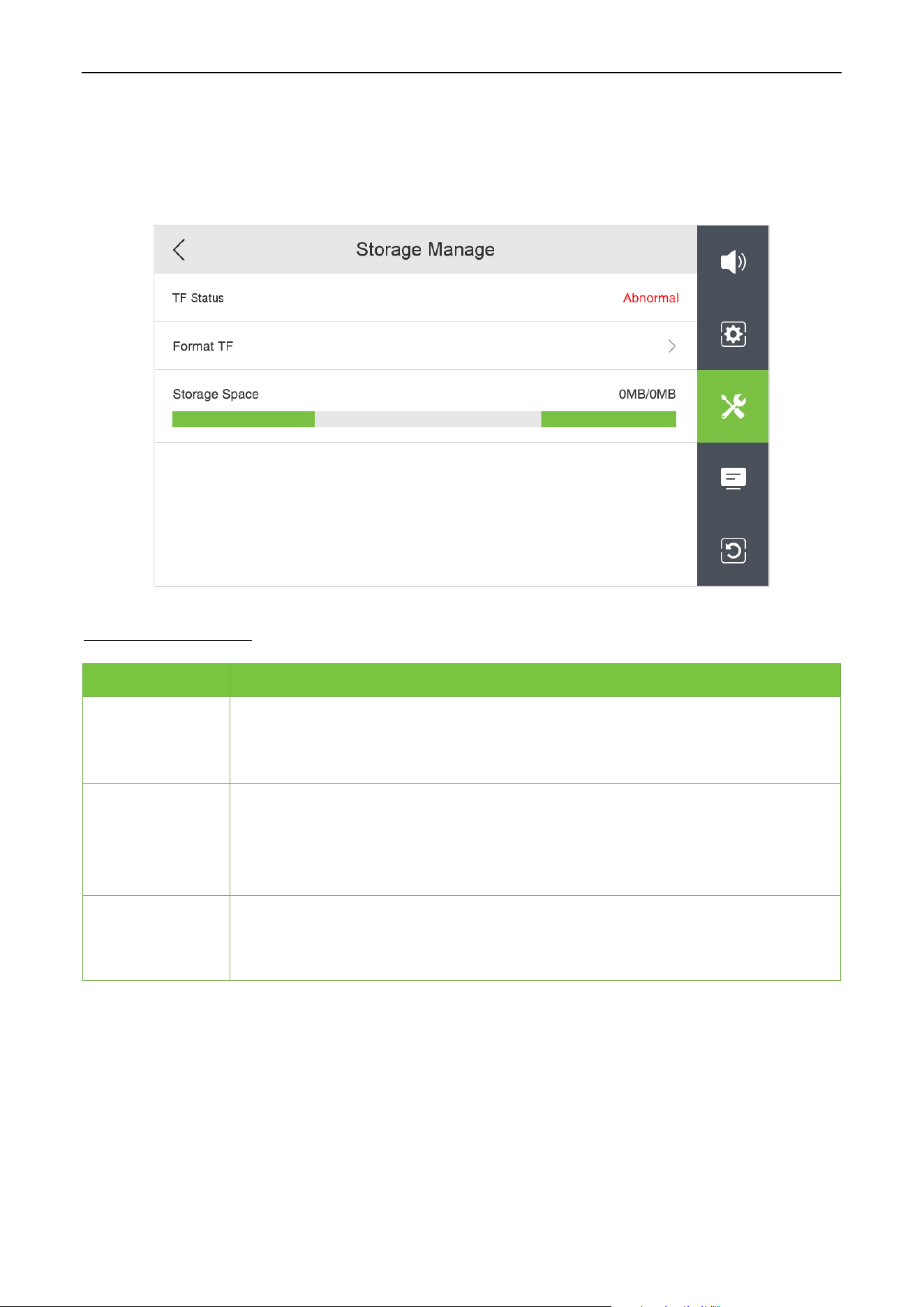
9.3.5 Storage Manage
Tap Storage Manage on the Advanced Setting interface. As shown below.
Function Description
Function Descriptions
TF Status
When the TF card connected to the device is normal, the device can record and
capture pictures normally. Not inserted card or connection abnormal, the device
can not record and capture pictures.
Format TF
Format the memory card. Click to enter the confirmation format pop-up box, click
Sure, enter the formatting progress bar, when it reaches 100%, all contents of the
TF card will be deleted (including locked video).
Note: Please do not cancel the formatting in the middle.
Storage Space
Progress bar shows TF card used memory/total memory. Automatic overwriting of
earlier videos and captures when used memory reaches about 99% (locked videos
will not be overwritten).
VT07-B01 User Manual
Page | 32 Copyright©2024 ZKTECO CO., LTD. All rights reserved.
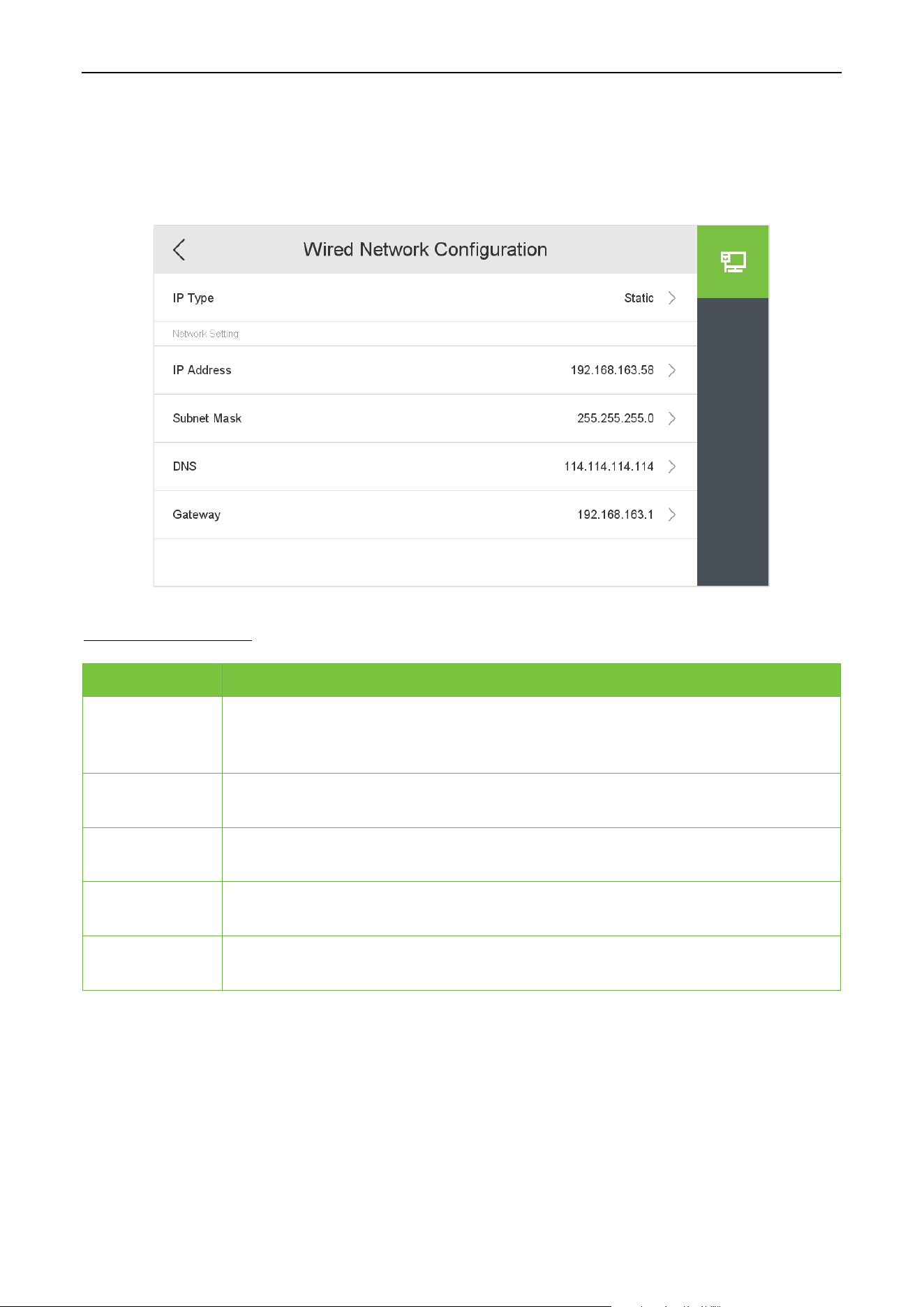
9.3.6 Network Manage
Tap Network Manage on the Advanced Setting interface. As shown below.
Function Description
Function Descriptions
IP Type
Select the way to enter the IP address, there are Static and DHCP options. If Static is
enabled, the IP address can be set manually. Dynamic Host Configuration Protocol,
which is to dynamically allocate the IP addresses for clients via server.
IP Address
The default IP address is 192.168.1.201. It can be modified according to the network
availability.
Subnet Mask
The default Subnet Mask is 255.255.255.0
. It can be modified according to the
network availability.
DNS
The default DNS address is 0.0.0.0. It can be modified according to the network
availability.
Gateway
The default Gateway address is 0.0.0.0. It can be modified according to the network
availability.
VT07-B01 User Manual
Page | 33 Copyright©2024 ZKTECO CO., LTD. All rights reserved.
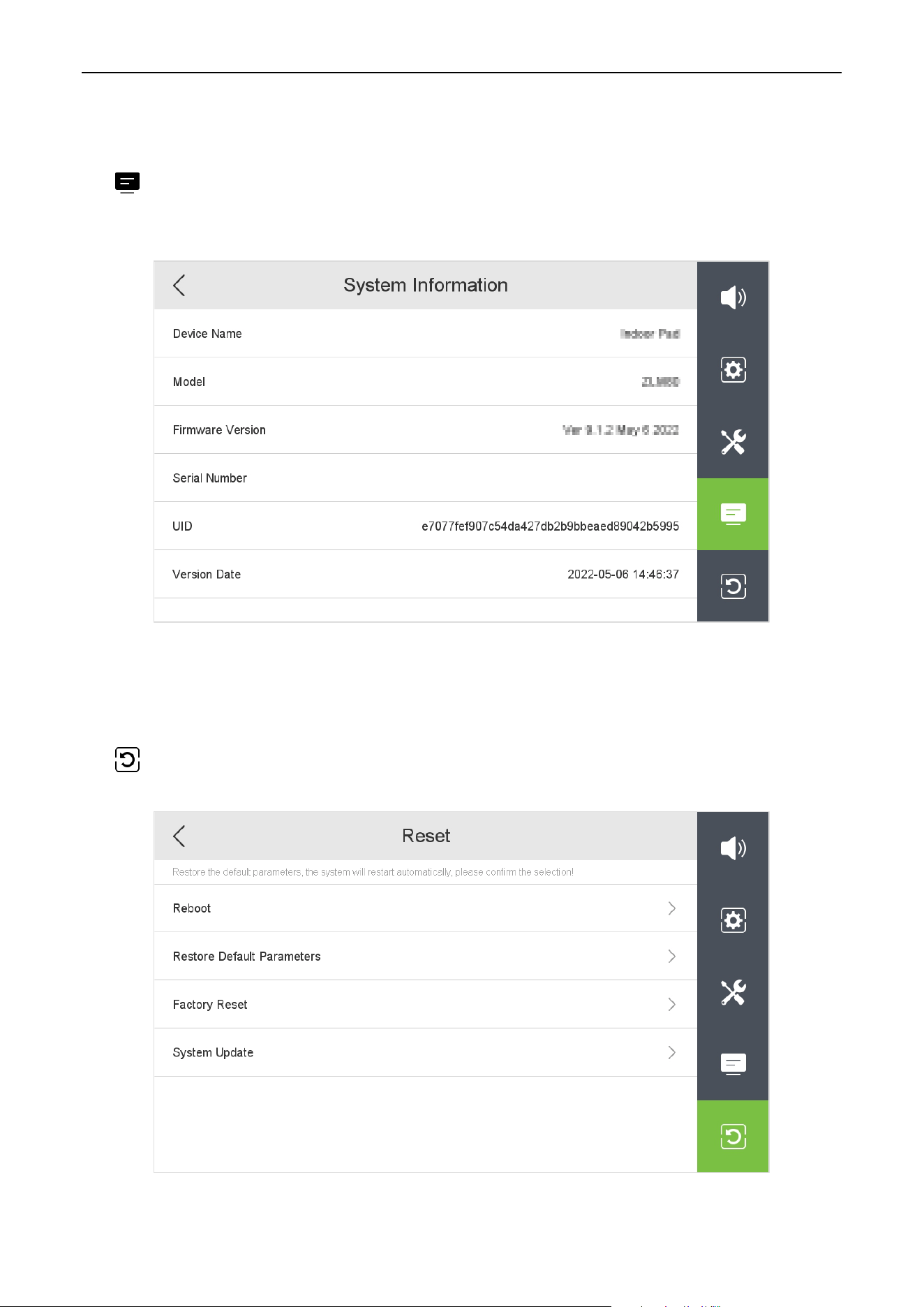
System Information 9.4
Tap icon on the Setting interface. View the device's name, model, firmware version, serial number,
UID and version date.
Reset Settings 9.5
Tap icon on the Setting interface to get into its menu options. As shown below.

VT07-B01 User Manual
Page | 34 Copyright©2024 ZKTECO CO., LTD. All rights reserved.
Function Description
Function Descriptions
Reboot Click Reboot, click Sure in the confirmation box that pops up, and the device reboots.
Restore Default
Parameters
Click Restore Default Parameters, click Sure in the confirmation box that pops up, and
the device reboots. All settings are restored to default except network parameters and
access connection device information are not reset.
Factory Reset
Click Factory Reset, click Sure in the confirmation box that pops up, and the device
reboots. All information on the device is restored to the factory.
System Update
Click System Update to enter the system upgrade interface, click Detect firmware
version, if the correct firmware version is detected, then you can click Update. The
device enters the upgrade interface, the progress bar shows the current upgrade
pr
ogress, and the device reboots automatically after the system upgrade is
successful. After reboot, check the device function and version date as expected.
VT07-B01 User Manual
Page | 35 Copyright©2024 ZKTECO CO., LTD. All rights reserved.
10 Make a Call
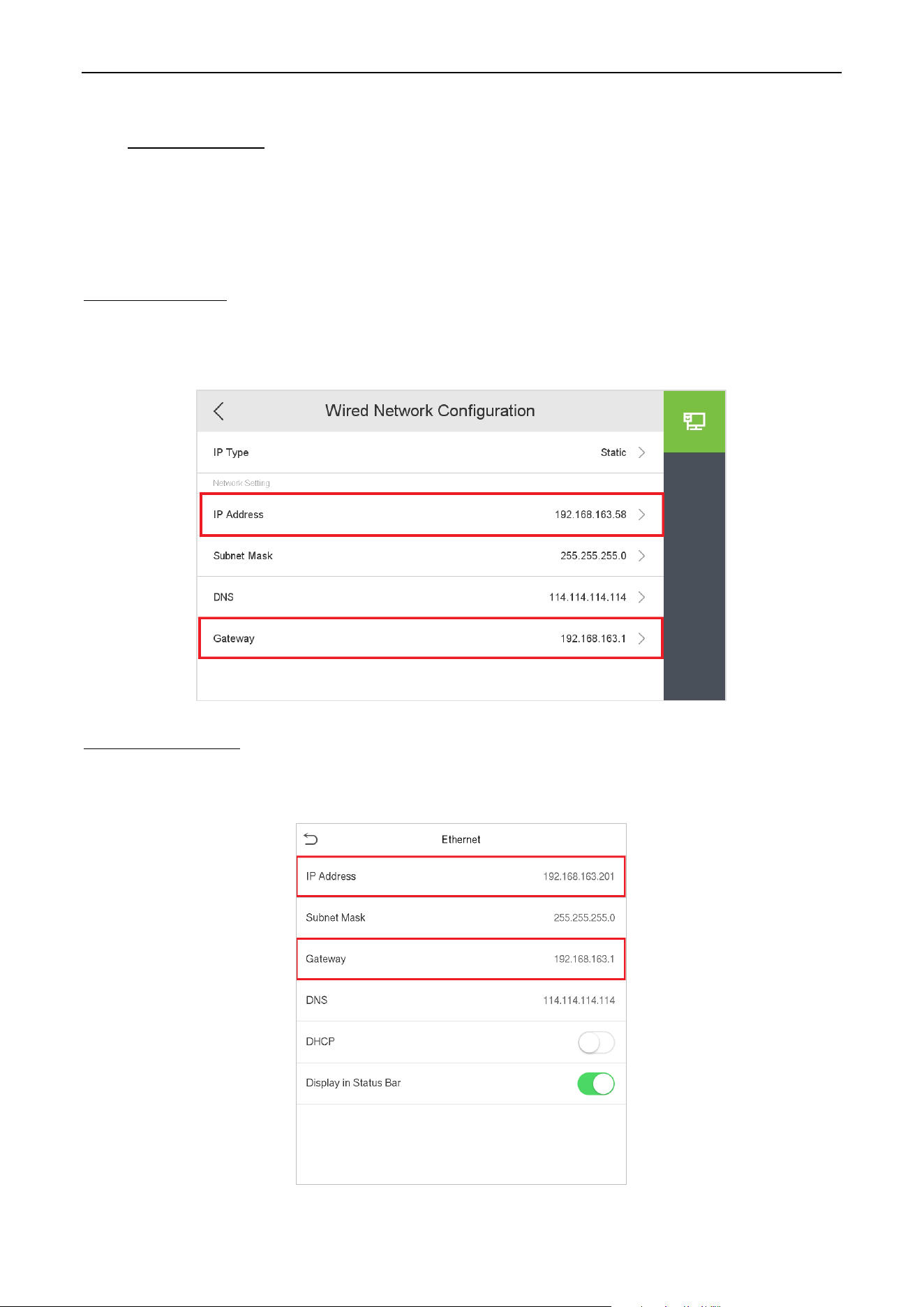
Set the Communication Address 10.1
In the LAN, set the IP addresses of the indoor station and the outdoor station in the same network segment.
Indoor station side
On the Main Menu, tap Network to set IP address and Gateway address of the indoor station. Examples
are as follows.
Outdoor station side
On the Main Menu, tap COMM. > Ethernet to set IP address and Gateway address of the outdoor station.
VT07-B01 User Manual
Page | 36 Copyright©2024 ZKTECO CO., LTD. All rights reserved.
Adding outdoor station 10.2
Indoor station side
Tap Setting > Advanced Setting > Device Manage > +Add to add the outdoor station on the indoor
station.
Device Type: Set the device type to outdoor station.
Device IP: Enter the IP address of the outdoor station.
After the setting is complete, click Save to save and exit.
Make a Call on the Device 10.3
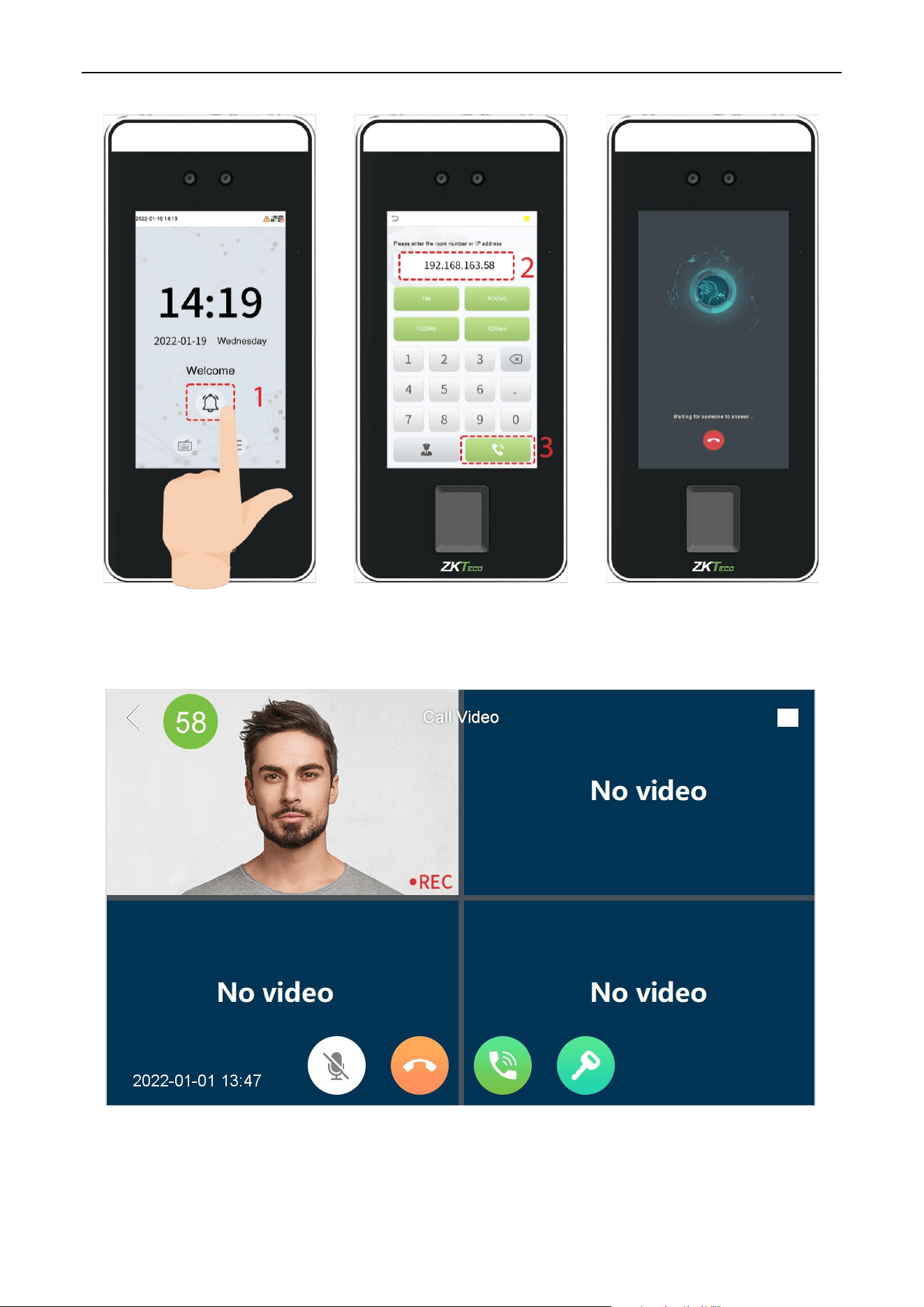
Once the indoor station is configured with the network, the video intercom function can be realized by tap
the icon on the video intercom device screen and enter the IP address of the indoor station in the
jumping interface.
VT07-B01 User Manual
Page | 37 Copyright©2024 ZKTECO CO., LTD. All rights reserved.
When the indoor station receives an incoming call alert, the interface displays as shown below.
VT07-B01 User Manual
Page | 38 Copyright©2024 ZKTECO CO., LTD. All rights reserved.
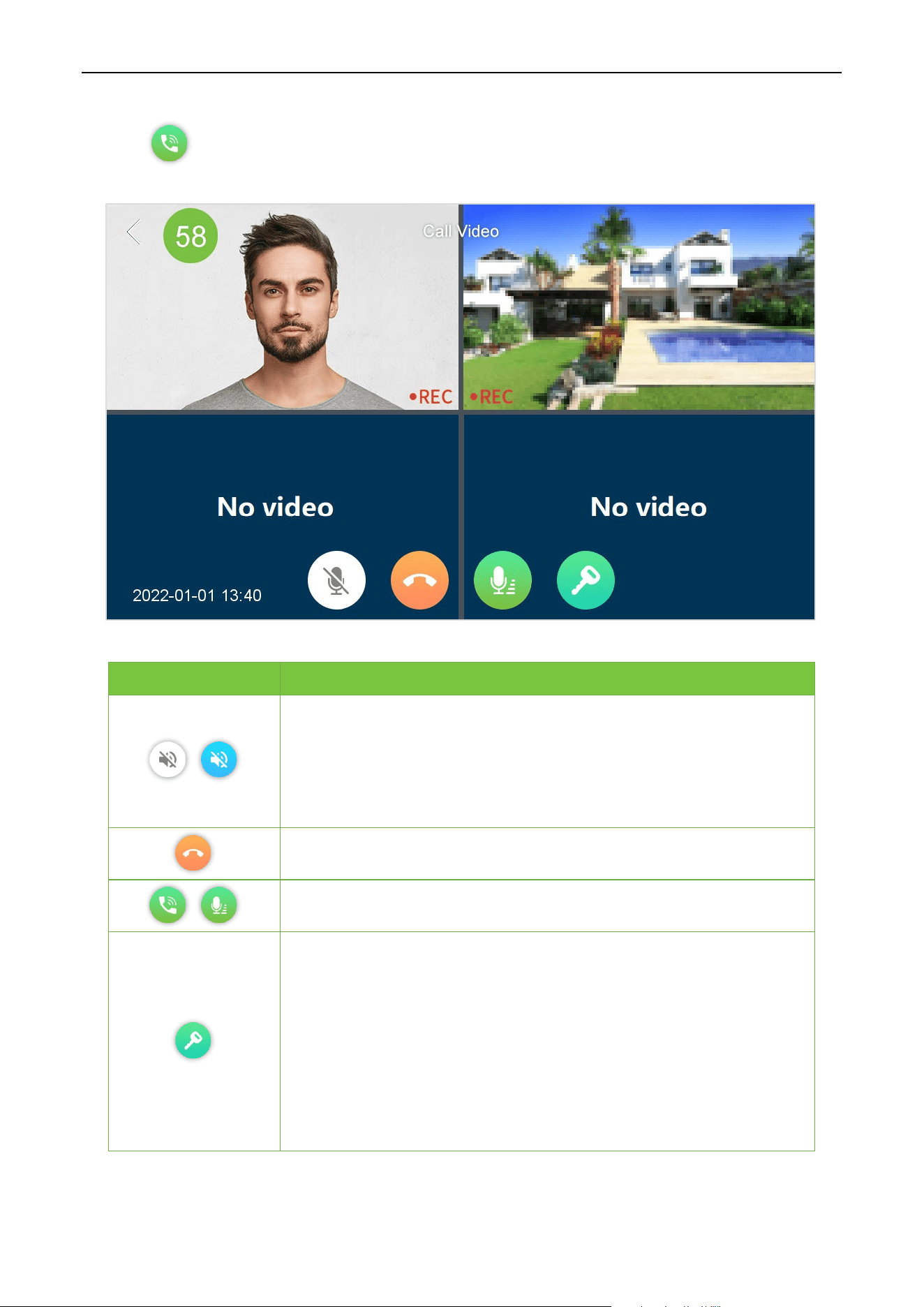
Click the icon and both parties can talk normally. The interface is shown below.
Function Descriptions
Used to set the indoor unit to mute.
After the indoor station answers, click the mute icon to block the sound
of the indoor station. The indoor station can hear the sound
of the
outdoor station, but the outdoor station cannot hear the sound of the
indoor station. Click again to cancel the mute.
Click to hang up the current video call.
Answer button, click it and both parties can talk normally.
The outdoor station is calling the indoor station, but the indoor station is
not answering. Click unlock, the indoor station prompts "Door is open"
and stops ringing, the voice prompts "Door is open" at the outdoor
station, the call from the outdoor station is not interrupted.
The outdoor station calls the indoor station, the indoor station answers
and clicks the unlock, the indoor station prompts "Door is open", the
outdoor station voice prompts "Door is open", the call is not interrupted.

VT07-B01 User Manual
Page | 39 Copyright©2024 ZKTECO CO., LTD. All rights reserved.
Appendix
FCC Warning
Any Changes or modifications not expressly approved by the party responsible for compliance could void
the user's authority to operate the equipment.
Note: This equipment has been tested and found to comply with the limits for a Class B digital device,
pursuant to part 15 of the FCC Rules. These limits are designed to provide reasonable protection against
harmful interference in a residential installation. This equipment generates uses and can radiate radio
frequency energy and, if not installed and used in accordance with the instructions, may cause harmful
interference to radio communications. However, there is no guarantee that interference will not occur in a
particular installation. If this equipment does cause harmful interference to radio or television reception,
which can be determined by turning the equipment off and on, the user is encouraged to try to correct the
interference by one or more of the following measures:
-Reorient or relocate the receiving antenna.
-Increase the separation between the equipment and receiver.
-Connect the equipment into an outlet on a circuit different from that to which the receiver is connected.
-Consult the dealer or an experienced radio/TV technician for help.
This device complies with part 15 of the FCC Rules. Operation is subject to the following two conditions: (1)
This device may not cause harmful interference, and (2) this device must accept any interference received,
including interference that may cause undesired operation.
This equipment complies with FCC radiation exposure limits set forth for an uncontrolled environment.
This equipment should be installed and operated with minimum distance 20cm between the radiator.

VT07-B01 User Manual
Page | 40 Copyright©2024 ZKTECO CO., LTD. All rights reserved.
Eco-friendly Operation
The product's "eco-friendly operational period" refers to the time during which this product
will not discharge any toxic or hazardous substances when used in accordance with the
prerequisites in this manual.
The eco-friendly operational period specified for this product does not include batteries or
other components that are easily worn down and must be periodically replaced. The
battery's eco-friendly operational period is 5 years.
Hazardous or Toxic substances and their quantities
Component
Name
Hazardous/Toxic Substance/Element
Lead (Pb)
Mercury
(Hg)
Cadmium
(Cd)
Hexavalent
Chromium
(Cr6+)
Polybrominated
Biphenyls (PBB)
Polybrominated
Diphenyl Ethers
(PBDE)
Chip Resistor ×
○ ○ ○ ○ ○
Chip Capacitor ×
○ ○ ○ ○ ○
Chip Inductor ×
○ ○ ○ ○ ○
Diode ×
○ ○ ○ ○ ○
ESD
component
×
○ ○ ○ ○ ○
Buzzer ×
○ ○ ○ ○ ○
Adapter ×
○ ○ ○ ○ ○
Screws
○ ○ ○
×
○ ○
○ indicates that the total amount of toxic content in all the homogeneous materials is below the limit
as specified in SJ/T 11363—2006.
× indicates that the total amount of toxic content in all the homogeneous materials exceeds the limit
as specified in SJ/T 11363—2006.
Note: 80% of this product’s components are manufactured using non-toxic and eco-friendly
materials. The components which contain toxins or harmful elements are included due to the current
economic or technical limitations which prevent their replacement with non-
toxic materials or
elements.

Page | 1 Copyright©2024 ZKTECO CO., LTD. All rights reserved.
ZKTeco Industrial Park, No. 32, Industrial Road,
Tangxia Town, Dongguan, China.
Phone : +86 769 - 82109991
Fax : +86 755 - 89602394
www.zkteco.com
Copyright © 2024 ZKTECO CO., LTD. All Rights Reserved.






