VOPLLS
User Manual
Version: 0531


Catalog
Important Safety Considerations 03
Basic Configuration 05
Projector Overview 06
Remote Control 07
Focus and Keystone Correction 07
Projector Connections 10
Product Features 28
Trouble Shooting 29
Connecting to the Mobile Device 10
For iOS Device 10
For Android Device 11
Connecting to the Computer 13
Wireless Connection for Mac OS 13
Wireless Connection for Win10 or Above 13
Wired Connection 14
Connecting to the External Storage Device 15
Connecting to the Fire Stick 19
Connecting to the DVD Player 20
Settings 21
Playing Video
16
Playing Music 17
Playing Image 17
Playing WPS Office 18
21
22
24
25
26
27
Quick Settings
Network Setting
Bluetooth Setting
Projection Settings
System Update
General Settings
EN
01
EN
01
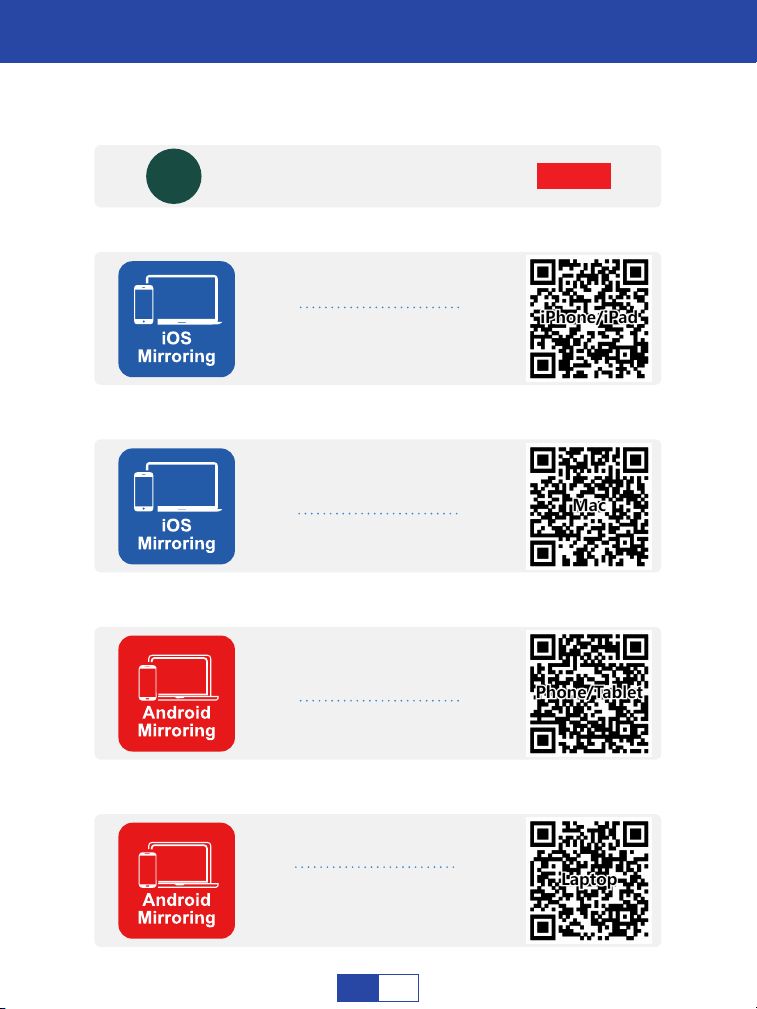
HOW TO CONNECT TO IPHONE/IPAD?
HOW TO CONNECT TO MAC?
HOW TO CONNECT TO ANDROID SMARTPHONE/TABLET?
HOW TO CONNECT TO WINDOWS LAPTOP?
Video Operation Guide
SUBSCRIBE
VIP PROJECTOR
Scan QR codes below or search for “VS-KING PROJECTOR”
on YouTube to get videos
SUBSCRIBE
VS-KING PROJECTOR
VS-KING
EN
02
Important Safety Considerations
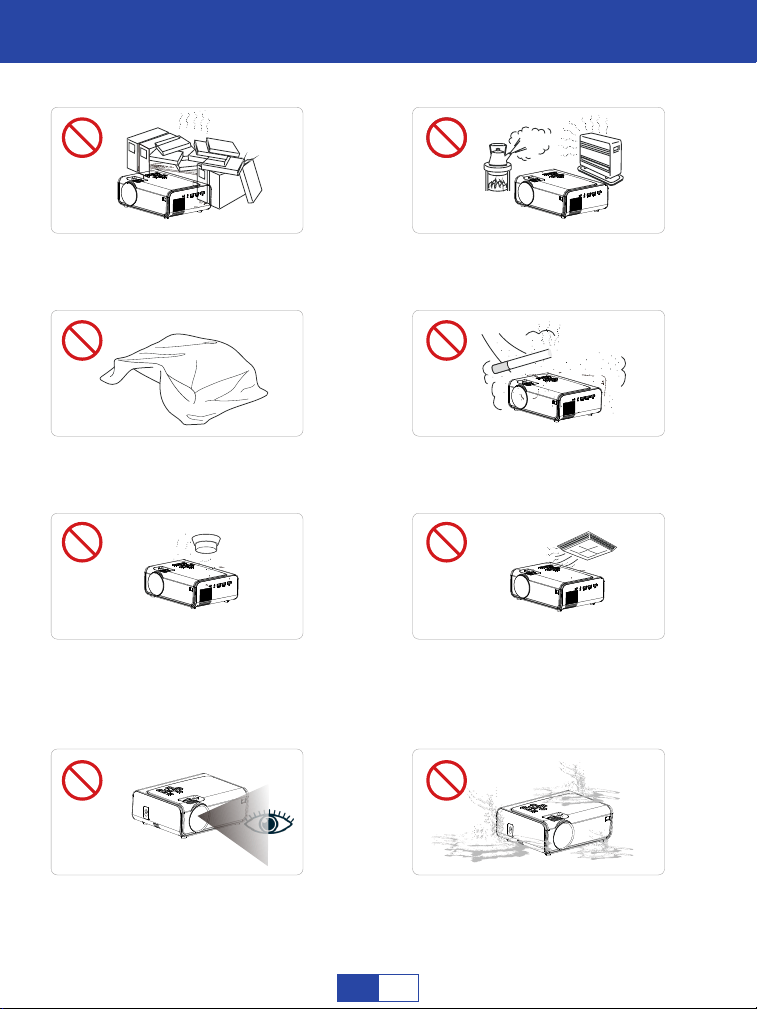
Important Safety Considerations
Do not install the projector in
hot and humid sites.
Do not block the ventilation
holes (intake or exhaust).
Do not install the projector in
dust and smoke sites.
Do not install the projector in
sites with improper ventilation.
Please keep the projector
away from water or any other
liquid as it is not waterproof.
Do not install the projector in
sites with direct blowing of
warm and cool air-condition
wind. Otherwise it may cause
the project failure.
Please do not look into the
lens when the projector is
working. Otherwise it may
hurt your eyes.
Do not install the projector near
the temperature and smoke
transducer. It may cause a
sensor failure.
EN
03

Installation
Please use the projector in a dark room for best results.
Cleaning
Unplug the power cord from the projector.
Notes on Fire and Electric Shock
High Temperature Warning
Do not place any liquid on the projector.
Please use the projector with a soft brush. Do not use rigid accessories,
such as a crevice cleaning tool, to avoid damage to the projector.
Please clean the ventilation opening and the loudspeaker regularly with a
cleaner. The projector will be overheated with blocked dust, causing the
failure.
Use an air brush or lens paper to clean the lens and be careful not to scratch
or abrade them.
Use a wet cloth to clean the cabinet regularly. Neutral detergent may be
used for serious smudge. Do not use strong detergent or solvent such as
alcohol or diluent.
Use the power cord with caution to avoid unduly bending. Damaged power
cord may cause electric shock.
Please use the projector with caution to avoid dropping or shocking,
which may damage the projector.
Prevent foreign objects from falling into the projector, such as paper clips and
paper scraps, do not attempt to retrieve any such object. Do not insert any
metal object, such as an iron wire or a screwdriver, into the projector. Make
sure to immediately turn off the power and ask qualified professional mainte-
nance personnel to remove any object falling into the projector.
The temperature near the outlet will rise during and after the projection.
Please don't touch it, otherwise it may cause burns.
Make sure of adequate ventilation and blocked outlet to avoid heat accu-
mulation within the projector.
EN
04
ϐ
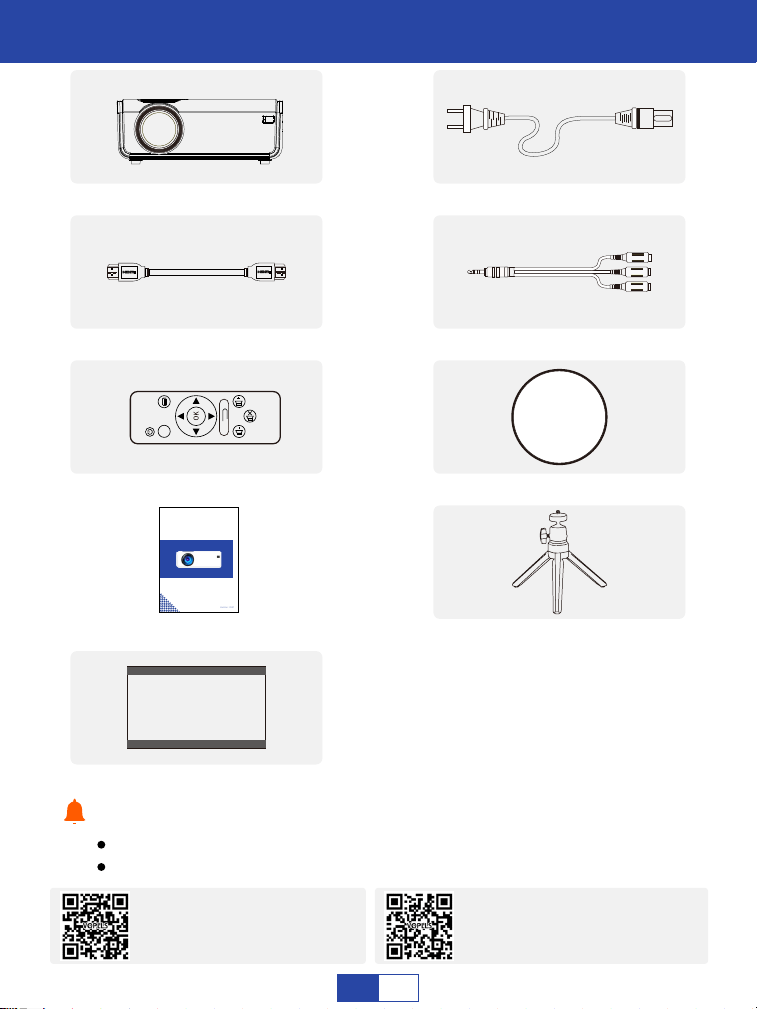
If there is any part missing, please contact VOPLLS support team.
Email address of VOPLLS support team:
Tips:
1 x 1080P Projector 1 x Power Cord
1 x HDMI Cord 1 x AV Signal Cord
1 x User Manual 1 x Projector Stand
1 x Projector Screen
1 x Height Adjusting Screw
1 x Remote Control
(battery not included)
1 x Lens Cap
100 inches
SOURCE
North America Marketplace:
Europe Marketplace:
VOPLLS
User Manual
Version: 0531
EN
05
Projector Overview
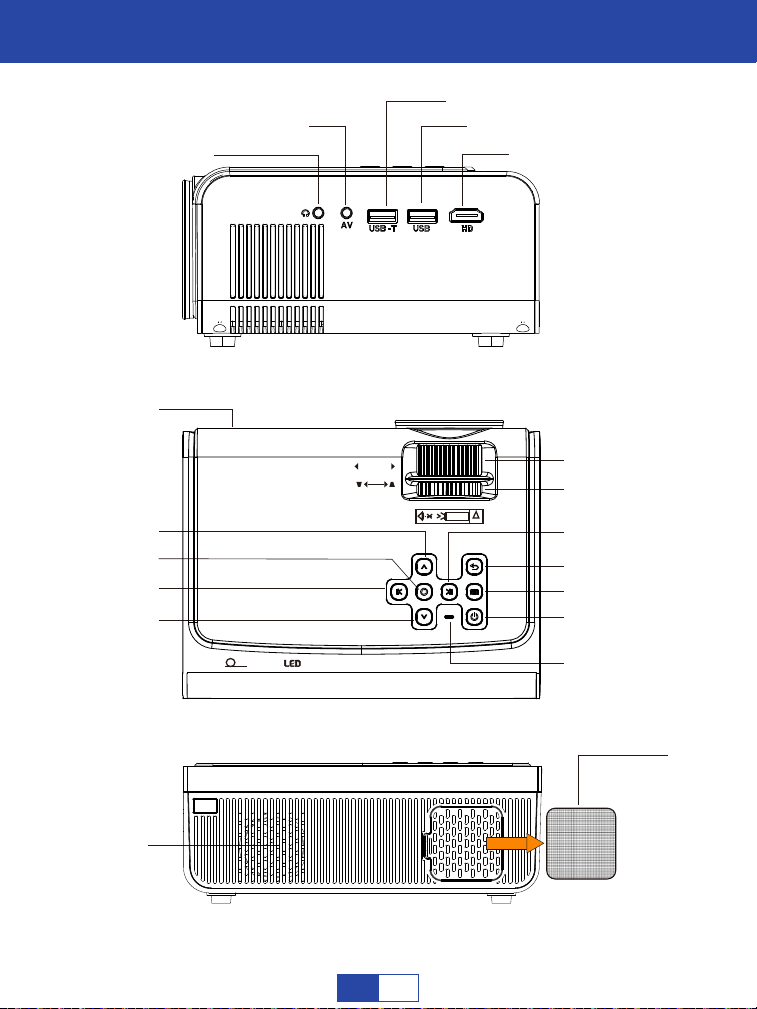
USB
Keystone
IR
Focus
Move Up
Return
Volume Up
Volume Down
Power On/Off
Short press to enter Settings
Long press to adjust volume
Power lndicator
Dust Filter
Move Down
Speaker
OK
USB-T
AV
HDMI3.5mm Audio
-$%
TECHNOLOGY BY
FULL HIGH-DEFINITION
USB
!
CAUTION
FOCUS
KEYSTONE
/ /
EN
06
Remote Control
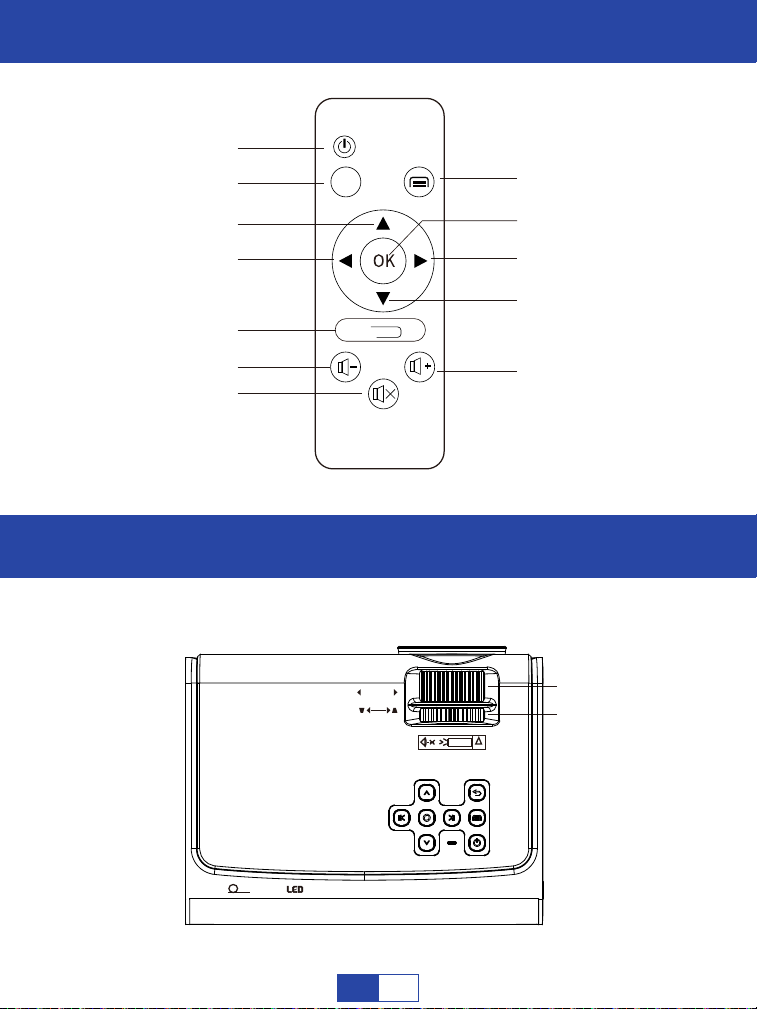
Volume Down
Volume Up
Mute
Move Left
Return
Move Up
Move Right
OK
Move Down
Power Switch
Quick Settings
Signal Source
Focus and Keystone Correction
Focus
Keystone Correction
Adjust the “Focus” and “Keystone Correction” to get the best image performance.
-$%
TECHNOLOGY BY
FULL HIGH-DEFINITION
USB
!
CAUTION
FOCUS
KEYSTONE
/ /
SOURCE
EN
07
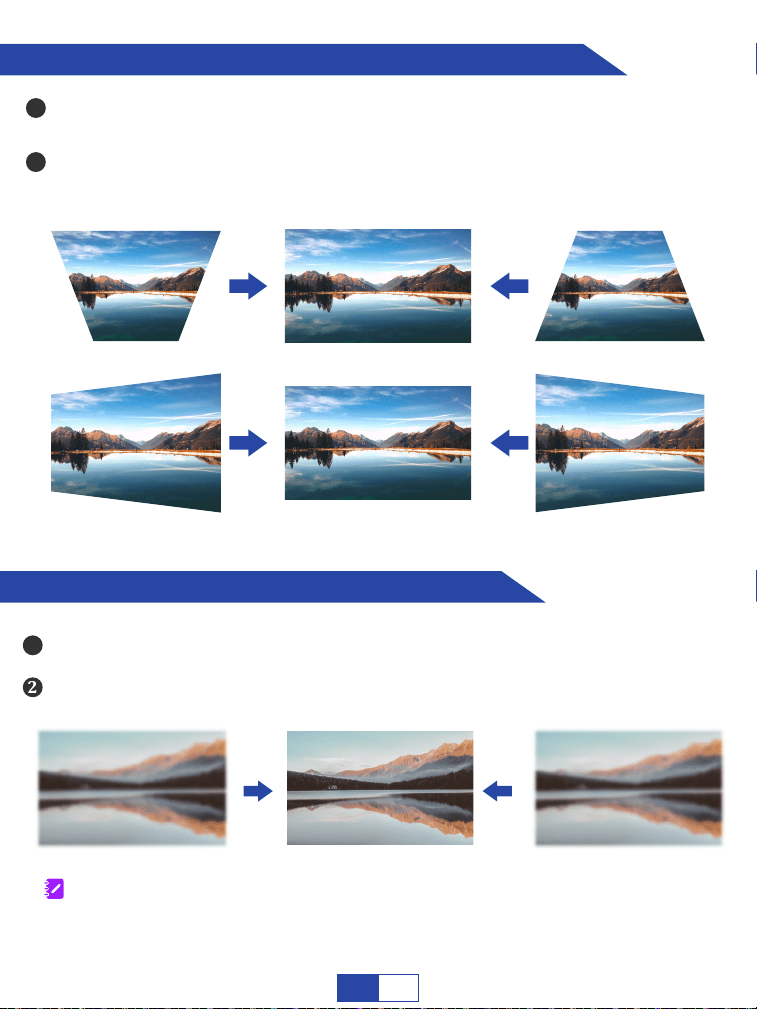
image image image
How to adjust the projected image shape?
How to get sharp projected image?
1
2
Please do focus to find the most sharpness picture on the screen.
1
2
image image
image
It is normal when sharpness in the central, blur in the edge.
Note:
Please reduce the vertical height of the projector in relation to the center of
the screen.
Please access to “Projection Settings” on the “Settings” page, and find “Verti-
cal Correction” or “Horizontal Correction” to get a better projection effect.
Please adjust projection distance, the optimum projection distance
is 2m-2.5m/6.5ft-8.2ft.
EN08
Tips:
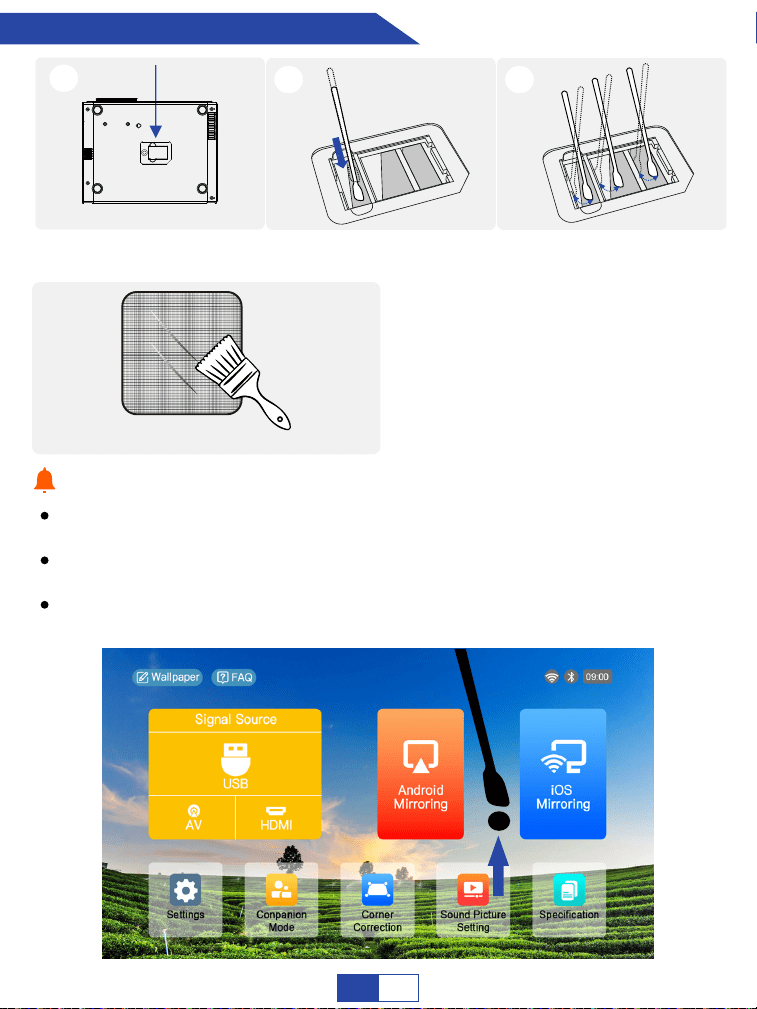
How to clean up the dust?
Tear off the label and
open the lid.
2
Insert the cotton swab
deep inside.
3
Wiped all the 5 sides
(Adjust the “keystone” for
easy wiping).
If there are black spots on screen, please turn on the projector and move the
swab according to the position of the black spot on the screen.
Please wipe the lens regularly to solve or avoid the problem of black spots
on the screen.
Please periodically clean dust on the dust filter to ensure the projector can
properly release the heat generated during use.
1
Open the dust filter and clean it
EN09
Projector Connections
Connecting to the Mobile Device
Warm Tips:
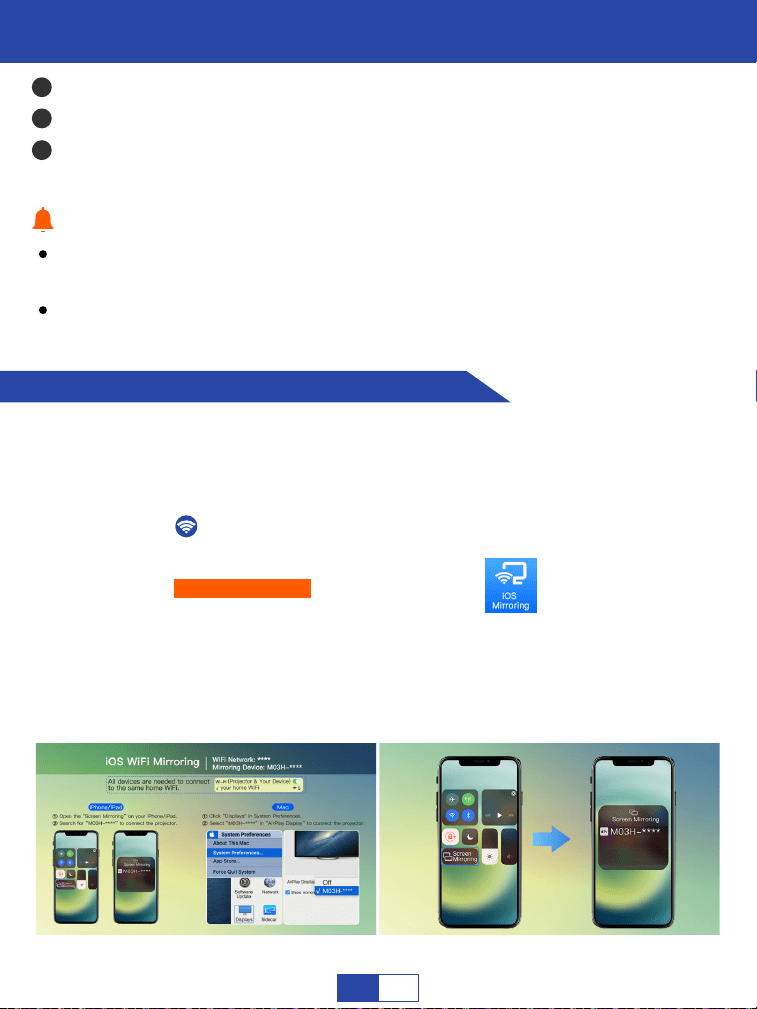
All the devices are needed to connect to the same home WiFi.
1
2
3
Connect the power cord. The power button will turn red.
Short press the power button, then there will appear a brand video.
Adjust the “Focus” and “Keystone Correction” to get the best image perfor-
mance.
For iOS Device
Step 1:
Step 2:
Click “ ” on the home page to connect the projector to your
home WiFi.
Select “iOS Mirroring” on the home page.
Connect your iOS device to the same home WiFi as the projector.
Open the control center of your iOS device, click the “Screen Mirror-
ing” and select “M03H-****” from the list.
Step 3:
Step 4:
Never look into the projector lens when the lamp is on. This can damage
your eyes and is especially dangerous for children.
Install 2 pieces of AAA batteries into the remote before using it.
EN10
Note:
HUAWEI
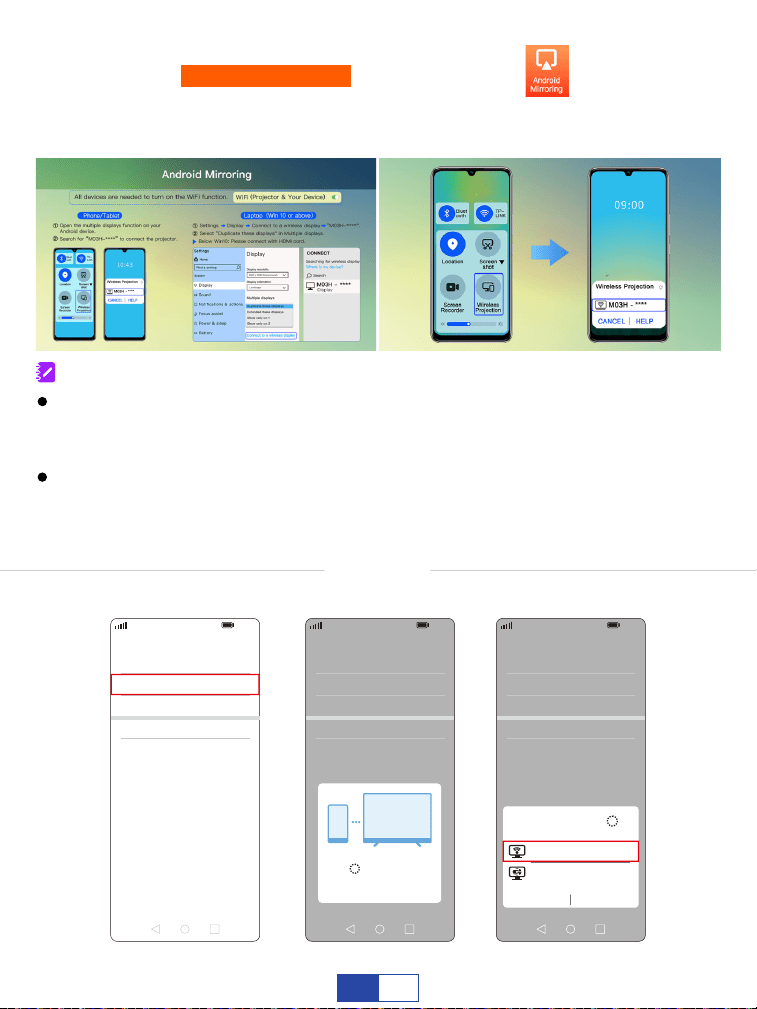
Select “Android Mirroring” on the home page.
Step 1:
Step 2:
Turn on your WiFi and Bluetooth function of your Android device.
Step 3: Open the “Multi-Screen” function and select “M03H-****” from the list.
More connections - Wireless projection
For Android Device
5G
100%
21:05
>
>
>
>
>
Huawei Share
Wireless projection
Pirnting
On
VPN
Private DNS
Of
f
5G
100%
21:05
>
>
>
>
>
Huawei Share
Wireless projection
Pirnting
On
VPN
Private DNS
Of
f
Connecting...
CANCEL
5G
100%
21:05
>
>
>
>
>
Huawei Share
Wireless projection
Pirnting
On
VPN
Private DNS
Of
f
M03H - ****
Wireless Projection
Available devices
CANCEL HELP
M03H - ****
To activate this function, your Android device must support
“Multi-Screen/Wireless” display. Names of “Screen Mirroring” function may
differ from different devices.
Google phones and partial Motorola prohibit screen mirroring directly from
the projector due to mirroring protocol issues. You need to have a Google
Chromecast to connect it.
EN11
SAMSUNG
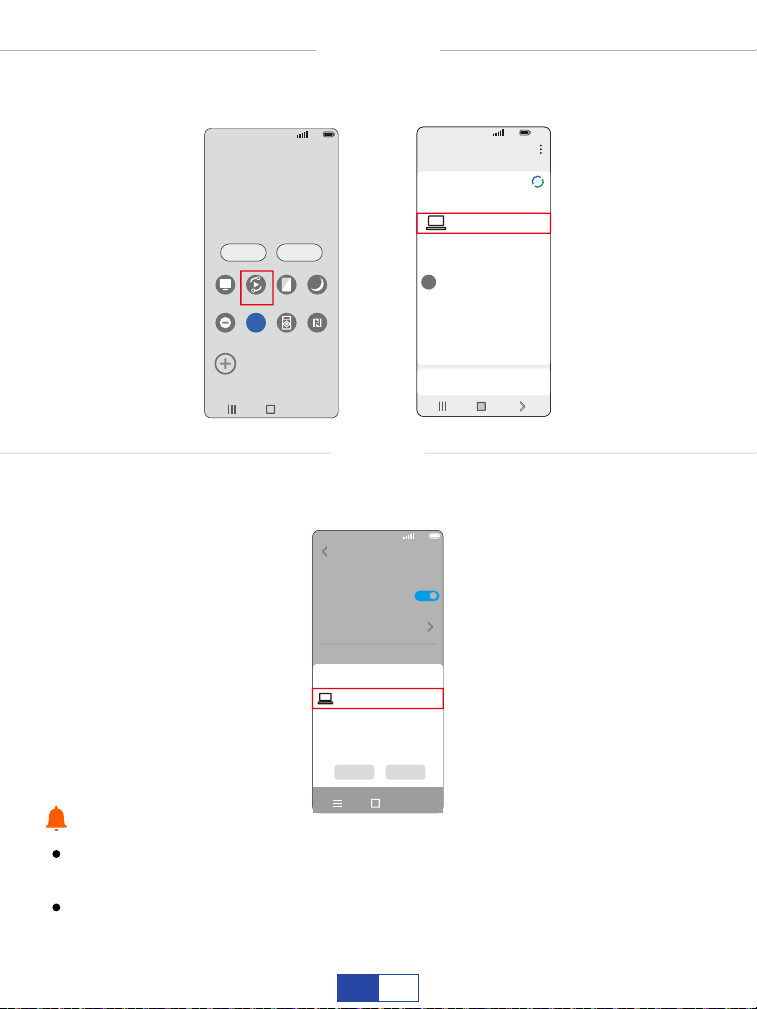
Tips:
Swipe up the screen of your Samsung device, then click “Smart View”
and search for the device of the projector.
5G
100%
>
18:45
Monday, July 5
Devices Media
DeX
DeX
Smart View
Blue light
¿lter
Dark mode
B
Do not
disturb
5G
Hongbao
accelerator
NFC
5G
5G
100%
18:45
>
Smart View
Phone Other device
Select a device below to mirror your phone’s
screen or play content
Mirror screen
>
Other device Phone
ĺ
ĺ
M03H - ****
XIAOMI
Swipe up the screen of your Xiaomi device, then click “Connection & Sharing”
and search for the device of the projector.
5G
100%
18:45
>
Cast
Cast
Cast screen contents to an external
monitor
>
Cancel Help
Select device(1)
Demos
Casting documents,games,photos,and
videos
>
SPECIAL FEATURES
M03H - ****
Make sure your mobile device is closed to the projector when using
wireless connection. A distance within 1m/3.3ft is recommended.
Please kindly note projectors with mirrored are incompatible with Netflix
and Hulu due to copyright issues.
EN12
Connecting to the Computer
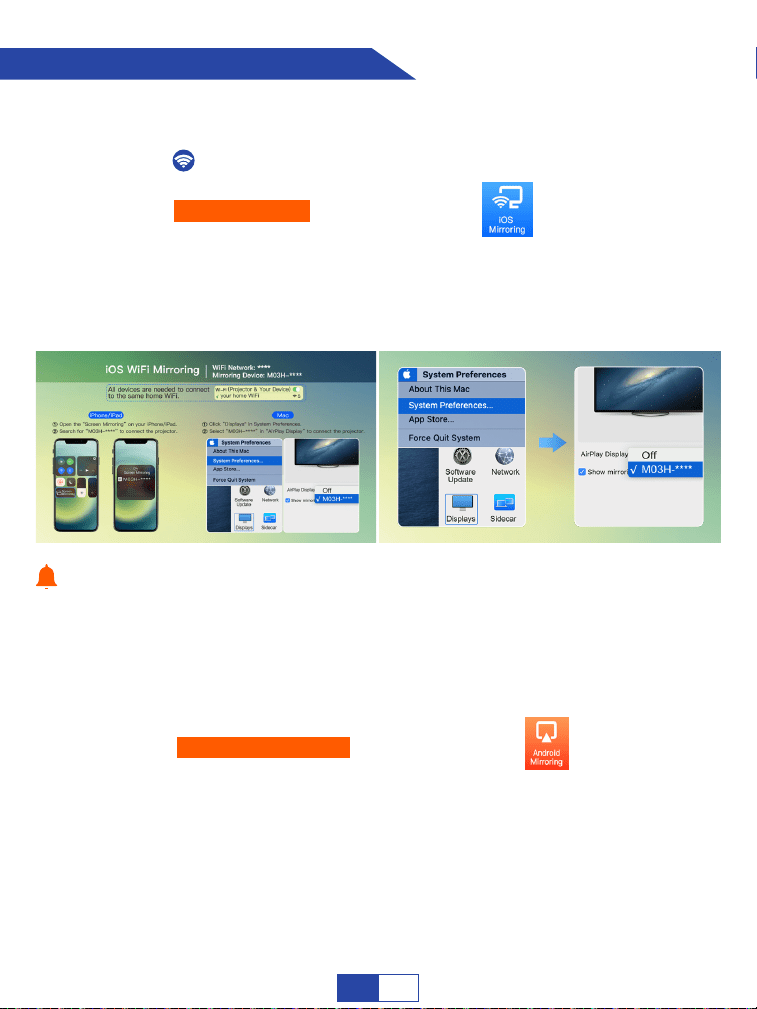
Click “ ” on the home page to connect the projector to your home
WiFi.
Select “iOS Mirroring” on the home page.
Step 1:
Step 2:
Step 3:
Connect your computer to the same home WiFi as the projector.
Select “Android Mirroring” on the home page.
Turn on your WiFi function of your computer.
Enter “Display” in “Settings” of your computer to find “Connect to a
wireless display”.
Connect to “M03H-****” and select “Duplicate these displays” in
“Multiple displays”.
Step 1:
Step 2:
Step 3:
Step 4:
Wireless Connection for Mac OS
Display Resolution of your computer please choose “Default for display”.
Tips:
Wireless Connection for Win10 or Above
Step 4:
Open “System Preferences” on your computer - Choose “Displays” -
Click “AirPlay Display” - Connect “M03H-****”.
EN13
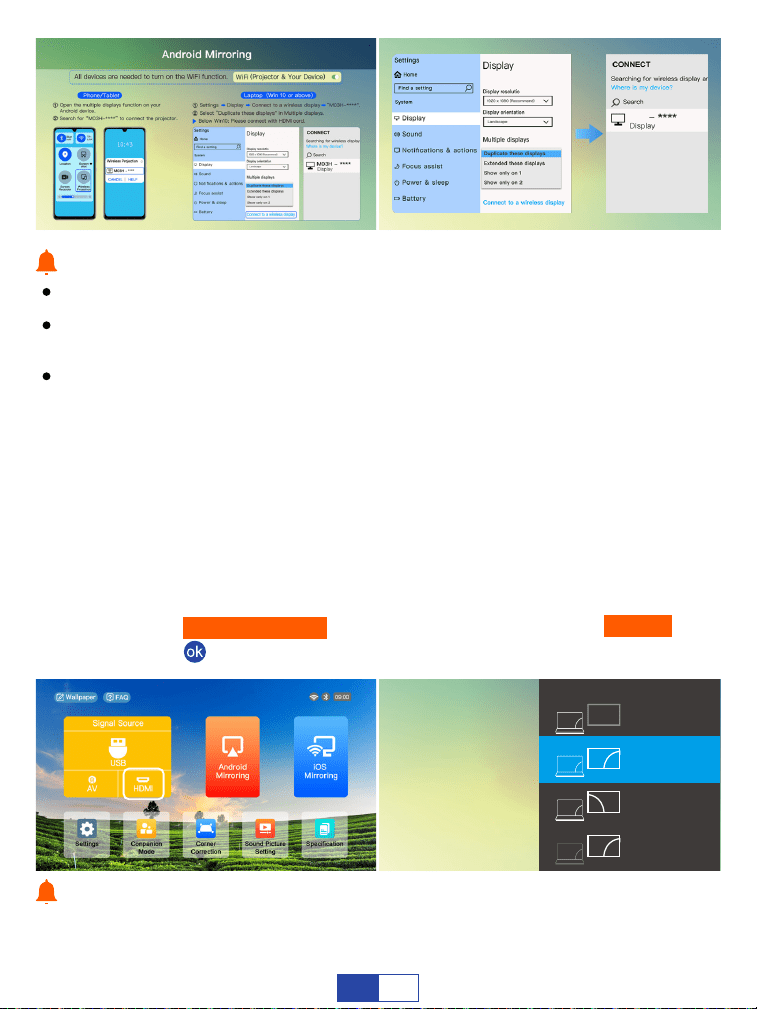
Please ensure your laptop has a wireless display function.
Please ensure you select “1920*1080 resolution” after you connect the
projector.
You can also pressing the Windows logo key + P key at the same time
and select “DUPLICATE”.
Tips:
Turn on your computer and the projector.
Step 1:
Step 2:
Use included HDMI cord to connect your computer and projector.
Step 3:
Access “Signal Source” on the home page, and choose “HDMI”, then
press “ ”to confirm.
For Windows7 and higher system, pressing the Windows logo key + P key at
the same time and select “DUPLICATE”.
Connect the projector to your computer by using the HDMI cord in the package.
Tips:
Wired Connection
S E C O N D S C O N D
SCREEN ONLY
Project
PC SEREEN ONLY
DUPLICATE
EXTEND
EN14
Connecting to the External Storage Device
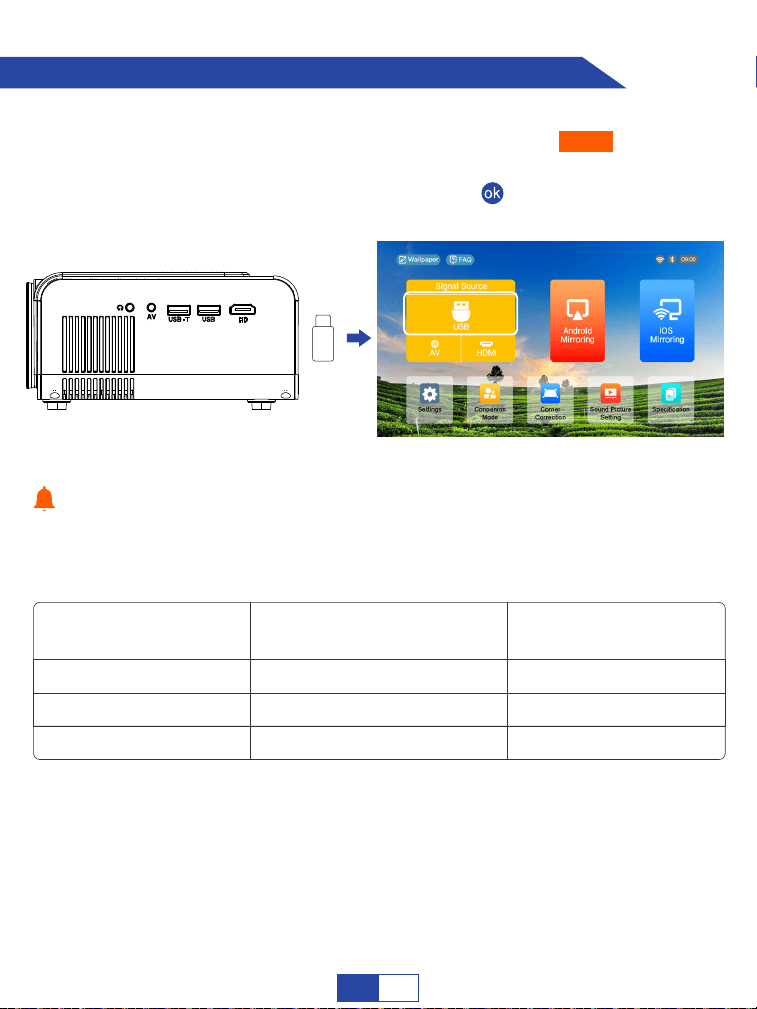
Turn on the projector and insert USB drive, choose“USB”on the home
page.
Step 1:
Step 2:
Tips:
Click the USB drive and then press the “ ” to enter the USB drive
files.
USB
Formats of USB drive
NTFS
FAT32
FAT
128G
128G
128G
2T
4G
2G
Maximum memory capacity
of USB drive
Maximum memory
of each video
Please note that your USB drive and files need to meet the following formats.
(For example: If the format of your USB drive is NTFS, the memory capacity of
USB drive must be under 128G and the memory of video must be under 2T.)
EN15
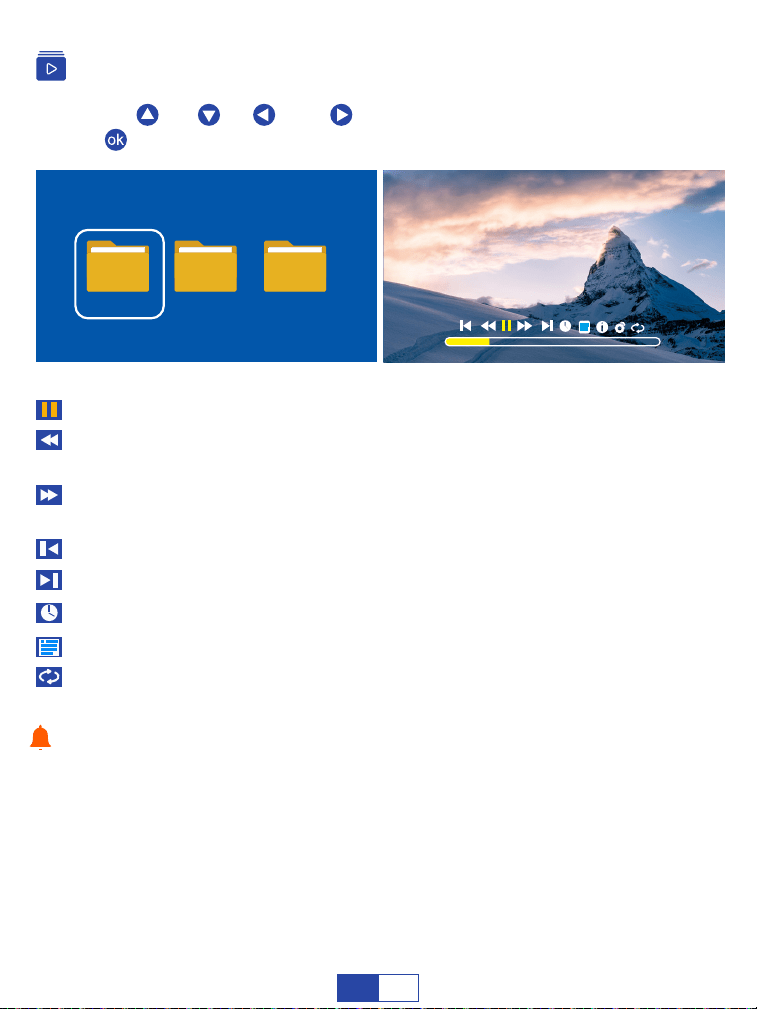
Play or pause the current video.
Fast Backward: rewinds the video back quickly while playing it. The
rewinding speed ranges from 2X to 32X.
Fast Forward: pushes the video to move forward quickly while playing it.
The forward speed ranges from 2X to 32X.
Previous: goes back to the previous video.
Next: goes to the next video.
Adjust the video to start playing at a certain moment.
Plist: a list of video files that can be played from the current folder.
Repeat: Section replay, Set starting point A, Set starting point B.
Press the “ ”, “ ”, “ ” or “ ” select the equipment for movie storage.
Press “ ” to play video.
Playing Video
The video content can be viewed by staying the cursor on the selected video
for over 3 seconds. Only MP4, RMVB, AVI, RM, MKV and other video
formats are supported in video playing.
Tips:
File
Video
Music
lmage
00:02:33
EN16
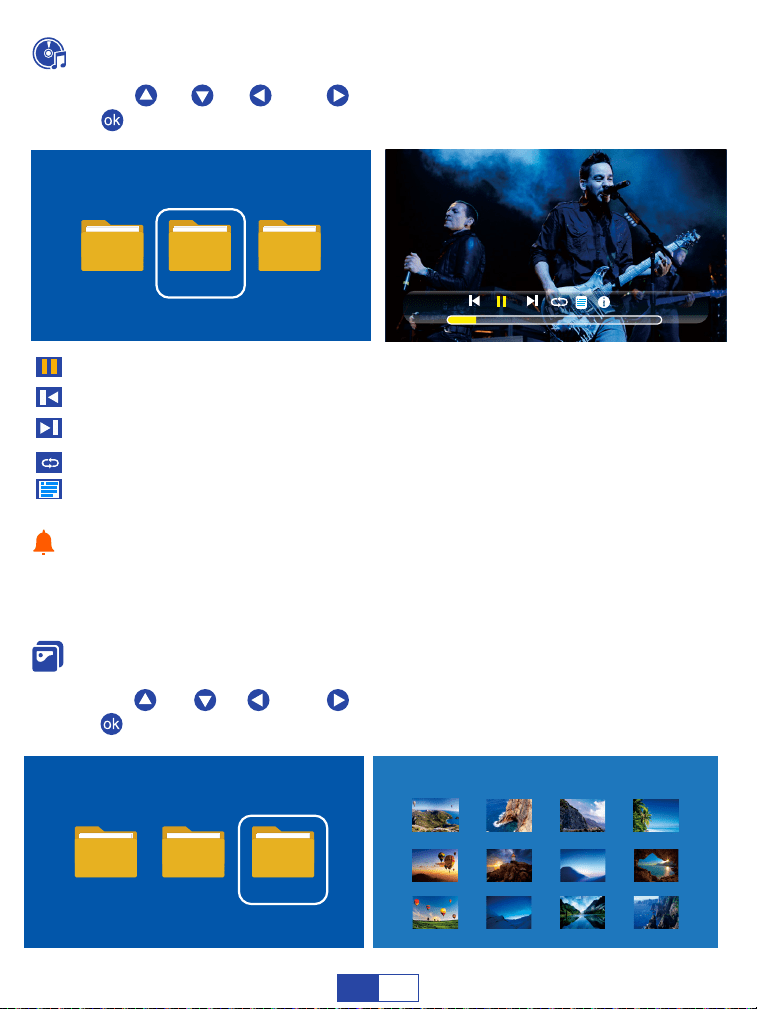
Press the “ ”, “ ”, “ ” or “ ” select the equipment for music storage.
Press “ ” to play music.
Play or pause the current music.
Previous: goes back to the previous music.
Next: goes to the next music.
Play Sequence: Sequential Play, Random Play, Single Cycle, List Loop.
Plist: a list of music files that can be played from the current folder.
Press the “ ”, “ ”, “ ” or “ ” select the equipment for image storage.
Press “ ” to play image.
Playing Music
Playing Image
Only audio formats such as MP3, WMA, OGG, AAC, FLAC, APE, WAV etc.
are supported for video playing.
Tips:
File
Video
Music
lmage
File
Video
Music
lmage
KQF
9.jpe
2.jpeg
6.jpeg
5.jpeg
10.jpe
3.jpe
7.jpeg
11.jpe
4.jpeg
8.jpeg
12.jpeg
Image 1/8
EN
17
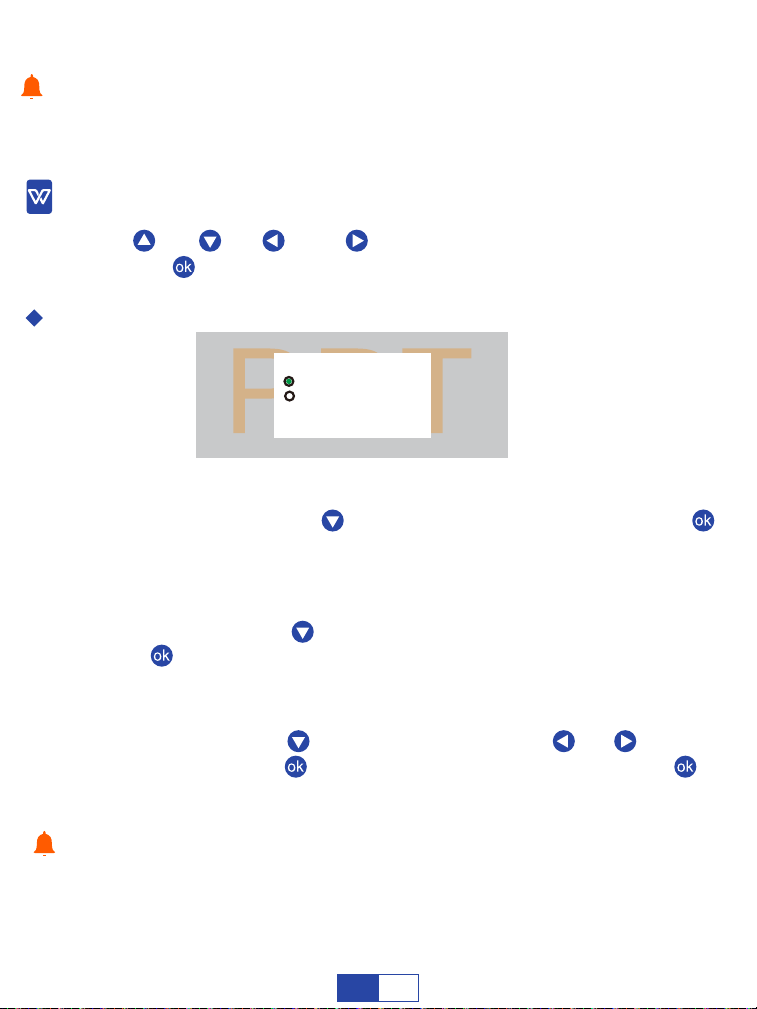
Press the “ ”, “ ”, “ ” or “ ” select the equipment for office suite
storage. Press “ ” to play office suite.
Choose “Play”, press 3 times “ ” until cursor stays on “OK” and press “ ”
to play PPT.
Choose “Auto Play”, press “ ” of the remote twice until cursor stays on “OK”
and press “ ” to play PPT.
Choose “Auto Play”, press “ ” of the remote, then press “ ” or “ ” to adjust
the switching time, press “ ” untill cursor stays on “OK” and press “ ” to
play PPT.
ϐ
For Playing PPT
Manual Paly
Auto Play(No need to adjust switching time) :
Auto Play(Need to adjust switching time) :
Only JPG/JPEG, BMP, PNG and other image formats are supported for image
playing.
Tips:
Only text, excel, word, PPT documents are supported for this function.
Tips:
Play Mode
1MBZ
"VUP1MBZ
Switching time
Cancel OK
5s
ź
ź
EN
18
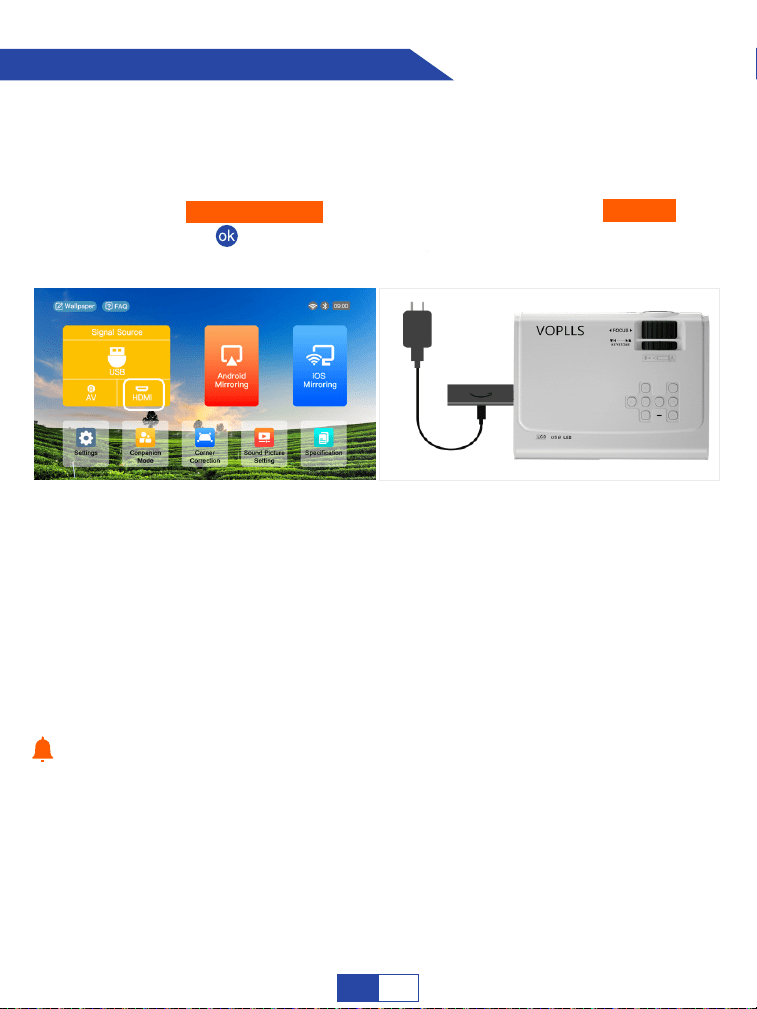
Warm Tips:
Step 1:
Step 2:
Insert Firestick.
Connect a charger cord for your Firestick.
Step 3:
Access “Signal source” on the home page and choose “HDMI” then
press the “ ” to confirm.
Connecting to the Fire Stick
Your Firestick may be in sleep mode, please unplug your Firestick and
charger cord of Firestick, then plug back in to activate the Firestick.
What if the projector doesn't recognize Firestick?
Enter “Setting” and find “Display & Sound”. Then select “on” for “navigation
sounds”. Select “Stereo (or PCM)” for “surround sound”.
What if there is no sound?
Due to HDCP copyright issues, Netflix / Disney / Hulu prohibits playing movies
directly from the projector. Pls purchase aTV stick to play.
Not included
EN
19
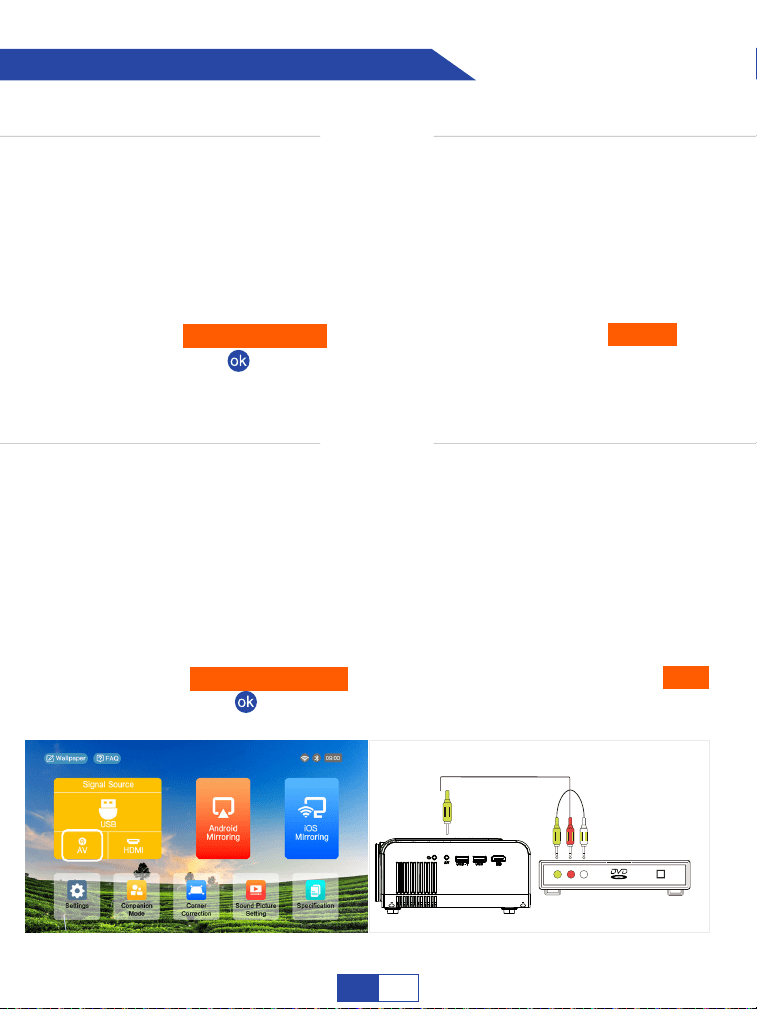
Connecting to the DVD Player
OPTION 1
Connect the projector to your DVD player by using the HDMI cord in the package.
Step 1:
Step 2:
Turn on your DVD player and the projector.
Connect the HDMI cord to your computer's HDMI port.
Step 3: Connect the other end to any available HDMI port on your projector.
Step 4: Access “Signal Source” on the home page, and choose “HDMI”,
then press “ ”to confirm.
OPTION 2
Connect the projector to your DVD player by using the AV cord in the package.
Step 1:
Step 2:
Turn on your DVD player and the projector.
Connect the colorful female connectors to your DVD player’s
RCA cord.
Step 3: Connect the yellow male connector to the AV Input port on the
projector.
Step 4:
Access “Signal Source” on the home page, and choose “AV”,
then press “ ” to confirm.
EN
20
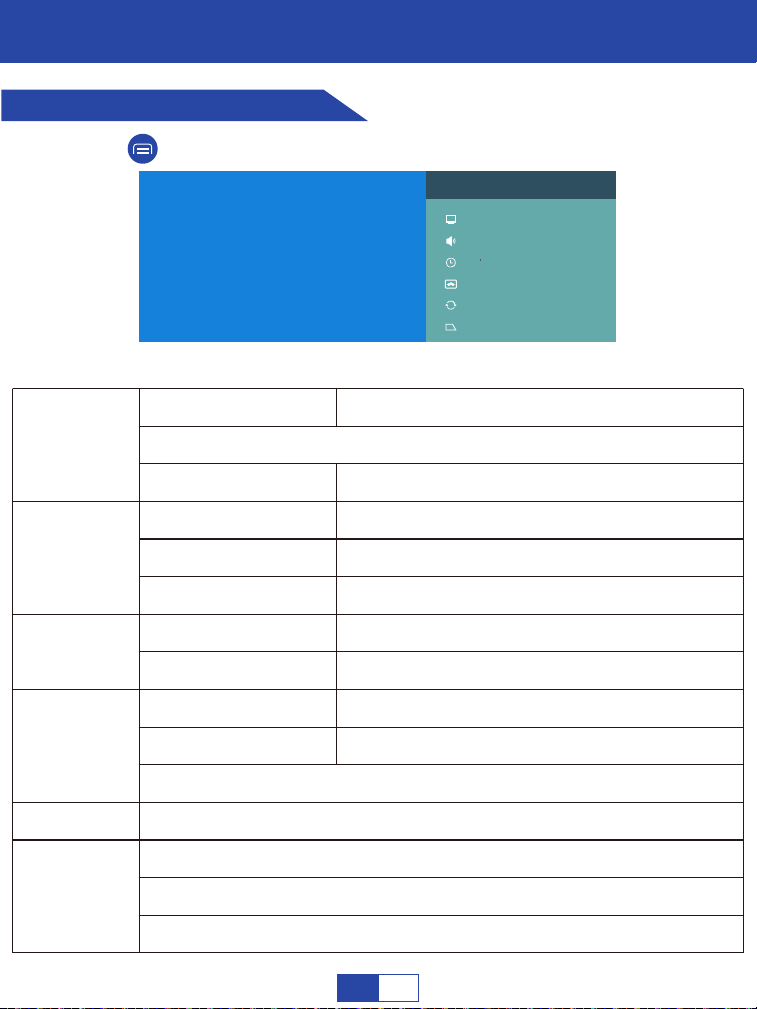
Quick Settings
Quick Settings
Press the “ ” on the remote control to bring up the Quick Settings page.
Settings
Picture Mode
Backlight, Brightness, Contrast, Saturation, HUE, Sharpness.Picture
Color Temperature
Sound Style
Sound SurroundSound
Equalizer Detail
Timing Shutdown
No Signal Auto Power Off
When to start
Put device to sleep
Screen Saver
Start now
Front, Rear, Front Ceiling, Rear Ceiling.Projection
Project Rotate, Digital Zoom, Horizontal Correction, Vertical Correction.
Corner CorrectionTrapezoid
Reset
User, Standard, Vivid, Sport, Movie, Game, Energy Saving.
Red Gain, Green Gain, Blue Gain.
User, Standard, Vivid, Sports, Movie, Music, News.
On, Off.
120Hz, 500Hz, 1.5KHz, 5KHz, 10KHz.
Off, 10 Minutes, 20 Minutes, 30 Minutes, 40 Minutes,
50 Minutes, 60 Minutes, 90 Minutes, 120 Minutes.
Off, 5 Minutes, 10 Minutes, 15 Minutes, 30 Minutes,
60 Minutes.
5 minutes, 15 minutes, 30 minutes, 1 hour, 2 hours, Never.
30 minutes, 1 hour, 3 hours, 6 hours, 12 hours, Never.
Power Manager
Quick Settings
Picture
Sound
Power Manager
Screen saver
Projection
Trapezoid
EN
21
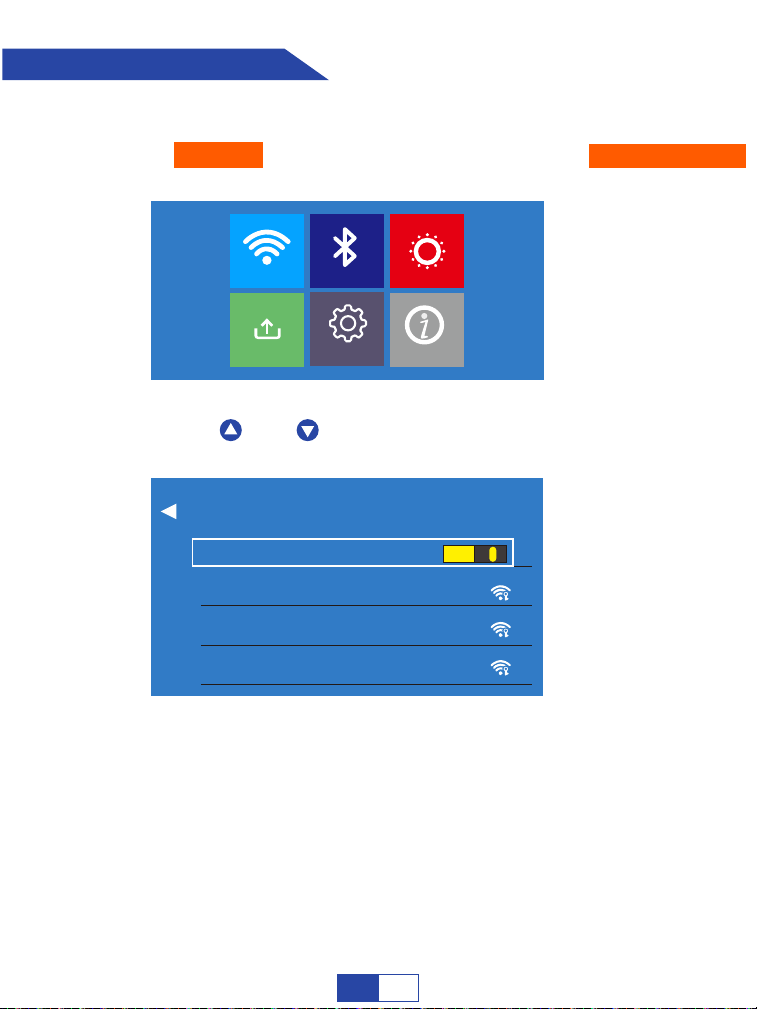
Step 1:
Select “Settings” on the home page, and then access “Network Setting”.
Step 2:
Press the “ ” or “ ” to select your home network.
Network Setting
Network Setting
Bluetooth Setting
Projection
System Update General Settings
System I fon
Network Setting
EYESJOY
WiFi ON/OFF
ASUS_5G
WJKJ360
EN
22
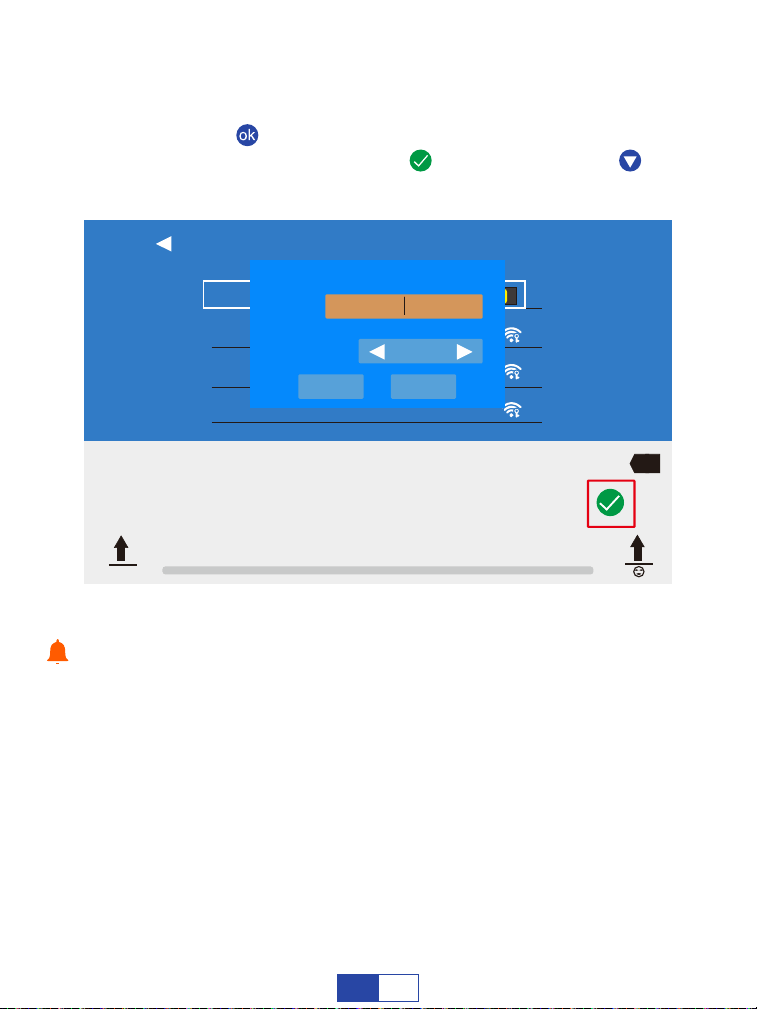
Please turn on your mobile hotspot as your home network if there is no
network.
Tips:
Step 3:
Press the “ ” enter the password page. Enter password of your
home network and press the “ ” to confirm. Press “ ” to select
“Connect”.
Network Setting
WiFi ON/OFF
EYESJOY
ASUS_5G
WJKJ360
ASUS-5G
Password:
Show Password:
On
ConnectCancel
q w e r t y u i o p
1 2 3 4 5 6 7 8 9 0
a s d f g h j k l
z x c v b n m ! ?
?123
X
EN
23
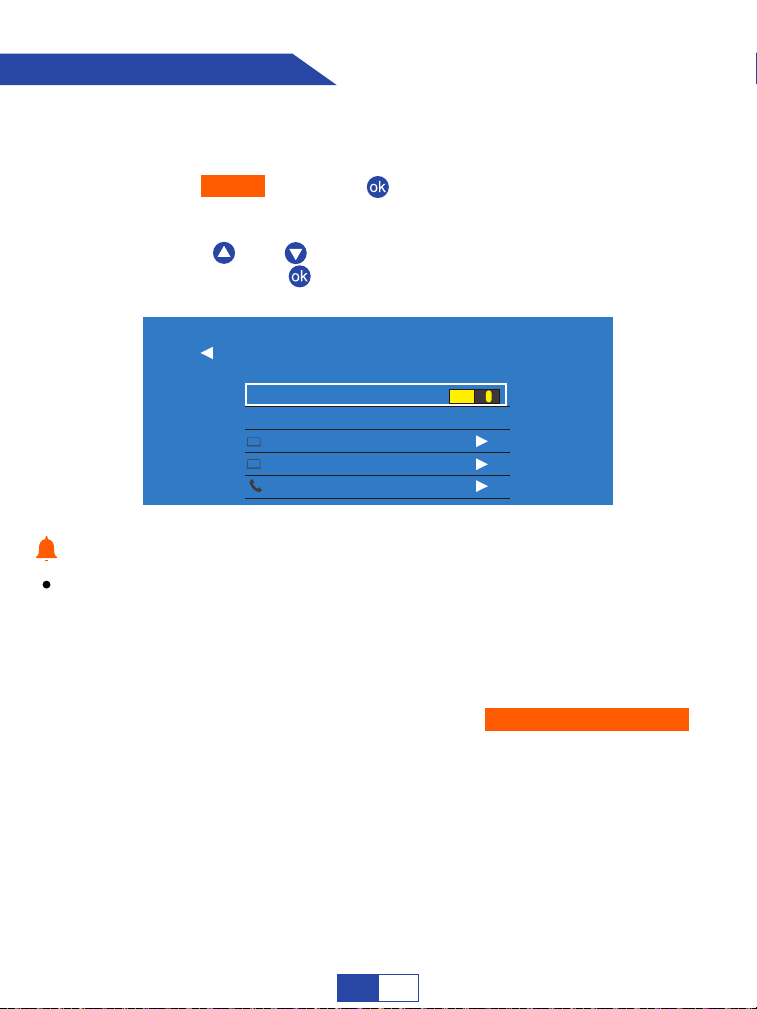
The Bluetooth doesn’t have image/video transmission function. But you
can connect it to Bluetooth Speakers/Earphones/Soundbar as you
please to enhance your viewing experience.
Use the projector as a Bluetooth speaker for your phone/tablet:
Please connect your phone/tablet to the projector through Bluetooth.
(Please make sure your phone/tablet is on the Bluetooth setting page
when the projector is retrieving your phone's Bluetooth.)
Tips:
Step 1:
Step 2:
Switch on your Bluetooth device, and make sure the Bluetooth is in
pairing mode.
Access to “Scan” and press “ ” to update and retrieve your Bluetooth
device.
Step 3:
Press the “ ” or “ ” to select the correct Bluetooth device from the
list, and press the “ ” to connect.
Bluetooth Setting
Blu etooth Setting
Bluetooth
Scan
DESKTOP-HBPL5KL
DESKTOP-Q4RCFIP
OnePlus 9
EN
24
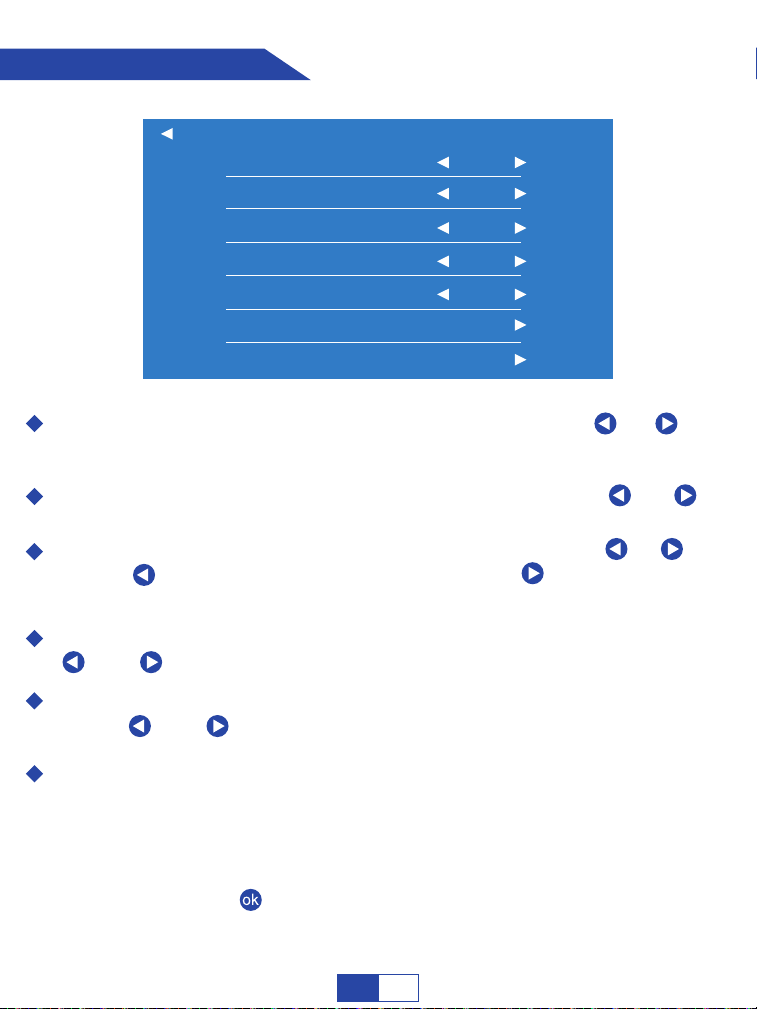
Cast Mode: Choose the projection mode by pressing the “ ”, “ ”
including Front, Rear, Ceiling, Rear Ceiling .
Rotation: Rotate and adjust the image ±50° by pressing the “ ”, “ ” .
Zoom: Adjust screen size from 100% to 50% by pressing the “ ”, “ ”
. Press “ ” to reduce the screen size, and press “ ” to increase the
screen size.
Vertical Correction: Adjust the image ±50° vertically by pressing the
“ ” or “ ”.
Horizontal Correction: Adjust the image ±50° horizontally by press-
ing the “ ” or “ ”.
Quadrangle Correction:
Projection Settings
Step 1:
Step 2:
Select the “Quadrangle Correction” on the operation panel.
Press the “ ” to choose the corner you need.
Quadrangle Correction: Adjust the four points and four sides of the image separately.
Rotation
Projection
0
100
0
Zoom
Vertical Correction
Cast Mode
Front
0Horizontal Correction
Quadrangle Correction
Keystone Reset
EN
25
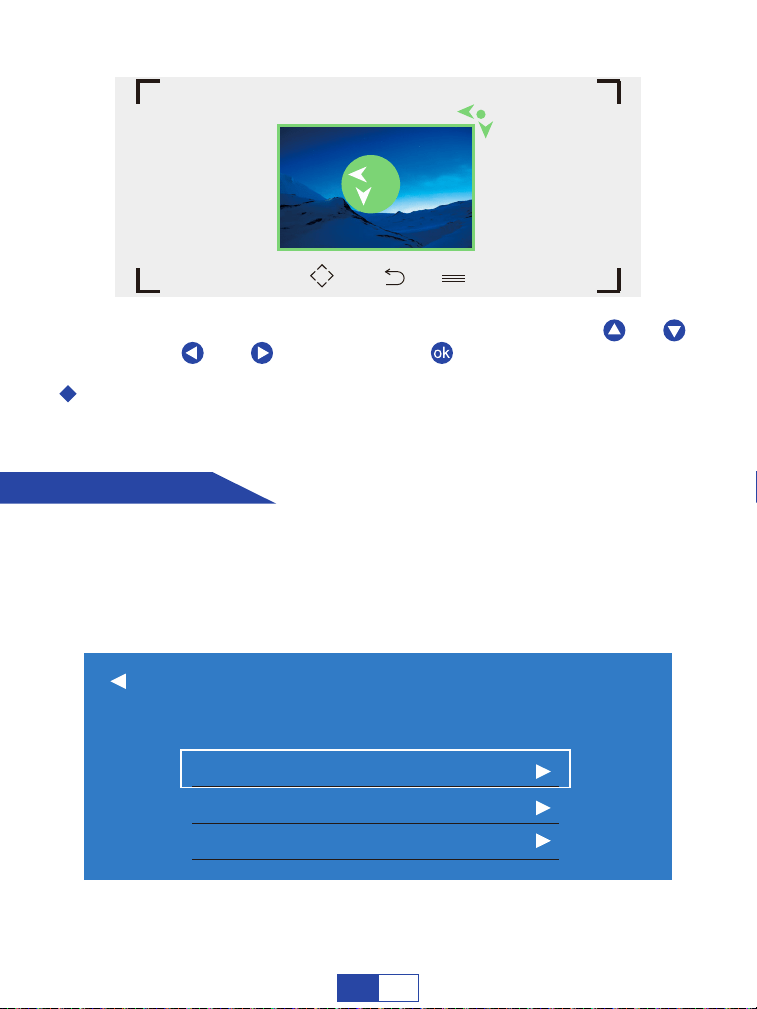
System Update
Keystone Reset: Reset your projector keystone by just one click.
Step 3:
Adjust the four corners of the image by pressing “ ”, “ ”,
“ ” or “ ”, and press the “ ” to confirm selection.
Please upgrade the system of the projector by the online upgrade or local
upgrade.
Restore to the factory model if you need to reset all settings.
You will get the best v iewing ex perience when the green area is a perfec t circle.
“OK” o k “ ” A d j u st “ ” Back “ ” Menu
Online Upgarde
Your Projector OS is the latest version!
Local Upgrade
Restore Factory
System Update
5
2
EN26
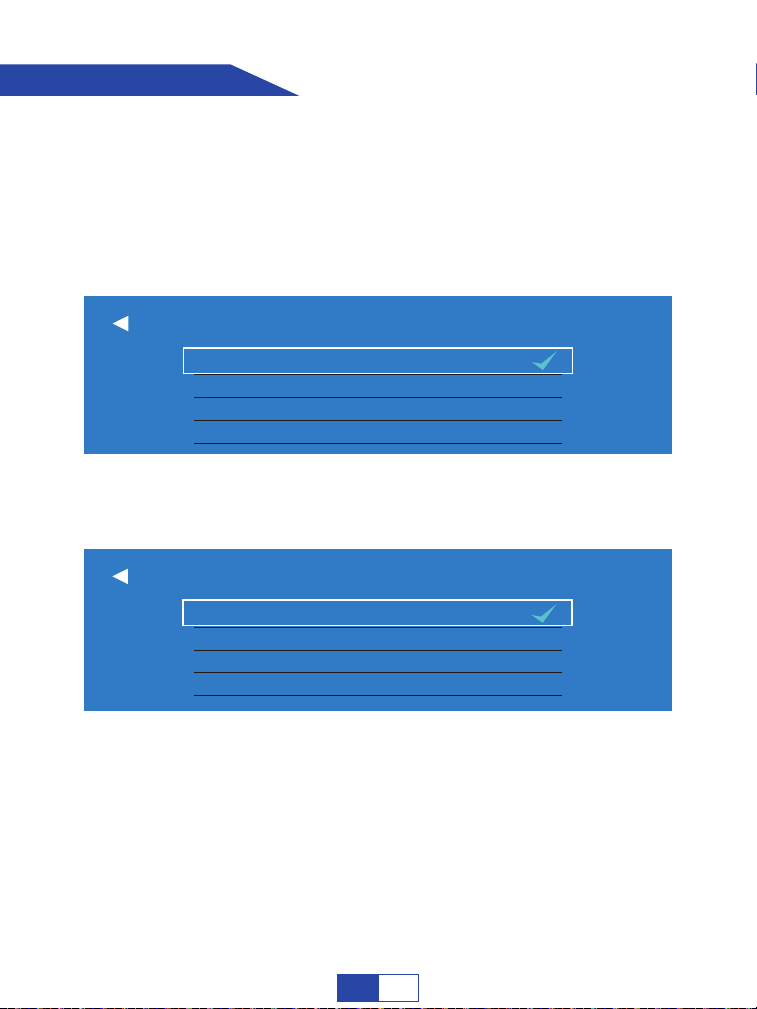
General Settings
Timing Shutdown: Off, 10 minutes, 20 minutes, 30 minutes, 1 hours,
1.5 hours, 2 hours, 3 hours.
Language Setting: English, Deutsch, France, Chinese, Italiano,
Espanol, Japanese, etc.
TimeZone Setting:
English
Suomalainen
Francais
Deusch
Language Setting
Eastem Daylight Time
Caracas
Barbados
Halifax
TimeZone Setting
GMT-04:00
GMT-04:00
GMT-04:00
GMT-03:00
EN27

Projection Tech
Physical Resolution
Lamp Life Time
Power Supply
Projector Consumption
Display Colors
Keystone Correction
Zoom
Signal Format
A Single Continuous Use Time
Projection Size
Projector Weight
Noise and Light Leaking
Dimension
Ceiling Mount Size
Audio Frequency
Signal Ports
USB Ports
LCD TFT Projection System
1920P*1080P
65000 hrs
AC IN:~100V-240V 50/60HZ
100W
16.7M
6P and 4D
100%-50%
The Global Standard
≤24hrs
30-300 inches
2.53lbs
Low Noise, Low Light Leaking
8.34*6.22*2.95 inches
M6
5W
Video Input (1.OVp-p +/-5%)
HDMI Input (480i 480p 576i 720p 1080i 1
080p 2k 4k)
Video Format: MPEG1, MPEG2, MPEG4, RM,
AVI, RMVB, MOV, MKV, DIVX, VOB, MP4
Music Format: Mp3, WMA, OGG, AAC, FLAC,
APE, WAV etc
Photo Format: HPEG, BMP, PNG, JPG/JPEG
Office Suite: Text, Excel, Word, PPT
Product Features
EN28
Trouble Shooting
1. Why is the display of the projector available but without audio?
Problems listed below might occur during the operation of your projector.
Please refer to the possible factors which might cause the issue to do trouble-
shooting.
Any questions during use, please feel free to contact with VOPLLS customer
service team.
Email address of customer service:
The projector or the connected device (PC, TV, etc.) is muted.
Dolby sound is not supported, exit to play again.
Fire stick: Enter “Setting” and find “Display & sound”. Then select “on” for
“navigation sounds”. Select “Stereo(or PCM)” for “surround sound”.
The audio format is not supported by the projector.
Encryption applied to the videos or media player which holds the video. Try
more videos to define this possibility.
Try YouTube if your player is Netflix. The problem will happen when playing
Netflix because of copyright.
2. Why is the audio of the projector available but without display?
The video format is not supported by the projector.
Encryption applied to the videos or media player which holds the video.
If the lamp of the projector is off with only audio playing, the lamp is defective.
Please contact seller for a replacement.
Try another HDMI cord if you select the HDMI input source.
Try YouTube if your player is Netflix. The problem will happen when playing
Netflix because of copyright.
North America Marketplace:
Europe Marketplace:
EN29

4. How can I do if there is color distortion?
Make sure the video source has a fine resolution.
Reset the projector to manufacturer setting: Enter “Settings” on the main
menu,then choose “System Update” and select “Restore Factory”.
6. How should I do if there are small dots on display?
Tap the projector slightly to shake off the dust which may be caused during
installing or shipping.
Clean the lens with clean non-woven fabrics.
5. How can I do if the remote is unresponsive?
Make sure the batteries are installed correctly and the power is enough.
Please make sure the IR receiver is not covered.
3. How can I do if the image is blurry or out of shape?
Adjust the focus ring by moving it leftward/rightward till it shows the best
images.
Adjust the keystone or access “Projection Setting”, and find “Vertical
Correction” and “Horizontal Correction” to get a best projection effect.
Place projector on a flat surface horizontally or vertically. An inclination of
any angle may result in blurry displays or uneven colors.
Darker environment suggested achieving the best projecting performance.
The eligible distance of 1.2m-6m/50inch-230inch between the projector and
projecting screen/wall.
Projecting wall or screen is clean white if possible.
EN30

11. How can I change the language?
Acess “Settings” on the home page. Choose “General Settings”.
There are English, Deutsch, France, Spanish, Italiano, Greek, Czech,
Dansk, Finnish, Croatian, Slovak, Japanese and Chinese in the Language
Setting for your choice.
7. How should I do if there is expanding dark spot or smoke when
using the projector?
Check if the fan noise increases or the fan stops working. Unplug the
projector and contact VOPLLS team for assistance.
Make sure the outlet and projector power plug are not wet or humid which
will cause sparks or smoke on outlet when power on the projector.
8. Why does the projector is shut off during playing?
Make sure the power plug is working and firmly fitted into the outlet.
If the LED indicator on the projector is light up, but the fan doesn't work,
please contact VOPLLS team for assistance.
Overheat on the projector will activate built-in power-off protection panel.
Restart the projector when it gets cooler.
Please check if you set up the shutdown time.
9. Can this projector support 3D effect?
The projector supports 3D video source, and 3D viewing performance is
achievable with Red-Blue 3D Glasses; but please understand the experi-
ence will not be better than in the theater and we do not recommend it if you
have a higher expectation about 3D effect.
10. Why doesn’t the projector’s lamp light up or power on?
Please contact VOPLLS for assistance when this occurs.
EN
31

Formats of USB drive
NTFS
FAT32
FAT
128G
128G
128G
2T
4G
2G
Maximum memory capacity
of USB drive
Maximum memory
of each video
13. What kind of cable do I need when connecting TV BOX, TV,
Firestick and DVD player to the projector?
HDMI cable for all devices mentioned above. Certain DVD players require
the AV cable connection.
14. What if the sound comes from the mobile phone or computer
instead of projector?
Computer: Enter settings of computer, select “Digital Output” on Sound
Settings for Audio.
15. What if projector only display the main screen of your computer?
Macbook: Enter settings of computer, select “M03H-****” for Airplay Display.
Windows: Enter setting of computer, select “Duplicate these display” for
Display.
16. Why does it can not recognize when plug the USB flash drive in?
Please make sure your USB drive meets following conditions:
(For example: If the format of your USB drive is NIFS, the memory capacity of
USB drive must be under 128G and the memory of video must be under 2T.)
12. What kind of Screws do I need for mounting this projector?
M6 Screw.
EN
32