


Quick Start Guide
Luxriot EVA Analytics (beta)
Table of Contents
Table of Contents................................................................................................................................................................ 2
1. System Installation and First Start........................................................................................................................... 4
General........................................................................................................................................................................... 4
2. Single PC System Installation.....................................................................................................................................5
Requirements....................................................................................................................................................... 5
System Installation............................................................................................................................................. 6
3. Initial Server Launch....................................................................................................................................................11
4. Initial Luxriot EVA settings........................................................................................................................................15
Initial setup................................................................................................................................................................. 15
System Setup.............................................................................................................................................................15
1. Middleware-Core Update...........................................................................................................................16
2. License Activation.........................................................................................................................................16
3. Plugin Installation.........................................................................................................................................17
4.1. Add Luxriot EVO Connection..................................................................................................................18
5. Connect EVO with EVA...............................................................................................................................................20
Creating the Dedicated Crosslink tab in the Luxriot EVO Console............................................................. 20
6. Plugin Marketplace......................................................................................................................................................21
Overview......................................................................................................................................................................21
Plugin Marketplace...................................................................................................................................................21
Marketplace tab........................................................................................................................................................ 22
Installed Tab............................................................................................................................................................... 23
Extra Settings.............................................................................................................................................................24
EVA Advanced Troubleshooting Guide.......................................................................................................................25
1. Notification Panel Data Not Working.............................................................................................................25
Issue: Problem with VMS Connector...........................................................................................................25
2. VMS Connector Import Error............................................................................................................................ 25
Request Processing Timeout:........................................................................................................................25
VMS Connector Stream Import Error:......................................................................................................... 26
3. EVA Infinite Loading............................................................................................................................................ 26
4. DB Load Error........................................................................................................................................................ 26
©2024 A&H Software House. All Rights Reserved
2

Quick Start Guide
Luxriot EVA Analytics (beta)
5. All Analytics Processing..................................................................................................................................... 26
6. Missing Server in Servers.................................................................................................................................. 27
7. Duplicate Recognitions in Monitor..................................................................................................................27
8. Analytics Tabs Not Visible..................................................................................................................................27
9. Plugins Not Installing Despite Internet Access...........................................................................................27
10. Search Error in Monitor for External Services...........................................................................................27
11. No Timestamps..................................................................................................................................................28
12. Incorrect Stream Time Zone...........................................................................................................................28
13. Missing Lists Data (LPR/FR)...........................................................................................................................28
14. Hardware Mismatch Error in License.......................................................................................................... 28
15. List tags do not work inside the monitor................................................................................................... 28
!N.B. PLEASE, CONSIDER THAT YOU ARE USING THE BETA VERSION OF THIS FEATURE. WE CAN'T
GUARANTEE ITS STABILITY. ALTHOUGH WE ARE HAPPY TO RECEIVE YOUR FEEDBACK THROUGH
OUR SUPPORT ENGINEERS, SOME ISSUES MAY BE RESOLVED ONLY WITH THE NEXT RELEASES.
©2024 A&H Software House. All Rights Reserved
3

Quick Start Guide
Luxriot EVA Analytics (beta)
1. System Installation and First Start
General
The Luxriot EVO is a highly sophisticated and, at the same time, user-friendly Video and Data
Monitoring Software. We constantly enhance its functionality and provide options for 3rd-party
software integrations with our Luxriot EVO Monitor interface. The Luxriot EVO consists of three main
modules:
● The Luxriot EVO Server: Stands behind all the backend processes, such as streaming and
recording capabilities.
● The Luxriot EVO Console: Allows to configure Luxriot EVO and is meant for administration
purposes.
● The Luxriot EVO Monitor: Displays preconfigured video and data channels, allowing the
person and the connected analytics software to review and analyze those channels.
In the age of rising AI, you can't ignore additional capabilities provided by external AI tools, and Luxriot
EVO allows you to include those tools into the existing workflow seamlessly.
However, this document focuses on EVA Advanced, an external analytical module that provides
enhanced capabilities. EVA Advanced functions as an external service and integrates with Luxriot EVO
to offer advanced analytics beyond the basic built-in features. The integration follows a specific
architecture where the EVA Advanced module operates independently but communicates with Luxriot
EVO to deliver sophisticated analytical insights.
To summarize, here is the architecture breakdown:
● EVA Basic: Built-in analytics with core functionalities (refer to the EVA Basic guide for details).
● EVA Advanced: External service providing advanced analytics, integrated into the Luxriot EVO
workflow as an independent module (covered in this guide).
This document contains step-by-step quick-start guidance for the installation and primary
configuration of the Luxriot EVA Advanced analytics system.
©2024 A&H Software House. All Rights Reserved
4

Quick Start Guide
Luxriot EVA Analytics (beta)
2. Single PC System Installation
Use this step-by-step guide to learn the process of the system components installation for a single
server on Windows OS.
Requirements
● Make sure you have administrator rights to make changes to the system.
● If you have an NVIDIA graphics card, make sure that the installed driver is version 471.41 or
higher.
● MySQL/PostgreSQL/MSSQL should be installed and configured before the analytics system
installation for further connection to the server.
● Software installation does not require an internet connection.
Download the archive containing the installation files. Copy the files to the desired directory, unpack
the archive, and open the installation files folder.
!N.B. If you have already installed EVA 23.2 and want to update it to the 23.3 version while
preserving the data, you will need to take a few extra steps:
1. Uninstall your current version via add/remove programs.
2. Manually delete folders:
a. c:\programdata\eva\process-runner
b. c:\programdata\eva\middleware-core\core_plugins
3. Inside the folder, c:\programdata\eva\middleware-core\plugins, delete all files except
luxriot_config.json.
4. Inside the folder, c:\programdata\eva\middleware-core, find file config.json and rename it to
the config.json.bak
5. Run luxriot-eva-install-x64.exe and install it in the same folder (by default -
c:\ProgramData\EVA). Use the same database configuration as the previous (23.2)
installation (by default, its type is internal).
6. After installation is completed, open EVA in the web interface or use Luxriot EVO Monitor
crosslinks to install all the necessary plugins.
©2024 A&H Software House. All Rights Reserved
5
Quick Start Guide
Luxriot EVA Analytics (beta)
If data preservation is not your priority, simply delete the c:\ProgramData\EVA folder and install
EVA 23.3 as a new installation.
System Installation
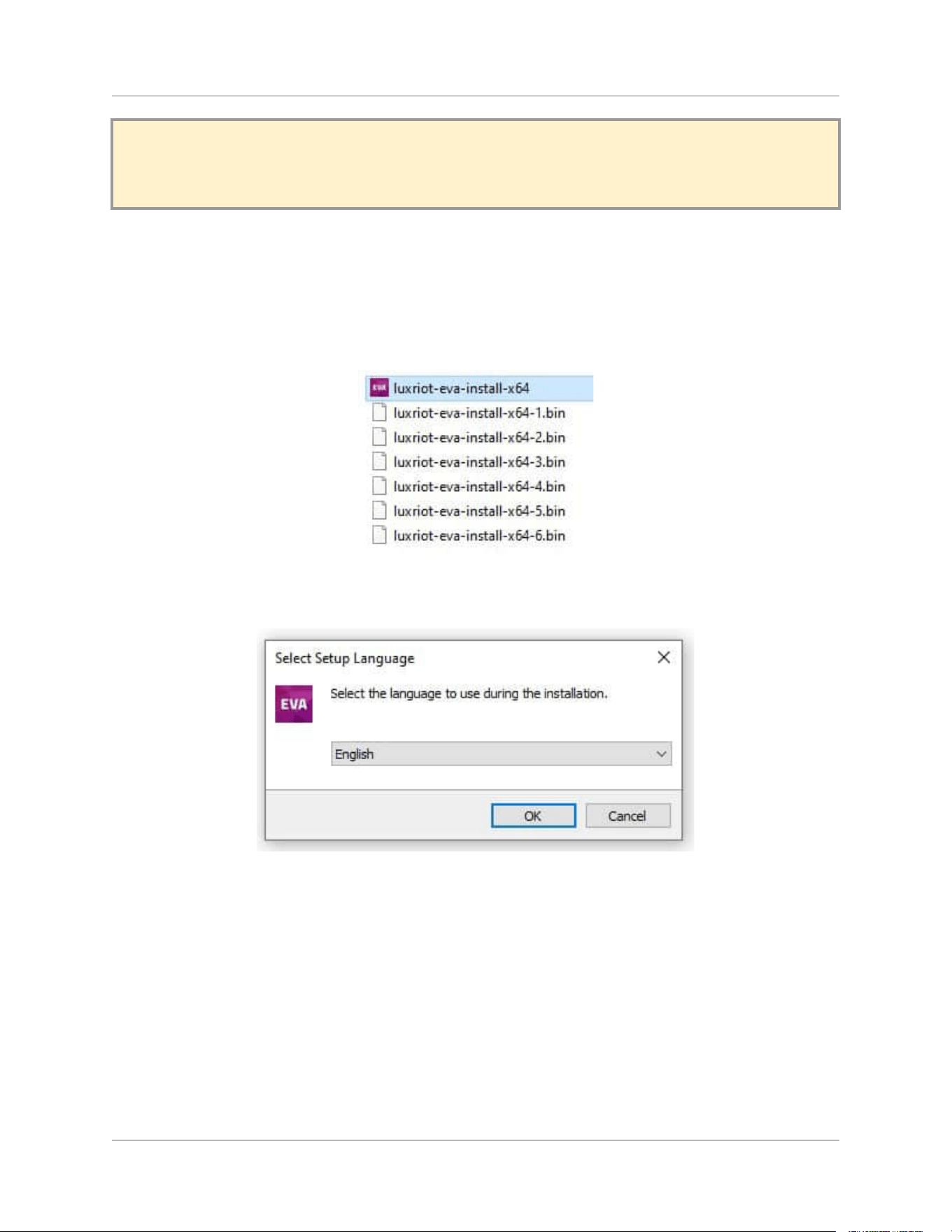
1. Run the luxriot-eva-install-x64.exe file by double-clicking it.
2. Choose the desired language and press the OK button.
©2024 A&H Software House. All Rights Reserved
6
Quick Start Guide
Luxriot EVA Analytics (beta)
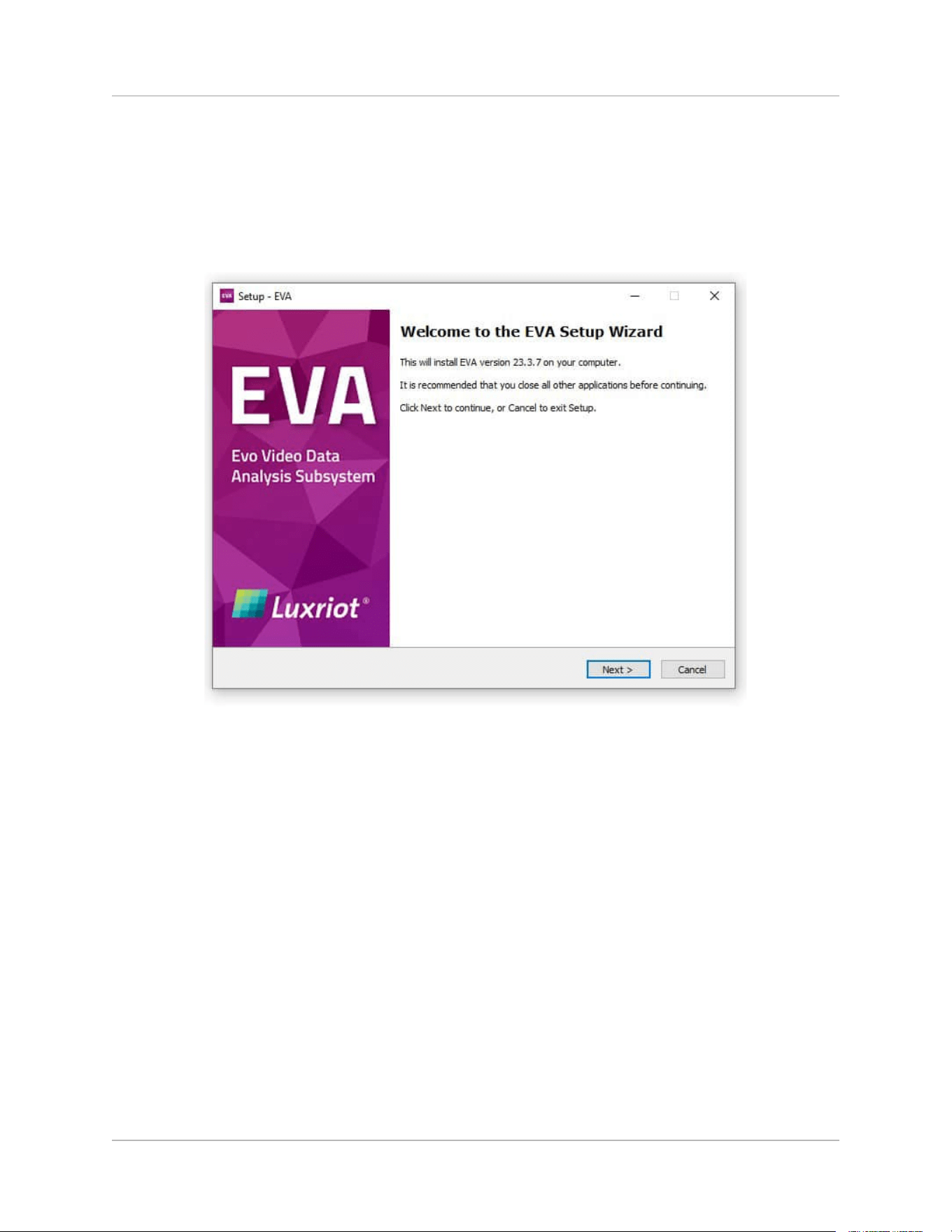
3. Check the setup information and click the Next button. If the system is busy with other tasks,
Windows updates are pending, or the system does not have a stable power supply, click
Cancel to terminate the installation. Solve the issues, and run the wizard again later.
©2024 A&H Software House. All Rights Reserved
7
Quick Start Guide
Luxriot EVA Analytics (beta)
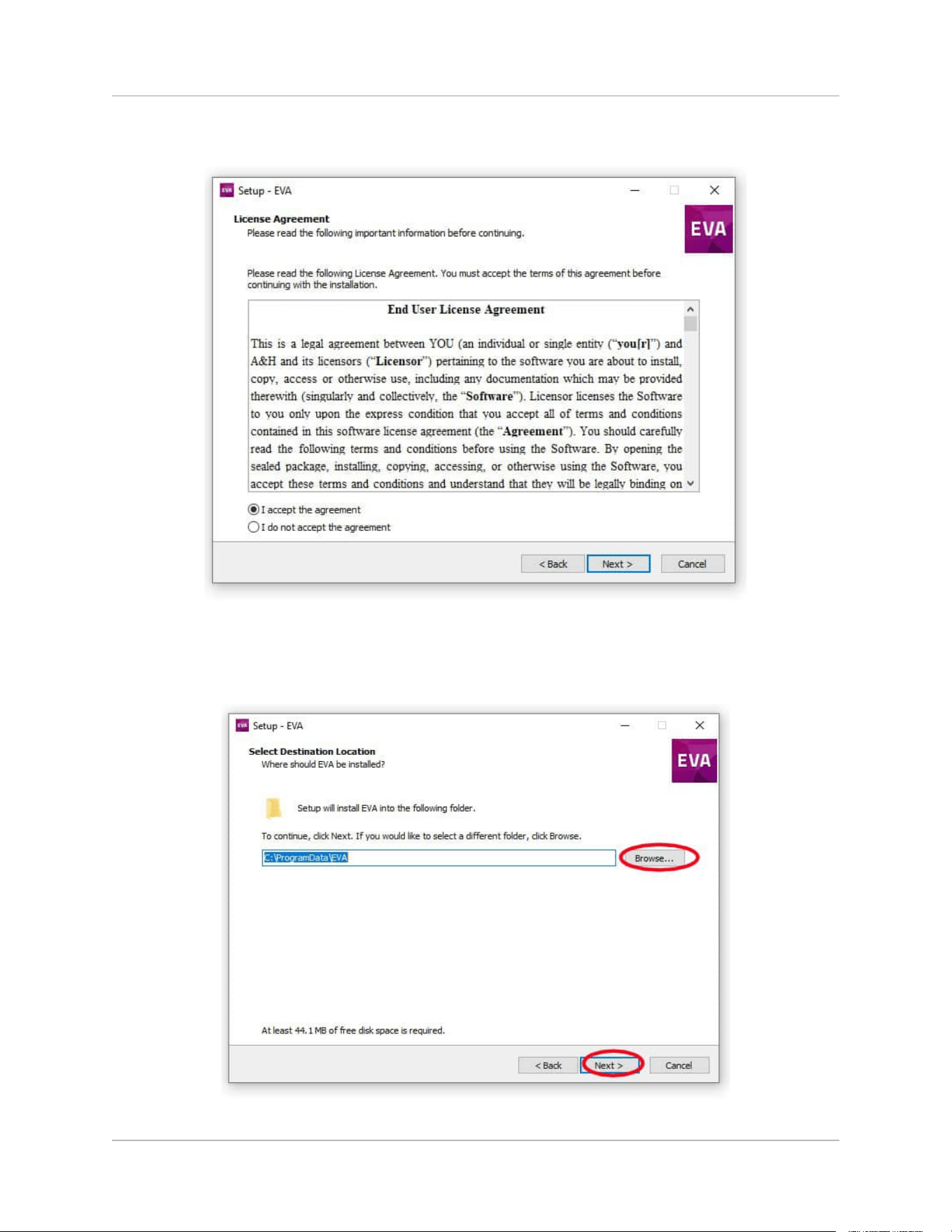
4. Read and accept the License agreement.
5. Use the Browse button to change the installation folder or continue with the default
installation path. When done, click the Next button to proceed.
©2024 A&H Software House. All Rights Reserved
8
Quick Start Guide
Luxriot EVA Analytics (beta)
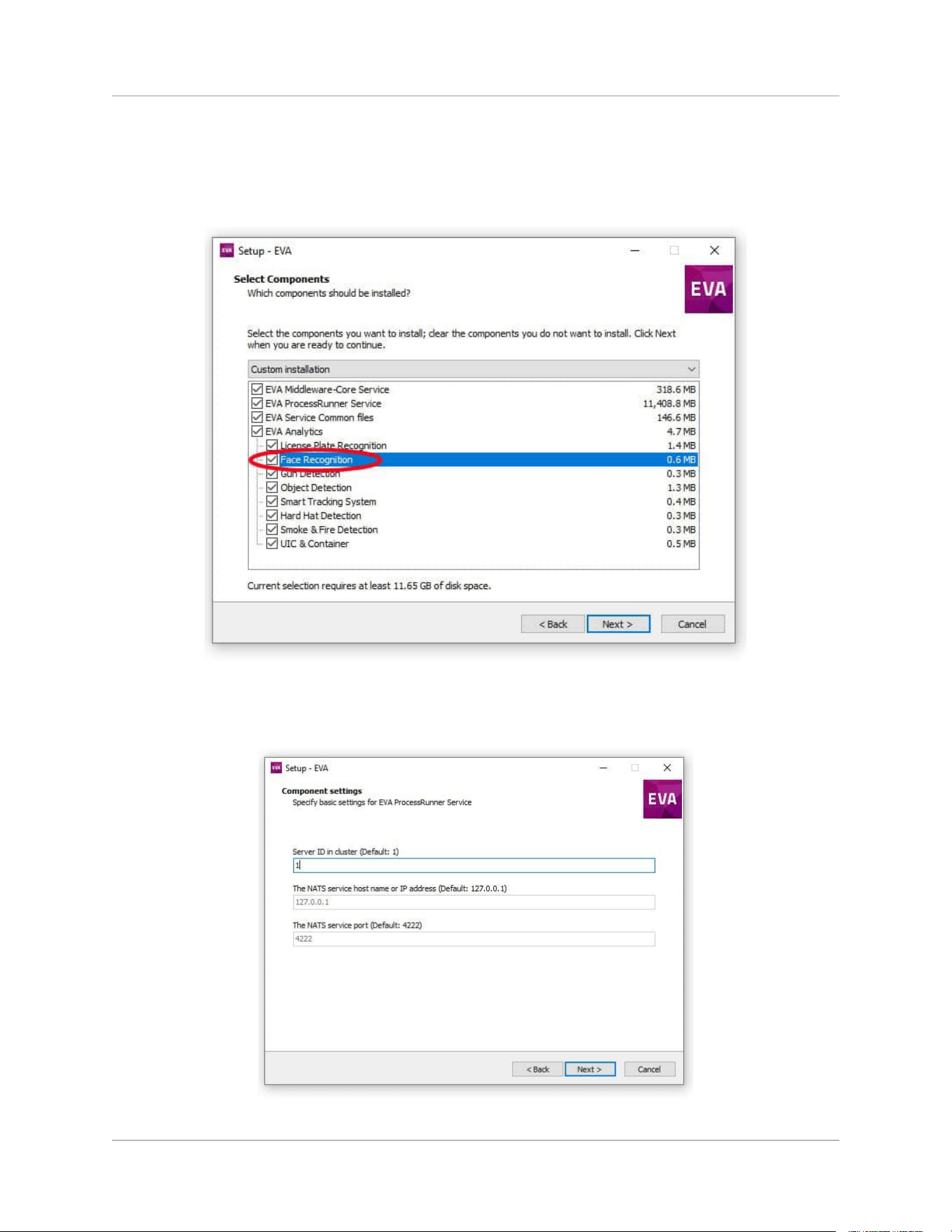
6. Select Full Installation from the drop-down menu to choose all system elements. We
recommend marking all the components, including Face Recognition; it does not take any
resources but will make it easier to expand the configuration later, if necessary.
7. The only available Component setting is Server ID in Cluster. Use the Default value (1) for the
single server installation setup.
©2024 A&H Software House. All Rights Reserved
9
Quick Start Guide
Luxriot EVA Analytics (beta)
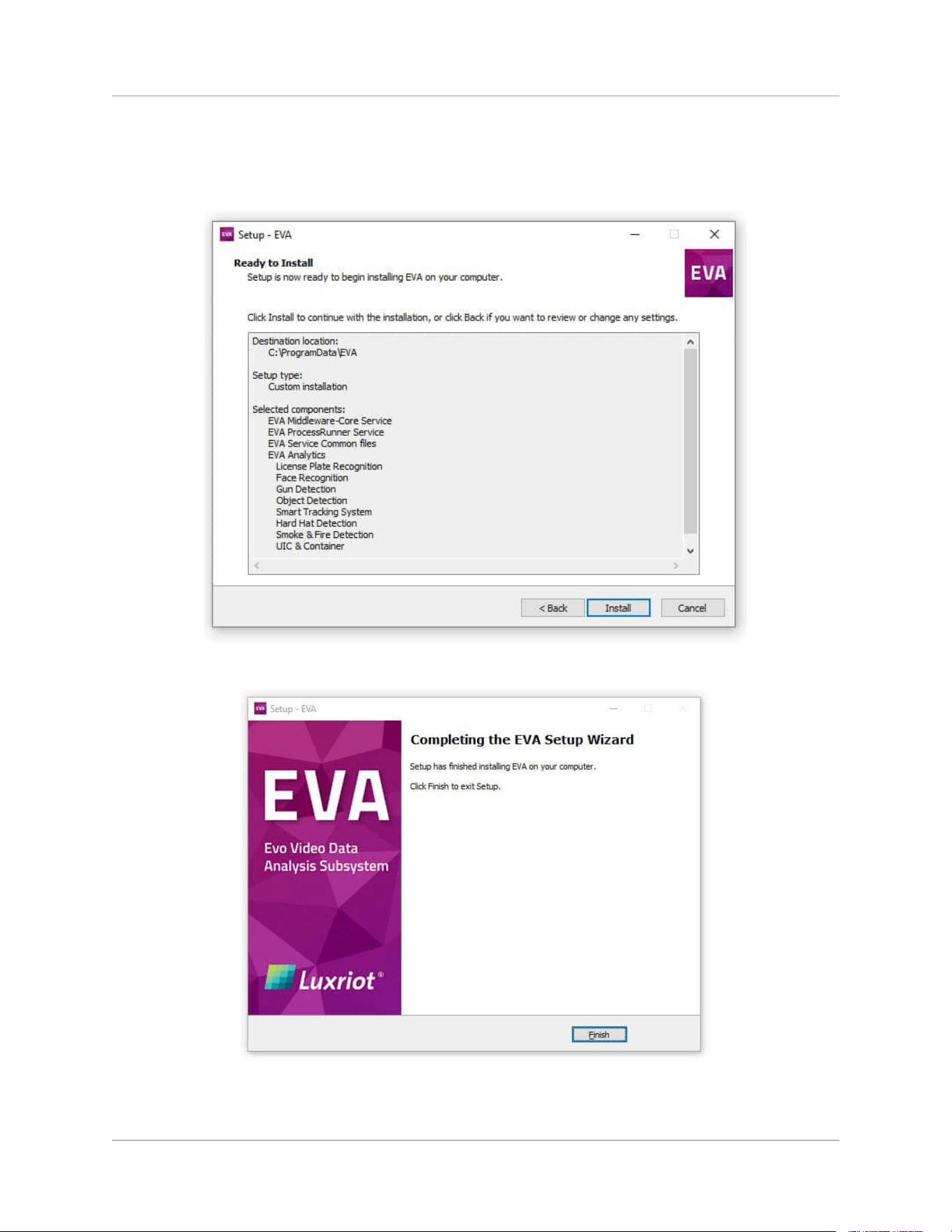
8. Review the pre-installation summary and click the Install button. The installation wizard will
extract the files and complete the installation; wait for the installation to complete. The
wizard will install additional OS components, if necessary too.
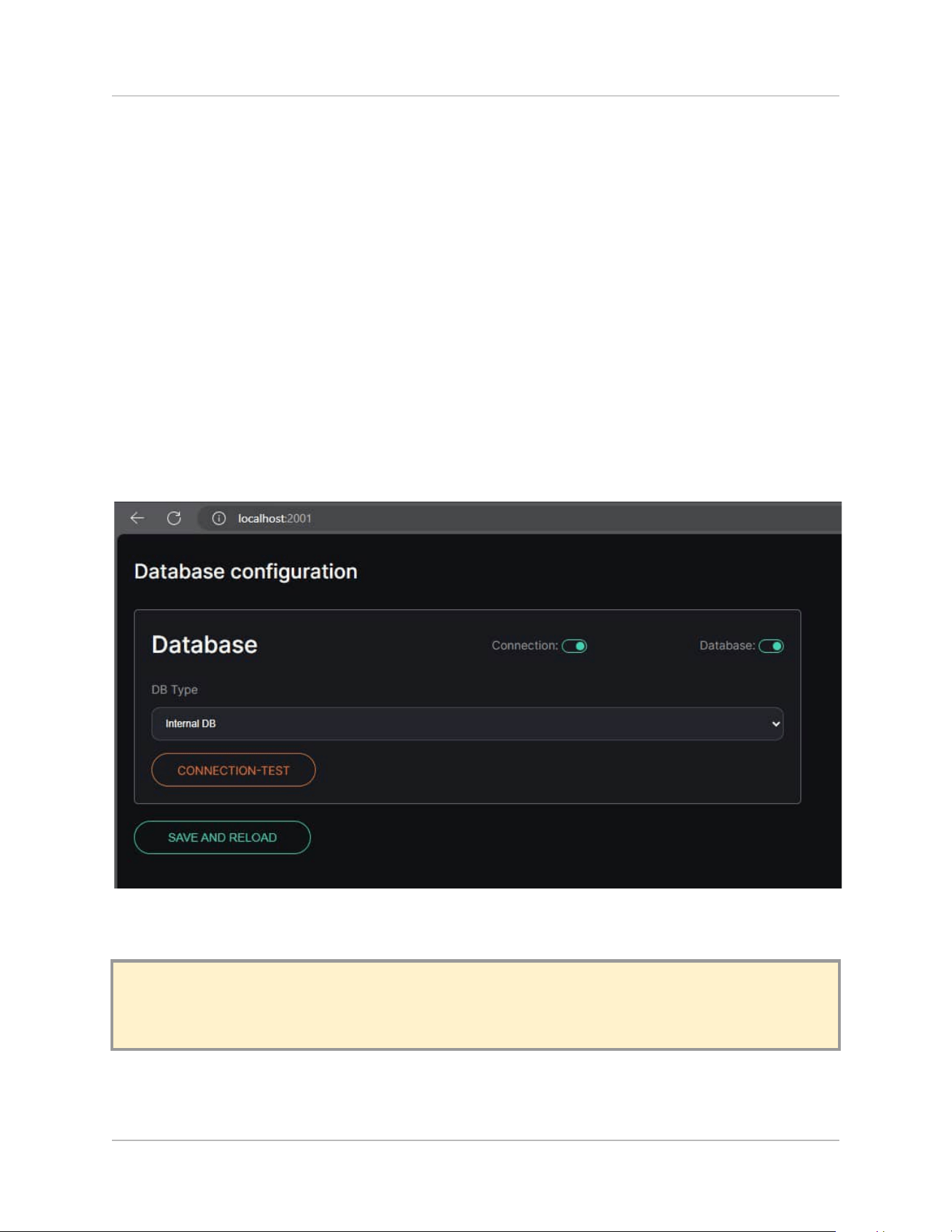
9. Click the Finish button to close the setup window.
The Luxriot EVA system installation is complete.
©2024 A&H Software House. All Rights Reserved
10
Quick Start Guide
Luxriot EVA Analytics (beta)
3. Initial Server Launch
The Luxriot EVA analytics system runs silently as a set Windows service. You can manage Luxriot EVA
via the Web interface; the service is reachable via HTTP port 2001.
After installing Luxriot EVA, you need to initialize the system to prepare it for work.
Open the service URL in your browser:
● http://localhost:2001/ for local access (if the system was installed on the current PC), or
● http://IP:2001/ where IP is the IP Address of the server (if the system was installed on a
remote PC)
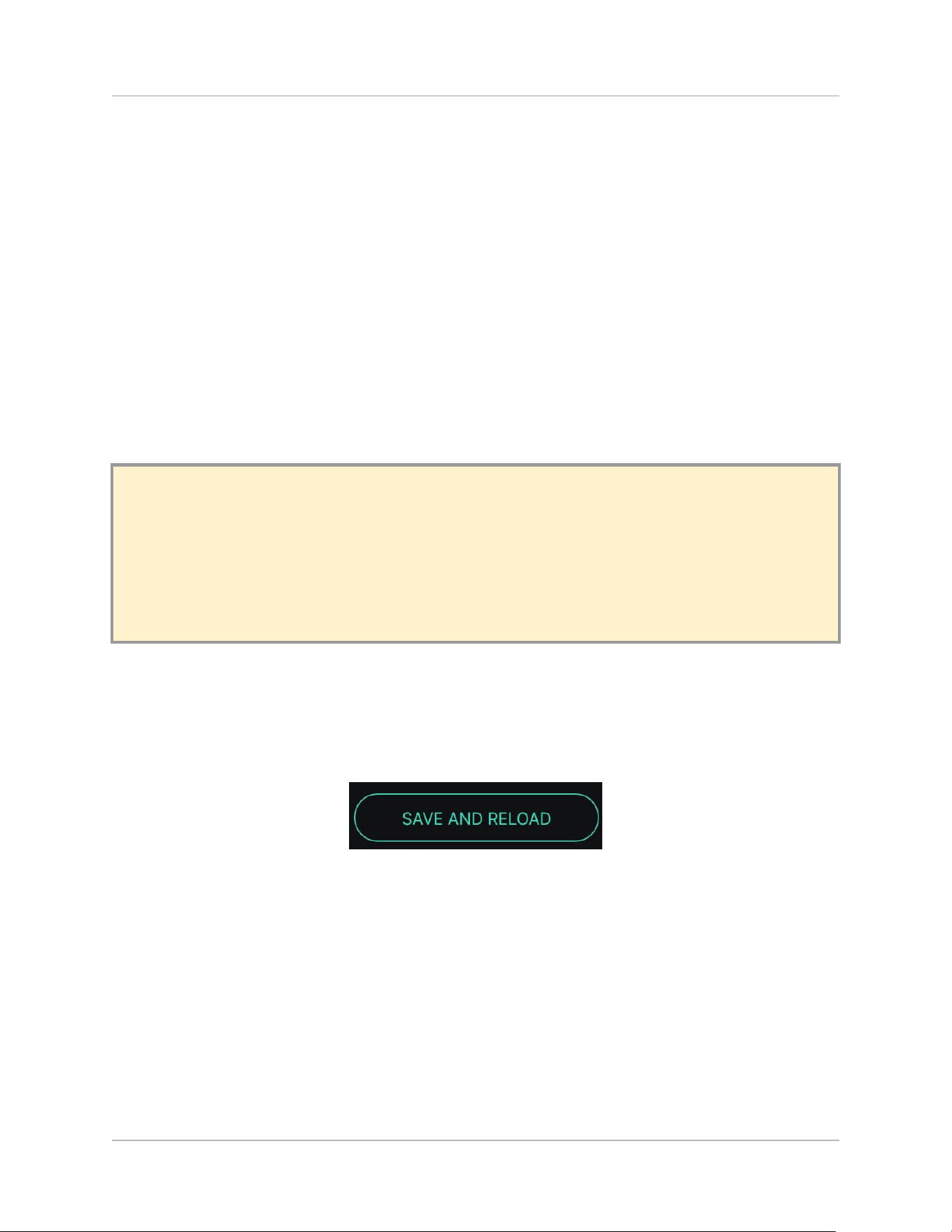
In the Database block:
!N.B. You can’t switch the Database type (internal/MySQL/PostgreSQL/MSSQL) after the installation
is complete!
©2024 A&H Software House. All Rights Reserved
11
Quick Start Guide
Luxriot EVA Analytics (beta)
● Select the DB type from the drop-down list:
○ Leave Internal DB for small projects with up to 20 analytics with low server load
(suitable for demo installations)
○ Choose MySQL/PostgreSQL/MSSQL for bigger projects over 20 analytics
● Fill in the DB connection fields (only for MySQL/PostgreSQL/MSSQL type):
○ Host (IP address of the server with your pre-installed and pre-configured DB)
○ DB Login
○ DB Password
● Click the Connection Test button to check the DB connection (the Connection toggle will turn
green if the connection has been successfully established) and create the database
(corresponding green Database toggle for the Internal DB type)
!N.B.
● MySQL is preferable to choose from if you plan to expand the system to a server cluster in
the future, or you already have 20+ analytics channels.
● Root Login and Password are used only once to create a limited internal user to work with
MySQL.
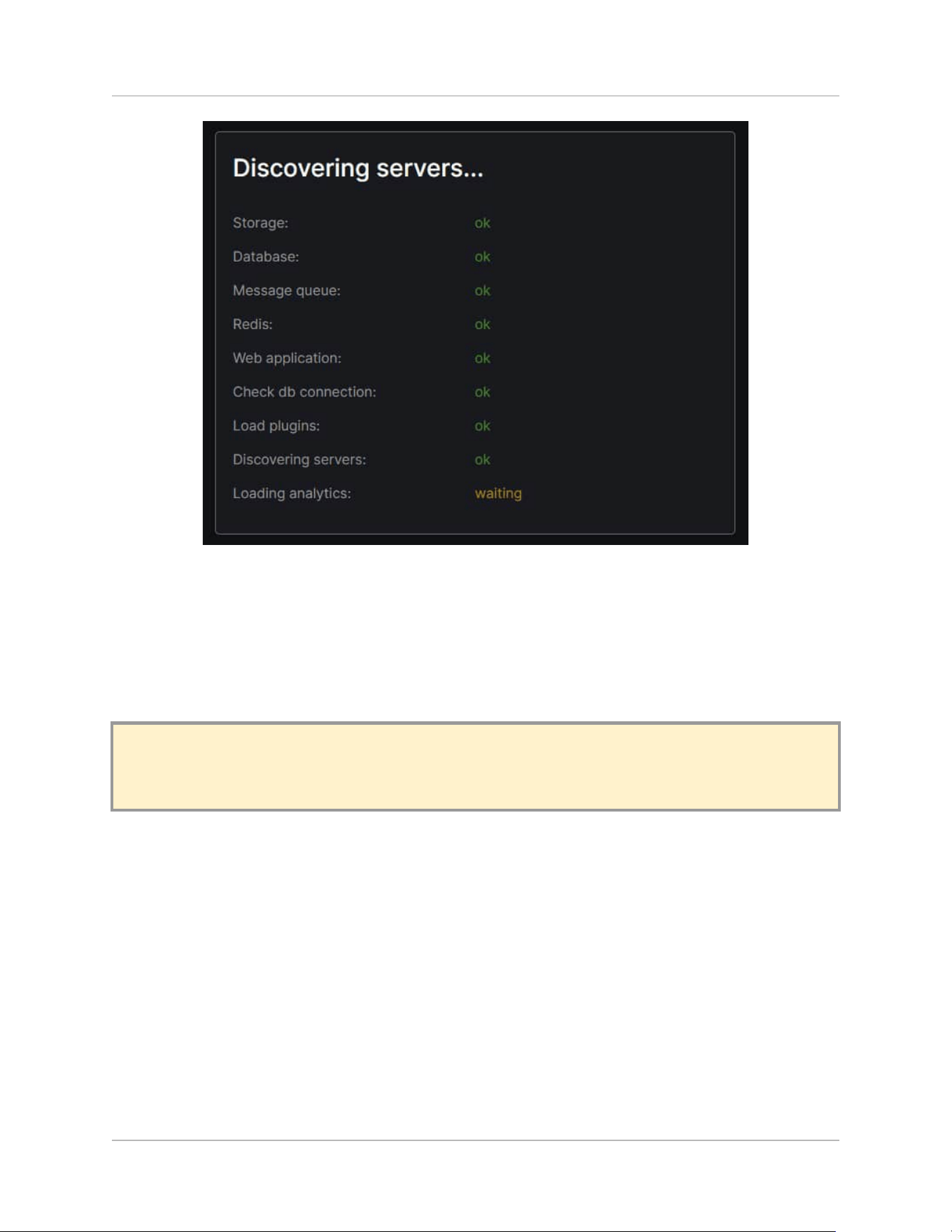
Skip the NATS block at this point. Click the Save and Reload button to save the settings and restart the
service.
Wait while the system completes the plugin checks.
©2024 A&H Software House. All Rights Reserved
12
Quick Start Guide
Luxriot EVA Analytics (beta)
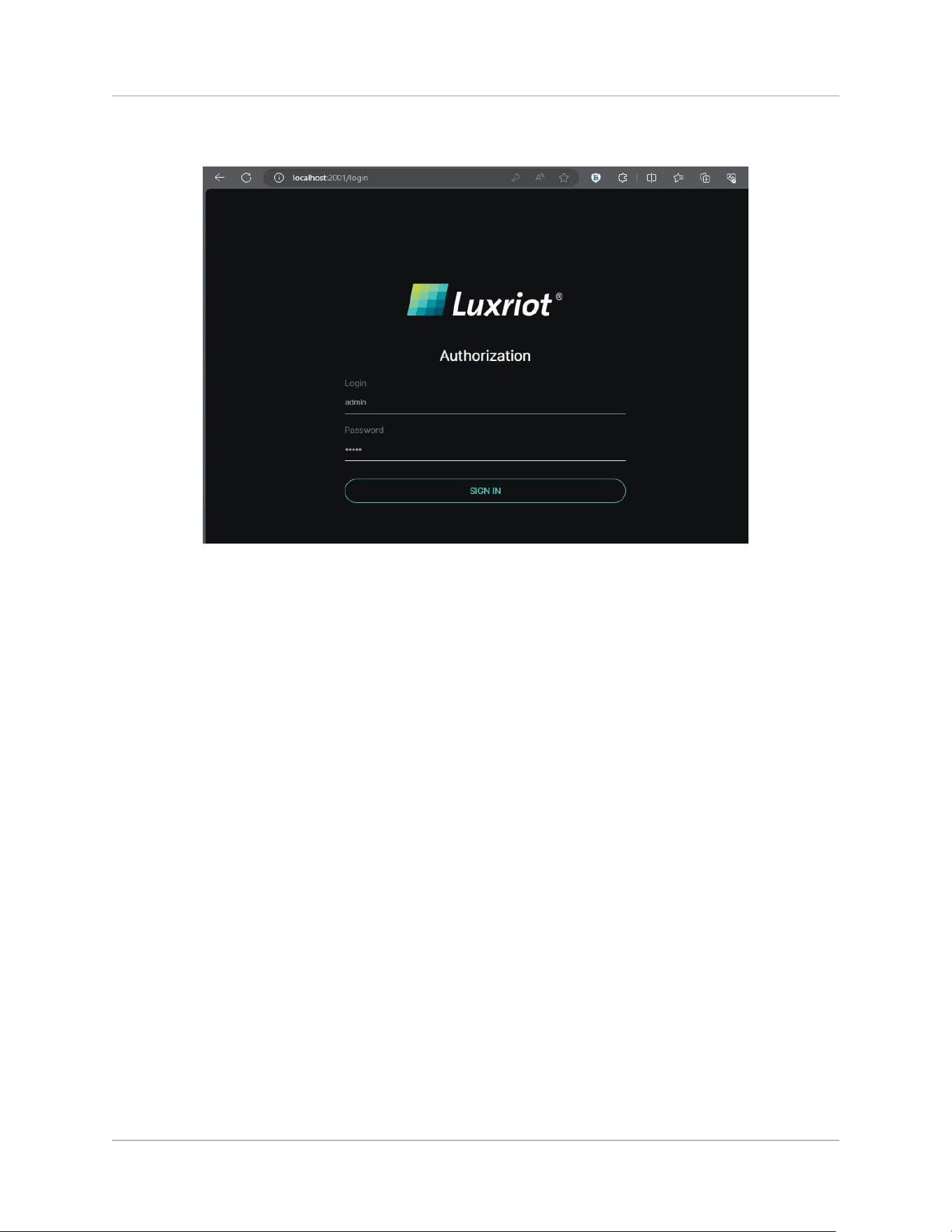
The initial system setup is now finished. Refresh the page and enter the system using the following
default user credentials:
● Login: admin
● Password: admin
!N.B. By default (from the start), the system is reachable via port 2001, with the default user
profile admin/admin.
©2024 A&H Software House. All Rights Reserved
13
Quick Start Guide
Luxriot EVA Analytics (beta)
Enter the credentials and click the Sign In button.
You can now proceed with the analytics configuration.
©2024 A&H Software House. All Rights Reserved
14
Quick Start Guide
Luxriot EVA Analytics (beta)
4. Initial Luxriot EVA settings
Initial setup
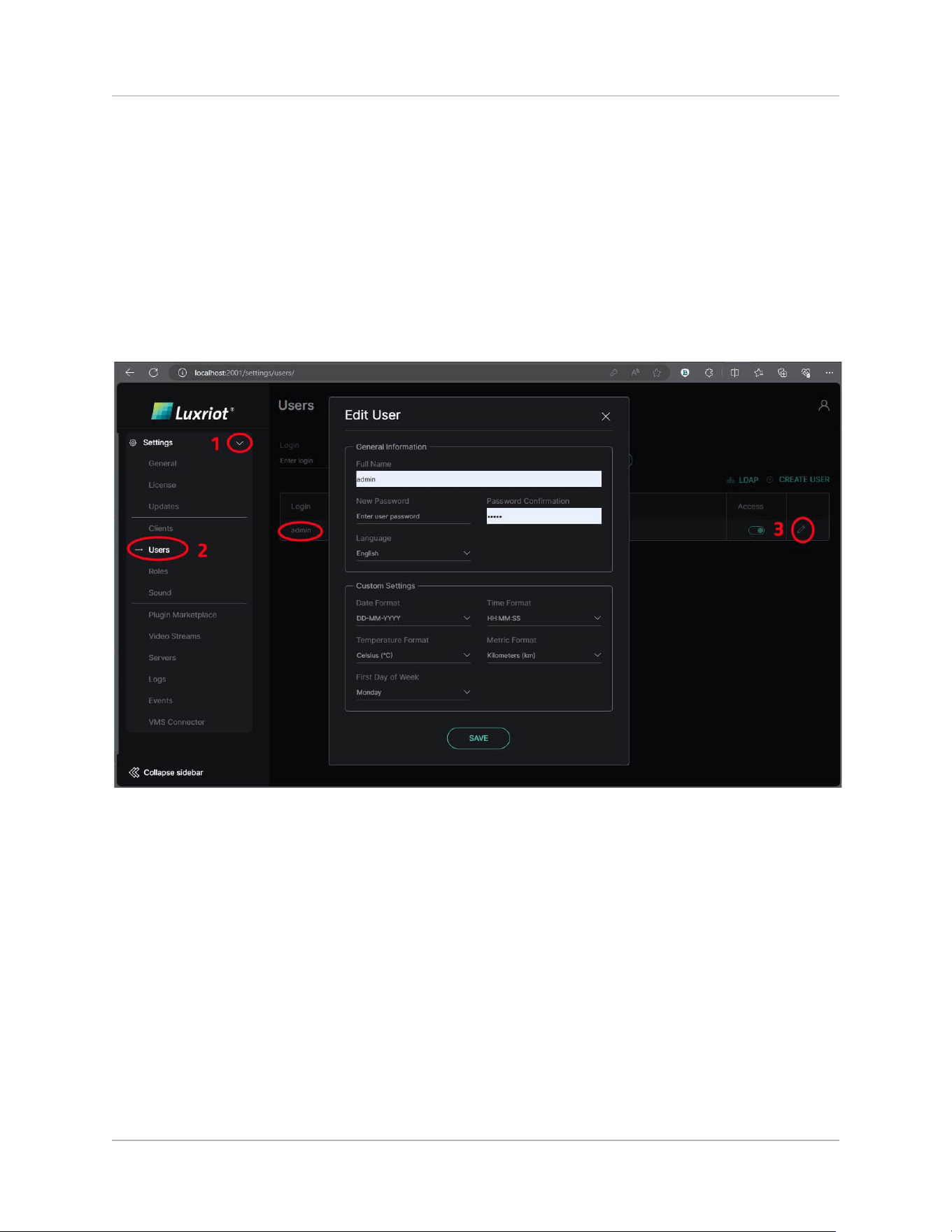
It is recommended that you change the Administrator password to a secure one before connecting
any plugins, especially cameras. You can access the corresponding user's profile via the main menu
Settings -> Users -> admin.
System Setup
To start using the system, the following minimal configuration is mandatory:
1. Update Middleware-Core to the latest version
2. Apply the license
3. Add desired plugin(s)
4. Connect Luxriot EVO and add video streams
5. Enable analytics processing
6. Enable results reception on the Luxriot EVO side
©2024 A&H Software House. All Rights Reserved
15
Quick Start Guide
Luxriot EVA Analytics (beta)
Steps 1-6 are briefly explained below. For more details on each menu item, see detailed topics.
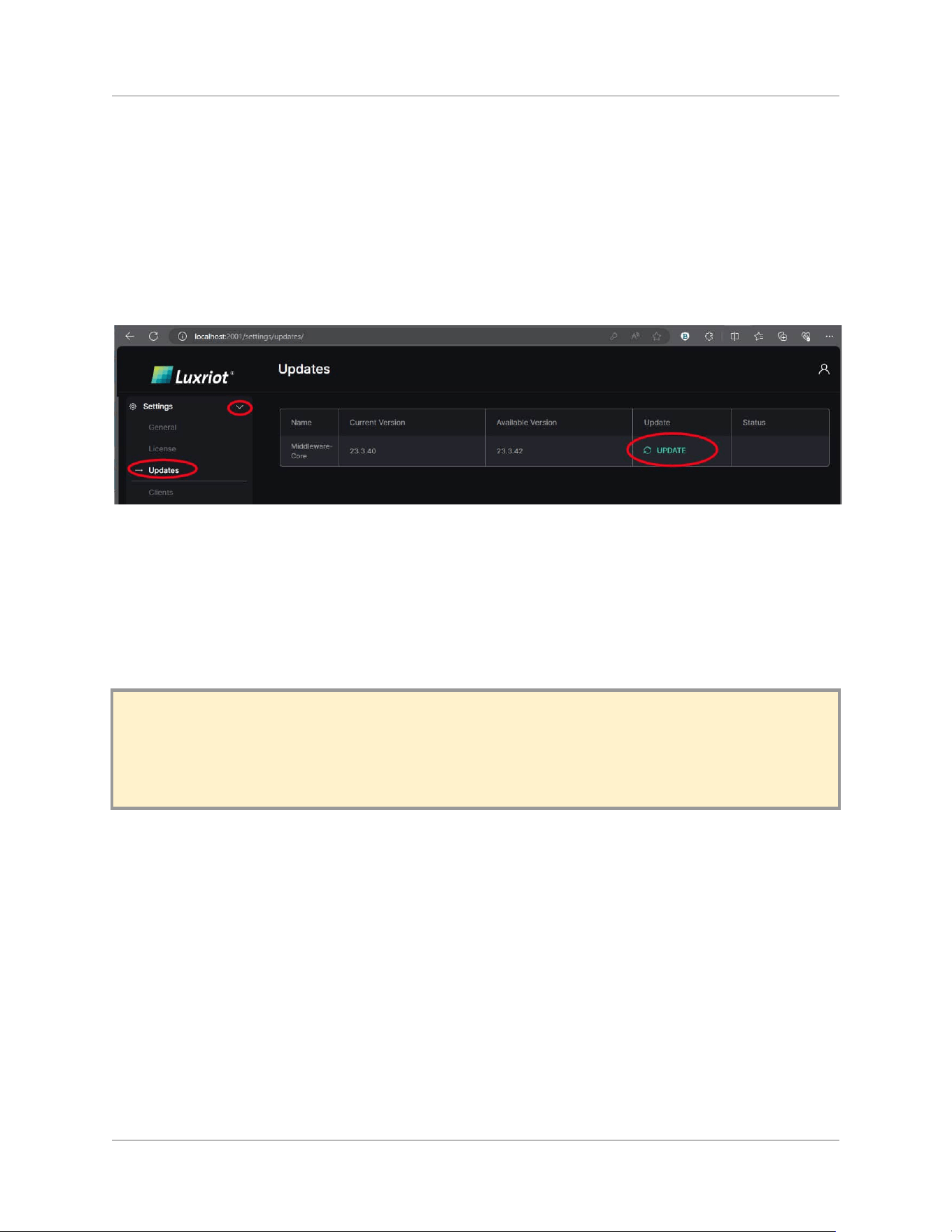
1. Middleware-Core Update
It is highly recommended that you update the Middleware-Core component before taking any other
action. After installing Luxriot EVA and logging in, go to Settings -> Updates and click the UPDATE
button.
2. License Activation
If this is the first Luxriot EVA installation on the particular hardware, you will have a trial license by
default with one video stream for each analytic already activated. The trial license is valid for 30 days,
or unless you reinstall Luxriot EVA.
!N.B. The trial license provides only one analytics running at a time. To test different plugins with
the default trial license, turn off already running analytics and only then add a new stream to the
chosen plugin.
For the production license, there are two license activation scenarios:
1. Internet
2. and manual activation.
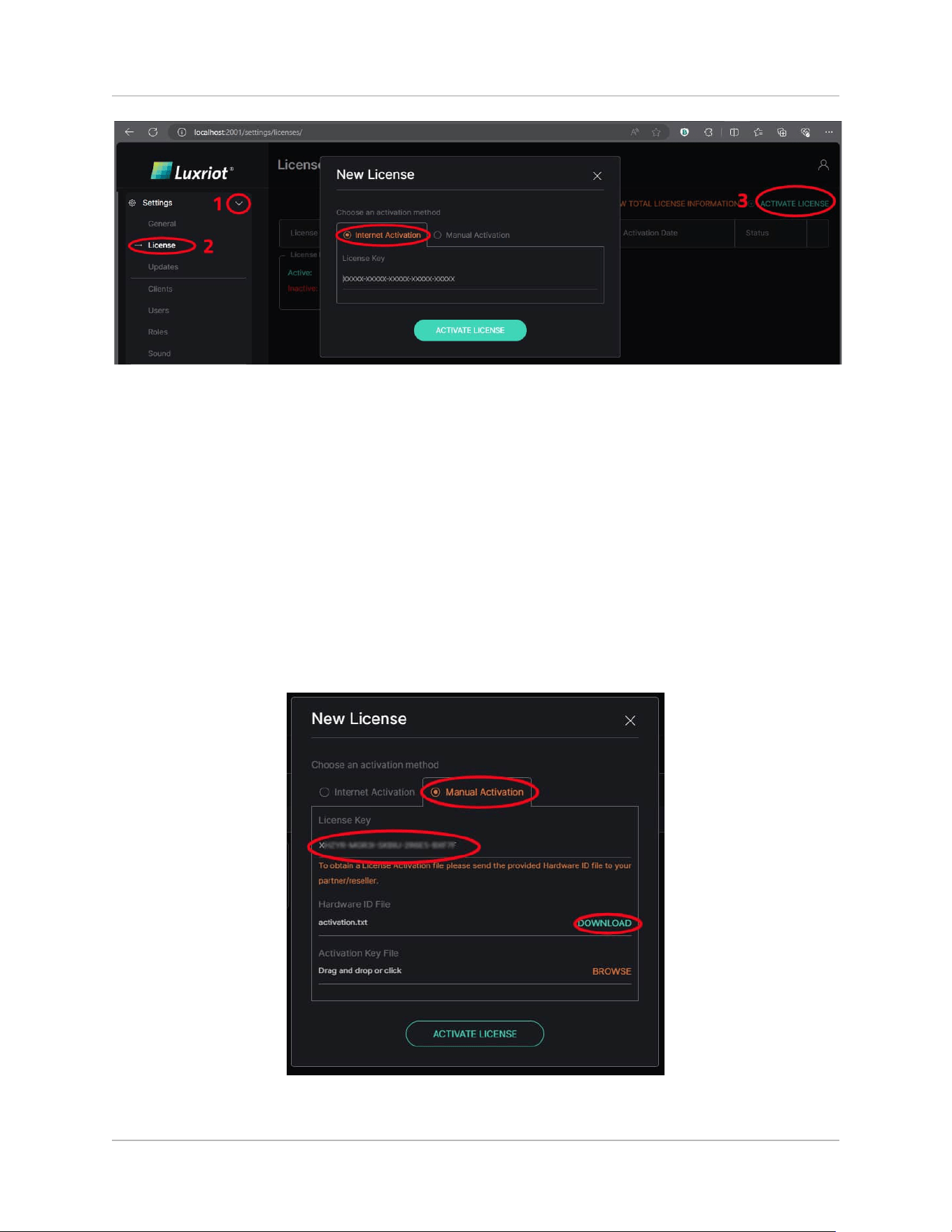
If your system is not isolated, we recommend using Internet activation. Go to: Settings -> License ->
Activate License, provide your activation key, and confirm it using the Activate License button. This will
activate your license instantly.
©2024 A&H Software House. All Rights Reserved
16
Quick Start Guide
Luxriot EVA Analytics (beta)
If your security requirements do not allow direct access to the Internet, you can activate the license
manually. Select the Manual Activation tab inside the License popup window, fill in the License key field
with your license key, and download the generated Hardware ID file. Then, contact our support team
license key and hardware ID file.
The review process is not instantaneous, and support replies may take up to 24 hours, yet in most
cases, you will get an activation key file in 1-2 hours or even faster. After receiving the Activation key
file from support, bring it to your off-line system and drag and drop it into the Activation key file field.
Confirm your license information using the ACTIVATE LICENSE button.
©2024 A&H Software House. All Rights Reserved
17
Quick Start Guide
Luxriot EVA Analytics (beta)
3. Plugin Installation
Analytics plugins are installed separately for each analytic type. For example, there are different
engines that identify containers and license plates. For LPR and FR, the main components must be
selected during installation and plugins must be installed from the marketplace.
To install any desired plugin:
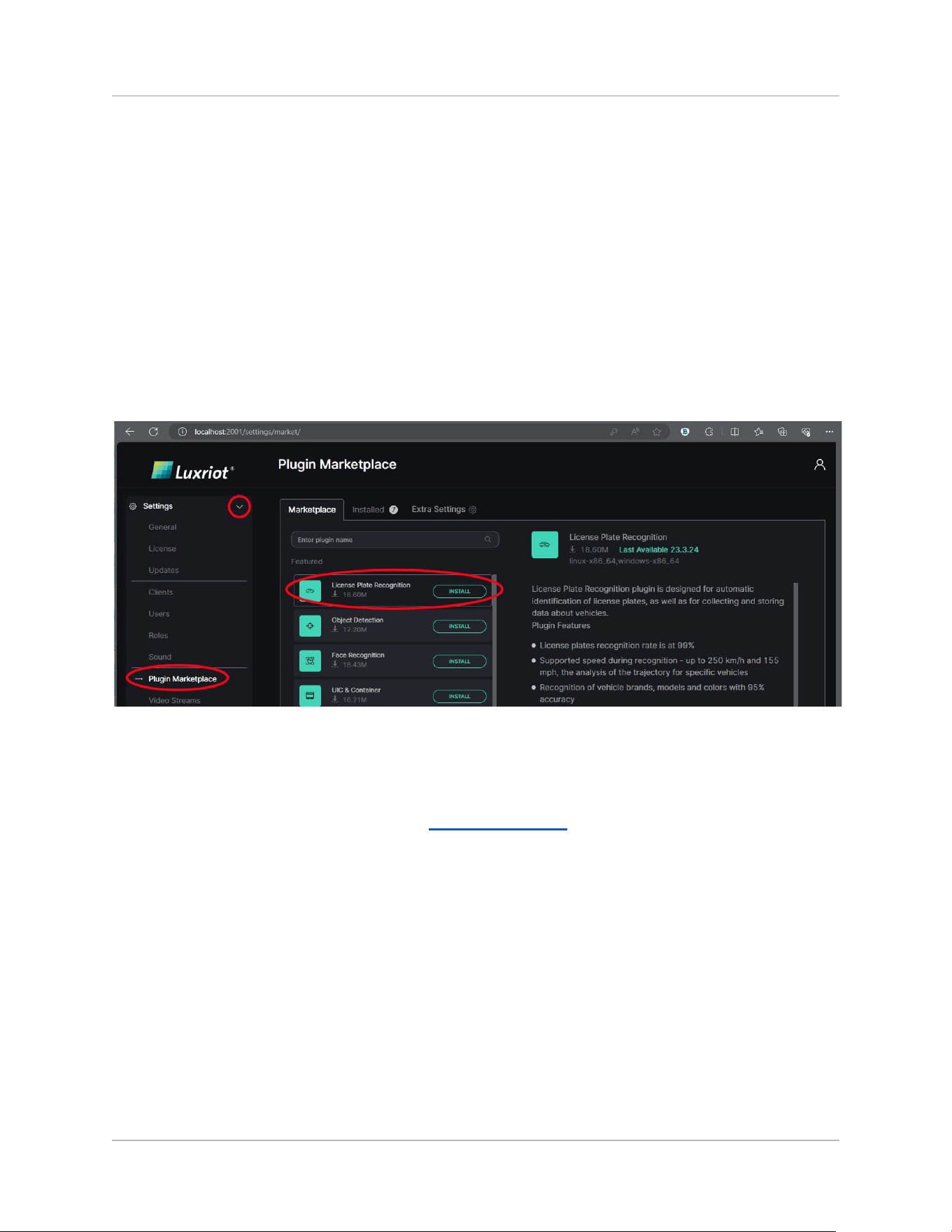
1. Click the Plugin Marketplace menu item: the Marketplace tab will be opened in the main area
2. Locate the required plugin in the list
3. Click Install to add the plugin
Once you install a plugin, it will be marked as Installed in the Marketplace tab, and it will also appear in
the second tab named Installed, which contains only your installed plugins.
Learn more about plugin management here: Plugin Marketplace.
4.1. Add Luxriot EVO Connection
The plugin(s) will need a video stream to work with. To retrieve the video from Luxriot EVO, set up the
Connection to the target Luxriot EVO server. It may be a Luxriot EVO S or a Luxriot EVO Global system.
In order to work with multiple Luxriot EVO servers at once, you must have a Luxriot EVO Global
system, as it provides a single point of entry (IP) for Luxriot EVA.
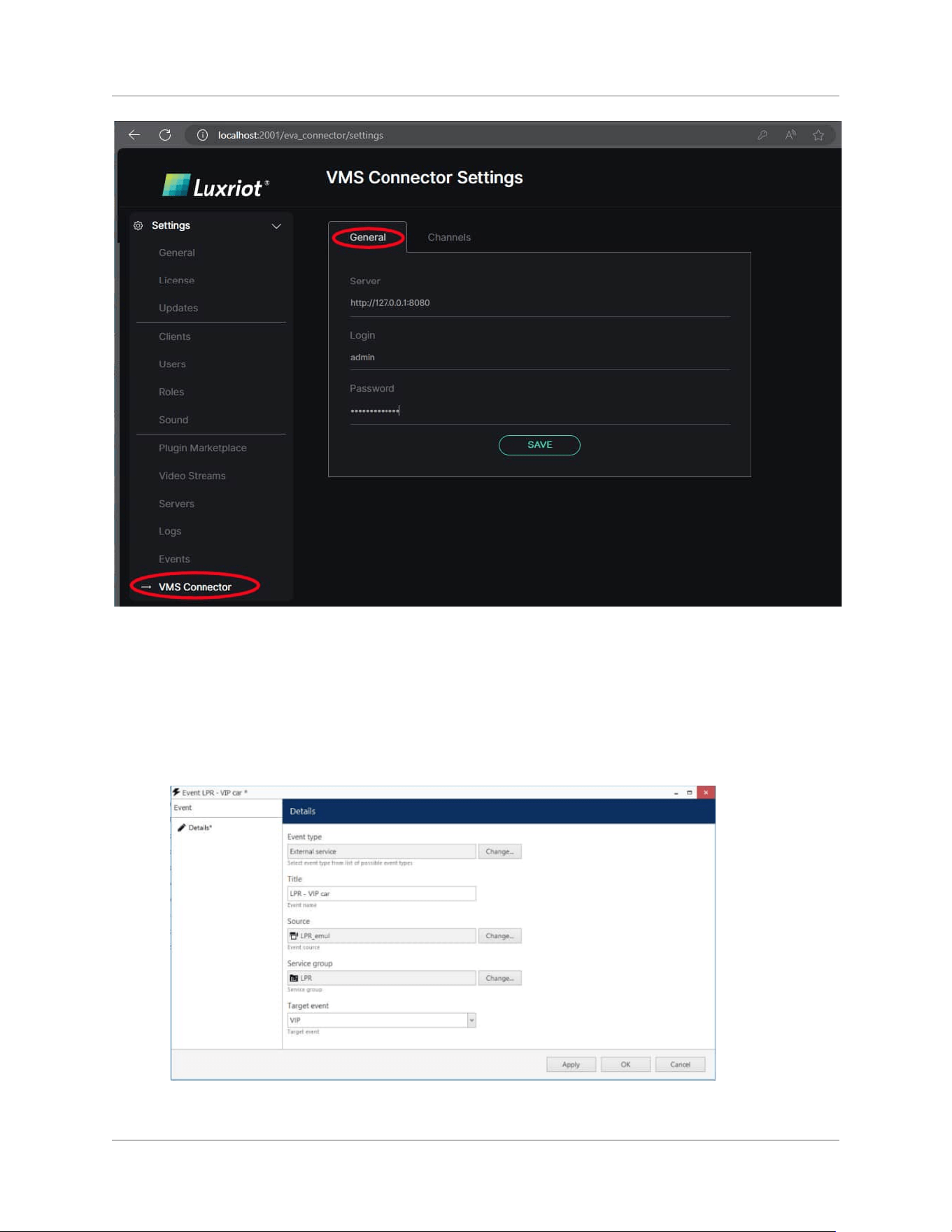
To enter the Luxriot EVO server properties, locate the VMS Connector menu item under Settings (you
may have to scroll down to locate it) and open its General tab in the main page area.
©2024 A&H Software House. All Rights Reserved
18
Quick Start Guide
Luxriot EVA Analytics (beta)
To add the Luxriot EVO server:
1. Open the VMS Connector menu item and open the General tab
2. Enter the Luxriot EVO server IP address and HTTP port (default port: 8080)
3. Enter Credentials for the Luxriot EVO user.
©2024 A&H Software House. All Rights Reserved
19
Quick Start Guide
Luxriot EVA Analytics (beta)
5. Connect EVO with EVA
Creating the Dedicated Crosslink tab in the Luxriot EVO Console
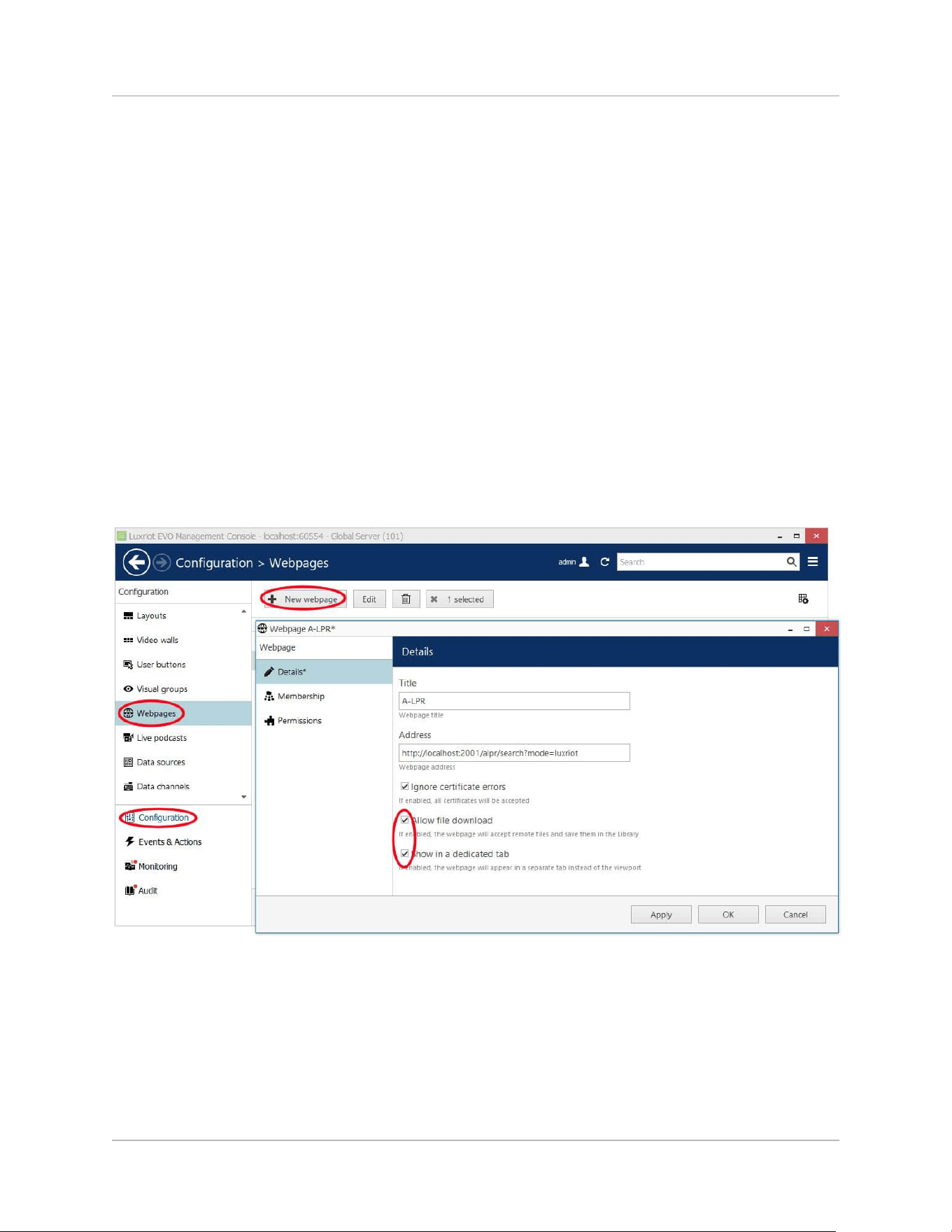
To create the Dedicated Crosslink tab and connect it with the preinstalled plugin, go to:
1. Luxriot EVO Console -> Configuration -> Crosslinks
2. Click on the +New Crosslink button to bring up the Crosslink pop-up window
3. Inside the Details tab, fill in the Title field with the name you want to see inside the Luxriot EVO
Monitor as the plugin tab name
4. Fill in the Address field with the link to your web-based interface connection details:
http://localhost:2001/?mode=normal
5. Mark the checkbox Show in a Dedicated tab, and confirm with the Apply and OK buttons.
©2024 A&H Software House. All Rights Reserved
20
Quick Start Guide
Luxriot EVA Analytics (beta)
6. Plugin Marketplace
Overview
Currently, there are two types of plugins represented inside the Plugin Marketplace:
1. Analytics
2. Event Managing.
Each type of Analytics and Event managers are represented by its own plugin. Each plugin may be
installed, updated or removed from the system separately. Inside the marketplace you also will find a
VMS connector that stands out from all other plugins - it connects standalone Luxriot EVA with the
Luxriot EVO server.
Plugin Marketplace
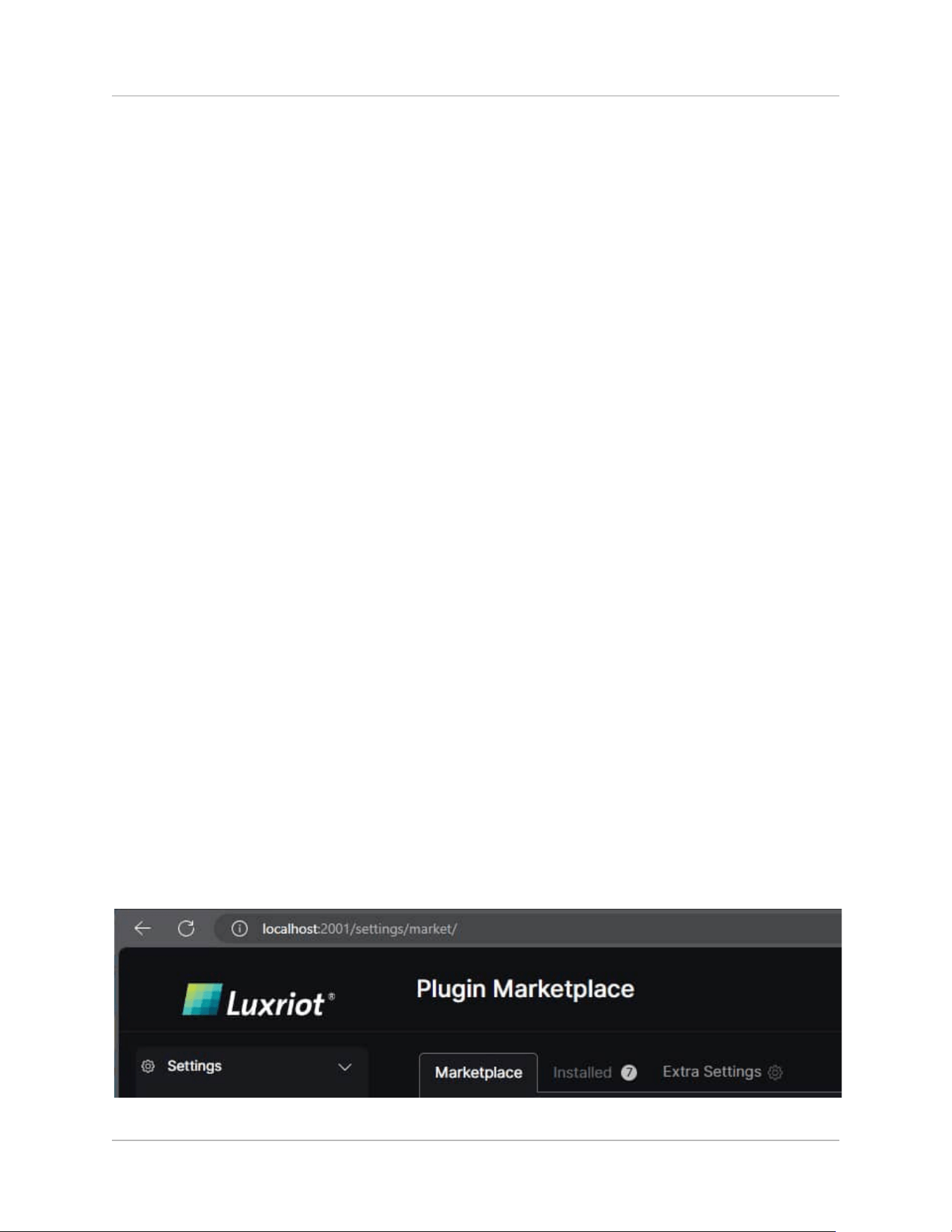
To access Plugin Marketplace go to:
Settings -> Plugin Marketplace.
Plugin Marketplace space consists of three tabs:
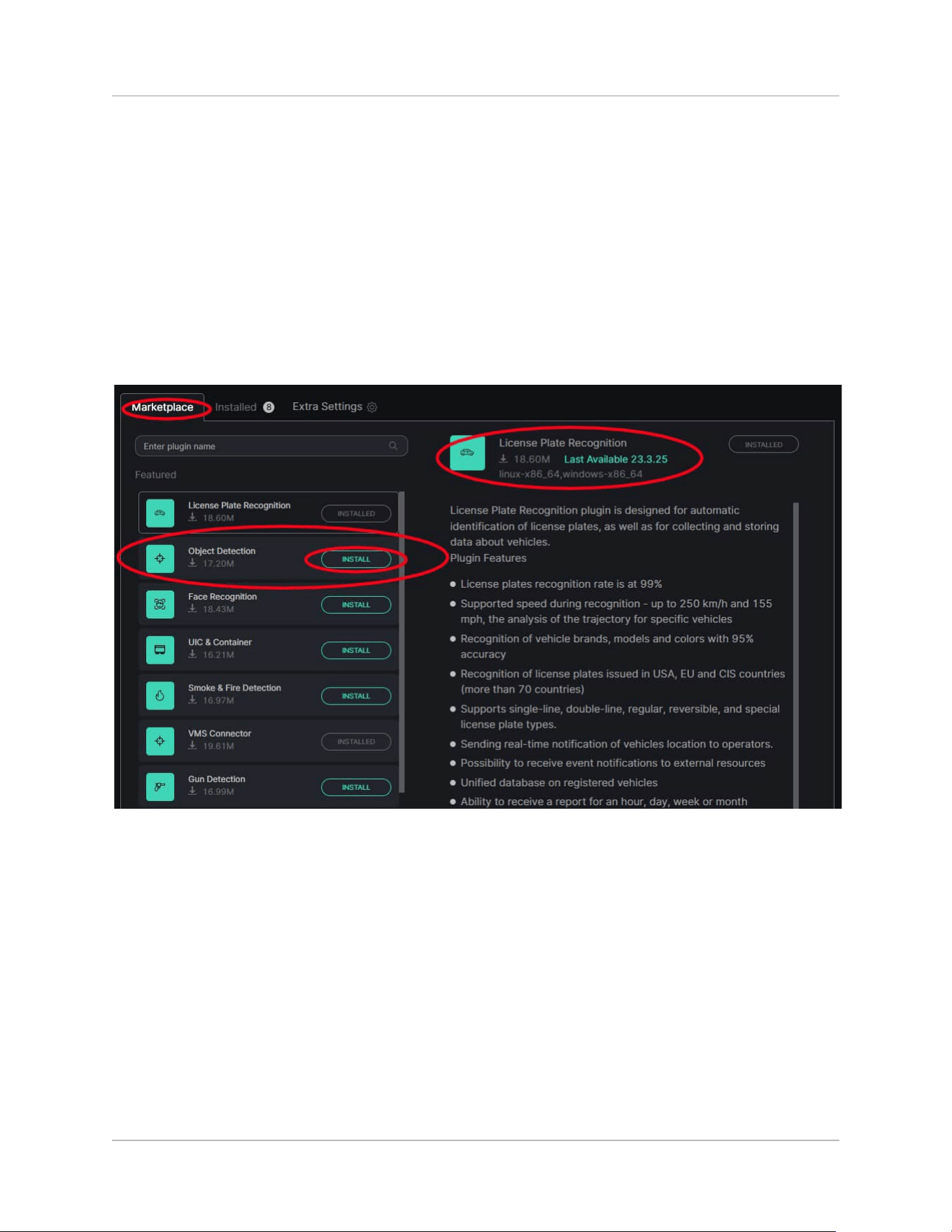
1. Marketplace tab: here you can find every accessible plugin, a brief description of its
functionality, and install each plugin separately.
2. Installed tab: contains already installed plugins. Here you can update, disable, or enable each
plugin separately or in bulk.
3. Extra settings: in case your system has limited internet access, you can add a new plugin
from a hard copy. You also can manage here your installed plugins in bulk.
©2024 A&H Software House. All Rights Reserved
21
Quick Start Guide
Luxriot EVA Analytics (beta)
Marketplace tab
Before installation, you can review the particular plugin by clicking it in the left part of the Marketplace
tab. All the plugins have information about the latest version available and the operating systems
they can use. Analytics plugins will also have a brief description of their functionality.
To install a particular plugin, click the Install button on the right side of the Plugin name. After
installation is completed, the Install button will become grayed out; from now on, your plugin is ready
to run.
©2024 A&H Software House. All Rights Reserved
22
Quick Start Guide
Luxriot EVA Analytics (beta)
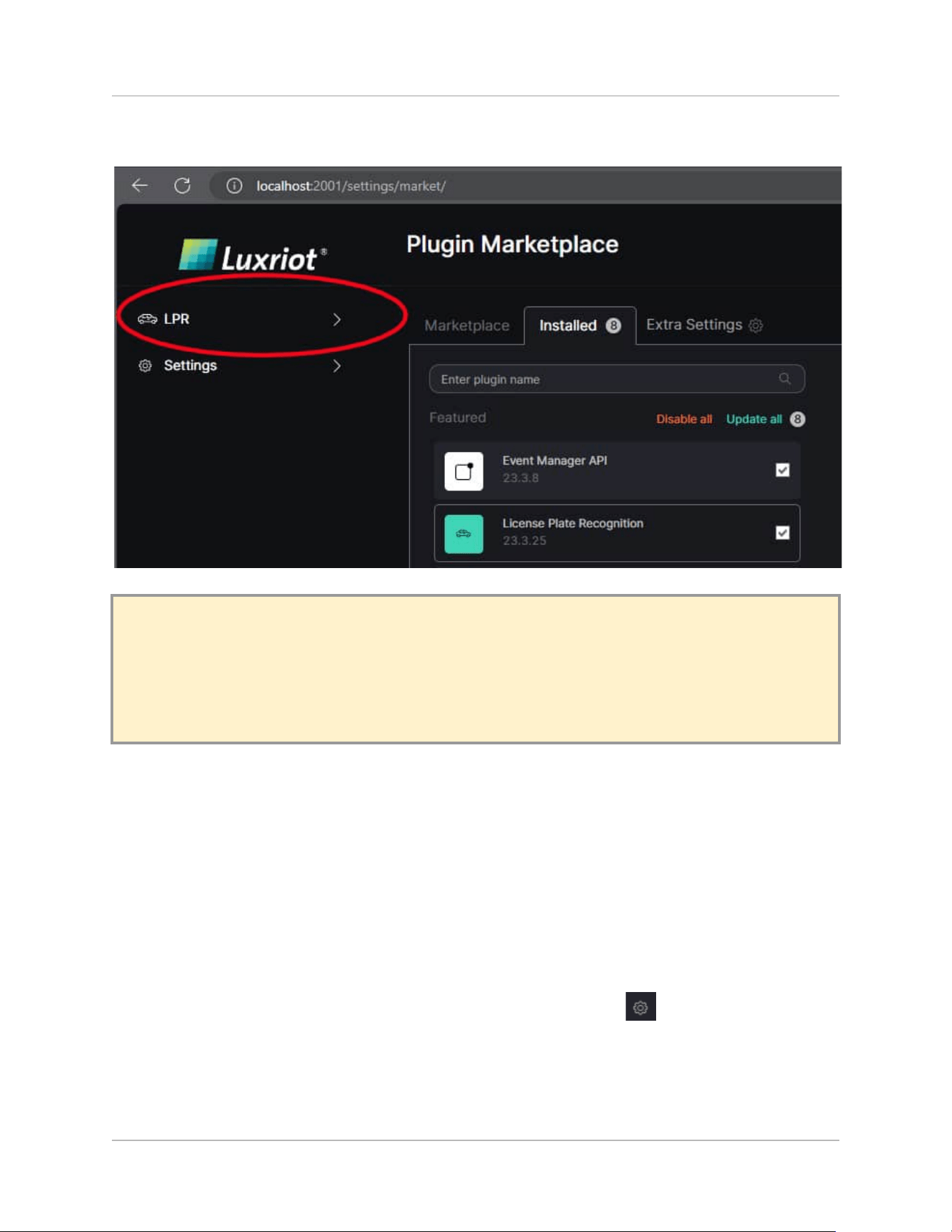
After the installation is completed, your Analytics will appear in the top part of the Main menu:
!N.B. Before installing any plugins, ensure the Middleware-Core is updated to the latest version.
To check for the latest Middleware-Core version, go to the Main menu -> Settings -> updates and
check if the current version matches the latest available version. If not, run the update and only
then continue with the plugin installation.
Installed Tab
You can manage plugins that have already been installed from the Installed tab. Under the search bar,
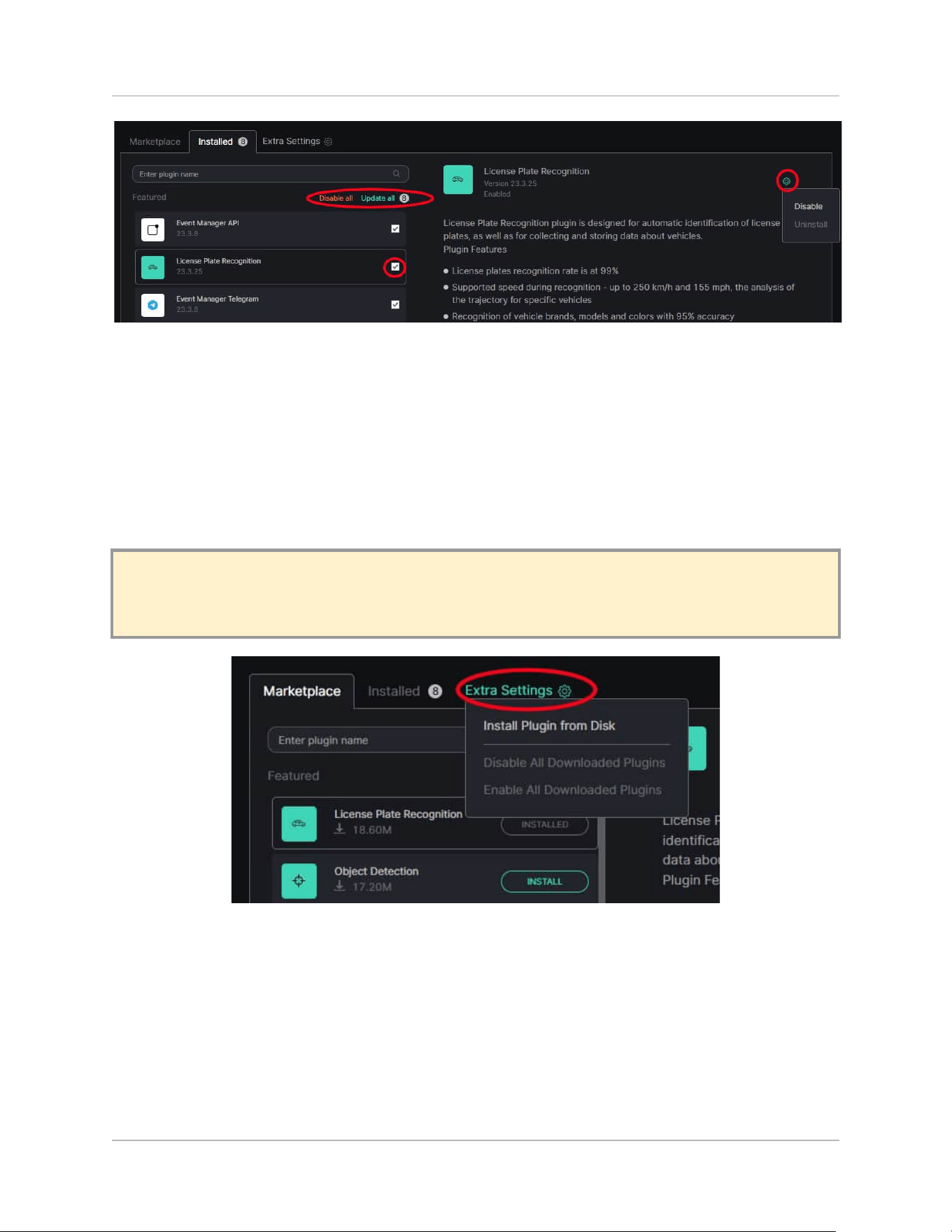
you will find the controls to Disable or Update all the installed plugins at once. You can also disable a
particular plugin by un-marking the checkbox related to that plugin. Disabling the Analytics plugin will
also remove it from the Main menu.
To uninstall the plugin completely, hover the mouse over the Gear icon in the top right corner of
the description section of the Installed tab.
©2024 A&H Software House. All Rights Reserved
23
Quick Start Guide
Luxriot EVA Analytics (beta)
Extra Settings
Extra Settings provide additional control. Hover the mouse over it to bring the Dropdown menu. If
there are reasons to keep your system isolated from access to the Internet, you can install the plugin
from the hard copy. Hover your mouse over the Extra Settings tab, select the Install Plugin from Disk,
provide the path to the plugin installation file, and confirm it with the Open button.
!N.B. We do not recommend offline plugin installation, so make sure you have the correct version.
If you have any questions, please contact support before the installation process.
You also may disable or enable all the plugins with one click by clicking on the corresponding menu
item.
©2024 A&H Software House. All Rights Reserved
24

Quick Start Guide
Luxriot EVA Analytics (beta)
EVA Advanced Troubleshooting Guide
Welcome to the troubleshooting section of the Luxriot EVA Quick Start Guide manual. As this
software is currently in beta, you may encounter some issues that require troubleshooting. This
section provides you with quick and effective solutions to common problems you might face while
using the software. Our goal is to ensure you can swiftly resolve any issues and continue using EVA
Advanced seamlessly. For further assistance, please refer to the detailed steps provided below or
contact our support team.
1. Notification Panel Data Not Working
Issue: Problem with VMS Connector
Steps to Try:
● Restart eva-vms-connector service
● Restart monitor
● Check for incoming data
If Not Resolved:
● Check external services in monitoring. If everything is fine, proceed:
● Restart eva-middleware-core service
● Restart eva-vms-connector service
● Restart monitor
2. VMS Connector Import Error
Request Processing Timeout:
VMS Connector not working:
● Check its status in services, if necessary, restart it.
©2024 A&H Software House. All Rights Reserved
25

Quick Start Guide
Luxriot EVA Analytics (beta)
VMS Connector Stream Import Error:
Check VMS network settings:
● Stream offline
● Encoding issues, ensure H.264 is used
● For online streams, toggle Disable/Enable, wait a few seconds after each
● VMS offline
3. EVA Infinite Loading
Steps:
● Restart middleware-core
● Test in different browsers
If Not Resolved:
Wait for 10-20 minutes. If the issue is not resolved, contact support, but first determine the cause.
This is especially true for large setups (e.g., with many servers and channels).
4. DB Load Error
Possible Causes:
● No disk space
● Corrupted DB
Steps:
Retrieve C:\ProgramData\EVA\middleware-core\videoanalytics.mv.db from the client and contact
support for a fix. Make backups regularly for the important settings.
5. All Analytics Processing
Issues and Steps:
● Insufficient memory. If memory is available, restart analytics.
©2024 A&H Software House. All Rights Reserved
26

Quick Start Guide
Luxriot EVA Analytics (beta)
● If unresolved, restart eva-process-runner service, then eva-middleware-core.
● Ensure sufficient hardware or proper GPU for GPU analytics.
6. Missing Server in Servers
Steps:
● Check for antivirus blocking. This is often the issue.
7. Duplicate Recognitions in Monitor
Step:
Restart the eva-vms-connector and possibly the monitor.
8. Analytics Tabs Not Visible
Steps:
Check user permissions. If the user is admin and the issue persists, contact support for a potential
install issue.
9. Plugins Not Installing Despite Internet Access
Steps:
Check for restricted connection rights. If so, advise checking access or performing offline plugin
installation.
10. Search Error in Monitor for External Services
If the service is marked red inside the Luxriot EVO Console -> Monitoring -> External Services, the best
solution is to delete all the EVA external services inside the Console -> Configuration -> External Services
and restart the middleware-core.
©2024 A&H Software House. All Rights Reserved
27

Quick Start Guide
Luxriot EVA Analytics (beta)
11. No Timestamps
Steps:
● Change camera codec from H.265 to H.264.
● Go to Video Streams -> Camera -> Gear icon -> Edit Stream -> Save.
12. Incorrect Stream Time Zone
Steps:
● Go to Video Streams -> Camera -> Gear icon -> Edit Stream -> Update Time Zone -> Save.
13. Missing Lists Data (LPR/FR)
Steps:
● Enable internal notifications in Lists (plugin subsection).
14. Hardware Mismatch Error in License
Steps:
● Check for hardware changes, even minor ones like memory changes.
● Contact support with a screenshot and key for resets or further actions.
15. List tags do not work inside the monitor
Steps:
● Check if lists are enabled for that particular plugin inside the Plugin -> Lists.
©2024 A&H Software House. All Rights Reserved
28
