mTS1000 Series Tripod Turnstile User Manual
Page | 1 Copyright©2025 ZKTECO CO., LTD. All Rights Reserved.
User Manual
Saturn-F1000 Series
Applicable Model(s): Saturn-F1000, Saturn-F1200
Date: August 2025
Doc Version: 1.0
English

Saturn-F1000 Series User Manual
Page | 1 Copyright©2025 ZKTECO CO., LTD. All Rights Reserved.
Copyright © 2025 ZKTECO CO., LTD. All rights reserved.
Without the prior written consent of ZKTeco, no portion of this manual can be copied or forwarded in any
way or form. All parts of this manual belong to ZKTeco and its subsidiaries (hereinafter the "Company" or
"ZKTeco").
Trademark
is a registered trademark of ZKTeco. Other trademarks involved in this manual are owned by
their respective owners.
Disclaimer
This manual contains information on the operation and maintenance of the ZKTeco equipment. The
copyright in all the documents, drawings, etc. in relation to the ZKTeco supplied equipment vests in and is
the property of ZKTeco. The contents hereof should not be used or shared by the receiver with any third
party without express written permission of ZKTeco.
The contents of this manual must be read as a whole before starting the operation and maintenance of the
supplied equipment. If any of the content(s) of the manual seems unclear or incomplete, please contact
ZKTeco before starting the operation and maintenance of the said equipment.
It is an essential pre-requisite for the satisfactory operation and maintenance that the operating and
maintenance personnel are fully familiar with the design and that the said personnel have received
thorough training in operating and maintaining the machine/unit/equipment. It is further essential for the
safe operation of the machine/unit/equipment that personnel has read, understood and followed the
safety instructions contained in the manual.
In case of any conflict between terms and conditions of this manual and the contract specifications,
drawings, instruction sheets or any other contract-related documents, the contract conditions/documents
shall prevail. The contract specific conditions/documents shall apply in priority.
ZKTeco offers no warranty, guarantee or representation regarding the completeness of any information
contained in this manual or any of the amendments made thereto. ZKTeco does not extend the warranty
of any kind, including, without limitation, any warranty of design, merchantability or fitness for a particular
purpose.
ZKTeco does not assume responsibility for any errors or omissions in the information or documents which
are referenced by or linked to this manual. The entire risk as to the results and performance obtained from
using the information is assumed by the user.
ZKTeco in no event shall be liable to the user or any third party for any incidental, consequential, indirect,
special, or exemplary damages, including, without limitation, loss of business, loss of profits, business
interruption, loss of business information or any pecuniary loss, arising out of, in connection with, or

Saturn-F1000 Series User Manual
Page | 2 Copyright©2025 ZKTECO CO., LTD. All Rights Reserved.
relating to the use of the information contained in or referenced by this manual, even if ZKTeco has been
advised of the possibility of such damages.
This manual and the information contained therein may include technical, other inaccuracies or
typographical errors. ZKTeco periodically changes the information herein which will be incorporated into
new additions/amendments to the manual. ZKTeco reserves the right to add, delete, amend or modify the
information contained in the manual from time to time in the form of circulars, letters, notes, etc. for better
operation and safety of the machine/unit/equipment. The said additions or amendments are meant for
improvement /better operations of the machine/unit/equipment and such amendments shall not give any
right to claim any compensation or damages under any circumstances.
ZKTeco shall in no way be responsible (I) in case the machine/unit/equipment malfunctions due to any
non-compliance of the instructions contained in this manual (ii) in case of operation of the machine/unit/
equipment beyond the rate limits (iii) in case of operation of the machine and equipment in conditions
different from the prescribed conditions of the manual.
The product will be updated from time to time without prior notice. The latest operation procedures and
relevant documents are available on http://www.zkteco.com
If there is any issue related to the product, please contact us.
ZKTeco Headquarters
Address ZKTeco Industrial Park, No. 32, Industrial Road,
Tangxia Town, Dongguan, China.
Phone +86 769 - 82109991
Fax +86 755 - 89602394
For business-related queries, please write to us at: [email protected]m.
To know more about our global branches, visit www.zkteco.com.

Saturn-F1000 Series User Manual
Page | 3 Copyright©2025 ZKTECO CO., LTD. All Rights Reserved.
About the Company
ZKTeco is one of the world’s largest manufacturer of RFID and Biometric (Fingerprint, Facial, Finger-vein)
readers. Product offerings include Access Control readers and panels, Near & Far-range Facial Recognition
Cameras, Elevator/floor access controllers, Turnstiles, License Plate Recognition (LPR) gate controllers and
Consumer products including battery-operated fingerprint and face-reader Door Locks. Our security
solutions are multi-lingual and localized in over 18 different languages. At the ZKTeco state-of-the-art
700,000 square foot ISO9001-certified manufacturing facility, we control manufacturing, product design,
component assembly, and logistics/shipping, all under one roof.
The founders of ZKTeco have been determined for independent research and development of biometric
verification procedures and the productization of biometric verification SDK, which was initially widely
applied in PC security and identity authentication fields. With the continuous enhancement of the
development and plenty of market applications, the team has gradually constructed an identity
authentication ecosystem and smart security ecosystem, which are based on biometric verification
techniques. With years of experience in the industrialization of biometric verifications, ZKTeco was
officially established in 2007 and now has been one of the globally leading enterprises in the biometric
verification industry owning various patents and being selected as the National High-tech Enterprise for 6
consecutive years. Its products are protected by intellectual property rights.
About the Manual
This manual introduces the operations of Saturn-F1000 Series.
All figures displayed are for illustration purposes only. Figures in this manual may not be exactly consistent
with the actual products.
Features and parameters with ★ are not available in all devices.
Saturn-F1000 Series User Manual
Page | 4 Copyright©2025 ZKTECO CO., LTD. All Rights Reserved.
Safety Instruction
These instructions are intended to ensure that user can use the product correctly to avoid danger or
property loss.
The precaution measure is divided into Dangers and Cautions:
Dangers: Neglecting any of the warnings may cause serious injury or death.
Cautions: Neglecting any of the cautions may cause injury or equipment damage.
Symbols
Convention Description
Dangers: Follow these safeguards to prevent serious injury or death.
Cautions: Follow these precautions to prevent potential injury or material damage.
Dangers:
In the use of the product, you must be in strict compliance with the electrical safety regulations of the
nation and region.
The equipment must be connected to an earthed mains socket-outlet.
Shock hazard! Disconnect all power sources before maintenance.
Do not touch the bare metal contacts of the inlets after the circuit breaker is turned off. Electricity still
exists.
To prevent possible hearing damage, do not listen at high volume levels for long periods.
All the electronic operation should be strictly compliance with the electrical safety regulations, fire
prevention regulations and other related regulations in your local region.
Please use the power adapter, which is provided by normal company. The power consumption cannot
be less than the required value.
Do not connect several devices to one power adapter as adapter overload may cause over-heat or fire
hazard.
Please make sure that the power has been disconnected before you wire, install or dismantle the
device.
If the top caps should be open and the device should be powered on for maintenance, make sure:
1. Power off the fan to prevent the operator from getting injured accidentally.
2. Do not touch bare high-voltage components.
3. Make sure the switch's wiring sequence is correct after maintenance.
Please make sure that the power has been disconnected before you wire, install or dismantle the
device.

Saturn-F1000 Series User Manual
Page | 5 Copyright©2025 ZKTECO CO., LTD. All Rights Reserved.
If smoke, odors or noise rise from the device, turn off the power at once and unplug the power cable,
and then please contact the service center.
If the product does not work properly, please contact your dealer or the nearest service center. Never
attempt to disassemble the device yourself. (We shall not assume any responsibility for problems
caused by unauthorized repair or maintenance.)
The Terminal PE of the switch should be connected to a ground wire.
Cautions:
Instructions must be read before installation. Please follow these instructions carefully, incorrect
installation could affect gate operation.
When mounting and positioning this product please ensure the power cable is unplugged.
The motor cover will need to be removed to mount the motor to the mounting plate. Electrical-related
operation of the main unit can only be made by a licensed electrician.
To prevent injury, this equipment must be securely attached to the floor/base of the turnstile in
accordance with the installation instructions.
Keep straight down when moving or using the equipment.
Never place the equipment in an unstable location. The equipment may fall, causing serious personal
injury or death.
Stainless steel may be corroded in some circumstances. You need to clean and care the device by
using the stainless steel cleaner. It is suggested to clean the device every month.
Do not drop the device or subject it to physical shock, and do not expose it to high electromagnetism
radiation. Avoid the equipment installation on vibrations surface or places subject to shock (ignorance
can cause equipment damage).
Do not place the device in extremely hot (refer to the specification of the device for the detailed
operating temperature), cold, dusty or damp locations, and do not expose it to high electromagnetic
radiation.
The device cover for indoor use shall be kept from rain and moisture.
Exposing the equipment to direct sun light, low ventilation or heat source such as heater or radiator is
forbidden (ignorance can cause fire danger).
Do not aim the device at the sun or extra bright places. A blooming or smear may occur otherwise
(which is not a malfunction however), and affecting the endurance of sensor at the same time.
Please use the provided glove when open up the device cover, avoid direct contact with the device
cover, because the acidic sweat of the fingers may erode the surface coating of the device cover.
Please use a soft and dry cloth when clean inside and outside surfaces of the device cover, do not use
alkaline detergents.
Please keep all wrappers after unpack them for future use. In case of any failure occurred, you need to
return the device to the factory with the original wrapper. Transportation without the original wrapper
may result in damage on the device and lead to additional costs.

Saturn-F1000 Series User Manual
Page | 6 Copyright©2025 ZKTECO CO., LTD. All Rights Reserved.
Improper use or replacement of the battery may result in hazard of explosion. Replace with the same
or equivalent type only. Dispose of used batteries according to the instructions provided by the
battery manufacturer.
Biometric recognition products are not 100% applicable to anti-spoofing environments. If you require
a higher security level, use multiple authentication modes.
Do not stay in the lane when the device is rebooting.
RISK OF EXPLOSION IF BATTERY IS REPLACED BY AN INCORRECT TYPE. DISPOSE OF USED BATTERIES
ACCORDING TO THE INSTRUCTIONS.
SUITABLE FOR MOUNTING ON CONCRETE OR OTHER NON-COMBUSTIBLE SURFACE ONLY.
The instructions shall require connection of the equipment protective earthing conductor to the
installation protective earthing conductor.

Saturn-F1000 Series User Manual
Page | 7 Copyright©2025 ZKTECO CO., LTD. All Rights Reserved.
Table of Contents
1 OVERVIEW ............................................................................................................................................ 9
Introduction ................................................................................................................................................. 9 1.1
Features ........................................................................................................................................................ 9 1.2
Appearance ................................................................................................................................................ 11 1.3
1.3.1
Saturn-F1000 ............................................................................................................................................................................................ 11
1.3.2 Saturn-F1200 ............................................................................................................................................................................................ 12
1.3.3 System Composition ........................................................................................................................................................................... 13
System Components ................................................................................................................................ 14 1.4
Technical Specifications ........................................................................................................................... 15 1.5
Mechanical System ................................................................................................................................... 17 1.6
Electronic Control System ....................................................................................................................... 17 1.7
2
AUTHENTICATION METHODS ........................................................................................................... 19
Card Verification★ ................................................................................................................................... 19 2.1
QR Code Verification★ ............................................................................................................................ 20 2.2
Facial Verification★ ................................................................................................................................. 20 2.3
3
INSTALLATION ................................................................................................................................... 21
Installation Tools ....................................................................................................................................... 21 3.1
Installation Requirements ....................................................................................................................... 21 3.2
Installation Environment ......................................................................................................................... 21 3.3
Installation Cabinet .................................................................................................................................. 22 3.4
Facial Authentication Device Installation (Surface Mount) ............................................................... 27 3.5
4
TERMINAL DESCRIPTION .................................................................................................................. 28
Main / Sub Board ....................................................................................................................................... 28 4.1
IR Sensor Board ......................................................................................................................................... 29 4.2
5
WIRING INSTRUCTIONS ..................................................................................................................... 30
Main-sub Location .................................................................................................................................... 30 5.1
Slotting Position ........................................................................................................................................ 31 5.2
Wiring Methods ......................................................................................................................................... 31 5.3
Power Wiring ............................................................................................................................................. 32 5.4
System Wiring Diagram ........................................................................................................................... 33 5.5
6
OPERATION PROCESS ....................................................................................................................... 34
7 MACHINE OPERATION ....................................................................................................................... 36
Operation Buttons Description ............................................................................................................... 36 7.1
Menu Parameter Settings ........................................................................................................................ 36 7.2
8
MAINTENANCE .................................................................................................................................. 45
Chassis Maintenance ................................................................................................................................ 45 8.1
Movement Maintenance .......................................................................................................................... 45 8.2
Power Supply Maintenance .................................................................................................................... 45 8.3

Saturn-F1000 Series User Manual
Page | 8 Copyright©2025 ZKTECO CO., LTD. All Rights Reserved.
9 TROUBLESHOOTING.......................................................................................................................... 46
10 PACKING LIST ................................................................................................................................. 47

Saturn-F1000 Series User Manual
Page | 9 Copyright©2025 ZKTECO CO., LTD. All Rights Reserved.
1 Overview
Introduction 1.1
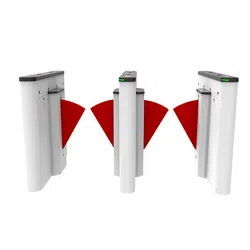
ZKTeco's Saturn-F1000 series flap barrier is a high-efficiency and designed for efficient access control for
both indoor and outdoor scenarios.
Constructed with a robust cold-rolled SPCC steel chassis and a retractable polycarbonate (PC) barrier, the
Saturm-F1000 ensures durability and safety while maintaining a modern appearance. Equipped with a DC
brushless motor, the Saturn-F1000 delivers rapid operation, opening or closing in less than one second
per movement. The system integrates advanced features such as anti-pinch and anti-tailgating detection,
as well as multiple authentication options—including RFID, QR code, and facial recognition—catering to
diverse security requirements. Also, the Saturn-F1000 supports a flow rate of up to 30 passengers per
minute (RFID/QR code) and 15 passengers per minute (facial recognition), making it ideal for high-traffic
applications.
Features 1.2
Fast Passage Experience
The Saturn-F1000 flap barrier turnstile enables rapid opening and closing—typically in less
than one second—providing smooth, efficient throughput for up to 30 passengers per minute.
This high-speed performance is ideal for busy environments like airports, metro stations, and
stadiums, minimizing wait times and streamlining pedestrian flow during peak periods.
High-Security Assurance
Advanced infrared sensing and five sensor pairs provide precise detection, effectively
preventing tailgating and unauthorized entry.
Exceptional Stability Performance
A robust internal structure and high-quality materials, combined with a durable DC brushless motor
rated for 5 million cycles, ensure reliable, low-maintenance operation in high-traffic environments.
Flexible Customization
The flap barrier can be diversely customized to meet the needs of different venues and readers. It can
integrate with IC/ID card readers, QR code readers and facial recognition devices to satisfy diverse
authentication requirements.

Saturn-F1000 Series User Manual
Page | 10 Copyright©2025 ZKTECO CO., LTD. All Rights Reserved.
Configurable Passage Options
Offers configurable passage modes: such as one-way, two-way, or free passage, to suit various access
control scenarios.
Durable Material with IPX4 Protection Rating
Built with powder-coated cold-rolled steel for corrosion resistance and it reached IPX4 protection
rating for enhanced water proof and dust resistant.
Saturn-F1000 Series User Manual
Page | 11 Copyright©2025 ZKTECO CO., LTD. All Rights Reserved.
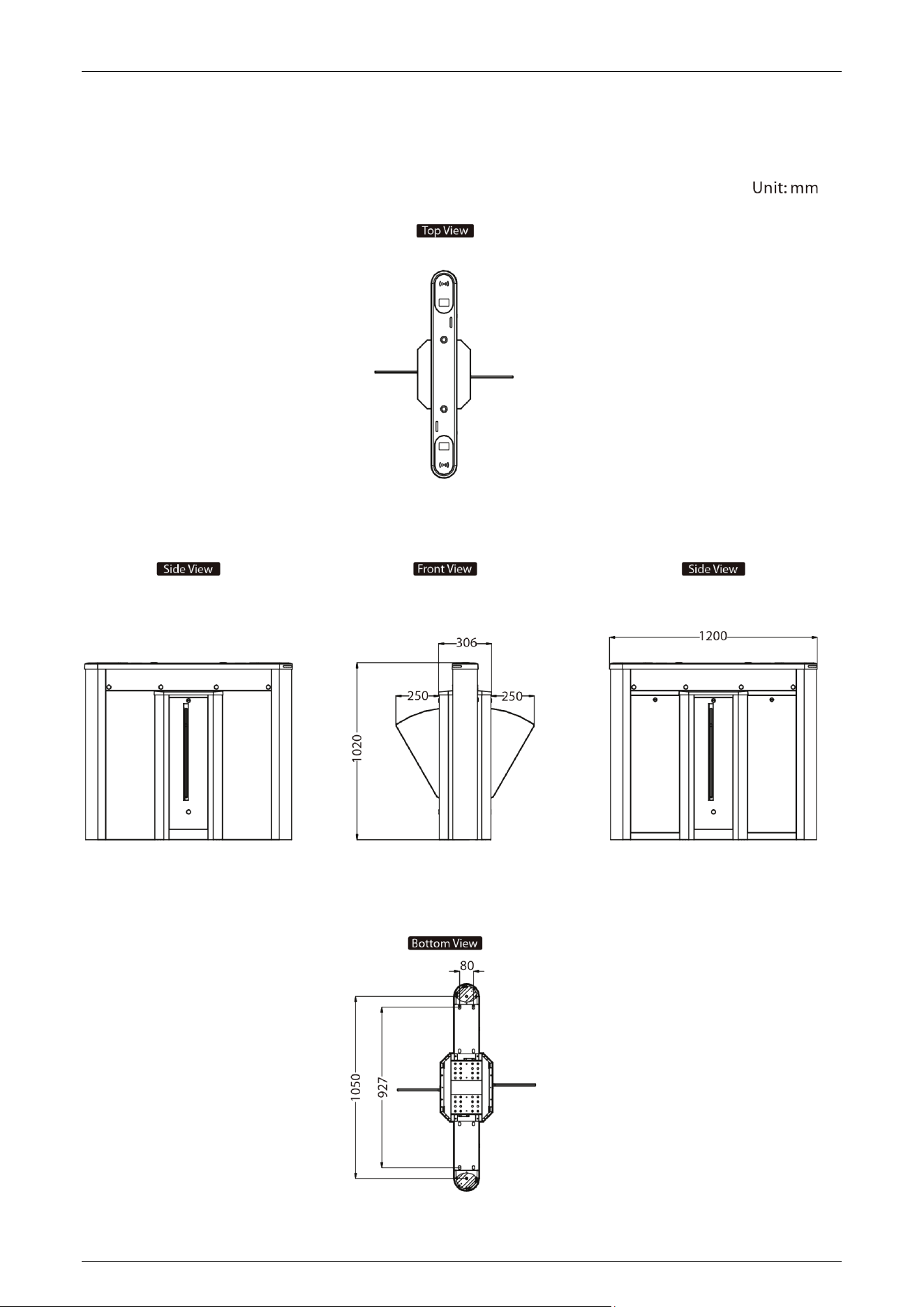
Appearance 1.3
1.3.1 Saturn-F1000
Saturn-F1000 Series User Manual
Page | 12 Copyright©2025 ZKTECO CO., LTD. All Rights Reserved.
1.3.2 Saturn-F1200
Saturn-F1000 Series User Manual
Page | 13 Copyright©2025 ZKTECO CO., LTD. All Rights Reserved.
1.3.3 System Composition
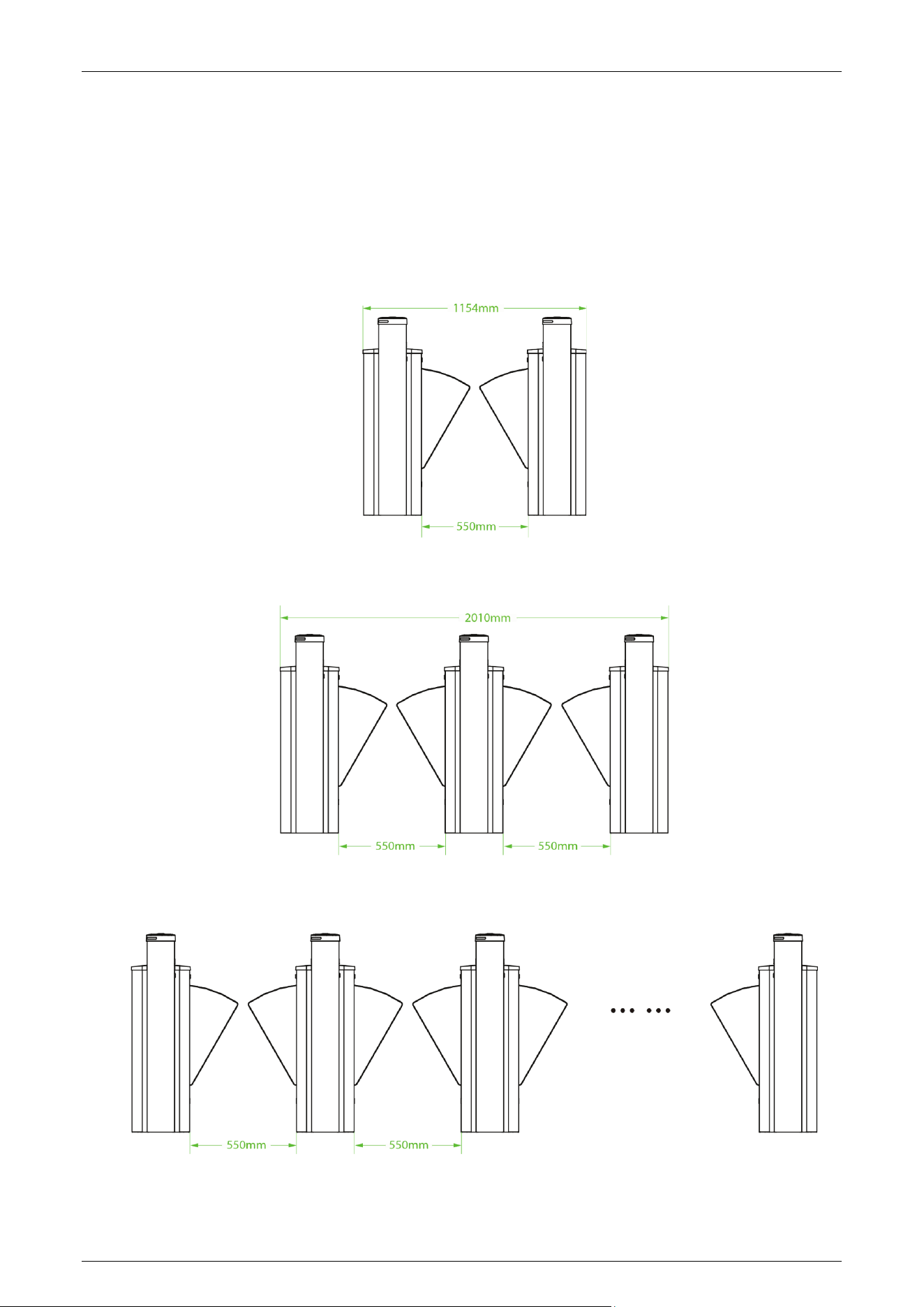
The Saturn-F1000 and Saturn-F1200 can be combined to form a single, dual or multi-lane system, allowing
the user to select the appropriate flap barrier size according to actual needs.
1) Single-lane
2) Dual-lane
3) Multi-lane
Saturn-F1000 Series User Manual
Page | 14 Copyright©2025 ZKTECO CO., LTD. All Rights Reserved.
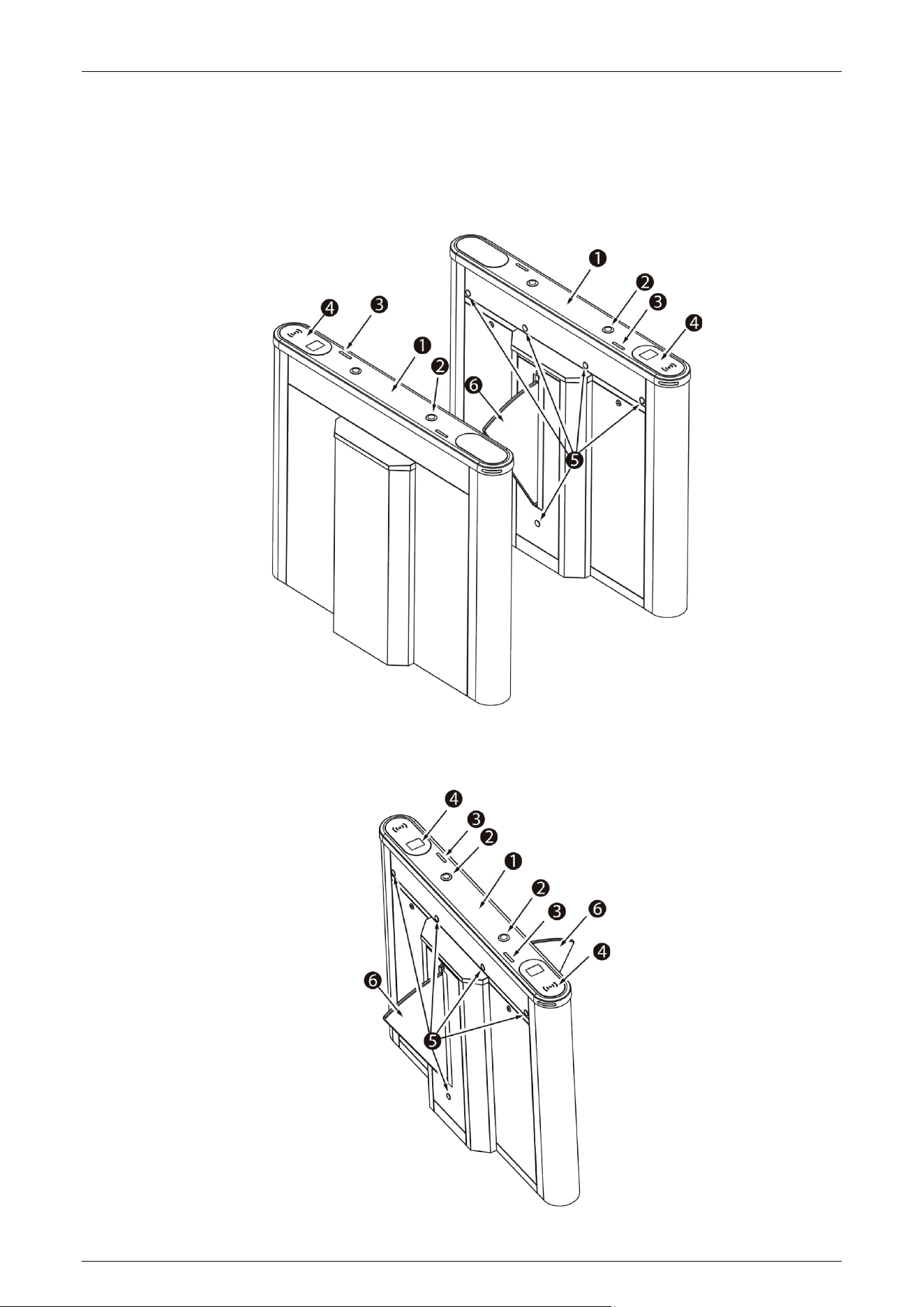
System Components 1.4
Saturn-F1000
Saturn-F1200

Saturn-F1000 Series User Manual
Page | 15 Copyright©2025 ZKTECO CO., LTD. All Rights Reserved.
No. Components Descriptions
1
Top Lid Polycarbonate+2.5D tempered glass
2
Hole Plugs Reserved mounting holes for facial authentication devices.
3
Traffic Indicator
Blue=Standby
Green=Normal use
Red=Barrier close
4
Verification Area Card (RFID)/ QR Code modules are available.
5
Infrared Sensor
It detects the position of the pedestrian and plays a role in ensuring safety
and protection.
6
Barrier Retractable flap barrier
Technical Specifications 1.5
Model Saturn-F1000 Saturn-F1200
Audio Indicator
Speaker
Visual Indicator
LED Indicators
Steady blue=Standby
Steady green=Normal use
Steady red=Barrier close
Lane Type
Single Lane
Dual flap barriers for additional lane
(with Saturn-F1000)
Lane Width
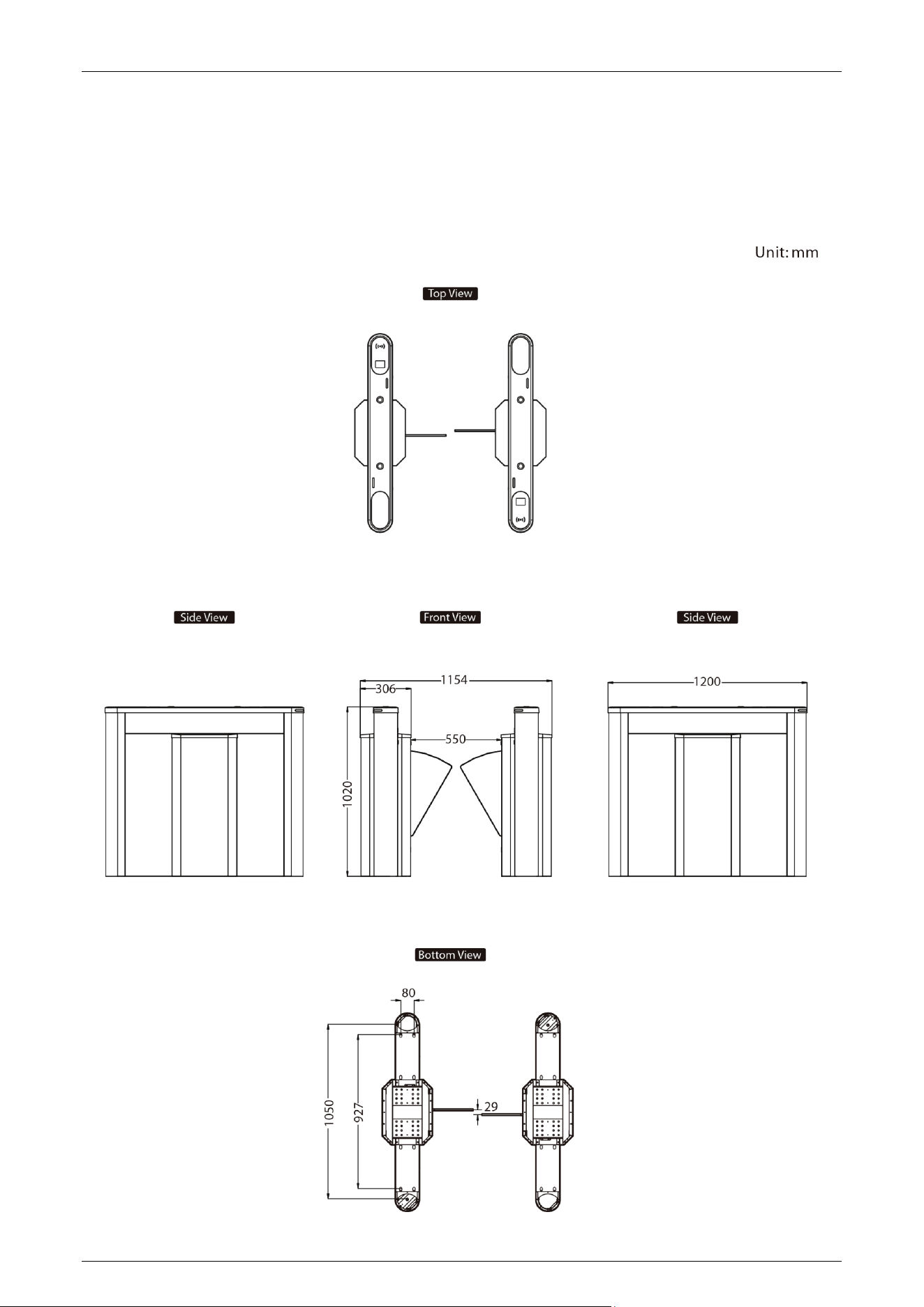
550mm
Lane Height
1020mm
Barrier Movement Type
Retractable flap barrier (Polycarbonate)
Motor
DC brushless motor
Movement Speed
Less than 1s per movement (open/close timing)
Cabinet Lid Material
Cold-rolled SPCC Steel(GB700)
Lid Material
Polycarbonate+2.5D tempered glass
IR Sensors
5 pairs
Motherboard Function
System configuration, access mode configuration, anti-pinch configuration,
anti-tailgate configuration, etc.
Motherboard
Communication
Fire Alarm Port (Relay)*1, RS485 Port*1

Saturn-F1000 Series User Manual
Page | 16 Copyright©2025 ZKTECO CO., LTD. All Rights Reserved.
Lid Options
Authentication Methods
Streamlined under mount options: RFID/QR Code
Top mount options with mounting pole: Facial Recognition (compatible with
ProFaceX/SpeedFace V5L/Elite Pass)
Chassis Material
Cold-rolled SPCC Steel (GB700)
Chassis Colour
White
Controller
C3, InBio series or third-party devices
Credential Options
Under mount RFID Reader:(support model: ProlD Series)
Under mount QR Code Reader: QR500
Top mount facial recognition terminal: ProFaceX/Elite Pass/SpeedFace V5L
Flow Rate
RFID: 30 passengers per minute;
QR Code: 30 passengers per minute;
Facial Recognition: 15 passengers per minute
Accessibility
Standard lane(550mm): Adult and children
Power Supply
110V/220VAC@50-60 Hz
Power Rating
10VA(Standby), 40VA(Operation)
Fire Signal
Input for voltage free contact
Noise Level
Less than 60dB
MTTR
Less than 60minutes
MCBF
5 million
Weight
Net Weight: 50kg
Gross Weight: 60kg
Net Weight: 30kg
Gross Weight: 35kg
Dimensions (L*W*H)
1200*306*1020mm
Dimensions with
Packaging (L*W*H)
1345*360*1100mm
Operating Temperature
-20℃ to 70℃
Operating Humidity
20% to 85% RH (non-condensing)
Certifications
CE, FCC
Ingress Protection Rating
IPX4
Supported Software
ZKBio CVAccess/ ZKBio CVSecurity
(Depends on equipped access controller)
Safety Features
IR sensor safety detection
Logic voltage 24V DC
Voltage free contact input for fire alarm fail state
Saturn-F1000 Series User Manual
Page | 17 Copyright©2025 ZKTECO CO., LTD. All Rights Reserved.
Auto opening on power off
Security Features
Anti-intrusion, anti-tailgating, wrong way enter alarm, automatically close
door when no one pass
Product Delivery
Pre-assembled
Application Environment
Indoor/Outdoor
Site Preparation
Flat & level finished floor (base plate in options for unfinished floors)
Security Level
Middle
Emergency Mode
Support (door unlock automatically)
Packing Material
Carton box
Mechanical System 1.6
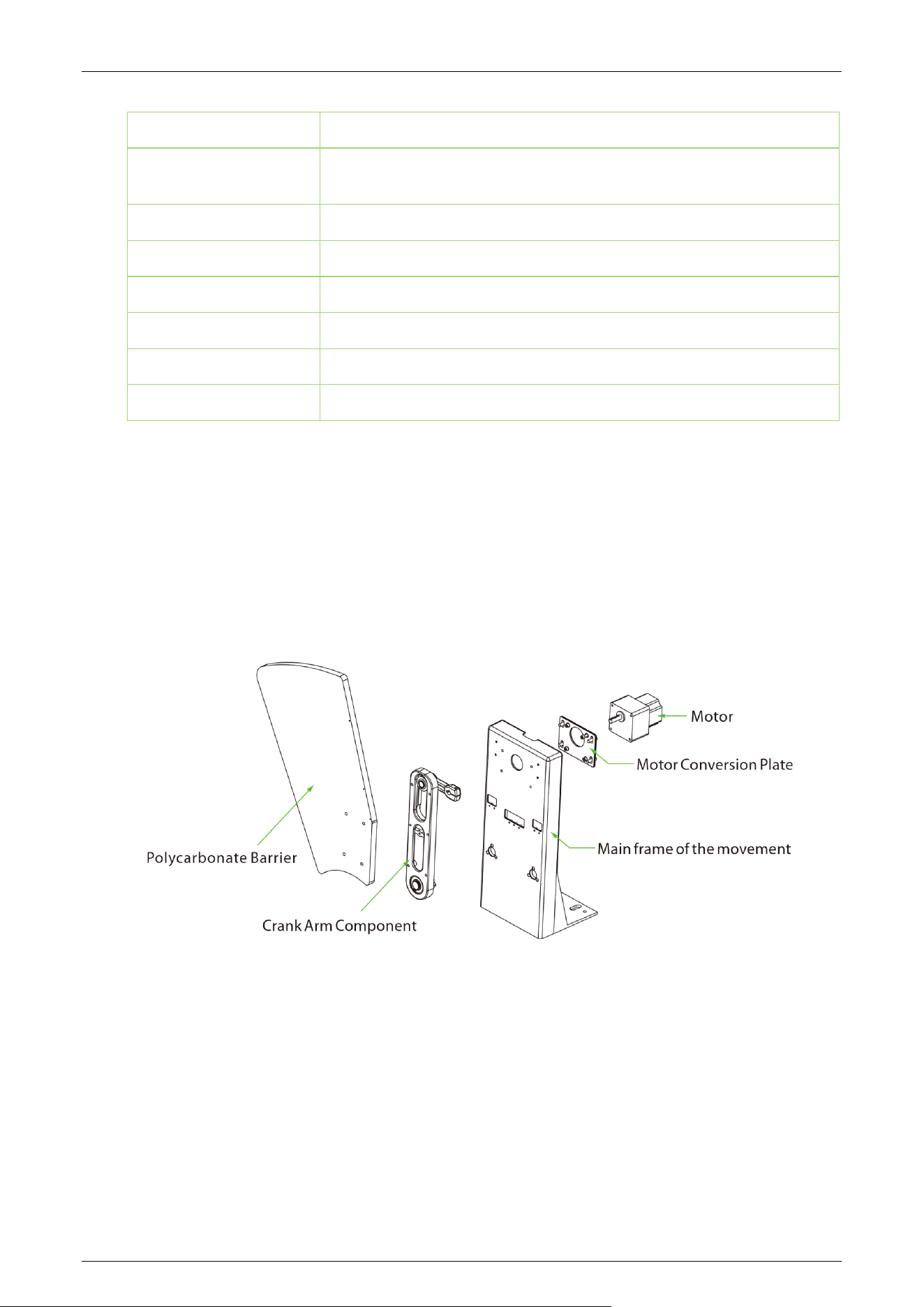
The mechanical system of the turnstile includes the chassis and the core component.
Chassis: It is a carrier where the Traffic Indicator, Infrared Sensor and the Door lock are installed.
Core Component: The core component mainly consists of the Motor, Motor Conversion Plate,
Frame, Crank Arm and Barrier.
Electronic Control System 1.7
The electronic control system of a turnstile is mainly composed of the Motor Driver, Turnstile Control
Board, Traffic Indicator, Alarm and Infrared Sensor.
Card Reader: The reader reads the data in the card and sends it to the Access Controller.
Turnstile Control Board: The Turnstile control board is the system’s control center that receives
signals from the access controller. The IR performs logical calculation and processing of these

Saturn-F1000 Series User Manual
Page | 18 Copyright©2025 ZKTECO CO., LTD. All Rights Reserved.
signals and then sends executive commands to the Traffic Indicator, Motor, and the alarm.
Tri-color Indicator: Displays the current passage status of the channel and guiding pedestrians
to pass through the channel in a safe and orderly manner. (Normal status: Blue; Passage
allowed: Green; Abnormal/Error status: Red)
Alarm: The alarm gives the voice and light alarm if the system detects any unauthorized entry to
the passage, false direction entry, and anti-tailgating.
Infrared Sensor: It detects the position of the pedestrian and plays the role of safety protection.
Saturn-F1000 Series User Manual
Page | 19 Copyright©2025 ZKTECO CO., LTD. All Rights Reserved.
2 Authentication Methods
Users can freely choose to configure the authentication module according to actual needs. The following
options are included.
Streamlined Under Mount Options:
RFID only, RFID & QR Code
Top Mount Option:
Mounting Pole (Compatible with ProFace X series / SpeedFace V5L / Elite Pass).
Card Verification
★
2.1
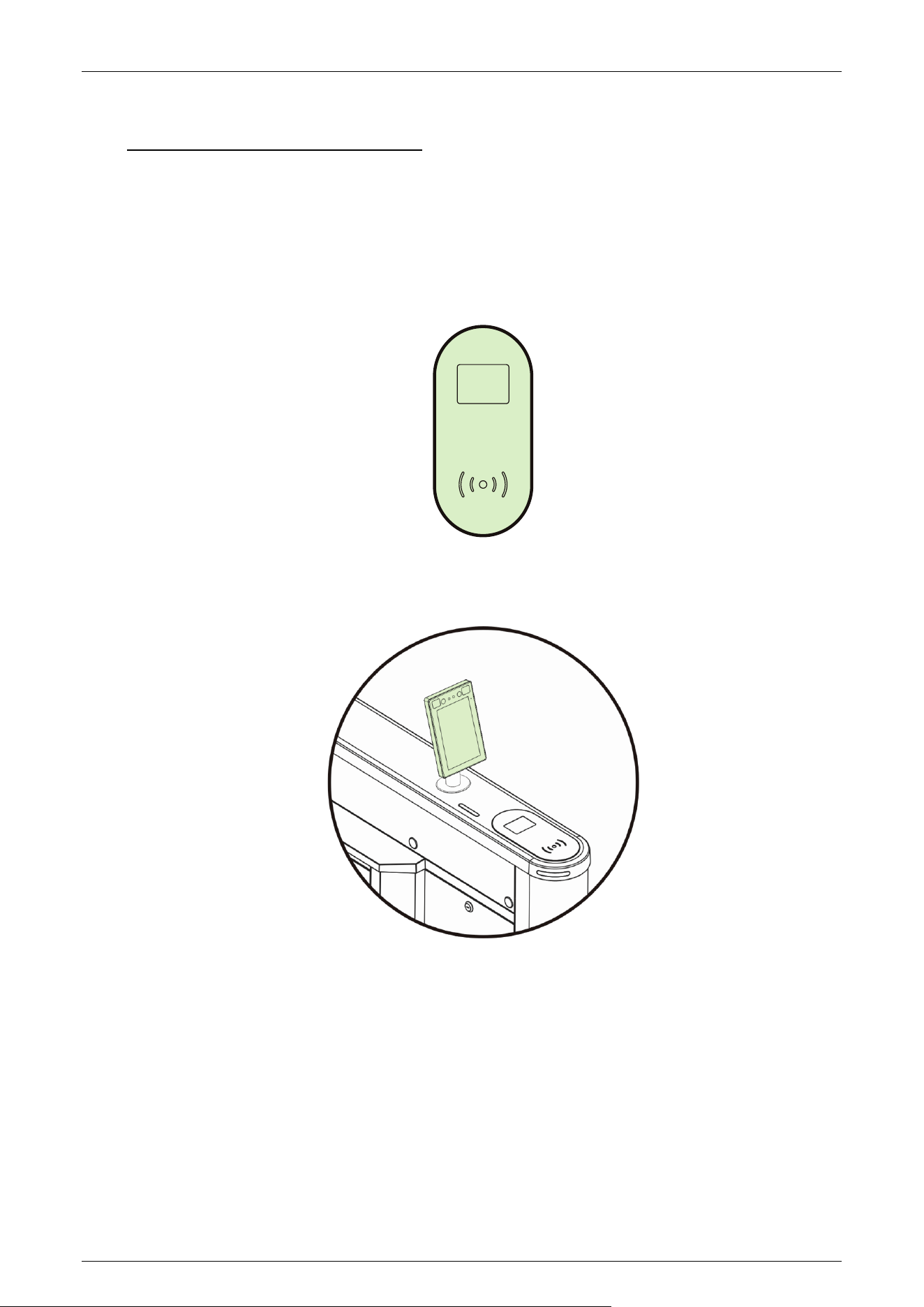
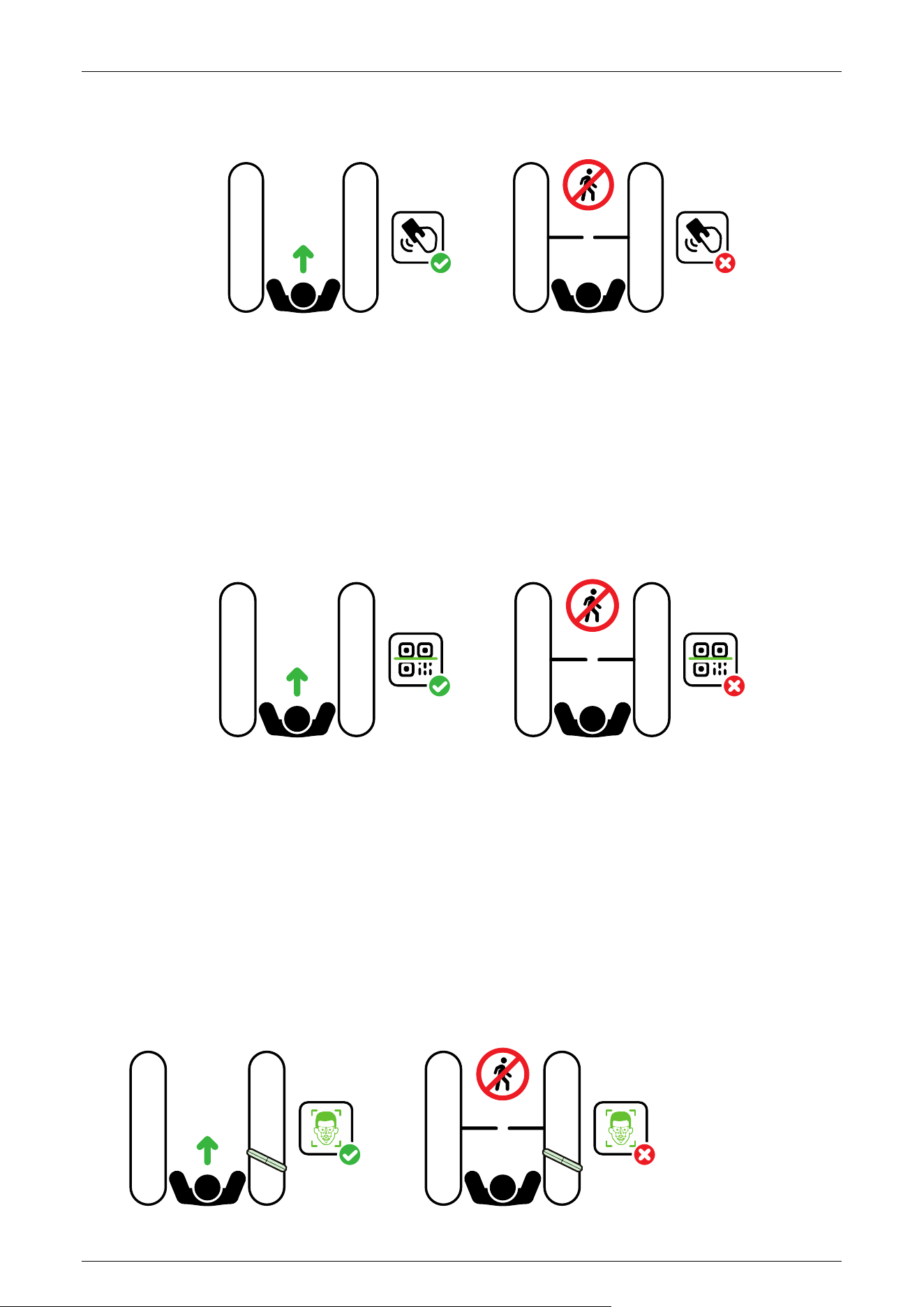
When the device is configured with a card reader module, the Card Verification mode compares the
card number in the card induction area with all of the card number data registered in the device and
sends it to the Access Controller.
When a user presses his / her card on the card verification area, the device enters card authentication
mode.
Saturn-F1000 Series User Manual
Page | 20 Copyright©2025 ZKTECO CO., LTD. All Rights Reserved.
Verification is successful: Verification is failed:
RFID
NO ENTRY
RFID
QR Code Verification
★
2.2
The QR code Verification mode is to scan the QR code on the user's mobile phone through the QR
code scanner and compare the data with the registered QR code, and then sends it to the Access
Controller.
When the user places the mobile phone displaying with the QR code on top of the QR code scanner,
the device enters the QR code authentication mode.
NO ENTRY
Facial Verification★ 2.3
When the device is configured with a facial recognition module, in facial verification mode, the
device compares the collected facial image with all the facial data registered in the device and sends
it to the Access Controller.
During the verification process, please try to keep your face facing the camera. When registering
your face, please face the camera and remain still until the entry is successful.
Verification is successful: Verification is failed:
NO ENTRY

Saturn-F1000 Series User Manual
Page | 21 Copyright©2025 ZKTECO CO., LTD. All Rights Reserved.
3 Installation
Installation Tools 3.1
Tapeline
Marker Pen
Pencil
Percussion Drill
Screwdriver
Wrench
Hex Wrench
Cutting Machine
Installation Requirements 3.2
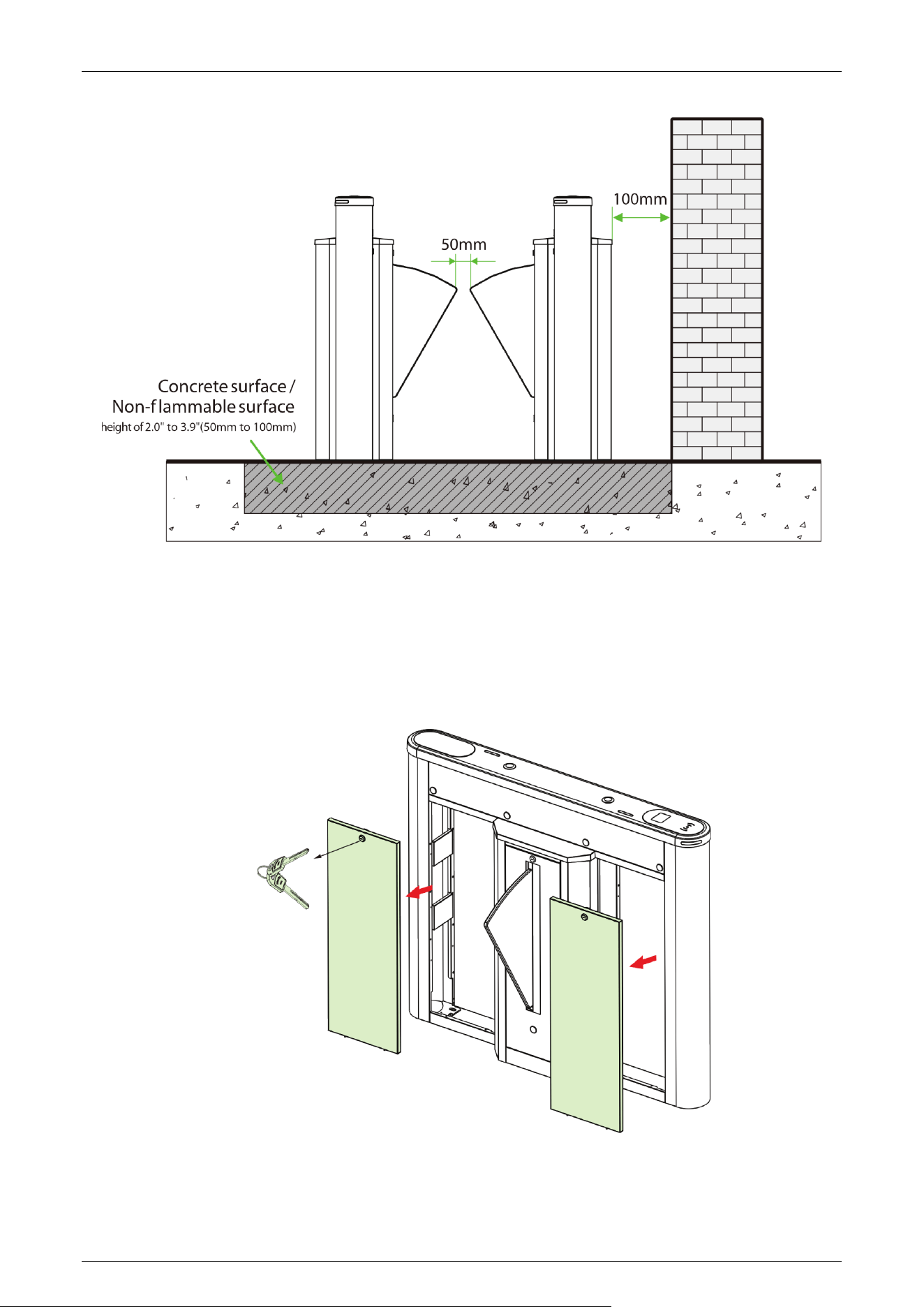
1. It is recommended that the turnstile must be installed on a horizontal solid platform with a height of
2.0" to 3.9"(50mm to 100mm).
2. It is recommended that the turnstile should not be used in the corrosive environment.
3. Make sure that the ground wire of the system is securely connected to avoid personal injuries
or other accidents.
4. After installation, check if the connection has been done correctly at the connecting points of
the ground wire, at the connector assemblies and wiring points of the circuits, as well as at
each movable part of the turnstile. Any loose nuts, screws and other fasteners should be
tightened in time to avoid any failures caused by long-time operations.
Installation Environment 3.3
1. Before installation begins, prepare installation tools, check the device and the accessories, and
clear the installation base.
2. Make sure that the appliance is mounted on a concrete surface or other non-flammable surfaces.
3. The installation position of the turnstile depends on its size. A distance of 3.9"(100mm) between the
turnstile and the wall needs to be reserved for ease of opening the top lid of the turnstile to
perform maintenance and adjustment. The reference figure is shown below:
Saturn-F1000 Series User Manual
Page | 22 Copyright©2025 ZKTECO CO., LTD. All Rights Reserved.
Installation Cabinet 3.4
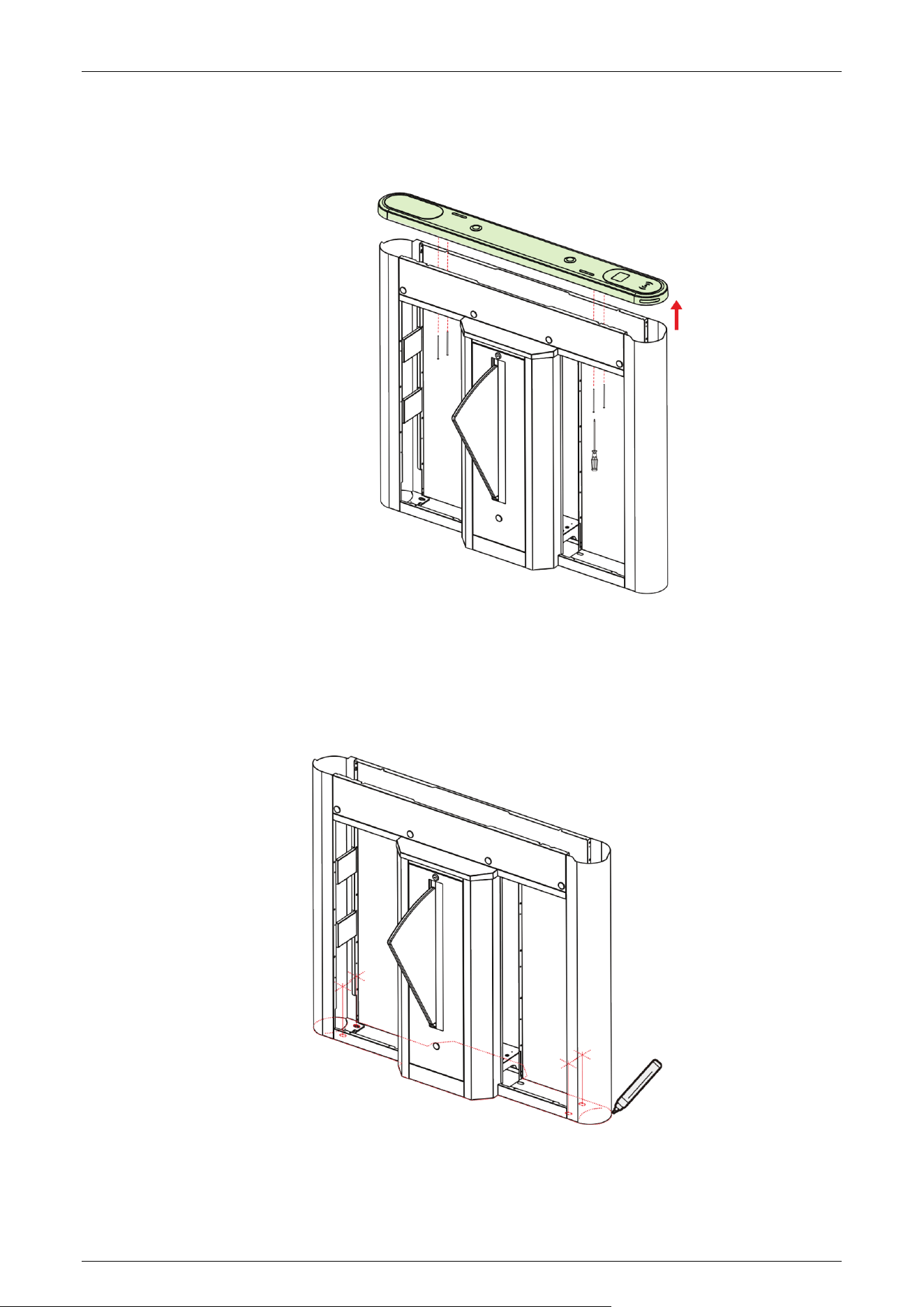
Step 1 Remove the Top Lid and Chassis Cover
1. As shown below, use the key to open the chassis covers on both sides and remove them.
Saturn-F1000 Series User Manual
Page | 23 Copyright©2025 ZKTECO CO., LTD. All Rights Reserved.
2. Loosen the four screws in the positions shown in the picture below. Then remove the top cover
upwards.
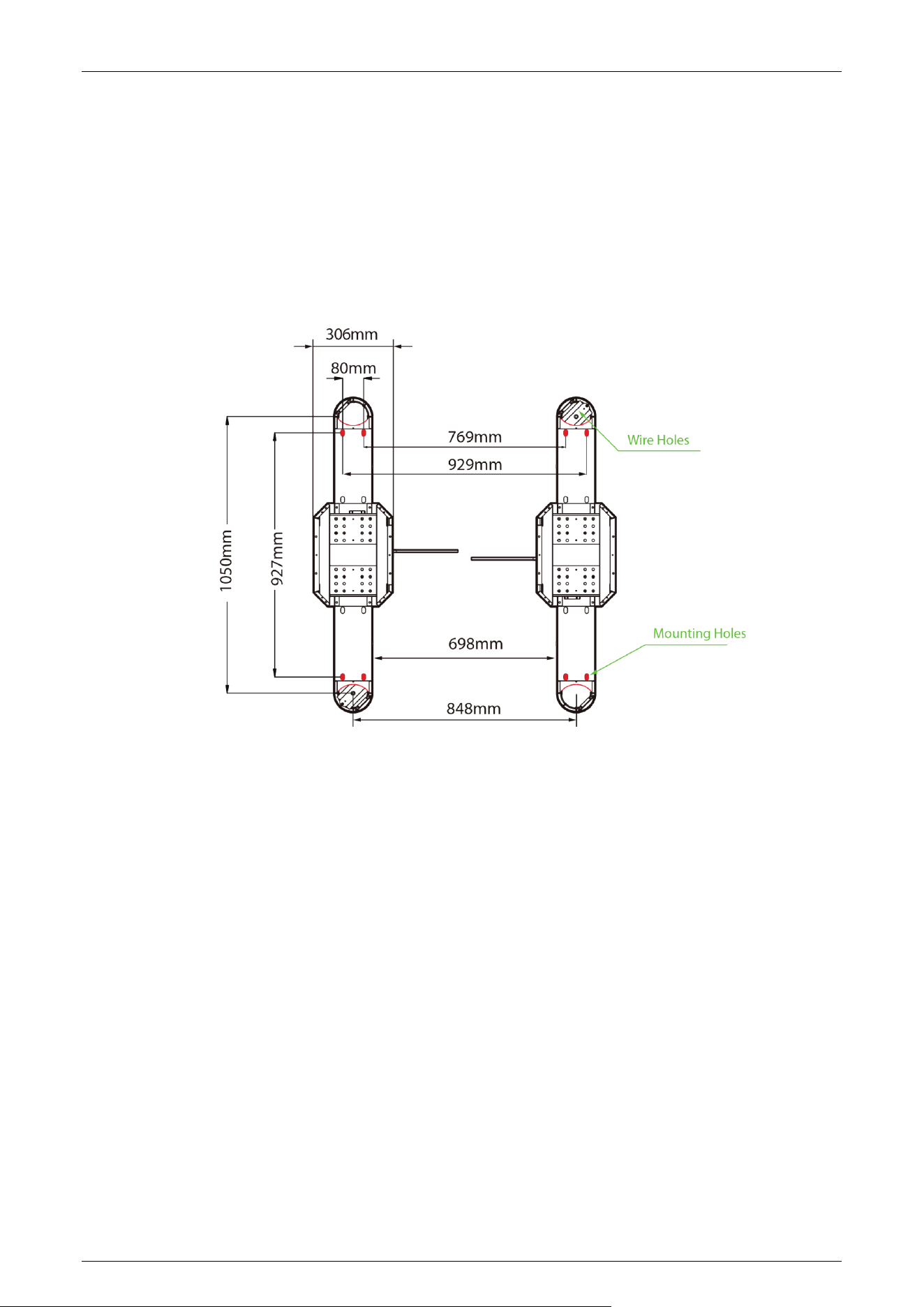
Step 2 Marker Position
Draw the location of the cabinet with a marker and mark each location of the mounting holes. There will
be a total of four mounting holes and two wire holes per cabinet.
Saturn-F1000 Series User Manual
Page | 24 Copyright©2025 ZKTECO CO., LTD. All Rights Reserved.
Step 3 Determine the mounting location
1. Please refer to the user's manual and complete the power-on self test operation before
installation.
2. Then place the cabinet according to the mounting distances shown in the diagram below. Take
care to measure the distance between the bottom inside walls of the cabinets on the entrance
side and exit side of the channel and make sure that the measurements are consistent.
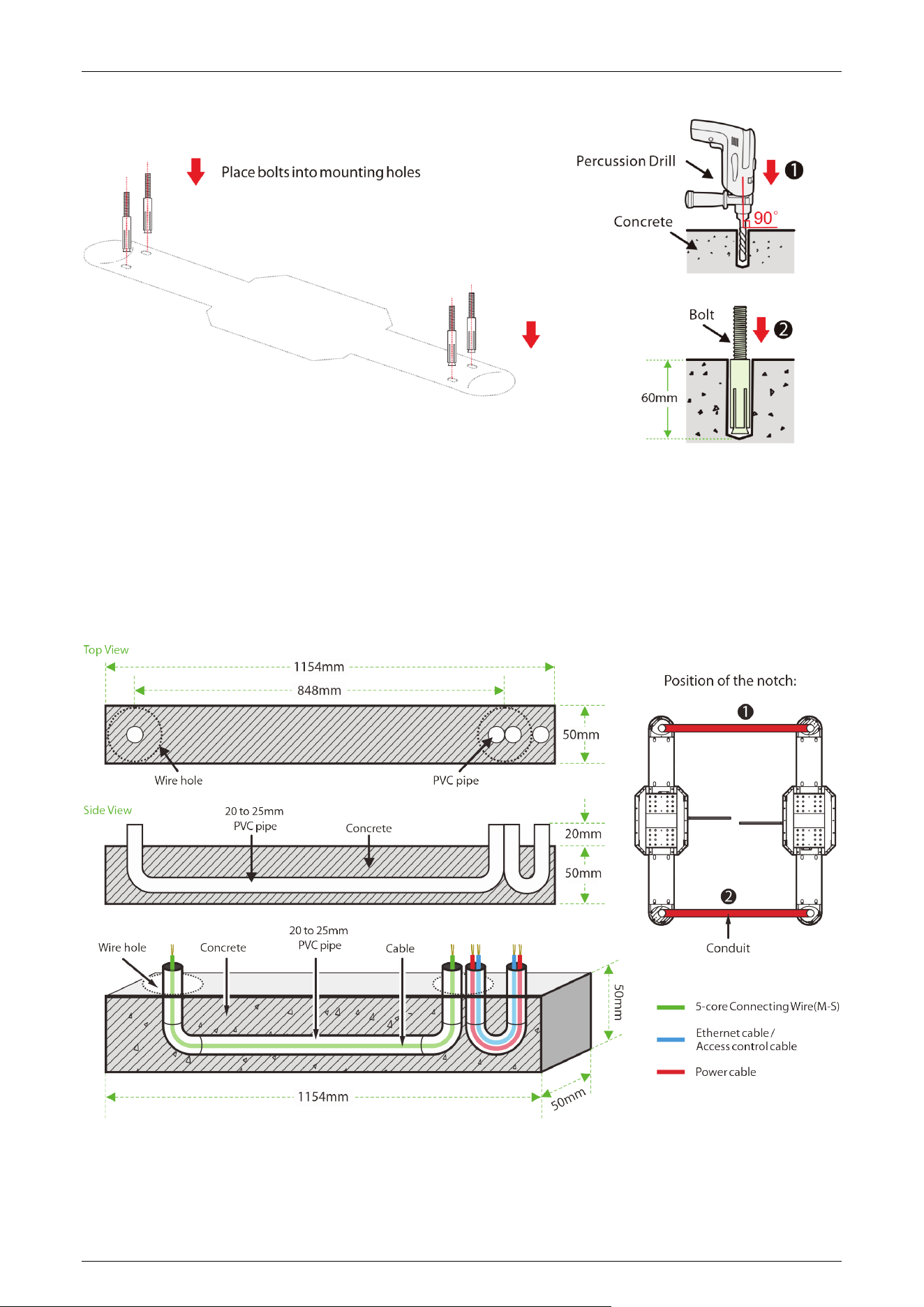
Step 4 Drill holes and place bolts
1. Using a concrete drill bit, drill the mounting holes 2.4" (60mm) in depth at the center of each marked
location.
2. Then insert the bolts vertically into the mounting holes as shown at right.
3. Ensure expansion bolts are properly seated by applying three to five light taps with a rubber mallet
until flush with the concrete surface. Verify anchor stability before proceeding.
Saturn-F1000 Series User Manual
Page | 25 Copyright©2025 ZKTECO CO., LTD. All Rights Reserved.
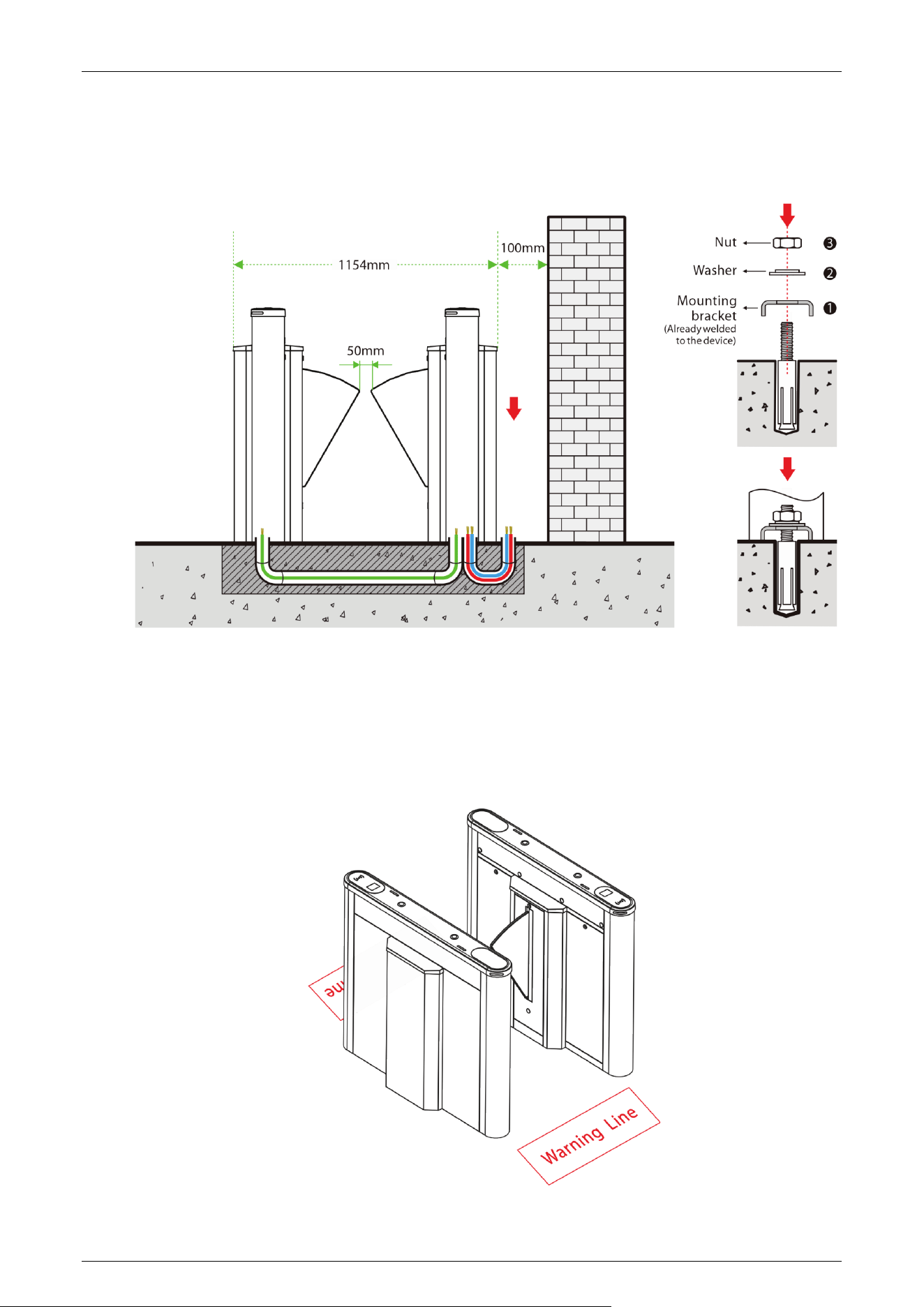
Step 5 Wireway laying
1. Dig a recess of 2.0" (50mm) depth between the wire holes on both sides of the channel with the
dimensions shown below. Recesses can be dug at positions 1 and 2.
2. Then lay two 0.8" to 1.0" (20 to 25mm) diameter PVC pipes as shown below.
3. After threading the cable out of the PVC pipe, pour concrete to f ix it in place.
Step 6 Fixed cabinet
1. After laying the PVC pipe, place the cabinet alignment bolts back into the mounting position.
Saturn-F1000 Series User Manual
Page | 26 Copyright©2025 ZKTECO CO., LTD. All Rights Reserved.
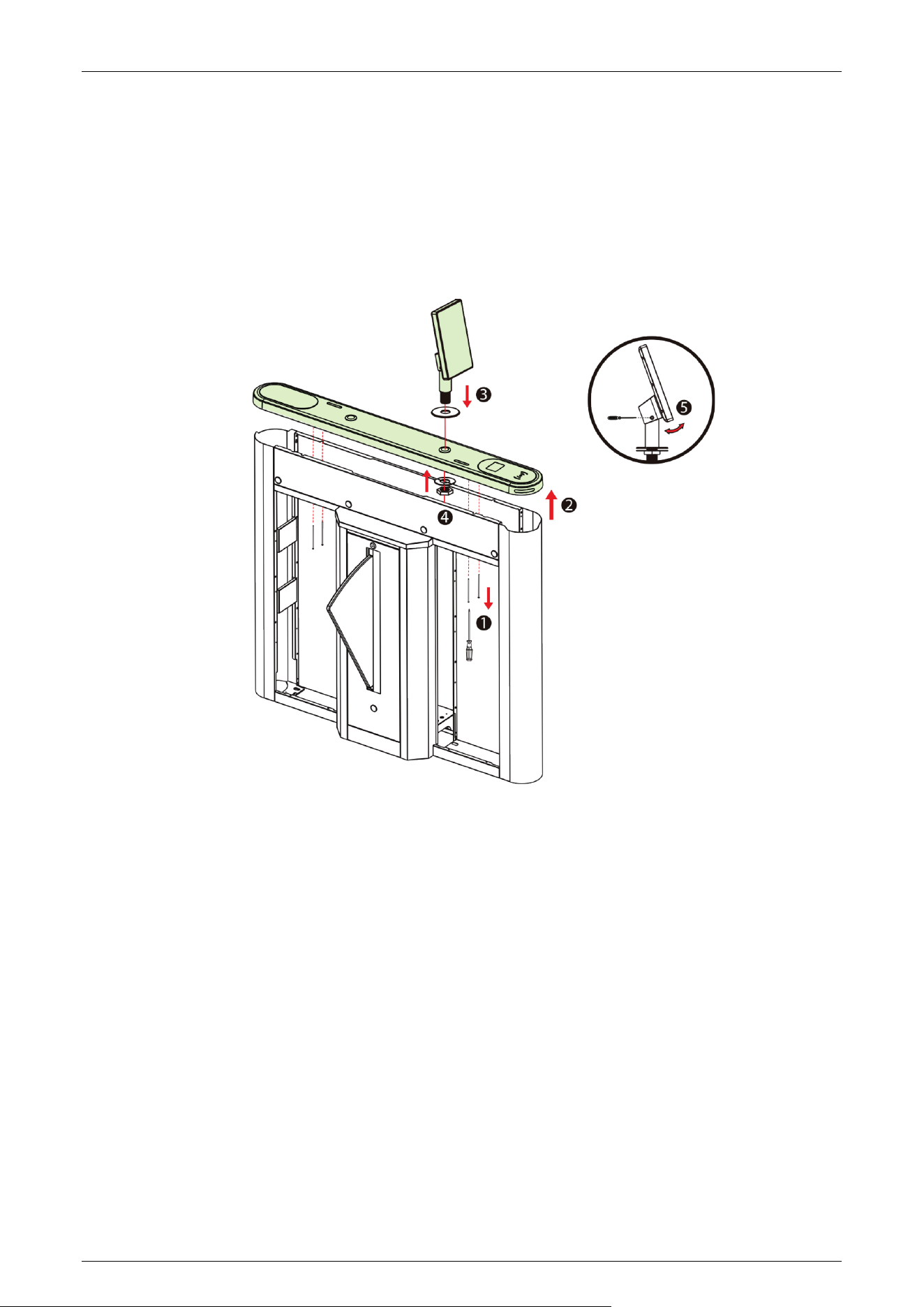
2. Then insert the eight washers and nuts into the bolts one by one.
3. Tighten the nuts to hold the cabinet in place. Don't tighten it completely until after you're sure it won't
move anymore. The finished result is shown below:
Step 7 Marking the warning line
1. It is recommended that warning lines be marked on the ground and used to alert users.
2. A warning line can alert users to wait outside the line until the previous user completes the verif ication
process and passes through the turnstile.
Saturn-F1000 Series User Manual
Page | 27 Copyright©2025 ZKTECO CO., LTD. All Rights Reserved.
Facial Authentication Device Installation (Surface Mount) 3.5
1. Remove the top cover plate and route the unit's cables through the pre-drilled mounting holes.
2. Pass the mounting bracket through the mounting holes.
3. Place the gasket and nut and tighten the nut to secure the unit.
4. Adjust the unit to a suitable angle.
Saturn-F1000 Series User Manual
Page | 28 Copyright©2025 ZKTECO CO., LTD. All Rights Reserved.
4 Terminal Description
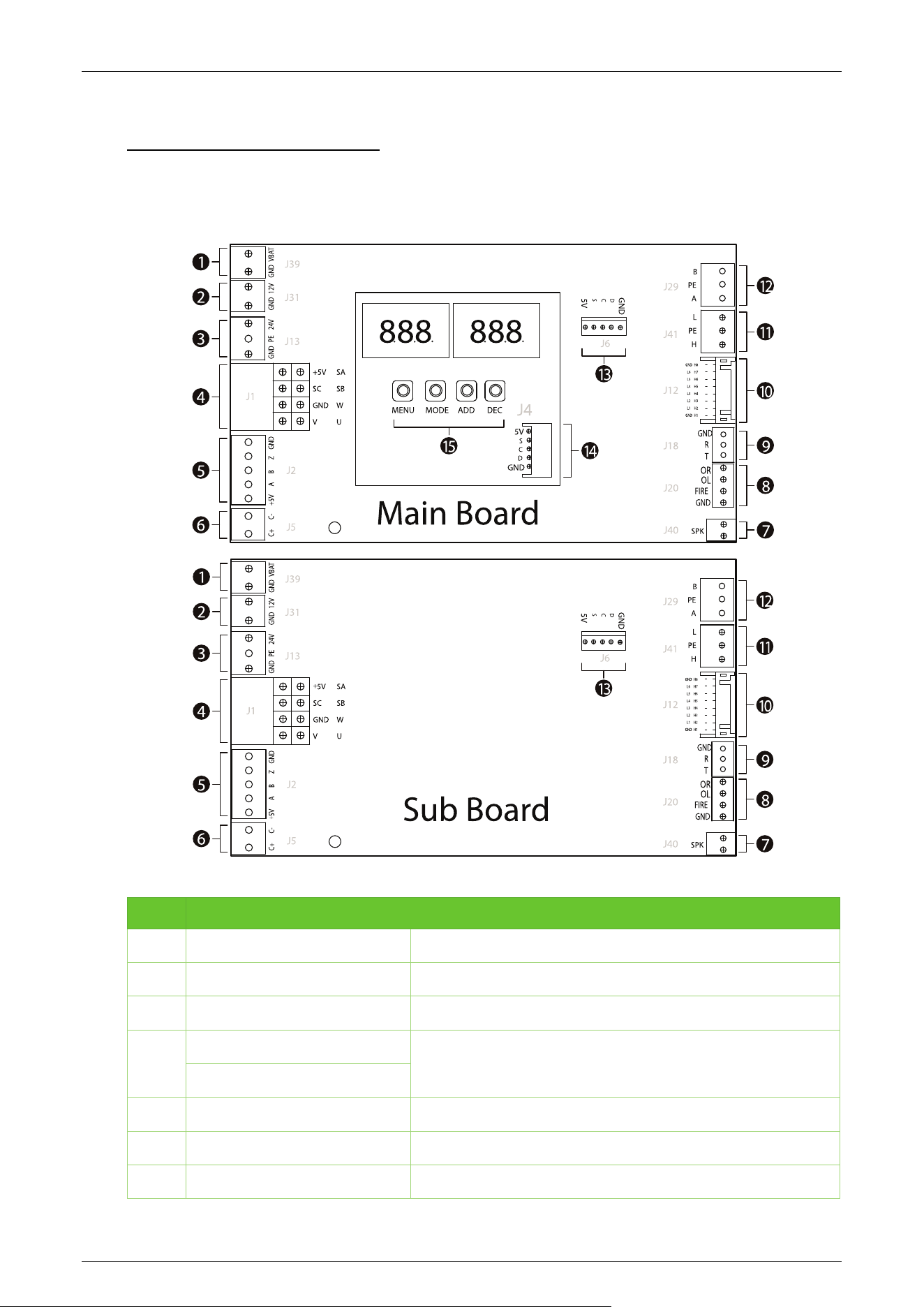
Main / Sub Board 4.1
NO. Terminal Descriptions
1 GND, VBAT Fire panel interface
2 GND, 12V 12V DC power supply input
3 GND, PE, 24V 24V DC power supply input
4
+5V, SC, GND, V
Motor interface
SA, SB, W, U
5 +5V, A, B, Z, GND Encoder interface
6 C+, C- Clutch
7 SPK Speaker
Saturn-F1000 Series User Manual
Page | 29 Copyright©2025 ZKTECO CO., LTD. All Rights Reserved.
8 OR, OL, FIRE, GND Fire Control Port, Right Open, Left Open
9 GND, R, T RS232 communication
10 GND, L1-L6, GND; H1-H8 Interface board infrared communication interface
11 L, PE, H CAN communication interface
12 B, PE, A RS485 communication
13 5V, S, C, D, GND Keypad interface
14 5V, S, C, D, GND Keypad interface
15 MENU, MODE, ADD, DEC Control buttons for setting menu parameters
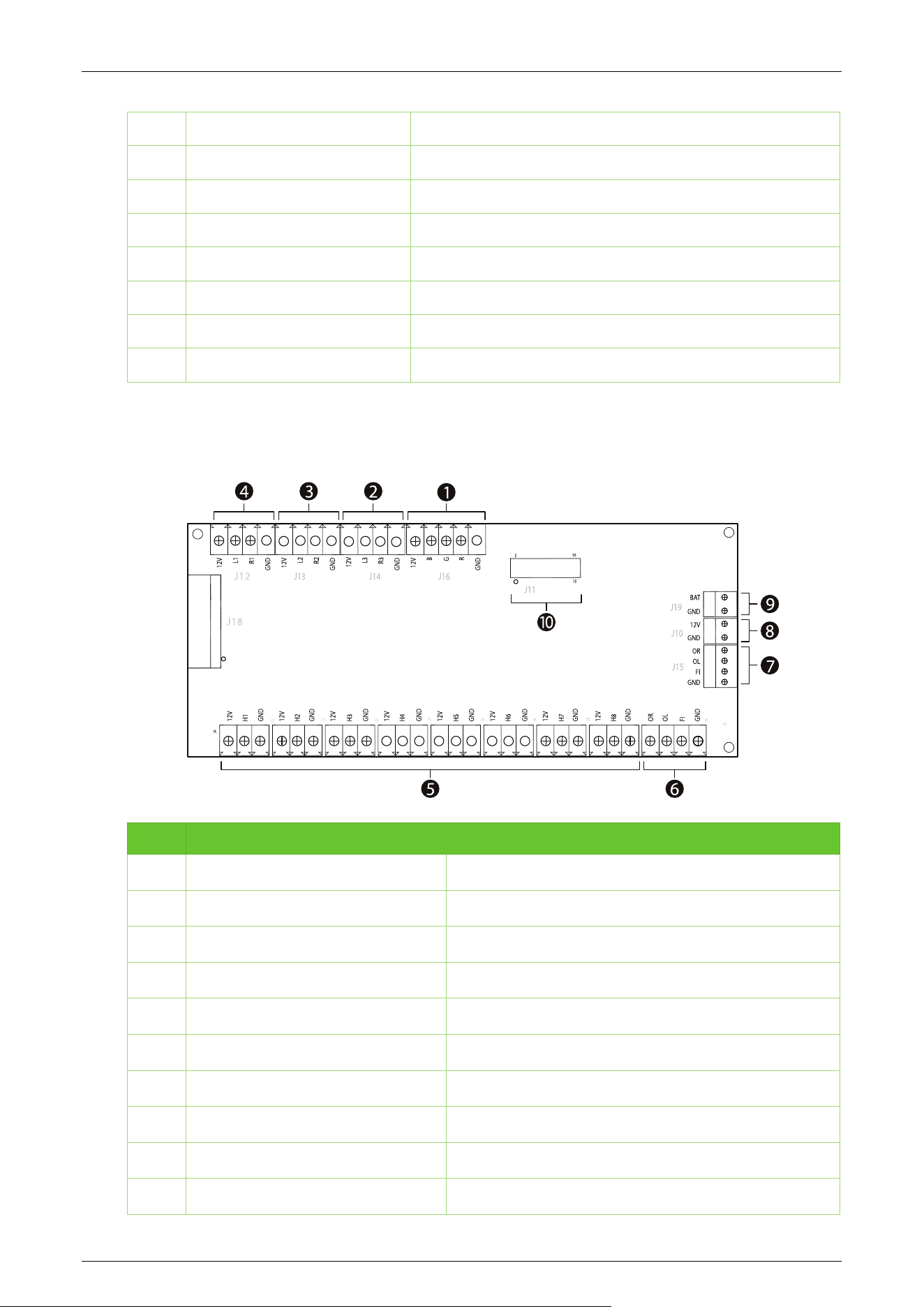
IR Sensor Board 4.2
NO. Terminal Descriptions
1 12V, B, G, R,GND Traffic indicator light interface
2 12V, L3, R3, GND Top light interface
3 12V, L2, R2, GND Exit indicator light interface
4 12V, L1, R1, GND Entry indicator light interface
5 12V, H1-8, GND Infrared sensor interface
6 OR, OL, FI, GND External fire port
7 OR, OL, FI, GND Alarm, fire opening port
8 12V, GND 12V DC power supply input
9 BAT, GND Backup firefighting power interface
10 J11 Main board communication interface
Saturn-F1000 Series User Manual
Page | 30 Copyright©2025 ZKTECO CO., LTD. All Rights Reserved.
5 Wiring Instructions
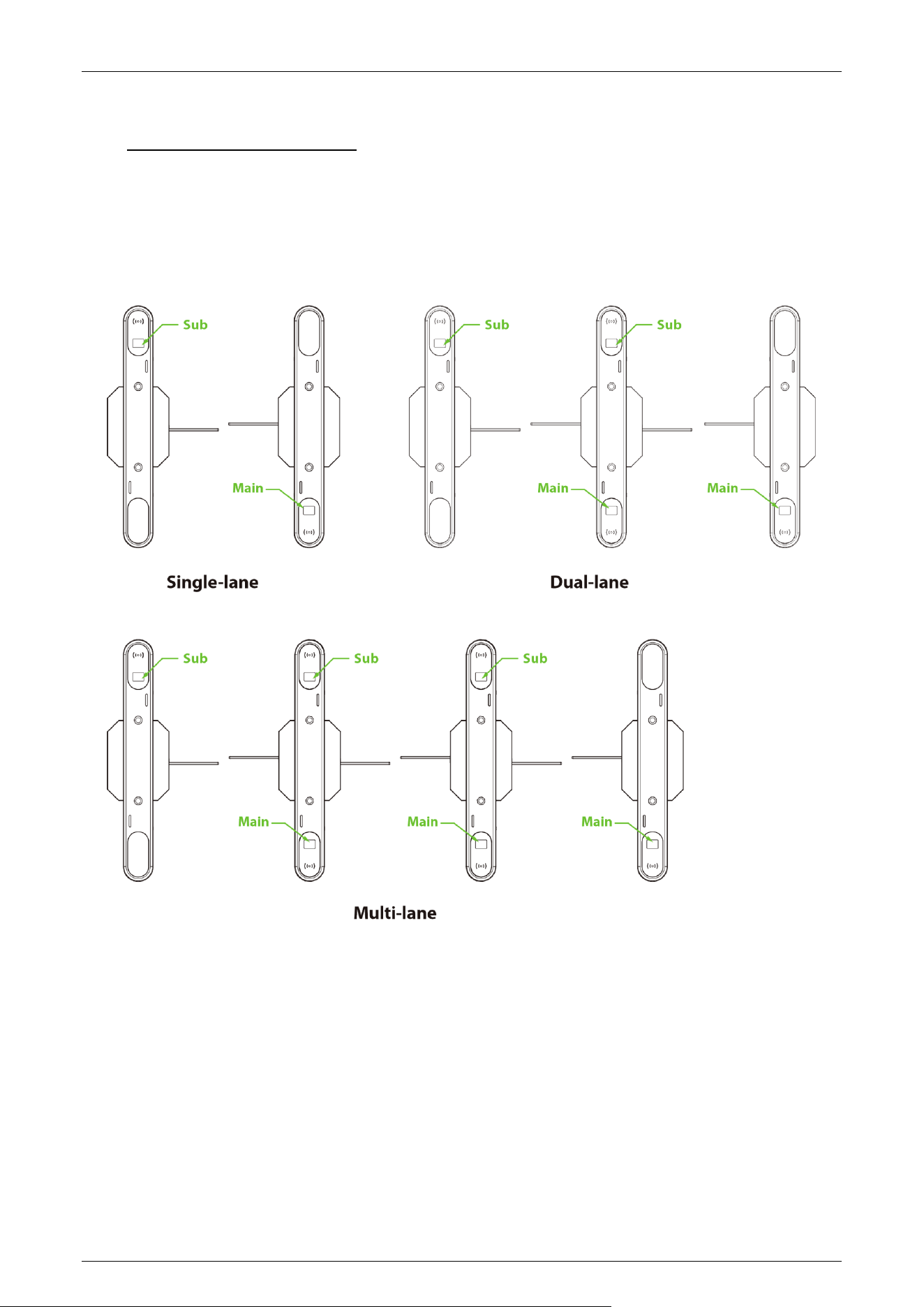
Main-sub Location 5.1
The positions of the Main and sub corresponding to single-lane, dual-lane and multi-lane are shown
in the figure below.
Saturn-F1000 Series User Manual
Page | 31 Copyright©2025 ZKTECO CO., LTD. All Rights Reserved.
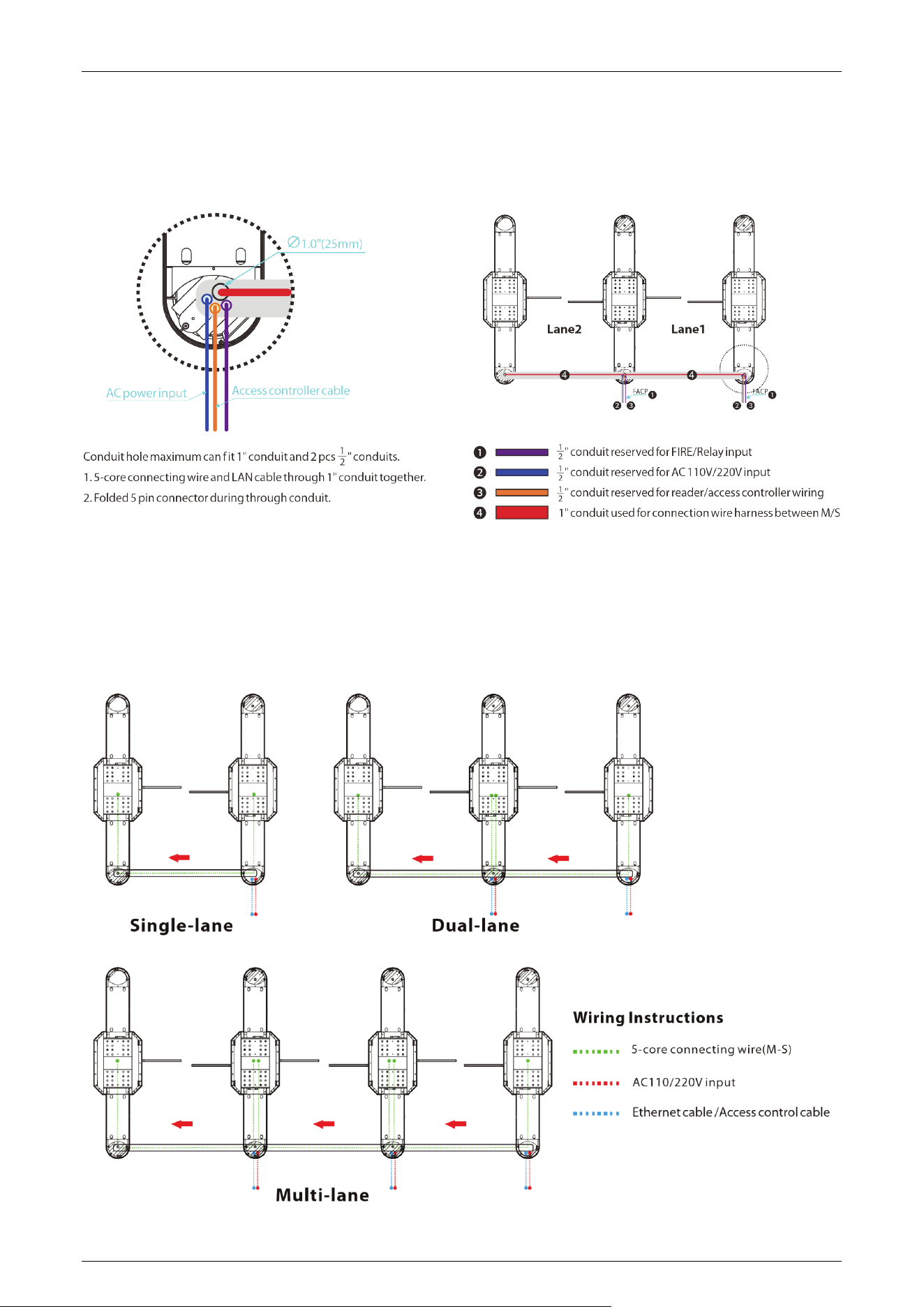
Slotting Position 5.2
For the different channels, the slotted locations are shown below.
Wiring Methods 5.3
The wiring principle is to connect the Main device to the sub device and communicate via the ECU-
panel connection wire. Each Main device is then powered individually. The following diagram
shows how the different channels are wired.
Saturn-F1000 Series User Manual
Page | 32 Copyright©2025 ZKTECO CO., LTD. All Rights Reserved.
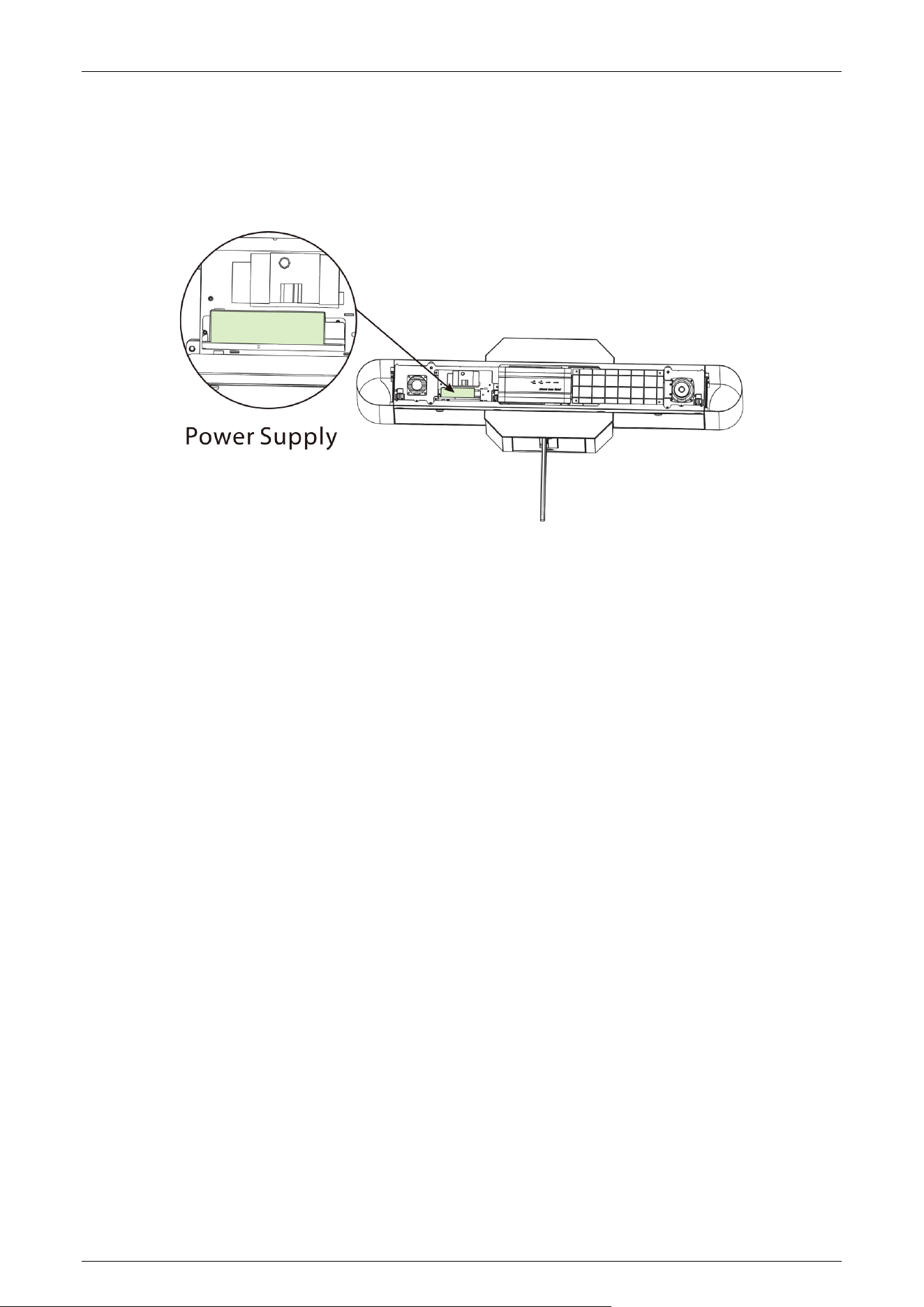
Power Wiring 5.4
WARNING: Before connecting or servicing the power supply, ensure all power sources are disconnected
to prevent electric shock.
The primary power supply (110VAC or 220VAC) must be hard-wired and properly grounded.
Ensure the device voltage matches your local supply.
All wiring should be performed by a licensed electrician in accordance with local electrical codes
and standards.
Always use the recommended wire gauge and approved components as specified in this manual.
Note: Failure to follow these instructions may result in equipment damage, electric shock, or fire.
Saturn-F1000 Series User Manual
Page | 33 Copyright©2025 ZKTECO CO., LTD. All Rights Reserved.
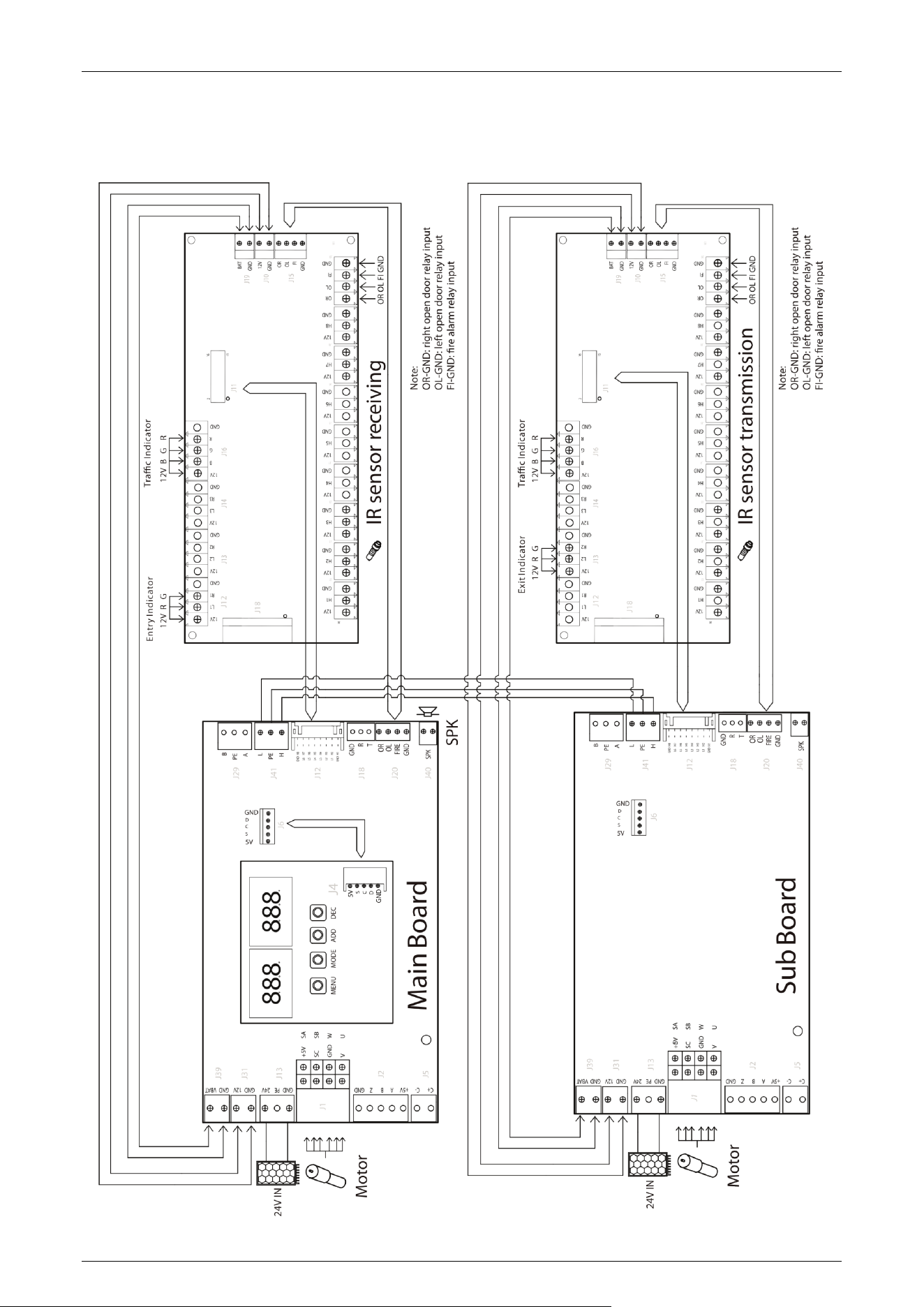
System Wiring Diagram 5.5
Saturn-F1000 Series User Manual
Page | 34 Copyright©2025 ZKTECO CO., LTD. All Rights Reserved.
6 Operation Process
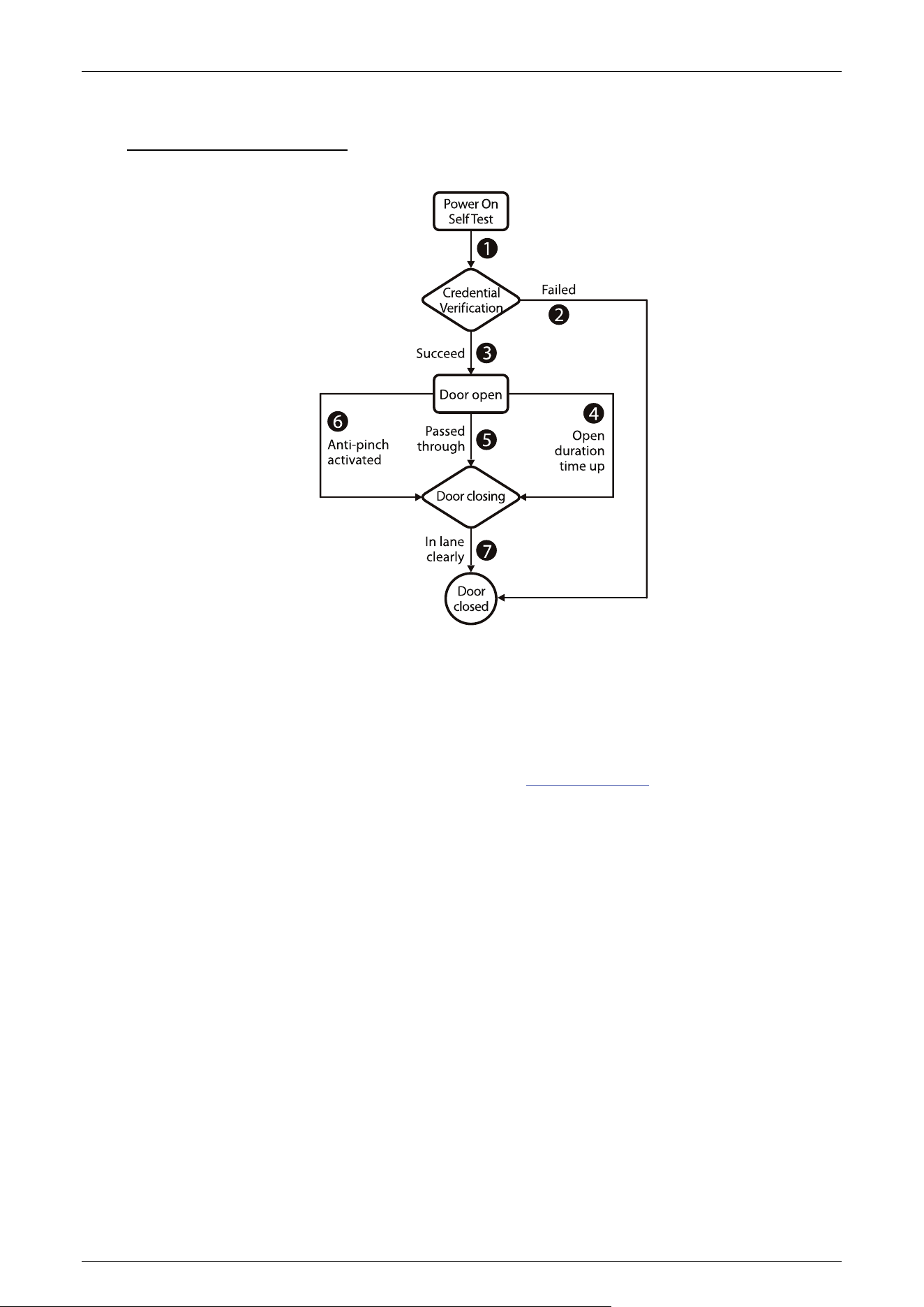
1. POST (Power On Self Test)
When powering up the unit, wait approximately 30 seconds for the system to perform a POST
(Power On Self Test) procedure. If no problems are detected, the unit will operate normally. If a fault
is detected, the system will display a relevant message on the LCD display so that the user can
quickly understand and solve the problem. (Reference 5.4 Power Wiring for connecting the power
supply.)
2. Credential Verification
After the device power-on self-test is completed, it enters the standby state.
When the user places a valid card in the swipe area, i.e. the device recognizes a valid card. The LCD
display will show success and a buzzer will give a positive audible indication to the pedestrian that it
has been successfully validated. The card reader then sends a signal to the access controller
requesting permission to pass through the channel. The access controller will send a signal to the
turnstile control panel. After receiving the signal from the card reader and the Infrared Sensor, the
Turnstile Control Board will send valid control signals to the servo motor driver, and will open the
barrier.
1) Verification Success
When the verification is successful, the door will open.

Saturn-F1000 Series User Manual
Page | 35 Copyright©2025 ZKTECO CO., LTD. All Rights Reserved.
2) Verification Failure
When verification fails, the door remains closed.
Note: If the system is in forbidden passing mode, the traffic indicator light will turn red, and the
Turnstile Control Board will not accept card signals.
3. Passed Through
After the passenger passes the channel in the direction indicated by the flap barrier, the Infrared Sensor will
keep detecting the movement of the pedestrian throughout the passage and continuously monitors the
passenger until they have exited the passage.
If the pedestrian enters the passage but forgets to verify identification, or if the card by the
pedestrian is invalid, the system will prompt an audible alarm to warn the pedestrian to stop passing.
The alarm signal will not be cancelled until the passenger retreats from the passage. The pedestrian
can pass through the passage only after a valid card is successfully verified.
Saturn-F1000 Series User Manual
Page | 36 Copyright©2025 ZKTECO CO., LTD. All Rights Reserved.
7 Machine Operation
Operation Buttons Description 7.1
GND H1
L1 H2
L2 H3
L3 H4
L4 H5
L5 H6
L6 H7
H8GND
C+ C- GNDZBA+5V GND
P
E
2
4V
GND 12V GND VBAT
+5V
SC
GND
V
SA
SB
W
U
J5
J2
J1
J13
J31
J12
J18
J20
O
R
O
L
F
I
R
E
G
N
D
G
N
D
R
T
J39
J29
J41
J40
Main board
SPK
B
L
PE
A
H
PE
888
888
DECADDMODEMENU
GND
C
D
S
5V
G
ND
C
D
S
5
V
J6
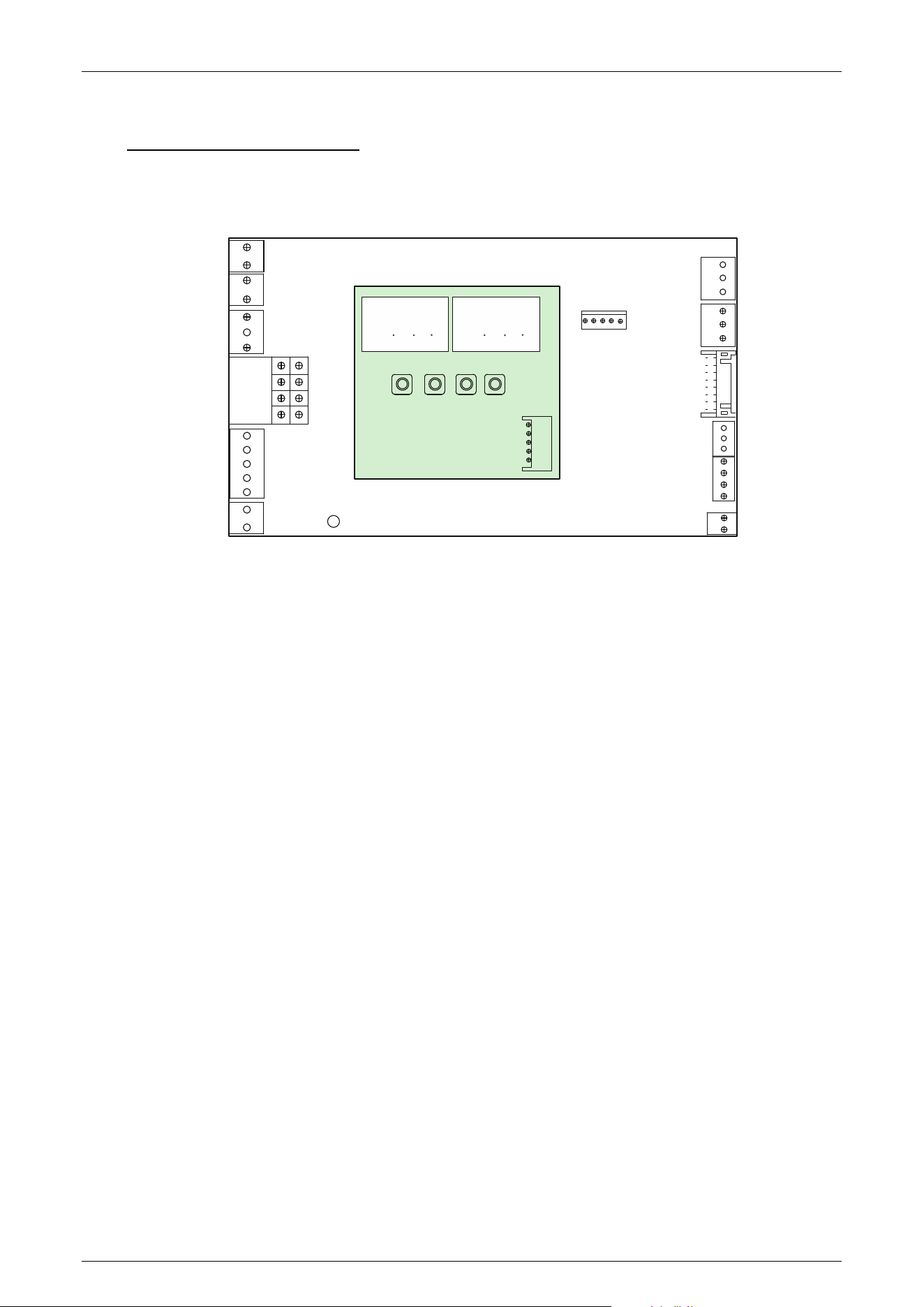
There are 4 keys on the Main motor driving controller, "MENU", "MODE", "ADD" and "DEC".
Operation Buttons Description:
MENU: Used to access the Settings menu and confirm modified values.
MODE: Returns to the previous menu and cancels the current operation.
ADD: Navigate to the upper menu item and increase the value.
DEC: Navigate to the lower menu item and decrease the value.
Menu Parameter Settings 7.2
01EXXX : Display Mode
01E000: Displays current position of the gate
01E001: Infrared input signal
01E002: Controls input signal
01E003: Test mode (the digital LED displays "---" in the test mode)
01E004: Version number (Defaults to 01E004 after power failure and reboot)
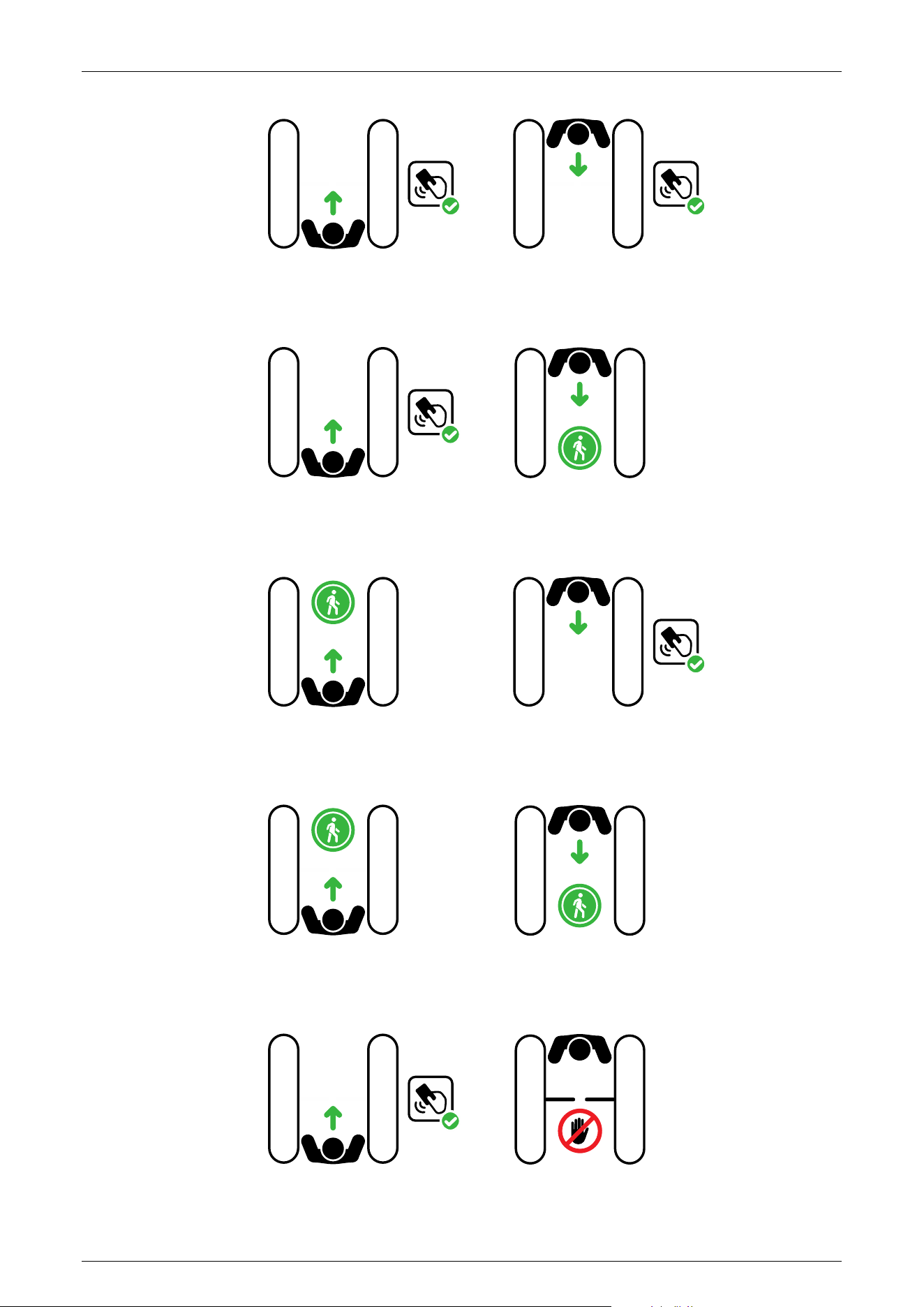
02EXXX : Device Mode
02E001: Two-way controlled, both need verification (Default)
Saturn-F1000 Series User Manual
Page | 37 Copyright©2025 ZKTECO CO., LTD. All Rights Reserved.
ENTRY
EXIT
RFID RFID
02E002: In need verification, out free
EXIT
ENTRY
RFID
02E003: In free, out need verification
ENTRY
EXIT
RFID
02E004: Two-way free
EXIT
ENTRY
02E005: In need verification, out prohibited
DO NOT OUT
ENTRY
RFID
Saturn-F1000 Series User Manual
Page | 38 Copyright©2025 ZKTECO CO., LTD. All Rights Reserved.
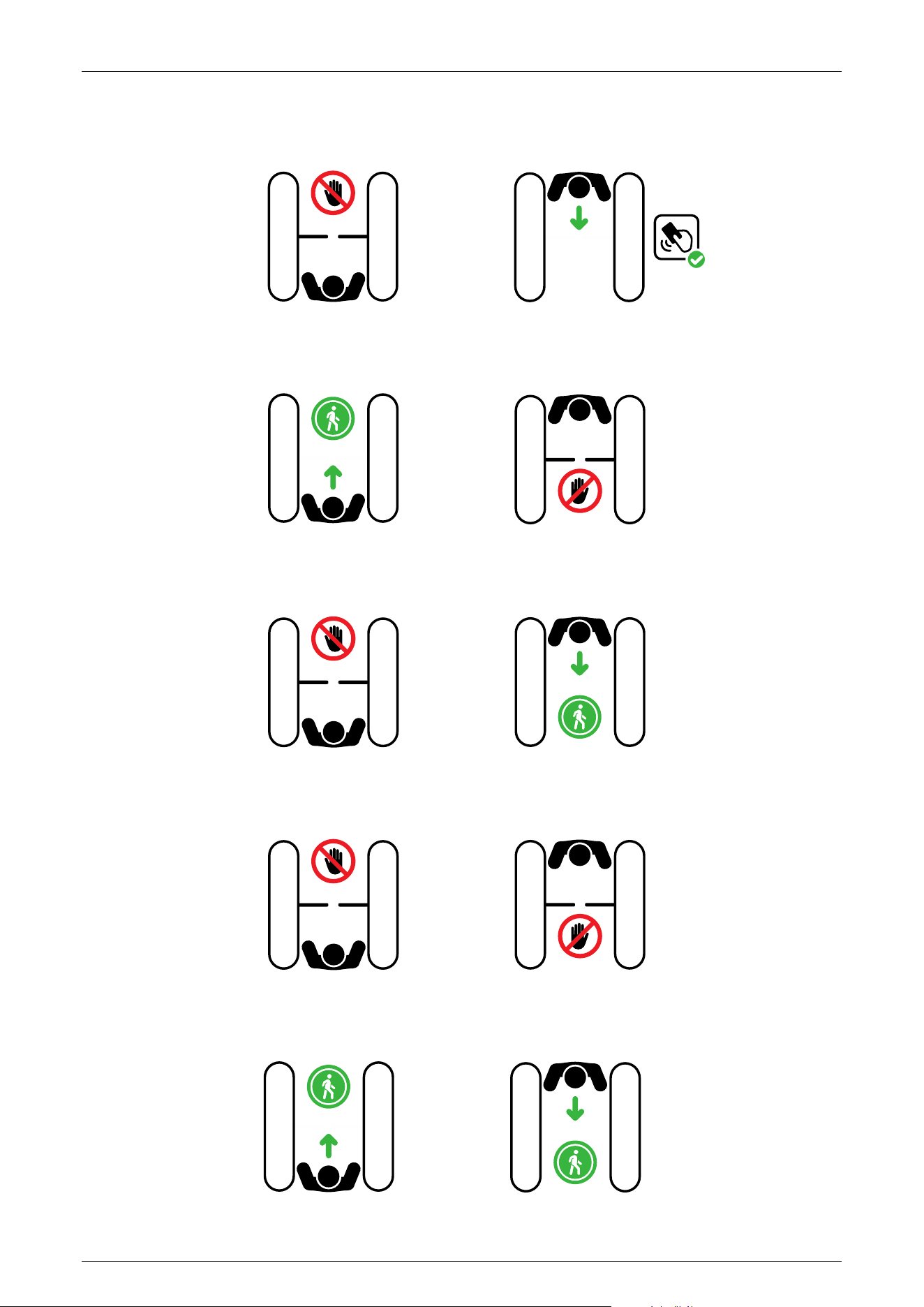
02E006: In prohibited, out need verification
RFID
EXIT
NO ENTRY
02E007: In free, out prohibited
ENTRY
DO NOT OUT
02E008: In prohibited, out free
EXIT
NO ENTRY
02E009: Two-way prohibited
NO ENTRY
DO NOT OUT
02E010: Two-way normally open
ENTRY
EXIT
Saturn-F1000 Series User Manual
Page | 39 Copyright©2025 ZKTECO CO., LTD. All Rights Reserved.
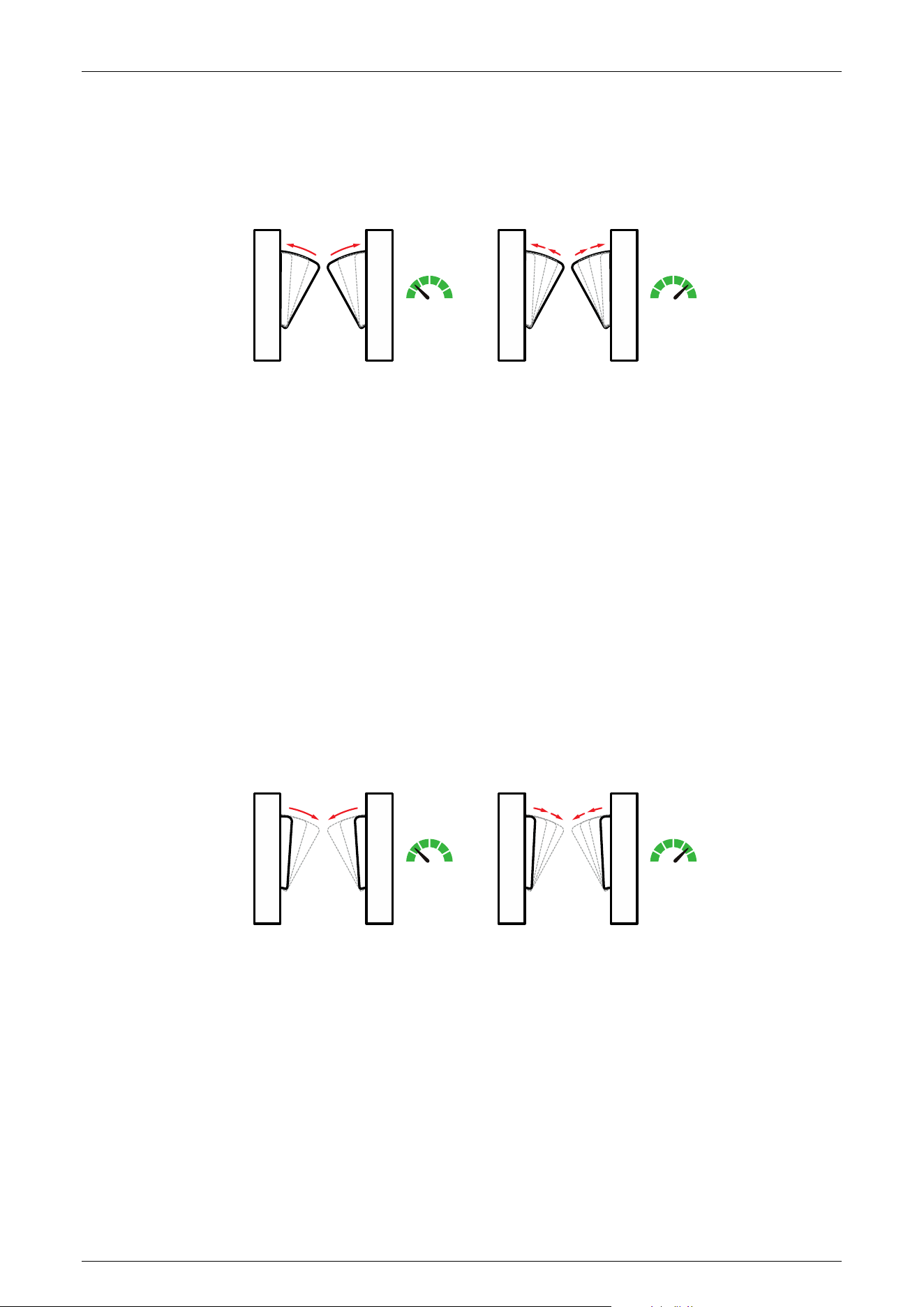
03EXXX : Gate Opening Speed
To adjust the gate opening speed, you can set a larger number for a faster opening. The Gate
Opening Speed can be configured between 5 and 32, with a default value of 22.
5 32 5 32
Speed Speed
Open Open
04EXXX : Gate Opening Deceleration Distance
A larger number increases the deceleration time, enhancing the stability of the wing arm operation.
The Gate Opening Deceleration Distance can be set between 0 and 50, with a default value of 18.
05EXXX : Gate Opening Compensation Speed
This setting is used when the wing arm cannot fully open or shakes during operation. A higher
value increases the compensation speed. The Gate Opening Compensation Speed can be set
between 0 and 50, with a default value of 18.
06EXXX : Gate
Closing Speed
To adjust the gate closing speed, you can set a larger value for a faster closing. The Gate Closing
Speed can be configured between 5 and 32, with a default value of 22.
5 32 5 32
Speed Speed
Close Close
07EXXX : Gate Closing Deceleration Distance
A larger number increases the deceleration time, enhancing the stability of the flap barrier operation. The
Gate Closing Deceleration Distance can be set between 0 and 50, with a default value of 18.
08EXXX : Gate Closing Compensation Speed
This setting is used when the wing arm cannot fully close or shakes during operation. A larger
number results in faster compensation speed. The Gate Closing Compensation Speed can be set
between 0 and 50, with a default value of 18.
Saturn-F1000 Series User Manual
Page | 40 Copyright©2025 ZKTECO CO., LTD. All Rights Reserved.
09EXXX : Main and Sub Settings
This setting is used to set the Main and Sub device. This setting is not changed after factory
restoration (24EXXX).
09E001 : Main device
09E002 : Sub device
10EXXX : RS485 Address
It can be set between 0 to 254 and the default value is 0.
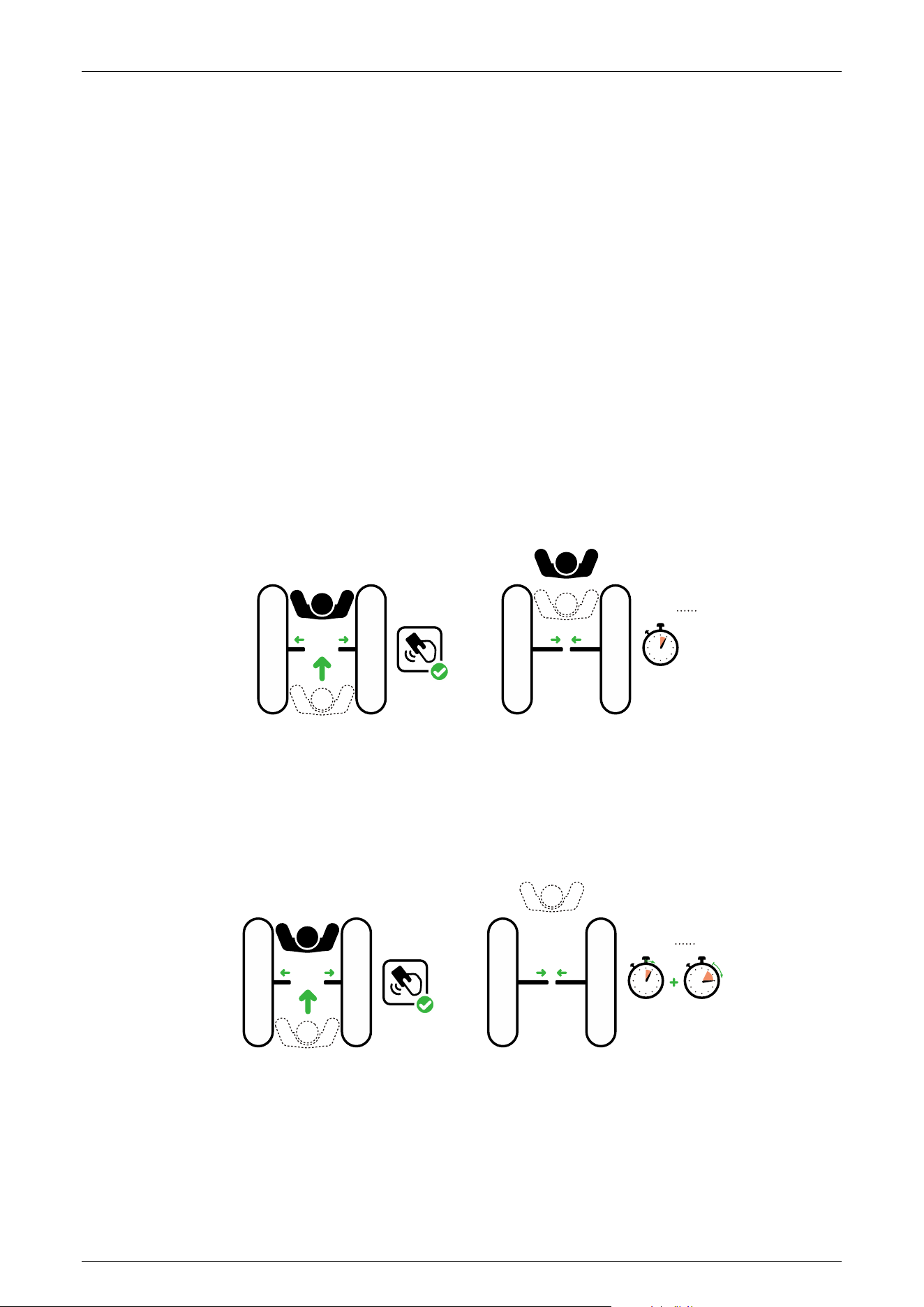
11EXXX : Open Duration Time
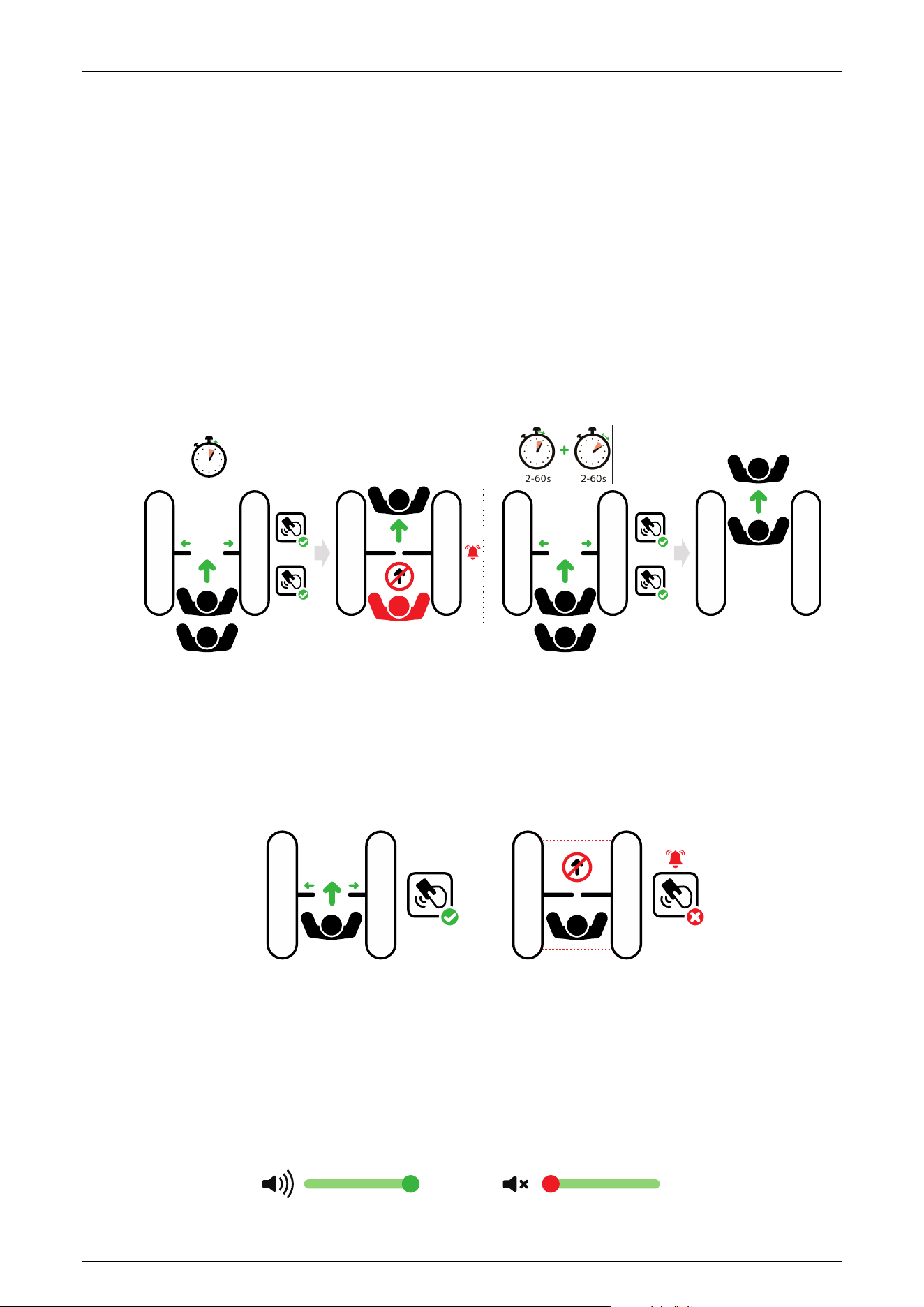
The valid time period after a successful verification can be configured. Once the set time is reached,
the flap barrier will automatically close. The larger the value set,, the longer the valid time. The valid
value ranges from 2 to 60 seconds, with a default value of 5 seconds.
2-60s
After
RFID
12EXXX : Gate Closing Delay Time
Set the delay time of gate closing after passing. The valid value for gate closing delay time can be
set between 0 to 60 seconds and the default value is 0 seconds.
2-60s
After
RFID
0-60s
13EXXX : In Place Position Adjustment
This setting is used to adjust the wing arm to close in place/open in place. Note: The flap barrier
needs to be in the corresponding position during commissioning.
Saturn-F1000 Series User Manual
Page | 41 Copyright©2025 ZKTECO CO., LTD. All Rights Reserved.
13E001 : Adjustment for fully closed position
13E002 : Adjustment for fully open position
14EXXX : Gate Opening Memory
When more than two legal access signals are given at the same time (including the same direction
and the opposite direction), the system will remember all pass requests and complete each pass in
turn.
14E000: Close (Default)
14E001: Open
#1 RFID
#2 RFID
14E000
#1 RFID
#2 RFID
14E001
2-60s
15EXXX : Authentication in Lane
It allows pedestrian verification during the IR sensor triggered.
15E000: Allow (Default)
15E001: Forbidden
RFID
RFID
Allow
Authentication in Lane
(default)
Forbidden
Authentication in Lane
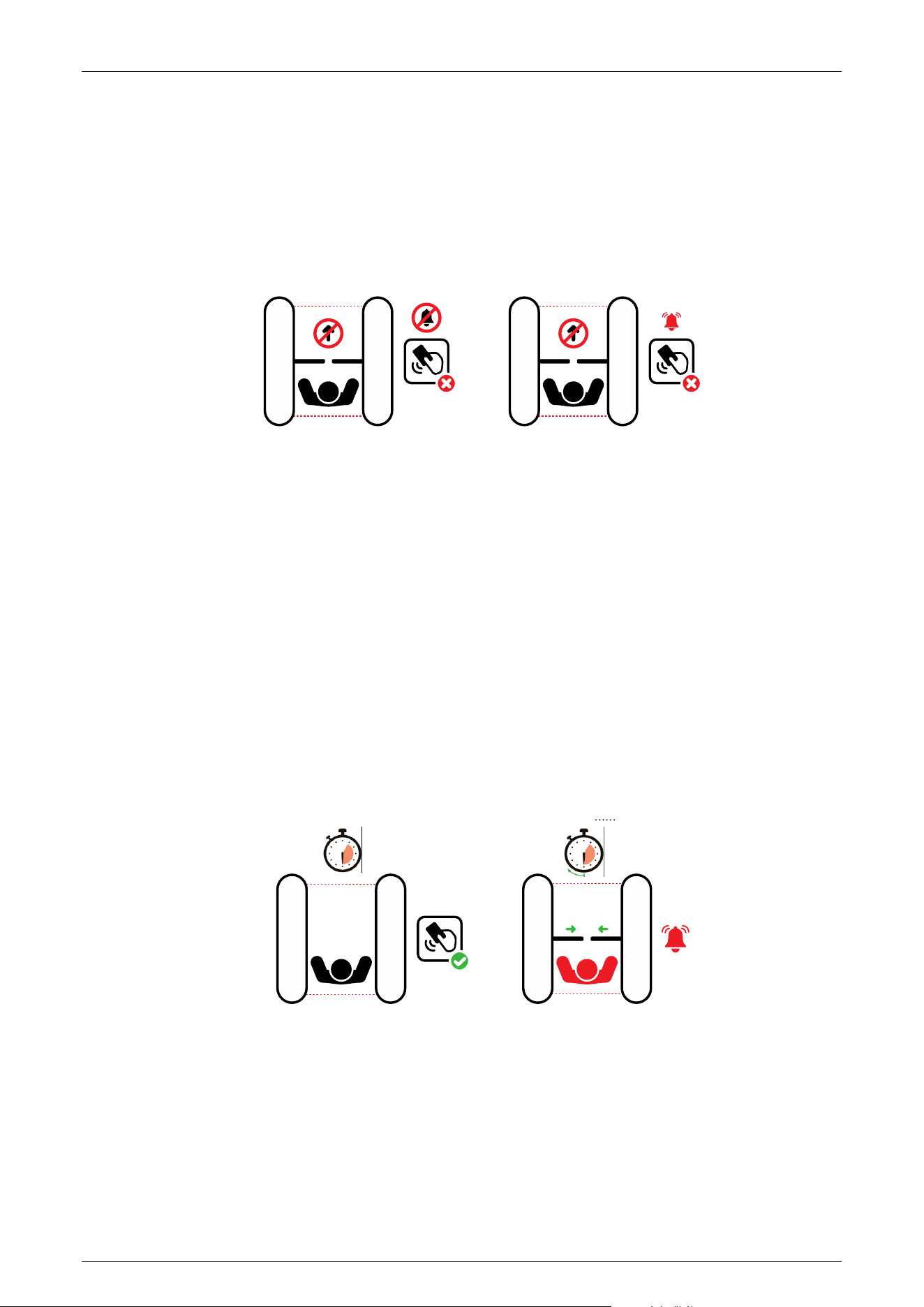
16EXXX : Volume Setting
Volume Setting is used for adjusting the volume of the device. The higher the value is set, the
louder the volume. The valid value for Volume Setting can be set between 1 to 100 and the default
value is 70.
100 100
Saturn-F1000 Series User Manual
Page | 42 Copyright©2025 ZKTECO CO., LTD. All Rights Reserved.
17EXXX : Close Alarm Tone
When the alarm tone is turned off, the Turnstile will not emit an alarm tone when encountering an
alarm situation. The following figure shows an example of the prohibition of authentication in lane:
17E000: Close
17E001: Open (Default)
RFID
Close Alarm Tone Open Alarm Tone
(default)
RFID
18EXXX : Infrared Logarithm
This setting is not changed after restoring the factory settings (24EXXX).
18E001 to 18E008: From 1 to 8
18E022: Change to 22 if greater than 8
19EXXX : Stay Duration Time
Set the duration of stay in the channel after successful verification. After exceeding the set time,
the device will alarm to indicate. The valid value for Stay Duration Time can be set between 5 to 30
seconds and the default value is 10 seconds.
RFID
5-30s 5-30s
After
Stay Stay
20EXXX : Force Adjustment
The larger the number, the greater the efficiency of the gate opening and closing force. The valid
value for Force Adjustment can be set between 10 to 100 and the default value is 40.
Saturn-F1000 Series User Manual
Page | 43 Copyright©2025 ZKTECO CO., LTD. All Rights Reserved.
21EXXX : Fire Signal Setting
According to the external fire device, select the corresponding type of trigger mode.
21E000: Right open (Default)
21E001: Left open
22EXXX : Locking travel (Not valid for flap barrier)
23EXXX : Locking method (Not valid for flap barrier)
24EXXX : Restore Factory Setting
24E001: Restore factory settings
24E002: Restart
25EXXX : Anti-pinch Area Setting
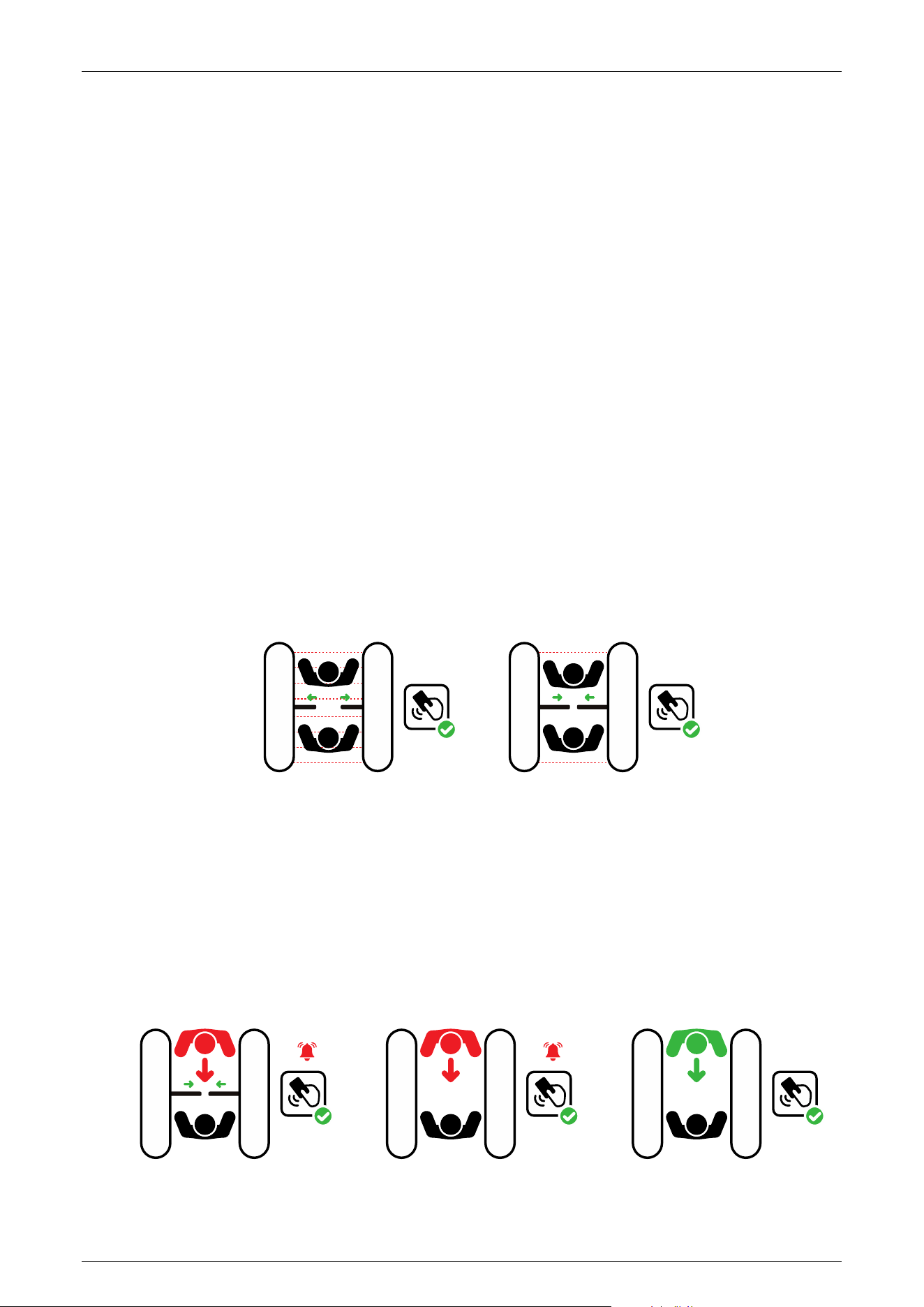
25E000: All Infrared anti-pinch (Default)
25E001: First and last pair are not anti-pinch
RFID
RFID
26EXXX : False Direction Entry
The False Direction Entry (26E000) will only be effective when the Anti-pinch Area Setting is set to
(25E001).
26E000: Close
26E001: Only alarm (Default)
26E002: No detection
RFID
RFID
RFID
Saturn-F1000 Series User Manual
Page | 44 Copyright©2025 ZKTECO CO., LTD. All Rights Reserved.
27EXXX : Anti-tailgate Setting
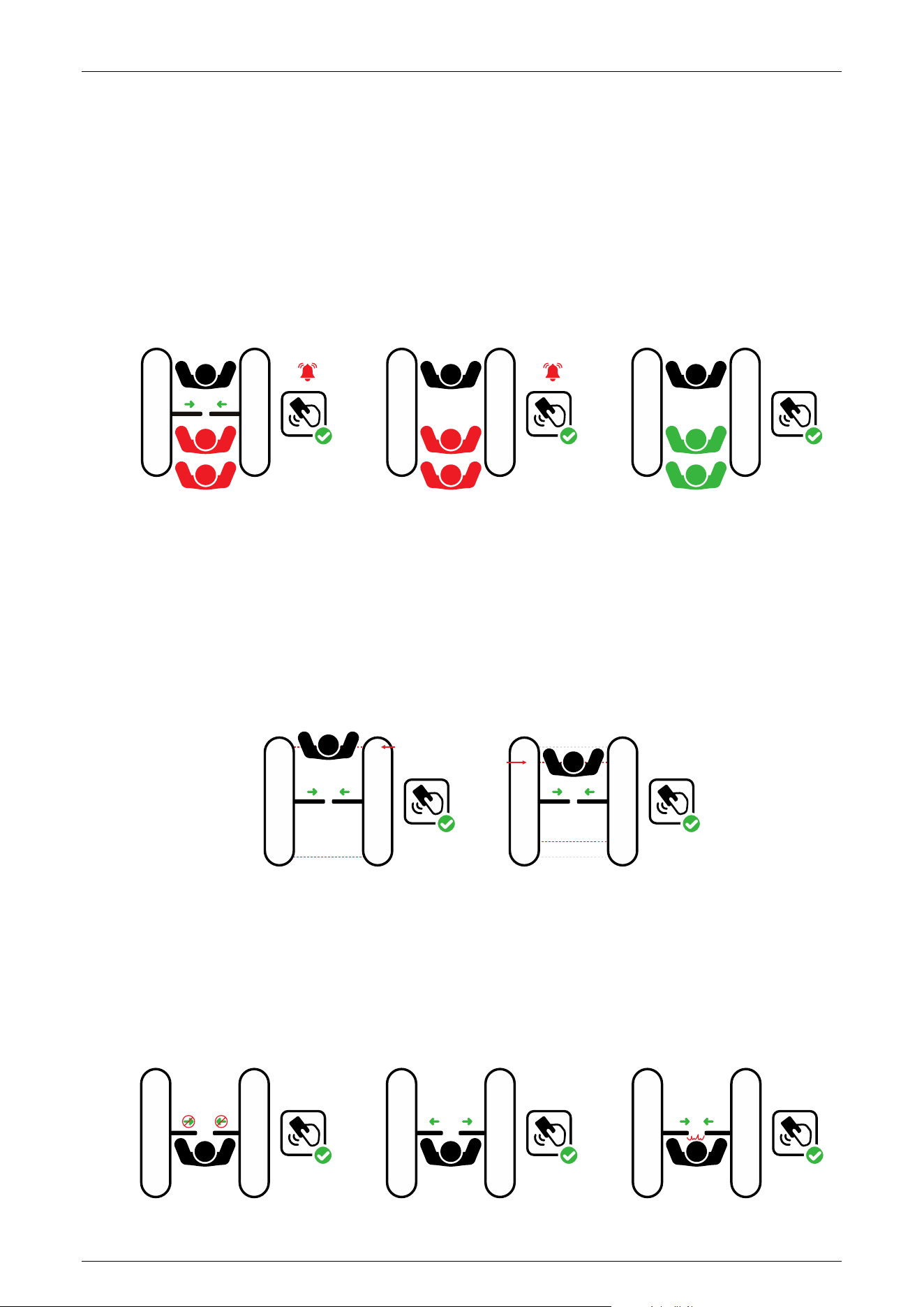
The Anti-tailgate Setting (27E000) will only be effective when the Anti-pinch Area Setting is set to
(25E001).
27E000: Close
27E001: Only alarm (Default)
27E002: No detection
RFID
RFID
RFID
28EXXX : Gate Closing Position
The Gate Closing Position (28E001) will only be effective when the Anti-pinch Area Setting is set to
(25E001).
28E000: Last pair (Default)
28E001: Penultimate pair
RFID
RFID
Last IR
Penultimate IR
29EXXX : Anti-pinch Action Setting
29E000: Stop
29E001: Open (Default)
29E002: Close the function
RFID RFID RFID
St op O pen
Not Anti- pinch

Saturn-F1000 Series User Manual
Page | 45 Copyright©2025 ZKTECO CO., LTD. All Rights Reserved.
8 Maintenance
Chassis Maintenance 8.1
The chassis is made up of Cold-rolled SPCC Steel (GB700). If it is used for substantial period, then
there may be rust stains on its surface. Regularly clean the surface with a clean cloth carefully. Coat
the surface with anti-rust oil and do not cover the infrared sensor.
Movement Maintenance 8.2
Before doing maintenance, turn off the power. Open the door, wipe the surface dust, and apply
lubricant for smooth movement.
Power Supply Maintenance 8.3
Switch off the power supply before maintenance.
Check the power plug connection, if found loose, fix it properly.
Do not change any connection position randomly.
Check the external power supply insulation periodically.
Do periodic check for any kind of leakage.
Check if the technical parameters of interface are normal.
Check the service life of the electronic components and replace accordingly.
Caution: All the above-mentioned maintenance methods for flap barrier must be carried out by a
professional technician, especially the movement and the electric control part. For ensuring
operational safety, first switch off the power supply when the barrier is not in use. Perform the
safety check on a weekly basis to ensure that the turnstile is safe and ready for user operation.

Saturn-F1000 Series User Manual
Page | 46 Copyright©2025 ZKTECO CO., LTD. All Rights Reserved.
9 Troubleshooting
No. Failure Descriptions Analysis and Solution
1
The traffic indicator light does not
respond or the indication is
incorrect.
Check that the control panel traffic indicator wiring
is correct or that the contact is poor.
2
After swiping the card, there is only
one gate unlocked.
Check the mode setting of the Main and sub
devices and the 5-core connection lines. See the
wiring diagram for the specific connection circuit.
3
The barrier doesn’t close when the
opening delay time is ended.
Check to see if the opening delay time is too long
or whether the IR sensor is covered.
4
When the gate is self-tested, the
wing arm is not in the normal closing
position!
In the process of self-test, there are obstacles,
please remove the obstacles, restart the self-test
after power-on!
Saturn-F1000 Series User Manual
Page | 47 Copyright©2025 ZKTECO CO., LTD. All Rights Reserved.
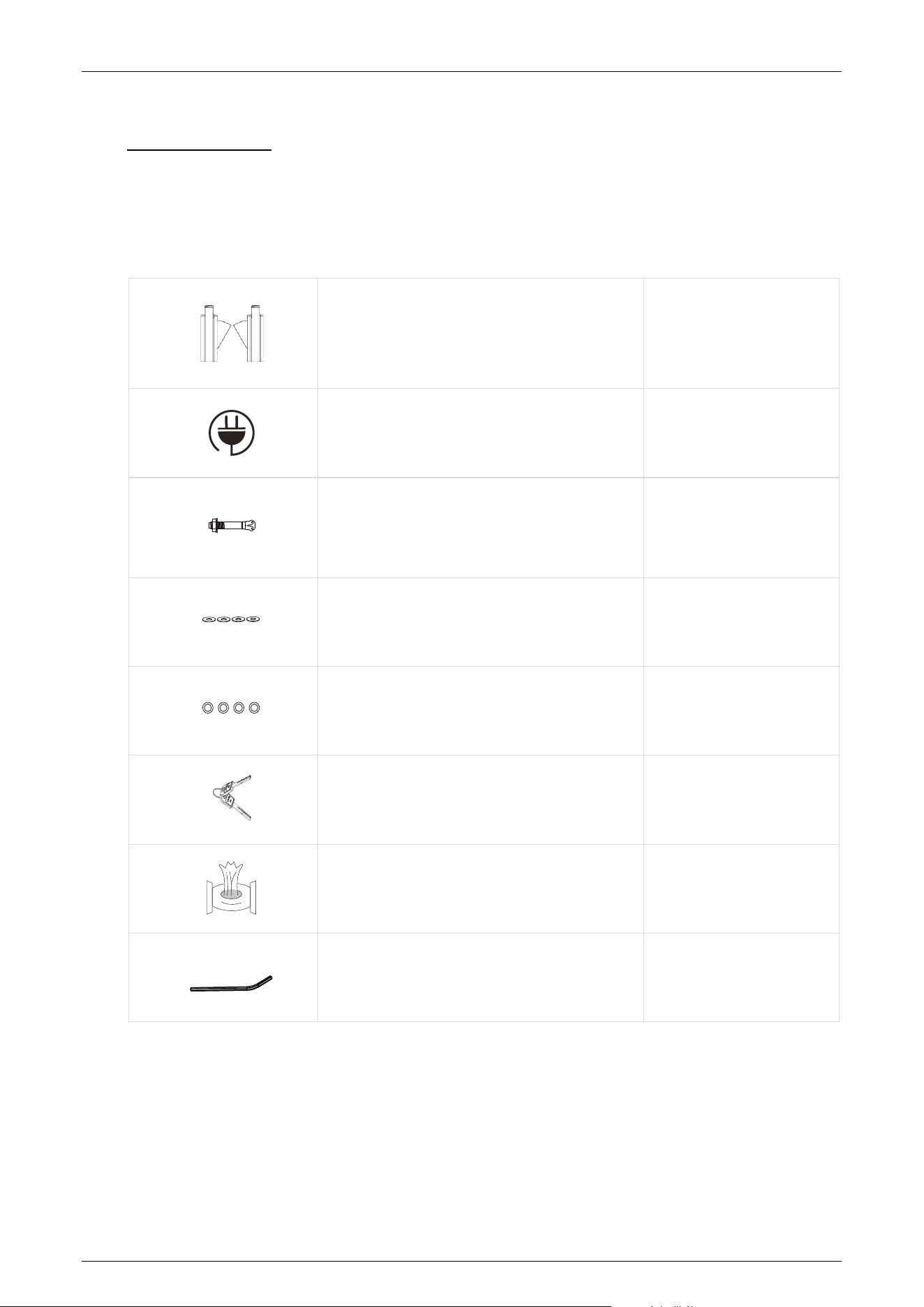
10 Packing List
The package consists of the following items:
Saturn-F1000
Saturn-F1000 (Main and Sub)
2
Power Cable
1
Expansion Screw M12*100
8
Washer
8
Expansion Screw Washers
8
Keys
2
Stainless Steel Maintenance Wipes
1
Hex Wrench
1
Saturn-F1000 Series User Manual
Page | 48 Copyright©2025 ZKTECO CO., LTD. All Rights Reserved.
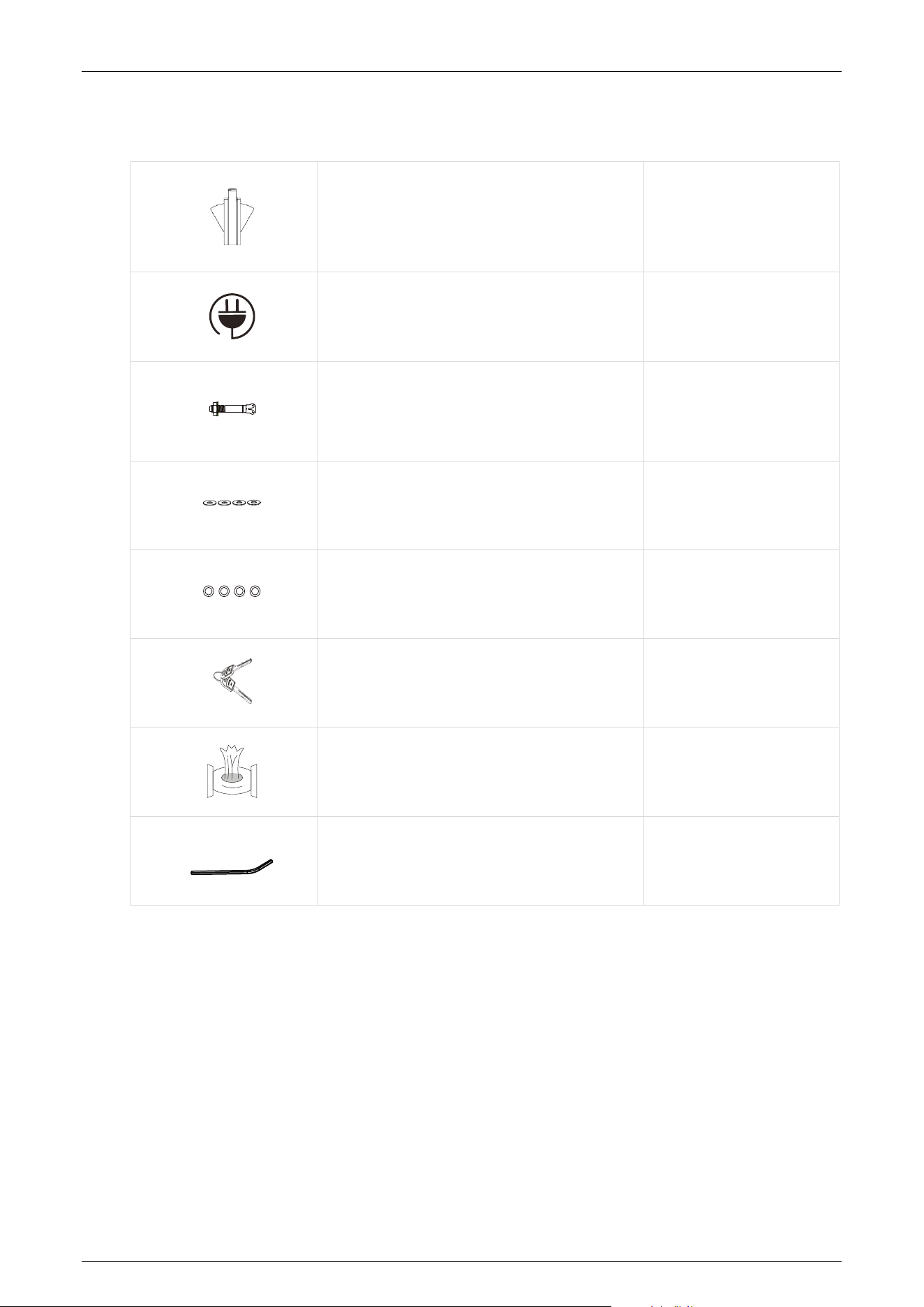
Saturn-F1200
Saturn-F1200
1
Power Cable
1
Expansion Screw M12*100
4
Washer
4
Expansion Screw Washers
4
Key
1
Stainless Steel Maintenance Wipes
1
Hex Wrench
1

Saturn-F1000 Series User Manual
Page | 49 Copyright©2025 ZKTECO CO., LTD. All Rights Reserved.
Revision History
Revision Date Author Reviewer Description
V1.0 08/15/2025 Stella.Xia Original Document

Page | 50 Copyright©2025 ZKTECO CO., LTD. All Rights Reserved.
ZKTeco Industrial Park, No. 32, Industrial Road,
Tangxia Town, Dongguan, China.
Phone : +86 769 - 82109991
Fax : +86 755 - 89602394
www.zkteco.com
Copyright © 2025 ZKTECO CO., LTD. All Rights Reserved.






