Contact Information
If you need to contact ASRock or want to know more about ASRock, you’re
welcome to visit ASRock’s website at http://www.asrock.com; or you may contact
your dealer for further information. For technical questions, please submit a
support request form at https://event.asrock.com/tsd.asp
ASRock Incorporation
e-mail: info@asrock.com.tw
ASRock EUROPE B.V.
e-mail: sales@asrock.nl
ASRock America, Inc.
e-mail: sales@asrockamerica.com
Scan the QR code to view more manuals and documents.

Contents
Chapter 1 Introduction 1
1.1 Package Contents 1
1.2 Specications 2
1.3 Motherboard Layout 7
1.4 I/O Panel 9
1.5 Block Diagram 11
1.6 802.11be Wi-Fi 7 Module and ASRock WiFi 2.4/5/6 GHz
Antennas 12
Chapter 2 Installation 14
2.1 Installing the CPU 16
2.2 Installing the CPU Fan and Heatsink 18
2.3 Installing Memory Modules (DIMM)
19
2.4 Connecting the Front Panel Header 21
2.5 Installing the Motherboard 22
2.6 Installing SATA Drives 23
2.7 Installing a Graphics Card 25
2.8 Connecting Peripheral Devices 27
2.9 Connecting the Power Connectors 28
2.10 Power On 29
2.11 Jumpers Setup 30
2.12 Onboard Headers and Connectors 31
2.13 Smart Switches 44


English
1
Z890 LiveMixer WiFi
Chapter 1 Introduction
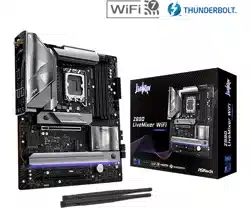
ank you for purchasing ASRock Z890 LiveMixer WiFi motherboard, a reliable
motherboard produced under ASRock’s consistently stringent quality control.
It delivers excellent performance with robust design conforming to ASRock’s
commitment to quality and endurance.
1.1 Package Contents
•
ASRock Z890 LiveMixer WiFi Motherboard (ATX Form Factor)
•
2 x Serial ATA (SATA) Data Cables (Optional)
•
2 x ASRock WiFi 2.4/5/6 GHz Antennas (Optional)
•
1 x ermistor Cable (Optional)
Because the motherboard specications and the BIOS soware might be updated, the
content of this documentation will be subject to change without notice. In case any
modications of this documentation occur, the updated version will be available on
ASRock’s website without further notice. If you require technical support related to
this motherboard, please visit our website for specic information about the model
you are using. You may nd the latest VGA cards and CPU support list on ASRock’s
website as well. ASRock website http://www.asrock.com.

English
2
1.2 Specications
Platform
•
ATX Form Factor
•
2oz Copper PCB
CPU
•
Supports Intel® Core
TM
Ultra Processors (Series 2)
(LGA1851RL-ILM)
•
Supports Intel® Hybrid Technology
•
Supports Intel® Turbo Boost Max 3.0 Technology
•
Supports Intel® ermal Velocity Boost (TVB)
•
Supports Intel® Adaptive Boost Technology (ABT)
•
Integrated NPU for dedicated AI acceleration
Chipset
•
Intel® Z890
Memory
•
Dual Channel DDR5 Memory Technology
•
4 x DDR5 DIMM Slots
•
Supports DDR5 non-ECC, un-buered memory up to
9466+(OC)*
•
Max. capacity of system memory: 256GB
•
Supports Intel® Extreme Memory Prole (XMP) 3.0x
* Please refer to Memory Support List on ASRock's website for
more information. (http://www.asrock.com/)
Expansion
Slot
CPU:
•
1 x PCIe 5.0 x16 Slot (PCIE1), supports x16 mode*
Chipset:
•
2 x PCIe 4.0 x16 Slots (PCIE2 and PCIE3), support x4 mode*
•
1 x M.2 Socket (Key E), supports type 2230 WiFi/BT PCIe
WiFi module and Intel® CNVio/CNVio2 (Integrated WiFi/
BT)
* PCIE1 supports PCIe riser cards to extend one x16 slot to x8/
x8 or x8/x4/x4 slots.
* Supports NVMe SSD as boot disks
Graphics
•
Intel® UHD Graphics Built-in Visuals and the VGA outputs
can be supported only with processors which are GPU
integrated.
•
Intel® X
e
LPG Graphics Architecture

English
3
Z890 LiveMixer WiFi
•
1 x HDMI 2.1 TMDS/FRL 8G Compatible, supports HDR,
HDCP 2.3 and max. resolution up to 4K 120Hz
•
2 x Intel® underbolt
TM
4, support HDCP 2.3 and max.
resolution up to 8K 60Hz / 5K 120Hz*
* Supports two 4K displays or one 8K display
* Only the CPU's embedded graphics can be displayed through
underbolt ports. If you want to display to a underbolt
monitor, please use CPU models with embedded graphics.
Audio
•
7.1 CH HD Audio with Content Protection (Realtek
ALC1220 Audio Codec)
•
Impedance Sensing on Rear Out port
•
Individual PCB Layers for R/L Audio Channel
•
Nahimic Audio
LAN
•
2.5 Gigabit LAN 10/100/1000/2500 Mb/s
•
Dragon RTL8125BG
•
Supports Dragon 2.5G LAN Soware
- Smart Auto Adjust Bandwidth Control
- Visual User Friendly UI
- Visual Network Usage Statistics
- Optimized Default Setting for Game, Browser, and
Streaming Modes
- User Customized Priority Control
Wireless
LAN
•
802.11be 2x2 Wi-Fi 7 Module
•
Supports IEEE 802.11a/b/g/n/ac/ax/axe/be
•
Supports 2.4GHz/5GHz/6GHz* frequency band
•
Supports 320MHz channel bandwidth with 6GHz* frequen-
cy band
* Wi-Fi 7 (6GHz band) will be supported by Microso® Win-
dows® 11. e availability will depend on the dierent regula-
tion status of each country and region. It will be activated (for
supported countries) through Windows Update and soware
updates once available.
•
1 antenna to support 2 (Transmit) x 2 (Receive) diversity
technology
•
Supports Bluetooth 5.4
•
Supports MU-MIMO

English
4
USB
CPU:
•
2 x underbolt
TM
4 Type-C (Rear)
Chipset:
•
1 x USB 3.2 Gen2x2 Type-C (Front)
•
2 x USB 3.2 Gen2 Type-A (Rear)
•
14 x USB 3.2 Gen1 (10 Rear, 4 Front)
•
4 x USB 2.0 (Front)
* All USB ports support ESD Protection
Rear Panel
I/O
•
2 x Antenna Ports
•
1 x HDMI Port
•
1 x Optical SPDIF Out Port
•
2 x underbolt
TM
4 Type-C Ports (40 Gb/s for USB4
protocol; 40Gb/s for underbolt protocol)*
•
2 x USB 3.2 Gen2 Type-A Ports (10 Gb/s)
•
10 x USB 3.2 Gen1 Ports**
•
1 x RJ-45 LAN Port
•
1 x BIOS Flashback Button
•
1 x Line Out Jack (Gold Audio Jack)
•
1 x Microphone Input Jack (Gold Audio Jack)
* Supports USB PD 3.0 up to 5V@3A (15W) charging
** USB32_56 are Lightning Gaming Ports. USB32_78 support
Ultra USB Power.
Storage
CPU:
•
1 x Blazing M.2 Socket (M2_1, Key M), supports type 2280
PCIe Gen5x4 (128 Gb/s) mode*
•
1 x Hyper M.2 Socket (M2_2, Key M), supports type 2280
PCIe Gen4x4 (64 Gb/s) mode*
Chipset:
•
1 x Hyper M.2 Socket (M2_3, Key M), supports type
2230/2242/2260/2280 PCIe Gen4x4 (64 Gb/s) mode*
•
1 x Hyper M.2 Socket (M2_4, Key M), supports type 2280
SATA3 6.0 Gb/s & PCIe Gen4x4 (64 Gb/s) modes*
•
4 x SATA3 6.0 Gb/s Connectors
* Supports Intel® Volume Management Device (VMD)
* Supports NVMe SSD as boot disks

English
5
Z890 LiveMixer WiFi
RAID
•
Supports RAID 0, RAID 1, RAID 5 and RAID 10 for SATA
storage devices
•
Supports RAID 0, RAID 1, RAID 5 and RAID 10 for M.2
NVMe storage devices
Connector
•
1 x ermistor Cable Header
•
1 x SPI TPM Header
•
1 x Power LED and Speaker Header
•
1 x RGB LED Header*
•
3 x Addressable LED Headers**
•
2 x CPU Fan Connectors (4-pin) (Smart Fan Speed Con-
trol)***
•
5 x Chassis Fan Connectors (4-pin) (Smart Fan Speed Con-
trol)***
•
1 x AIO Pump Fan Connector (4-pin) (Smart Fan Speed
Control)***
•
1 x 24 pin ATX Power Connector
•
2 x 8 pin 12V Power Connectors (Hi-Density Power Con-
nector)
•
1 x Front Panel Audio Connector
•
2 x USB 2.0 Headers (Support 4 USB 2.0 ports)
•
2 x USB 3.2 Gen1 Headers (Support 4 USB 3.2 Gen1 ports)
•
1 x Front Panel Type C USB 3.2 Gen2x2 Header (20 Gb/s)
* Supports in total up to 12V/3A, 36W LED Strip
** Support in total up to 5V/3A, 15W LED Strip
*** CPU_FAN1 supports the fan power up to 1A (12W).
*** CPU_FAN2, CHA_FAN1~5 and AIO_PUMP support the
fan power up to 3A (36W).
*** CPU_FAN2, CHA_FAN1~5 and AIO_PUMP can auto
detect if 3-pin or 4-pin fan is in use.
BIOS
Feature
•
AMI UEFI Legal BIOS with GUI support
OS
•
Microso® Windows® 11 64-bit
Certica-
tions
•
FCC, CE
•
ErP/EuP ready (ErP/EuP ready power supply is required)

English
6
Please realize that there is a certain risk involved with overclocking, including
adjusting the setting in the BIOS, applying Untied Overclocking Technology, or using
third-party overclocking tools. Overclocking may aect your system’s stability, or
even cause damage to the components and devices of your system. It should be done
at your own risk and expense. We are not responsible for possible damage caused by
overclocking.
* For detailed product information, please visit our website:
http://www.asrock.com
English
7
Z890 LiveMixer WiFi
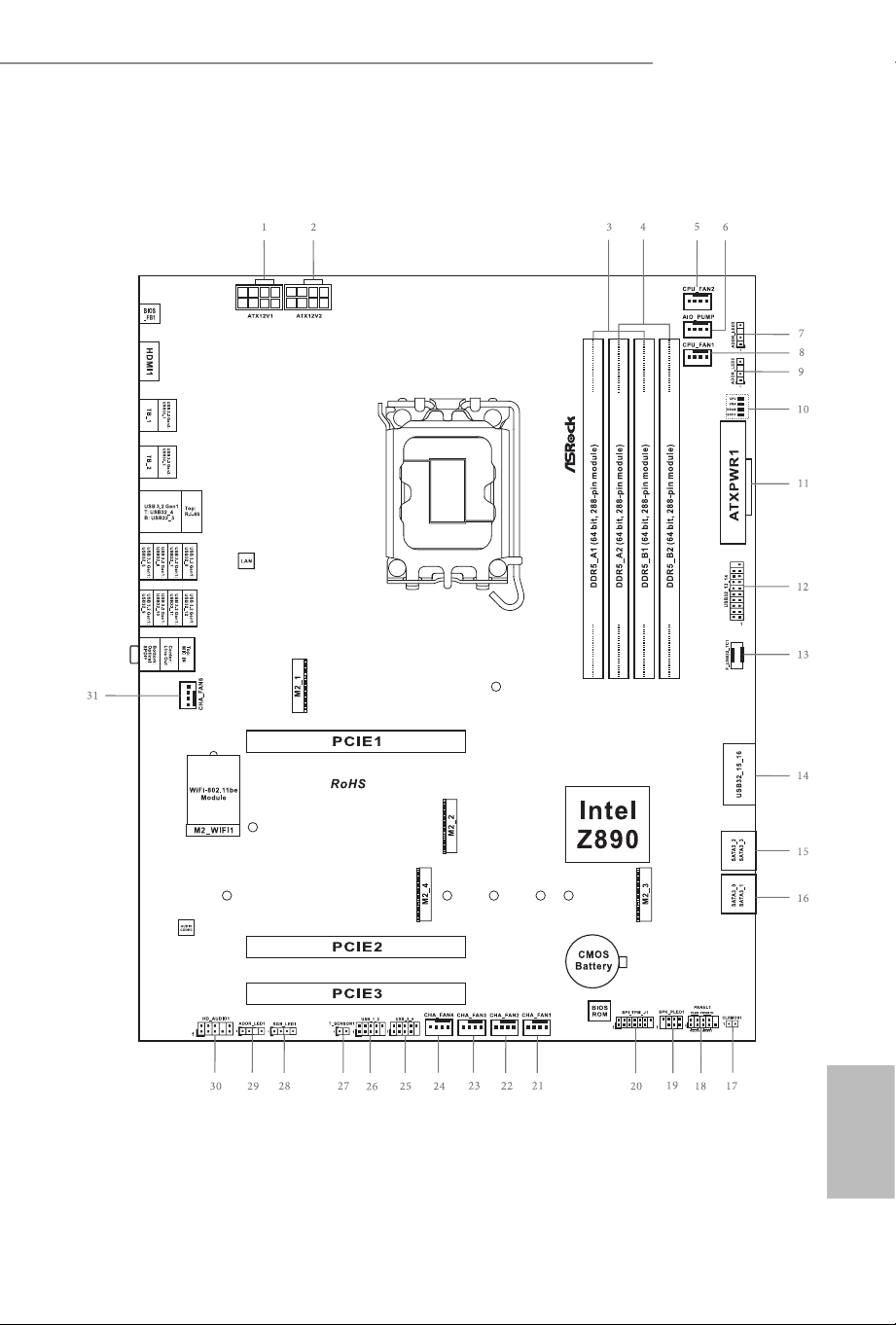
1.3 Motherboard Layout

English
8
No. Description
1 ATX 12V Power Connector (ATX12V1)
2 ATX 12V Power Connector (ATX12V2)
3 2 x 288-pin DDR5 DIMM Slots (DDR5_A1, DDR5_B1)
4 2 x 288-pin DDR5 DIMM Slots (DDR5_A2, DDR5_B2)
5 CPU Fan Connector (CPU_FAN2)
6 AIO Pump Fan Connector (AIO_PUMP)
7 Addressable LED Header (ADDR_LED3)
8 CPU Fan Connector (CPU_FAN1)
9 Addressable LED Header (ADDR_LED2)
10 Post Status Checker (PSC)
11 ATX Power Connector (ATXPWR1)
12 USB 3.2 Gen1 Header (USB32_13_14)
13 Front Panel Type C USB 3.2 Gen2x2 Header (F_USB32_TC1)
14 USB 3.2 Gen1 Header (USB32_15_16)
15 SATA3 Connectors (SATA3_2)(Upper), (SATA3_3)(Lower)
16 SATA3 Connectors (SATA3_0)(Upper), (SATA3_1)(Lower)
17 Clear CMOS Jumper (CLRMOS1)
18 System Panel Header (PANEL1)
19 Power LED and Speaker Header (SPK_PLED1)
20 SPI TPM Header (SPI_TPM_J1)
21 Chassis Fan Connector (CHA_FAN1)
22 Chassis Fan Connector (CHA_FAN2)
23 Chassis Fan Connector (CHA_FAN3)
24 Chassis Fan Connector (CHA_FAN4)
25 USB 2.0 Header (USB_3_4)
26 USB 2.0 Header (USB_1_2)
27 ermistor Cable Header (T_SENSOR1)
28 RGB LED Header (RGB_LED1)
29 Addressable LED Header (ADDR_LED1)
30 Front Panel Audio Header (HD_AUDIO1)
31 Chassis Fan Connector (CHA_FAN5)
English
9
Z890 LiveMixer WiFi
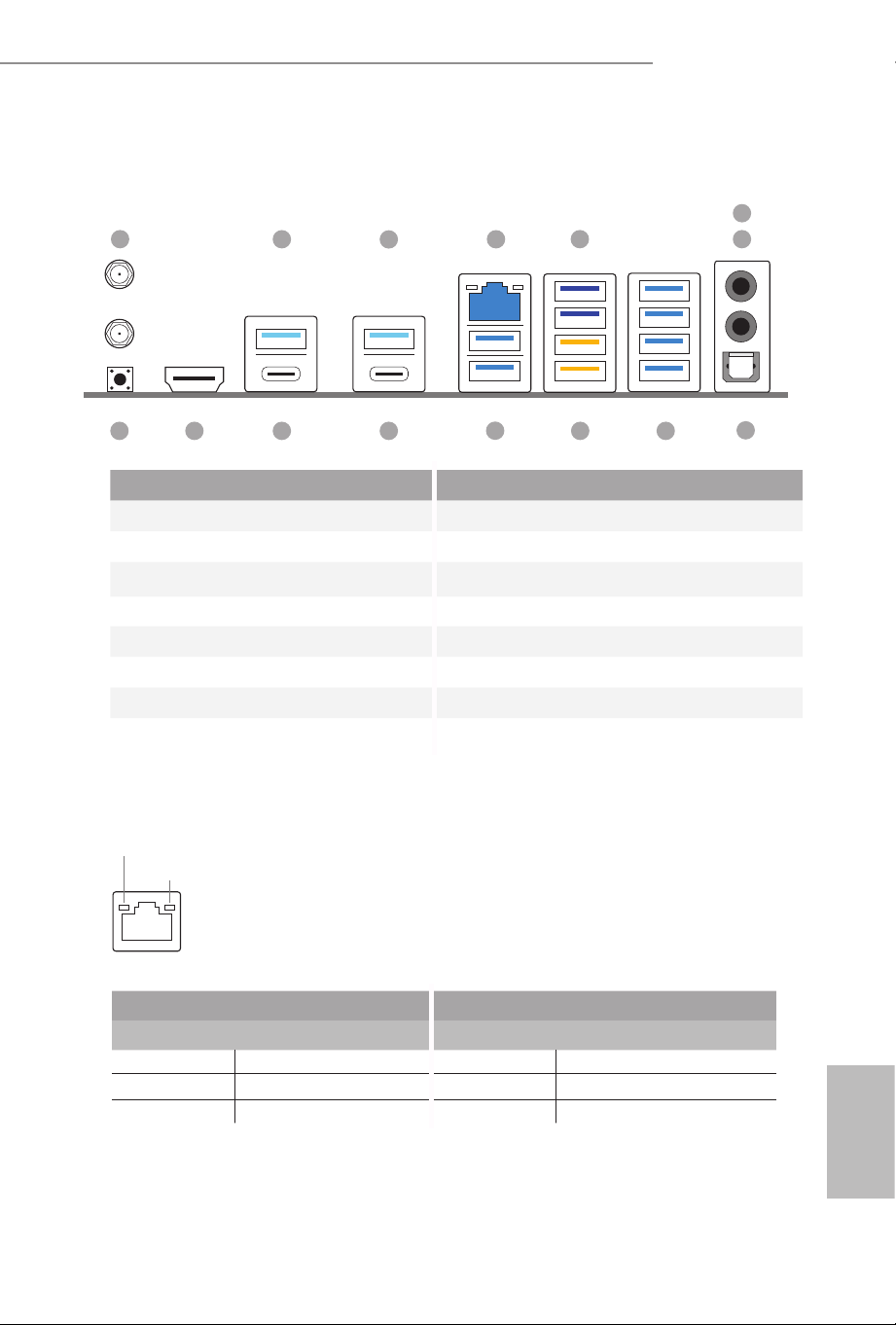
No. Description No. Description
1 Antenna Ports 9 USB 3.2 Gen1 Ports (USB32_9_10_11_12)
2 USB 3.2 Gen2 Port (USB32_1) 10 USB 3.2 Gen1 Ports (USB32_56)****
3 USB 3.2 Gen2 Port (USB32_2) 11 USB 3.2 Gen1 Ports (USB32_34)
4 2.5G LAN RJ-45 Port* 12 underbolt
TM
4 Type-C Port (TB_2)
5 USB 3.2 Gen1 Ports (USB32_78)** 13 underbolt
TM
4 Type-C Port (TB_1)
6 Microphone Input Jack*** 14 HDMI Port
7 Line Out Jack*** 15 BIOS Flashback Button
8 Optical SPDIF Out Port
1.4 I/O Panel
ACT/LINK LED
SPEED LED
LAN Port
* ere are two LEDs on each LAN port. Please refer to the table below for the LAN port LED indications.
Activity / Link LED Speed LED
Status Description Status Description
O No Link O 10Mbps connection
Blinking Data Activity Orange 100Mbps/1Gbps connection
On Link Green 2.5Gbps connection
11
1214
4
1013
2
15
1
3
5
7
6
9
8
** USB32_78 support Ultra USB Power.

English
10
**** USB32_56 are Lightning Gaming Ports.
*** Function of the Audio Ports in 2, 4, 5.1 or 7.1-channel Conguration:
Channel Port Function
2ch
Line Out Jack
(Rear Panel)
Front speaker out
4ch
Pink-Mic
(Front Panel)
Rear speaker out
5.1ch
Microphone Input Jack
(Rear Panel)
Central/Subwoofer speaker out
7.1ch
Lime-Headphone
(Front Panel)
Side Speaker out
English
11
Z890 LiveMixer WiFi
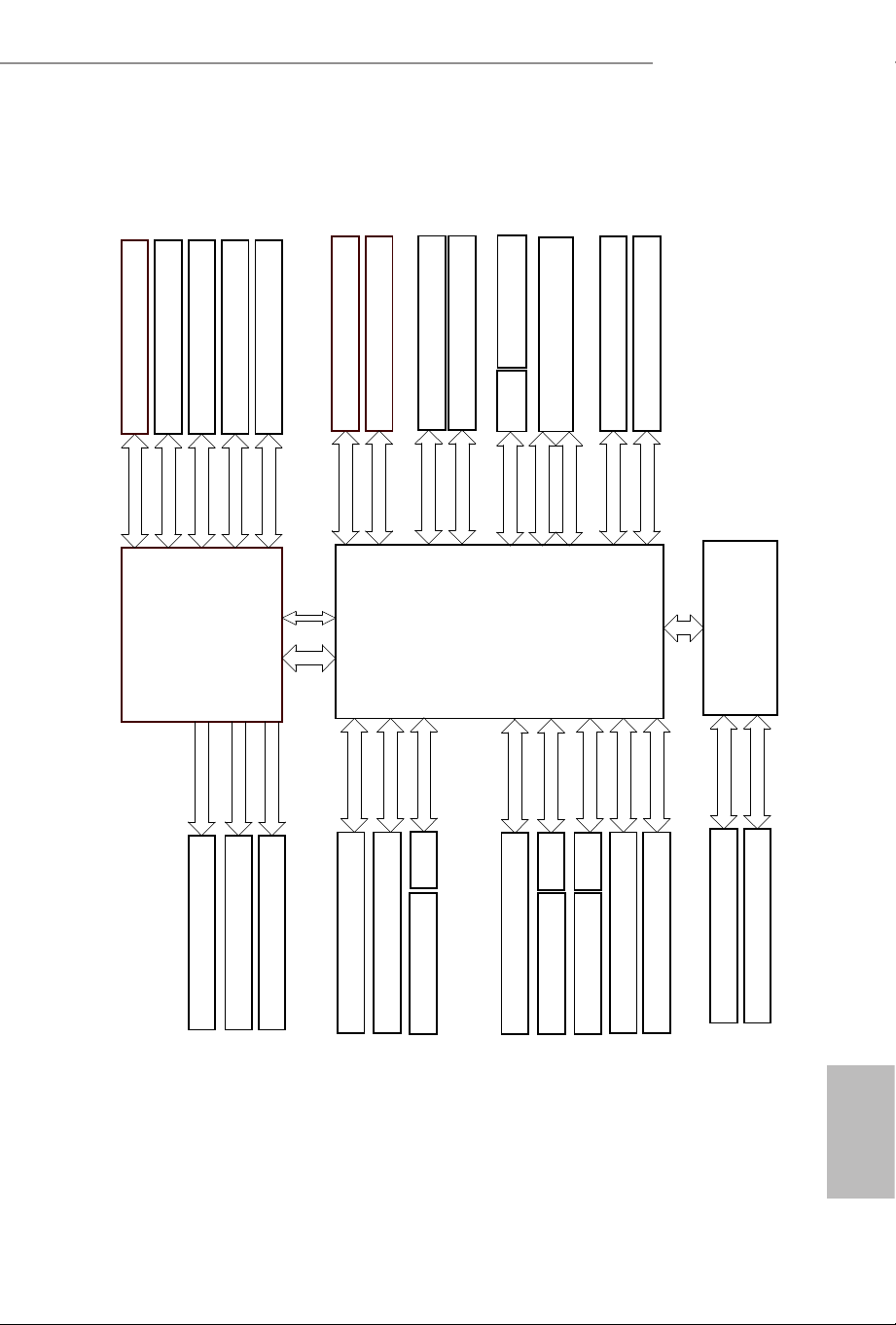
1.5 Block Diagram
Gen4 x4
Gen4 x4
Gen4 x1
Gen4 x4
Gen4 x4
PCIE2 Gen4 x4 ( x16 Slot )
PCIE1 ( Gen5 x16 Slot )
Intel
800 Series
Chipset
Intel Arrow Lake
Processor
Socket 1851
SATA 4 port
SATA 6Gb
5Gb/s
Rear USB 3.2 Gen1* 4 port
Channel B
Channel A
DDR5 Slot x2
DDR5 Slot x2
SIO NCT6686D
ALC1220 (2+1 jack Audio)
DMI Gen4 x8
M.2_3(PCIe Gen4 x4)
M.2_4(PCIe Gen4 x4 / SATA )
10Gb/s
Gen5 x4
Rear USB 3.2 Gen2 Type A *
2 port
M.2_1 PCIe Gen5 x4
Gen5 x16
5Gb/s
GL3523
480Mb/s
AZ(HD Audio)
eSPI
RTL8125 ( 2.5G LAN )
FAN x8
H/W Monitor
20Gb/s
Front USB 3.2 Gen2x2
Type C
Front
USB 3.2 Gen1 *
4 port
SPI
Flash ROM 256Mb
Gen4 x4
M.2_2 PCIe Gen4 x4
DDI3
HDMI
TCP1
TCP0
TB1
TB2
Direct eSPI
Front USB 2.0 * 4 port GL852G
Rear USB 3.2 Gen1 *
4 port
GL3523
5Gb/s
ASM3042
Gen4 x1
Gen4 x1
M.2_WIFI1 ( BE200 )
Rear USB 3.2 Gen1 *
2 port
CNVi
PCIE3 Gen4 x4 ( x16 Slot )

English
12
1.6 802.11be Wi-Fi 7 Module and ASRock WiFi 2.4/5/6 GHz
Antennas
802.11be Wi-Fi 7 + BT Module
is motherboard comes with an exclusive 802.11 a/b/g/n/ac/ax/axe/be Wi-Fi 7 + BT
v5.4 module that oers support for 802.11 a/b/g/n/ac/ax/axe/be Wi-Fi 7 connectivity
standards and Bluetooth v5.4. Wi-Fi 7 + BT module is an easy-to-use wireless local
area network (WLAN) adapter to support Wi-Fi 7 + BT. Bluetooth v5.4 standard
features Smart Ready technology that adds a whole new class of functionality into the
mobile devices.
* e transmission speed may vary according to the environment.
* Wi-Fi 7 (6GHz band) will be supported by Microso® Windows® 11. e availability
will depend on the dierent regulation status of each country and region. It will be
activated (for supported countries) through Windows Update and soware updates
once available.
English
13
Z890 LiveMixer WiFi
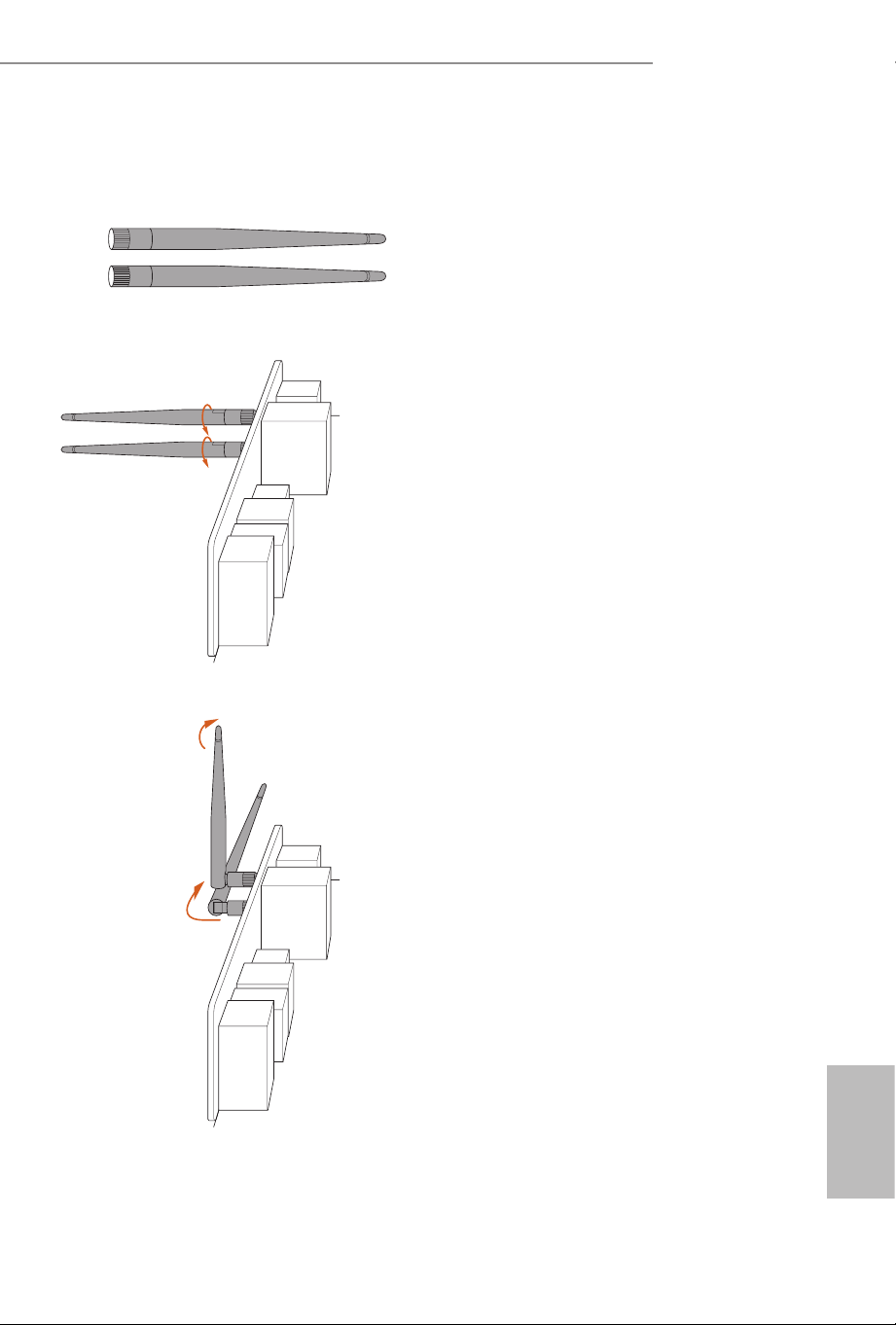
WiFi Antennas Installation Guide
Step 1
Prepare the WiFi 2.4/5/6 GHz Antennas that
come with the package.
Step 2
Connect the two WiFi 2.4/5/6 GHz Antennas
to the antenna connectors. Turn the antenna
clockwise until it is securely connected.
Step 3
Set the WiFi 2.4/5/6 GHz Antenna as shown in
the illustration.
*You may need to adjust the direction of
the antenna for a stronger signal.

English
14
is is an ATX form factor motherboard. Before you install the motherboard, study
the conguration of your chassis to ensure that the motherboard ts into it.
Pre-installation Precautions
Take note of the following precautions before you install motherboard components
or change any motherboard settings.
•
Make sure to unplug the power cord before installing or removing the motherboard
components. Failure to do so may cause physical injuries and damages to motherboard
components.
•
In order to avoid damage from static electricity to the motherboard’s components,
NEVER place your motherboard directly on a carpet. Also remember to use a
grounded wrist strap or touch a safety grounded object before you handle the
components.
•
Hold components by the edges and do not touch the ICs.
•
Whenever you uninstall any components, place them on a grounded anti-static pad or
in the bag that comes with the components.
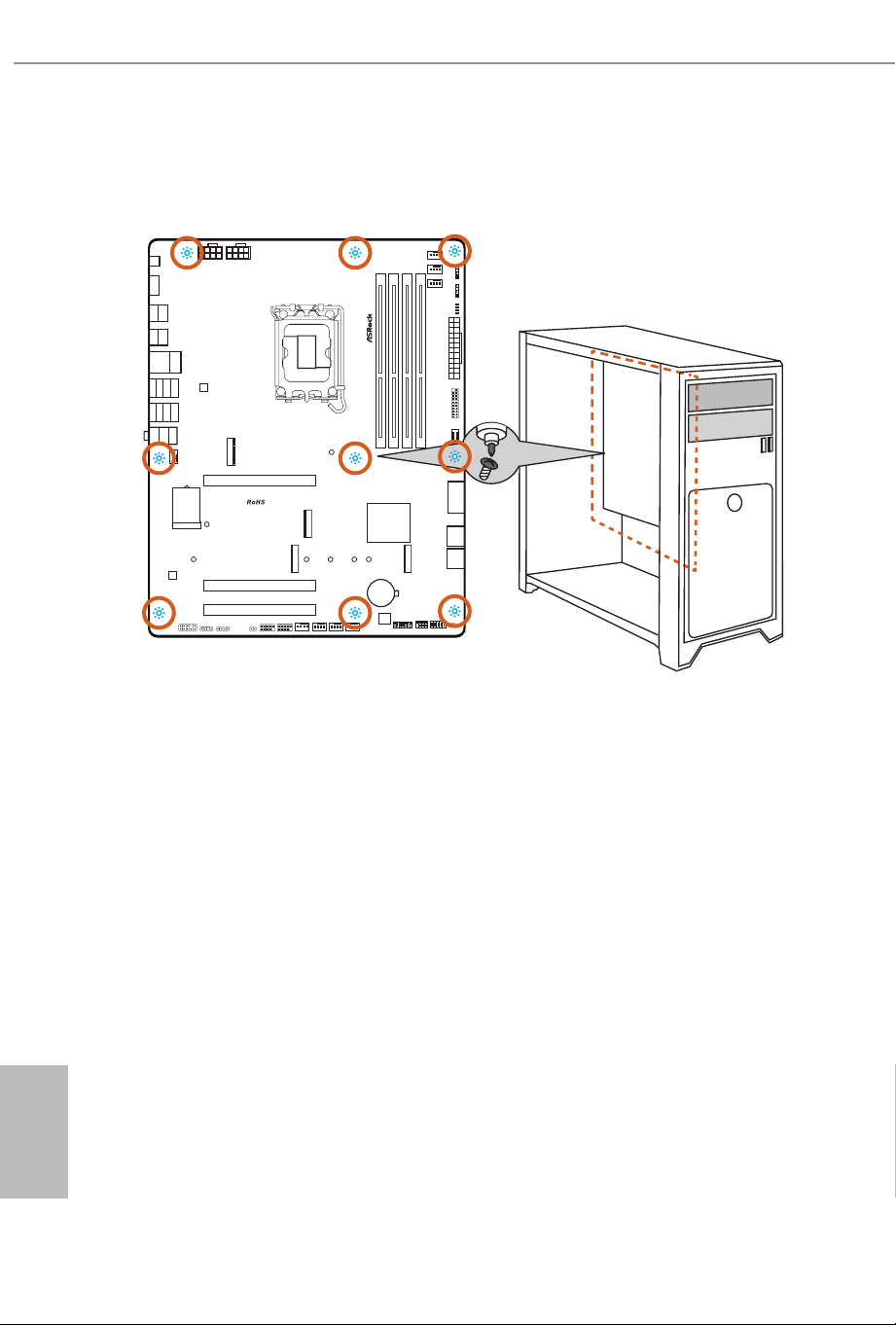
•
When placing screws to secure the motherboard to the chassis, please do not over-
tighten the screws! Doing so may damage the motherboard.
Chapter 2 Installation
English
15
Z890 LiveMixer WiFi
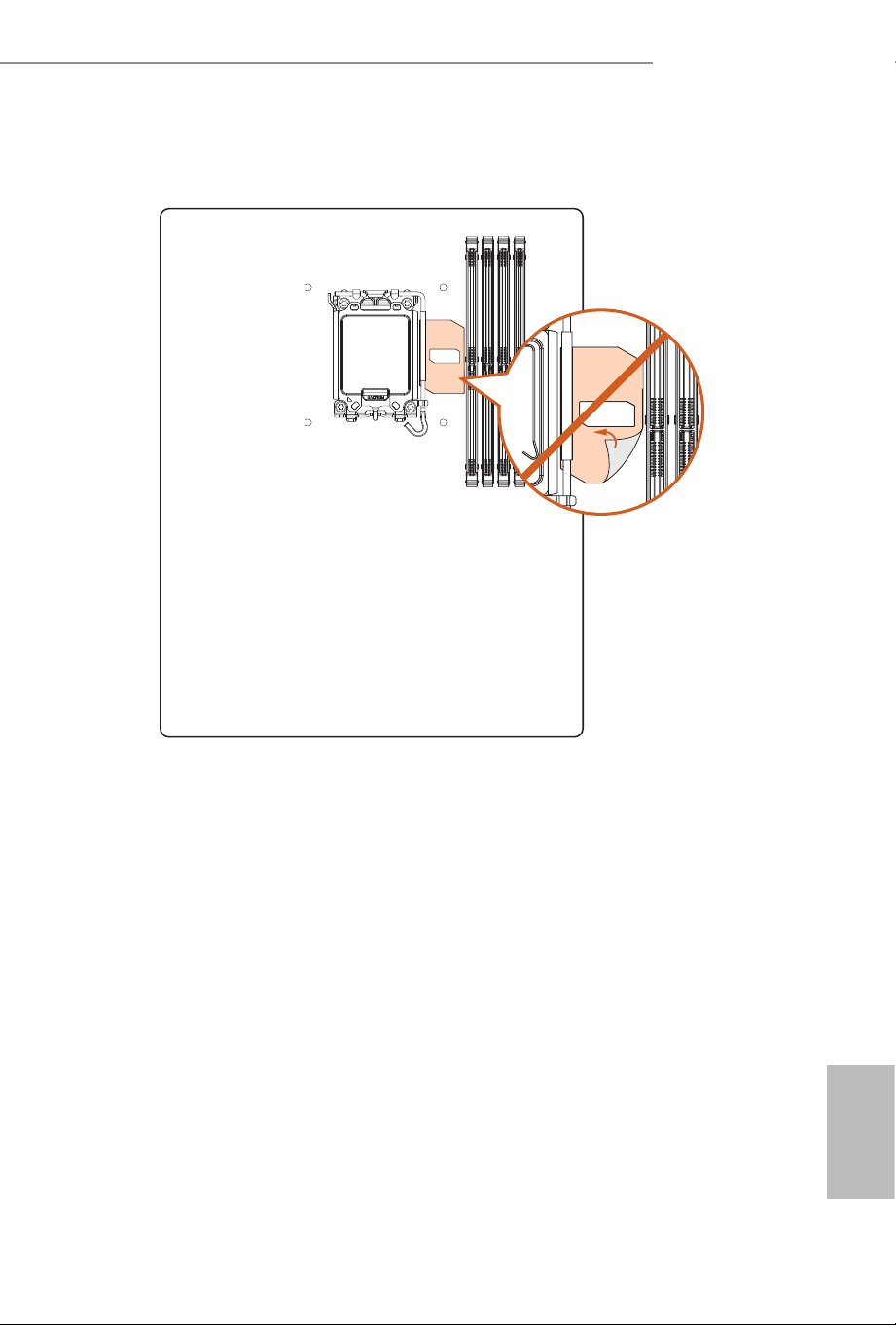
e illustration shown here is for reference only and may not be an exact representation of your mother-
board’s layout.
DO NOT remove this Memory OC Shield (patent pending) from the motherboard.
Removing this may aect memory overclocking performance and stability.
English
16
2.1 Installing the CPU
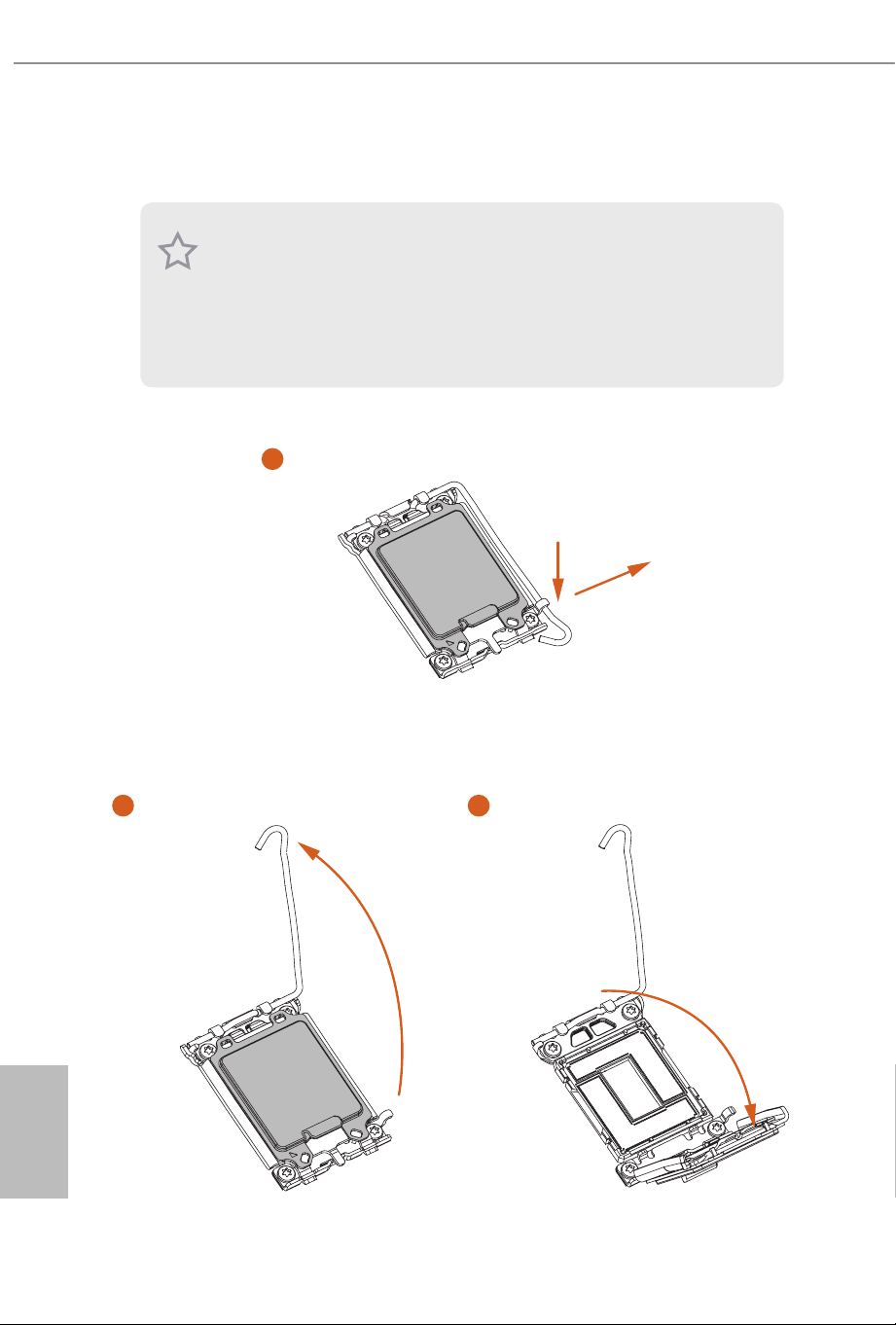
1. Before you insert the 1851-Pin CPU into the socket, please check if the PnP cap
is on the socket, if the CPU surface is unclean, or if there are any bent pins in the
socket. Do not force to insert the CPU into the socket if above situation is found.
Otherwise, the CPU will be seriously damaged.
2. Unplug all power cables before installing the CPU to prevent hardware damage.
3. Use the CPU cooler with a minimum of 35lb of static compressive load for the
LGA1851 RL-ILM (Reduced Load Independent Loading Mechanism) socket.
1
A
B
2 3
English
17
Z890 LiveMixer WiFi
5
76
4
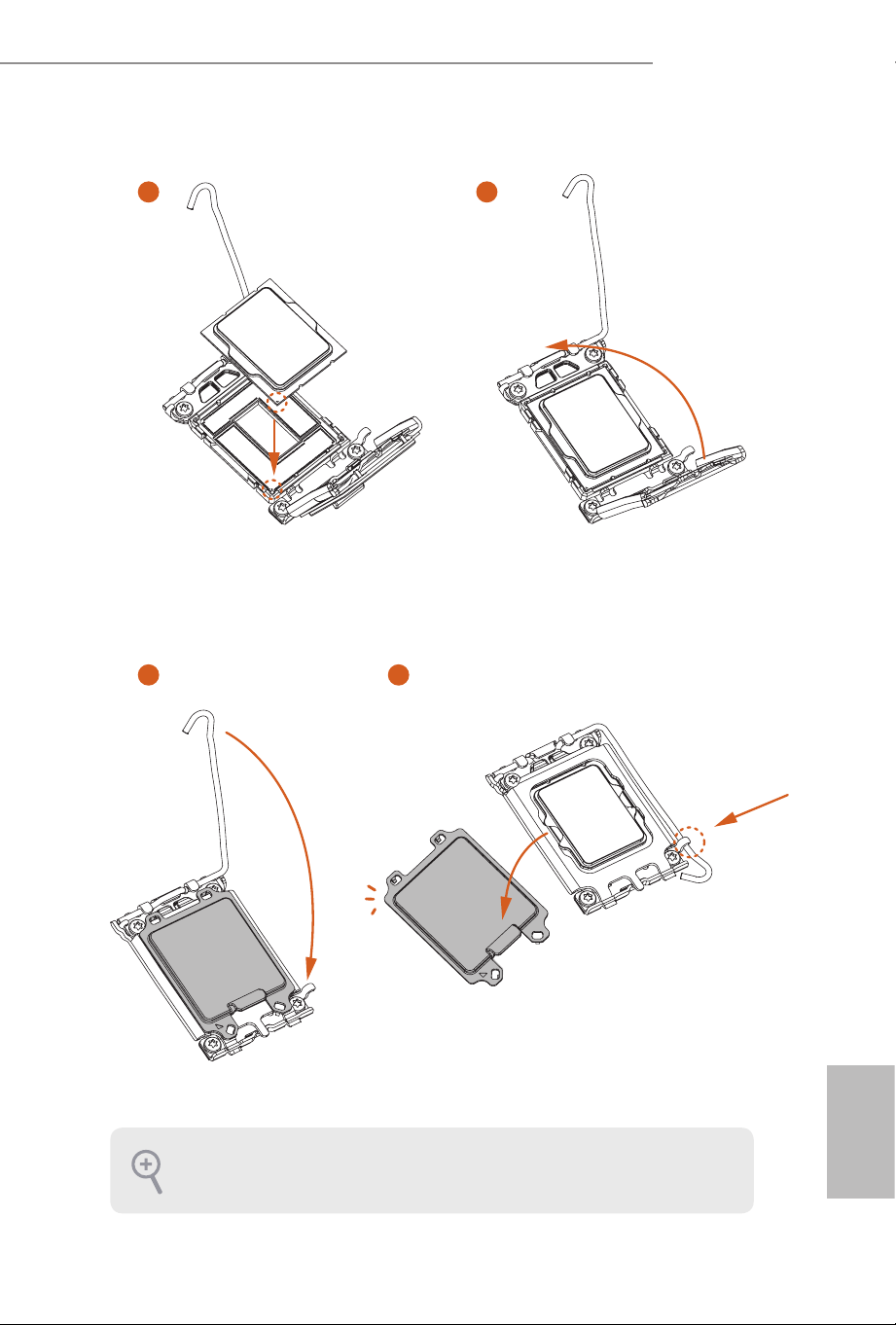
Please save and replace the cover if the processor is removed. e cover must be
placed if you wish to return the motherboard for aer service.
English
18
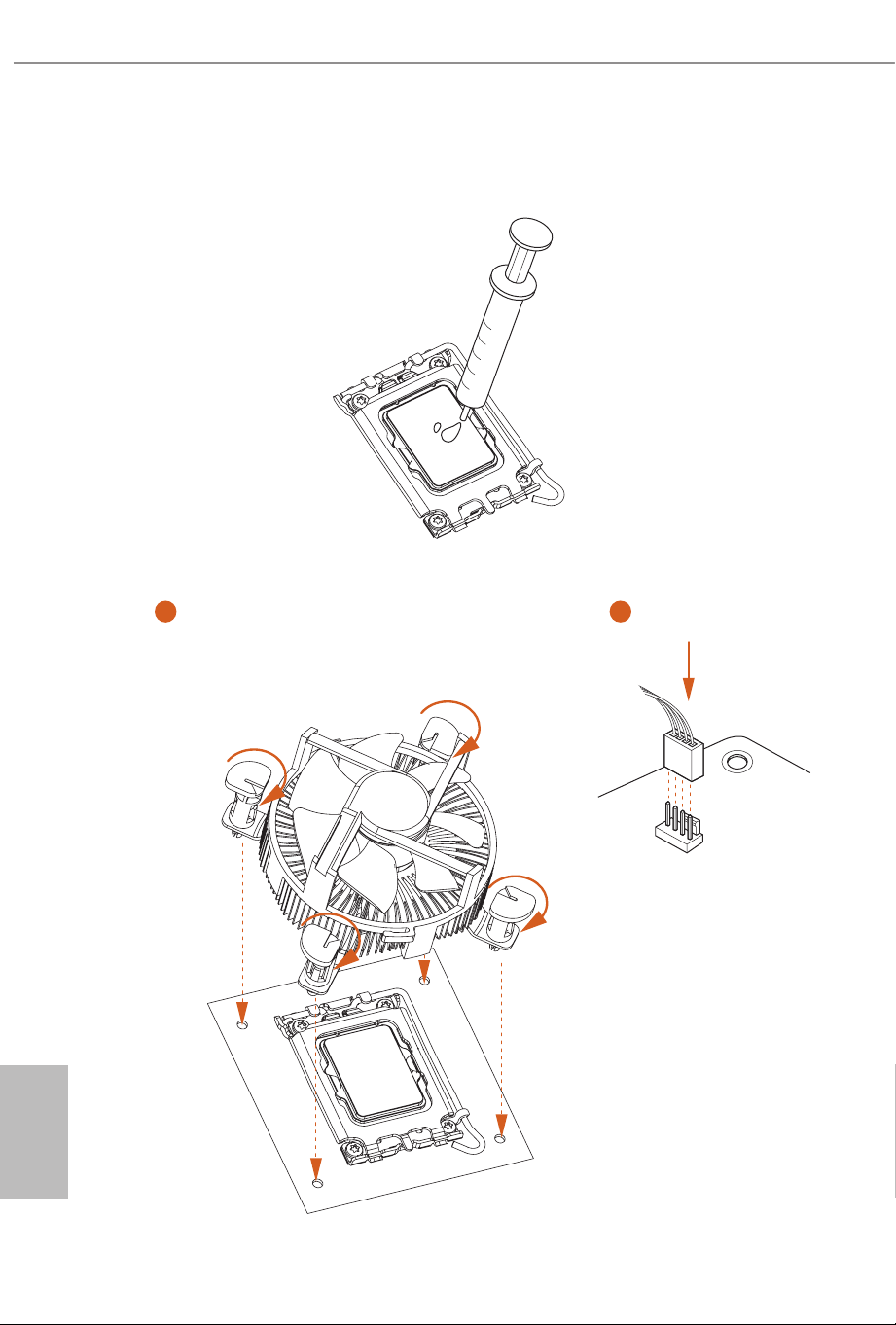
2.2 Installing the CPU Fan and Heatsink
1 2
CPU_FAN

English
19
Z890 LiveMixer WiFi
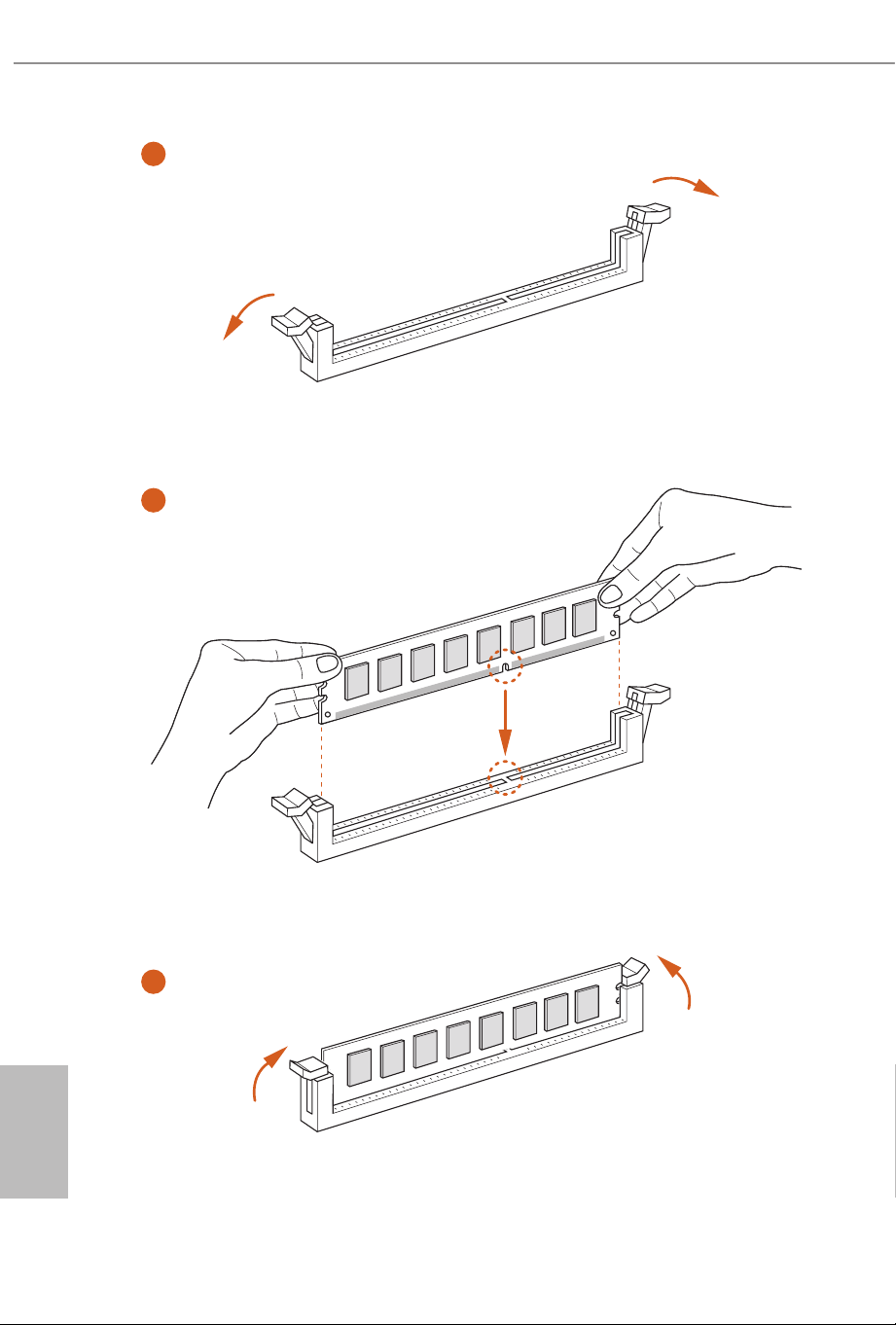
2.3 Installing Memory Modules (DIMM)
is motherboard provides four 288-pin DDR5 (Double Data Rate 5) DIMM slots,
and supports Dual Channel Memory Technology.
Recommended Memory Conguration
1 DIMM
2 DIMMs
4 DIMMs
A1 A2 B1 B2
V
A1 A2 B1 B2
V V
A1 A2 B1 B2
V V V V
1. For dual channel conguration, you always need to install identical (the same
brand, speed, size and chip-type) DDR5 DIMM pairs.
2. It is unable to activate Dual Channel Memory Technology with only one or three
memory module installed.
3. It is not allowed to install a DDR, DDR2 , DDR3 or DDR4 memory module into a
DDR5 slot; otherwise, this motherboard and DIMM may be damaged.
4. e DIMM only ts in one correct orientation. It will cause permanent damage to
the motherboard and the DIMM if you force the DIMM into the slot at incorrect
orientation.
English
20
1
2
3
English
21
Z890 LiveMixer WiFi
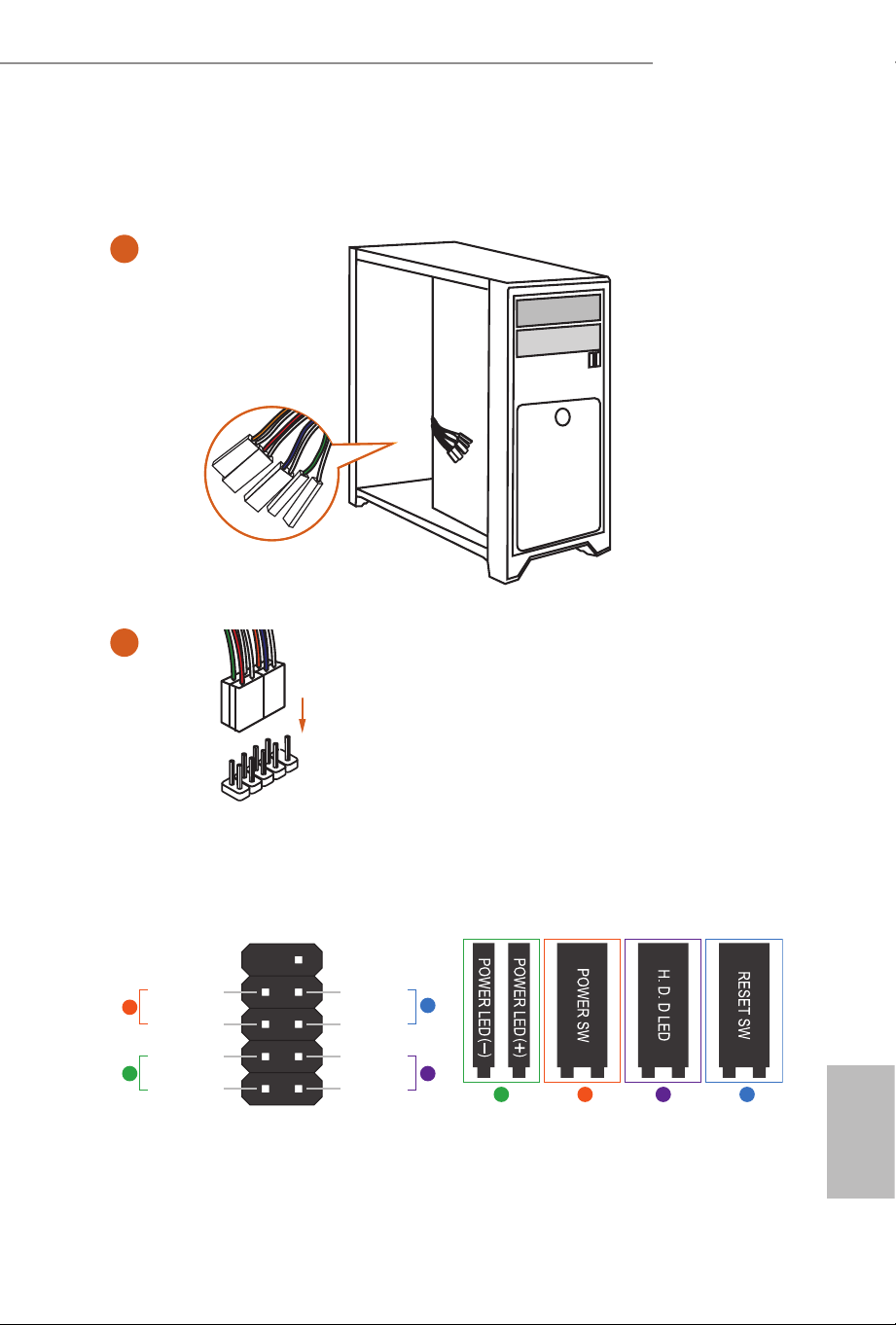
2.4 Connecting the Front Panel Header
A B C D
1
2
32:(56:
5(6(76:
32:(5/('
32:(5/('
+''/('
3$1(/
Power SW (-) RESET SW (+)
HDD LED (-)
HDD LED (+)
12
910
RESET SW (-)Power SW (+)
Power LED (-)
Power LED (+)
A
B
C
D
PANEL1
HDD LED
RESET SW
System Panel Header
Front Panel Wires
English
22
2.5 Installing the Motherboard
English
23
Z890 LiveMixer WiFi
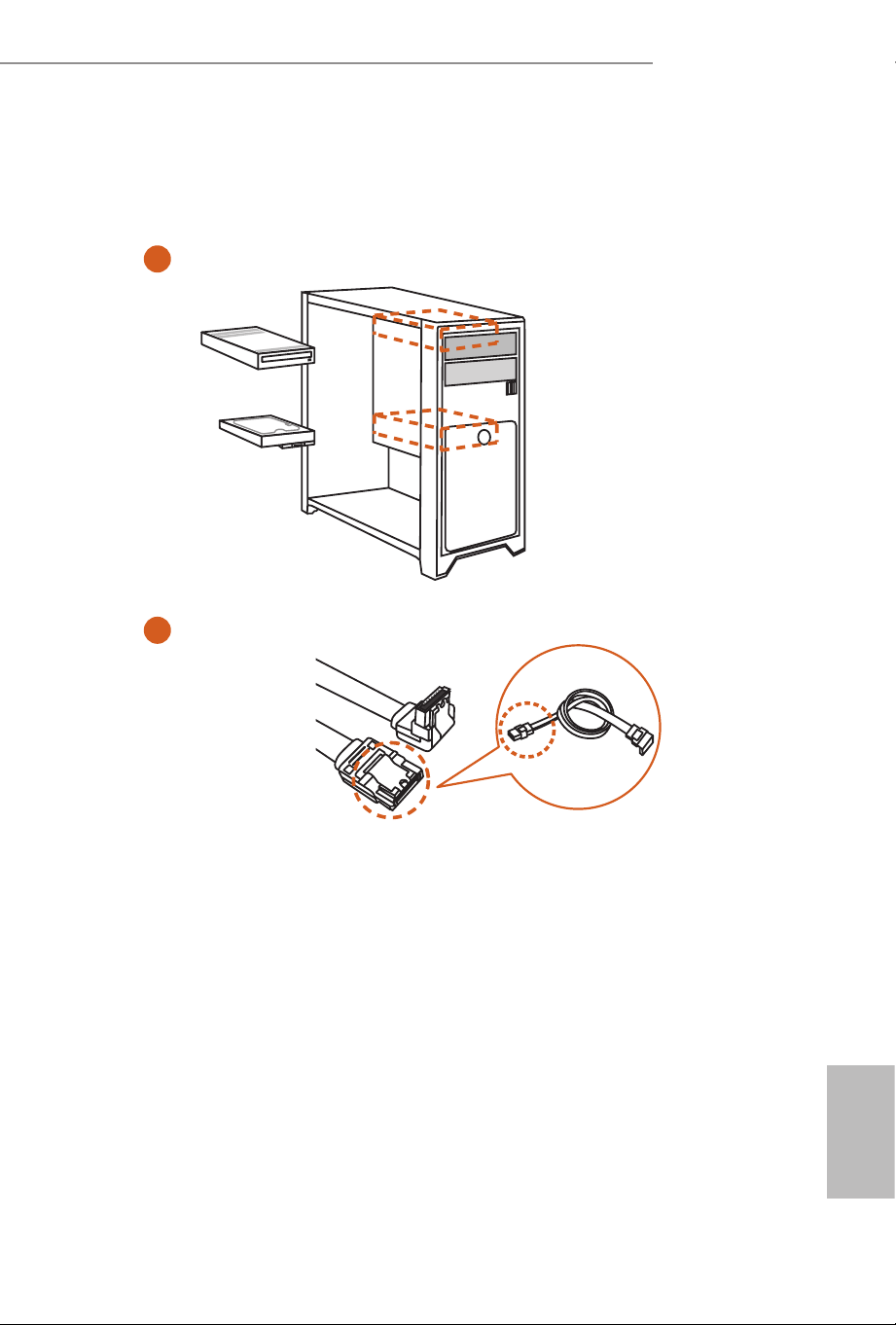
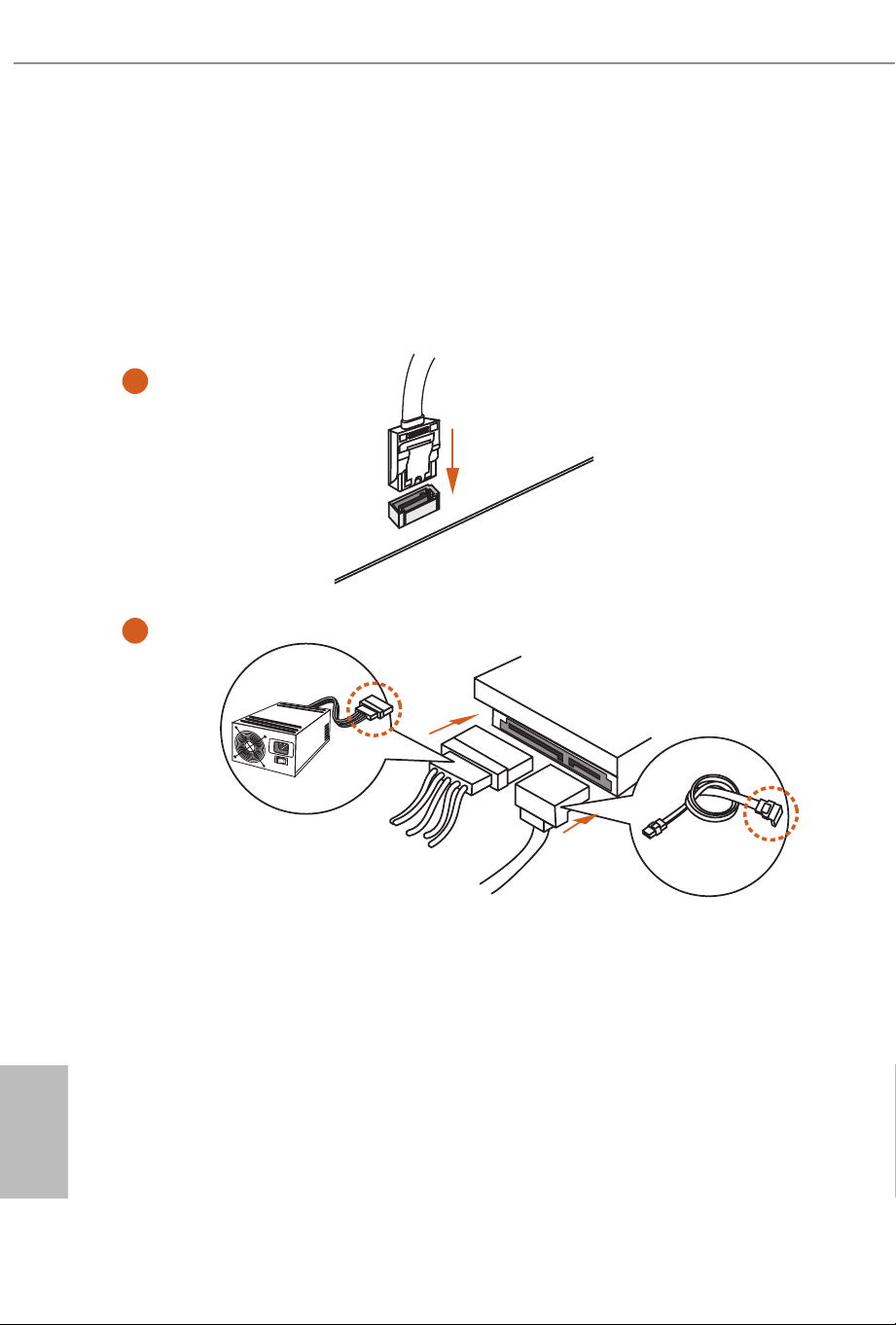
2.6 Installing SATA Drives
1
2
Optical Drive
SATA Drive
SATA Data Cable
English
24
3
4
SATA Power Connector
SATA Data Connector
English
25
Z890 LiveMixer WiFi
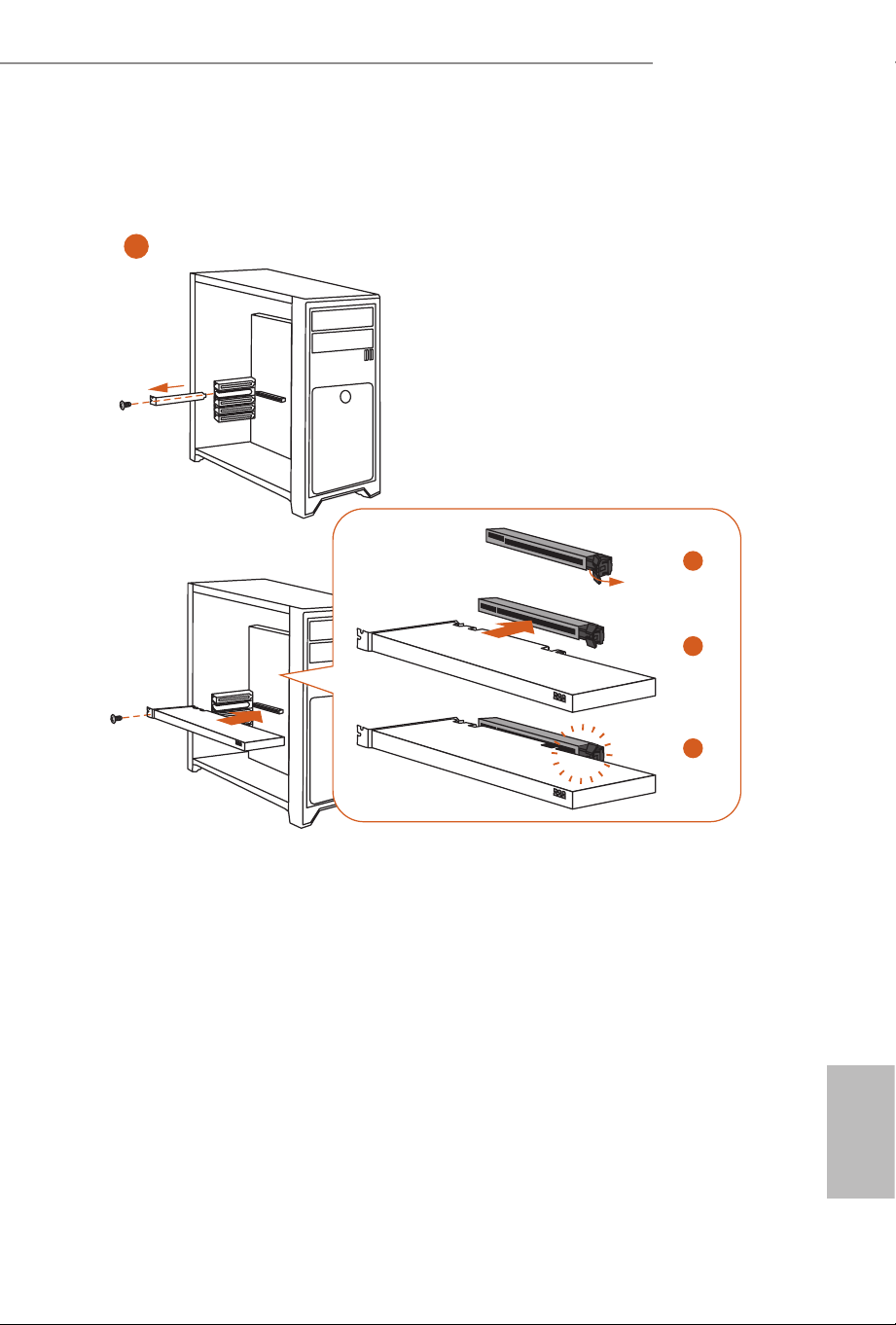
2.7 Installing a Graphics Card
1
1
CLICK!
2
3
4

English
26
Expansion Slots (PCIe Slots)
ere are 3 PCI Express slots on the motherboard.
PCIe slots:
PCIE1 (PCIe 5.0 x16 slot) is used for PCIe x16 lane width graphics cards.
PCIE2 (PCIe 4.0 x16 slot) is used for PCIe x4 lane width graphics cards.
PCIE3 (PCIe 4.0 x16 slot) is used for PCIe x4 lane width graphics cards.
* PCIE1 supports PCIe riser cards to extend one x16 slot to x8/x8 or x8/x4/x4 slots.
Before installing an expansion card, please make sure that the power supply is
switched o or the power cord is unplugged. Please read the documentation of the
expansion card and make necessary hardware settings for the card before you start
the installation.
English
27
Z890 LiveMixer WiFi
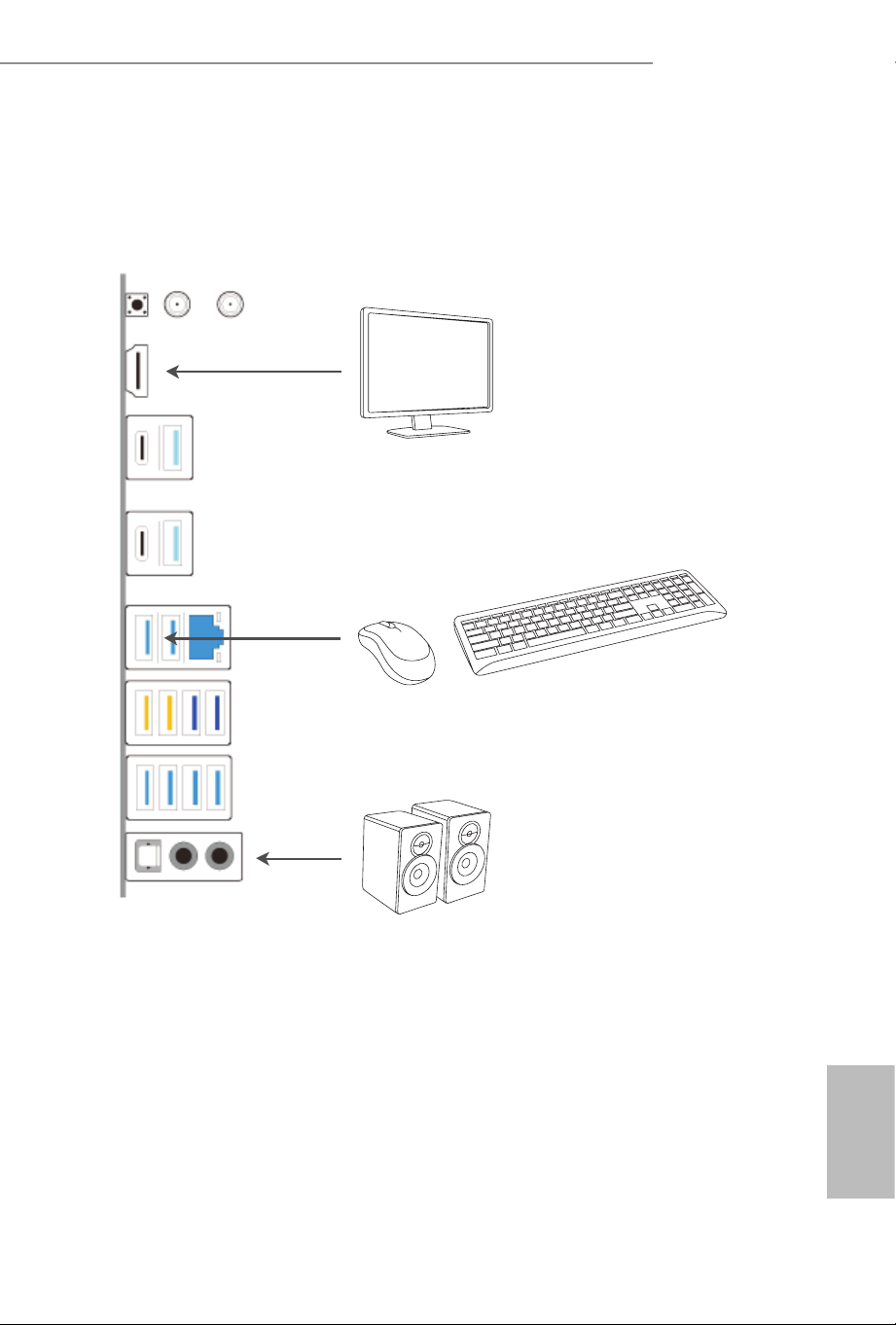
2.8 Connecting Peripheral Devices
English
28
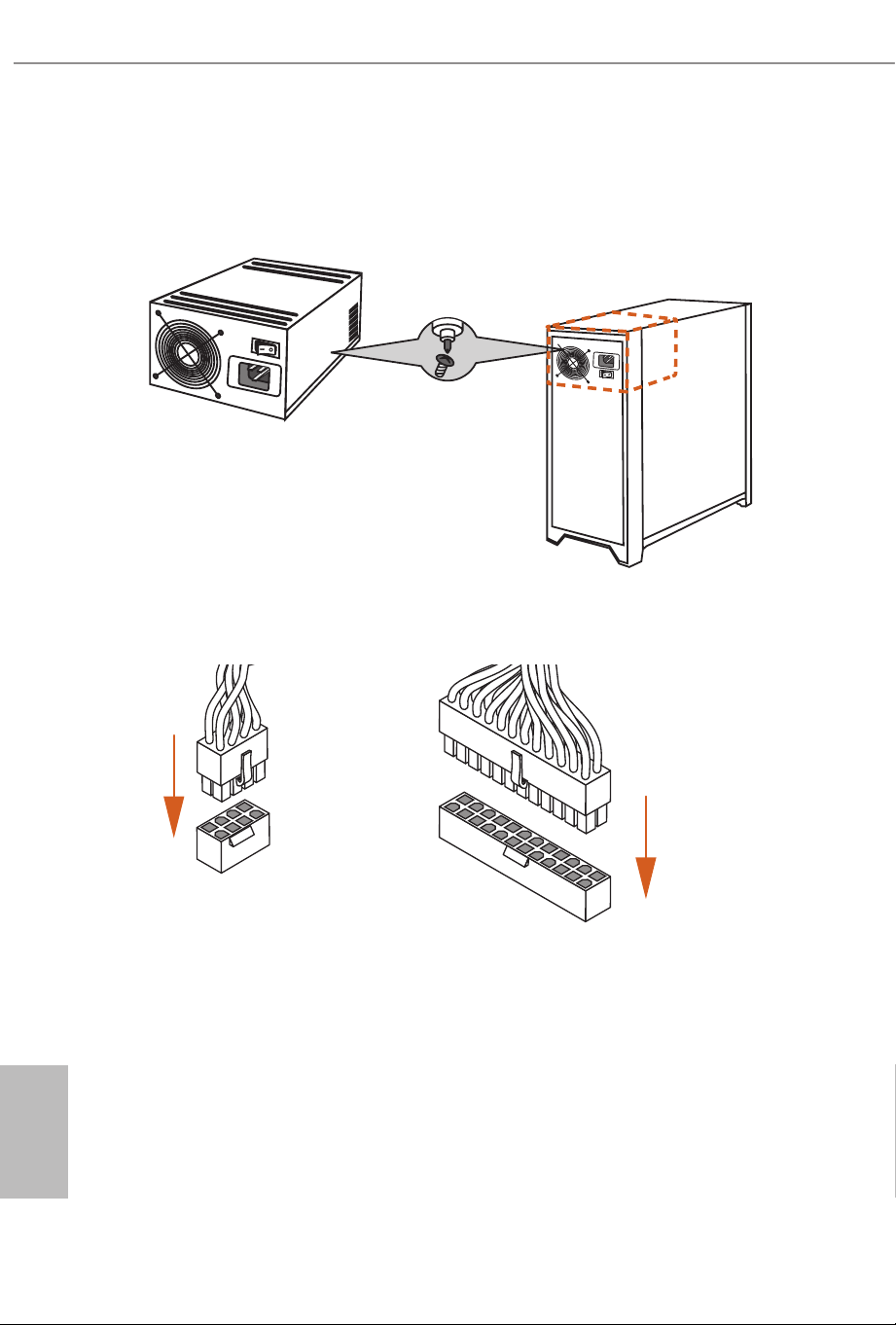
2.9 Connecting the Power Connectors
$7;3:5
$7;9
English
29
Z890 LiveMixer WiFi
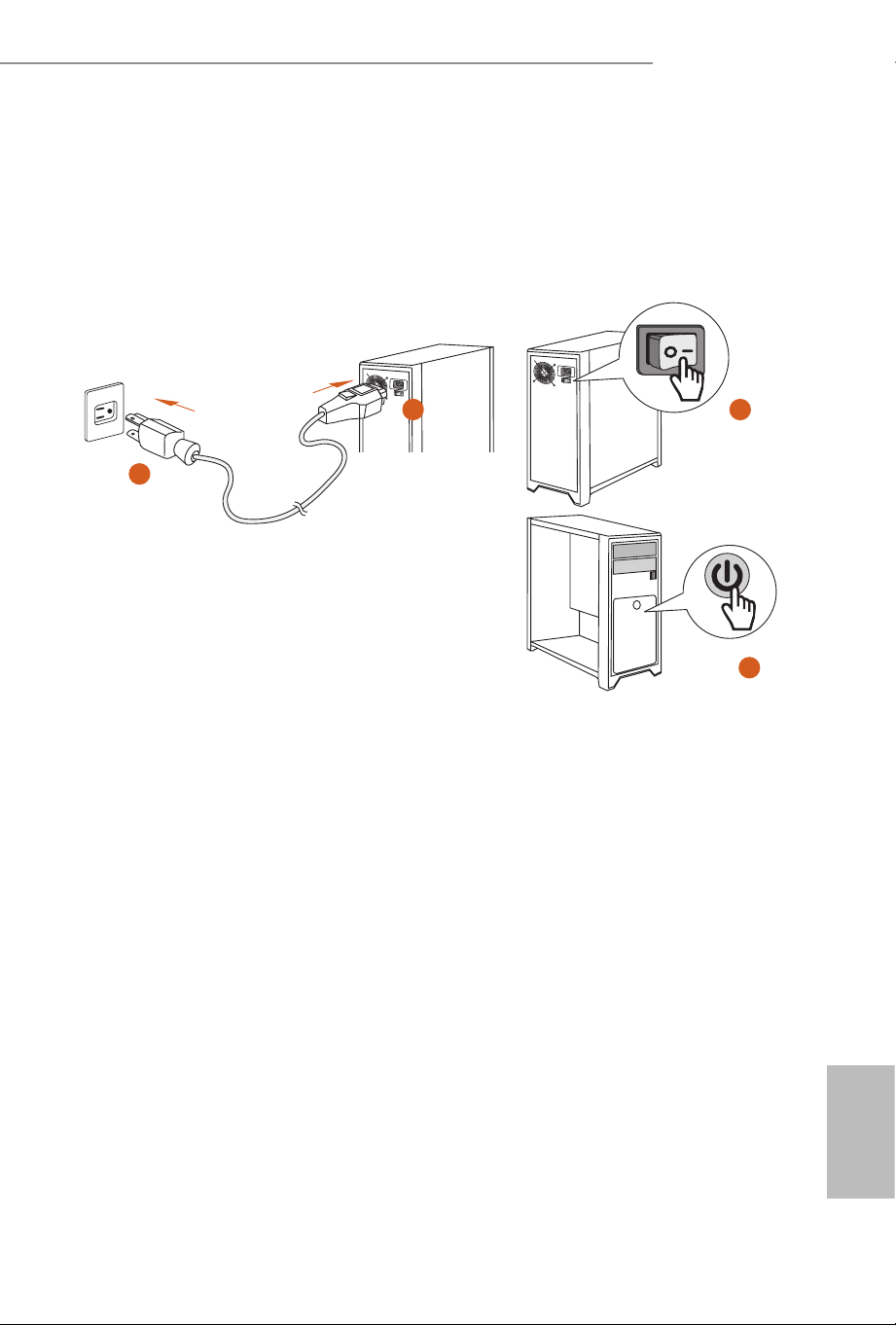
2.10 Power On
2
3
4
1
English
30
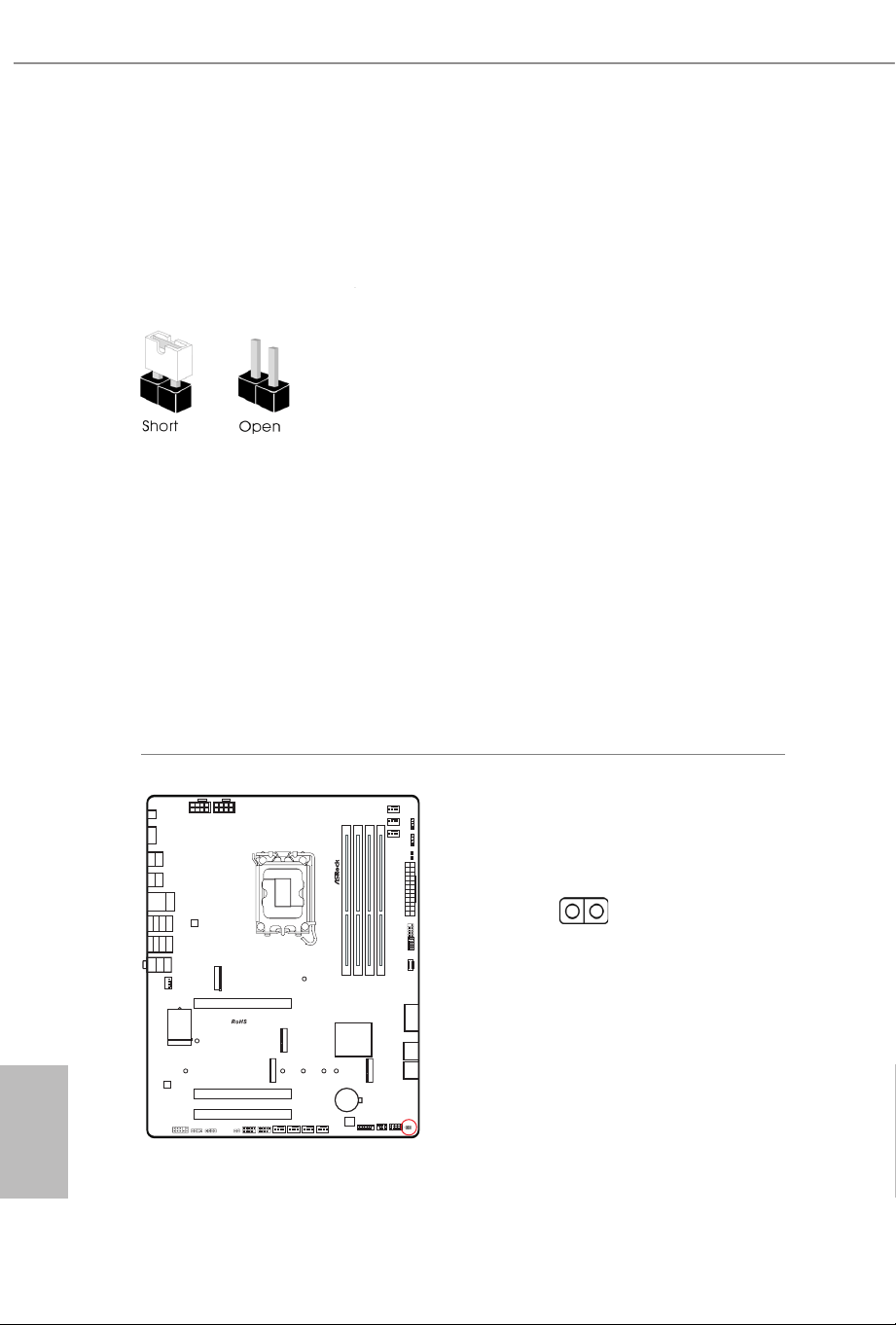
2.11 Jumpers Setup
e illustration shows how jumpers are setup. When the jumper cap is placed on
the pins, the jumper is “Short”. If no jumper cap is placed on the pins, the jumper is
“Open”.
Clear CMOS Jumper
(CLRMOS1) (see p.7, No. 17)
CLRMOS1 allows you to clear the data in CMOS. e data in CMOS includes
system setup information such as system password, date, time, and system setup
parameters. To clear and reset the system parameters to default setup, please turn
o the computer and unplug the power cord, then use a jumper cap to short the
pins on CLRMOS1 for 3 seconds. Please remember to remove the jumper cap aer
clearing the CMOS. If you need to clear the CMOS when you just nish updating
the BIOS, you must boot up the system rst, and then shut it down before you do
the clear-CMOS action.
CLRMOS1
2-pin Jumper
Short: Clear CMOS
Open: Default
English
31
Z890 LiveMixer WiFi
Short: Clear CMOS
Open: Default
2.12 Onboard Headers and Connectors
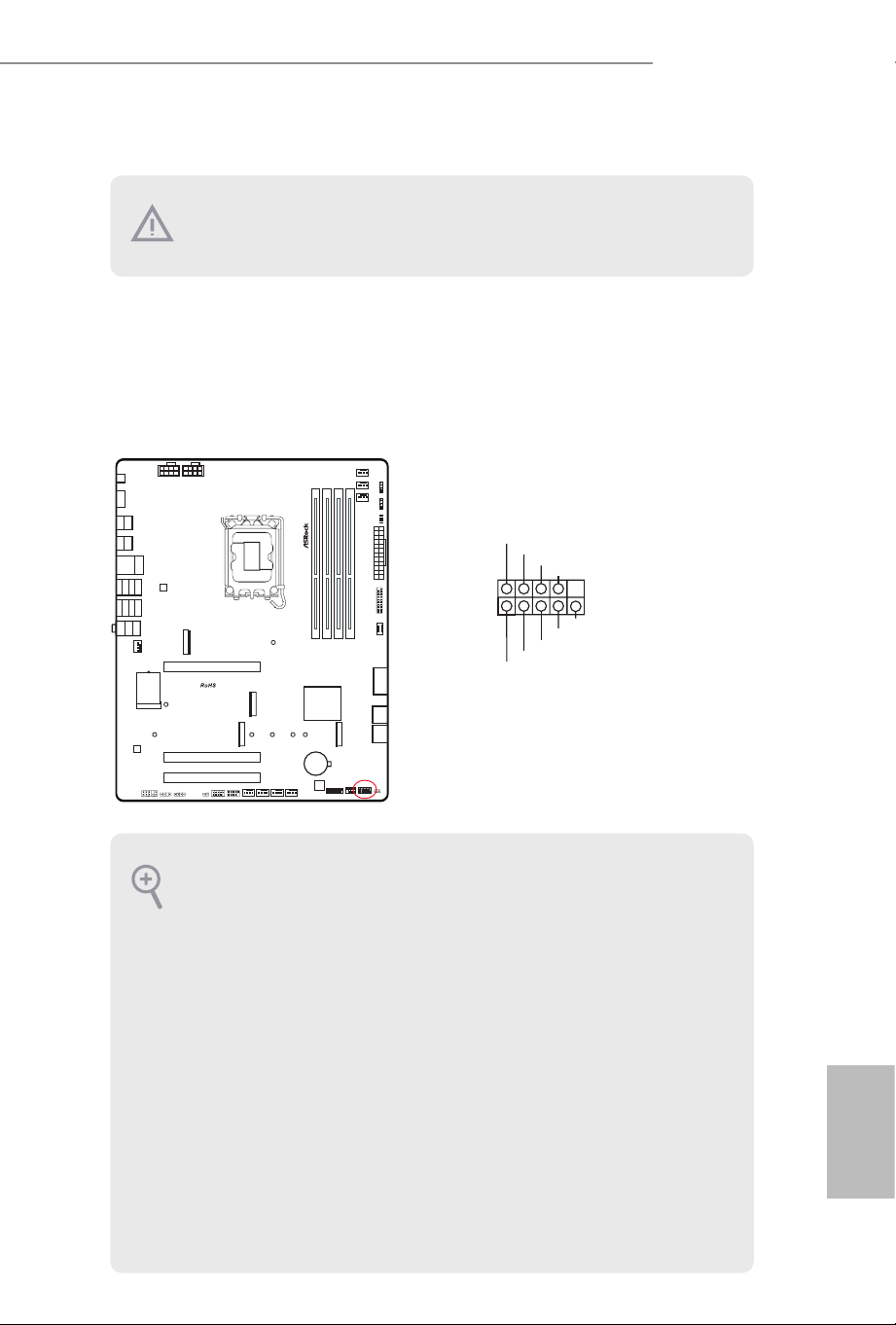
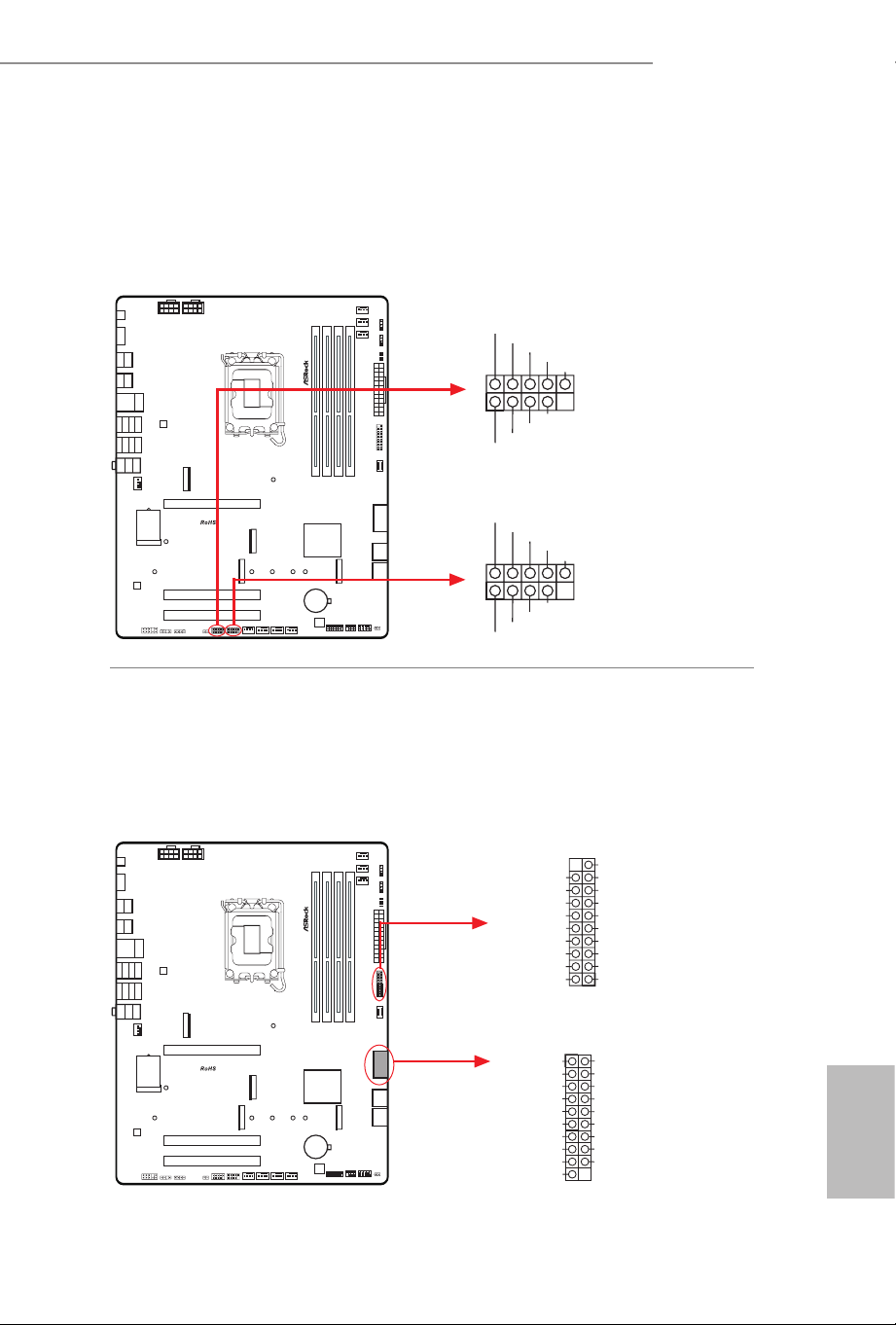
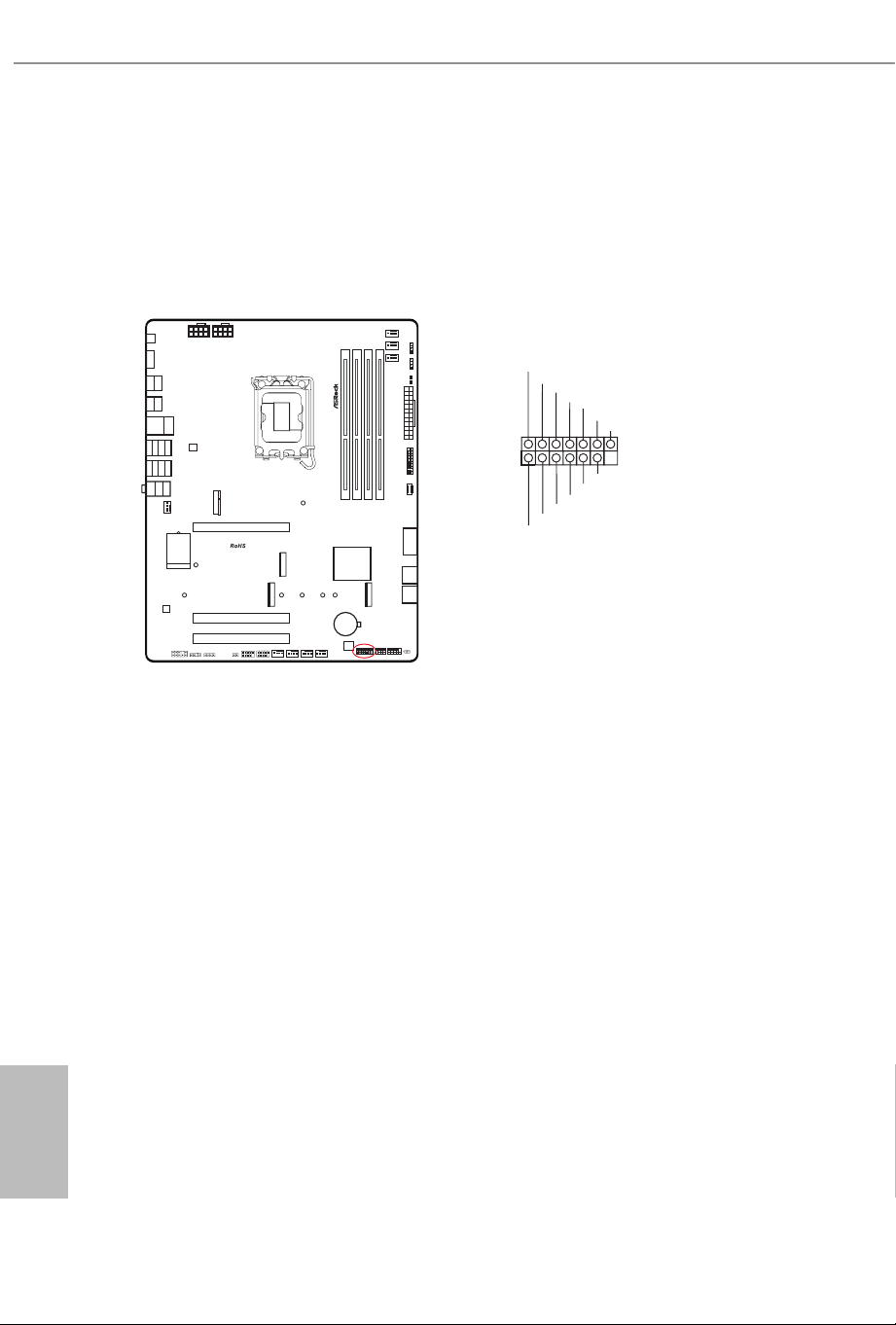
System Panel Header
(9-pin PANEL1) (see p.7, No. 18)
Connect the power button, reset button and system status indicator on the chassis
to this header according to the pin assignments below. Note the positive and
negative pins before connecting the cables.
GND
R ESET#
P WRBTN#
P LED-
P LED+
GND
H DLED-
H DLED+
1
GND
PANEL1
Onboard headers and connectors are NOT jumpers. Do NOT place jumper caps over
these headers and connectors. Placing jumper caps over the headers and connectors
will cause permanent damage to the motherboard.
PWRBTN (Power Button):
Connect to the power button on the chassis front panel. You may congure the way
to turn o your system using the power button.
RESET (Reset Button):
Connect to the reset button on the chassis front panel. Press the reset button to
restart the computer if the computer freezes and fails to perform a normal restart.
PLED (System Power LED):
Connect to the power status indicator on the chassis front panel. e LED is on when
the system is operating. e LED keeps blinking when the system is in S1/S3 sleep
state. e LED is o when the system is in S4 sleep state or powered o (S5).
HDLED (Hard Drive Activity LED):
Connect to the hard drive activity LED on the chassis front panel. e LED is on
when the hard drive is reading or writing data.
e front panel design may dier by chassis. A front panel module mainly consists
of power button, reset button, power LED, hard drive activity LED, speaker and etc.
When connecting your chassis front panel module to this header, make sure the wire
assignments and the pin assignments are matched correctly.
English
32
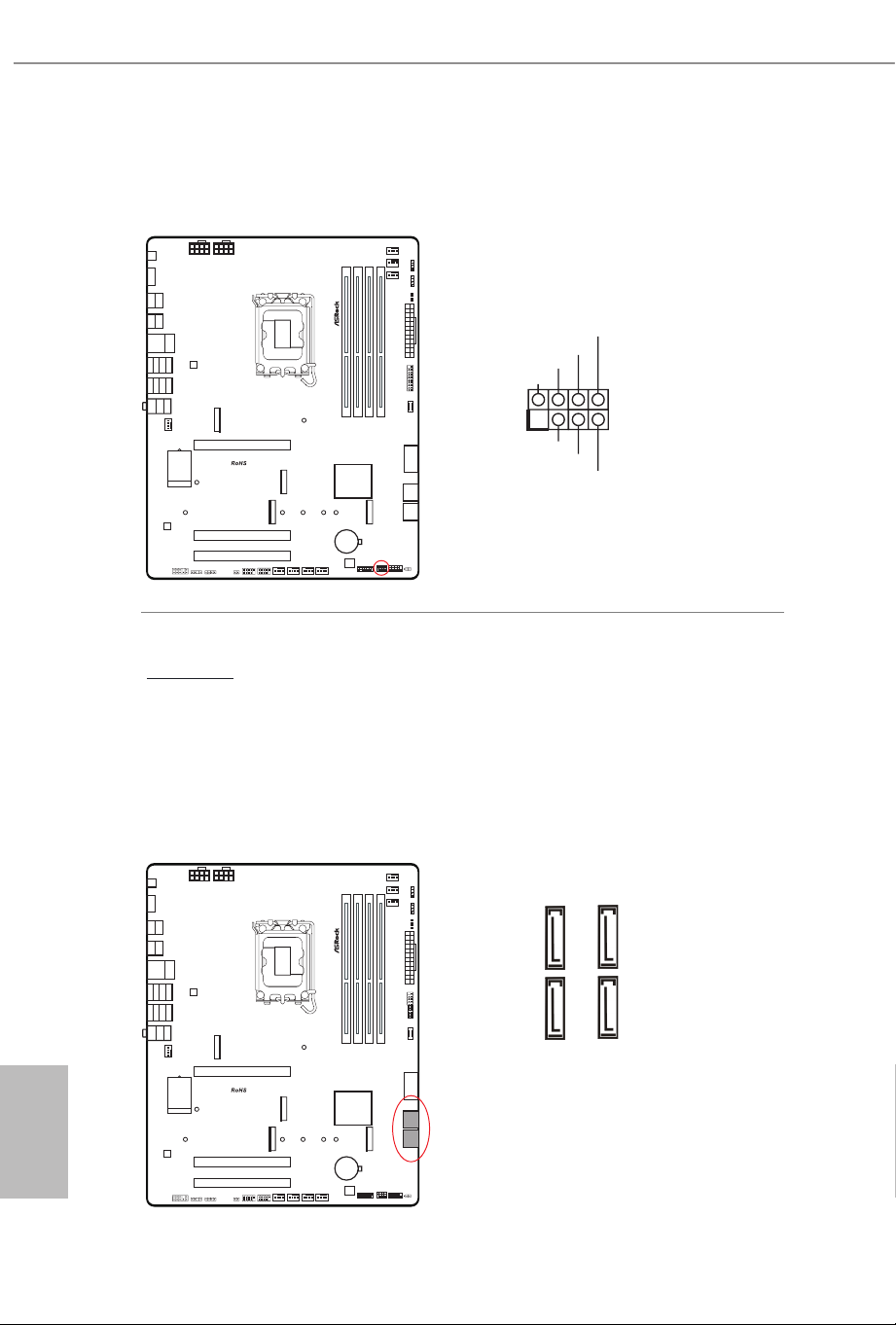
Power LED and Speaker Header
(7-pin SPK_PLED1) (see p.7, No. 19)
Please connect the chassis power LED and the chassis speaker to this header.
Serial ATA3 Connectors
Right Angle:
(SATA3_0) (see p.7, No. 16) (Upper)
(SATA3_1) (see p.7, No. 16) (Lower)
(SATA3_2) (see p.7, No. 15) (Upper)
(SATA3_3) (see p.7, No. 15) (Lower)
ese four SATA3 connectors support SATA data cables for internal storage
devices with up to 6.0 Gb/s data transfer rate.
1
+5V
DUMMY
PLED+
PLED+
PLED-
DUMMY
SPEAKER
SPK_PLED1
SATA3_1 SATA3_3
SATA3_0 SATA3_2
English
33
Z890 LiveMixer WiFi
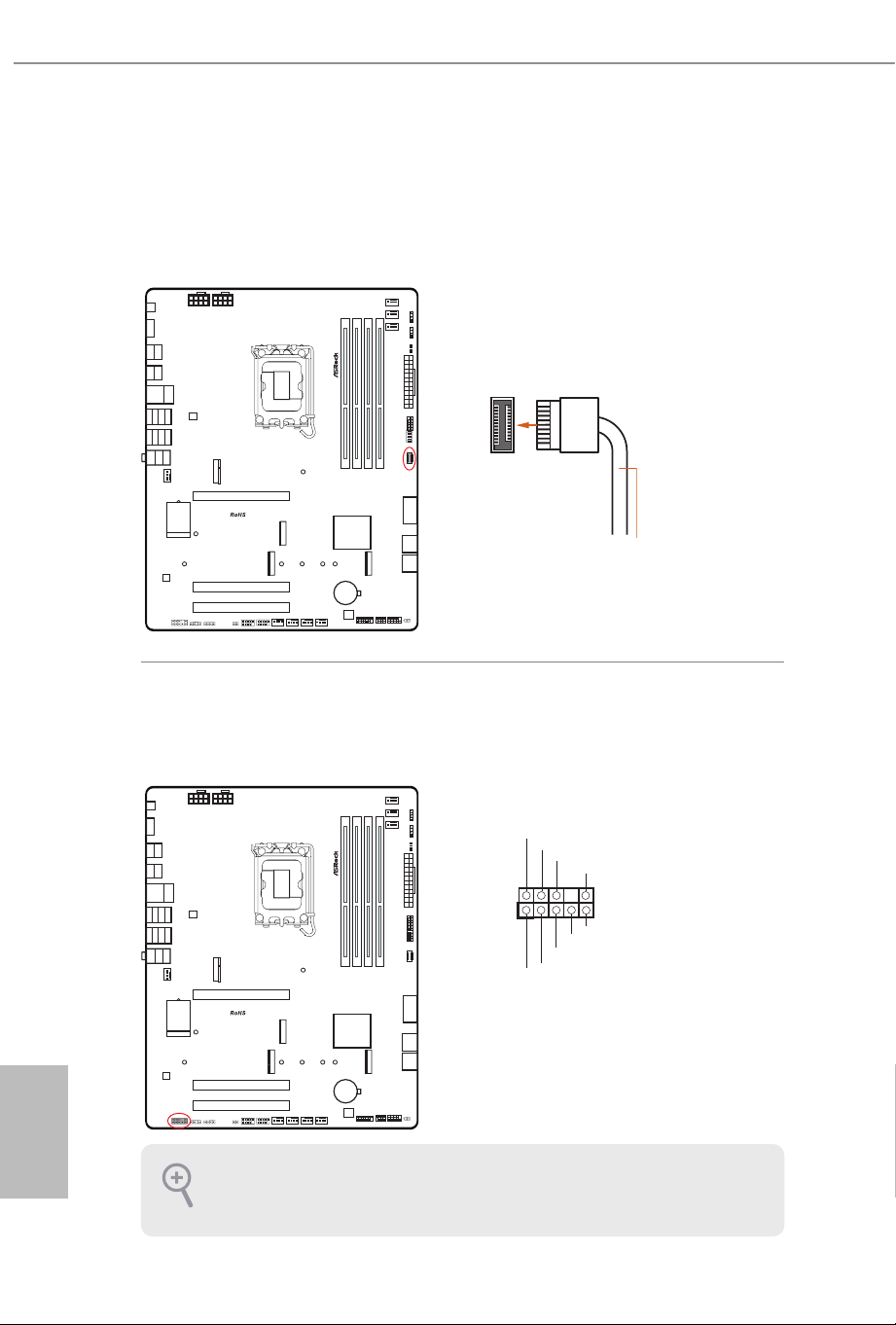
USB 2.0 Headers
(9-pin USB_1_2) (see p.7, No. 26)
(9-pin USB_3_4) (see p.7, No. 25)
ere are two headers on this motherboard. Each USB 2.0 header can support
two ports.
USB 3.2 Gen1 Headers
(19-pin USB32_13_14) (see p.7, No. 12)
(19-pin USB32_15_16) (see p.7, No. 14)
ere are two headers on this motherboard. Each USB 3.2 Gen1 header can
support two ports.
USB_1_2
USB_3_4
DUMMY
G ND
G ND
+B
-B
USB_PWR
+A
-A
USB_PWR
1
DUMMY
G ND
G ND
+B
-B
USB_PWR
+A
-A
USB_PWR
1
1
IntA _P B_ D+
Dumm y
IntA _P B_ D-
GND
IntA _P B_ SSTX+
GND
IntA _P B_ SSTX-
IntA _P B_ SSRX+
IntA _P B_ SSRX-
VbusVbus
Vbus
IntA_PA_SSRX-
IntA_PA_SSRX+
GND
IntA_PA_SSTX-
IntA_PA_SSTX+
GND
IntA_PA_D-
IntA_PA_D+
USB32_13_14
USB32_15_16
1
IntA_P B_ D+
Dummy
IntA_P B_ D-
GND
IntA_P B_ SS TX+
GND
IntA_P B_ SS TX-
IntA_P B_ SS RX+
IntA_P B_ SS RX-
Vbus
Vbus
IntA_PA_SSRX-
IntA_PA_SSRX+
GND
IntA_PA_SSTX-
IntA_PA_SSTX+
GND
IntA_PA_D-
IntA_PA_D+
English
34
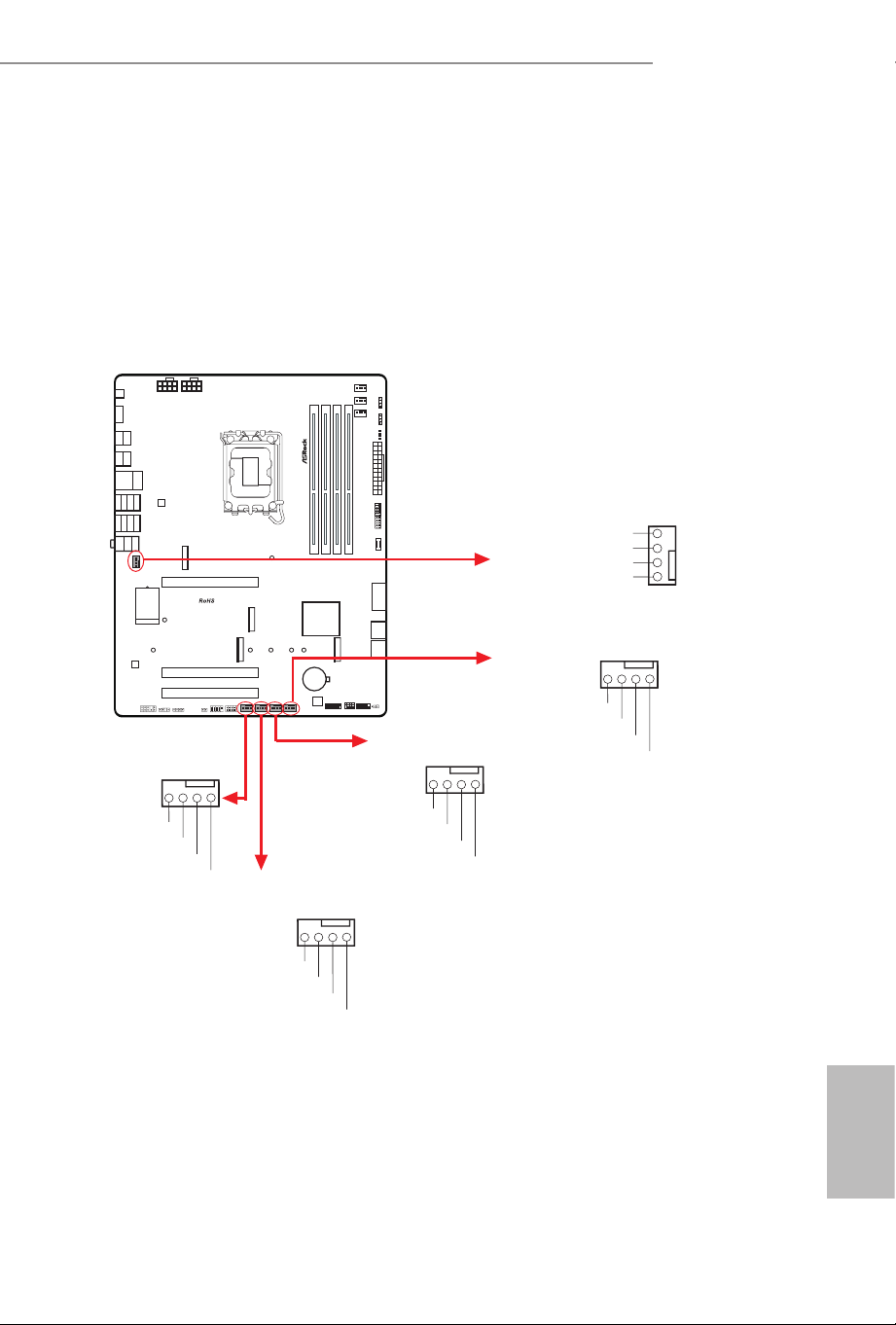
Front Panel Type C USB 3.2 Gen2x2 Header
(20-pin F_USB32_TC1) (see p.7, No. 13)
ere is one Front Panel Type C USB 3.2 Gen2x2 Header on this motherboard.
is header is used for connecting a USB 3.2 Gen2x2 module for additional USB 3.2
Gen2x2 ports.
Front Panel Audio Header
(9-pin HD_AUDIO1) (see p.7, No. 30)
is header is for connecting audio devices to the front audio panel.
F_USB32_TC1
USB Type-C Cable
HD_AUDIO1
High Denition Audio supports Jack Sensing, but the panel wire on the chassis must
support HDA to function correctly. Please follow the instructions in our manual and
chassis manual to install your system.
J _SENSE
O UT2_L
1
M IC_RET
P RESENCE #
GND
O UT2_R
M IC2_R
M IC2_L
OUT_RET
English
35
Z890 LiveMixer WiFi
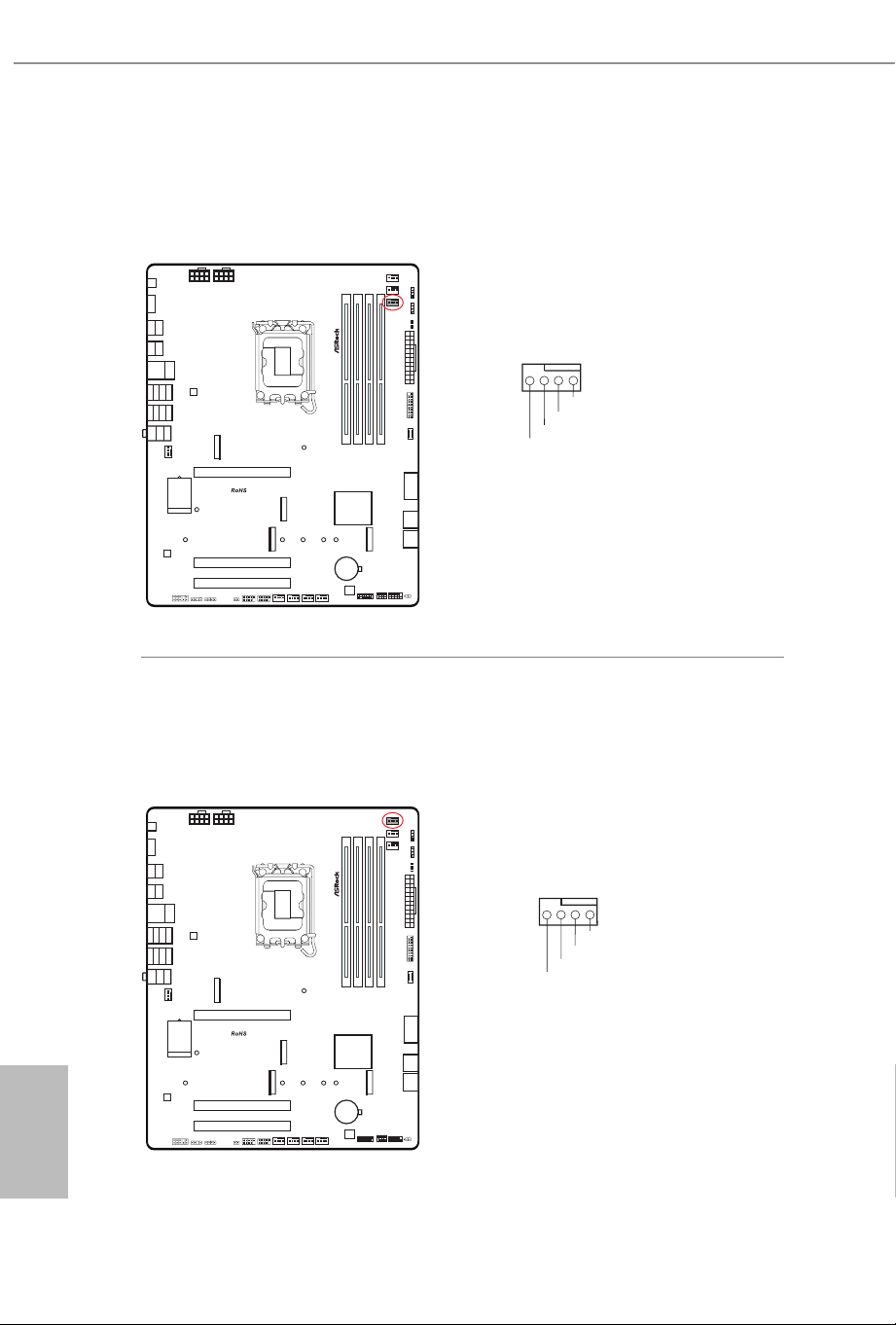
Chassis Fan Connectors
(4-pin CHA_FAN1) (see p.7, No. 21)
(4-pin CHA_FAN2) (see p.7, No. 22)
(4-pin CHA_FAN3) (see p.7, No. 23)
(4-pin CHA_FAN4) (see p.7, No. 24)
(4-pin CHA_FAN5) (see p.7, No. 31)
is header allows you to connect Case or Radiator fan. If you plan to connect a
3-pin fan, please connect it to Pin 1-3.
CHA_FAN1
CHA_FAN5
GND
FAN_VOLTAGE
CHA_FA N_SPEED
FAN_SP EED_CONTROL
4
3
2
1
GND
FAN_VOL TAGE
CHA_FAN_SPEED
FAN_SPEED_CONTR O L
4 3 2 1
CHA_FAN2
GND
FAN_VOL TAGE
CHA_FAN_SPEED
FAN_SPEED_CONTR O L
4 3 2 1
CHA_FAN3
GND
FAN_VOL TAGE
CHA_FAN_SPEED
FAN_SPEED_CONTR O L
4 3 2 1
CHA_FAN4
GND
FAN_VOL TAGE
CHA_FAN_SPEED
FAN_SPEED_CONTR O L
4 3 2 1
English
36
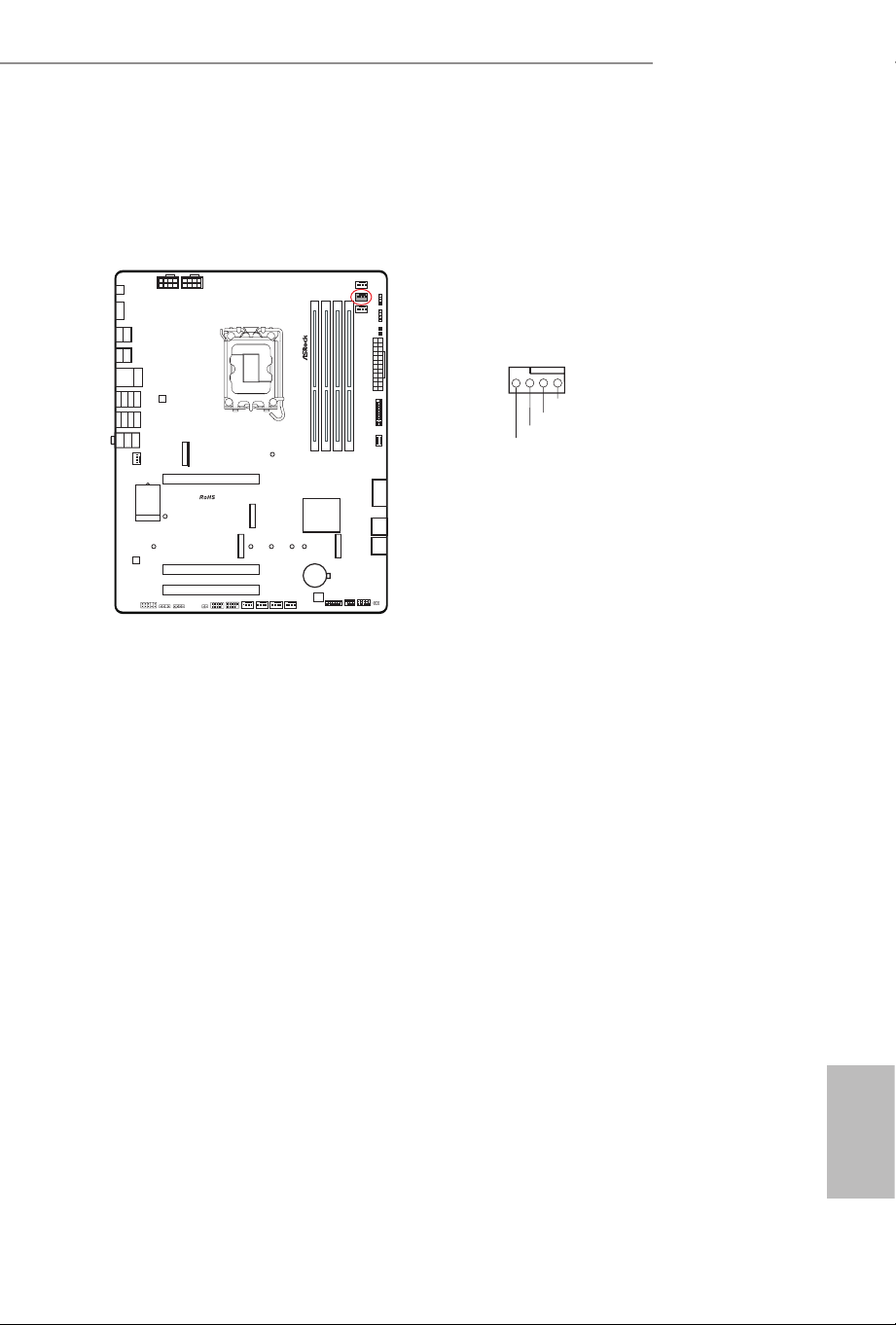
CPU Fan Connector
(4-pin CPU_FAN1) (see p.7, No. 8)
is header allows you to connect CPU fan. If you plan to connect a 3-pin fan,
please connect it to Pin 1-3.
CPU Fan Connector
(4-pin CPU_FAN2) (see p.7, No. 5)
is header allows you to connect CPU fan or Water Pump. If you plan to connect
a 3-pin fan, please connect it to Pin 1-3.
CPU_FAN1
CPU_FAN2
CPU_F
FAN_VOLTAGE
GND
AN_SPEED
FAN_SPEED_CONTROL
4 3 2 1
CPU_F
+12V
GND
AN_SPEED
FAN_SPEED_CON TROL
4 3 2 1
English
37
Z890 LiveMixer WiFi
AIO Pump Fan Connector
(4-pin AIO_PUMP) (see p.7, No. 6)
is header allows you to connect AIO (All-in-One) pump or fan. If you plan to
connect a 3-pin AIO cooler fan, please connect it to Pin 1-3.
AIO_PUMP
FAN_ VOLTAGE
GND
AIO_PUMP_SP EED
FAN_SPEED_CO NTROL
4 3 2 1
English
38
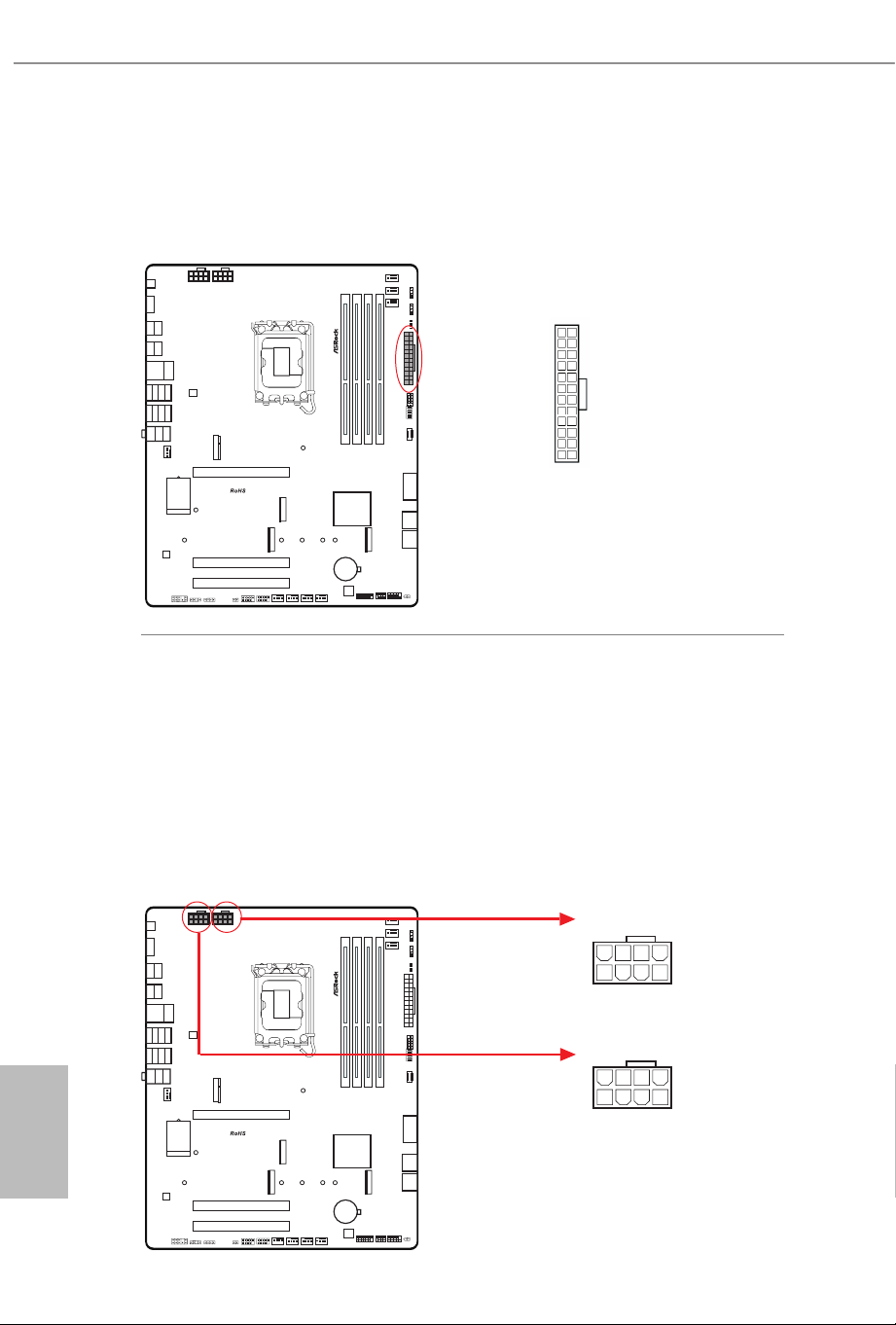
ATX Power Connector
(24-pin ATXPWR1) (see p.7, No. 11)
is motherboard provides a 24-pin ATX power connector. To use a 20-pin ATX
power supply, please plug it along Pin 1 and Pin 13.
ATX 12V Power Connectors
(8-pin ATX12V1) (see p.7, No. 1)
(8-pin ATX12V2) (see p.7, No. 2)
is motherboard provides two 8-pin ATX 12V power connectors. To use a 4-pin
ATX power supply, please plug it along Pin 1 and Pin 5.
*Connecting an ATX 12V 8-pin cable to ATX12V2 is optional.
*Warning: Please make sure that the power cable connected is for the CPU and
not the graphics card. Do not plug the PCIe power cable to this
connector.
ATXPWR1
12
1
24
13
ATX12V2
4
1
8 5
ATX12V1
4
1
8 5
English
39
Z890 LiveMixer WiFi
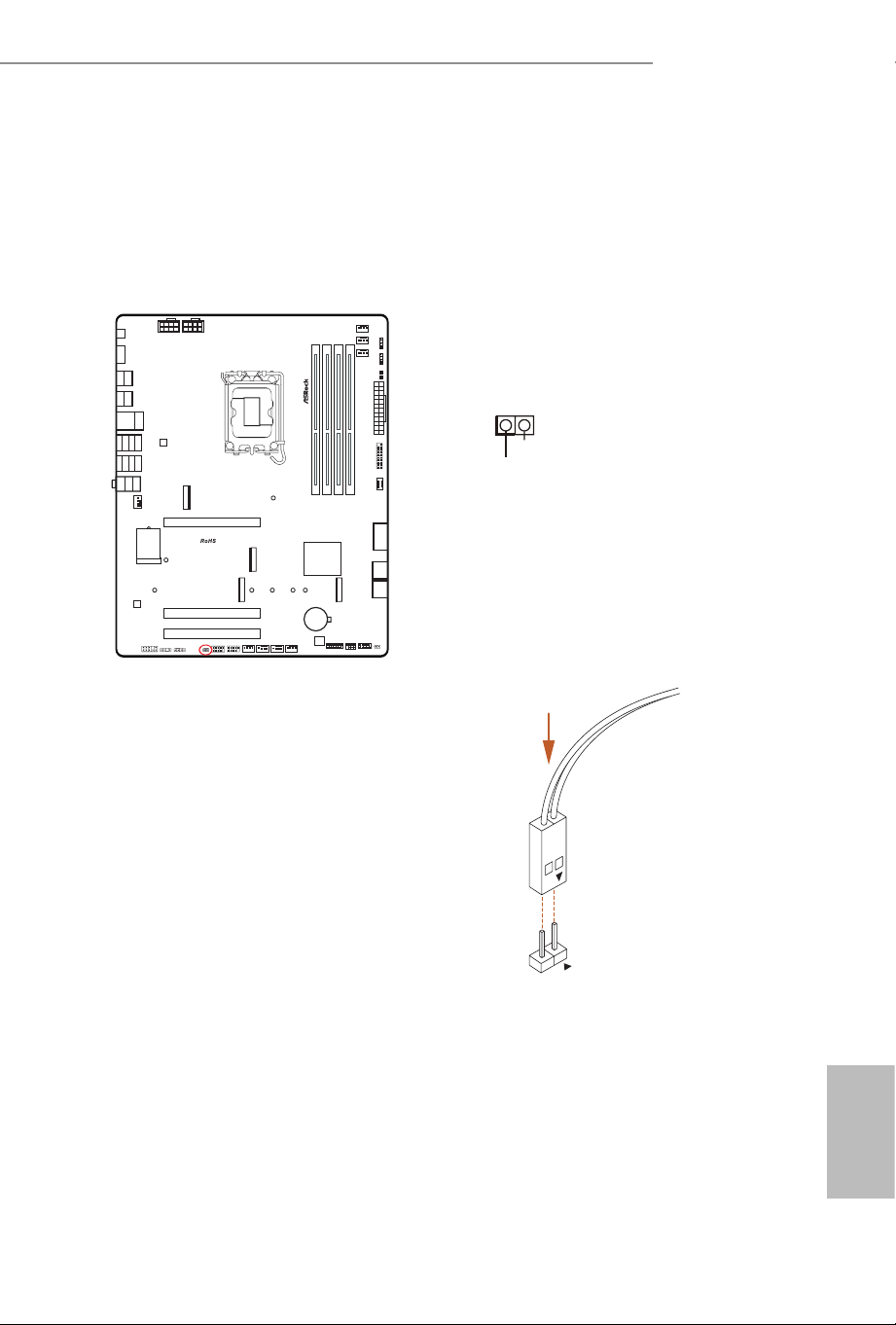
ermistor Cable Header
(2-pin T_SENSOR1) (see p.7, No. 27)
e ermistor Cable Headers are used to connect thermistor cables to monitor the
temperature of the critical components. Plug the thermistor cables that come with the
package to these headers, and then attach the sensor ends to the components to detect
their temperature.
T_SENSOR1
Connect your ermistor Cables to the
ermistor Cable Header (T_SENSOR1)
on
the motherboard.
T_
S
E
N
SOR
SENSOR IN
GND
1
English
40
SPI TPM Header
(13-pin SPI_TPM_J1) (see p.7, No. 20)
is connector supports SPI Trusted Platform Module (TPM) system, which can
securely store keys, digital certicates, passwords, and data. A TPM system also
helps enhance network security, protects digital identities, and ensures platform
integrity.
SPI_TPM_J1
1
SPI _ DQ3
SPI _ PWR
SPI _ DQ2
SPI _ CS0
Dum m y
CLK
SPI _ MISO
SPI _ MOSI
GND
SPI _ TPM_CS #
RST #
RSM R ST#
TPM _ PIRQ
English
41
Z890 LiveMixer WiFi
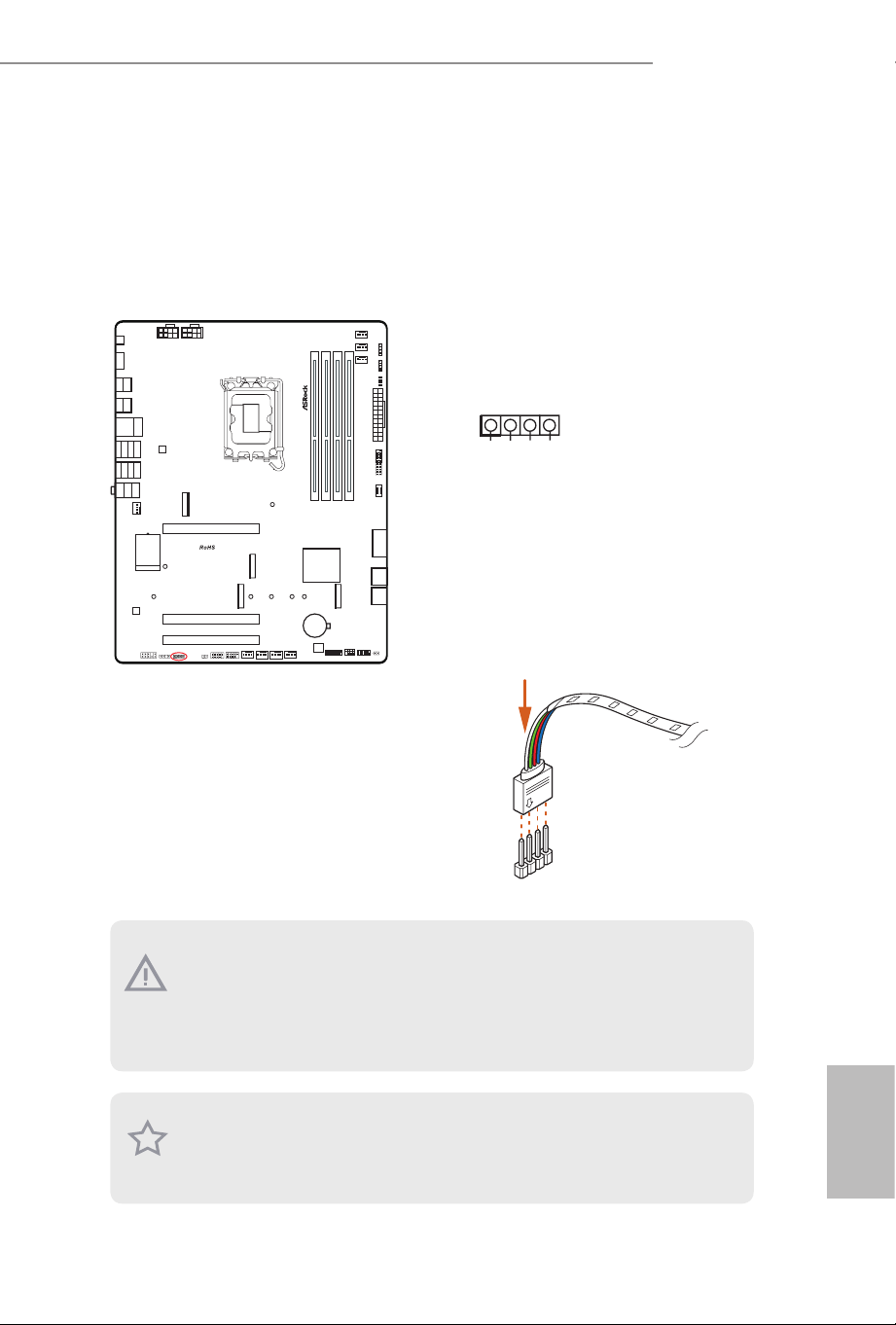
RGB LED Header
(4-pin RGB_LED1) (see p.7, No. 28)
is RGB header is used to connect RGB LED extension cable which allow users to
choose from various LED lighting eects.
Caution: Never install the RGB LED cable in the wrong orientation; otherwise, the
cable may be damaged.
1. Never install the RGB LED cable in the wrong orientation; otherwise, the cable
may be damaged.
2. Before installing or removing your RGB LED cable, please power o your system
and unplug the power cord from the power supply. Failure to do so may cause dam-
ages to motherboard components.
1. Please note that the RGB LED strips do not come with the package.
2. e RGB LED header supports standard 5050 RGB LED strip (12V/G/R/B), with a
maximum power rating of 3A (12V) and length within 2 meters.
1
2
V
G
R
B
1
RGB_LED1
+12V G R B
1
Connect your RGB LED strip to the
RGB
LED Header
(
RGB_LED1)
on the mother-
board.
English
42
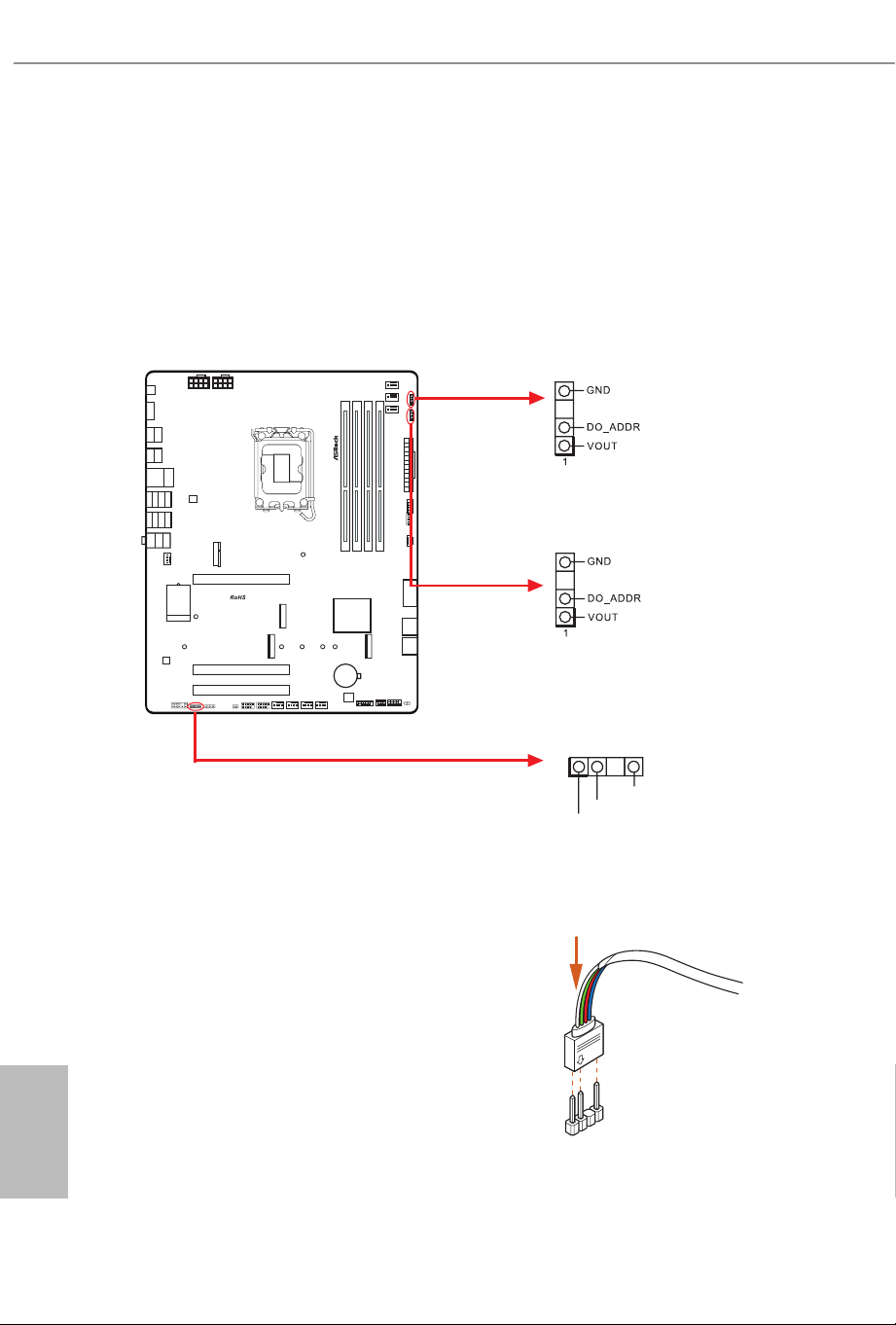
ADDR_LED3
ADDR_LED2
Addressable LED Headers
(3-pin ADDR_LED1) (see p.7, No. 29)
(3-pin ADDR_LED2) (see p.7, No. 9)
(3-pin ADDR_LED3) (see p.7, No. 7)
ese headers are used to connect
Addressable
LED extension cables which allow users
to choose from various LED lighting eects.
Caution: Never install the Addressable LED cable in the wrong orientation; otherwise,
the cable may be damaged.
1
Connect your
Addressable RGB LED
strips
to the
Addressable LED Headers (ADDR_
LED1 / ADDR_LED2 / ADDR_LED3)
on
the motherboard.
VOUT
DO_ADDR
GND
1
ADDR_LED1

English
43
Z890 LiveMixer WiFi
1. Never install the Addressable LED cable in the wrong orientation; otherwise, the
cable may be damaged.
2. Before installing or removing your Addressable LED cable, please power o your
system and unplug the power cord from the power supply. Failure to do so may
cause damages to motherboard components.
1. Please note that the Addressable LED strips do not come with the package.
2. e Addressable LED header supports WS2812B addressable RGB LED strip (5V/
Data/GND), with a maximum power rating of 3A (5V) and length within 2 meters.
English
44
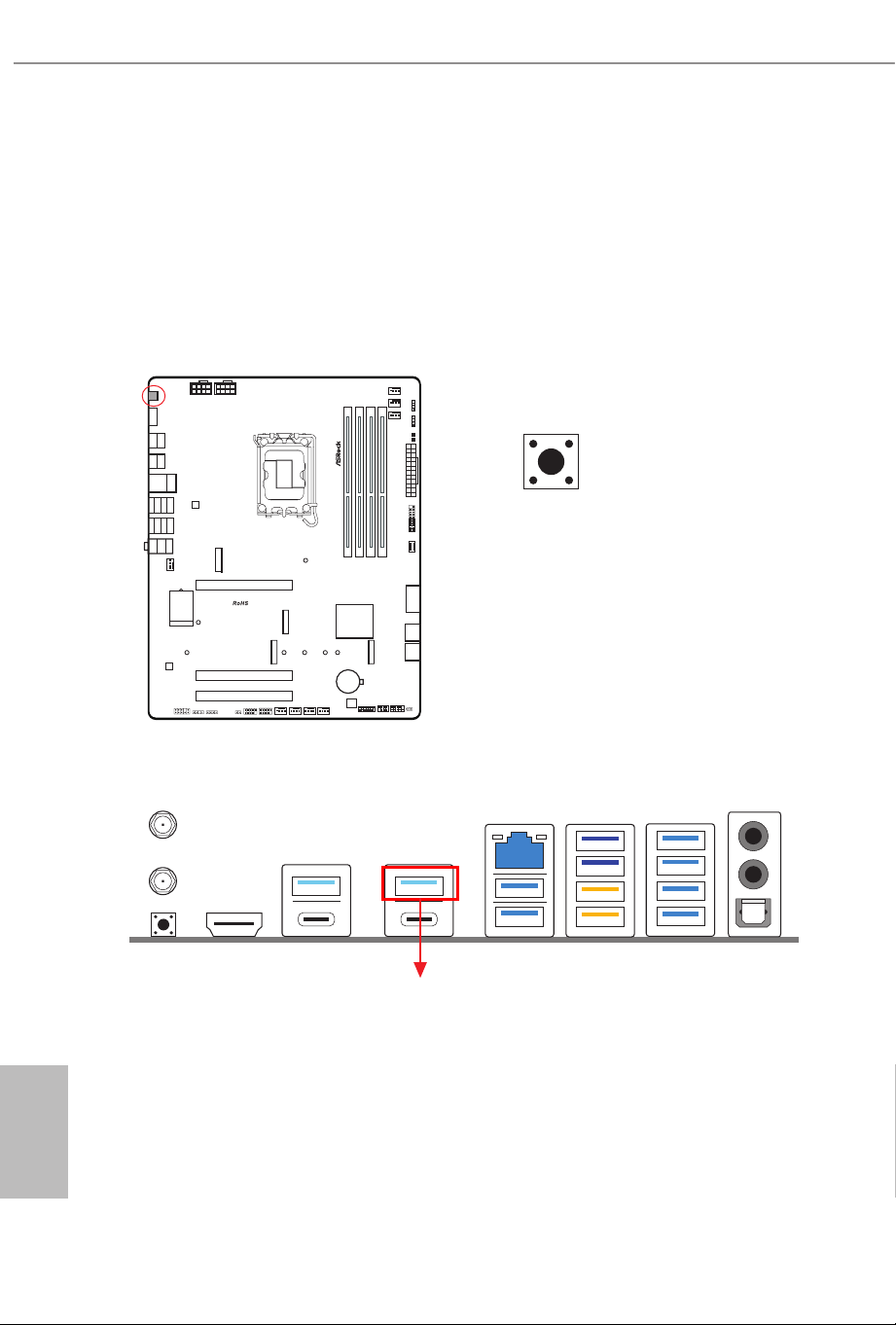
2.13 Smart Switches
e motherboard has one smart switch: BIOS Flashback Button, allowing users to
ash the BIOS.
BIOS Flashback Button
(BIOS_FB1) (see p.9, No. 15)
BIOS Flashback Button allows users to ash the BIOS.
BIOS_FB1
USB BIOS Flashback port

English
45
Z890 LiveMixer WiFi
ASRock BIOS Flashback feature allows you to update BIOS without powering on the system,
even without CPU.
To use the USB BIOS Flashback function, Please follow the steps below.
1. Download the latest BIOS le from ASRock's website : http://www.asrock.com.
2. Copy the BIOS le to your USB ash drive. Please make sure the le system of your USB
ash drive must be FAT32.
3. Extract BIOS le from the zip le.
4. Rename the le to “creative.rom” and save it to the root directory of X: USB ash drive.
5. Plug the 24-pin power connector to the motherboard. en turn on the power supply's AC
switch.
*ere is no need to power on the system.
6. en plug your USB drive to the USB BIOS Flashback port.
7. Press the BIOS Flashback Switch for about three seconds. en the LED starts to blink.
8. Wait until the LED stops blinking, indicating that BIOS ashing has been completed.
*If the LED light turns solid green, this means that the BIOS Flashback is not operating
properly. Please make sure that you plug the USB drive to the USB BIOS Flashback port.
**If the LED does not light up at all, then please disconnect power from the system
and remove/disconnect the CMOS battery from the motherboard for several minutes.
Reconnect power and battery and try again.
9. Aer BIOS ashing is complete, turn o the PC power supply for about two minutes.
10. en turn on the PC power supply again and now you can press the power button to power
on the system.
Before using the BIOS Flashback function, please suspend BitLocker and any encryp-
tion or security relying on the TPM. Make sure that you have already stored and
backup-ed the recovery key. If the recovery key is missing while encryption is active,
the data will stay encrypted and the system will not boot into the operating system. It
is recommended to disable fTPM before updating the BIOS. Otherwise an unpredict-
able failure may occur.
English
46
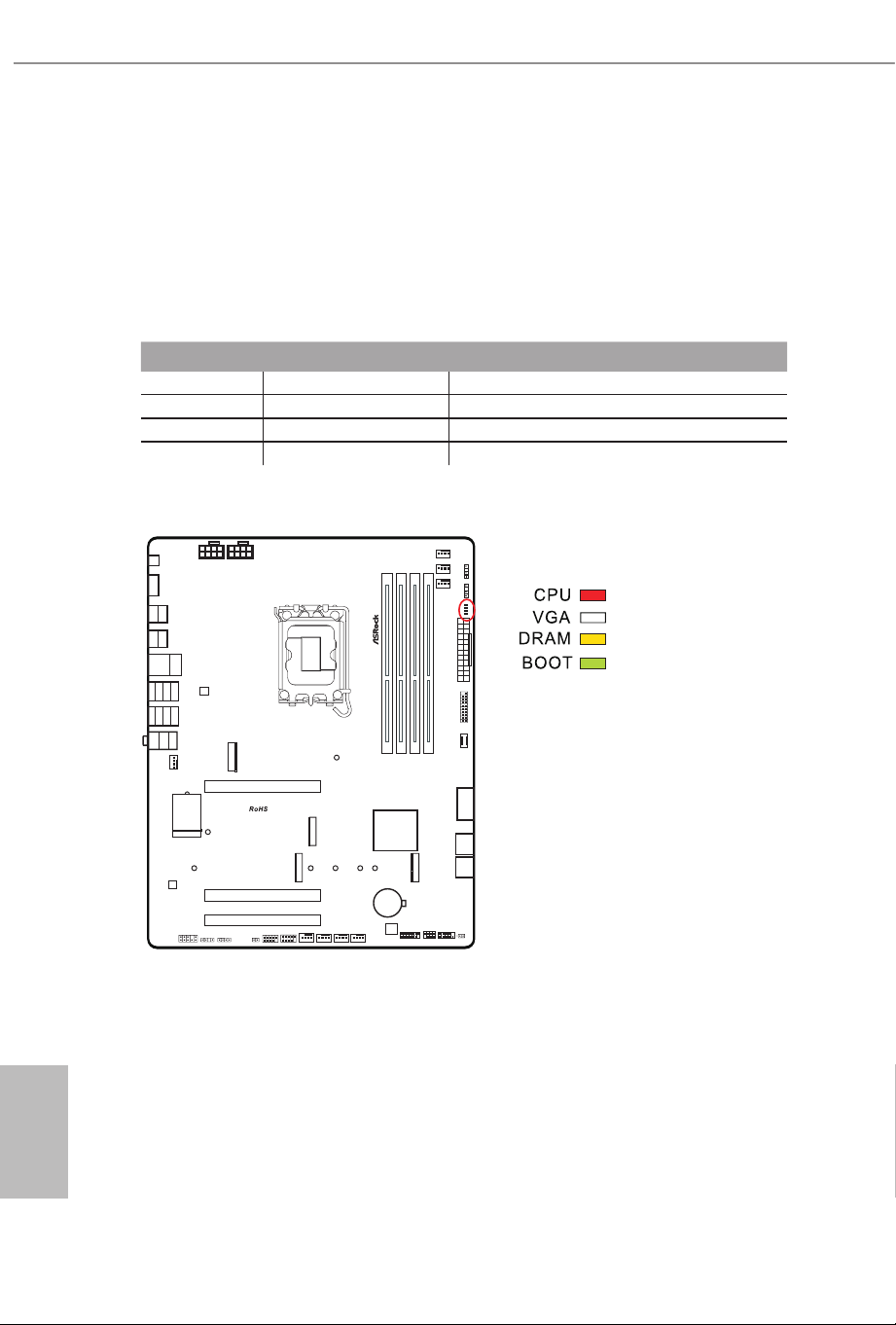
2.14 Post Status Checker
Post Status Checker (PSC) diagnoses the computer when users power on the machine.
e LEDs light up to show what component is running into an issue. ey emit red, yel-
low, white and yellow-green lights to indicate, respectively, the CPU, memory, VGA and
storage are not detected or fail. ey will remain lit until the issue is xed. e lights go
o if the four mentioned above are functioning normally.
Component LED Indicator Status
CPU Solid Red indicates CPU is dysfunctional.
DRAM Solid Yellow indicates DRAM is dysfunctional.
VGA Solid White indicates GPU is dysfunctional.
BOOT Solid Yellow-Green indicates boot device is dysfunctional.
English
47
Z890 LiveMixer WiFi
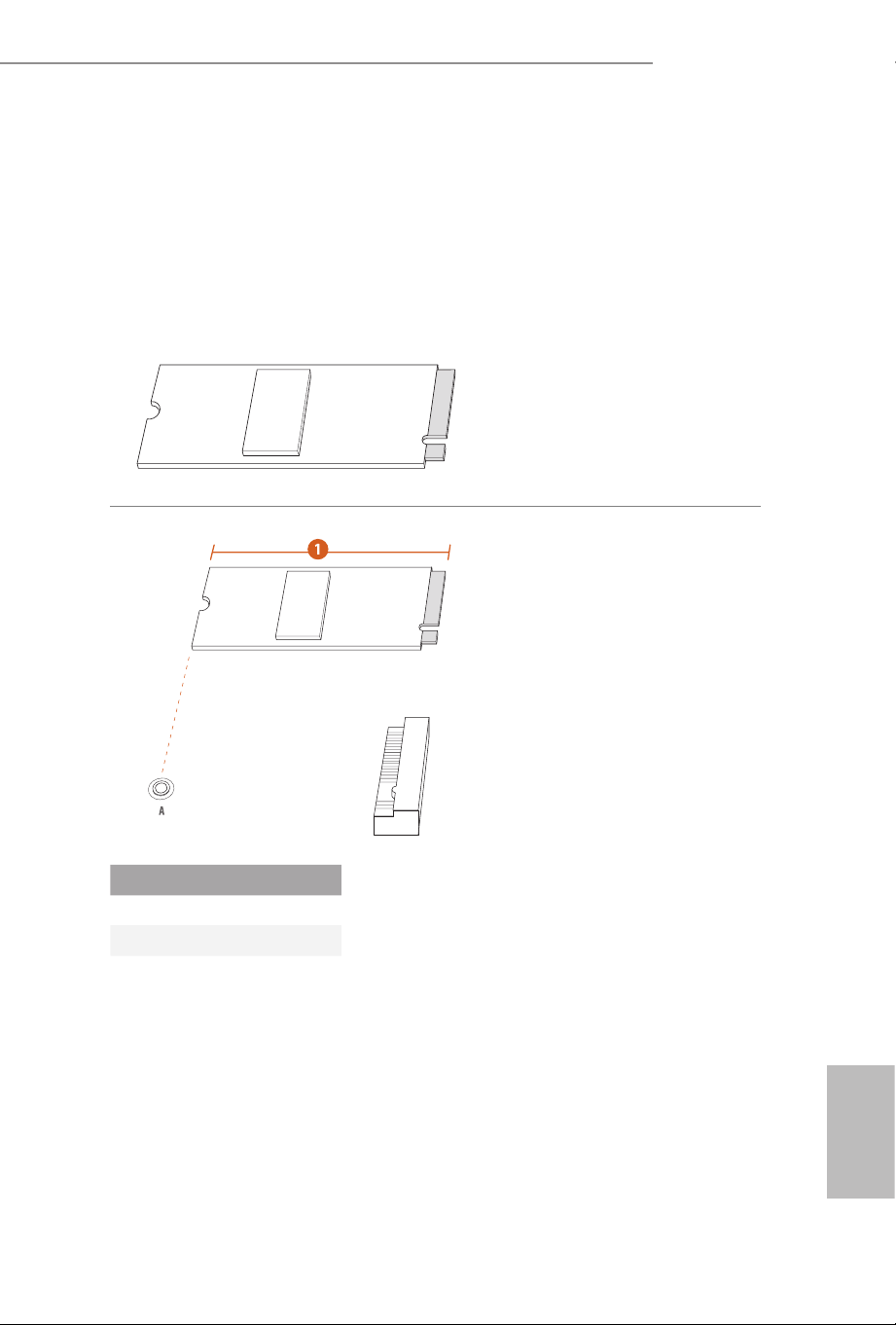
2.15 M.2 SSD Installation Guide (M2_1)
e M.2 is a small size and versatile card edge connector that aims to replace mPCIe and
mSATA. e Blazing M.2 Socket (M2_1, Key M) supports type 2280 PCIe Gen5x4 (128
Gb/s) mode.
Installing the M.2 SSD
Step 1
Prepare a M.2 SSD.
Step 2
Depending on the PCB type and
length of your M.2 SSD, nd the
corresponding nut location to be
used.
No. 1
Nut Location A
PCB Length 8cm
Module Type Type 2280
English
48
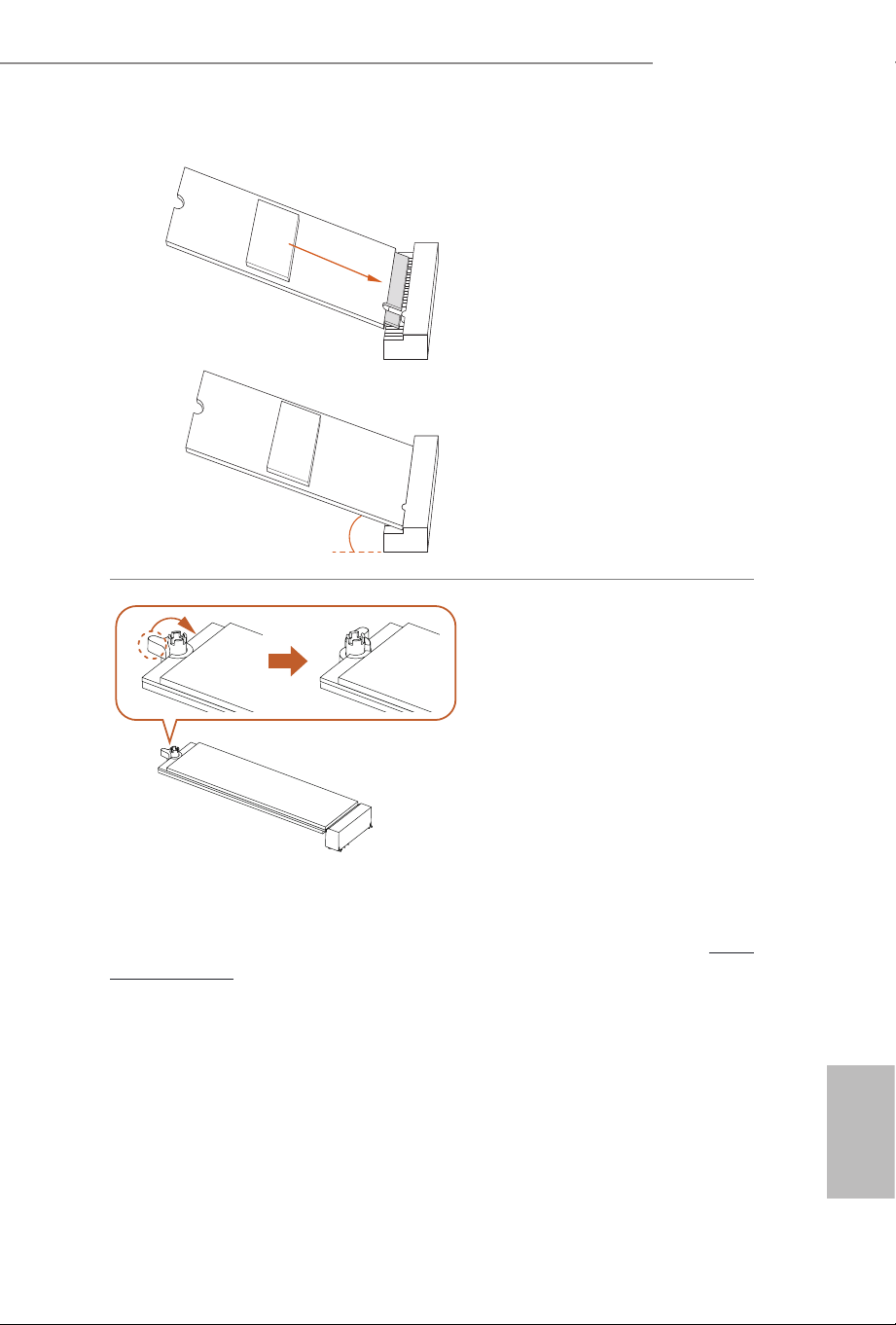
Step 3
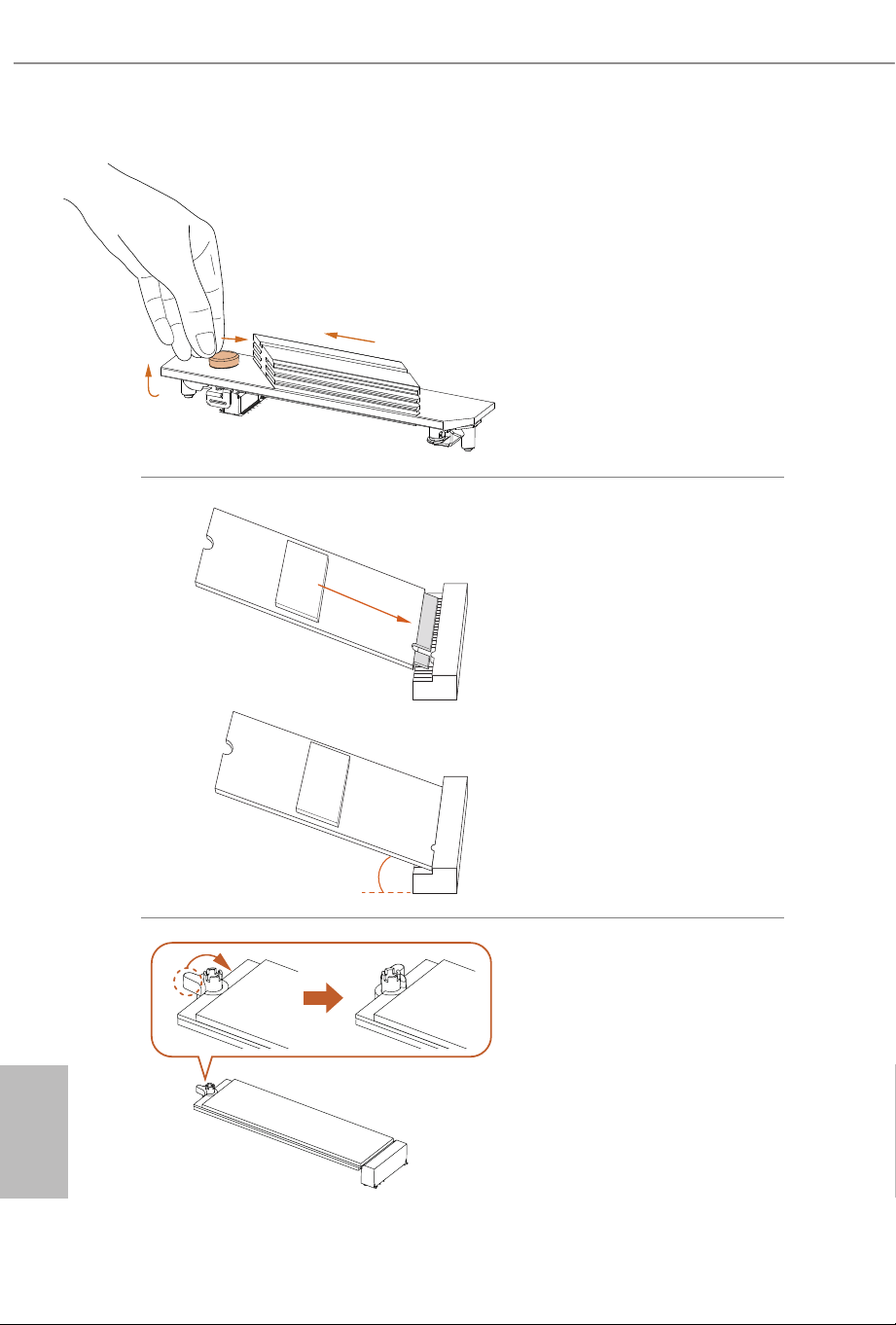
Push the button on the M.2 heatsink
in the direction shown (A). en li
up the heatsink (B) and move it in
the direction shown (C).
*Please remove the protective lms
on the bottom side of the M.2
heatsink before you install a
M.2 SSD.
Step 4
Align and gently insert the M.2 SSD
into the M.2 slot. Please be aware
that the M.2 SSD only ts in one
orientation.
Step 5
Ensure that the notch at the end of
the M.2 SSD aligns with the nut.
en secure the M.2 SSD by turning
the nut lock clockwise to its locked
position.
20
o
C
B
A
English
49
Z890 LiveMixer WiFi
Step 6
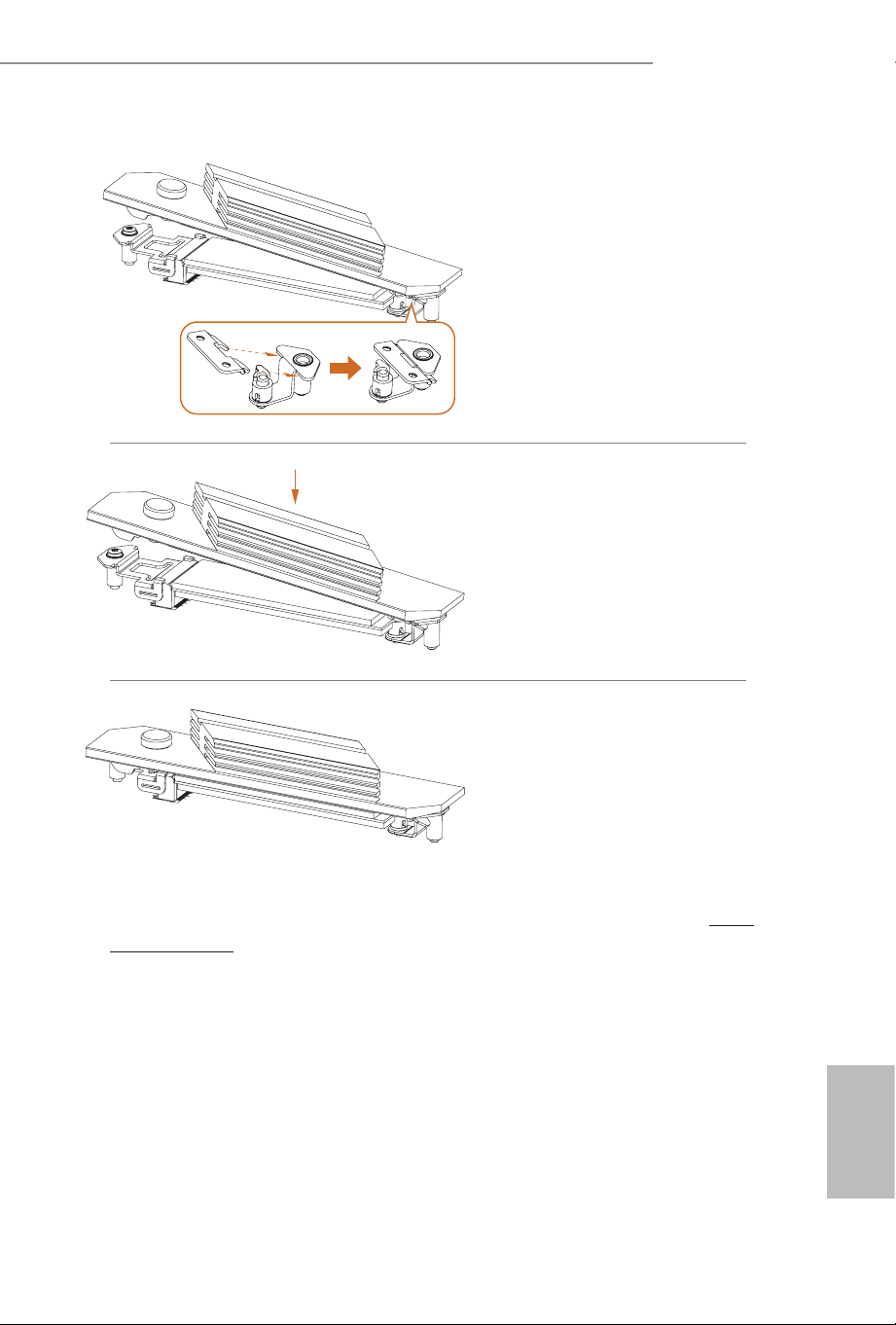
Hook the tab of the M.2 heatsink
back onto the stando.
Step 7
Press the M.2 heatsink down into
place.
*Be sure not to press down the
button on the M.2 heatsink.
Step 8
Complete.
For the latest updates of M.2 SSD support list, please visit our website for details: http://
www.asrock.com
English
50
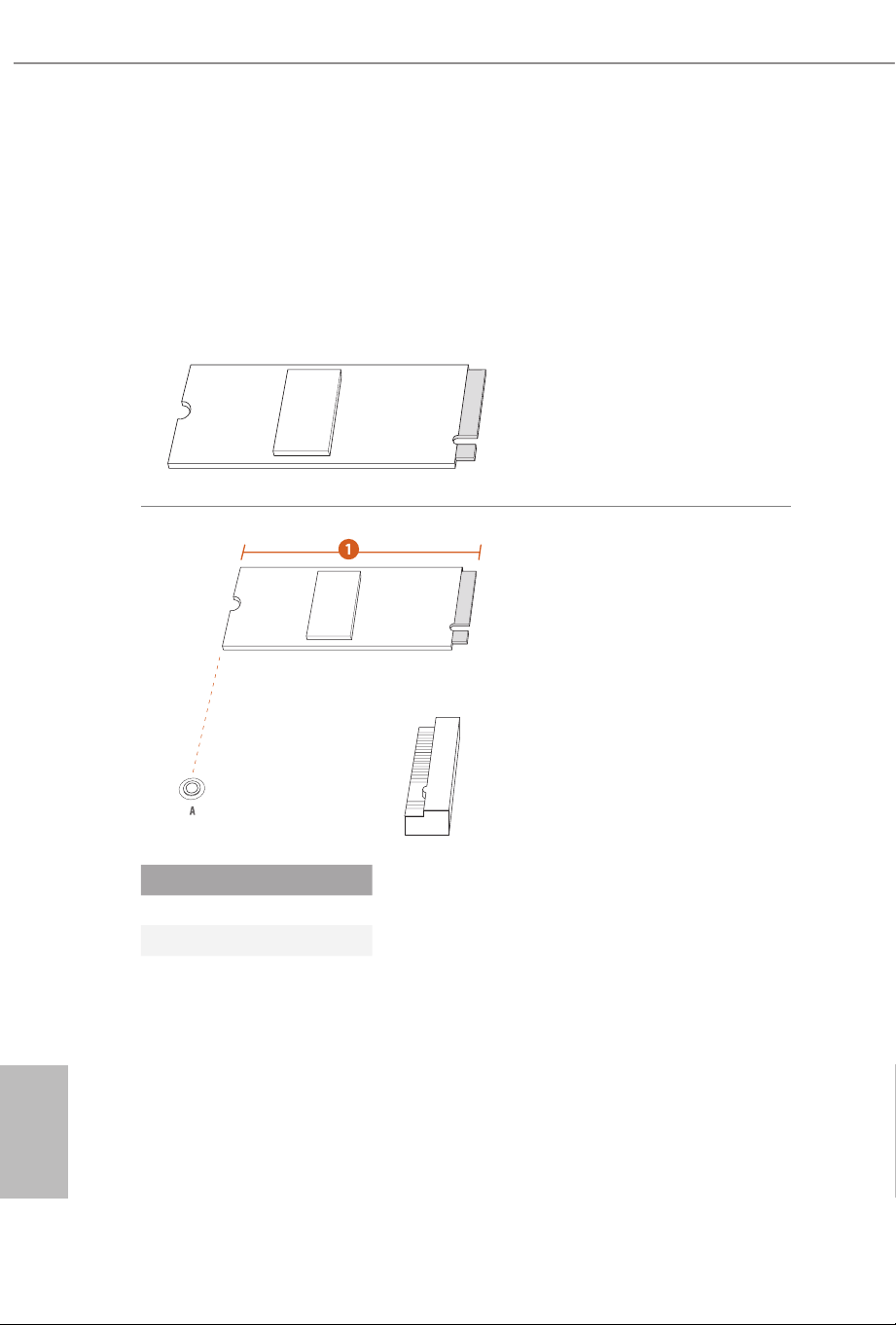
2.16 M.2 SSD Installation Guide (M2_2)
e M.2 is a small size and versatile card edge connector that aims to replace mPCIe and
mSATA. e Hyper M.2 Socket (M2_2, Key M) supports type 2280 PCIe Gen4x4 (64 Gb/s)
mode.
Installing the M.2 SSD
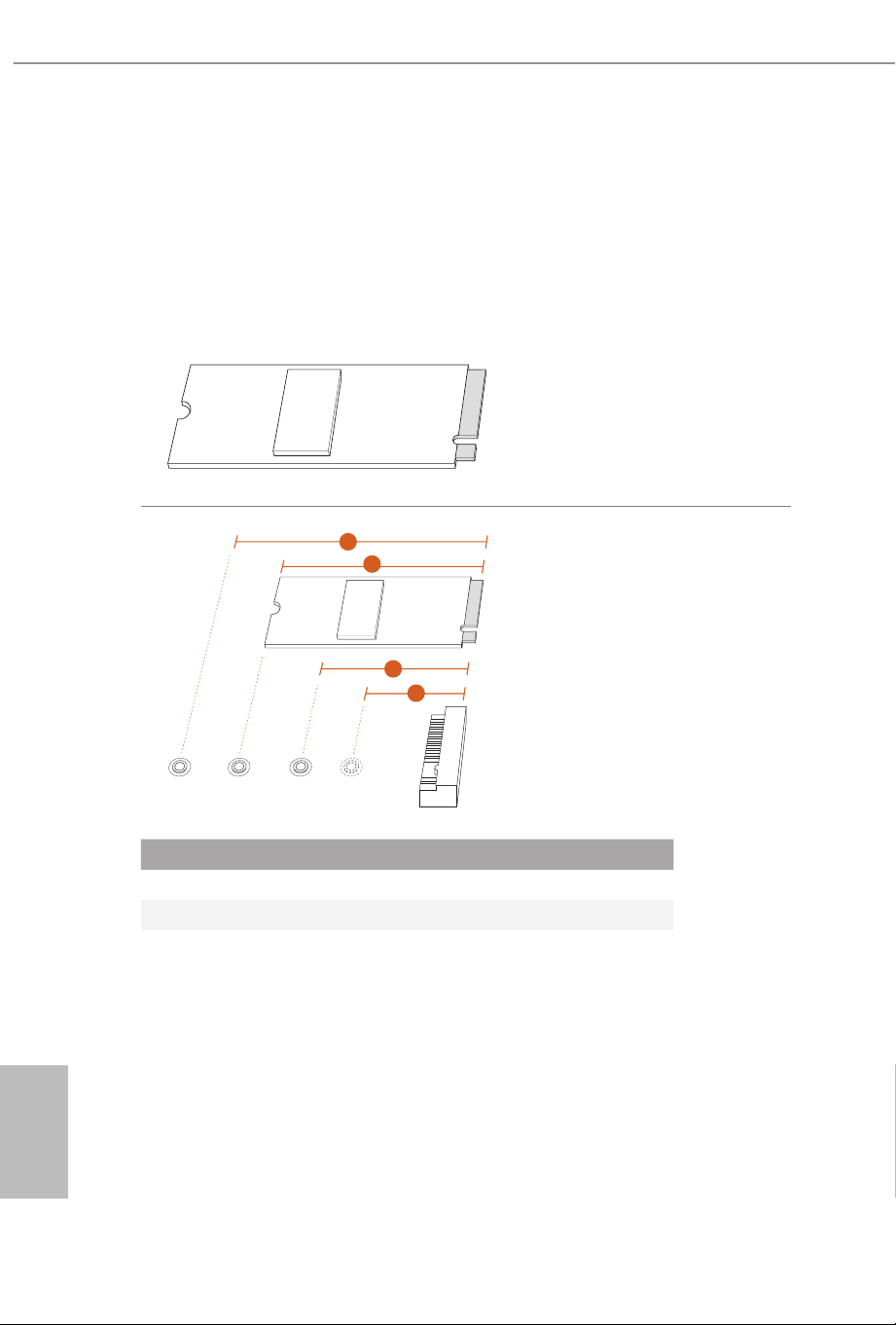
Step 1
Prepare a M.2 SSD.
Step 2
Depending on the PCB type and
length of your M.2 SSD, nd the
corresponding nut location to be
used.
No. 1
Nut Location A
PCB Length 8cm
Module Type Type 2280
English
51
Z890 LiveMixer WiFi
Step 3
Align and gently insert the M.2 SSD
into the M.2 slot. Please be aware
that the M.2 SSD only ts in one
orientation.
Step 4
Ensure that the notch at the end of
the M.2 SSD aligns with the nut.
en secure the M.2 SSD by turning
the nut lock clockwise to its locked
position.
20
o
For the latest updates of M.2 SSD support list, please visit our website for details: http://
www.asrock.com
English
52
2.17 M.2 SSD Installation Guide (M2_3)
e M.2 is a small size and versatile card edge connector that aims to replace mPCIe and
mSATA. e Hyper M.2 Socket (M2_3, Key M) supports type 2230/2242/2260/2280 PCIe
Gen4x4 (64 Gb/s) mode.
Installing the M.2 SSD
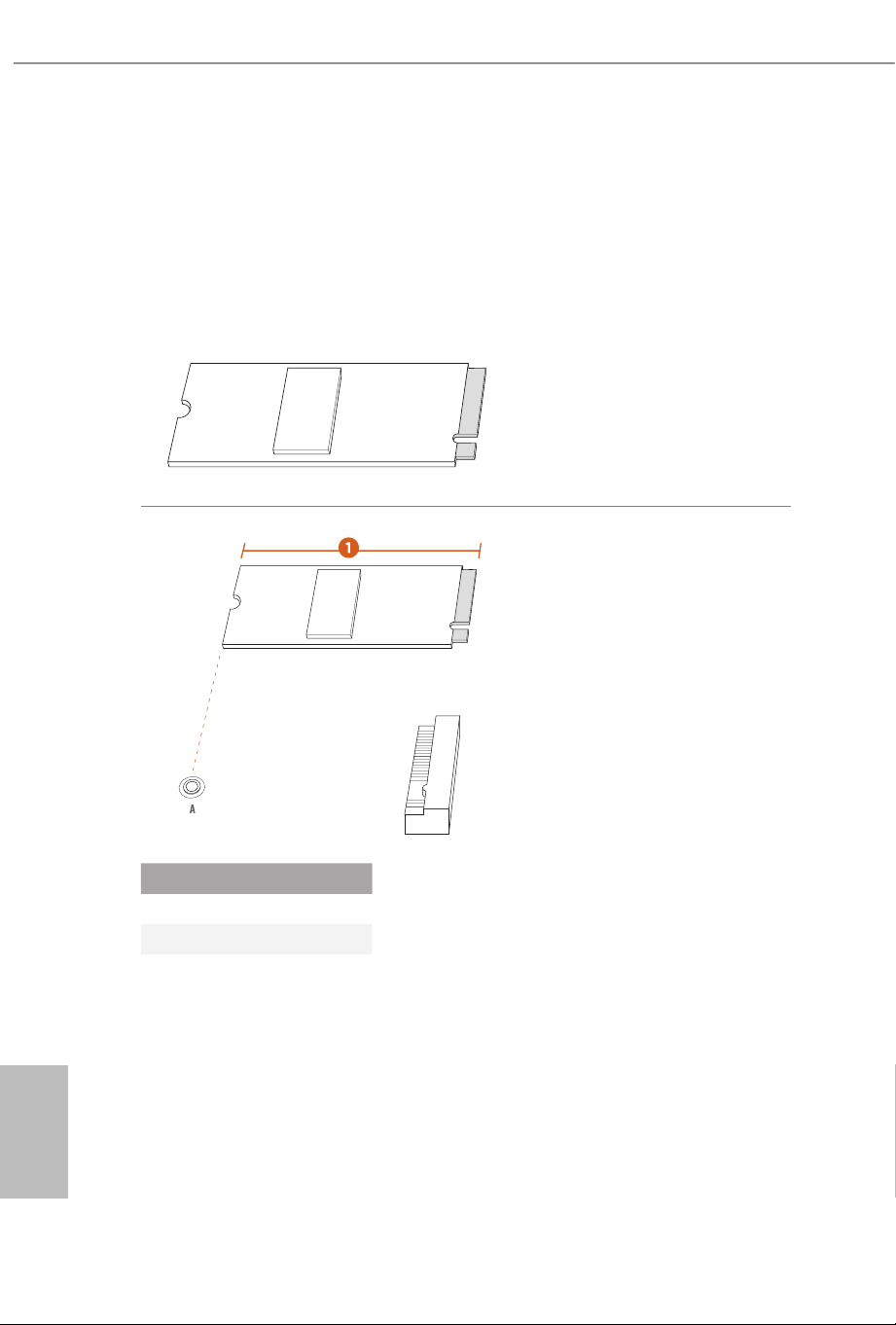
Step 1
Prepare a M.2 SSD.
Step 2
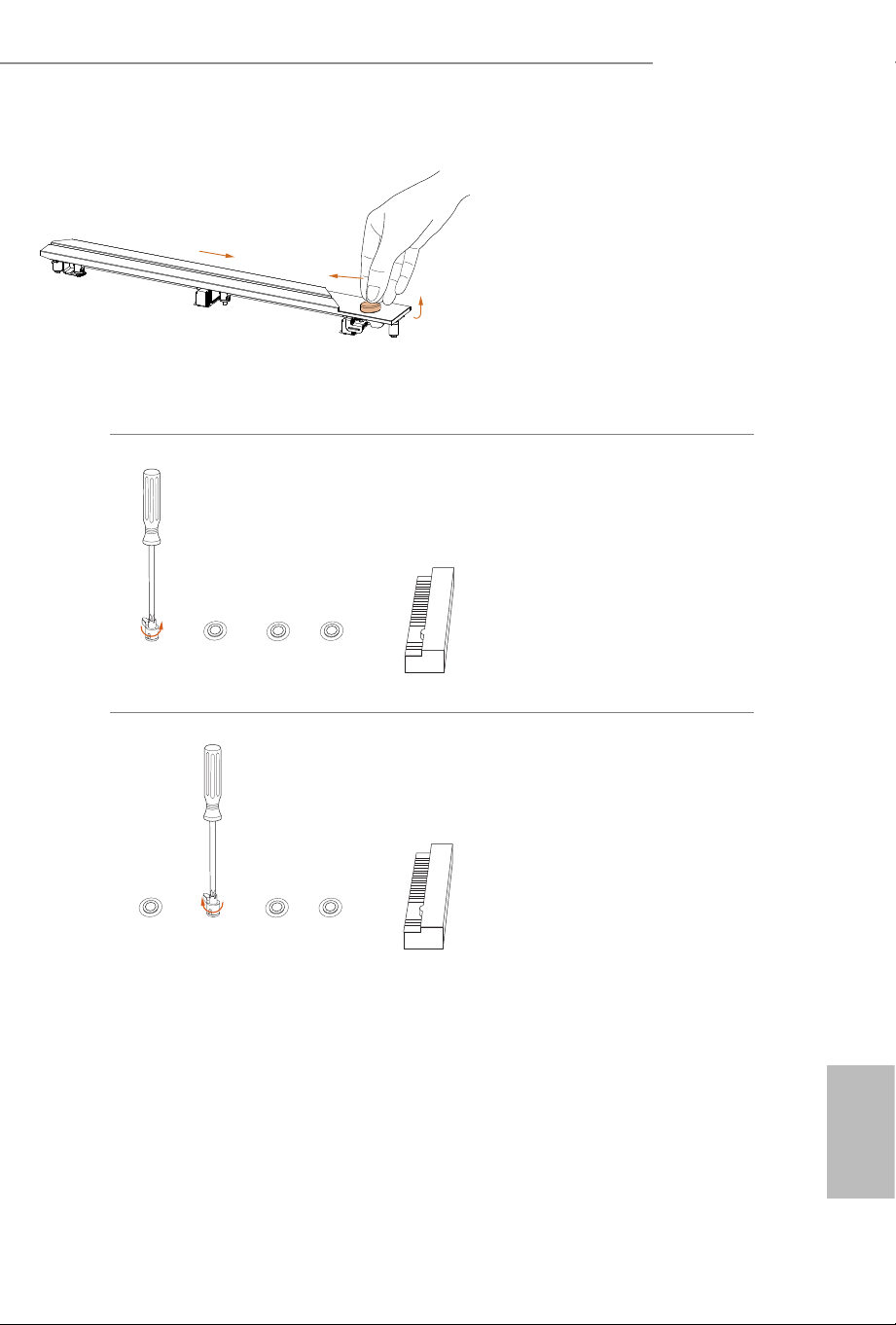
Depending on the PCB type and
length of your M.2 SSD, nd the
corresponding nut location to be
used.
3
2
4
BCD
A
1
No. 1 2 3 4
Nut Location A B C D
PCB Length 3cm 4.2cm 6cm 8cm
Module Type Type 2230 Type 2242 Type 2260 Type 2280
English
53
Z890 LiveMixer WiFi
Step 3
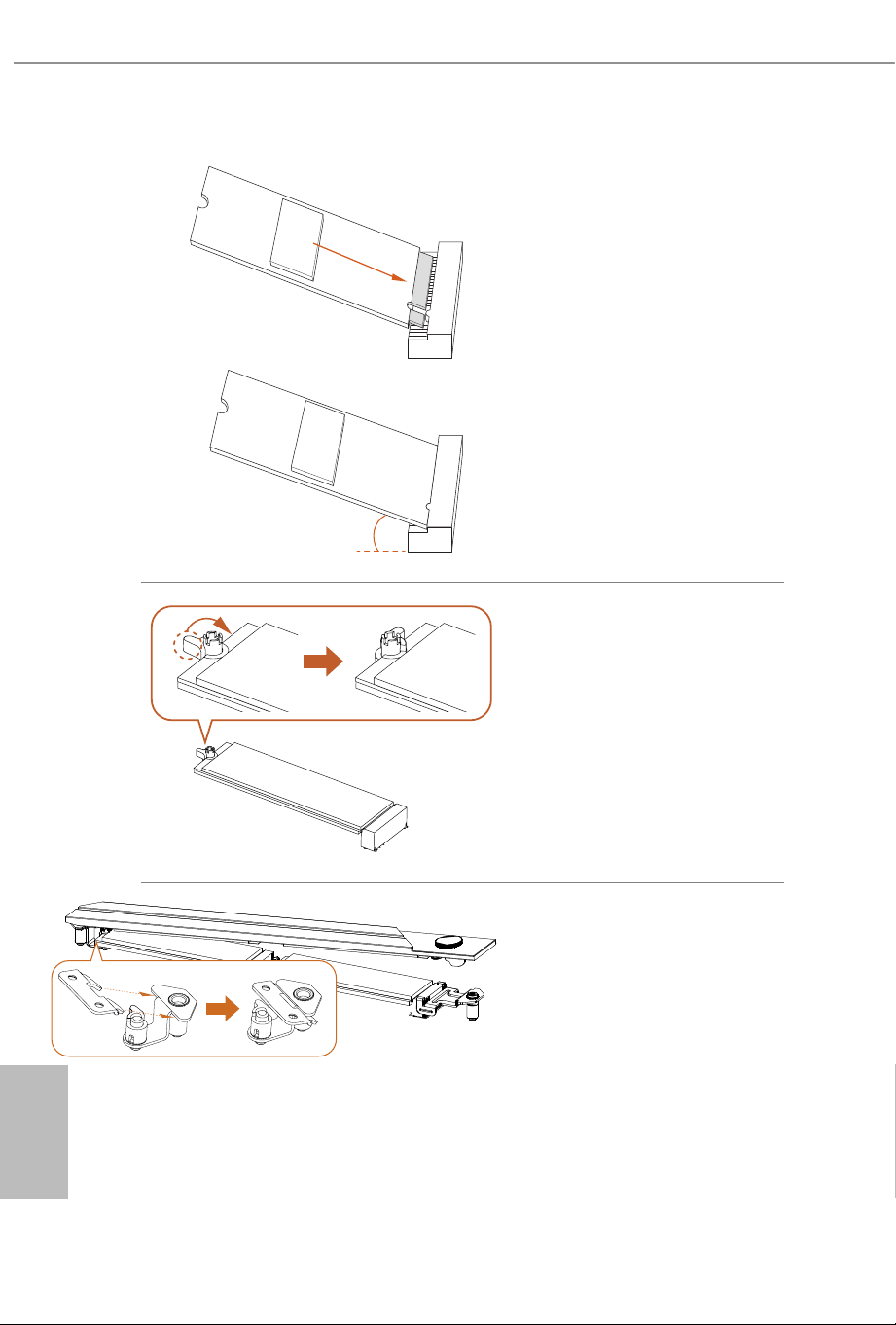
Push the button on the M.2 heatsink
in the direction shown (A). en li
up the heatsink (B) and move it in
the direction shown (C).
*Please remove the protective lms
on the bottom side of the M.2
heatsink before you install a
M.2 SSD.
Step 4
Use a screwdriver to remove the
stando.
Skip Step 4 if your M.2 SSD is
Type 2280.
Step 5
Peel o the yellow protective lm on
the nut to be used. Tighten the
stando into the desired nut
location on the motherboard with a
screwdriver.
Skip Step 5 if your M.2 SSD is
Type 2280.
BCD
A
BCD
A
C
B
A
English
54
Step 6
Align and gently insert the M.2 SSD
into the M.2 slot. Please be aware
that the M.2 SSD only ts in one
orientation.
Step 7
Ensure that the notch at the end of
the M.2 SSD aligns with the nut.
en secure the M.2 SSD by turning
the nut lock clockwise to its locked
position.
Step 8
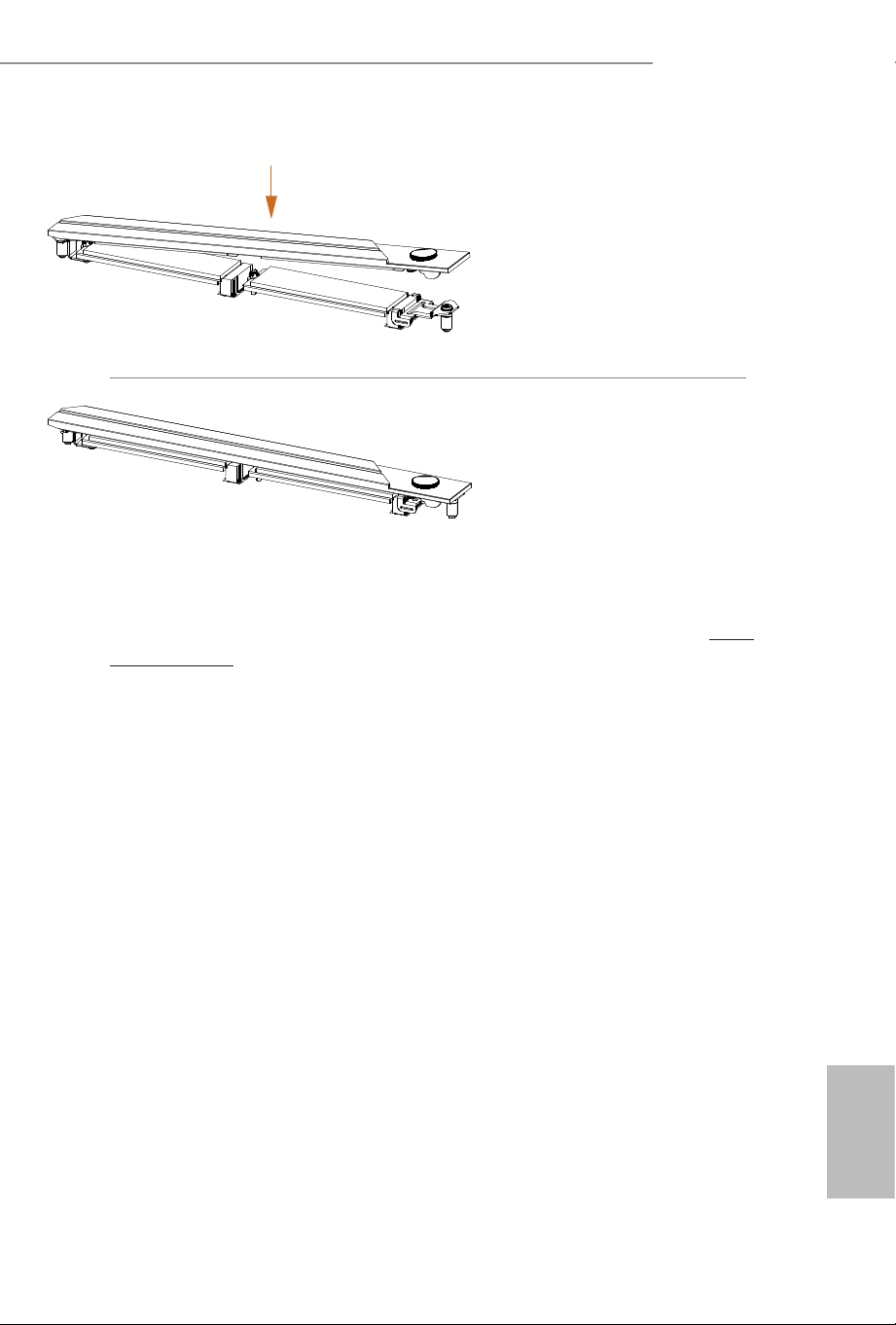
Hook the tab of the M.2 heatsink
back onto the stando.
20
o
English
55
Z890 LiveMixer WiFi
Step 9
Press the M.2 heatsink down into
place.
*Be sure not to press down the
button on the M.2 heatsink.
Step 10
Complete.
For the latest updates of M.2 SSD support list, please visit our website for details: http://
www.asrock.com
English
56
2.18 M.2 SSD Installation Guide (M2_4)
e M.2 is a small size and versatile card edge connector that aims to replace mPCIe and
mSATA. e Hyper M.2 Socket (M2_4, Key M) supports type 2280 SATA3 6.0 Gb/s &
PCIe Gen4x4 (64 Gb/s) modes.
Installing the M.2 SSD
Step 1
Prepare a M.2 SSD.
Step 2
Depending on the PCB type and
length of your M.2 SSD, nd the
corresponding nut location to be
used.
No. 1
Nut Location A
PCB Length 8cm
Module Type Type 2280
English
57
Z890 LiveMixer WiFi
Step 3
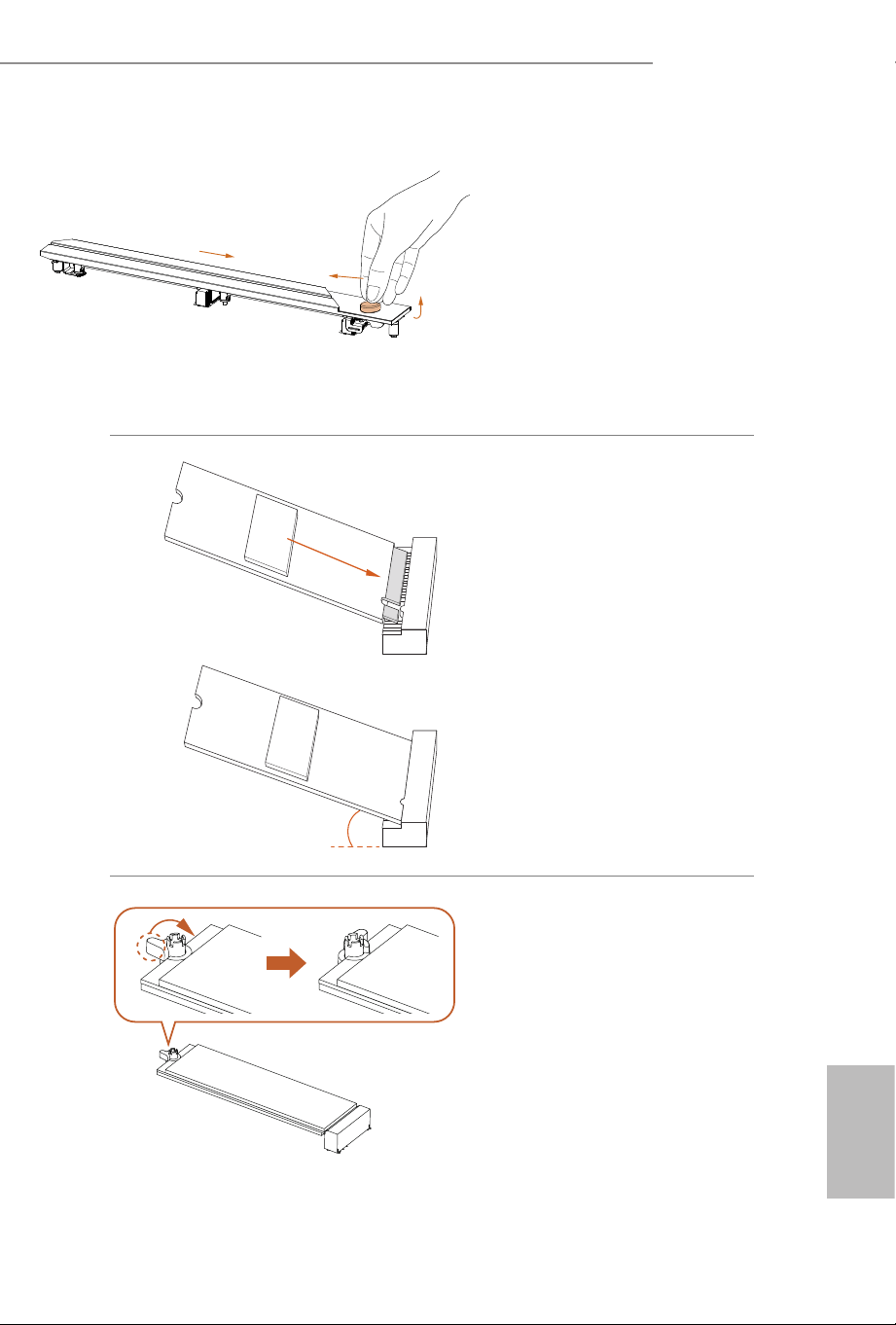
Push the button on the M.2 heatsink
in the direction shown (A). en li
up the heatsink (B) and move it in
the direction shown (C).
*Please remove the protective lms
on the bottom side of the M.2
heatsink before you install a
M.2 SSD.
Step 4
Align and gently insert the M.2 SSD
into the M.2 slot. Please be aware
that the M.2 SSD only ts in one
orientation.
Step 5
Ensure that the notch at the end of
the M.2 SSD aligns with the nut.
en secure the M.2 SSD by turning
the nut lock clockwise to its locked
position.
20
o
C
B
A
English
58
Step 6
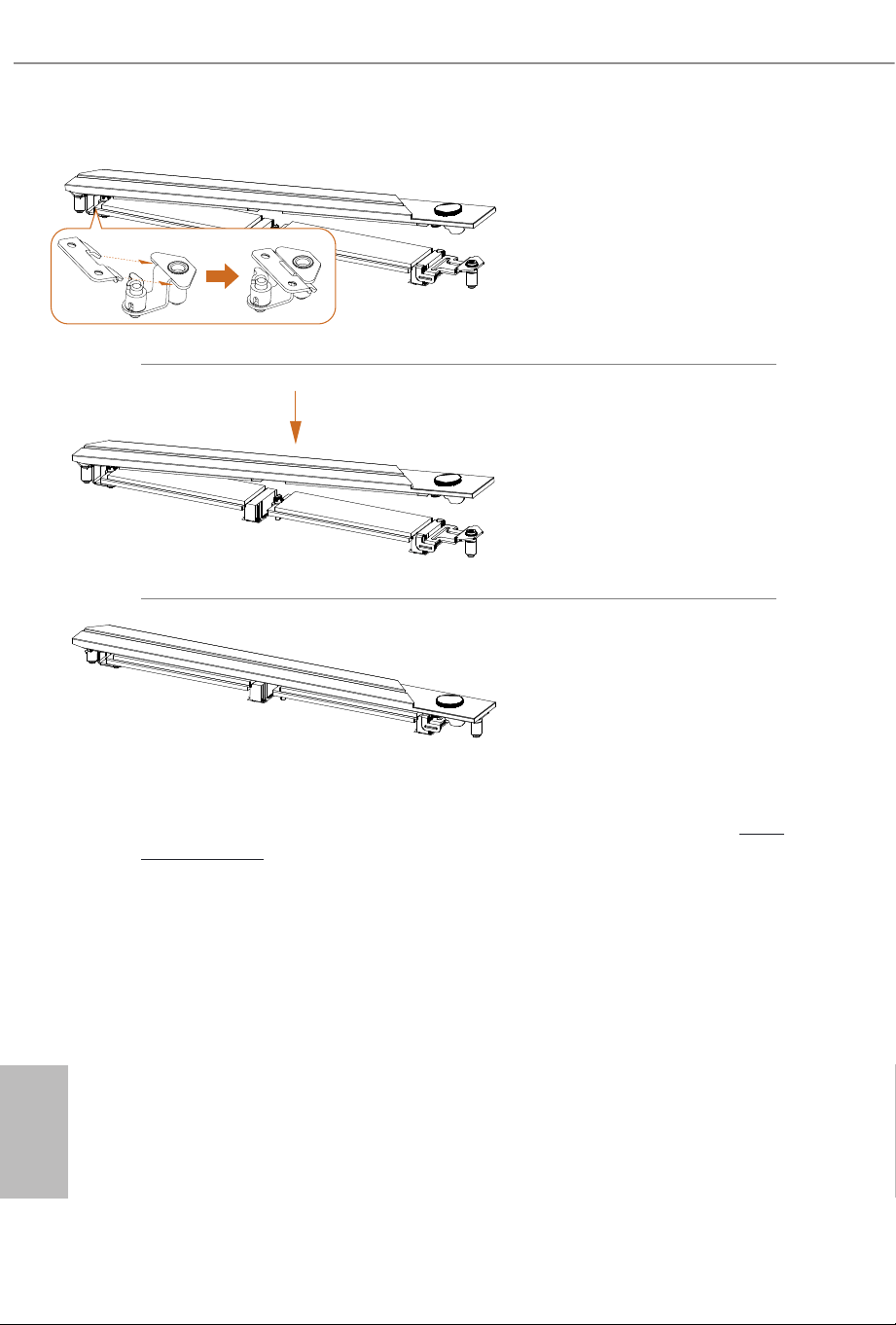
Hook the tab of the M.2 heatsink
back onto the stando.
Step 7
Press the M.2 heatsink down into
place.
*Be sure not to press down the
button on the M.2 heatsink.
Step 8
Complete.
For the latest updates of M.2 SSD support list, please visit our website for details: http://
www.asrock.com

Version 1.0
Published August 2024
Copyright©2024 ASRock INC. All rights reserved.
Copyright Notice:
No part of this documentation may be reproduced, transcribed, transmitted, or
translated in any language, in any form or by any means, except duplication of
documentation by the purchaser for backup purpose, without written consent of
ASRock Inc.
Products and corporate names appearing in this documentation may or may not
be registered trademarks or copyrights of their respective companies, and are used
only for identication or explanation and to the owners’ benet, without intent to
infringe.
Disclaimer:
Specications and information contained in this documentation are furnished for
informational use only and subject to change without notice, and should not be
constructed as a commitment by ASRock. ASRock assumes no responsibility for
any errors or omissions that may appear in this documentation.
To the extent permitted by law, with respect to the contents of this documentation,
ASRock does not provide warranty of any kind, either expressed or implied,
including but not limited to the implied warranties or conditions of
merchantability or tness for a particular purpose. In no event shall ASRock,
its directors, ocers, employees, or agents be liable for any indirect, special,
incidental, or consequential damages (including damages for loss of prots, loss
of business, loss of data, interruption of business and the like), even if ASRock has
been advised of the possibility of such damages arising from any defect or error in
the documentation or product.

INTEL END USER SOFTWARE LICENSE AGREEMENT
IMPORTANT - READ BEFORE COPYING, INSTALLING OR USING.
LICENSE. Licensee has a license under Intel’s copyrights to reproduce Intel’s Soware
only in its unmodied and binary form, (with the accompanying documentation, the
“Soware”) for Licensee’s personal use only, and not commercial use, in connection with
Intel-based products for which the Soware has been provided, subject to the following
conditions:
(a) Licensee may not disclose, distribute or transfer any part of the Soware, and You
agree to prevent unauthorized copying of the Soware.
(b) Licensee may not reverse engineer, decompile, or disassemble the Soware.
(c) Licensee may not sublicense the Soware.
(d) e Soware may contain the soware and other intellectual property of third party
suppliers, some of which may be identied in, and licensed in accordance with, an en-
closed license.txt le or other text or le.
(e) Intel has no obligation to provide any support, technical assistance or updates for the
Soware.
OWNERSHIP OF SOFTWARE AND COPYRIGHTS. Title to all copies of the Soware
remains with Intel or its licensors or suppliers. e Soware is copyrighted and protected
by the laws of the United States and other countries, and international treaty provisions.
Licensee may not remove any copyright notices from the Soware. Except as otherwise
expressly provided above, Intel grants no express or implied right under Intel patents,
copyrights, trademarks, or other intellectual property rights. Transfer of the license ter-
minates Licensee’s right to use the Soware.
DISCLAIMER OF WARRANTY. e Soware is provided “AS IS” without warranty of
any kind, EITHER EXPRESS OR IMPLIED, INCLUDING WITHOUT LIMITATION,
WARRANTIES OF MERCHANTABILITY OR FITNESS FOR ANY PARTICULAR PUR-
POSE.
LIMITATION OF LIABILITY. NEITHER INTEL NOR ITS LICENSORS OR SUPPLIERS
WILL BE LIABLE FOR ANY LOSS OF PROFITS, LOSS OF USE, INTERRUPTION OF
BUSINESS, OR INDIRECT, SPECIAL, INCIDENTAL, OR CONSEQUENTIAL DAMAG-
ES OF ANY KIND WHETHER UNDER THIS AGREEMENT OR OTHERWISE, EVEN
IF INTEL HAS BEEN ADVISED OF THE POSSIBILITY OF SUCH DAMAGES.
LICENSE TO USE COMMENTS AND SUGGESTIONS. is Agreement does NOT
obligate Licensee to provide Intel with comments or suggestions regarding the Soware.
However, if Licensee provides Intel with comments or suggestions for the modication,
correction, improvement or enhancement of (a) the Soware or (b) Intel products or pro-
cesses that work with the Soware, Licensee grants to Intel a non-exclusive, worldwide,
perpetual, irrevocable, transferable, royalty-free license, with the right to sublicense,
under Licensee’s intellectual property rights, to incorporate or otherwise utilize those
comments and suggestions.
TERMINATION OF THIS LICENSE. Intel or the sublicensor may terminate this license
at any time if Licensee is in breach of any of its terms or conditions. Upon termination,
Licensee will immediately destroy or return to Intel all copies of the Soware.
THIRD PARTY BENEFICIARY. Intel is an intended beneciary of the End User License
Agreement and has the right to enforce all of its terms.

U.S. GOVERNMENT RESTRICTED RIGHTS. e Soware is a commercial item (as
dened in 48 C.F.R. 2.101) consisting of commercial computer soware and commercial
computer soware documentation (as those terms are used in 48 C.F.R. 12.212), consistent
with 48 C.F.R. 12.212 and 48 C.F.R 227.7202-1 through 227.7202-4. You will not provide
the Soware to the U.S. Government. Contractor or Manufacturer is Intel Corporation,
2200 Mission College Blvd., Santa Clara, CA 95054.
EXPORT LAWS. Licensee agrees that neither Licensee nor Licensee’s subsidiaries will
export/re-export the Soware, directly or indirectly, to any country for which the U.S.
Department of Commerce or any other agency or department of the U.S. Government
or the foreign government from where it is shipping requires an export license, or other
governmental approval, without rst obtaining any such required license or approval. In
the event the Soware is exported from the U.S.A. or re-exported from a foreign destina-
tion by Licensee, Licensee will ensure that the distribution and export/re-export or import
of the Soware complies with all laws, regulations, orders, or other restrictions of the U.S.
Export Administration Regulations and the appropriate foreign government.
APPLICABLE LAWS. is Agreement and any dispute arising out of or relating to it will
be governed by the laws of the U.S.A. and Delaware, without regard to conict of laws
principles. e Parties to this Agreement exclude the application of the United Nations
Convention on Contracts for the International Sale of Goods (1980). e state and federal
courts sitting in Delaware, U.S.A. will have exclusive jurisdiction over any dispute aris-
ing out of or relating to this Agreement. e Parties consent to personal jurisdiction and
venue in those courts. A Party that obtains a judgment against the other Party in the
courts identied in this section may enforce that judgment in any court that has jurisdic-
tion over the Parties.
Licensee’s specic rights may vary from country to country.
FCC Compliance Statement
is device complies with Part 15 of the FCC Rules. Operation is subject to the following
two conditions:
(1) this device may not cause harmful interference, and
(2) this device must accept any interference received, including interference that
may cause undesired operation.
is equipment has been tested and found to comply with the limits for a Class B digital
device, pursuant to part 15 of the FCC Rules. ese limits are designed to provide
reasonable protection against harmful interference in a residential installation. is
equipment generates, uses and can radiate radio frequency energy and, if not installed
and used in accordance with the instructions, may cause harmful interference to radio
communications. However, there is no guarantee that interference will not occur in a
particular installation. If this equipment does cause harmful interference to radio or
television reception, which can be determined by turning the equipment o and on, the
user is encouraged to try to correct the interference by one or more of the following
measures:
- Reorient or relocate the receiving antenna.
- Increase the separation between the equipment and receiver.
- Connect the equipment into an outlet on a circuit dierent from that to which the
receiver is connected.
- Consult the dealer or an experienced radio/TV technician for help.
Button Battery Safety Notice
- Remove and immediately recycle or dispose of used batteries according to local
regulations and keep away from children. Do NOT dispose of batteries in household
trash or incinerate.
- Even used batteries may cause severe injury or death.
- Call a local poison control center for treatment information.
- Battery type: CR2032
- Battery voltage: 3V
- Non-rechargeable batteries are not to be recharged.
- Do not force discharge, recharge, disassemble, heat above (manufacturer's specied
temperature rating) or incinerate. Doing so may result in injury due to venting, leakage
or explosion resulting in chemical burns.
- is product contains an irreplaceable battery.
- is icon indicates that a swallowed button battery can cause serious injury or death.
Please keep batteries out of sight or reach of children.
WARNING
• INGESTION HAZARD: This product contains a button cell or
coin battery.
• DEATH or serious injury can occur if ingested.
• A swallowed button cell or coin battery can cause Internal
Chemical Burns in as little as 2 hours.
• KEEP new and used batteries OUT OF REACH of CHILDREN
• Seek immediate medical attention if a battery is suspected to
be swallowed or inserted inside any part of the body.

CALIFORNIA, USA ONLY
e Lithium battery adopted on this motherboard contains Perchlorate, a toxic substance
controlled in Perchlorate Best Management Practices (BMP) regulations passed by the
California Legislature. When you discard the Lithium battery in California, USA, please
follow the related regulations in advance.
“Perchlorate Material-special handling may apply, see www.dtsc.ca.gov/hazardouswaste/
perchlorate”
CALIFORNIA, USA ONLY
WARNING: Cancer and Reproductive Harm
www.P65Warnings.ca.gov
CE Conformity
ASRock INC. hereby declares that this device is in compliance with the essential require-
ments and other relevant provisions of related Directives. Full text of EU declaration of
conformity is available at: http://www.asrock.com
ASRock follows the green design concept to design and manufacture our products, and
makes sure that each stage of the product life cycle of ASRock product is in line with
global environmental regulations. In addition, ASRock disclose the relevant information
based on regulation requirements.
Please refer to https://www.asrock.com/general/about.asp?cat=Responsibility for informa-
tion disclosure based on regulation requirements ASRock is complied with.
UKCA Conformity
ASRock INC. hereby declares that this device is in compliance with the essential require-
ments and other relevant provisions of related UKCA Directives. Full text of UKCA
declaration of conformity is available at: http://www.asrock.com
Consumer Limited Warranty - Australia
Our goods come with guarantees that cannot be excluded under the Australian Consumer
Law. You are entitled to a replacement or refund for a major failure and compensation for
any other reasonably foreseeable loss or damage caused by our goods. You are also entitled
to have the goods repaired or replaced if the goods fail to be of acceptable quality and the
failure does not amount to a major failure. If you require assistance please call ASRock Tel
: +886-2-28965588 ext.123 (Standard International call charges apply)
WARNING
THIS PRODUCT CONTAINS A BUTTOON BATTERY
If swallowed, a button battery can cause serious injury or death.
Please keep batteries out of sight or reach of children.
Proper Disposal
DO NOT throw the motherboard in municipal waste. is product has been
designed to enable proper reuse of parts and recycling. is symbol of the
crossed out wheeled bin indicates that the product (electrical and electronic
equipment) should not be placed in municipal waste. Check local regulations
for disposal of electronic products.
Class B ITE
この装置は、クラスB情報技術装置です。この装置は、家庭環境で使用することを目的と
していますが、この装置がラジオやテレビジョン受信機に近接して使用されると、受信障
害を引き起こすことがあります。取扱説明書に従って正しい取り扱いをして下さい。
Trademark Information
e terms HDMI® and HDMI High-Denition Multimedia Interface, and the HDMI
logo are trademarks or registered trademarks of HDMI Licensing LLC in the United
States and other countries.
European Community Radio Equipment Directive Compliance
Statement
is device complies with directive 2014/53/EU issued by the Commision of the
European Community. is equipment complies with EU radiation exposure limits
set forth for an uncontrolled environment.
is equipment should be installed and operated with minimum distance 20cm
between the radiator & your body.
Operations in the 5.15-5.35/6GHz band are restricted to indoor usage only.
Radio Frequency Bands and Maximum Power Levels
• Features : Wi-Fi 6E, BT, Wi-Fi 7
• Frequency Range : 2.4 GHz: 2400-2485MHz; 5 GHz: 5150-5350MHz, 5470-5725MHz,
5725-5850MHz; 6 GHz: 5955-6415MHz
• Max Power Level : 2.4 GHz: 20dBm; 5 GHz: 23dBm; 6 GHz: 23dBm
Compliance Statement of Innovation, Science and Economic
Development Canada (ISED)
is device complies with with Innovation, Science and Economic Development
Canada’s licence-exempt RSS(s). Operation is subject to the following two
conditions: (1) this device may not cause interference, and (2) this device must
accept any interference, including interference that may cause undesired operation
of the device. Operation in the band 5150-5250 MHz is only for indoor use to
reduce the potential for harmful interference to co-channel mobile satellite
systems. CAN ICES-003(B)/NMB-003(B)
NCC
無線設備警告聲明
經型式認證合格之低功率射頻電機,非經許可,公司、商號或使用者均不得擅自變更頻率、
加大功率或變更原設計之特性及功能。 低功率射頻電機之使用不得影響飛航安全及干擾合
法通信;經發現有干擾現象時,應立即停用,並改善至無干擾時方得繼續使用。前項合法
通信,指依電信法規定作業之無線電通信。低功率射頻電機須忍受合法通信或工業、科學
及醫療用電波輻射性電機設備之干擾。
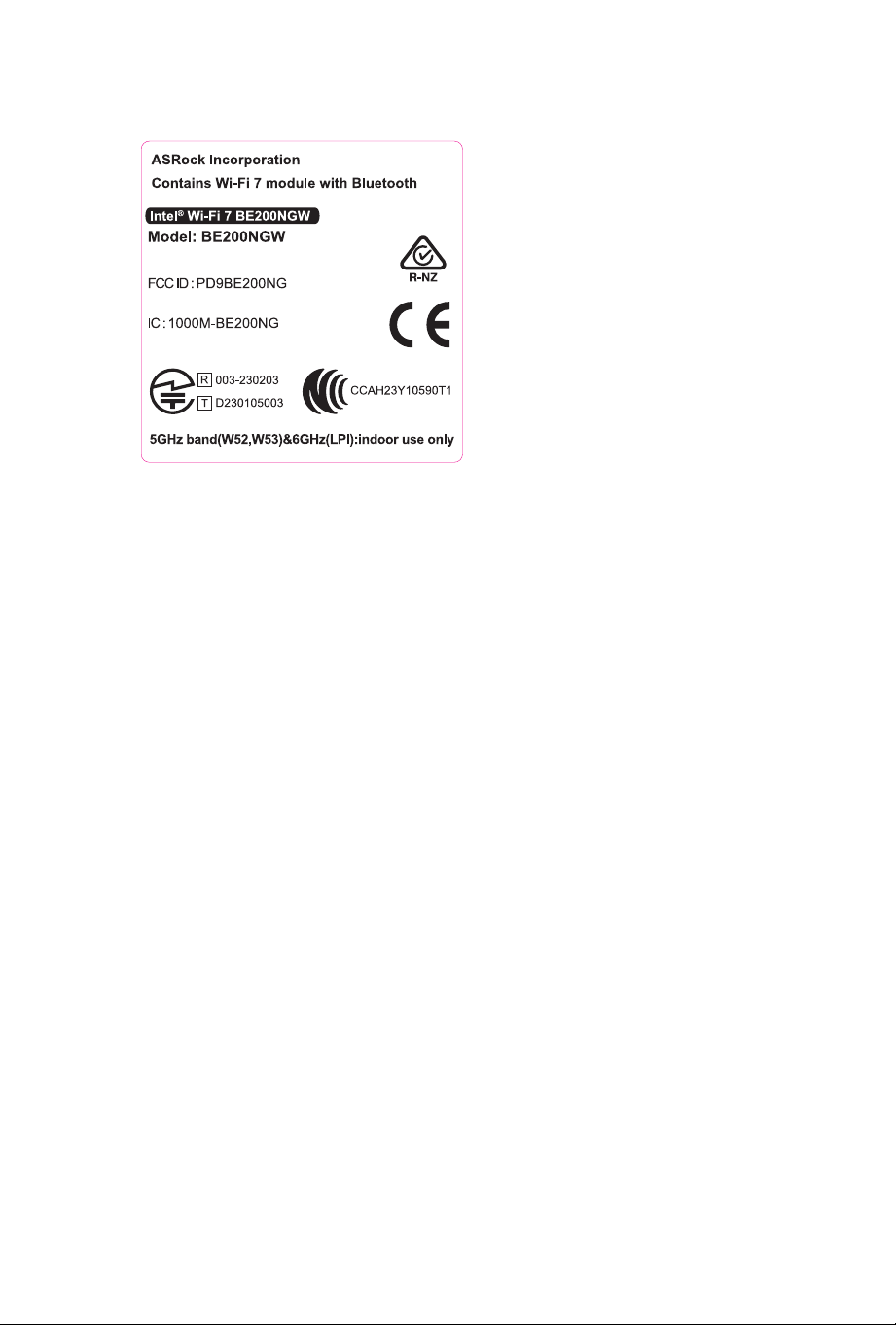
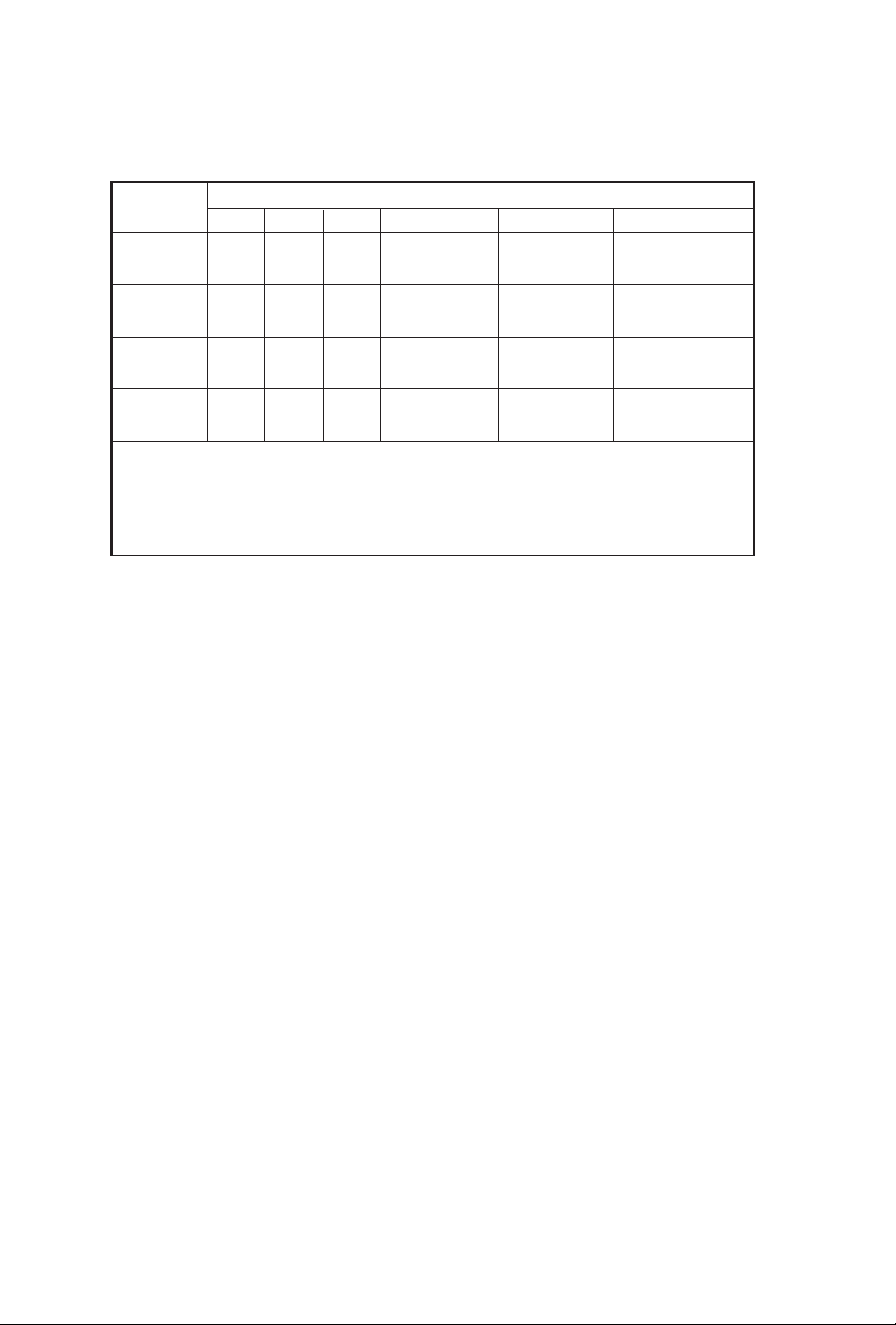
BSMI 限用物質及元素清單
備考 1.〝超出 0.1 wt %〞及〝超出 0.01 wt %〞係指限用物質之百分比含量超出百分比含量
基準值。
備考 2.〝○〞係指該項限用物質之百分比含量未超出百分比含量基準值。
備考 3.〝-〞係指該項限用物質為排除項目。
限用物質及其化學符號
鉛 (Pb) 鎘 (Cd) 汞 (Hg) 六價鉻 (Cr
+6
) 多溴聯苯 (PBB) 多溴聯苯醚 (PBDE)
單元
O O O O O O
- O O O O O
- O O O O O
- O O O O O
電路板
電子元件
線材
配件
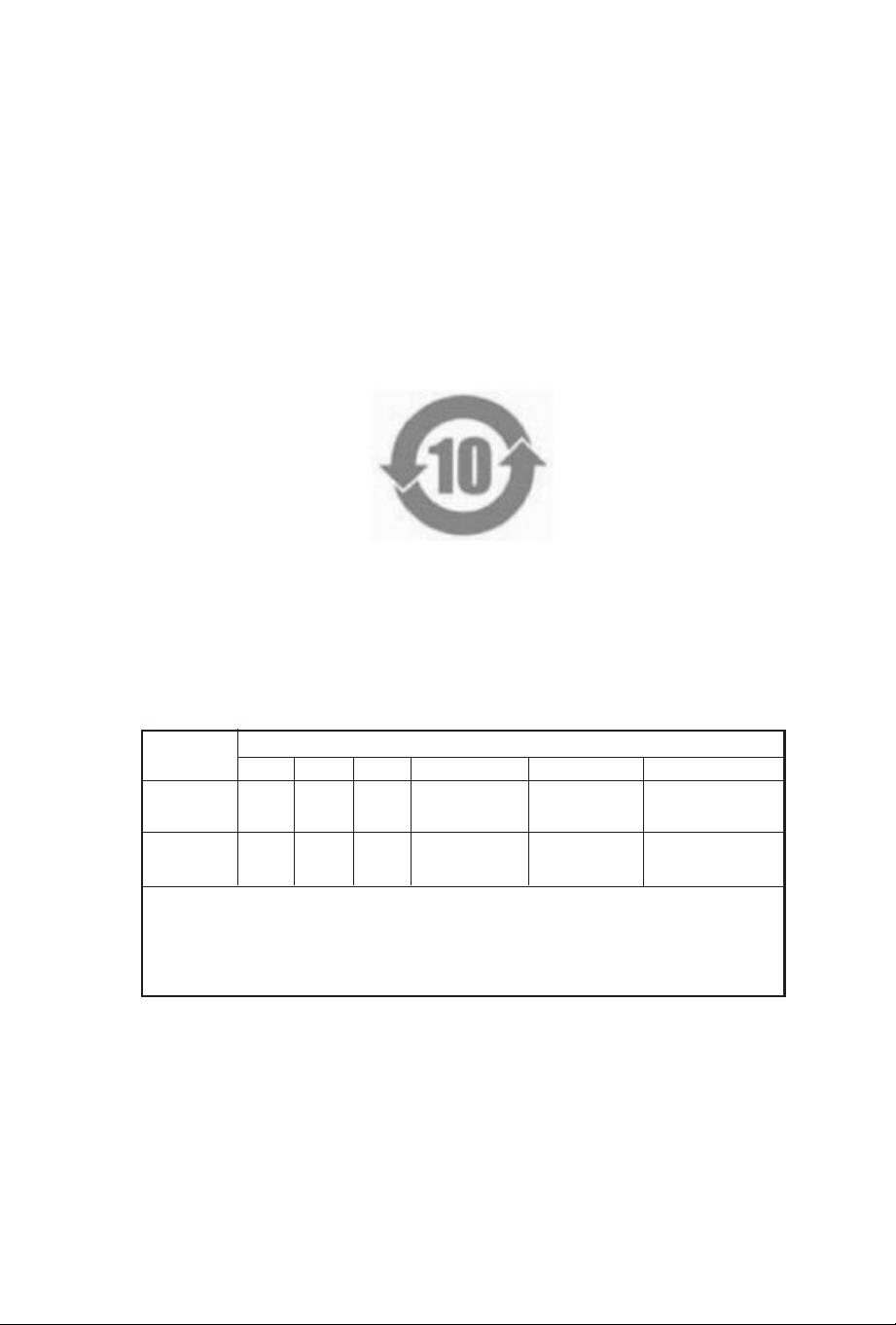
China RoHS
电子信息产品污染控制标示
依据中国发布的「电子信息产品污染控制管理办法」及 SJ/T 11364-2006「电子信息产
品污染控制标示要求」,电子信息产品应进行标示,藉以向消费者揭露产品中含有的
有毒有害物质或元素不致发生外泄或突变从而对环境造成污染或对人身、财产造成严
重损害的期限。依上述规定,您可于本产品之印刷电路板上看见图一之标示。图一中
之数字为产品之环保使用期限。由此可知此主板之环保使用期限为 10 年。
图一
有害物质或元素
铅 (Pb) 镉 (Cd) 汞 (Hg) 六价铬 (Cr(VI))
多溴联苯 (PBB) 多溴二苯醚 (PBDE)
印刷电路板
及电子组件
外部信号连
接头及线材
有毒有害物质或元素的名称及含量说明
若您欲了解此产品的有毒有害物质或元素的名称及含量说明,请参照以下表格及说明。
部件名称
X O O O O O
X O O O O O
以上表格依据 SJ/T 11364-2014 的规定编制。
O: 表示该有害物质在该部件所有均质材料中的含量均在 GB/T 26572 规定的限量要求以下。
X: 表示该有害物质至少在该部件的某一均质材料中的含量超出 GB/T 26572 规定的限量要求。
备注:此产品所标示之环保使用年限,系指在一般正常使用状况下。