
Version 1.0
Published August 2023
is device complies with Part 15 of the FCC Rules. Operation is subject to the following
two conditions:
(1) this device may not cause harmful interference, and
(2) this device must accept any interference received, including interference that
may cause undesired operation.
CALIFORNIA, USA ONLY
e Lithium battery adopted on this motherboard contains Perchlorate, a toxic substance
controlled in Perchlorate Best Management Practices (BMP) regulations passed by the
California Legislature. When you discard the Lithium battery in California, USA, please
follow the related regulations in advance.
“Perchlorate Material-special handling may apply, see www.dtsc.ca.gov/hazardouswaste/
perchlorate”

AUSTRALIA ONLY
Our goods come with guarantees that cannot be excluded under the Australian Consumer
Law. You are entitled to a replacement or refund for a major failure and compensation for
any other reasonably foreseeable loss or damage caused by our goods. You are also entitled
to have the goods repaired or replaced if the goods fail to be of acceptable quality and the
failure does not amount to a major failure.
e terms HDMI™ and HDMI High-Denition Multimedia Interface, and the HDMI
logo are trademarks or registered trademarks of HDMI Licensing LLC in the United
States and other countries.

Contents
Chapter 1 Introduction 1
1.1 Package Contents 1
1.2 Specications 2
1.3 Motherboard Layout 5
1.4 Front Panel 8
1.5 Rear Panel 9
Chapter 2 Installation 10
2.1 Installing the CPU 11
2.2 Installing the CPU Fan and Heatsink 14
2.3 Installing Memory Modules (DIMM)
16
2.4 Expansion Slot (PCIe Slot) 18
2.5 Jumpers Setup 19
2.6 Onboard Headers and Connectors 20
2.7 Smart Button 23
2.8 M.2 WiFi/BT Module Installation Guide 25
2.9 M.2 SSD Module Installation Guide 27
Chapter 3 Auto Driver Installer 29
Chapter 4 UEFI SETUP UTILITY 30
4.1 Introduction 30
4.1.1 UEFI Menu Bar 30
4.1.2 Navigation Keys 31
4.2 Main Screen 32

4.3 OC Tweaker Screen 33
4.4 Advanced Screen 36
4.4.1 CPU Conguration 37
4.4.2 PCI Conguration 38
4.4.3 Onboard Devices Conguration 39
4.4.4 Storage Conguration 40
4.4.5 ACPI Conguration 41
4.6.6 USB Conguration 43
4.4.7 Trusted Computing 44
4.6.8 AMD CBS 46
4.6.9 AMD PBS 47
3.4.10 AMD Overclocking 48
4.5 Tools 49
4.6 Hardware Health Event Monitoring Screen 50
4.7 Security Screen 52
4.8 Boot Screen 53
4.9 Exit Screen 55
X600-IT X
1
English
Chapter 1 Introduction
ank you for purchasing X600-ITX motherboard. In this documentation, Chapter
1 and 2 contains the introduction of the motherboard and step-by-step installation
guides. Chapter 3 contains the operation guide of the soware and utilities. Chapter
4 contains the conguration guide of the BIOS setup.
1.1 Package Contents
•
X600-ITX Motherboard (Deep mini-ITX Form Factor)
•
1 x I/O Panel Shield
•
2 x SATA Cables (Optional)
•
2 x Screws for M.2 Sockets (M2*2) (Optional)
•
1 x Screw for WiFi Module (M2*2) (Optional)
Because the motherboard specications and the BIOS soware might be updated, the
content of this documentation will be subject to change without notice.

English
2
1.2 Specications
Platform
•
Deep mini-ITX Form Factor
•
Solid Capacitor design
CPU
•
Supports AMD Socket AM5 Ryzen
TM
8000 and 7000 Series
Processors
•
Supports CPU up to 65W
•
6+2 Power Phase design
Chipset
•
AMD X600
Memory
•
Dual Channel DDR5 Memory Technology
•
4 x DDR5 DIMM Slots
•
Supports DDR5 ECC/non-ECC, un-buered memory up to
7200+(OC)*
•
Max. capacity of system memory: 192GB
•
Supports Extreme Memory Prole (XMP) and EXTended
Proles for Overclocking (EXPO) memory modules
* Please refer to Memory Support List on ASRock’s website for
more information. (http://www.asrock.com/)
Expansion
Slot
CPU:
•
1 x PCIe 4.0 x16 Slot, supports x16 mode*
* Supports NVMe SSD as boot disks
•
1 x M.2 Socket (Key E), supports type 2230 WiFi/BT module
Graphics
•
Integrated AMD RDNA
TM
graphics (Actual support may
vary by CPU)
•
ree graphics output options: 1x HDMI, 2 x DisplayPort 1.4
•
Supports Triple Monitor
•
1 x HDMI 2.1 TMDS/FRL 8G Compatible, supports HDR,
HDCP 2.3 and max. resolution up to 4K 120Hz
•
2 x DisplayPort 1.4 with DSC (compressed), support HDCP
2.3 and max. resolution up to 4K 120Hz

X600-IT X
3
English
Audio
•
Realtek ALC897 Audio Codec
LAN
•
2.5 Gigabit LAN 10/100/1000/2500 Mb/s
•
Dragon RTL8125BG
•
Supports Dragon 2.5G LAN Soware
- Smart Auto Adjust Bandwidth Control
- Visual User Friendly UI
- Visual Network Usage Statistics
- Optimized Default Setting for Game, Browser, and
Streaming Modes
- User Customized Priority Control
Front
Panel I/O
•
1 x Headphone/Headset Jack
•
2 x USB 3.2 Gen1 Type-A Ports
•
1 x USB 3.2 Gen1 Type-C Port
•
2 x USB 2.0 Ports
Rear Panel
I/O
•
1 x HDMI Port
•
2 x DisplayPort 1.4
•
2 x USB 3.2 Gen1 Ports
•
2 x USB 2.0 Ports
•
1 x RJ-45 LAN Port
•
1 x BIOS Flashback Button
•
HD Audio Jacks: Line in / Front Speaker / Microphone
Storage
CPU:
•
1 x Blazing M.2 Socket (M2_1, Key M), supports type 2280
PCIe Gen5x4 (128 Gb/s) mode*
•
1 x Hyper M.2 Socket (M2_2, Key M), supports type 2280
PCIe Gen4x4 (64 Gb/s) mode*
ASMedia ASM1061:
•
2 x SATA3 6.0 Gb/s Connectors
* Supports NVMe SSD as boot disks
English
4
RAID
•
Supports RAID 0, RAID 1 and RAID 10 for M.2 NVMe stor-
age devices*
* Requires additional M.2 NVMe expansion cards to support
RAID 10
Connector
•
1 x Chassis Intrusion Header
•
1 x CPU Fan Connector
* e CPU Fan Connector supports the CPU fan of maximum 1A
(12W) fan power.
•
1 x Chassis Fan Connector (4-pin)
* e Chassis Fan Connector supports the chassis fan of maxi-
mum 1A (12W) fan power.
•
1 x 24 pin ATX Power Connector
•
1 x 8 pin 12V Power Connector
•
1 x Front Panel Header
•
1 x USB 2.0 Header (Supports 2 USB 2.0 ports)
BIOS
Feature
•
AMI UEFI Legal BIOS with GUI support
Hardware
Monitor
•
CPU, Chassis Temperature Sensing
•
CPU, Chassis Fan Tachometer
•
CPU, Chassis Quiet Fan (Auto adjust chassis fan speed by
CPU temperature)
•
CPU, Chassis Fan Multi-Speed Control
•
CASE OPEN detection
•
Voltage monitoring: +12V, +5V, +3.3V, CPU Vcore
OS
•
Microso® Windows® 10 64-bit
Certica-
tions
•
FCC, CE
•
ErP/EuP ready (ErP/EuP ready power supply is required)
Please realize that there is a certain risk involved with overclocking, including adjusting
the setting in the BIOS, applying Untied Overclocking Technology, or using third-party
overclocking tools. Overclocking may aect your system’s stability, or even cause damage to
the components and devices of your system. It should be done at your own risk and expense.
We are not responsible for possible damage caused by overclocking.
X600-IT X
5
English
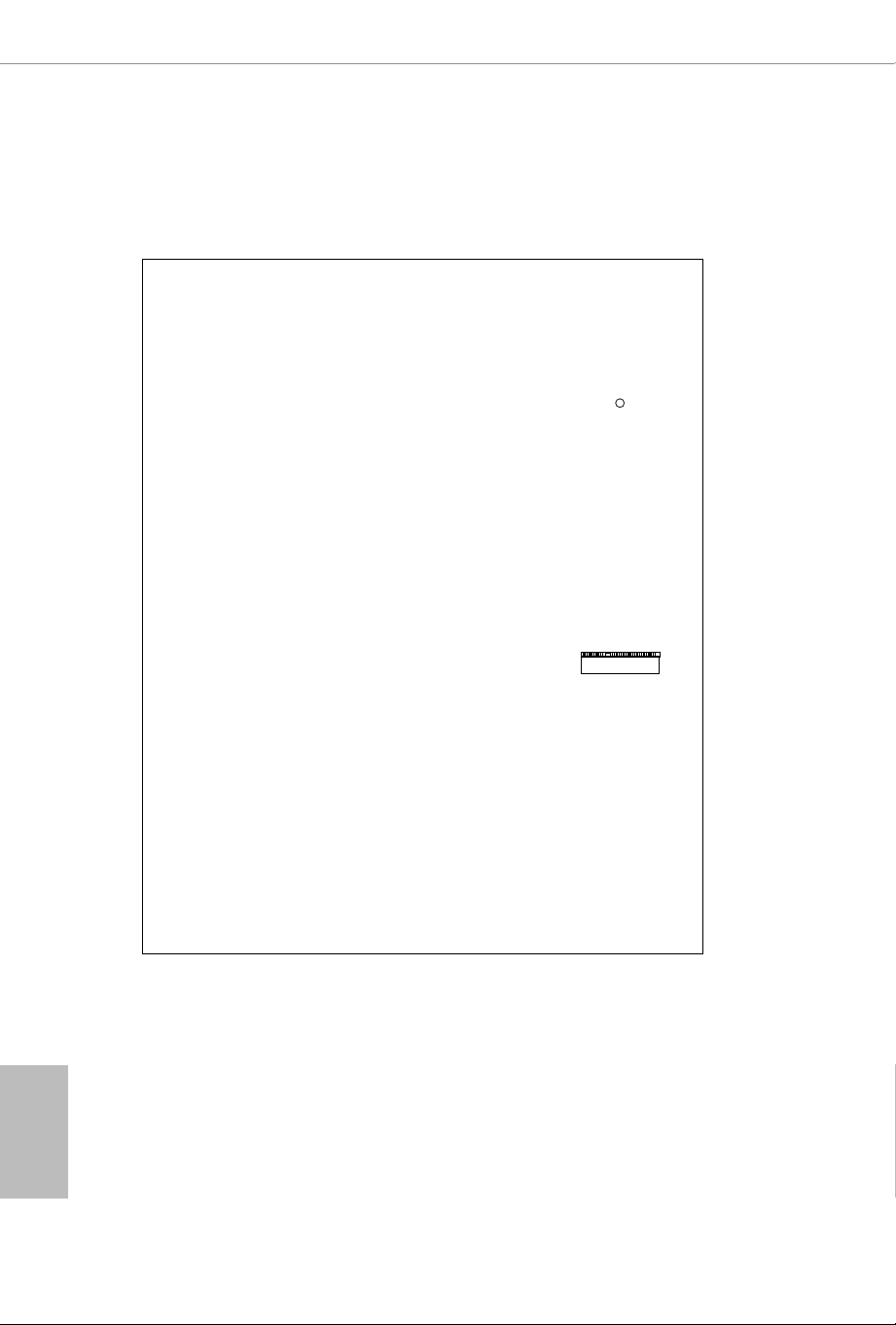
1.3 Motherboard Layout
USB 3.2 Gen1
USB3_TC_1
Headphone
/ Headset
CPU_FAN1
RoHS
6
DDR5_A2 (64 bit, 288-pin module)
DDR5_A1 (64 bit, 288-pin module)
DDR5_B2 (64 bit, 288-pin module)
DDR5_B1 (64 bit, 288-pin module)
SATA3_A2
SATA3_A1
CHA_
FAN1
PANEL1
1
HDLED RESET
PLED PWRBTN
ATX12V1
M.2 WiFi
M.2 PCIe SSD
PCIE1
USB 3. 2 Gen1
T: USB3_ 1
B: USB 3_2
USB 2.0
T: USB_1
B: USB_ 2
USB 2.0
T: USB_3
B: USB_ 4
2
12
3
4
9
RJ-45
USB 3.2 Gen 1
USB3 34_
USB_5_6
1
10
11
CLRCMOS1
1
1
ATXPWR1
X600-ITX
BIOS
_FB1
HDMI
Top:
LINE IN
Center:
FRONT
Bottom:
MIC IN
DP_2
DP_1
78
CI1
1
5
Top Side View
English
6
7
M2_2
Back Side View

X600-IT X
7
English
No. Description
1 8 pin 12V Power Connector (ATX12V1)
2 CPU Fan Connector (CPU_FAN1)
3 2 x 288-pin DDR5 DIMM Slots (DDR5_A1, DDR5_B1)
4 2 x 288-pin DDR5 DIMM Slots (DDR5_A2, DDR5_B2)
5 Chassis Intrusion Header (CI1)
6 ATX Power Connector (ATXPWR1)
7 USB 2.0 Header (USB_5_6)
8 SATA3 Connector (SATA3_A1)
9 SATA3 Connector (SATA3_A2)
10 System Panel Header (PANEL1)
11 Chassis Fan Connector (CHA_FAN1)
12 Clear CMOS Jumper (CLRCMOS1)
English
8
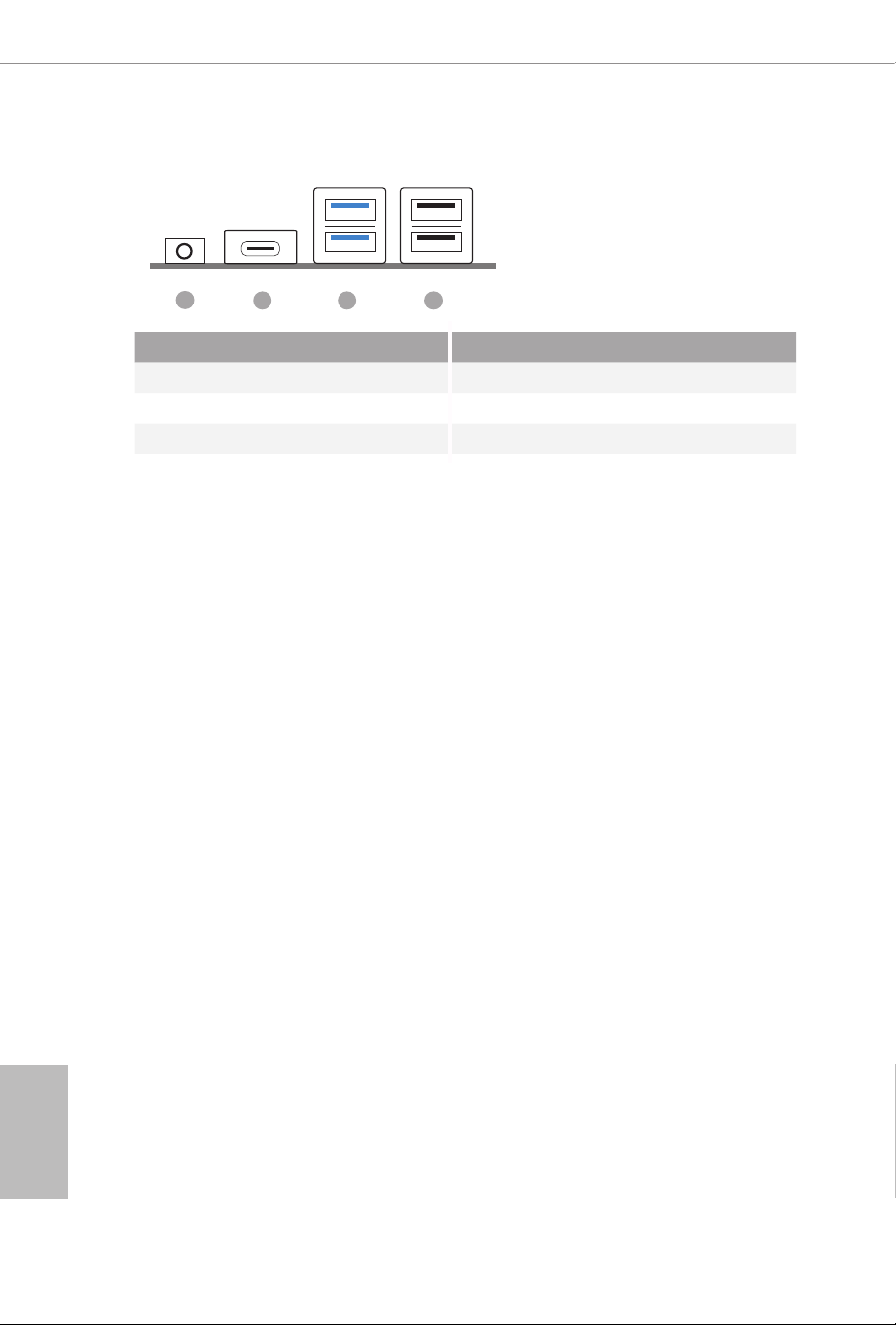
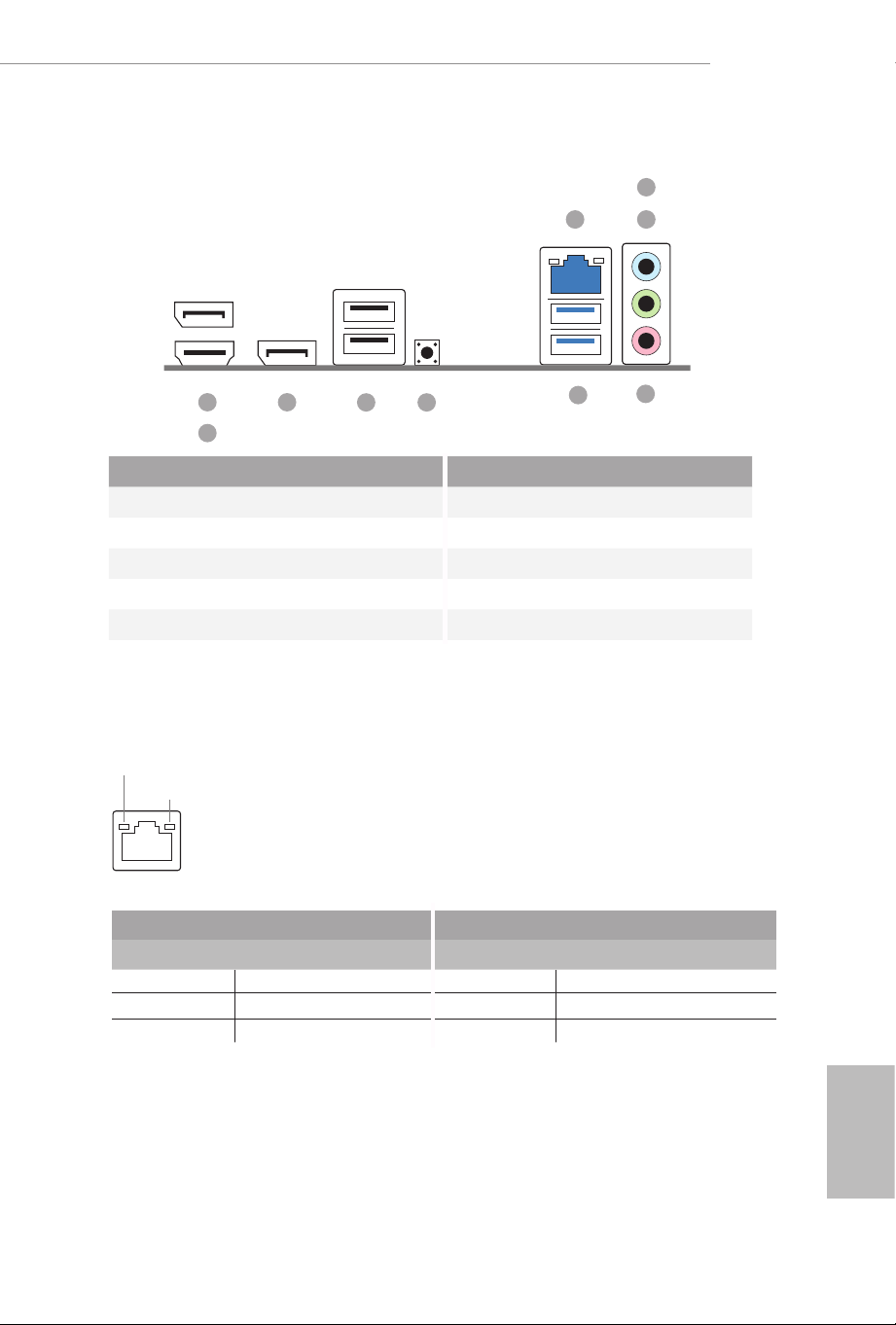
1.4 Front Panel
No. Description No. Description
1 Headphone/Headset Jack (AUDIO1) 3 USB 3.2 Gen1 Type-A Ports
2 USB 3.2 Gen1 Type-C Port (USB3_12)
(USB3_TC_1) 4 USB 2.0 Ports (USB_12)
1
2 3 4
X600-IT X
9
English
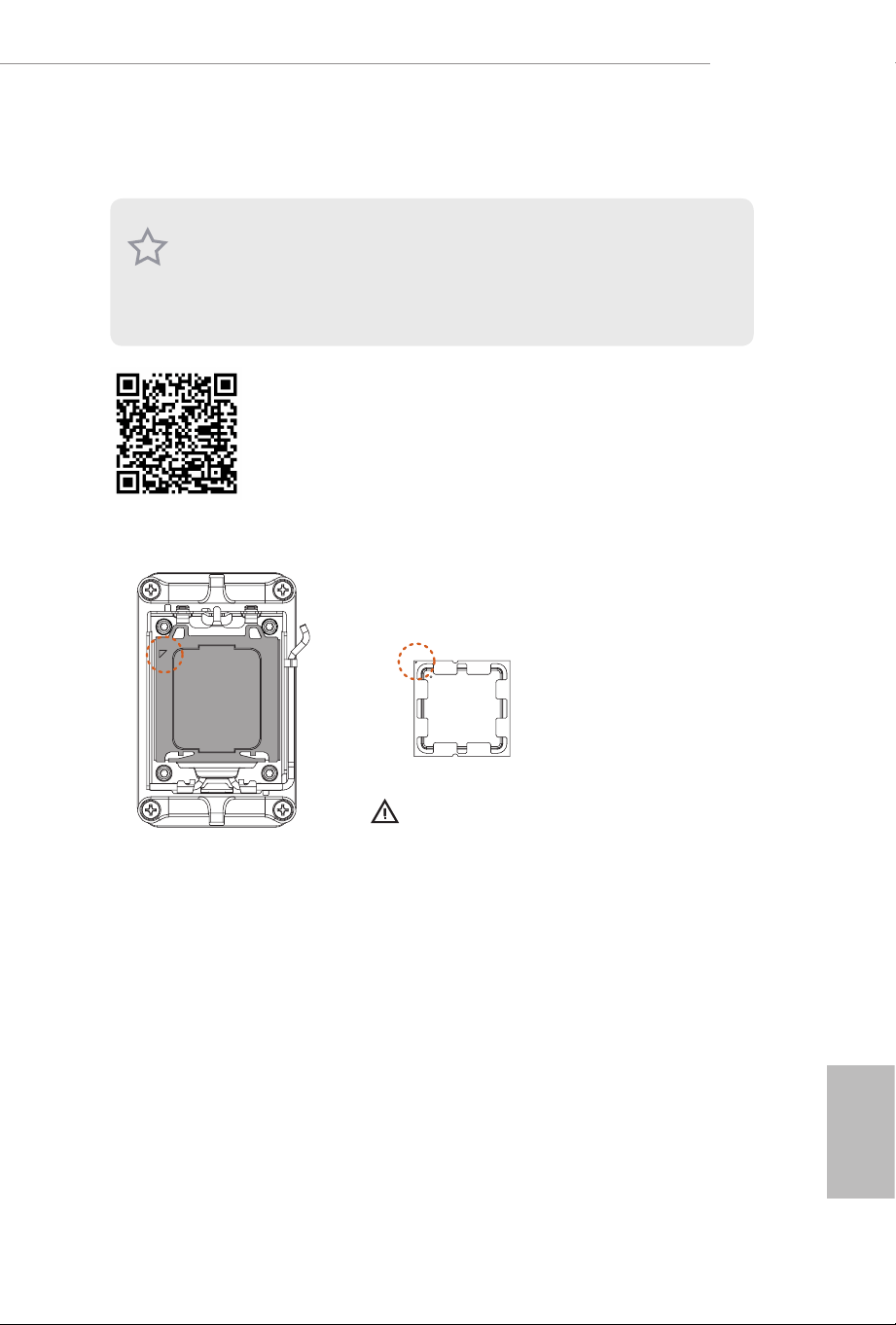
1.5 Rear Panel
No. Description No. Description
1 2.5G LAN RJ-45 Port* 6 BIOS Flashback Button
2 Line In (Light Blue)** 7 USB 2.0 Ports (USB_34)
3 Front Speaker (Lime)** 8 DisplayPort 1.4 (DP_1)
4 Microphone (Pink)** 9 DisplayPort 1.4 (DP_2)
5 USB 3.2 Gen1 Ports (USB3_34) 10 HDMI Port
ACT/LINK LED
SPEED LED
LAN Port
* ere are two LEDs on each LAN port. Please refer to the table below for the LAN port LED indications.
Activity / Link LED Speed LED
Status Description Status Description
O No Link O 10Mbps connection
Blinking Data Activity Orange 100Mbps/1Gbps connection
On Link Green 2.5Gbps connection
89
10
7 6
4
2
3
5
1

English
10
is is a Deep mini-ITX form factor motherboard. Before you install the
motherboard, study the conguration of your chassis to ensure that the
motherboard ts into it.
Pre-installation Precautions
Take note of the following precautions before you install motherboard components
or change any motherboard settings.
•
Make sure to unplug the power cord before installing or removing the motherboard.
Failure to do so may cause physical injuries to you and damages to motherboard
components.
•
In order to avoid damage from static electricity to the motherboard’s components,
NEVER place your motherboard directly on a carpet. Also remember to use a grounded
wrist strap or touch a safety grounded object before you handle the components.
•
Hold components by the edges and do not touch the ICs.
•
Whenever you uninstall any components, place them on a grounded anti-static pad or
in the bag that comes with the components.
•
When placing screws to secure the motherboard to the chassis, please do not over-
tighten the screws! Doing so may damage the motherboard.
Chapter 2 Installation
X600-IT X
11
English
2.1 Installing the CPU
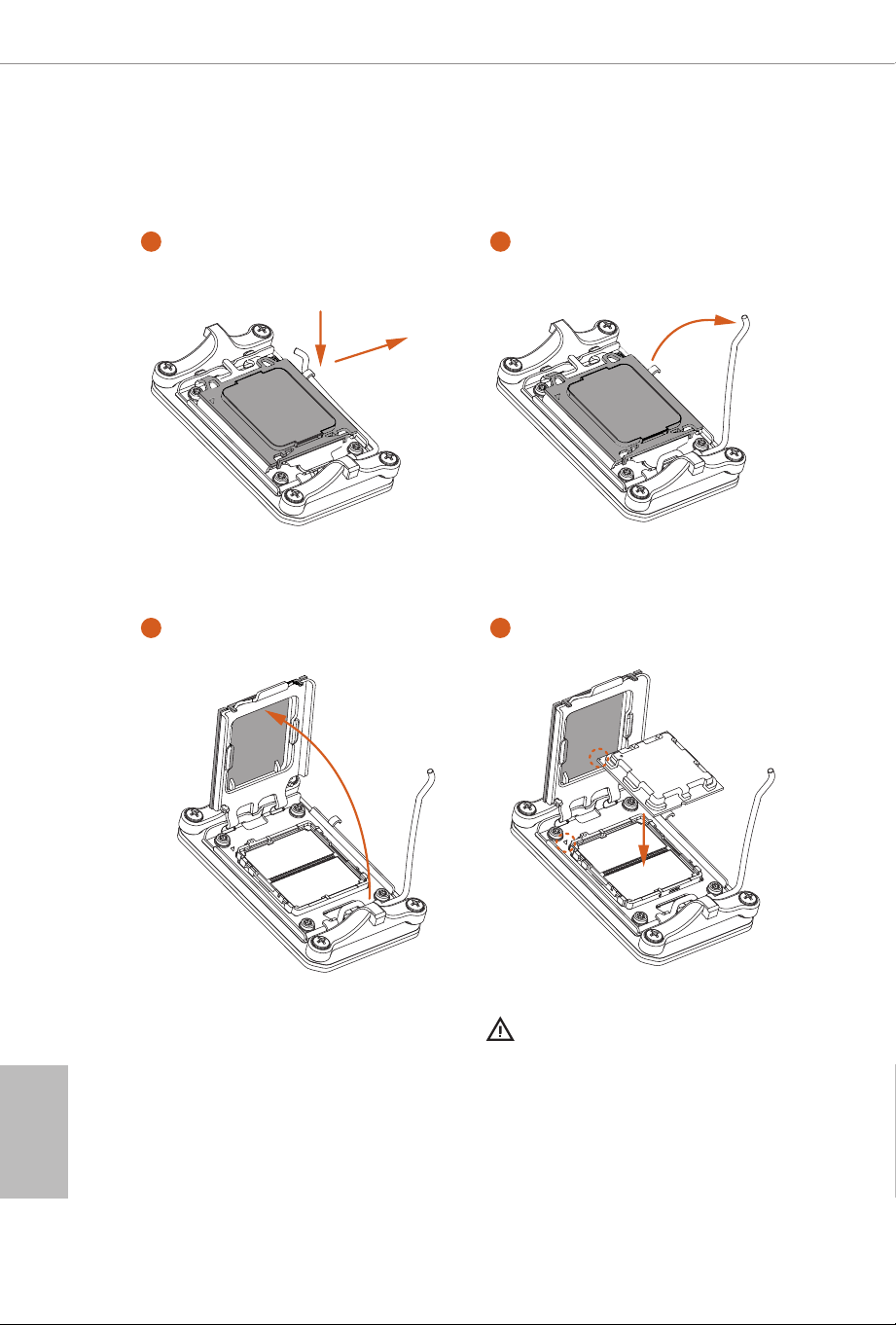
1. Before you insert the 1718-Pin CPU into the socket, please check if the PnP cap is on the
socket, if the CPU surface is unclean, or if there are any bent pins in the socket. Do not
force to insert the CPU into the socket if above situation is found. Otherwise, the CPU
will be seriously damaged.
2. Unplug all power cables before installing the CPU.
Tutorial Video
Turn your CPU to the correct orientation before opening
the CPU socket cover.
English
12
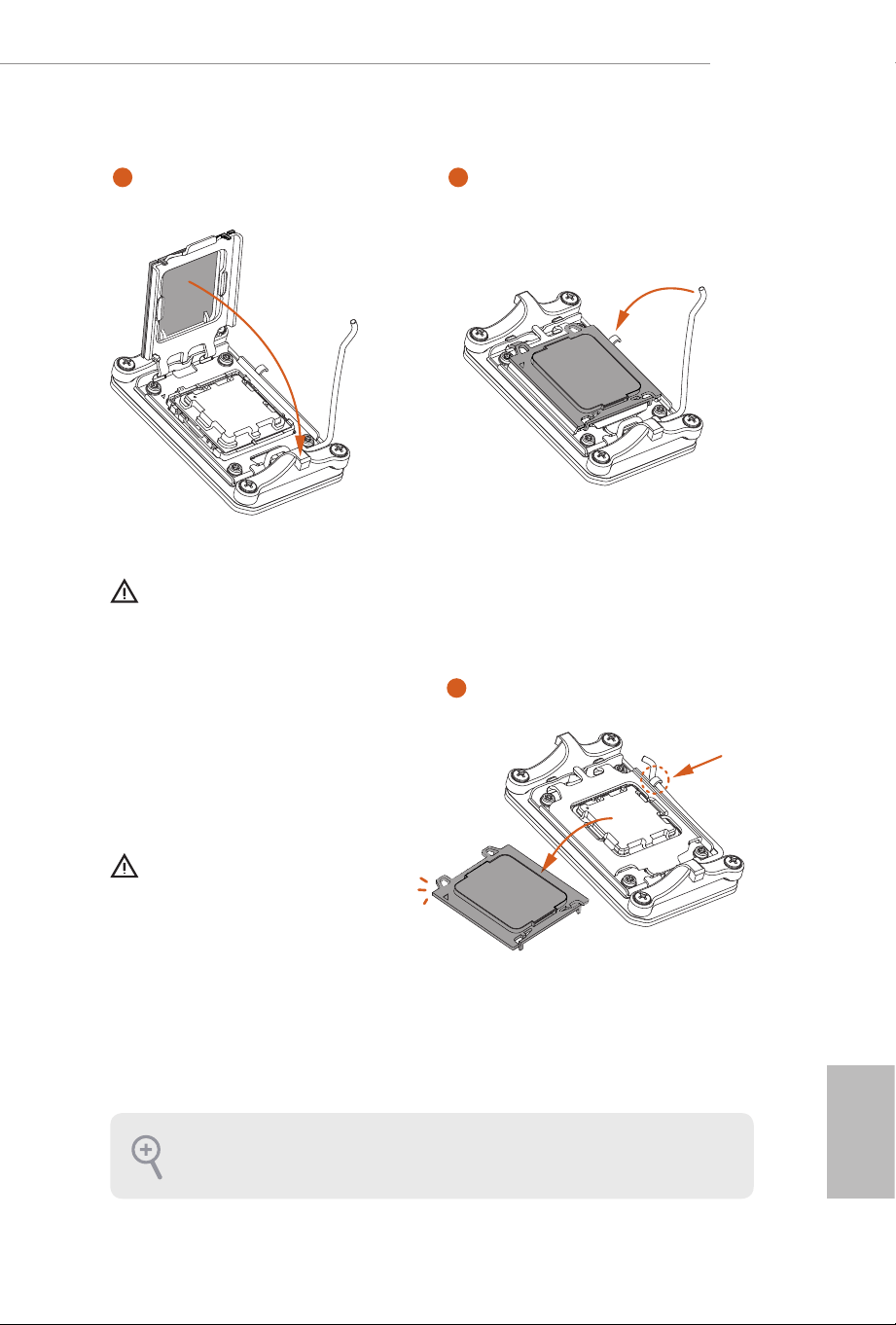
Carefully place the CPU in as at as
possible. Do not drop it.
4
1
2
A
B
3
X600-IT X
13
English
6
7
5
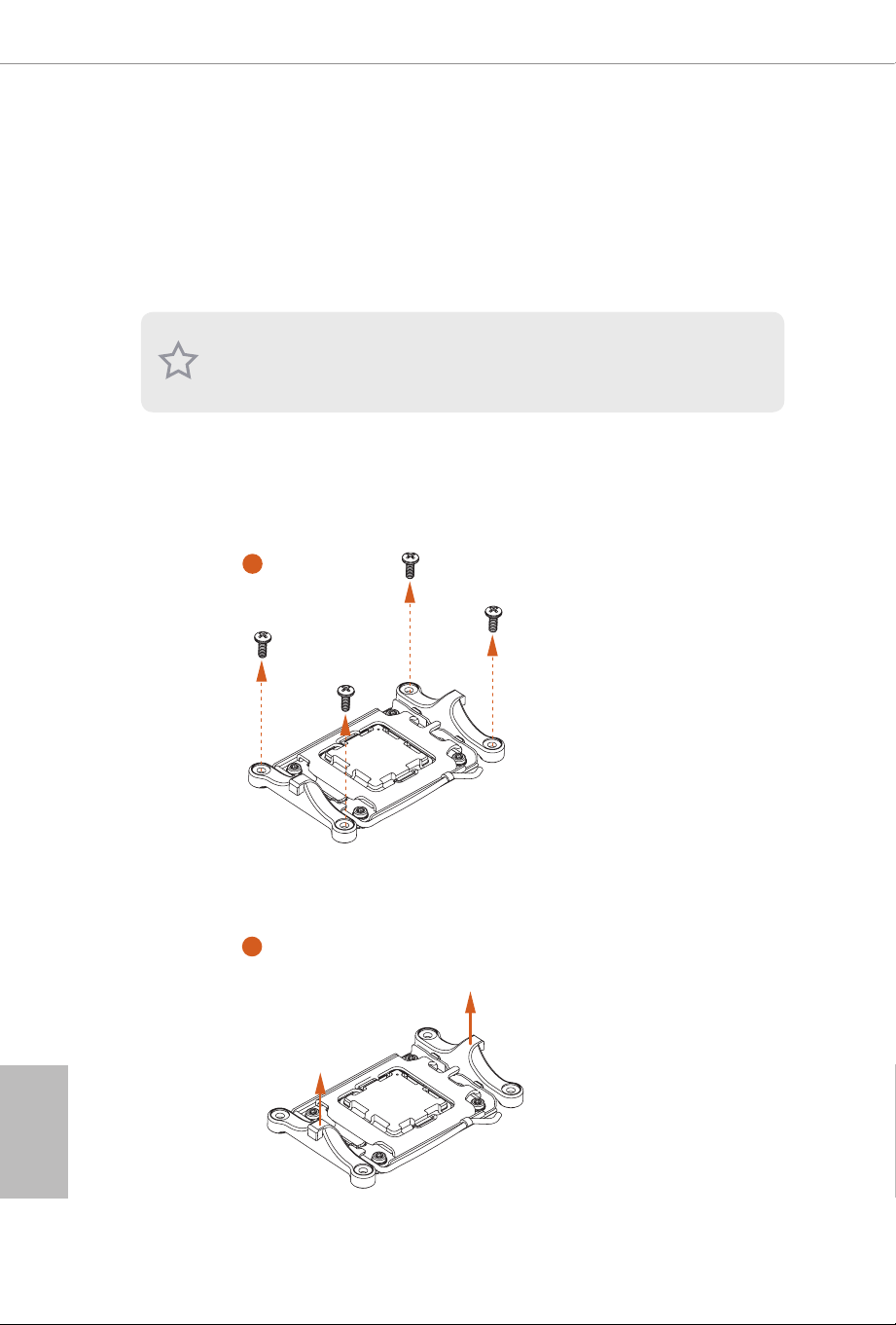
Please save the cover if the processor is removed. e cover must be placed if you wish to
return the motherboard for aer service.
Make sure the black cover plate
is always in place until it pops o
when closing the socket lever.
Make sure the CPU is aligned with the
socket before locking it into place.
English
14
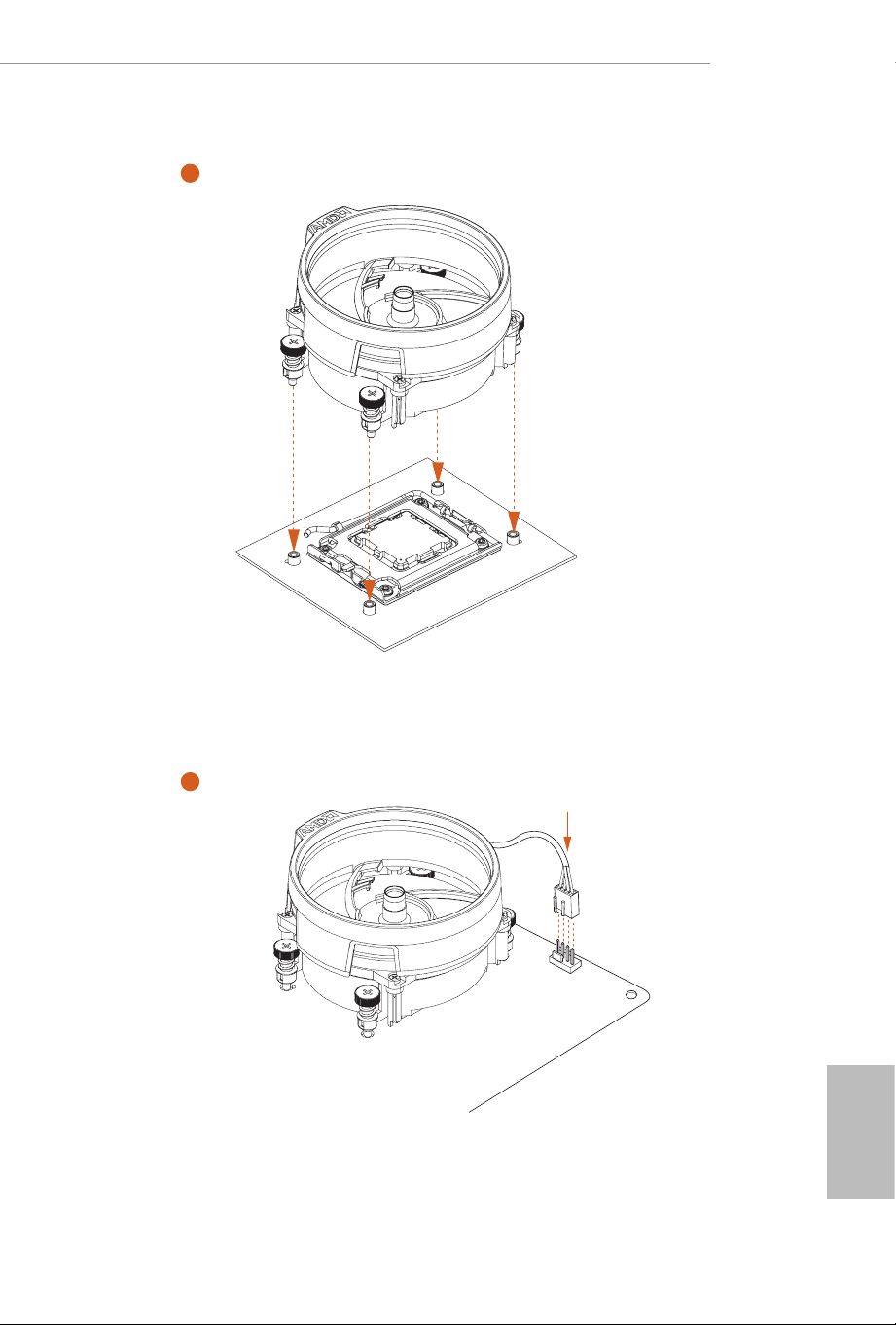
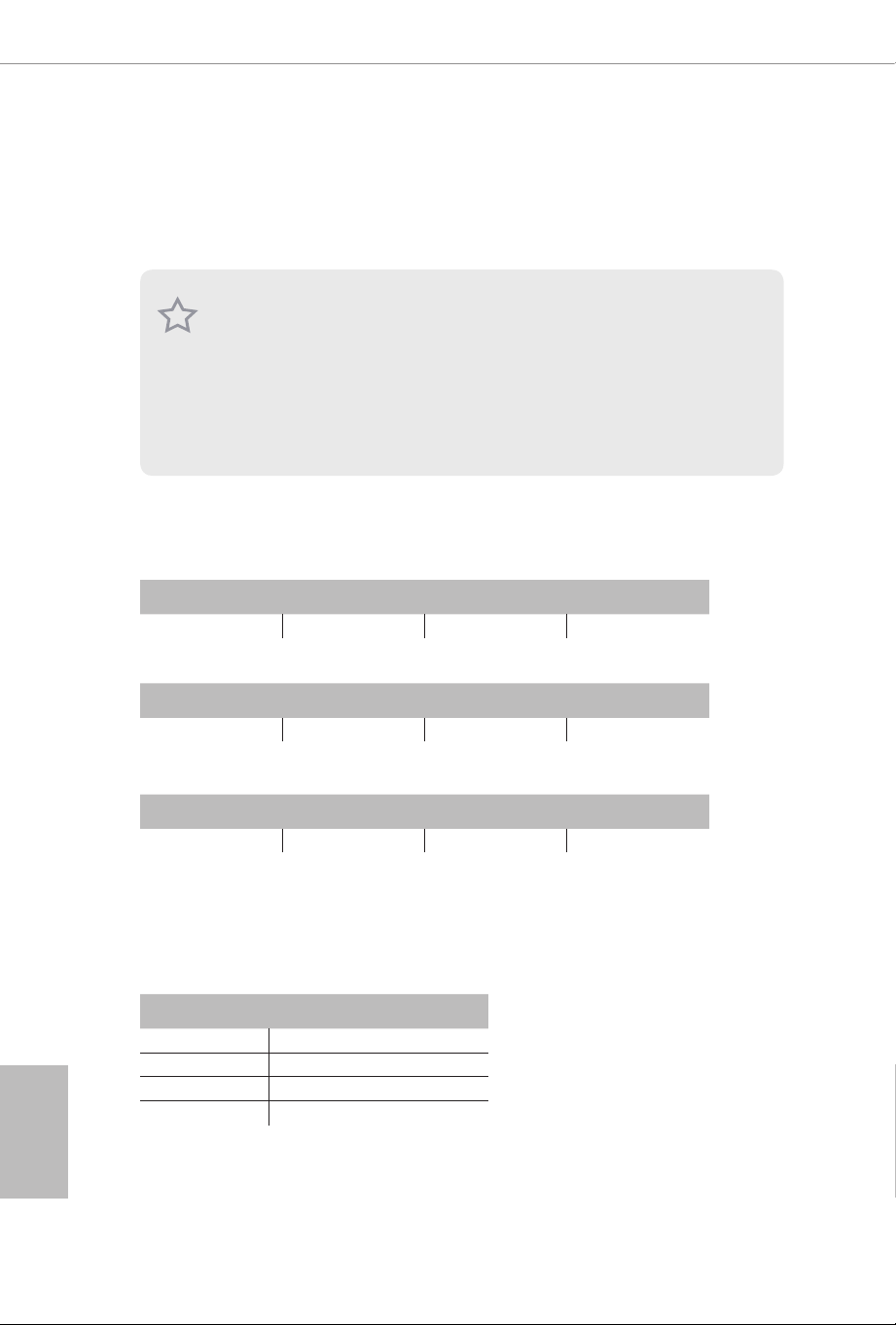
2.2 Installing the CPU Fan and Heatsink
Aer you install the CPU into this motherboard, it is necessary to install a larger
heatsink and cooling fan to dissipate heat. You also need to spray thermal grease
between the CPU and the heatsink to improve heat dissipation. Make sure that the
CPU and the heatsink are securely fastened and in good contact with each other.
Installing the CPU Cooler
Please turn o the power or remove the power cord before changing a CPU or heatsink.
2
1
X600-IT X
15
English
4
3
CPU_FAN1
English
16
2.3 Installing Memory Modules (DIMM)
is motherboard provides four 288-pin DDR5 (Double Data Rate 5) DIMM slots,
and supports Dual Channel Memory Technology.
Recommended Memory Conguration
1 DIMM
2 DIMMs
4 DIMMs
e rst boot may take some time.
Please be patient and refer to the following table for booting time.
*It may vary by dierent setups.
A1 A2 B1 B2
V
A1 A2 B1 B2
V V
A1 A2 B1 B2
V V V V
1. For dual channel conguration, you always need to install identical (the same brand,
speed, size and chip-type) DDR5 DIMM pairs.
2. It is unable to activate Dual Channel Memory Technology with only one or three memory
module installed.
3. It is not allowed to install a DDR, DDR2 , DDR3 or DDR4 memory module into a DDR5
slot; otherwise, this motherboard and DIMM may be damaged.
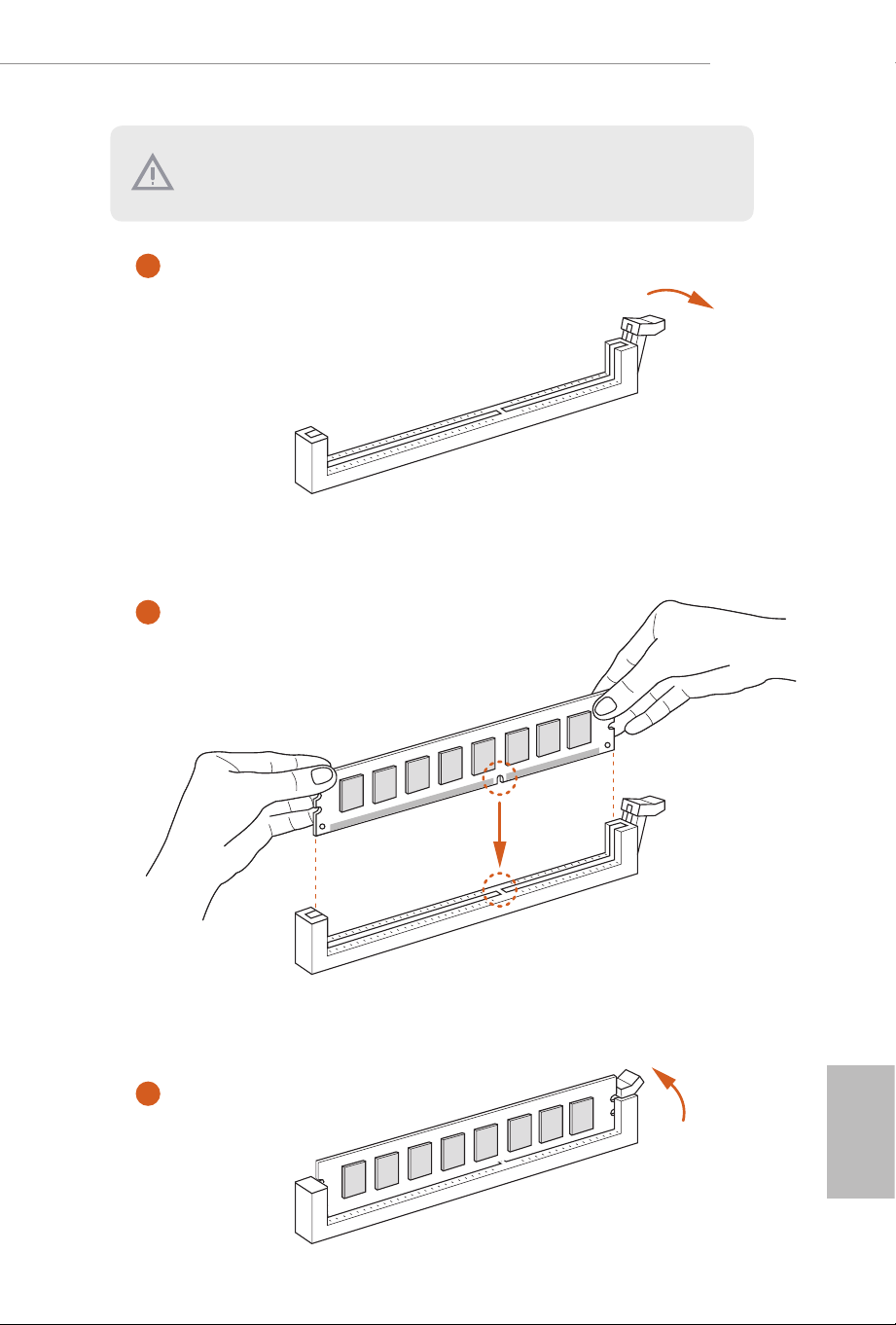
4. e DIMM only ts in one correct orientation. It will cause permanent damage to the
motherboard and the DIMM if you force the DIMM into the slot at incorrect orientation.
Memory 1st boot after clear CMOS
2 x 16GB 90 sec
2 x 32GB 150 sec
4 x 16GB 170 sec
4 x 32GB 315 sec
X600-IT X
17
English
e DIMM only ts in one correct orientation. It will cause permanent damage to
the motherboard and the DIMM if you force the DIMM into the slot at incorrect
orientation.
1
2
3
English
18
2.4 Expansion Slot (PCIe Slot)
ere are 1 PCIe slot on the motherboard.
PCIe slot:
PCIE1 (PCIe 4.0 x16 slot) is used for PCIe x16 lane width graphics cards.
Before installing an expansion card, please make sure that the power supply is
switched o or the power cord is unplugged. Please read the documentation of the
expansion card and make necessary hardware settings for the card before you start
the installation.
X600-IT X
19
English
If you clear the CMOS, the case open may be detected. Please adjust the BIOS option
“Clear Status” to clear the record of previous chassis intrusion status.
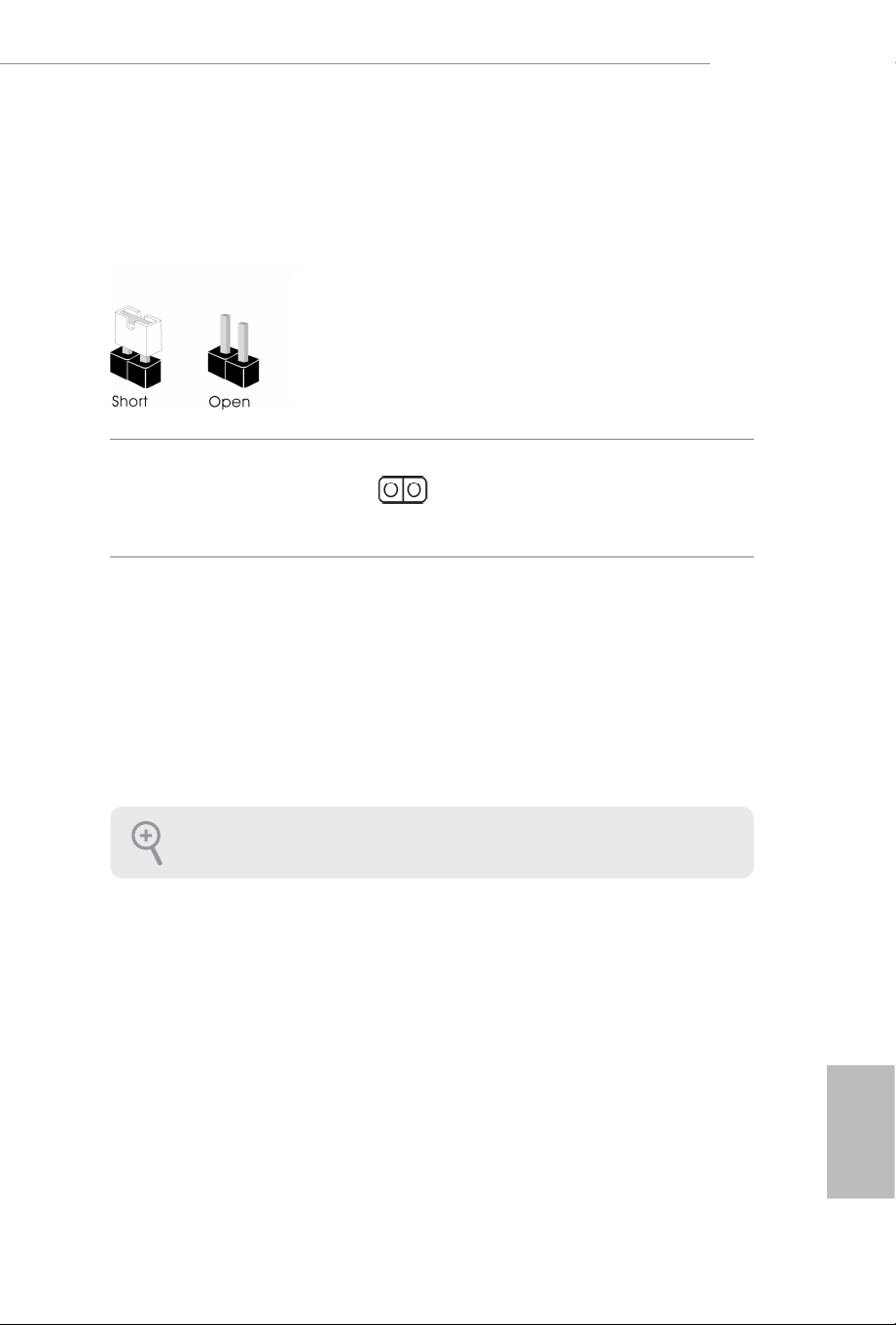
2.5 Jumpers Setup
e illustration shows how jumpers are setup. When the jumper cap is placed on
the pins, the jumper is “Short”. If no jumper cap is placed on the pins, the jumper is
“Open”.
Clear CMOS Jumper
(CLRCMOS1)
(see p.5, No. 12)
Short: Clear CMOS
Open: Default
CLRCMOS1 allows you to clear the data in CMOS. e data in CMOS includes
system setup information such as system password, date, time, and system setup
parameters. To clear and reset the system parameters to default setup, please
turn o the computer and unplug the power cord, then use a jumper cap to short
the pins on CLRCMOS1 for 3 seconds. Please remember to remove the jumper
cap aer clearing the CMOS. If you need to clear the CMOS when you just nish
updating the BIOS, you must boot up the system rst, and then shut it down
before you do the clear-CMOS action.
2-pin Jumper
English
20
2.6 Onboard Headers and Connectors
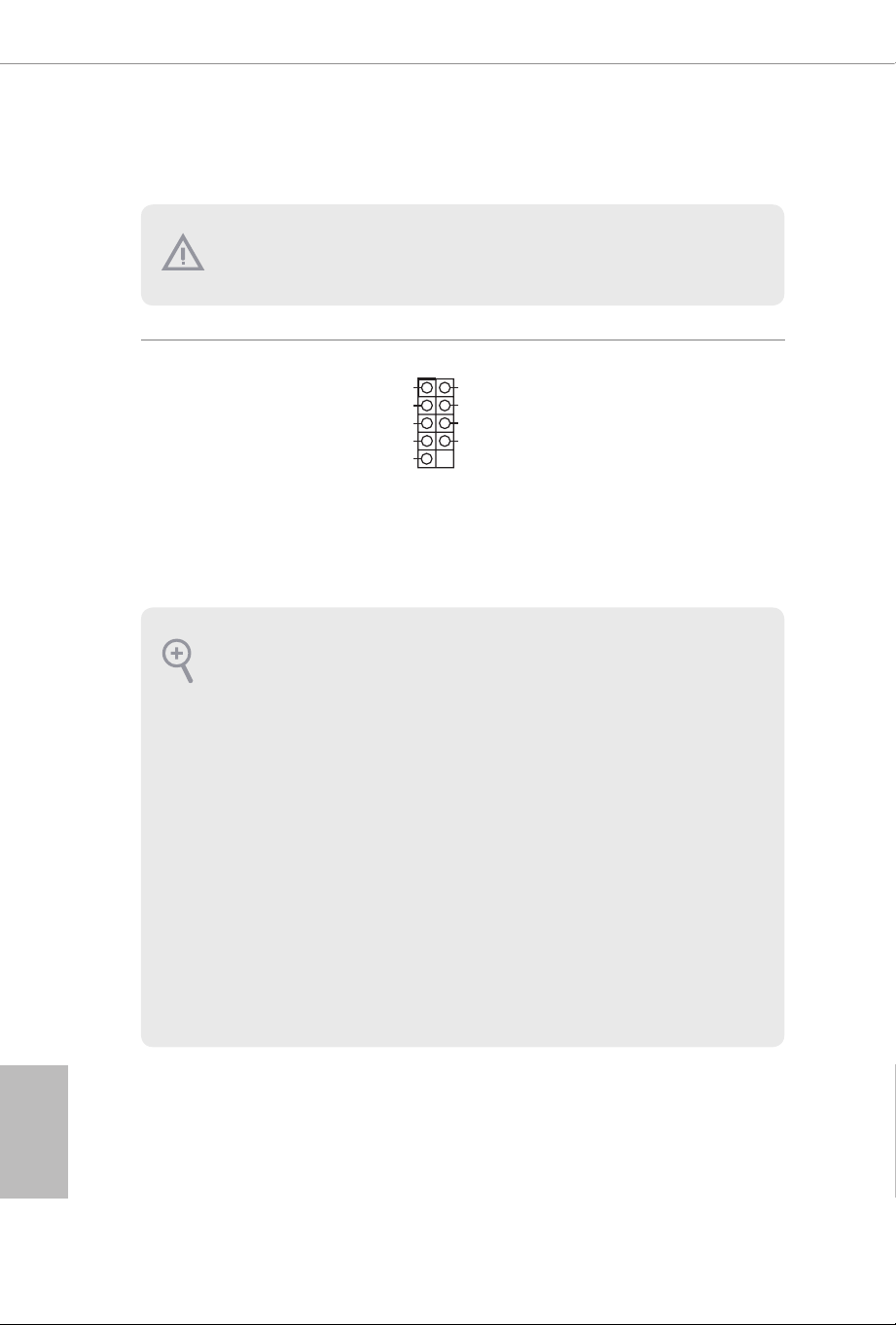
System Panel Header
(9-pin PA NEL1)
(see p.5, No.10)
Connect the power
button, reset button and
system status indicator on
the chassis to this header
according to the pin
assignments below. Note
the positive and negative
pins before connecting
the cables.
GND
R
ESET#
PWRBTN
#
PLED-
PLED+
GND
HDLED-
HDLED
+
1
GND
Onboard headers and connectors are NOT jumpers. Do NOT place jumper caps over these
headers and connectors. Placing jumper caps over the headers and connectors will cause
permanent damage to the motherboard.
PWRBTN (Power Button):
Connect to the power button on the chassis front panel. You may congure the way to turn
o your system using the power button.
RESET (Reset Button):
Connect to the reset button on the chassis front panel. Press the reset button to restart the
computer if the computer freezes and fails to perform a normal restart.
PLED (System Power LED):
Connect to the power status indicator on the chassis front panel. e LED is on when the
system is operating. e LED keeps blinking when the system is in S1/S3 sleep state. e
LED is o when the system is in S4 sleep state or powered o (S5).
HDLED (Hard Drive Activity LED):
Connect to the hard drive activity LED on the chassis front panel. e LED is on when the
hard drive is reading or writing data.
e front panel design may dier by chassis. A front panel module mainly consists of power
button, reset button, power LED, hard drive activity LED, speaker and etc. When connect-
ing your chassis front panel module to this header, make sure the wire assignments and the
pin assignments are matched correctly.
X600-IT X
21
English
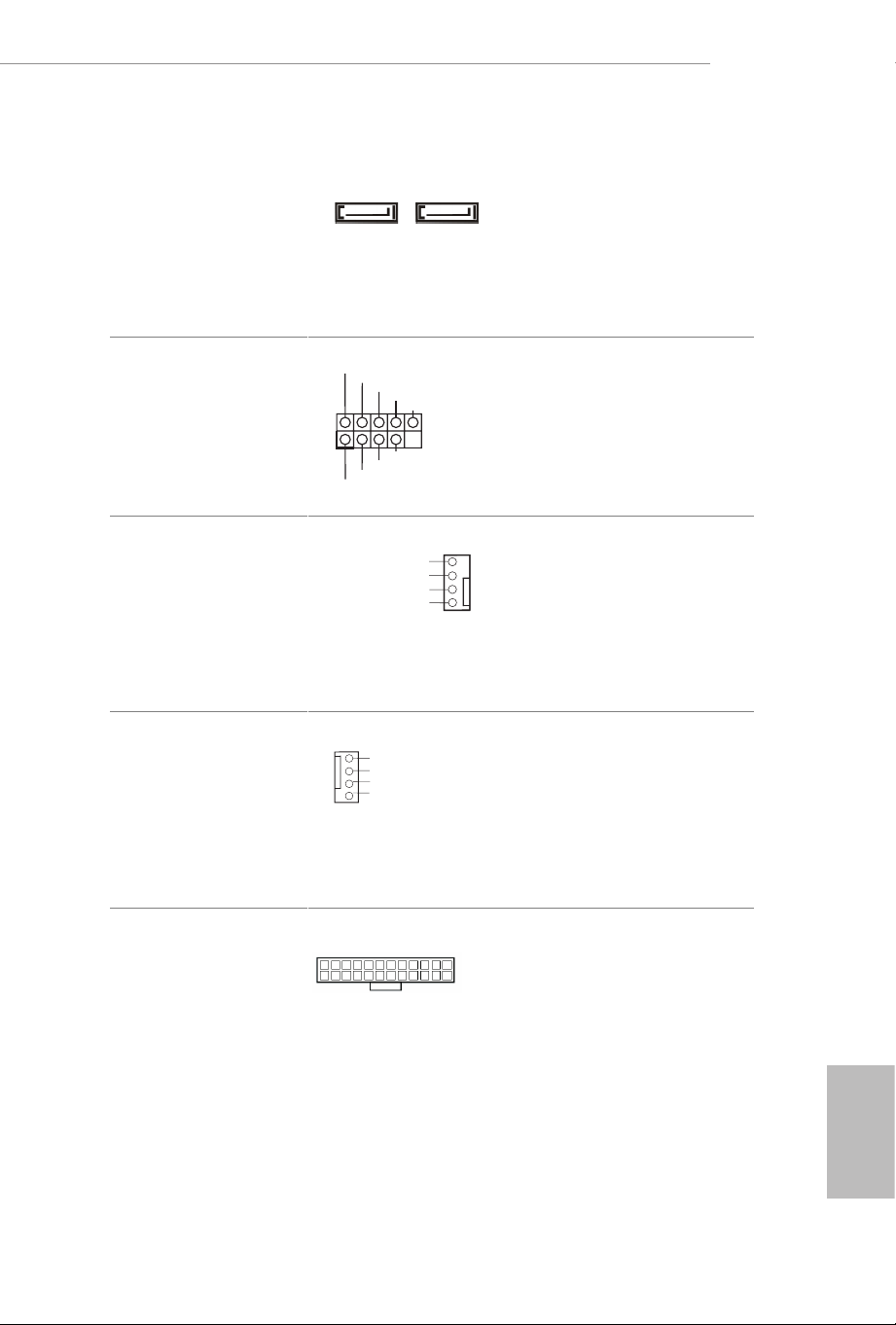
Serial ATA3 Connector
(SATA3_A1:
see p.5, No. 8)
(SATA3_A2:
see p.5, No. 9)
ese two SATA3
connector supports SATA
data cables for internal
storage devices with up to
6.0 Gb/s data transfer rate.
USB 2.0 Header
(9-pin USB_5_6)
(see p.5, No. 7)
ere is one header on
this motherboard. is
USB 2.0 header can
support two ports.
Chassis Fan Connector
(4-pin CHA_FAN1)
(see p.5, No. 11)
Please connect fan cable
to the fan connector and
match the black wire to
the ground pin.
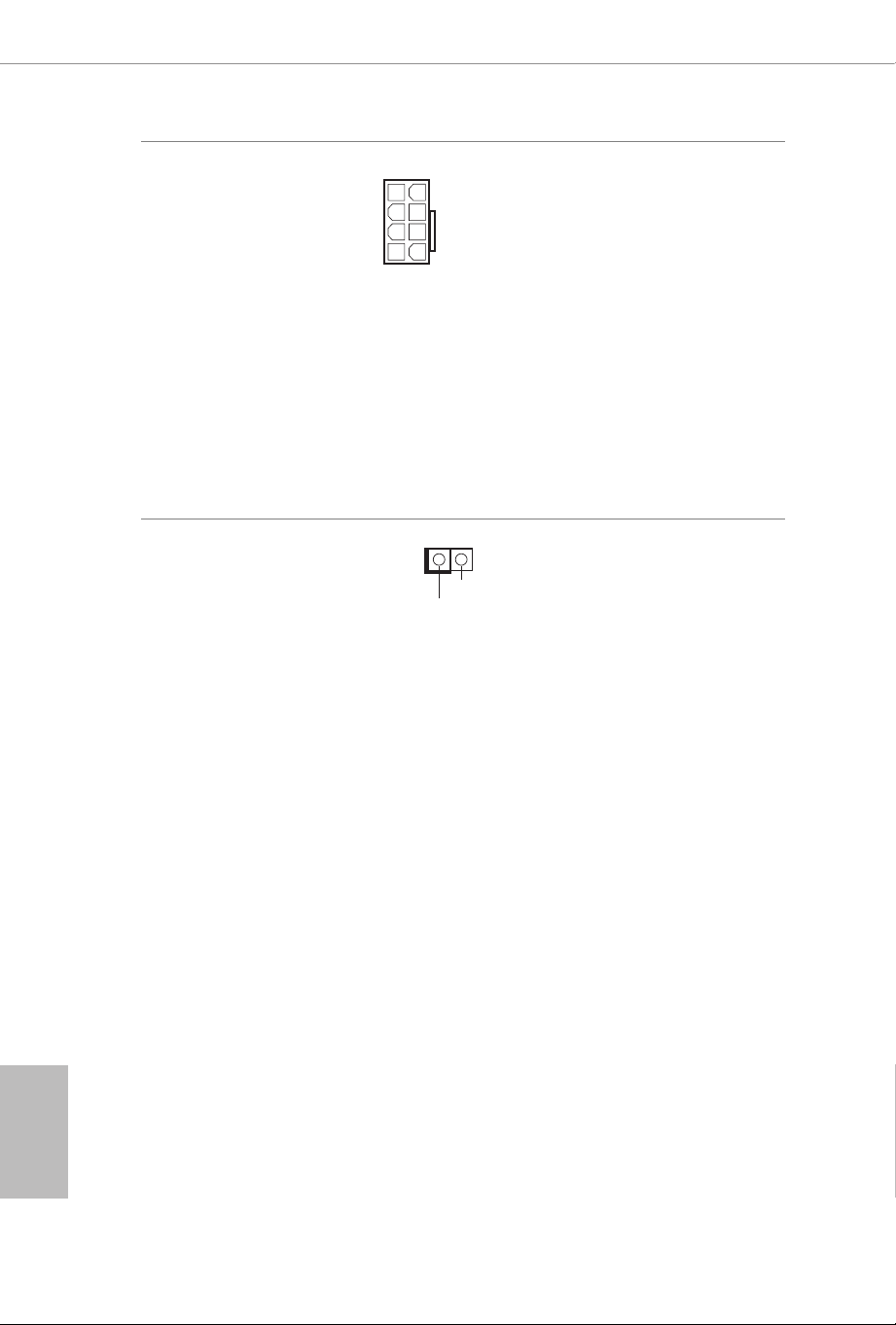
CPU Fan Connectors
(4-pin CPU_FAN1)
(see p.5, No. 2)
is motherboard
provides a 4-Pin CPU fan
(Quiet Fan) connector.
If you plan to connect a
3-Pin CPU fan, please
connect it to Pin 1-3.
ATX Power Connector
(24-pin ATXPWR1)
(see p.5, No. 6)
is motherboard pro-
vides a 24-pin ATX power
connector. To use a 20-pin
ATX power supply, please
plug it along Pin 1 and Pin
13.
SATA3_A1
SATA3_A2
+12V
1
2
3
4
GND
CPU_FAN_SPEED
FAN_SPEED_CONTRO
L
12
24
1
13
DUMMY
GND
GND
P+
P-
USB_PWR
P+
P-
USB_PWR
1
+12V
GND
CHA_FAN_SPEED
F
AN_SPEED_CONTROL
4
3
2
1
English
22
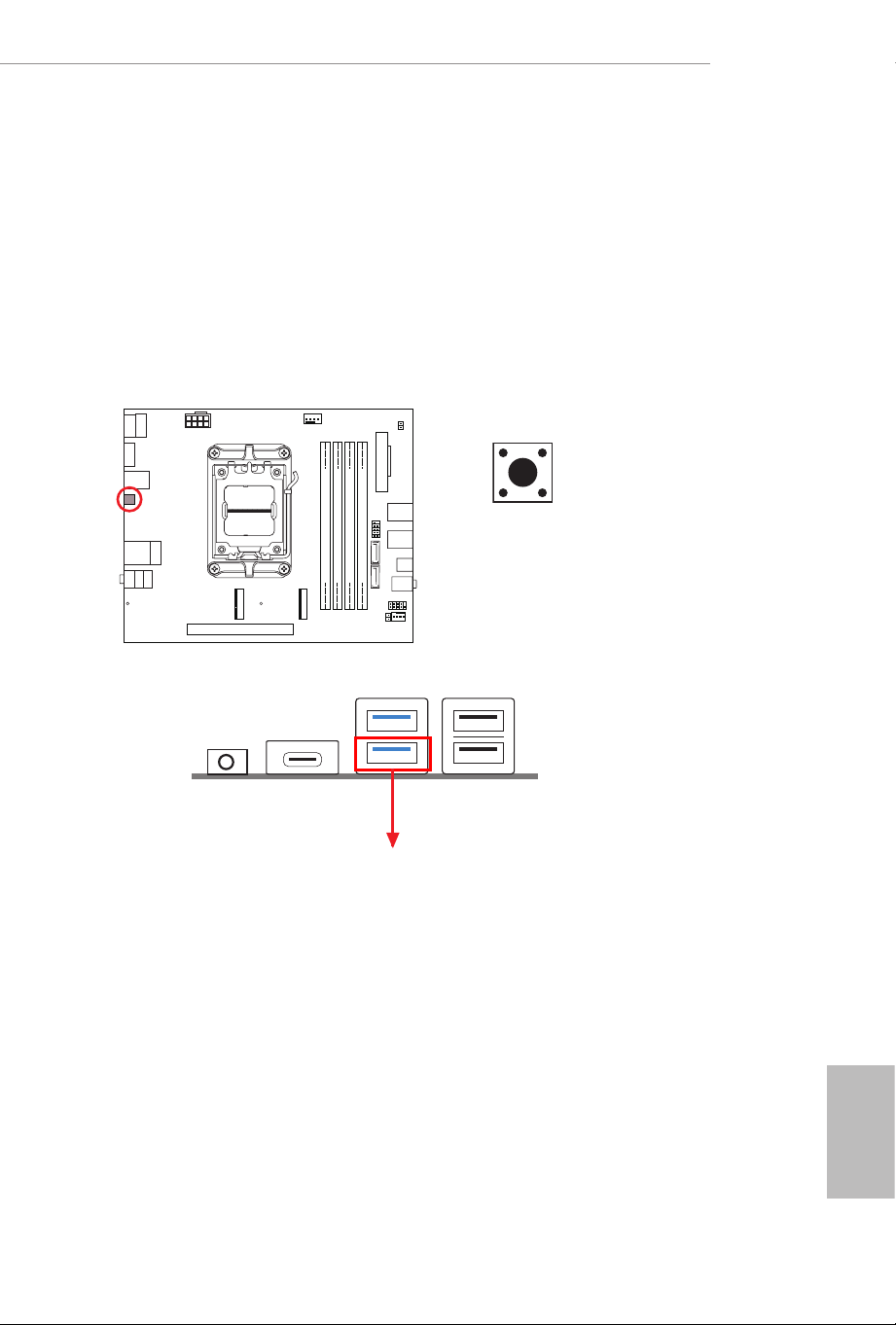
ATX 12V Power
Connector
(8-pin ATX12V1)
(see p.5, No. 1)
is motherboard
provides a 8-pin ATX 12V
power connectors. To use
a 4-pin ATX power
supply, please plug it along
Pin 1 and Pin 5.
*Warning: Please make
sure that the power cable
connected is for the CPU
and not the graphics
card. Do not plug the
PCIe power cable to this
connector.
Chassis Intrusion Header
(2-pin CI1)
(see p.5, No. 5)
is motherboard
supports CASE OPEN
detection feature that
detects if the chassis cove
has been removed. is
feature requires a chassis
with chassis intrusion
detection design.
4 8
15
1
Signal
GND
X600-IT X
23
English
2.7 Smart Button
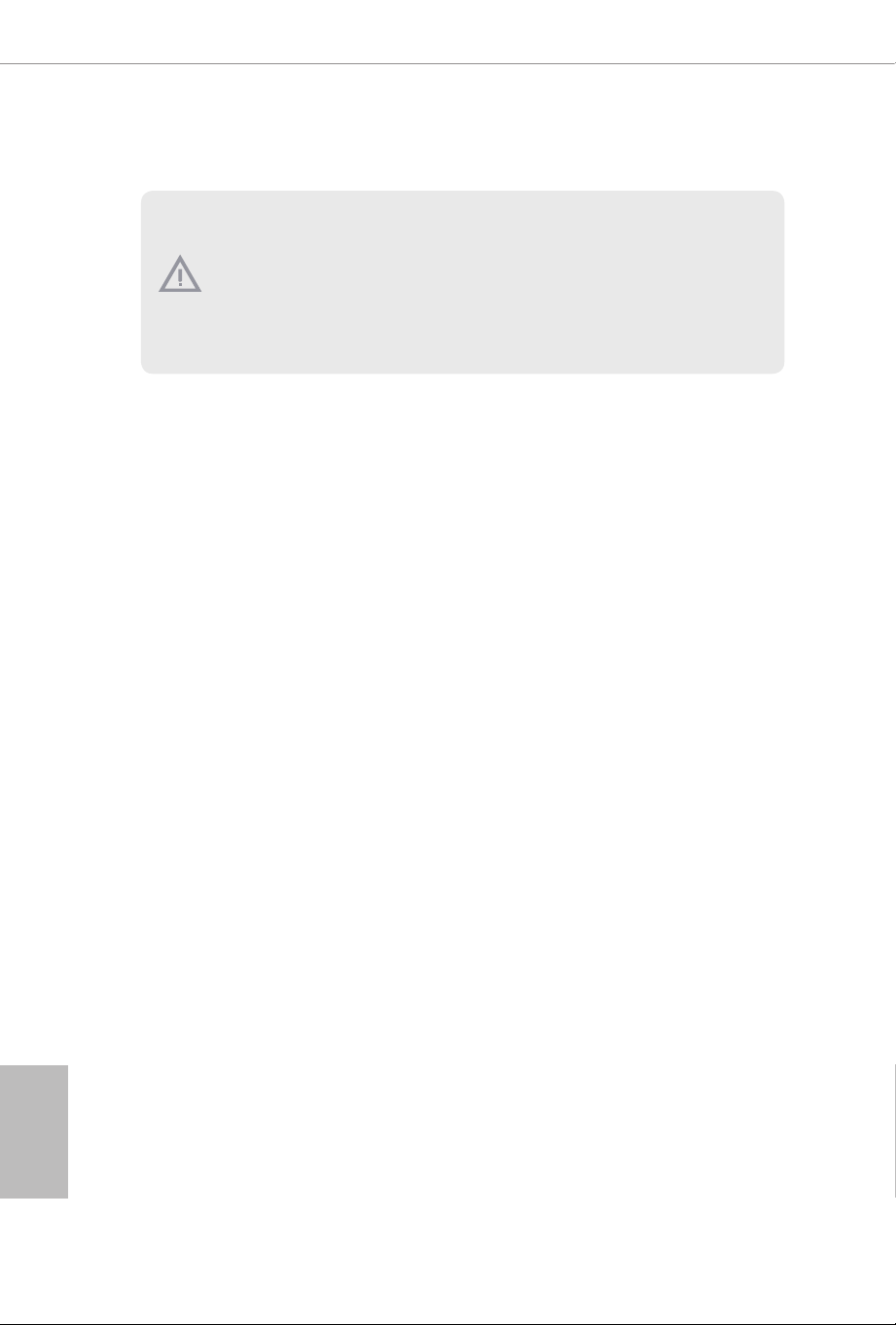
e motherboard has a smart button: BIOS Flashback Button, allowing users to
ash the BIOS.
BIOS Flashback Button
(BIOS_FB1) (see p.9, No. 6)
BIOS Flashback Button allows users to ash the BIOS.
X 600-ITX
BIOS
_FB1
BIOS_FB1
USB BIOS Flashback port
English
24
is motherboard is equipped with AMD USB BIOS Flashback feature that allows you to update
BIOS without powering on the system.
USB Drive Requirements
e USB drive that is used for the BIOS update feature should meet the following requirements:
• USB 2.0 only
• Capacity up to 32GB
• Must be formatted as FAT16 or FAT32.
Root Directory Files
In the root directory there are two required les:
• BIOSUBU.BIN (required)
• PSPBIOS.IMG (required)
To use the USB BIOS Flashback function, please follow the steps below.
1. Download the latest BIOS le and BIOSUBU.BIN le from ASRock's website:
http://www.asrock.com.
2. Copy the BIOS le to your USB ash drive. Please make sure the le system of your USB ash
drive must be formatted as FAT16 or FAT32.
3. Extract BIOS le from the zip le.
4. Rename the le to “PSPBIOS.IMG”. Save it and BIOSUBU.BIN le to the root directory of X:
USB ash drive.
5. Install the CPU, CPU fan and DRAM on the motherboard. It is recommended to install the
CPU fan to CPU_FAN1 connector. Plug the 8-pin ATX 12V power connector and 24-pin ATX
power connector to the motherboard. en turn on the power supply's AC switch.
*ere is no need to power on the system.
6. en plug your USB drive to the USB BIOS Flashback port.
7. Press the BIOS Flashback Switch for about three seconds. en the system starts BIOS
ashing automatically and the LED starts to blink.
8. Wait until the LED stops blinking, indicating that BIOS ashing has been completed. is
takes around 2 and a half minutes. en the system restarts and enter BIOS.
*If the LED light turns solid green, this means that the BIOS Flashback is not operating
properly. Please turn o the power supply's AC switch to disconnect power for several minutes,
and turn it on again.
**If the LED does not light up at all, this means that the BIOS Flashback does not work. Please
turn o the power supply's AC switch to disconnect power for several minutes, and turn it on
again.
Before using the BIOS Flashback function, please suspend BitLocker and any encryp-
tion or security relying on the TPM. Make sure that you have already stored and
backup-ed the recovery key. If the recovery key is missing while encryption is active,
the data will stay encrypted and the system will not boot into the operating system. It
is recommended to disable fTPM before updating the BIOS. Otherwise an unpredict-
able failure may occur.
X600-IT X
25
English
2.8 M.2 WiFi/BT Module Installation Guide
e M.2 is a small size and versatile card edge connector that aims to replace mPCIe and
mSATA. e M.2 Socket (Key E) supports type 2230 WiFi/BT module.
Installing the WiFi/BT module
Step 1
Prepare a type 2230 WiFi/BT module
and the screw.
PCB Length: 3cm
Module Type: Type2230
A
Step 2
Find the nut location to be used.
A
A
20
o
Step 3
Gently insert the WiFi/BT module
into the M.2 slot. Please be aware
that the module only ts in one
orientation.
English
26
A
Step 4
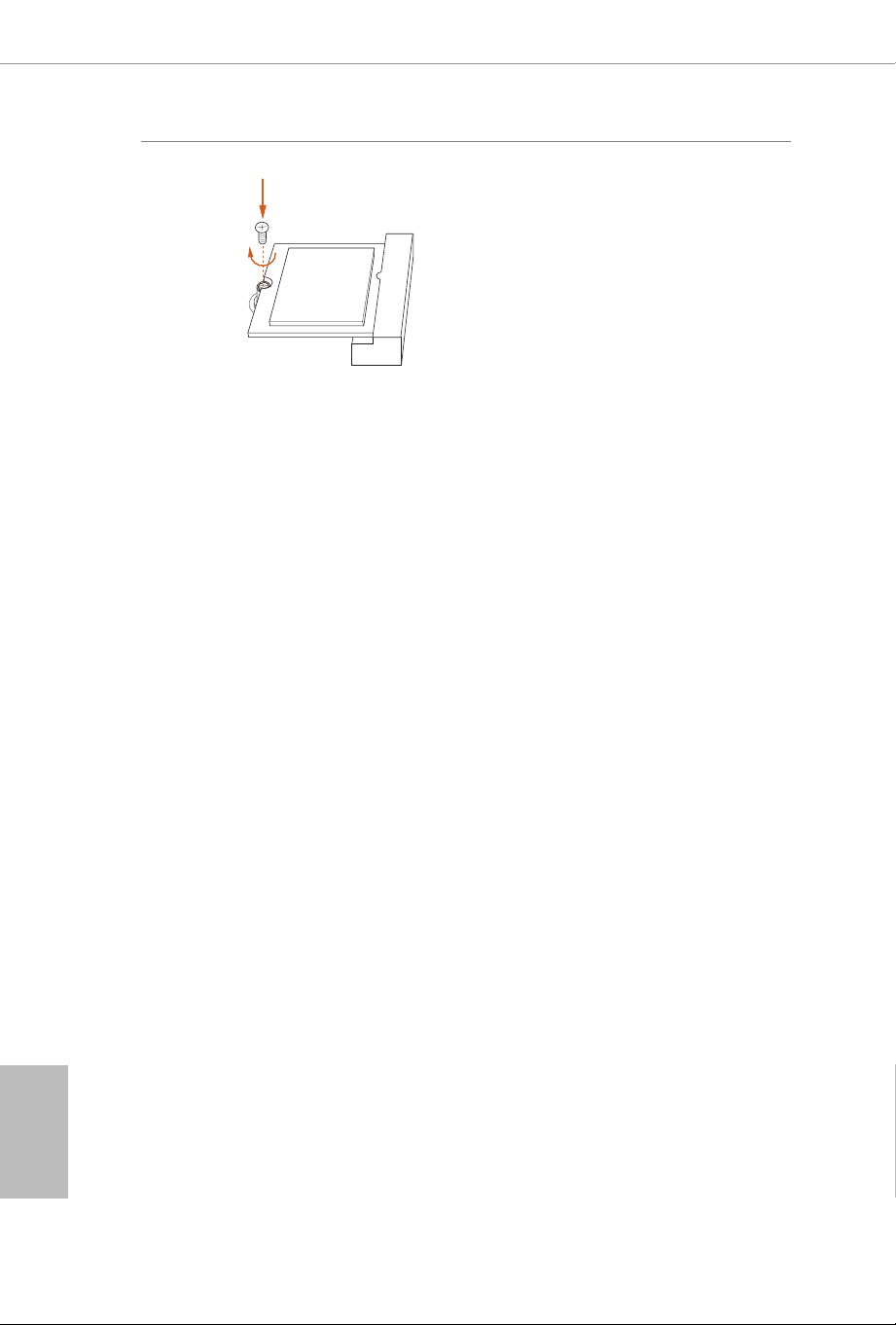
Tighten the screw with a screwdriver
to secure the module into place.
Please do not overtighten the screw as
this might damage the module.
X600-IT X
27
English
2.9 M.2 SSD Module Installation Guide
e M.2 is a small size and versatile card edge connector that aims to replace mPCIe and
mSATA. e Blazing M.2 Socket (M2_1, Key M) supports type 2280 PCIe Gen5x4 (128 Gb/
s) mode. e Hyper M.2 Socket (M2_2, Key M) supports type 2280 PCIe Gen4x4 (64 Gb/s)
mode.
Installing the M.2 SSD Module
Step 1
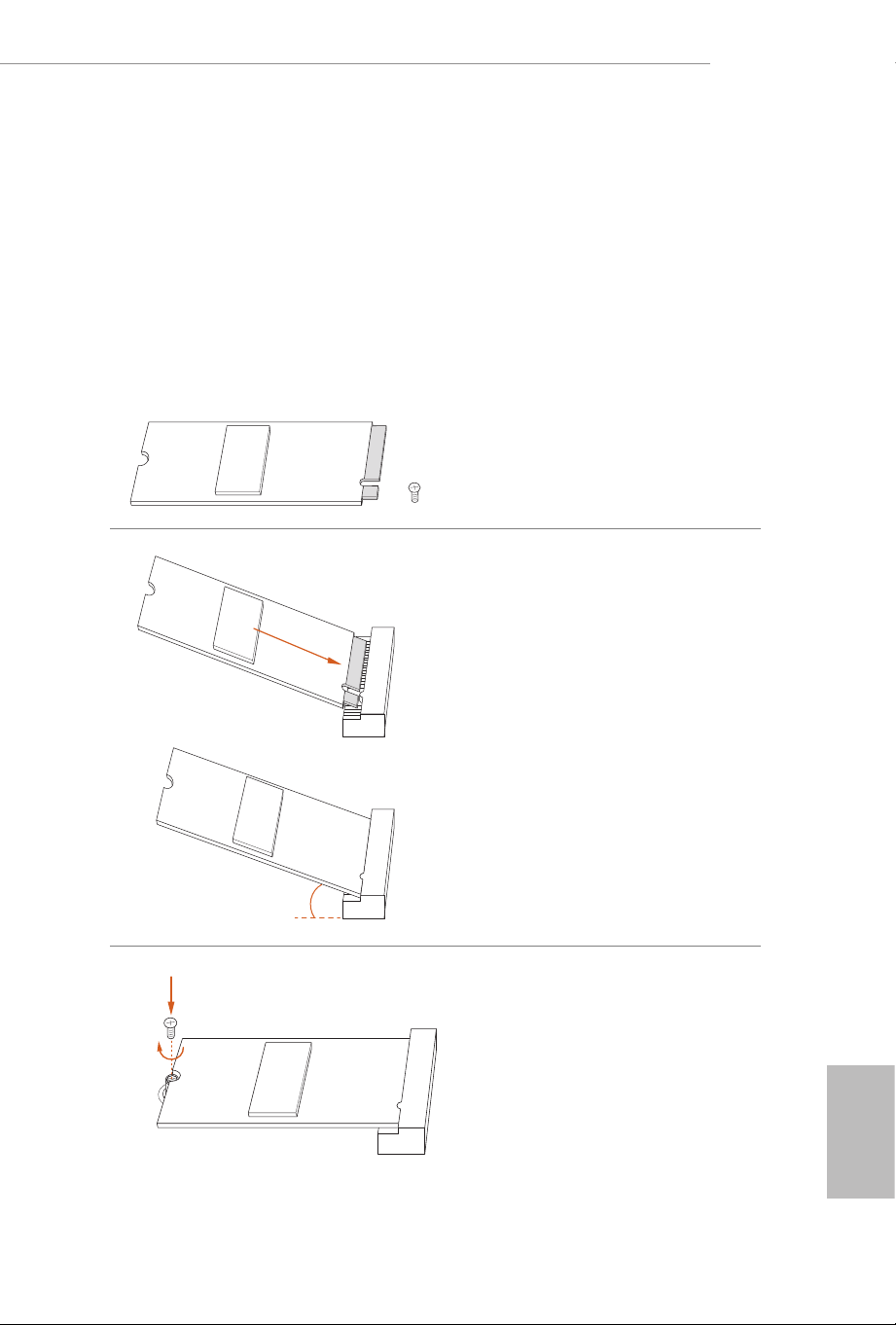
Prepare a M.2 SSD Module and the
screw.
Step 2
Gently insert the M.2 SSD module
into the M.2 slot. Please be aware
that the M.2 SSD module only ts in
one orientation.
Step 3
Tighten the screw with a
screwdriver to secure the
module into place. Please do
not overtighten the screw as
this might damage the module.
20
o
NUT1NUT2

English
28
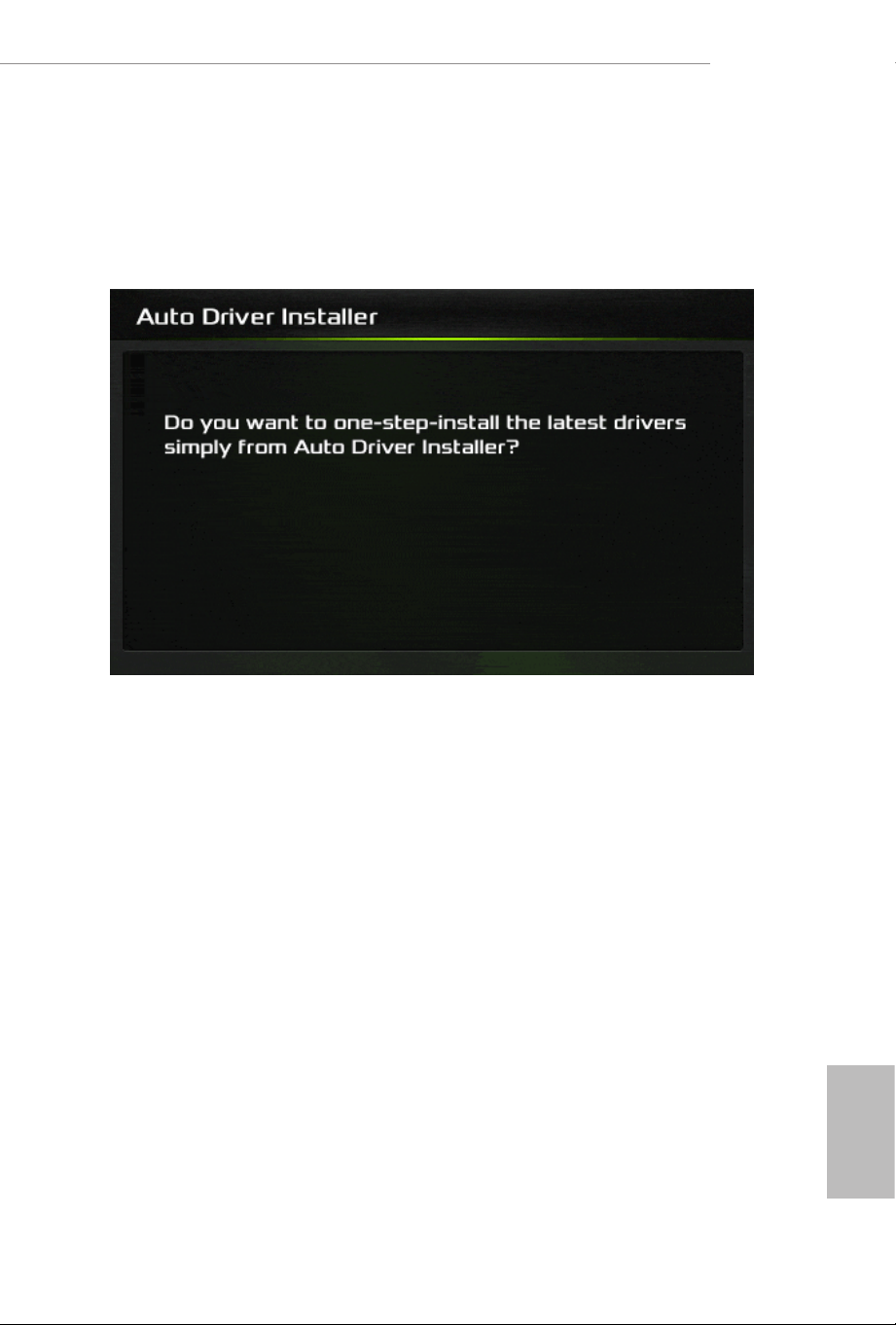
M.2 SSD Module Support List
Vendor Interface P/N
ADATA PCIe ADATA ASX7000NPC-512GT-C (XPG SX7000) (NVMe)
ADATA PCIe ADATA ASX8000NPC-512GM-C (XPG ASX8000) (NVMe)
Apacer PCIe Apacer Z280 AP240GZ280-240G (NVMe)
Intel PCIe Intel Optane Memory 32GB (MEMPEK1W032GA)(NVMe)
Intel PCIe Intel Optane Memory 16GB (MEMPEK1W016GA)(NVMe)
INTEL PCIe INTEL 600P-SSDPEKKW256G7-256GB (NVMe)
INTEL PCIe INTEL 600P-SSDPEKKW128G7-128GB (NVMe)
INTEL PCIe INTEL 6000P-SSDPEKKF256G7-256GB (NVMe)
INTEL PCIe INTEL 6000P-SSDPEKKF512G7-512GB (NVMe)
Kingston PCIe Kingston SHPM2280P2/240G
PATR IOT PCIe PATRIOT Hellre M2 (240G) (NVMe)
PLEXTOR PCIe PLEXTOR PX-256M8PeG (NVMe)
PLEXTOR PCIe PLEXTOR PX-256M8SeGN (NVMe)
Samsung PCIe Samsung XP941-512G (MZHPU512HCGL)
Samsung PCIe Samsung 950Pro-512G (NVMe)
Samsung PCIe Samsung 950Pro-256G (NVMe)
Samsung PCIe Samsung MZ-VLW1280 (PM961) (NVMe)
Samsung PCIe Samsung MZ-VPW1280 (SM961) (NVMe)
TOSHIBA PCIe TOSHIBA XG3-128G (NVMe)
TOSHIBA PCIe TOSHIBA OCZ RD400-256G (NVMe)
WD PCIe WD WDS512G1X0C-00ENX0 (NVMe)
WD PCIe WD WDS256G1X0C-00ENX0 (NVMe)
For the latest updates of M.2 SSD module support list, please visit our website for details.
X600-IT X
29
English
Chapter 3 Auto Driver Installer
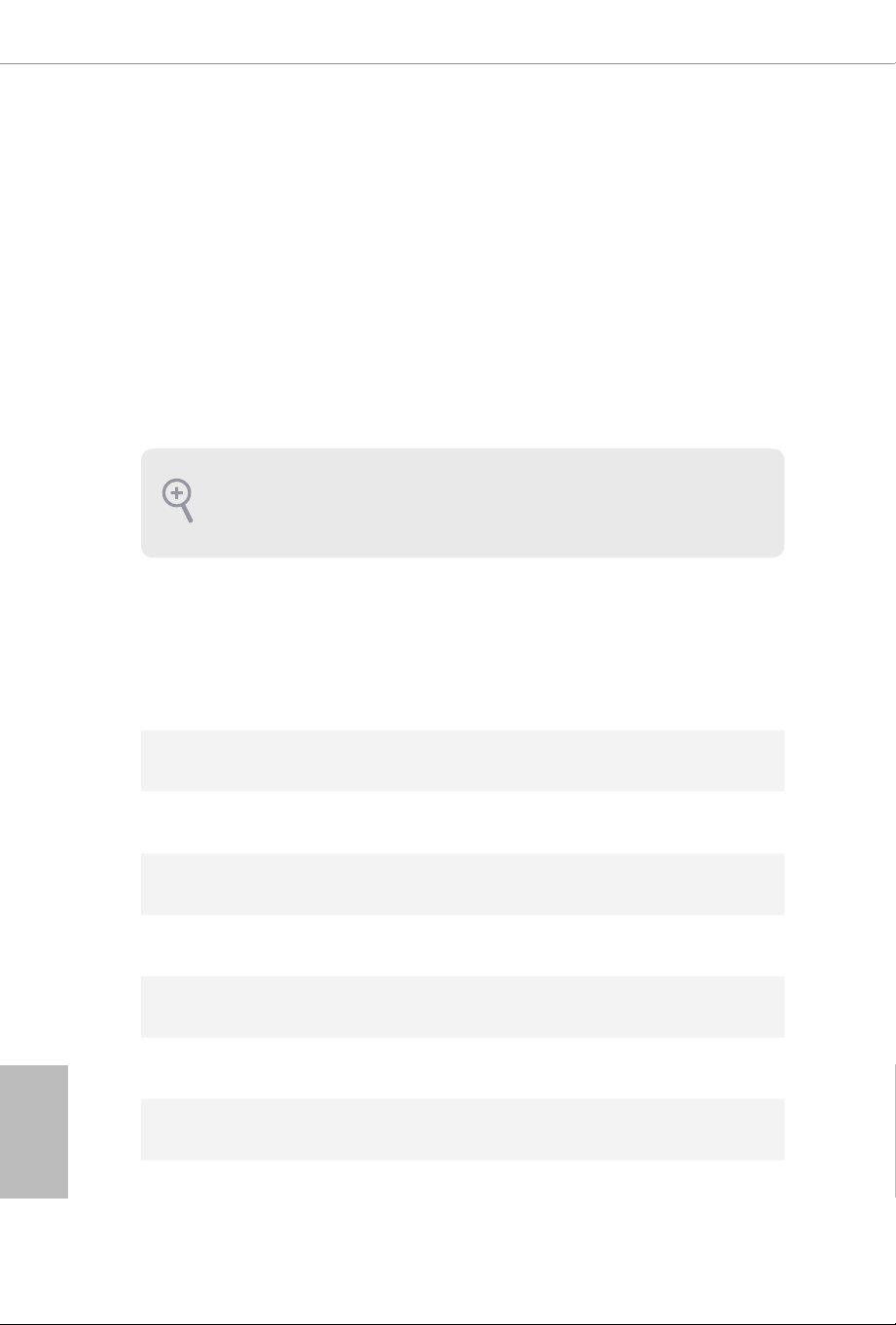
Aer you install the Windows OS and boot into the system, a notication will pop
up to help you to install and update required drivers.
English
30
Chapter 4 UEFI SETUP UTILITY
4.1 Introduction
is section explains how to use the UEFI SETUP UTILITY to congure your
system. You may run the UEFI SETUP UTILITY by pressing <F2> or <Del> right
aer you power on the computer, otherwise, the Power-On-Self-Test (POST) will
continue with its test routines. If you wish to enter the UEFI SETUP UTILITY aer
POST, restart the system by pressing <Ctl> + <Alt> + <Delete>, or by pressing the
reset button on the system chassis. You may also restart by turning the system o
and then back on.
4.1.1 UEFI Menu Bar
e top of the screen has a menu bar with the following selections:
Main
For setting system time/date information
OC Tweaker
For overclocking congurations
Advanced
For advanced system congurations
Tool
Useful tools
H/W Monitor
Displays current hardware status
Security
For security settings
Boot
For conguring boot settings and boot priority
Exit
Exit the current screen or the UEFI Setup Utility
Because the UEFI soware is constantly being updated, the following UEFI setup
screens and descriptions are for reference purpose only, and they may not exactly
match what you see on your screen.
X600-IT X
31
English
4.1.2 Navigation Keys
Use < > key or < > key to choose among the selections on the menu bar, and
use < > key or < > key to move the cursor up or down to select items, then
press <Enter> to get into the sub screen. You can also use the mouse to click your
required item.
Please check the following table for the descriptions of each navigation key.
Navigation Key(s) Description
+ / -
To change option for the selected items
<Tab>
Switch to next function
<PGUP>
Go to the previous page
<PGDN>
Go to the next page
<HOME>
Go to the top of the screen
<END>
Go to the bottom of the screen
<F1>
To display the General Help Screen
<F7>
Discard changes and exit the SETUP UTILITY
<F9>
Load optimal default values for all the settings
<F10>
Save changes and exit the SETUP UTILITY
<F12>
Print screen
<ESC>
Jump to the Exit Screen or exit the current screen
English
32
4.2 Main Screen
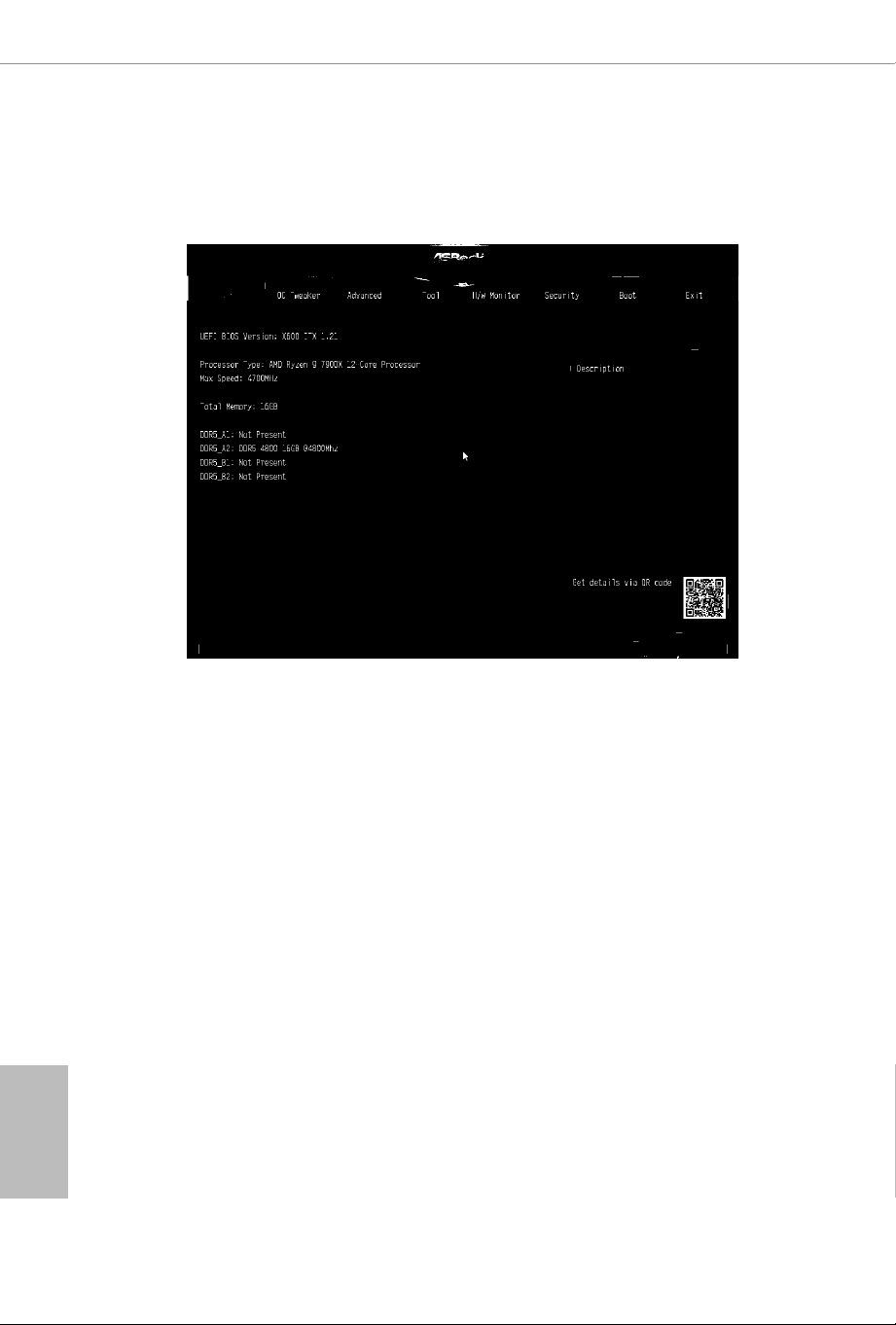
When you enter the UEFI SETUP UTILITY, the Main screen will appear and
display the system overview.
X600-IT X
33
English
4.3 OC Tweaker Screen
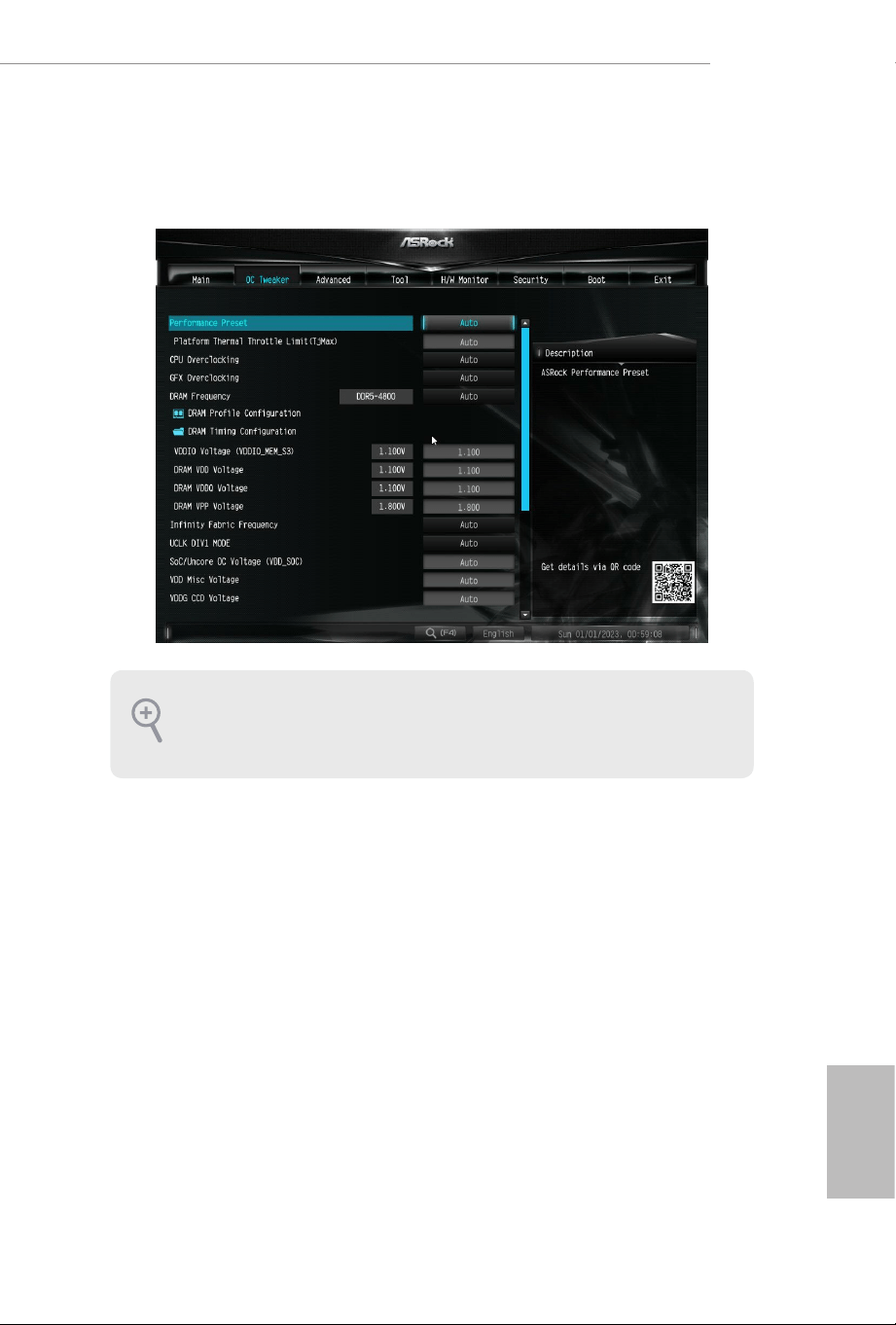
In the OC Tweaker screen, you can set up overclocking features.
Performance Preset
Use the ASRock Performance Preset.
Platform Thermal Throttle Limit (TjMax)
Allows the user to decrease the maximum allowed processor temperature (celsius).
DRAM Frequency
If [Auto] is selected, the motherboard will detect the memory module(s) inserted
and assign the appropriate frequency automatically. Setting DRAM Frequency can
adjust DRAM Timing.
DRAM Prole Conguration
Load EXPO/XMP settings to overclock the DDR5 memory and perform beyond
standard specications.
Because the UEFI soware is constantly being updated, the following UEFI setup
screens and descriptions are for reference purpose only, and they may not exactly
match what you see on your screen.

English
34
DRAM Timing Conguration
VDDIO Voltage (VDDIO_MEM_S3)
DDR5 bus signaling (PHY) is derived from VDDIO_MEM_S3.
DRAM VDD Voltage
Use this item to congure the VDD Voltage supported by PMIC at DRAM side.
DRAM VDDQ Voltage
Use this item to congure the VDDQ Voltage supported by PMIC at DRAM side.
DRAM VPP Voltage
Use this item to congure the VPP Voltage supported by PMIC at DRAM side.
Innity Fabric Frequency and Dividers
AMD Overclocking Setup Set Innity Fabric frequency (FCLK). Auto: FCLK =
MCLK. Manual: FCLK must be less than or equal to MCLK for best performance in
most cases. Latency penalties are incurred if FCLK and MCLK are mismatched, but
suciently high MCLK can negate or overcome this penalty.
UCLK DIV1 MODE
Use this item to set UCLK DIV1 MODE.
SoC/Uncore OC Voltage(VDD_SOC)
Allows you to specify the SoC/Uncore voltage (VDD_SOC) to support memory and Innity
Fabric overclocking. VDD_SOC also determines the GPU voltage on processors with
integrated graphics.
VDD Misc Voltage
Allows you to congure the PCIe, DP Phy, PLL, ClkGen, and Pmux Supply.
VDDG CCD Voltage
VDDG CCD represents voltage for the data portion of the Innity Fabric. It is derived
from the CPU SoC/Uncore Voltage (VDD_SOC). VDDG can approach but not exceed
VDD_SOC.
VDDG IOD Voltage
VDDG IOD represents voltage for the data portion of the Innity Fabric. It is derived from
the CPU SoC/Uncore Voltage (VDD_SOC). VDDG can approach but not exceed VDD_
SOC.

X600-IT X
35
English
VDDP Voltage
VDDP is a voltage for the DDR bus signaling (PHY), and it is derived from your DRAM
Voltage (VDDIO_Mem). As a result, VDDP voltage can approach but not exceed your
DRAM Voltage.
Overclock mode (Bus Speed)
Use this item to set overclock mode.
External Voltage Settings
Press [Enter] to congure the voltage options.
Save User Default
Type a prole name and press enter to save your settings as user default.
Load User Default
Load previously saved user defaults.
Save User UEFI Setup Prole to Disk
Save current UEFI settings as an user default prole to disk.
Load User UEFI Setup Prole to Disk
Load previously saved user defaults from the disk.
English
36
4.4 Advanced Screen
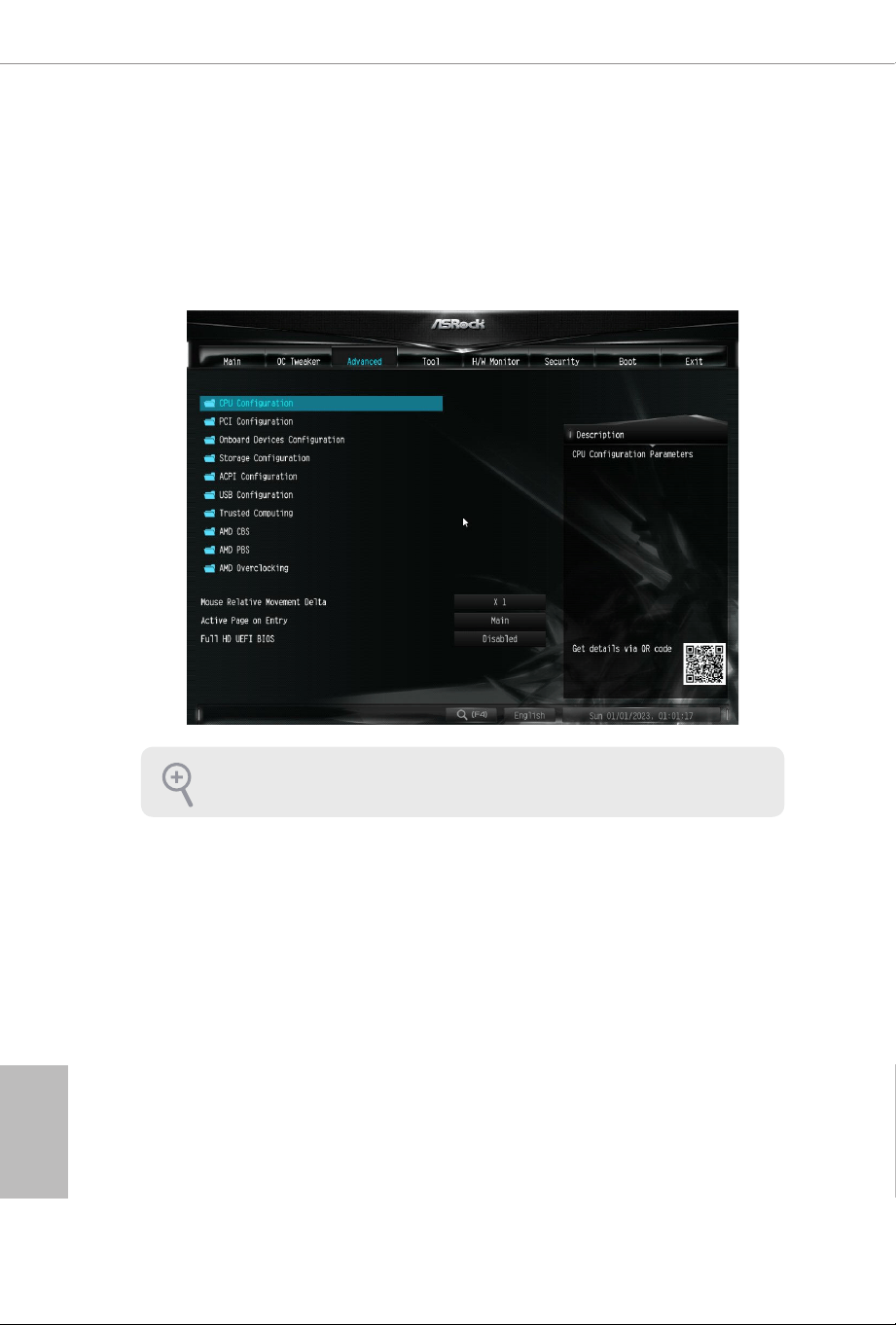
In this section, you may set the congurations for the following items: CPU
Conguration, PCI Conguration, Onboard Devices Conguration, Storage Con-
guration, ACPI Conguration, USB Conguration, Trusted Computing, AMD
CBS, AMD PBS and AMD Overclocking.
UEFI Conguration
Active Page on Entry
Allows you to select the default page when entering the UEFI setup utility.
Conguration options: [Main] [OC Tweaker] [Advanced] [Tool] [H/W Monitor]
[Security] [Boot] [Exit]
Full HD UEFI
When [Auto] is selected, the resolution will be set to 1920 x 1080 if the monitor
supports Full HD resolution. If the monitor does not support Full HD resolution,
then the resolution will be set to 1024 x 768. When [Disable] is selected, the
resolution will be set to 1024 x 768 directly.
Setting wrong values in this section may cause the system to malfunction.
X600-IT X
37
English
4.4.1 CPU Conguration
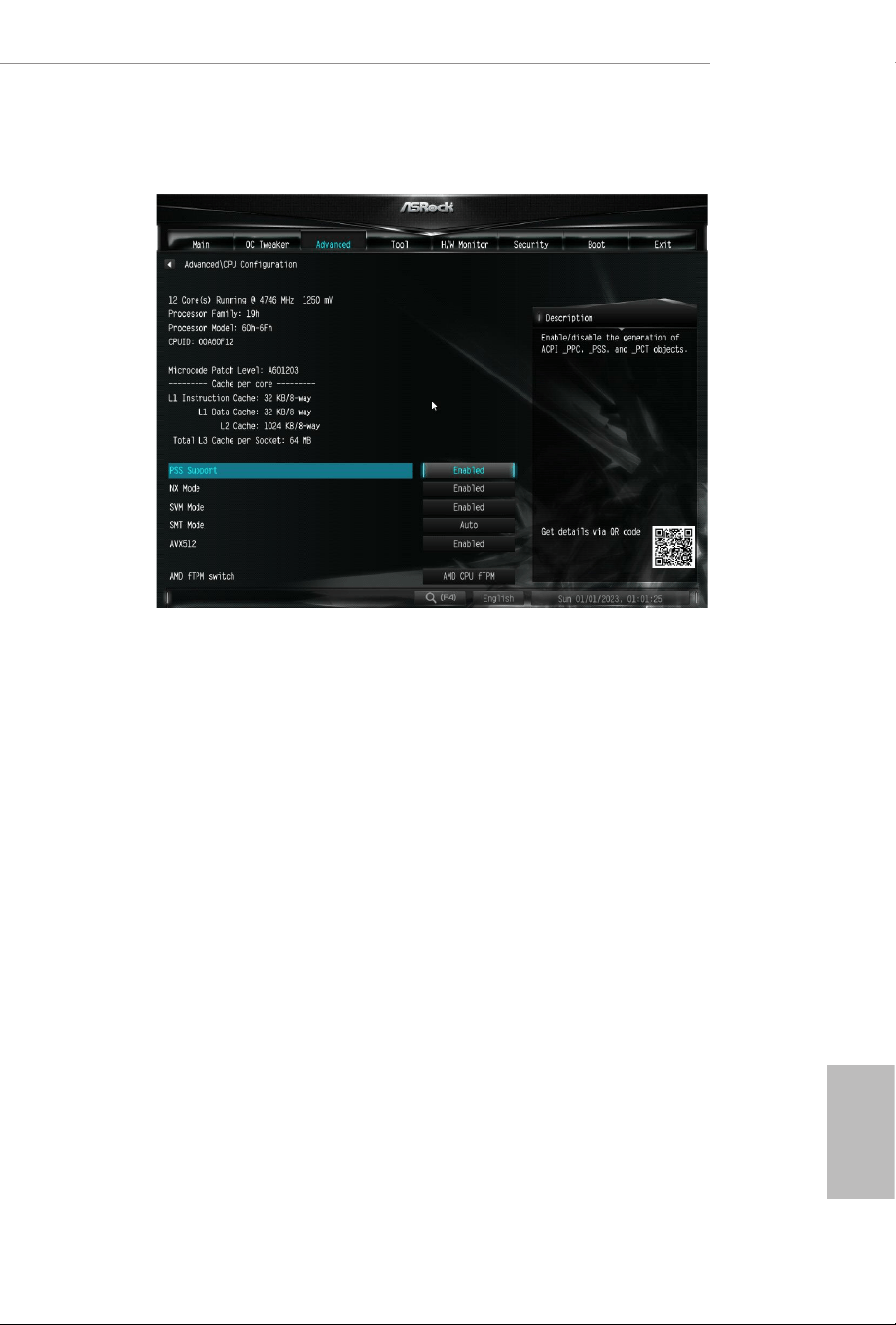
PSS Support
Use this to enable or disable the generation of ACPI_PPC, _PSS, and _PCT objects.
NX Mode
Use this to enable or disable NX mode.
SVM Mode
When this is set to [Enabled], a VMM (Virtual Machine Architecture)can utilize the
additional hardware capabilities provided by AMD-V. e default value is [Enabled].
Coniguration options: [Enabled] and [Disabled].
SMT Mode
is item can be used to disable symmetric multithreading. To re-enable SMT, a
power cycle is needed aer selecting [Auto].
Warning: S3 is not supported on systems where SMT is disabled.
AMD fTPM Switch
Use this to enable or disable AMD CPU fTPM.
Conguration options: [AMD CPU fTPM] [Route to SPI TPM] [Disabled]
English
38
4.4.2 PCI Conguration
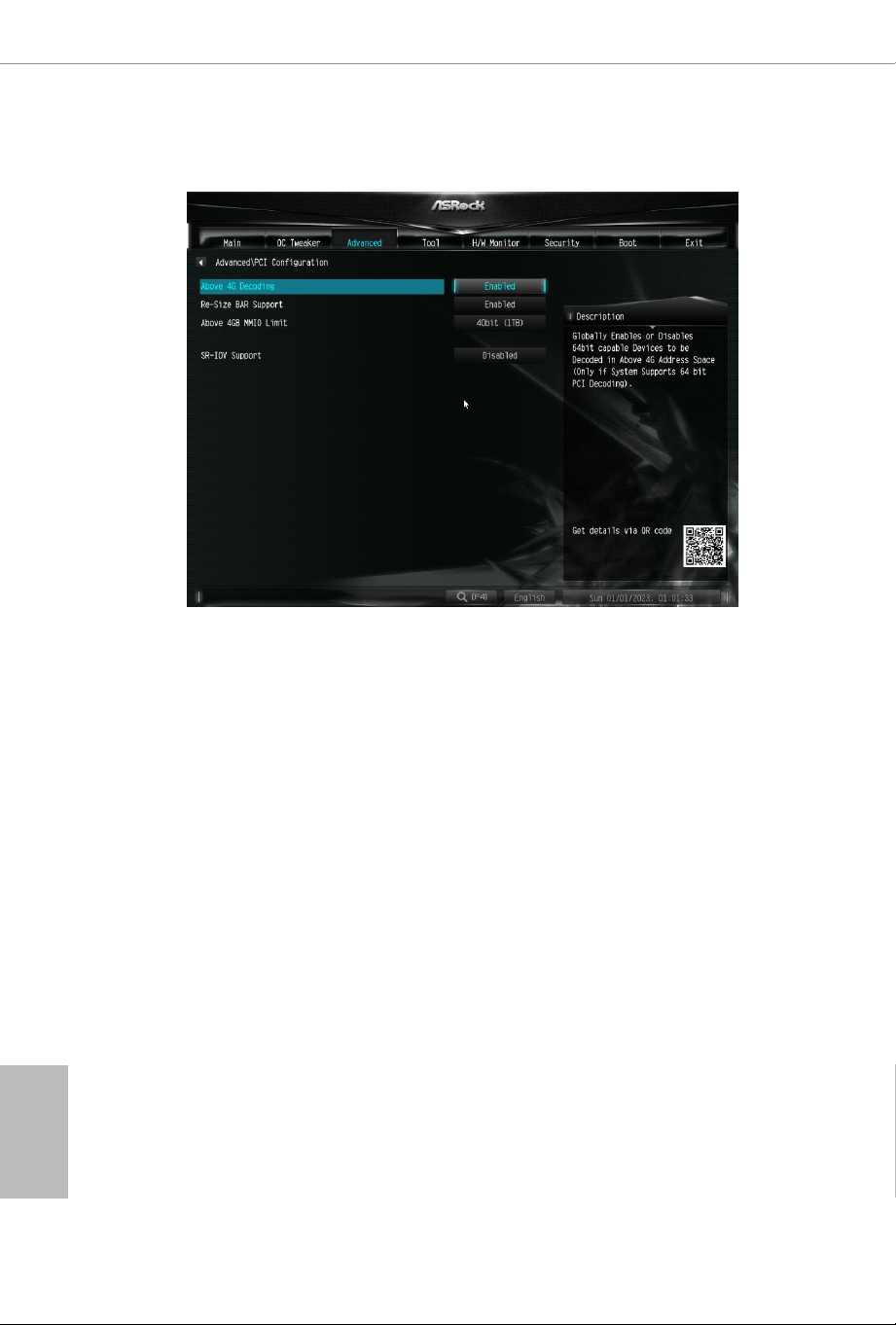
Above 4G Decoding
Globally enables or disables 64-bit capable devices to be decoded in Above 4G Address Space
(only if the system supports 64-bit PCI Decoding).
Re-Size BAR Support
If system has Resizable BAR capable PCIe Devices, this option enables or disables Resizable
BAR Support.
Above 4GB MMIO Limit
Allows you to select Above 4GB MMIO Limit to 38~43 bits limit. is option works only
when "Above 4G decoding" is enabled.
Conguration options: [40bit (1TB)] [41bit (2TB)] [42bit (4TB)] [43bit (8TB)]
SR-IOV Support
If system has SR-IOV capable PCIe Devices, this option enables or disables Single Root IO
Virtualization Support.
X600-IT X
39
English
4.4.3 Onboard Devices Conguration
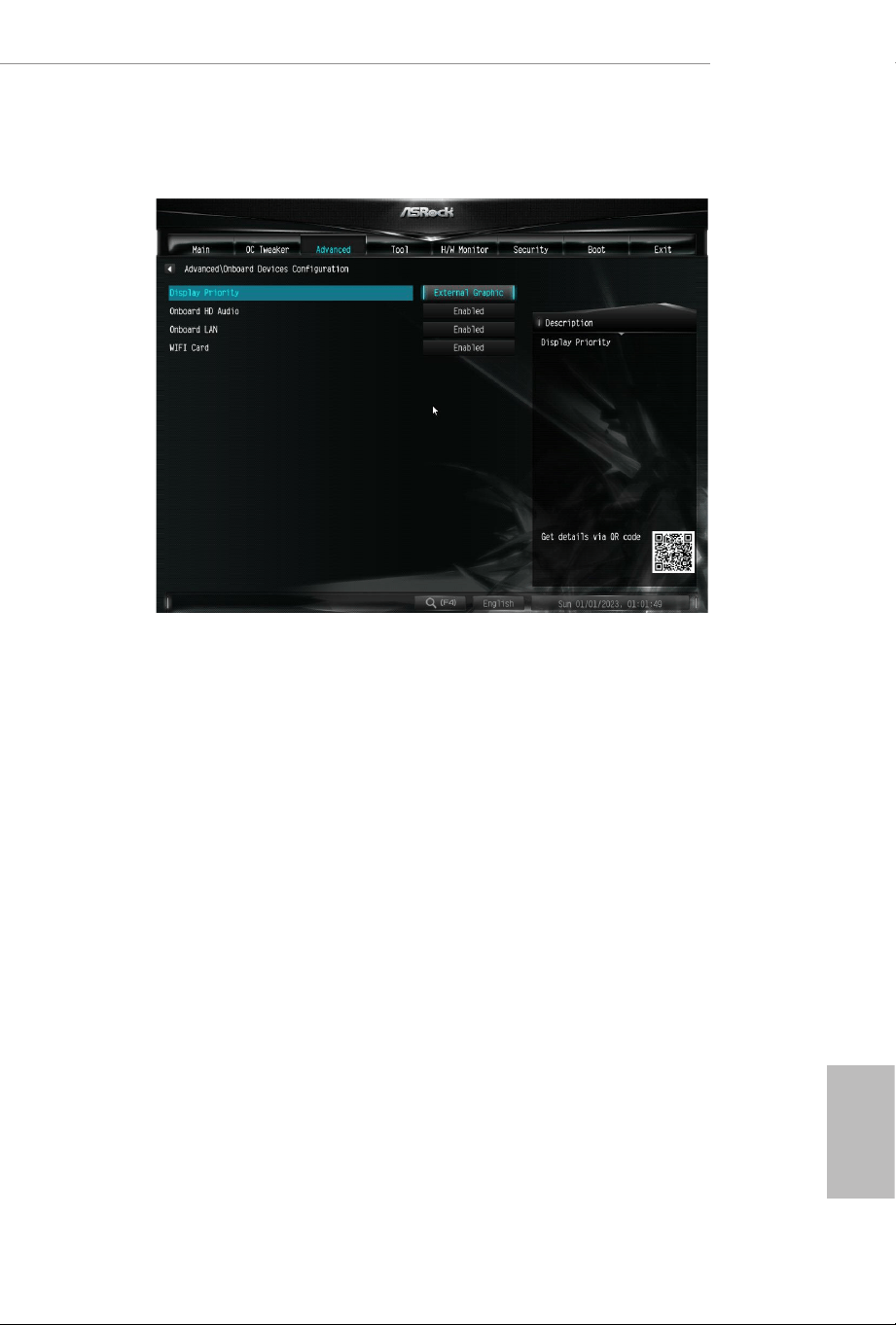
Display Priority
Select the display priority.
Onboard HD Audio
Enable/disable onboard HD audio.
Onboard LAN
Enable or disable the onboard network interface controller
WIFI Card
Enable/disable the WIFI Card.
English
40
4.4.4 Storage Conguration
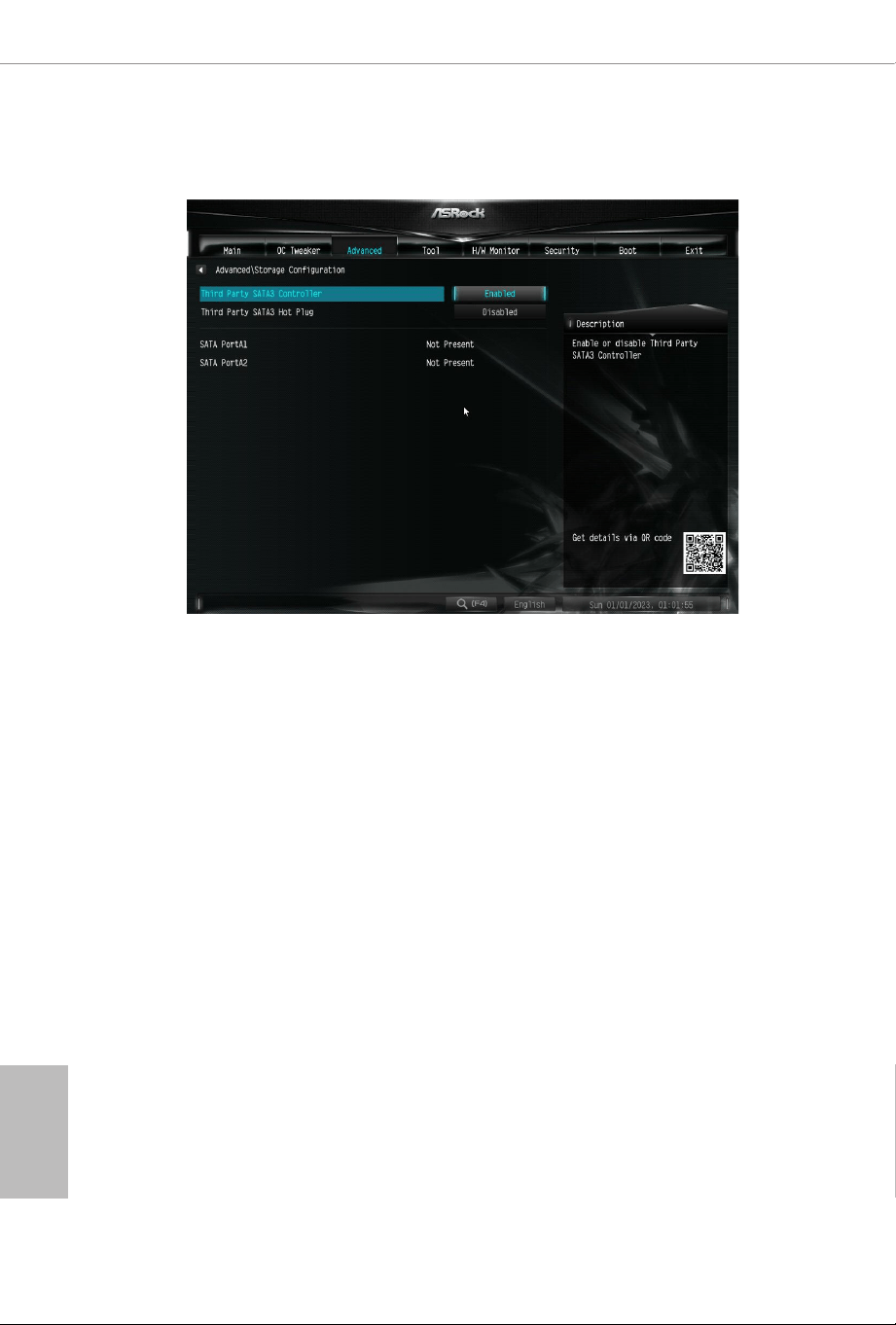
Third Party SATA 3 Controller
Enable or disable the third party SATA3 controller.
Third Party SATA3 Hot Plug
Enable or disable the third party SATA3 controller.
X600-IT X
41
English
4.4.5 ACPI Conguration
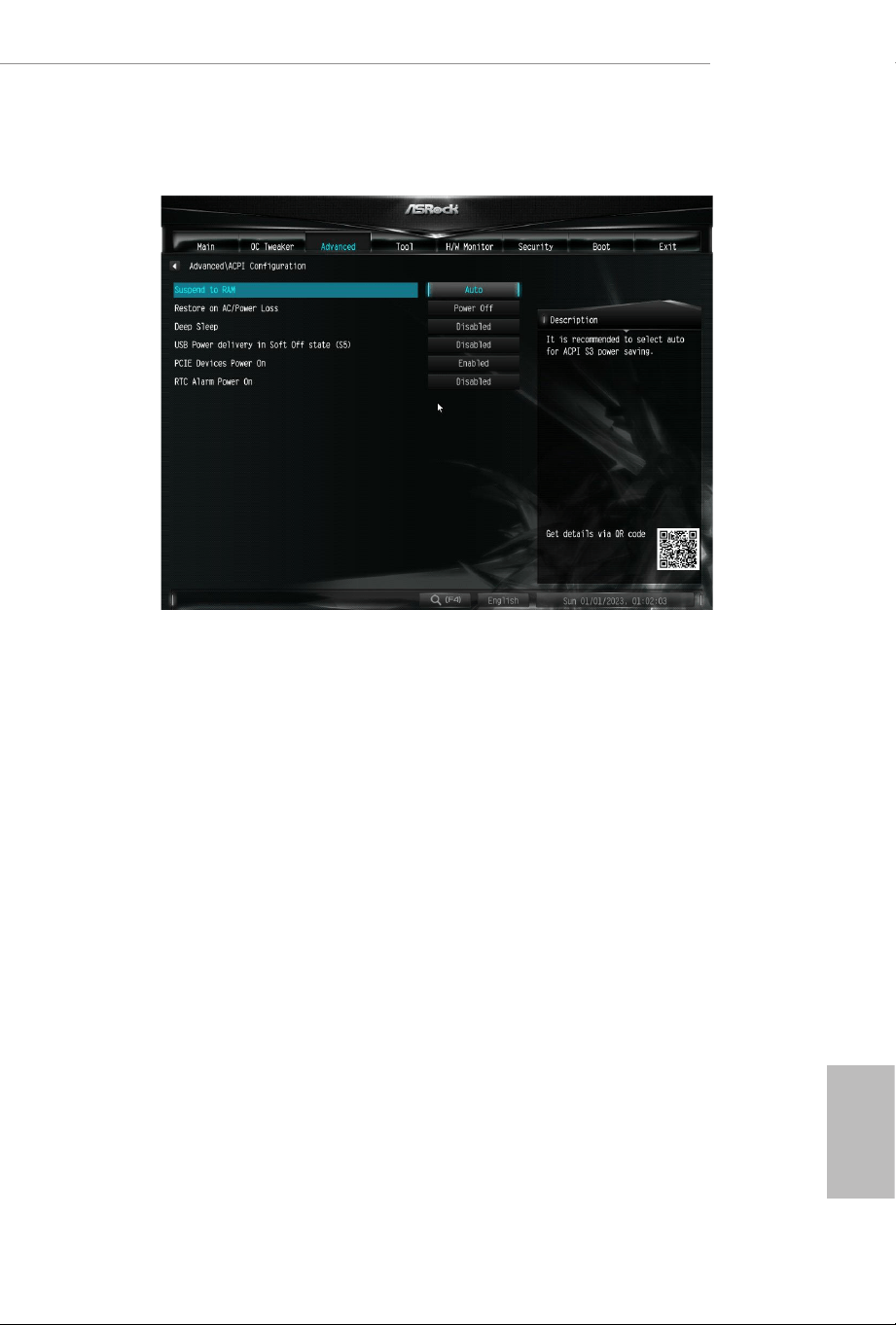
Suspend to RAM
It is recommended to select auto for ACPI S3 power saving.
Conguration options: [Disabled] [Auto]
Restore on AC/Power Loss
Allows you to select the power state aer a power failure.
[Power O] Select this item and the power will remain o when the power recovers.
[Power On] Select this item and the system will start to boot up when the power
recovers.
Conguration options: [Power On] [Power O]
Deep Sleep
Allows you to congure deep sleep mode for power saving when the computer is
shut down. We recommend disabling Deep Sleep for better system compatibility
and stability.
Conguration options: [Disabled] [Enabled in S5] [Enabled in S4 & S5]

English
42
USB Power delivery in Soft O state (S5)
If this option is enabled, the USB port will provide power to your devices even when
the system is in Power State S5.
PCIE Devices Power On
[Enabled] Select this item to allow the system to be waked up by a PCIE device and
enable wake on LAN.
[Disabled] Select this item to disallow the system to be waked up by a PCIE device
and disable wake on LAN.
RTC Alarm Power On
[Enabled]
Select this item to allow the system to be waked up by the real time clock alarm.
[Disabled]
Select this item to disallow the system to be waked up by the real time clock alarm.
[By OS]
Select this item to let it be handled by your operating system.
X600-IT X
43
English
4.6.6 USB Conguration
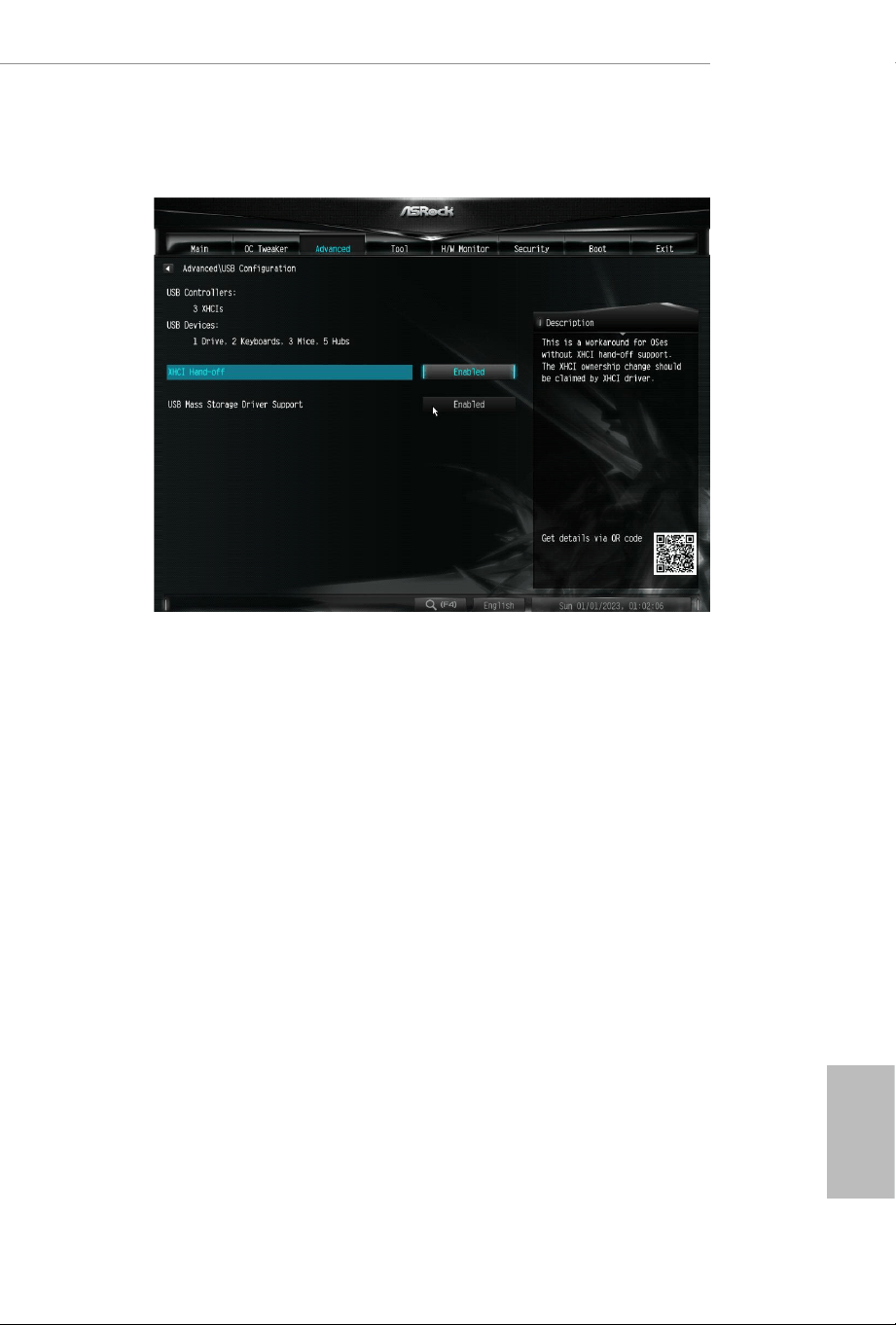
XHCI Hand-o
is is a workaround for OSes without XHCI hand-o support. e XHCI
ownership change should be claimed by XHCI driver.
English
44
4.4.7 Trusted Computing
NOTE: Options vary depending on the version of your connected TPM module.
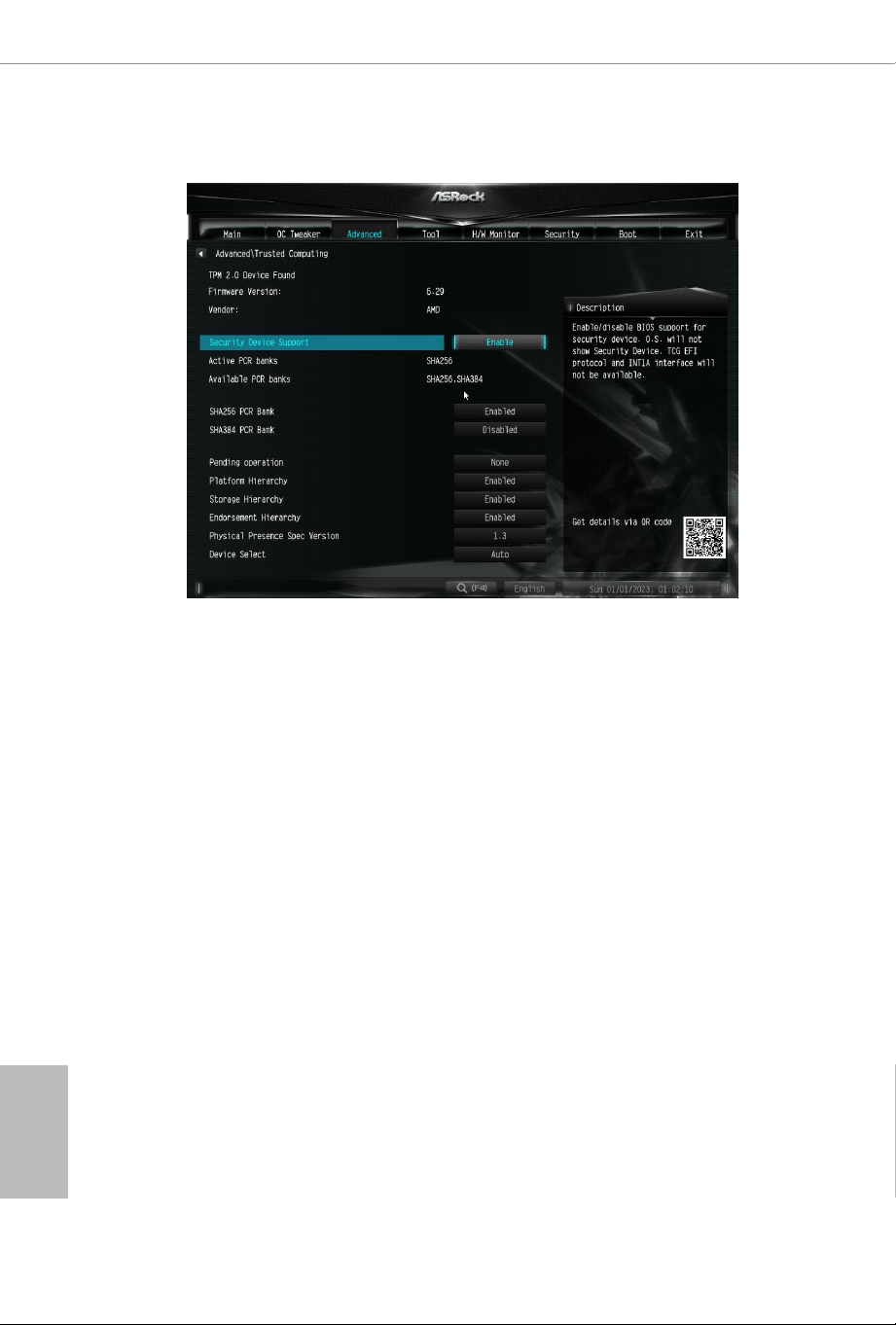
Security Device Support
Use this item to enable or disable BIOS support for security device. O.S. will not show
Security Device. TCG EFI protocol and INT1A interface will not be available.
SHA-1 PCR Bank
Use this item to enable or disable SHA-1 PCR Bank.
SHA256 PCR Bank
Use this item to enable or disable SHA256 PCR Bank.
Pending Operation
Schedule an Operation for the Security Device.
NOTE: Your computer will reboot during restart in order to change State of the Device.
Platform Hierarchy
Use this item to enable or disable Platform Hierarchy.
Storage Hierarchy
Use this item to enable or disable Storage Hierarchy.
Endorsement Hierarchy
Use this item to enable or disable Endorsement Hierarchy.

X600-IT X
45
English
TPM2.0 UEFI Spec Version
Use this item to select the TCG2 spec. version supported.
e optional settings: [TCG_1_2]; [TCG_2].
[TCG_1_2]: compatible mode for Win8/Win10.
[TCG_2]: for TCG2 newer spec. compatible mode for Win10
Physical Presence Spec version
Select this item to tell OS to support PPI spec version 1.2 or 1.3. Please note that some HCK
tests might not support version 1.3.
Device Select
Use this item to select the TPM device to be supported. TPM 1.2 will restrict support to
TPM 1.2 devices. TPM 2.0 will restrict support to TPM 2.0 devices. Auto will support both
with the default set to TPM 2.0 devices. If TPM 2.0 devices are not found, TPM 1.2 devices
will be enumerated.
English
46
4.6.8 AMD CBS
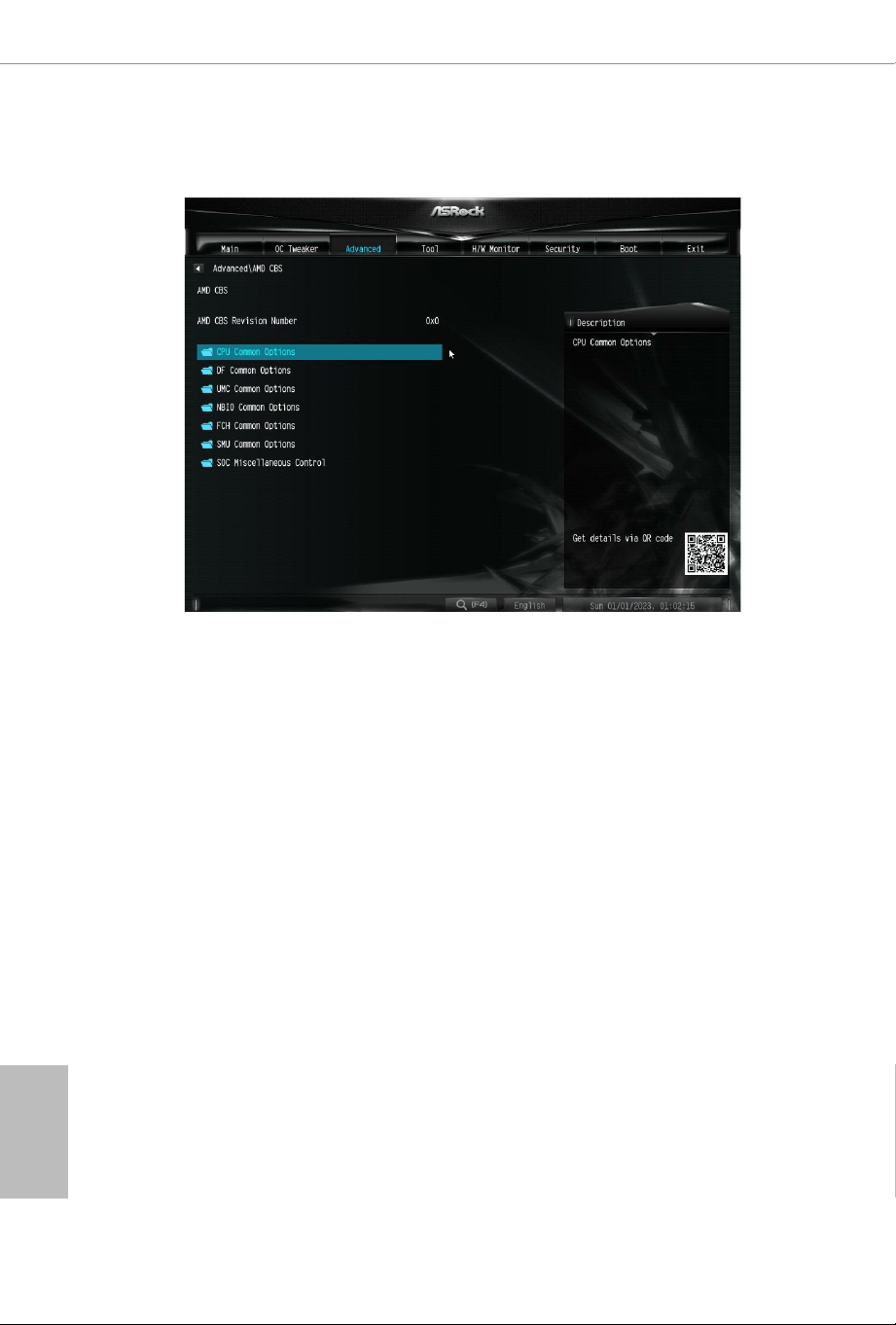
e AMD CBS menu accesses AMD specic features.
X600-IT X
47
English
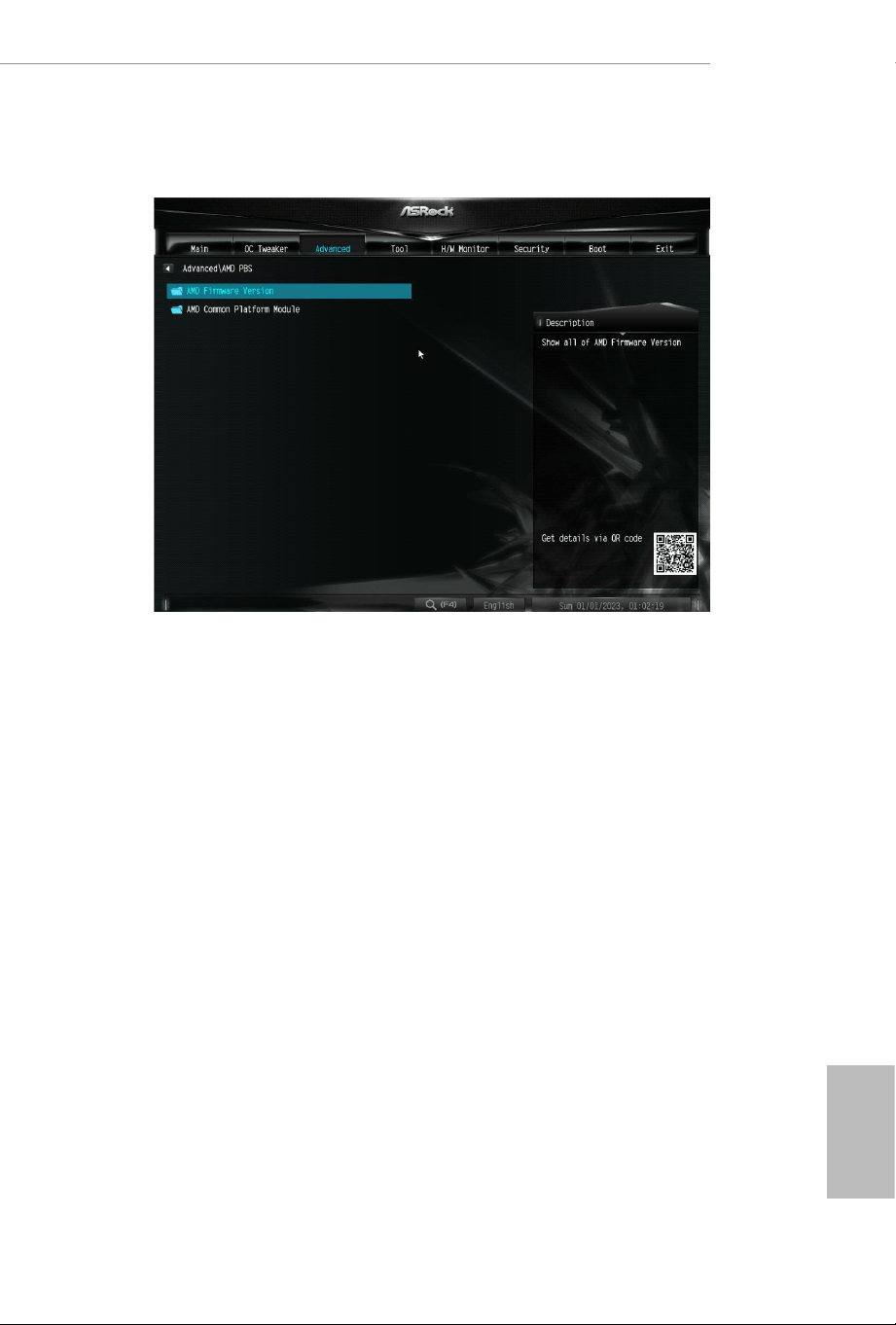
4.6.9 AMD PBS
e AMD PBS menu accesses AMD specic features.
English
48
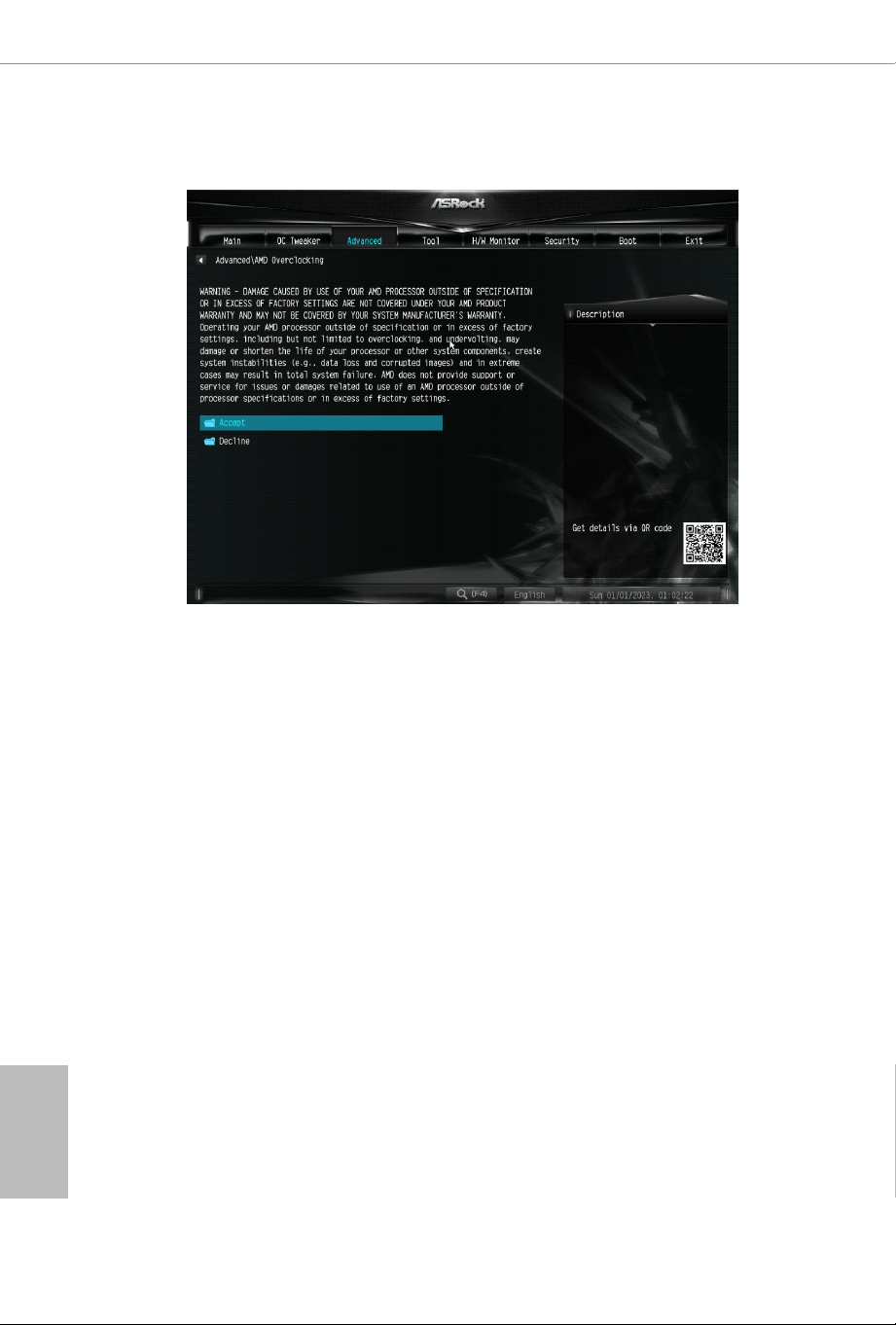
3.4.10 AMD Overclocking
e AMD Overclocking menu accesses options for conguring CPU frequency and
voltage.
X600-IT X
49
English
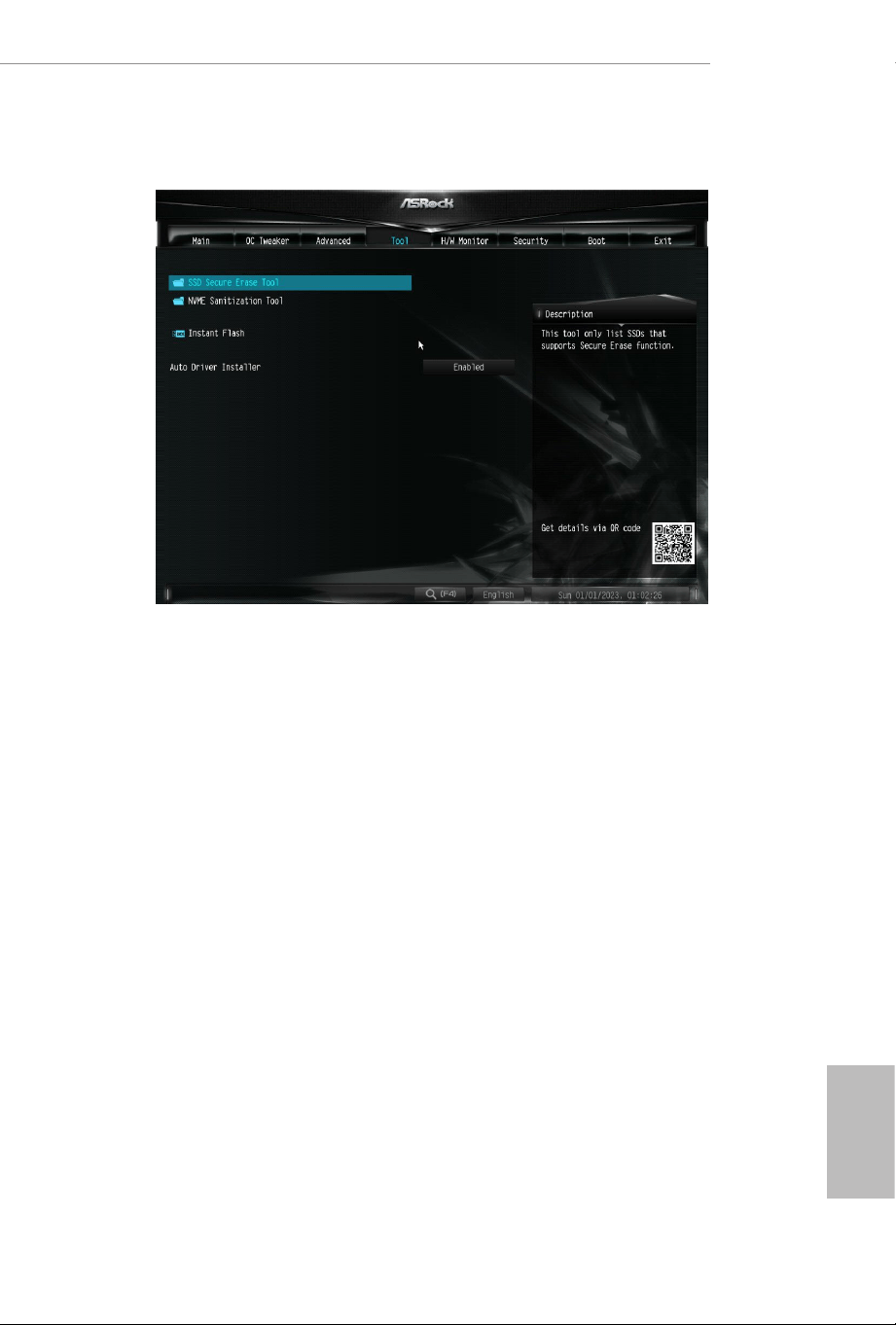
4.5 Tools
SSD Secure Erase Tool
Use this tool to securely erase SSD. is tool only lists the SSDs that support the
Secure Erase function.
NVME Sanitization Tool
Aer you Sanitize SSD, all user data will be permanently destroyed on the SSD and cannot
be recovered.
Instant Flash
Save UEFI les in your USB storage device and run Instant Flash to update your
UEFI.
English
50
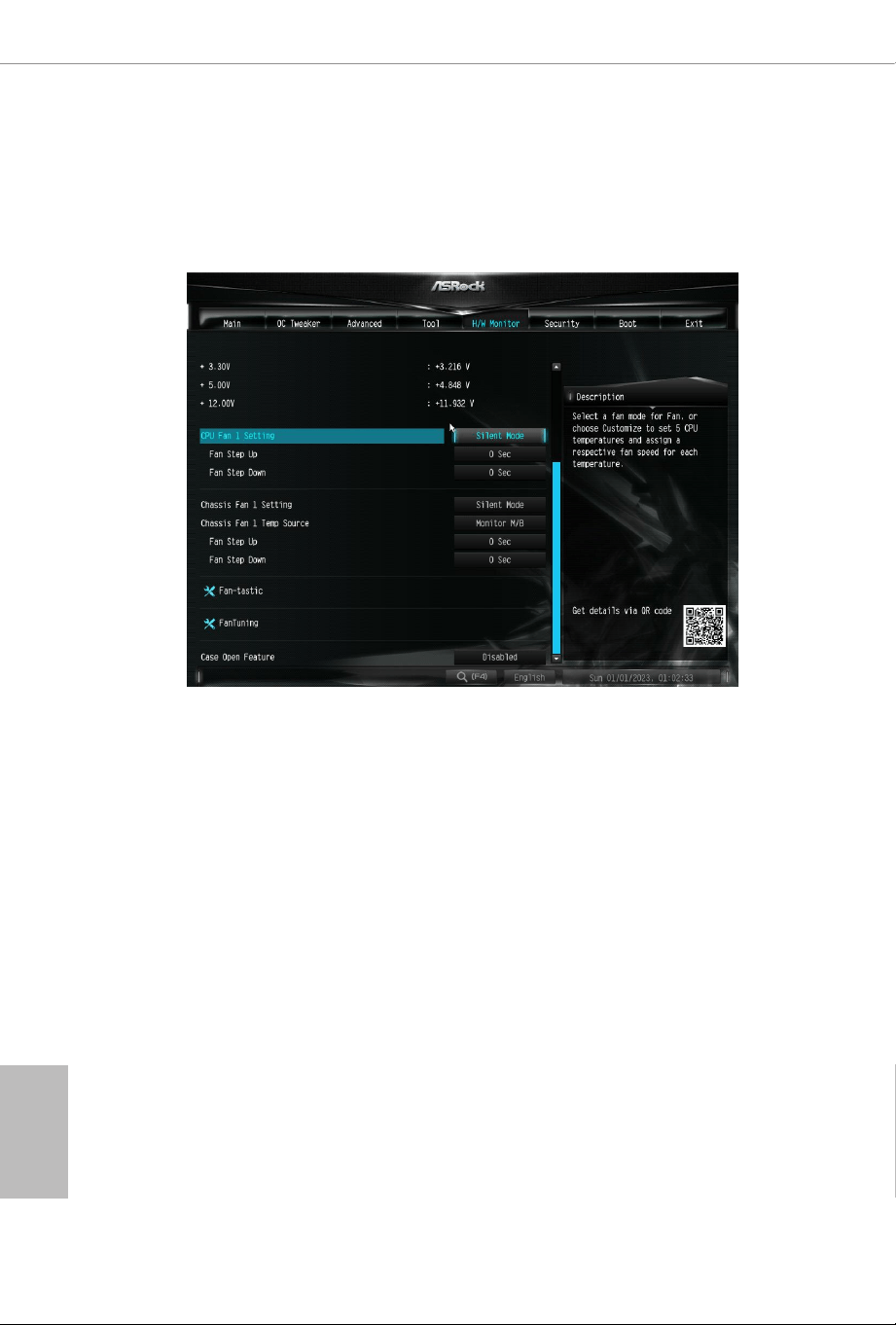
4.6 Hardware Health Event Monitoring Screen
is section allows you to monitor the status of the hardware on your system,
including the parameters of the CPU temperature, motherboard temperature, fan
speed and voltage.
CPU Fan 1 Setting
Select a fan mode for CPU Fan 1, or choose Customize to set 5 CPU temperatures
and assign a respective fan speed for each temperature.
Fan Step Up
Set the value of CPU Fan 1 Step Up.
Fan Step Down
Set the value of CPU Fan 1 Step Down.
Chassis Fan 1 Setting
Select a fan mode for Chassis Fan 1, or choose Customize to set 5 CPU temperatures
and assign a respective fan speed for each temperature.
Chassis Fan 1 Temp Source
Select a fan temperature source for Chassis Fan 1.
Fan Step Up
Set the value of Chassis Fan 1 Step Up.

X600-IT X
51
English
Fan Step Down
Set the value of Chassis Fan 1 Step Down.
Fan-Tastic
Allows you to select a fan mode for Fan, or choose [Customize] to set 5 CPU temperatures
and assign a respective fan speed for each temperature.
FanTuning
When selected, the BIOS will proceed to detect the lowest fan speeds for fans connected to
the motherboard. is process will take a few minutes ro complete.
Note: Please note CAM settings applied within the OS will overwrite settings made within
the BIOS.
Case Open Feature
Enable or disable Case Open Feature to detect whether the chassis cover has been
removed.
English
52
4.7 Security Screen
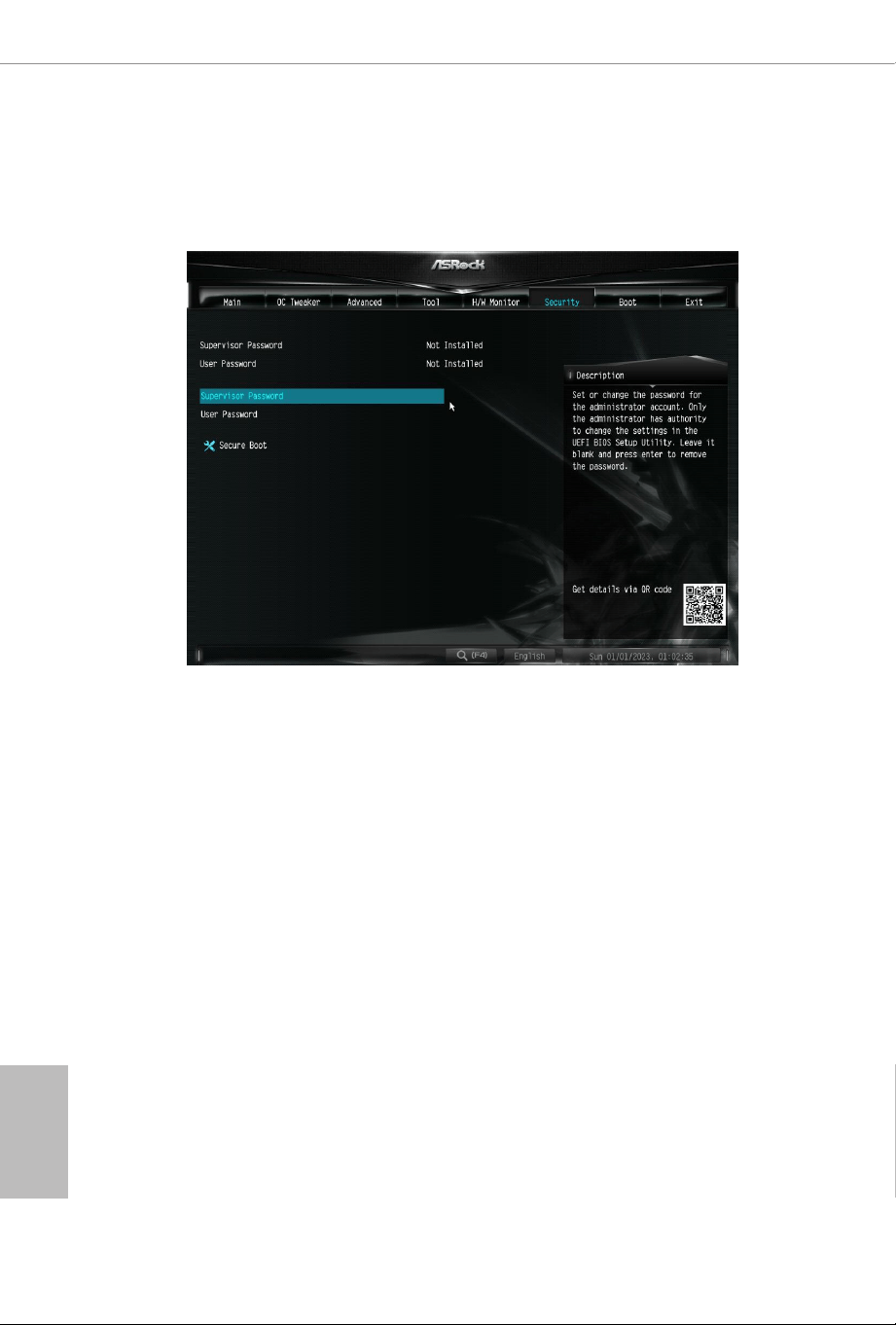
In this section you may set or change the supervisor/user password for the system.
You may also clear the user password.
Supervisor Password
Set or change the password for the administrator account. Only the administrator
has authority to change the settings in the UEFI Setup Utility. Leave it blank and
press enter to remove the password.
User Password
Set or change the password for the user account. Users are unable to change the
settings in the UEFI Setup Utility. Leave it blank and press enter to remove the
password.
Secure Boot
Enable to support Secure Boot.
X600-IT X
53
English
4.8 Boot Screen
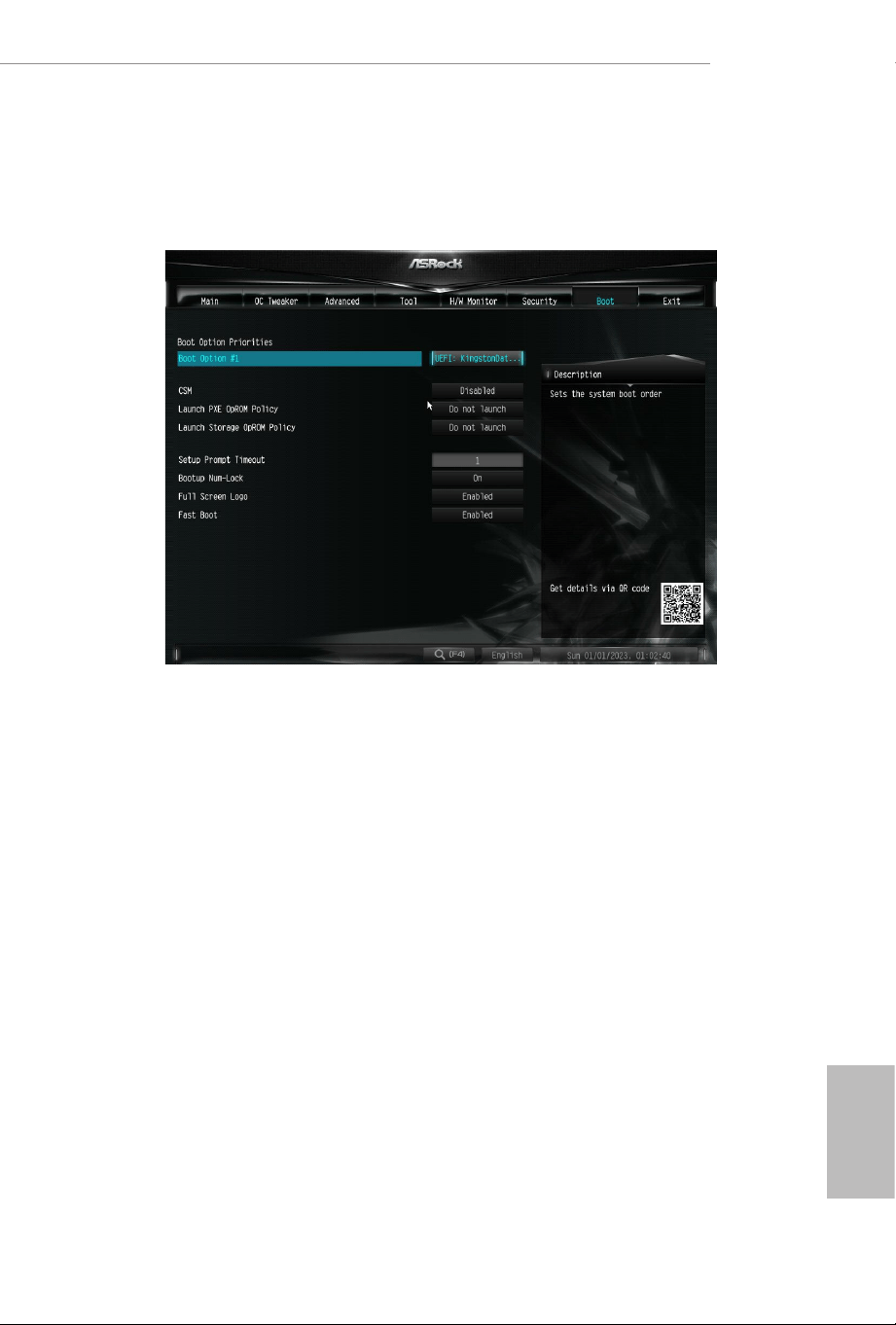
is section displays the available devices on your system for you to congure the
boot settings and the boot priority.
CSM
Enable to launch the Compatibility Support Module. Please do not disable unless
you’re running a WHCK test.
Launch PXE OpROM Policy
Select UEFI only to run those that support UEFI option ROM only. Select Legacy
only to run those that support legacy option ROM only. Select Do not launch to not
execute both legacy and UEFI option ROM.
Launch Storage OpROM Policy
Select UEFI only to run those that support UEFI option ROM only. Select Legacy
only to run those that support legacy option ROM only. Select Do not launch to not
execute both legacy and UEFI option ROM.
Setup Prompt Timeout
Congure the number of seconds to wait for the setup hot key.
Bootup Num-Lock
Select whether Num Lock should be turned on or o when the system boots up.

English
54
Full Screen Logo
Enable to display the boot logo or disable to show normal POST messages.
Fast Boot
Fast Boot minimizes your computer's boot time. In fast mode you may not boot
from an USB storage device.
English
55
4.9 Exit Screen
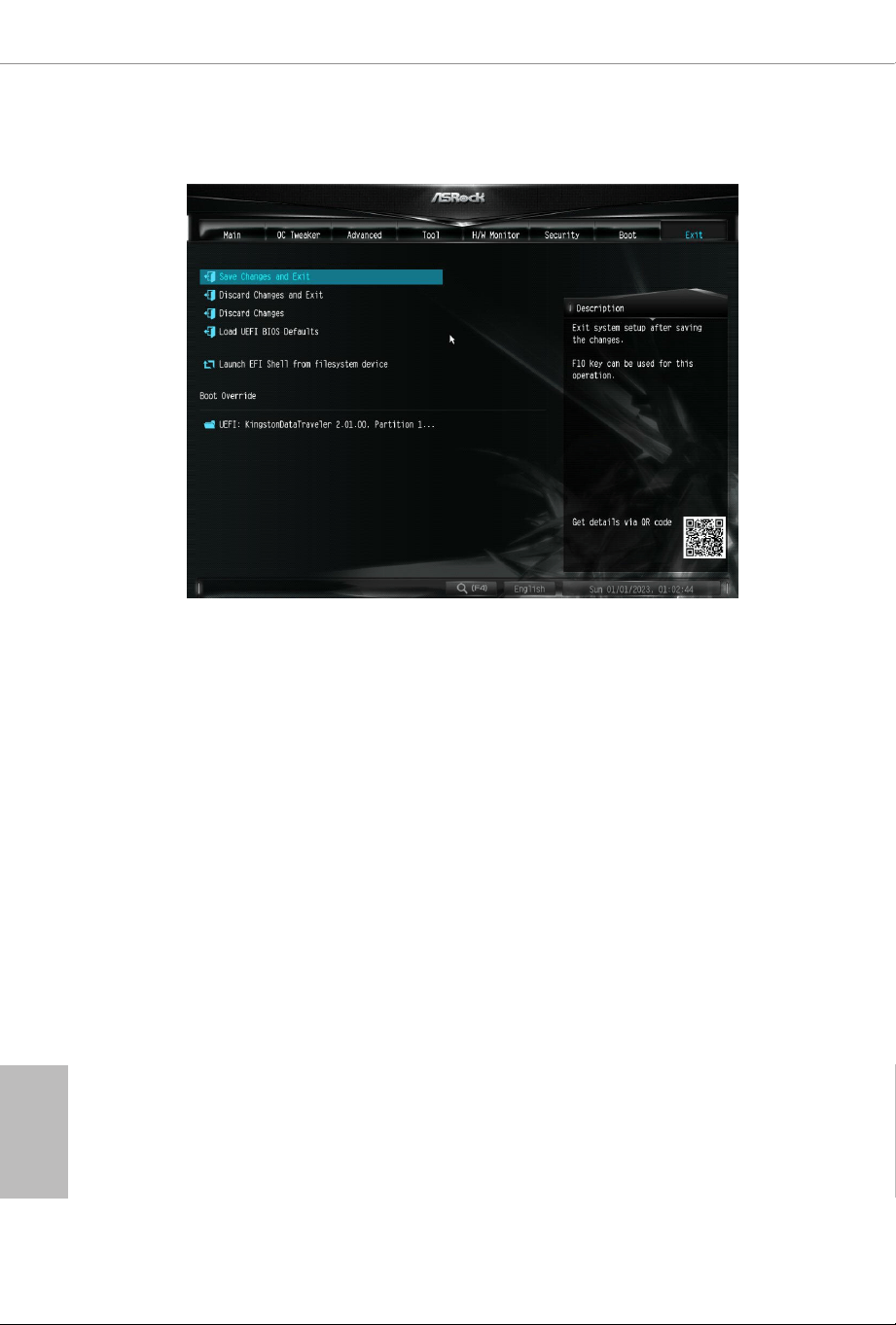
Save Changes and Exit
When you select this option the following message, “Save conguration changes
and exit setup?” will pop out. Select [OK] to save changes and exit the UEFI SETUP
UTILITY.
Discard Changes and Exit
When you select this option the following message, “Discard changes and exit
setup?” will pop out. Select [OK] to exit the UEFI SETUP UTILITY without saving
any changes.
Discard Changes
When you select this option the following message, “Discard changes?” will pop
out. Select [OK] to discard all changes.
Load UEFI Defaults
Load UEFI default values for all options. e F9 key can be used for this operation.
Launch EFI Shell from lesystem device
Copy shellx64.e to the root directory to launch EFI Shell.

DECLARATION OF CONFORMITY
Per FCC Part 2 Section 2.1077(a)
Responsible Party Name: ASRock Incorporation
Address:
13848 Magnolia Ave, Chino, CA91710
+1-909-590-8308/+1-909-590-1026
Phone/FaxNo:
hereby declares that the product
Product Name : Motherboard
Model Number :
Conforms to the following specications:
FCC Part 15, Subpart B, Unintentional Radiators
Supplementary Information:
is device complies with part 15 of the FCC Rules. Operation is subject to the
following two conditions: (1) is device may not cause harmful interference,
and (2) this device must accept any interference received, including interference
that may cause undesired operation.
Representative Person’s Name:
Jason
Signature :
Date :
May 12, 2017
X600-ITX
EU Declaration of Conformity
For the following equipment:
Motherboard
(Product Name)
X600-ITX
(Model Designation / Trade Name)
EMC Directive – 2014/30/EU
EN 55032: 2015 / A11: 2020, EN 55035: 2017 / A11: 2020
EN IEC 61000-3-2: 2019, EN 61000-3-3: 2013
RoHS directive - 2011/65/EU, and (EU) 2015/863
EN IEC63000:2018
(EU conformity marking)