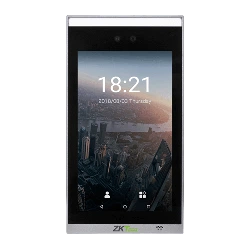

General User Manual
Visible Light Face Recognition
Version: 1.0
Date: December 2018
Important Notice
Thank you for choosing our product. Before using this product, please carefully read this instruction manual. This
will help prevent unnecessary damage to the product. Follow these instructions to ensure that your product
functions properly and completes verifications in a timely manner.
Unless authorized by our company, no group or individual shall take excerpts of or copy all or part of these
instructions nor transmit the contents of these instructions in any way.
The products described in this manual may include software that is copyrighted by our company and its possible
licensors. No one may copy, publish, edit, take excerpts of, decompile, decode, reverse-engineer, rent, transfer,
sublicense, or otherwise infringe upon the software's copyright unless authorized by the copyright holder. This is
subject to relevant laws prohibiting such restrictions.
As this product is regularly updated, we cannot guarantee exact consistency between this product
and the information provided in these instructions. We will hear no disputes that arise due to
differences between the actual product and the contents of these instructions, and you may not be
informed of changes in advance.

About This Manual
This manual introduces the operations, interfaces and functions of visible light face recognition device,
including FaceDepot-7A, FaceDepot-7B and SpeedFace series. For installation, please refer to the Quick Start
Guide of the product accordingly.
Features and parameters with are not available in all devices.
All pictures shown are for illustration purpose only. Pictures in this manual may not be exactly consistent with
the actual products.

I
Contents
1. Instruction for Use ······················································································································································································1
1.1 USING YOUR FINGERPRINTS ·····································································································································································1
1.2 STARTUP SCREEN ······················································································································································································2
1.3 VIRTUAL KEYBOARD ··················································································································································································3
1.4 CHANGE THE THEME AND WALLPAPER ····················································································································································4
1.5 VERIFICATION METHODS ··········································································································································································9
1.5.1 Facial Verification········································································································································································9
1.5.2 Fingerprint Verification ·························································································································································· 15
1.5.3 Password Verification ······························································································································································ 22
1.5.4 Card Verification ··································································································································································· 27
1.5.5 Combined Verification ··························································································································································· 27
2. Main Menu ·································································································································································································· 31
3. User Management···················································································································································································· 33
3.1 ADD AN EMPLOYEE ················································································································································································· 33
3.1.1 Register Basic Employee Information ······························································································································ 35
3.1.2 Register Employee Photo ······················································································································································ 36
3.1.3 Registration Comparison Methods ··································································································································· 40
3.1.4 Permission Settings ································································································································································· 51
3.1.5 Verification Mode Setting ····················································································································································· 53
3.1.6 Access level ············································································································································································ 56
3.2 SEARCHING FOR AN EMPLOYEE ······························································································································································ 59
3.3 EDIT AN EMPLOYEE ················································································································································································· 61
3.4 DELETE EMPLOYEE ·················································································································································································· 63
4. Attendance Events ··············································································································································································· 66
4.1 ADD ATTENDANCE EVENTS ···································································································································································· 66
4.2 EDIT ATTENDANCE EVENTS ···································································································································································· 71
4.3 DELETE ATTENDANCE EVENTS ······························································································································································· 73
5. Access Settings ·························································································································································································· 76
5.1 ACCESS CONTROL PARAMETERS ····························································································································································· 76
5.2 TIME RULE SETTING ············································································································································································· 78
5.3 HOLIDAY SETTING ··············································································································································································· 81
6. Log ············································································································································································································· 86
6.1 SEARCH FOR ATTENDANCE RECORDS ···················································································································································· 86
6.2 SEARCH FOR ATTENDANCE PHOTOS ······················································································································································ 90
6.3 SEARCH FOR BLACKLIST PHOTOS ··························································································································································· 94
7. Data Management ··················································································································································································· 95
8. USB Disk Management ······································································································································································ 97
8.1 UPLOAD TO USB DRIVE·········································································································································································· 98
8.2 DOWNLOAD TO A USB DRIVE ································································································································································ 98
8.3 USB DISK SETTINGS ··············································································································································································· 98
9. Alarm Management ············································································································································································ 99
9.1 ADD ALARMS ·························································································································································································· 99

II
9.2 EDIT ALARMS·························································································································································································· 104
9.3 DELETE ALARMS····················································································································································································· 106
10. System Settings ····················································································································································································· 110
10.1 NETWORK SETTINGS ··········································································································································································· 111
10.1.1 Ethernet Settings ·································································································································································· 112
10.1.2 Comm Connection Settings ············································································································································· 114
10.2 DATE AND TIME ··················································································································································································· 115
10.2.1 Date and Time Settings ······················································································································································ 116
10.2.2 Date and Time Format Settings······································································································································· 118
10.3 ATT/ACCESS RECORD PARAMETERS ·················································································································································· 120
10.3.1 Status Mode ············································································································································································ 121
10.3.2 Plugin Function Rules ························································································································································· 132
10.3.3 Capture Photo Settings ······················································································································································ 133
10.3.4 Verification Settings ····························································································································································· 134
10.3.5 Validity Period of User Information ································································································································ 136
10.4 CLOUD SERVICE SETTINGS ·································································································································································· 137
10.5 WIEGAND SETTINGS ············································································································································································ 138
10.5.1 Wiegand In ·············································································································································································· 139
10.5.2 Wiegand Out··········································································································································································· 140
10.6 DISPLAY SETTINGS ··············································································································································································· 142
10.7 SOUND SETTINGS ················································································································································································ 143
10.8 BIOMETRIC PARAMETERS ···································································································································································· 144
10.9 AUTO-TESTING ····················································································································································································· 146
10.10 ADVANCED SETTINGS ······································································································································································· 147
10.11 ABOUT THE DEVICE ··········································································································································································· 148
11. USB upgrade ··························································································································································································· 149
Statement on the Right to Privacy ························································································································································ 150
Eco-friendly Use ···························································································································································································· 151
1
1. Instruction for Use
1.1 Using Your Fingerprints
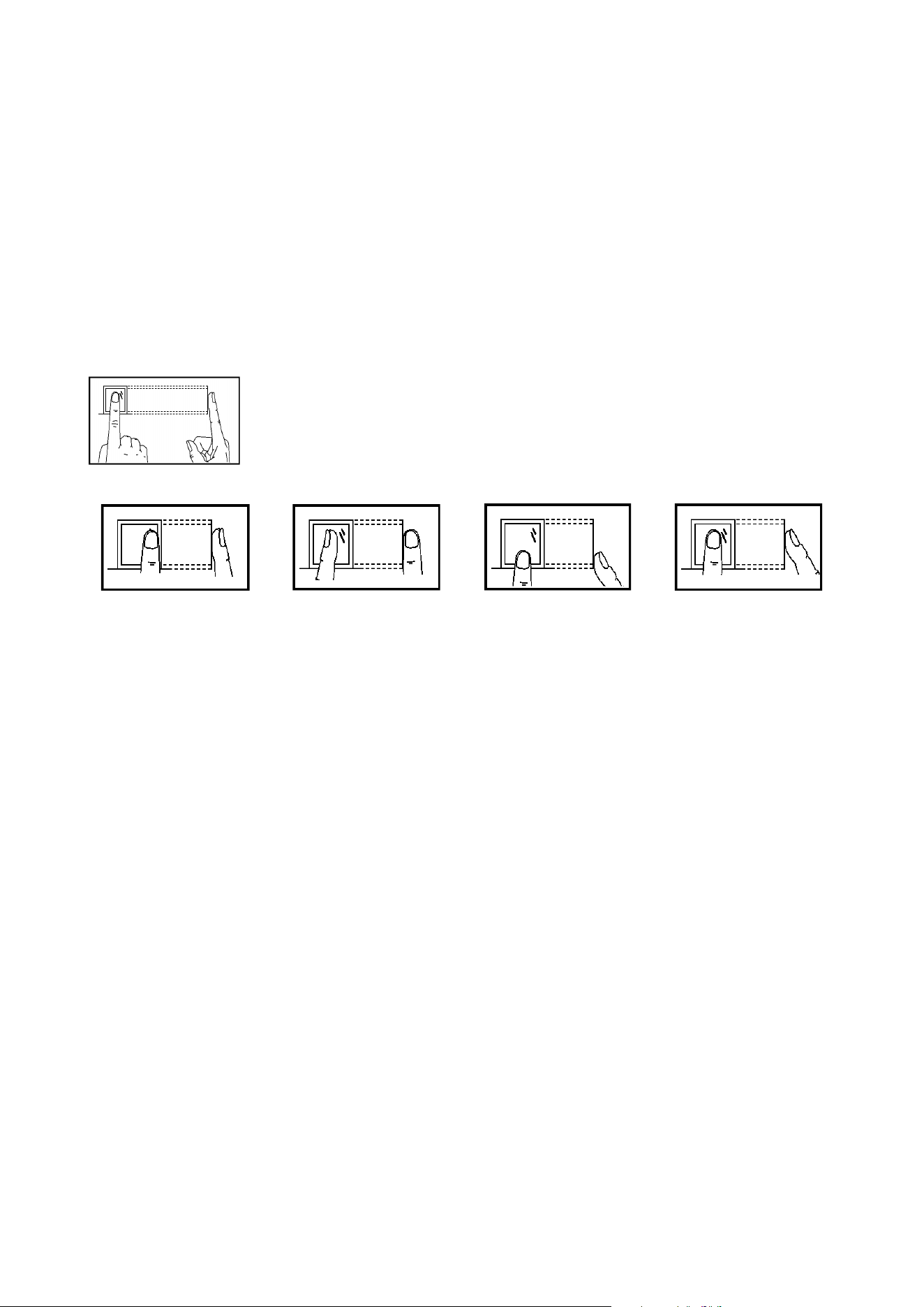
Recommended fingers: index, middle, or ring fingers; avoid using the thumb or pinky, as they are difficult to
accurately press onto the fingerprint reader.
Diagram of how to correctly press your fingers onto the fingerprint reader.
Incorrect ways of pressing your fingers onto the fingerprint reader.
Off-center
Not the fingerprint’s
center
Off-center
Not the fingerprint’s
center
Note: Please use the correct method when pressing your fingers onto the fingerprint reader for registration and
identification. Our company will assume no liability for recognition issues that may result from incorrect usage of
the product. We reserve the right of final interpretation and modification concerning this point.
Press your finger onto the fingerprint reader.
Ensure that the center of your finger is aligned with the
center of the fingerprint reader.
2
1.2 Startup Screen
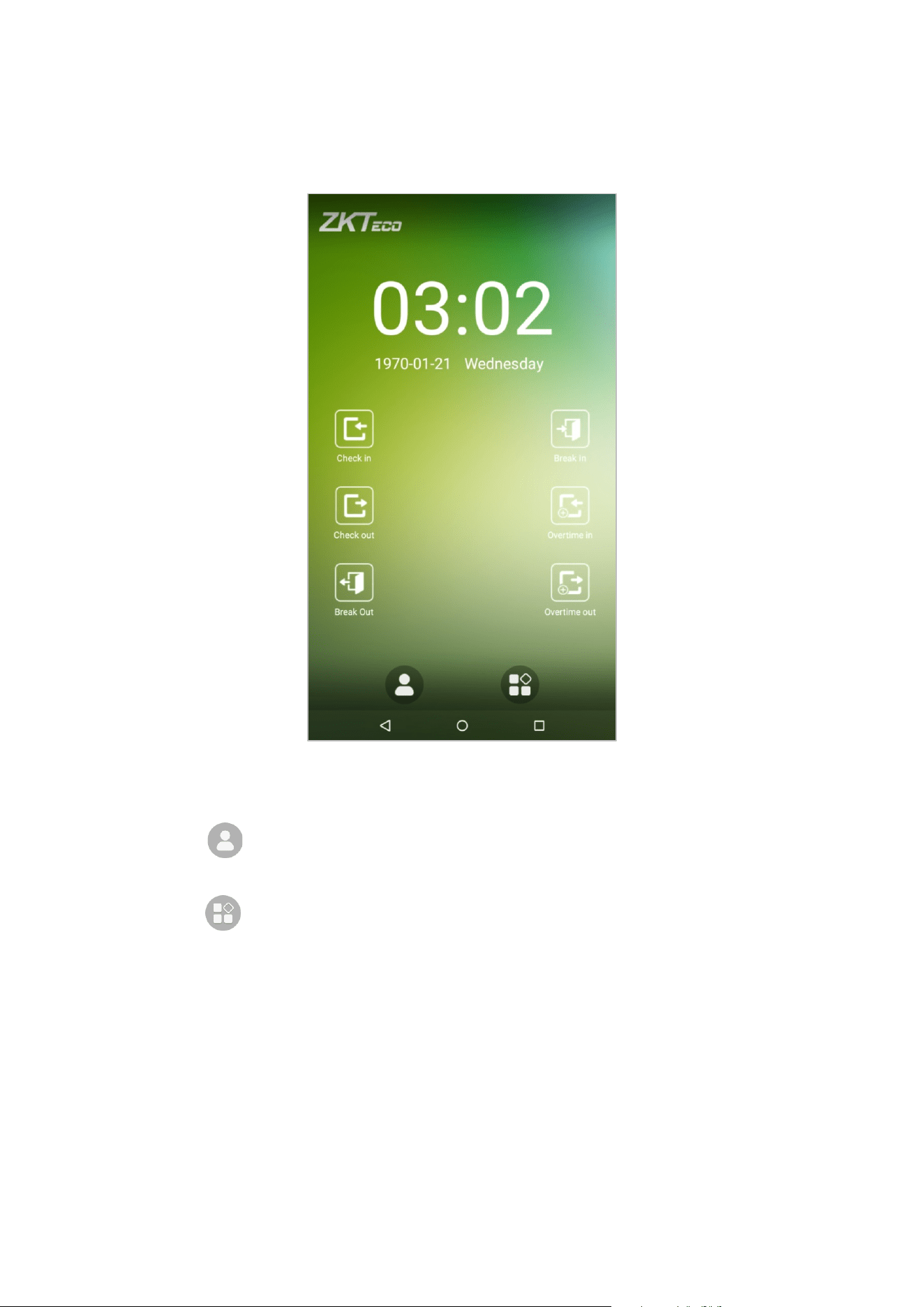
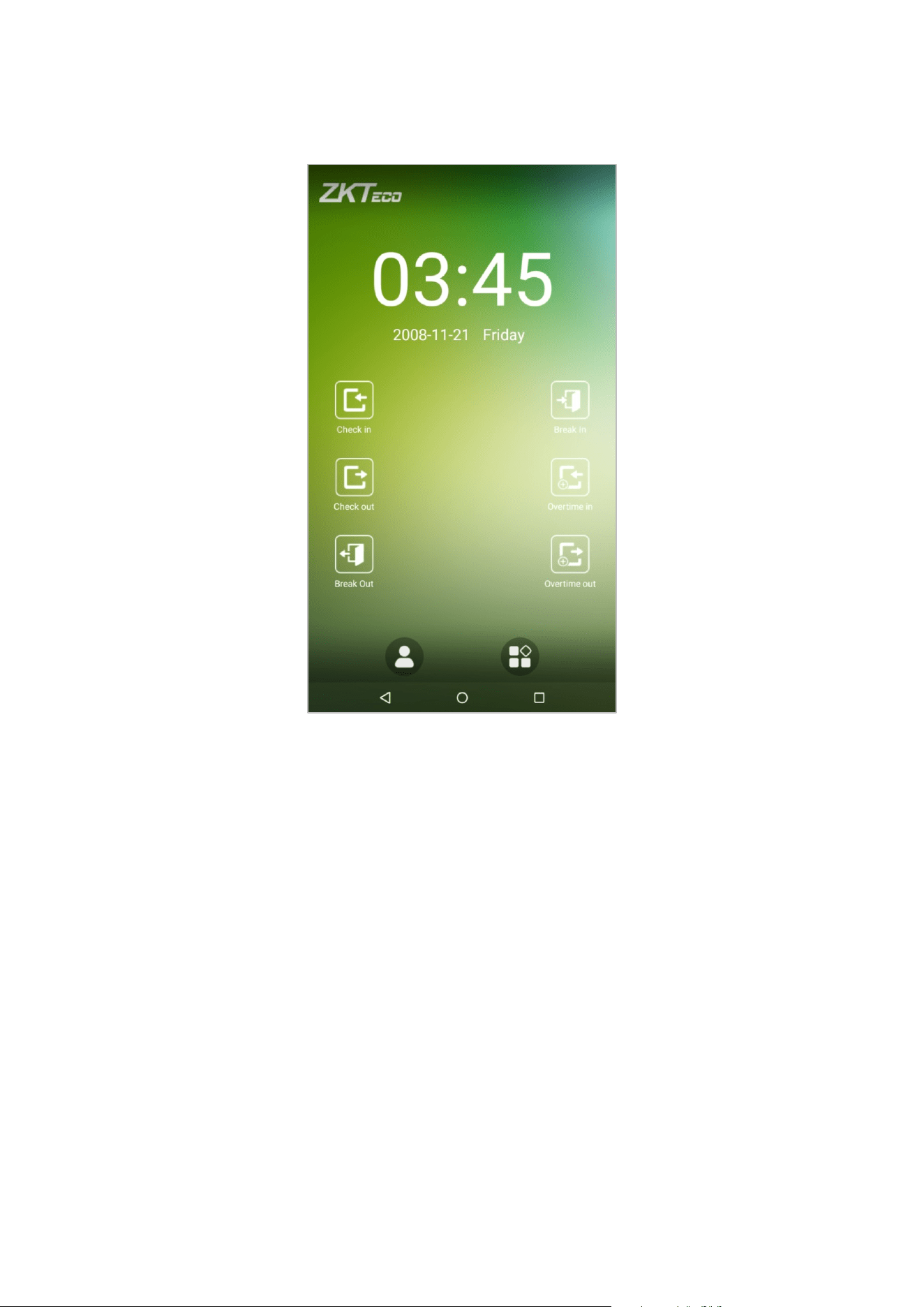
After plugging in the device, press the On/Off switch located on the side. The following screen will load:
Notes:
The wallpaper can be customized. For more details, please refer to “1.4 Change Theme and Wallpaper”.
Tap on to enter the personnel ID Input screen in 1:1 verification mode. For further information
about the 1:1 verification process, see section “1.5 Verification Method”.
Tap on to enter the main menu. If a super administrator has already been registered for this device,
you will need the permission of the super administrator to enter the main menu.
3
1.3 Virtual Keyboard
English keyboard
Note: This device supports input methods of Chinese, English, numbers, and symbols. Press [CN] to switch to the
Chinese keyboard; press [EN] to switch to the English keyboard; press [?123] to switch to the numbers and symbols
keyboard; and press [Back] to return to the alphabet keyboard. If you tap on an input box, the virtual keyboard will
pop up on the screen. To hide the keyboard, tap on the downwards arrow .
4
1.4 Change the Theme and Wallpaper
Note: Please enable the [User defined theme switch] in [System Settings] > [Display Settings].
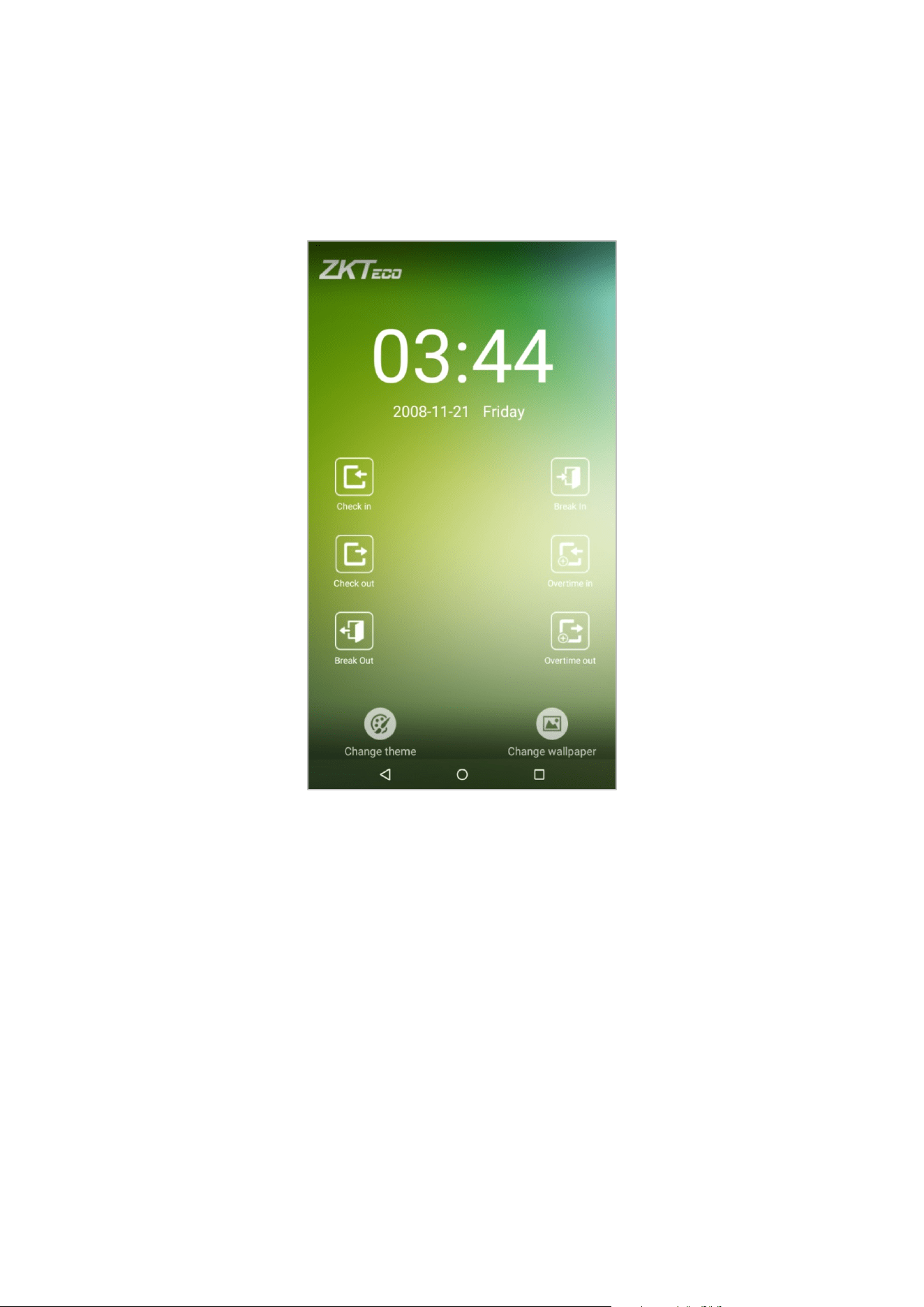
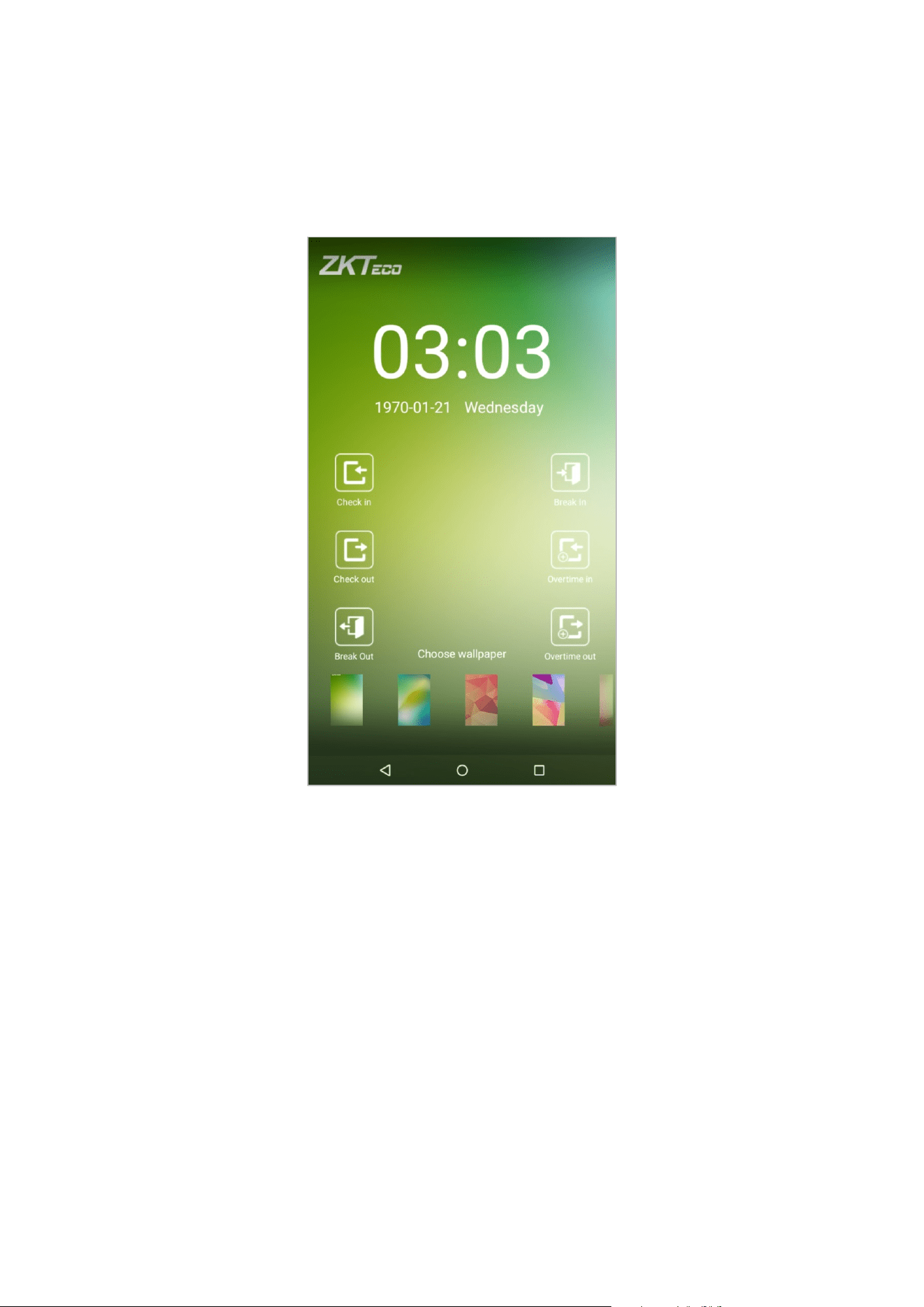
Tap on any blank area with your finger on the initial interface to change the theme and wallpaper, as shown below:
5
Change the theme
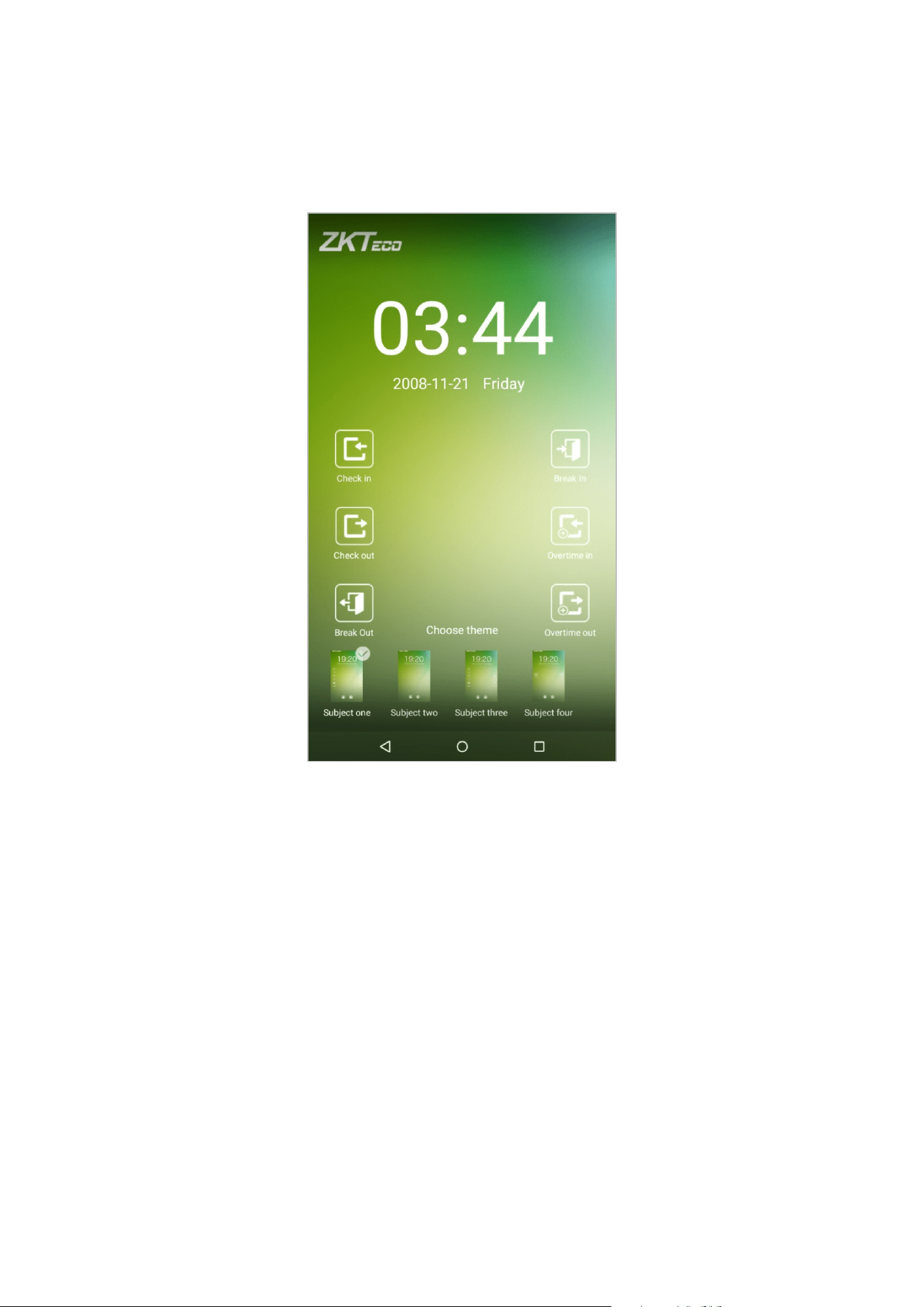
1. Tap on [Choose theme] and select a theme at the bottom of the interface.
6
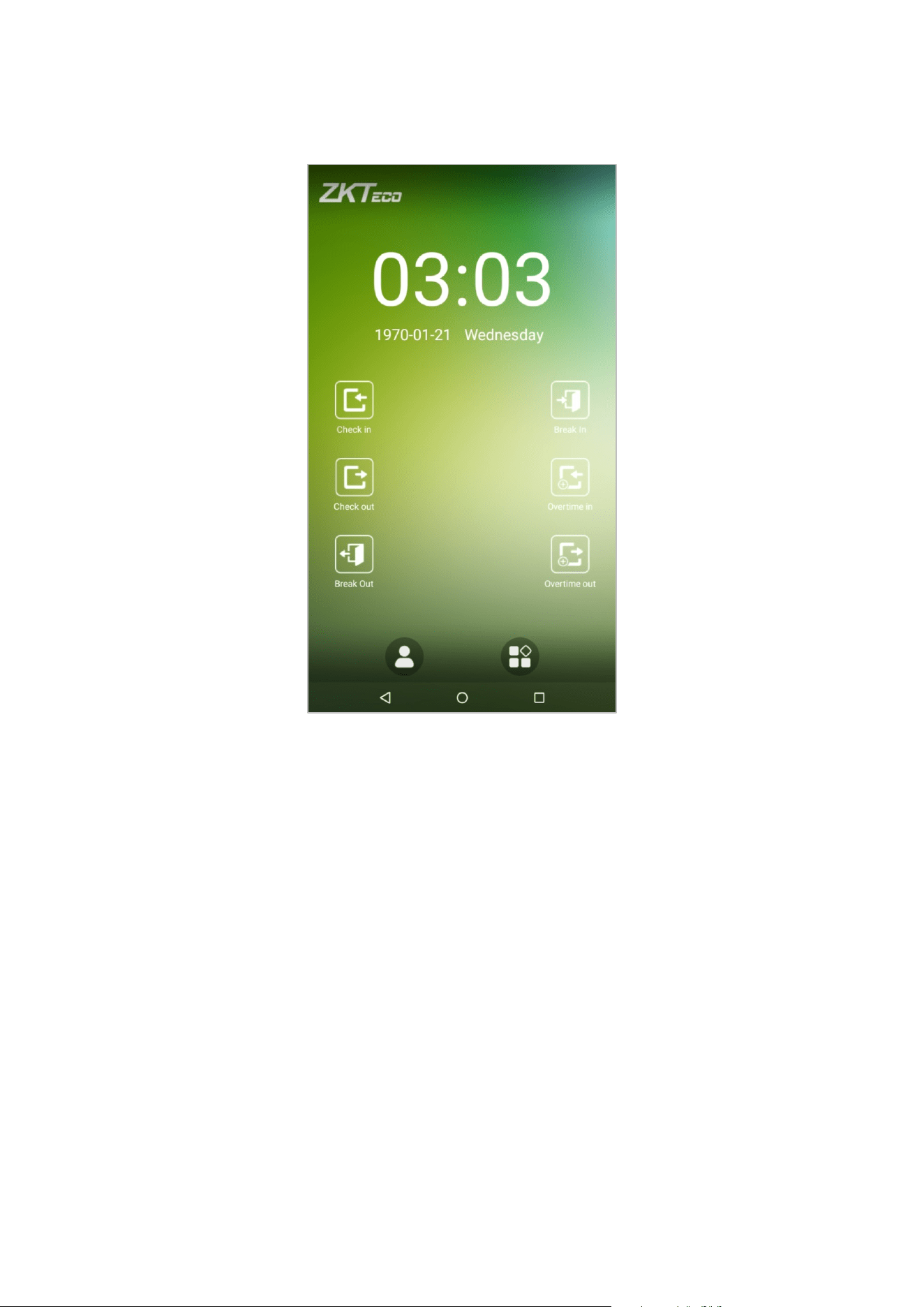
2. After the theme was set successfully, it will be displayed on the standby interface.
7
Change the wallpaper
1. Press on any blank area on the screen for a while, then tap on the [Change wallpaper] icon, slide from right to
left and back in the wallpaper choosing area to choose the desired wallpaper.
8
2. The wallpaper is set successfully and displayed on the standby interface.
9
1.5 Verification Methods
1.5.1 Facial Verification
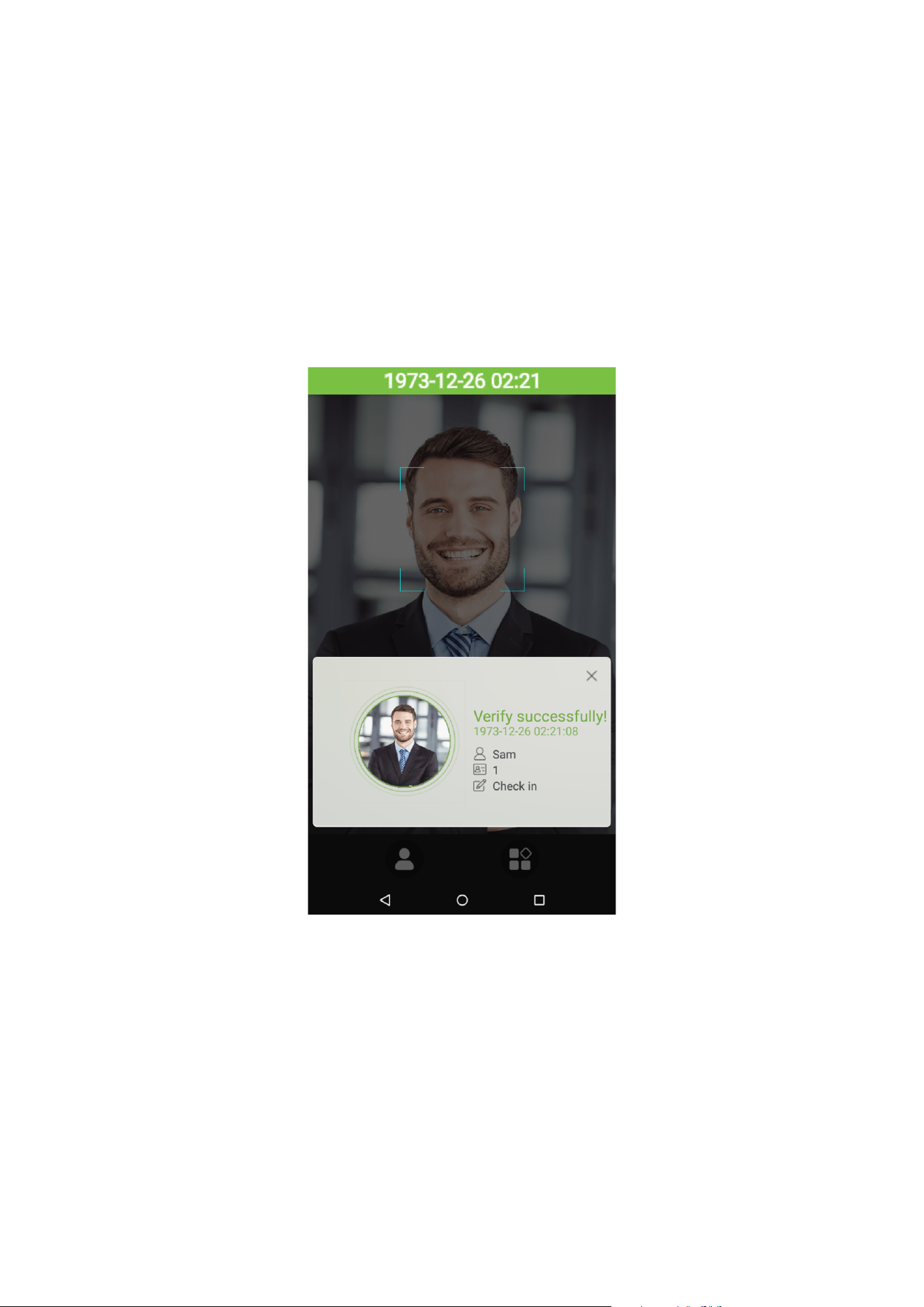
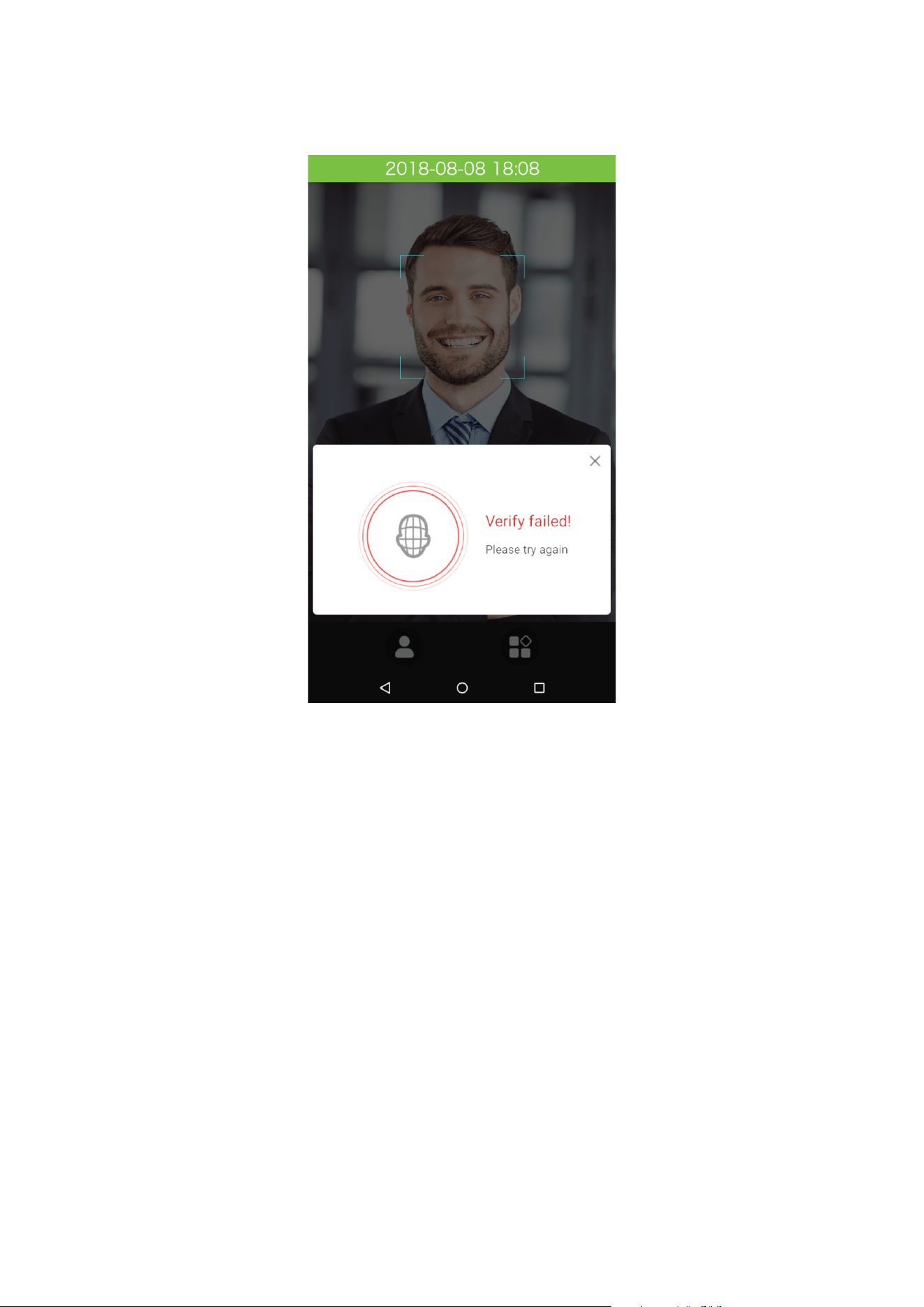
1:N face verification
Compares the acquired facial images with all of the facial templates that are stored in the device.
The device will automatically detect faces nearby. Align your face into the capture area of the camera.
1. Successfully verified.
10
2. Verification is failed.
11
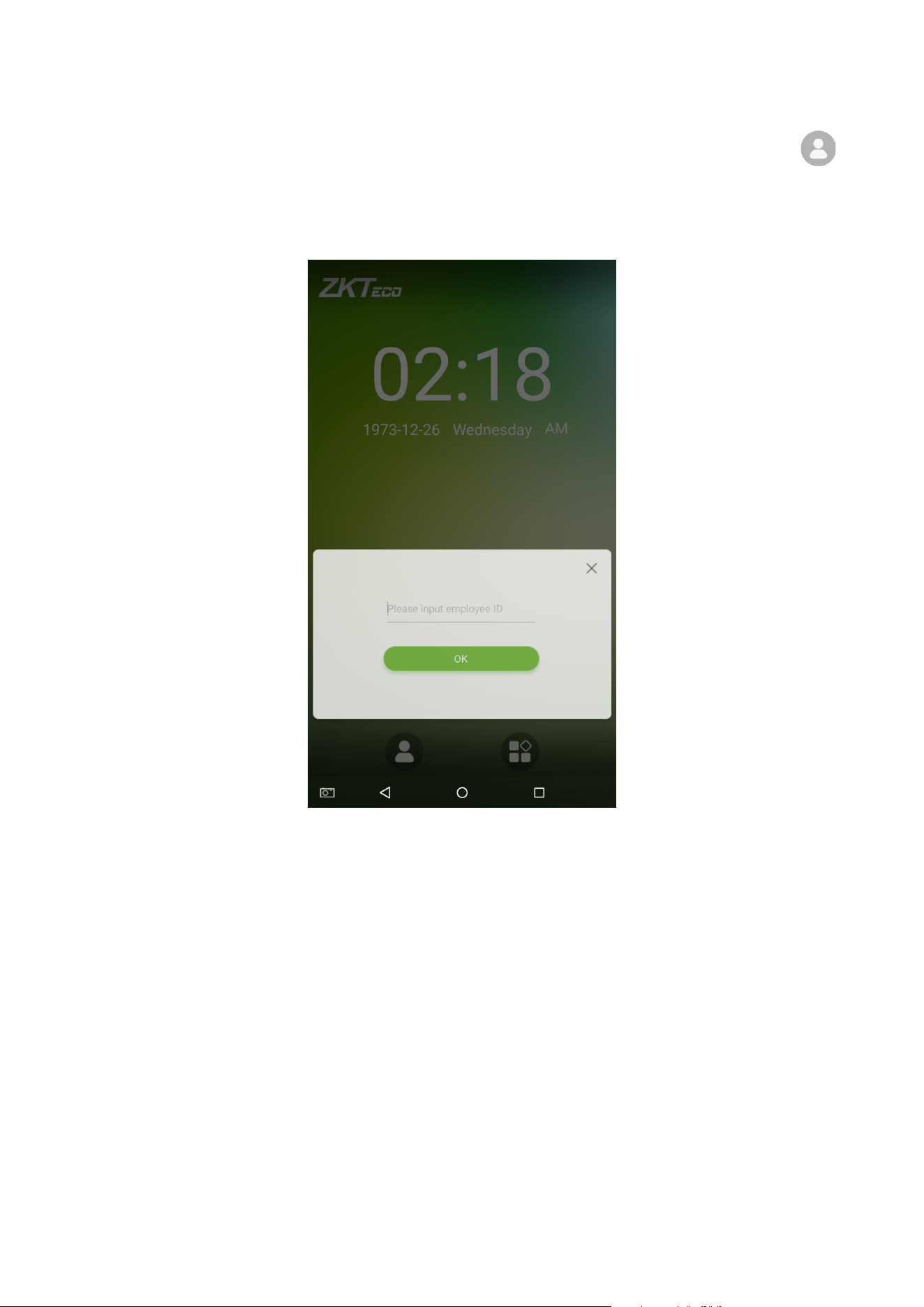
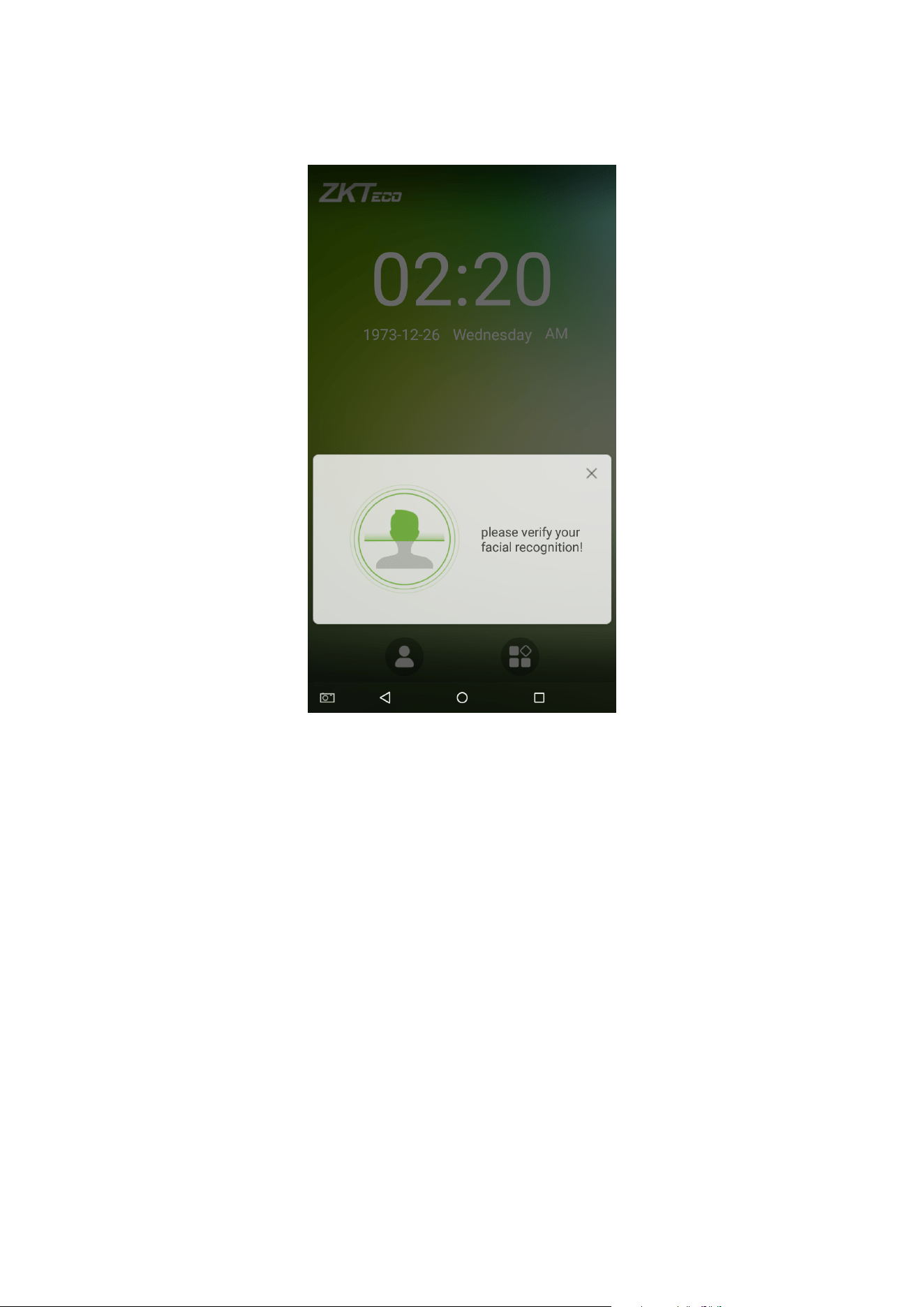
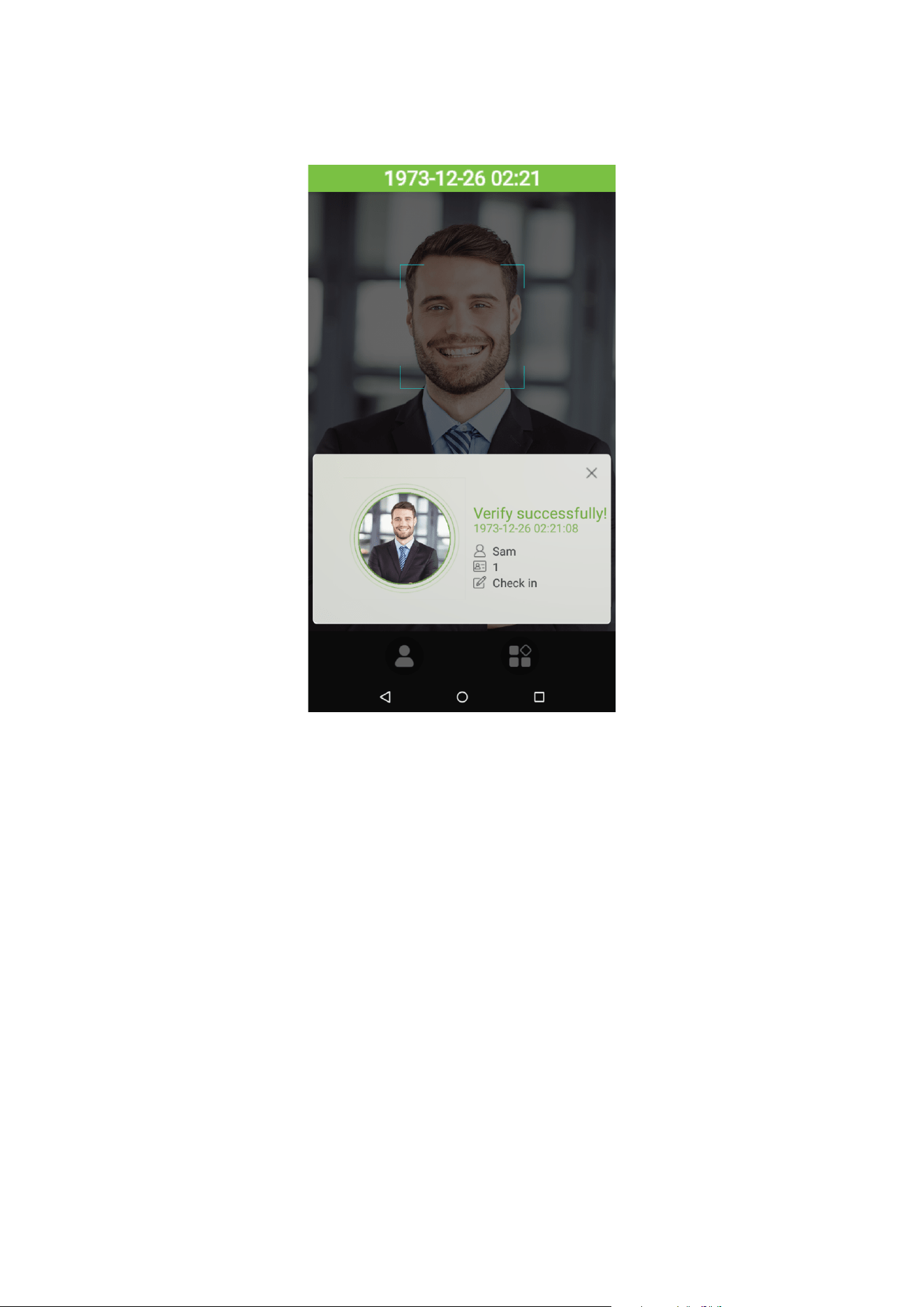
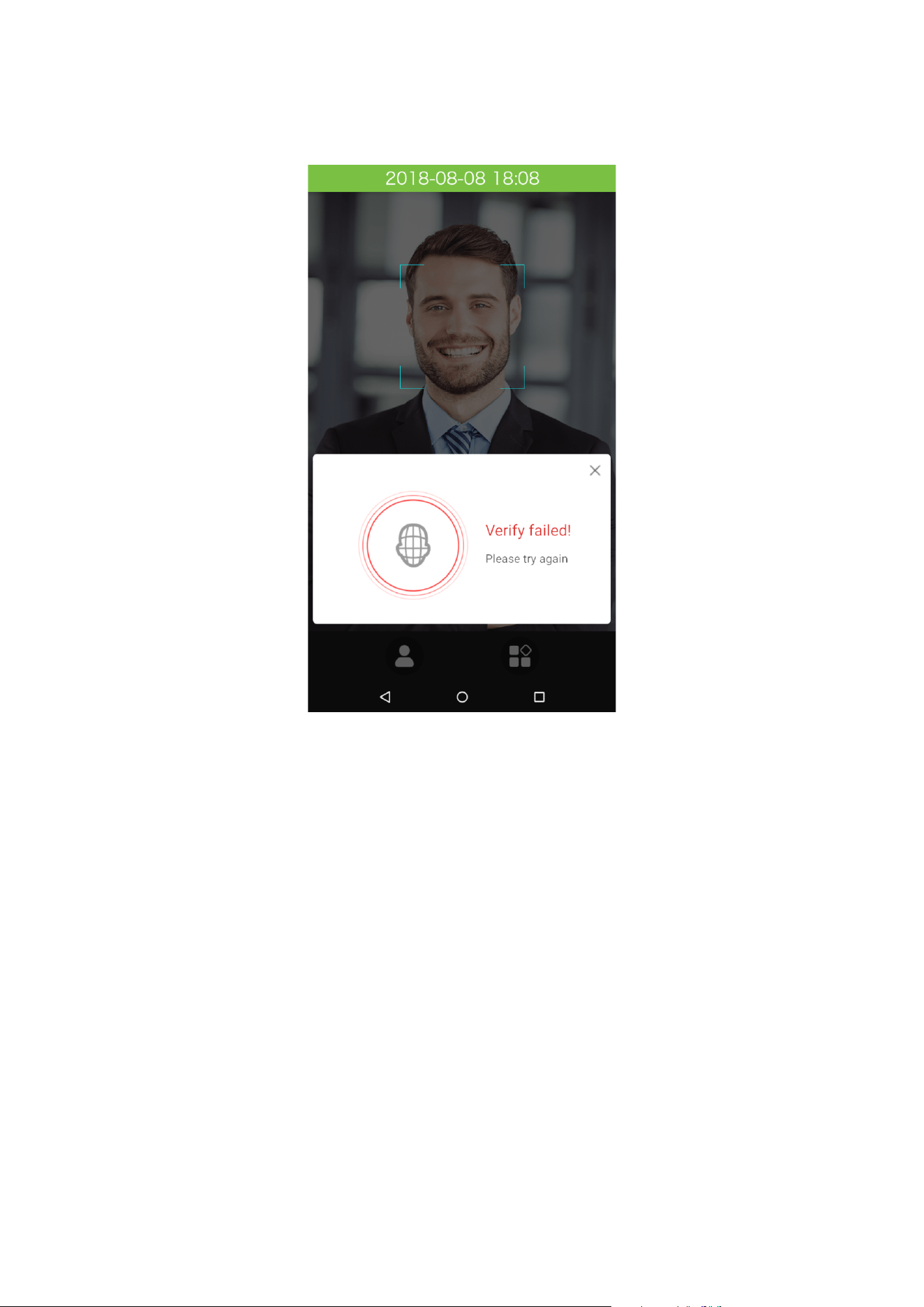
1:1 face verification
Compare the face captured by the camera with the facial template related to the personnel ID input. Press
on the main interface and enter the 1:1 facial verification mode.
1. Input the personnel ID, click on [OK].
12
2. Look at the camera; make sure your face stay in the center of the camera.
13
3. Successfully verified.
14
4. Verification is failed.
15
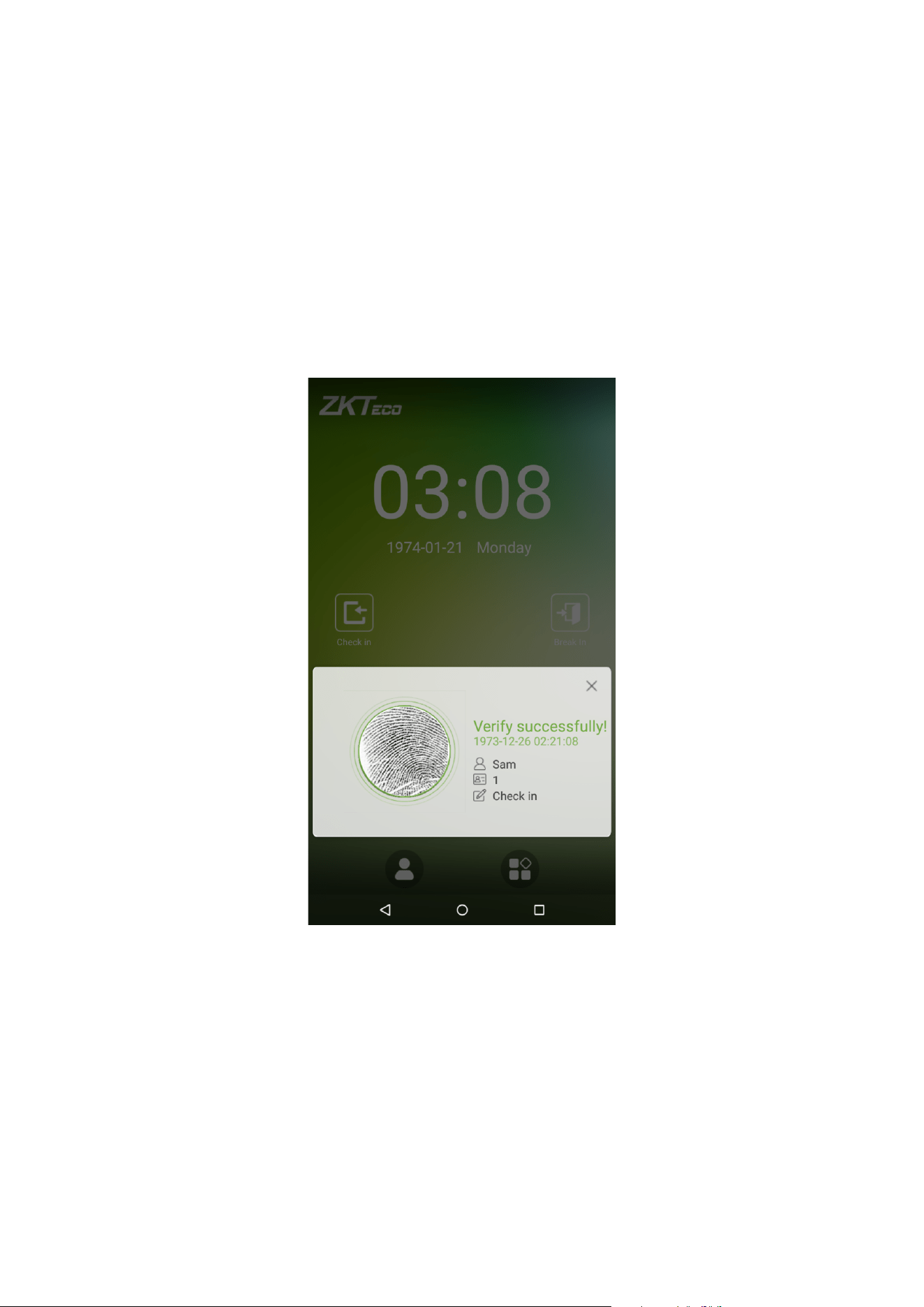
1.5.2 Fingerprint Verification
1:N fingerprint verification
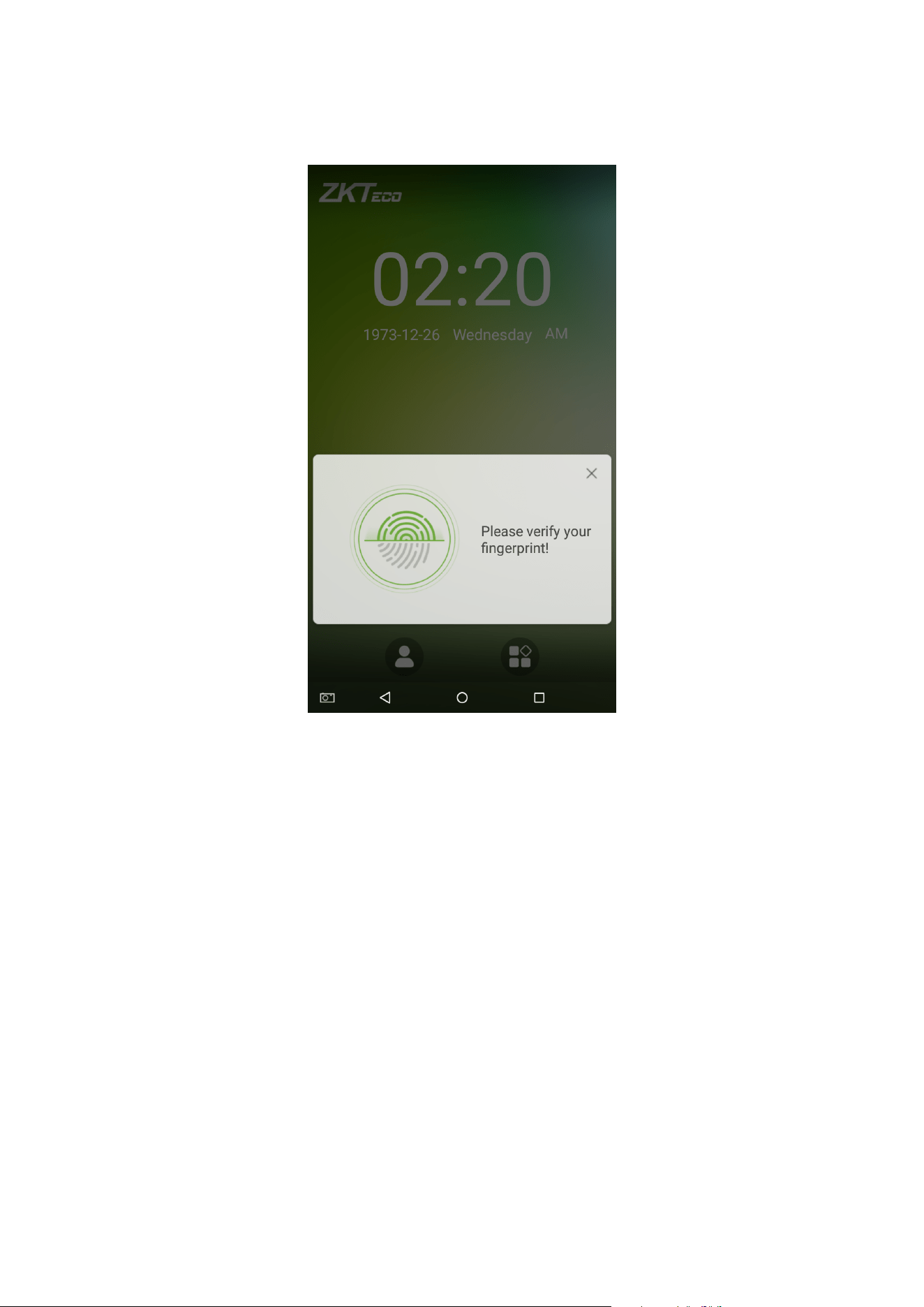
Compare the fingerprint that is being pressed onto the fingerprint reader with all of the fingerprint data that is stored in the
device.
To enter fingerprint verification mode, simply press your finger on the fingerprint reader.
Make sure that you correctly press your fingerprint onto the fingerprint reader. Please refer to section “1.1 Using
your finger” for further details.
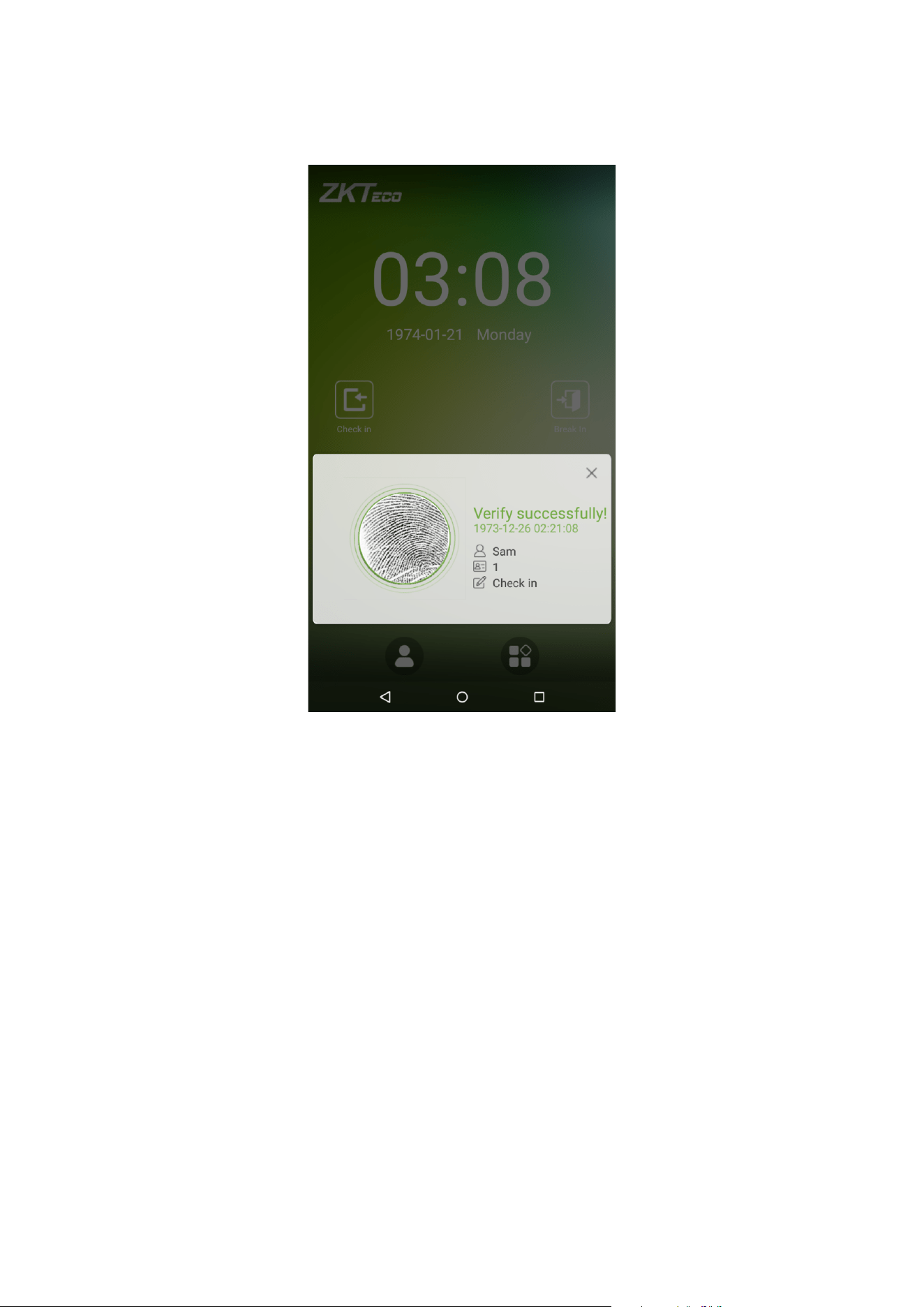
Successful verification:
16
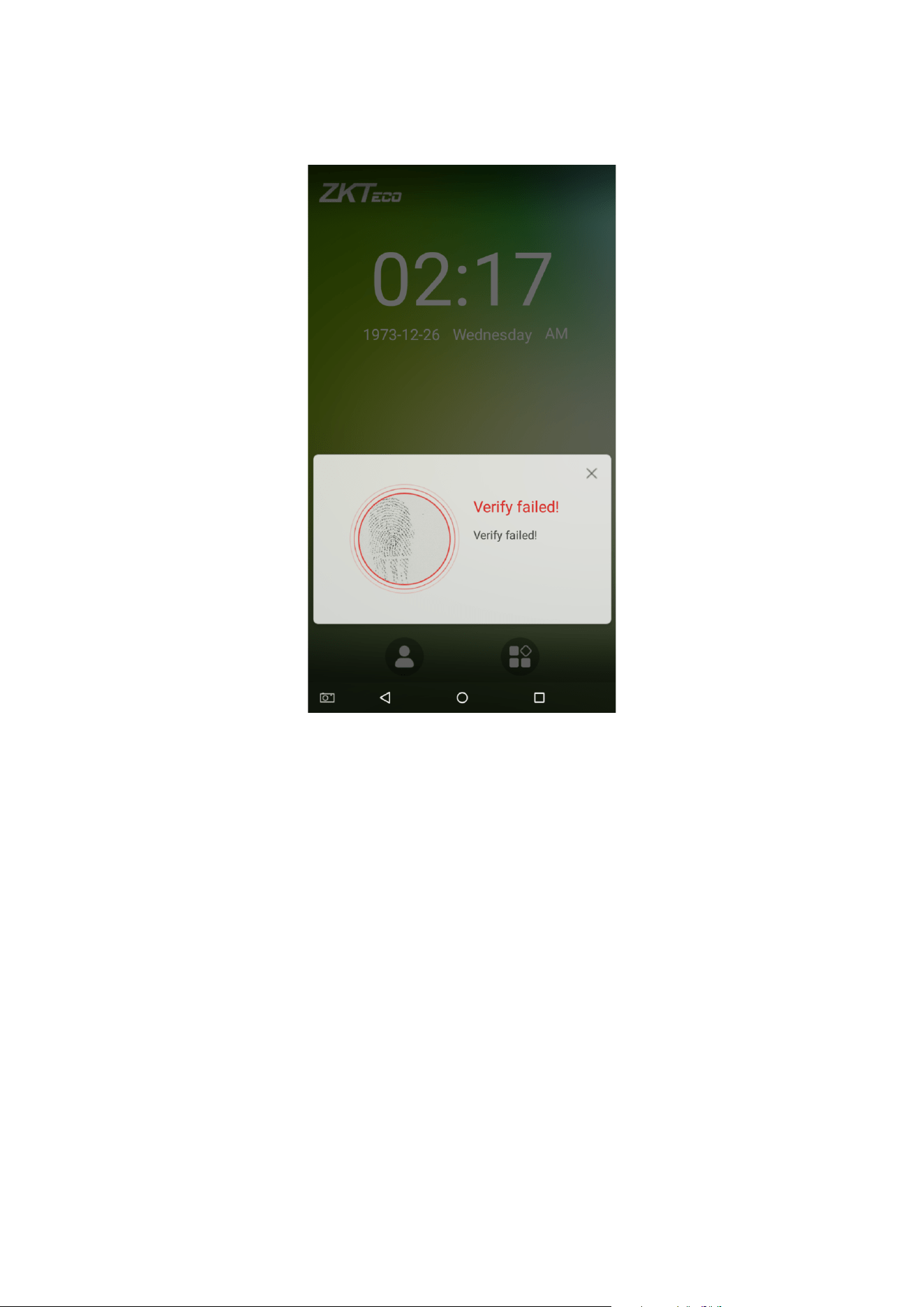
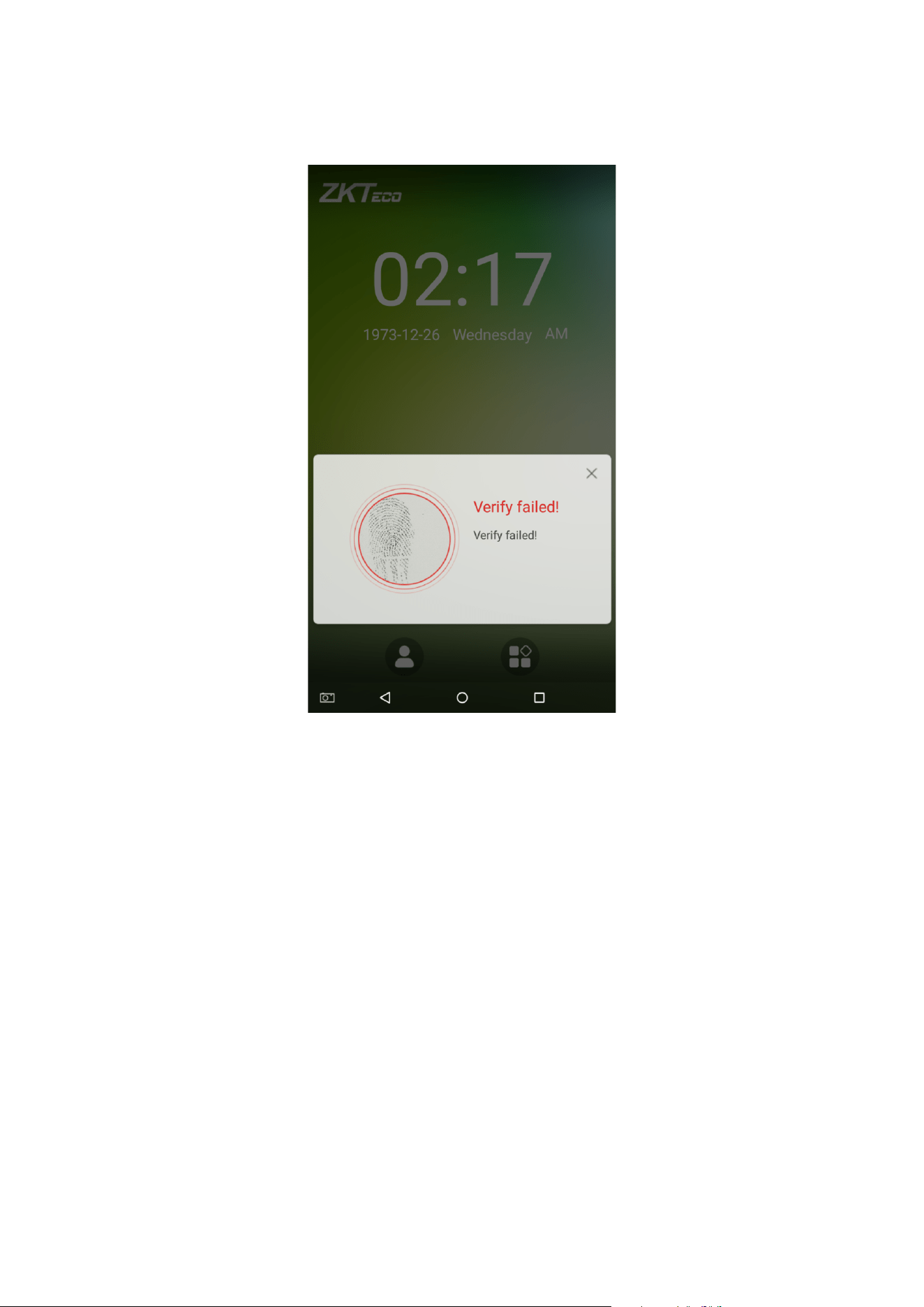
Verification is failed:
17
1:1 fingerprint verification
Compares the fingerprint that is being pressed onto the fingerprint reader with the fingerprints that are linked to Employee
ID input via the virtual keyboard. This method can be used when the system has trouble recognizing an employee's
fingerprints.
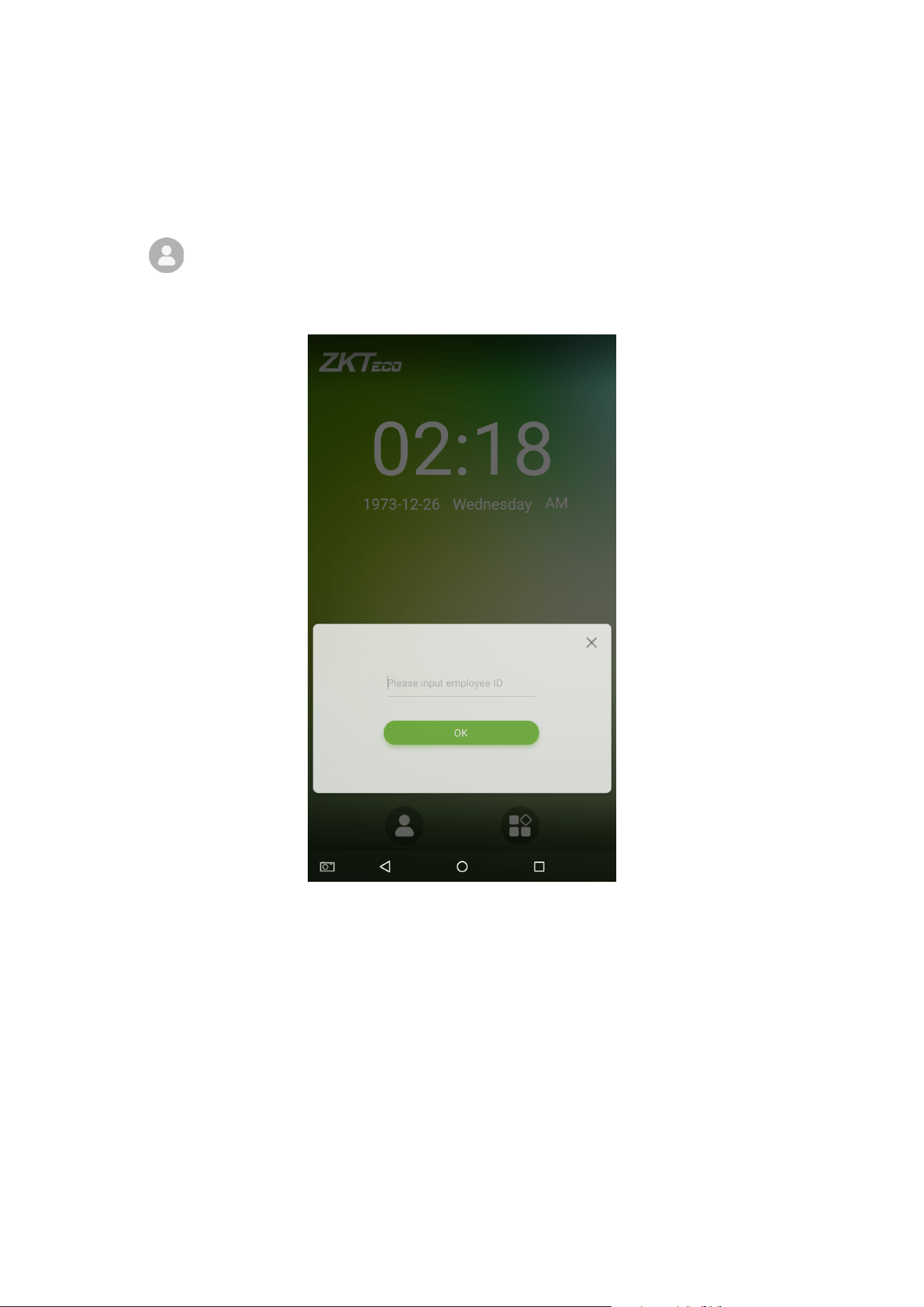
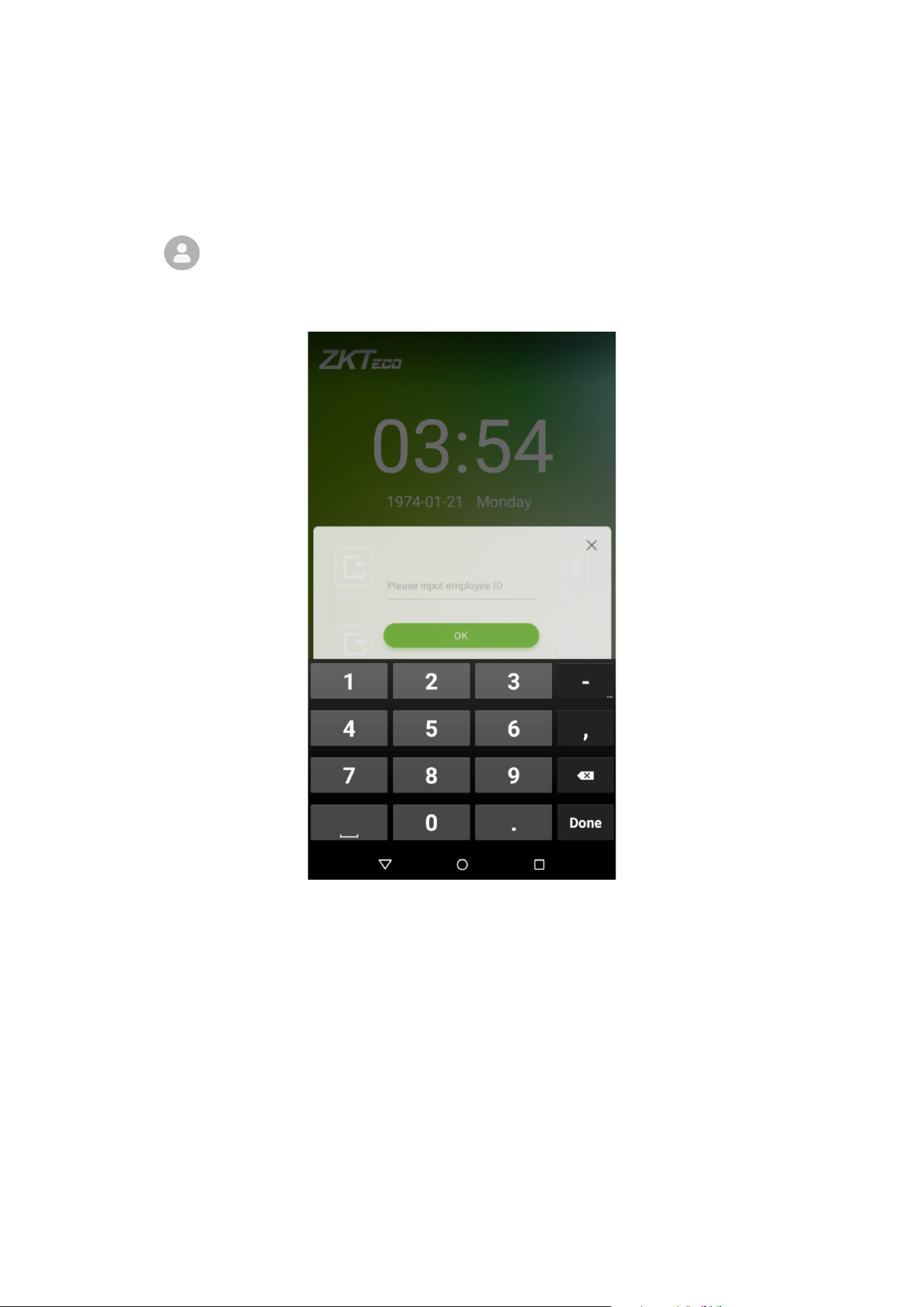
Press the button on the main screen to enter 1:1 fingerprint verification mode:
1. Enter the Employee ID and press [OK].
18
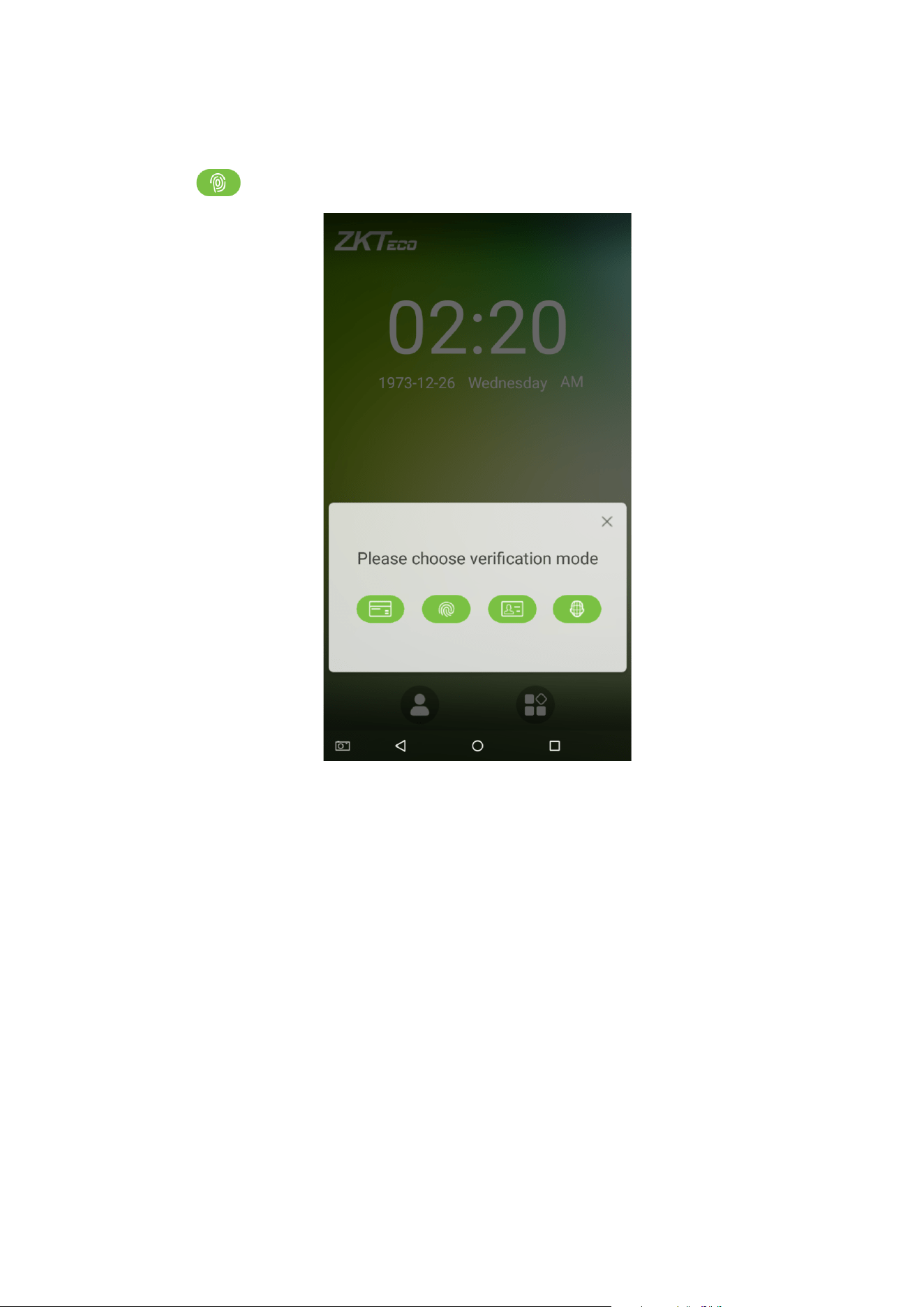
If an employee has registered a face, a password and badge in addition to his/her fingerprints and the verification
method is set to fingerprint/ password/ badge/ face verification, the following screen will appear. Select the
fingerprint icon to enter fingerprint verification mode:
19
2. Press the finger on the fingerprint reader to proceed with verification.
20
3. Successfully verified.
21
4. Verification is failed.
22
1.5.3 Password Verification
When an employee inputs his/her personnel ID and password into the device, the data will be compared to the
personnel IDs and passwords saved in the system.
Tap on the button on the main screen to enter the 1:1 password verification mode.
1. Enter the employee ID and press [OK].
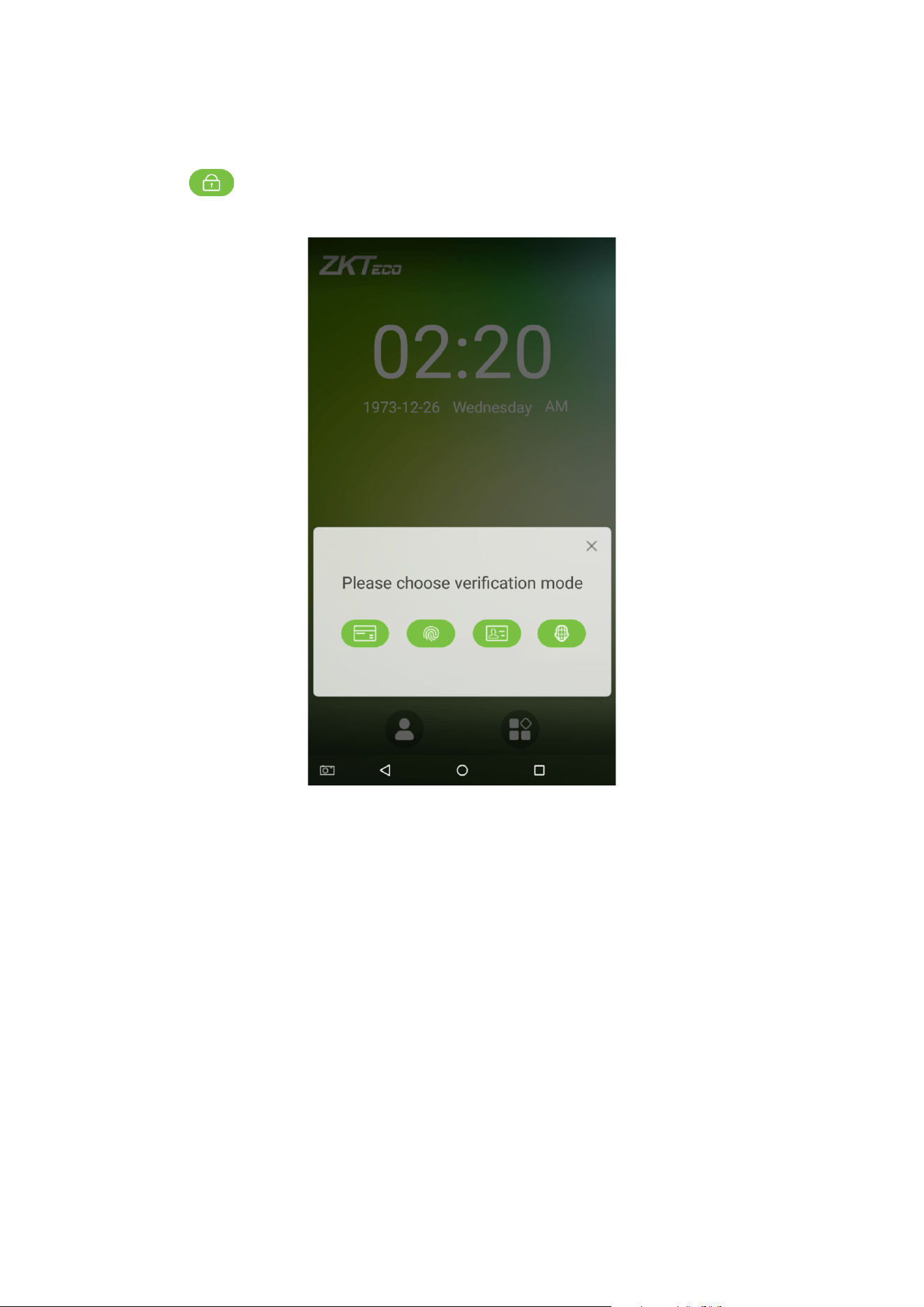
23
If an employee has registered a face, a fingerprint and badge in addition to his/her password and the verification
method is set to fingerprint/ password/ badge/ face verification, the following screen will appear. Select the
password icon to enter password verification mode.
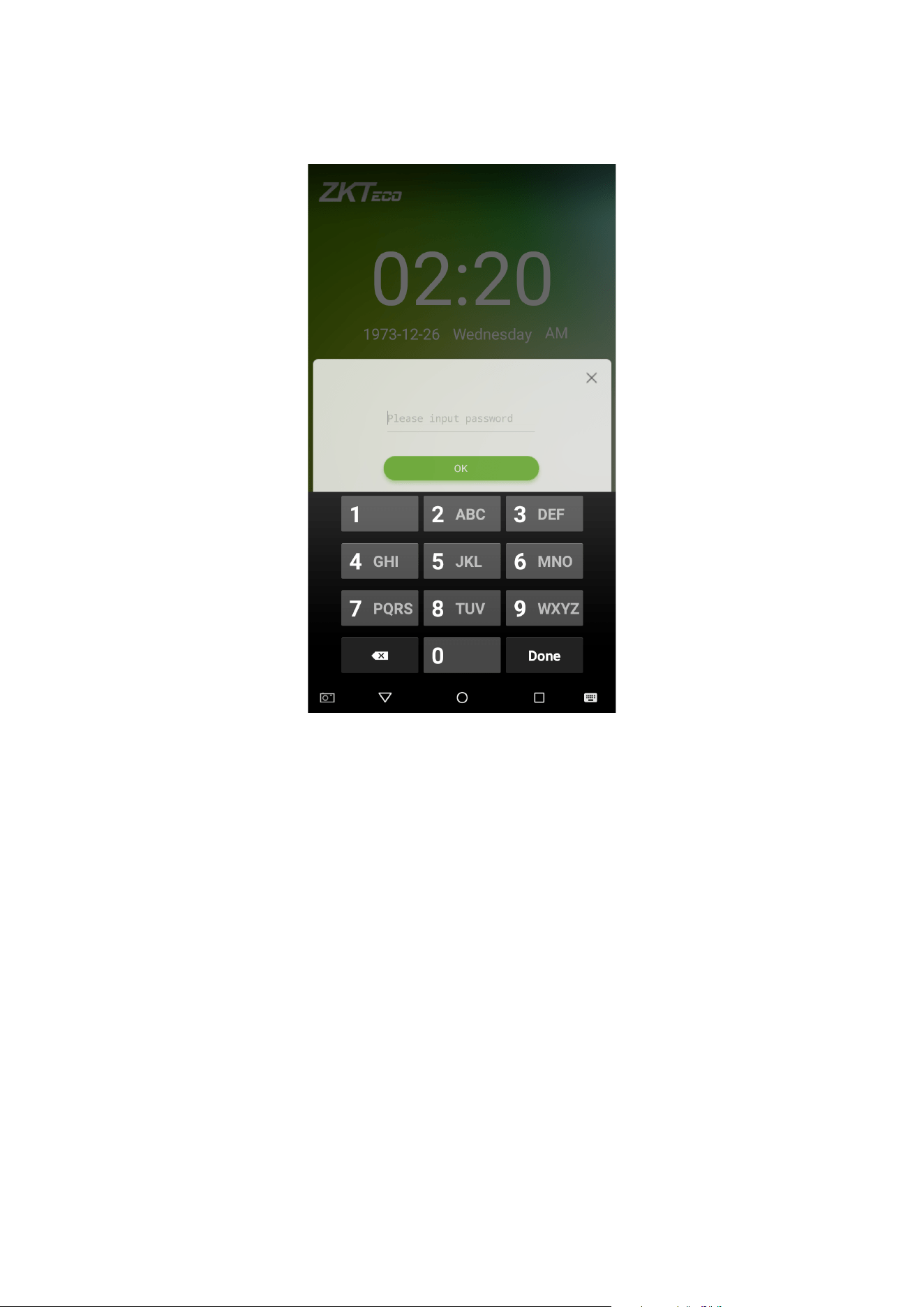
24
2. Enter a password and press [OK].
25
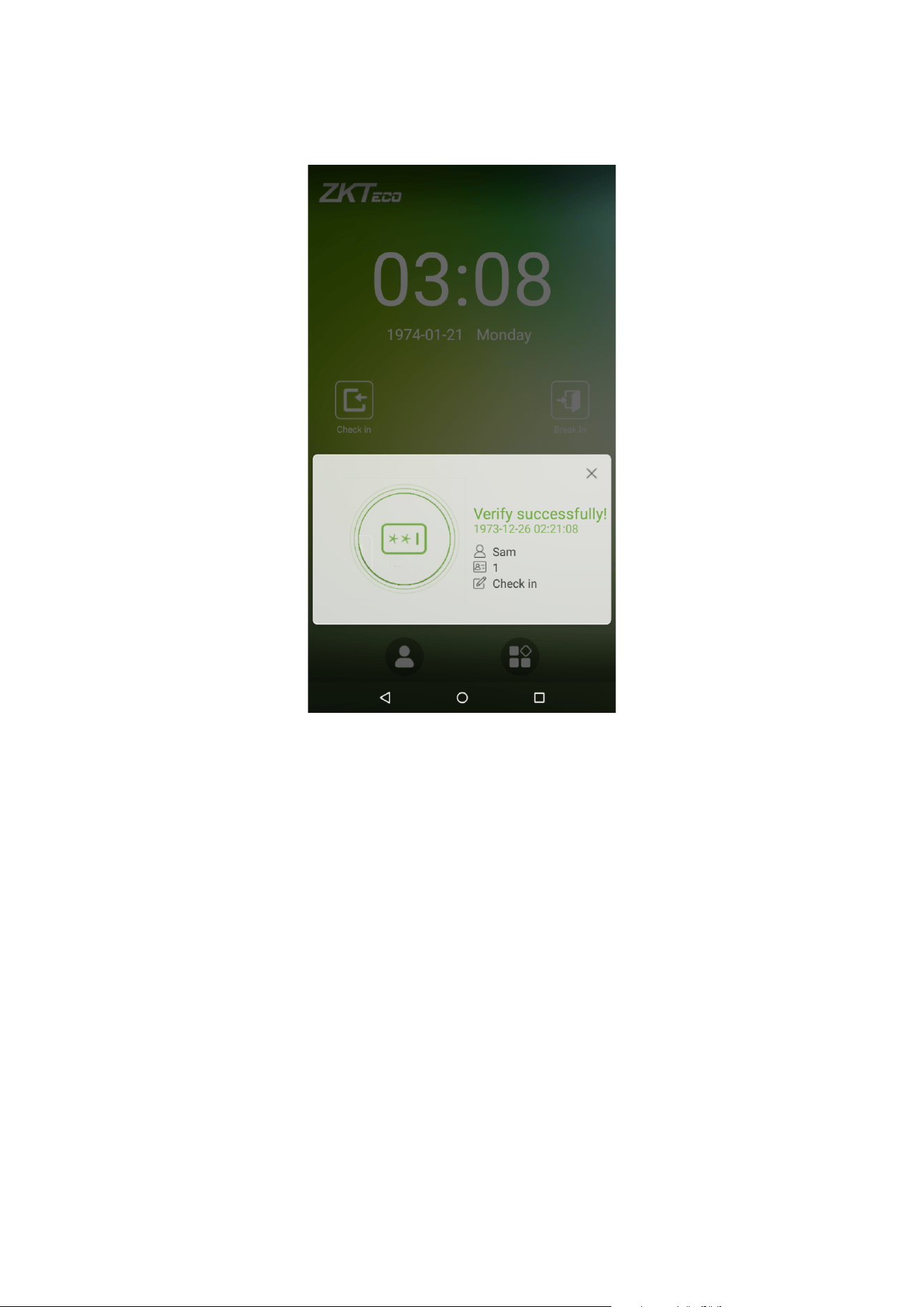
3. Successfully verified.
26
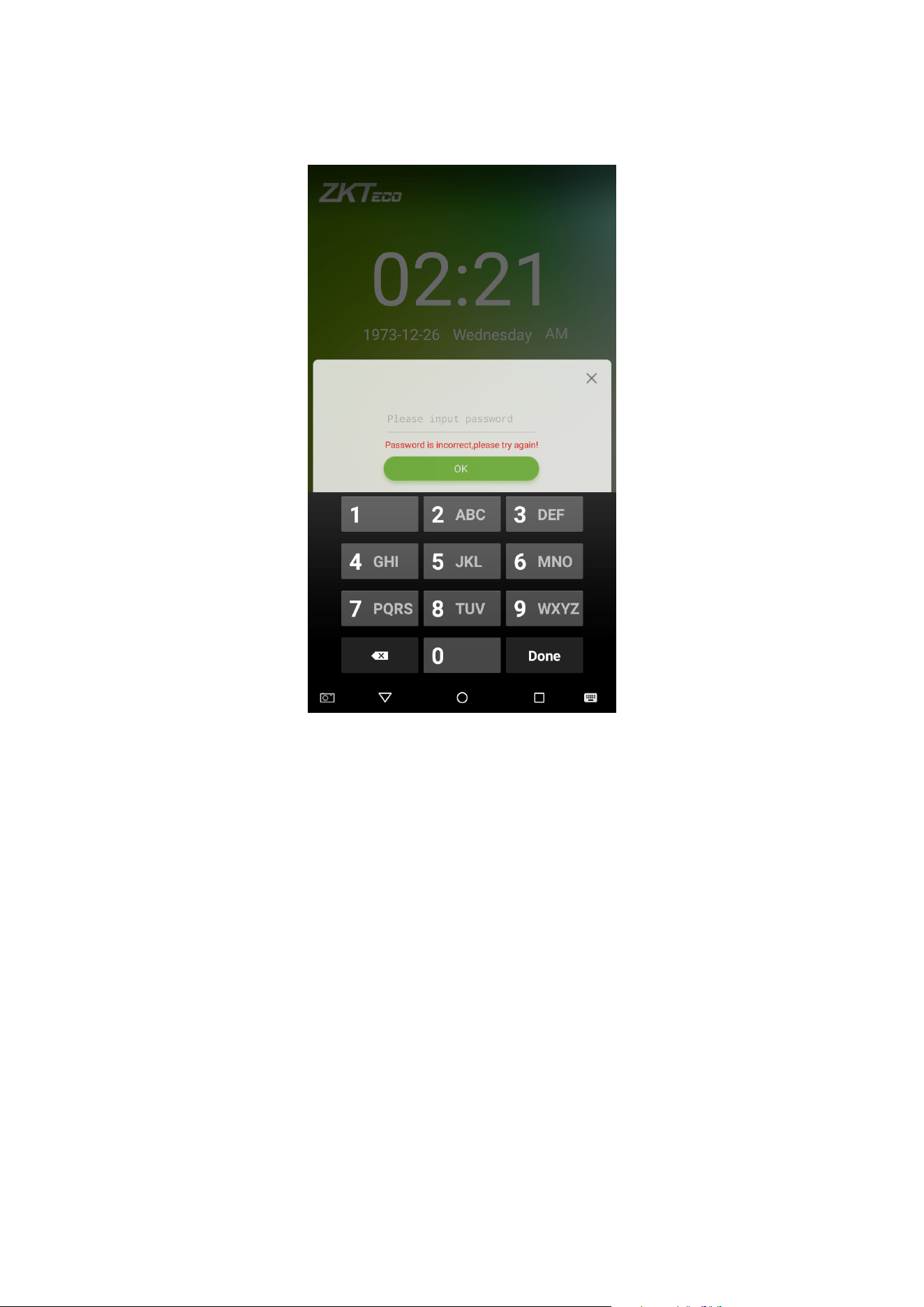
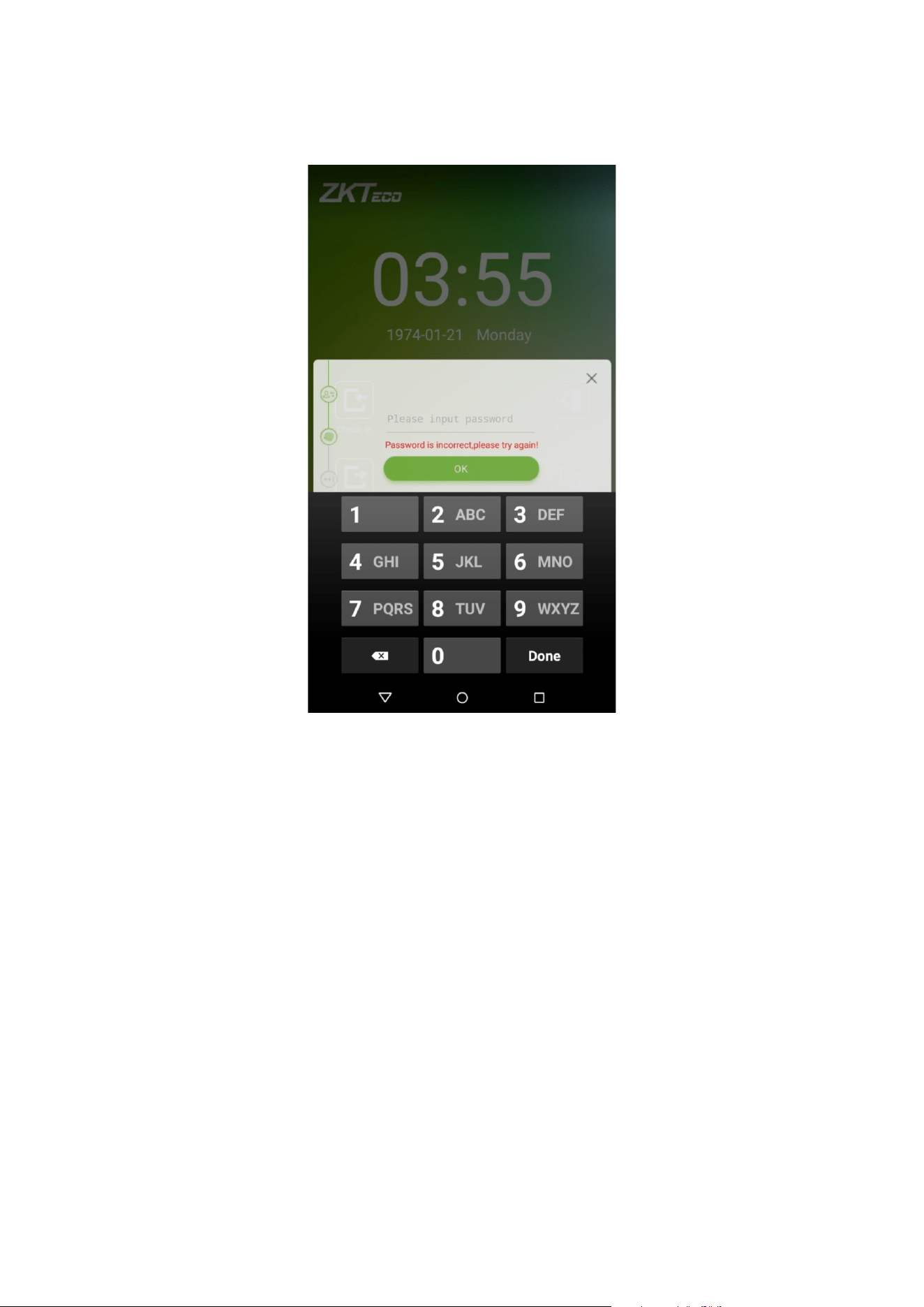
4. Verification is failed.
27
1.5.4 Card Verification
Only the product with the card module offers the card verification function.
Please place the registered card on the card reader.
1.5.5 Combined Verification
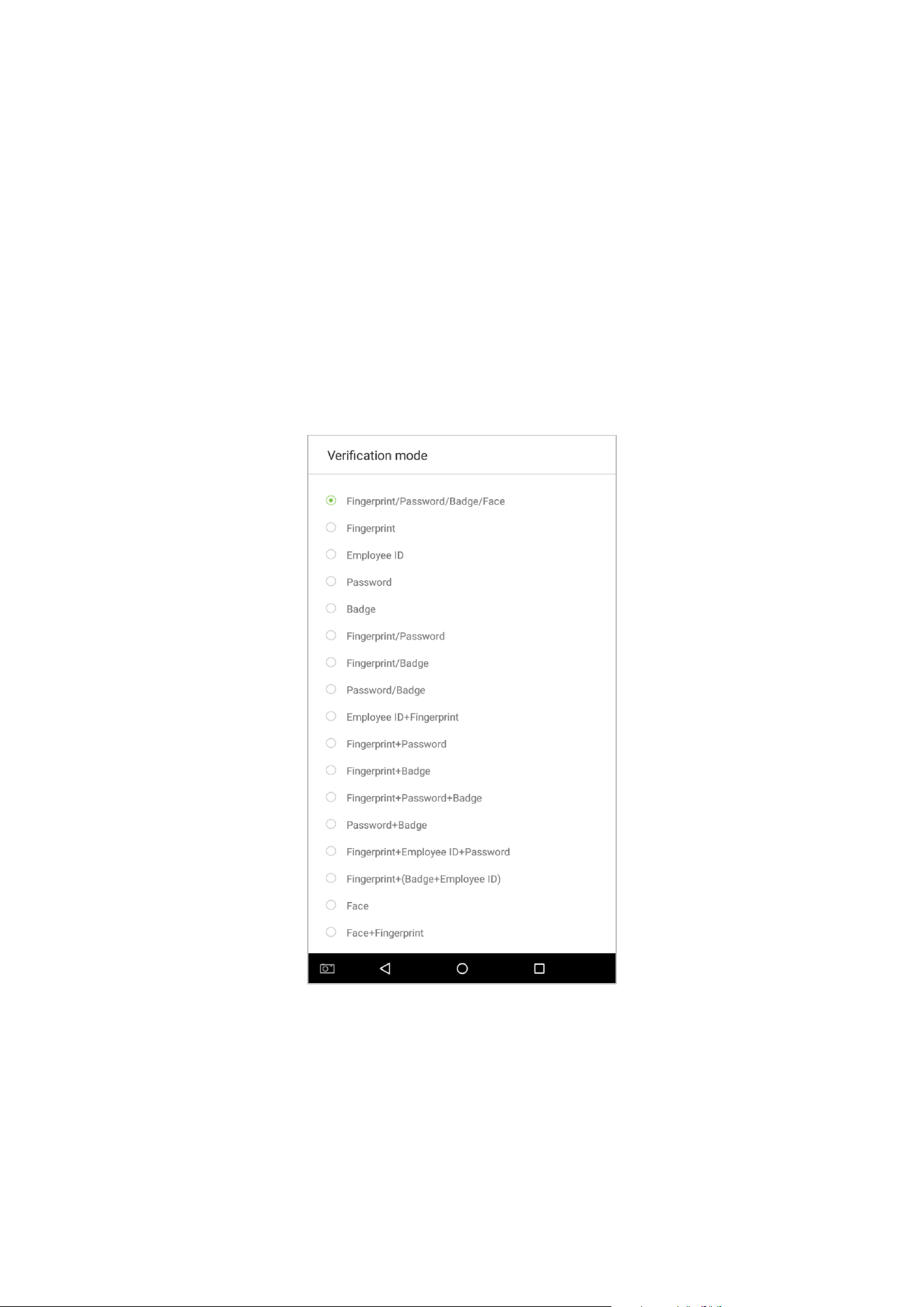
To increase security, this device offers the option of using multiple forms of verification methods. A total of 21
different verification combinations can be used, as shown below:
Notes:
1. “/” means “or” and “+” means “and”.
2. Combined verification requires employees to register the information needed to complete verification.
Otherwise, employees may not be able to complete the verification process. For instance, when employee A
registers with his/her fingerprint data, and the system's verification mode is set as “Fingerprint + Password”, the
employee will not be able to complete the verification process.
28
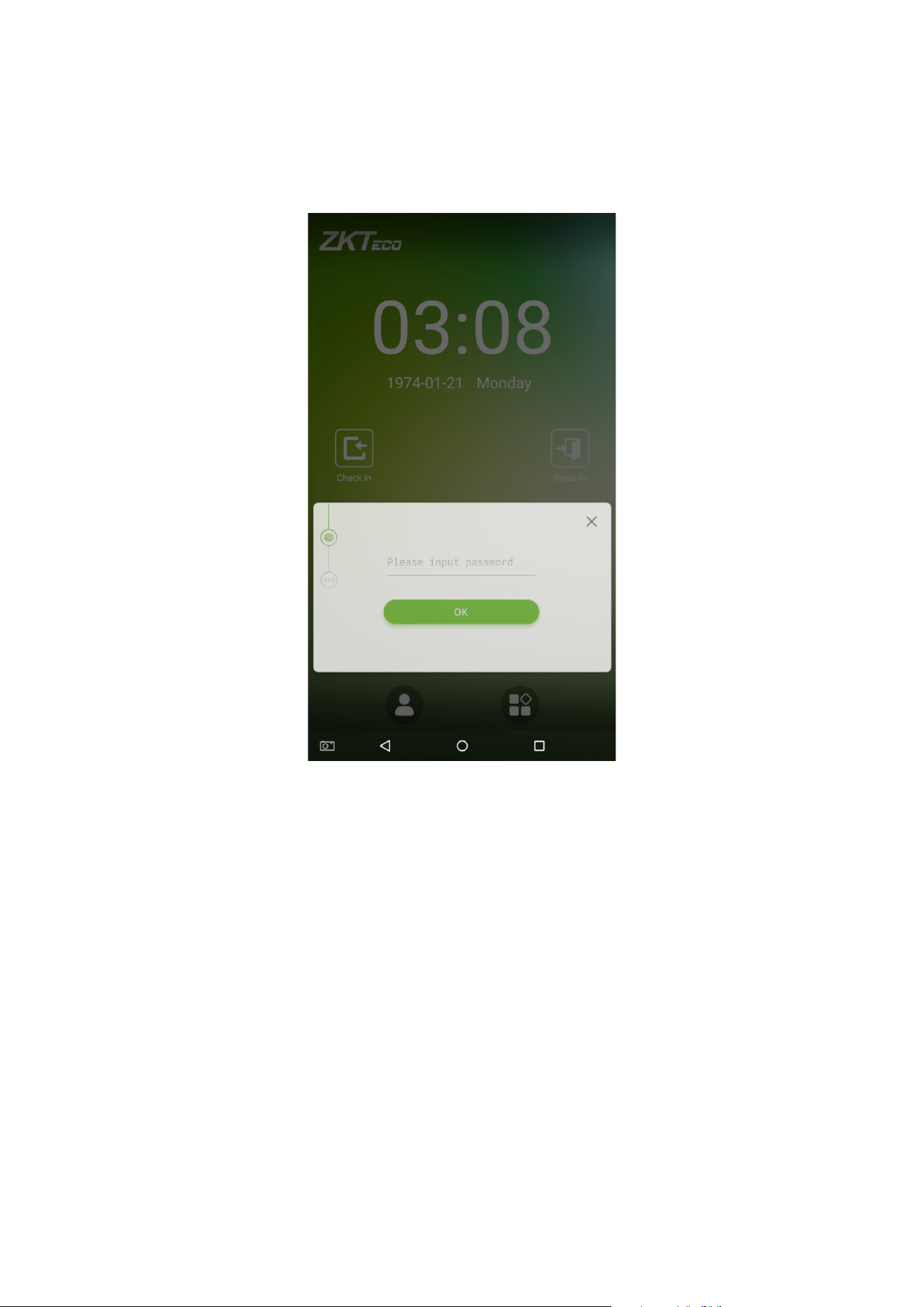
The example below shows “Fingerprint + Password” verification. To log in to the system, please follow these steps:
1. Press your finger on the fingerprint reader, then the following window will appear. Enter the password and tap on
[OK].
29
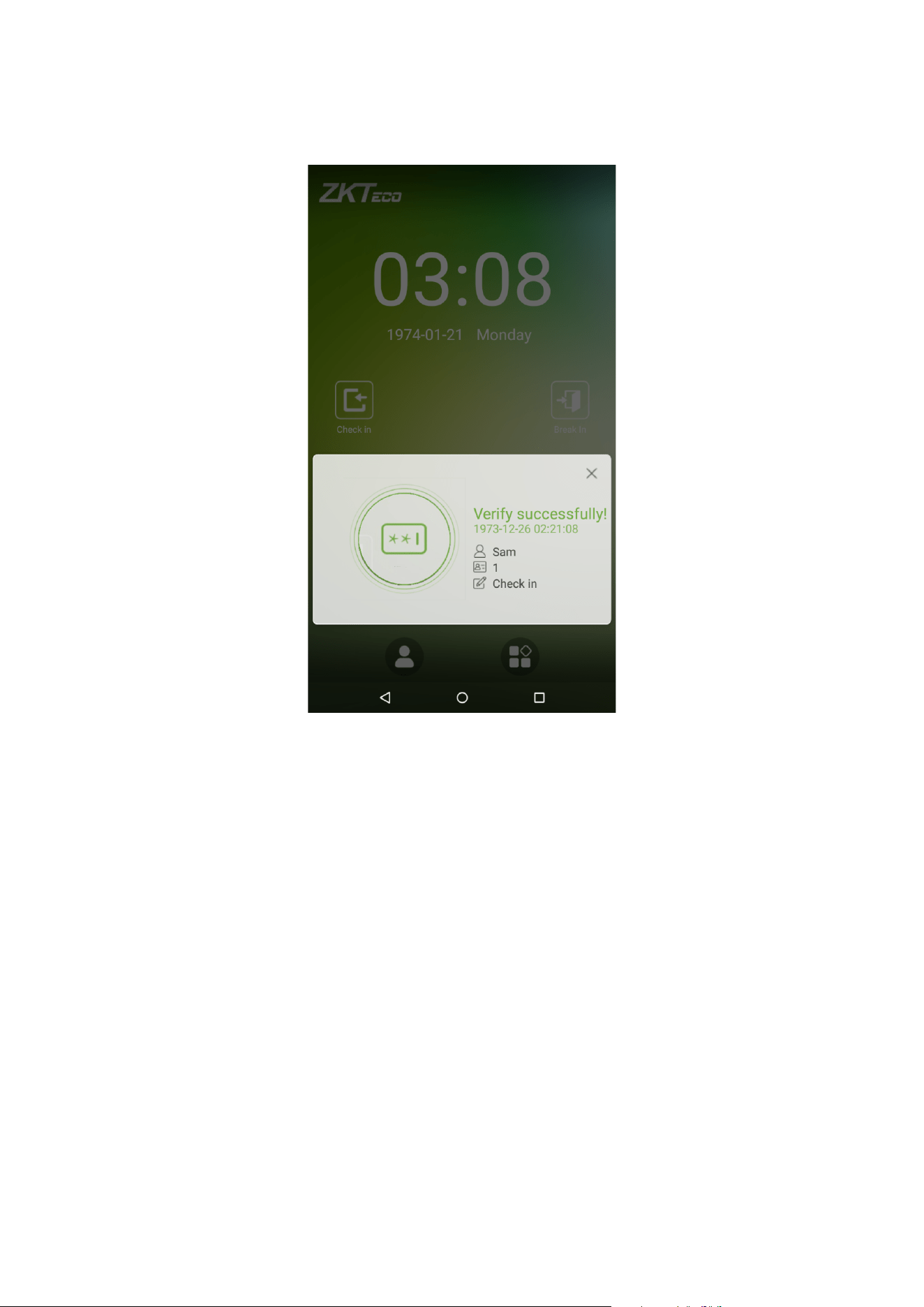
2. Successfully verified.
31
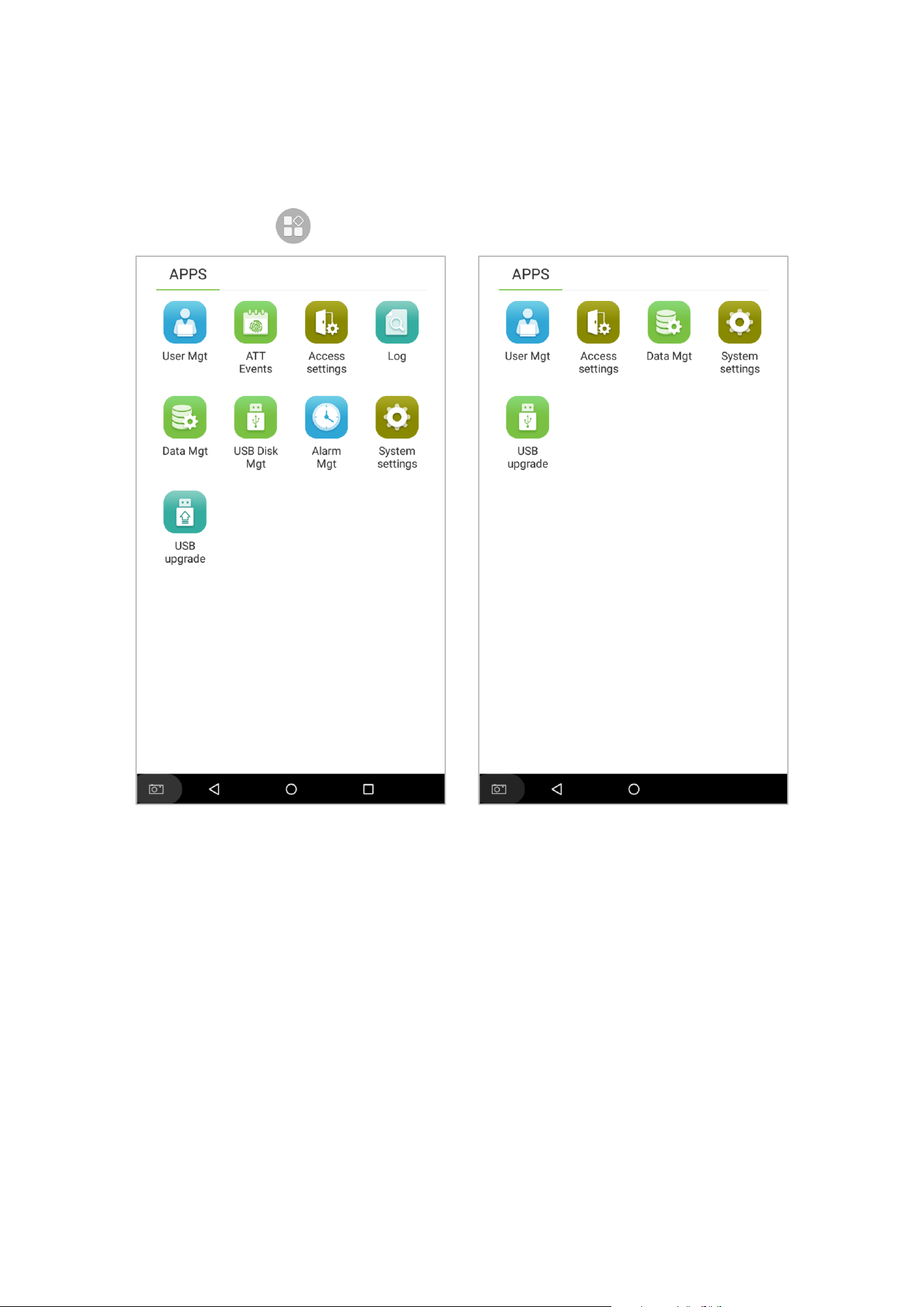
2. Main Menu
On the startup screen, press to enter the main menu, as shown in the diagram below:
Attendance device Access device

32
Menu Options
Function Description
User management Add, view and edit employee information.
Attendance
events
Records various clock-in or clock-out data based on different attendance status.
Access settings Achieve simple access control settings.
Log Look up attendance log, view attendance photo and blacklist photo.
Data management Delete data from the device.
USB Disk
management
Use a USB drive to upload and download.
Alarm
management
Once an alarm has been set, the device will automatically play preselected ringtone when
the designed time is reached. It will stop ringing after the alarm time elapsed.
System settings
Set the network, date, time, attendance parameters, cloud server, Wiegand, display, sound
settings, biometric parameters, automatic test, advanced settings of the device.
USB upgrade Upgrade the firmware of the device with the upgrade file in a USB drive
Note: If the device does not have a super administrator, any user can enter the menu by pressing the key;
after a super administrator has been set on the device, ID verification will be required to enter the menu. Once
password verification is successful, users can enter the menu. To ensure the security of the device, we recommend
registering an administrator the first time you use this device. For detailed operating instructions, please see section
“3.1 Add an Employee”.
33
3. User Management
3.1 Add an Employee
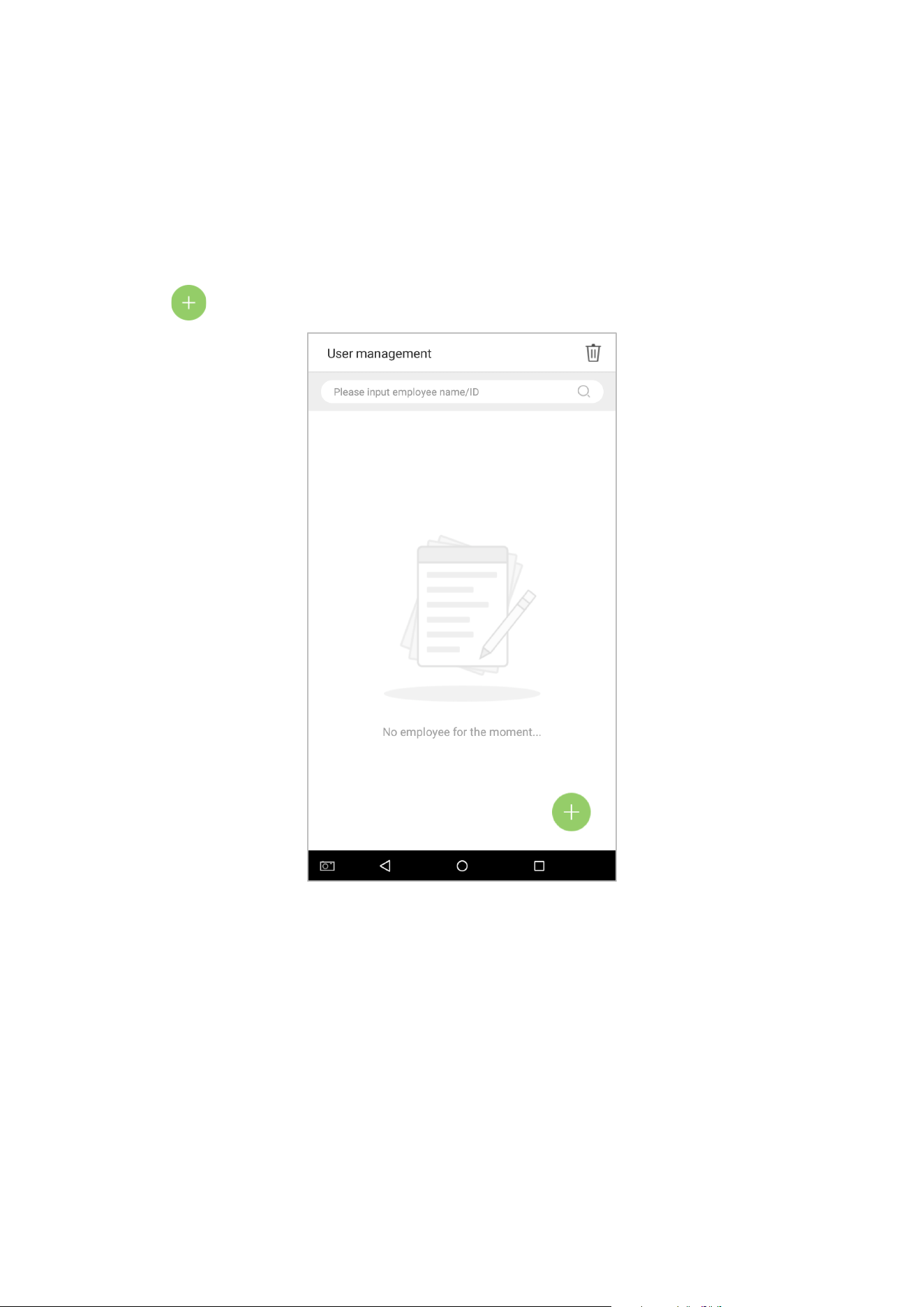
Tap on [User Management] in the main menu:
1. Tap on on the [User Management] interface to enter the employee creation wizard.
34
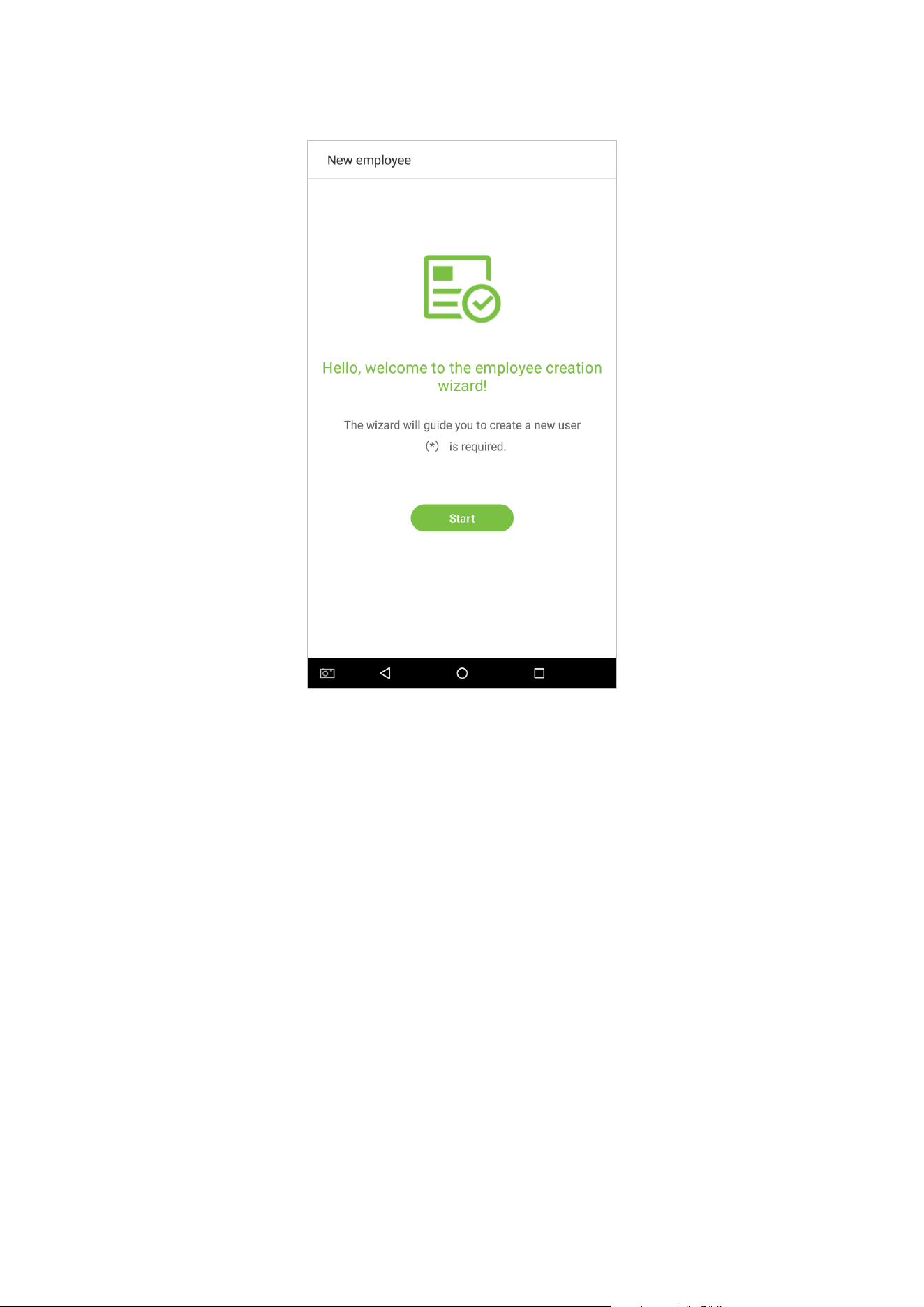
2. Tap on [Start] on the employee creation wizard.
35
3.1.1 Register Basic Employee Information
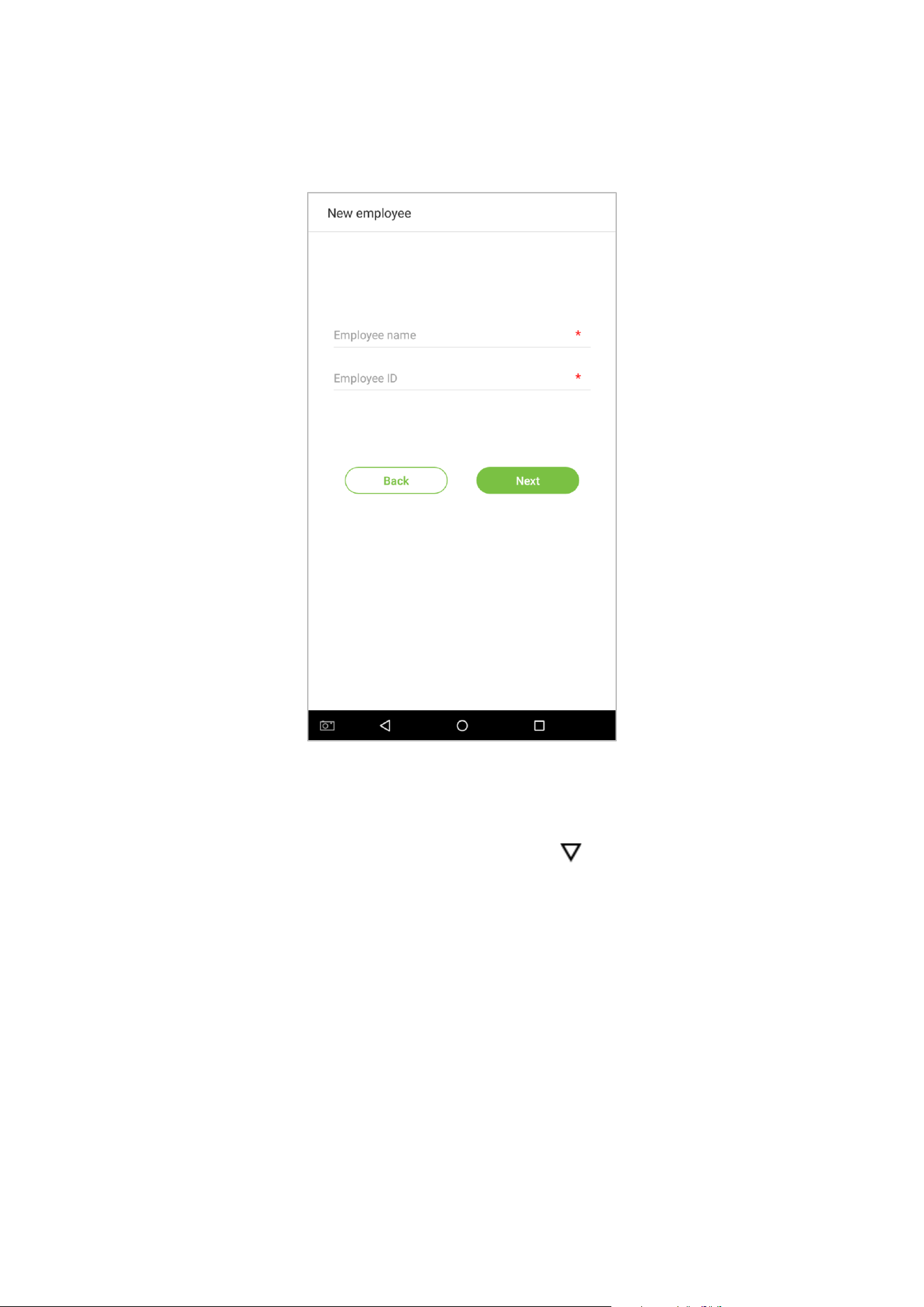
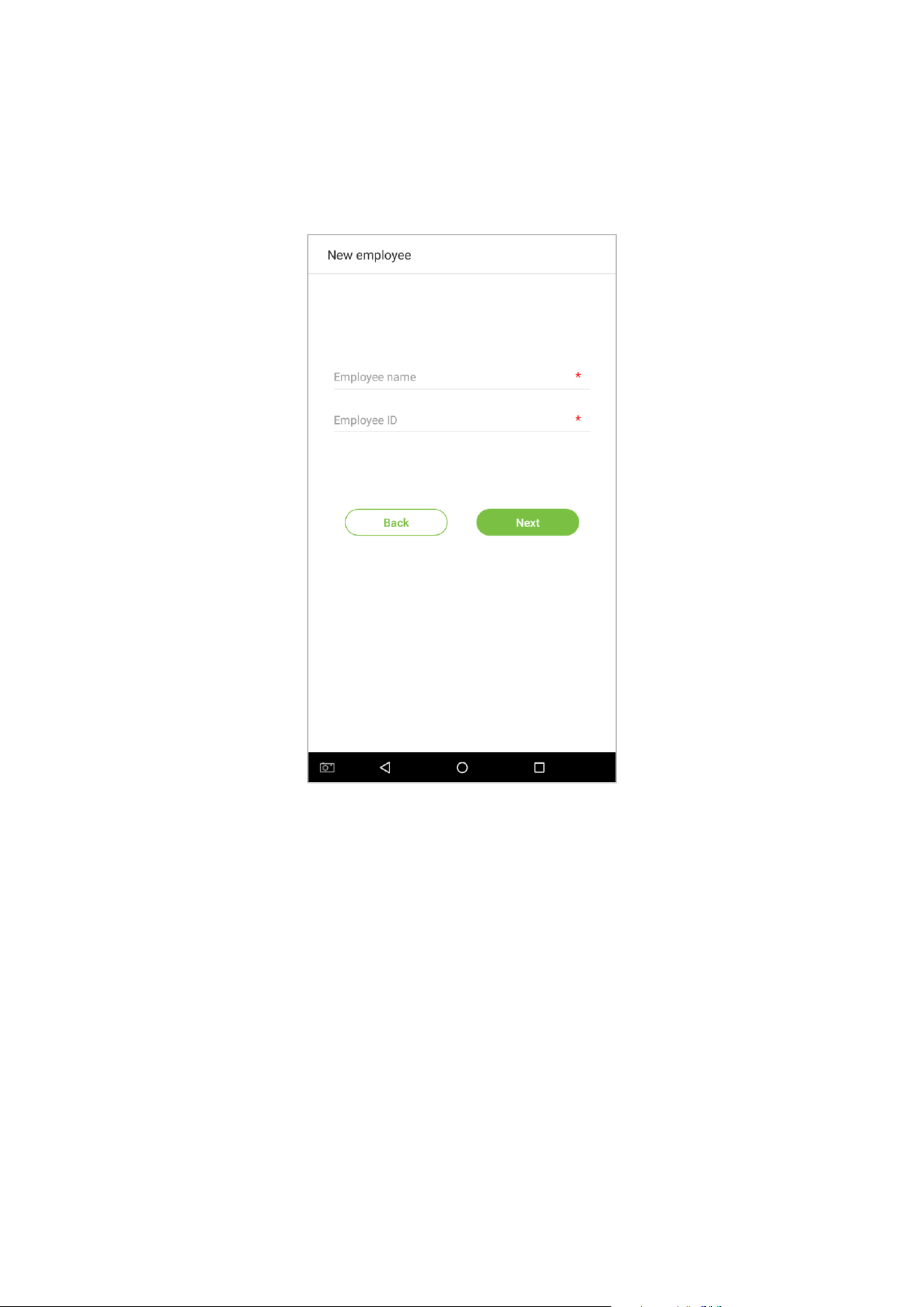
Enter the employee name in the [Employee Name] field, and the personnel ID in the [Employee ID] field:
Notes:
1. The name refers to the employee's name. Its maximum length is 24 characters.
2. The system supports employee IDs from 1 to 9 digits by default. A maximum of 23 digits can be input. To increase the
number of digits that can be input, please contact our pre-sale tech department.
3. Employee IDs can be changed the first time that they are used to log in to the system. After they have been used to log
in, employee numbers can no longer be edited.
4. The message "This Employee ID is already in use!" indicates that the ID number you have input is already being used.
Please input another ID number.
36
3.1.2 Register Employee Photo
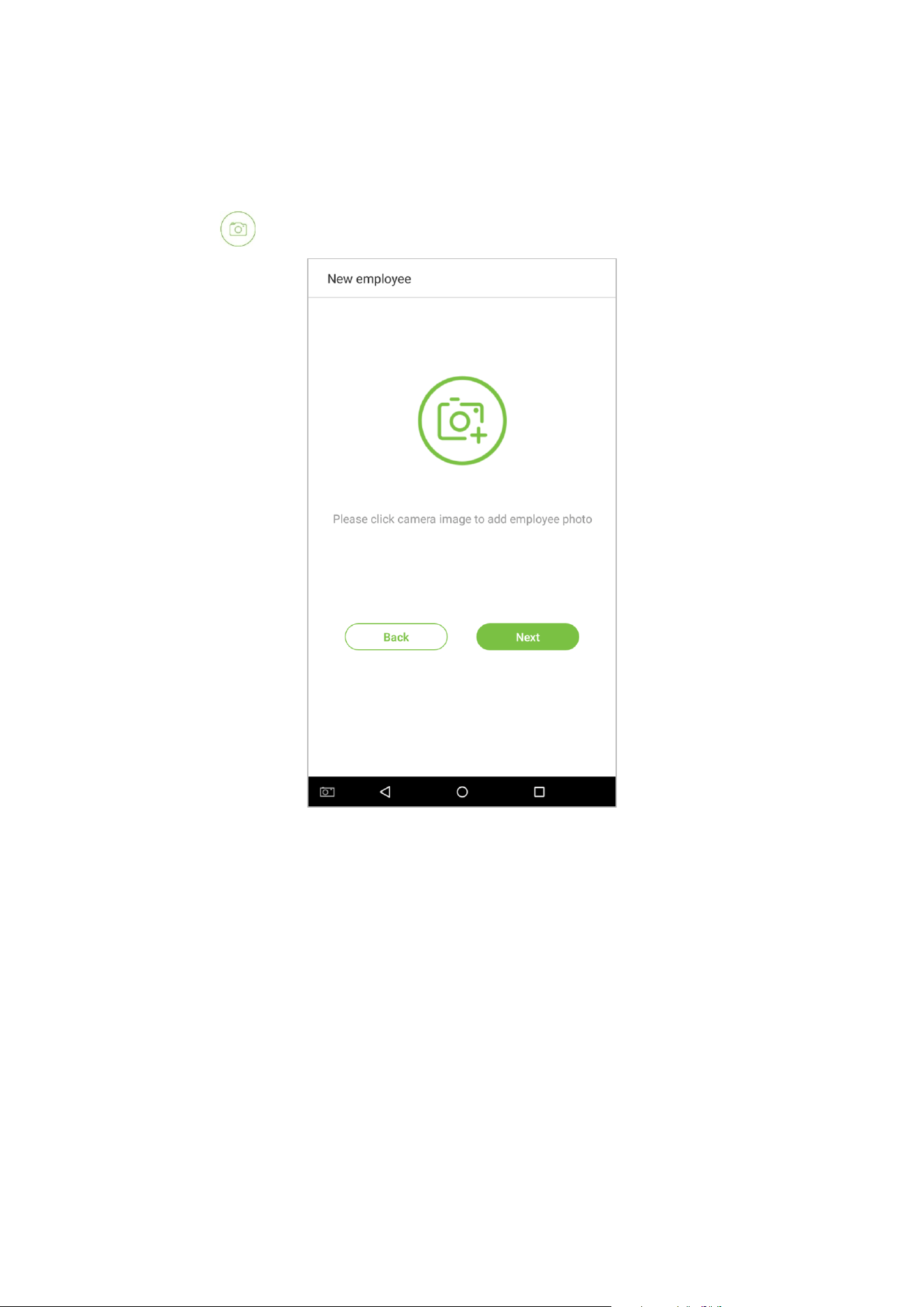
After inputting the employee's basic information, tap on the right arrow to register an employee photo.
1. Tap on the icon to enter the camera interface.
37
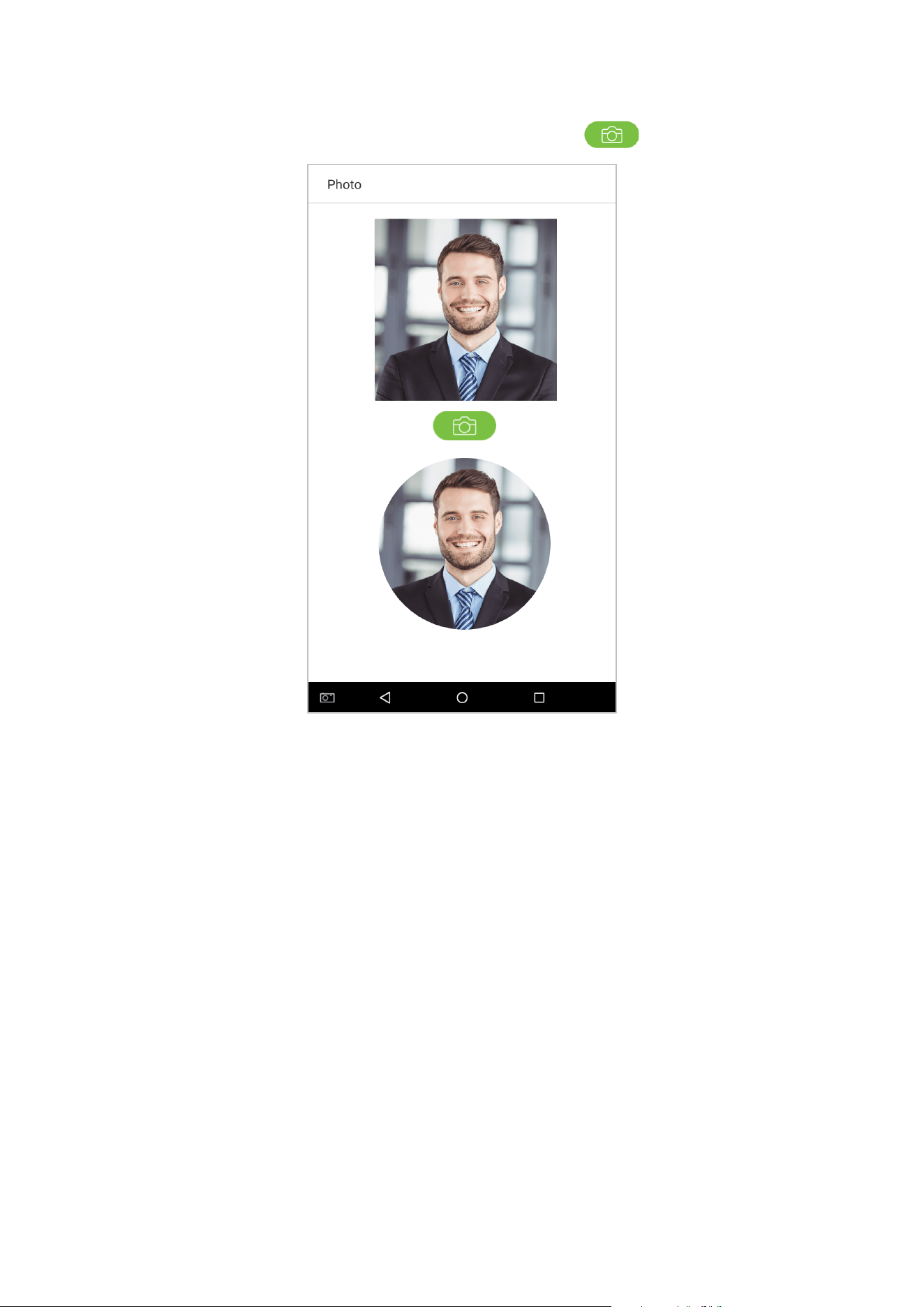
2. Employee should face the lens and then adjust the position. Tap on the icon to take a photo.
38
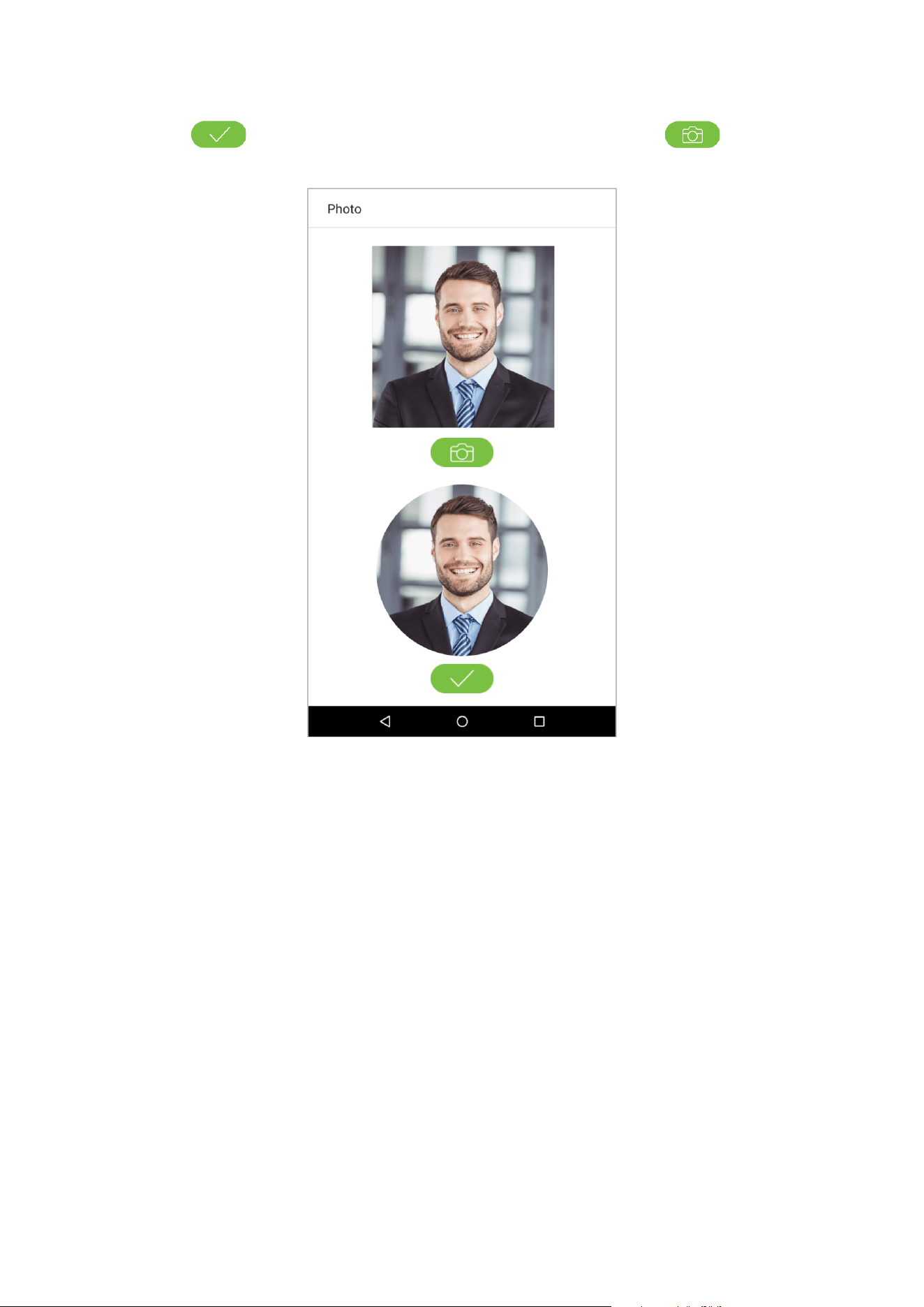
3. Tap on the icon on the bottom side, select a photo, and then tap on the icon to continue
taking another photo.
39
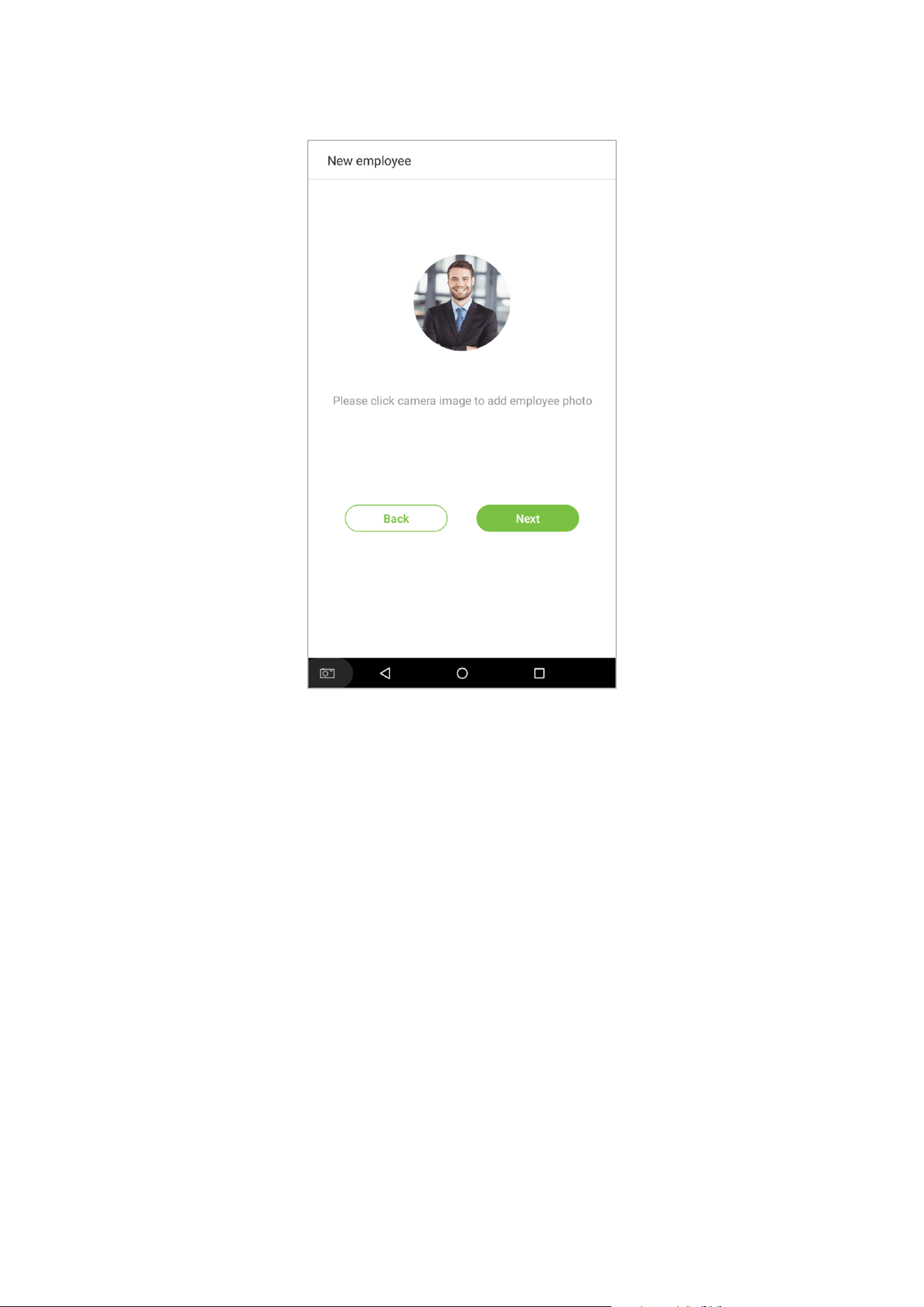
4. Tap on the rightwards arrow to complete adding the photo.
40
3.1.3 Registration Comparison Methods
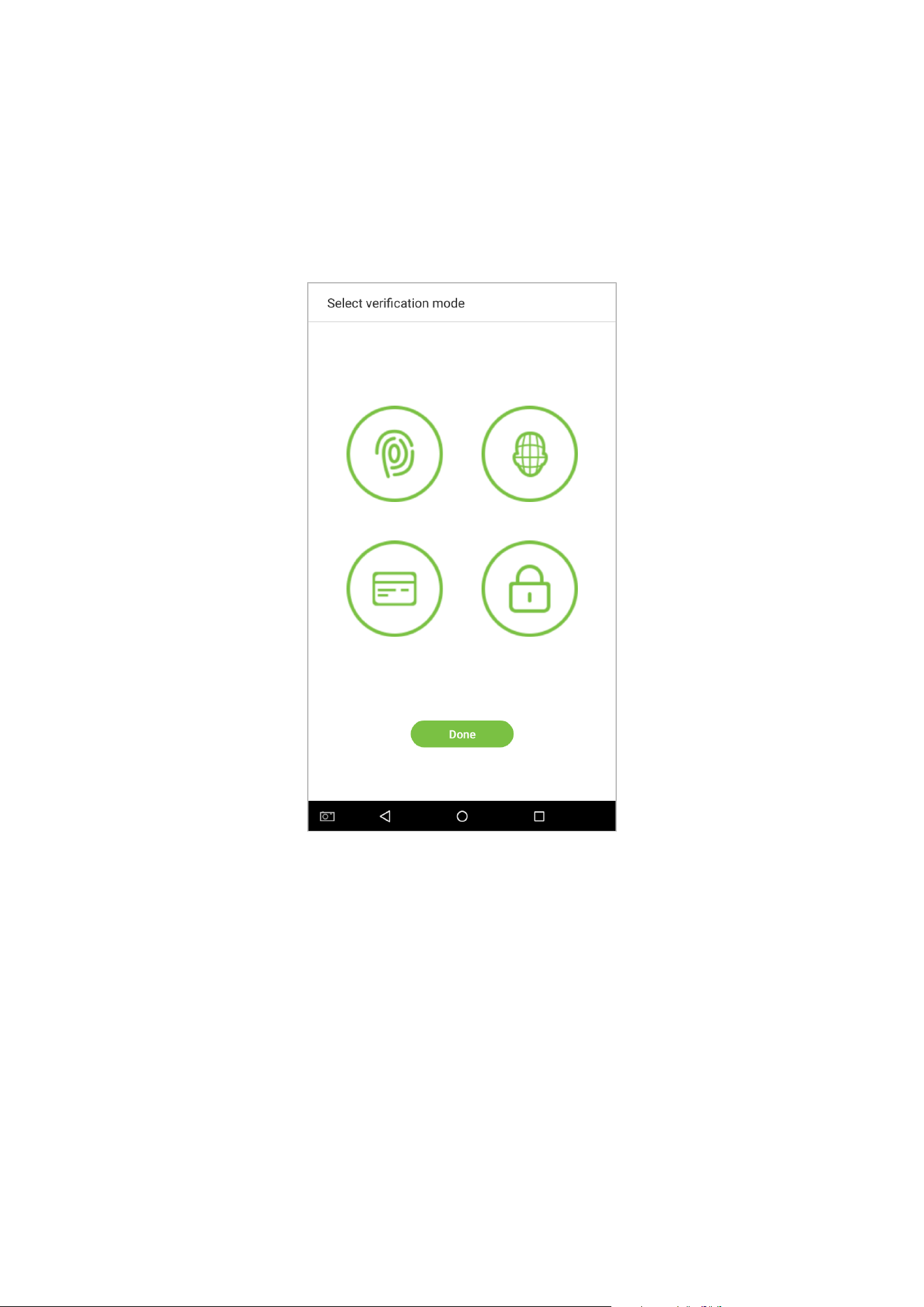
The registration comparison method is the method used to verify a login. This includes registering a face, a
password, fingerprints, or badge number. Select a registration that best suits your needs.
Click on the rightwards arrow on the interface shown after the message [Employee photo added successfully], then
enter the verification method entry page:
41
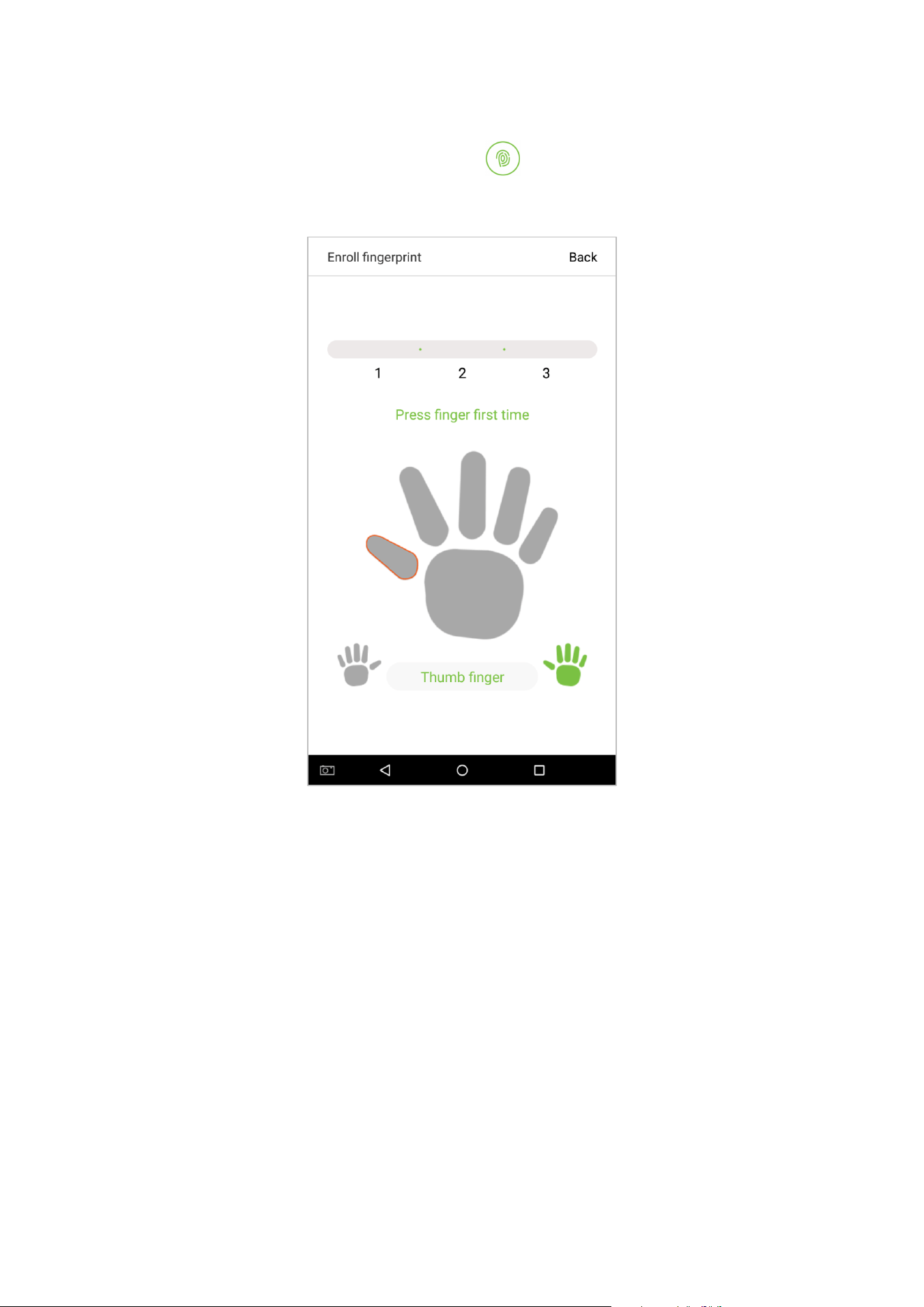
Register fingerprints
1. On the registration method entry interface, tap on the icon to enter the fingerprint registration page.
Select the icon on the left or right side of the screen and then tap on the finger you would like to register a
fingerprint for.
2.
Press the same finger on the fingerprint reader three times. Green indicates that the fingerprint was input
successfully.
If you press different fingers onto the fingerprint scanner during the 2
nd
and 3
rd
contacts, you will be prompted to
"Please use the same finger".
42
3.
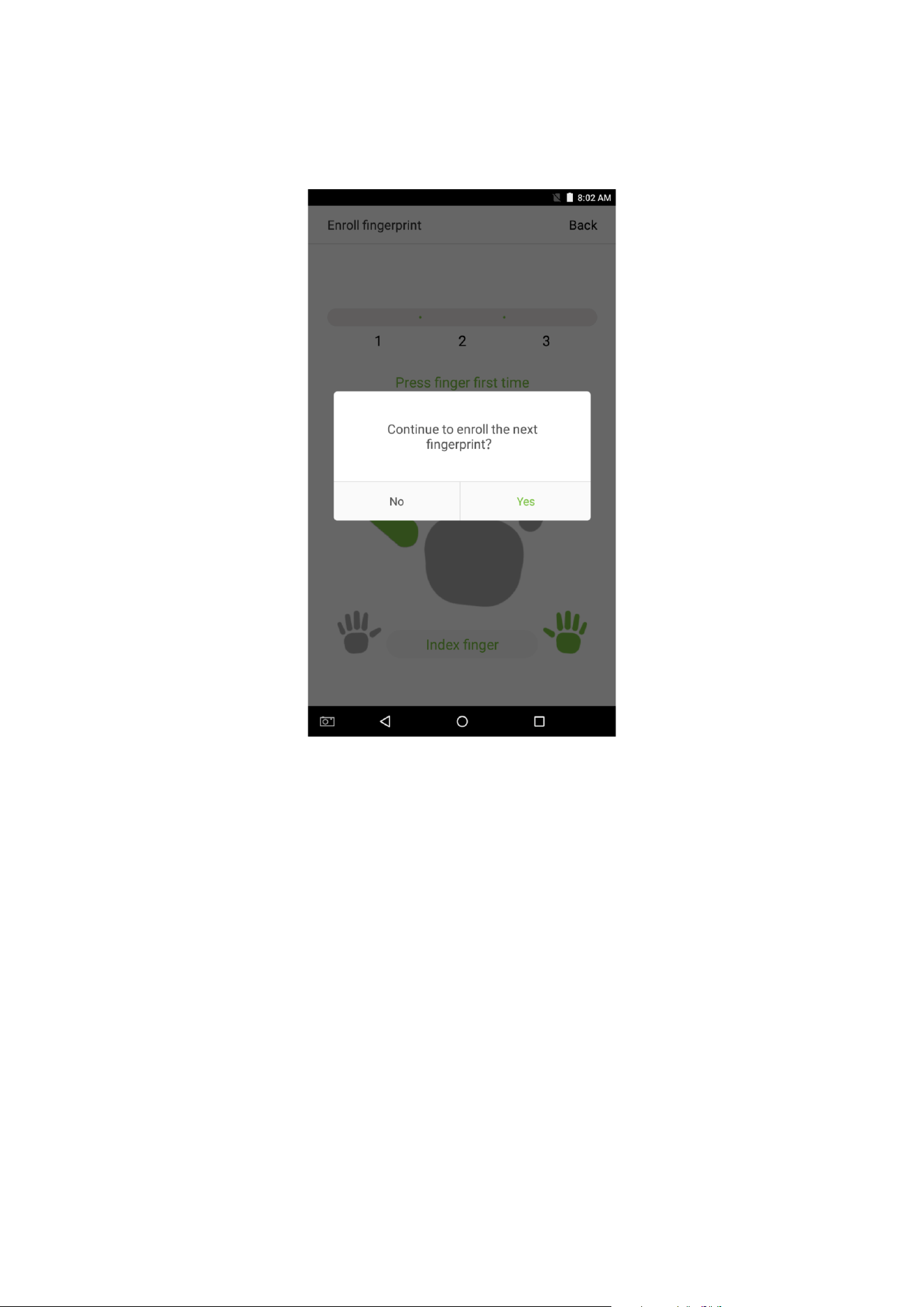
If fingerprint is successfully registered, a "Continue to enroll the next fingerprint?” dialog box will appear. Tap
on [Yes] to record the next fingerprint, or [No] to return to the fingerprint registration interface.
43
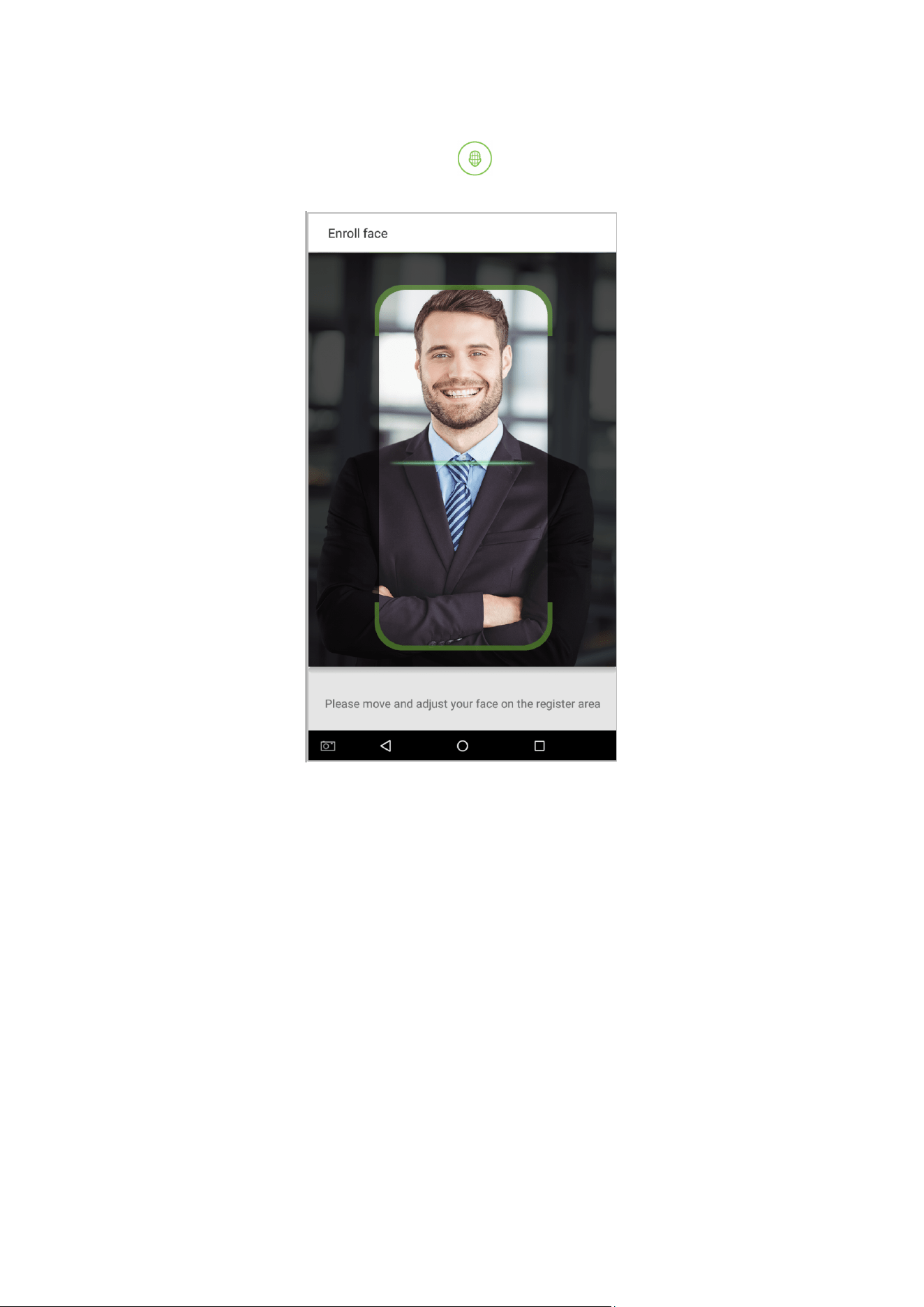
Register face
On the registration method entry interface, tap on the
icon to enter the face registration page. Move and
adjust your face on the register area.
44
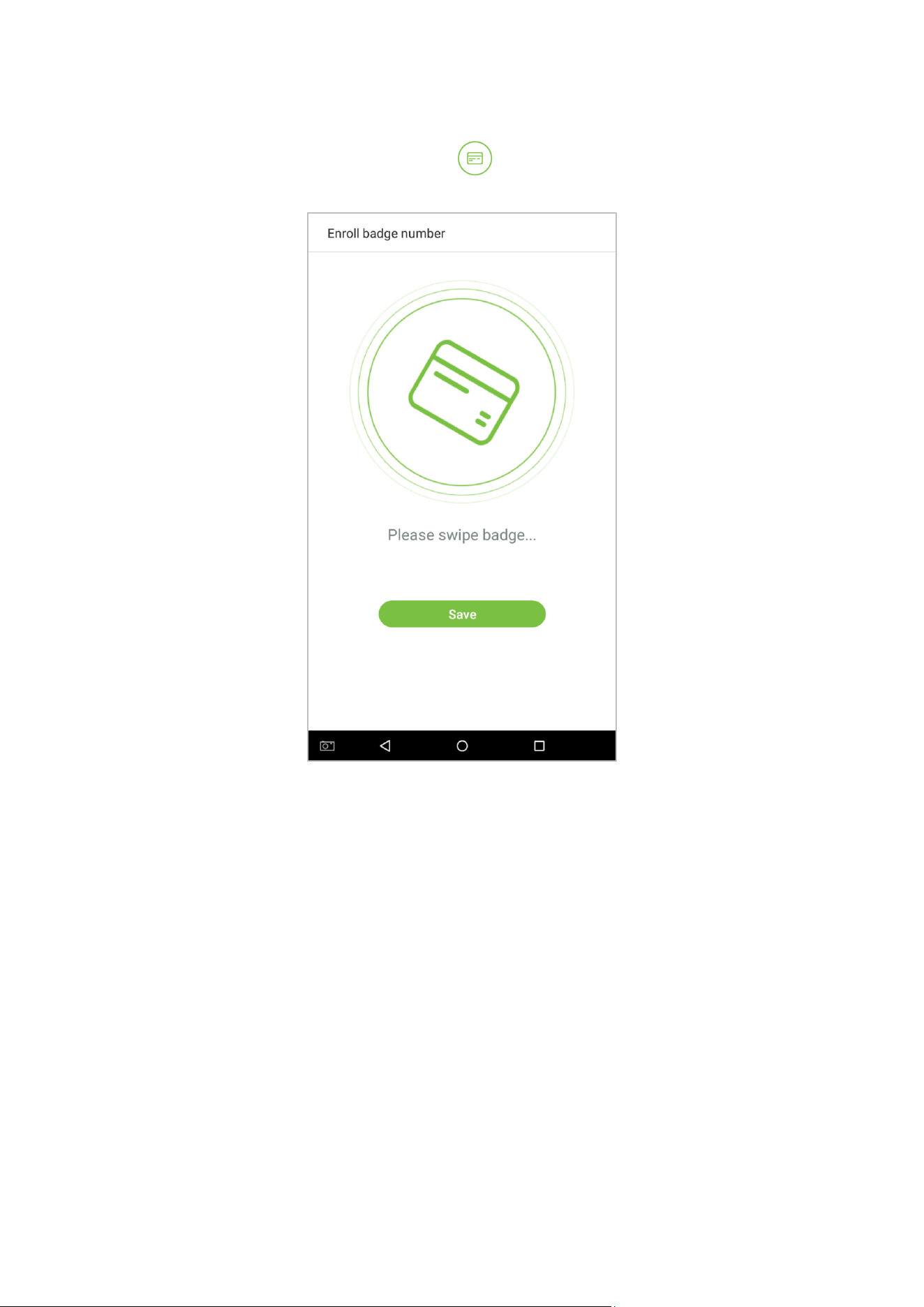
Register badge number
On the registration method entry interface, tap on the icon to enter the badge number registration page.
Place your badge close to the card swiping area.
45
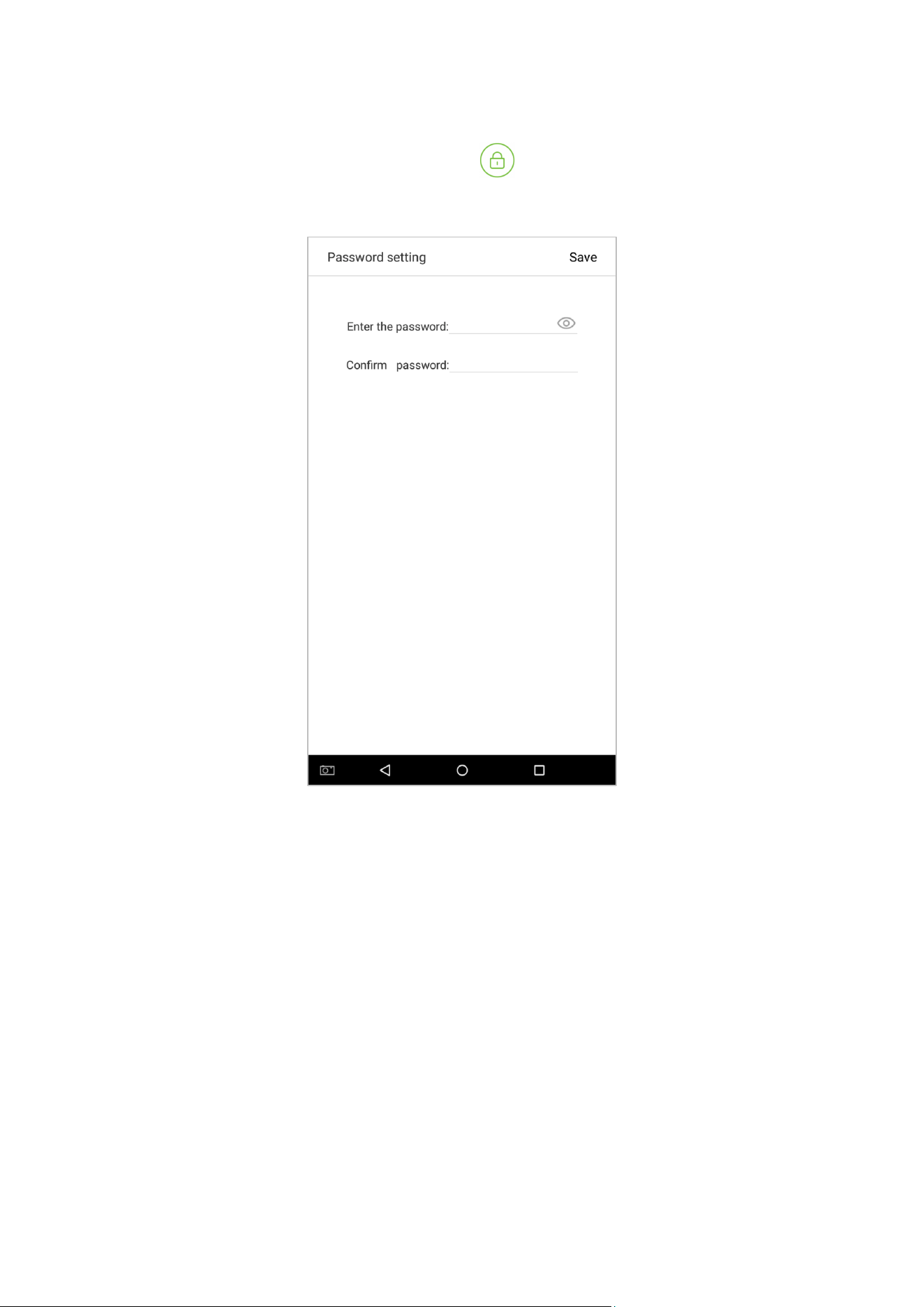
Register passwords
1.
On the registration method entry interface, click on the icon to enter the register password page. Enter a
password in the [Enter the password] field, then re-enter the password in the [Confirm password] field. Tap on
[Save] (Note: the employee password must be an 8-digit number).
46
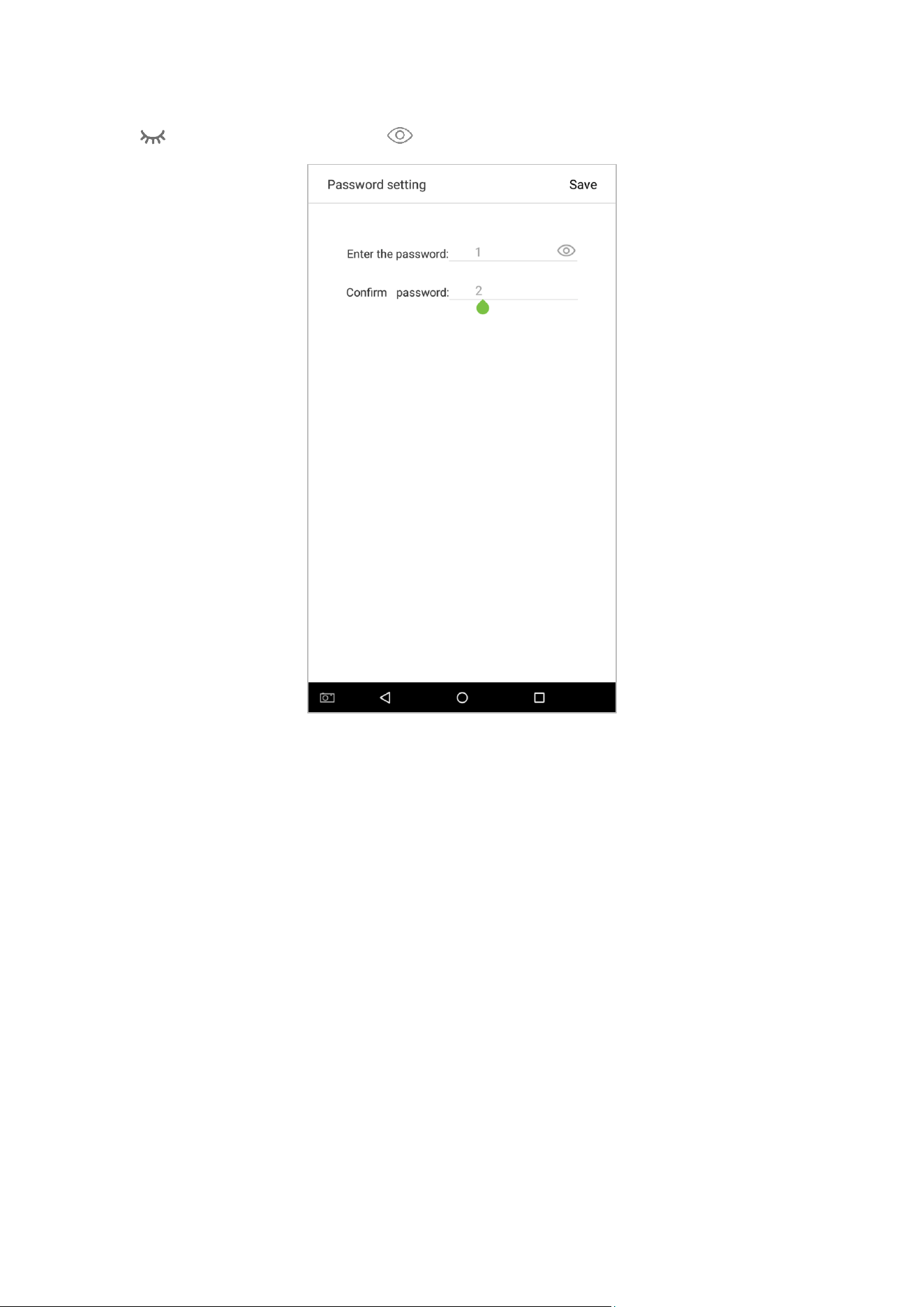
Tap on to encrypt the password; tap on to make the password visible, as shown below:
47
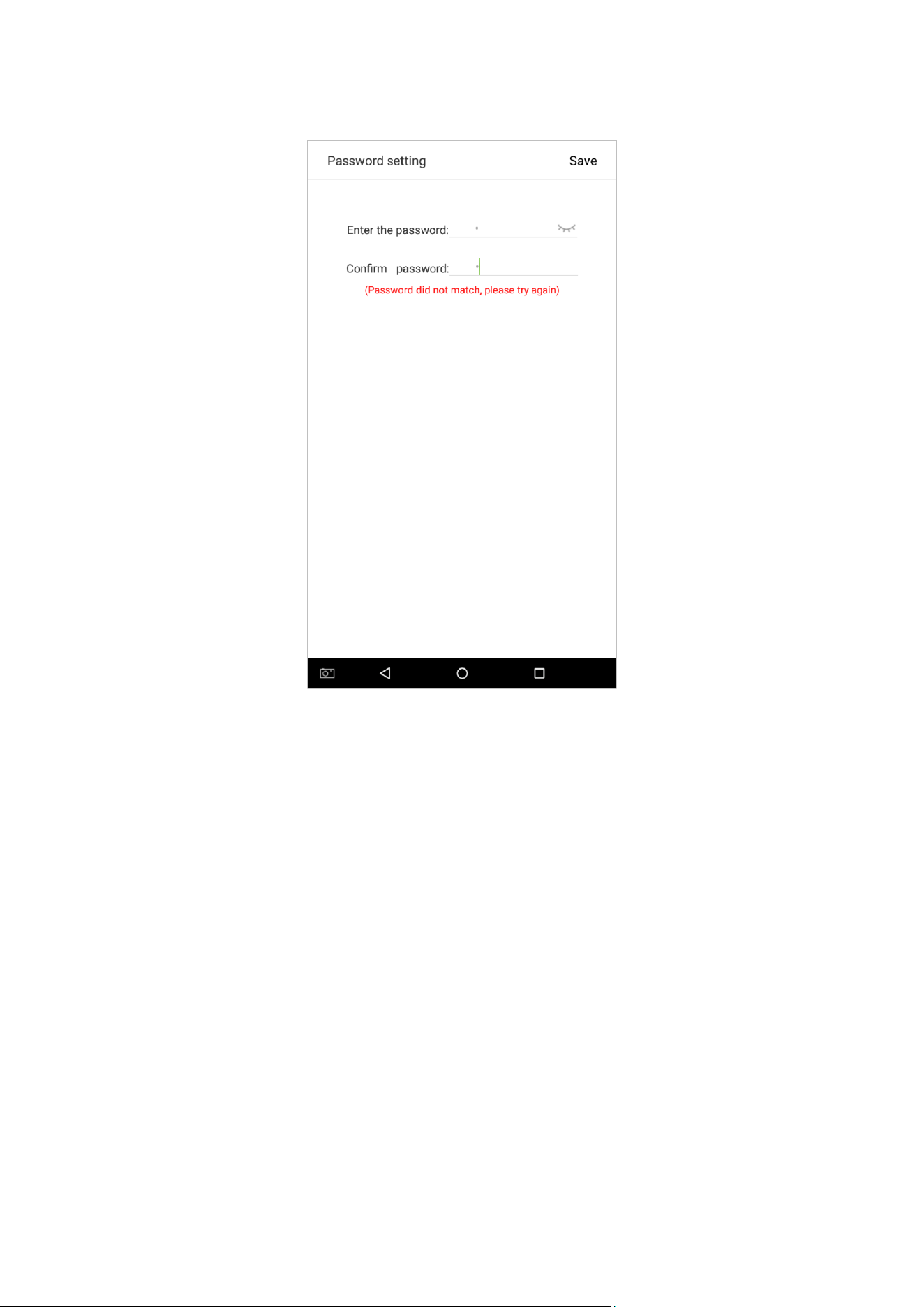
2.
If the password you input in both fields does not match, you have to re-enter the passwords.
48
3. The password which has been registered can be deleted or covered.
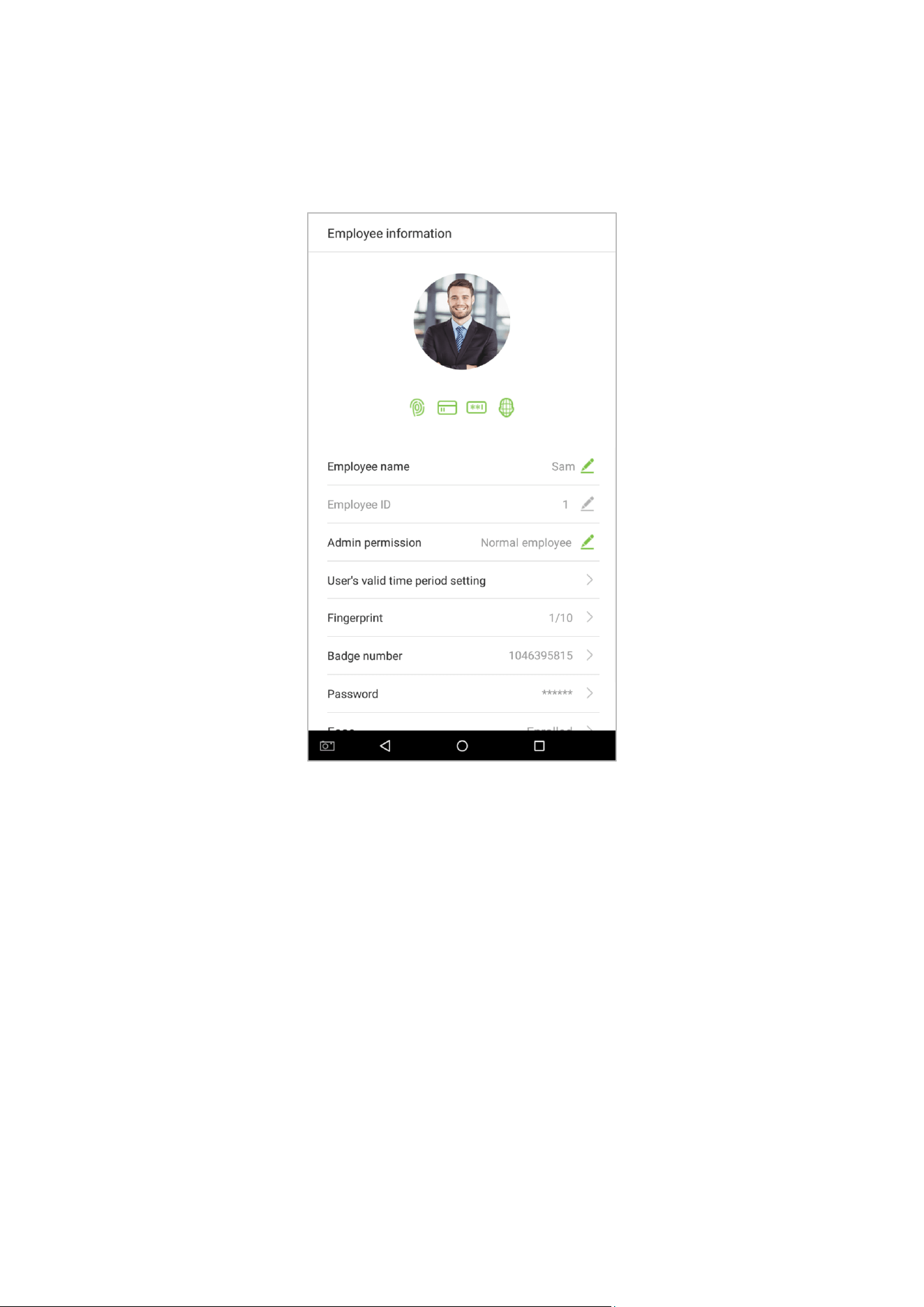
Delete/Overwrite registered passwords
On the User management interface, tap an employee in the employee list to enter the employee information page,
and then tap on [Password].
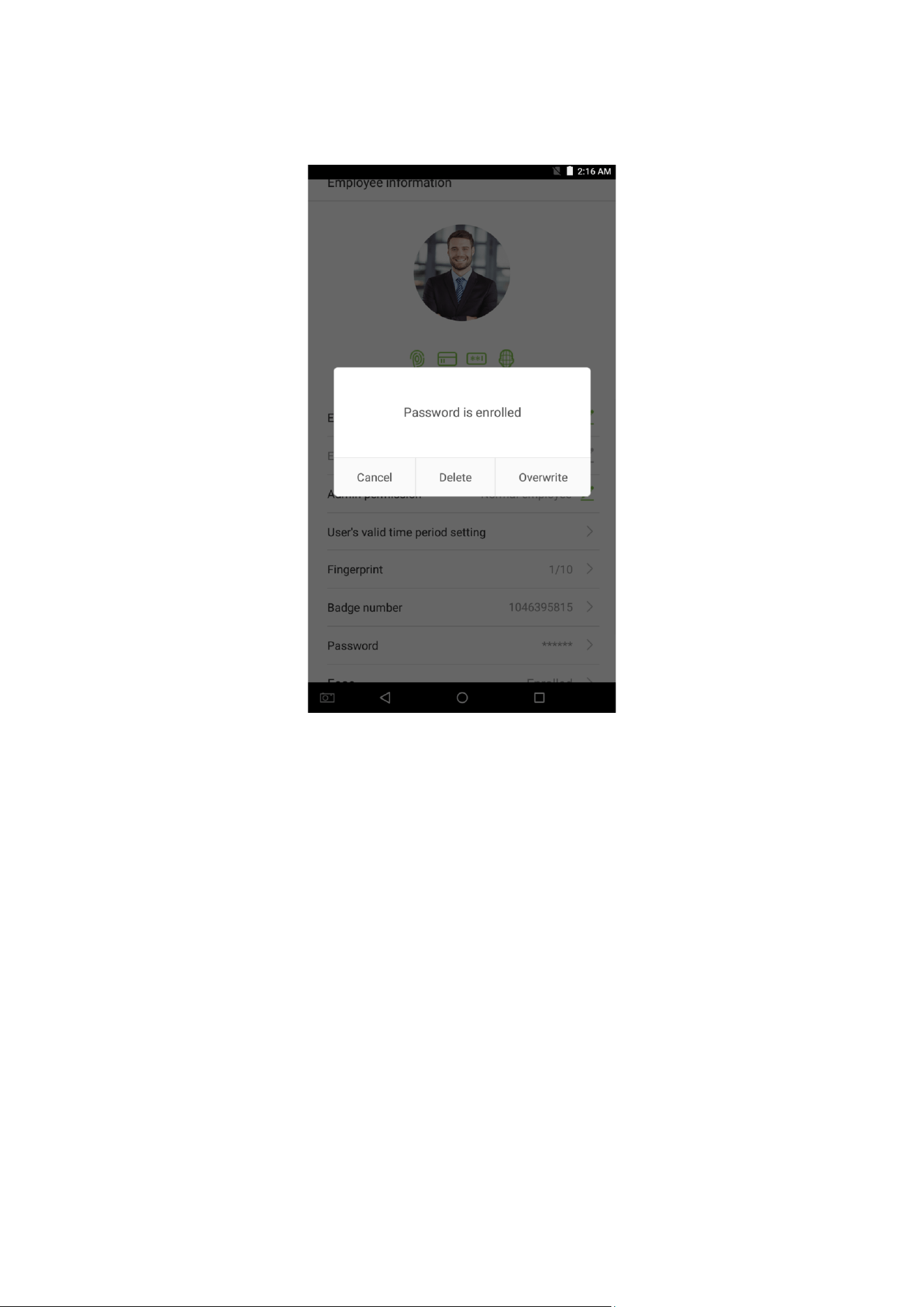
49
Press [Delete]/ [Overwrite] in the dialog window that pops up.
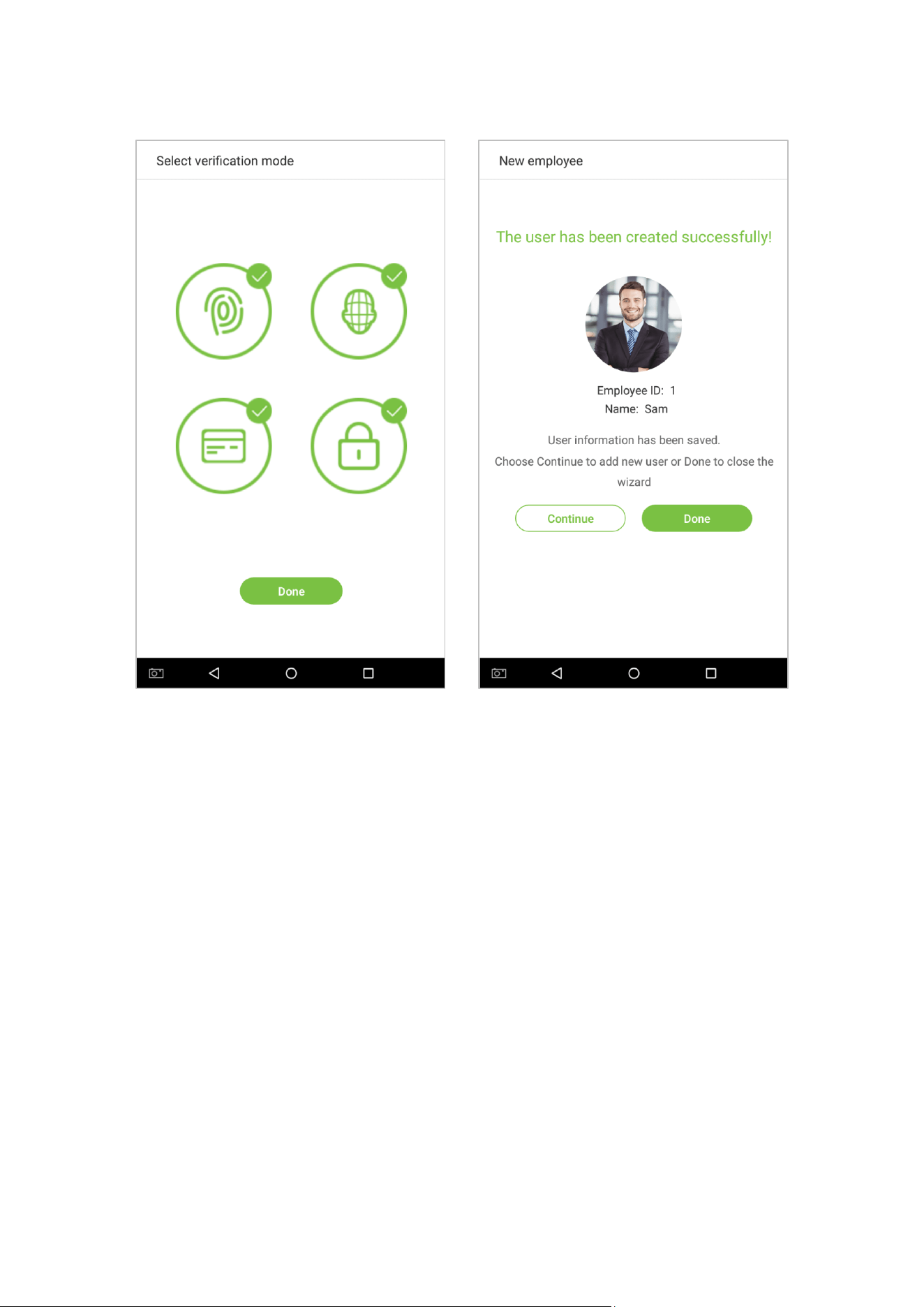
50
Click [Done] after the registration, a new employee is created successfully.
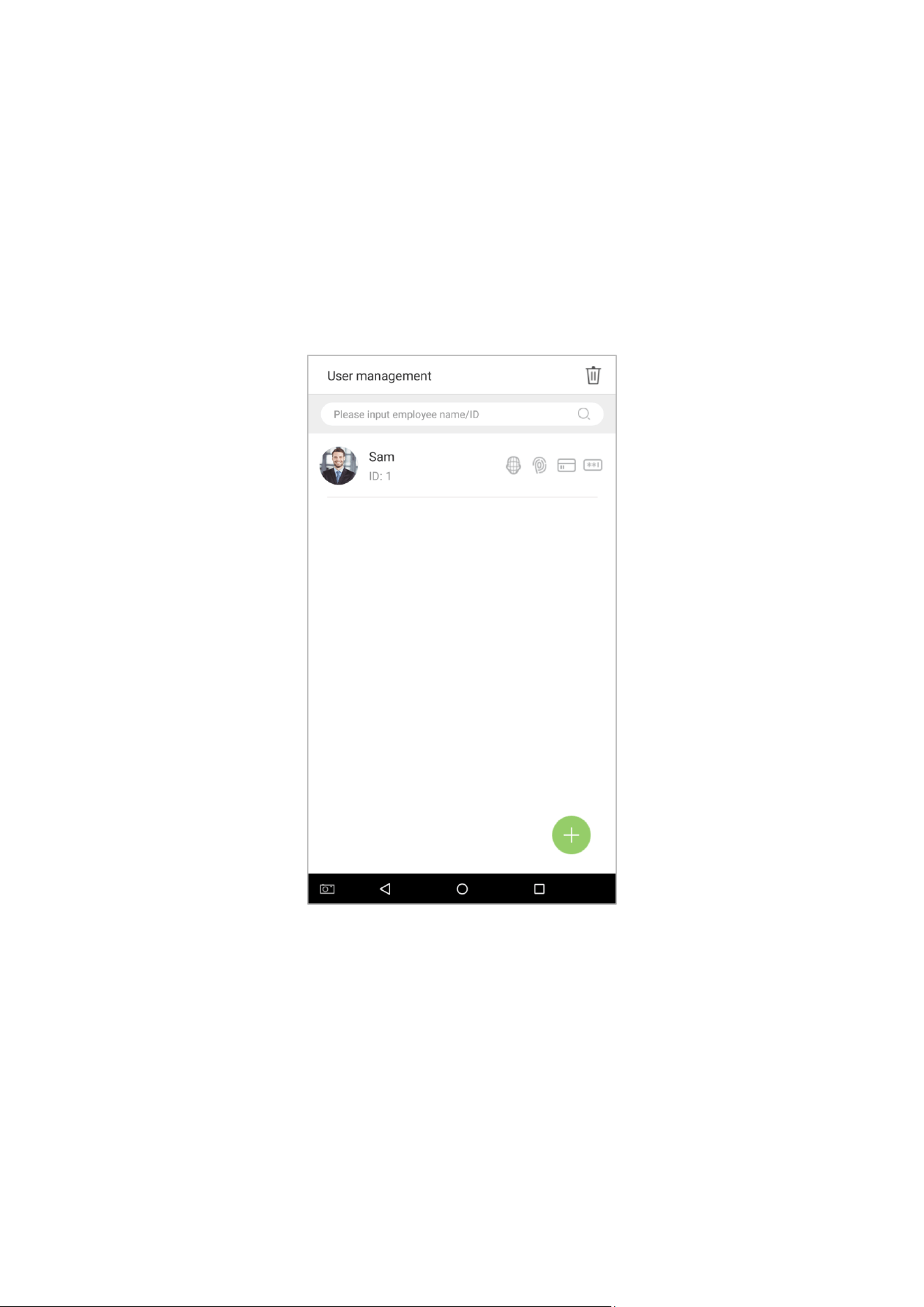
51
3.1.4 Permission Settings
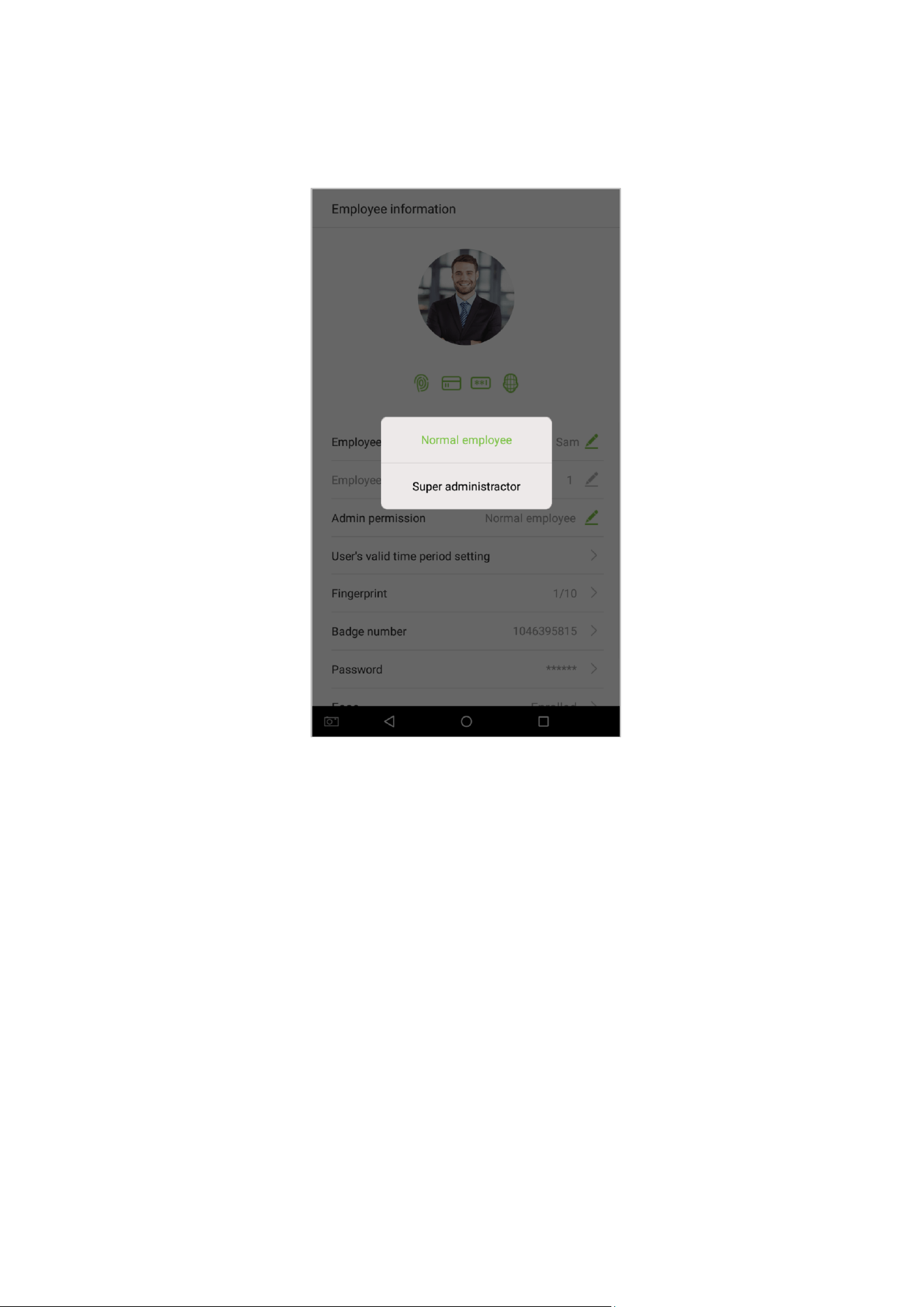
Personnel who use this device have two types of permissions: normal employee and super administrator. After a
super administrator is registered on the device, normal employees can only verify and compare their accounts using
methods that have already been registered. Super administrator has the same privileges as normal employees, but
can also enter the main menu.
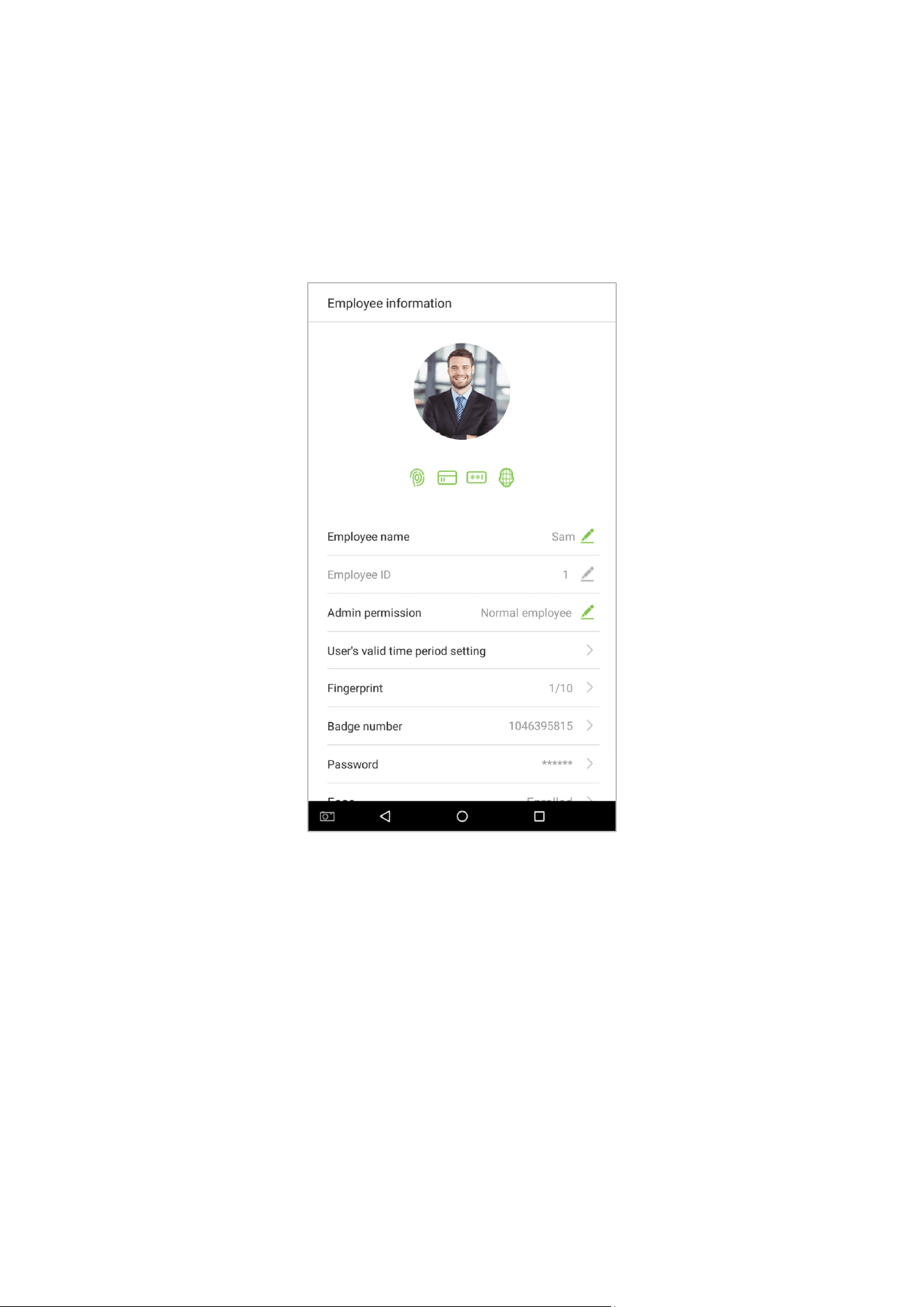
1. On the [User Management] interface, tap on an employee in the employee list to visit the employee’s
information.
52
2. Once you have entered the “Employee information” interface, tap on the [Admin permission] column and select
[Normal employee] or [Super administrator] in the window that appears.
Note: When a user is given super administrator privileges, entering the main menu will require ID verification. The
verification process depends on the verification method that was used during user registration. See the description
in section “1.5 Verification Methods”.
53
3.1.5 Verification Mode Setting
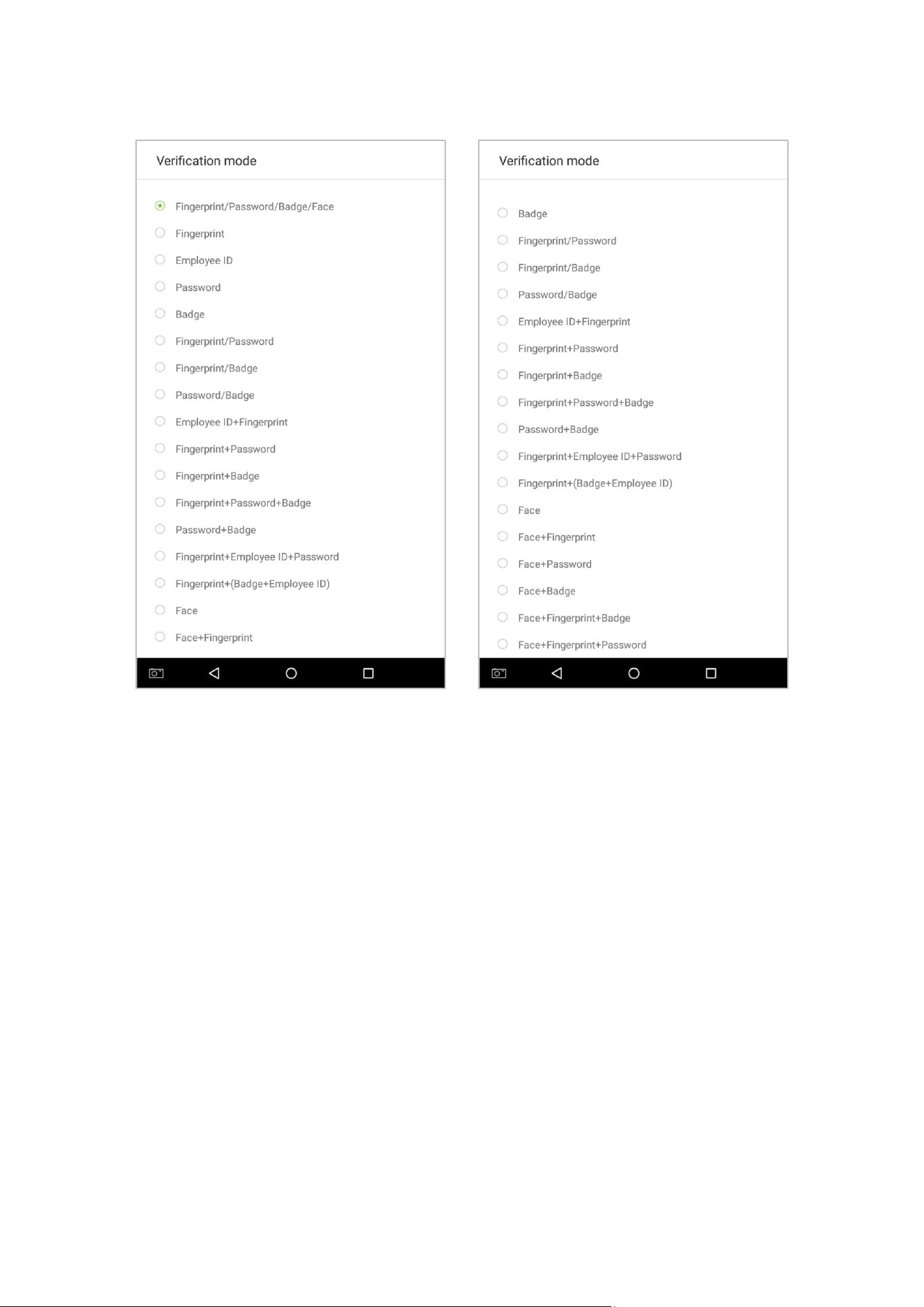
To improve security, this device features combination verification modes, which can create a total of 21
verification modes. Enter an applicable verification mode in this line.
1. Tap on the [Verification Mode] field on the “Employee information” interface.
54
2. Select [Verification Mode], and then select a verification mode.
55
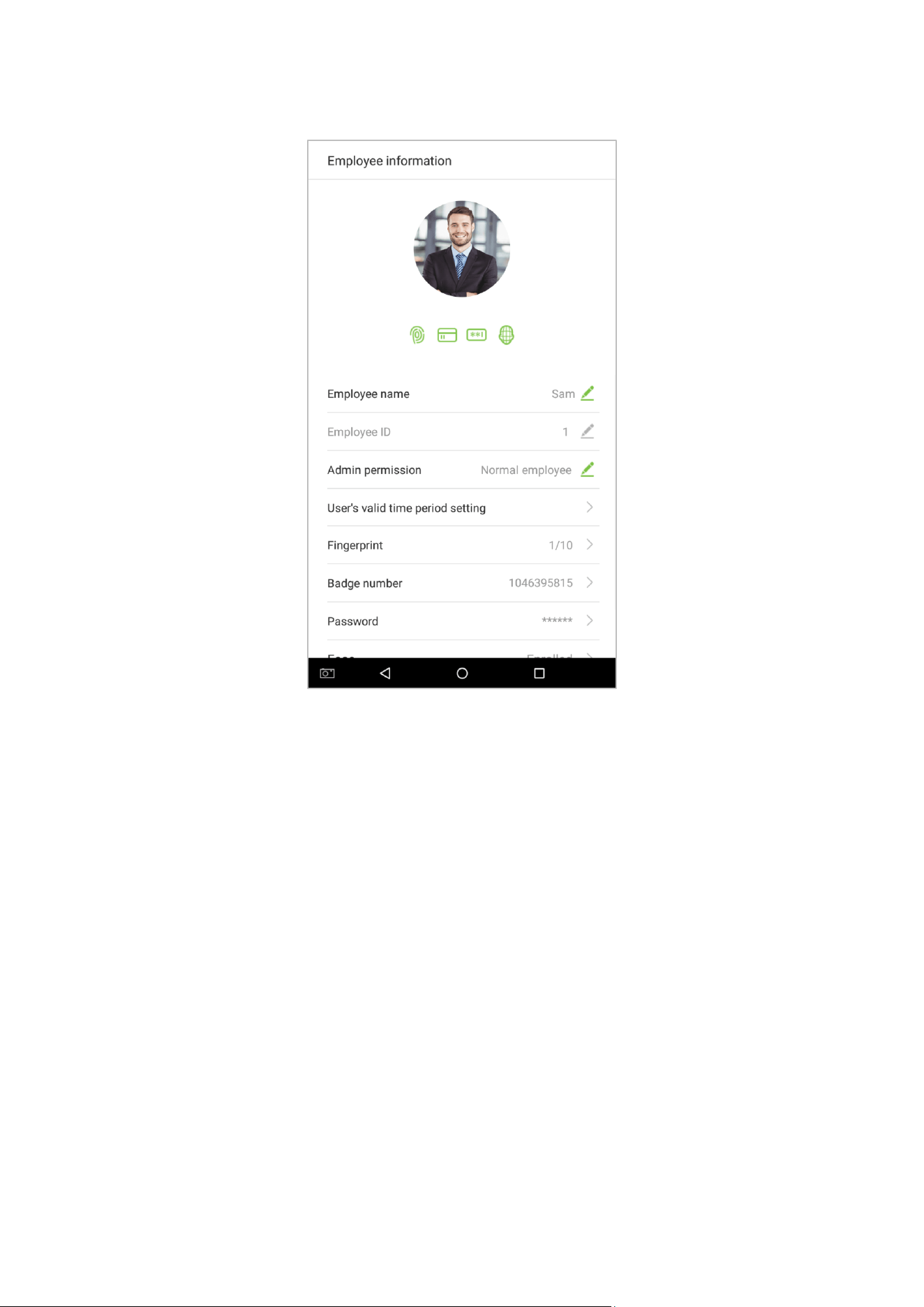
3. Return to the “Employee information” interface and it will display the verification mode you have chosen.
Notes:
1. “/” means “o r” and “+” means “and”.
2. Support 21 different verification method combinations: fingerprint/ password/ badge/ face; fingerprint;
employee ID; password; badge; fingerprint/ password; fingerprint/ badge; password/ badge; employee ID +
fingerprint; fingerprint + password; fingerprint + badge; fingerprint + password + badge; password + badge;
fingerprint + employee ID + password; fingerprint + (badge + employee ID); face; face + fingerprint; face +
password; face + badge; face + fingerprint + badge; face + fingerprint + password.
3. Combined verification requires employees to register the information needed to complete verification.
Otherwise, employees may be unable to complete the verification process. For instance, when employee A
registers with his/her fingerprints and the system's verification method is set as “Fingerprint + Card”, the
employee will not be able to complete the verification process.
56
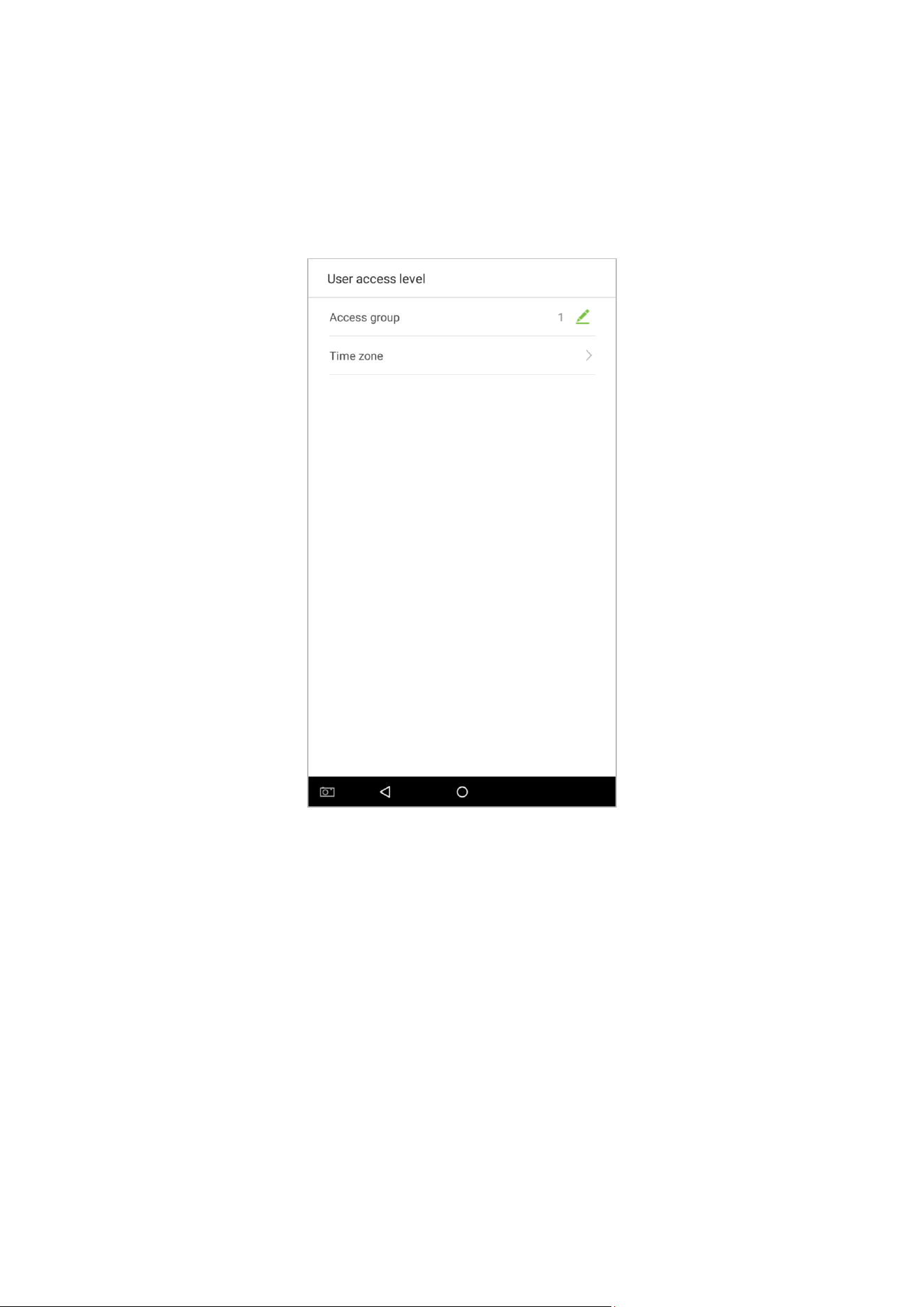
3.1.6 Access level
User access level sets the door unlocking rights of each person, including the access control settings of the group
that the user belongs to and the available time zones.
57
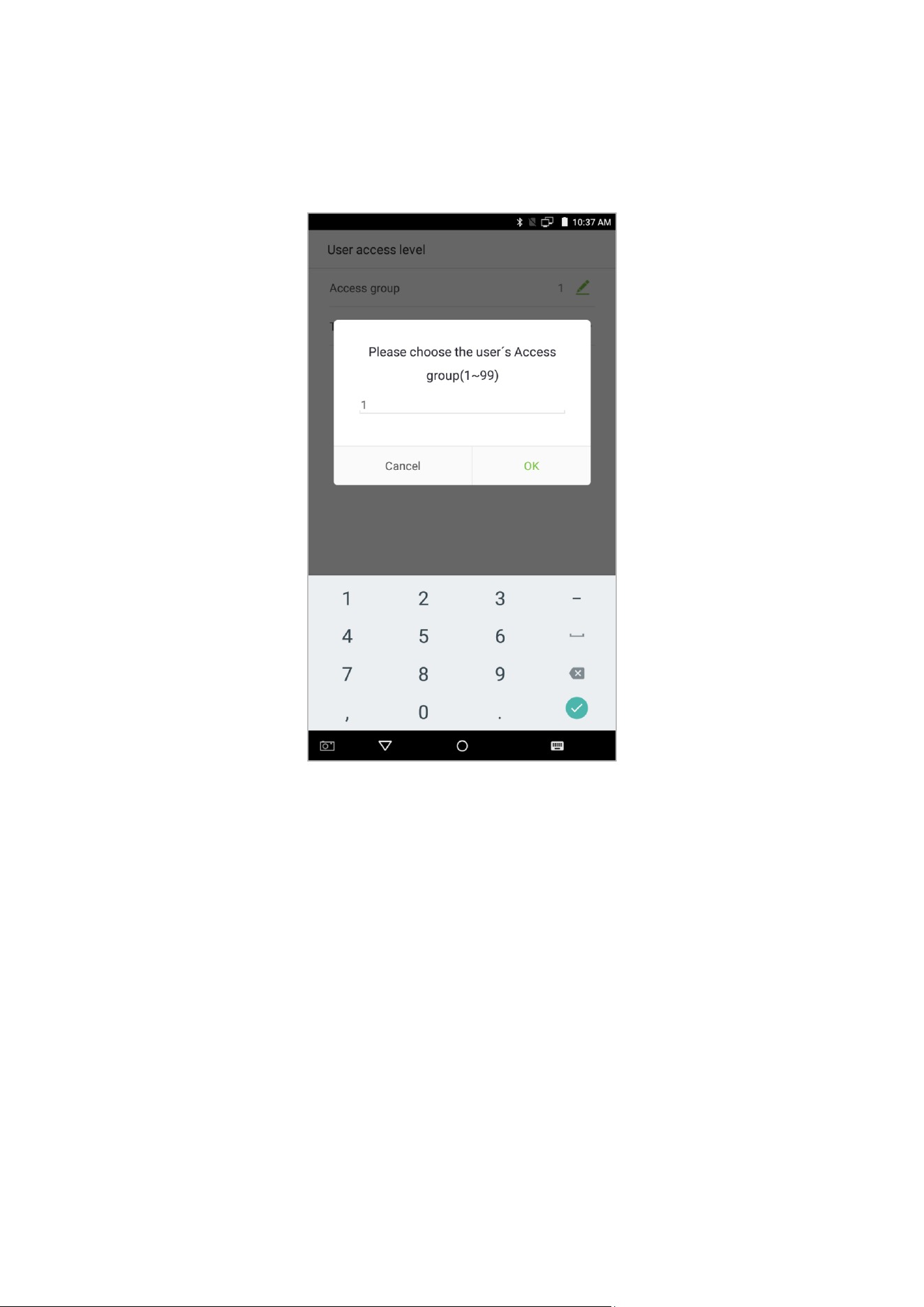
Access group
You may assign the registered users to different groups for better management. New users belong to Group 1 by
default, and can be reassigned to other groups. The device supports up to 99 access control groups.
58
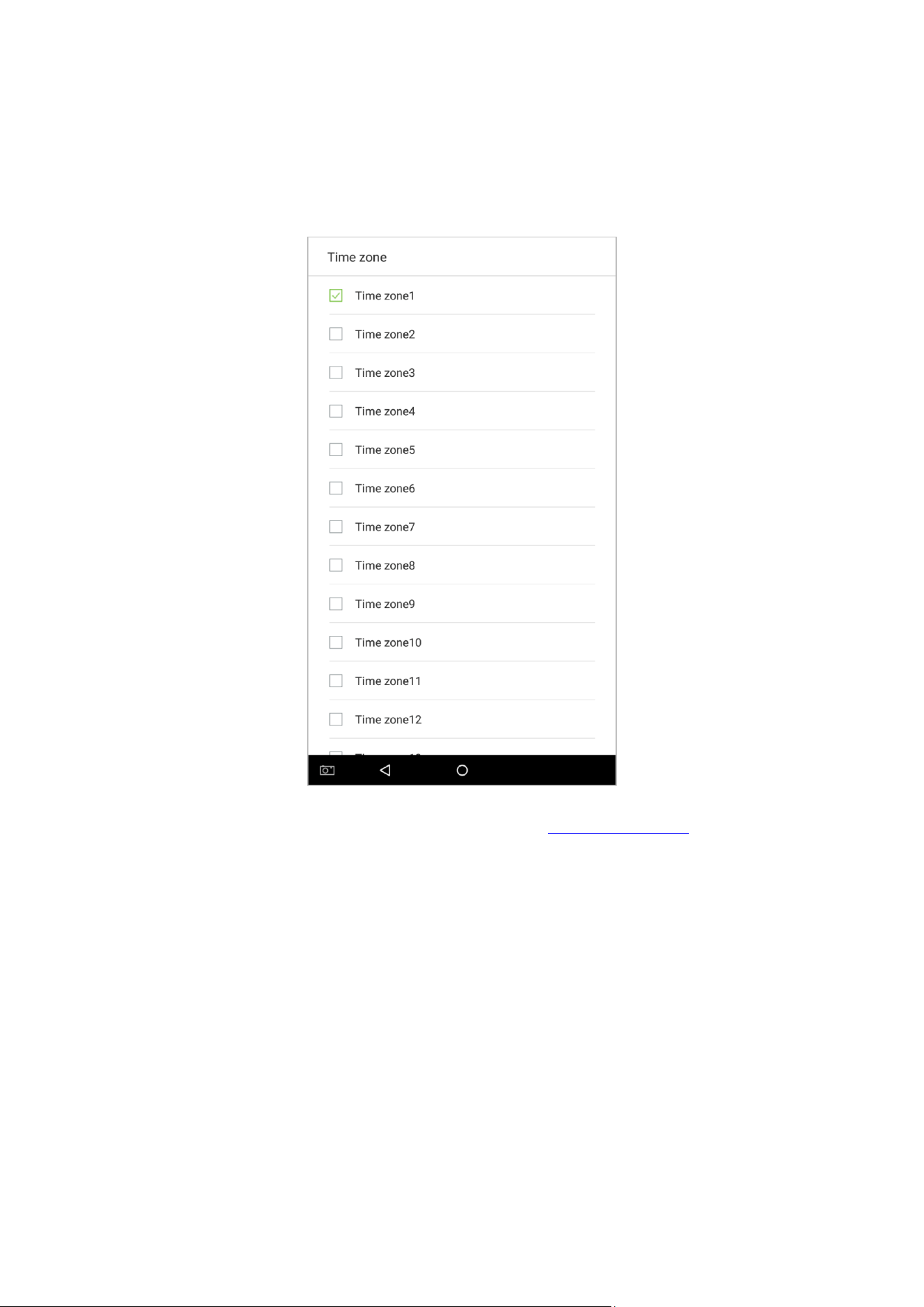
Time zone
Select whether to use the time zone of access for the user. Users follow the settings of their groups by default. If the
same time period is not applied, the access time of the specific user should be set. Such arrangement will not affect
the time period settings of other group members.
Note: A total of 50 time zones can be set. For details, please see section 5.2 “Time rule setting”
.
59
3.2 Searching for an Employee
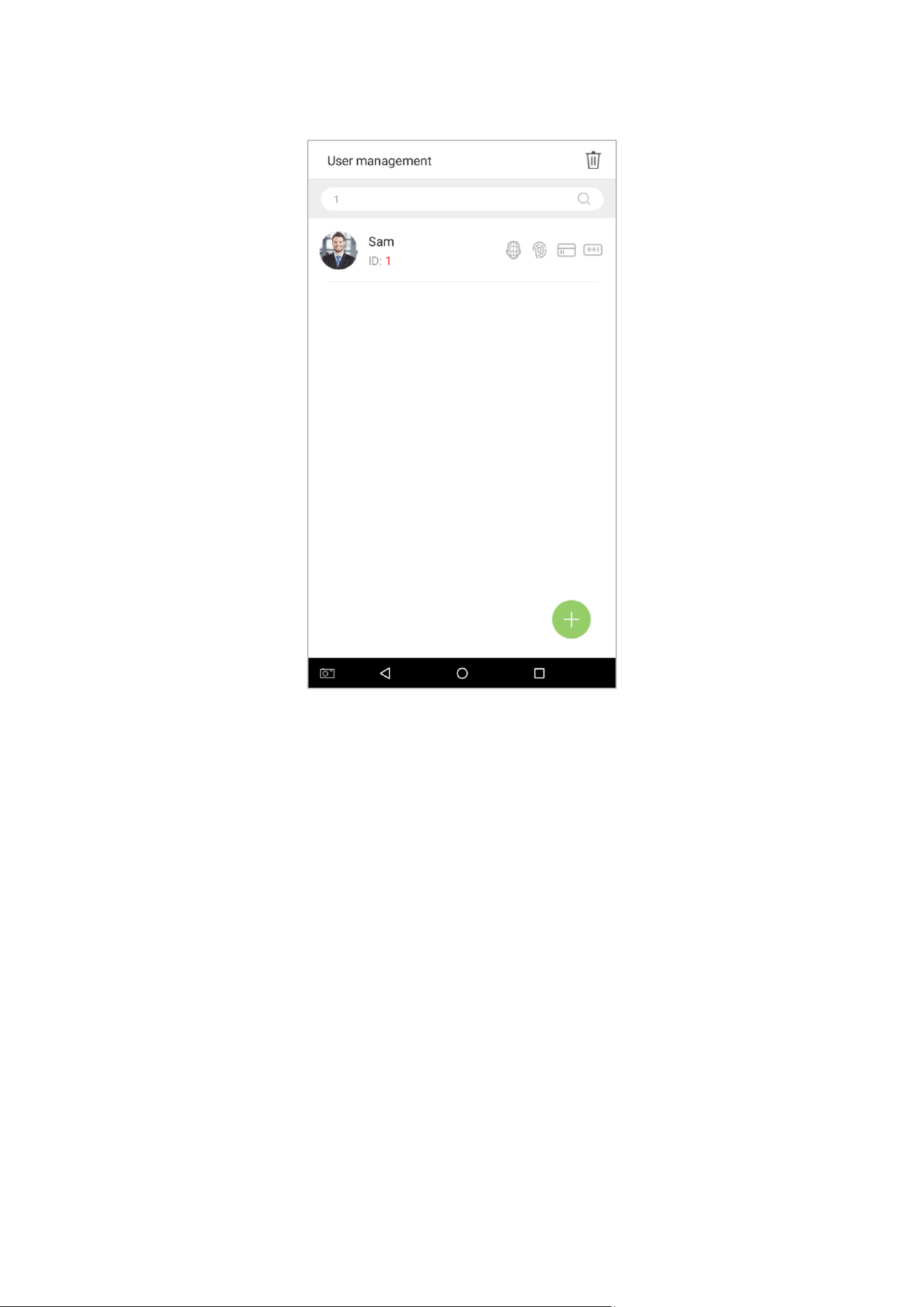
1. Tap on the search bar located on the [User Management] interface and enter a search query (Note: search for
users based on their personnel IDs, surnames, or given names).
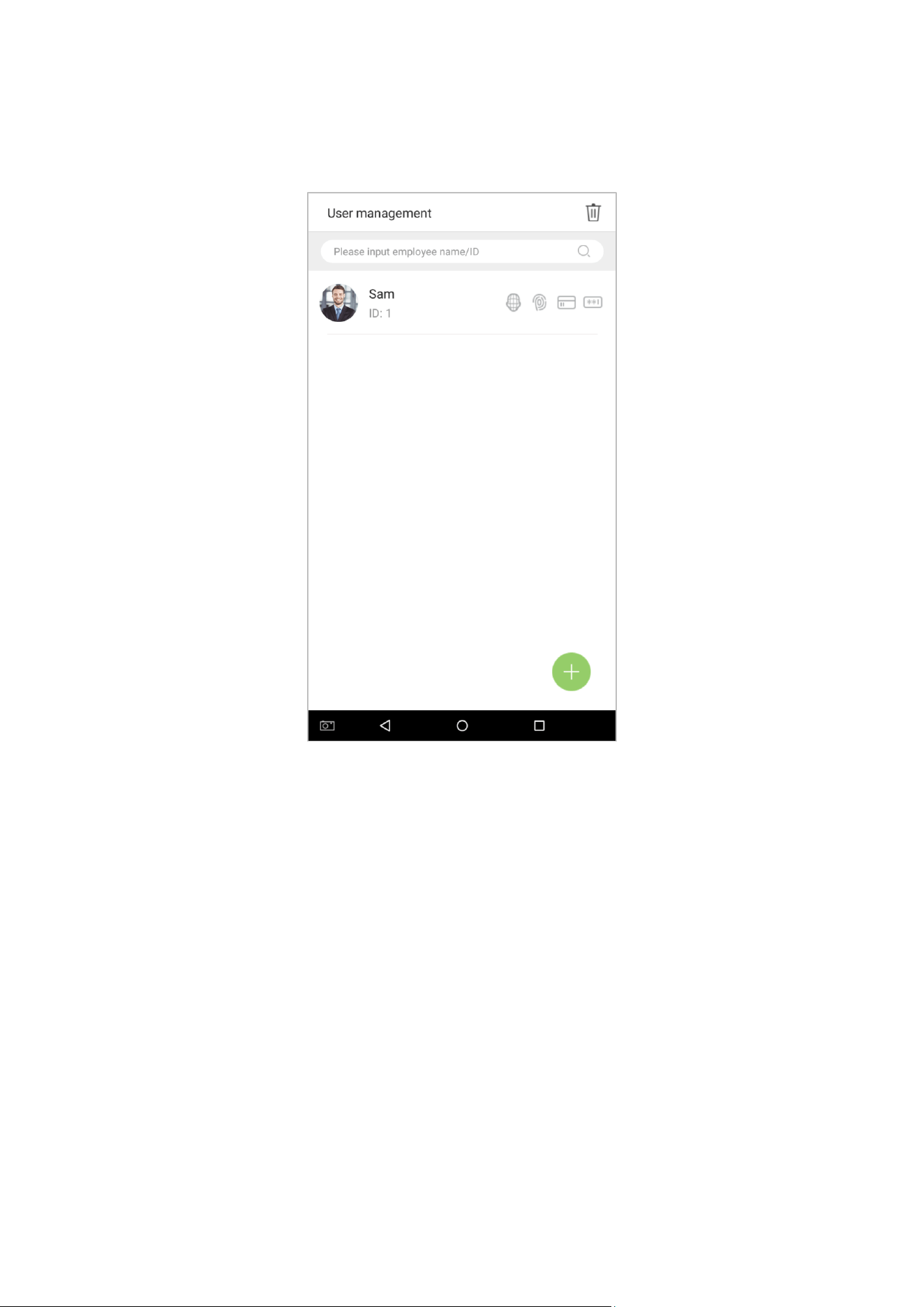
60
2. Automatically finds employees with information that is relevant to the search query.
61
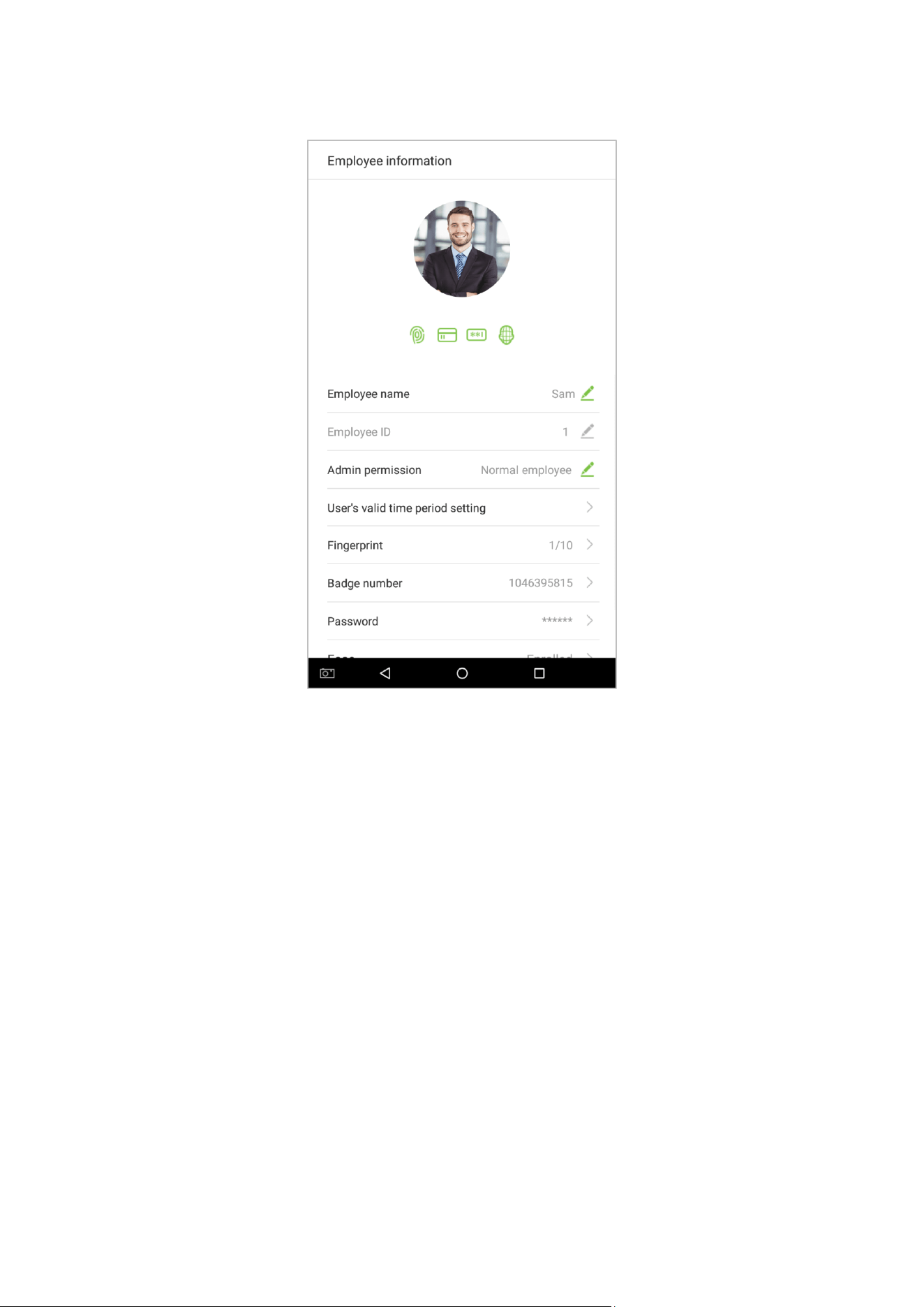
3.3 Edit an Employee
1. Select an employee on the employee list.
63
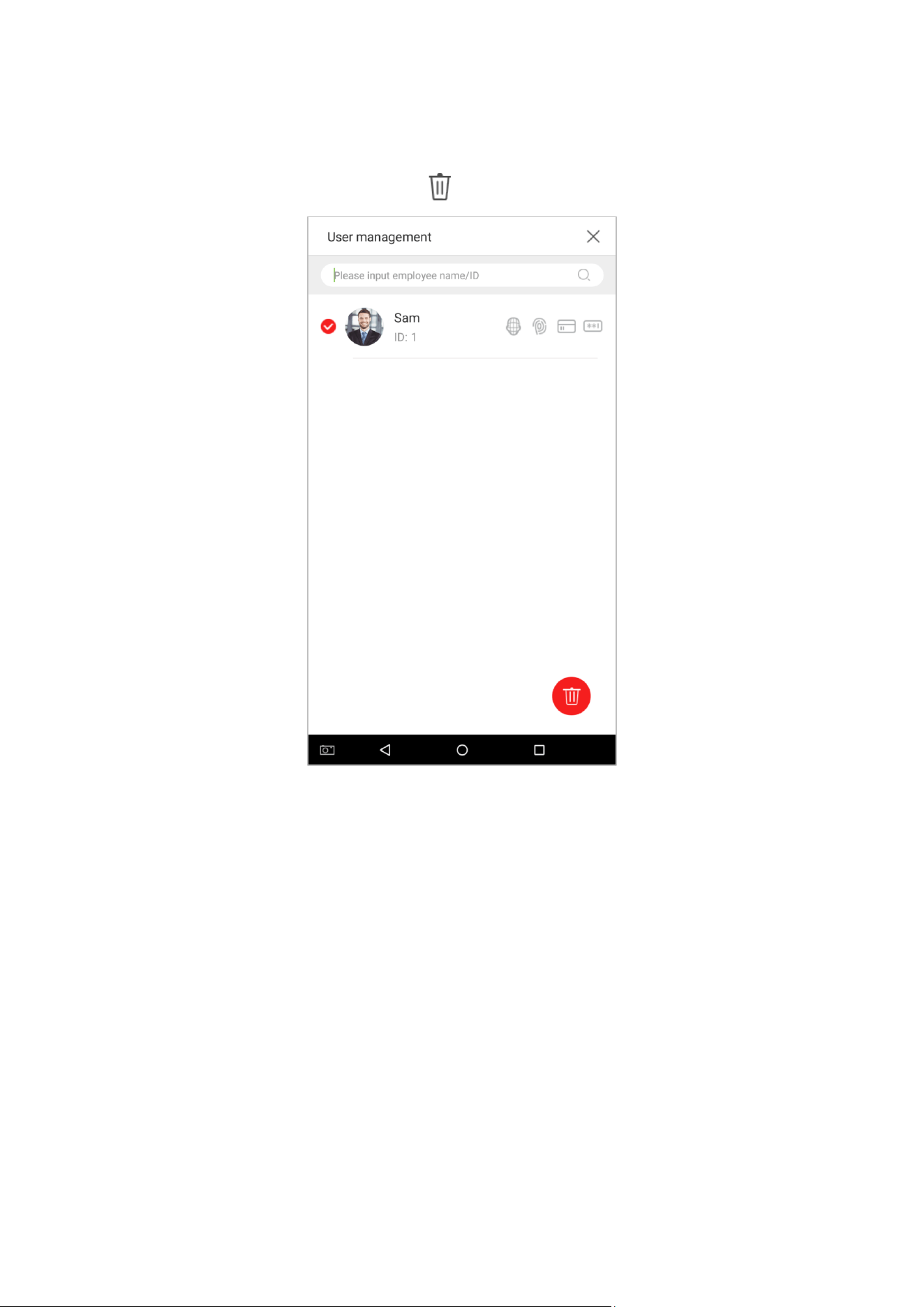
3.4 Delete Employee
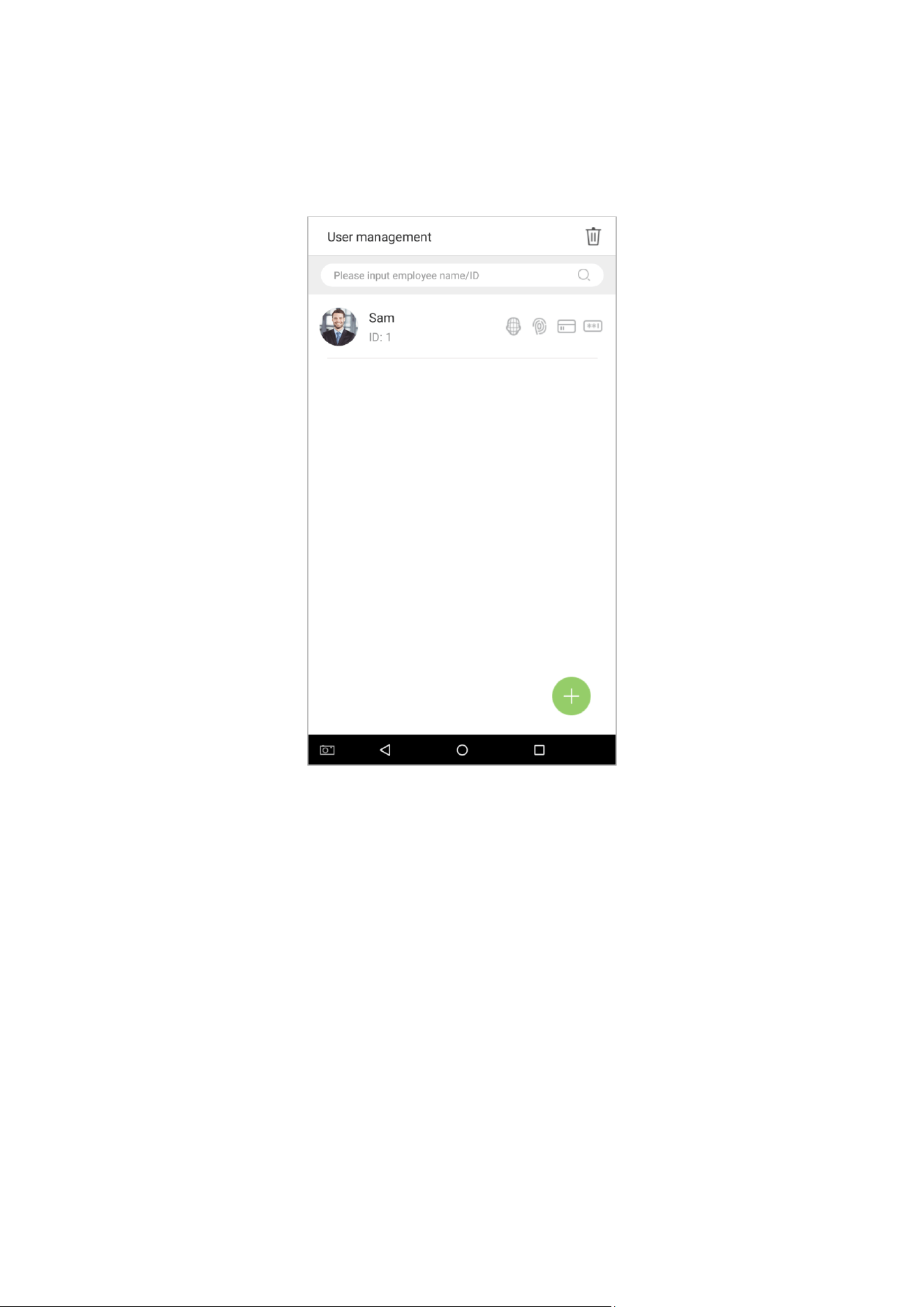
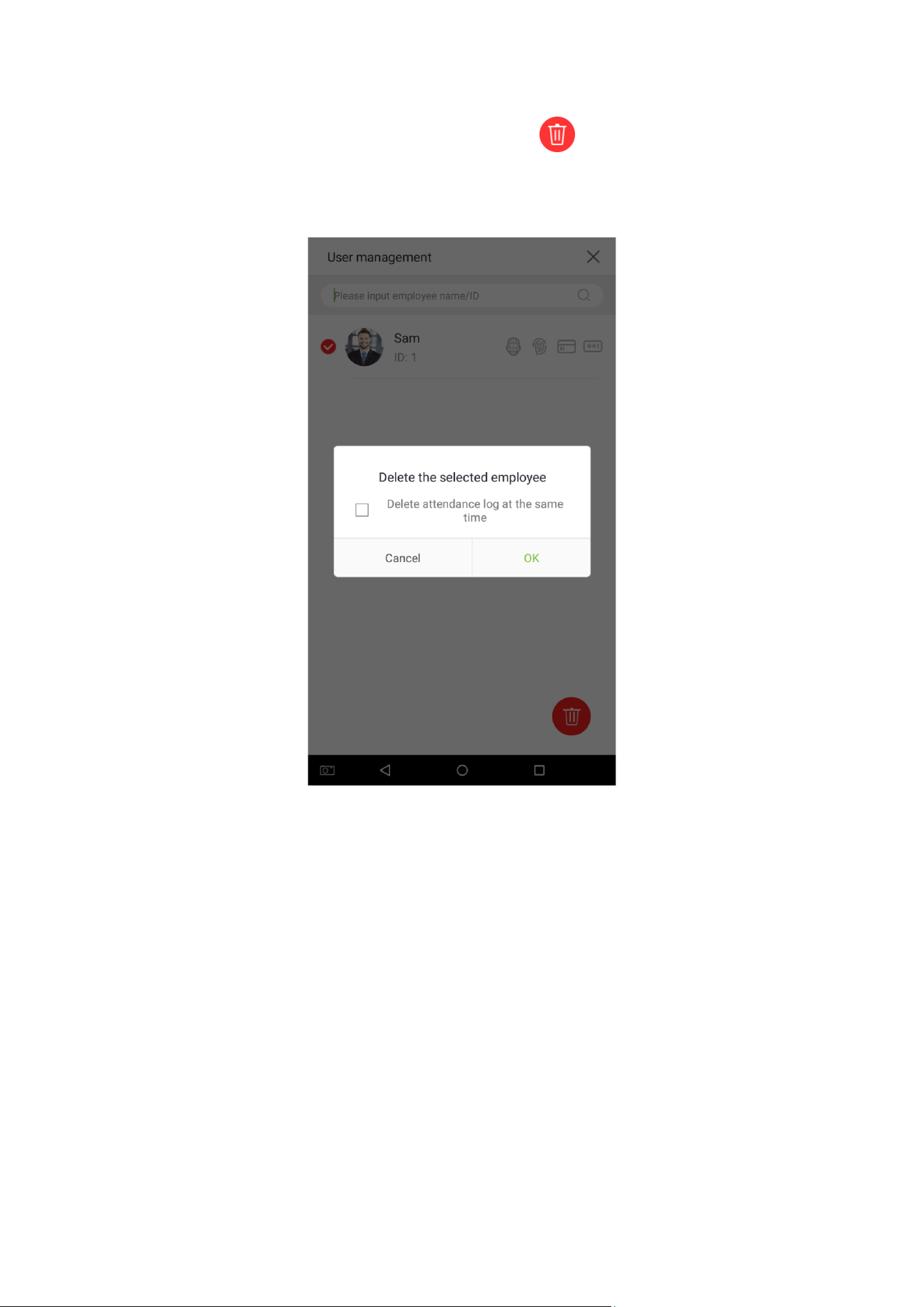
1. On the “User Management” interface, tap on the button in the upper right corner.
64
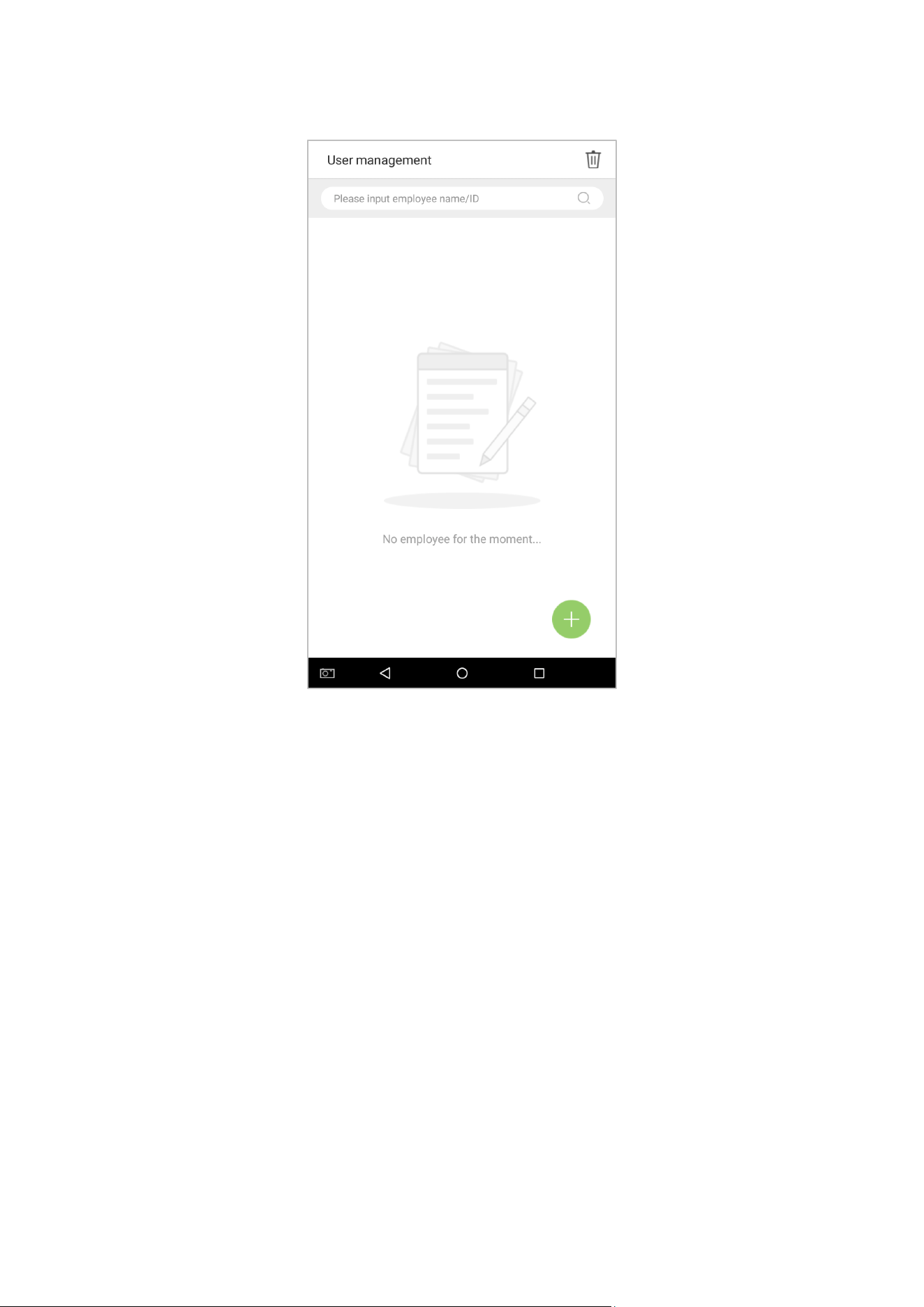
2. Select the employee who you would like to delete, tap on the button in the lower right corner and a
window will pop up. Decide whether or not to check the box next to [Delete attendance log at the same time], tap
on [OK] (this option can be checked or left un-checked based on your requirements).
65
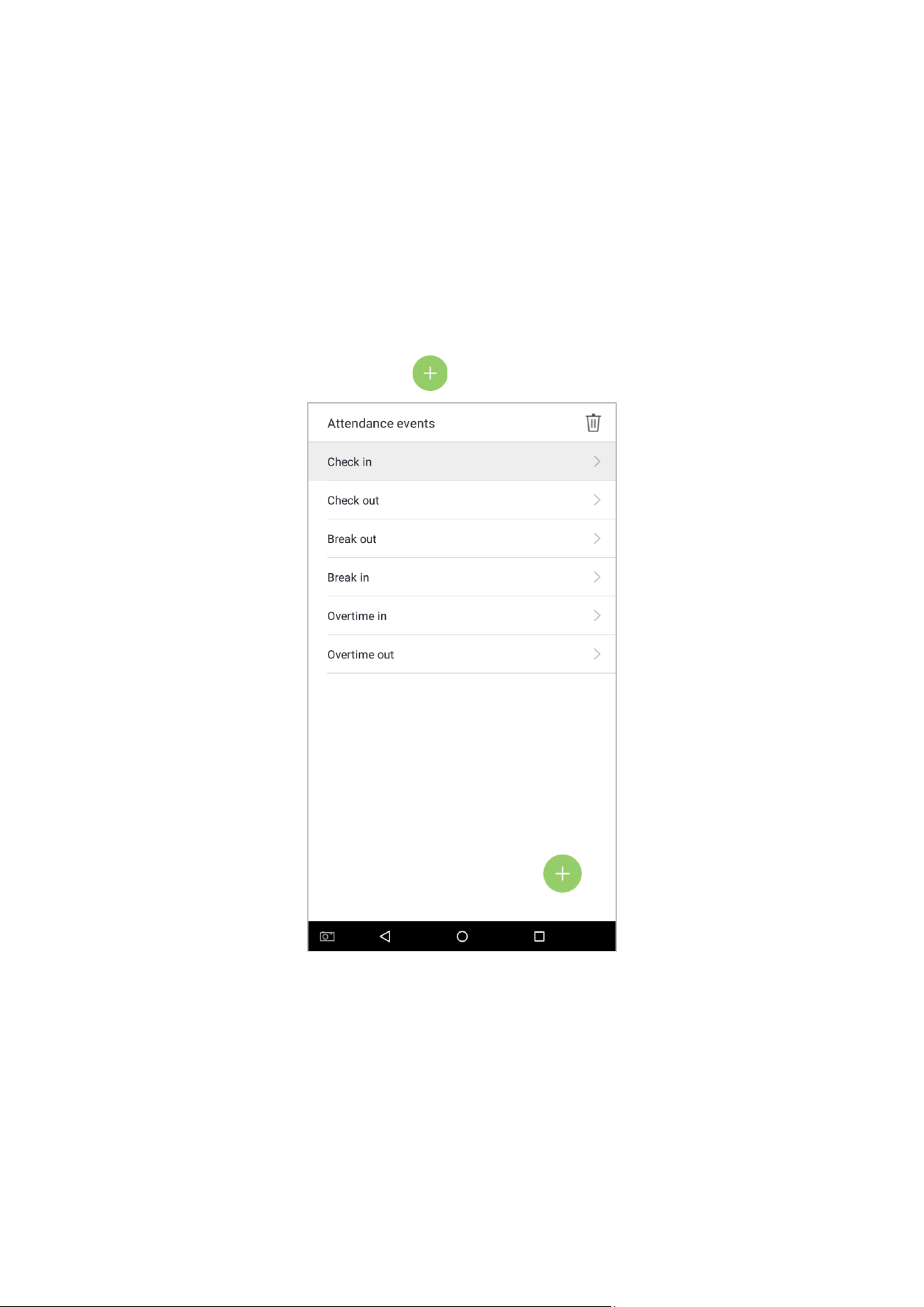
3. The employee now has been deleted and will no longer appear.
Note: If [Delete Employee] is selected, all of this employee's related information will be cleared.
66
4. Attendance Events
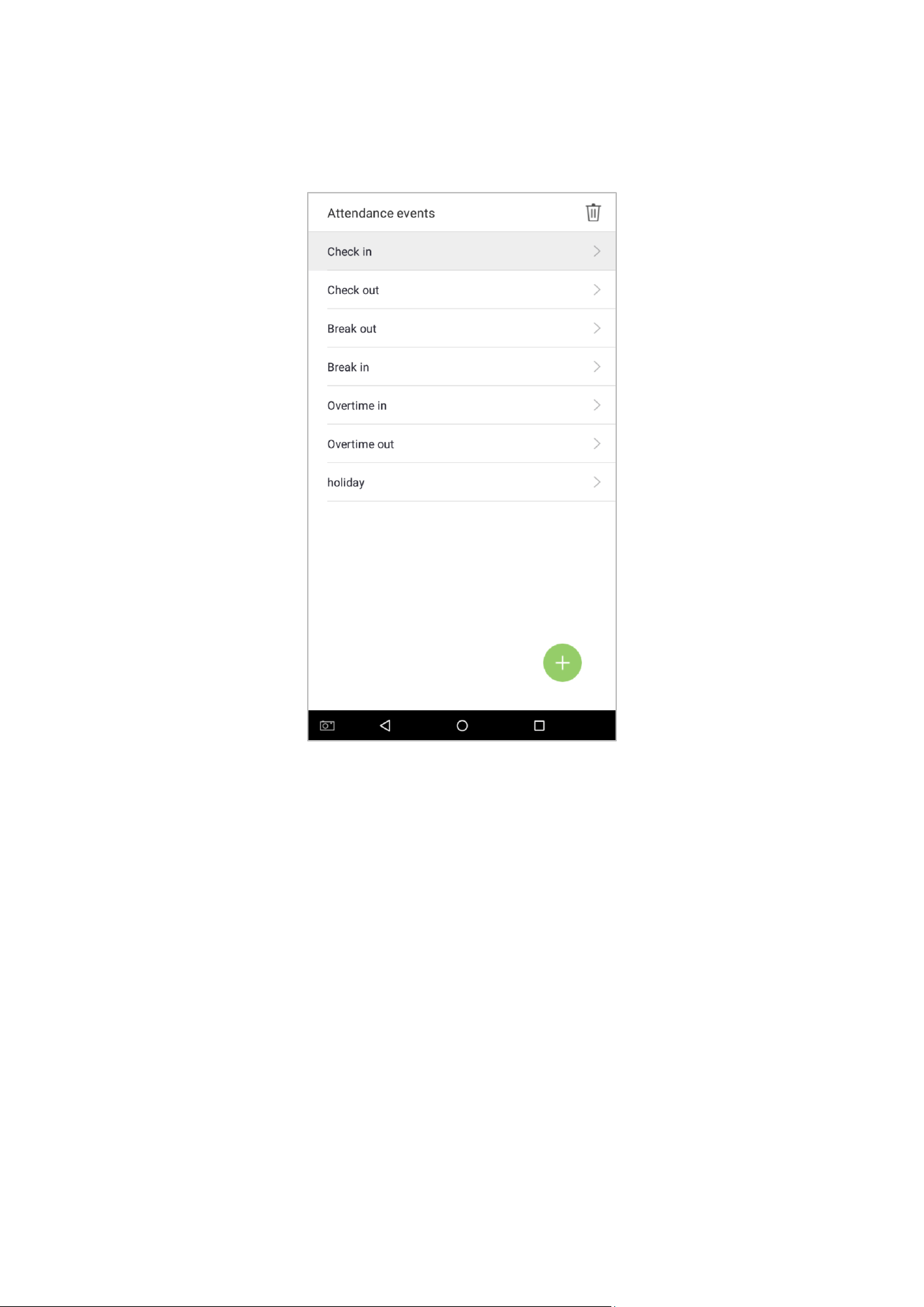
Attendance events are used to record clock-in/out status. There are 6 default attendance statuses, including clock in, clock
out, break out, break in, overtime in, overtime out. The 6 default statuses cannot be deleted or modified.
4.1 Add Attendance Events
Tap on [Attendance Events] in the main menu:
1. On the “Attendance Events” interface, tap on to enter the “Attendance Event ” interface.
67
2. In the attendance event creation wizard, tap on [Start].
68
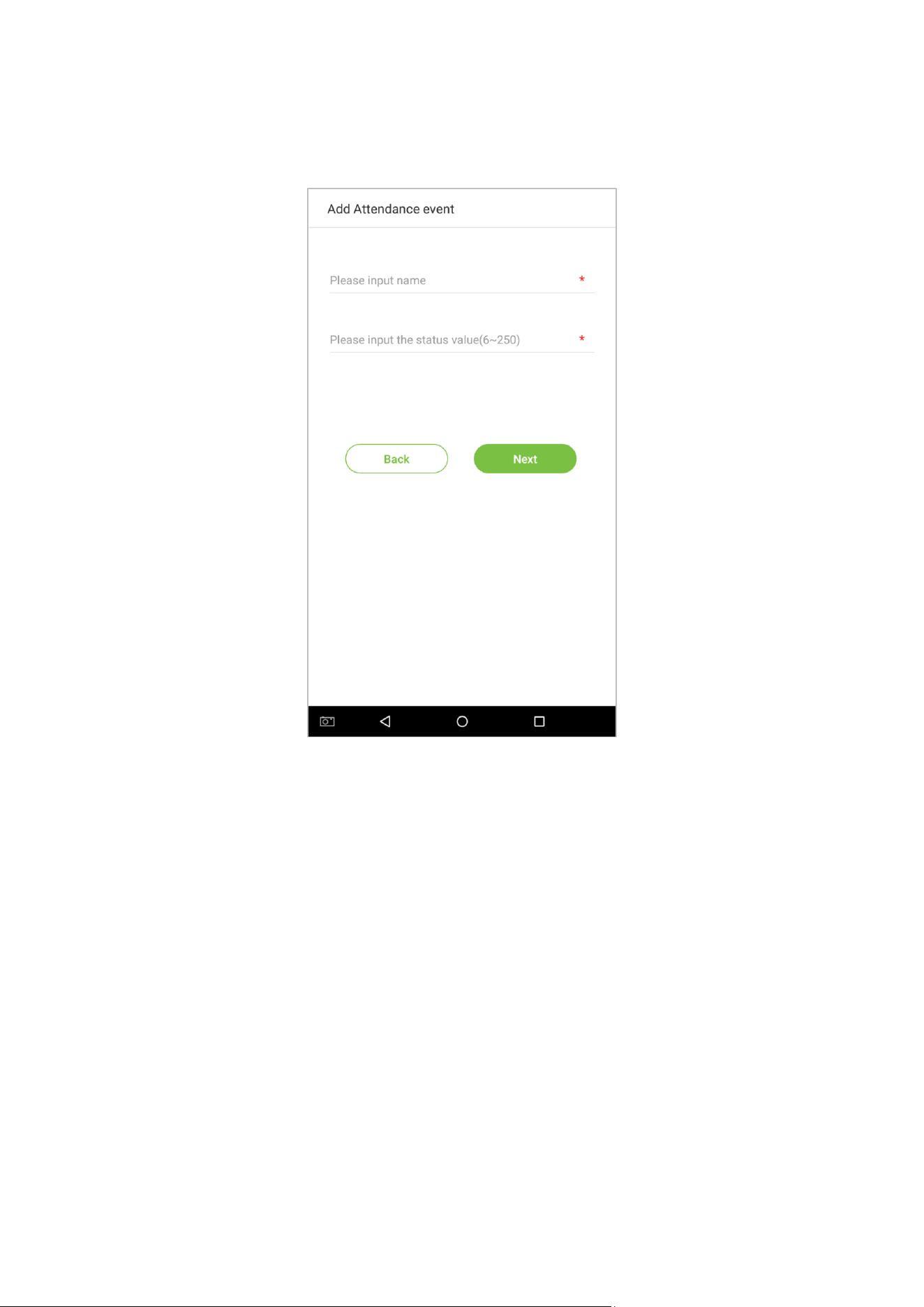
3. Enter the [Name] and [Status Value] of the new attendance event. Tap on the right arrow (note: maximum
length of the name is 24 characters; status values must be unique and cannot be duplicated. The value ranges from
6 to 250.)
69
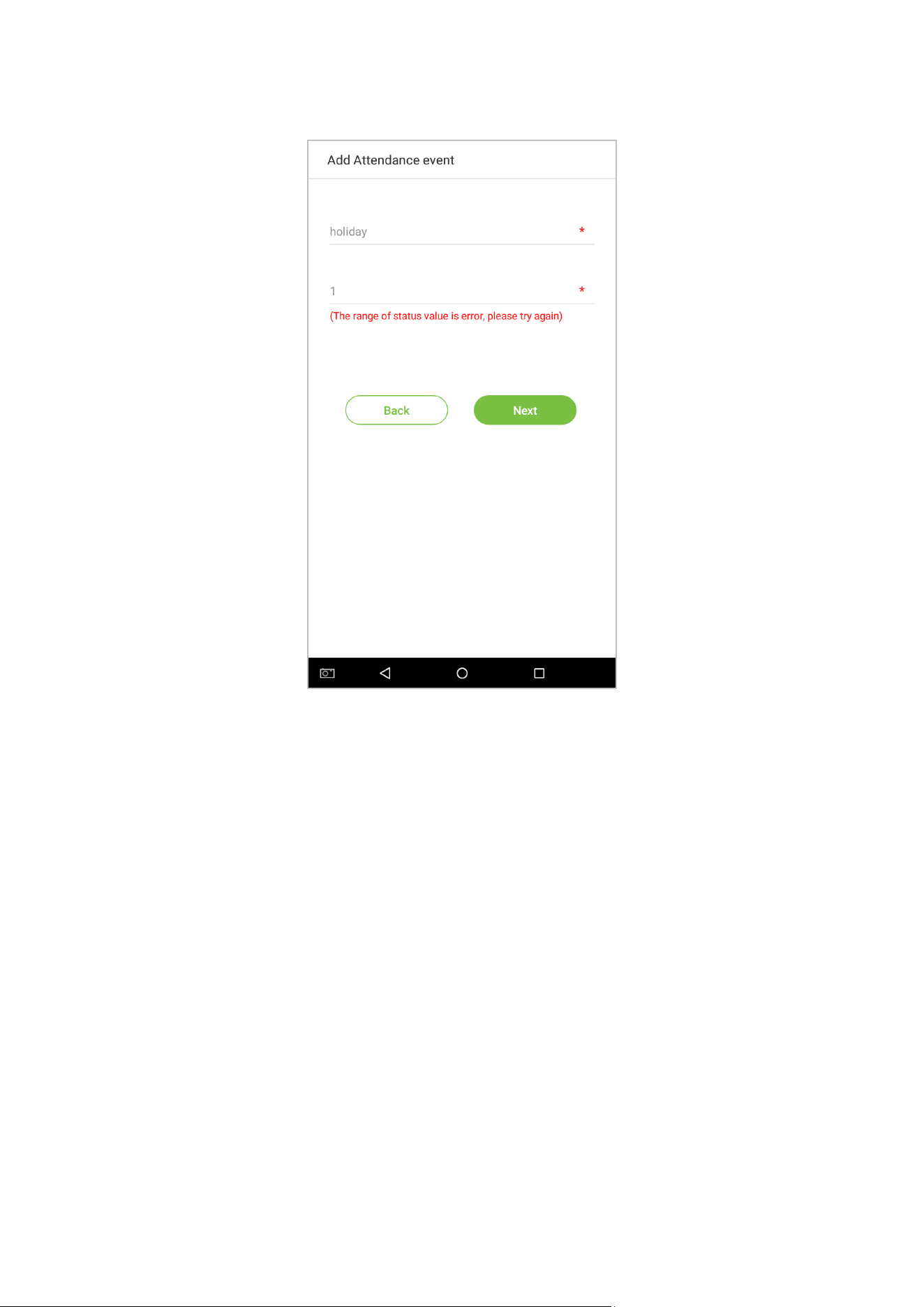
If the input status value is a duplicate or exceeds the permitted range, the following message will appear:
70
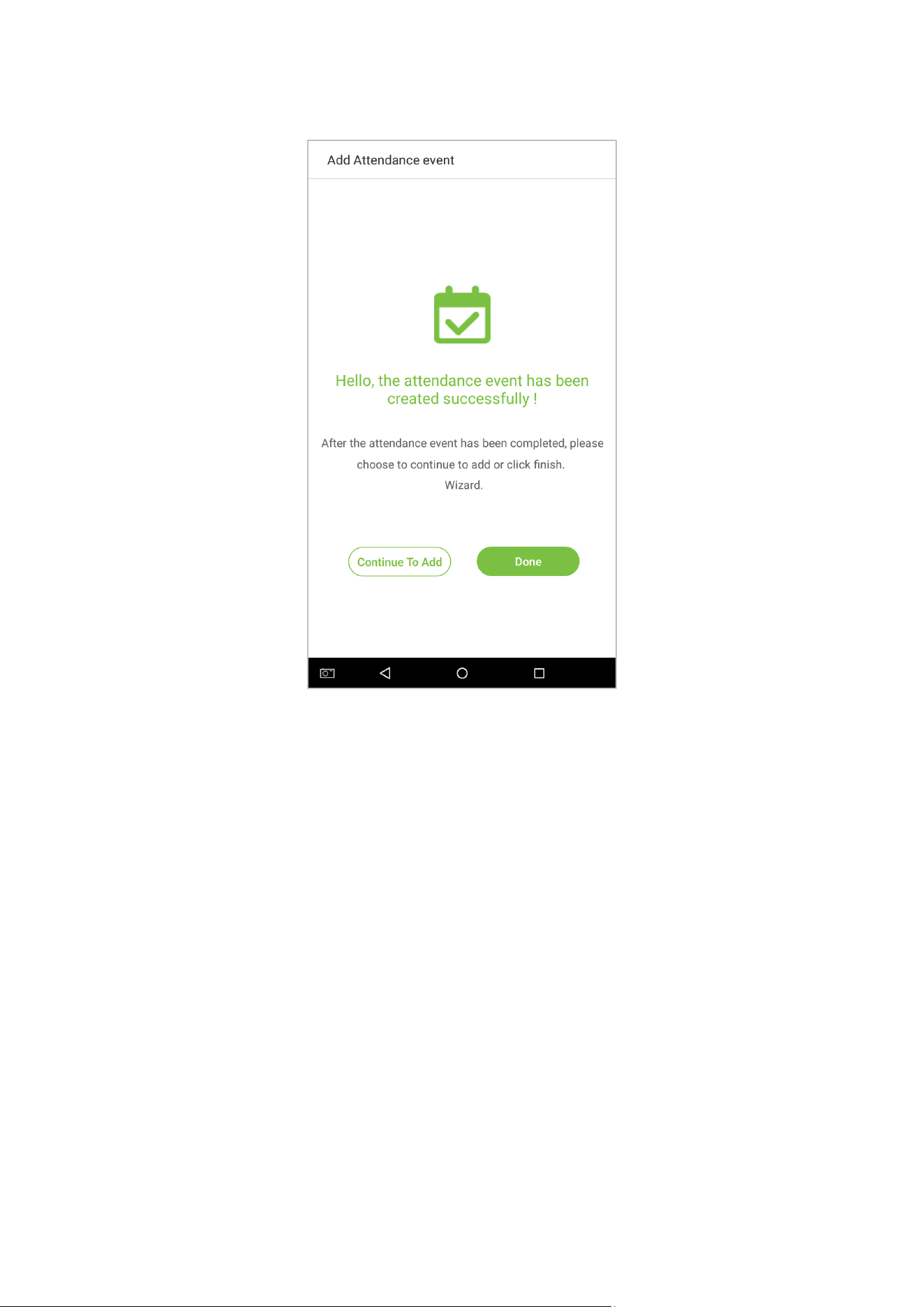
4. Successfully created.
71
4.2 Edit Attendance Events
1. Select an employee attendance event.
72
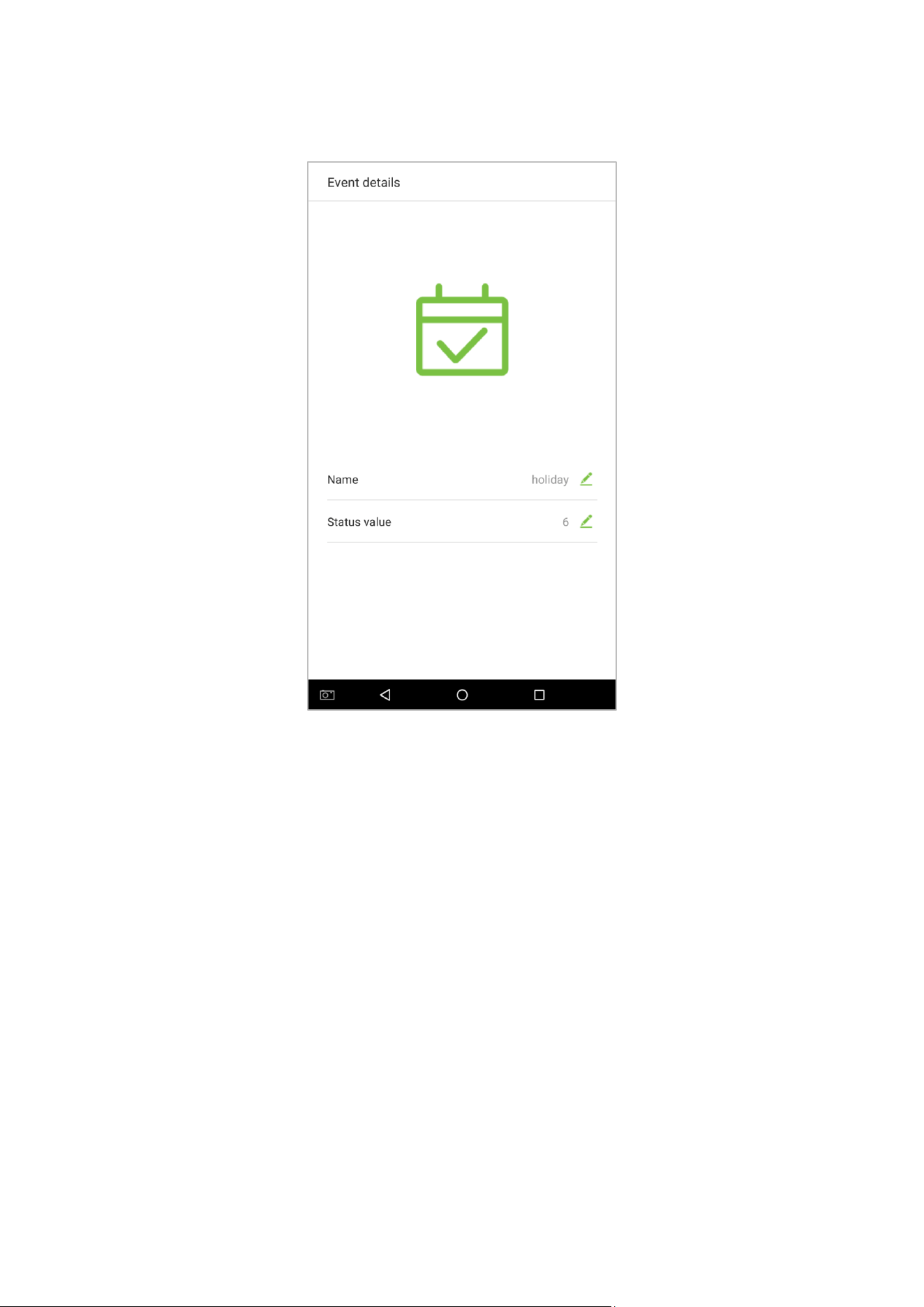
3. Tap on [Name] or [Status Value] to edit (note: the first 6 attendance events cannot be edited; status values must
be unique and cannot be duplicated)
This operation is similar to adding a new event and will not be described here. For further information, see
section ”4.1 Add Attendance Events”.
73
4.3 Delete Attendance Events
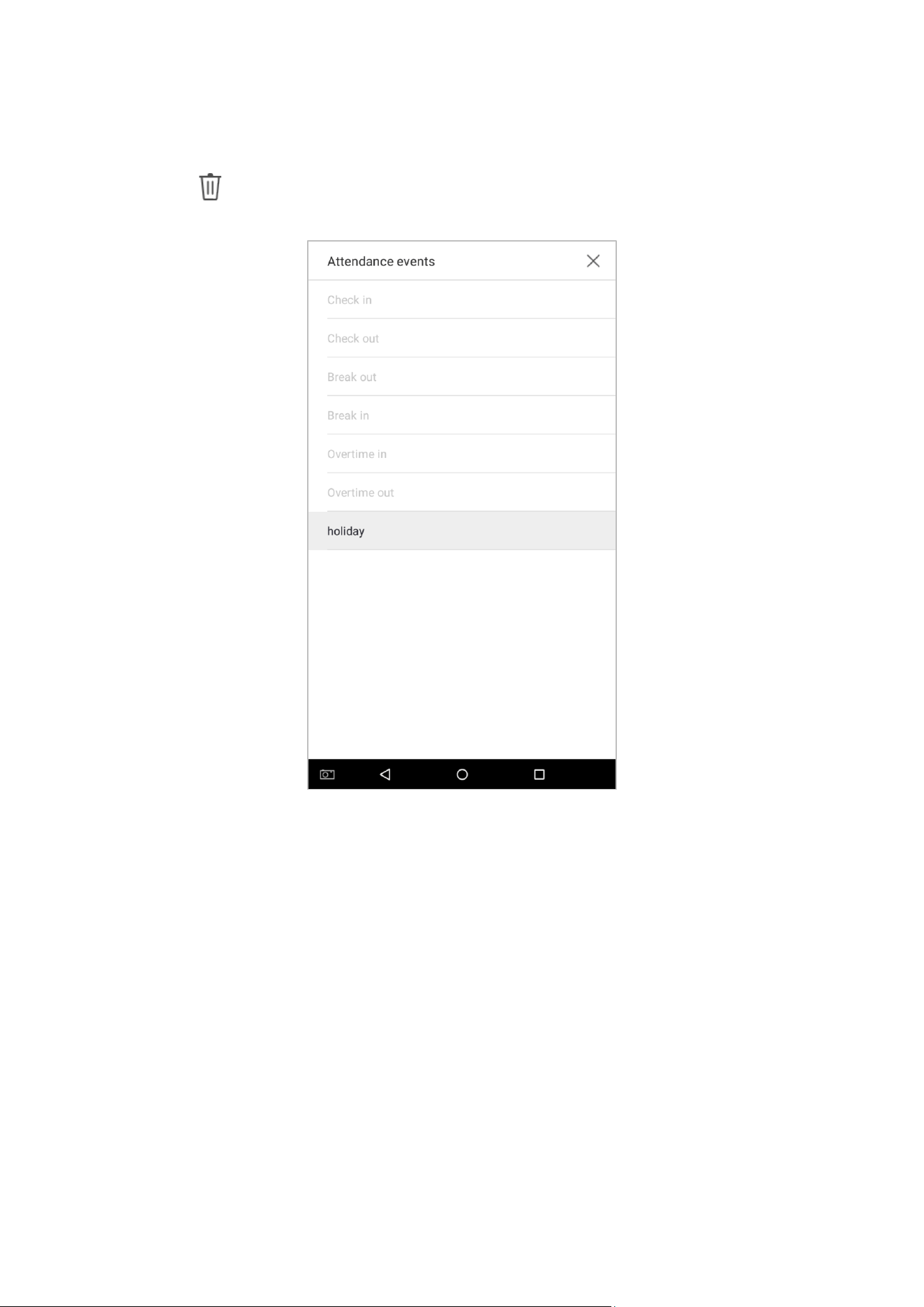
1. Tap on the icon in the upper right corner and select an attendance event (Note: the first 6 events cannot
be deleted, so the delete button will not appear).
74
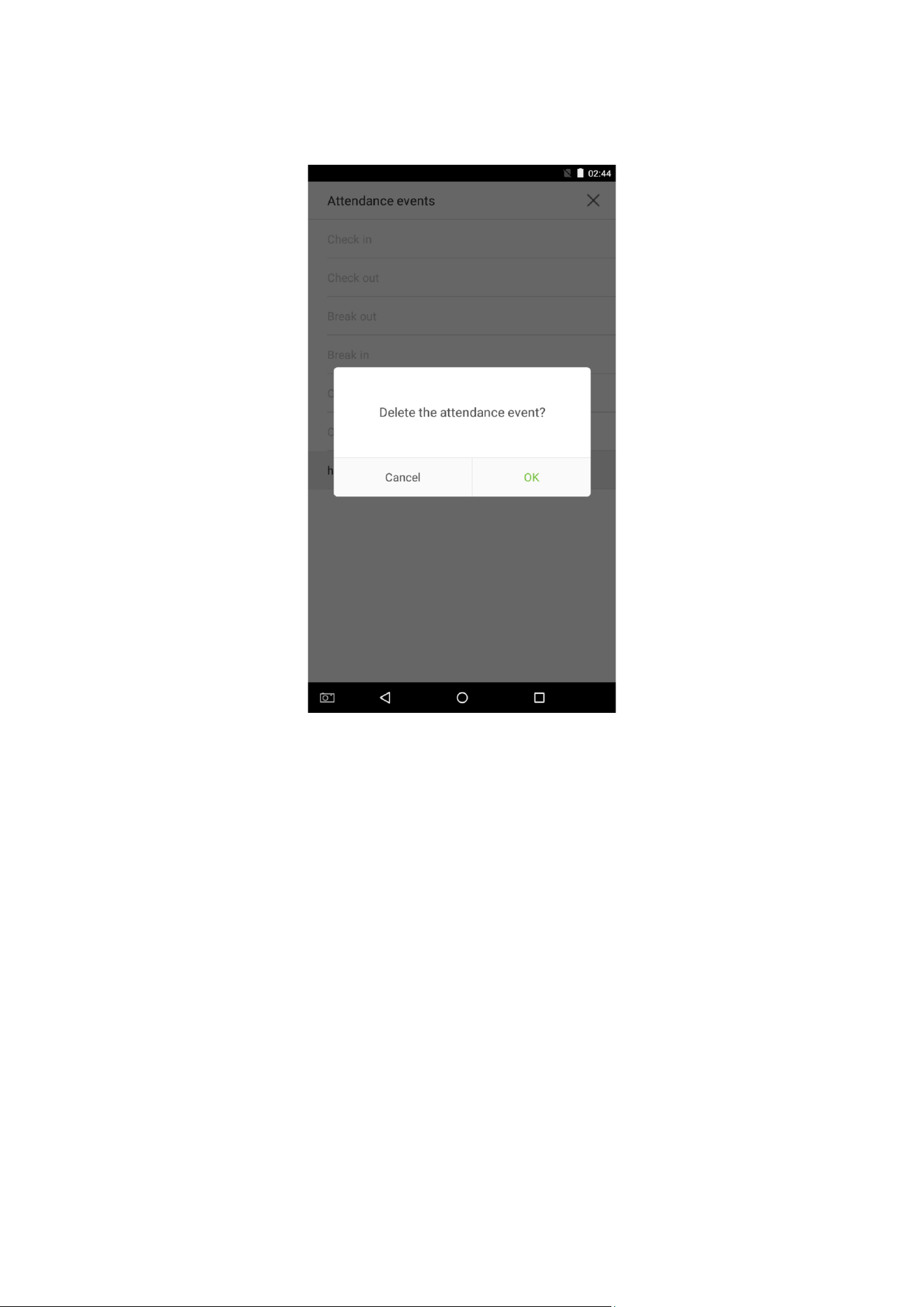
2. A window will appear. Tap on [OK].
75
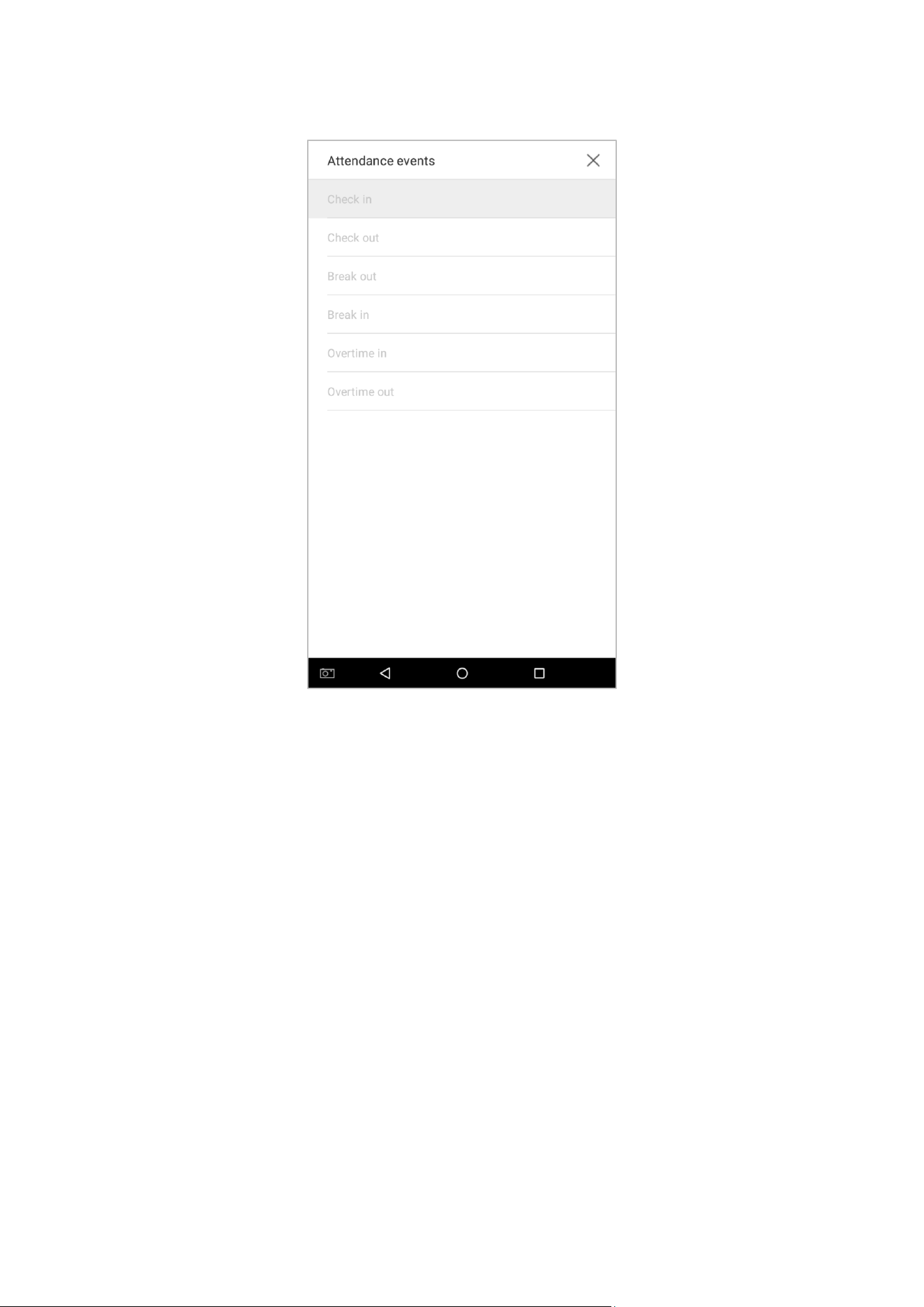
3. The event is now deleted and will not appear on the list.
76
5. Access Settings
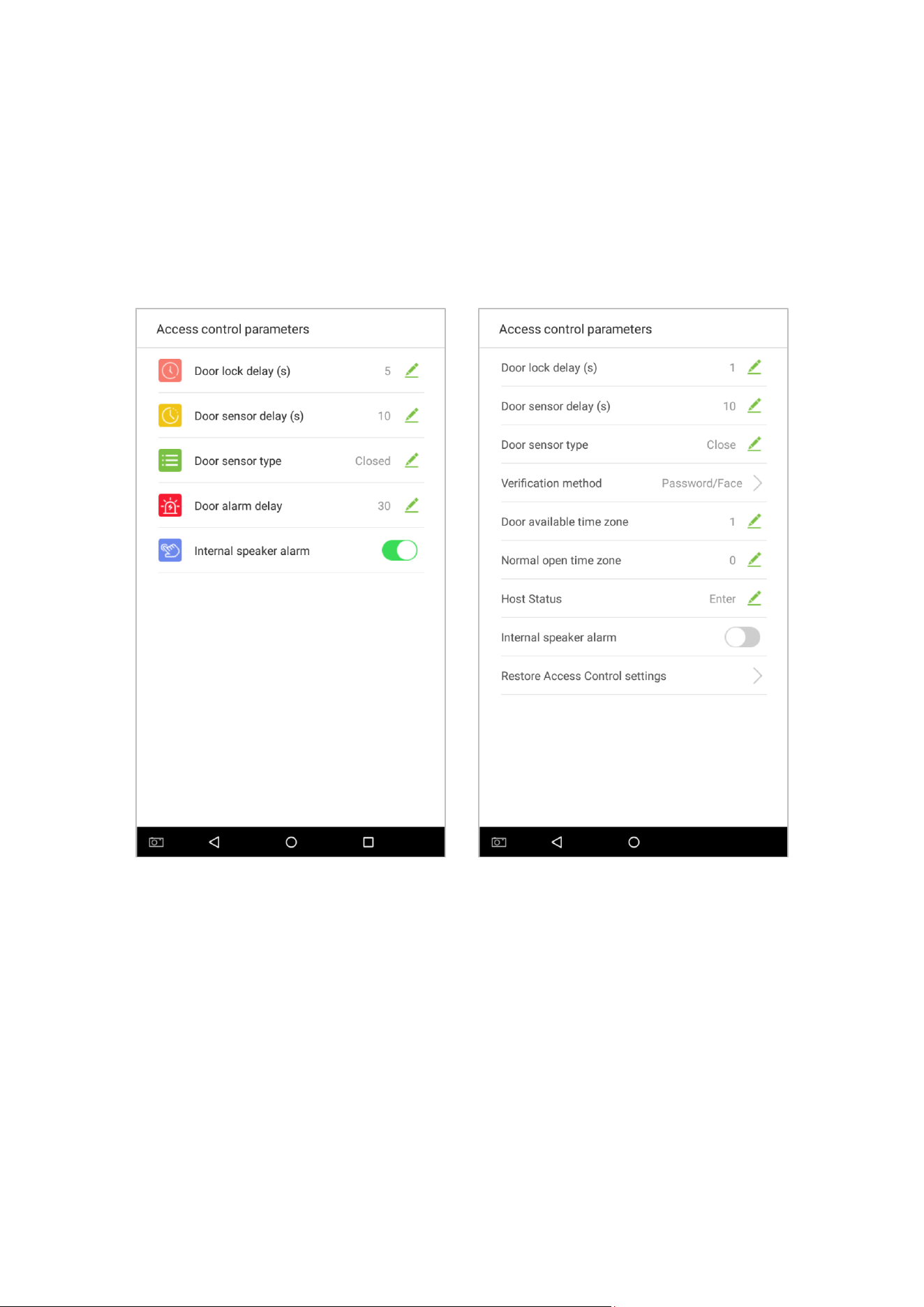
5.1 Access control parameters
The access management allows users to set access parameters.
Tap on [Access Settings] in the main menu.
Attendance device Access device

77
Menu Options
Function Description
Door lock delay
When the door opens, the lock begins to count down. When the time is over, the lock
will close.
Door sensor delay
When the door opens, the door delay timer starts counting down. When the countdown
is completed, the system will send an alarm signal from the local, then the door sensor
delay timer will continue to be effective.
Door sensor type
There are different types of door sensors. Subject to different locations, the status value
of the door sensor is different; the value of the magnetic door in the “always open” mo de
is the opposite of that in the “always close” mode.
Verification
method
Select verification mode to open door.
Door alarm delay
When the door delay ends and the status of the door is not “closed”, the door alarm
delay timer will start counting down. When the countdown is completed and the status
is still not “closed”, an external alarm signal will be transmitted and output to relay.
Door available time
zone
To set time zone for door, so that the door is available only during this.
Normal open time
zone
To set time zone for Normally Open, so that the door is always unlocked during this time
zone.
Host status
When setting up the master and slave, the status of the master can be set to exit on
enter.
Exit: The record verified on the host is the exit record.
Enter: The record verified on the host is the entry record.
Internal speaker
alarm
To transmit a sound alarm signal from the local, then send an unpack alarm signal. When
the door is closed, the system will cancel the alarm from the local. After the signal is
successfully confirmed, the alarm will be cancelled from the local.
Restore Access
Control settings
To reset parameters of Access Control settings.
Note: Registered employees need to fulfill certain conditions before unlocking the system, which means that the
current unlock time should be within the effective time period, or the door cannot be opened.
78
5.2 Time rule setting
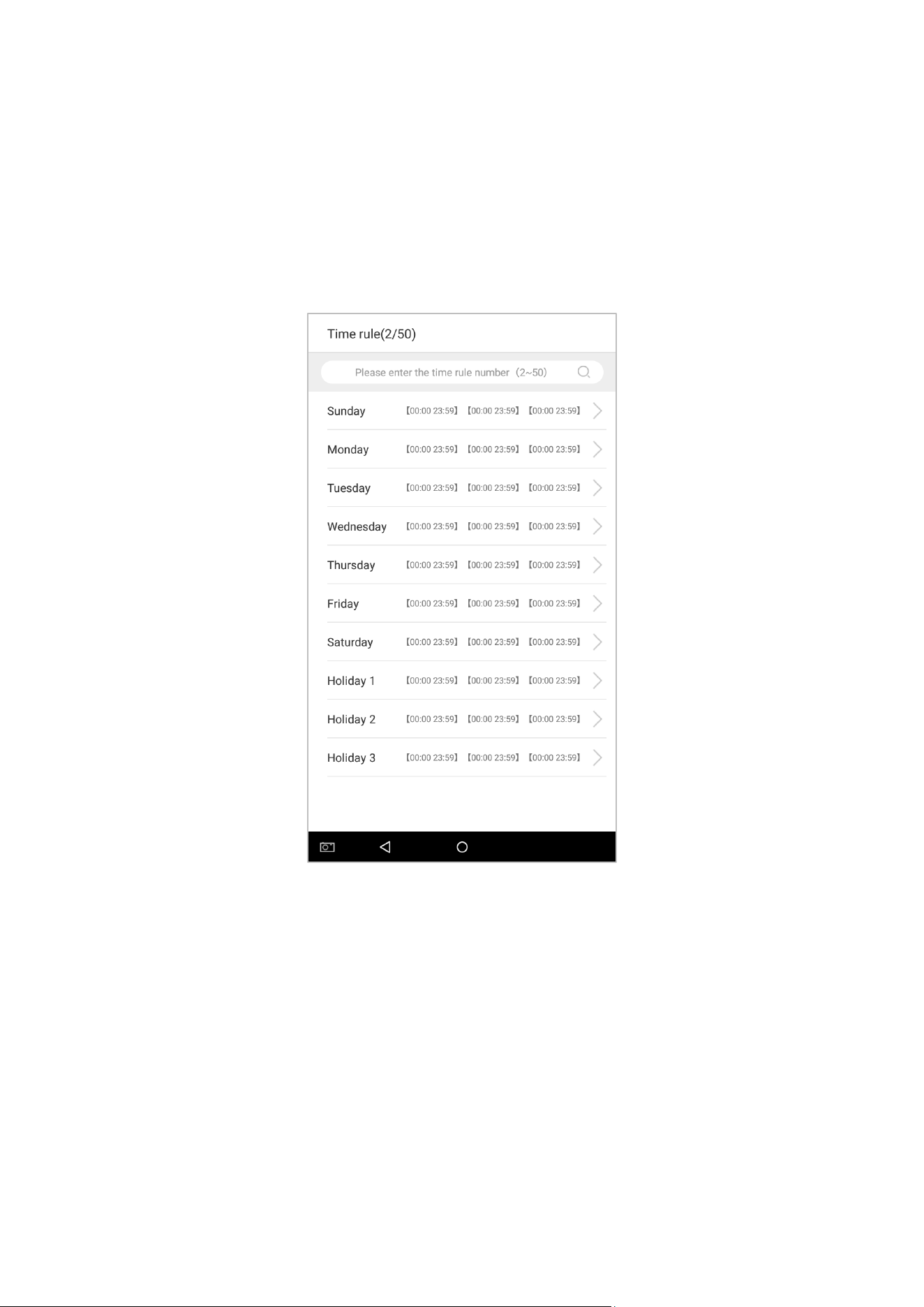
Time Rule is the minimum time unit of access control settings; at most 50 Time Rule can be set for the system. Each
Time Rule consists of 7 time sections (a week) and 3 holiday time schedules, and each time section is the valid time
within 24 hrs.
You may set a maximum of 3 time periods for every time rule. The relationship among these time periods is "or".
When the verification time falls in any one of these time periods, the verification is valid. The time period format is
HH:MM-HH:MM in the 24-hour system with precision to minute.
79
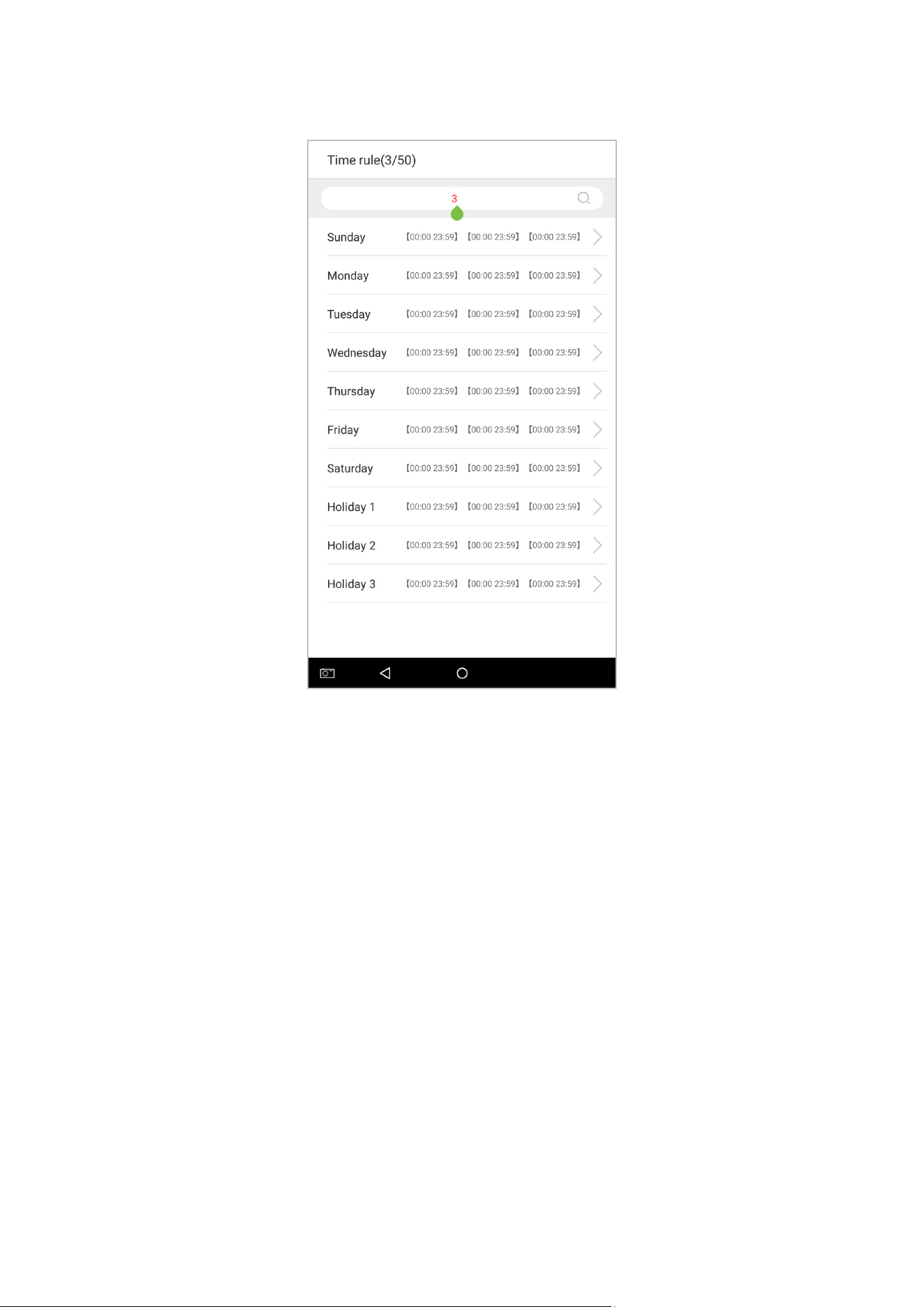
1. Enter the number of time rule (maximum: 50 rules) in the search bar.
80
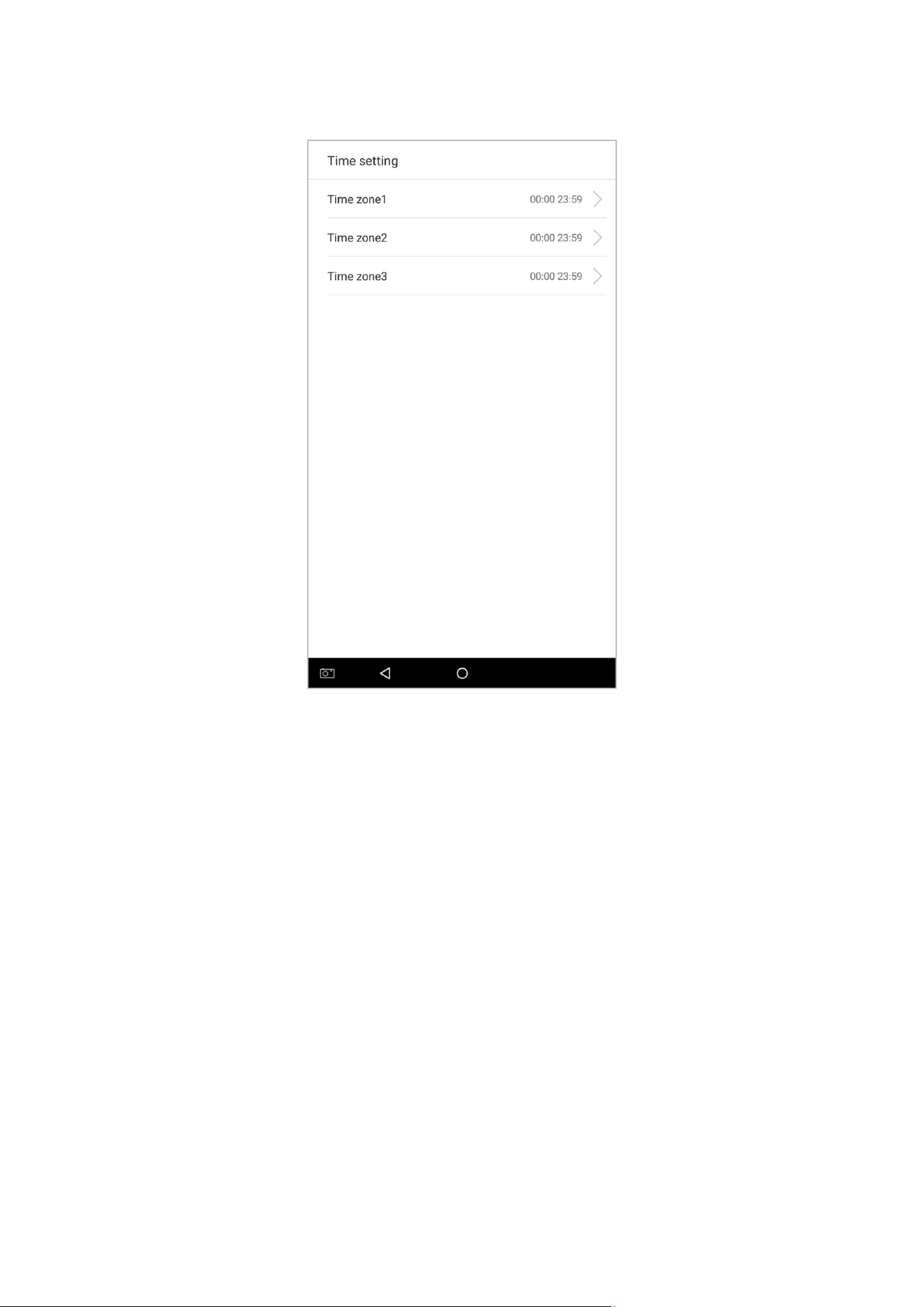
2. Tap the date on which time rule settings is required.
3. Set the starting and ending time, and then press [OK].
Notes:
1. When the ending time is earlier than the starting time, such as 23:57~23:56, it indicates that access is prohibited
all day; when the ending time is later than the starting time, such as 00:00~23:59, it indicates that the interval is
valid.
2. The effective time period to unlock the door: open all day (00:00~23:59) or when the ending time is later than the
starting time, such as 08:00~23:59.
3. The default time zone 1 indicates that door is open all day long, it can’t be edited.
81
5.3 Holiday setting
Whenever there is a holiday, you may need a special access time; but changing everyone's access time one by one is
extremely cumbersome, so you can set a holiday access time which is applicable to all employees, and the user will
be able to open the door during the holidays. The time period set here is taken as the standard.
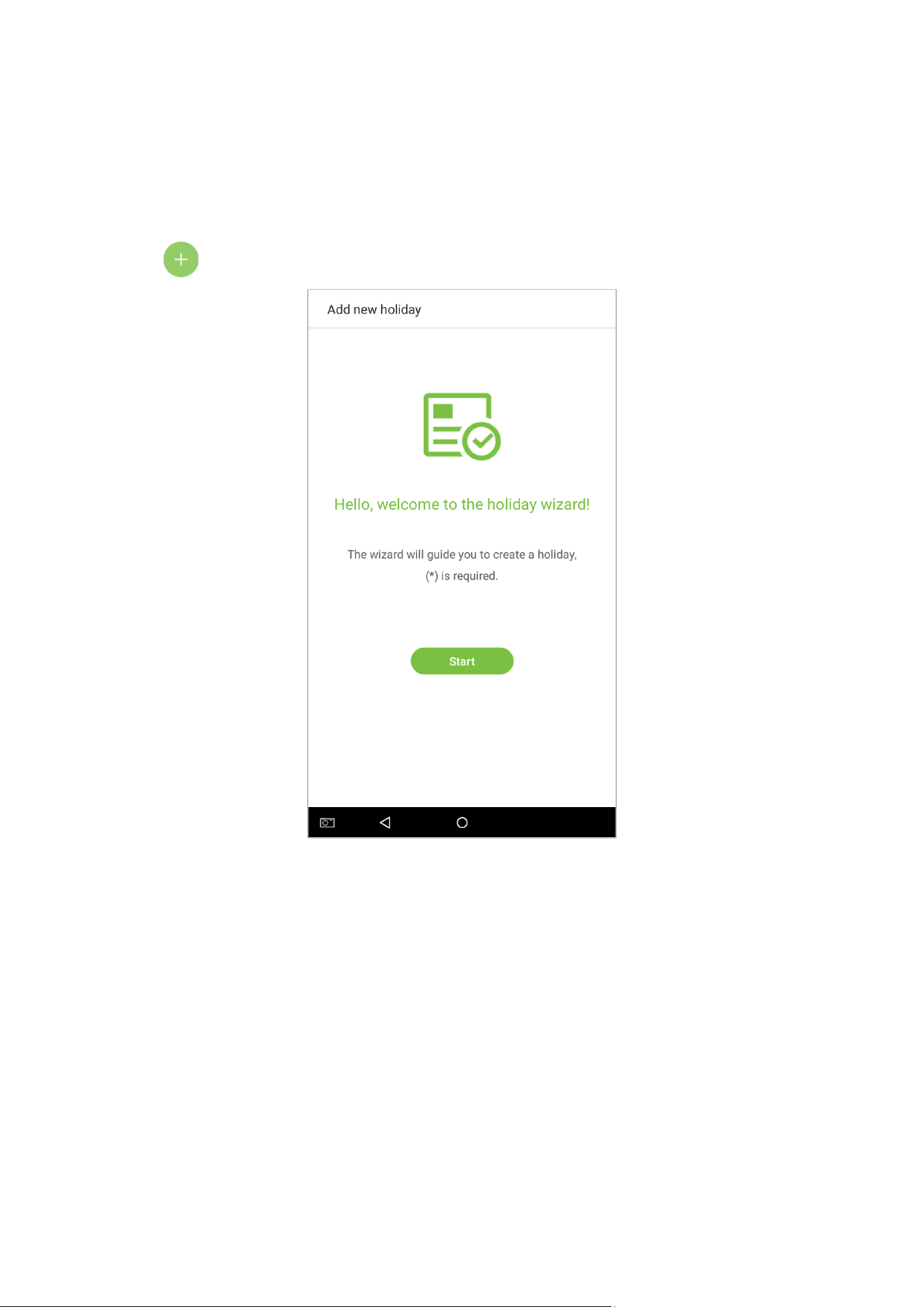
1. Tap on on the [Holiday setting] interface to enter Add new holiday wizard.
82
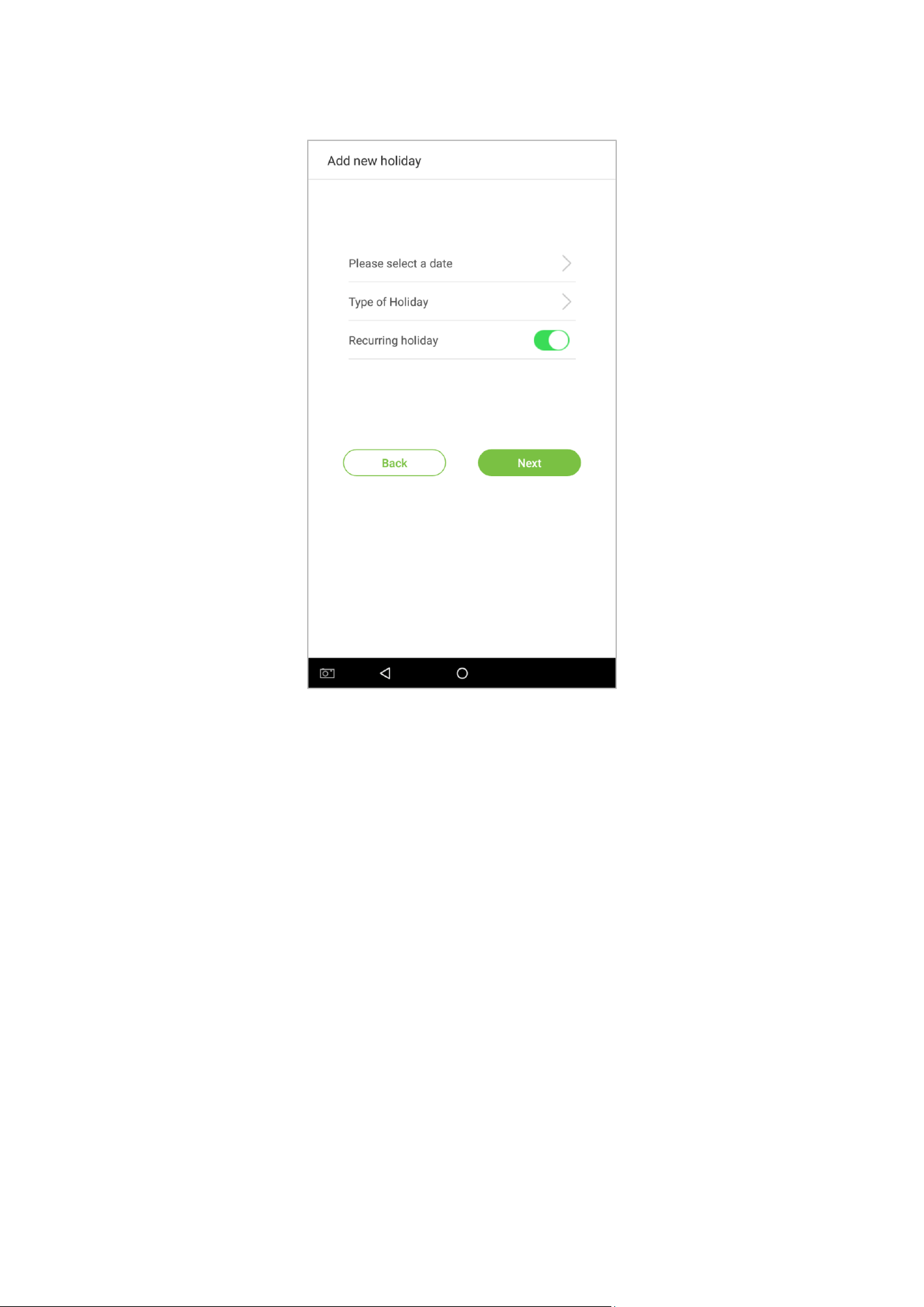
2. Select a date and type of the holiday. Enable [Recurring holiday] to recur the holiday yearly.
83
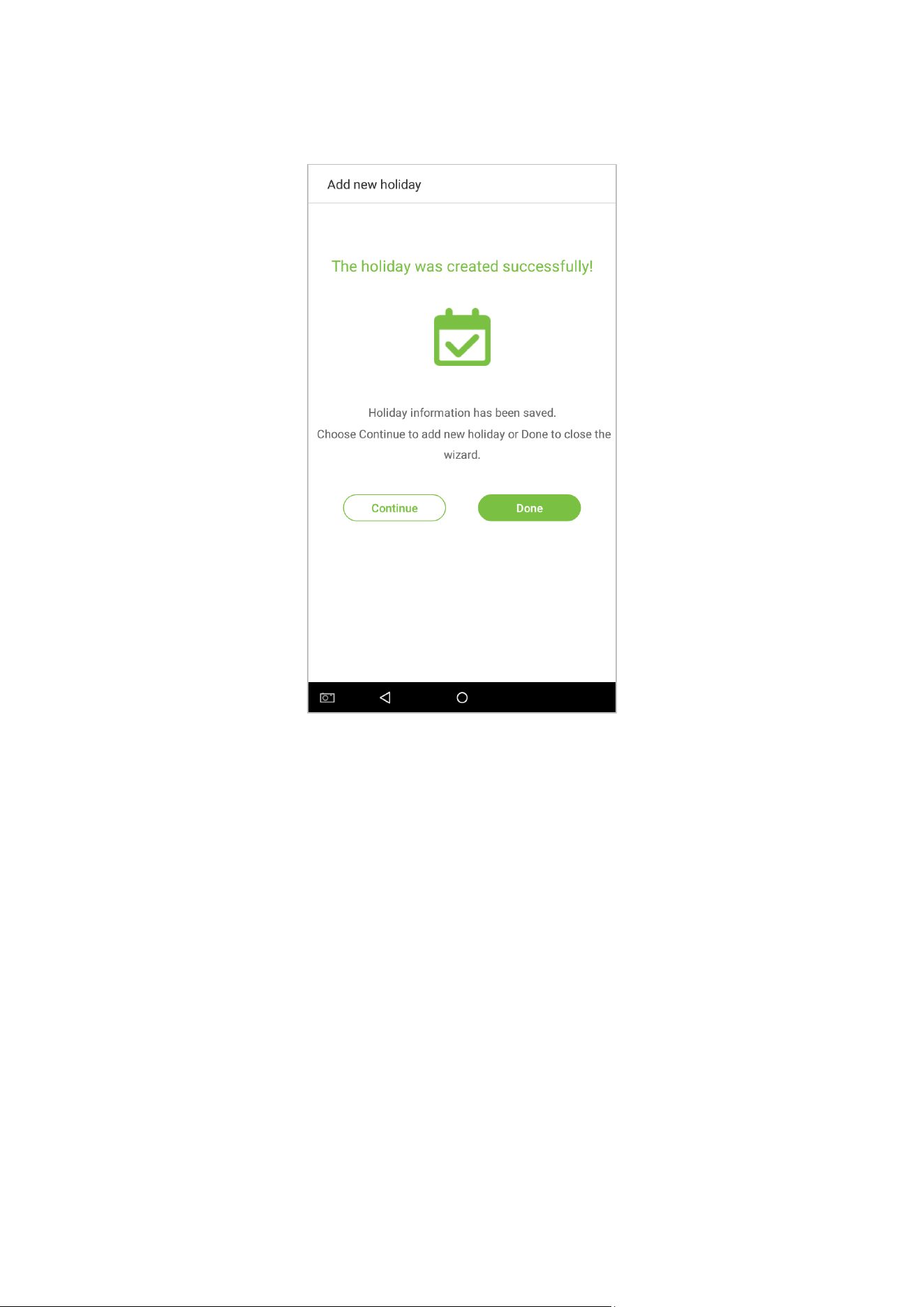
3. Click [Done], a new holiday is created successfully.
3. Select an employee on the employee list.
84
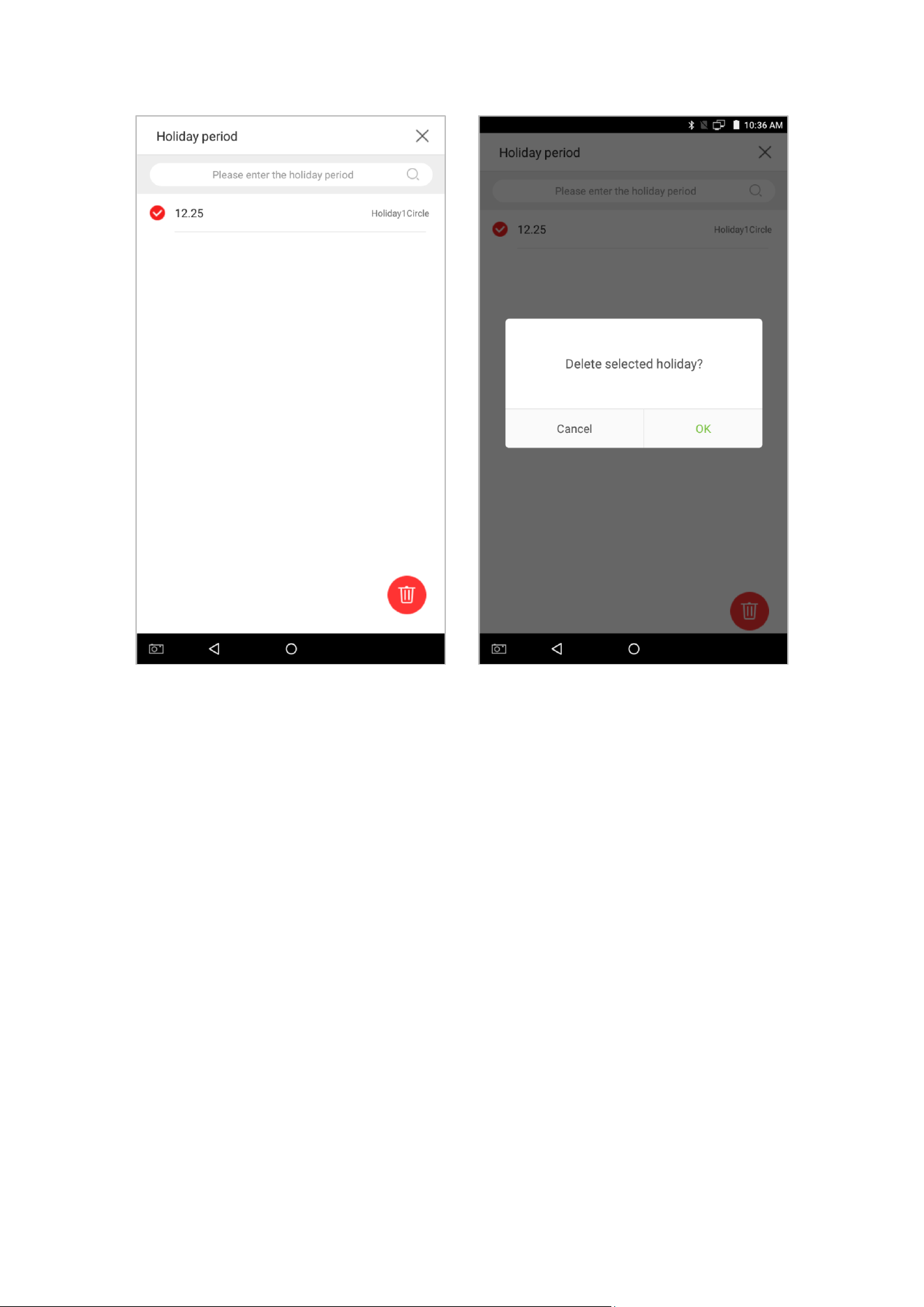
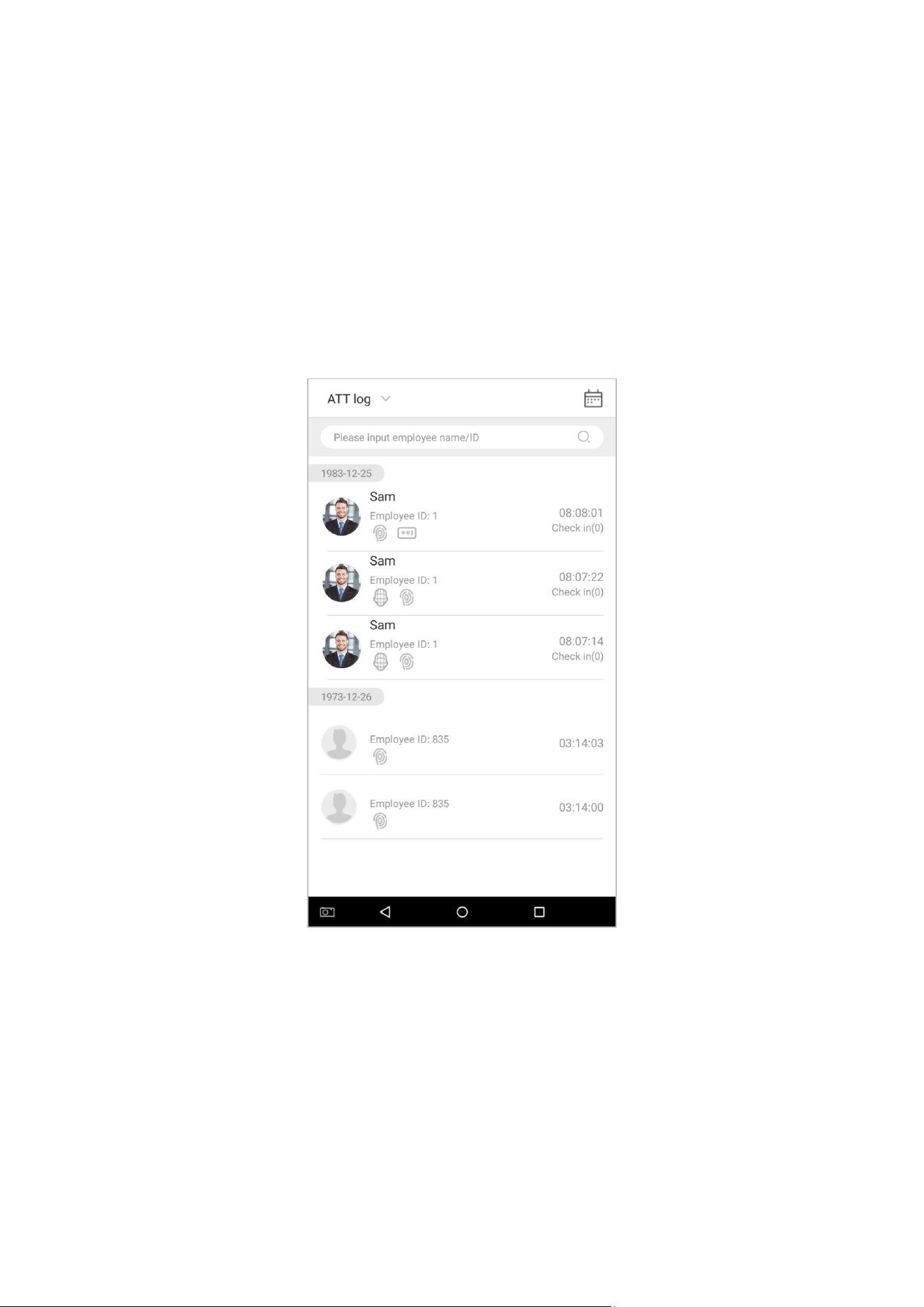
Delete a holiday
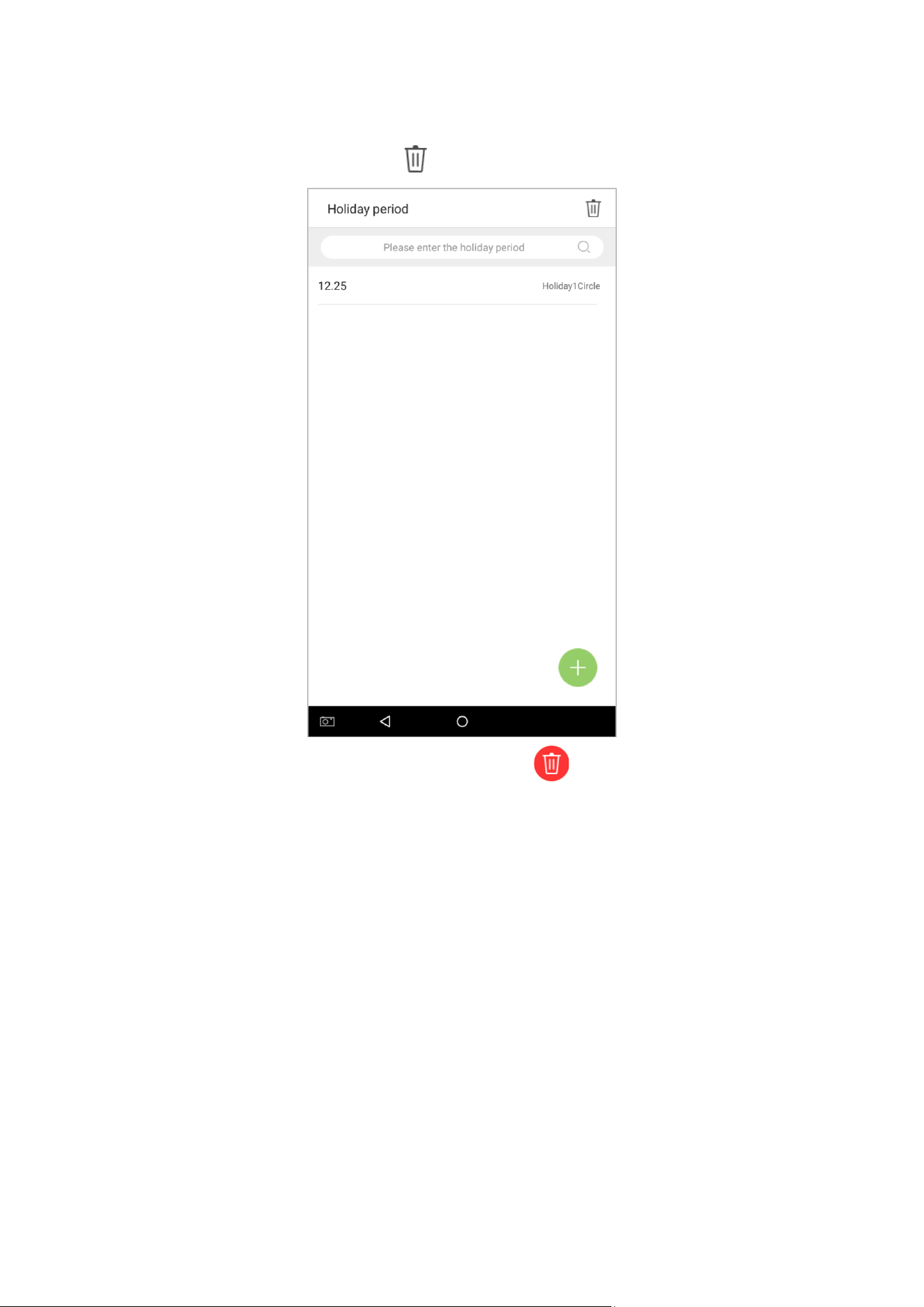
1. On the “Holiday period” interface, tap on the button in the upper right corner.
2. Select the holiday which you would like to delete, tap on the button in the lower right corner and a
window will pop up.
85
86
6. Log
Employee attendance records will be saved in the device, making it easier to find employees' attendance records.
Users can search for ATT Logs, ATT Photos, and Blacklist Photos. Searches support retrieval queries, date queries, or a
combination of the two.
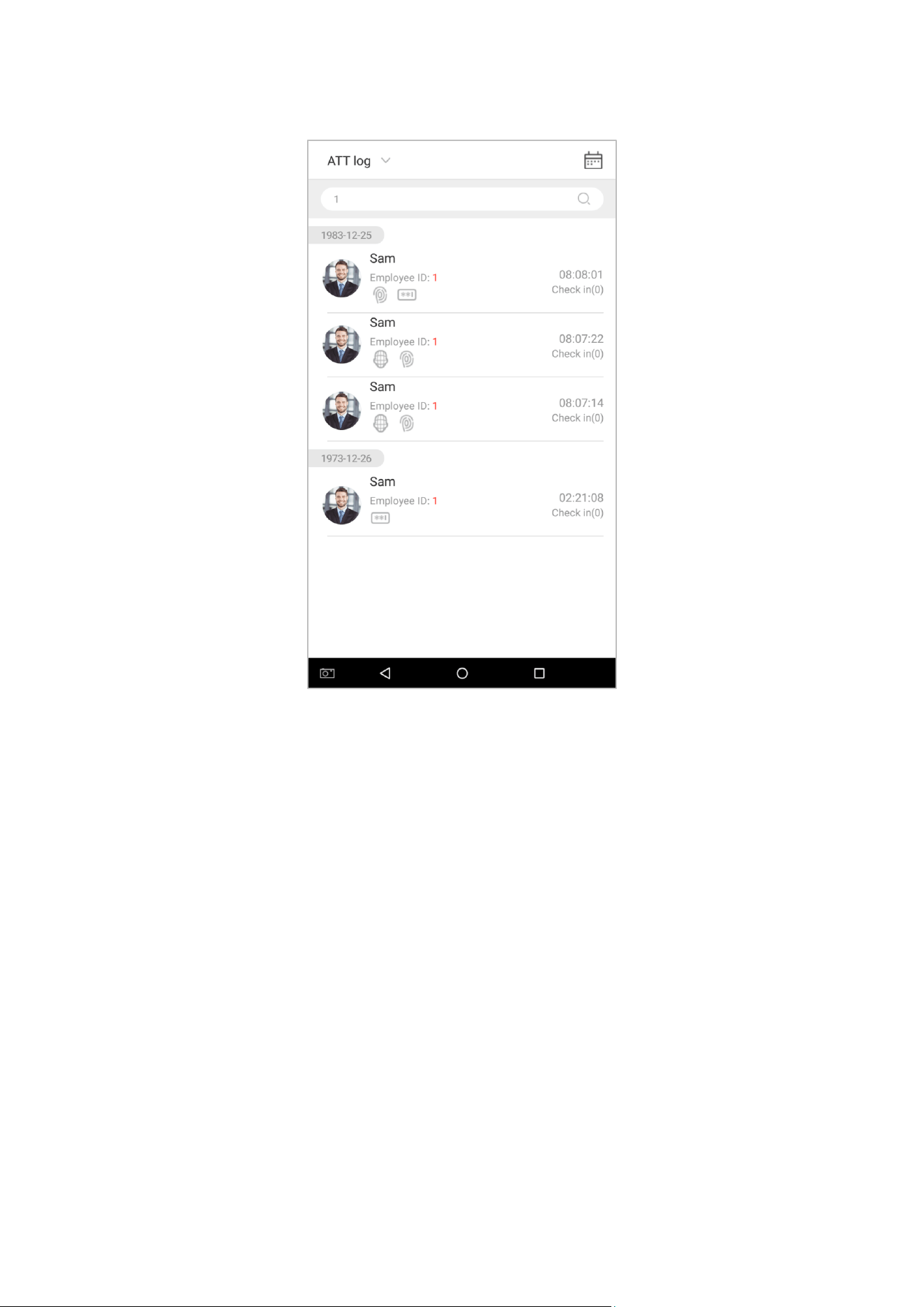
6.1 Search for Attendance Records
1. Tap on [Log] in the main menu, then the following interface of work record history will pop up.
87
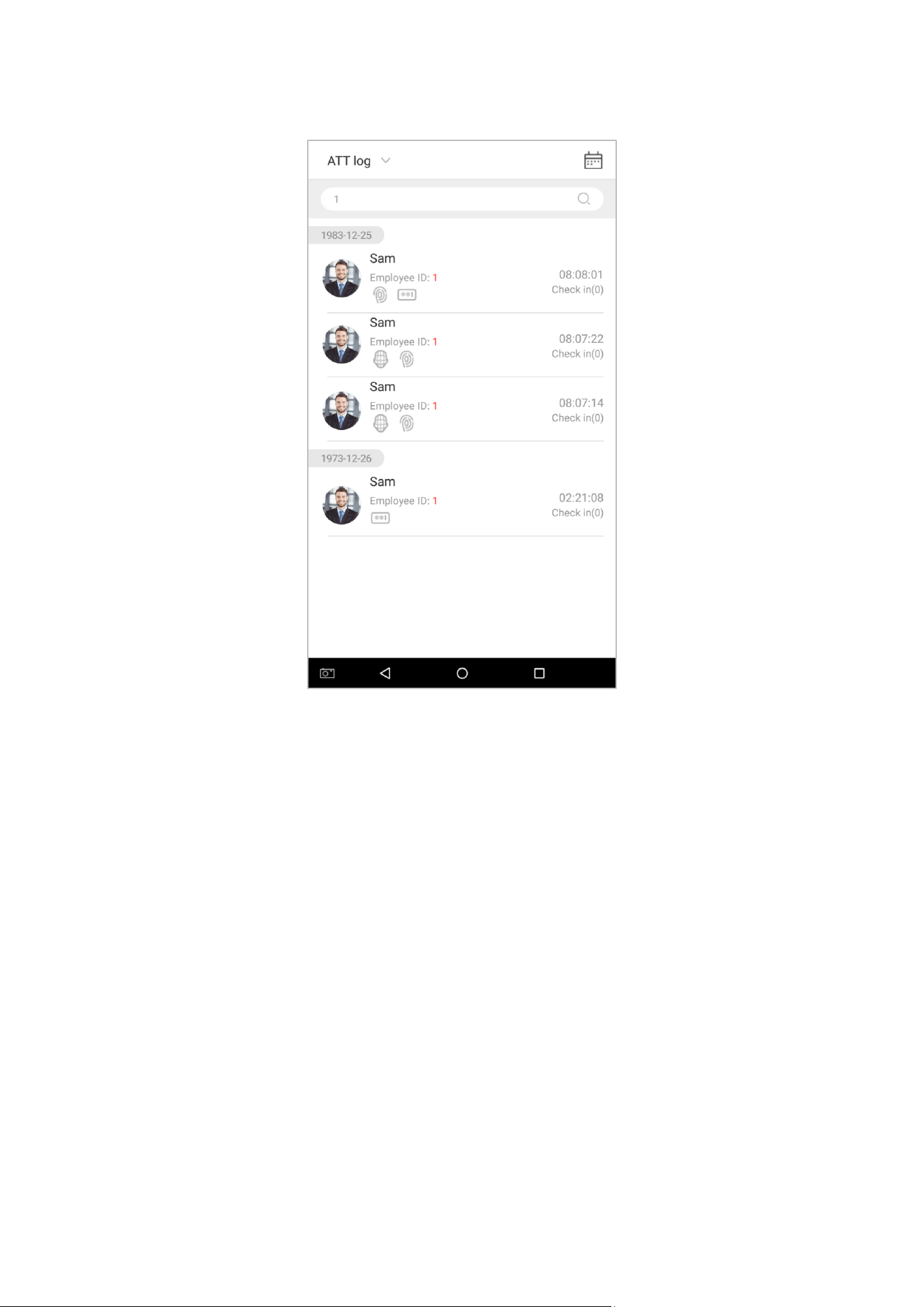
2. Enter information such as the employee ID, first or last name of an employee in the search bar.
88
3. Automatically finds the employees with information that is relevant to the search query.
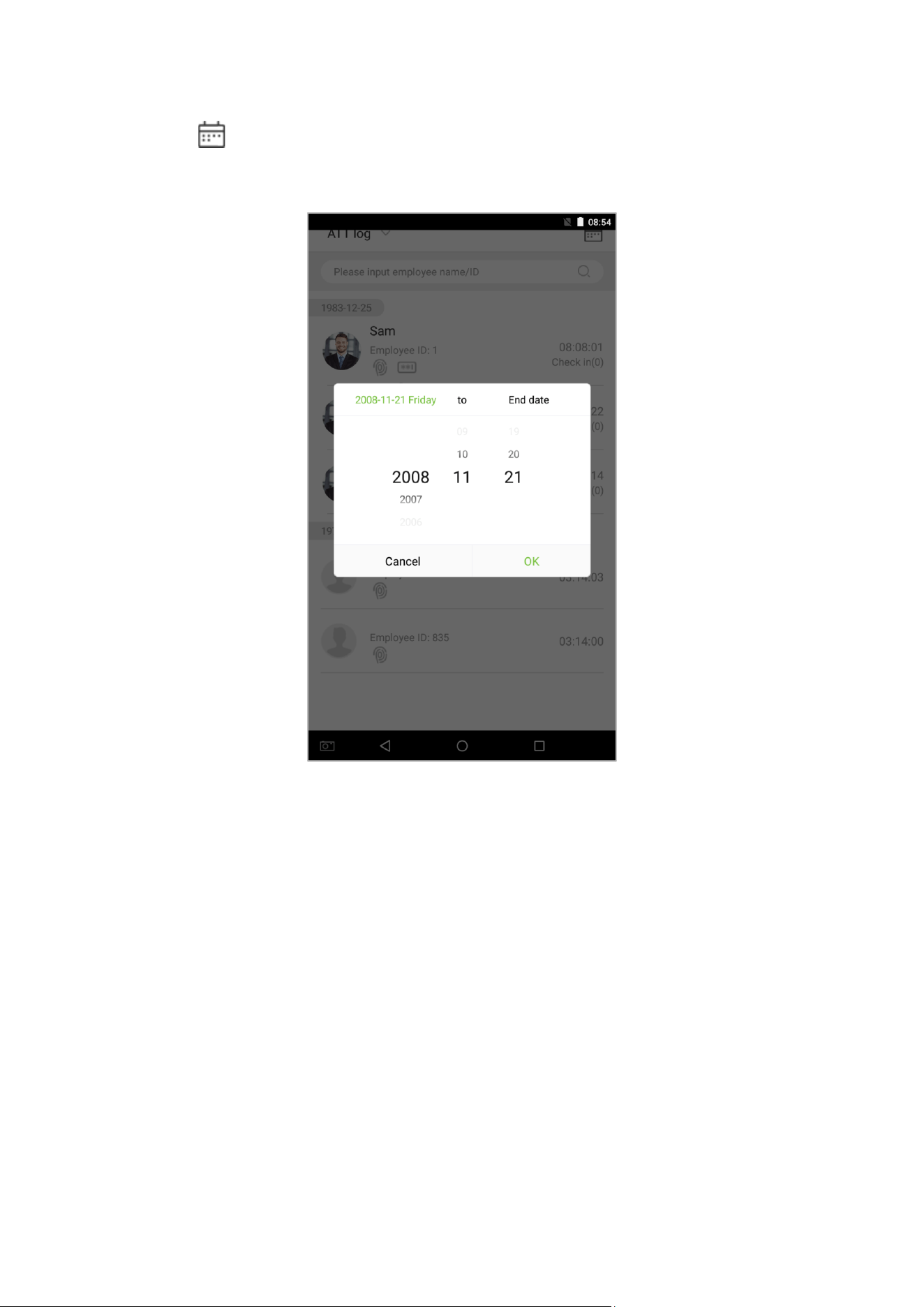
89
4. Tap on the button to access the following window where you can select the [Starting Date] and [Ending
Date]. Tap on [OK].
5. Show search results.
90
6.2 Search for Attendance Photos
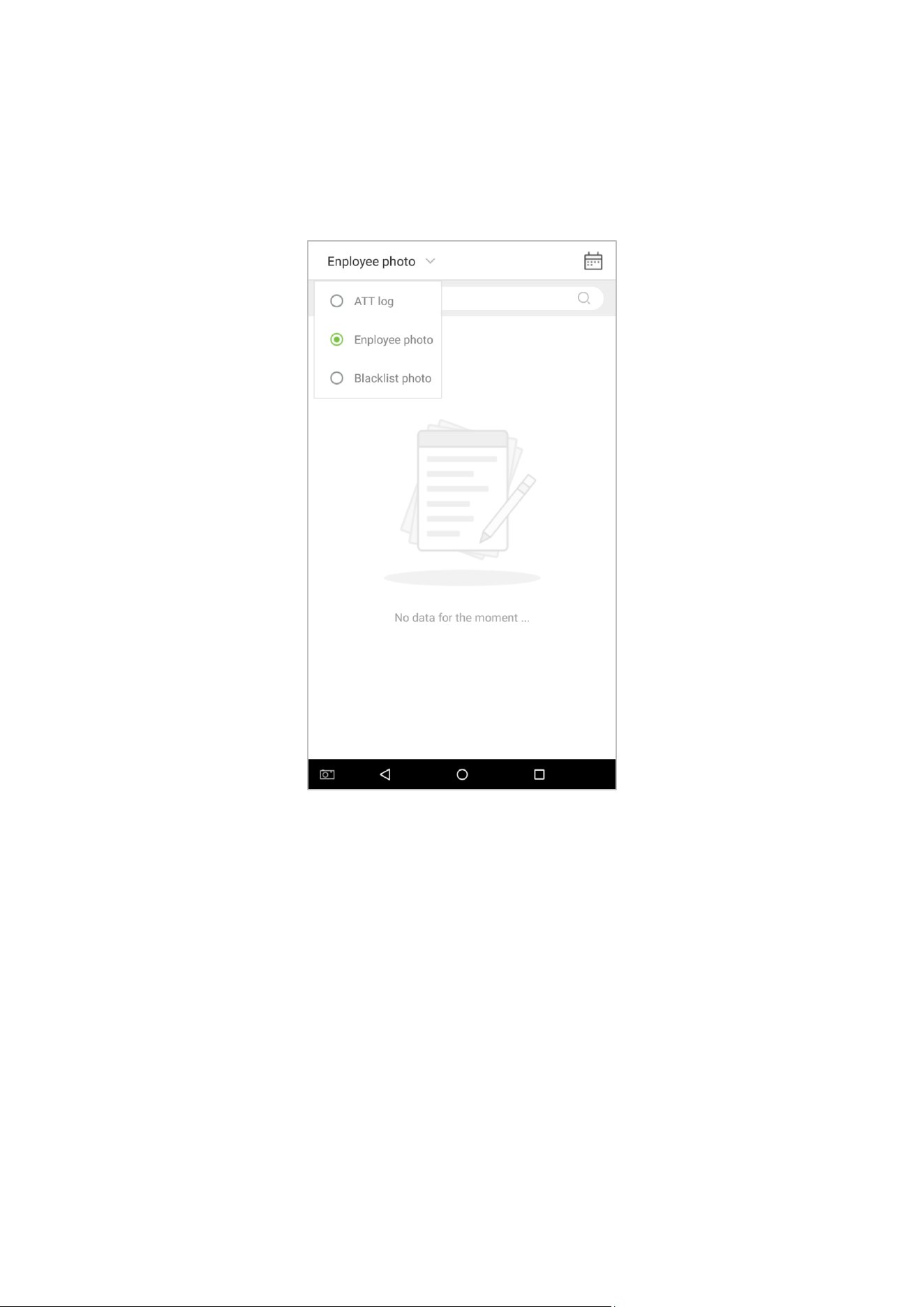
The query operation supports search bar queries, date queries, and combined search bar + date queries.
1. Tap on the drop-down button in attendance logs and select [Employee Photo].
91
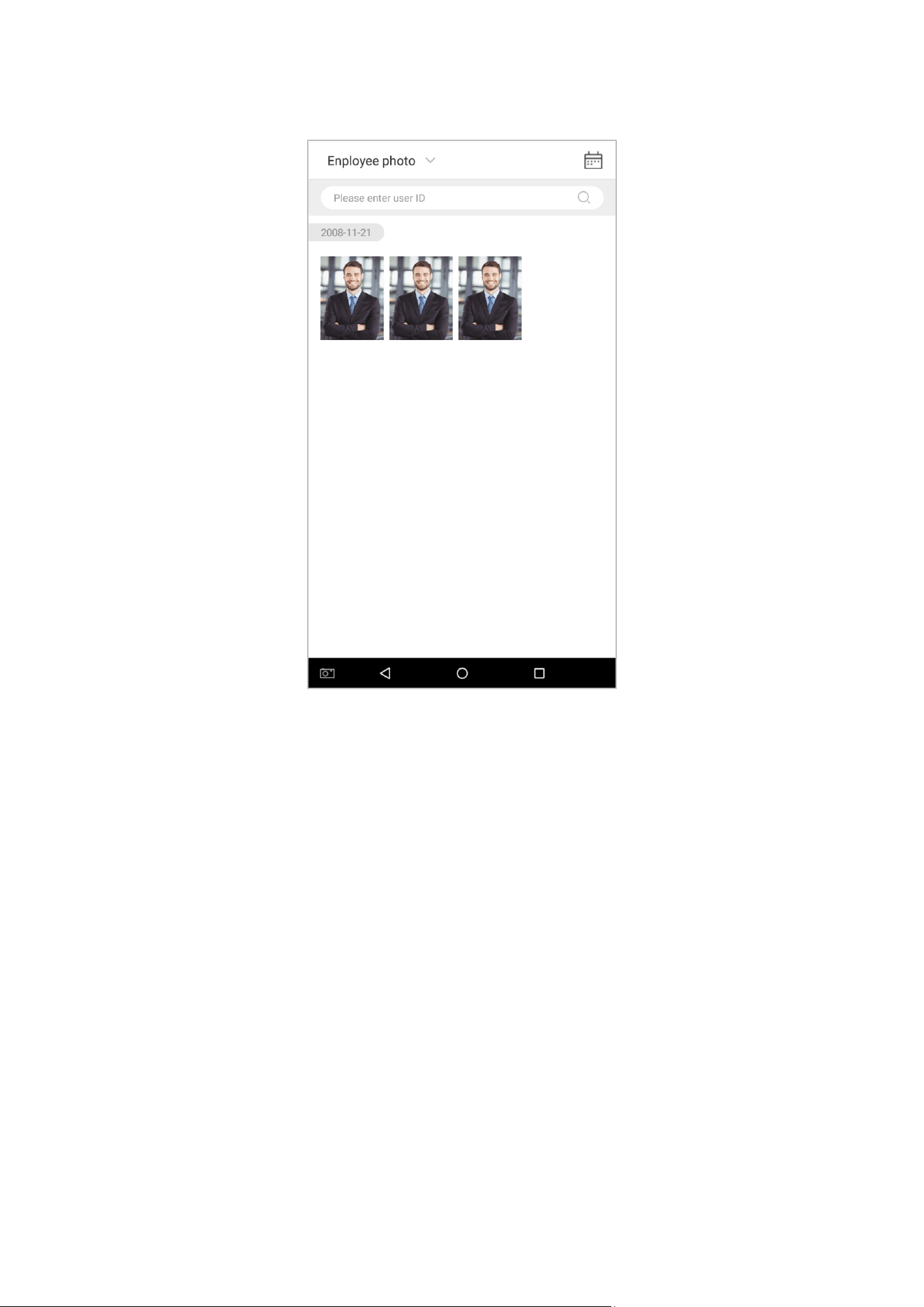
2. Enter the Employee photos interface.
92
3. Enter search information interface, namely, the personnel ID, in the search bar, the system the system will then
automatically search for the employee with the corresponding personnel ID.
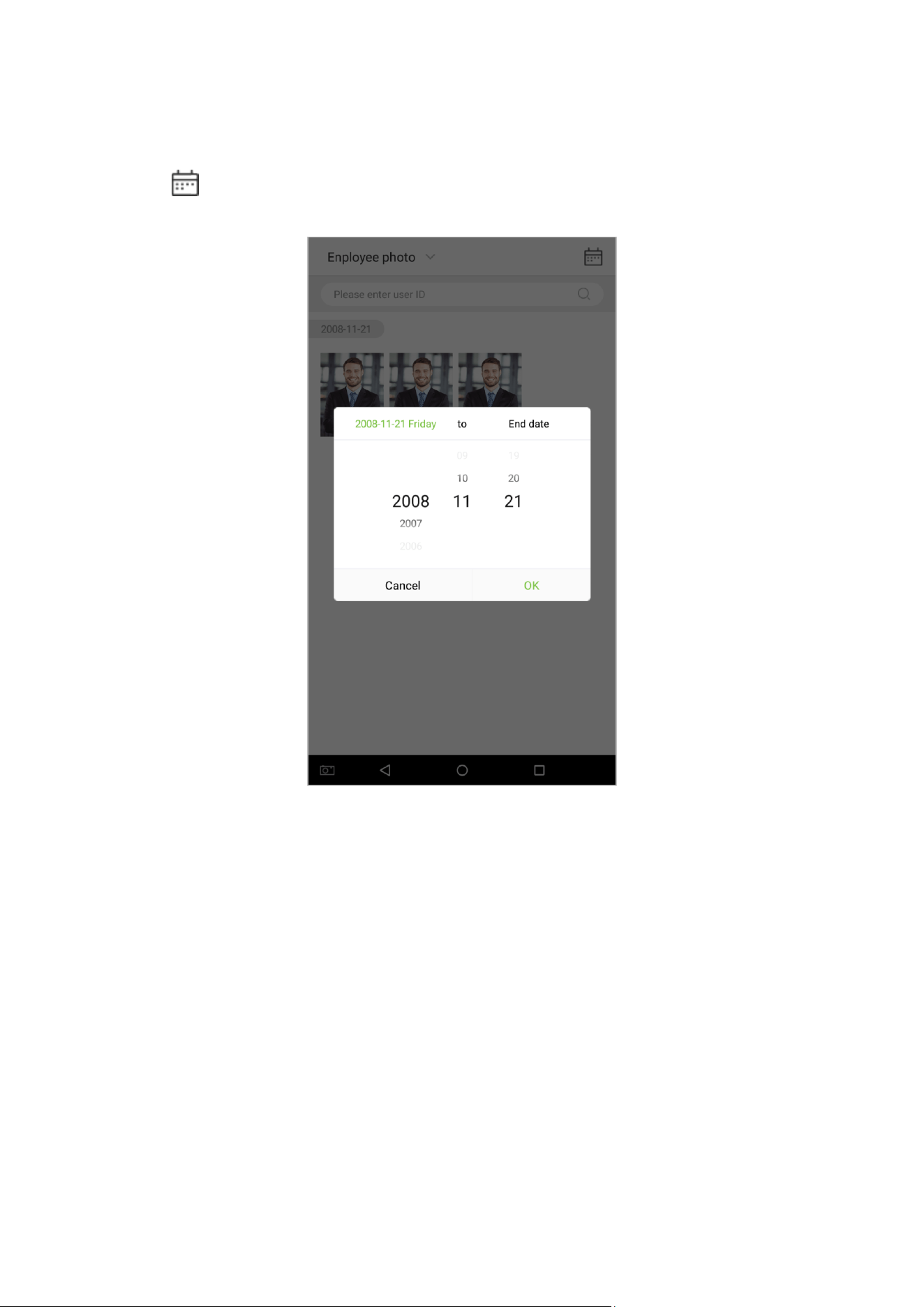
4. Tap on and a window will pop up. Select the [Starting Date] and [Ending Date].
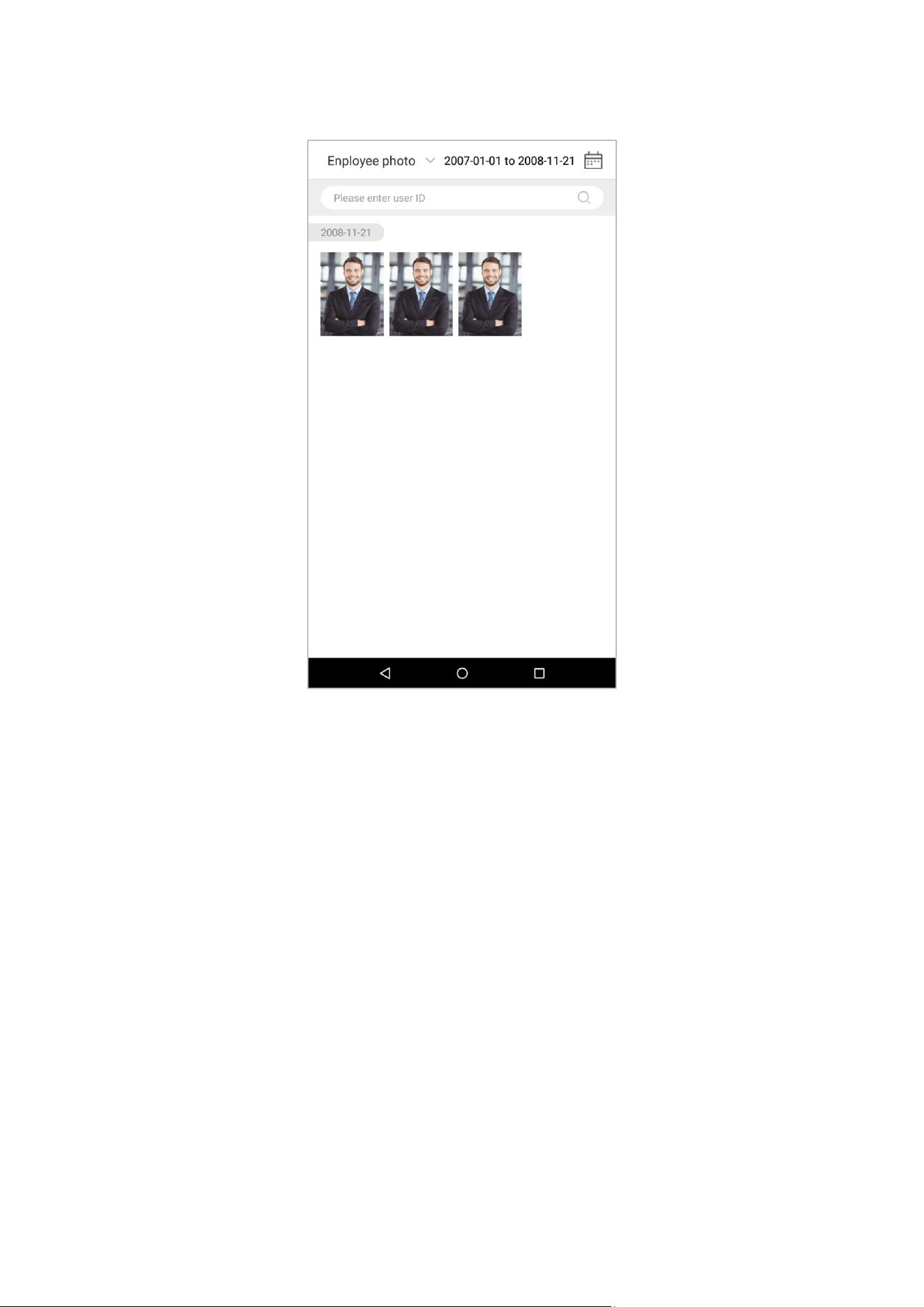
93
5. Show search results.
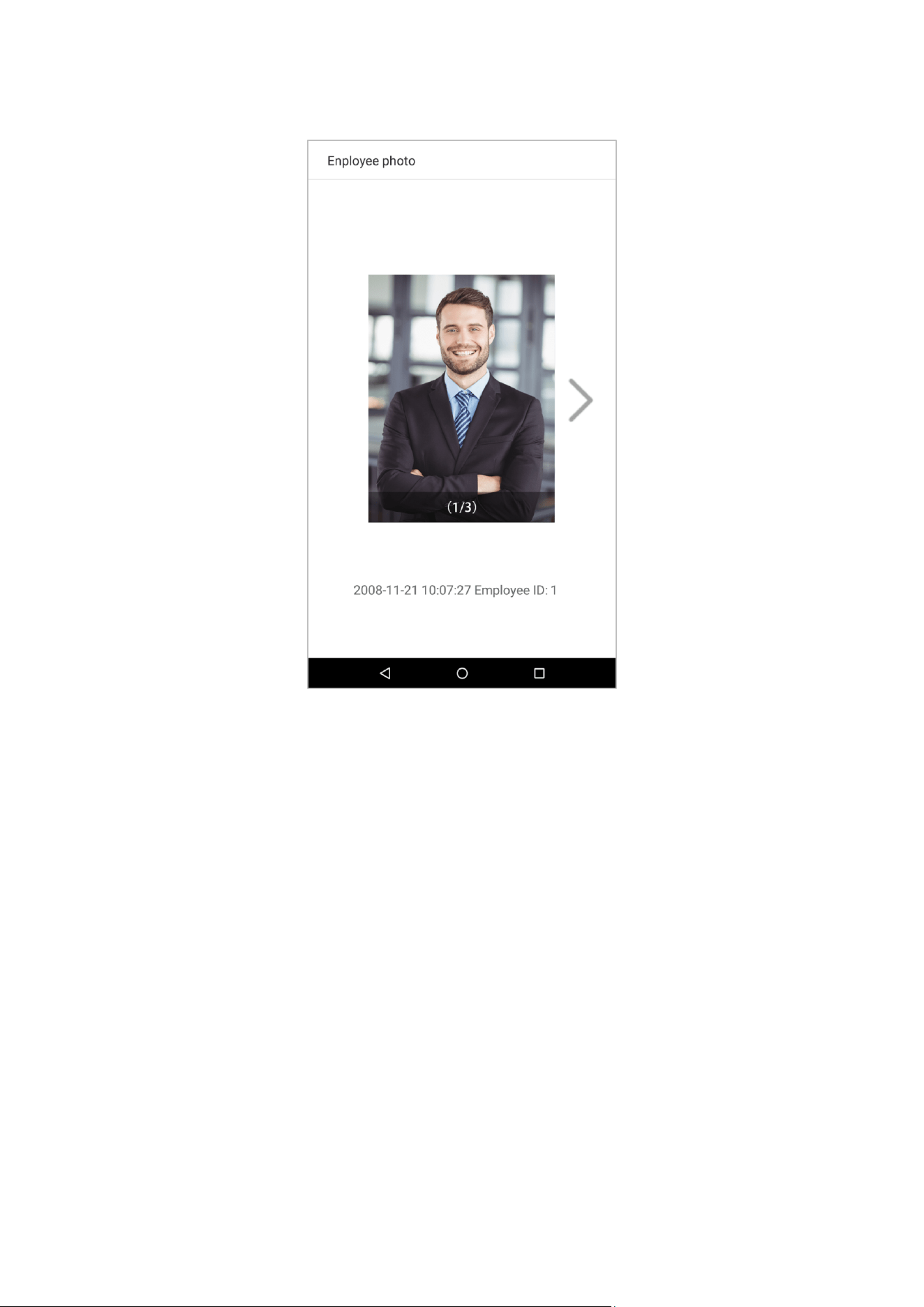
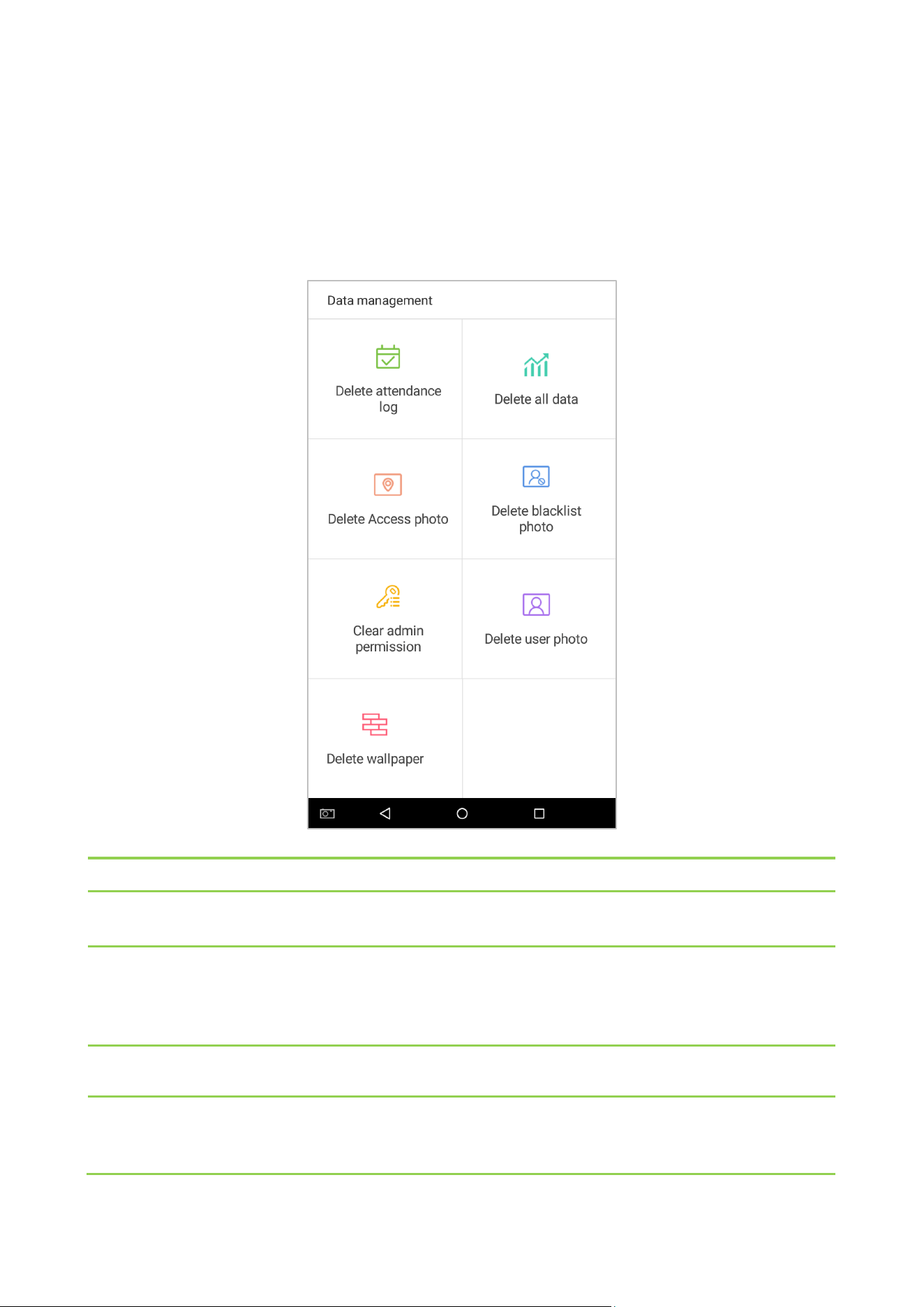
95
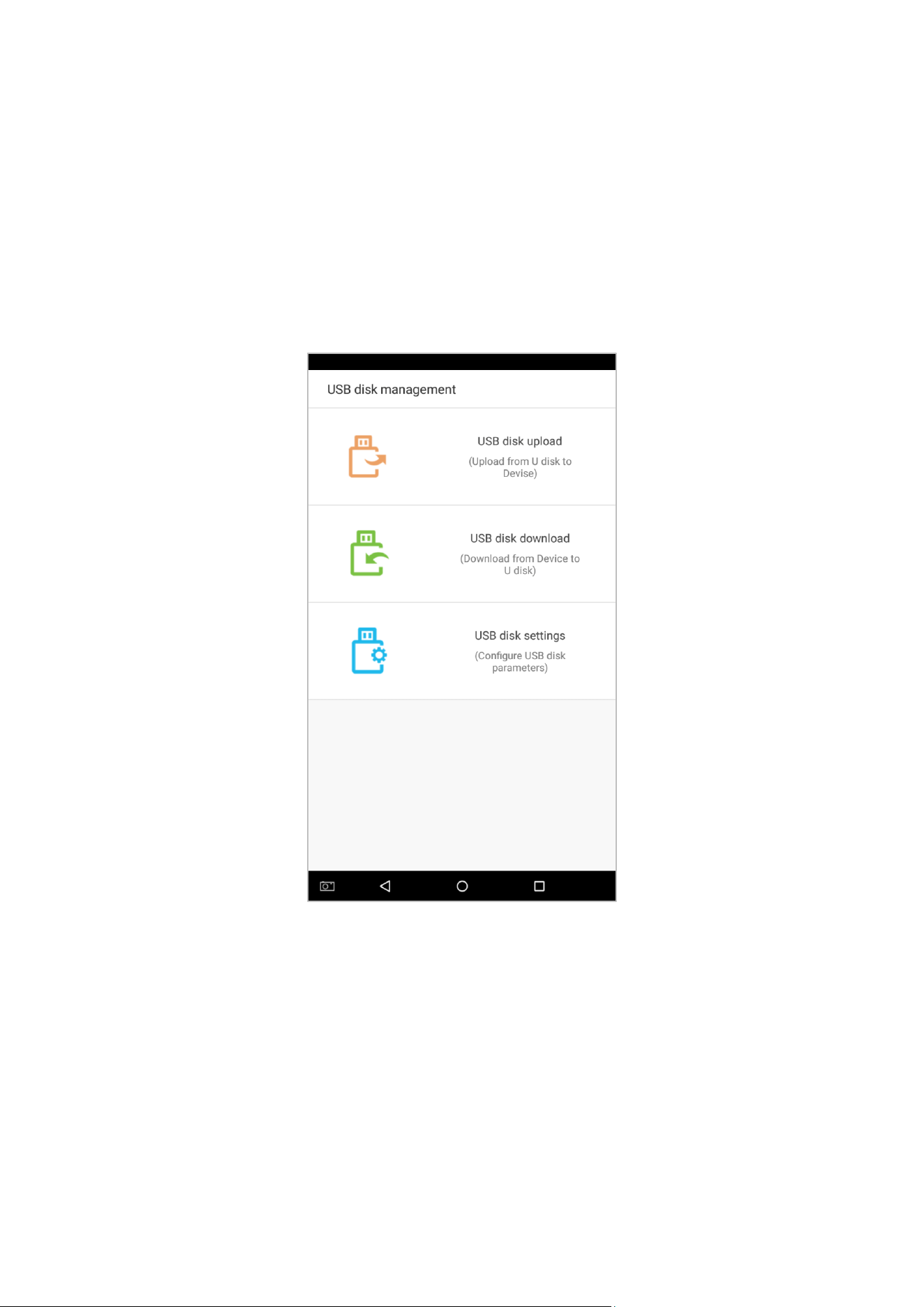
7. Data Management
Manage the device's data, including Delete attendance log, Delete attendance photo, Delete blacklist photo, Delete
all data, Delete admin permission, Delete user photo, and Delete wallpaper.
Tap on [Data Management] in the main menu.
Menu Options Function Description
Delete attendance log
1. Delete all; 2. Delete invalid user accounts (deleting the account will not delete the
attendance log); 3. Delete the attendance logs within a specified time range.
Delete all data
Delete business data stored in the terminal device, including attendance logs,
attendance pictures, blacklist pictures, fingerprint/ facial biometric data, privileges of
the super admin, employee photos, wallpaper, employee data, work codes and access
control data.
Delete access photo
1. Delete all; 2. Delete invalid user accounts; 3. Delete the attendance photos within a
specified time range.
Delete blacklist photo
1. Delete all (including attendance records and the photos of the employee in
blacklist); 2. Delete the blacklist photos, together with the attendance records, within
a specified time range.

96
Delete admin
permission
Turn the super administrator into a general employee.
Delete user photo
Delete all employee photos.
Delete wallpaper
Delete all wallpapers stored in the device.
97
8. USB Disk Management
Use a USB drive to import the system's employee information, fingerprint template, or attendance data into the
accompanying attendance software for processing, or import employee information and fingerprints onto another
fingerprint device for use. Before uploading or downloading using a USB drive, plug the USB drive into the device's
USB port, then conduct each operation.
On the USB disk management interface, tap on the [USB disk upload] field:

98
8.1 Upload to USB Drive
On the USB disk management interface, tap on the [USB disk upload] field:
Menu Options Function Description
Upload Employee Data
Upload employee information, fingerprint templates, facial templates from a USB
drive to the device.
Upload Employee Photo
Upload a JPG photo that is named with a personnel ID from a USB drive to the
device. Each photo may not exceed 250k, otherwise the system will remind the user
that the uploading is failed.
Upload Work Code
Upload work codes from a USB drive to the device.
Upload Wallpapers
Upload all JPG pictures from a USB drive to the device.
8.2 Download to a USB Drive
On the USB disk management interface, tap on the [USB Disk Upload] field.
Menu Options Function Description
Download ATT Data
Save the attendance data within the specified time range (all, this week, last week, this
month, user-defined) onto the USB drive. If there is no data, there will be no prompt.
Download Employee
Data
Download all the user information, fingerprint and facial biometric data and stored
them in the USB drive.
Download Employee
Photo
Copy JPG pictures to the USB.
Download ATT Photo
Copy attendance pictures stored in the device to the USB drive. The format of the
picture is JPG.
Download
Blacklist Photo
Download the blacklist photos within the specified time range (all, the current week,
last week, the current month, last month, user-defined).
8.3 USB Disk Settings
On the USB drive management interface, tap on the [Settings] field:
Menu Options Function Description
Encrypt ATT Data
Encrypt employee attendance logs while downloading or uploading.
Delete Attendance Logs after
Successfully Downloading
After attendance logs have been successfully copied to the USB drive, the logs
stored on the device will be deleted.
99
9. Alarm Management
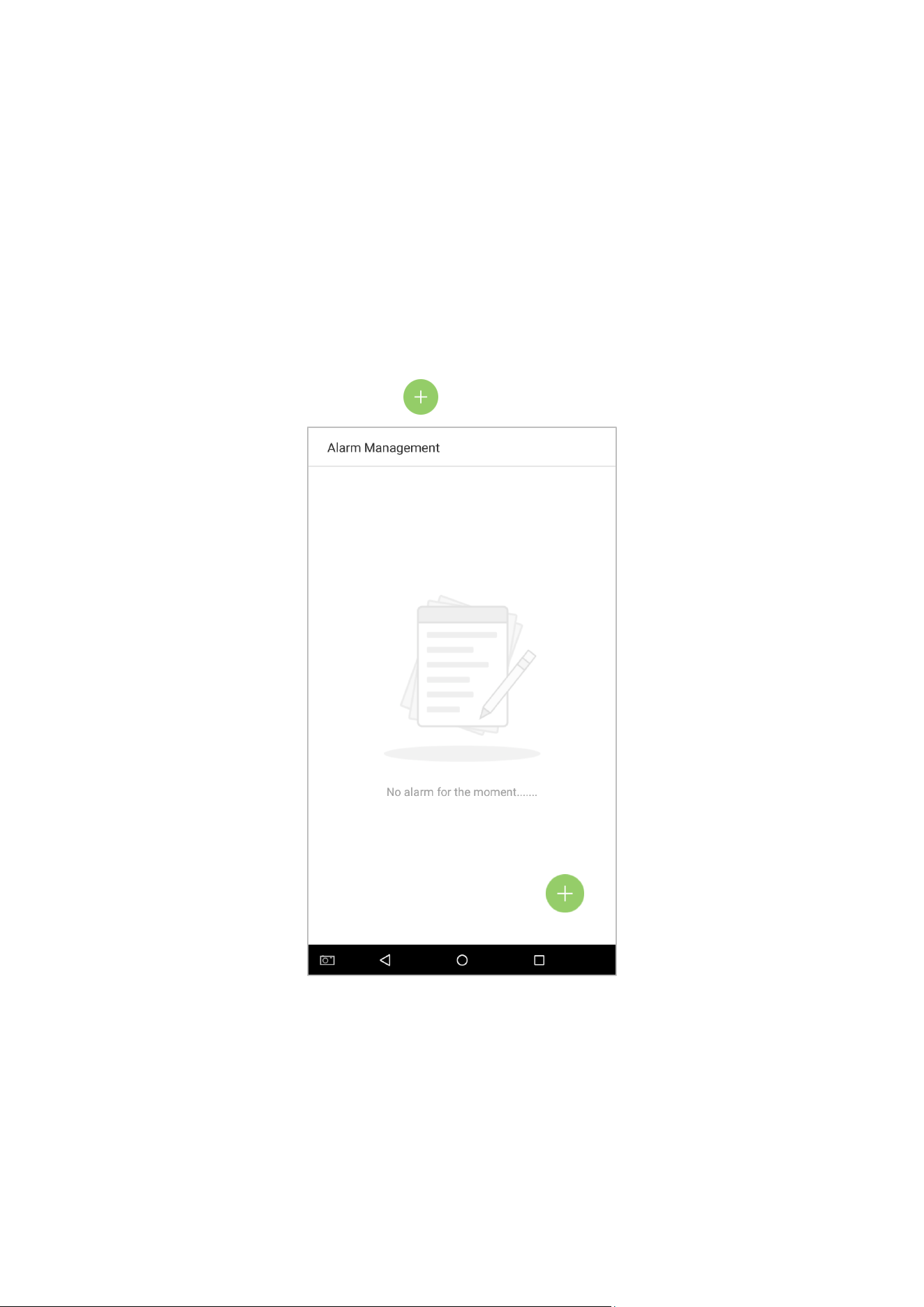
Employees can set an alarm time according to their needs. Once an alarm has been set, the device will automatically
begin playing a preselected ringtone when the designated time is reached. It will stop ringing after the alarm time
has elapsed.
9.1 Add Alarms
In the main menu, tap on [Alarm Management]:
1. On the alarm management interface, tap on to enter the “Add Alarms” page.
100
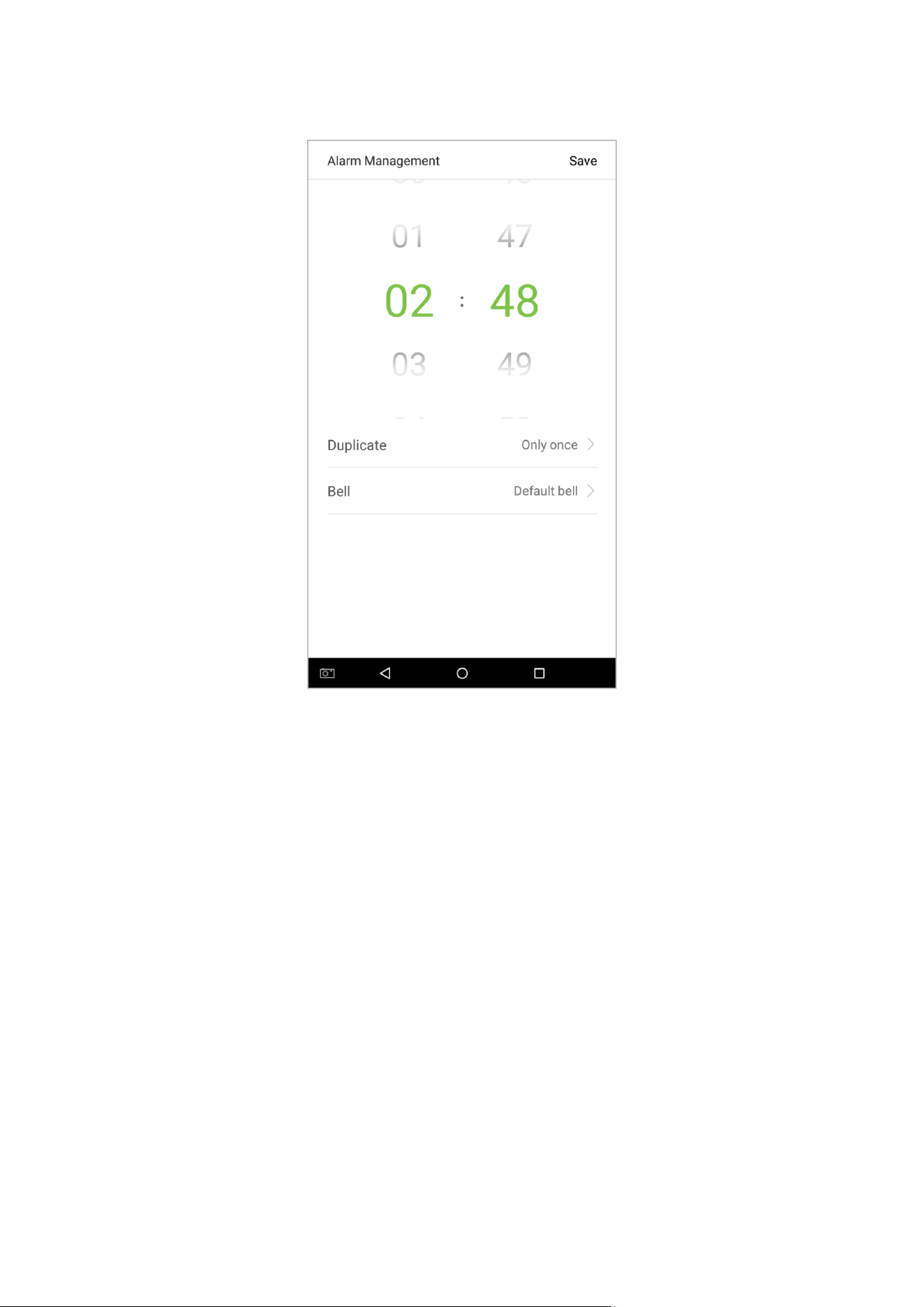
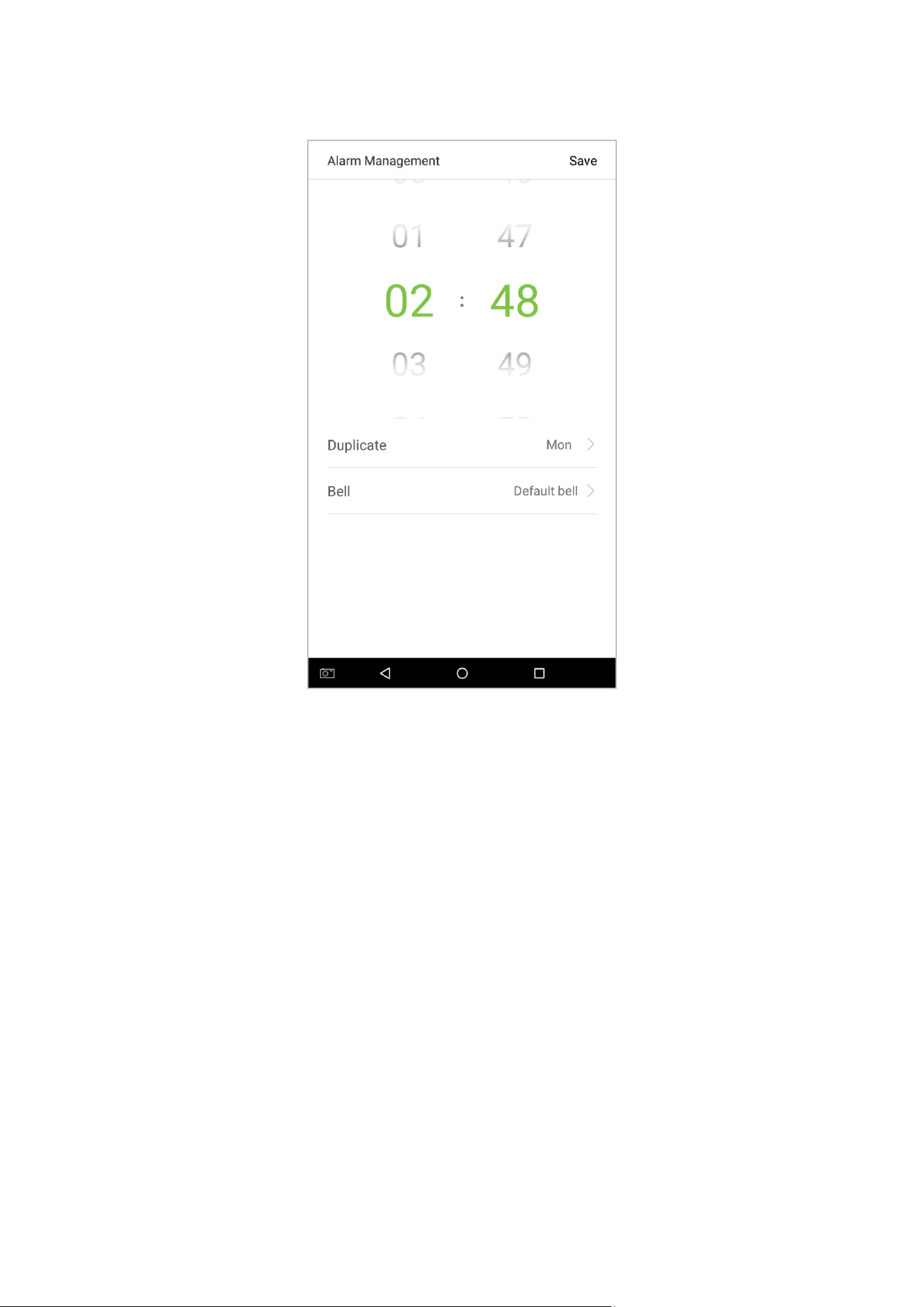
2. Set Time-- select [Hour] and [Minute].
101
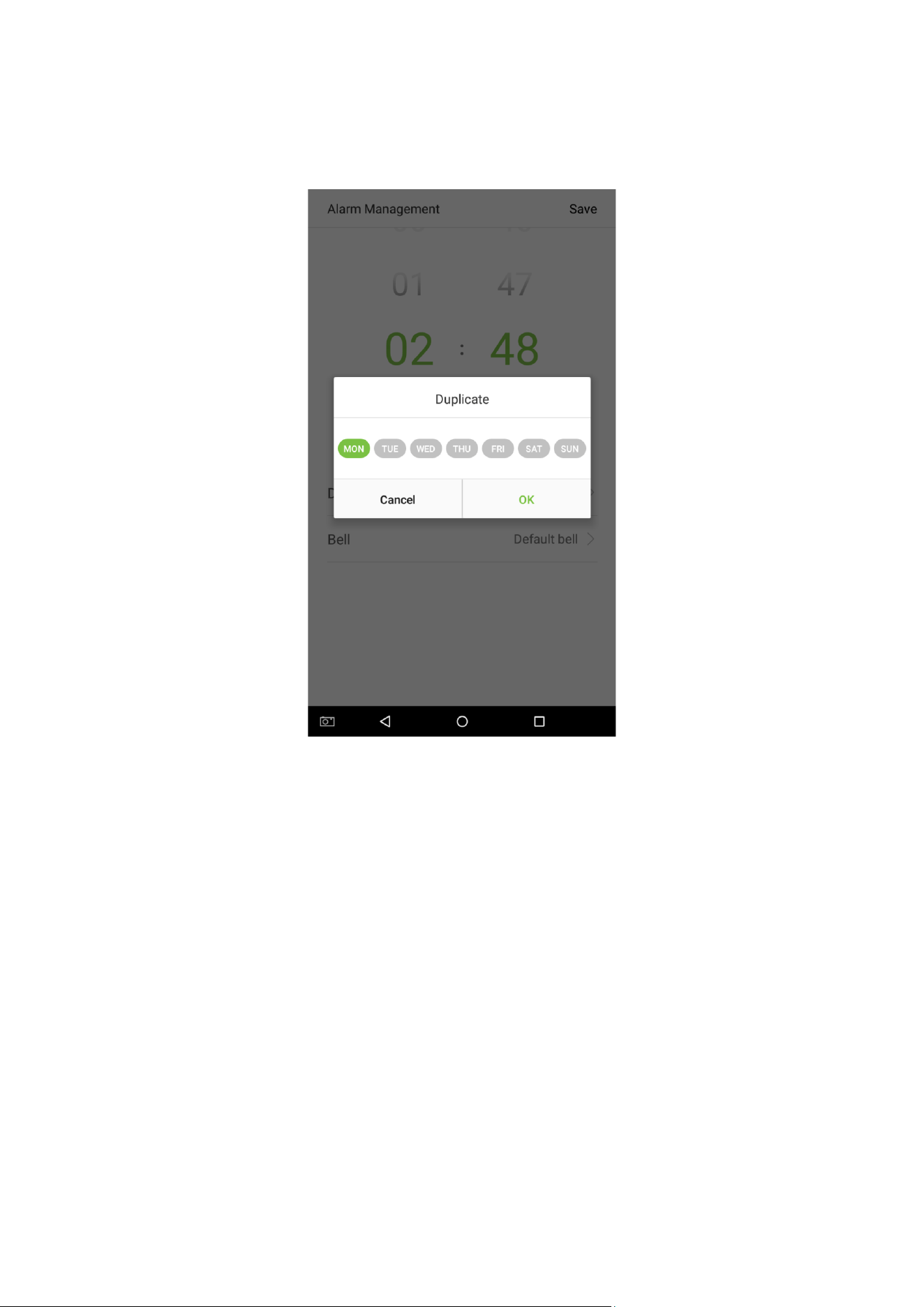
3. Duplicate-- the default is set to "Only once". To copy the settings, tap on the [Duplicate] button and a window
will pop up. Select the date and tap on [OK].
102
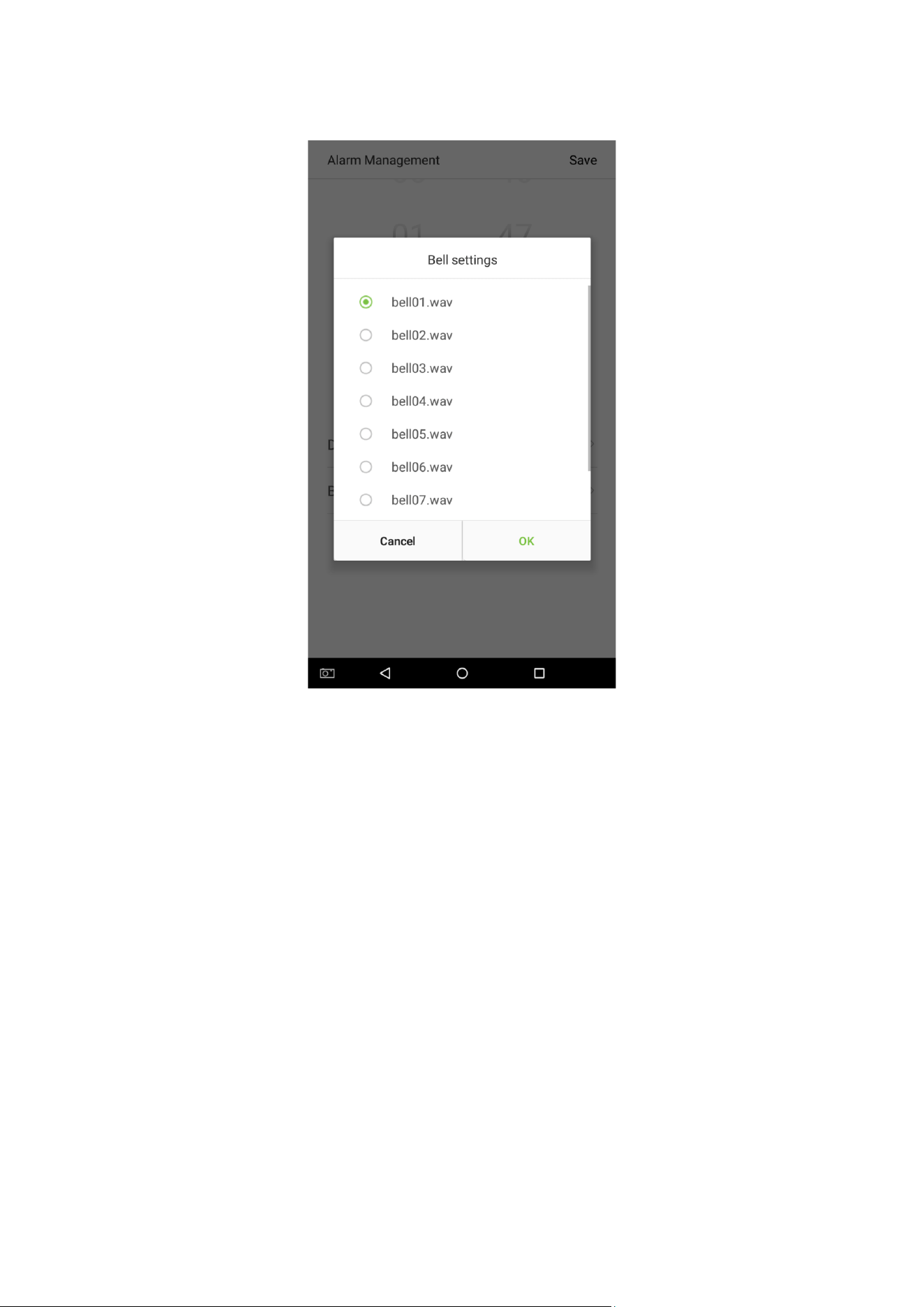
4. Tap on the [Bell] button and a window will pop up. Select a ringtone and tap on [OK].
103
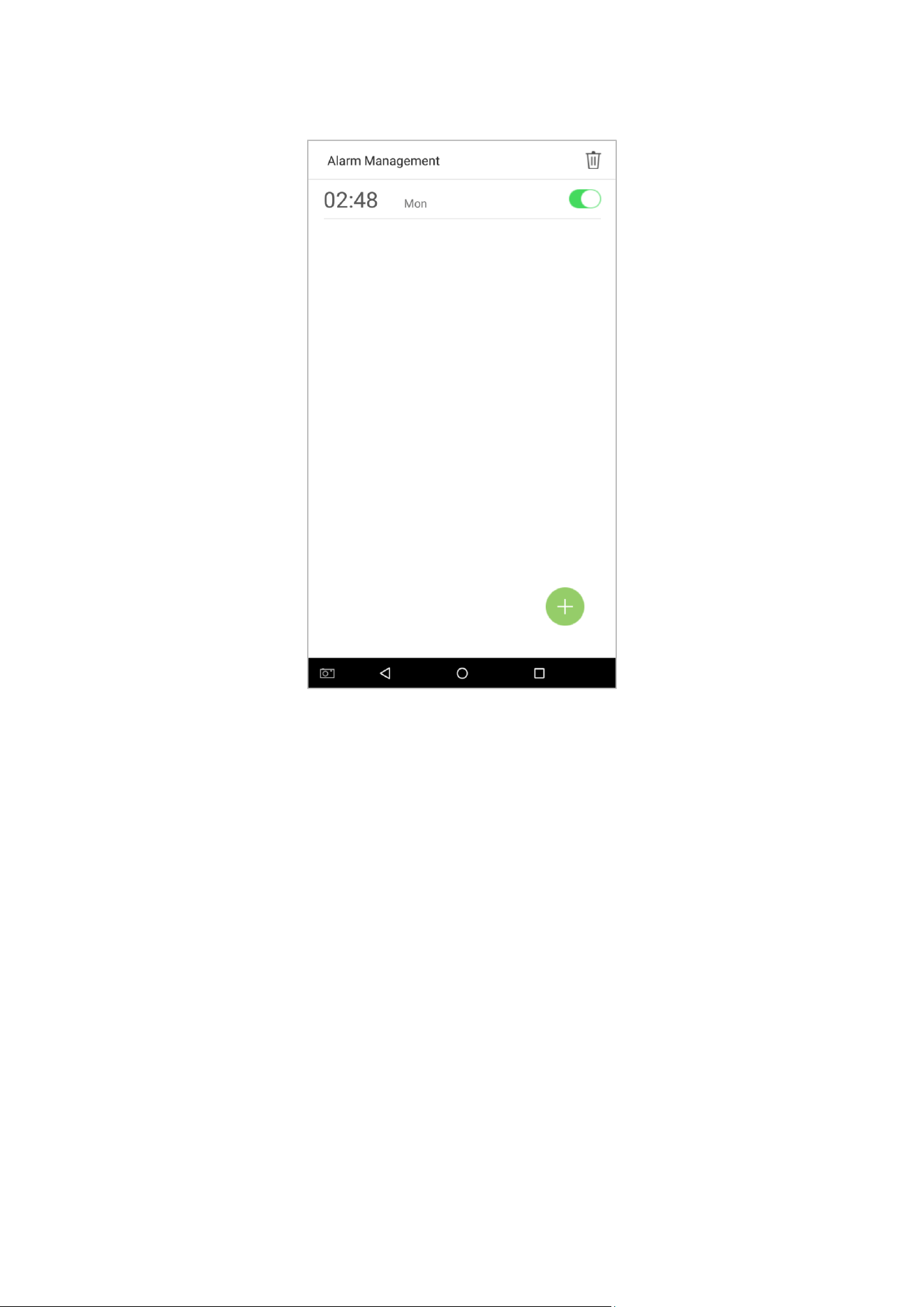
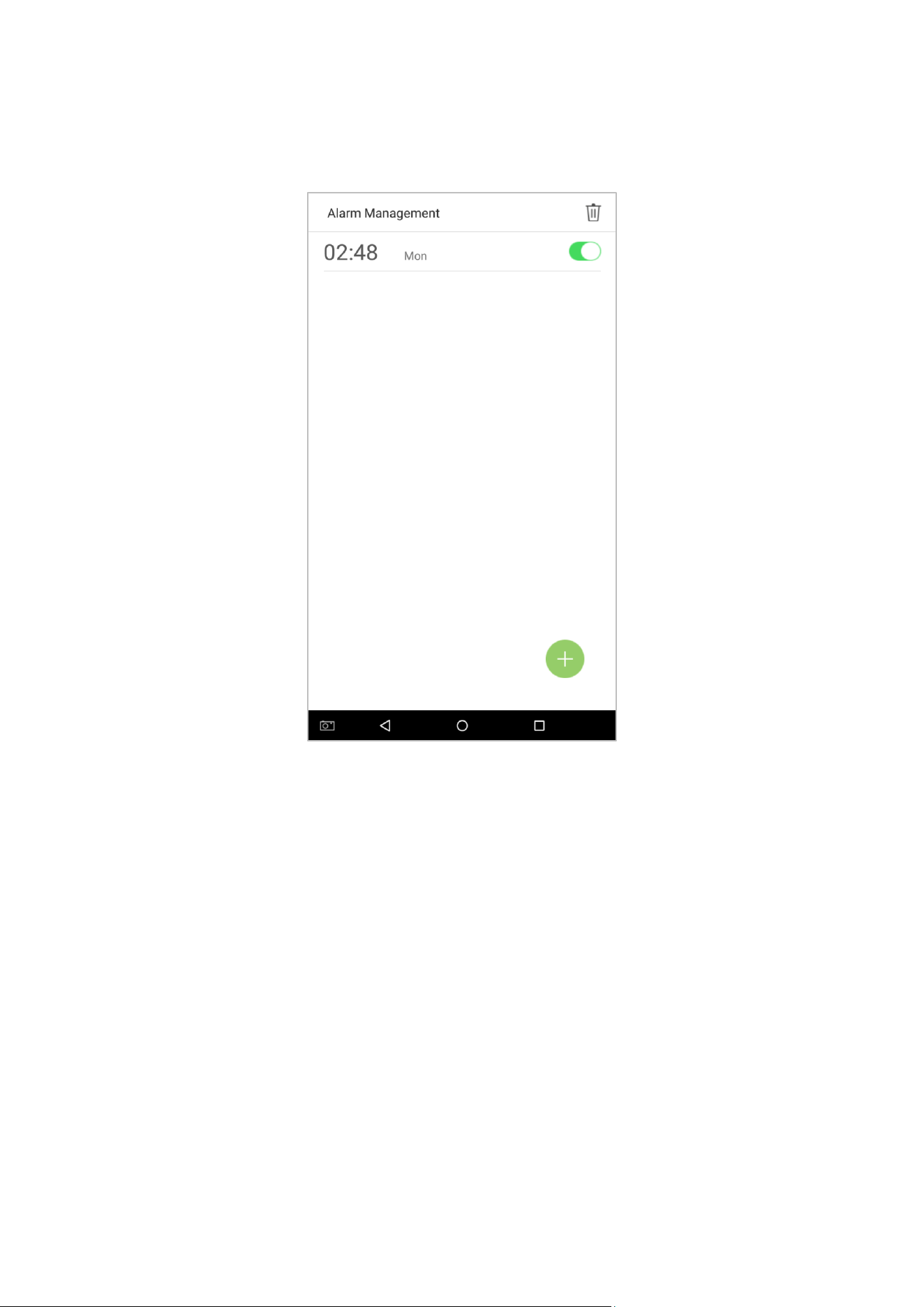
5. Tap on the [Save] key and the alarm will be successfully added. The alarm will be enabled by default.
6. Enable [Alarm Switch] to change the alarm's status. Green indicates that the alarm is on, while gray indicates that
the alarm is off.
104
9.2 Edit Alarms
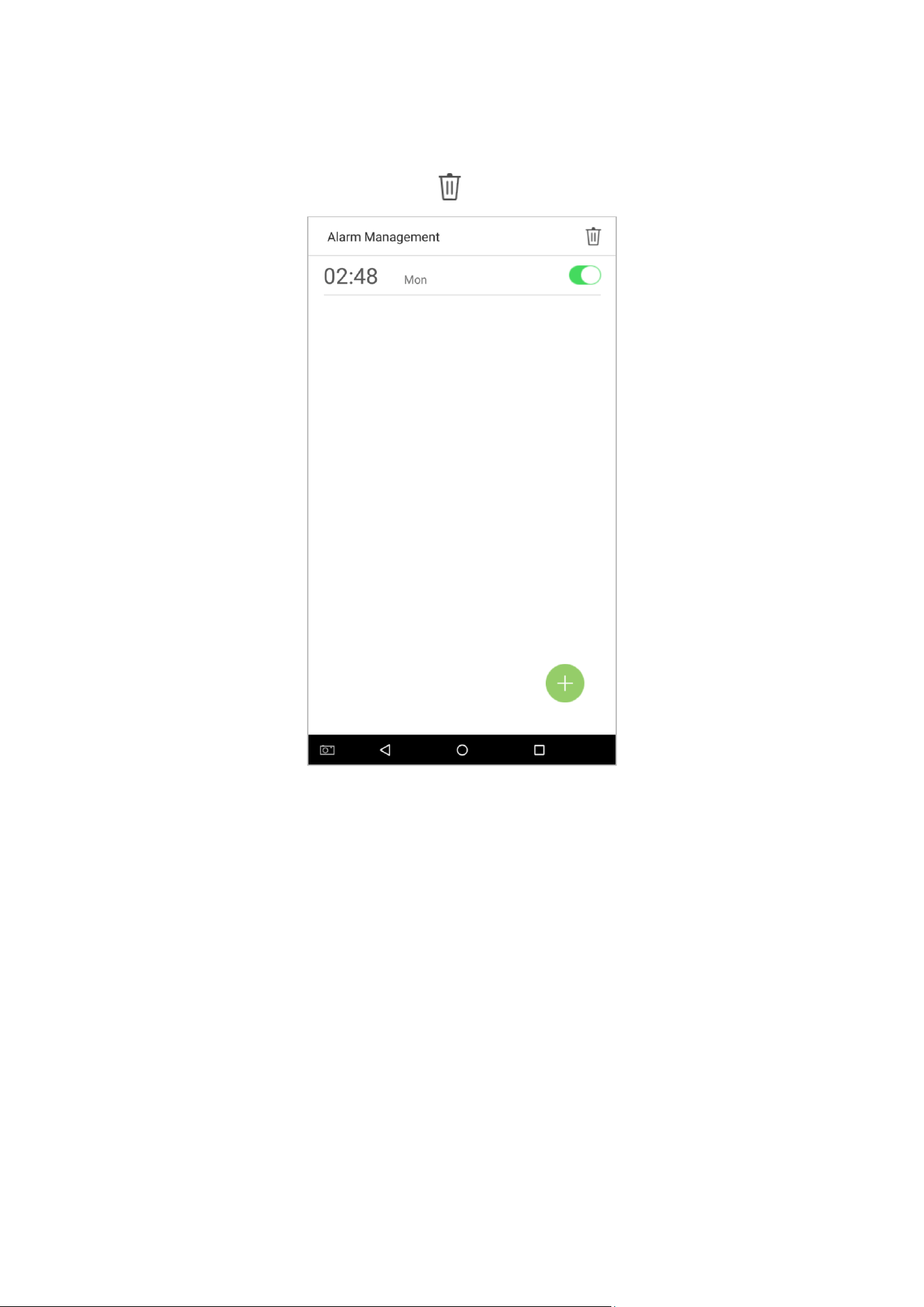
1. Select an alarm from the alarm list.
106
9.3 Delete Alarms
1. On the Alarm Management interface, tap on the button on the upper right corner.
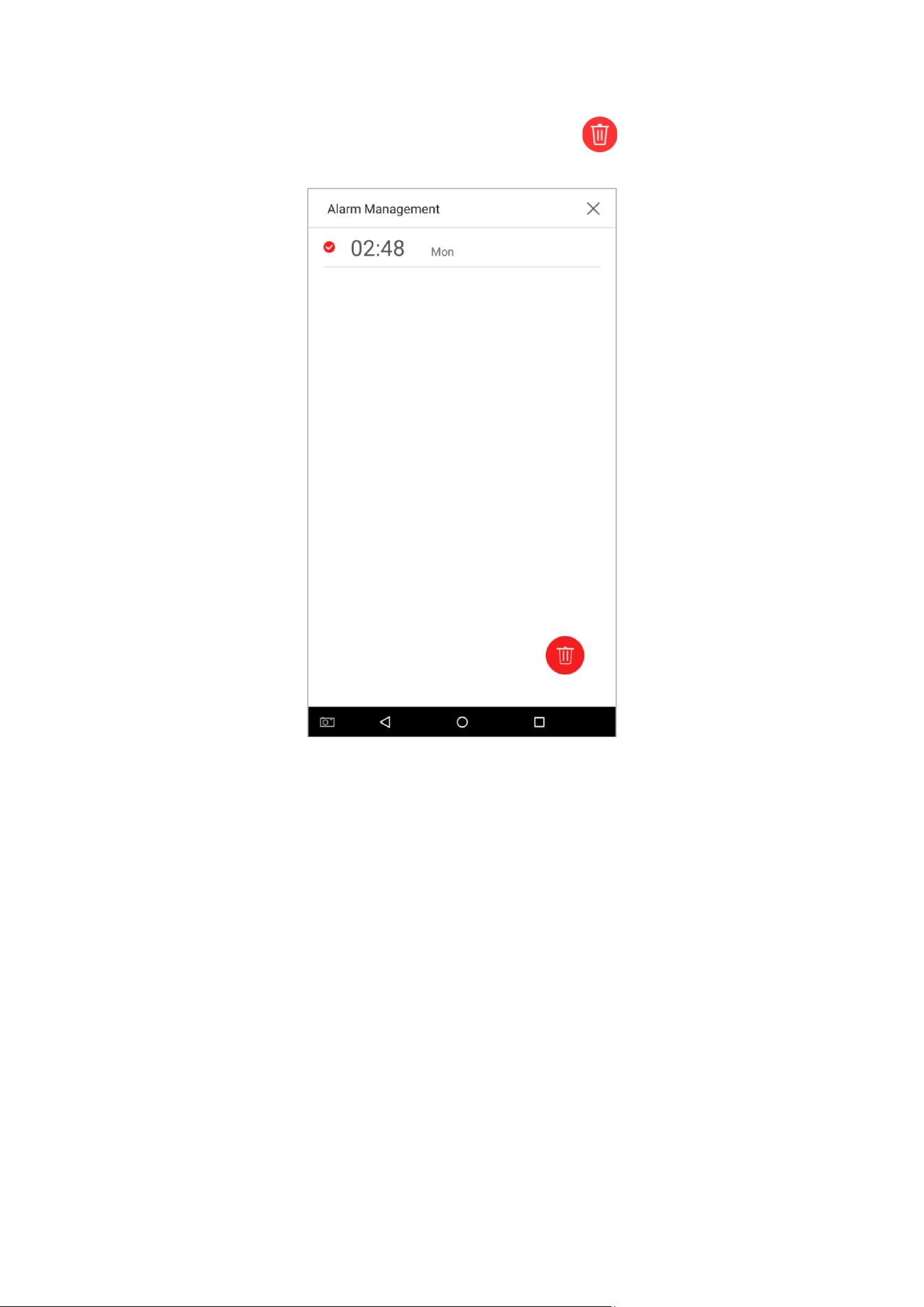
107
2. Select the alarm that you would like to delete, and then tap on the button on the lower right-hand
corner.
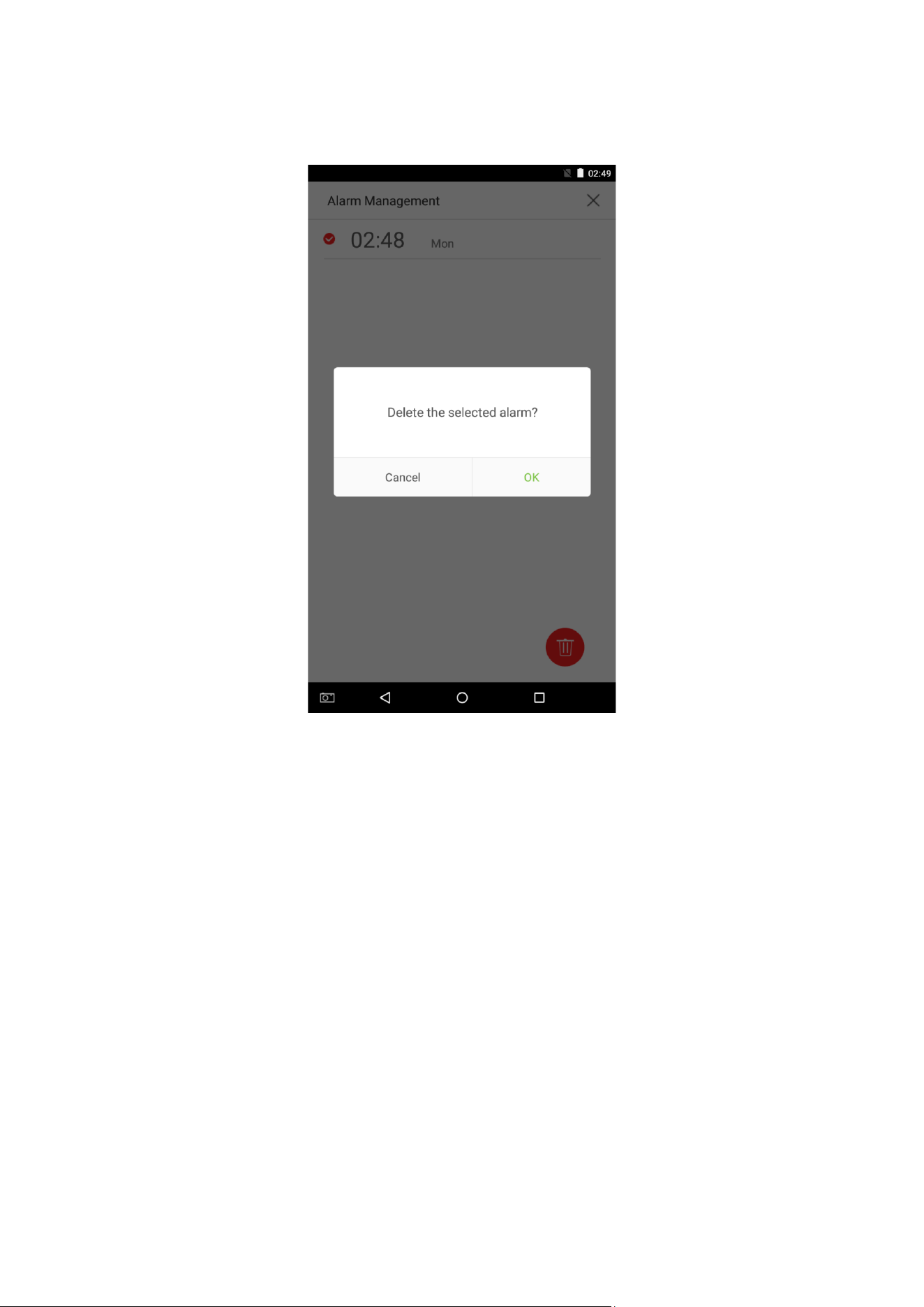
108
3. A window will appear. Tap on [OK].
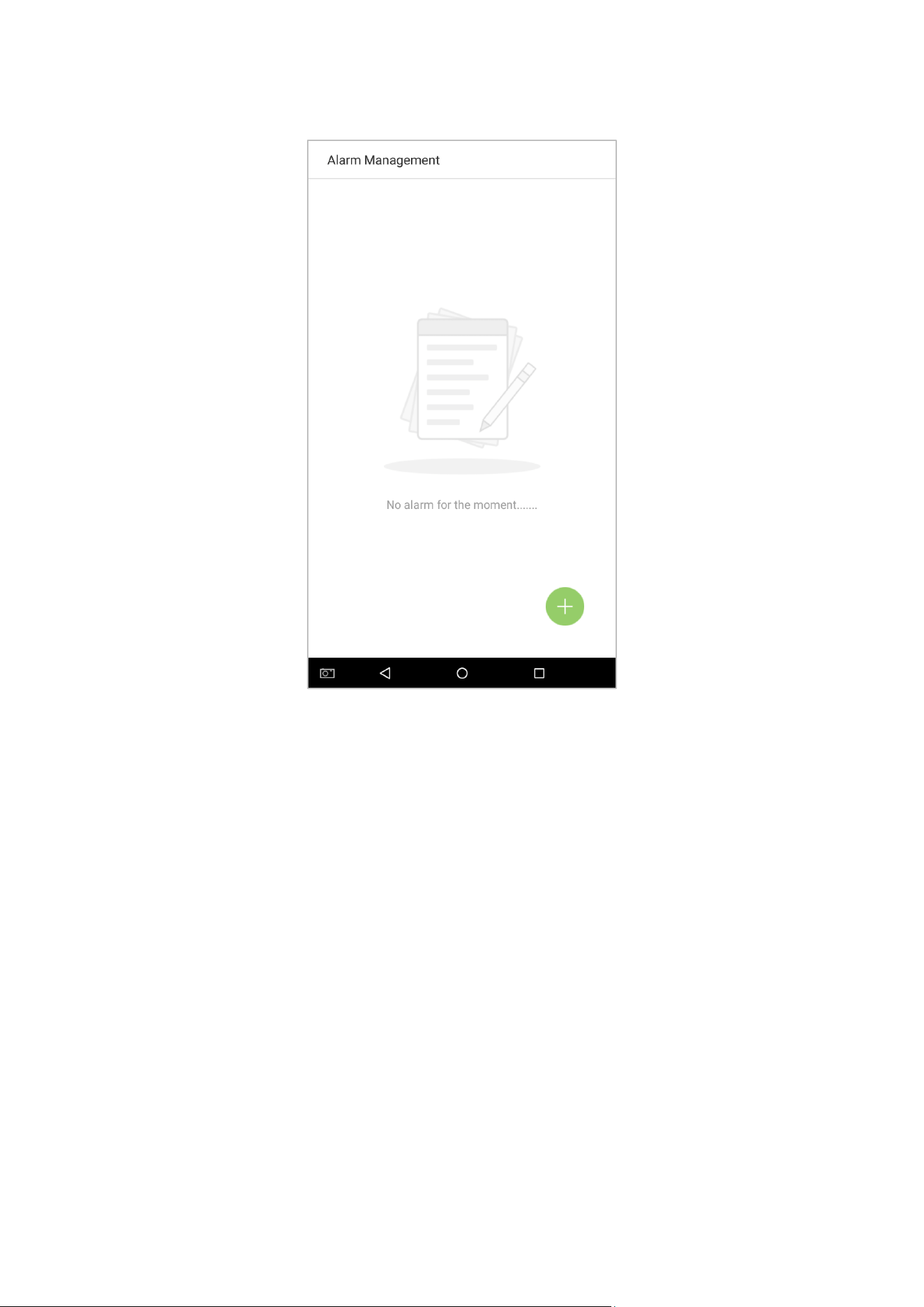
109
4. The event is now deleted and will not appear on the list.
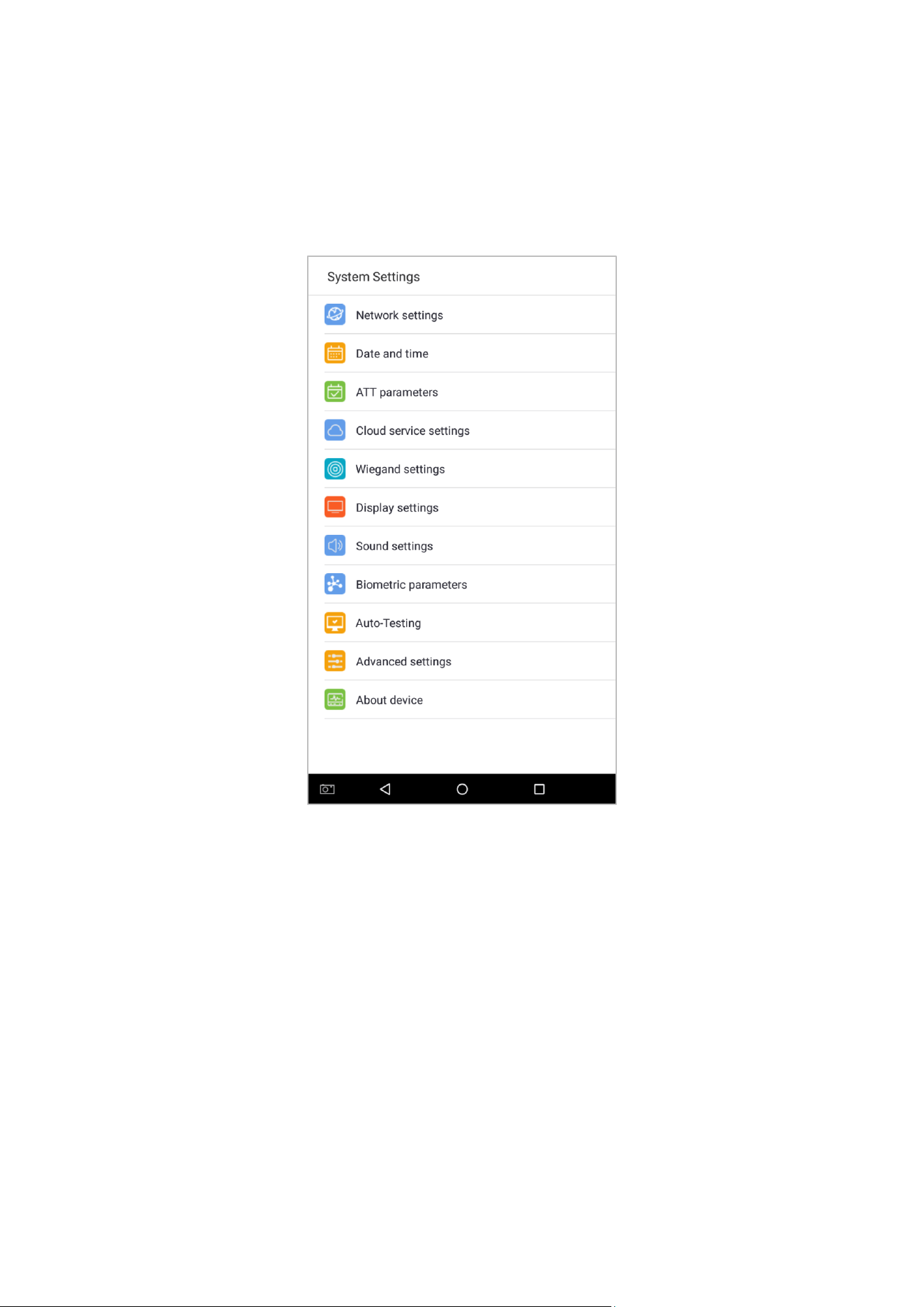
110
10. System Settings
Set system parameters to maximize the device's ability to meet the needs of employees.
In the main menu, tap on [System Settings]:
111
10.1 Network Settings
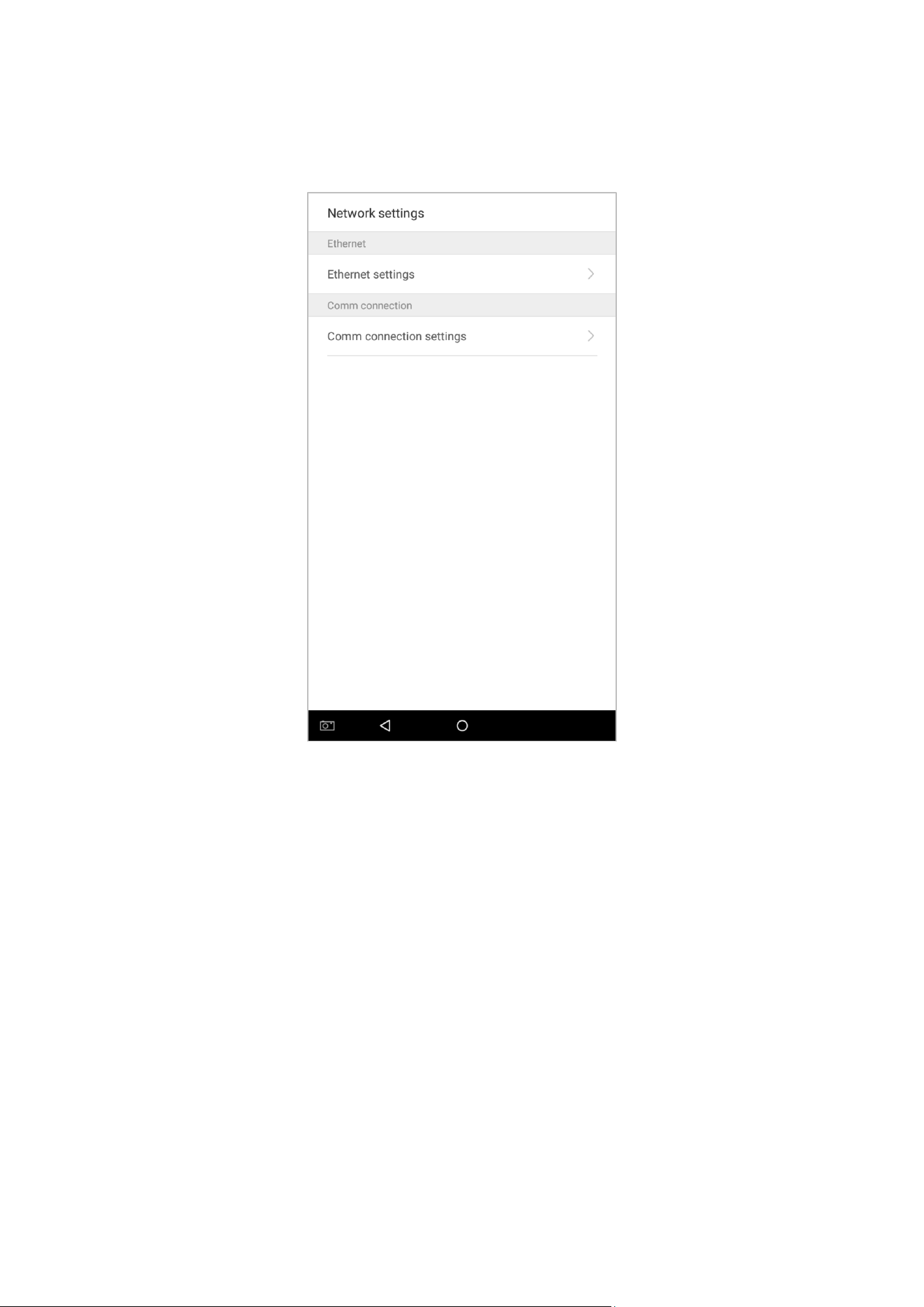
On the system settings list, tap on [Network settings] to enter the Network Settings interface:
112
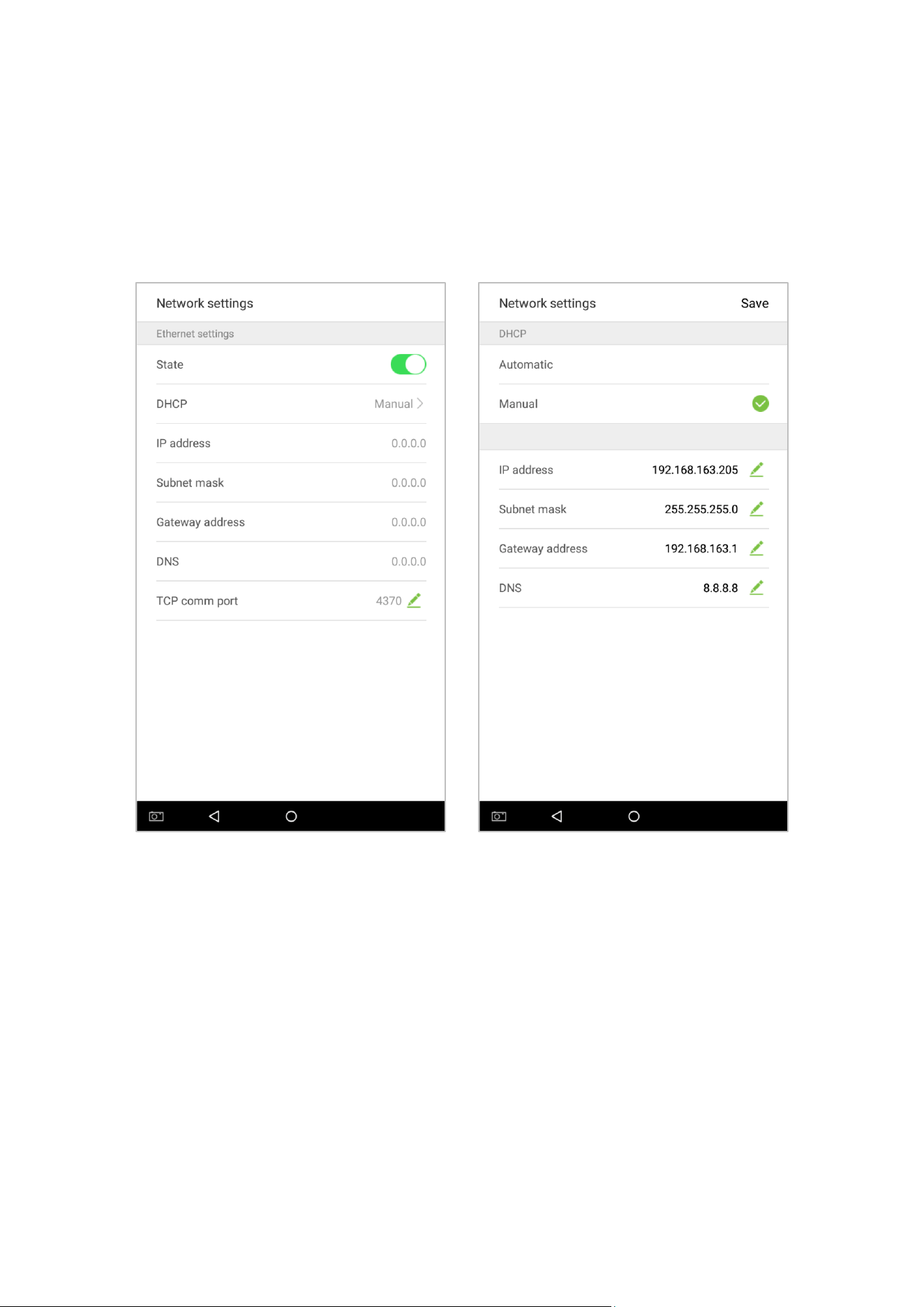
10.1.1 Ethernet Settings
When the device communicates with a PC via Ethernet, the network must be set up.
When the device is not connected to the network, tap on [TCP/IP Settings] on the “Network Settings” interface. The
following page will display:
113
Menu Options Function Description
Enable Ethernet
Switch
Enable to modify the Ethernet network address parameters. If this is not enabled,
users cannot modify the Ethernet network address parameters.
DHCP
Enable DHCP to assign an IP address to the internal network or network service
provider.
IP Address
The default IP is 0.0.0.0; Changeable; IP address of the device and the PC are
connecting to the same network segment.
Subnet Mask
The default subnet mask is 0.0.0.0 (can be changed).
Gateway Address
The default gateway address is 0.0.0.0 (can be changed).
DNS
The default address is 0.0.0.0 (can be changed).
TCP COMM Port
The default TCP port is 4370 (can be changed).
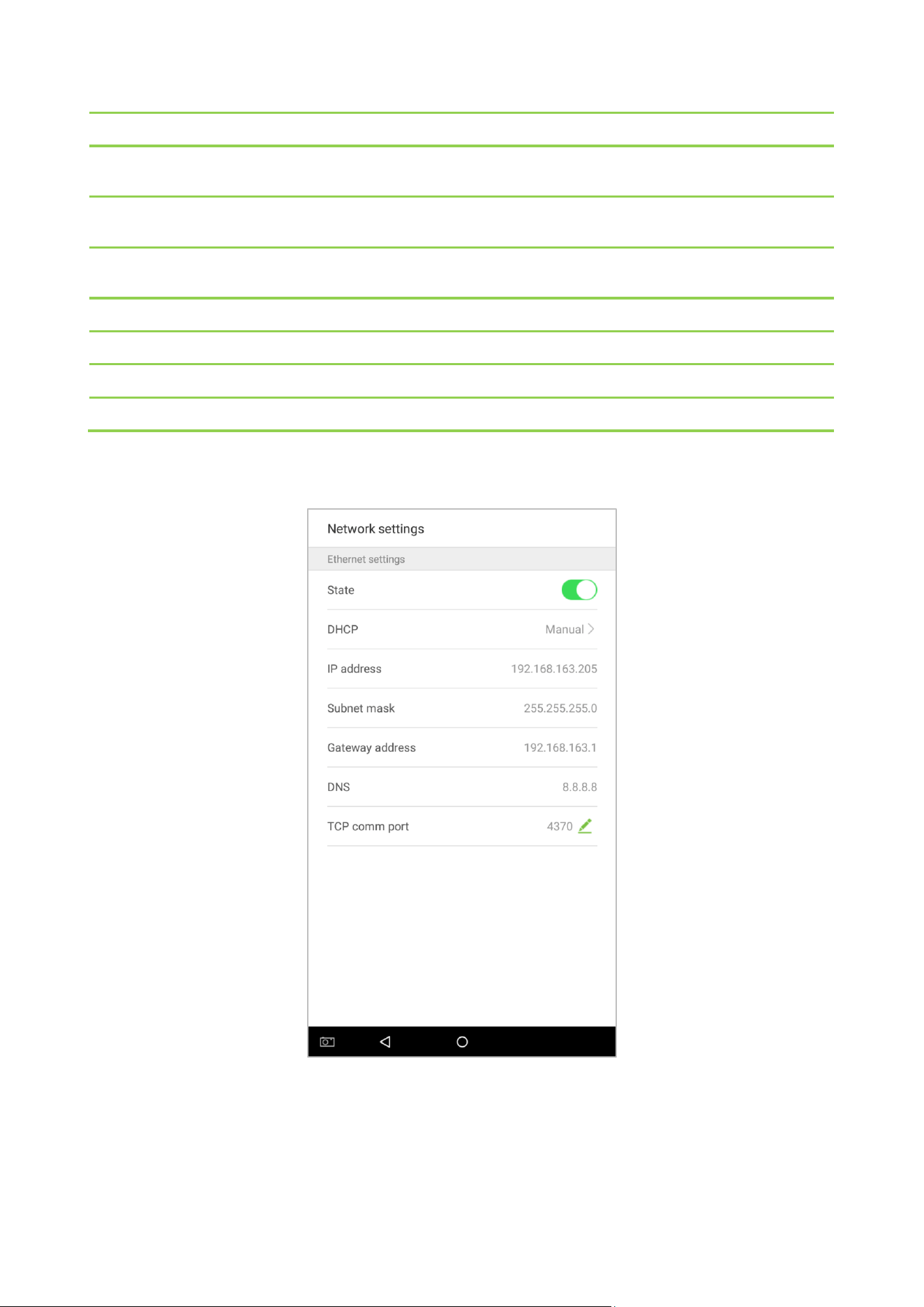
When the device is connected to the network after setting the above parameters, the following page will display:
The connection succeeds, with status displayed on the icon bar.
114
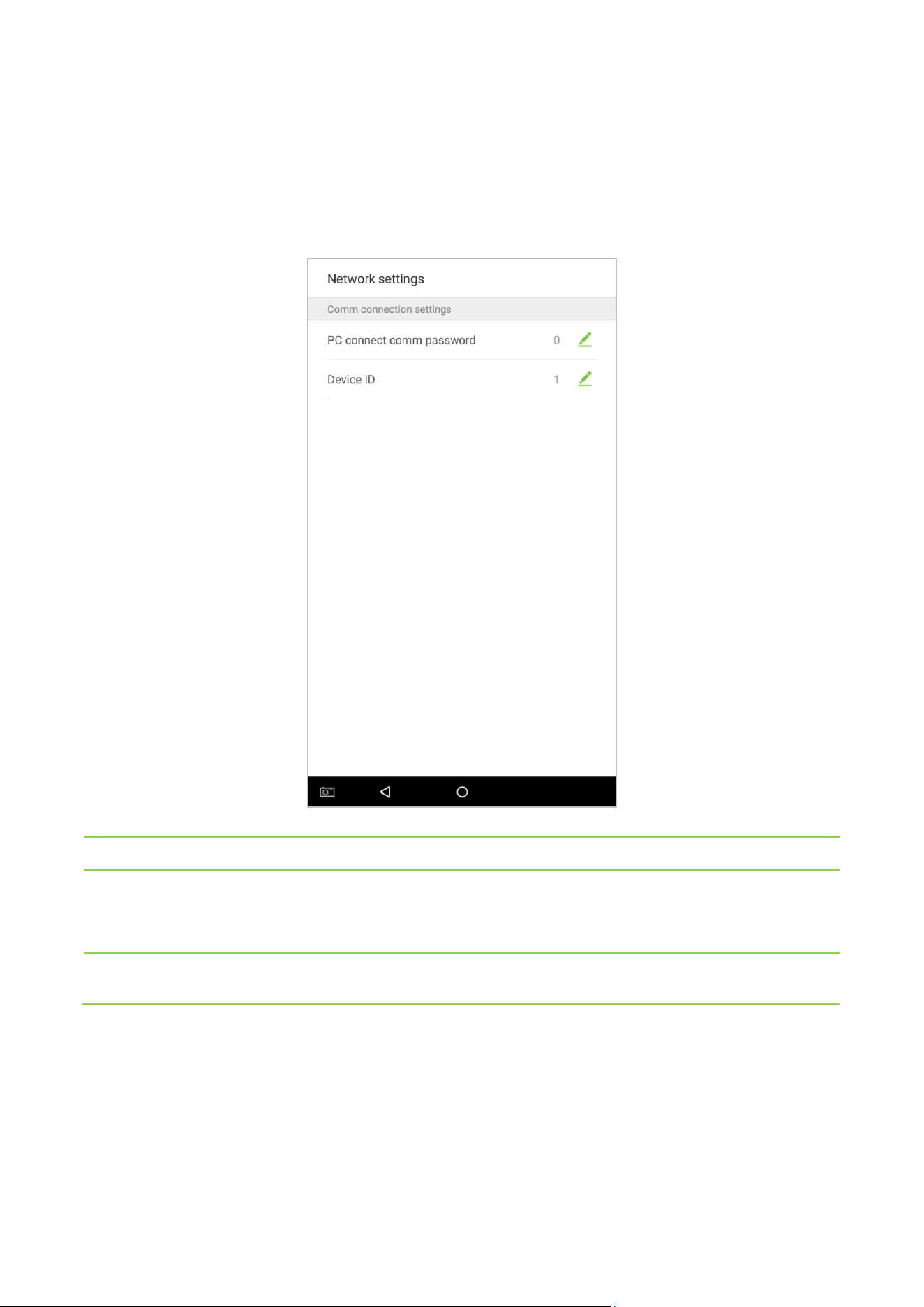
10.1.2 Comm Connection Settings
To develop the security and confidentiality of the attendance data, you need to set a connection password. Before
successful connection between the PC software and the device, the connection password must be input correctly.
On the “Network Settings” interface, tap on [Comm connection settings]:
Menu Options Function Description
PC connection
Comm password
It is used to gain the connection permission when using offline SDK or PULL SDK connection.
If the password is not correct, the communication connection cannot be built. The value
ranges from 0 to 999999. When the value is 0, there’s no code status.
Device ID
The ID ranges from 1 to 254. If the system is using the RS232/RS485 communication method,
please input the device ID during software communication.
115
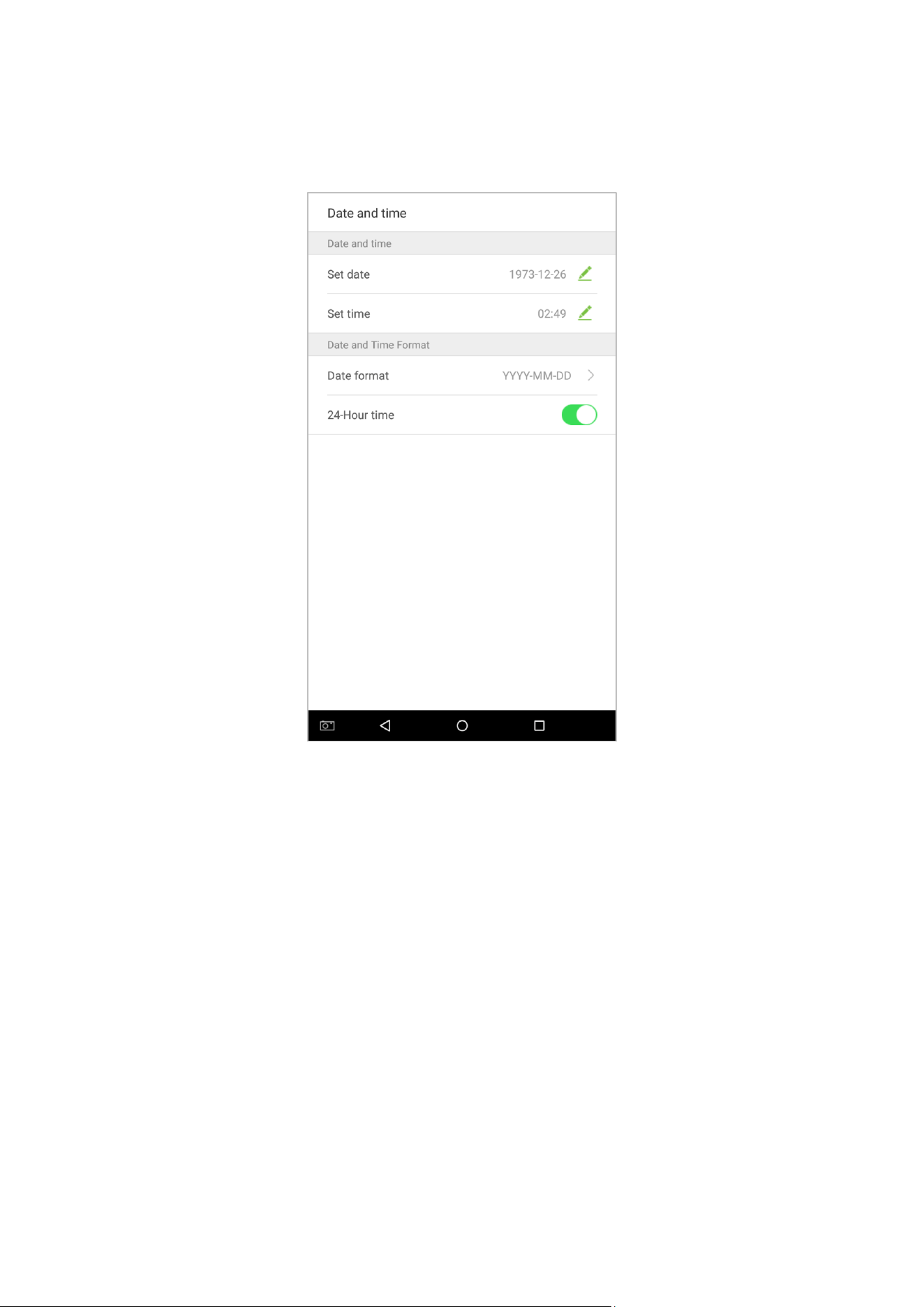
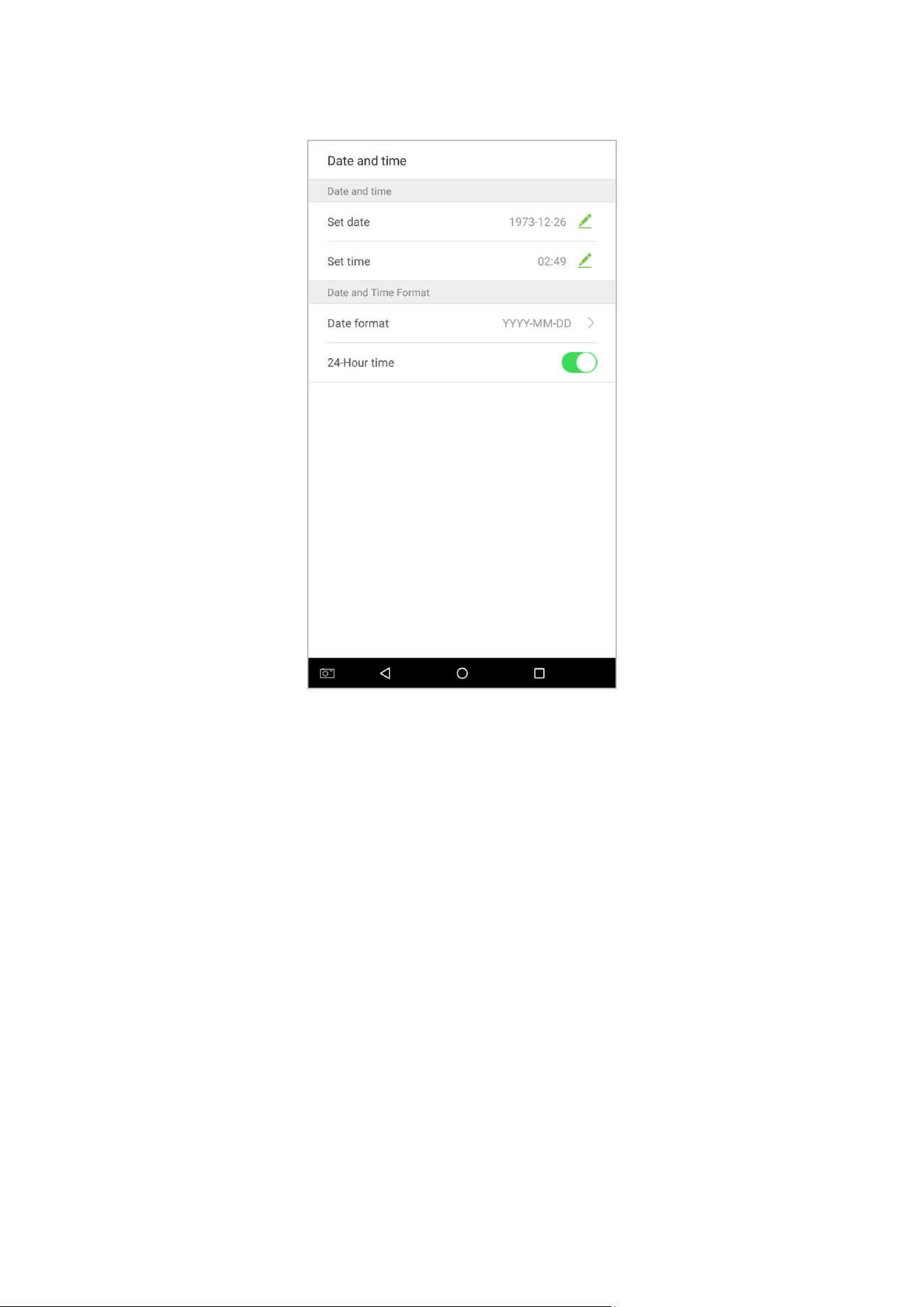
10.2 Date and Time
In system settings, tap on [Date and time] to enter the date and time settings interface:
116
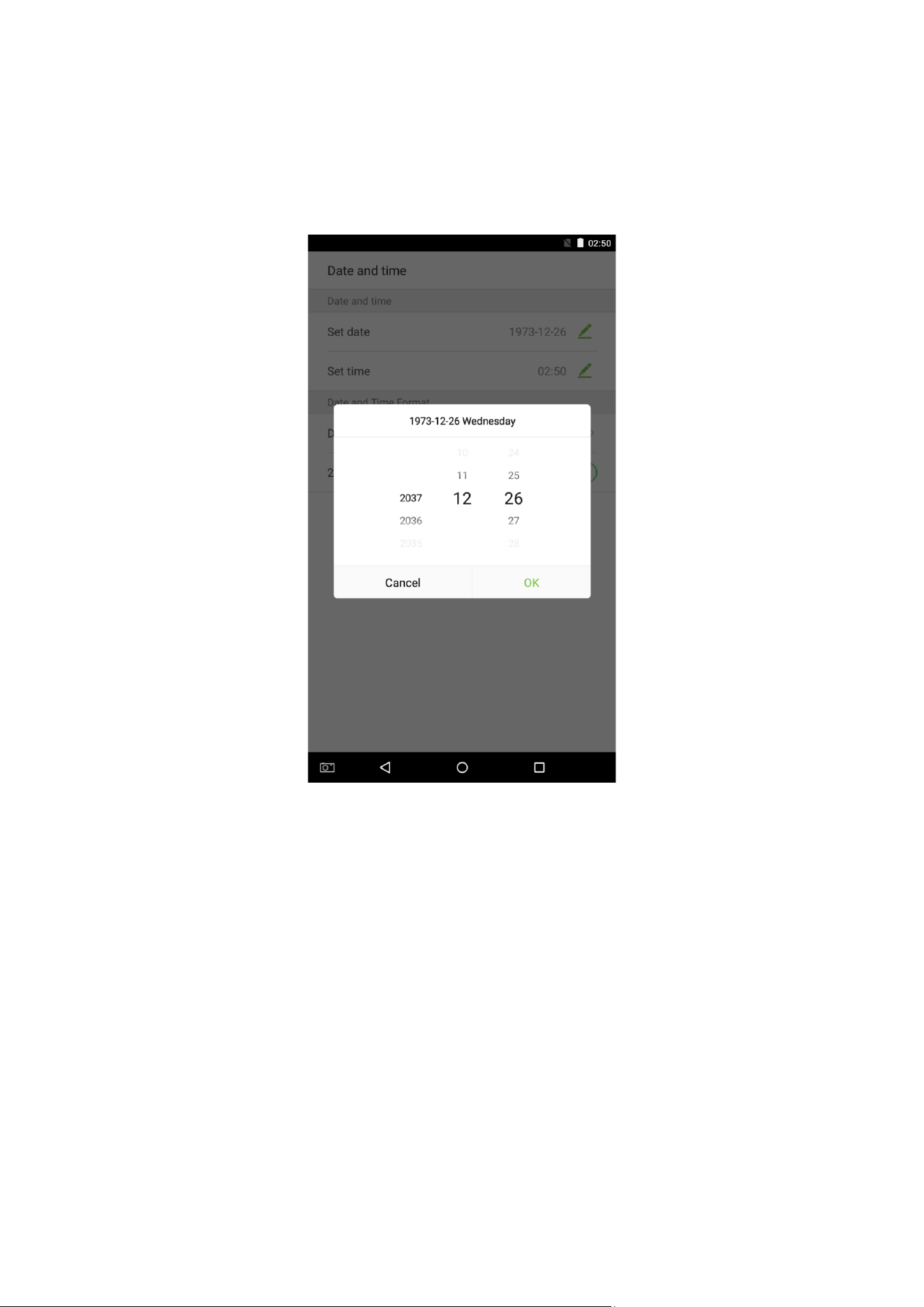
10.2.1 Date and Time Settings
1. Tap on [Set Date] and swipe up and down to set the year, month, and day. Tap on [OK].
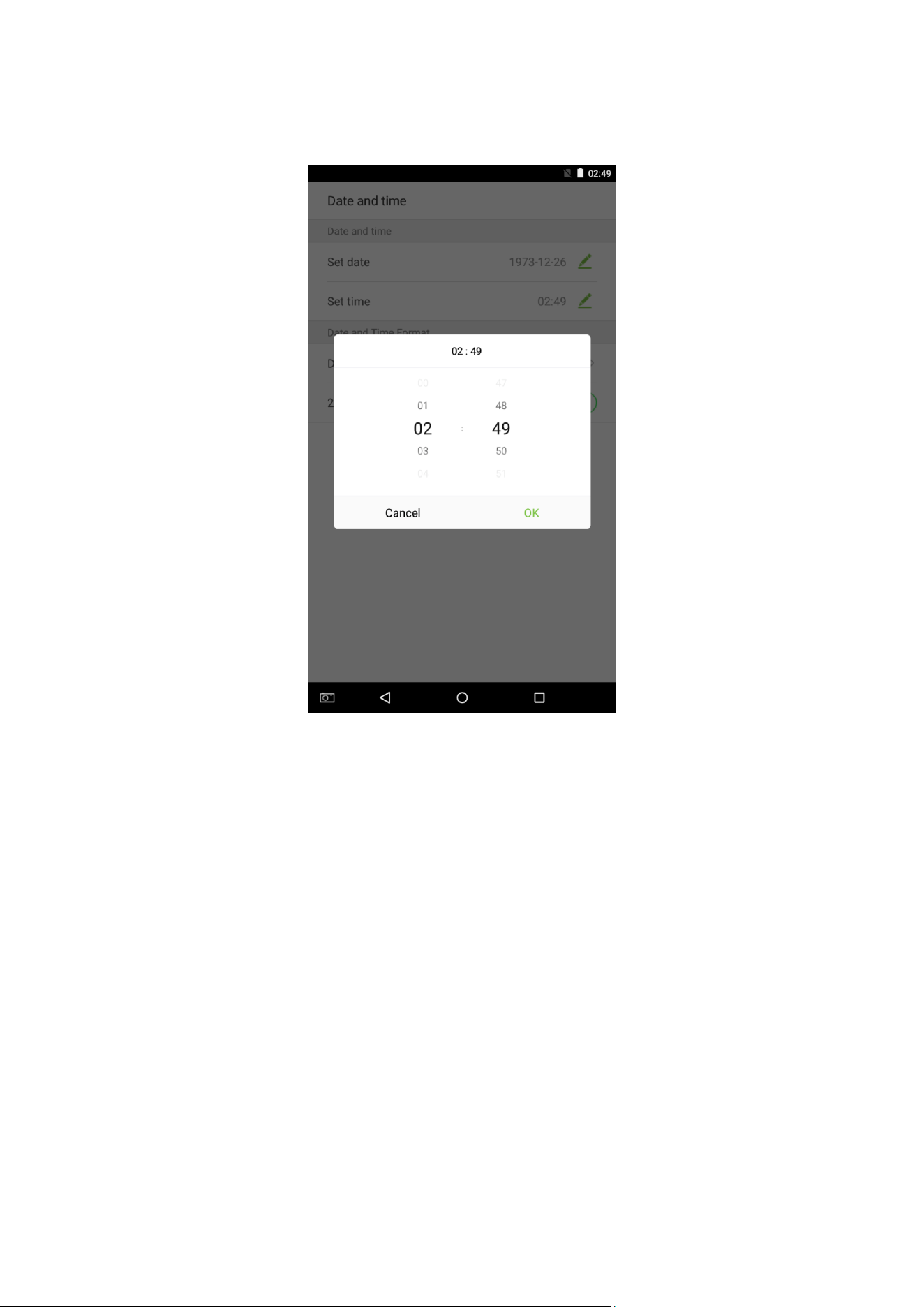
117
2. Tap on [Set Time] and swipe up and down to set the hour and minute. Tap on [OK].
118
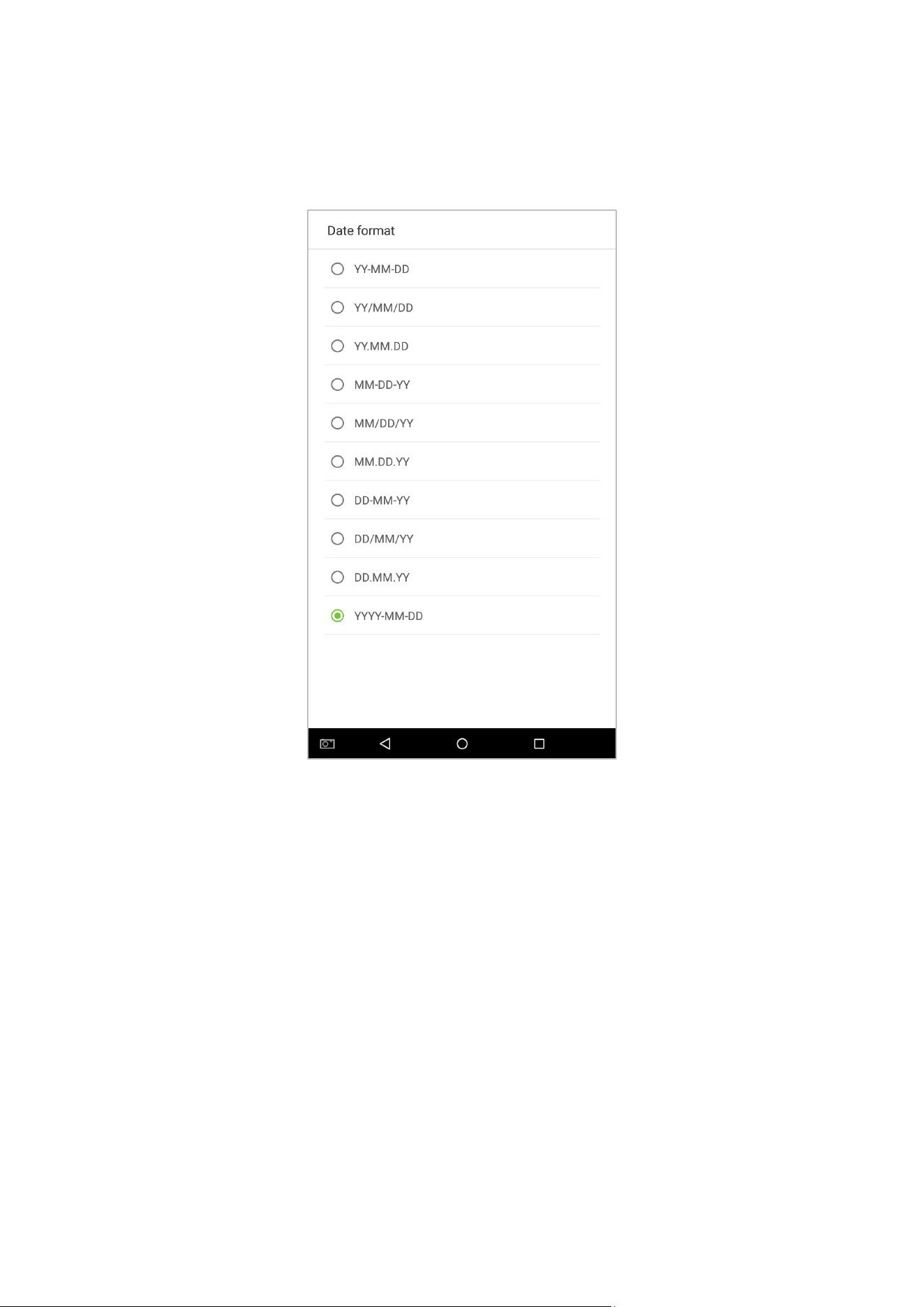
10.2.2 Date and Time Format Settings
1. Tap on [Date Format] and select a date format.
119
2. Tap on [24-Hour Time] to enable this function. It will appear green if enabled or gray if disabled.
120
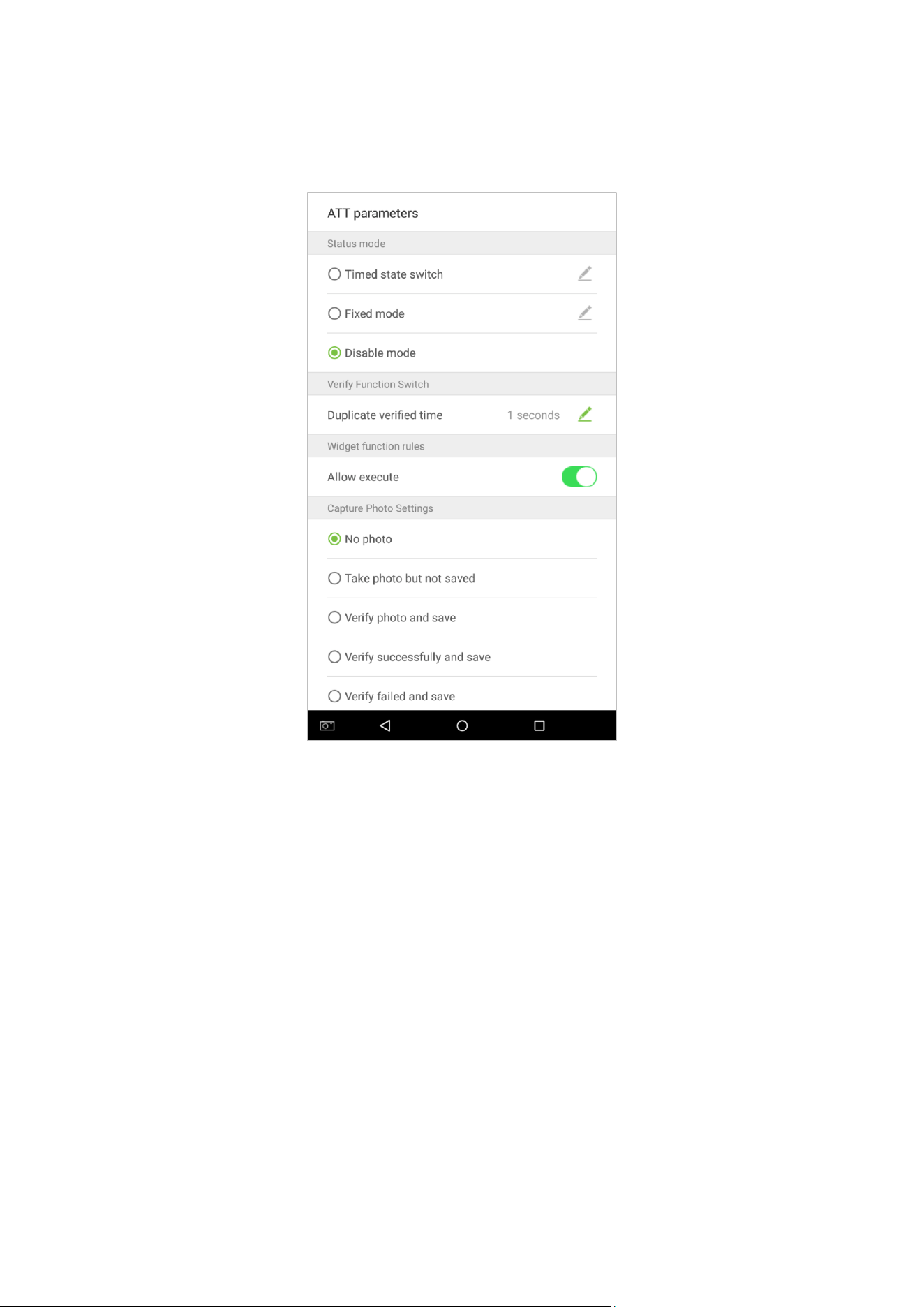
10.3 AT T/Access record Parameters
In system settings, tap on [AT T parameters] to enter the ATT parameters settings interface:
121
10.3.1 Status Mode
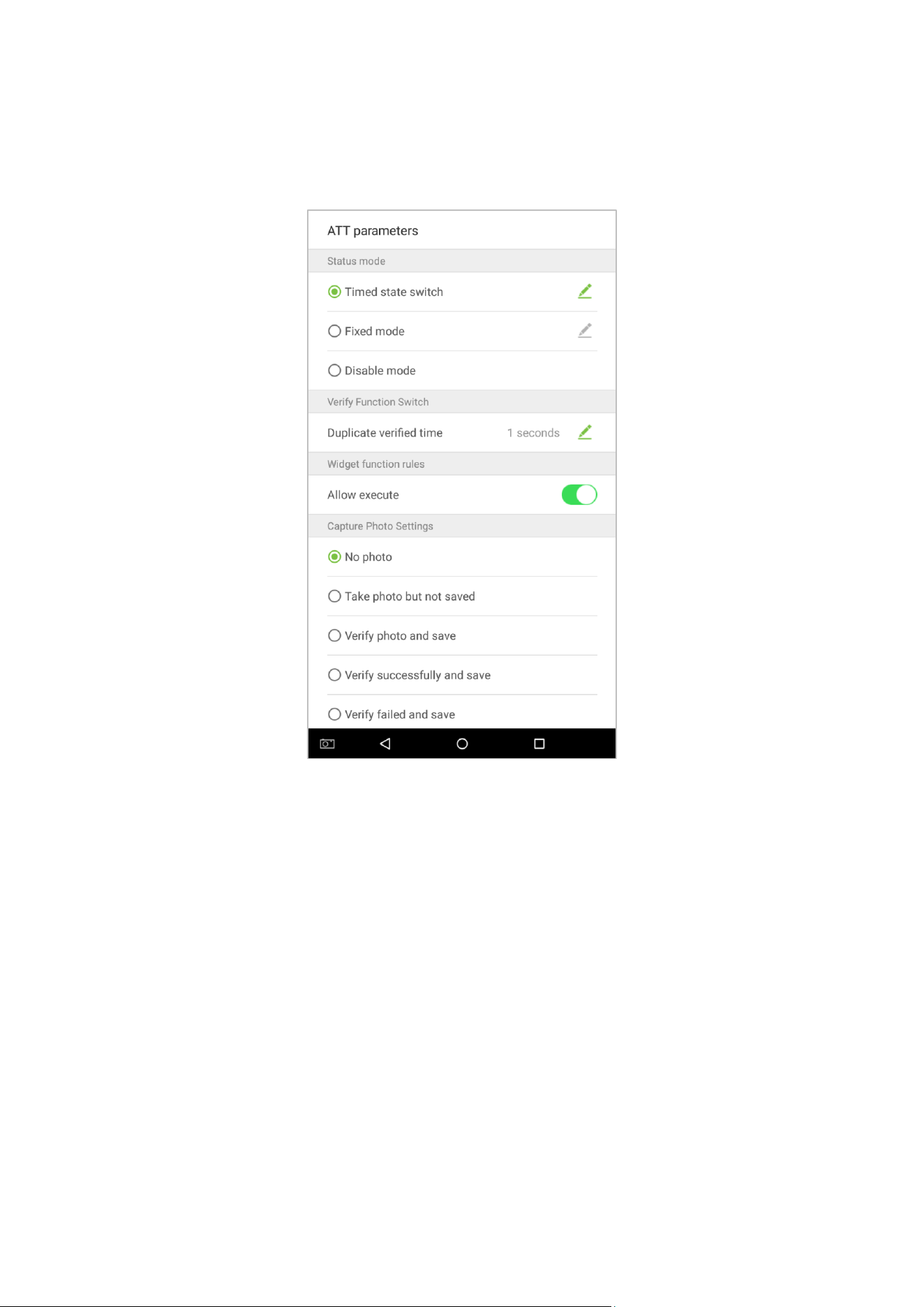
1. Status mode settings
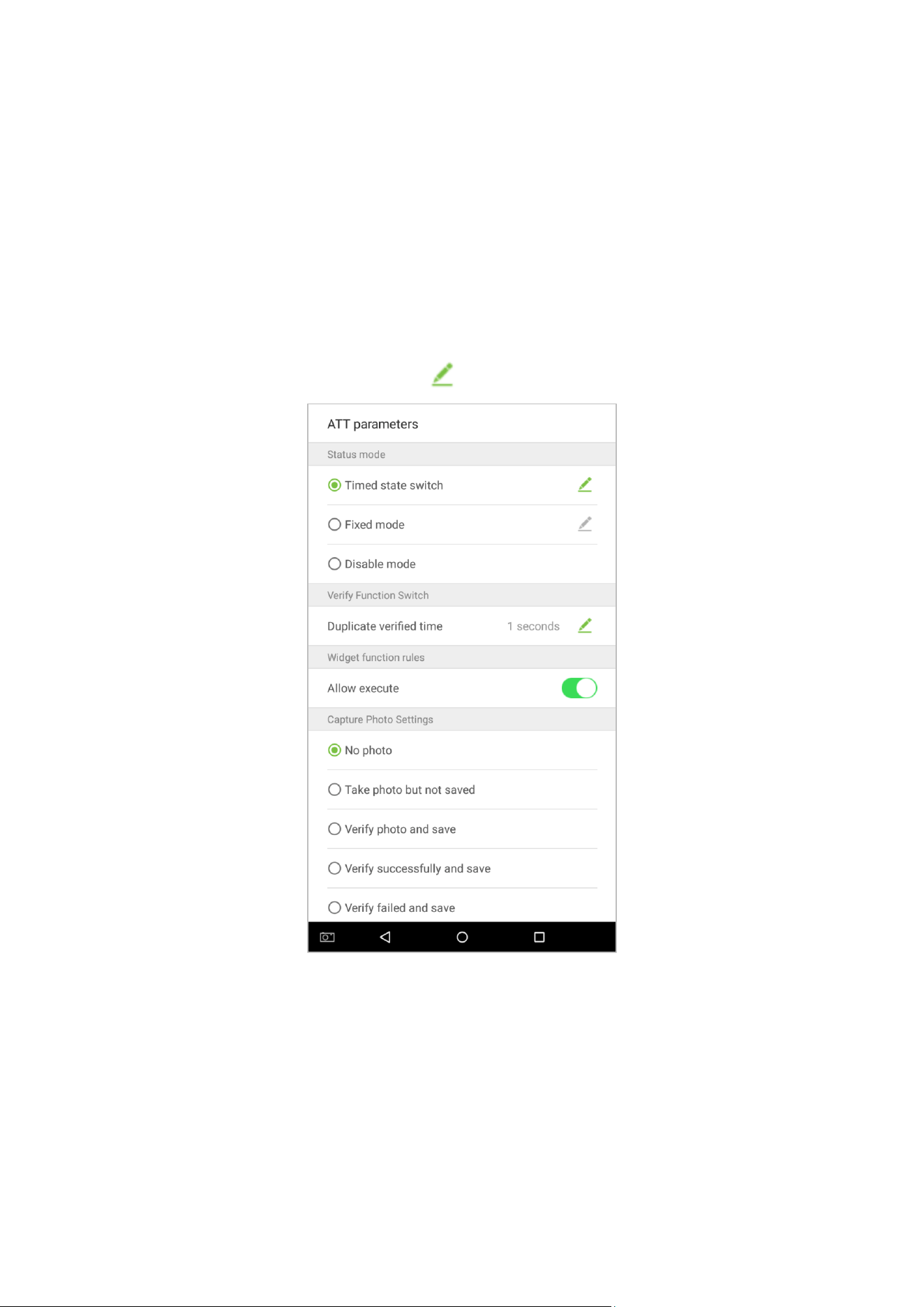
There are three modes for attendance statuses:
Timed state switch: display different attendance statuses at different times.
Fixed mode: there is only one fixed attendance mode.
Disable mode: this function is not used.
Set in [Timed state switch] mode
1. After selecting "Timed state switch", tap on the button to enter the related settings interface.
122
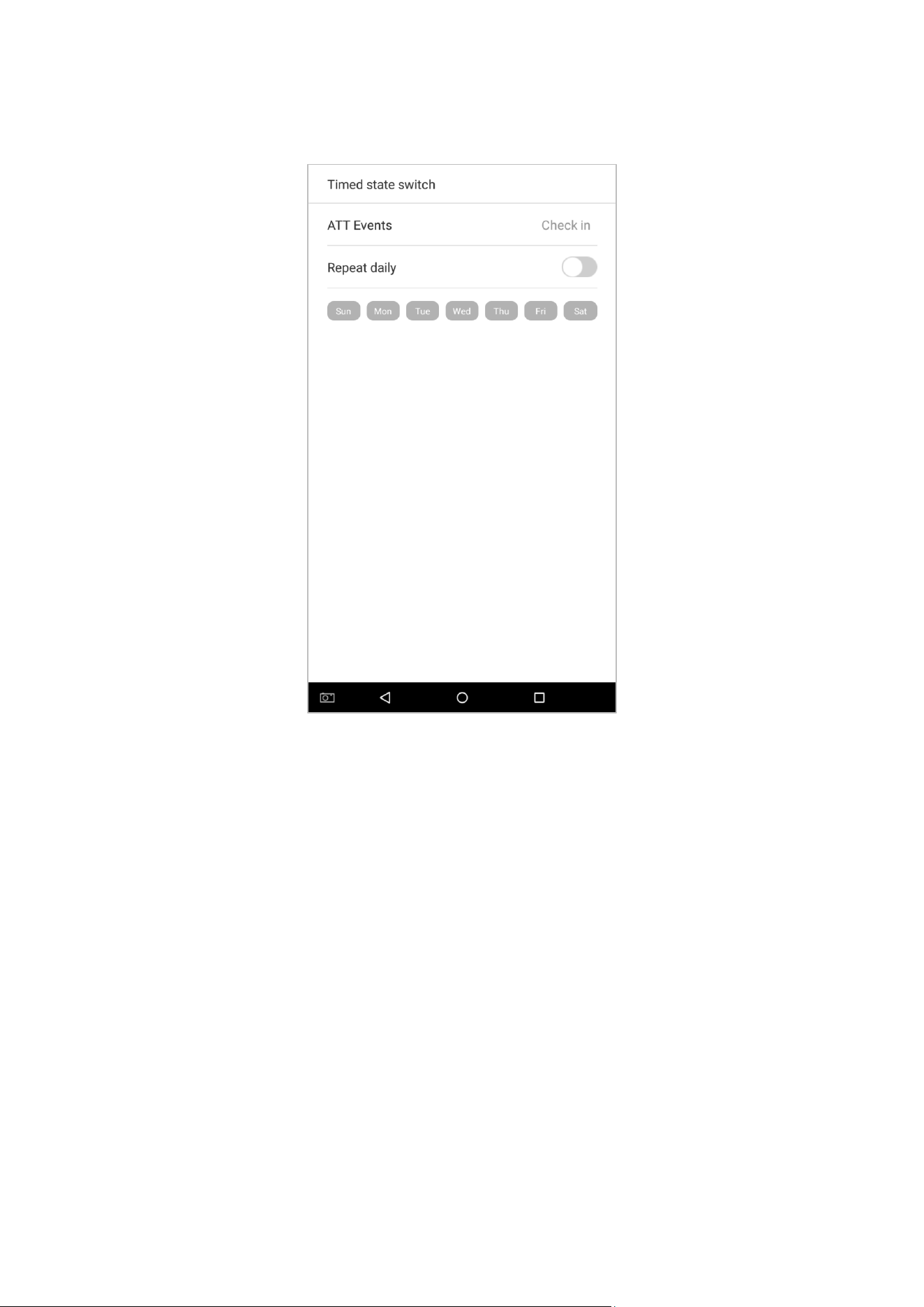
2. On the timed state switch interface, tap on [Check in], then tap on [Repeat daily]. This will appear green if
enabled or gray if disabled.
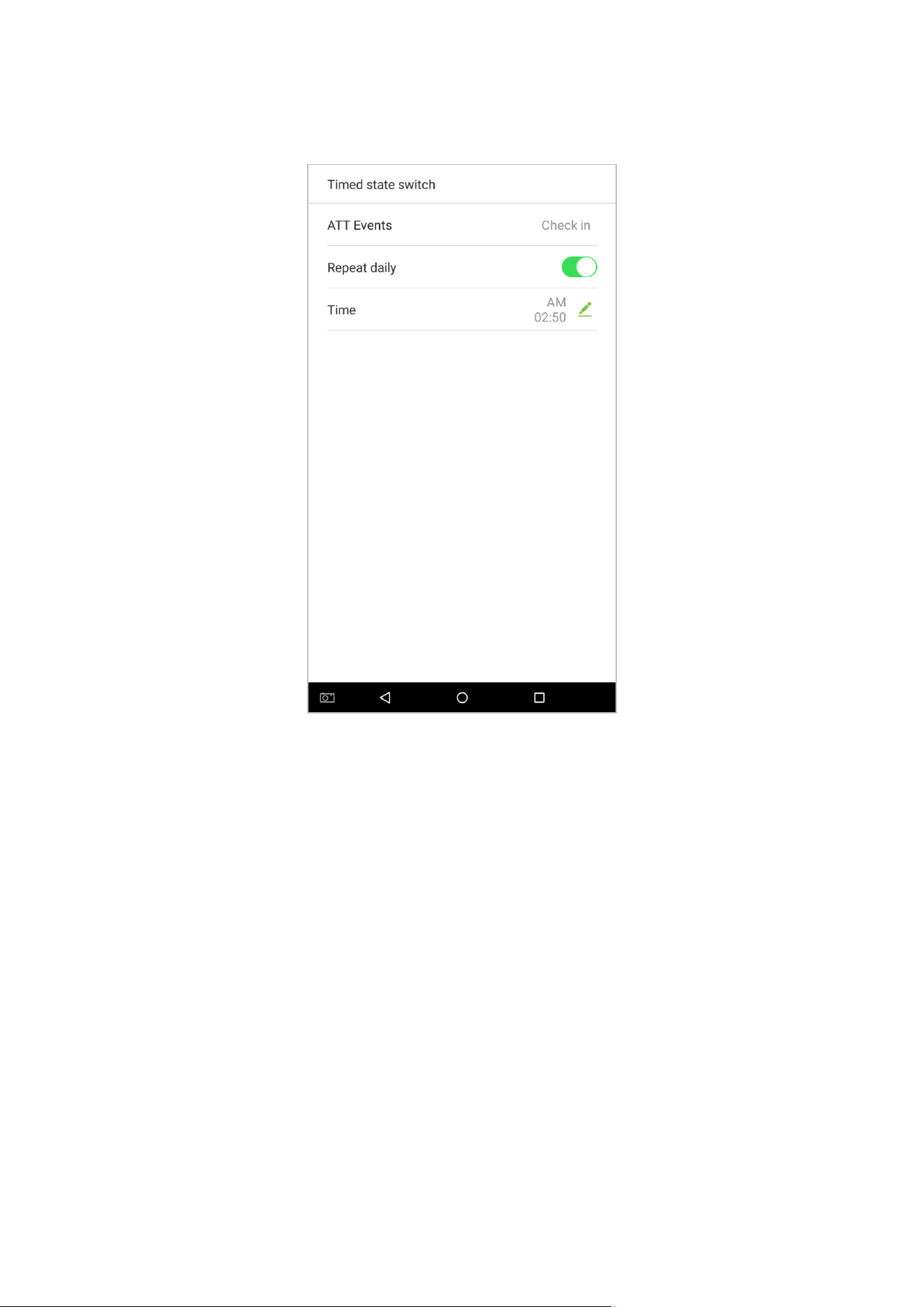
123
3. Set the time
When the [Repeat daily] switch is turned on, the following will display:
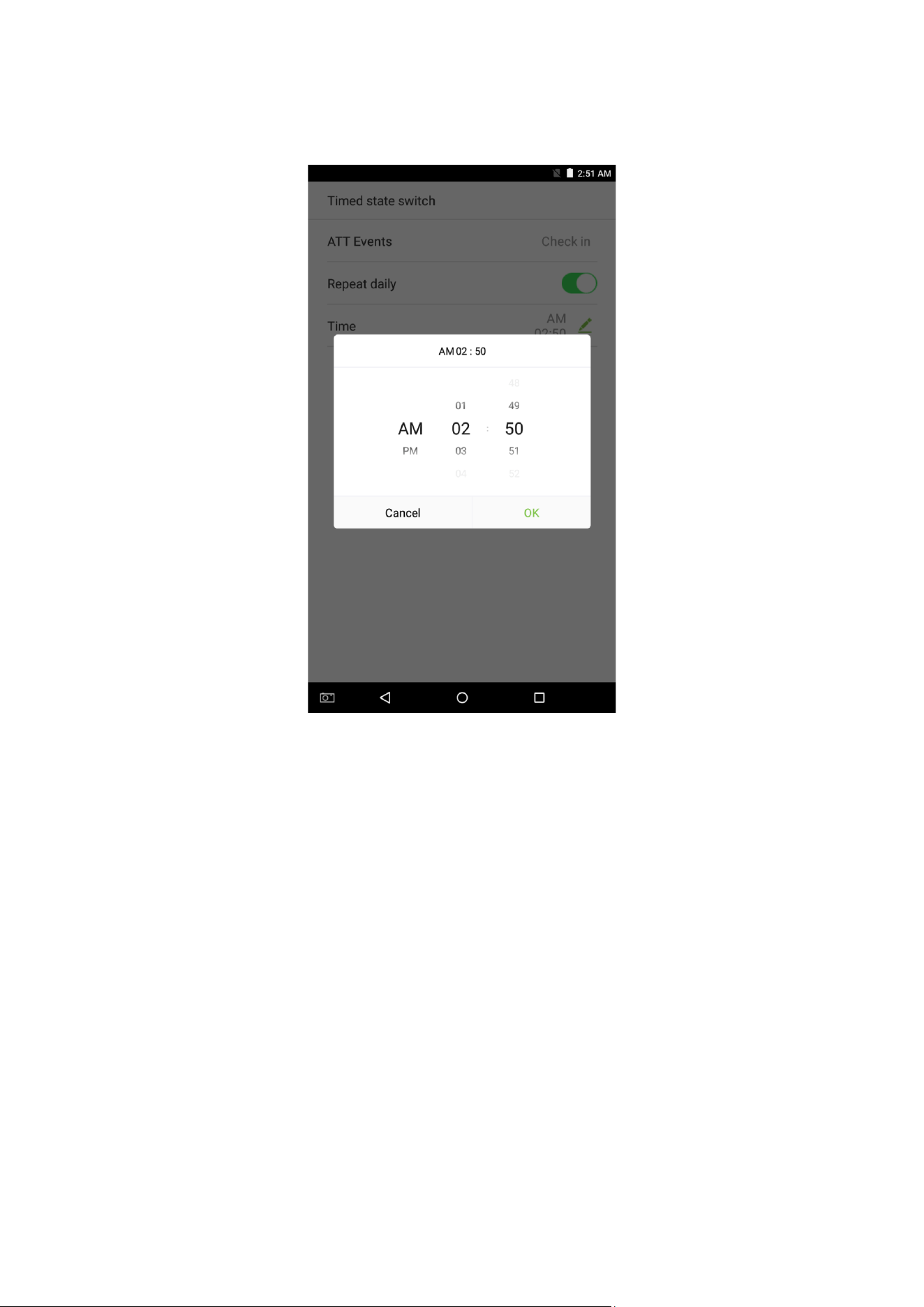
124
4. Tap on the [Time] button and swipe up and down to set the corresponding time. Tap on [OK].
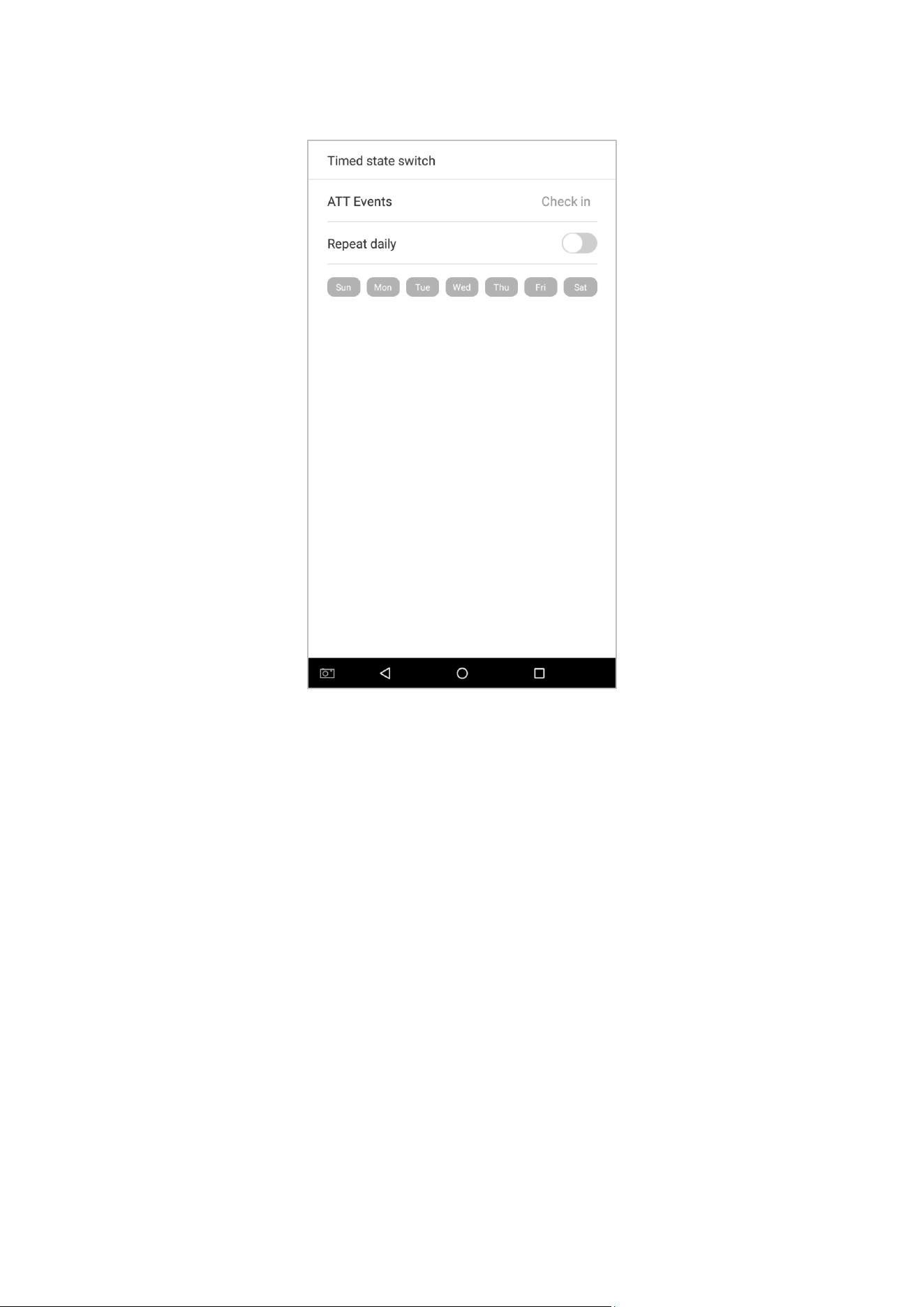
125
5. When the [Repeat Daily] switch is disabled, the following will display:
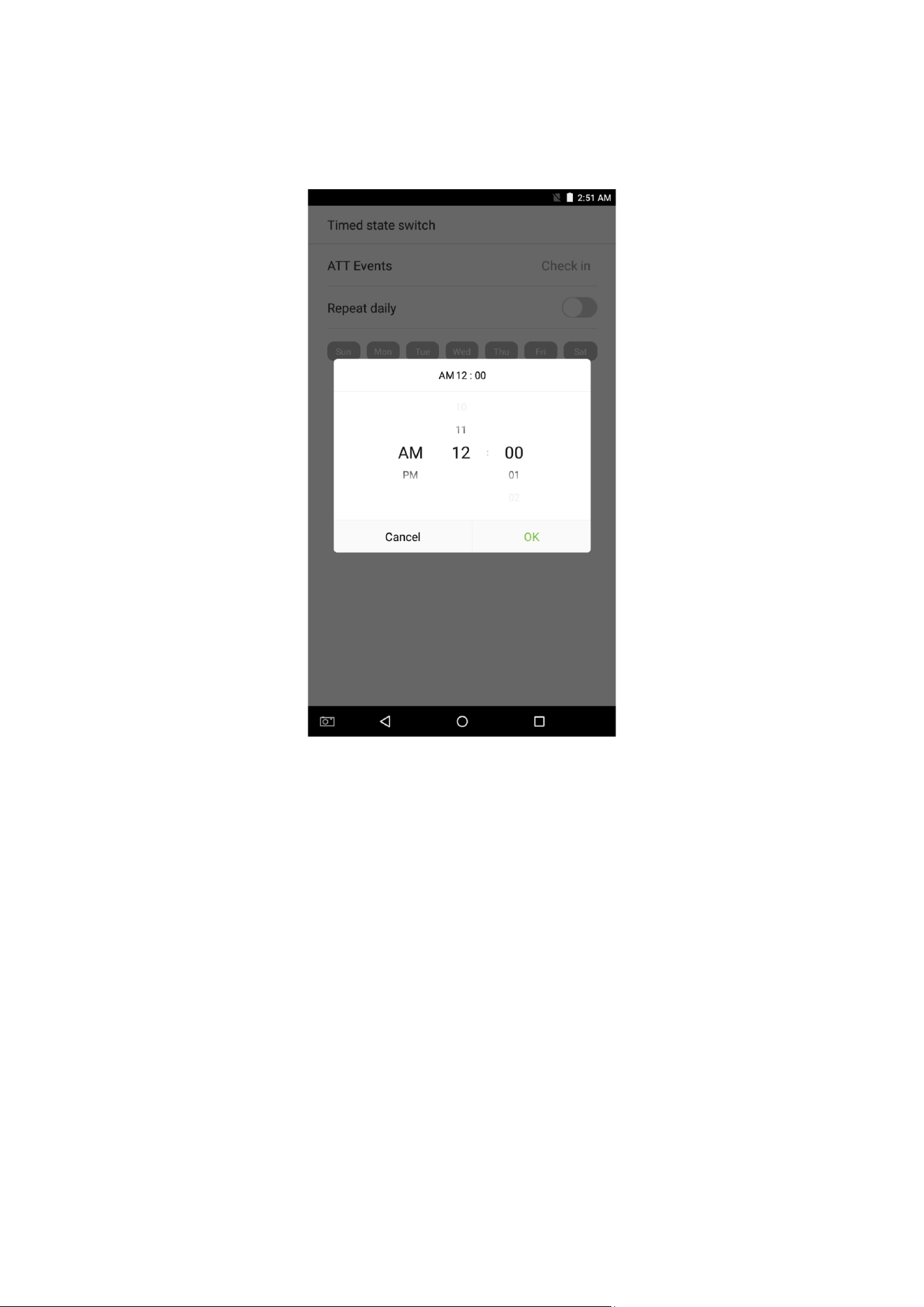
126
6. Tap on the button for the date you would like to set, then swipe up and down to set the corresponding time.
Tap on [OK].
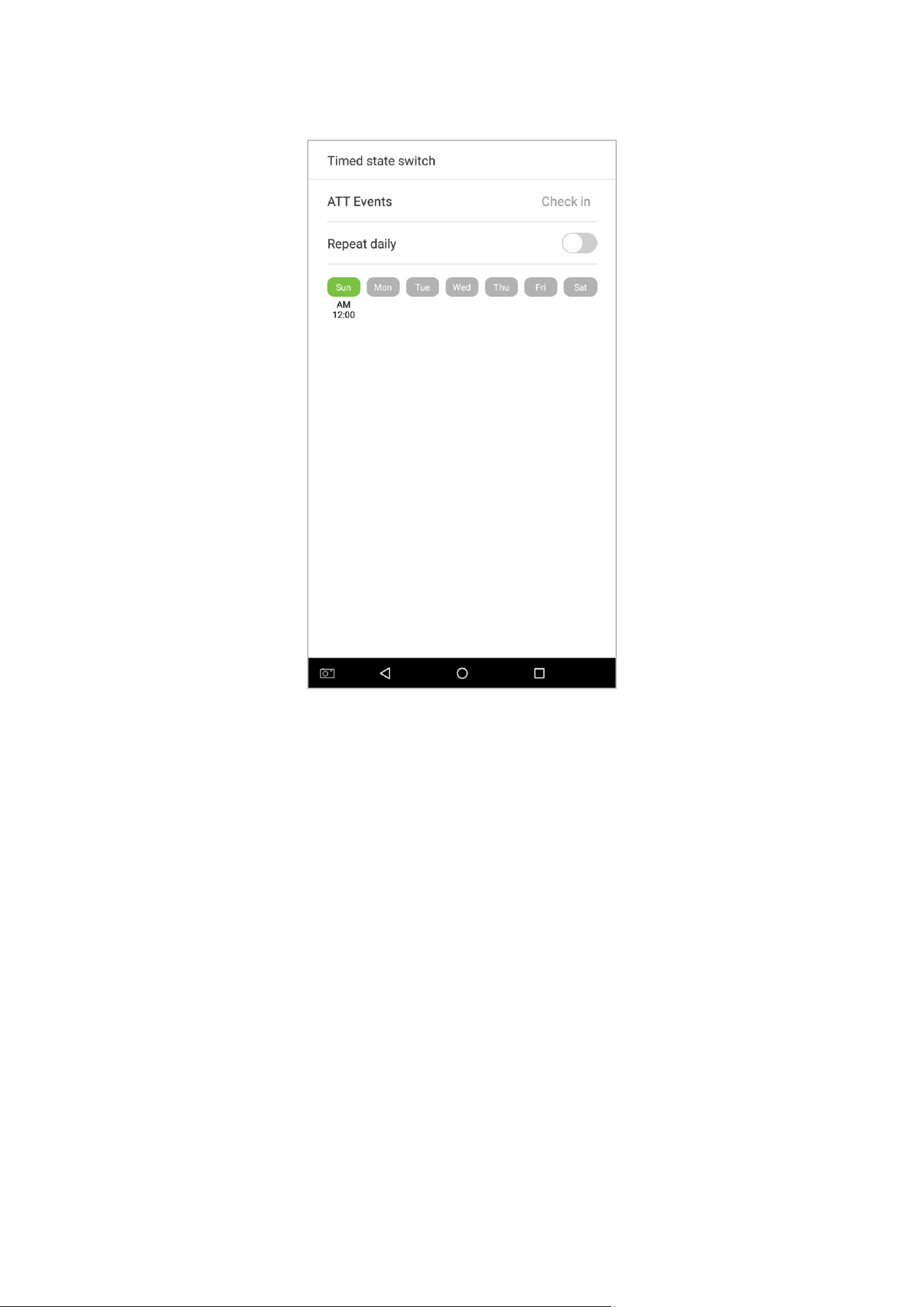
127
7. Settings Applied.
Note: The settings process for "Check out", "Break out", "Break in", "Overtime in", and "Overtime out" is the same as
"Check i n".
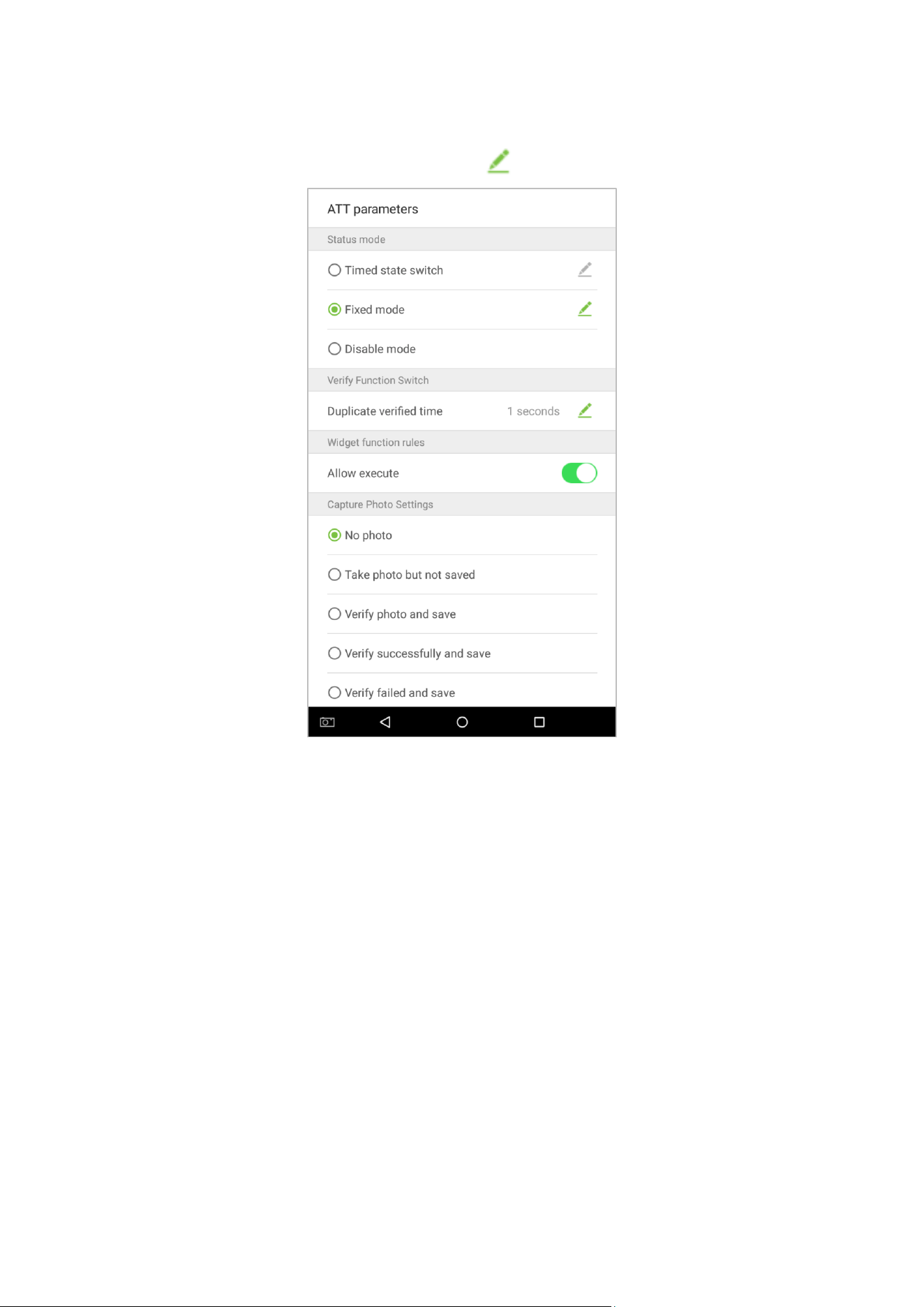
128
Set to [Fixed mode] status.
1.
Once the status mode is set to "Fixed mode", tap on the button to enter the Fixed mode options menu.
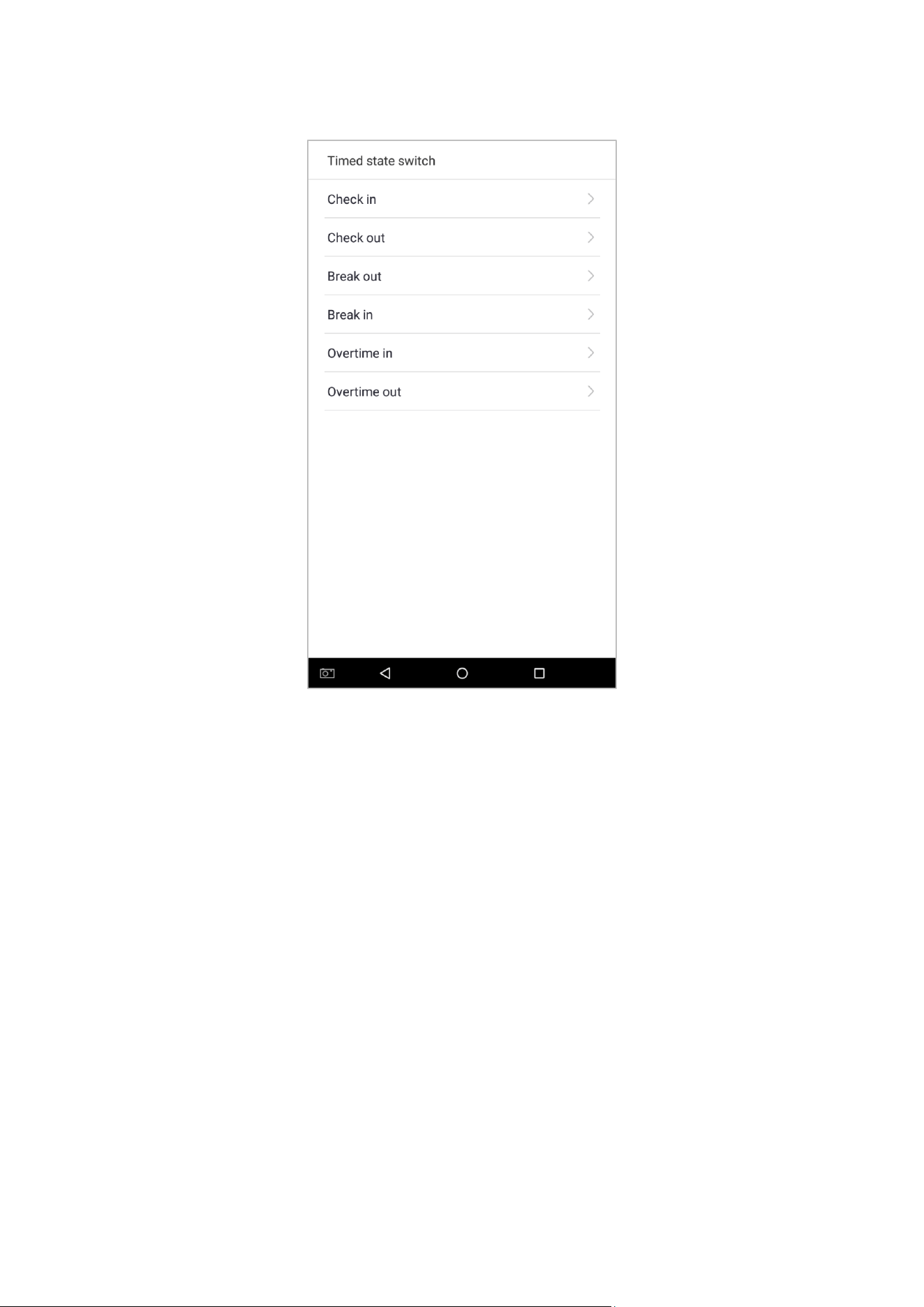
129
2. In the Fixed mode selection menu, select the attendance status that you would like to set.
130
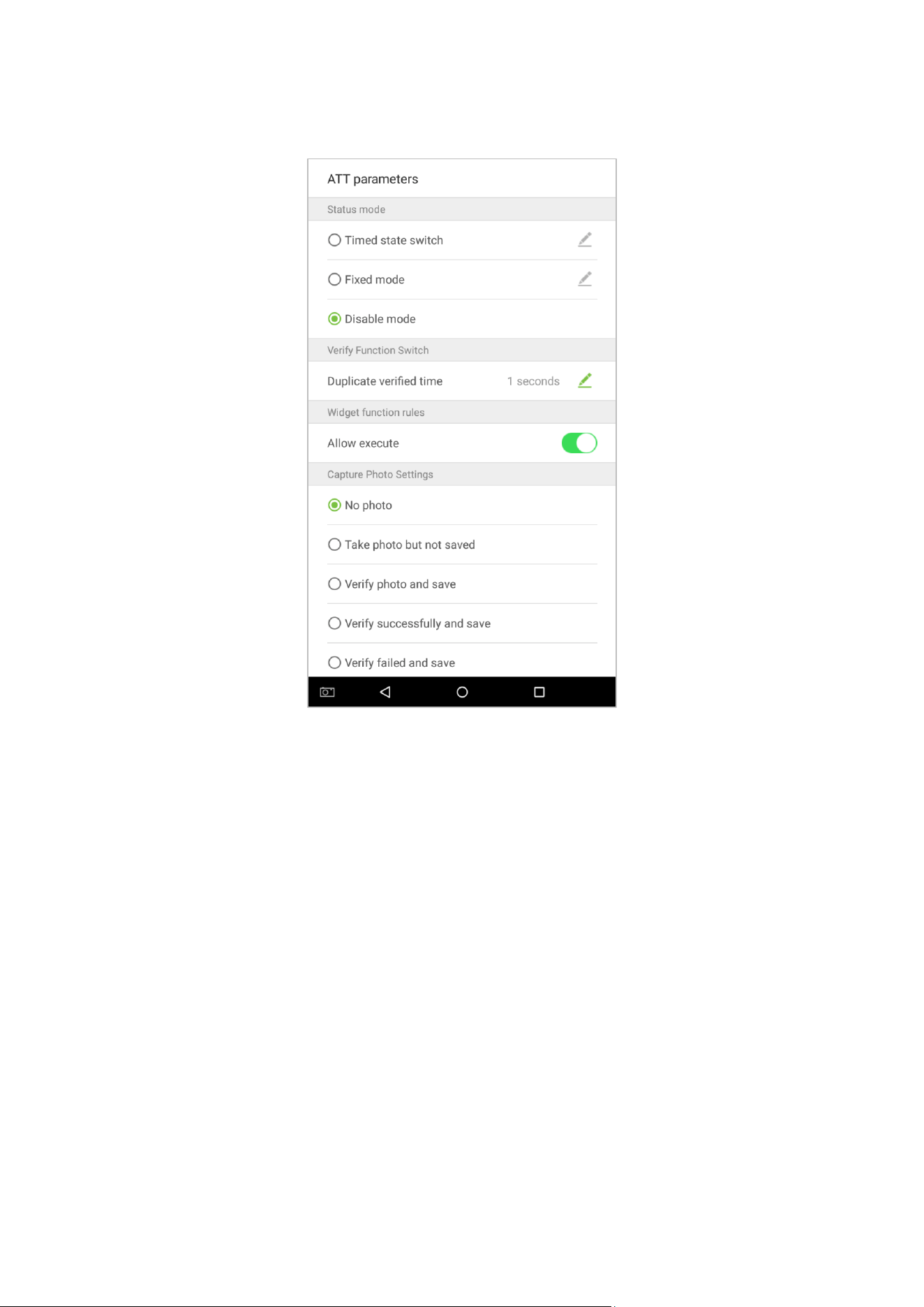
Set this mode to disabled.
1. Select the Status Mode as "Disable mode".
131
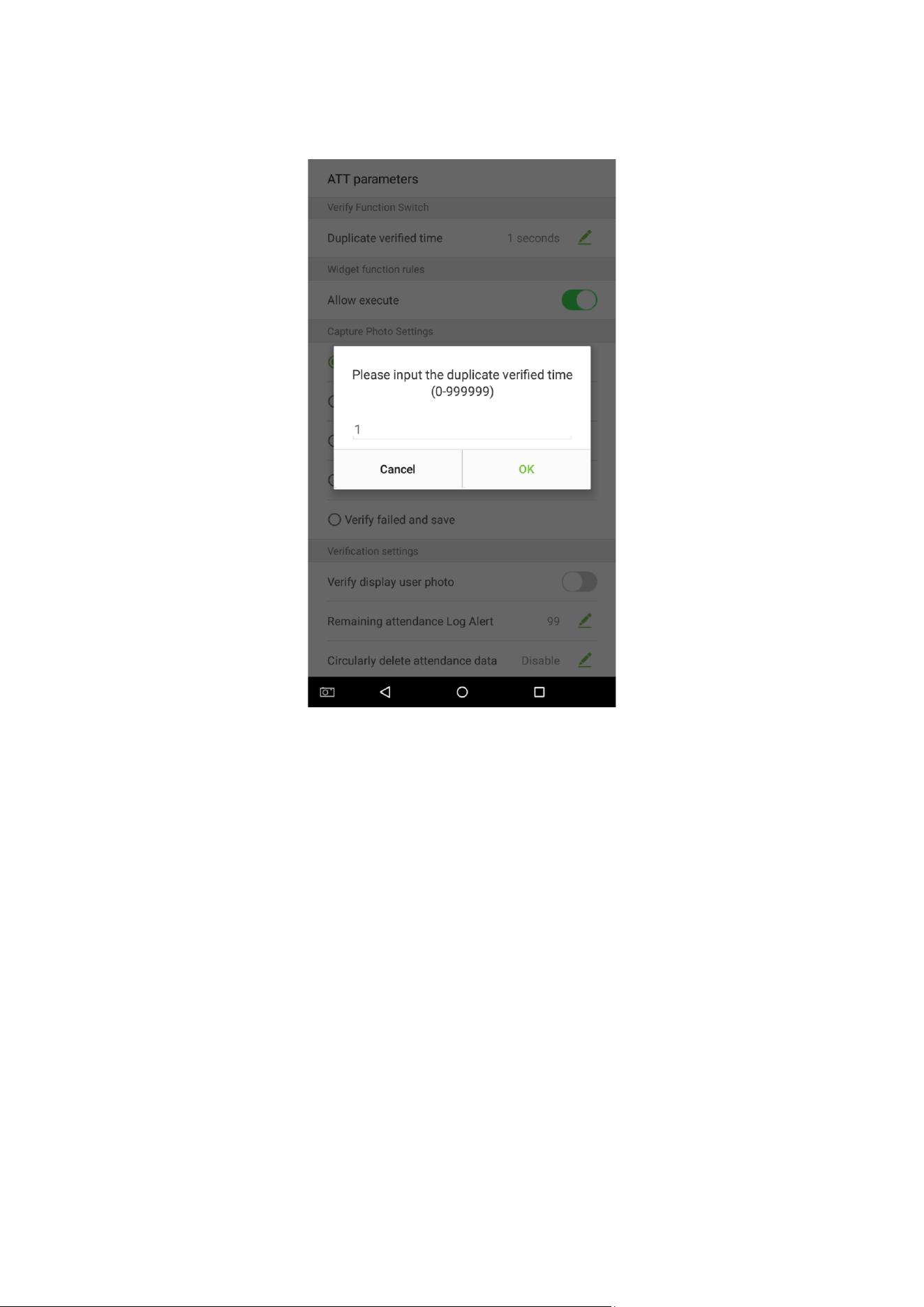
Duplicate verified time settings.
Tap on [Duplicate verified time] and a dialog box will appear asking you to input time (unit: seconds). Tap on [OK].
132
10.3.2 Plugin Function Rules
Tap on the [Allow Execute] switch. It will turn green when enabled and gray when disabled:
133
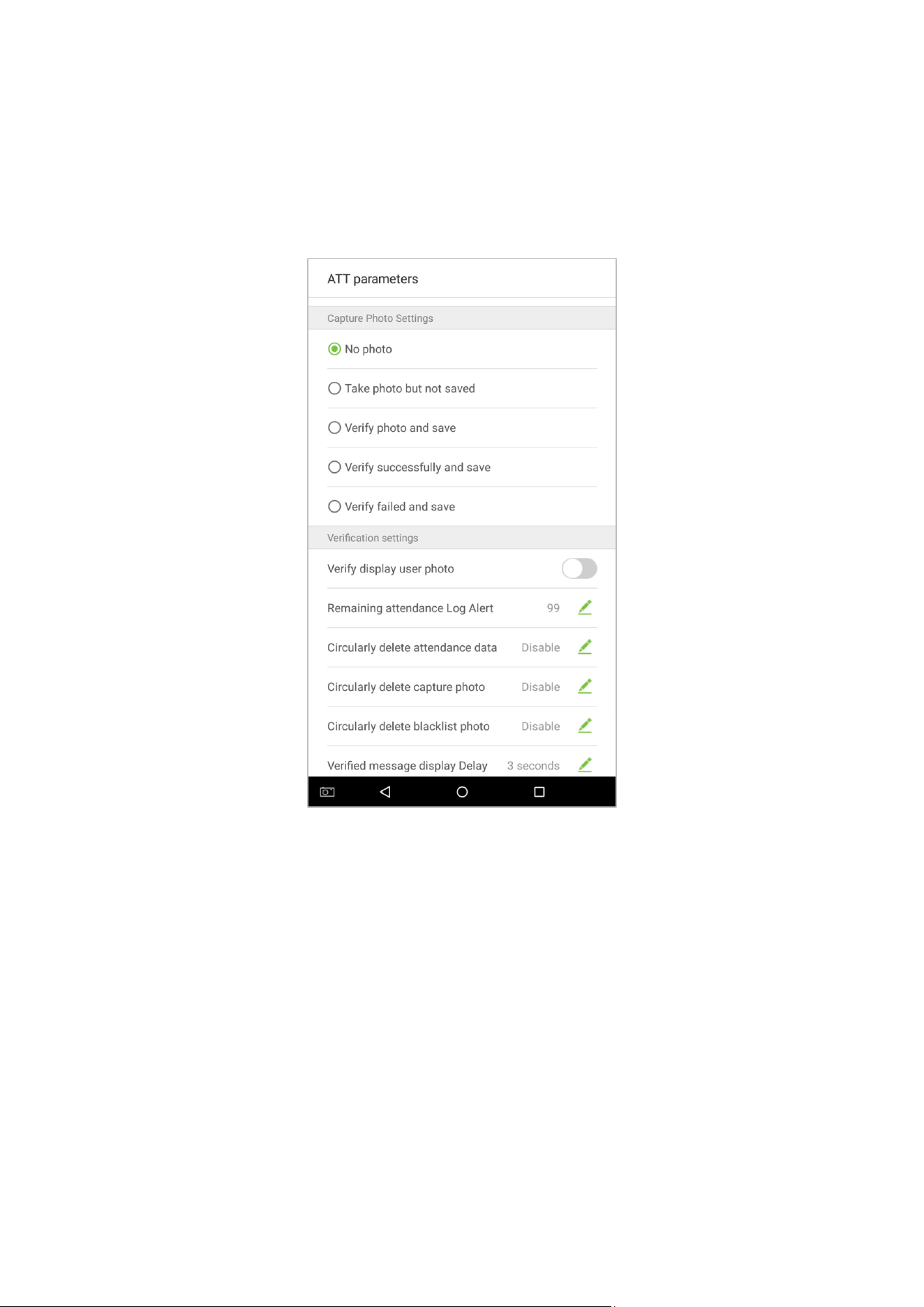
10.3.3 Capture Photo Settings
Select the circumstances in which the camera will take photos and whether or not the photos are saved to assist
with attendance records.
Tap on the [Capture Photo Settings] that you would like to configure:
134
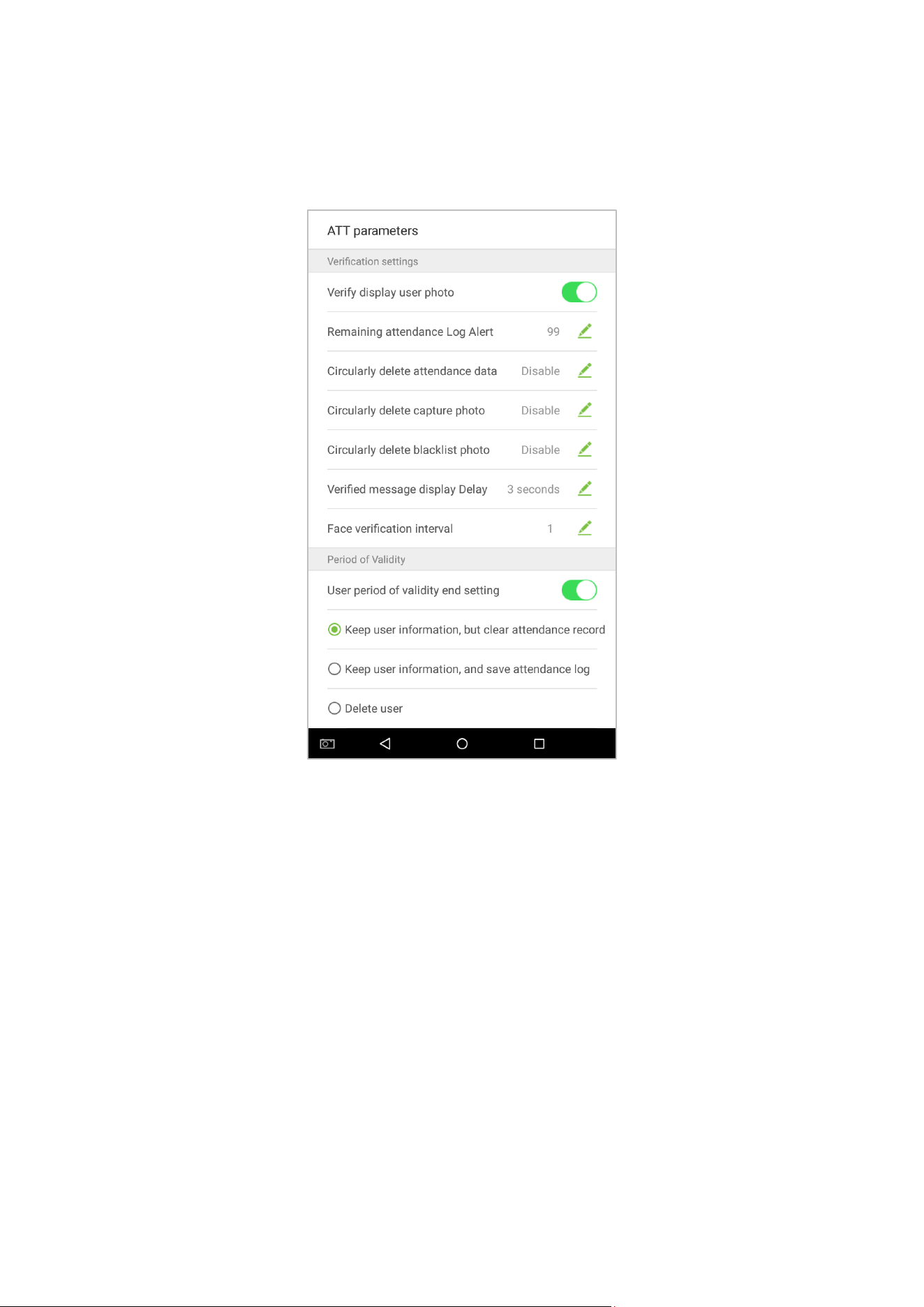
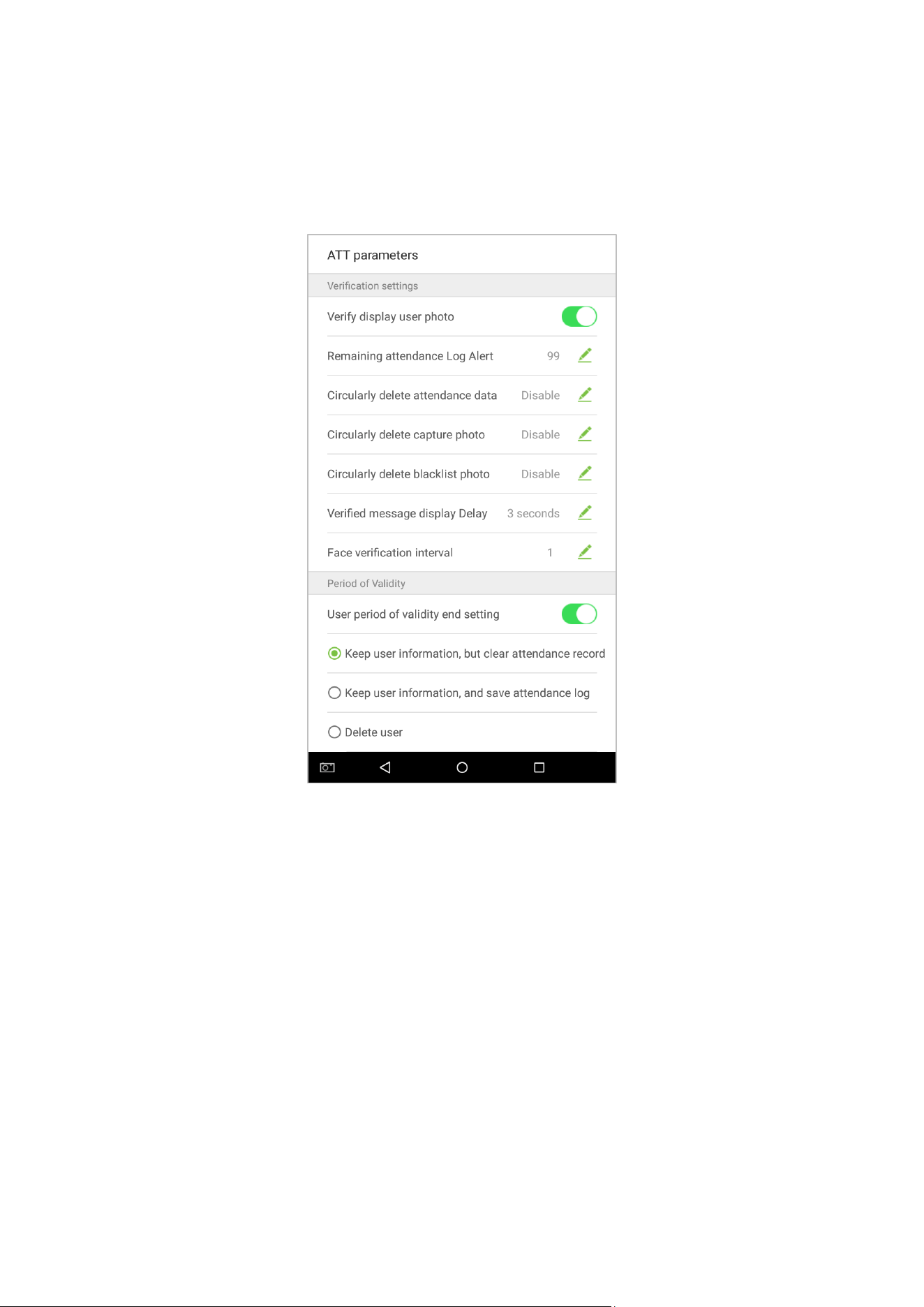
10.3.4 Verification Settings
Configure settings for attendance verification parameters:

135
Menu Options Function Description
Verify display user
photo
If it is enabled, the employee photo will be displayed; if not, the employee photo will not
be displayed.
Remaining
attendance Log Alert
When the remaining record space reaches a set value, the device will automatically display
a remaining record memory warning. When the value is set as 0, the function is disabled.
Cyclically Delete ATT
Data
When the attendance record memory has reached full capacity, the device will
automatically delete a set value of old attendance records. When the value is set as 0, the
function is disabled.
Cyclically Delete ATT
Photo
When the space storing the attendance photos have reached full capacity, the device will
automatically delete a set value of old attendance photos. When the value is set as 0, the
function is disabled.
Cyclically Delete
Blacklist Photo
When the space storing blacklisted photos have reached full capacity, the device will
automatically delete a set value of old blacklisted photos. When the value is set as 0, the
function is disabled.
Verify Message
Display Delay
This is the length of time that an employee’s information will display on the system's
screen after successful verification. Unit: seconds.
Face verification
interval
To set the facial template matching time interval as needed. Valid value: 0~9 seconds.
136
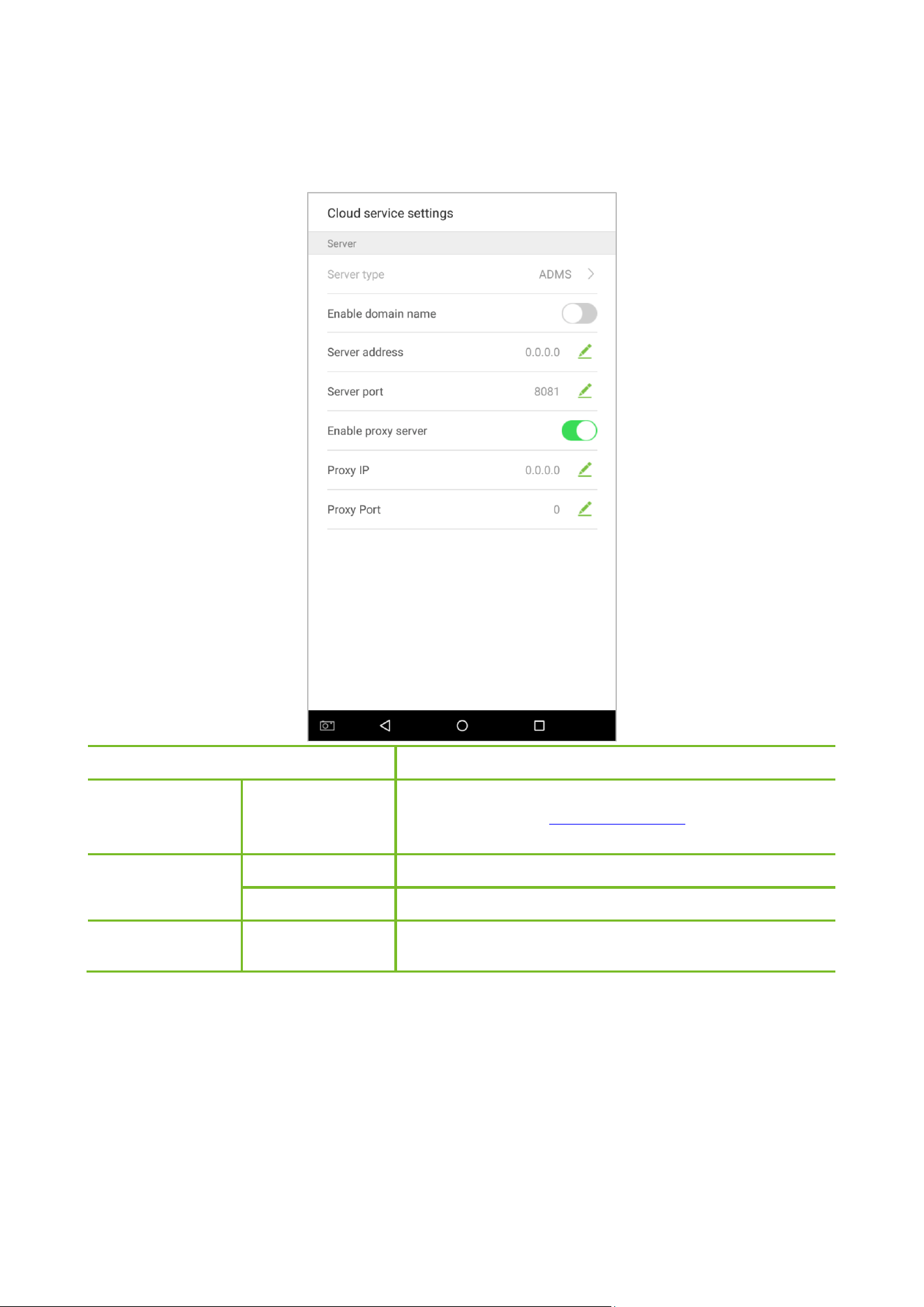
10.3.5 Validity Period of User Information
This is used to determine if employee validity periods are enabled or disabled when registering employees.
1. Tap on the [User period of validity end setting] switch. It will turn green when enabled and gray when disabled.
2. When User period of validity end setting is enabled, the following will display. Select the setting you would like
to configure.
137
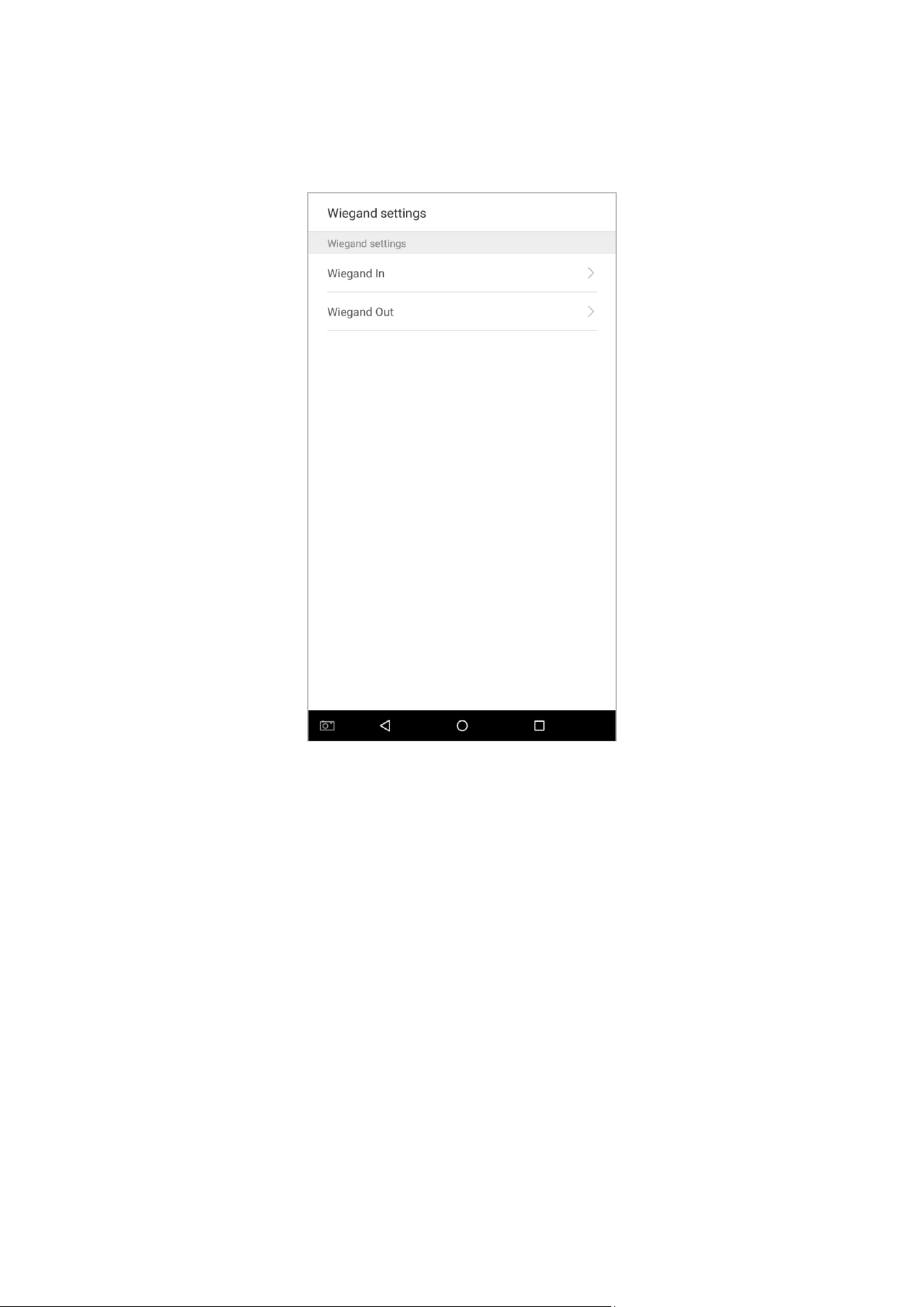
10.4 Cloud Service Settings
In the system settings list, tap on [Cloud Service Settings] to enter the Cloud service settings interface:
Item Descriptions
Enable Domain
Name
Server Address
When this function is enabled, the domain name mode “http://...”
will be used, such as http://www.XYZ.com
, while “XYZ” denotes
the domain name when this mode is turned ON.
Disable Domain
Name
Server Address
IP address of the ADMS server.
Server Port
Port used by the ADMS server.
Enable Proxy
Server
When
you choose to enable the proxy, you need to set the IP
address and port number of the proxy server.
138
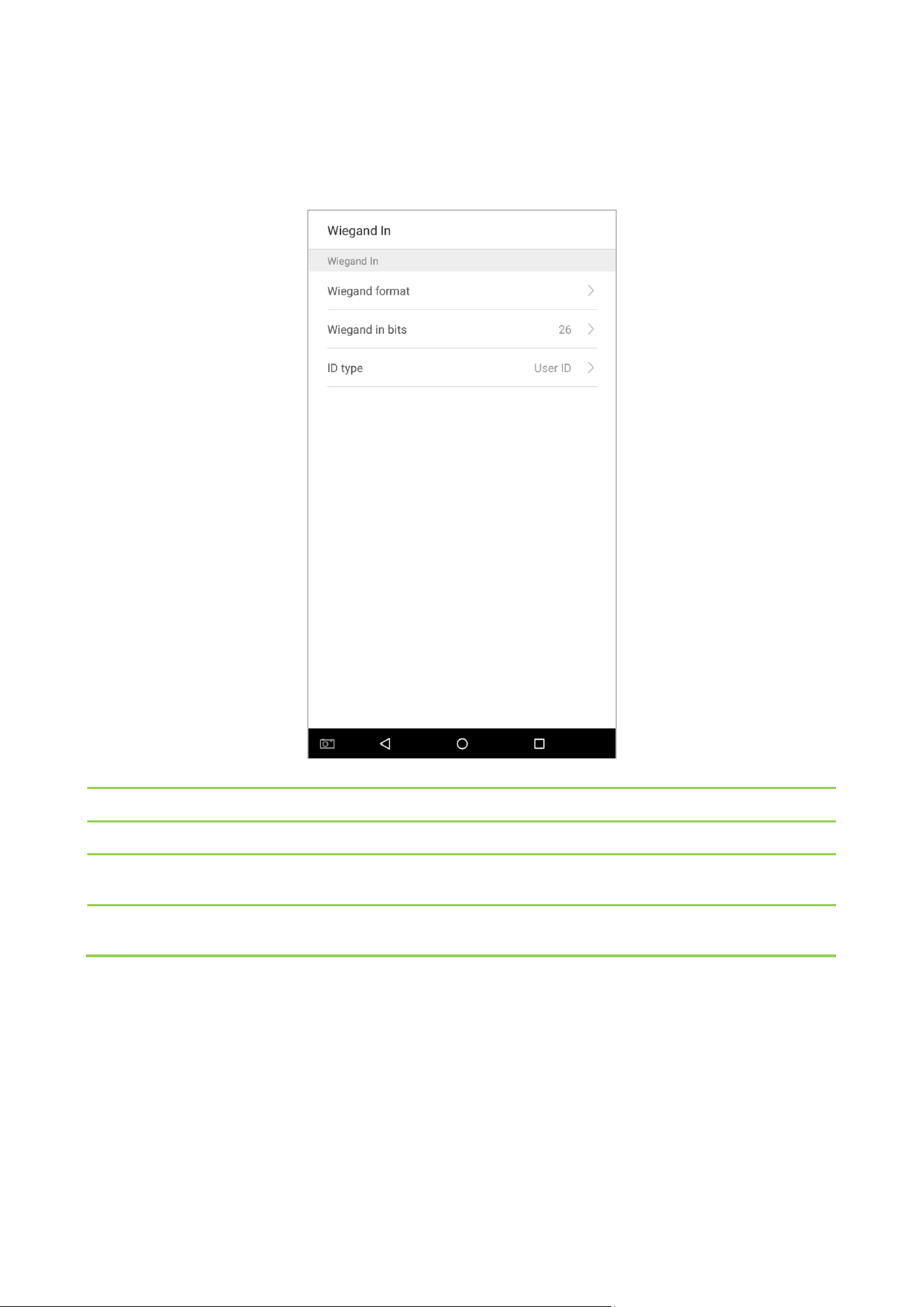
10.5 Wiegand Settings
Tap on [Wiegand Settings] in the system setting list to access the interface as shown below.
139
10.5.1 Wiegand In
Tap on [Wiegand In] to enter the interface of settings of “Wiegand In”.
Menu Options Function Description
Wiegand Format
The Wiegand value could be 26bits, 34bits, 36bits, 37bits, or 50bits.
Wiegand in bits
Number of bits of Wiegand data. After choosing [Wiegand input bits], the device will use
the set number of bits to find the suitable Wiegand format in [Wiegand Format].
ID type
Input content included in Wiegand input signal. User ID or Badge number
can be
chosen.
140
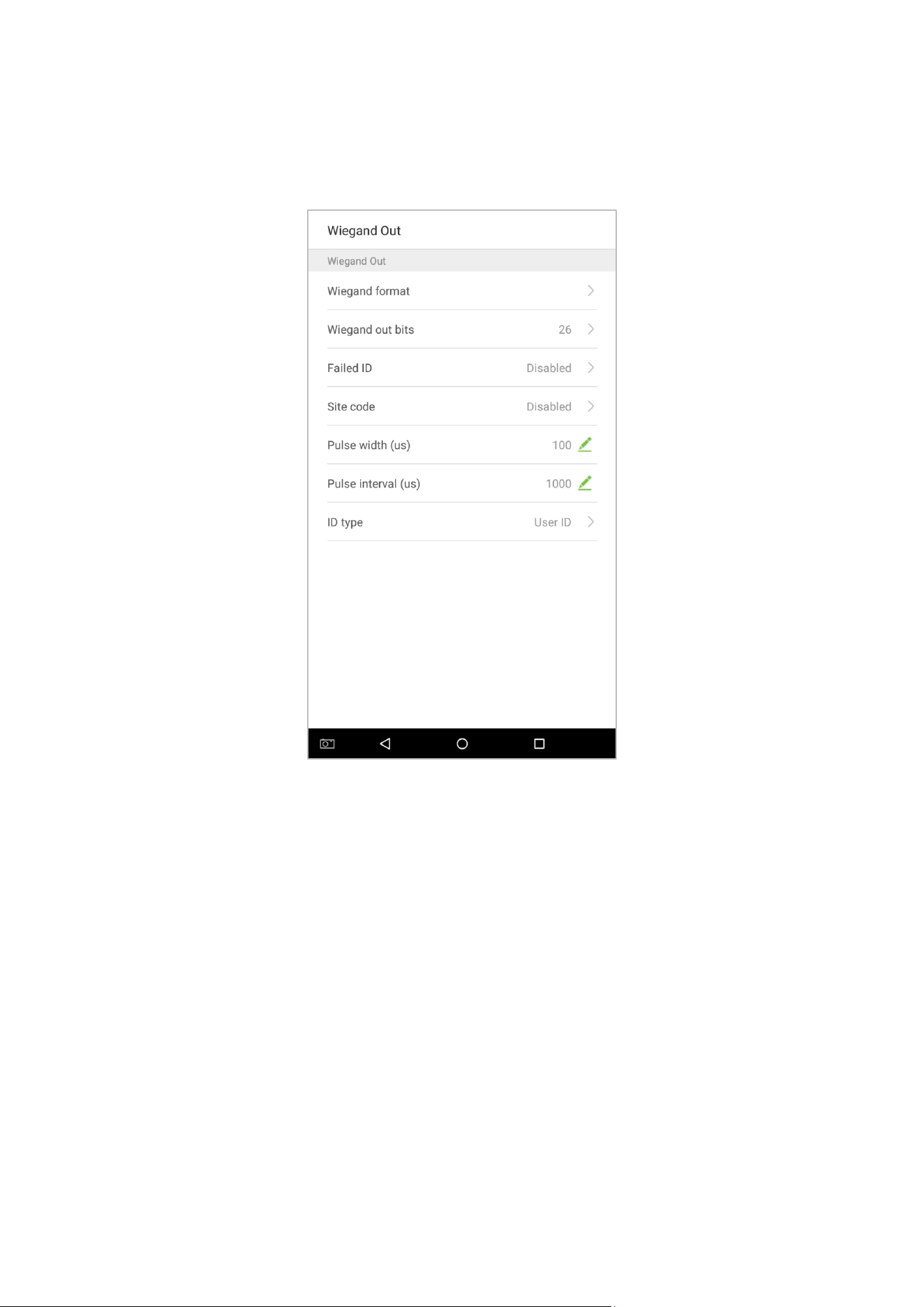
10.5.2 Wiegand Out
Tap on [Wiegand Out] to enter the below interface:

141
Menu Options Function Description
Wiegand format
The Wiegand value could be 26bits, 34bits, 36bits, 37bits, 50bits.
Wiegand out bits
After choosing the Wiegand format, you can select one of the corresponding output
digits in the Wiegand format.
Failed ID
If the verification is failed, the system will send the failed ID to the device and replace the
card number or personnel ID with the new ones.
Site code
It is similar to device ID except that it can be set manually and repeatable with different
devices. The default value ranges from 0 to 256.
Pulse width(us)
The time width represents the changes of the quantity of electric charge with
high-frequency capacitance regularly within a specified time.
Pulse interval(us)
The time interval between pulses.
ID type
Users may be verified with the specific work codes and card numbers. If the device
supports alphabetical work codes, work code output will not be supported and only card
number output can be available.
142
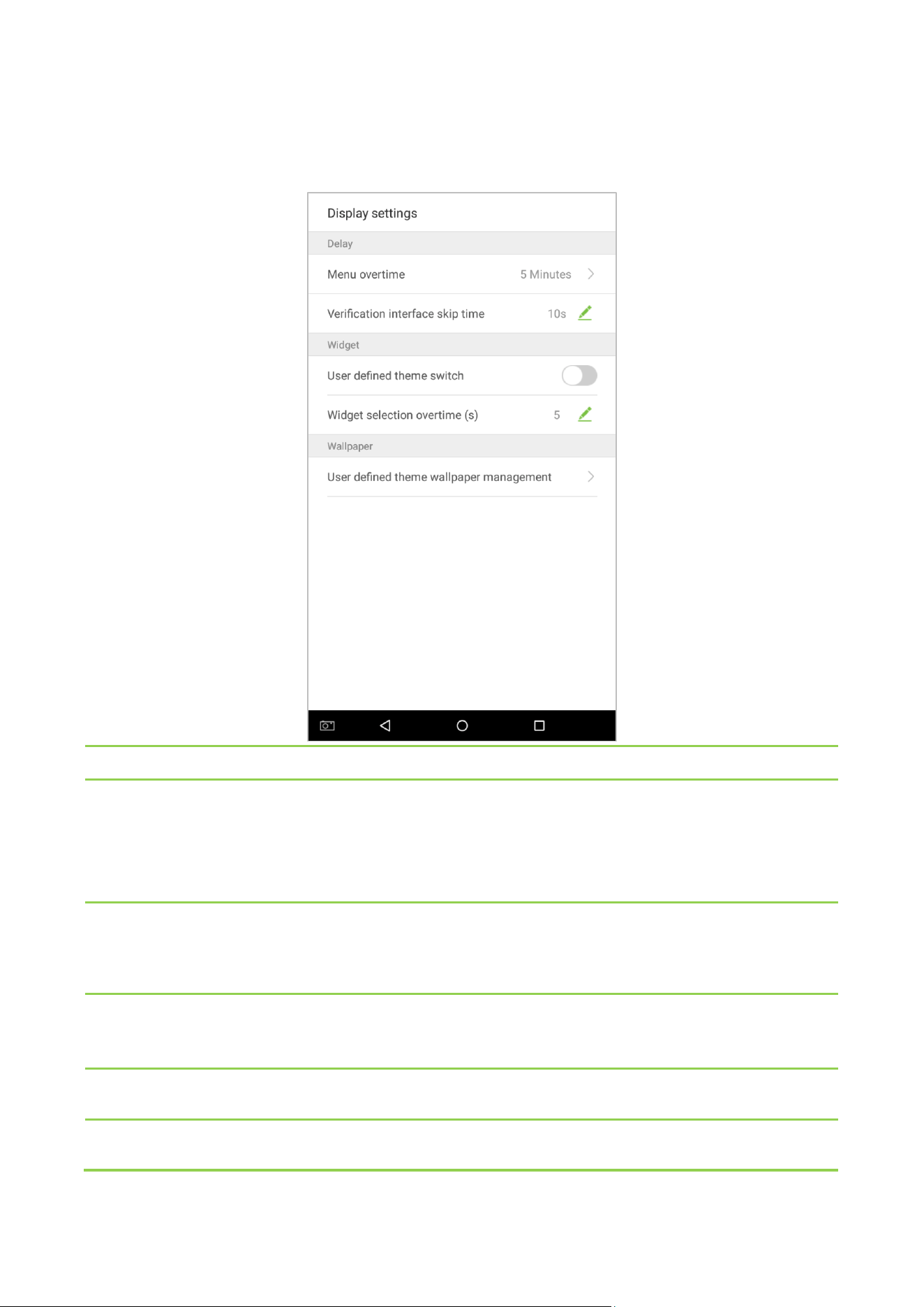
10.6 Display Settings
In the system settings list, tap on [Display Settings] to enter the display settings page:
Menu Options Function Description
Menu overtime
Menu overtime occurs when no operations are performed for a certain amount of
time after a user has entered the menu, and the menu enters a standby screen.
Parameter options include: 30 seconds, 1 minute, 2 minutes, 5 minutes, 10 minutes,
or disabled. When this feature is disabled, the menu (including sub-menus) will not
automatically close. Users must press "Exit" to exit the menu.
Verification interface skip
time
When there is no person nearby after a user verified, the verification interface
remains for a certain amount of time and then skip to the standby screen. The skip
time values from 5s to 30s.
User defined theme
switch
When this switch is enabled, users can drag plugin; when disabled, widgets cannot
be dragged. (When this is enabled, anyone can modify the theme. We recommend
that the administrator disable this function after making the desired changes).
Widget selection
overtime(s)
If a overtime message occurs while selecting plugin status time, the default status
will be restored. When the value is set as 0, this function is disabled. Unit: seconds.
User defined theme
wallpaper management
This displays all uploaded custom wallpapers. Users can set and delete wallpapers.
143
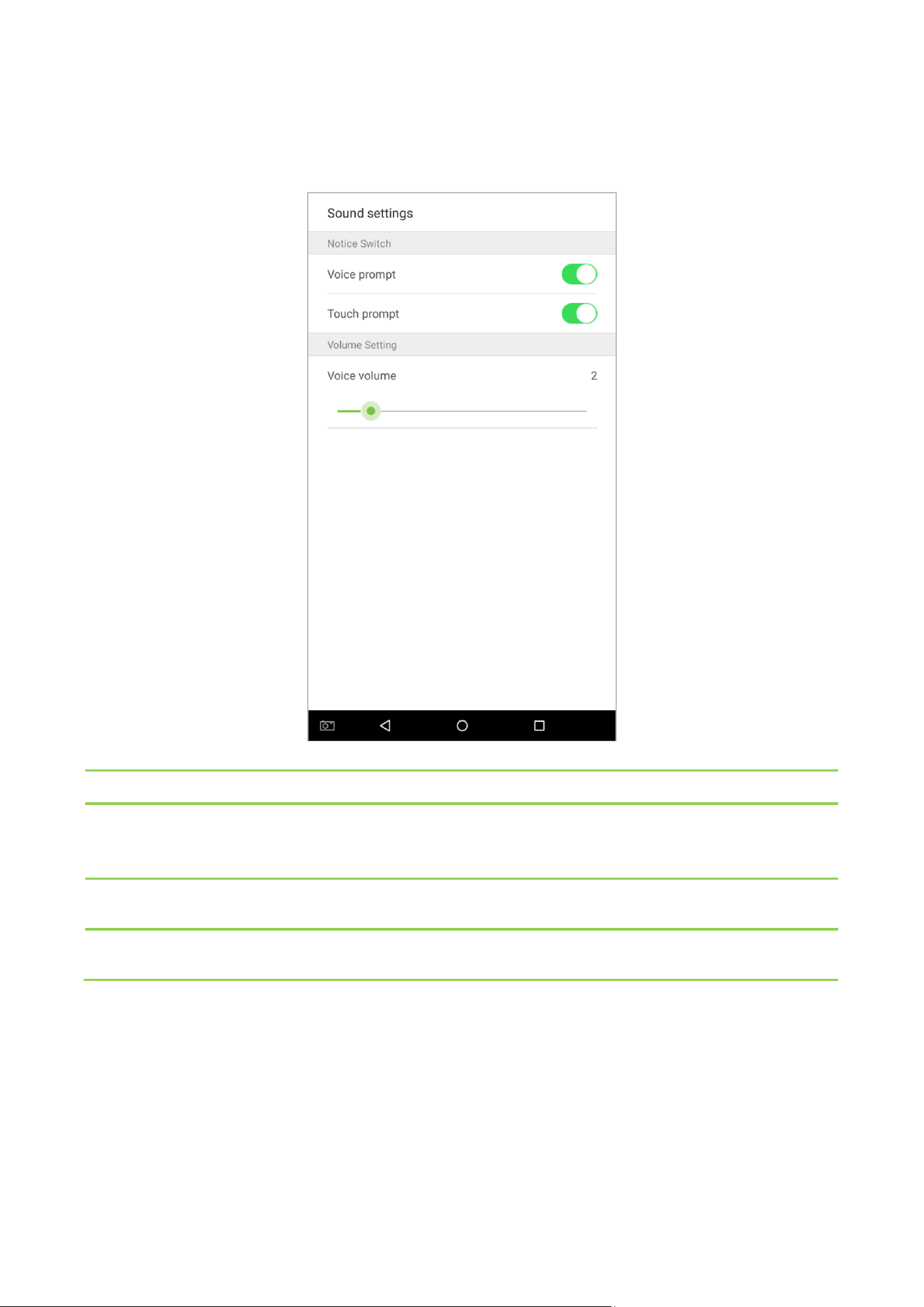
10.7 Sound Settings
On the system settings list, tap on [Sound Settings] to enter the interface of sound settings.
Menu Options Function Description
Voice prompt
When voice prompts are enabled, users will receive voice prompts. Voice prompts will not
be received when this setting is disabled. When disabled and then re-enabled, the volume
level will be set to 1.
Touch prompt
This switch enables/disables touchscreen prompt. When enabled, users will receive
touchscreen prompts. When disabled, no touchscreen prompts will be received.
Voice volume
Adjust volume volume. This can only be used if audio prompts are enabled. It can be set
from 0-15.
144
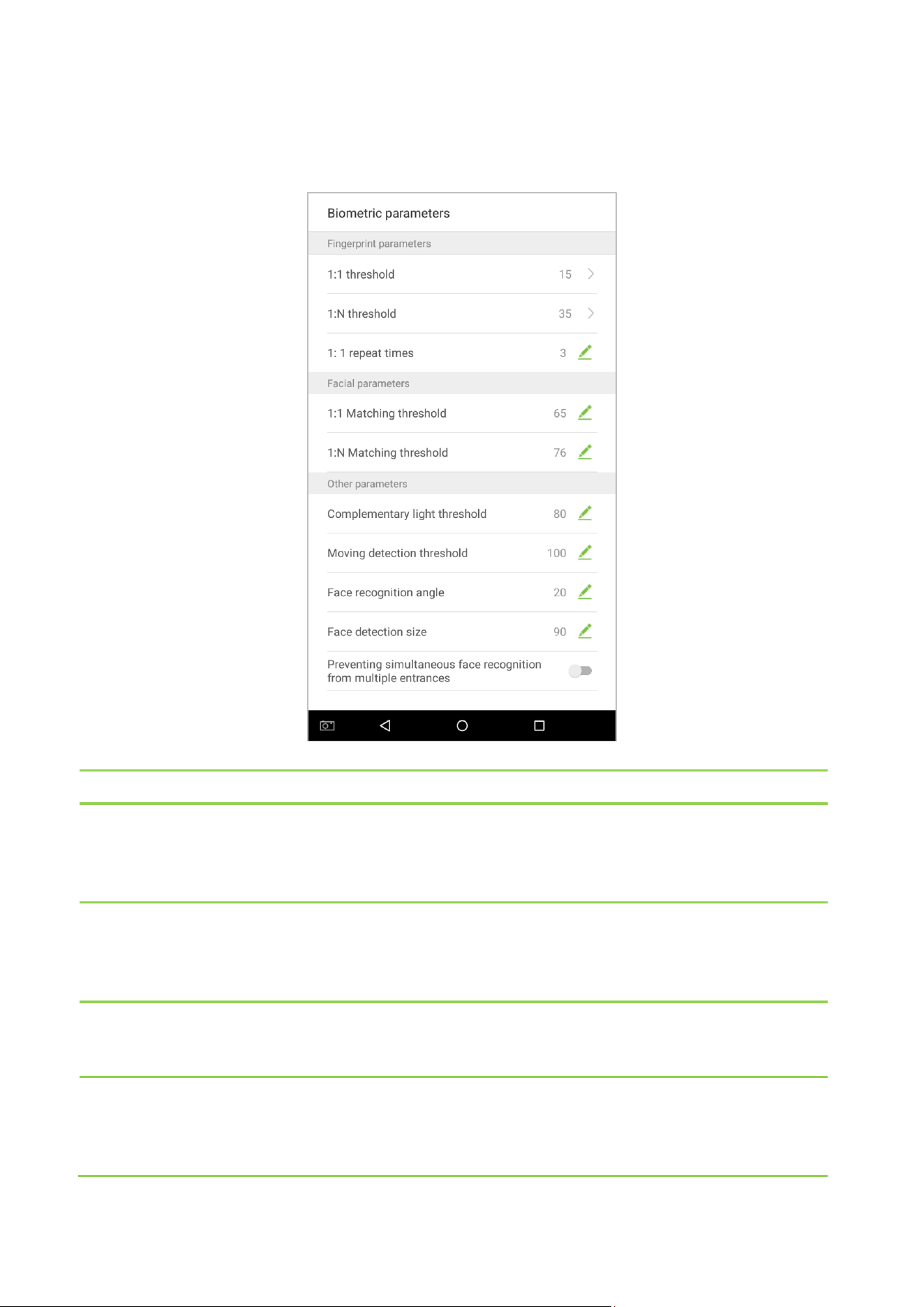
10.8 Biometric Parameters
On the system settings list, tap on [Biometric Parameters] to enter the “Biometric parameters” interface:
Menu Function Description
1:1 threshold
When conducting 1:1 fingerprint verification, fingerprint data is collected and instantly
compared with fingerprint data using a 1:1 algorithm. This is converted into a value that is
then compared to a set value. If the value of the scanned fingerprint exceeds that of the
set value, the verification passes. If it does not, the verification fails.
1:N threshold
When conducting 1:N verification, fingerprint data is collected and instantly compared
with all fingerprint templates on the system using a 1:N algorithm. This is converted into a
value that is compared to a set value. If the value of the scanned fingerprint exceeds that
of the set value, the verification has passes. If it does not, the verification fails.
1:1 repeat times
The upper limit of the number of failed verification under 1:1 verification. When the
number of failed verification reaches the set value, the system will return to the standby
interface.
1:1 matching
threshold
When conducting 1:1 face verification, face data is collected and instantly compared with
face data using a 1:1 algorithm. This is converted into a value that is then compared to a
set value. If the value of the scanned face exceeds that of the set value, the verification
passes. If it does not, the verification fails.

145
1:N matching
threshold
When conducting 1:N verification, face data is collected and instantly compared with all
face templates on the system using a 1:N algorithm. This is converted into a value that is
compared to a set value. If the value of the scanned face exceeds that of the set value, the
verification has passes. If it does not, the verification fails.
Complementary
light threshold
Detect ambient light brightness. When the brightness of the surrounding environment is
less than the threshold, the complementary light is turned on; when the brightness is
greater than the threshold, the complementary light is not turned on.
The default value is 80.
Moving detection
threshold
Detect whether there is a moving person in front of the device to determine whether the
face recognition function is enabled. The default value is 100.
Face recognition
angle
To limit the face angle at face recognition, the recommended threshold is 20.
Face detection size
The size of the face when face recognition. The range is 65-320 cm. The smaller the value,
the farther the detectable distance is; otherwise, the closer it is.
Preventing
simultaneous face
recognition from
multiple entrances
When multiple devices are installed on the side-by-side entrance, please enable this
function to prevent multiple devices from simultaneously recognizing the face.
Set the threshold to three types: high, medium, and low. The higher the threshold, the
narro
wer the distance between the guide lines and the smaller the face recognition range
on the screen. When setting the threshold, it is recommended to open auxiliary line
correction function.
146
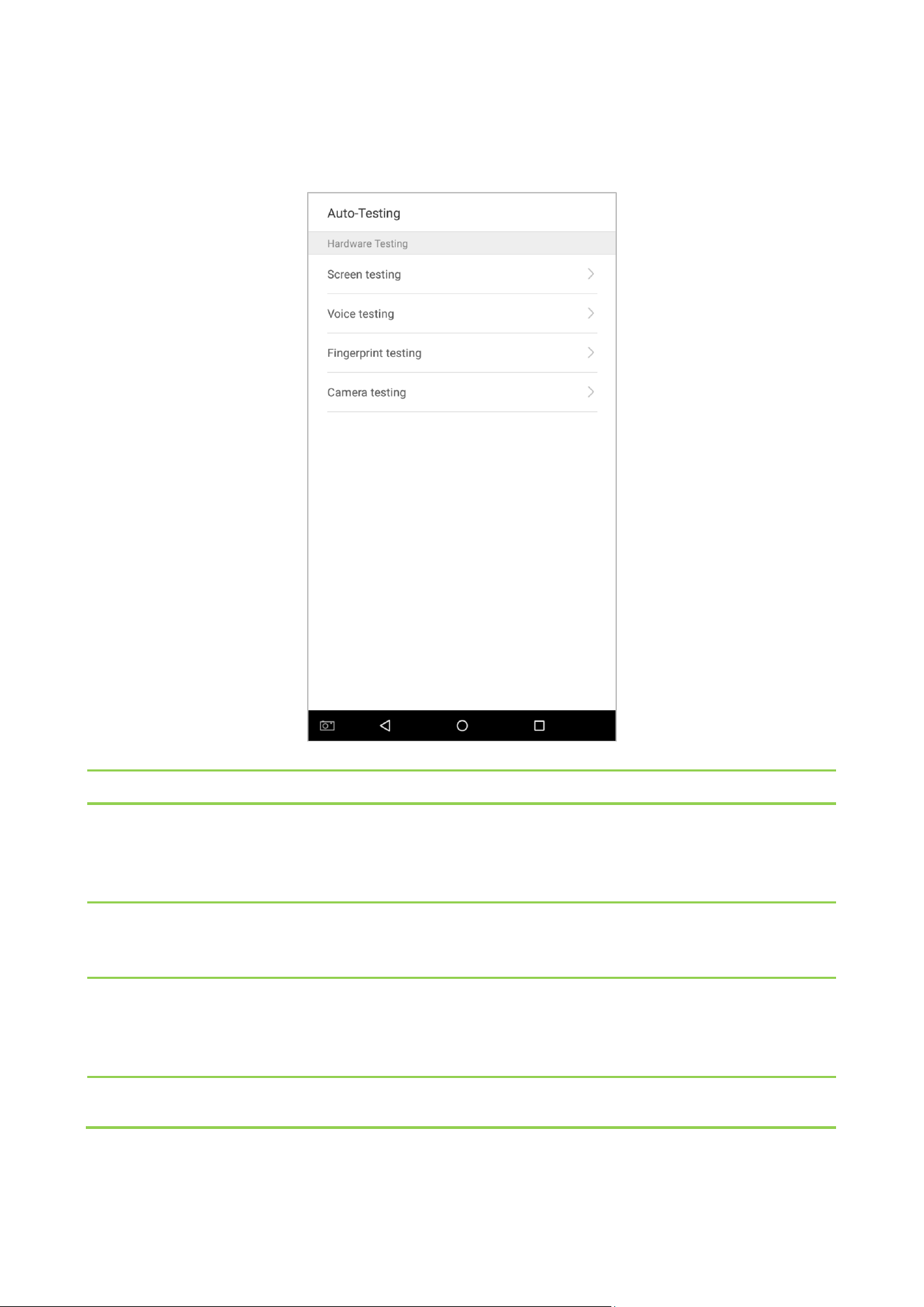
10.9 Auto-testing
On the system settings list, tap on [Auto-Testing] to enter the auto testing interface:
Menu Options Function Description
Screen testing
Test the screen's display. The screen will display red, green, blue, white, and black tests.
Check if the screen color is uniformly correct across each area of the screen. Tap on
anywhere on the screen during testing to continue testing. Tap on the back key to exit
testing.
Voice testing
The device automatically tests audio prompts by playing back audio files that are stored
in the device to test if the device's audio files are complete and if the audio effects are in
good working order. Tap on the back key to exit testing.
Fingerprint testing
The device automatically tests if the fingerprint scanner is functioning properly by testing
a fingerprint that is pressed onto the scanner, and seeing if the fingerprint image is clear
and usable. When pressing a fingerprint onto the scanner, the screen will display an
image of the scanned fingerprint.
Camera testing
Test if the camera is functioning properly. Check to see if the image quality is clear and
usable.
147
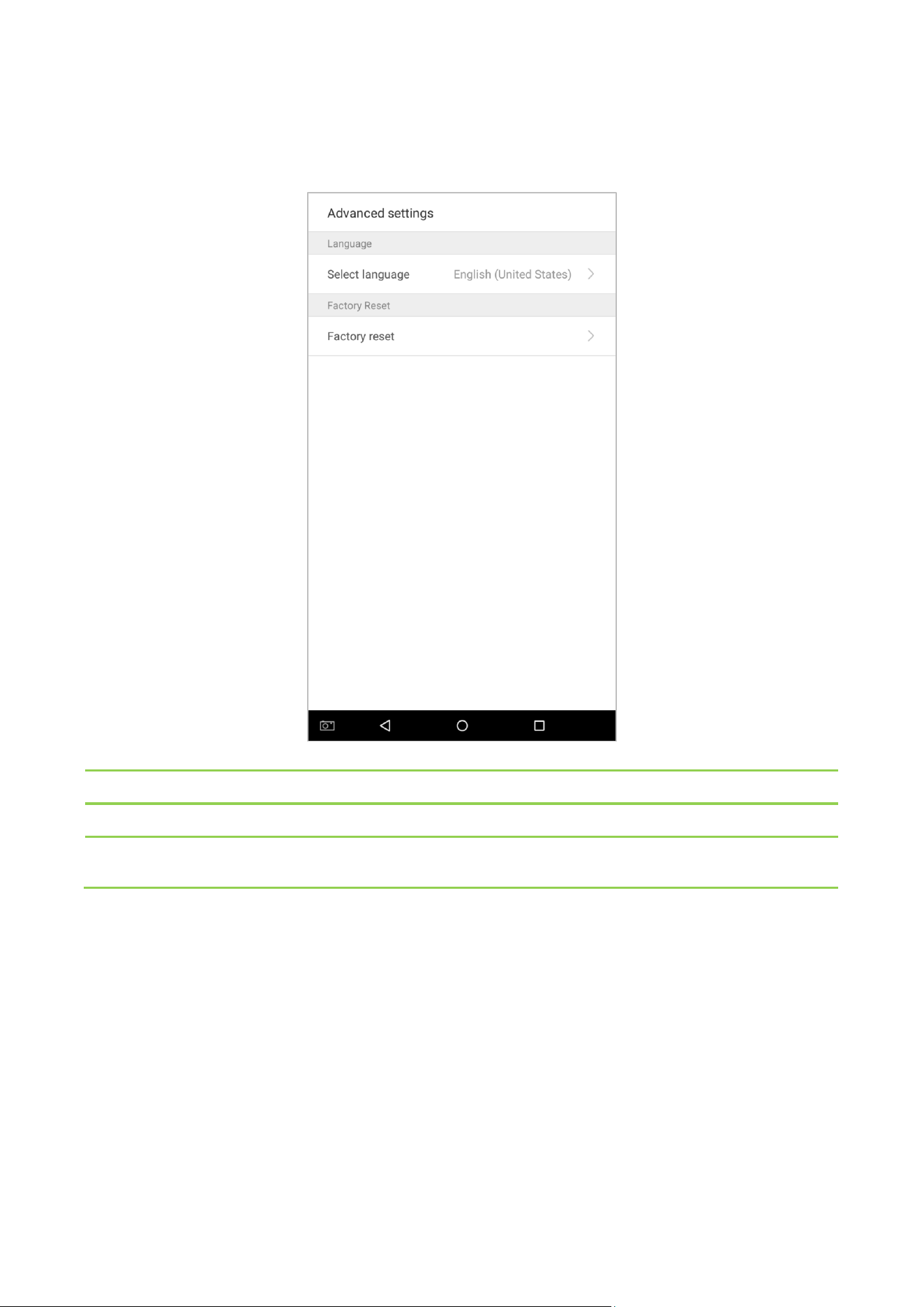
10.10 Advanced Settings
On the system settings list, tap on [Advanced settings] to enter the “Advanced settings” interface:
Menu Options Function Description
Select language
Select English or Simplified Chinese.
Restore factory
Restores the settings of the device, including communication settings, system settings, to
the factory settings.
148
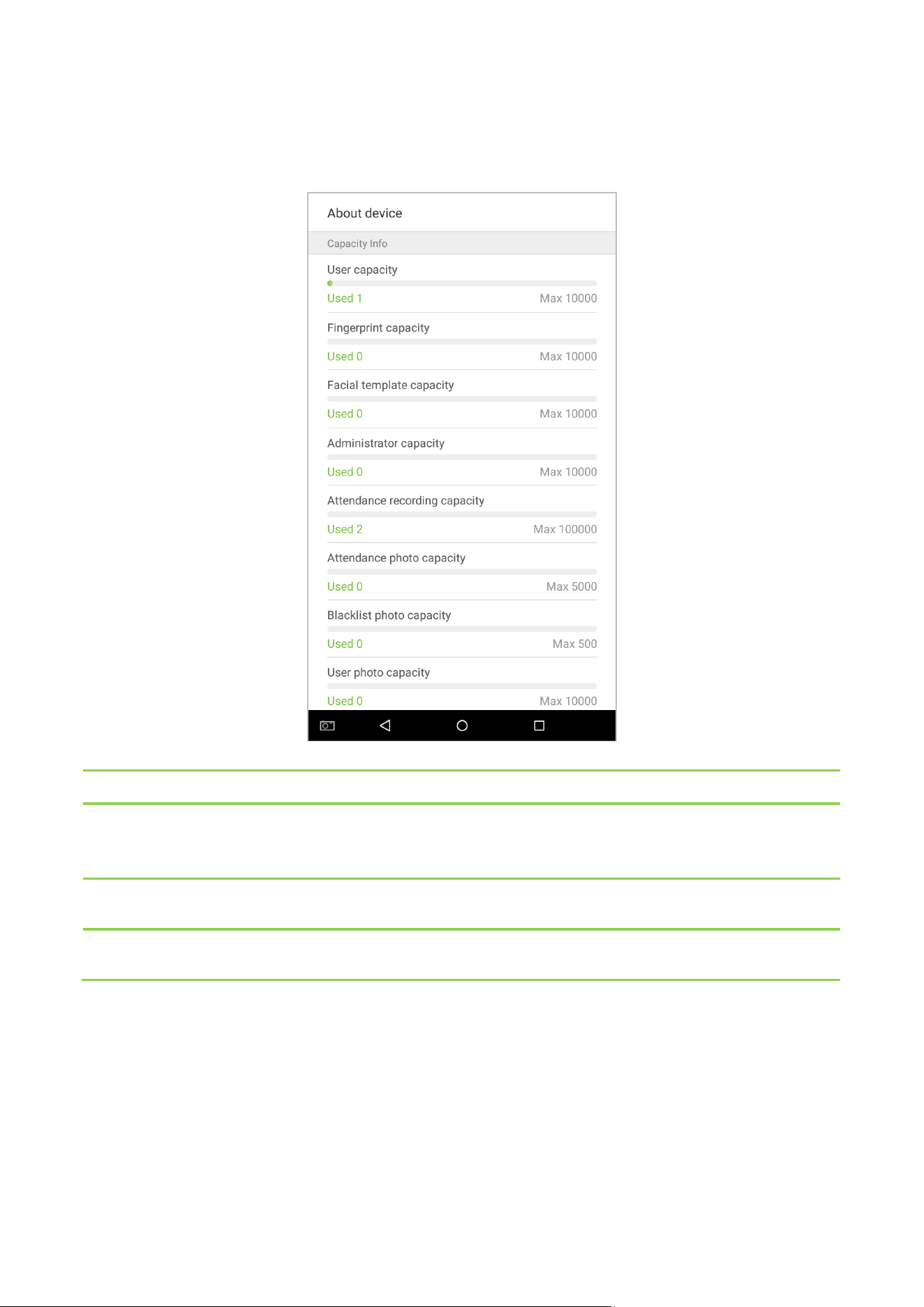
10.11 About the Device
On the system settings list, tap on [About the Device] to enter the “About the Device” interface:
Menu Options Function Description
Capacity Information
Displays the current device's employee storage, fingerprint and face storage,
administrators, attendance records, attendance photos, blacklist photos, and employee
photos.
Device Information
Displays the device's name, serial number, MAC address, fingerprint algorithm version
information, platform information, and manufacturer.
Version
Displays all the versions of all the system's apps, such as the system settings, quick parts,
data manager, and other installed apps.

149
11. USB upgrade
The device's firmware program can be upgraded with the upgrade file in a USB drive. Before conducting this
operation, please ensure that the USB drive contains the correct upgrade file and is properly inserted into the
device.
Note: If you need an upgrade file, please contact out technical staff. Firmware upgrade is not recommended under
normal circumstances.

150
Statement on the Right to Privacy
Dear Customers:
Thank you for choosing this hybrid biometric recognition product, which was designed and manufactured by
ZKTeco. As a world-renowned provider of core biometric recognition technologies, we are constantly developing
and researching new products, and strive to follow the privacy laws of each country in which our products are sold.
We Declare That:
1. All of our civilian fingerprint recognition devices capture characteristics, not fingerprint images, and do not
involve privacy protection.
2. None of the fingerprint characteristics that we capture can be used to reconstruct an image of the original
fingerprint, and do not involve privacy protection.
3. As the provider of this device, we will assume no direct or indirect responsibility for any consequences that may
result from your use of this device.
4. If you would like to dispute human rights or privacy issues concerning your use of our product, please directly
contact your employer.
Our other police fingerprinting devices or development tools can capture original images of citizens' fingerprints. As
to whether or not this constitutes infringement of your rights, please contact your government or the final supplier
of the device. As the manufacturers of the device, we will assume no legal liability.
Notes:
Chinese law includes the following provisions on the personal freedoms of its citizens:
1. There shall be no illegal arrest, detention, search, or infringement of persons;
2. Personal dignity as related to personal freedom shall not be infringed upon;
3. A citizen's house may not be infringed upon;
4. A citizen's right to communication and the confidentiality of that communication is protected by law.
As a final point we would like to further emphasize that biometric recognition is an advanced technology that will
undoubtedly be used in e-commerce, banking, insurance, legal, and other sectors in the future. Every year the world
is subjected to major losses due to insecure nature of passwords. Biometric products serve to protect your identity
in high-security environments.

151
Eco-friendly Use
• This product's "eco-friendly use period" refers to the period during which this product will
not leak toxic or hazardous substances, when used in accordance with the conditions in this
manual.
• The eco-friendly use period indicated for this product does not include batteries or other
components that are easily worn down and must be periodically replaced. The battery's
eco-friendly use period is 5 years.
Hazardous or Toxic Substances and Their Quantities
Component Name
Hazardous/Toxic Substance/Element
Lead (Pb)
Mercury
(Hg)
Cadmium
(Cd)
Hexavalent
chromium
(Cr6+)
Polybrominat
ed biphenyls
(PBB)
Polybrominated
diphenyl ethers
(PBDE)
Chip Resistor × ○ ○ ○ ○ ○
Chip capacitor × ○ ○ ○ ○ ○
Chip inductor × ○ ○ ○ ○ ○
Diode × ○ ○ ○ ○ ○
ESD component × ○ ○ ○ ○ ○
Buzzer × ○ ○ ○ ○ ○
Adapter × ○ ○ ○ ○ ○
Screws ○ ○ ○ × ○ ○
○
: indicates that the total amount of toxic content in all of the homogeneous materials is below the limit requirements
specified in SJ/T 11363—2006.
×: indicates that the total amount of toxic content in all of the homogeneous materials exceeds the limit requirements
specified in SJ/T 11363—2006.
Note: 80% of this project's components are made using non-toxic, eco-
friendly materials. Those which contain toxins or
harmful materials or elements are included due to current economic or technical limitations which prevent their
replacement with non-toxic materials or elements.

152
© Copyright 2018. ZKTeco Inc. ZKTeco Logo is a registered trademark of ZKTeco or a related company. All other product and
company names mentioned are used for identification purposes only and may be the trademarks of their respective owners. All
specifications are subject to change without notice. All rights reserved.
ZK Building, Wuhe Road, Gangtou, Bantian, Buji Town,
Longgang District, Shenzhen China 518129
Tel: +86 755-89602345
Fax: +86 755-89602394
www.zkteco.com






