ENGLISH
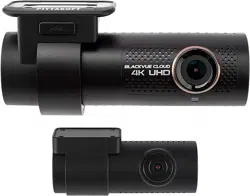
DR900X-2CH
Manual

2
BLACKVUE
Table of Contents
Introduction .................................................................5
Important safety information ....................................6
Overview ......................................................................9
In the box ..................................................................................................................... 9
At a glance .................................................................................................................10
Front camera ................................................................................................................................... 10
Removing and inserting the front camera ................................................................................ 12
Rear camera.....................................................................................................................................13
Removing and inserting the rear camera ..................................................................................13
Installation .................................................................14
Installing the BlackVue dashcam ..........................................................................14
Playing and Managing Videos ..................................20
Playing and managing video les using your smartphone
(Android/iOS) .......................................................................... 20
Opening video les ..................................................................................................20
Wi-Fi screen composition .......................................................................................22
Playing video ............................................................................................................23
Playing back videos ....................................................................................................................... 23
Identify video les by recording type ........................................................................................ 23
Checking the displayed time & GPS data ..................................................................................24
Real-time streaming video (Live View) ................................................................25
Managing videos .....................................................................................................26
Managing videos in Wi-Fi .............................................................................................................26
Copy to Internal Memory ............................................................................................................................................. 26
Managing videos in INTERNAL MEMORY .................................................................................. 27
Deleting videos .............................................................................................................................................................. 28
Creating a new folder ................................................................................................................................................... 29
Deleting a folder ............................................................................................................................................................ 29
Copying and pasting videos ....................................................................................................................................... 29
Moving videos ............................................................................................................................................................... 30
Renaming a video ......................................................................................................................................................... 30
Playing and managing video les using your computer
(Windows/macOS) .................................................................. 31
Removing the microSD card ..................................................................................31
Opening video les in BlackVue Viewer ..............................................................32
Viewer screen composition (Windows/macOS) .................................................33
Playing video ............................................................................................................34
Playing back videos ....................................................................................................................... 34
Identify video les by recording type ........................................................................................ 34
Checking the displayed time .......................................................................................................34
Using BlackVue Viewer .................................................................................................................. 35
Exploring the timeline and G-Sensor graph .............................................................................36
Zoom options .................................................................................................................................37
Checking the GPS data ..................................................................................................................38
Managing videos......................................................................................................39
Capturing or printing a still image from video .........................................................................39
Deleting videos ..............................................................................................................................39
Exporting videos ............................................................................................................................ 40
Copying videos ............................................................................................................................... 41
Tips for optimal performance ..................................42
Formatting the microSD card ................................................ 42
Format using BlackVue Viewer (Windows) ..........................................................42
Format using BlackVue Viewer (macOS) ..............................................................43
Upgrading the rmware ......................................................... 45
Upgrading the rmware using an iOS or Android device
(Firmware Over The Air) ..........................................................................................45
Upgrading the rmware using a computer (Windows/macOS) ......................51
Changing settings .....................................................53
Changing settings using your smartphone (Android/iOS) .. 53
Basic settings ............................................................................................................54
Time settings ...................................................................................................................................55
Video settings .................................................................................................................................57

DR900X-2CH
3
ENGLISH
Resolution ....................................................................................................................................................................... 57
Video Codec .................................................................................................................................................................... 58
Image quality .................................................................................................................................................................. 58
Enhanced night vision................................................................................................................................................... 58
Brightness (Front) .......................................................................................................................................................... 58
Brightness (Rear) ............................................................................................................................................................ 58
Recording settings ......................................................................................................................... 59
Normal recording ........................................................................................................................................................... 59
Parking mode recording ............................................................................................................................................... 59
Rear camera recording in parking mode ................................................................................................................... 60
Voice recording............................................................................................................................................................... 60
Date & time display ........................................................................................................................................................ 60
Speed unit ...................................................................................................................................................................... 60
Video segment length ................................................................................................................................................... 60
Lock event les ............................................................................................................................................................... 60
Front camera rotation ................................................................................................................................................... 61
Rear camera orientation ............................................................................................................................................... 61
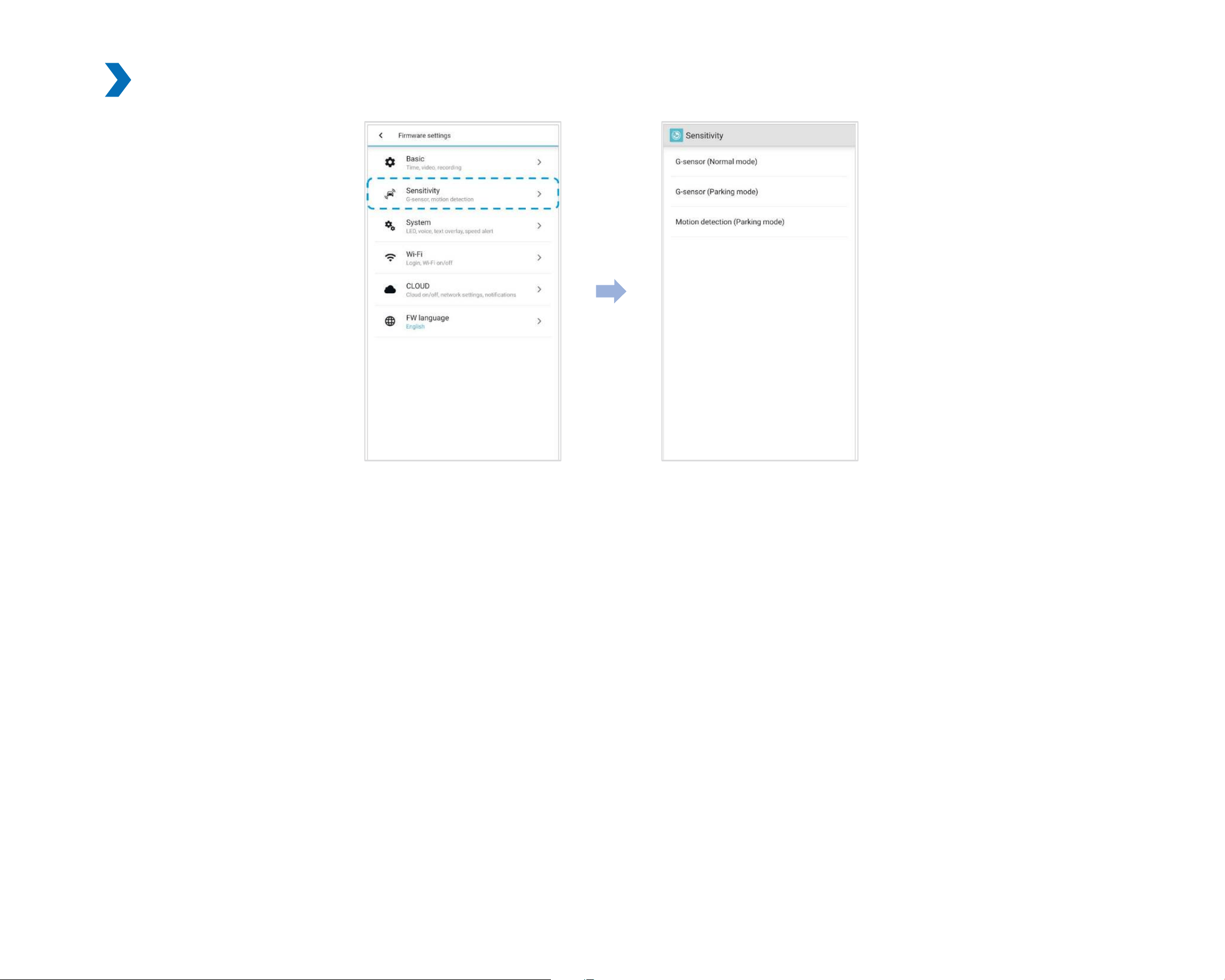
Sensitivity settings ..................................................................................................62
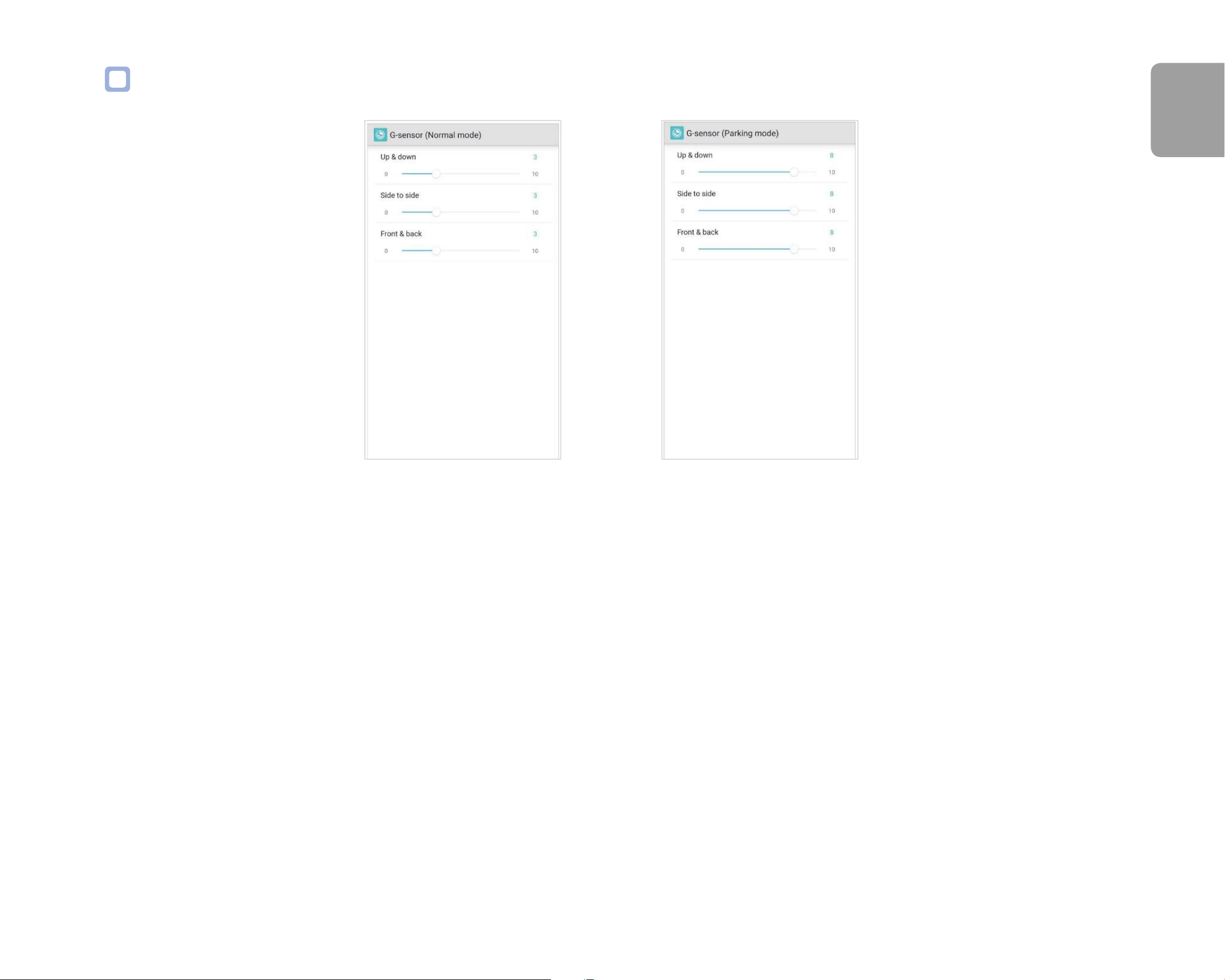
G-Sensor (Normal mode) / G-Sensor (Parking mode) ............................................................. 63
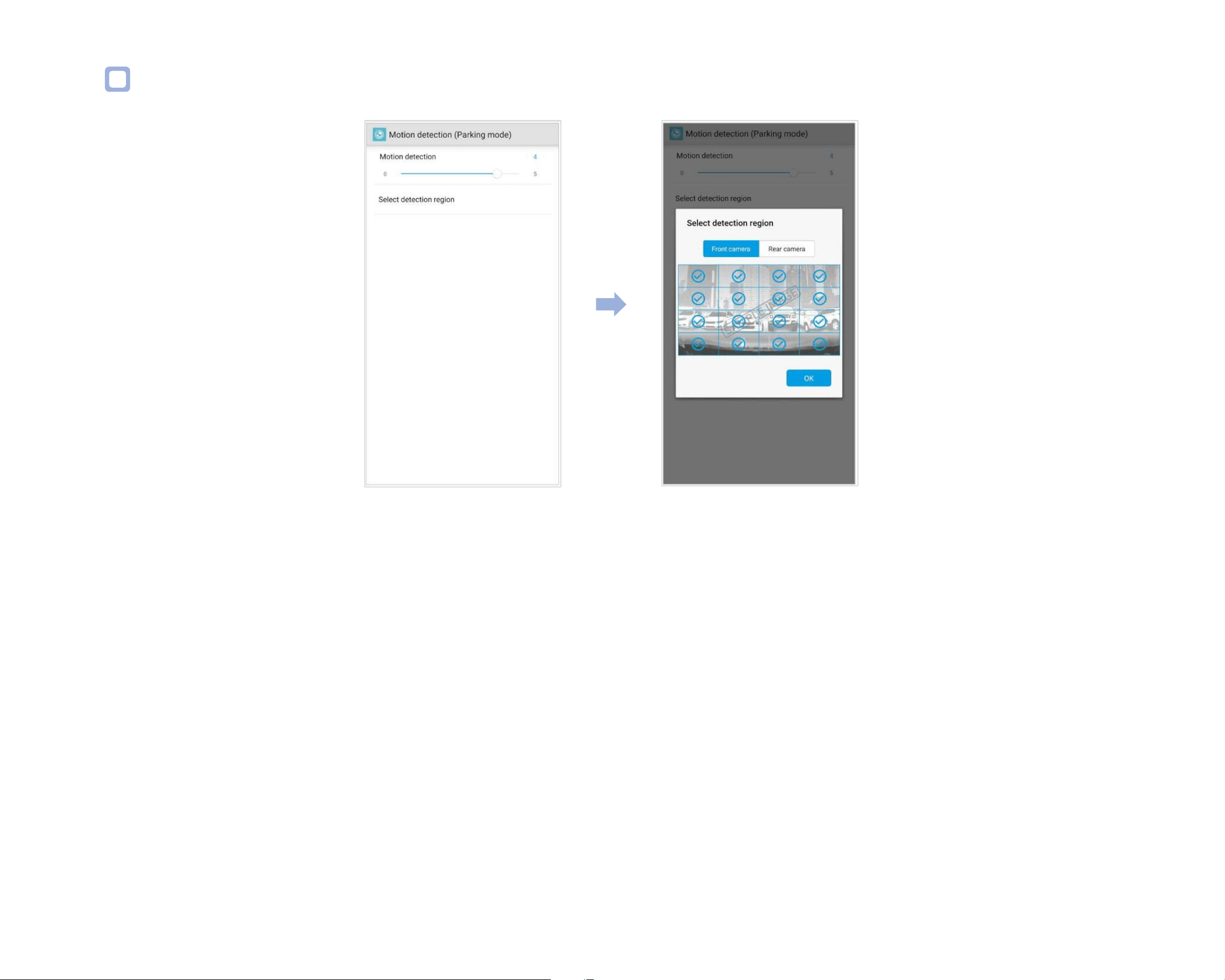
Motion detection (Parking mode) ..............................................................................................64
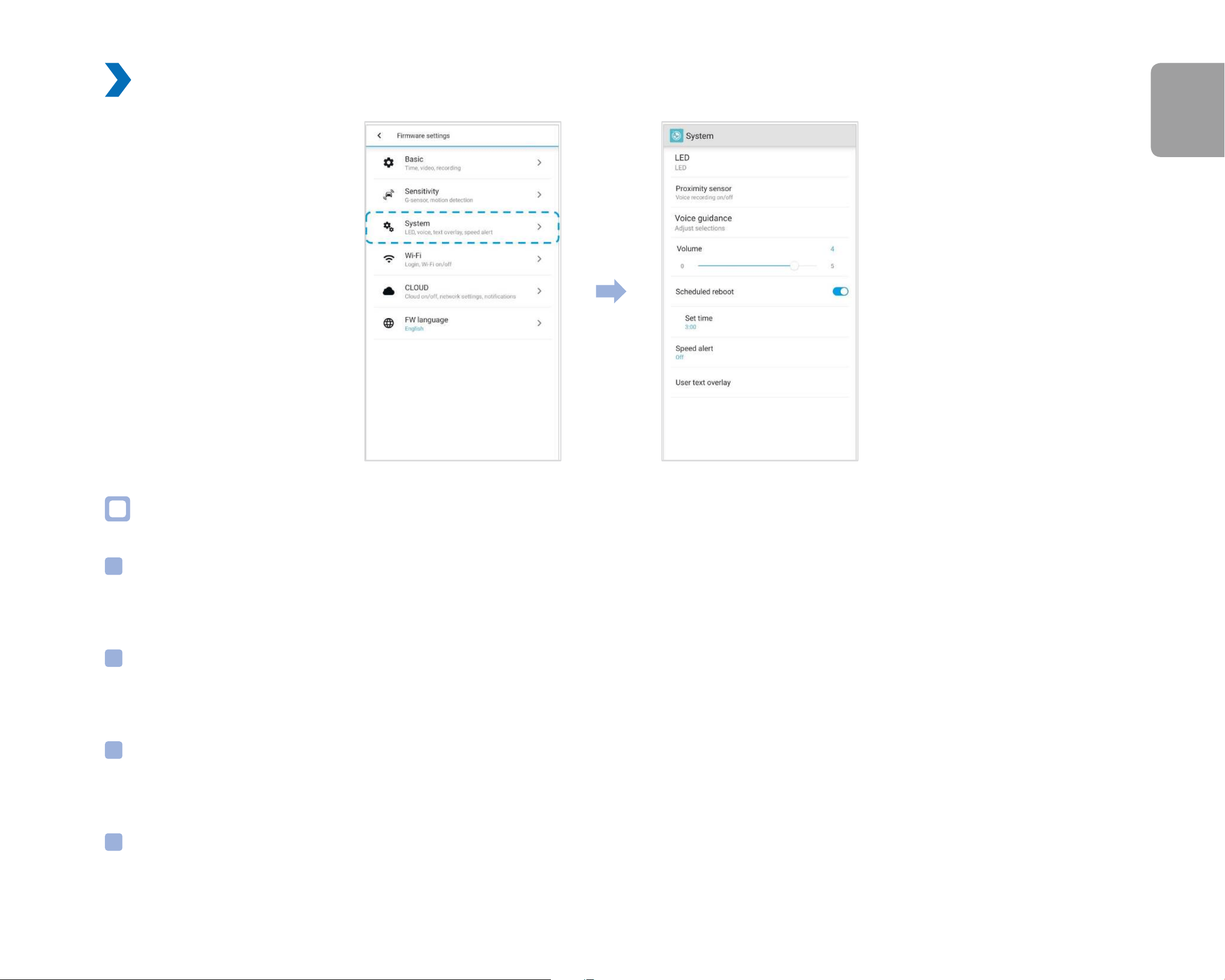
System settings ........................................................................................................65
LED .................................................................................................................................................... 65
Recording status ............................................................................................................................................................ 65
Front security (Normal mode) ..................................................................................................................................... 65
Front security (Parking mode) ..................................................................................................................................... 65
Rear security ................................................................................................................................................................... 65
LTE (Parking mode) ........................................................................................................................................................ 66
Wi-Fi (Parking mode) ..................................................................................................................................................... 66
Proximity Sensor ............................................................................................................................66
Voice guidance ...............................................................................................................................66
Impact detected in parking mode .............................................................................................................................. 66
Volume ............................................................................................................................................. 66
Scheduled Reboot..........................................................................................................................66
Speed alert ...................................................................................................................................... 67
Battery Protection (Hardwiring Power Cable installation only) ........................................................................... 67
User text overlay ............................................................................................................................ 67
Wi-Fi settings ............................................................................................................68
Login credentials ............................................................................................................................ 68
Wi-Fi auto turn o .......................................................................................................................... 68
Cloud settings ...........................................................................................................69
Enable Cloud service ..................................................................................................................... 69
Cloud service hotspot settings .................................................................................................... 70
Push notication settings .............................................................................................................71
FW Language ............................................................................................................72
Changing settings using your computer
(Windows/macOS) .................................................................. 73
BlackVue Viewer settings........................................................................................74
Select language .............................................................................................................................. 74
Speed unit on map.........................................................................................................................74
Select map service .........................................................................................................................74
Picture-in-picture(PIP) playback ................................................................................................. 74
Firmware settings ....................................................................................................75
Basic settings ..................................................................................................................................76
Time settings ................................................................................................................................................................... 76
Video settings ................................................................................................................................................................. 77
Recording settings ......................................................................................................................................................... 79
Sensitivity settings ........................................................................................................................ 81
G-Sensor (Normal mode) / G-Sensor (Parking mode) ............................................................................................. 81
Motion detection (Parking mode) .............................................................................................................................. 82
Advanced sensitivity settings for normal and parking mode ............................................................................... 82
Advanced motion detection settings (Region selection) ....................................................................................... 84
System settings .............................................................................................................................. 85
LED .................................................................................................................................................................................... 85
Proximity Sensor ............................................................................................................................................................ 86
Voice guidance ............................................................................................................................................................... 86
Volume ............................................................................................................................................................................. 87
Scheduled Reboot.......................................................................................................................................................... 87
Speed alert ...................................................................................................................................................................... 87
Battery Protection (Hardwiring Power Cable installation only) ........................................................................... 87
User text overlay ............................................................................................................................................................ 87
Wi-Fi settings .................................................................................................................................. 88
Login credentials ............................................................................................................................................................ 88
Wi-Fi auto turn o .......................................................................................................................................................... 89
Cloud settings .................................................................................................................................90
Enable Cloud service ..................................................................................................................................................... 90
Cloud service hotspot settings .................................................................................................................................... 91
Push notication settings ............................................................................................................................................. 91
Applying the settings ....................................................................................................................91

4
BLACKVUE
About the BlackVue Cloud Service ...........................92
Connect to BlackVue Cloud (Optional) ................................. 92
Optional accessories .............................................. 100
Parking mode battery (Optional) ........................................ 100
Power Magic Battery (B-112) ............................................... 100
Power Magic Ultra Battery (B-124X) .................................... 101
External connectivity module (Optional) ........................... 102
Troubleshooting ..................................................... 103
Changing / resetting Wi-Fi Direct SSID and password ...... 103
Change Wi-Fi SSID and password over the Cloud ........................................... 103
Change the Wi-Fi password using BlackVue Viewer (Windows/macOS) .... 106
Product specications ............................................ 107
Recording time ....................................................... 109
Disposal and recycling information ...................... 111

DR900X-2CH
5
ENGLISH
Introduction
Thank you for purchasing this BlackVue dashcam made by Pittasoft Co., Ltd.
This instruction manual contains information on how to operate your dashcam.
Before using your dashcam, we recommend that you read through this manual to ensure correct usage.
To improve the performance of the product, the contents of this manual are subject to change without prior notice.
Note
y
A formatted microSD card is provided with the BlackVue dashcam when you purchase the product. Insert the microSD card in the
dashcam and power it up. The microSD card will be initialized.
6
BLACKVUE
Important safety information
For user safety and to avoid property damage, read through this manual and follow these safety instructions to use the product correctly.
Failure to observe the following directions could result in death or property damage:
DANGER
y
Do not disassemble, repair, or modify the product yourself.
Doing so may cause re, electric shock, or malfunction. For internal inspection and repair, contact the service center.
y
If any foreign matter gets inside the product, detach the power cord immediately.
Contact the service center for repair.
y
Do not adjust the product while driving.
Doing so may cause an accident. Stop or park your car in a safe place before installing and setting up the product.
y
Do not install the product in a location where the product can interfere with the driver's eld of vision.
Doing so may cause an accident.
y
Do not use a damaged or modied power cord. Only use the cords provided by the manufacturer.
Damaged or modied power cords may cause an explosion, re, or malfunction.
y
Do not operate the product with wet hands.
Doing so may cause electric shock.
y
Do not install the product in an environment with high humidity, or combustible gases or liquids.
Doing so may cause an explosion and/or re.
DR900X-2CH
7
ENGLISH
Failure to observe the following directions could result in death or serious injury:
WARNING
y
Do not leave the product near infants, children, or pets.
There is a risk of them swallowing small components, and/or their saliva may get into the product, causing an explosion due to a short
circuit.
y
Do not spray water or wax directly onto the product while cleaning the inside of the car.
Doing so may cause re, electric shock, or malfunction.
y
If smoke or an unusual smell is emitted from the power cord, detach the power cord immediately.
Contact the service center or your distributor.
y
Keep the terminals of the power cord clean.
Failure to do so may cause excessive heat and re.
y
Use the correct input voltage.
Failure to do so may cause explosion, re, or malfunction.
y
Plug in the power cord rmly so that it cannot easily be disconnected.
Failure to do so may cause re.
y
Do not cover the product with any material.
Doing so may cause external deformation of the product or re. Use the product and peripherals in a well-ventilated location.
8
BLACKVUE
Failure to observe the following directions could result in injury or property damage:
CAUTION
y
Do not spray cleaning products directly onto the product.
Doing so may cause discoloration, cracks, or malfunction.
y
If the product is used outside the optimal temperature range (-20°C – 70°C / -4°F – 158°F), performance can decline or
malfunctions may occur.
y
Make sure that the product is installed properly.
If installed incorrectly, vibrations may cause the product to fall, and may cause physical injury.
y
When entering or exiting a tunnel, when directly facing into bright sunlight, or when recording at night without lighting the
quality of recorded video may deteriorate.
y
If the product is damaged or the power supply is cut due to an accident, video may not be recorded.
y
Excessively tinted windshield glass can distort the recorded video or cause recorded video to be indistinct.
y
Prolonged use of the product can increase the interior temperature and cause burns.
y
microSD cards are consumables, so replace microSD cards after prolonged use.
microSD cards may not record video correctly after extended use, so check the microSD card's recording capability periodically and
replace as necessary.
y
Clean the lens regularly.
Foreign material attached to the lens can aect the recording quality.
y
Do not remove the microSD card while the microSD card is saving or reading data.
The data can be damaged or malfunctions may occur.
y
It is recommended that you install the software and rmware from the BlackVue downloads page (www.blackvue.com).
y
It is recommended that you remove the power cord if the product (BlackVue dashcam/Parking Mode Hardwiring Kit) is not used
for an extended period of time.
DR900X-2CH
9
ENGLISH
Overview
In the box
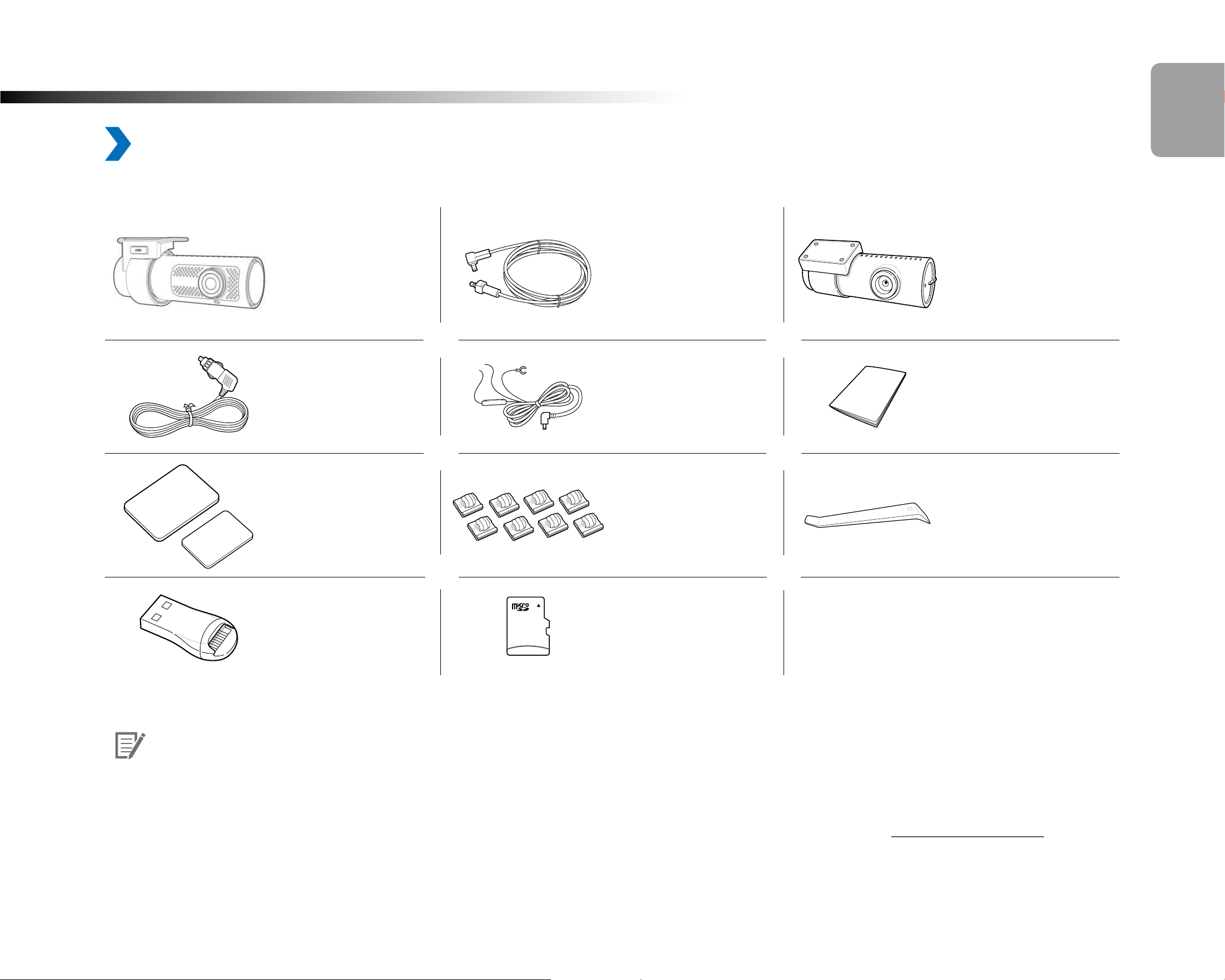
Check the box for each of the following items before installing the BlackVue dashcam.
Front camera
Rear camera
connection cable
Rear camera
Cigarette lighter
power cable
Hardwiring Power
Cable
Quick start guide
Double-sided tape
for the Mounting
Brackets
Cable clips (8 EA) Pry tool
microSD card reader microSD Card
Note
y
The illustrations in this manual may dier from the product.
y
To improve the performance of the product, the contents of this manual are subject to change without prior notice.
y
For more information about the package components and accessories, visit the BlackVue website (www.blackvue.com).
10
BLACKVUE
At a glance
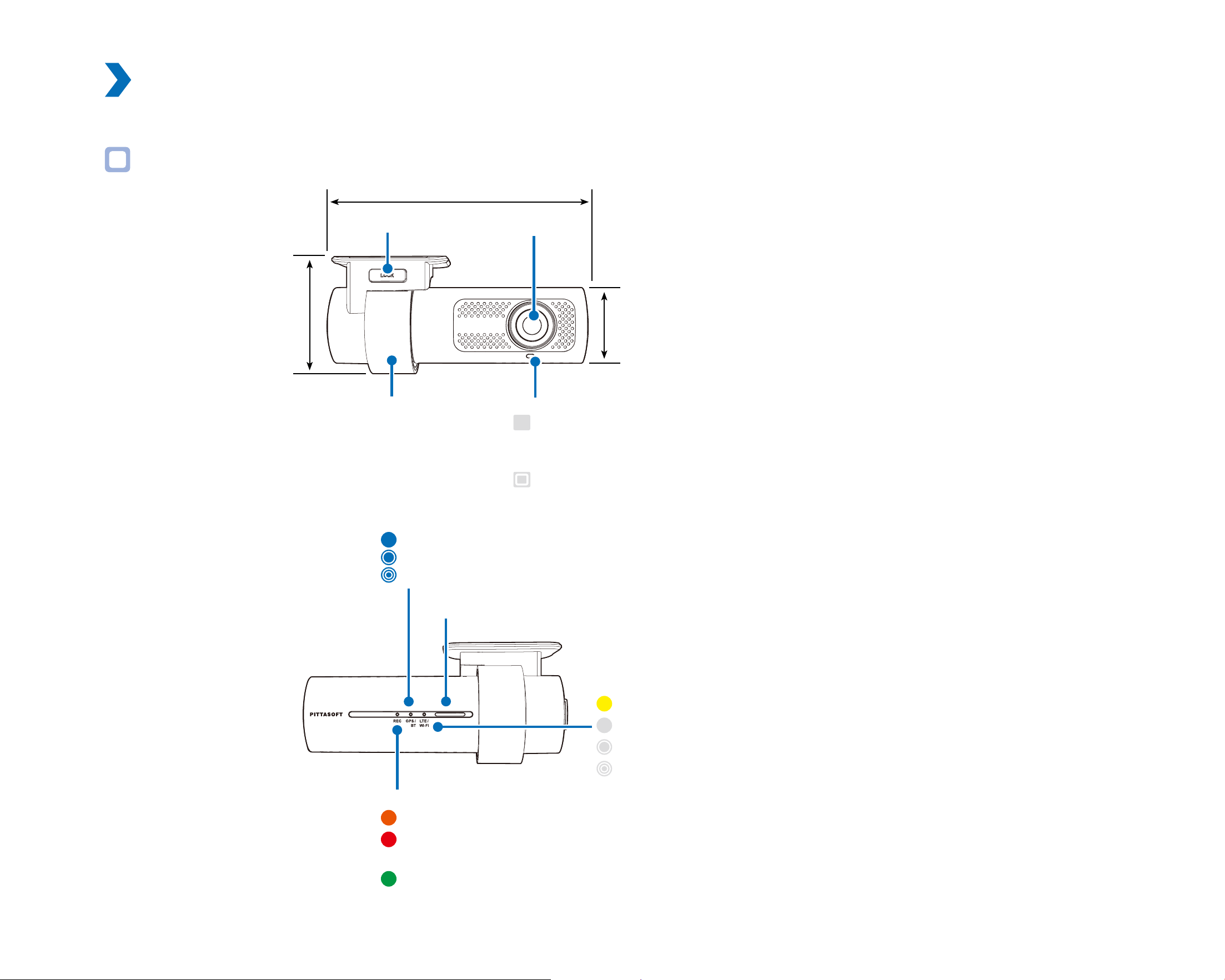
The following diagrams explain each part of the BlackVue dashcam.
Front camera
36 mm
Camera lens
Mounting bracket Front security LED
: Lights on during (i) normal mode, (ii) an event is being recorded
(impact detected), (iii) manual recording has started, or (iv) motion
is detected in parking mode.
: Blinks slowly during parking mode motion detection standby.
Lock button
55 mm
118.5 mm
GPS/BT LED
: Lights blue when (i) GPS is on, and/or (ii) Bluetooth is paired.
: Blinks blue slowly when bluetooth is in pairing mode.
: Blinks blue quickly when (i) GPS is turning o, and/or (ii) Bluetooth is turning o.
Recording LED
: Lights orange in normal mode.
: Lights red when (i) an event is being recorded (impact detected), or (ii) manual
recording has started.
: Lights green in parking mode when motion is detected.
Speaker
LTE/Wi-Fi LED
: Lights yellow when LTE is connected.
: Lights white when Wi-Fi is connected.
: Blinks white slowly when connecting to Wi-Fi.
: Blinks white quickly when Wi-Fi is turning o.
DR900X-2CH
11
ENGLISH
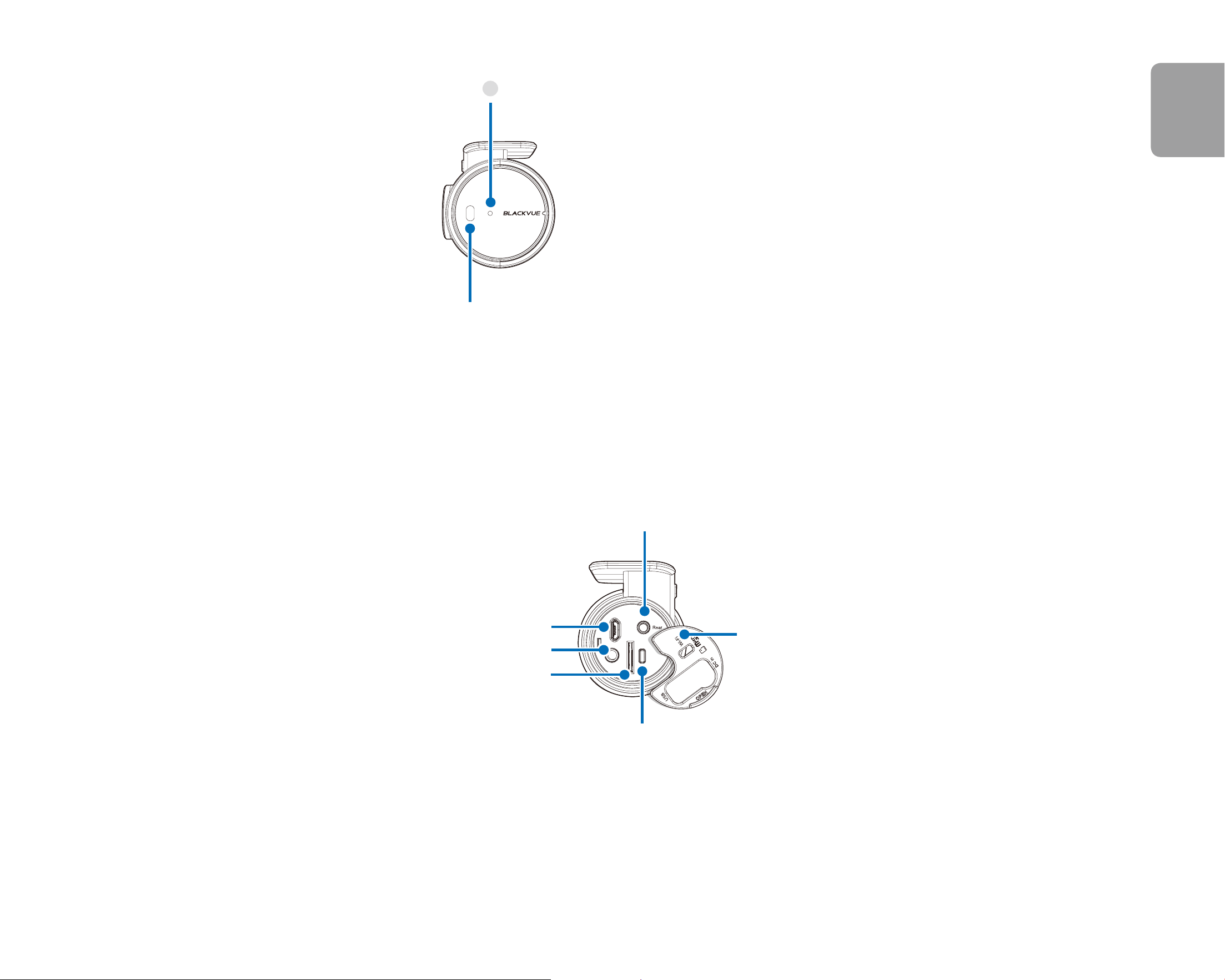
Proximity Sensor:
Touch or wave a nger within 20mm of the sensor to
trigger a customizable function.
Available options:
- Turn on/o audio recording (default)
- Manual recording trigger
- O
Proximity Sensor LED
: Lights when proximity sensor is triggered.
Cover
Micro USB port
DC in (power connector)
microSD card slot
Wi-Fi button:
– Press once to turn on/o Wi-Fi.
Rear camera connection port
12
BLACKVUE
Removing and inserting the front camera
Connectivity details label:
- Default Wi-Fi SSID
- Default Wi-Fi password
- Cloud code
- QR code
Serial number label
y
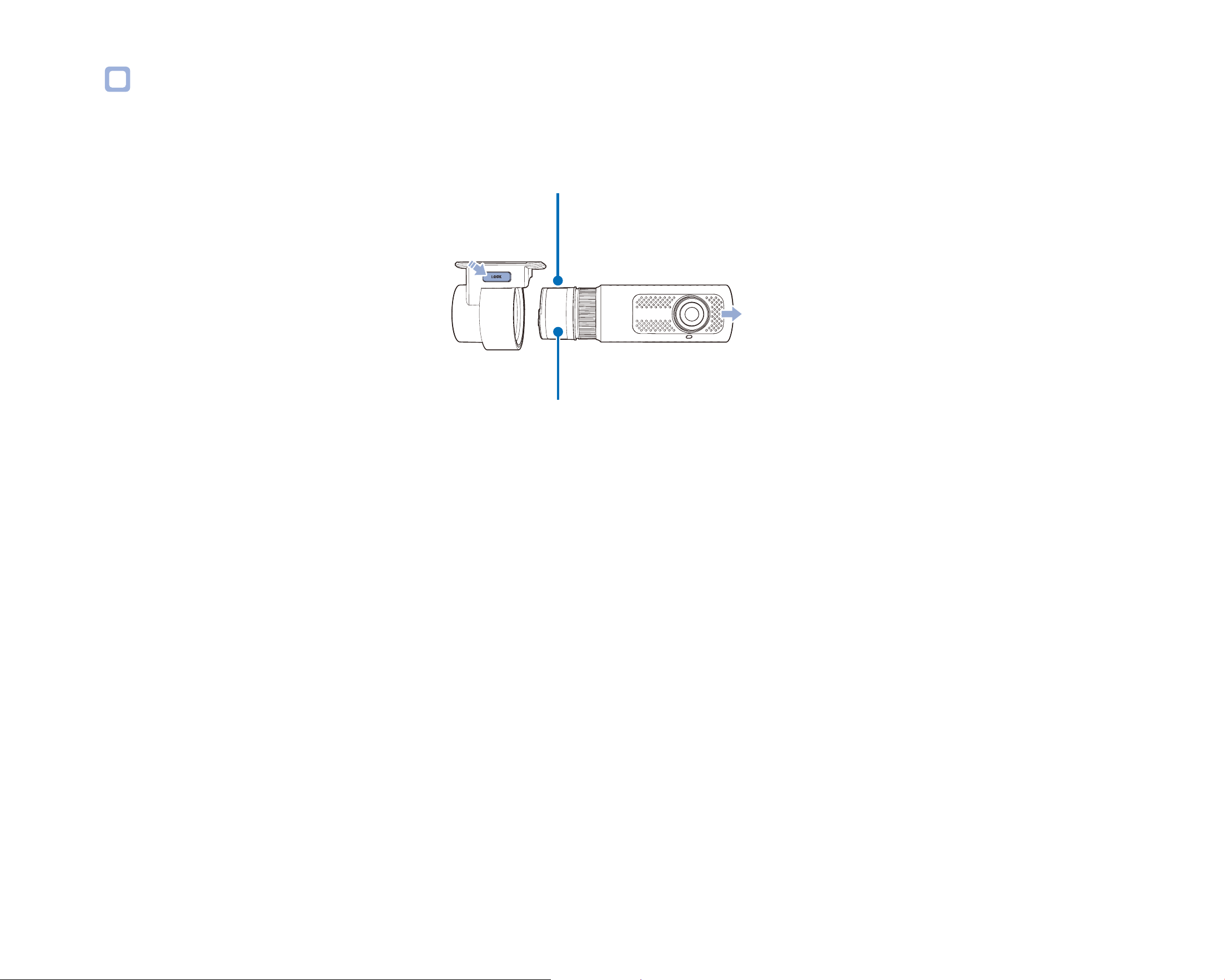
To remove the dashcam from its bracket, press the LOCK button and pull the dashcam out of the mounting bracket.
y
To insert the dashcam into its bracket, push the dashcam into the mounting bracket until it "clicks" in.
DR900X-2CH
13
ENGLISH
Rear camera
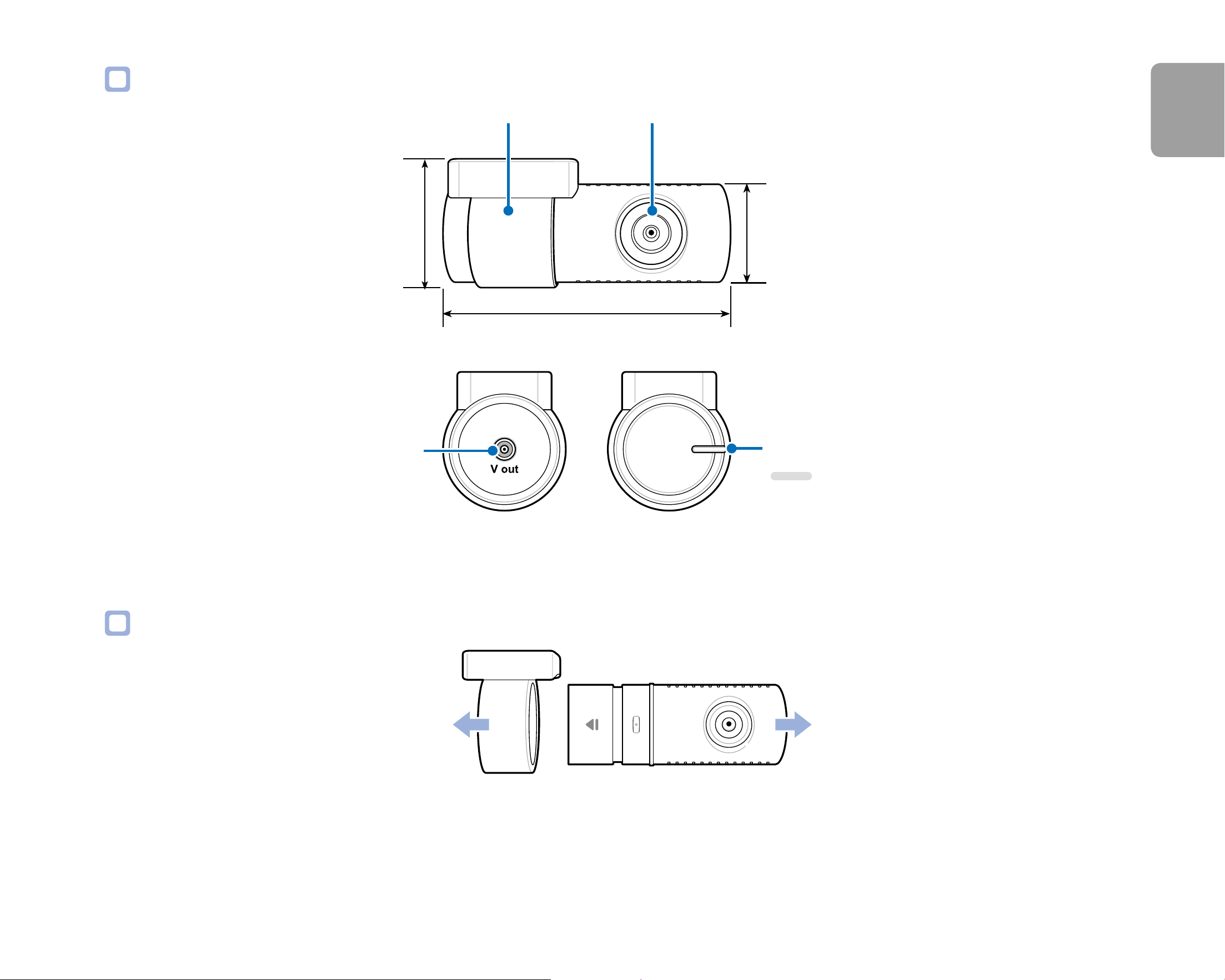
Rear security LED
: Stays on in all recordings
modes but can be turned o
from rmware settings.
V out
(Front camera
connection port)
Mounting bracket Camera lens
31 mm
67.4 mm
25 mm
Removing and inserting the rear camera
y
To remove the rear camera from its bracket, hold the mounting bracket and pull the rear camera out.
y
To insert the rear camera into its bracket, push the rear camera into the mounting bracket until it "clicks" in.
14
BLACKVUE
Installation
Installing the BlackVue dashcam
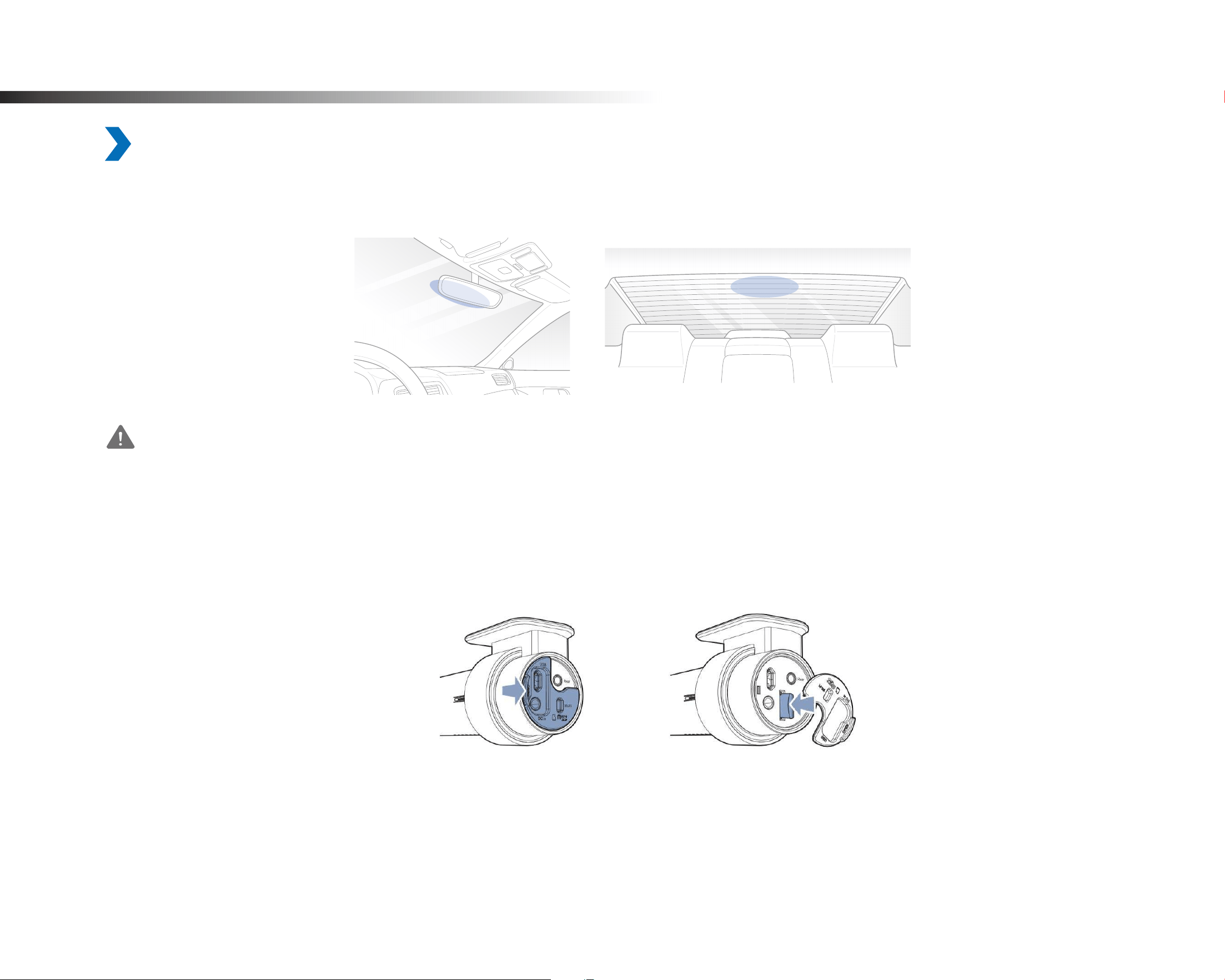
Install the front camera behind the rear view mirror. Install the rear camera at the top of the back windshield. Remove any foreign matter
and clean and dry the windshield before installation.
Warning
y
Do not install the product in a location where it can obstruct the driver's eld of vision.
1
Turn o the engine. Open the cover of the microSD card slot, gently push the card into the slot until it locks into place and close
the cover.
DR900X-2CH
15
ENGLISH
2
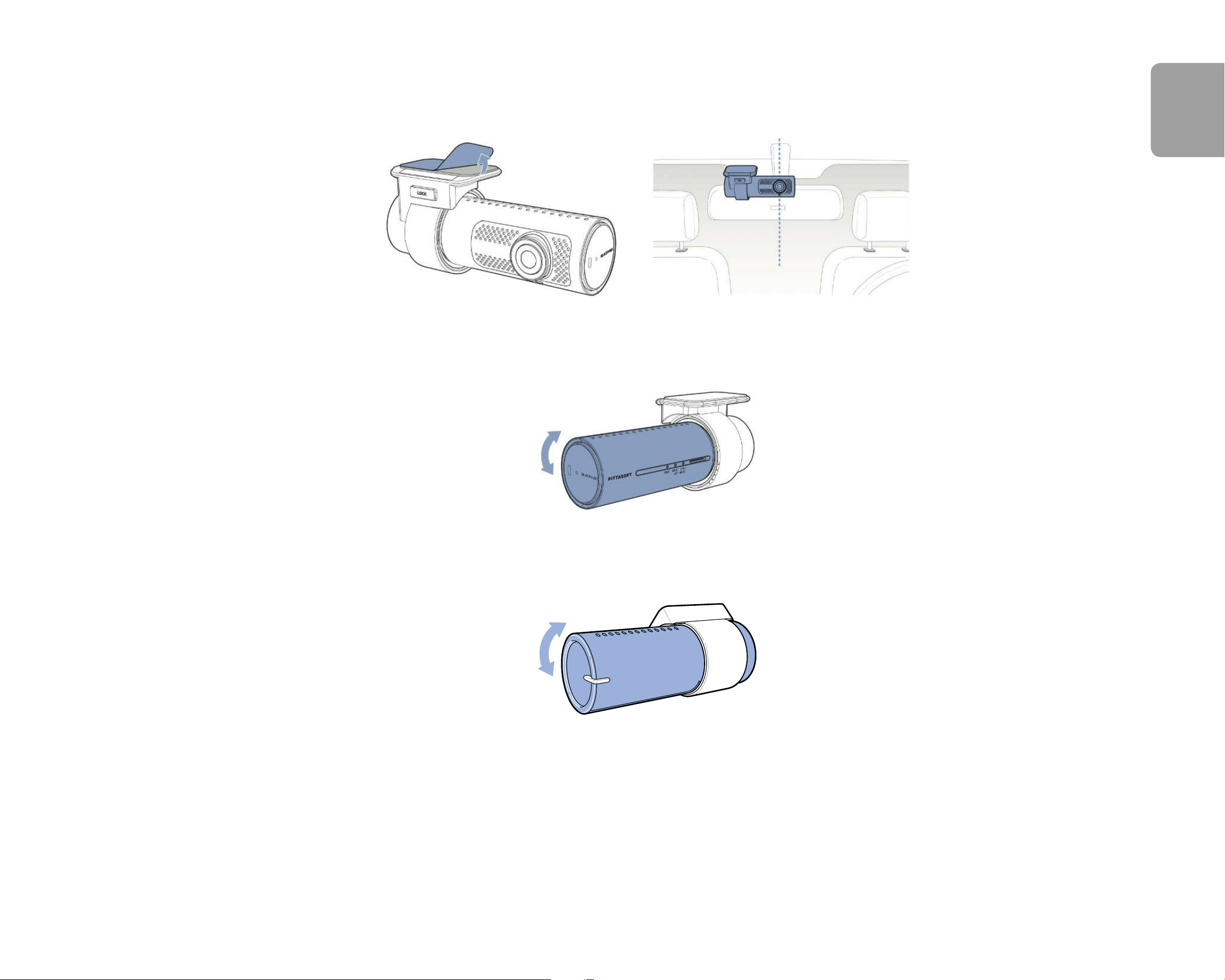
Peel o the protective lm from the double-sided tape and attach the front camera to the windshield behind the rear-view
mirror.
3
Adjust the angle of the lens by rotating the body of the front camera. We recommend pointing the lens slightly downwards (≈10°
below horizontal), so as to record video with a 6:4 road to background ratio.
4
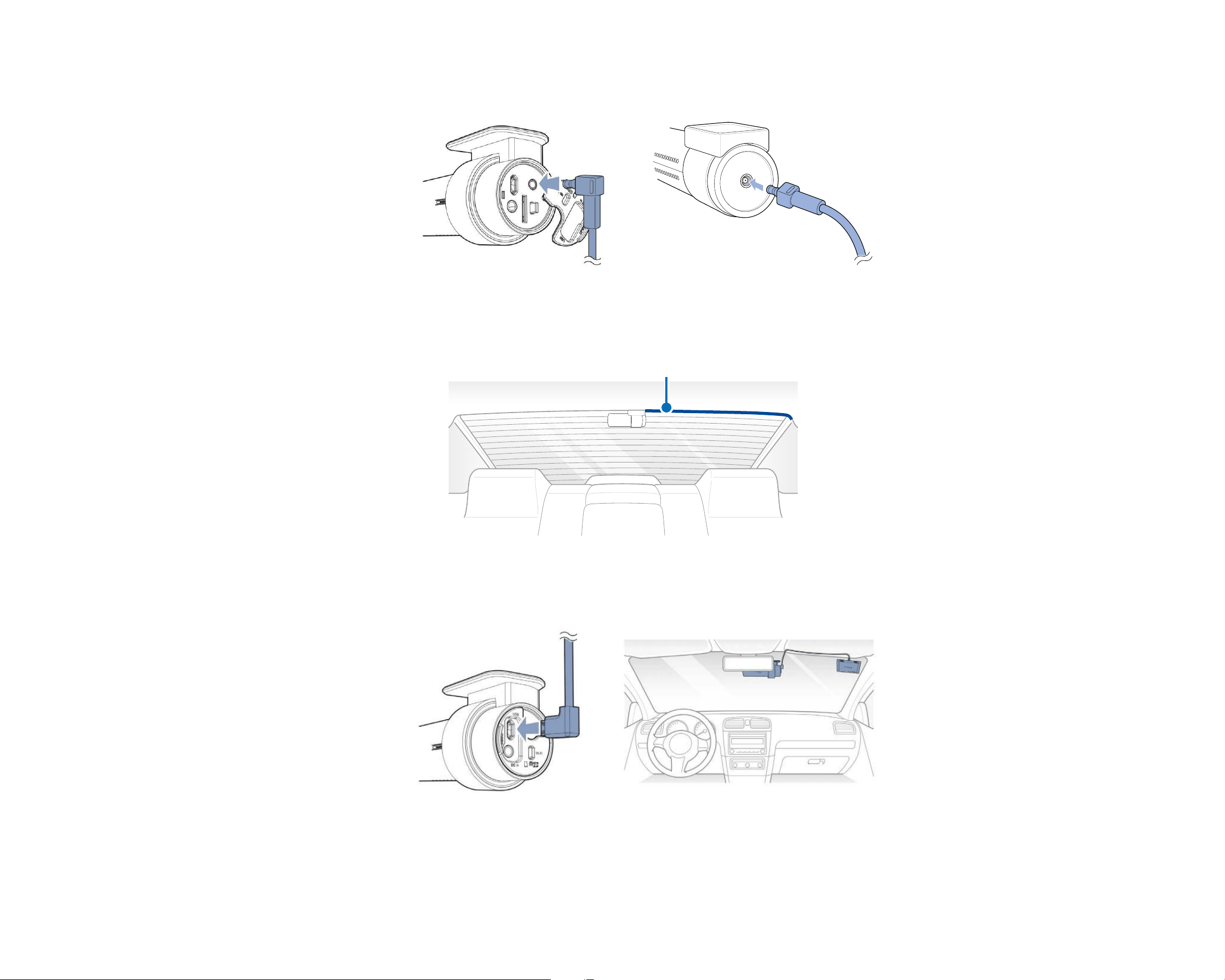
Peel o the protective lm from the double-sided tape and attach the rear camera to the rear windshield. Adjust the angle of the
lens by rotating the body of the rear camera.
16
BLACKVUE
5
Connect the front camera ('Rear' port) and the rear camera ('V out') using the rear camera connection cable.
6
Use the pry tool to lift the edges of the rubber window sealing and molding and tuck in the rear camera connection cable.
Rear camera connection cable
7
Connectivity Module (Optional): Connect the connectivity module to the front camera and attach it to the edge of the window.
Use the pry tool to tuck in the cable.
8
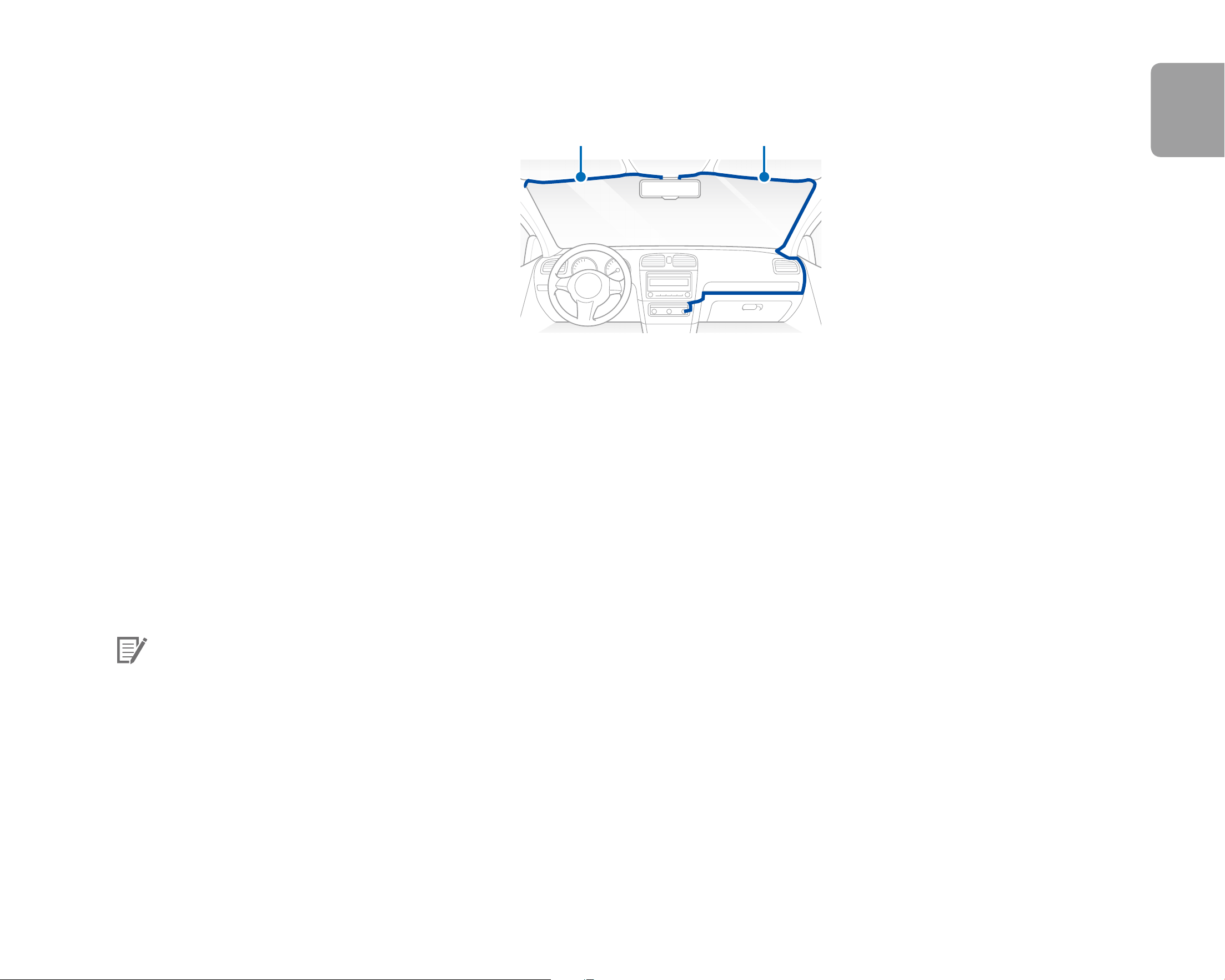
Plug the cigarette lighter power cable into the cigarette lighter socket and the front camera. Skip to 12 for Hardwiring Power
Cable setup.
DR900X-2CH
17
ENGLISH
9
Use the pry tool to lift the edges of the windshield trim/molding and tuck in the power cord.
Power cord
Rear camera connection cable
10
Turn on the engine. The BlackVue dashcam will power up and start recording. Video les are stored on the microSD card. When
the microSD card lls up, the newest video les will start to replace the oldest video les (called loop recording) – so you will
always have the most recent video les.
11
Turn o the engine. The dashcam will automatically stop recording and power down. To record in parking mode while the engine
is o please connect the Hardwiring Power Cable (included in the box) or install a Power Magic Battery Pack (sold separately). A
Hardwiring Power Cable uses the automotive battery to power your dashcam when the engine is o. A low voltage power cut-
o function and a parking mode timer to protect the automotive battery from discharge is installed in the device. Settings can be
changed in the BlackVue App or Viewer.
12
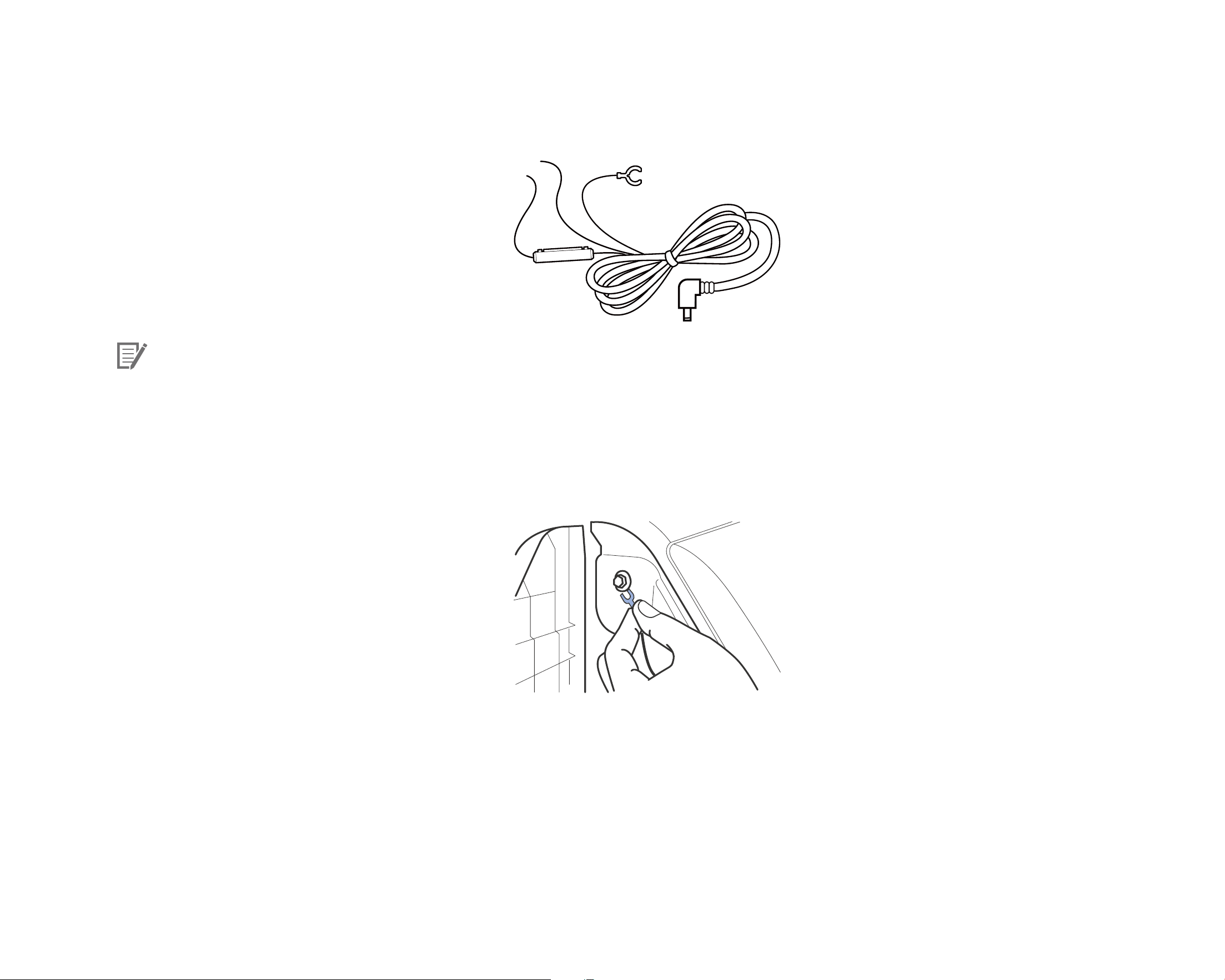
Locate the fuse box to connect the hardwiring power cable.
Note
y
Location of the fuse box dier by manufacturer or model. For details, refer to the vehicle owner's manual.
18
BLACKVUE
12-1
After removing fuse panel cover, nd a fuse that powers on when engine is turned on (ex.cigarette lighter socket, audio, etc) and
another fuse that remains powered on after the engine is turned o (ex.hazard light, interior light). Connect the ACC+ cable to a
fuse that powers on after engine start, and BATT+ cable to a fuse that remains powered on after engine is turned o.
Note
y
To use battery saver feature, connect the BATT+ cable to the hazard light fuse. Functions of fuse dier by manufacturer or model.
For details, refer to the vehicle owner's manual.
12-2
Connect the GND cable to metal ground bolt.
13
Connect the power cable to the DC in terminal of the front camera. BlackVue will power up and start recording. Video les are
stored on the microSD card.

DR900X-2CH
19
ENGLISH
Note
y
Up to 50 event recordings (impact, manual) can be locked from being overwritten. By default, this feature is enabled. In the
rmware settings, you can choose to either overwrite them with new event les when the event le storage is full or lock the
50event les and save the new event les in loop recording storage. Please note that formatting the microSD card deletes all the
recordings including the locked event les.
y
The recording LED is on while recording (default setting) and the GPS LED is on when a GPS signal is received. There are
4recording modes: Normal, Event, Parking and Manual. The dashcam starts recording in normal mode, switches to event mode
when an impact is detected, and switches to parking mode when the vehicle is turned o (Hardwiring power cable, ACC+) or
stationary for 5 minutes (Cigarette lighter power cable, G-sensor). Touching the proximity sensor turns on/o audio recording or
triggers manual recording depending on the rmware settings.
y
When you run the dashcam for the rst time the rmware is automatically loaded onto the microSD card. After the rmware has
been loaded onto the microSD card you can customize settings using BlackVue Viewer on a computer.
20
BLACKVUE
Playing and Managing Videos
Playing and managing video les using your smartphone (Android/iOS)
Opening video les
1
Search for the BlackVue app in the Google Play Store or Apple App Store and install it on your smartphone.
2
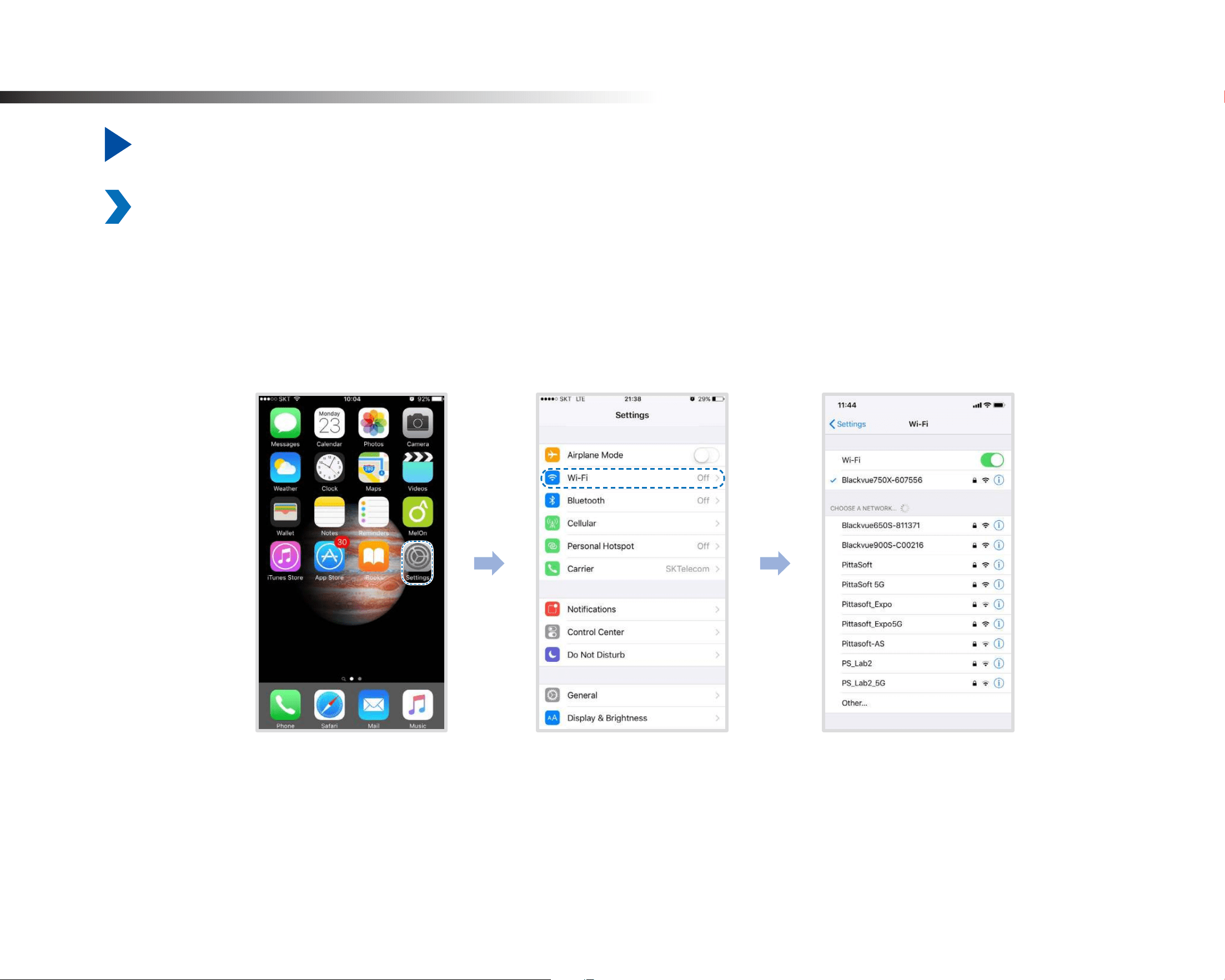
“Pair” your smartphone with the BlackVue dashcam via Wi-Fi Direct:
a. Press the Wi-Fi button once to turn on Wi-Fi.
b. Go to your smartphone's Settings then select Wi-Fi, and make sure Wi-Fi is turned on.
DR900X-2CH
21
ENGLISH
c. Choose your BlackVue dashcam from the network list. The dashcam’s default SSID begins with its model number (e.g.
BlackVue900X-******).
d. Enter the password and tap join.
* The default Wi-Fi SSID and password is labeled on the dashcam. To nd them, unplug the cables and remove the front camera from
its mount.
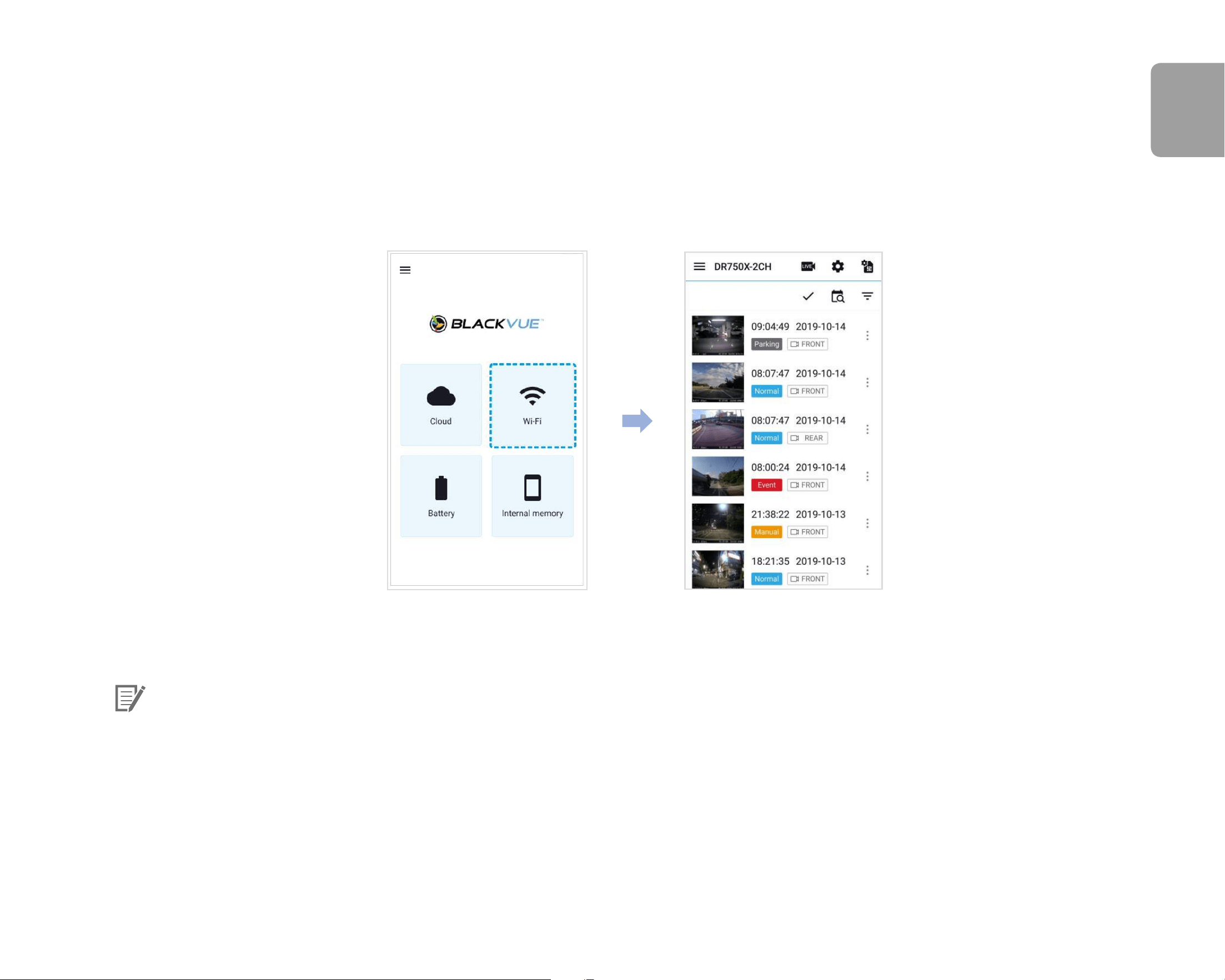
e. Open the BlackVue app and select Wi-Fi.
f. Select the video le you want to play from the video list.
Note
y
The playback of 4K UHD resolution, 'Highest' image quality and/or H.265 coded videos depends on your device's hardware and
software. Older devices may not support 4K UHD, 'Highest' image quality or H.265 video playback. If you encounter issues please
check your device's video playback capabilities.
y
Wi-Fi Direct lets you directly connect your smartphone to your dashcam via Wi-Fi within a range of 10m.
y
The BlackVue app is available for devices running Android 5.0 and higher, or iOS 9.0 and higher.
y
You can change Wi-Fi SSID and password as described on page 103 and 106.
22
BLACKVUE
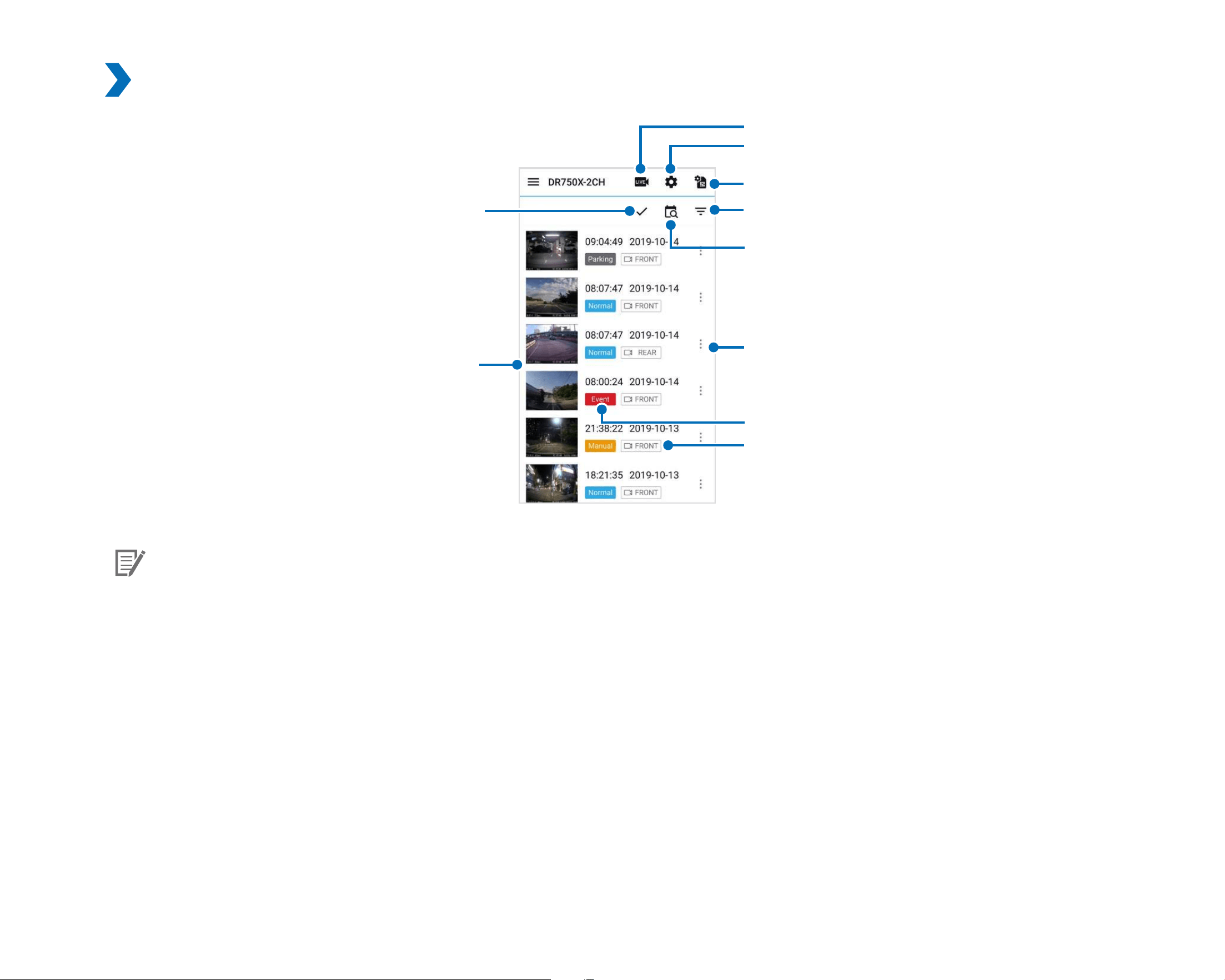
Wi-Fi screen composition
SIM card activation
File type Filter
Date Filter
Live view
Firmware settings
Video Source
Multi selection
Video list
File Type
Video le menu
Note
y
All images shown are for illustration purpose only. Actual app may dier from images shown.
DR900X-2CH
23
ENGLISH
Playing video
Playing back videos
Select the video le you want to play from the video list.
Scroll up/down the screen to refresh the video list.
Note
y
The playback of 4K UHD resolution, 'Highest (Extreme)' image quality and/or H.265 coded videos depends on your device's
hardware and software. Older devices may not support 4K UHD, 'Highest (Extreme)' image quality or H.265 video playback. If you
encounter issues please check your device's video playback capabilities.
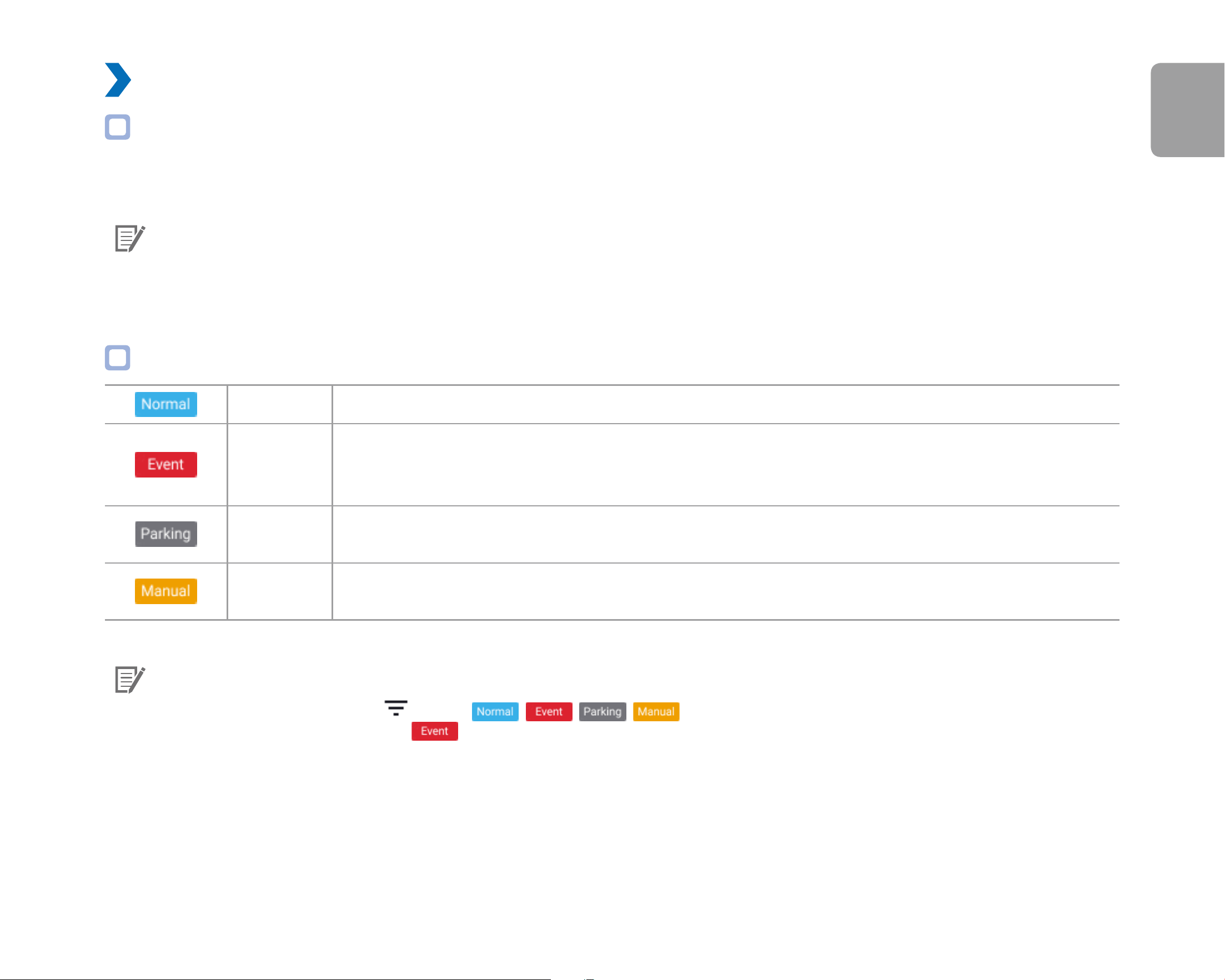
Identify video les by recording type
Normal The dashcam records in normal mode by default.
Event
When the dashcam detects an impact while in normal or parking mode, it switches to event mode and
saves an event recording beginning 5 seconds before the event trigger. Exceeding the set speed limit
will also trigger an event recording.
Parking
In parking mode the dashcam continuously buers video. When motion is detected in the dashcam's
eld of view, it saves a parking recording beginning 5 seconds before the motion detection.
Manual
If proximity sensor is set as a manual recording trigger in the rmware settings, touching or waving a
nger within 20 mm of the sensor will turn on manual recording.
Note
y
To lter the video les, press .Use the , , , buttons to lter the video list by recording type (Normal,
Event, Parking and Manual). The
lter button displays both E (Event) and I (Impact event while parked) recordings.
y
The dashcam requires a constant power source to record in parking mode. See "Optional accessories" on page 100 for more
information.
24
BLACKVUE
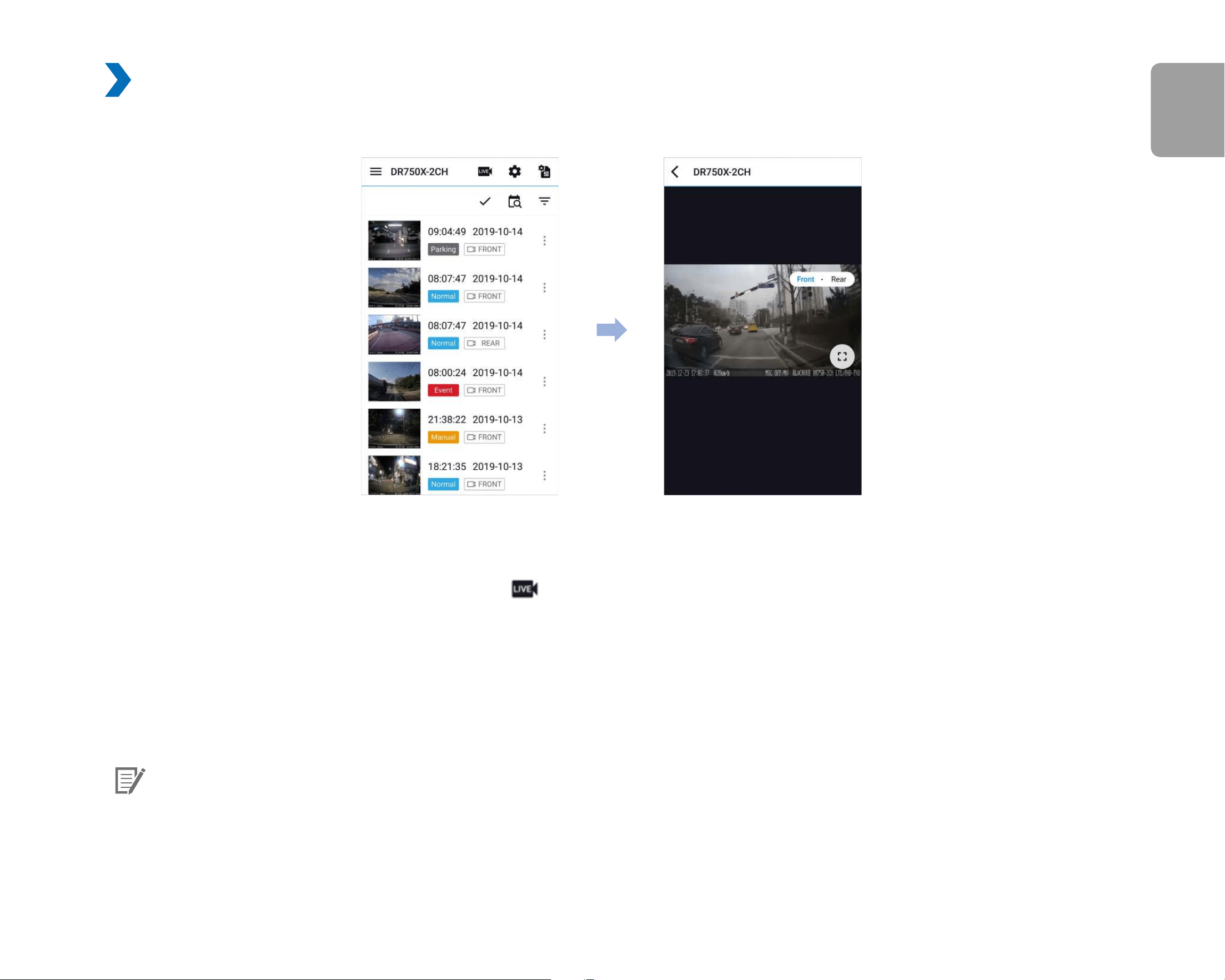
Checking the displayed time & GPS data
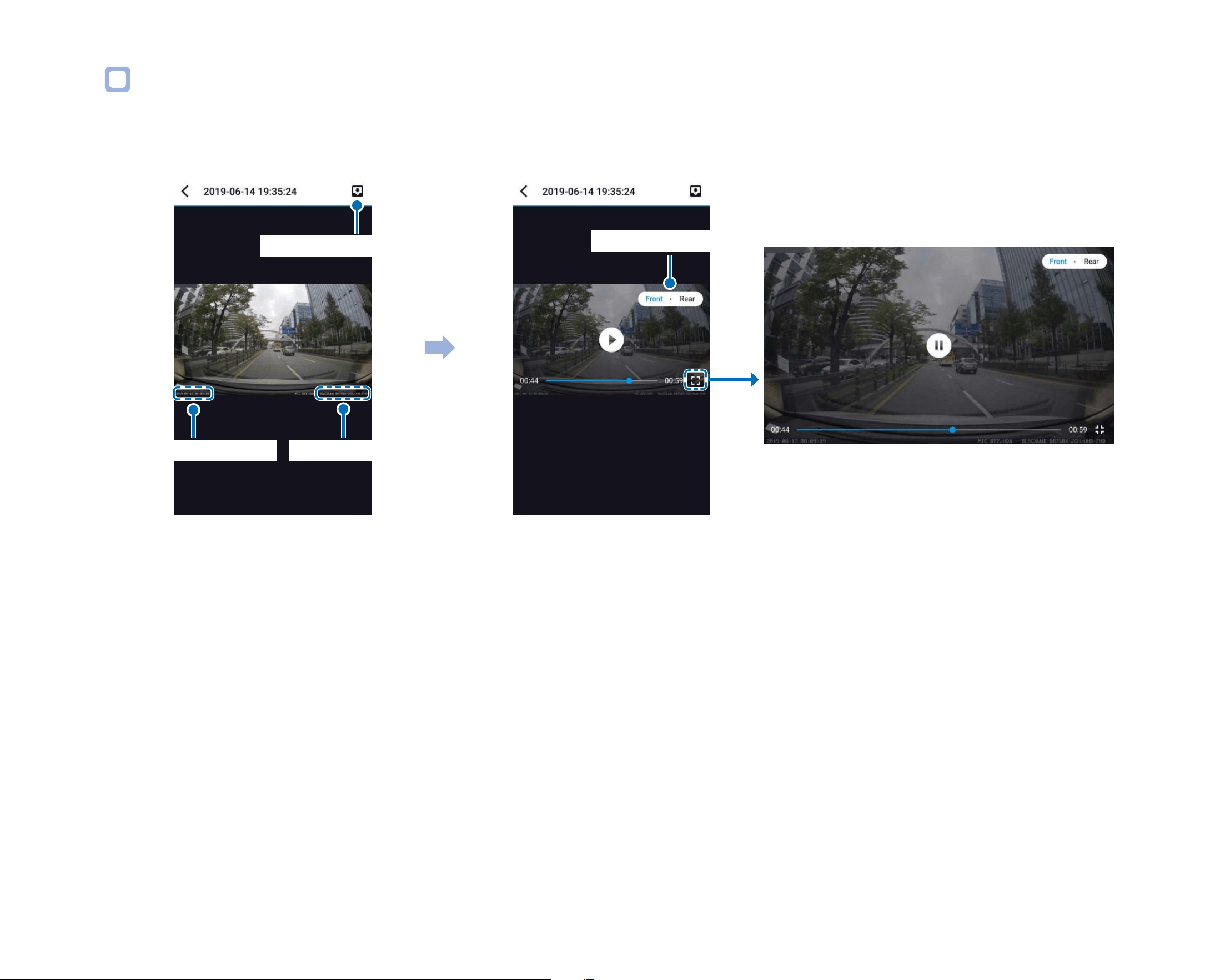
The time the video was recorded is displayed in the lower left corner of the video in the playback screen. If the displayed time in the
recorded videos is incorrect please see "Time settings" on page 55 or 76.
Landscapes View
Tap the screen
Date, Time & Speed
Download to Internal Memory
Front and rear camera
Model name
The vehicle's speed is displayed in the lower-left corner of the video.
Tap the screen to playback the video.
Rotate your smartphone to switch between portrait and landscape display modes.
You can switch the dashcam view by pressing the Front/Rear button.
DR900X-2CH
25
ENGLISH
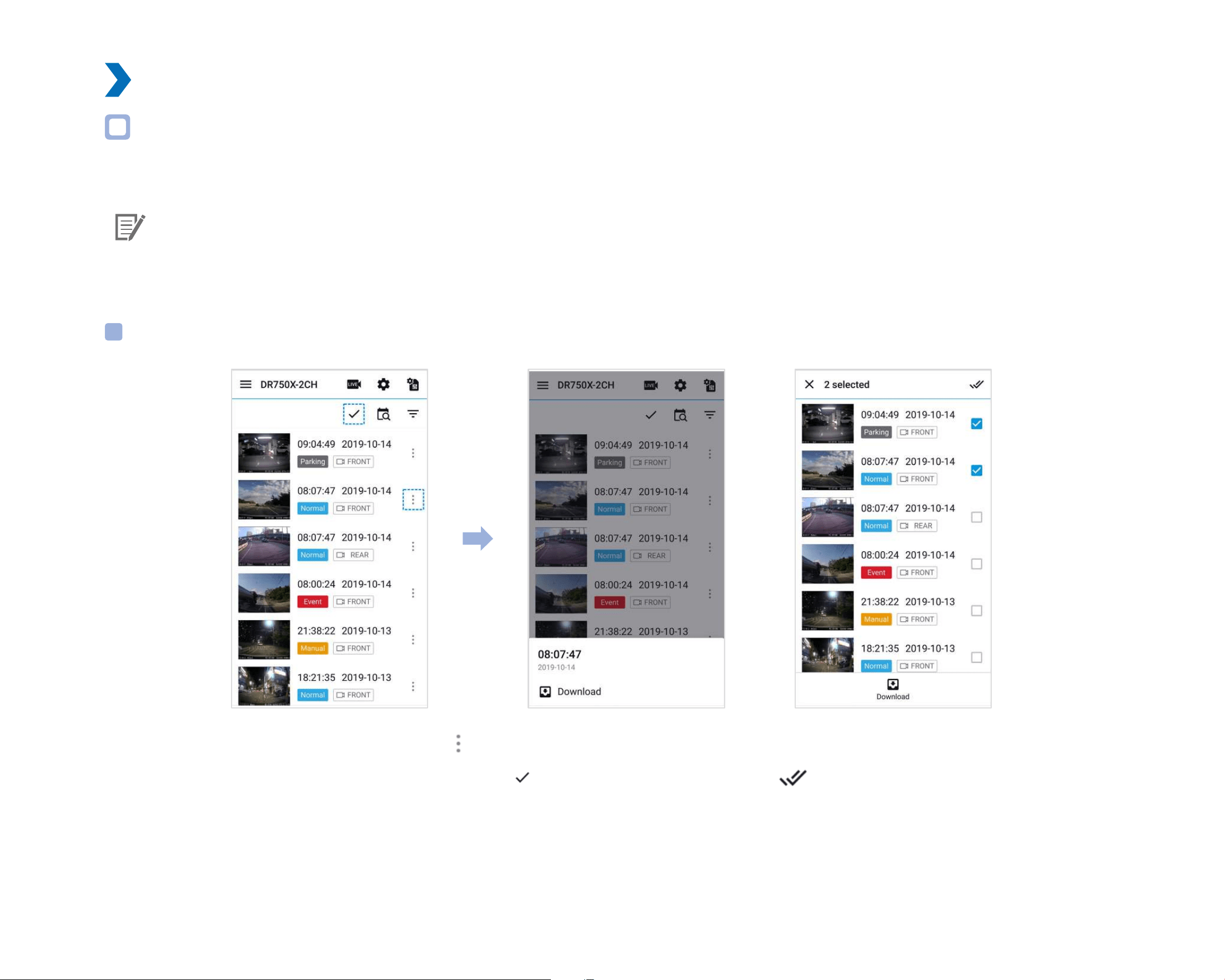
Real-time streaming video (Live View)
You can view in real-time the video currently being recorded by connecting your smartphone to the dashcam via Wi-Fi Direct.
1
Go to your smartphone's Settings > Wi-Fi and connect to your dashcam.
2
Open the BlackVue app. Select WI-FI and tap the button.
3
Rotate your smartphone to switch between portrait and landscape display modes.
4
You can switch the dashcam view by pressing the Front/Rear button.
Note
y
When watching Live View via Wi-Fi Direct, map data isn’t displayed because your smartphone can’t access internet as long as it is
connected to dashcam’s Wi-Fi.
26
BLACKVUE
Managing videos
Managing videos in Wi-Fi
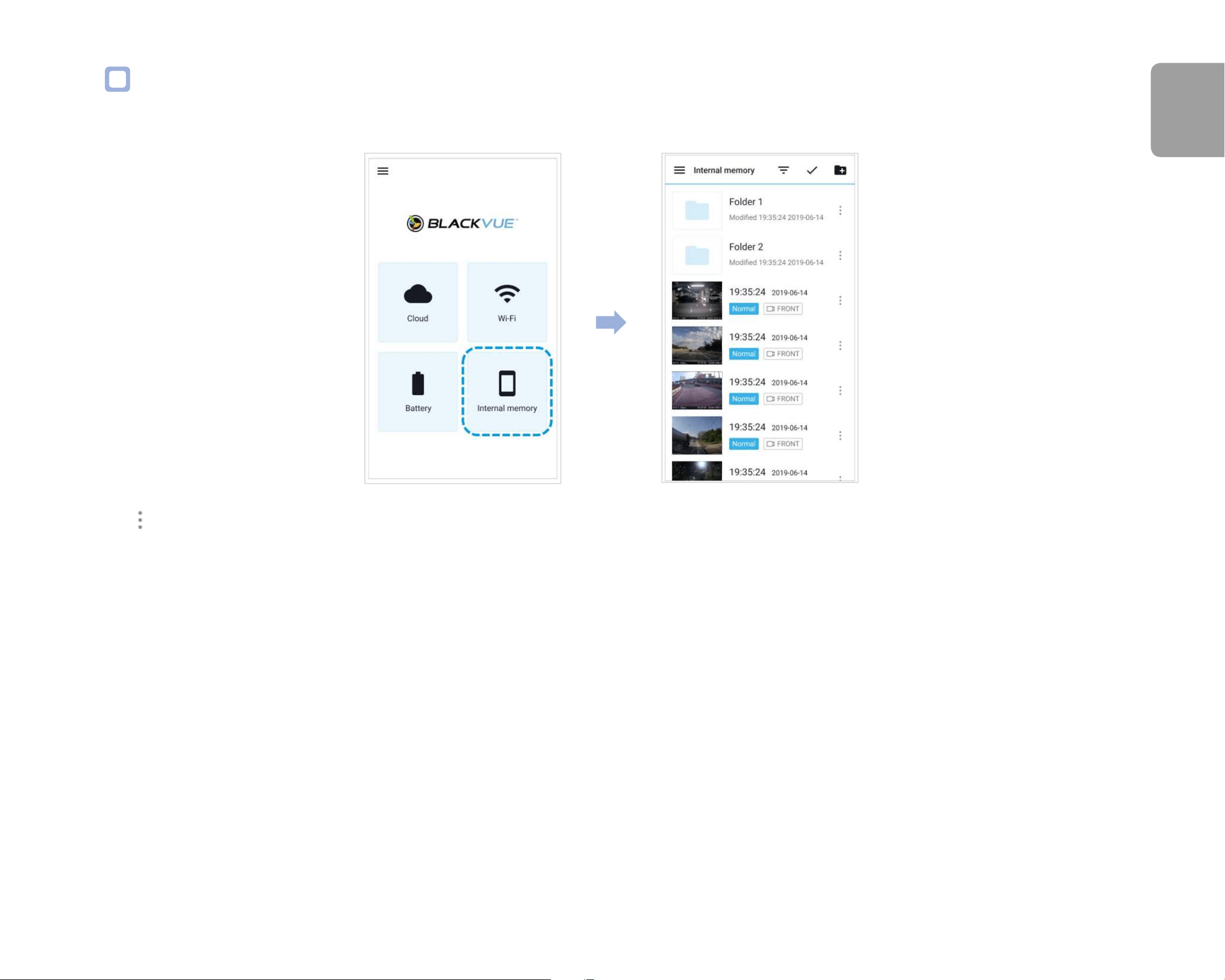
You can manage the recorded videos using the BlackVue app.
Note
y
When the microSD card lls up, the newest video les will start to replace the oldest video les (called loop recording) – so you
will always have the most recent video les.
Copy to Internal Memory
To copy individual les to your smartphone, tap next to the video you want to copy. Select Download.
To copy multiple les to your smartphone in one go tap
. Select which les to copy, or tap to select all les. Select Download.
DR900X-2CH
27
ENGLISH
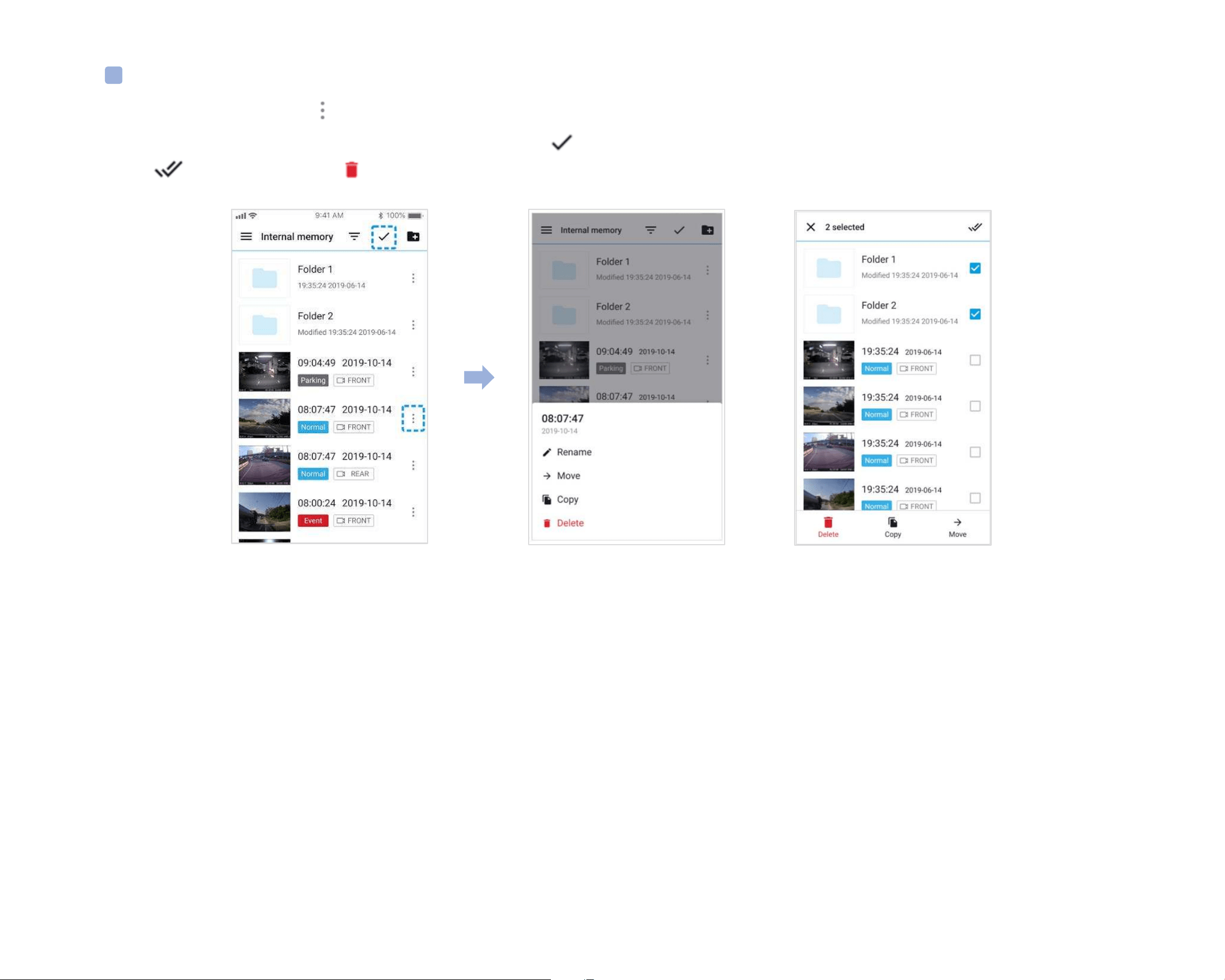
Managing videos in INTERNAL MEMORY
Open the BlackVue app and select INTERNAL MEMORY.
Tap to see le options. You can delete, copy or move les, change the name of les.
28
BLACKVUE
Deleting videos
To delete individual les, tap
next to the video you want to delete. Select Delete.
To delete multiple les from your smartphone in one go, tap
and select Delete. Select which les to delete,
or tap to select all les. Tap to delete the selected les.
DR900X-2CH
29
ENGLISH
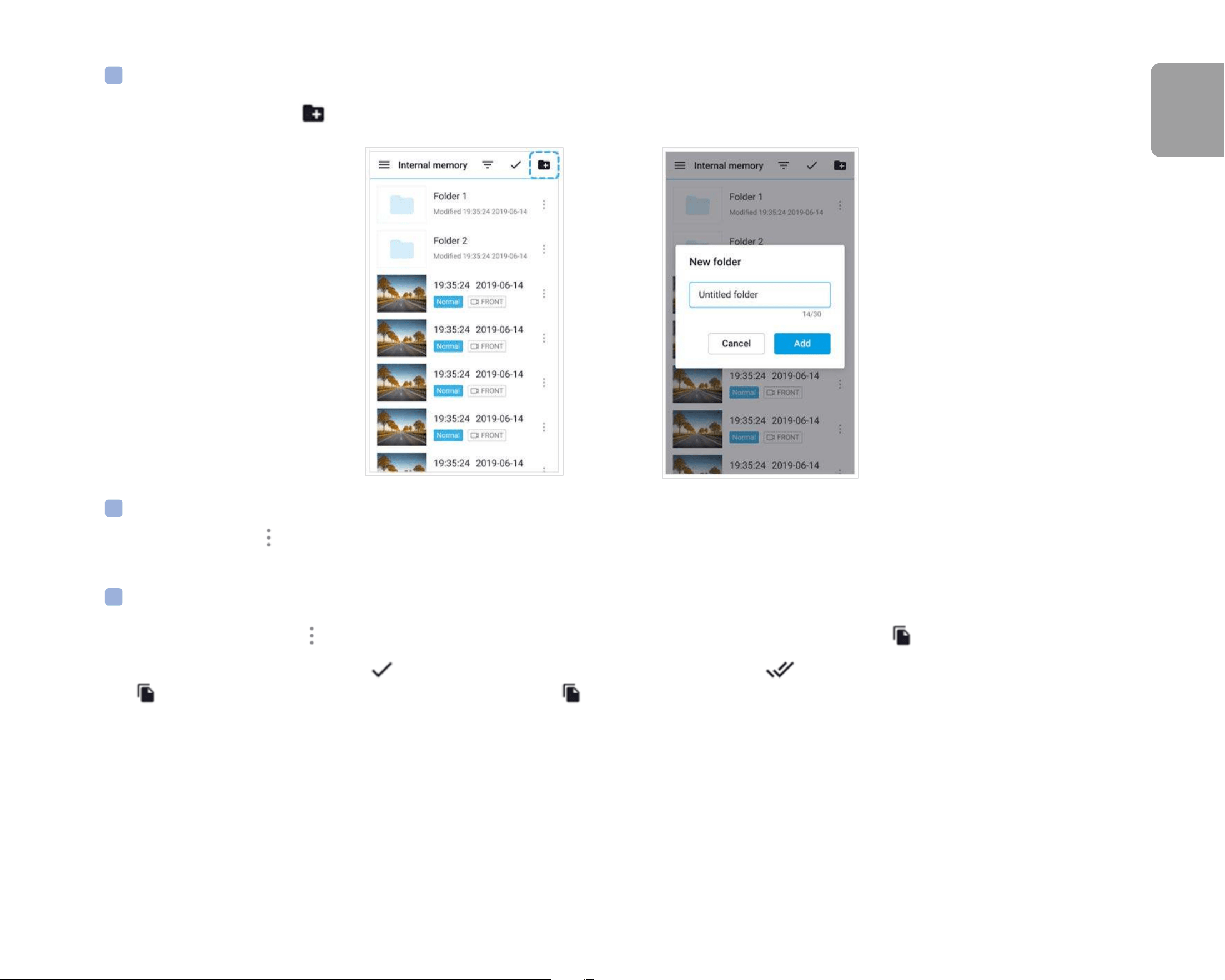
Creating a new folder
To create a new folder, tap
. Enter a new folder name and press Add.
Deleting a folder
To delete a folder, tap
and select Delete.
Copying and pasting videos
To copy individual les, tap
next to the video you want to copy. Select Copy. Go to another folder and tap to paste the le there.
To copy multiple les in one go, tap
and select Copy. Select which les to copy, or tap to select all les.
Tap
to copy the selected les. Go to another folder and tap to paste the selected les there.

30
BLACKVUE
Moving videos
To move individual les, tap
next to the video you want to move. Select Move. Go to another folder and tap to move the le there.
To move multiple les in one go, tap
at the top of the screen. Select which les to move, or tap to select all les.
Tap
and go to another folder and tap to move the selected les there.
Renaming a video
To change a name of a video, tap
next to the video you want to change. Select Rename. Enter a new name and tap Rename.
DR900X-2CH
31
ENGLISH
Playing and managing video les using your computer (Windows/macOS)
Removing the microSD card
1
Unplug the power cord to turn o the dashcam.
2
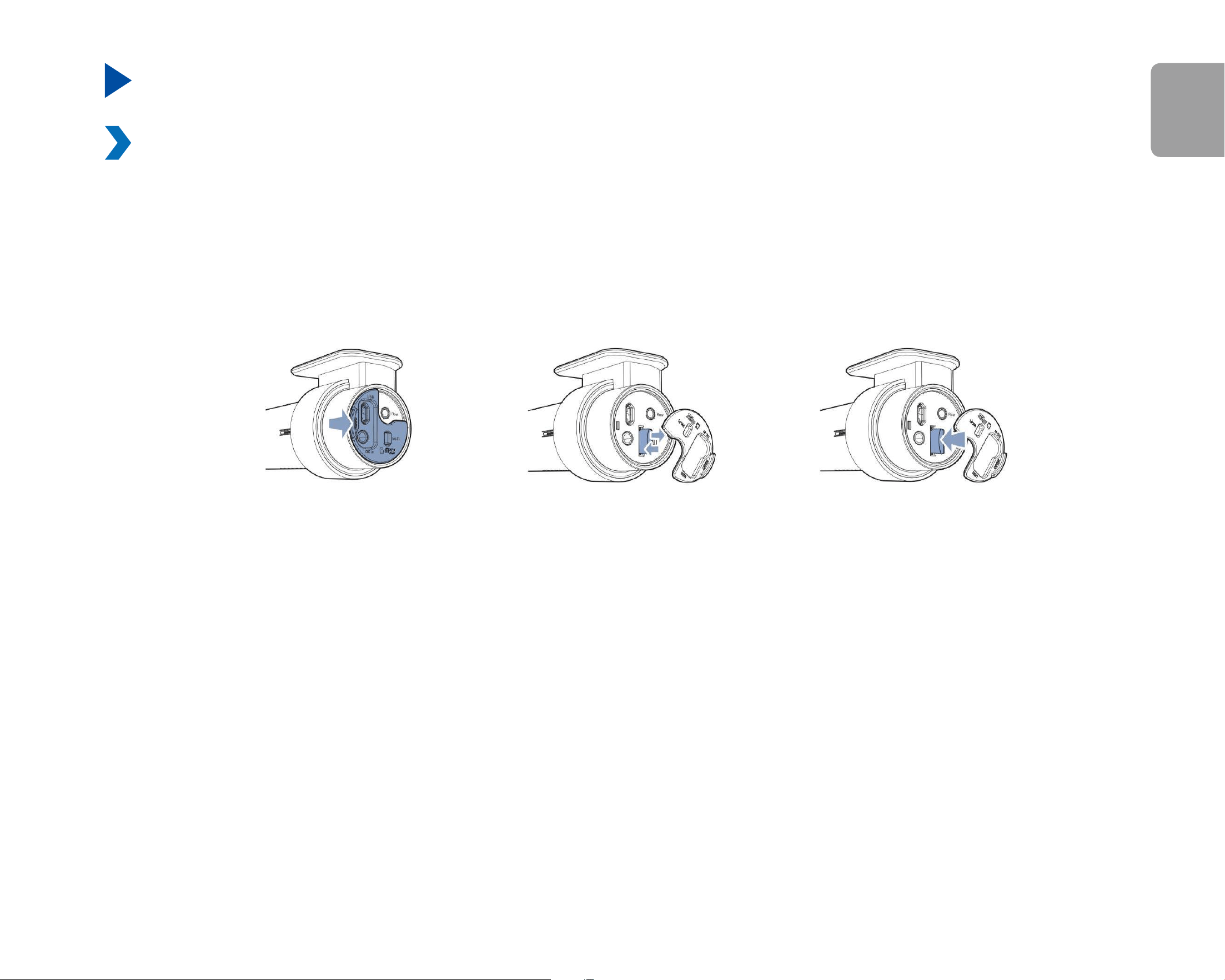
Open the cover of the microSD card slot.
3
To remove the microSD card, gently press on the card to release the lock then carefully pull the card out.
To insert the microSD card, gently push the card into the slot until it locks into place and close the cover.
Open side cover To remove To insert
32
BLACKVUE
Opening video les in BlackVue Viewer
1
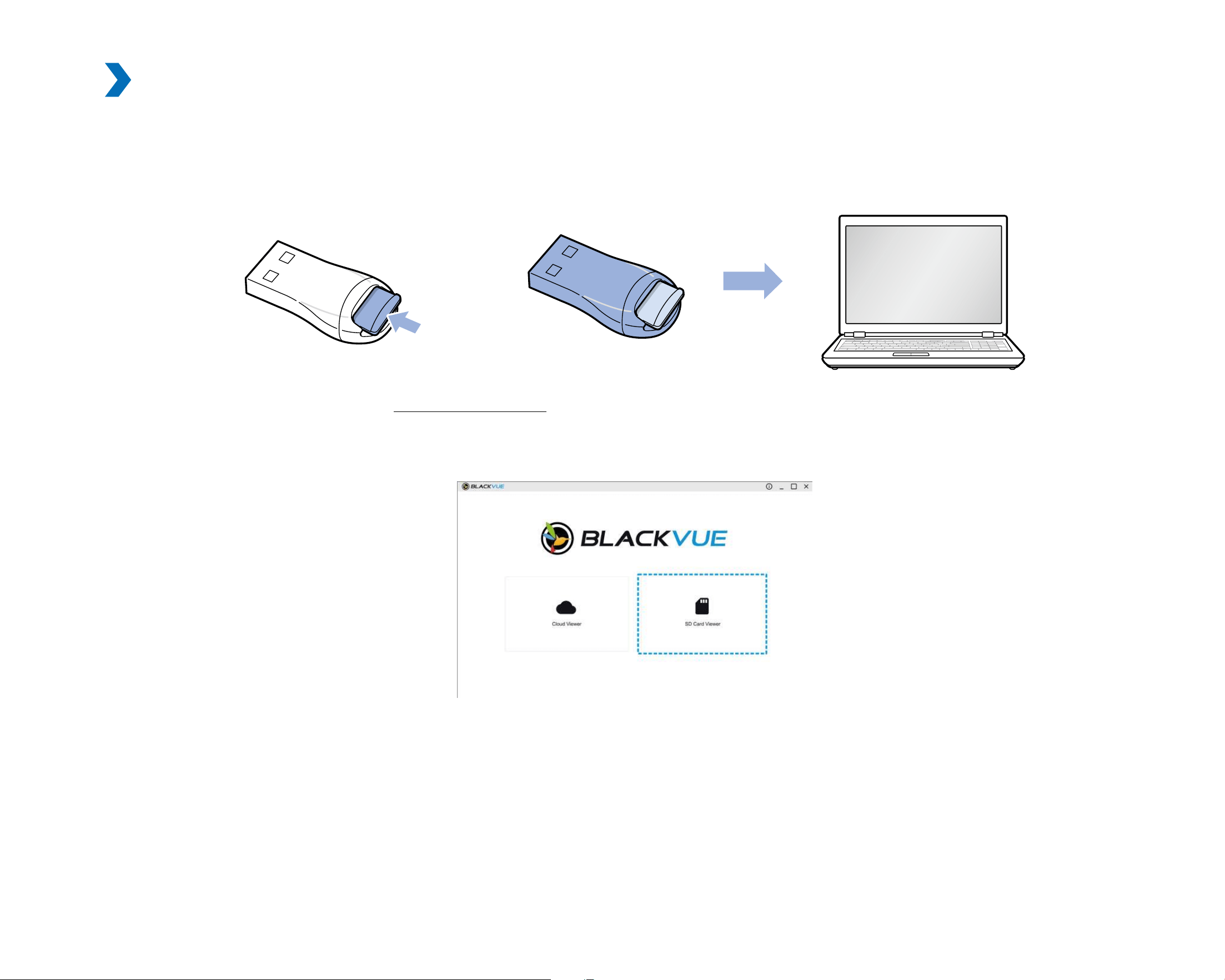
Remove the microSD card from the dashcam.
2
Insert the card into the microSD card reader and connect it to a computer.
3
Download BlackVue Viewer from www.blackvue.com > Support > Downloads and install it on your computer.
4
Run BlackVue Viewer. Select SD Card Viewer in the launcher page.
Select SD Card Viewer in the launcher page.
5
To play, select a video and click on the play button or double click the selected video.
DR900X-2CH
33
ENGLISH
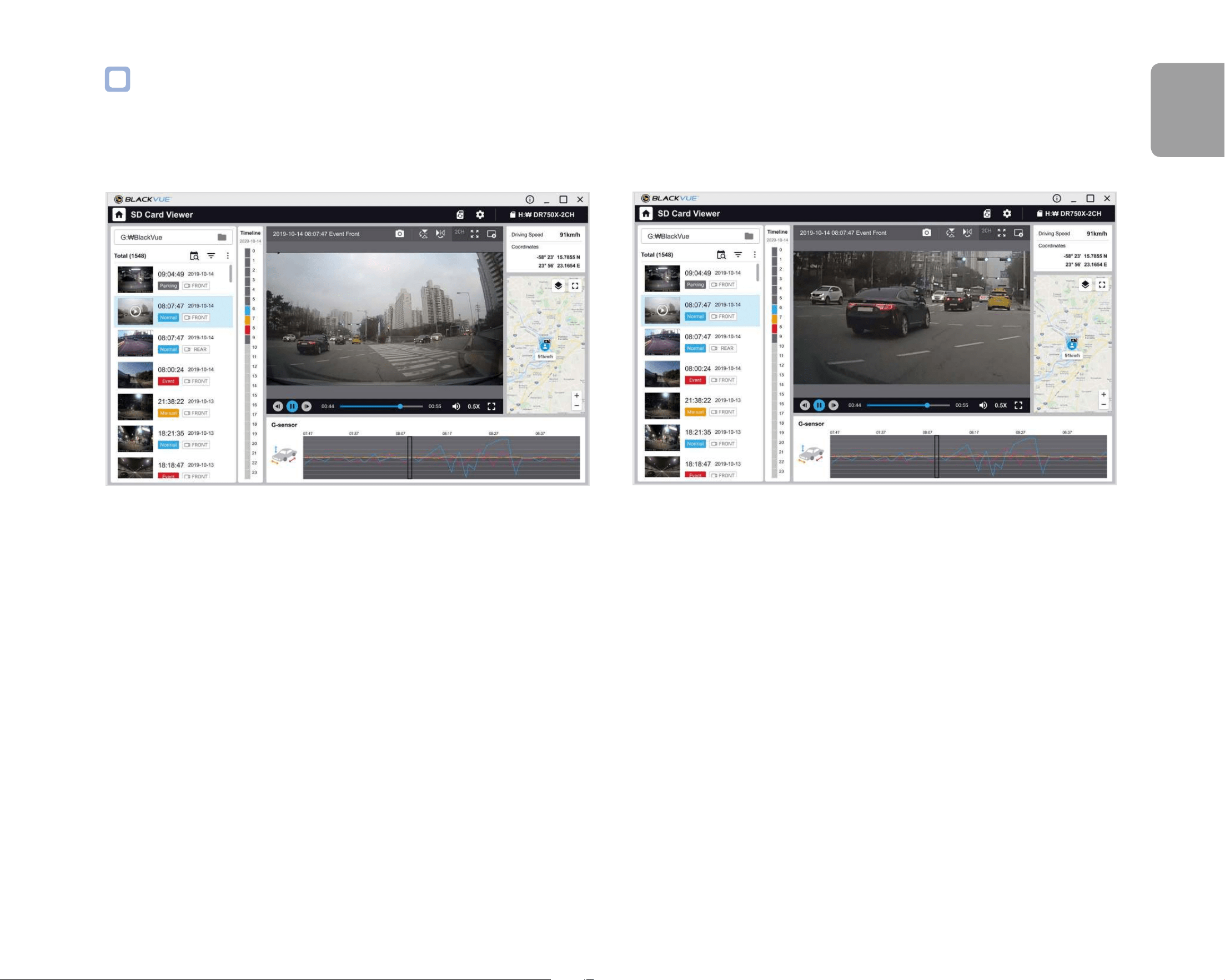
Viewer screen composition (Windows/macOS)
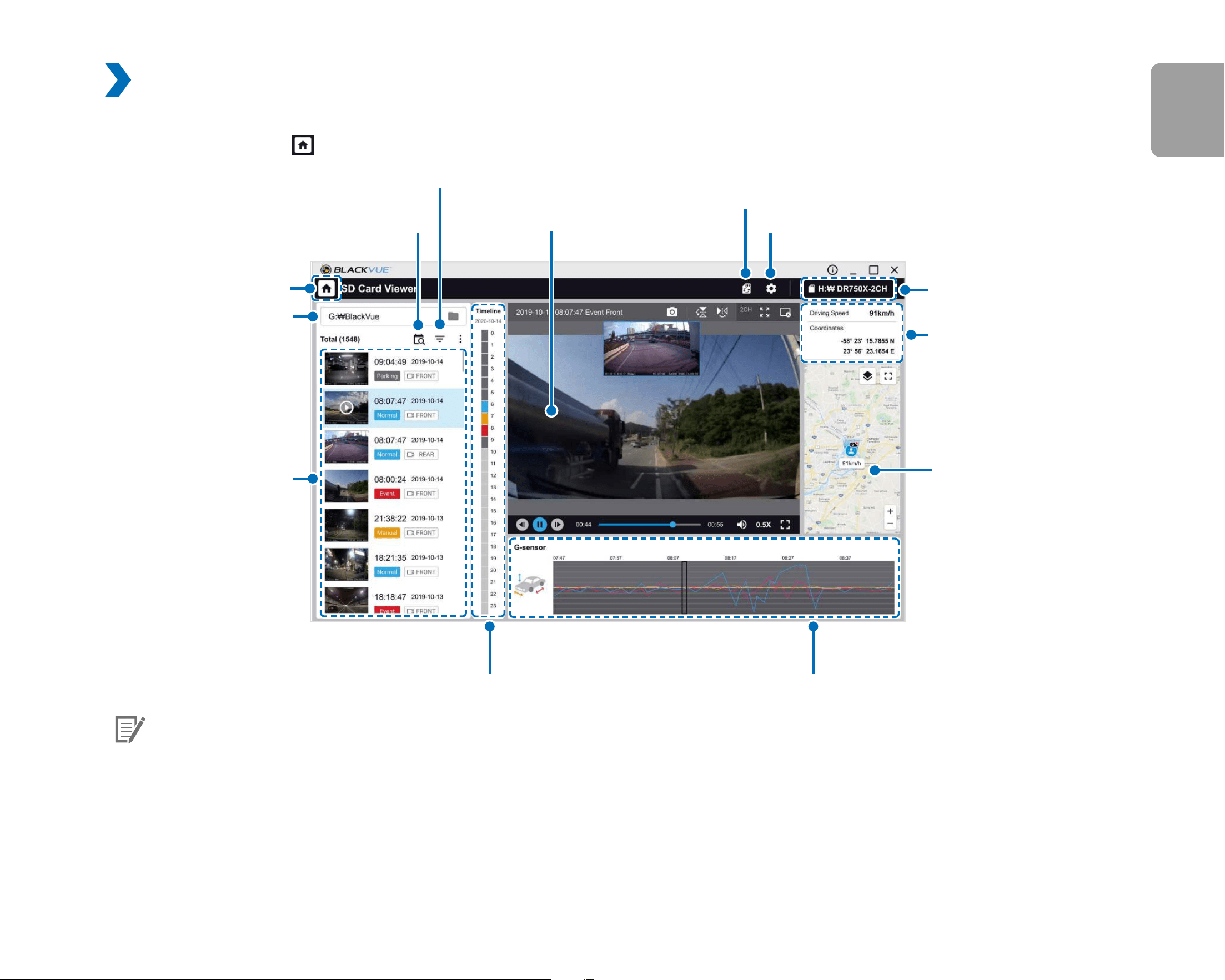
When you execute the program, a launcher window will be shown. You can choose either SD Card Viewer or Cloud Viewer. To go back to the
launcher screen, click the
button.
Select the folder
Back to launcher page
Recorded le list
Date Filter
File type Filter
G-Sensor information
Timeline for hour selection
GPS data
Map screen
Select SD card
Format micro SD card
Settings
Playback screen
Note
y
All images shown are for illustration purpose only. Actual app may dier from images shown.
34
BLACKVUE
Playing video
Playing back videos
In BlackVue Viewer double click a video le to play.
BlackVue Viewer shows by default the les in the microSD card. To see les in another folder click the
button and browse to the folder.
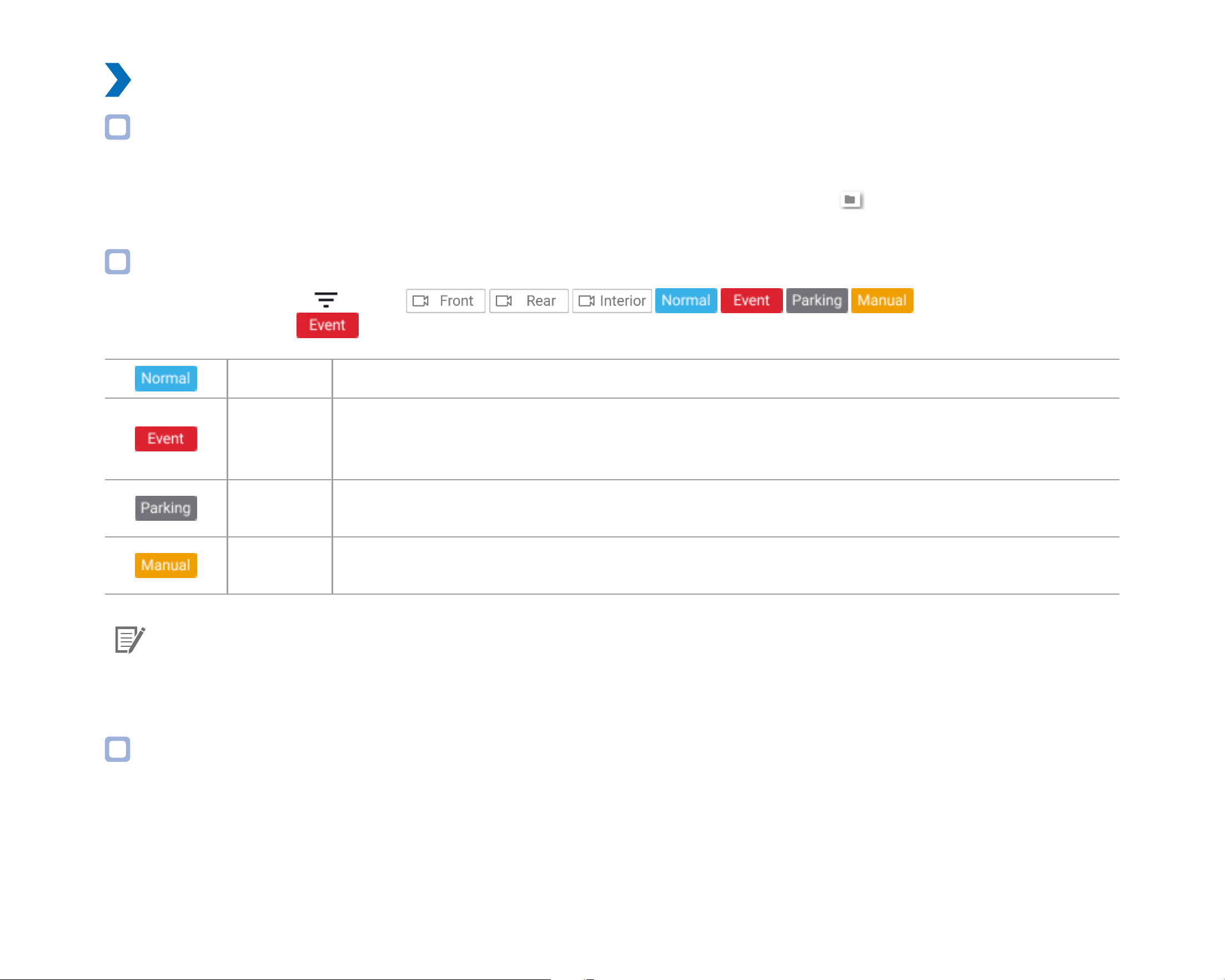
Identify video les by recording type
To lter the video les, press
. Use the buttons to lter the video
list by recording type. The
lter button displays both E (Event) and I (Impact event while parked) recordings.
Normal The dashcam records in normal mode by default.
Event
When the dashcam detects an impact while in normal or parking mode, it switches to event mode and
saves an event recording beginning 5 seconds before the event trigger. Exceeding the set speed limit
will also trigger an event recording.
Parking
In parking mode the dashcam continuously buers video. When motion is detected in the dashcam's
eld of view, it saves a parking recording beginning 5 seconds before the motion detection.
Manual
If proximity sensor is set as a manual recording trigger in the rmware settings, touching or waving a
nger within 20mm of the sensor will turn on manual recording.
Note
y
The dashcam requires a constant power source to record in parking mode. See "Optional accessories" on page 100 for more
information.
Checking the displayed time
The time the video was recorded is displayed in the lower left corner of the video in the playback screen. If the displayed time in the
recorded videos is incorrect please see "Time settings" on page 55 or 76.
DR900X-2CH
35
ENGLISH
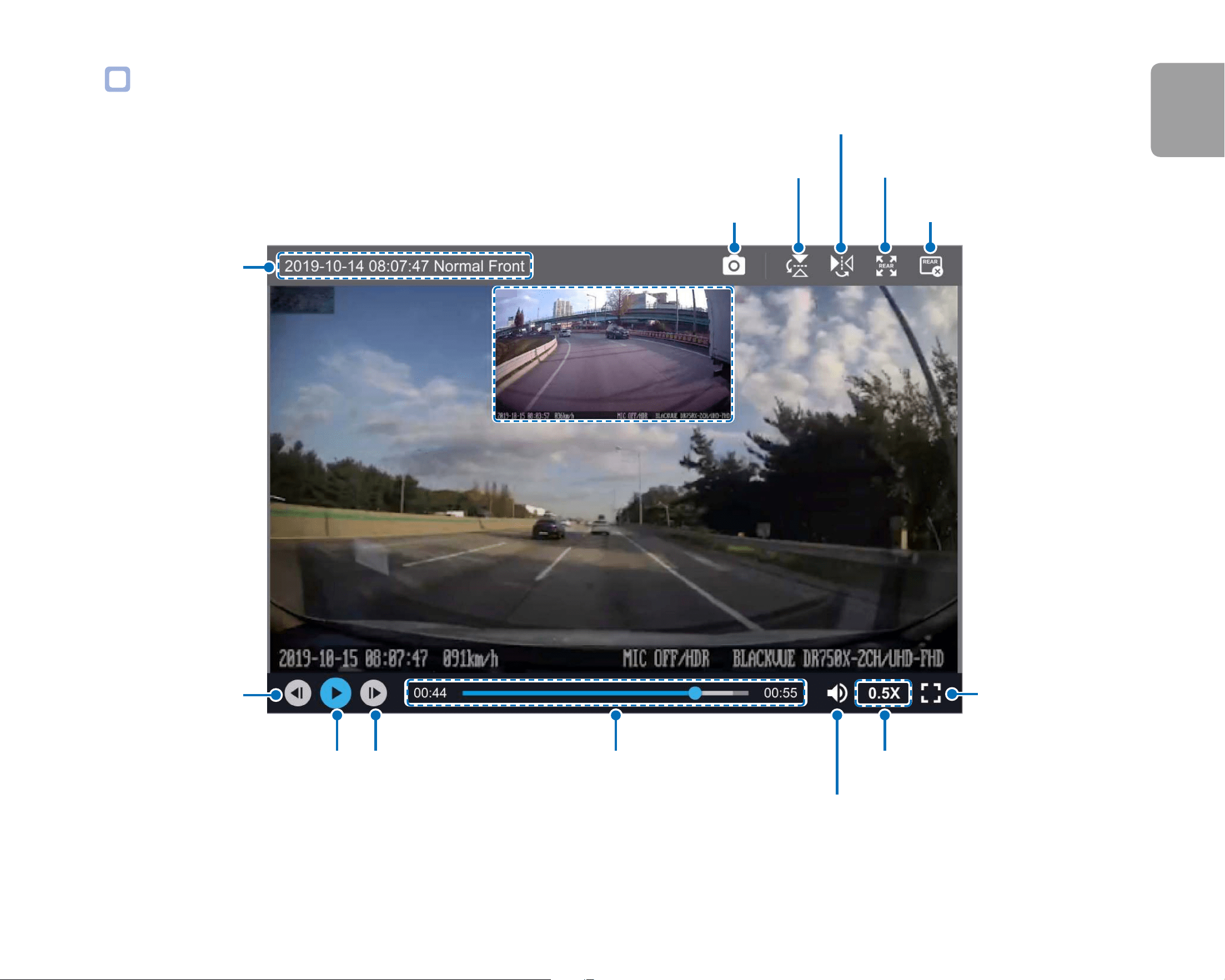
Using BlackVue Viewer
Capture image (paused)
Flip horizontally
Flip vertically
Volume control
Expand second camera view
Playback speed controlPlayback time
Next frame
Play/pause
Previous frame
File name
Close second camera view
View full screen
36
BLACKVUE
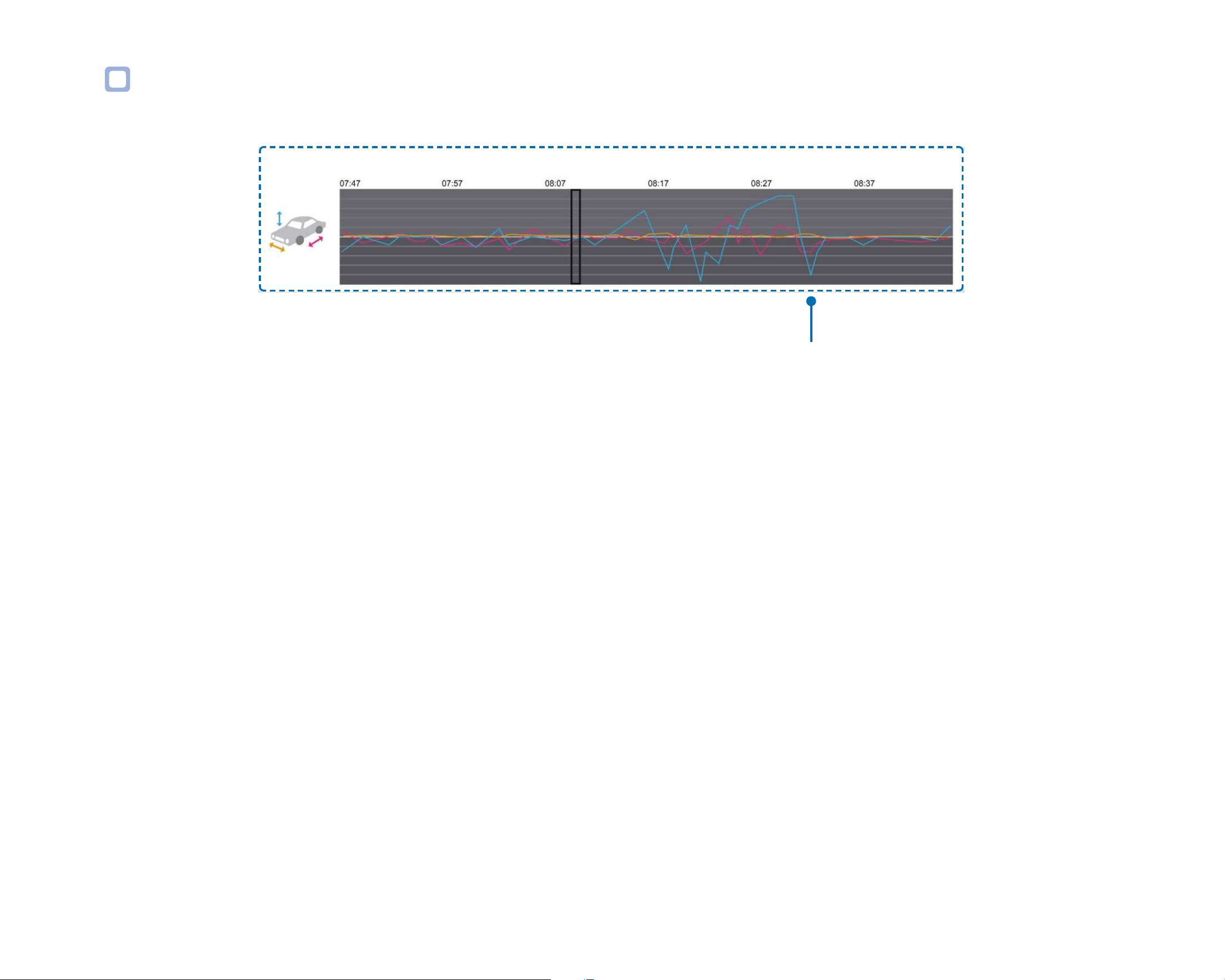
Exploring the timeline and G-Sensor graph
You can check the impact sensitivity (G-Sensor) information in the line graph.
G-Sensor information
G-Sensor
DR900X-2CH
37
ENGLISH
Zoom options
y
Use the mouse scroll wheel zoom. Right clicking will restore the video to the default size.
y
You can resize the playback frame or the BlackVue Viewer window by dragging the borders.
y
Full-screen view: Double click on the video image to enter full-screen view. Double click again or tap ESC to return to the default view.
38
BLACKVUE
Checking the GPS data
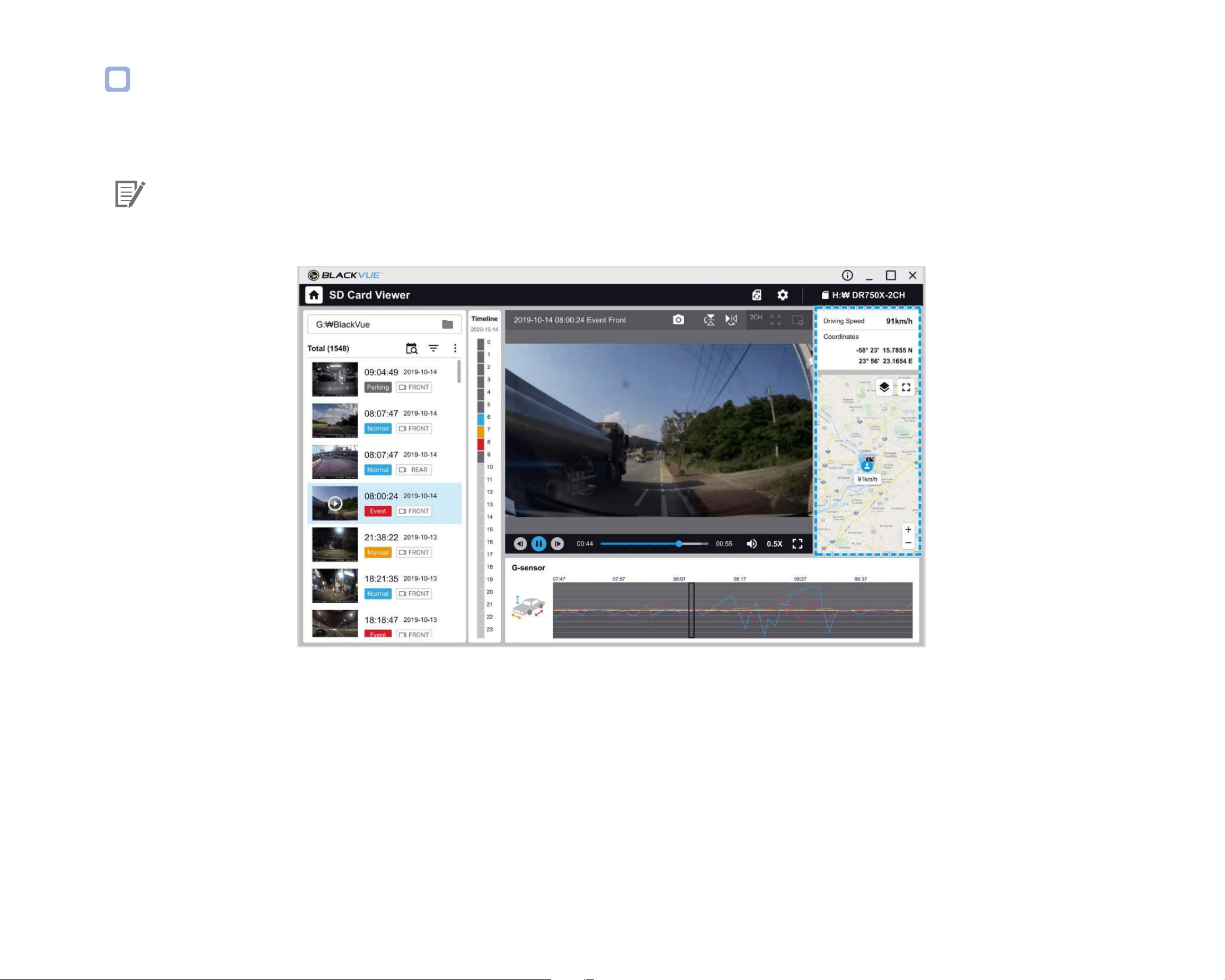
You can check the GPS data of the recorded video in BlackVue Viewer while video is playing back. The driving speed and coordinates are
displayed above the map frame.
Note
y
GPS data is not recorded during parking mode. Map data cannot be displayed for parking mode recordings.
DR900X-2CH
39
ENGLISH
Managing videos
You can manage the recorded videos through the BlackVue Viewer program. You can also format the microSD card.
Note
y
If the microSD card is full, by default the dashcam will record over the oldest videos rst.
Capturing or printing a still image from video
1
Double click a le in the le list to play.
2
Click the pause button to pause the video.
3
Select the capture button to capture the image.
Deleting videos
1
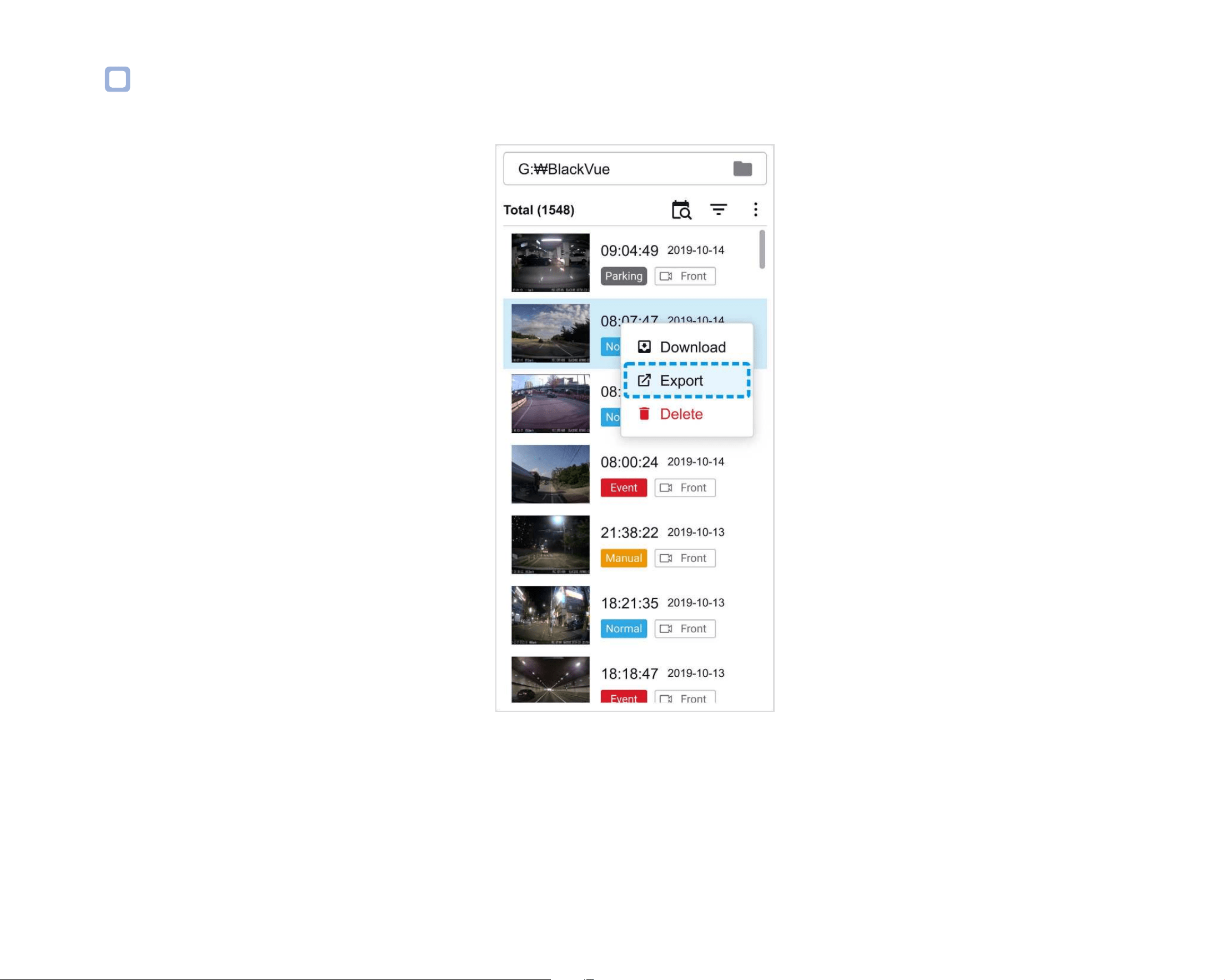
Move the cursor on a video you want to delete. Right-click the mouse button and press Delete.
2
Click Delete.
y
To delete multiple les at once, click
and select Delete. Select the video les or click the checkbox at the top of the video list to
select all les then press Delete.
40
BLACKVUE
Exporting videos
1
Move the cursor on a video you want to export and right-click the mouse button.
2
Click Export.
3
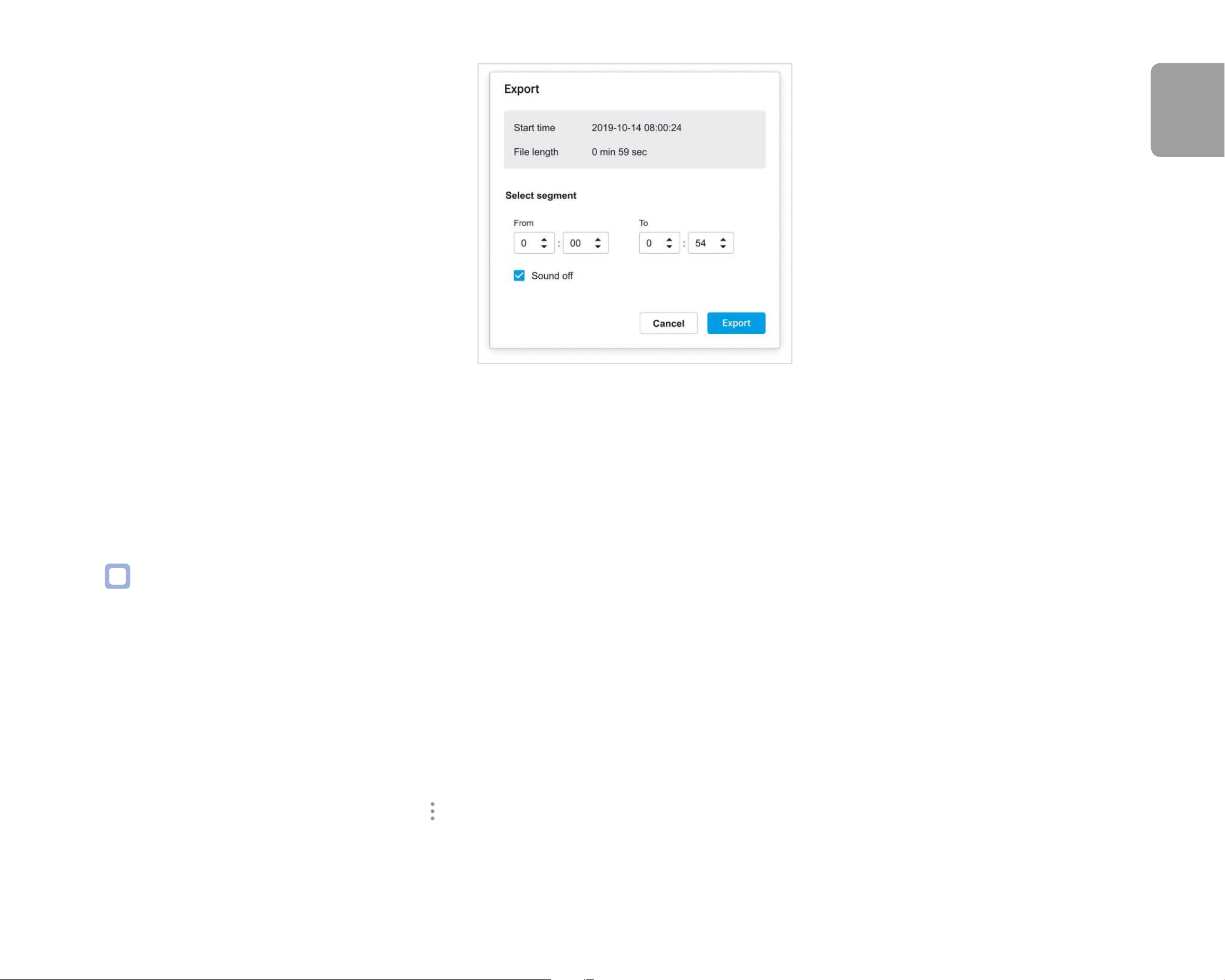
If you want to extract a segment of a le, edit the start and end second points from Select segment. To export without audio select
Sound O.
DR900X-2CH
41
ENGLISH
4
Click the Export button.
5
Select the folder in which to save the le and enter the le name.
6
Click the Save button.
Copying videos
1
Move the cursor on a video you want to download and right-click the mouse button.
2
Click Download.
3
Select the folder in which to copy the le and enter the le name.
4
Click the Select folder button.
y
To copy multiple les at once click
and select Download. Select the video les or click the checkbox at the top of the video list
to select all les then press Download. Choose a directory and press Download.
y
When copying les the segment adjustment and sound o tools are not available.
42
BLACKVUE
Tips for optimal performance
Formatting the microSD card
Caution
y
Back up necessary video les before formatting the microSD card. If you format the microSD card, all the video les stored in the
microSD card will be deleted including the locked event les. Your saved settings will not be aected.
Format using BlackVue Viewer (Windows)
1
Insert the microSD card into the microSD card reader and connect the reader to your computer.
2
Download BlackVue Viewer (Windows) from www.blackvue.com > Support >Downloads and install it on your computer.
3
Launch the BlackVue Viewer that is installed on your computer.
4
Click the Format button, select the card drive and click Format.
DR900X-2CH
43
ENGLISH
Format using BlackVue Viewer (macOS)
1
Insert the microSD card into the microSD card reader and connect the reader to your computer.
2
Download BlackVue Viewer (Mac) from www.blackvue.com > Support > Downloads and install it on your computer.
3
Launch the BlackVue Viewer that is installed on your computer.
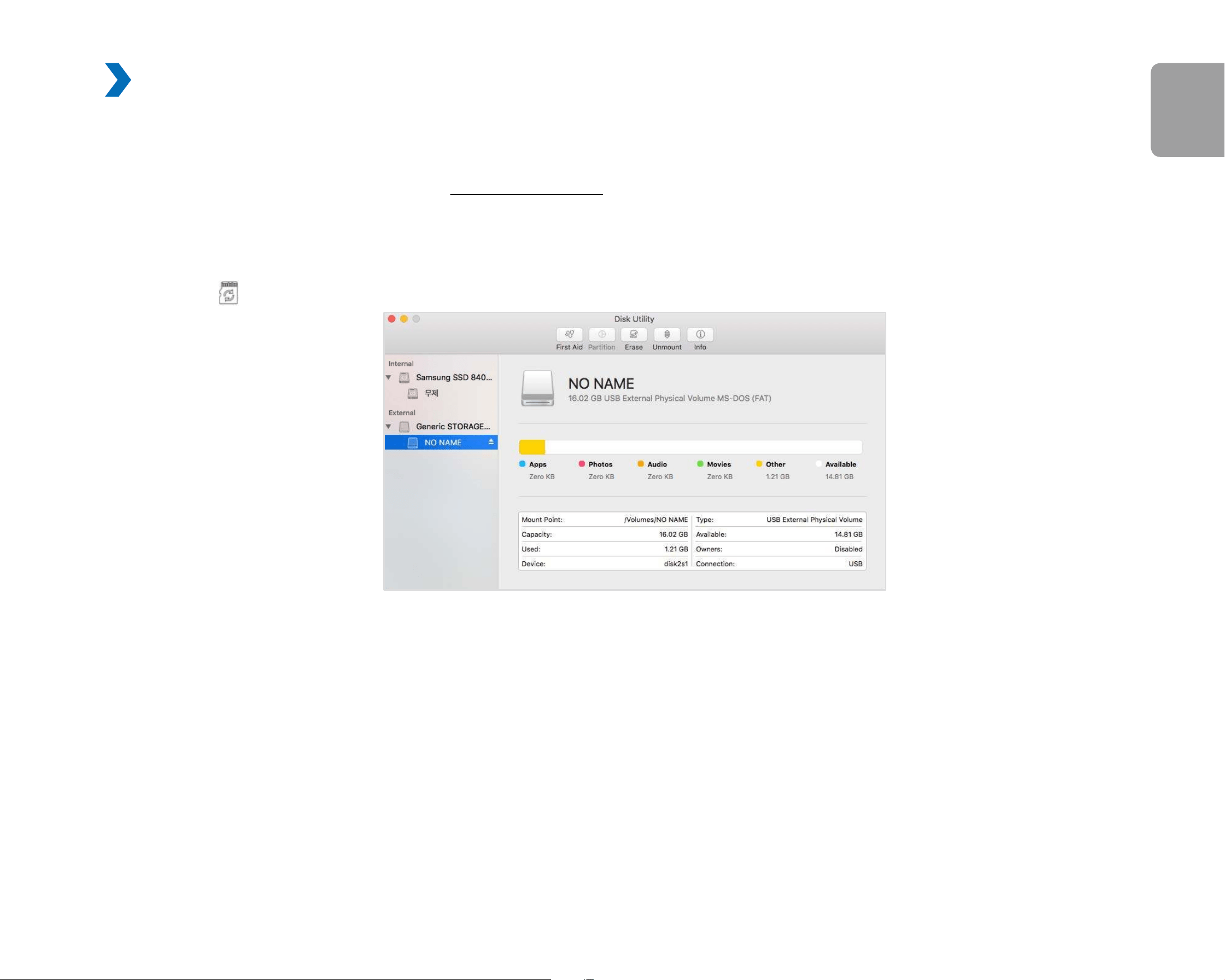
4
Click the Format button and select the microSD card from the list of drives in the left frame.
44
BLACKVUE
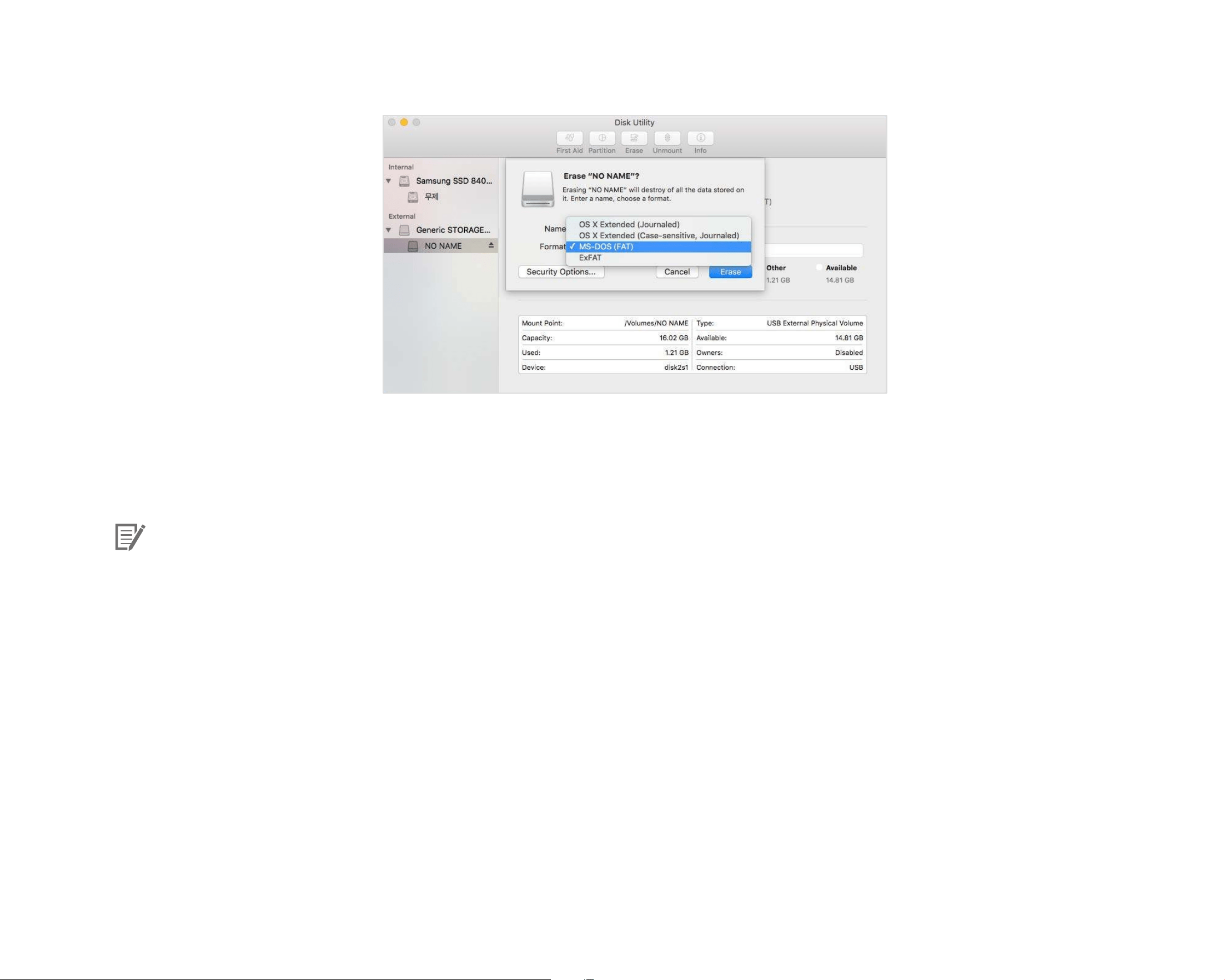
5
After selecting your microSD card select the Erase tab in the main window.
6
Select “MS-DOS (FAT)” from the Volume Format drop-down menu and click Erase.
Note
y
Formatting the microSD card once a month is recommended.
y
Format the microSD card if the recorded video quality appears to be poor.
y
Only use ocial BlackVue microSD cards. Other cards may have compatibility issues. PittaSoft Co., Ltd. will not be held responsible
for any problems caused by using another manufacturer's microSD card.
y
For Windows users: To format the microSD card directly from “My Computer”, right-click the microSD card drive and select Format.
Select File system as FAT32 and Allocation unit size as 64KB then click Start. If FAT32 is not available or can’t be selected, please
format the microSD card using BlackVue Viewer.
DR900X-2CH
45
ENGLISH
Upgrading the rmware
Regularly upgrade the rmware for performance improvements and updated features. Firmware updates will be made available for
download at www.blackvue.com > Support > Downloads.
Your saved settings are not aected by rmware upgrade.
Upgrading the rmware using an iOS or Android device (Firmware Over The Air)
Click here for a step-by-step video tutorial, or go to the main menu and select Help > Video tutorials.
Makes sure your smartphone has a stable internet connection.
1
Open the BlackVue app
2
Tap and select Firmware download.
3
Select your dashcam model and the rmware language and tap OK.
Note
y
Please select the rmware language currently installed in your dashcam. Once upgrade is completed, you can change the
rmware language from dashcam settings as described on page 72 or 75.
4
Check the rmware version and release notes and tap Download to start downloading.
5
After the download completes tap Firmware upgrade to be taken back to the home screen.
Make sure your BlackVue dashcam is on and nearby.
46
BLACKVUE
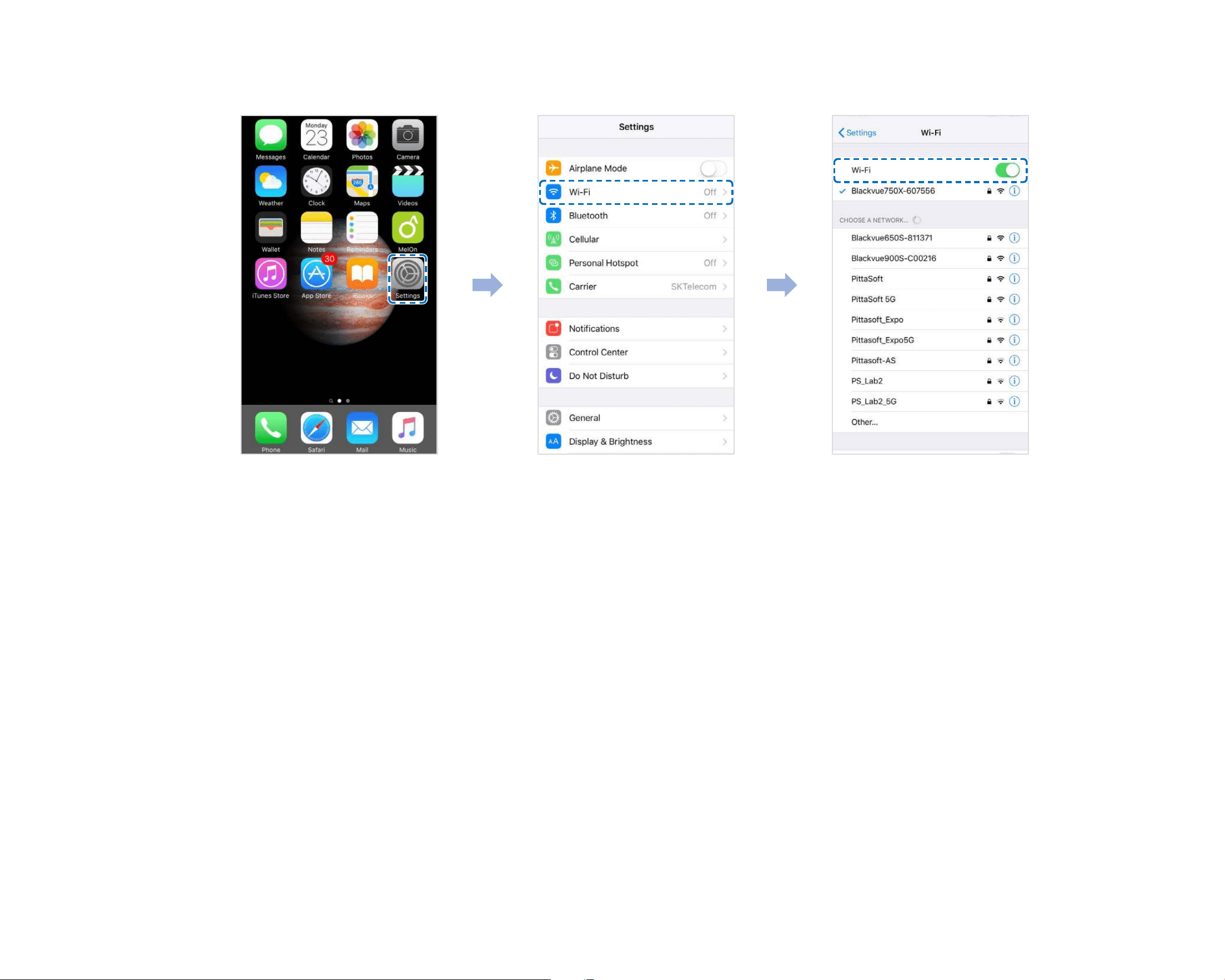
6
Go to your smartphone's Settings then select Wi-Fi, and make sure Wi-Fi is turned on.
7
Choose your BlackVue dashcam from the network list. The dashcam’s default SSID begins with its model number
(e.g.BlackVue900X-******).
8
Enter the password and tap join.
* The default Wi-Fi SSID and password is labeled on the dashcam. To nd them, unplug the cables and remove the front camera from
its mount.
DR900X-2CH
47
ENGLISH
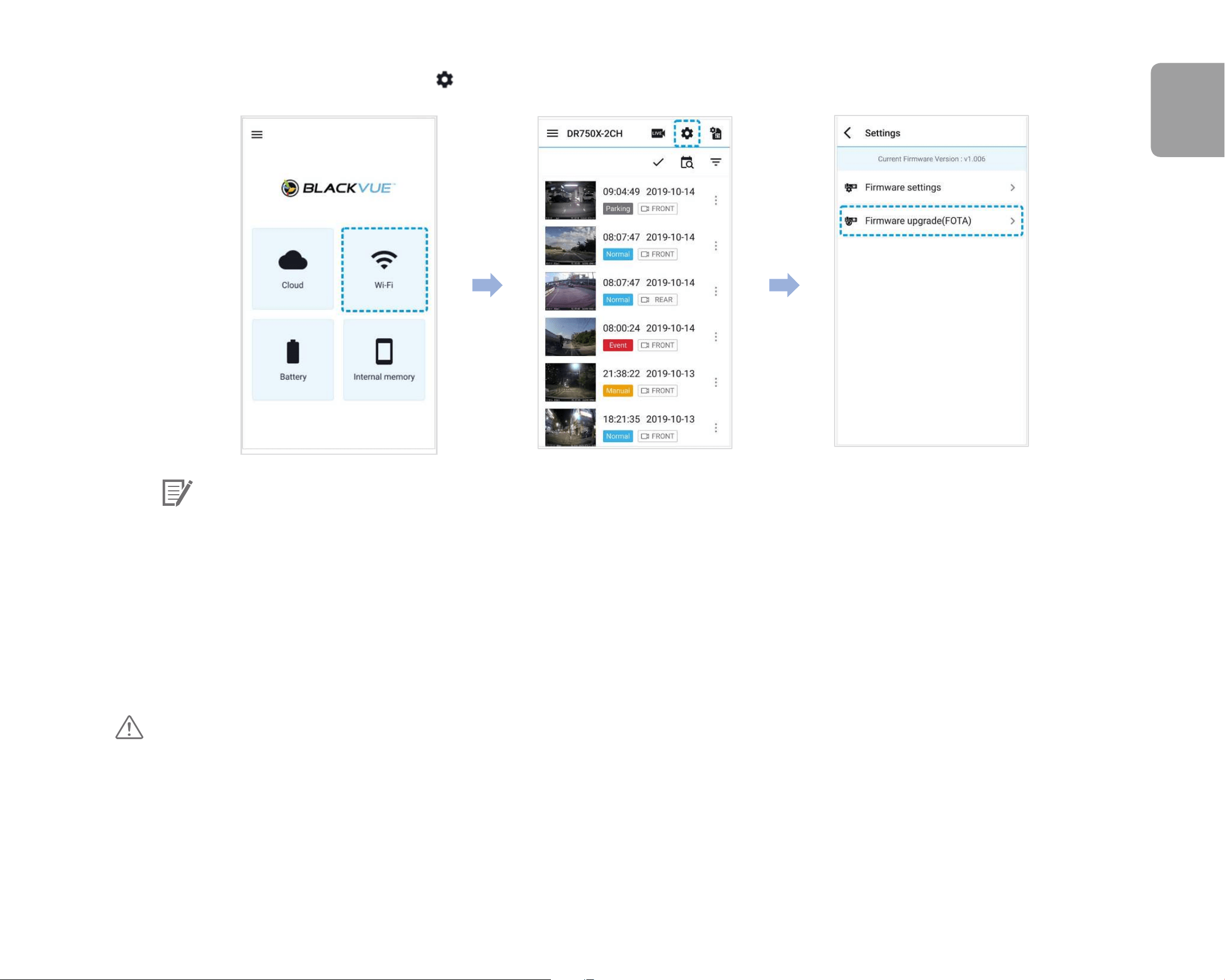
9
Open the BlackVue app. Select WI-FI > > Firmware upgrade.
Note
y
The rmware version currently installed on the microSD card is shown rst. Below it, the rmware version you downloaded
in step 4 is shown.
10
Tap Upgrade to apply the rmware upgrade.
11
The dashcam's rmware will be upgraded – this may take a few minutes. The dashcam needs to reboot to complete the rmware
upgrade.
Caution
Please make sure the dashcam is powered on until normal recording starts after the upgrade is completed. Any power
interruption may prevent the rmware upgrade from completing, resulting in malfunction of the dashcam.
48
BLACKVUE
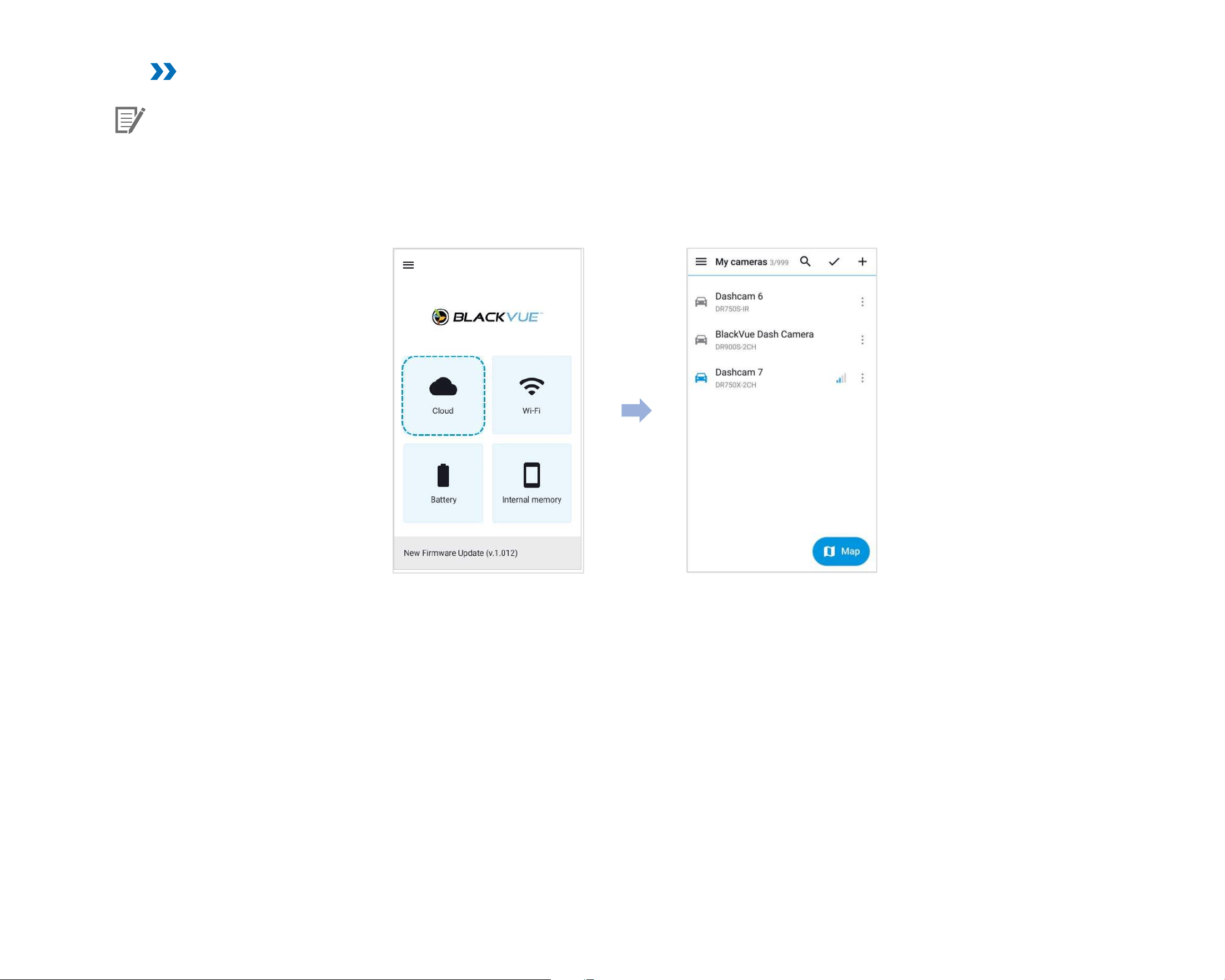
Over the Cloud (Remote FW upgrade)
Note
y
When a new rmware is available, an icon will show near your dashcam’s name.
y
The Firmware can only be upgraded when the dashcam is connected to Cloud.
1
Open the BlackVue app. Select CLOUD. Tap the 3-dot icon.
DR900X-2CH
49
ENGLISH
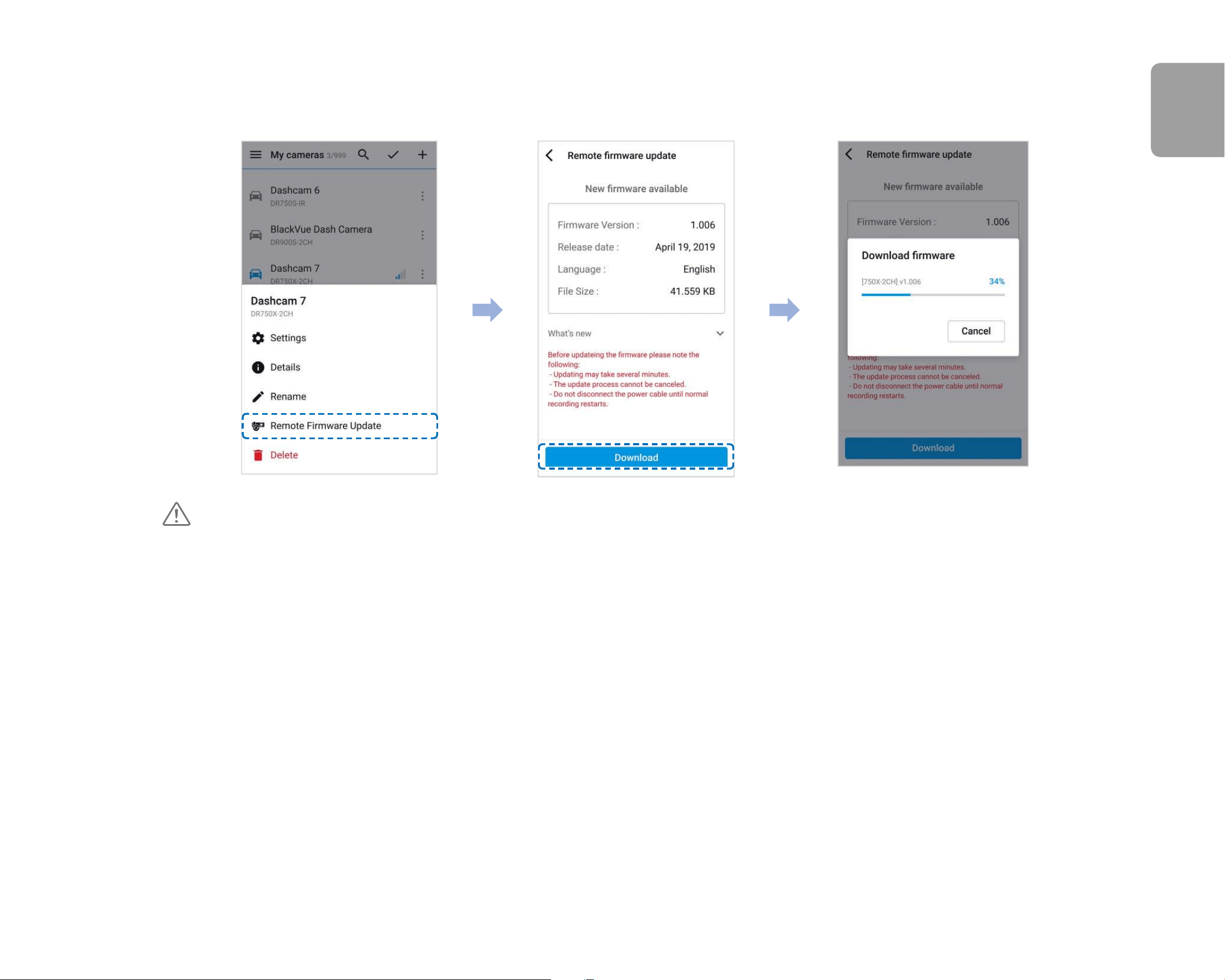
2
Tap Remote rmware update > Download.
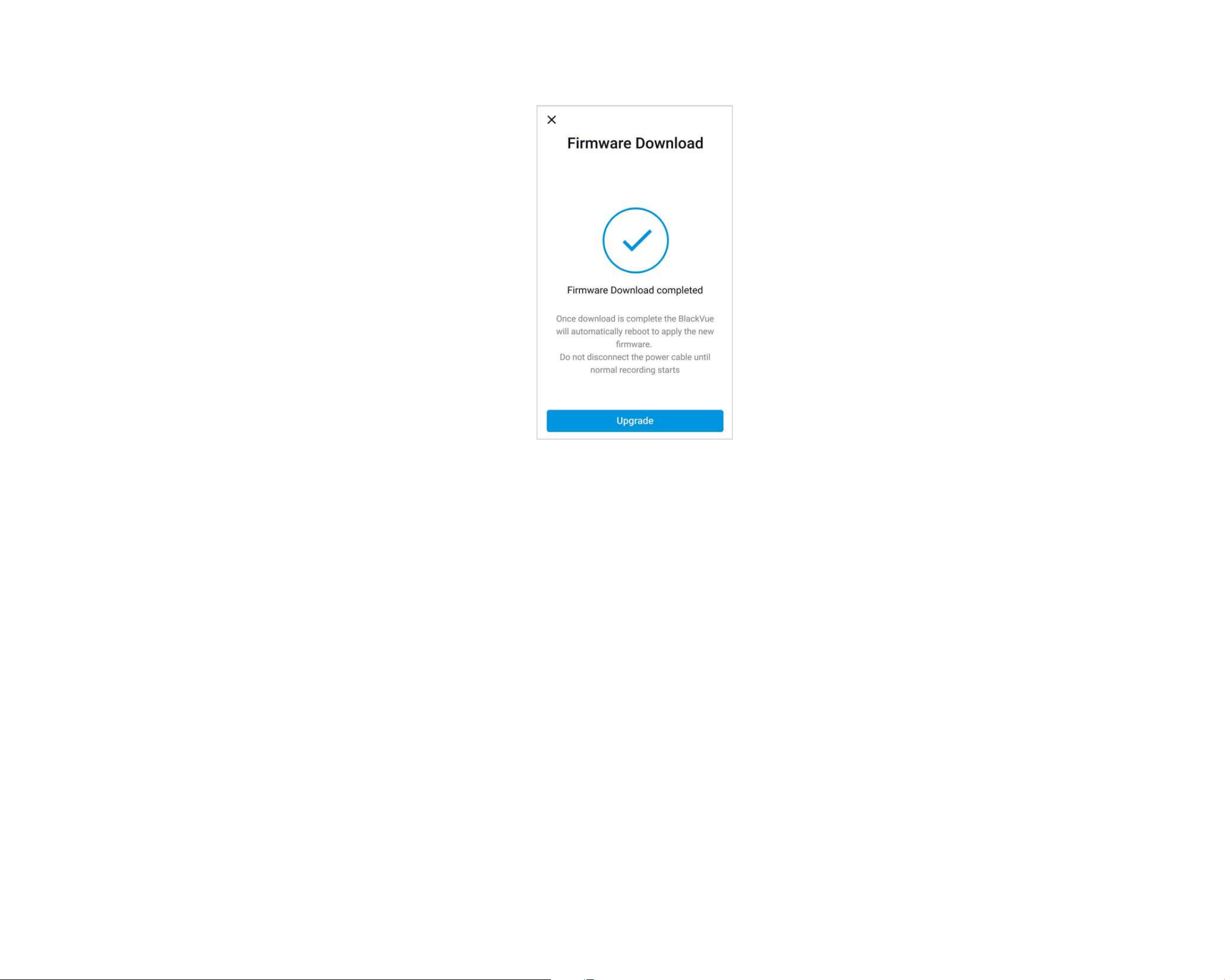
The dashcam will start downloading the rmware and automatically apply it.
Caution
Please make sure the dashcam is powered on until normal recording starts after the upgrade is completed. Any power
interruption may prevent the rmware upgrade from completing, resulting in malfunction of the dashcam.
50
BLACKVUE
3
You will be notied once the upgrade is successful.
DR900X-2CH
51
ENGLISH
Upgrading the rmware using a computer (Windows/macOS)
Keep your BlackVue dashcam updated by upgrading the rmware to the latest version. Visit the BlackVue website (www.blackvue.com) to
check for any new rmware releases for your BlackVue dashcam model.
1
Insert the microSD card into the microSD card reader.
2
Connect the microSD card reader to a computer.
3
Launch BlackVue Viewer.
4
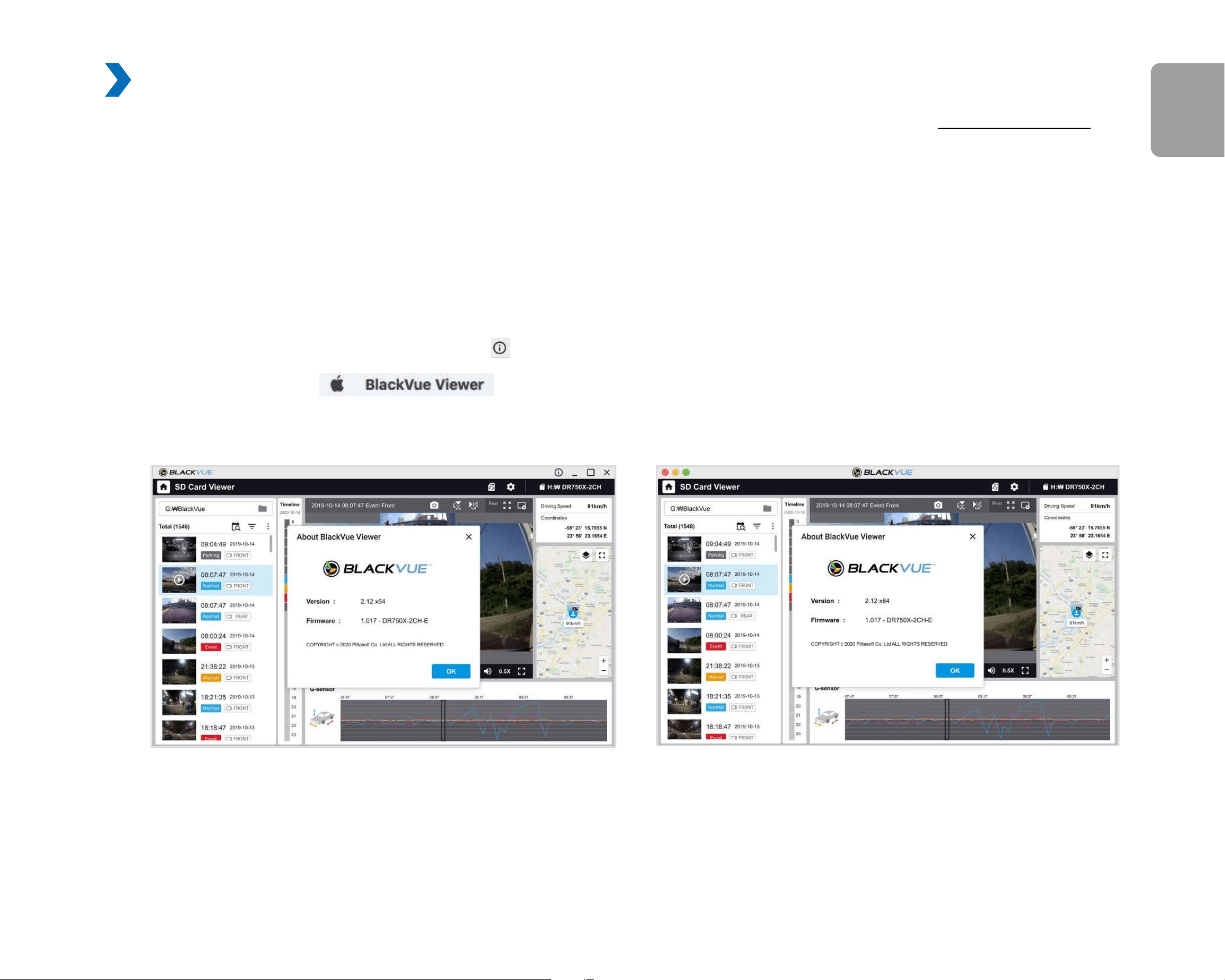
Select SD Card Viewer and click on the About button.
y
For Mac users, click
and select About BlackVue from the menu.
5
Check the current rmware version of your BlackVue dashcam and proceed only if your version is not the latest one.
macOS
Windows
6
Format the microSD card. See "Formatting the microSD card" on page 42.
52
BLACKVUE
7
Go to the BlackVue website (www.blackvue.com > Support > Download) and download the latest rmware for your BlackVue
dashcam model in zip format.
8
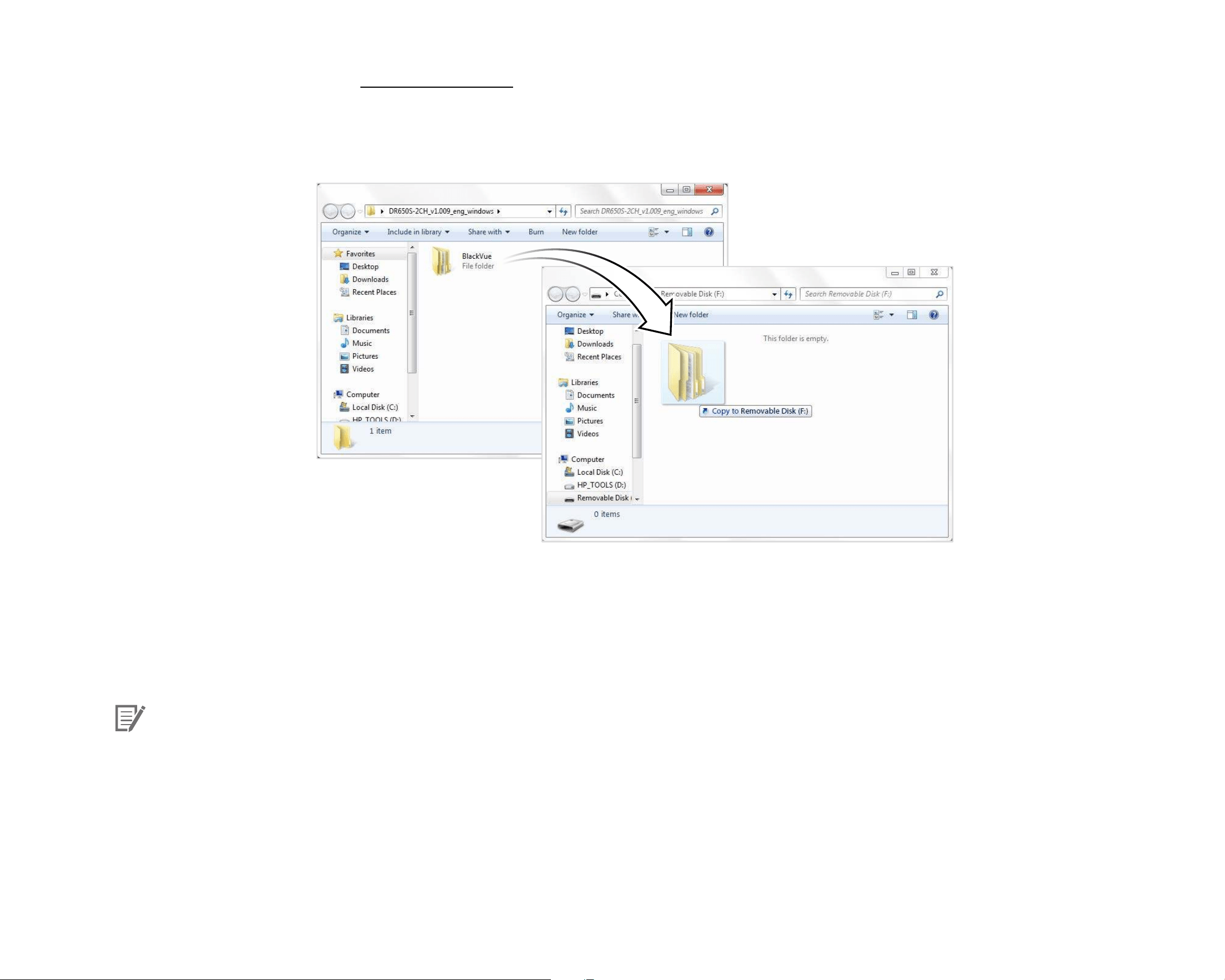
Unzip the downloaded le and copy the BlackVue folder to the microSD card.
9
Insert the microSD card into the dashcam and connect the power to initiate the rmware upgrade. Make sure the power remains
on until the upgrade is completed. Any power interruption may prevent the rmware upgrade from completing, resulting in
malfunction.
Note
y
Do not insert or remove the microSD card when the dashcam is turned on. Doing so may damage the data and cause a
malfunction of the microSD card.
y
Your saved settings are not aected by rmware upgrade.
y
The rmware is upgraded to the previously saved language. If you want to change it, please refer to page 72 or 75.
DR900X-2CH
53
ENGLISH
Changing settings
Changing settings using your smartphone (Android/iOS)
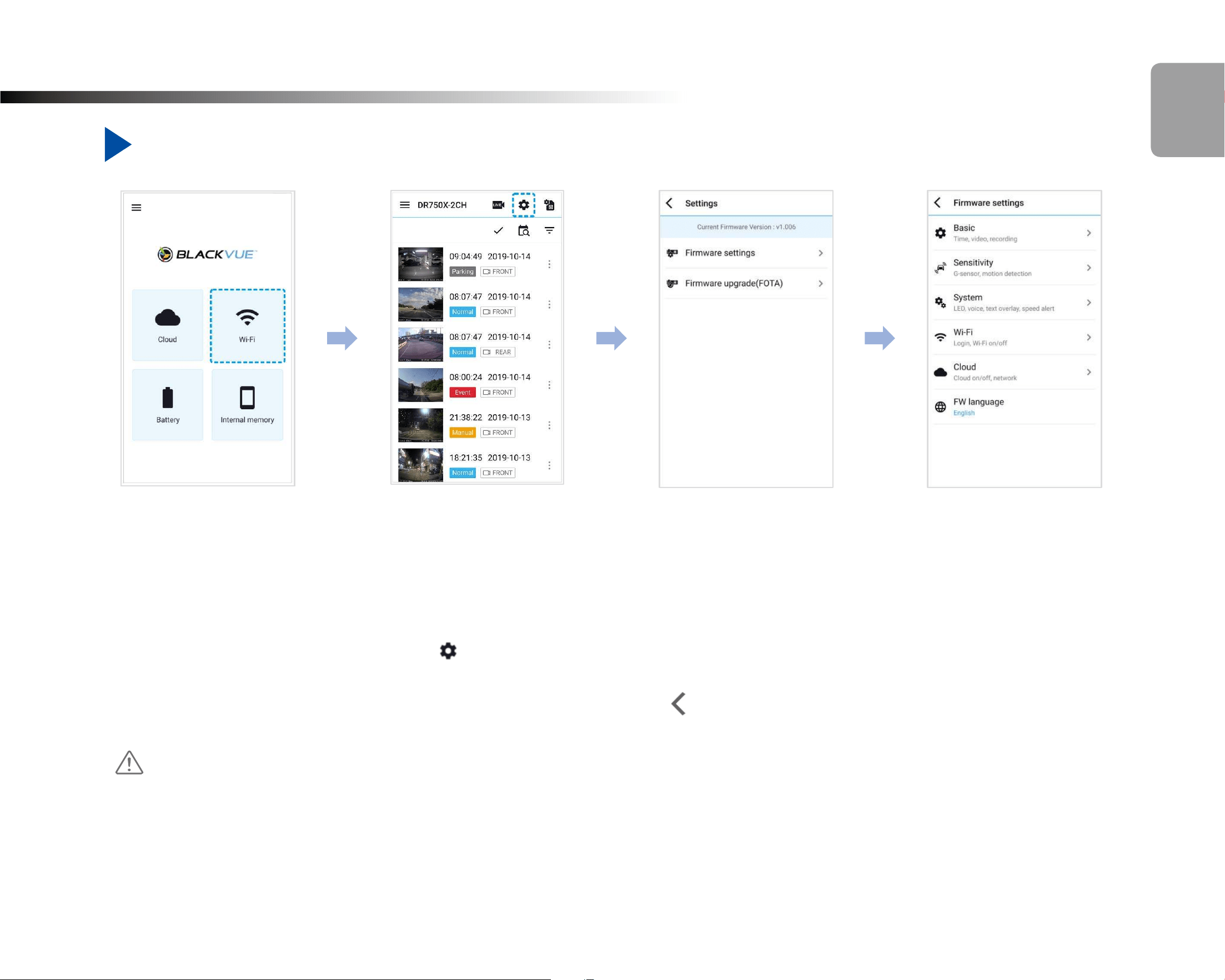
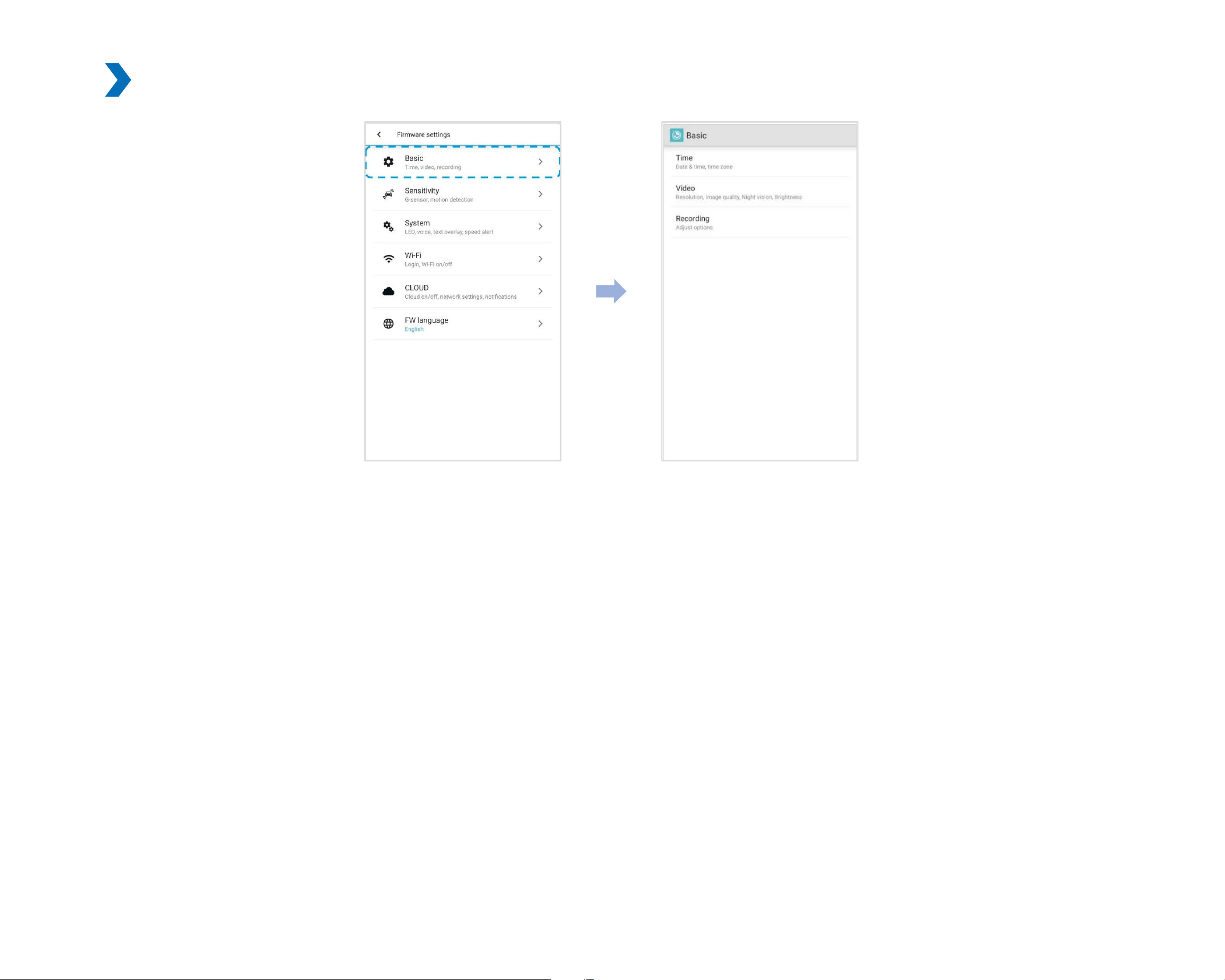
“Pair” your smartphone with the BlackVue dashcam via Wi-Fi direct (for details see "Opening video les" on page 20).
1
Go to your smartphone's Settings > Wi-Fi and connect to your dashcam.
2
Open the BlackVue app. Select WI-FI > to access the Firmware settings menu.
3
After making any changes, go back to the Firmware settings menu, tap and tap Save.
Caution
y
Please backup necessary recordings before changing time or image quality settings. If any of the aforementioned settings are
changed and saved, the dashcam will format the microSD card and delete all recordings stored on the card including locked
event les in order to ensure optimal performance.
54
BLACKVUE
Basic settings
DR900X-2CH
55
ENGLISH
Time settings
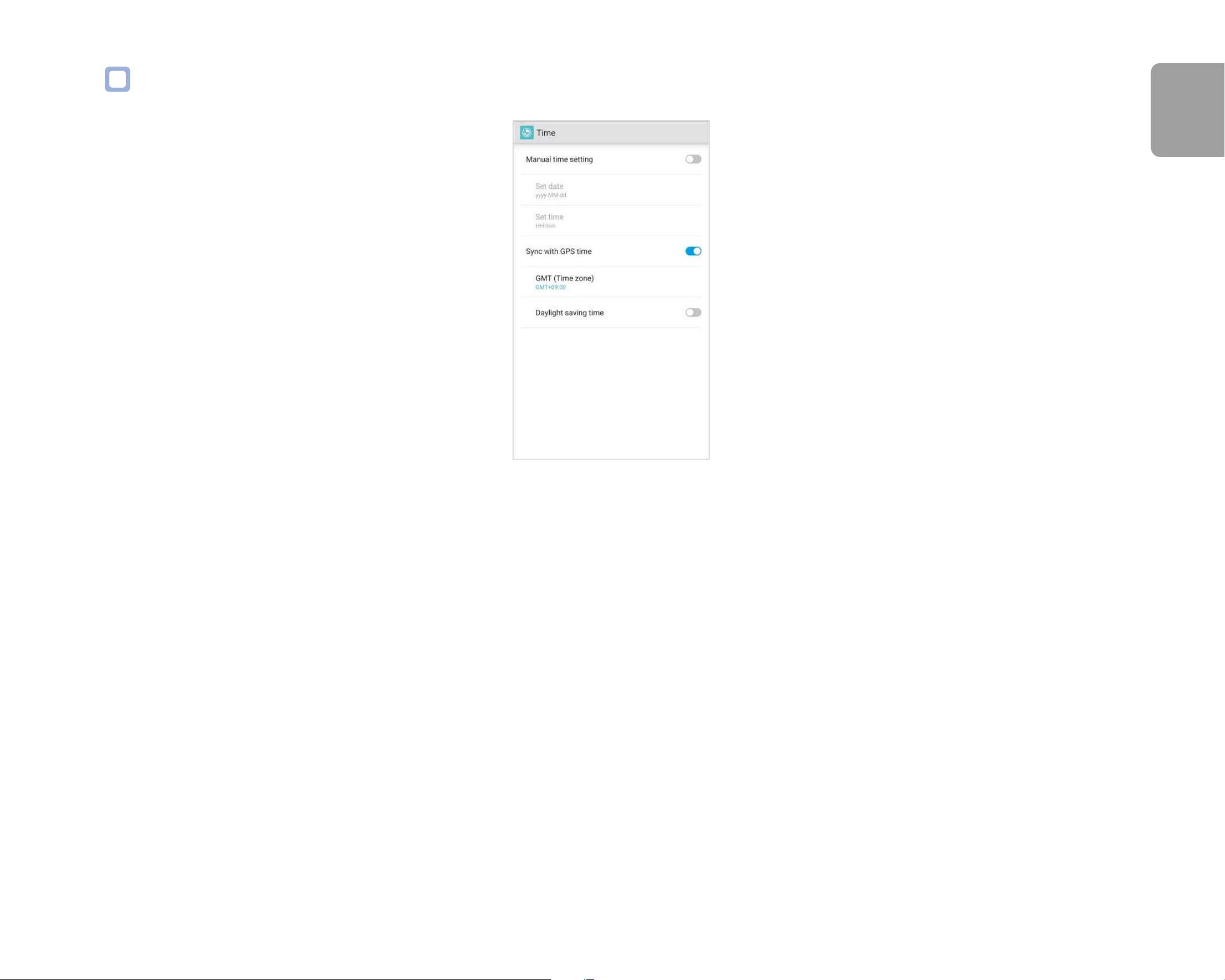
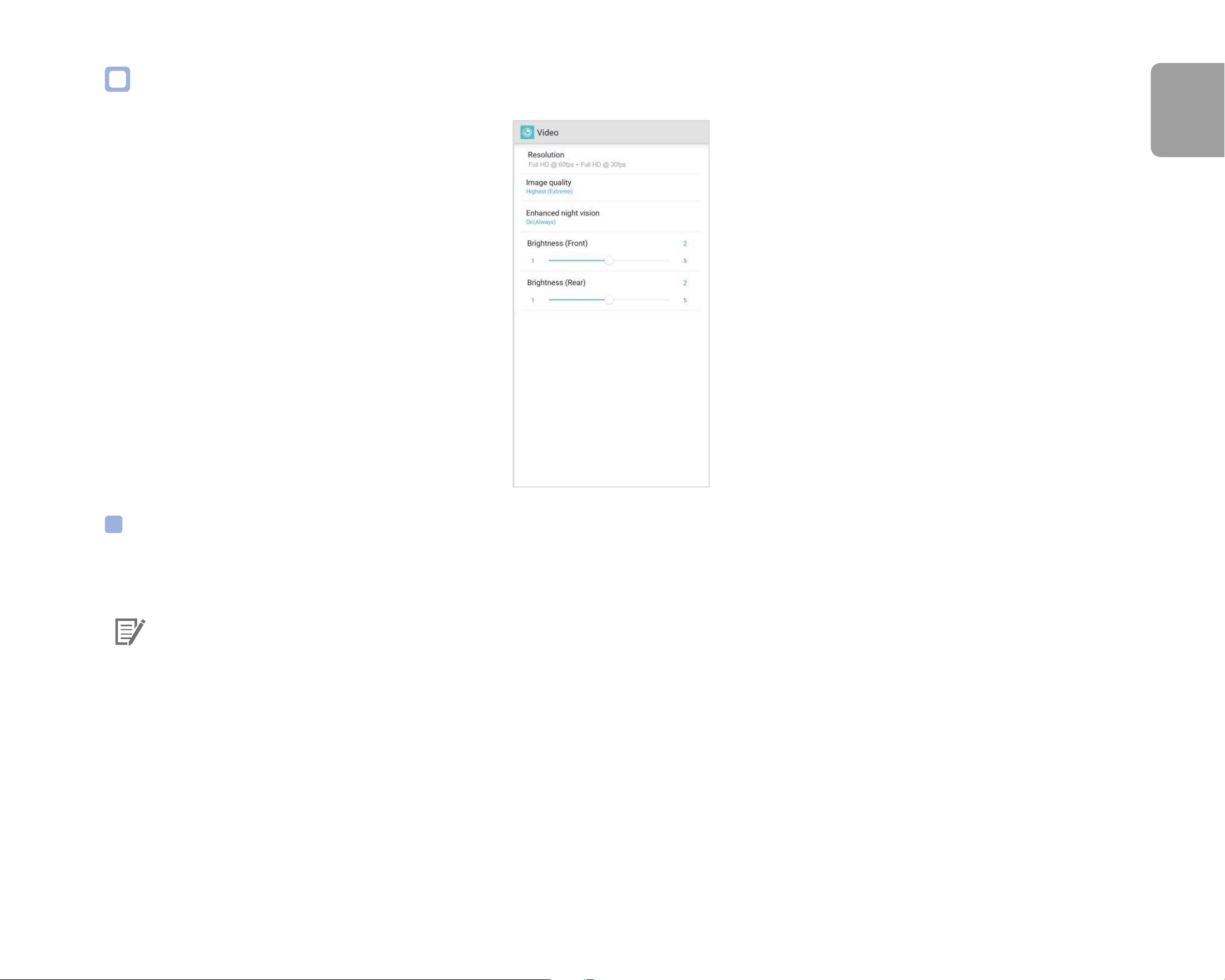
Select your time zone to auto-sync with GPS time or you can set the time and date manually after enabling Manual time setting.

56
BLACKVUE
Note
y
The factory setting is GMT -11.
Some examples of GMT time osets are:
- GMT-7: Los Angeles
- GMT-4: New York
- GMT+0: London
- GMT+1: Paris
- GMT+3: Moscow
- GMT+8: Singapore
- GMT+9: Seoul
- GMT+10: Sydney
If you are unsure of your GMT oset please look up your city on https://greenwichmeantime.com/
*Selecting Daylight saving time will advance the clock by one hour.
y
When setting the time manually, please set tothe expected time you willusethe BlackVue ( not the present time).
DR900X-2CH
57
ENGLISH
Video settings
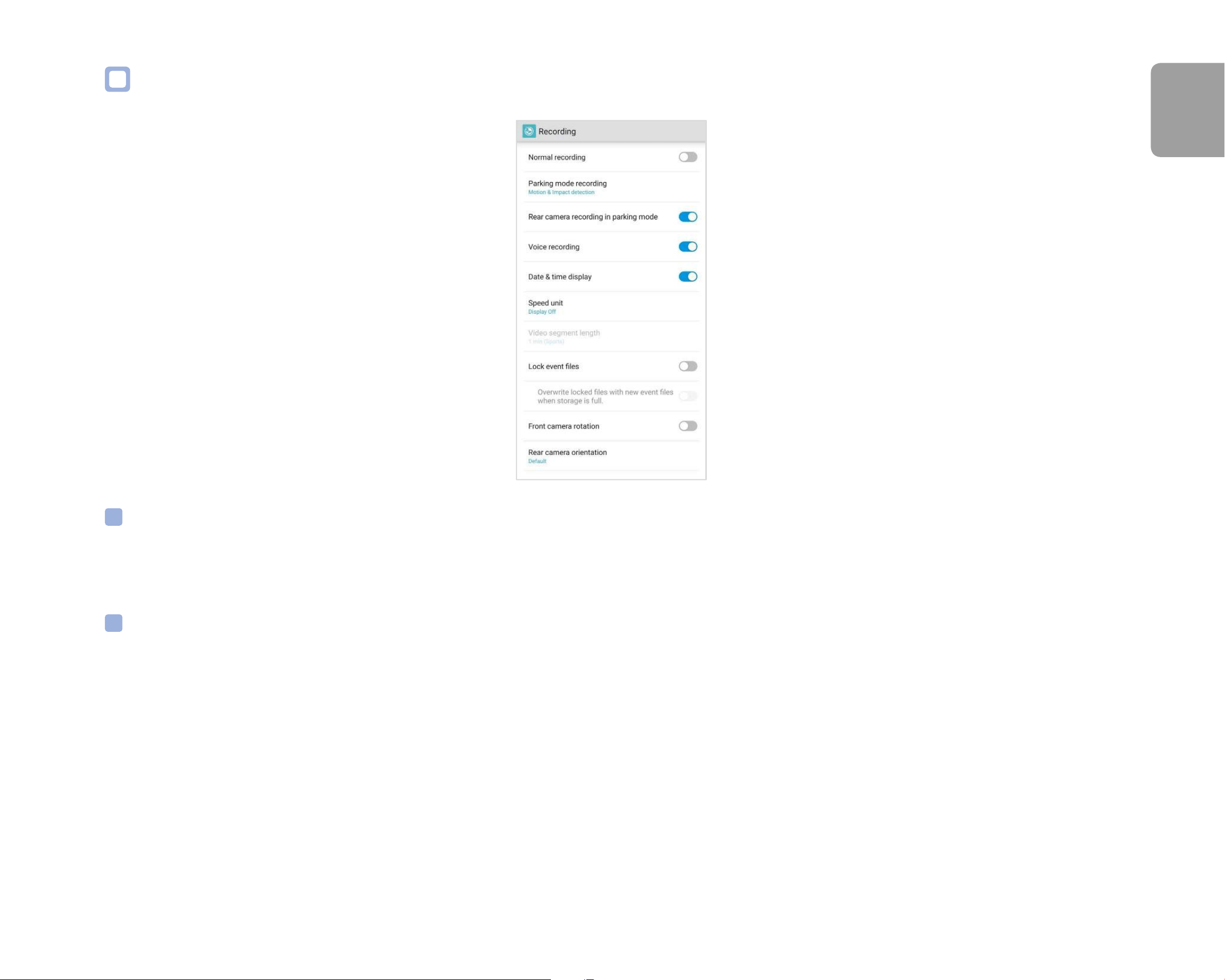
Resolution
Resolution and frame rate is xed at "4K UHD@30 + FHD@30". This means the front camera records 4K UHD video at 30 frames per second,
and the rear camera records Full HD video at 30 frames per second.
Note
y
The playback of 4K UHD resolution and/or H.265 coded videos depends on your device's hardware and software. Older devices
may not support 4K UHD or H.265 video playback. If you encounter issues please check your device's video playback capabilities.
y
Frame rate may vary during Wi-Fi streaming.

58
BLACKVUE
Video Codec
Choose between H.265 (HEVC) and H.264 (AVC).
y
H.265 (HEVC) is recommended, particularly for 4K UHD resolution recording. In comparison to AVC, HEVC oers about double the data
compression ratio at the same level of video quality. However, older devices may not support HEVC video playback.
y
H.264 (AVC) can be chosen for compatibility with older desktop and mobile devices.)
Image quality
You can adjust the recording image quality (bit rate) settings. Choose between:
y
Highest (Extreme) (Front: 25 Mbit/s, Rear: 10 Mbit/s)
y
Highest (Front: 12 Mbit/s, Rear: 10 Mbit/s)
y
High (Front: 10 Mbit/s, Rear: 8 Mbit/s)
y
Normal (Front: 8 Mbit/s, Rear: 6 Mbit/s)
Increasing the image quality will increase the size of the video les. Loading and copying time will increase accordingly. If your phone
does not support video streaming at the ‘Highest (Extreme)’ image quality setting, please copy the recording to your phone and play from
internal memory. Alternatively, you can choose "Quick playback" option.
Enhanced night vision
The dashcam has intrinsic night vision feature. If you want to enhance it, enable Enhanced night vision.
Brightness (Front)
You can adjust the recording brightness level of the front camera.
Brightness (Rear)
You can adjust the recording brightness level of the rear camera.
DR900X-2CH
59
ENGLISH
Recording settings
Normal recording
When turned o the dashcam does not record in normal mode.
Parking mode recording
If enabled, the dashcam switches from normal mode to parking mode when the vehicle is turned o (ACC+) or stationary for 5 minutes
(G-Sensor). There are two parking mode options. Choose "Motion & Impact detection" to save a parking recording when motion is detected
in the dashcam's eld of view. If the G-sensor detects an impact/bump the dashcam saves a separate event recording le.
Alternatively, if you choose "Time lapse" the camera continuously records 1 frame per second and saves recordings that playback at 30
times normal speed. If the G-sensor detects an impact/bump the camera saves a separate event recording le at normal speed.

60
BLACKVUE
Rear camera recording in parking mode
When turned on, the front and rear camera record together.
When turned o, the rear camera stops recording 5 minutes after entering parking mode. Rear camera recording restarts when entering
normal mode.
Voice recording
When turned o the dashcam does not record audio.
Date & time display
Turn on/o the date and time display on videos.
Speed unit
Select km/h, MPH, or turn o.
Video segment length
Video segment length is xed at 1 minute.
Lock event les
Turning on this option will lock the following recording types and stop them from being overwritten by newer recordings:
- Impact event recordings during normal and parking mode (E); and
- Manual recordings (M).
A maximum of 50les can be locked. Once this limit is reached, to lock new recordings please review locked les on the microSD card and
free up space, or enable ‘Overwrite locked les with new event les when storage is full’ to allow the oldest locked les to be overwritten.

DR900X-2CH
61
ENGLISH
Front camera rotation
If you installed the front camera in a ipped position, use this setting to rotate the front camera image 180°.
Rear camera orientation
Use this setting to rotate the rear camera image 180° or mirror the video.
62
BLACKVUE
Sensitivity settings
DR900X-2CH
63
ENGLISH
G-Sensor (Normal mode) / G-Sensor (Parking mode)
The G-sensor measures the movement of your vehicle through 3 axes – up and down, side to side, and front and back. When the G-sensor
detects signicant or sudden movement (such as an impact or collision) it will trigger an event recording. You can adjust the sensitivity so
minor incidents and bumps don't trigger an event recording. To turn o event recordings by impact detection set the G-sensor sensitivity
to o.
64
BLACKVUE
Motion detection (Parking mode)
In Motion Detection Parking Mode the dashcam continuously buers video and saves a parking recording when motion is detected in the
dashcam's eld of view.
You can adjust the sensitivity of the motion detection so minor motion caused by wind or rain doesn't trigger a recording. Please take
into account your vehicle's surroundings when adjusting the sensitivity. You can also choose the detection regions to reduce the risk of
triggering unwanted motion recordings due to trees swaying in the wind, far-away moving objects, etc. By default, all the regions are
selected. If you want to ignore motion detection in particular region(s), unselect them.
DR900X-2CH
65
ENGLISH
System settings
LED
Recording status
You can turn the recording status LED on/o.
Front security (Normal mode)
You can turn the front security LED on/o for normal mode.
Front security (Parking mode)
You can turn the front security LED on/o for parking mode.
Rear security
You can turn the rear security LED on/o.

66
BLACKVUE
LTE (Parking mode)
You can turn the LTE LED on/o for parking mode.
Wi-Fi (Parking mode)
You can turn the Wi-Fi LED on/o for parking mode.
Proximity Sensor
You can choose the function of the proximity sensor. Available options are:
- Turn on/o audio recording (default)
- Manual recording trigger
The sensor can also be disabled completely.
Voice guidance
Impact detected in parking mode
Noties when exiting parking mode if an impact had been detected during parking mode, however, it ignores any impact detected within
three minutes before exiting parking mode.
Volume
You can adjust the volume of the voice guidance (announcements).
Scheduled Reboot
The dashcam reboots automatically once-a-day if in parking mode at the set time for improved stability. If the dashcam is recording at the
set time, the scheduled reboot is skipped.
You can enable/disable and change the time for scheduled rebooting. Default time is 03:00 am.

DR900X-2CH
67
ENGLISH
Speed alert
Set a speed limit (up to 300 km/h or 200 MPH) for the speed alert. When the vehicle exceeds the specied speed limit, the dashcam beeps
and switches to event recording. After saving one event recording le the dashcam switches back to normal mode recording.
Battery Protection (Hardwiring Power Cable installation only)
When the battery protection is on, power is supplied to your BlackVue while the vehicle is o (ACC+ o) and also prevents the vehicle from
battery discharge while it is parked. When enabled, BlackVue will automatically power down according to the set cut-o timer and voltage.
Note
y
Recommended settings for low voltage cut-o is 12V or higher during winter. - If battery protection is o, BlackVue will not
operate when the vehicle is turned o (ACC+ o).
User text overlay
You can create a user text overlay of up to 20 characters using a combination of English letters (A – Z, a – z), numbers (0 – 9), and symbols
(:;‘/+-_()$#). The text is overlaid in the top-left corner of the recorded videos.
68
BLACKVUE
Wi-Fi settings
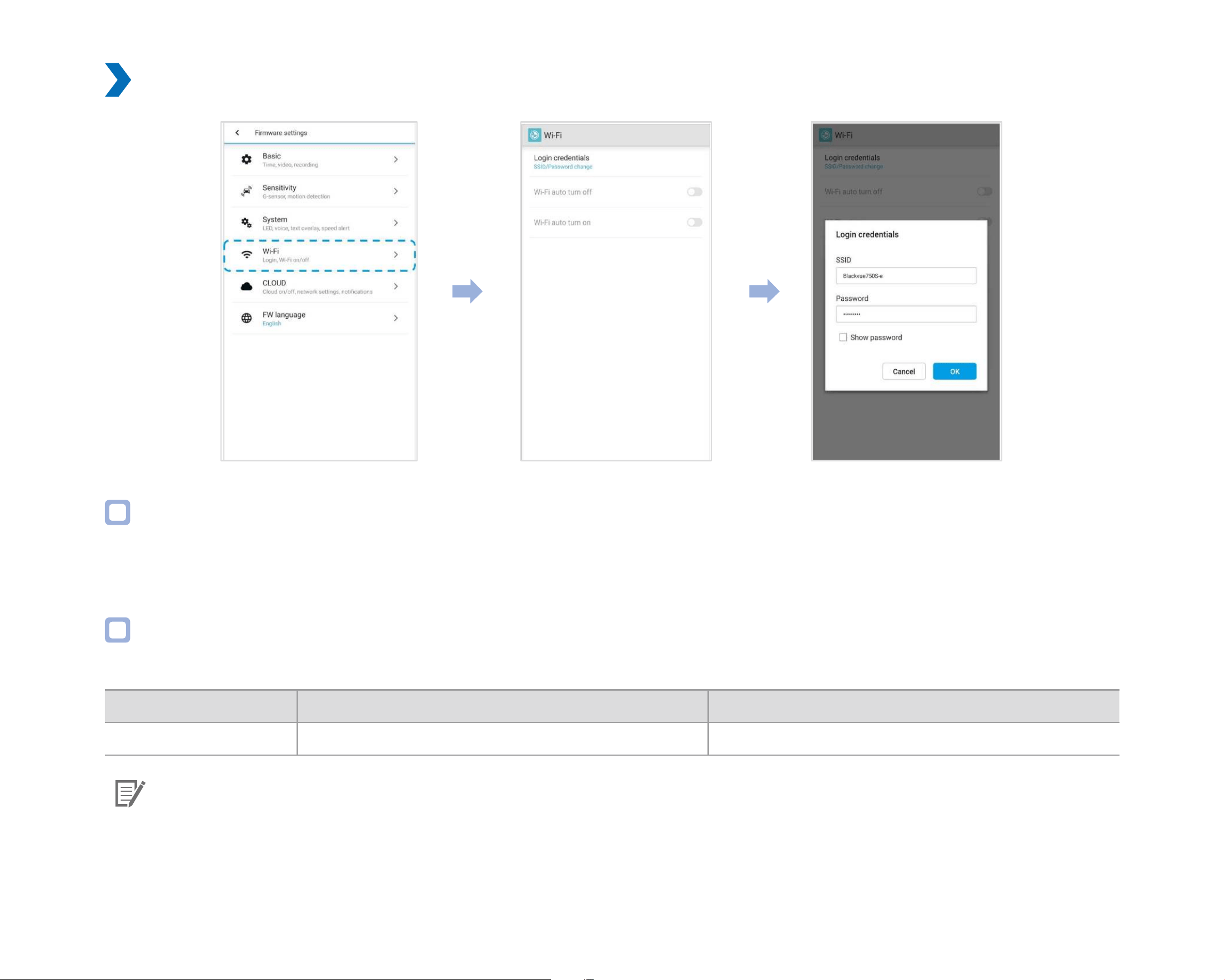
Login credentials
You can change the dashcam's SSID and Wi-Fi login password.
Wi-Fi auto turn o
Wi-Fi will automatically switch on when you turn on the dashcam and remain on. You can adjust the settings for Wi-Fi to automatically turn o.
ON OFF
Wi-Fi auto turn o Wi-Fi turns o if it is inactive for 10 minutes. Wi-Fi does not turn o automatically.
Note
Wi-Fi auto turn o setting does not aect Wi-Fi hotspot for Cloud connectivity.
DR900X-2CH
69
ENGLISH
Cloud settings
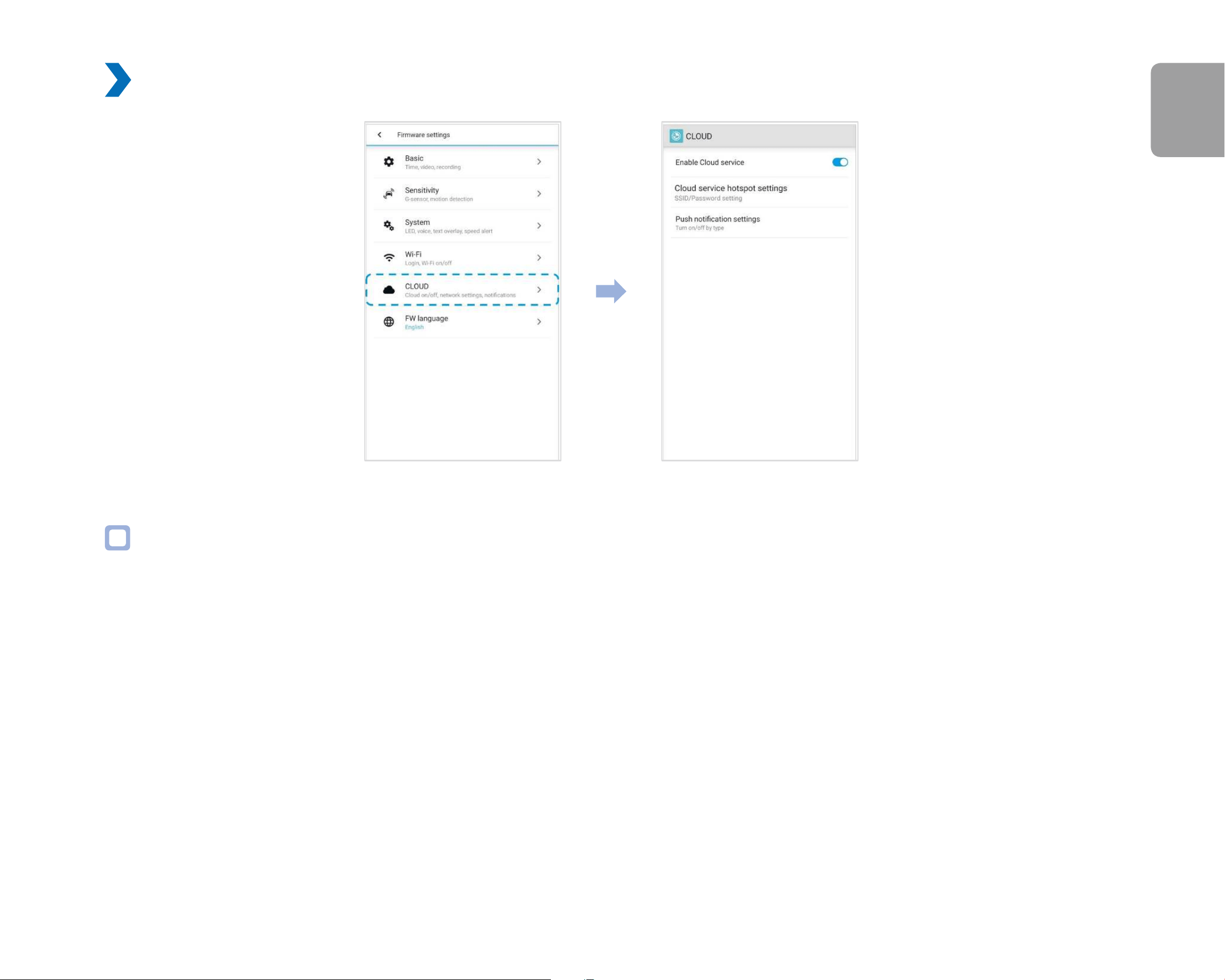
Enable Cloud service
If you don't use the Cloud service you can turn it o.
70
BLACKVUE
Cloud service hotspot settings
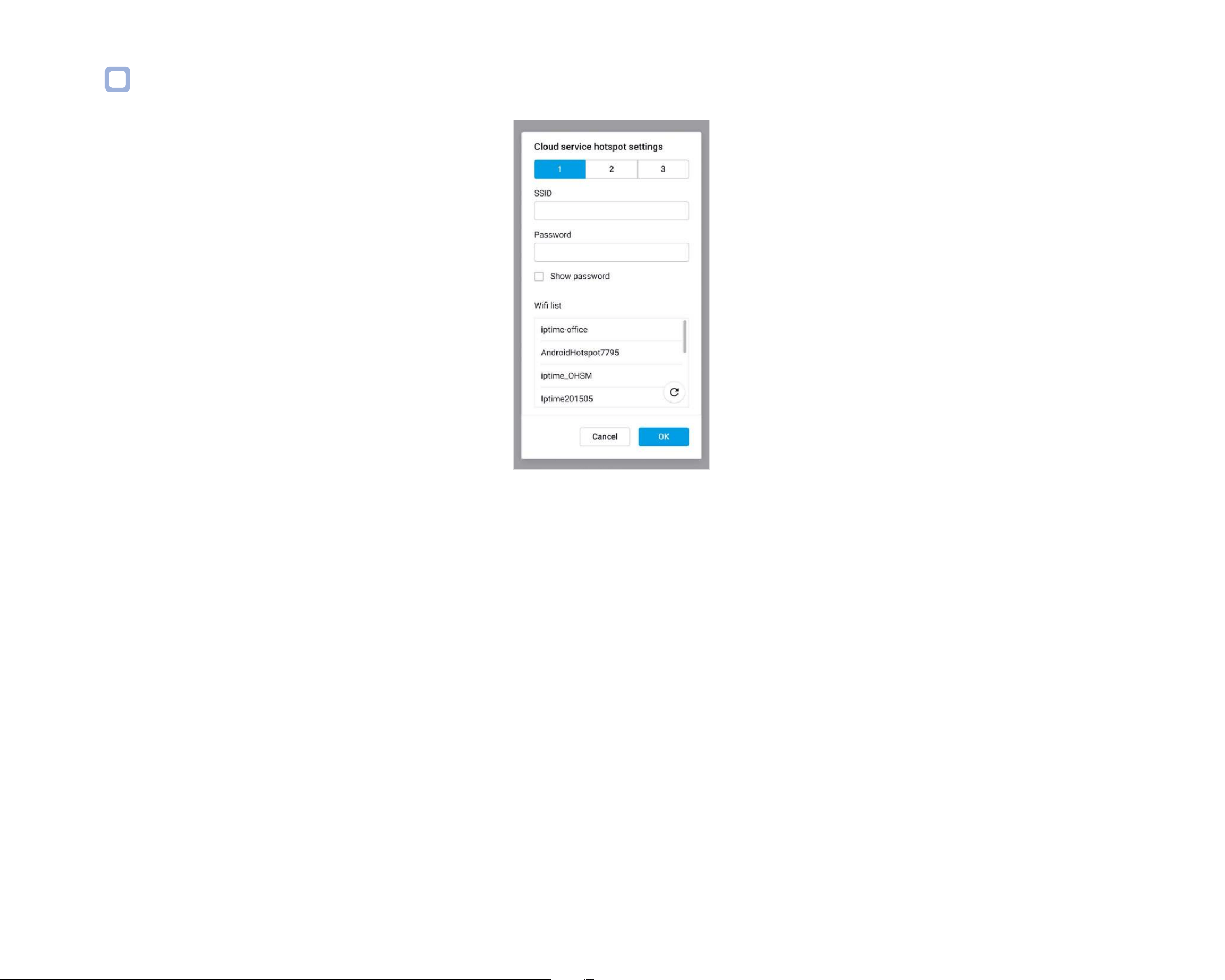
Up to 3 Wi-Fi hotspot SSIDs can be saved (e.g. home, portable hotspot and work). Choose your Wi-Fi hotspot from the list and enter the
password. Tap 2 and 3 to add settings for additional hotspots.
Your BlackVue will try to connect to hotspot 1 rst. If it cannot connect to hotspot 1, it will then try to connect to hotspot 2, and then
hotspot 3.
DR900X-2CH
71
ENGLISH
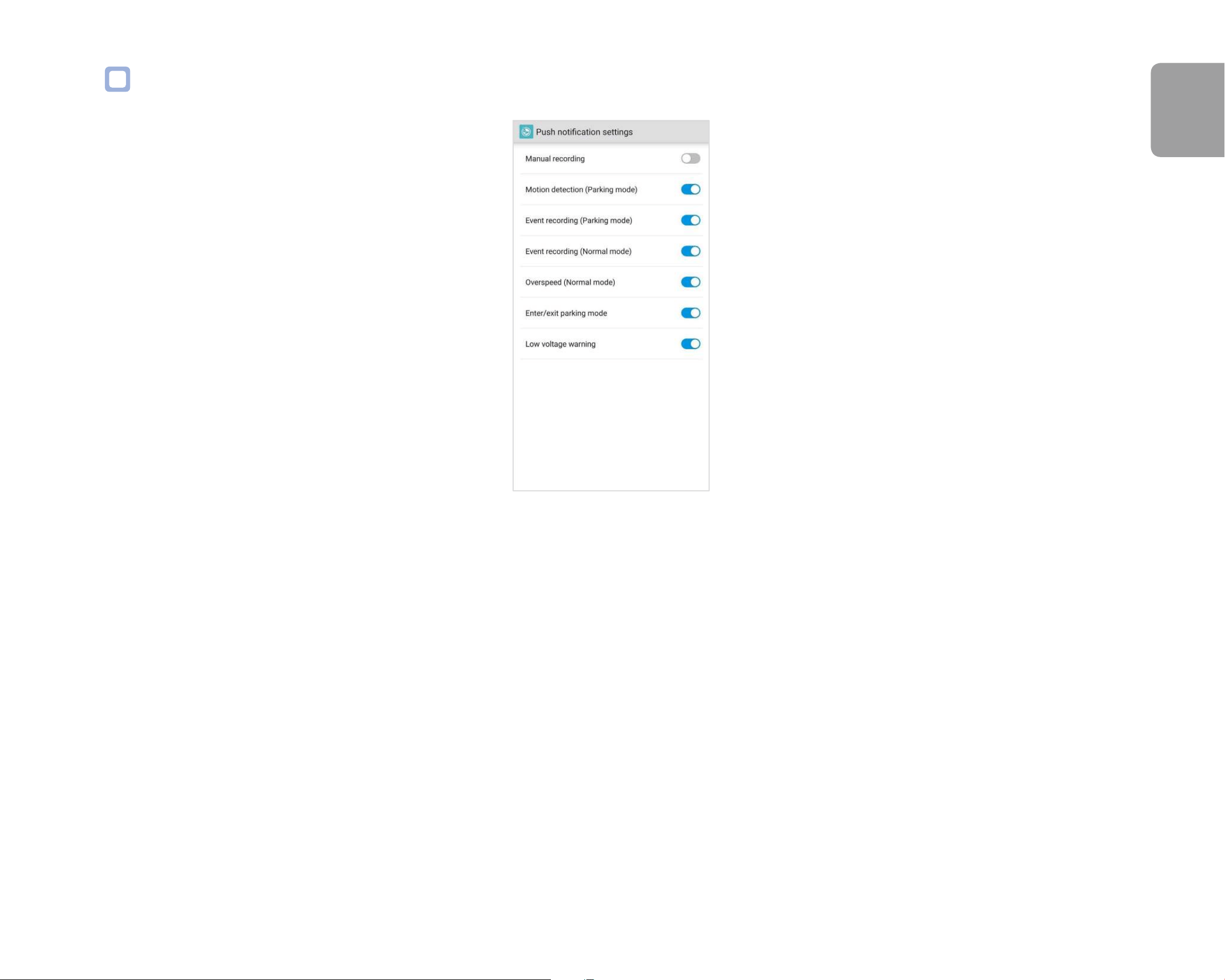
Push notication settings
You can customize when you want to receive push notications.
72
BLACKVUE
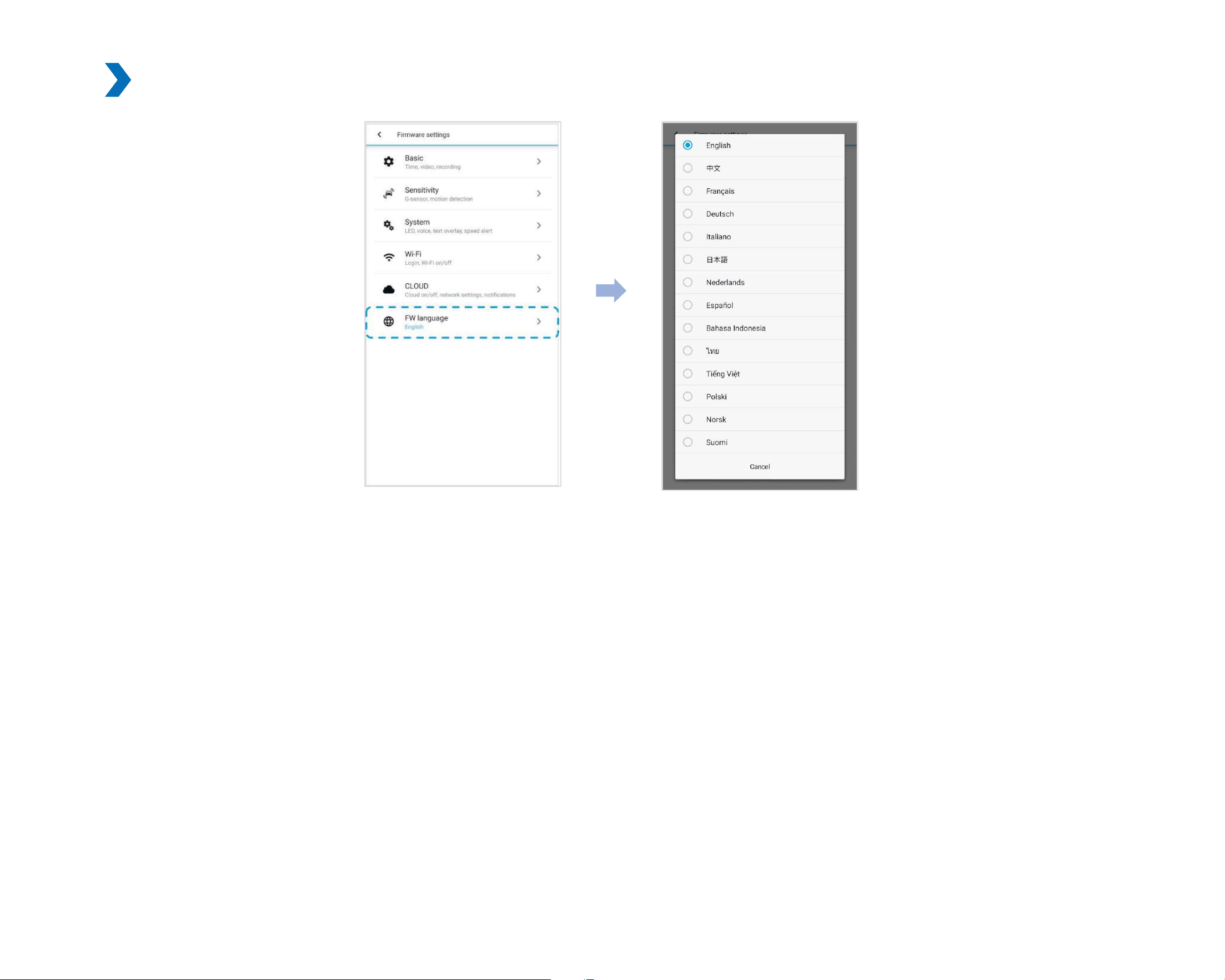
FW Language
You can change the Firmware language of your dashcam.
DR900X-2CH
73
ENGLISH
Changing settings using your computer (Windows/macOS)
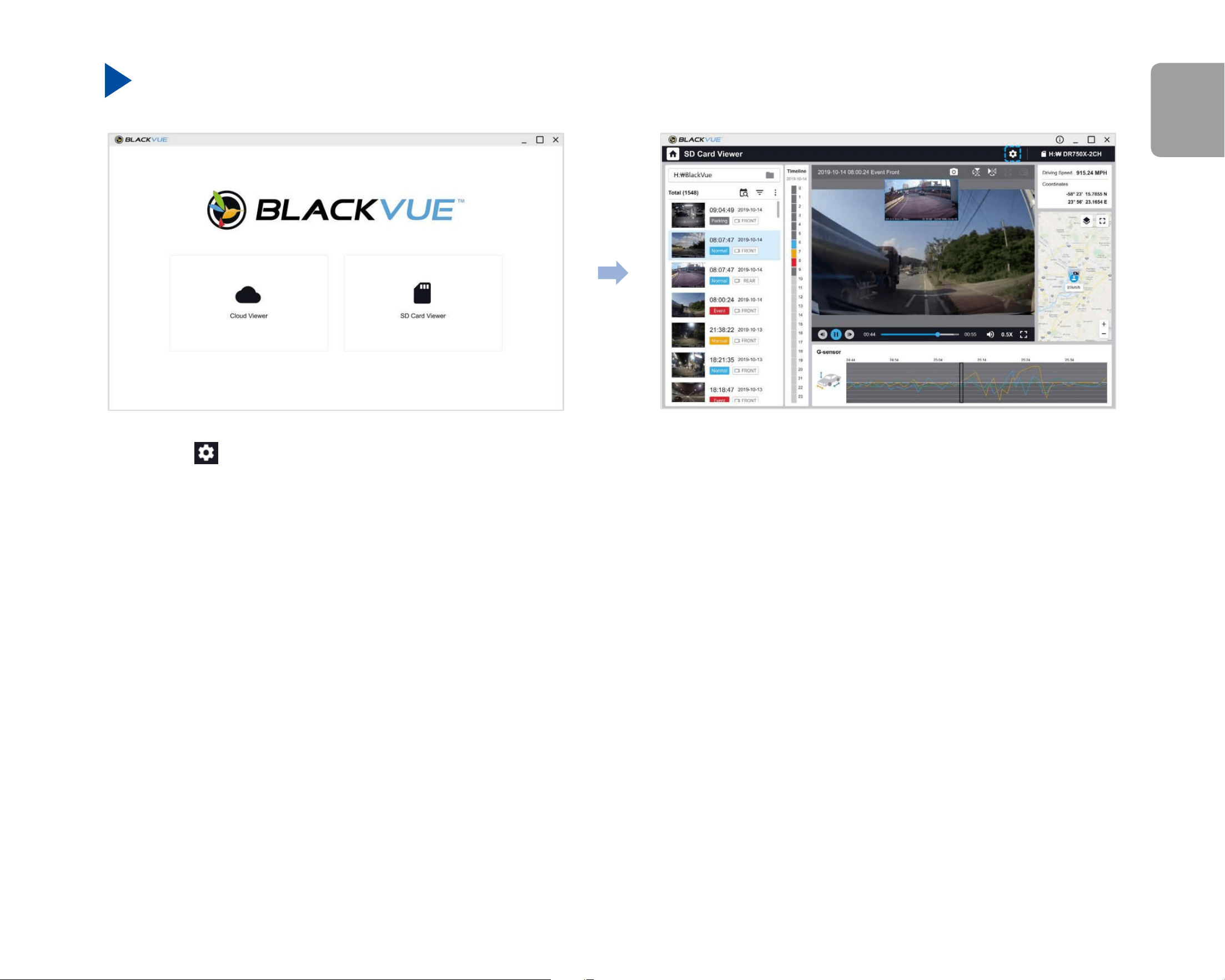
Click on the Settings button to open the BlackVue settings panel. You will be able to change most of the BlackVue settings to customize
its operation.
74
BLACKVUE
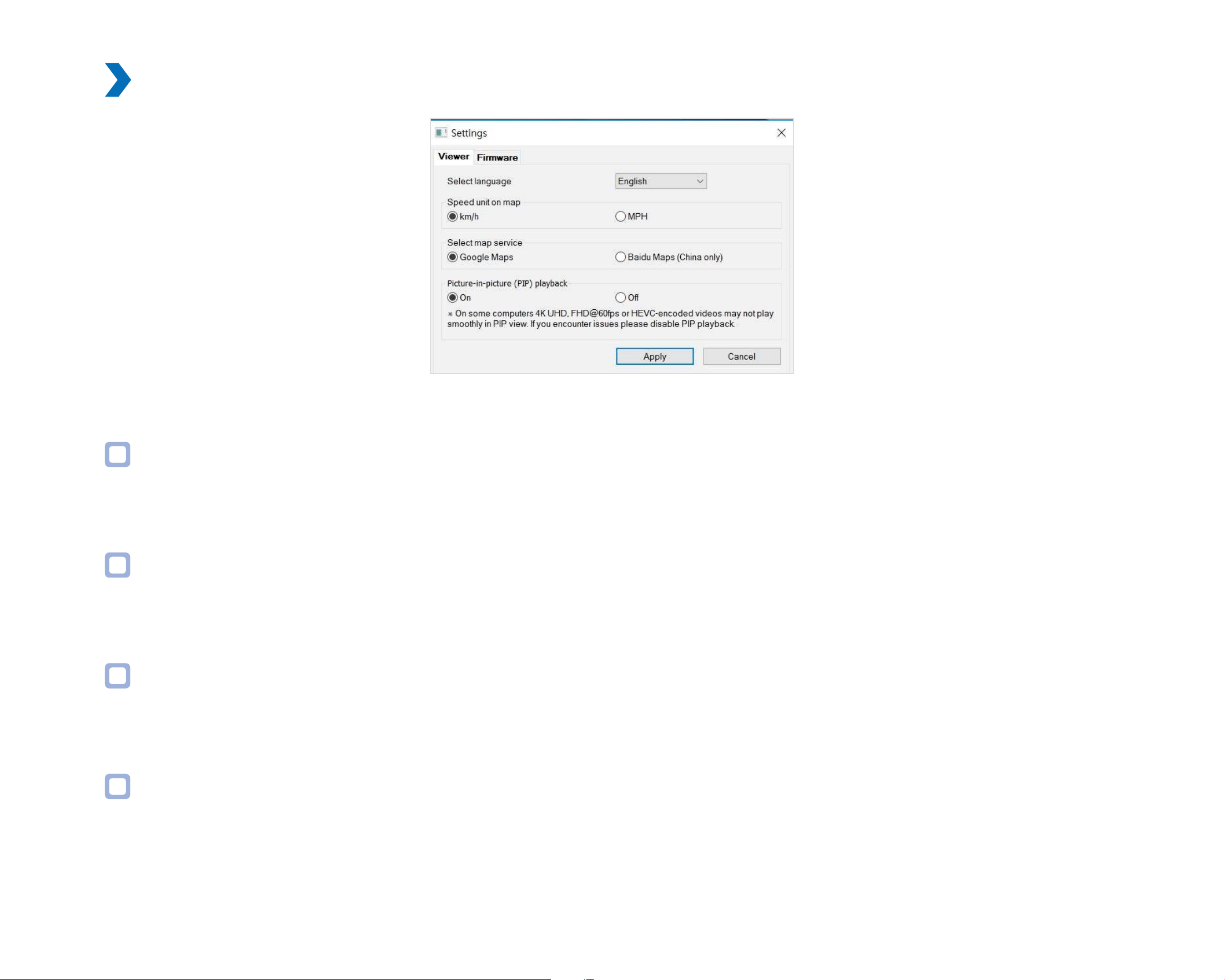
BlackVue Viewer settings
Select language
Select your preferred language for the BlackVue Viewer interface from the dropdown list.
Speed unit on map
Change the speed unit displayed on the map.
Select map service
Change the mapping service used.
Picture-in-picture(PIP) playback
On some computers videos may not play smoothly in PIP view. If you encounter issues please disable PIP playback.
DR900X-2CH
75
ENGLISH
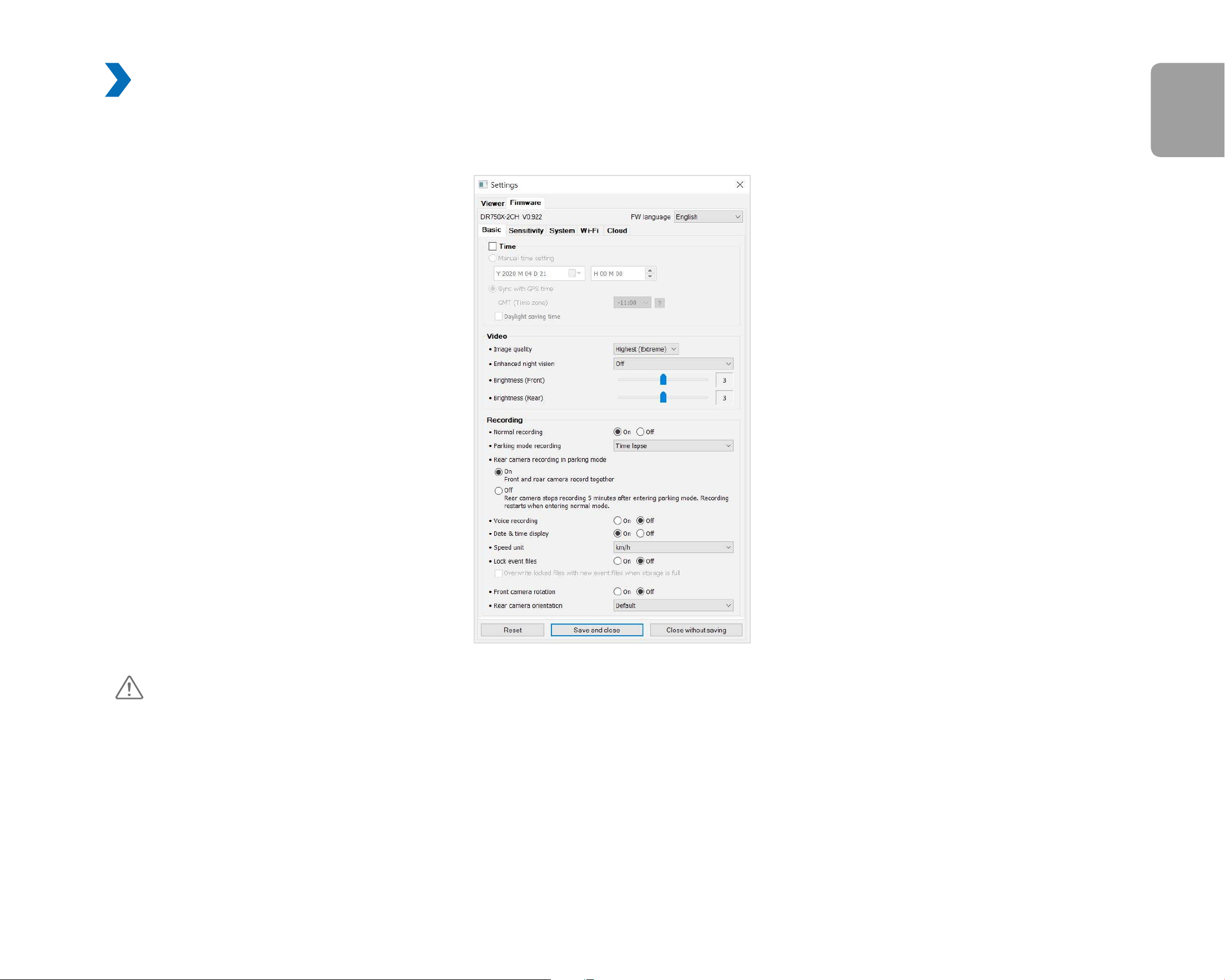
Firmware settings
Select your preferred language for the rmware from the FW language dropdown list. The audio announcements by the dashcam will be in
the selected language.
Caution
y
Please backup necessary recordings before changing time or image quality settings. If any of the aforementioned settings are
changed and saved, the dashcam will format the microSD card and delete all recordings stored on the card including locked
event les in order to ensure optimal performance.

76
BLACKVUE
Basic settings
Time settings
Select your time zone to auto-sync with GPS time or you can set the time and date manually after enabling Manual time setting.
Note
y
The factory setting is GMT -11.
Some examples of GMT time osets are:
- GMT-7: Los Angeles
- GMT-4: New York
- GMT+0: London
- GMT+1: Paris
- GMT+3: Moscow
- GMT+8: Singapore
- GMT+9: Seoul
- GMT+10: Sydney
If you are unsure of your GMT oset please look up your city on https://greenwichmeantime.com/
*Selecting Daylight saving time will advance the clock by one hour.
y
When setting the time manually, please set tothe expected time you willusethe BlackVue ( not the present time).

DR900X-2CH
77
ENGLISH
Video settings
– Resolution
Resolution and frame rate is xed at "4K UHD@30 + FHD@30". This means the front camera records 4K UHD video at 30 frames per second,
and the rear camera records Full HD video at 30 frames per second.
Note
y
The playback of 4K UHD resolution and/or H.265 coded videos depends on your computer's hardware and software. Older
computers may not support 4K UHD or H.265 video playback. If you encounter issues please check your computer's video
playback capabilities.
y
Frame rate may vary during Wi-Fi streaming.
– Video Codec
Choose between H.265 (HEVC) and H.264 (AVC).
y
H.265 (HEVC) is recommended, particularly for 4K UHD resolution recording. In comparison to AVC, HEVC oers about double the data
compression ratio at the same level of video quality. However, older devices may not support HEVC video playback.
y
H.264 (AVC) can be chosen for compatibility with older desktop and mobile devices.
– Image quality
You can adjust the recording image quality (bit rate) settings. Choose between:
y
Highest (Extreme) (Front: 25 Mbit/s, Rear: 10 Mbit/s)
y
Highest (Front: 12Mbit/s, Rear: 10Mbit/s)
y
High (Front: 10Mbit/s, Rear: 8Mbit/s)
y
Normal (Front: 8Mbit/s, Rear: 6Mbit/s)
Increasing the image quality will increase the size of the video les. Loading and copying time will increase accordingly.

78
BLACKVUE
– Enhanced night vision
The dashcam has an intrinsic night vision feature. If you want to enhance it, enable Enhanced night vision - you can choose to have it
turned on all the time, or have it active only in parking mode.
– Brightness (Front)
You can adjust the recording brightness level of the front camera.
– Brightness (Rear)
You can adjust the recording brightness level of the rear camera.

DR900X-2CH
79
ENGLISH
Recording settings
– Normal recording
When turned o the dashcam does not record in normal mode.
– Parking mode recording
If enabled, the dashcam switches from normal mode to parking mode when the vehicle is turned o (ACC+) or stationary for 5 minutes
(G-Sensor). There are two parking mode options. Choose "Motion & Impact detection" to save a parking recording when motion is detected
in the dashcam's eld of view. If the G-sensor detects an impact/bump the dashcam saves a separate event recording le.
Alternatively, if you choose "Time lapse" the camera continuously records 1 frame per second and saves recordings that playback at
30times normal speed. If the G-sensor detects an impact/bump the camera saves a separate event recording le at normal speed.
– Rear camera recording in parking mode
When turned on, the front and rear camera record together.
When turned o, the rear camera stops recording 5 minutes after entering parking mode. Rear camera recording restarts when entering
normal mode.
– Voice recording
When turned o the dashcam does not record audio.
– Date & time display
Turn on/o the date and time display on videos.
– Speed unit
Select km/h, MPH, or turn o.

80
BLACKVUE
– Video segment length
Video segment length is xed at 1 minute.
– Lock event les
Turning on this option will lock the following recording types and stop them from being overwritten by newer recordings:
- Impact event recordings during normal and parking mode (E); and
- Manual recordings (M).
A maximum of 50 les can be locked. Once this limit is reached, to lock new recordings please review locked les on the microSD card and
free up space, or enable ‘Overwrite locked event les when full’ to allow the oldest locked les to be overwritten.
– Front camera rotation
If you installed the front camera in a ipped position, use this setting to rotate the front camera image 180°.
– Rear camera orientation
Use this setting to rotate the rear camera image 180° or mirror the video..
DR900X-2CH
81
ENGLISH
Sensitivity settings
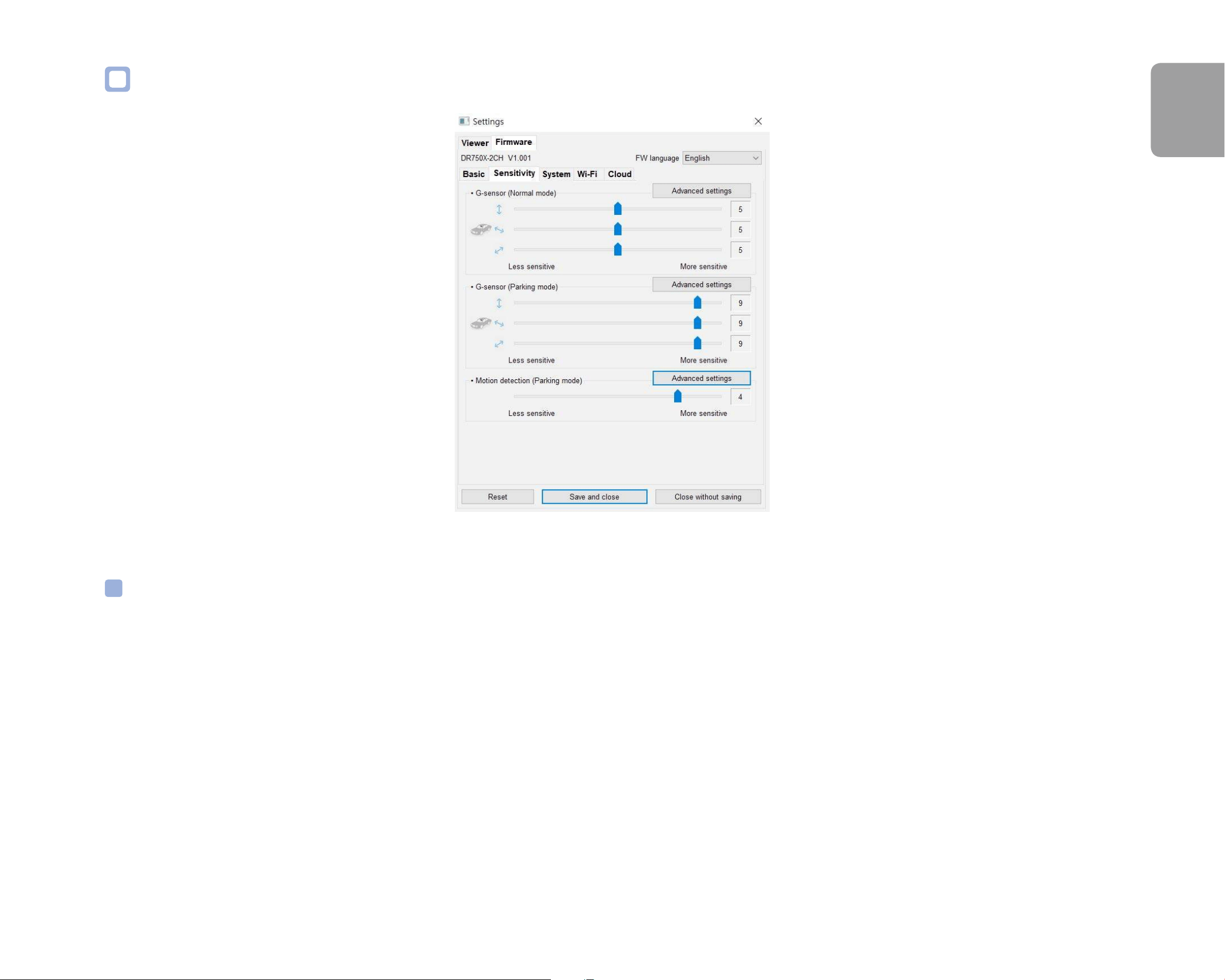
G-Sensor (Normal mode) / G-Sensor (Parking mode)
The G-sensor measures the movement of your vehicle through 3 axes – up and down, side to side, and front and back. When the G-sensor
detects signicant or sudden movement (such as an impact or collision) it will trigger an event recording. You can adjust the sensitivity so
minor incidents and bumps don't trigger an event recording. To turn o event recordings by impact detection set the G-sensor sensitivity
to o.
82
BLACKVUE
Motion detection (Parking mode)
In parking mode the dashcam continuously buers video and saves a parking recording when motion is detected in the dashcam's eld of
view.
You can adjust the sensitivity of the motion detection so minor motion caused by wind or rain doesn't trigger a recording. Please take into
account your vehicle's surroundings when adjusting the sensitivity.
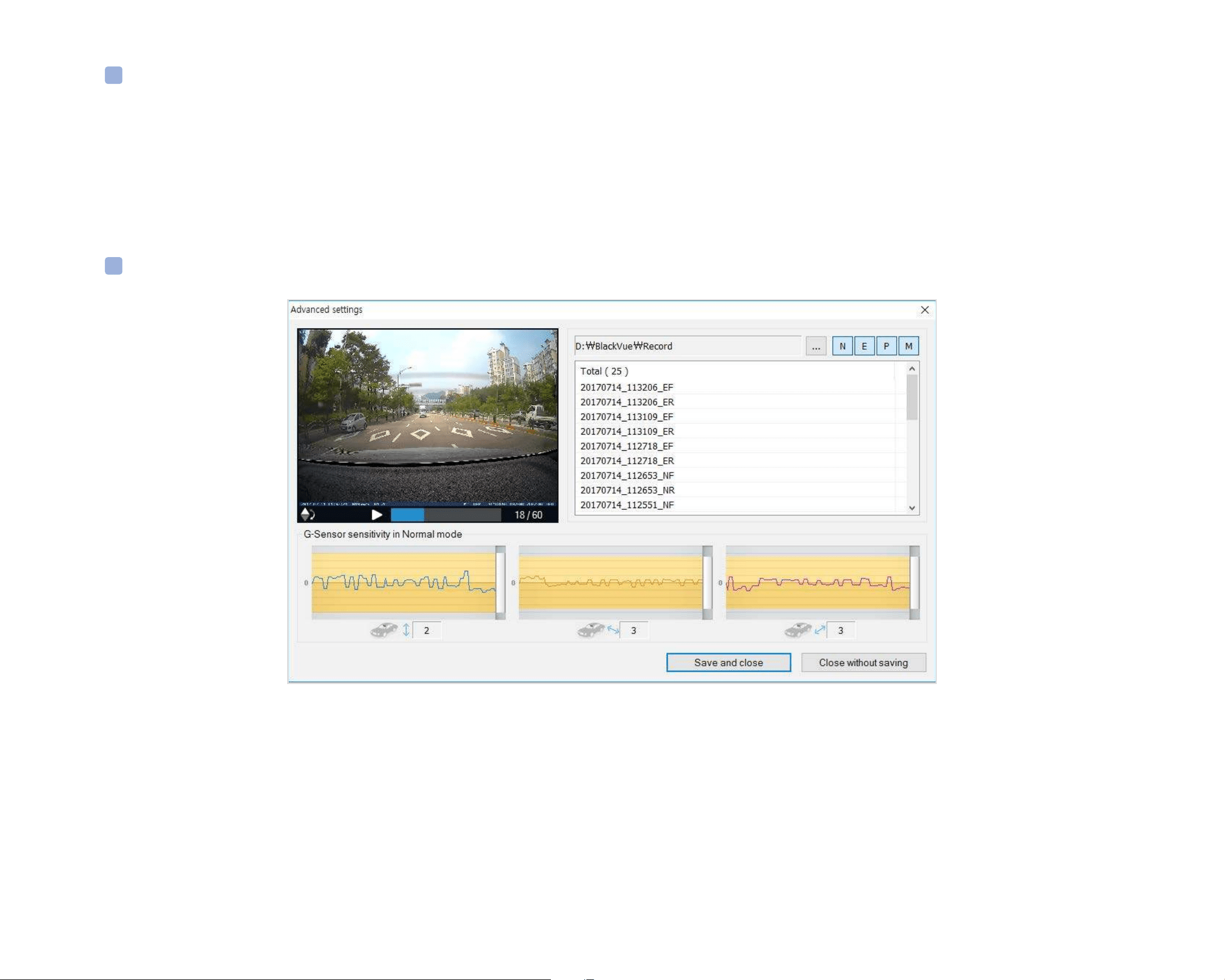
Advanced sensitivity settings for normal and parking mode
Advanced sensitivity settings allows you to ne-tune the event recording G-Sensor threshold, while watching pre-recorded G-Sensor data
and video as a reference.
DR900X-2CH
83
ENGLISH
1
Click the Advanced settings button.
2
Double click the video from the list that you want to use as a G-Sensor data reference.
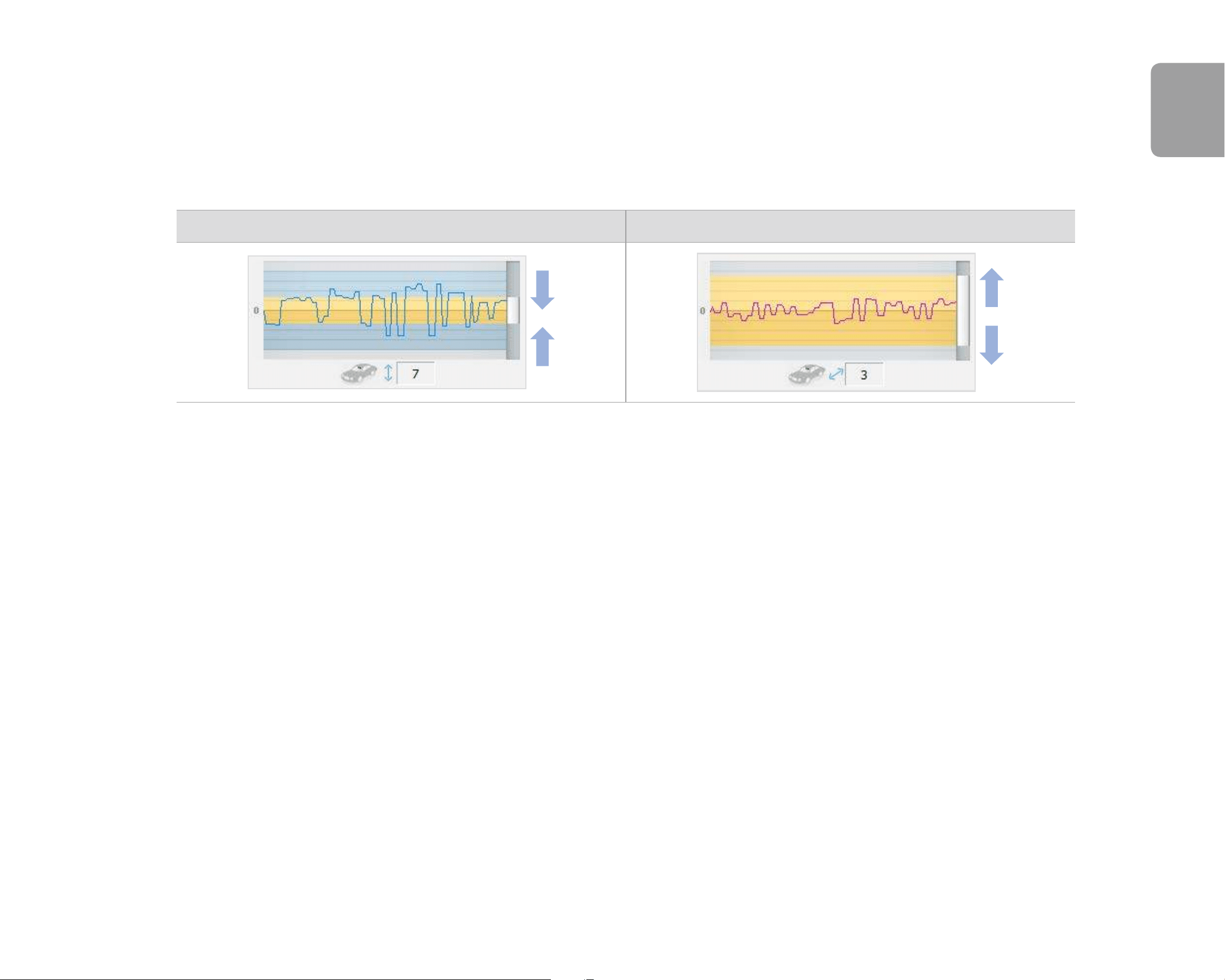
3
Set the thresholds by adjusting the control bars next to each G-Sensor axis. Any G-Sensor data that crosses over the threshold on any
of the 3 axes will trigger an Event recording.
Event recording will occur No event recording will occur
4
Click Save and close.
84
BLACKVUE
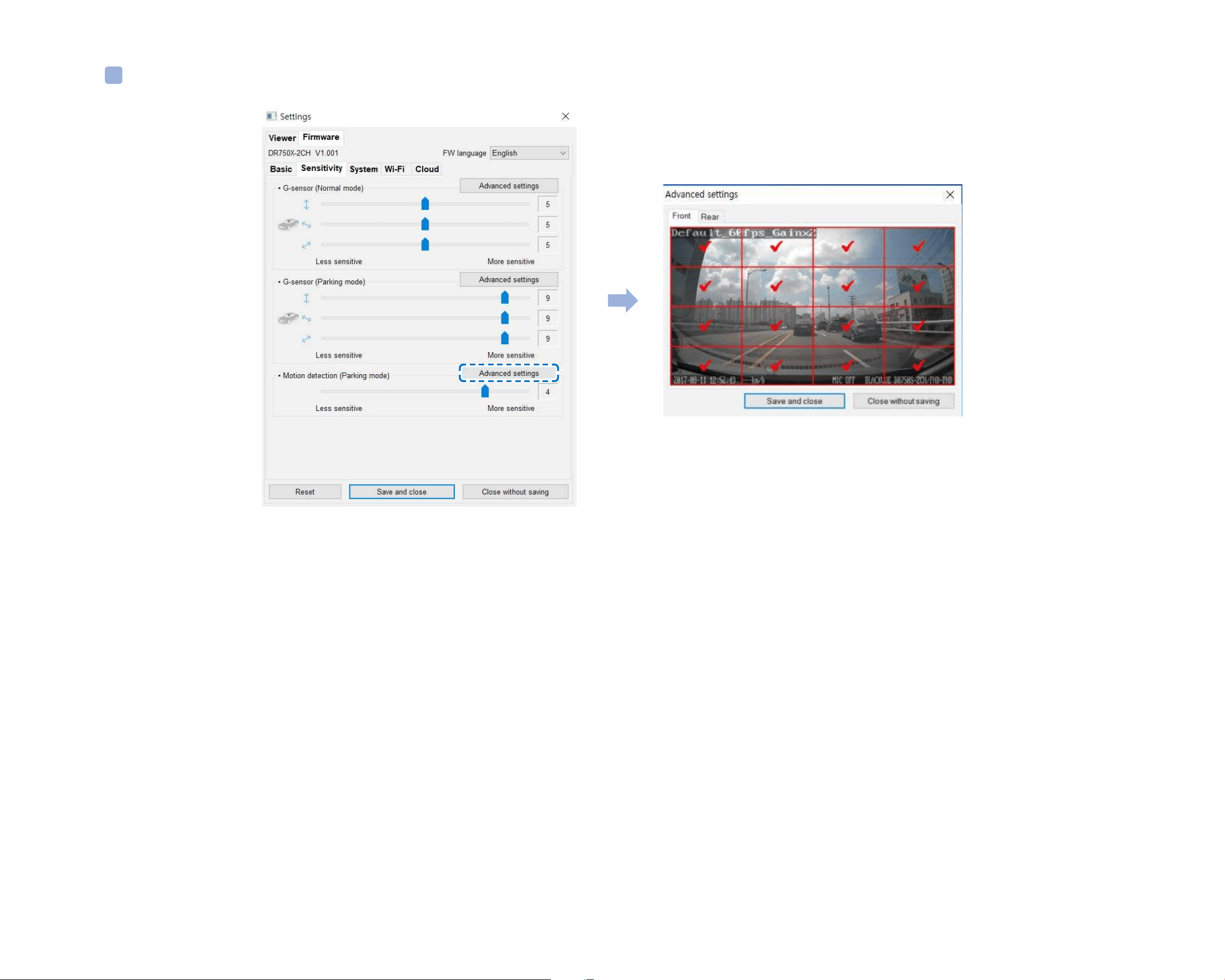
Advanced motion detection settings (Region selection)
You can manually choose the detection regions to reduce the risk of triggering unwanted motion recordings due to trees swaying in the
wind, far-away moving objects, etc. By default, all the regions are selected. If you want to ignore motion detection in particular region(s),
unselect them.
DR900X-2CH
85
ENGLISH
System settings
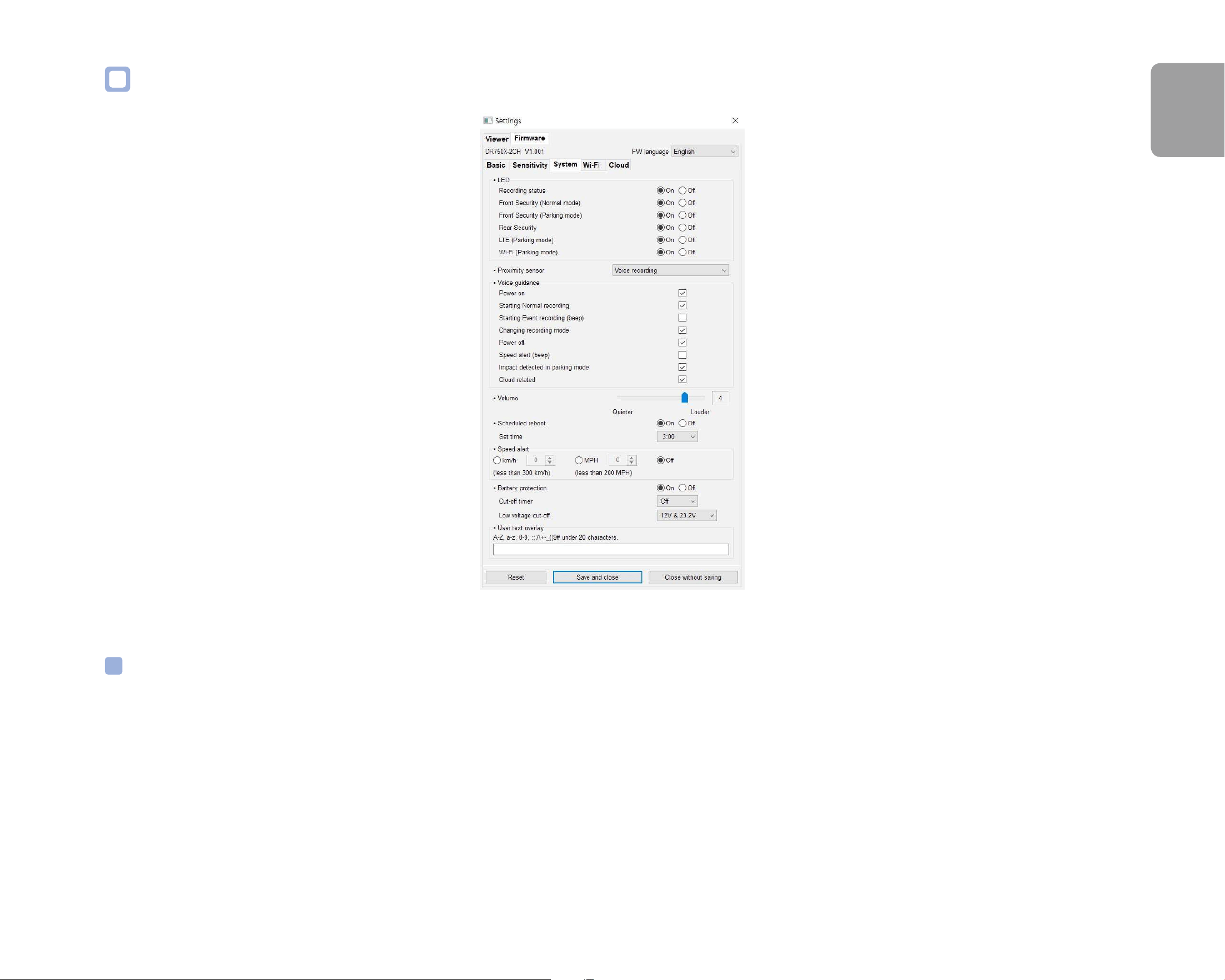
LED
– Recording status
You can turn the recording status LED on/o.
– Front security (Normal mode)
You can turn the front security LED on/o for normal mode.

86
BLACKVUE
– Front security (Parking mode)
You can turn the front security LED on/o for parking mode.
– Rear security
You can turn the rear security LED on/o.
– LTE (Parking mode)
You can turn the LTE LED on/o for parking mode.
– Wi-Fi (Parking mode)
You can turn the Wi-Fi LED on/o for parking mode.
Proximity Sensor
You can choose the function of the proximity sensor. Available options are:
- Turn on/o audio recording (default)
- Manual recording trigger
The sensor can also be disabled completely.
Voice guidance
You can adjust the voice guidance (announcements) you want to hear.
Note:
Impact detected in parking mode voice alert noties when exiting parking mode if an impact had been detected during
parking mode, however, it ignores any impact detected within three minutes before exiting parking mode.

DR900X-2CH
87
ENGLISH
Volume
You can adjust the volume of the voice guidance (announcements).
Scheduled Reboot
The dashcam reboots automatically once-a-day if in parking mode at the set time for improved stability. If the dashcam is recording at the
set time, the scheduled reboot is skipped.
You can enable/disable and change the time for scheduled rebooting. Default time is 03:00 am.
Speed alert
Set a speed limit (up to 300 km/h or 200 MPH) for the speed alert. When the vehicle exceeds the specied speed limit, the dashcam beeps
and switches to event recording. After saving one event recording le the dashcam switches back to normal mode recording.
Battery Protection (Hardwiring Power Cable installation only)
When the battery protection is on, power is supplied to your BlackVue while the vehicle is o (ACC+ o) and also prevents the vehicle from
battery discharge while it is parked. BlackVue will automatically power down according to the set cut-o timer and voltage.
Note
y
Recommended settings for low voltage cut-o is 12V or higher during winter. - If battery protection is o, BlackVue will not
operate when the vehicle is turned o (ACC+ o).
User text overlay
You can create a user text overlay of up to 20 characters using a combination of English letters (A – Z, a – z), numbers (0 – 9), and symbols
(:;‘/+-_()$#). The text is overlaid in the top-left corner of the recorded videos.
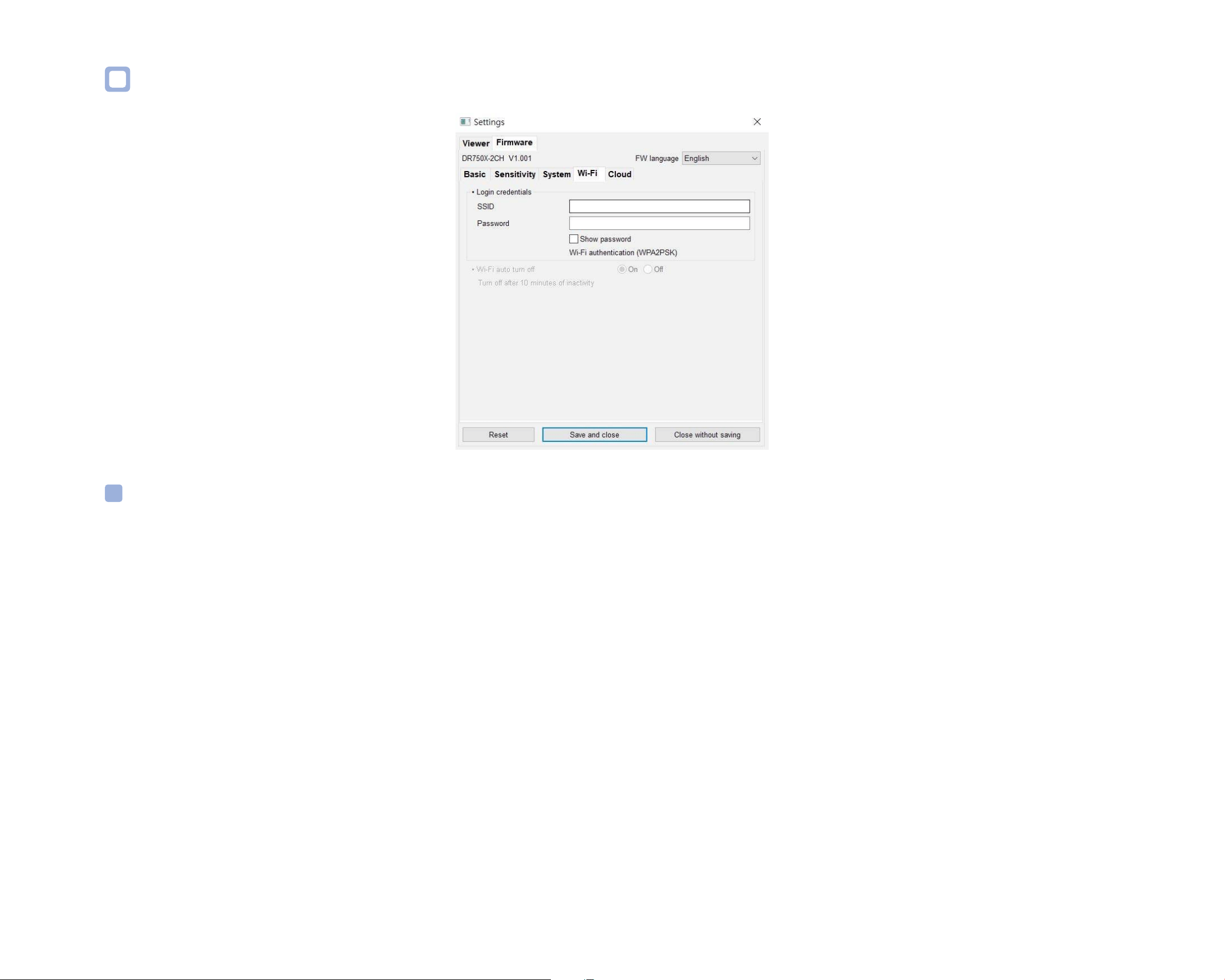
88
BLACKVUE
Wi-Fi settings
Login credentials
You can change the dashcam's SSID and Wi-Fi login password.
DR900X-2CH
89
ENGLISH
Wi-Fi auto turn o
Wi-Fi will automatically switch on when you turn on the dashcam and remain on. You can adjust the settings for Wi-Fi to automatically turn
o.
ON OFF
Wi-Fi auto turn o Wi-Fi turns o if it is inactive for 10 minutes. Wi-Fi does not turn o automatically.
Note
Wi-Fi auto turn o setting does not aect Wi-Fi hotspot for Cloud connectivity.
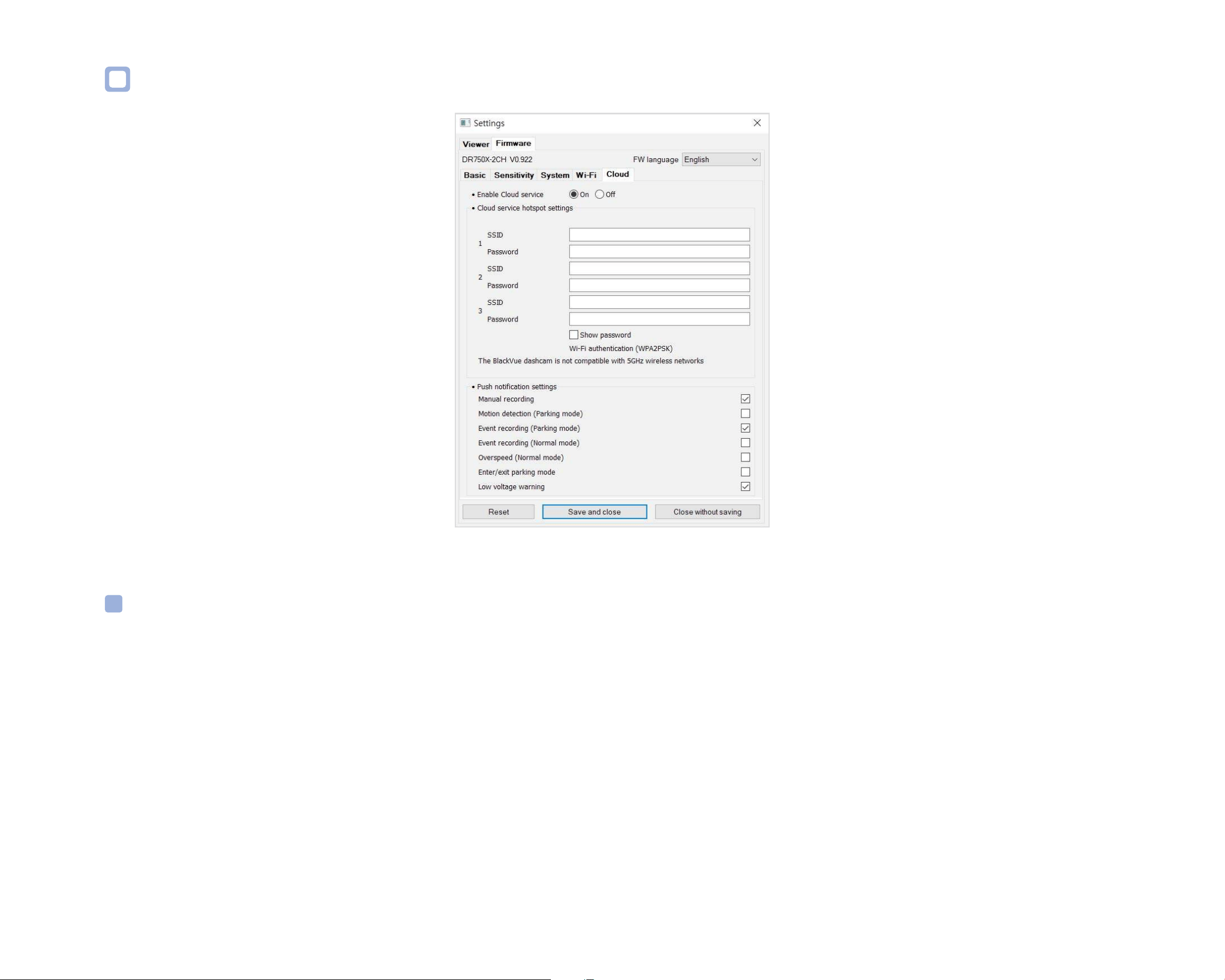
90
BLACKVUE
Cloud settings
Enable Cloud service
If you don't use the Cloud service you can turn it o.

DR900X-2CH
91
ENGLISH
Cloud service hotspot settings
Up to 3 Wi-Fi hotspot SSIDs can be saved (e.g. home, portable hotspot and work). Choose your Wi-Fi hotspot from the list and enter the
password. Tap 2 and 3 to add settings for additional hotspots.
Your BlackVue will try to connect to hotspot 1 rst. If it cannot connect to hotspot 1, it will then try to connect to hotspot 2, and then
hotspot 3.
Push notication settings
You can customize when you want to receive push notications.
Applying the settings
You can automatically apply the conguration by inserting the microSD card into the BlackVue dashcam and turning it on. Congure the
settings before using the dashcam.
To reset all settings to their defaults press the Reset button at the bottom of the settings panel.

92
BLACKVUE
About the BlackVue Cloud Service
Using a mobile Wi-Fi hotspot, BlackVue connectivity module device, or a car-embedded wireless internet connection you can connect your
dashcam to the internet and take advantage of the following features in the BlackVue app and BlackVue Cloud Viewer:
Live View – Watch your dashcam's live video feed.
Push notications – Be notied on your smartphone when something happens to your car.
GPS tracking – See in real-time where your car is and track your car's route and speed.
Two-way voice communication – Initiate voice chat from your smartphone to your dashcam.
Video backup – Backup video recordings to the Cloud or your smartphone's storage.
Video playback – Watch recorded videos stored on your dashcam or in the Cloud on your smartphone anywhere, anytime.
Connect to BlackVue Cloud (Optional)
If you don't have a mobile Wi-Fi hotspot, BlackVue connectivity module, or if you don't want to use the BlackVue Cloud service, you can skip
this step.
If you have a mobile Wi-Fi hotspot (also known as a portable Wi-Fi router), BlackVue connectivity module (CM100LTE), or a car-embedded
wireless internet network or a Wi-Fi network near your car, you can use the BlackVue app to connect to BlackVue Cloud and see in real-time
where your car is and the dashcam's live video feed.
For more information about using the BlackVue app, please download the BlackVue app Manual from www.blackvue.com > Support >
Downloads.
1
Create an account
(i) Open the BlackVue app.
(ii) Tap the
button in the top-left corner and select Create account.
(iii) Enter your name, e-mail address and choose a password. Re-enter your password and press Sign up.
(iv) You will receive an e-mail. Click the link in the email to nish creating your account.
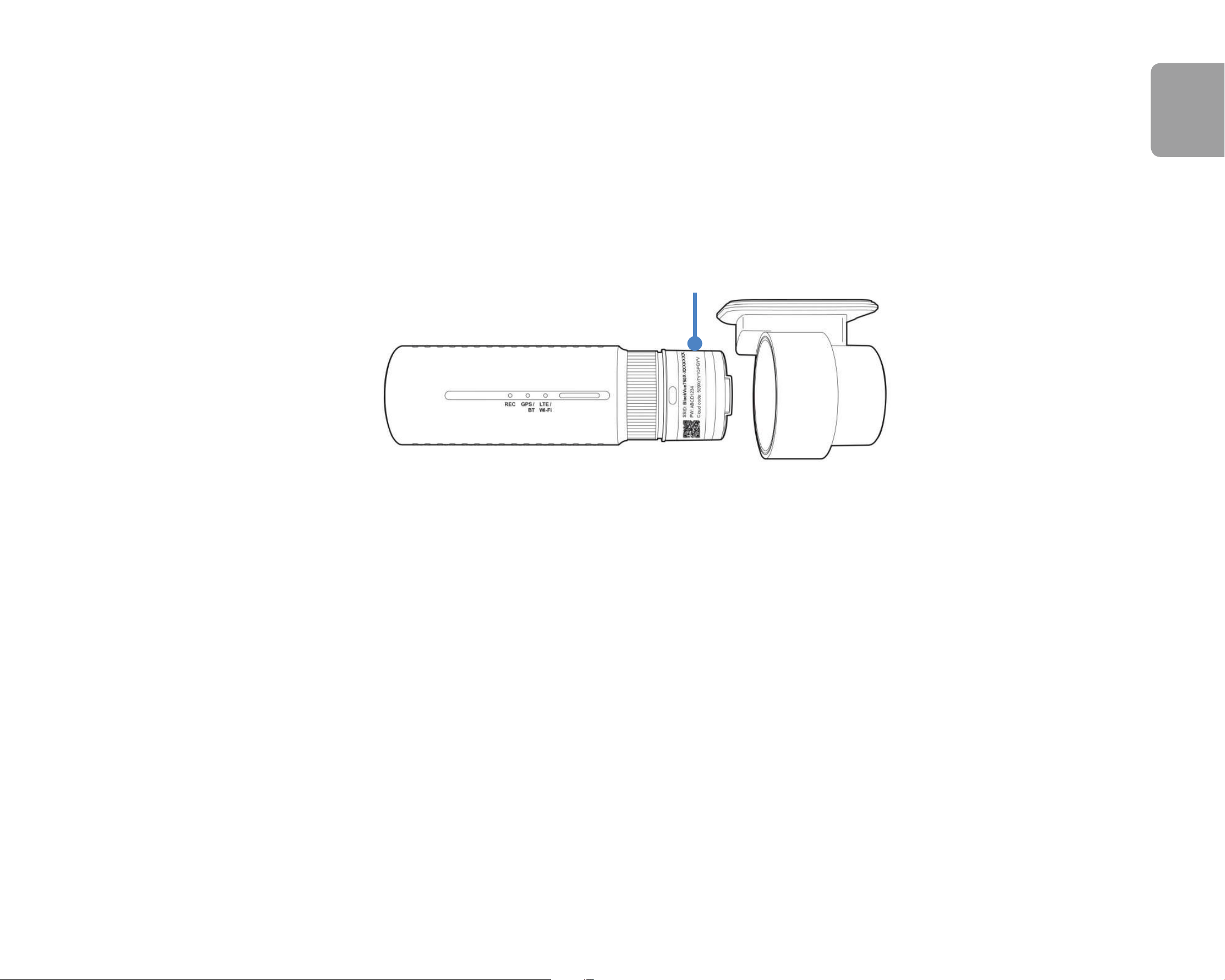
DR900X-2CH
93
ENGLISH
2
Register your dashcam with your account
(i) In the BlackVue app select CLOUD and login to your account.
(ii) Tap Ye s to enable push notications (this setting can be adjusted at any time later).
(iii) Select Register new camera.
(iv) Register your camera using one of the following methods:
QR Code: Press Scan QR Code and line up the QR Code on your smartphone’s screen.
QR code / Cloud code / Serial number
or
Manual registration: Enter your camera’s Serial number and Cloud code and press Register.
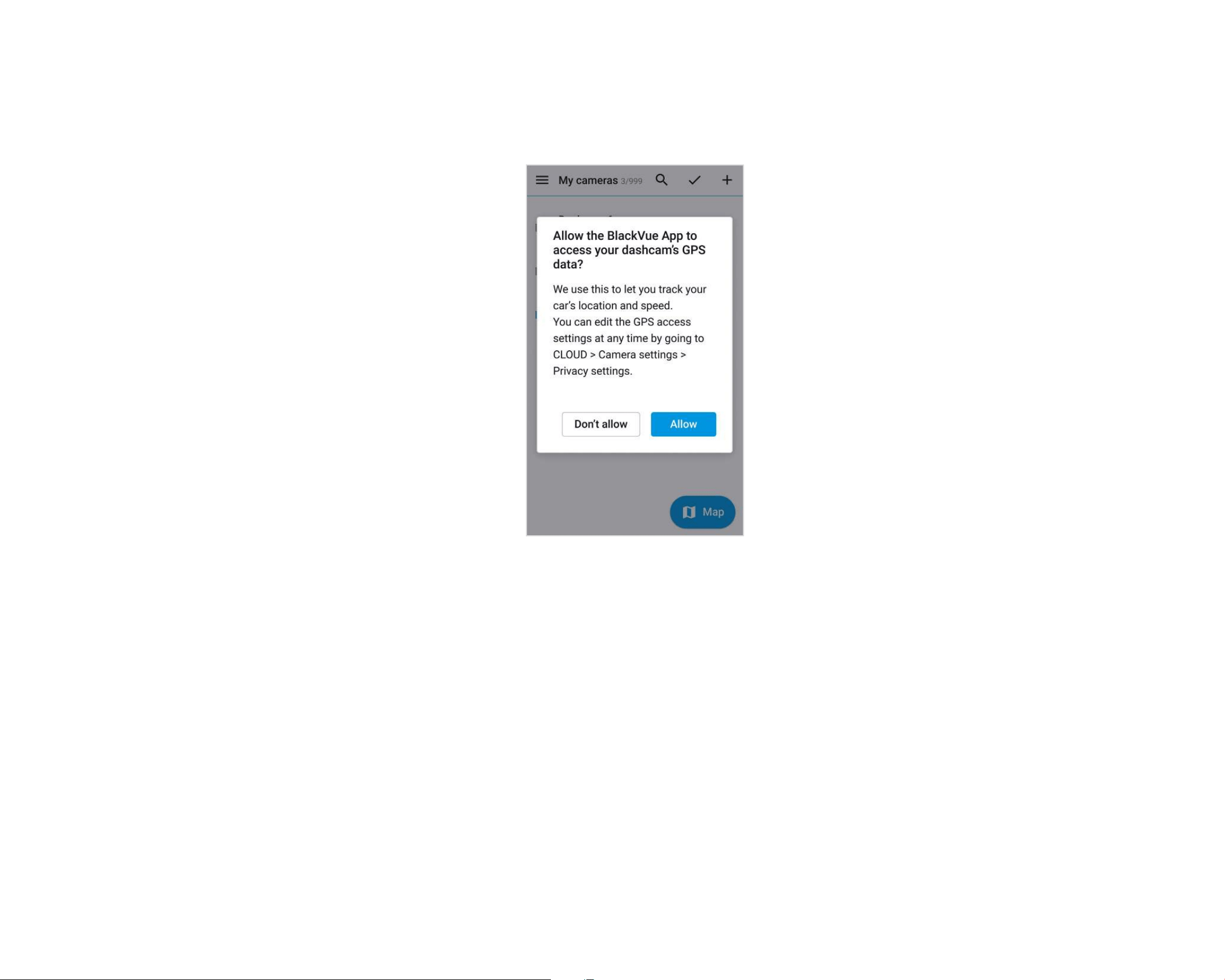
94
BLACKVUE
(v) The app will ask for your permission to access your dashcam's GPS data. If you allow access the app will be able to show you
your dashcam's location and speed. If you don't allow access you won't be able to see your dashcam's location and speed (you
can allow access later in Privacy settings).
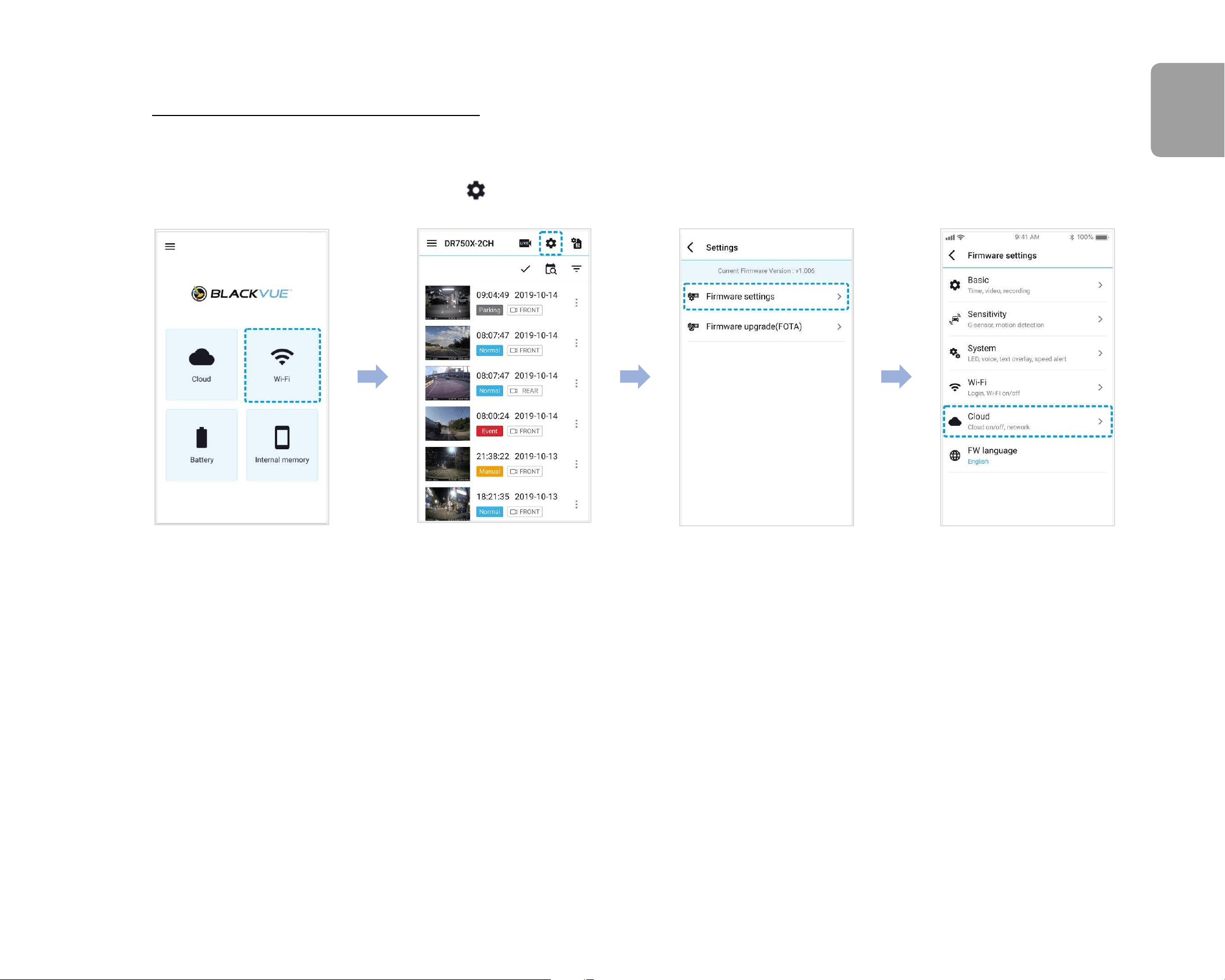
DR900X-2CH
95
ENGLISH
3
Connect your BlackVue dashcam to a Wi-Fi hotspot for Cloud connectivity
Click here for a step-by-step video tutorial, or go to the main menu and select Help > Video tutorials.
(i) Make sure your BlackVue dashcam and mobile Wi-Fi hotspot are on.
(ii) “Pair” your smartphone with the BlackVue dashcam via Wi-Fi direct (for details see "Opening video les" on page 20).
(iii) Open the BlackVue app. Select Wi-Fi >
> Firmware settings > Cloud settings.
(iv) Ensure Enable Cloud service is on. Select Cloud service hotspot settings.
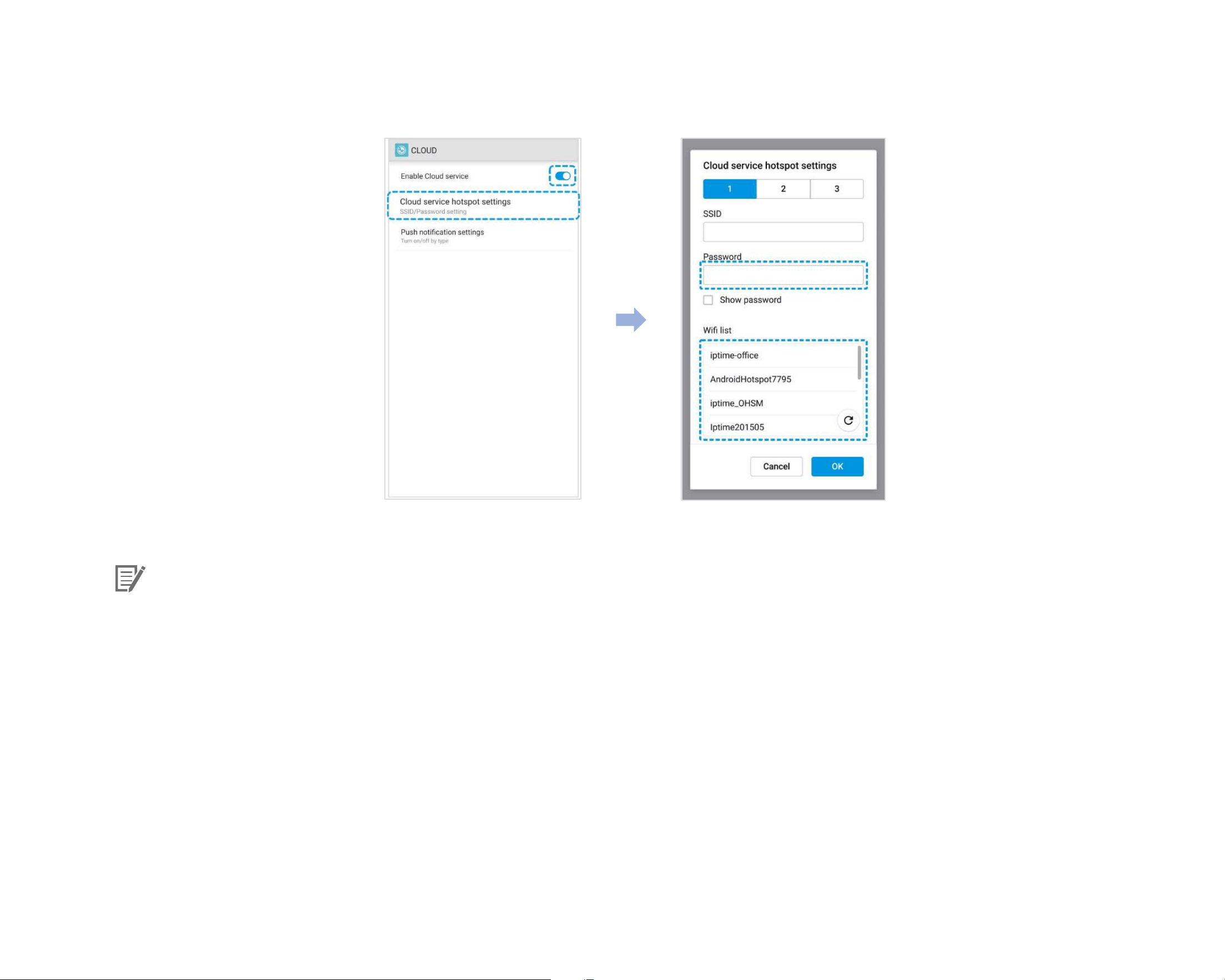
96
BLACKVUE
(v) Choose your Wi-Fi hotspot from the list and enter the password. Tap 2 and 3 to add settings for additional hotspots. Once done,
tap OK.
Note
y
Up to 3 Wi-Fi hotspot SSIDs can be saved (e.g. home, portable hotspot and work).
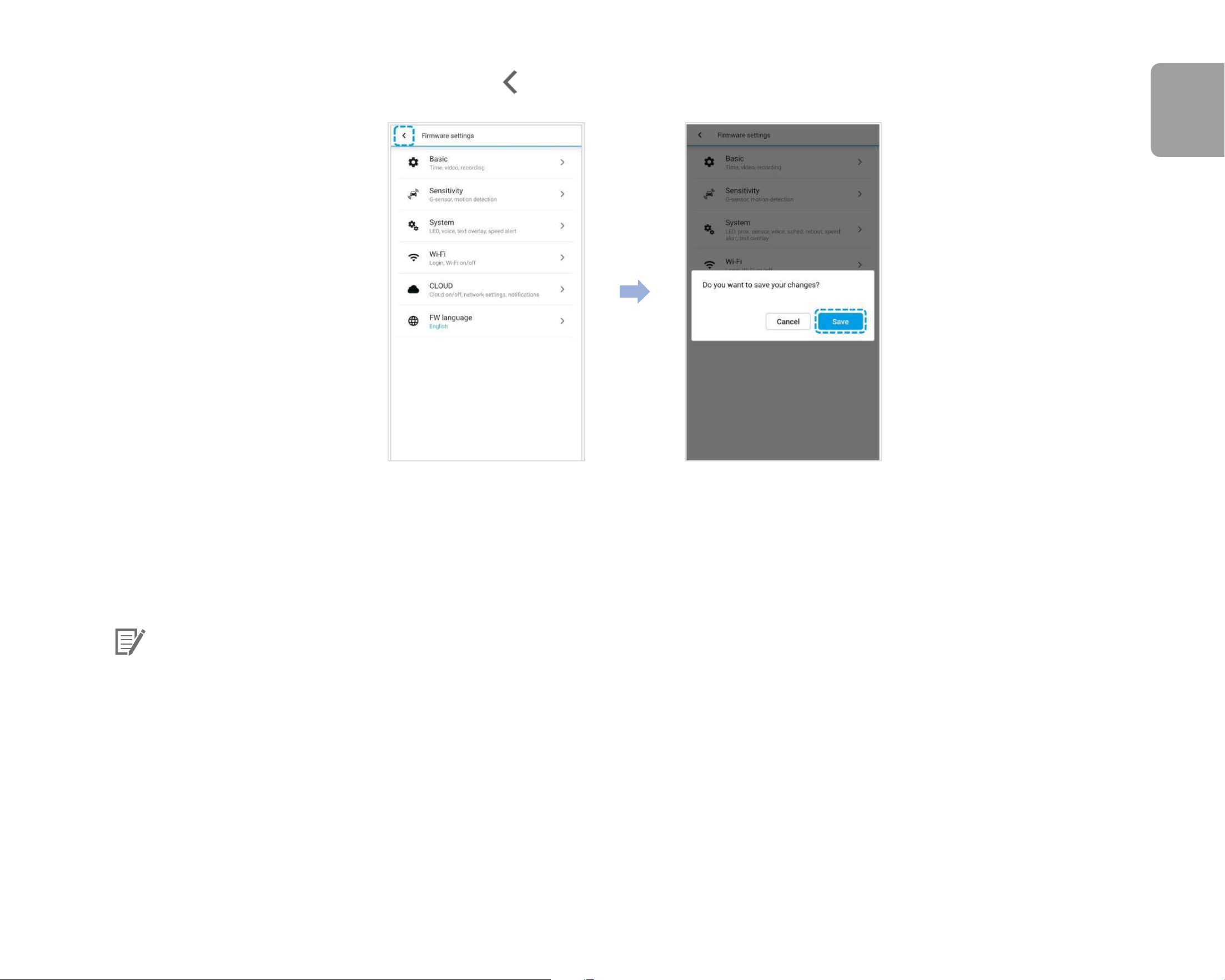
DR900X-2CH
97
ENGLISH
(vi) Go back to the Firmware settings menu, tap and tap Save and close.
After rebooting, your dashcam will automatically connect to the Wi-Fi hotspot. If internet connection was not established, please
ensure Wi-Fi login credentials were inserted correctly.
Select CLOUD from the main screen to access all of the BlackVue features.
Note
y
You can also change the dashcam settings through CLOUD by tapping next to your camera name and select Camera settings.
y
If LTE and Wi-Fi hotspot are available for internet connection, Wi-Fi hotspot will be in priority. If LTE connection is preferred at all
times, please remove Wi-Fi hotspot information.
y
For more information about using the BlackVue app, please refer to the manual by going to the main menu and selecting Help >
App manual.
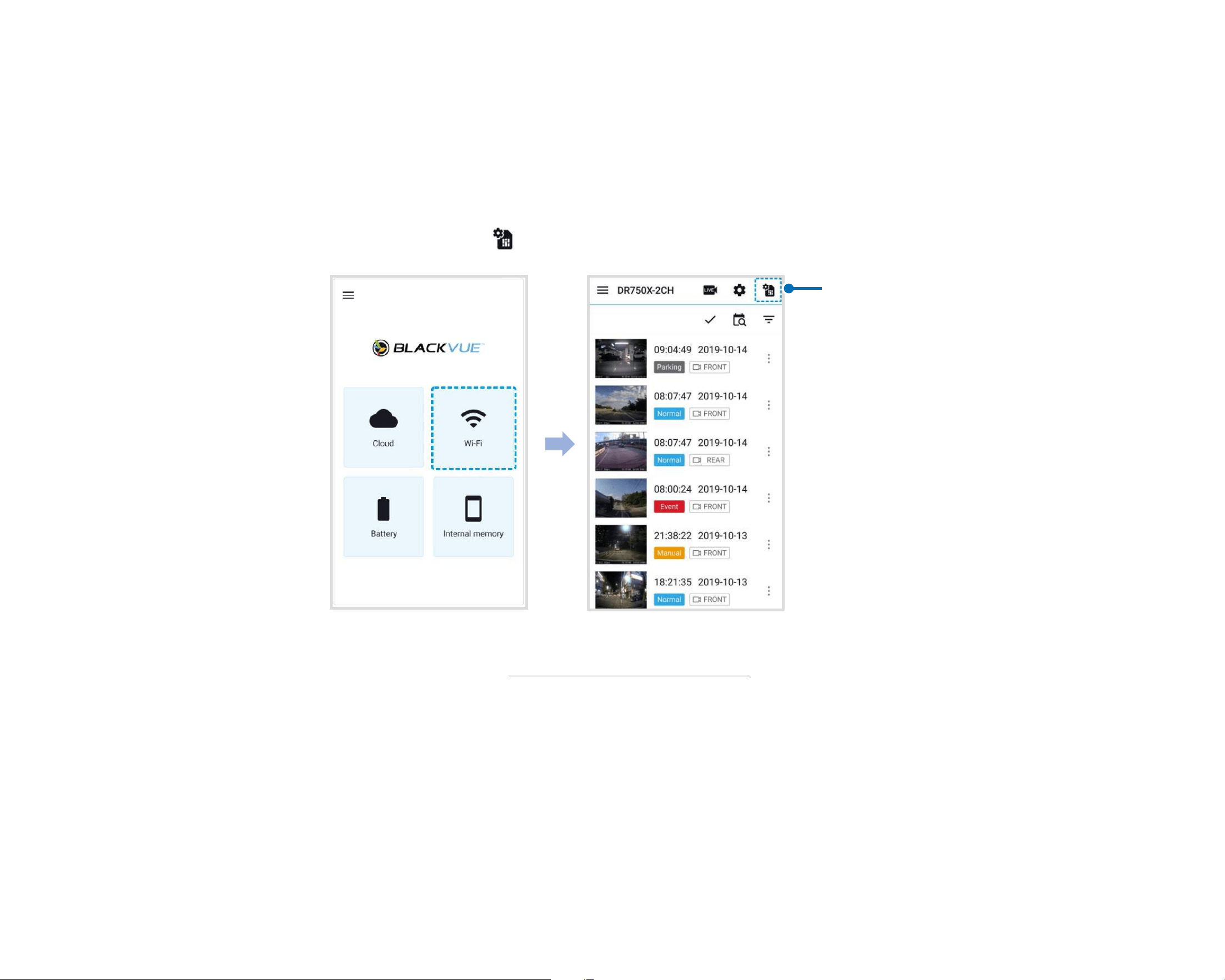
98
BLACKVUE
4
Connect your BlackVue dashcam to Cloud connectivity (Using CM100LTE)
Make sure your BlackVue dashcam and connectivity module is connected. Then, follow the below steps for SIM registration.
(i) Locate the SIM card slot. Unscrew the bolt that locks the SIM slot cover. Then, unmount the SIM slot by using a SIM eject tool.
Insert SIM in the SIM slot. Mount the SIM slot back in the connectivity module, then, screw the bolt to hold SIM slot cover.
(ii) "Pair" your smartphone with the BlackVue dashcam via Wi-Fi Direct.
(iii) Open the BlackVue app and select WI-FI >
.
SIM card activation
(iv) Congure the APN settings to activate the SIM card. For detailed information, please check "SIM activation guide" in the
packaging box or visit BlackVue Help Center: www.helpcenter.blackvue.com -> LTE connectivity guide.
(v) Once your dashcam is connected to the internet, you can go to the CLOUD menu to use BlackVue Cloud features.

DR900X-2CH
99
ENGLISH
Note
y
For full details, refer to the "SIM Activation Guide" that is included in the CM100LTE package.
y
To use the BlackVue Cloud Service, SIM card must be properly activated for Internet access via LTE network.
y
When the dashcam is connected to internet, you can use BlackVue Cloud features such as remote Live View and Video playback,
Real-time location, push notication, Auto-upload, remote Firmware update etc. on BlackVue app and BlackVue Viewer.
y
Some Cloud features may not work when surrounding temperature is high or/and LTE speed is slow.
y
For more information about using the BlackVue app, please download the Cloud Manual from www.blackvue.com > Support >
Downloads.
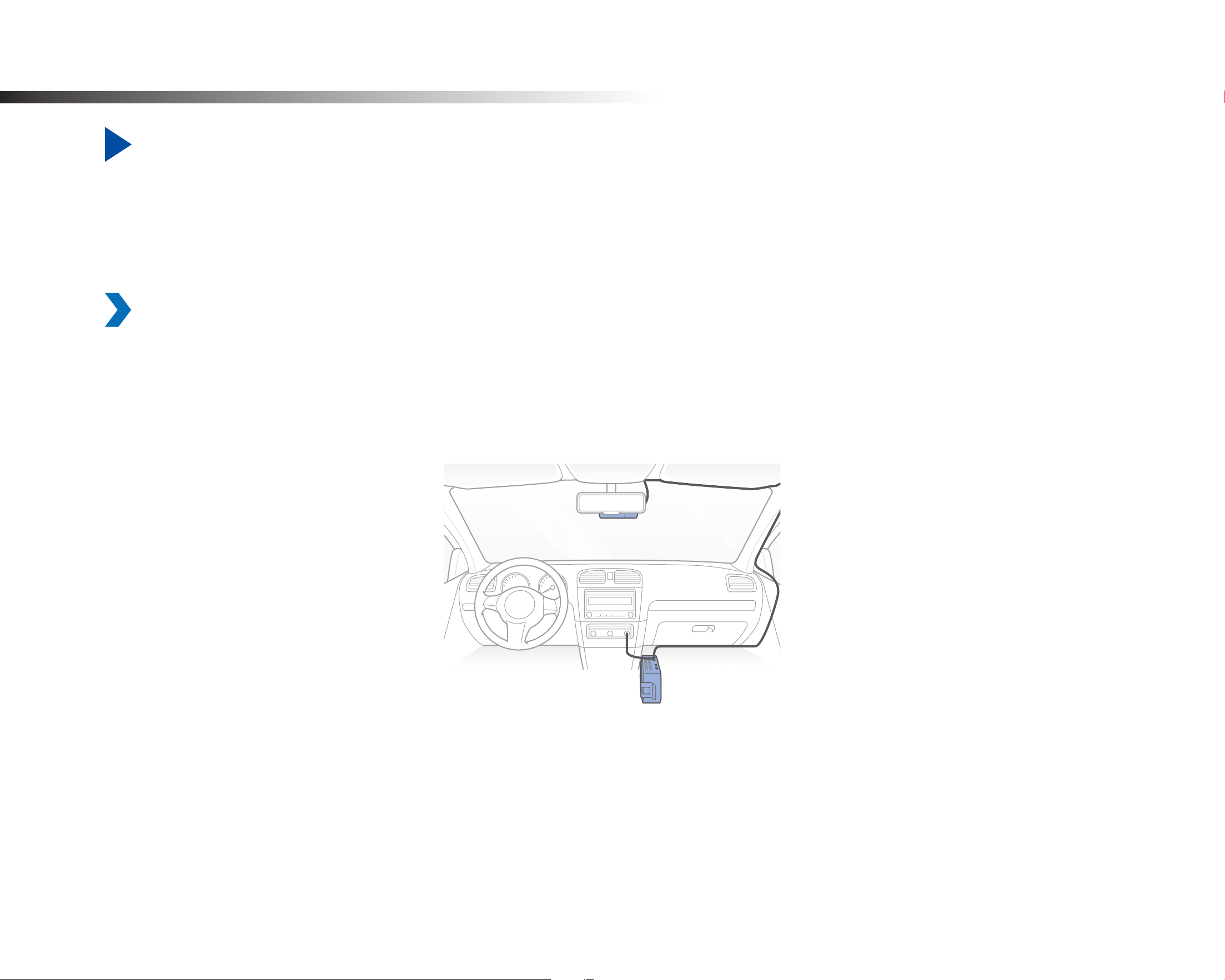
100
BLACKVUE
Optional accessories
Parking mode battery (Optional)
Parking mode is supported only if you use a hardwiring power cable or a parking mode battery (ex. Power Magic Ultra Battery or Power
Magic Battery Pack). To record Video when the engine is turned o without using the vehicle’s battery, you can install a parking mode
battery.
Power Magic Battery (B-112)
The Power Magic Battery pack B-112 powers a single dashcam for up to 12 hours after 1 hours of rapid charging. When the engine is o the
battery pack powers the dashcam. When the engine is on the dashcam is powered directly from the vehicle’s battery and the battery pack
charges.
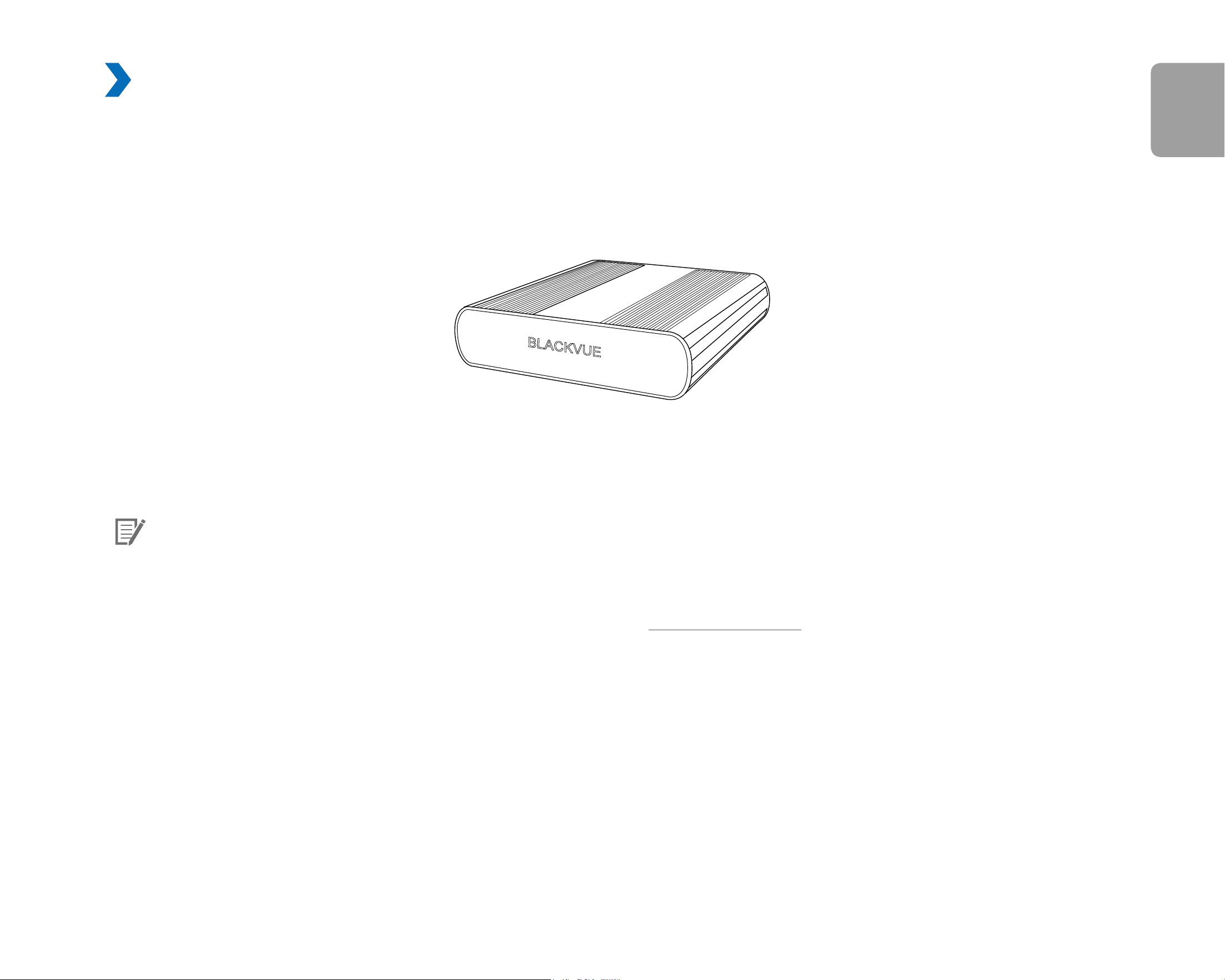
DR900X-2CH
101
ENGLISH
Power Magic Ultra Battery (B-124X)
Power Magic Ultra Battery reaches a full charge in a record 40 minutes when hardwired. Parking mode can last more than 24 hours with a
single-channel BlackVue. Compatible with the free BlackVue Battery Manager app.
BLACKVUE
Power Magic Ultra Battery B-124
BLACKVUE
Note
y
Double you capacity with the optional Expansion battery.
y
Power Magic Ultra Battery recharges with ignition on and powers your dashcam when ignition it o.
y
For more detailed information, please check Blackvue hompage (www.blackvue.com)
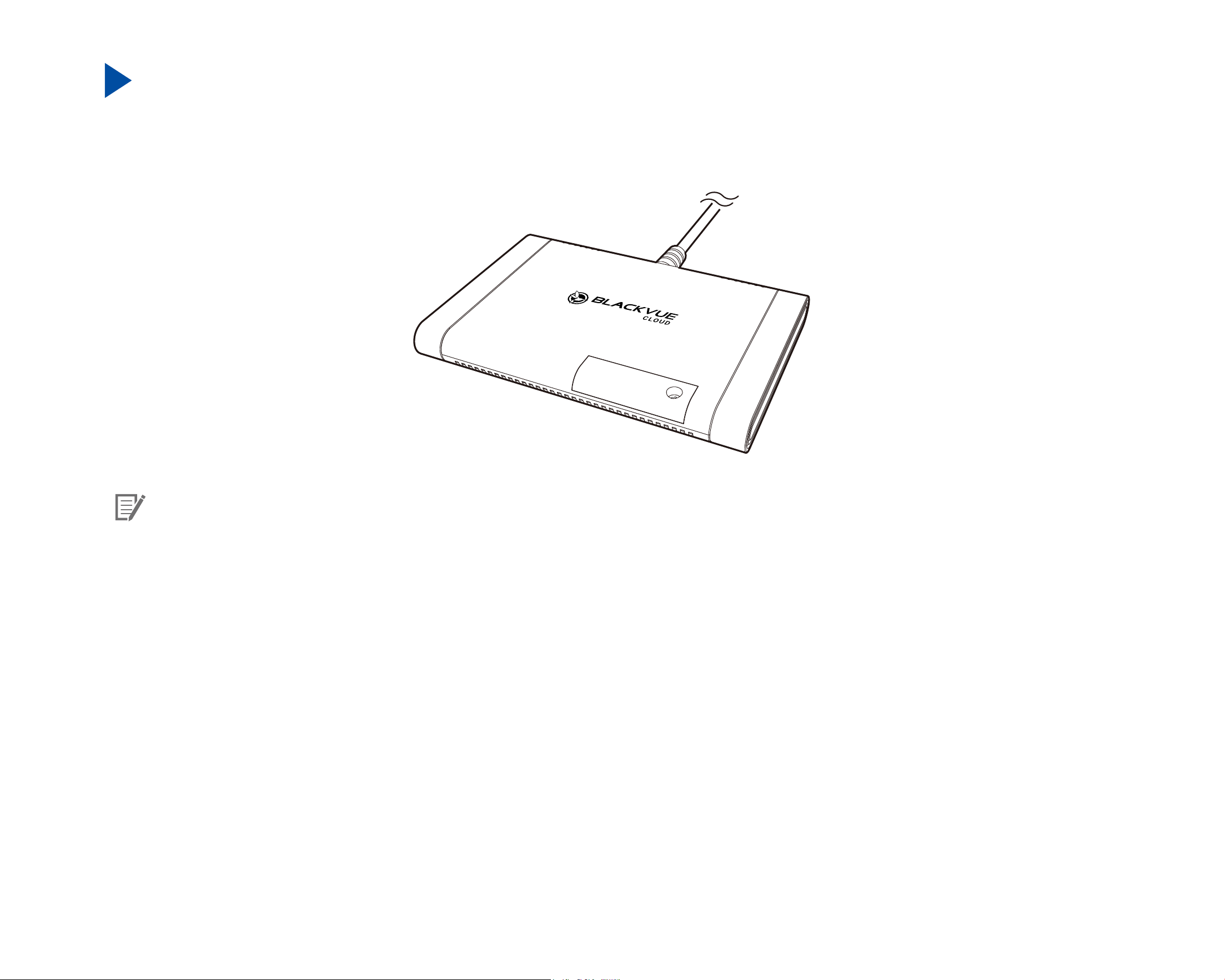
102
BLACKVUE
External connectivity module (Optional)
To stay connected to the BlackVue Cloud over cellular data network, you can install an external connectivity module (such as BlackVue
Connectivity Module (CM100LTE)).
Note
y
You must subscribe to your recommended local network carrier for LTE services.
y
You must subscribe to BlackVue Cloud services.
y
BlackVue Connectivity Module (CM100LTE) may not be supported in some countries. Please refer to BlackVue website to see
availability.
DR900X-2CH
103
ENGLISH
Troubleshooting
Changing / resetting Wi-Fi Direct SSID and password
The dashcam's Wi-Fi SSID and password can be changed using on of the following methods.
Change Wi-Fi SSID and password over the Cloud
1
Login to the BlackVue app.
2
Select CLOUD.
Note
y
You can access FW settings Over the Cloud only when the dashcam is ON and connected to the internet (Cloud). A blue colored
icon means the dashcam is connected to the Cloud while a grey colored icon means that the dashcam is not connected to the
Cloud.
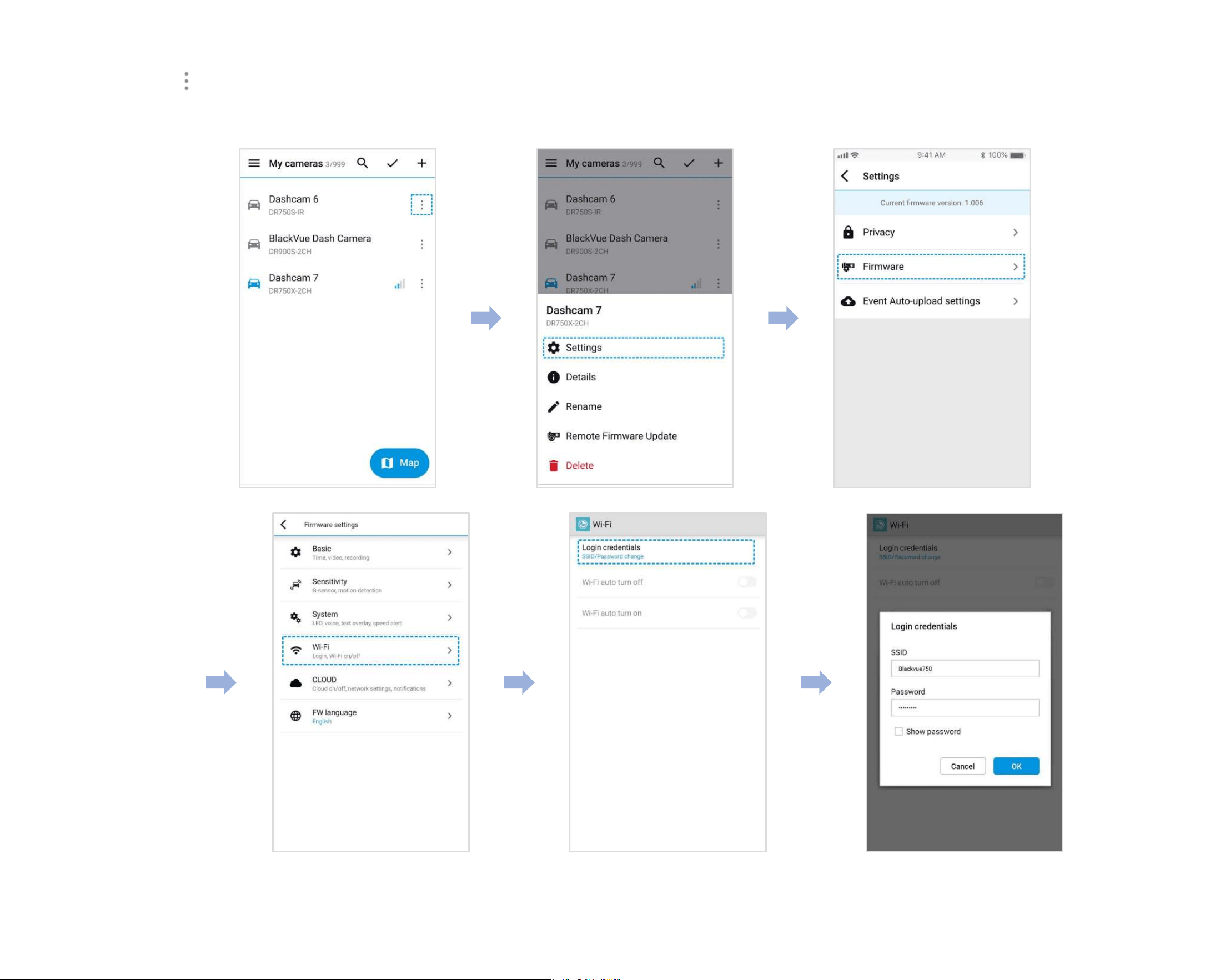
104
BLACKVUE
3
Tap next to your camera name and select Settings > Firmware > Wi-Fi > Login credentials.
You can change the camera's SSID and Wi-Fi login password.
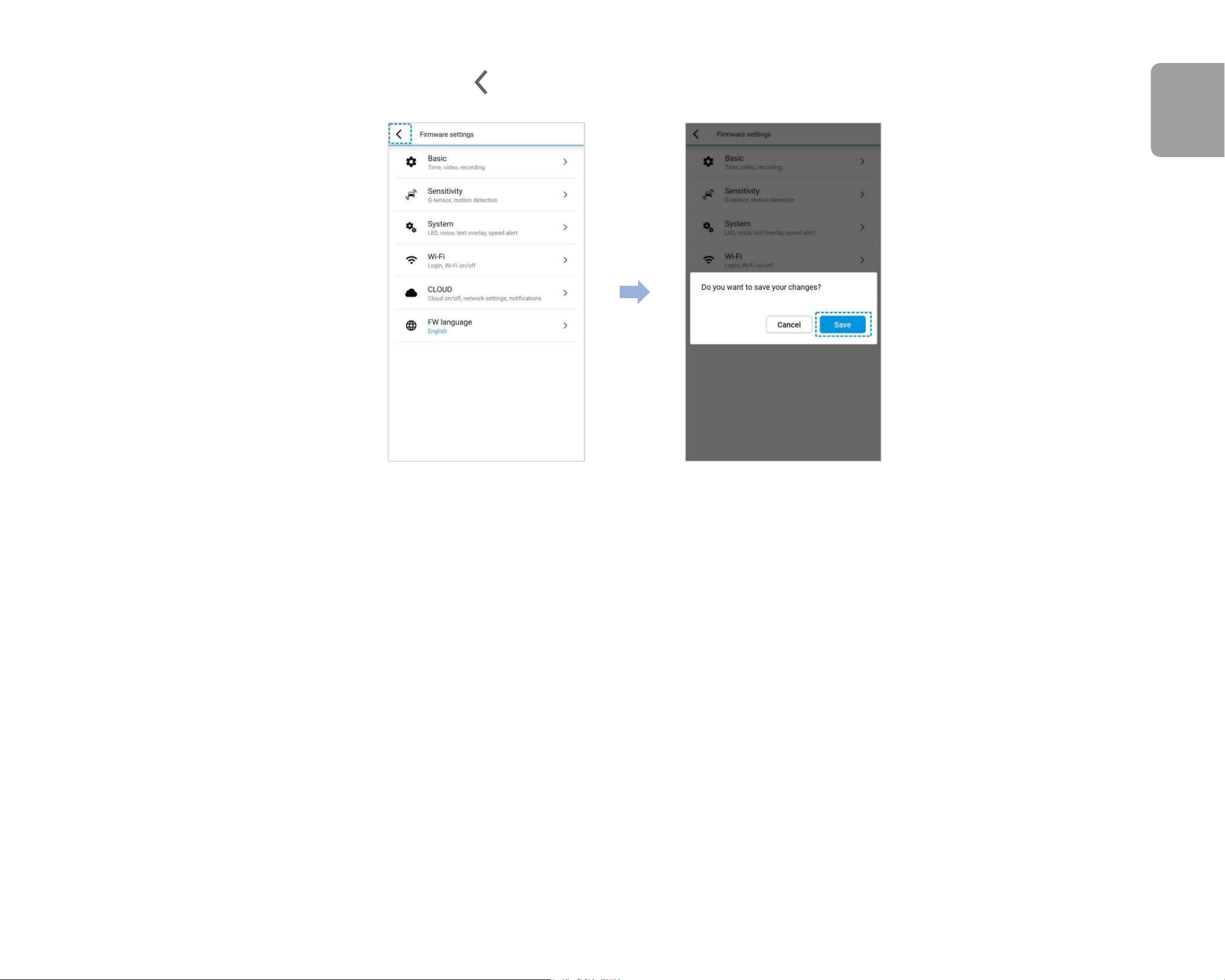
DR900X-2CH
105
ENGLISH
4
Go back to the Firmware settings menu, tap and tap Save.

106
BLACKVUE
Change the Wi-Fi password using BlackVue Viewer (Windows/macOS)
1
Remove the microSD card from the dashcam.
2
Insert the card into the microSD card reader and connect it to a computer.
3
Launch BlackVue Viewer.
*You can download BlackVue Viewer from www.blackvue.com > Support > Downloads and install it on your computer.
4
In BlackVue Viewer click on the Settings button to open the BlackVue settings panel.
5
Click the Firmware tab, then the Wi-Fi tab and under Login credentials change the password.
6
Click Save and close.

DR900X-2CH
107
ENGLISH
Product specications
Model Name DR900X-2CH
Color/Size/Weight
Front: Black / Width 118.5 mm x Height 36 mm / 106 g
Rear: Black / Width 67.4 mm x Height 25 mm / 25 g
Memory microSD Card (32 GB / 64 GB / 128 GB / 256 GB)
Recording Modes
Normal recording, Event recording (when impact is detected in normal and parking mode), Manual
recording and Parking recording (when motion is detected)
* When using Hardwiring Power Cable, ACC+ will trigger parking mode. When using other methods,
G-sensor will trigger parking mode.
Camera
Front: 8-Megapixel CMOS Sensor
Rear: STARVIS™ CMOS Sensor (Approx. 2.1 M Pixel)
Viewing Angle
Front: Diagonal 162°, Horizontal 136°, Vertical 77°
Rear: Diagonal 139°, Horizontal 116°, Vertical 61°
Resolution/FrameRate
<Front - Rear>
4K UHD (3840x2140) @30fps - Full HD (1920x1080) @30fps
* Frame rate may vary during Wi-Fi streaming.
Video Codec H.265 (HEVC), H.264 (AVC)
Image Quality Highest (Extreme), Highest, High, Normal
Video Compression Mode MP4
Wi-Fi Built-in (802.11 a.b.g.n.ac)
GPS Built-in (Dual Band : GPS, GLONASS)
Bluetooth Built-in (V2.1+EDR/4.2)
LT E External
Microphone Built-in
Speaker
(Voice Guidance)
Built-in

108
BLACKVUE
LED Indicators
Front: Recording LED, GPS/BT LED, LTE/Wi-Fi LED, Front Security LED, Proximity Sensing indicator LED
Rear: Rear Security LED
Button
Wi-Fi button:
* Press once to turn on/o Wi-Fi.
Proximity sensor:
Touching the proximity sensor turns on/o audio recording or triggers manual recording depending on
the rmware settings.
Sensor 3-Axis Acceleration Sensor
Backup Battery Built-in super capacitor
Input Power DC 12V-24V (DC Plug (Ø3.5 x Ø1.1)) to Wires (Black: GND / Yellow: B+ / Red: ACC)
Power Consumption
Normal Mode (WiFi On / GPS On / 2CH) : 450mA / hour
Normal Mode (WiFi O / GPS On / 2CH) : 410mA / hour
Parking Mode (WiFi On / GPS O / 2CH) : 365mA / hour
Parking Mode (WiFi O / GPS O / 2CH) : 325mA / hour
* Actual power consumption may vary depending on use conditions and environment.
Operation Temperature -20 °C − 70 °C (-4 °F − 158 °F)
Storage Temperature -20 °C − 90 °C (-4 °F − 194 °F )
High Temperature Cut-O Approx. 75 °C (167 °F)
Certications
Front: FCC, CE, RoHS, Telec, WEEE, IC
Rear: FCC, CE, RoHS, WEEE
Software
BlackVue Viewer
* Windows 7 or higher and Mac Yosemite OS X (10.10) or higher
Application BlackVue Application (Android 5.0 or higher, iOS 9.0 or higher)
Others Adaptive Format Free File Management System
* STARVIS is a trademark of Sony Corporation.

DR900X-2CH
109
ENGLISH
Recording time
Your dashcam will automatically turn on and start recording when it is connected to a power source.
Memory Capacity Image Quality Resolution (Front + Rear)
4K UHD @30fps + FHD @30fps
32GB
Highest (Extreme) 1 HR 50 MIN
Highest 2 HR 40 MIN
High 3 HR 20 MIN
Normal 4 HR 20 MIN
64GB
Highest (Extreme) 3 HR 40 MIN
Highest 5 HR 20 MIN
High 6 HR 40 MIN
Normal 8 HR 40 MIN
128GB
Highest (Extreme) 7 HR 20 MIN
Highest 10 HR 40 MIN
High 13 HR 20 MIN
Normal 17 HR 20 MIN
256GB
Highest (Extreme) 14 HR 40 MIN
Highest 21 HR 20 MIN
High 26 HR 40 MIN
Normal 34 HR 40 MIN

110
BLACKVUE
Bitrate (Mbps)
Front + Rear
Highest (Extreme) 25 +10
Highest 12 + 10
High 10 + 8
Normal 8 + 6
Note
y
If the microSD card is full, older les are deleted rst to make space for newly-recorded videos.
y
Total recording time is dierent depending on the memory capacity of the microSD card and the resolution of the video.
DR900X-2CH
111
ENGLISH
Disposal and recycling information
Disposal of your BlackVue dashcam
1. All electrical and electronic products should be disposed of separately from the municipal waste stream via
designated collection facilities appointed by the government or the local authorities. Contact local authorities to learn
about disposal and recycling options available in your area.
2. The correct disposal of your BlackVue dashcam will help prevent potential negative consequences for the environment
and human health.
3. For more detailed information about disposal of your BlackVue dashcam, please contact your city oce, waste
disposal service or the shop where you purchased the product.
112
BLACKVUE
Before Requesting Service
Please back up all important les and data before requesting service. In order to service the dashcam it may be necessary to delete all
les and data from the dashcam. All servicing is provided on the basis that the user has backed up all necessary les and data before
requesting service. Therefore Pittasoft Co., Ltd. will not be responsible for the loss of any les or data.
Customer Support
For customer support and rmware updates please visit www.blackvue.com
You can also email a Customer Support expert at [email protected]
Copyright & Trademark
y
This instruction manual is protected by Copyright Law, and all rights to it are protected by law.
y
It is prohibited to reproduce, copy, modify, or translate this instruction manual without permission.
BlackVue is the registered trademark of Pittasoft Co., Ltd. Pittasoft Co., Ltd. reserves all rights regarding all works
related to the BlackVue brand such as product design, trademarks, and product-promotional videos. It is prohibited to reproduce,
copy, modify, or use related works without permission. Any violation may be penalized in accordance with the relevant regulations.
FCC ID: YCK-DR900X-2CH / HVIN: DR900X-2CH / IC: 23402-DR900X2CH
020-200098
Product
|
Car Dashcam
Model Name
|
DR900X-2CH
Manufacturer
|
Pittasoft Co., Ltd.
Address
|
4F ABN Tower, 331, Pangyo-ro, Bundang-gu, Seongnam-si, Gyeonggi-do, Republic of Korea, 13488
Customer Support
|
Product Warranty
|
One-Year Limited Warranty
facebook.com/BlackVueOfficial
instagram.com/blackvueofficial
www.blackvue.com
Made in Korea
COPYRIGHT©2020 Pittasoft Co., Ltd. All rights reserved.
