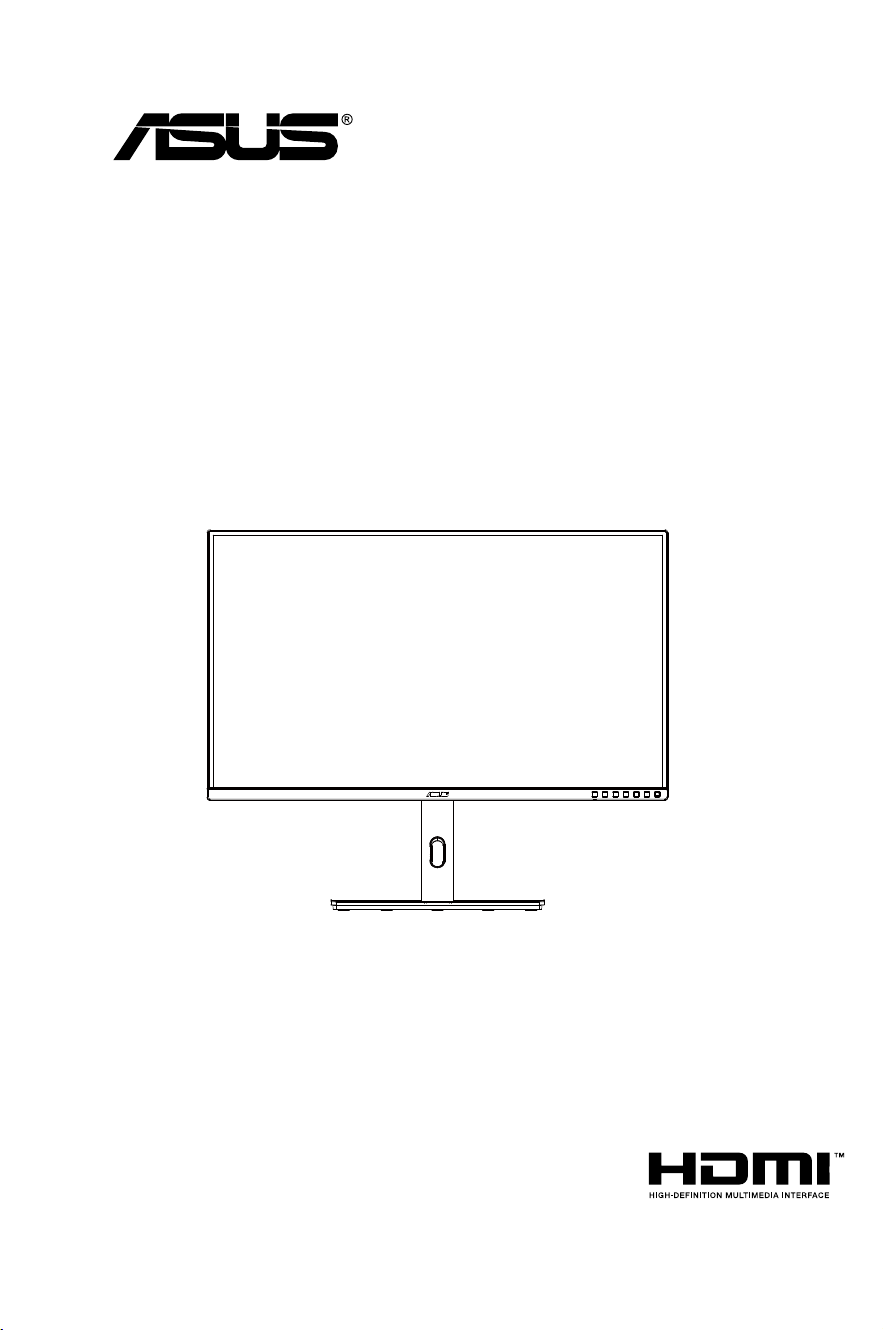
PA329CV Series
LCD Monitor
User Guide

ii
Copyright © 2020 ASUSTeK COMPUTER INC. All Rights Reserved.
No part of this manual, including the products and software described in it, may be reproduced,
transmitted, transcribed, stored in a retrieval system, or translated into any language in any form or by any
means, except documentation kept by the purchaser for backup purposes, without the express written
permission of ASUSTeK COMPUTER INC. (“ASUS”).
Product warranty or service will not be extended if: (1) the product is repaired, modied or altered, unless
such repair, modication of alteration is authorized in writing by ASUS; or (2) the serial number of the
product is defaced or missing.
ASUS PROVIDES THIS MANUAL “AS IS” WITHOUT WARRANTY OF ANY KIND, EITHER EXPRESS
OR IMPLIED, INCLUDING BUT NOT LIMITED TO THE IMPLIED WARRANTIES OR CONDITIONS OF
MERCHANTABILITY OR FITNESS FOR A PARTICULAR PURPOSE. IN NO EVENT SHALL ASUS, ITS
DIRECTORS, OFFICERS, EMPLOYEES OR AGENTS BE LIABLE FOR ANY INDIRECT, SPECIAL,
INCIDENTAL, OR CONSEQUENTIAL DAMAGES (INCLUDING DAMAGES FOR LOSS OF PROFITS,
LOSS OF BUSINESS, LOSS OF USE OR DATA, INTERRUPTION OF BUSINESS AND THE LIKE),
EVEN IF ASUS HAS BEEN ADVISED OF THE POSSIBILITY OF SUCH DAMAGES ARISING FROM ANY
DEFECT OR ERROR IN THIS MANUAL OR PRODUCT.
SPECIFICATIONS AND INFORMATION CONTAINED IN THIS MANUAL ARE FURNISHED FOR
INFORMATIONAL USE ONLY, AND ARE SUBJECT TO CHANGE AT ANY TIME WITHOUT NOTICE,
AND SHOULD NOT BE CONSTRUED AS A COMMITMENT BY ASUS. ASUS ASSUMES NO
RESPONSIBILITY OR LIABILITY FOR ANY ERRORS OR INACCURACIES THAT MAY APPEAR IN THIS
MANUAL, INCLUDING THE PRODUCTS AND SOFTWARE DESCRIBED IN IT.
Products and corporate names appearing in this manual may or may not be registered trademarks or
copyrights of their respective companies, and are used only for identication or explanation and to the
owners’ benet, without intent to infringe.
Table of contents
TCO Certied ............................................................................................... iii
Notices ......................................................................................................... iv
Safety information ...................................................................................... vi
Care & Cleaning ........................................................................................... x
1.1 Welcome! ...................................................................................... 1-1
1.2 Package contents ......................................................................... 1-1
1.3 Assembling the monitor .............................................................. 1-2
1.4 Assembling the C-Clamp ............................................................ 1-3
1.5 Connect cables ............................................................................. 1-4
1.5.1 Rear of the LCD monitor ................................................. 1-4
1.6 Monitor introduction .................................................................... 1-5
1.6.1 Using the Controls button .............................................. 1-5
2.1 Adjusting the monitor .................................................................. 2-1
2.2 Detaching the arm/stand (for VESA wall mount) ...................... 2-2
2.3 Outline dimension ........................................................................ 2-3
3.1 OSD (On-Screen Display) menu ................................................. 3-1
3.1.1 Howtorecongure .......................................................... 3-1
3.1.2 OSD Function Introduction .............................................. 3-2
3.2 Specications ............................................................................. 3-12
3.3 Troubleshooting (FAQ) .............................................................. 3-13
3.4 Supported Timing List ............................................................... 3-14
iii
TCO Certied
A third-party certification according to ISO 14024
Say hello
to a more sustainable product
IT products are associated with a wide range of sustainability risks
throughout their life cycle. Human rights violations are common in the
factories. Harmful substances are used both in products and their
manufacture. Products can often have a short lifespan because of poor
ergonomics, low quality and when they are not able to be repaired or
upgraded.
This product is a better choice. It meets all the criteria in TCO Certified,
the world’s most comprehensive sustainability certification for IT
products. Thank you for making a responsible product choice, that help
drive progress towards a more sustainable future!
Criteria in TCO Certified have a life-cycle perspective and balance
environmental and social responsibility. Conformity is verified by
independent and approved verifiers that specialize in IT products, social
responsibility or other sustainability issues. Verification is done both
before and after the certificate is issued, covering the entire validity
period. The process also includes ensuring that corrective actions are
implemented in all cases of factory non-conformities. And last but not
least, to make sure that the certification and independent verification is
accurate, both TCO Certified and the verifiers are reviewed regularly.
Want to know more?
Read information about TCO Certified, full criteria documents, news and
updates at tcocertified.com. On the website you’ll also find our Product
Finder, which presents a complete, searchable listing of certified
products.
Toward sustainable IT products

iv
Notices
Federal Communications Commission Statement
This device complies with Part 15 of the FCC Rules. Operation is subject
to the following two conditions:
• This device may not cause harmful interference, and
• This device must accept any interference received including
interference that may cause undesired operation.
This equipment has been tested and found to comply with the limits for a
Class B digital device, pursuant to Part 15 of the FCC Rules. These limits
are designed to provide reasonable protection against harmful interference
in a residential installation. This equipment generates, uses and can
radiate radio frequency energy and, if not installed and used in accordance
with manufacturer’s instructions, may cause harmful interference to radio
communications. However, there is no guarantee that interference will
not occur in a particular installation. If this equipment does cause harmful
interference to radio or television reception, which can be determined by
turning the equipment off and on, the user is encouraged to try to correct
the interference by one or more of the following measures:
• Reorient or relocate the receiving antenna.
• Increase the separation between the equipment and receiver.
• Connect the equipment to an outlet on a circuit different from that to
which the receiver is connected.
• Consult the dealer or an experienced radio/TV technician for help.
NOTE:ThismonitorisENERGYSTARcertied.
ThisproductqualiesforENERGYSTAR
®
in the factory
default(Homeconguration)setting.Changingthefactory
default settings or enabling other features may increase
power consumption that could exceed the limits necessary
toqualifyforENERGYSTAR
®
.RefertoENERGYSTAR.gov
(www.energystar.gov)formoreinformationontheENERGY
STAR
®
program.
Canadian Department of Communications Statement
This digital apparatus does not exceed the Class B limits for radio
noise emissions from digital apparatus set out in the Radio Interference
Regulations of the Canadian Department of Communications.
ThisclassBdigitalapparatuscomplieswithCanadianICES-003.

v
The device may fall, causing serious personal injury or death. To prevent
injury,thisdevicemustbesecurelyattachedtotheoor/wallinaccordance
with the installation instructions.

vi
Safety information
• Before setting up the monitor, carefully read all the documentation that
came with the package.
• To prevent fire or shock hazard, never expose the monitor to rain or
moisture.
• Nevertrytoopenthemonitorcabinet.Thedangeroushighvoltages
inside the monitor may result in serious physical injury.
• If the power supply is broken, do not try to fix it by yourself. Contact a
qualified service technician or your retailer.
• Before using the product, make sure all cables are correctly connected
and the power cables are not damaged. If you detect any damage,
contact your dealer immediately.
• Slots and openings on the back or top of the cabinet are provided for
ventilation.Donotblocktheseslots.Neverplacethisproductnearor
over a radiator or heat source unless proper ventilation is provided.
• The monitor should be operated only from the type of power source
indicated on the label. If you are not sure of the type of power supply to
your home, consult your dealer or local power company.
• Use the appropriate power plug which complies with your local power
standard.
• Do not overload power strips and extension cords. Overloading can
result in fire or electric shock.
• Avoiddust,humidity,andtemperatureextremes.Donotplacethe
monitor in any area where it may become wet. Place the monitor on a
stable surface.
• Unplug the unit during a lightning storm or if it will not be used for a
long period of time. This will protect the monitor from damage due to
power surges.
• Neverpushobjectsorspillliquidofanykindintotheslotsonthe
monitor cabinet.
• To ensure satisfactory operation, use the monitor only with UL listed
computers which have appropriate configured receptacles marked
between100~240VAC.
• The socket-outlet shall be installed near the equipment and shall be
easily accessible
• If you encounter technical problems with the monitor, contact a
qualified service technician or your retailer.
• Provide an earthing connection before the mains plug is connected to
themains.And,whendisconnectingtheearthingconnection,besure
to disconnect after pulling out the mains plug from the mains.

vii
WARNING
Usageofotherthanspeciedhead-orearphonescanresultinhearing
loss due to excessive sound pressures.
Pleaseconrmthedistributionsysteminbuildinginstallationshallprovide
thecircuitbreakerrated120/240V,20A(maximum).
If provided with a 3-pin attachment plug on the power cord, plug the cord
intoagrounded(earthed)3-pinoutlet.Donotdisablethepowercord
grounding pin, for example, by attaching a 2-pin adapter. The grounding
pin is an important safety feature.
Stability Hazard.
The product may fall, causing serious personal injury or death. To
preventinjury,thisproductmustbesecurelyattachedtotheoor/wallin
accordance with the installation instructions.
Aproductmayfall,causingseriouspersonalinjuryordeath.Manyinjuries,
particularly to children, can be avoided by taking simple precautions such
as:
ALWAYSusecabinetsorstandsorinstallationmethodsrecommendedby
the manufacturer of the product set.
ALWAYSusefurniturethatcansafelysupporttheproduct.
ALWAYSensuretheproductisnotoverhangingtheedgeofthesupporting
furniture.
ALWAYSeducatechildrenaboutthedangersofclimbingonfurnitureto
reach the product or its controls.
ALWAYSroutecordsandcablesconnectedtoyourproductsotheycannot
be tripped over, pulled or grabbed.
NEVERplaceaproductinanunstablelocation.
NEVERplacetheproductontallfurniture(forexample,cupboardsor
bookcases)withoutanchoringboththefurnitureandtheproducttoa
suitable support.
NEVERplacetheproductonclothorothermaterialsthatmaybelocated
between the product and supporting furniture.
NEVERplaceitemsthatmighttemptchildrentoclimb,suchastoysand
remote controls, on the top of the product or furniture on which the product
is placed.
If the existing product is going to be retained and relocated, the same
considerations as above should be applied.
viii
Excessivesoundpressurefromearphonesandheadphonescancause
hearingloss.Adjustmentoftheequalizertomaximumincreasesthe
earphones and headphones output voltage and therefore the sound
pressure level.
1. Do not dispose of electrical appliances as unsorted
municipal waste, use separate collection facilities.
2. Contact your local government for information regarding the
collection systems available.
3.Ifelectricalappliancesaredisposedofinlandllsordumps,
hazardous substances can leak into the groundwater and get
into the food chain, damaging your health and well-being.
4.Whenreplacingoldapplianceswithnewonce,theretaileris
legally obligated to take back your old appliance for disposal
at least for free of charge.
Excessivesoundpressurefromearphonesandheadphonescancause
hearingloss.Adjustmentoftheequalizertomaximumincreasesthe
earphones and headphones output voltage and therefore the sound
pressure level.
Do not dispose of electrical appliances as unsorted municipal waste, use
separate collection facilities.
Contact your local government for information regarding the collection
systems available.
Ifelectricalappliancesaredisposedofinlandllsordumps,hazardous
substances can leak into the groundwater and get into the food chain,
damaging your health and well-being.
Whenreplacingoldapplianceswithnewonce,theretailerislegally
obligated to take back your old appliance for disposal at least for free of
charge.
ix
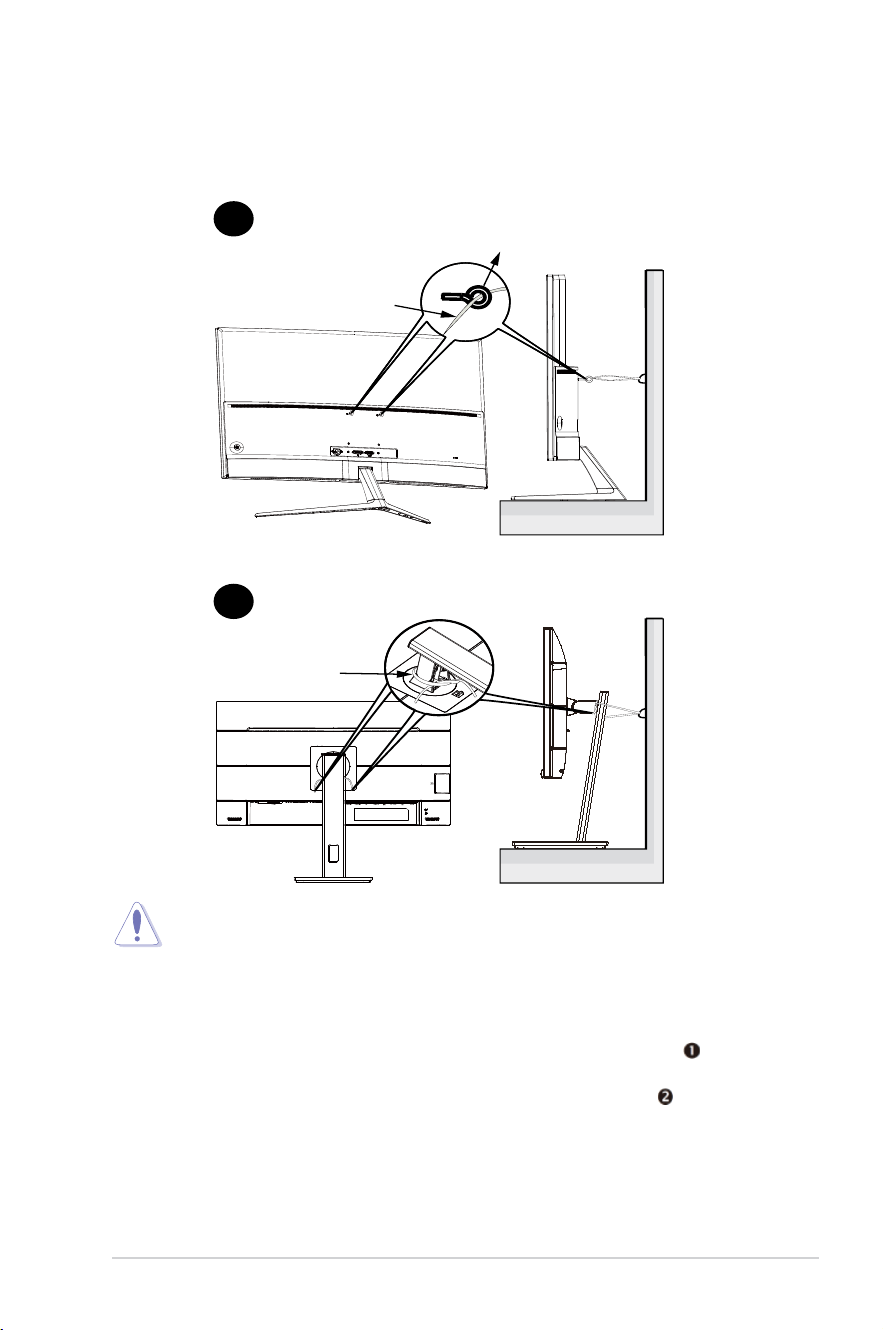
Prevent Tipping
Whenusingthedisplay,fastentheLCDtoawallusingacordorchainthatcan
support the weight of the monitor in order to prevent the monitor from falling.
Cord or chain
M4 or M6 Screw
Cord
1
2
• Display design may differ from those illustrated.
• Installing must be done by a qualified technician , and please
contact your supplier for more information.
• FortheModelswithnetweight>=7kg.Pleaseselectthesuitable
way to Prevent Tipping.
• ForthemodelswithVESAMount,pleaseusemethod
, install
thescrewswithringtotheVESAMounthole,thentiethecord
or chain to the wall. Otherwise, please use method to tie the
cord or chain to the stand and then fix it to the wall.
x
Care & Cleaning
• Before you lift or reposition your monitor, it is better to disconnect the
cables and power cord. Follow the correct lifting techniques when
positioningthemonitor.Whenliftingorcarryingthemonitor,graspthe
edges of the monitor. Do not lift the display by the stand or the cord.
• Cleaning. Turn your monitor off and unplug the power cord. Clean the
monitor surface with a lint-free, non-abrasive cloth. Stubborn stains
may be removed with a cloth dampened with mild cleaner.
• Avoidusingacleanercontainingalcoholoracetone.Useacleaner
intendedforusewiththeLCD.Neverspraycleanerdirectlyonthe
screen, as it may drip inside the monitor and cause an electric shock.
The following symptoms are normal with the monitor:
• The screen may flicker during the initial use due to the nature of the
fluorescent light. Turn off the Power Switch and turn it on again to
make sure that the flicker disappears.
• Youmayfindslightlyunevenbrightnessonthescreendependingon
the desktop pattern you use.
• Whenthesameimageisdisplayedforhours,anafterimageofthe
previous screen may remain after switching the image. The screen will
recover slowly or you can turn off the Power Switch for hours.
• Whenthescreenbecomesblackorflashes,orcannotworkanymore,
contact your dealer or service center to fix it. Do not repair the screen
by yourself!
Conventions used in this guide
WARNING:Informationtopreventinjurytoyourselfwhentryingto
complete a task.
CAUTION:Informationtopreventdamagetothecomponents
when trying to complete a task.
IMPORTANT:InformationthatyouMUSTfollowtocompletea
task.
NOTE:Tipsandadditionalinformationtoaidincompletingatask.

xi
Wheretondmoreinformation
Refer to the following sources for additional information and for product
and software updates.
1. ASUS websites
TheASUSwebsitesworldwideprovideupdatedinformationonASUS
hardware and software products. Refer to http://www.asus.com
2. Optional documentation
Yourproductpackagemayincludeoptionaldocumentationthatmay
have been added by your dealer. These documents are not part of
the standard package.
Takeback Services
ASUSrecyclingandtakebackprogramscomefromourcommitmenttothe
higheststandardsforprotectingourenvironment.Webelieveinproviding
solutions for our customers to be able to responsibly recycle our products,
batteries and other components as well as the packaging materials.
Please go to http://csr.asus.com/english/Takeback.htm for detail recycling
information in different region.
1-1ASUS LCD Monitor PA329 Series
1.1 Welcome!
ThankyouforpurchasingtheASUS
®
LCD monitor!
ThelatestwidescreenLCDmonitorfromASUSprovidesacrisper,
broader, and brighter display, plus a host of features that enhance your
viewing experience.
Withthesefeatures,youcanenjoytheconvenienceanddelightfulvisual
experience that the monitor brings you!
1.2 Package contents
Check your package for the following items:
LCDMonitor
Stand/Base
QuickStartGuide
WarrantyCard
1xUSBType-CCable(optional)
1x Power Cord
1xHDMICable(optional)
1xDPCable(optional)
Color calibration testing report
ProArtwelcomecard
C-Clamp
• If any of the above items is damaged or missing, contact your retailer
immediately.
• * AlsotheReplaceablepartsrequiredbytheTCOCertified.
1-2 Chapter 1: Product Introduction
1.3 Assembling the monitor
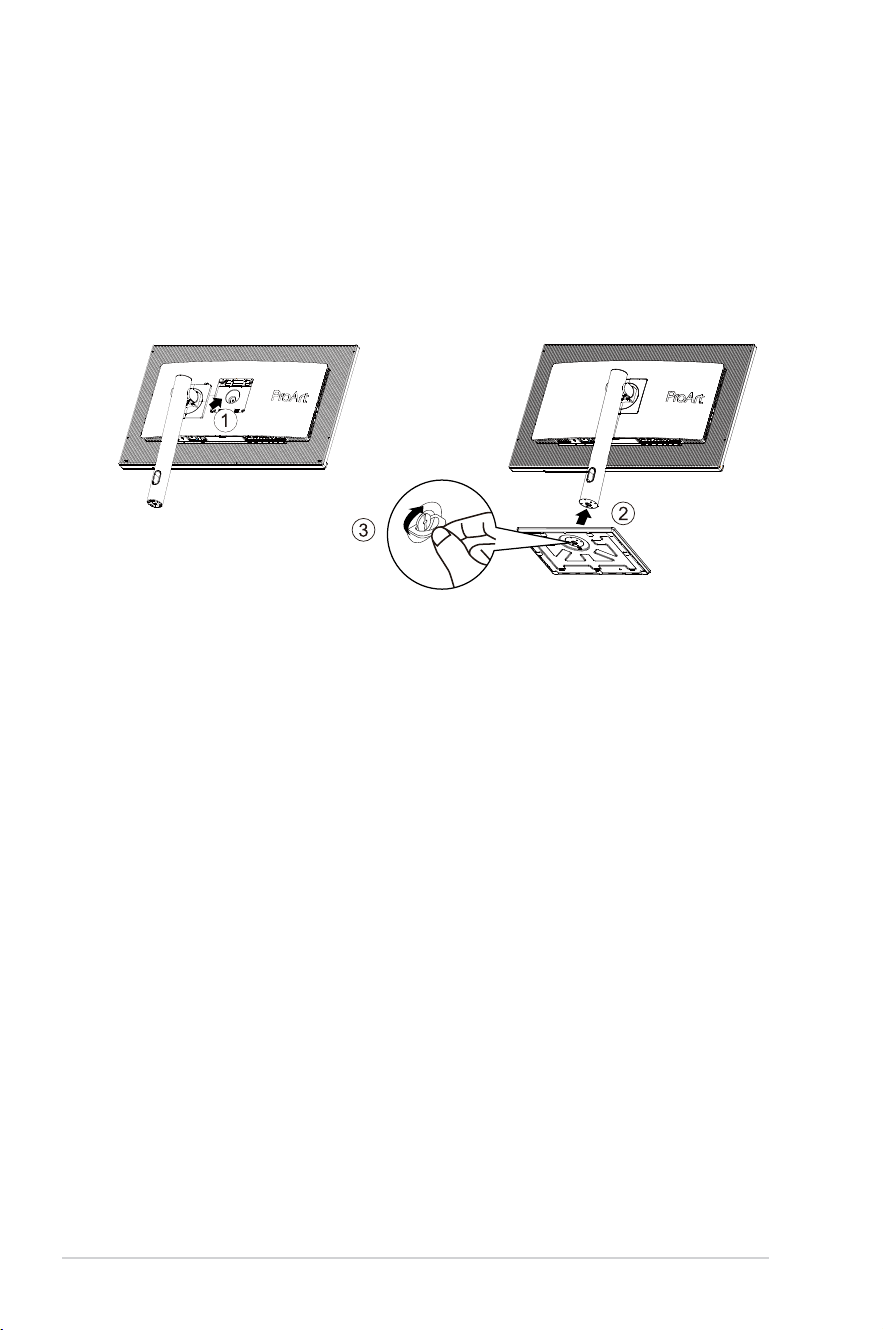
To assemble the monitor:
1. Insertthestandintothemonitorhead,Alignthescrewholeonthearm
with the bundled screw on the base. Then insert the base into the
arm.
2. Fix the base to the arm by fastening the bundled screw.
*Basescrewsize:M6x17mm
1-3ASUS LCD Monitor PA329 Series
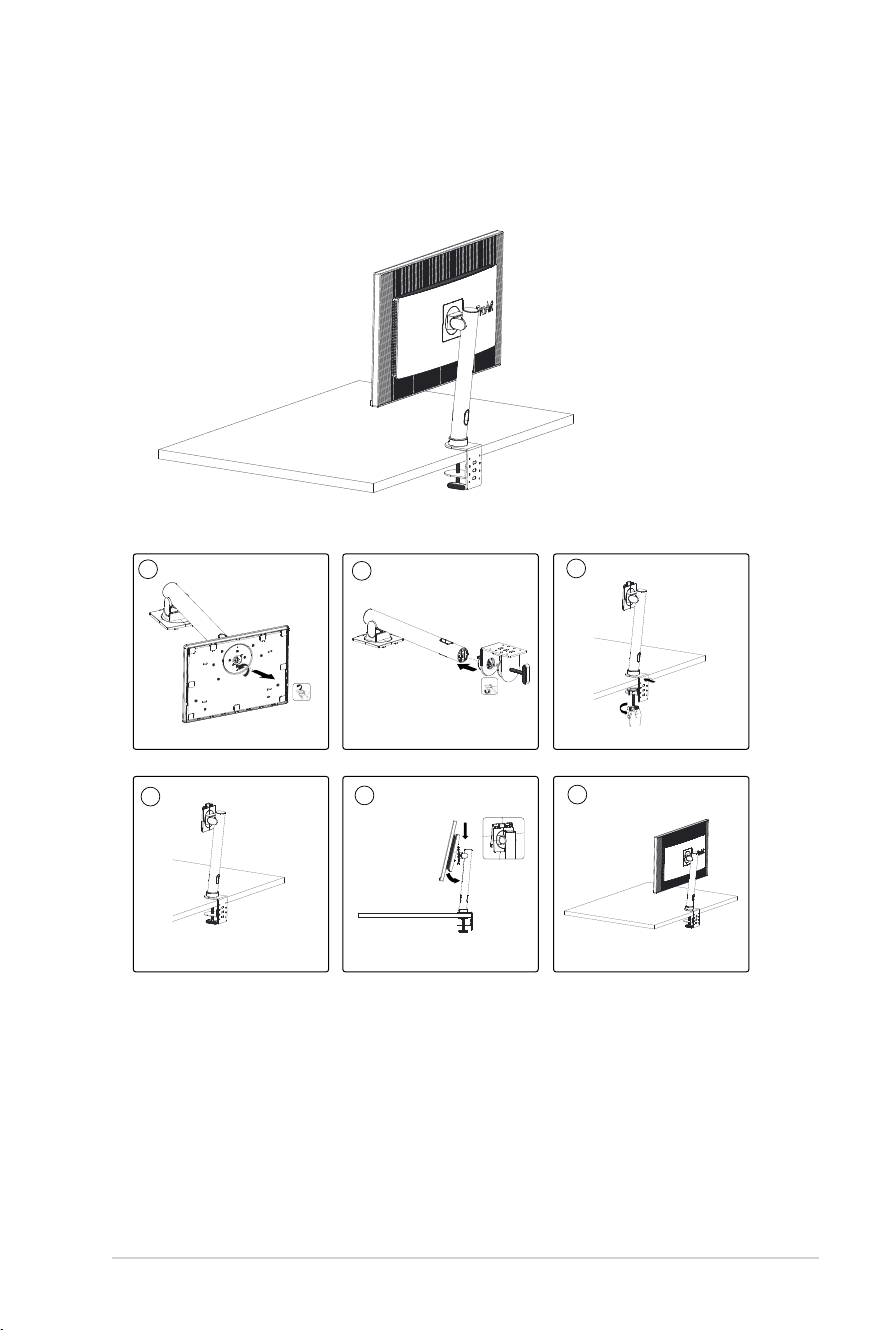
1.4 Assembling the C-Clamp
1. The C-Clamp attaches the monitor to surfaces up to 8cm
thick, Before starting, make sure you have enough room
tottheentireclampandthesurfacesissturdyandat.
2. Follow the illustrations below to mount the monitor.
1
2
3
4
5
6
1-4 Chapter 1: Product Introduction
1.5 Connect cables
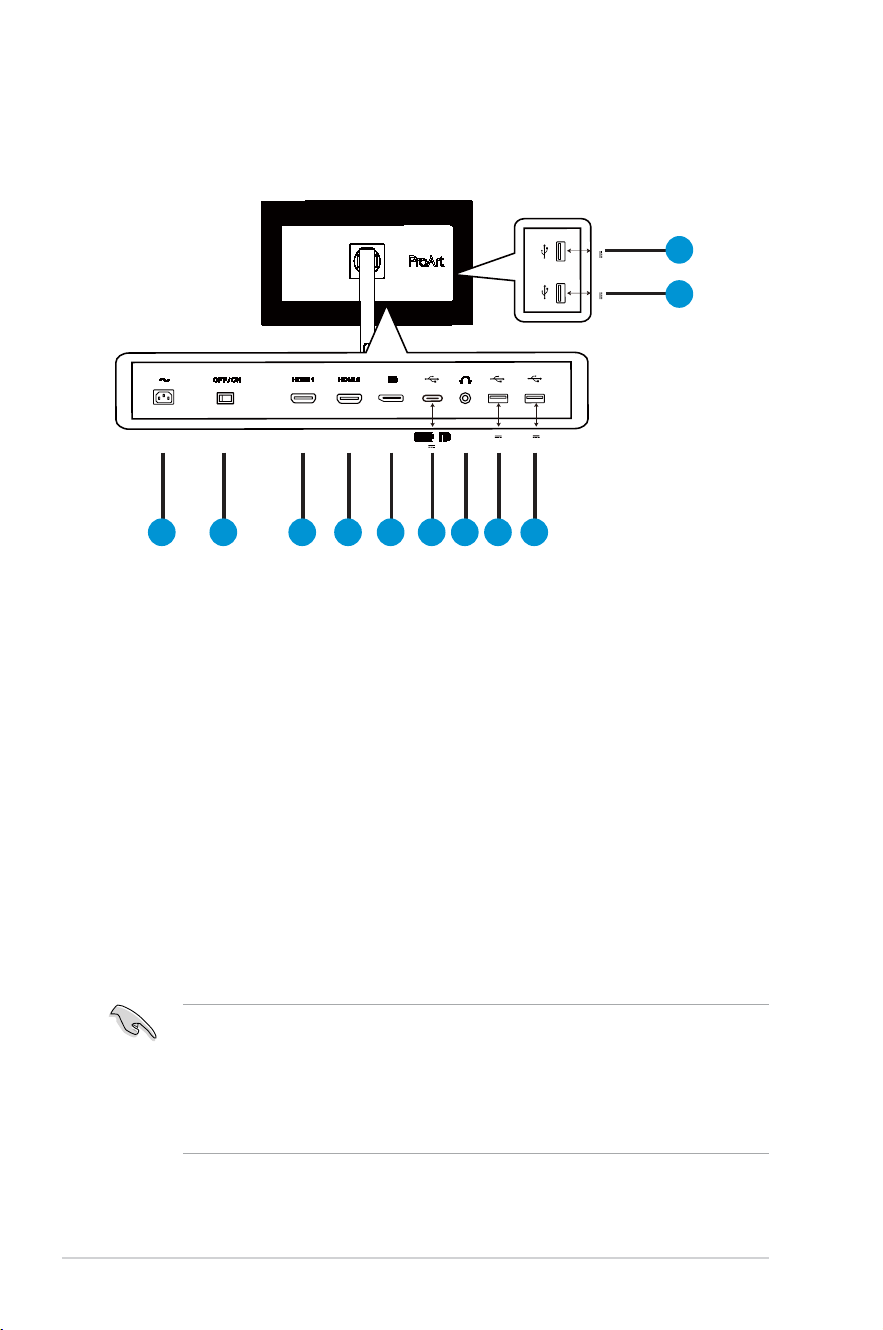
1.5.1 Rear of the LCD monitor
5V 1.5A
5V 1.5A
1 2 3 4 5 6 7 8 9
10
11
20V 4.5A
5V 0.9A
5V 0.9A
1. AC-INPort
2. Power Switch
3. HDMI1Port
4. HDMI2Port
5. DP - in Port
6. USB3.1 Type-C
7. Earphone-outPort
8. USB3.1TypeA
9. USB3.1TypeA
10. USB3.1TypeA
11. USB3.1TypeA
ThismonitorisSuper-SpeedUSB3.1compatible(5Gbps).Theportoffers
Max.65Wpowerdeliverywithoutputvoltage5V/3A,9V/3A,12V/3A,
15V/3Aand20V/3.25A.ConnectingtheUSBType-Ccablecaninput
theDisplayPortsource,outputpowerandenabletheUSBType-Aports
(downstream)onthemonitor.ConnectingtheUSBType-CtoType-A
cableonlyenablestheUSBType-Aports(downstream)onthemonitor.
1-5ASUS LCD Monitor PA329 Series
1.6 Monitor introduction
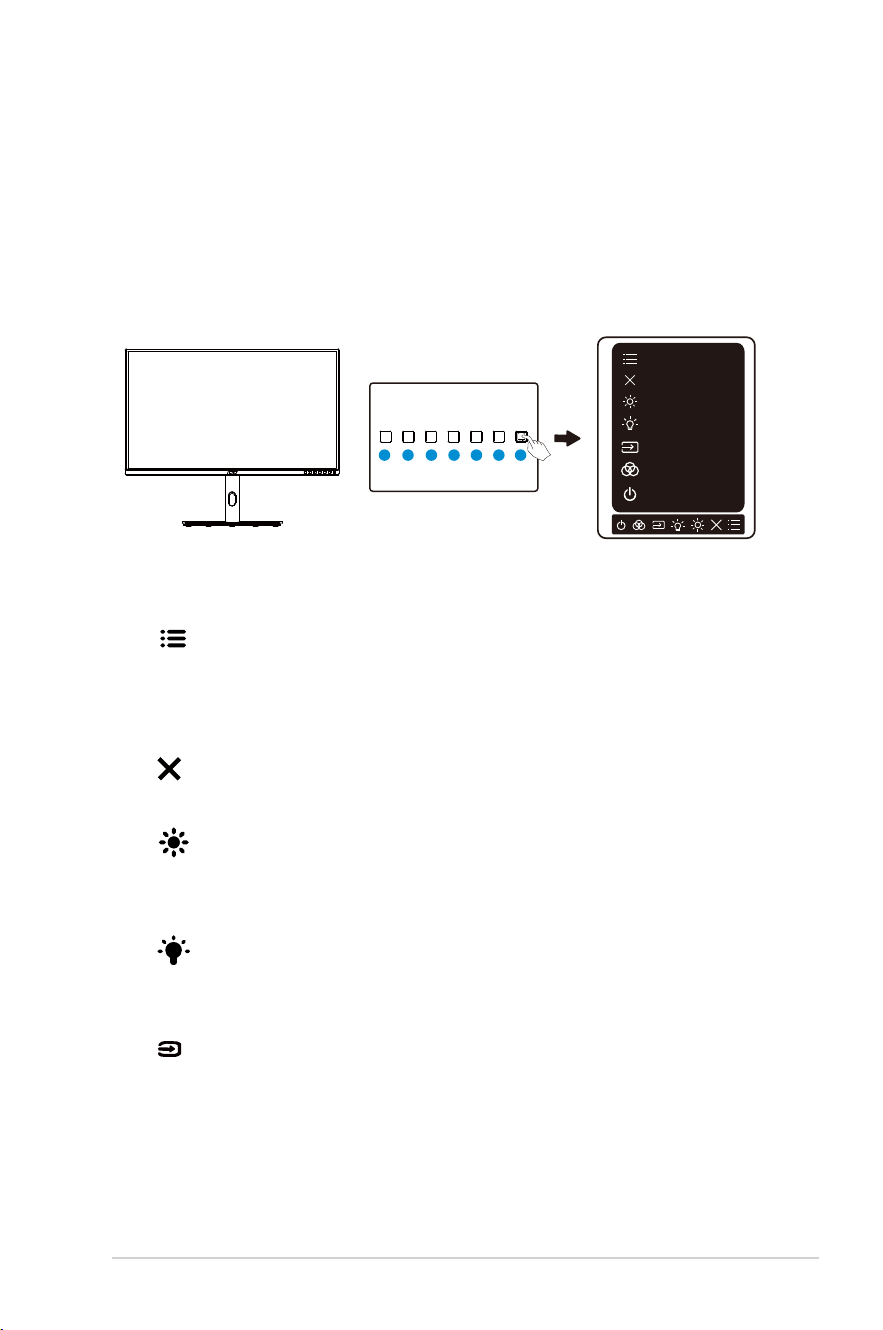
1.6.1 Using the Controls button
Use the control button on the bottom of the monitor to adjust the image
settings.
1
25
4
367
Menu
Exit
Brightness
Blue Light
Signal
Power
Preset
1. Menu(5-way)button:
• Press this button to enter the OSD menu.
• EnactstheselectedOSDmenuitems.
• Increases/Decreases values or moves your selection up/down/left/right.
2. Close Button:
• ExittheOSDmenu.
3. Shortcut 1:
• Default: Brightness hotkey
• Tochangethehotkeyfunction,gototheShortcut>Shortcut1menu.
4. Shortcut 2:
• Default: Blue light filter hotkey
• Tochangethehotkeyfunction,gototheShortcut>Shortcut2menu.
5. Input Select Button
• UsethishotkeytoswitchfromHDMI-1,HDMI-2,DisplayPort,USB
Tpye-C
6. ProArtPreset
• PressthisbuttontoselectProArtPresetmode.
1-6 Chapter 2: Setup
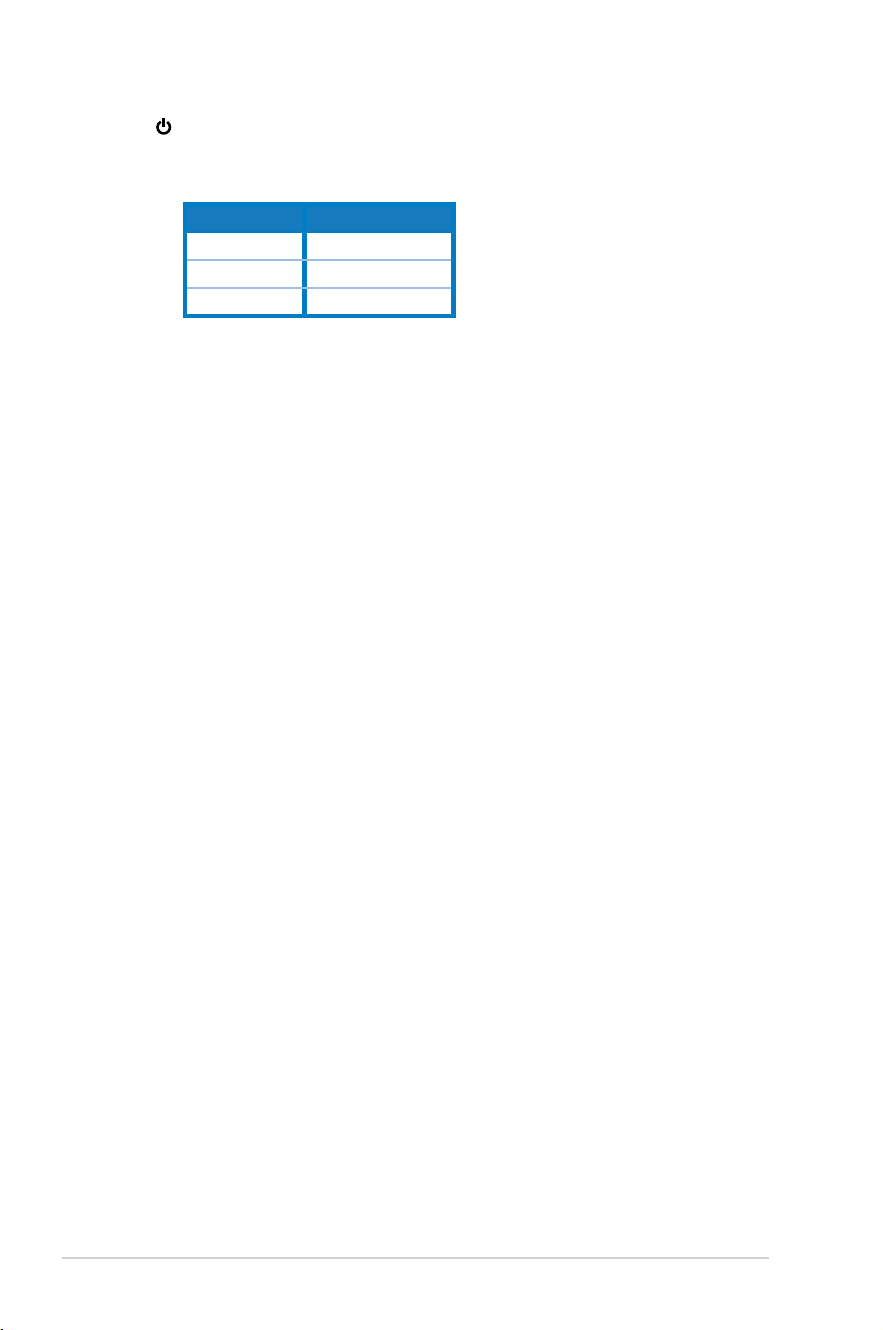
7. Power button/power indicator:
• Turns the monitor on/off.
• The color definition of the power indicator is as the below table.
Status Description
White ON
Amber Standby mode
OFF OFF
2-1ASUS LCD Monitor PA329 Series
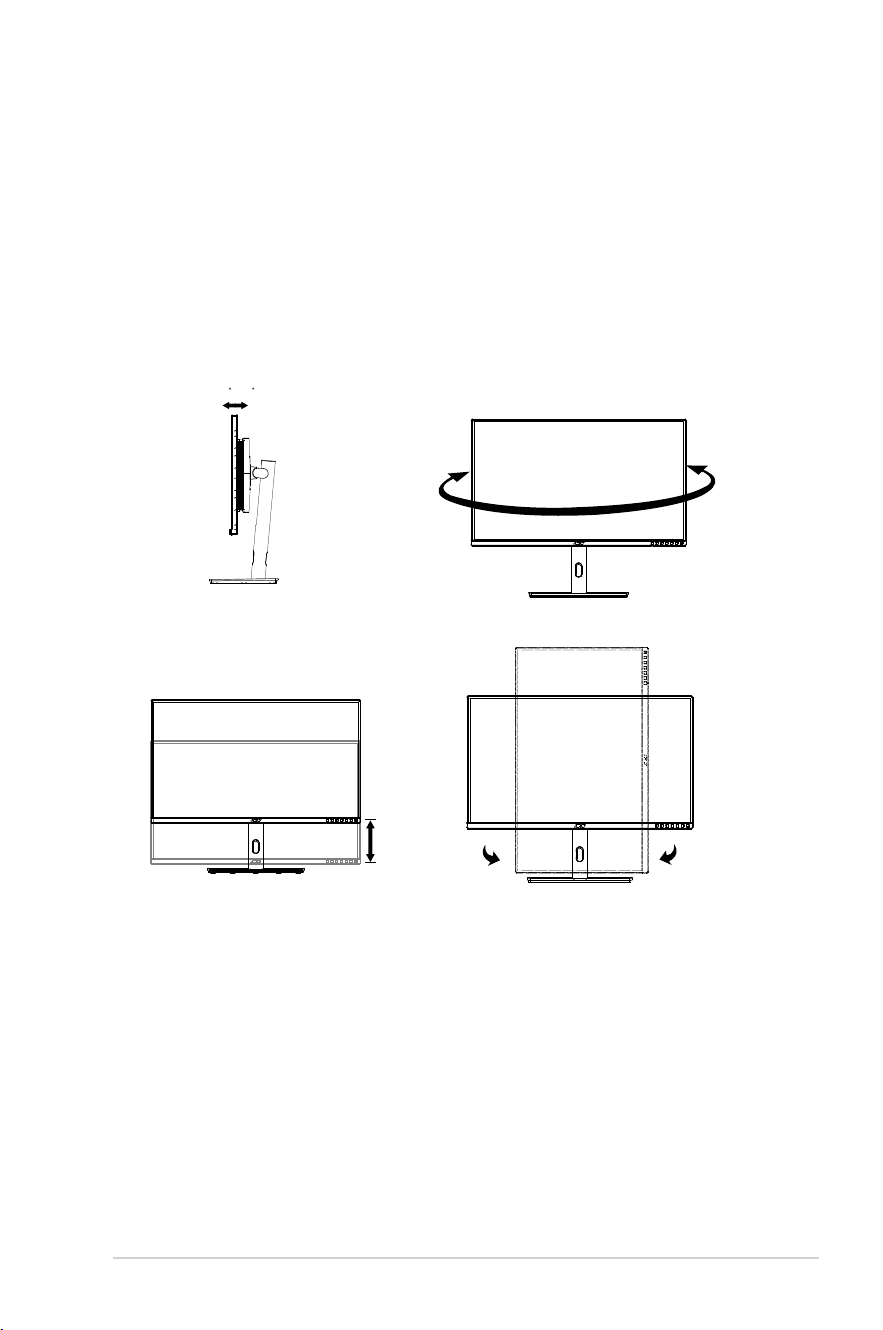
2.1 Adjusting the monitor
• For optimal viewing, we recommend that you look at the full face of the
monitor, then adjust the monitor to the angle that is most comfortable
for you.
• Hold the stand to prevent the monitor from falling
when you change its
angle.
• Youcanadjustthemonitor’sanglefrom+23˚to-5˚anditallows30˚
swivel adjustment from either left or right.
90°
90°
-5 ~ 23
-30°
+30°
130mm
2-2 Chapter 2: Setup
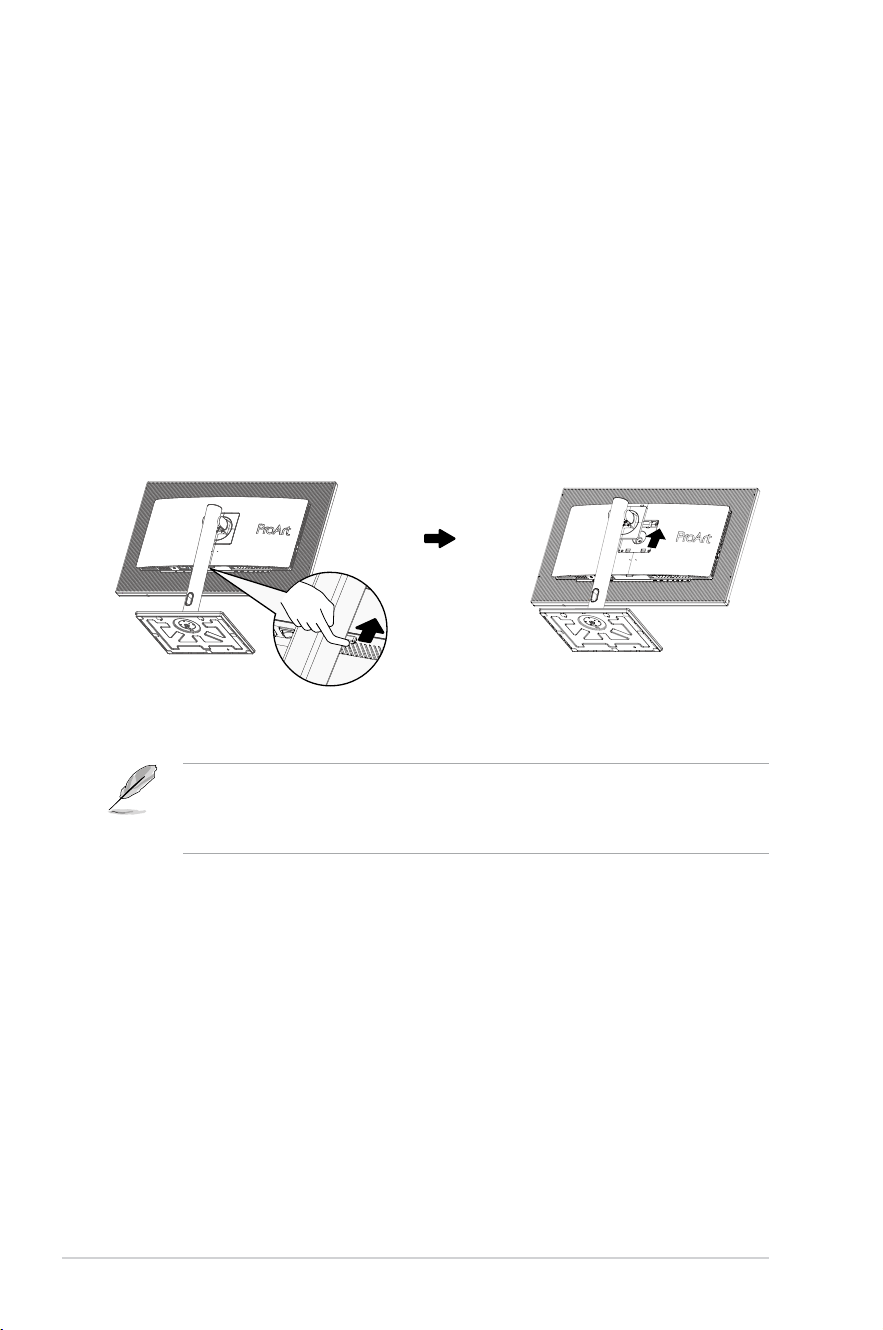
2.2 Detaching the arm/stand (for VESA wall
mount)
ThedetachablestandofthismonitorisspeciallydesignedforVESAwall
mount.
To detach the arm/stand
1. Disconnect power and signal cables. Carefully put the monitor
facedownonitsEPSpackaging.
2. Press the quick release button from rear cover.
3. Detachthestand(armandbase)fromthemonitor.
• TheVESAwallmountkit(100x100mm)ispurchasedseparately.
• UseonlytheULListedWallMountBracketwithminimumweight/load28.8 kg
(Screwsize:M4x10mm).
2-3ASUS LCD Monitor PA329 Series
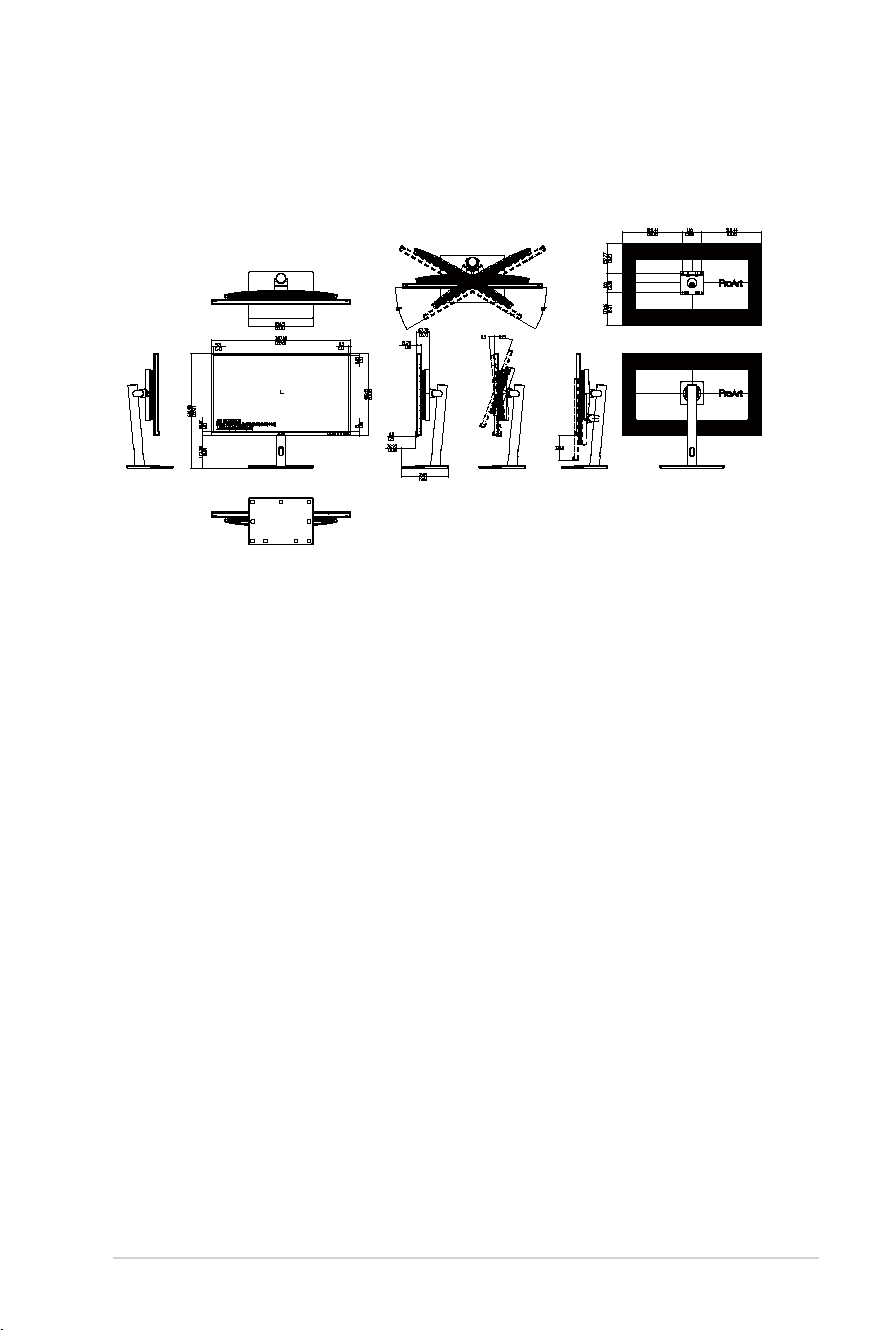
2.3 Outline dimension
Unit: mm
3-1ASUS LCD Monitor PA329 Series
3.1 OSD (On-Screen Display) menu
3.1.1 Howtorecongure
PA329CV
3840 x 2160 60Hz
ProArt
Preset
Standard Mode
Signal
DisplayPort
Brightness
50
Blue Light
Image
Palette
Sound
Exit
Back
Enter
Preset
PA329CV
3840 x 2160 60Hz
ProArt
Preset
Standard Mode
Signal
DisplayPort
Brightness
50
Blue Light
Image
Palette
Sound
Exit
Back
Enter
Preset
DICOM Mode
Rec. 709 Mode
DCI-P3 Mode
HDR
sRGB Mode
Standard Mode
Scenery Mode
Reading Mode
Rapid Rendering Mode OFF
Normal Mode
Advanced Mode
User Mode 1
User Mode 2
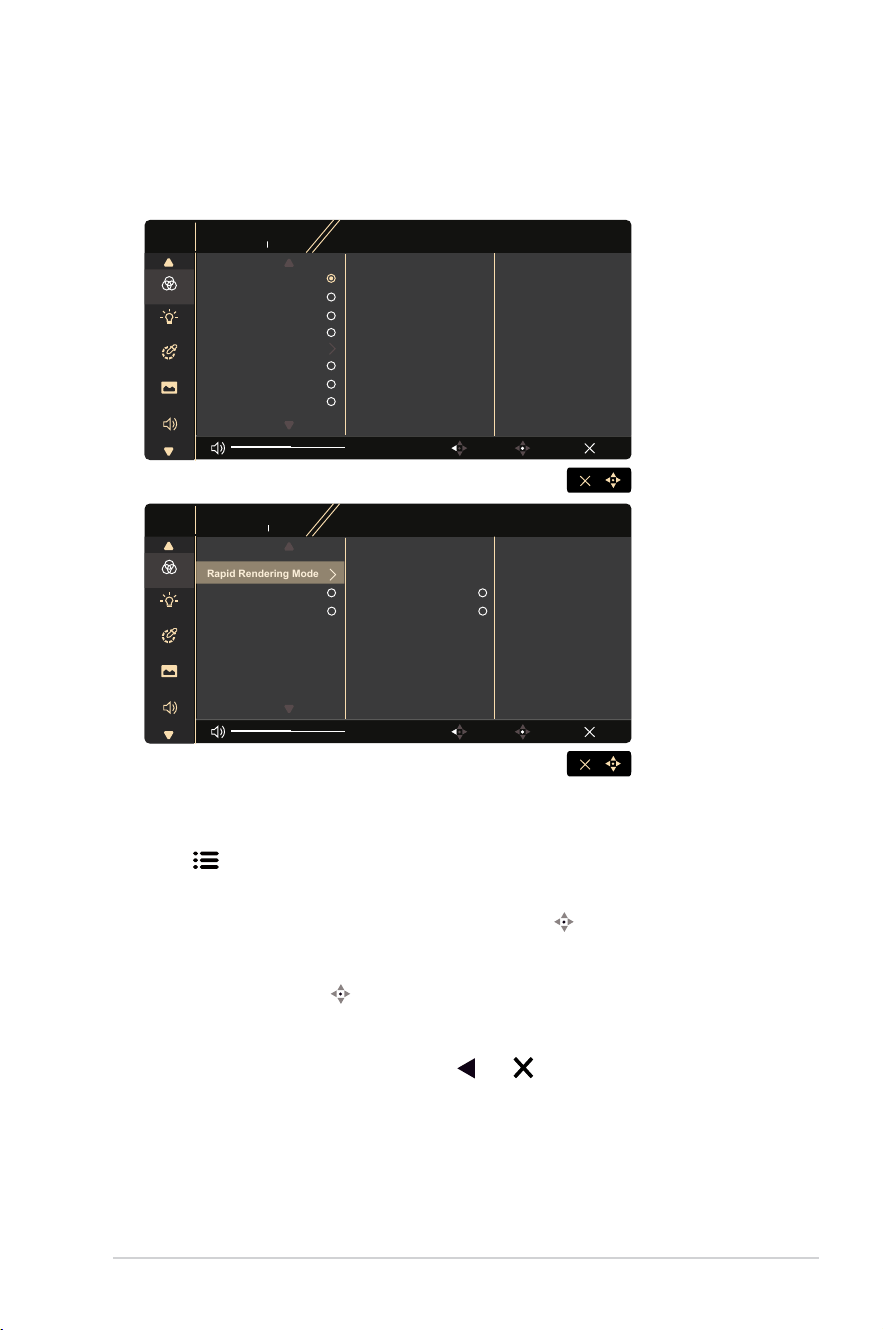
1. Pressanybutton(exceptthePowerbutton)todisplaytheOSDmenu.
2. Press the
MenubuttontoactivatetheOSDmenu.
3. Press the buttons as indicated on the screen to navigate through the
functions. Highlight the desired function and press
to activate
it. If the function selected has a sub-menu, pressand again to
navigate through the sub-menu functions. Highlight the desired sub-
menu function and press to activate it.
4. Press and to change the settings of the selected function.
5. To exit and save the OSD menu, press
or repeatedly until the
OSD menu disappears. To adjust other functions, repeat steps 1-4.
3-2 Chapter 3: General Instruction
3.1.2 OSD Function Introduction
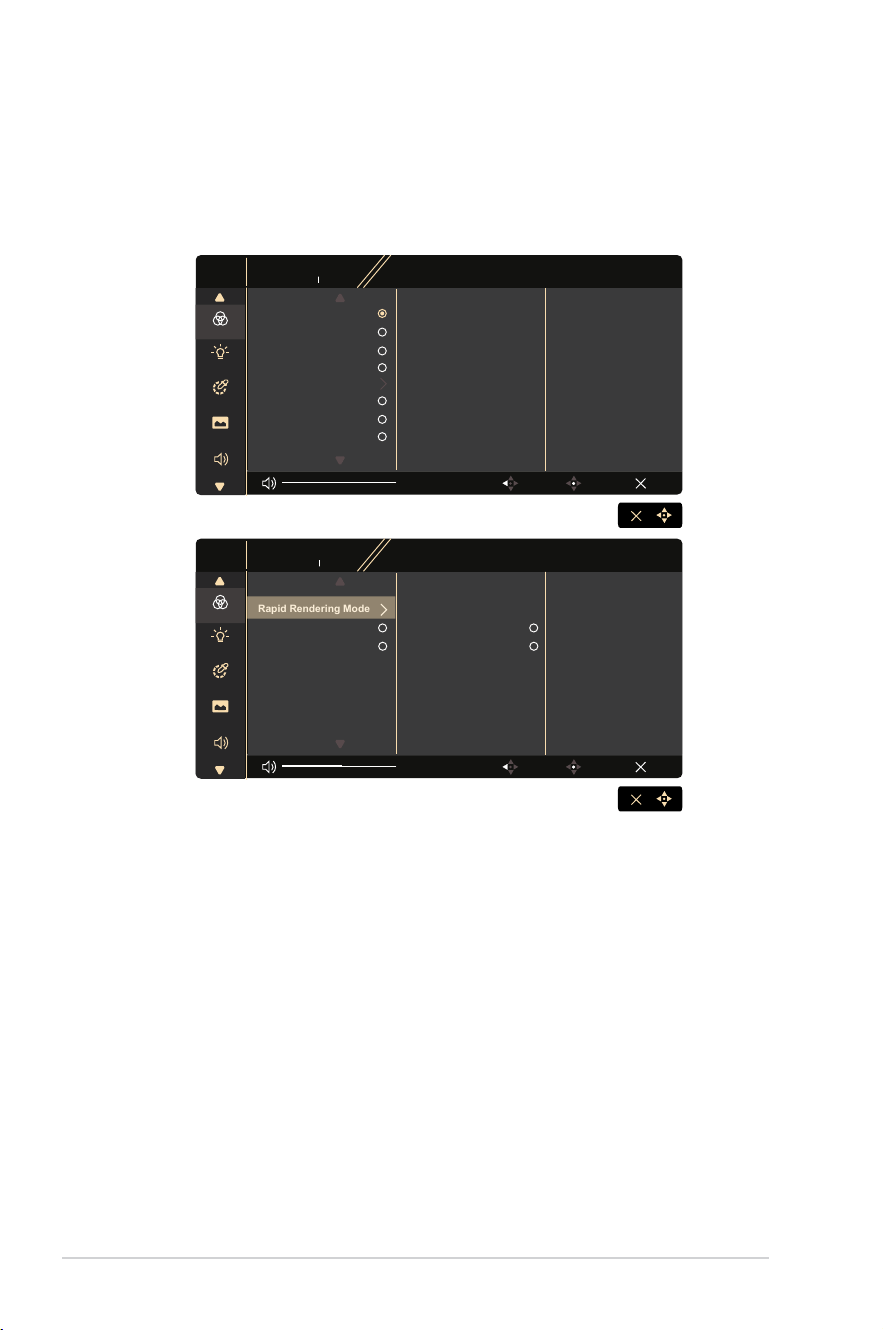
1. ProArtPreset
This function contains twelve sub-functions that you can select for
your preference.
PA329CV
3840 x 2160 60Hz
ProArt
Preset
Standard Mode
Signal
DisplayPort
Brightness
50
Blue Light
Image
Palette
Sound
Exit
Back
Enter
Preset
PA329CV
3840 x 2160 60Hz
ProArt
Preset
Standard Mode
Signal
DisplayPort
Brightness
50
Blue Light
Image
Palette
Sound
Exit
Back
Enter
Preset
DICOM Mode
Rec. 709 Mode
DCI-P3 Mode
HDR
sRGB Mode
Standard Mode
Scenery Mode
Reading Mode
Rapid Rendering Mode OFF
Normal Mode
Advanced Mode
User Mode 1
User Mode 2
• Standard Mode: Best choice for document editing.
• sRGB Mode:CompatiblewithsRGBcolorspace,sRGBmodeisthebest
choice for document editing.
• Rec. 709 Mode:CompatiblewithRec.709colorspace.
• DCI-P3 Mode: Compatible with DCI-P3 color space.
• HDR: High Dynamic Range. Contains three HDR modes (PQ Optimized,
PQClip,andPQBasic).
• DICOM Mode:CompatiblewithDICOMcolorspace.
• Scenery Mode: Best choice for scenery photo display.
• Reading Mode: This is the best choice for book reading.
• Rapid Rendering Mode: Simulates display as high refresh rate
performance to generate different backlight frequencies.
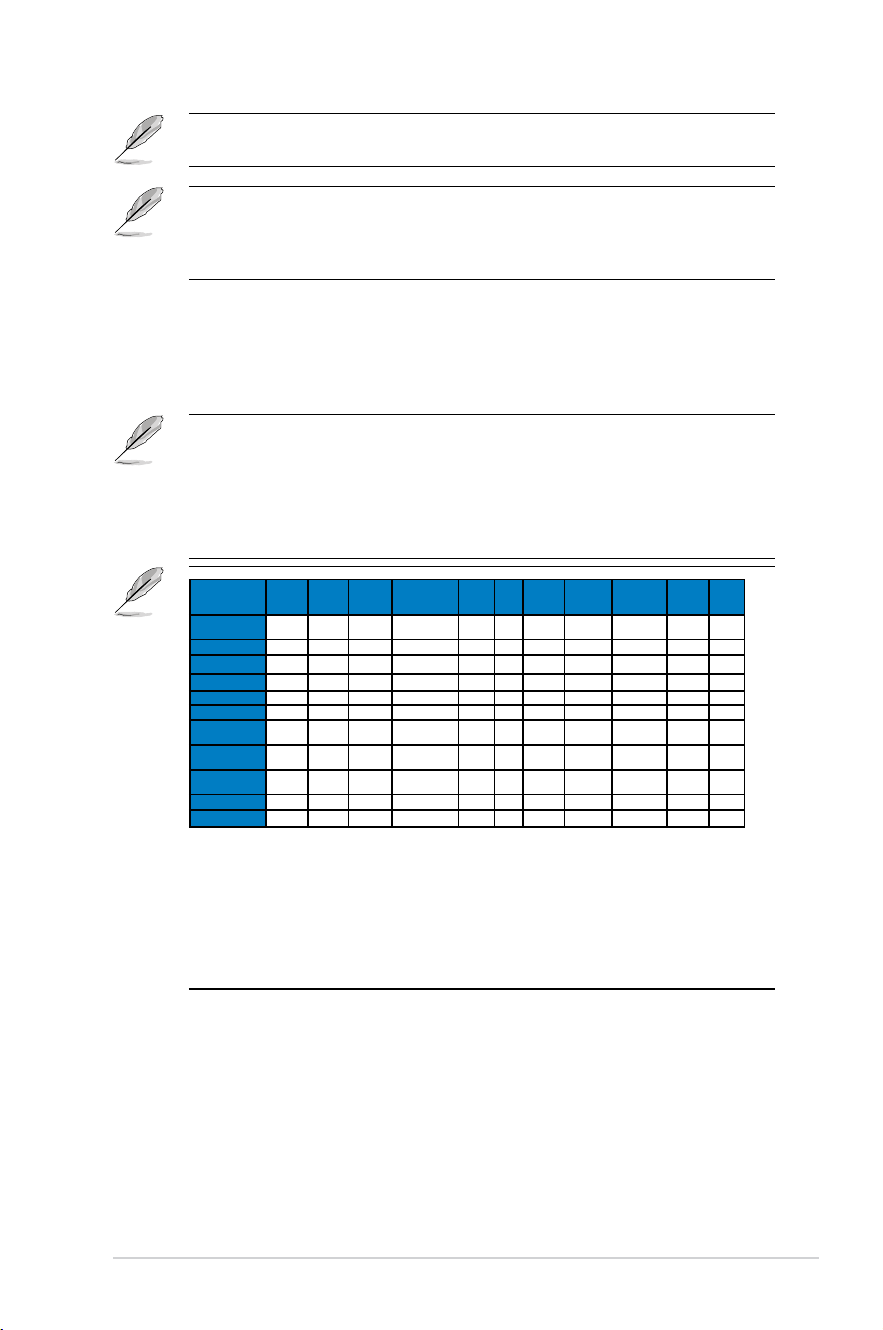
3-3ASUS LCD Monitor PA329 Series
RapidRenderingModecanonlybeactivatedat60Hz.
To activate this function, you need to do the following: turn off
Adaptive-Sync.BrightnessandASCRcannotbeadjustedwhen
using this function.
• User Mode 1:AllowsyoutomakecoloradjustmentsintheAdvanced
Setting.
• User Mode 2:AllowsyoutomakecoloradjustmentsintheAdvanced
Setting.
• ASCRisnotuser-configurableinstandard,sRGB,Rec.709,DCI-P3,HDR,
DICOM,andRapidRendeningMode.
• Gammaisnotuser-configurableinsRGB,DCI-P3,HDR,DICOMandscenery
Mode.
• ColorTemp.,brightness,contrast,saturation,hue,ProArtPalette/Colorandblack
levelarenotuser-configurableinsRGBmode.
ColorEngine Standard sRGB Rec.709 DCI-P3 DICOM HDR Scenery
Mode
Reading
Mode
Rapid
Rendering
Mode
User
Mode1
User
Mode2
Color Temp. 6500K NA 6500K P3-Theater
(*1)
6500K NA 6500K NA 6500K 6500K 6500K
Brightness 50 50 50 50 50 NA 100 50 NA 50 50
Contrast 80 80 80 80 80 NA 80 80 NA 80 80
Sharpness 0 0 0 0 0 NA 0 0 0 0 0
Saturation 50 NA 50 50 50 NA 50 NA 50 50 50
Hue 50 NA 50 50 50 NA 50 NA 50 50 50
ProArtPallette/
Color
V NA V V V NA V V V V V
Blacklevel/
Signal
50 50 50 50 50 NA 50 50 50 50 50
Blacklevel/
Backlight
0 0 0 0 0 0 0 0 0 0 0
Gamma 2.2 NA 2.4 NA NA NA NA 2.2 2.2 2.2 2.2
Input Range Auto Auto Auto Auto Auto NA NA NA NA NA NA
V: adjustable
NA:functiondisabled
(*1)6500K&P3-Theater(default)only
2. Blue Light
AdjusttheenergylevelofbluelightemittedfromLEDbacklight.
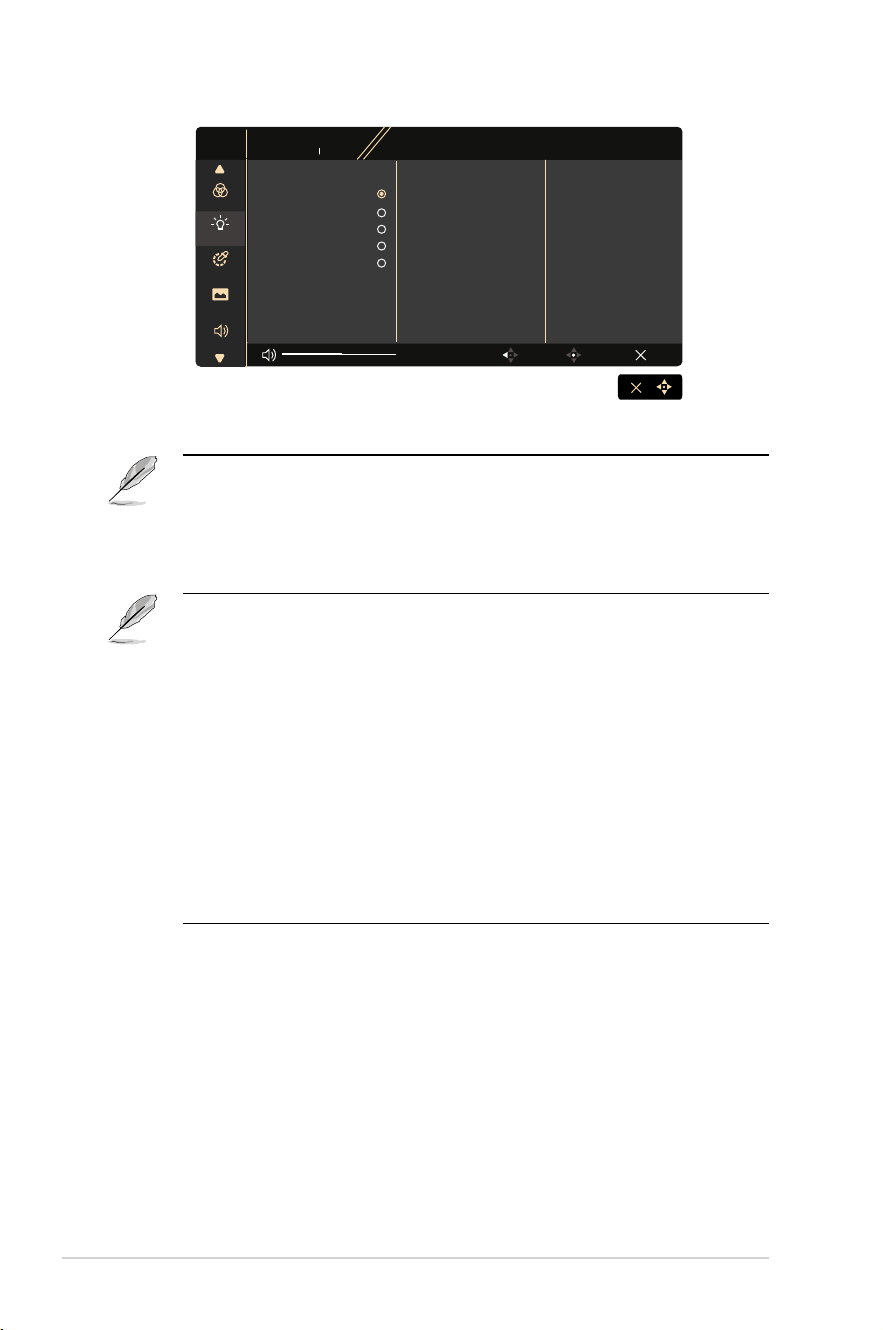
3-4 Chapter 3: General Instruction
PA329CV
3840 x 2160 60Hz
ProArt
Preset
Standard Mode
Signal
DisplayPort
Brightness
50
Image
Palette
Sound
Exit
Back
Enter
Preset
Blue Light
Level 0
Level 1
Level 2
Level 3
Level 4
• Level 0:Nochange
• WhenBlueLightFilterisactivated,thedefaultsettingsofStandardModewill
be automatically imported.
• Between Level 1 to Level 3, the Brightness function is user-configurable.
• Level 4 is optimized setting. It is compliance with TUV Low Blue Light
Certification. The Brightness function is not user-configurable.
Please refer to the following to alleviate eye strains:
• Users should take some time away from the display if working for long hours.
Itisadvisedtotakeshortbreaks(atleast5mins)afteraround1hourof
continuous working at the computer. Taking short and frequent breaks is more
effective than a single longer break.
• To minimize eye strain and dryness in your eyes, users should rest the eye
periodically by focusing on objects that are far away.
• Eyeexercisescanhelptoreduceseyestrain.Repeattheseexercisesoften.If
eyestraincontinuespleaseconsultaphysician.Eyeexercises:(1)Repeating
lookupanddown(2)Slowlyrollyoureyes(3)Moveyoureyesdiagonal.
• HighenergybluelightmayleadtoeyestrainandAMD(Age-RelatedMacular
Degeneration).BluelightFiltertoreduce70%(max.)harmfulbluelightto
avoidingCVS(ComputerVisionSyndrome).
3-5ASUS LCD Monitor PA329 Series
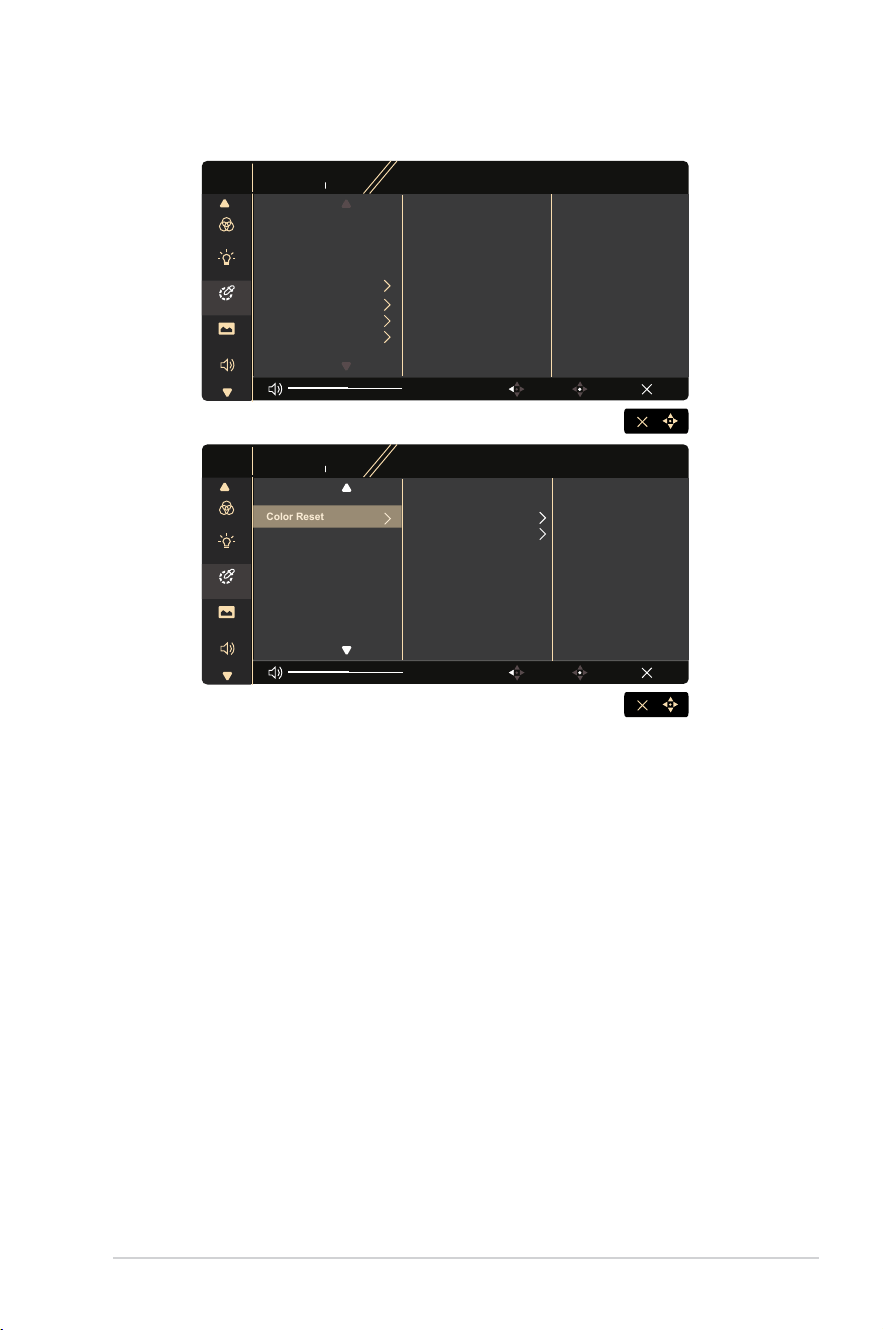
3. Palette
PA329CV
3840 x 2160 60Hz
ProArt
Preset
Standard Mode
Signal
DisplayPort
Brightness
50
Blue Light
Image
Preset
Palette
Sound
Exit
Back
Enter
Brightness 50
Contrast 80
Saturation 50
Hue 50
Color Temp.
Gamma
Black Level
Color
PA329CV
3840 x 2160 60Hz
ProArt
Preset
Standard Mode
Signal
DisplayPort
Brightness
50
Blue Light
Image
Preset
Palette
Sound
Exit
Back
Enter
Color Reset Current mode color reset
All modes color reset
• Brightness:Theadjustingrangeisfrom0to100.
• Contrast: Theadjustingrangeisfrom0to100.
• Saturation:Theadjustingrangeisfrom0to100.
• Hue: Shifts the image color between green and purple
• Color Temp.:Containsfivepresetcolormodes9300K,6500K,5500K,
5000KandP3-Theater.
• Gamma:Containsfivegammamodesincluding1.8,2.0,2.2,2.4,2.6.
• Black Level: To adjust the initialized 1st signal level of darkest gray level.
• Color:
* Six-axis Hue adjustment.
* Six-axis Saturation adjustment.
*AdjuststhegainlevelsforR,G,B.
*AdjuststheblackleveloffsetvaluesforR,G,B.
3-6 Chapter 3: General Instruction
P3-TheaterisonlyavailablewhenDCI-P3Modeisselected.
• Color Reset:
* Current mode color reset:
Resets the color settings of current color mode to the factory
default value.
*Allmodescolorreset:
Resets the color settings of all color modes to the factory default
value.
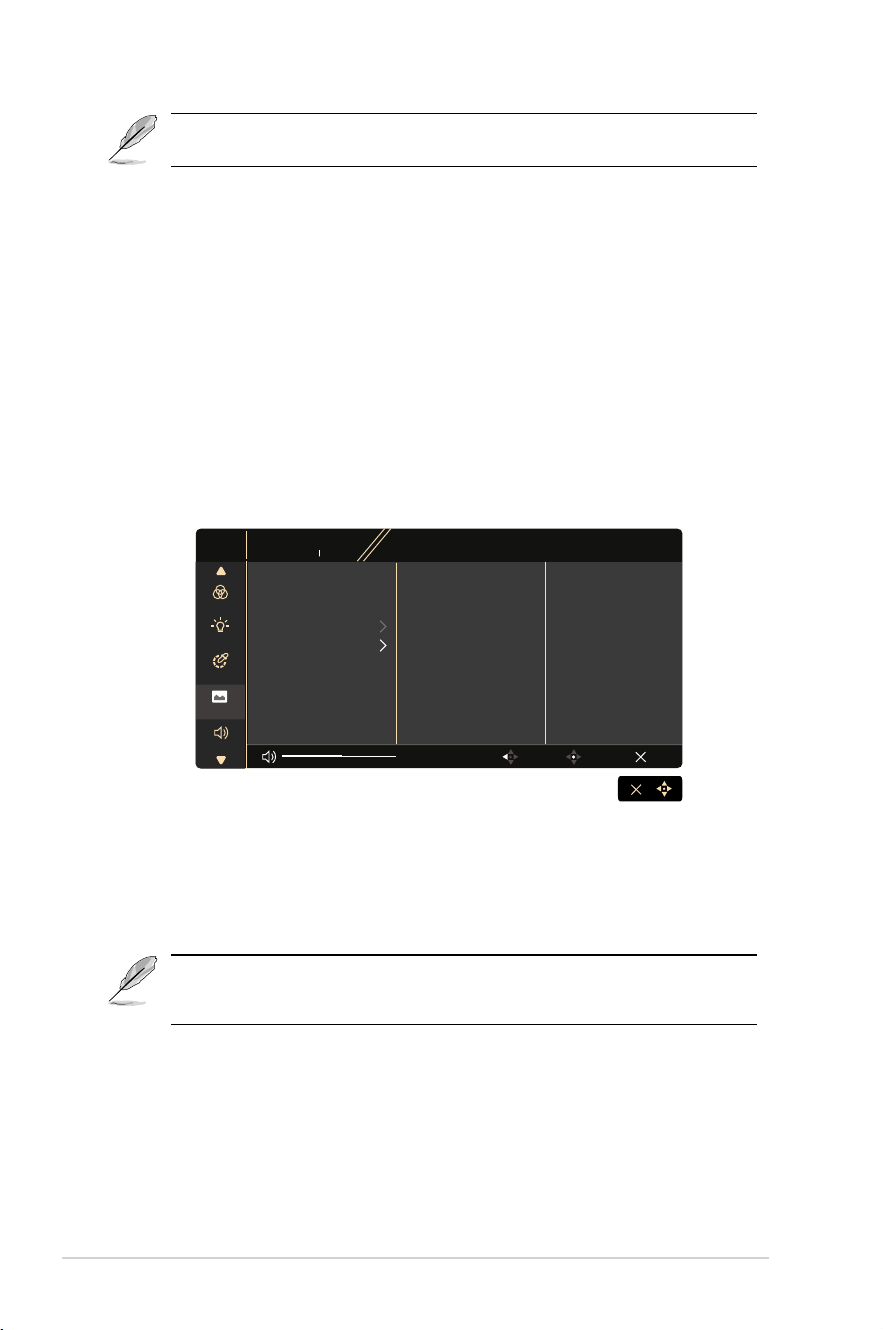
4. Image
YoucanadjustSharpness,TraceFree,AspectControl,InputRange
andASCRfromthismainfunction.
PA329CV
3840 x 2160 60Hz
ProArt
Preset
Standard Mode
Signal
DisplayPort
Brightness
50
Blue Light
Preset
Palette
Sound
Exit
Back
Enter
Image
Sharpness 0
Trace Free 60
Aspect Control
Input Range
• Sharpness:Adjuststhepicturesharpness.Theadjustingrangeisfrom
0to100.
• Trace Free: Speeds up the response time by Over Drive technology. The
adjustingrangeisfromlower0tofaster100.
• Aspect Control: AdjuststheaspectratiotoFull,4:3,1:1,OverScan.
4:3 is only available when input source is in 4:3 format. OverScan
isonlyavailablefortheHDMIinputsource.
• Input Range: AdjustinputrangetoAuto,FullandLimited16-235.
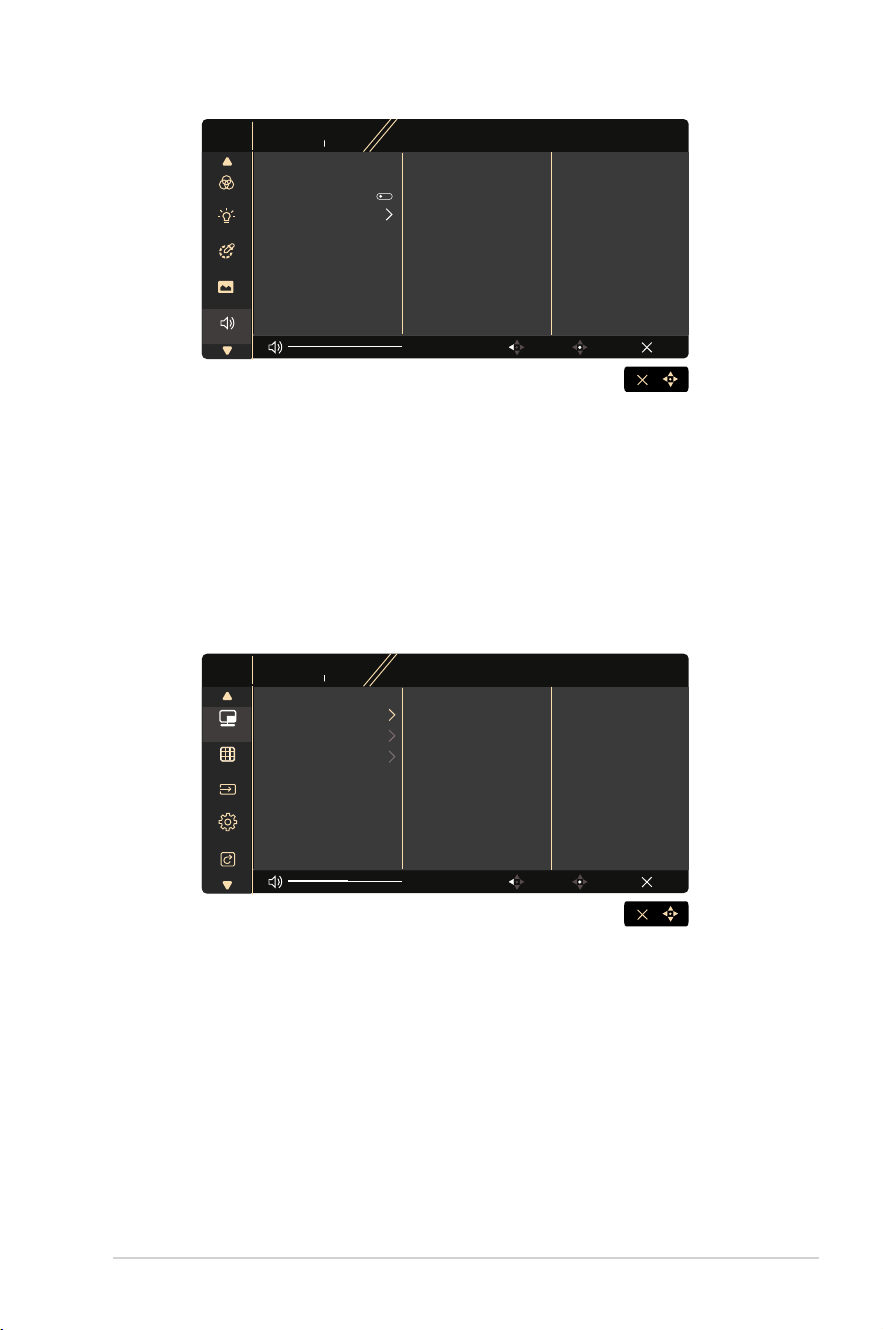
5. Sound
YoucanadjustVolume,MuteandSourcefromthismainfunction.
3-7ASUS LCD Monitor PA329 Series
PA329CV
3840 x 2160 60Hz
ProArt
Preset
Standard Mode
Signal
DisplayPort
Brightness
50
Blue Light
Preset
Palette
Exit
Back
Enter
Image
Sound
Volume
50
Mute
Source
• Volume :Adjuststheoutputvolumelevel.
• Mute :SelectaudiomuteONorOFF.
• Source : decides the monitor sound comes from which source.
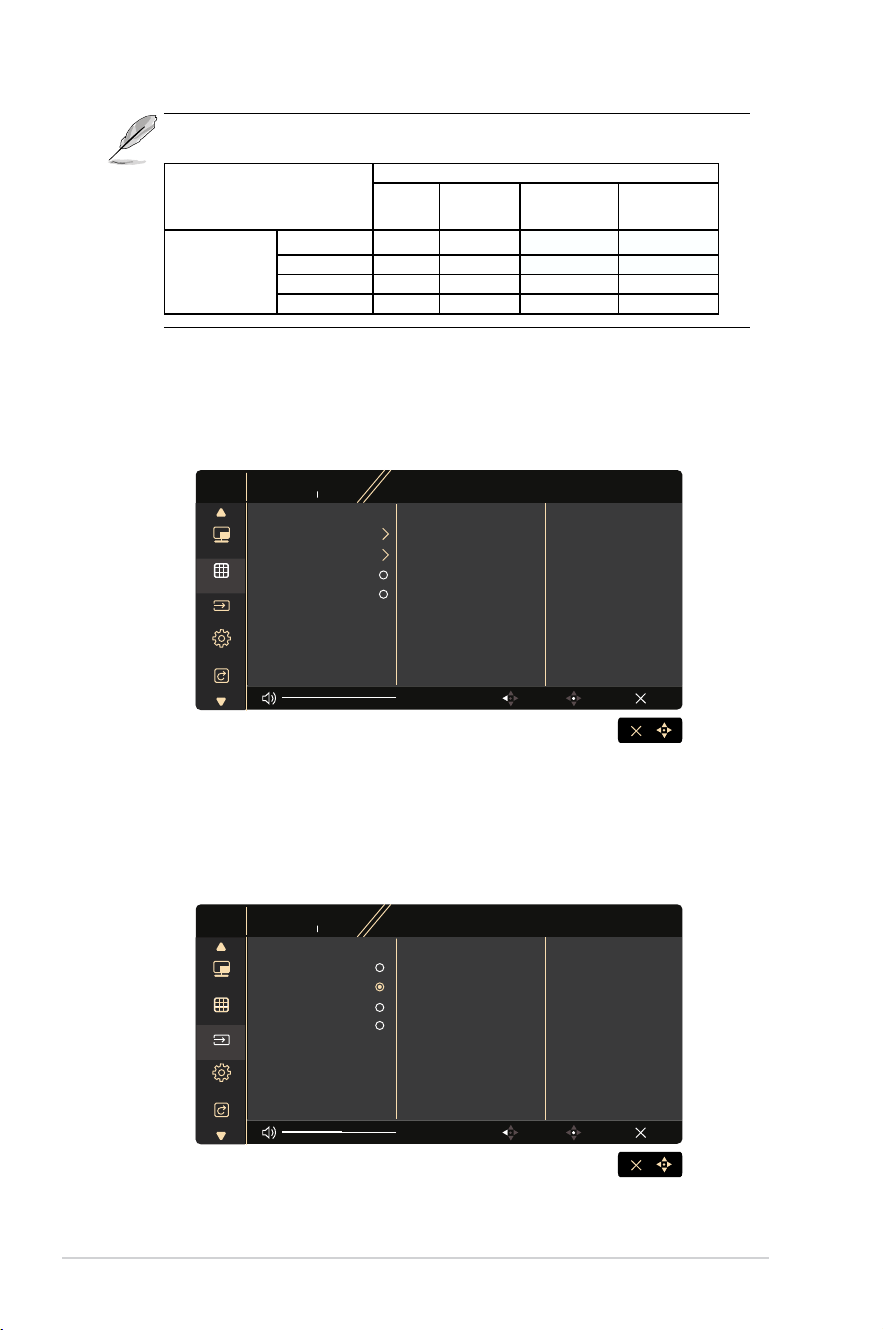
6. PIP/PBP Setting
ThePIP/PBPSettingallowsyoutoopenupsub-window(s)connected
from any video source.
PA329CV
3840 x 2160 60Hz
ProArt
Preset
Standard Mode
Signal
DisplayPort
Brightness
50
Exit
Back
Enter
Signal
QuickFit Plus
Shortcut
Settings
PIP/PBP
PIP/PBP Mode
PIP/PBP Source
PIP Size
• PIP/PBP Mode: Select PIP, PBP or turn it off.
• PIP/PBP Source:Selectsthevideoinputsourceamong,“HDMI-1”,
“HDMI-2”,DisplayPortorUSBType-C.
• PIP Size:AdjustthePIPsizeto“Small”,“Middle”,or“Large”.
3-8 Chapter 3: General Instruction
• Mainsourceandsubsourceareavailableasfollowingtable.
Sub source
HDMI-1 HDMI-2 DisplayPort USB Type-C
MainSource
HDMI-1 NA NA OK OK
HDMI-2 NA NA OK OK
DisplayPort OK OK NA NA
USB Type-C OK OK NA NA
7. QuickFit Plus
Allowsuserstohaveapreviewofthedocumentorphoto
layout directly on screen without printing test copies
PA329CV
3840 x 2160 60Hz
ProArt
Preset
Standard Mode
Signal
DisplayPort
Brightness
50
Exit
Back
Enter
Signal
QuickFit Plus
Shortcut
Settings
PIP/PBP
Safe Area
Center Marker
Customization
Ruler
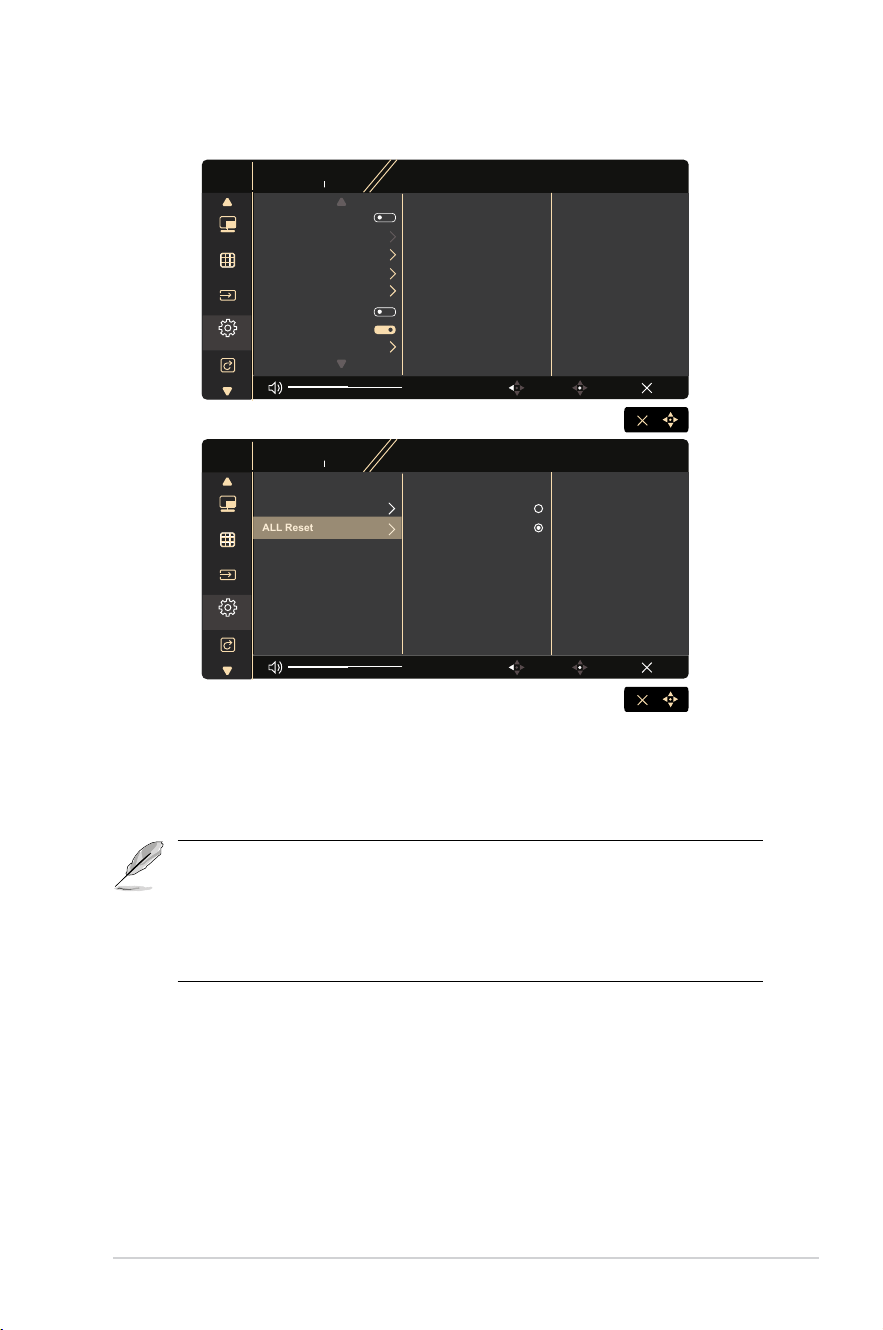
8. Signal
SelecttheinputsourcefromHDMI-1,HDMI-2,DisplayPort,USB
Type-C.
PA329CV
3840 x 2160 60Hz
ProArt
Preset
Standard Mode
Signal
DisplayPort
Brightness
50
Exit
Back
Enter
Signal
QuickFit Plus
Shortcut
Settings
PIP/PBP
HDMI-1
HDMI-2
DisplayPort
USB Type-C
3-9ASUS LCD Monitor PA329 Series
9. Settings
PA329CV
3840 x 2160 60Hz
ProArt
Preset
Standard Mode
Signal
DisplayPort
Brightness
50
Exit
Back
Enter
Signal
QuickFit Plus
Shortcut
Settings
PIP/PBP
PA329CV
3840 x 2160 60Hz
ProArt
Preset
Standard Mode
Signal
DisplayPort
Brightness
50
Exit
Back
Enter
Signal
QuickFit Plus
Shortcut
Settings
PIP/PBP
Adaptive-Sync
USB Setup
Power Level
OSD Setup
DisplayPort Stream
Key Lock
Power Indicator
Information
Language
ALL Reset
YES
NO
• Adaptive-Sync: ItcanallowaAdaptive-Syncsupportedgraphicssource
to dynamically adjust display refresh rate based on typical content frame
rates for power efficient, virtually stutter free and low-latency display
update.
1.*ForsupportedGPUs,minimumPCsystemanddriver
requirements,pleasecontacttheGPUmanufactures.
2. To activate this function, you need to do the following: set
DisplayPort Stream to DisplayPort 1.2, turn off Rapid Rendering
Mode.
• USB Setup: Configures the USB Type C port setting. The USB
Setup parameter affects the output resolution only when the source is
connected to the USB Type C port. Due to the technological differences
betweenUSB2.0andUSB3.1,THEmaximumUSBdatathroughput
(bandwidthandotherrelatedcharacteristics)variesandtherefore
influences the maximum output resolution.

3-10 Chapter 3: General Instruction
*USB3.1:Thedatatransferrateaccordingtothe3.1pecication
inUSBTypeCportonlyhaveTwolanesforMainLink.
*USB2.0:Thedatatransferrateaccordingtothe2.0specication
inUSBTypeCportonlyhaveFourlanesforMainLink.
• ThedatatransferratewillremainUSB3.1whenusingUSBTypeCtoA
cable.
• The USB Setup setting does not affect the resolution if the source is
connectedtotheDisplayPortorHDMIport.
• Power Level: Select normal level for power on hub during power saving.
Select Deep Level for power off hub during power saving.
• OSD Setup: AdjuststheOSDTimeout,DDC/CI,andTransparencyofthe
OSD screen.
• DisplayPort Stream: Select DP 1.1 if your graphics card is not
compatible with DP 1.1.
• Key Lock: Disable all key functions. Pressing the down button for more
than five seconds to disable key lock function.
• Power Indicator: TurnthepowerLEDindicatoron/off.
• Information: Displays the monitor information.
• language: Select OSD language. The selections are: English, French,
German, Spanish, Italian, Dutch, , Russian, Poland, Czech, Croacia,
Hungary, Romania, Portugal, Turkey, Simplified Chinese, Traditional
Chinese, Japanese, Korean, Persian, Thai, Indonesian.
• All Reset:Selects“Yes”torevertallsettingstothefactorydefaultmode.
3-11ASUS LCD Monitor PA329 Series
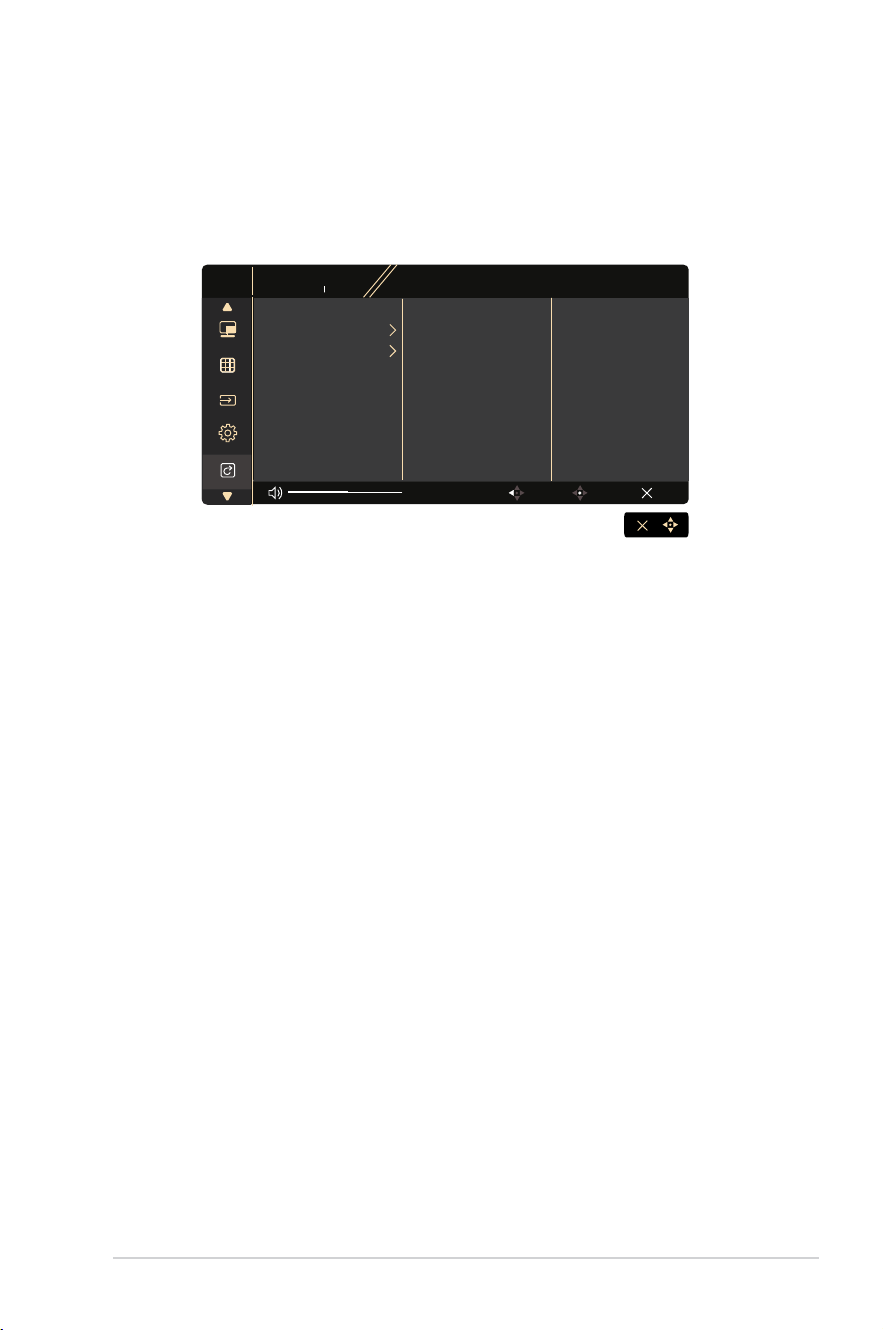
10. Shortcut
Selecting this option allows you to set two shortcut keys. User can
select from Blue Light , Brightness, Contrast, PIP/PBP , Color Temp.,
Volume,sRGBMode,Rec.709Mode,DICOMMode,UserMode1,
UserMode2andsetasshortcutkey.
PA329CV
3840 x 2160 60Hz
ProArt
Preset
Standard Mode
Signal
DisplayPort
Brightness
50
Exit
Back
Enter
Signal
QuickFit Plus
Shortcut
Settings
PIP/PBP
Shortcut 1
Shortcut 2
3-12 Chapter 3: General Instruction
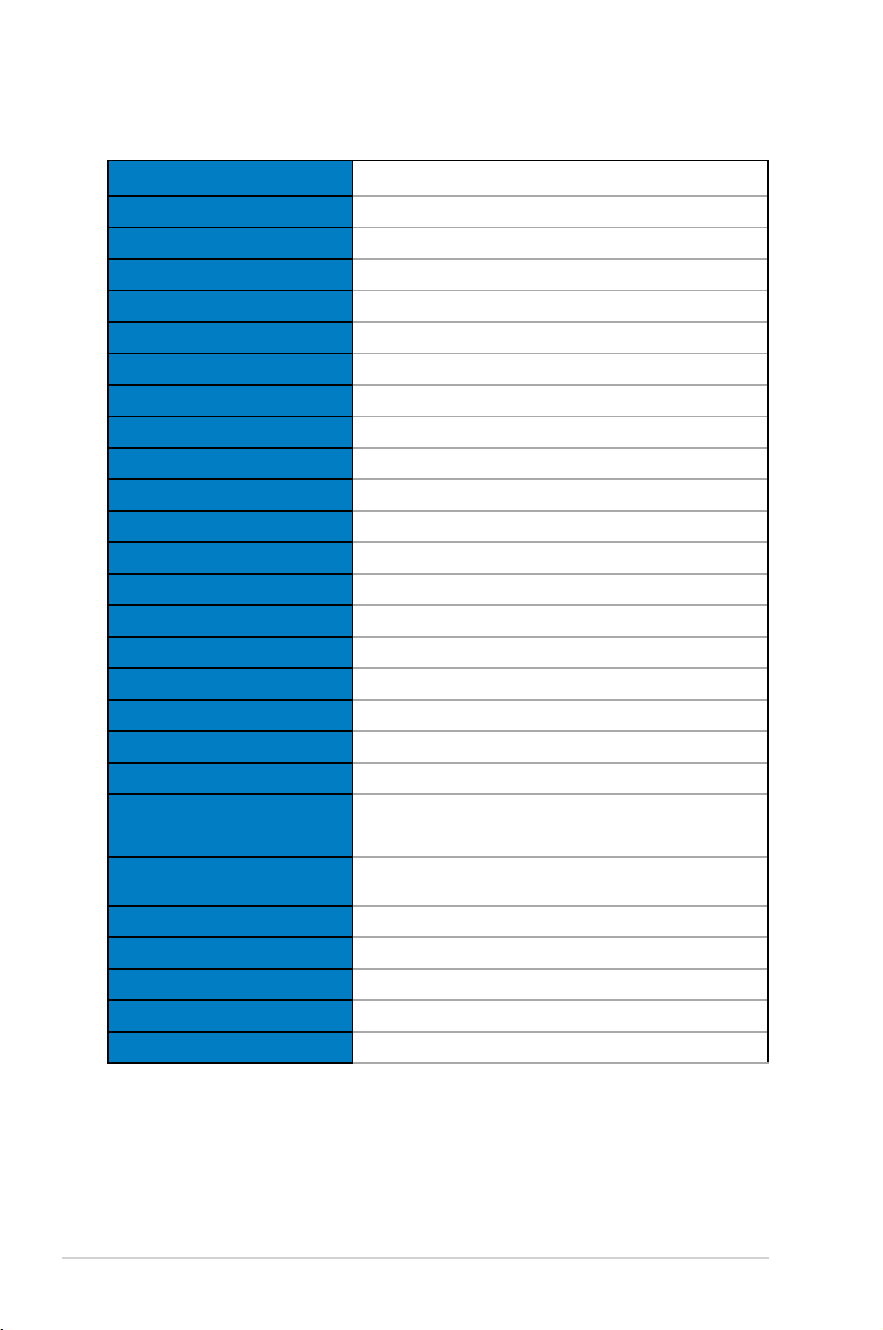
3.2 Specications
Model PA329CV
Panel Size 32”W(81.28cm)
Max.Resolution 3840x2160@60Hz
Brightness(Typ.) 350cd/m
2
IntrinsicContrastRatio(Typ.) 1000:1
ViewingAngle(CR=10) 178°(V)/178°(H)
Display Colors 1.07B
Color Saturation 100%sRGB
Response Time 5ms(GraytoGray)
Satellite Speaker 2Wx2stereo
EarphoneOutput
Yes
SoundfromHDMI Yes
HDMIinput Yes
DisplayPort input Yes
USB Port
Upstream x1, Downstream x 4
PowerONConsumption(Max.) <32W*BasedonEnergyStar8.0standard
Chassis Colors Black
Power saving mode <0.5W
Power off mode <0.5W
Tilt -5°~+23°
Phys.Dimension(WxHxD)
727.08x601.48x245mm(highest)
727.08x471.48x245mm(lowest)
Phys. Dimension without stand
(WxHxD)(ForVESAWallMount)
727.08x428.13x67.72mm
BoxDimension(WxHxD) 840x516x280mm
NetWeight(Esti.) 12.6kg(Net);8.1kg(withoutstand)
GrossWeight(Esti.) 17.6kg
Voltage Rating AC100~240V(Built-in)
Operational temperature 0~40°
3-13ASUS LCD Monitor PA329 Series
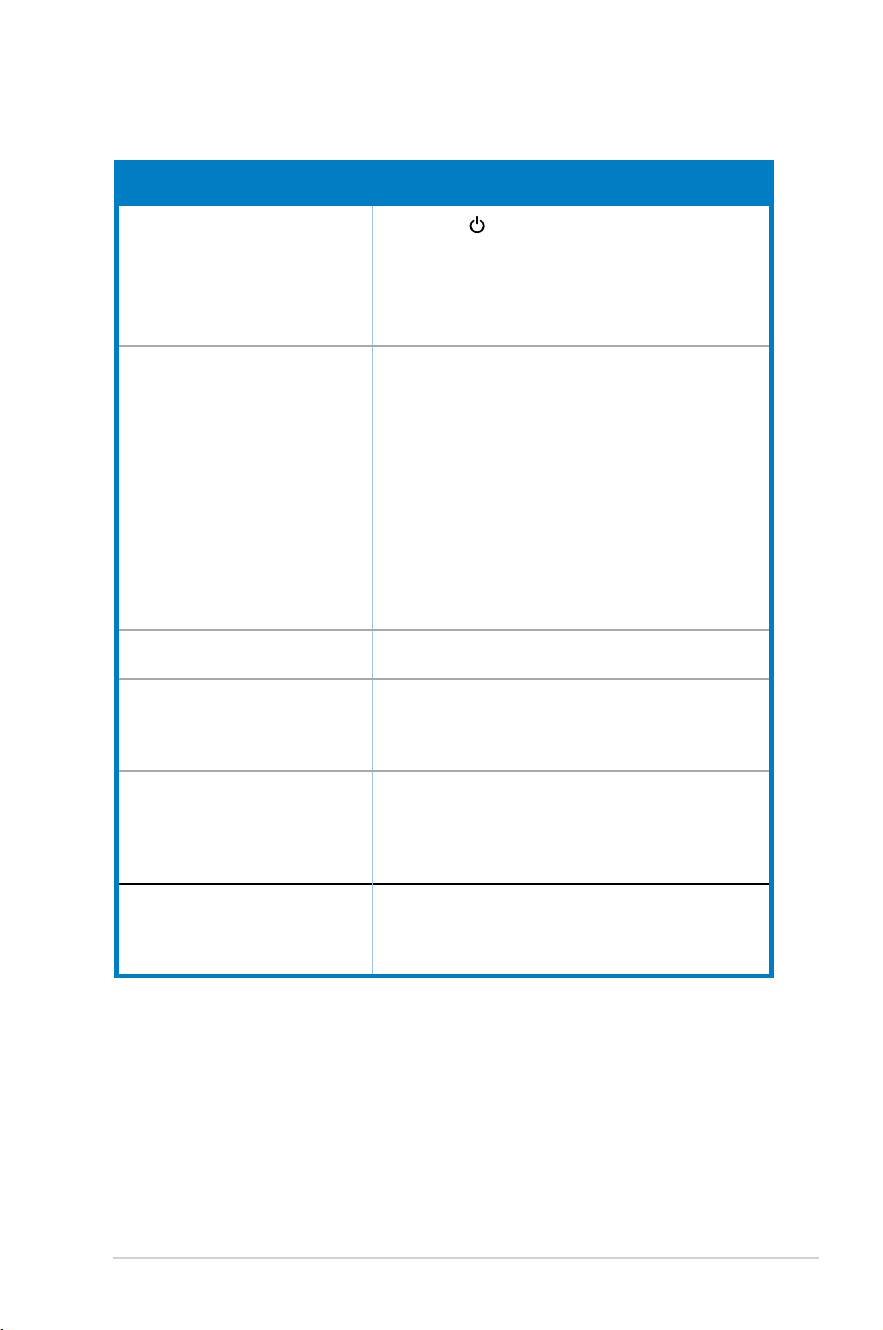
3.3 Troubleshooting (FAQ)
Problem Possible Solution
PowerLEDisnotON
• Press the
button to check if the monitor is in the
ONmode.
• Check if the power cord is properly connected to
the monitor and the power outlet.
• Check Power Indicator function in main menu OSD.
Select“ON”toturnonpowerLED.
ThepowerLEDlightsamberand
there is no screen image
• Check if the monitor and the computer are in the
ONmode.
• Makesurethesignalcableisproperlyconnected
the monitor and the computer.
• Inspect the signal cable and make sure none of the
pins are bent.
• Connect the computer with another available
monitor to check if the computer is properly
working.
• MakesureInputSelectsettingisavalid
signal.
• EnableAutoSourceDetectiontodetectallinput
port.
Screen image is too light or dark • AdjusttheContrastandBrightnesssettingsvia
OSD.
Screen image bounces or a wave
pattern is present in the image
• Makesurethesignalcableisproperlyconnectedto
the monitor and the computer.
• Moveelectricaldevicesthatmaycauseelectrical
interference.
Screen image has color defects
(whitedoesnotlookwhite)
• Inspect the signal cable and make sure that none of
the pins are bent.
• Perform Reset via OSD.
• AdjusttheR/G/BcolorsettingsorselecttheColor
Temperature via OSD.
Nosoundorsoundislow • Adjustthevolumesettingsofbothyourmonitorand
computer.
• Makesurethecomputersoundcarddriveris
properly installed and activated.
3-14 Chapter 3: General Instruction
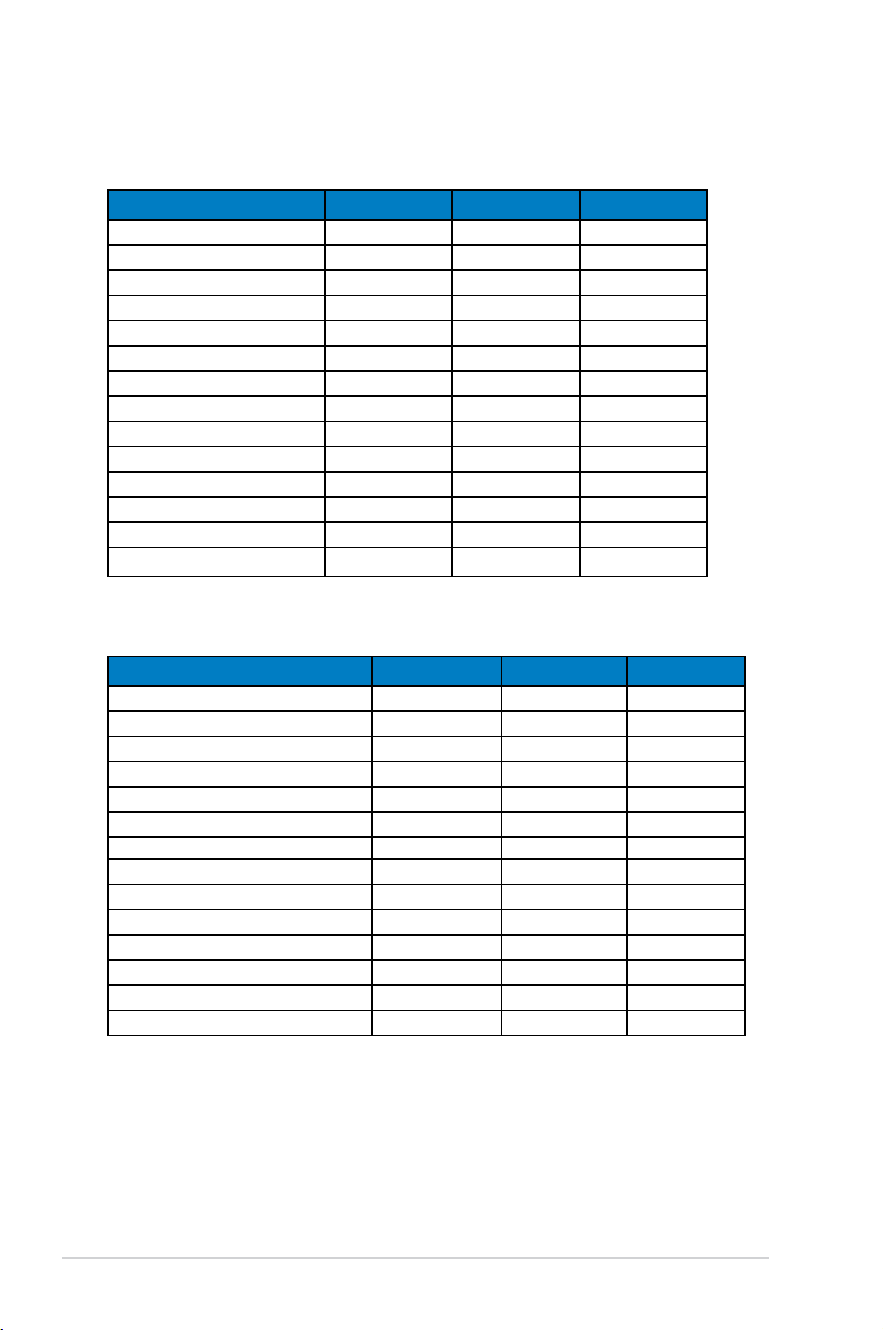
3.4 Supported Timing List
PC Timings List of HDMI / DP input
Timing List DisplayPort HDMI1 HDMI2
640x480@60Hz V V V
800x600@56Hz V V V
800x600@60Hz V V V
1024x768@60Hz V V V
1280x720@60Hz V V V
1280x960@60Hz V V V
1280x1024@60Hz V V V
1440x900@60Hz V V V
1680x1050@60Hz V V V
1920x1080@60Hz V V V
1920x2160@60Hz V V V
2560x1440@60Hz V V V
3840x2160@30Hz V V V
3840x2160@60Hz V(Default) V(Default) V(Default)
Video timing
Timing List DisplayPort HDMI1 HDMI2
640x480P@59.94/60Hz V V V
720x480P@59.94/60Hz V V V
720x576P@50Hz V V V
1280x720P@50Hz V V
V
1280x720P@59.94/60Hz V V V
1440x480P@59.94/60Hz V V V
1440x576P@50Hz V V V
1920x1080P@50Hz V V V
1920x1080P@59.94/60Hz V V V
3840x2160@24Hz V V
3840x2160@25Hz V V
3840x2160@30Hz V V
3840x2160@50Hz V V V
3840x2160@60Hz V V V
* The modes not listed in the above tables may not be supported. For optimal resolution, we
recommend that you choose a mode listed in the above tables.

3-15ASUS LCD Monitor PA329 Series
