
ii
First Edition
February 2024
Copyright © 2024 ASUSTeK COMPUTER INC. All Rights Reserved.
No part of this manual, including the products and software described in it, may be reproduced, transmitted,
transcribed, stored in a retrieval system, or translated into any language in any form or by any means,
except documentation kept by the purchaser for backup purposes, without the express written permission
of ASUSTeK COMPUTER INC. (“ASUS”).
Product warranty or service will not be extended if: (1) the product is repaired, modified or altered, unless
such repair, modification of alteration is authorized in writing by ASUS; or (2) the serial number of the
product is defaced or missing.
ASUS PROVIDES THIS MANUAL “AS IS” WITHOUT WARRANTY OF ANY KIND, EITHER EXPRESS
OR IMPLIED, INCLUDING BUT NOT LIMITED TO THE IMPLIED WARRANTIES OR CONDITIONS OF
MERCHANTABILITY OR FITNESS FOR A PARTICULAR PURPOSE. IN NO EVENT SHALL ASUS, ITS
DIRECTORS, OFFICERS, EMPLOYEES OR AGENTS BE LIABLE FOR ANY INDIRECT, SPECIAL,
INCIDENTAL, OR CONSEQUENTIAL DAMAGES (INCLUDING DAMAGES FOR LOSS OF PROFITS,
LOSS OF BUSINESS, LOSS OF USE OR DATA, INTERRUPTION OF BUSINESS AND THE LIKE),
EVEN IF ASUS HAS BEEN ADVISED OF THE POSSIBILITY OF SUCH DAMAGES ARISING FROM ANY
DEFECT OR ERROR IN THIS MANUAL OR PRODUCT.
SPECIFICATIONS AND INFORMATION CONTAINED IN THIS MANUAL ARE FURNISHED FOR
INFORMATIONAL USE ONLY, AND ARE SUBJECT TO CHANGE AT ANY TIME WITHOUT NOTICE,
AND SHOULD NOT BE CONSTRUED AS A COMMITMENT BY ASUS. ASUS ASSUMES NO
RESPONSIBILITY OR LIABILITY FOR ANY ERRORS OR INACCURACIES THAT MAY APPEAR IN THIS
MANUAL, INCLUDING THE PRODUCTS AND SOFTWARE DESCRIBED IN IT.
Products and corporate names appearing in this manual may or may not be registered trademarks or
copyrights of their respective companies, and are used only for identification or explanation and to the
owners’ benefit, without intent to infringe.

iii
Contents
Contents ...................................................................................................... iii
Notices ......................................................................................................... iv
Safety information ....................................................................................... v
Care & Cleaning ......................................................................................... vii
Takeback Services .................................................................................... viii
Product information for EU energy label ................................................ viii
Chapter 1: Product introduction
1.1 Welcome! .................................................................................... 1-1
1.2 Package contents ......................................................................... 1-1
1.3 Monitor introduction .................................................................... 1-2
1.3.1 Front view ....................................................................... 1-2
1.3.2 Back view ........................................................................ 1-3
1.3.3 GamePlus function .......................................................... 1-4
1.3.4 GameVisual function ....................................................... 1-6
1.3.5 Other Function(s) ............................................................ 1-7
Chapter 2: Setup
2.1 Attaching the arm/base ............................................................... 2-1
2.2 Cable management ...................................................................... 2-2
2.3 Detaching the arm/base (for VESA wall mount) ........................ 2-2
2.4 Adjusting the monitor .................................................................. 2-3
2.5 Connecting the cables ................................................................. 2-4
2.6 Turning on/off the monitor .......................................................... 2-5
Chapter 3: General instructions
3.1 OSD (On-Screen Display) menu ................................................ 3-1
3.1.1 How to reconfigure .......................................................... 3-1
3.1.2 OSD function introduction ............................................... 3-2
3.2 Aura ............................................................................................. 3-12
3.3 Specicationssummary ............................................................ 3-13
3.4 Outline dimensions .................................................................... 3-15
3.5 Troubleshooting (FAQ) .............................................................. 3-16
3.6 Supported operating modes ..................................................... 3-17
iv
Notices
Federal Communications Commission Statement
This device complies with Part 15 of the FCC Rules. Operation is subject
to the following two conditions:
• This device may not cause harmful interference, and
• This device must accept any interference received including interference that
may cause undesired operation.
This equipment has been tested and found to comply with the limits for
a Class B digital device, pursuant to Part 15 of the FCC Rules. These
limits are designed to provide reasonable protection against harmful
interference in a residential installation. This equipment generates, uses
and can radiate radio frequency energy and, if not installed and used in
accordance with the instructions, may cause harmful interference to radio
communications. However, there is no guarantee that interference will
not occur in a particular installation. If this equipment does cause harmful
interference to radio or television reception, which can be determined by
turning the equipment off and on, the user is encouraged to try to correct
the interference by one or more of the following measures:
• Reorient or relocate the receiving antenna.
• Increase the separation between the equipment and receiver.
• Connect the equipment into an outlet on a circuit different from that to which
the receiver is connected.
• Consult the dealer or an experienced radio/TV technician for help.
The use of shielded cables for connection of the monitor to the graphics card is
required to assure compliance with FCC regulations. Changes or modifications
to this unit not expressly approved by the party responsible for compliance could
void the user’s authority to operate this equipment.
Canadian Department of Communications Statement
This digital apparatus does not exceed the Class B limits for radio
noise emissions from digital apparatus set out in the Radio Interference
Regulations of the Canadian Department of Communications.
This class B digital apparatus complies with Canadian ICES-003.
This Class B digital apparatus meets all requirements of the Canadian
Interference - Causing Equipment Regulations.
Cet appareil numérique de la classe B respecte toutes les exigences du
Réglement sur le matériel brouiller du Canada.

v
Safety information
• Before setting up the monitor, carefully read all the documentation that came
with the package.
• To prevent fire or shock hazard, never expose the monitor to rain or moisture.
• Never try to open the monitor cabinet. The dangerous high voltages inside the
monitor may result in serious physical injury.
• If the power supply is broken, do not try to fix it by yourself. Contact a qualified
service technician or your retailer.
• Before using the product, make sure all cables are correctly connected and the
power cables are not damaged. If you detect any damage, contact your dealer
immediately.
• Slots and openings on the back or top of the cabinet are provided for
ventilation. Do not block these slots. Never place this product near or over a
radiator or heat source unless proper ventilation is provided.
• The monitor should be operated only from the type of power source indicated
on the label. If you are not sure of the type of power supply to your home,
consult your dealer or local power company.
• Use the appropriate power plug which complies with your local power standard.
• Do not overload power strips and extension cords. Overloading can result in
fire or electric shock.
• Avoid dust, humidity, and temperature extremes. Do not place the monitor in
any area where it may become wet. Place the monitor on a stable surface.
• Unplug the unit during a lightning storm or if it will not be used for a long period
of time. This will protect the monitor from damage due to power surges.
• Never push objects or spill liquid of any kind into the slots on the monitor
cabinet.
• To ensure satisfactory operation, use the monitor only with UL listed
computers which have appropriate configured receptacles marked between
100-240V AC.
• If you encounter technical problems with the monitor, contact a qualified
service technician or your retailer.
• Adjustment of the volume control as well as the equalizer to other settings
than the center position may increase the ear-/headphones output voltage and
therefore the sound pressure level.
• The adapter is only used for this monitor, do not use it for other purpose. Your
device uses one of the following power supplies:
- Manufacturer: Delta Electronics Inc., Model: ADP-280BB B, ADP-280EB F
• Ensure to connect the power cord to a socket-outlet with earthing connection.
• The supplied power adapter and/or power cable are designed to use with the
product only. Do not use with other products.
vi
This symbol of the crossed out wheeled bin indicates that the product (electrical,
electronic equipment, and mercury-containing button cell battery) should not
be placed in municipal waste. Please check local regulations for disposal of
electronic products.
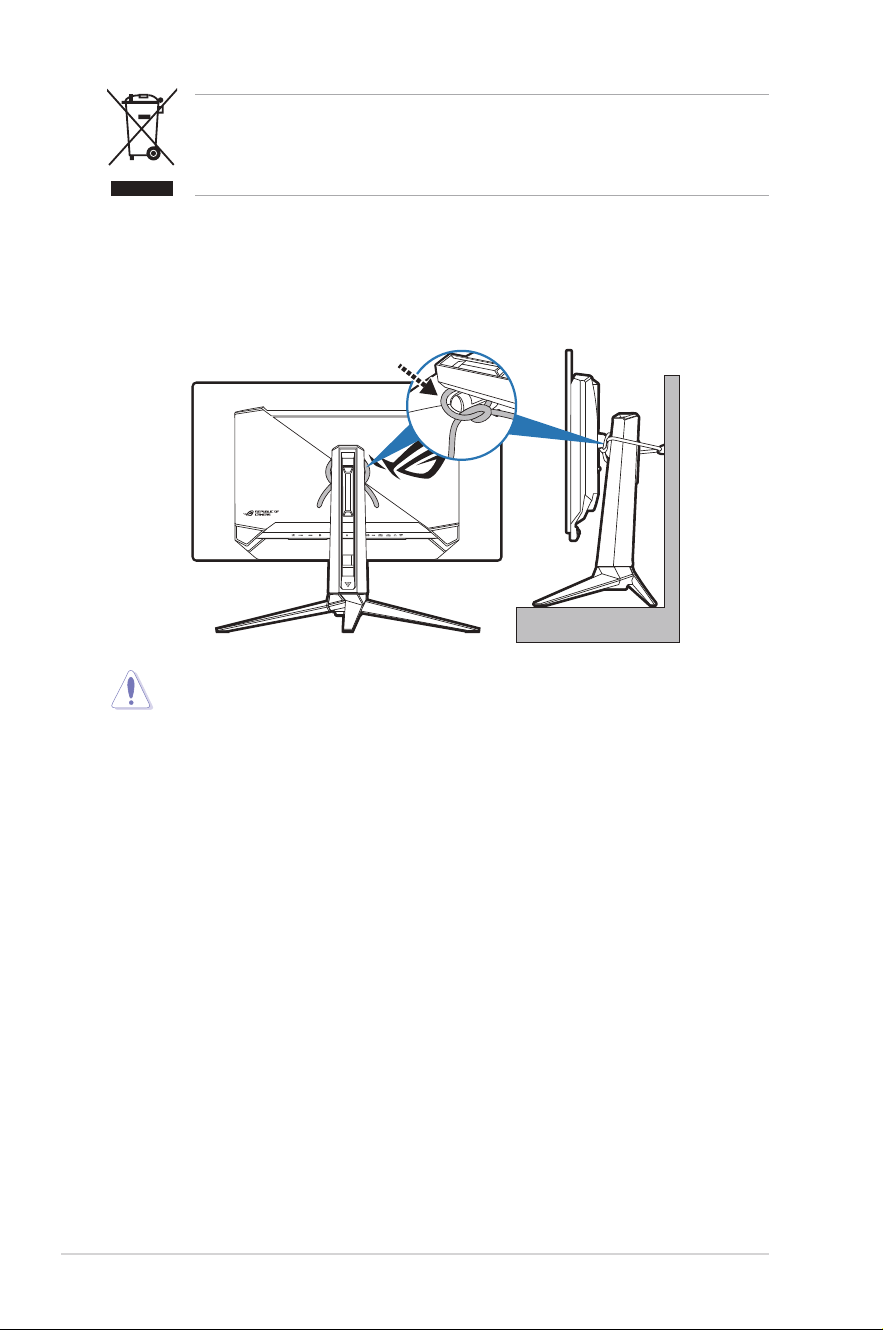
Prevent Tipping
When using the display, fasten the monitor to a wall using a cord or chain
that can support the weight of the monitor in order to prevent the monitor
from falling.
Cord or chain
• Display design may differ from those illustrated.
• Installing must be done by a qualified technician, and please contact
your supplier for more information.
• For the models with net weight >=7kg. Please select the suitable
way to prevent tipping.
• Tie the cord or chain to the stand and then fix it to the wall.
AEEEyönetmeliğineuygundur
vii
Care & Cleaning
• Before you lift or reposition your monitor, it is better to disconnect the cables
and power cord. Follow the correct lifting techniques when positioning the
monitor. When lifting or carrying the monitor, grasp the edges of the monitor.
Do not lift the display by the stand or the cord.
• Cleaning. Turn your monitor off and unplug the power cord. Clean the monitor
surface with a lint-free, non-abrasive cloth. Stubborn stains may be removed
with a cloth dampened with mild cleaner.
• Avoid using a cleaner containing alcohol or acetone. Use a cleaner intended
for use with the monitor. Never spray cleaner directly on the screen, as it may
drip inside the monitor and cause an electric shock.
The following symptoms are normal with the monitor:
• You may find slightly uneven brightness on the screen depending on the
desktop pattern you use.
• When the same image is displayed for hours, an afterimage of the previous
screen may remain after switching the image. The screen will recover slowly or
you can turn off the Power Switch for hours.
• When the screen becomes black or flashes, or cannot work anymore, contact
your dealer or service center to fix it. Do not repair the screen by yourself!
Conventions used in this guide
WARNING: Information to prevent injury to yourself when trying to
complete a task.
CAUTION: Information to prevent damage to the components when trying
to complete a task.
IMPORTANT: Information that you MUST follow to complete a task.
NOTE: Tips and additional information to aid in completing a task.
viii
Wheretondmoreinformation
Refer to the following sources for additional information and for product and
software updates.
1. ASUS websites
The ASUS websites worldwide provide updated information on ASUS
hardware and software products. Refer to http://www.asus.com
2. Optional documentation
Your product package may include optional documentation that may have
been added by your dealer. These documents are not part of the standard
package.
3. About Flicker
https://www.asus.com/Microsite/display/eye_care_technology/
Takeback Services
ASUS recycling and takeback programs come from our commitment to the highest
standards for protecting our environment. We believe in providing solutions for
our customers to be able to responsibly recycle our products, batteries and other
components as well as the packaging materials.
Please go to http://csr.asus.com/english/Takeback.htm for detail recycling
information in different region.
Product information for EU energy label
PG32UCDM
1-1ASUS PG32UCDM Series OLED Monitor
1.1 Welcome!
Thank you for purchasing the ASUS
®
OLED monitor!
The latest widescreen OLED monitor from ASUS provides a broader, brighter and
crystal-clear display, plus a host of features that enhance your viewing experience.
With these features, you can enjoy the convenience and delightful visual
experience that the monitor brings to you!
1.2 Package contents
Check your package for the following items:
OLED monitor
Monitor base
Quick start guide
Warranty card
Power adapter
Power cord
HDMI cable (optional)
DisplayPort cable (optional)
USB Type-A to Type-B cable (optional)
USB Type-C cable (optional)
ROG welcome card with envelope
ROG Wall mount kit
ROG sticker
ROG pouch
If any of the above items is damaged or missing, contact your retailer
immediately.
If you need to replace the power cord or the connection cable(s), please contact
ASUS customer service.
1-2 Chapter 1: Product introduction
1.3 Monitor introduction
1.3.1 Front view
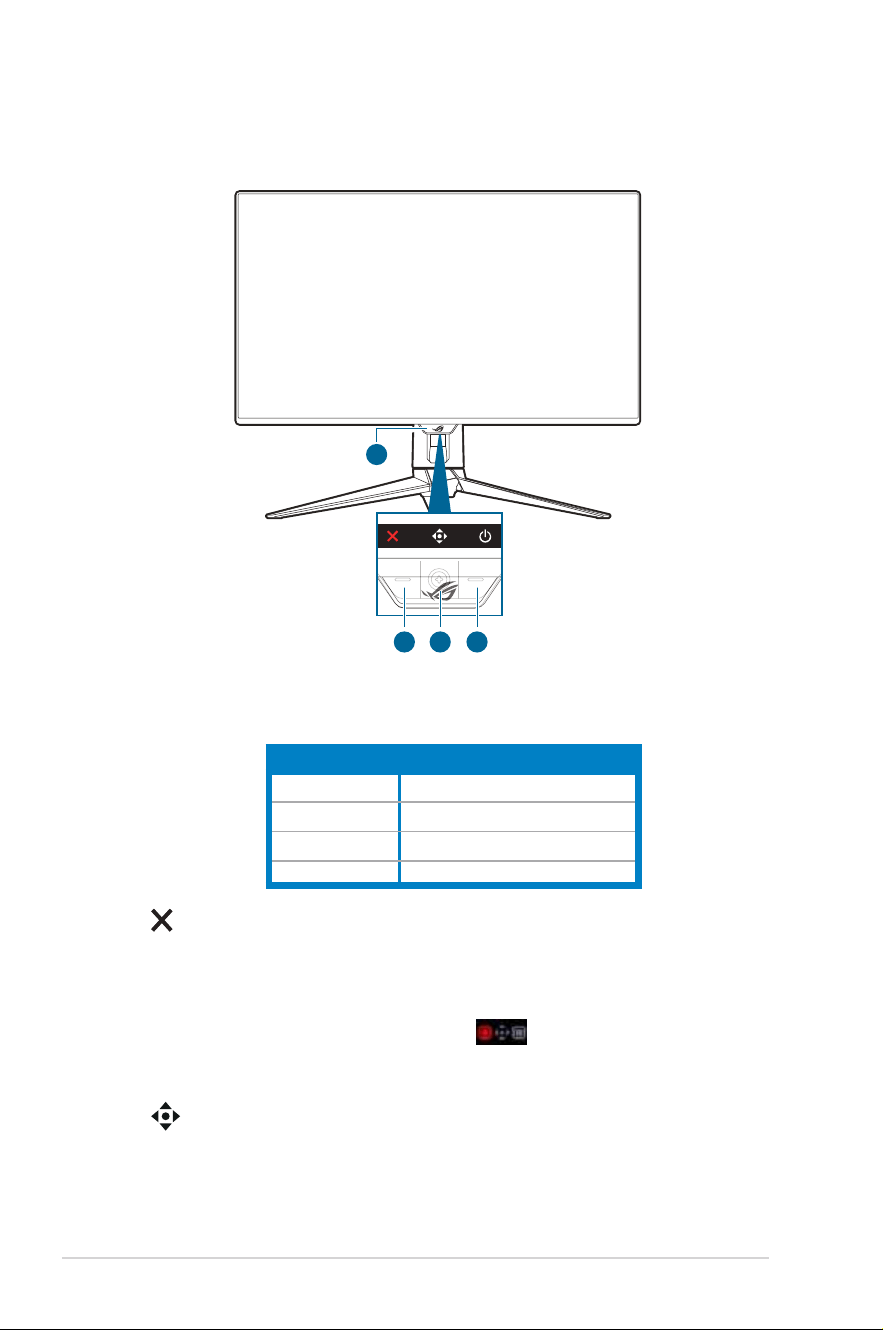
1
2 3 4
1. Power indicator
• The color definition of the power indicator is as the below table.
Status Description
Red ON
OFF OFF
Amber Standby mode/No signal
Orange flashing Pixel cleaning
2. Close button
• Turns on the monitor when the monitor enters standby mode or displays
the “NO SIGNAL“ message.
• Press to activate the Input Select hotkey. To change the hotkey function,
go to the MyFavorite > Shortcut > menu.
• Press this button to exit the OSD menu when the OSD menu is
activated.
3. Navigation (5-way) button:
• Turns on the monitor when the monitor enters standby mode or displays
the “NO SIGNAL“ message.
1-3ASUS PG32UCDM Series OLED Monitor
• Press this button to activate the OSD menu. In the OSD menu, press
this button to enter the OSD menu or enact the selected OSD menu
items. Move the button up/down/right/left to navigate through the
settings, increases/decreases values or moves your selection up/down/
left/right.
• Move and hold the button downward for over 5 seconds to enable/
disable the Key Lock function.
• Move the button right to activate the GamePlus hotkey. To change the
hotkey function, go to the MyFavorite > Shortcut > menu.
• Move the button up to activate the GameVisual hotkey. To change the
hotkey function, go to the MyFavorite > Shortcut > menu.
• Move the button down to activate the Pixel Cleaning hotkey. To change
the hotkey function, go to the MyFavorite > Shortcut > menu.
4. Power button
• Turns the monitor on/off.
1.3.2 Back view
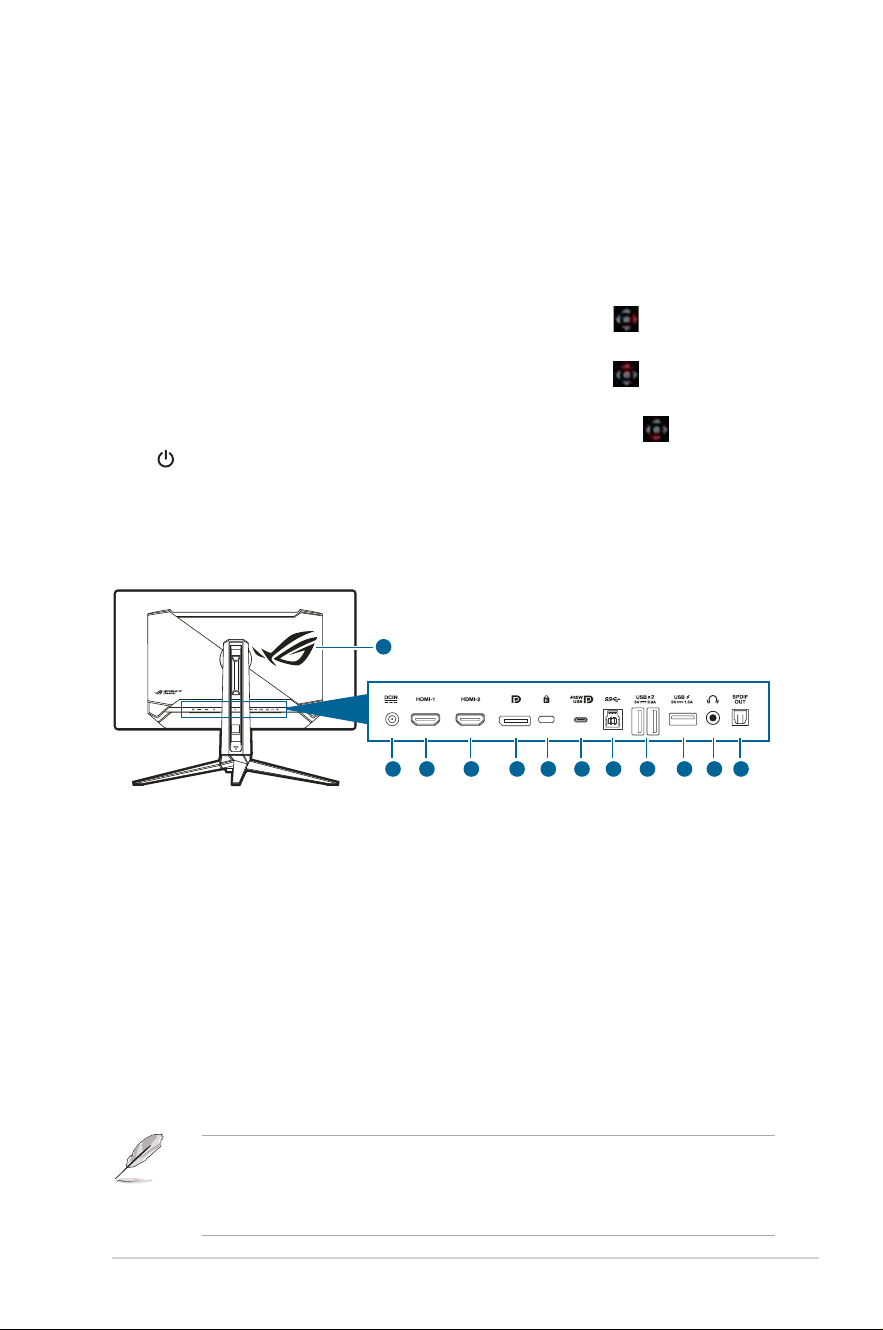
12
1 2
3
4 5 6 7 8 9
10
11
1. DC-IN port. This port connects the power cord.
2. HDMI-1 port. This port is for connection with an HDMI compatible
device.
3. HDMI-2 port. This port is for connection with an HDMI compatible
device.
4. DisplayPort. This port is for connection with a DisplayPort compatible
device.
5. Kensington lock slot.
6. USB 3.2 Gen 1 Type-C (supports DP Alt mode). This port is for connection
with a DisplayPort/USB Type-C compatible device. This port is also for
connection with a USB upstream cable, which supports USB power and data
delivery (depending on the signal source).
The port offers output voltage 5V/3A, 9V/3A, 12V/3A, 15V/3A and 20V/3.25A for
65W power delivery and 5V/3A, 9V/3A, 12V/3A, 15V/3A and 20V/4.5A for 90W
power delivery . Connecting the USB Type-C to Type-A cable only enables the
USB Type-A ports (downstream) on the monitor.
1-4 Chapter 1: Product introduction
7. USB 3.2 Gen 1 Type-B. This port is for connection with a USB upstream
cable. The connection enables the USB ports on the monitor.
8. USB 3.2 Gen 1 Type-A. These ports are for connection with USB devices,
such as USB keyboard/mouse, USB flash drive, etc.
9. USB 3.2 Gen 1 Type-A. This port is for connection with USB devices, such
as USB keyboard/mouse, USB flash drive, etc.
10. Earphone jack. This port is only available when an HDMI/DisplayPort/USB
Type-C cable is connected.
11. SPDIF out (Optical Digital Audio Out). This output port is for connection with
a device that includes an SPDIF input.
12. AURA RGB/AURA Sync (controlled by Armoury Crate software).
1.3.3 GamePlus function
The GamePlus function provides a toolkit and creates a better gaming environment
for users when playing different types of games. The crosshair overlay with 6
different crosshair options lets you choose the one that best suits the game you're
playing. There are also on screen timer and stopwatch you can position on the left
of the display so you can keep track of the gaming time; while the FPS (frames per
second) counter lets you know how smooth the game is running. The position of
FPS Counter, Crosshair, Timer and Stopwatch can be moved by the navigation (5-
way) button. Sniper function (only available when HDR is disabled on your device))
is customized for first-person shooters. You can select the magnification ratio, the
type of alignment in sequence and night vision mode. Display Alignment displays
alignment lines on 4 sides of the screen, serving as an easy and handy tool for you
to line up multiple monitors perfectly.
To activate GamePlus:
1. Press the GamePlus shortcut button
2. Move the (5-way) button up/down to select among different
functions.
3. Press the (5-way) button to activate the function you choose, or display
the settings.
4. Move the (5-way) button up/down to navigate through the settings.
Highlight the desired setting and press the (5-way) button to activate
it.
5. Press the Close button to exit.
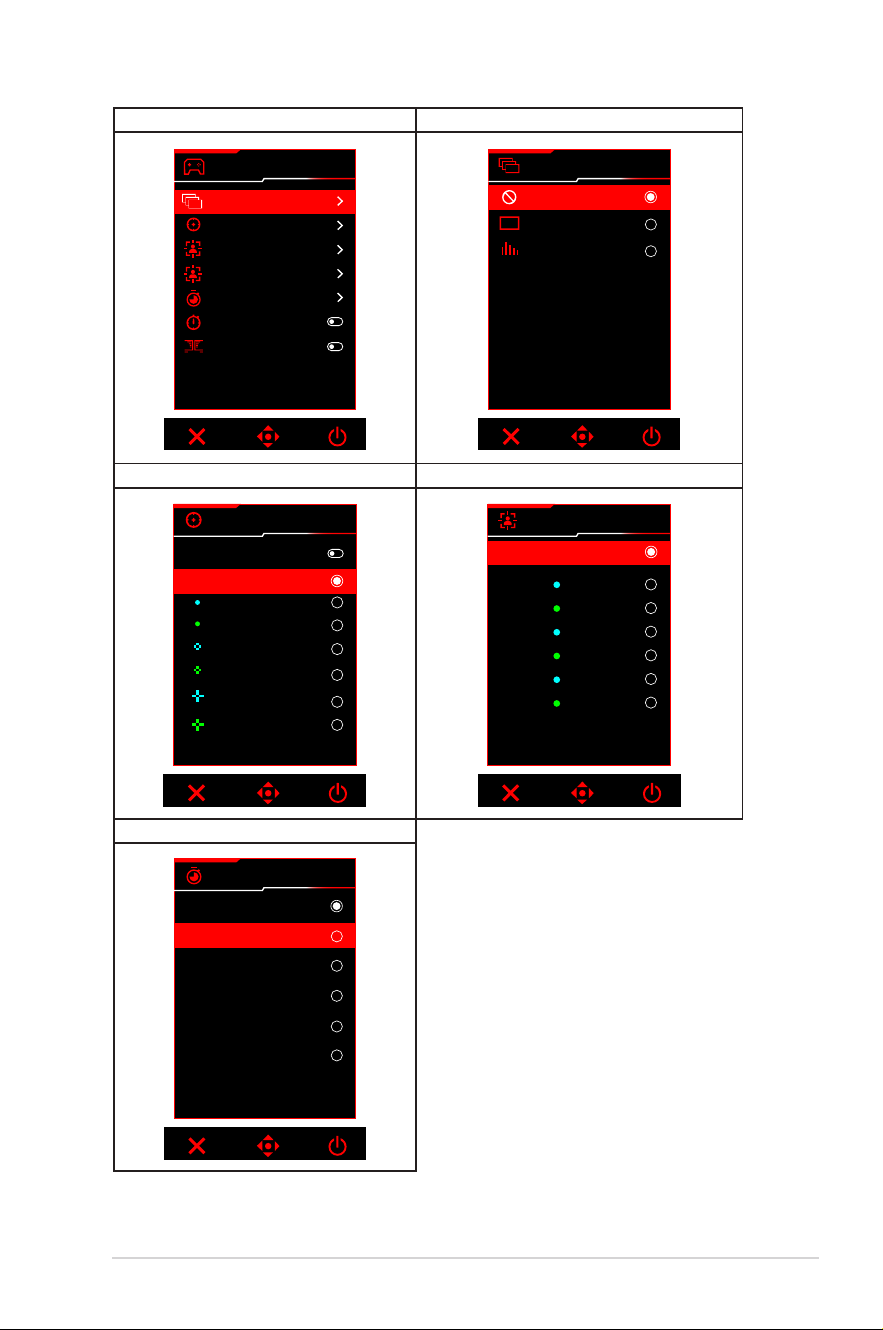
1-5ASUS PG32UCDM Series OLED Monitor
GamePlus Main Menu GamPlus — FPS Counter
GamePlus
FPS Counter
Crosshair
Sniper
Sniper Night Vision
Timer
Stopwatch
Display Alignment
FPS
FPS
FPS Counter
OFF
Number
Bar Graph
001
GamePlus — Crosshair GamePlus — Sniper/Sniper Night Vision
Crosshair
Dynamic Crosshair
OFF
Sniper
OFF
1.2x
1.2x
1.5x
1.5x
2.0x
2.0x
GamePlus — Timer
Timer
OFF
30:00
40:00
50:00
60:00
90:00
1-6 Chapter 1: Product introduction
1.3.4 GameVisual function
The GameVisual function helps you select among different picture modes in a
convenient way.
To activate GameVisual:
1. Press the GameVisual shortcut button
2. Move the (5-way) button up/down to highlight a desired setting.
3. Press the (5-way) button to activate it.
4. Move the (5-way) button left to go back, or press the Close button to
exit.
• Scenery Mode: This is the best choice for scenery photo displaying with
GameVisual
TM
Video intelligence Technology.
• Racing Mode: This is the best choice for racing game playing with
GameVisual
TM
Video intelligence Technology.
• Cinema Mode: This is the best choice for movie watching with
GameVisual
TM
Video intelligence Technology.
• RTS/RPG Mode: This is the best choice for Real-Time Strategy (RTS)/
Role-Playing Game (RPG) playing with GameVisual
TM
Video intelligence
Technology.
• FPS Mode: This is the best choice for First Person Shooter game playing
with GameVisual
TM
Video intelligence Technology.
• sRGB Cal Mode: This is the best choice for viewing photos and graphics
from PCs.
• MOBA Mode: This is the best choice for multiplayer online battle arena
game playing with GameVisual™ Video intelligence Technology.
• Night Vision: This is the best choice for dark scenery playing with
GameVisual
TM
Video intelligence Technology.
• User Mode: More items are adjustable for color adjustments.
• In the sRGB Cal mode, the following function(s) are not user-configurable:
Shadow Boost, Uniform Brightness, Contrast, Blue Light Filter,
Display Color Space, Color Temp., Saturation, Six-axis Saturation,
Gamma.
• In the MOBA Mode, the following function(s) are not user-configuration:
Shadow Boost, VividPixel, Saturation, Six-axis Saturation.
• In the Night Vision mode, the following function(s) are not user-
configuration: Saturation, Six-axis Saturation.

1-7ASUS PG32UCDM Series OLED Monitor
1.3.5 Other Function(s)
• HDR
The monitor supports HDR format. When detecting HDR content, an "HDR ON"
message will pop up and display in the OSD menu.
• When displaying HDR content, the following function(s) are not available:
ELMB, PIP/PBP, GameVisual, Shadow Boost, Contrast, Blue Light
Filter, Color Temp., Gamma, Saturation, Power Saving, Display
Color Space, Six-axis Saturation, Sniper, Sniper Night Vision, Sound
Source, Uniform Brightness.
• When HDR is enabled, to adjust the brightness, go to Image > HDR
Setting > Brightness Adjustable.
1-8 Chapter 1: Product introduction
2-1ASUS PG32UCDM Series OLED Monitor
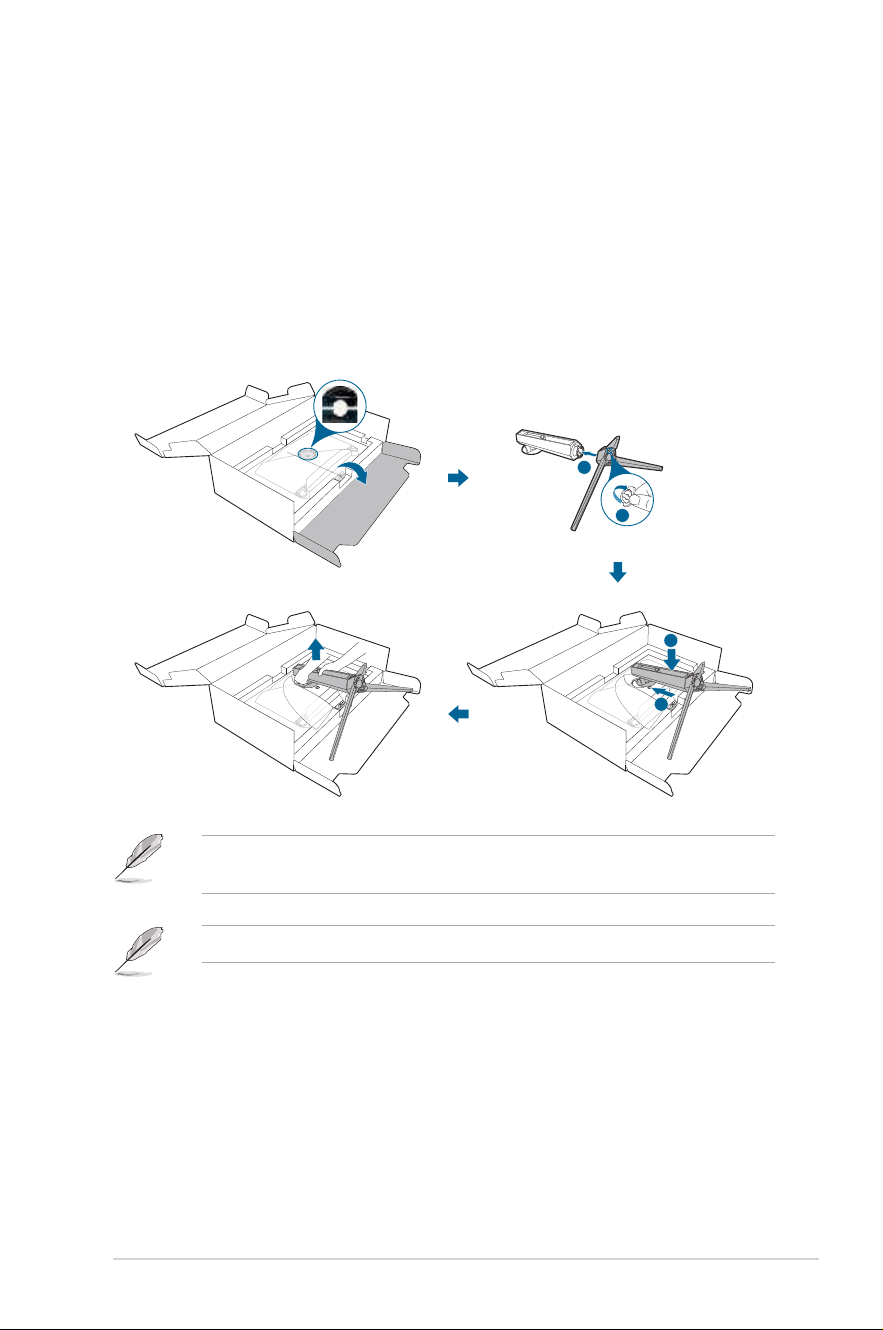
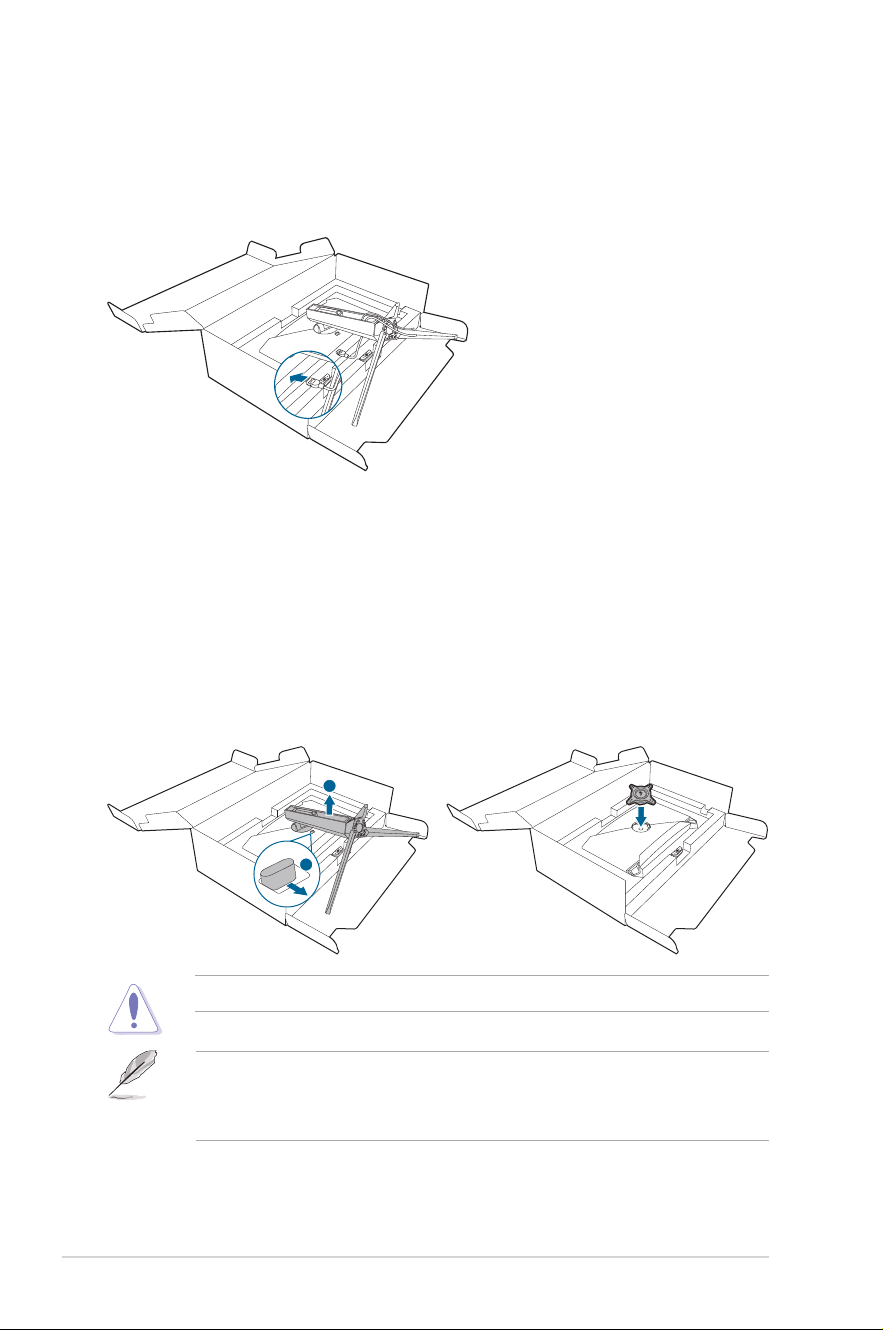
2.1 Attaching the arm/base
To assemble the monitor base:
1. Open the box as illustrated. (Figure 1)
2. Insert the base into the arm. Fix the base to the arm by fastening the bundled
screw. (Figure 2)
3. Attach the arm into the monitor. (Figure 3)
4. Hold the stand and lift the monitor carefully, then place it on a flat surface.
(Figure 4)
1
2
1
2
(Figure 2)
(Figure 1)
(Figure 3)(Figure 4)
We recommend that you cover the table surface with soft cloth to prevent
damage to the monitor.
Base screw size: M5 x 25 mm.
2-2 Chapter 2: Setup
2.2 Cable management
You can organize the cables with the help of the cable management slot.
• Arranging the cables
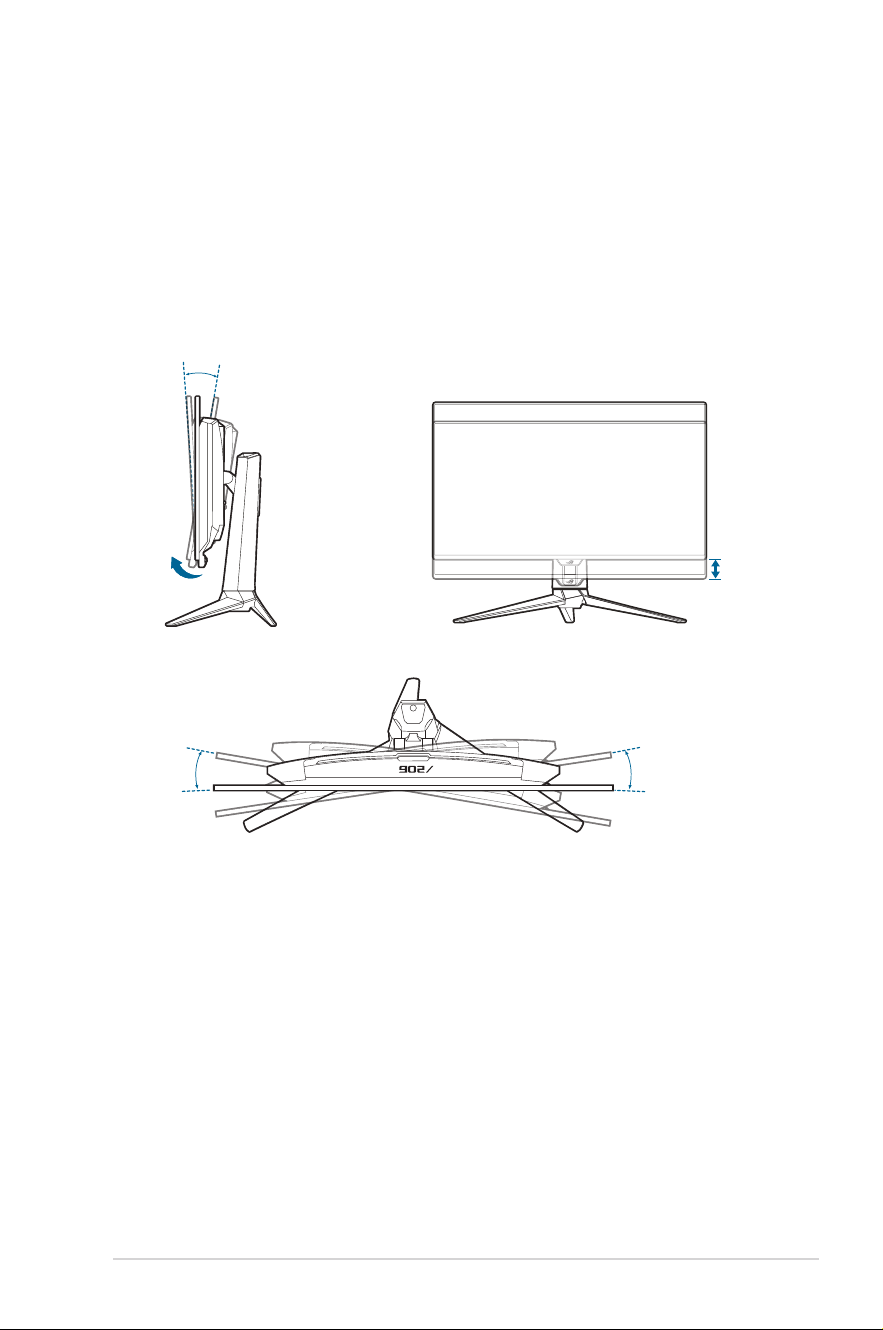
2.3 Detaching the arm/base (for VESA
wall mount)
The detachable arm of this monitor is specially designed for VESA wall mount.
To detach the arm:
1. Press the release button, and then detach the arm/base from the
monitor.
2. Attach the ROG wall mount kit to the back on the monitor.
1
2
Handle with caution to avoid injury or damage to the monitor.
• The VESA wall mount kit (100 x 100 mm) is purchased separately.
• Use only the UL Listed Wall Mount Bracket with minimum weight/load
22.7kg (Screw size: M4 x 10 mm).
2-3ASUS PG32UCDM Series OLED Monitor
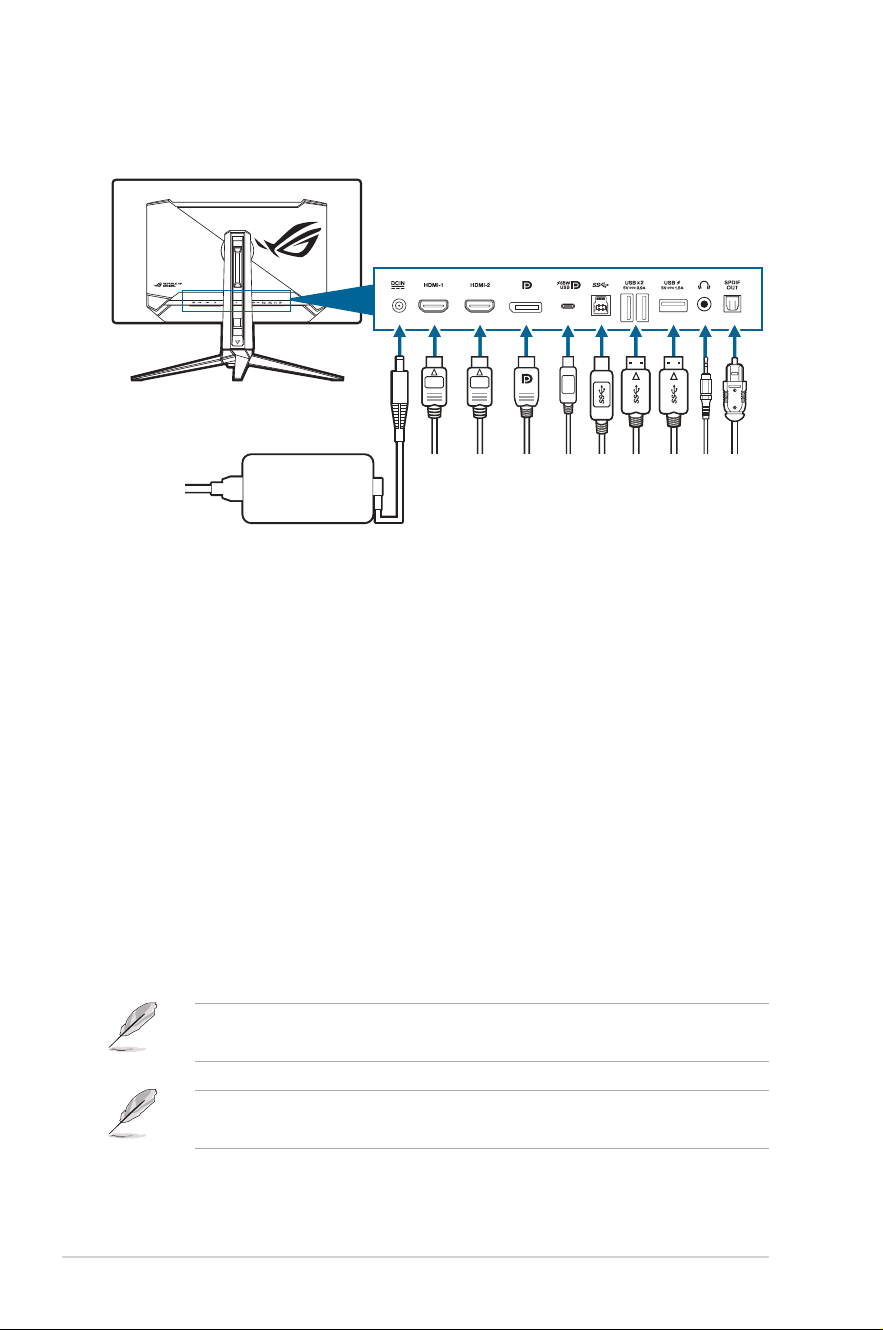
2.4 Adjusting the monitor
• For optimal viewing, we recommend that you look at the full face of the
monitor, then adjust the monitor to the angle that is most comfortable for you.
• Hold the stand to prevent the monitor from falling when you change its angle.
• You can adjust the monitor’s angle from +20˚ to -5˚, and it allows 15˚ swivel
adjustment from either left or right. You can also adjust the monitor’s height
within 80 mm.
80mm
15°
15°
- 5° ~ + 20°
(Tilt)
(Swivel)
(Height adjustment)
2-4 Chapter 2: Setup
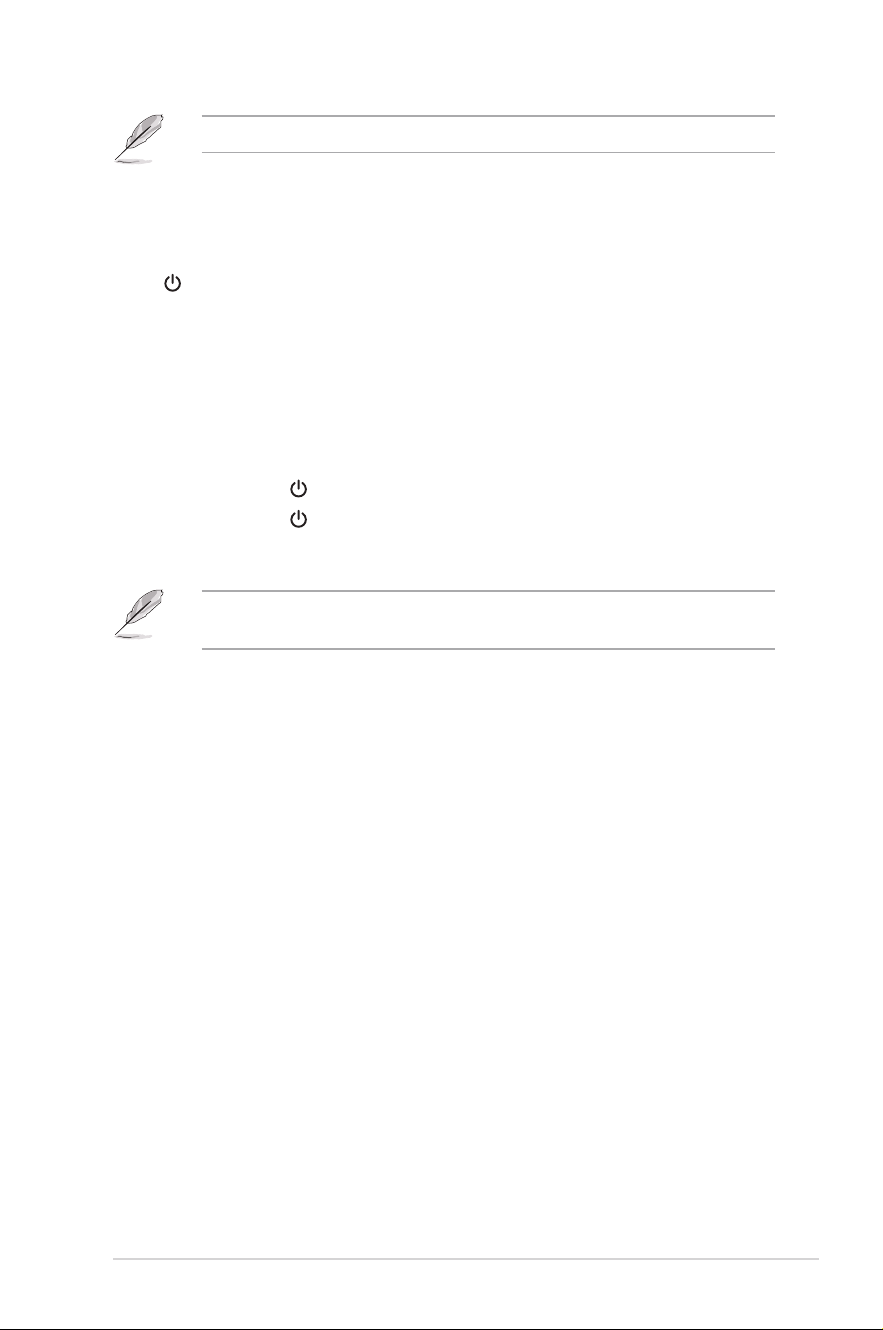
2.5 Connecting the cables
Connect the cables as the following instructions:
• To connect the power cord:
a. Connect the power adapter securely to the monitor’s DC IN input.
b. Connect one end of the power cord to the power adapter and the other
end to a power outlet.
• To connect the HDMI/DisplayPort/USB Type-C cable:
a. Plug one end of the HDMI/DisplayPort/USB Type-C cable to the
monitor’s HDMI/DisplayPort/USB Type-C jack.
b. Connect the other end of the HDMI/DisplayPort/USB Type-C cable to
your device's HDMI/DisplayPort/USB Type-C jack.
• To use the earphone: connect the audio cable to the monitor’s earphone jack.
• To use the USB 3.2 Gen 1 ports: Take the USB cable, and plug the smaller
end (type B) of the USB upstream cable to the monitor’s USB upstream port,
and the larger end (type A) to your computer’s USB port. Make sure your
computer is installed with the lastest Windows 10/Windows 11 operating
system. That will enable the USB ports on the monitor to work.
• To connect the S/PDIF Optical Digital audio cable: Connect the speaker to
the monitor’s SPDIF out port.
When these cables are connected, you can choose the desired signal from the
Input Select item in the OSD menu.
If you need to replace the power cord or the connection cable(s), please contact
ASUS customer service.
2-5ASUS PG32UCDM Series OLED Monitor
The USB cable can be used for firmware update.
2.6 Turningon/offthemonitor
• To turn on the monitor:
Press Power button on the monitor. See page 1-2 for the location of the power
button. If the Power Indicator function is enabled and an input source is detected,
the power LED will light up red to indicate that the monitor is turned on. The power
LED will not light up in Power Saving Mode. You can also press any button to turn
on the monitor when the monitor is turned off.
• To turn off the monitor:
There are 2 ways to turn off the monitor:
• Press Power button on the monitor twice.
• Press Power button on the monitor. Use the navigation (5-way)
button to select "Turn Off" and press the navigation (5-way) button
to confirm.
If you need to disconnect power supply, unplug the power cord from the power
outlet. Do not unplug the power adapter from the monitor.
2-6 Chapter 2: Setup
3-1ASUS PG32UCDM Series OLED Monitor
3.1 OSD (On-Screen Display) menu
3.1.1 How to reconfigure
Volume 50Volume 50
Back
Enter Exit
60Hz
3840x2160
ROG SWIFT PG32UCDM
Gaming
Image
Color
Input Select
PIP/PBP
DisplayPort
Input Source
OFF
GameVisual
Racing Mode
HDR
Variable Refresh Rate
ELMB
GamePlus
GameVisual
Shadow Boost
ASUS DisplayWidget Center
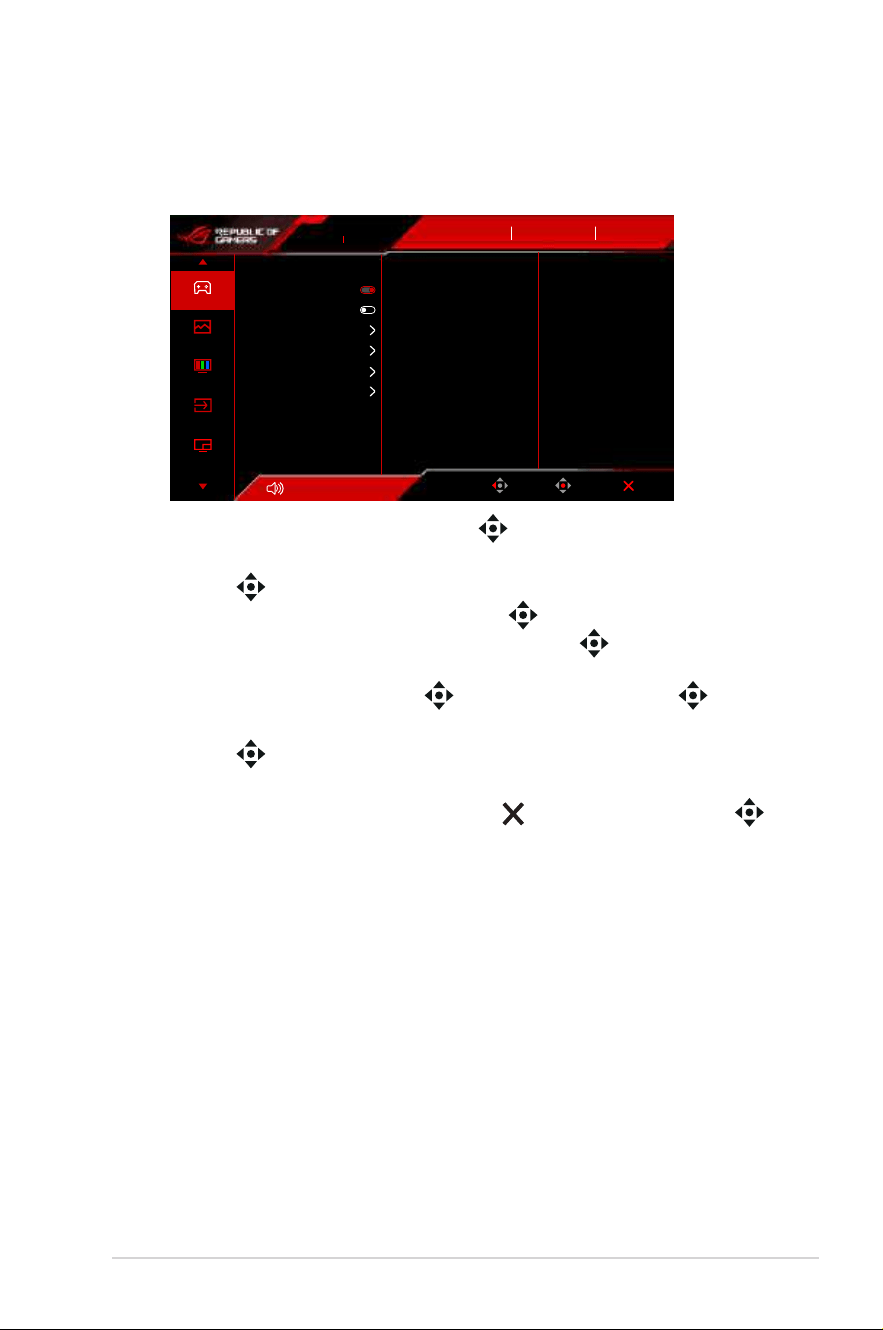
1. After the monitor is turned on, press the (5-way) button to activate the
OSD menu.
2. Move the (5-way) button up/down to navigate through the functions.
Highlight the desired function and press the (5-way) button to activate
it. If the function selected has a sub-menu, move the (5-way) button up/
down again to navigate through the sub-menu functions. Highlight the desired
sub-menu function and press the (5-way) button or move the (5-way)
button right to activate it.
3. Move the (5-way) button up/down to change the settings of the selected
function.
4. To exit and save the OSD menu, press the Close button or press the
(5-way) button until the OSD menu disappears. To adjust other functions,
repeat steps 1-3.
3-2
Chapter 3: OSD (On-Screen Display) menu
3.1.2 OSD function introduction
1. Gaming
Volume 50Volume 50
Back
Enter Exit
60Hz
3840x2160
ROG SWIFT PG32UCDM
Gaming
Image
Color
Input Select
PIP/PBP
DisplayPort
Input Source
OFF
GameVisual
Racing Mode
HDR
Variable Refresh Rate
ELMB
GamePlus
GameVisual
Shadow Boost
ASUS DisplayWidget Center
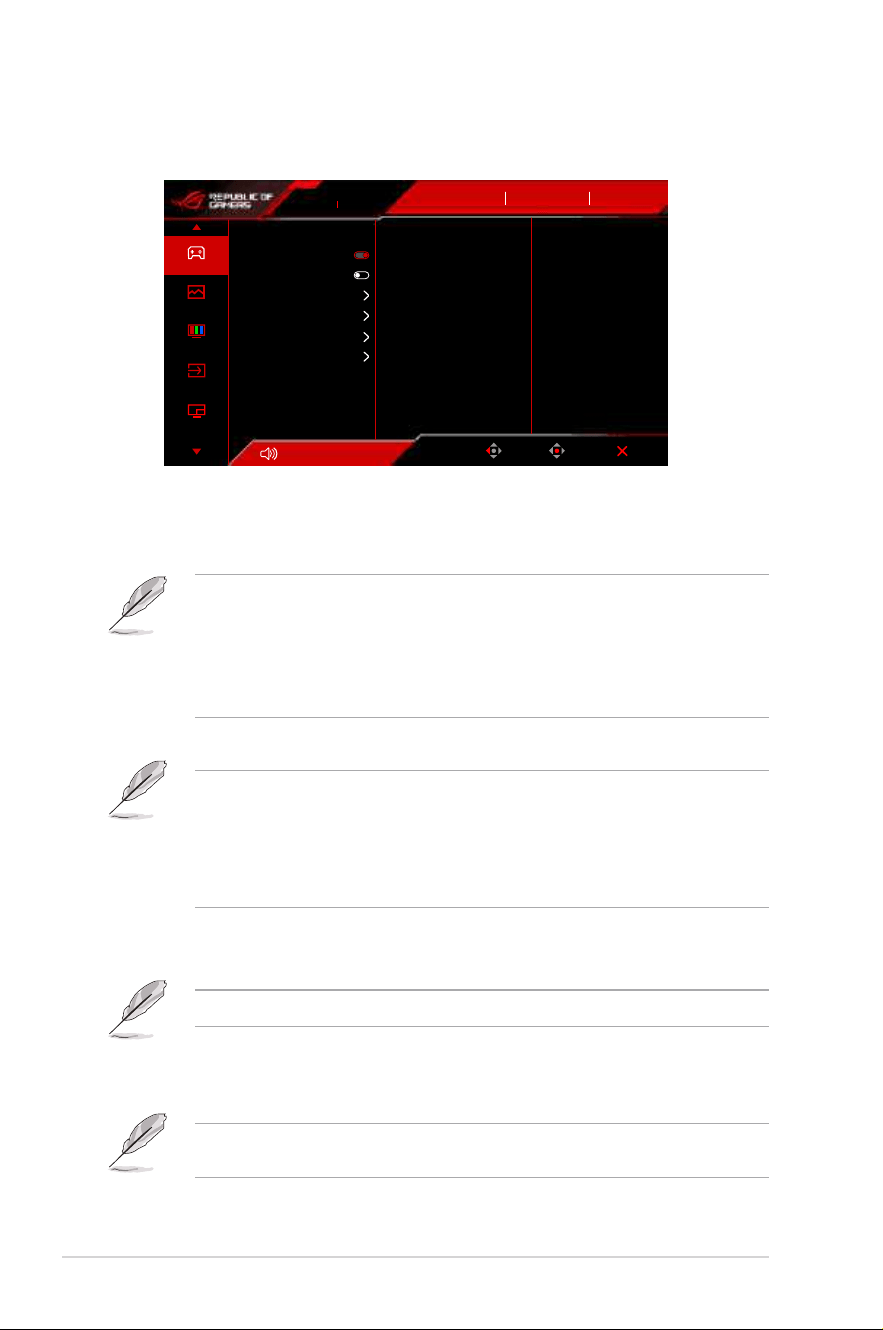
• Variable Refresh Rate: Allows an Variable Refresh Rate supported*
graphics source to dynamically adjust display refresh rate based on
typical content frame rates for power efficient, virtually stutter free and
low-latency display update.
The following function(s) will be disabled when this function turns on: PIP/PBP,
ELMB, Aspect Control.
*Variable Refresh Rate can only be activated within 48Hz~240Hz.
*For supported GPUs, minimum PC system and driver requirements, please
contact the GPU manufactures.
• ELMB: Extreme Low Motion Blur.
This function is only available when the refresh rate is 120Hz.
When this function is activated, the following function(s) are not available:
Variable Refresh Rate, Blue Light Filter, Aspect Control, HDR, PIP/PBP,
Uniform Brightness.
When this function is activated, the maximum brightness will be 70.
• GamePlus: See 1.3.3 GamePlus function for details.
• GameVisual: See 1.3.4 GameVisual function for details.
The following function(s) will be disabled when this function turns on: HDR.
• Shadow Boost: Dark color enhancement adjusts monitor gamma curve
to enrich the dark tones in an image, making dark scenes and objects
much easier to be seen.
This function is only available in Scenery Mode, Racing Mode, Cinema Mode,
RTS/RPG Mode, FPS Mode, Night Vision Mode or User Mode.
3-3ASUS PG32UCDM Series OLED Monitor
• ASUS DisplayWidget Center: Displays a QR code for you to access the
information about ASUS DisplayWidget Center.
2. Image
Volume 50
Back
Enter Exit
ROG SWIFT PG32UCDM
DisplayPort OFF
GameVisual
Racing Mode
Input Source HDR
60Hz
3840x2160
Brightness
Uniform Brightness
Contrast
VividPixel
HDR Format
HDR Setting
DolbyVision Setting
Aspect Control
30
80
50
Gaming
Image
Color
Input Select
PIP/PBP
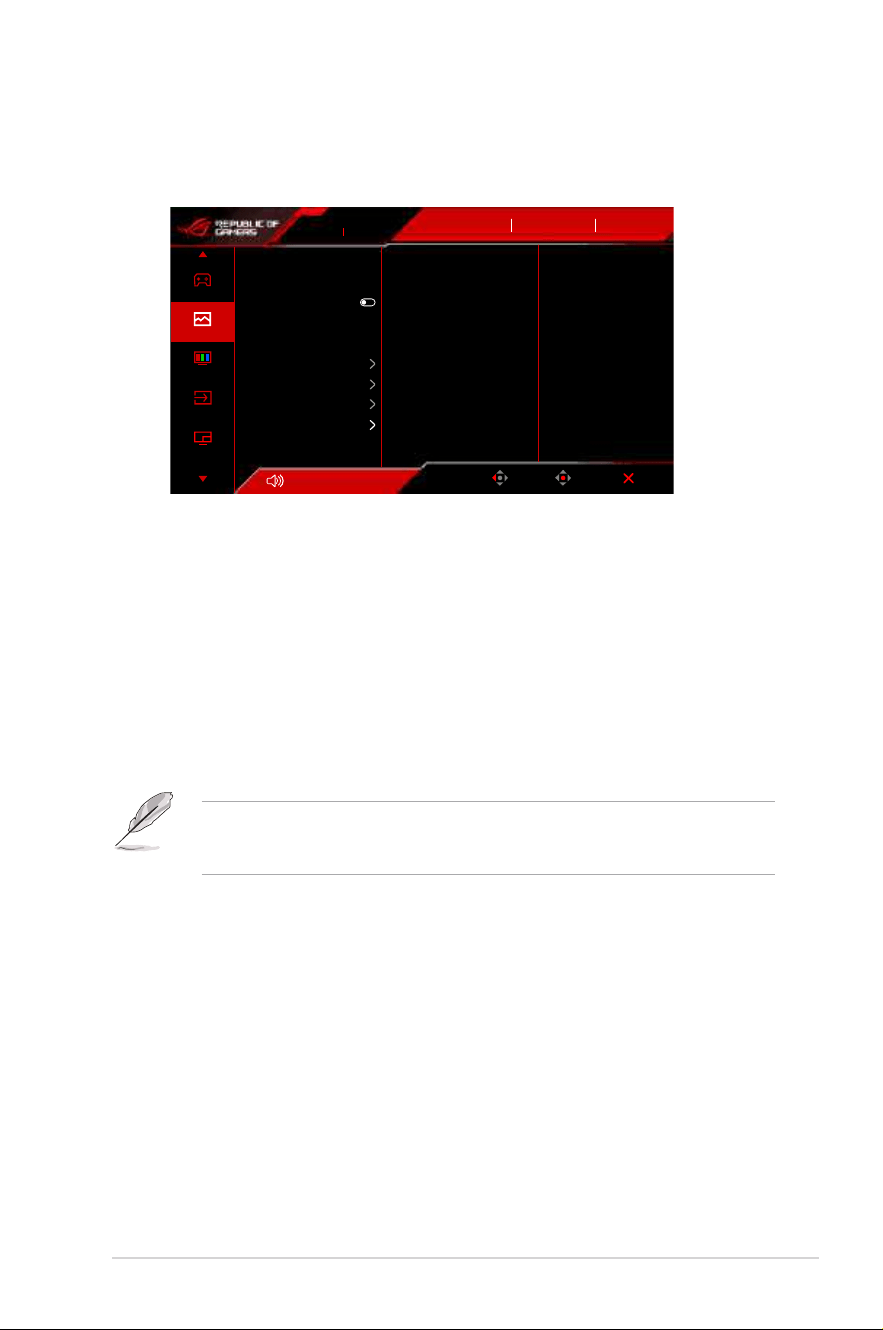
• Brightness: The adjusting range is from 0 to 100.
• Uniform Brightness: With the feature enabled, the system will not adjust
the maximum brightness of the screen when the screen is displayed in a
different screen size.
• Contrast: The adjusting range is from 0 to 100.
• VividPixel: This function enhances the outline of the displayed picture
and generates high-quality images on screen.
• HDR Format: Contains 2 HDR formats:
• HDR10: Supports HDR 10 format.
• DolbyVision: Supports DolbyVision format.
This function requires firmware version MCM105/305 or higher. If your firmware
is outdated, upgrade it by downloading the latest version from the support page
of this monitor.
• HDR Setting (High Dynamic Range Setting): Contains 4 HDR modes:
• Gaming HDR: Includes a built-in Dynamic Brightness Boost
function that cannot be disabled.
• Cinema HDR: Includes a built-in Dynamic Brightness Boost
function that cannot be disabled.
• Console HDR
• DisplayHDR 400 True Black
• Brightness Adjustable: The HDR brightness can be adjusted
when the Brightness Adjustable function is enabled. HDR PQ
curve will be affected when the brightness adjustment is ON under
HDR mode.
3-4
Chapter 3: OSD (On-Screen Display) menu
• Dynamic Brightness Boost: This function is designed for use
with Console HDR. Enabling this function will enhance the HDR
brightness.
• DolbyVision Setting: Contains 3 DolbyVision modes:
• DolbyVision Bright
• DolbyVision Dark
• DolbyVision Gaming
This function requires firmware version MCM105/305 or higher. If your firmware
is outdated, upgrade it by downloading the latest version from the support page
of this monitor.
DolbyVision Setting is only available when HDR Format is DolbyVision and
the monitor receives DolbyVision content.
When displaying HDR content, the following function(s) are not available:
ELMB, PIP/PBP, GameVisual, Shadow Boost, Contrast, Blue Light Filter,
Color Temp., Gamma, Saturation, Power Saving, Display Color Space,
Six-axis Saturation, Sniper, Sniper Night Vision, Sound Source, Uniform
Brightness.
• Aspect Control: Adjust the aspect ratio to 16:9 or Square to enjoy
different gaming scenario.
• 16:9: Simply choose Fill Up, 27" Simulation or 24.5" Simulation
under Full for better FPS gaming size; or you can choose Pixel
by pixel such as 3288 x 1850 resolution for 27" or 2992 x 1684
resolution for 24.5" under Windows Display setting.
• Square: Provides multiple aspect ratio choices with different
screen sizes, including Full, Equivalent and Pixel by pixel.
The following function(s) will be disabled when this function turns on: Variable
Refresh Rate, PIP/PBP, ELMB.
• Blue Light Filter:
• OFF: No change.
• Level 1~4: The higher the level, the less blue light is scattered.
When Blue Light Filter is activated, the default settings of Racing
Mode will be automatically imported. Between Level 1 to Level
3, the Brightness function is user-configurable. Level 4 is an
optimized setting. The Brightness function is not user-configurable.
The monitor uses low blue light panel and compliance with TÜV Rheinland Low
Blue Light Hardware Solution at factory reset/default setting mode (Brightness:
65%, Contrast: 80%, CCT: 6500K, Preset mode: Racing mode, Power Setting:
YES).
3-5ASUS PG32UCDM Series OLED Monitor
The following function(s) will be disabled when this function turns on: ELMB.
•
Please refer to the following to alleviate eye strains:
• Users should take some time away from the display if working for long
hours. It is advised to take short breaks (at least 5 mins) after around 1
hour of continuous working at the computer. Taking short and frequent
breaks is more effective than a single longer break.
• To minimize eye strain and dryness in your eyes, you should rest the eye
periodically by focusing on objects that are far away.
• Eye exercises can help to reduces eye strain. Repeat these exercises
often. If eye strain continues please consult a physician. Eye exercises: (1)
Repeating look up and down (2) Slowly roll your eyes (3) Move your eyes
diagonal.
• High energy blue light may lead to eye strain and AMD (Age-Related
Macular Degeneration). Blue light Filter reduces 70% (max.) harmful blue
light to avoid CVS (Computer Vision Syndrome).
3. Color
Volume 50Volume 50
Back
Enter Exit
80
60Hz
3840x2160
ROG SWIFT PG32UCDM
Gaming
Image
Color
Input Select
PIP/PBP
DisplayPort
Input Source
OFF
GameVisual
Racing Mode
HDR
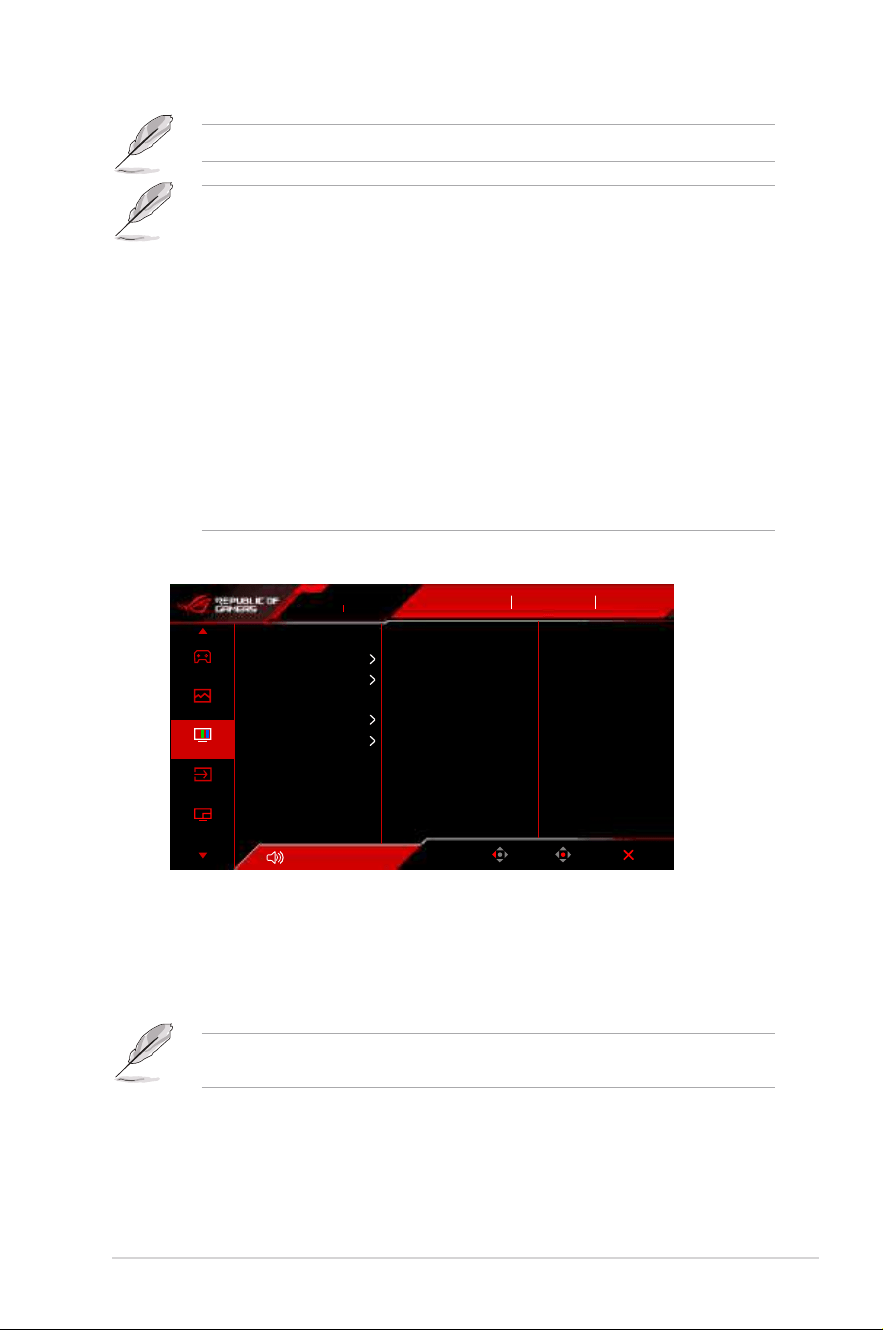
Display Color Space
Color Temp.
Saturation
Six-axis Saturation
Gamma
• Display Color Space: Selects the color space for the monitor color
output.
• Color Temp.: Contains 8 modes including 4000K, 5000K, 6500K, 7500K
, 8200K, 9300K, 10000K and User mode.
• Saturation: The adjusting range is from 0 to 100.
This function is not available when sRGB Cal Mode, MOBA Mode or Night
Vision is selected.
• Six-axis Saturation: Adjusts the saturation for R, G, B, C, M, Y.
• Gamma: Allows you to set the color mode to 1.8, 2.0, 2.2, 2.4 or 2.6.
3-6
Chapter 3: OSD (On-Screen Display) menu
4. Input Select
Volume 50Volume 50
Back
Enter Exit
Auto Input Detection
USB-C
DisplayPort
HDMI-1
HDMI-2
60Hz
3840x2160
ROG SWIFT PG32UCDM
Gaming
Image
Color
Input Select
PIP/PBP
DisplayPort
Input Source
OFF
GameVisual
Racing Mode
HDR
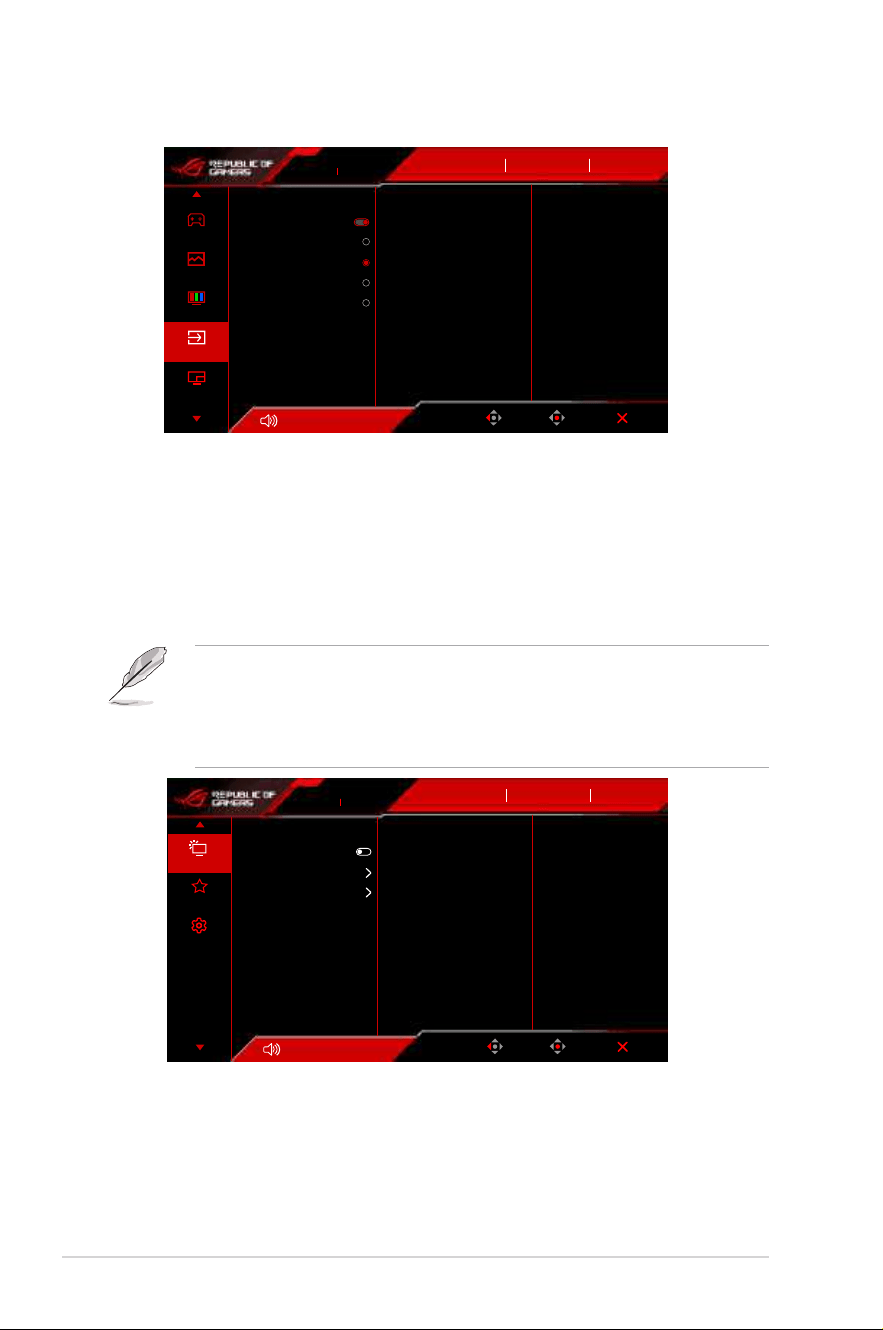
• Auto Input Detection: When enabled, the system will automatically
select the latest inserted I/O port.
• USB-C, DisplayPort, HDMI-1, HDMI-2: Manually selects the input
source.
5. PIP/PBP
The PIP/PBP allows you to open up sub-window(s) connected from any
video source.
The following function(s) will be disabled when this function turns on: Variable
Refresh Rate, Aspect Control, ELMB, DSC Support.
PIP/PBP Mode is used under 60Hz.
PIP/PBP Mode does not support HDR function.
Volume 50Volume 50
Back
Enter Exit
Lighting Effect
MyFavorite
System Setup
AURA Sync
AURA RGB
LIGHT IN MOTION
60Hz
3840x2160
ROG SWIFT PG32UCDM
DisplayPort
Input Source
OFF
GameVisual
Racing Mode
HDR
• PIP/PBP Mode: Selects PIP, PBP mode or turn it off.
• PIP/PBP Source: Select the video input source for each PIP/PBP
window.
• Color Setting: Sets GameVisual mode for each PIP/PBP window.
3-7ASUS PG32UCDM Series OLED Monitor
• PIP Size: Adjusts the PIP size to Small, Middle, or Large.
6. Lighting Effect
Volume 50Volume 50
Back
Enter Exit
Lighting Effect
MyFavorite
System Setup
AURA Sync
AURA RGB
LIGHT IN MOTION
60Hz
3840x2160
ROG SWIFT PG32UCDM
DisplayPort
Input Source
OFF
GameVisual
Racing Mode
HDR
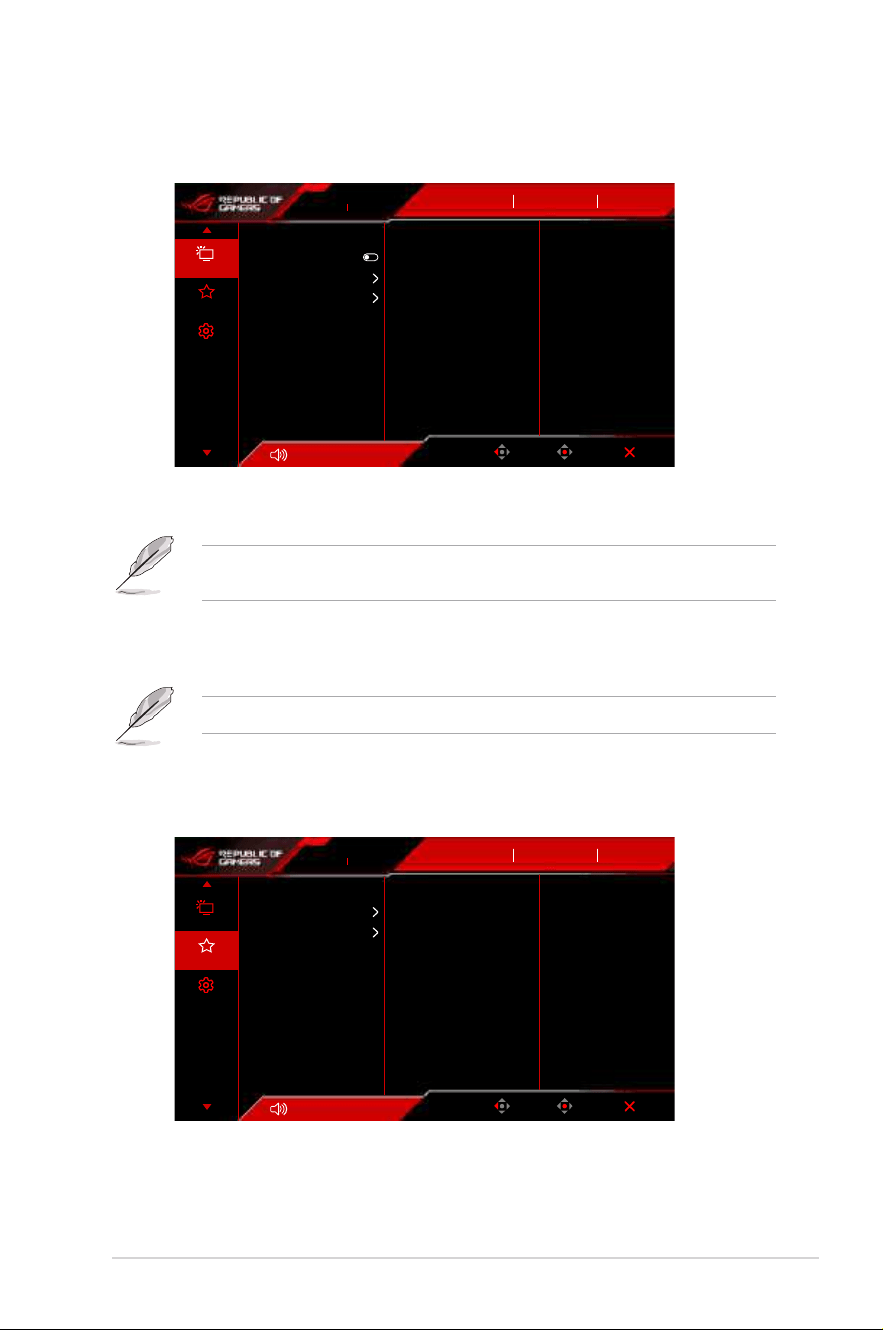
• Aura Sync: Allows you to turn on or off the Aura Sync function that
synchronizes the Aura RGB light effect among all supported devices.
The following function(s) will be disabled when this function turns on: Aura
RGB.
• Aura RGB: There are 5 living colors can be chosen: OFF, Rainbow,
Color Cycle, Static, Breathing, Strobing. You can manually change the
R/G/B/C/M/Y color for Static, Breathing, and Strobing modes.
This function is not available when Aura Sync is enabled.
• LIGHT IN MOTION: Selects the brightness level of the light on the stand.
The adjusting range is from “OFF” to “Level 3”.
7. MyFavorite
Volume 50Volume 50
Back
Enter Exit
Lighting Effect
MyFavorite
System Setup
Shortcut
Customized Setting
60Hz
3840x2160
ROG SWIFT PG32UCDM
DisplayPort
Input Source
OFF
GameVisual
Racing Mode
HDR
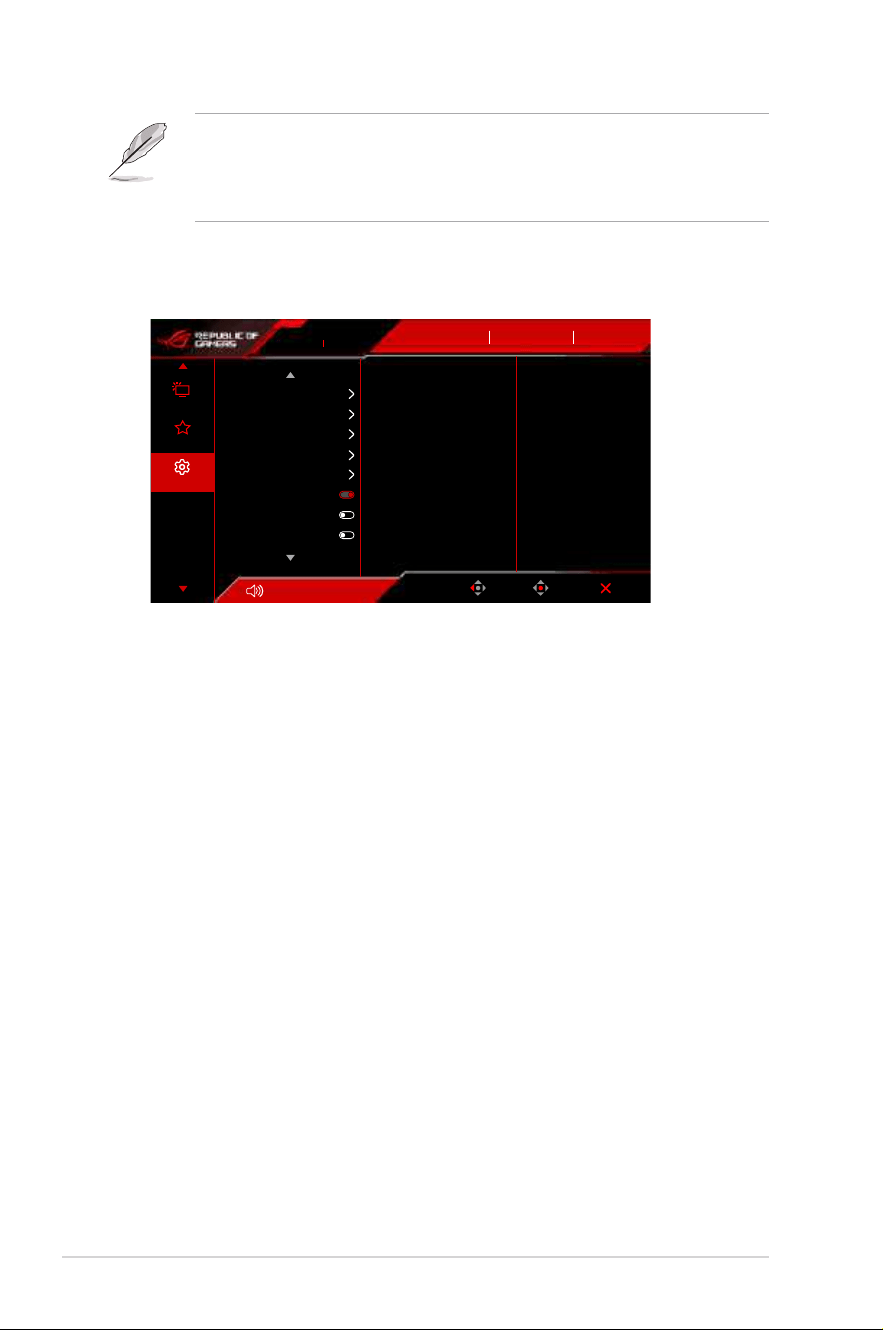
• Shortcut:
• Shortcut: Sets the shortcut functions for shortcut buttons.
3-8
Chapter 3: OSD (On-Screen Display) menu
When a certain function is selected or activated, your shortcut button may not
support. Available function choices: GamePlus, GameVisual, Brightness,
Mute, Shadow Boost, Contrast, Input Select, HDR setting, Blue Light
Filter, Color Temp., Volume, Keyboard Hotkey, KVM, Pixel Cleaning,
Customized Setting-1, Customized Setting-2.
• Customized Setting:
• Setting 1/Setting 2: Loads/Saves all settings on the monitor.
8. System Setup
Volume 50Volume 50
Back
Enter Exit
Lighting Effect
MyFavorite
System Setup
Language
Sound
USB Setup
USB-C Charging
Proximity Sensor
Power Indicator
Power Key Lock
Key Lock
60Hz
3840x2160
ROG SWIFT PG32UCDM
DisplayPort
Input Source
OFF
GameVisual
Racing Mode
HDR
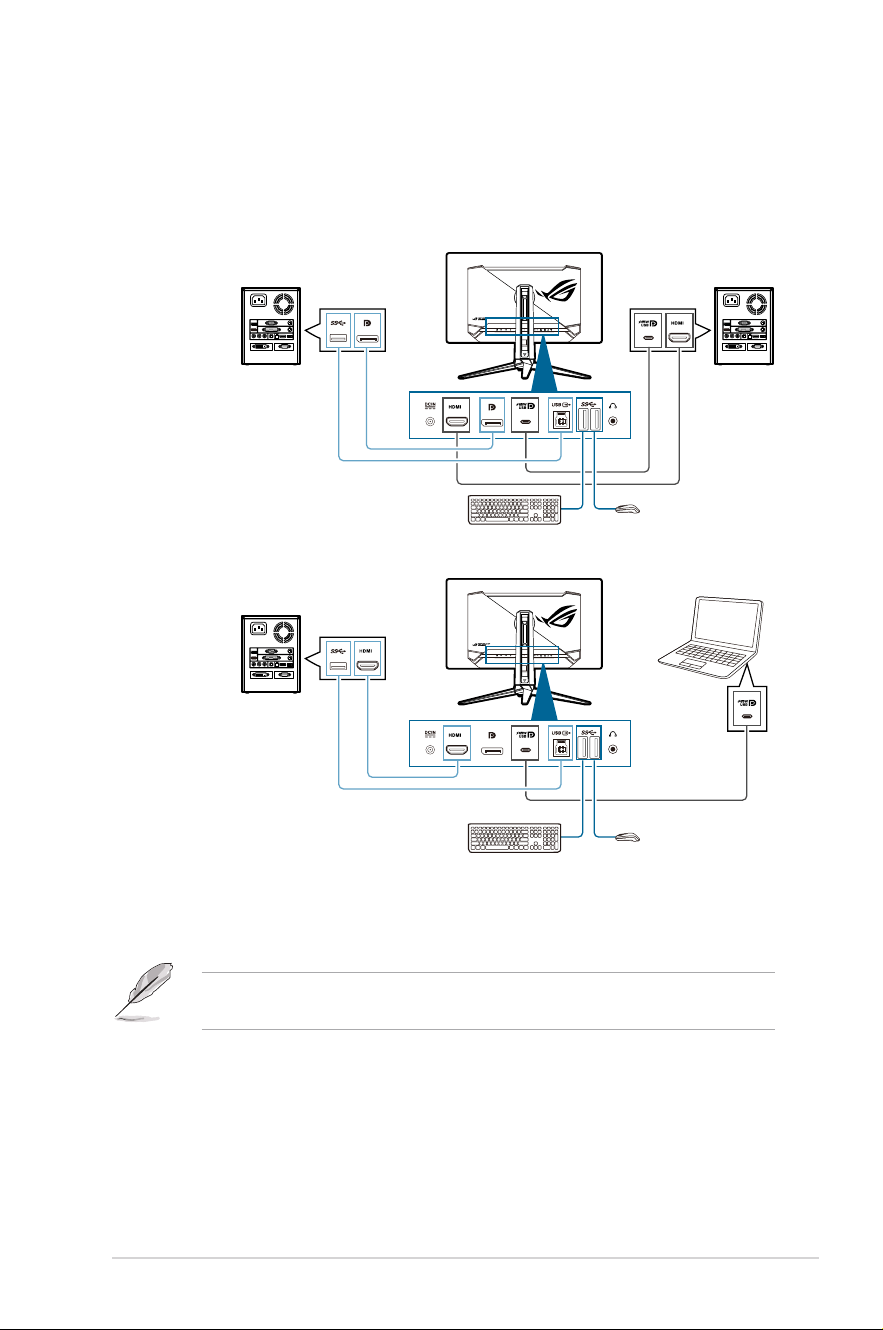
• Language: There are 23 languages for your selection, including English,
French, German, Italian, Spanish, Dutch, Portuguese, Russian, Czech,
Croatian, Polish, Romanian, Hungarian, Turkish, Simplified Chinese,
Traditional Chinese, Japanese, Korean, Thai, Indonesian, Persian,
Ukrainian, Vietnamese.
• Sound: Sets the sound related settings from this menu.
• Volume: The adjusting range is from 0 to 100.
• Mute: Toggles the monitor sound between on and off.
• Sound Source: Decides the monitor sound comes from which
source.
• Sound Output: Set the sound output setting to Line out or SPDIF.
When SPDIF is selected, Volume cannot be adjusted.
• USB Setup: Configures the USB port settings.
3-9ASUS PG32UCDM Series OLED Monitor
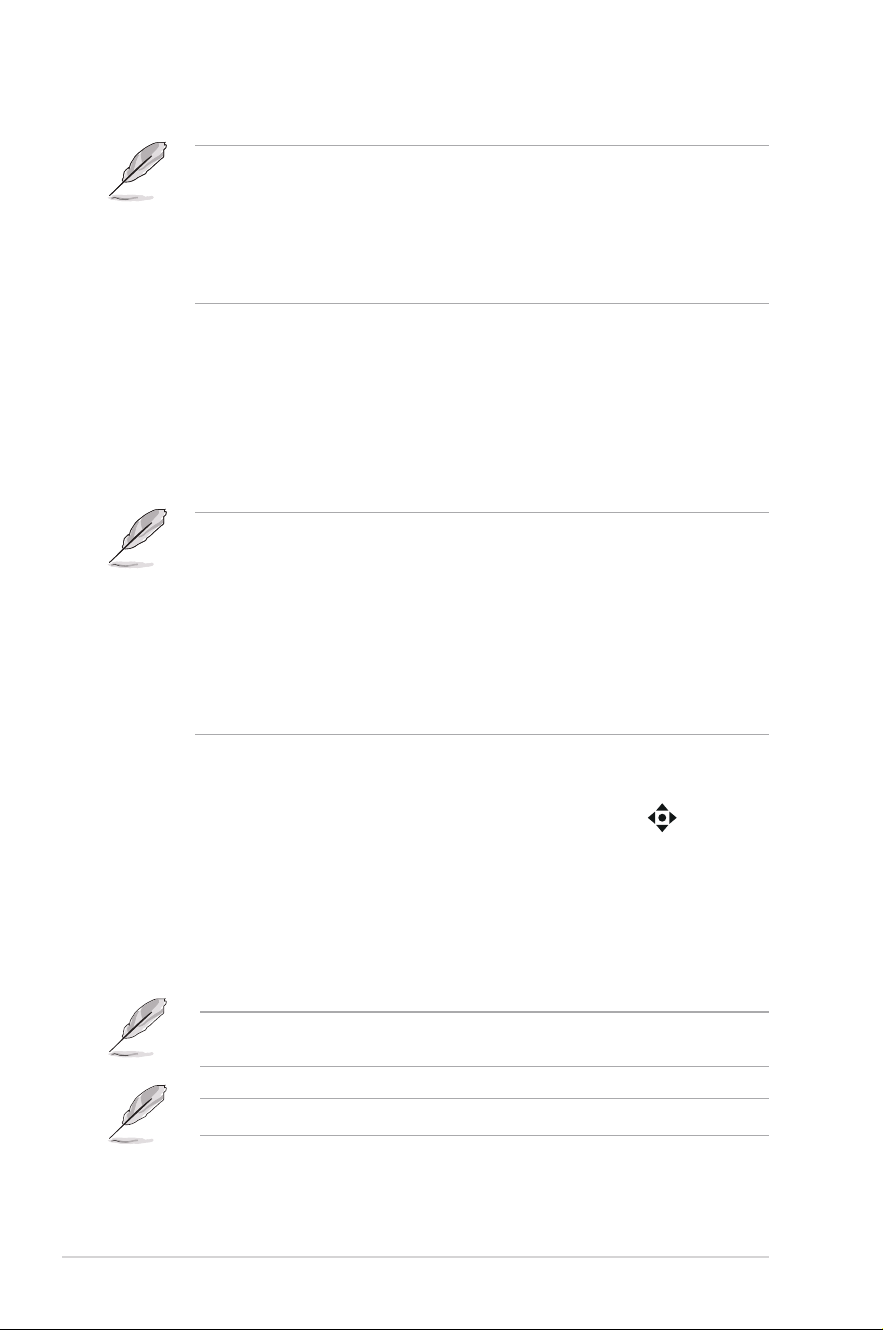
• KVM: Switches USB downstream port to USB Type-C or USB
Type-B upstream port. You can also choose Auto KVM Detection,
allowing the monitor to switch KVM automatically (This function
requires firmware version MCM103/303 or higher. If your firmware
is outdated, upgrade it by downloading the latest version from the
support page of this monitor).
Computer 1
Computer 2
Step 1
Step 2
Step 3
Or
Computer 1
Computer 2
Step 1
Step 2
Step 3
• Type-C Bandwidth: Select USB Type-C with USB 2.0 or USB 3.2.
USB 3.2 is up to 3840 x 2160@144Hz when DSC support is ON.
• USB Hub: Set the USB Hub availability during standby mode.
This function is not available (set as On During Standby) when Aura Sync is
enabled.
• Keyboard Hotkey: Enables the keyboard hotkeys. The definition
for keyboard hotkeys are as below.
• Keyboard Hotkey1 (CTRL+ALT+Q): KVM switch & PIP
switch
• Keyboard Hotkey2 (CTRL+ALT+W): Customize setting
switch
3-10
Chapter 3: OSD (On-Screen Display) menu
• Keyboard Hotkey3 (CTRL+ALT+E): Pixel cleaning
•
This function is only available when your USB upstream port is connected
and keyboard is connected to monitor’s USB downstream port.
• When using Keyboard Hotkey 1, if your keyboard is locked, try the
following key combinations to unlock it: Ctrl+num lock, or Alt+num lock .
• Keyboard Hotkey 1 is only available when KVM and/or PIP function are
activated.
• USB-C Charging:
• 65 W: The USB Type-C port provides 65W power supply.
• 90 W: The USB Type-C port provides 90W power supply. The
maximum brightness will be 65.
• Proximity Sensor: If the function is enabled and the system does not
detect the presence of object within 50 cm - 110 cm (depending on your
selection) over the preset time, the monitor will automatically turn off.
•
The detective range may be slightly different if user wears dark or bright
colored clothing. Set the sensitivity to High when wearing black or other
dark clothes.
• The monitor resumes normal brightness once it detects human activity
again. After a set period of time into power saving mode, the monitor will
enter standby mode.
• Please avoid placing objects in front of the sensor (between 50 cm and
110 cm), as it will cause the function of the sensor to fail (misjudging that
someone is ahead).
• Power Indicator: Turns the power LED indicator on/off.
• Power Key Lock: Enables or disables the power key.
• Key Lock: To disable all function keys. Move and hold the (5-way)
button downward for over 5 seconds to cancel the key lock function.
• Power Setting:
• Standard Mode: Standard mode setting may result in higher
power consumption.
• Power Saving Mode: Power saving mode may cause limited
luminance performance.
Certain functions that consumes power will be disabled when Power Saving
Mode is selected. If you wish to enable the functions, choose Standard Mode.
Please turn off HDR function before activating the Power Saving Mode.
• OSD Setup:

3-11ASUS PG32UCDM Series OLED Monitor
• Adjusts the OSD position.
• Adjusts the OSD timeout from 10 to 120 seconds.
• Adjusts the OSD background from opaque to transparent.
• Enables or disables the DDC/CI function.
• Screen Protection: Configures the screen saver related set up. You can
improve the image quality issues related to image retention when the
screen is on for a certain amount of time.
• Screen Saver: Enables/disables the screen saver function. The
screen brightness will automatically decrease when there is no
change on the screen.
• Pixel Cleaning: It calibrates any issues that may arise on the
screen when your monitor has been turned on for a long time.
The process will take approximately 6 minutes. This function
will automatically activate when the monitor is turned off. Do not
unplug the power cord while it is in progress. If you power on the
monitor, the Pixel Cleaning will stop operating.
• Pixel Cleaning Reminder: Enable or disable displaying pixel
cleaning reminder.
• Screen Move: Select the screen movement level to prevent image
sticking on the display panel.
• Auto Logo Brightness: Enable this function to allow the system
to automatically adjust the logo brightness to correct the potential
picture quality issues.
• DisplayPort Stream: Compatibility with graphic card. Select DisplayPort
1.2, or DisplayPort 1.4 by graphic card supported DP version.
• DSC Support: DisplayPort Display Stream Compression.
• HDMI CEC: Allows power on/off control of the console device or setup
box, such as Apple TV, Sony PlayStation, Xbox Series X/S, Nitendo
Switch through the monitor. The default setting is OFF.
This function requires firmware version MCM103/303 or higher. If your firmware
is outdated, upgrade it by downloading the latest version from the support page
of this monitor.
If the monitor is turned on, the CEC source device will automatically power
on, and vice versa. If the CEC source device is turned on, the monitor will
automatically power on.
• Color Calibration:
• Color Calibration Report: Views the color calibration report for
this monitor.
• Information: Shows the monitor information.
• All Reset: Selecting “Yes” allows you to restore the default settings.
3-12
Chapter 3: OSD (On-Screen Display) menu
3.2 Aura
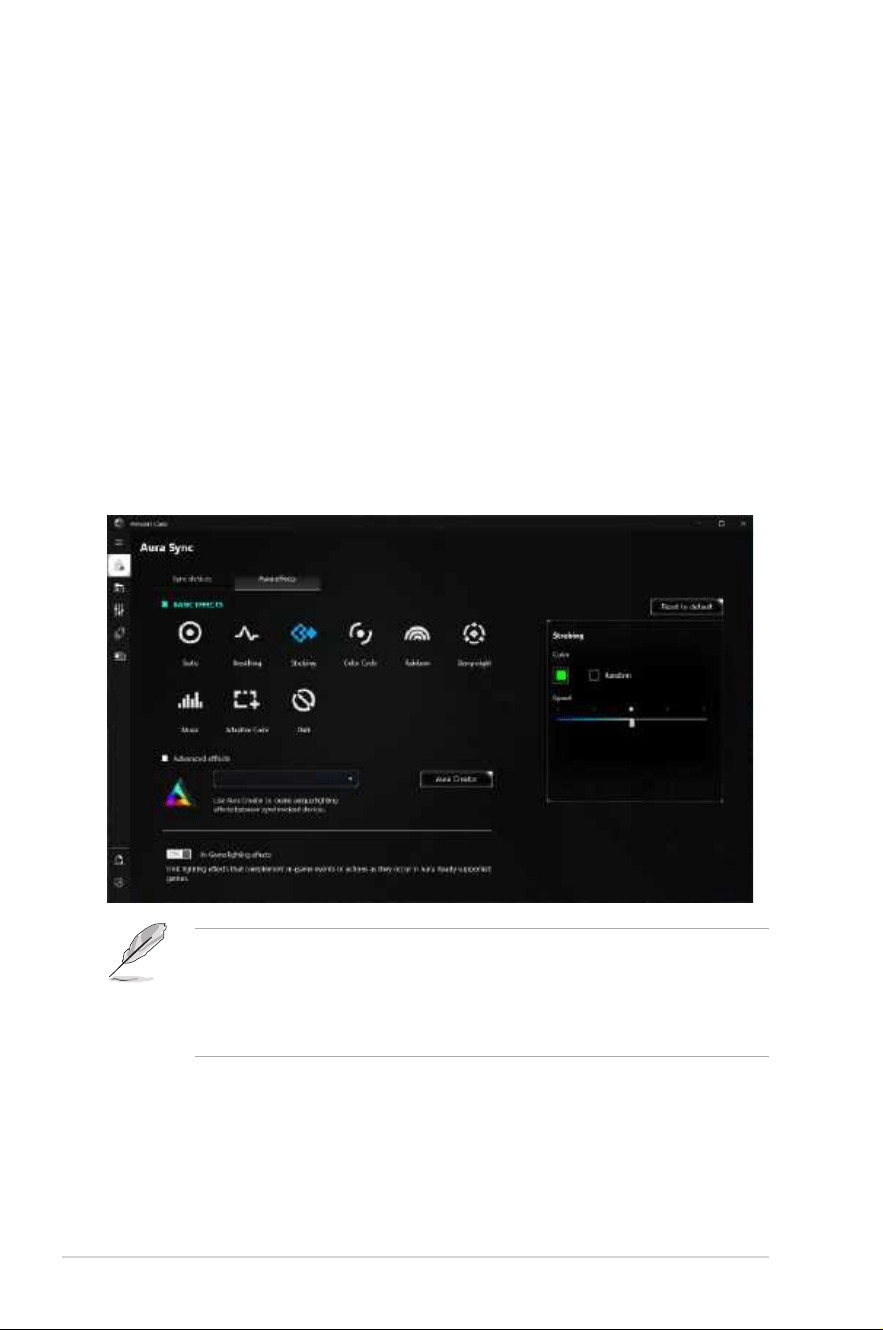
Armoury Crate is a software program that controls the colorful LEDs on supported
devices, such as monitors, motherboards, graphic cards, desktop PCs, etc. Aura
allows you to adjust the color of the RGB LEDs on these devices and select
different light effects. You can also correct or adjust the color of the LEDs by
calibrating them.
To activate Aura:
1. Turn ON the Aura Sync function in the OSD menu.
2. Connect the USB 3.2 Gen 1 upstream port of the monitor to the USB port of
your computer.
3. Install Armoury Crate and then restart the computer.
4. Execute Armoury Crate.
Below is the overview of this program.
• If the USB upstream connection between the monitor and computer is
disconnected, to resume the Aura function, you need to re-connect the
USB 3.2 Gen 1 upstream port of the monitor to the computer and then
restart the computer.
• Visit https://rog.asus.com/innovation/armoury_crate/ for more details.
3-13ASUS PG32UCDM Series OLED Monitor
3.3 Specificationssummary
Panel Type OLED
Panel size 31.5" (16:9, 80.3 cm) wide screen
Max. Resolution 3840 x 2160
Pixel pitch 0.1814 mm x 0.1814 mm
Brightness 250 cd/m
2
, 1000 cd/m
2
(peak)
Contrast Ratio (Typ.) 1,500,000:1
Viewing angle (H/V) CR>10 178˚/178˚
Display colors 1073.7 M (10 bit)
Color gamut DCI-P3 99%
Response time 0.03 ms
Color temperature selection 8 color temperatures
Digital input
HDMI v2.1 x 2, DisplayPort v1.4 x 1, USB Type-C x 1
Earphone jack Yes
SPDIF out Yes
Audio input No
Speaker (Built-in) No
USB 3.2 Gen 1 port 1 x USB Type-C
1 x USB 3.2 Gen 1 Type-B
3 x USB 3.2 Gen 1 Type-A
USB 2.0 port No
Color Black
Power LED Red (On)/Amber (Standby)/Orange flashing (Pixel
cleaning)
Tilt +20˚~ -5˚
Swivel +15˚~ -15˚
Pivot No
Height Adjustment 80 mm
Kensington lock Yes
Voltage rating AC: 100~240V
DC: 20.0V 14.0A (AC adapter)
Power consumption Power On: < 42 W** (Typ.), Standby: < 0.5 W, Power
Off: < 0.3 W
Temperature (Operating) 0˚C~40˚C
Temperature (Non-operating) -20˚C~+60˚C
Dimension (W x H x D) without
stand
718 x 430 x 74 mm
Dimension (W x H x D) 718 x 579 x 274 mm (with stand, highest)
718 x 499 x 274 mm (with stand, lowest)
868 x 514 x 238 mm (package)
Weight (Esti.) 6 kg (without stand); 8.8 kg (Net); 15.2 kg (Gross)
3-14
Chapter 3: OSD (On-Screen Display) menu
Multi-languages 23 languages (English, French, German, Italian,
Spanish, Dutch, Portuguese, Russian, Czech,
Croatian, Polish, Romanian, Hungarian, Turkish,
Simplified Chinese, Traditional Chinese, Japanese,
Korean, Thai, Indonesian, Persian, Ukrainian,
Vietnamese)
Accessories Quick start guide, warranty card, power adapter,
power cord, HDMI cable (optional), DisplayPort cable
(optional), USB Type-A to Type-B cable (optional),
USB Type-C cable (optional), ROG welcome card with
envelope, ROG wall mount kit, ROG sticker, ROG
pouch
Compliance and Standards
cTUVus, FCC, ICES-3, CB, CE, ErP, WEEE, EU
Energy label , UkrSEPRO, Ukraine Energy, CU, CCC,
China Energy Label, BSMI , RCM, MEPS, VCCI, PSE,
PC Recycle , J-MOSS, KC, KCC, KMEPS, PSB, RoHs,
CEC, Windows 10 & 11 WHQL, TUV Flicker free, TUV
Low Blue Light
*Specications are subject to change without notice.
**measuring a screen brightness of 200 nits without audio/USB/Card reader connection.
3-15ASUS PG32UCDM Series OLED Monitor
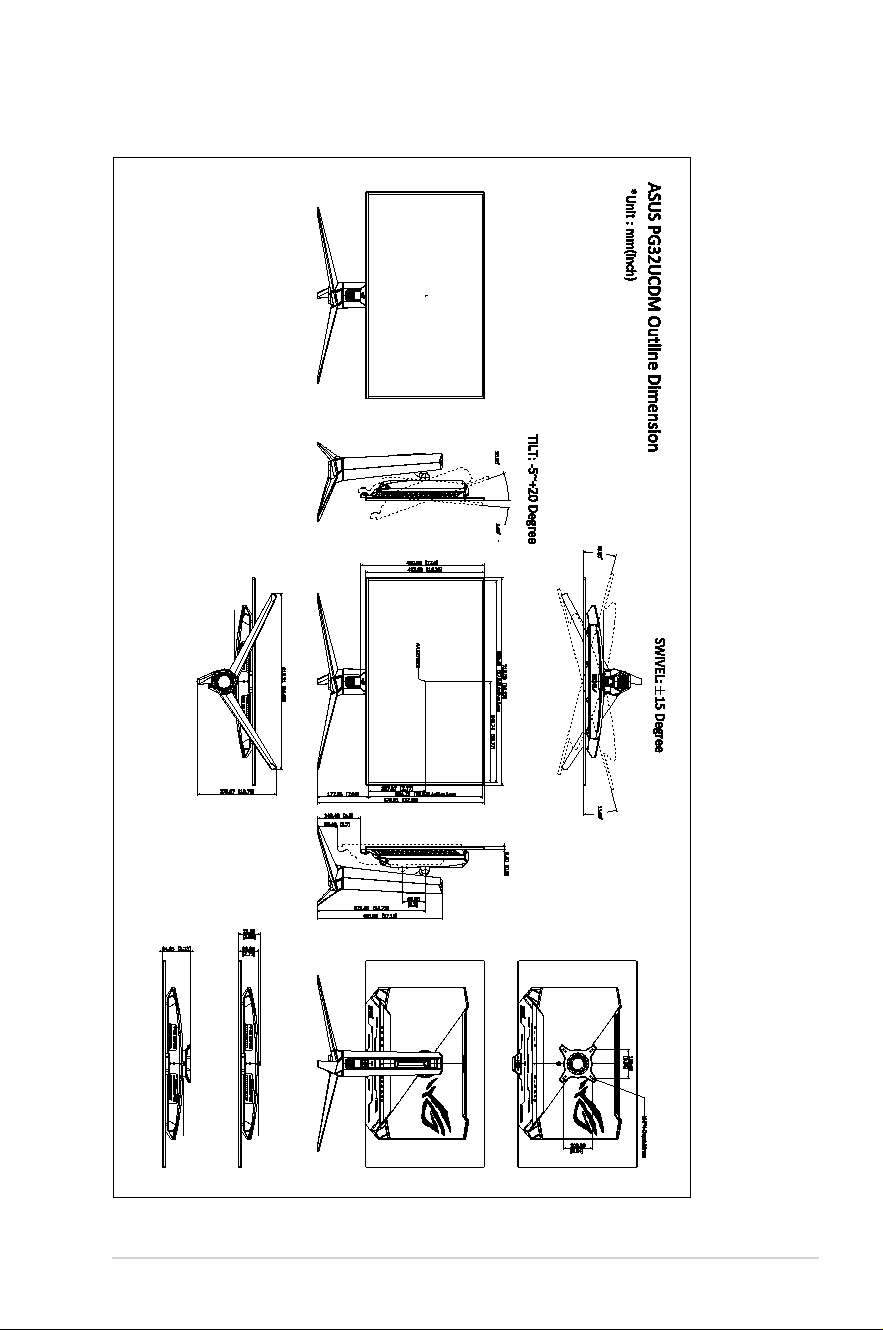
3.4 Outlinedimensions
3-16
Chapter 3: OSD (On-Screen Display) menu
3.5 Troubleshooting(FAQ)
Problem Possible Solution
Power LED is not ON • Press any button to check if the monitor is
in the ON mode.
• Check if the power cord is properly
connected to the monitor and the power
outlet.
• Check if the power switch is ON.
The power LED lights amber and there is
no screen image
• Check if the monitor and the computer are
in the ON mode.
• Make sure the signal cable is properly
connected the monitor and the computer.
• Inspect the signal cable and make sure
none of the pins are bent.
• Connect the computer with another
available monitor to check if the computer
is properly working.
Screen image is too light or dark • Adjust the Contrast and Brightness
settings via OSD.
Screen image bounces or a wave pattern is
present in the image
• Make sure the signal cable is properly
connected to the monitor and the
computer.
• Move electrical devices that may cause
electrical interference.
Screen image has color defects (white does
not look white)
• Inspect the signal cable and make sure
that none of the pins are bent.
• Perform All Reset via OSD.
• Adjust the R/G/B color settings or select
the Color Temperature via OSD.
No sound or sound is low • Ensure that the HDMI/DisplayPort/USB
Type-C cable is properly connected to the
monitor and the computer.
• Adjust the volume settings of both your
monitor and HDMI/DisplayPort/USB
Type-C device.
• Ensure that the computer sound
card driver is properly installed and
activated.
HDR content is not played properly • Make sure the input source supports HDR
playback (with proper system settings and
latest software).
• Make sure the content is HDR encoded.
3-17ASUS PG32UCDM Series OLED Monitor
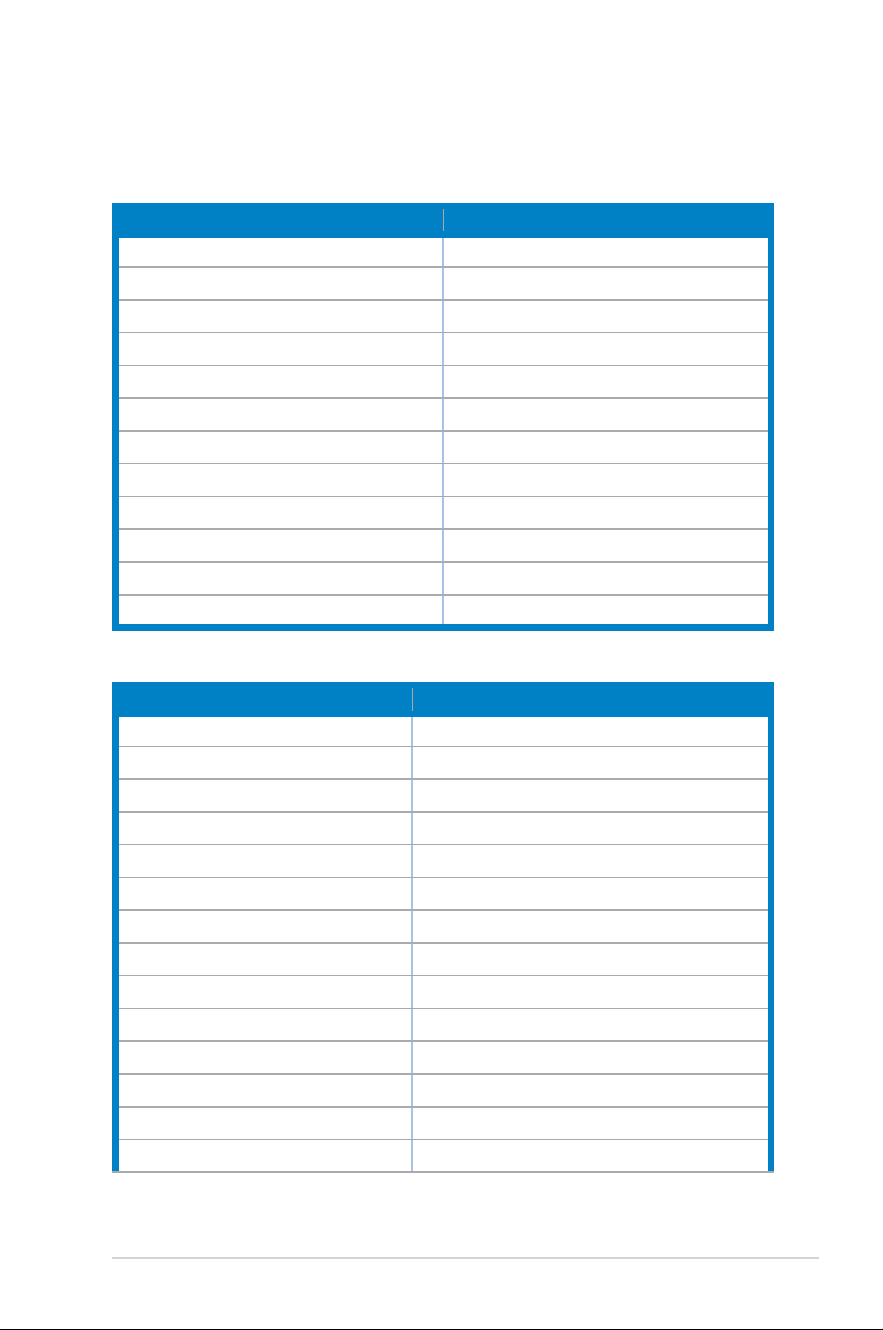
3.6 Supportedoperatingmodes
• • Native timingsNative timings
Resolution frequency Refresh rate
640 x 480 60/75Hz
720 x 480 60Hz
720 x 576 50Hz
800 x 600 60/75Hz
1024 x 768 60/75Hz
1280 x 720 50/60Hz
1280 x 960 60Hz
1280 x 1024 60Hz
1600 x 1200 60Hz
1920 x 1080 24/25/30/50/60/100/120/240Hz
2560 x 1440 60/120/240Hz
3840 x 2160 24/25/30/50/60/100/120/240Hz
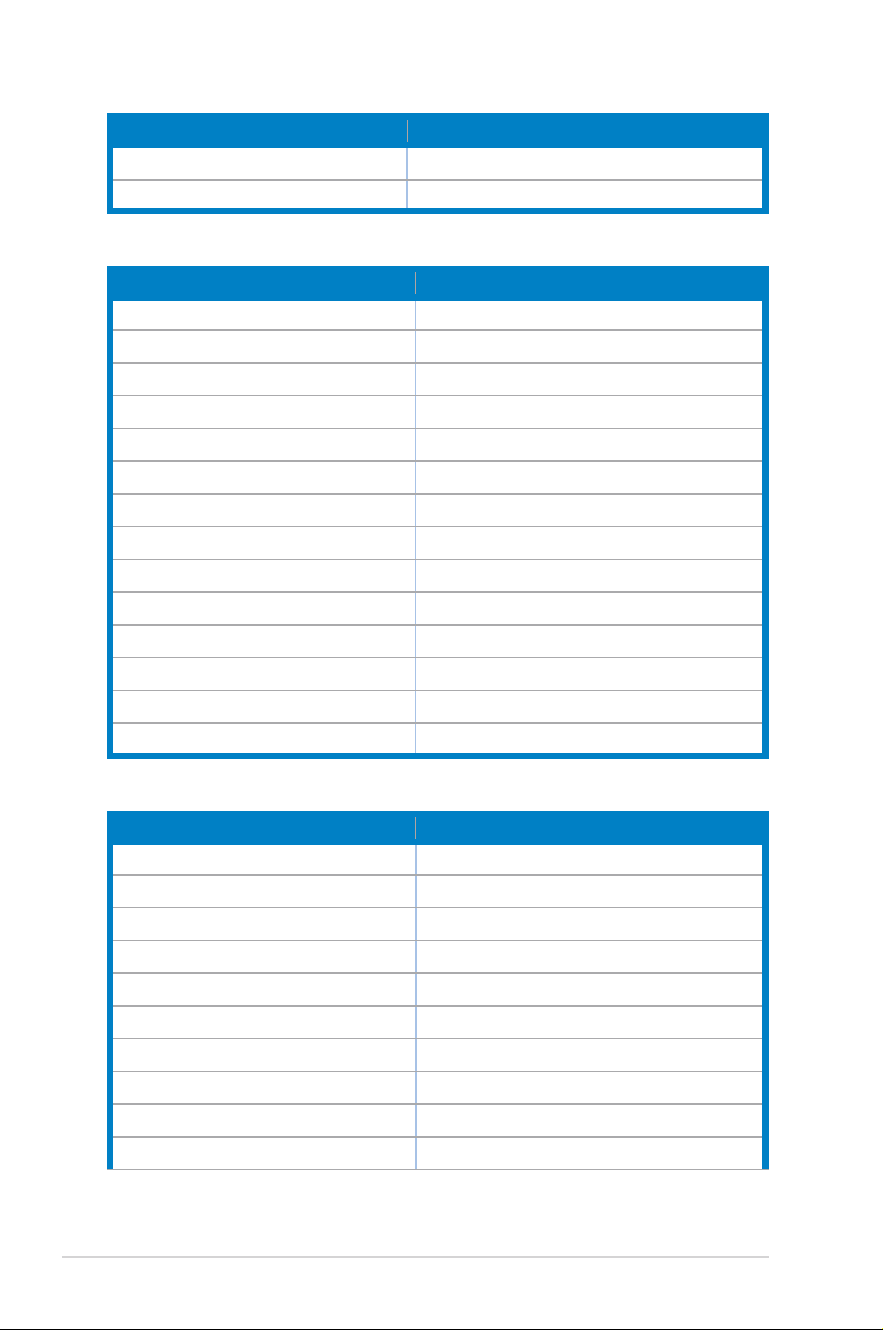
• • For Square timingsFor Square timings
Resolution frequency Refresh rate
640 x 480 60/75Hz
720 x 480 60Hz
720 x 576 50Hz
800 x 600 60/75Hz
1024 x 768 60/75/240Hz
1280 x 720 50/60Hz
1280 x 960 60/240Hz
1280 x 1024 60Hz
1440 x 1080 240Hz
1600 x 1200 60Hz
1728 x 1080 240Hz
1920 x 1080 24/25/30/50/60/100/120/240Hz
1920 x 1440 240Hz
2560 x 1440 60Hz (DisplayPort only)
3-18
Chapter 3: OSD (On-Screen Display) menu
Resolution frequency Refresh rate
2560 x 1440 120/240Hz
3840 x 2160 24/25/30/50/60/100/120Hz
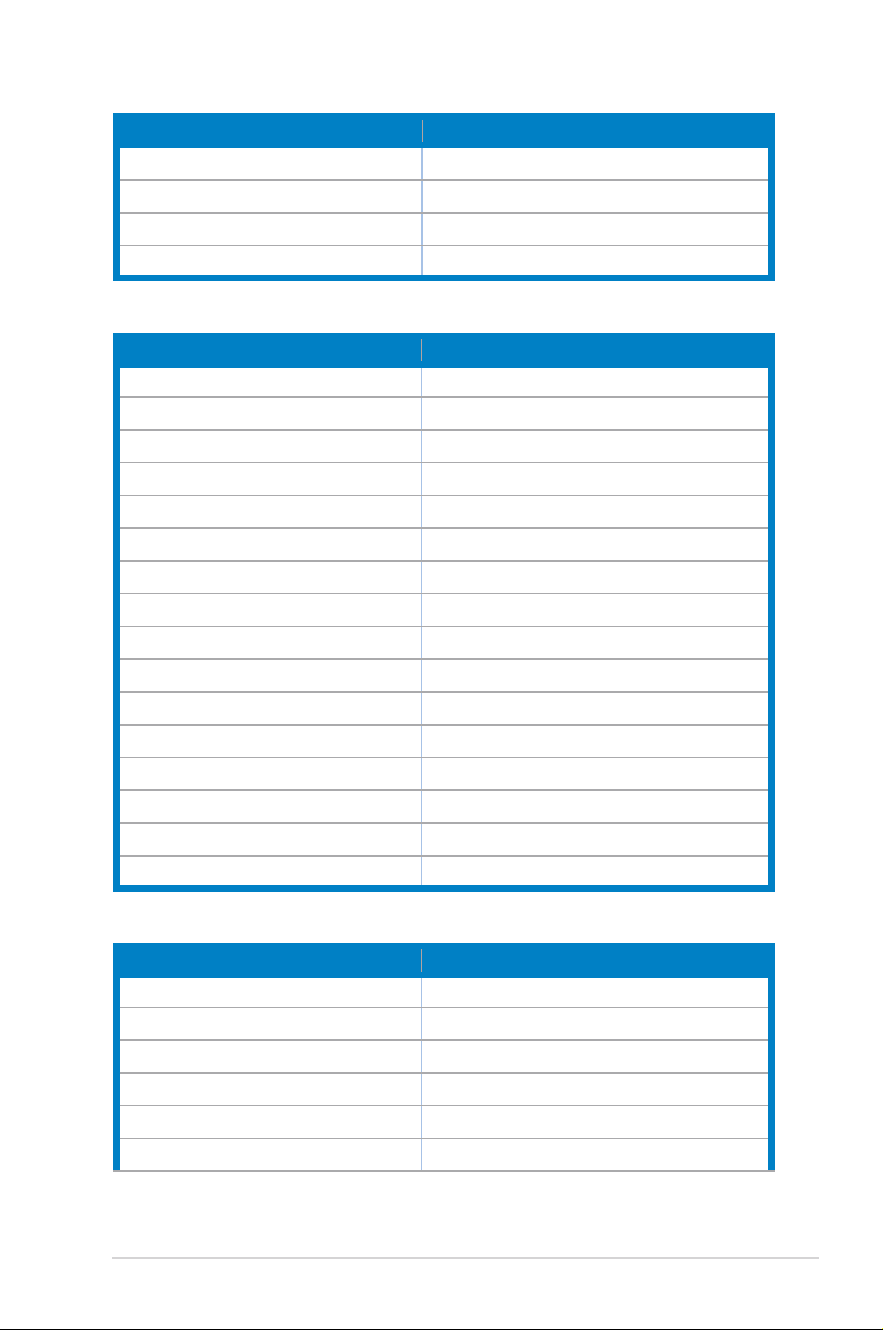
• • For 16:9 (24.5" Simulation) aspect control timingsFor 16:9 (24.5" Simulation) aspect control timings
Resolution frequency Refresh rate
640 x 480 60/75Hz
720 x 480 60Hz
720 x 576 50Hz
800 x 600 60/75Hz
1024 x 768 60/75Hz
1280 x 720 50/60Hz
1280 x 960 60Hz
1280 x 1024 60Hz
1600 x 1200 60Hz
1920 x 1080 24/25/30/50/60/100/120/240Hz
2560 x 1440 60Hz (DisplayPort only)
2560 x 1440 120/240Hz
3840 x 2160 24/25/30/50/60/100/120/240Hz
2992 x 1684 60/120/240Hz
• • For 16:9 (27" Simulation) aspect control timingsFor 16:9 (27" Simulation) aspect control timings
Resolution frequency Refresh rate
640 x 480 60/75Hz
720 x 480 60Hz
720 x 576 50Hz
800 x 600 60/75Hz
1024 x 768 60/75Hz
1280 x 720 50/60Hz
1280 x 960 60Hz
1280 x 1024 60Hz
1600 x 1200 60Hz
1920 x 1080 24/25/30/50/60/100/120/240Hz
3-19ASUS PG32UCDM Series OLED Monitor
Resolution frequency Refresh rate
2560 x 1440 60Hz (DisplayPort only)
2560 x 1440 120/240Hz
3840 x 2160 24/25/30/50/60/100/120/240Hz
3288 x 1850 60/120/240Hz
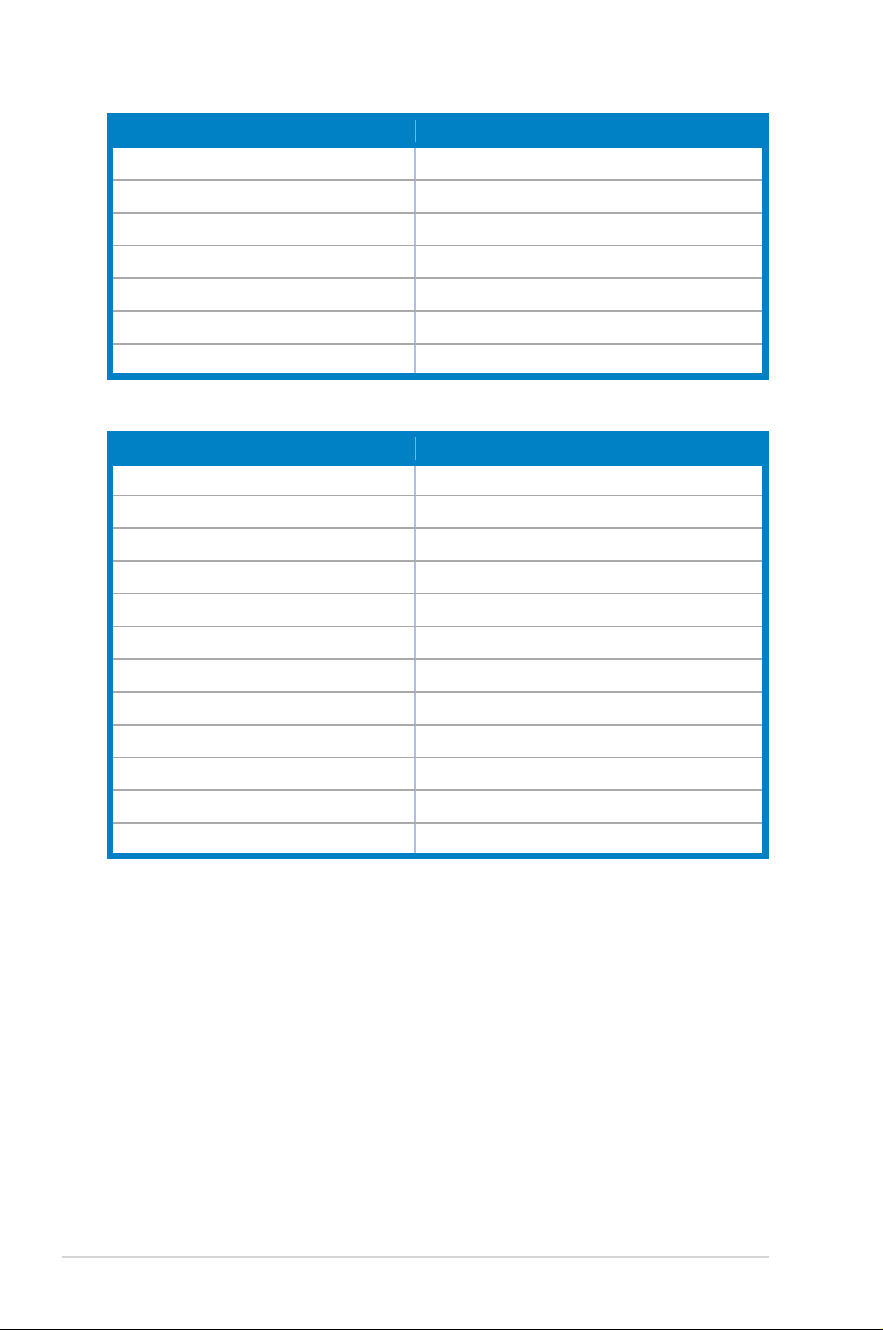
• • For 16:9 (Pixel by pixel) aspect control timingsFor 16:9 (Pixel by pixel) aspect control timings
Resolution frequency Refresh rate
640 x 480 60/75Hz
720 x 400 70Hz
720 x 480 60Hz
720 x 576 50Hz
800 x 600 60/75Hz
1024 x 768 60/75Hz
1280 x 720 50/60Hz
1280 x 960 60Hz
1280 x 1024 60Hz
1600 x 1200 60Hz
1920 x 1080 24/25/30/50/60/100/120/240Hz
2560 x 1440 60Hz (DisplayPort only)
2560 x 1440 120/240Hz
3840 x 2160 24/25/30/50/60/100/120/240Hz
2992 x 1684 240Hz
3288 x 1850 60/240Hz
• • For PBP timingsFor PBP timings
Resolution frequency Refresh rate
640 x 480 60Hz
720 x 480 60Hz
720 x 576 50Hz
800 x 600 60Hz
1024 x 768 60Hz
1280 x 720 50/60Hz
3-20
Chapter 3: OSD (On-Screen Display) menu
Resolution frequency Refresh rate
1280 x 960 60Hz
1280 x 1024 60Hz
1600 x 1200 60Hz
1920 x 1080 24/25/30/50/60Hz
1920 x 2160 60Hz
2560 x 1440 60Hz
3840 x 2160 24/25/30/50/60Hz
• • For PIP timingsFor PIP timings
Resolution frequency Refresh rate
640 x 480 60Hz
720 x 480 60Hz
720 x 576 50Hz
800 x 600 60Hz
1024 x 768 60Hz
1280 x 720 50/60Hz
1280 x 960 60Hz
1280 x 1024 60Hz
1600 x 1200 60Hz
1920 x 1080 24/25/30/50/60Hz
2560 x 1440 60Hz
3840 x 2160 24/25/30/50/60Hz

3-21ASUS PG32UCDM Series OLED Monitor
Trademark information
Dolby, Dolby Vision, and the double-D symbol are registered trademarks of Dolby
Laboratories Licensing Corporation. Manufactured under license from Dolby
Laboratories Licensing Corporation. Confidential unpublished works. Copyright ©
2013–2022 Dolby Laboratories. All rights reserved.
3-22
Chapter 3: OSD (On-Screen Display) menu