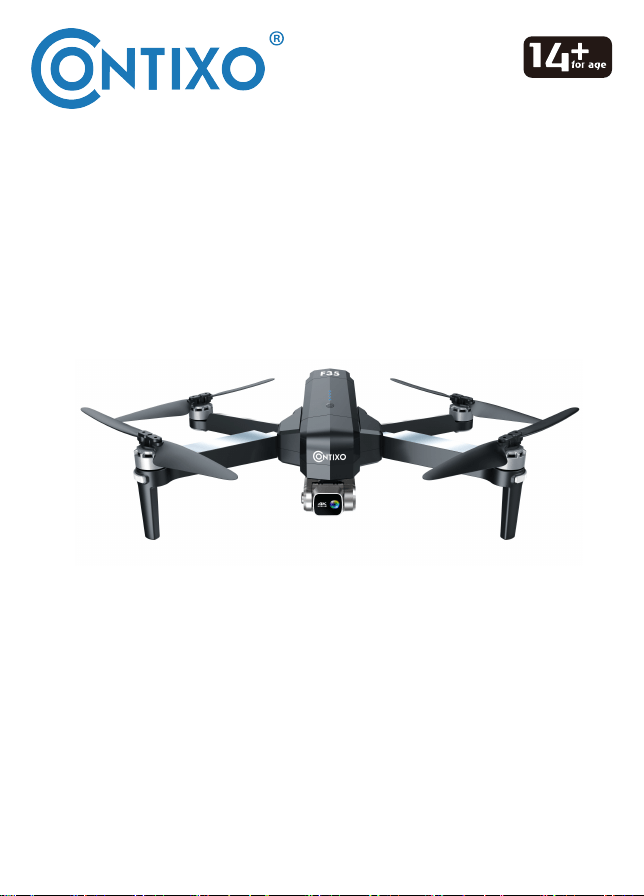
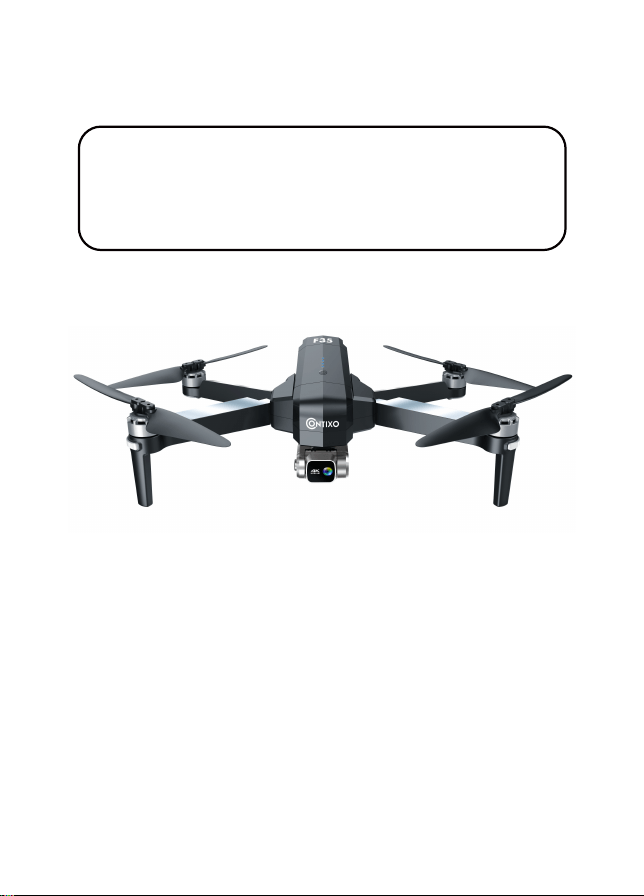
— F35 DRONE INSTRUCTION MANUAL —

Introduc�on
------------------------------------------------------------
1
Safety precau�ons
--------------------------------------------------------
1
Remote Control Func�ons
-------------------------------------
-----------------------------------------------
-------------------------------------
4
Drone Diagram
--------------------------------------------------
5
Remote Control Opera�ng Method
-------------------------------
-------------------------------
9
10
22
27
29
Dual Remote Controller Mode
10
WayPoint Flight
--------------------------------------------------
--------------------------------------------------
--------------------------------------------------
20
Flight
--------------------------------------------------
11
Orbit Mode
Install the Con�xo F35 App
Camera Func�ons
23
--------------------------------------------------
How To Find a Lost Drone
Specifica�ons
Parts list (Included)
--------------------------------------------------------
21
Flight Se�ng
--------------------------------------------------------
22

PREFACE:
Thank you for Purchasing the Con�xo F35 RC Drone
The Con�xo F35 Drone is a quadcopter that’s purposely built for drone applica�on
developers to enable you to get your applica�ons airborne quickly.
This Development pla�orm is intended to be modified by developers according to
their professional judgment. Con�xo has not established opera�on limita�ons for
the kit or tested any configura�ons other than the base configura�on that is shipped
as configured default from the factory. Developers are responsible for tes�ng and
ensuring the safety of their own configura�on, and establishing the opera�ng limits
of those configura�ons.
F35 Drone is designed and engineered by Con�xo, Inc. in Southern California,
USA. Made in China.
IMPORTANT:
Never allow children or young teenagers to operate the drone and keep them away
while it is opera�ng. Never allow adults to operate the drone without fully
understanding the instruc�ons.
SAFETY PRECAUTIONS:
Safety: F35 drone was designed and manufactured with safety in mind. Your safety
also depends on proper training and though�ul opera�on. Do not set up, operate,
maintain, or repair the drone without reading and understanding this manual and
the labels on the unit.
Owner Responsibility: In order to maintain your drone properly and to ensure
operator safety, it is the responsibility of the drone owner to read and follow
these instruc�ons:
Follow all setup, opera�on, and maintenance instruc�ons.
Read and follow all safety instruc�ons. Keep them readily available for operators.
Make sure all operators are properly trained, know how to safely operate, and are
properly supervised.
Do not operate the drone un�l you are certain that all parts are in place and
opera�ng correctly.
Carefully inspect the drone on a regular basis and perform all maintenance as
required.
Service and maintain the drone only with approved replacement parts.
Keep all instruc�ons permanently with the product.
Only use this product if it can be used safely!
- 1 -

WARNING: PRODUCT SHOULD ONLY BE USED BY ADULTS AND
CHILDREN 14 YEARS AND OLDER. ADULT SUPERVISION REQUIRED
FOR CHILDREN UNDER 14 YEARS OF AGE.
WARNING: CHARGING OF THE DRONE BATTERY MUST BE
SUPERVISED AT ALL TIMES BY AN ADULT. UNPLUG THE BATTERY
WHEN FULLY CHARGED. DO NOT OVER-CHARGE THE BATTERY.
Thank you for Purchasing the Con�xo F35 RC Drone
The Con�xo F35 Drone is a quadcopter that’s purposely built for drone applica�on
developers to enable you to get your applica�ons airborne quickly.
This Development pla�orm is intended to be modified by developers according to
their professional judgment. Con�xo has not established opera�on limita�ons for
the kit or tested any configura�ons other than the base configura�on that is shipped
as configured default from the factory. Developers are responsible for tes�ng and
ensuring the safety of their own configura�on, and establishing the opera�ng limits
of those configura�ons.
F35 Drone is designed and engineered by Con�xo, Inc. in Southern California,
USA. Made in China.
IMPORTANT:
Never allow children or young teenagers to operate the drone and keep them away
while it is opera�ng. Never allow adults to operate the drone without fully
understanding the instruc�ons.
SAFETY PRECAUTIONS:
Safety: F35 drone was designed and manufactured with safety in mind. Your safety
also depends on proper training and though�ul opera�on. Do not set up, operate,
maintain, or repair the drone without reading and understanding this manual and
the labels on the unit.
Owner Responsibility: In order to maintain your drone properly and to ensure
operator safety, it is the responsibility of the drone owner to read and follow
these instruc�ons:
Follow all setup, opera�on, and maintenance instruc�ons.
Read and follow all safety instruc�ons. Keep them readily available for operators.
Make sure all operators are properly trained, know how to safely operate, and are
properly supervised.
Do not operate the drone un�l you are certain that all parts are in place and
opera�ng correctly.
Carefully inspect the drone on a regular basis and perform all maintenance as
required.
Service and maintain the drone only with approved replacement parts.
Keep all instruc�ons permanently with the product.
Only use this product if it can be used safely!
frequency energy. If not installed and used in accordance with the instruc�ons,
the equipment may cause harmful interference to radio communica�ons.
NOTE: This equipment has been tested and found to comply with the limits for
a class b digital device, pursuant to part 15 of the FCC rules. These limits are
designed to provide reasonable protec�on against harmful interference in a
residen�al installa�on. This equipment generates, uses, and can radiate radio
• However, there is no guarantee that interference will not occur in a par�cular
installa�on. If your equipment does cause harmful interference to radio or
television recep�on(which can be determined by turning the equipment off and
on), the user is encouraged to try to correct the interference by one or more of
the following measures:
• Please note that changes or modifica�ons not expressly approved by the
party responsible for compliance could void the user’s authority to operate
the equipment.
• Adjust or relocate the receiving antenna.
• Increase the distance between the equipment and receiver.
• Connect the equipment into an outlet on a circuit different from that to which
the receiver is connected.
• Consult the dealer or an experienced radio/TV technician for help.
- 2 -
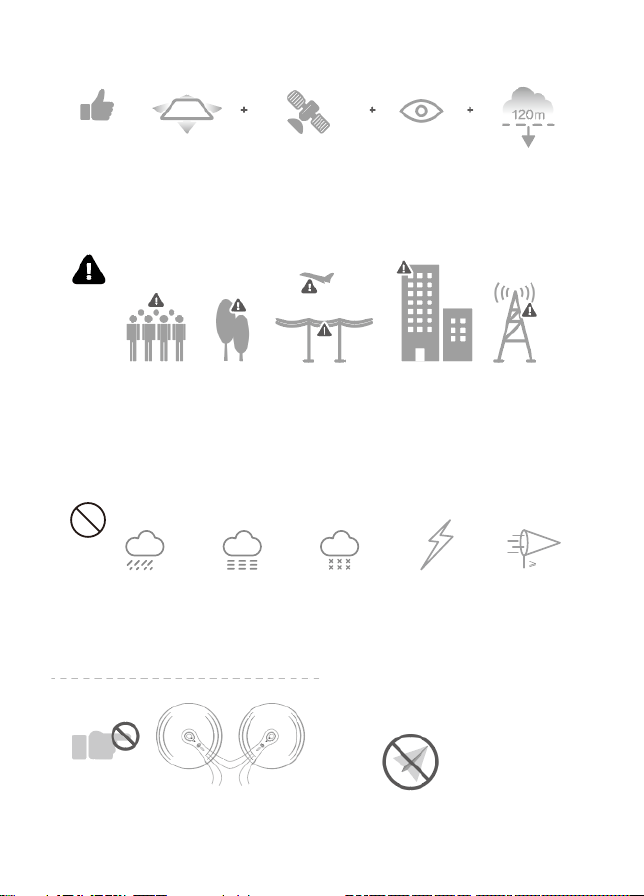
Flight Safety
Fly in Open Strong GPS Maintain Line Fly Below
Areas Signal of Sight 400 feet (120 m)
Avoid flying over or near obstacles, crowds, high voltage power lines, trees,
airport s or water.
DO NOT fly near strong electromagne�c sources such as power lines and
base sta�ons as it may affect the onboard compass.
DO NOT use the drone in adverse weather condi�ons such as rain, snow,
fog and wind speeds exceeding 7 m/s or 16 mph.
No Fly Zone
Stay away from the rota�ng
propellers and motors.
- 3 -
7m/s
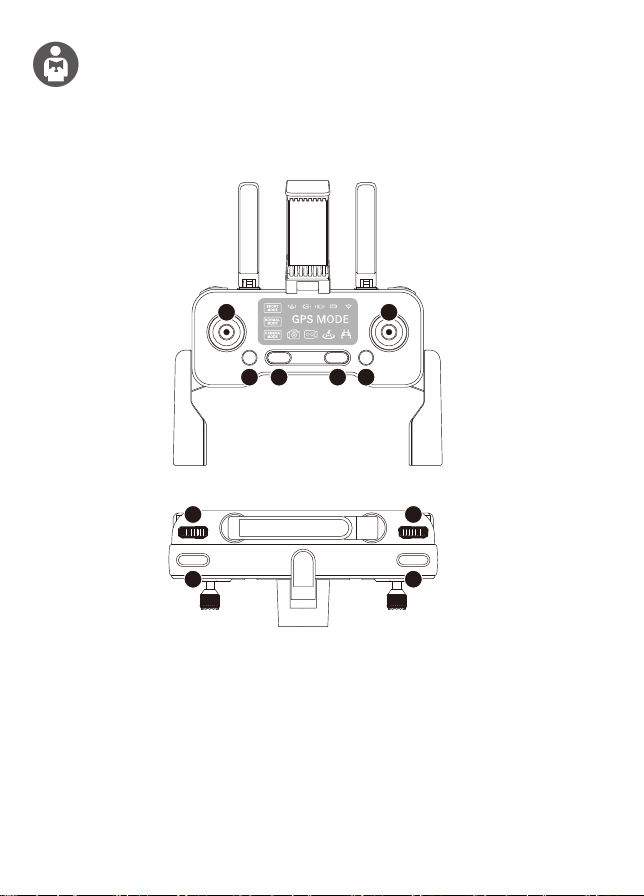
Remote Control Func�ons
It’s important to understand basic flight guidelines, for the safety of both
you and those around you. Don’t forget to read the safety guidelines
before flight.
1. Thro�le S�ck
2. Direc�on S�ck
3. Click once speed switch
4. Click once then hold 3 seconds to emergency stop
5. Power Bu�on:
ON – Click Once, White Light Comes ON
OFF – Click Once, Then Hold 3 Seconds Un�l White Light Turns Off
When there is no opera�on in 10 minutes, the remote controller will be
automa�cally powered off.
- 4 -
1
3 4 5 6
2
7 8
9
10
6. Click once to RTH mode; Keep pressing for 5 seconds switch to normal
mode/GPS mode.
7. Zoom in and out
8. Gimbal Dial: Controls the camera's �lt
9. Shoo�ng
10. Recording
- 5 -
Drone Diagram
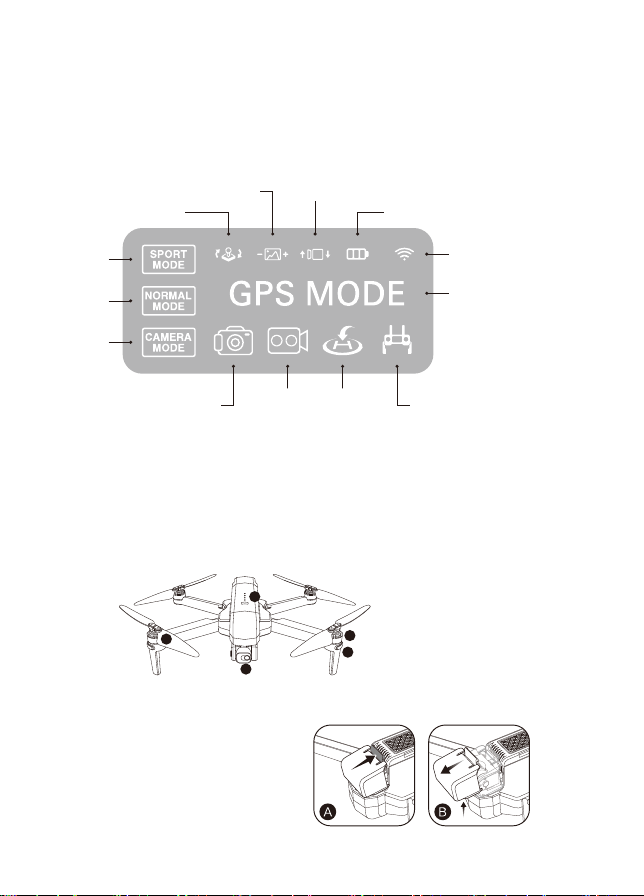
Tip: When the transmitter is in low power, the power indicator light on the
transmitter will keep ashing, now you need to charge the transmitter.
Repeater Signal
Indicator
GPS mode and
Normal mode
switch
Charging indicatorLeft/Right Stick switch
Shooting Recording RTH Low battery indicator
Zoom in and out Controls the camera's tilt
High
Speed
Medium
Speed
Low
Speed
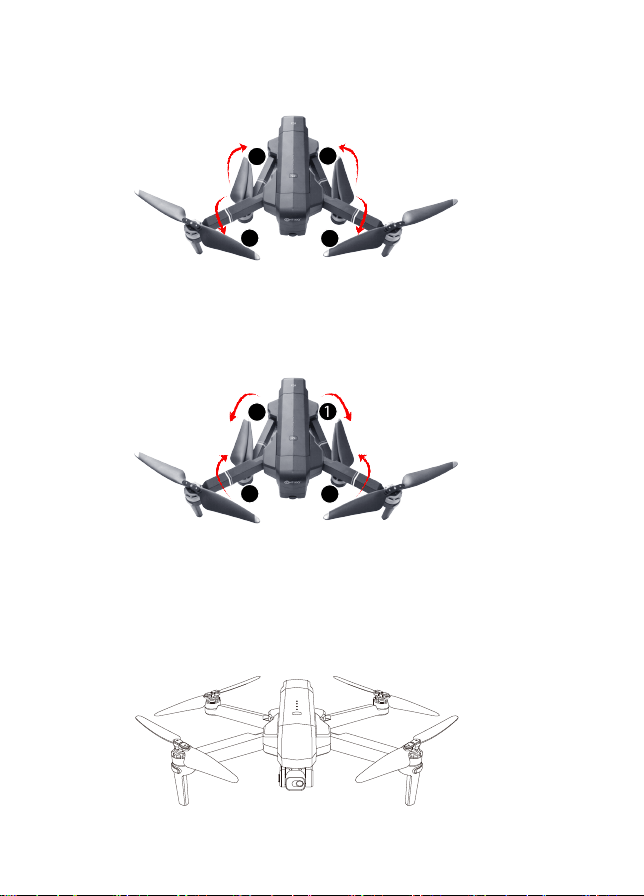
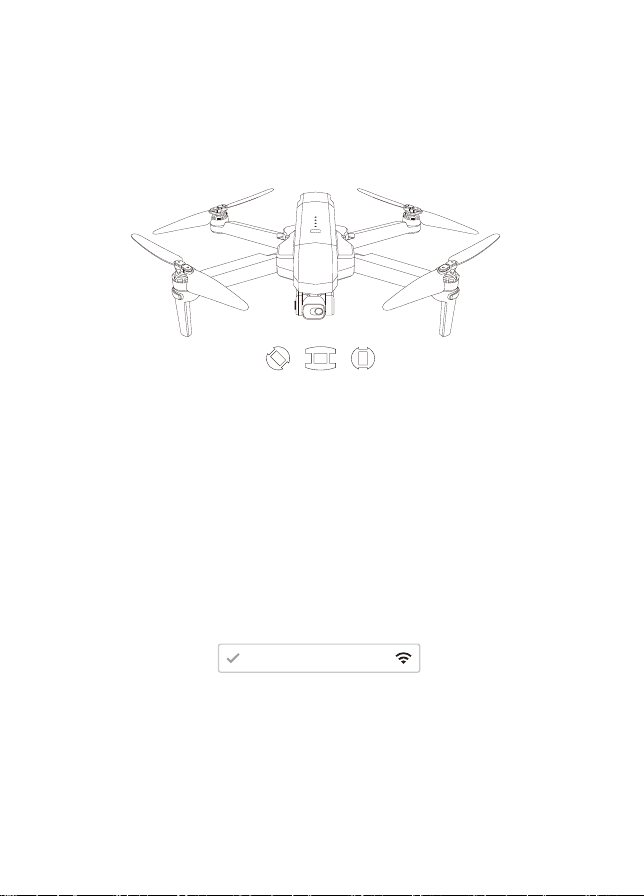
1. 2-Axis stable Gimbal
4K Wifi camera
2. Propeller
3. Motor
4. LED indicator
5. Intelligent ba�ery
A. Open the gimble cover buckle.
B. Pull the gimble cover up then
gently take it o.
1
2
3
4
5
- 6 -
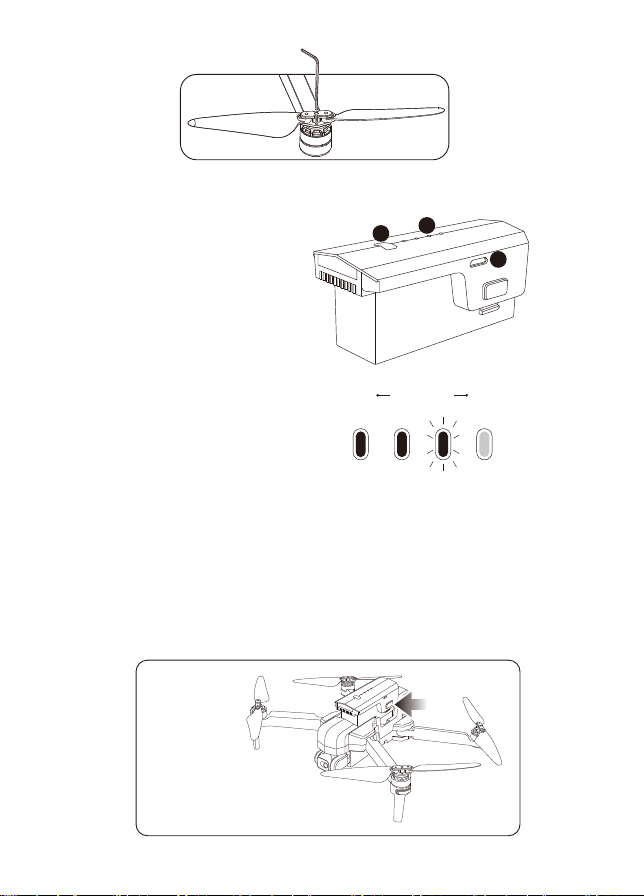
1. Install the Propellers
①. Drone Unfold
②. Drone Fold
Unfold the front arm first, then unfold the back arm.
Fold the back arm first, then fold the front arm.
1
1
2
2
2
2
1
1
Tip! Both the propellers and motors are marked with A, B (propeller A with
motor A and propeller B with motor B.
A
B
B
A
2. Intelligent Flight Ba�ery
3. Charge the Ba�ery
— To power ON, hold the bu�on for 3 seconds. To power OFF, hold the bu�on
for 3 seconds.
— When the ba�ery is at low power, the blue power indicator will start flashing.
At this �me, return the drone immediately and charge the ba�ery to
avoid unnecessary power failures.
- 7 -
1. Power Bu�on
2. Ba�ery Power Indicator
3. USB Charging Port
Low Electricity High
1
2
3
Push 2 Side Buttons In,
Pull the Battery from the Drone
4. Lithium Ba�ery Charging Instruc�ons
(While charging, the indicator on the remote control is Red. When fully charged,
the indicator on the remote control will turn to solid Blue).
Tip: When the remote control ba�ery is low, the power indicator light on the
remote control will keep flashing. Please charge the remote control.
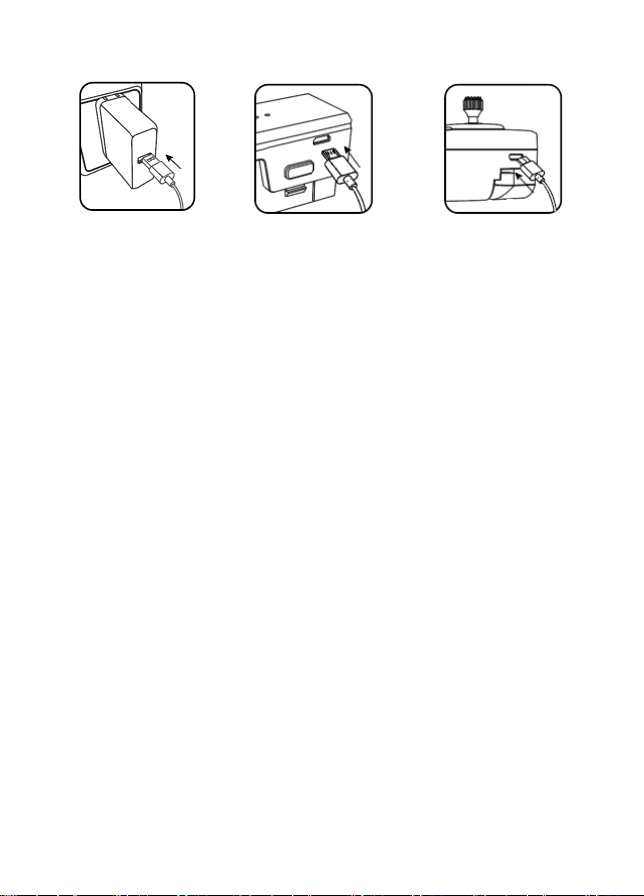
a. Charging: Either power on or power off, the aircra� can be charged. Insert
the USB cable into the USB port of the charger and connect to the charging
port of the ba�ery to charge. The indicator on the drone will begin blinking
blue when charging. When fully charged, the indicator on the drone will
turn to a solid blue.
b. The drone can be charged by a travel or car charger.
c. The drone ba�ery takes about 4.5 hours for a full charge. Flight �me is
about 26 minutes.
d. The remote control lithium ba�ery takes about 25 minutes for a full charge.
Phone Adapter:
5V/ 3A(Not include)
Charging Time:
About 4.5 hours
Remote Control
Charging Es�ma�on
�me: Around
25 minutes
- 8 -
- 9 -
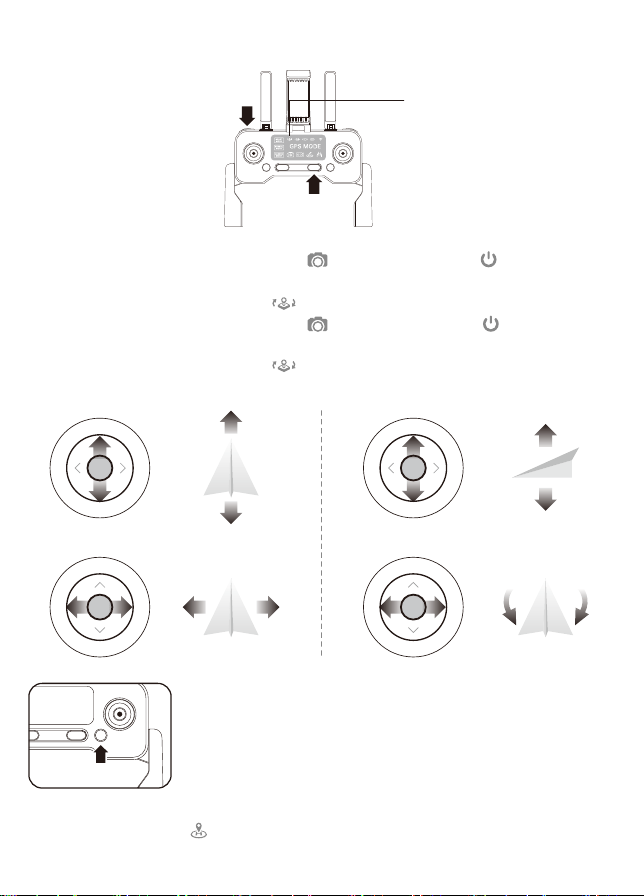
Note: When the drone is indoors with a weak GPS signal, (lights rapidly blinking
Blue + White), holding (RTH) for 5 seconds to turn off GPS mode and the
drone can be operated under the normal mode. All GPS func�ons will be disabled.
— Power off the remoter control. Hold (camera) then press (power) at the
same �me. Two beeping sound means the Right Joys�ck has switched to the
thro�le s�ck, the LED indicator OFF.
— Power off the remoter control. Hold (camera) then press (power) at the
same �me. Two beeping sound means the Le� Joys�ck has switched to the
thro�le s�ck, the LED indicator OFF.
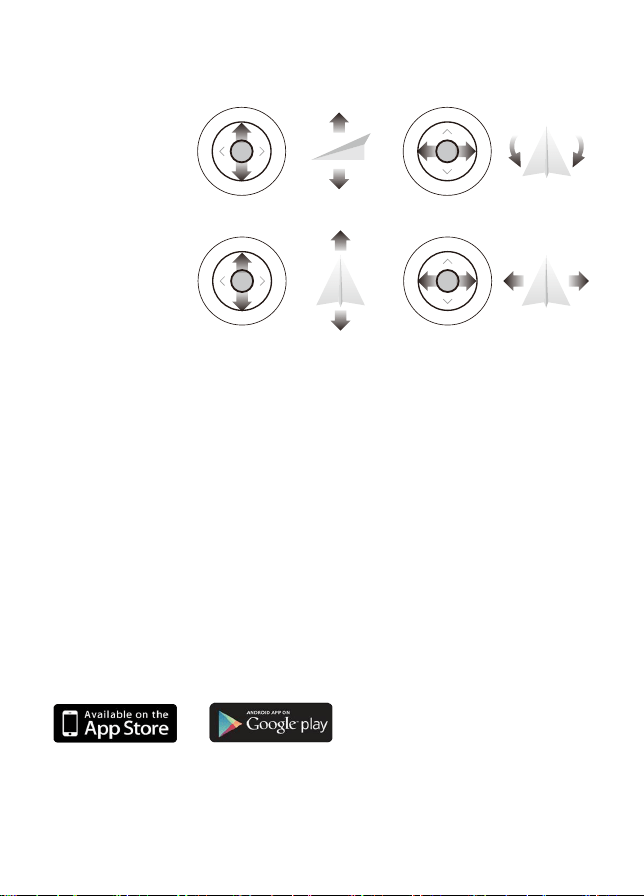
Dual-Se�ng Remote Controller
UP
DOWN
T
u
r
n
L
e
�
T
u
r
n
R
i
g
h
t
F
o
r
w
a
r
d
Le�
Right
B
a
c
k
w
a
r
d
Left Stick Right Stick
LED
indicator
- 10 -
Direc�on Joys�ck
REMOTE CONTROL OPERATING METHOD
Thro�le Joys�ck
T
u
r
n
L
e
�
UP
DOWN
T
u
r
n
R
i
g
h
t
F
o
r
w
a
r
d
Le�
Right
B
a
c
k
w
a
r
d
Con�xo F35
Install the Con�xo F35 App
QR code for “Con�xo F35” applica�on for Apple IOS system (Please scan this QR
code to install this so�ware).
QR code for “Con�xo F35” applica�on for Android system (Please scan this QR
code to install this so�ware).
Scan the following code with your smart phone in order to download
the flight control app.
- 11 -
Step 3: Connect App
— Connect your smartphone to the WiFi of the drone and check the drone’s
status on the “Con�xo F35” app.
— Open the “Con�xo F35” applica�on on your smartphone to access the
control interface.
Con�xo - F35 - XXXX
F35
Step 2: Turn On The Remote Control & Pair With Drone
— Power on the remote control and link the aircra� automa�cally.
— When rear lights flash blue and front lights white, pairing is successful.
NOTE: You can connect to the drone WiFi signal at this �me to view the
current drone on the Con�xo F35 app, or wait un�l a�er GPS is calibrated.
Flight
Step 1: Turn on the drone and set down on a level surface
— The drone will auto-trim to this level surface.
— All lights blinking red.
- 12 -
APP INTRODUCTION
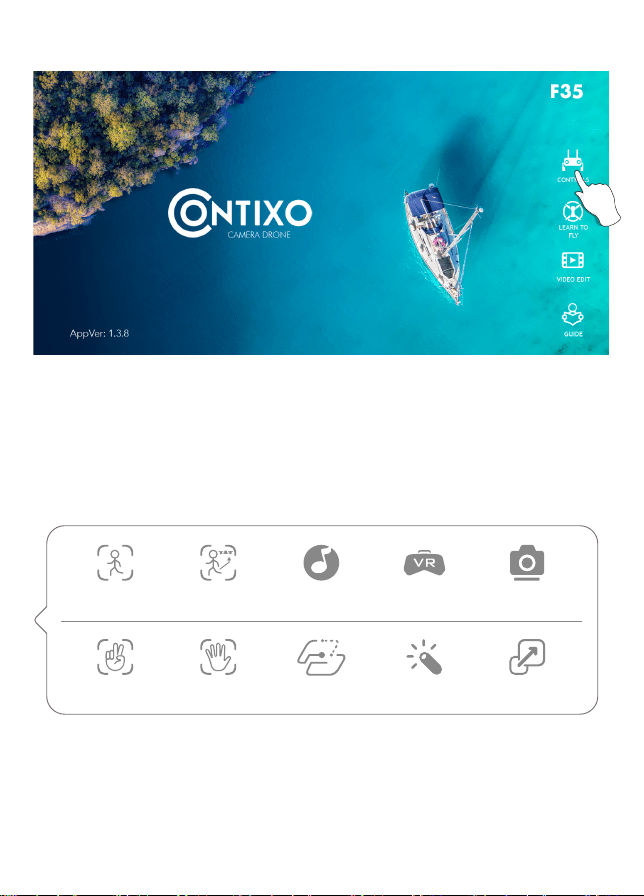
Wait un�l the Drone Status at the bo�om right of the screen reads “Ready to Fly”
before ini�a�ng flight. This will ensure that your GPS is synced and your drone
is ready to fly.
Click the “CONTROLS” bu�on to enter he APP interface.
Photo Ges Video Ges ZoomEffectsWay Point
Object follow GPS follow Music VR Lens angle
- 13 -
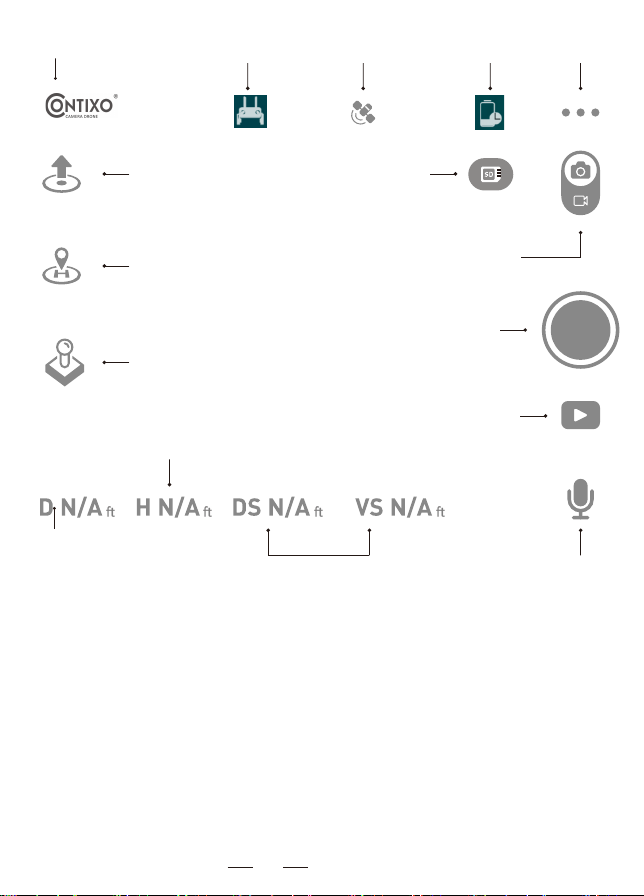
Speed (feet/sec)
More Functions
16
Back to Main Menu
One-Key Take-o
GPS Return Home
Distance (feet)
Height (meters)
SD card status
Photo/Video Switching
Shutter
Remote Battery Aircraft Battery
Setting
GPS Signal
Media Gallery
(One key to share)
Sound
Recording
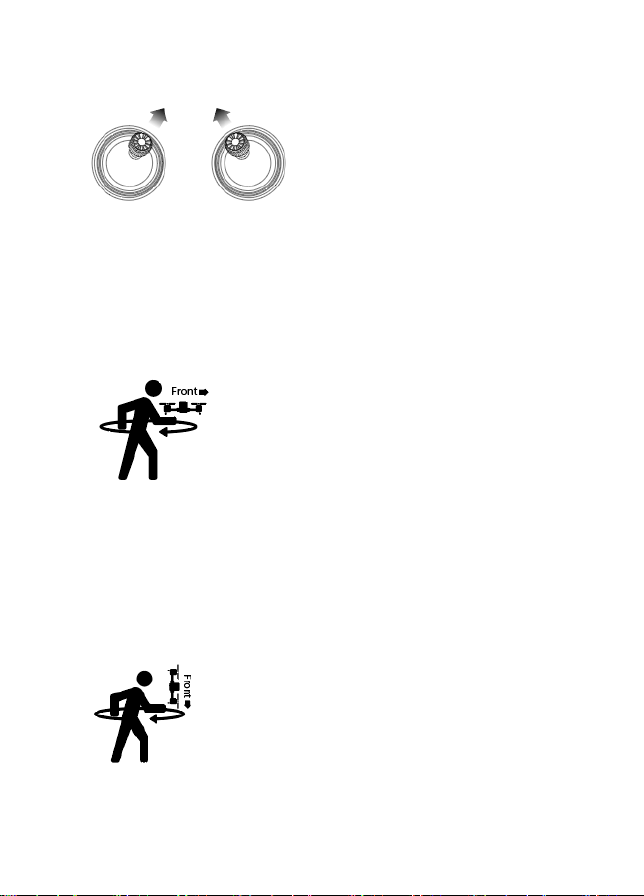
— Keeping the drone level and parallel to the ground, pick it up from the back
and rotate your body in one full circle (360°).
— Back lights will turn to solid blue.
Part 2: Compass Calibra�on
NOTE: If using the app, the on-screen instruc�ons may guide you.
- 14 -
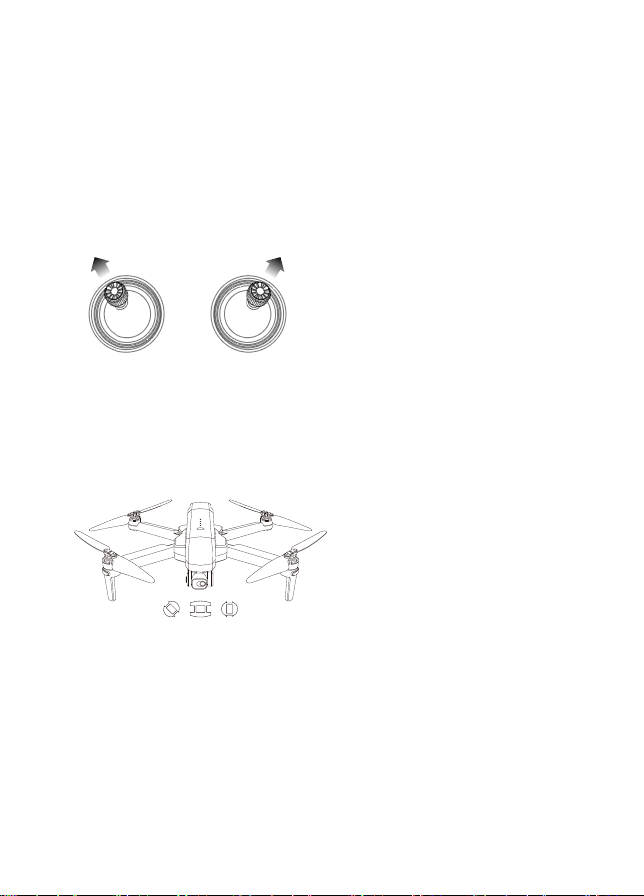
Step 4: Compass Calibra�on
Part 1: Compass Calibra�on
— Move and posi�on le� joys�cks to 1 o’clock & right joys�ck to 11 o’clock.
— Rear lights will rapidly blink Blue/Red and White/Red in front.
— App Drone Status: “Compass Calibra�on”.
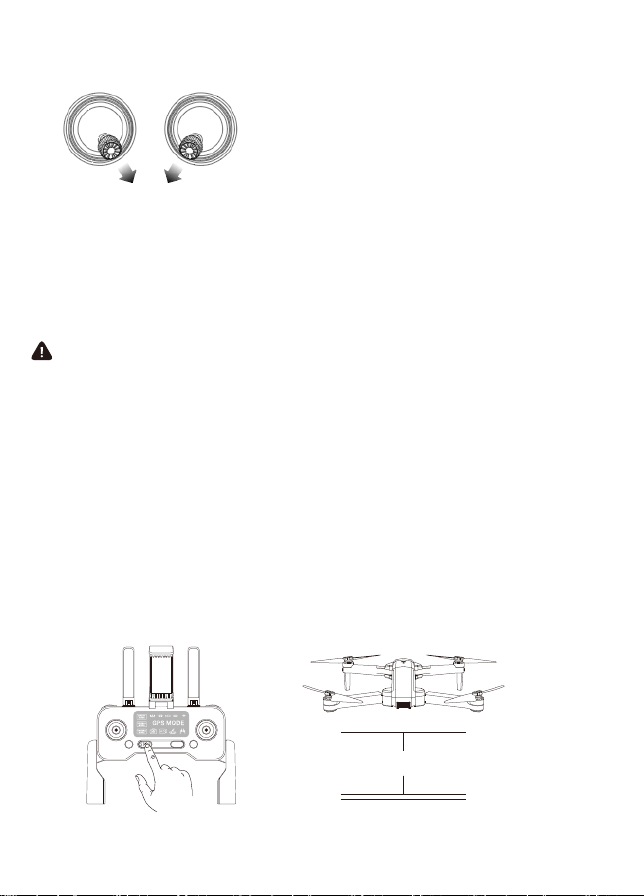
— From the bo�om, hold the drone ver�cally so the camera is facing toward
the ground. Rotate your body in one full circle (360°).
— Front lights will turn to solid white.
— App Drone Status: “Compass Calibra�on Okay”
Part 3: Compass Calibra�on
NOTE: If compass does not calibrate quickly, tap the screen on the Con�xo
F35 App and restart the calibra�on process.
Step 5: Reset to factory Se�ng/Calibrate Gyroscope
— Push the joys�cks into the 11 o’clock (le� joys�ck) & 1 o’clock (right joys�ck)
posi�on.
— Lights will rapidly blink Blue (rear) and White (front).
— App Drone Status: “Gyroscope is Being Calibrated” then “Gyroscope okay”.
- 15 -
Step 6: GPS Searching (DO NOT use GPS Mode Indoors)
— Set the drone back down on a level surface.
— Lights will return to rapid-blinking Blue (rear) and White (front). This means
the drone is searching for the GPS signal.
— This process can take a few minutes.
— App Drone status: “Wai�ng for GPS Signal”
NOTE: Wait for rear lights to be solid blue and front lights white before
ini�a�ng takeoff.
- 16 -
Star�ng/Stopping motors
Star�ng Motors:
Stopping Motors:
1. Push the joys�cks into the 5 o’clock (le� joys�ck) & 7 o’clock (right joys�ck)
posi�on.
2. Motors will start working. Push the le� joys�ck up to takeoff.
1. Push the joys�cks back into the 5 o’clock (le� joys�ck) & 7 o’clock (right
joys�ck) posi�on and the motors will shut off.
2. The motors will go idle if they are not operated a�er 20 seconds.
Once the lights have switched to all solid, you are ready to fly!
— Blue (rear) and white (front) lights are all solid (no blinking).
— App Drone Status: “Ready to fly”.
NOTE: Start the motors before drone takeoff.
Emergency Stop
Rota�ng propellers can be dangerous. DO NOT start the motors when
there are people nearby.
About 42 feet
- 17 -
Warning: When using the emergency stop feature during flying opera�on, it may
cause the damage if the drone crashes or can injure people underneath the drone.
Always fly in open and clean area, the F35 drone does not have obstacle avoidance
capability when the drone returns back to assigned area.
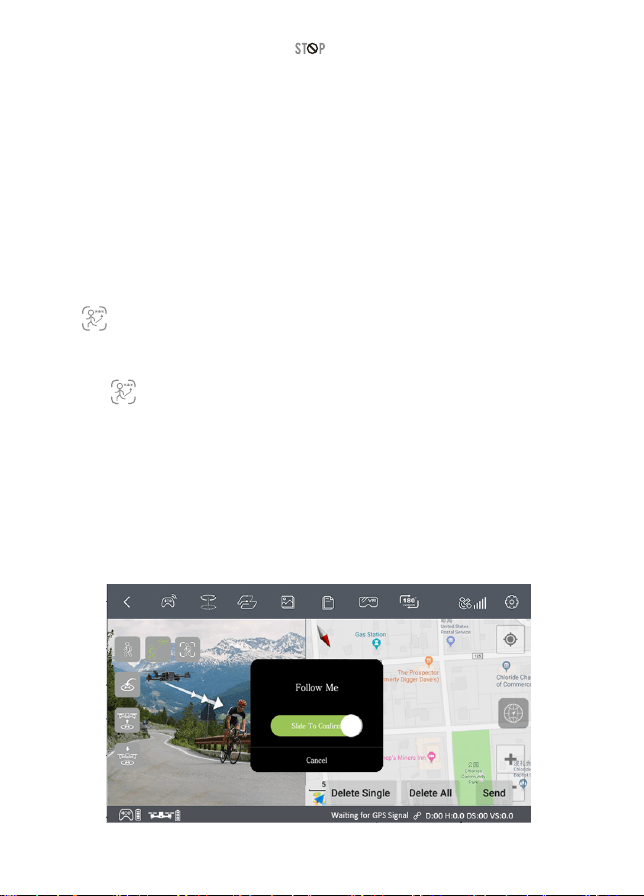
When the Follow Me func�on is ac�vated, the drone will follow the GPS in your
smartphone wherever you go (Make sure your smartphone is connected with the
drone successfully and using the Con�xo F35 App).
1. Be sure to keep the drone within 32.8-328 feet.
2. Click (running person) on the app interface.
4. Click the (running person) on the app interface again to exit the Follow Me
mode.
Common Issues:
Follow Me mode may not work if your phone’s GPS signal is too weak. This could be
due to signal loss from surrounding buildings and trees or conges�on from too many
mobile phones in the area.
3. Wait for Drone Status on the app to display “Follow Me Ready” bo�om right
corner of the screen. The drone will then follow the phone’s GPS coordinates.
Follow Me Mode
Emergency Stop: Click once and hold for 3 seconds and the drone will
immediately shut off and stop flying if the al�tude of drone within 42 feet. An
air-born unit will drop from the sky. If the drone’s al�tude is higher than 42 feet,
the emergency stop will not ac�vated.
- 18 -
Click then click (box around person or Object ). Tap on the object or
person you want to track, then tap again to confirm your selec�on.
Follow Object
NOTE: Make sure the size of the frame you mark is the same as the object or
person you tap, the frame should not exceed the object or person in the
capture frame.
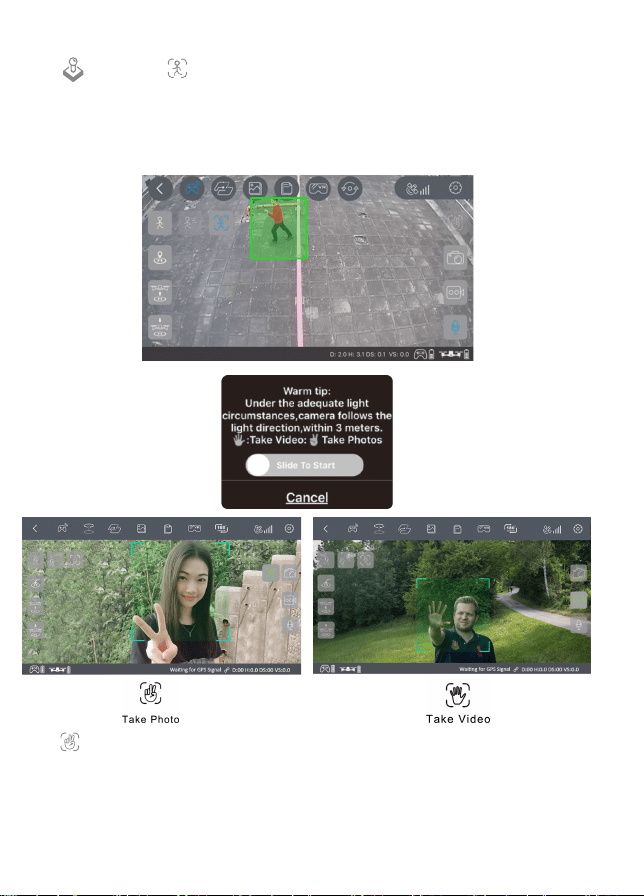
NOTE: Hand gestures are based on your right hand.
Click (hand with two fingers) on the App, follow the “Warm Tip” on the App
Screen. Hold up 2 fingers to take a picture. Wave your hand to begin recording
video. There is a 3 second countdown before taking a video or picture.
Selfie Mode
This func�on can only be used when there is adequate light. Low light or
dimly lit areas may prevent the camera from detec�ng your hand gestures.
- 19 -
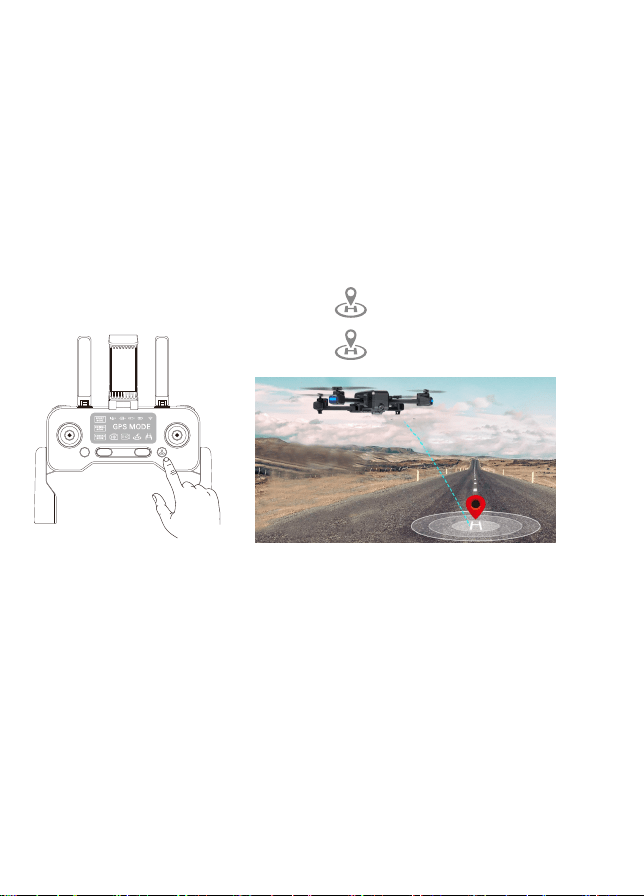
The Return to Home (RTH) func�on brings the drone back to the Take Off Point.
This func�on can only be achieved under GPS mode.
There are 3 types of RTH: Smart RTH/Low-ba�ery RTH/Fail connec�on RTH.
When the drone is doing The Return to Home feature, it will first fly straight up to
the according to the return to home al�tude se�ng. When you take the drone out
of beginner mode, you must set the return al�tude so that it will clear any objects
(buildings or trees) in the area. A�er the drone reaches this height, it will then
relocate to the home (take off) posi�on and then descend and land to the
star�ng point.
Return-to-Home (RTH)
Return-to-home GPS Feature Descrip�on
RTH Bu�on
RTH Bu�on in App
①. Smart Return To Home
②. Low-Ba�ery Return-to-Home
③. Fail connec�on Return-to-Home (RTH)
Low-Ba�ery RTH is triggered when the flight ba�ery is depleted to a point that
may affect the safe return of the drone. The drone flies back to about 100 feet
from the last known home loca�on.
The drone will enter Return-to-Home Mode if the signal to the remote control
is lost. Re-sync the remote control to the drone if the drone flies back into your
view. Pull the thro�le down to land the drone in a safe area.
- 20 -
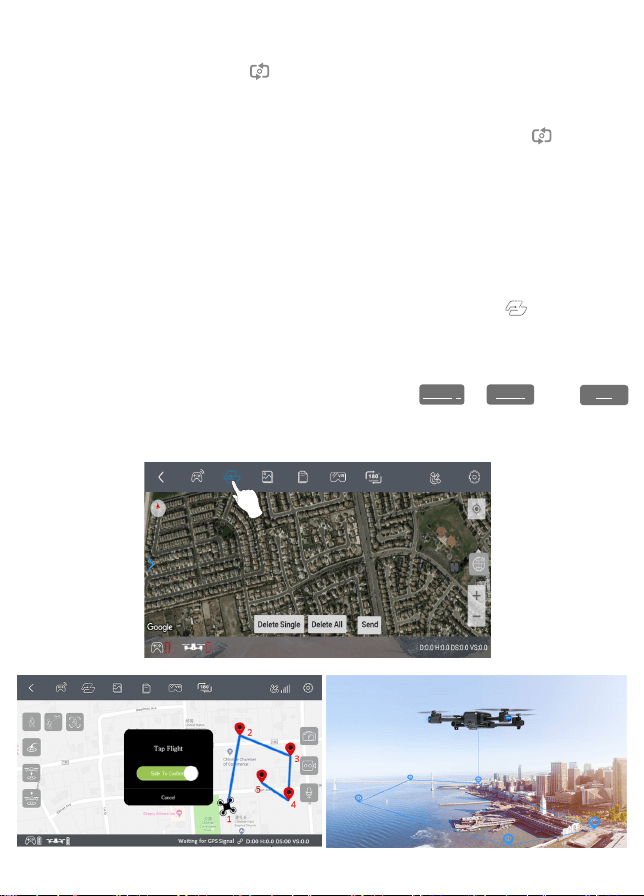
— To start a WayPoint Flight, first download and save your local map in your
smartphone. (Connect your smartphone to network via WiFi or 4G LTE, open the
F35 App and enable the Waypoint mode, you will see a map then zoom in to the
maximum, when the map is fully displayed.)
WayPoint Flight
— Successfully connect the drone WiFi with your smartphone,click
(2 rectangles) on the App. Find the Red Circle (LIMITED FLIGHT RANGE)
/ TAKEOFF POSITION / DRONE CURRENT POSITION on the map. Mark the
points (up to 16) you plan to fly within the Red Circle range on the map. If
you would like to reset the points or flight path, click or . Click
and confirm to start the WayPoint Flight. Push the right joys�ck at any�me to
cancel the WayPoint Flight func�on.
Delete single
Delete all
Send
Adjus�ng Trim in No GPS Mode
If the drone flies in None GPS Mode, you can trim the drone to obtain more
balanced flight. Press and hold un�l beep once, it will enter trim mode.
Holding the bu�on and pushing the direc�on joys�ck to the opposite side at the
same �me, the drone dri�s to rebalance it. For example, if the drone dri�s to the
le�, push the joys�ck to the right to make the drone balanced. Release to exit
trim mode.
- 21 -
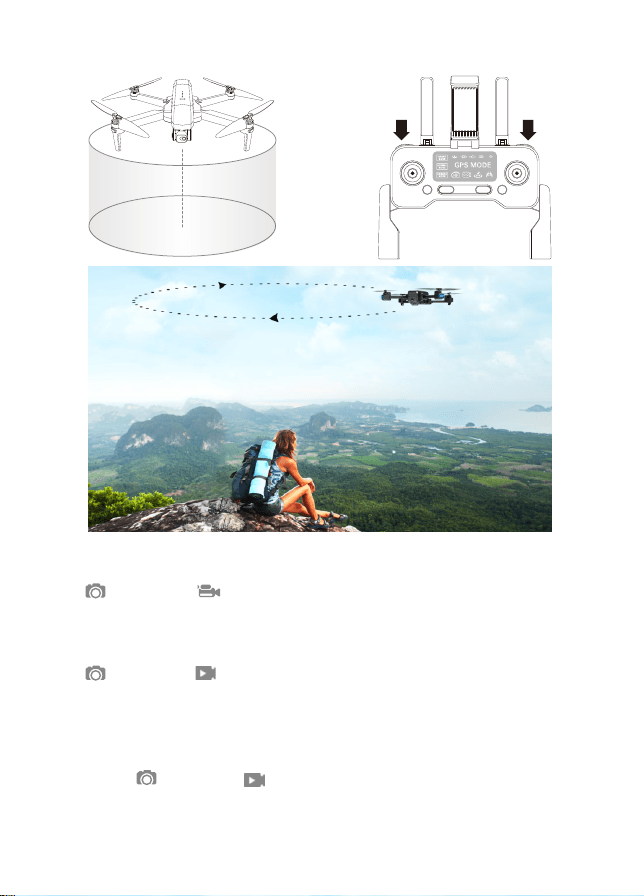
1. Hover the drone around the center point.
4. Press (camera) + (video camera) on the remote control at the same
�me again. The drone will begin to fly according to the radius range you set
in STEP 3 (Note: If the radius range is less than 6 feet, the drone will fly to 6 feet
automa�cally) . Move the direc�on joys�ck to cancel the Orbit mode.
2. Press (camera) + (video camera) on the remote control at the same �me.
3. Move and set the drone in the radius range you prefer (within 6 feet – 328 feet)
using the direc�on joys�ck.
NOTE: Press (camera) + (video camera) on the remote control at the
same �me and the Orbit func�on can be ac�vated if the drone and remote
control successfully paired and the drone flies up.
Orbit Mode
- 22 -
2. Press (camera) + (video camera) on the remote control at the same �me.
Flight Se�ng
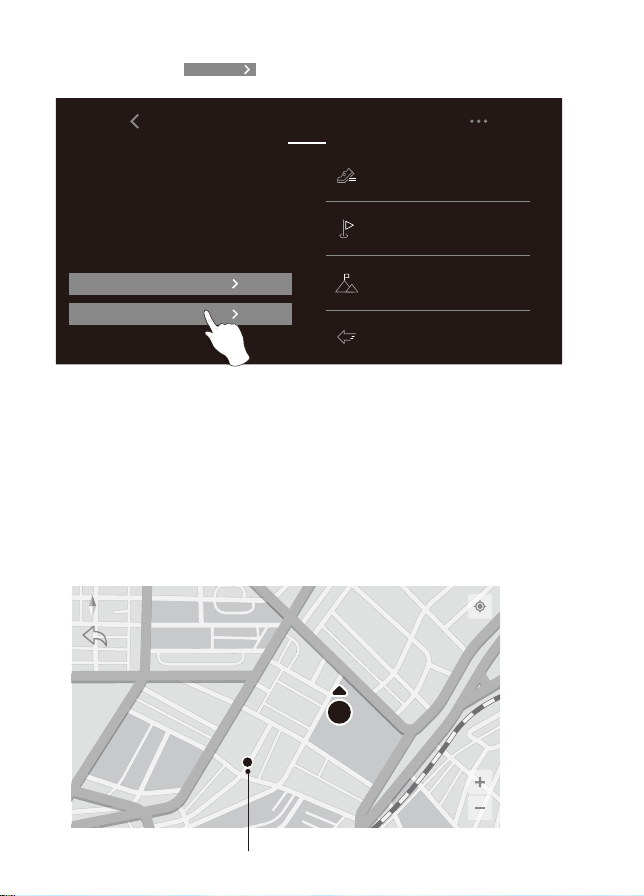
The Default GPS Mode is Beginner Mode. In Beginner Mode:
1. Flight Distance from remote control is limited to between 0 – 90 feet.
2. Flight Al�tude from remote control is limited to between 0 – 90 feet.
3. Return-To-Home Al�tude is below 65 feet.
You can turn off the Beginner Mode to modify the parameters in the App on
your phone.
Flight Se�ng
On APP
CAMERA FUNCTIONS
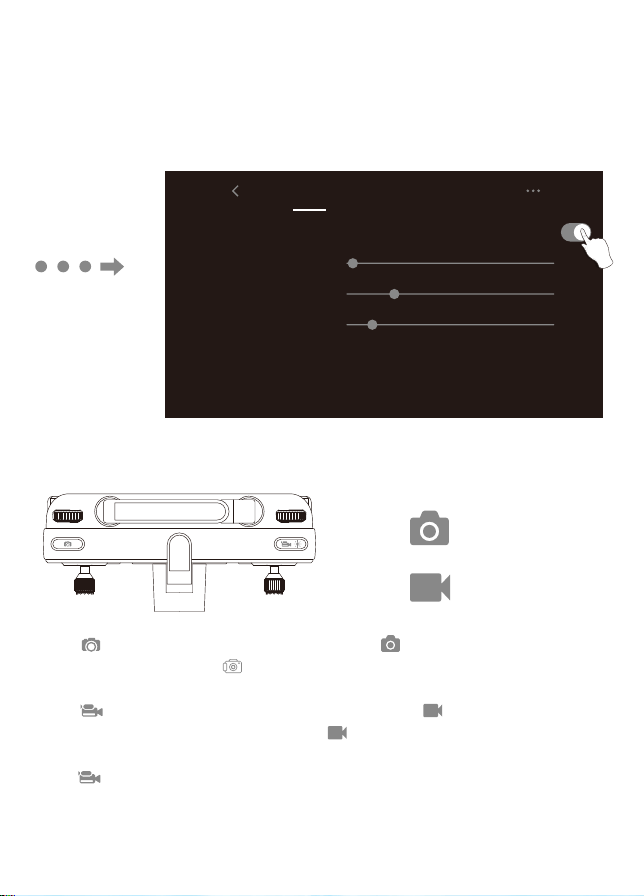
Press (camera) on the remote control or tap (camera) on the App to take a
picture. The the indicator on the screen of remote control will flash once,
indica�ng the camera took a photo.
Press (video camera) on the remote control or tap (video camera) on the
App to record a video. The the indicator on the screen of remote control will
keep flashing, indica�ng the camera is recording video.
Press (video camera) again to save the video. DO NOT take photos while
recording video.
Take Photo
Take Video
App Icons
NOTE: When using the “Con�xo F35” App, the original photos and videos
will be compressed and saved to your smartphone.
Beginner Mode
Default open for novice mode close for custom mode
Flight distance
default30m,(20-1200m)
default30m,(10-120m)
default20m,(10-120m)
30 m
30 m
20 m
Flight altitude
Return altitude
Note: return altitude shall not exceed flight altitude
TrackParameter Image
- 23 -
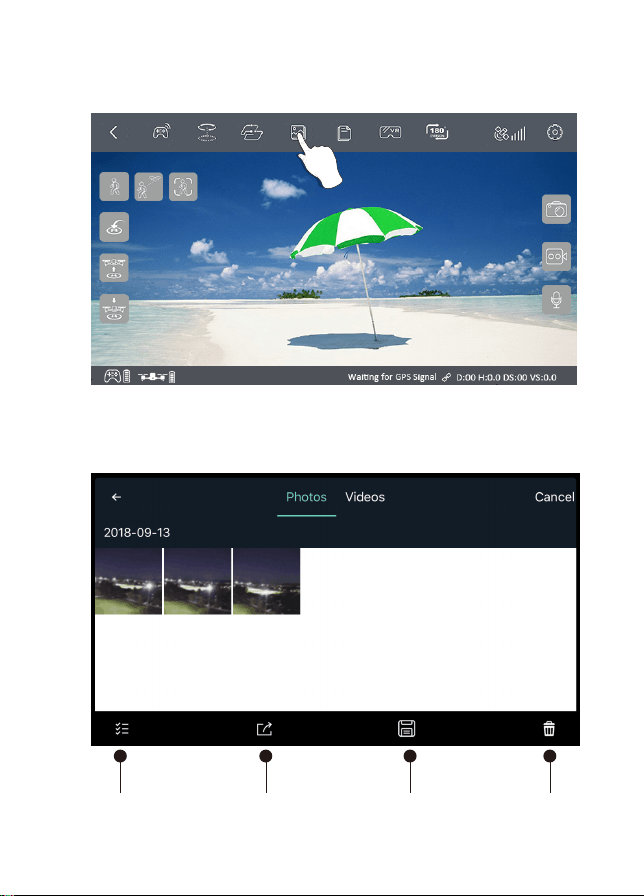
How To Find a Lost Drone
①. Con�nue to click to open the MAP surface to search the drone.
②. The last posi�on of the lost drone will appear on the map, and you can
find the last posi�on of the drone according to the label on the map
(about 30 feet error). If you reach the last known point on the map, and are
s�ll unable to locate the drone, you can try to toggle the drone wifi
connec�on off/on. Reconnec�ng to the drone wifi would establish a live feed
connec�on and give you a further clue to loca�ng the drone. The drone Wifi
will broadcast as long as the ba�ery s�ll has power.
Note: The APP must remain open all the �me. If the APP is closed, the
last posi�on of the drone will disappear on the map.
Current posi�on of the mobile phone
TrackParameter PTZ Adjust
Flight time Flight distance Flights
Footprint
Visit 0 districts
Max mileage 0.0 m
Max altitude 0.0 m
Max speed 0.0 m/s
0.0 min 0.0 m 0
All flight records
Find drone
Find drone
- 24 -
1. One-Bu�on Media Sharing
2017-12-28
Photo Video
NO
Figure 1. One Bu�on Media Sharing
Figure 2. Control Bu�ons
Check all Share Save to the Delete
phone album
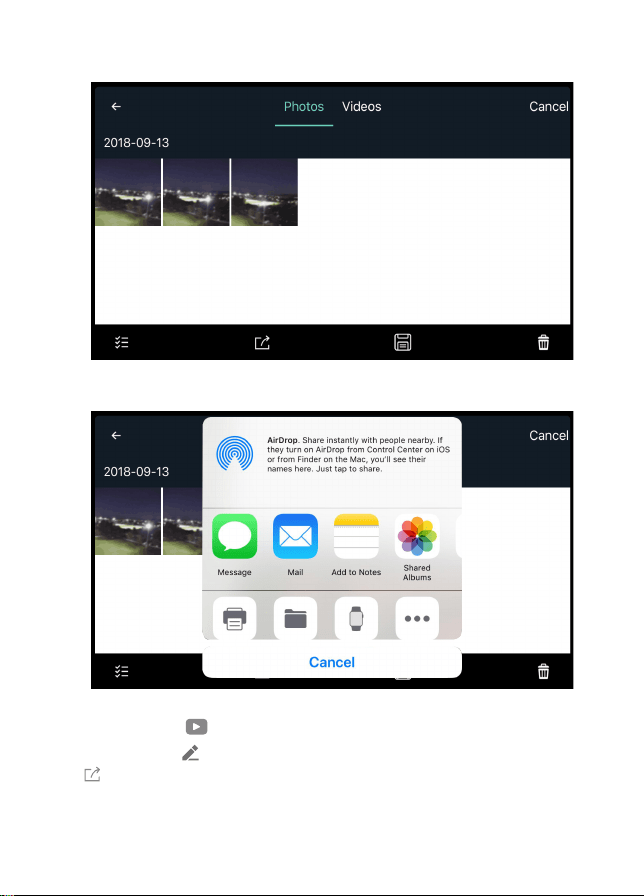
- 25 -
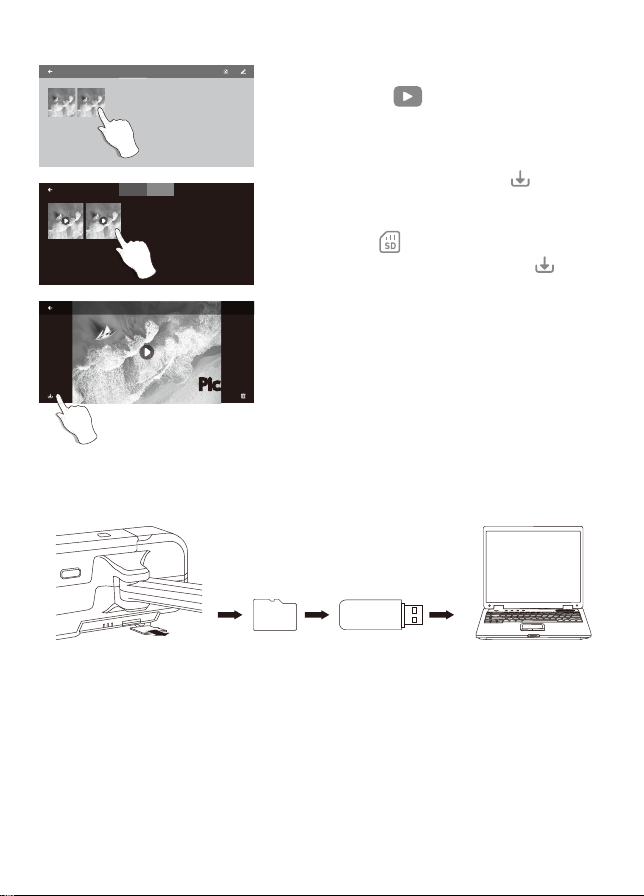
Figure 3. Viewing Photos
Figure 4. AirDrop Photo Sharing
2. Click once or press (checkmark list) to choose the photos you want to share.
Click (box with arrow) to choose the pla�orms to share to (Pic 3).
1. Open the App, click (gallery) to access your picture and video files (Pic 1.)
Reminder: You can share up to 9 pictures at the same �me, but you can only
choose one video for sharing at a �me.
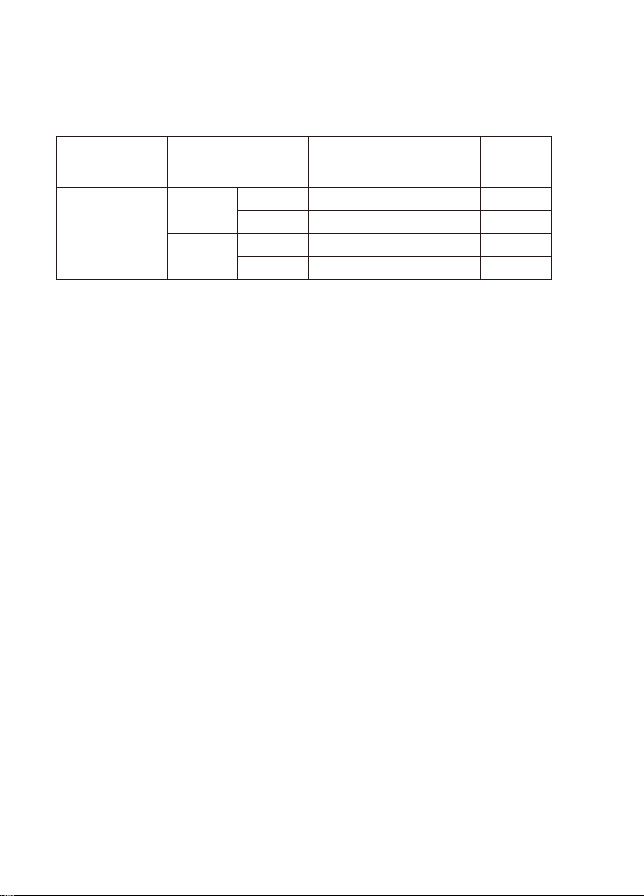
2. Save the photo and video to the mobile APP album
The original images and videos are saved on the Micro SD card. Push the Micro SD
card slightly to release the memory card. Next, insert the card into the card reader.
Insert the card reader into the USB outlet of a computer to retrieve the photos
and videos from the Micro SD card. The images can be also viewed in the App.
Micro SD Card
You can use up to a 128GB memory card with your drone.
There are a few restric�ons for recording over wi-fi. The best quality possible
transmi�ng via Wi-Fi is 720p. Wi-Fi signal loss from interference will cause the
jumps or delays in video recordings. The best solu�on is to add a micro SD card
to capture uninterrupted video.
Micro SD
Micro SD Card (Sold separately)
- 26 -
Open the APP and connect the WiFi with the
drone, click the and enter the media
gallery (Pic.1).
APP gallery: Choose photo and video and save
them in the mobile album, click , photo
and video are saved in the mobile gallery.
SD card: Click , choose photo and video
and save them in your mobile, click , photo
and video are saved in the mobile gallery.
NOTE: A�er shoo�ng and recording finished,
photo and video will be saved in the APP
gallery or SD card, the resolu�on of photo
and video saved in the APP gallery is different
from in SD card.
PHOTO VIDEO
PHOTO VIDEO
Pic. 1
Pic. 2
Pic. 3
Pic. 3

- 27 -
SPECIFICATIONS
A micro SD card helps ensure best video quality is recorded. The largest size
capacity is 128GB, which will hold a good amount of recording �me. A high
quality, brand name micro SD is recommended for op�mal performance, some
lower quality brands may not be compa�ble. This drone can only support a file
system of FAT32.
If the micro SD card is new, first make sure the card is readable in your laptop or
other device. Format the micro SD card on the first use if your unable to read the
memory card.
MODEL: F35
Weight (Including Ba�ery): 585g/20.6 oz
Flight Time: About 26 minutes
WIFI Camera Distance: 300m~700m( 980feet~2200 feet) (Outdoors and
unobstructed, depending on condi�ons and your
mobile device)
Motor Model: 1806
Auto-Hovering: Enabled
Opera�ng Temperature Range: 32°to 104°F ( 0°to 40°C)
Satellite Systems: GPS / GLONASS
Dimensions: Unfolded – 17.7” L x 15.9” W x 3.14” H
Folded – 6.92” L x 4.13” W x 3.14” H
Controllable Range: Pitch: -90°to 0°
Lens: FOV 100°
S�ll Photography Mode: Single shot
Photo: JPEG
Video: MP4
Supported External Memory: Micro SD Card up to 32GB-128GB (Class10/U1
or later, not included)
Supported File Systems: FAT32
Opera�ng Temperature: 32°to 104°F ( 0°to 40°C )
● Drone
● Camera
Mobile App: “Con�xo F35” in App Store & Google Play Store
Frequency Range 5 Ghz
Latency: Low Latency Video (depend on condi�ons and mobile device)
Required Opera�ng Systems: IOS 9.0 or later / Android 5.0 or later
Recommended Devices: 4.7” to 6.5” Smartphones
Voltage: 5V/3A
Rated Power: ≤15 W
Opera�ng Frequency: 2.4 GHz
Ba�ery Capacity: 300 mAh
Opera�ng Voltage: 3.7V
Max Control Distance: Up to 1500M (4900 feet) (Outdoor and unobstructed)
Max Charging Time: About 25 minutes
Ba�ery life on control: 11 hours Max
Mobile Device Holder: 4.7” to 6.5” Smartphones
Opera�ng Temperature: 32°to 104°F ( 0°to 40°C )
Capacity: 2500 mAh
Voltage: 11.1V
Ba�ery Type: Li-polymer
Energy: 27.75Wh
Net Weight: 195 g / 6.8 oz
Max Charging Power: 15W
Max Charging Time: About 4.5 hours
● App / Live View
● Micro USB Cable
● Remote Control
● Drone Ba�ery
- 28 -
30 fps
30 fps
Phone
Photo
Video
Video
Photo
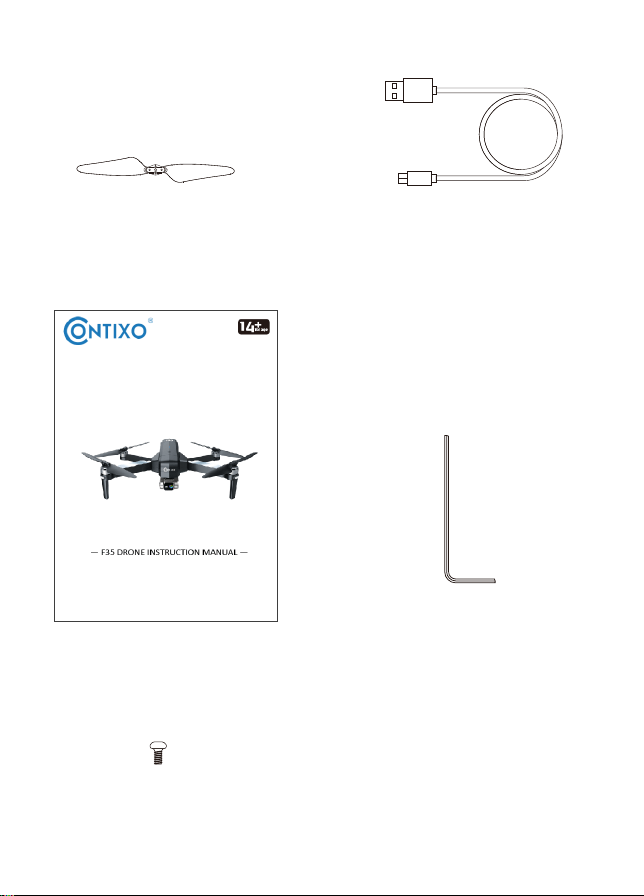
CONFIGURATION STORAGE METHOD
4K
TF card
3840X2160P
1280X720P
3840X2160P
3840X2160P
TRANSMISSION
FRAME RATE
RESOLUTION
PARTS LIST (Included)
Blade x 4
Instruc�ons x 1
Hexagon Allen wrench x 1
Screw x 12
USB cable
Only for charging
- 29 -

COMMON PROBLEMS AND SOLUTIONS
How to fix Android Not Connec�ng to Wi-Fi Problem
Tip 1. Restart Phone
Tip 2. Toggle WiFi Off and on
Tip 3. Turn Airplane Mode Off
Tip 4. Turn Bluetooth off while troubleshoo�ng
Tip 5. Turn Power Saving Mode off
Tip 6. Turn off Smart Network Switch
Tip 7. Adjust Auto-Reconnect se�ngs
Tip 8. Use a WiFi Connec�on Manager app if necessary
Tip 9. Make sure your phone supports 5 Ghz Wifi
Drone lights flashing and
no response from the drone
when opera�ng.
The blades spin, but the
drone cannot takeoff.
The
drone shakes
heavily.
Drone cannot stay balanced
in flight.
1. The blades distorted.
2. Motor isn’t working
properly.
1. Insufficient ba�ery power.
The blades distorted. Replace the blades.
1. Replace the blades.
2. Replace the motor.
1. Remote is not synced to
the drone.
2. Insufficient ba�ery power.
1. Refer to the App Quick Start
and re-sync the drone.
2. Recharge the ba�ery.
1. Recharge the ba�ery.
2. Replace the blades.
THE PROBLEM REASON TROUBLESHOOT
- 30 -
2. The blades distorted.
3. The blades Side A and
Side B are reversed.
Drone is unstable in flight
like in Follow Me mode
Drone will not auto
hover in one place
Unstable magnetic field Recalibrate compass / do
factory reset
Three-axis accelera�on
sensor is unbalanced
Restart and re-calibrate the
drone.
In order to make sure that your drone meets the requirements
of the electromagne�c environment of the avia�on radio sta�on,
flying within the scope of 7 miles on each side by taking the airport
runway center line as the middle line is HIGHLY FORBIDDEN.Flying
within the scope of 13 miles by taking both ends of the runway as
the center is HIGHLY FORBIDDEN. Flying on the route of the airline
is also PROHIBITED. Do not use drone or other flying drones in areas
that are forbidden or prohibited by your local laws and regula�ons.
Technical Support
Website: www.contixo.com
E-mail: support@con�xo.com
Mon-Fri 9:00 am - 4:00 pm PST
Have ques�ons?

CONTACT INFORMATION
E-Mail: support@con�xo.com
Website: www.con�xo.com
©2020 Con�xo Inc. All rights reserved. Con�xo®, the Con�xo logo and
associated characters, trademarks and design elements are owned and
licensed by Con�xo Company.