Atlona Setup
Guide
Velocity
Velocity Tools
Setup Guide for
NOTE: Atlona does not provide instructions for coding. The les will use HTML, CSS, and JavaScript. If
these languages are unknown, please do not try adjusting them.
Velocity
2
Version Release Date Notes
1 June 2018 Initial release
2 May 2020 Updated for Velocity FW version 2.1.0
Version Information
Velocity
3
Setup Guide
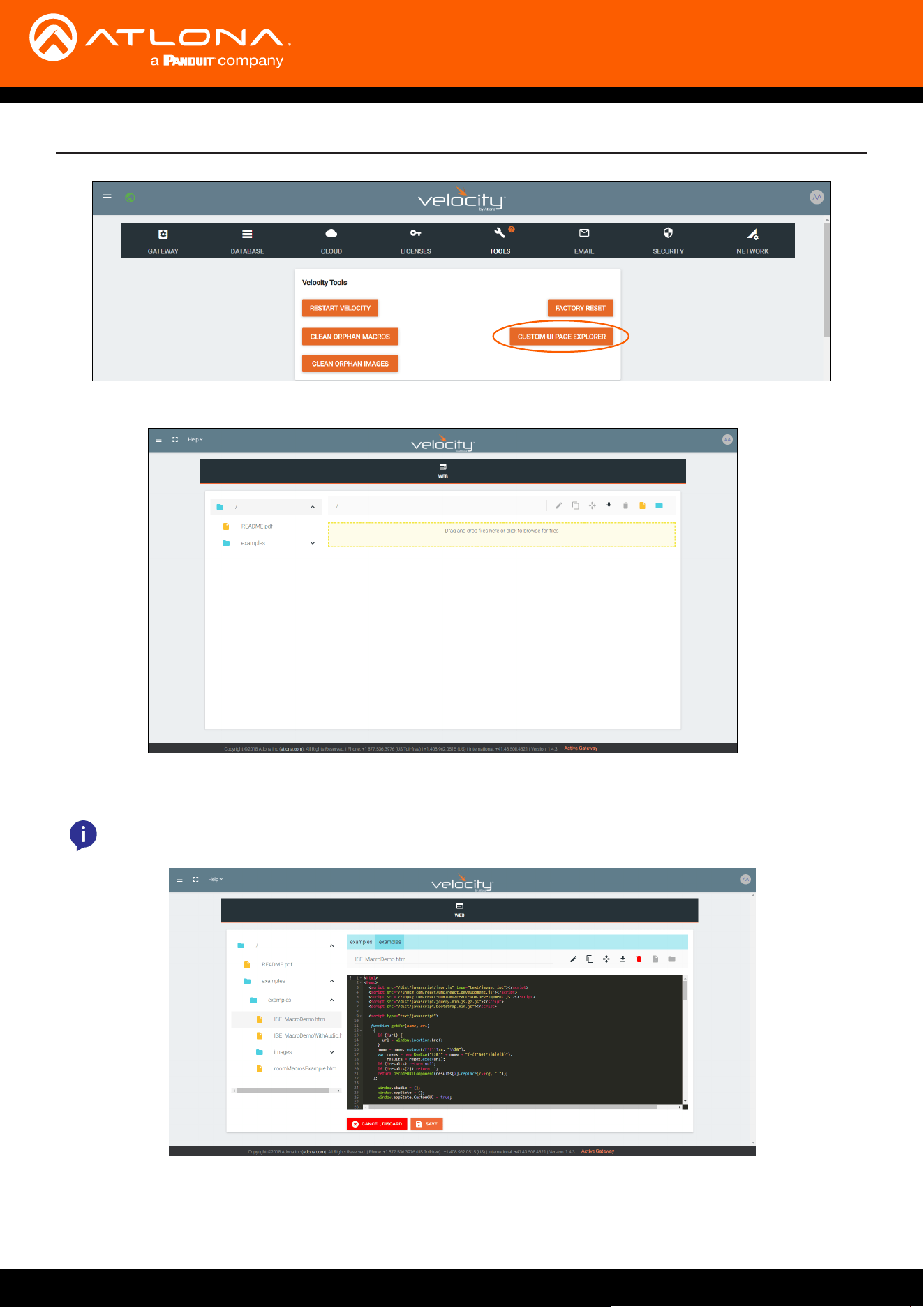
Velocity provides a Velocity Tools area within the software for the creation of custom web control interfaces. Log into
the Velocity server to view and edit the tools.
2. Log into Velocity
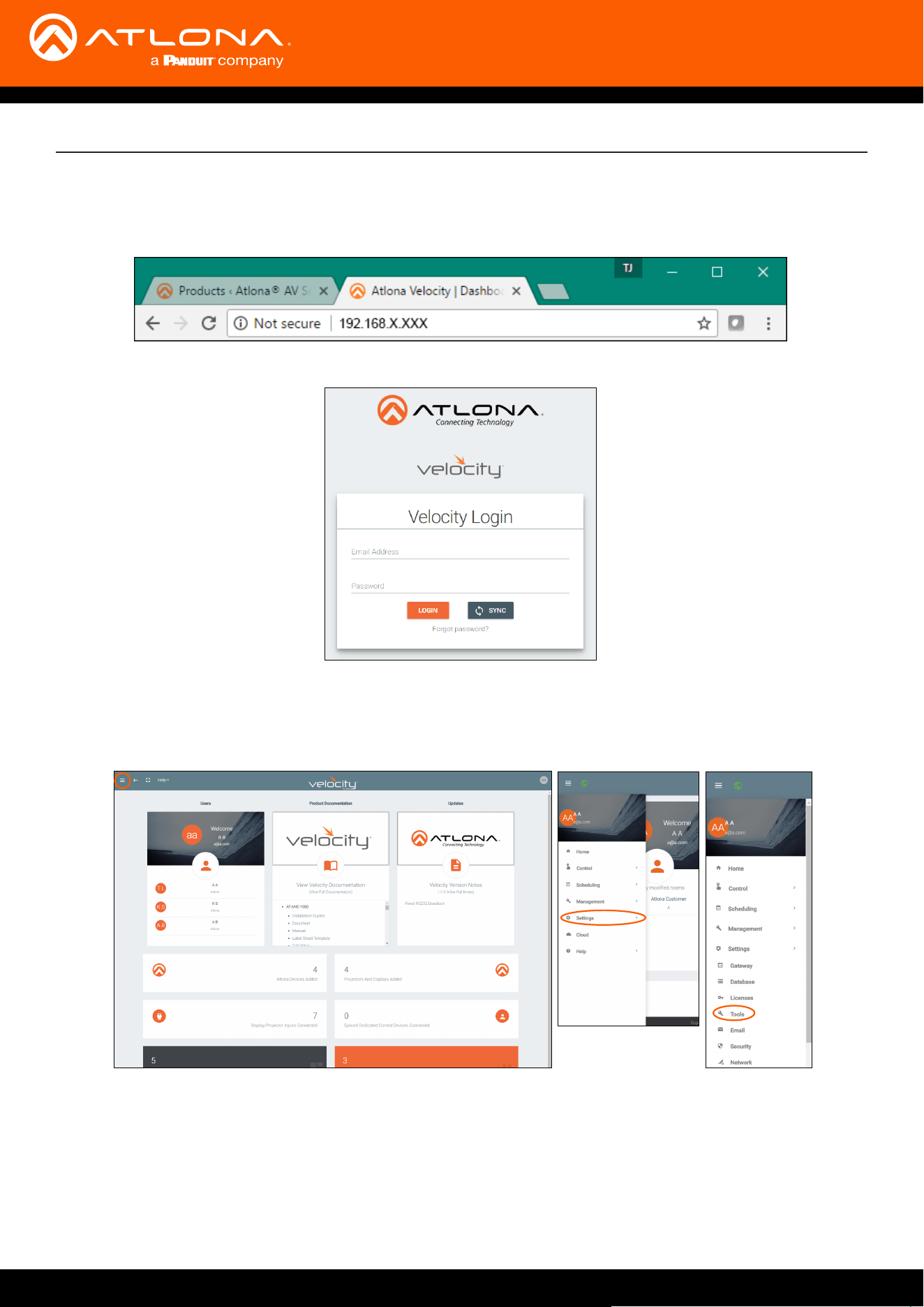
1. Open a browser on the local computer and inter in Velocity’s IP address.
3. Locate the ≡ in the top left corner of the home page and left click to open the menu.
4. Select Settings from the menu. New options will appear.
5. Select Tools. A new screen will open.
Velocity
4
Setup Guide
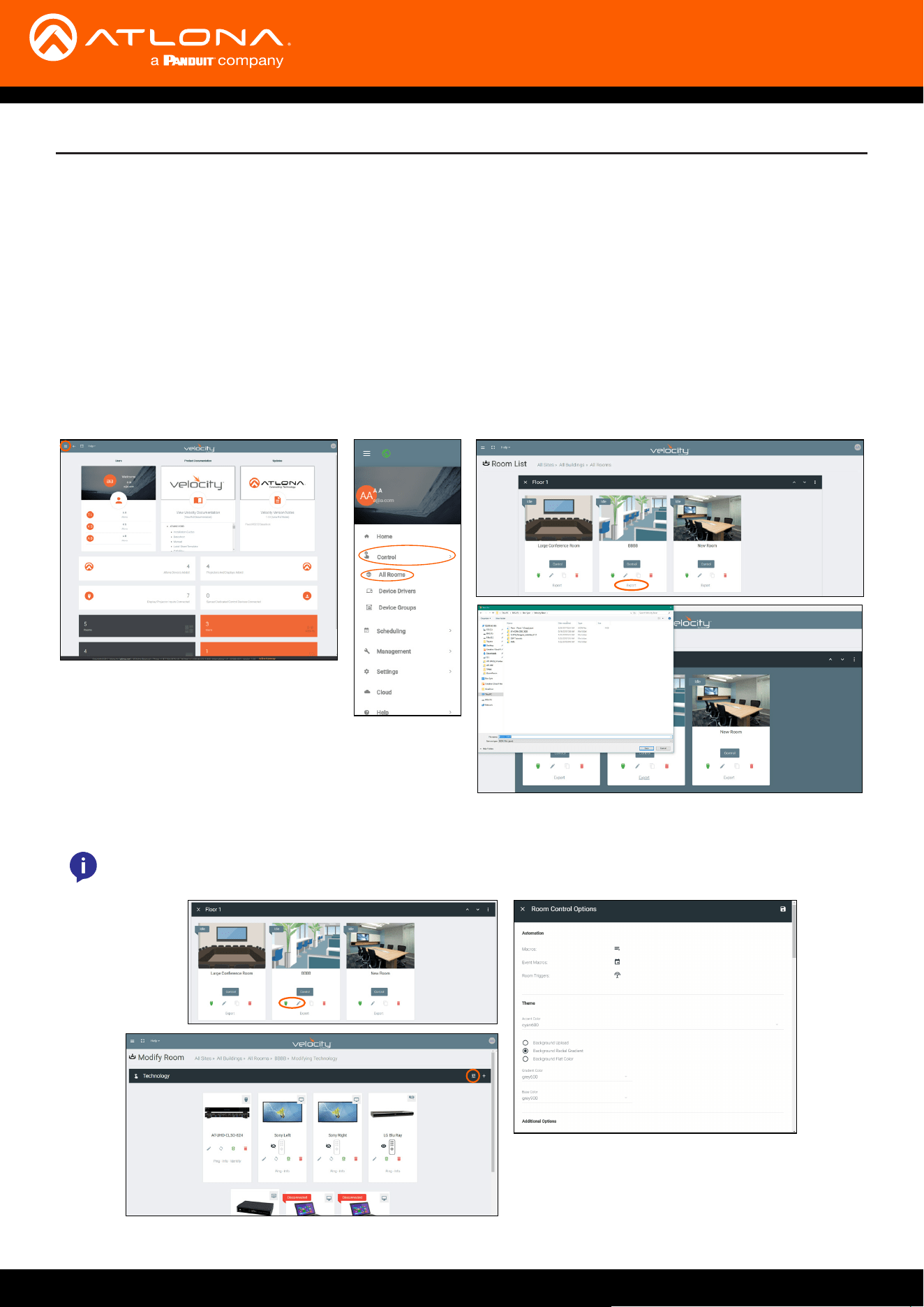
6. Select CUSTOM UI PAGE EXPLORER. A new screen will appear.
Examples have been provided to help with customization. Select the examples folder to open up a view of the
sample code.
NOTE: Atlona does not provide instructions for coding. The les will use HTML, CSS, and JavaScript. If
these languages are unknown, please do not try adjusting them.
Velocity
5
Setup Guide
The new custom web control look must be associated to a room before it will be come visible. Before linking a room,
it must be exported. This will provide a back up in case the room needs to be reverted back to the original Velocity UI
or switched to another custom UI.
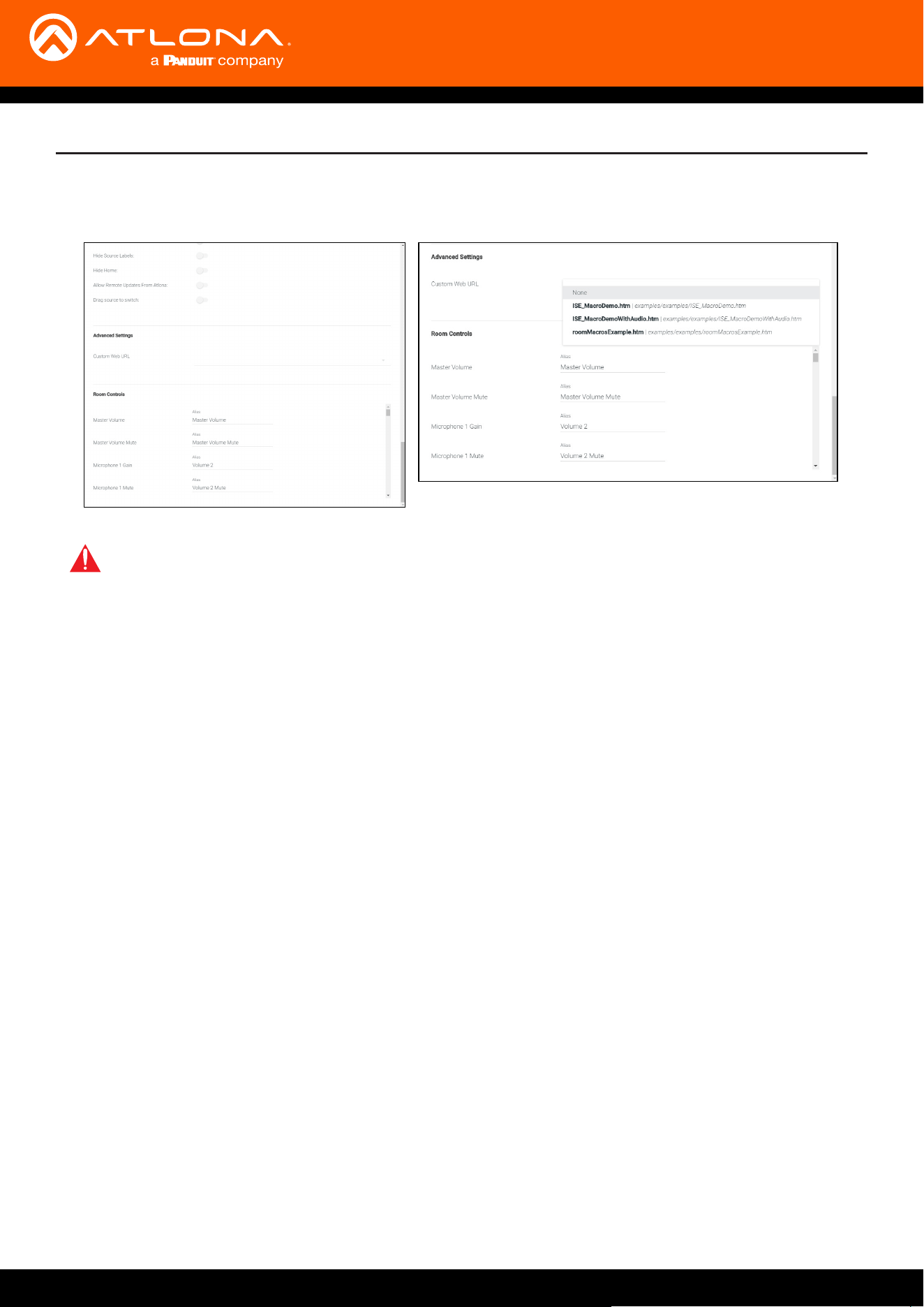
Room Linking
1. Locate the ≡ in the top left corner of the home page and left click to open the menu.
2. Select Control from the menu.
3. Select All Rooms from the menu. A new screen will appear.
4. Select Export on the room the new control GUI will be used in.
5. Save the room in an easy to nd spot on the local PC for later use.
5. Select the Room Controls Options button from the right side of the header bar inside the room controls. A new
screen will appear on the left side of the screen.
NOTE: This can also be done from the Edit Room Details screen. Both selections will have the same
options list.
Velocity
6
Setup Guide
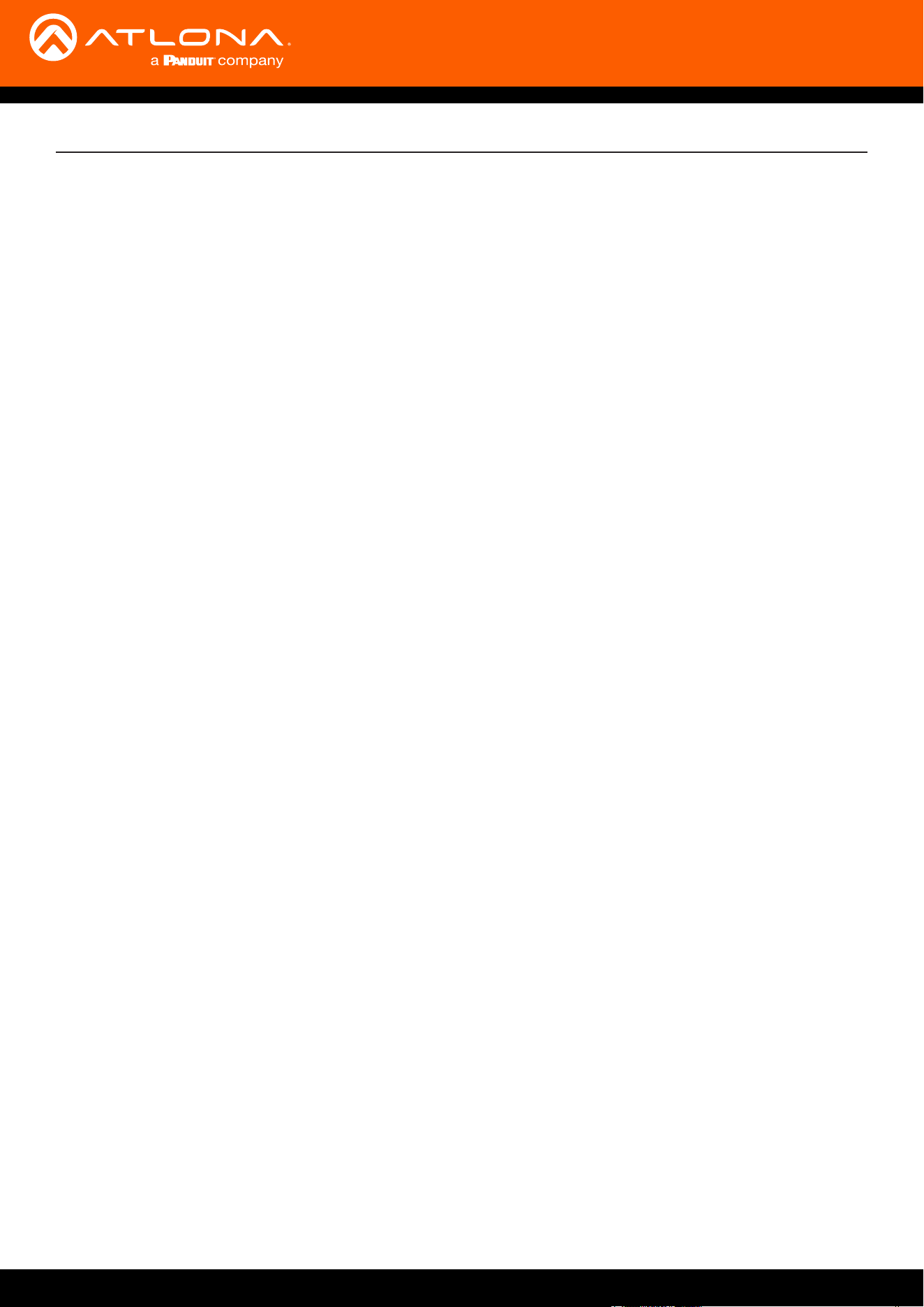
6. Scroll down to the bottom of room controls to the Advanced Settings.
7. Select the custom URL le name from the drop down list to associate the new look to the room.
8. Launch the control page to view the updated UI.
IMPORTANT: DO NOT launch the control page UI until the correct UI has been selected from the drop
down list. Once a UI has been launched, the room MUST be deleted before another UI can be selected or
the room may become unstable.
If another UI has been created or the room is to be reverted back to the original Velocity UI:
1. End any current conference calls or meetings.
2. Close the control UI, if opened.
3. Return to the buildings page.
4. Delete the room.
5. Import the previously saved copy of the room. The room will have the original Velocity UI selected. If loading
a new UI, follow the steps for selecting the UI and launch the control page again to view.
Velocity
7
Room Inputs
POST
Get Room Macros
This sections will provide strings and commands needed for coding a new UI.
When overriding the default Velocity template the http trac will redirect to the new le and pass the following url
parameters.
All API requests are routed through a single URI POST Request at the following URI:
The response will return the following keys:
The diernet types of GlobalMessageTypes are the following:
To parse the State (Results) use the built in JSON.parse({string}) function in javascript. Example:
Command:
JSON example:
State Response:
For the most part GlobalMessageType and State elds will be used.
“” The request was performed successfully.
“Warning” The request was performed successfully but indicates a warning.
“Error” The request failed and the GlobalMessage and Trace should be analyzed and handled.
The POST must be of contentType: application/json
The body must contain the following json keys:
These parameters can be in javascript to perform queries by the room and also use the Velocity js library in the new
UI application.
roomId: string representing the room you are controlling.
version: string representing the current version of Velocity.
action: string Represents the function call in the Velocity API
state: object Represents the parameters to the function call.
Redirect: string Internal Velocity Key to redirect http trac.
GlobalMessage: string Message explaining the success, warning, or error.
GlobalMessageType: string Constant for success, warning, or error.
TransactionId: string An Id for tracking and undoing transactions.
Trace: string Stack trace for errors.
State: string A JSON encoded string representing the results of an API request.
http://{host}/api?path=API
var results = JSON.parse(response.State);
action : GetRoomMacros
state :
RoomId : string
{ action: “GetRoomMacros”, state: {RoomId: “59f0b387ac1a451743c21f6d”}}
Errors : {ErrorMessage : string, HasError: bool, ErrorCode: number}
RoomId : string
Macros : [{MacroId : string, Name : string, Type : string }]
API
Velocity
8
API
State Response JSON example:
State Response JSON example:
window.api.post
Parameter: object
Response:
SDK Functions:
{
Errors : {ErrorMessage : “”, HasError: false, ErrorCode:0},
RoomId : “59f0b387ac1a451743c21f6d”,
Macros : [{MacroId: “59f0b3f2ac1a451743c21fc4”, Name: “Macro 1”, Type:”Macro”}]
}
{
Errors : {ErrorMessage : “”, HasError: false, ErrorCode:0},
MacroId : “59f0b3f2ac1a451743c21fc4”
}
{
controller : string Default to “API”
action : string
state : object
callback : func Returns response object
}
Execute Macros
Command:
JSON example:
State Response:
action : ExecuteMacro
state :
MacroId : string
{ action: “ExecuteMacro”, state: {MacroId: “59f0b3f2ac1a451743c21fc4”}}
Errors : {ErrorMessage : string, HasError: bool, ErrorCode: number}
MacroId : string
State : object
GlobalMessage : string
Trace : string
GlobalMessageType : string
TransactionId : string
Velocity Javascript Library SDK
To get started and make things easier the Velocity javascript library is available for use in the new UI. The le is
located at:
http://{host}/dist/javascript/velocity-{version}.js
Velocity
9
API
Response:
window.api.post({controller:”API”, action: “ExecuteMacro”, state: {MacroId: “59f0b3f2
ac1a451743c21fc4”}, callback: function(data, message, trace, messageType) {alert(“Macro executed “ +
data.MacroId);
}});
Room Macros Example
Velocity provides an example of how to load the Velocity javascript js le and interact with the API commands using
the Velocity SDK. Link the room to the le located at /examples/roomMacrosExample.htm then open the control
page. For the example to work, the browser will need internet access because it will pull from a CDN server for a few
react libraries.
The version can also be hardcoded in the tradition js fetch & call and then updated on any rmware updates from
Atlona for Velocity.
NOTE: In order to use the Velocity javascript library the library will load at runtime using the jQuery
$.getScript function because of the version. Load the DOM elements on the successful callback and NOT
onload of the page.
© 2020 Atlona Inc. All rights reserved. “Atlona” and the Atlona logo are registered trademarks of Atlona Inc. All other brand names and trademarks or registered trademarks are the property of their respective owners. Pricing, specications and
availability subject to change without notice. Actual products, product images, and online product images may vary from images shown here.
Toll free US International
atlona.com • 877.536.3976 • 41.43.508.4321
