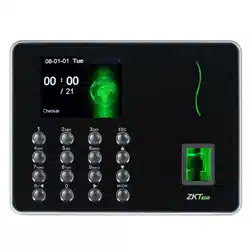


This document describes the GUIs and menu operations of the self-service attendance terminal.
Not all the devices have the function with. The real product prevails.
The photograph in this manual may be different from that of the real product. The real product prevails.

1 Instruction for Use ........................................................................................................................................................... 1
1.1 Recommended Operation Steps ............................................................................................................................ 1
1.2 Finger Placement .................................................................................................................................................. 1
1.3 Verification Modes ................................................................................................................................................ 2
1.3.1 Fingerprint Verification .............................................................................................................................. 2
1.3.2 Password Verification ................................................................................................................................ 3
1.2.4 Card Verification .................................................................................................................................... 3
2 Main Menu ...................................................................................................................................................................... 4
3 User Management ............................................................................................................................................................ 5
3.1 Add a User ............................................................................................................................................................ 5
3.1.1 Enter a User ID and Name ......................................................................................................................... 5
3.1.2 Enroll a Fingerprint .................................................................................................................................... 6
3.1.3 Enroll a Password ...................................................................................................................................... 6
3.1.4 Enroll an Card ....................................................................................................................................... 6
3.1.5 Select Department and Privilege Settings .................................................................................................. 7
3.2 User Management ................................................................................................................................................. 7
3.2.1 Search a User ............................................................................................................................................. 8
3.2.2 Query a Record .......................................................................................................................................... 8
3.2.3 Edit a User ................................................................................................................................................. 8
3.2.4 Delete a User .............................................................................................................................................. 9
3.2.5 Add a User ................................................................................................................................................. 9
4 Department Set .............................................................................................................................................................. 10
4.1 Add a Department ............................................................................................................................................... 10
4.2 Edit a Department ............................................................................................................................................... 10
4.3 Delete a Department ........................................................................................................................................... 11
5 Shift Set ......................................................................................................................................................................... 12
5.1 Attendance Rule .................................................................................................................................................. 12
5.2 Shift Setting ........................................................................................................................................................ 13
5.3 Schedule .............................................................................................................................................................. 13
5.3.1 Department-based Scheduling ................................................................................................................. 13
5.3.2 Individual-based Scheduling .................................................................................................................... 14
6 Report Management....................................................................................................................................................... 16
6.1 Download Att. Report ......................................................................................................................................... 16
6.2 Download Att. Setting Report ............................................................................................................................. 17
6.3 Set Setting Reports ............................................................................................................................................. 19
7 System Setting ............................................................................................................................................................... 20
7.1 System Setting .................................................................................................................................................... 20
7.2 Date/Time ........................................................................................................................................................... 21
7.3 Timing State Switching Setting .......................................................................................................................... 21
7.4 SMS Setting .................................................................................................................................................... 22
7.4.1 Add an SMS Message .............................................................................................................................. 23
7.4.2 Edit an SMS Message .............................................................................................................................. 23

7.4.3 Delete an SMS Message .......................................................................................................................... 23
7.5 Daylight Saving Time (DLST) Setting ............................................................................................................ 24
7.6 Bell Settings ........................................................................................................................................................ 25
7.7 Ethernet ........................................................................................................................................................... 26
7.7.1 WIFI setting ............................................................................................................................................. 26
7.7.2 PC Connection ......................................................................................................................................... 27
7.7.3 ADMS ...................................................................................................................................................... 27
7.8 Work code ....................................................................................................................................................... 28
7.8.1 Add a Work Code ..................................................................................................................................... 28
7.8.2 Edit a Work Code ..................................................................................................................................... 28
7.8.3 Delete a work code .................................................................................................................................. 29
7.8.4 Use a Work Code ..................................................................................................................................... 29
7.9 Update firmware ................................................................................................................................................. 29
7.10 Reset Opts. ........................................................................................................................................................ 30
8 Data Management .......................................................................................................................................................... 31
8.1 Download/Upload ............................................................................................................................................... 31
8.2 Delete/Clear ........................................................................................................................................................ 31
9 Record Query ................................................................................................................................................................. 33
10 System Information ..................................................................................................................................................... 34
11 Appendix ...................................................................................................................................................................... 35
USB Client ................................................................................................................................................................ 35
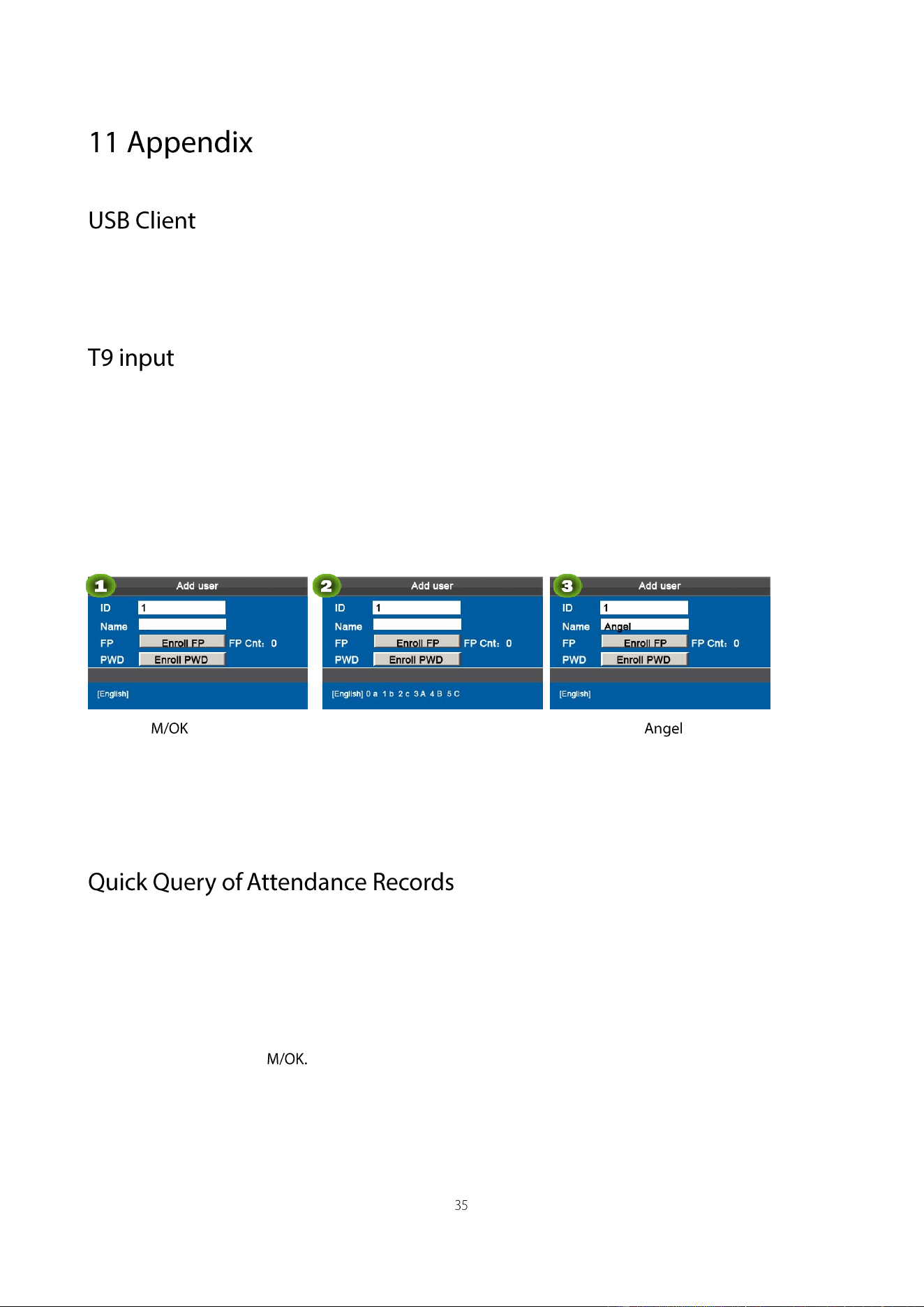
T9 input ..................................................................................................................................................................... 35
Quick Query of Attendance Records ........................................................................................................................ 35
Self-Service Attendance Terminal FAQs .................................................................................................................. 37
Statement on Human Rights and Privacy ................................................................................................................. 41
Environment-Friendly Use Description .................................................................................................................... 42
: Set a department (not required if the default department is used). For details, see 4 "Department Set."
: Enroll users. For details, see 3 "User Management."
: Set attendance rules (not required if the default rule is used). For details, see 5.1 "Attendance Rule."
: Set shifts (not required if the default shift is used). For details, see 5.2 "Shift Setting."
: Arrange schedules of employees (not required if the default schedule is used). For details, see 5.3 "Schedule."
: Record employees' attendance. Check that the device time is precise and start attendance.
: Download and review reports. For details, see 6.1 "Download Att. Report."
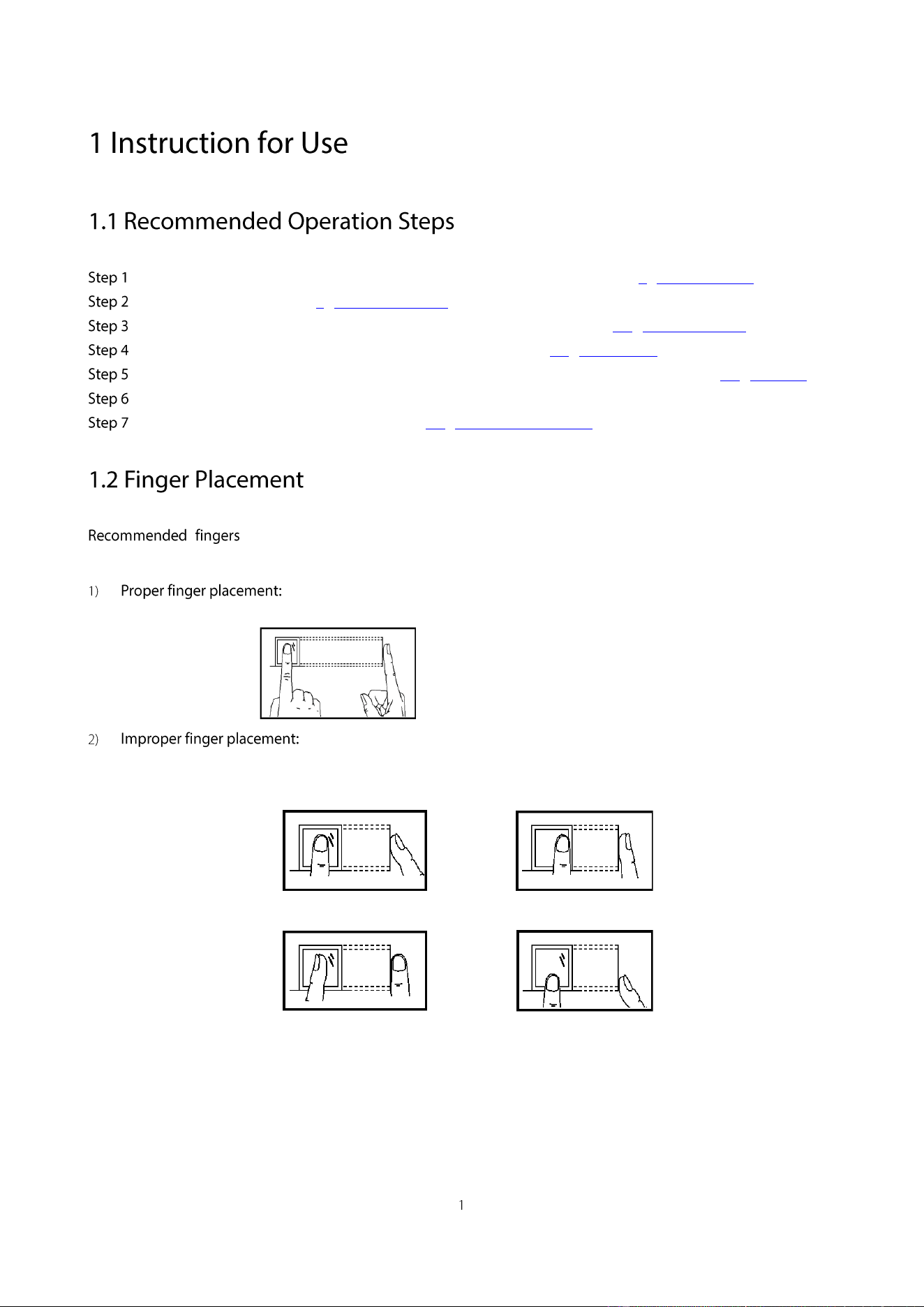
: The index finger, middle finger or the ring finger; the thumb and little finger are not
recommended (because they are usually clumsy on the fingerprint collection screen).
The finger is flat to the surface and
centered in fingered guide.
Slanting
Off-center
Not flat to the surface
Off-center
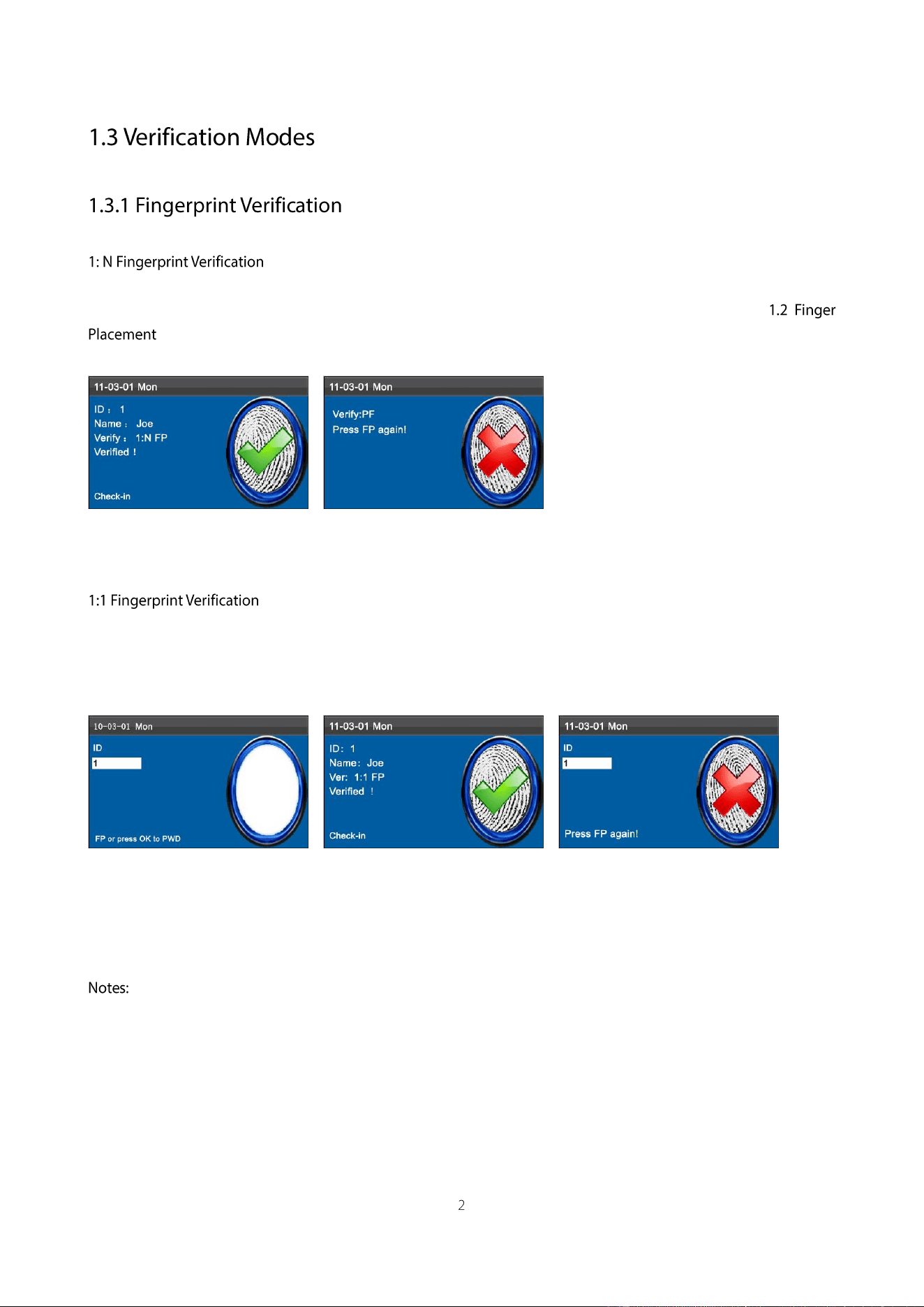
The terminal compares current fingerprint collected by the fingerprint collector with all fingerprint data on the terminal.
Press your finger on the fingerprint collector by adopting the proper finger placement. For details, see
.
When verification successful, When verification failed,
an interface shown above. an interface shown above.
In the 1:1 fingerprint verification mode, the terminal compares current fingerprint collected through the fingerprint
collector with that in relation to the user ID entered through keyboard. Adopt this mode only when it is difficult to
recognize the fingerprint.
Enter the user ID using keypad on
the initial interface. Then press
OK. Place the enrolled finger
properly on the fingerprint sensor.
When verification successful, an
interface shown above.
When verification failed, an
interface shown above.
1. If it says that the enroll number is wrong, it means that there is no such number
2. If the device says "Please press again", place the finger on the fingerprint sensor again. You can try another 2 times
by default. If it fails after 2 times, return Step 1 for second operation.
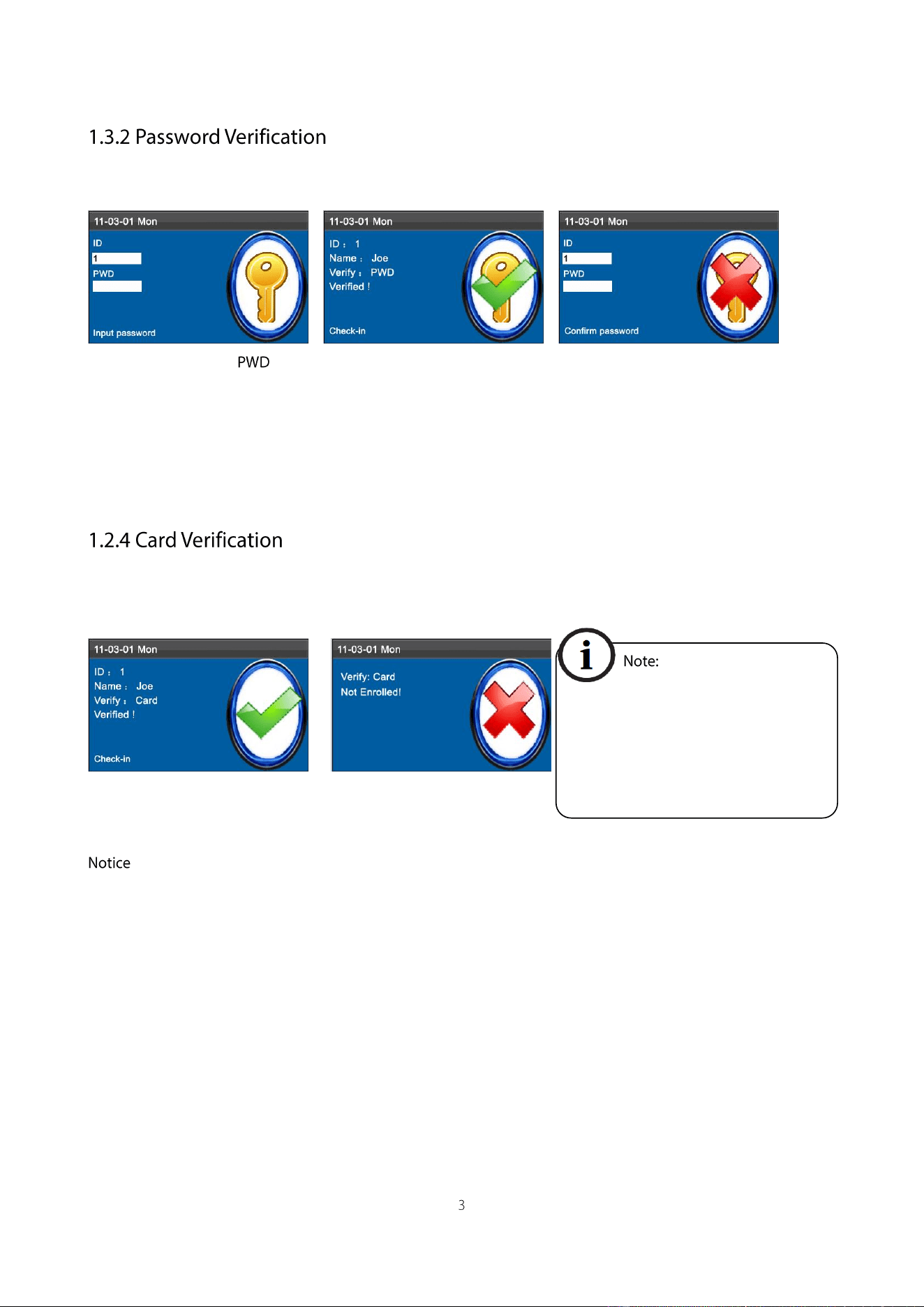
In the password verification mode, the terminal compares the password entered with that in relation to the user ID.
Enter the user ID and using
keypad on the initial interface.
Then press OK.
When verification successful, an
interface shown above.
When verification failed, an
interface shown above.
Notes:
If the device says "Invalid ID", enter the password again. You can try another 2 times by default. If it fails after 2 times,
return Step 1 for second operation.
Some devices have an embedded ID or Mifare card module, providing the verification function. A device compares the
read card ID with all card IDs enrolled in the device during verification.
If the verification is successful,
an interface as shown above.
If the verification is not successful,
an interface as shown above.
: The card area in some devices is round the fingerprint sensor and others are round the keyboard.
If a device is connected to
a computer through a USB cable, the
Mifare card of the device is unavailable
and a text prompt message is displayed on
the initial interface. The Mifare card
restores after the device is disconnected
from the computer.
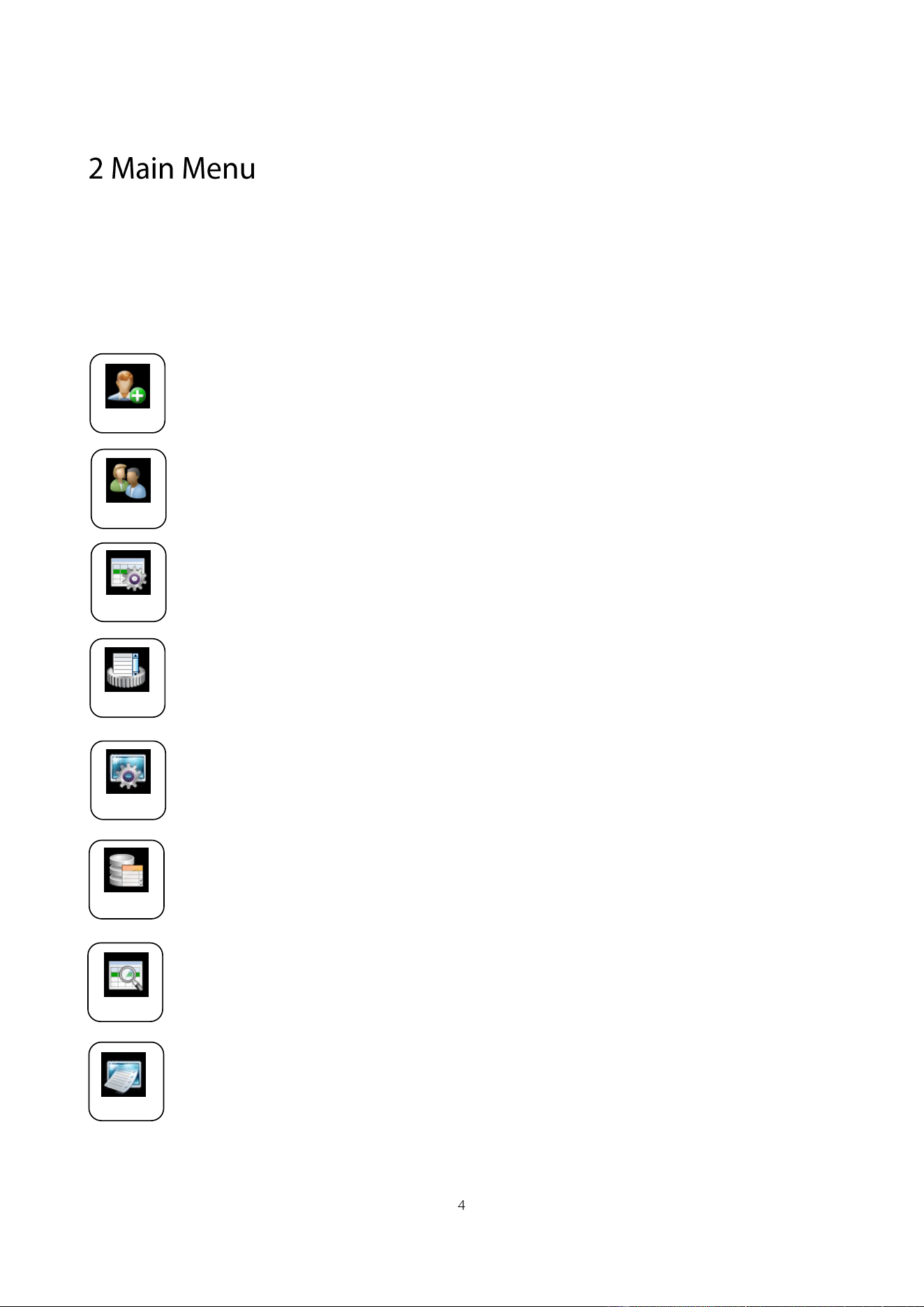
The self-service attendance terminal that integrates the prevalent SSR technology in Europe and America is launched to
reduce management costs effectively, provide convenience for employees, and minimize the requirement for computer
skills of users. The device allows setting attendance rules, shifts, and schedules for employees, without the need for
attendance software. Users can download attendance reports for review and statistics.
This menu item allows you to add, browse, and manage user information, including the employee ID,
name, fingerprint, password, card ID, department, and rights. You can add, edit, or delete basic
information about employees.
This menu item allows you to browse department information, add, edit, or delete department IDs or
names.
This menu item allows you to set attendance rules and required shifts and to arrange schedules for
employees. The device supports a maximum of 24 shifts.
This menu item allows you to download statistical reports of attendance or attendance setting reports to a
USB flash drive or SD card, or to upload attendance setting reports in which shifts are set and
employees' schedules are arranged. The device gives priority to the schedules in an attendance setting
report.
This menu item allows you to set system-related parameters, including the basic parameters, Date/Time,
Timing State Switching Setting, SMS Setting and so on, to enable the terminal to meet user requirements
to the greatest extent in terms of functions and display.
This menu item allows you to upload or download user data or attendance data, delete attendance data
and all user data, and revoke management rights.
Through an SD card or a USB disk, import user information and attendance data from the attendance
machine to related software or other fingerprint recognition devices.
This menu item allows you to easily query the attendance records saved on the device.
This menu item allows you to check the storage status as well as version information of the device.
Sys. Info.
Record
Data Mgt.
System
Report
Shift set
Dept.set
User
Through this submenu, you can browse the user information stored on the terminal, including the user ID, name,
fingerprint, password, department, and user role.
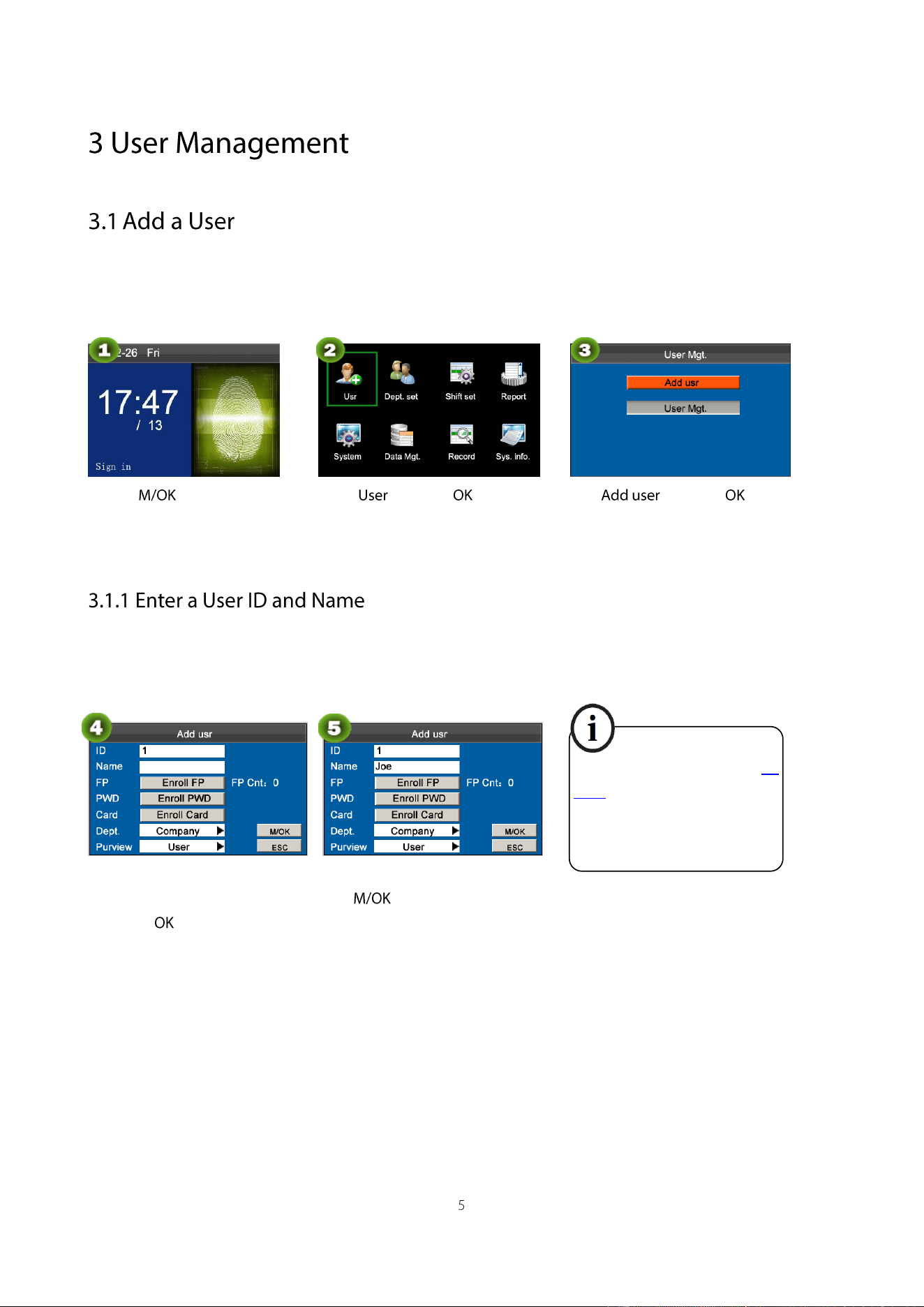
Press on the initial
interface.
Select and press .
Select and press .
The terminal automatically allocates an ID starting from 1 for every user in sequence. If you use the ID allocated by the
terminal, you may skip this section.
Select User ID.
Enter the user ID using keypad,
then press .
Press ▼ to select Name.
Press to open input method.
Press▲/▼to switch input method
and enter the Name.
For details of operations
on keyboard interface, see T9
input.
The terminal supports the
23-character names by default.
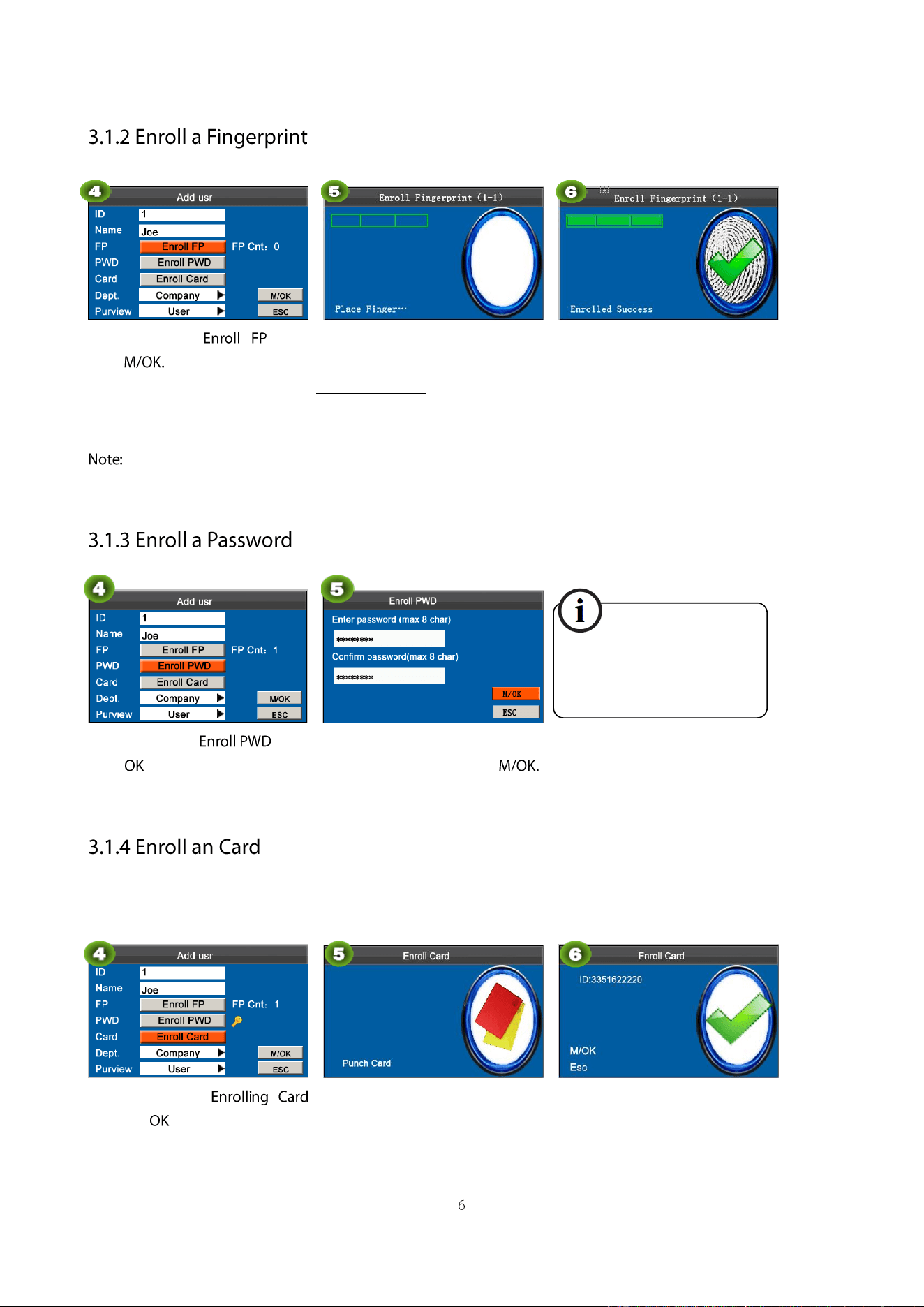
Press ▼ select and
press
Place your finger on the fingerprint
sensor properly. For details, see 1.2
Finger Placement.
Place the same finger on the
fingerprint collector for three
consecutive times correctly until
enrollment succeeds.
If the enrollment fails, the system will display a prompt message and return to the [Enroll Fingerprint] interface.
In this case, you need to repeat the operations of step 2.
Press ▼ to select .
Press .
Enter a password using keypad and
Re-enter the password, press
Some devices have an embedded ID or Mifare card module, providing the verification function.
Press▼ to select
and press .
Swipe your ID card properly in
the swiping area.
―Read Successfully!
The FFR terminal supports the
1- to 8-digit passwords by
default.
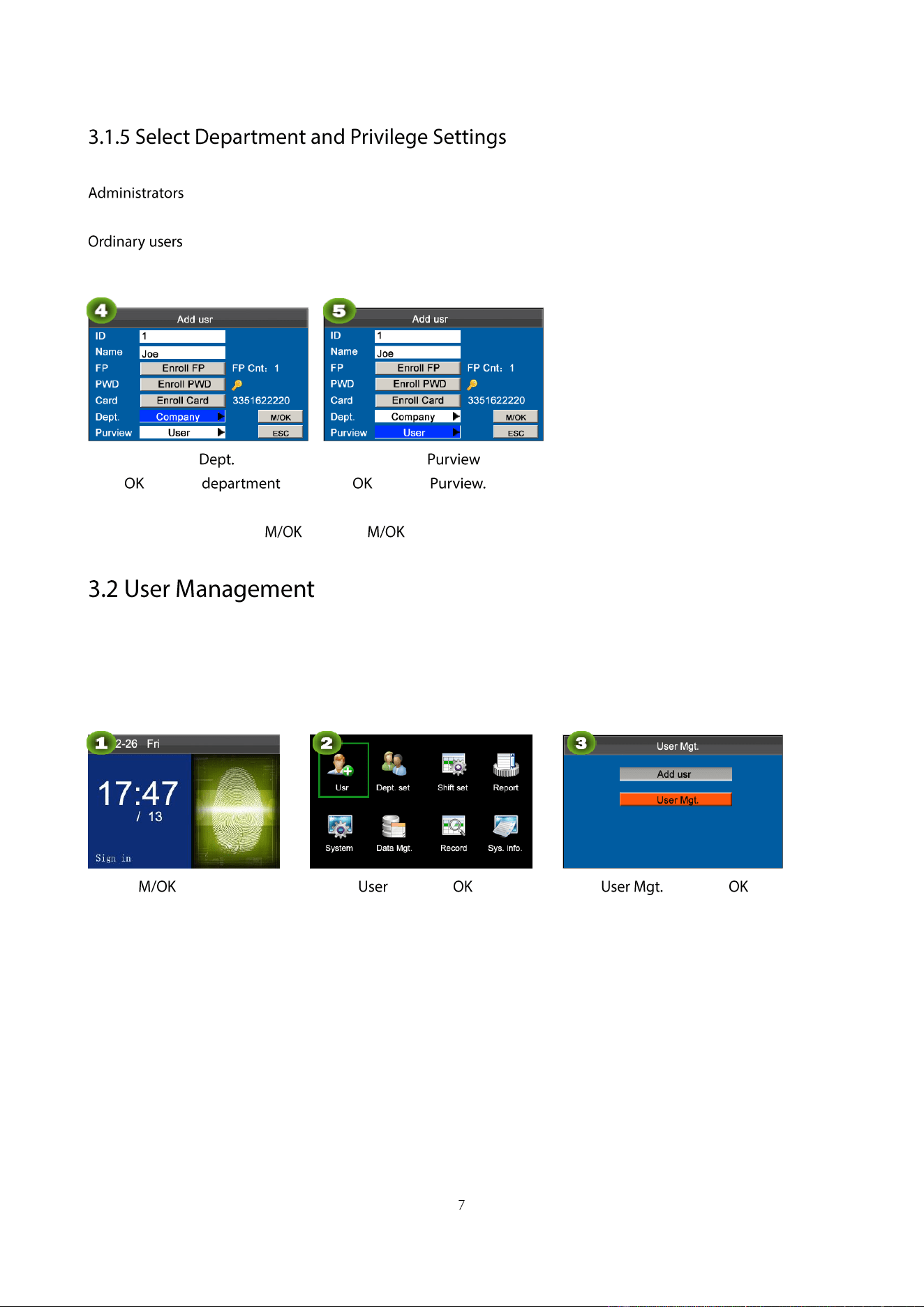
: An administrator is granted rights to operate all menus in addition to the fingerprint- and
password-based attendance recording.
: An ordinary user is only allowed to record attendance through fingerprint and password verification and
query attendance records.
Press ▼ to select .
Press to select .
Press ▼ to select .
Press to select
Finally, press ▲/▼to select and press . Till now, a user is added.
Generally the user information stored on the device needs to be modified in the wake of the personnel changes in a
company. To facilitate modification of user information, our device allows users to add, delete, query and modify user
information conveniently.
Press on the initial
interface.
Select and press .
Select and press .
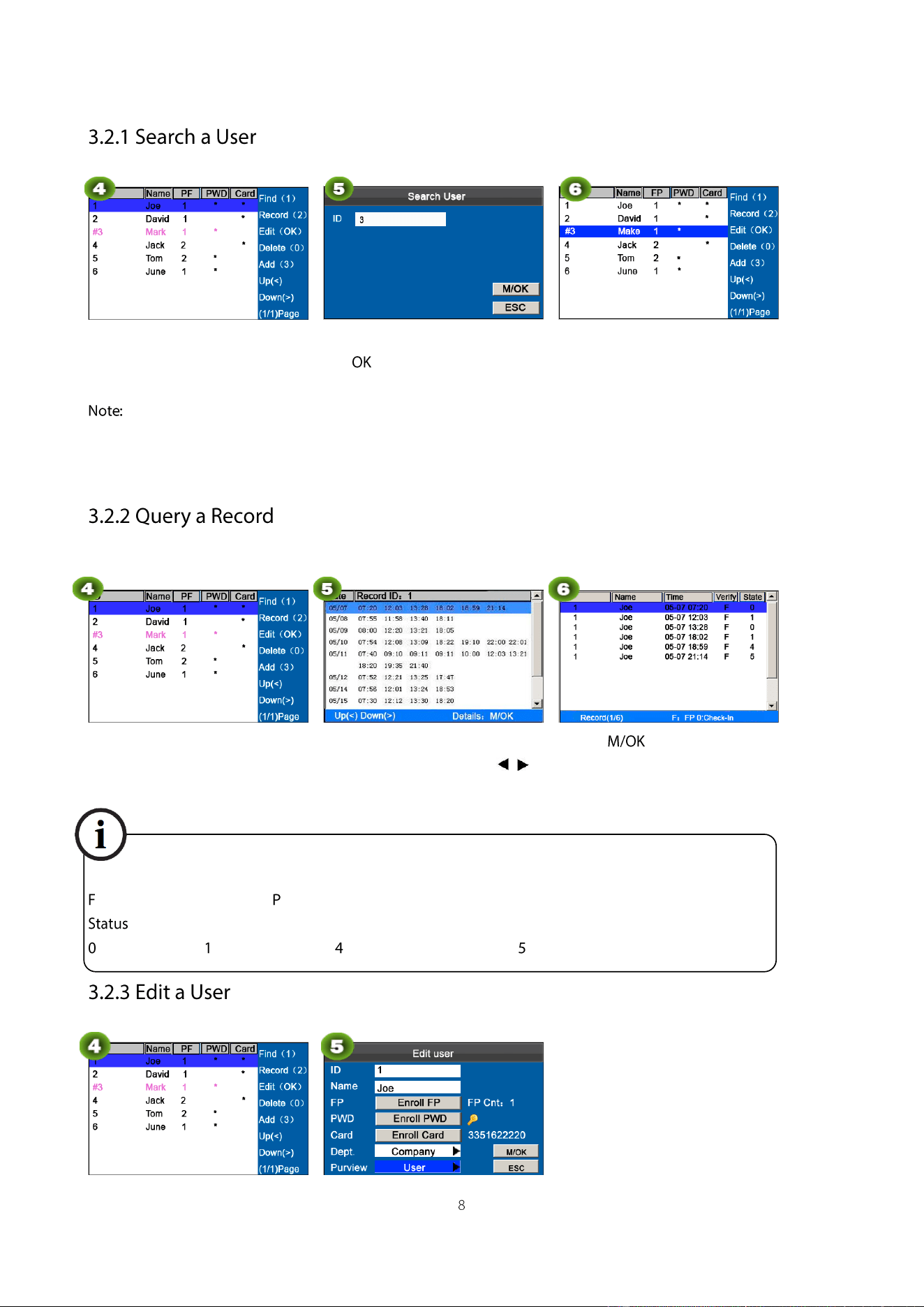
User Mgt. interface
Press 1 to enter
Enter the user ID, such as 3, and
press .
The cursor to the user to be queried.
―#‖ as shown in the figure above means the user is an administrator, and ―*‖ means the user has already enrolled a
password or card.
Press ▲/▼ to select a user and
press 2.
Press ▲/▼ to scroll the attendance
record row by row. Press / to
scroll the attendance record page by
page.
Press to query detailed
information of an employee:
Notes displayed at the bottom of the screen explain all letter meanings.
Verification: validation status.
: fingerprint verification. : password verification I: Card verification
: attendance status.
: check-in : check-out : overtime check-in : overtime check-out
Press ▲/▼ to select a user and
press .
The User ID cannot be modified,
and the other operations are similar
to those performed to add a user.
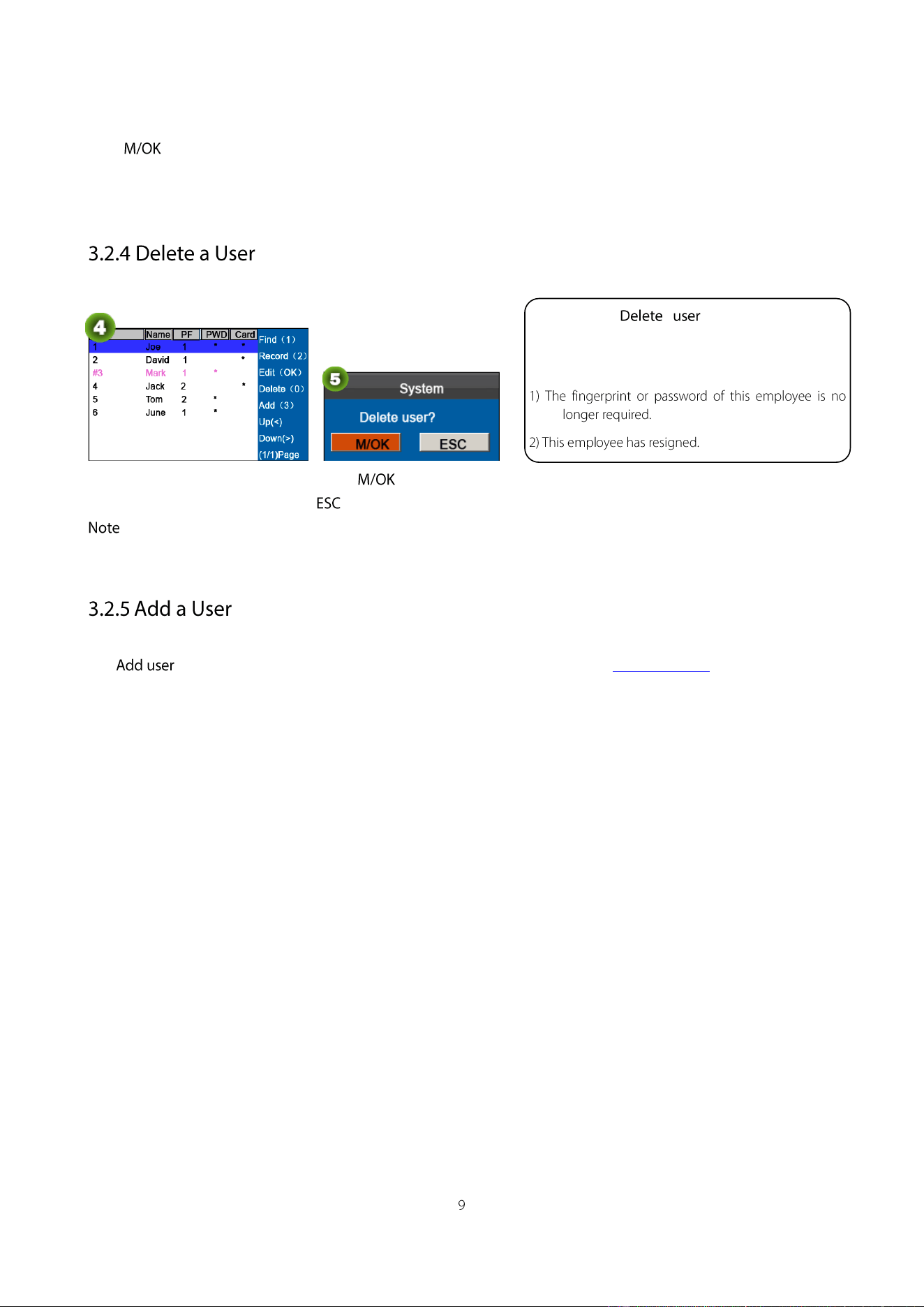
Press▲/▼ to select a user and
press 0.
Press to delete the user or
to return without deleting.
: Deleting a user will not result in the deletion of the user’s attendance records which can be downloaded to related
software for query.
The option is used to facilitate administrators to add users. For details, see 3.1. Add a User.
The option ― ‖ is in either of the
following cases to delete all information of an
employee from the popular color-screen FRT:
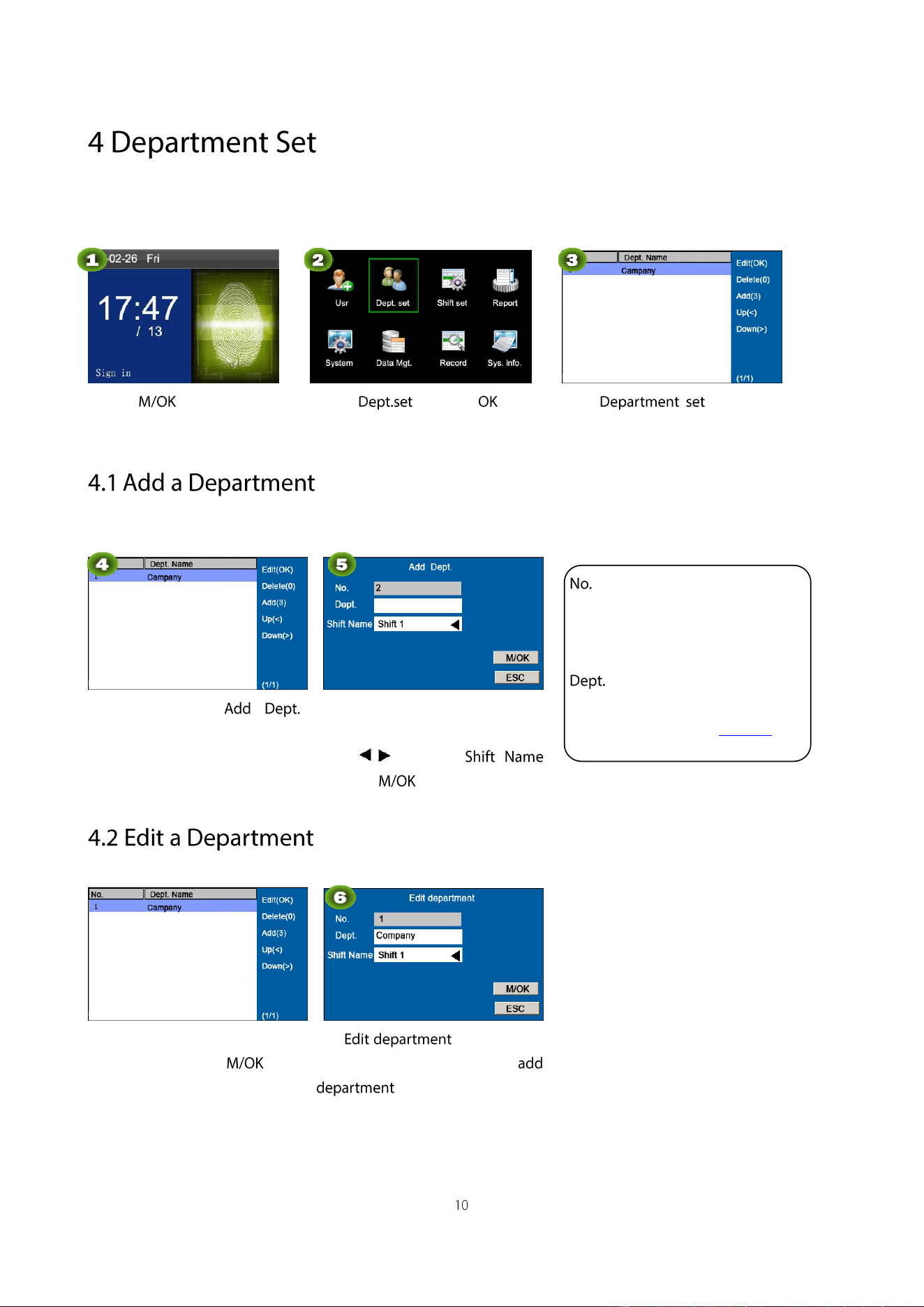
Browse department information. Add, edit, or delete department IDs or names.
Press on the initial
interface.
Select and press .
Enter interface as
shown as figure.
Press 1 to enter
interface.
Enter the department name using
the T9 input method.
Press / to select
and press .
Press ▲/▼ to select a department
to be edited and press .
The operations are
similar to those performed to
.
: The attendance machine
automatically assigns work IDs for
departments that start from 1 and
increase sequentially.
: Enter the department name
using the T9 input method. (For
detailed operations, see T9 input.)
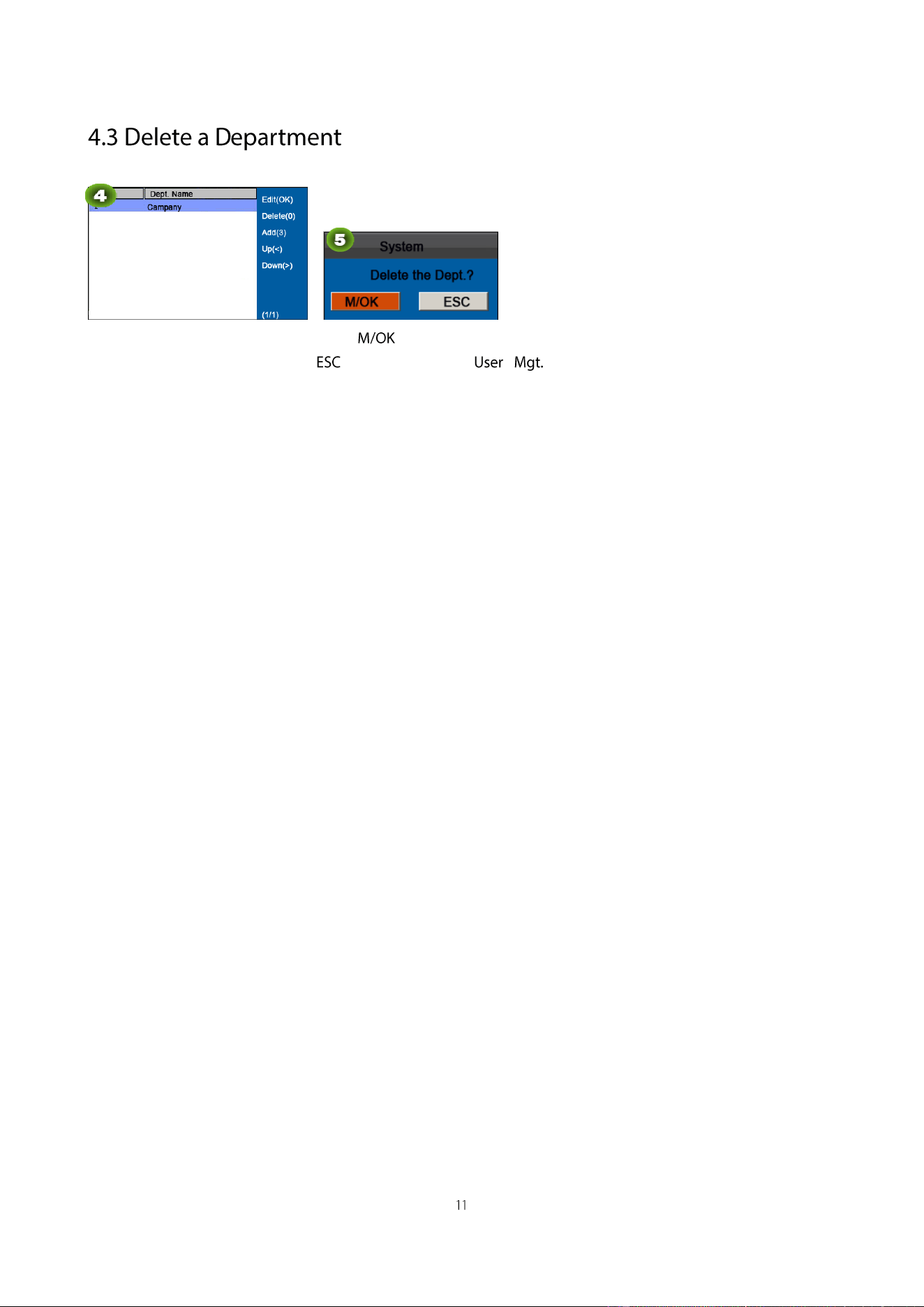
Press ▲/▼ to select a department
and press 0.
Press to delete the user or
to return to the
interface without deleting.
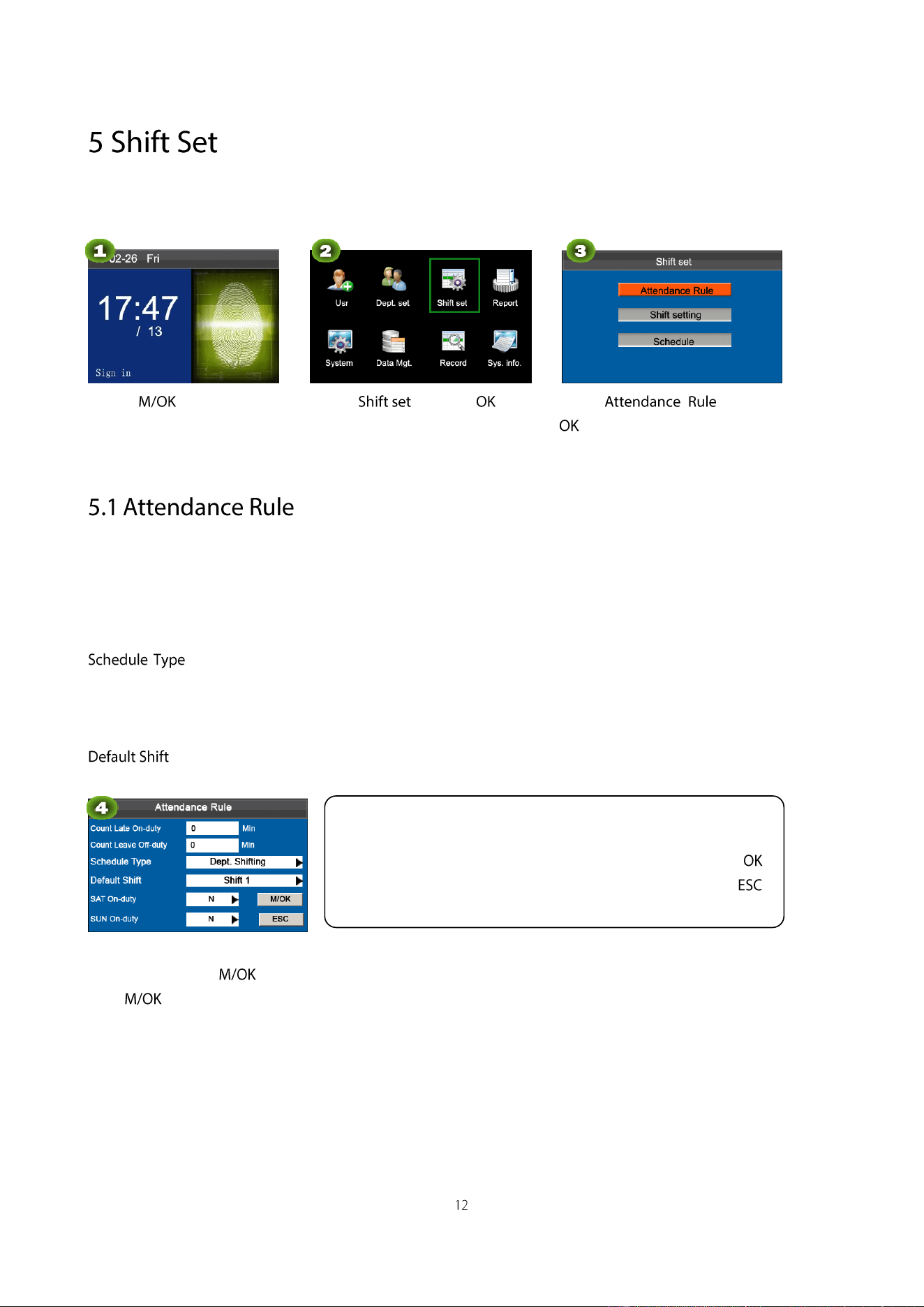
This menu item allows you to set attendance rules and required shifts and to arrange schedules for employees.
Press on the initial
interface.
Select and press .
Select and press
.
All attendance statistics are collected based on attendance rules. Attendance rules regarding how to calculate late arrival
and early leave and how to arrange schedules need to be set first. Once set, they should not be modified from time to
time because a modification may cause deviation in attendance record and a modification in the middle of a month may
even disarrange the schedules.
: Department-based scheduling and individual-based scheduling are supported. If a company uses one
timetable, only one department needs to be set and department-based scheduling is recommended. If departments have
their respective timetables, department-based scheduling is recommended. If employees may take different shifts,
individual-based scheduling is recommended.
: When individual-based scheduling is used, employees who are not scheduled take the default shift.
Set attendance rules by referring to the instructions in the text box on the right.
Press ▲/▼ to select .
Press for saving.
Press ▲/▼ to move the cursor to a desired option. Enter a desired value
in the entry box using the numeric keypad. Press ◄/► in the scroll box
to switch to the desired value. After finishing the setting, press to
save your settings and go back to the previous interface. Press to
cancel your settings and go back to the previous interface.
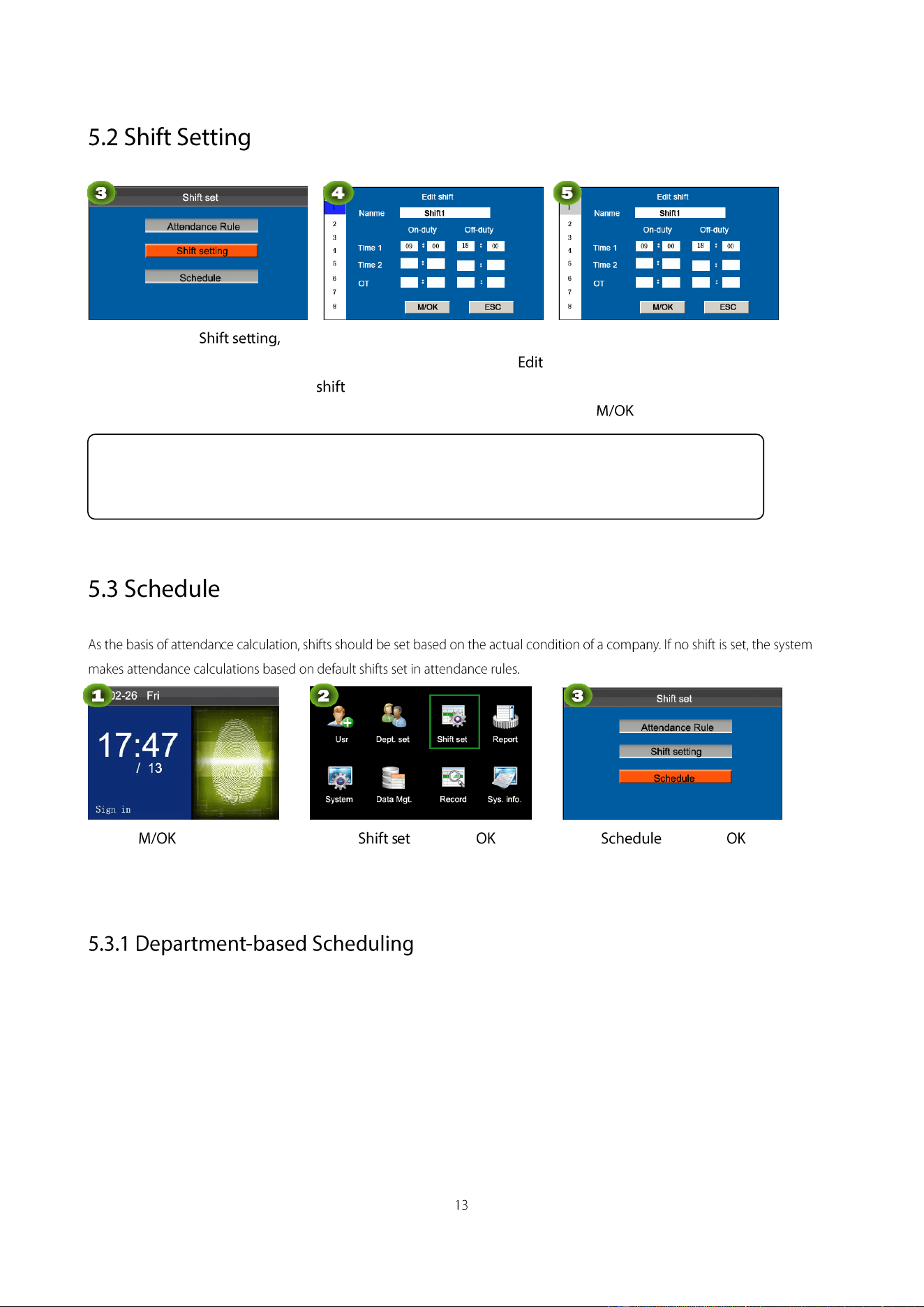
Press ▼ to select
Press M/OK
Press ▲/▼ to select a shift from the
list, and press ► to display the
interface
Press ▲/▼ to choose
corresponding shift attributes. Enter
the time using the numeric keypad.
Press
Press on the initial
interface.
Select and press .
Select and press .
The Schedule type in Attendance Rule is Department shifting.
Shift setting:
The device supports a maximum of 24 shifts including two default shifts (shift 1 and shift 2). All shifts can
be edited and a single shift includes three time ranges at most.
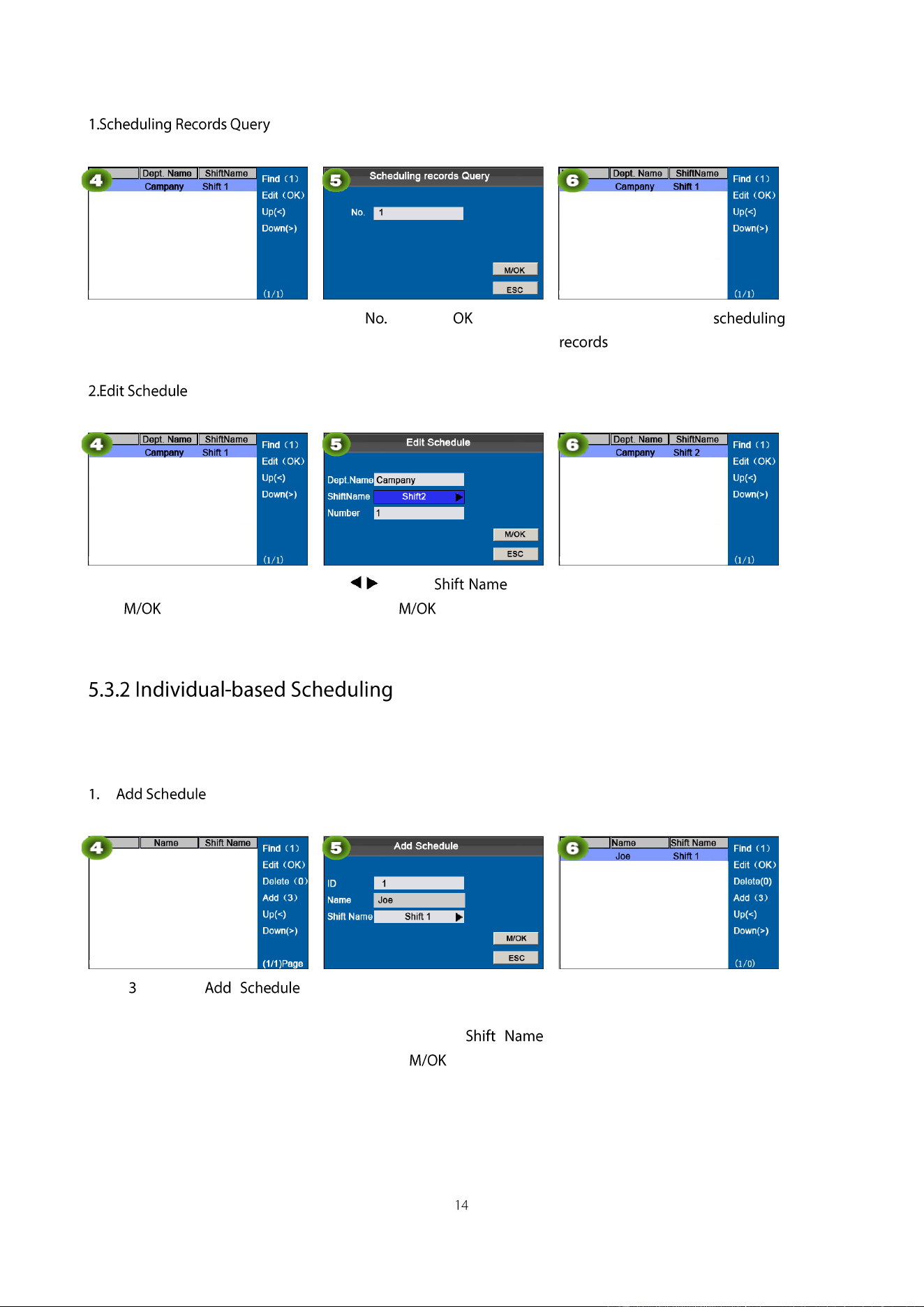
Press 1 to enter Scheduling
records Query
Enter a and press . Enter 1 as
shown as in figure.
The department's
as shown as in figure.
Press▲/▼ to select a shift then
press .
Press / to select , like:
Shift2, Press .
When editing successful, an
interface shown above.
The Schedule type in Attendance Rule is Personal shift.
Press to enter
interface.
Enter an ID. The device
automatically displays the name.
Press ▲/▼ to select
and then press .
When adding successful, an
interface shown above.
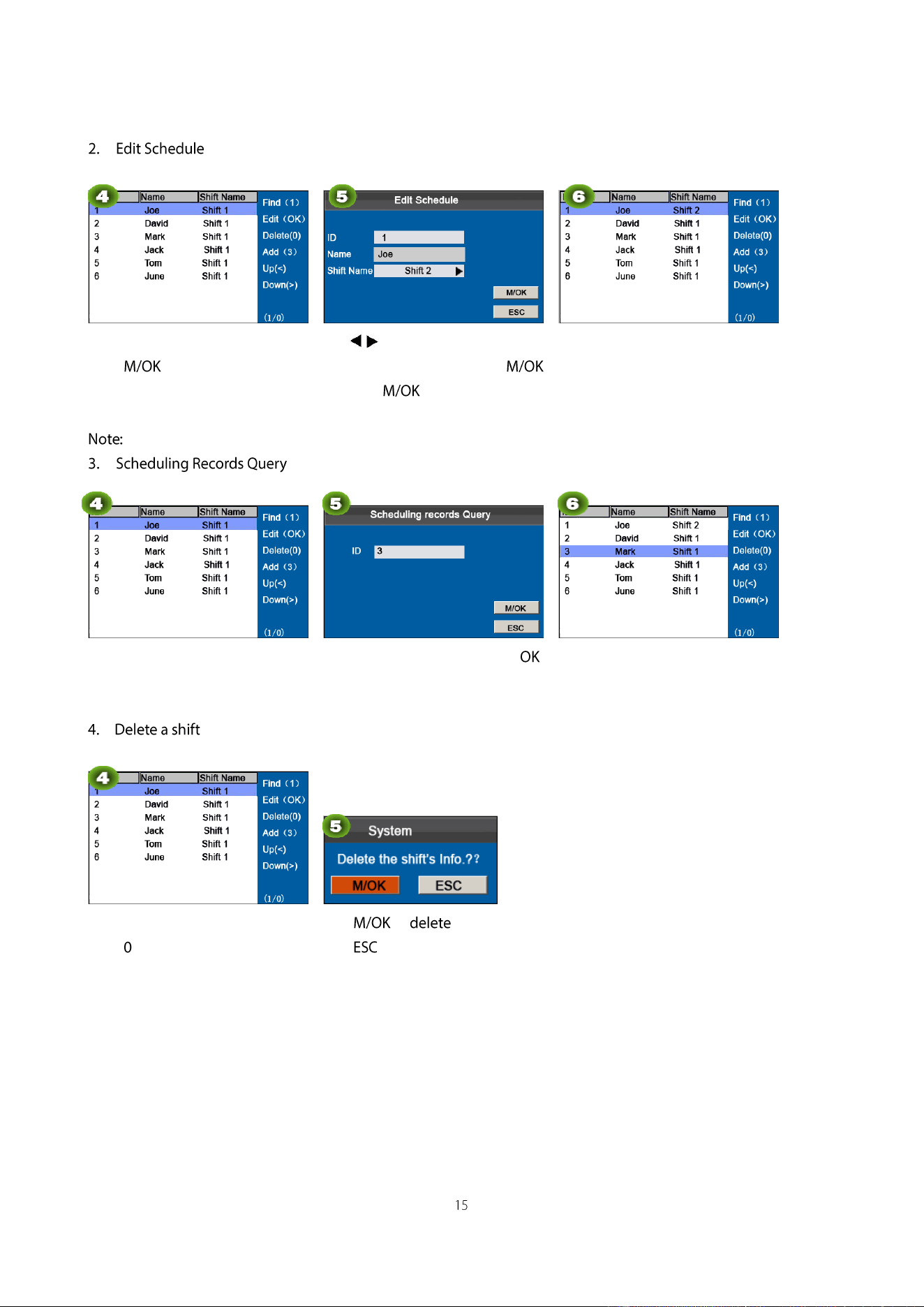
Press▲/▼to select a shift then
press .
Press / to select Shift Name, like
Shift 2, press ▲/▼ to select
then press .
When adding successful, an
interface shown above.
The User ID cannot be modified, and the other operations are similar to those performed to add a shift.
Press 1 to enter Scheduling
records Query
Enter an ID number and press .
Enter 3 as shown as in figure.
The user's scheduling records as
shown as in figure.
Press ▲/▼ to select a shift then
press .
Press to .
Press to exit
The schedules in attendance setting reports have priority over those set on the device in attendance calculation.
The attendance machine downloads information onto the USB disk when a USB disk and an SD card are inserted
simultaneously.
Press on the initial
interface.
Select and press .
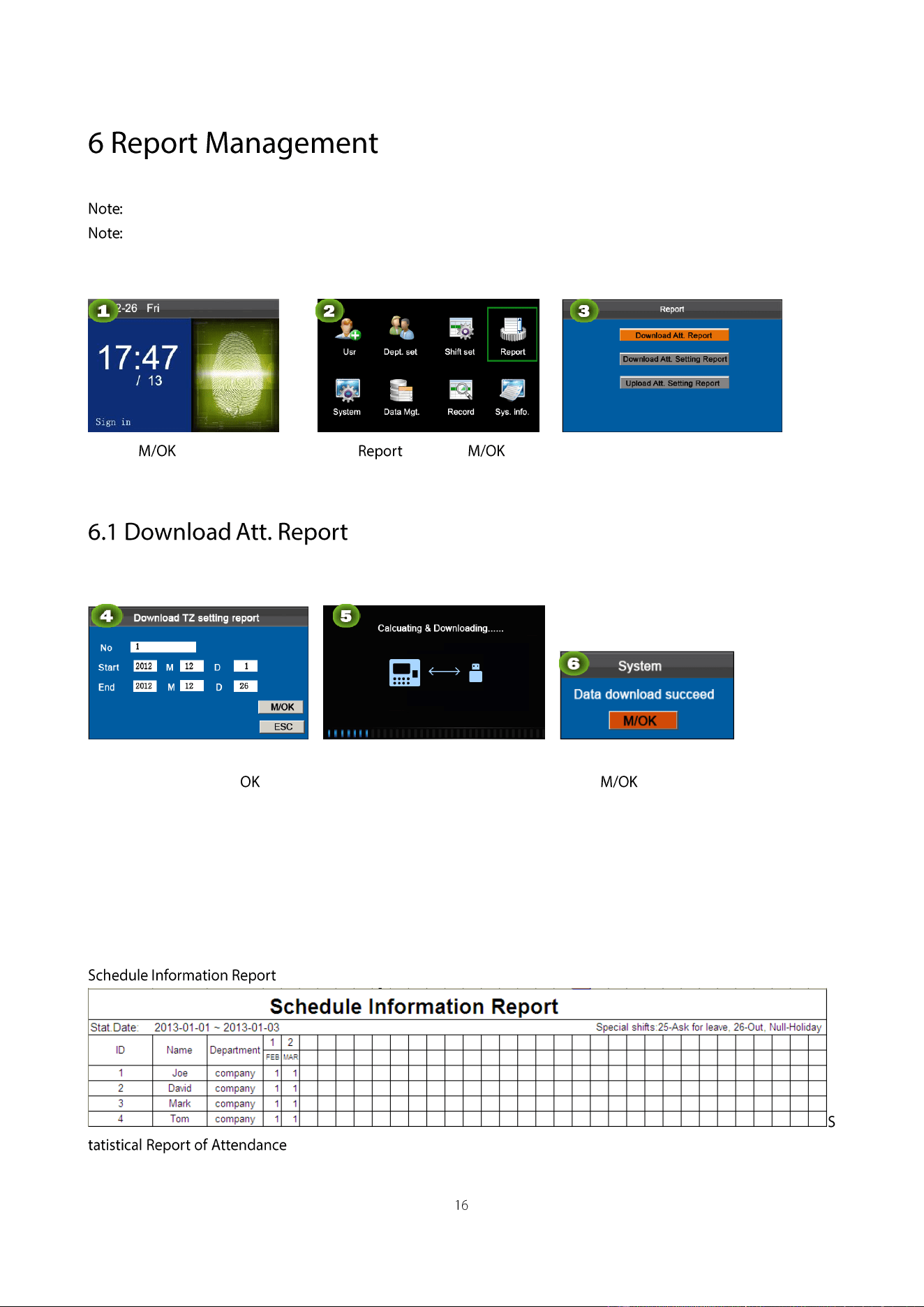
Select Download Att. Report and
press M/OK.
Enter the start and end dates
using keypad then press .
Downloading......
Data download succeed!
Press to take out the USB
disk or SD card.
The SSRTemplateS.xls shall be stored in the USB disk or SD card. The schedule information, statistical report of
attendance, attendance Record Report, Exception Statistic Report and card report can be viewed on a PC. The following
reports show the preceding information:
To make reports more understandable, a report containing two-day attendance records of four employees is provided as
an example.
: The report allows you to view schedule records of all employees.
: The report allows you to query attendance of each person in a specified period. Salaries
can be calculated directly based on this report.
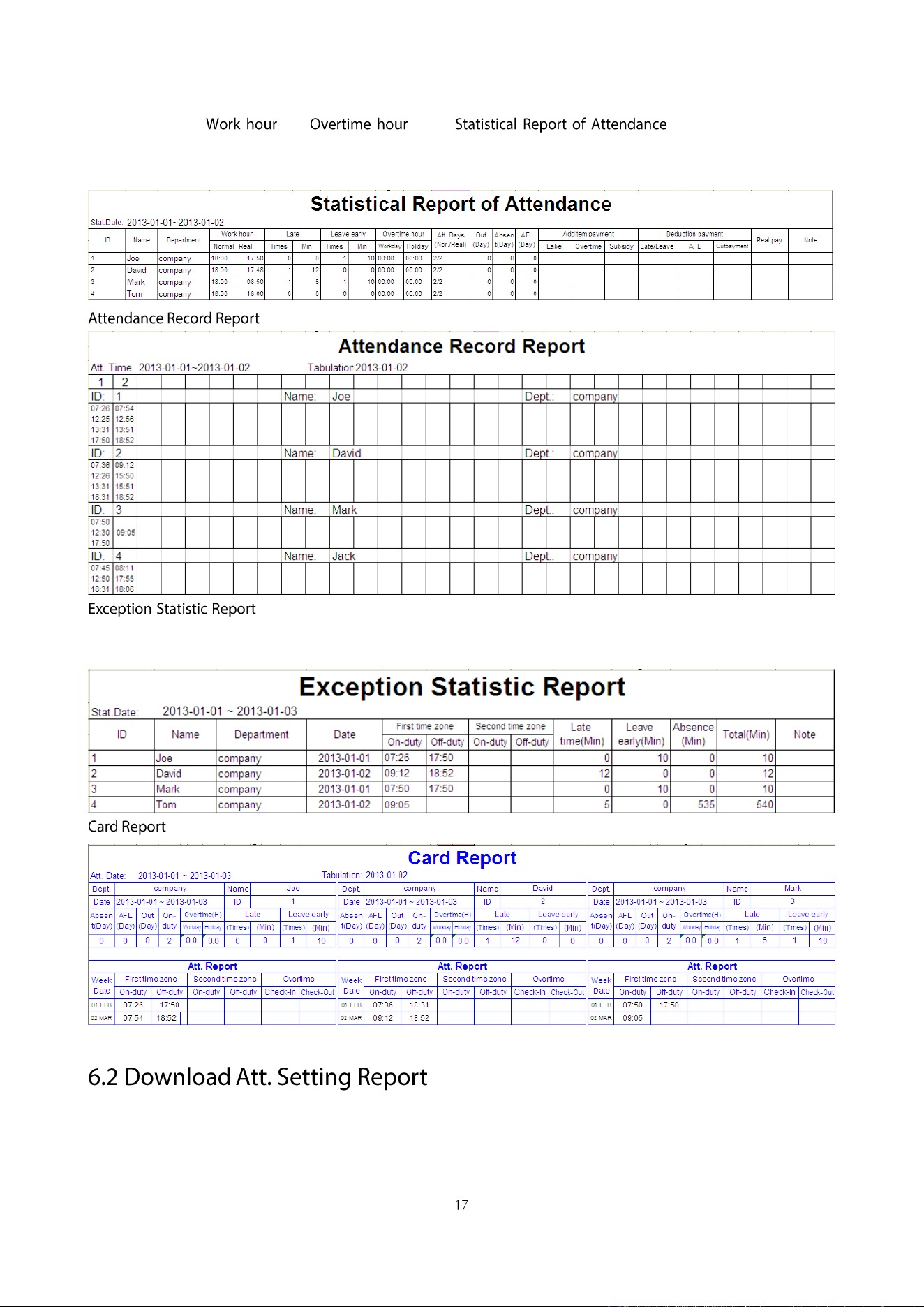
Note: The unit of and in the is HH:MM. For example,
17:50 indicates that the on-duty time is 17 hours and 50 minutes.
: The report lists the daily attendance records of all employees within a specified period.
: The report displays the attendance exceptions of all employees within a specified period so
that the attendance department handles the exceptions and confirm them with the employees involved and their
supervisors.
: The report can substitute for clock-based cards and can be sent to each employee for confirmation.
If shifts are complex or the shifts of a person are not fixed, it is recommended that the attendance setting report be
downloaded and shifts and schedules be set for employees in the attendance setting report.
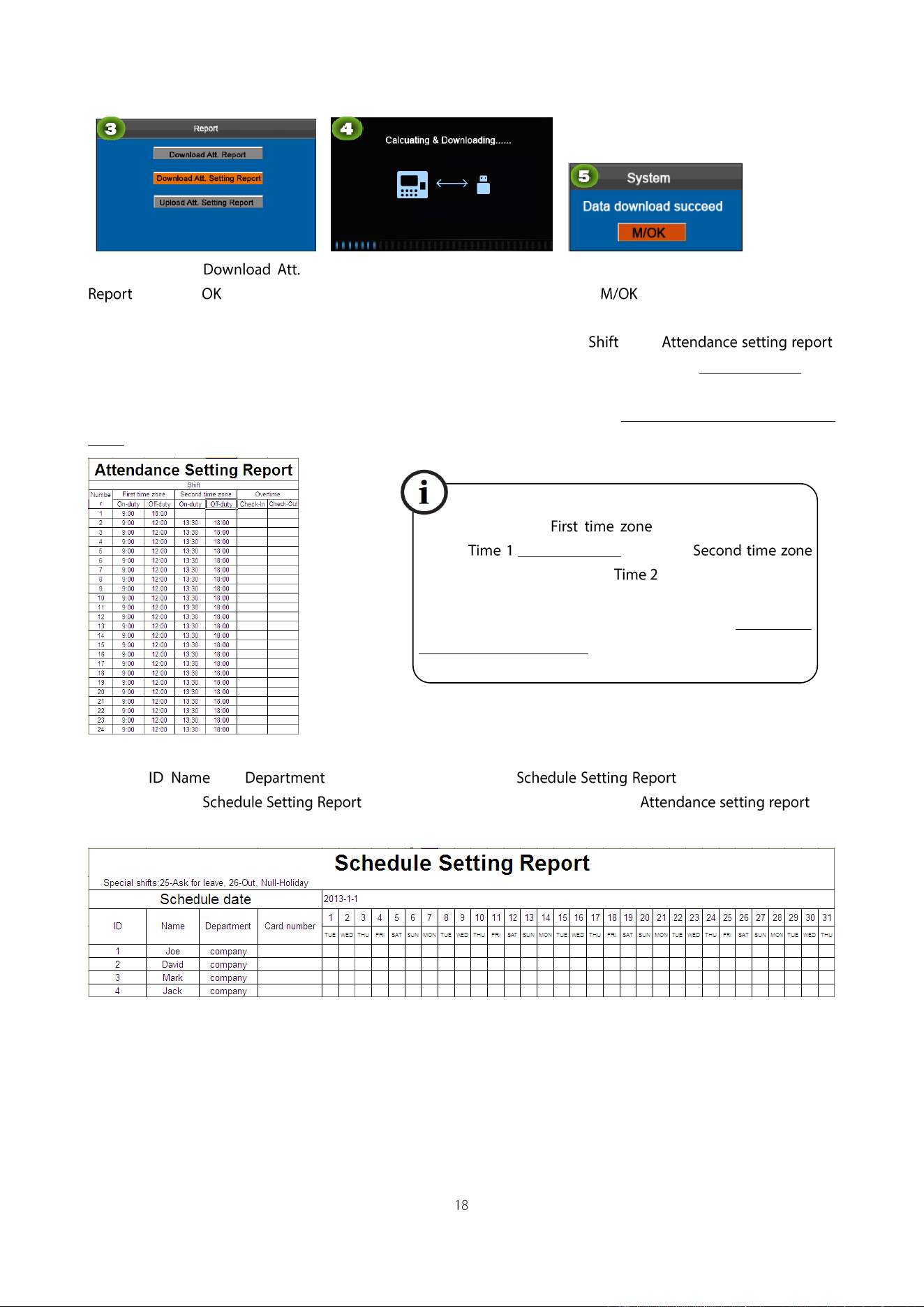
Press ▼to select
then press .
Downloading......
Data download succeed!
Press to take out the USB
disk or SD card.
Open the setting "AttSettingE.xls" in the USB disk or SD card on a PC. Set the in the .
The shifts that have been set on the attendance machine shall be displayed. (For more details, see 5.2 Shift Setting) You
can modify the 24 shifts and add shifts. After modification, the shifts shall prevail on the attendance machine. For more
details, see "How to arrange schedules using the attendance setting report" in the "Self-Service Attendance Terminal
FAQs."
Set a schedule setting report
Enter the , , and respectively on the left of the . Set shifts for employees
on the right of the , where shifts 1–24 are shifts those set in the and
shift 25 is for leave and shift 26 is for out.
Notes:
1. The shifts of only 31 days can be arranged in one schedule setting report. For example, if the scheduling date is
2012-1-1, the schedule setting report contains the schedules of 31 days after 2012-1-1, that is, schedules from 2012-1-1
to 2012-1-31. If the scheduling date is 2012-1-6, the schedule setting report contains the schedules of 31 days after
2012-1-6, that is, schedules from 2012-1-6 to 2012-2-5.
2. If no schedule setting report is set, all employees use the report 1 by default from Monday to Friday.
Enter the on/off duty time in the corresponding
columns, where the shall be the on/off duty
time of 5.2 Shift Setting in and the
shall be the on/off duty time of .
For the correct schedule time format, see "What is the correct
time format used in the setting reports" in the "Self-Service
Attendance Terminal FAQs."
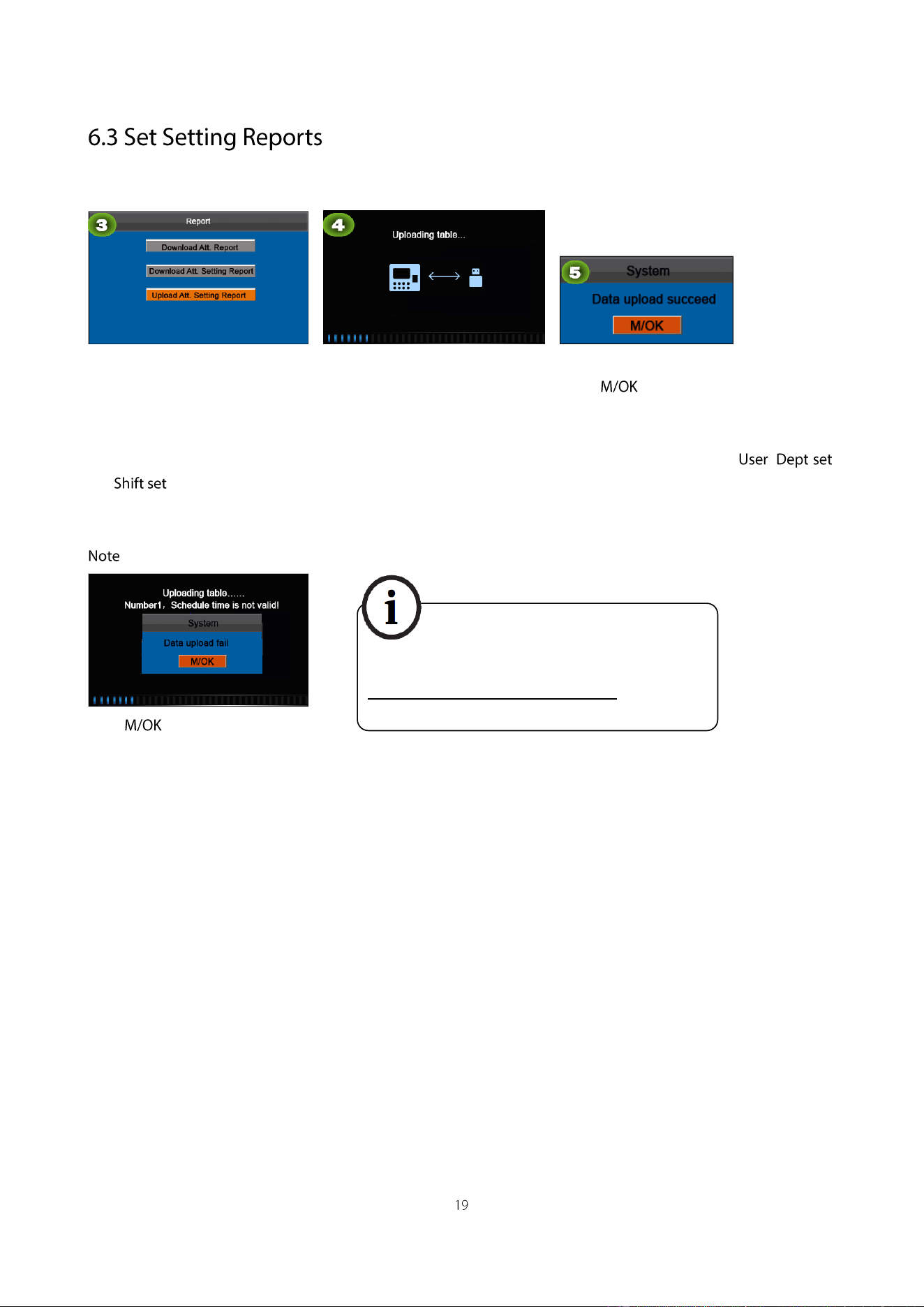
Select Upload Att. Setting Report
then press OK.
Uploading table……
Data upload succeed!
Press to take out the USB
disk or SD card.
The employee information, shifts, and departments in the setting reports can be viewed after you select , ,
and respectively on the initial interface.
Then you can view the information of employees, shifts, and departments either on relevant interfaces or in downloaded
standard reports.
: If the schedule time format is incorrect, an interface shown in the following figure will be displayed:
Press .
Re-upload the attendance setting report after modification.
For the correct schedule time format, see "What is the
correct time format used in the setting reports" in the
"Self-Service Attendance Terminal FAQs."
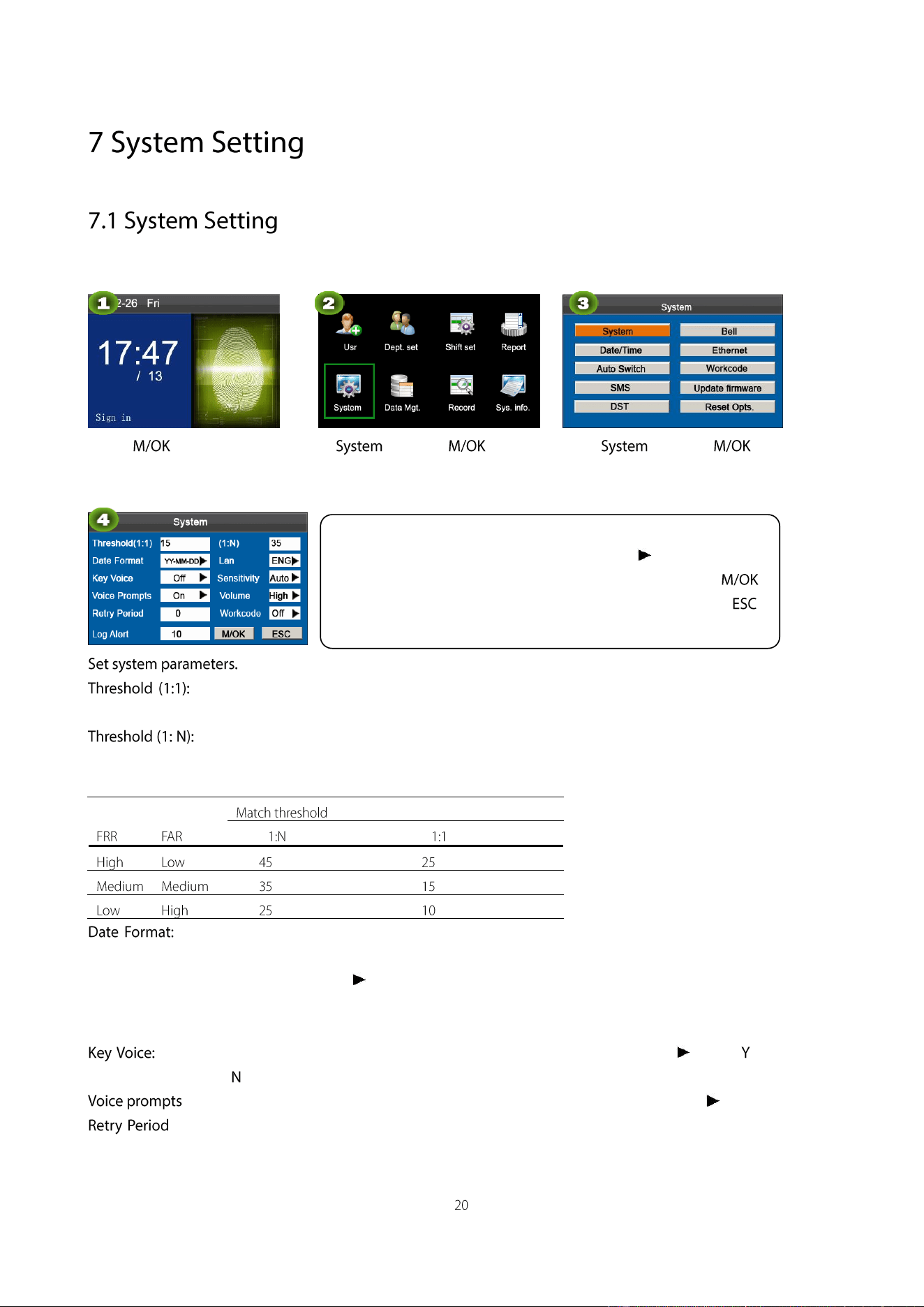
Set system parameters to meet user requirements to the greatest extent in terms of functions and display.
Press on the initial
interface.
Select and press .
Select and press .
This option is used to set the extent of matching between an input ID/fingerprint and that stored in
templates in the ID and fingerprint identification mode.
This option is used to set the extent of matching between an input ID/fingerprint and all those stored in
templates.
The recommended thresholds are as follows:
This option is used to set the time format displayed on the initial interface of the popular color-screen
FRT.
Select a desired date format by pressing . The popular color-screen FRT supports 10 date formats: YY-MM-DD,
YY/MM/DD, YY.MM.DD, MM-DD-YY, MM/DD/YY, MM.DD.YY, DD-MM-YY, DD/MM/YY, DD.MM.YY and
YYYYMMDD.
Set whether to generate a beep sound in response to every keystroke by pressing . Select to enable the
beep sound, and select to mute.
: Set whether to generate a voice prompt in response to every operation by pressing .
: If a user’s attendance record already exists and the user signs in again within the specified period (unit:
minute), his/her second attendance record will not be stored. (Value scope: 0–60. 0: Save all the records passing the
verification.)
Move the cursor to the desired option by pressing ▲/▼. Enter a desired
value in the entry box by using the keypad. Press in the scroll box to
switch to the desired value. After finishing the setting, press to
save your settings and return to the previous interface. Press to
cancel your settings and return to the previous interface.
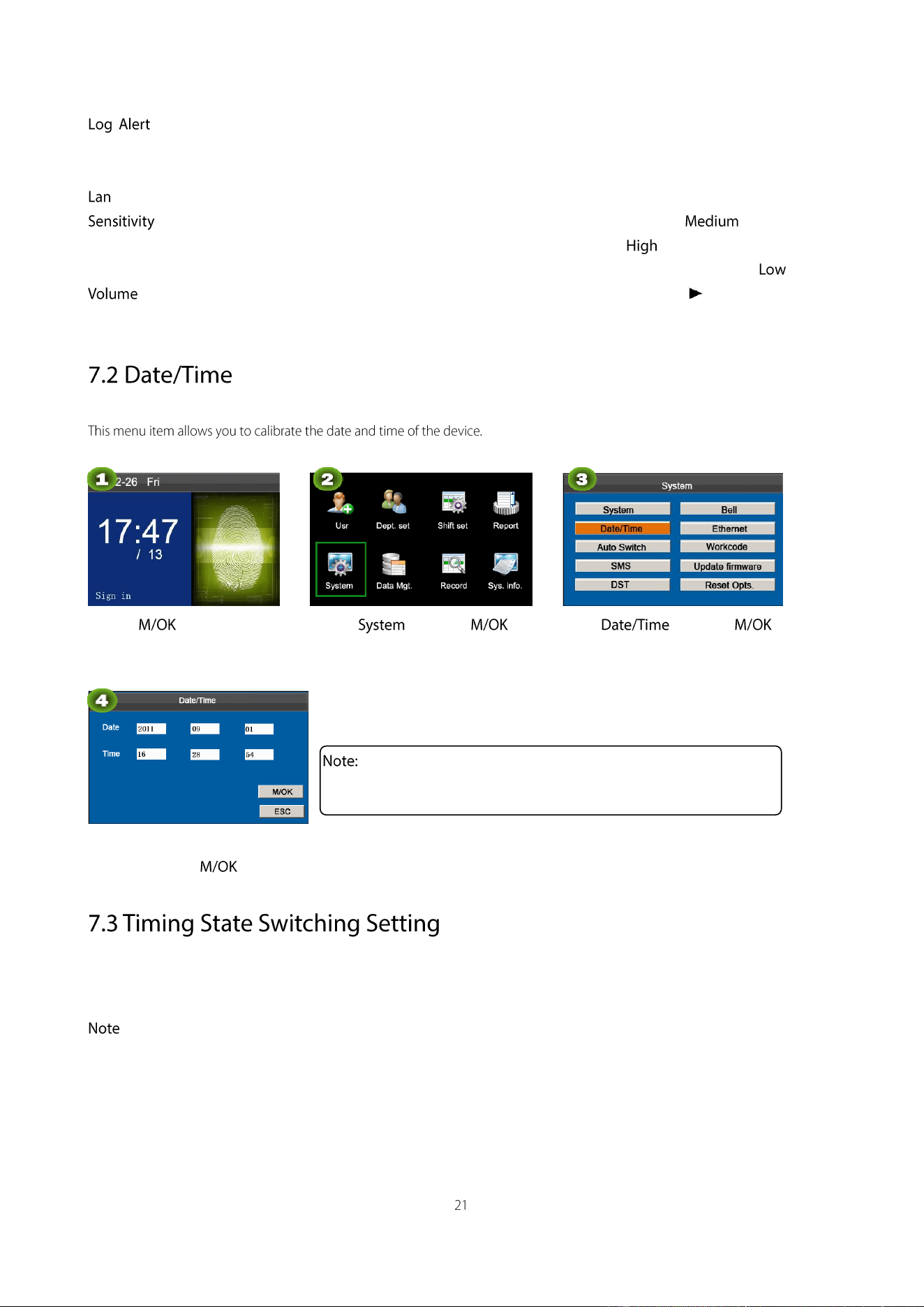
: When the available space is insufficient to store the specified number of attendance records, the popular
color-screen FRT will automatically display a warning message. (Value scope: 1─99. 0: No warning message is
displayed when the free space is zero.)
: You can select a language for the device based on your requirements.
: Set the fingerprint collection sensitivity. It is recommended to use the default value . When dryness
results in slow reactions of the fingerprint collector, you may set this option to to enhance the fingerprint
collector's sensitivity. When high humidity results in illegible fingerprint images, you may set this option to .
: This option is used to adjust the volume of sound. Select a desired volume by pressing .
Workcode: This option is used to set whether to enable the work code function.
Press on the initial
interface.
Select and press .
Select and press .
Enter the desired value by using
the keypad. Press to save.
When it comes the set times, the attendance machine will automatically switch its attendance state. The current
attendance state is shown on the initial interface.
: The attendance status is downloaded together with attendance records. Users can view the attendance status by
using attendance software. The attendance status does not affect attendance calculation, which is based on the preset
shift time.
The date and time of the popular color-screen FRT must be set
accurately to ensure the accuracy of attendance time.
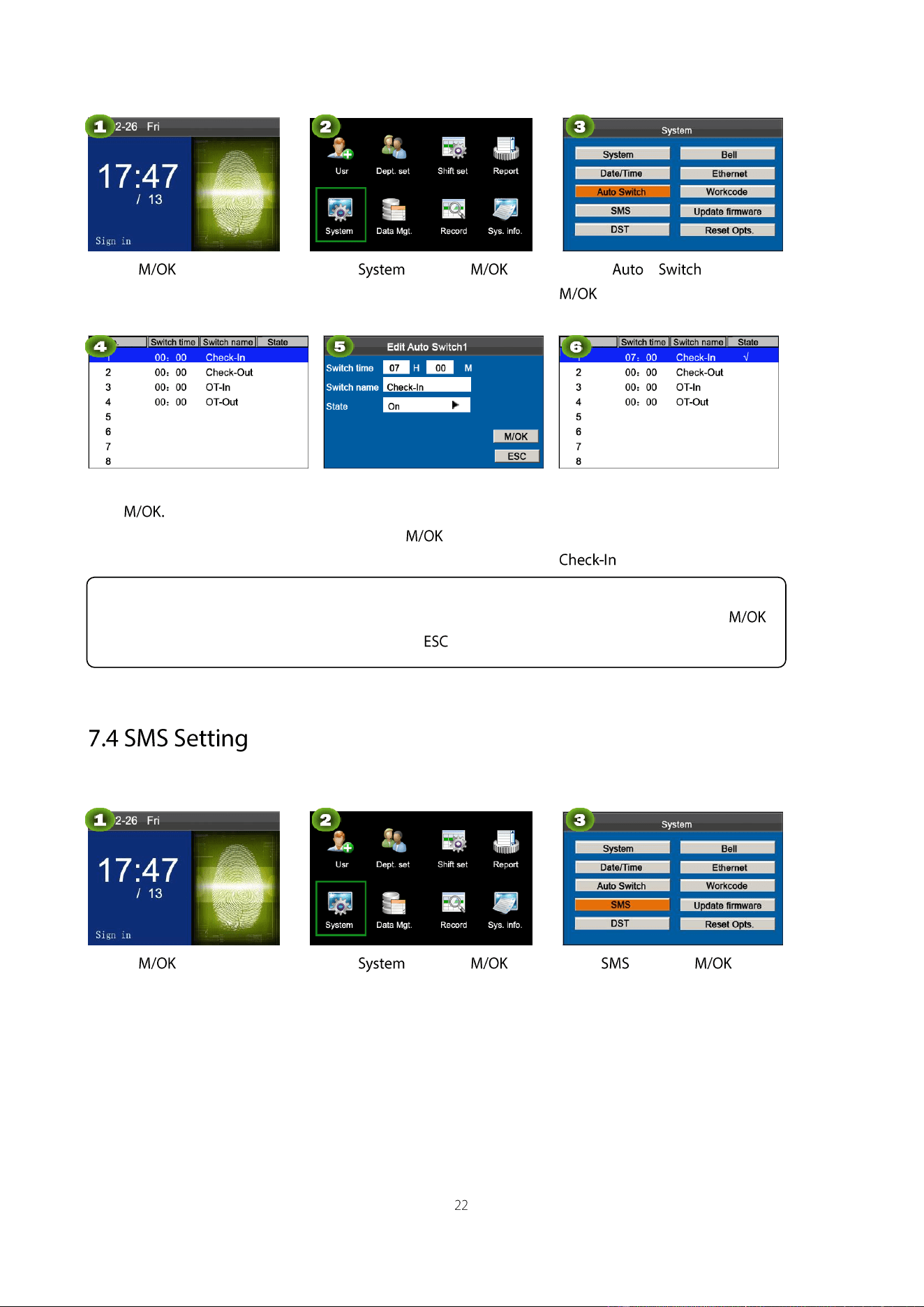
Press on the initial
interface.
Select and press .
Select and press
.
Press ▲/▼ to select the item and
press
Set parameters by referring to the
instructions in the following text
box and press .
As shown in the preceding figure,
when the time reaches 07:00, the
attendance status switches to
.
The menu item allows you to add, edit, view, and delete SMS messages.
Press on the initial
interface.
Select and press .
Select and press .
Press ▲/▼ to switch among the entry boxes. Enter the switch time using the numeric keypad and the switch
name using the T9 input method. Press ◄/► to choose a state. After the setting is complete, press to
save and go back to the previous interface. Press to cancel the setting and go back to the previous
interface.
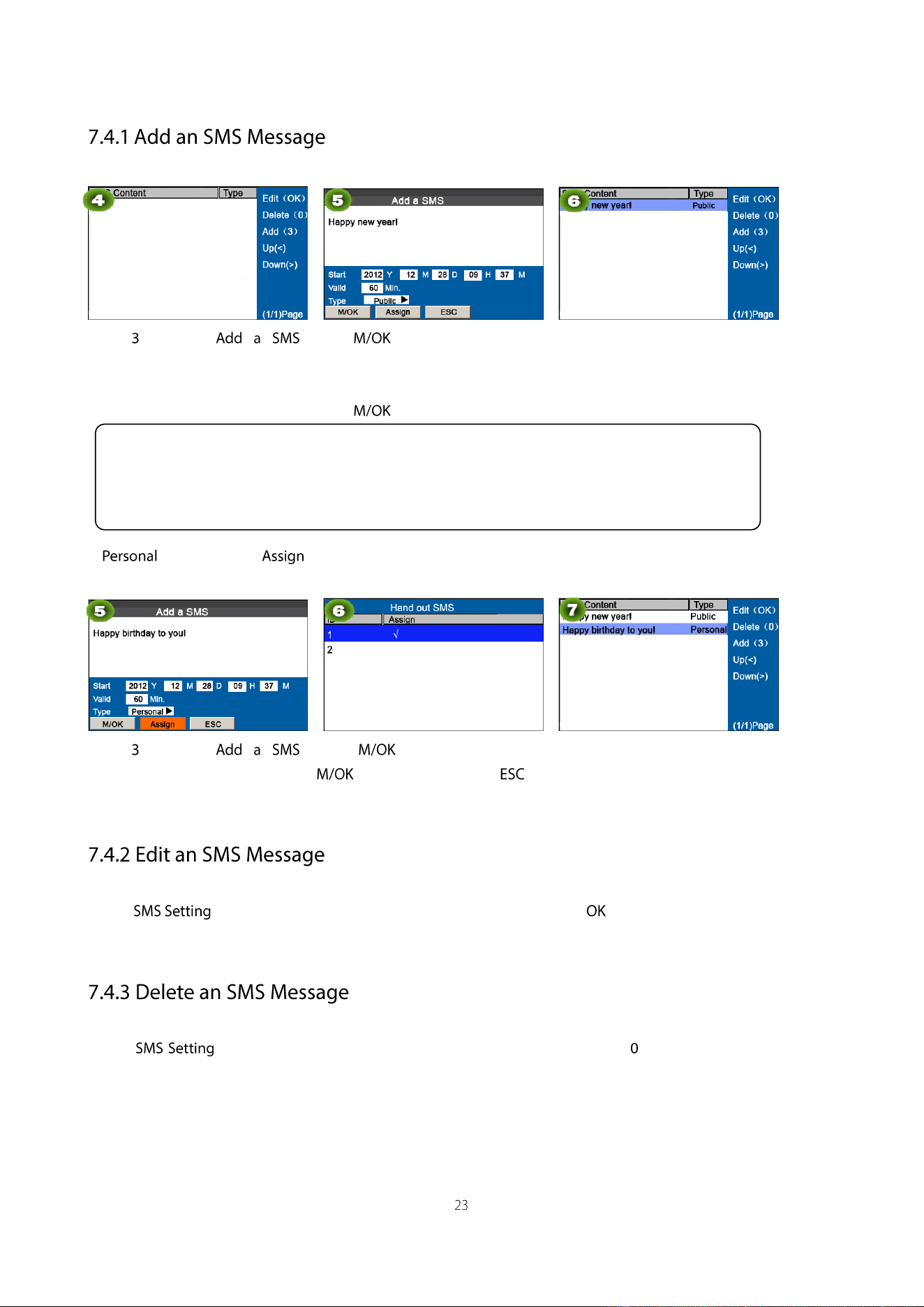
Press to enter
interface.
Press to open input method.
Press▲/▼ to switch input method
and enter the Start, Valid and Type.
Press to save.
When adding successful, an
interface shown above.
If is chosen, press to assign an SMS message to desired employees.
Operation:
Press to enter
interface.
Press to select User, press
to select √ and press to
return.
When adding successful, an
interface shown above.
On the interface, press ▲/▼ to choose an SMS message and press to edit it.
The operations of SMS message editing are the same as those of SMS message adding.
On the interface, press ▲/▼ to choose an SMS message and then press to delete it and all information
relating to the SMS message.
Operation description
When the cursor hovers over the text box, press the shortcut key to enable the T9 input method and then
enter the message content. You can press ▲/▼ to switch among the entry boxes of different options and
press ◄/► to choose a desired value or enter one using the keypad.
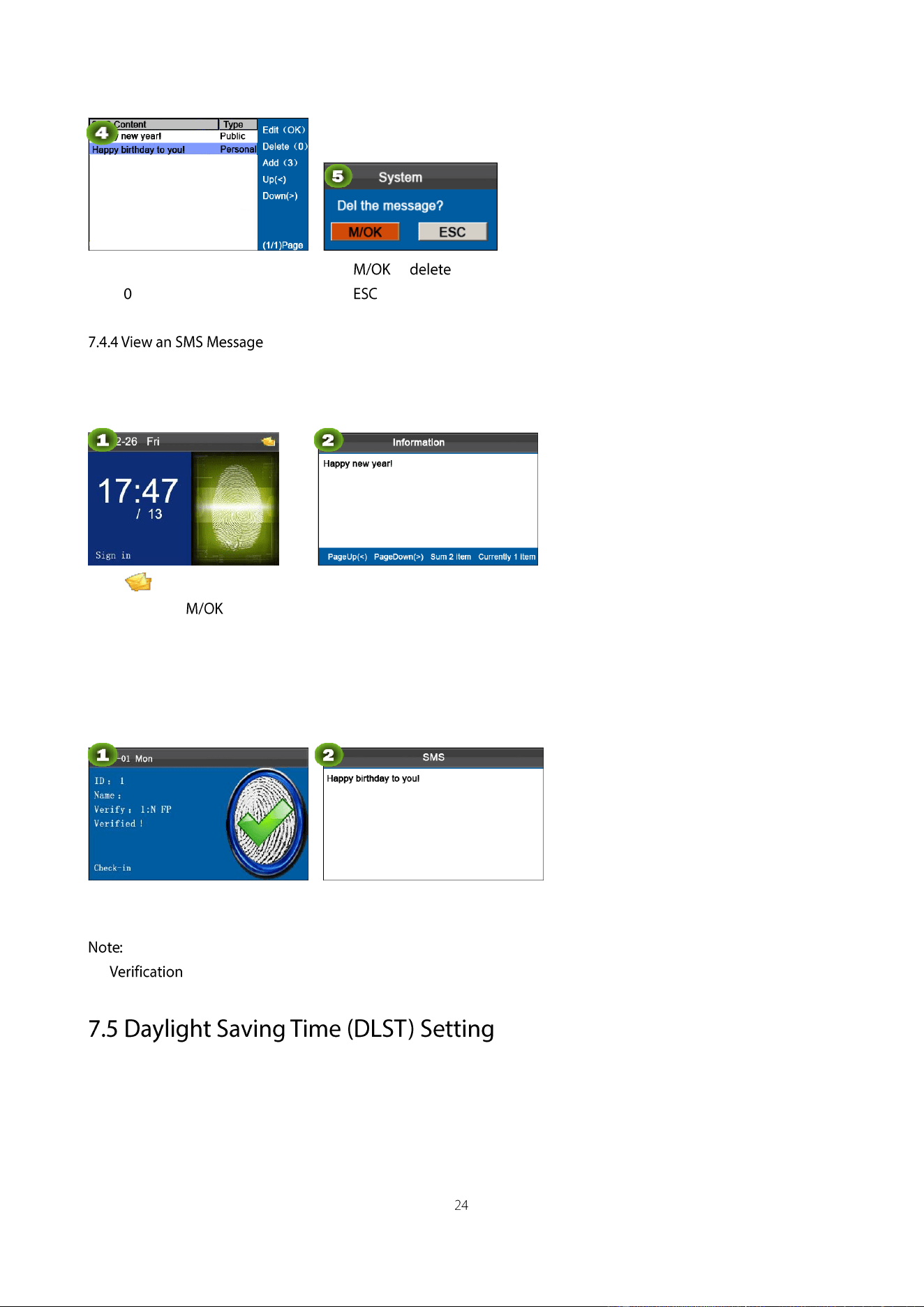
Press▲/▼to select a SMS then
press .
Press to .
Press to exit
View public SMS messages
When is shown on the initial
interface, press to view.
View the currently-valid public
messages, as shown as in figure.
View personal SMS messages
After a user is successfully verified (multiple verification modes can be used and the following uses fingerprint
verification as an example), the user’s personal messages will show up on the screen, as shown in the following figure.
Successfully verified Show user’s personal messages
SMS messages only show up for 30 seconds, during which you can close current display interface so as to enter
the interface.
The Daylight Saving Time is a widely used system of adjusting the official local time forward to save energy. The
uniform time adopted during the implementation of this system is known as the DLST. Typically clocks are adjusted
forward one hour in the summer to make people early to bed and early to rise so as to make full use of illumination
resources and save electricity. Clocks are adjusted backward in autumn. The specific DLST regulations vary with
countries.
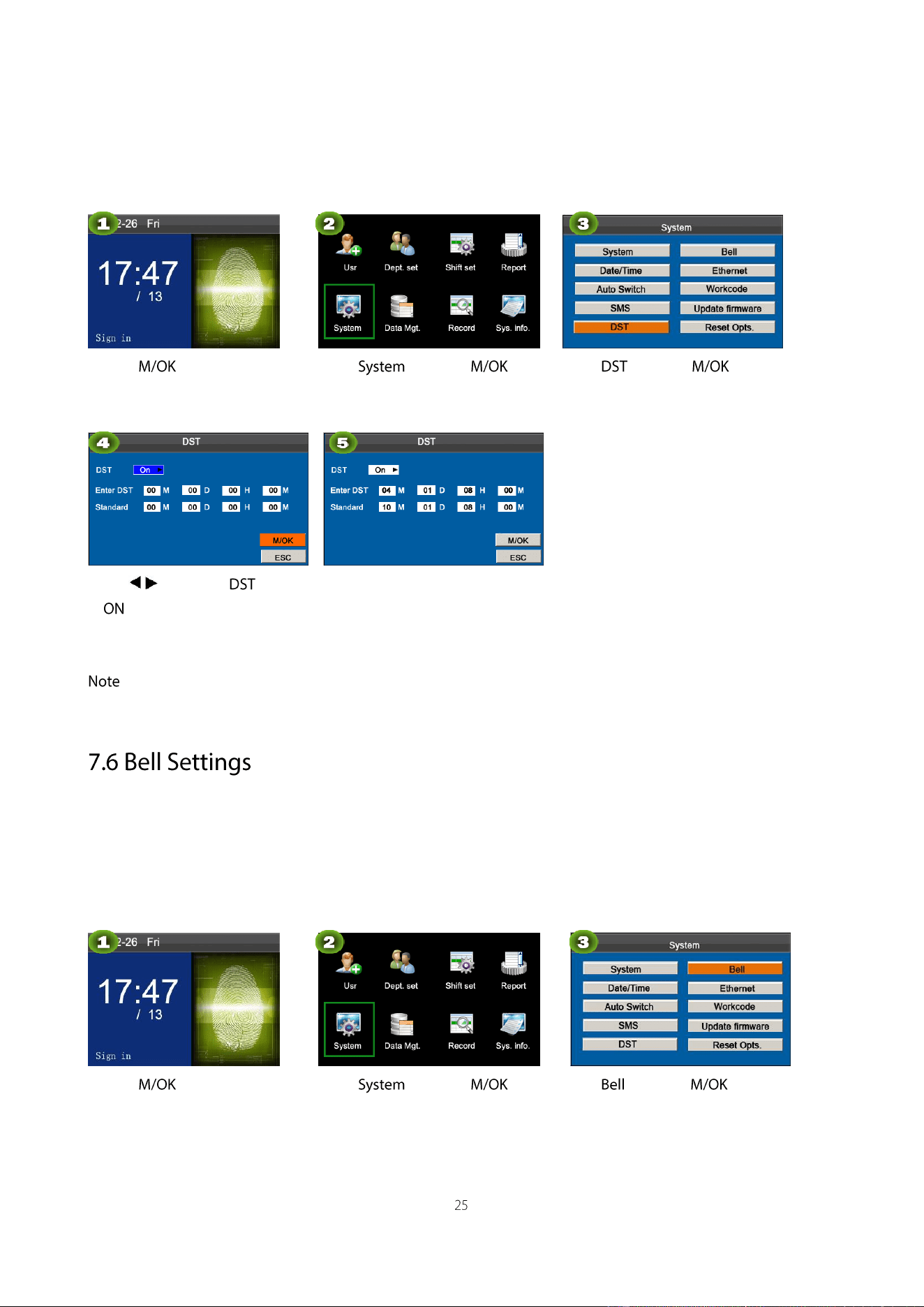
To meet the DLST requirement, the FRT supports the DLST function to adjust forward one hour at ×× (Hour): ××
(Minute) ×× (Day) ×× (Month) and backward one hour at ×× (Hour): ×× (Minute) ×× (Day) ×× (Month).For example,
adjust the clock forward one hour at 08: 00 on April 1, and backward one hour at 08: 00 on October 1. (As shown in the
above figure)
Press on the initial
interface.
Select and press .
Select and press .
Press / to set the option
to .
Press ▲/▼ to select among the
entry boxes, using the numeric
keypad to enter the start and end
time of DLST, press M/OK to save
: The end time of DLST cannot be set to next year. More specifically, the end time must be later than the start time
in the same year.
Lots of companies need to ring their bells to signal the start and end of work shifts, and they usually manually ring their
bells or use electric bells. To lower costs and facilitate management, we integrate the time bell function into the FRT.
You can set the alarm time and duration for ringing the bell based on your requirements, so that the attendance machine
will automatically play the selected ring tone, and stop playing the ring tone after the set duration.
Press on the initial
interface.
Select and press .
Select and press .
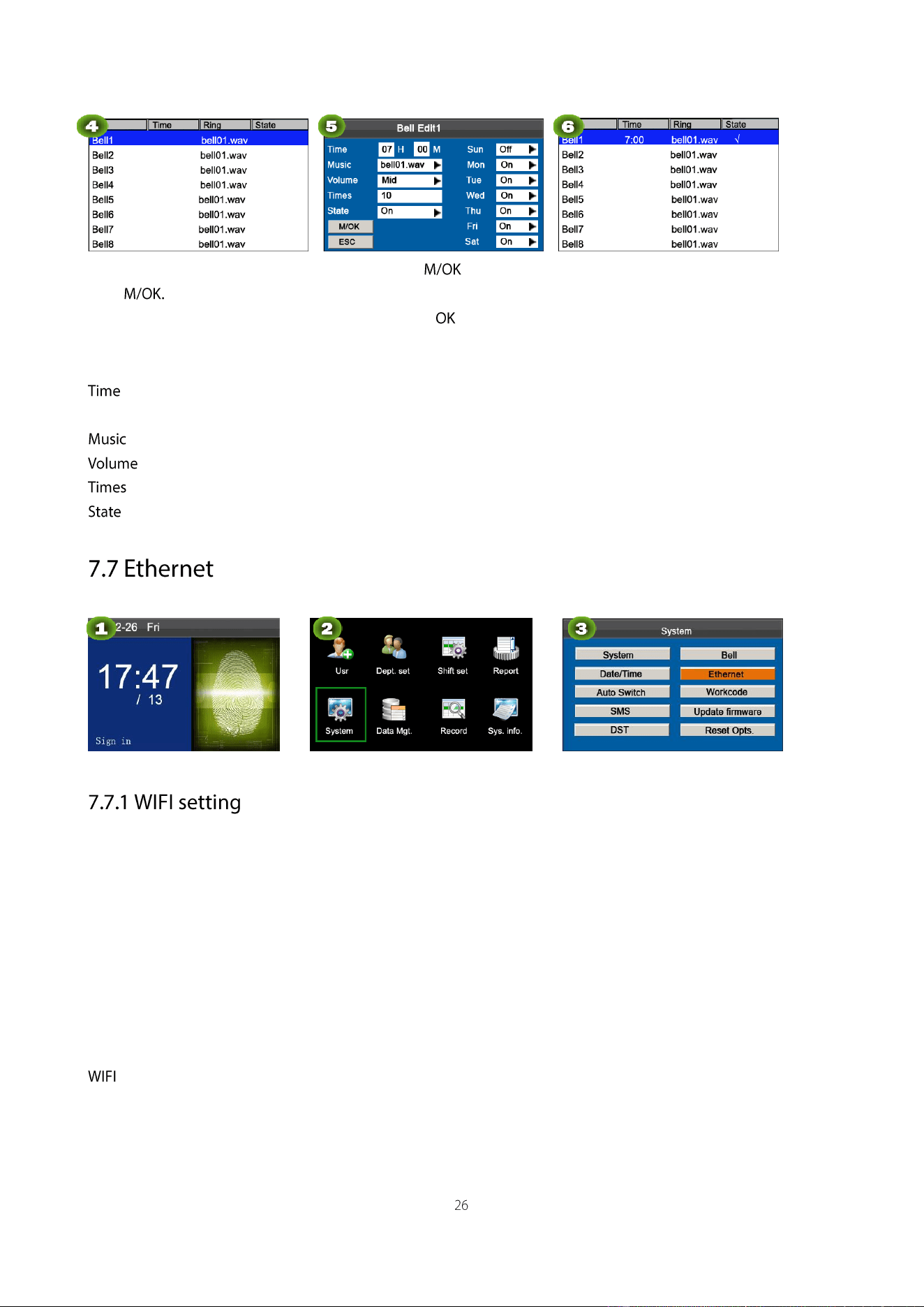
Press▲/▼to select a bell then
press
Press▲/▼and to select
items. When the setting is
completed, press to save the
setting and exit.
When editing successful, an
interface shown above.
: Set a time point of one day or several days from Sunday to Saturday when the attendance machine automatically
plays a bell ring tone.
: Set a bell ring tone.
: Set the volume of the ring tone.
: Set the alarm times.
: Set whether to enable the bell.
The greatest advantage of WIFI is its high transmission rate up to 11Mbps. Wi-Fi also features long transmission
distance and excellent compatibility with various existing 802.11 DSSS devices. IEEE 802.11b is a radio-based variant
of IEEE 802.11. The bandwidth of IEEE 802.11b can be up to 11 Mbps and automatically adjusted to 5.5Mbps, 2Mbps
and 1Mbps depending the signal strength and interference level, thus effectively ensuring network stability and
reliability. Major advantages: High transfer speed and reliability. The communication distance can be up to 305 m in an
open area and 76 m to 122 m in an enclosed area. WIFI can be conveniently integrated with the existing wireline
Ethernet, making the networking cost even lower.
Our terminal is also Wi-Fi capable. It supports either built-in or external Wi-Fi module to implement wireless data
transmission over the Wi-Fi.
:Press OK to open or close Wi-Fi.
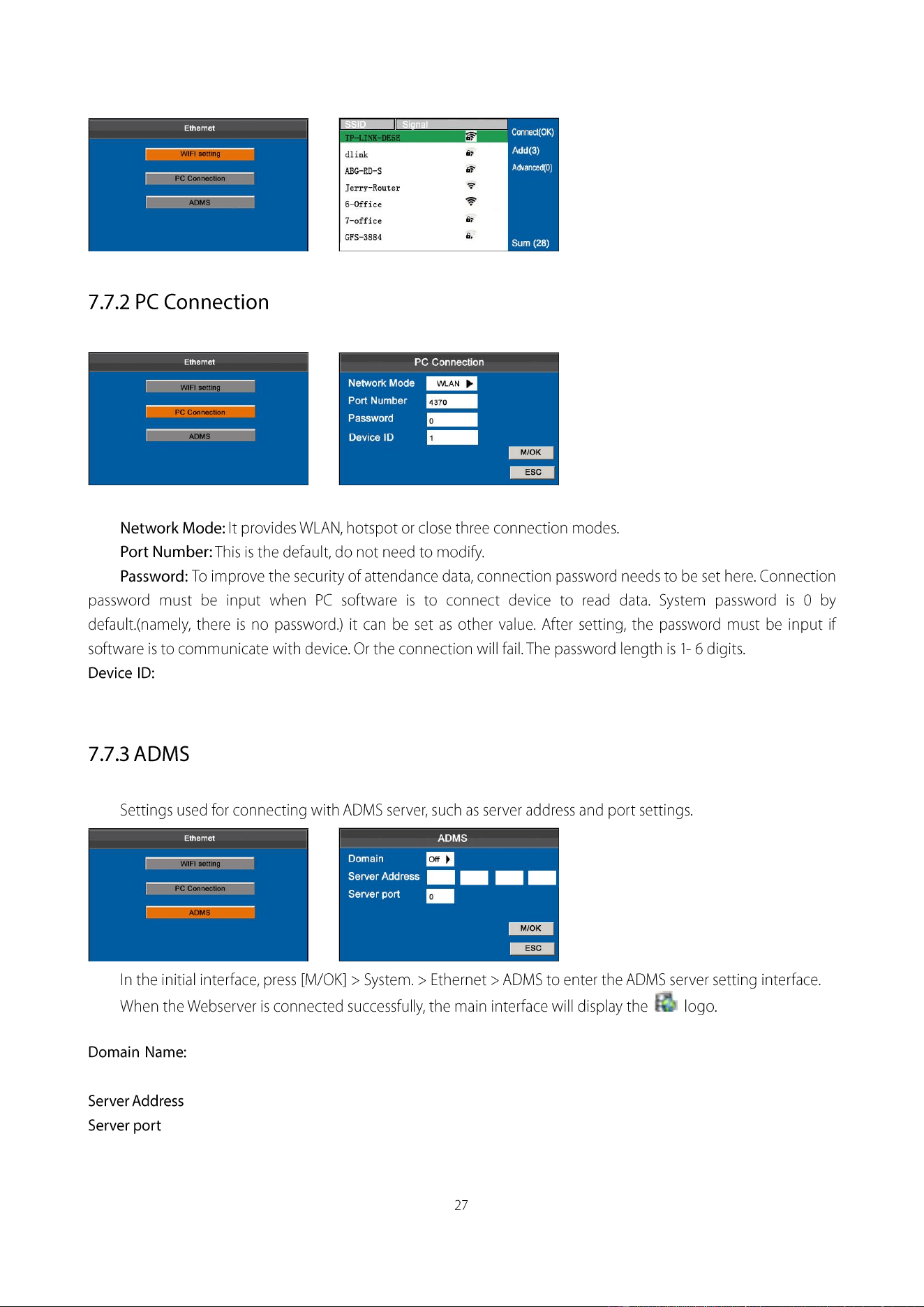
The device ID ranges from1 to 254. If the communication method is RS485, inputting this device ID in the
software communication interface is required.
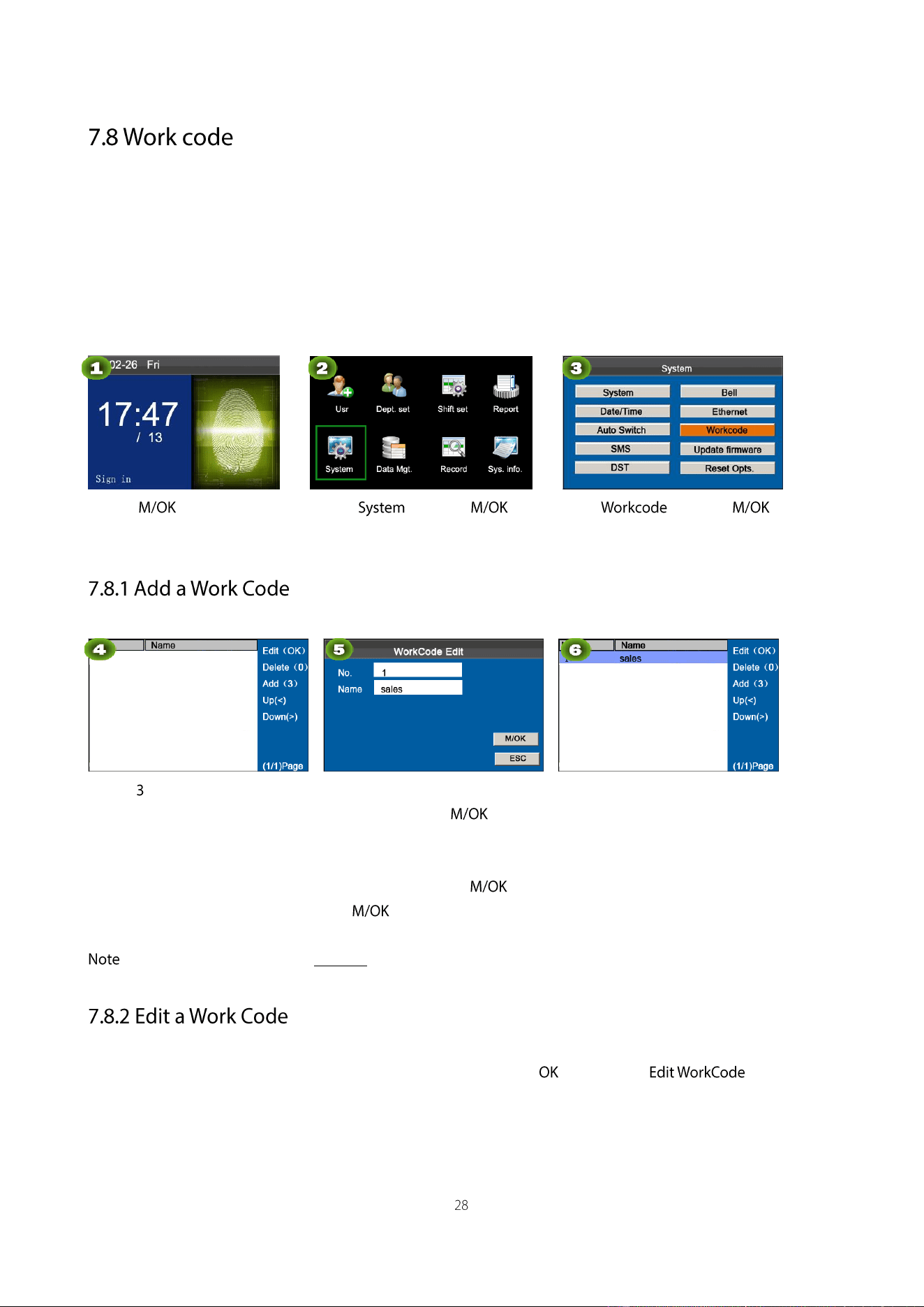
This submenu is used to connect the Webserver-related settings, such as Webserver IP address and port settings.
When the domain name mode is enabled, you access a website using a domain name in the format of
http://; otherwise, you must enter an IP address for website access.
:IP address of Webserver.
:Port used by Webserver.
Salary is based on attendance. There are many work types for employees. An employee may have different work type in
different time period. Different work types have different pays. Therefore, in order to distinguish different attendance
states when user is dealing with attendance data, the device has provided a parameter to mark which attendance record
belongs to which work type.
Work codes are downloaded together with attendance records. Users can use relevant data based on the specific
attendance software.
Press on the initial
interface.
Select and press .
Select and press .
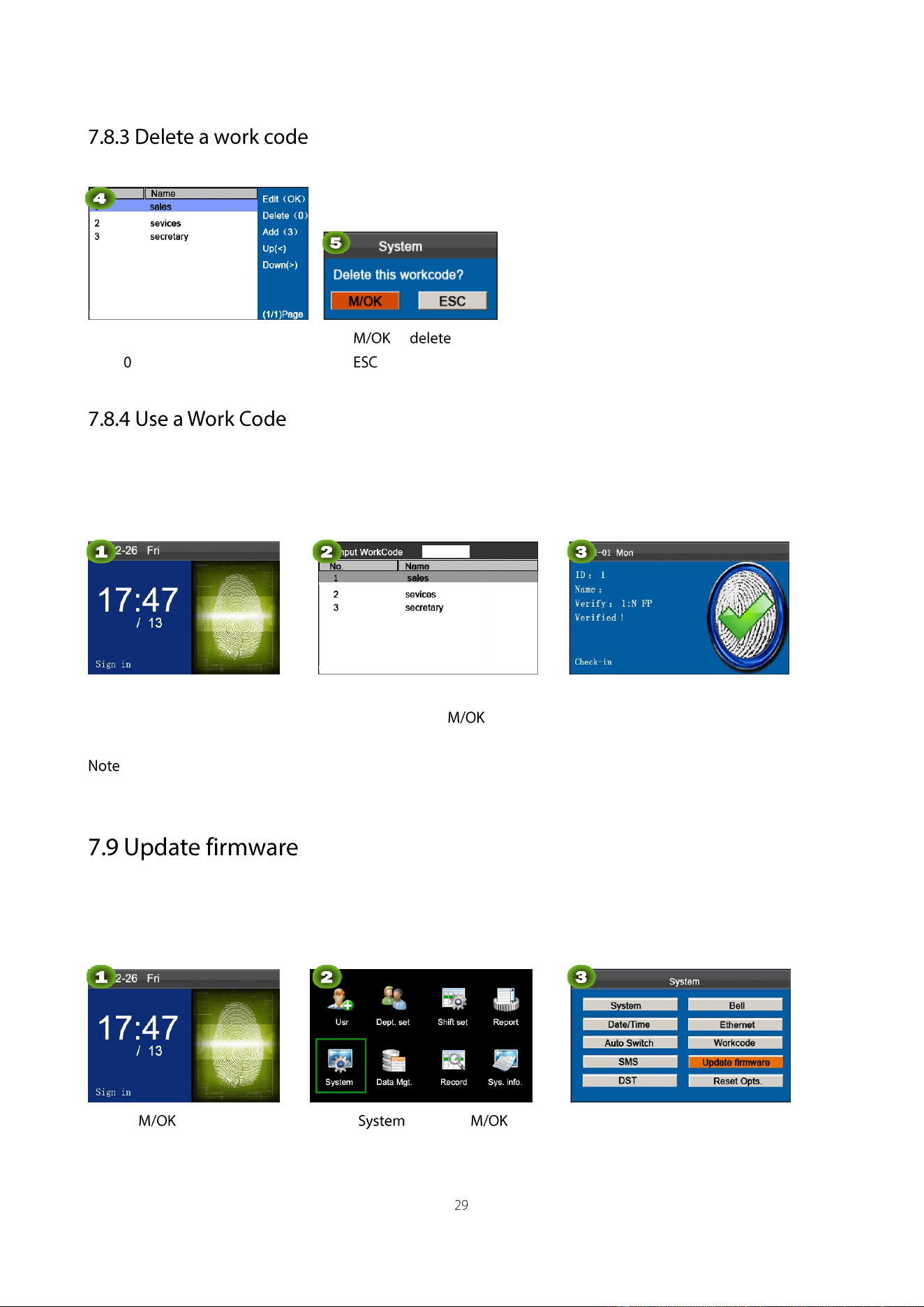
Press to enter adding a
Workcode.
Enter the user ID (1-99999999)
using keypad, press to open
input method. press▲/▼to switch
input method and enter the Name.
Press ▲/▼ to select then
press .
When Adding successful, an
interface shown above.
: For details of enter name, see T9 input
Press ▲/▼ to choose the desired work code from the list and then press to display the interface.
The number cannot be modified. You can modify the work code names only.
Press▲/▼select a workcode,
press
Press to .
Press to exit.
When the work code function is enabled, the device displays the work code selection interface upon successful
verification on the initial interface.
On the initial interface,
Press finger/input ID/Punch Card.
Press ▲/▼ to select or enter a
workcode then press .
Verified!
: After the work code function is enabled, a work code must be entered for verification. Employees without a work
code can enter any inexistent work code for verification.
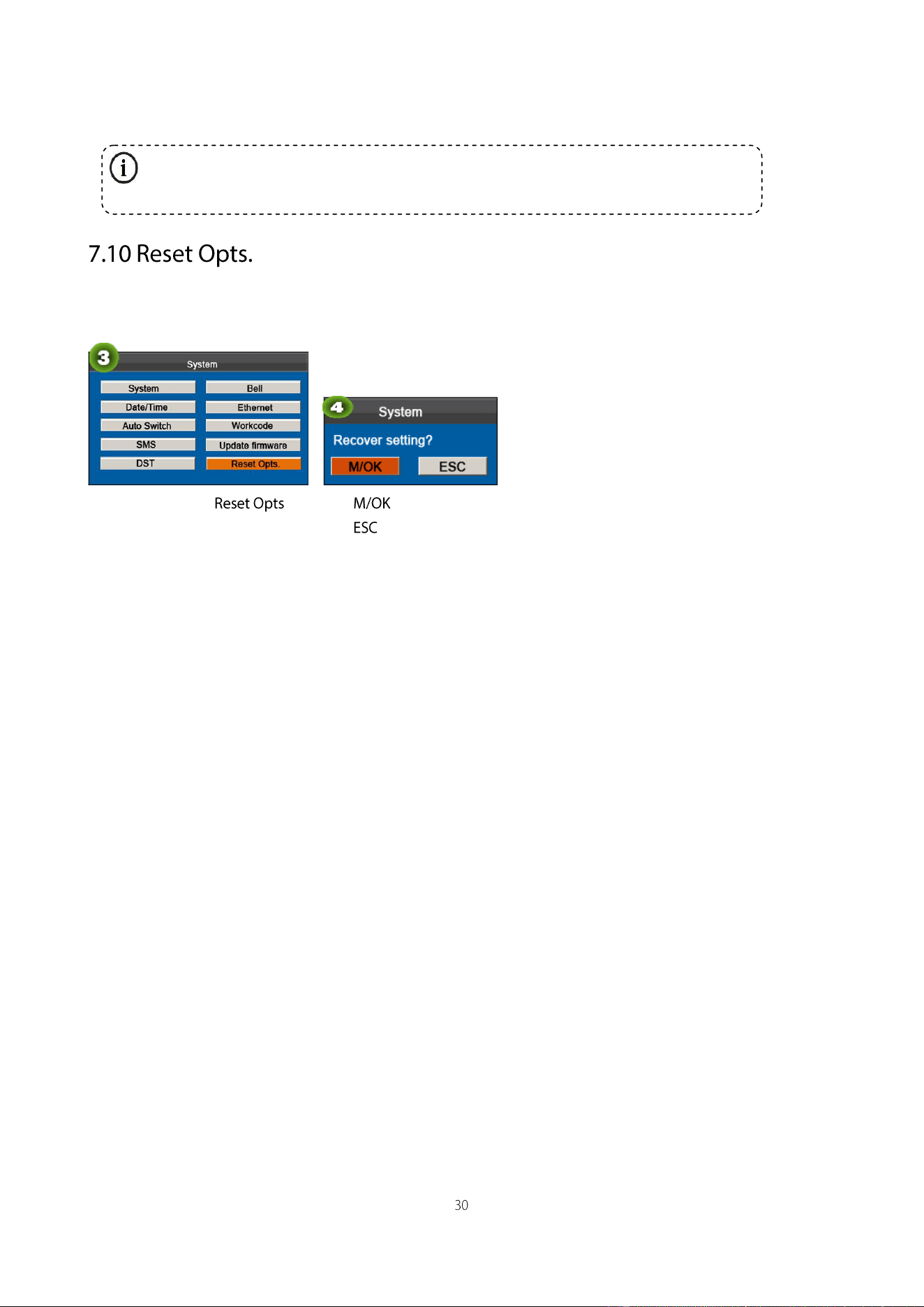
You can upgrade the firmware program of the FFR terminal by using the upgrade file in the USB disk through this
parameter.
Press on the initial
interface.
Select and press .
Select Update firmware and press
M/OK.
Make device’s communication option, system option and so on reset to the state of factory.
Press ▲/▼to select .
Press to reset,
Press to exit.
If you need such upgrade file, please contact technician. Usually, firmware upgrade is not
recommended.
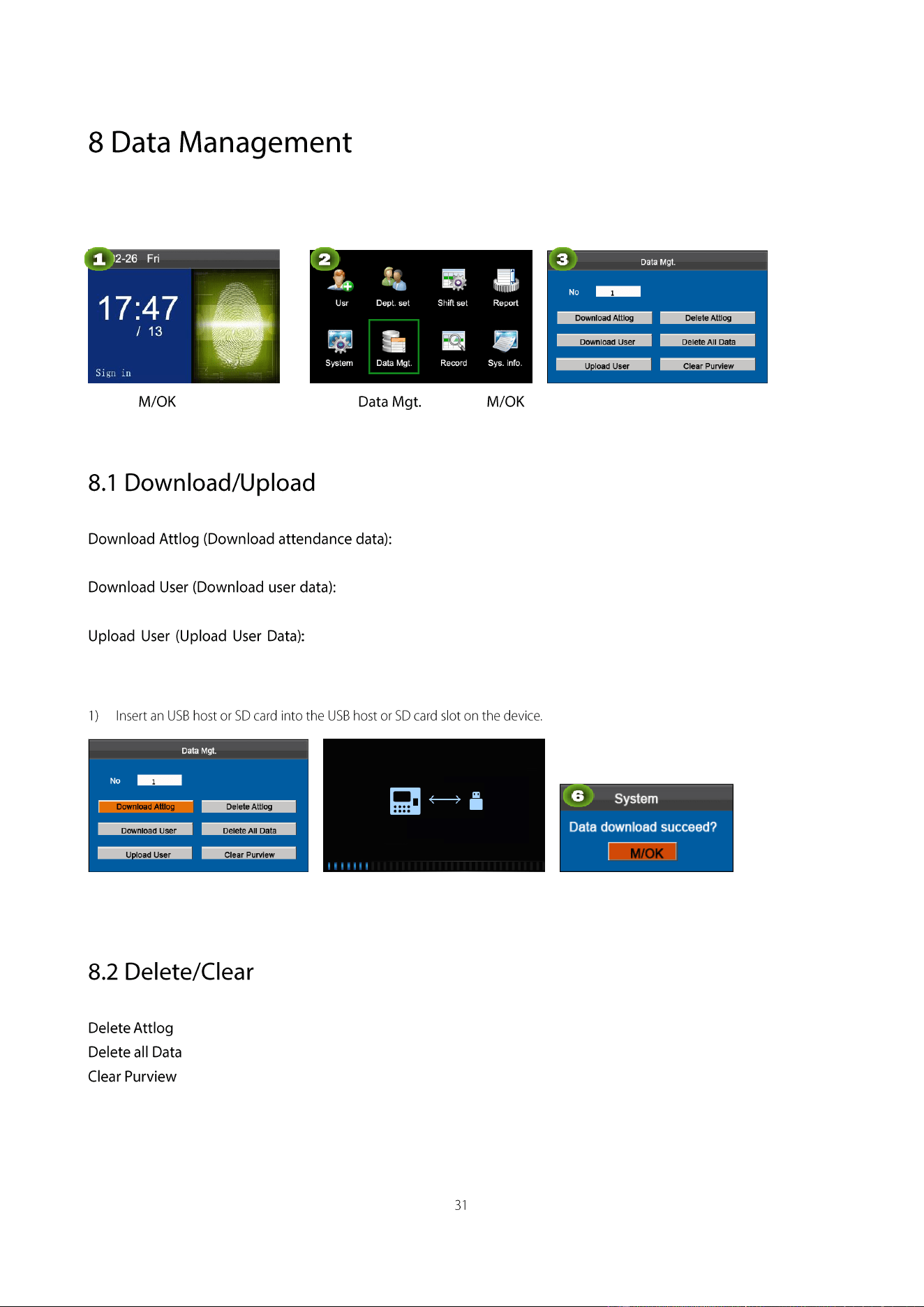
The device allows downloading user data and attendance data to a USB flash drive so that the data can be processed by
proper attendance software. It also allows user data from other devices to be uploaded to this device.
Press on the initial
interface.
Select and press .
Select Download Attlog and press
M/OK.
Download all the attendance data from the popular color-screen FRT to
the USB host or SD card.
Get all the equipment user information and fingerprint saved to the USB host or
SD card.
Upload the user information and fingerprints from the USB host or SD card to the
device.
The following uses attendance data as an example to describe how to download user data:
Select Download Attlog then
press M/OK.
Downloading…
Data download succeed.
: Delete all the attendance records.
: Delete all the information of enrolled personnel, including their fingerprints and attendance records.
: Set all the administrators to ordinary users.
The following uses attendance data as an example to describe how to delete user data:
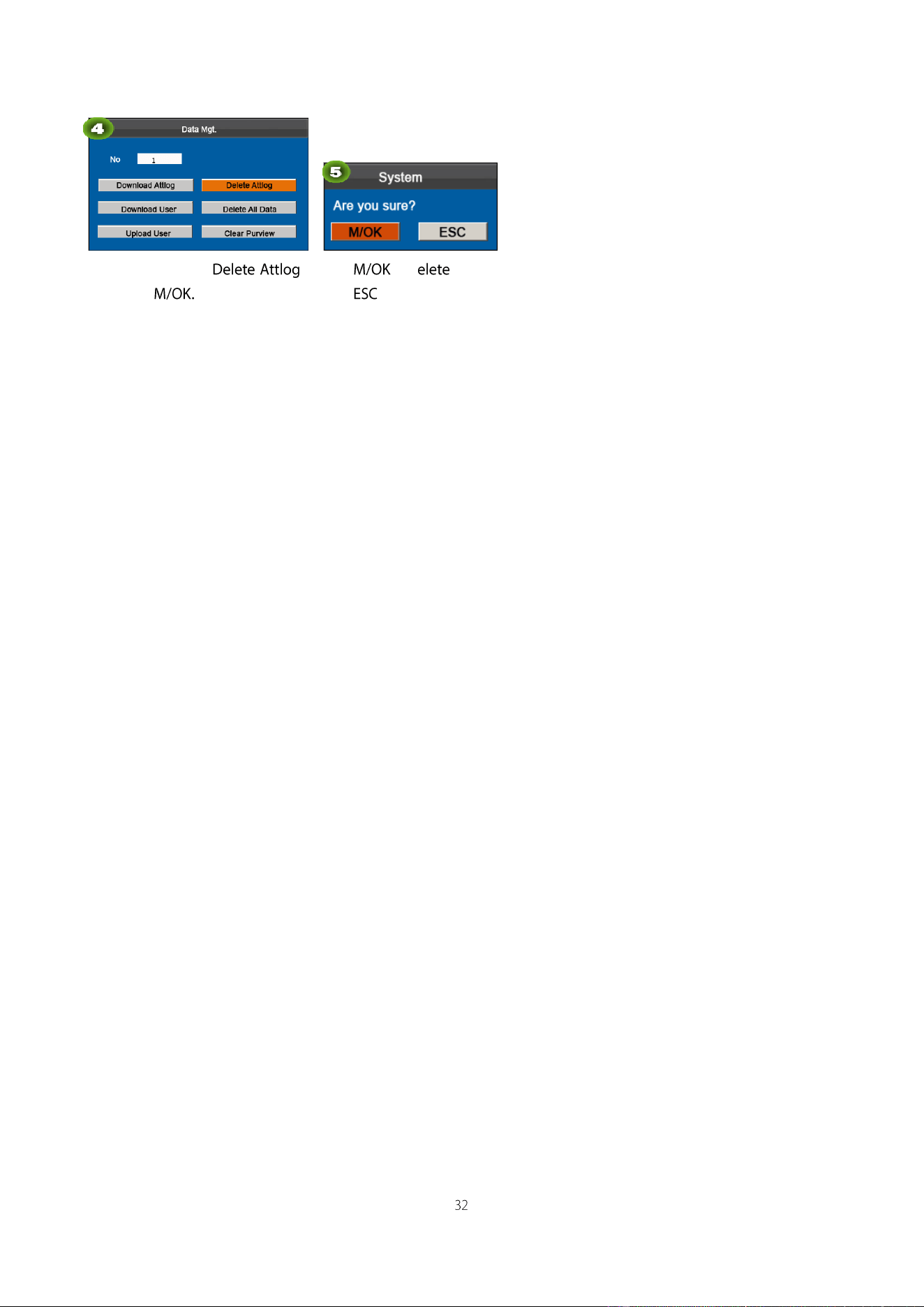
Press▲/▼to select
then press
Press to d ,
Press to exit.
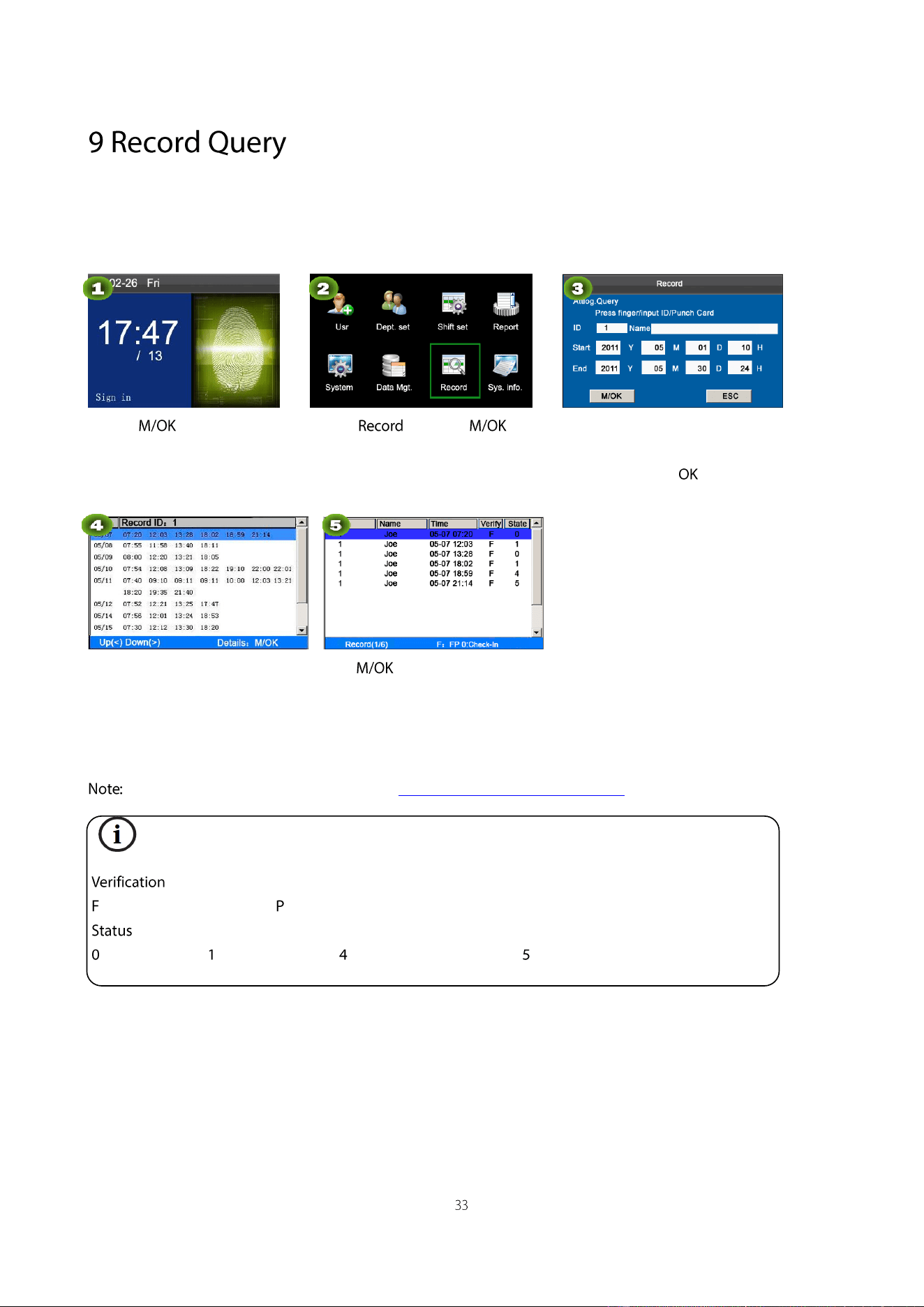
Employees can view their saved attendance records by entering any query conditions. According to the entered query
conditions, records that meet the specified query conditions will be displayed on the screen.
Press on the initial
interface.
Select and press .
Press finger/input ID/Punch Card,
enter the Start and End using
keypad, then press .
Showing records above
Press to view the details of
the attendance records.
The attendance details of the
employee with user ID of 1 on May
7 are as in figure:
For the other two record query modes, see "Quick Query of Attendance Records."
Notes displayed at the bottom of the screen explain all letter meanings.
: validation status.
: fingerprint verification. : password verification I: Card verification
: attendance status.
: check-in : check-out : overtime check-in : overtime check-out
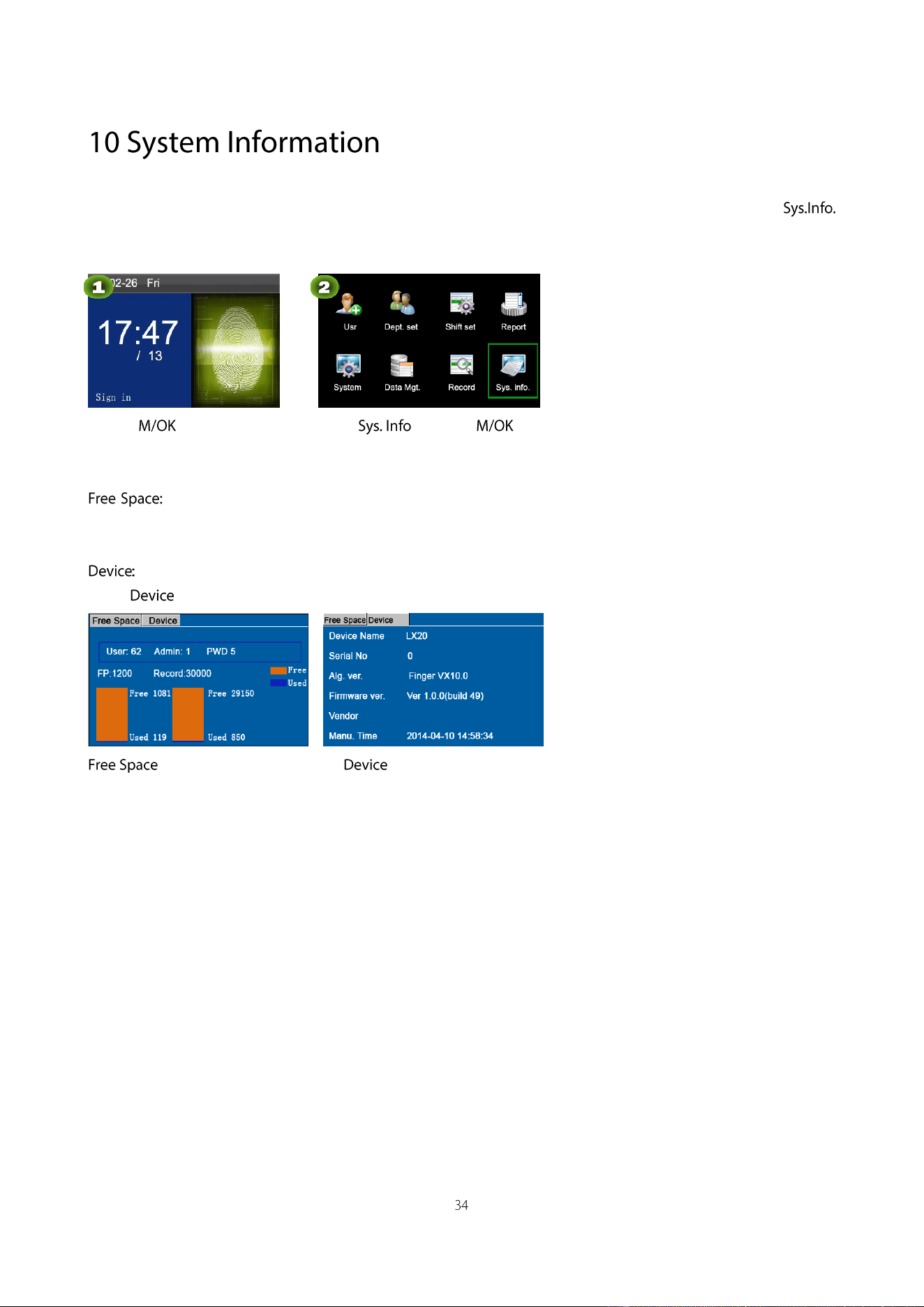
You can check the storage status as well as version information of the popular color-screen FRT through the
menu item.
Press on the initial
interface.
Select and press .
The number of enrolled users, administrators and passwords is displayed on the Free Space interface. The
total fingerprint storage capacity and occupied capacity as well as the total attendance storage capacity and occupied
capacity are graphically displayed respectively, as shown below:
The equipment name, serial number, version information, manufacturer and date of manufacture are displayed
on the interface.
Note: The figure above is for reference only. Please refer to the actual object.
The device can communicate with computers. You can connect it to a computer through a USB cable to view the
attached quick start guide.
T9 input (intelligent input) is quick and high efficient. The device support T9 Chinese, T9 English and symbol input.
There are 3 or 4 English letters on numeric keys (0-9), for example, A, B, C are on numeric key 1. Press the
corresponding key once, and the program will generate effective spelling. By using T9 input, names, SMS content and
some symbols can be input.
The T9 input method is used to enter texts such as employee names, department names, and shift names.
Press the key to enable the
T9 input method.
Press▲/▼ to switch to the
English, character, or Pinyin
mode. Enter 2 and press the keys
from 3 to A.
Enter letters in the same
manner.
This function allows ordinary users to query their attendance records of current day to make sure whether there are any
missing records or time errors so as to inform administrators to record exceptions in time.
Operation description
Mode 1: Save the attendance records and query quickly:
For example, after successful fingerprint matching, the employee with user ID of 1 can view his/her attendance records
of current day after pressing
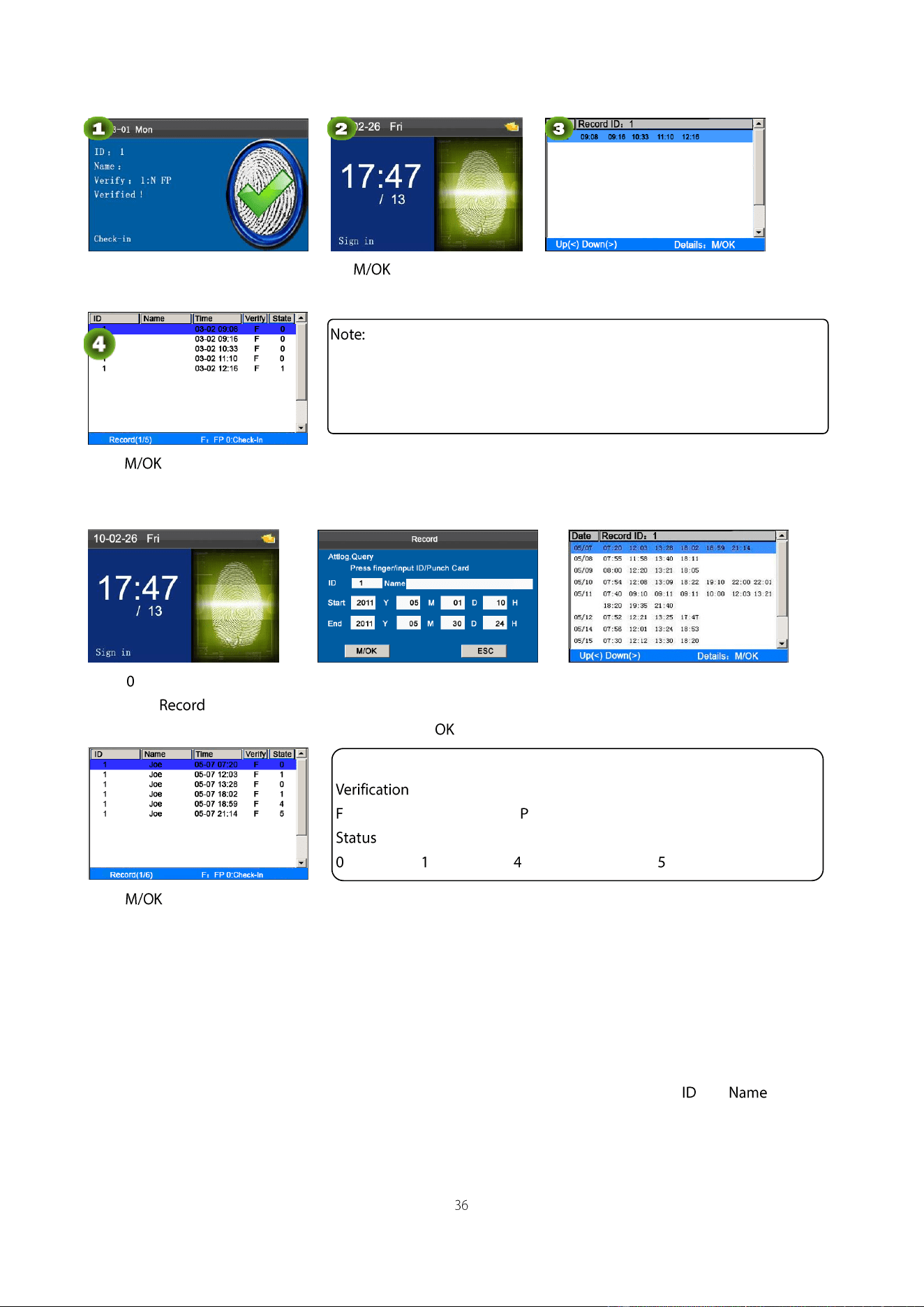
Verified!
Press within 10 seconds.
View all attendance records of an
employee on current day.
Press to view the details of the attendance records.
Mode 2: Query directly and quickly without saving the attendance records *:
Press on the initial interface to
display the interface.
Press finger/input ID/Punch Card,
enter the Start and End using
keypad, then press .
Showing records above
Press to view the details of
the attendance records.
The attendance details of the
employee with user ID of 1 on
May 7 are as in figure:
Notes:
1 .Three ways for entering the query conditions: 1) Press the enrolled finger. The user ID and the name corresponding to
the fingerprint will be automatically displayed. 2) Enter the desired employee information in and . 3) Sweep
the enrolled card. The employee ID and name corresponding to the card will be automatically displayed.
2.1,000 records can be displayed on this interface.
Notes displayed at the bottom of the screen explain all letter meanings.
: validation status.
: fingerprint verification. : password verification I: Card verification
: attendance status.
: check-in : check-out : overtime check-in : overtime check-out
1.The picture is for reference only.
2.Press ▲/▼ to view the attendance records row by row. Press ◄/► to view
the attendance records page by page.
1. Does self-service attendance terminal support scheduling based on every other days?
A: No.
2. Can the setting records downloaded from the device be edited on WPS software?
A: Yes. Setting records are supported in Microsoft Office 2003, Microsoft Office 2007, and WPS Office 2012 Personal.
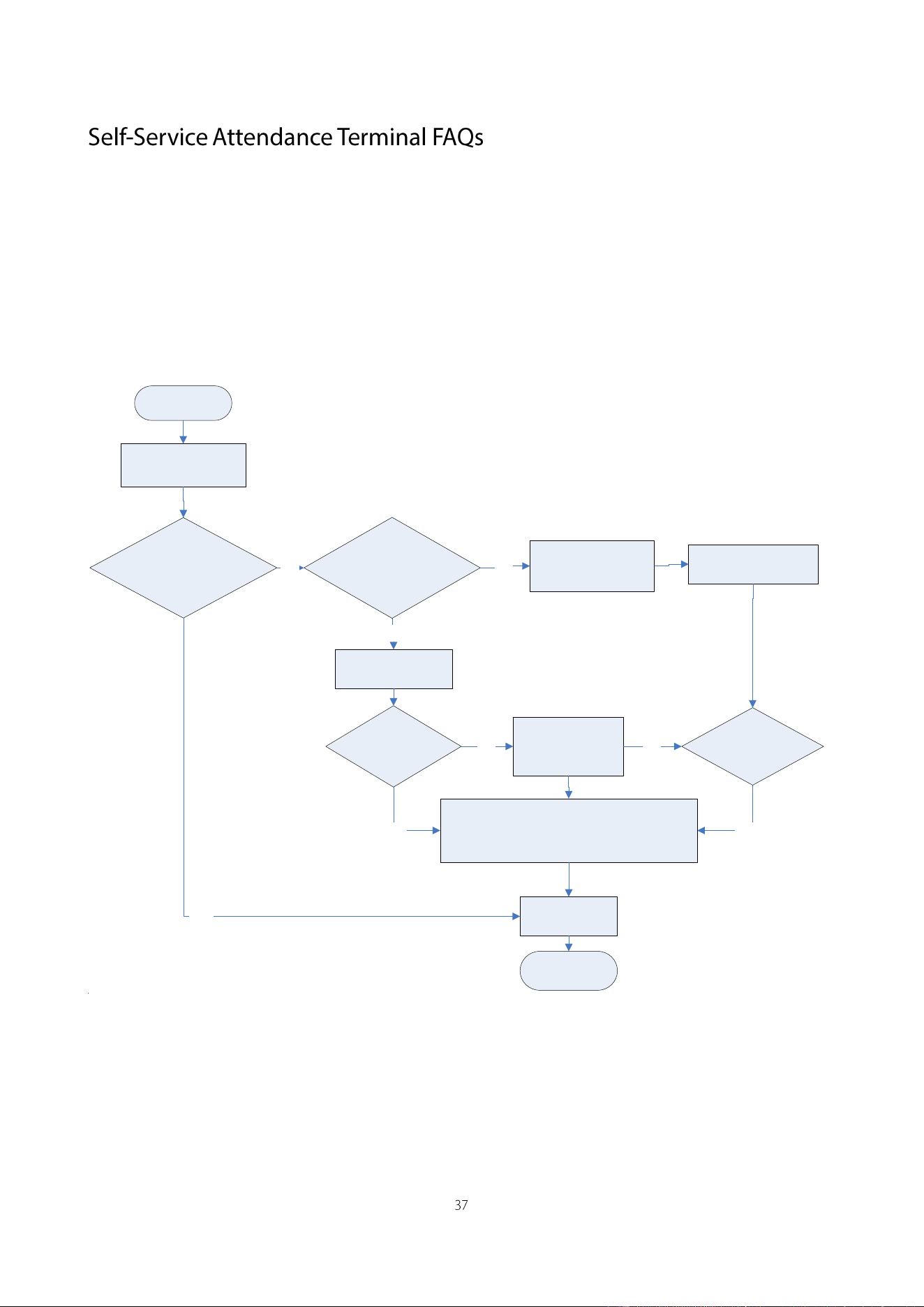
3. What is the attendance calculation flow adopted by the self-service attendance terminal?
A. SSR attendance calculation flow.
Obtain the EXCEL
schedule record.
Start
Does the EXCEL
schedule record exist?
Yes
End
[Attendance rules] Is
the individual-based
scheduling adopted?
Obtain individual
schedules.
Do individual
schedules exist?
[Attendance
rules] Obtain
default shifts.
Make
attendance
calculations.
Yes
No
No
Yes
Obtain information
about the
department.
Obtain department
schedules
Do department
schedules exist?
Yes
No
[Attendance rules] Obtain the rule
concerning whether Saturday is a work
day. Obtain the rule concerning
whether Sunday is a work day.
No
Obtain the EXCEL
schedule record.
Start
Does the EXCEL
schedule record exist?
Yes
End
[Attendance rules] Is
the individual-based
scheduling adopted?
Obtain individual
schedules.
Do individual
schedules exist?
[Attendance
rules] Obtain
default shifts.
Make
attendance
calculations.
Yes
No
No
Yes
Obtain information
about the
department.
Obtain department
schedules
Do department
schedules exist?
Yes
No
[Attendance rules] Obtain the rule
concerning whether Saturday is a work
day. Obtain the rule concerning
whether Sunday is a work day.
No
4. How to calculate special overtime hours?
The following cases are deemed special overtime:
When an EXCEL schedule record exists and attendance reports are used for attendance calculation, there are
check-in and check-out records though there is no schedule (or rest is arranged) for the current date.
When no EXCEL schedule record is available, there are check-in and check-out records though Saturday and
Sunday are non-work days.
Overtime hours refer to the duration counted from the first check-in time to the last check-out time on the current day.
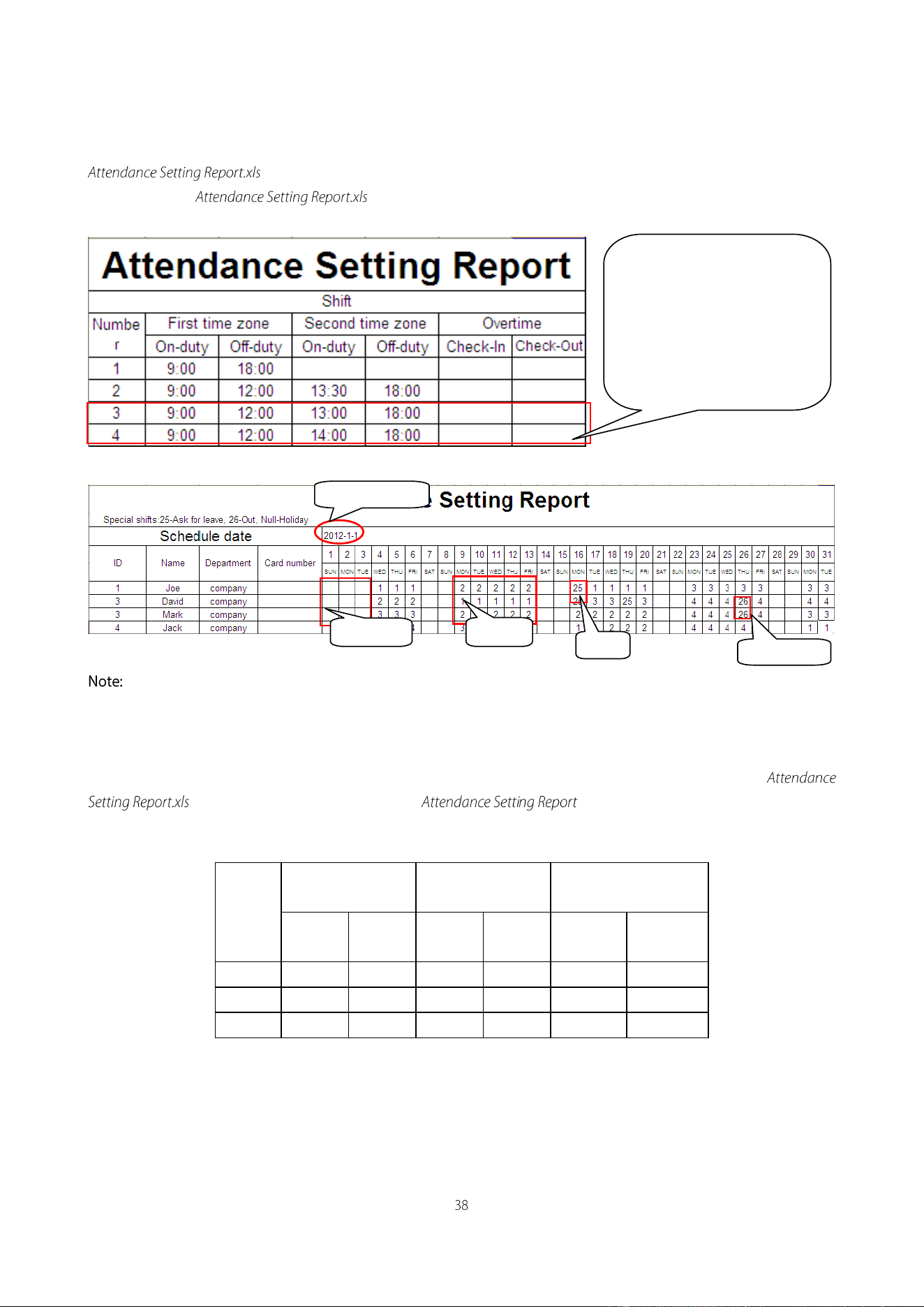
5. How to arrange schedules using the attendance setting report?
Step 1: Insert a USB flash drive into the USB port or SD card into the SD port of the device and download the
to the USB flash drive or SD card.
Step 2: Open the on a computer.
Step 3: Set shifts in the Attendance Setting Report.xls.
Step 4: Arrange schedules for employees.
Dates must be set correctly. For example, if the scheduling date is 2012-1-1, the schedule setting report contains
the schedules of 31 days after 2012-1-1, that is, schedules from 2012-1-1 to 2012-1-31. If the scheduling date is
2012-1-6, the schedule setting report contains schedules of 31 days after 2012-1-6, that is, schedules from 2012-1-6 to
2012-2-5.
Step 5: Insert a USB flash drive into the USB port or SD card into the SD port of the device and upload the
to the device. Then, schedules in the can be used.
6. What is the correct time format used in the setting reports?
A. The correct time format is shown in the following table.
Shift
No.
First Time Range
Second Time
Range
Overtime Range
On-dut
y
Off-dut
y
On-dut
y
Off-dut
y
Check-in
Check-out
1
09:00
18:00
2
09:00
12:00
13:30
18:00
3
9:5
18:00
Incorrect time formats are as follows:
A time value is beyond the time range, such as 24:00.
A time value contains Chinese characters, for example, 9:00, which differs from 9:00.
A time value is preceded by a space. As shown in the following table, there is a space in front of 09:00 in
shift 1.
Data enclosed by a red
rectangle is new shifts (shift 3
and shift 4). To add a shift,
enter a time directly, in the
range of 00:00 to 24:00.
Holiday
Leave
On business
Shifts
Date
Shift
No.
First Time Range
Second Time
Range
Overtime Range
On-dut
y
Off-dut
y
On-dut
y
Off-dut
y
Check-in
Check-out
1
09:00
18:00
2
09:00
12:00
13:30
18:00
3
9:5
18:00
A time value contains special characters, for example, _9:00 and 09:-1.
The device performs validity check and error tolerance for other formats.
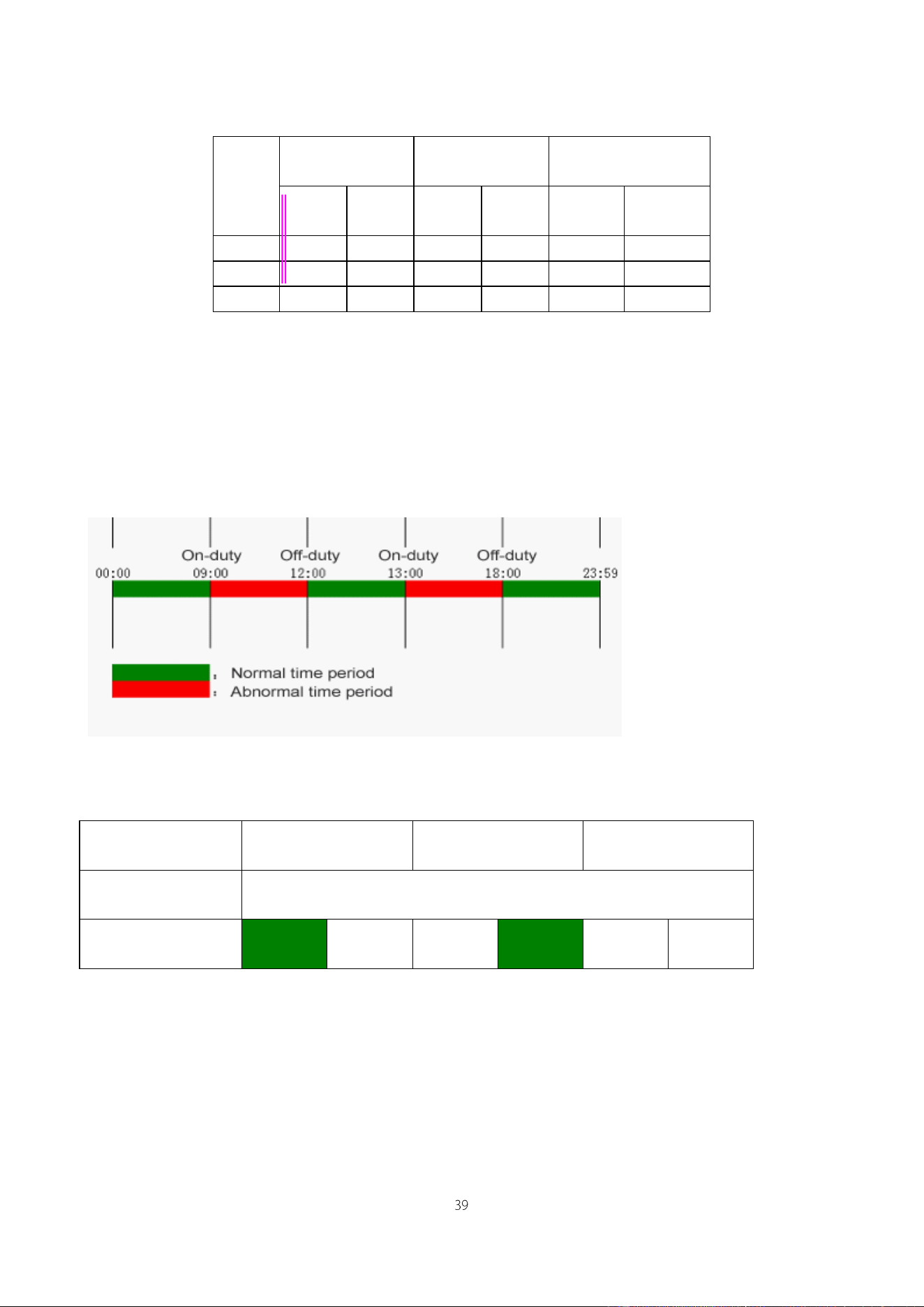
7. How does the self-service attendance terminal collect the correct attendance time based on the preset shift time?
A: The device collects attendance time based on the following principles:
a) Adopt the earliest time for normal attendance and the nearest time for abnormal attendance.
b) Adopt the normal attendance time if the normal attendance time and abnormal attendance time coexist.
c) Adopt a median in the attendance time range.
The following uses four examples to describe the preceding principles.
Example 1: normal attendance
Attendance Time
Range
09:00 — 12:00
13:00 — 18:00
Attendance time of #1
employee
8:30, 8:35, 11:55,12:01, 12:50, 18:02,19:00
Statistical result based
on attendance rules
8:30
12:01
12:50
18:02
Description: The attendance time 8:30 and 8:35 are earlier than the on-duty time 9:00 and they are within the normal
attendance time range. Therefore, 8:30 is adopted for the on-duty time 9:00 based on the principle of adopting the
earliest time for normal attendance. 18:02 and 19:00 are later than the off-duty time 18:00, and therefore, 18:02 is
adopted based on the same principle.
Example 2: Late arrival
Attendance Time
Range
09:00 — 12:00
13:00 — 18:00
Attendance time of #1
employee
9:01, 9:04, 12:01, 12:50, 18:00
Statistical result based
on attendance rules
9:01
12:01
12:50
18:00
Description: Employer 1 checks in for work at 9:01 and 9:04 and he/she is late based on the preset on-duty time. Based
on the principle of adopting the nearest time for abnormal attendance, the correct check-in time is 9:01 rather than 9:04
because 9:01 is nearer 9:00.
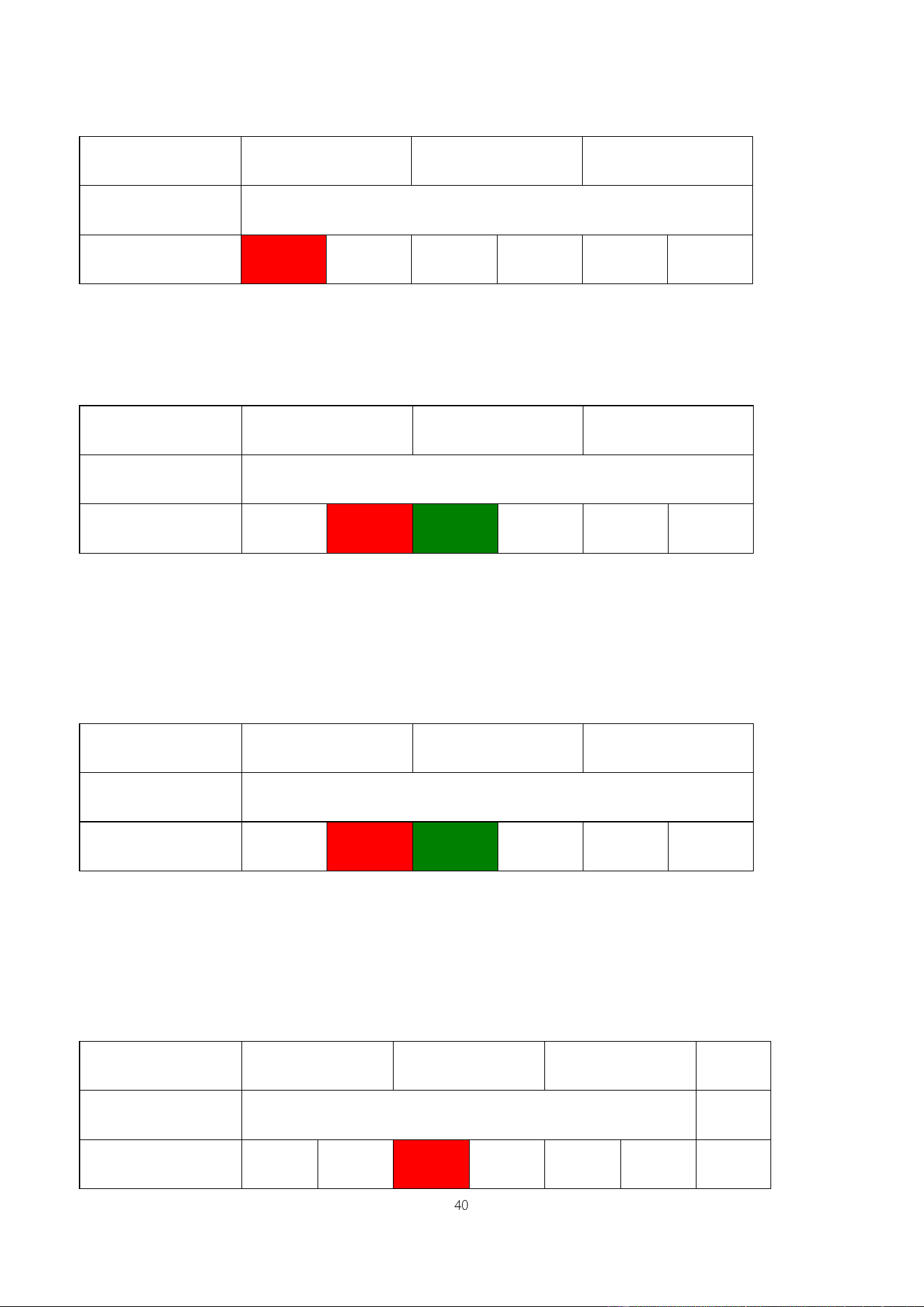
Example 3: Early leave
Attendance Time
Range
09:00 — 12:00
13:00 — 18:00
Attendance time of #1
employee
8:50, 11:40,11:55, 12:50, 18:01
Statistical result based
on attendance rules
8:50
11:55
12:50
18:01
Description: The attendance time 12:50 is adopted based on the principle of adopting a median in the attendance time
range. For the attendance time range from 9:00 to 12:00, the normal check-out time range for the off-duty time 12:00 is
from 12:00 to 12:30 (that is, 12:00 + (13:00 - 12:00)/2). Therefore, the calculated time of attendance is shown in the
preceding table.
Example 4: Absence
Case 1:
Attendance Time
Range
09:00 — 12:00
13:00 — 18:00
Attendance time of #1
employee
8:50, 12:50, 18:01
Statistical result based
on attendance rules
8:50
12:50
18:01
Description: The attendance time 12:50 is adopted based on the principle of adopting a median in the attendance time
range. For the attendance time range from 9:00 to 12:00, the normal check-out time range for the off-duty time 12:00 is
from 12:00 to 12:30 (that is, 12:00 + (13:00 - 12:00)/2). Therefore, the check-out time is blank. The normal check-in
time range for the on-duty time 13:00 is from 12:30 to 13:00. The calculated time of attendance is shown in the
preceding table.
Case 2:
Attendance Time
Range
09:00 — 12:00
13:00 — 18:00
Attendance time of #1
employee
8:50, 11:55, 12:20, 18:01
Statistical result based
on attendance rules
8:50
12:20
18:01
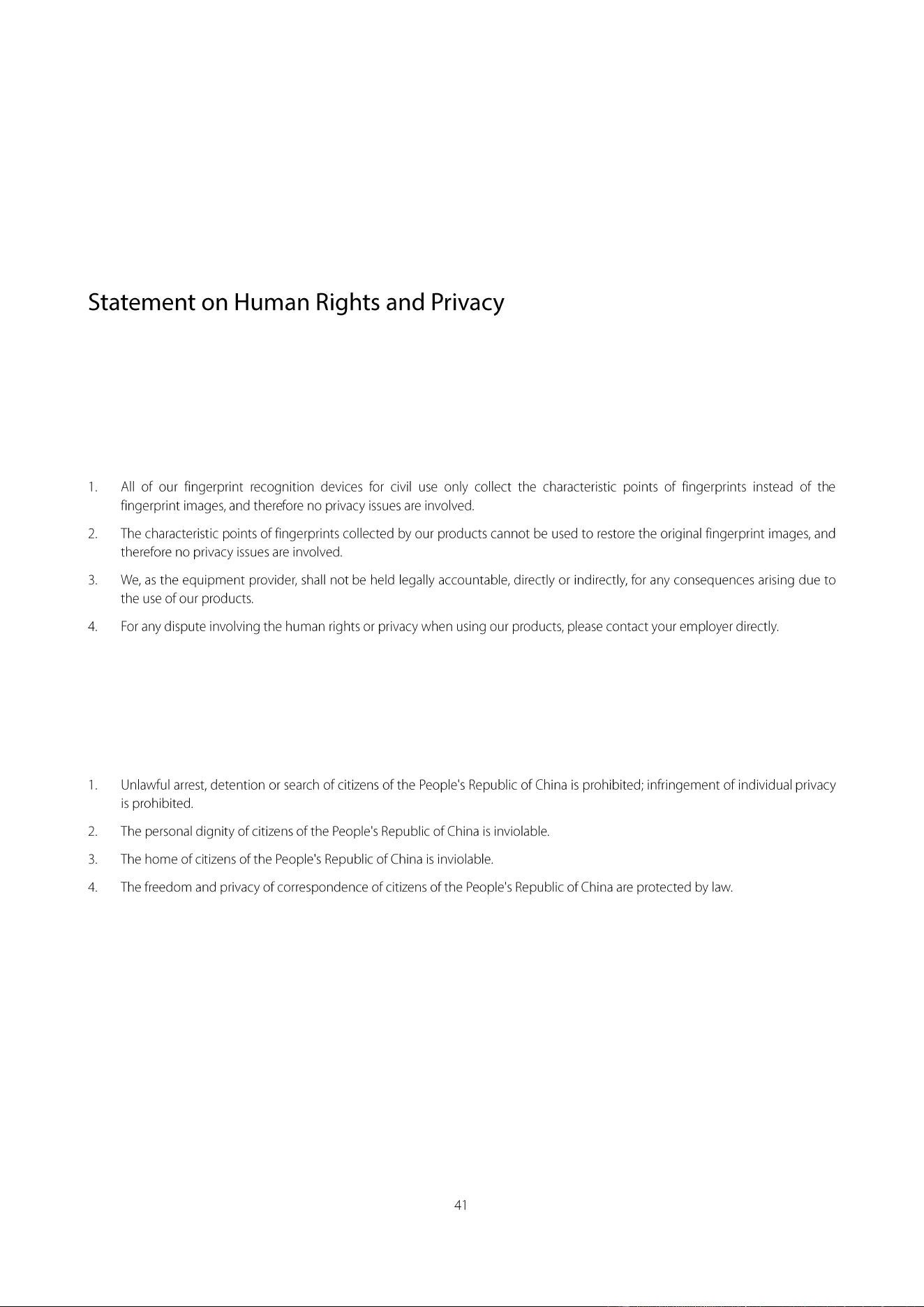
Description: The time 12:20 is adopted based on the principle of adopting a median in the attendance time range. The
normal check-out time range for the off-duty time 12:00 is from 12:00 to 12:30 (that is, 12:00 + (13:00 - 12:00)/2).
Therefore, the check-out time of the employee is 12:20. The normal check-in time range for the on-duty time 13:00 is
from 12:30 to 13:00. Therefore, the check-in time of the employee is blank. The calculated time of attendance is shown
in the preceding table.
Dear Customers:
Thank you for choosing the hybrid biometric products designed and manufactured by us. As a world-renowned provider
of biometric technologies and services, we pay much attention to the compliance with the laws related to human rights
and privacy in every country while constantly performing research and development.
We hereby make the following statements:
Our other police fingerprint equipment or development tools will provide the function of collecting the original
fingerprint image of citizens. As for whether such a type of fingerprint collection constitutes an infringement of your
privacy, please contact the government or the final equipment provider. We, as the original equipment manufacturer,
shall not be held legally accountable for any infringement arising thereof.
Note: The law of the People’s Republic of China has the following regulations regarding the personal freedom:
At last we stress once again that biometrics, as an advanced recognition technology, will be applied in a lot of sectors
including e-commerce, banking, insurance and legal affairs. Every year people around the globe suffer from great loss
due to the insecurity of passwords. The fingerprint recognition actually provides adequate protection for your identity
under a high security environment.