mTS1000 Series Tripod Turnstile User Manual
Page | 1 Copyright © 2024 ZKTECO CO., LTD. All Rights Reserved.
Thank you for choosing our product. Please read the instructions carefully
before operation. Follow these instructions to ensure that the product is
functioning properly. The images shown in this manual are for illustrative
purposes only.
For further details, please visit our Company’s website
www.zkteco.com.
User Manual
ZKEasyGo App
Date: June 2024
Doc Version: 1.0
English

ZKEasyGo App User Manual
Page | 2 Copyright © 2024 ZKTECO CO., LTD. All Rights Reserved.
Copyright © 2024 ZKTECO CO., LTD. All rights reserved.
Without the prior written consent of ZKTeco, no portion of this manual can be copied or forwarded in any
way or form. All parts of this manual belong to ZKTeco and its subsidiaries (hereinafter the "Company" or
"ZKTeco").
Trademark
is a registered trademark of ZKTeco. Other trademarks involved in this manual are owned by
their respective owners.
Disclaimer
This manual contains information on the operation and maintenance of the ZKTeco equipment. The
copyright in all the documents, drawings, etc. in relation to the ZKTeco supplied equipment vests in and is
the property of ZKTeco. The contents hereof should not be used or shared by the receiver with any third
party without express written permission of ZKTeco.
The contents of this manual must be read as a whole before starting the operation and maintenance of the
supplied equipment. If any of the content(s) of the manual seems unclear or incomplete, please contact
ZKTeco before starting the operation and maintenance of the said equipment.
It is an essential pre-requisite for the satisfactory operation and maintenance that the operating and
maintenance personnel are fully familiar with the design and that the said personnel have received
thorough training in operating and maintaining the machine/unit/equipment. It is further essential for the
safe operation of the machine/unit/equipment that personnel has read, understood and followed the
safety instructions contained in the manual.
In case of any conflict between terms and conditions of this manual and the contract specifications,
drawings, instruction sheets or any other contract-related documents, the contract conditions/documents
shall prevail. The contract specific conditions/documents shall apply in priority.
ZKTeco offers no warranty, guarantee or representation regarding the completeness of any information
contained in this manual or any of the amendments made thereto. ZKTeco does not extend the warranty
of any kind, including, without limitation, any warranty of design, merchantability or fitness for a particular
purpose.
ZKTeco does not assume responsibility for any errors or omissions in the information or documents which
are referenced by or linked to this manual. The entire risk as to the results and performance obtained from
using the information is assumed by the user.
ZKTeco in no event shall be liable to the user or any third party for any incidental, consequential, indirect,
special, or exemplary damages, including, without limitation, loss of business, loss of profits, business
interruption, loss of business information or any pecuniary loss, arising out of, in connection with, or

ZKEasyGo App User Manual
Page | 3 Copyright © 2024 ZKTECO CO., LTD. All Rights Reserved.
relating to the use of the information contained in or referenced by this manual, even if ZKTeco has been
advised of the possibility of such damages.
This manual and the information contained therein may include technical, other inaccuracies or
typographical errors. ZKTeco periodically changes the information herein which will be incorporated into
new additions/amendments to the manual. ZKTeco reserves the right to add, delete, amend or modify the
information contained in the manual from time to time in the form of circulars, letters, notes, etc. for better
operation and safety of the machine/unit/equipment. The said additions or amendments are meant for
improvement /better operations of the machine/unit/equipment and such amendments shall not give any
right to claim any compensation or damages under any circumstances.
ZKTeco shall in no way be responsible (I) in case the machine/unit/equipment malfunctions due to any
non-compliance of the instructions contained in this manual (ii) in case of operation of the
machine/unit/equipment beyond the rate limits (iii) in case of operation of the machine and equipment in
conditions different from the prescribed conditions of the manual.
The product will be updated from time to time without prior notice. The latest operation procedures and
relevant documents are available on http://www.zkteco.com
If there is any issue related to the product, please contact us.
ZKTeco Headquarters
Address ZKTeco Industrial Park, No. 32, Industrial Road,
Tangxia Town, Dongguan, China.
Phone +86 769 - 82109991
Fax +86 755 - 89602394
For business-related queries, please write to us at: sales@zkteco.com.
To know more about our global branches, visit www.zkteco.com.

ZKEasyGo App User Manual
Page | 4 Copyright © 2024 ZKTECO CO., LTD. All Rights Reserved.
About the Company
ZKTeco is one of the world’s largest manufacturer of RFID and Biometric (Fingerprint, Facial, Finger-vein)
readers. Product offerings include Access Control readers and panels, Near & Far-range Facial Recognition
Cameras, Elevator/floor access controllers, Turnstiles, License Plate Recognition (LPR) gate controllers and
Consumer products including battery-operated fingerprint and face-reader Door Locks. Our security
solutions are multi-lingual and localized in over 18 different languages. At the ZKTeco state-of-the-art
700,000 square foot ISO9001-certified manufacturing facility, we control manufacturing, product design,
component assembly, and logistics/shipping, all under one roof.
The founders of ZKTeco have been determined for independent research and development of biometric
verification procedures and the productization of biometric verification SDK, which was initially widely
applied in PC security and identity authentication fields. With the continuous enhancement of the
development and plenty of market applications, the team has gradually constructed an identity
authentication ecosystem and smart security ecosystem, which are based on biometric verification
techniques. With years of experience in the industrialization of biometric verifications, ZKTeco was
officially established in 2007 and now has been one of the globally leading enterprises in the biometric
verification industry owning various patents and being selected as the National High-tech Enterprise for 6
consecutive years. Its products are protected by intellectual property rights.
About the Manual
This manual introduces the operations of ZKEasyGo App.
All figures displayed are for illustration purposes only. Figures in this manual may not be exactly consistent
with the actual products.
Features and parameters with ★ are not available in all devices.
ZKEasyGo App User Manual
Page | 5 Copyright © 2024 ZKTECO CO., LTD. All Rights Reserved.
Document Conventions
Conventions used in this manual are listed below:
GUI Conventions
For Software
Convention Description
Bold font Used to identify software interface names e.g. OK, Confirm, Cancel.
>
Multi-level menus are separated by these brackets. For example, File > Create >
Folder.
For Device
Convention Description
< >
Button or key names for devices. For example, press <OK>.
[ ]
Window names, menu items, data table, and field names are inside square
brackets. For example, pop up the [New User] window.
/
Multi-
level menus are separated by forwarding slashes. For example,
[File/Create/Folder].
Symbols
Convention Description
This represents a note that needs to pay more attention to.
The general information which helps in performing the operations faster.
The information which is significant.
Care taken to avoid danger or mistakes.
The statement or event that warns of something or that serves as a cautionary
example.

ZKEasyGo App User Manual
Page | 6 Copyright © 2024 ZKTECO CO., LTD. All Rights Reserved.
Table of Contents
1 OVERVIEW ............................................................................................................................................ 8
2 CONNECTING THE DEVICE TO ZKEASYGO APP ................................................................................. 9
DOWNLOAD THE ZKEASYGO APP .................................................................................................................... 9 2.1
LOGIN THE ZKEASYGO APP ........................................................................................................................... 10 2.2
ADD THE DEVICE TO THE ZKEASYGO APP ...................................................................................................... 10 2.3
3
CONTROL SYSTEM INTRODUCTION ................................................................................................. 13
EQUIPMENT DETAILS ...................................................................................................................................... 13 3.1
PARAMETER SETTINGS.................................................................................................................................... 16 3.2
SYSTEM MANAGEMENT .................................................................................................................................. 22 3.3
ABOUT ........................................................................................................................................................... 23 3.4
4
SYSTEM SETTINGS ............................................................................................................................. 24
ZKEasyGo App User Manual
Page | 7 Copyright © 2024 ZKTECO CO., LTD. All Rights Reserved.
Revision History
Revision Date Author Reviewer Description
V1.0 04/08/2024 Yang Kaijin Original Document
ZKEasyGo App User Manual
Page | 8 Copyright © 2024 ZKTECO CO., LTD. All Rights Reserved.
1 Overview
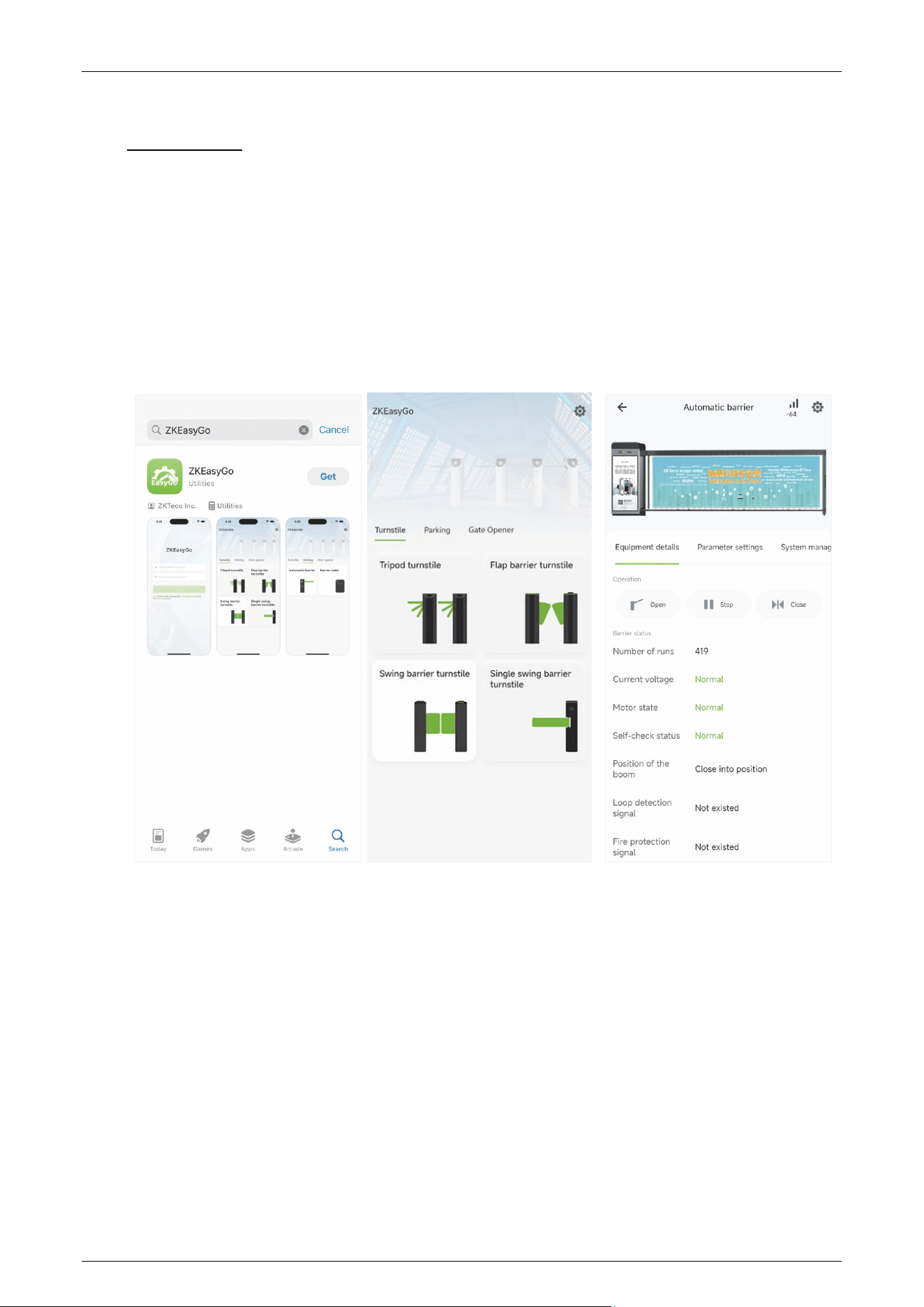
The ZKEasyGo App, designed for engineers, offers efficient management of Turnstiles, Parking
systems, and Gate Openers. It streamlines device debugging via Bluetooth communication,
facilitating quicker and easier commissioning during installation. ZKEasyGo integrates numerous
features enabling users to remotely control and manage devices, adjust functions and parameters,
access device details, perform firmware upgrades, and control LED status. The app supports multiple
languages, includes FAQ search, and ensures adherence to privacy policies. Compatible with iOS
and Android devices, it enhances user interaction with its intuitive interface.
ZKEasyGo App User Manual
Page | 9 Copyright © 2024 ZKTECO CO., LTD. All Rights Reserved.
2 Connecting the Device to ZKEasyGo App
Download the ZKEasyGo App 2.1
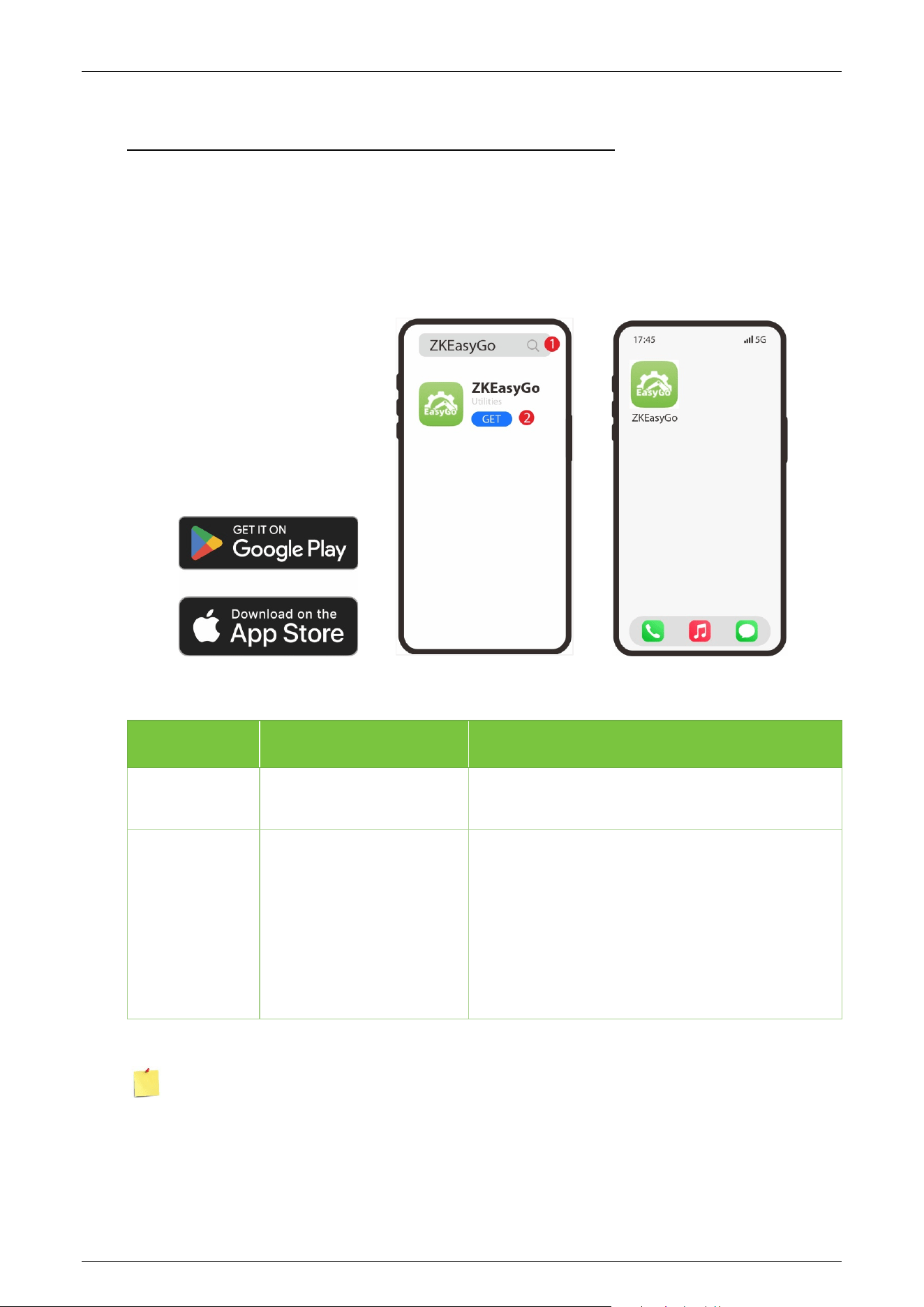
Search for the ZKEasyGo app in Apple App Store or Google Play Store and download the app to your
phone or tablet.
Information:
Platform Compatibility Recommended Device
iOS
Requires iOS 12.0 or later. A8 to A17 Pro, M1 toM3 Max
Android
Requires Android 10
.0 or
later.
Snapdragon: 800 series, 600/700 series, 400
series.
Media Tek: 900 series, 1000 series, 7000 series,
8000 series, 9000 series.
Kirin: 800 series, 900 series, 9000 series.
Note: To ensure smooth download and operation of the ZKEasyGo app, please make sure to
reserve sufficient storage space on your phone or tablet.
ZKEasyGo App User Manual
Page | 10 Copyright © 2024 ZKTECO CO., LTD. All Rights Reserved.
Login the ZKEasyGo App 2.2
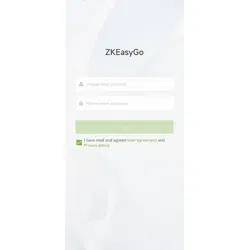
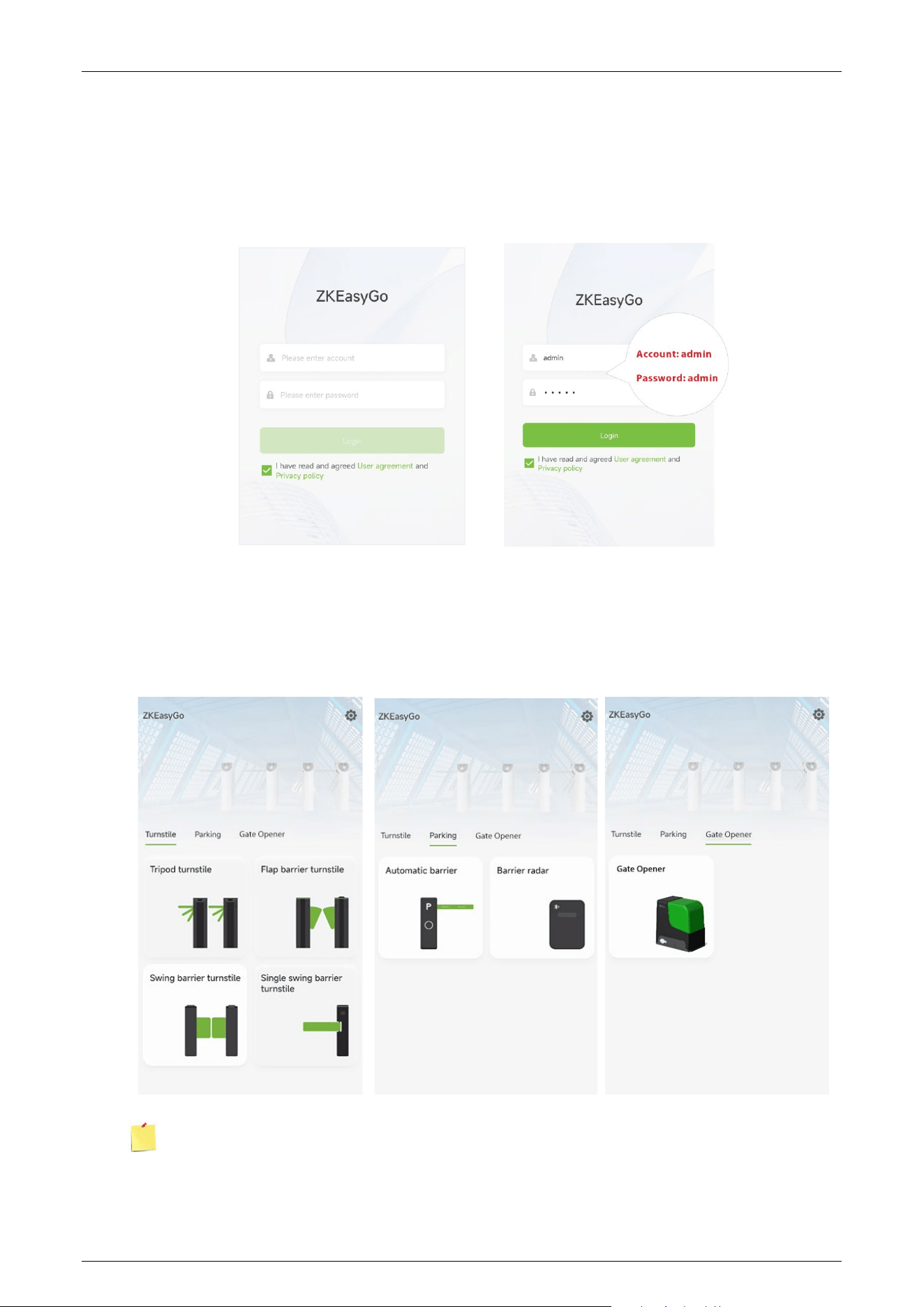
Open the ZKEasyGo app and log in using your account credentials. The default account and
password are both “admin”.
Add the Device to the ZKEasyGo App 2.3
After successful login, you will see the following interface. It supports connection to Turnstile,
Parking and Gate Opener. Select any type of device to connect.
Note: More device and features will be added soon.
ZKEasyGo App User Manual
Page | 11 Copyright © 2024 ZKTECO CO., LTD. All Rights Reserved.
Step 1 Power on the Device
To power on the device, simply turn on the On/Off switch.
Step 2 Permission Settings
Turn on the Bluetooth function on both your phone or tablet and the device.
Step 3 Pair the Device
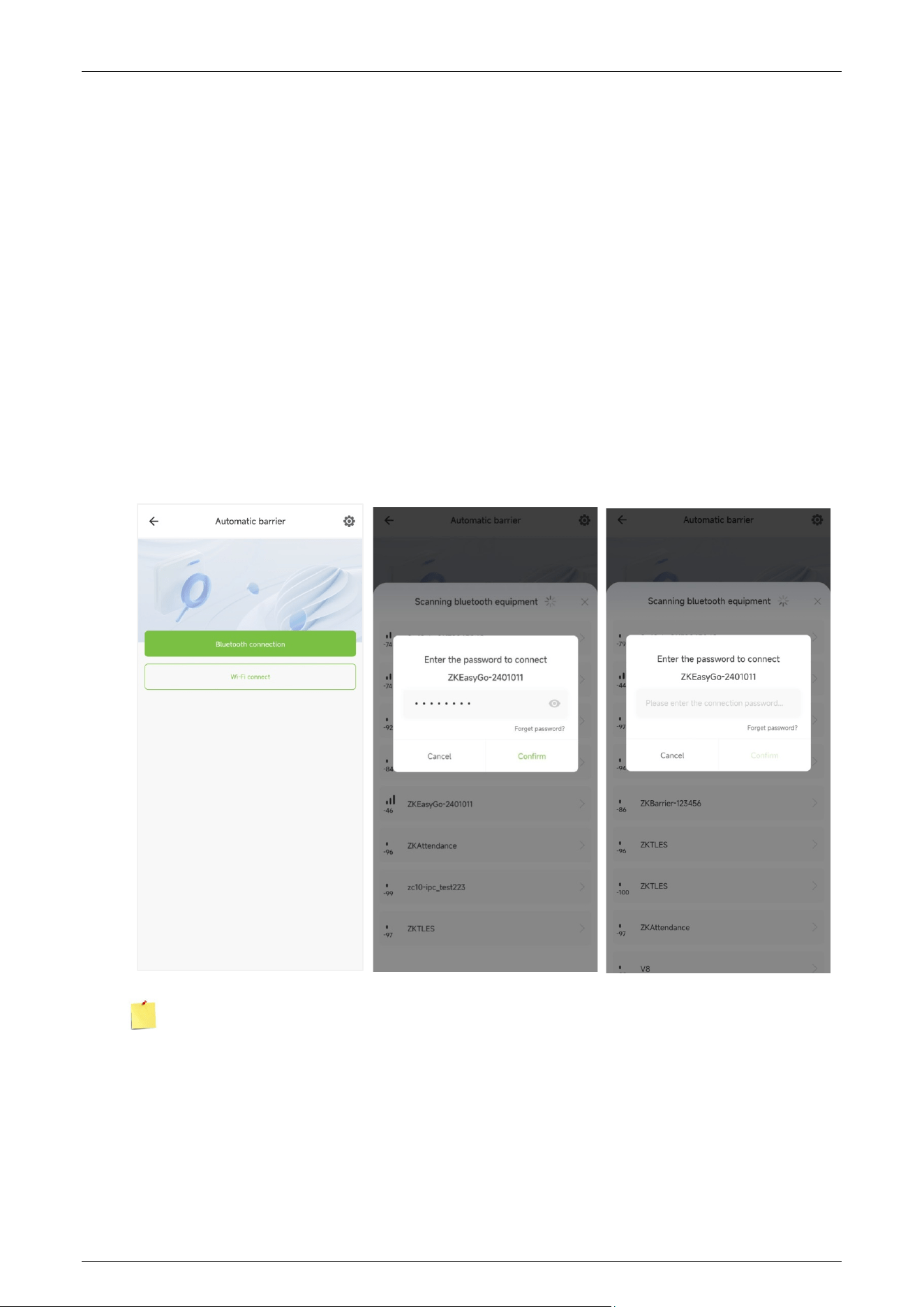
Tap on any device icon on the ZKEasyGo app and initiate the Bluetooth pairing process from the
pop-up page. The ZKEasyGo app automatically searches for nearby Bluetooth signals via Bluetooth
on your phone or tablet. In the list of Bluetooth signals, please select the device you need to connect
to. Typically, the Bluetooth name of the device is ZKEasyGo-******* for quick identification. The
default Bluetooth password of the device is: 12345678.
Note:
1. Some devices support Wi-Fi connectivity, similar to Bluetooth, by entering the correct password.
2. If you don't know or have forgotten your password, please manually reset the password on the
brake hardware device.
3. Ensure your phone or tablet near to the device to avoid search failures.
ZKEasyGo App User Manual
Page | 12 Copyright © 2024 ZKTECO CO., LTD. All Rights Reserved.
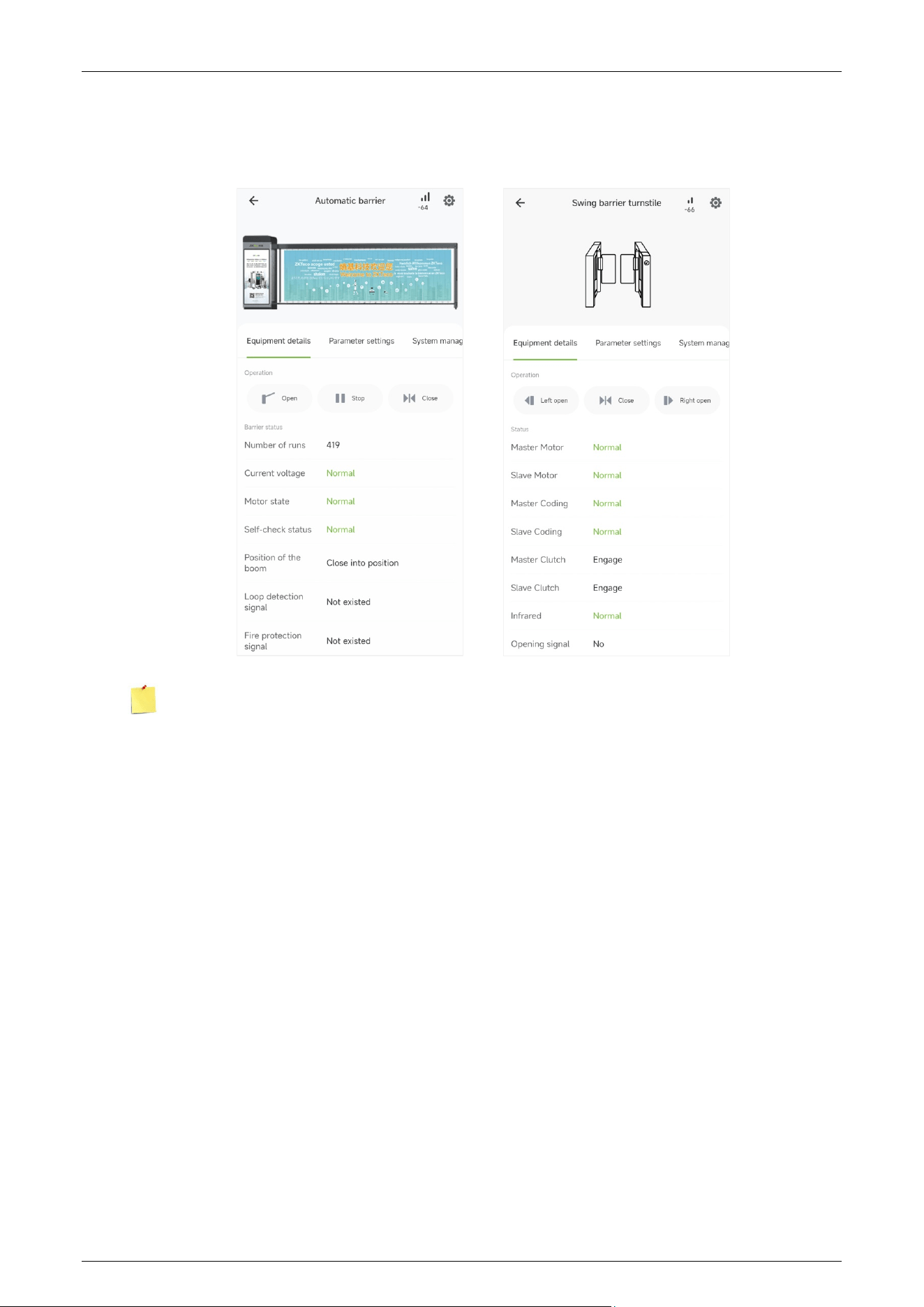
After successful pairing, you can view the specific information of the device, set the function
parameters, operate and manage the device and so on.
Note: Different types of connected devices will display different function menus and parameters,
so please refer to the specific device.
ZKEasyGo App User Manual
Page | 13 Copyright © 2024 ZKTECO CO., LTD. All Rights Reserved.
3 Control System Introduction
Equipment Details 3.1
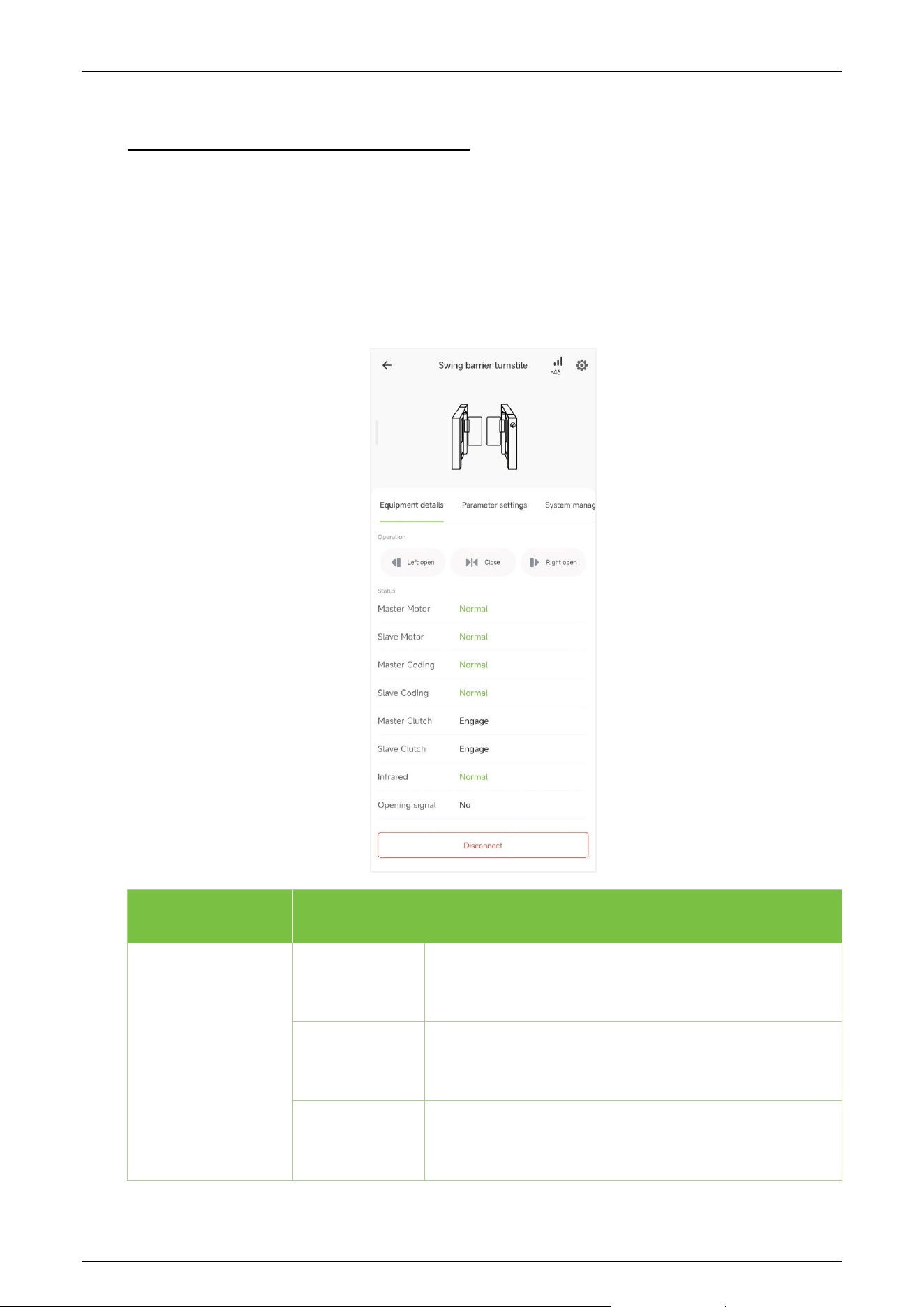
On the current page, you can remotely operate the device open/close it, check the device status and
choose whether to disconnect from the ZKEasyGo app.
Turnstile:
Menu Description
Operation
Left open
Remotely open
the turnstile inbound doors via the
ZKEasyGo app.
Close
Remotely close the turnstile inbound/outbound doors
via the ZKEasyGo app.
Right open
Remotely open
the turnstile outbound doors via the
ZKEasyGo app.
ZKEasyGo App User Manual
Page | 14 Copyright © 2024 ZKTECO CO., LTD. All Rights Reserved.
Status
Master Motor
When the device is powered on, the device undergoes a
Power-On Self-Test (POST), and the device will
synchronize the information of motor, coding, clutch,
infr
ared, and door opening signal of the device's
master/slave to ZKEasyGo app. This synchronization
facilitates engineers in quickly troubleshooting any
abnormalities.
Slave Motor
Master Coding
Slave Coding
Master Clutch
Slave Clutch
Infrared
Opening signal
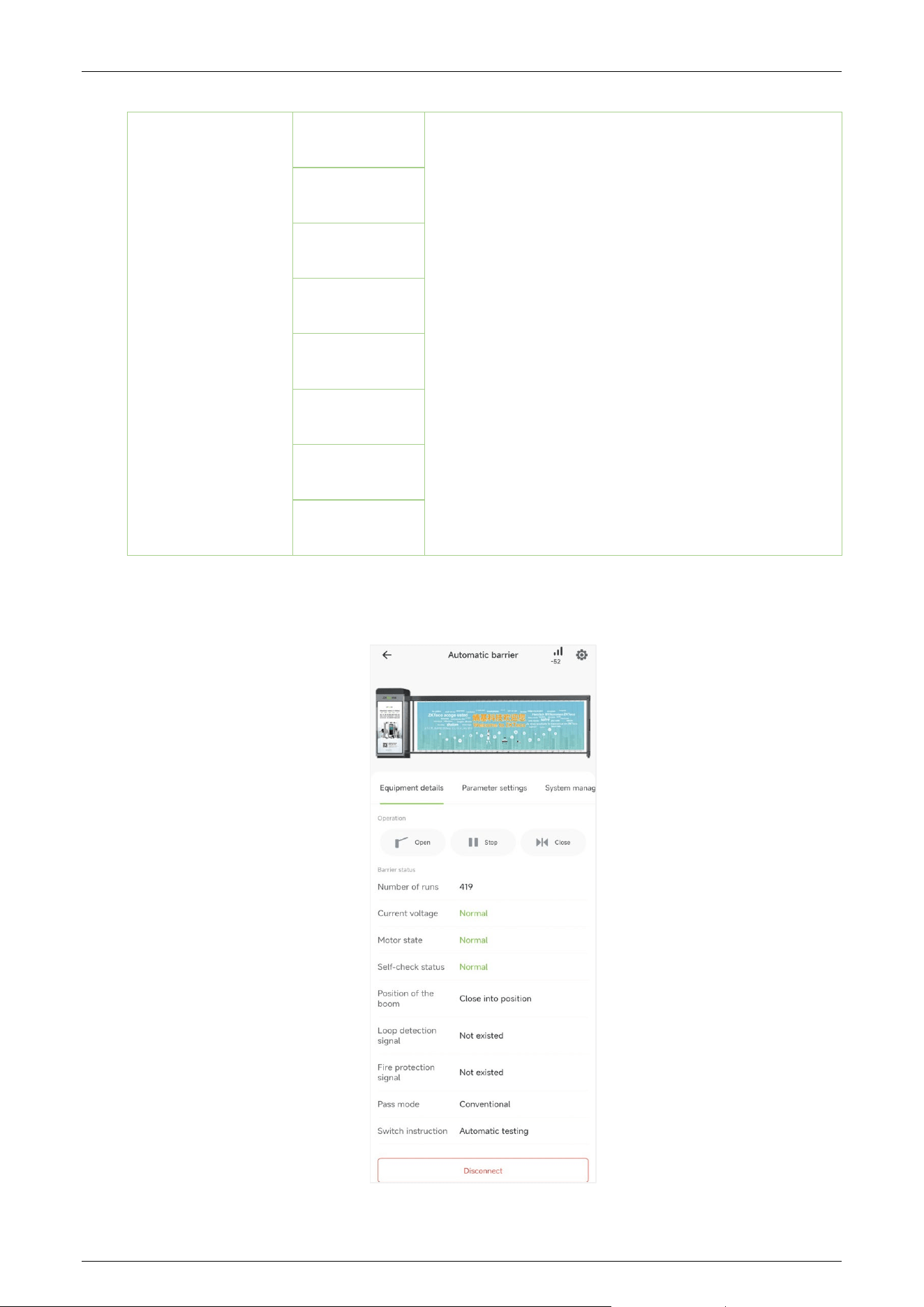
Parking:

ZKEasyGo App User Manual
Page | 15 Copyright © 2024 ZKTECO CO., LTD. All Rights Reserved.
Menu Description
Operation
Open
Remotely control the parking to rise the boom arm to
open the door via the ZKEasyGo app.
Stop
Remotely control the parking to stop the boom arm
raising or falling action via the ZKEasyGo app.
Close
Remotely control the parking to fall the boom arm to
close the door via the ZKEasyGo app.
Barrier status
Number of runs
When the device is powered on, the device undergoes a
Power-On Self-Test (POST), you can view the number of
runs, current voltage, motor status, self-
check status,
boom arm position, loop detection signal, fire alarm
signal, pass mode and switch instruction of the device
from the current page. T
his synchronization facilitates
engineers in quickly troubleshooting any abnormalities.
Current voltage
Motor state
Self-check
status
Position of the
boom
Loop detection
signal
Fire protection
signal
Pass mode
Switch
instruction
ZKEasyGo App User Manual
Page | 16 Copyright © 2024 ZKTECO CO., LTD. All Rights Reserved.
Disconnect:
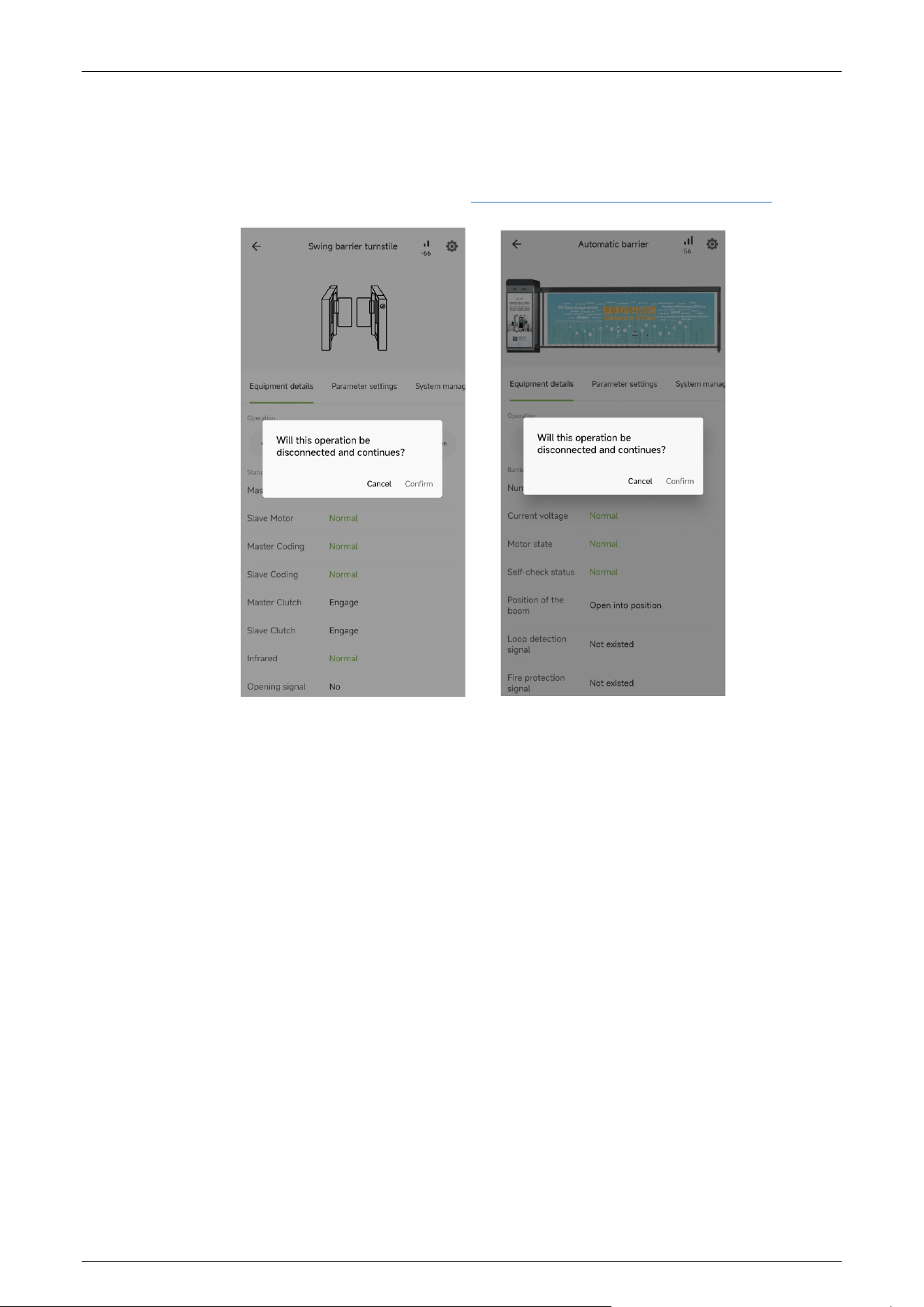
Click [Disconnect] → [Confirm] at the bottom of the current page to disconnect the device from
ZKEasyGo app. To connect again, please refer to 2 Connecting the Device to ZKEasyGo App.
Parameter Settings 3.2
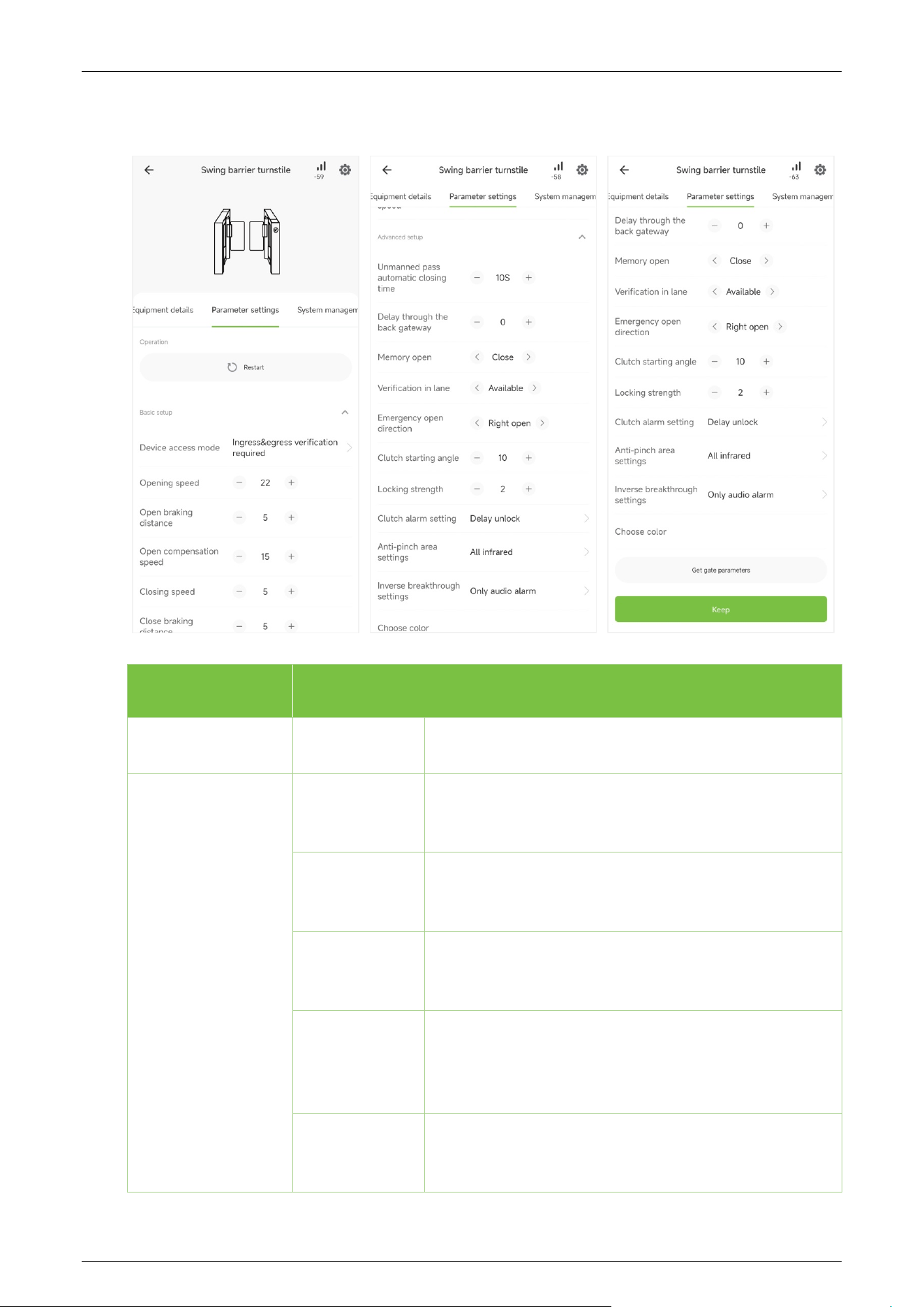
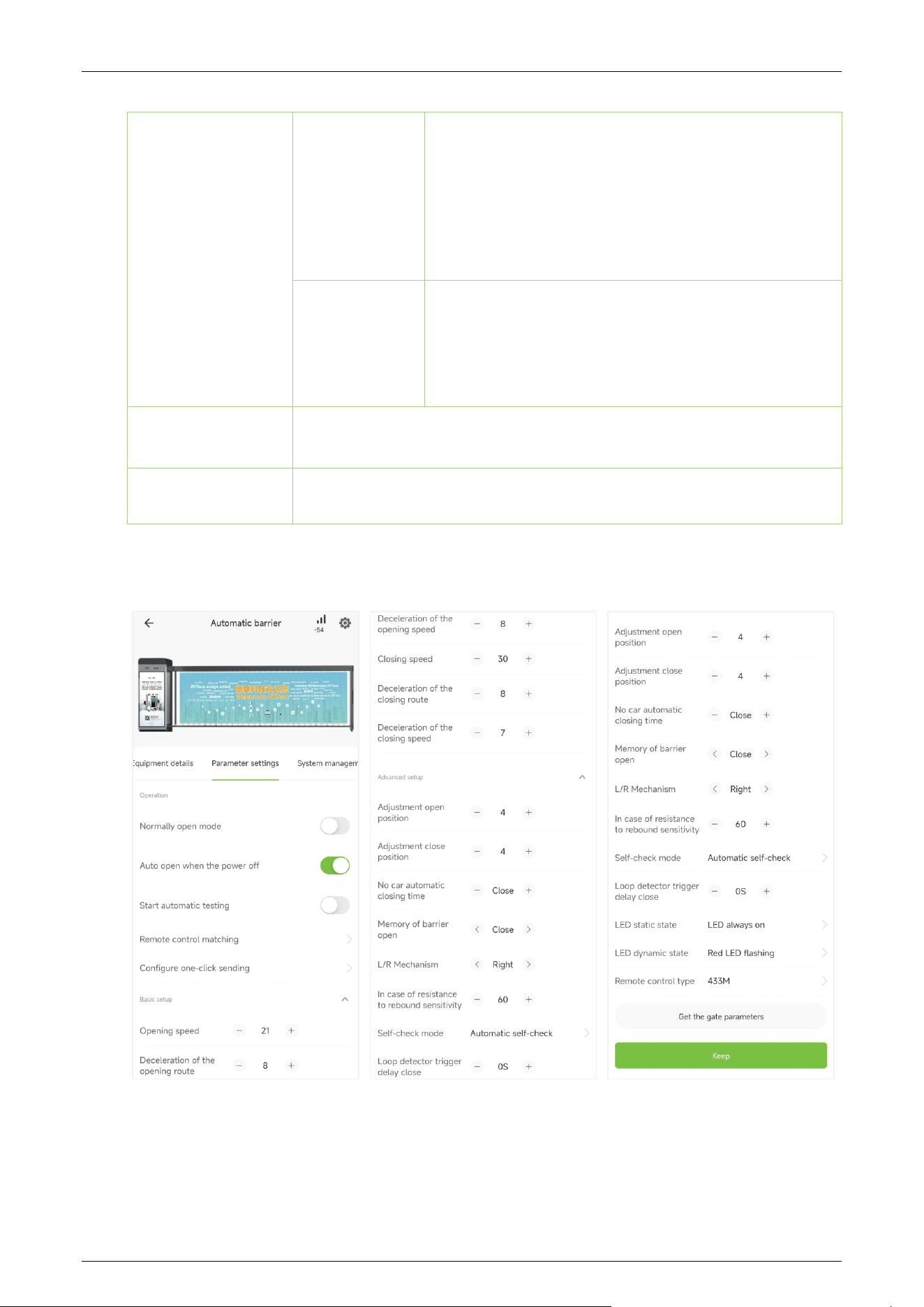
On the current page, you can set the specific functions and parameters of the device, and the
ZKEasyGo app synchronizes the set functions and parameters to the Controller Board of the device
for execution, which is convenient and fast.
ZKEasyGo App User Manual
Page | 17 Copyright © 2024 ZKTECO CO., LTD. All Rights Reserved.
Turnstile:
Menu Description
Operation
Restart
Click [Restart] to restart the device.
Basic setup
Device access
mode
Select the mode in which the inbound/outbound door
opens.
Opening speed
To adjust the gate opening speed, you can set a larger
number for a faster opening.
Open braking
distance
A larger number increases the braking time, enhancing
the stability of the swing arm operation.
Open
compensation
speed
This setting is used when the swing arm cannot fully
open or shakes during
operation. A larger number
results in faster compensation speed.
Closing speed
Set the gate closing speed to close the gate. The larger
the number is set, the faster the speed.

ZKEasyGo App User Manual
Page | 18 Copyright © 2024 ZKTECO CO., LTD. All Rights Reserved.
Close braking
distance
The larger the number, the longer the braking time and
the more stable the swing arm operation.
Close
compensation
speed
It can be set when the swing arm cannot close to the
zero position or shakes. The larger the number is set, the
faster of the compensation speed.
Advanced setup
Unmanned pass
automatic
closing time
The valid time period after a successful verification can
be configured. Once the set time is reached, the gate
will automatically close. The longer the number set, the
longer the valid time.
Delay through
the back
gateway
Set the delay time of gate closing after passing.
Memory open
When more than two legal access signals are given at
the same time (including the same direction and the
opposite direction), the system will remember all pass
requests and complete each pass in turn.
Verification in
lane
It allows pedestrian verification during the
IR sensor
triggered.
Emergency
open direction
According to the external fire device, select the
corresponding type of trigger mode. You can choose to
open the door in or out.
Clutch starting
angle
Set the angle at which the clutch starts. The larger the
number, the bigger the angle.
Locking
strength
Set the strength of the swing arm to return to the zero
position, the larger the value, the stronger the strength.
Clutch alarm
setting
When the gate is unlocked in an unauthorized way, the
clutch gets locked automatically.
Anti-pinch area
setting
Set all Infrared anti-pinch, or first and last pair are not
anti-pinch.
ZKEasyGo App User Manual
Page | 19 Copyright © 2024 ZKTECO CO., LTD. All Rights Reserved.
Inverse
breakthrough
settings
The Inverse breakthrough settings can be set close, only
alarm and no detection.
Note: When the Anti-pinch area setting needs to be set
to all Infrared anti-pinch only, the Inverse breakthrough
settings close is effective.
Choose color
An embedded LED strip is situated along the barrier's
side, offering a spectrum of multiple RGB colors and a
range of visual effects. This feature is fully customizable
to meet our customer's unique preferences.
Get gate
parameters
Click to get the functions and parameters saved on the device.
Keep
Click to save the set functions and parameters.
Parking:

ZKEasyGo App User Manual
Page | 20 Copyright © 2024 ZKTECO CO., LTD. All Rights Reserved.
Menu Description
Operation
Normally open
mode
Whether to set the parking to Normally open mode,
once it is on, the parking
stays raised boom arm and
does not fall.
Auto open
when the
power off
Once turned on, in the event of a power off, the parking
rises the boom arm
to ensure that the vehicle can
enter/exit properly.
Start automatic
testing
The automatic test mode of the device, when turned on,
the parking will always rise/fall the boom arm
automatically.
Remote control
matching
To match the remote control for your device via
ZKEasyGo app, tap into Remote control matching, then
press a random remote control button to match.
Configure one-
click sending
Supports one-
click import of parameter settings for
parking.
Basic setup
Opening speed
Set the boom arm opening speed to open the gate. The
larger the number is set, the faster the speed.
Deceleration of
the opening
route
The larger the number, the longer the deceleration time
and the more stable the boom arm operation.
Deceleration of
the opening
speed
The smaller the number, the more pro
nounced the
deceleration effect.
Closing speed
Set the boom arm closing speed to close the gate. The
larger the number is set, the faster the speed.
Deceleration of
the closing
route
The larger the number, the longer the deceleration time
and the more stable the boom arm operation.

ZKEasyGo App User Manual
Page | 21 Copyright © 2024 ZKTECO CO., LTD. All Rights Reserved.
Deceleration of
the closing
speed
The smaller the number, the more pro
nounced the
deceleration effect.
Advanced setup
Adjustment
open position
Sets the position when parking rise the boom arm.
Adjustment
close position
Sets the position when parking fall the boom arm.
No car
automatic
closing time
Set the time to automatically fall
the boom arm after
successful verification but no car passes, the larger the
number, the longer it takes to close the boom arm.
Memory of
barrier open
When more than two legal access signals are given at
the same time (including the same direction and the
opposite direction), the system will remember all pass
requests and complete each pass in turn.
L/R Mechanism
Depending on the specific installation, set parking to be
left/right mechanism.
In case of
resistance to
rebound
sensitivity
Sets the bounce sensitivity of the boom arm
when it
encounters an obstacle. The higher the value, the lower
the sensitivity, the longer it will take to bounce. When
set to 100, this function will be turned off and the boom
arm will not bounce when it encounters an obstacle.
Self-check
mode
Set the self-test mode for parking.
Loop detection
trigger delay
close
Set the ground sense delay time, the larger the number
set, the longer the delay time.
LED static state Sets the parking LED static state.
LED dynamic
state
Sets the parking LED dynamic state.
ZKEasyGo App User Manual
Page | 22 Copyright © 2024 ZKTECO CO., LTD. All Rights Reserved.
Remote control
type
Select the type of remote control for parking.
Get gate
parameters
Click to get the functions and parameters saved on the device.
Keep
Click to save the set functions and parameters.
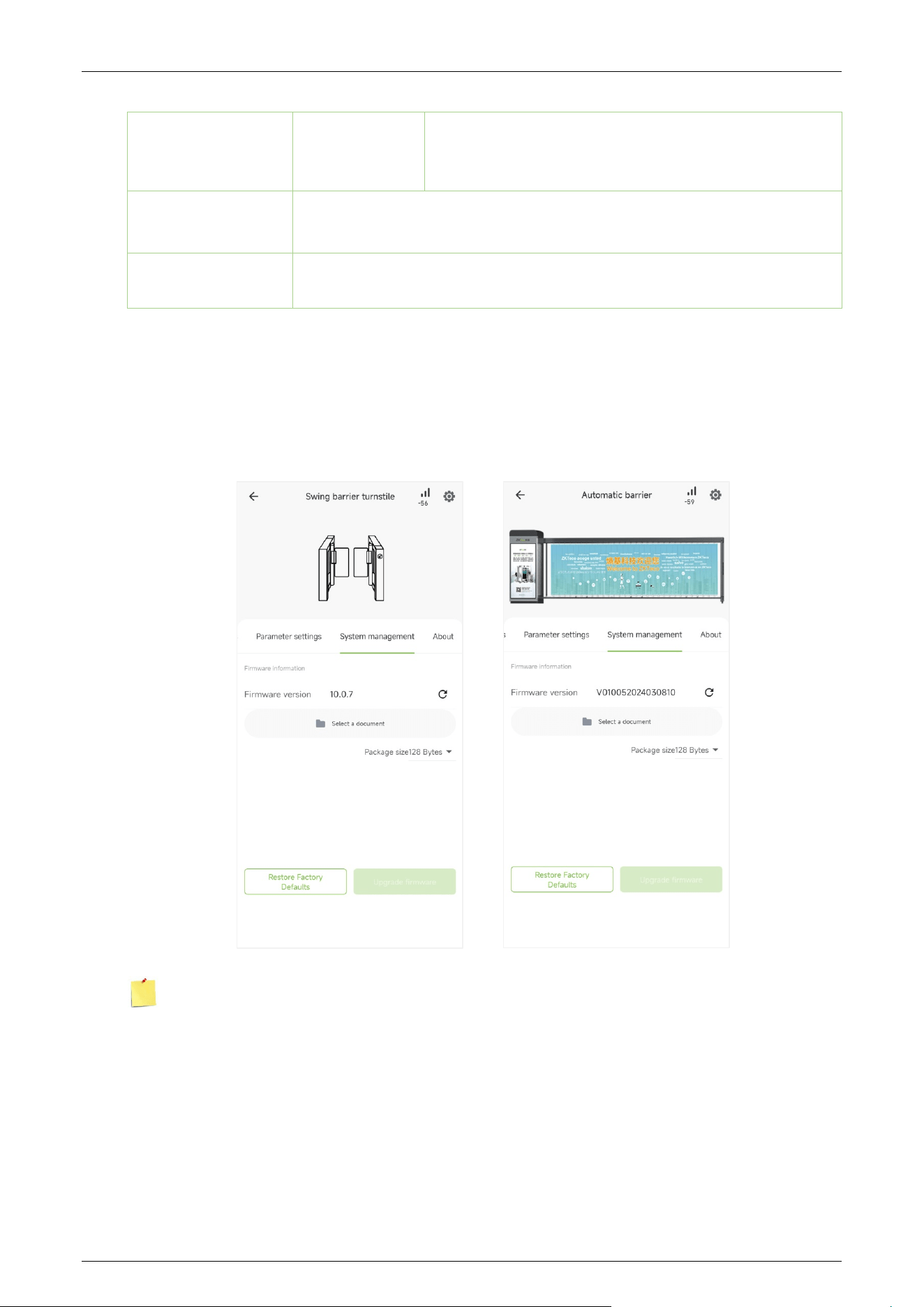
System Management 3.3
Before upgrading the device's firmware program with the upgrade file, please ensure that the
correct upgrade file is present on your phone or tablet.
Note: If upgrade file is needed, please contact our technical support. Firmware upgrade is not
recommenced under normal circumstances.
ZKEasyGo App User Manual
Page | 23 Copyright © 2024 ZKTECO CO., LTD. All Rights Reserved.
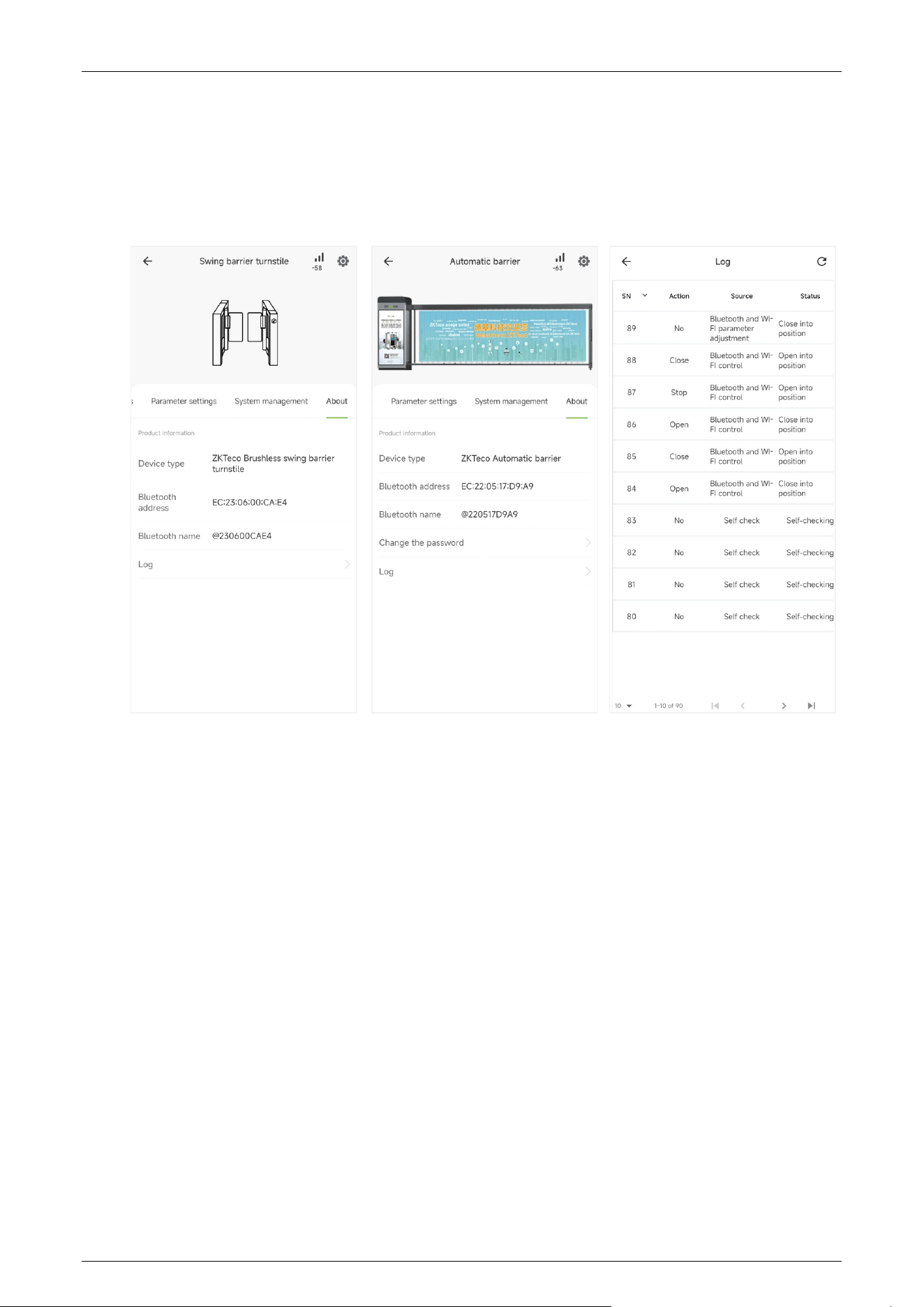
About 3.4
View the device type, Bluetooth address, Bluetooth name, change the password★, and logs for the
device, etc.
ZKEasyGo App User Manual
Page | 24 Copyright © 2024 ZKTECO CO., LTD. All Rights Reserved.
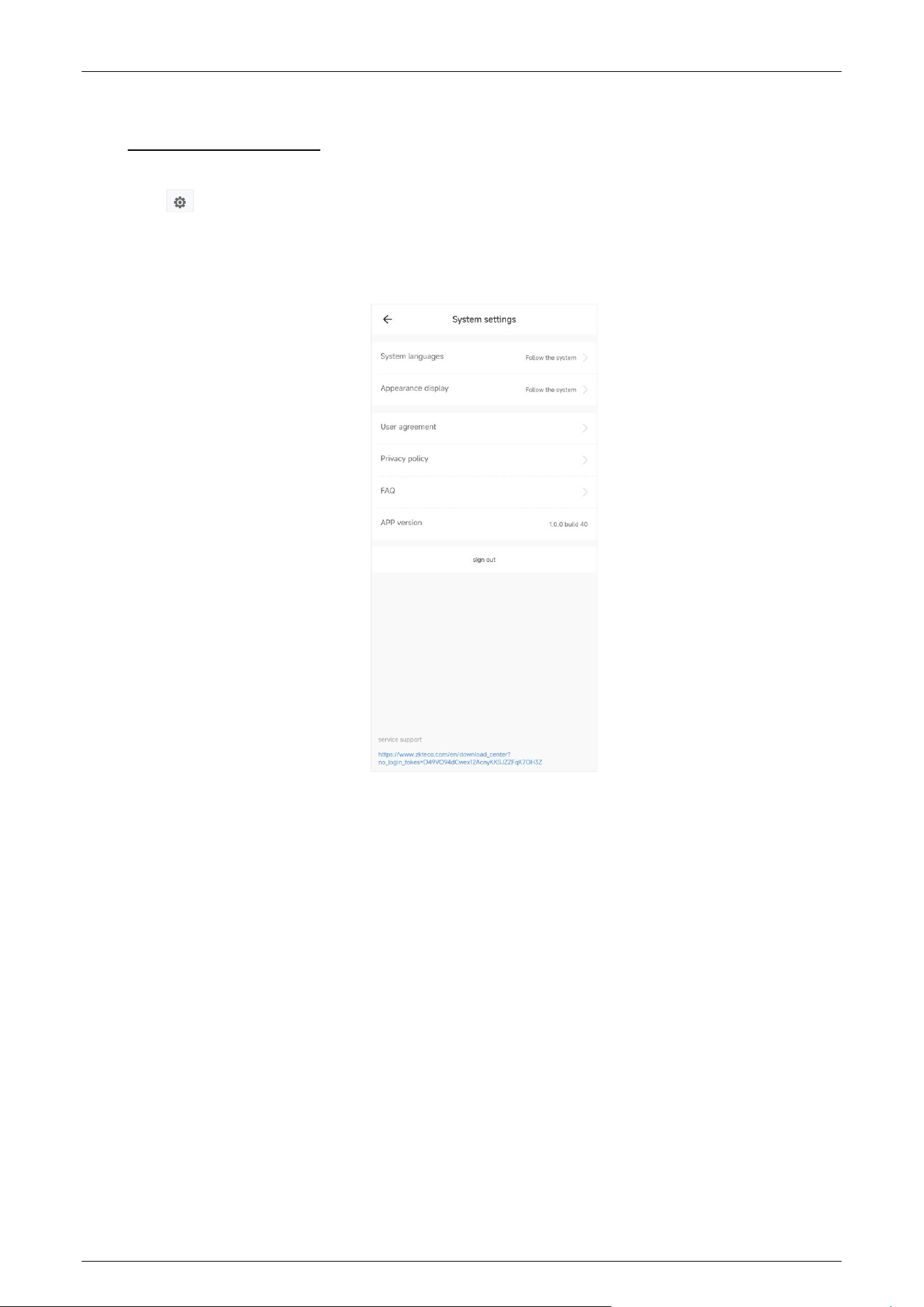
4 System Settings
Click in the upper right corner of the page to enter the system settings interface, in the system
settings you can set the language of ZKEasyGo app display, appearance display, view user
agreement, privacy policy, FAQ and ZKEasyGo App version number.

Page | 25 Copyright © 2024 ZKTECO CO., LTD. All Rights Reserved.
ZKTeco Industrial Park, No. 32, Industrial Road,
Tangxia Town, Dongguan, China.
Phone : +86 769 - 82109991
Fax : +86 755 - 89602394
www.zkteco.com
Copyright © 2024 ZKTECO CO., LTD. All Rights Reserved.






