1
-
EN
FR
ES
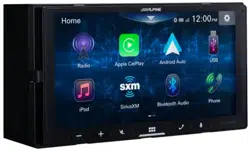
7-INCH AUDIO/VIDEO RECEIVER
iLX-W770
• OWNER’S MANUAL
Please read before using this equipment.
• MODE D’EMPLOI
Veuillez lire avant d’utiliser cet appareil.
• MANUAL DE OPERACIÓN
Léalo antes de utilizar este equipo.
Thank you for purchasing this Alpine product. Please take a moment to protect your purchase by
registering your product now at the following address: www.alpine-usa.com/registration.
You will be informed of product and software updates (if applicable), special promotions, news
about Alpine.
Merci d’avoir acheté ce produit Alpine. Nous vous invitons à consacrer un moment à la protection de
votre achat en enregistrant votre produit dès maintenant à l’adresse suivante :
www.alpine-usa.com/registration.
Vous serez tenu informé des mises à jour des produits et des logiciels (le cas échéant), des
promotions spéciales et de l’actualité d’Alpine.
Gracias por adquirir este producto Alpine. Con solo unos pocos pasos podrá proteger su producto,
registrándolo a través de la siguiente dirección: www.alpine-usa.com/registration.
Recibirá información sobre nuevos productos y software, promociones especiales y novedades
sobre Alpine.
ALPS ALPINE NORTH AMERICA, INC.
1500 Atlantic Blvd,
Auburn Hills, Michigan 48326, U.S.A.
Phone 1-800-ALPINE-1 (1-800-257-4631)
Designed by ALPINE Japan
EN

2
-
EN
Contents
Operating Instructions
PRECAUTIONS
IMPORTANT INFORMATION.............................5
WARNING
Points to Observe for Safe Usage ............................5
WARNING.............................................................5
CUTION.................................................................6
NOTICE..................................................................7
Getting Started
Location of Controls..................................................9
Turning Power On or O..........................................9
Turning the System On ............................................9
Adjusting the Volume................................................9
Lowering Volume Quickly........................................9
Touch Screen Operation..........................................10
About the HOME Screen........................................10
About the Indicator Display....................................11
Radio
Radio Basic Operation
Listening to the Radio.............................................12
Presetting Stations Manually..................................12
Presetting Stations Automatically...........................12
Mode switching Settings.........................................12
Apple CarPlay (Optional)
Access to wired Apple CarPlay...............................13
Access to wireless Apple CarPlay...........................13
Android Auto
TM
(Optional)
What is Android Auto.............................................13
Access to wired Android Auto...............................13
Access to wireless Android Auto...........................13
USB Flash drive (Optional)
Playback ..................................................................15
Fast-forwarding/Fast-reversing
(USB Audio/Video) ................................................15
Repeat Play (USB Audio/Video) ...........................15
Shue Play (USB Audio/Video) ...........................15
Searching for a Desired Song/Video/Photo ...........15
Slide Show (USB Photo).........................................15
About USB List.......................................................15
iPod mode on iPhone (Optional)
Playback ..................................................................16
Searching for a Music File .....................................17
Repeat Play..............................................................17
Shue Play..............................................................17
SiriusXM® Satellite Radio Operation
(Optional)
Receiving Channels with the SiriusXM Tuner.......18
Tuning Channels by Category.................................18
Checking the Sirius XM Radio ID Number...........19
Storing Channel Presets..........................................19
Tuning Channels Using Presets..............................19
SiriusXM List..........................................................19
Selecting The Channel Directly..............................19
Parental Lock Function ..........................................19
Bluetooth® Operation
Setup Before Using.................................................20
About Bluetooth..................................................20
About the Hands-free Phone...............................20
Before Using Bluetooth.......................................20
Hands-free Phone Control
Answering a Call.....................................................21
Hanging up the Telephone......................................21
Calling .....................................................................21
Making a phone call using the Phone Menu ......21
Siri............................................................................22
Phone Operation Screen..........................................23
Adjusting the Speech Volume.............................23
Changing the Voice Output.................................23
DTMF (Touch-Tone) Function ..........................23
Phone Book Function..............................................23
Synchronizing the Phone Book ..........................23

3
-
EN
Bluetooth® Audio
Playback..................................................................24
Repeat Play..............................................................24
Shue Play..............................................................24
AUX Operation (Optional)
AUX Operation.......................................................24
Camera Operation (Optional)
Camera Operation...................................................25
Displaying the Camera Image
from the Menu screen..........................................25
Displaying the rear view video
while the car is in reverse.....................................25
About the Rear Camera Guide................................25
About the Front Camera Guide...............................25
About the Side Camera Guide................................26
Connection Operation(Optional)
Sound Boost and Lighting link (Optional)
Lighting Link Setting Operation............................27
Lighting Link settings Colors..............................28
Setup
Setup Operation.......................................................29
System Setup
Language Setup.......................................................30
Time Adjust Setup...................................................30
SiriusXM Setup...................................................30
Parental Control.......................................................30
Clear Locked All.....................................................31
Changing the Lock Passcode..................................31
Version.....................................................................31
Product Information................................................31
Updating the rmware version...............................31
Software License.....................................................32
Connection Status ...................................................32
Steering Wheel Control ..........................................32
Demo Mode.............................................................32
Reset ........................................................................33
Screen/Lighting Setup
Dimmer....................................................................33
Screen Color............................................................34
Key Color ................................................................34
Sound Setup
Setting the Fader/Balance....................................34
Adjusting the Bass/Middle/Treble......................35
Adjusting the Graphic Equalizer Curve (EQ).....35
Setting an Equalizer ............................................35
Setting the Subwoofer..........................................36
Adjusting the Crossover Settings (X-Over)........36
Adjusting the Time Correction (TCR)................36
Setting the Speaker Level....................................37
Setting Defeat......................................................37
About the Crossover................................................37
About Time Correction ..........................................38
Example 1. Listening Position:Front Left Seat..38
Example 2. Listening Position: All Seats............38
Volume Setup
Volume Setup..........................................................39
Wi-Fi® Setup
Device lnfo ..............................................................39
About Wi-Fi.........................................................39
Bluetooth Setup
Device List ..............................................................40
Pairing the Bluetooth Device..............................40
Fast pairing the Bluetooth Device.......................40
Deleting a Bluetooth Device from the list..........40
Searching for a Bluetooth Device.......................40
Displaying Bluetooth Information......................40
Auto Connection..................................................40
Downloading the Phonebook..............................40
Rear Camera Setup
Parking Guide Adjust Setup....................................41
Video Setup .............................................................41
2nd Camera Setup
Guide Line Adjust ...................................................42
Lighting Link ON/OFF
Information
About the Supported Formats.................................44
About Audio Format............................................44
About Video Format............................................44
About Photo Format............................................45

4
-
EN
Installation and
Connections
WARNING...........................................................50
CAUTION.............................................................50
Precaution...........................................................50
Accessory List.........................................................51
Installation...............................................................51
Caution concerning the installation
location.................................................................51
Mounting the Microphone..................................51
Installation example using the Original
Mounting Bracket................................................52
Connections.............................................................50
If an ACC power supply is not available.............54
System Example......................................................55
OEM Steering Wheel Control Rentention..........56
LIMITED WARRANTY
In Case of Diculty................................................46
If this Message Appears..........................................47
Specications ..........................................................49
5
-
EN
Operating Instructions
PRECAUTIONS
IMPORTANT INFORMATION
FCC COMPLIANCE STATEMENT
This equipment has been tested and found to comply with the limits
for a Class B digital device, pursuant to part 15 of the FCC Rules.
These limits are designed to provide more reasonable protection
against harmful interference in a residential installation, and are
more stringent than “outdoor” requirements.
Operation is subjected to the following two conditions: (1) This
device may not cause harmful interference, and (2) this device must
accept any interference received, including interference that may
cause undesired operation.
This equipment generates, uses, and can radiate radio
frequency energy and, if not installed and used in accordance
with the instructions, may cause harmful interference to radio
communications. However, there is no guarantee that interference
will not occur in a particular installation. If this equipment does
cause harmful interference to radio or television reception, which
can be determined by turning the equipment off and on, you are
encouraged to try to correct the interference by one of the following
measures:
• Reorient or relocate the receiving antenna.
Increase the separation between the equipment and the receiver.
• Connect the equipment into an outlet on a circuit dierent from
that to which the receiver is connected.
• Consult an experienced radio/TV technician.
WARNING
IPoints to Observe for Safe Usage
• Read this manual carefully before using this system components.
They contain instructions on how to use this product in a safe
and effective manner. Alpine cannot be responsible for problems
resulting from failure to observe the instructions in this manual.
• This manual uses various pictorial displays to show you how
to use this product safely and to alert you to potential dangers
resulting from improper connections and operation. Following are
the meanings of these pictorial displays. It is important to fully
understand the meanings of these pictorial displays in order to use
this manual and the system properly.
• This product may be used with software applications. Please follow
all usage instructions and warnings when using this product at
all times. Do not use this product or any software application in a
manner which will hinder safe operation of your vehicle.
WARNING
• Operation of the system while driving is dangerous. Users
should stop vehicle before operating the software.
• Road conditions and regulations take precedence over
information contained on the map display: observe actual
traffic restrictions and circumstances while driving.
• This software is designed for use exclusively in the unit.
It cannot and may not be used in conjunction with other
hardware.
WARNING
This symbol means important instructions. Failure
to heed them can result in serious injury or death.
INSTALL THE PRODUCT CORRECTLY SO THAT THE DRIVER CANNOT WATCH
TV/VIDEO UNLESS THE VEHICLE IS STOPPED AND THE PARKING BRAKE IS
APPLIED.
It is dangerous for the driver to watch TV/Video while driving
a vehicle. Installing this product incorrectly enables the driver
to watch TV/Video while driving. This may cause a distraction,
preventing the driver from looking ahead, thus causing an accident.
The driver or other people could be severely injured.
DO NOT WATCH VIDEO WHILE DRIVING.
Watching the video may distract the driver from looking ahead of the
vehicle and cause an accident
DO NOT OPERATE ANY FUNCTION THAT TAKES YOUR ATTENTION AWAY
FROM SAFELY DRIVING YOUR VEHICLE.
Any function that requires your prolonged attention should only be
performed after coming to a complete stop. Always stop the vehicle in
a safe location before performing these functions. Failure to do
so may result in an accident.
KEEP THE VOLUME AT A LEVEL WHERE YOU CAN STILL HEAR OUTSIDE
NOISES WHILE DRIVING.
Excessive volume levels that obscure sounds such as emergency
vehicle sirens or road warning signals (train crossings, etc.) can be
dangerous and may result in an accident. LISTENING AT LOUD
VOLUME LEVELS IN A CAR MAY ALSO CAUSE HEARING
DAMAGE.
MINIMIZE DISPLAY VIEWING WHILE DRIVING.
Viewing the display may distract the driver from looking ahead of the
vehicle and cause an accident.
DO NOT DISASSEMBLE OR ALTER.
Doing so may result in an accident, re or electric shock.
USE ONLY IN CARS WITH A 12 VOLT NEGATIVE GROUND.
(Check with your dealer if you are not sure.) Failure to do so may
result in re, etc.
6
-
EN
USE THE CORRECT AMPERE RATING WHEN REPLACING FUSES.
Failure to do so may result in re or electric shock.
KEEP SMALL OBJECTS SUCH AS SCREWS OUT OF THE REACH OF
CHILDREN.
Swallowing them may result in serious injury. If swallowed, consult
a physician immediately.
DO NOT BLOCK VENTS OR RADIATOR PANELS.
Doing so may cause heat to build up inside and may result in re.
BEFORE WIRING, DISCONNECT THE CABLE FROM THE NEGATIVE BATTERY
TERMINAL.
Failure to do so may result in electric shock or injury due to
electrical shorts.
USE THIS PRODUCT FOR MOBILE 12V APPLICATIONS.
Use for other than its designed application may result in re,
electric shock or other injury.
MAKE THE CORRECT CONNECTIONS.
Failure to make the proper connections may result in re or
product damage.
DO NOT ALLOW CABLES TO BECOME ENTANGLED IN SURROUNDING
OBJECTS.
Arrange wiring and cables in compliance with the manual to
prevent obstructions when driving. Cables or wiring that obstruct
or hang up on places such as the steering wheel, gear lever, brake
pedals, etc. can be extremely hazardous.
DO NOT SPLICE INTO ELECTRICAL CABLES.
Never cut away cable insulation to supply power to other
equipment. Doing so will exceed the current carrying capacity of
the wire and result in re or electric shock.
DO NOT DAMAGE PIPE OR WIRING WHEN DRILLING HOLES.
When drilling holes in the chassis for installation, take precautions
so as not to contact, damage or obstruct pipes, fuel lines, tanks or
electrical wiring. Failure to take such precautions may result in re.
DO NOT INSTALL IN LOCATIONS WHICH MIGHT HINDER VEHICLE
OPERATION, SUCH AS THE STEERING WHEEL OR GEARSHIFT.
Doing so may obstruct forward vision or hamper movement etc.
and results in serious accident.
DO NOT USE BOLTS OR NUTS IN THE BRAKE OR STEERING SYSTEMS TO
MAKE GROUND CONNECTIONS.
Bolts or nuts used for the brake or steering systems (or any
other safety-related system), or tanks should NEVER be used for
installations or ground connections. Using such parts could disable
control of the vehicle and cause re etc.
CAUTION
This symbol means important instructions. Failure
to heed them can result in injury or material
property damage.
DO NOT INSTALL IN LOCATIONS WITH HIGH MOISTURE OR DUST.
Avoid installing the unit in locations with high incidence of
moisture or dust. Moisture or dust that penetrates into this unit
may result in product failure.
ARRANGE THE WIRING SO IT IS NOT CRIMPED OR PINCHED BY A SHARP
METAL EDGE.
Route the cables and wiring away from moving parts (like the seat
rails) or sharp or pointed edges. This will prevent crimping and
damage to the wiring. If wiring passes through a hole in metal, use
a rubber grommet to prevent the wire’s insulation from being
cut by the metal edge of the hole.
USE SPECIFIED ACCESSORY PARTS AND INSTALL THEM SECURELY.
Be sure to use only the specied accessory parts. Use of other
than designated parts may damage this unit internally or may not
securely install the unit in place. This may cause parts to become
loose resulting in hazards or product failure.
HALT USE IMMEDIATELY IF A PROBLEM APPEARS.
Failure to do so may cause personal injury or damage to the
product. Return it to your authorized Alpine dealer or the nearest
Alpine Service Center for repairing.
HAVE THE WIRING AND INSTALLATION DONE BY EXPERTS.
The wiring and installation of this unit requires special technical
skill and experience. To ensure safety, always contact the dealer
where you purchased this product to have the work done.
7
-
EN
CAUTION
Alpine accepts no responsibility for lost data, etc., even if data, etc., is
lost while using this product.
NOTICE
Product Cleaning
Use a soft dry cloth for periodic cleaning of the product. For more
severe stains, please dampen the cloth with water only. Anything
else has the chance of dissolving the paint or damaging the plastic.
Temperature
Be sure the temperature inside the vehicle is between +45°C
(+113°F) and 0°C (+32°F) before turning your unit on.
Maintenance
If you have problems, do not attempt to repair the unit yourself.
Return it to your Alpine dealer or the nearest Alpine Service Station
for servicing.
Protecting the USB connector
• Only an Phone or USB ash drive can be connected to the USB
connector on this unit. Correct performance using other USB
products cannot be guaranteed.
• If the USB connector is used, be sure to use only the supplied
connector cable with the unit. A USB hub is not supported.
• Depending on the connected USB ash drive, the unit may not
function or some functions may not be performed.
• The audio le format that can be played on the unit is MP3/
WMA/WAVE/AAC/FLAC/Ogg/APE.
• Artist/song name, etc., can be displayed. Certain, special
characters may not be correctly displayed.
On Handling USB Flash drive
• This unit can control a memory storage device that supports
the USB Mass Storage Class (MSC) protocol. Playable audio le
formats are MP3, WMA, AAC,WAVE,APE,OGG and FLAC.
• USB Flash drive function is not guaranteed. Use a USB ash
drive according to the terms of agreement. Read the USB ash
drive Owner’s Manual thoroughly.
• Avoid usage or storage in the following locations:
Anywhere in the car exposed to direct sunlight or high
temperatures.
Anywhere the possibility of high humidity or corrosive
substances are present.
• Fix the USB ash drive in a location where driver operation will
not be hindered.
• USB Flash drive may not function correctly at high or low
temperature.
• Use only certied USB ash drive. Note that even certied USB
ash drive, may not function correctly depending on its type or
state.
• Depending on the settings of the USB ash drive type, memory
state or encoding software, the unit may not play back or display
properly.
• USB Flash drive may take time to start playback. If there is a
particular le other than audio in the USB ash drive, it may
take considerable time before the le is played back or searched.
• The unit can play back“mp2”, “mpa”“mp3”“m4a”, “wma”, “m4a”,
“ac”/”a”,“wav”“ogg”“ape”le extensions.
• Do not add the above extensions to a le other than audio data.
This non-audio data will not be recognized. The resulting
playback may contain noise that can damage speakers and/or
ampliers.
• It is recommended to back up important data on a personal
computer.
• Do not remove the USB device while playback is in progress.
Change SOURCE to something other than USB, then remove
the USB device to prevent possible damage to its memory.

8
-
EN
• Windows Media and the Windows logo are trademarks, or registered
trademarks of Microsoft Corporation in the United States and/or other
countries.
• Apple, iPhone, iPod, iPod nano, iPod touch, iPad, Lightning and Siri
are trademarks of Apple Inc., registered in the U.S. and other countries.
Apple CarPlay is a trademark of Apple Inc.
• Use of the Made for Apple and Works with Apple badges means
that an accessory has been designed to connect specifically to the
Apple product(s) identified in the Made for Apple badge and to
work specifically with the technology identified in the Works with
Apple badge, and has been certified by the developer to meet Apple
performance standards. Apple is not responsible for the operation of
this device or its compliance with safety and regulatory standards.
• Please note that the use of this accessory with an Apple product may
aff ct wireless performance.
• Use of the Apple CarPlay logo means that a vehicle user interface meets
Apple performance standards. Apple is not responsible for the operation
of this vehicle or its compliance with safety and regulatory standards.
Please note that the use of this product with iPhone may affect wireless
performance.
• SiriusXM and all related marks and logos are trademarks of Sirius XM
Radio Inc. All rights reserved.
• Google, Android, Google Play and Android Auto are trademarks of
Google LLC.To use Android Auto on your car display, you'll need an
Android Auto compatible vehicle or aftermarket stereo, an Android
phone running Android 6.0 or higher, and the Android Auto app.
• The Bluetooth
®
word mark and logos are registered trademarks owned
by the Bluetooth SIG, Inc. and any use of such marks by Alpine
Electronics, Inc. is under license.
• MPEG Layer-3 audio coding technology licensed from Fraunhofer IIS
and Thomson. Supply of this product only conveys a license for private,
non-commercial use and does not convey a license nor imply any right
to use this product in any commercial (i.e. revenue-generation) real
time broadcasting (terrestrial, satellite, cable and/or any other media),
broadcasting/streaming via internet, intranets and/or other networks
or in other electronic content distribution systems, such as pay-audio or
audio-on-demand applications. An independent license for such use is
required. For details, please visit
http://www.mp3licensing.com
• The Wi-Fi CERTIFIED™ Logo is a registered trademark of Wi-Fi Alliance
®
9
-
EN
Getting Started
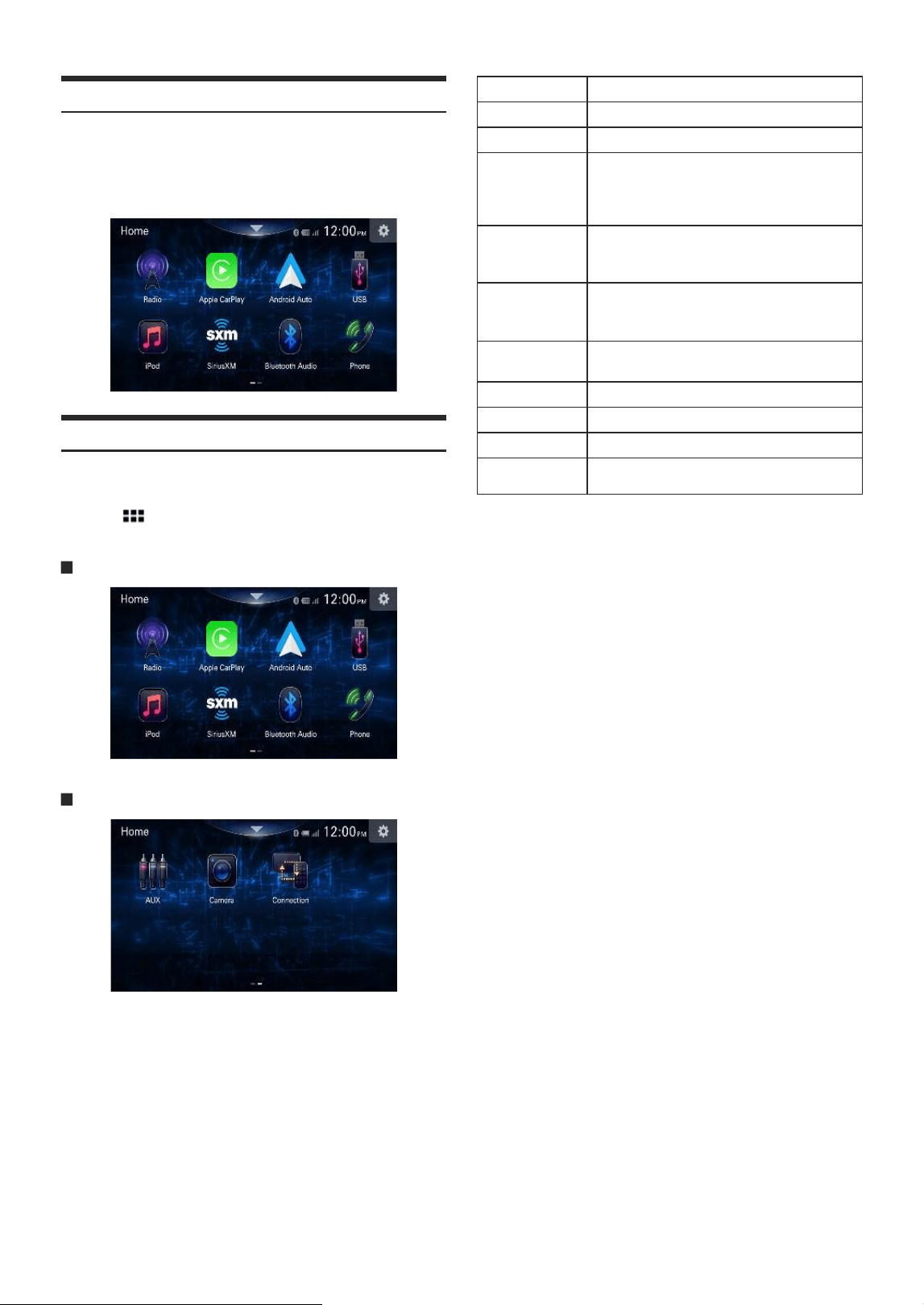
Location of Controls
When system is powered off ,Short/long touch any button to turn the
power on.
①
/ (DOWN/UP) button
Touch to adjust the volume.
Touch and hold this button for at least 1.7 second to adjust the
volume to maximum or minimum
②
(MUTE) button
• Touch to activate/deactivate the mute mode.
• Touch and hold this button for at least 1.7 second to display
on/off
③
(HOME)/(Power Off) button
Activates the HOME screen.
Touch and hold this button for at least 1.7 second to turn the
power off.
④
(Phone) button
Activates the Phone screen.
⑤
button
• When phone is connected to CarPlay, touch this button to
activate Siri
• When phone is connected to Android Auto ,touch this button
to activate VR
• When Siri is activated, the function of Siri is available
• When VR is activated, the VR setting is ON and the function of
VR is available
• When the CarPlay/Android Audio is disconnected ,the
operation in this button is invalidate
• When CarPlay/Android Audio is disconnected, touch and
long hold to enter into the Device Searching List to activate
the new device searching
⑥
(Reset) button
Reset& Restart.
About the button descriptions used in this Owner’s
Manual
The buttons found on the face of the unit are expressed in bold
(e.g.
(HOME)). The buttons found on the touch-screen display
are shown in bold within brackets, [ ] (e.g. [ ]).
Turning Power On or Off
Some of this unit’s functions cannot be performed while the vehicle
is in motion. Be sure to stop your vehicle in a safe location and apply
the parking brake, before attempting these operations.
1
Turn the ignition key to the ACC or ON position.
The system turns on.
• When turned on, the system displays the last screen that was
displayed before the ignition key was turned off. For example,
if the unit is in radio mode when ignition is turned off, it will
remain in radio mode when ignition is turned back on.
2
Touch and hold the
(HOME)/(Power Off) button for
at least 1.7 second to turn the power off.
• When the system is used for the first time, the language selection menu
is displayed. Select the desired language, and then touch [OK].
• The unit can be turned on by touching the [
] (HOME) button,
[
] button [ ] button [ ] button or [ ] (Phone) button.
• The unit is a precision device. Careful handling of the unit should
provide you with years of trouble-free operation.
Turning the System On
When the system is used for the first time, the language selection
menu is displayed.
Select a language, and then touch [OK].
• Some of this unit’s functions cannot be performed while the vehicle is
in motion. Be sure to stop your vehicle in a safe location and apply the
parking brake before attempting these operations.
Adjusting the Volume
Adjust the volume by touching /
Volume decreases increases continuously by touching and holding
/
Volume: 0 - 35
Lowering Volume Quickly
Audio Mute function instantly lowers the volume level to 0.
1
Touch the
(MUTE) button to activate the MUTE mode.
The audio level will be 0.
2
Touching the
(MUTE) button again will bring the
audio back to its previous level.
10
-
EN
Touch Screen Operation
You can operate the system by using the touch panel on the screen.
• Be sure to touch the onscreen button lightly with the pad of your finger
to avoid scratching the display.
Touch a button or list item on the screen lightly.
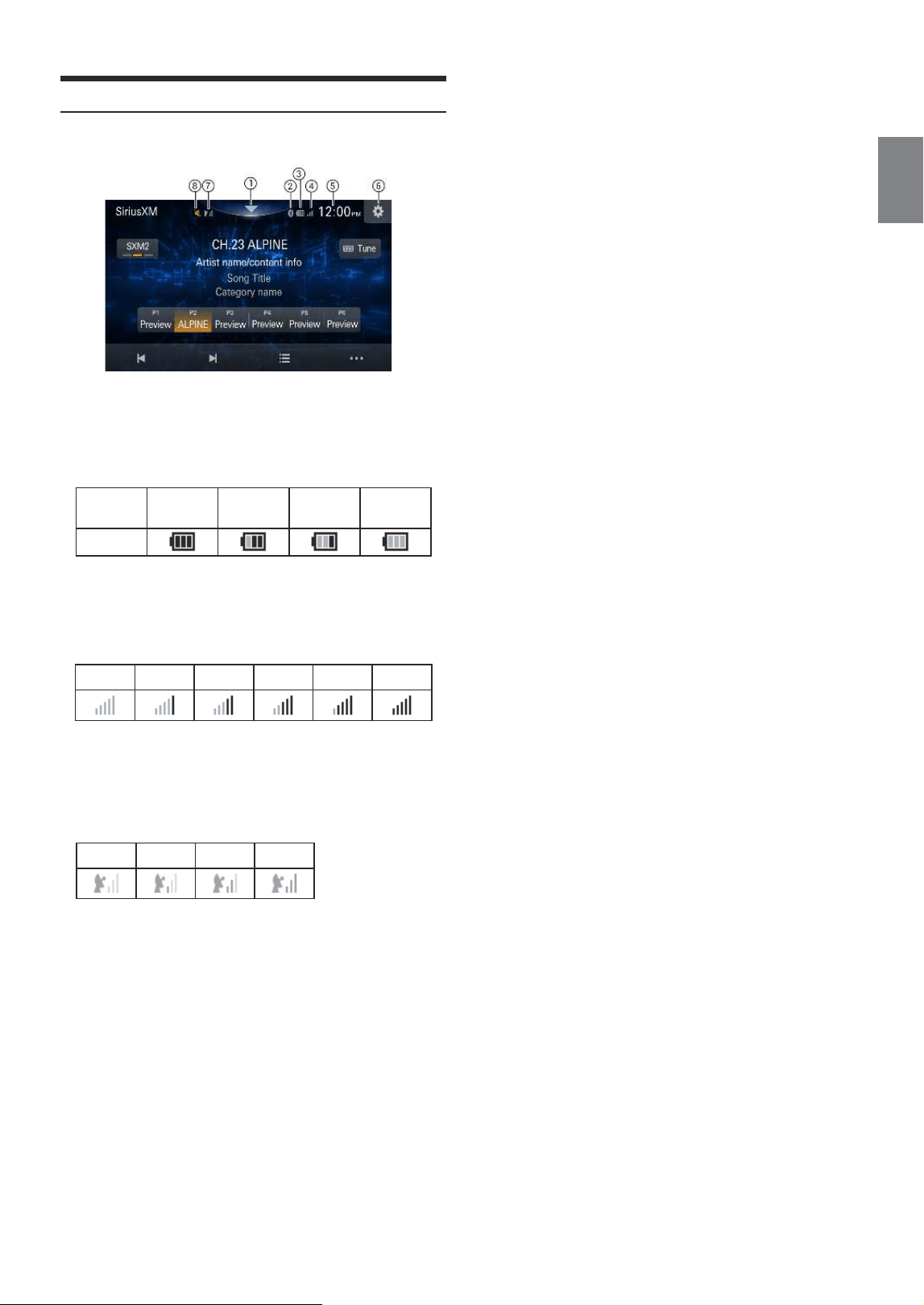
About the HOME Screen
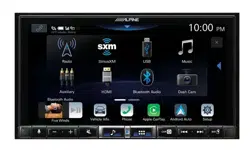
In the HOME screen, you can select the audio source and perform
various setups or operations on the unit.
Touch the (HOME) button.
The HOME screen is displayed.
HOME screen example (Page1)
HOME screen example (Page2)
Radio Displays the Radio main screen (page 12).
Apple CarPlay You can use Apple CarPlay (page 13).
Android Auto You can use Android Auto (page 13).
USB
You can play back music files, video files and
photo files stored in a USB flash drive (page 14).
• If a USB flash drive is not connected, this
widget is not available.
iPod
Displays the iPod main screen (page 16)
• If an iPhone is not connected, this widget is
not available.
SiriusXM
Displays the SiriusXM main screen (page 18).
• If a SiriusXM Tuner (Optional) is not
connected, this widget is not available.
Bluetooth Audio
Displays the Bluetooth Audio main screen
(page 23).
Phone Displays the Phone main screen (page 20).
AUX Displays the AUX main screen (page 24).
Camera Displays the Camera main screen (page 25).
Connection
Displays the status of the connected
devices(page 26).
11
-
EN
About the Indicator Display
The Indicator Bar at the top of the screen displays various types of
information, like the current time.
①
Sound Boost.
You can turn theSound Boost (page 26).
②
Lights up when connected to a Bluetooth compatible device.
• Sets ash when Bluetooth disconnected
③
Indicates the battery level of the connected Bluetooth device.
Battery
Level
Level 3 Level 2 Level 1 No Battery
Icon
This may not be displayed depending on the connected
Bluetooth device.
④
Indicates the signal strength level of the connected
Bluetooth compatible device.
Displayed when Bluetooth setting is ON.
0 1 2 3 4 5
⑤
Indicates the current time.
You can switch between the 12 hour display and 24 hour display
options (page 29).
⑥
Setup
Click to enter the Settings
⑦
Display SiriusXM signal level
0 1 2 3
⑧
Indicates the volume on/off status.
12
-
EN
Radio
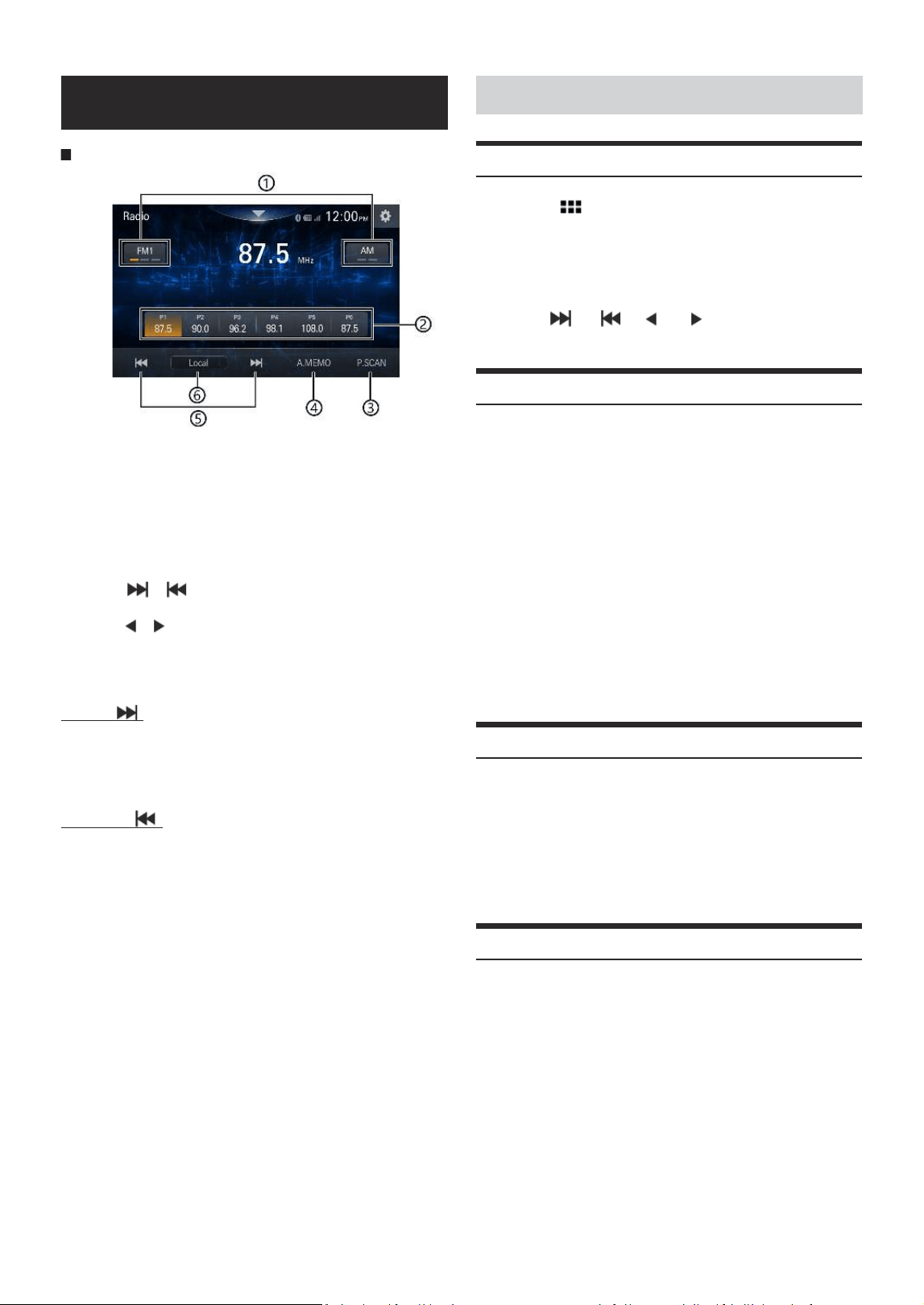
Radio main screen example
①
Band button
witches a band.
②
Preset button
Displays the preset stations with a short touch.
Touch for at least 1.5. second to memorise the current station as
a preset station.
③
Plays each preset station for about 10 seconds.
④
Scan and memorises active stations automatically
⑤
Touch [
] [ ] to select the station seek up or seek
down respectively
Touch [
] [ ] to change the radio frequency up or down
respectively.
Operate in manual mode
⑥
Switch Local mode/Manual mode/DX mode.
Seek up [
]
Seek up: From the current station ,seek forward according to the
specified step unit ,
After selecting a active station, then play If no active station, will keep
searching
Seek down [
]
Seek down: From the current station ,seek down according to the
specified step unit ,
After selecting a active station, then play If no active station, will keep
searching
Radio Basic Operation
Listening to the Radio
1
Touch the
(HOME) button and select radio mode.
The display shows the radio mode screen.
2
Select the desired band from [FM1] / [FM2] / [FM3] /
[AM1]/[AM2].
3
Touch [
], [
] [ ], [ ] to adjust the radio
frequency.
Presetting Stations Manually
1
Tune in a desired radio station you wish to store in the
preset memory by manual or automatic seek tuning.
2
Touch and hold the Preset number you want to store for
at least 1.5 second.
The selected station is stored.
3
Repeat the procedure to store up to 5 other stations
onto the same band.
To use this procedure for other bands, simply select the
desired band and repeat the procedure.
A total of 30 stations can be stored in the preset memory (6
stations for each band; FM1, FM2, FM3, orAM1,AM2).
• If a preset memory has already been set in the same preset number, it
will be cleared and the new station will be memorized.
Presetting Stations Automatically
From the start Frequency ,scan upon the step unit (+1) and store
the validated station ,After one cycle, store the station from low
frequency to high frequency
Touch [ A.MEMO] go to Scan for stations and store valid stations
• If a valid station is scanned, it is not required to play, the screen display
"scanning" during the scanning process and will automatically switch to
the first stored station on FM1
Mode switching Settings
Setting item:
Manual/DX(Initial setting)/Local
Setting contents:
Manual mode:manually scanning station
DX mode: When select the DX mode and start to search ,it will be
performed until the next or previous valid station, if no valid station
is searched, the search continues
Local mode: When select the local mode and start to search ,it will be
performed until the next or previous valid station, if no valid station
is searched, the search continues
• By default, Dx mode is used. The Local mode stop sensitivity is increased
by 30db over Dx under AM and FM
13
-
EN
Apple CarPlay
(Optional)
Android Auto
TM
(Optional)
Apple CarPlay is a smarter, safer way to use your iPhone in the car.
Apple CarPlay takes the things you want to do with your iPhone while
driving and puts them right on the unit. You can get directions, make
calls, send and receive messages, and listen to music, all in a way that
allows you to stay focused on the road. Just plug in your iPhone to
the unit and go.
• Some functions may not be available while driving.
• About iPhone models usable with this unit, see “iPod mode on iPhone
(Optional)” (page 16). Only an iPhone 6 or later compatible with
Apple CarPlay function.
Access to wired Apple CarPlay
1
Plug in your iPhone using Lightning to USB Cable (Supplied
with iPhone) to the unit.
2
Touch the
(HOME) button.
The HOME screen is displayed.
3
Touch [Apple CarPlay].
The Apple CarPlay screen is displayed.
Touch the desired App icon on the unit, or use Siri function by
touching the
button.
Access to wireless Apple CarPlay
1
Touch [Connection] button
2
Touch [
] to enter [Search] screen to search for Devices.
3
Select a device and follow the on-screen prompts to
connect devices
4
Select the iPhone you want to connect and it will
goto CarPlay screen after you select.
• When a used iPhone 6 or later is reconnected, touch the pop-up
message-“Apple CarPlay connected.” within 5 seconds to access to
Apple CarPlay screen.
• The App must be Apple CarPlay compatible in order to appear in the
Home screen.
What is Android Auto
Android Auto is designed to make it easier to use apps from your
phone while you’re on the road. Navigate with Google Maps, listen
to Playlists or Podcasts from your favorite apps, and more.
• Download the Android Auto App from the Google Play Store
before continuing.
Access to wired Android Auto
Just plug in your smartphone to the unit’s USB connector, then follow
the prompt to pair your smartphone with the unit.
• The connected smartphone with Android Auto will disconnect other
phone’s Bluetooth connection and pair to the unit.
1
Touch the
(HOME) button.
The HOME screen is displayed.
2
Touch [Android Auto]].
The Android Auto screen is displayed.
Access to wireless Android Auto
1
Touch [Connection] button
2
Touch [
] to enter [Search] screen to search for Devices.
3
Select a device and follow the on-screen prompts to
connect devices
4
Select the Phone you want to connect and it will
goto Android Auto screen after you select.
• You can make a call, use voice recognition function and Android Auto’s
compatible navigation app, etc,.
• Only Google approved apps with necessary driver-safety measures in place
can be used.
14
-
EN
USB Flash drive
(Optional)
You can play back music files (WAVE.WMA.AAC.MP3.OGG.
FLAC. APE), video files (AVI,MPEG 1/2,MPEG4,WMV,Flash,
QuickTime,ASF, Matroska Video,TS Stream,3GP) and photo
files (JPG,JPEG,PNG,BMP) stored in a USB flash drive on the
internal player of this system.
WARNING
It is dangerous for the driver to watch video while driving
the vehicle. The driver may be distracted from looking
ahead and an accident could occur.
Install the unit correctly so that the driver cannot watch
a video unless the car is stopped and the parking brake is
applied.
If the unit is not installed correctly, the driver will be able
to watch a video while driving and may be distracted from
looking ahead and cause an accident. The driver or other
people could be severely injured.
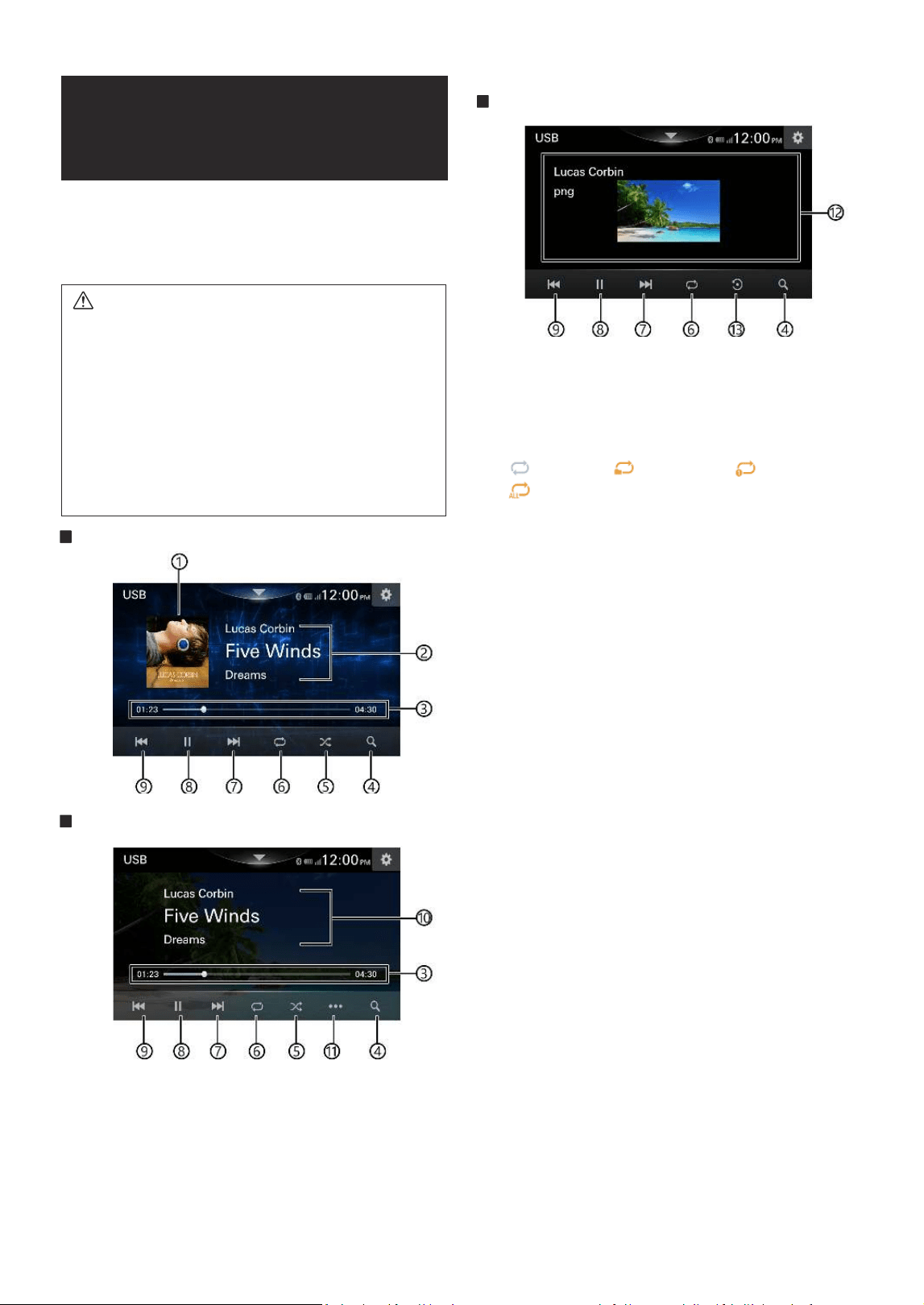
USB Audio mode screen
USB Video mode screen
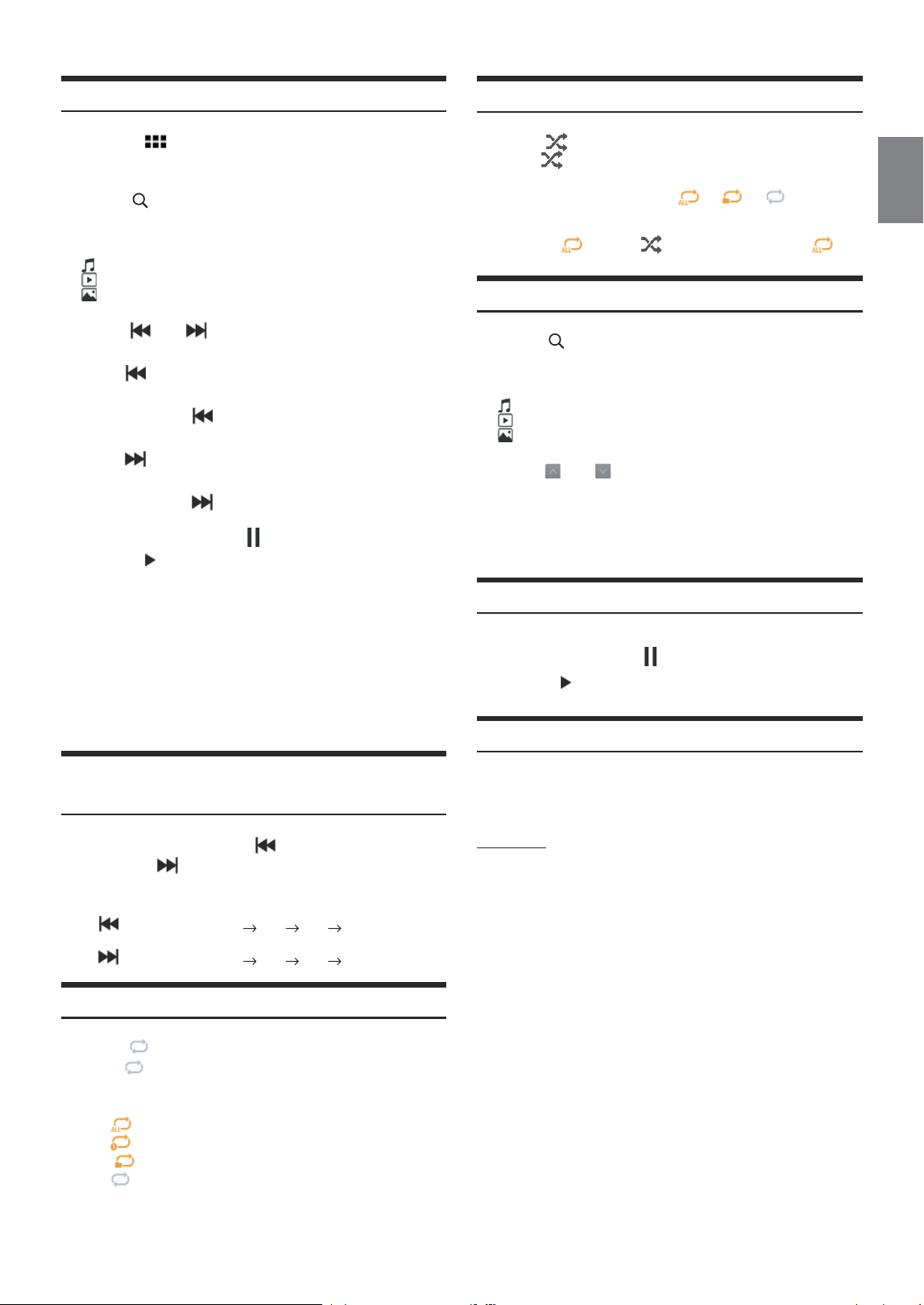
USB Photo mode screen
①
Artwork display
②
Information display
③
Elapsed time/Total time for playing
④
Displays the USB List screen
⑤
Shuffle mode
⑥
[
] repeat_off, [ ] repeat_folder, [ ] repeat_one,
[
] repeat_all,
⑦
Finds the beginning of next chapter/Fast-forwards when
touched for at least 2 second
⑧
Pause and Play
⑨
Finds the beginning of the current file/Finds a previous file
within 1 second after playback starts/Fast-reverses when
touched for at least 2 second
⑩
Video information display
⑪
Video Setup display
⑫
Photo information display
⑬
Rotate mode
• For your safety, video is not displayed and only audio can be heard while
driving.
15
-
EN
Playback
1
Touch the
(HOME) button and select USB mode.
The display shows the USB mode screen.
2
Touch [
] (Search).
3
Select the desired mode.
: USB Audio mode
: USB Video mode
: USB Photo mode
4
Touch [
] or [ ] to select the desired track(file).
Returning to the beginning of the previous track (file):
Touch [
].
Fast reverse the current track :
Touch and hold 2s [
].
Advancing to the beginning of the next track (file) :
Touch [
].
Fast forward the current track :
Touch and hold 2s [
].
5
To pause playback, touch [
] .
Touching [
] again will resume playback.
• The playback time may not be correctly displayed when a VBR (Variable
Bit Rate) recorded file is played back.
• If there is tag information, artist name/album name/track name is
displayed.
• If there is no label information, no name is displayed.
• ID3 tag/WMA tag
If an MP3/WMA/AAC/FLAC/WAVE/Ogg/APE file contains ID3 tag/
WMA tag information, the ID3 tag/WMA tag information is displayed.
(e.g., song name, artist name, and album name)
Fast-forwarding/Fast-reversing (USB Audio/
Video)
During playback, touch and hold [ ] (Fast-reverse) or
touch and hold [
] (Fast-forward).
Touch and hold for more than 2 second to fast-forward/fast-reverse.
• Fast-reverse Speed:
touch [
] to change the speed, x4 x10 x32 off
• Fast-forward Speed:
touch [
] to change the speed, x4 x10 x32 off
Repeat Play (USB Audio/Video)
1
Touch [
] .
• The [
] button displays the currently selected mode.
2
Select your desired Repeat mode.
ALL
: All files are repeatedly played back.
One
: Only the file currently playing is repeatedly played back.
Folder
: Only files in a folder are repeatedly played back.
OFF
: Repeat mode is Off.
Shuffle Play (USB Audio/Video)
1
Touch [
] .
• The [
] button displays the currently selected mode.
2
Shuffle mode is only valid in [
] [ ] [ ].
3
When in [
] touch [ ], automatically switch [ ].
Searching for a Desired Song/Video/Photo
1
Touch [
] (Search).
2
Select the desired mode.
: USB Audio mode
: USB Video mode
: USB Photo mode
3
Touch [
] or [ ] to select the folder.
4
Touch your desired File name.
When you select a Folder name, repeat the same procedure to
select another Folder name or File name.
Slide Show (USB Photo)
The Slide Show shows photos that change every 5 seconds.
To pause playback, touch [
] .
Touching [ ] again will resume playback.
About USB List
You can select the desired mode
• Each page displays up to 5 files . if you want to view more than 5 files, swipe
down or touch alphabet to search
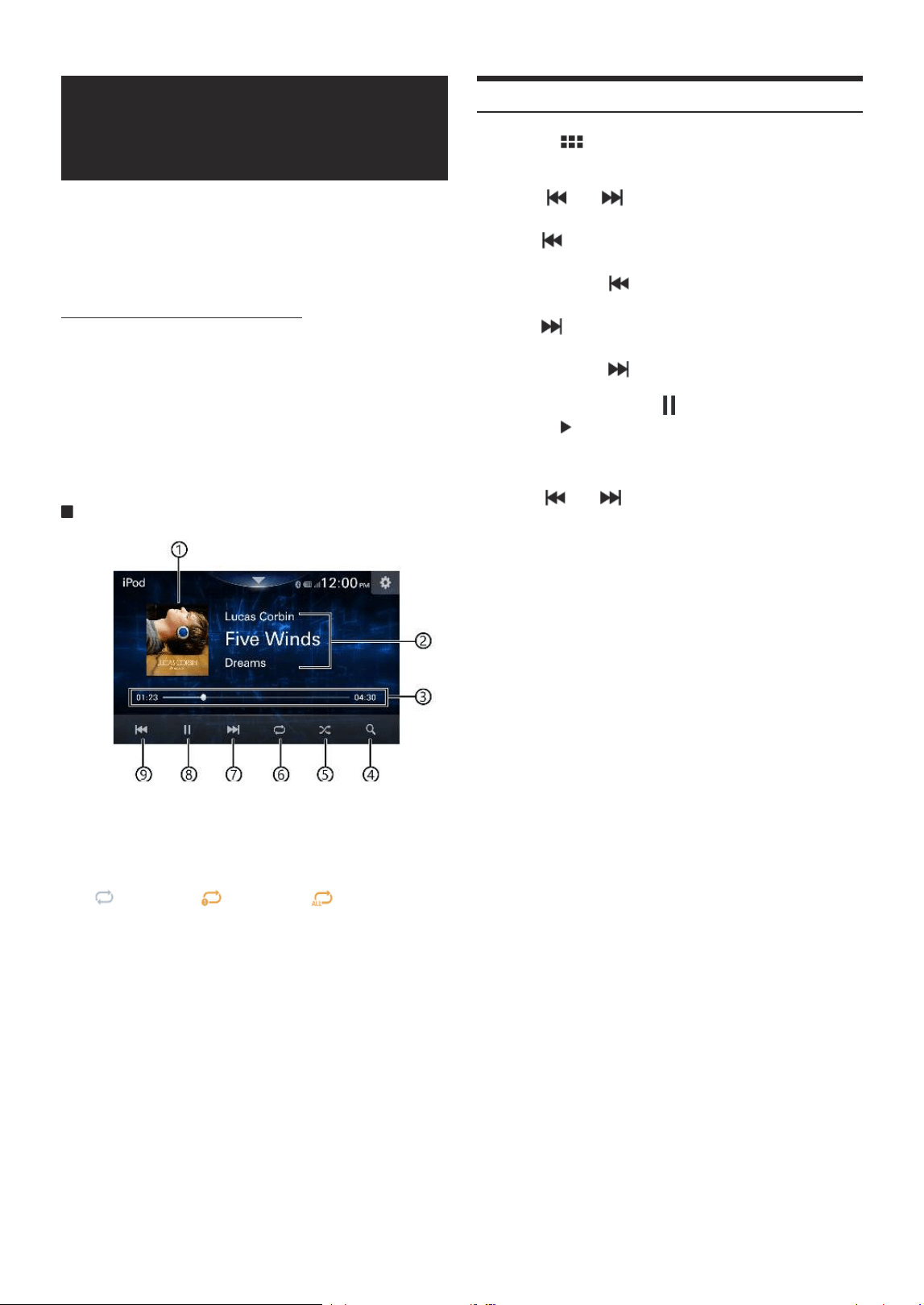
About order
Display and sort according to the head character
Display in the order of 1 -> 2 -> 3 below.
0: Folder :When there are folders ,the folders are displayed ahead of
the files
1: Number ( represented by "#" on the Right Search Bar )
2: English Alphabet
3: Shorting order of Unicode
Right Search Bar (order of list )
1: Number ( represented by "#" on the Right Search Bar )
2: English Alphabet
• Search only the files with numeric or English alphabetic headers
16
-
EN
iPod mode on iPhone
(Optional)
Before using this function, plug in your iPhone using a Lightning-USB
cable (supplied with iPhone) to the unit.
• This unit does not support video playback from iPhone which connected
to this unit via USB Connector.
• Internet or telephone function, etc., of the iPhone is not controllable
from the unit, but these functions can be controlled using the iPhone itself.
About iPhone models usable with this unit
• The following devices have been tested and shown to work
with this unit. Correct function of earlier versions cannot be
guaranteed.
iPhone 14 Pro Max, iPhone 14 Pro, iPhone 14 Plus, iPhone 14, iPhone
SE (3rd generation), iPhone 13 Pro Max, iPhone 13 Pro, iPhone 13,
iPhone 13 mini, iPhone 12 Pro Max, iPhone 12 Pro, iPhone 12, iPhone
12 mini, iPhone SE (2nd generation), iPhone 11 Pro Max, iPhone
11 Pro, iPhone 11, iPhone XS Max, iPhone XS, iPhone XR, iPhone X,
iPhone 8 Plus, iPhone 8, iPhone 7 Plus, iPhone 7, iPhone SE, iPhone
6s Plus, iPhone 6s, iPhone 6 Plus, iPhone 6
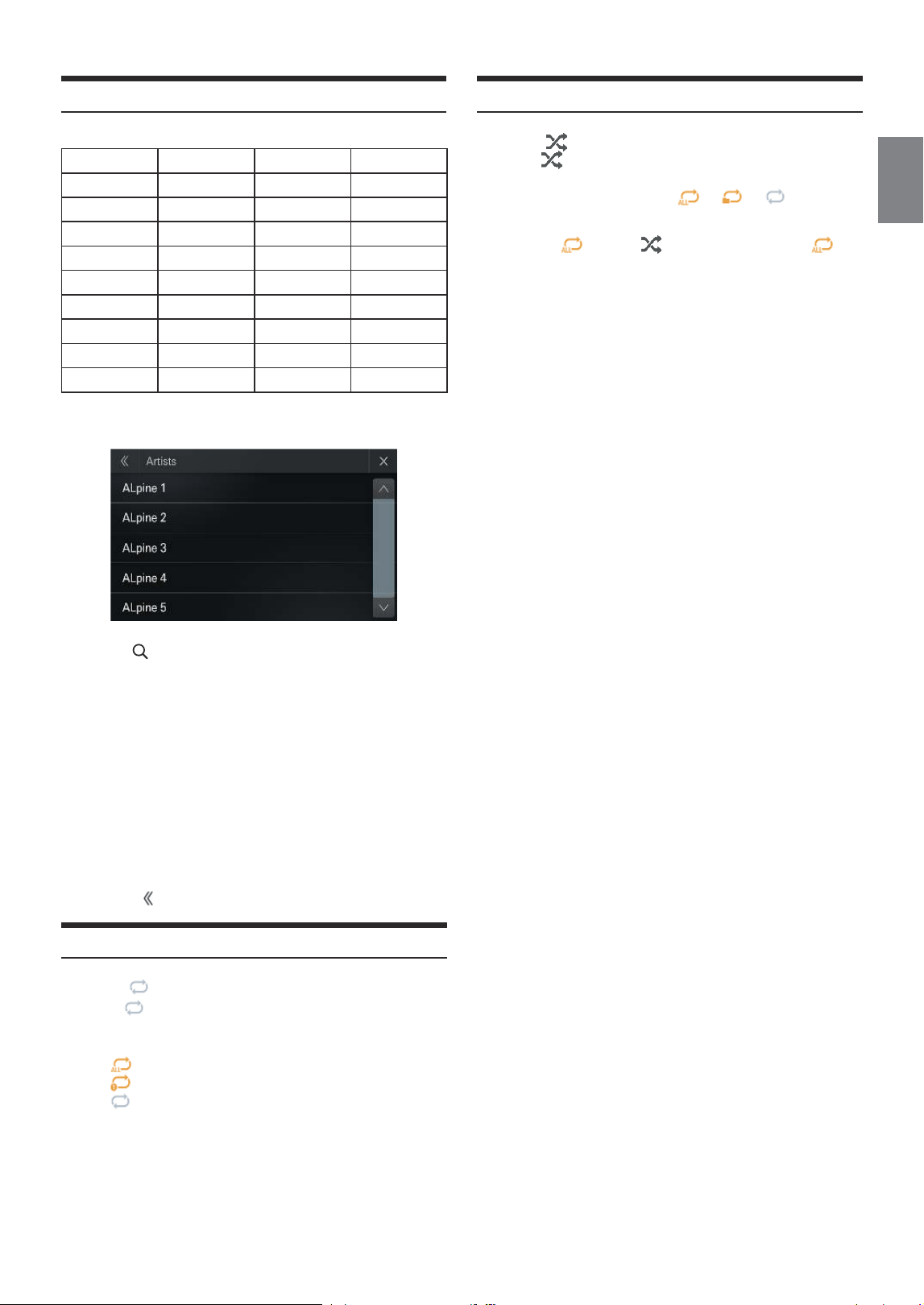
iPod main screen example
①
Artwork display
②
Information display*
③
Elapsed time/Total time for playing
④
Displays the iPod List screen
⑤
Shuffle mode
⑥
[
] repeat_off, [ ] repeat_one, [ ] repeat_all
⑦
Finds the beginning of next chapter/Fast-forwards
When touched for at least 2 second
⑧
Pause and Play
⑨
Finds the beginning of the current file/Finds a previous file
within 1 second after playback starts/Fast-reverses when
touched for at least 2 second
* Podcast mode.
Playback
1
Touch the
(HOME) button and select iPod mode.
The display shows the iPod mode screen.
2
Touch [
] or [ ] to select the desired track(file).
Returning to the beginning of the previous track (file):
Touch [
].
Fast reverse the current track :
Touch and hold 2s [
].
Advancing to the beginning of the next track (file) :
Touch [
].
Fast forward the current track :
Touch and hold 2s [
].
3
To pause playback, touch [
] .
Touching [
] again will resume playback.
• If a song is playing on the iPhone before it is connected to the unit, it
will continue playing when it is connected.
• An episode may have several chapters. The chapter can be changed by
touching [
] or [ ].
• If the artist, album or song name, created in iTunes, has too many
characters, songs may not be played back when connected to the
unit. Therefore, a maximum of 255 characters is recommended. The
maximum number of characters for the unit is 255.
• Some characters may not be correctly displayed.
17
-
EN
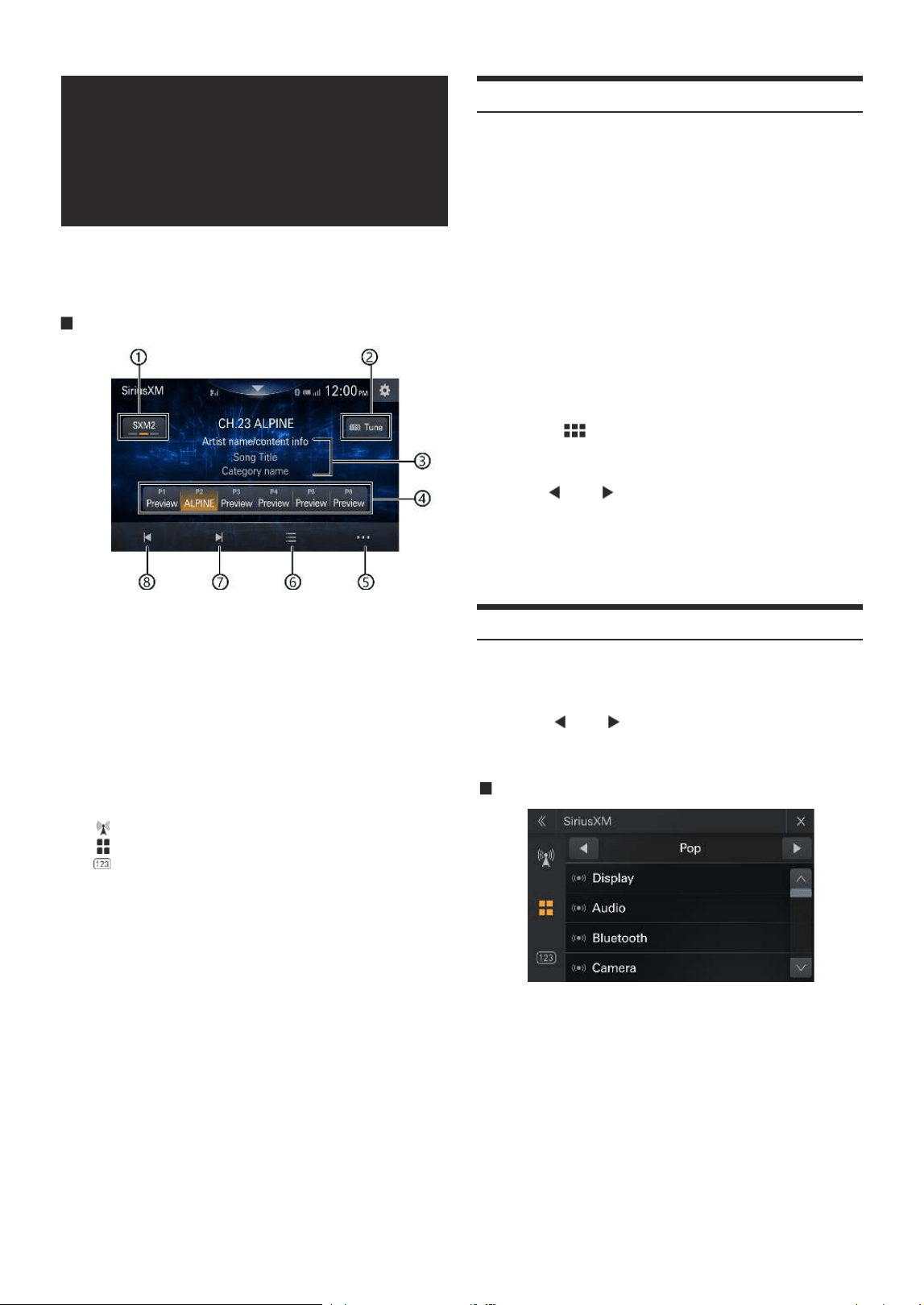
Searching for a Music File
<Music Search Menu>
Hierarchy 1 Hierarchy 2 Hierarchy 3 Hierarchy 24
Radio — — —
Playlists Songs — —
Artists Albums Songs —
Albums Songs — —
Songs — — —
Genres Artists Albums Songs
Composers Albums Songs —
Podcasts Episodes — —
Audiobook — — —
Repeat Play
1
Touch [
] .
• The [
] button displays the currently selected mode.
2
Select your desired Repeat mode.
ALL
: All files are repeatedly played back.
One
: Only the file currently playing is repeatedly played back.
OFF
: Repeat mode is Off.
1
Touch [
] (Search) during playback.
2
Touch [Artists].
The Artists search screen is displayed.
3
Select the desired artist.
4
Touch the desired album’s name.
All songs of the selected album are displayed
5
Touch the desired song’s name.
The selected song is played back.
• If you touch [
], the category browsing mode screen is displayed.
For example: Searching by Artist name
The following example explains how an Artists search is performed.
Shuffle Play
1
Touch [
] .
• The [
] button displays the currently selected mode.
2
Shuffle mode is only valid in [
] [ ] [ ].
3
When in [
] touch [ ], automatically switch [ ].
18
-
EN
Channels are grouped into categories based on the type of content
heard on the channels.
1
Touch [
] or [ ] to select the category browsing mode.
The channels within the category of the current channel are
listed.
Category browsing mode screen example
2
Select the desired channel.
SiriusXM® Satellite
Radio Operation
(Optional)
SiriusXM Tuner operation:
When an optional SiriusXM Tuner is connected to this unit, the
following operations may be performed.
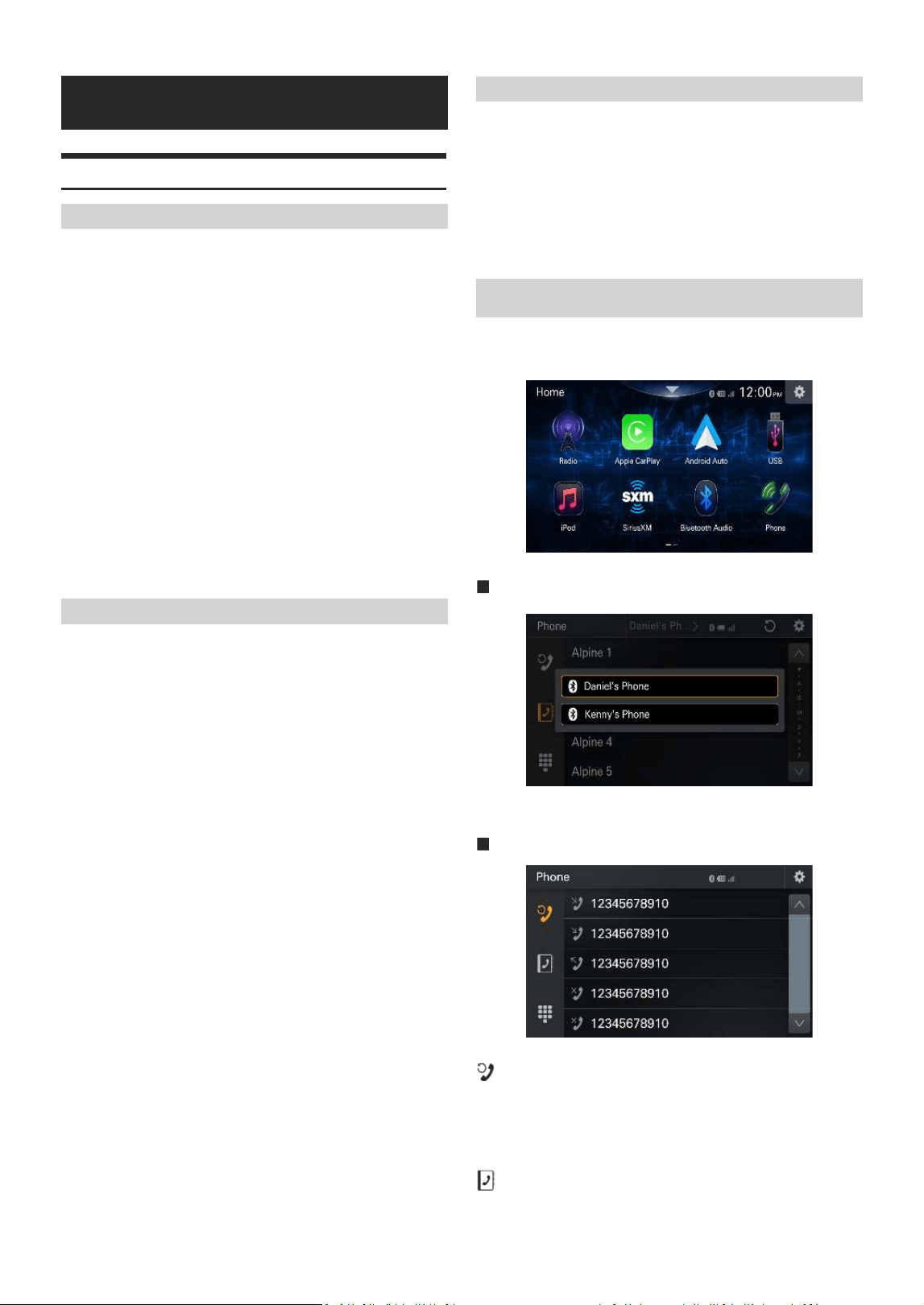
SiriusXM main screen example
①
Band button
Switches a band.
②
Tune
Select the specified channel manually
③
Information display
channel name, Artist Basic, Song Basic, Cat name
④
Preset buttons
Displays the preset channels with a short touch.
Touch for at least 1.5 second to memorize the current channel
as a preset channel.
Select the channel number
⑤
Displays the SiriusXM setup screen
⑥
Displays the SiriusXM List screen
All channel:Displays all channel
Category:Select channel category
Tune:Select the specified channel manually
⑦
Changes to the next channel
⑧
Changes to the previous channel
Receiving Channels with the SiriusXM Tuner
About SiriusXM Satellite Radio
Only SiriusXM brings you more of what you love to listen to, all in one
place. Get over 140 channels, including commercial-free music plus
the best sports, news, talk, comedy and entertainment. Welcome to
the world of satellite radio. A SiriusXM Vehicle Tuner and Subscription
are required. For more information, visit www.siriusxm.com.
In the USA, you can activate online or by calling SiriusXM Listener
Care:
• Visit www.siriusxm.com/activatenow
• Call SiriusXM Listener Care at 1-866-635-2349
For Canadian Subscriptions, please contact:
• Visit www.siriusxm.ca/activate
• Call SiriusXM Customer Care at 1-888-539-7474
• The SiriusXM Satellite Radio controls on this unit are available only
when a SiriusXM Tuner is connected.
1
Touch the
(HOME) button and select SiriusXM mode.
The display shows the SiriusXM mode screen.
2
Touch [
] or [ ] to select the desired channel.
Touching and holding either button will rapidly browse
through the channels.
• Refer to the SiriusXM Tuner User Guide for details on how to install
the SiriusXM Tuner.
Tuning Channels by Category

19
-
EN
Checking the Sirius XM Radio ID Number
To subscribe to the SiriusXM Satellite Radio service, it is necessary to
locate and identify the Radio ID of your SiriusXM Tuner. You can check
the Radio ID on the bottom surface of the SiriusXM Tuner box. You can
also check it from this unit by performing the following procedure.
1
While receiving SiriusXM Radio, touch [
] or [ ] to
select channel “0”.
The unit displays the Radio ID number.
2
To cancel the Radio ID number display, change the channel to
a channel other than “0”.
• The SiriusXM Radio ID does not contain the letters I, O, S, or F.
Storing Channel Presets
You can store 18 of your favorite SiriusXM channels for easy recall
with Preset buttons.
1
Long press the Preset number you can store the channel.
A maximum of 6 channels can be displayed on a page.
2
Repeat the procedure to store up to 17 other channels.
A total of 18 channels can be stored in the preset memory.
• If you store a new channel into a preset which already has a channel
assigned, the current channel will be cleared and replaced with the
new one.
Tuning Channels Using Presets
Touch any one of the Preset numbers you have already
stored in the Preset mode screen.
The preset channel is received.
SiriusXM List
1
Touch [
] .
The list screen appears.
List item:All Channels / Category Name*/Tune
* The Category name for the channel currently being received is displayed.
• You can switch the category by touching [
] or [ ] on the List screen
after selecting a Search item.
List by ALL Channel
2
Touch [
] .
All Channels will be displayed in a list.
3
Touch the selected channel.
The channel you selected is received.
Searching by Category
2
Touch Category Name.
The channels within the category of the current channel are
listed.
3
Touch the selected channel.
The channel you selected is received.
Selecting The Channel Directly
1
Touch [
]or[ ].
The numeric keypad input screen is displayed.
2
Touch to input the channel number.
3
Touch [OK].
The selected channel is received.
Parental Lock Function
The Parental Control feature allows you to limit access to any SiriusXM
channels, including those with mature content. When enabled, the
Parental Control feature requires you to enter a passcode to tune to
the locked channels. For information on setting the Parental Control
passcode, see “Parental Control” (page 30).
When a locked channel is selected, “Channel [xxx] Locked” is
displayed and then the numeric keypad appears for you to enter the
passcode.
Input the 4-digit passcode you set in “Parental Control” (page30).
The initial number is 0000.
• If you input a wrong passcode, “Incorrect Pass Code entered” is displayed.
• After entering the correct passcode, you can access all locked channels without
entering the passcode again until the unit is powered off and then back on.
20
-
EN
Bluetooth® Operation
Hands-free Phone Control
Setup Before Using
About Bluetooth
Bluetooth is a wireless technology allowing communication between
a mobile device or personal computer over short distances. This
enables a hands-free call or data transmission between Bluetooth
compatible devices. Bluetooth transmission is available in the
unlicensed 2.4 GHz spectrum if the distance between devices is
within 10 meters. For details, refer to the Bluetooth website (http://
www.bluetooth.com/).
• Depending on the Bluetooth version, a Bluetooth compatible device may
not be able to communicate with this unit.
• Proper function of this unit with all Bluetooth compatible devices is not
guaranteed. For handling of the Bluetooth compatible device, consult your
Alpine dealer or Alpine website.
• Depending on the surroundings, Bluetooth wireless connection may be
unstable.
• When you place a call, or perform setup operations, be sure to stop your car
in a safe place.
• Depending on the connected Bluetooth compatible device(s), the function
may differ. Also refer to the Owner’s Manual of the connected device(s).
About the Hands-free Phone
Hands-free calls are possible when using a HFP (Hands-Free Profile)
compatible mobile phone with this unit.
• Avoid performing a hands-free call in heavy traffic or on narrow or
winding streets.
• Close the windows while calling to reduce background noise.
• If both calling parties are using hands-free devices, or the call is made in a
noisy location, difficulty hearing the other person’s voice is normal.
• Depending on telephone line conditions or certain mobile devices used,
voices may sound unnatural.
• When using a microphone, speak as directly as you can into the microphone
to obtain the best sound quality.
• Certain mobile phone features are dependent on the capabilities and settings
of your service provider’s network. Additionally, certain features may not be
activated by your service provider, and/or the provider’s network settings
may limit the feature’s functionality.
Always contact your service provider about feature availability and
functionality.
All features, functionality, and other product specifications, as well as
the information contained in the Owner’s Manual are based upon the
latest available information and are believed to be accurate at the time of
printing.
Alpine reserves the right to change or modify any information or
specifications without notice or obligation.
Before Using Bluetooth
Before using the hands-free phone/audio function, the following
settings need to be made.
Register a Bluetooth device in this unit.
• See “Bluetooth Setup” (page 40).
• You can search for this unit using a Bluetooth compatible device, and
then connect that Bluetooth compatible device to this unit. The device name
of this unit is “iLX-W670” and the initial number of the passcode is “0000.”
Also refer to the Owner’s Manual of the connected device(s).
Touch [Phone] in the HOME screen to display the Phone menu
screen.
Phone selection
You can select which phone to display after connecting two phones.
Phone menu screen example
Recent Events list
You can display up to 100 items, such as phone numbers of the most
recent incoming calls, missed calls and outgoing calls, and contact
names that are registered in the Phone Book. When 100 items exist in
the list, the oldest item is deleted when a further item is to be added.
Contacts list
You can make a phone call from the Phone Book, or edit the Phone
book.
21
-
EN
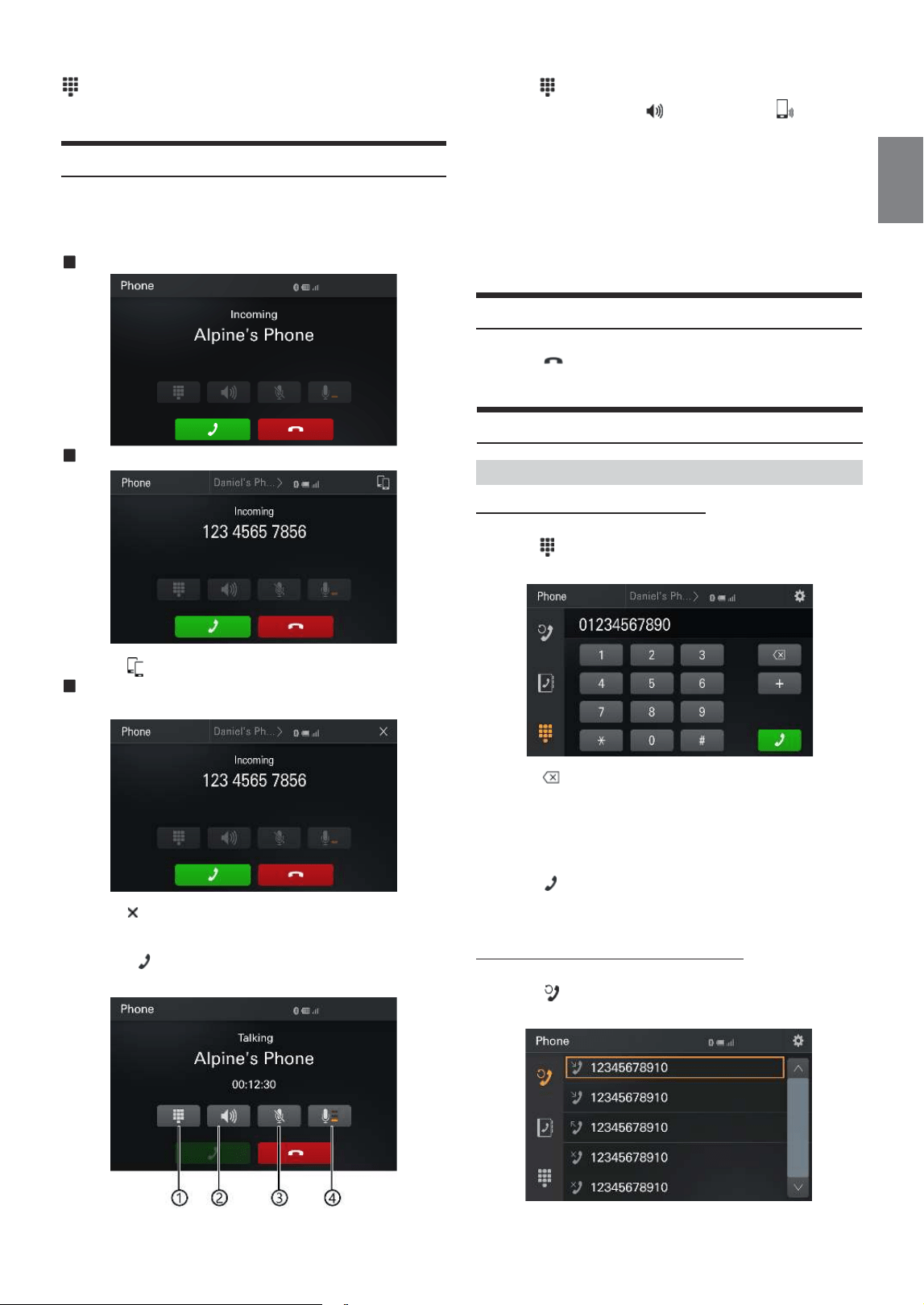
Entering a Phone Number to Make a Call
1
Touch
[Keypad].
The number input screen (Keypad) appears.
Touch [
] to delete an entered number.
2
Enter the phone number you wish to call.
• You can enter up to 20 digits.
3
Touch [
] (Call).
The phone call is started.
• To change the Bluetooth device, see “Bluetooth Setup” (page 38).
Making a phone call from the Recent Events list
1
Touch [
] to change to the Recent Events list screen.
The number input screen (Keypad) appears.
Answering a Call
1
An incoming call triggers the ringtone and an incoming
call display.
Phone Incoming screen example
Two phones incoming screen example
Touch [ ] to select which incoming call you want to answer.
When the unit is answering, another phone incoming
screen example
Touch [ ] to close the incoming screen without ending the call.
2
Touch [
] (Call).
The call starts.
Hanging up the Telephone
1
Touch [
] End Call.
The call finishes.
Calling
Making a phone call using the Phone Menu
①
Touch[
]Display Keypad screen
②
Touch switch Car speaker[
]Or Phone speaker[ ]
③
Touch switch mute on/ off
④
Adjust the volume level
• During a call, the audio for the current mode on the unit is muted. After
calling, playback will resume.
• When the caller’s number is transmitted to the system, if the caller’s name
is stored in the phone book, the name is displayed. If the name is not stored, the
number is displayed.
• Touch [Decline] to reject an incoming call.
Keypad screen
Use to type a phone number.
22
-
EN
Siri
Establish iPhone Bluetooth connection and wake up Siri from phone ,
below interface will pop up and the voice output is from the unit.
2
Touch the name of the contact or number you want to call.
The phone call is started.
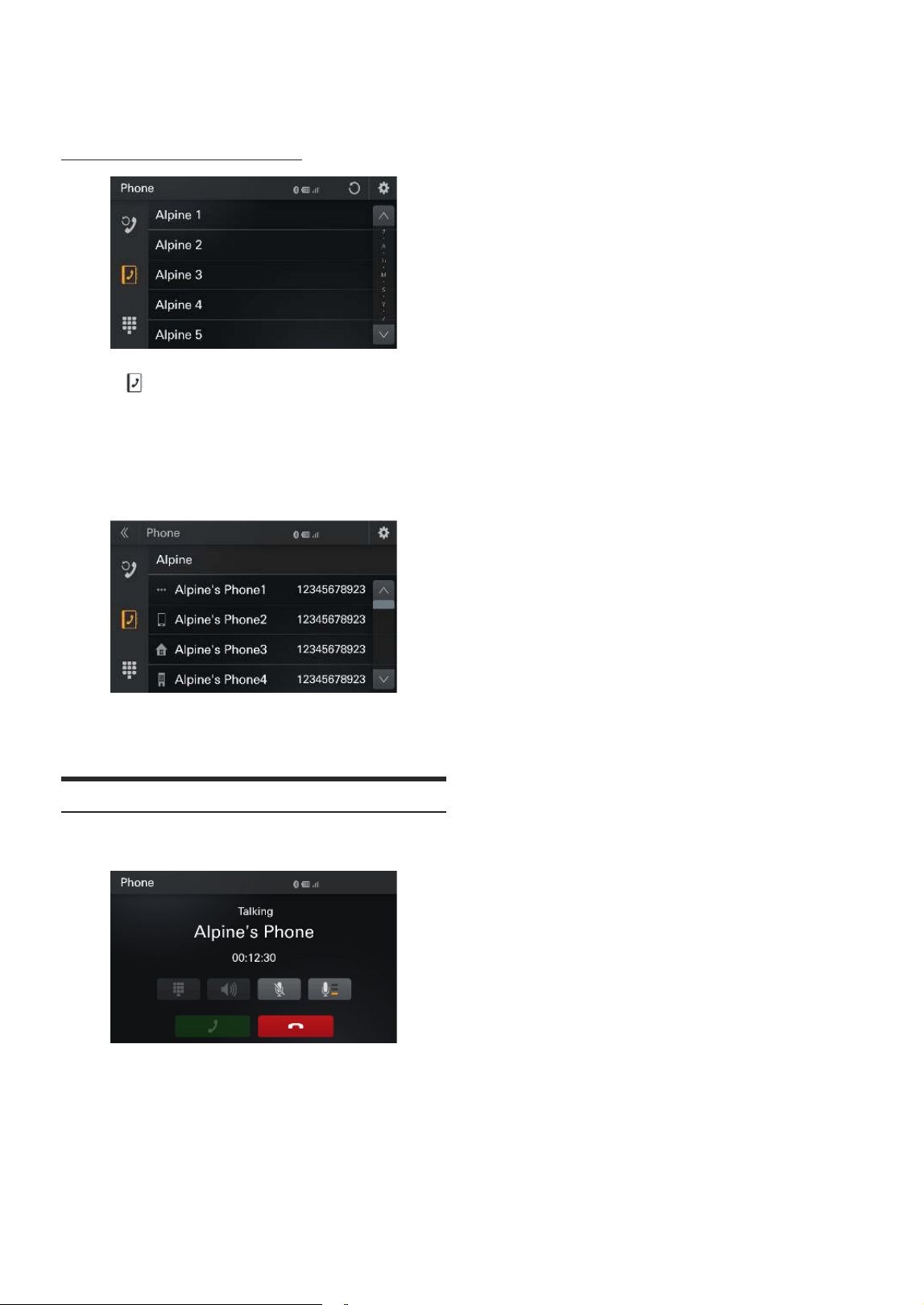
Calling from the Contacts list (Phone Book)
1
Touch [
] to change to the Contacts list screen.
The number input screen (Keypad) appears.
2
Touch the name of the contact or number you want to call.
3
Touch the phone number.
The Phone Operation screen is displayed.
4
Touch the number you want to call.
The phone call is started.
23
-
EN
Phone Book screen example
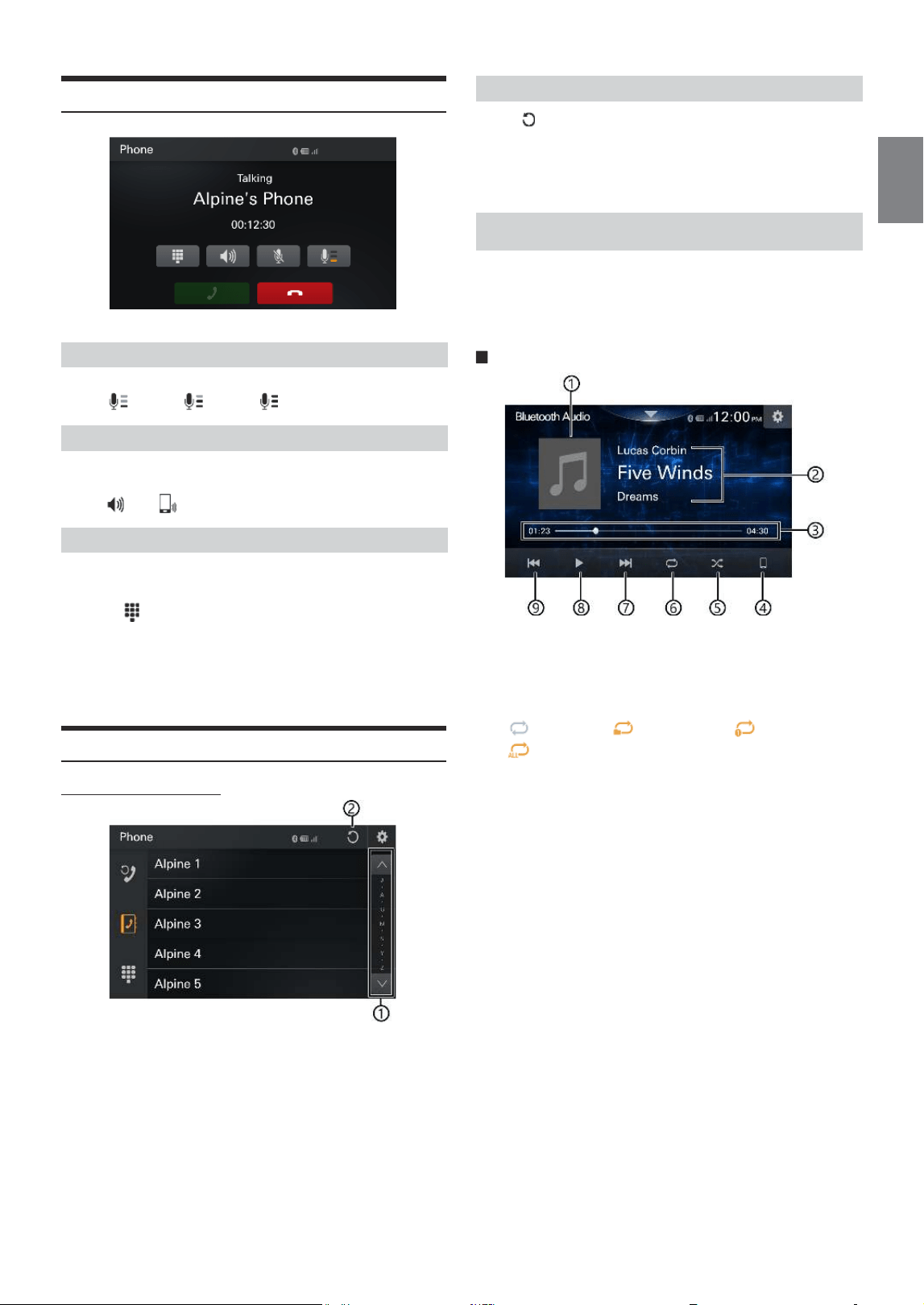
①
Use to narrow down your search for names, etc.
②
You can synchronize the system’s phone book with the
mobile phone’s phone book.
Phone Operation Screen
Adjusting the Speech Volume
You can adjust Mic. Level (Microphone Level).
Level 1:
Level 2: Level 3:
Changing the Voice Output
The voice output for calls is switchable between car speakers and the
mobile phone speaker.
Touch [
] or [ ].
DTMF (Touch-Tone) Function
Transmits a DTMF (Touch-Tone) during a call.
1
Touch
[Keypad].
The number input input screen (Keypad) appears.
2
Input number.
• You can transmit a Touch-Tone signal during a call.
Phone Book Function
Synchronizing the Phone Book
Touch [
] .
Synchronization of the phone books starts.
• You can store up to 1,000 registered name in the phone book.
• You can store up to 5 phone numbers by one person’s name.
If a Bluetooth compatible mobile phone, portable player, etc. is
connected by wireless, you can play back a song (operation is
controllable from the unit).
• Operation may vary, depending on the Bluetooth compatible device.
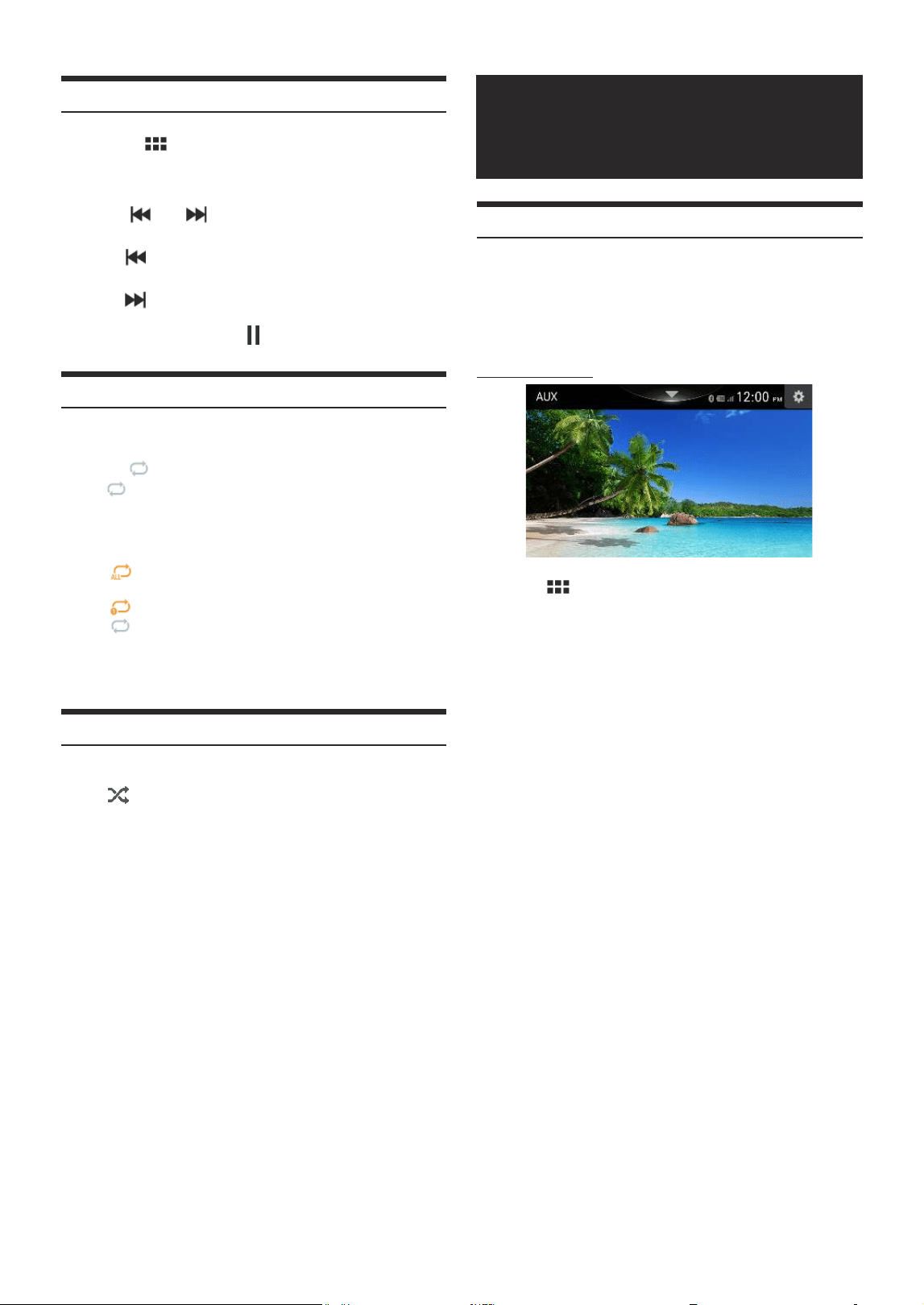
Bluetooth Audio main screen example
①
Default image display
②
Information display
③
Elapsed time/Total time for playing
④
Search device
⑤
Shuffle mode
⑥
[
] repeat_off, [ ] repeat_folder, [ ] repeat_one,
[
] repeat_all
⑦
Finds the beginning of next chapter
⑧
Pause and Play
⑨
Finds the previous file
• Song title/Artist title/Album title/Elapsed time do not display for
AVRCP Ver. 1.0.
• To play back audio, a mobile phone or a portable player conforming to
A2DP (Advanced Audio Distribution Profile) or AVRCP (Audio/Video
Remote Control Profile) is required.
Not all functions work with all devices.
• During a call, sound on the Bluetooth audio source is paused.
Compatible AVRCP versions: 1.0, 1.3, 1.4, 1.5, 1.6.2
• Available functions may differ depending on the AVRCP version.
Bluetooth® Audio
24
-
EN
AUX Operation
(Optional)
• Through AUX connection, you can display the videos or images output
from other devices
• For safety , video image can not be displayed when vehicle is moving.
To view the video image ,please stop in a safe zone and apply
the parking brake.
• A mini AV cable is required to make the connection (sold separately)
Further details are given in <<Installation Manual>>
AUX screen example
1
Touch [
]
2
Touch [AUX] Display AUX screen
AUX Operation
Playback
1
Touch the
(HOME) button and select Bluetooth
Audio mode.
The display shows the Bluetooth Audio mode screen.
2
Touch [
] or [ ] to select the desired track(file).
Returns the beginning of the previous file:
Touch [
].
Advance to the beginning of the next file:
Touch [
].
3
To pause playback, touch [
] .
Repeat Play
Available for AVRCP Ver. 1.0, 1.3, 1.4, 1.5, 1.6.2.
1
Touch [
] .
• [
] displays the currently selected mode.
2
Select your desired Repeat mode.
The selected Repeat mode changes the button.
ALL
: Once all of the songs have finished playing, play back is
repeated, starting with the first song.
One
: Only the track currently playing is repeatedly played back.
OFF
: Repeat mode is Off.
• Operations may differ depending on the connected Bluetooth
compatible device.
Shuffle Play
Available for AVRCP Ver. 1.0, 1.3, 1.4, 1.5, 1.6.2.
Touch [
] .
• All songs in the Bluetooth compatible devices are played back in
random sequence. Any one song does not play back again until all
songs have been played back.
• Operations may differ depending on the connected Bluetooth
compatible device.
25
-
EN
Camera Operation
(Optional)
Camera screen example
Setting item:
Display Reverse or 2nd camera video
Setting contents:
Camera Guide Off (Initial setting) / On
Caution prompt displays top/ bottom
Camera switch to display Rear/ 2nd camera
Close camera image
• No impacts on other modes (except video ,video shall be suspended,
When playing the audio,the audio shall continue playing),
Switch to this scree,other modes to run in the background
Camera Operation
Displaying the Camera Image from the Menu
screen
1
Touch the
(HOME) button.
The HOME screen is displayed.
2
Touch [Camera].
• Touch the screen while the camera image is being displayed.
• It displays
[
]
close, [
] / [ ]Caution display on button/top,
[
] guide line and [ ]camera switch keys.
• You can perform a Guide Adjustment for the rear or front view image.
For details, see “Rear Camera Setup” (page 39).
Displaying the Camera Image from the Menu
screen
1
Shift the gear lever to the reverse (R) position.
The rear view image is displayed while the car remains in
reverse.
2
If you shift the gear lever to a position other than reverse (R),
the monitor returns to the previous screen.
• Never depend solely on the camera when backing up. Always turn and look
and only use the camera for additional assistance.
• This function is effective when the reverse wire is properly connected.
• You can perform a Guide Adjustment for the rear view image. For details,
see “Rear Camera Setup” (page 39).
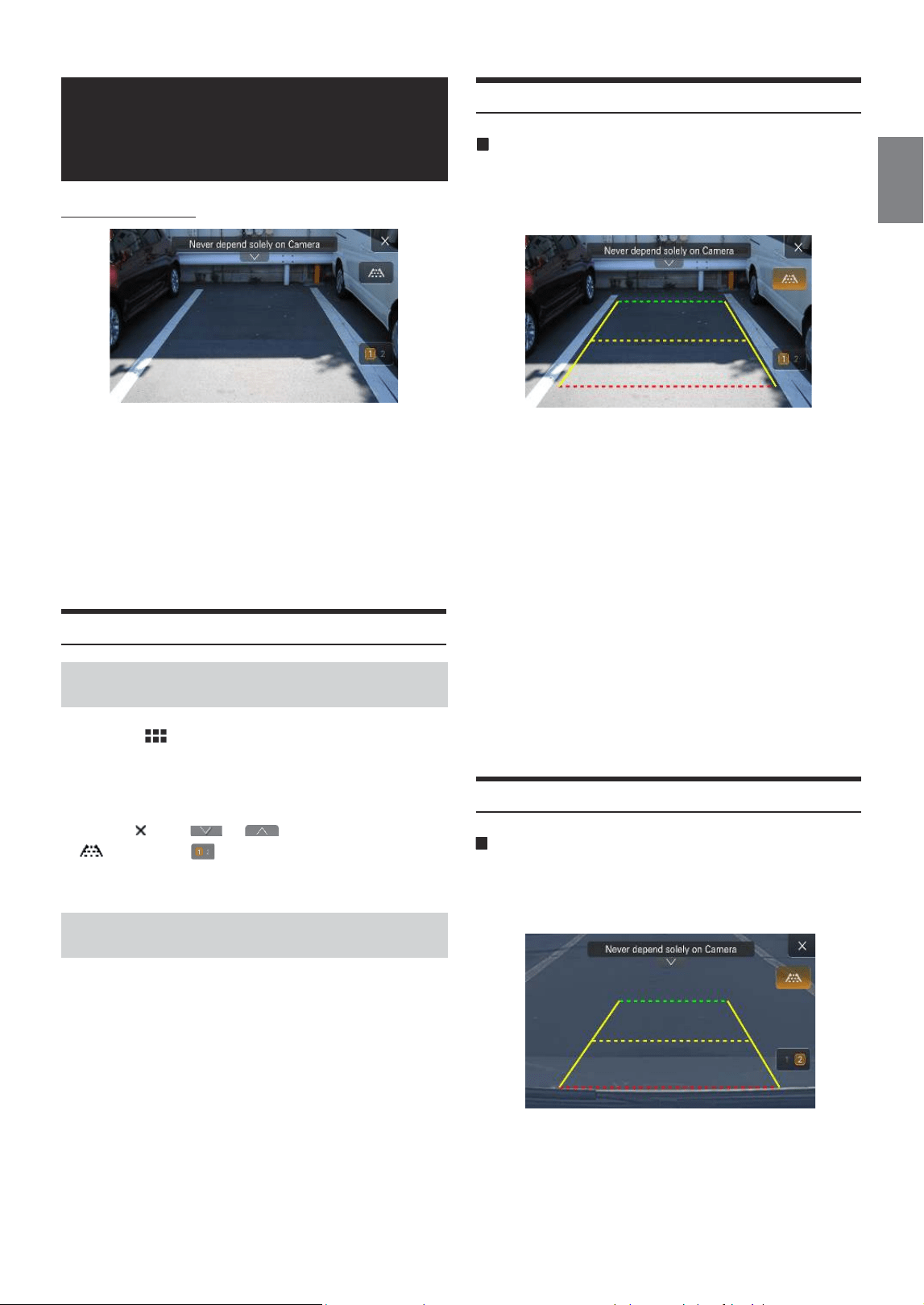
About the Rear Camera Guide
Indication mark meaning
When the car is put into reverse gear, the monitor switches to the
rear view camera image. Guides appear to help visualize the car’s
width and distance from the rear bumper.
Car width extension marks (red, yellow and green in order of
distance)
If properly calibrated, the marks indicate the car’s width. This helps
guide the car’s path when backing up in a straight line.
The marks represent the distance from the rear of the car (from the
rear end of the bumper).
• The marks do not move in synchronization with the steering wheel.
• Set the marks to suit the car’s width.
• Depending on the condition of the car or road surface, the range of vision
may vary.
• The camera has a limited range of vision. Objects at extreme angles to the
camera (e.g. under the bumper or at opposite ends of the bumper) may not
be in the its field-of-vision.
• The rear camera image may have a tint which is different from the actual
surroundings.
• Depending on the car, the guidance may deviate to the right or left. This is
not a malfunction.
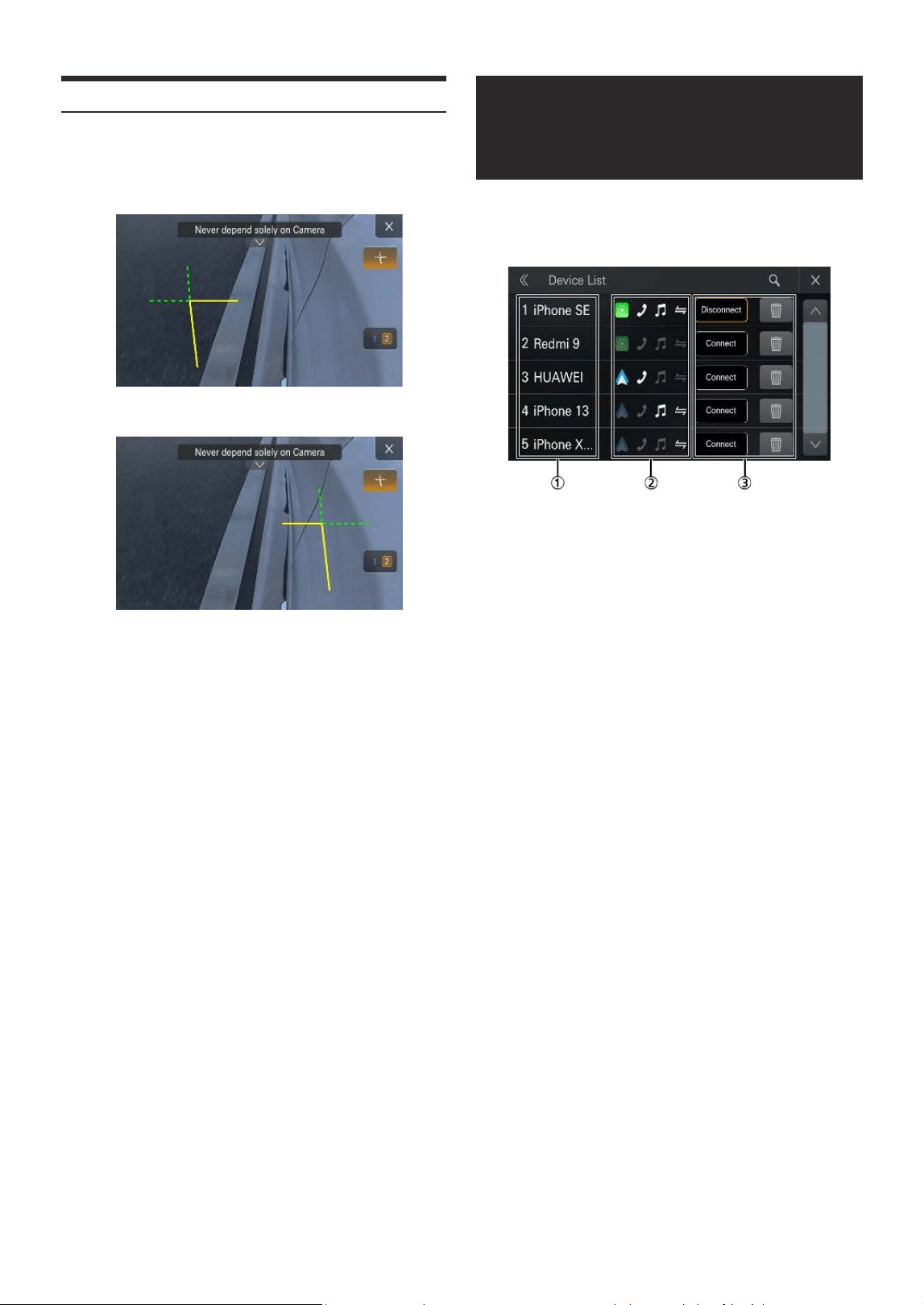
About the Front Camera Guide
Front camera guide
When 2nd camera was set to Front Camera, and the monitor switches
to the front view camera image. Guides appear to help visualize the
car’s width and distance from the front bumper.
Car width extension marks (red, yellow and green in order of
distance)
If properly calibrated, the marks indicate the car’s width. This helps
guide the car’s path when driving in a straight line.
The marks represent the distance from the front of the car (from the
front end of the bumper).
26
-
EN
Connection Operation
(Optional)
[Connetion] is used to connect/disconnect CarPlay/Android Auto, and
displays the Bluetooth connection status of HFP, A2DP and RFCOMM,
and saves the phone's Wi-Fi connection records.
①
The connection phone name
②
The connection state
The icon highlight indicates available, set-ash indicates
unavailable, hide indicates nonsupport.
③
Connection switch and delete button
The switch button is [Disconnect], it indicates that both HFP
and A2DP are available.
The switch button is [Connect] which indicates that at least
one of HFP and A2DP is unavailable.
[Delete] button Delete the phone connection record.
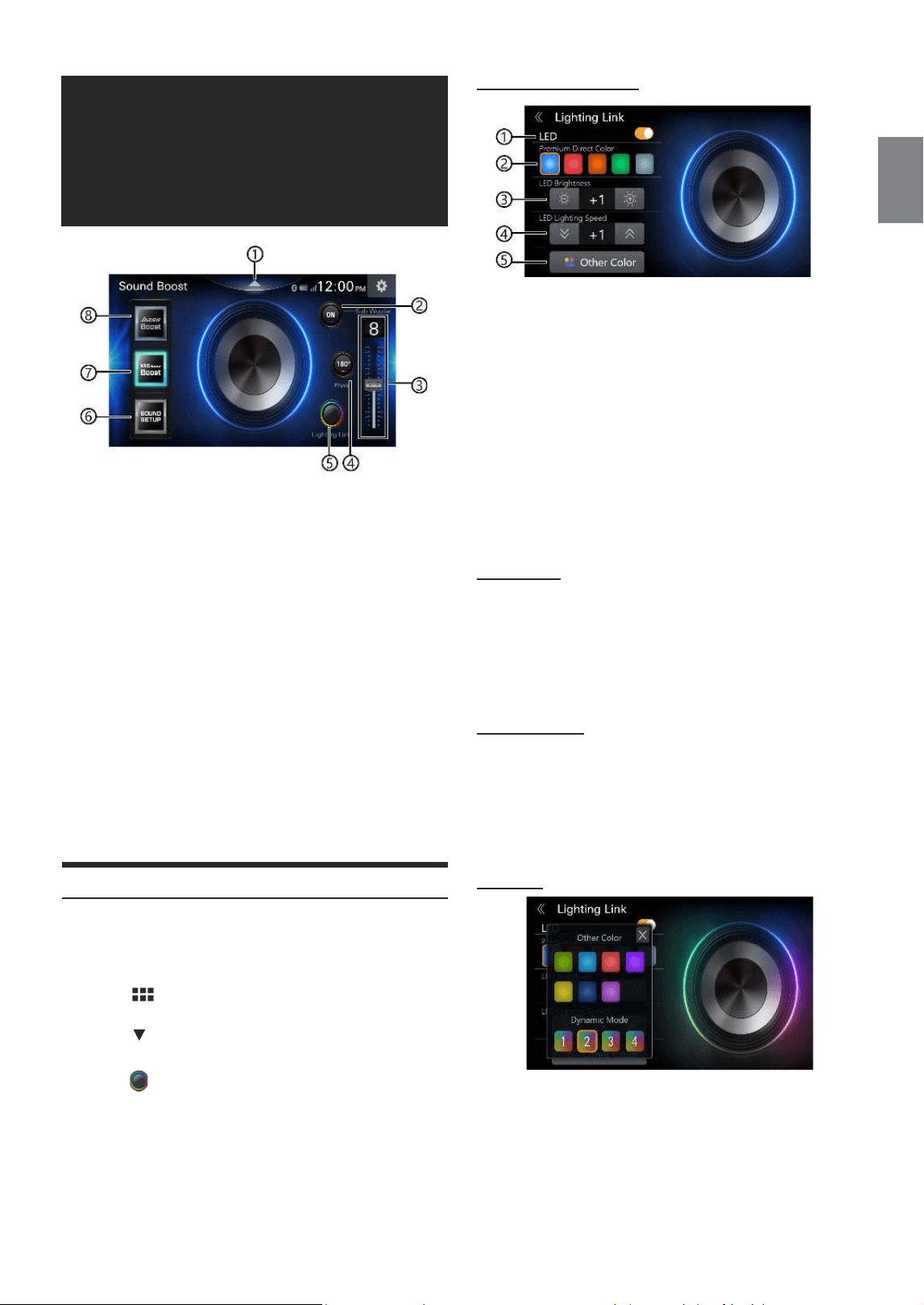
About the Side Camera Guide
When the 2nd camera was set to Side camera(left or right), and the
monitor switches to the left or right view camera image. Guides
appear to help visualize the car’s width and distance from the left or
right Fender.
Left camera image
right camera image
27
-
EN
Lighting Link screen example
①
LED On/Off
LED OFF: Premium Direct Color and LED Brightness and LED
Lighting Speed, Other Color is grayed out and cannot be selected.
And the Lighting of the connected system turns off.
②
Select Premium Direct Color
Blue,Red,Amber,Green,White
Each Lighting color changes in conjunction. Please refer to page
27 for the changed parts and their colors.
③
Adjust LED Brightness
Adjusts the brightness level of the LEDs on Lightinglink-
enabled models
-3 - +3 Initial: 0
④
Adjust LED Light Blinking Speed
⑤
Select Other Color
Select Premium Direct Color or Dynamic mode
LED Brightness
Adjusts the brightness level of the LEDs on Lightinglink-enabled
models
Setting item:
LED Brightness
Setting contents:
-3~+3,0(Initial setting)
LED Lighting Speed
Adjusts the level of LED Light Blinking Speed for Lightinglink
compatible models
Setting item:
LED Lighting Speed
Setting contents:
-5~+5,0(Initial setting)
Other Color
• Please connect the Lighting Link compatible model with the lighting
level and speed setting values set to 0.
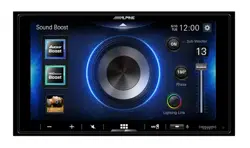
Sound Boost
and Lighting link
(Optional)
①
Current screen On/Off
②
Sub.Woofer On/Off
Linkage with the Settings in sound (page 36)
③
Adjust Sub.Woofer Level
Linkage with the Settings in sound (page 36)
④
Sub.Woofer Phase
Linkage with the Settings in sound (page 36)
0° (Initial setting), 180°
⑤
Lighting Link setting
can change the LED color of the system model, the keyColor of
this unit, and the background color in tandem.
⑥
Displays sound setup icon
touch the icon to sound setup screen
⑦
Max Mid Bass On/Off
Linkage with the Settings in sound (page 35)
⑧
Max Bass On/Off
Linkage with the Settings in sound (page 35)
• If Lightinglink is OFF in the settings, this icon will not be displayed
(page 40).
Lighting Link Setting Operation
When operating the Lighting color of the system model with
Lightinglink, it is necessary to connect a model that supports
Lightinglink. Check the Alpine website for compatible models.
1
Touch [
].
2
Touch [
]Display Sound Boost screen
3
Touch [
] Display Lighting Link screen

28
-
EN
Lighting Link settings Colors
• Lighting Link has 8 modes.
* key Color and Background Screen Color is linked when Lighting Link is ON. Please see page 33.
* If you select a color with the Lighting Link function, it will all change to the selected color pattern regardless of
the current color settings for each.
* BackgroundScreen color and keyColor can be changed individually after setting Lighting Link (page 33).
• Lighting Link System model is option.
Lighting Link
Setting Colors
Premium Direct color select
Other
colors
Dynamic
Mode
LED OFF
Red Blue Green Amber White 7 colors
Lighting Link
& Sound boost
background,
Sub.W Ring Color
Red Blue Green Amber White Rainbow1 Rainbow2 -
Key Color* Red Blue Green Amber White White White select
Background
Screen Color*
Red Blue Green Amber White White White User