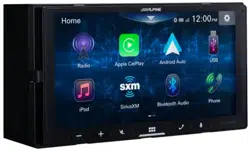
Designed by ALPINE Japan
EN
FR
ES
ALPINE ELECTRONICS OF AMERICA, INC.
1500 Atlantic Blvd,
Auburn Hills, Michigan 48326, U.S.A.
Phone 1-800-ALPINE-1 (1-800-257-4631)
7-INCH AUDIO/VIDEO RECEIVER
iLX-W650
• OWNER’S MANUAL
Please read before using this equipment.
• MANUAL DE OPERACIÓN
Léalo antes de utilizar este equipo.
• MODE D’EMPLOI
Veuillez lire avant d’utiliser cet appareil.
Thank you for purchasing this Alpine product. Please take a moment to protect your purchase by
registering your product now at the following address: www.alpine-usa.com/registration
.
You will be informed of product and software updates (if applicable), special promotions, news
about Alpine.
Merci d’avoir acheté ce produit Alpine. Nous vous invitons à consacrer un moment à la protection
de votre achat en enregistrant votre produit dès maintenant à l’adresse suivante :
www.alpine-usa.com/registration.
Vous serez tenu informé des mises à jour des produits et des logiciels (le cas échéant), des
promotions spéciales et de l’actualité d’Alpine.
Gracias por adquirir este producto Alpine. Con solo unos pocos pasos podrá proteger su producto,
registrándolo a través de la siguiente dirección: www.alpine-usa.com/registration
.
Recibirá información sobre nuevos productos y software, promociones especiales y novedades
sobre Alpine.

2-EN
Contents
Operating Instructions
PRECAUTIONS
IMPORTANT INFORMATION ........................ 5
WARNING
Points to Observe for Safe Usage ........................ 5
WARNING ...................................................... 5
CAUTION ....................................................... 6
NOTICE .......................................................... 7
Getting Started
Location of Controls ............................................. 9
Turning Power On or Off .................................... 9
Turning the System On ........................................ 9
Adjusting the Volume .......................................... 9
Lowering Volume Quickly ................................... 9
Touch Screen Operation .................................... 10
About the HOME Screen ................................... 10
About the Indicator Display .............................. 11
How to Input Characters and Numbers
(Keypad) ........................................................... 11
Setup
Setup Operation .................................................. 12
Sound Setup
Simple Sound Settings ........................................ 13
Setting the Fader/Balance ............................... 13
Adjusting the Bass/Middle/Treble ................ 13
Setting an Equalizer ........................................ 13
Setting the Subwoofer ..................................... 14
Advanced sound settings ................................... 14
Adjusting the Crossover Settings
(X-Over) ........................................................ 14
Adjusting the Parametric Equalizer Curve
(P-EQ) ........................................................... 15
Adjusting the Time Correction (TCR) ......... 15
Setting the Media Xpander (MX) .................. 16
Setting Defeat ................................................... 16
About the Crossover ........................................... 16
About Time Correction ..................................... 17
Volume Setup
Phone Volume Setup .......................................... 18
Adjusting the Ring Tone Level ...................... 18
Adjusting the Caller Level .............................. 18
Adjusting the Microphone Level .................. 18
Volume Setup except for Phones (Other) ....... 18
Volume Setting ................................................ 18
System Setup
Clock Setup .......................................................... 19
Screen/Lighting Customize (Dimmer) ............ 19
Setting the Brightness of the Backlighting
(Dimmer) ...................................................... 19
Adjusting the Minimum Level of
Backlight ....................................................... 19
Adjusting the Dimmer of Button Lighting at
Night .............................................................. 19
Language Setup ................................................... 19
Reset ...................................................................... 20
Connectivity Setup
SiriusXM Setup
Parental Lock ....................................................... 21
Bluetooth Setup
Device Setup ........................................................ 22
Pairing the Bluetooth Device ......................... 22
Setting the Bluetooth Device ......................... 22
Deleting a Bluetooth Device from the list .... 22
Displaying Bluetooth Information ............... 22
Searching for a Bluetooth Device .................. 22
Auto Connection ............................................. 22
Downloading the Phonebook ........................ 22
Camera Setup
Camera Primary and Secondary Setting ...... 23
Camera Picture Quality Setup ....................... 23
Setting the Camera Signal Input ................... 23
Turning the Rear Camera Guide On/Off .... 23
Adjusting the Rear Camera Guide ................ 24

3-EN
Information
Apple CarPlay (Optional)
Access to Apple CarPlay .................................... 25
Android Auto (Optional)
What is Android Auto ........................................ 25
Activate Android Auto ....................................... 25
Radio
Radio Basic Operation
Listening to the Radio ......................................... 26
Presetting Stations Manually ............................. 26
Presetting Stations Automatically ..................... 26
Tuning to Preset Station .................................... 26
Scanning Stations ................................................ 26
Scanning Preset Stations .................................... 26
USB Flash drive (Optional)
Playback ................................................................ 28
Fast-forwarding/Fast-reversing
(USB Video) ..................................................... 28
Repeat Play (USB Audio or USB Video) ......... 28
Shuffle Play (USB Audio or USB Video) ......... 28
Searching for a Desired Song/Video/Photo .... 28
Slide Show (USB Photo) ..................................... 28
About USB Video format ................................... 28
iPod mode on iPhone (Optional)
Playback ................................................................ 29
Searching for a Music File .................................. 30
Repeat Play ........................................................... 30
Shuffle Play ........................................................... 30
SiriusXM Satellite Radio Operation
(Optional)
Receiving Channels with the SiriusXM
Tuner ................................................................. 31
Tuning Channels by Category ........................... 31
Changing the Display ......................................... 32
Checking the SiriusXM Radio ID Number ..... 32
Storing Channel Presets ..................................... 32
Tuning Channels using Presets ......................... 32
Search Function ................................................... 32
Selecting the Channel Directly .......................... 32
Parental Lock Function ...................................... 32
Bluetooth Operation
Setup Before Using .............................................. 33
About Bluetooth .............................................. 33
About the Hands-free Phone ......................... 33
Before Using Bluetooth .................................. 33
Hands-free Phone Control
Answering a Call ................................................. 34
Hanging up the Telephone ................................ 34
Calling ................................................................... 34
Making a phone call using the Phone
Menu ............................................................. 34
Using Voice Recognition function ................... 35
Using Siri .......................................................... 35
Voice Dial Function ........................................ 36
Phone Operation Screen .................................... 36
Adjusting the Speech Volume ....................... 36
Changing the Voice Output ........................... 36
DTMF (Touch-Tone) Function .................... 36
Phone Book Function ......................................... 37
Synchronizing the Phone Book ..................... 37
Searching in the Phone Book ......................... 37
Bluetooth Audio
Playback ................................................................ 38
Repeat Play ........................................................... 38
Shuffle Play ........................................................... 38
Camera Operation (Optional)
Camera Operation .............................................. 39
Displaying the Camera Image from the Menu
screen ............................................................. 39
Displaying the rear view video while the car is in
reverse ........................................................... 39
About the Rear Camera Guide .......................... 39
Information
Product Software Update ................................... 41
About the Supported Formats ........................... 41
About MP3/WMA/AAC/FLAC/WAV ........ 41
In Case of Difficulty ............................................ 43
If this Message Appears ...................................... 44
Specifications ....................................................... 45

4-EN
Installation and
Connections
WARNING .................................................... 46
CAUTION ..................................................... 46
Precautions ................................................. 46
Accessory List ...................................................... 47
Installation ........................................................... 47
Caution concerning the installation
location .......................................................... 47
Mounting the Microphone ............................ 47
Installation example using the Original
Mounting Bracket ........................................ 47
Connections ......................................................... 48
If an ACC power supply is not available ...... 50
System Example ................................................... 51
LIMITED WARRANTY
5-EN
Operating Instructions
IMPORTANT INFORMATION
FCC COMPLIANCE STATEMENT
This equipment has been tested and found to comply with the limits
for a Class B digital device, pursuant to part 15 of the FCC Rules. These
limits are designed to provide more reasonable protection against
harmful interference in a residential installation, and are more
stringent than “outdoor” requirements.
Operation is subjected to the following two conditions: (1) This
device may not cause harmful interference, and (2) this device must
accept any interference received, including interference that may
cause undesired operation.
This equipment generates, uses, and can radiate radio frequency
energy and, if not installed and used in accordance with the
instructions, may cause harmful interference to radio
communications. However, there is no guarantee that interference
will not occur in a particular installation. If this equipment does cause
harmful interference to radio or television reception, which can be
determined by turning the equipment off and on, you are
encouraged to try to correct the interference by one of the following
measures:
• Reorient or relocate the receiving antenna.
• Increase the separation between the equipment and the receiver.
• Connect the equipment into an outlet on a circuit different from
that to which the receiver is connected.
• Consult an experienced radio/TV technician.
Points to Observe for Safe Usage
• Read this manual carefully before using this disc and the system
components. They contain instructions on how to use this product
in a safe and effective manner. Alpine cannot be responsible for
problems resulting from failure to observe the instructions in this
manual.
• This manual uses various pictorial displays to show you how to use
this product safely and to alert you to potential dangers resulting
from improper connections and operation. Following are the
meanings of these pictorial displays. It is important to fully
understand the meanings of these pictorial displays in order to use
this manual and the system properly.
• This product may be used with software applications. Please follow
all usage instructions and warnings when using this product at all
times. Do not use this product or any software application in a
manner which will hinder safe operation of your vehicle.
INSTALL THE PRODUCT CORRECTLY SO THAT THE DRIVER CANNOT WATCH
TV/VIDEO UNLESS THE VEHICLE IS STOPPED AND THE EMERGENCY
BRAKE IS APPLIED.
It is dangerous for the driver to watch TV/Video while driving a
vehicle. Installing this product incorrectly enables the driver to
watch TV/Video while driving. This may cause a distraction,
preventing the driver from looking ahead, thus causing an accident.
The driver or other people could be severely injured.
DO NOT WATCH VIDEO WHILE DRIVING.
Watching the video may distract the driver from looking ahead of
the vehicle and cause an accident.
DO NOT OPERATE ANY FUNCTION THAT TAKES YOUR ATTENTION AWAY
FROM SAFELY DRIVING YOUR VEHICLE.
Any function that requires your prolonged attention should only be
performed after coming to a complete stop. Always stop the vehicle
in a safe location before performing these functions. Failure to do so
may result in an accident.
KEEP THE VOLUME AT A LEVEL WHERE YOU CAN STILL HEAR OUTSIDE
NOISES WHILE DRIVING.
Excessive volume levels that obscure sounds such as emergency
vehicle sirens or road warning signals (train crossings, etc.) can be
dangerous and may result in an accident. LISTENING AT LOUD
VOLUME LEVELS IN A CAR MAY ALSO CAUSE HEARING
DAMAGE.
MINIMIZE DISPLAY VIEWING WHILE DRIVING.
Viewing the display may distract the driver from looking ahead of
the vehicle and cause an accident.
DO NOT DISASSEMBLE OR ALTER.
Doing so may result in an accident, fire or electric shock.
USE ONLY IN CARS WITH A 12 VOLT NEGATIVE GROUND.
(Check with your dealer if you are not sure.) Failure to do so may
result in fire, etc.
PRECAUTIONS
WARNING
WARNING
• Operation of the system while driving is dangerous. Users
should stop vehicle before operating the software.
• Road conditions and regulations take precedence over
information contained on the map display: observe actual
traffic restrictions and circumstances while driving.
• This software is designed for use exclusively in the unit. It
cannot and may not be used in conjunction with other
hardware.
WARNING
This symbol means important instructions. Failure
to heed them can result in serious injury or death.
6-EN
KEEP SMALL OBJECTS SUCH AS SCREWS OUT OF THE REACH OF
CHILDREN.
Swallowing them may result in serious injury. If swallowed, consult
a physician immediately.
USE THE CORRECT AMPERE RATING WHEN REPLACING FUSES.
Failure to do so may result in fire or electric shock.
DO NOT BLOCK VENTS OR RADIATOR PANELS.
Doing so may cause heat to build up inside and may result in fire.
USE THIS PRODUCT FOR MOBILE 12V APPLICATIONS.
Use for other than its designed application may result in fire,
electric shock or other injury.
MAKE THE CORRECT CONNECTIONS.
Failure to make the proper connections may result in fire or
product damage.
BEFORE WIRING, DISCONNECT THE CABLE FROM THE NEGATIVE BATTERY
TERMINAL.
Failure to do so may result in electric shock or injury due to
electrical shorts.
DO NOT ALLOW CABLES TO BECOME ENTANGLED IN SURROUNDING
OBJECTS.
Arrange wiring and cables in compliance with the manual to
prevent obstructions when driving. Cables or wiring that obstruct
or hang up on places such as the steering wheel, gear lever, brake
pedals, etc. can be extremely hazardous.
DO NOT SPLICE INTO ELECTRICAL CABLES.
Never cut away cable insulation to supply power to other
equipment. Doing so will exceed the current carrying capacity of
the wire and result in fire or electric shock.
DO NOT DAMAGE PIPE OR WIRING WHEN DRILLING HOLES.
When drilling holes in the chassis for installation, take precautions
so as not to contact, damage or obstruct pipes, fuel lines, tanks or
electrical wiring. Failure to take such precautions may result in fire.
DO NOT USE BOLTS OR NUTS IN THE BRAKE OR STEERING SYSTEMS TO
MAKE GROUND CONNECTIONS.
Bolts or nuts used for the brake or steering systems (or any other
safety-related system), or tanks should NEVER be used for
installations or ground connections. Using such parts could disable
control of the vehicle and cause fire etc.
DO NOT INSTALL IN LOCATIONS WHICH MIGHT HINDER VEHICLE
OPERATION, SUCH AS THE STEERING WHEEL OR GEARSHIFT.
Doing so may obstruct forward vision or hamper movement etc.
and results in serious accident.
HALT USE IMMEDIATELY IF A PROBLEM APPEARS.
Failure to do so may cause personal injury or damage to the
product. Return it to your authorized Alpine dealer or the nearest
Alpine Service Center for repairing.
HAVE THE WIRING AND INSTALLATION DONE BY EXPERTS.
The wiring and installation of this unit requires special technical
skill and experience. To ensure safety, always contact the dealer
where you purchased this product to have the work done.
USE SPECIFIED ACCESSORY PARTS AND INSTALL THEM SECURELY.
Be sure to use only the specified accessory parts. Use of other than
designated parts may damage this unit internally or may not
securely install the unit in place. This may cause parts to become
loose resulting in hazards or product failure.
ARRANGE THE WIRING SO IT IS NOT CRIMPED OR PINCHED BY A SHARP
METAL EDGE.
Route the cables and wiring away from moving parts (like the seat
rails) or sharp or pointed edges. This will prevent crimping and
damage to the wiring. If wiring passes through a hole in metal, use a
rubber grommet to prevent the wire’s insulation from being cut by
the metal edge of the hole.
DO NOT INSTALL IN LOCATIONS WITH HIGH MOISTURE OR DUST.
Avoid installing the unit in locations with high incidence of
moisture or dust. Moisture or dust that penetrates into this unit may
result in product failure.
CAUTION
This symbol means important instructions. Failure
to heed them can result in injury or material
property damage.
7-EN
NOTICE
Product Cleaning
Use a soft dry cloth for periodic cleaning of the product. For more
severe stains, please dampen the cloth with water only. Anything
else has the chance of dissolving the paint or damaging the plastic.
Temperature
Be sure the temperature inside the vehicle is between +45°C
(+113°F) and 0°C (+32°F) before turning your unit on.
Maintenance
If you have problems, do not attempt to repair the unit yourself.
Return it to your Alpine dealer or the nearest Alpine Service Station
for servicing.
Protecting the USB connector
• Only an iPhone or USB flash drive can be connected to the USB
connector on this unit. Correct performance using other USB
products cannot be guaranteed.
• If the USB connector is used, be sure to use only the supplied
connector cable with the unit. A USB hub is not supported.
• Depending on the connected USB flash drive, the unit may not
function or some functions may not be performed.
• The audio file format that can be played back on the unit is
MP3/WMA/AAC/FLAC.
• Artist/song name, etc., can be displayed. Certain, special
characters may not be correctly displayed.
On Handling USB Flash drive
• This unit can control a memory storage device that supports the
USB Mass Storage Class (MSC) protocol. Playable audio file
formats are MP3, WMA, AAC and FLAC.
• USB Flash drive function is not guaranteed. Use USB flash drive
according to the terms of agreement. Read the USB flash drive
Owner’s Manual thoroughly.
• Avoid usage or storage in the following locations:
Anywhere in the car exposed to direct sunlight or high
temperatures.
Anywhere the possibility of high humidity or corrosive
substances are present.
• Fix the USB flash drive in a location where driver operation will
not be hindered.
• USB Flash drive may not function correctly at high or low
temperature.
• Use only certified USB flash drive. Note that even certified USB
flash drive, may not function correctly depending on its type or
state.
• Depending on the settings of the USB flash drive type, memory
state or encoding software, the unit may not play back or display
properly.
• USB Flash drive may take time to start playback. If there is a
particular file other than audio in the USB flash drive, it may take
considerable time before the file is played back or searched.
• The unit can play back “mp3,” “wma” or “m4a” file extensions.
• Do not add the above extensions to a file other than audio data.
This non-audio data will not be recognized. The resulting
playback may contain noise that can damage speakers and/or
amplifiers.
• It is recommended to back up important data on a personal
computer.
• Do not remove the USB device while playback is in progress.
Change SOURCE to something other than USB, then remove the
USB device to prevent possible damage to its memory.
CAUTION
Alpine accepts no responsibility for lost data, etc., even if data, etc., is
lost while using this product.

8-EN
• Windows Media and the Windows logo are trademarks, or
registered trademarks of Microsoft Corporation in the United
States and/or other countries.
• Apple, iPhone, and Siri are trademarks of Apple Inc., registered
in the U.S. and other countries. Apple CarPlay is a trademark of
Apple Inc.
• Use of the Made for Apple and Works with Apple badges means
that an accessory has been designed to connect specifically to the
Apple product(s) identified in the Made for Apple badge and to
work specifically with the technology identified in the Works
with Apple badge, and has been certified by the developer to
meet Apple performance standards. Apple is not responsible for
the operation of this device or its compliance with safety and
regulatory standards.
• Please note that the use of this accessory with an Apple product
may affect wireless performance.
• Use of the Apple CarPlay logo means that a vehicle user interface
meets Apple performance standards. Apple is not responsible for
the operation of this vehicle or its compliance with safety and
regulatory standards. Please note that the use of this product
with iPhone may affect wireless performance.
• Sirius, XM and all related marks and logos are trademarks of
Sirius XM Radio Inc. All rights reserved.
• Google, Android, Android Auto, Google Play and other marks
are trademarks of Google LLC.
• The Bluetooth® word mark and logos are registered trademarks
owned by the Bluetooth SIG, Inc. and any use of such marks by
Alpine Electronics, Inc. is under license.
• MPEG Layer-3 audio coding technology licensed from
Fraunhofer IIS and Thomson. Supply of this product only
conveys a license for private,non-commercial use and does not
convey a license nor imply any right to use this product in any
commercial (i.e. revenue-generation) real time broadcasting
(terrestrial, satellite, cable and/or any other media),
broadcasting/streaming via internet, intranets and/or other
networks or in other electronic content distribution systems,
such as pay-audio or audio-on-demand applications. An
independent license for such use is required. For details, please
visit
http://www.mp3licensing.com
9-EN
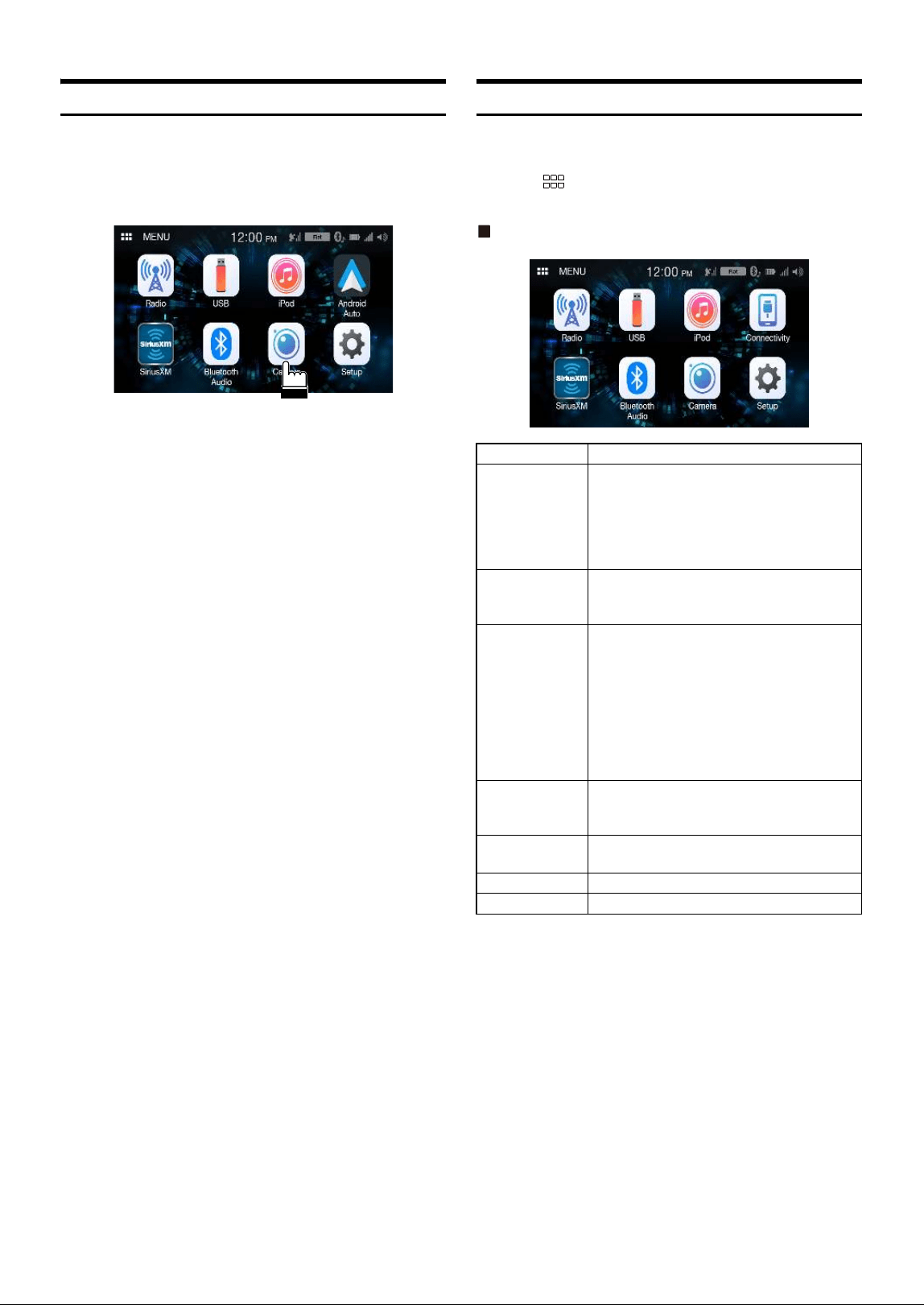
Location of Controls
Dimmer Sensor
Sense the brightness of the car interior.
/ (DOWN/UP) button
Touch to adjust the volume.
(MUTE) button
Touch to activate/deactivate the mute mode.
(HOME)/(Power Off) button
Activates the HOME screen.
Touch and hold this button for at least 1 second to turn the
power off.
button
Depending on the connected smartphone, touch to activate Siri
function or voice recognition mode.
(Phone) button
When a Hands-Free Phone is not connected:
The Bluetooth setting screen is displayed.
When a Hands-Free Phone is connected:
The phone number input screen (Keypad) is activated.
Touch and hold the button for at least 2 seconds to redial the
most recent incoming call.
During an incoming call:
The phone call is started.
During a call:
The call finishes.
Turning Power On or Off
Some of this unit’s functions cannot be performed while the vehicle is in
motion. Be sure to stop your vehicle in a safe location and apply the
parking brake, before attempting these operations.
1 Turn the ignition key to the ACC or ON position.
The system turns on.
• When turned on, the system displays the last screen that was
displayed before the ignition key was turned off. For example, if
the unit is in radio mode when ignition is turned off, it will remain
in radio mode when ignition is turned back on.
2 Touch and hold the (HOME)/(Power Off) button for
at least 1 second to turn the power off.
• When the system is used for the first time, the language selection menu
is displayed. Select the desired language, and then touch [OK].
• The unit can be turned on by touching the (HOME) button,
button or (Phone) button.
• The unit is a precision device. Careful handling of the unit should
provide you with years of trouble-free operation.
Turning the System On
When the system is used for the first time, the language selection menu
is displayed.
Select a language, and then touch [OK].
• Some of this unit’s functions cannot be performed while the vehicle is in
motion. Be sure to stop your vehicle in a safe location and apply the
parking brake before attempting these operations.
Adjusting the Volume
Adjust the volume by touching / .
Volume decreases/increases continuously by touching and holding
/.
Volume: 0 - 35
Lowering Volume Quickly
Audio Mute function instantly lowers the volume level to 0.
1 Touch the (MUTE) button to activate the MUTE mode.
The audio level will be 0.
2 Touching the (MUTE) button again will bring the
audio back to its previous level.
Getting Started
About the button descriptions used in this Owner’s
Manual
The buttons found on the face of the unit are expressed in bold
(e.g. (HOME)). The buttons found on the touch-screen display
are shown in bold within brackets, [ ] (e.g. []).
10-EN
Touch Screen Operation
You can operate the system by using the touch panel on the screen.
• Be sure to touch the onscreen button lightly with the pad of your finger
to avoid scratching the display.
Touch a button or list item on the screen lightly.
• If you touch a button and there is no reaction, remove your finger.
• Onscreen buttons that cannot be operated are dimmed.
About the HOME Screen
In the HOME screen, you can select the audio source and perform
various setups or operations on the unit.
Touch the (HOME) button.
The HOME screen is displayed.
HOME screen example
Radio Displays the Radio main screen (page 26).
USB You can play back music files (MP3/WMA/AAC/
FLAC/WAV), video files (MP4/AVI/WMV/MOV)
and photo files (JPG/PNG/BMP) stored in a USB
flash drive (page 27).
• If a USB flash drive is not connected, this
widget is not available.
iPod Displays the iPod main screen (page 29).
• If an iPhone is not connected, this widget is
not available.
Connectivity You can use Apple CarPlay (page 25) or Android
Auto (page 25).
• If an iPhone 5s or later compatible with the
Apple CarPlay function or a smartphone
installed with the Android Auto App is not
connected, this widget is not available.
• When Apple CarPlay or Android Auto is
available, the widget changes to [Apple
CarPlay] / [Android Auto].
SiriusXM Displays the SiriusXM main screen (page 31).
• If a SiriusXM Tuner (Optional) is not
connected, this widget is not available.
Bluetooth Audio Displays the Bluetooth audio main screen
(page 37).
Camera Displays camera images (page 39).
Setup Displays the Setup screen (page 12).
11-EN
About the Indicator Display
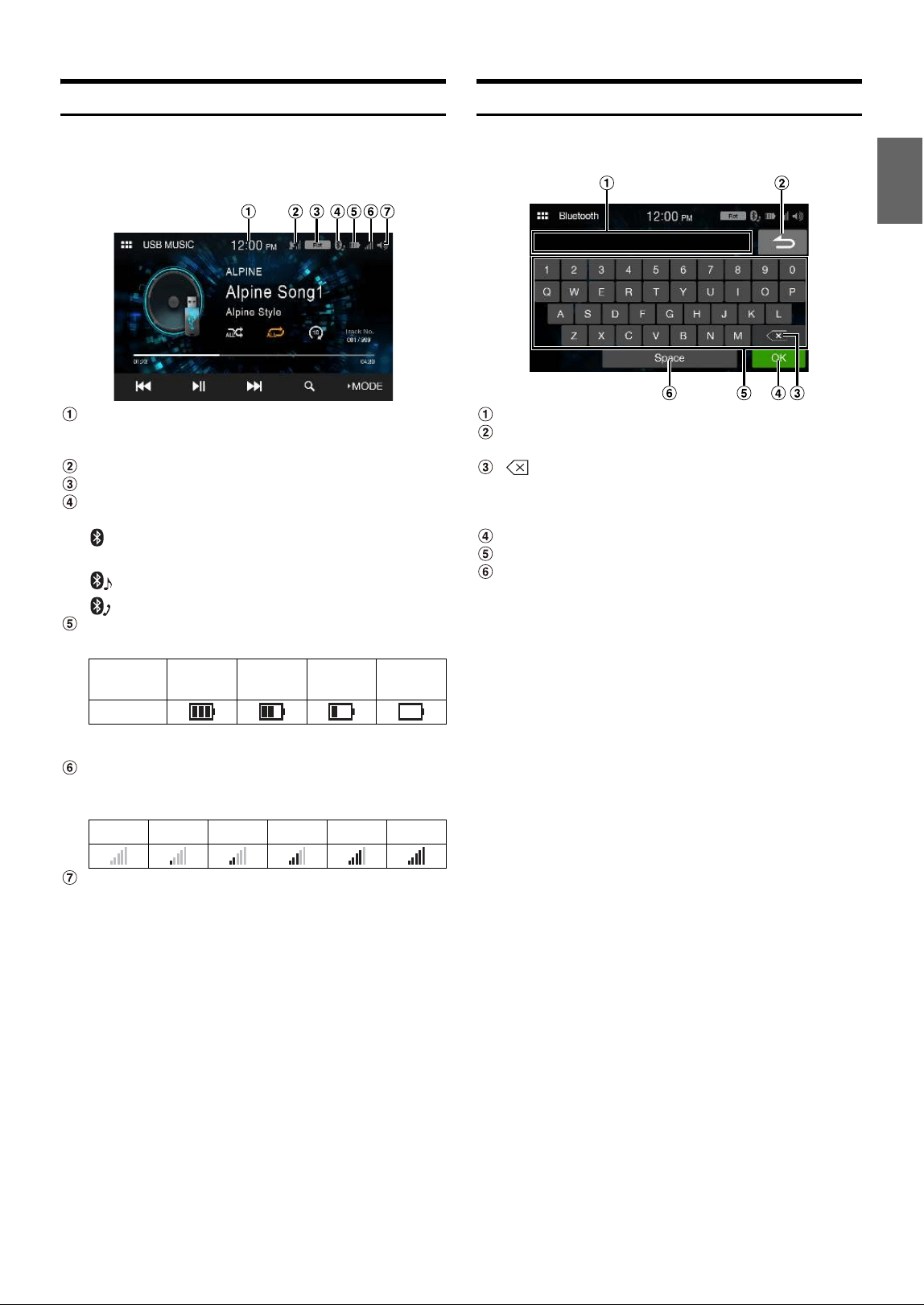
The Indicator Bar at the top of the screen displays various types of
information, like the current time.
Indicates the current time.
You can switch between the 12 hour display and 24 hour display
options (page 19).
Indicates the strength of the SiriusXM satellite radio signal.
Indicates the selected equalizer (page 13).
Lights up when connected to a Bluetooth compatible
device. (Does not display when connection is set to OFF.)
(Both): Bluetooth connections to the audio device and Hands
Free Phone.
(Audio): Bluetooth connection to audio device.
(Hands-free): Bluetooth connection to Hands-Free Phone.
Indicates the battery level of the connected Bluetooth
device.
This may not be displayed depending on the connected
Bluetooth device.
Indicates the signal strength level of the connected
Bluetooth compatible device.
Displayed when Bluetooth setting is ON.
Indicates the volume on/off status and shows the volume
setting bar.
How to Input Characters and Numbers (Keypad)
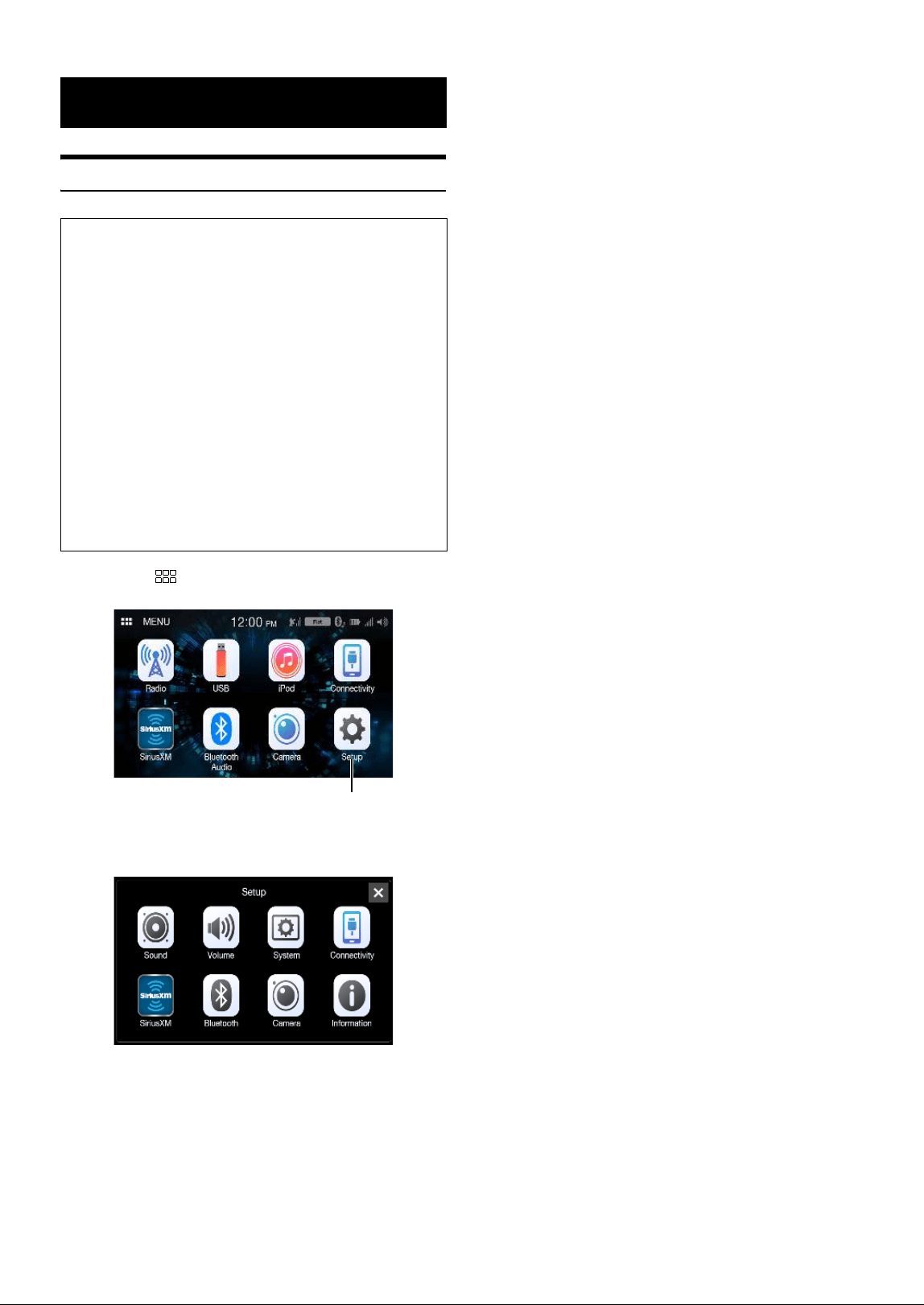
The displayed screens and procedures may vary slightly depending on
the function used, but the basic input method is the same.
Input screen area.
Cancel
Keypad mode finishes.
(Delete)
Returns to the previous character and erases it.
Touching here for more than 2 seconds will erase all input
characters.
Input number is confirmed.
Character keypad
Space
Battery
Level
Level 3 Level 2 Level 1 No Battery
Icon
012345
12-EN
Setup Operation
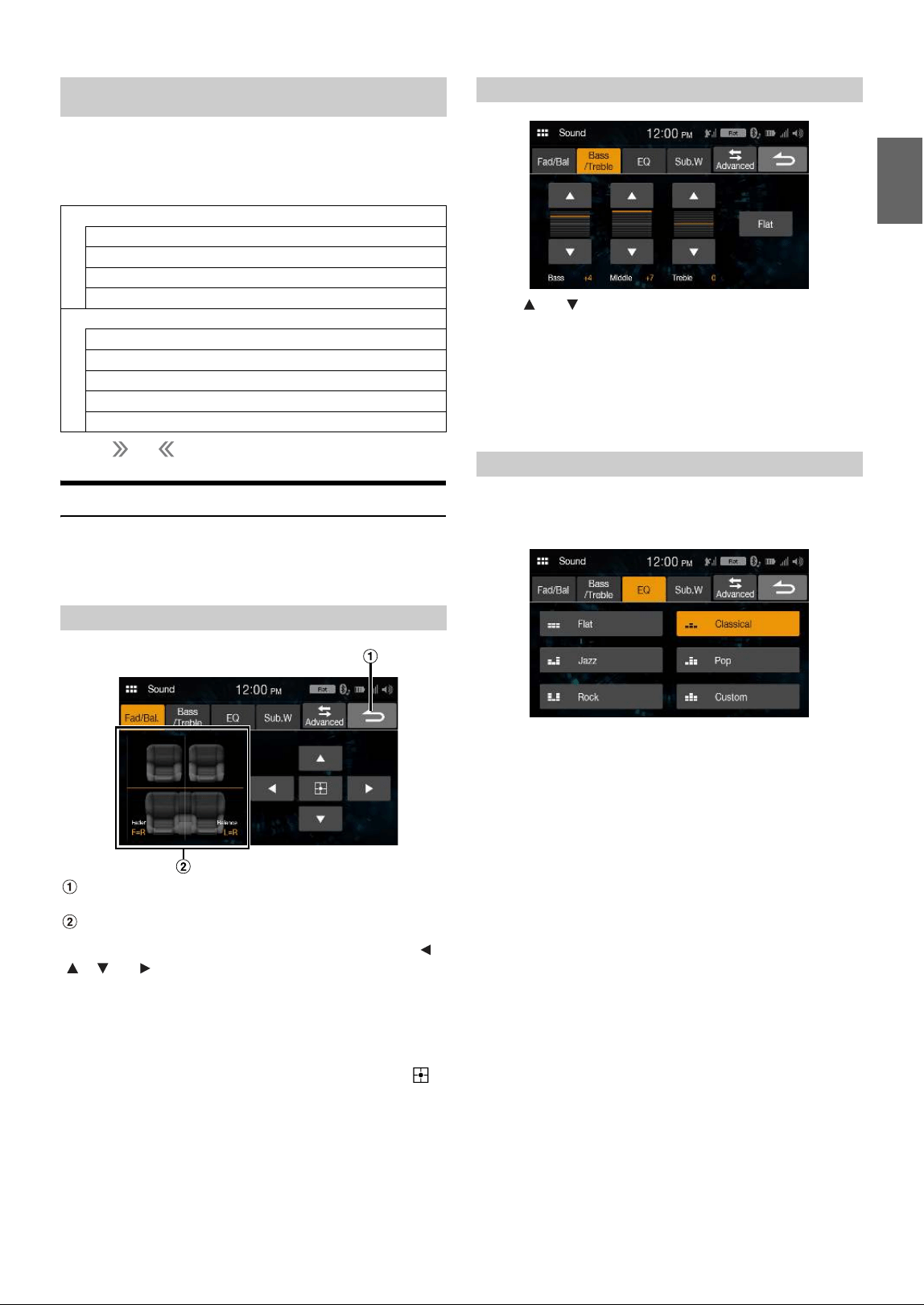
1 Touch the (HOME) button.
The HOME screen is displayed.
2 To uc h [Setup].
The Setup main screen is displayed.
3 Touch the required setting icon, then touch the setting
item.
Setting items:
Sound: See “Sound Setup” (page 13).
Volume: See “Volume Setup” (page 18).
System: See “System Setup” (page 19).
Connectivity: See “Connectivity Setup” (page 20).
SiriusXM: See “SiriusXM Setup” (page 21).
Bluetooth: See “Bluetooth Setup” (page 22).
Camera: See “Camera Setup” (page 23).
Information: See “Information” (page 24).
Setup
To display the Setup Menu screen:
Your vehicle must be parked with the ignition key in the ACC or ON
position. To do this, follow the procedures below.
1 Bring your vehicle to a complete stop at a safe location.
Engage the parking brake.
2 Release the parking brake. (For safety, release the parking
brake while depressing the foot brake pedal).
3 Engage the parking brake again.
• For automatic transmission vehicles, place the transmission lever in
the Park position.
• “Simple Sound Settings” (page 13) and “Connectivity Setup”
(page 20) can be set even not engaging the parking brake.
Now, the locking system for the Setup operation has been released.
Engaging the parking brake can reactivate the Setup Menu, as long as
the car’s ignition has not been turned off. It is not necessary to repeat
the above procedure (1 through 3).
Each time the ignition is turned OFF, perform the above procedure.
[Setup] button
13-EN
[Sound] is selected on the Setup menu screen.
You can set up items related to the sound quality.
Touch [Advanced] or [Simple] to change the setting screen.
<Setting item>
* Touch [] or [] to show further hierarchies.
Simple Sound Settings
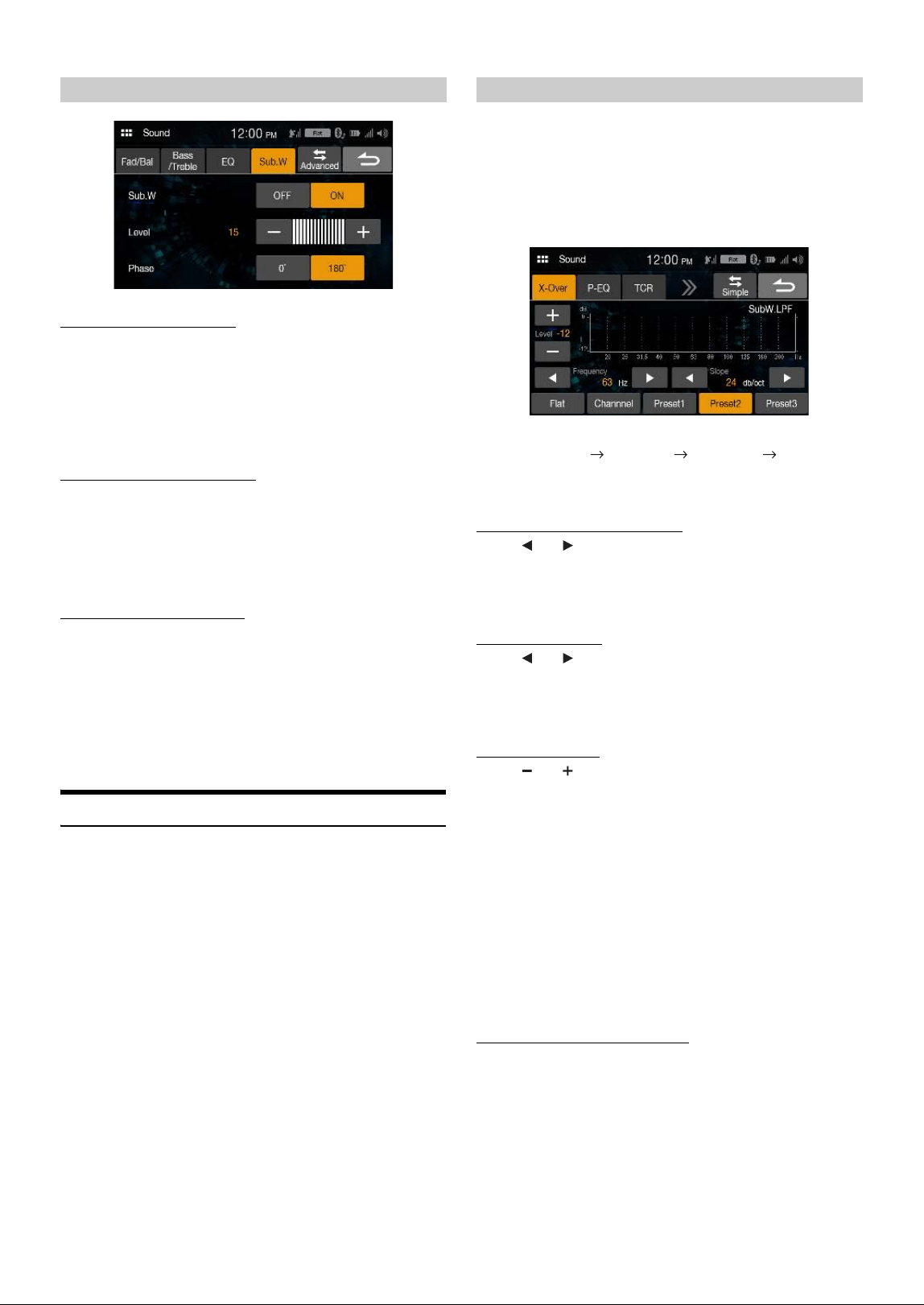
[Simple] is selected on the Sound Setup menu screen.
Setting item:
Fad./Bal., Bass/Treble, EQ, Sub.W
Cancel
Sound setup finishes.
Fader/Balance Image area
Touch the desired point within the image area, or touch [ ],
[], [] or [].
Fader:
[10]Front to [10]Rear
Balance:
[10]Left to [10]Right
• To reset to the initial setting (Fader: F=R, Balance: L=R), touch [ ].
Touch [ ] or [ ] for each item to be adjusted.
Setting item:
Bass, Middle, Treble
Setting contents:
-7 to 7 (Initial setting: 0)
• To reset the initial setting (Bass: 0, Middle: 0, Treble: 0), touch [Flat].
• When the Defeat setting is [On], you cannot perform the set up.
5 typical equalizer settings are preset at the factory for a variety of
musical source material. You can also preset an equalizer by
customizing.
Setting item:
EQ
Setting contents:
Flat (Initial setting), Jazz, Rock, Classical, Pop, Custom
• When the Defeat setting is [On], you cannot perform the set up.
• Only one type can be set.
•When you select [Custom], the P-EQ setting screen is diaplayed
(page 15).
• If you select a content except for [Custom] on this setting, P-EQ setting
(page 15) will change P-EQ Setting.
Sound Setup
Simple
Fad./Bal. (page 13)
Bass/Treble (page 13)
EQ (page 13)
Sub.W (page 14)
Advanced*
X-Over (page 14)
P-EQ (page 15)
TCR (page 15)
MX (page 16)
Defeat (page 16)
Setting the Fader/Balance
Adjusting the Bass/Middle/Treble
Setting an Equalizer
14-EN
Turning Subwoofer ON/OFF
If an optional subwoofer is connected to the unit, make the following
setting.
Setting item:
Sub.W
Setting contents:
Off (Initial setting), On
Adjusting the Subwoofer Level
Setting item:
Level
Setting contents:
0 (Initial setting) to 15
• This setting is only available when “Sub.W” is set to [On].
Setting the Subwoofer Phase
The subwoofer output phase is toggled Subwoofer Normal (0°) or
Subwoofer Reverse (180°).
Setting item:
Phase
Setting contents:
0° (Initial setting), 180°
• This setting is only available when “Sub.W” is set to [On].
Advanced sound settings
[Advanced] is selected on the Sound Setup menu screen.
Setting item:
X-Over, P-EQ, TCR, MX, Defeat
Before performing the following procedures, see “About the Crossover”
(page 16).
Setting item:
X-Over
1 To uc h [Channel] to select the channel.
Each time you touch, the channel switches.
• The channel being adjusted is displayed in red.
2 Adjust the crossover to your preference.
Selecting the Cut-Off Frequency
Touch [] or [] of “Frequency,” and then select the cut-off
frequency.
Setting contents:
20 / 25 / 31.5 / 40 / 50 / 63 / 80 (Initial setting) / 100 / 125 / 160 / 200 Hz
Adjusting the Slope
Touch [] or [] of “Slope,” and then adjust the HPF or LPF
slope.
Setting contents:
0 (Initial setting) / 6 / 12 / 18 / 24 dB/oct.
Adjusting the Level
Touch [] or [] of “Level,” and then adjust the HPF or LPF level.
Setting contents:
-12 to 0 dB (Initial setting: 0)
3 Repeat steps 1 to 2 to make adjustment to the other
channels.
4 To store the adjusted setting value, touch and hold
[Preset 1], [Preset 2], or [Preset 3] for at least 2 seconds.
•Touch [Flat] to initialize all values.
• If the Subwoofer setting is [Off ], the Subwoofer setting cannot be edited
(page 14).
• While adjusting the X-Over you should consider the frequency response
of the connected speakers.
Calling the X-Over adjusted value
Calling the pre-set X-Over adjusted value.
To uc h [Preset 1], [Preset 2], or [Preset 3] on the X-Over
screen.
The setting stored in the Preset will be recalled.
Setting the Subwoofer Adjusting the Crossover Settings (X-Over)
Front HPF Rear HPF SubW LPF Front HPF
15-EN
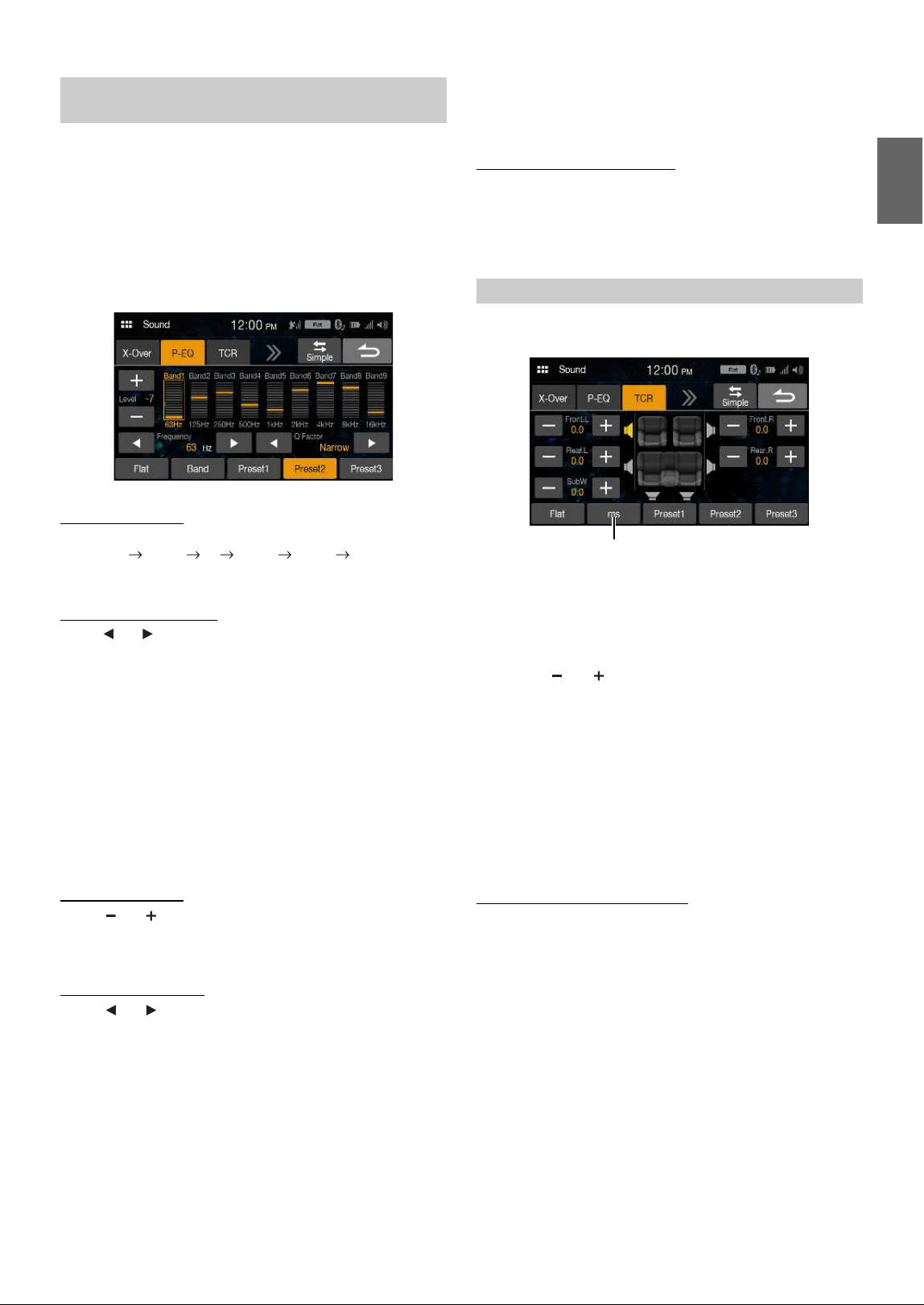
Parametric Equalizer (P-EQ) can adjust the center frequency/Q Factor
(bandwidth)/level for the front and rear speakers independently.
You can adjust only to the approximate frequency zone, but can then
compensate by performing advanced correction of the sound.
Setting item:
P-EQ
• When the Defeat setting is [On], you cannot perform the set up.
1 Adjust the P-EQ to your preference.
Adjusting the Band
Touch [Band] to select the band to be adjusted.
Band1 Band2 ••• Band8 Band9 Band1
• You can select a band directly by touching the screen.
Adjusting the Frequency
Touch [] or [] of “Frequency” to adjust the frequency of the
selected band.
Adjustable frequency bands:
20 Hz to 20 kHz (in 1/3 octave steps)
Adjusting the Level
Touch [] or [] of “Level” to adjust the level of selected band.
Setting contents:
-7 to 7 (Initial setting: 0)
Setting the Bandwidth
Touch [] or [] of “Q Factor” to select the bandwidth.
Setting contents:
Narrow / Medium / Wide (Initial setting)
2 To adjust another band, repeat step 1, and adjust all
bands.
3 To store the adjusted setting value, touch and hold
[Preset 1], [Preset 2], or [Preset 3] for at least 2 seconds.
• Band2 and Band5 are the same as the Bass and Middle controls. For
details on setting Bass and Treble, see “Adjusting the Bass/Middle/
Treble” (page 13).
• Settings exceeding the frequency of adjacent bands are not available.
• While adjusting the P-EQ, you should consider the frequency response
of the connected speakers.
• To reflect the P-EQ setting, set “EQ” to [Custom] (page 13).
•Touch [Flat] to initialize all values.
Calling the P-EQ adjusted value
Calling the pre-set P-EQ adjusted value.
To uc h [Preset 1], [Preset 2], or [Preset 3] on the P-EQ screen.
The setting stored in the Preset will be recalled.
• Presets can be called on [Custom] of the “EQ” setting (page 13).
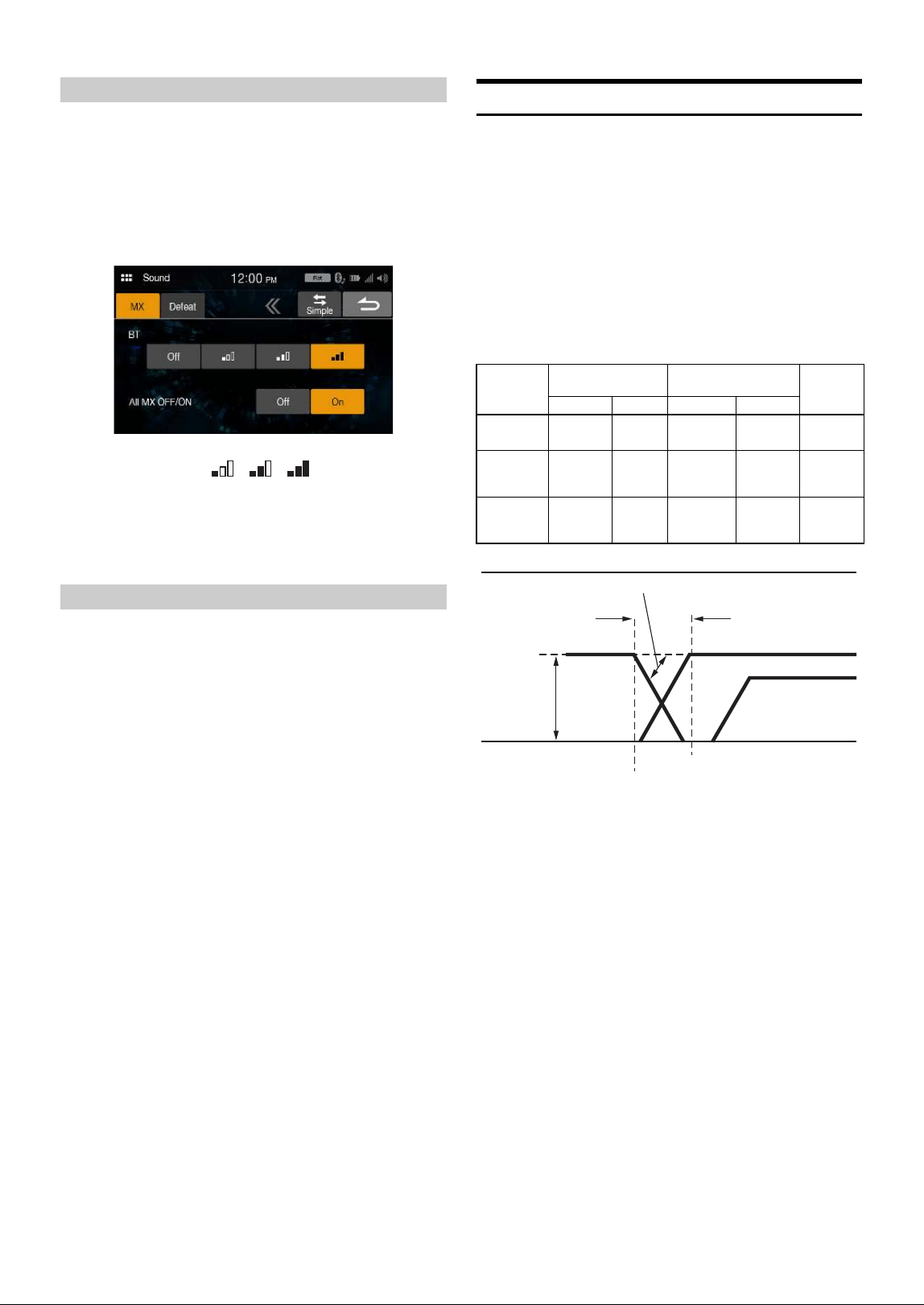
Before performing the following procedures, see “About Time
Correction” (page 17).
Setting item:
TCR
1 Touch the Correction mode button to select [ms], [cm] or
[inch].
2 To uc h [] or [] for each speaker to adjust the time or
distance.
0.0 msec to 9.9 msec (0.1 msec/step)
0.0 cm (0.0 inch) to 336.6 cm (133.7 inch) (3.4 cm/step)
All speaker setting values are adjustable in the range of 15 ms or
510 cm.
3 To store the adjusted setting value, touch and hold
[Preset 1], [Preset 2], or [Preset 3] for at least 2 seconds.
•Touch [Flat] to set all values to 0.0.
• If the Subwoofer setting is [Off ], the Subwoofer setting cannot be edited
(page 14).
Calling the Time Correction Value
Calling the pre-set time correction value.
To uc h [Preset 1], [Preset 2], or [Preset 3] on the time
correction screen.
The setting stored in the Preset will be recalled.
Adjusting the Parametric Equalizer Curve
(P-EQ)
Band1: 20 Hz to 100 Hz (63 Hz)
Band2: 63 Hz to 315 Hz (125 Hz)
Band3: 125 Hz to 500 Hz (250 Hz)
Band4: 250 Hz to 1 kHz (500 Hz)
Band5: 500 Hz to 2 kHz (1 kHz)
Band6: 1 kHz to 4 kHz (2 kHz)
Band7: 2 kHz to 7.2 kHz (4 kHz)
Band8: 5.8 kHz to 12 kHz (8 kHz)
Band9: 9 kHz to 20 kHz (16 kHz)
Adjusting the Time Correction (TCR)
Correction mode
16-EN
Media Xpander (MX) makes vocals or instruments sound distinct
regardless of the music source. The SiriusXM, USB Flash drive and
iPhone, will be able to reproduce the music clearly even in cars with a lot
of road noise.
Setting item:
MX
1 To uc h [On] of “All MX OFF/ON”.
2 Touch any of [Off] [] [] [].
•To cancel MX mode, set [Off] in step 1.
• MP3/WMA/AAC can have its own MX setting.
• When the Defeat setting is [On], you cannot perform the set up.
• The MX setting can be performed only when a source is currently
selected.
If Defeat is [On], the MX and Equalizer setting are turned Off. This
disables any settings made for these functions.
Setting item:
Defeat
Setting contents:
Off (Initial setting) / On
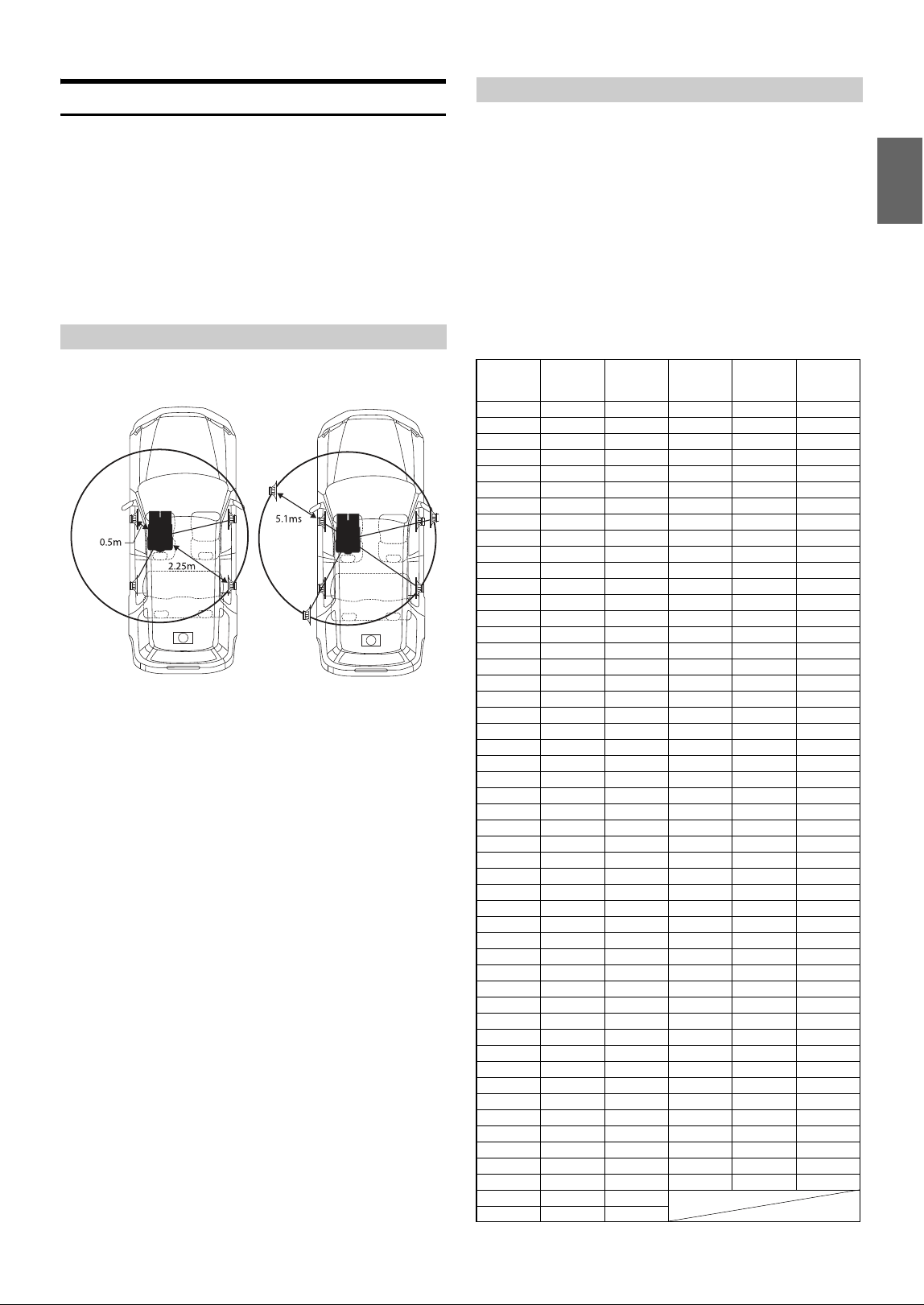
About the Crossover
Crossover (X-Over):
This unit is equipped with an active crossover. The crossover limits the
frequencies delivered to the outputs. Each channel is controlled
independently. Thus, each speaker pair can be driven by the frequencies
for which they have been optimally designed.
The crossover adjusts the HPF (high pass filter) or LPF (low pass filter)
of each band, and also the slope (how fast the filter rolls off the highs or
lows).
Adjustments should be made according to the reproduction
characteristics of the speakers. Depending on the speakers, a passive
network may not be necessary. If you are unsure about this point, please
consult your authorized Alpine dealer.
• HPF (high pass filter): Cuts the lower frequencies and allows the higher
frequencies to pass.
• LPF (low pass filter): Cuts the higher frequencies and allows the lower
frequencies to pass.
• Slope: The level change (in dB) for a frequency change of one octave.
• The higher the slope value, the steeper the slope becomes.
• Adjust the slope to FLAT to bypass the HP or LP filters.
• Do not use a tweeter without the HPF on or set to a low frequency, as it
may cause damage to the speaker due to the low frequency content.
• Adjustment should be made according to the recommended crossover
frequency of the connected speakers. Determine the recommended
crossover frequency of the speakers. Adjusting to a frequency range
outside that recommended may cause damage to the speakers.
For the recommended crossover frequencies of Alpine speakers, refer to
the respective Owner’s Manual.
We are not responsible for damage or malfunction of speakers caused by
using the crossover outside the recommended value.
Setting the Media Xpander (MX)
Setting Defeat
Cut-off frequency
(1/3 octave steps)
Slope
Level
HPF LPF HPF LPF
Subwoofer
(LPF)
----
20 Hz -
200 Hz
----
0, 6, 12, 18,
24 dB/oct.
0 to
–12 dB
Rear
speaker
(HPF)
20 Hz -
200 Hz
----
0, 6, 12, 18,
24 dB/oct.
----
0 to
–12 dB
Front
speaker
(HPF)
20 Hz -
200 Hz
----
0, 6, 12, 18,
24 dB/oct.
----
0 to
–12 dB
Level
adjusting
(0 to –12 dB)
Output frequency
range
Output frequency range
Slope adjusting
20 Hz
(Different from actual
display)
LPF cut-off
frequency
HPF cut-off
frequency
Low range High range
Slope
FLAT
Subwoofer Rear speaker
Front speaker
200 Hz
17-EN
About Time Correction
The distance between the listener and the speakers in a car vary widely
due to the complex speaker placement. This difference in the distances
from the speakers to the listener creates a shift in the sounds image and
frequency characteristics. This is caused by the time delay between the
sound reaching the listener’s right versus the left ear.
To correct this, this unit is able to delay the audio signal to the speakers
closest to the listener. This effectively creates a perception of increased
distance for those speakers. The listener can be placed at an equal
distance between the left and right speakers for optimum staging.
The adjustment will be made for each speaker in 3.4 cm steps.
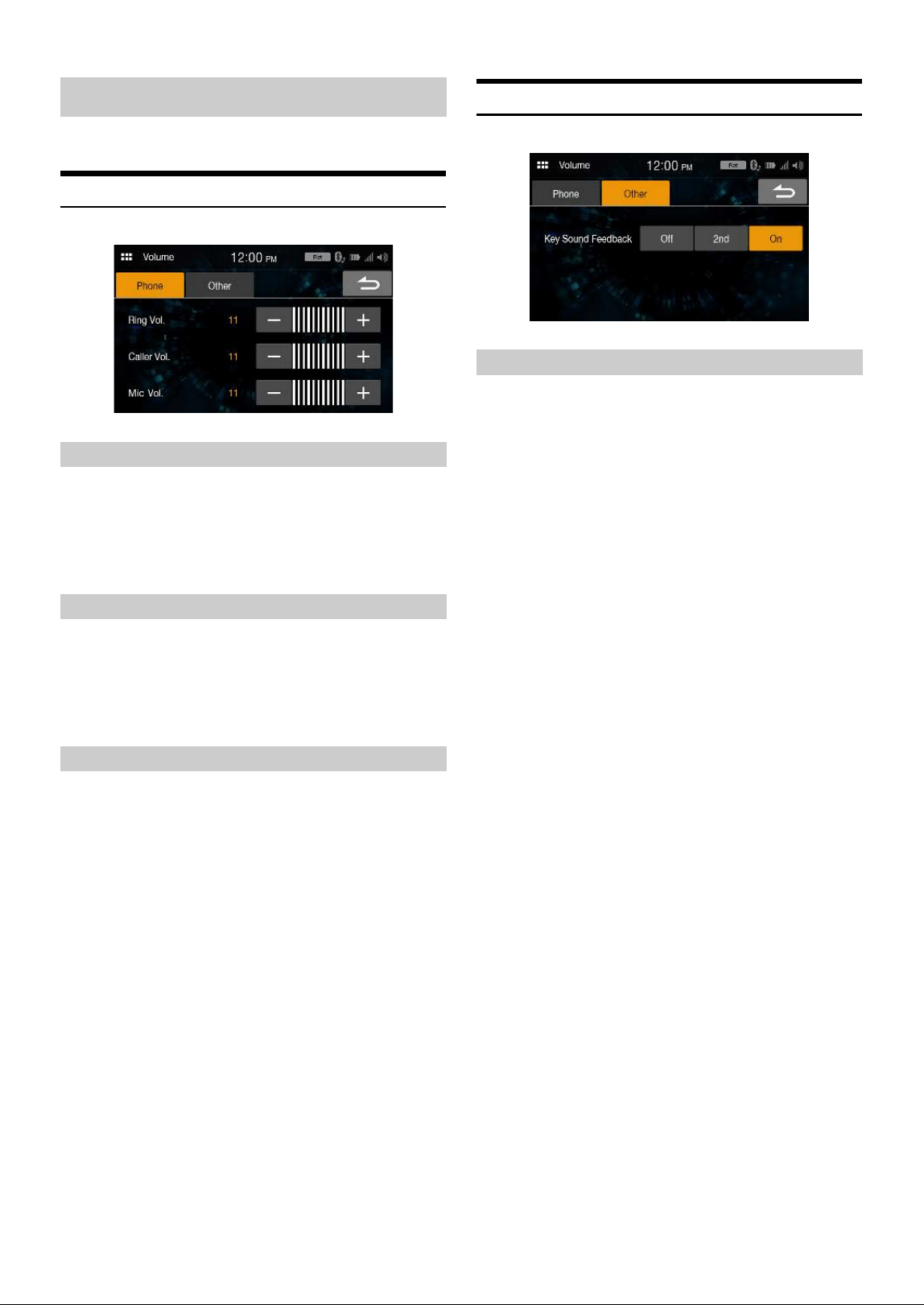
Adjust the time correction level of the front left speaker to a high value
and the rear right to zero or a low value.
The sound is not balanced because the distance between the listening
position and the various speakers is different.
The difference in distance between the front left speaker and the rear right
speaker is 1.75 m (68-7/8").
Here we calculate the time correction value for the front left speaker in the
diagram on the above.
Conditions:
Farthest Speaker – listening position : 2.25 m (88-9/16")
Front left speaker – listening position : 0.5 m (19-11/16")
Calculation: L = 2.25 m – 0.5 m = 1.75 m (68-7/8")
Time correction = 1.75 ÷ 343* × 1,000 = 5.1 (ms)
* Speed of sound: 343 m/s (765 mph) at 20°C
In other words, giving the front left speaker a time correction value of 5.1
ms makes it seem as if its distance from the listener is the same as the
distance to the farthest speaker.
Time correction eliminates the differences in the time required for the
sound to reach the listening position.
The time of the front left speaker is corrected by 5.1 ms so that its sound
reaches the listening position at the same time as the sound of other
speakers.
Adjust the time correction level of each speaker to almost the same level.
1 Sit in the listening position (driver’s seat, etc.) and
measure the distance (in meters) between your head and
the various speakers.
2 Calculate the difference between the distance correction
value to the farthest speaker and the other speakers.
L = (distance to farthest speaker) – (distance to other speakers)
These values are the time correction values for the different speakers.
Setting these values to make each sound reach the listening position
at the same time as the sound of other speakers.
Time Correction Value List
Example 1. Listening Position: Front Left Seat
Example 2. Listening Position: All Seats
Time
Difference
(msec)
Distance
(cm)
Distance
(inch)
Time
Difference
(msec)
Distance
(cm)
Distance
(inch)
0.0 0.0 0.0 5.1 173.4 68.3
0.1 3.4 1.3 5.2 176.8 69.7
0.2 6.8 2.7 5.3 180.2 71.0
0.3 10.2 4.0 5.4 183.6 72.4
0.4 13.6 5.4 5.5 187.0 73.7
0.5 17.0 6.7 5.6 190.4 75.0
0.6 20.4 8.0 5.7 193.8 76.4
0.7 23.8 9.4 5.8 197.2 77.7
0.8 27.2 10.7 5.9 200.6 79.1
0.9 30.6 12.1 6.0 204.0 80.4
1.0 34.0 13.4 6.1 207.4 81.7
1.1 37.4 14.7 6.2 210.8 83.1
1.2 40.8 16.1 6.3 214.2 84.4
1.3 44.2 17.4 6.4 217.6 85.8
1.4 47.6 18.8 6.5 221.0 87.1
1.5 51.0 20.1 6.6 224.4 88.4
1.6 54.4 21.4 6.7 227.8 89.8
1.7 57.8 22.8 6.8 231.2 91.1
1.8 61.2 24.1 6.9 234.6 92.5
1.9 64.6 25.5 7.0 238.0 93.8
2.0 68.0 26.8 7.1 241.4 95.1
2.1 71.4 28.1 7.2 244.8 96.5
2.2 74.8 29.5 7.3 248.2 97.8
2.3 78.2 30.8 7.4 251.6 99.2
2.4 81.6 32.2 7.5 255.0 100.5
2.5 85.0 33.5 7.6 258.4 101.8
2.6 88.4 34.8 7.7 261.8 103.2
2.7 91.8 36.2 7.8 265.2 104.5
2.8 95.2 37.5 7.9 268.6 105.9
2.9 98.6 38.9 8.0 272.0 107.2
3.0 102.0 40.2 8.1 275.4 108.5
3.1 105.4 41.5 8.2 278.8 109.9
3.2 108.8 42.9 8.3 282.2 111.2
3.3 112.2 44.2 8.4 285.6 112.6
3.4 115.6 45.6 8.5 289.0 113.9
3.5 119.0 46.9 8.6 292.4 115.2
3.6 122.4 48.2 8.7 295.8 116.6
3.7 125.8 49.6 8.8 299.2 117.9
3.8 129.2 50.9 8.9 302.6 119.3
3.9 132.6 52.3 9.0 306.0 120.6
4.0 136.0 53.6 9.1 309.4 121.9
4.1 139.4 54.9 9.2 312.8 123.3
4.2 142.8 56.3 9.3 316.2 124.6
4.3 146.2 57.6 9.4 319.6 126.0
4.4 149.6 59.0 9.5 323.0 127.3
4.5 153.0 60.3 9.6 326.4 128.6
4.6 156.4 61.6 9.7 329.8 130.0
4.7 159.8 63.0 9.8 333.2 131.3
4.8 163.2 64.3 9.9 336.6 132.7
4.9 166.6 65.7
5.0 170.0 67.0
18-EN
[Volume] is selected on the Setup menu screen.
Phone Volume Setup
[Phone] is selected on the Volume Setup menu screen.
You can adjust the receive volume, during the call.
Setting item:
Ring Vol.
Setting contents:
01 to 11 (Initial setting: 05)
You can adjust the volume of the incoming call.
Setting item:
Caller Vol.
Setting contents:
01 to 11 (Initial setting: 05)
You can adjust the transmit volume, during the call.
Setting item:
Mic Vol.
Setting contents:
01 to 11 (Initial setting: 05)
Volume Setup except for Phones (Other)
[Other] is selected on the Volume Setup menu screen.
You can change the volume of the sound heard when a button is
touched.
Setting item:
Key Sound Feedback
Setting contents:
Off, 2nd, On
Volume Setup
Adjusting the Ring Tone Level
Adjusting the Caller Level
Adjusting the Microphone Level
Volume Setting
19-EN
[System] is selected on the Setup menu screen.
Setting item:
System
Setting contents:
Clock, Dimmer, Language, Reset
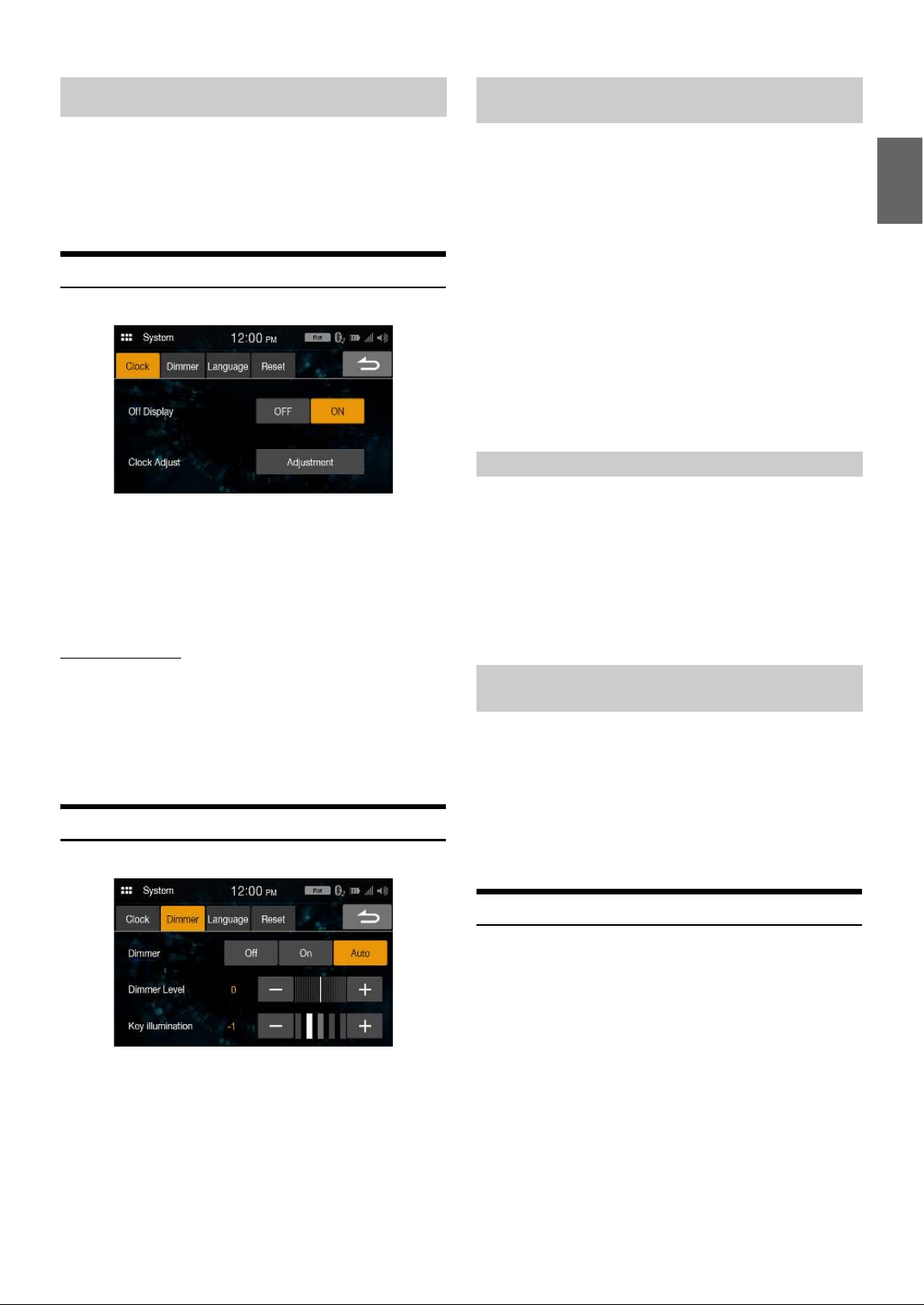
Clock Setup
[Clock] is selected on the System Setup Menu screen.
Setting item:
Clock Adjust
Setting items:
12h (Initial setting), 24h
Setting contents:
01 - 12 or 00 - 23, 00 - 59, AM/PM
Setting Off Display
To not display the clock when turning the unit to OFF, set “Off Display”
to [On].
Setting item:
Off Display
Setting contents
Off (Initial setting), On
Screen/Lighting Customize (Dimmer)
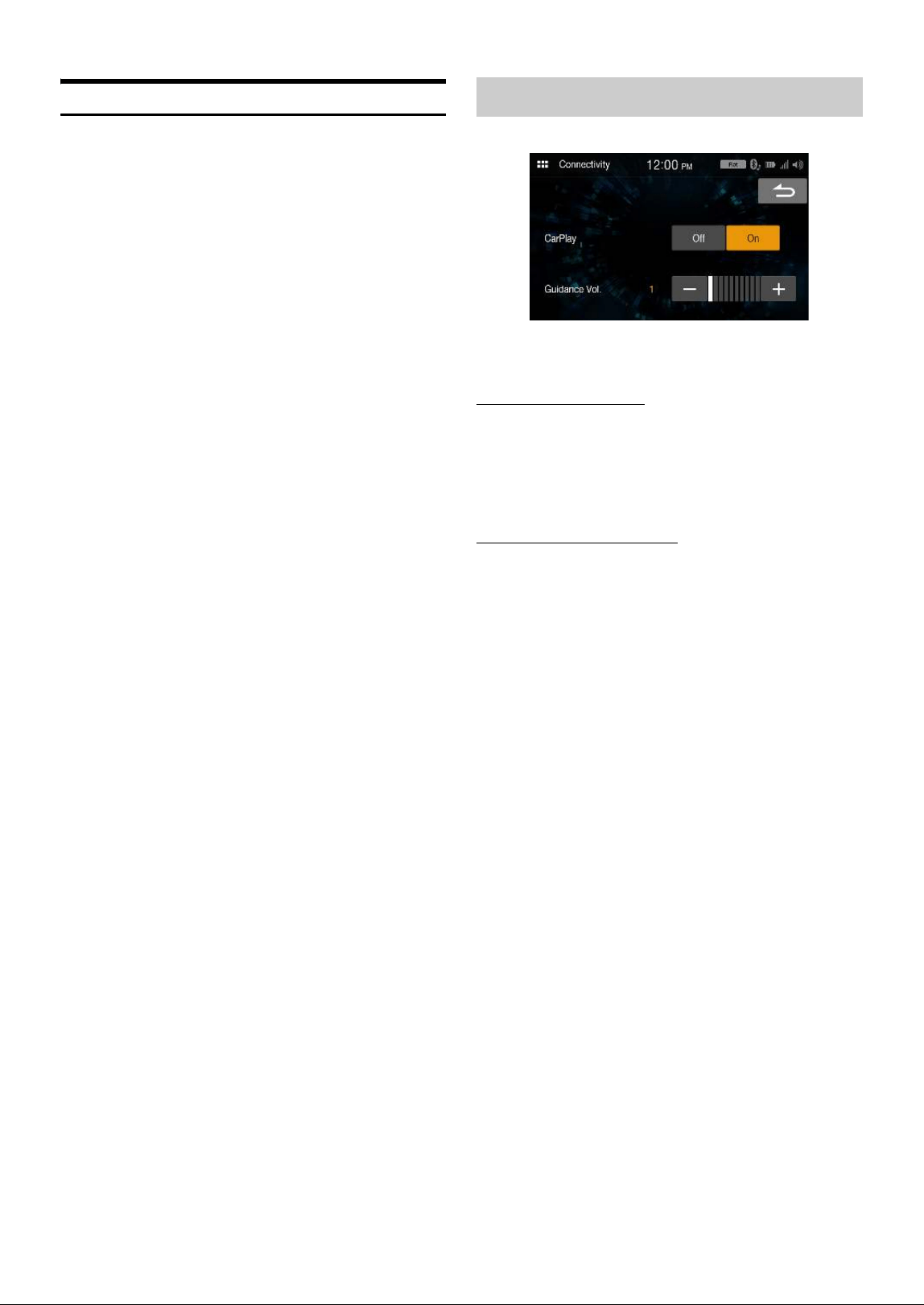
[Dimmer] is selected on the System Setup Menu screen.
Backlighting is provided by LEDs light built into the liquid crystal panel.
The illumination control adjusts the brightness of the backlighting based
on the car ambient lighting for easier viewing.
Setting item:
Dimmer
Setting contents:
Off, On, AUTO (Initial setting)
• When “On” is set, the setting is also applied for the button lighting in
“Adjusting the Dimmer of Button Lighting at Night” (page 19) and
“Adjusting the Minimum Level of Backlight” (page 19).
You can adjust the brightness of the backlight. This function could be
used, for instance, to change the screen brightness while traveling at
night.
Setting item:
Dimmer Level
Setting contents:
-14 to 14 (Initial setting: 0)
• This setting is only available when “Dimmer” is set to [On] or [AUTO].
You can adjust the brightness of the button lighting at night with the
dimmer.
Setting item:
Key illumination
Setting level:
-2 to 2 (Initial setting: 0)
• This setting is only available when “Dimmer” is set to [On] or [AUTO].
Language Setup
[Language] is selected on the System Setup Menu screen. The Setup
menu, feedback information, etc. for this unit can be changed to appear
in the selected language.
Setting item:
Language
Setting contents:
English, Français, Español, Português
• The currently selected language is displayed.
System Setup
Setting the Brightness of the Backlighting
(Dimmer)
Off: Deactivate Auto Dimmer mode to keep the background
illumination of the monitor bright.
On: Keep the background illumination of the monitor dark.
AUTO: Adjust the brightness of the background illumination of
the monitor automatically to the brightness of the car
interior.
Adjusting the Minimum Level of Backlight
Adjusting the Dimmer of Button Lighting at
Night
20-EN
Reset
[Reset] is selected on the System Setup Menu screen. You can initialize
all data, to restore the factory settings. Remove the USB flash drive, etc.
from the system before operation.
Setting item:
Reset
1 To uc h [Reset].
2 After the confirmation message appears, touch [Yes].
The system starts initialization.
• Do not turn on/off the power, change the ignition key position or
remove the screen panel until system restart is completed.
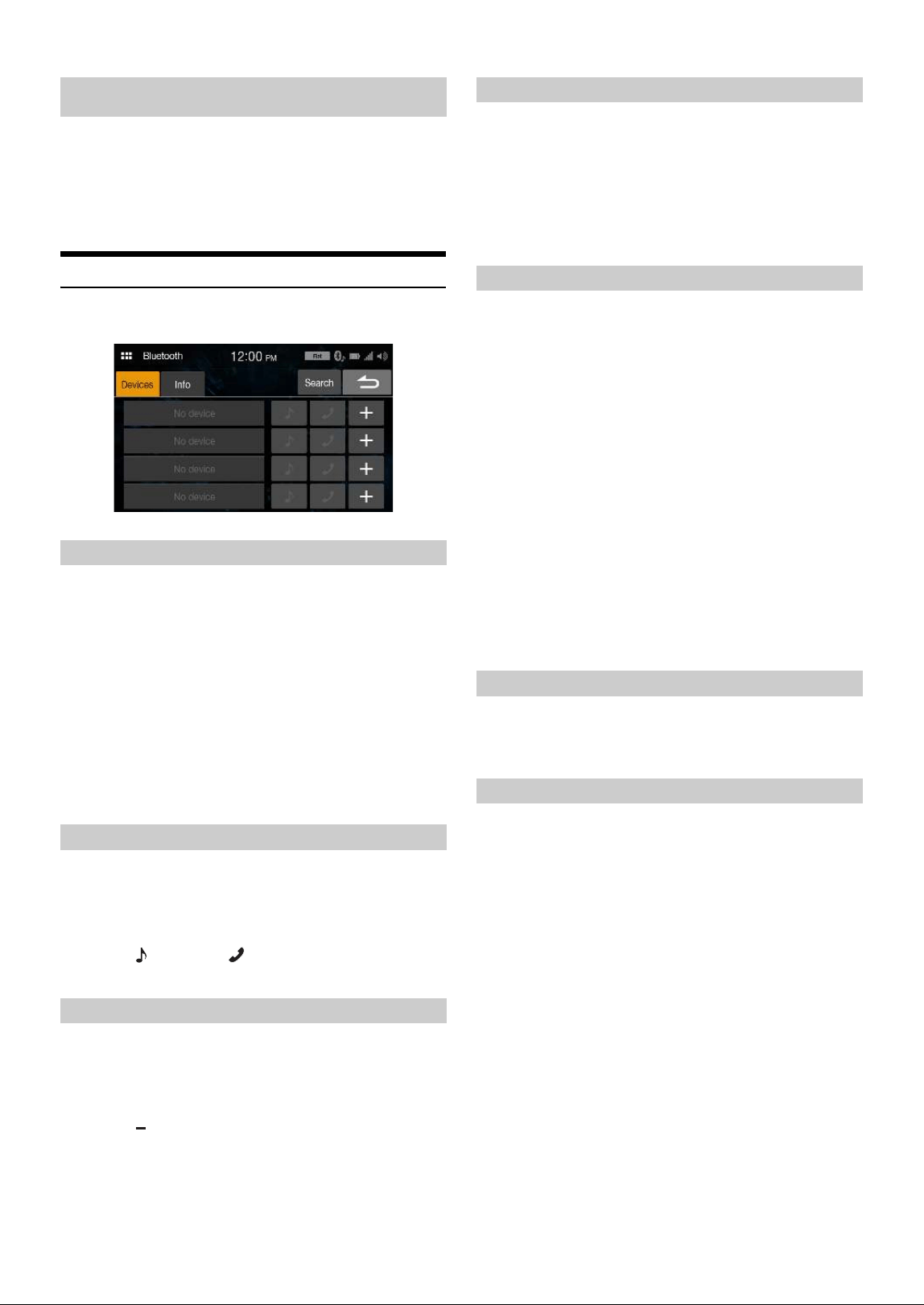
[Connectivity] is selected on the Setup menu screen.
Setting item:
Connectivity
Using Apple CarPlay mode
Setting item:
CarPlay
Setting contents
Off, On (Initial setting)
• To use iPhone as iPod mode, select [Off].
Adjusting the Guidance Volume
Setting item:
Guidance Vol.
Setting contents
00 to 10
Connectivity Setup

21-EN
[SiriusXM] is selected on the Setup menu screen.
Setting item:
SiriusXM
Setting contents:
Parental Lock On/Off
Parental Lock
You can lock out channels with passcode protection. Channels that are
locked cannot be accessed without entering the passcode. You can
unlock a channel or change the passcode using this menu option.
Setting item:
Parental Lock On/Off
1 To uc h [Parental Lock On/Off].
A passcode input screen is displayed.
2 Touch the numeric keypad to input a 4-digit passcode.
The initial default 4-digit passcode is set to 0000.
After entering the digit, it is displayed as “ ”.
•Touch [] to delete an entered number.
•Touch [Delete All] to delete all entered numbers.
3 Touch [OK ].
Setting the Lock status of individual channels
4 To uc h [Manage Channels].
The channels list screen is displayed.
5 To uc h [On] or [Off] of the channels list to set the Parent
Lock.
Clearing the Lock of ALL the locked Channels
4 To uc h [Reset].
5 To uc h [Yes] to clear the lock of all the locked channels.
Touch [No] to cancel.
Changing the Lock Passcode
4 To uc h [Manage Code].
The numeric keypad screen is displayed.
5 Use the keypad to enter the current (old) 4-digit
passcode, and then touch [OK].
The initial passcode is set to “0000.”
•Touch [] to delete an entered number.
•Touch [Delete All] to delete all entered numbers.
6 Use the keypad to enter the new 4-digit passcode, and
then touch [OK].
7 Use the keypad to enter the new 4-digit passcode a
second time to verify it, and then touch [OK].
• Remember to keep a note of the passcode in a safe place in case you
forget the code.
SiriusXM Setup
22-EN
[Bluetooth] is selected on the Setup menu screen.
Setting item:
Bluetooth
Setting contents:
Devices, Info, Search
Device Setup
[Devices] is selected on the Bluetooth Setup Menu screen.
You can register and set up Bluetooth compatible devices.
1 To uc h [Devices] on the Bluetooth Setup Menu screen.
2 To uc h [+] of “No Device”.
3 Select this unit (iLX-W650) to set the Bluetooth
connection on the Bluetooth device.
When the device registration is complete, a message appears
and the device returns to normal mode.
• The Bluetooth registration process differs depending on the device
version and SSP (Simple Secure Pairing). If a 4 or 6 character Passcode
appears on this system, enter the Passcode on the Bluetooth device.
• If a 6 character Passkey appears on this system, make sure the same
passkey is displayed on the Bluetooth device, and follow the screen.
Select one of 4 paired Bluetooth compatible devices that you previously
registered.
1 To uc h [Devices] on the Bluetooth Setup Menu screen.
2 To uc h [] (Audio) or [] (Hands-free) of the device you
want to connect from the Paired Device list.
You can delete the information of a previously connected Bluetooth
compatible device.
1 To uc h [Devices] on the Bluetooth Setup Menu screen.
2 To uc h [] of the Bluetooth compatible device to delete
from the Paired Device list.
3 To uc h [Yes].
•Touching [No] will cancel the setting.
[Info] is selected on the Bluetooth Setup Menu screen.
You can display the Bluetooth device name and device address of this
unit.
Setting item:
Info
• If you touch [Unpair all devices], all paired devices will be deleted from
the unit.
Setting item:
Search
1 To uc h [Search] on the Bluetooth Setup Menu screen.
The Bluetooth devices can be searched are displayed in a list.
2 Touch the device you want to connect from the list.
• You can register up to 4 Bluetooth compatible mobile phones.
• You can connect two Bluetooth Devices; one exclusively for
Hands-Free Phone and one exclusively for Bluetooth Audio.
3 When the device registration is complete, a message
appears and the device returns to normal mode.
• The Bluetooth registration process differs depending on the device
version and SSP (Simple Secure Pairing). If a 4 or 6 character Passcode
appears on this system, enter the Passcode using the Bluetooth device.
If a 6 character Passkey appears on this device, make sure the same
passkey is displayed on the Bluetooth compatible device.
• If all 4 devices have been registered, you cannot register a 5th device. To
register another device, you need to delete one of the other 4 devices
first.
When the ACC is turned ON, the Bluetooth Hands-Free device is
automatically connected. After connecting to the Hands-Free device, the
Bluetooth Audio device is also connected automatically.
If Hands-Free device is connected, you can download the phonebook
from the device.
• When the device is disconnected, the downloaded phonebook is not
shown.
Bluetooth Setup
Pairing the Bluetooth Device
Setting the Bluetooth Device
Deleting a Bluetooth Device from the list
Displaying Bluetooth Information
Searching for a Bluetooth Device
Auto Connection
Downloading the Phonebook
23-EN
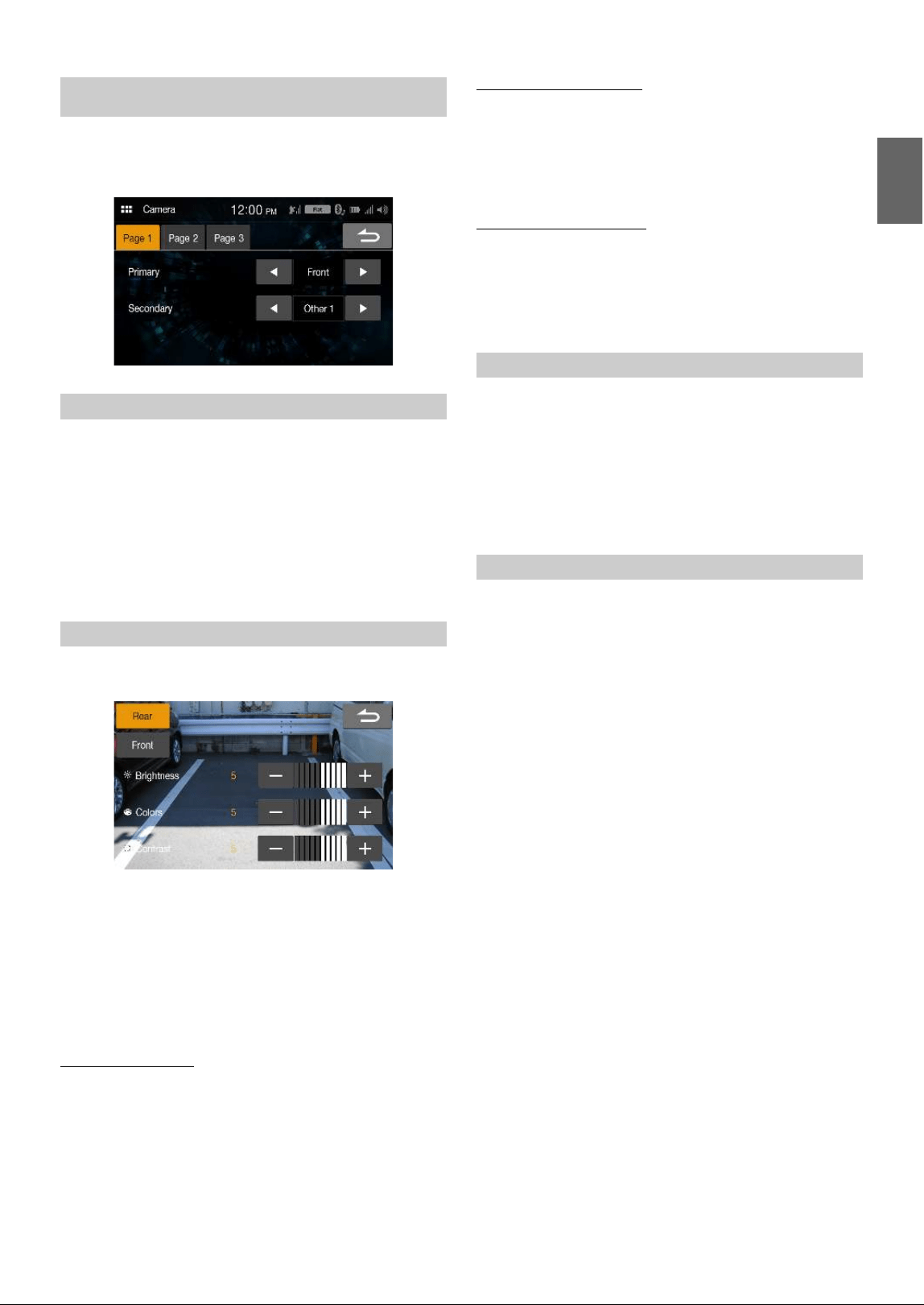
[Camera] is selected on the Setup Menu screen.
You can set up items related to the Camera.
To uc h [Page 1], [Page 2] or [Page 3] to change the screen.
When you connect two cameras or more, set the priority for displaying
on the screen.
Setting item:
Primary, Secondary (Page 1)
Setting contents:
Off, Rear, Front, Side (R), Side (L), Other 1, Other 2
• If the content is set to “Primary”, it is not displayed in “Secondary”. If
the content “Secondary”, it is not displayed in “Primary”. These do not
apply if the content is set to [Off].
You can adjust the picture quality for the primary and secondary
cameras.
Setting item:
Picture Quality (Page 2)
Further setting item:
Adjustment
• You can switch to the setup screen for the secondary camera by
touching the secondary camera button.
• When both “Primary” and “Secondary” are set to [Off], [Page 2]
cannot be selected.
Adjusting Brightness
Setting item:
Brightness
Setting contents:
-5 to 5 (Initial setting: 0)
• You can adjust the brightness between MIN (-5) and MAX (5).
Adjusting Color of Display
Setting item:
Colors
Setting contents:
-5 to 5 (Initial setting: 0)
• You can adjust the color between MIN (-5) and MAX (5).
Adjusting Display Contrast
Setting item:
Contrast
Setting contents:
-5 to 5 (Initial setting: 0)
• You can adjust the contrast between MIN (-5) and MAX (5).
When the camera is connected, the video input signal type can be
chosen.
Further setting item:
Camera Signal (Page 2)
Setting contents:
NTSC (Initial setting) / PAL
• When both “Primary” and “Secondary” are set to [Off], [Page 2]
cannot be selected.
When displaying the rear camera view on the screen, you can set to hide
or show the camera guide.
Setting item:
Rear Camera Guide (Page 3)
Setting contents:
Off / On
• When both “Primary” and “Secondary” are set to [Off], [Page 3]
cannot be selected.
• To use this setting, set “Primary” or “Secondary” to [Rear].
Camera Setup
Camera Primary and Secondary Setting
Camera Picture Quality Setup
Setting the Camera Signal Input
Turning the Rear Camera Guide On/Off
24-EN
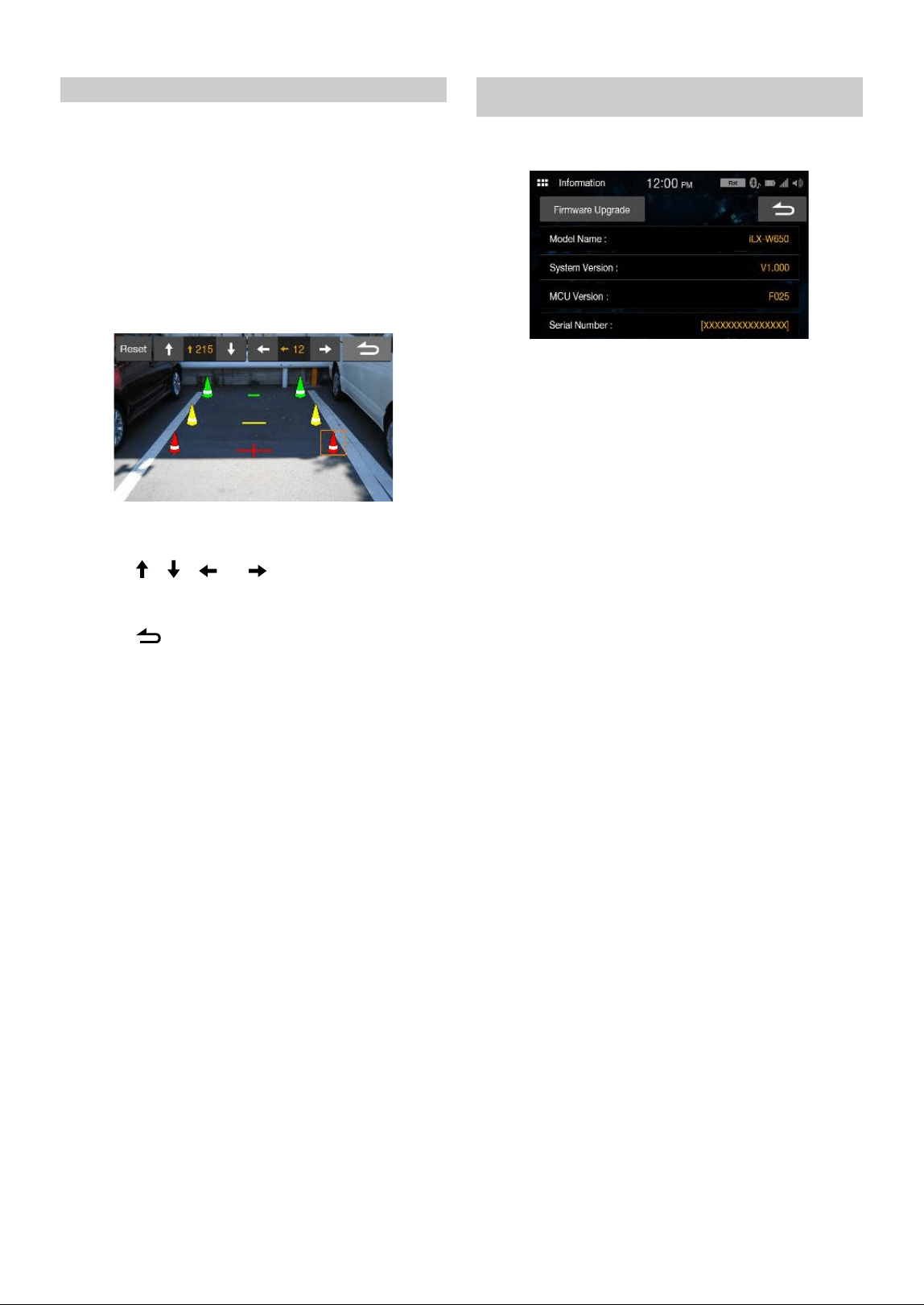
You can adjust the camera guide position.
Setting item:
Rear Camera Guide (Page 3)
Further setting item:
Adjustment
1 To uc h [Adjustment] on “Page3”.
The camera guide adjustment screen is displayed.
• When both “Primary” and “Secondary” are set to [Off], [Page 3]
cannot be selected.
• To use this setting, set “Primary” or “Secondary” to [Rear].
• To use this setting, set “Rear Camera Guide” to [On].
2 Touch the icon you want to move.
3 Touch [ ], [ ], [ ] or [ ] to move the icon.
• Touching [Reset] clears adjustments and returns to the setting
before guide line alteration.
4 Touch [ ] to complete the adjustment and return to
the previous screen.
[Information] is selected on the Setup menu screen.
Information about this system is shown.
• To update the software of this system, refer to “Product Software
Update” (page 41).
Adjusting the Rear Camera Guide
Information

25-EN
Apple CarPlay is a smarter, safer way to use your iPhone in the car.
Apple CarPlay takes the things you want to do with your iPhone while
driving and puts them right on the unit. You can get directions, make
calls, send and receive messages, and listen to music, all in a way that
allows you to stay focused on the road. Just plug in your iPhone to
the unit and go.
• Before using this function, plug in your iPhone using Lightning to USB
Cable (Supplied with iPhone) to the unit.
• Some functions may not be available while driving.
• About iPhone models usable with this unit, see “iPod mode on iPhone
(Optional)” (page 29). Only an iPhone 5s or later compatible with
Apple CarPlay function.
• Before operating Apple CarPlay, set “CarPlay” to [On] (page 20).
Access to Apple CarPlay
1 Touch the (HOME) button.
The HOME screen is displayed.
2 Touch [Apple CarPlay].
The Apple CarPlay screen is displayed.
Touch the desired App icon on the unit, or use Siri function by
touching the button.
• When a used iPhone 5s or later is reconnected, touch the pop-up
message-“Apple CarPlay connected.” within 5 seconds to access to Apple
CarPlay screen.
• The App must be Apple CarPlay compatible in order to appear in the
Home screen.
What is Android Auto
Android Auto is designed to make it easier to use apps from your phone
while you’re on the road. Navigate with Google Maps, listen to playlists
or podcasts from your favorite apps, and more.
Activate Android Auto
Download the Android Auto App from the Google Play store before
continuing.
Just plug in your smartphone to the unit’s USB connector, then follow
the prompt to pair your smartphone with the unit.
• The connected smartphone with Android Auto will disconnect other
phone’s Bluetooth connection and pair to the unit.
1 Touch the (HOME) button.
The HOME screen is displayed.
2 Touch [Android Auto].
The Android Auto screen is displayed.
• You can make a call, use voice recognition function and Android Auto’s
compatible navigation app, etc,.
• Only Google approved apps with necessary driver-safety measures in
place can be used.
Apple CarPlay
(Optional)
Android Auto
(Optional)
26-EN
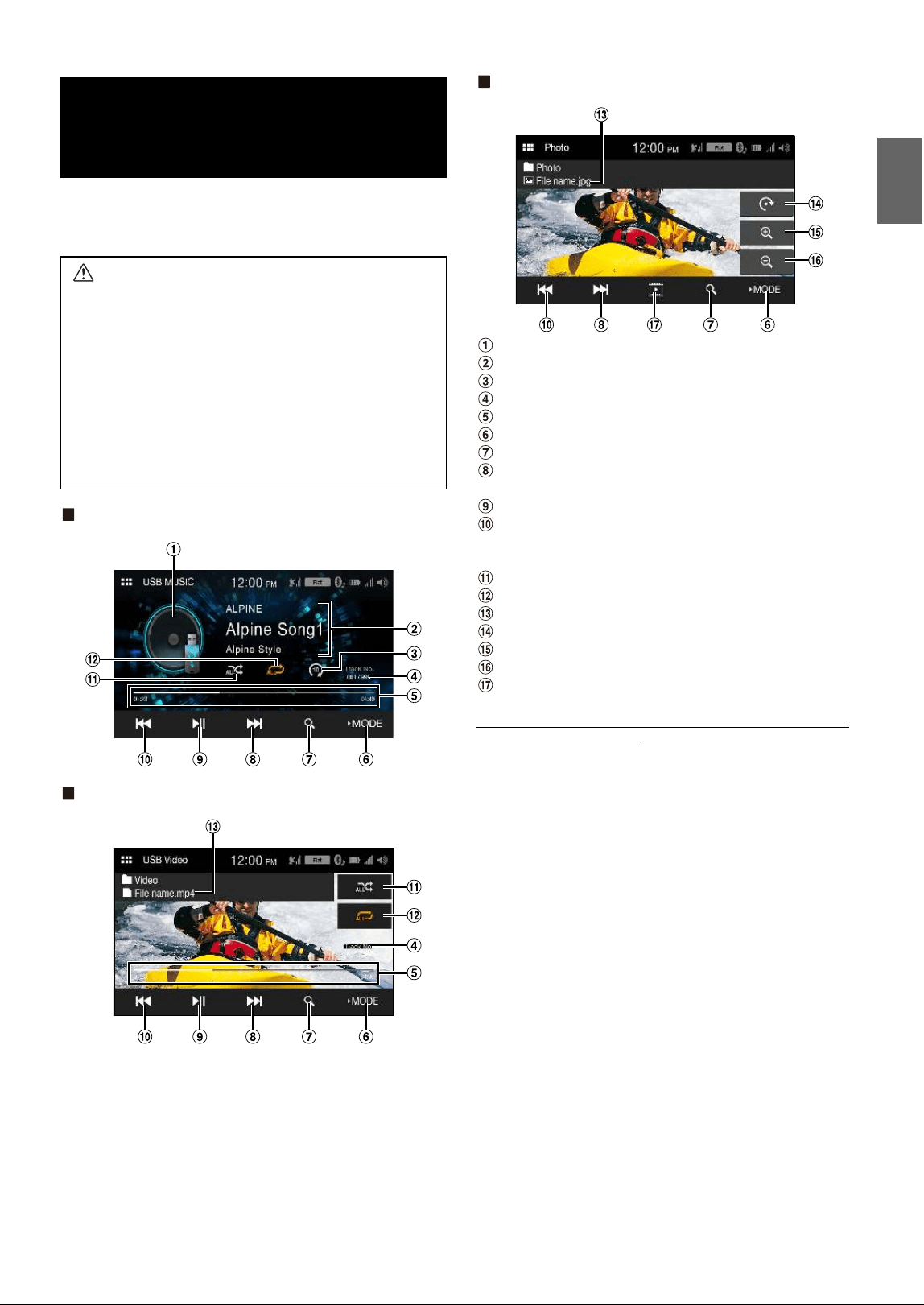
Radio main screen example
Band button
Switches a band.
Information display
Preset button
Displays the preset stations with a short touch.
Touch for at least 1 second to memorise the current station as a
preset station.
Plays each preset station for about 5 seconds.
Memorises stations automatically
Searches a station, and then plays it for about 5 seconds.
Increases frequency
Touch and hold to change the frequency continuously.
Decreases frequency
Touch and hold to change the frequency continuously.
Listening to the Radio
1 Touch the (HOME) button and select radio mode.
The display shows the radio mode screen.
2 Select the desired band from [FM1] / [FM2] / [FM3] /
[AM].
3 To uc h [], [] to change the radio frequency up or
down respectively.
Touch and hold to change the frequency continuously.
Presetting Stations Manually
1 Tune in a desired radio station you wish to store in the
preset memory by manual or automatic seek tuning.
2 Touch and hold the Preset number you want to store for
at least 1 second.
The selected station is stored.
3 Repeat the procedure to store up to 5 other stations
onto the same band.
To use this procedure for other bands, simply select the desired
band and repeat the procedure.
A total of 24 stations can be stored in the preset memory
(6 stations for each band; FM1, FM2, FM3, or AM).
• If a preset memory has already been set in the same preset number, it
will be cleared and the new station will be memorized.
Presetting Stations Automatically
The tuner can automatically seek and store 6 strong stations in the
selected band in ascending order of frequency.
Select the desired band then touch and hold [A.MEMO].
The tuner automatically seeks and stores 6 strong stations into the
preset buttons in ascending order of frequency.
When automatic storing has completed, the station stored in the
preset 1 is selected.
• If no stations are stored, the tuner will return to the original station you
were listening to before the automatic storing procedure began.
• You can cancel this process by touching [A.MEMO] while the tuner is
automatically seeking stations. Canceling will return the tuner preset to
the previous setting.
Tuning to Preset Station
After selecting the desired band, touch the desired preset
button.
Scanning Stations
The tuner can automatically seek and plays the station for 5 seconds
each.
1 After selecting the desired band, touch [F.SCAN].
Scanning stations starts.
2 When the desired station is played, touch [F.SCAN]
again.
Scanning Preset Stations
The tuner can automatically play preset stations for 5 seconds each.
1 After selecting the desired band, touch [P.SCAN].
Scanning preset stations starts.
2 When the desired station is played, touch [P.SCAN]
again.
Radio
Radio Basic Operation
27-EN
You can play back music files (MP3/WMA/AAC/FLAC/WAV), video
files (MP4/AVI/WMV/MOV) and photo files (JPG/PNG/BMP) stored
in a USB flash drive on the internal player of this system.
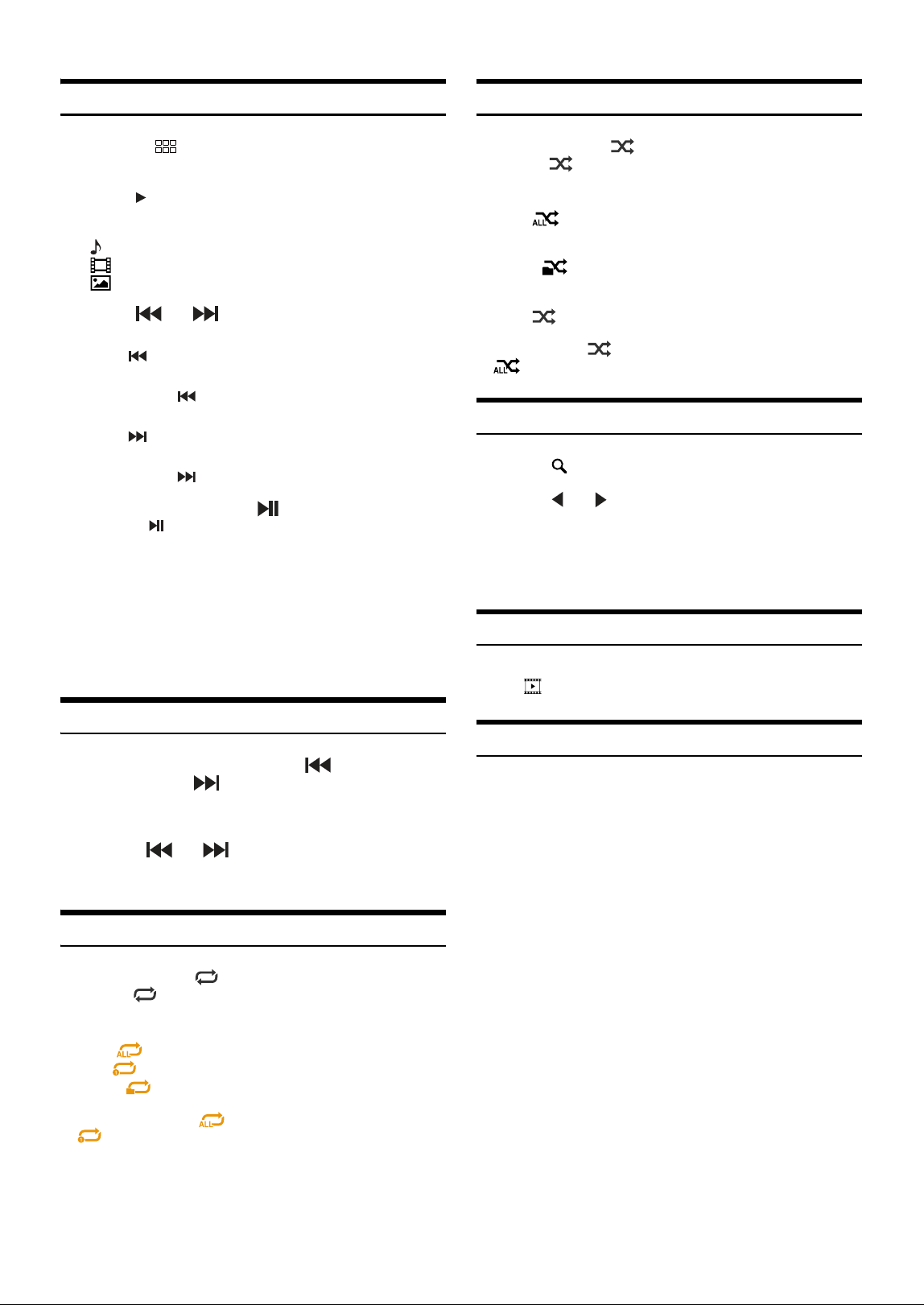
USB Audio mode screen
USB Video mode screen
USB Photo mode screen
Artwork display
Information display
Scan Play
Current track number/Total track number
Elapsed time/Total time for playing
Changes the USB mode
Displays the search screen
Finds the beginning of next chapter/Fast-forwards when
touched for at least 1 second
Pause and Play
Finds the beginning of the current file/Finds a previous file
within 1 second after playback starts/Fast-reverses when
touched for at least 1 second
Shuffle mode
Repeat mode
File Name
Rotates
Zoom in
Zoom out
Play the Slide Show
The USB Video/USB Photo operation screen display during
video/photo file playback
Touch the screen while the USB Video/USB Photo playback
screen is displayed.
The USB Video/USB Photo operation screen is displayed.
• The operation screen changes to the visual screen in the USB Video/
USB Photo mode for 5 seconds after an operation has been performed.
• For your safety, video is not displayed and only audio can be heard
while driving.
USB Flash drive
(Optional)
WARNING
It is dangerous for the driver to watch video while driving
the vehicle. The driver may be distracted from looking
ahead and an accident could occur.
Install the unit correctly so that the driver cannot watch a
video unless the car is stopped and the parking brake is
applied.
If the unit is not installed correctly, the driver will be able
to watch a video while driving and may be distracted
from looking ahead and cause an accident. The driver or
other people could be severely injured.
28-EN
Playback
1 Touch the (HOME) button and select USB mode.
The display shows the USB mode screen.
2 To uc h [Mode].
3 Select the desired mode.
: USB Audio mode
: USB Video mode
: USB Photo mode
4 To uc h [] or [] to select the desired track (file).
Returning to the beginning of the current (or previous) track (file):
Touch [].
Fast reverse :
Touch and hold [].
Advancing to the beginning of the next track (file) :
Touch [].
Fast forward :
Touch and hold [].
5 To pause playback, touch [] (USB Audio or Video).
Touching [] again will resume playback.
• The playback time may not be correctly displayed when a VBR
(Variable Bit Rate) recorded file is played back.
• If there is tag information, artist name/album name/track name is
displayed.
• ID3 tag/WMA tag
If an MP3/WMA/AAC/FLAC/WAV file contains ID3 tag/WMA tag
information, the ID3 tag/WMA tag information is displayed. (e.g., song
name, artist name, and album name)
Fast-forwarding/Fast-reversing (USB Video)
1 During playback, touch and hold [ ] (Fast-reverse) or
touch and hold [] (Fast-forward).
Touch and hold for more than 1 second to fast-forward/fast-
reverse.
2 Release [ ] or [ ] to return to normal playback.
• No sound is played back during fast-forwarding/fast-reversing.
Repeat Play (USB Audio or USB Video)
1 Touch and hold [].
•The [] button displays the currently selected mode.
2 Select your desired Repeat mode.
• By only touching [ALL ], you can select the mode except for [File
].
Shuffle Play (USB Audio or USB Video)
1 Touch and hold [].
•The [] button displays the currently selected mode.
2 Select your desired Shuffle mode.
• By only touching [], you can select the mode except for [ALL
].
Searching for a Desired Song/Video/Photo
1 To uc h [] (Search).
2 To uc h [] or [] to select the folder.
3 Touch your desired File name.
When you select a Folder name, repeat the same procedure to select
another Folder name or File name.
Slide Show (USB Photo)
The Slide Show shows photos that change every 2 seconds.
To uc h [] on the Photo mode screen.
About USB Video format
The video formats (USB Flash drive) supported by the unit are as
follows.
- Supported Container: MP4/AVI/WMV/MOV
- Supported Video Coding: H.264/MPEG-4 AVC
- Supported Audio Coding: MP3, AAC
- MAX File Size: 4GB
ALL : All files are repeatedly played back.
File : Only the file currently playing is repeatedly played back.
Folder :Only files in a folder are repeatedly played back.
ALL : All songs in the USB flash drive are played back in
random sequence. Any one song does not play back
again until all songs have been played back.
Folder :A Folder is selected randomly and songs in the Folder
are played back in order. After all songs are played in a
Folder, the next Folder is selected randomly.
OFF : Shuffle mode is Off.
29-EN
A separately sold Lightning to USB cable (KCU-471i), etc., is required.
• This unit does not support video playback from iPhone which connected
to this unit via USB Connector.
• Internet or telephone function, etc., of the iPhone is not controllable
from the unit, but these functions can be controlled using the iPhone
itself.
• Before operating iPod mode on iPhone, set “CarPlay” to [Off]
(page 20).
About iPhone models usable with this unit
• The following devices have been tested and shown to work with
this unit. Correct function of earlier versions cannot be
guaranteed.
iPhone X
iPhone 8
iPhone 8 Plus
iPhone 7
iPhone 7 Plus
iPhone SE
iPhone 6s
iPhone 6s Plus
iPhone 6
iPhone 6 Plus
iPhone 5s
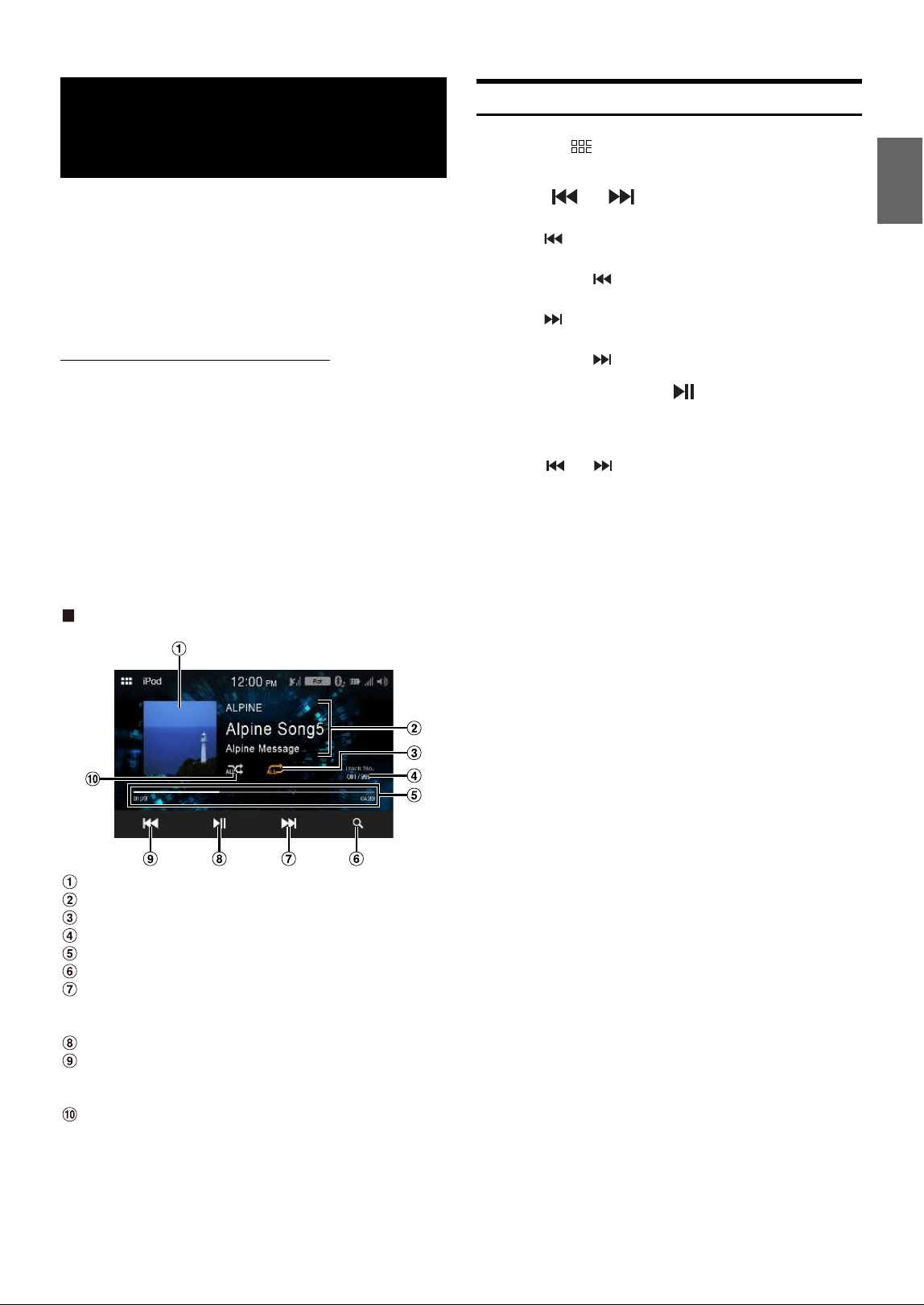
iPod main screen example
Artwork display
Information display*
Repeat mode
Current song no./Total song no.
Elapsed time/Total time for playing
Displays the search screen
Finds the beginning of the current file/Finds a previous file
within one second after playback starts/Fast-reverses when
touched for at least 1 second
Pause and Play
Finds the beginning of the current file/Finds a previous file
within one second after playback starts/Fast-reverses when
touched for at least 1 second
Shuffle mode
* Podcast mode.
Playback
1 Touch the (HOME) button and select iPod mode.
The display shows the iPod mode screen.
2 To uc h [] or [] or to select the desired track (file).
Returning to the beginning of the current (or previous) track (file):
Touch [].
Fast reverse the current track :
Touch and hold [].
Advancing to the beginning of the next track (file) :
Touch [].
Fast forward the current track :
Touch and hold [].
3 To pause playback, touch [].
• If a song is playing on the iPhone before it is connected to the unit, it
will continue playing when it is connected.
• An episode may have several chapters. The chapter can be changed by
touching [] or [].
• If the artist, album or song name, created in iTunes, has too many
characters, songs may not be played back when connected to the unit.
Therefore, a maximum of 64 characters is recommended. The
maximum number of characters for the unit is 64.
• Some characters may not be correctly displayed.
iPod mode on
iPhone (Optional)
30-EN
Searching for a Music File
An iPhone can contain thousands of songs. For this reason, this unit
can make various searches using the search function as shown below.
Using the Playlist/Artist/Album/Podcast/Audiobook/Genre/
Composer/Song/iTunes Radio search mode’s individual hierarchy, you
can narrow down your search as shown in the table below.
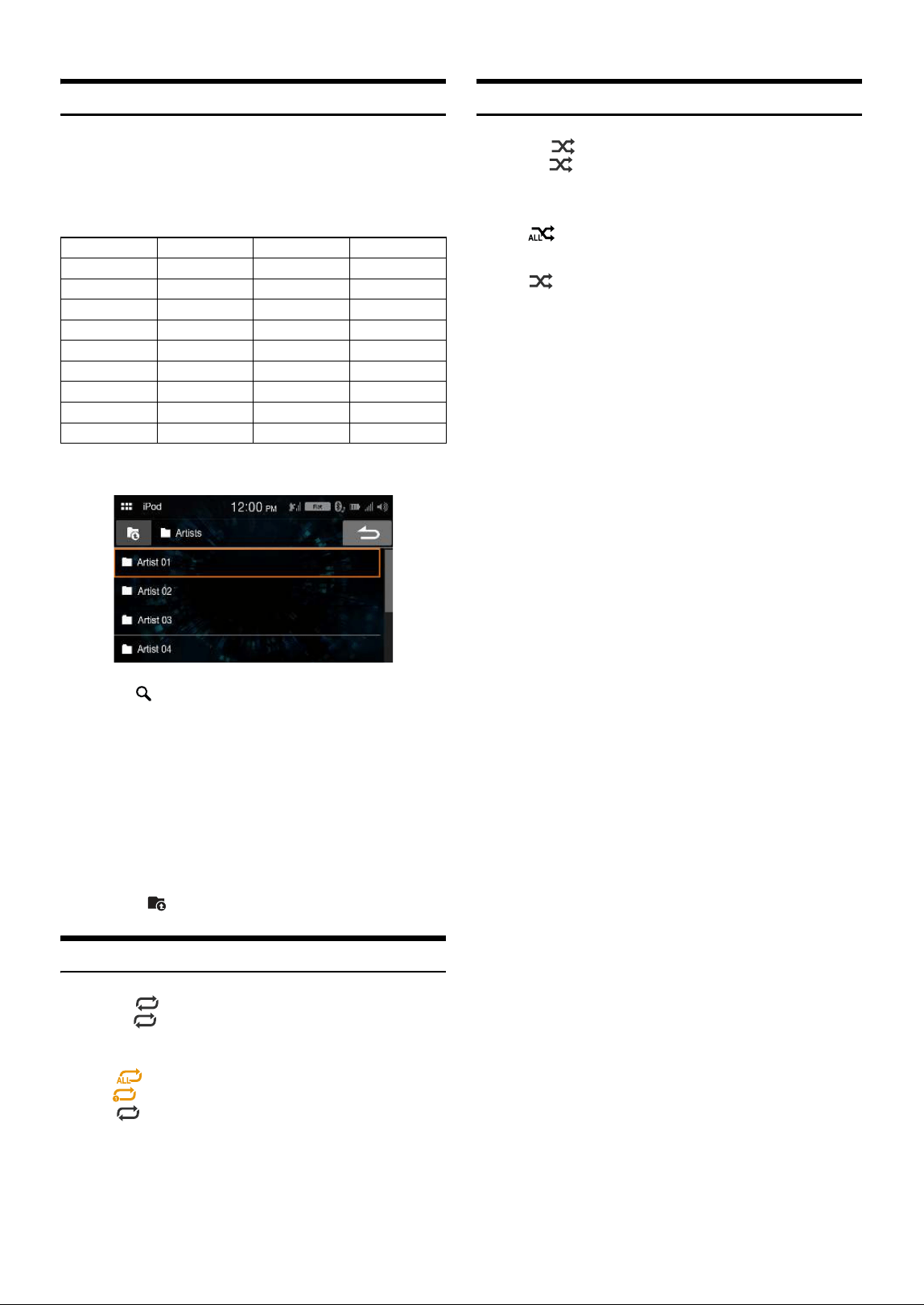
<Music Search Menu>
For example: Searching by Artist name
The following example explains how an Artists search is performed.
1 To uc h [] (Search) during playback.
2 To uc h [Artists].
The Artists search screen is displayed.
3 Select the desired artist.
4 Touch the desired album’s name.
All songs of the selected album are displayed.
5 Touch the desired song’s name.
The selected song is played back.
• If you touch [], the category browsing mode screen is displayed.
Repeat Play
1 To uc h [].
•The [] button displays the currently selected mode.
2 Select your desired Repeat mode.
Shuffle Play
1 To uc h [].
•The [] button displays the currently selected mode.
2 Select your desired Shuffle mode.
The selected Shuffle mode changes the button.
Hierarchy 1 Hierarchy 2 Hierarchy 3 Hierarchy 4
Radio — — —
Playlists Songs — —
Artists Albums Songs —
Albums Songs — —
Songs — — —
Genres Artists Albums Songs
Composers Albums Songs —
Podcast Episodes — —
Audiobook — — —
ALL : All files are repeatedly played back.
File : Only the file currently playing is repeatedly played back.
OFF : Repeat mode is Off.
ALL : All songs in the iPod are played back in random
sequence. Any one song does not play back again
until all songs have been played back.
OFF : Shuffle mode is Off.
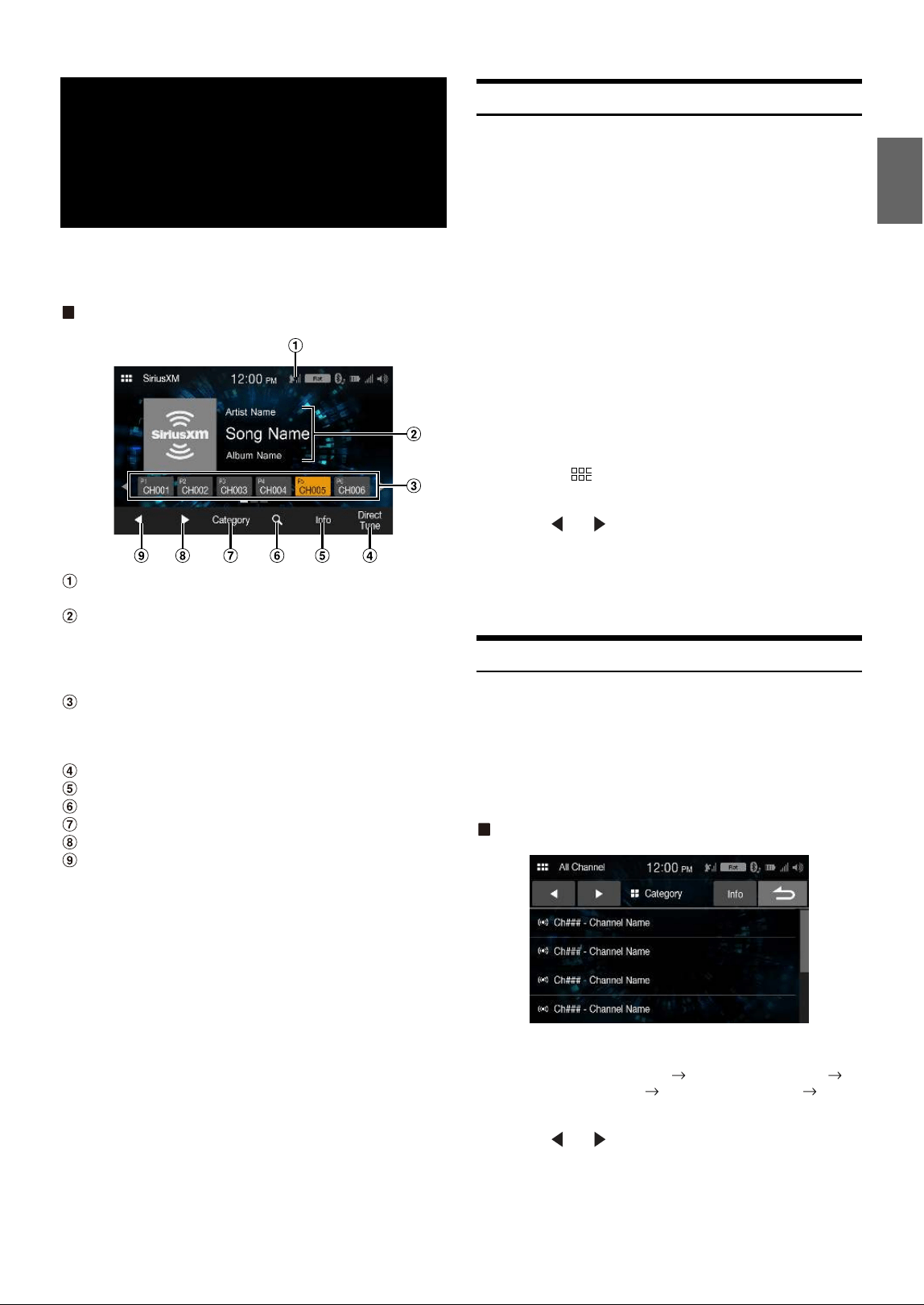
31-EN
SiriusXM Tuner operation:
When an optional SiriusXM Tuner is connected to this unit, the
following operations may be performed.
SiriusXM main screen example (Song Info. Mode)
Signal Indicator
Indicates the signal strength of SiriusXM.
Information display
Channel Info. Mode:
Channel No/Long Channel Name/Category Name
Song Info.Mode:
Artist Name/Song Name/Content Info
Preset buttons
Displays the preset channels with a short touch.
Touch for at least 1 second to memorize the current channel as a
preset channel.
Select the channel number
Changes text information
Displays the search screen
Changes to category browsing mode
Changes to the next channel
Changes to the previous channel
Receiving Channels with the SiriusXM Tuner
About SiriusXM Satellite Radio
Only SiriusXM® brings you more of what you love to listen to, all in one
place. Get over 140 channels, including commercial-free music plus the
best sports, news, talk, comedy and entertainment. Welcome to the
world of satellite radio. A SiriusXM Vehicle Tuner and Subscription are
required. For more information, visit www.siriusxm.com.
After you have found the SiriusXM Radio ID, you can activate your
radio. See section “Checking the SiriusXM Radio ID Number.”
In the USA, you can activate online or by calling SiriusXM Listener
Care:
• Visit www.siriusxm.com/activatenow
• Call SiriusXM Listener Care at 1-866-635‐2349
For Canadian Subscriptions, please contact:
• Visit www.siriusxm.ca/activatexm
• Call XM Customer Care at 1‐877‐438‐9677
• The SiriusXM Satellite Radio controls on this unit are available only
when a SiriusXM Tuner is connected.
1 Touch the (HOME) button and select SiriusXM mode.
The display shows the SiriusXM mode screen.
2 To uc h [] or [] to select the desired channel. Touching
and holding either button will rapidly browse through
the channels.
• Refer to the SiriusXM Tuner User Guide for details on how to install the
SiriusXM Tuner.
Tuning Channels by Category
Channels are grouped into categories based on the type of content heard
on the channels.
1 To uc h [Category] on the SiriusXM main screen to
activate the category browsing mode.
The channels within the category of the current channel are
listed.
Category browsing mode screen example
•Touching [Info] changes the display of information for the
channels in the category with the following three options.
Channel No./Channel Name Channel No./Artist Name
Channel No./Song Title Channel No./Content Info
Channel No./ Channel Name
2 To uc h [] or [] on the category browsing mode screen
to select a desired category.
The Category Name is shown at the top of the display.
3 Select the desired channel.
SiriusXM Satellite
Radio Operation
(Optional)

32-EN
Changing the Display
Text information, such as the channel name, artist name/feature, and
song/program title, is available with SiriusXM. The unit can display this
text information as explained below.
Touch [Info].
Each time you touch this button, the Channel Info. mode and the
Song Info. mode switch alternately. For displayed contents, see
“SiriusXM main screen example (Song Info. Mode)” (page 31).
Checking the SiriusXM Radio ID Number
To subscribe to the SiriusXM Satellite Radio service, it is necessary to
locate and identify the Radio ID of your SiriusXM Tuner. You can check
the Radio ID on the bottom surface of the SiriusXM Tuner box. You can
also check it from this unit by performing the following procedure.
1 While receiving SiriusXM Radio, touch [] or [] to
select channel “0”.
The unit displays the Radio ID number.
2 To cancel the Radio ID number display, change the
channel to a channel other than “0”.
• The SiriusXM Radio ID does not contain the letters I, O, S, or F.
Storing Channel Presets
You can store 18 of your favorite SiriusXM channels for easy recall with
Preset buttons.
1 Touch and hold the Preset number you want to store for
at least 1 second to store the channel.
The selected channel is designated as a SmartFavorites channel.
2 Repeat the procedure to store up to 17 other channels.
A total of 18 channels can be stored in the preset memory.
• If you store a new channel into a preset which already has a channel
assigned, the current channel will be cleared and replaced with the new
one.
Tuning Channels using Presets
Touch any one of the Preset numbers you have already
stored in the Preset mode screen.
The preset channel is received.
Search Function
1 Touch .
The Search list screen appears.
Search item:
All Channels / Category Name*
* The Category name for the channel currently being received is
displayed.
• You can switch the category by touching [] or [] on the List screen
after selecting a Search item.
• You can switch the display format by touching [Info] in the List screen
after selecting a Search item.
Channel No./Channel Name Channel No./Artist Name Channel
No./Song Title Channel No./Content Info Channel No./Channel
Name
Searching by Channel
2 To uc h [All Channels].
All Channels will be displayed in a list.
3 Touch the selected channel.
The channel you selected is received.
Searching by Category
2 Touch Category Name.
The channels within the category of the current channel are
listed.
3 Touch the selected channel.
The channel you selected is received.
Selecting the Channel Directly
You can directly select the channel number by using the numeric
keypad.
1 To uc h [Direct Tune].
The numeric keypad input screen is displayed.
2 Touch to input the channel number.
3 To uc h [OK].
The selected channel is received.
Parental Lock Function
The Parental Control feature allows you to limit access to any SiriusXM
channels, including those with mature content. When enabled, the
Parental Control feature requires you to enter a passcode to tune to the
locked channels. For information on setting the Parental Control
passcode, see “Parental Lock” (page 21).
When a locked channel is selected, “Channel [xxx] Locked” is displayed
and then the numeric keypad appears for you to enter the passcode.
Input the 4-digit passcode you set in “Parental Lock”
(page 21).
The initial number is 0000.
• If you input a wrong passcode, “Incorrect Pass Code entered” is
displayed.
• After entering the correct passcode, you can access all locked channels
without entering the passcode again until the unit is powered off and
then back on.
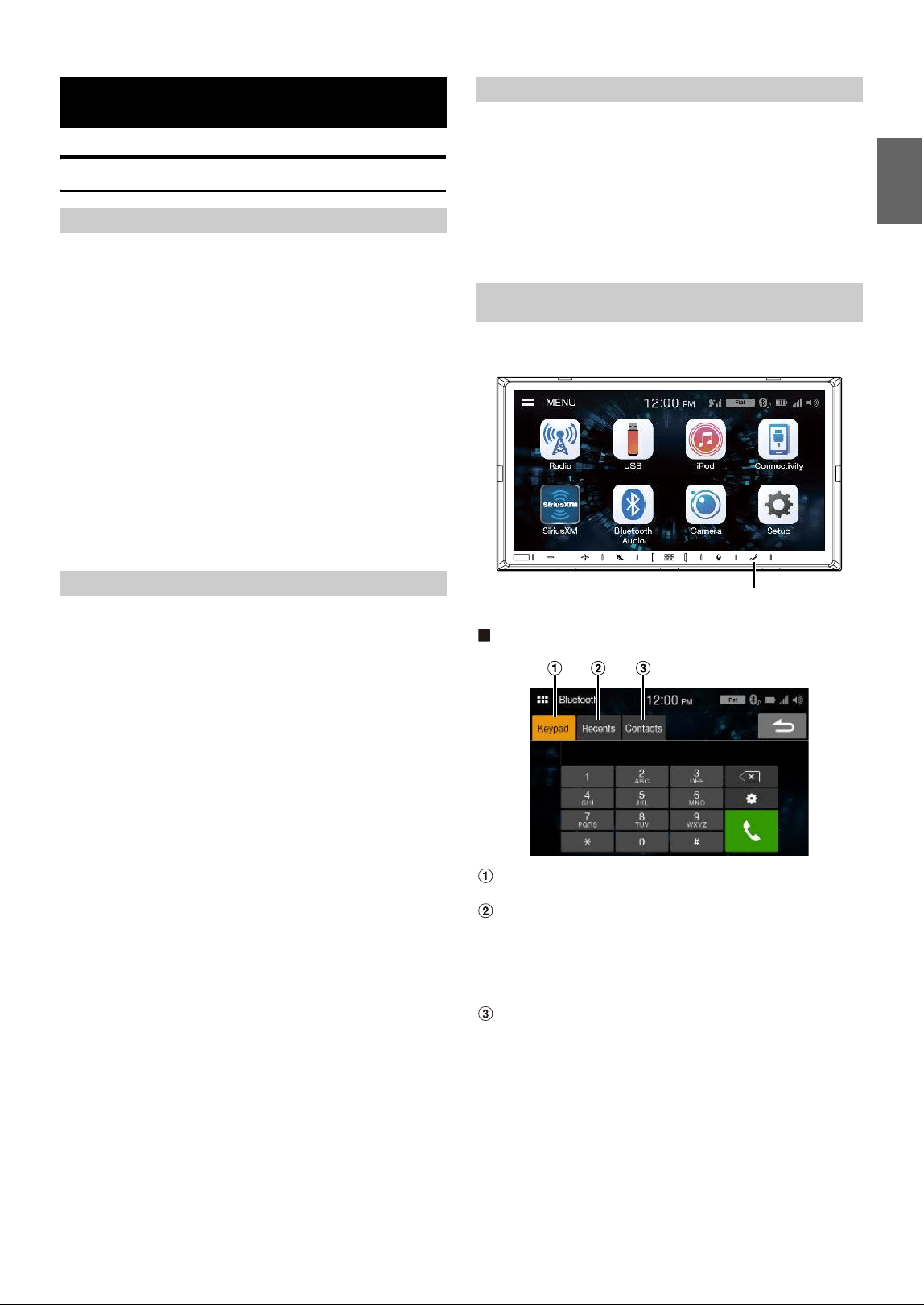
33-EN
Setup Before Using
Bluetooth is a wireless technology allowing communication between a
mobile device or personal computer over short distances. This enables a
hands-free call or data transmission between Bluetooth compatible
devices. Bluetooth transmission is available in the unlicensed 2.4 GHz
spectrum if the distance between devices is within 10 meters. For details,
refer to the Bluetooth website (http://www.bluetooth.com/).
• Depending on the Bluetooth version, a Bluetooth compatible device
may not be able to communicate with this unit.
• Proper function of this unit with all Bluetooth compatible devices is not
guaranteed. For handling of the Bluetooth compatible device, consult
your Alpine dealer or Alpine website.
• Depending on the surroundings, Bluetooth wireless connection may be
unstable.
• When you place a call, or perform setup operations, be sure to stop your
car in a safe place.
• Depending on the connected Bluetooth compatible device(s), the
function may differ. Also refer to the Owner’s Manual of the connected
device(s).
Hands-free calls are possible when using a HFP (Hands-Free Profile)
compatible mobile phone with this unit.
• Avoid performing a hands-free call in heavy traffic or on narrow or
winding streets.
• Close the windows while calling to reduce background noise.
• If both calling parties are using hands-free devices, or the call is made in
a noisy location, difficulty hearing the other person’s voice is normal.
• Depending on telephone line conditions or certain mobile devices used,
voices may sound unnatural.
• When using a microphone, speak as directly as you can into the
microphone to obtain the best sound quality.
• Certain mobile phone features are dependent on the capabilities and
settings of your service provider’s network. Additionally, certain features
may not be activated by your service provider, and/or the provider’s
network settings may limit the feature’s functionality.
Always contact your service provider about feature availability and
functionality.
All features, functionality, and other product specifications, as well as
the information contained in the Owner’s Manual are based upon the
latest available information and are believed to be accurate at the time
of printing.
Alpine reserves the right to change or modify any information or
specifications without notice or obligation.
• Notice that when you connect an iPhone 5s or later/Android
smartphone which installed Android Auto App, the operation screen
may differ from this section.
Before using the hands-free phone/audio function, the following
settings need to be made.
Register a Bluetooth device in this unit.
• See “Bluetooth Setup” (page 22).
• You can search for this unit using a Bluetooth compatible device, and
then connect that Bluetooth compatible device to this unit. The device
name of this unit is “iLX-W650” and the initial number of the passcode
is “0000.” Also refer to the Owner’s Manual of the connected device(s).
Touch [Bluetooth] in the HOME screen to display the Bluetooth menu
screen.
Phone menu screen example
Keypad screen
Use to type a phone number.
Recent Events list*
You can display up to 60 items, such as phone numbers of the
most recent incoming calls, missed calls and outgoing calls, and
contact names that are registered in the Phone Book. When 60
items exist in the list, the oldest item is deleted when a further
item is to be added.
Contacts list*
You can make a phone call from the Phone Book, or edit the
Phone book.
* If the Hands-Free Phone is not connected, the Bluetooth Setup screen will
be displayed. See “Bluetooth Setup” (page 22).
Bluetooth Operation
About Bluetooth
About the Hands-free Phone
Before Using Bluetooth
Hands-free Phone Control
[Phone] button
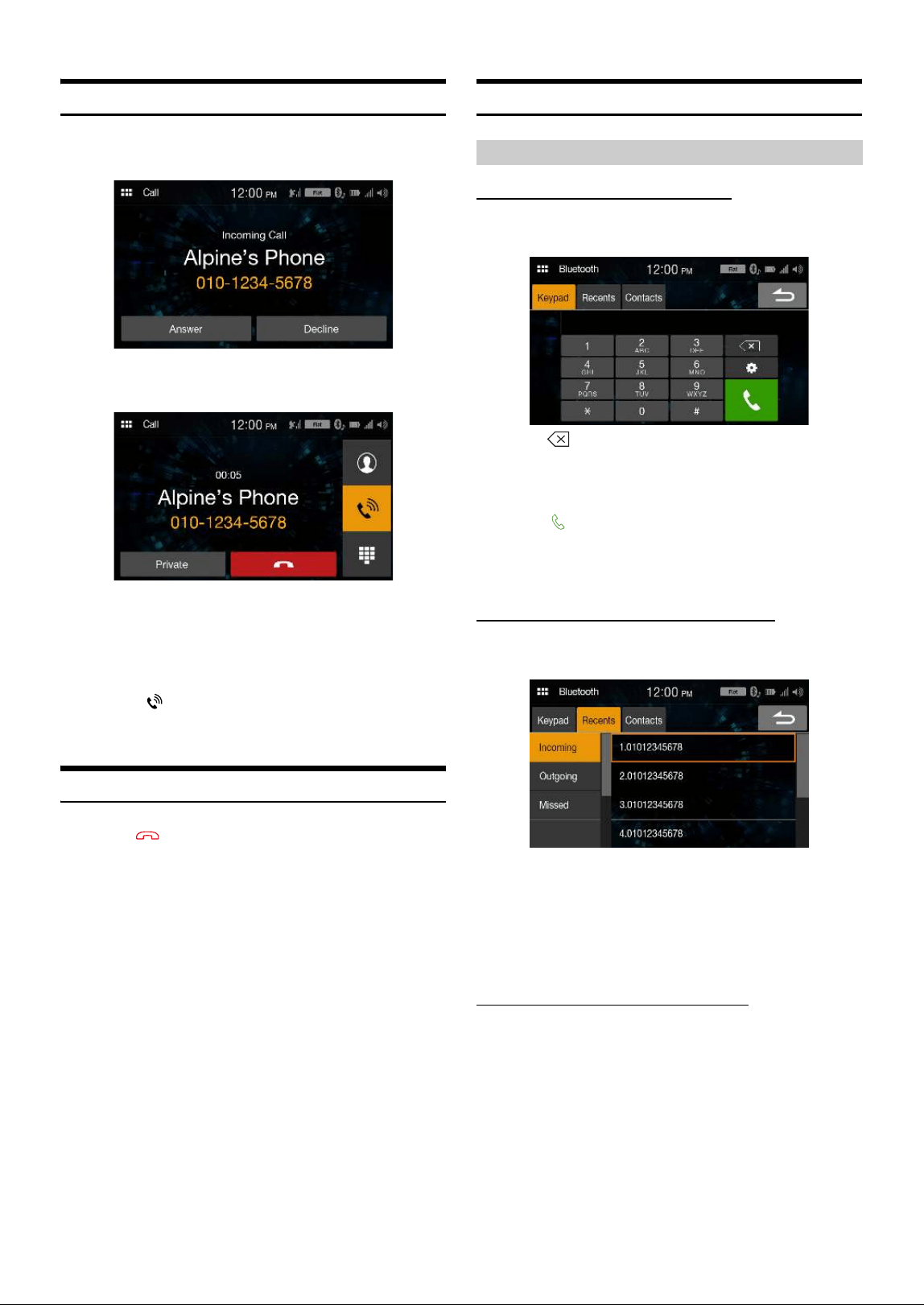
34-EN
Answering a Call
1 An incoming call triggers the ringtone and an incoming
call display.
2 To uc h [Answer].
The call starts.
• During a call, the audio for the current mode on the unit is muted. After
calling, playback will resume.
• When the caller’s number is transmitted to the system, if the caller’s
name is stored in the phone book, the name is displayed. If the name is
not stored, the number is displayed.
•Touch [Decline] to reject an incoming call.
• By touching [] during phone call, you can change to the Phone
Operation screen and adjust the speech volume, etc. For details, see
“Phone Operation Screen” (page 36).
Hanging up the Telephone
1 To uc h [] (End Call).
The call finishes.
Calling
Entering a Phone Number to Make a Call
1 To uc h [Keypad].
The number input screen (Keypad) appears.
Touch [] to delete an entered number.
2 Enter the phone number you wish to call.
• You can enter up to 21 digits.
3 To uc h [ ] (Call).
The phone call is started.
• To change the Bluetooth device, touch ## to display the Bluetooth Setup
screen. See “Bluetooth Setup” (page 22).
Making a phone call from the Recent Events list
1 To uc h [Recents] to change to the Recent Events list
screen.
2 Select a category from [Incoming], [Outgoing], or
[Missed].
3 Touch the name of the contact or number you want to
call.
The phone call is started.
Calling from the Contacts list (Phone Book)
1 To uc h [Contacts] to change to the Contacts list screen.
2 Touch the name of the contact or number you want to
call.
Making a phone call using the Phone Menu
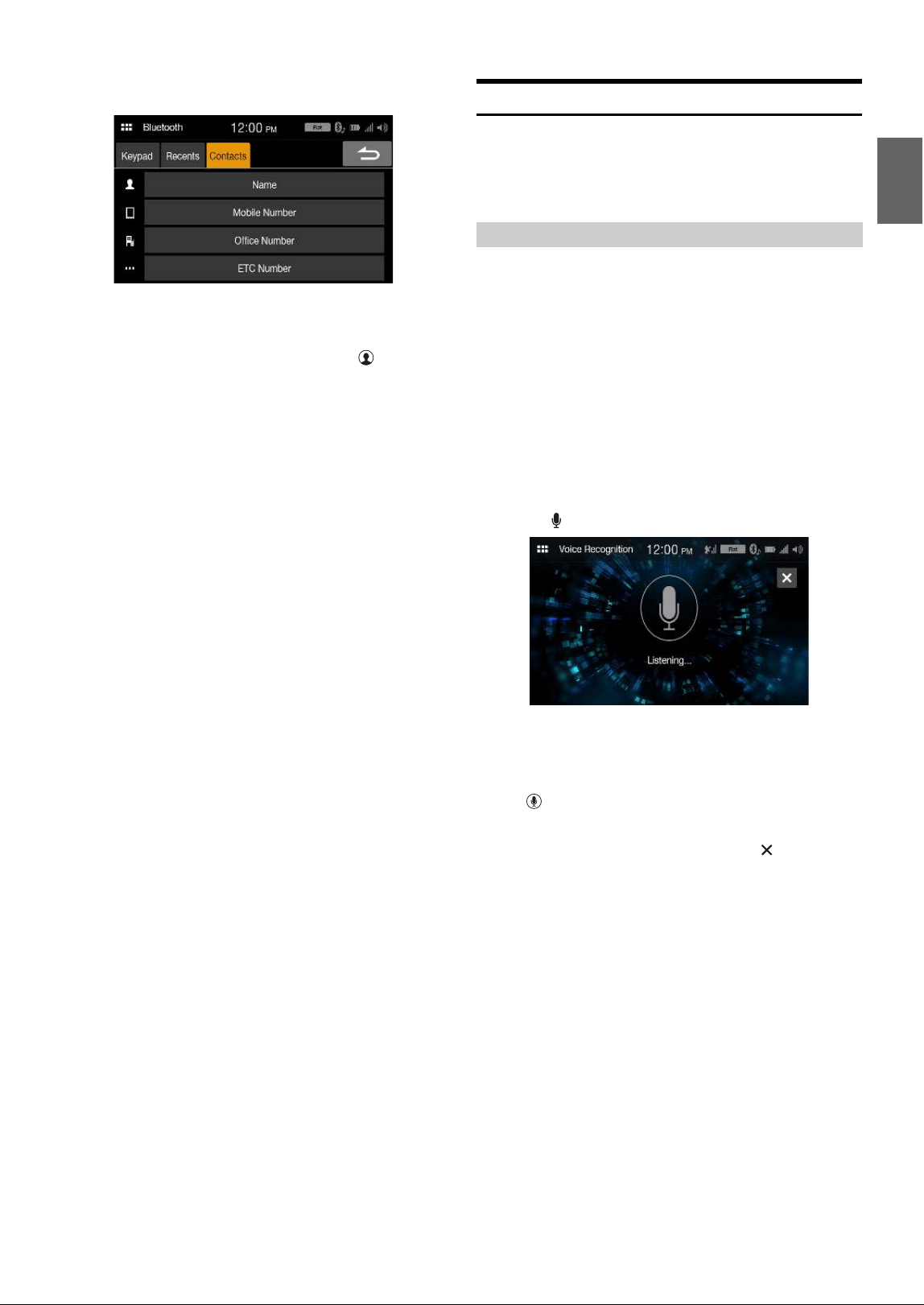
35-EN
3 Touch the phone number.
The Phone Operation screen is displayed.
4 Touch the number you want to call.
The phone call is started.
• The Contacts list screen is also displayed by touching [] on the
Phone Operation screen.
Using Voice Recognition function
You can use Siri function of your iPhone or make a telephone call by
using voice operation of your smartphone.
• When using Apple CarPlay or Android Auto, the operation screen may
differ from the screen design in the Owner’s Manual.
You can use the Siri function of your iPhone. To use this function, set
the Siri setting of your iPhone to ON.
• Connect your iPhone to the unit via Bluetooth, then set to “Hands-free”
or “Both” (page 22).
• The available functions differ depending on the connected iPhone.
• Ask Siri to play a track from the music library applies only to USB
source.
• Siri and other streaming services are enabled by connecting to
compatible smartphones that are able to receive data. Please ensure that
cellular data and/or Wi-Fi is turned on in the smartphone to enjoy
these features.
• Extensive use of Siri or other streaming services may increase your
phone’s data usage. Please check with your phone company to ensure
you have an appropriate Data plan.
1 To uc h [] button.
The Voice Recognition mode screen is displayed.
2 Speak into the microphone supplied with this unit.
• If no speech is detected, the unit may pause depending on version
of the connected iPhone. In that case, touch the microphone icon
[] in the center of the Voice Control mode screen. You can
continue to use the Voice Control mode.
3 To finish the Voice Control mode, touch [ ].
• Depending on the iPhone, the Siri function may finish automatically.
• For adjusting the volume, see “Adjusting the Speech Volume” (page 36).
Using Siri
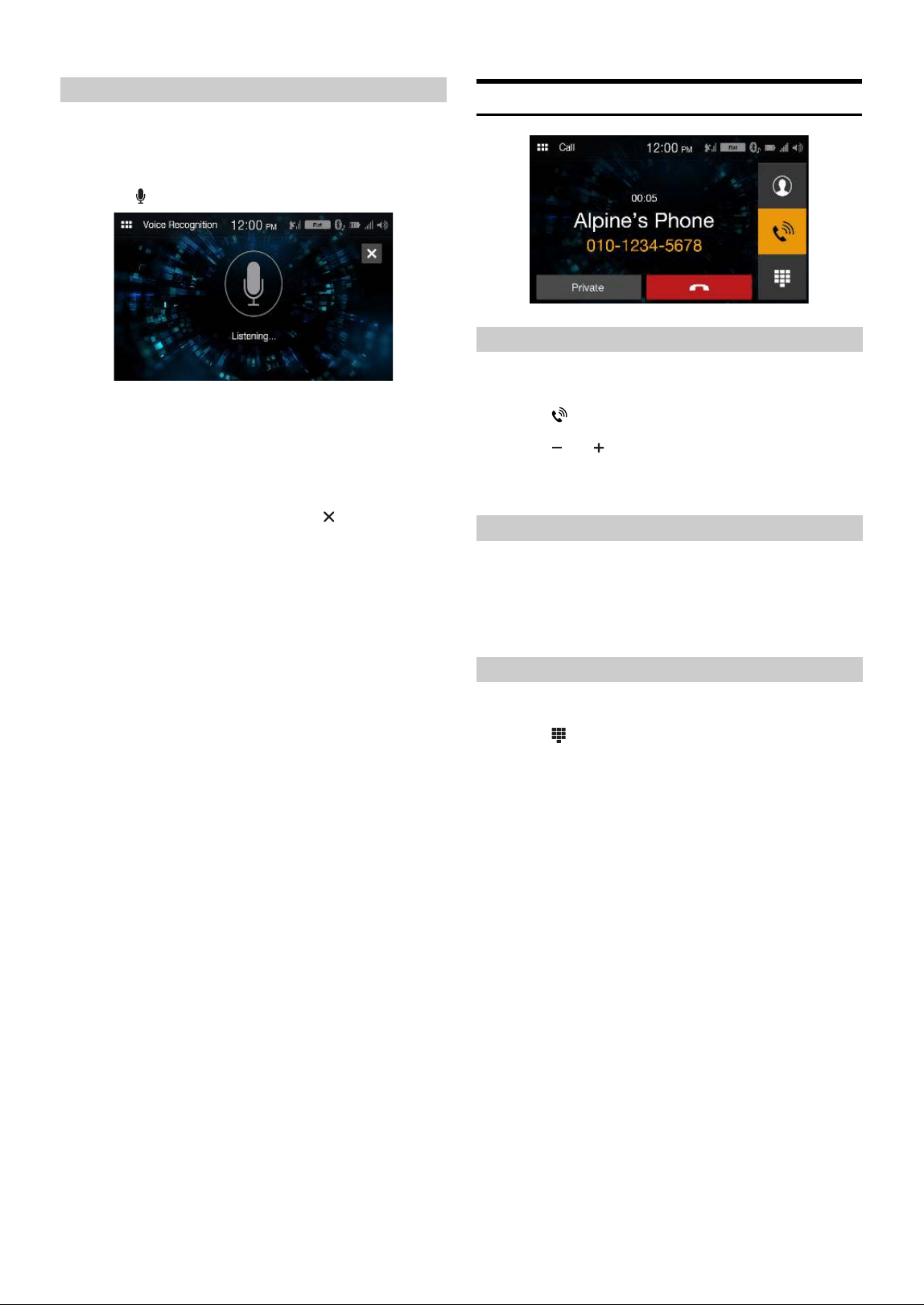
36-EN
You can make a telephone call by using voice operation.
• Connect your smartphone to the unit via Bluetooth, then set to “Hands-
free” or “Both” (page 22).
1 To uc h [] button.
The Voice Dial mode screen is activated.
2 Say the telephone number* or name* you want to call,
into the microphone.
* The number and name depend on the voice dial information stored
in the smartphone.
3 To finish the Voice Dial mode, touch [ ].
• You can perform this operation only when a voice dial compatible
smartphone is connected.
• The Voice Dial function performance depends on the recognition range
of the smartphone and mounting location of the microphone.
Note when the microphone is mounted.
• Voice dial operation depends on the function being available on the
smartphone. For details, refer to the owner’s manual of the smartphone.
• Depending on the smartphone, the Voice Dial operation may finish
automatically.
• For adjusting the volume, see “Adjusting the Speech Volume” (page 36).
Phone Operation Screen
You can adjust Caller Level and Mic. Level (Microphone Level).
1 To uc h [].
2 To uc h [] or [] of “Mic Vol.” or “Caller Vol.”
You can adjust the volume in 11 levels.
• This operation is not available for the Private Call setting.
The voice output for calls is switchable between car speakers and the
mobile phone speaker.
To uc h [Private] or [Handsfree].
• Depending on the mobile phone, this operation may not be possible.
Transmits a DTMF (Touch-Tone) during a call.
1 To uc h [] (Keypad).
The number input screen (Keypad) appears.
2 Input number.
• You can transmit a Touch-Tone signal during a call.
Voice Dial Function
Adjusting the Speech Volume
Changing the Voice Output
DTMF (Touch-Tone) Function
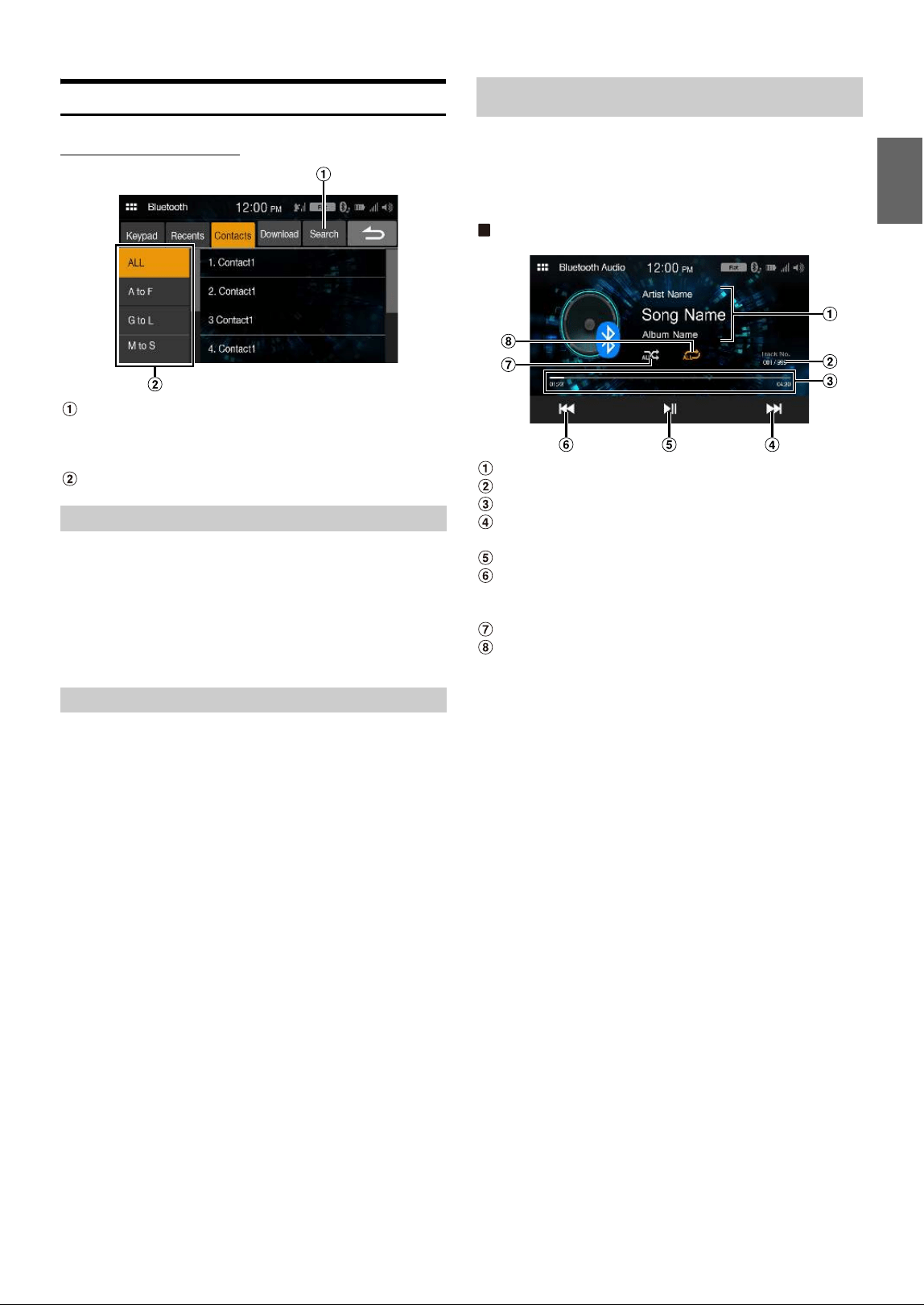
37-EN
Phone Book Function
Phone Book screen example
Use to search by directly inputting a name or phone number
with the Keypad.
For details, see “How to Input Characters and Numbers
(Keypad)” (page 11).
Use to narrow down your search for names, etc.
You can synchronize the system’s phone book with the mobile phone’s
phone book.
To uc h [Download].
Synchronization of the phone books starts.
• You can store up to 1,000 registered name in the phone book.
• You can store up to 3 phone numbers by one person’s name.
You can make a call using the phone book search function.
1 To uc h [Search].
The Input User Name screen (Keypad) is displayed.
2 Input the string of letters of the name that you want to
search, then touch [OK].
A list of names beginning with the string of letters you entered is
displayed.
3 Touch the name you want to call.
The Phone Operation screen is displayed.
4 Touch the phone number.
The phone call is started.
• For details of how to input characters using the keypad, see “How to
Input Characters and Numbers (Keypad)” (page 11).
If a Bluetooth compatible mobile phone, portable player, etc. is
connected by wireless, you can play back a song (operation is
controllable from the unit).
• Operation may vary, depending on the Bluetooth compatible device.
Bluetooth Audio main screen example
Information display
Current track number/Total track number
Elapsed time/Total time for playing
Finds the beginning of next chapter/Fast-forwards when
touched for at least 1 second
Pause and Play
Finds the beginning of the current file/Finds a previous file
within one second after playback starts/Fast-reverses when
touched for at least 1 second
Shuffle mode
Repeat mode
• The displayed onscreen buttons may differ depending on the AVRCP
version.
• Song title/Artist title/Album title/Elapsed time do not display for
AVRCP Ver. 1.0.
• To play back audio, a mobile phone or a portable player conforming to
A2DP (Advanced Audio Distribution Profile) or AVRCP (Audio/Video
Remote Control Profile) is required.
Not all functions work with all devices.
• During a call, sound on the Bluetooth audio source is paused.
Compatible AVRCP versions: 1.0, 1.3, 1.4, 1.5
• Available functions may differ depending on the AVRCP version.
Synchronizing the Phone Book
Searching in the Phone Book
Bluetooth Audio
38-EN
Playback
1 Touch the (HOME) button and select Bluetooth
Audio mode.
The display shows the Bluetooth Audio mode screen.
2 To uc h [] or [] to select the desired track (file).
Returning to the beginning of the current file:
Touch [].
Fast backward the current file:
Touch and hold [].
Advance to the beginning of the next file:
Touch [].
Fast forward the current file:
Touch and hold [].
3 To pause playback, touch [ ].
Repeat Play
Available for AVRCP Ver. 1.4 and 1.5 only.
1 To uc h [].
• [] displays the currently selected mode.
2 Select your desired Repeat mode.
The selected Repeat mode changes the button.
• Operations may differ depending on the connected Bluetooth
compatible device.
Shuffle Play
Available for AVRCP Ver. 1.4 and 1.5 only.
1 To uc h [].
•The [] button displays the currently selected mode.
2 Select your desired Shuffle mode.
The selected Shuffle mode changes the button.
• Operations may differ depending on the connected Bluetooth
compatible device.
All Track : Once all of the songs have finished playing, play
back is repeated, starting with the first song.
Single Track :Only the track currently playing is repeatedly
played back.
Off : Repeat mode is Off.
All Track :All songs in the Bluetooth compatible devices are
played back in random sequence. Any one song does
not play back again until all songs have been played
back.
Off : Shuffle mode is Off.
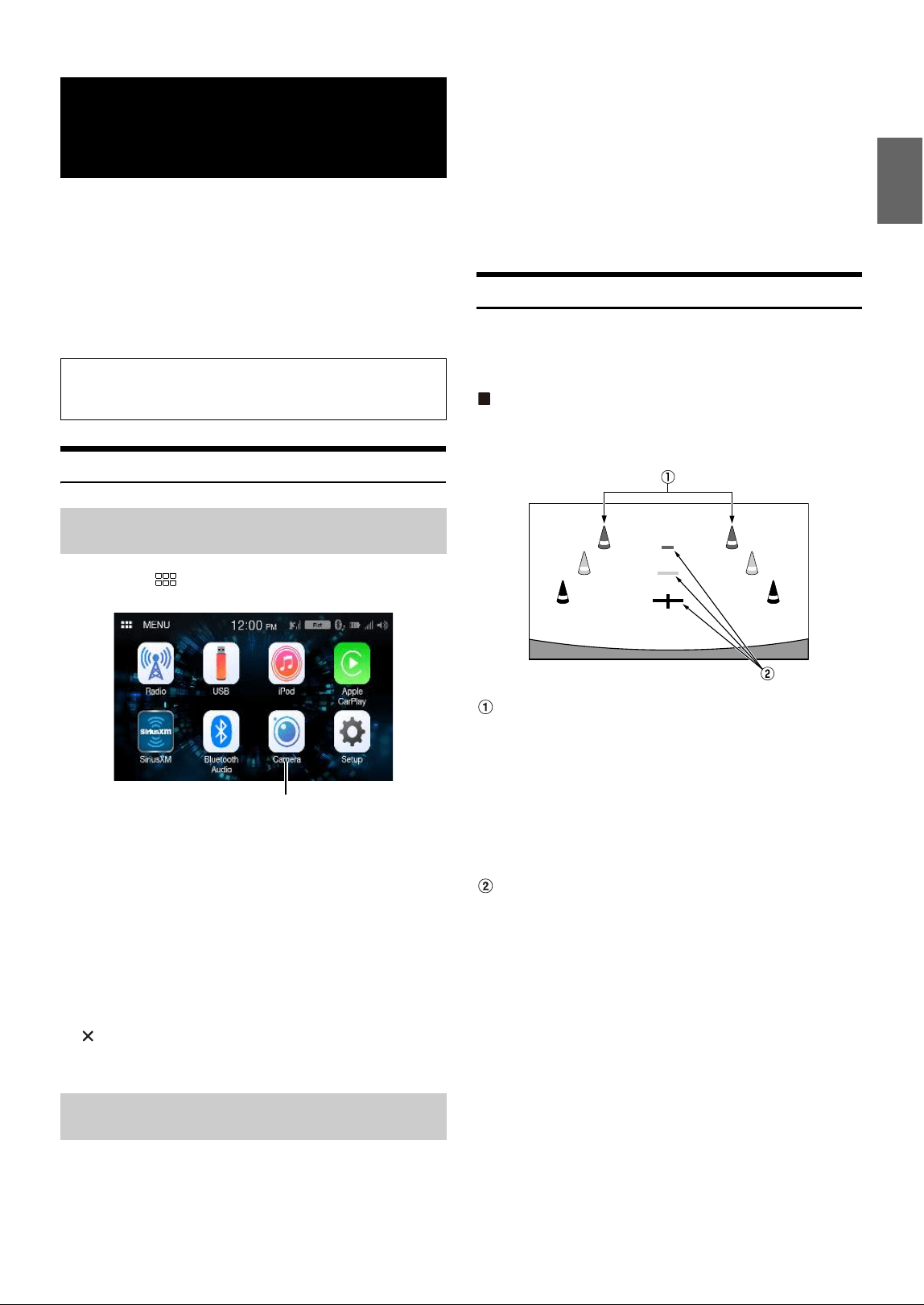
39-EN
When an optional camera is connected, the view video of camera can be
output to the monitor.
Rear camera:
If a rear camera is connected, when the vehicle is reversed, the rear
camera view (guide marks for vehicle width and available distance) is
displayed automatically on the screen of this unit.
Front camera:
You can check the front of the vehicle with a bad visibility road.
Camera Operation
1 Touch the (HOME) button.
The HOME screen is displayed.
• If both “Primary” and “Secondary” are set to [Off] (page 23), the
[Camera] button cannot be selected.
2 To uc h [Camera].
The view of the camera which is set in the “Primary” setting is
displayed.
• If “Primary” is set to [Off], the view of the camera set in the
“Secondary” setting is displayed.
• Touch the screen when the camera image is displayed, and touch the
secondary camera button to switch to the secondary camera view
image.
• Touch the screen while the camera image is being displayed, and touch
[] to return to the main source screen or previous screen.
• You can perform a Guide Adjustment for the rear view image. For
details, see “About the Rear Camera Guide” (page 39).
1 Shift the gear lever to the reverse (R) position.
The rear view image is displayed while the car remains in
reverse.
• If neither “Primary” and “Secondary” is set to [Rear] (page 23),
the rear view image is not displayed.
2 If you shift the gear lever to a position other than reverse
(R), the monitor returns to the previous screen.
• Touch the screen when the camera image is displayed, and touch the
secondary camera button to switch to the secondary camera view
image.
• Never depend solely on the camera when backing up. Always turn and
look and only use the camera for additional assistance.
• This function is effective when the reverse wire is properly connected.
• You can perform a Guide Adjustment for the rear view image. For
details, see “About the Rear Camera Guide” (page 39).
About the Rear Camera Guide
To display the guide, set “Turning the Rear Camera Guide On/Off ”
(page 23) to On. Also, to adjust the guide, see “Adjusting the Rear
Camera Guide” (page 24).
Indication mark meaning
When the car is put into reverse gear, the monitor switches to the rear
view camera image. Guides appear to help visualize the car’s width and
distance from the rear bumper.
Car width extension marks (red, yellow and green in
order of distance)
If properly calibrated, the marks indicate the car’s width. This
helps guide the car’s path when backing up in a straight line.
The marks represent the distance from the rear of the car (from
the rear end of the bumper).
• The marks do not move in synchronization with the steering
wheel.
• Set the marks to suit the car’s width.
Distance guidance marks
The marks represent the distance from the rear of the car (from
the rear end of the bumper).
• The marks do not move in synchronization with the steering
wheel.
• We recommend that you measure the actual distance to the
marks when parked on a level surface.
• Depending on the condition of the car or road surface, the range of
vision may vary.
• The camera has a limited range of vision. Objects at extreme angles to
the camera (e.g. under the bumper or at opposite ends of the bumper)
may not be in the its field-of-vision.
• The rear camera image may have a tint which is different from the
actual surroundings.
• Depending on the car, the guidance may deviate to the right or left. This
is not a malfunction.
Camera Operation
(Optional)
You can adjust the quality of the camera image.
Setting items: Brightness / Color / Contrast
See “Camera Picture Quality Setup” (page 23).
Displaying the Camera Image from the Menu
screen
Displaying the rear view video while the car is
in reverse
[Camera] button
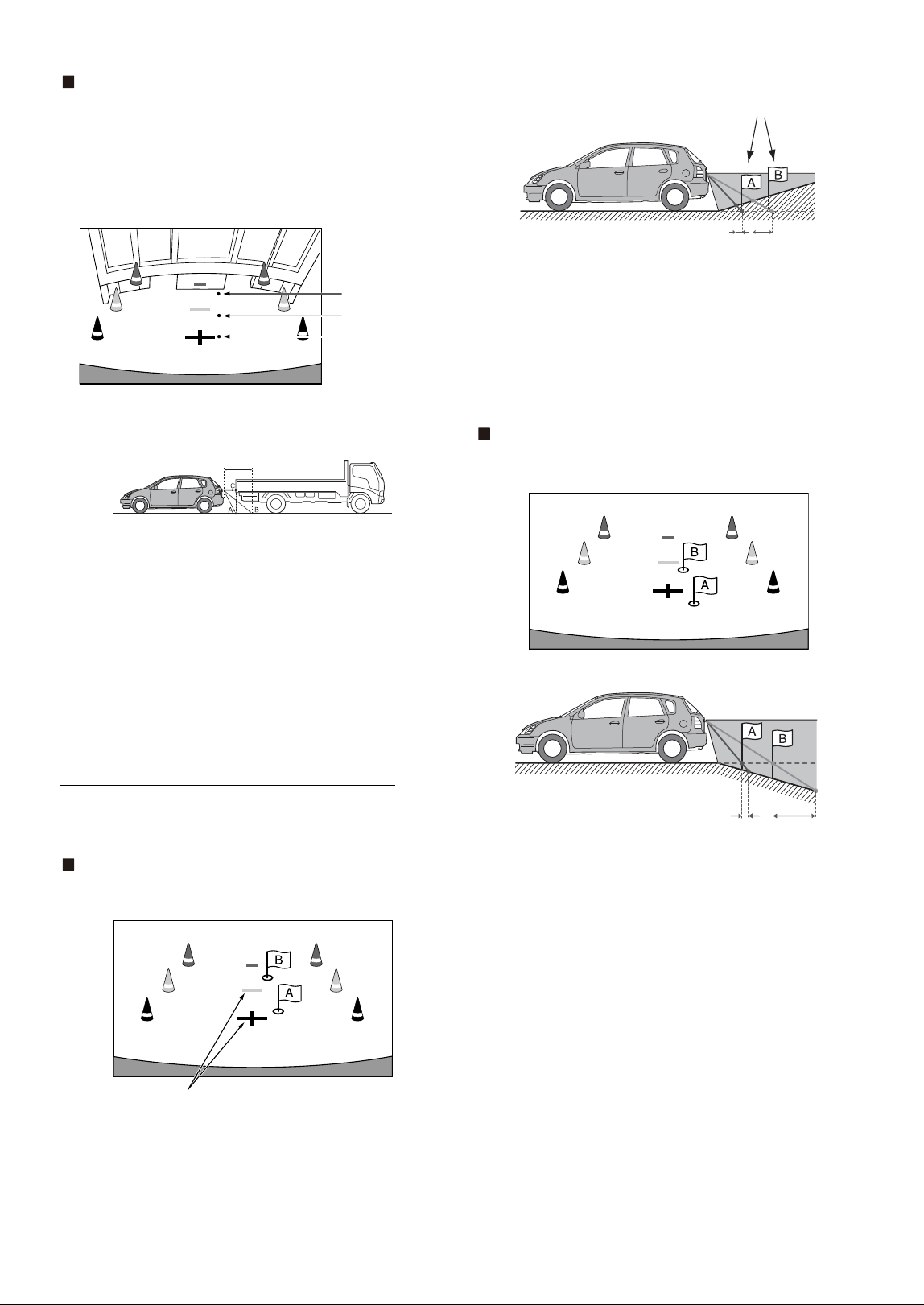
40-EN
Distance guidance mark
The distance guides represent the ground level distance from the rear
bumper. It is difficult to accurately estimate the distance to objects above
ground level.
In the following example, the distance to A is 0.5 m and the distance to B
is 1 m.
<Screen>
<Positions of A, B and C>
In the screen, according to the distance guidance marks, the
truck seems to be parked about 1 m away (at the position B).
In actual fact, however, if you reversed to position A, you
would collide with the truck.
In the screen, positions A, B and C seem to be located in order
of proximity. However, in actual fact, the position A and C are
the same distance, and B is farther away than positions A and
C.
• The car width extension mark represents the distance to the road
surface. The distance to an object on the road is not accurately
represented by the guides.
Error between the screen and the actual road surface
In the following conditions, errors are produced between the screen
guidance and the actual road surface. (The illustrations represent a case
when the camera is installed in the standard position.)
When there is a steep upward slope behind the car
(example)
<Screen>
<Situation of the car>
The distance guidance mark represents the distance to a flat
road surface. Therefore in the case of an upward slope
behind the car, the distance guides are displayed closer to
the rear bumper than the actual distance. For example, if
there is an obstacle on the upward slope, it may appear
farther away than its actual position.
Also, an error may occur between the guidance and the
actual path of the car on the road surface.
When there is a steep downward slope behind the car
(example)
<Screen>
<Situation of the car>
In the case of a downward slope behind the car, the distance
guides are displayed farther from the rear bumper than the
actual distance.
If there is an obstacle on the downward slope, it seems closer
than its actual position.
Also, an error may occur between the guidance and the
actual path of the car on the road surface.
C
B
A (about 0.5 m)
about 1 m
Distance guidance marks
Actual distances
Error Error
Error Error
41-EN
Product Software Update
This product use software that can be updated through a USB flash
drive. Download the software from the Alpine website and update the
product using the USB flash drive.
1 Connect the USB flash drive which includes with the
update software.
2 To uc h [Information] on the Setup menu screen.
3 To uc h [Firmware Upgrade].
Software updating starts.
Updating this product
Check the Alpine website for details on updating.
http://www.alpine-usa.com
Important information on the software
About the software license of the product
The software installed in the product contains open-source software.
See the open source licenses at the end of the manual (page 56) for
details on the open source software.
About the Supported Formats
What is MP3?
MP3, whose official name is “MPEG Audio Layer 3,” is a compression
standard prescribed by the ISO, the International Standardisation
Organisation and MPEG which is a joint activity institution of the IEC.
MP3 files contain compressed audio data. MP3 encoding is capable
of compressing audio data at extremely high ratios, reducing the size
of music files to as much as one-tenth their original size. This is
achieved while still maintaining near CD quality. The MP3 format
realizes such high compression ratios by eliminating the sounds that
are either inaudible to the human ear or masked by other sounds.
What is WMA?
WMA, or “Windows Media™ Audio,” is compressed audio data.
WMA is similar to MP3 audio data.
What is AAC?
AAC is the abbreviation for “Advanced Audio Coding,” and is a basic
format of audio compression used by MPEG2 or MPEG4.
What is FLAC?
FLAC (Free Lossless Audio Codec) is an audio file codec for lossless
compression, developed and offered as open source software.
Codecs with lossy compression forms, such as MP3 and AAC, reduce
part of the data to improve compression efficiency.
However, FLAC can reconstruct compressed data to be an identical
copy of the original data by performing lossless compression. The
compression ratio of FLAC is about 50%.
Method for creating MP3/WMA/AAC/FLAC/WAV (USB Flash drive) files
Audio data is compressed using software with MP3/WMA/AAC/FLAC/
WAV (USB Flash drive) codecs. For details on creating MP3/WMA/
AAC/FLAC/WAV (USB Flash drive) files, refer to the user’s manual for
that software.
MP3/WMA/AAC/FLAC/WAV (USB Flash drive) files that are playable
on this device have the file extensions.
MP3: “mp3”
WMA: “wma”
AAC: “m4a”
FLAC: “flac”/”fla”
WAV: “wav”
WMA is not supported for the following files, Windows Media Audio
Professional, Windows Media Audio 10 std or Windows Media Audio
10 Pro Lossless.
There are many different versions of the AAC format. Confirm that the
software being used conforms to the acceptable formats listed
above. It’s possible that the format may be unplayable even though
the extension is valid.
Playback of AAC files encoded by iTunes is supported.
Supported playback sampling rates and bit rates
MP3 (USB Flash drive)
WMA (USB Flash drive)
AAC (USB Flash drive)
FLAC (USB Flash drive)
WAV (USB Flash drive)
This device may not play back correctly depending on sampling
rates.
ID3 tags/WMA tags
This device supports ID3 tag v1.0, v1.1, v2.2, v2.3, v2.4, and WMA tag
Ver.1.x. If tag data is in an MP3/WMA/AAC file, this device can display
the title (track title), artist name, and album name ID3 tag/WMA tag
data.
For non-supported characters, “*” is displayed.
The number of characters may be limited, or not correctly displayed,
depending on the tag information.
Playing back MP3/WMA/AAC/FLAC/WAV
MP3/WMA/AAC files are prepared, then written to a USB flash drive.
• Maximum numbers of playable files/folders
USB Flash drive: 3,000 files/255 folders (including Root Folder)
• Largest playable file size: 512 MB
Playback may not be performed if a disc exceeds the limitations
described above.
If a file/folder name is long, the maximum possible number of files
may decrease.
Information
About MP3/WMA/AAC/FLAC/WAV
CAUTION
Except for private use, duplicating audio data (including
MP3/WMA/AAC/FLAC/WAV data) or distributing,
transferring, or copying it, whether for free or for a fee,
without permission of the copyright holder is strictly
prohibited by the Copyright Act and by international
treaty.
Sampling rates: 8 kHz, 11.025 kHz, 12 kHz, 16 kHz, 22.05 kHz,
24 kHz, 32 kHz, 44.1 kHz, 48 kHz
Bit rates: 8 - 384 kbps
Sampling rates: 8 - 48 kHz
Bit rates: 8 - 384 kbps
Sampling rates: 8 - 48 kHz
Bit rates: 8- 384 kbps
Sampling rates: 8 - 48 kHz
Bit rates: 8 - 384 kbps
Sampling rates: 8 - 48 kHz
Bit rates: 64 - 1,536 kbps
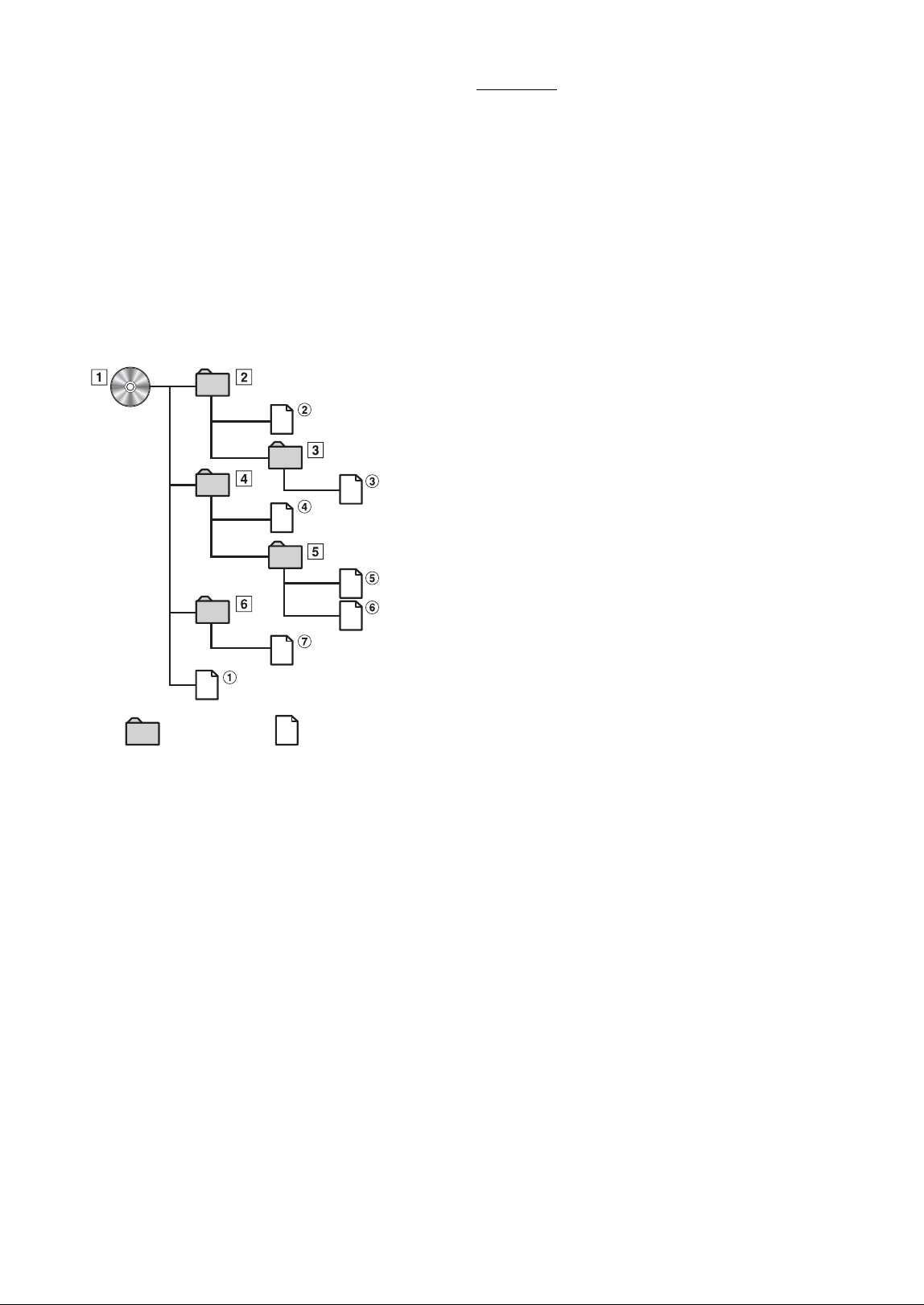
42-EN
Media supported
The media that this device can play back a USB flash drive.
Corresponding File Systems
This device supports FAT 16/32.
Order of files
Files are played back in the order that the writing software writes
them to the disc. Therefore, the playback order may not be what’s
expected. Verity the writing order in the software’s documentation.
The playback order of the folders and files is as follows. (The
following numbers may differ from actually displayed numbers.)
Terminology
Bit rate
This is the “sound” compression rate specified for encoding. The higher
the bit rate, the higher the sound quality, but also the larger the files.
Sampling rate
This value shows how many times per second the data is sampled
(recorded). For example, music CDs use a sampling rate of 44.1 kHz, so
the sound is sampled (recorded) 44,100 times per second. The higher the
sampling rate, the higher the sound quality, but also the larger the
volume of data.
Encoding
Converting music CDs, WAVE (AIFF) files, and other sound files into
the specified audio compression format.
Ta g
Song information such as track titles, artist names, album names, etc.,
written into MP3/WMA/AAC/FLAC/WAV (USB flash drive) files.
Root folder
The root folder (or root directory) is found at the top of the file system.
The root folder contains all folders and files. It is created automatically
for all burned discs.
The maximum nested folder depth is 8 (including the root
directory). File names are limited to 128 characters (including the
extension).
Valid characters for folder/file names are letters A-Z (all caps),
numbers 0-9, and ‘_’ (underscore).
Root
Folder
Folder
MP3/WMA/AAC/FLAC/
WAV File

43-EN
In Case of Difficulty
Basic
No function or display.
• Vehicle’s ignition is off.
- If connected according to the instructions, the unit will not
operate with the vehicle’s ignition off.
• Improper power lead connections.
- Check power lead connections.
•Blown fuse.
- Check the fuse on the battery lead of the unit; replace with the
proper value if necessary.
No sound or unnatural sound.
• Incorrect setting of volume/balance/fader controls.
- Readjust the controls.
• Connections are not properly or securely made.
- Check the connections and firmly connect.
Screen not displayed.
• Brightness/Contrast control is set at the minimum position.
- Adjust the Brightness/Contrast control.
• Temperature in the vehicle is too low.
- Increase the vehicle’s interior temperature to operation
temperature range.
• Connections to the Auxiliary Device are not securely made.
- Check the connections and firmly connect.
• The Parking Brake Lead is not connected.
• The Parking Brake is not engaged.
- Connect the Parking Brake Lead, then engage the Parking
Brake.
Movement of displayed picture is abnormal.
• Temperature in the vehicle is too high.
- Allow the vehicle’s interior temperature to cool.
Radio
Unable to receive stations.
• No antenna, or open connection in the antenna cable.
- Make sure the antenna is properly connected; replace the
antenna or cable if necessary.
Unable to tune stations in the seek mode.
• You are in a weak signal area.
- Change the radio frequency manually.
• If the area you are in is a primary signal area, the antenna may
not be grounded and connected properly.
- Check your antenna connections; make sure the antenna is
properly grounded at its mounting location.
• The antenna may not be the proper length.
- Make sure the antenna is fully extended; if broken, replace the
antenna with a new one.
Broadcast is noisy.
• The antenna is not the proper length.
- Extend the antenna fully; replace it if it is broken.
• The antenna is poorly grounded.
- Make sure the antenna is grounded properly at its mounting
location.
• The station signal is weak and noisy.
- If above solution does not work, tune in another station.
USB Audio
Unit does not operate.
• Condensation.
- Wait a while (about 1 hour) for the condensation to dry.
Picture is unclear or noisy.
• Vehicle’s battery power is weak.
-Check the battery power and wiring.
(The unit may malfunction if the battery power is under 11
volts with a load applied.)
If you encounter a problem, please turn the power off,
then on again. If the unit is still not functioning normally,
please review the items in the following checklist. This
guide will help you isolate the problem if the unit is at
fault. Otherwise, make sure the rest of your system is
properly connected, or then consult your authorized
Alpine dealer.

44-EN
If this Message Appears
Various messages are displayed on the screen during operation. In
addition to the messages telling you the current status or providing
guidance for the next operation, there are also the following error
messages. If one of these error messages is displayed, carefully follow the
instructions in the solution column.
System
For your safety, this function is only available while the
vehicle is parked.
• A setup operation, etc., was carried out while the vehicle was
running.
- Move the vehicle to a safe location, stop, and engage the
parking brake, then carry out this operation.
This device is not supported.
• A USB flash drive with a hub is connected.
- You cannot play back from a USB flash drive with a hub. USB
hub connections are also not supported.
Audio/Visual
This device is not supported.
• An iPhone that is not supported by the unit is connected.
- Connect an iPhone that is supported by the unit.
• A USB device that is not supported by the unit is connected.
- Attempt to connect another USB flash drive.
•Communication error.
- Turn the ignition key off, and then set to ON again.
- Check the display by reconnecting between the iPhone and the
unit, using the iPhone cable.
- Check the display by reconnecting between the USB flash drive
and the unit.
• Caused by the iPod/iPhone Software Version not being
compatible with this unit.
- Update the iPhone Software Version to be compatible with this
unit.
• The iPhone is not verified.
- Change to another iPhone.
Please check the connection status.
•Communication error.
- Check the display by reconnecting between the iPhone and the
unit, using the iPhone cable.
No Artist (/ No Song / No album)
• There are no data in the iPhone.
- Download data to the iPhone and connect to the unit.
• There are no tag-info in the USB Audio / iPod Audio.
No Files
• There are no data in the USB flash drive.
- Download data to the USB flash drive and connect to this unit.
Bluetooth
No Bluetooth device connected
• The Bluetooth audio device was not connected correctly.
- Check the settings for the unit and the Bluetooth audio device
and reconnect.
SiriusXM
Check Tuner
• The SiriusXM Tuner is disconnected or the unit is having trouble
communicating with the Tuner.
- Connect the Tuner or check the Tuner connection to the back
of the unit.
Check Antenna
• The SiriusXM Satellite Radio antenna or cable is either damaged
or not connected correctly to the SiriusXM Tuner.
- Check that the SiriusXM antenna cable is connected to the
SiriusXM Tuner and check that the antenna cable is not kinked
or otherwise damaged. Replace the antenna if necessary.
- SiriusXM products are available at your local car audio retailer
or online at www.shop.siriusxm.com.
No Signal
• The SiriusXM satellite signal is too weak at the current location.
- Move the vehicle to a location with a clear view of the southern
sky.
- Make sure the Satellite Radio antenna is properly mounted and
not obstructed by metal objects.
Channel [xxx] Not Subscribed
Call SiriusXM to Subscribe
• The active channel has become unsubscribed or the requested
channel is not available in your subscription package.
- In the U.S.A., visit www.siriusxm.com or call 1-866-635-2349 if
you have questions about your subscription package or would
like to subscribe to this channel. In Canada, visit
www.siriusxm.ca or call 1-877-438-9677.
- The unit will revert to the previously selected channel or to
channel 1 automatically.
Channel [xxx] Not Available
• The active channel is no longer in the SiriusXM channel lineup
or the user has entered an invalid channel number.
- Visit www.siriusxm.com for information on the current
channel lineup.
• The unit will revert to the previous channel or to channel 1
automatically.
Subscription Updated
Press Any screen to Continue
•Your subscription has been updated.
- Touch [OK] to clear this message.
Channel [xxx] Locked
• A locked channel is selected.
- Input the passcode on the number keypad screen, see “Parental
Lock Function” (page 32). If wrong passcode is entered,
“Incorrect Pass Code entered” will be displayed and the unit
will revert to the previous channel.

45-EN
Specifications
MONITOR SECTION
FM TUNER SECTION
AM TUNER SECTION
USB SECTION
Bluetooth SECTION
GENERAL
CHASSIS SIZE
• Due to continuous product improvement, specifications and design are
subject to change without notice.
• The LCD panel is manufactured using an extremely high precision
manufacturing technology. Its effective pixel ratio is over 99.99%. This
means that there is a possibility that 0.01% of the pixels could be either
always ON or OFF.
Screen Size 7”
LCD Type Transparent type TN LCD
Operation System TFT active matrix
Number of Picture Elements 1,152,000 pcs. (800 × 480 × 3
(RGB))
Effective Number of Picture Elements
99% or more
Illumination System LED
Tuning Range 87.7 – 107.9 MHz
Mono Usable Sensitivity 9.3 dBf (0.8 μV/75 ohms)
50 dB Quieting Sensitivity 13.5 dBf (1.3 μV/75 ohms)
Alternate Channel Selectivity 80 dB
Signal-to-Noise Ratio 65 dB
Stereo Separation 35 dB
Capture Ratio 2.0 dB
Tuning Range 530 – 1,710 kHz
Usable Sensitivity 25.1 μV/28 dBf
USB requirements USB 2.0
Max. Power Consumption 1,000 mA (CDP Support)
USB Class USB (Play From Device)/
USB (Mass Storage Class)
File System FAT16/32
Number of Channels 2-Channels (Stereo)
Frequency Response*
1
5 – 20,000 Hz (±1 dB)
Total Harmonic Distortion 0.008% (at 1 kHz)
Dynamic Range 95 dB (at 1 kHz)
Signal-to-Noise Ratio 100 dB
Channel Separation 85 dB (at 1 kHz)
*1 Frequency response may differ depending on the encoder software/bit
rate.
Bluetooth Specification Bluetooth V4.2
Output Power +4 dBm Ave. (Power class 2)
Profile HFP (Hands-Free Profile)
PBAP (Phone Book Access Profile)
A2DP (Advanced Audio
Distribution Profile)
AVRCP (Audio/Video Remote
Control Profile)
Power Requirement 14.4 V DC
(11–16 V allowable)
Operating temperature -4°F to +140°F
(-20°C to + 60°C)
Power Output 16 W RMS × 4*
2
*2 Primary amplifier ratings per CEA-2006 Standard
• Power output: measured at 4 Ohms and ≤ 1% THD+N
• S/N: 80 dBA (reference: 1 W into 4 Ohms)
Weight 0.92 kg (2 lbs.)
Audio output level
Preout (Front, Rear): 4V/10k ohms (max.)
Preout (Subwoofer): 4V/10k ohms (max.)
Width 178 mm (7")
Height 100 mm (4")
Depth 60 mm (2-6/16")
46-EN
Installation and Connections
Before installing or connecting the unit, please read the
following and pages 7 to 12 of this manual thoroughly for
proper use.
WARNING
KEEP SMALL OBJECTS SUCH AS SCREWS OUT OF THE REACH OF
CHILDREN.
Swallowing them may result in serious injury. If swallowed, consult
a physician immediately.
MAKE THE CORRECT CONNECTIONS.
Failure to make the proper connections may result in fire or
product damage.
USE ONLY IN CARS WITH A 12 VOLT NEGATIVE GROUND.
(Check with your dealer if you are not sure.) Failure to do so may
result in fire, etc.
BEFORE WIRING, DISCONNECT THE CABLE FROM THE NEGATIVE BATTERY
TERMINAL.
Failure to do so may result in electric shock or injury due to
electrical shorts.
DO NOT ALLOW CABLES TO BECOME ENTANGLED IN SURROUNDING
OBJECTS.
Arrange wiring and cables in compliance with the manual to
prevent obstructions when driving. Cables or wiring that obstruct
or hang up on places such as the steering wheel, gear lever, brake
pedals, etc. can be extremely hazardous.
DO NOT SPLICE INTO ELECTRICAL CABLES.
Never cut away cable insulation to supply power to other
equipment. Doing so will exceed the current carrying capacity of
the wire and result in fire or electric shock.
DO NOT DAMAGE PIPE OR WIRING WHEN DRILLING HOLES.
When drilling holes in the chassis for installation, take precautions
so as not to contact, damage or obstruct pipes, fuel lines, tanks or
electrical wiring. Failure to take such precautions may result in fire.
DO NOT USE BOLTS OR NUTS IN THE BRAKE OR STEERING SYSTEMS TO
MAKE GROUND CONNECTIONS.
Bolts or nuts used for the brake or steering systems (or any other
safety-related system), or tanks should NEVER be used for
installations or ground connections. Using such parts could disable
control of the vehicle and cause fire etc.
DO NOT INSTALL IN LOCATIONS WHICH MIGHT HINDER VEHICLE
OPERATION, SUCH AS THE STEERING WHEEL OR GEARSHIFT.
Doing so may obstruct forward vision or hamper movement etc.
and results in serious accident.
CAUTION
HAVE THE WIRING AND INSTALLATION DONE BY EXPERTS.
The wiring and installation of this unit requires special technical
skill and experience. To ensure safety, always contact the dealer
where you purchased this product to have the work done.
USE SPECIFIED ACCESSORY PARTS AND INSTALL THEM SECURELY.
Be sure to use only the specified accessory parts. Use of other than
designated parts may damage this unit internally or may not
securely install the unit in place. This may cause parts to become
loose resulting in hazards or product failure.
ARRANGE THE WIRING SO IT IS NOT CRIMPED OR PINCHED BY A SHARP
METAL EDGE.
Route the cables and wiring away from moving parts (like the seat
rails) or sharp or pointed edges. This will prevent crimping and
damage to the wiring. If wiring passes through a hole in metal, use a
rubber grommet to prevent the wire’s insulation from being cut by
the metal edge of the hole.
DO NOT INSTALL IN LOCATIONS WITH HIGH MOISTURE OR DUST.
Avoid installing the unit in locations with high incidence of
moisture or dust. Moisture or dust that penetrates into this unit may
result in product failure.
Precautions
• Be sure to disconnect the cable from the (–) battery post before
installing your unit. This will reduce any chance of damage to the
unit in case of a short-circuit.
• Be sure to connect the color coded leads according to the
diagram. Incorrect connections may cause the unit to
malfunction or damage to the vehicle’s electrical system.
• When making connections to the vehicle’s electrical system, be
aware of the factory installed components (e.g. on-board
computer). Do not tap into these leads to provide power for this
unit. When connecting the unit to the fuse box, make sure the
fuse for the intended circuit of the unit has the appropriate
amperage. When in doubt, consult your Alpine dealer.
• The unit uses female RCA-type jacks for connection to other
units (e.g. amplifier) having RCA connectors. You may need an
adaptor to connect other units. If so, please contact your
authorized Alpine dealer for assistance.
• Be sure to connect the speaker (–) leads to the speaker (–)
terminal. Never connect left and right channel speaker cables to
each other or to the vehicle body.
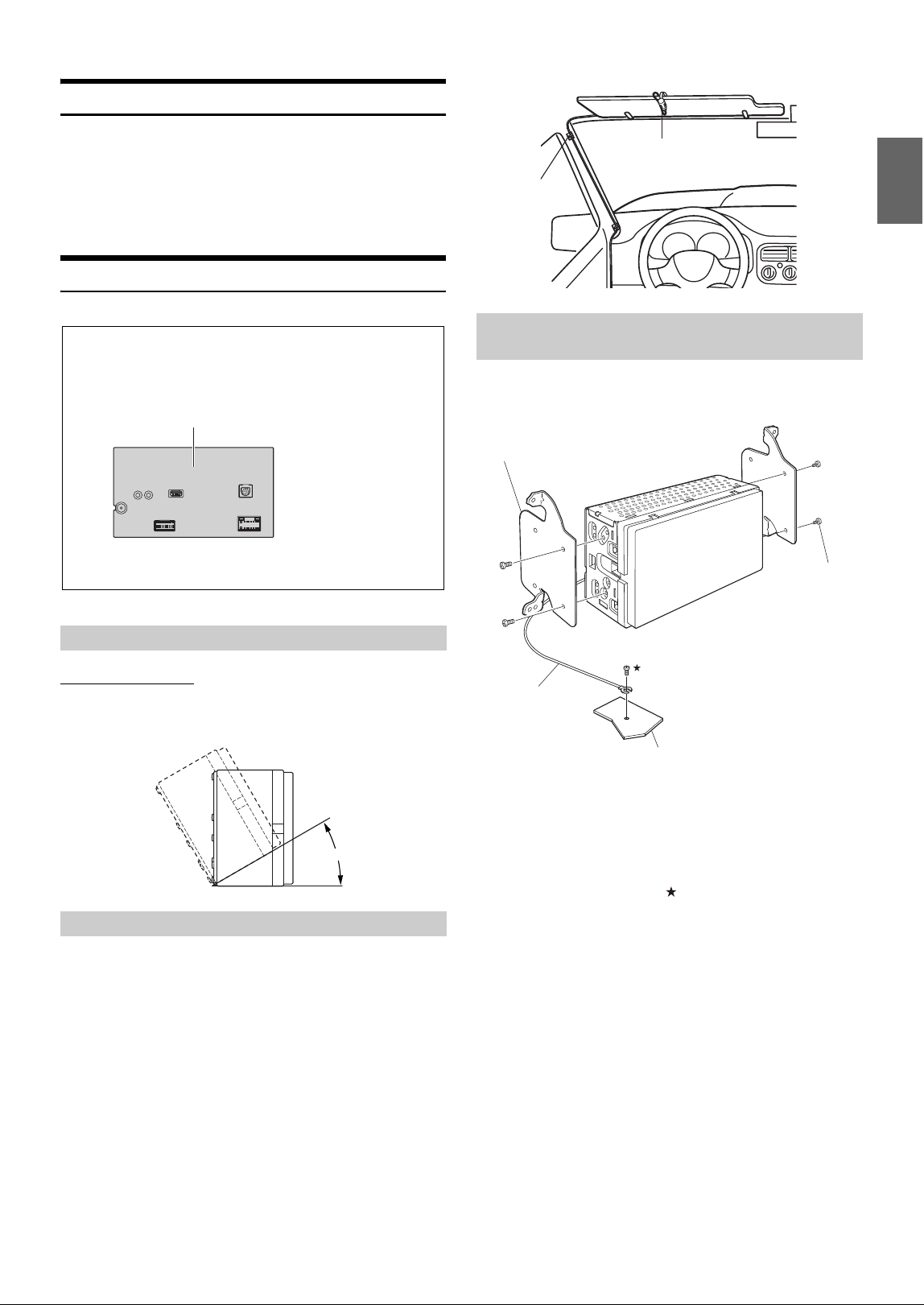
47-EN
Accessory List
Main unit............................................................................................................. 1
Power cable........................................................................................................1
USB extension cable .......................................................................................1
PRE OUT cable................................................................................................... 1
Microphone ....................................................................................................... 1
Owner’s Manual ......................................................................................... 1set
Installation
Angle of installation
Install at an angle between horizontal and 30°. Note that installing at
an angle outside of this range will result in a loss of performance and
possibly damage.
For safe use, make sure of the following:
• Location is stable and firm.
• Does not interfere with safety equipment.
• Driver’s view and operations are not obstructed.
• Microphone is located where the driver’s voice can be easily
picked up (for example, on the sun visor).
When you speak into the microphone, you should not have to change
your driving posture. This may cause a distraction, taking your
attention away from safely driving your vehicle. Carefully consider
direction and distance while mounting the microphone. Confirm that
the driver’s voice can be easily picked up at the selected location.
1 Mount the original mounting bracket to the unit using
the supplied screws.
2 Connect all other leads of the unit according to details
described in the “Connections” (page 48).
3 Mount the unit in a car.
* To securely connect the ground lead, use an already installed screw on a
metal part of the vehicle (marked ( )) or a clean, bare metal spot on the
vehicle's chassis.
• Fix the cables carefully. Do not damage them by mounting them into
movable parts, such as the seat rail, or by locating them against sharp or
pointed edges.
4 Reattach the removed vehicle parts (panels, etc.) or
other aftermarket dash kit back onto the vehicle.
Caution concerning the installation location
Mounting the Microphone
Caution
• Do not block the unit’s fan, thus preventing air
circulation. If blocked, heat will accumulate inside
the unit and may cause a fire.
Heat sink
Rear of the Unit
0 - 30°
Installation example using the Original
Mounting Bracket
Microphone
Cable clamp
(sold separately)
Original Mounting Bracket
Screws (M5×8)
(included)
Ground Lead*
Chassis
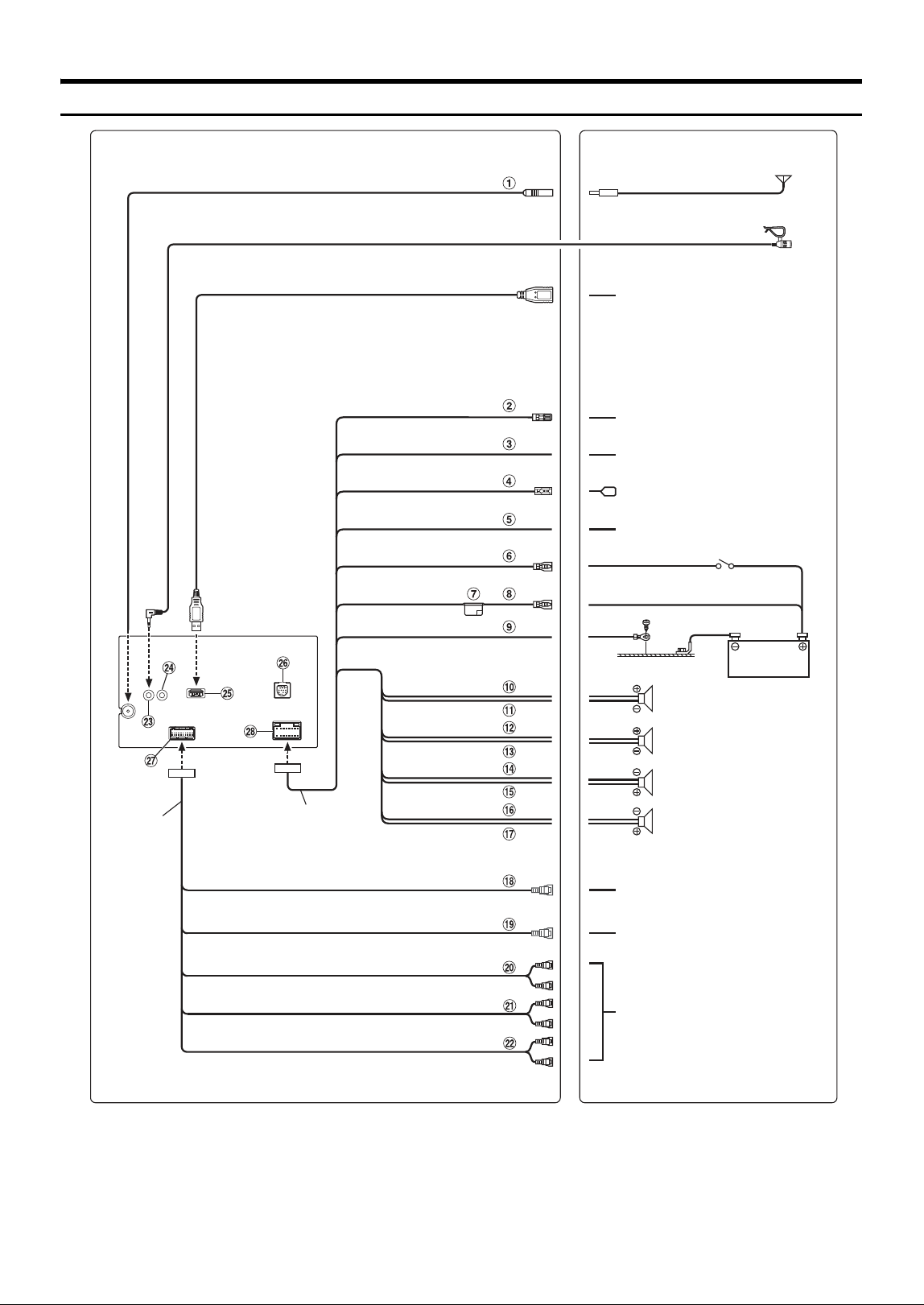
48-EN
Connections
Power cable
SUBW
FRONT OUT
REAR OUT
Microphone (included)
To input terminal of amplifier when
adding an external amplifier
PRE OUT cable
REMO
(Blue/White)
REVERSE
(Orange/White)
P. A N T
(Blue)
PARKING BRAKE
(Yellow/Blue)
(Green)
(Green/Black)
(White)
(White/Black)
(Gray/Black)
(Gray)
(Violet/Black)
(Violet)
ACC
(Red)
BATT
(Yellow)
GND
(Black)
Vehicle Antenna
To RCA Fro nt camera
To amplifier or equalizer
To plus side of the back lamp signal
lead of the car
To power antenna
To the parking brake signal lead
Rear Left
Front Left
Front Right
Rear Right
Speakers
Battery
Ignition key
To USB flash drive, iPhone or Android
smartphone.
USB extension cable (included)
FRONT VIEW CAMERA
To RCA Re ar c ame ra
REAR VIEW CAMERA

49-EN
Radio Antenna Receptacle
Remote Turn-On Lead (Blue/White)
Connect this lead to the remote turn-on lead of your amplifier or
signal processor.
Reverse Lead (Orange/White)
Power Antenna Lead (Blue)
Connect this lead to the +B terminal of your power antenna, if
applicable.
• This lead should be used only for controlling the vehicle’s power
antenna. Do not use this lead to turn on an amplifier or a signal
processor, etc.
Parking Brake Lead (Yellow/Blue)
Connect this lead to the power supply side of parking brake
switch to transmit the parking brake status signals to the unit.
Switched Power Lead (Ignition) (Red)
Connect this lead to an open terminal on the vehicle’s fuse box
or another unused power source that provides (+) 12V only
when the ignition is turned on or in the accessory position.
Fuse Holder (15A)
Battery Lead (Yellow)
Connect this lead to the positive (+) post of the vehicle’s battery.
Ground Lead (Black)
Connect this lead to a good chassis ground on the vehicle.
Make sure the connection is made to bare metal and is securely
fastened using the sheet metal screw provided.
Left Rear (+) Speaker Output Lead (Green)
Left Rear (–) Speaker Output Lead (Green/Black)
Left Front (+) Speaker Output Lead (White)
Left Front (–) Speaker Output Lead (White/Black)
Right Front (–) Speaker Output Lead (Gray/Black)
Right Front (+) Speaker Output Lead (Gray)
Right Rear (–) Speaker Output Lead (Violet/Black)
Right Rear (+) Speaker Output Lead (Violet)
REAR CAMERA Input RCA Connector
Use when connecting a rear camera with RCA Output
Connector.
FRONT CAMER Input RCA Connector
Use when connecting a front camera with RCA Output
Connector.
Subwoofer RCA Connectors
Front Output RCA Connectors
Can be used as Front Output RCA Connectors. RED is right and
WHITE is left.
Rear Output RCA Connectors
Can be used as Rear Output RCA Connectors. RED is right and
WHITE is left.
MIC Input Connector
To microphone (included)
Steering Remote Control Interface Connector
To steering remote control interface.
For details about connections, consult your nearest Alpine dealer.
USB Connector
To USB flash drive, iPhone or Android smartphone.
SiriusXM Tuner Input Connector
To SiriusXM Tuner (sold separately).
• For more information on how to install the SiriusXM Connect
Vehicle tuner, consult the installation guide included with the
tuner.
CAMERA/PRE OUT Connector
Power Supply Connector
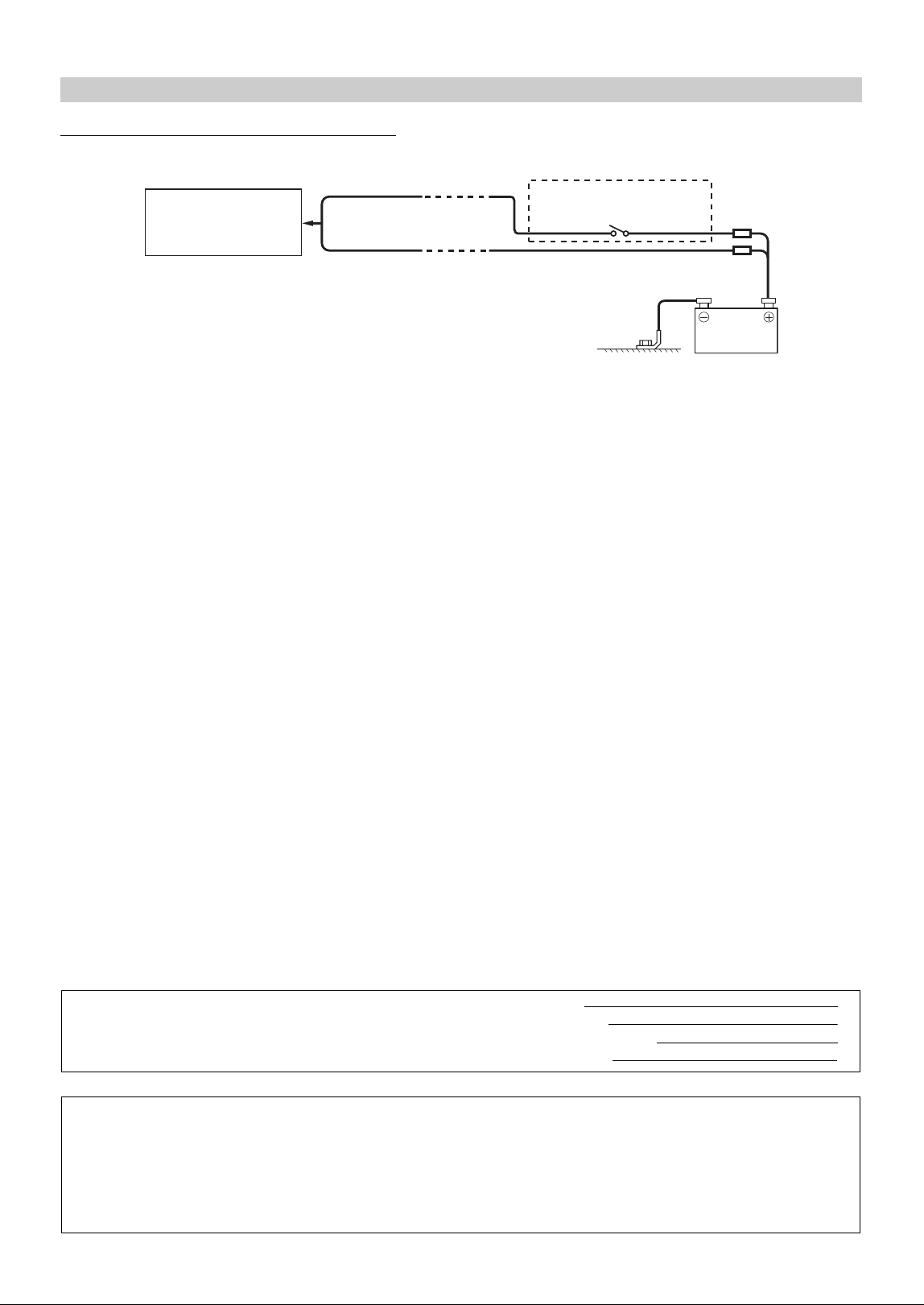
50-EN
Connection Diagram of SPST Switch (sold separately)
• If your vehicle has no ACC power supply, add an SPST (single-pole, single-throw) switch (sold separately) and fuse (sold separately).
• The diagram and the fuse amperage shown above are in the case when the unit is used individually.
• If the switched power (ignition) lead of the unit is connected directly to the positive (+) post of the vehicle’s battery, the unit draws some current (several
hundred milliamperes) even when its switch is placed in the OFF position, and the battery may be discharged.
If an ACC power supply is not available
iLX-W650
(Red)
(Yellow)
SPST SW (Optional)
FUSE (5A)
(Optional)
FUSE (20A)
(Optional)
Battery
ACC
BATTERY
IMPORTANT
Please record the serial number of your unit in the space provided
below and keep it as a permanent record. The serial number plate is
located on the bottom of the unit.
SERIAL NUMBER:
INSTALLATION DATE:
INSTALLATION TECHNICIAN:
PLACE OF PURCHASE:
To prevent external noise from entering the audio system.
• Locate the unit and route the leads at least 10 cm away from the car harness.
• Keep the battery power leads as far away from other leads as possible.
• Connect the ground lead securely to a bare metal spot (remove any paint, dirt or grease if necessary) of the car chassis.
• If you add an optional noise suppressor, connect it as far away from the unit as possible. Your Alpine dealer carries various noise
suppressors, contact them for further information.
• Your Alpine dealer knows best about noise prevention measures so consult your dealer for further information.
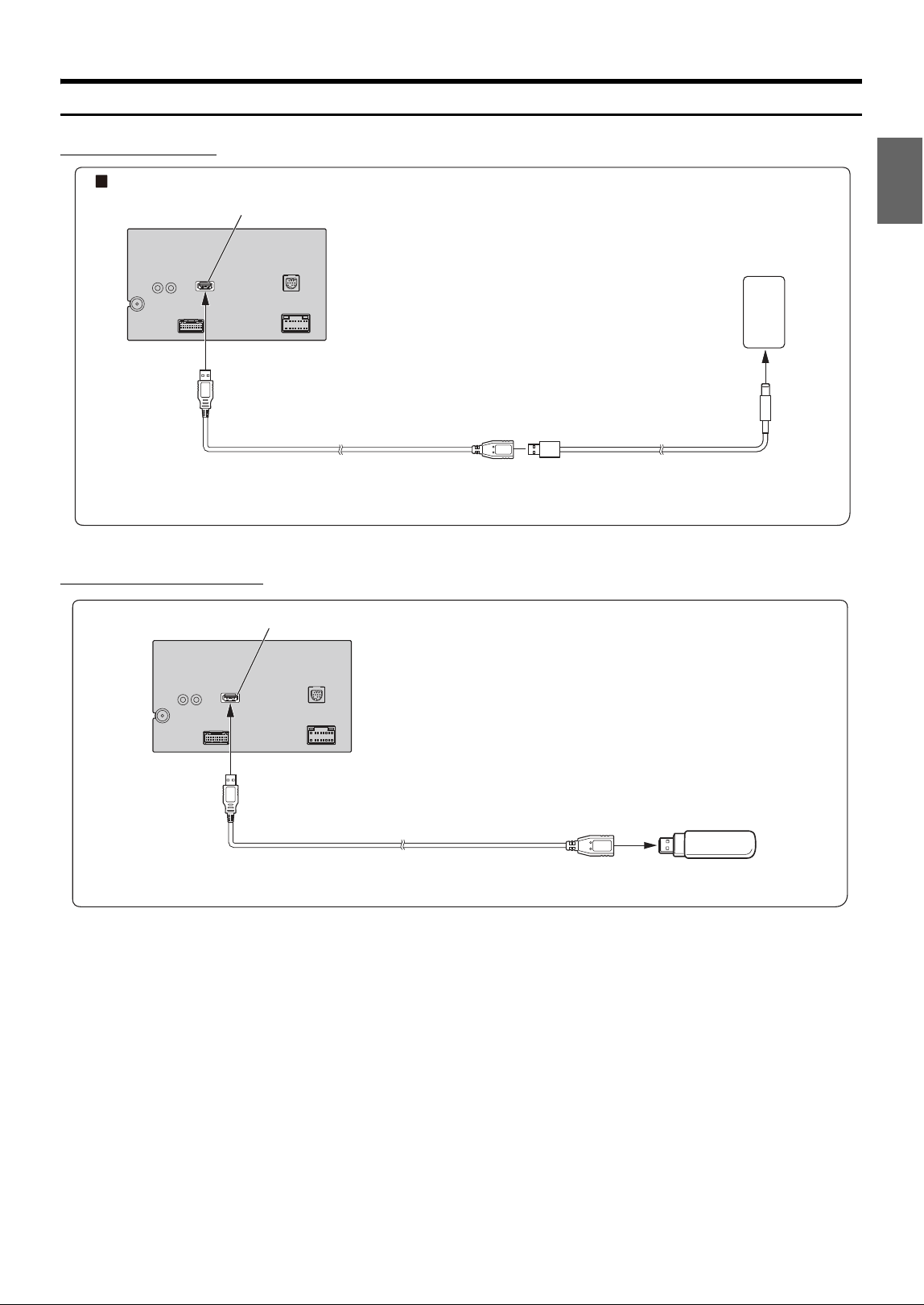
51-EN
System Example
Connection of an iPhone
• Do not leave an iPhone in a vehicle for a long time. Heat and humidity may damage the iPhone, and you may not be able to play it again.
Connection of a USB Flash Drive
• Do not leave a flash drive in a vehicle for a long time. Heat and humidity may damage the flash drive.
When connecting to an iPhone with a Lightning connector
USB connector
USB extension cable (included)
iPhone with a Lightning
connector (sold separately)
Lightning to USB Cable
KCU-471i (sold separately)
USB connector
USB Flash Drive (sold separately)
USB extension cable (included)
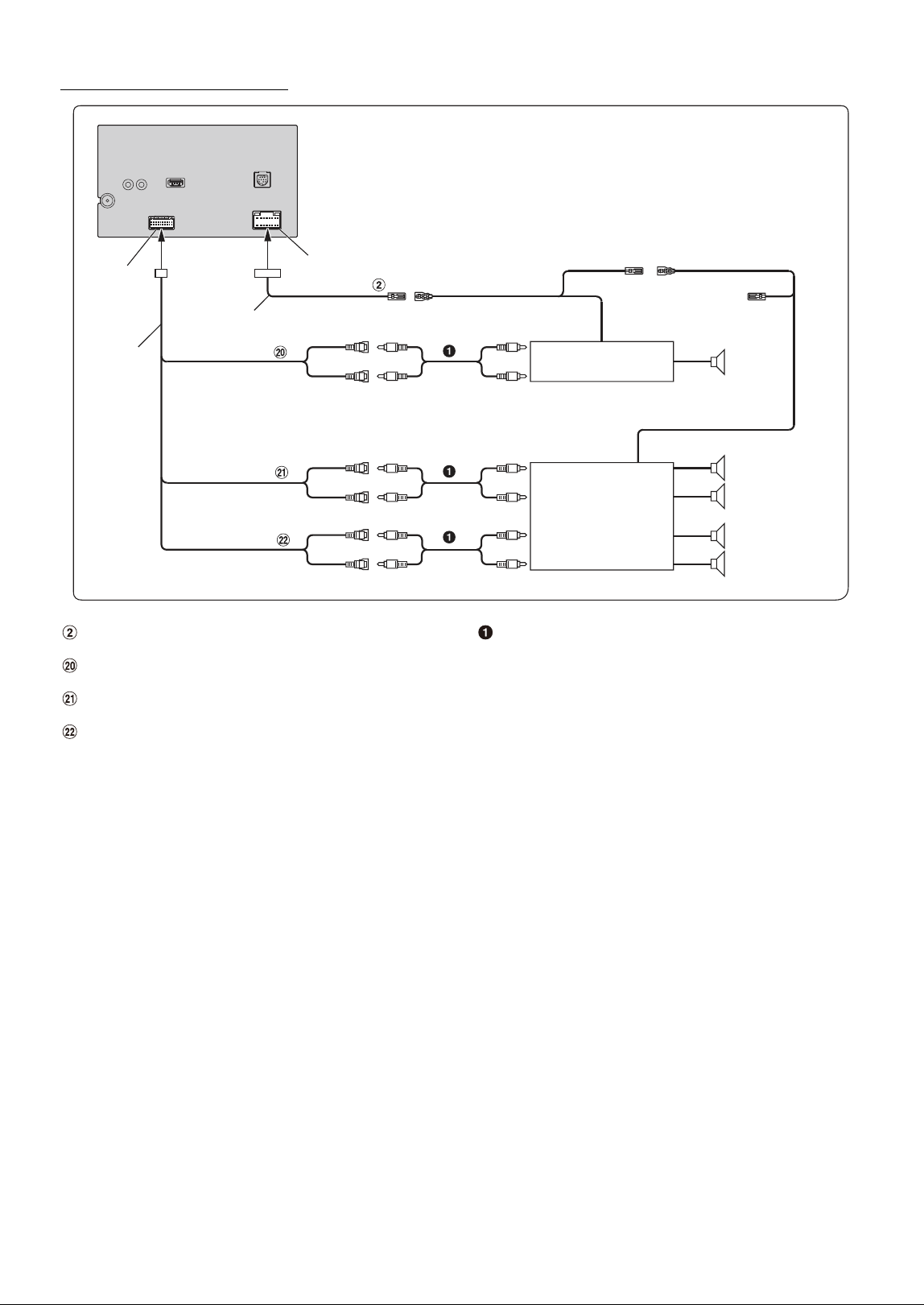
52-EN
Connection of an External Amplifier
Remote Turn-On Lead (Blue/White)
Subwoofer RCA Connectors
Front Output RCA Connectors
Rear Output RCA Connectors
RCA Extension Cable (sold separately)
CAMERA/
PRE OUT
Connector
Power Supply Connector
(Blue/White)
REMOTE ON
(Blue/White)
Subwoofer
REMO
Amplifier for subwoofer
(sold separately)
To subwoofer input terminal
SUBW
FRONT OUT
REAR OUT
To front input terminal
Amplifier 4 ch
(sold separately)
To rear input terminal
Front speaker
Rear speaker
REMOTE ON
(Blue/White)
(Red)
(White)
(Red)
(White)
Power cable
PRE OUT cable
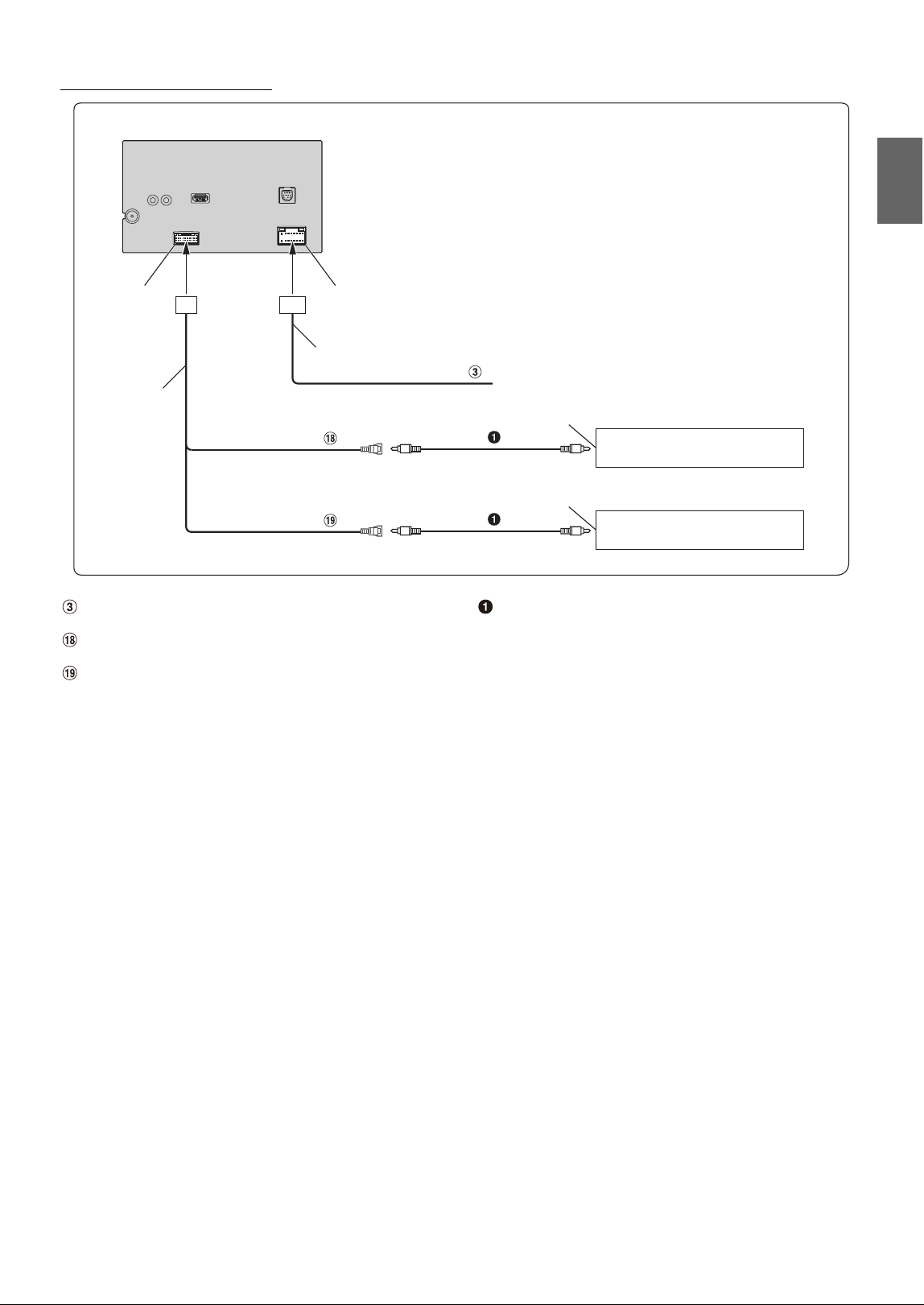
53-EN
Connection of a Rearview camera
Reverse Lead (Orange/White)
REAR CAMERA Input RCA Connector
FRONT CAMERA Input RCA Connector
RCA Extension Cable (sold separately)
• Set the Camera Primary or Secondary setting to [Rear]. For details, refer to “Camera Primary and Secondary Setting” (page 23).
CAMERA/PRE OUT
Connector
Reverse
Connect to the plus side of the car’s reverse lamp.
Camera with RCA video output (sold
separately)
Power Supply Connector
REAR VIEW CAMERA
(Orange/White)
Power cable
PRE OUT cable
To Video Output terminal
Camera with RCA video output (sold
separately)
To Video Output terminal
FRONT VIEW CAMERA
LIMITED WARRANTY
ALPINE ELECTRONICS OF AMERICA, INC. (“Alpine”), is dedicated to quality craftsmanship and is pleased to offer this Warranty. We suggest that you
read it thoroughly. Should you have any questions, please contact your Dealer or contact Alpine at one of the telephone numbers listed below.
PRODUCTS COVERED:
This Warranty covers Car Audio Products and Related Accessories (“the
product”). Products purchased in the Canada are covered only in the
Canada. Products purchased in the U.S.A. are covered only in the U.S.A.
LENGTH OF WARRANTY:
This Warranty is in effect for one year from the date of the first
consumer purchase.
WHO IS COVERED:
This Warranty only covers the original purchaser of the product, who
must reside in the United States, Puerto Rico or Canada.
WHAT IS COVERED:
This Warranty covers defects in materials or workmanship (parts and
labor) in the product.
WHAT IS NOT COVERED:
This Warranty does not cover the following:
Damage occurring during shipment of the product to Alpine for
repair (claims must be presented to the carrier).
Damage caused by accident or abuse, including burned voice coils
caused by over-driving the speaker (amplifier level is turned up
and driven into distortion or clipping). Speaker mechanical failure
(e.g. punctures, tears or rips). Cracked or damaged LCD panels.
Dropped or damaged hard drives.
Damage caused by negligence, misuse, improper operation or
failure to follow instructions contained in the Owner’s manual.
Damage caused by act of God, including without limitation,
earthquake, fire, flood, storms or other acts of nature.
Any cost or expense related to the removal or reinstallation of the
product.
Service performed by an unauthorized person, company or
association.
Any product which has the serial number defaced, altered or
removed.
Any product which has been adjusted, altered or modified without
Alpine’s consent.
Any product not distributed by Alpine within the United States,
Puerto Rico or Canada.
Any product not purchased from an Authorized Alpine Dealer.
HOW TO OBTAIN WARRANTY SERVICE:
You are responsible for delivery of the product to an Authorized
Alpine Service Center or Alpine for repair and for payment of any
initial shipping charges. Alpine will, at its option, repair or replace
the product with a new or reconditioned product without charge.
If the repairs are covered by the warranty, and if the product was
shipped to an Authorized Alpine Service Center or Alpine, Alpine
will pay the return shipping charges.
You should provide a detailed description of the problem(s) for
which service is required.
You must supply proof of your purchase of the product.
You must package the product securely to avoid damage during
shipment. To prevent lost packages it is recommended to use a
carrier that provides a tracking service.
HOW WE LIMIT IMPLIED WARRANTIES:
ANY IMPLIED WARRANTIES INCLUDING FITNESS FOR USE AND
MERCHANTABILITY ARE LIMITED IN DURATION TO THE PERIOD OF THE
EXPRESS WARRANTY SET FORTH ABOVE AND NO PERSON IS
AUTHORIZED TO ASSUME FOR ALPINE ANY OTHER LIABILITY IN
CONNECTION WITH THE SALE OF THE PRODUCT.
HOW WE EXCLUDE CERTAIN DAMAGES:
ALPINE EXPRESSLY DISCLAIMS LIABILITY FOR INCIDENTAL AND
CONSEQUENTIAL DAMAGES CAUSED BY THE PRODUCT. THE TERM
“INCIDENTAL DAMAGES” REFERS TO EXPENSES OF TRANSPORTING
THE PRODUCT TO THE ALPINE SERVICE CENTER, LOSS OF THE
ORIGINAL PURCHASER’S TIME, LOSS OF THE USE OF THE PRODUCT,
BUS FARES, CAR RENTALS OR OTHERS COSTS RELATING TO THE CARE
AND CUSTODY OF THE PRODUCT. THE TERM “CONSEQUENTIAL
DAMAGES” REFERS TO THE COST OF REPAIRING OR REPLACING OTHER
PROPERTY WHICH IS DAMAGED WHEN THIS PRODUCT DOES NOT
WORK PROPERLY. THE REMEDIES PROVIDED UNDER THIS WARRANTY
ARE EXCLUSIVE AND IN LIEU OF ALL OTHERS.
HOW STATE/PROVINCIAL LAW RELATES TO THE
WARRANTY:
This Warranty gives you specific legal rights, and you may also have
other rights which vary from state to state and province to province. In
addition, some states/provinces do not allow limitations on how long
an implied warranty lasts, and some do not allow the exclusion or
limitation of incidental or consequential damages. Accordingly,
limitations as to these matters contained herein may not apply to you.
IN CANADA ONLY:
This Warranty is not valid unless your Alpine car audio product has
been installed in your vehicle by an Authorized Installation Center, and
this warranty stamped upon installation by the installation center.
HOW TO CONTACT CUSTOMER SERVICE:
Should the product require service, please call the following number
for your nearest Authorized Alpine Service Center.
Or visit our website at; http://www.alpine-usa.com
CAR AUDIO 1-800-ALPINE-1 (1-800-257-4631)
NAVIGATION 1-888-NAV-HELP (1-888-628-4357)
ALPINE ELECTRONICS OF AMERICA, INC., 1500 Atlantic Blvd, Auburn Hills, Michigan 48326, U.S.A.
Do not send products to this address.
Call the toll free telephone number or visit the website to locate a service center.

About the Rules of Bluetooth Electromagnetic Radiation Regulation
USA/Canada
FCC/IC CAUTION
This device complies with Industry Canada’s licence-exempt RSSs. Operation is subject to the following two
conditions:
(1) This device may not cause interference; and
(2) This device must accept any interference, including interference that may cause undesired operation of the
device.
Changes or modifications not expressly approved by the party responsible for compliance could void the user’s
authority to operate the equipment.
This equipment complies with FCC/IC radiation exposure limits set forth for an uncontrolled environment and
meets the FCC radio frequency (RF) Exposure Guidelines and RSS-102 of the IC radio frequency (RF) Exposure rules.
This equipment has very low levels of RF energy that it deemed to comply without maximum permissive exposure
evaluation (MPE). But it is desirable that it should be installed and operated keeping the radiator at least 20 cm or
more away from person’s body.
Le présent appareil est conforme aux CNR d’Industrie Canada applicables aux appareils radio exempts de licence.
L’exploitation est autorisée aux deux conditions suivantes :
(1) l’appareil ne doit pas produire de brouillage;
(2) l’utilisateur de l’appareil doit accepter tout brouillage radioélectrique subi, même si le brouillage est susceptible
d’en compromettre le fonctionnement.
Cet équipement est conforme aux limites d’exposition aux rayonnements énoncées pour un environnement non
contrôlé et respecte les règles les radioélectriques (RF) de la FCC lignes directrices d’exposition et d’exposition aux
fréquences radioélectriques (RF) CNR-102 de l’IC. Cet équipement émet une énergie RF très faible qui est considérée
conforme sans évaluation de l’exposition maximale autorisée (MPE). Cependant, il est souhaitable qu’il devrait être
installé et utilisé en gardant une distance de 20 cm ou plus entre le radiateur et le corps humain.
Don’t forget to take a moment to protect your purchase by registering your product now at the following
address: www.alpine-usa.com/registration.
N’oubliez pas de consacrer un moment à la protection de votre achat en enregistrant votre produit dès
maintenant à l’adresse suivante : www.alpine-usa.com/registration.
Recuerde que con solo unos pocos pasos podrá proteger su producto, registrándolo a través de la siguiente
dirección: www.alpine-usa.com/registration.

Open source licenses
lw IP
Copyright (c) 2001, 2002 Swedish Institute of Computer Science.
All rights reserved.
Redistribution and use in source and binary forms, with or without modification, are
permitted provided that the following conditions are met:
1. Redistributions of source code must retain the above copyright notice, this list of
conditions and the following disclaimer.
2. Redistributions in binary form must reproduce the above copyright notice, this list of
conditions and the following disclaimer in the documentation and/or other materials
provided with the distribution.
3. The name of the author may not be used to endorse or promote products derived
from this software without specific prior written permission.
THIS SOFTWARE IS PROVIDED BY THE AUTHOR “AS IS” AND ANY EXPRESS OR IMPLIED
WARRANTIES, INCLUDING, BUT NOT LIMITED TO, THE IMPLIED WARRANTIES OF
MERCHANTABILITY AND FITNESS FOR A PARTICULAR PURPOSE ARE DISCLAIMED. IN NO
EVENT SHALL THE AUTHOR BE LIABLE FOR ANY DIRECT, INDIRECT, INCIDENTAL, SPECIAL,
EXEMPLARY, OR CONSEQUENTIAL DAMAGES (INCLUDING, BUT NOT LIMITED TO,
PROCUREMENT OF SUBSTITUTE GOODS OR SERVICES; LOSS OF USE, DATA, OR PROFITS;
OR BUSINESS INTERRUPTION) HOWEVER CAUSED AND ON ANY THEORY OF LIABILITY,
WHETHER IN CONTRACT, STRICT LIABILITY, OR TORT (INCLUDING NEGLIGENCE OR
OTHERWISE) ARISING IN ANY WAY OUT OF THE USE OF THIS SOFTWARE, EVEN IF
ADVISED OF THE POSSIBILITY OF SUCH DAMAGE.
This file is part of the lwIP TCP/IP stack.
Author: Adam Dunkels <adam@sics.se>
OpenSSL
LICENSE ISSUES
==============
The OpenSSL toolkit stays under a double license, i.e. both the conditions of the
OpenSSL License and the original SSLeay license apply to the toolkit.
See below for the actual license texts.
OpenSSL License
-----------------------
=============================================================
Copyright (c) 1998-2018 The OpenSSL Project. All rights reserved.
Redistribution and use in source and binary forms, with or without modification, are
permitted provided that the following conditions are met:
1. Redistributions of source code must retain the above copyright notice, this list of
conditions and the following disclaimer.
2. Redistributions in binary form must reproduce the above copyright notice, this list of
conditions and the following disclaimer in the documentation and/or other materials
provided with the distribution.
3. All advertising materials mentioning features or use of this software must display the
following acknowledgment:
“This product includes software developed by the OpenSSL Project for use in the
OpenSSL Toolkit. (http://www.openssl.org/)”
4. The names “OpenSSL Toolkit” and “OpenSSL Project” must not be used to endorse or
promote products derived from this software without prior written permission. For
written permission, please contact openssl-core@openssl.org.
5. Products derived from this software may not be called “OpenSSL” nor may “OpenSSL”
appear in their names without prior written permission of the OpenSSL Project.
6. Redistributions of any form whatsoever must retain the following acknowledgment:
“This product includes software developed by the OpenSSL Project for use in the
OpenSSL Toolkit (http://www.openssl.org/)”
THIS SOFTWARE IS PROVIDED BY THE OpenSSL PROJECT ``AS IS'' AND ANY EXPRESSED
OR IMPLIED WARRANTIES, INCLUDING, BUT NOT LIMITED TO, THE IMPLIED WARRANTIES
OF MERCHANTABILITY AND FITNESS FOR A PARTICULAR PURPOSE ARE DISCLAIMED. IN
NO EVENT SHALL THE OpenSSL PROJECT OR ITS CONTRIBUTORS BE LIABLE FOR ANY
DIRECT, INDIRECT, INCIDENTAL, SPECIAL, EXEMPLARY, OR CONSEQUENTIAL DAMAGES
(INCLUDING, BUT NOT LIMITED TO, PROCUREMENT OF SUBSTITUTE GOODS OR
SERVICES; LOSS OF USE, DATA, OR PROFITS; OR BUSINESS INTERRUPTION) HOWEVER
CAUSED AND ON ANY THEORY OF LIABILITY, WHETHER IN CONTRACT, STRICT LIABILITY,
OR TORT (INCLUDING NEGLIGENCE OR OTHERWISE) ARISING IN ANY WAY OUT OF THE
USE OF THIS SOFTWARE, EVEN IF ADVISED OF THE POSSIBILITY OF SUCH DAMAGE.
=============================================================
This product includes cryptographic software written by Eric Young
(eay@cryptsoft.com).
This product includes software written by Tim Hudson (tjh@cryptsoft.com).
Original SSLeay License
-------------------------------
Copyright (C) 1995-1998 Eric Young (eay@cryptsoft.com)
All rights reserved.
This package is an SSL implementation written by Eric Young (eay@cryptsoft.com).
The implementation was written so as to conform with Netscapes SSL.
This library is free for commercial and non-commercial use as long as the following
conditions are aheared to. The following conditions apply to all code found in this
distribution, be it the RC4, RSA, lhash, DES, etc., code; not just the SSL code. The SSL
documentation included with this distribution is covered by the same copyright terms
except that the holder is Tim Hudson (tjh@cryptsoft.com).
Copyright remains Eric Young's, and as such any Copyright notices in the code are not to
be removed.
If this package is used in a product, Eric Young should be given attribution as the author
of the parts of the library used.
This can be in the form of a textual message at program startup or in documentation
(online or textual) provided with the package.
Redistribution and use in source and binary forms, with or without modification, are
permitted provided that the following conditions are met:
1. Redistributions of source code must retain the copyright notice, this list of conditions
and the following disclaimer.
2. Redistributions in binary form must reproduce the above copyright notice, this list of
conditions and the following disclaimer in the documentation and/or other materials
provided with the distribution.
3. All advertising materials mentioning features or use of this software must display the
following acknowledgement:
“This product includes cryptographic software written by Eric Young
(eay@cryptsoft.com)”
The word 'cryptographic' can be left out if the rouines from the library being used are
not cryptographic related :-).
4. If you include any Windows specific code (or a derivative thereof) from the apps
directory (application code) you must include an acknowledgement:
“This product includes software written by Tim Hudson (tjh@cryptsoft.com)”
THIS SOFTWARE IS PROVIDED BY ERIC YOUNG “AS IS” AND ANY EXPRESS OR IMPLIED
WARRANTIES, INCLUDING, BUT NOT LIMITED TO, THE IMPLIED WARRANTIES OF
MERCHANTABILITY AND FITNESS FOR A PARTICULAR PURPOSE ARE DISCLAIMED.
IN NO EVENT SHALL THE AUTHOR OR CONTRIBUTORS BE LIABLE FOR ANY DIRECT,
INDIRECT, INCIDENTAL, SPECIAL, EXEMPLARY, OR CONSEQUENTIAL DAMAGES
(INCLUDING, BUT NOT LIMITED TO, PROCUREMENT OF SUBSTITUTE GOODS OR
SERVICES; LOSS OF USE, DATA, OR PROFITS; OR BUSINESS INTERRUPTION) HOWEVER
CAUSED AND ON ANY THEORY OF LIABILITY, WHETHER IN CONTRACT, STRICT LIABILITY,
OR TORT (INCLUDING NEGLIGENCE OR OTHERWISE) ARISING IN ANY WAY OUT OF THE
USE OF THIS SOFTWARE, EVEN IF ADVISED OF THE POSSIBILITY OF SUCH DAMAGE.
The licence and distribution terms for any publically available version or derivative of
this code cannot be changed. i.e. this code cannot simply be copied and put under
another distribution licence
[including the GNU Public Licence.]
Unrarlib
Free License for UniquE RAR File Library
Copyright (C) 2000-2002 by Christian Scheurer (www.ChristianScheurer.ch)
UNIX port by Johannes Winkelmann ([email protected])
You have the permission to use, copy, modify, and distribute the UniquE RAR File Library
(also called URARFileLib or unrarlib) and its documentation for any purpose except for
re-creating the RAR compression algorithm, which is proprietary. URARFileLib may not
be used or modified to create RAR/WinRAR compatible archives, only decompression is
permitted.
If you use URARFileLib, or parts of URARFileLib in your program, you must give the
program away for free.
The above copyright notice must be shipped with all copies.
No representations are made about the suitability of the URARFileLib for any purpose. It
is provided “as is” without expressed or implied warranty.
Christian Scheurer (cs@unrarlib.org)
14. June 2002
zlib
zlib.h -- interface of the ‘zlib’ general purpose compression library
version 1.2.11, January 15th, 2017
Copyright (C) 1995-2017 Jean-loup Gailly and Mark Adler
This software is provided 'as-is', without any express or implied warranty. In no event
will the authors be held liable for any damages arising from the use of this software.
Permission is granted to anyone to use this software for any purpose, including
commercial applications, and to alter it and redistribute it freely, subject to the following
restrictions:
1. The origin of this software must not be misrepresented; you must not claim that you
wrote the original software. If you use this software in a product, an acknowledgment
in the product documentation would be appreciated but is not required.
2. Altered source versions must be plainly marked as such, and must not be
misrepresented as being the original software.
3. This notice may not be removed or altered from any source distribution.
Jean-loup Gailly Mark Adler
jloup@gzip.org madler@alumni.caltech.edu