Due to regular upgrades of systems and products, ZKTeco could not guarantee exact consistency
between the actual product and the written information in this manual.
Quick Start Guide
Version: 1.0
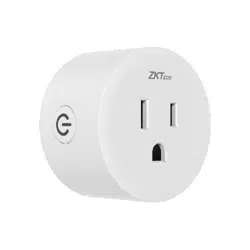
Model: SP1 Series
English

If you have any problems, please read this manual carefully
or contact Customer Care.
1.
2.
The overall power of all electric connected equipment
must not exceed the smart plug's maximum power.
3.
Put the device in a safe place and keep it out of
children's range.
4.
The device is only designed for indoor use.
5.
The dev i ce ca n onl y conn e ct to 2. 4G Hz Wi -Fi
networks. If you have a dual-band router with separate
2.4GHz and 5GHz networks, make sure your phone is
connected to the 2.4GHz network.
6.
Make sure the entered Wi-Fi password is correct when
adding a new device.
7.
Please make sure the device is close to the router for a
stable network connection.
Important Notes

8.
The plug can only be used with electrical equipment
that are powered by a mechanical switch. Electronic or
infrared remote control devices are not supported.
9.
Disassembling or installing the device may cause
security risks.
10.
We couldn't guarantee the exact consistency between
the actual product and the written information in this
manual due to theregular app and product updates.

Table of Contents
Product Overview.....................................................................1
Setup.........................................................................................2
Connecting the Device to ZSmart App...................................................2
Connecting the Device to Amazon Alexa or Google Assistant..............4
Product Features......................................................................5
1
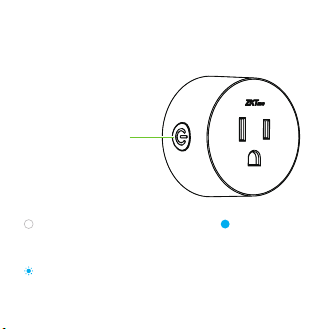
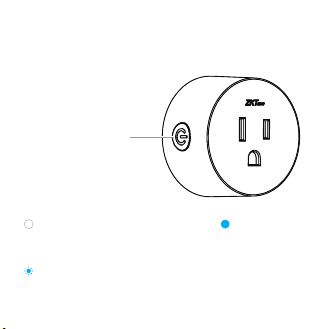
Product Overview
ON/OFF Button
Status LED Indicator
OFF
Power Off
Solid Blue
Power On
Rapid Blinking Blue
In Pairing Mode
2
Setup
Connecting the Device to ZSmart App
Step 1:
Download the App and Register Your Account
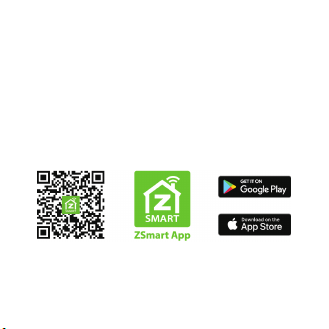
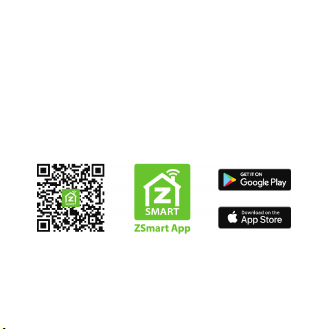
Search for the ZSmart App in Apple App Store or Google
Play Store and download the App to your mobile phone.
Open the ZSmart App and log in with your account. If you
do not have an account, create an account with your
phone number or Email ID.
Step 2:
Power on the Device
Insert the plug into the power outlet. Wait a few seconds
until the blue LED begins to blink rapidly, indicating
that it is in Pairing Mode.

3
Note: If the device does not begin to flashing blue, press
and hold the On/Off Button for 5 seconds until the LED
begins to flash blue.
Step 3:
Add the Device on the App
On your smartphone, enable Bluetooth and Wi-Fi
permissions.
1.
2.
Open the app, tap the "+" button on the top right
corner of the interface, and then select the ”Add
Device” option.
3.
Once you see the device pop-up, tap the "Add" button.
To automatically pair the device, follow the on-screen
instructions.
4.
You can manually change the name of the device once
you see the message "Added successfully" on the
mobile app. To finish the setting, tap the "Done" button.
Note: If you failed to connect your device to Wi-Fi, press
and hold the On/Off Button for 5 seconds until the LED
begins to flash blue, then repeat the above steps.

4
Connecting the Device to Amazon Alexa
or Google Assistant
Tap the EDIT Button in the upper right corner of the
device interface after successfully connecting the device
to the ZSmart App. To link your ZSmart Account to Amazon
Alexa or Google Assistant, select the Amazon Alexa or
G oo g l e A s s is t an t i c o n a n d f ol l ow t he o n- s cr ee n
instructions.
After completing the setup, you can use the supported voice
commands that include:
Note: Every time you change the name of a linked device,
you must discover it again to update the name.
Echo, turn on <device name>.
Echo, turn off <device name>.
Hey Google, turn on <device name>.
Hey Google, turn off <device name>.

5
Product Features
Remote Control: From any location, turn on or off the
device.
Schedule: Customize theschedule for the device to turn
on or off automatically. The following five modes are
available in the schedule setup.
Countdown: After a specified amount of time, the
device will automatically turn on or off.
Schedule: At a specified time, the device will be
turned on or off.
Circulate: During the specified total time, the device
will cycle on and off for a specific period of time.
Random: During the present total time, the device
will turn on and off randomly.
Inching: The device will be automatically turned off
after a specified period every time, which is suitable
for the frequent countdown settings operations.
Switch Log: Check the log of specific time and device's status.

6
Power-on Status: The default power-on status can be set
as power-off, power-on or last time state.
LED Indicator Mode: The LED indicator can be set as the
following three modes.
Power-on and Power-off: The LED will indicate the
actual power-on and power-off status.
Switch Location: When the device is power-off, the
LED illuminates to indicate its location at night.
Off: The LED will remain off status.
Child Lock Mode: This feature is created to stop children
from accidentally activating the system.
Enable: Tap the toggle button to enable the
function on the App.
Disable: To turn off the device, press the On/Off
Button four times in a row.
Group Control: Create groups to control multiple devices
at one time.
Voice Control: To turn on or off the device, use Amazon
Alexa or Google Assistant voice commands.
Versión: 1.0
Modelo: Serie SP1
Español
Guía Rápida
Debido a las actualizaciones periódicas de los sistemas y productos, ZKTeco no puede garantizar
la consistencia exacta entre el producto real y la información escrita en este manual.

Lea atentamente este manual o comuníquese con
atención al cliente para cualquier consulta.
1.
2.
La p ote n ci a tot a l de l os ap arat os el éc tr i cos
conectados no debe ser mayor que la potencia
máxima del enchufe inteligente.
3.
Coloque el dispositivo en condiciones seguras y
asegúrese de que esté fuera del alcance de los niños.
4.
El dispositivo está diseñado sólo para uso en
interiores.
5.
Este dispositivo sólo trabaja con redes Wi-Fi de
2.4GHz. Si tiene un enrutador doble banda con redes
de 2.4 GHz y 5 GHz, asegúrese de que su teléfono esté
conectado a la de 2.4GHz.
6.
Asegúrese de que la contraseña Wi-Fi ingresada sea
correcta al agregar un nuevo dispositivo.
7.
Para una conexión de red estable, asegúrese de que el
dispositivo esté colocado cerca del enrutador.
Notas Importantes

8.
El enchufe sólo admite dispositivos eléctricos que se
encienden mediante un interruptor mecánico. Los
dispositivos controlados por un cont rol remoto
electrónico o infrarrojo no son compatibles.
9.
No desarme el dispositivo, esto puede causar riesgos de
seguridad.
10.
Debido a las actualizaciones periódicas de la aplicación
y los productos, no podemos garantizar la coherencia
exacta entre el producto real y la información escrita en
este manual.

Tabla de Contenidos
Descripción del Producto........................................................1
Conguración...........................................................................2
Conexión del Equipo con la App ZSmart...............................................2
Conexión del Equipo con Amazon Alexa o Google Assistant...........4
Características del Producto....................................................5
1
Apagado
Azul
Encendido
Azul Intermitente
Modo de Paridad
Descripción del Producto
Botón de
Encendido/Apagado,
Indicador LED
Apagado
2
Configuración
Conexión del Equipo con la App ZSmart
Paso 1:
Descargue la App y Registre su Cuenta
Busque la aplicación ZSmart en Apple App Store o Google
Play Store y descargue la aplicación en su teléfono móvil.
Abra la aplicación ZSmart e inicie sesión con su cuenta. Si
no tiene una cuenta, cree una cuenta con su número de
teléfono o correo electrónico.
Paso 2:
Encienda el Equipo
Inserte el enchufe en el tomacorriente. Espere unos
segundos hasta que el LED azul parpadee rápidamente, lo
que significa que está en modo de emparejamiento.

3
Nota: Si el enchufe no parpadea en azul, mantenga
presionado el botón de encendido/apagado durante 5
segundos hasta que el LED comience a parpadear en azul.
Paso 3:
Añada el Equipo a la App
Active los permisos de Bluetooth y Wi-Fi en el teléfono
inteligente.
1.
2.
Abra la aplicación, toque el botón "+" en la esquina
superior derecha de la interfaz y luego seleccione la
opción "Agregar dispositivo".
3.
Toque el botón "Agregar" una vez que vea la ventana
emergente del dispositivo. Siga las instrucciones en
pantalla para emparejar el dispositivo automáticamente.
4.
Una vez que vea el mensaje “Se agregó con éxito" en la
aplicación, puede editar el nombre del dispositivo
man ualmente. Toque el b otón “Fi n alizado " para
completar la configuración.
Nota: S i no pudo conec ta r su dispo s i t i vo a Wi-Fi ,
mantenga presionado el botón de encendido/apagado
durante 5 segundos hasta que el LED comienc e a
parpadear en azul, luego repita los pasos anteriores.

4
Conexión del Equipo con Amazon
Alexa o Google Assistant
Después de conectar correctamente el dispositivo a la
aplicación ZSmart, toque el botón EDITAR en la esquina
superior derecha de la interfaz del dispositivo. Seleccione
el ícono de Amazon Alexa o Google Assistant, luego siga
las instrucciones en pantalla para vincular su cuenta
ZSmart a Amazon Alexa o Google Assistant.
Después de completar la configuración, puede usar los
comandos de voz admitidos que incluyen:
Nota: Después de cambiar el nombre del dispositivo
vinculado, actualice nuevamente la cuenta para actualizar
el nombre.
Alexa, enciende <nombre del dispositivo>.
Alexa, apaga <nombre del dispositivo>.
Hey Google, enciende <nombre del dispositivo>.
Hey Google, apaga <nombre del dispositivo>.

Características del Producto
Control Remoto: Encender o apagar el dispositivo de forma
remota desde cualquier lugar.
Calendario: Cree un horario específico para que el dispositivo
realice la acción de encendido o apagado automáticamente. La
configuración de programación incluye los siguientes cinco modos.
Temporizador: El dispositivo se encenderá o apagará
automáticamente después de un período de tiempo
predeterminado.
Horario: El dispositivo se encenderá o apagará en un
horario determinado.
Ciclo: El dispositivo se encenderá y apagará durante
un cierto tiempo durante el horario preestablecido.
Aleatorio: El dispositivo se encenderá y apagará
aleatoriamente durante el horario preestablecido.
Gradual: El dispositivo se apagará automáticamente
después de un cierto período de encendido cada vez,
lo cual es adecuado para las frecuentes operaciones
de configuración de cuenta regresiva.
5
Registro del Dispositivo: Verifique el registro de tiempo
específico y el estado del dispositivo.
6
E s t a d o d e E n ce n d i do : E l e s t a d o d e e n c e nd i d o
predeterminado se puede configurar como estado de
apagado, encendido o última vez.
Modo del LED Indicador: El indicador LED se puede
encontrar de los siguientes tres modos.
Encendido y Apagado: El LED indicará el estado real
de encendido y apagado.
Ubicación: Cuando el dispositivo está apagado, el LED
se iluminará para mostrar su ubicación por la noche.
Apagado: El LED permanecerá apagado.
Bloqueo de Niños: Esta función está diseñada para evitar
que los niños la activen accidentalmente.
Encendido: Toque el botón de alternar para habilitar
la función en la aplicación.
Apagado: Presione el botón de encendido/apagado
4 veces seguidas para apagar el dispositivo.
Control de Grupo: Cree grupos para controlar múltiples
dispositivos a la vez.
Control por Voz: Use los comandos de voz para encender
o apagar el dispositivo a través de Amazon Alexa y el
Asistente de Google.
Warning:
This device complies with Part 15 of the FCC Rules. Operation is subject to the following two
conditions: (1) This device may not cause harmful interference, and (2) this device must accept
any interference received, including interference that may cause undesired operation.
This equipment has been tested and found to comply with the limits for a Class B digital device,
pursuant to Part 15 of the FCC Rules. These limits are designed to provide reasonable protection
against harmful interference in a residential installation. This equipment generates, uses, and can
radiate radio frequency energy and, if not installed and used in accordance with the instructions,
may cause harmful interference to radio communications. However, there is no guarantee that
interference will not occur in a particular installation. If this equipment does cause harmful
interference to radio or television reception, which can be determined by turning the equipment
off and on, the user is encouraged to try to correct the interference by one or more of the
following measure.
IMPORTANT! Any changes or modifications not expressly approved by the party responsible for
compliance could void the user's authority to operate the equipment.
Connect the equipment into an outlet on a circuit different from that to which the receiver is
connected.
Reorient or relocate the receiving antenna.
Increase the separation between the equipment and receiver.
Consult the dealer or an experienced radio/T V technician for help.
FCC RF Radiation Exposure Statement:
This Transmitter must not be co-located or operating in conjunction with any other
antenna or transmitter.
This equipment complies with RF radiation exposure limits set forth for an uncontrolled
environment.
ZKTeco Industrial Park, No. 32, Industrial Road,
Tangxia Town, Dongguan, China.
Phone : +86 769 - 82109991
Fax : +86 755 - 89602394
www.zkteco.com
Copyright © 2022 ZKTECO CO., LTD. All Rights Reserved.






