1D Barcode Scanner User Manual
Page | 1 Copyright©2020 ZKTECO CO., LTD. All rights reserved.
Thank you for choosing our product. Please read the instructions carefully
before operation. Follow these instructions to ensure that the product is
functioning properly. The images shown in this manual are for illustrative
purposes only.
For further details, please visit our Company’s website
www.zkteco.com.
User Manual
Under Vehicle Inspection System
Applicable Models: ZK-VSCN100/ZK-VSCN200
Date: May 2023
Doc Version: 1.1
English

Under Vehicle Inspection System User Manual
Page | 2 Copyright©2023 ZKTECO CO., LTD. All rights reserved.
Copyright © 2023 ZKTECO CO., LTD. All rights reserved.
Without the prior written consent of ZKTeco, no portion of this manual can be copied or forwarded in any
way or form. All parts of this manual belong to ZKTeco and its subsidiaries (hereinafter the "Company" or
"ZKTeco").
Trademark
is a registered trademark of ZKTeco. Other trademarks involved in this manual are owned by
their respective owners.
Disclaimer
This manual contains information on the operation and maintenance of the ZKTeco equipment. The
copyright in all the documents, drawings, etc. in relation to the ZKTeco supplied equipment vests in and is
the property of ZKTeco. The contents hereof should not be used or shared by the receiver with any third
party without express written permission of ZKTeco.
The contents of this manual must be read as a whole before starting the operation and maintenance of the
supplied equipment. If any of the content(s) of the manual seems unclear or incomplete, please contact
ZKTeco before starting the operation and maintenance of the said equipment.
It is an essential pre-requisite for the satisfactory operation and maintenance that the operating and
maintenance personnel are fully familiar with the design and that the said personnel have received
thorough training in operating and maintaining the machine/unit/equipment. It is further essential for the
safe operation of the machine/unit/equipment that personnel has read, understood and followed the
safety instructions contained in the manual.
In case of any conflict between terms and conditions of this manual and the contract specifications,
drawings, instruction sheets or any other contract-related documents, the contract conditions/documents
shall prevail. The contract specific conditions/documents shall apply in priority.
ZKTeco offers no warranty, guarantee or representation regarding the completeness of any information
contained in this manual or any of the amendments made thereto. ZKTeco does not extend the warranty
of any kind, including, without limitation, any warranty of design, merchantability or fitness for a particular
purpose.
ZKTeco does not assume responsibility for any errors or omissions in the information or documents which
are referenced by or linked to this manual. The entire risk as to the results and performance obtained from
using the information is assumed by the user.
ZKTeco in no event shall be liable to the user or any third party for any incidental, consequential, indirect,
special, or exemplary damages, including, without limitation, loss of business, loss of profits, business
interruption, loss of business information or any pecuniary loss, arising out of, in connection with, or

Under Vehicle Inspection System User Manual
Page | 3 Copyright©2023 ZKTECO CO., LTD. All rights reserved.
relating to the use of the information contained in or referenced by this manual, even if ZKTeco has been
advised of the possibility of such damages.
This manual and the information contained therein may include technical, other inaccuracies or
typographical errors. ZKTeco periodically changes the information herein which will be incorporated into
new additions/amendments to the manual. ZKTeco reserves the right to add, delete, amend or modify the
information contained in the manual from time to time in the form of circulars, letters, notes, etc. for better
operation and safety of the machine/unit/equipment. The said additions or amendments are meant for
improvement /better operations of the machine/unit/equipment and such amendments shall not give any
right to claim any compensation or damages under any circumstances.
ZKTeco shall in no way be responsible (i) in case the machine/unit/equipment malfunctions due to any
non-compliance of the instructions contained in this manual (ii) in case of operation of the
machine/unit/equipment beyond the rate limits (iii) in case of operation of the machine and equipment in
conditions different from the prescribed conditions of the manual.
The product will be updated from time to time without prior notice. The latest operation procedures and
relevant documents are available on http://www.zkteco.com
.
If there is any issue related to the product, please contact us.
ZKTeco Headquarters
Address ZKTeco Industrial Park, No. 32, Industrial Road,
Tangxia Town, Dongguan, China.
Phone +86 769 - 82109991
Fax +86 755 - 89602394
For business related queries, please write to us at: sales@zkteco.com
.
To know more about our global branches, visit www.zkteco.com.

Under Vehicle Inspection System User Manual
Page | 4 Copyright©2023 ZKTECO CO., LTD. All rights reserved.
About the Company
ZKTeco is one of the world’s largest manufacturer of RFID and Biometric (Fingerprint, Facial, Finger-vein)
readers. Product offerings include Access Control readers and panels, Near & Far-range Facial Recognition
Cameras, Elevator/Floor access controllers, Turnstiles, License Plate Recognition (LPR) gate controllers and
Consumer products including battery-operated fingerprint and face-reader door locks. Our security
solutions are multi-lingual and localized in over 18 different languages. At the ZKTeco state-of-the-art
700,000 square foot ISO9001-certified manufacturing facility, we control manufacturing, product design,
component assembly, and logistics/shipping, all under one roof.
The founders of ZKTeco have been determined for independent research and development of biometric
verification procedures and the productization of biometric verification SDK, which was initially widely
applied in PC security and identity authentication fields. With the continuous enhancement of the
development and plenty of market applications, the team has gradually constructed an identity
authentication ecosystem and smart security ecosystem, which are based on biometric verification
techniques. With years of experience in the industrialization of biometric verifications, ZKTeco was
officially established in 2007 and now has been one of the globally leading enterprises in the biometric
verification industry owning various patents and being selected as the National High-tech Enterprise for 6
consecutive years. Its products are protected by intellectual property rights.
About the Manual
This manual introduces the operations of Under Vehicle Inspection System.
All figures displayed are for illustration purposes only. Figures in this manual may not be exactly consistent
with the actual products.

Under Vehicle Inspection System User Manual
Page | 5 Copyright©2023 ZKTECO CO., LTD. All rights reserved.
Table of Contents
1 OVERVIEW ............................................................................................................................................ 6
INTRODUCE ...................................................................................................................................................................................................... 6
FEATURES ......................................................................................................................................................................................................... 7
APPLICATION ................................................................................................................................................................................................... 7
2 SYSTEM OVERVIEW ............................................................................................................................. 8
3 SOFTWARE INSTRUCTION ................................................................................................................... 9
STARTING SOFTWARE ..................................................................................................................................................................................... 9
MAIN INTERFACE ............................................................................................................................................................................................. 9
IMAGE OPERATION ........................................................................................................................................................................................11
3.3.1 MAGNIFYING GLASS ................................................................................................................................................................................... 11
3.3.2 IMAGE FULL SCREEN ................................................................................................................................................................................... 12
3.3.3 IMAGE DRAGGING ....................................................................................................................................................................................... 12
3.3.4 ZOOM IN ......................................................................................................................................................................................................... 13
3.3.5 ZOOM OUT .................................................................................................................................................................................................... 13
3.3.6 MOST SUITABLE ........................................................................................................................................................................................... 14
3.3.7 REAL SIZE ........................................................................................................................................................................................................ 14
3.3.8 BRIGHTEN ....................................................................................................................................................................................................... 15
3.3.9 DARKEN .......................................................................................................................................................................................................... 15
3.3.10 RESTORE ......................................................................................................................................................................................................... 16
3.3.11 BLACK AND WHITE DISPLAY .................................................................................................................................................................... 16
3.3.12 AUXILIARY DETECTION .............................................................................................................................................................................. 17
3.3.13 SUPER ENHANCEMENT .............................................................................................................................................................................. 17
3.3.14 OPEN ................................................................................................................................................................................................................ 18
3.3.15 PRINT PICTURES ........................................................................................................................................................................................... 18
3.3.16 IMAGE DELETE FUNCTION ........................................................................................................................................................................ 19
3.3.17 DATE QUERY .................................................................................................................................................................................................. 20
3.3.18 REAL-TIME CURVE ........................................................................................................................................................................................ 21
3.3.19 SYSTEM SETTINGS ....................................................................................................................................................................................... 22
3.3.20 LONG CAR MODE ......................................................................................................................................................................................... 23
3.3.21 EXIT .................................................................................................................................................................................................................. 23
REAL-TIME VIDEO ..........................................................................................................................................................................................23
3.4.1 REAL-TIME MONITORING VIDEO DISPLAY ........................................................................................................................................... 23
3.4.2 LICENSE PLATE CAPTURE PHOTOS DISPLAY AREA ........................................................................................................................... 24
3.4.3 VEHICLE INFORMATION LIST .................................................................................................................................................................... 24
4 TROUBLESHOOTING .......................................................................................................................... 26
Under Vehicle Inspection System User Manual
Page | 6 Copyright©2023 ZKTECO CO., LTD. All rights reserved.
1 Overview
Introduce
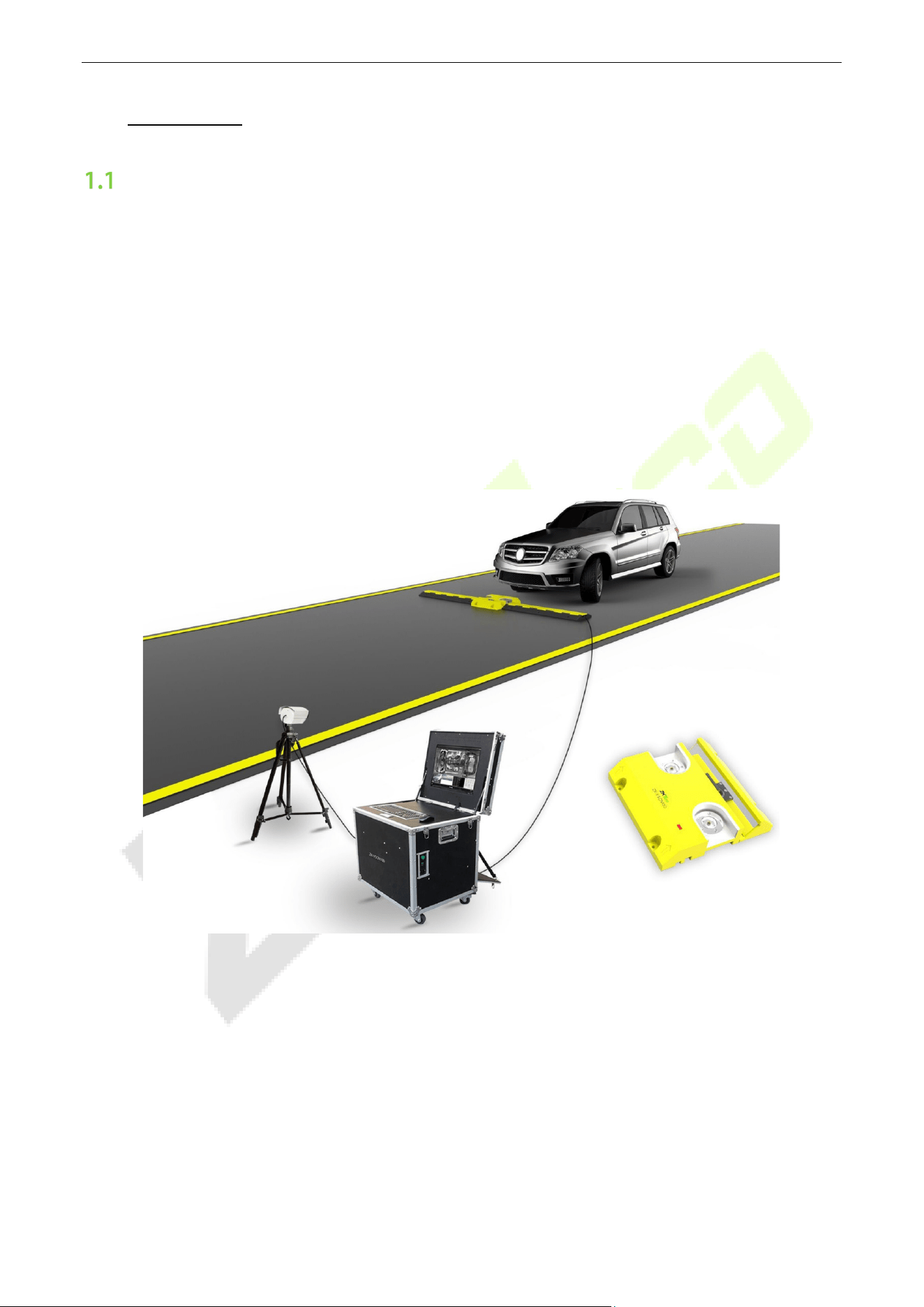
For places where require high level security, such as military area, government building and custom,
ZKTeco Under vehicle inspection system is an ideal device for checking undercarriage of vehicle. When the
vehicle passes, system can quickly generate a high definition image of vehicle undercarriage, which will be
recorded in the computer. It helps operator accurately identify forbidden objects attached to the
underside of vehicles. ZKTeco Under vehicle inspection system is a powerful tool to provide profession
inspection in incoming and outgoing traffic with a few seconds. Because of specially-designed camera
angle, all details of undercarriage are easy to be captured. And waterproof design makes sure scanner is
able to work well in extreme conditions. This under vehicle inspection system greatly improves the
efficiency and accuracy of security check in order to achieve a higher level of safety.
ZK-VSCN100
*Kindly Note: ZK-VSCN100 can only be used for temporary inspection, and can not be used under the rain.
Under Vehicle Inspection System User Manual
Page | 7 Copyright©2023 ZKTECO CO., LTD. All rights reserved.
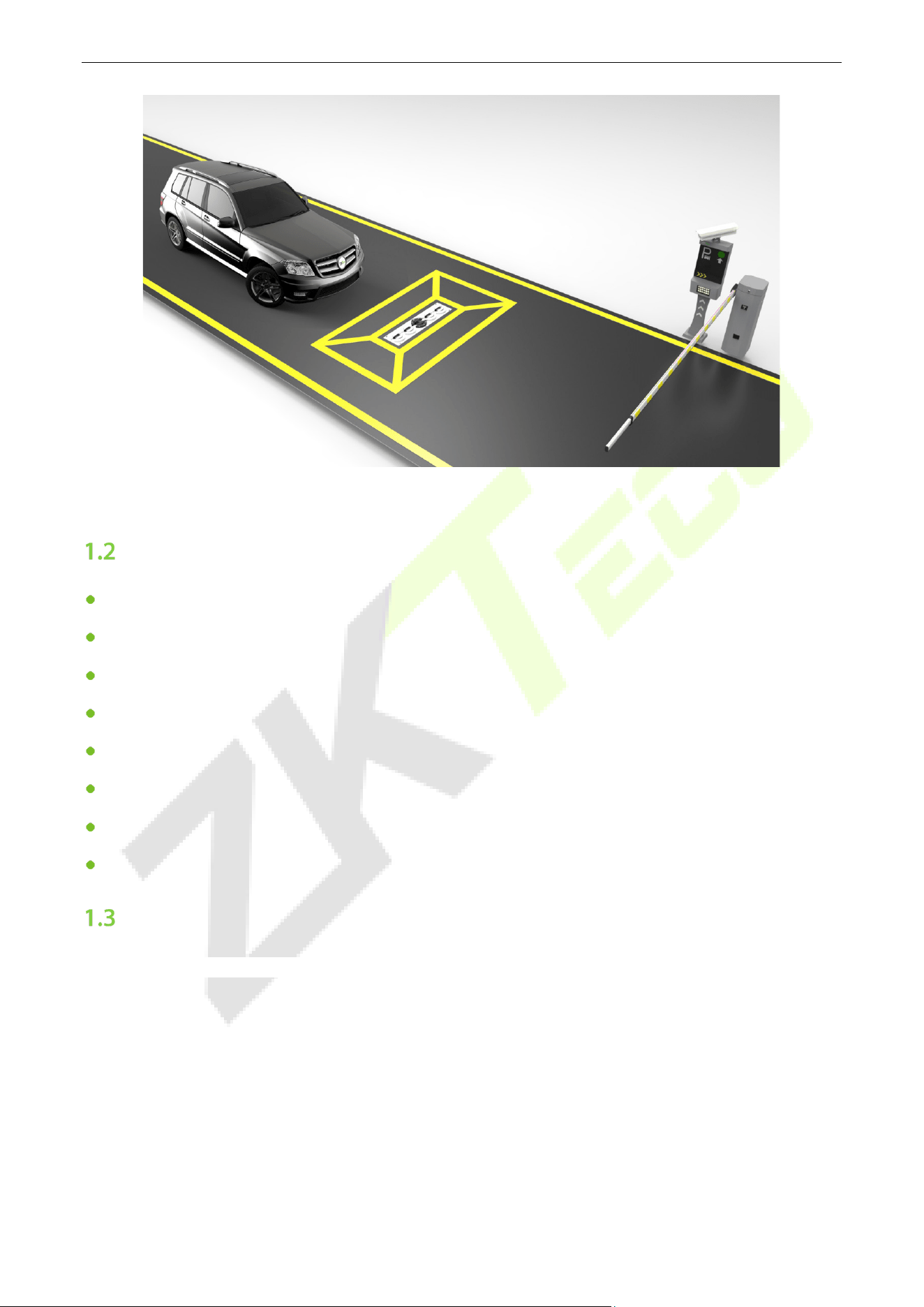
ZK-VSCN200
Features
High-speed line-scanning camera
High-resolution color image
ZK-VSCN100 weight capacity of 30 tons
ZK-VSCN200 weight capacity of 50 tons
Real-time surveillance
Passing speed of vehicle is up to 60km/h
Provides kinds of Image processing functions
The system can be integrated with LPR (optional)
Application
Prisons, customs, government departments, exhibitions, public events.
Under Vehicle Inspection System User Manual
Page | 8 Copyright©2023 ZKTECO CO., LTD. All rights reserved.
2 System Overview
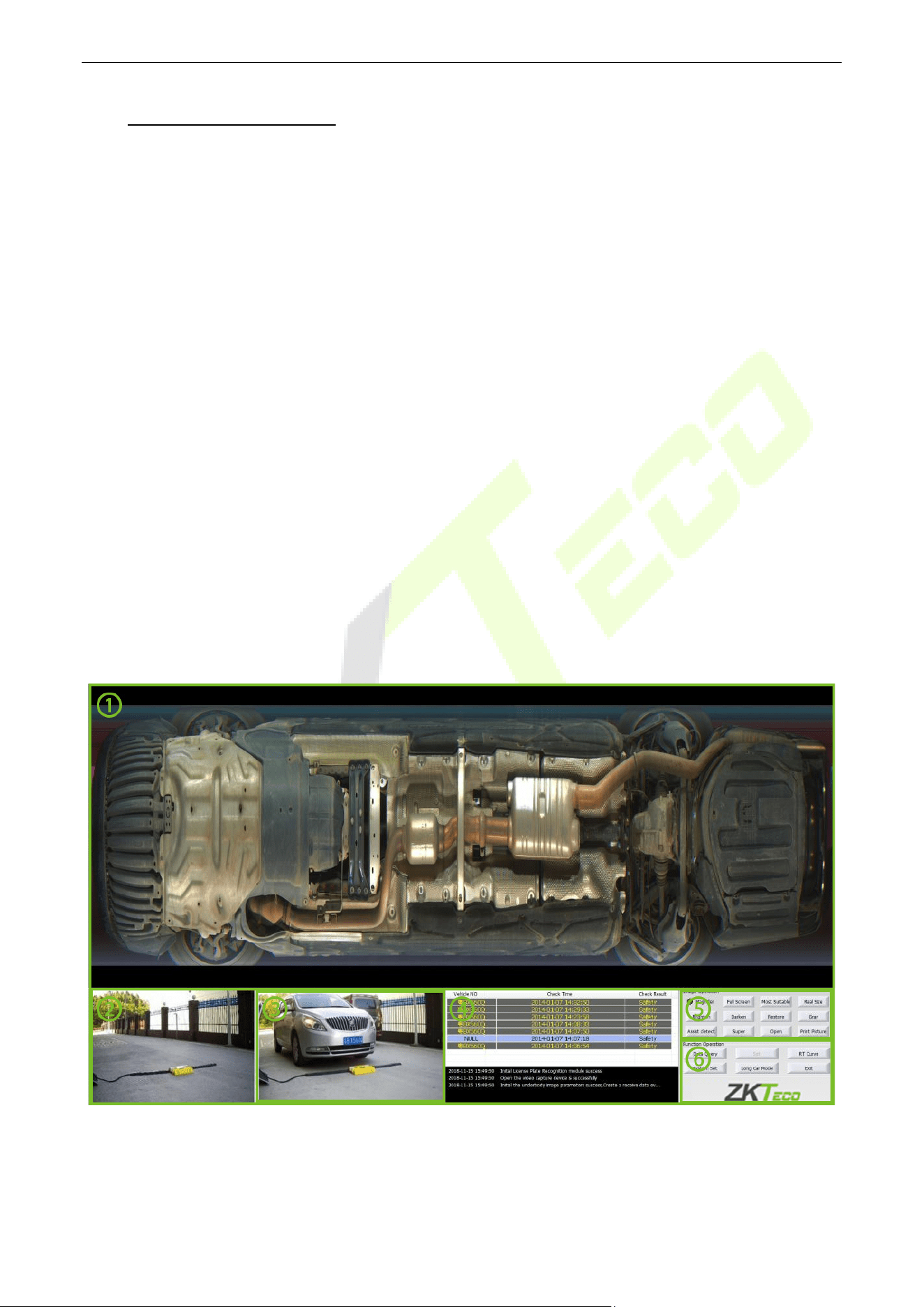
Under vehicle inspection system has achieved the video view and save, automatic vehicle license plate
recognition and image capture function when the vehicle passing through. The system consists of six main
functions: vehicle image display area, Real-time video display area, the license plate number information
display area, vehicle information list, image manipulation functional areas and functional operation area.
1. Vehicle Image Display Area: Real-time display of vehicles at the detected image, historical images,
and bottom of the vehicle after processing images.
2. Real-Time Video Display Area: Real-time display the monitoring video and capturing vehicle plate
video.
3. License Plate Capture Photos Display Area: Displays the detected vehicle license plate capture
photos.
4. Vehicle Information List: Checking vehicle information all day, including license plate number
(Optional), check the time and vehicle inspection results, can modify license number and check results,
Real-time log information list also on this area.
5. Image Manipulation Functional Areas: Image zoom, brighten, darken, edge enhancement and
super-enhanced operation.
6. Functional Operating Areas: System setting, real-time curve, Date Query, Long car mode.
Under Vehicle Inspection System User Manual
Page | 9 Copyright©2023 ZKTECO CO., LTD. All rights reserved.
3 Software Instruction
Starting Software
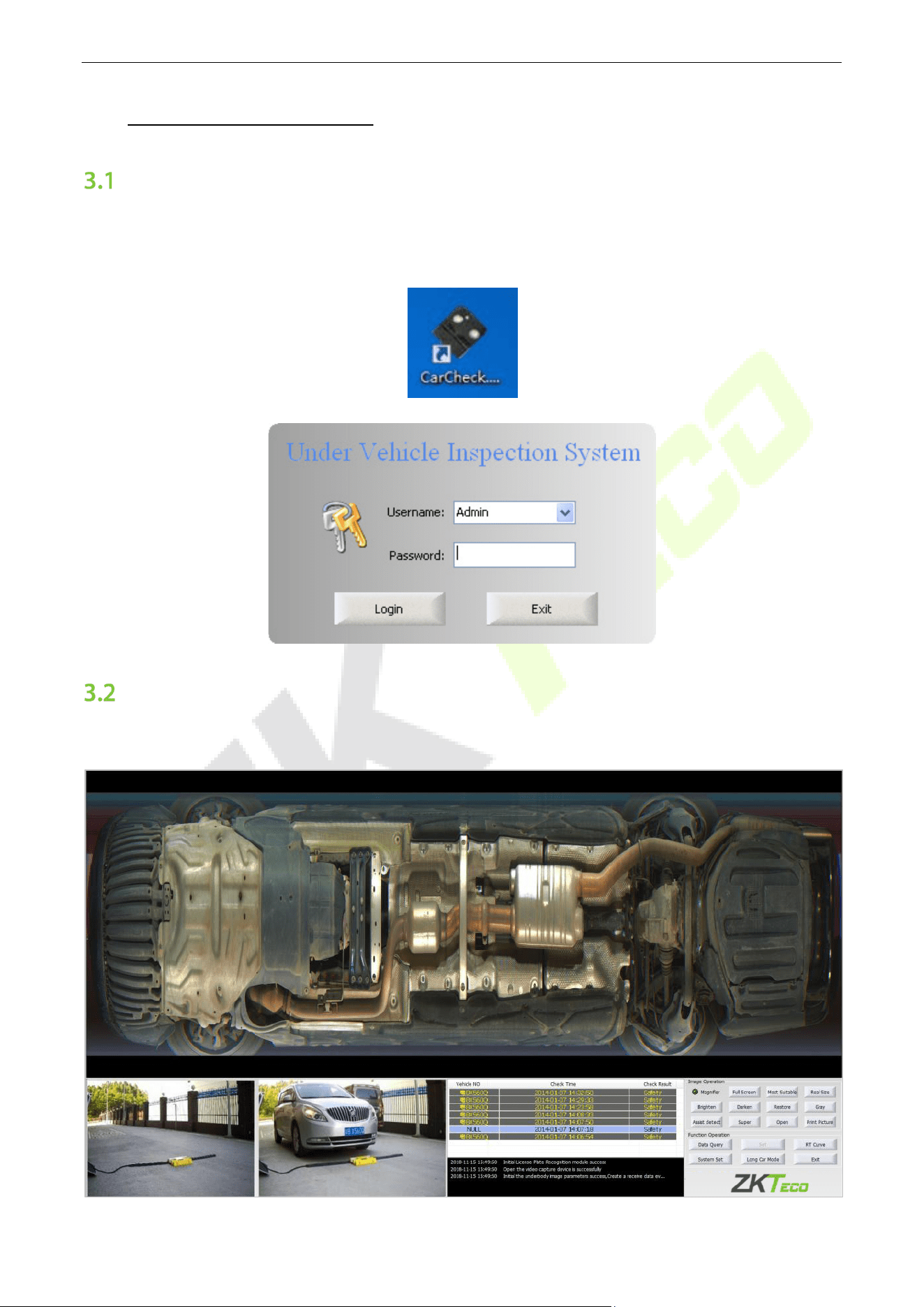
Click [CarCheck.exe] file to start the software and pop-up interface, as shown below (Default username is
Admin, default password is 12345).
Main Interface
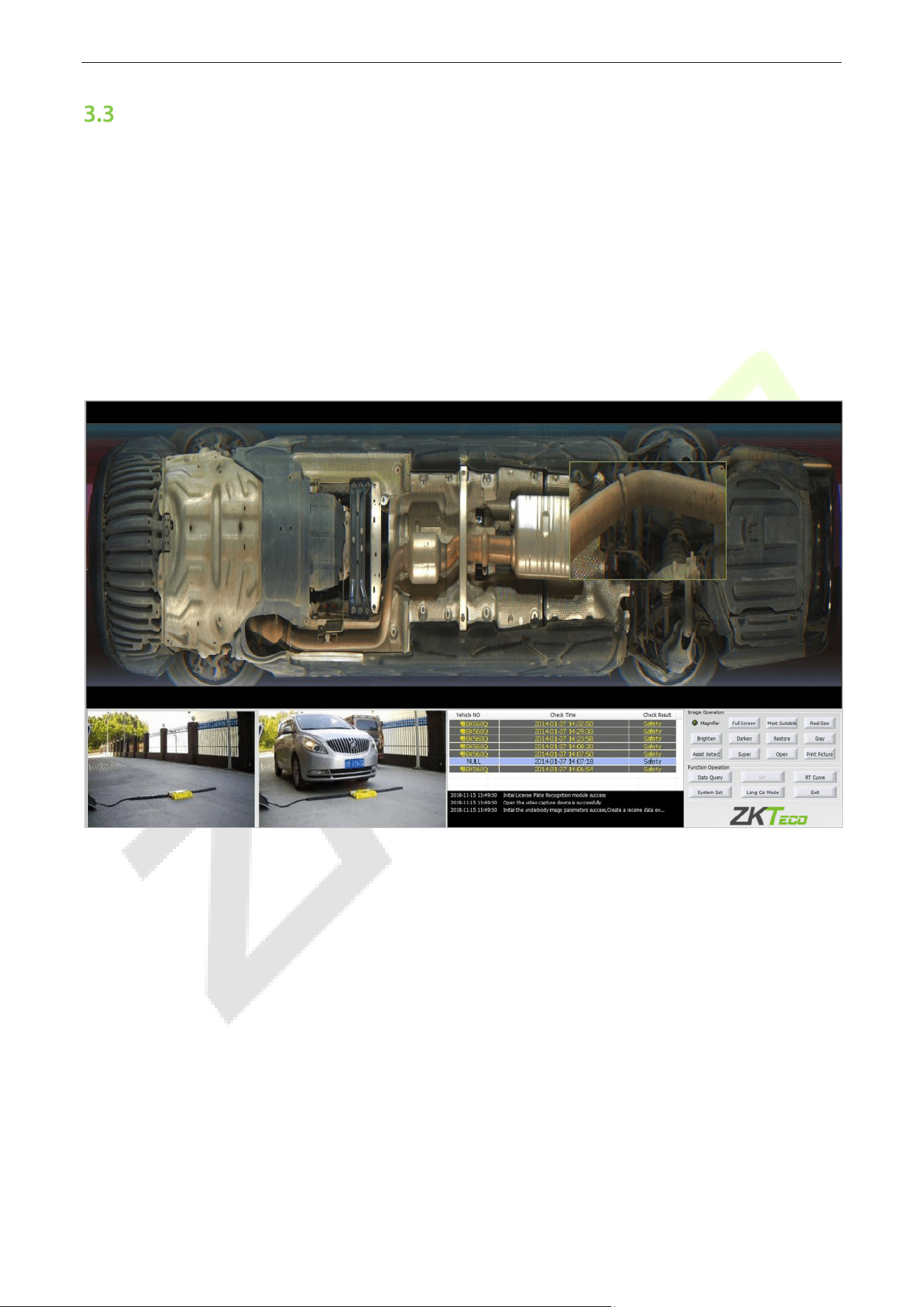
After logging in successfully, the system will enter the main interface. And interface is shown below.

Under Vehicle Inspection System User Manual
Page | 10 Copyright©2023 ZKTECO CO., LTD. All rights reserved.
There are six display areas in the main interface, including undercarriage image display area, Real-time
vehicle video display area, the license plate number information display area, vehicle information list,
image manipulation functional area and functional operation area. Users can view or operate different
function in different area.
1. Vehicle Image Display Area: Real-time display of vehicles at the detected image, historical images,
and bottom of the vehicle after processing images.
2. Real-Time Video Display Area: Real-time display the monitoring video and capturing vehicle plate
video.
3. License Plate Capture Photos Display Area: Displays the detected vehicle license plate capture
photos.
4. Vehicle Information List: Checking vehicle information all day, including license plate number
(Optional), check the time and vehicle inspection results, can modify license number and check results,
Real-time log information list also on this area.
5. Image Manipulation Functional Areas: Image zoom, brighten, darken, edge enhancement and
super-enhanced operation.
6. Functional Operating Areas: System setting, real-time curve, Date Query, Long car mode.
Note: License plate recognition function (Optional) just is supported in several countries. This paper takes
Chinese license plate as an example.
Under Vehicle Inspection System User Manual
Page | 11 Copyright©2023 ZKTECO CO., LTD. All rights reserved.
Image Operation
There are buttons to operate the undercarriage image, including Magnifying Glass function, zoom in,
zoom out, the most suitable, true size, brighten, darken, restoration, edge enhancement, super enhanced
features and open/save functions.
3.3.1 Magnifying Glass
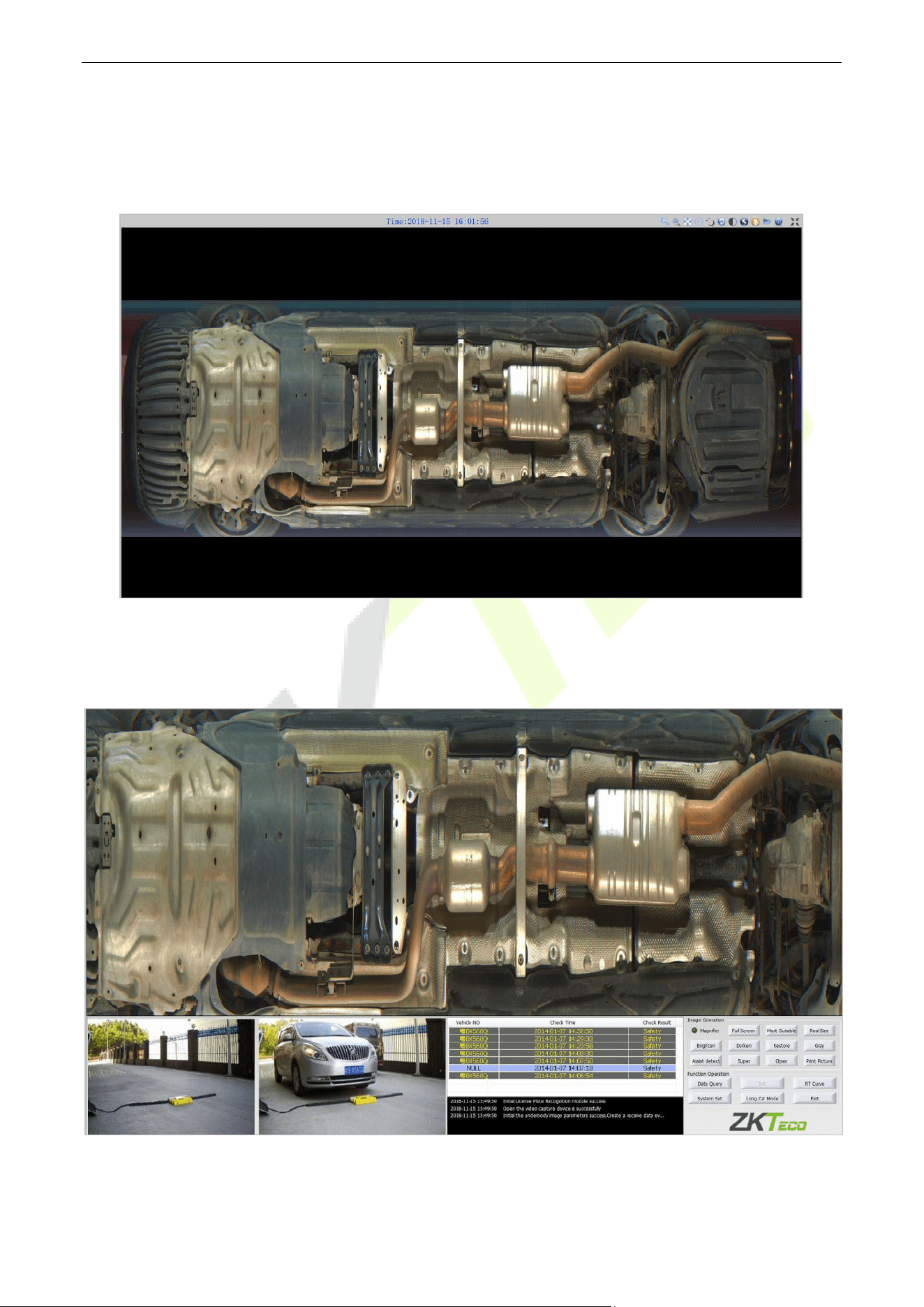
Click Magnifying Glass button and press the left mouse button to create a green box where you want to
zoom in in the image. Click the right mouse button or use the left mouse button to click anywhere except
the green box in the image can quit magnifying glass function.
Under Vehicle Inspection System User Manual
Page | 12 Copyright©2023 ZKTECO CO., LTD. All rights reserved.
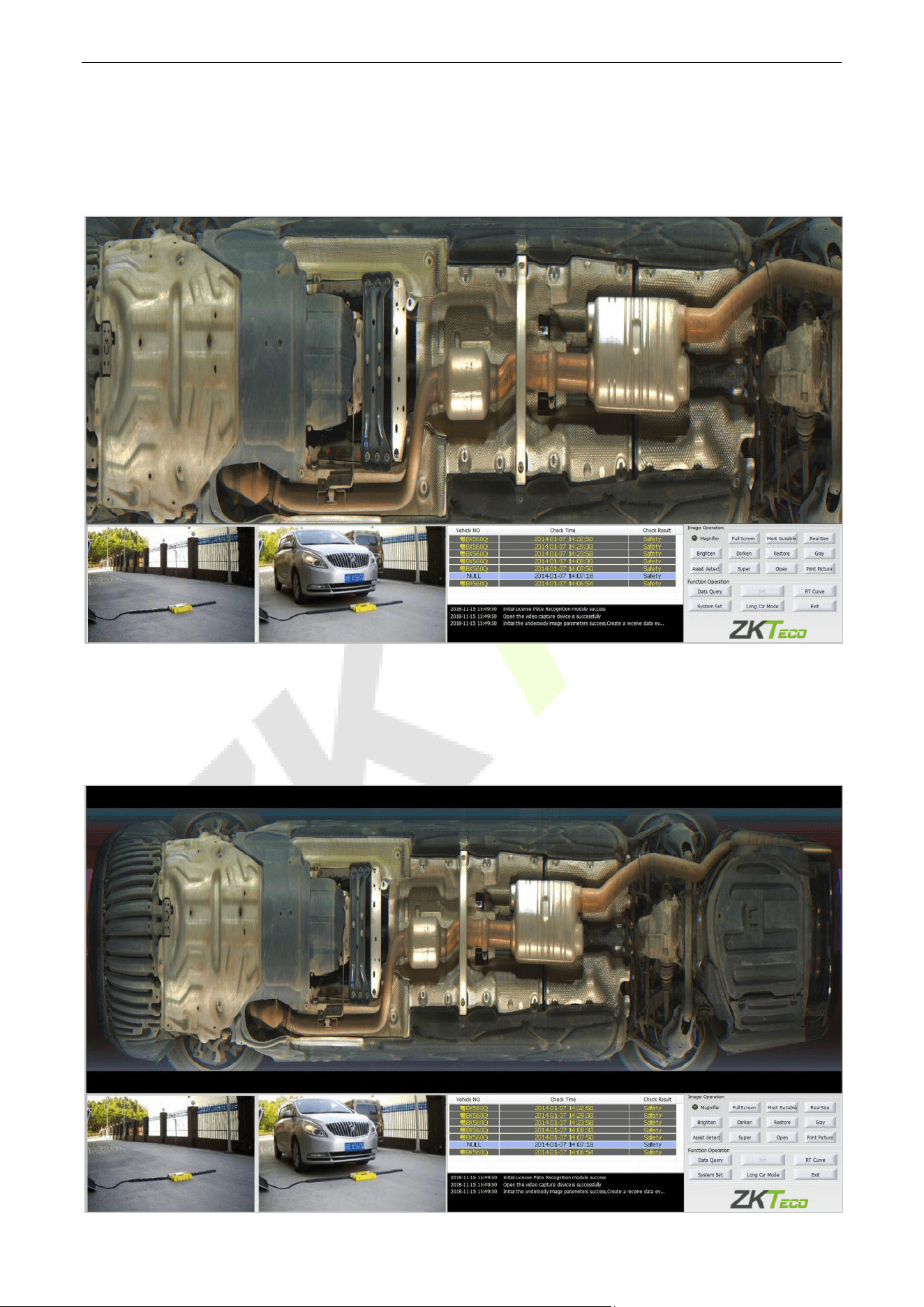
3.3.2 Image Full Screen
Double-click image or click Full Screen button, you can switch to full screen mode. In the full screen mode,
you still can operate image. And function buttons move to top right corner of screen.
3.3.3 Image Dragging
Keep pressing the left mouse button and dragging can move the image.
Under Vehicle Inspection System User Manual
Page | 13 Copyright©2023 ZKTECO CO., LTD. All rights reserved.
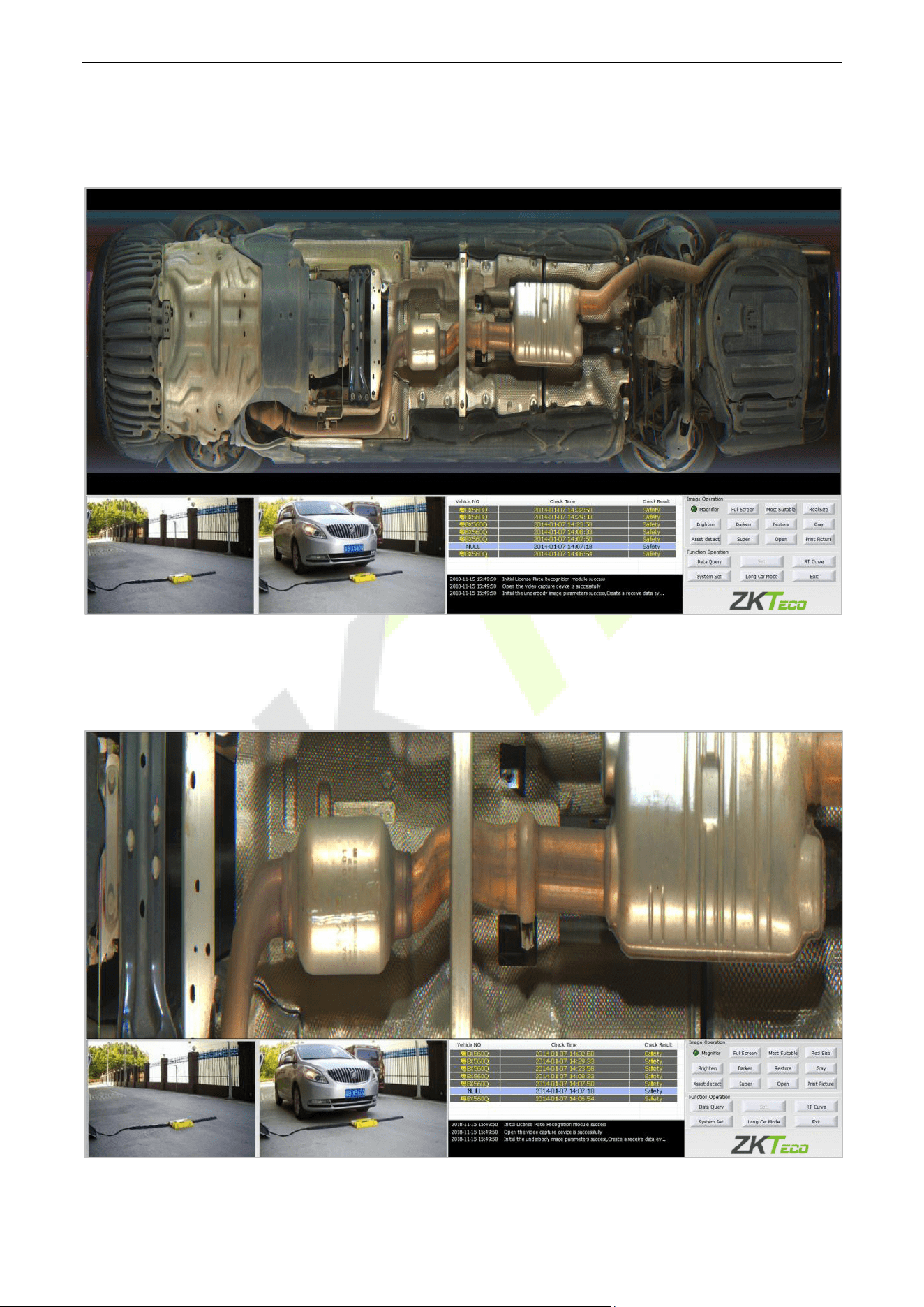
3.3.4 Zoom In
In the undercarriage image, you can use the middle mouse button to zoom in and zoom out the image. In
the same time, image dragging function is enable.
3.3.5 Zoom Out
The default image is the most suitable mode and can zoom out at the beginning. Only after the zoom in
operation, Image can zoom out.
Under Vehicle Inspection System User Manual
Page | 14 Copyright©2023 ZKTECO CO., LTD. All rights reserved.
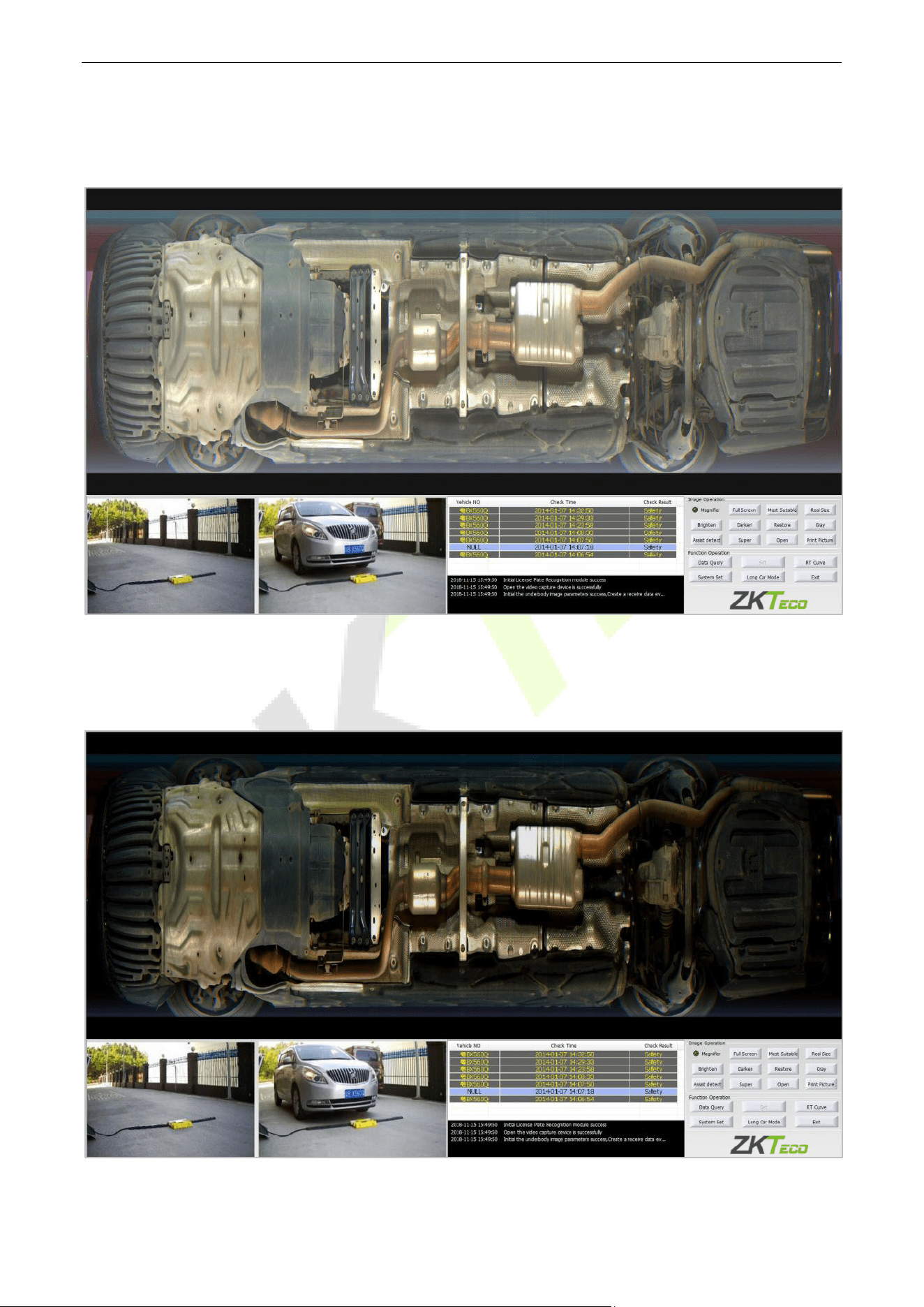
3.3.6 Most Suitable
Click Most Suitable button, the image will be centered for the ratio of the image display area.
3.3.7 Real Size
Click Real Size button, the image will be displayed with the actual length and width.
Under Vehicle Inspection System User Manual
Page | 15 Copyright©2023 ZKTECO CO., LTD. All rights reserved.
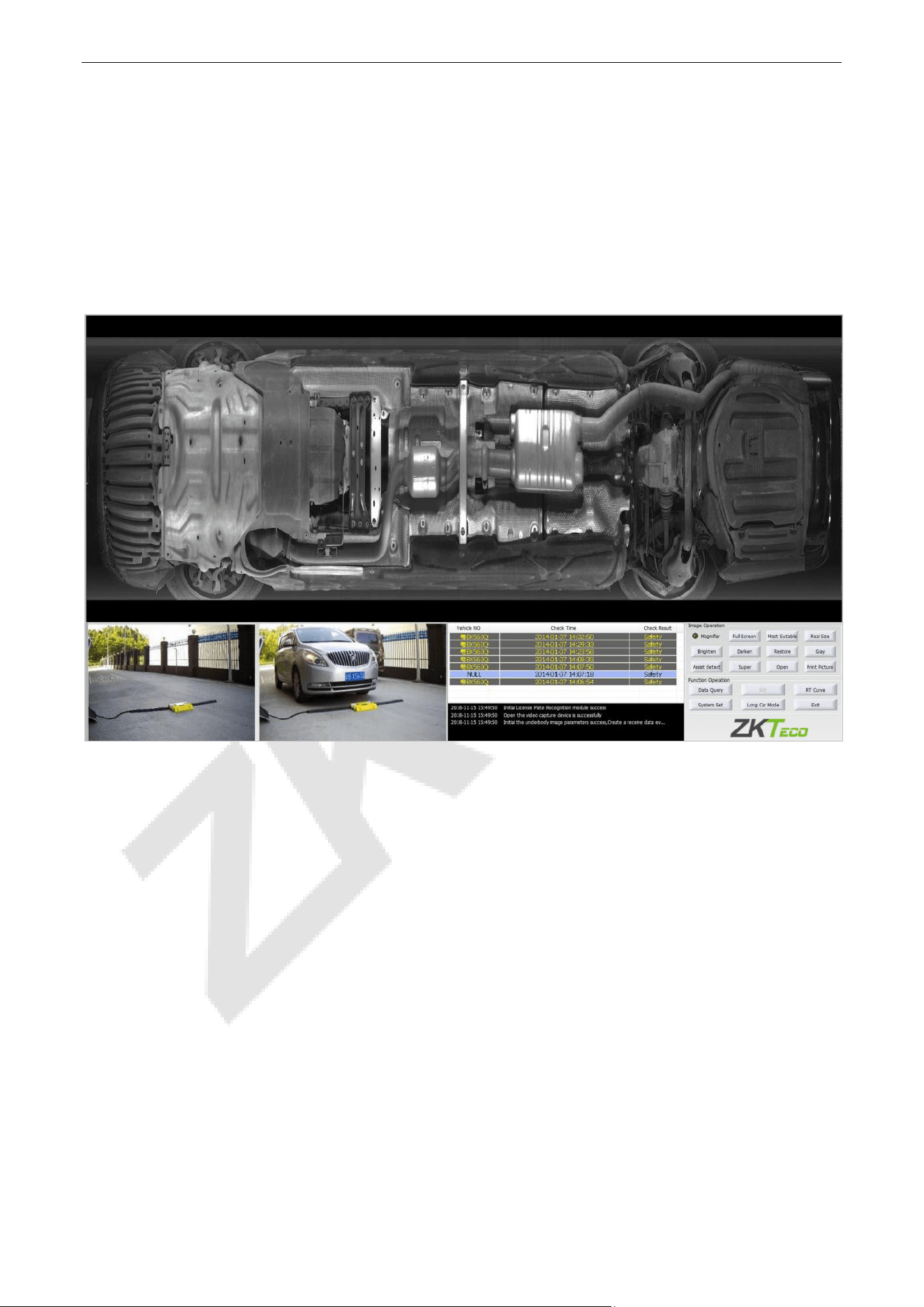
3.3.8 Brighten
Click Brighten button, the image will become brighter, as shown below.
3.3.9 Darken
Click Darken button, the image will become darker, as shown below.
Under Vehicle Inspection System User Manual
Page | 16 Copyright©2023 ZKTECO CO., LTD. All rights reserved.
3.3.10 Restore
Click Restore button, the image will restore the default brightness state. Screen brightness cannot see the
brightness of the image before the operation.
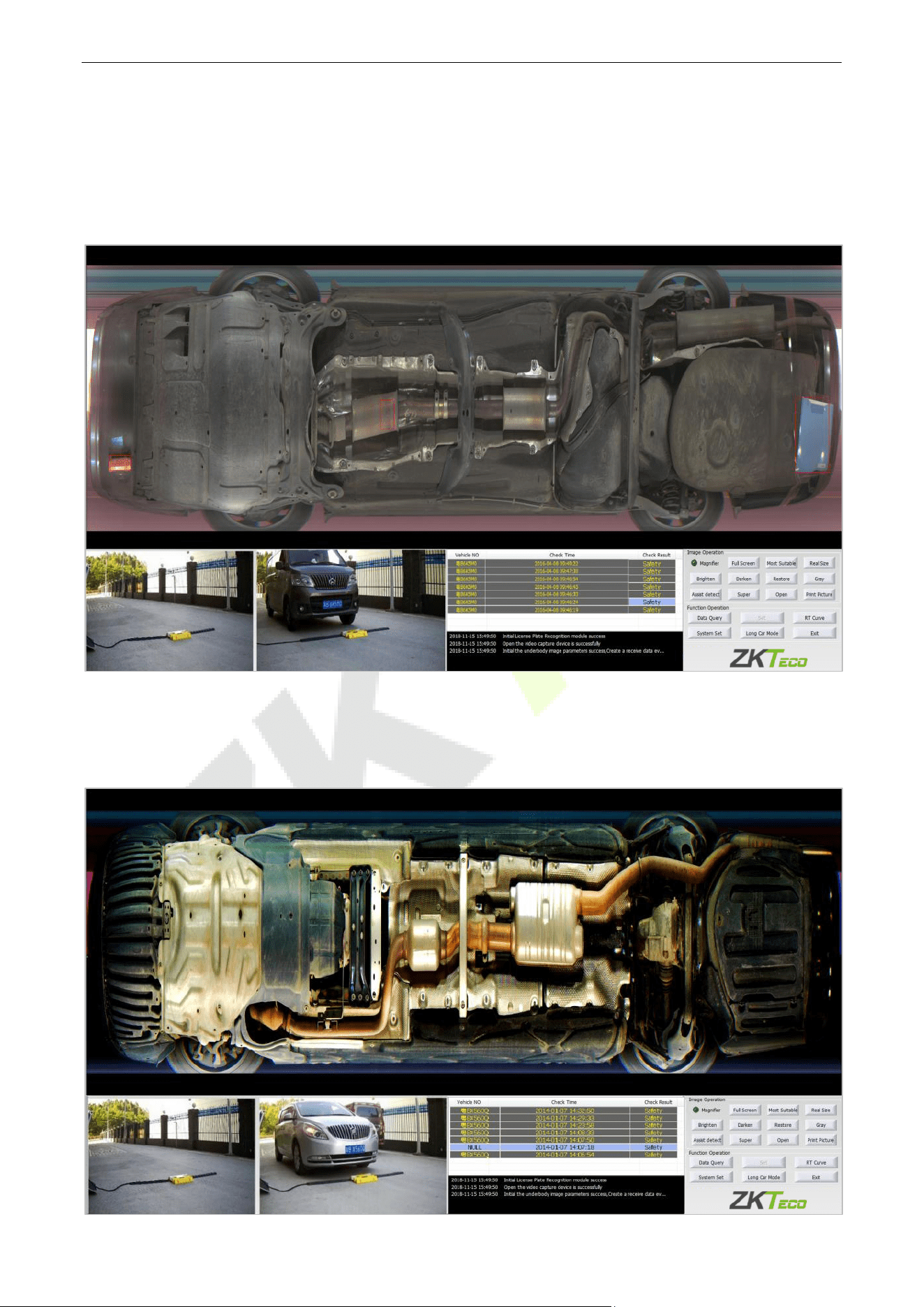
3.3.11 Black and White Display
Click Black and White Display button, and the color image will become become black and white,
Under Vehicle Inspection System User Manual
Page | 17 Copyright©2023 ZKTECO CO., LTD. All rights reserved.
3.3.12 Auxiliary Detection
Click Auxiliary Detection button to quickly discover the suspicious item area of the vehicle chassis, and
box select the area where the suspicious item is located to remind inspectors to focus on checking the box
select area
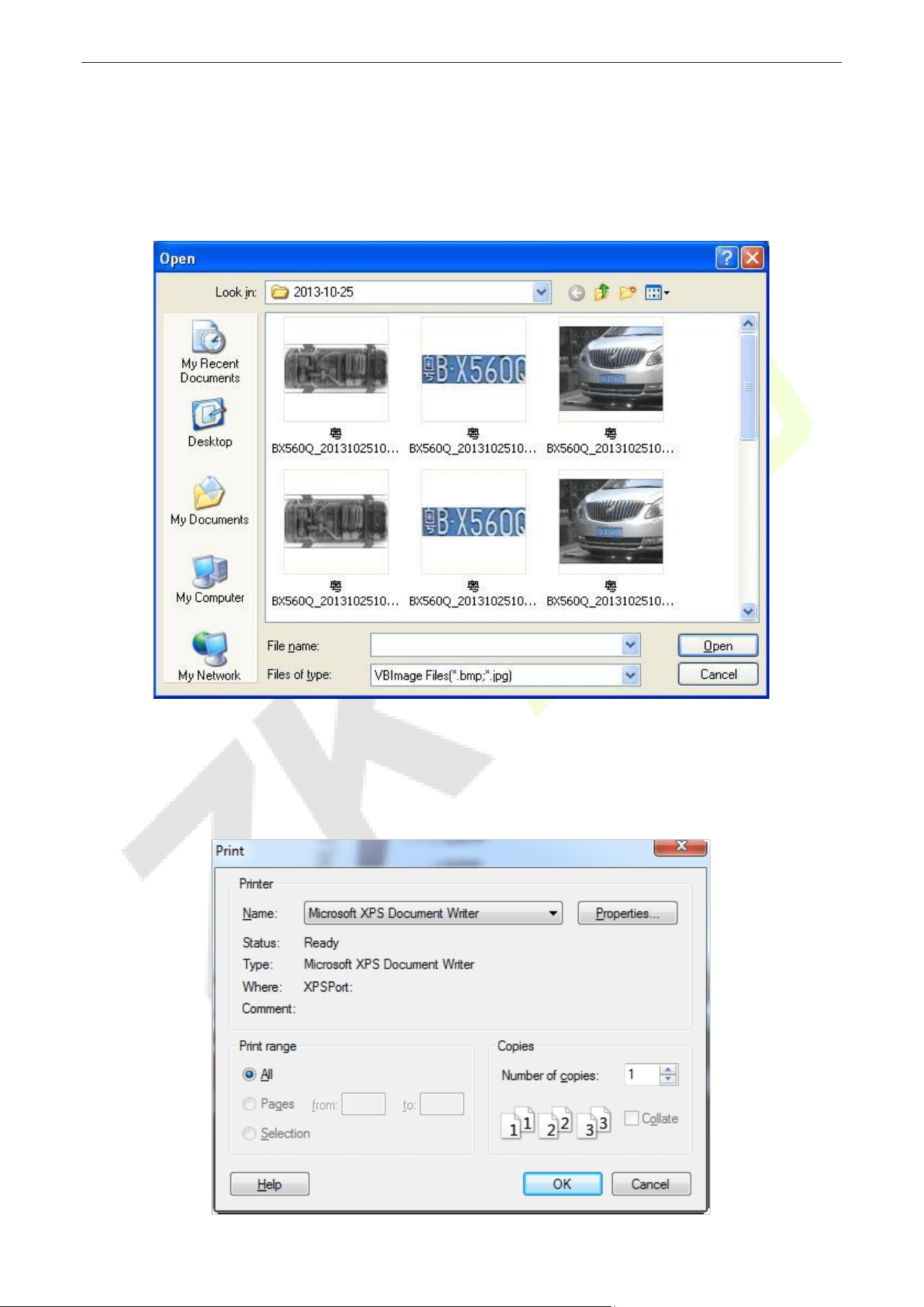
3.3.13 Super Enhancement
Single click Super button, enhancing image edge, changing the image brightness and darkness.
Under Vehicle Inspection System User Manual
Page | 18 Copyright©2023 ZKTECO CO., LTD. All rights reserved.
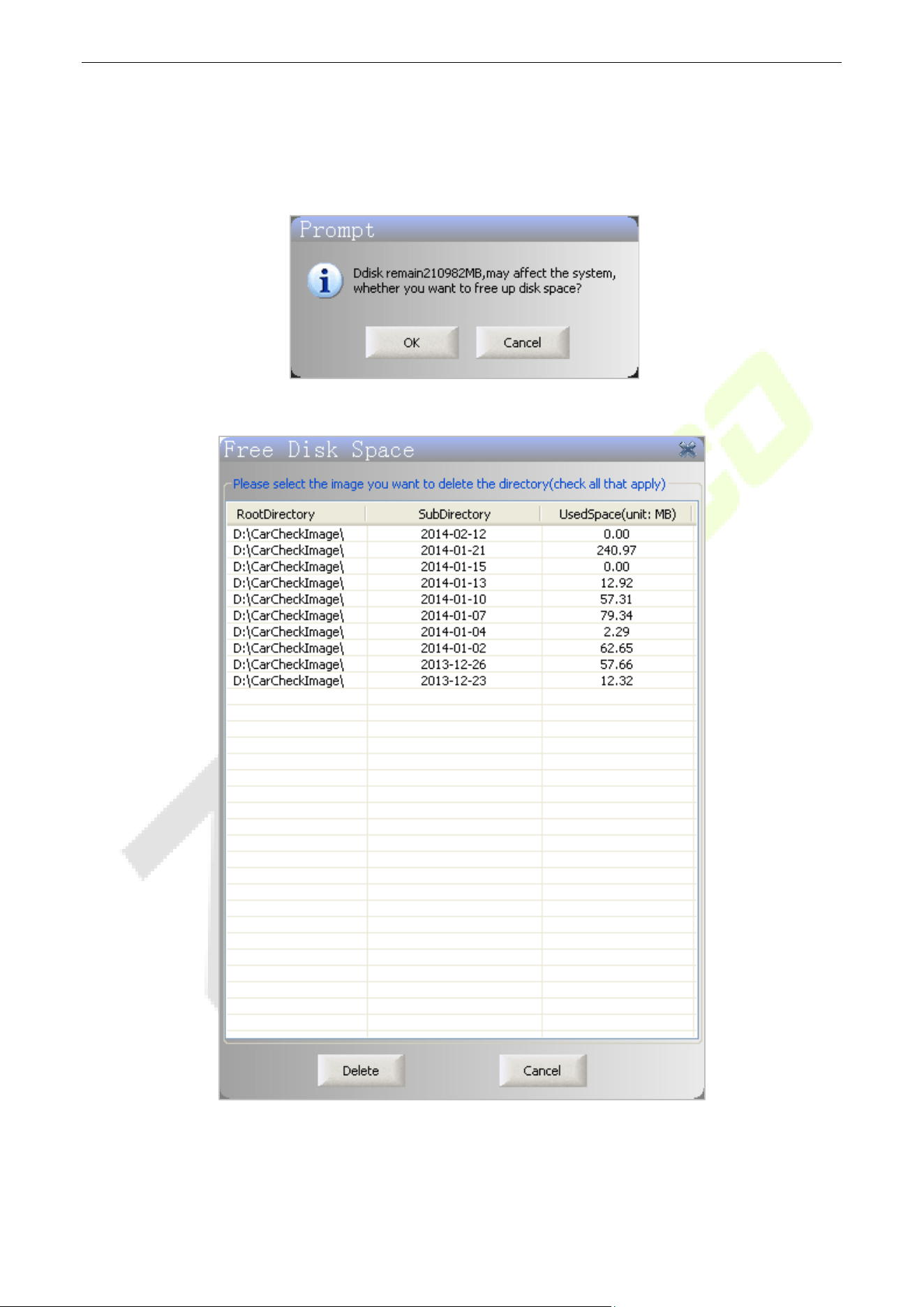
3.3.14 Open
Click Open button to open the pop-up dialog box shown below, the user can select the saved image files
underneath the vehicle image display area for display, and can by clicking on the image of the other
buttons on the operating area images to operate.
3.3.15 Print Pictures
Click Print Picture button, and the picture dialog box pops up. If a printer is connected, select the printer
model to print the open picture.
Under Vehicle Inspection System User Manual
Page | 19 Copyright©2023 ZKTECO CO., LTD. All rights reserved.
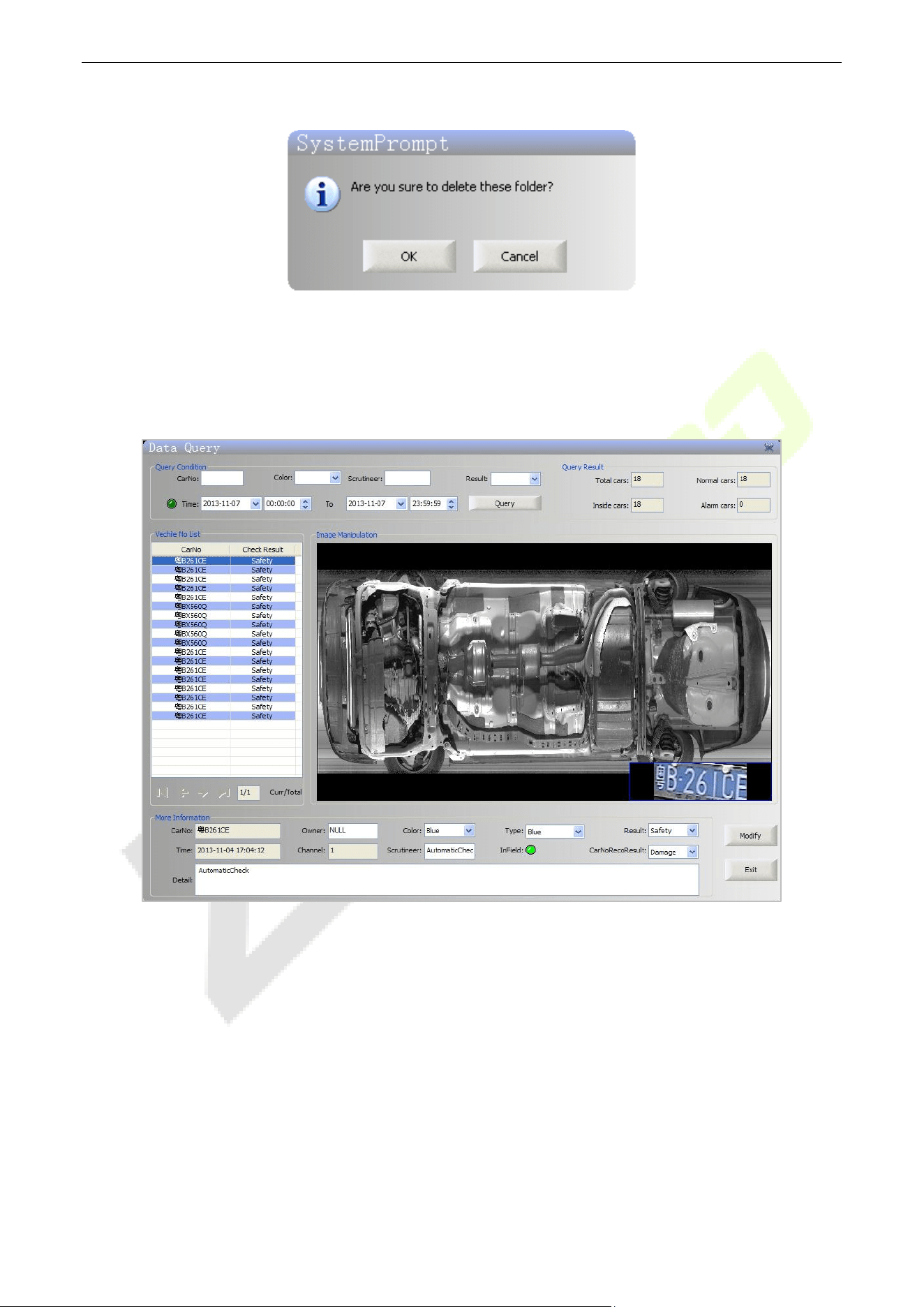
3.3.16 Image Delete Function
After saving the image, the system will automatic-check the disk space every time while the space of disk is
less than the set threshold, the dialog box will pop up as shown below.
If you select OK, the following interface will pop up.
Under Vehicle Inspection System User Manual
Page | 20 Copyright©2023 ZKTECO CO., LTD. All rights reserved.
In this interface, you can double-click an image catalog that is no longer needed, then click Delete key.
3.3.17 Date Query
By clicking Data Query button, you can query the vehicle inspection information in the interface shown
below.
Under Vehicle Inspection System User Manual
Page | 21 Copyright©2023 ZKTECO CO., LTD. All rights reserved.
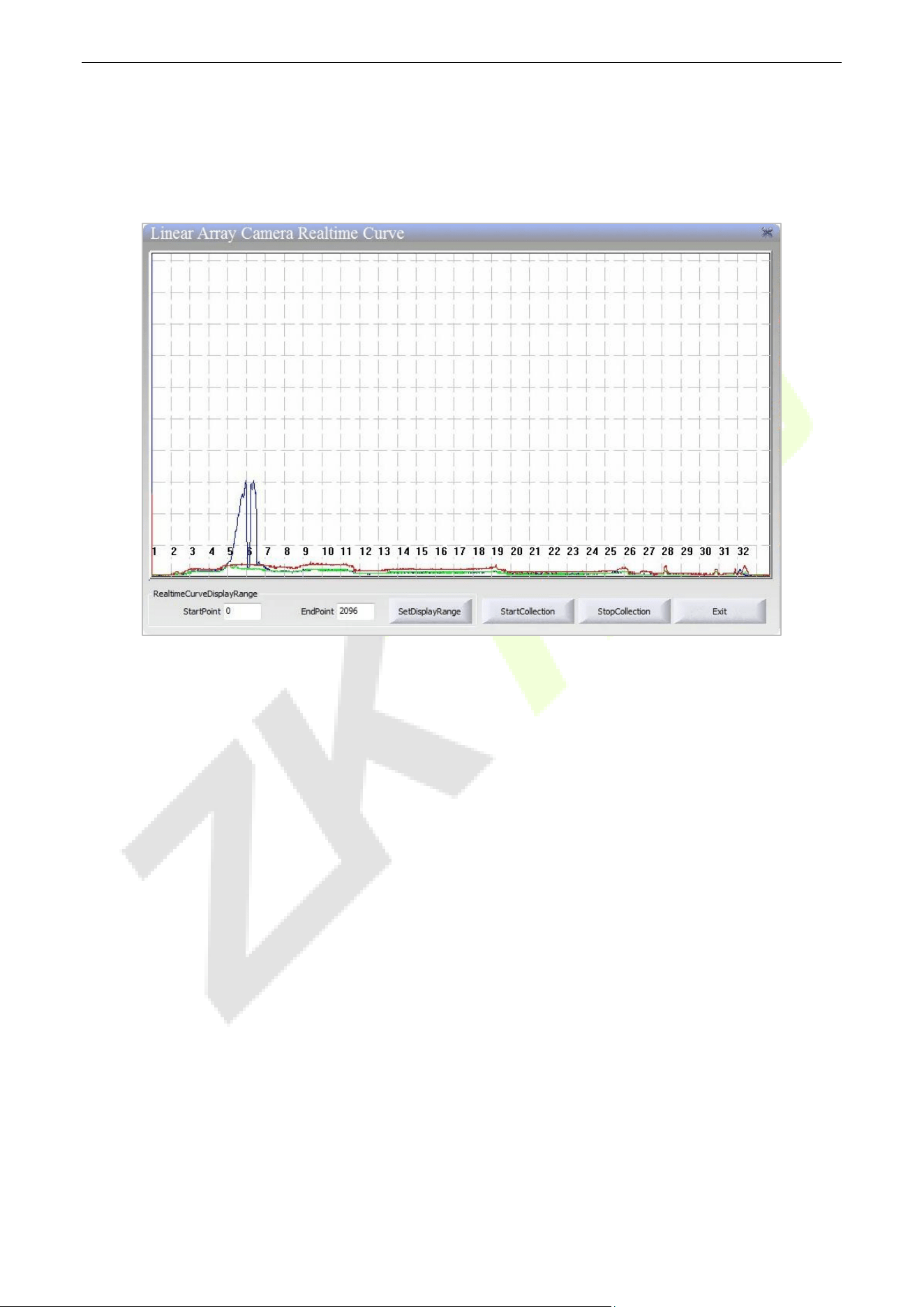
3.3.18 Real-time Curve
By clicking RT Curve button pops up the following interface, you can view real-time acquisition curve,
when the under vehicle scanner Gigabit Ethernet cameras at work.
Under Vehicle Inspection System User Manual
Page | 22 Copyright©2023 ZKTECO CO., LTD. All rights reserved.
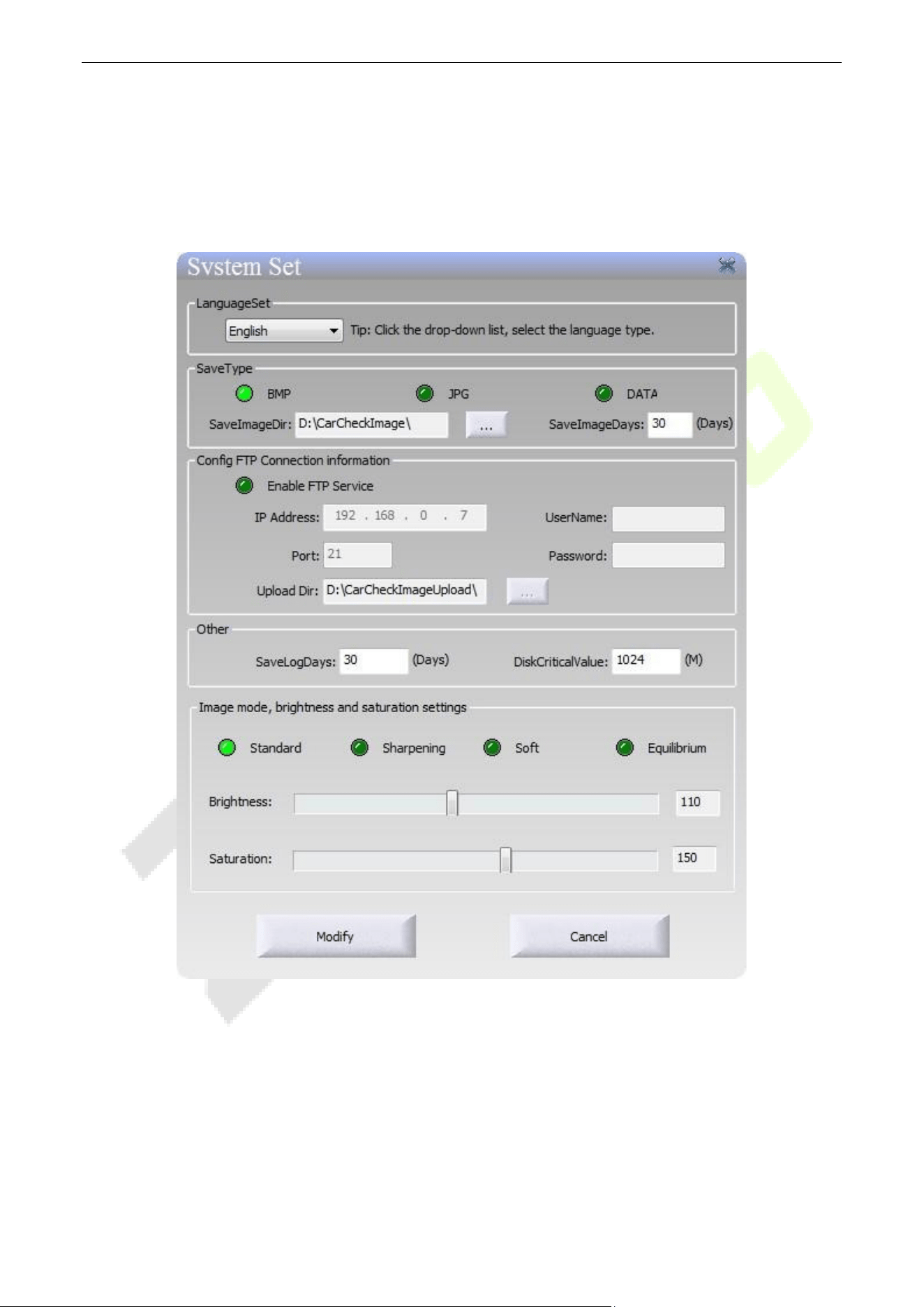
3.3.19 System Settings
By clicking System Settings button, the interface shown below pops up and you can set the language,
image saving format, storage path, storage days, FTP connection settings, log saving days, disk threshold
and image settings. FTP connection settings, log storage days, disk threshold, and image settings, etc.
Under Vehicle Inspection System User Manual
Page | 23 Copyright©2023 ZKTECO CO., LTD. All rights reserved.
3.3.20 Long Car Mode
When a large row of vehicles passes or long vehicle, you can click long Car Mode button and click again to
change back to "normal mode".
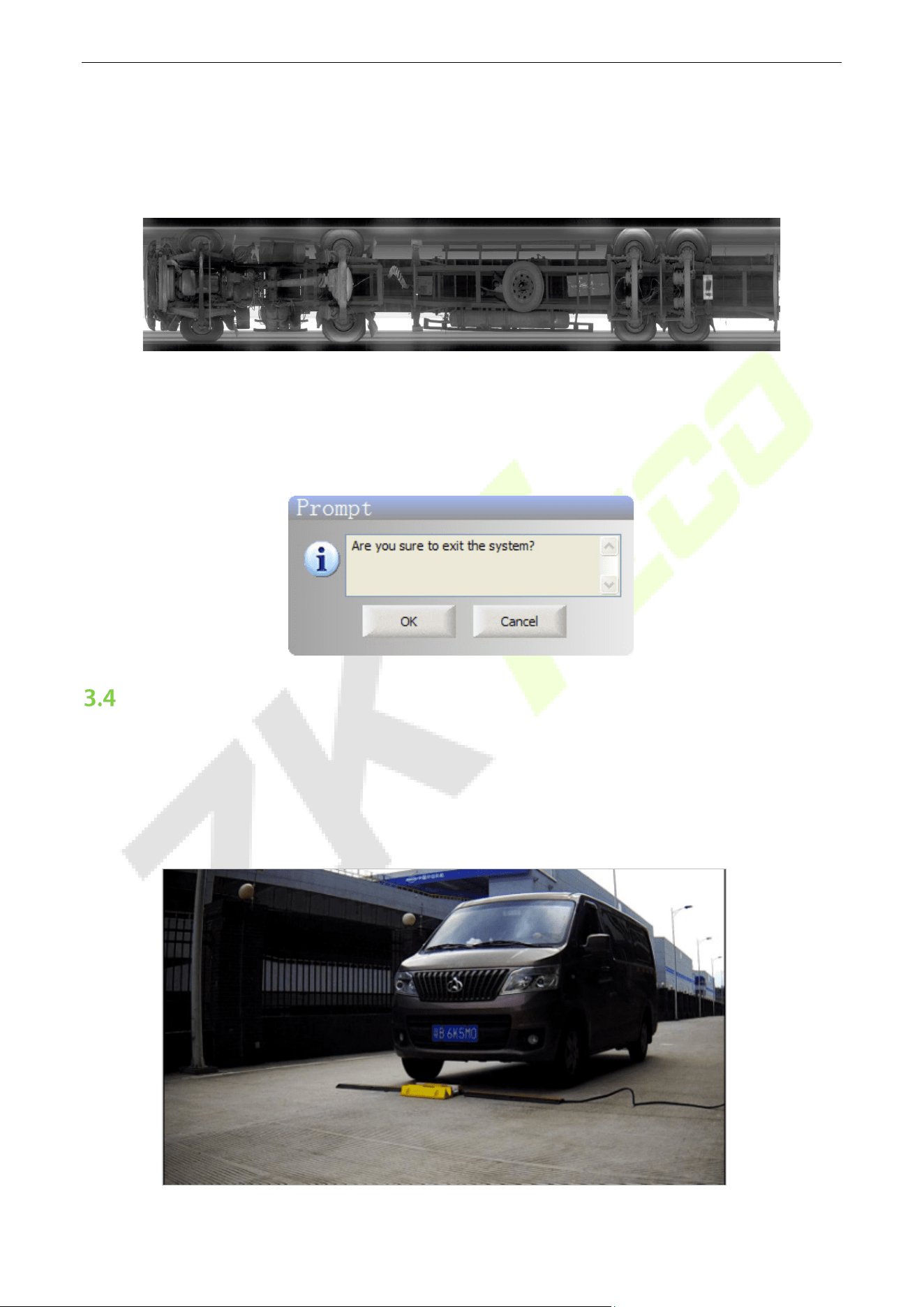
3.3.21 Exit
Click Exit button, pop-up dialog box as shown below, click the “OK” button to exit the system, click the
Cancel button to close the pop-up dialog box.
Real-time Video
3.4.1 Real-time Monitoring Video Display
Start the software, the real-time monitoring display area will show surveillance video. Interface is shown
below.
Under Vehicle Inspection System User Manual
Page | 24 Copyright©2023 ZKTECO CO., LTD. All rights reserved.
3.4.2 License Plate Capture Photos Display Area
Displays the detected vehicle license plate capture photos
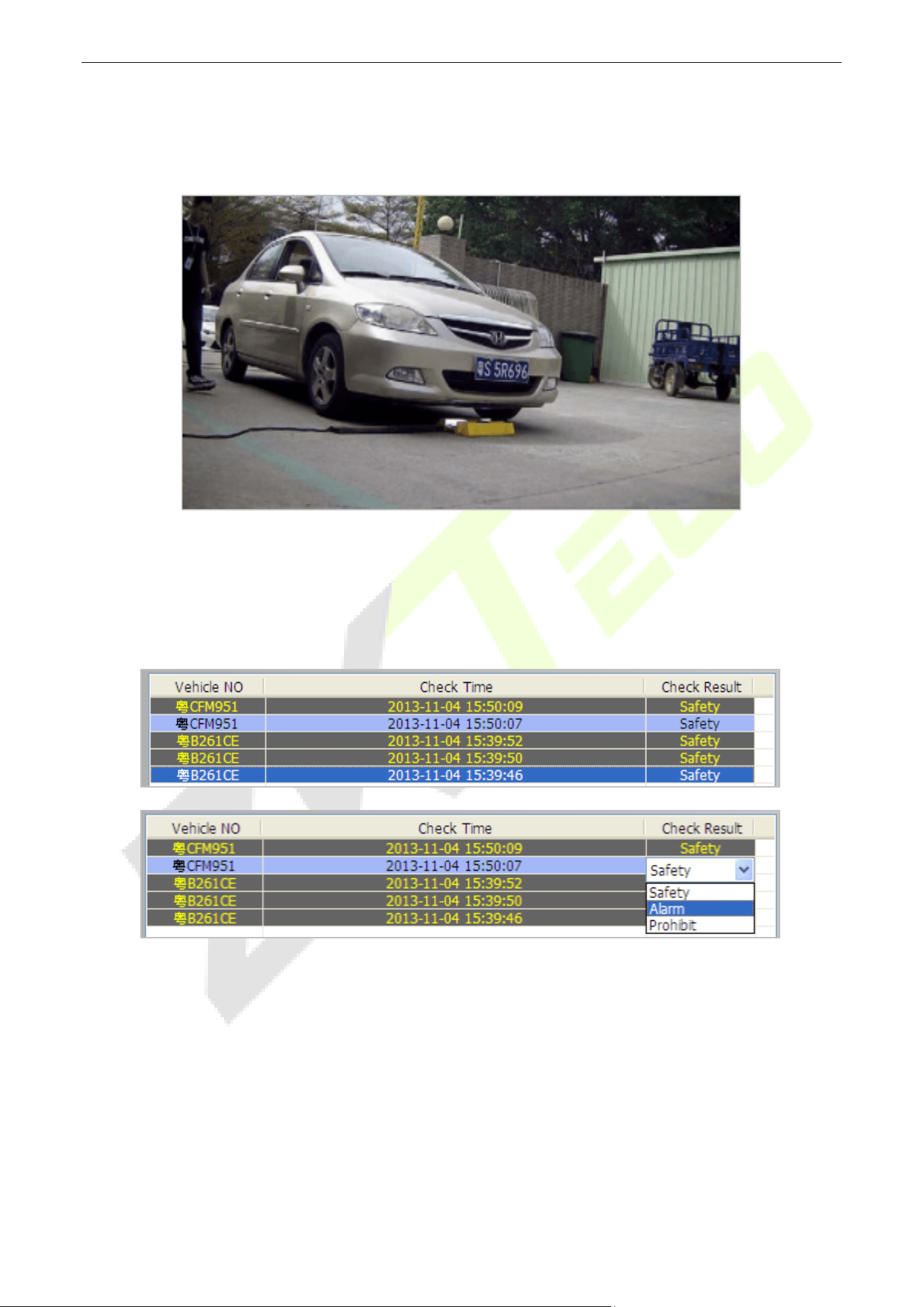
3.4.3 Vehicle Information List
Checking vehicle information all day, including license plate number(Optional), check the time and vehicle
inspection results, can modify license number and check results.
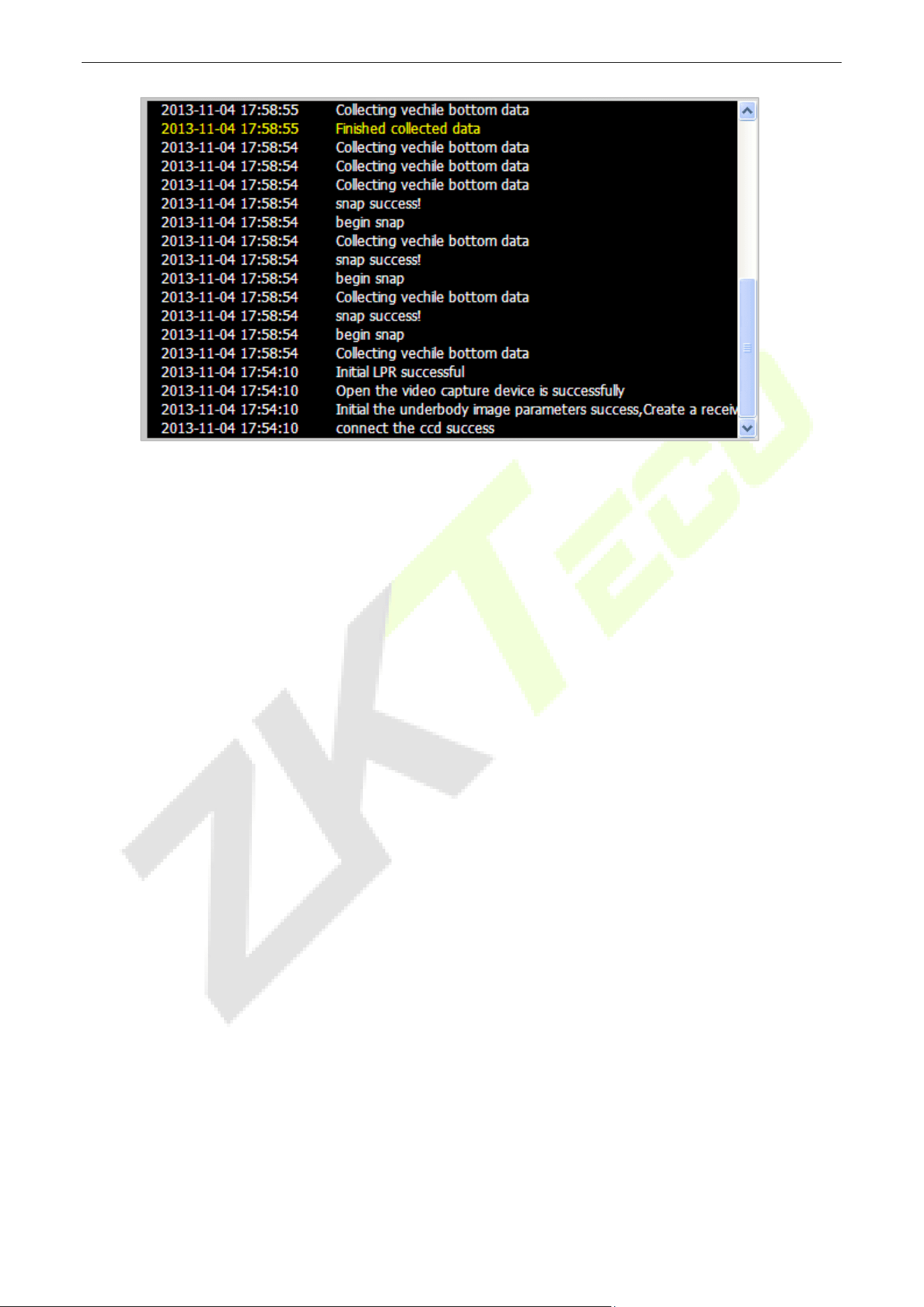
Real-time log information list, in order to allow the real-time using personnel or maintenance personnel to
understand the operational status of the system, specifically add this real-time information displayed
list ,during system operation will generate some information(such as: image acquisition information, save
the image information, warning or error messages, etc.) the interface as shown below:
Under Vehicle Inspection System User Manual
Page | 25 Copyright©2023 ZKTECO CO., LTD. All rights reserved.
Yellow font information indicates a warning message. During the system running, there is such a
message to be generated. It’s because of you may not start some equipment or functional modules.
Red font information indicates an error message. During the system running, there is such a message to
be generated, it stand for the system has serious problems that will affect the operation of the system.
Black font information indicates a normal log information, the user can understanding the system status
in real-time.

Under Vehicle Inspection System User Manual
Page | 26 Copyright©2023 ZKTECO CO., LTD. All rights reserved.
4 Troubleshooting
1. Scanner flashing Light does not go off.
A. Measure the input voltage of power supplying, if it is less than 24V, please replace the power.
B. Notify the manufacturer for a replacement and maintenance.
2. The video of license plate captured display blurred
A. Open the front cover of the video device, adjust focus and zoom.
3. Real-time video display area does not display live video.
A. Check the camera capture card connected to the line, and make sure the camera video capture card
circuit has access to the first road interface.
4. Video capture is connected, but the system cannot find the prompt capture card or failed to
initialize.
A. Reinstall the video acquisition card driver
5. Host machine cannot connect the under vehicle surveillance device
A. Check whether the two IP are in the same network segment and the IP settings. After resetting the IP
in the instructions, then restart the software.
B. To check the host network adapter, camera, network equipment, replace the cable, use ping
command in the command prompt to find the reason.
6. When cross the vehicle, the vehicle image display area is not displaying images
A. Can open the “Real-time Curve” dialog box, to see if there is no real-time curve, it may be the camera
or the link line with problems.
B. Notify the equipment provider for a replacement and maintenance.
.

Under Vehicle Inspection System User Manual
Page | 27 Copyright©2023 ZKTECO CO., LTD. All rights reserved.
ZKTeco Industrial Park, No. 32, Industrial Road,
Tangxia Town, Dongguan, China.
Phone : +86 769 - 82109991
Fax : +86 755 - 89602394
www.zkteco.com
Copyright © 2023 ZKTECO CO., LTD. All Rights Reserved.






