
Pantum M7300 Series
Monochrome Laser MFP
It is recommended to carefully read this Guide before using the printer

I
Preface
Welcome to the Pantum Series products!
We heartily appreciate your using of Pantum Series products!
To protect your vital interests, please carefully read the following statements.
For more information, please visit our official website (www.pantum.com).
Legal Notice
Trademark
Pantum and Pantum logos are registered trademarks of Zhuhai Pantum Electronics Co, Ltd.
Microsoft
®
, Windows
®
, Windows Server
®
and Windows Vista
®
are trademarks registered by
Microsoft Corporation in the United States or other countries/regions.
Apple, AirPrint, Mac, and macOS are trademarks of Apple Inc., registered in the U.S. and other
countries.Use of the Works with Apple badge means that an accessory has been designed to work
specifically with the technology identified in the badge and has been certified by the developer to
meet Apple performance standards.
The Mopria
™
word mark and the Mopria
™
Logo are registered and/or unregistered trademarks of
Mopria Alliance, Inc. in the United States and other countries. Unauthorized use is strictly
prohibited.
Wi-Fi Direct, Wi-Fi Protected Setup (WPS), WPA, WPA2, WPA3, and Wi-Fi Protected Access are
marks of the Wi-Fi Alliance.
The ownership to the names of the software in this User Guide belongs to their respective
companies in accordance with corresponding license agreement, and they are referred for
instructions only.
All other product and brand names herein may be the registered trademarks, trademarks or service
marks of their respective owners, and they are referred for instructions only.
Copyright
The Copyright of this User Guide is owned by Zhuhai Pantum Electronics Co., Ltd.
It is prohibited to copy, translate, modify and transmit this User Guide by any means or in any form
without the prior written consent of Zhuhai Pantum Electronics Co., Ltd.
Version: V2.2
Disclaimer
For a better user experience, Zhuhai Pantum Electronics Co., Ltd. reserves the right to make
changes to the User Guide. The information contained herein is subject to change without notice.
Users are responsible for any damages arising from failing to follow this User Guide. Meanwhile,
except the express warranty made in the product maintenance manual or service commitment,
Zhuhai Pantum Electronics Co., Ltd. does not make any express or implied warranty or guarantee
to this User Guide (including composing or words).
Using this product to copy, print, scan certain documents or images or make other forms of
operations may be prohibited by the local laws. If you are uncertain about the legality of using this
product for certain documents or images, you should consult your legal advisor in advance.
II
The product can only be used safely in the non-tropical areas at an altitude no higher than 2000
meters.
Safety Precautions
Disconnect the power supply
The product should be placed close to or easily accessible to power sockets, so as to allow easy
disconnection of power supply!
Laser Safety
The laser radiation is harmful to the human body. Since laser components are completely sealed in
the printer, laser radiation will not leak. To avoid laser radiation, please do not randomly
disassemble the printer!
Caution – Use of controls or adjustments or performance of procedures other than those specified
herein may result in hazardous radiation exposure
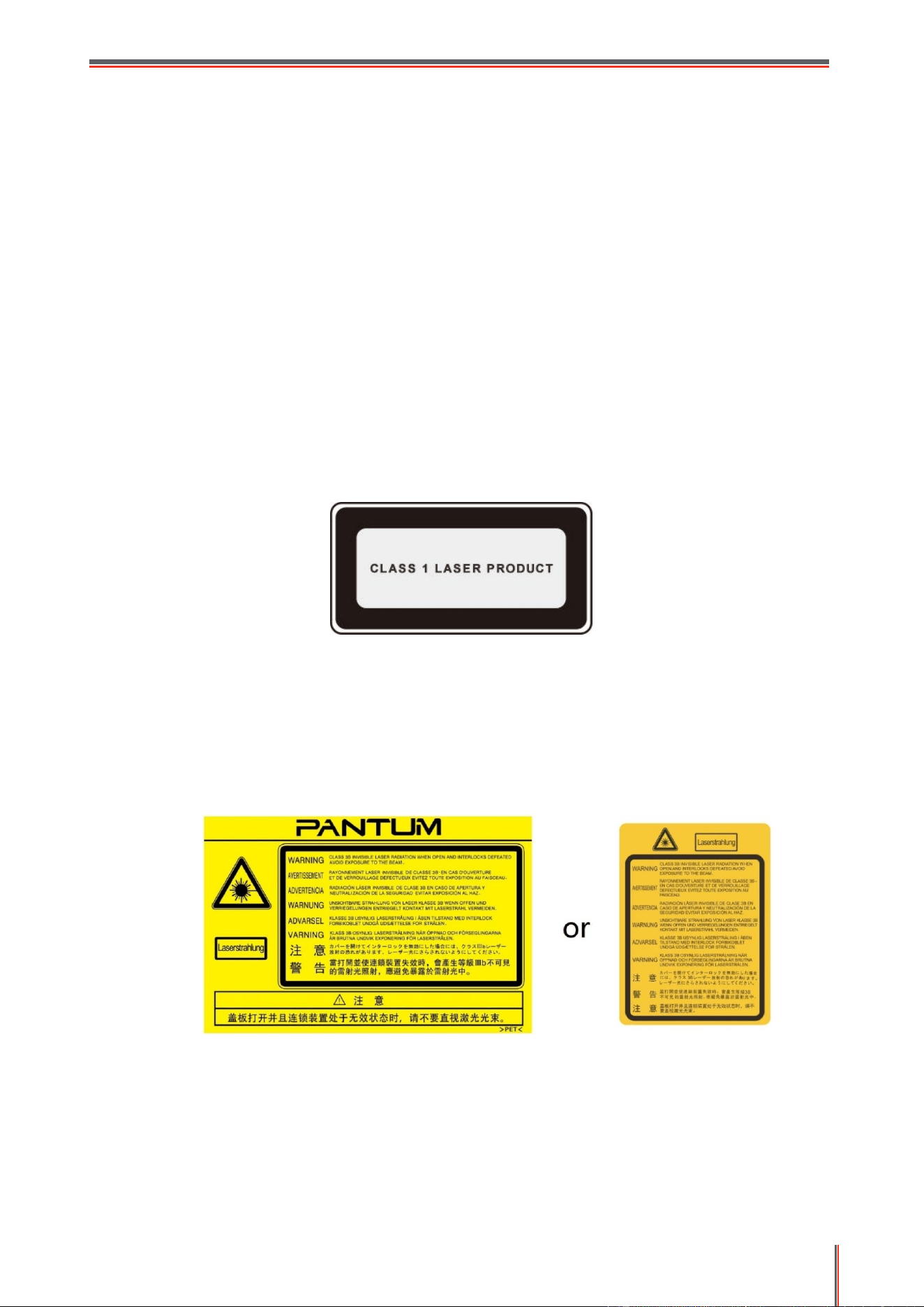
The printer follows the provisions of Class 1 laser products under CFR standard.
The printer has a Class 3B laser diode, which has no laser radiation leakage among laser
components.
The laser components shall complies with the requirements of: U.S. Code of Federal Regulations,
21 CFR 1040, IEC 60825-1.
The following label is attached to the laser components inside the printer:
III
Safety Warning
Please note the following safety warnings before using the printer:
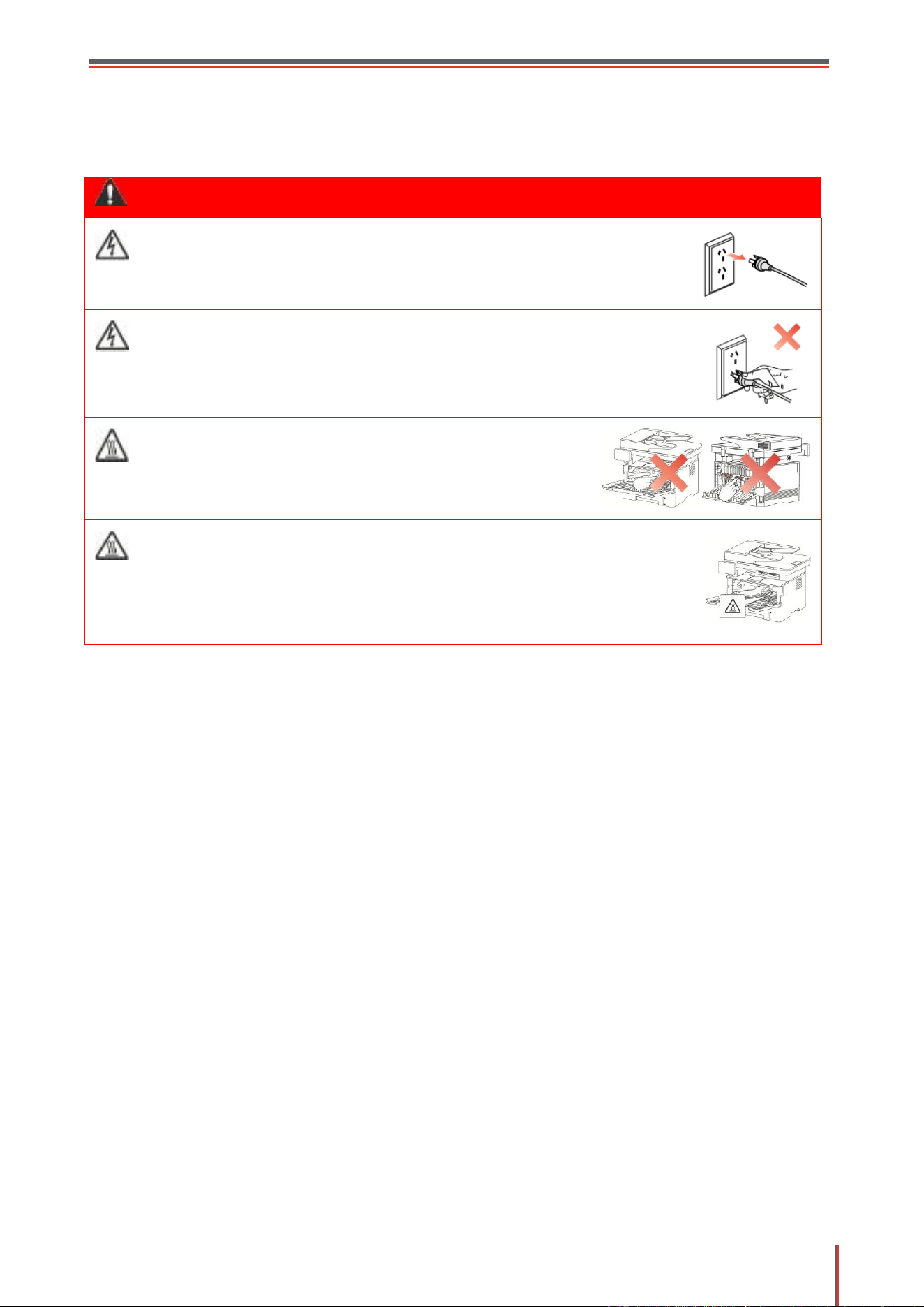
Warning
There is high-voltage electrode inside the printer. Before
cleaning the printer, make sure the power is turned off!
Plugging and unplugging the power cord plug with a wet hand
can result in an electric shock.
The fuser unit is hot when and after printing. Touching the
fuser unit (the shaded area as shown) may cause burns!
The fuser unit is attached with a high temperature warning
label. Please do not remove or damage this label.

IV
Precautions
Precautions before Using the Printer:
1. Read and understand all instructions.
2. Familiarize yourself with the basic principles associated with operating electrical appliances.
3. Comply with all warnings and instructions marked on the equipment or specified in the manual
supplied with the equipment.
4. If the operating instructions conflict with the safety information, please refer back to the safety
information, as you may have misunderstood the operating instructions. If you cannot resolve the
conflicts, please call the Customer Service Hotline or contact a service representative for help.
5. Before cleaning the equipment, remove the power cord from the AC power supply outlet. Do not
use liquid or aerosol cleaners.
6. Please make sure that the equipment is put on a stable desktop surface to avoid serious
damage caused by the falling of the equipment.
7. Do not put the equipment near a radiator, an air conditioner, or a ventilation pipe.
8. Do not put any articles on the power cord. Do not put the equipment at the place where its power
cord could be stepped on by people.
9. Outlets and extension cords must not be overloaded. This may reduce performance and could
result in fire or electric shock.
10. Do not allow pets to chew on the AC power cord or the computer interface cable.
11. Do not allow sharp objects piercing equipment slot, so as to avoid contact with the
high-voltage device, which otherwise may result in fire or electric shock. Take care not to spill
liquids onto the equipment.
12. Do not disassemble the equipment so as to avoid the risk of electric shock. Necessary repairs
may only be carried out by professional maintenance personnel. Opening or removing the cover
could result in an electric shock or other potential hazards. Incorrect disassembly and assembly
could also result in an electric shock during future use.
13. If any one of the following occurs, disconnect the equipment from the computer and pull out
the power cord from the AC wall socket and contact a qualified member of the service personnel
for maintenance:
• Liquid has been spilled into the equipment.
• The equipment has been exposed to rain or water.
• The equipment falls, or the cover is damaged.
• Significant changes in the equipment’s performance.
14. Only adjust the control mentioned in the instructions. Incorrect adjustment of other controls
may result in damage and mean that professional maintenance personnel need to spend more
time fixing it.
15. Do not use the equipment in a thunderstorm so as to avoid the risk of an electric shock. If
possible, pull out the AC power cord during a thunderstorm.
16. If you continuously print multiple pages, the surface of the tray will become very hot. Take care
not to touch this surface, and keep children away from this surface.
17. The signal wire of the device connected with the printer can not be connected to the outdoors.
18. Please ensure timely ventilation in case of a prolonged use or printing huge amounts of

V
documents in a poorly ventilated room.
19. In standby status, the product will automatically enter into the power saving (sleep) mode if it
does not receive any job order for a while (such as 1 minute); and it can realize zero power
consumption only if it has not been connected with any external input power supply.
20. As the Class 1 equipment, the product must be connected to the power supply outlet with
protective grounding line when using.
21. This product should be placed according to the shipping marks on the product package box
during delivery.
22. This product is a kind of low-voltage equipment. When using this product below the specified
voltage range, please refer to the product precautions or call Pantum Aftersales Service Centre, if
the toner comes off the printed contents, or the equipment starts slowly.
23. This product is sold as a complete machine. The consumers can go to Pantum Aftersales
Service Centre to purchase parts they need. If the product sold is inconsistent with the package list,
please go to the specified Aftersales Service Centre to solve the problem.
24. Install this product in a place with the temperature between 10℃ and 35℃ and the relative
humidity between 20% and 80%.
25. For security and other reasons the printer may switch to intermittent printing after a certain
amount of continuous printing.
26. This device complies with Part 15 of the FCC Rules and Industry Canada licence-exempt RSS
standard(s). Operation is subject to the following two conditions:
(1) this device may not cause harmful interference, and
(2) this device must accept any interference received, including interference that may cause
undesired operation.
27. IC Radiation Exposure Statement:
This equipment complies with Canada and FCC radiation exposure limits set forth for uncontrolled
environments.
This equipment should be installed and operated with a minimum distance of 20cm between the
radiator and your body.
This transmitter must not be co-located or operating in conjunction with any other antenna or
transmitter.
28. This equipment has been tested and found to comply with the limits for a Class B digital device,
pursuant to Part 15 of the FCC Rules. These limits are designed to provide reasonable protection
against harmful interference in a residential installation. This equipment generates, uses and can
radiate radio frequency energy and, if not installed and used in accordance with the instructions,
may cause harmful interference to radio communications.However, there is no guarantee that
interference will not occur in a particular installation.
If this equipment does cause harmful interference to radio or television reception, which can be
determined by turning the equipment off and on, the user is encouraged to try to correct the
interference by one or more of the following measures:
• Reorient or relocate the receiving antenna.
• Increase the separation between the equipment and receiver.
• Connect the equipment into an outlet on a circuit different from that to which the receiver is
connected.
• Consult the dealer or an experienced radio/TV technician for help.

VI
29. Changes or modification not expressly approved by the party responsible for compliance could
void the user’s authority to operate the equipment.
30. Shielded cables must be used with this unit to ensure compliance with the Class B FCC limits.
31. This Class B digital apparatus complies with Canadian ICES-003.
32. ATTACHMENT LIMITATIONS STATEMENT
Notice: This equipment meets telecommunications network protective, operational and safety
requirements as prescribed in the appropriate Terminal Equipment Technical Requirements
document(s). This is confirmed by marking the equipment with the Industry Canada certification
number. The Department does not guarantee the equipment will operate to the user’s satisfaction.
Before installing this equipment, users should ensure that it is permissible to be connected to the
facilities of the local telecommunications company. The equipment must also be installed using an
acceptable method of connection. The customer should be aware that compliance with the above
conditions may not prevent degradation of service in some situations.
Repairs to certified equipment should be coordinated by a representative designated by the
supplier. Any repairs or alterations made by the user to this equipment, or equipment malfunctions,
may give the telecommunications company cause to request the user to disconnect the equipment.
Users should ensure for their own protection that the electrical ground connections of the power
utility, telephone lines and internal metallic water pipe system, if present, are connected together.
This precaution may be particularly important in rural areas.
Caution: Users should not attempt to make such connections themselves, but should contact the
appropriate electric inspection authority, or electrician, as appropriate.
33. This product meets the applicable Industry Canada technical specifications.
34. To avoid the danger of fire or electric shock, please only use the power cord provided with this
product or authorized replacements approved by the manufacturer.
35. The power cord provided with this product is intended for this product only. Do not use it with
other devices as it may cause fire, electric shock, or other injuries.
36. Do not use flammable sprays or combustible solvents near or inside the machine. Additionally,
do not place them near or inside the machine as it may cause fire or electric shock.
37. Please keep this User Guide properly.
VII
Legal Information
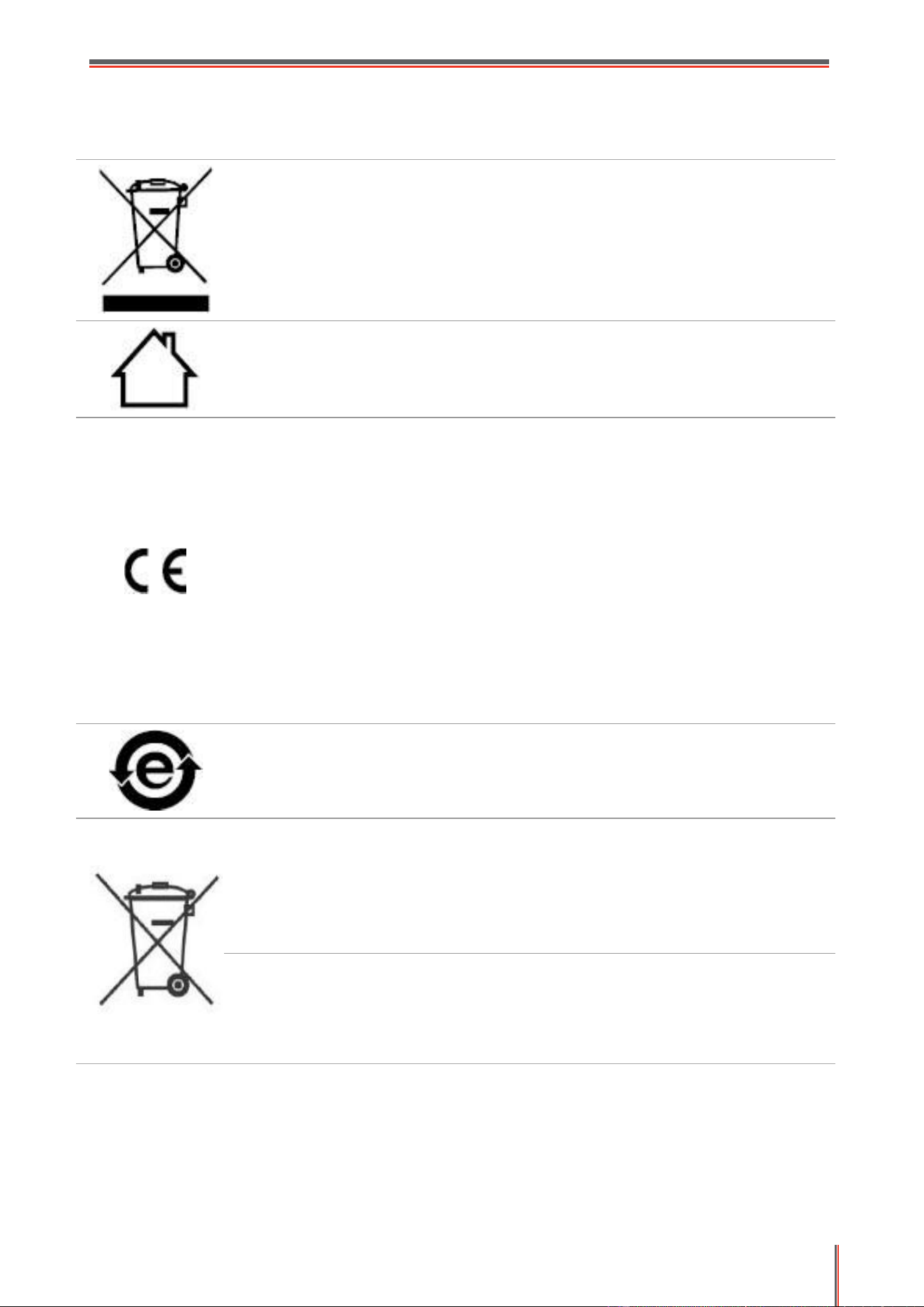
This symbol indicates that, at the end of your product’s life, it must not be
discarded as domestic waste. Instead, you should dispose of your used equipment
at a designated collection point for the recycling of waste electrical and electronic
equipment. Ref: EU Directive 2002/96/EC on Waste Electrical and Electronic
Equipment (WEEE). Please contact your distributor / supplier for further
information.
This product is suitable for indoor use only.
European Community (EC) directives conformity
This product complies with the protection requirements of EC directives
2014/30/EU and 2014/35/EU on the approximation and harmonization of the laws
of the Member States relating to electromagnetic compatibility and safety of
electrical equipment designed for use within certain voltage limits.
The manufacturer of this product is: Zhuhai Pantum Electronics Co., Ltd., Building
02,06 and 08,No.888 Shengping Avenue, Pingsha Town, Zhuhai City, Guangdong
Province, 519000 PR China
A declaration of conformity to the requirements of the Directives is available upon
request from the Authorized Representative.
This product satisfies the Class B limits of EN 55032 / EN 55035 and safety
requirements of EN 62368-1.
This printer is fully compliant with the ROHS Directive 2009/95/EC and the
requirements of the revised Directive 2011/65/EU for managing toxic and
hazardous substances.
A battery is built in the product with the faxing feature. When the product battery is
scraped, it should never be disposed with other household waste. In order to
protect the natural resources and promote the reuse of materials, please separate
the battery from other types of waste, and deliver it to your local battery recycling
systems for recycling.
Warning: 1. The battery of this product is non-rechargeable, and it should never be
dismantled, crushed, heated or burned. Improper replacement operations may
cause ire and burns; 2. The battery should be placed beyond the reach of children
to prevent them swallowing.

VIII
To protect natural resources and promote the utilization of materials, please separate
the battery from other types of waste for recycle by your local battery recovery system.
Warning: 1. The battery of this product is non-rechargeable, and it should never be
dismantled, crushed, heated or burned. Improper replacement operations may cause ire
and burns; 2. The battery should be placed beyond the reach of children to prevent them
swallowing.
SVHC (Substances of Very High Concern)content stated in REACH Regulation: Battery built in the
equipment with faxing feature contains SVHC including: 1,2-dimethoxyethane;ethylene glycol dimethyl
ether (EGDME) with concentration of 0.707%.

IX
Table of Contents
1. Before Using the Printer ....................................................................................................................... 1
1.1. Product series introduction ....................................................................................................... 1
1.2. Supplied Accessories ................................................................................................................. 2
1.3. Product View ............................................................................................................................... 3
1.4. Laser Toner Cartridge ................................................................................................................ 6
1.5. Control Panel .............................................................................................................................. 7
1.5.1. Control Panel .................................................................................................................... 7
1.5.2. Home screen .................................................................................................................... 8
1.5.3. Touch screen button ........................................................................................................ 9
1.5.4. Function of power indicator ............................................................................................ 9
2. Paper and Print Media ........................................................................................................................ 10
2.1. Paper Specification .................................................................................................................. 10
2.2. Special Paper ............................................................................................................................ 11
2.3. Non-printing Area and Non-scanning Area ............................................................................. 12
2.4. Loading Paper ........................................................................................................................... 12
2.4.1. Loading into the Automatic Feeder Tray ...................................................................... 12
2.4.2. Install manual feed tray ................................................................................................. 14
2.5. Paper and Manuscript Use Process ........................................................................................ 16
2.5.1. Scanning With Tablet ..................................................................................................... 16
2.5.2. Scan with the automatic document feeder (ADF) ....................................................... 19
3. Driver installation and uninstallation ................................................................................................. 20
3.1. Driver Setup ............................................................................................................................... 20
3.1.1. One-click Installation (For Windows and macOS) ....................................................... 20
3.1.2. More setup methods ...................................................................................................... 34
3.2. Uninstall Driver .......................................................................................................................... 48
3.2.1. Method to uninstall driver under Windows .................................................................. 48
3.2.2. Method to uninstall driver under macOS ...................................................................... 48
4. Wired network setup (applicable to wired network models) ........................................................... 49
4.1. Set IP Address .......................................................................................................................... 49
4.1.1. Automatic Setting .......................................................................................................... 49
4.1.2. Manual Setting ............................................................................................................... 49
5. Wireless network setup (applicable to Wi-Fi models) ...................................................................... 50
5.1. Basic structure mode ............................................................................................................... 50
5.1.1. Wireless network setup tools ........................................................................................ 50
5.1.2. Wi-Fi Protected Setup (WPS) setup .............................................................................. 54

X
5.1.3. How to disable the Wi-Fi network connected .............................................................. 54
5.2. Wi-Fi Direct mode ..................................................................................................................... 54
5.2.1. Preliminary preparations ............................................................................................... 54
5.2.2. Wi-Fi Direct connection .................................................................................................. 54
5.2.3. How to disable the Wi-Fi Direct ..................................................................................... 56
5.3 Wireless network setup FAQs ................................................................................................... 56
6. Web server ........................................................................................................................................... 58
6.1. Visit the embedded Web server ............................................................................................... 58
6.2. Use Web server to manage printer .......................................................................................... 58
6.2.1. IP address setup ............................................................................................................ 59
6.2.2. Wireless setup ................................................................................................................ 60
6.2.3. Machine setup ................................................................................................................ 61
6.2.4. Recover factory settings via Web server ...................................................................... 63
7. Print ...................................................................................................................................................... 64
7.1. Print Function ............................................................................................................................ 64
7.2. Print Settings ............................................................................................................................ 65
7.2.1. Print parameter settings ................................................................................................ 65
7.2.2. Automatic Two-Sided Printing ...................................................................................... 65
7.2.3. Fine mode printing ......................................................................................................... 69
7.2.4. Mute printing .................................................................................................................. 69
7.2.5. Open Help Document ..................................................................................................... 70
7.3. Printing Mode............................................................................................................................ 71
7.3.1. Printing with the Automatic Feeder Tray ...................................................................... 71
7.3.2. Printing with manual feed tray ...................................................................................... 72
7.4. USB print.................................................................................................................................... 72
7.5. Secure printing .......................................................................................................................... 73
7.6. Cancel printing .......................................................................................................................... 76
8. Copying ................................................................................................................................................ 77
8.1. Copying function ....................................................................................................................... 77
8.2. Copying method........................................................................................................................ 77
8.3. Copying cancel ......................................................................................................................... 77
8.4. Common copying setting ......................................................................................................... 78
8.4.1. Image quality .................................................................................................................. 78
8.4.2. Intensity .......................................................................................................................... 78
8.4.3. Resizing........................................................................................................................... 78
8.4.4. Multipage ........................................................................................................................ 79
8.4.5. Clone ............................................................................................................................... 79

XI
8.4.6. Poster .............................................................................................................................. 80
8.4.7. Collated copy .................................................................................................................. 80
8.4.8. Duplex copy .................................................................................................................... 80
8.4.9. Paper setting .................................................................................................................. 81
8.5. ID copy setting .......................................................................................................................... 81
8.5.1. Arrangement mode ........................................................................................................ 81
8.5.2. Intensity .......................................................................................................................... 82
8.6. Receipt setting .......................................................................................................................... 82
8.6.1. Intensity .......................................................................................................................... 82
8.6.2. Paper setting .................................................................................................................. 82
9. Scan ..................................................................................................................................................... 83
9.1. Scanning mode ......................................................................................................................... 83
9.1.1. Windows system scan ................................................................................................... 83
9.1.2. macOS System Scan ...................................................................................................... 90
9.1.3. Push Scan ....................................................................................................................... 94
9.2. Scanning function ..................................................................................................................... 96
9.3. Cancel Scan Job ....................................................................................................................... 96
10. Fax...................................................................................................................................................... 97
10.1. Connect Devices ..................................................................................................................... 97
10.2. Fax Settings ............................................................................................................................ 97
10.3. Fax Functions ......................................................................................................................... 98
10.3.1. Send Fax ....................................................................................................................... 98
10.3.2. Receive Fax................................................................................................................... 99
10.3.3. Set the compatibility of interference VoIP telephone line ....................................... 100
10.3.4. Other Fax Functions ................................................................................................... 100
10.4. PC-Fax ................................................................................................................................... 101
10.4.1. Sending Fax with PC-Fax ........................................................................................... 101
11. Mobile Print/Scan/Fax ................................................................................................................... 103
11.1. "Pantum" App ........................................................................................................................ 103
11.1.1. Operating systems supported ................................................................................... 103
11.1.2. How to download Pantum App ................................................................................. 103
11.1.3. How to use the Pantum Printer App ......................................................................... 103
11.2. Mopria mobile print .............................................................................................................. 107
11.2.1. The operating systems and applications which support Mopria mobile printing . 107
11.2.2. How to download Mopria Print Service .................................................................... 107
11.2.3. Preliminary preparations ........................................................................................... 107
11.2.4. How to use Mopria mobile printing .......................................................................... 107

XII
11.3. NFC function ......................................................................................................................... 108
11.3.1. Preliminary preparations ........................................................................................... 108
11.3.2. How to use NFC function to print ............................................................................. 108
11.4. AirPrint mobile print ............................................................................................................. 109
11.4.1. Operating systems supported by AirPrint mobile print ........................................... 109
11.4.2. Preliminary preparations ........................................................................................... 109
11.4.3. How to use AirPrint mobile printing .......................................................................... 109
12. General Settings .............................................................................................................................. 110
12.1. System Settings .................................................................................................................... 110
12.1.1. Ink saving setting ....................................................................................................... 110
12.1.2. Language Setting ....................................................................................................... 110
12.1.3. Restore Factory Settings ........................................................................................... 111
12.1.4. Sleep Time Setting ..................................................................................................... 111
12.1.5. Mute printing .............................................................................................................. 112
12.1.6. Auto shut-off setting .................................................................................................. 112
12.1.7. Sound/volume ............................................................................................................ 113
12.1.8. Time/date ................................................................................................................... 113
12.2. Network Settings .................................................................................................................. 114
12.3. Network Information ............................................................................................................ 114
12.4. Print information report ....................................................................................................... 115
12.5. Consumable information ..................................................................................................... 115
12.6. Configure the e-mail address book ..................................................................................... 115
12.7. Configure the FTP address book......................................................................................... 116
13. Routine Maintenance ...................................................................................................................... 116
13.1. Cleaning the Printer .............................................................................................................. 116
13.2. Toner cartridge and drum component maintenance ......................................................... 119
13.2.1. About toner cartridge and drum component component ....................................... 119
13.2.2. Replace toner cartridge and drum component ........................................................ 120
14. Troubleshooting .............................................................................................................................. 124
14.1. Cleaning Jammed Paper ..................................................................................................... 124
14.1.1. Middle jam .................................................................................................................. 124
14.1.2. Paper Jam in the Fuser Unit ...................................................................................... 127
14.1.3. Duplex Unit Jam ......................................................................................................... 130
14.1.4. A paper jam occurs on the automatic document feeder (ADF) .............................. 131
14.2. Software Failure ................................................................................................................... 133
14.3. Error Message ...................................................................................................................... 133
14.4. Common Troubleshooting ................................................................................................... 134

XIII
14.4.1. Common Trouble ....................................................................................................... 134
14.4.2. Image Defects ............................................................................................................ 136
14.5. Fax faults .............................................................................................................................. 139
15. Product Specifications ................................................................................................................... 141
15.1. Overview of the Specifications ............................................................................................ 141
15.2. Print Specifications .............................................................................................................. 142
15.3. Copy Specifications.............................................................................................................. 142
15.4. Scan Specifications .............................................................................................................. 142
15.5. Fax specification .................................................................................................................. 143

1
1. Before Using the Printer
1.1. Product series introduction
Product series parameters
M7300FDN series
M7300FDW series
Interface type
USB
NET
Wi-Fi
Print Language
PDL
Control Panel
Touch screen
Print Speed
A4
33ppm
Letter
35ppm
Automatic Two-Sided Printing
Auto Duplex Scan
NFC function
Mute printing
Copy
Scan
Fax
Scan to U-disk
USB print
Secure printing
ADF
( : Support; Blank: Unsupport)
2
Note:
• This product series is subject to additions or changes without prior notice.
• The printer with fax should be set for language, time and fax as per window prompts
upon initial starting or restoring factory settings.
• For this user manual, the "ADF" is short for automatic document feeder.
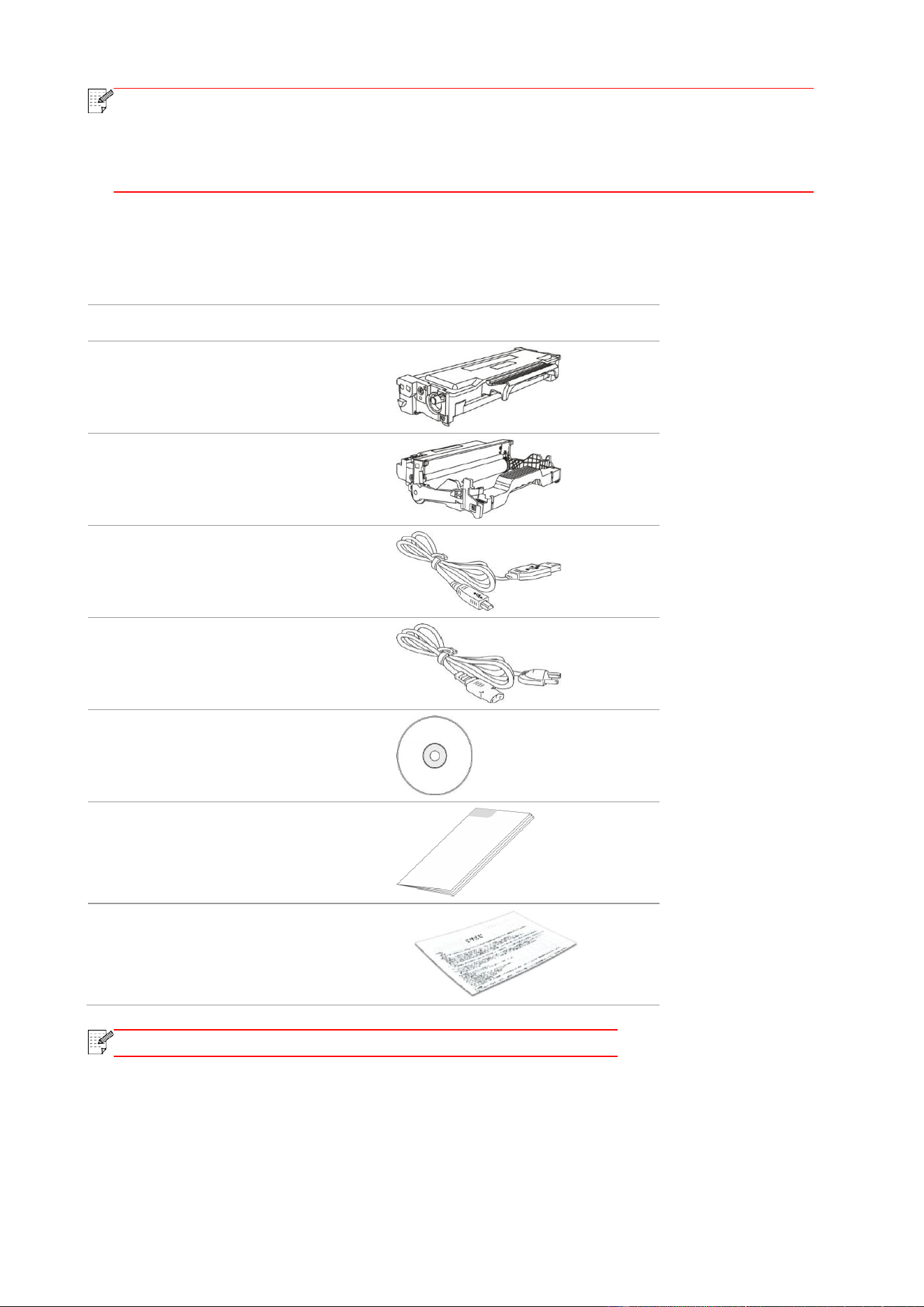
1.2. Supplied Accessories
Name
Parts
Toner cartridge
Drum component
USB Interface Cable
Power Cord
CD
Quick Setup Guide
Pantum Warranty
Note:
• The Pantum Warranty may not be attached in some regions.
3
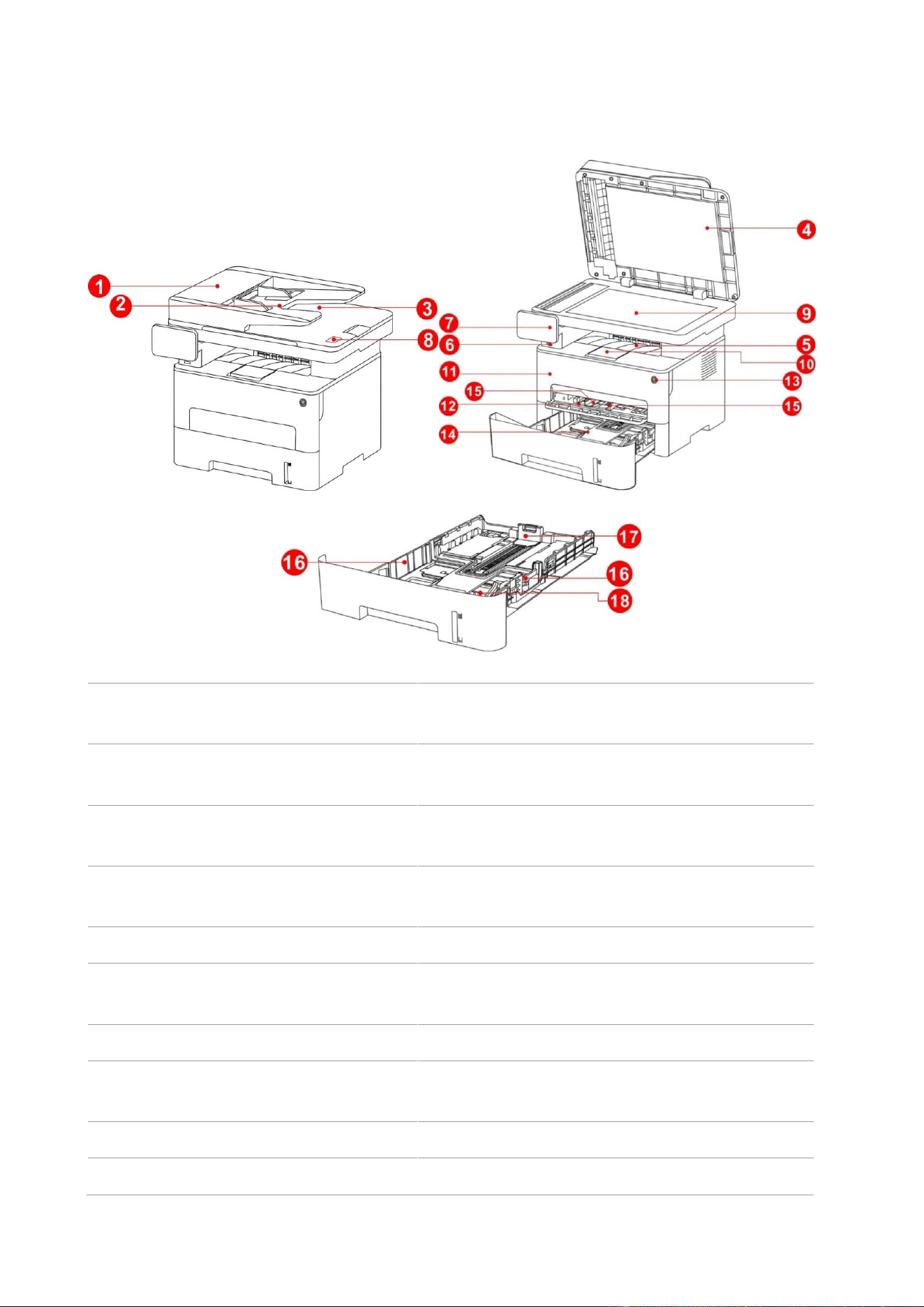
1.3. Product View
Side view
1
Cover of automatic document feeder
This is used to remove the paper jammed in
scanning for the ADF.
2
Feed tray of automatic document
feeder
This is used to place originals scanned from the
ADF.
3
Exit tray of automatic document
feeder
Prevent originals scanned from falling off.
4
Cover of scanner
Open the cover of scanner to place the scanned
originals on its glass plate.
5
Output Bin
For storing the printed paper.
6
Front USB interface
For USB flash disk printing and scanning into USB
flash disk.
7
Control Panel
Indicate printer status to conduct set operation.
8
NFC (Near Field Communication)
label
Use mobile device to touch the tag to download or
start the mobile application and for Wi-Fi Direct.
9
Glass Platen
To put the original of tablet PC for scan.
10
Output Tray
To prevent the printed paper from falling.

4
11
Front Cover
To open the front cover to take out the laser toner
cartridge.
12
Manual feed tray
For placing mediums that are printed in manual feed
tray.
13
Power switch
Turn the power on or off and press this button under
Ready state to enter energy-saving mode.
Press and hold this button for more than 2s to turn
the printer power off.
14
Automatic Feeder Tray
For placing mediums that are printed in auto feed
tray.
15
Paper deflector of manual feed tray
Slide paper deflector to adapt to paper width.
16
Paper width deflector of auto feed
tray
Slide paper width deflector to adapt to paper width.
17
Paper length deflector of auto feed
tray
Slide paper length deflector to adapt to paper length.
18
Clip of extended tray of auto feed tray
For adjustment of length extension of the tray.
5
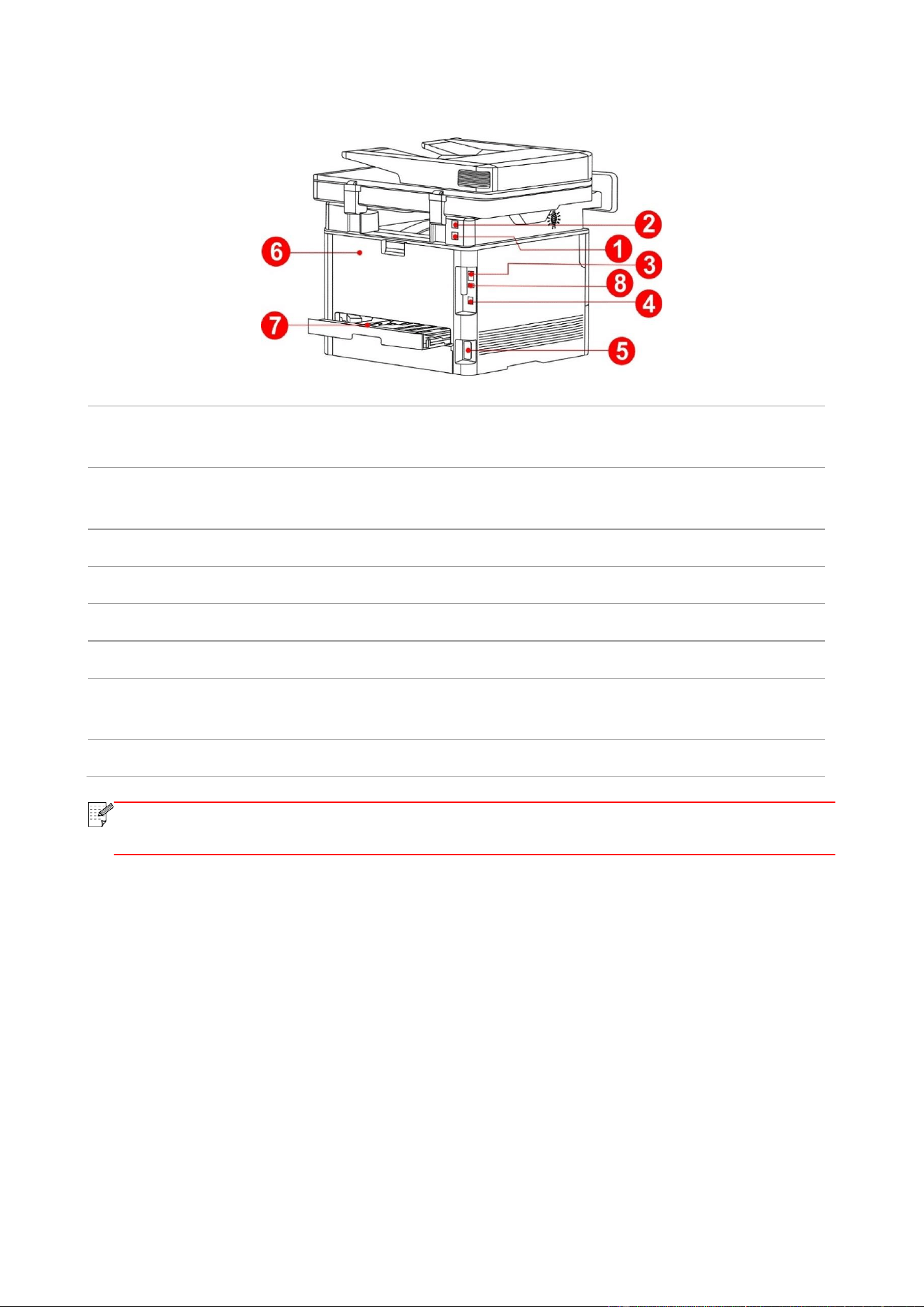
Rear View
1
LINE interface (only for machine with
the fax feature.)
Telephone line interface, used for connection of this
product to the telephone circuit.
2
EXT. interface (only for machine with
the fax feature.)
Extension interface, used for connection with external
extension telephone.
3
USB Interface
For connecting product to computer with USB cable.
4
Network Interface
For connecting product to network with network cable.
5
Power Interface
For connecting product to power with power cord.
6
Rear Cover
For paper release when it gets jammed.
7
Duplex Printing Unit
For paper feed at duplex printing and paper release when
paper gets jammed at duplex printing.
8
Rear USB port
For extension of storage capacity of secure printing.
Note:
• Printer appearance may differ because of various models and functions, so the
schematic diagram is only for your reference.
6
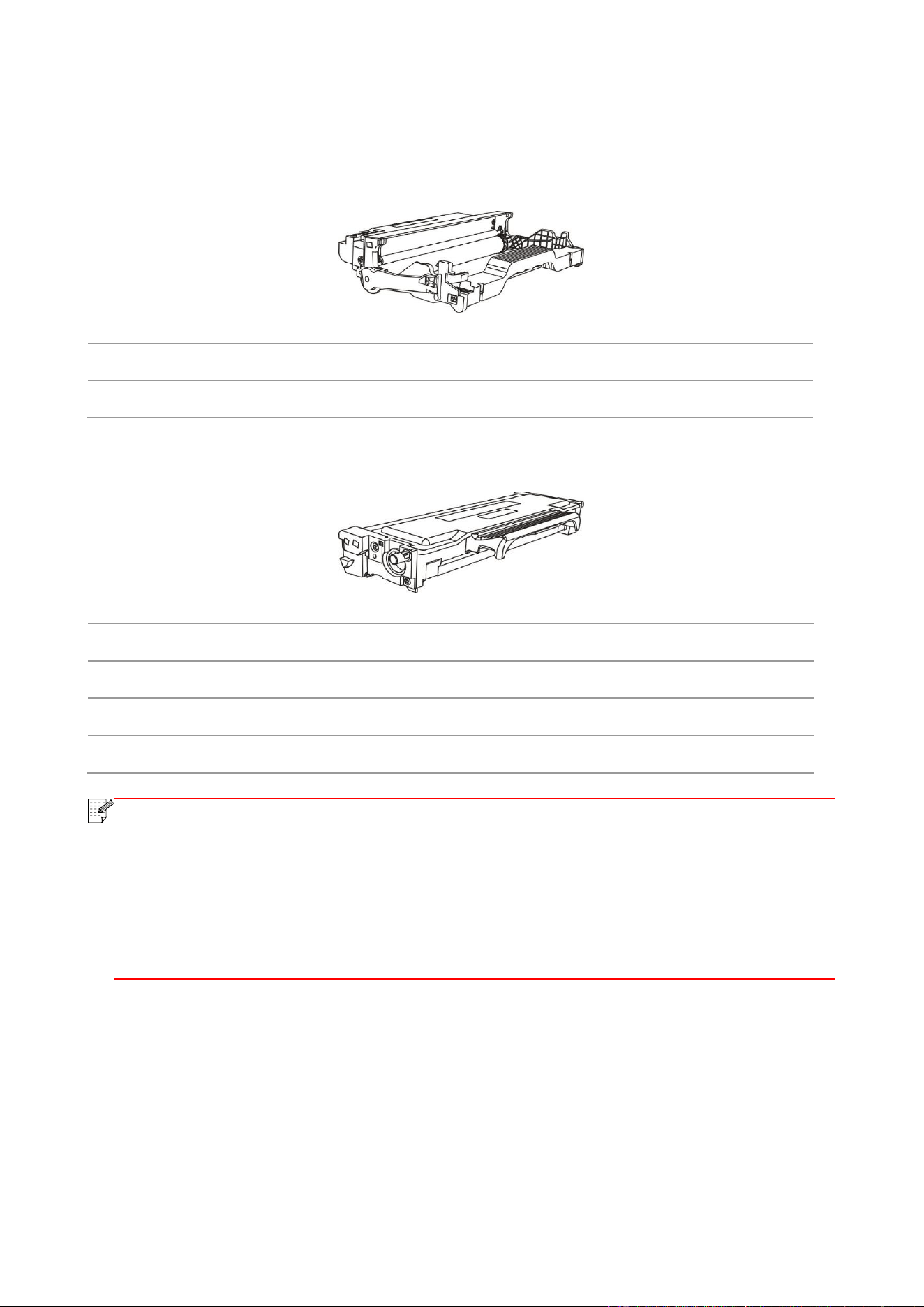
1.4. Laser Toner Cartridge
Laser toner cartridge is composed of drum component and toner cartridge.
Service life of drum component
Type
Average Print Volume
Longevity of drum component
About 12000 Pages A4/LTR-based page (1 page/job).
Service life of toner cartridge
Type
Average Print Volume
Standard-volume toner cartridge
About 1500 Pages(Based on ISO 19752 standard)
High-volume toner cartridge
About 3000 Pages(Based on ISO 19752 standard)
Toner cartridge of super large capacity
About 6000 Pages(Based on ISO 19752 standard)
Note:
• The model is subject to increase without notice.
• Consumables capacity may vary with different using types.
• The Company does not recommend using consumables other than the original
consumables provided, as any damages caused by non-original consumables are not
covered by the scope of warranty.
• Toner cartridge appearance may differ because of multiple volume and models, so the
schematic diagram is only for your reference.
7
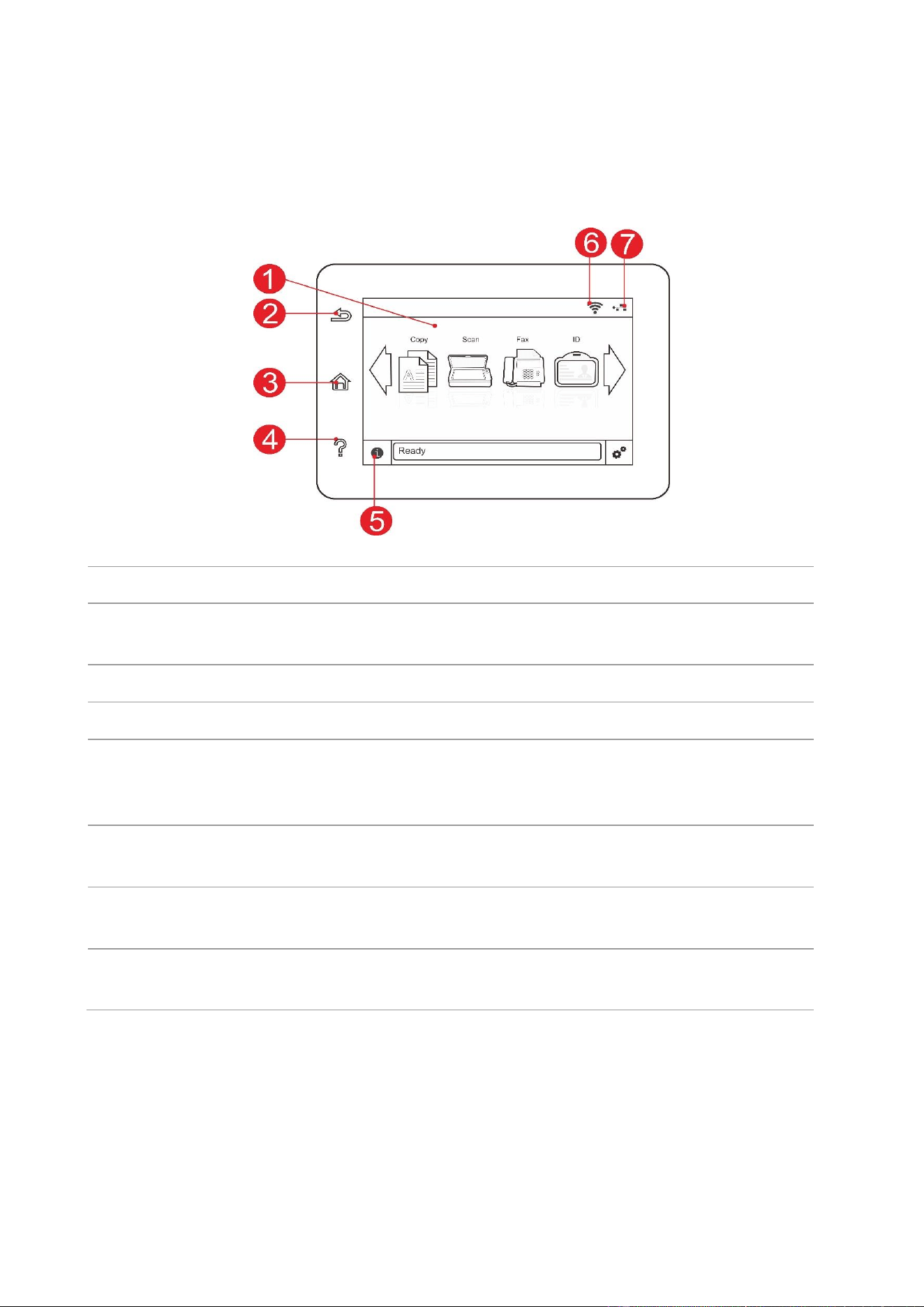
1.5. Control Panel
1.5.1. Control Panel
The layout of the printer control panel is shown below:
No.
Name
Functions
1
Color touch screen
• Check printer status and message.
• Set and operate printer.
2
Return button
Return to the previous menu.
3
Home button
Go to the home screen.
4
Help button
• Access to Help system of control panel.
• It describes how to use each screen and eliminate
faults.
5
Status icon
• View supplies information in ready state.
• View printer error status information in error status.
6
Wi-Fi icon
• View printer Wi-Fi information.
• Icon is dimmed when Wi-Fi disconnects.
7
Wired network status icon
• Check printer wired network information.
• Icon is dimmed when wired network disconnects.
8
1.5.2. Home screen
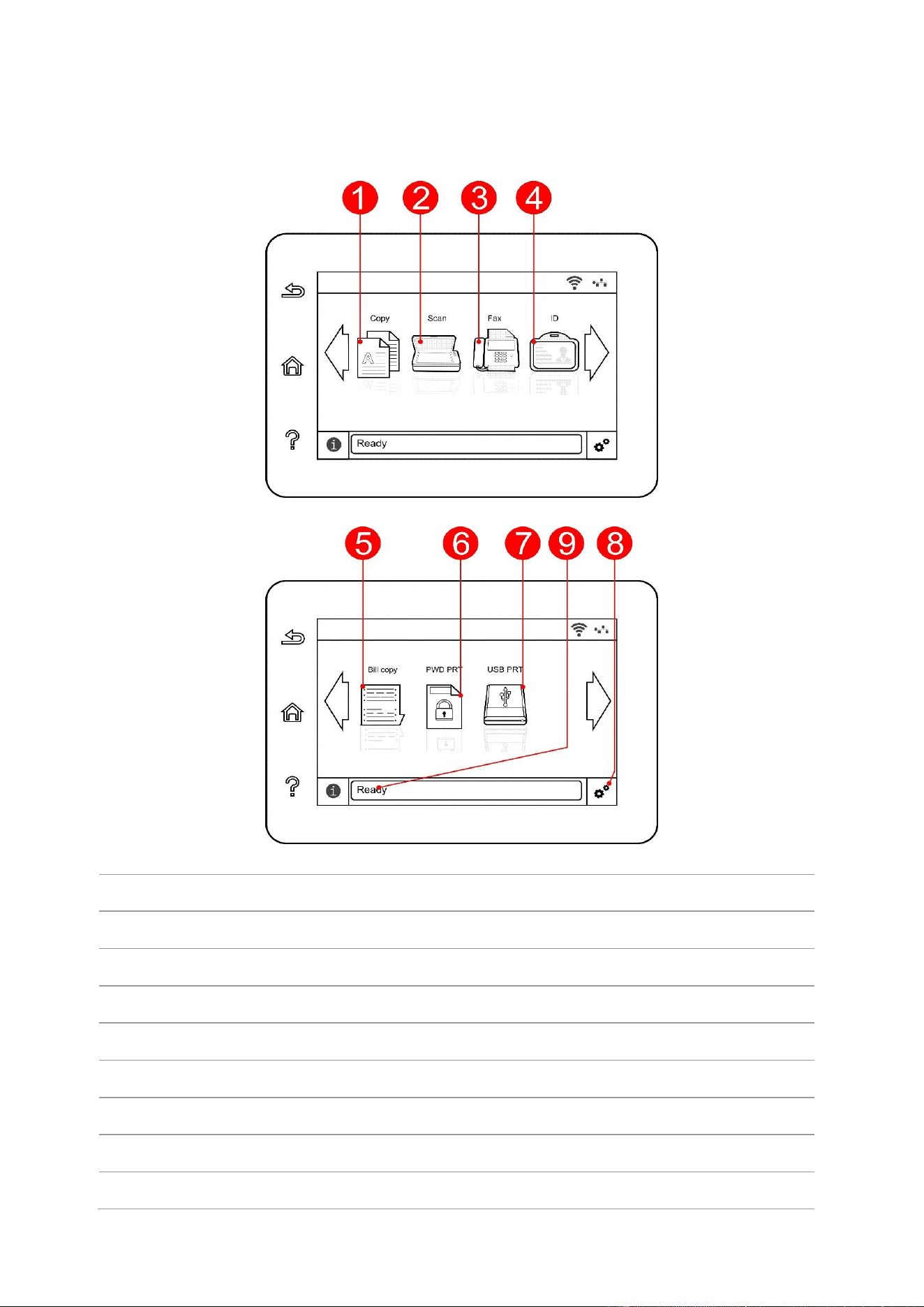
Use home screen buttons and icons to initialize print or scan. The layout is shown as below:
No.
Name
Functions
1
Copy
Access to “Copy” menu and make a copy.
2
Scan
Access to “Scan” menu and scan document.
3
Fax
Access to “Fax” menu and send a fax.
4
ID copy
Access to “ID copy” menu and make an ID card copy.
5
Bill copy
Access to “Bill copy” menu and make a bill copy.
6
Secure printing
Access to “Secure Print” menu to print with password.
7
USB print
Access to USB storage job and make a job print.
8
“Setting” button
Open menu setting interface.
9
9
Status message bar
Display the current printer status.
1.5.3. Touch screen button
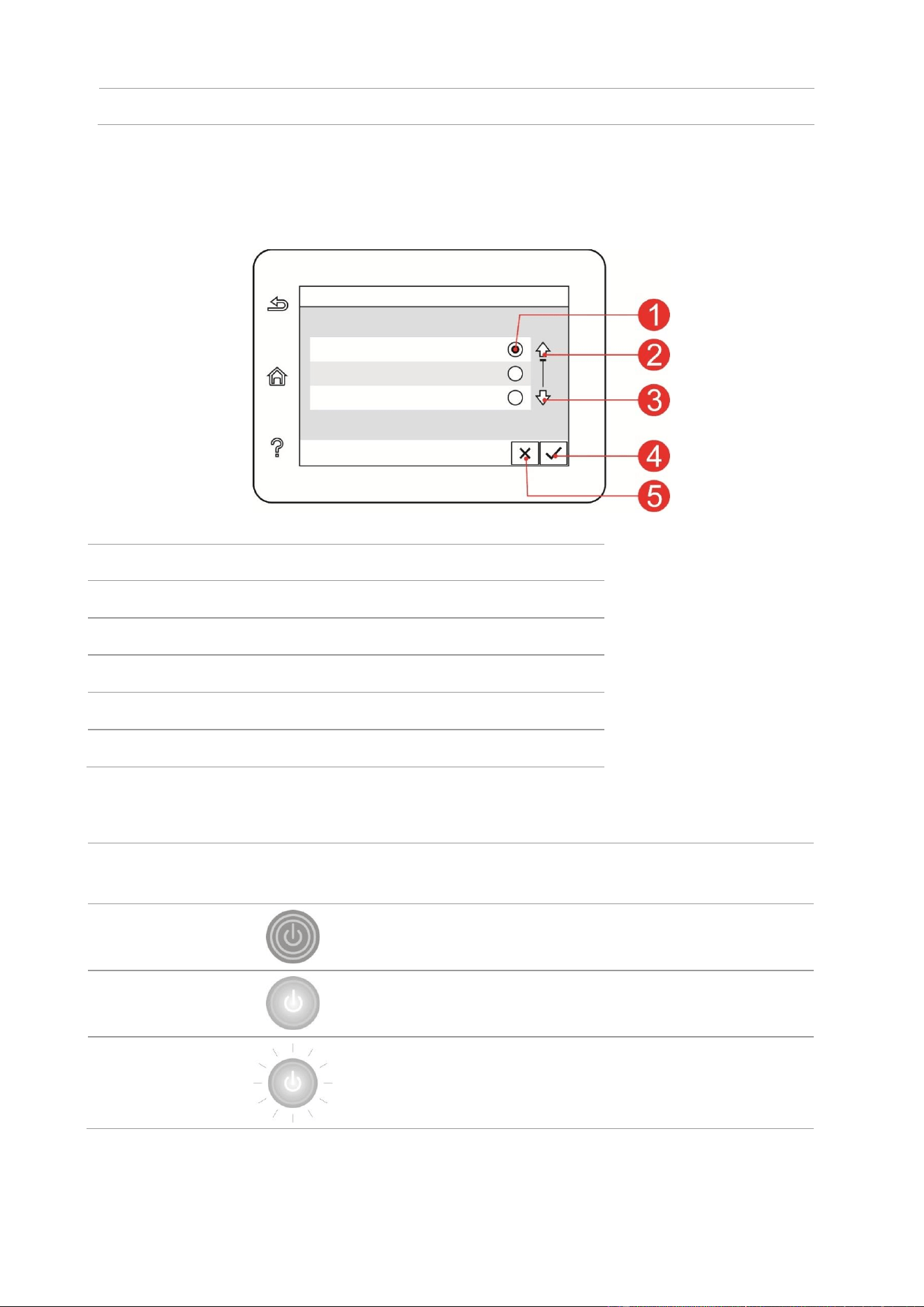
Layout of touch screen buttons of printer control panel is shown as below:
No.
Name
Functions
1
Radio button
Select or delete an item.
2
Up arrow
Scroll up.
3
Down arrow
Scroll down.
4
Acceptance button
Save setting.
5
Cancel button
Cancel selection.
1.5.4. Function of power indicator
No.
Status displayed by power
indicator
Status
Status Description
1
Die out
Shutdown status
2
Always on
Booting and ready states
3
Blink
Sleep mode

10
2. Paper and Print Media
2.1. Paper Specification
Automatic
Feeder Tray
Media Type
Plain paper(70~105g/m²),thin paper(60~70g/m²)
Media size
A4, Letter, A5, Legal, Statement, JIS B5, Folio, Oficio, Executive, ISO
B5, A6, B6, 16K, Big 16K, 32K, Big 32K,Custom
Media weight
60~105g/m²
Maximum
capacity of the
tray
250 pages (80 g/m²)
Manual feed
tray
Media Type
Plain paper(70~105g/m²),thin paper(60~70g/m²),thick paper(105~
200g/m²),transparent film,carton paper,label paper, envelope
Media size
A4, Letter, Legal, Folio, Oficio, Statement, Executive, JIS B5, ISO B5,
A5, A6, B6, Monarch Env, DL Env, C5 Env, NO.10 Env, C6 Env,
Japanese Postcard, ZL, 16K, Big 16K, 32K, Big 32K, Yougata4,
Postcard, Younaga3, Nagagata3, Yougata2,Custom
Media weight
60~200 g/m²
Maximum
capacity of the
tray
1 pages
Note:
• 80 g/m² standard paper is recommended for this printer.
• It is not recommended to use special paper extensively, which may affect the service life
of the printer.
• The print media that does not meet the guidelines listed in this User Guide may result in
poor print quality, increased paper jam and excessive wear of the printer.
• Properties such as weight, composition, texture and humidity are important factors
affecting the printer performance and output quality.
Please note the following matters when selecting the print media:
1. Desired print effect: The print media selected should meet the requirement of the print tasks.
2. Surface smoothness: The smoothness of the print media may affect the sharpness of the print
outcome.
3. Some print media may meet all the use guidelines contained herein, but they still can not bring
satisfactory effect. This may be due to incorrect operation, inappropriate temperature and humidity,
or other factors beyond the control of Pantum. Before purchasing large quantities of print media,
make sure that the print media meets the specifications specified in this User Guide.

11
2.2. Special Paper
This printer supports using the special paper for printing. Special paper includes: label paper,
envelope, transparent film, thick paper, carton paper, thin paper.
Note:
• When using special paper or print media, be sure to select matched print type and size in
the print settings so as to get the best print effect.
Please observe the following standards:
Types of Print
Media
Correct Practices
Incorrect Practices
Label Paper
Use labels with no exposed lining
paper only.
Labels shall be put flat when using.
Use labels of full sheet only.
There is no guarantee that all the
labels in the market can meet
corresponding requirements.
Use wrinkled, blistered or damaged label
papers.
Envelope
Envelopes should be loaded evenly.
Use wrinkled, nicked, stuck or damaged
envelopes.
Use envelopes with clips, snaps, windows, or
coated linings.
Use envelopes with self-adhesive stickers or
other synthetic materials.
Transparent
Film
Only use transparent films approved
for use in laser printers.
Use transparent print media that is not
suitable for laser printers.
Thick Paper,
carton paper
Only use heavy paper that is
approved for use in laser printers
and meets the weight specifications
of this printer.
Use the paper whose weight is more than the
specification of the media recommended for
this printer, unless the paper is approved for
use in this printer.
12
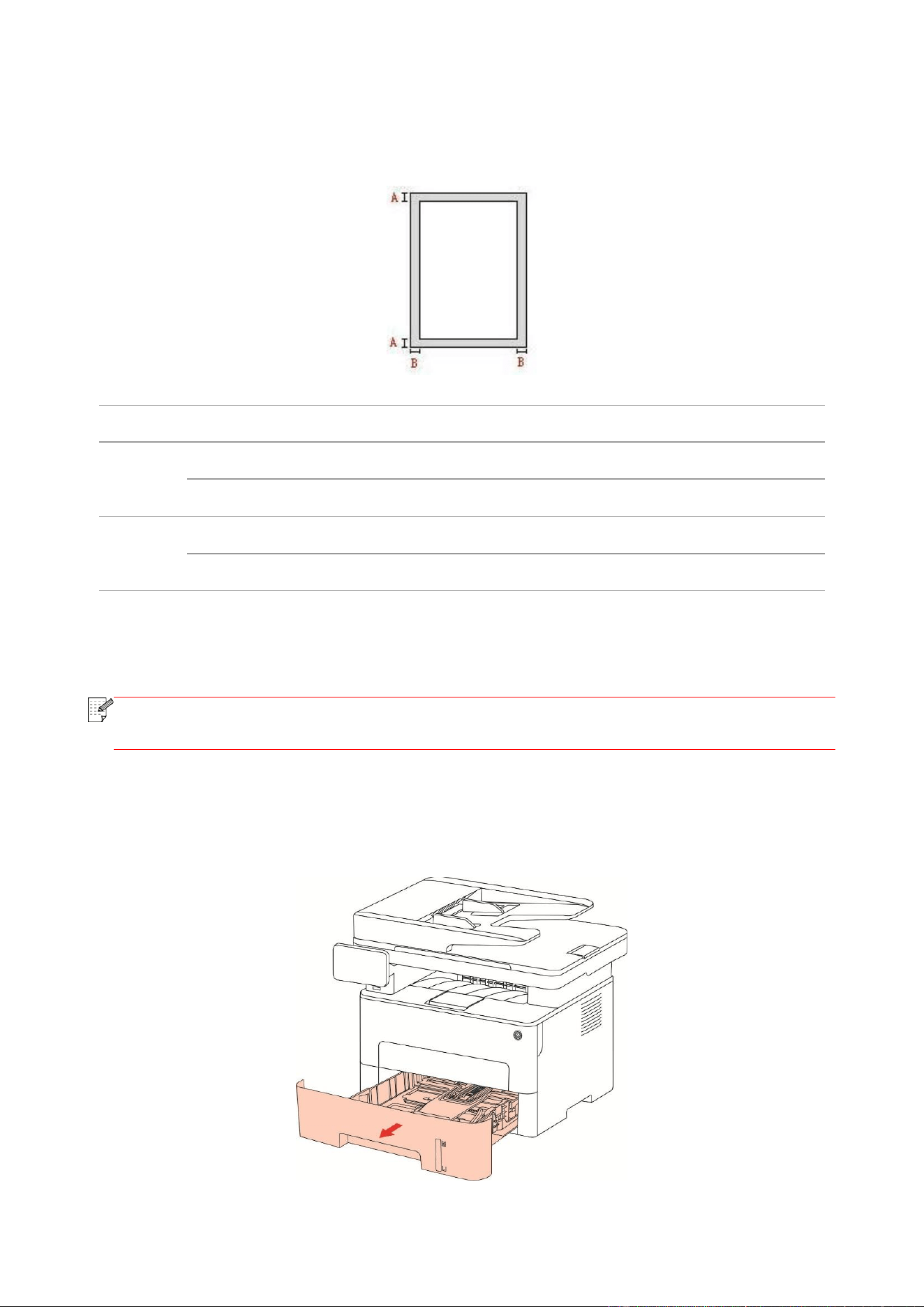
2.3. Non-printing Area and Non-scanning Area
The shaded part indicates the non-printing area and non-scanning area.
Usage
Paper Size
Top and bottom margins (A)
Left and right margins (B)
Printing
A4
4.2mm(0.165inch)
4.2mm(0.165inch)
Letter
4.2mm(0.165inch)
4.2mm(0.165inch)
Scan
A4
2mm(0.079inch)
2mm(0.079inch)
Letter
2mm(0.079inch)
2mm(0.079inch)
2.4. Loading Paper
Note:
• Printer appearance may differ because of various models and functions, so the
schematic diagram is only for your reference.
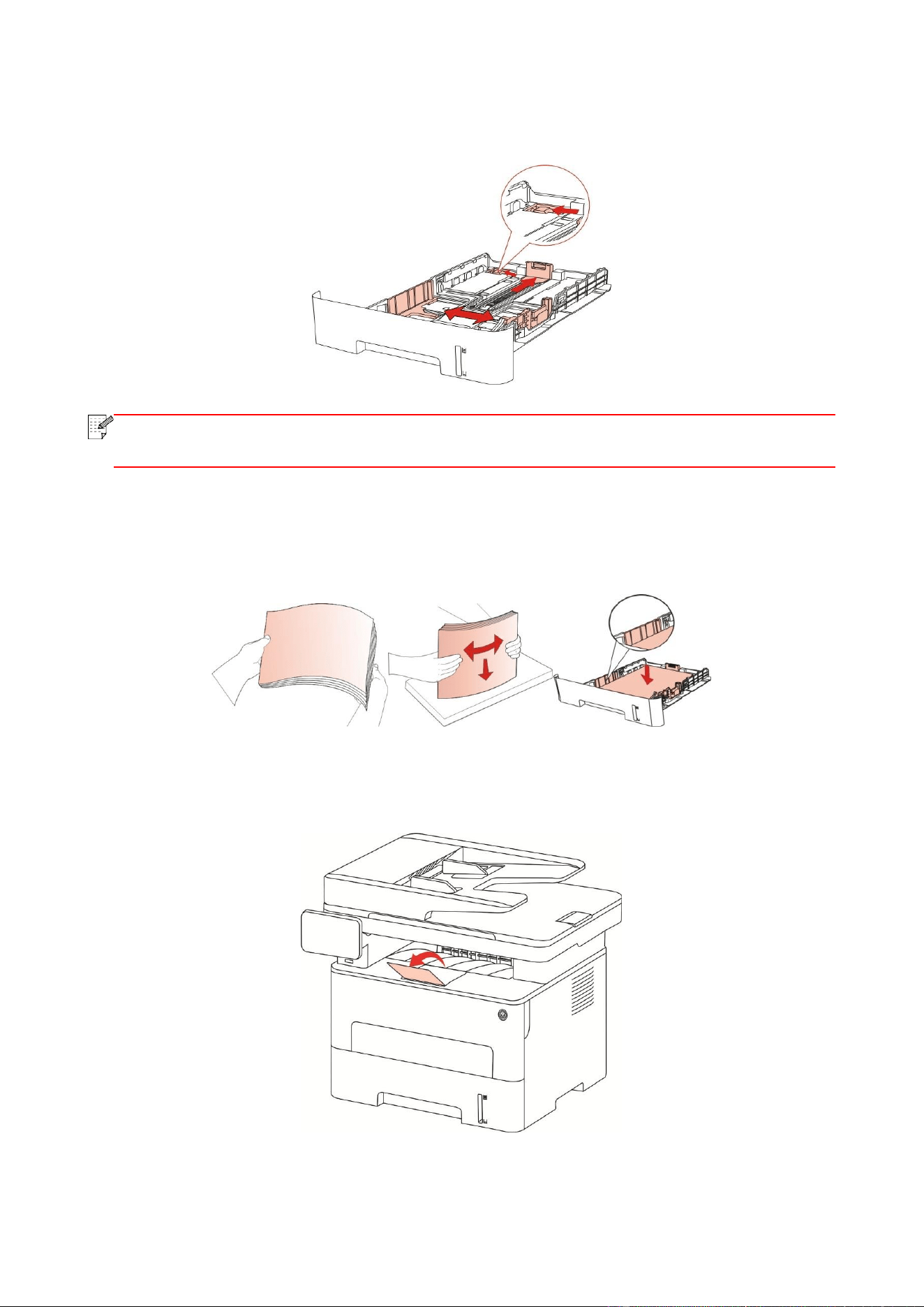
2.4.1. Loading into the Automatic Feeder Tray
1. Slide out the automatic feeder tray from the printer.
13
2. Slide the clip of extended tray of auto feed tray, paper length deflector and paper width deflector
to the slot suitable for paper size, in order to match paper length and width.
Note:
• Do not overly squeeze the "paper length guide" and "paper width guide", otherwise it
could easily lead to deformation of paper.
3. Before loading paper, please unfold the stacked paper to avoid a paper jam or feed error, and
then load the paper into the tray print-side down.The automatic feeder tray can be loaded up to 250
pages, 80g/m² paper.
4. Raise the output tray to avoid the printed paper from slipping and falling, or immediately remove
the printed document after the printing is complete.
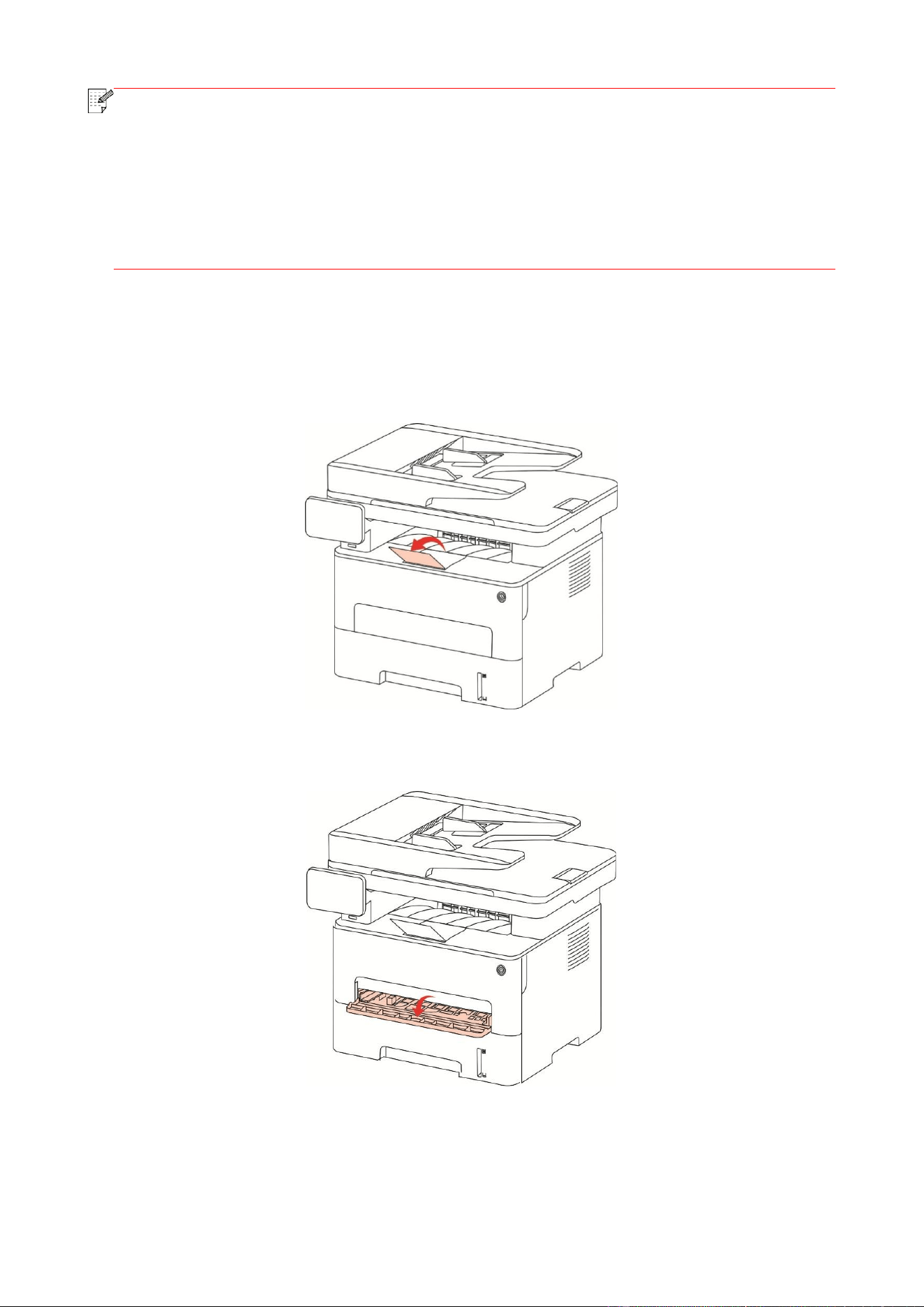
14
Note:
• It is recommended that you raise the output tray to prevent the paper from slipping and
falling after printing. If you choose not to raise the output tray, we recommend that you
immediately remove the printed paper from the printer.
• If more than 250 pages (80 g/m²) are put inside the auto feed tray at one time, paper jam
or paper feed failure will be led to.
• If carrying out single-sided printing, please make sure that the side to be printed (the
blank side) is face down.
2.4.2. Install manual feed tray
1. Raise the output tray to avoid the printed paper from slipping and falling, or immediately remove
the printed document after the printing is complete.
2. Open manual feed tray.
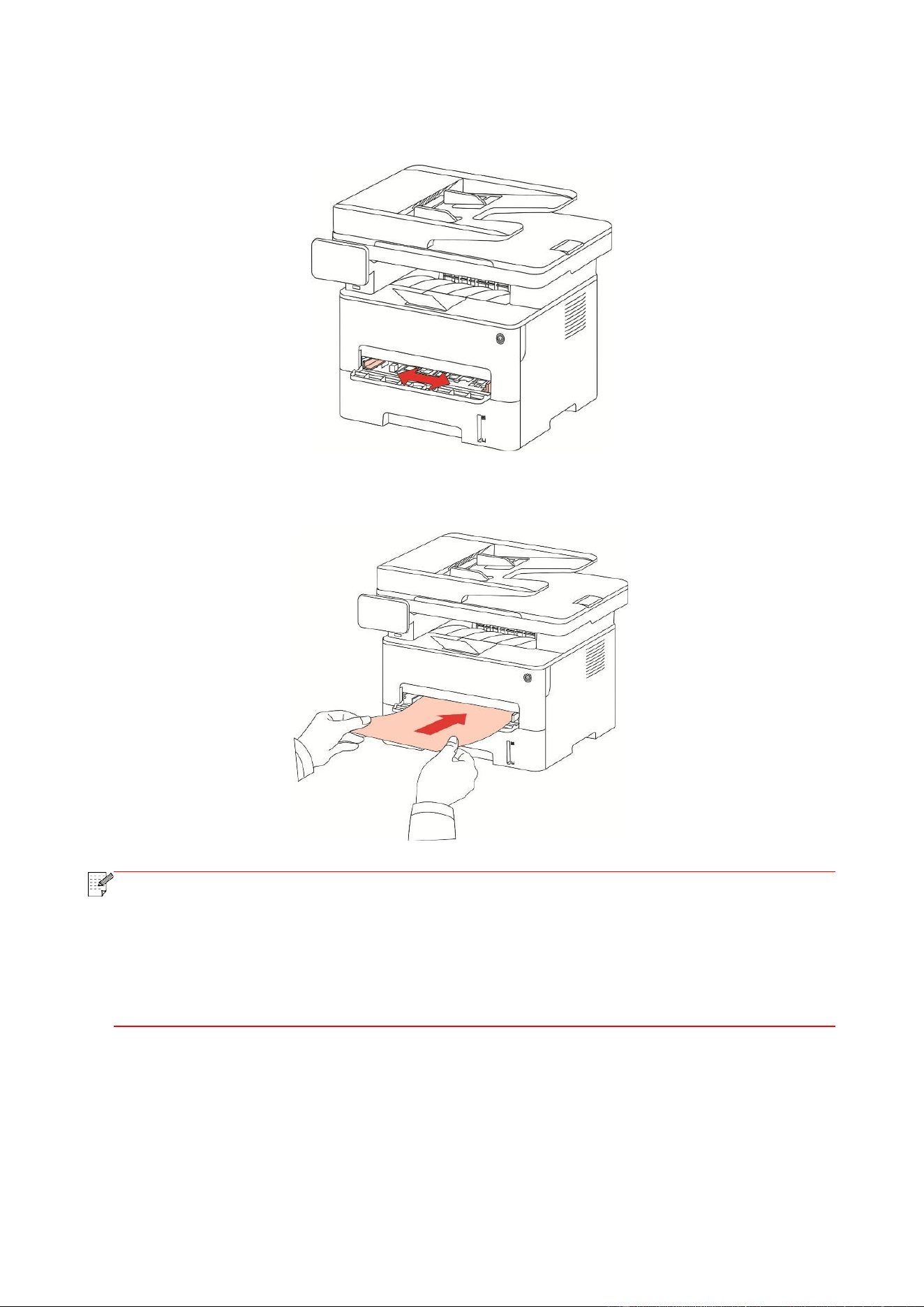
15
3. Slide the paper deflector of manual feed tray to match the two sides of paper. Do not use
excessive force; otherwise, paper will be made jammed or skewed.
4. Put a flat printing medium into the manual feed tray with both hands.
Note:
• The printer will enter manual feed mode automatically when you put papers inside the
manual feed tray.
• Please put one printing medium inside the manual feed tray each time and put in another
piece after finishing printing.
• Put the printing medium inside the manual feed tray with the printing side up; the top of
paper should be put inside first.
5. When the printed page is output from the printer, put the second piece inside according to the
above steps to continue printing. Slow action will lead to the prompt of paper out or paper failure
of manual feed tray. After paper is put inside, printing will be resumed automatically; too quick
action may make paper caught up in the printer, which will easily result in paper jam.
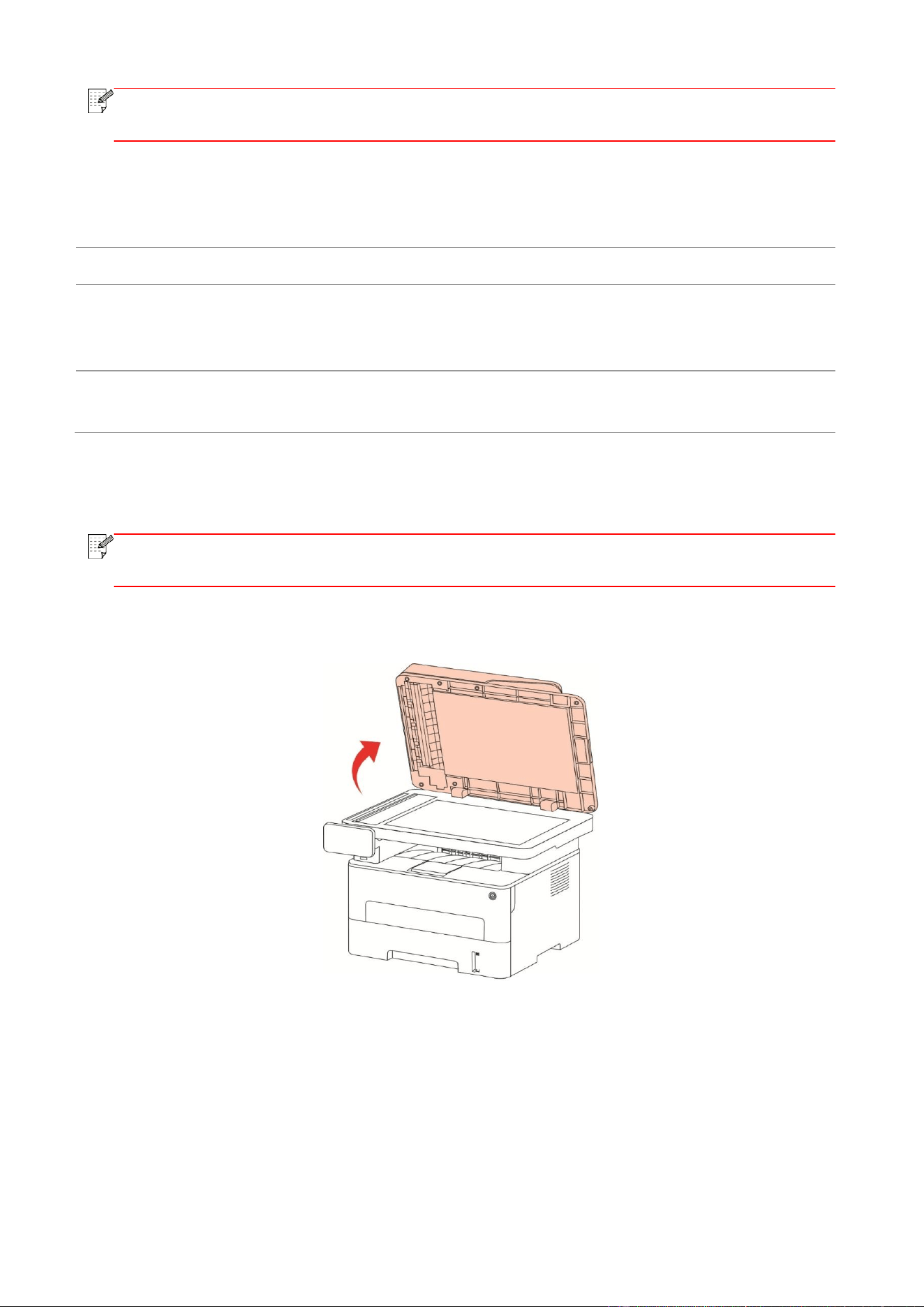
16
Note:
• After printing, please take out printed papers output from printer immediately. Stacked
papers or envelops will lead to paper jam or wrapped paper.
2.5. Paper and Manuscript Use Process
Manuscript requirements:
Source
Type
Size
Automatic
document feeder
(ADF)
Plain paper
A4, A5, B5, A6, Letter, Folio,
Legal
Platen
Plain paper, thin paper, thick paper, transparent
film, carton paper, label paper, envelope
A4, A5, B5, Letter, Full
Scanning Platen, Custom
2.5.1. Scanning With Tablet
Note:
• Printer appearance may differ because of various models and functions, so the
schematic diagram is only for your reference.
Steps of Use:
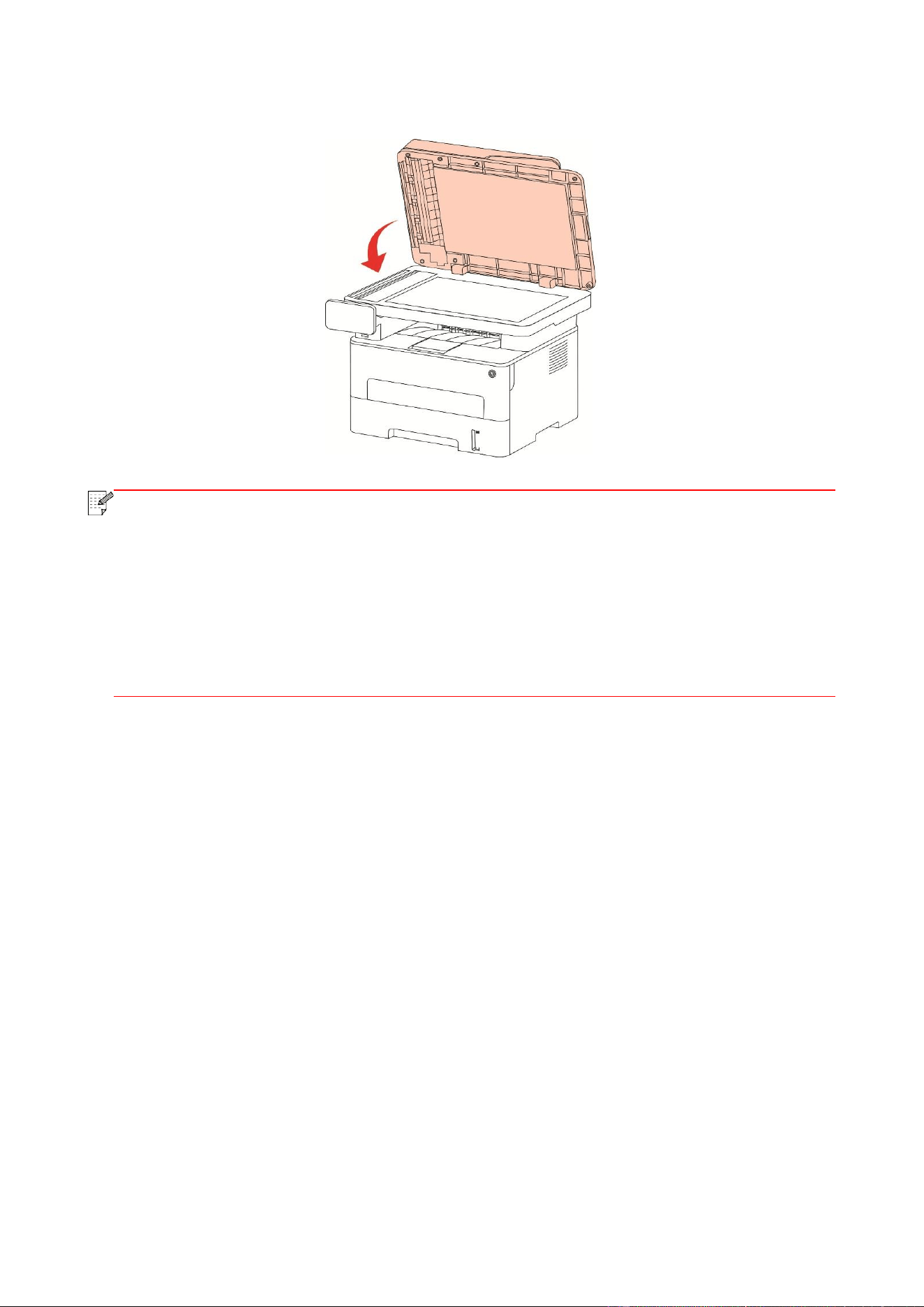
1. Lift up the scanner cover.
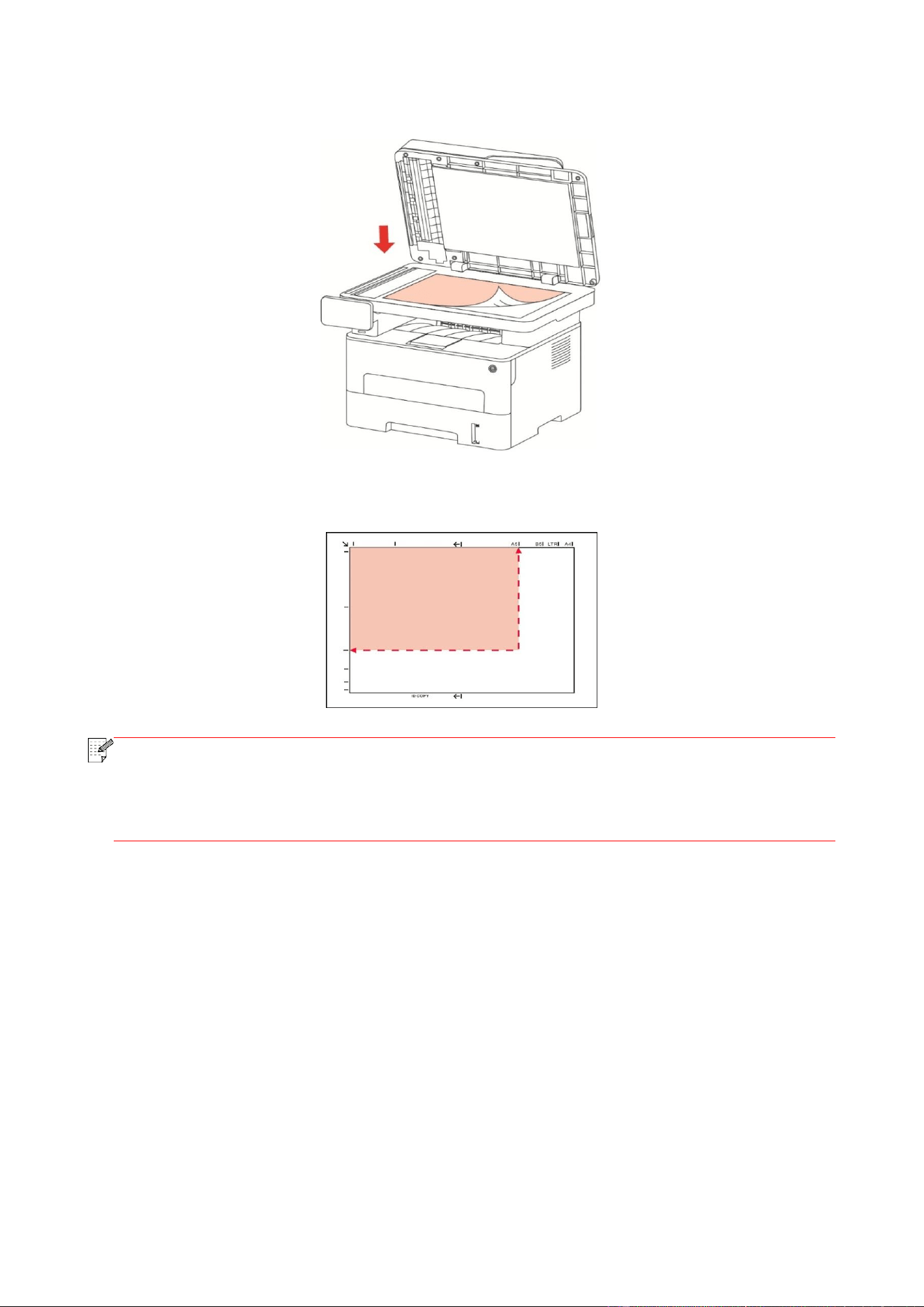
17
2. Load the manuscript face down.
3. Align the manuscript to match the appropriate paper size.
Note:
• If the manuscript does not match with any size marker, please align the upper-left corner
of the manuscript with the arrow.
• Make sure there is no document in the ADF. If a document is detected in the ADF, it will
be more preferential than that on glass platen.
18
4. Close the scanner cover gently.
Note:
• Please put the paper or document on the scanner glass after the glue, ink or correction
fluid are completely dried.
• Rough textured, uneven, oil stained and extremely smooth paper will make printing effect
poor.
• Please make sure that there is no dust, fluff, etc. on the paper.
• Paper shall be put on a flat surface and stored under a cool and dry environment.
• To avoid influencing the definition, please don’t open the scanner cover during scanning
with the platen.
19
2.5.2. Scan with the automatic document feeder (ADF)
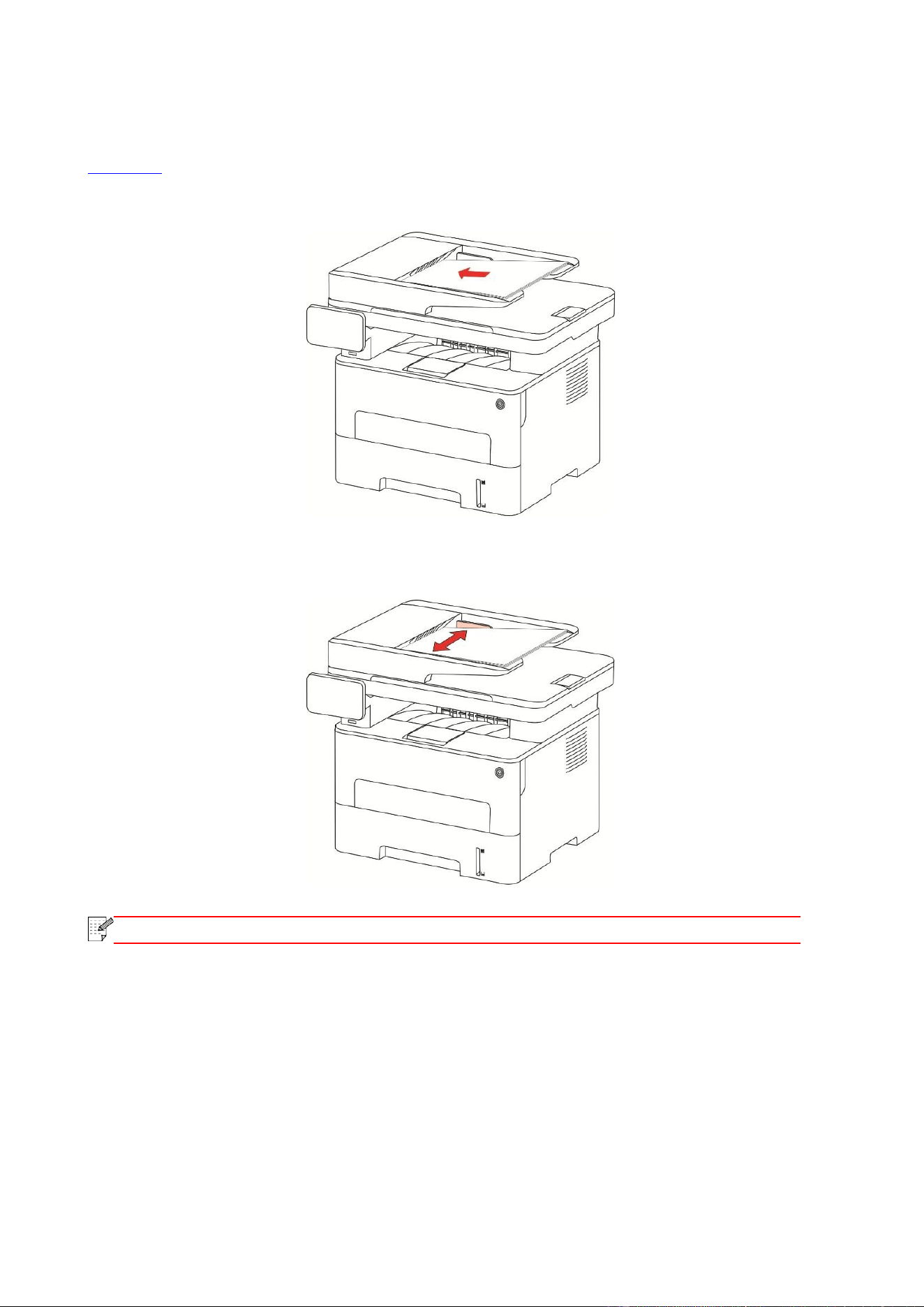
The document feeder supports single-sided scanning and automatic duplex scanning. Refer to
Chapter 9 for the scanning method.
1. Put the original into the ADF with its front upward and top fed first.
2. Adjust the document guide till it gets close to the paper stack.
Note:
• The ADF supports feeding 50 pieces of paper at most that should be fed one by one.

20
3. Driver installation and uninstallation
3.1. Driver Setup
This device supplies driver setup applications for Windows and macOS. We recommend One-click
installation, which helps you install the driver automatically in a faster and easier way. Should you
encounter trouble when using the One-click installation, you may try more setup methods.
Note:
• Driver installation interface may differ because of different models and functions, so the
schematic diagram is only for your reference.
3.1.1. One-click Installation (For Windows and macOS)
One-click installation offers installation options via "Wi-Fi", "USB", and "Wired Network". You may
select the one you're familiar with the most according to the connection methods supported by
your printer.
3.1.1.1. Connect printer via Wi-Fi
Before installing printer driver, please check if your printer is connected to the Wi-Fi properly. If not,
please follow Section 3.1.1.1.1 for installation; and if yes, please follow Section 3.1.1.1.2 for
installation.
Note:
• You can print "Network configuration page" to confirm printer network connection
status to see if printer is connected with network (Please see Section 12.4 for how to
print).
3.1.1.1.1. Printer not connected to Wi-Fi
3.1.1.1.1.1. Configure Wi-Fi and install driver via USB cable
In this section, setup will be introduced in "PC connected to router via Wi-Fi" and "PC connected to
router via cable".
I.Connect computer to router via Wi-Fi
1. Computer is already connected to router via Wi-Fi.
2. Connect the printer to computer via USB cable, then power the printer on.
3. Place the attached installation CD in the computer CD-ROM:
For Windows:
• Windows XP system: automatically run the installation procedure.
• Windows 7/Vista/Server 2008 system: Pop up "Autoplay" interface, click “Setup.exe” to run the
installation procedure.
• Windows 8 system: When the "DVD RW driver" window pops up from the right top corner of
computer desktop, click anywhere in the pop-up window, then click "Setup.exe" to run the
installation procedure.
• Windows 10/11 system: When the "DVD RW driver" window pops up from the right top corner of
computer desktop, click anywhere in the window, then click "Setup.exe" to run the installation
procedure.
21
Note:
• Some computers may be unable to auto play the CD beacase of system configuration.
Please double click "Computer" icon, find "DVD RW driver", then double click "DVD RW
driver" to run the installation procedure.
For macOS:
• Double-click on “Pantum XXX Series_Mac_Driver” – “Pantum Install Tool”. (The XXX in Pantum
XXX Series refers to product model.)
4. Read and agree to the terms contained in the End User License Agreement and the Privacy
Policy, click the “Next” button in the lower right corner of the interface to enter the driver
installation interface.
5. For Windows, follow Step 6. For macOS, enter PC password before proceeding to Step 6.
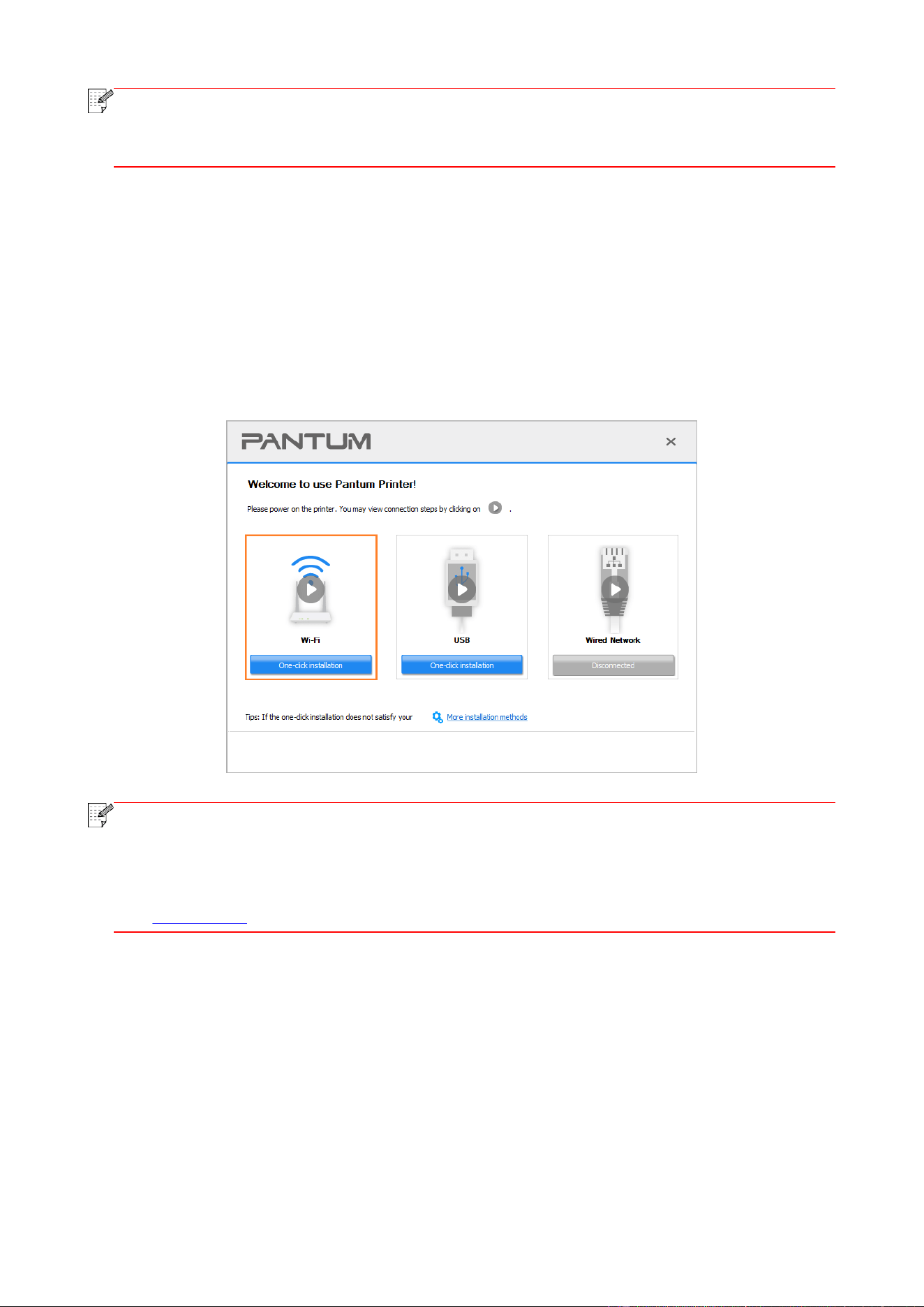
6. Click on “One-click installation” button under Wi-Fi to install the driver.
Note:
• You can put your mouse cursor in the "One-click installation" button to check the popup
information in order to confirm if the current printer is the one you need to install through
IP address before you click the button.
• You can check the printer IP address through "Network configuration page" (Please see
Section 12.4 for how to print)
22
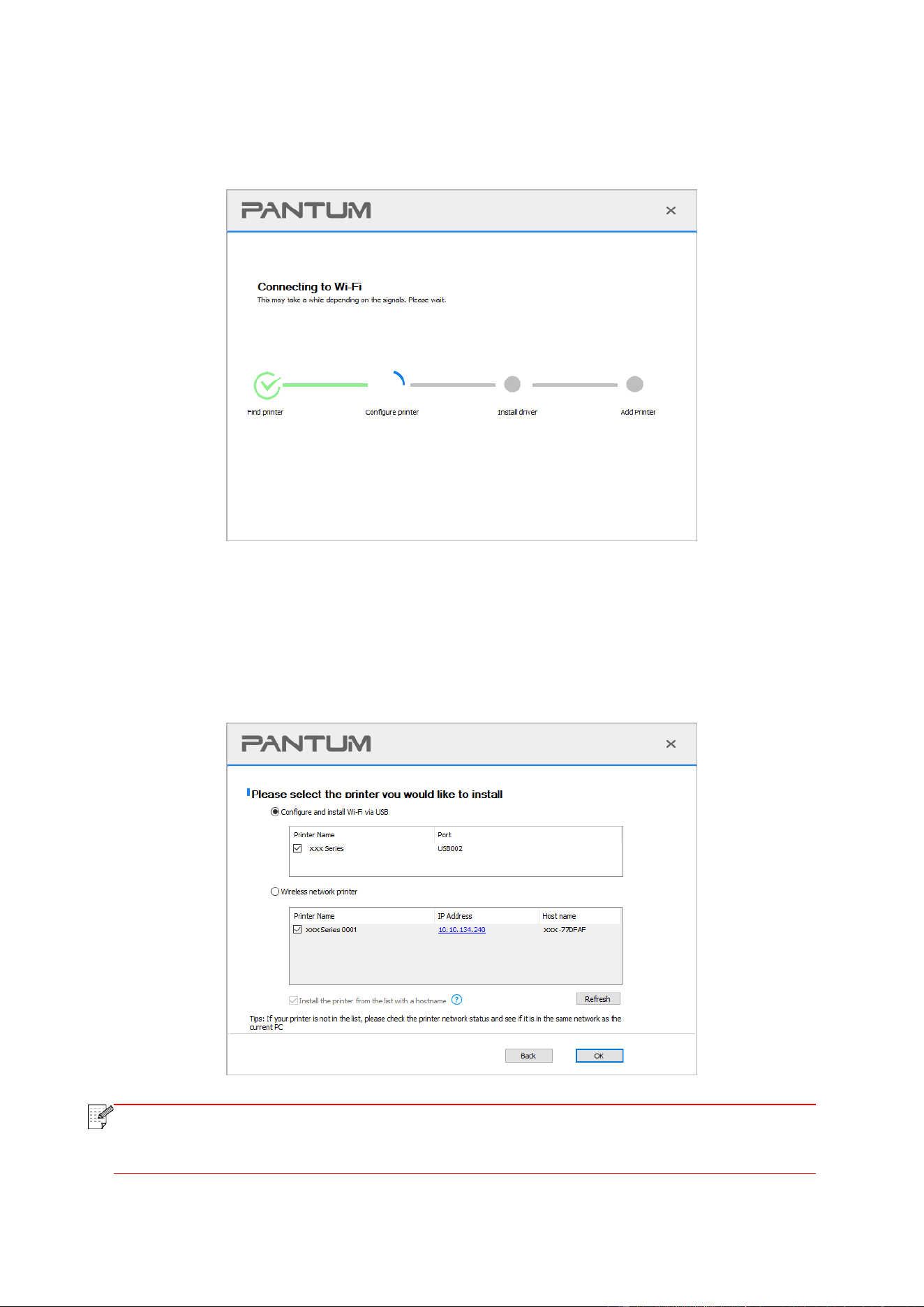
• If the Install Tool finds only one printer, it will proceed to network configuration and driver
installation automatically when you click on "One-click installation" under Wi-Fi. (For macOS,
authorization is required before printer Wi-Fi can be configured.)
• If the Install Tool finds more than one printer, a printer list will pop up when you click on
"One-click installation" under Wi-Fi. You need to select "Configure printer Wi-Fi and install via USB
cable", check USB printer, and click on "OK", so the Tool can proceed to network configuration and
driver installation automatically. (For macOS, authorization is required before printer Wi-Fi can be
configured.)
Note:
• When the printer IP address changes under printer driver installed with host ID, you can
also directly print without re-installing the driver. If you need to install the printer driver with
the host ID, please check the option "Install the printer in the list with host ID".

23
7. After the installation, click "Print &Test Page" button. If your printer prints the test page successfully,
it means that you have installed the driver correctly. (If you need to install the OCR software under the
Windows system, please install it when the computer is connected to the Internet.)
II.Connect computer to router via network cable
1. Connect computer to router via network cable.
2. Connect the printer to computer via USB cable, then power the printer on.
3. Place the attached installation CD in the computer CD-ROM:
For Windows:
• Windows XP system: automatically run the installation procedure.
• Windows 7/Vista/Server 2008 system: Pop up "Autoplay" interface, click “Setup.exe” to run the
installation procedure.
• Windows 8 system: When the "DVD RW driver" window pops up from the right top corner of
computer desktop, click anywhere in the pop-up window, then click "Setup.exe" to run the
installation procedure.
• Windows 10/11 system: When the "DVD RW driver" window pops up from the right top corner of
computer desktop, click anywhere in the window, then click "Setup.exe" to run the installation
procedure.
For macOS:
• Double-click on “Pantum XXX Series_Mac_Driver”–“Pantum Install Tool”. (The XXX in Pantum
XXX Series refers to product model.)
4. Read and agree to the terms contained in the End User License Agreement and the Privacy
Policy, click the “Next” button in the lower right corner of the interface to enter the driver
installation interface.
5. For Windows, follow Step 6. For macOS, enter PC password before proceeding to Step 6.
Note:
• Some computers may be unable to auto play the CD beacase of system configuration.
Please double click "Computer" icon, find "DVD RW driver", then double click "DVD RW
driver" to run the installation procedure.
24
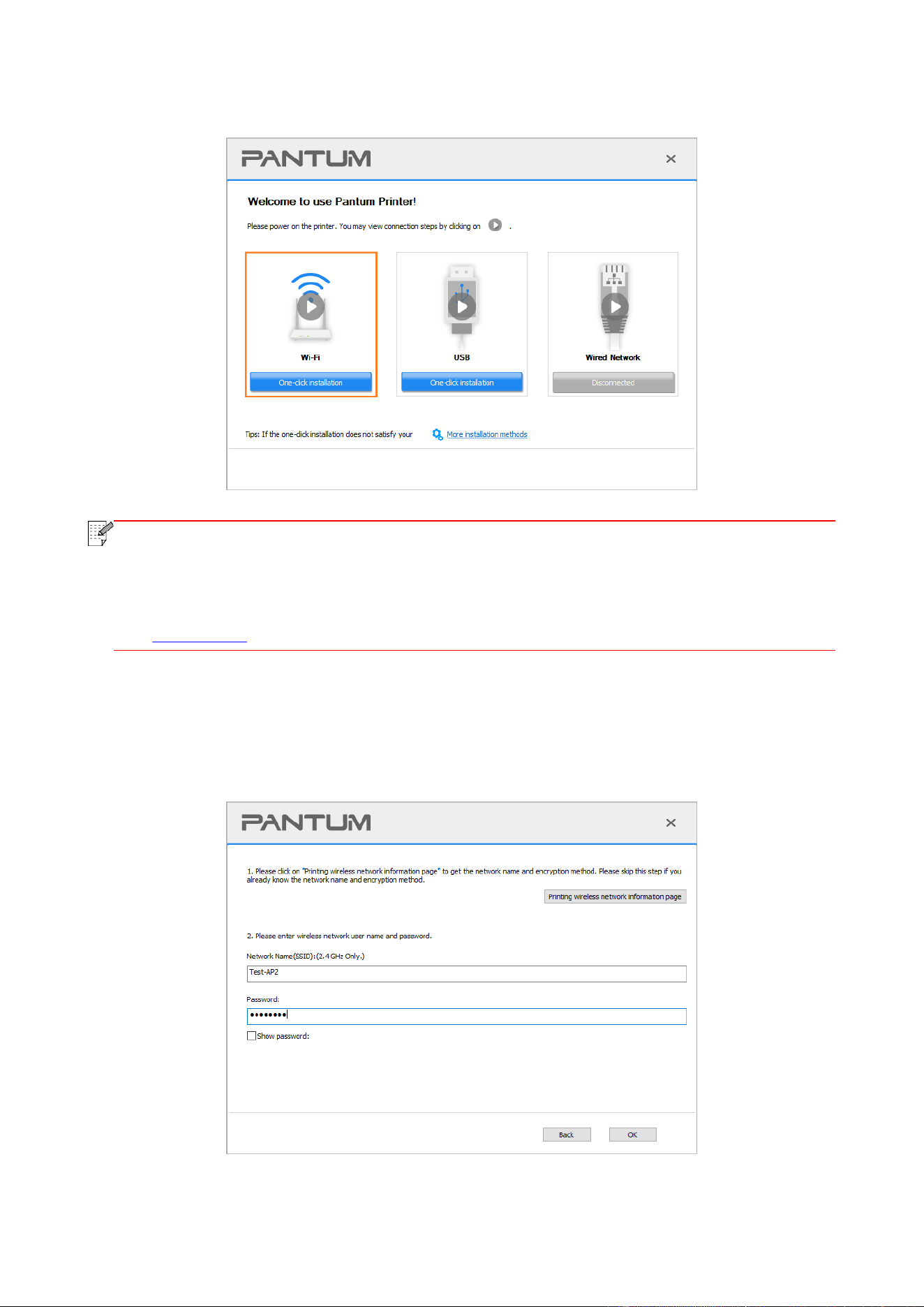
6. Click on “One-click installation” button under Wi-Fi to install the driver.
Note:
• You can put your mouse cursor in the "One-click installation" button to check the popup
information in order to confirm if the current printer is the one you need to install through
IP address before you click the button.
• You can check the printer IP address through "Network configuration page" (Please see
Section 12.4 for how to print).
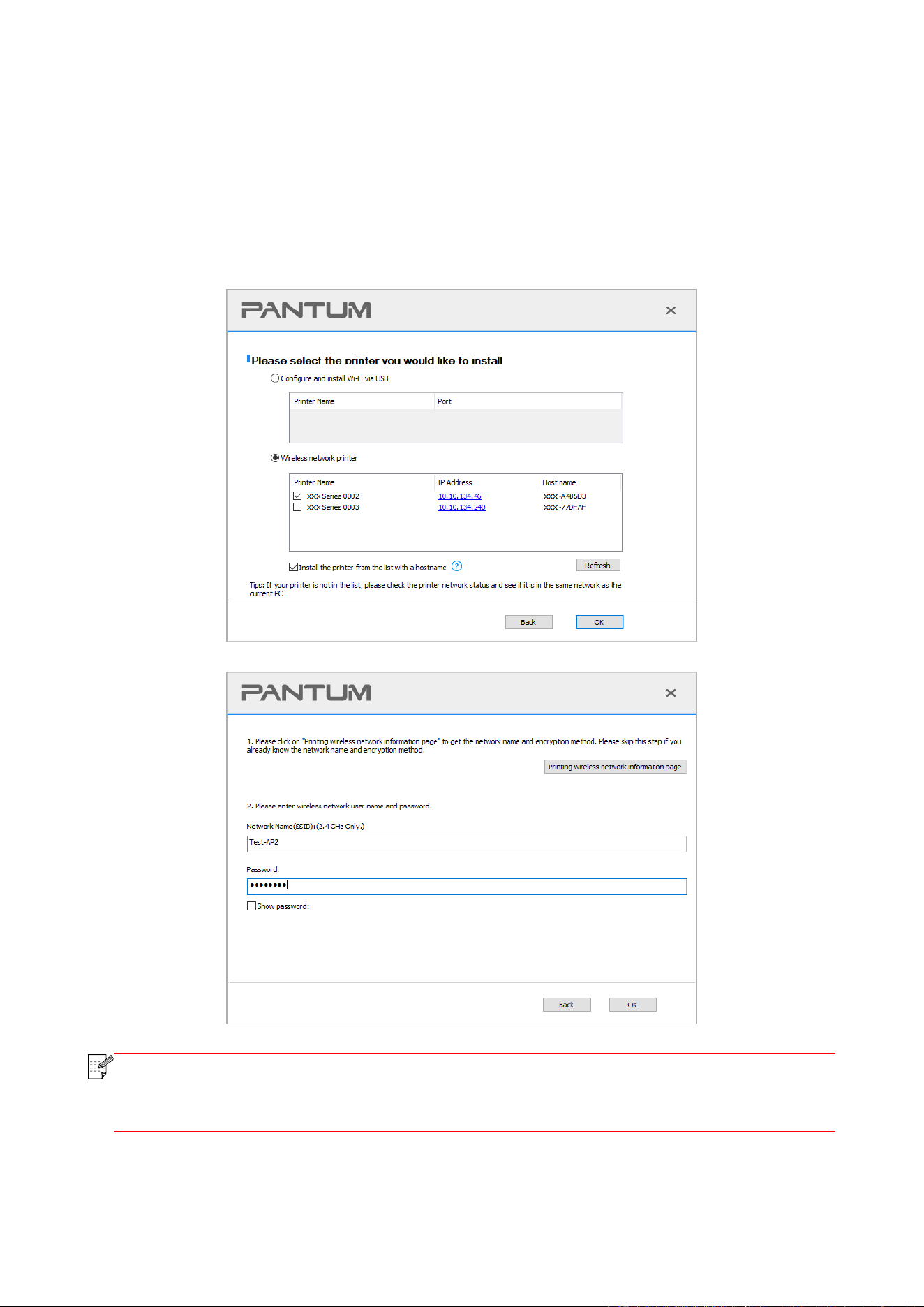
• If the Install Tool finds only one printer, a wireless network configuration dialogue will pop up
when you click on "One-click installation" under Wi-Fi. Enter the SSID and password for the network
you desire, click on "OK", and the setup will start. The setup may take a while, depending on your
PC configuration. Please wait.
25
• If your software has searched more than one printers, the printer list interface will pop up.You
need to configure the current printer which is connected via USB cable to wireless network and
install driver. Please select "Configure the print via USB and install" on the printer list interface and
check the USB printer option. Click the "Confirm" button, and the wireless network configuration
interface will pop up. Input the wireless SSID and password that you need, then click "Confirm"
button, and enter into installation process. The process may need some time, and the duration is
related to your computer configuration, please wait patiently.
Note:
• When the printer IP address changes under printer driver installed with host ID, you can
also directly print without re-installing the driver. If you need to install the printer driver
with the host ID, please check the option "Install the printer in the list with host ID".

26
7. After the installation, click "Print &Test Page" button. If your printer prints the test page
successfully, it means that you have installed the driver correctly. (If you need to install the OCR
software under the Windows system, please install it when the computer is connected to the
Internet.)
3.1.1.1.1.2. Connect computer to printer via Wi-Fi direct and install the driver
Connect the computer to printer via a direct Wi-Fi connection.It is applicable to wireless network
without infrastructure mode, but it still needs scenario of temporary use of printer via wireless
network. You can directly connect the computer that has wireless function to the printer to realize
printing function.
1. Turn the power of printer and computer on.
2. Connect computer to the Wi-Fi Direct network of the printer (please refer to Section 5.2.2 for
setup method).
3. Place the attached installation CD in the computer CD-ROM:
For Windows:
• Windows XP system: automatically run the installation procedure.
• Windows 7/Vista/Server 2008 system: Pop up "Autoplay" interface, click “Setup.exe” to run the
installation procedure.
• Windows 8 system: When the "DVD RW driver" window pops up from the right top corner of
computer desktop, click anywhere in the pop-up window, then click "Setup.exe" to run the
installation procedure.
• Windows 10/11 system: When the "DVD RW driver" window pops up from the right top corner of
computer desktop, click anywhere in the window, then click "Setup.exe" to run the installation
procedure.
Note:
• Some computers may be unable to auto play the CD beacase of system configuration.
Please double click "Computer" icon, find "DVD RW driver", then double click "DVD RW
driver" to run the installation procedure.
For macOS:
• Double-click on “Pantum XXX Series_Mac_Driver”–“Pantum Install Tool”. (The XXX in Pantum
XXX Series refers to product model.)
4. Read and agree to the terms contained in the End User License Agreement and the Privacy
Policy, click the “Next” button in the lower right corner of the interface to enter the driver
installation interface.
5. For Windows, follow Step 6. For macOS, enter PC password before proceeding to Step 6.
27
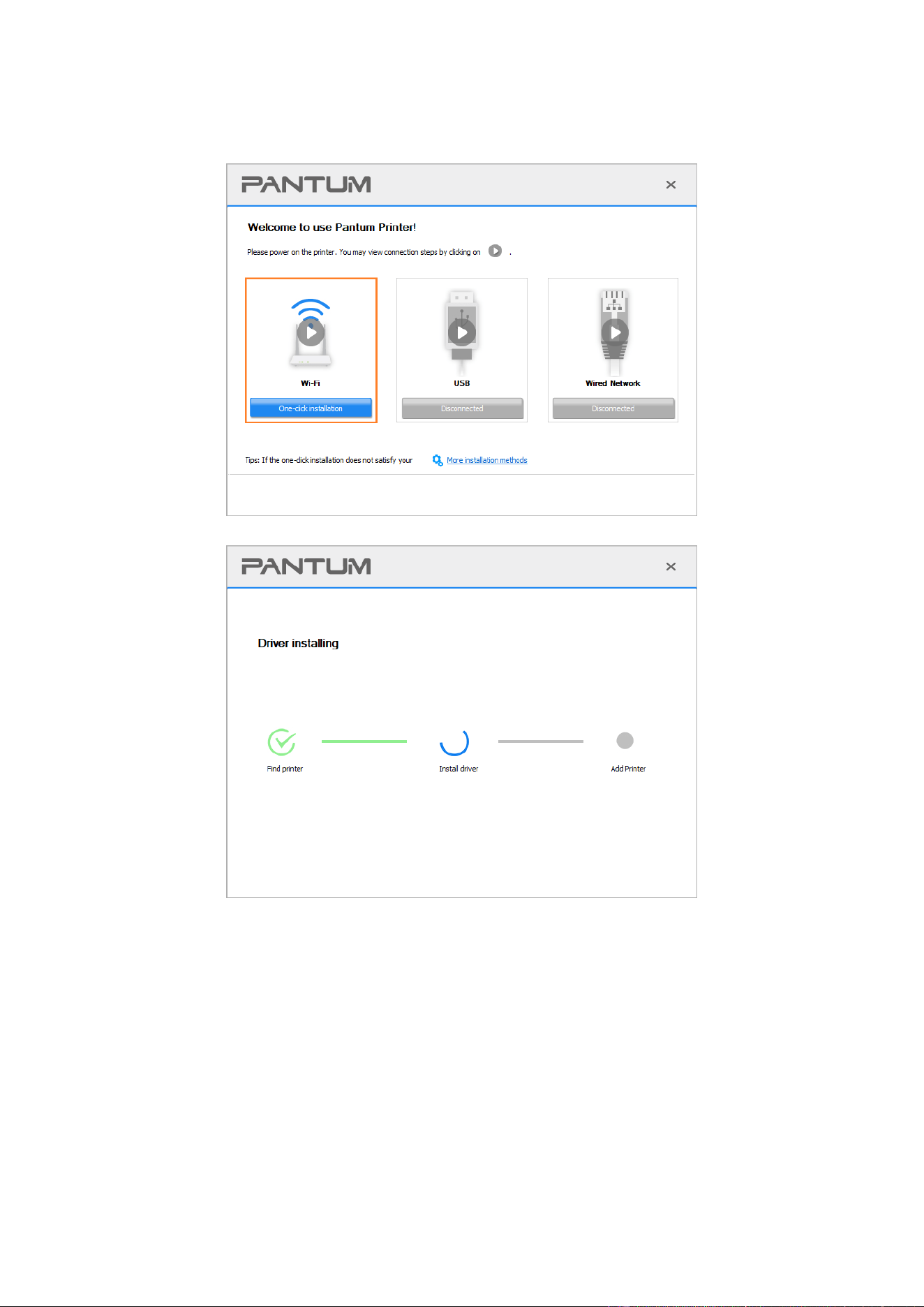
6. The setup will start when you click on "One-click installation" under Wi-Fi. The setup may take a
while, depending on your PC configuration. Please wait.
7. After the installation, click "Print &Test Page" button. If your printer prints the test page
successfully, it means that you have installed the driver correctly. (If you need to install the OCR
software under the Windows system, please install it when the computer is connected to the
Internet.)
28
3.1.1.1.2. The printer is already connected to wireless network
1. The printer is already connected to wireless network, you can print the "Network configuration
page" to check. (See Section 12.4 to for how to print).
2. Connect the computer to printer network.
3. Place the attached installation CD in the computer CD-ROM:
For Windows:
• Windows XP system: automatically run the installation procedure.
• Windows 7/Vista/Server 2008 system: Pop up "Autoplay" interface, click “Setup.exe” to run the
installation procedure.
• Windows 8 system: When the "DVD RW driver" window pops up from the right top corner of
computer desktop, click anywhere in the pop-up window, then click "Setup.exe" to run the
installation procedure.
• Windows 10/11 system: When the "DVD RW driver" window pops up from the right top corner of
computer desktop, click anywhere in the window, then click "Setup.exe" to run the installation
procedure.
Note:
• Some computers may be unable to auto play the CD beacase of system configuration.
Please double click "Computer" icon, find "DVD RW driver", then double click "DVD RW
driver" to run the installation procedure.
For macOS:
• Double-click on “Pantum XXX Series_Mac_Driver”–“Pantum Install Tool”. (The XXX in Pantum
XXX Series refers to product model.)
4. Read and agree to the terms contained in the End User License Agreement and the Privacy
Policy, click the “Next” button in the lower right corner of the interface to enter the driver
installation interface.
5. For Windows, follow Step 6. For macOS, enter PC password before proceeding to Step 6.
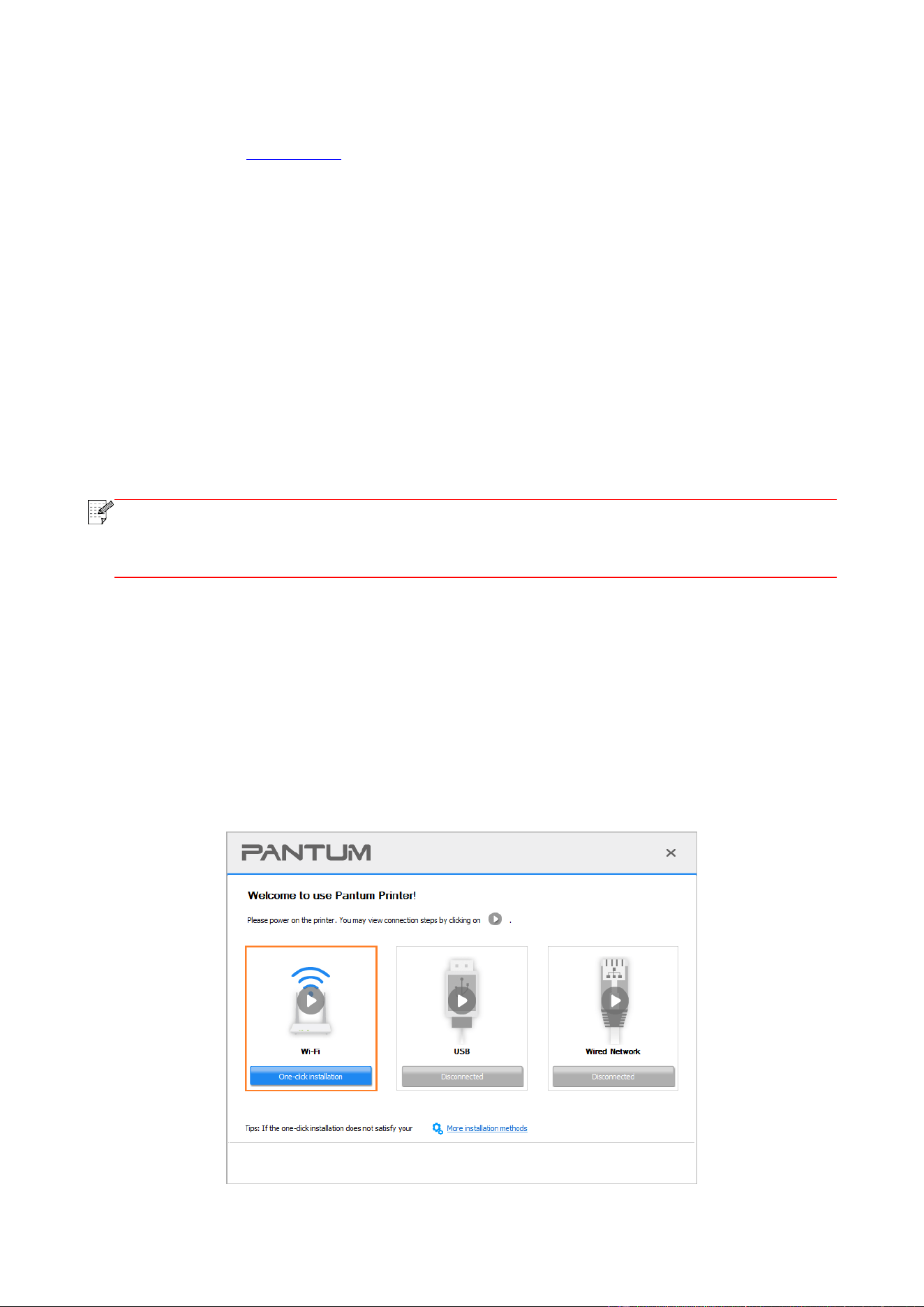
6. Click on “One-click installation” button under Wi-Fi to install the driver.
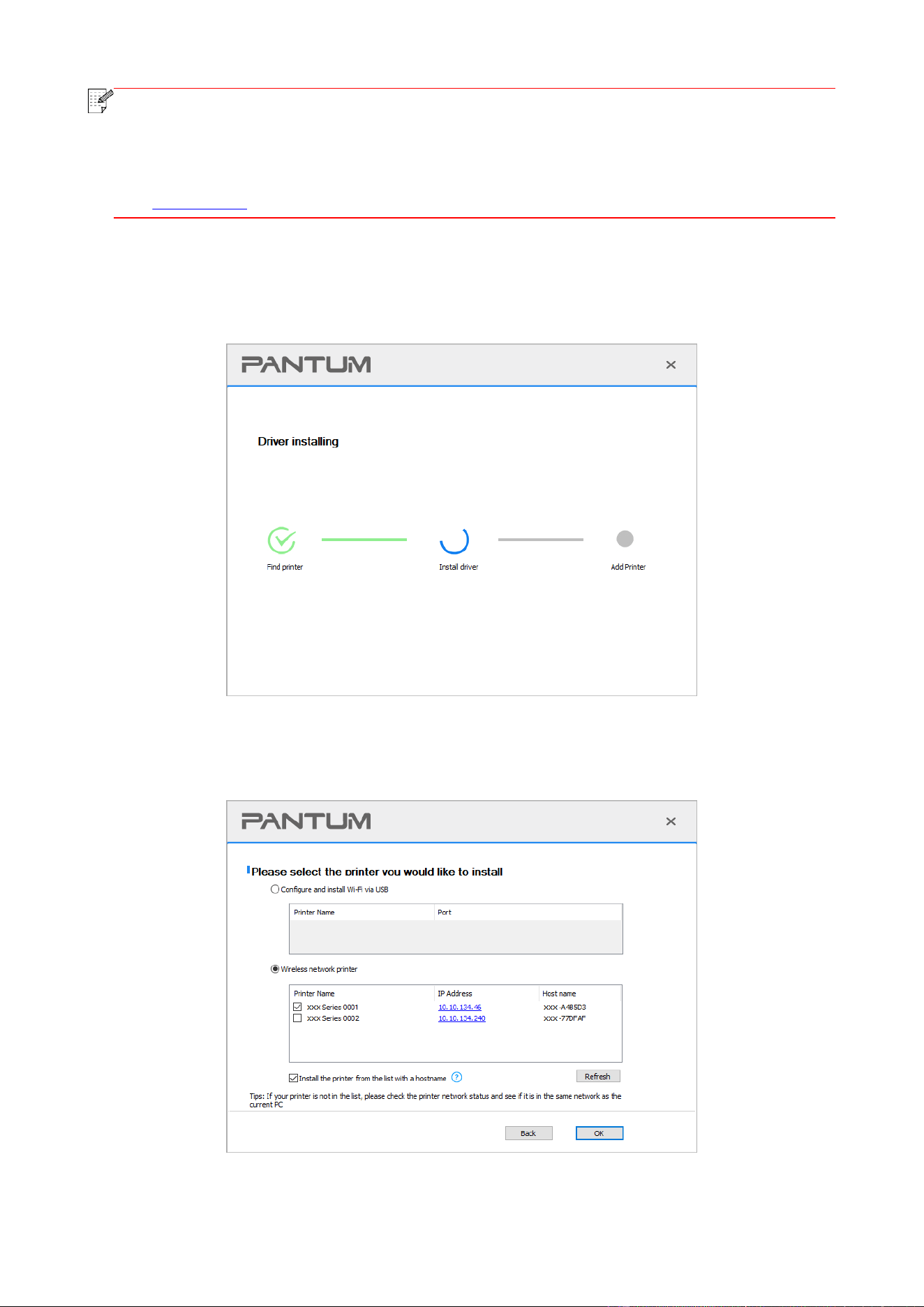
29
Note:
• You can put your mouse cursor in the "One-click installation" button to check the popup
information in order to confirm if the current printer is the one you need to install through
IP address before you click the button.
• You can check the printer IP address through "Network configuration page" (Please see
Section 12.4 for how to print)
• If the Install Tool finds only one printer, the setup will start when you click on "One-click
installation" under Wi-Fi. The setup may take a while, depending on your PC configuration. Please
wait.
• If the Install Tool finds more than one printer, a printer list will pop up. Please select the printer
you desire based on the IP Address of the wireless network for your printer or the Host Name.

30
Note:
• If the printer you need is not shown in the list, please click "Refresh" button to search
again. If it is not found, please check if the printer and computer are in the same network.
(Please see Section 5.3 for how to check).
• When the printer IP address changes under printer driver installed with host ID, you can
also directly print without re-installing the driver. If you need to install the printer driver
with the host ID, please check the option "Install the printer in the list with host ID".
7. After the installation, click "Print &Test Page" button. If your printer prints the test page
successfully, it means that you have installed the driver correctly. (If you need to install the OCR
software under the Windows system, please install it when the computer is connected to the
Internet.)
3.1.1.2. Connect printer via USB cable
1. Connect the printer to computer via USB cable, power the printer and computer on.
2. Place the attached installation CD in the computer CD-ROM:
For Windows:
• Windows XP system: automatically run the installation procedure.
• Windows 7/Vista/Server 2008 system: Pop up "Autoplay" interface, click “Setup.exe” to run the
installation procedure.
• Windows 8 system: When the "DVD RW driver" window pops up from the right top corner of
computer desktop, click anywhere in the pop-up window, then click "Setup.exe" to run the
installation procedure.
• Windows 10/11 system: When the "DVD RW driver" window pops up from the right top corner of
computer desktop, click anywhere in the window, then click "Setup.exe" to run the installation
procedure.
Note:
• Some computers may be unable to auto play the CD beacase of system configuration.
Please double click "Computer" icon, find "DVD RW driver", then double click "DVD RW
driver" to run the installation procedure.
For macOS:
• Double-click on “Pantum XXX Series_Mac_Driver”–“Pantum Install Tool”. (The XXX in Pantum
XXX Series refers to product model.)
3. Read and agree to the terms contained in the End User License Agreement and the Privacy
Policy, click the “Next” button in the lower right corner of the interface to enter the driver
installation interface.
4. For Windows, follow Step 5. For macOS, enter PC password before proceeding to Step 5.
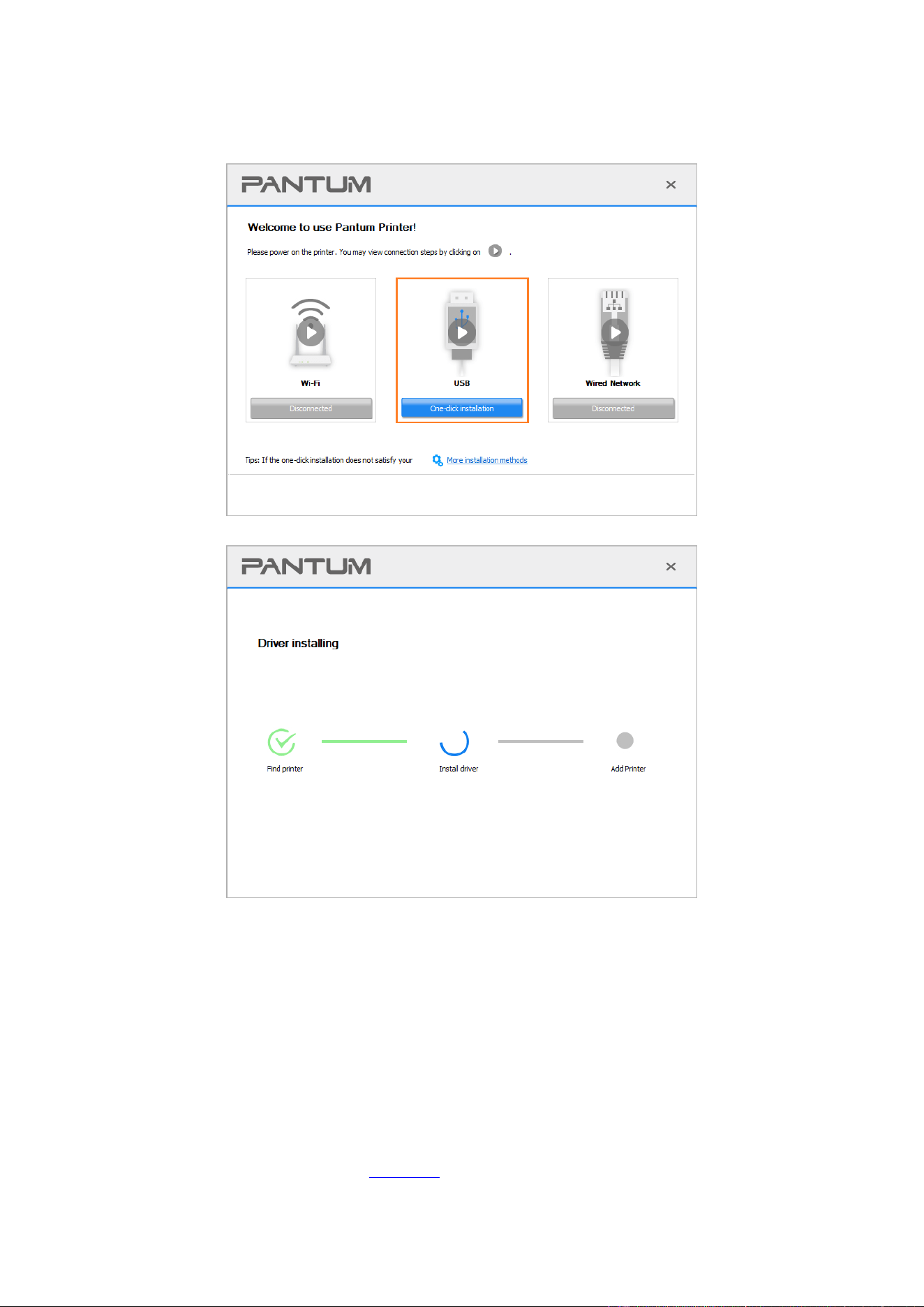
31
5. The setup will start when you click on "One-click installation" under USB. The setup may take a
while, depending on your PC configuration. Please wait.
6. After the installation, click "Print &Test Page" button. If your printer prints the test page
successfully, it means that you have installed the driver correctly. (If you need to install the OCR
software under the Windows system, please install it when the computer is connected to the
Internet.)
3.1.1.3. Connect printer via wired network
1. Turn the power of printer and computer on.
2. Connect the computer to wired network.
3. Connect network cable to the network interface of printer, to make sure the printer is connected
to computer network (please refer to Section 4 for network setup).
4. Place the attached installation CD in the computer CD-ROM:
32
For Windows:
• Windows XP system: automatically run the installation procedure.
• Windows 7/Vista/Server 2008 system: Pop up "Autoplay" interface, click “Setup.exe” to run the
installation procedure.
• Windows 8 system: When the "DVD RW driver" window pops up from the right top corner of
computer desktop, click anywhere in the pop-up window, then click "Setup.exe" to run the
installation procedure.
• Windows 10/11 system: When the "DVD RW driver" window pops up from the right top corner of
computer desktop, click anywhere in the window, then click "Setup.exe" to run the installation
procedure.
Note:
• Some computers may be unable to auto play the CD beacase of system configuration.
Please double click "Computer" icon, find "DVD RW driver", then double click "DVD RW
driver" to run the installation procedure.
For macOS:
• Double-click on “Pantum XXX Series_Mac_Driver”–“Pantum Install Tool”. (The XXX in Pantum
XXX Series refers to product model.)
5. Read and agree to the terms contained in the End User License Agreement and the Privacy
Policy, click the “Next” button in the lower right corner of the interface to enter the driver
installation interface.
6. For Windows, follow Step 7. For macOS, enter PC password before proceeding to Step 7.
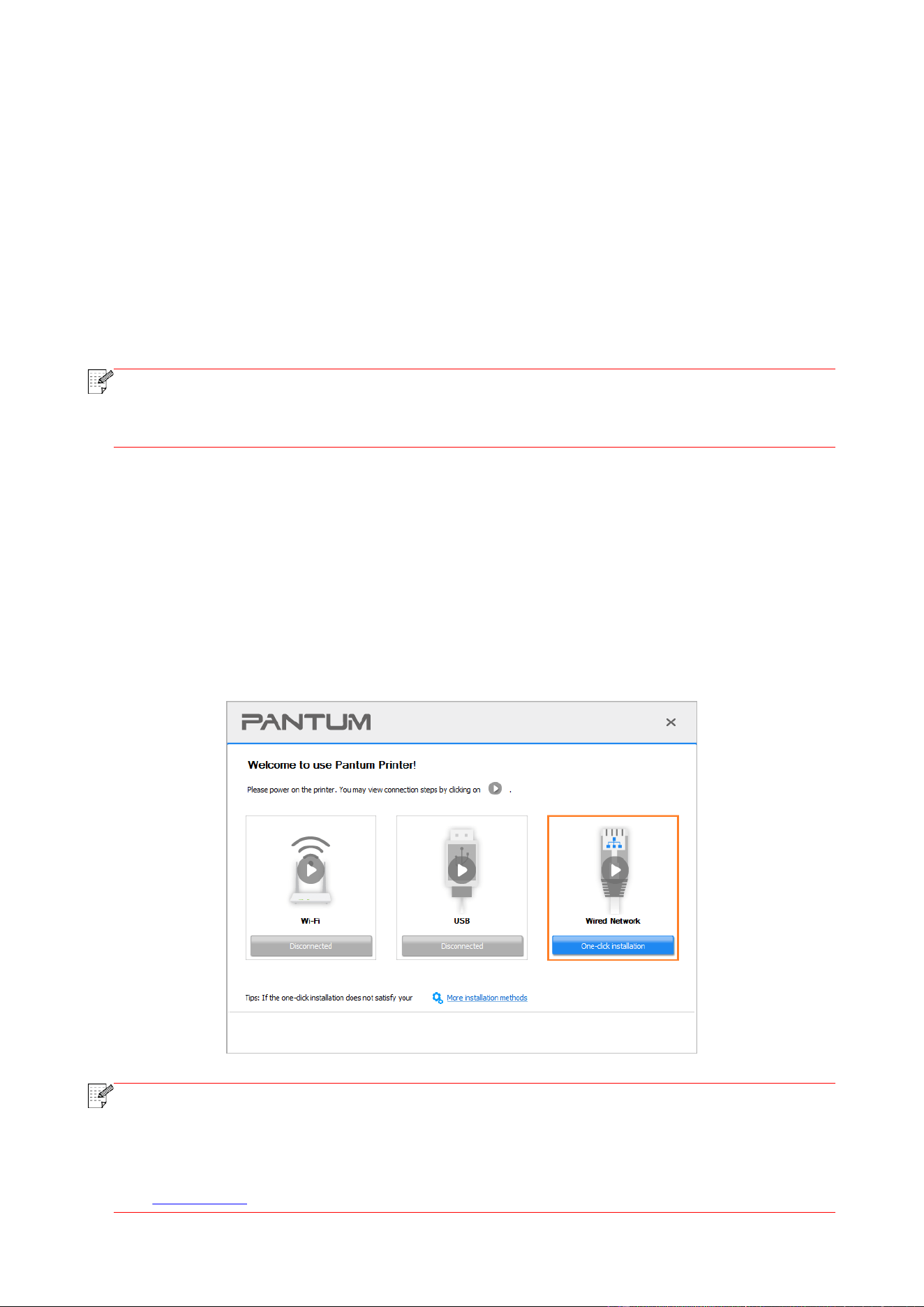
7. Click on "One-click installation" button under Wired Network to install the driver.
Note:
• You can put your mouse cursor in the "One-click installation" button to check the popup
information in order to confirm if the current printer is the one you need to install through
IP address before you click the button.
• You can check the printer IP address through "Network configuration page" (Please see
Section 12.4 for how to print)
33
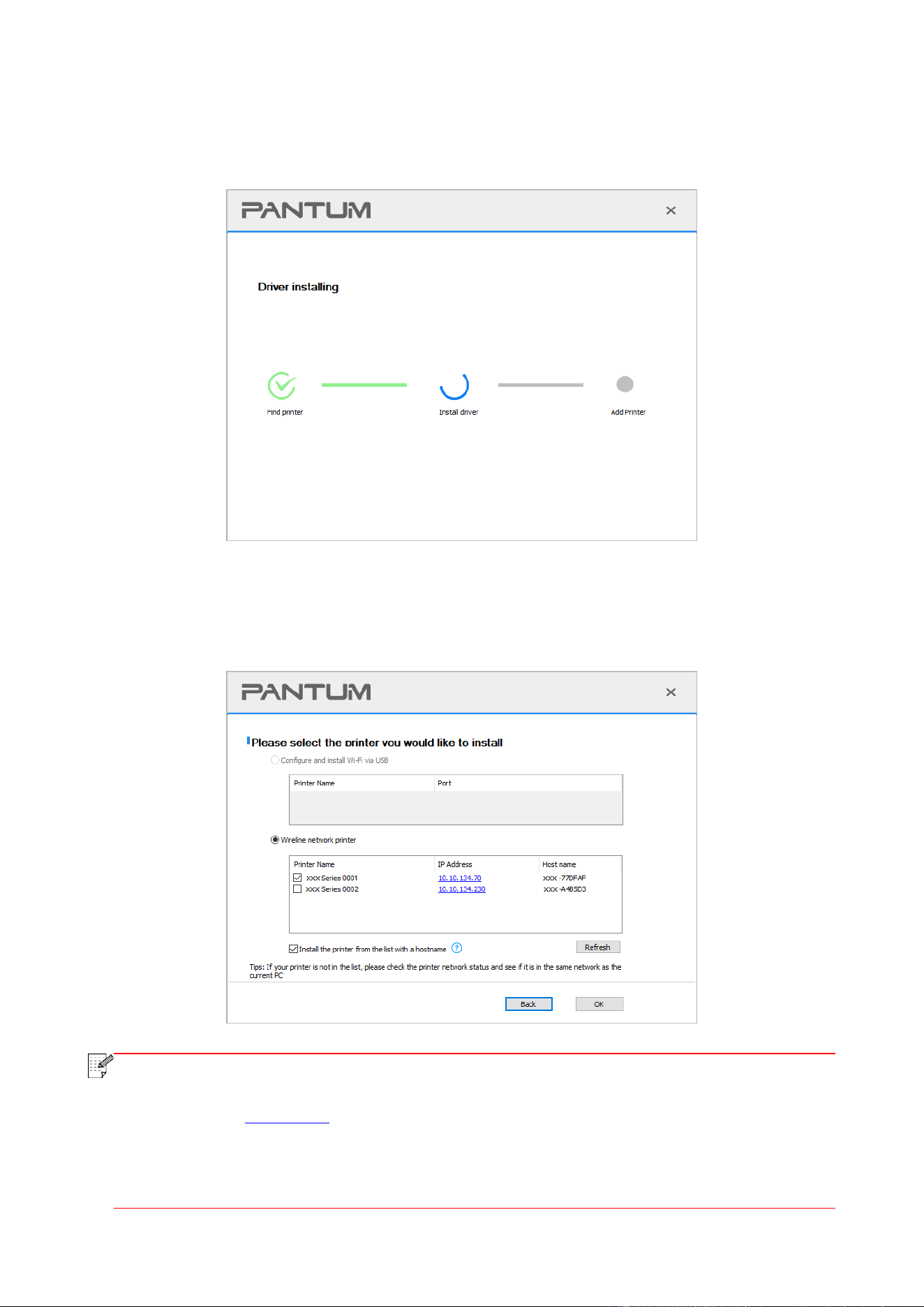
• If the Install Tool finds only one printer, the setup will start when you click on "One-click
installation" under Wired Network. The setup may take a while, depending on your PC configuration.
Please wait.
• If the Install Tool finds more than one printer, a printer list will pop up when you click on
"One-click installation" under Wired Network. Please select the printer you desire based on the IP
Address of the wired network for your printer or the Host Name.
Note:
• If the printer you need is not shown in the list, please click "Refresh" button to search
again. If it is not found, please check if the printer and computer are in the same network.
(Please see Section 5.3 for how to check).
• When the printer IP address changes under printer driver installed with host ID, you can
also directly print without re-installing the driver. If you need to install the printer driver
with the host ID, please check the option "Install the printer in the list with host ID".

34
8. After the installation, click "Print &Test Page" button. If your printer prints the test page
successfully, it means that you have installed the driver correctly. (If you need to install the OCR
software under the Windows system, please install it when the computer is connected to the
Internet.)
3.1.2. More setup methods
3.1.2.1. More setup methods for Windows
• Before installing the drive, you need to learn about printer model by printing printer information
page out and check the product name (please refer to Section 12.4 for printing methods).
3.1.2.1.1. Installation via USB connection
1. Connect the printer to computer via USB cable, power the printer and computer on.
2. Place the attached installation CD in the computer CD-ROM:
• Windows XP system: automatically run the installation procedure.
• Windows 7/Vista/Server 2008 system: Pop up "Autoplay" interface, click “Setup.exe” to run the
installation procedure.
• Windows 8 system: When the "DVD RW driver" window pops up from the right top corner of
computer desktop, click anywhere in the pop-up window, then click "Setup.exe" to run the
installation procedure.
• Windows 10/11 system: When the "DVD RW driver" window pops up from the right top corner of
computer desktop, click anywhere in the window, then click "Setup.exe" to run the installation
procedure.
Note:
• Some computers may be unable to auto play the CD beacase of system configuration.
Please double click "Computer" icon, find "DVD RW driver", then double click "DVD RW
driver" to run the installation procedure.
3. Read and agree to the terms contained in the End User License Agreement and the Privacy
Policy, click the “Next” button in the lower right corner of the interface to enter the driver
installation interface.
4. Click on “More setup methods” at the bottom of the setup interface for access.
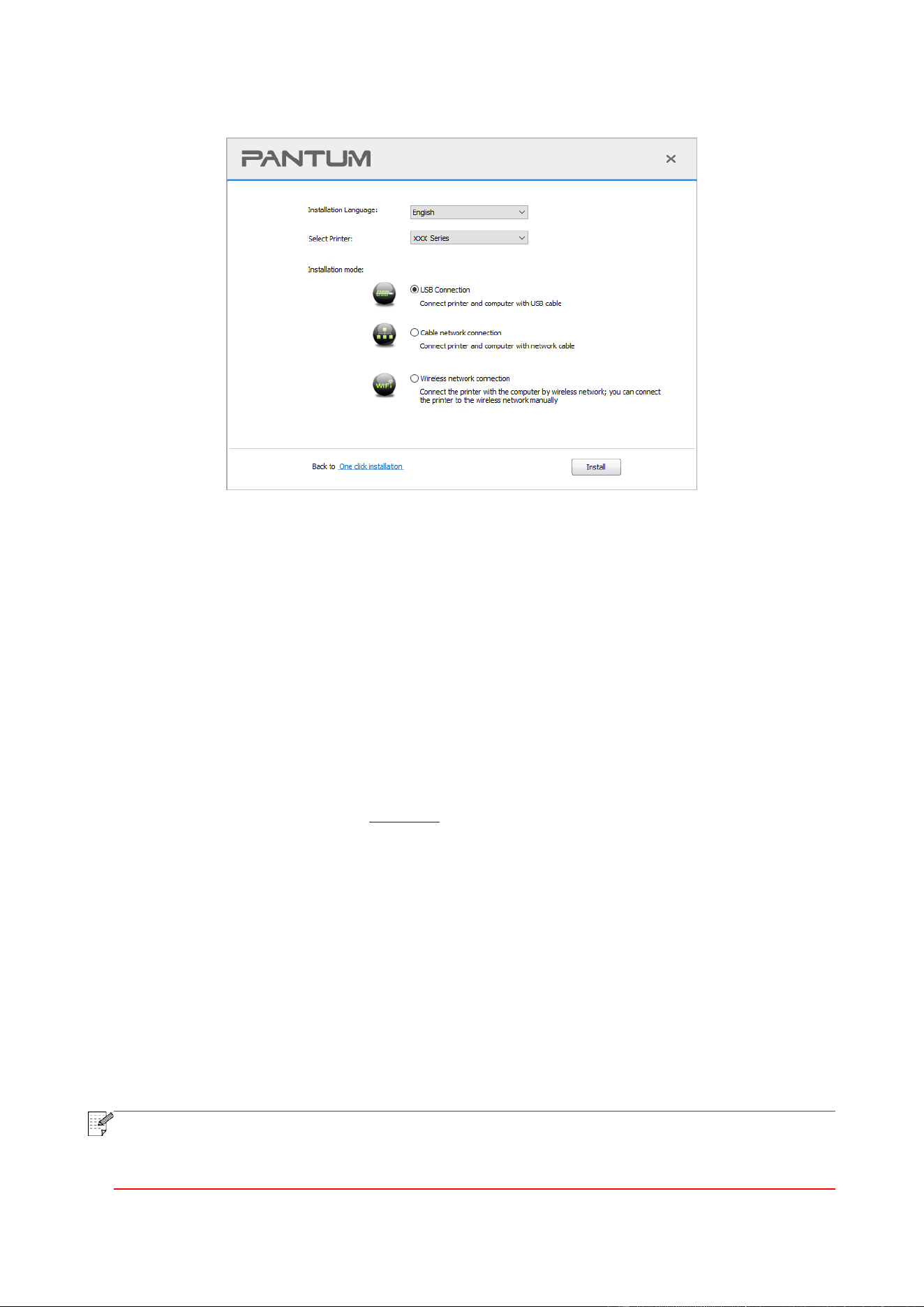
5. Please select installation language and printer model.
35
6. Select "Connect via USB" and click on "Install".
7. The software installs the driver automatically and the installation process may need some time.
The duration is related to your computer configuration, please wait patiently.
8. After the installation, click "Print &Test Page" button. If your printer prints the test page
successfully, it means that you have installed the driver correctly. (If you need to install the OCR
software under the Windows system, please install it when the computer is connected to the
Internet.)
3.1.2.1.2. Installation via wired network connection (applicable to wired network models)
1. Turn the power of printer and computer on.
2. Connect the computer to wired network.
3. Connect network cable to the network interface of printer, to make sure the printer is connected
to computer network (please refer to Section 4 for network setup).
4. Place the attached installation CD in the computer CD-ROM:
• Windows XP system: automatically run the installation procedure.
• Windows 7/Vista/Server 2008 system: Pop up "Autoplay" interface, click “Setup.exe” to run the
installation procedure.
• Windows 8 system: When the "DVD RW driver" window pops up from the right top corner of
computer desktop, click anywhere in the pop-up window, then click "Setup.exe" to run the
installation procedure.
• Windows 10/11 system: When the "DVD RW driver" window pops up from the right top corner of
computer desktop, click anywhere in the window, then click "Setup.exe" to run the installation
procedure.
Note:
• Some computers may be unable to auto play the CD beacase of system configuration.
Please double click "Computer" icon, find "DVD RW driver", then double click "DVD RW
driver" to run the installation procedure.
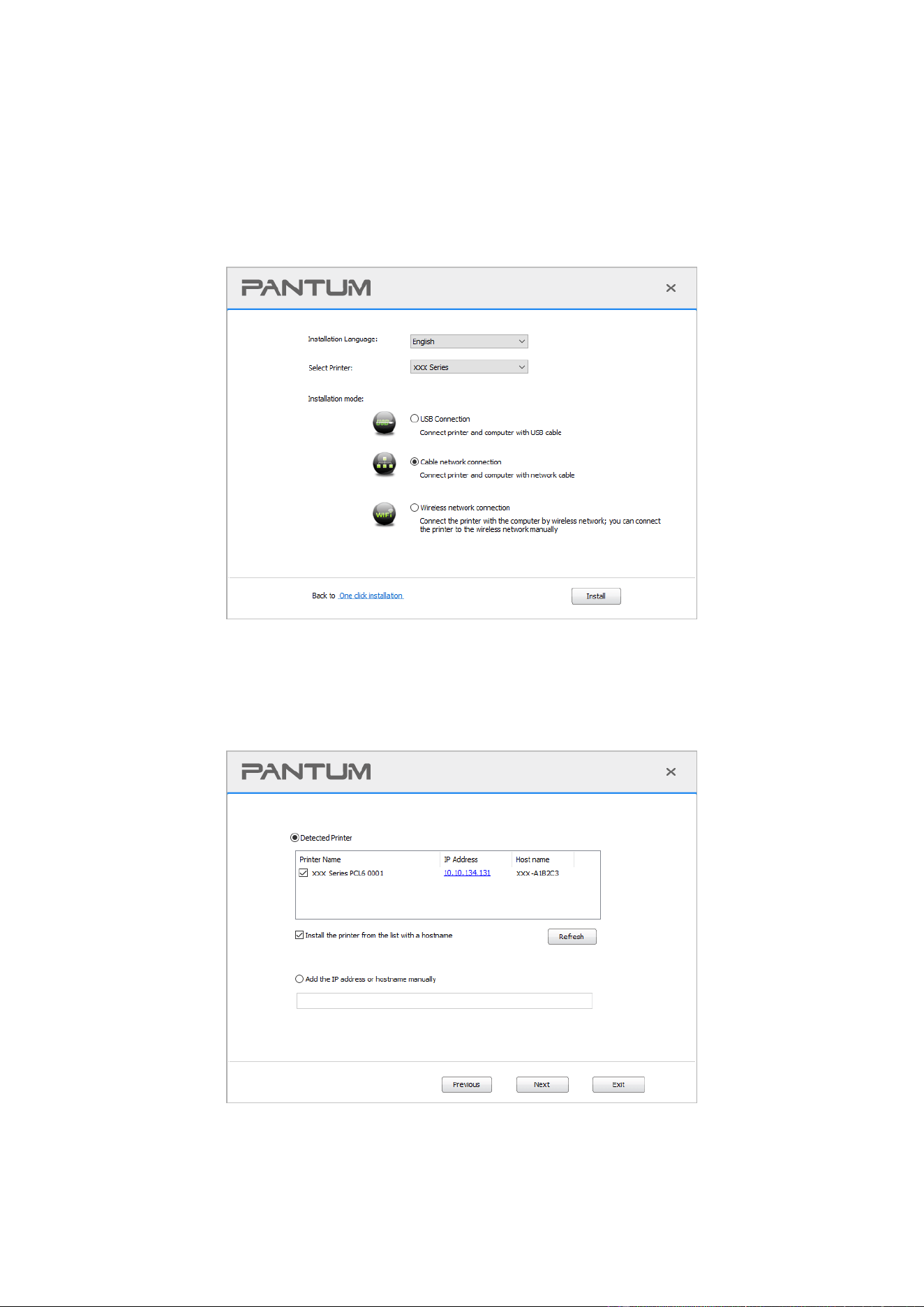
36
5. Read and agree to the terms contained in the End User License Agreement and the Privacy
Policy, click the “Next” button in the lower right corner of the interface to enter the driver
installation interface.
6. Click on “More setup methods” at the bottom of the setup interface for access.
7. Please select installation language and printer model.
8. Select "Wireline network connection" and click on "Install".
9. The installation software will search the printer automatically and the searching process may
need some time.
10. After finishing searching, select the printer that needs to be connected and click “Next”.

37
Note:
• If the printer you need to connect is not in the list of printers searched, please click
“Refresh” to search again.
• When the printer IP address changes under printer driver installed with host ID, you can
also directly print without re-installing the driver. If you need to install the printer driver
with the host ID, please check the option "Install the printer in the list with host ID".
• If IP address or host name is added manually, you need to know the IP address of the
printer connected or host name. If they are not made clear, please print the “NetConf Pg”
and view “IP Address” and “Host name” (Please refer to Section 12.4).
11. The software installs the driver automatically and the installation process may need some time.
The duration is related to your computer configuration, please wait patiently.
12. After the installation, click "Print &Test Page" button. If your printer prints the test page
successfully, it means that you have installed the driver correctly. (If you need to install the OCR
software under the Windows system, please install it when the computer is connected to the
Internet.)
3.1.2.1.3. Installation by wireless network connection mode (applicable to Wi-Fi models)
Wireless network connection type is divided into basic structure mode and Wi-Fi Direct mode
(please refer to Section 5 for details).
3.1.2.1.3.1. Installation in basic structure mode
1. Connect computer to access point (wireless router).
2. Connect the printer to computer via USB cable, then power the printer on.
3. Place the attached installation CD in the computer CD-ROM:
• Windows XP system: automatically run the installation procedure.
• Windows 7/Vista/Server 2008 system: Pop up "Autoplay" interface, click “Setup.exe” to run the
installation procedure.
• Windows 8 system: When the "DVD RW driver" window pops up from the right top corner of
computer desktop, click anywhere in the pop-up window, then click "Setup.exe" to run the
installation procedure.
• Windows 10/11 system: When the "DVD RW driver" window pops up from the right top corner of
computer desktop, click anywhere in the window, then click "Setup.exe" to run the installation
procedure.
Note:
• Some computers may be unable to auto play the CD beacase of system configuration.
Please double click "Computer" icon, find "DVD RW driver", then double click "DVD RW
driver" to run the installation procedure.
4. Read and agree to the terms contained in the End User License Agreement and the Privacy
Policy, click the “Next” button in the lower right corner of the interface to enter the driver
installation interface.
5. Click on “More setup methods” at the bottom of the setup interface for access.
6. Please select installation language and printer model.
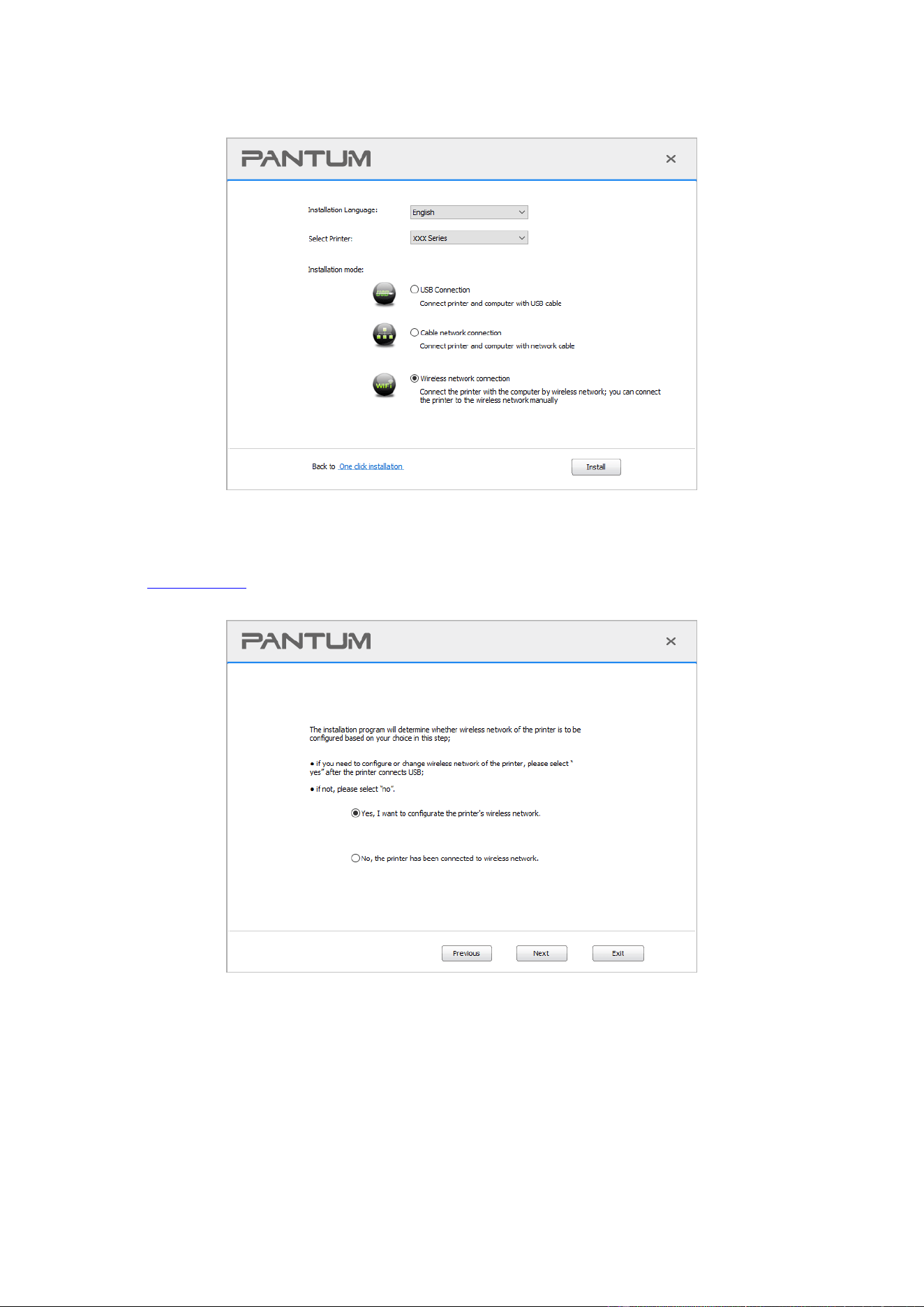
38
7. Select "Wireless network connection" and click on "Install".
8. Select “Yes, I want to configurate the printer's wireless network” on the wireless setup window
popped out, and operate according to the prompts to set up the printer to wireless network (please
refer to Section 5.1.1 for setup method).
9. The installation software will search the printer automatically after wireless network is
configured successfully. The search process may need some time.
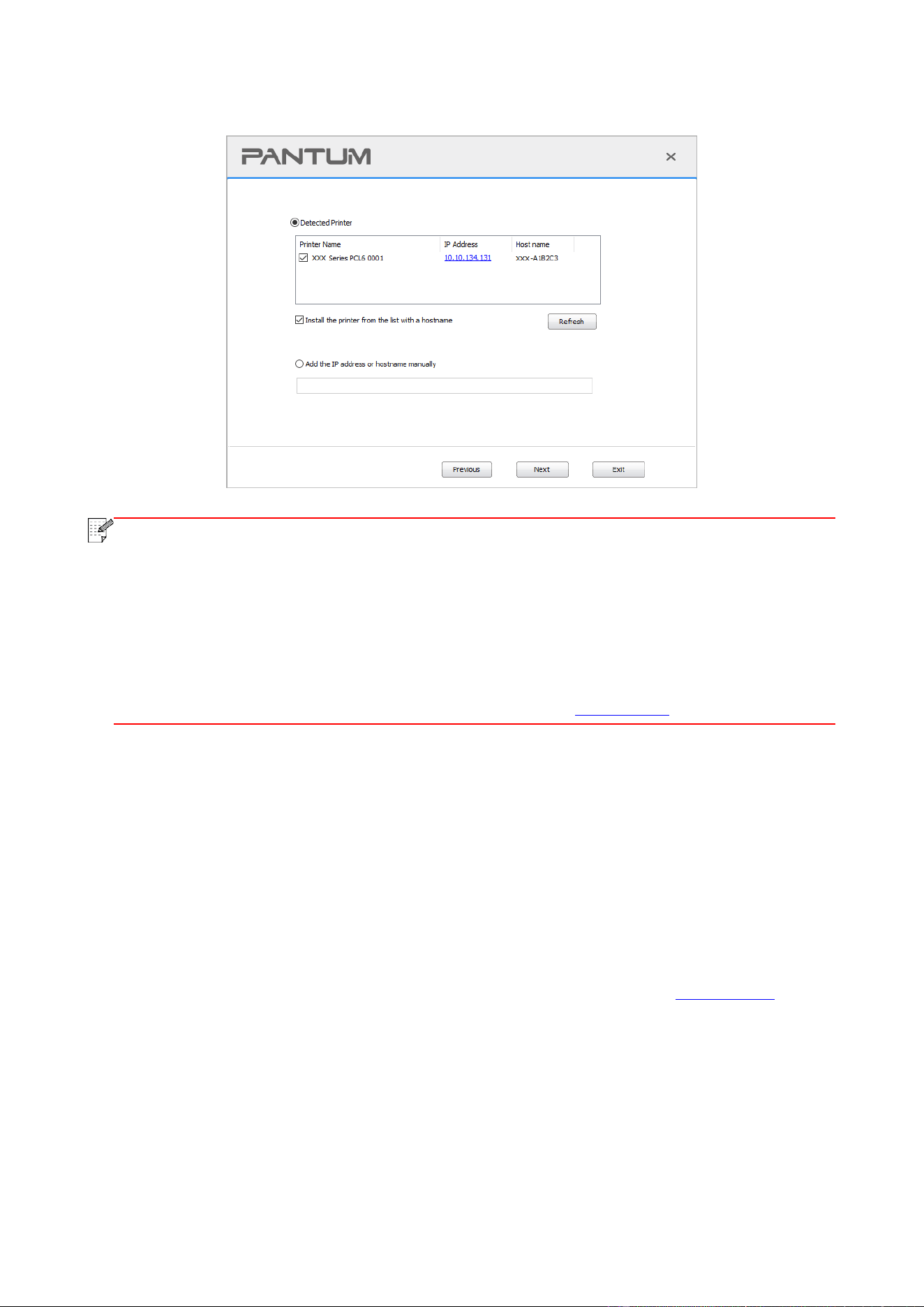
39
10. Select the printer needs to be connected and click “Next”.
Note:
• If the printer you need to connect is not in the list of printers searched, please click
“Refresh” to search again.
• When the printer IP address changes under printer driver installed with host ID, you can
also directly print without re-installing the driver. If you need to install the printer driver
with the host ID, please check the option "Install the printer in the list with host ID".
• If IP address or host name is added manually, you need to know the IP address of the
printer connected or host name. If they are not made clear, please print the “NetConf Pg”
and view “IP Address” and “Host name” (Please refer to Section 12.4).
11. The software installs the driver automatically and the installation process may need some time.
The duration is related to your computer configuration, please wait patiently.
12. After the installation, click "Print &Test Page" button. If your printer prints the test page
successfully, it means that you have installed the driver correctly. (If you need to install the OCR
software under the Windows system, please install it when the computer is connected to the
Internet.)
3.1.2.1.3.2. Installation in Wi-Fi Direct mode
1. Turn the power of printer and computer on.
2. Connect computer to the Wi-Fi Direct network of the printer (please refer to Section 5.2.2 for
setup method).
3. Place the attached installation CD in the computer CD-ROM:
• Windows XP system: automatically run the installation procedure.
• Windows 7/Vista/Server 2008 system: Pop up "Autoplay" interface, click “Setup.exe” to run the
installation procedure.
• Windows 8 system: When the "DVD RW driver" window pops up from the right top corner of
computer desktop, click anywhere in the pop-up window, then click "Setup.exe" to run the
installation procedure.
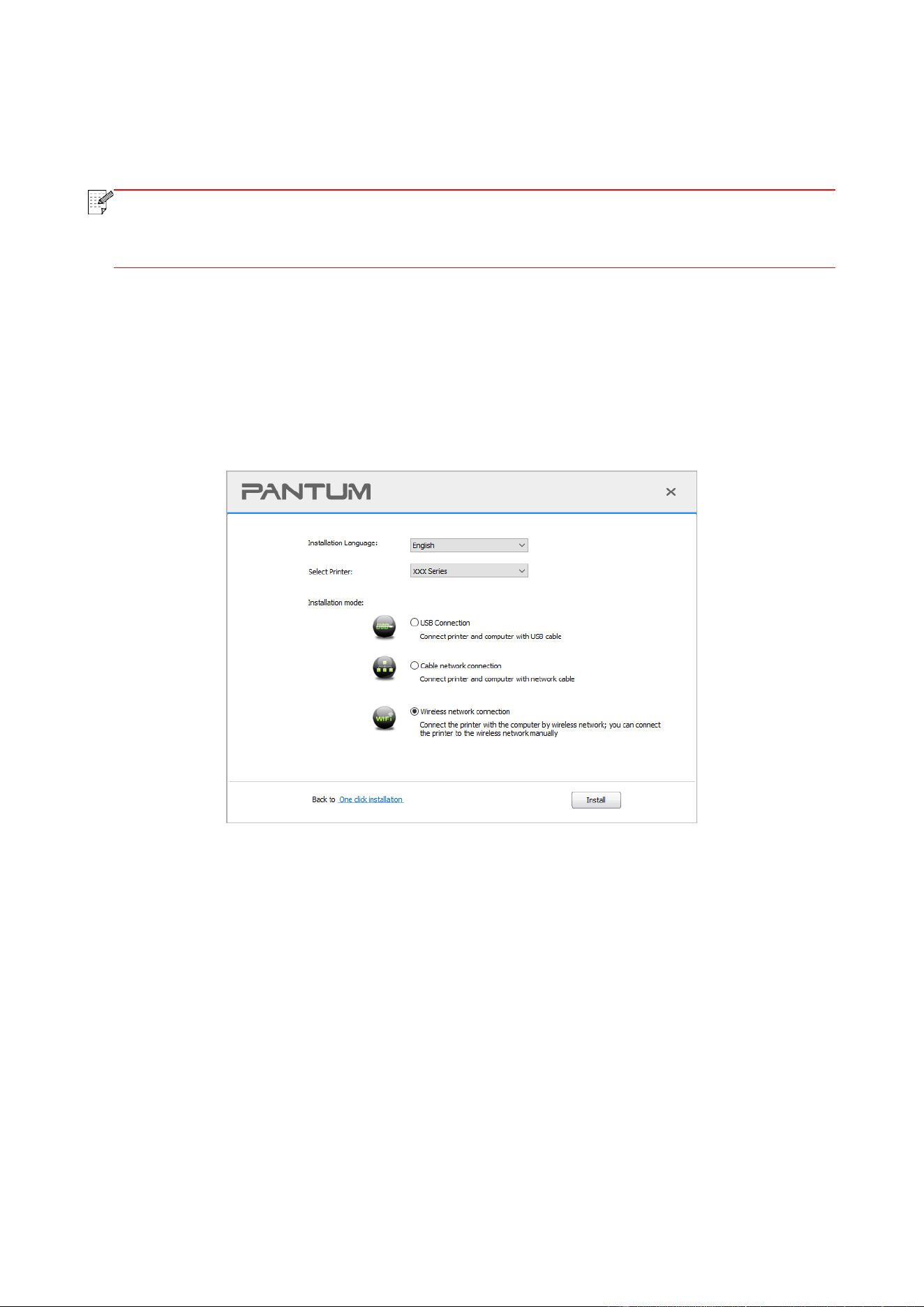
40
• Windows 10/11 system: When the "DVD RW driver" window pops up from the right top corner of
computer desktop, click anywhere in the window, then click "Setup.exe" to run the installation
procedure.
Note:
• Some computers may be unable to auto play the CD beacase of system configuration.
Please double click "Computer" icon, find "DVD RW driver", then double click "DVD RW
driver" to run the installation procedure.
4. Read and agree to the terms contained in the End User License Agreement and the Privacy
Policy, click the “Next” button in the lower right corner of the interface to enter the driver
installation interface.
5. Click on “More setup methods” at the bottom of the setup interface for access.
6. Please select installation language and printer model.
7. Select "Wireless network connection" and click on "Install".
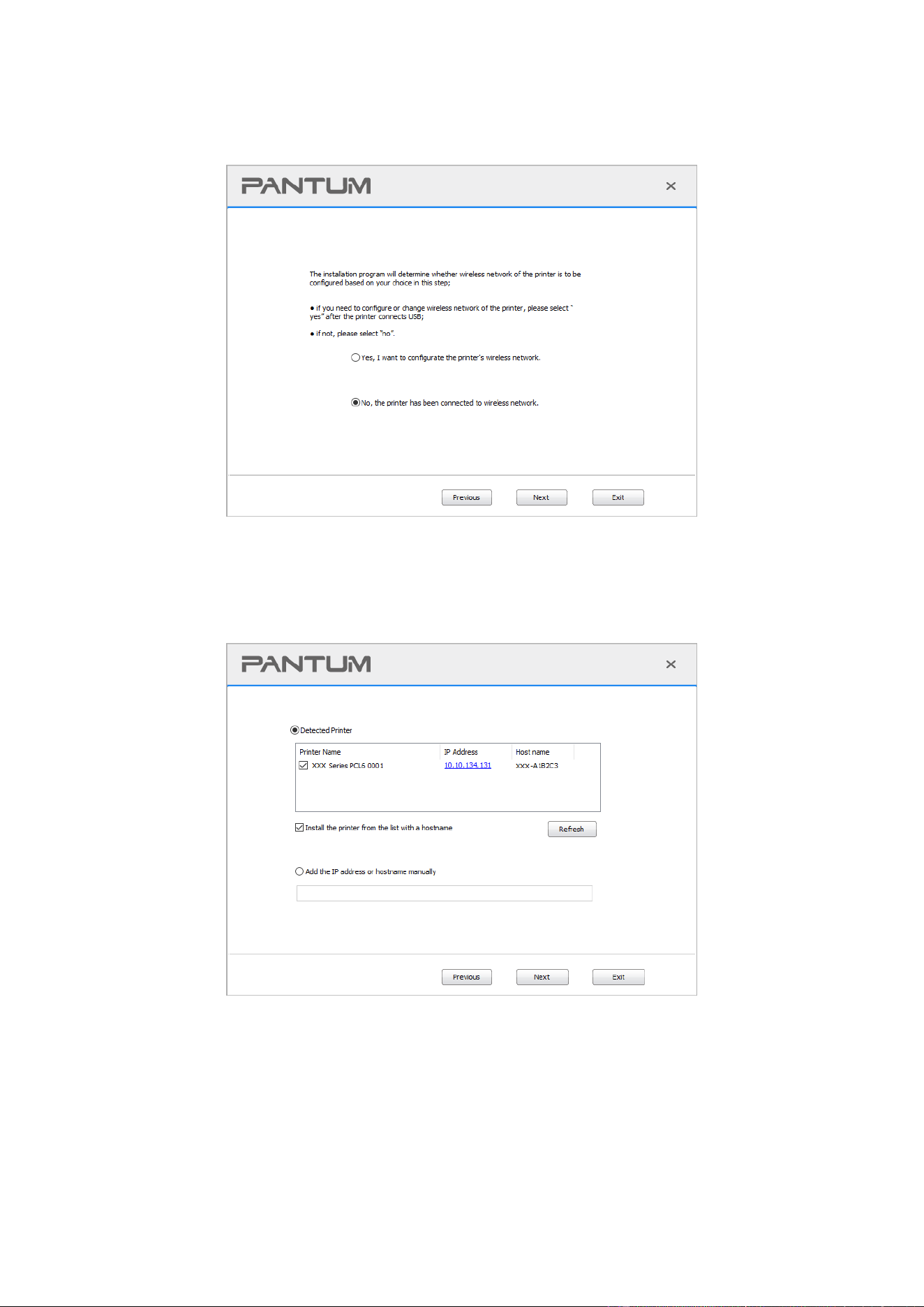
41
8. Select “No, the printer has been connected to wireless network” on the wireless setup window
popping out, and then click “Next”.
9. The installation software will search the printer automatically and the searching process may
need some time.
10. Select the printer needs to be connected and click “Next”.
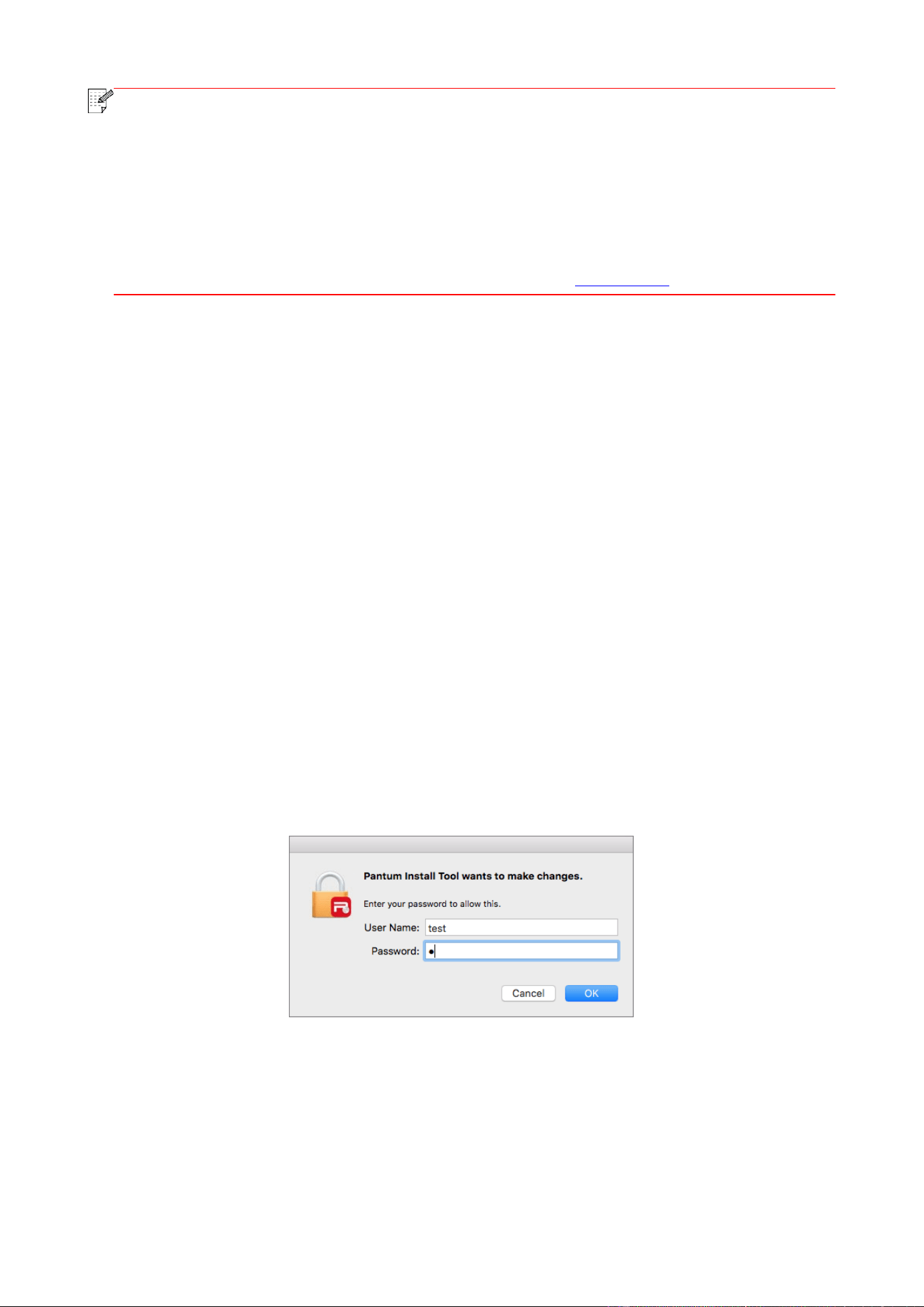
42
Note:
• If the printer you need to connect is not in the list of printers searched, please click
“Refresh” to search again.
• When the printer IP address changes under printer driver installed with host ID, you can
also directly print without re-installing the driver. If you need to install the printer driver
with the host ID, please check the option "Install the printer in the list with host ID".
• If IP address or host name is added manually, you need to know the IP address of the
printer connected or host name. If they are not made clear, please print the “NetConf Pg”
and view “IP Address” and “Host name” (Please refer to Section 12.4).
11. The software installs the driver automatically and the installation process may need some time.
The duration is related to your computer configuration, please wait patiently.
12. After the installation, click "Print &Test Page" button. If your printer prints the test page
successfully, it means that you have installed the driver correctly. (If you need to install the OCR
software under the Windows system, please install it when the computer is connected to the
Internet.)
3.1.2.2. More setup methods for macOS
3.1.2.2.1. Install via USB cable
macOS 10.14 is taken as the example in the following operation. The information on your
computer screen may differ because of multiple operating systems.
1. Turn the power of printer and computer on.
2. Insert the setup CD supplied in the CD-ROM of the PC, and double-click on "Pantum XXX
Series_Mac_Driver" – "Pantum Install Tool". (The XXX in Pantum XXX Series refers to product
model.)
3. Read and agree to the terms contained in the End User License Agreement and the Privacy
Policy, click the “Next” button in the lower right corner of the interface to enter the driver
installation interface.
4. Enter the password of the PC, and click on “OK”.
5. Click on “More setup methods” at the bottom of the setup interface for access.
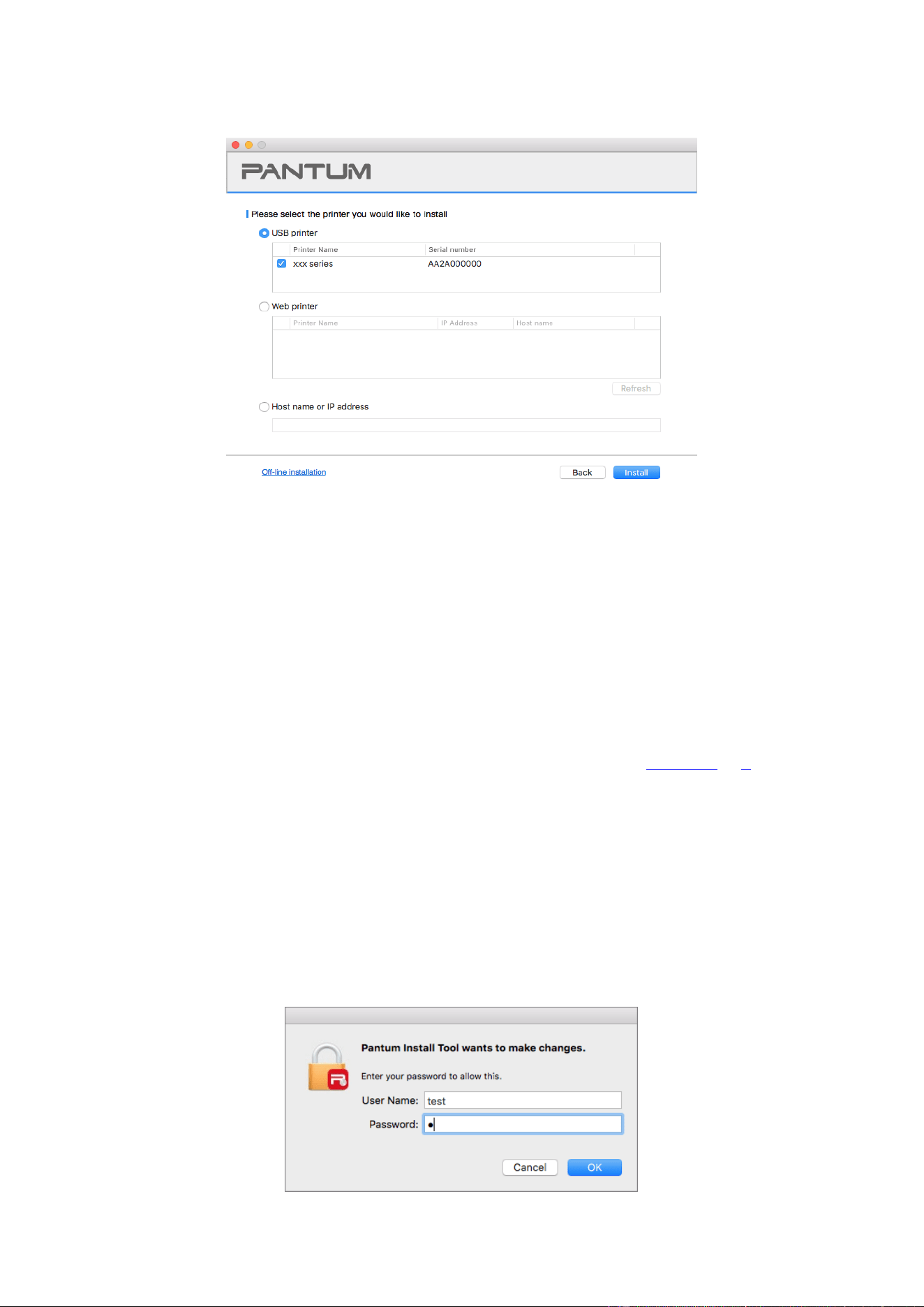
43
6. Select a USB printer from the search results.
7. Click on “Install” on the lower right.
8. The software installs the driver automatically and the installation process may need some time.
The duration is related to your computer configuration, please wait patiently.
9. After the installation, click "Print &Test Page" button. If your printer prints the test page
successfully, it means that you have installed the driver correctly.
3.1.2.2.2. Install as a network printer
1. Turn the power of printer and computer on.
2. Connect the PC to the network.
3. Make sure the printer is connected to the same network as the PC (See Section 4 or 5 to learn
how to configure the network).
4. Insert the setup CD supplied in the CD-ROM of the PC, and double-click on "Pantum XXX
Series_Mac_Driver" – "Pantum Install Tool". (The XXX in Pantum XXX Series refers to product
model.)
5. Read and agree to the terms contained in the End User License Agreement and the Privacy
Policy, click the “Next” button in the lower right corner of the interface to enter the driver
installation interface.
6. Enter the password of the PC, and click on “OK”.
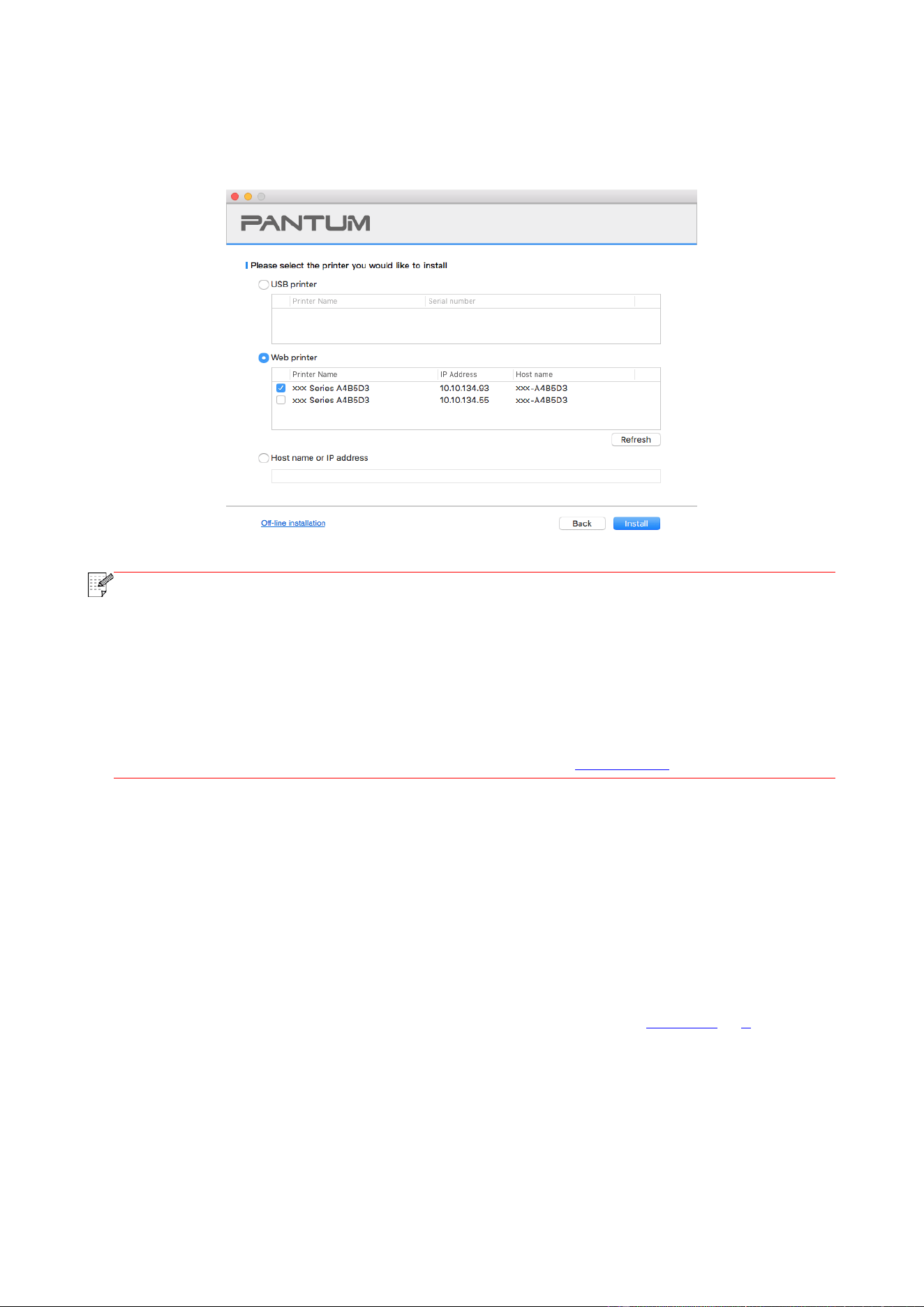
44
7. Click on “More setup methods” at the bottom of the setup interface for access.
8. Select a network printer from the search results.
9. Click on “Install” on the lower right.
Note:
• If the printer you need to connect is not in the list of printers searched, please click
“Refresh” to search again.
• When the printer IP address changes under printer driver installed with host ID, you can
also directly print without re-installing the driver. If you need to install the printer driver
with the host ID, please check the option "Install the printer in the list with host ID".
• If IP address or host name is added manually, you need to know the IP address of the
printer connected or host name. If they are not made clear, please print the “NetConf Pg”
and view “IP Address” and “Host name” (Please refer to Section 12.4).
10. The software installs the driver automatically and the installation process may need some time.
The duration is related to your computer configuration, please wait patiently.
11. After the installation, click "Print &Test Page" button. If your printer prints the test page
successfully, it means that you have installed the driver correctly.
3.1.2.2.3. Install via Host Name or IP Address
1. Turn the power of printer and computer on.
2. Connect the PC to the network.
3. Make sure the printer is connected to the same network as the PC (See Section 4 or 5 to learn
how to configure the network).
4. Insert the setup CD supplied in the CD-ROM of the PC, and double-click on "Pantum XXX
Series_Mac_Driver" – "Pantum Install Tool". (The XXX in Pantum XXX Series refers to product
model.)
5. Read and agree to the terms contained in the End User License Agreement and the Privacy
Policy, click the “Next” button in the lower right corner of the interface to enter the driver
installation interface.
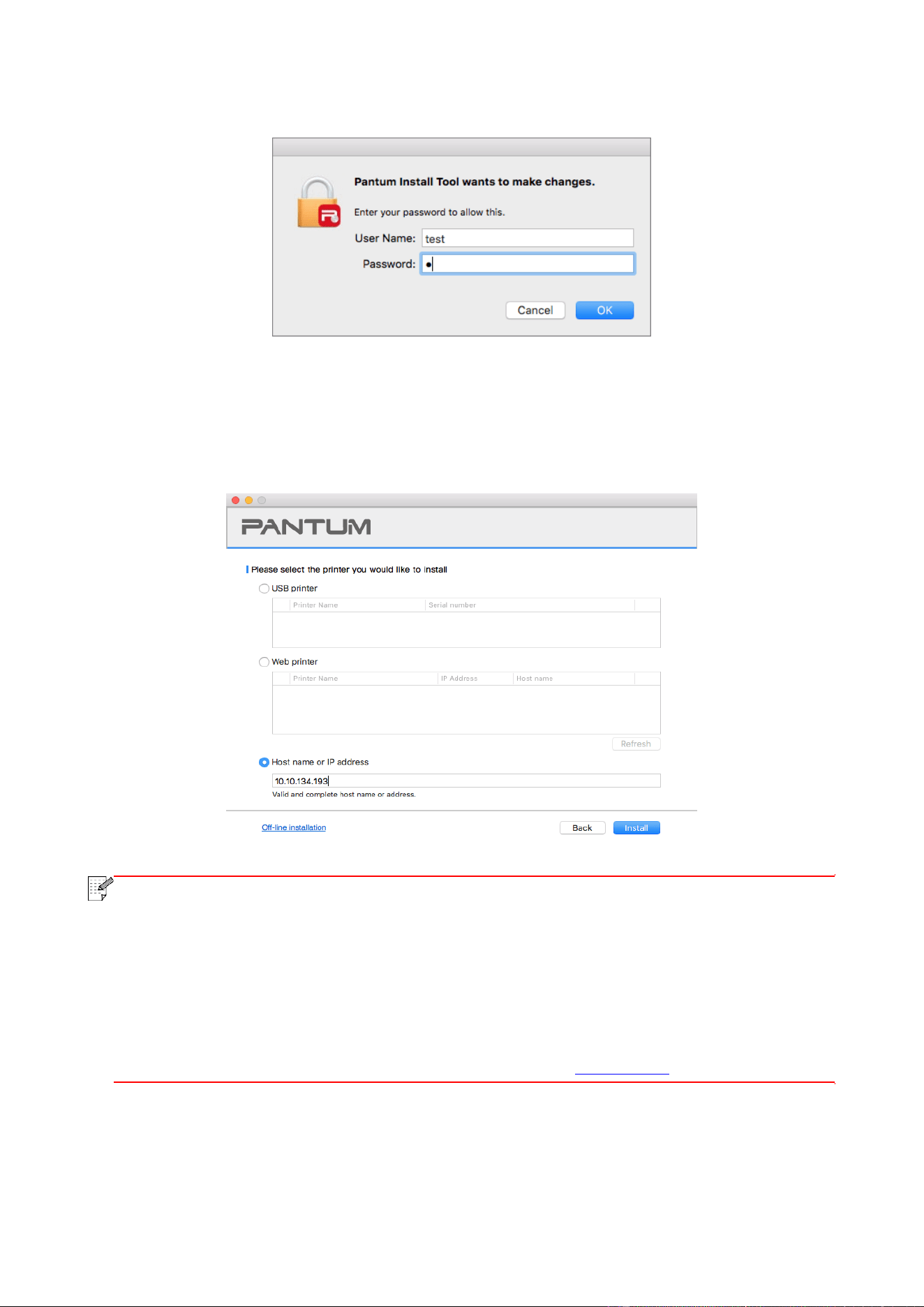
45
6. Enter the password of the PC, and click on “OK”.
7. Click on “More setup methods” at the bottom of the setup interface for access.
8. Select Host Name or IP Address, and enter the Host Name or IP address of the printer you wish
to add.
9. Click on “Install” on the lower right.
Note:
• If the printer you need to connect is not in the list of printers searched, please click
“Refresh” to search again.
• When the printer IP address changes under printer driver installed with host ID, you can
also directly print without re-installing the driver. If you need to install the printer driver
with the host ID, please check the option "Install the printer in the list with host ID".
• If IP address or host name is added manually, you need to know the IP address of the
printer connected or host name. If they are not made clear, please print the “NetConf Pg”
and view “IP Address” and “Host name” (Please refer to Section 12.4).
10. The software installs the driver automatically and the installation process may need some time.
The duration is related to your computer configuration, please wait patiently.
11. After the installation, click "Print &Test Page" button. If your printer prints the test page
successfully, it means that you have installed the driver correctly.
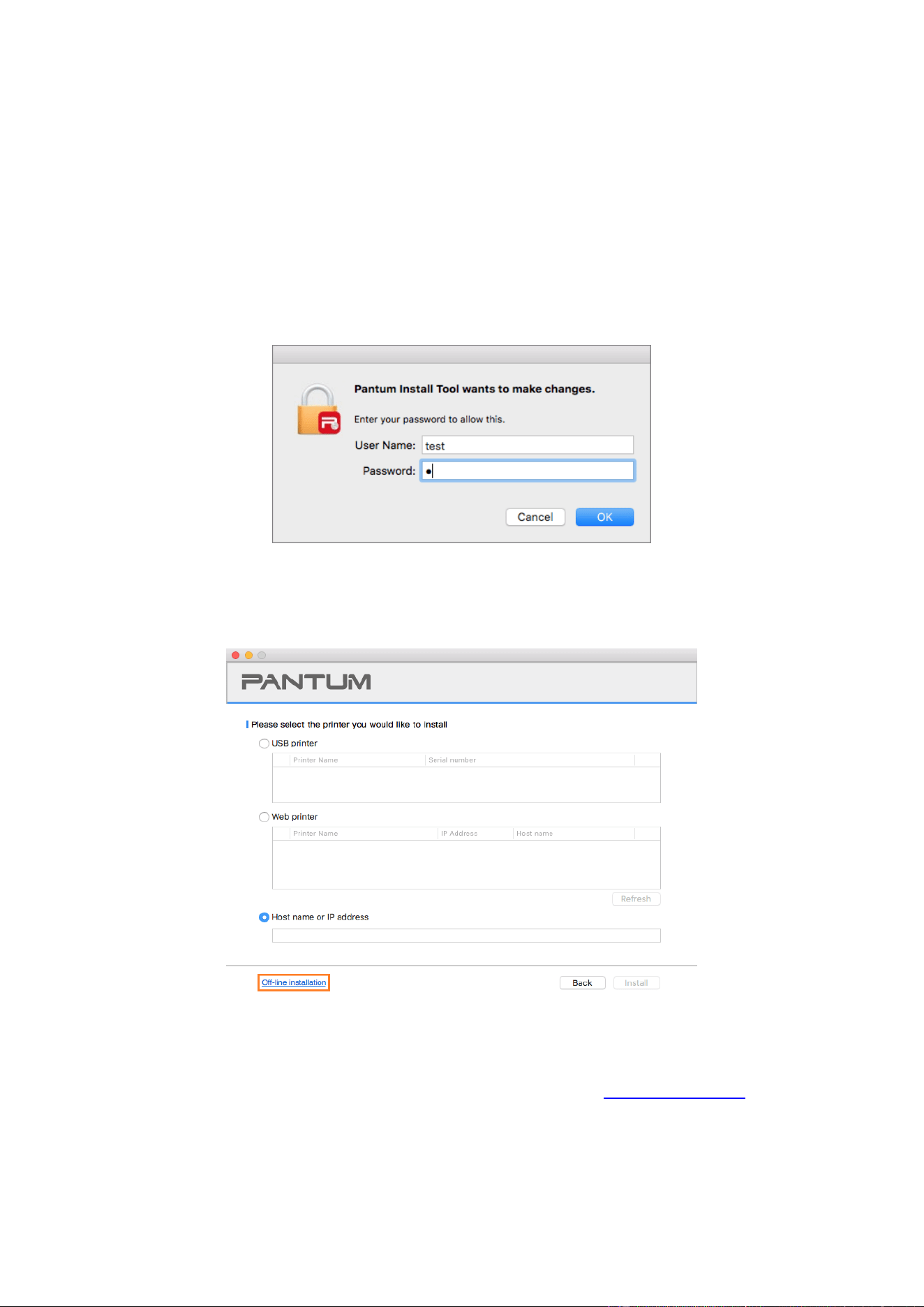
46
3.1.2.2.4. Off-line Install
1. Turn the power of printer and computer on.
2. Insert the setup CD supplied in the CD-ROM of the PC, and double-click on "Pantum XXX
Series_Mac_Driver" – "Pantum Install Tool". (The XXX in Pantum XXX Series refers to product
model.)
3. Read and agree to the terms contained in the End User License Agreement and the Privacy
Policy, click the “Next” button in the lower right corner of the interface to enter the driver
installation interface.
4. Enter the password of the PC, and click on “OK”.
5. Click on “More setup methods” at the bottom of the setup interface for access.
6. Click on "Off-line installation" on the lower left.
7. The software installs the driver automatically and the installation process may need some time.
The duration is related to your computer configuration, please wait patiently.
8. Install complete. Please finish printer adding as guided or refer to Section 3.1.2.2.4.1.

47
3.1.2.2.4.1. Add printer to macOS system
I. Add up the printer via USB
1. Connect the printer to computer with USB cable and then turn power on.
2. Enter the “System Preferences” – “Printers & Scanners” of computer.
3. Click button to select “Add Printer or Scanner”.
4. Select printer and then select the corresponding printer mode from the “Use” menu popping out.
5. Click “Add”.
II. Add up the printer via wireline connection (applicable to wired network models)
1. Turn the power of printer and computer on.
2. Connect the computer to wired network.
3. Connect the network cable to the network interface of printer, and make sure the printer is
connected to the computer network (Please refer to Section 4 for network setup).
4. Enter the “System Preferences” – “Printers & Scanners” of computer.
5. Click button to select “Add Printer or Scanner”.
6. Select printer and then select the corresponding printer mode from the “Use” menu popping out.
7. Click “Add”.
III. Add up the printer via wireless connection (applicable to Wi-Fi models)
1. Turn the power of printer and computer on.
2. Make sure the wireless network connection between computer and printer is set up.
Note:
• In case of basic structure mode, connect wireless network printer to the access point
(wireless router). Please refer to Section 5.1 for connection method.
• In case of Wi-Fi Direct mode, connect wireless client to wireless network printer
directly. Please refer to Section 5.2 for connection methods.
3. Enter the “System Preferences” – “Printers & Scanners” of computer.
4. Click button to select “Add Printer or Scanner”.
5. Select printer and then select the corresponding printer mode from the “Use” menu popping out.
6. Click “Add”.
IV. Add AirPrint printer
1. Turn the power of printer and computer on.
2. Make sure the connection between printer and computer is set up (USB connection or network
connection).
3. Enter the “System Preferences” – “Printers & Scanners” of computer.
4. Click button to select “Add Printer or Scanner”.
5. Select printer and select “Secure AirPrint” (data encryption) or “AirPrint” (no encryption) in the
“Use” option box.
6. Click “Add”.

48
Note:
• When the printer is connected to computer with USB cable, the system will recognize
and add AirPrint automatically.
• If AirPrint printer of network connection is added, then the connecting USB cable
should be disconnected first before adding the printer.
• AirPrint printer is named after the ending of "AirPrint".
3.2. Uninstall Driver
3.2.1. Method to uninstall driver under Windows
Windows 7 is taken as the example in the following operation. The information on your computer
screen may differ because of multiple operating systems.
1. Click the Start menu of computer and then click All programs.
2. Click Pantum, and then Click Pantum XXX Series.
Pantum XXX Series where XXX represents product model.
3. Click uninstall to delete the driver according to instructions on uninstall window.
4. Restart computer after finishing unloading.
3.2.2. Method to uninstall driver under macOS
macOS10.14 is taken as the example in the following operation. The information on your computer
screen may differ because of multiple operating systems.
1. Click "Go" - "Applications" - "Pantum" - "Utilities" - "Pantum Un-install Tool".
2. Delete the driver as instructed in the pop-up Uninstall window.
3. Uninstall complete.

49
4. Wired network setup (applicable to wired network
models)
In case printers support wired network printing, they can be connected to network to control printer
to print in wired network mode.
4.1. Set IP Address
The IP address of the printer may be automatically obtained through DHCP function or set
manually.
4.1.1. Automatic Setting
DHCP automatic setting function is enabled by default on the printer.
1. Connect the printer to the network through a network cable and complete the startup
preparation work.
2. The printer will receive the IP address assigned by server automatically. It may take server
minutes to receive IP address under the influence of network environment.
You can check the IP address of printer by printing "Network setup page" out (please refer to
Chapter 12.4 for printing method) or check network information by viewing the control panel of
printer (please refer to Chapter 12.3 for viewing methods). If the IP address is not listed, please
check network environment and then try again after waiting for several minutes.
Note:
• If DHCP server fails to assign IP address automatically, the printer will get the
link-local address assigned by printer automatically: 169.254.xxx.xxx.
4.1.2. Manual Setting
To set up IP address for printer through the control panel of printer manually, please refer to
Chapter 12.2 for details.
To set up IP address for printer through the embedded Web server manually, please refer to
Chapter 6.2.1 for details.
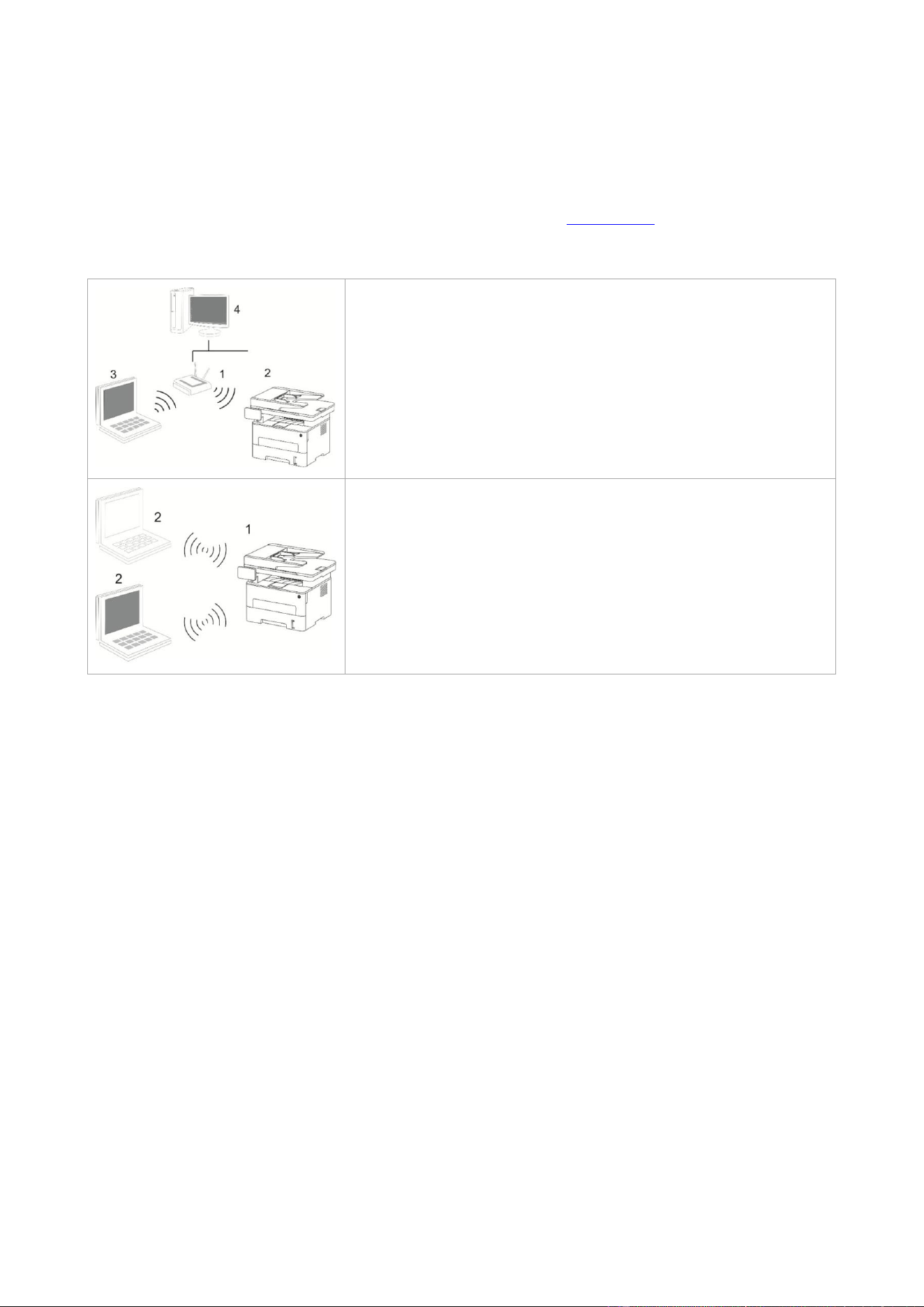
50
5. Wireless network setup (applicable to Wi-Fi
models)
Wireless network connection type is divided into basic structure mode and Wi-Fi Direct mode. If
you have problems with wireless network setup, please refer to Chapter 5.3 Wireless Network
Setup FAQs.
Basic structure mode: connecting to a wireless device via router
1. Access point (wireless router)
2. Wireless network printer
3. Computer connecting to access point via wireless network
4. Computer connecting to access point via network cable
Wi-Fi Direct mode: wireless client is connecting to a printer with
Wi-Fi function
1. Wireless network printer
2. Wireless client is directly connecting to a wireless network
printer
5.1. Basic structure mode
You can connect a computer to your printer via access point (wireless router) as the medium.
Access point (wireless router) connection is divided into wireless network setup and Wi-Fi
Protected Setup (WPS).
Important: Before wireless network installation, you must learn about the service set identifier
(SSID) and password of your access point in order to use them during wireless network setup. If
they cannot be determined, please consult your network administrator or access point (wireless
router) manufacturer.
5.1.1. Wireless network setup tools
If your computer has been installed with a driver and had been connected to wireless network, but
the wireless network was changed, you can set it again with wireless network setup tools.
5.1.1.1. Preliminary preparations
1. Access point (wireless router).
2. A computer that has been connected to network.
3. A printer that has wireless network function.
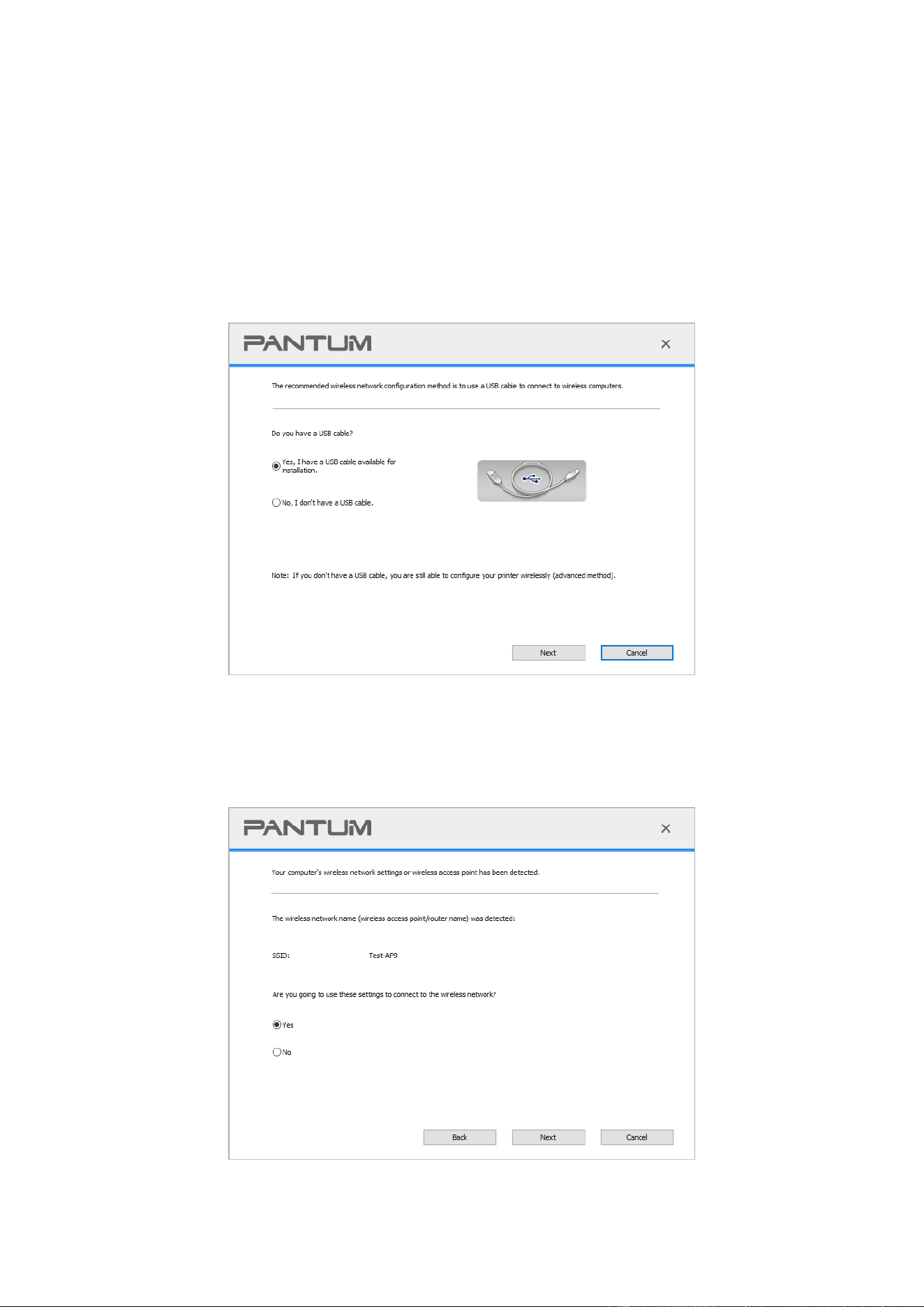
51
5.1.1.2. Setup methods of wireless network setup tools
1. Take the wireless network setup tool in computer.
1) Windows system: Click the “Start menu” – “All programs” - “Pantum”- Product name –
“Wireless network setup tool”.
2) macOS system: Click "Go" - "Applications" - "Pantum" - "Utilities" - "Wireless Network
Configuration Tool" on the computer Finder menu bar.
2. Use USB cable to connect and configure. Select "Yes, I have an USB cable that can be used for
installation" in the following interface. Click "Next".
2.1 The computer has been connected to wireless network.
1) The currently wireless network currently connected to computer is selected as wireless network
configuration tool by default. Complete configuration according to interface prompt.
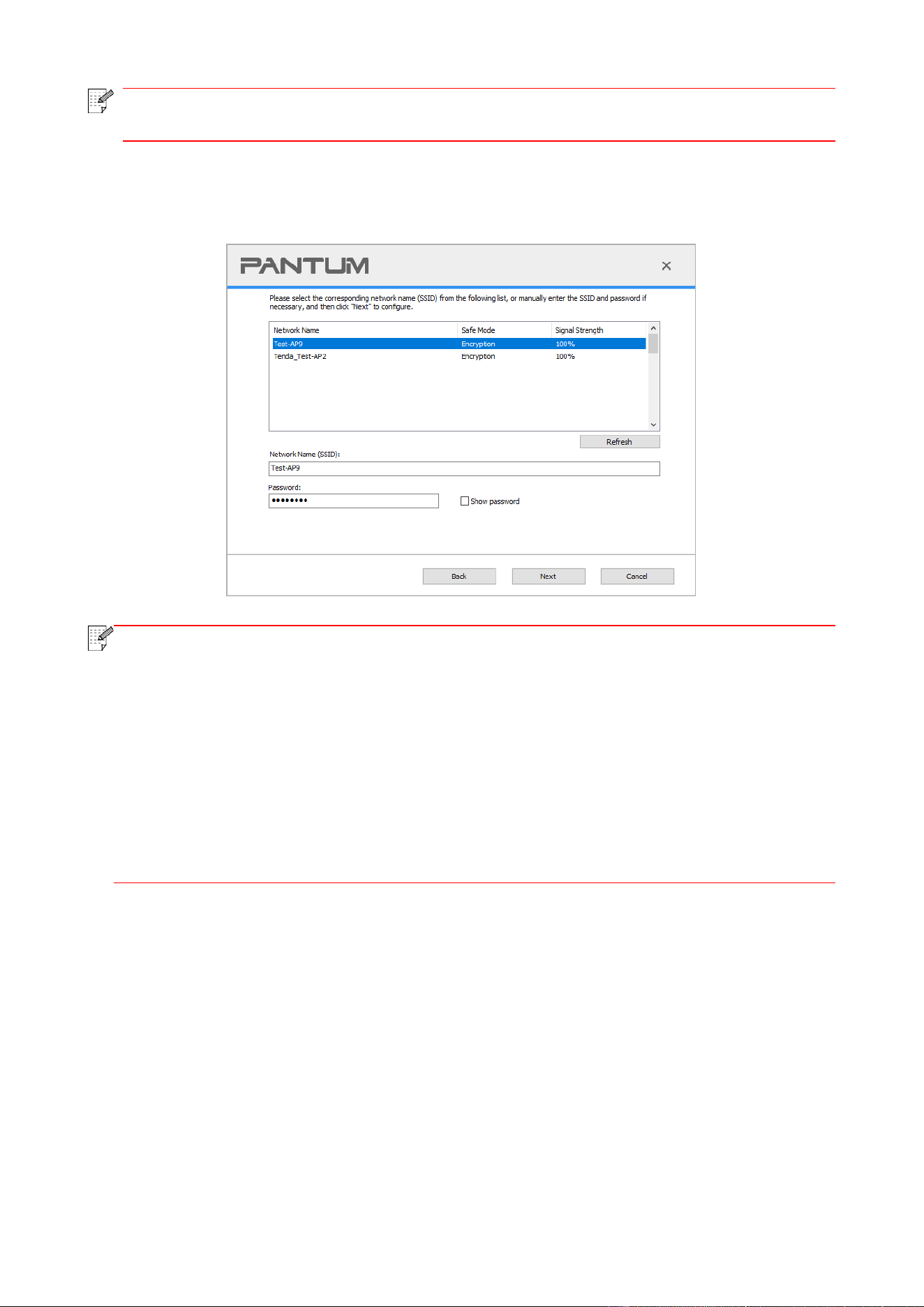
52
Note:
• The SSID you selected should be consistent with the SSID of access point (wireless
router) connected to your computer.
2) Please tick “No” to configure other wireless network needed to connect to. Complete
configuration according to interface prompt.
Note:
• At present, the printer supports 3 types of safe modes: none, WEP and WPA/WPA2.
1) None: There is no encryption method used.
2) WEP: Send and receive data via security key by using WEP (Wired Equivalent Privacy).
WEP key is applicable to 64-digit and 128-digit encrypted network and can contain
numbers and letters at the same time.
3) WPA/WPA2: it is the pre-shared key (PSK) of Wi-Fi protected access which connects
wireless device and access point via TKIP or AES encryption (WPS-Personal). The working
length of WPA/WPA2 is within the PSK of 8-63 characters.
• The display password is not ticked by default; if it is ticked, all passwords input can be
seen in clear text.
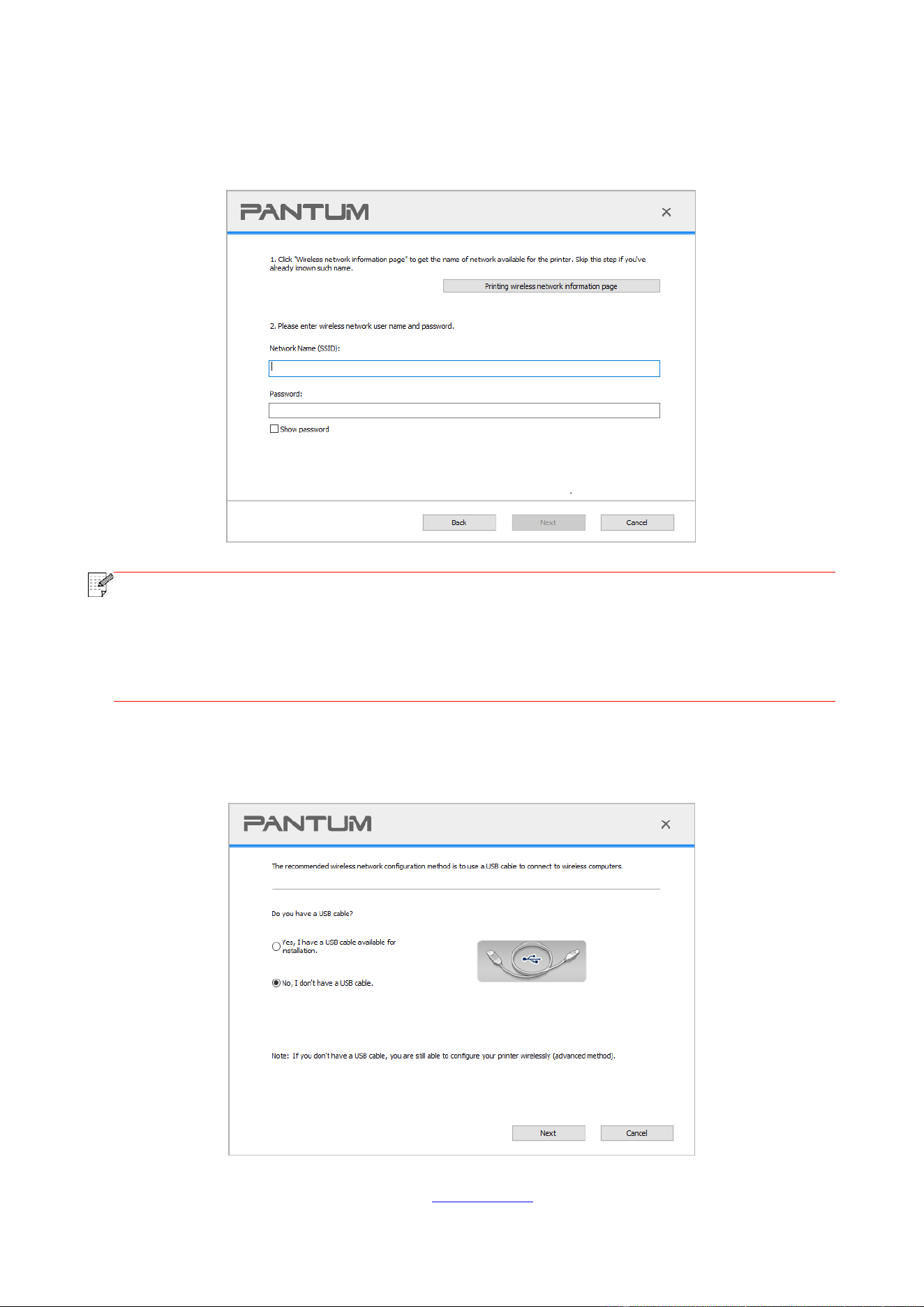
53
2.2 The computer is not connected to wireless network.
Input the SSID (case sensitive) and password of access point (wireless router) in the interface
below. Complete configuration according to interface prompt.
Note:
• If you do not know the SSID of access point (wireless router), please click “Print Wireless
Network Information Page” to view the SSID of the needed access point (wireless router).
• If the printer cannot be used normally after wireless network setup is finished, please
install the drive again. Please select “wireless network connection” as the installation
method.
3. Use WPS connection.
Select “No, I don't have a USB cable” in the interface below and then click “Next”.
Operate as per real interface. (Please refer to Chapter 5.1.2 for detailed WPS configuration.)

54
Note:
• If the printer cannot be used normally after wireless network setup is finished, please
install the drive again. Please select “wireless network connection” as the installation
method.
5.1.2. Wi-Fi Protected Setup (WPS) setup
If access point (wireless router) supports Wi-Fi Protected Setup (WPS), connect printer with
wireless network through “Push button configuration (PBC)” and “Personal identification number
(PIN)”.
5.1.2.1. Preliminary preparations
1. The access point (wireless router) supports Wi-Fi Protected Setup (WPS).
2. A printer that has wireless network function.
5.1.2.2. Use the “Button Configuration (PBC)” method
1. Turn on the power of printer and access point (wireless router).
2. Make sure the printer is in ready state.
3. From printer control panel navigate to: “ ” -Network set-Wireless conf.-PBC mode.
4. Operate according to the prompt in printer screen.
5.1.2.3. Use the “Personal Identification Number (PIN)” method
1. Turn on the power of printer and access point (wireless router).
2. Make sure the printer is in ready state.
3. From printer control panel navigate to: “ ” -Network set-Wireless conf.-PIN mode.
4. Record 8-digit WPS PIN code.
5. Open Web browser, enter IP Add. of access point (wireless router) in Add. field.
6. Access to WPS setting, enter 8-digit PIN code and save.
5.1.3. How to disable the Wi-Fi network connected
1. From printer control panel navigate to: “ ” -Network set-Wireless conf.-Station.
2. Select “Close” button and save.
5.2. Wi-Fi Direct mode
You can connect wireless client (including the computer and mobile device with wireless network
feature) to wireless network printer without using the access point (wireless router).
5.2.1. Preliminary preparations
1. Printer with the Wi-Fi Direct feature.
2. Wireless client (including computer and mobile device with wireless network feature).
5.2.2. Wi-Fi Direct connection
Enable the Wi-Fi direct connection of the printer before Wi-Fi direct connection.
1. From printer control panel navigate to: “ ” -Network set-Wi-Fi dir.
2. Select “Custom” (or “Auto”) button and save.
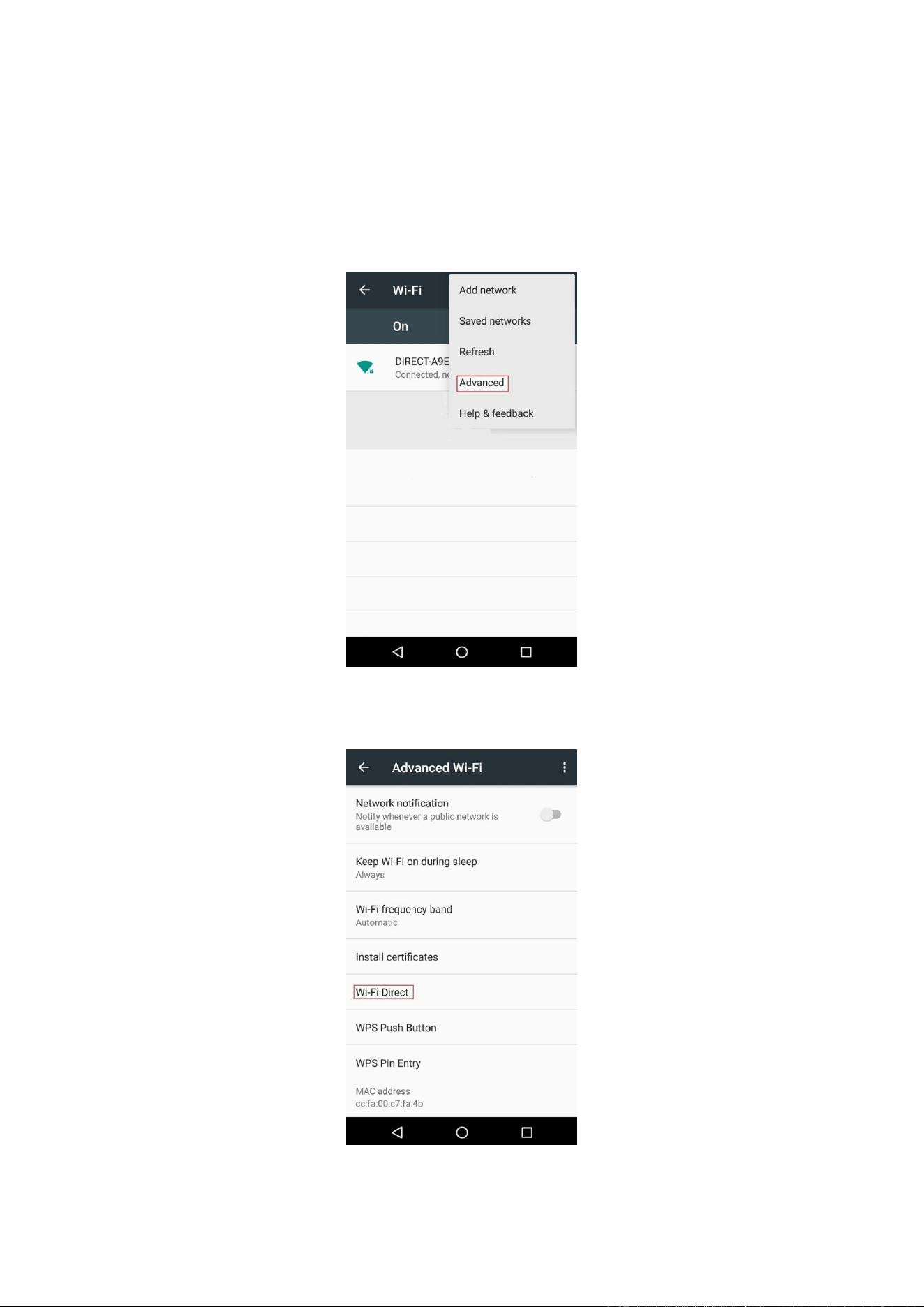
55
5.2.2.1. Connection method of wireless client that supports Wi-Fi Direct feature (direct
invitation to connect)
You must use mobile devices that support Wi-Fi Direct function for Wi-Fi Direct connection. The
operating steps may differ because of the mobile device you are using.
1. Turn on printer power.
2. Turn on the mobile device and select setup to enter Wi-Fi connection interface.
3. Select “Advanced” and then select “Wi-Fi Direct” in advanced WLAN interface.
4. Select printer SSID on direct interface to launch a connection invitation.

56
5. When the panel inquires if connect or not, click “OK” button for confirmation and Wi-Fi Direct.
Note:
• In case of auto connection mode, the mobile device will start to connect automatically
after initiating connection invitation without panel confirmation.
5.2.2.2. Connection method of wireless client that does not support Wi-Fi Direct function
(input password to connect)
1. Turn on printer power.
2. From printer control panel navigate to: “ ”-Network info-WiFi dir. info to check “Network
name” and “Password”
3. Turn on the computer or mobile device with wireless network function; select the SSID of Wi-Fi
Direct and input password to connect.
Note:
• Initial password of printer for Wi-Fi Direct: 12345678.
5.2.3. How to disable the Wi-Fi Direct
1. From printer control panel navigate to: “ ”-Network settings-Wi-Fi dir.
2. Select “Turn off” button and save.
5.3 Wireless network setup FAQs
1. The printer is not found
• If the power of computer, access point (wireless router) or printer is turned on.
• If the computer is connected to printer with USB cable.
• If the printer supports wireless network connection.
2. SSID cannot be found when network is connected
• Inspect if the power switch of access point (wireless router) is turned on.
• The printer cannot find the SSID of the access point (wireless router) you need to connect, please
check the SSID of access point and try to connect again.
• Every time when the setup of access point (wireless router) is changed, you must set up the
wireless network of printer again.
3. Connection failure
• Please inspect if the safe mode and password of access point (wireless router) and printer is
correct.
• Inspect the wireless receiving around printer. Signal receiving may be affected if the router is
away from the printer or there is an obstacle between them.
• Turn the power of access point (wireless router) and printer off and then restart them and set up.
4. The following aspects should be inspected if the printer has problems while they are used in
network:
• Inspect if the firewall software blocks communication. If the computer and printer are connected
in the same network but they cannot be searched, the communication might be blocked by firewall
software. Please refer to the user guide of firewall software to turn firewall off and then try to

57
search the printer again.
• Inspect if the IP address assignment of printer is correct. You can inspect IP address by printing
the network setup information page of printer out.
• Please refer to the following steps to check if printer and computer are in the same network:
1) Select "Command prompt" as shown below.
a. Windows 8/10 system:Select "Search" button in the Start Menu and input "Command
prompt"in search bar,then press the "Enter”button in the keyboard.
b. Windows 7/XP system:click "Start" menu-"All procedures"-"Attachment"-"Command prompt ".
2) Input ping and your printer IP address in popup window, and press "Enter" button.
For example: ping XXX.XXX.XXX.XXX (“XXX.XXX.XXX.XXX” is printer IP address)
3) If RTT is indicated in the window, that is to say your printer and computer are in the same
network.If RTT is not indicated in the window, please refer to Chapter 5 to re-configure the printer
wireless network.
Note:
• Please refer to the user guide or consult the manufacturer for information related to
access point (wireless router).

58
6. Web server
You can manage printer setup via the embedded Web server.
6.1. Visit the embedded Web server
1. Turn on the power of printer and computer.
2. Connect the printer to network to ensure that the printer is connected to the network where the
computer is connected to (please refer to Chapter 4 or Chapter 5 for network setup method).
3. Input the IP address of printer in the address bar of Web browser to visit the Web server
imbedded in printer.
View the IP address of printer via control panel (please refer to Chapter 12.3) or print the “NetConf
Pg” out to view the IP Address of printer (please refer to Chapter 12.4).
Note:
• Windows users are suggested to use Microsoft Internet Explorer 8.0 (or higher version)
or Firefox 1.0 (or higher version), Mac users are suggested to use Safari 4.0 (or higher
version). No matter what kind of browser you are suing, please ensure that JavaScript and
Cookies are always enabled. Please ensure compatibility with HTTP 1.0 and HTTP 1.1
when other network browsers are used.
• If the computer cannot visit the Web server embedded in printer, then your computer and
printer may be connected to different networks. Please inspect your network environment
or consult your network administrator.
4. Click “Log in” option, input user name and password (the default user name is admin and the
initial password is 000000) and click “Log in”.
Note:
• For safety reasons, you are suggested to change the default password, which can be
finished in the “User Management” interface.
6.2. Use Web server to manage printer
You can use the embedded Web server to manage printer.
1. View the basic information including product name, printer state and ink cartridge of printer.
2. Set up the network protocol parameters supported by printer.
3. Set up the wireless network connection of printer, and turn on/off wireless network and Wi-Fi
Direct function.
4. Set up mail server client and acquire printer state via E-mail notification.
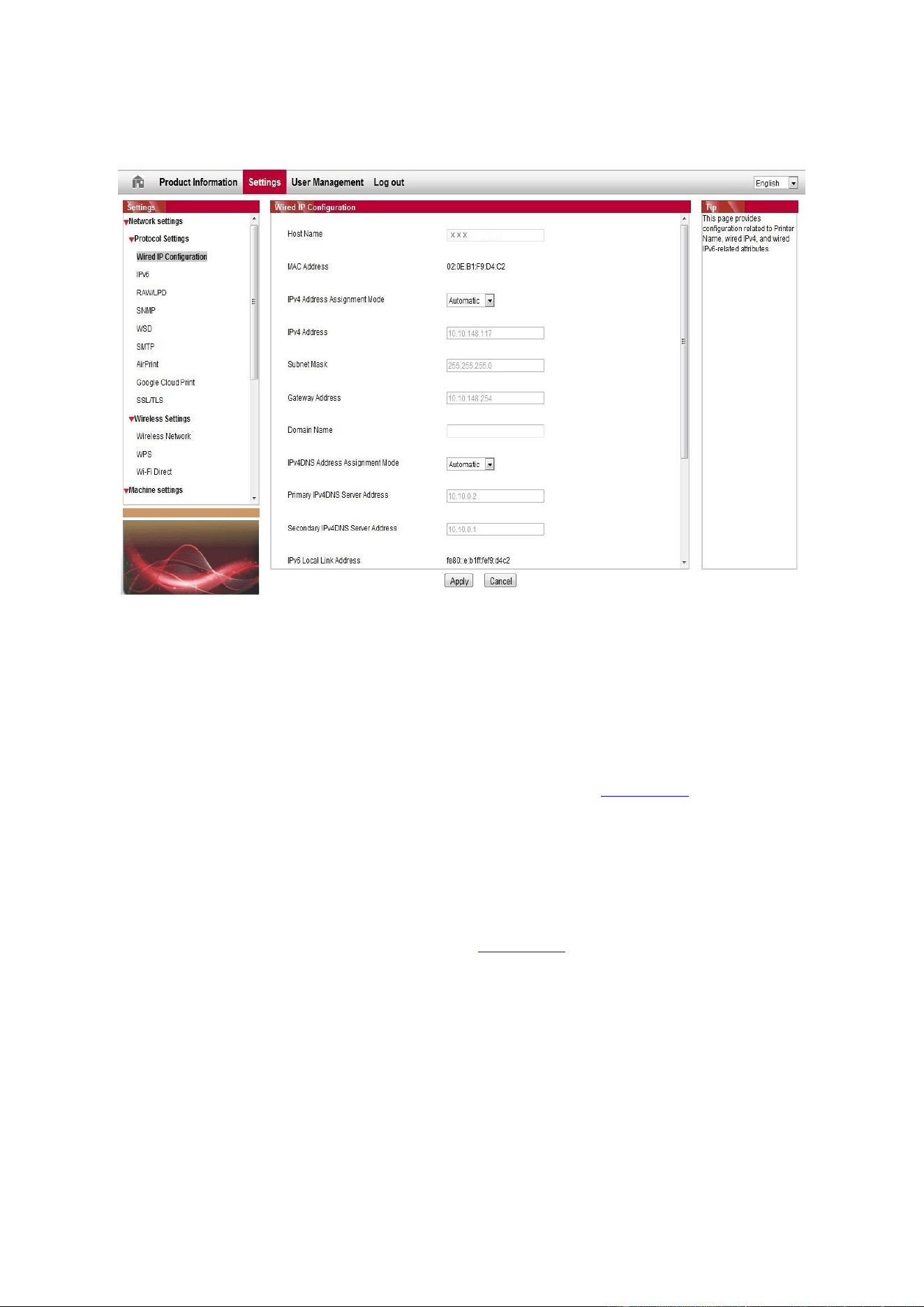
59
5. It supports to configure e-mail address and FTP address to scan the file to be scanned directly
to E-mail box or FTP server.
6.2.1. IP address setup
You need to connect your printer to network before IP address setup.
1. In case of wired network model, connect the printer to wired network by connecting to its
network interface with network cable.
2. In case of wireless network model, the printer can be connected to wireless network via wireless
network setup tools or Wi-Fi Protected Setup (WPS) (please refer to Chapter 5.1).
6.2.1.1. IPv4 setup
IPv4 address of the printer is divided into DHCP auto assignment and manual setting, and the
DHCP auto assignment function is on by default. You can set up the IPv4 address of printer
manually to set up fixed IPv4 address for the printer.
1. Turn on printer power to connect printer to network.
2. Log in the embedded Web server (please refer to Chapter 6.1 for login method).
3. Click “Settings” – “Network settings” – “Protocol Settings” – “Wired IP Configuration”.
4. Set the IPv4 address assignment mode as “Manual”.
5. Input “IPv4 Address”, “Subnet Mask” and “Gateway Address”, and then click “Apply”.

60
6.2.1.2. IPv6 setup
1. Turn on printer power to connect printer to network.
2. Log in the embedded Web server (please refer to Chapter 6.1 for login method).
3. Click “Settings” – “Network settings” – “Protocol Settings” – “IPv6”.
4. Tick “Enable IPv6 protocol” and “Enable DHCPv6” (ticked by default) and then click “Apply”.
You can refresh the browser and view the “IPv6 Local Link Address” and “Stateful Address” in
“Wired IP Configuration” interface.
Note:
• The printer supports using the following IPv6 addresses for network printing and
management (please refer to Chapter 12.4 and print “NetConf Pg” view IPv6 address).
• IPv6 local-link address: local IPv6 address set up by oneself (addresses beginning with
FE80).
• Stateful address: IPv6 address set up by DHCPv6 server (if there is no DHCPv6 server in
network, the “Stateful Address” cannot be assigned).
• Stateless address: IPv6 address set up by network router automatically.
6.2.2. Wireless setup
You can set up the wireless network, wireless IP setup, Wi-Fi Direct and WPS via wireless setup
page. Before setup, please log in the embedded Web server (please refer to Chapter 6.1 for login
method).
6.2.2.1. Wireless network
Wireless network setup consists of “Basic Status of Wireless Network”, “Wireless Frequency
Setting”, “Search for Hotspot” and “Authentication”.
1. Click “Settings” – “Network settings” – “Wireless setup” – “Wireless Network”.
1) The wireless network is defaulted on; please select “Off” option box and then click “Apply” if it
needs to be turned off.
2) If you need to set up wireless network, please click the SSID of access point (wireless router) in
search list, input secret key and click “Apply”.
6.2.2.2. Wireless IP setup
Only when the wireless network of printer is turned on, the Wireless IP Configuration can be
displayed on Web server.
1. Click “Settings” – “Network settings” – “Wireless setup” – “Wireless IP Configuration”.
1) DHCPv4 is ticked by default. If IP address needs to be set up manually, please cancel the
DHCPv4 checkbox ticked and input the “IPv4 Address”, “Subnet Mask” and “Gateway Address” that
you need to set up and then click “Apply”.
6.2.2.3. WPS setup
1. Click “Settings” – “Network settings” – “Wireless setup” – “WPS”.
1) Select the “WPS Startup Method” you need, and then click “Apply” and operate according to
page prompt.

61
6.2.2.4. Wi-Fi Direct setup
1. Click “Settings” – “Network settings” – “Wireless setup” – “Wi-Fi Direct”.
1) The Wi-Fi Direct defaults to be disabled; to enable it, please select the connection method "Auto"
or "Manual" and then click "Apply".
Note:
• If Auto selected, the mobile terminal will realize automatic connection upon initiating the
connection invitation without the need of confirmation on panel.
• If Manual selected, the mobile terminal cannot realize connection until initiating the
connection invitation prior to confirmation on panel.
6.2.3. Machine setup
You can add mail address contacts, set up e-mail notification, set up sleep time and recover
factory settings via machine setup page.
6.2.3.1. Set up e-mail notification
If you set up e-mail notification, an e-mail will be sent to the mail address specified by you when
abnormality such as paper out occurs. You can receive emails only if you made correct email setup.
Please consult your network administrator for detailed setup steps. You need to log in the
embedded Web server before setting up email notification (please refer to Chapter 6.1 for login
method).
I. Set up SMTP client
1. Click “Settings” – “Network settings” – “Protocol Settings” – “SMTP”.
2. On SMTP page, input SMTP server address, set up the mailbox login name and password and
then click “Apply”.
II. Add recipient address
1. Click “Settings” – “Machine settings” – “Address Book” .
2. Click “Add”, input recipient address and then click “Apply”.
III. Set up email notification
1. Click “Settings” – “Machine settings” – “E-mail Notification”.
2. Click button and select the email addresses you want to add in the list of contacts popping
out.
You can also tick “address X” (such as address 1) and input the email addresses you want to add.
3. Tick the email addresses and notification contents you want to notify and then click “Apply”.
6.2.3.2. Configure the E-mail address book
If you want to scan a file to an e-mail address, you need to configure the e-mail address book first
and then scan the file to the assigned e-mail address.The e-mail will not be received before proper
setting on the e-mail box; for specific setting steps, please consult your network administrator.
I. Set the E-mail address book
1. Log in the embedded Web server (please refer to Chapter 6.1 for login method).
2. Click "Settings", "Machine Settings" and then "E-mail Address Book" to enter the setting interface
of e-mail address book.
3. Click "Create" to pop out a window as below and edit the contact name and input the e-mail
address, and then click "Apply".
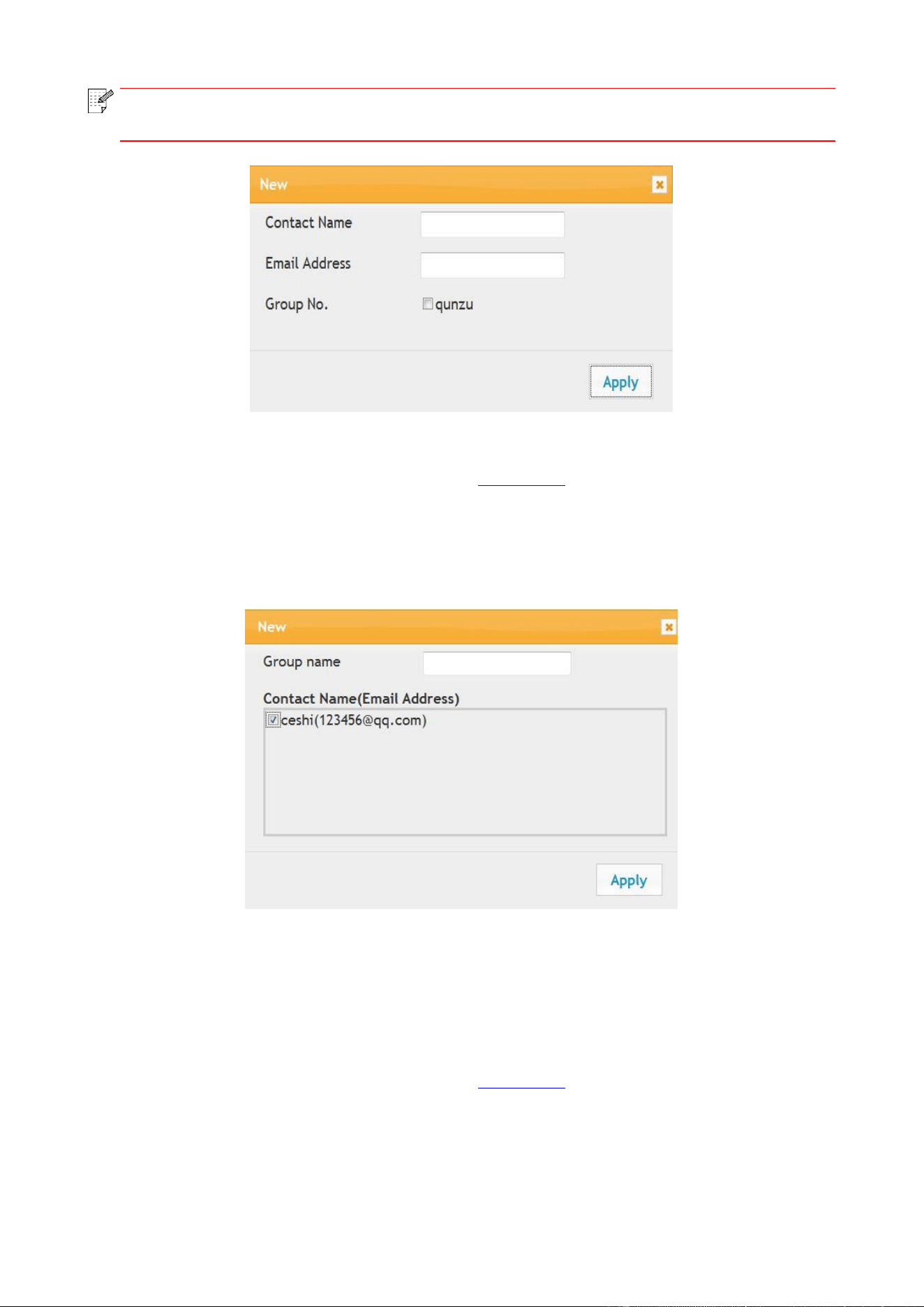
62
Note:
• If some groups have been created, you may click to check a corresponding group to
add the newly created e-mail address into it.
II. Set the e-mail group
1. Log in the embedded Web server (please refer to Chapter 6.1 for login method).
2. Click “Settings”, “Machine Settings” and then “E-mail Group” to enter the setting interface of
e-mail group.
3. Click “Create” to pop out a window as below and edit the group name and check the e-mail address
to be added in the contact name (e-mail address) listbox, and then click "Apply".
6.2.3.3. Configure the FTP address book
If you want to scan a file to the FTP server, you need to configure the FTP address book first.When
scanning, you may send the image scanned to the FTP server.Before configuring the FTP address
book, you may need to ask your network administrator for the server IP address, port number, login
name, password and server name.
1. Log in the embedded Web server (please refer to Chapter 6.1 for login method).
2. Click "Settings", "Machine Settings" and then "FTP Address Book" to enter the setting interface of
FTP address book.
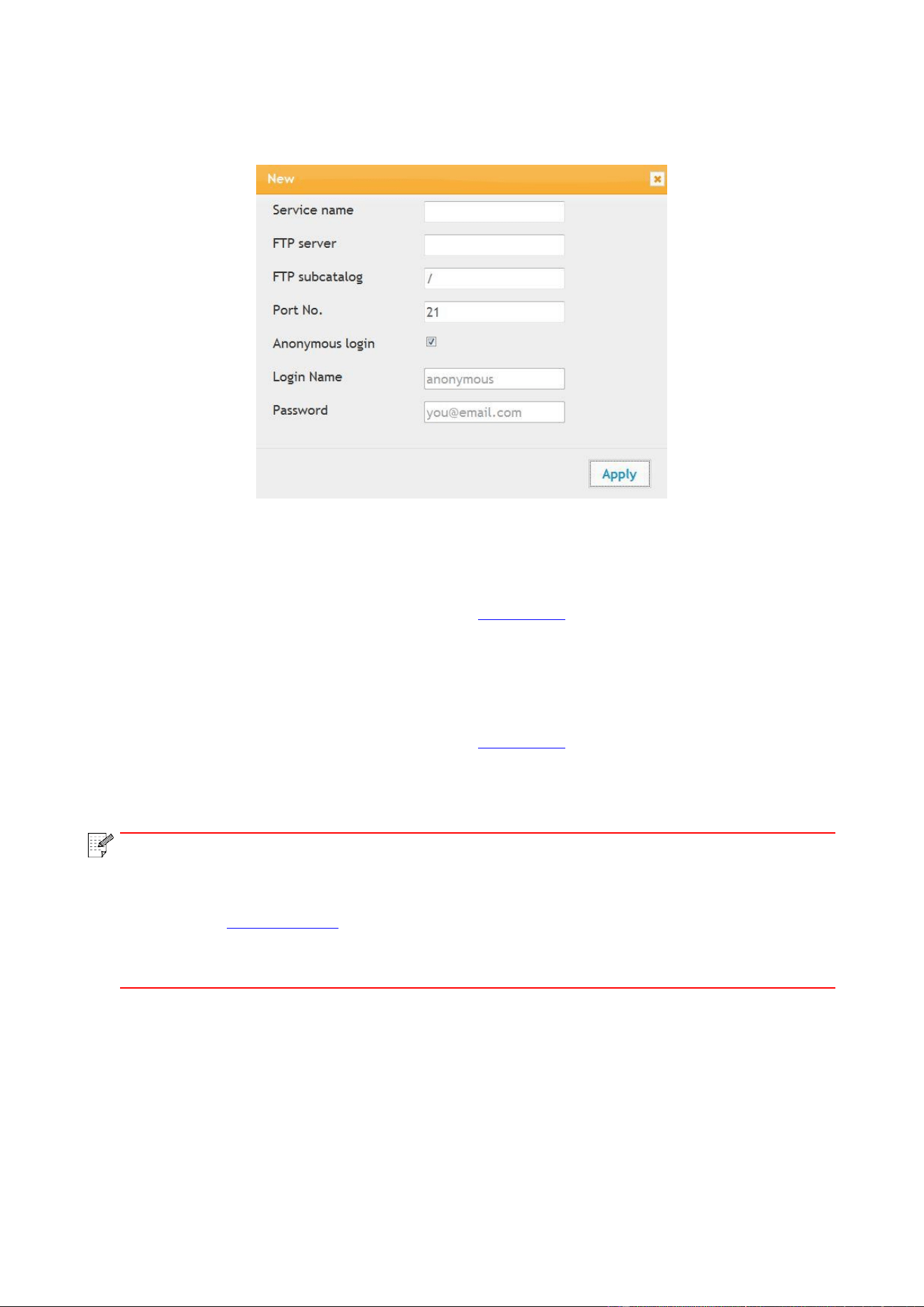
63
3. Click "Create" to pop out a window as below and set relevant parameters; after settings
completed, and then click "Apply".
6.2.3.4. Sleep time setup
The default sleep time of printer is 5 min and if you want to change it, you can set up via the
embedded Web server (the printer installed via network connection).
1. Log in the embedded Web server (please refer to Chapter 6.1 for login method).
2. Click “Settings” – “Machine settings” – “System”.
3. Select sleep time according to you need and then click “Apply”.
6.2.4. Recover factory settings via Web server
1. Log in the embedded Web server (please refer to Chapter 6.1 for login method).
2. Click "User Management" and input the correct “User name” and “Password”; then, click “Restore
to Factory Settings”. After completion, the printer will reboot automatically.
Note:
• After factory settings of printer are recovered, user name of the administrator will be
recovered to admin and the login password will be recovered to 000000.
• You can also recover factory settings via keys on the control panel of printer, please
refer to Chapter 12.1.3.
• If factory settings of your printer are recovered, the sleep time will be recovered to
5min automatically.

64
7. Print
7.1. Print Function
You can set the print function through "Start"-"Devices and Printers"- select corresponding printer-
right click – set print function in "Printing preferences". Some functions are as follows:
Functions
Diagram
Automatic Two-Sided Printing
Collate Print
Reverse Print
N-in-1
Poster Print
(for Windows Operation System only)
Zoom Print
Custom Size
Note:
• Windows 7 is taken as example in the above description.
• You can realize poster printing feature by selecting 2x2 poster printing in multipage.
• You can enable printing preference and click the help button to view detailed function
description. Please refer to Chapter 7.2.5 for the method to open help document.

65
7.2. Print Settings
7.2.1. Print parameter settings
You can set up printing parameters with the following two methods before sending printing work
(such as paper type, paper size and paper source).
Operating
system
Temporary printing setup change
Permanent default setup change
Windows 7
1. Click “File” menu – “Print” – “Select
printer" - “Printer properties” (the
detailed steps may differ because of
multiple operating systems).
1. Click “Start” menu- “Control Panel” –
“Devices and Printers”.
2. Right click on the printer icon, select
“Printing preference” and then change setup
and save it.
macOS
1. Click “File” menu – “Print”.
2. Change setup in the window popping
out.
1. Click “File” menu – “Print”.
2. Change setup in the window popping out
and click to save the preset. (Select preset
every time before printing, or print according to
default setup.)
Note:
• Priority of App setup is senior to printer setup.
7.2.2. Automatic Two-Sided Printing
The printer supports automatic two-sided printing of plain paper. Paper size supported by the
automatic two-sided printing: A4, Letter, Legal, Oficio, Folio, 16K.
Note:
• Trying the automatic two-sided printing may damage the printer if some paper media are
not suitable for automatic two-sided printing.
• Auto duplex printing does not support poster printing.
• Please refer to Chapter 2 for paper loading and type of mediums that can be printed via
auto feed tray.
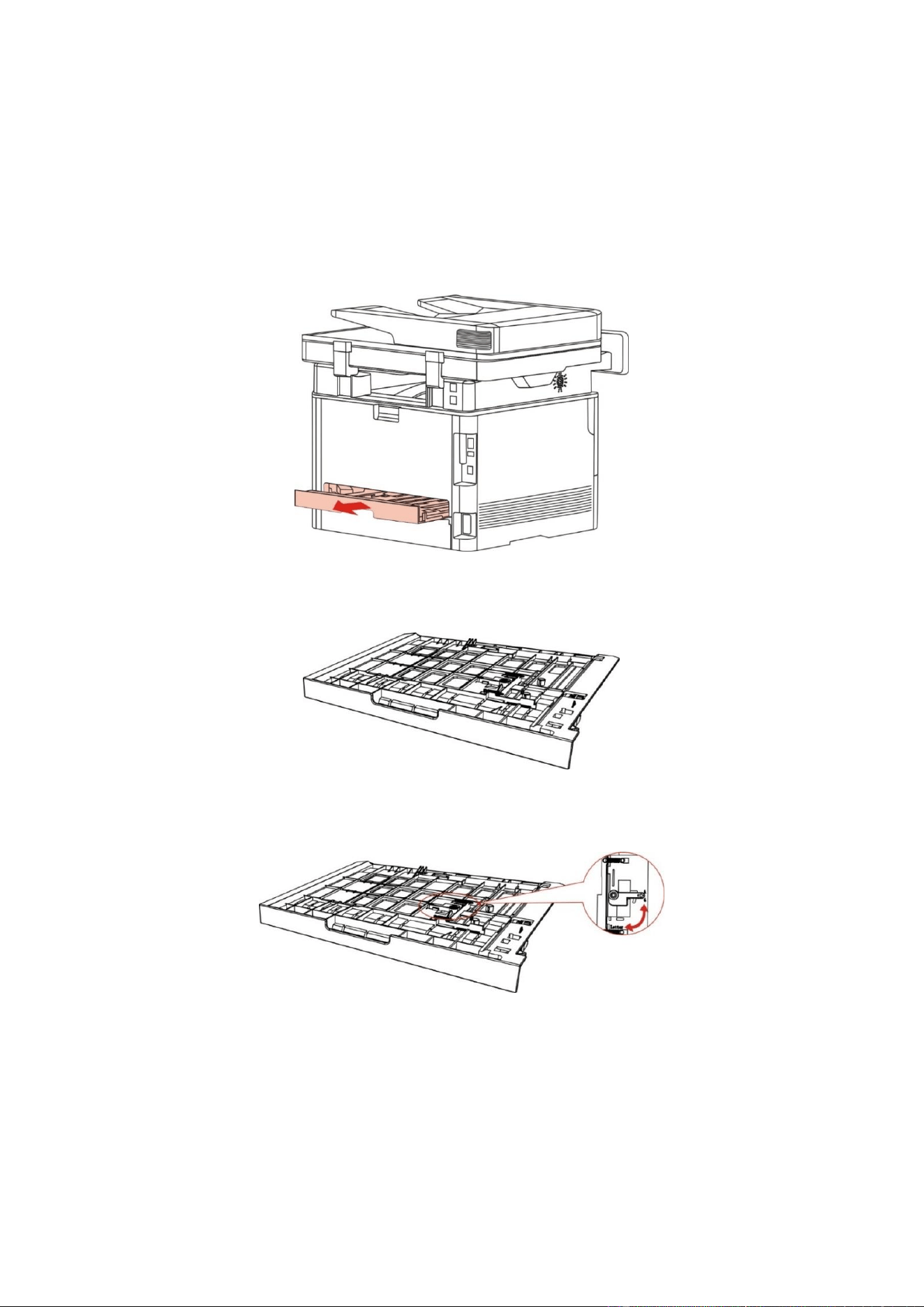
66
7.2.2.1. Duplex printing unit setup
For the purpose of achieving the best printing result, you can set up the paper size of duplex
printing unit. As for duplex printing of A4 and 16K papers, the slide should be adjusted to the A4
position; as for Letter, Legal, Folio and Oficio duplex printing, the slide should be adjusted to the
Letter position.
Setup steps of duplex unit are:
1. Draw out duplex unit.
2. Make the backside of duplex unit up.
3. Adjust paper size slide to A4 or Letter position to finish setting up.
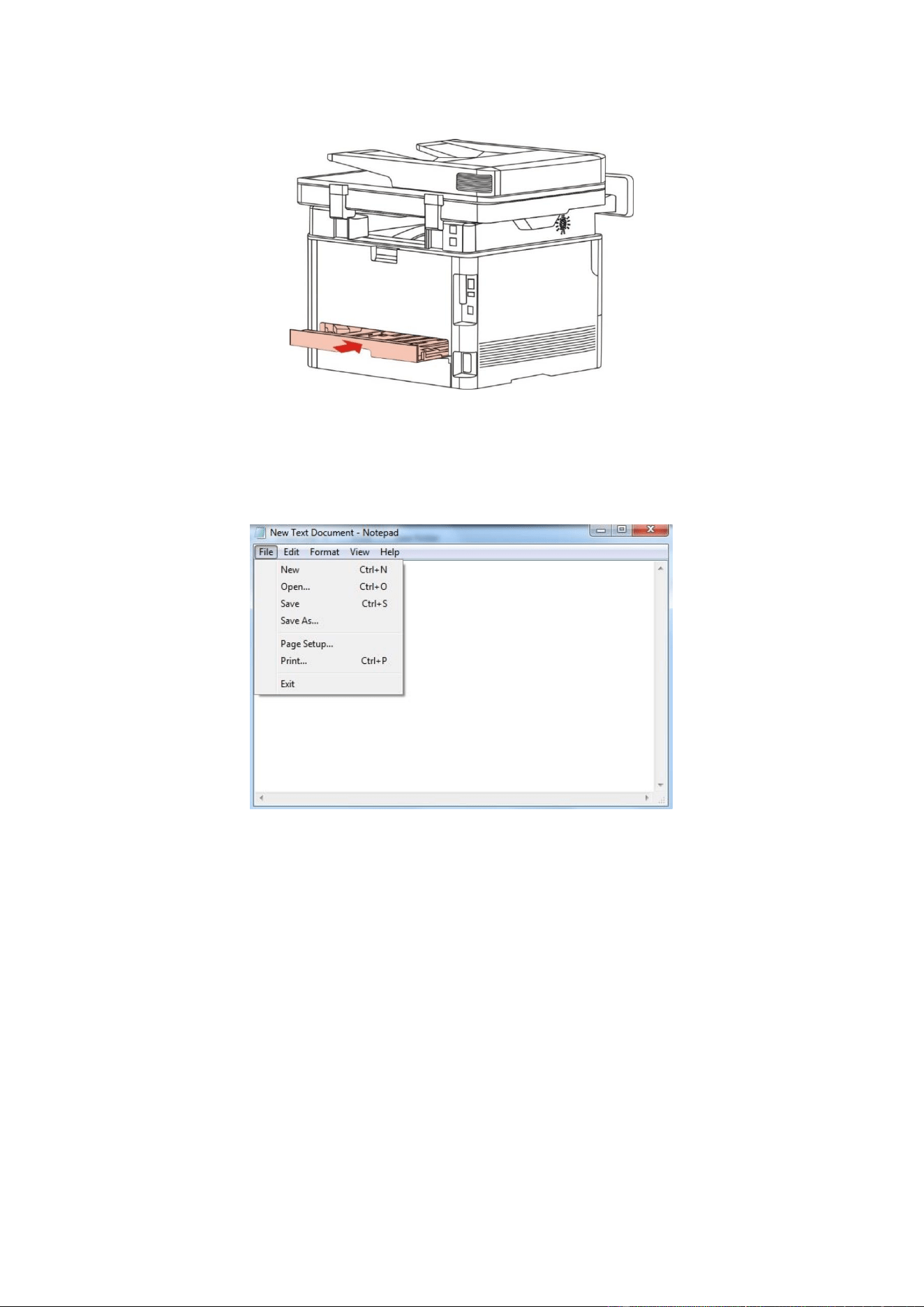
67
4. Install the duplex unit in the printer.
7.2.2.2. How to carry out auto duplex printing
1. Open the print job to be printed from the application (such as a Notepad).
2. Select Print from the File menu.
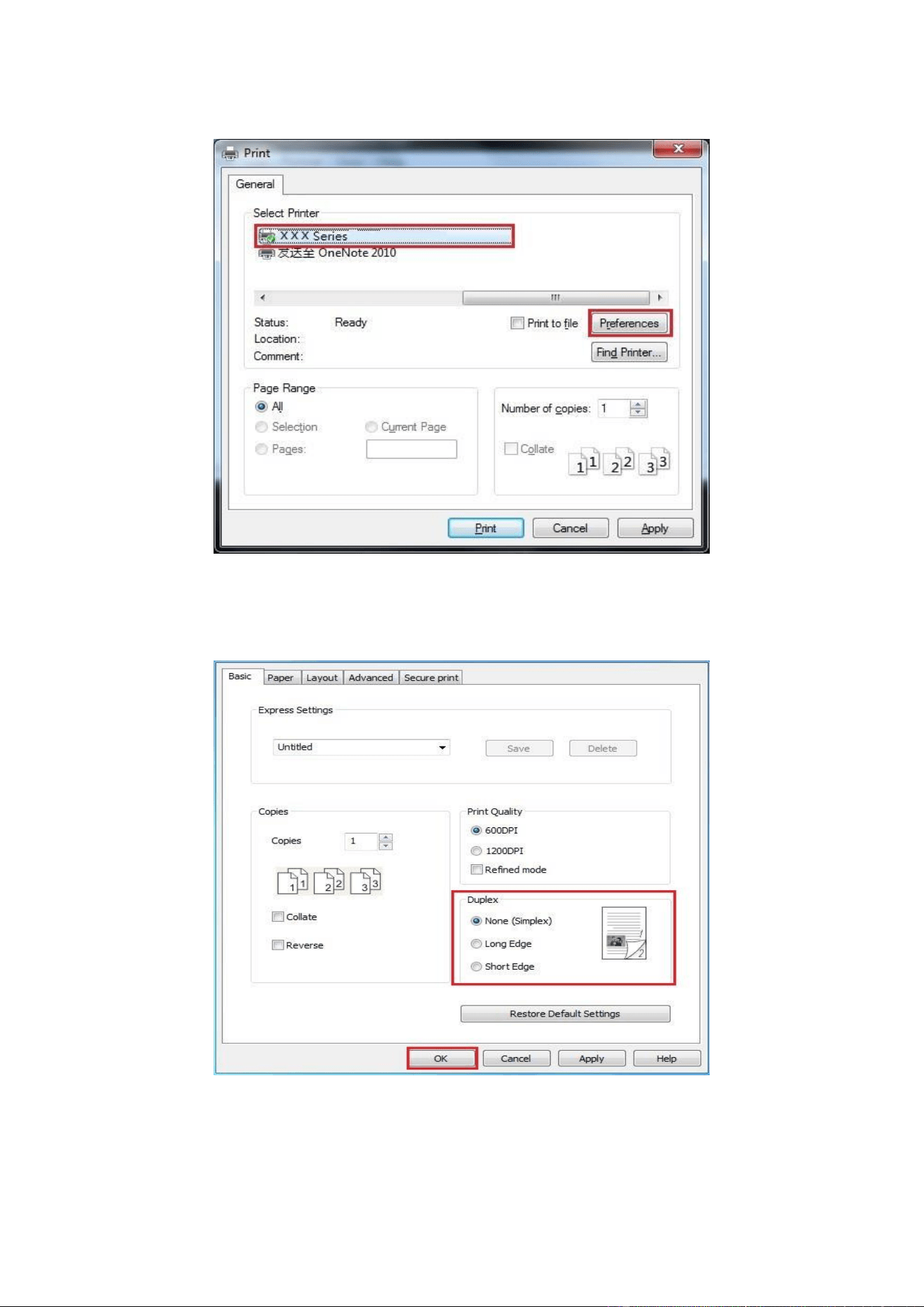
68
3. Select printer of the corresponding model.
4. Single click “Preferences” for printing setup.
5. Select the “Duplex” in “Basic” tab and then select “Long Edge” or “Short Edge”.
6. Single click “OK” to finish printing setup. Click “Print” to realize auto duplex printing.
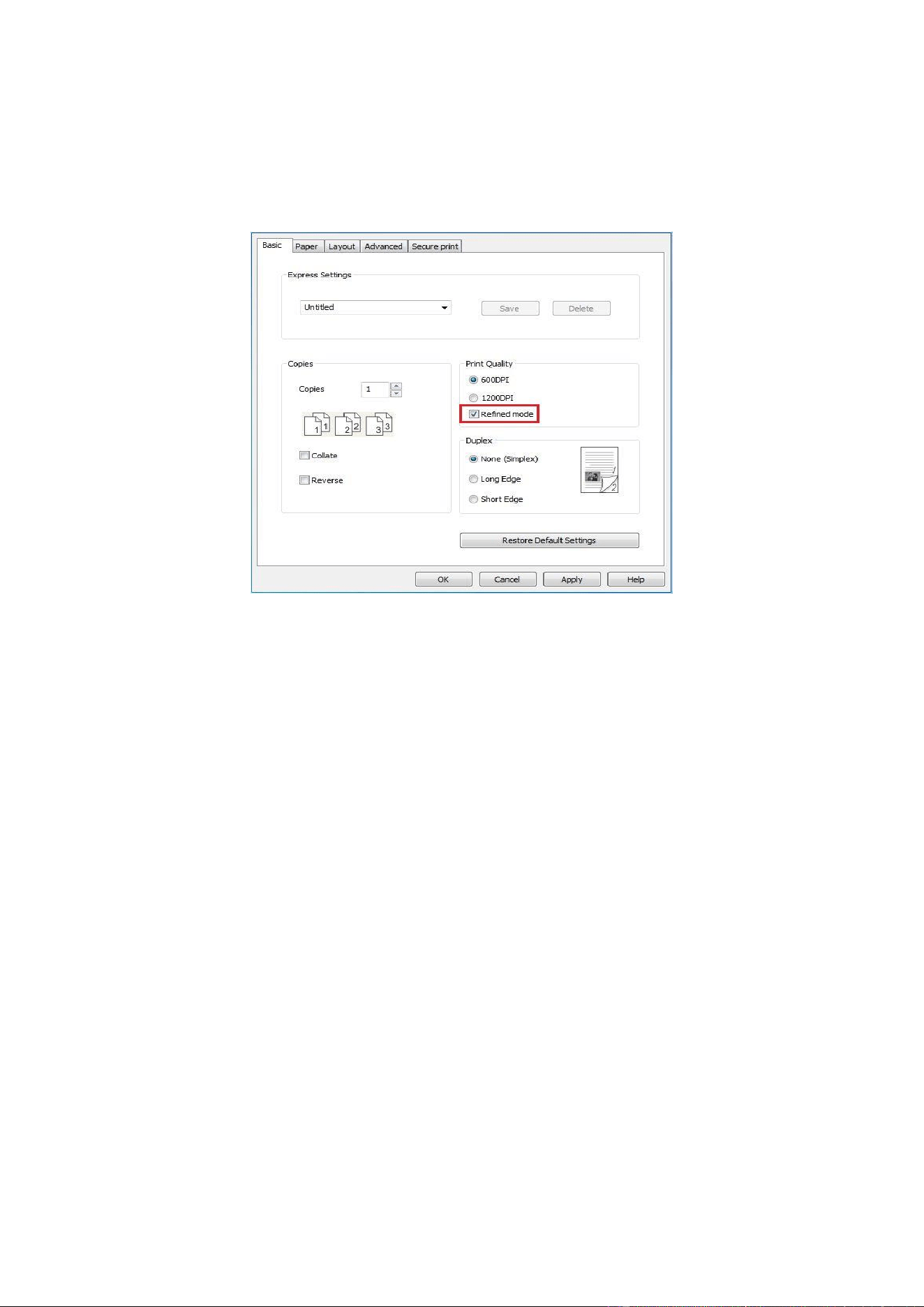
69
7.2.3. Fine mode printing
The Fine mode is applicable to engineering drawings and fine lines printing.
Set up fine mode in the basic page of printer preference. After setup, fine printing mode can be
realized.
7.2.4. Mute printing
If the Mute Printing is set, the printing noise will be reduced but the printing will slow down to some
extent.
The operating steps of mute printing are as follows (applicable to printers that are installed via
USB connection)
Windows 7 is taken as the example in the following operation. The information on your computer
screen may differ because of multiple operating systems.
1. Enter the “Start menu” – “Control Panel” –view “Devices and Printers”.
2. Right click printer and select “Printer properties” in the pull-down menu.
3. Enter the “Secondary Settings” option.
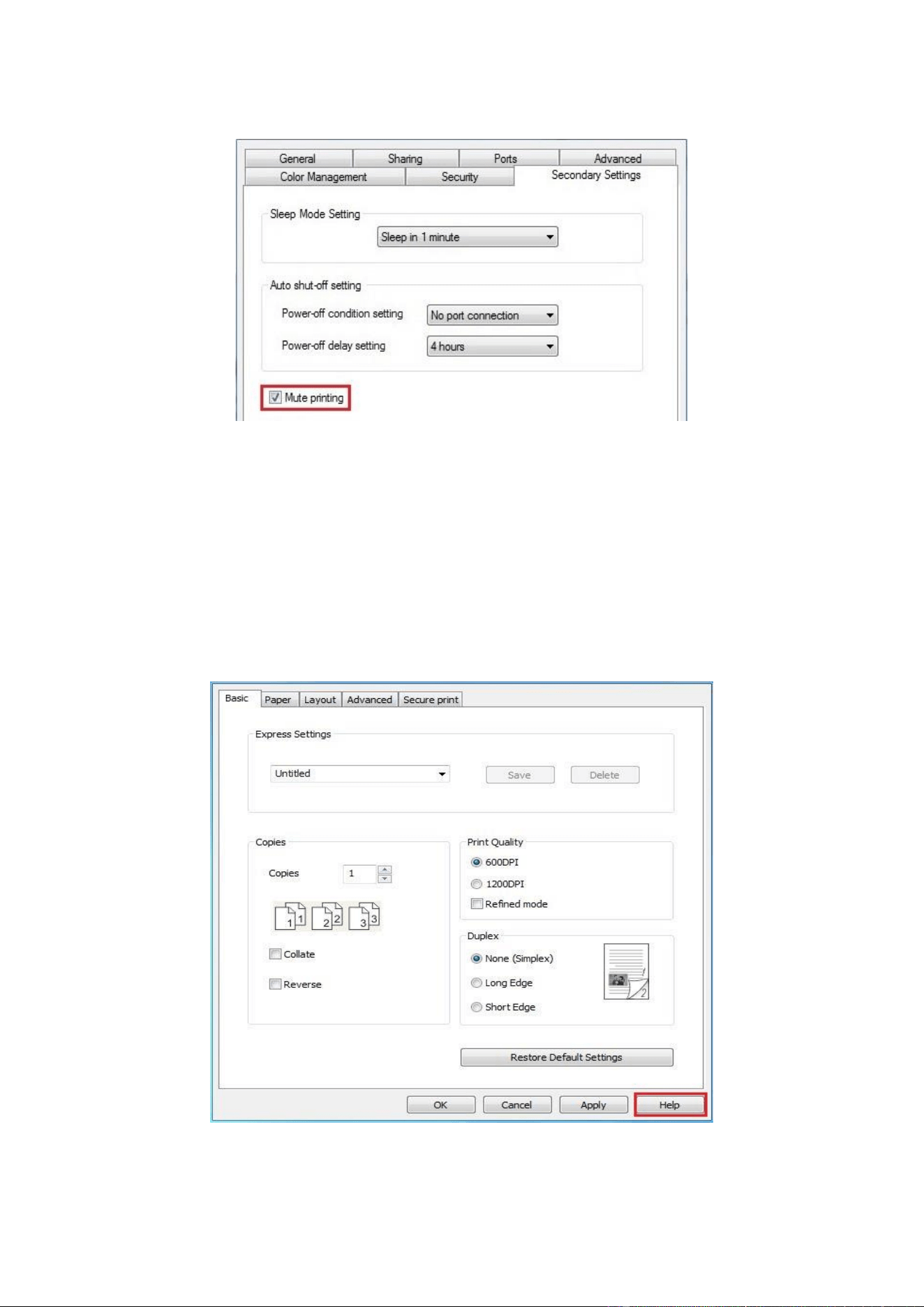
70
4. Tick “Mute printing” and click “Ok” to finish setup.
5. Open the printing work from the App, select a printer of the corresponding model and then set up
printing according to needs.
6. Click “Print” to realize mute printing.
7.2.5. Open Help Document
You can open the "Printing preferences" and click "Help" button (for Windows Operation System
only). The help document contains the user guide where you can find the information on print
settings.
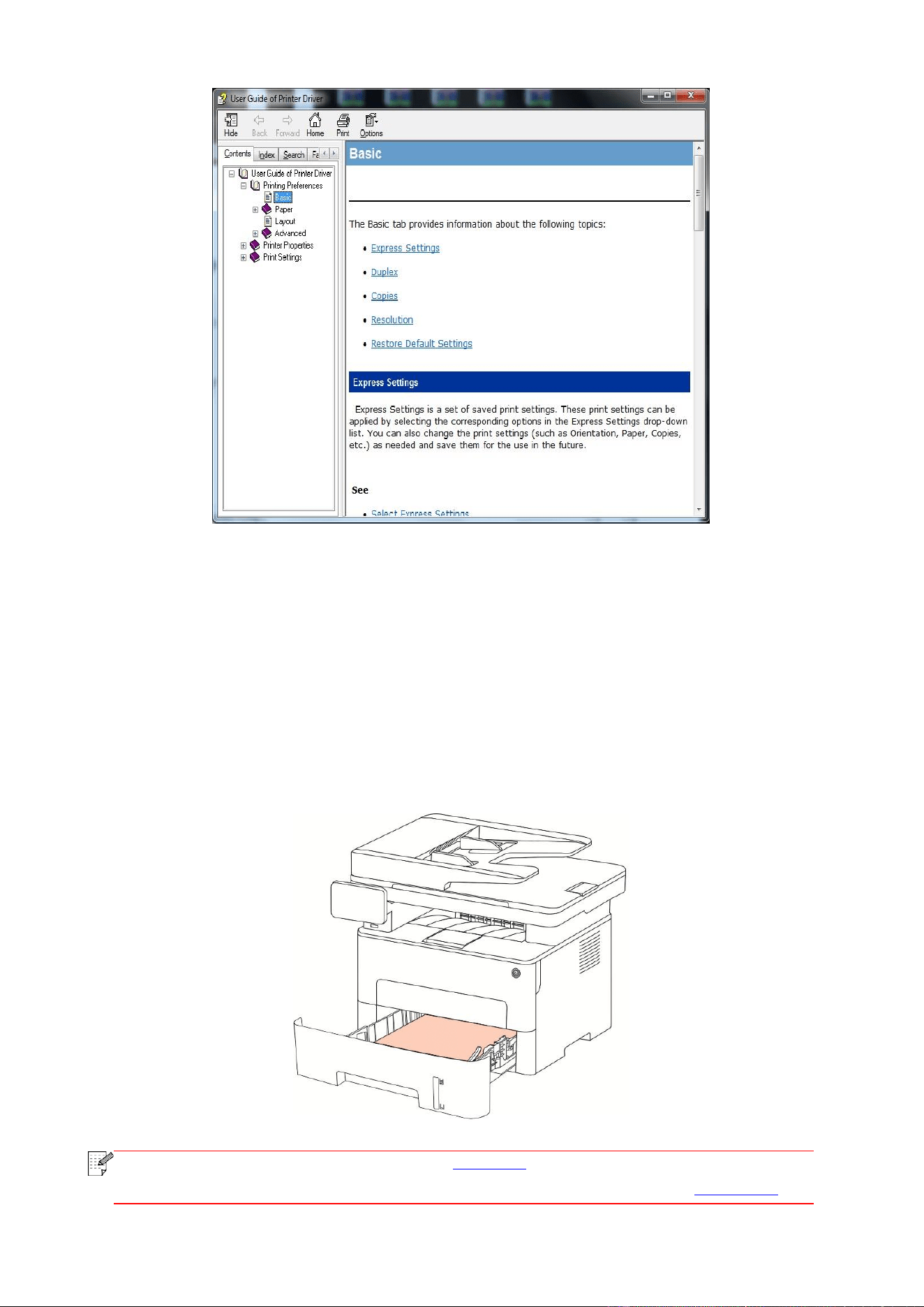
71
7.3. Printing Mode
The printer can print with auto feed tray and manual feed tray. The defaulted state is auto selection,
and if there is printing medium in the manual feed box, papers in manual feed tray will be used with
priority.
7.3.1. Printing with the Automatic Feeder Tray
Before printing, please make sure mediums of corresponding quantity have been installed inside
the auto feed tray, and there is no printing medium in the manual feed tray.
Note:
• For precautions on loading paper, see Chapter 2.
• For the type of media to be printed with the automatic feeder tray, see Chapter2.1.
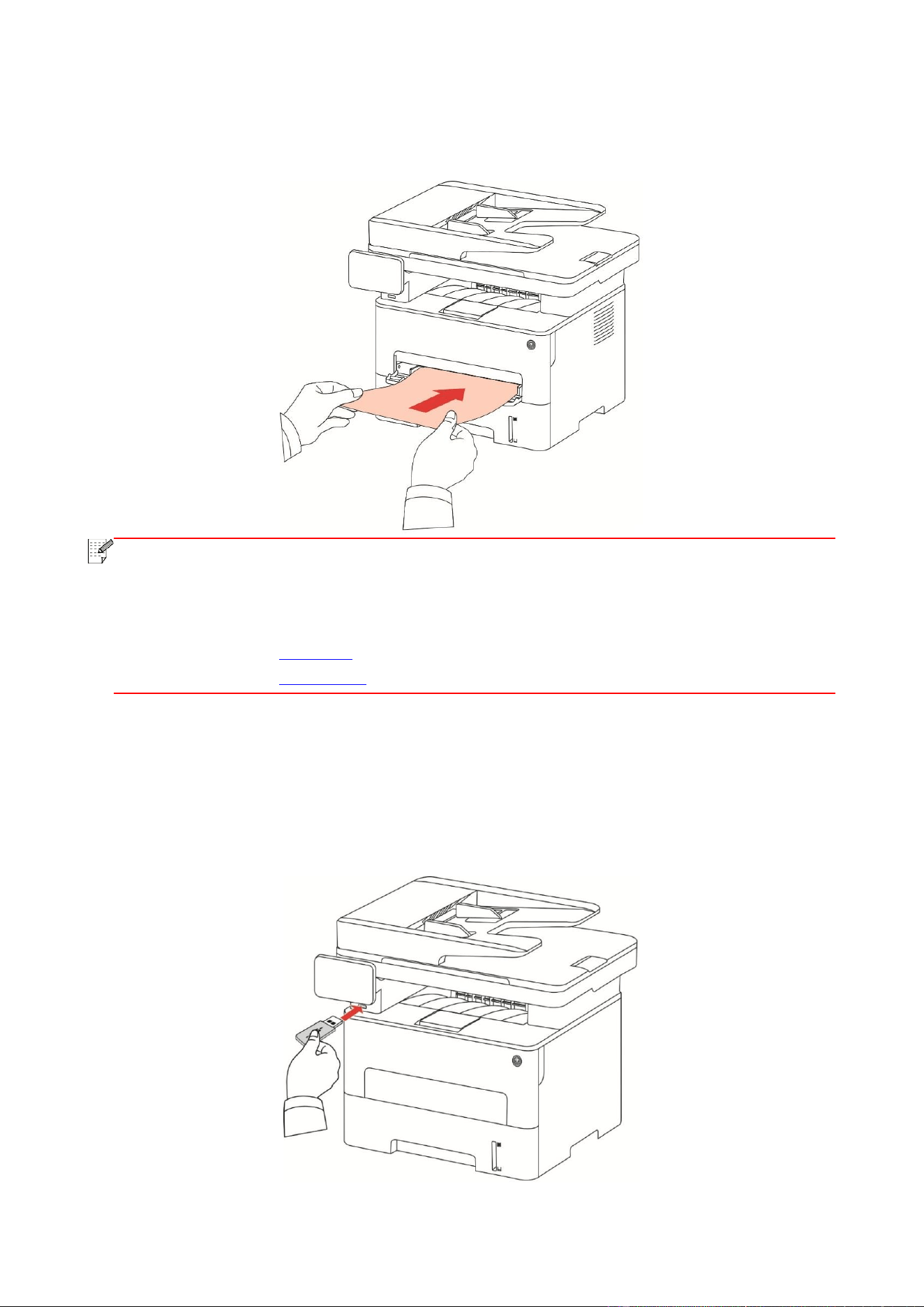
72
7.3.2. Printing with manual feed tray
When you put papers in the manual feed tray, the printer will enter manual feed mode.
Note:
• Manual feed mode means that papers will be fed from the manual feed tray first if there
are papers being put inside it.
• Generally, the manual feeder tray is used to print on special paper, such as envelopes,
transparencies, etc., and only one piece of paper can be loaded each time.
• Please refer to Chapter 2 for putting papers inside manual feed tray.
• Please refer to Chapter 2.1 for type of mediums that can be printed via manual feed tray.
7.4. USB print
The printer supports direct print from USB and quick document print without the need of computer
transmission.
1. Insert the USB stick into the front USB disk interface of the printer.
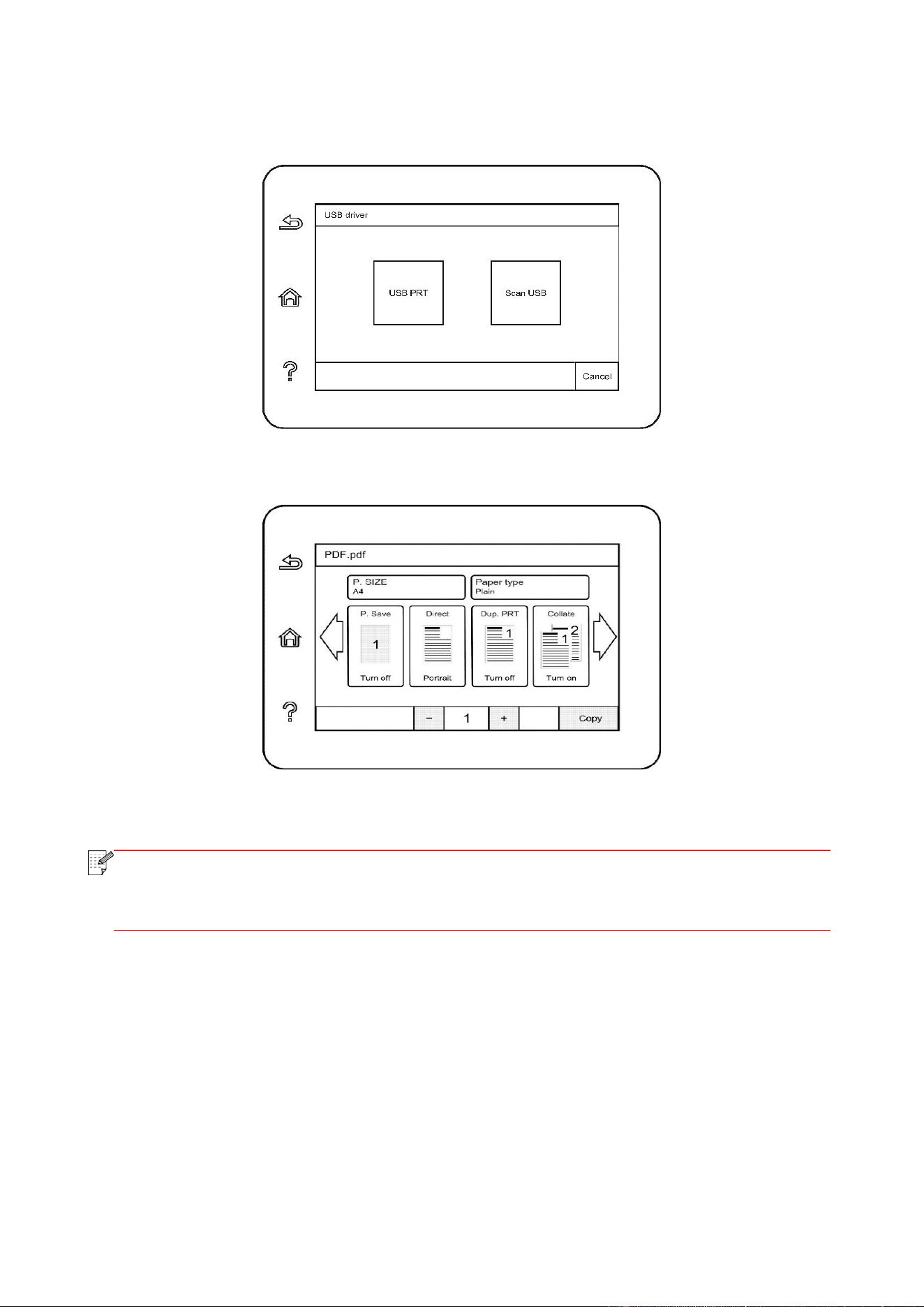
73
2. Once the USB flash disk is inserted, the USB flash disk drive interface will automatically pop up.
Select “USB Flash Disk Print”.
3. Select document to be printed and set print properties as required.
4. Click “Print” after setting.
Note:
• Formats of USB memory device supported by the printer’s USB port include MS-DOS
(FAT), FAT16 and FAT32.
• Document formats supported by USB print include: pdf、jpeg.
7.5. Secure printing
You can save print job in the printer’s memory through PC setting until you enter password in
printer control panel to start such job.
1. Open document, click File-Print.
2. Click Property, Preferences, Option or Setting.
3. Select “secure printing” in “Print preference” and tick “secure printing”.
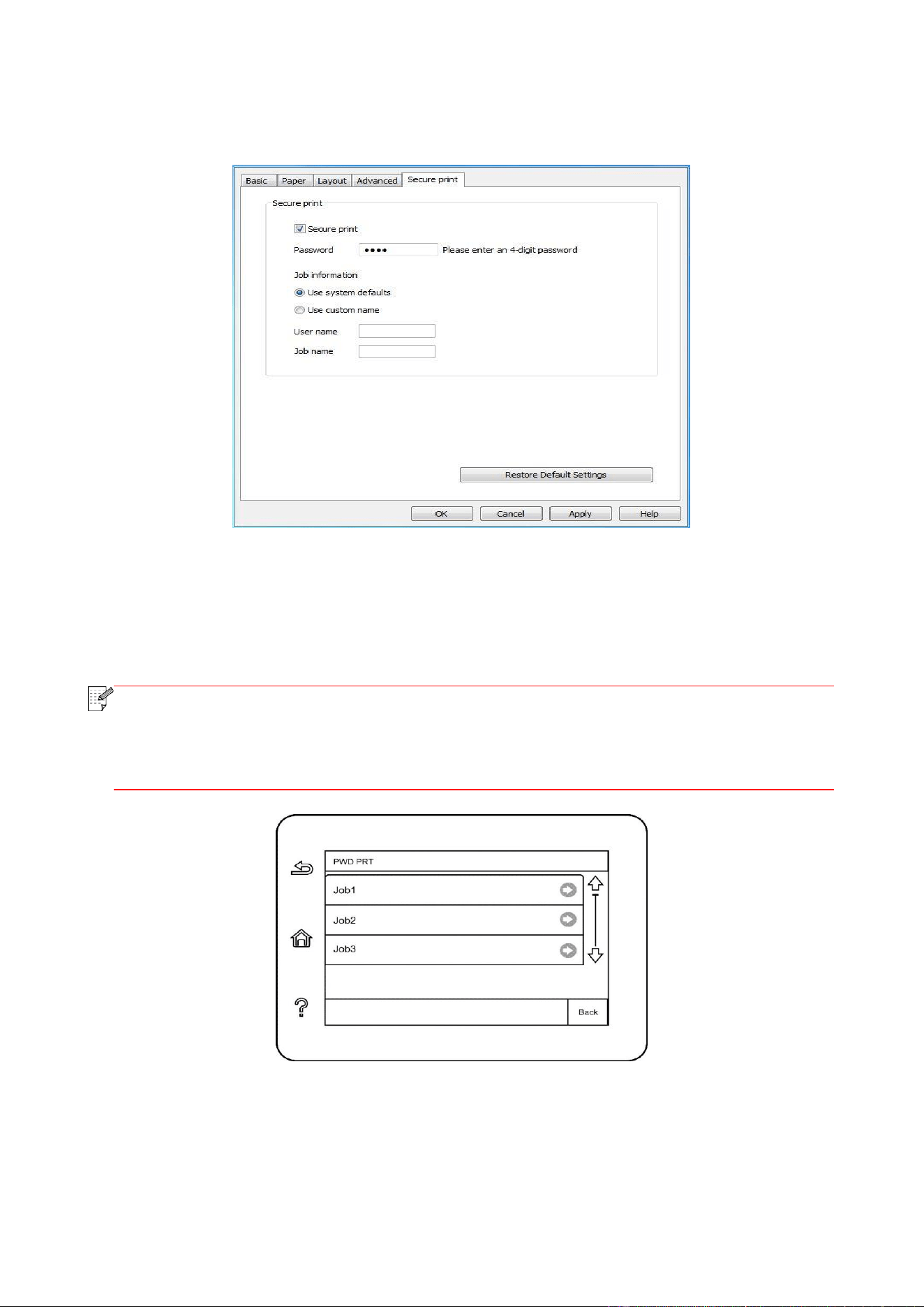
74
4. Enter a 4-digit number in the "Password" action field, which will be saved as a validation
password for secure printing.
5. Click “OK”.
6. Then click "Print" to send a secure printing job.
7. Select "Secure Print" in the control panel of the printer, and select the user according to the
secure printing job information you have set.
Note:
• The default job information is “Use System Defaults”, and the user name of the
secure printing job is the computer user account name (click Start-Control Panel-User
Account on PC to view the computer user account name).
• The job name is the name of the printed document.
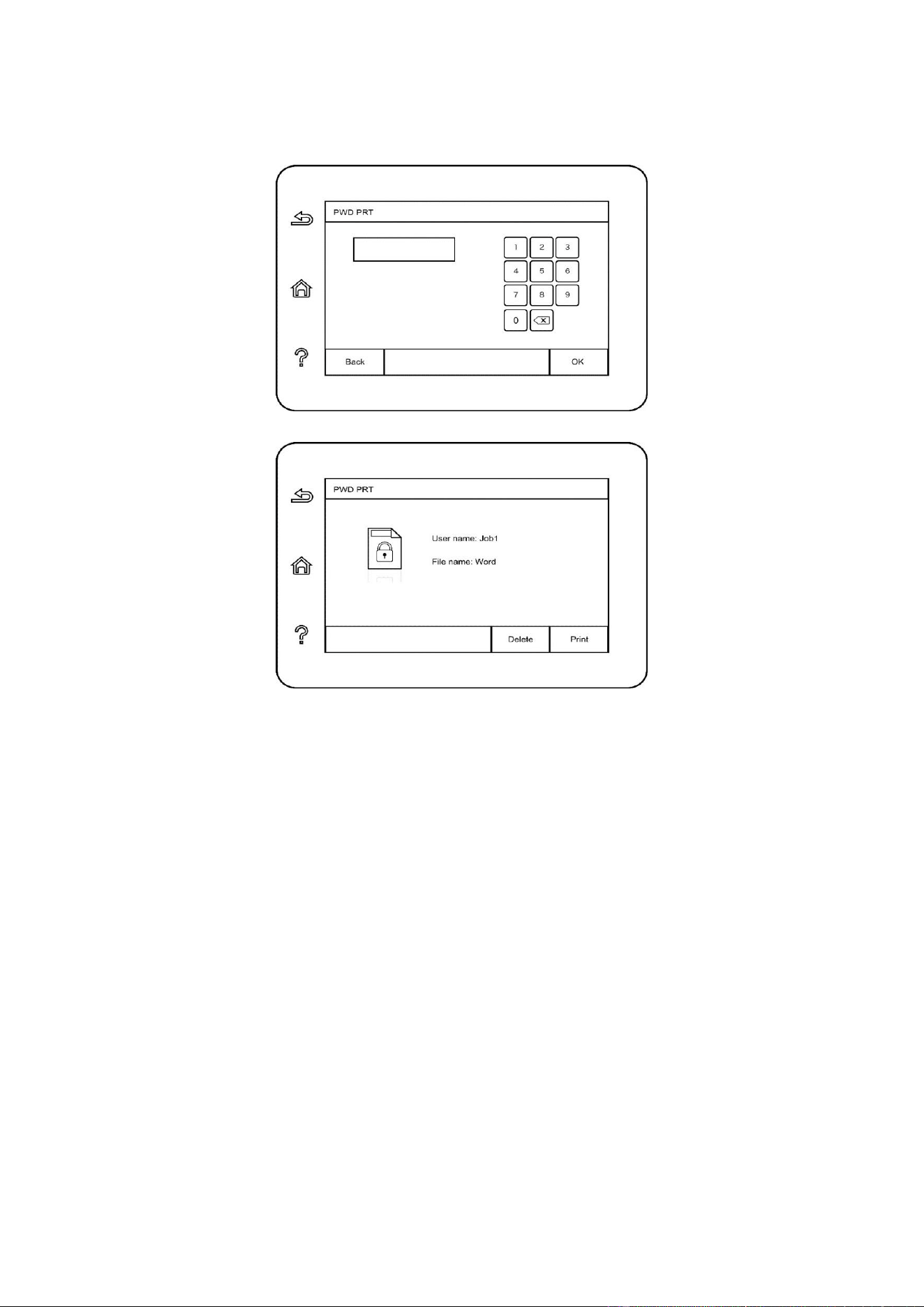
75
8. Select document to be printed, enter document print password, make a print according to
interface prompt.
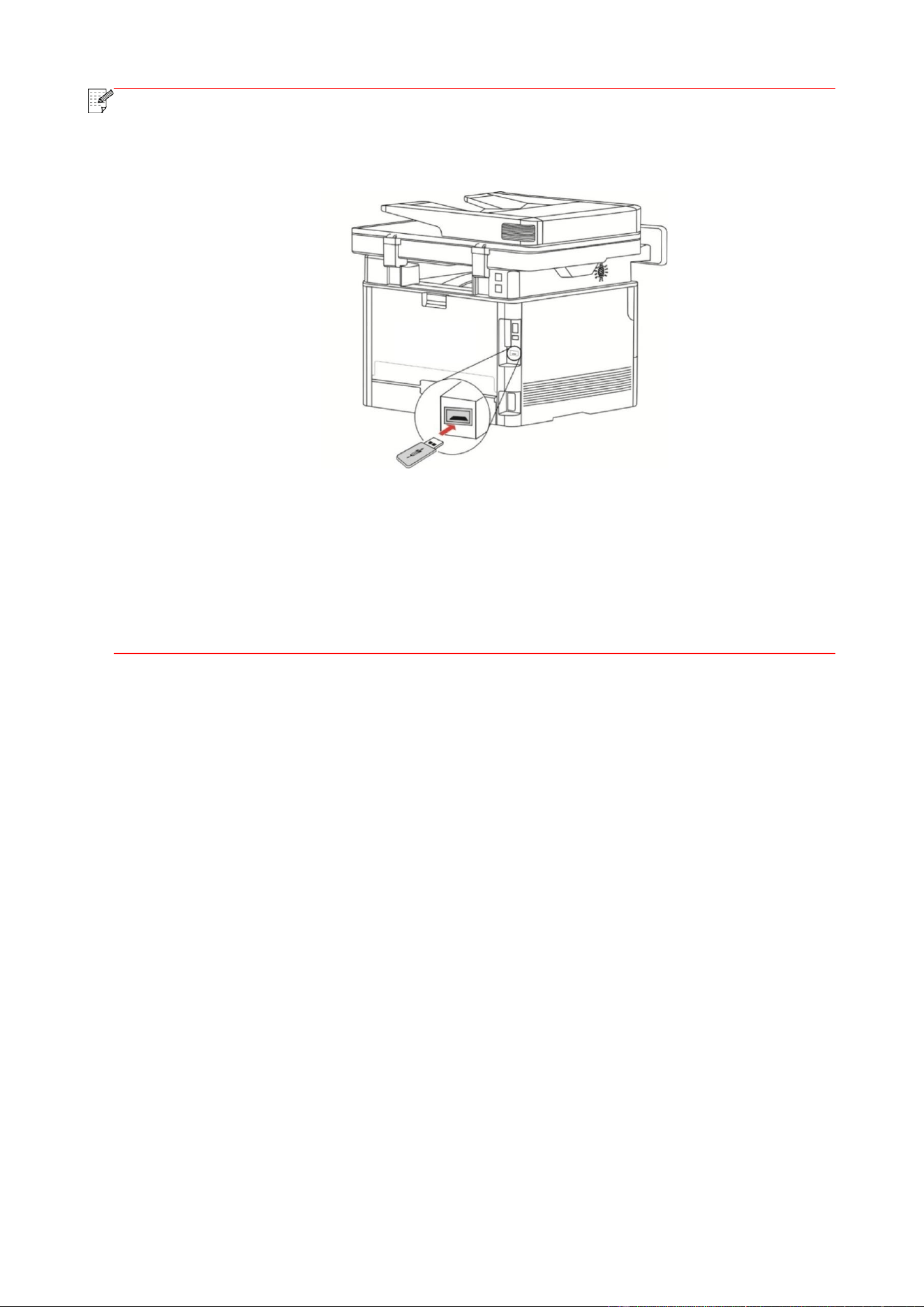
76
Note:
• After printing is done successfully, this secure printing job will be deleted.
• You can extend the storage capacity of secure printing by inserting a USB flash disk into
the back USB interface of the printer.
• If wrong passwords are entered 3 times consecutively, the interface of user secure
printing job list will appear. You can enter the password again in the password input
interface.
• All secure printing data in the USB flash disk and memory will be cleared if the printer is
restarted.
• Supported USB flash disk formats: MS-DOS (FAT) / FAT16 / FAT32.
7.6. Cancel printing
If you want to cancel the operation during printing, please press “Cancel” key on the printer's
control panel.

77
8. Copying
8.1. Copying function
Copy
Instructions
Common copying
Multipage
Print a multi-page document to a piece of paper.
Clone
Print several identical images to a piece of paper.
Poster
Print a one-page original to pieces of paper.
Collated copy
Collate copies of an original.
Duplex copying
Duplex copying of the original can be achieved.
Image quality
Set the definition mode to improve the copying effect.
Intensity
Adjust deep-light copying effect by setting intensity.
Resizing
Reduce or enlarge the size of image copied.
Paper Size
Set the paper size.
Paper type
Set paper type.
ID copy
Arrangement mode
Set the ID copy layout.
Intensity
Adjust deep-light copying effect by setting intensity.
Paper Size
Set the paper size.
Receipt copying
Intensity
Adjust deep-light copying effect by setting intensity.
Paper Size
Set the paper size.
8.2. Copying method
1. Click “Copy” button/“ID copy” button/“Bill copy” button in control panel.
2. Put an original into the ADF with its front upward (only for plain copying) or on the glass platen
with its front downward. (For how to put an original, please see Chapter 2.5.)
3. Click “Copy” button to copy.
4. Place the original text in the glass platen, scan this page, then give a prompt of "Scan next page".
When there is another page to scan, take away the previous one, put the next one in the glass
platen, click “Scan next page”. After scanning all the pages, click “End scan”.
8.3. Copying cancel
To cancel copy job, click “Cancel job” button.
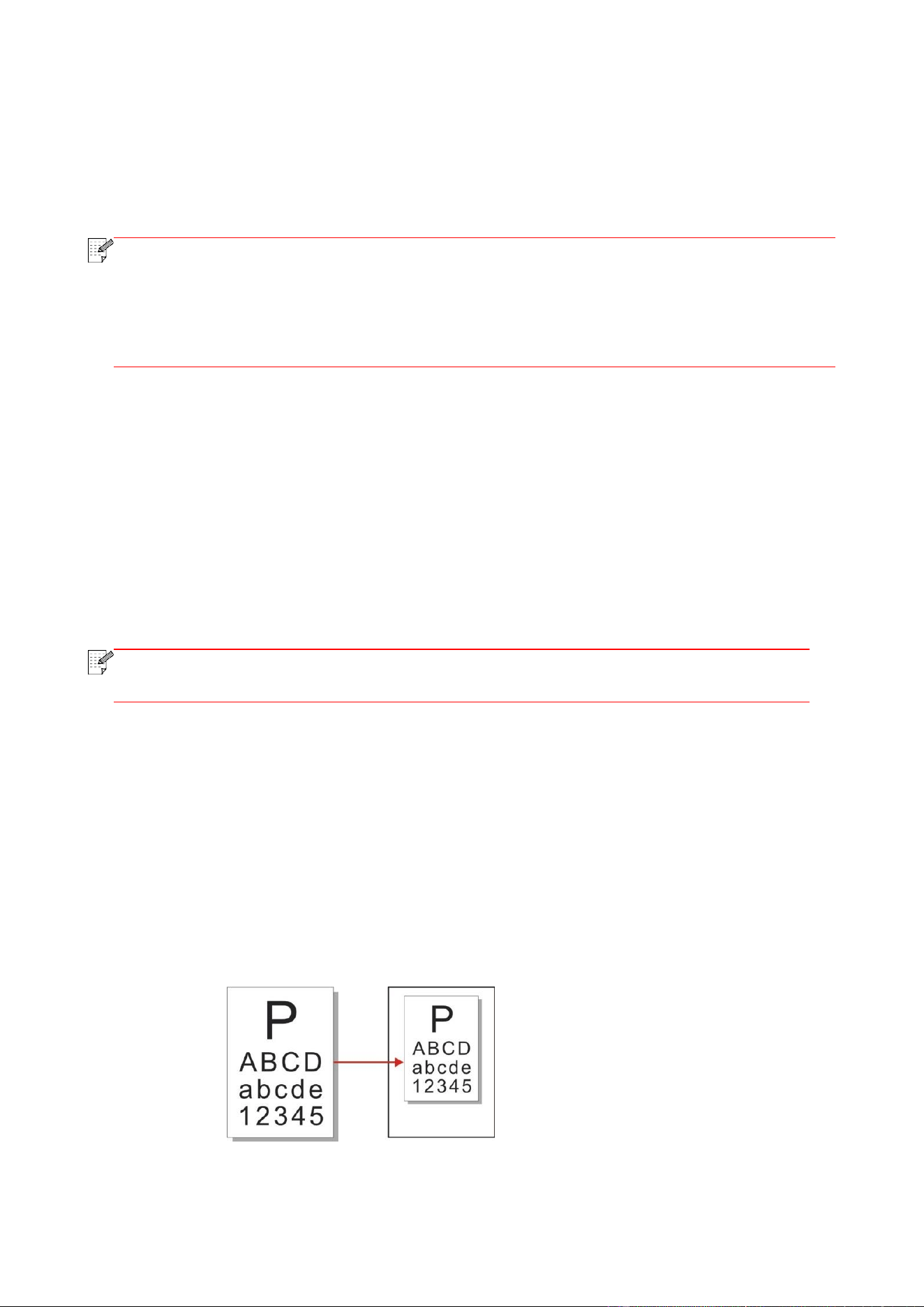
78
8.4. Common copying setting
Change related setting through setting menu for better copy result.
1. Select “Copy” button in printer control panel;
2. Determine copy setting, click “Copy” button to copy.
Note:
• The image quality, intensity, resizing and paper setting can keep valid after options are
set.
• Settings on all-in-one, clone, poster, collated copy and duplex copy will be restored to
defaults after completing the copying, switching among panel keys or rebooting the
machine.
8.4.1. Image quality
Select corresponding image quality mode for original document used in order to improve copying
effect.
There are 4 modes in total:
Auto: default mode, applicable to text and image originals.
Text + image: applicable to originals with mixed text and image.
Image: applicable to original image.
Text: applicable to original text.
Note:
• The image quality mode supports “automatic” mode only after “poster” and “collated
copy” are set.
8.4.2. Intensity
Adjust deep-light copying effect by setting intensity.
8.4.3. Resizing
When original document is copied, resize image copied.
The resizing includes “fixed” and “manual adjustment” and the default value is 100%.
1. Fixed resizing: 100%、141% A5->A4、122% A5->B5、115% B5->A4、97% LTR->A4、94%
A4->LTR、86% A4->B5、81% B5->A5、70% A4->A5.
e.g.: 70% A4->A5:
2. “Manual adjustment” applies to copying with glass platform only, the adjustment scope of which
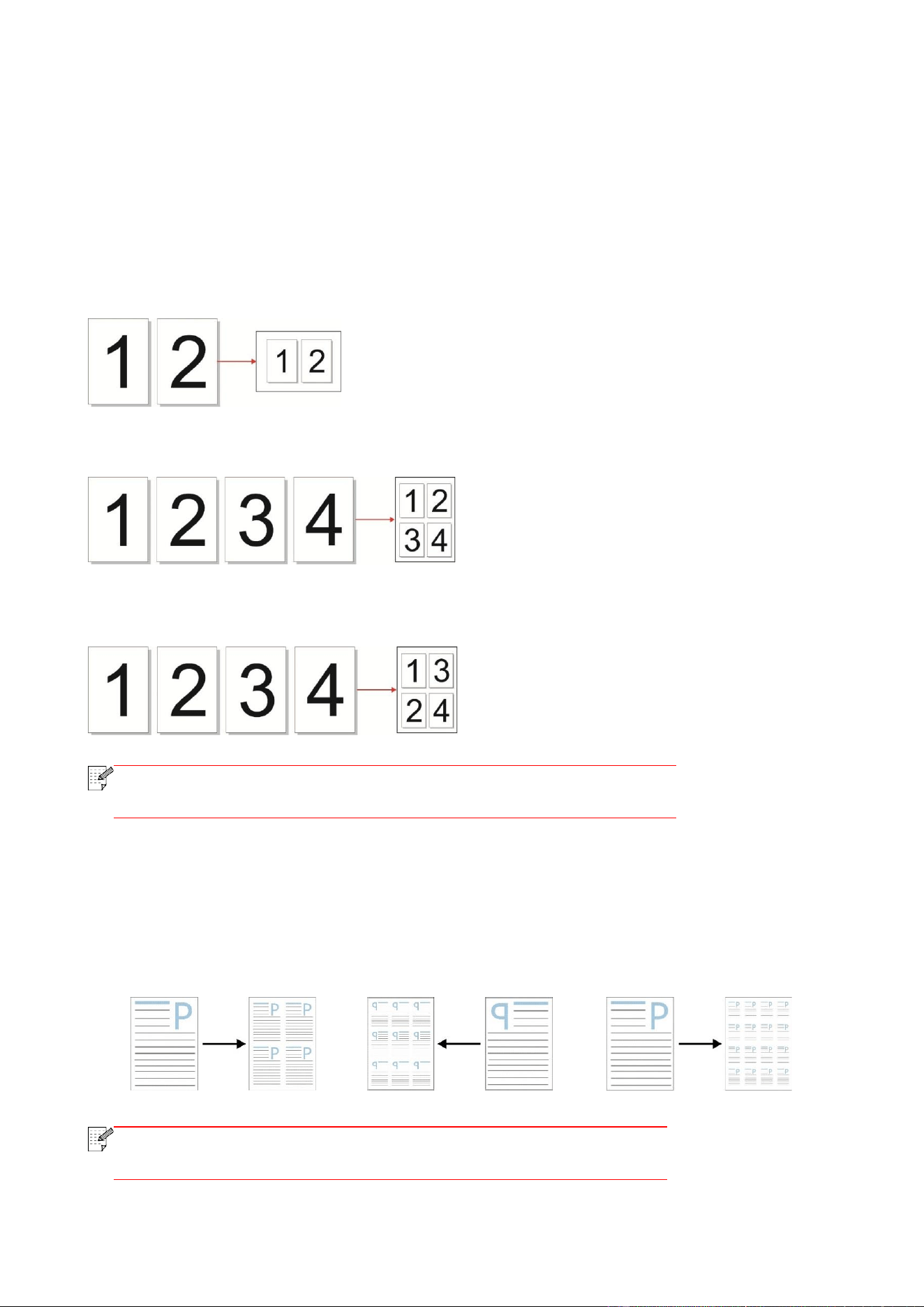
79
is 25%-400% and 5% can be adjusted each time after “direction key” is pressed once.
8.4.4. Multipage
With setting on all-in-one feature, a 2- or 4-page document could be copied to one piece of paper.
Copying with the ADF and the glass platen are both supported.
The multipage includes 3 modes:
(1) Two-in-one:
(2) Horizontal four-in-one:
(3) Vertical four-in-one:
Note:
• "Multipage” and “resizing function” cannot be set at the same
time.
8.4.5. Clone
Through setting on clone feature, you may print multiple original images on one piece of paper.
Copying with the ADF and the glass platen are both supported.
The clone copying includes 3 modes:
2x2: 3x3: 4X4:
Note:
• The “clone” and “resizing function” cannot be set at the same
time.
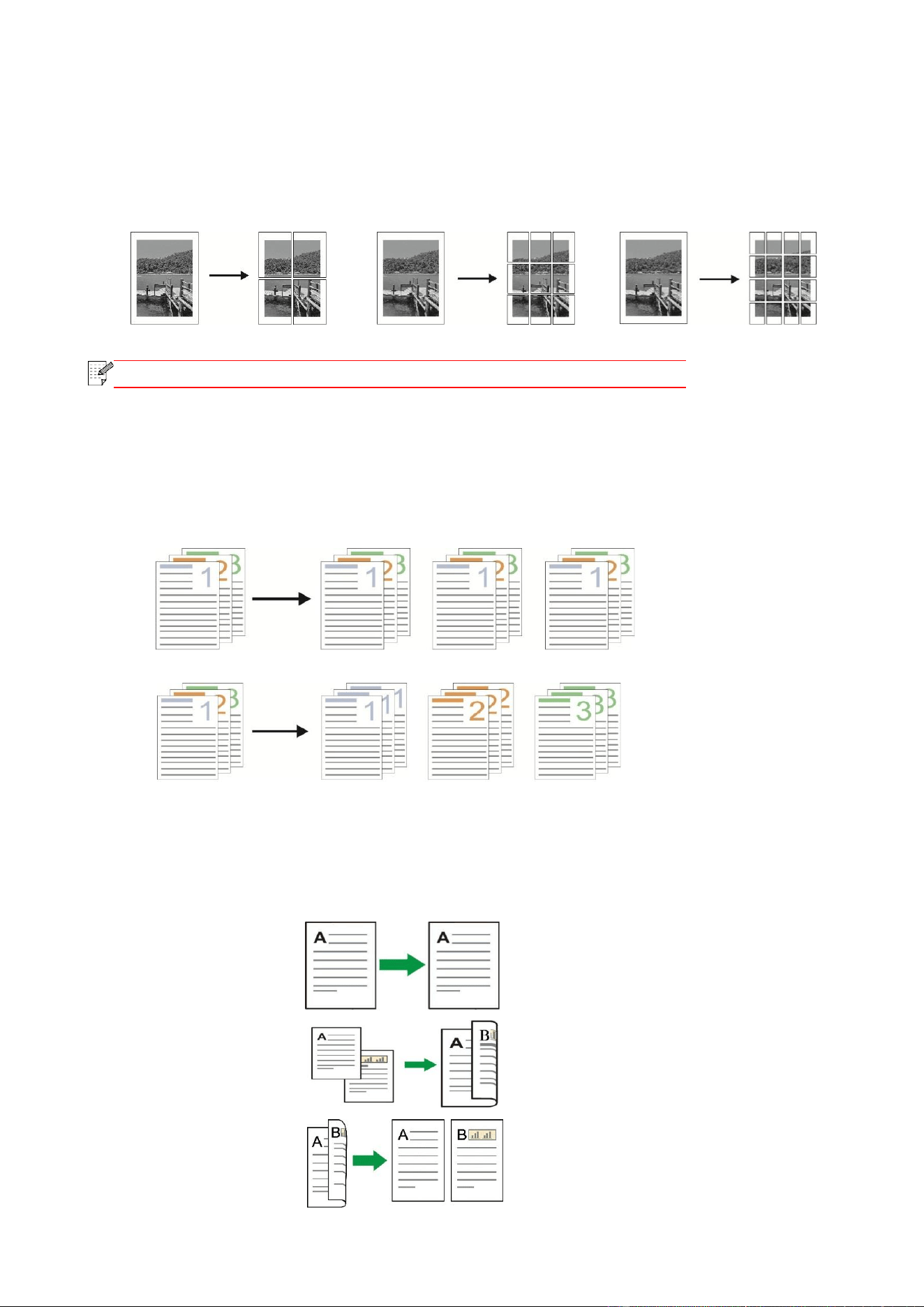
80
8.4.6. Poster
Poster setting enables the printing of one piece of original document on several pieces of paper.
The "Poster" feature supports only copying with the glass platen.
The poster copying includes 3 modes:
2x2: 3x3: 4X4:
Note:
• The “poster” and “resizing function” cannot be set at the same time.
8.4.7. Collated copy
The "Collated Copies" feature supports only copying with the automatic document feeder (ADF).
The collated copy includes 2 modes:
Startup:
Closed:
8.4.8. Duplex copy
You can use flat plate and ADF for Auto Duplex copy, ADF supports auto duplex copy.
There are 4 modes in total for duplex copying:
1. One-sided → One-sided:
2. One-sided → Two-sided:
3. Two-sided → One-sided:
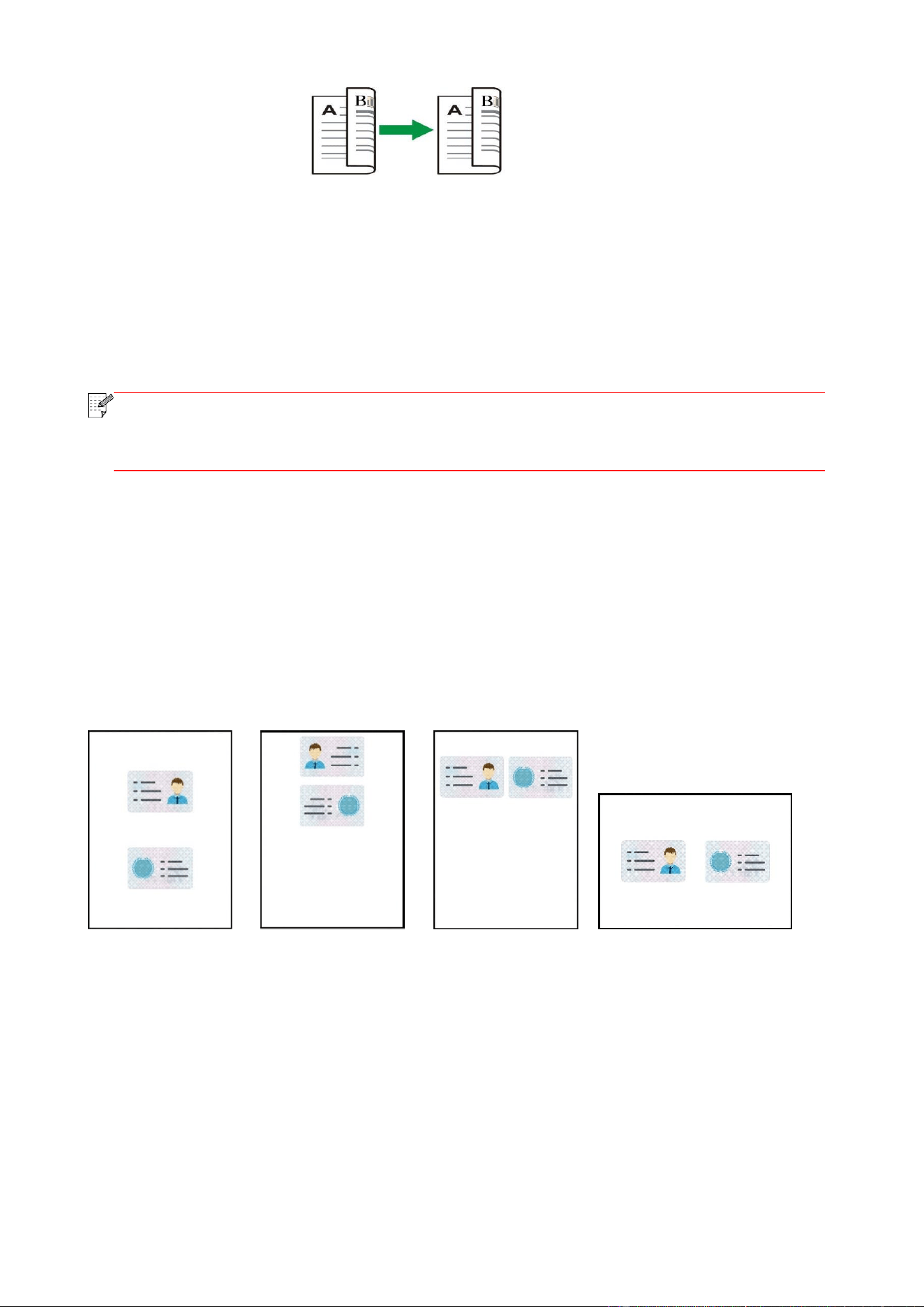
81
4. Two-sided → Two-sided:
8.4.9. Paper setting
Select the paper size and paper type of original copying in Paper Settings menu.
Paper dimension: A4, Letter, B5, A5, A6, Executive, Legal and Folio.
Paper type: common paper, thick paper, envelope paper, film paper, card paper, tagboard and thin
paper.
Note:
• After “multipage” and “clone function” are set, “paper dimension” supports “A4” and
“Letter” only.
• For copying with the ADF, only plain paper is available in "Paper Type".
8.5. ID copy setting
Change related setting through setting menu for better copy result.
1. Select “ID Copy” button in printer control panel;
2. Determine copy setting, click “Copy” button to copy.
8.5.1. Arrangement mode
ID copy supports four layouts:
Whole page up-down
Half page up-down
Half page left-right
A5 left and right
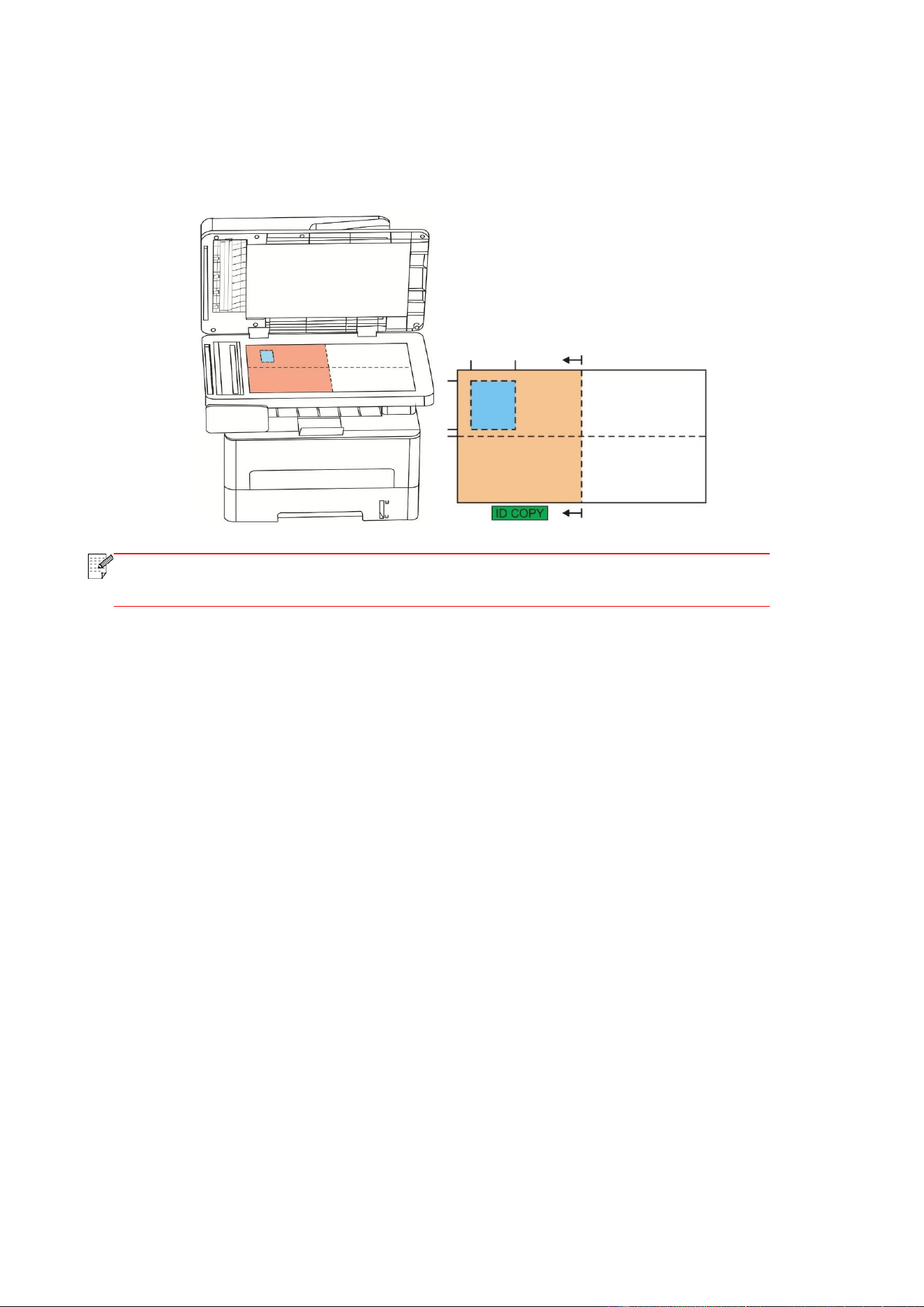
82
Position:
Half page up-down: default mode; put ID card at “orange left half area” of glass platform.
Half-page up and down, half-page left and right or A5 left and right: put the ID card in the "blue
area" in glass platen.
Note:
• After setting, the arrangement mode can keep valid before startup; after startup,
the arrangement mode will recover to default setting.
8.5.2. Intensity
Adjust copy luminosity through “Luminosity” setting.
8.5.3. Paper dimension
If arranged in modes of "Full Page Up and down", "Half-page Up and down" and "Half-page Left and
right", the paper size supports "A4" and "Letter" only; if arranged in mode of "A5 Long Edge", the
paper size supports "A5" only. Please follow instructions on panel to put the paper vertically for
printing.
8.6. Receipt setting
Change related setting through setting menu for better copy result.
1. Select “Bill copy” button in printer control panel;
2. Determine copy setting, click “Copy” button to copy.
8.6.1. Intensity
Adjust copy luminosity through “Luminosity” setting.
8.6.2. Paper setting
The receipt copying supports A4, Letter, B5, A5, A6 and Executive paper dimension.
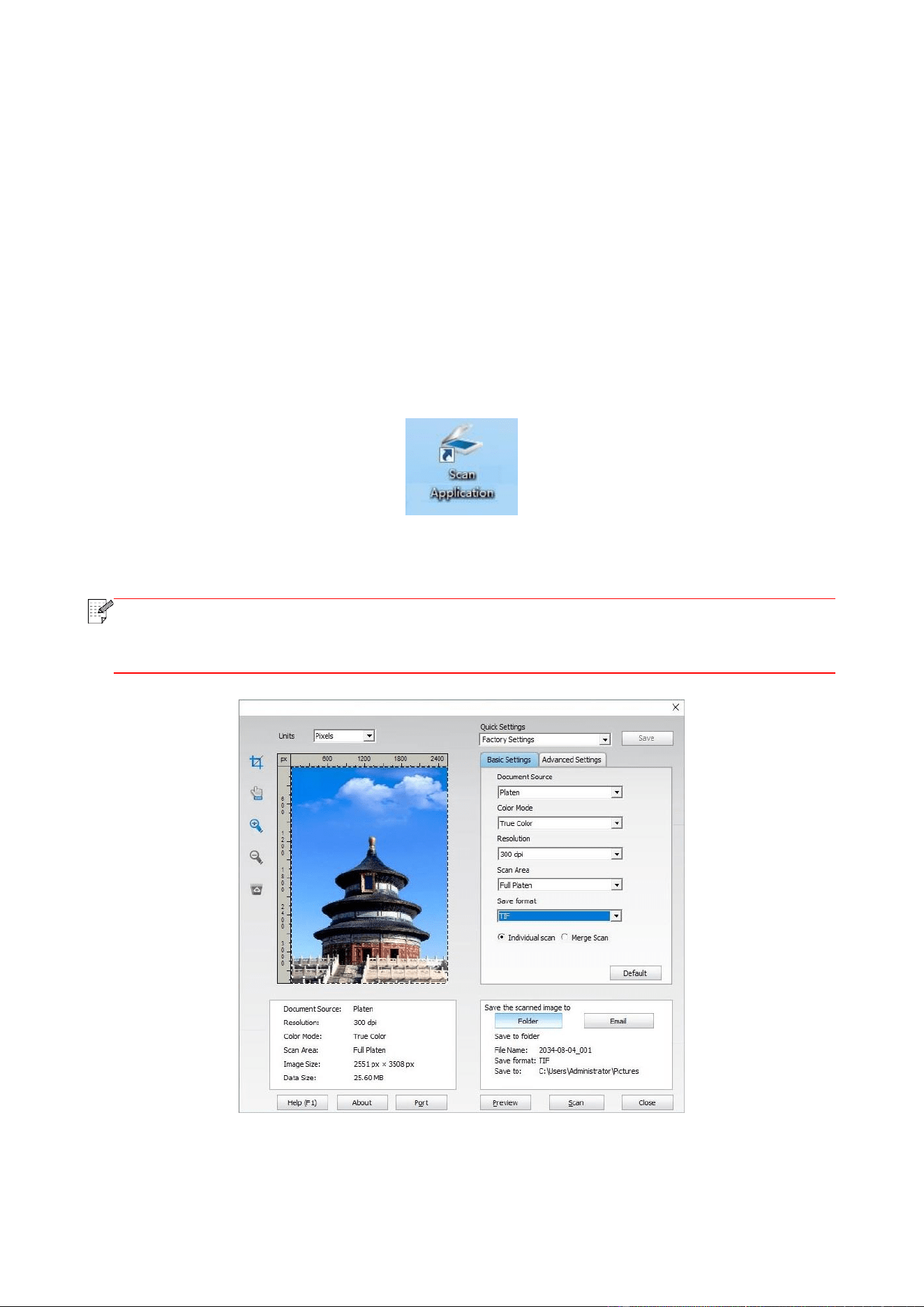
83
9. Scan
Before scanning, please be sure a printer driver has been installed in the computer.
9.1. Scanning mode
9.1.1. Windows system scan
You may scan with the scanning application in PC via USB, wired or wireless connection. Please be
sure the printer has been properly connected before scanning.
9.1.1.1. Pantum Scan Application
Operation Steps:
1. Double click on "Pantum Scan Application" on the computer, the icon is shown as below:
2. The prompt window is shown as below:
Note:
• This device supports FB combination scan. If you would like to combine the scanned
documents, select "Combine scanned documents" on the interface below.
• Combine scanned documents only works for save types of TIF/PDF/OFD.
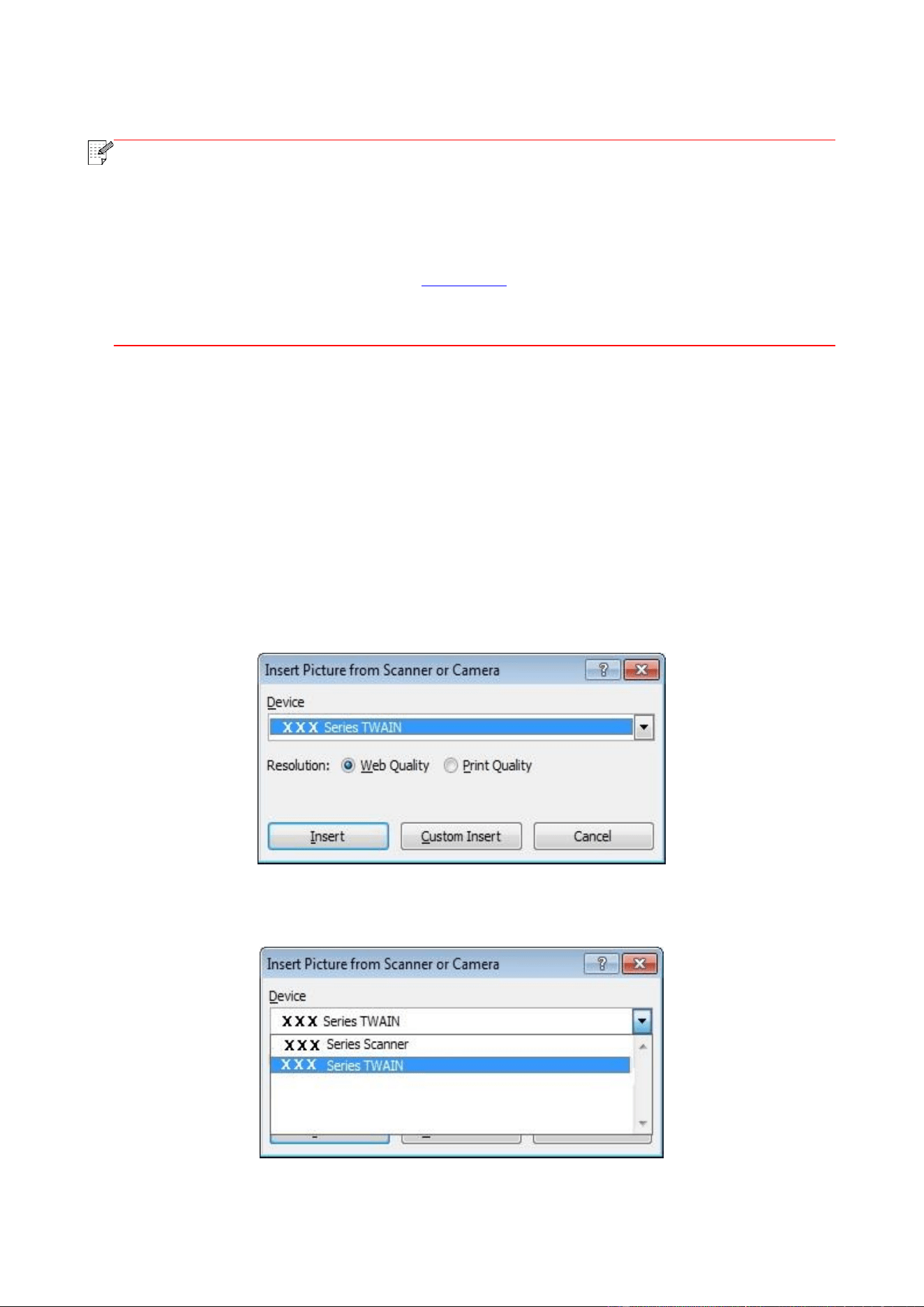
84
3. Set Scan in the right list. Click "Scan" on the bottom right corner and start scan.
Note:
• Images in the format of BMP, JPG, TIF, PDF, PNG, and OFD can be scanned by the
Pantum scanning application software. The image text recognition is available for
documents in the format of DOCX, XLS, XLSX, PPTX, TXT and searchable PDF. (If you
need to use the image text recognition function, please download and install the OCR
software according to the interface prompts after the driver installation. For the
installation method, please refer to Section 3.1)
• You may click "Help (F1)" to open the help document of the scanning application to learn
more scanning setting information.
This product complies with the TWAIN and Windows Image Application (WIA) standard. If using
the application which supports TWAIN and WIA standard, users can use the scan function and
directly scan the images to the open application. The handbook requires Office Software (Word
and Excel) and Photoshop, for example, to show the operation.
9.1.1.2. TWAIN Scan Driver
9.1.1.2.1. Office Software (Word and Excel)
Operation Steps:
1. Open the Office software (Word or Excel).
2. Keyboard shortcuts: Alt+I+P+S to open the application’s window.
3. Click on "Device" option and select TWAIN Scan, click the “Custom Insert” button below.
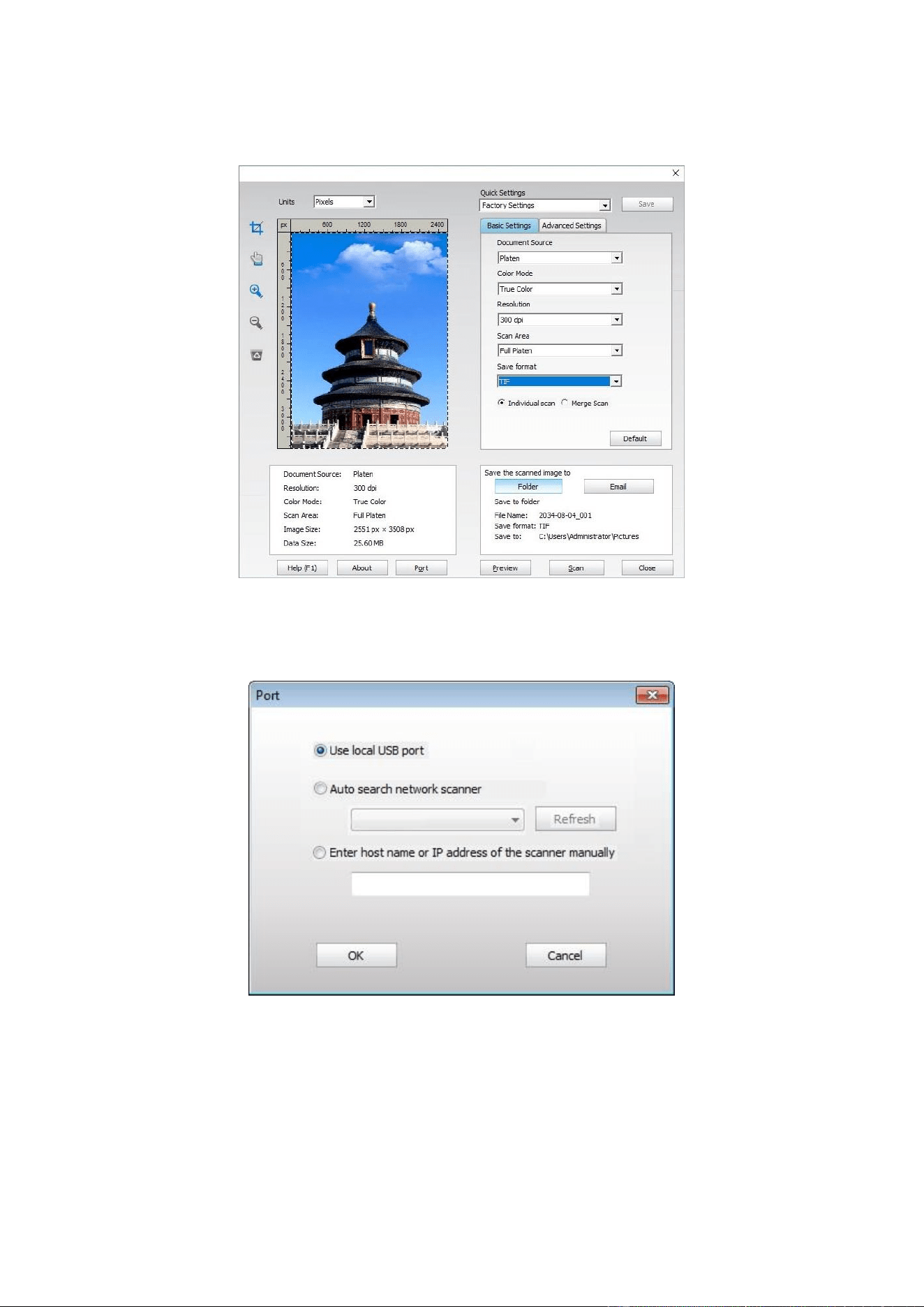
85
4. After the window pops up, set the scan information in the right list of "Basic Setting" and
"Advanced Setting". Click on "Scan" and start scan.
If you desire to change a scanning port, please click "Port" at the lower part of above picture to
select a scanning port, as shown below:
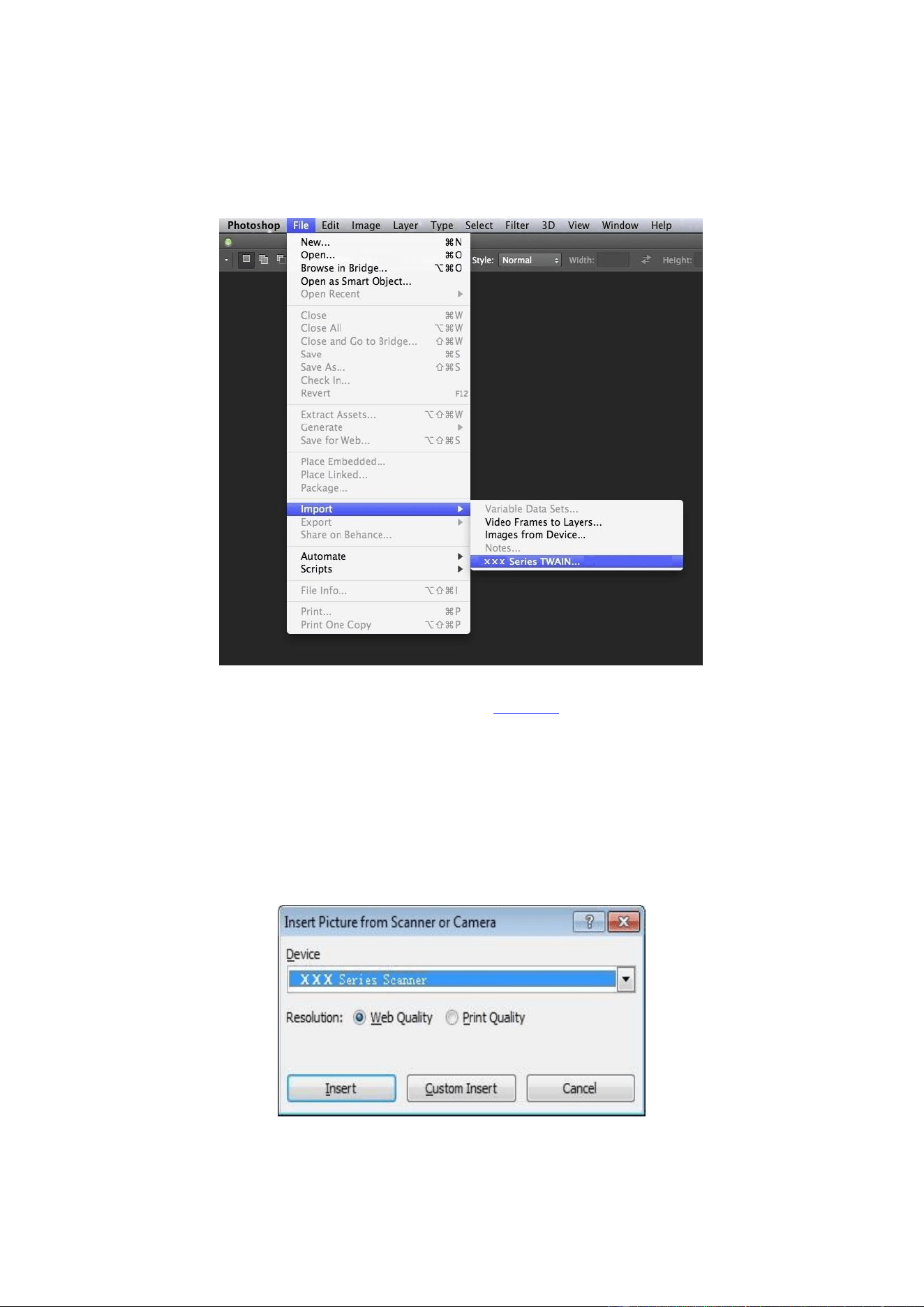
86
9.1.1.2.2. Photoshop
Operation Steps:
1. Launch Photoshop, click on "File" – "Import" on the top left corner and select TWAIN Scan, as is
shown below:
2. After the window pops up, please refer to Step 4 of 9.1.1.2.1 to see the specific operation steps.
9.1.1.3. WIA Scan Driver
9.1.1.3.1. WIA1.0 Scan (Windows XP)
1. Office Software (Word and Excel)
Operation Steps:
1) Open the Office software (Word or Excel).
2) Keyboard shortcuts: Alt+I+P+S to open the application’s window.
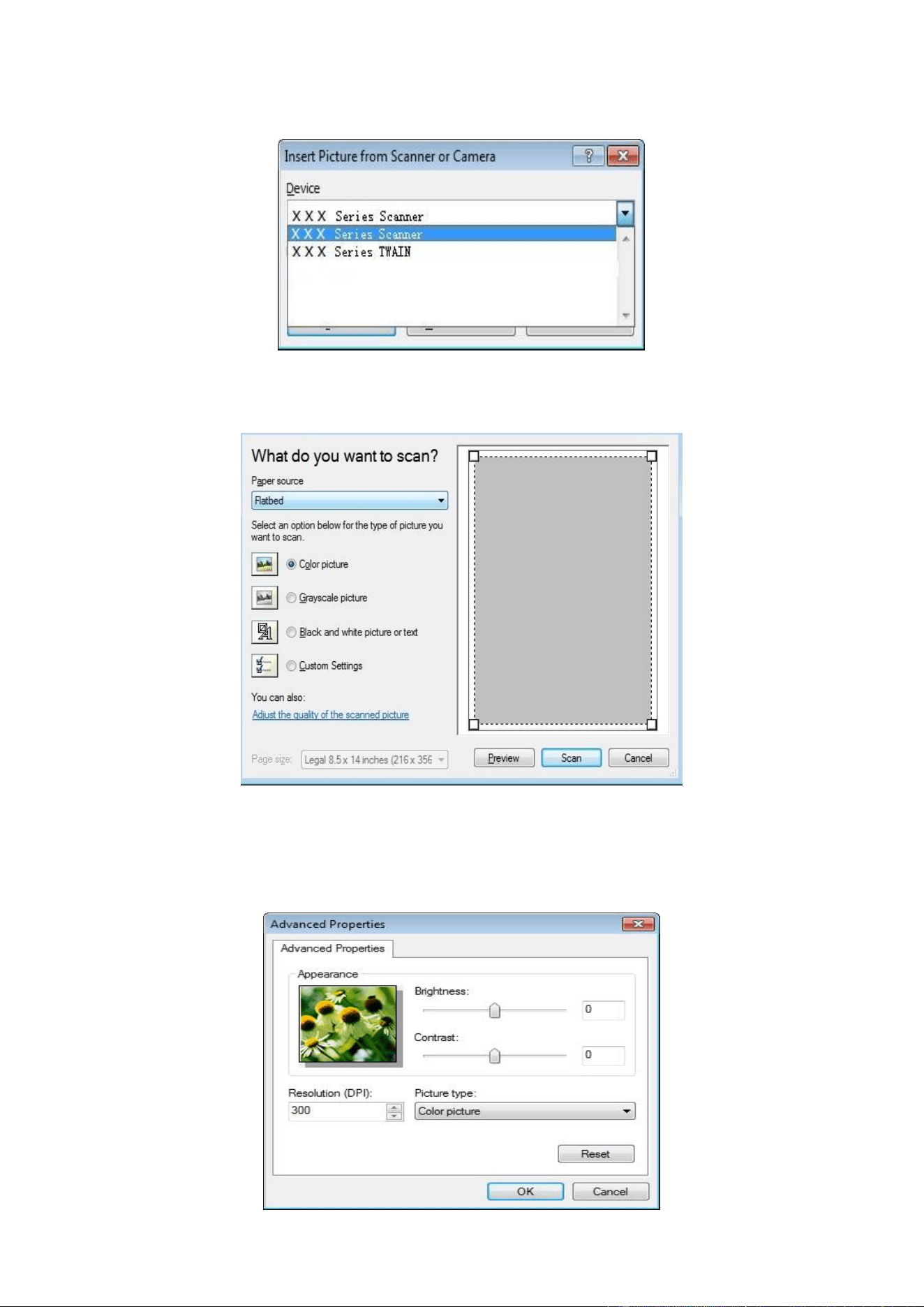
87
3) Click on "Device" and select WIA Scan, click the “Custom Insert” below.
4) The prompt window as is shown below, set the scan information.
5) Click on "Adjust the Scanned Image Quality" on the bottom left corner of the above picture, the
advanced properties interface will pop up, then users can set the scan; After finishing the settings,
click on the "OK" button, then "Scan" button to start scan.
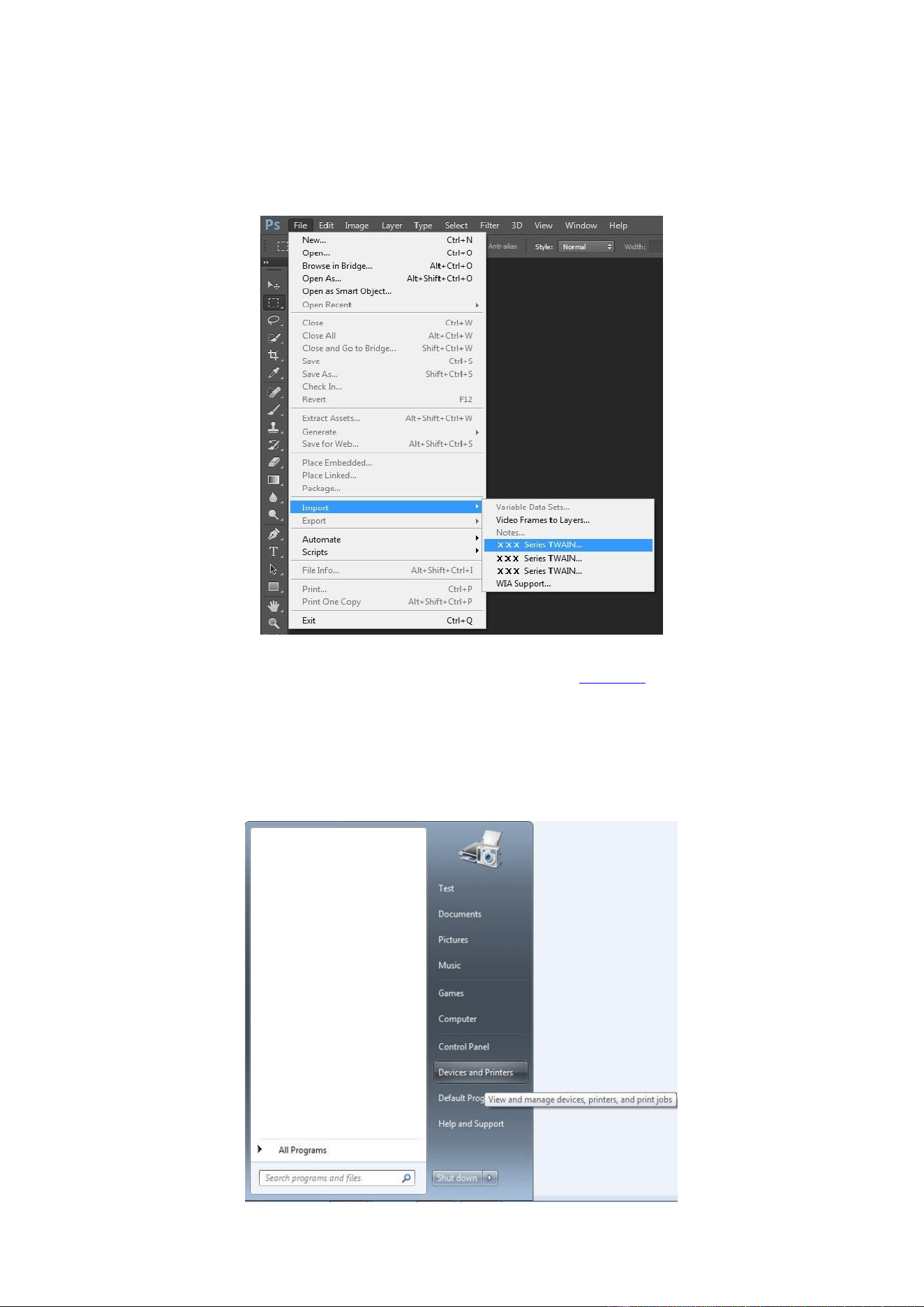
88
2. Photoshop
Operation Steps:
1) Launch Photoshop, click "File"- "Import" on the top left conrner and select WIA Scan, as is shown
below:
2) After the window pops up, please refer to Step 4 and Step 5 of 9.1.1.3.1 to see the specific
operation steps.
9.1.1.3.2. WIA 2.0 Scan (Windows 7 and later versions)
Operation Steps:
1. Click on "Start"- "All Programs"- "Device and Printer" on the left bottom of the desktop.
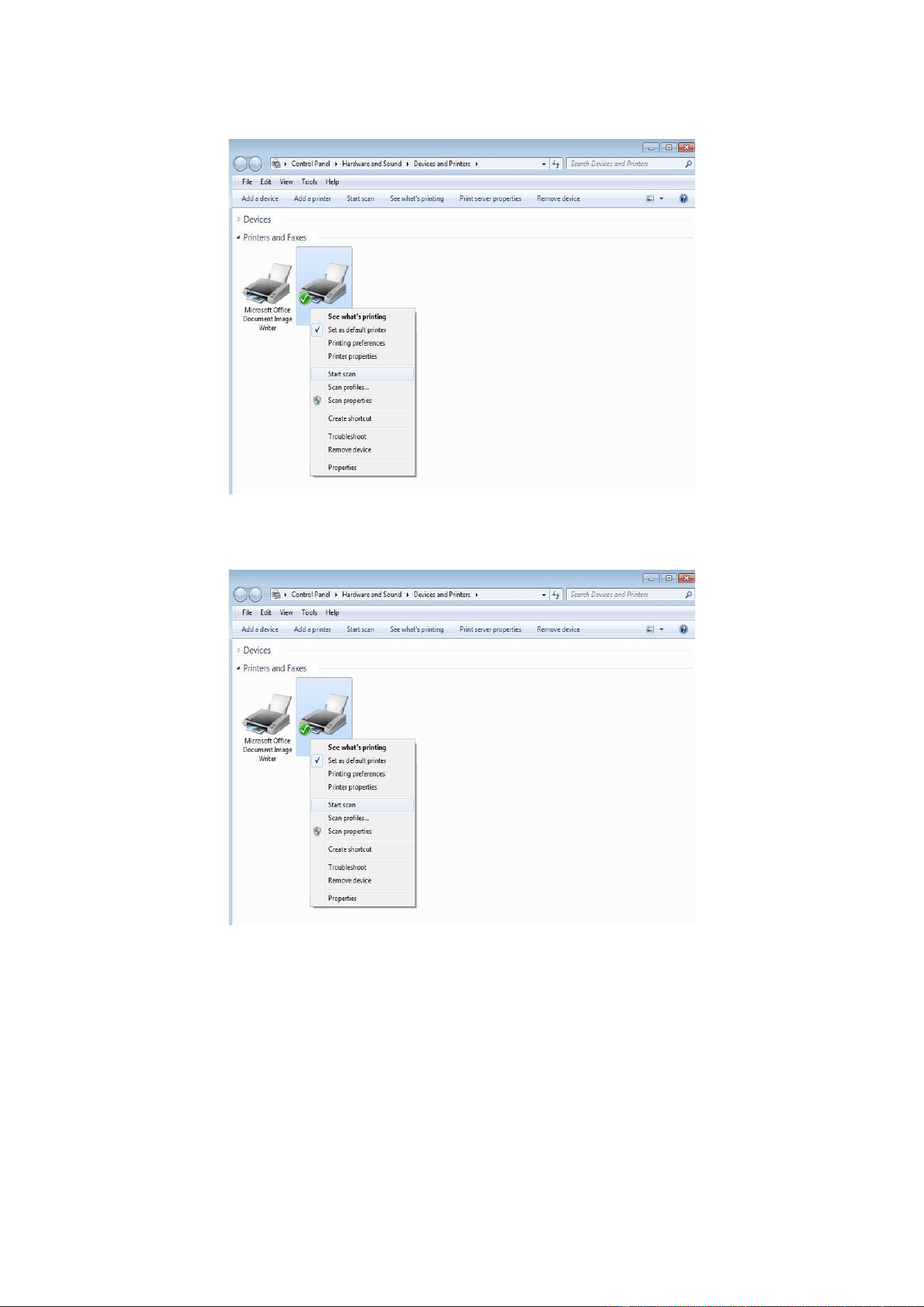
89
2. When the pop-up window appears, select the printer you want to use, and right click the mouse.
3. Click on "Start Scan" in the above option bar.
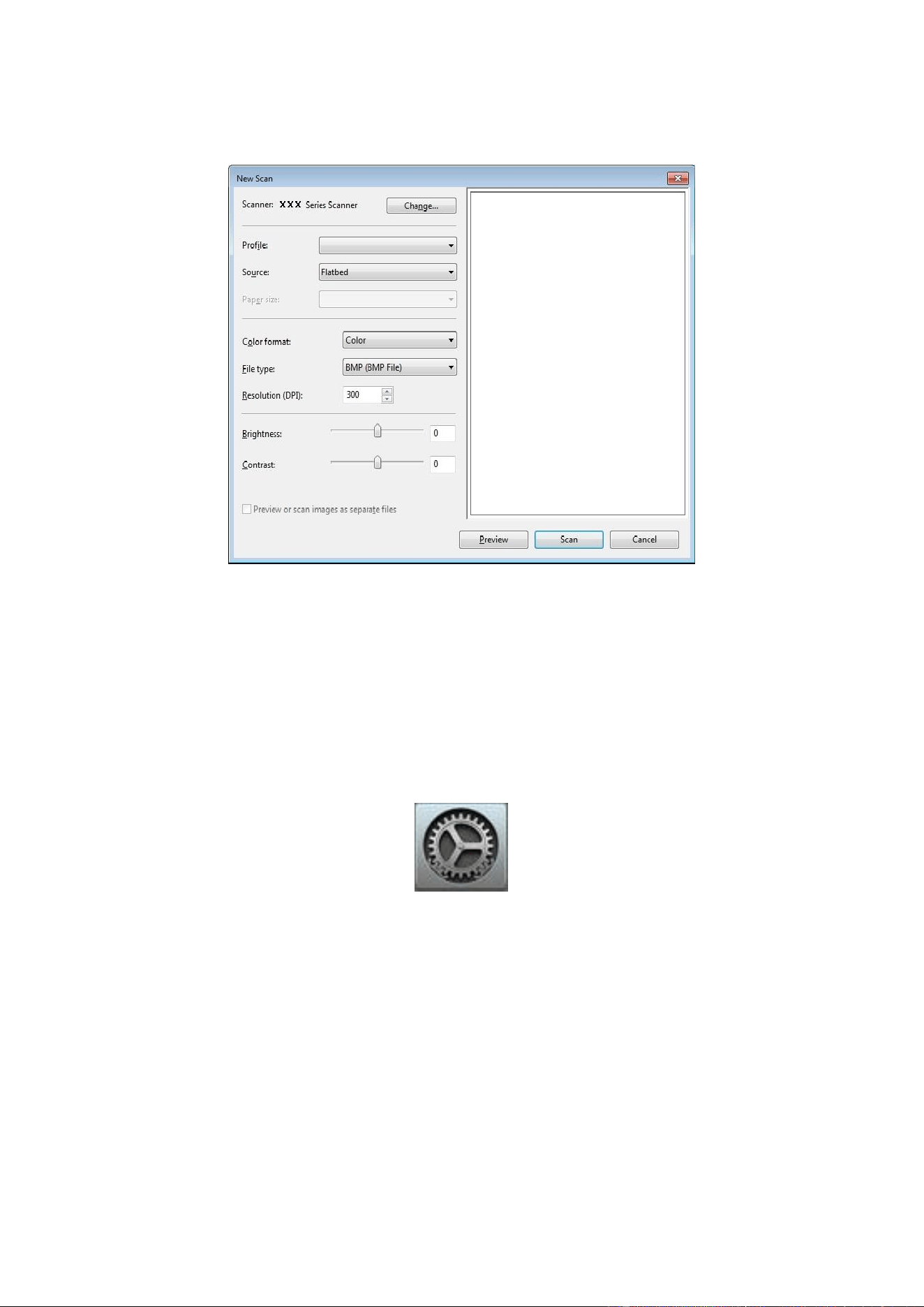
90
4. After the window pops up, set the scan and click "Scan" on the bottom right corner and start
scan.
9.1.2. macOS System Scan
9.1.2.1. ICA Scan
9.1.2.1.1. Open ICA via "Print and Scan"
Operation Steps:
1. After installing the printer driver, click "System Preferences" icon on the bottom left corner of the
computer desktop.
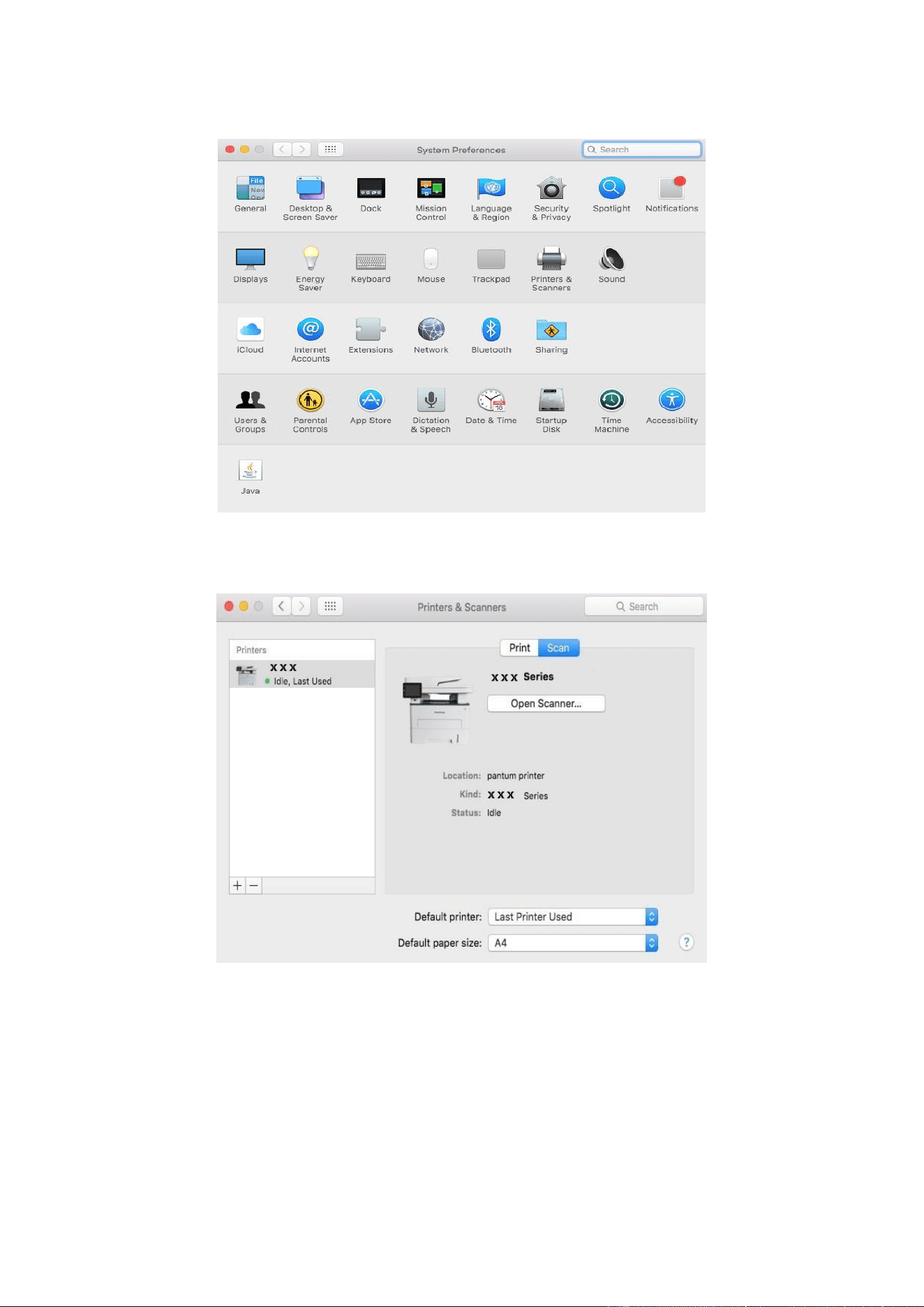
91
2. After the window pops up, click on "Print and Scan".
3. After the window pops up, click on "Scan".
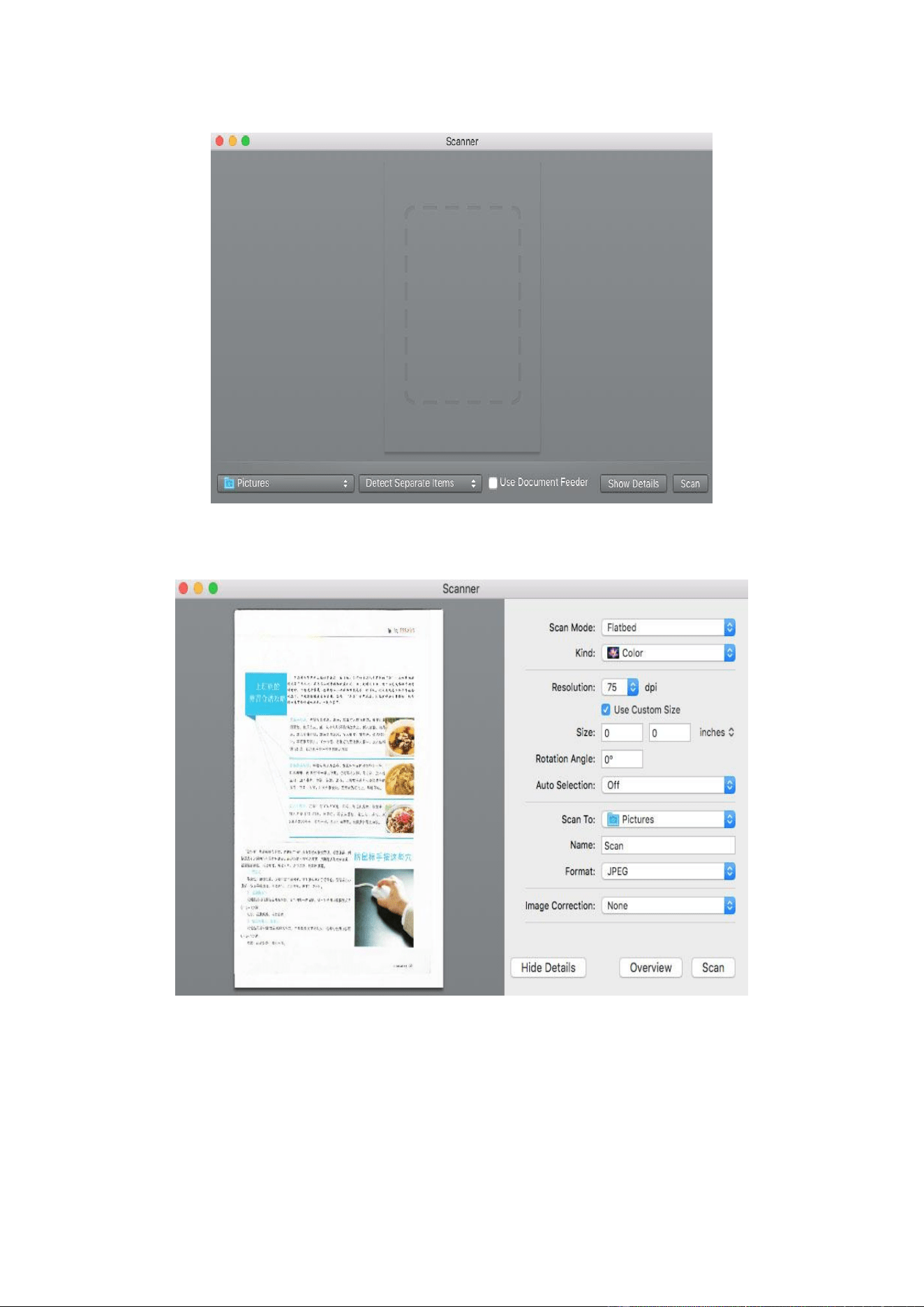
92
4. Click on "Open Scanner" and the scan window will pop up.
5. Click on "Show Details" on the bottom right corner to set the scan parameters.
6. Click on "Scan" on the bottom right corner and start scan.
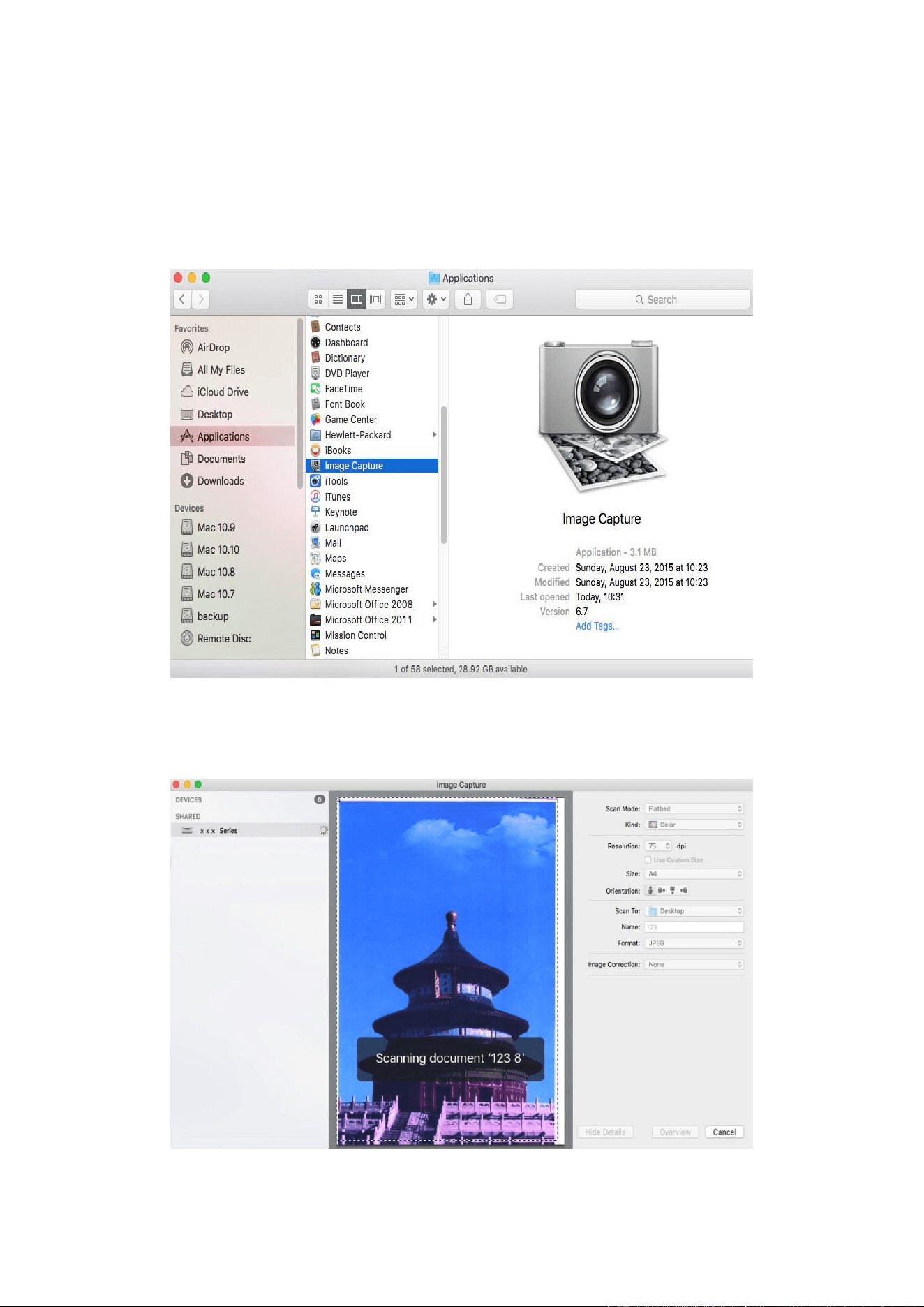
93
9.1.2.1.2. Call ICA through applications
Operation Steps:
1. Click on "Finder" icon on the bottom left corner of the computer desktop, or use keyboard
shortcuts command+shift+C to open the window. Find "Image Capture" in "Applications" (or
conduct keyboard shortcuts command+shift+A to directly switch to "Applications") and click to
launch the application.
2. After selecting the printer in the left list, set the scan parameters in the right list. Click on "Scan"
on the bottom right corner and start scan.
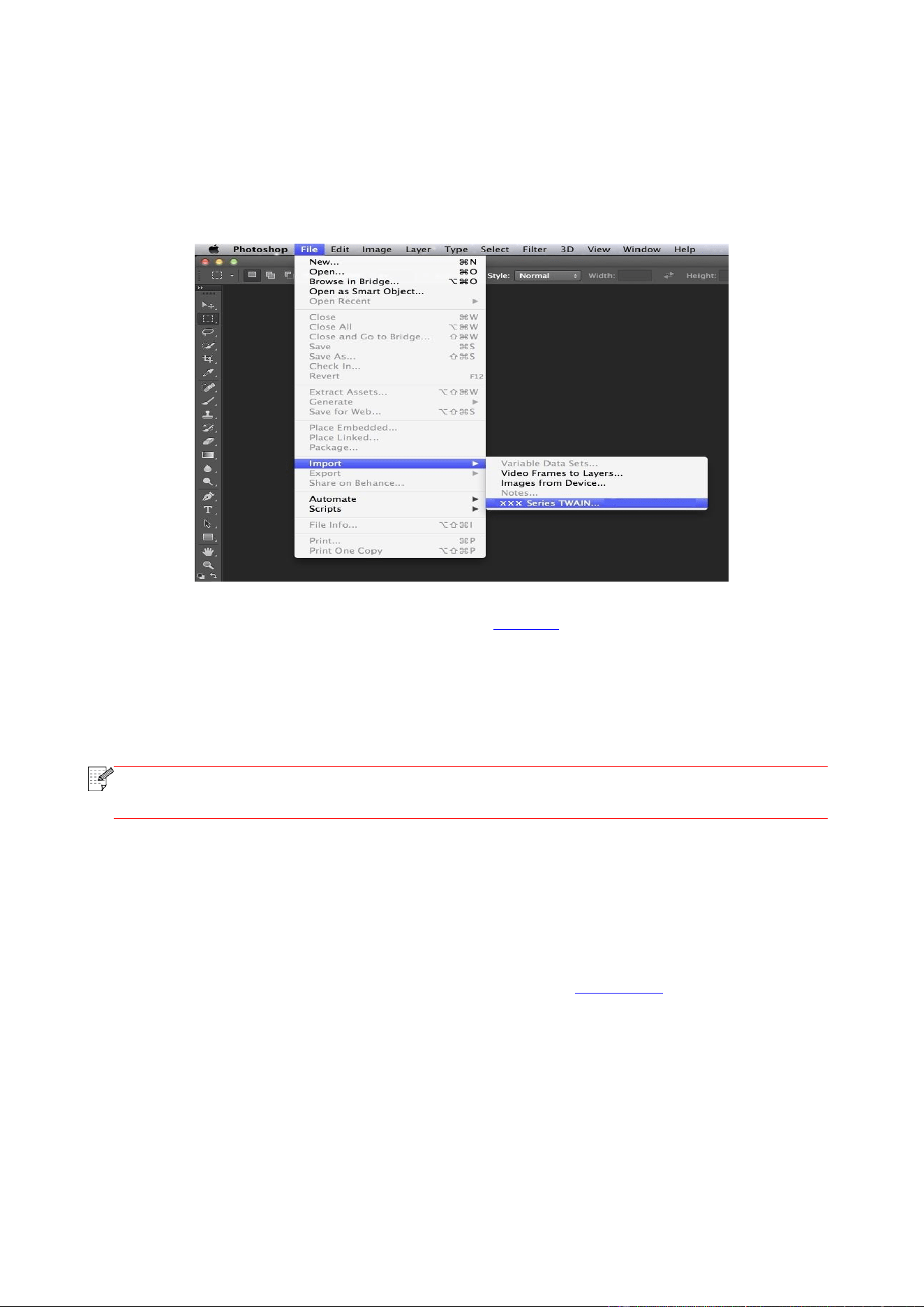
94
9.1.2.2. TWAIN Scan
Take Photoshop as an example.
Operation Steps:
1. Launch Photoshop, click on "File" – "Import" on the top left corner and select TWAIN Scan, as is
shown below:
2. After the window pops up, please refer to Step 4 of 9.1.1.2.1 to see the specific operation steps.
9.1.3. Push Scan
This section is mainly to introduce how to scan files to PC, E-mail, FTP and USB with the printer’s
control panel.
Note:
• Stored document types supported by “Scan to PC/Email/FTP” include PDF, TIFF and
JPEG; those supported by “Scan to USB” include PDF and JPEG.
9.1.3.1. Scan to PC
You may operate the printer’s control panel to scan a file to PC. (Only support connection method
of USB connection line.)
1. Be sure the printer and the computer are both switched on and connected with each other
properly.
2. Put an original on the glass platen or into the ADF (please see Chapter 2.5 for how to put an
original).
3. Click “Scan-Scan to PC” in printer control panel.
4. Select proper scan setting, click “Scan” button to make a scan.
9.1.3.2. Scan to E-mail
You may scan a black-white or color file as an appendix to the e-mail application, with specific
operation steps as follow:
1. Be sure the printer and the computer are both switched on and connected with each other
properly.
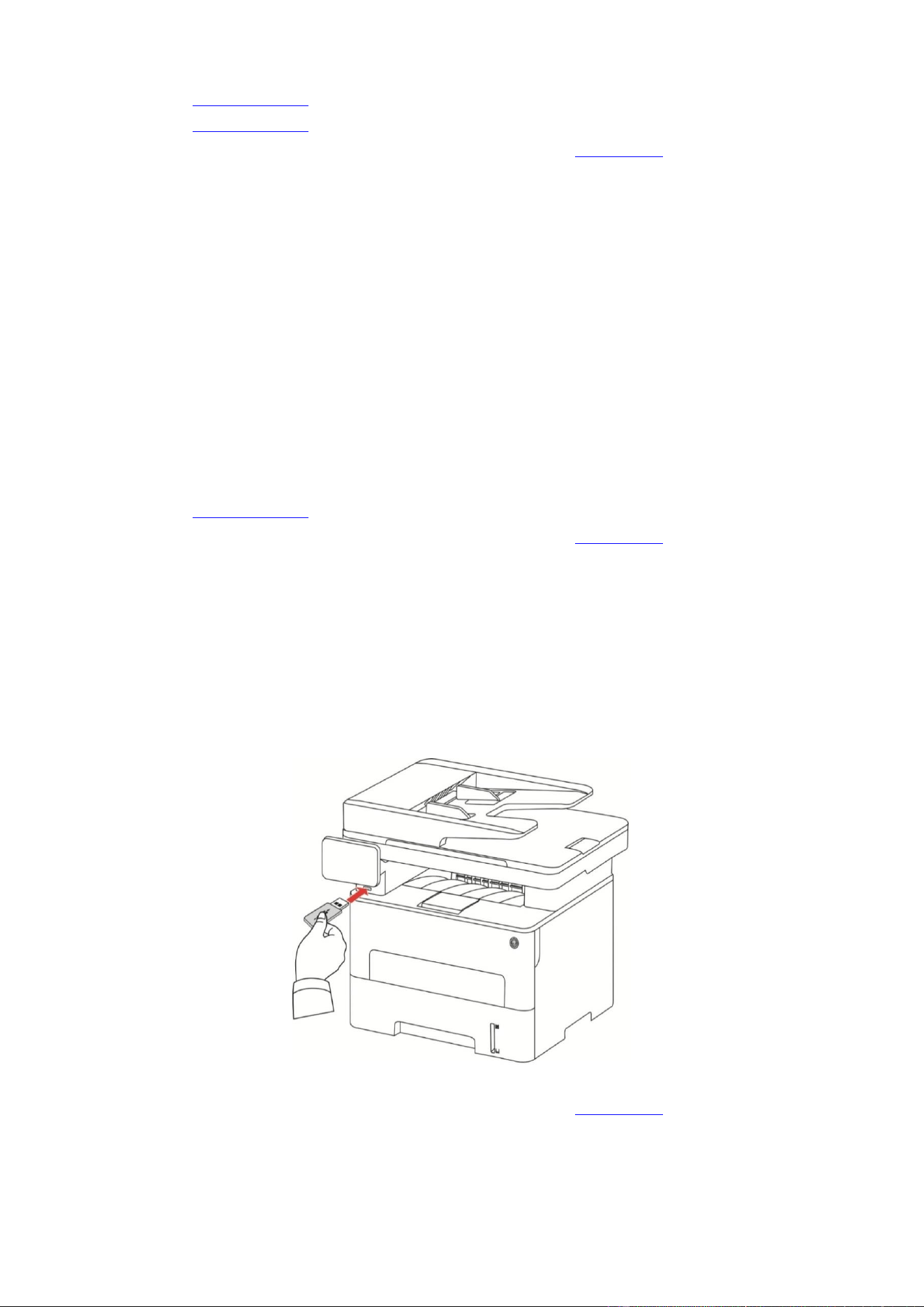
95
2. Please see Chapter 6.2.3.1 to configure the SMTP Client.
3. Please see Chapter 6.2.3.2 to configure the e-mail address book.
4. Put an original on the glass platen or into the ADF (please see Chapter 2.5 for how to put an
original).
5. Click “Scan-Scan to Email” in printer control panel.
6. Select proper scan setting, click “Scan” button to make a scan.
Please follow these instructions on the settings for group emails:
Set the group name for group e-mail sending by webpage, and set the members, i.e.the receivers,
in the group of group email. After finishing scanning, firmware will send the scanned documents to
the mail server. Then mail server sends the documents to every member of the group.
9.1.3.3. Scan to FTP
Be sure the user is in an Internet-connected environment in scanning files to FTP server. If you
want to scan large files, you may need to input the server address, user name and password to log
in the server, with specific operation steps as below:
1. Be sure the printer and the computer are both switched on and connected with each other
properly.
2. Please see Chapter 6.2.3.3 to configure the FTP address book.
3. Put an original on the glass platen or into the ADF (please see Chapter 2.5 for how to put an
original).
4. Click “Scan-Scan to FTP” in printer control panel.
5. Select proper scan setting, click “Scan” button to make a scan.
9.1.3.4. Scan USB drive
This printer supports scanning files to USB without a computer. Before operation, please make
sure the USB has enough storage space. The specific operation steps are as follow:
1. Insert the USB into the printer’s front USB interface.
2. Put an original on the glass platen or into the ADF (please see Chapter 2.5 for how to put an
original).
3. Click “Scan-Scan USB” in printer control panel.
4. Select proper scan setting, click “Scan” button to make a scan.
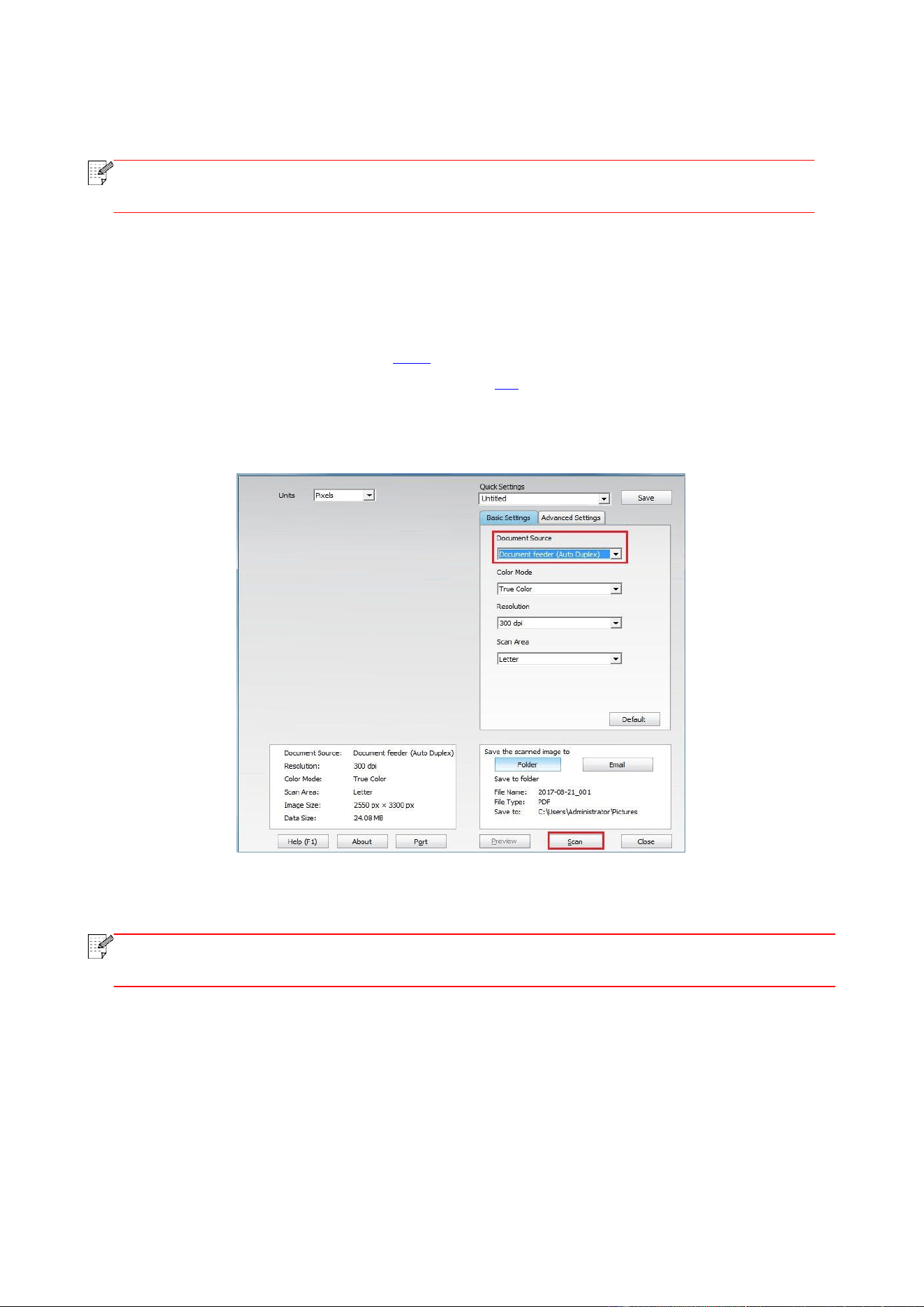
96
The printer will create a folder named PantumScan in which all scanned files are saved in PDF or
JPG.
Note:
• USB formats supported: FAT and FAT32 for Windows system and MS-DOS (FAT) for
macOS system.
9.2. Scanning function
This machine supports ADF automatic duplex scanning. Take Pantum scanning application
software as an example:
1. Place the original in ADF (see Section 2.5.2 for specific operation).
2. Recall “Pantum Scanning Application” (see Section 9.1 for specific operation).
3. The Scan Setting window will pop up, Select “Document Feeder (Auto Duplex)” under “Document
Source” on the right side.
4. After setting the scanning parameters, click "Scan" in the lower right corner to start scanning.
Note:
• This machine also supports ADF automatic duplex scanning. You can “Enable” or
“Disable” this function on the Scan Setting interface of the control panel.
9.3. Cancel Scan Job
To cancel a job during document scanning, click “Cancel job” in printer control panel.

97
10. Fax
10.1. Connect Devices
• “ ” port is used to connect fax with telephone line.
• “ ”port is used to connect external telephone.
Note:
• It is recommended to use the traditional analog phone service (PSTN: Public Switched
Telephone Network) in connecting telephone line. If a digital environment (for examples,
DSL, PBX, ISDN or VoIP) used, please be sure to use a proper filter and configure digital
settings correctly. For more information, please contact your digital service provider.
10.2. Fax Settings
Fax setting interface includes the following functional setting:
No.
Options
Description
1
Resolution
You may select the faxing definition from options of “Standard, Fine, Super
Fine and Image”. It defaults to “Standard”.
2
Original Size
You can select the desired size of the document to be Faxed. The available
options are A4, Letter and Legal.
3
Luminosity
You can adjust the luminosity of Fax documents manually or automatically.
4
Fax Name
Input the fax name and save it.
5
Fax Number
Input the fax number and save it.
6
Group Sending
With the feature of multi-address sending, it supports inputting several
numbers to be faxed one by one, with the ability of up to 20 fax numbers
sent to at the same time.
7
Delay Sending
With the feature of delay in sending, you may set the fax number and delay
time of sending (within 24 hours), making the fax sent upon the time set. 30
fax jobs at most supported now.
8
Forward the
Received
After enabling "Forward to Fax", please set the number to be forwarded;
upon receiving the fax, it will forward to the number set immediately; if
enabling "Forward and Print" at the same time, the printer will automatically
print a copy of fax job for saving after receiving the fax.
9
Send Settings
You can use the options in Send Settings to set the parameters for sending
Fax.
10
Receive Settings
You can use the options in Receive Settings to set the parameters for
receiving Fax.
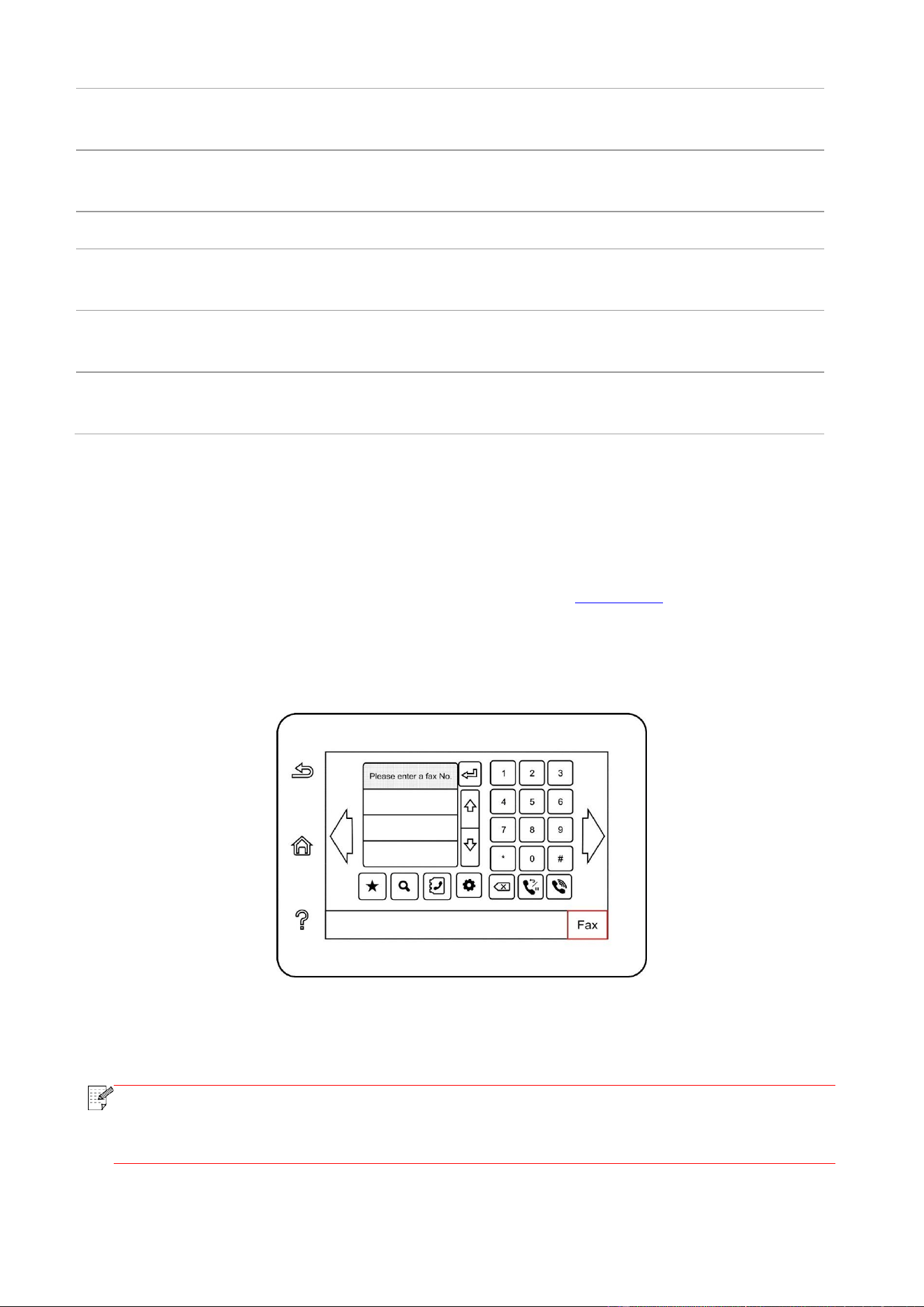
98
11
Compatibility
If Fax is sent or received abnormally due to disturbance on telephone line,
try to switch to VOIP compatibility mode.
12
Country / Region
To adapt to different telephone lines in different countries, settings on
different countries or regions are needed.
13
Fax Report
You can use the options in Fax Report to print the Fax report as you need.
14
Active Job
Query for the list of all Faxes for Delay sending and you can press the
Cancel button to delete a Delay sending job.
15
Communication
record
Inquire the latest 30 times of Fax sending/ receiving.
16
Contacts
You can edit the contacts, group numbers, and print the contacts as well as
the list of group numbers from Contacts.
10.3. Fax Functions
10.3.1. Send Fax
10.3.1.1 Auto fax sending
1. Put an original on the glass platen or into the ADF (please see Chapter 2.5 for how to put an
original).
2. Click “Fax” button in control panel to enter fax functional interface, enter fax number through
numeric keys.
3. Click “Fax” button to scan document.
4. Fax will be sent automatically after scanning.
Note:
• In order to prevent damage to this product, do not use a manuscript with correction tape,
correction fluid, paper clips or staples on it. In addition, do not load photos, small
manuscripts or brittle manuscripts into the automatic document feeder.
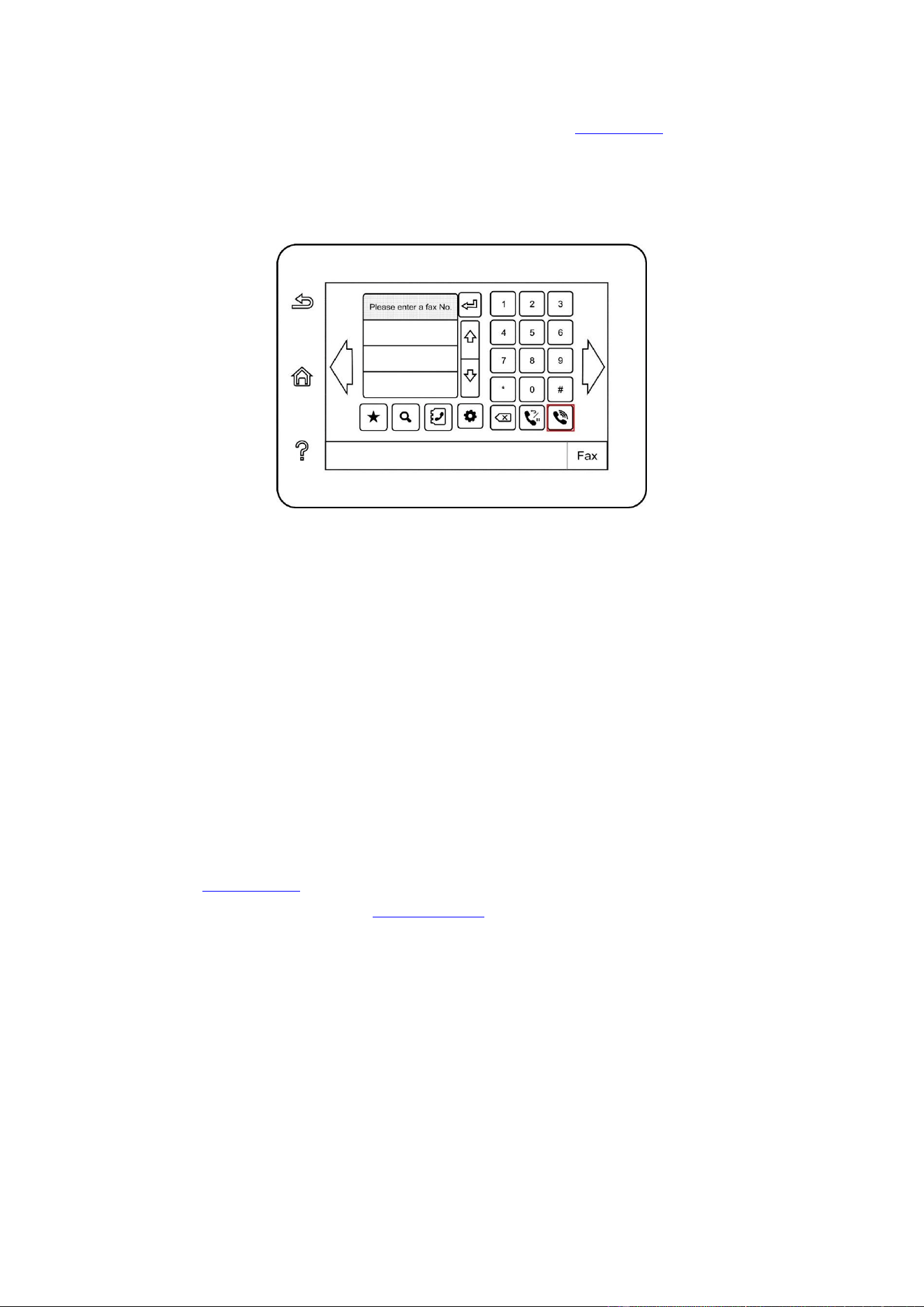
99
10.3.1.2. Manual fax sending
1. Put an original on the glass platen or into the ADF (please see Chapter 2.5 for how to put an
original).
2. Click “Fax” button in control panel to enter fax functional interface.
3. Click “Hands free” button or pick up the telephone receiver, enter fax number.
4. Re-click “Fax” button after hearing the fax warning tone to confirm to send.
• If the called party answers the telephone, both parties can make a voice communication. Click
“Fax” button after hearing the fax warning tone of the called party to confirm to send fax.
10.3.2. Receive Fax
You have two ways to receive Fax, and the default for the printer is Fax mode.
Fax mode: determine each call from the calling party as a fax. When arriving the ring count set, it
gives fax receiving signals and receives the fax automatically.
Telephone mode: define each call from the calling party as a telephone call, it is required to answer
the telephone manually, then click “Fax” button in control panel to receive fax.
10.3.2.1. Auto receiving under fax mode
In receiving the fax, the machine answers the call with the set ring count and then receive the fax
automatically. The ring count defaults to 4 times.
Please refer to Chapter 10.2 to modify ring count.
To adjust the ring volume, please see Chapter 12.1.8.
10.3.2.2. Manual receiving under telephone mode
Under telephone mode, there are 3 ways to receive a fax when there is a fax call:
1. Click “Fax” button in control panel to allow the printer to receive fax.
2. Put down the telephone receiver or click “Hands free” button in control panel, then re-click “Fax”
button to allow the printer to receive fax.
3. Use remote receiving method (only for external telephone), and after picking up the receiver,
press "*90" on telephone panel and then the machine begins to receive.

100
Note:
• The default remote code is “*90” which can be modified by users through “Fax”-“Fax
setting”-“Receive set.”-“Remote code”.
• Received fax job may not be printed in case of low cartridge, please renew cartridge or
turn “Continue to print in low cartridge” function on in fax receiving setting.
10.3.3. Set the compatibility of interference VoIP telephone line
If the fax is sent or received abnormally due to interference to telephone line, please improve the
fax receiving and sending with the following methods.
1. Switch to VOIP Compatible mode with panel setting.
Please follow steps below to set:
1. Click “Fax” button in control panel, then click “Setting” button to enter “Fax setting” interface.
2. To shift to VoIP compatible mode, click “General setting-Compatibility”, select “VoIP”.
3. Try to resend the fax in off-peak hours.
4. Consult your VoIP provider on if the network setting on fax transmission could be optimized.
10.3.4. Other Fax Functions
1. Group Sending
This printer supports sending one original to several fax numbers, with the ability of up to 20 fax
numbers sent to at the same time.
2. Delay Sending
You can enable Delay sending of Fax through the Control Panel. When this process is complete,
the printer will scan the document to the memory, and get back to Ready state.
3. Active Job
You may check or delete the delay sending jobs stored currently with the "Active Job" menu.
4. Receive and forward
Fax may be forwarded. Forwarding fax to another fax or designated Email address is supported.
1) Forward to Fax
Select “Fwd to fax”, input and confirm receiver's Fax No. When fax job is received, the product will
dial preset Fax No. and forward the fax job. If forwarding fails due to line occupation, faults and
other causes, the forwarded content will be automatically printed in one copy for backup (If re-dial
is set, it prints after re-dial).Select “Fwd & Print”, to enable auto printing of all forwarded to fax.
2) Fwd to Email
Select “Fwd. to Email”, input and confirm Email address. When fax job received, the product will
send the fax file to the Email address as an attachment. The forwarded content will not the
automatically printed in case of Email faults or network problem.Select “Fwd & Print”, to enable
auto printing of all forwarded to Email.
Note:
• Consult network administrator for network settings of fax forwarded to Email.
• Forwarding of fax to Email may fail due to Email accounts setting, Email server setting,
anti-spam and other network reasons. No fax file may be auto printed for backup. It is
recommended to select “Fwd & Print”.
• See Chapter 6.2.3.1 for SMTP Settings of the Email Server.

101
5. Automatic Redial
If the number you have dialed is busy or is not responding when you send a Fax, the machine will
automatically redial the number. You can set the redial attempts and interval.
6. Auto Shrink
When the paper size of the received Fax does not match the size specified in the printer, the
received Fax will be shrinked according to the user-defined paper size to match the paper size in
the printer.
If you disable the Auto Shrink option, the Fax will be printed at full size across multiple pages. Auto
Shrink is turned on by default.
Note:
• Make sure that the default paper size setting is consistent with the size of the medium
loaded in the paper tray.
• Receive in memory: in case of paper out or paper jam, This printer supports storing all
faxes under receiving into its memory automatically; after handling the paper out or paper
jam, it will print all of them automatically.
7. Speed dial
You may edit the quick-dial and group-dial numbers in the address book for quickly dialing in
sending a fax.
1) Speed Dial Number
Click “ ” button in fax interface to enter search interface, enter speed dial to allow the system to
search automatically. If the speed dial has been saved, related Info. will display, then click “Fax”
button to make a fax; if not, it says this is a null number. 200 speed dials can be saved at
maximum.
2) Group Dial Number
Click “ ” button in fax interface to enter “Contacts” menu, select “Group call”, select one group in
group call interface, click “Group dial” to make a group fax. 10 group dials can be saved at
maximum, 99 numbers for each group at maximum.
10.4. PC-Fax
PC-Fax function allows you to send a document from your computer as a Fax.PC-Fax supports
Windows system only. In this chapter, a Word file is taken as the example to show you how to
operate.
10.4.1. Sending Fax with PC-Fax
1. Open the document to be faxed.
2. Click "File" and then "Print".
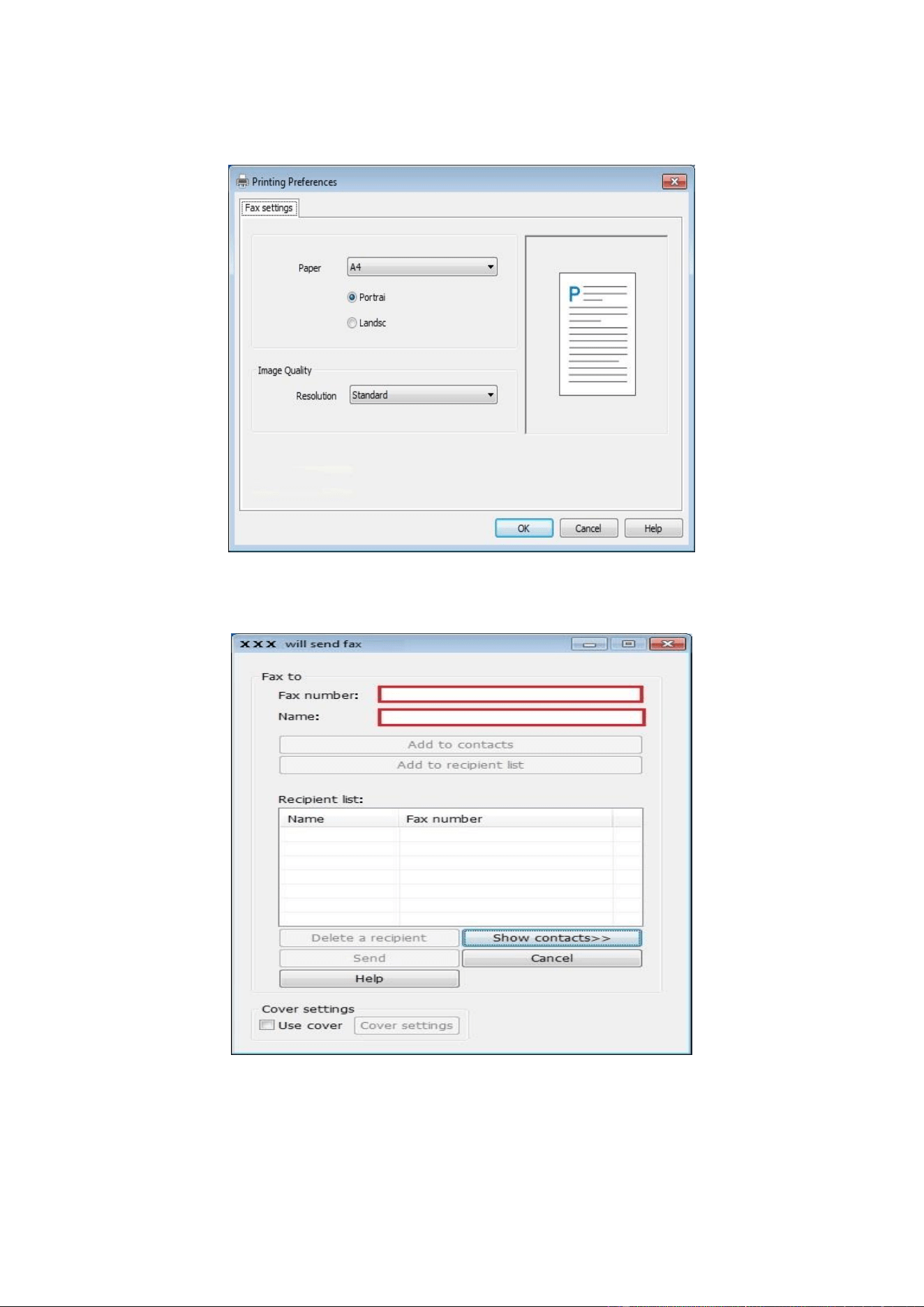
102
3. Select a printer named after the end of Fax and then click "Printer Properties"; next, set "Paper"
and "Quality" of PC-Fax sending on the "Fax Settings" popup.
4. Click "Print" to present the "Send Fax" interface.
5. Enter the Name and Fax Number, then click Add to recipient list; If you want to send the Fax to
multiple addresses, you can continue to enter their Name and Fax Number, then click Add to
recipient list.
6. Click Send to start sending the Fax.

103
11. Mobile Print/Scan/Fax
Note:
• Some functions are not available depending on different printer models. If you have any
questions, please contact the Customer Service.
11.1. "Pantum" App
You can realize the functions of print, scan, copy and fax on mobile devices (mobile phones and
tablets) through the "Pantum Printer" application software.
11.1.1. Operating systems supported
“Pantum Printer” App is suitable for Android 6.0-12.0, iOS 11.0-16.0 and HarmonyOS 2.0-3.0
system versions.
11.1.2. How to download Pantum App
How to download it for Android mobile device:
1. You can download it from its official website http://www.pantum.com > Service & support >
Driver download > Select printer model > Download and install.
2. You can use Google Play Store > Apps > to search Pantum Mobile Printing > Download and
install.
How to download it for iOS mobile device:
Click the App Store icon > Search interface > input “PANTUM” or “Pantum print” in the search bar >
Download and install on the interface of iOS device to download.
11.1.3. How to use the Pantum Printer App
11.1.3.1. Add a printer
I. Add the printer through Wi-Fi network configuration
1. Make sure the mobile device turns on Bluetooth, location information permissions, and access
Wi-Fi network.
Note:
• For iOS mobile devices, please enable the location permission of Pantum Printer App as
follows. Click “Settings” > “Pantum Printer App” > “Location”, and select “During APP use”.
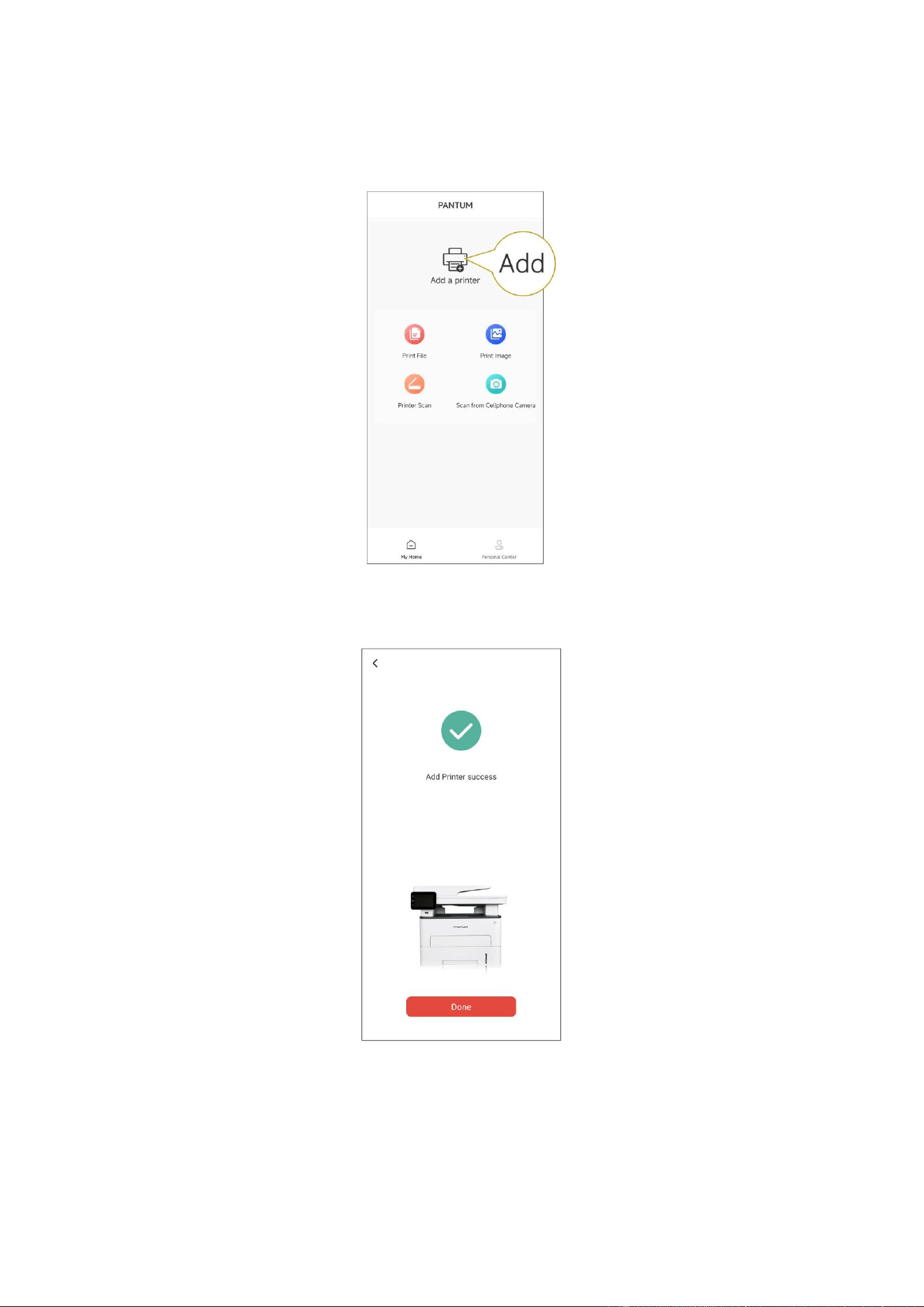
104
2. Press the Wi-Fi button of printer to print the "Moblie Deveice Wi-Fi Connection Guideline"
3. Go to "Pantum Printer" App. Click the "Add Printer" button, and operate according to the
instructions on the interface.
4. The printer is added successfully.
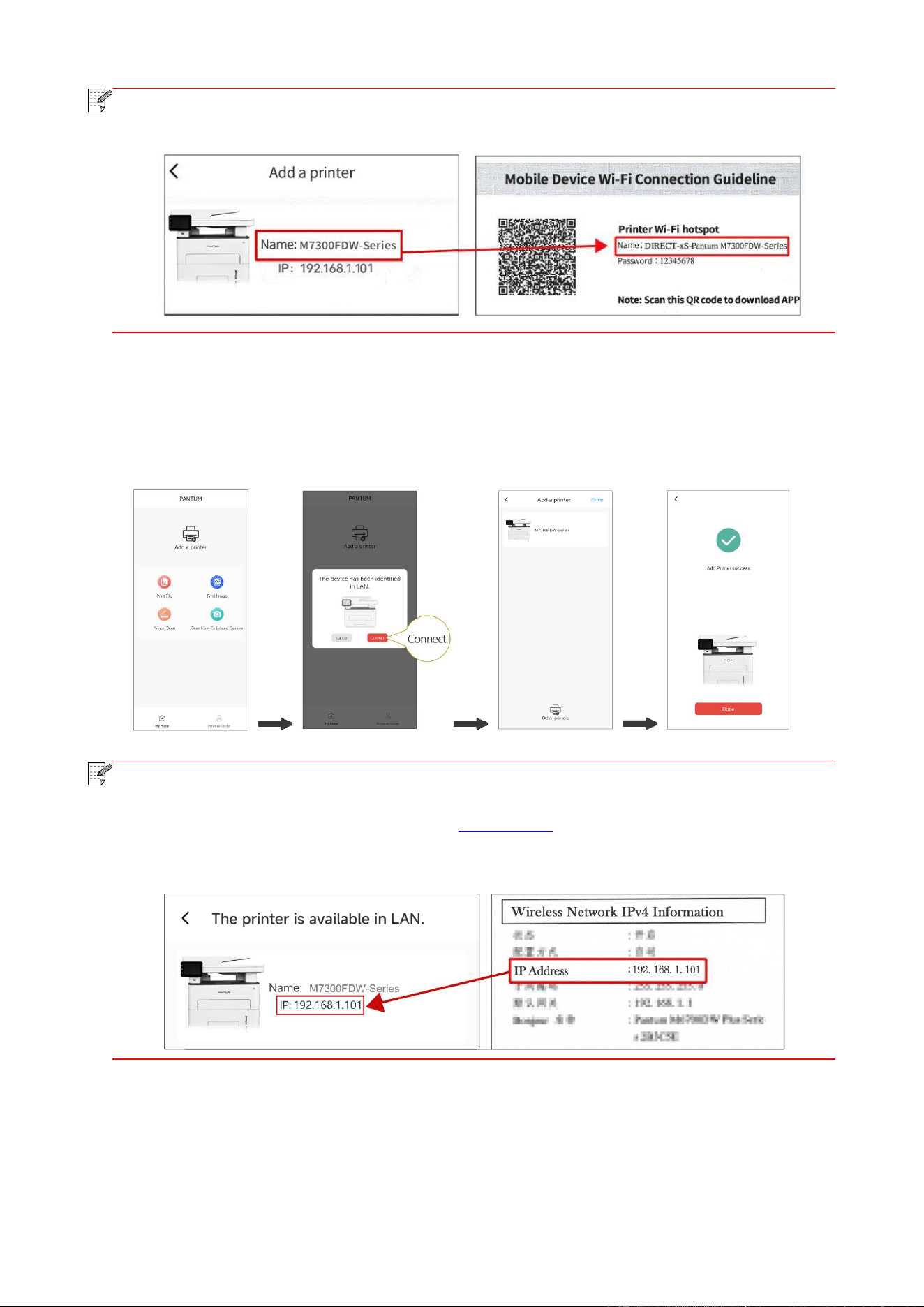
105
Note:
• If several printers are found, please print the "Moblie Deveice Wi-Fi Connection Guideline"
and select the printer you want to connect to according to the hotspot name.
II. Search for a printer in the LAN
1. The printer and mobile device have been connected to the same LAN.
2. Go to "Pantum Printer" App > Click "Connect" on the interface of "Devices found in LAN" > Select
a printer > Add Successfully.
Note:
• If multiple printers are found, please print the “Network Configuration Page” and select
the printer you desire based on the IP address. (For information on how to obtain the IP
address of the printer, you may refer to Section 12.4 and print “Network Configuration
Page”)
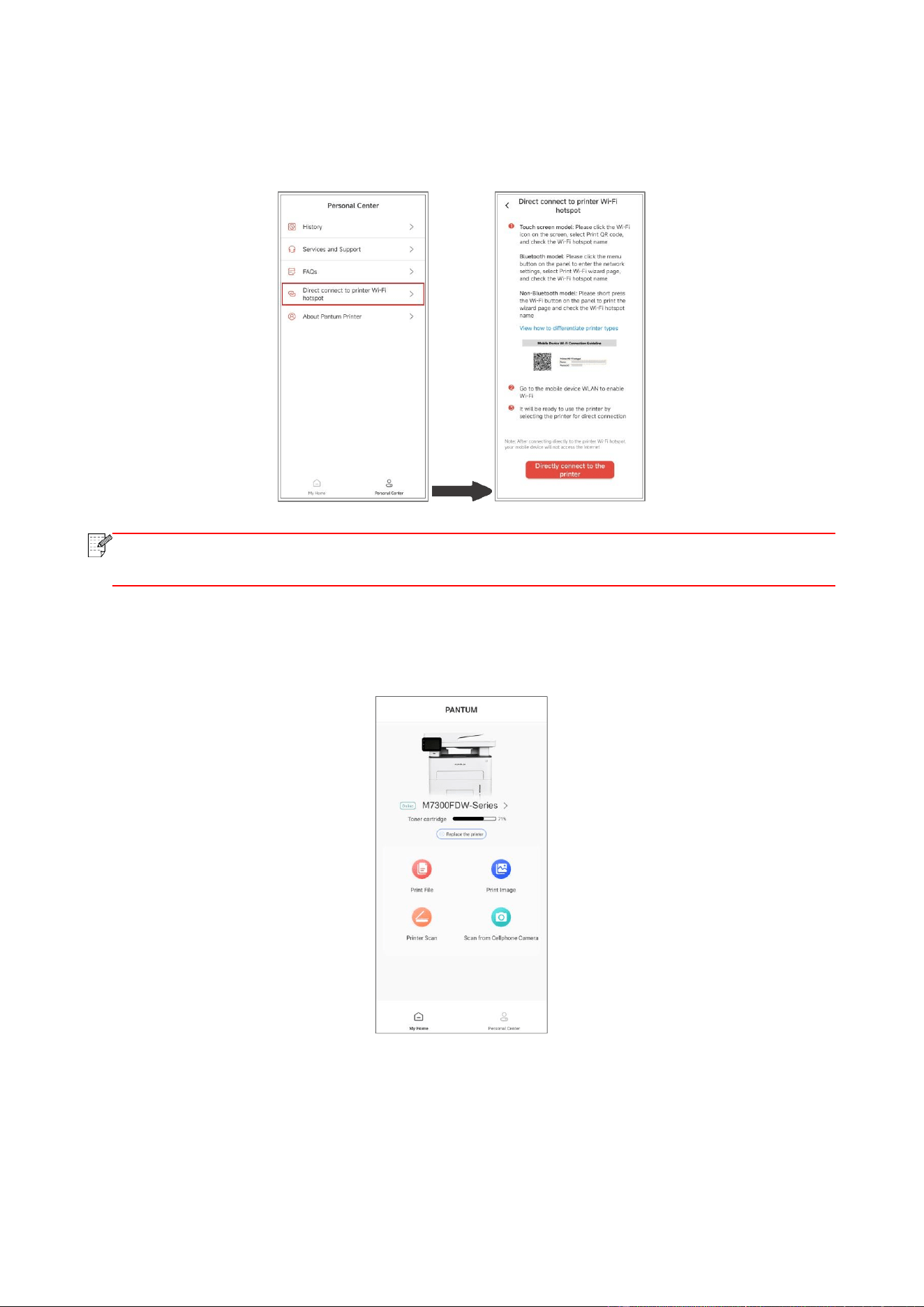
106
III. Add the printer through direct connection
1. Go to "Personal Center", select "Direct connect to printer Wi-Fi hotspot", and operate according
to the instructions on the interface.
Note:
• The current network of your mobile device is unavailable after the printer Wi-Fi hotspot
is connected directly.
11.1.3.2. Use the printer
Enter the home page of the App, and select to experience different functions as needed.

107
Note:
• The functions may vary in different printer models. Specific functions are subject to the
printer you have purchased.
• If printing fails, check whether the mobile device is connected to the same wireless
network to which the printer is connected.
• If the mobile device does not detect any printers, check whether the printer is plugged
in and turned on.
11.2. Mopria mobile print
Mopria mobile print requires installing Mopria Print Service on the Android device. You can print
photos, emails, webpages and files.
11.2.1. The operating systems and applications which support Mopria
mobile printing
1. Mopria mobile printing is suitable for Android4.4 or higher version.
2. Mopria mobile printing is supported by applications, e.g. Microsoft Office 1.01(16.0.4201.1006)
or higher version, Adobe Reader (V11.7.1) or higher version.
For more information about applications which support Mopria printing, please visit:
https://mopria.org
11.2.2. How to download Mopria Print Service
1. Download Mopria Print Service from Google Play and install it on the Android device.
2. For Chinese users, please download the Mopria printing service at
https://app.mopria.org/MopriaPrintService for downloading and installing this APP.
11.2.3. Preliminary preparations
1. A printer that has wireless network function.
2. Android mobile device.
11.2.4. How to use Mopria mobile printing
Before printing, please set the Mopria print service as "ON".
1. Tap the "settings" of the Home Screen on Android mobile device, and select "print".
2. Set the "Mopria print service" as "ON".
All other printing plug-ins should be shut down when you use Mopria mobile printing function.
The printing steps may varied by applications, taking Adobe Reader as an example for explanation.
1. Turn on printer power.
2. Connect the Android mobile device with wireless network of the printer (Please refer to Chapter
5 for how to connect).
3. Open the files you need to print with Adobe Reader on the Android device.
4. Click .
5. Tap "print".
6. Please make sure the Pantum printer is selected.
If you selected other printer (or failed to select any printer), please tap the pull-down menu of

108
printer, and select your Pantum printer.
7. Set printing parameters, e.g. print pages.
8. Tap "print".
Note:
• If printing fails, please inspect if the Android device is connected to the wireless
network where the printer is connected to.
• If the Android device cannot detect any printer, please inspect if power of the printer is
turned on and if the printer is turned on.
11.3. NFC function
The NFC (Near Field Communication) label allows non-contact point-to-point data transmission
between electronic devices. You can quickly connect a mobile device to the printer by using this
label.
Note:
• NFC recognition may not work properly due to the material of a mobile device enclosure.
• Touch time and distance may differ because of the mobile phones used.
11.3.1. Preliminary preparations
1. Printer with Wi-Fi Direct function.
2. Android 5.0 or higher version mobile devices support NFC function and Wi-Fi Direct function.
11.3.2. How to use NFC function to print
1. Inspect if the NFC and Wi-Fi Direct function are enabled on the mobile device and if Wi-Fi Direct
function of printer is enabled. (Please refer to Chapter 12.2 for how to enable Wi-Fi Direct
function).
2. Knock gently the NFC mark that indicates the NFC antenna (on the back of the mobile device
generally) on the printer and then wait for several seconds; then, the printer application will start
and the mobile device will connect to the printer.
Note:
• For some mobile devices, NFC antenna may not be on their backsides. Before
touching, please check the position of the NFC antenna of your mobile device.
• If the mobile device is not installed with Pantum App, the Pantum App download link
will pop out automatically. Try again after downloading and installing the App.
3. Select the content to be printed and set printing parameters according to needs.
4. Click print and the printer will start to print.

109
11.4. AirPrint mobile print
Only printers that support AirPrint function can realize AirPrint printing. Please check if there is
AirPrint mark on the packaging of the printer, in order to identify if the printer supports AirPrint
function.
11.4.1. Operating systems supported by AirPrint mobile print
Applicable to iOS 9.0 or higher versions.
11.4.2. Preliminary preparations
1. A printer that has wireless network function.
2. iOS device mobile printing.
11.4.3. How to use AirPrint mobile printing
The printing steps may varied by applications, taking PDF as an example for explanation.
1. Turn on printer power.
2. Connect the iOS mobile device with wireless network of the printer (Please refer to Chapter 5 for
how to connect).
3. Open the files you need to print in the format of PDF on the iOS device.
4. Click .
5. Tap "print".
6. Please make sure the Pantum printer is selected.
If you select other printers (or no printer), please click printer option and then select your Pantum
printer.
7. Set printing parameters such as number of copies to print.
8. Tap "print".
Note:
• If printing fails, please inspect if the iOS device is connected to the wireless network
where the printer is connected to.
• If the iOS device cannot detect any printer, please inspect if power of the printer is
turned on and if the printer is turned on.
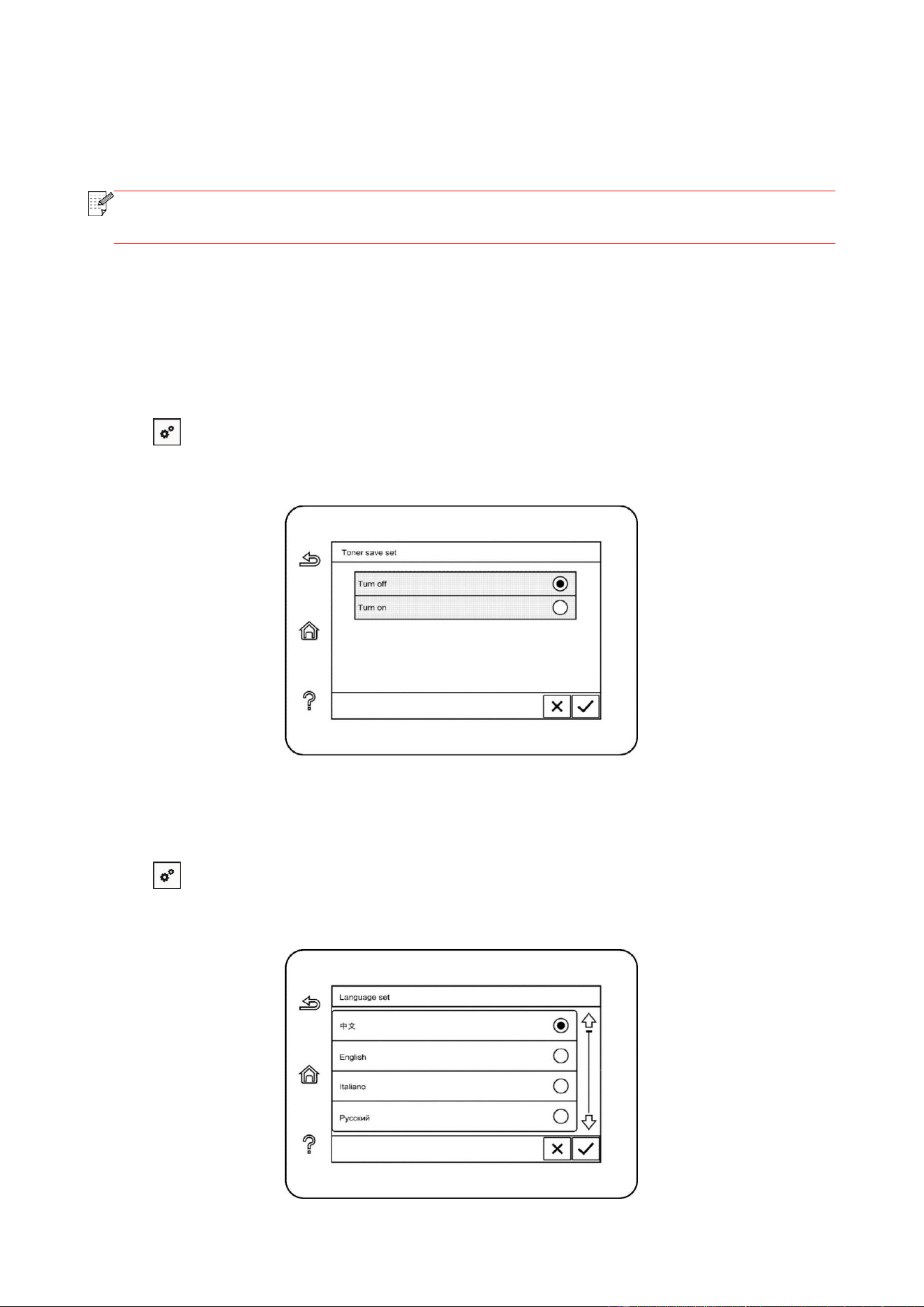
110
12. General Settings
This Chapter mainly introduces some general settings.
Note:
• The panel appearance may be a little different due to difference in type or function. All
diagrams are only for reference.
12.1. System Settings
12.1.1. Ink saving setting
You can select the save toner mode which can reduce toner consumption and reduce printing cost.
When save toner mode is “on”, the printed color will be lighter. Save toner mode is “off” by default.
1. Click “ ” button in control panel to enter “Menu setting” interface.
2. Click and select “System Setting”-“Toner save set” to turn toner saving mode on.
12.1.2. Language Setting
"Language Setting" is used to select the language to be displayed on the control panel.
1. Click “ ” button in control panel to enter “Menu setting” interface.
2. Click and select “System Setting”-“Language set” to set language.
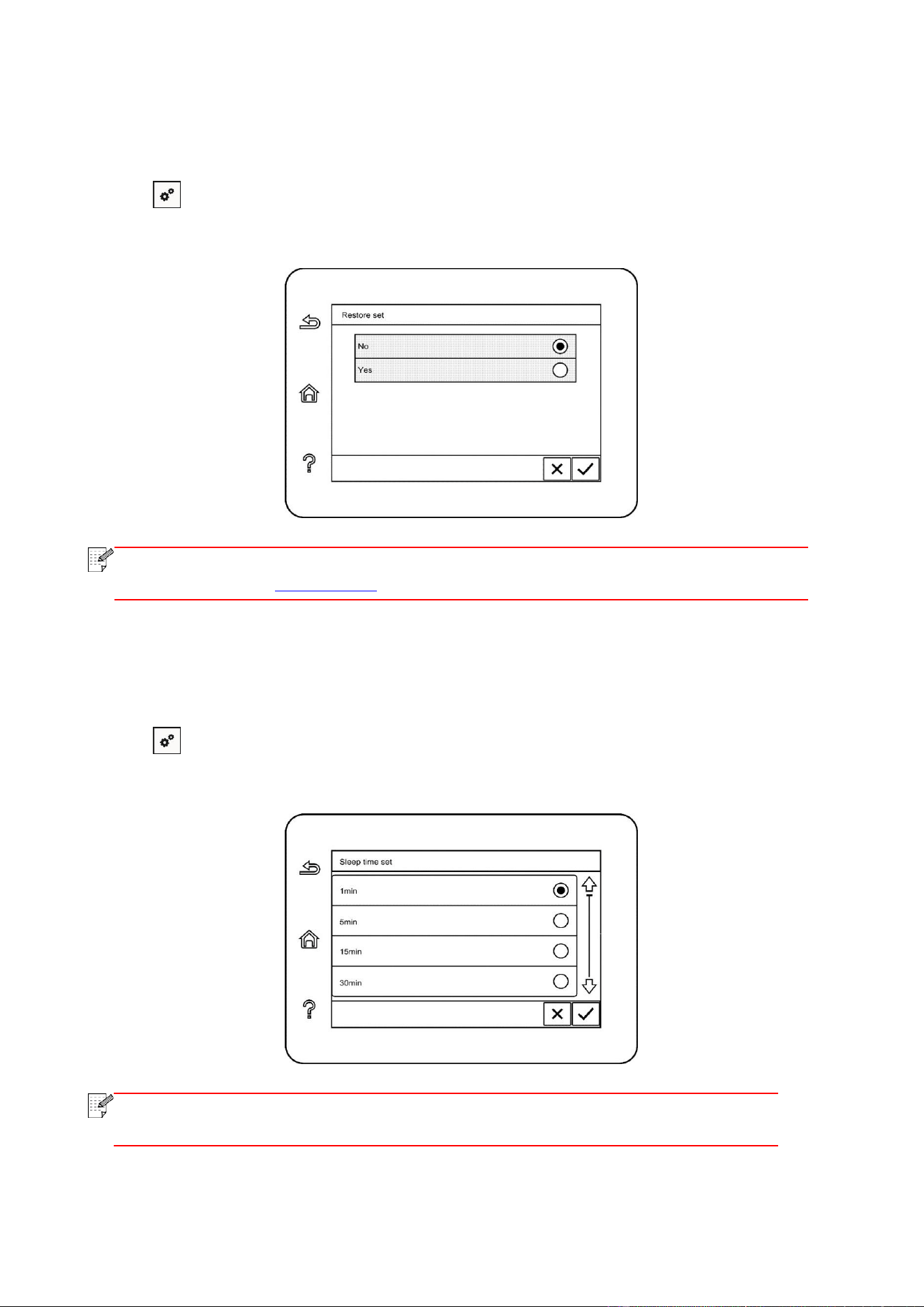
111
12.1.3. Restore Factory Settings
“Restore factory settings” is used to recover the default settings of printer. The printer will restart
itself automatically after recovering factory settings.
1. Click “ ” button in control panel to enter “Menu setting” interface.
2. Click and select “System Setting”-“Restore set” to reset to defaults.
Note:
• Factory settings of network printer can be recovered via embedded Web server
(please refer to Chapter 6.2.4).
12.1.4. Sleep Time Setting
Sleep mode can reduce the energy consumption of printer effectively, and “Sleep time setting” can
be made in the idle time before the device enters sleep mode.
1. Click “ ” button in control panel to enter “Menu setting” interface.
2. Click and select “System Setting”-“Sleep time set to set sleep time.
Note:
• In sleep mode, the printer can be woken up by pressing any key or sending
printing work.
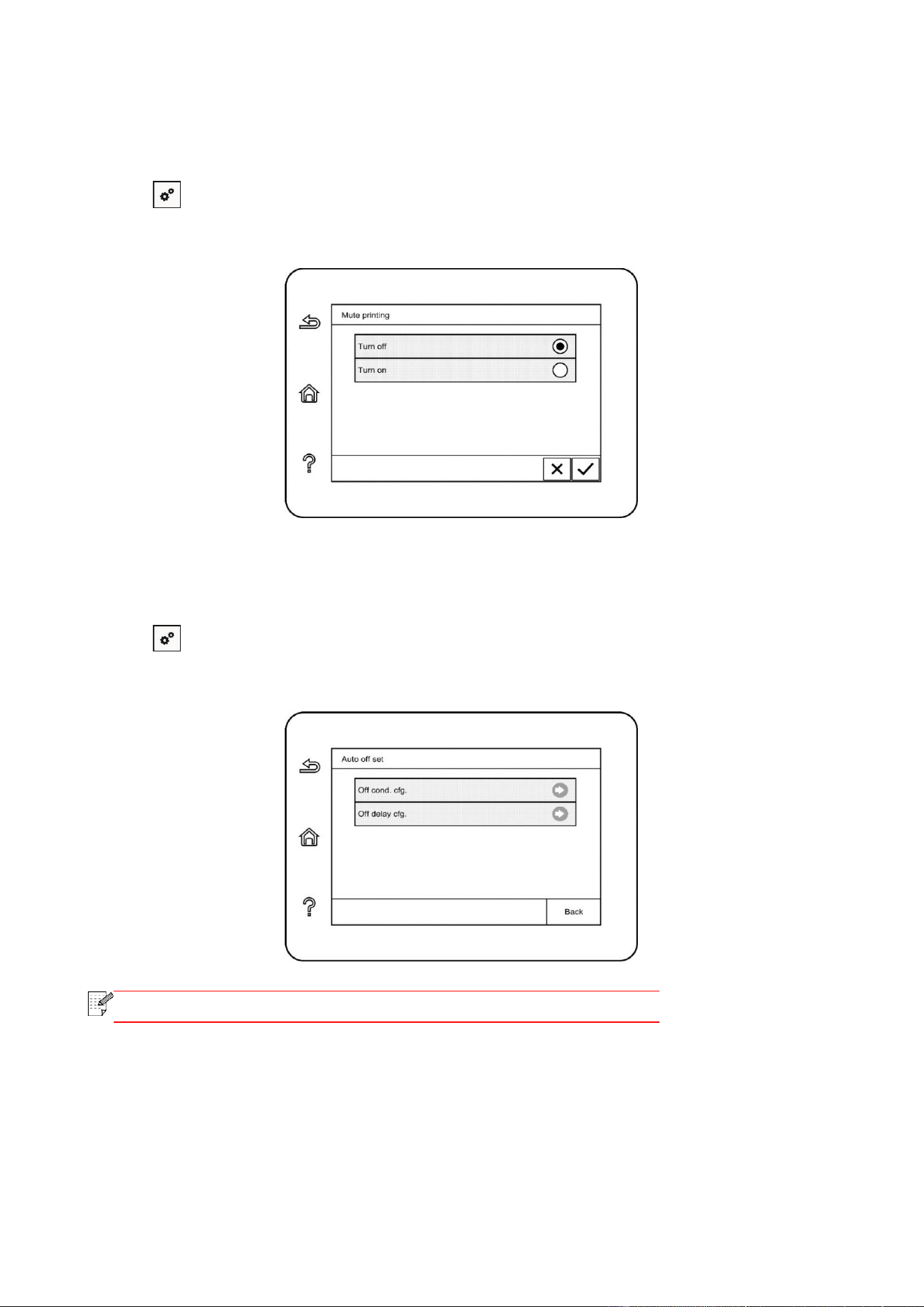
112
12.1.5. Mute printing
Set mute mode to realize low speed printing with low noise. When mute mode is “on”, printing will
be in a low speed. This mode is “off” by default.
1. Click “ ” button in control panel to enter “Menu setting” interface.
2. Click and select “System Setting”-“Mute printing” to turn silent print mode on.
12.1.6. Auto shut-off setting
“Auto shut-off setting” to set off condition and off delay of printer.
1. Click “ ” button in control panel to enter “Menu setting” interface.
2. Click and select “System Setting”-“Auto off set” to set off conditions and delay.
Note:
• Individual countries (or regions) do not support auto off setting.
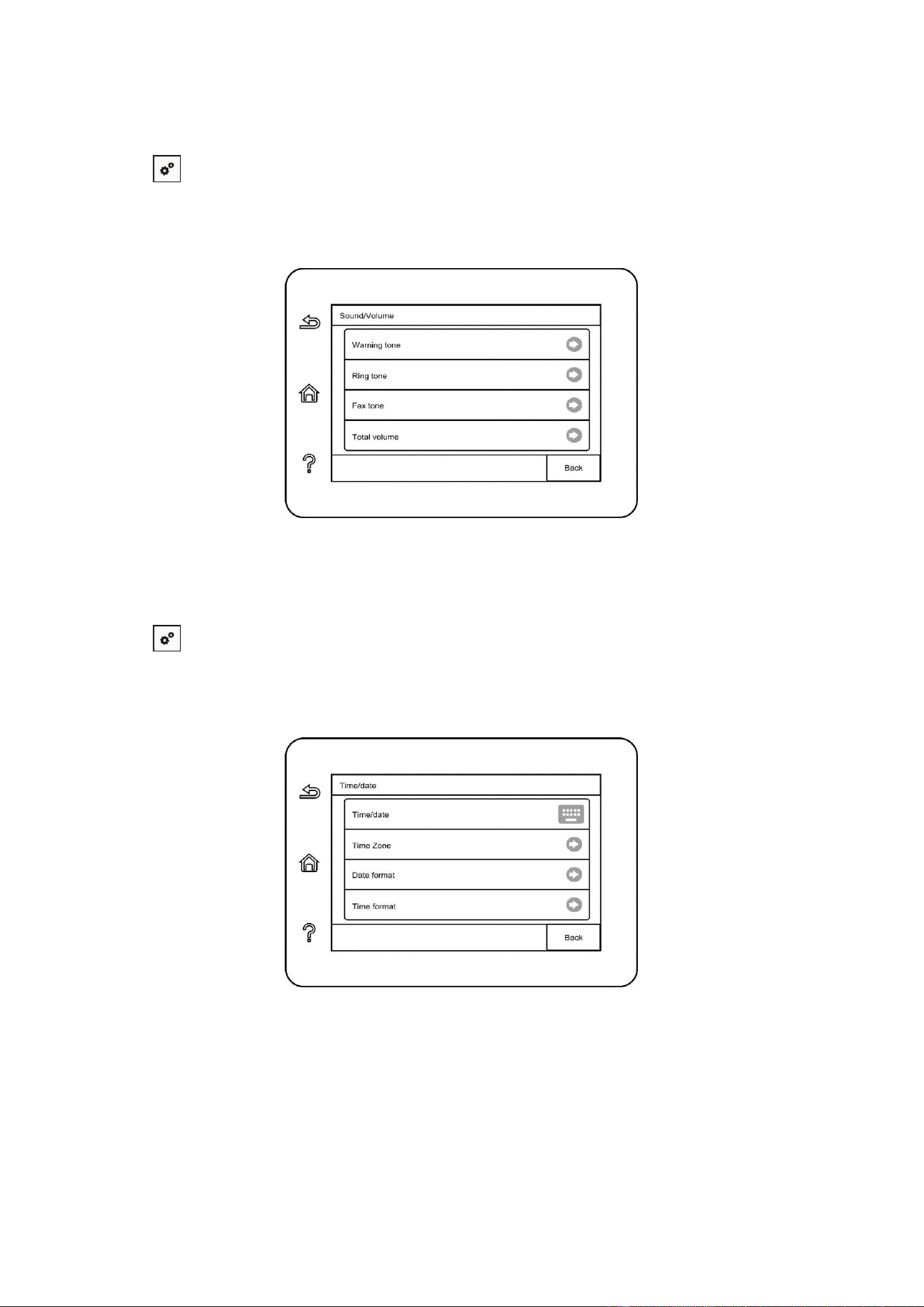
113
12.1.7. Sound/volume
You may set the up and down of sound/volume or shut down.
1. Click “ ” button in control panel to enter “Menu setting” interface.
2. Click and select “System Setting”-“Sound/Volume” to set “Warning tone”, “Ring tone”, “Fax tone”
and “Total volume”.
12.1.8. Time/date
You may set the time and date with the Time/Date option.
1. Click “ ” button in control panel to enter “Menu setting” interface.
2. Click and select “System Setting”-“Time/date” to set “Date”, “Time”, “Time Zone”, “Date format”
and “Time format”.
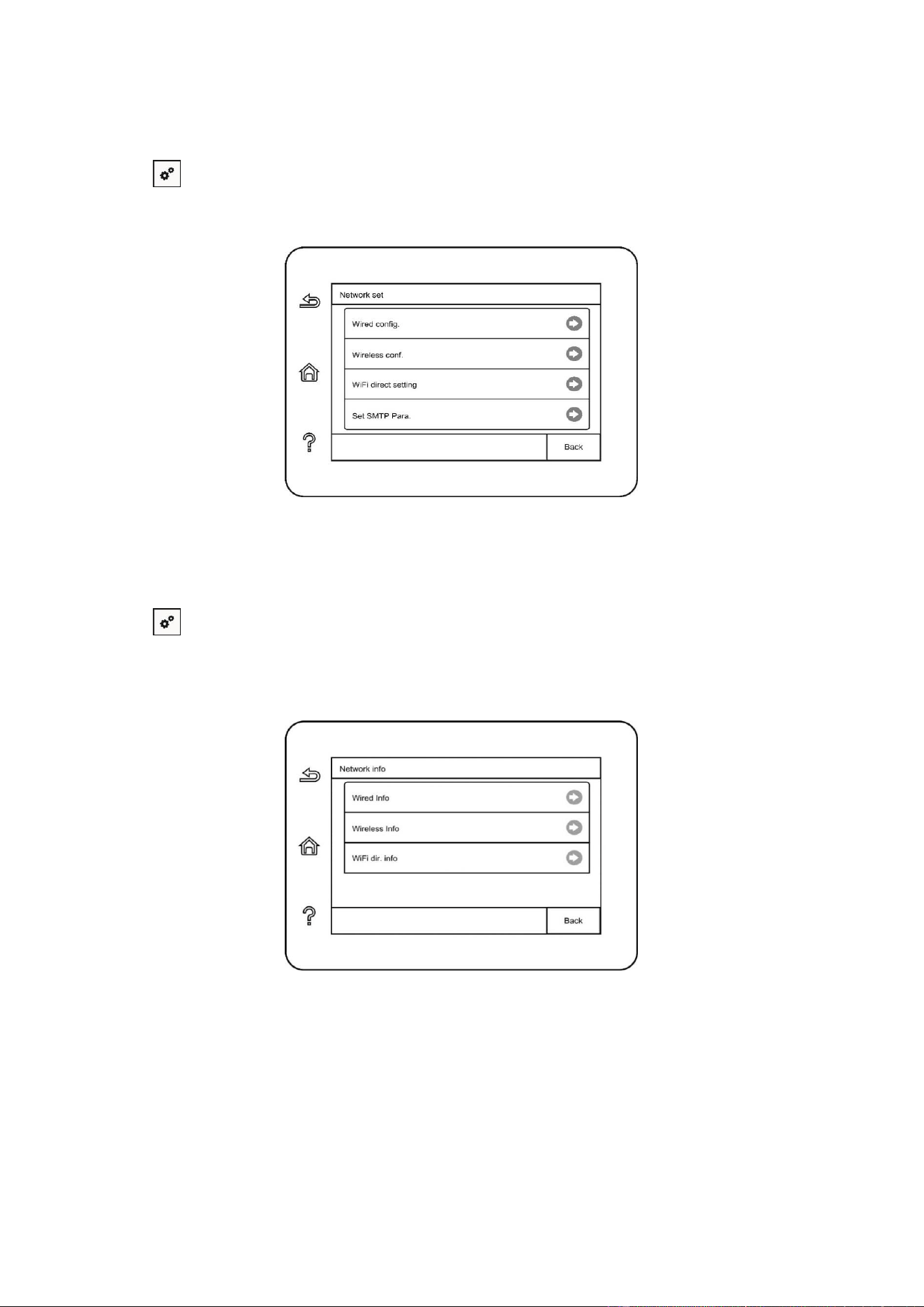
114
12.2. Network Settings
You can check or set network through Network set.
1. Click “ ” button in control panel to enter “Menu setting” interface.
2. Click and select “Network set” to set “Wired config.”, “Wireless conf.” and “WiFi Direct”.
12.3. Network Information
You can check the network status through Network Information.
1. Click “ ” button in control panel to enter “Menu setting” interface.
2. Click and select “Network info” to check “Wired config. info”, “Wireless conf. info” and “WiFi
Direct info”.
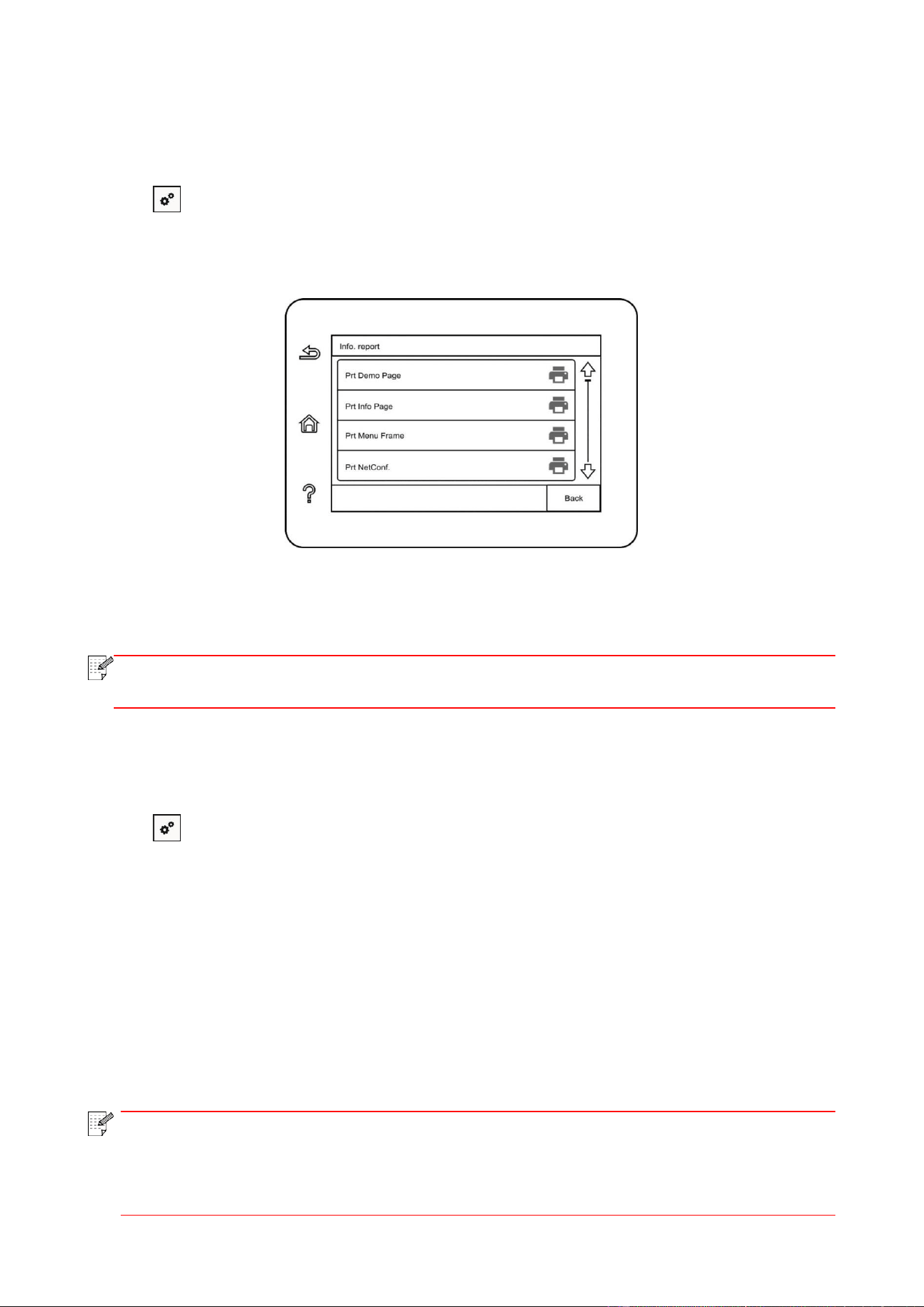
115
12.4. Print information report
You can print information report by operating control panel. These pages can help you to learn
about product information, and diagnose and solve product failures.
1. Click “ ” button in control panel to enter “Menu setting” interface.
2. Click and select “Info. report" to enter Info. report print, thus you can print product report as
required.
Product reports that could be printed include Demo page, information page, menu structure page,
network configuration, e-mail address, group e-mail, FTP address and Wi-Fi hotspot.
Note:
• The product report above is the most complete version, and may be different from the
product report of model that you actually use. "
12.5. Consumable information
You can view the consumable information via the control panel of the printer.
1. Click “ ” button in control panel to enter “Menu setting” interface.
2. Click "System Settings" - "Consumable Information" to view the toner cartridge model, remaining
toner, etc.
12.6. Configure the e-mail address book
1. Click and select “Scan”-“Scan to Email” in control panel to enter Scan to Email setting interface.
2. Enter Email Add. into input box, click “Add” button to add Email Add. into Email Add. book.
3. Click and select “Email Add.” to check, edit, delete and add Email Add. to group.
4. Click and select “Group Email to check, establish, edit and delete group Email.
Note:
• The address book members cannot be added to the group before creating a group
e-mail.
• You will not receive the e-mail without proper settings on your e-mail box. For specific
setting steps, please consult your network administrator.
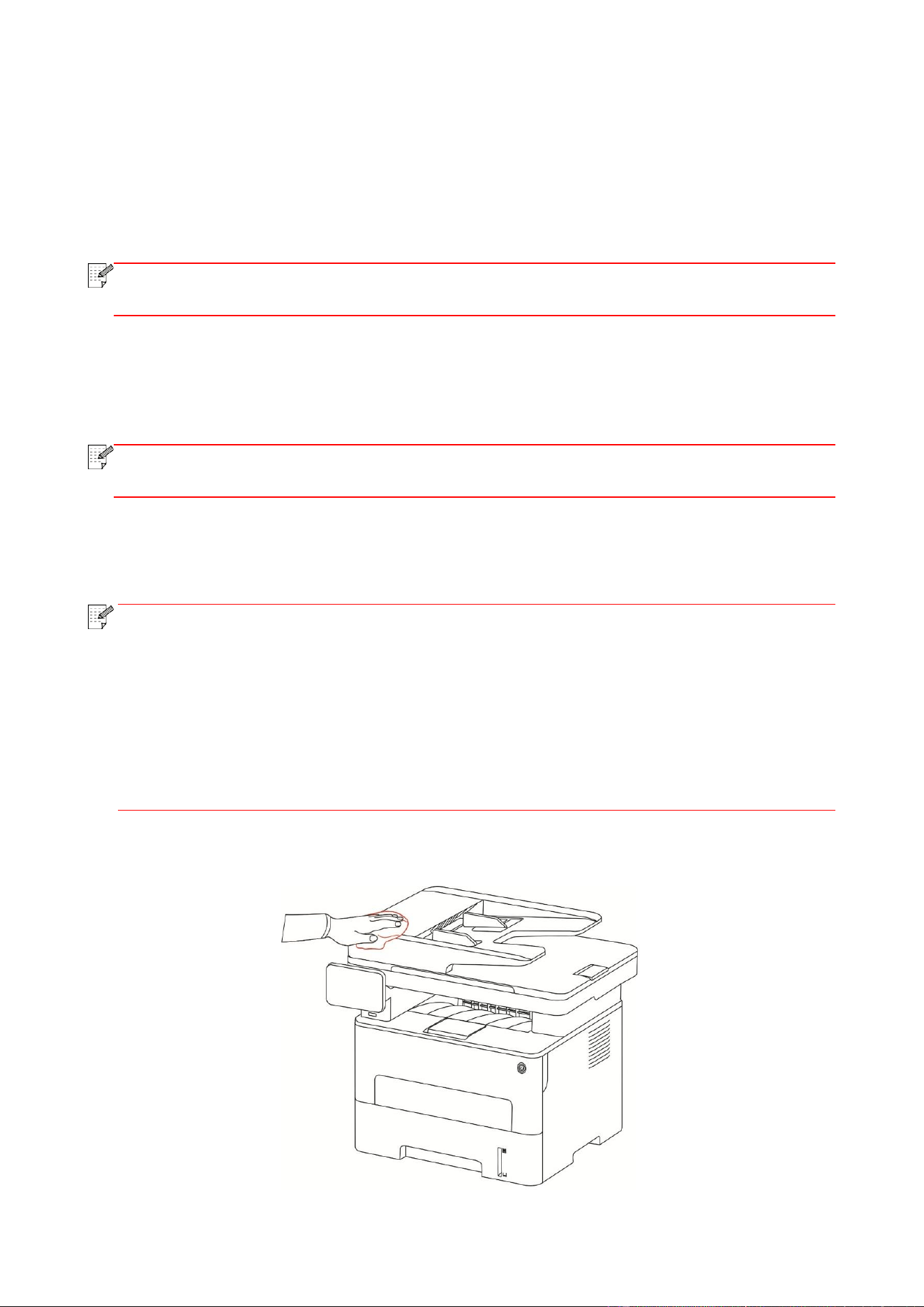
116
12.7. Configure the FTP address book
1. Click and select “Scan"-“Scan to FTP" in control panel to enter Scan to FTP setting interface.
2. Enter FTP Add., FTP port, user name and password into input box, click “Add” button to add FTP
Add. into FTP Add. book.
3. Click and select “FTP Add. book” to check, edit and delete.
Note:
• Before configuring the FTP address book, you may need to consult your network
administrator for the server IP address, port number and FTP name.
13. Routine Maintenance
Note:
• Printer appearance may differ because of various models and functions, so the
schematic diagram is only for your reference.
13.1. Cleaning the Printer
Note:
• Cut off the power supply of the printer before cleaning.
• Please use mild detergents.
• Some parts of the printer are still in high temperature within a short time after use. To
prevent burns, please don't directly touch places labled with high temperature warning in
contact with internal components after opening the printer's front or rear cover.
• Be careful with printer screen when operating against pressing harshly or damaging
touch screen. Clean the screen with soft dry cloth or cloth with mild detergent or ethyl
alcohol rather than any organic solvent, acidic or alkaline solution.
1. Use a soft cloth to wipe the outside of the printer clean.
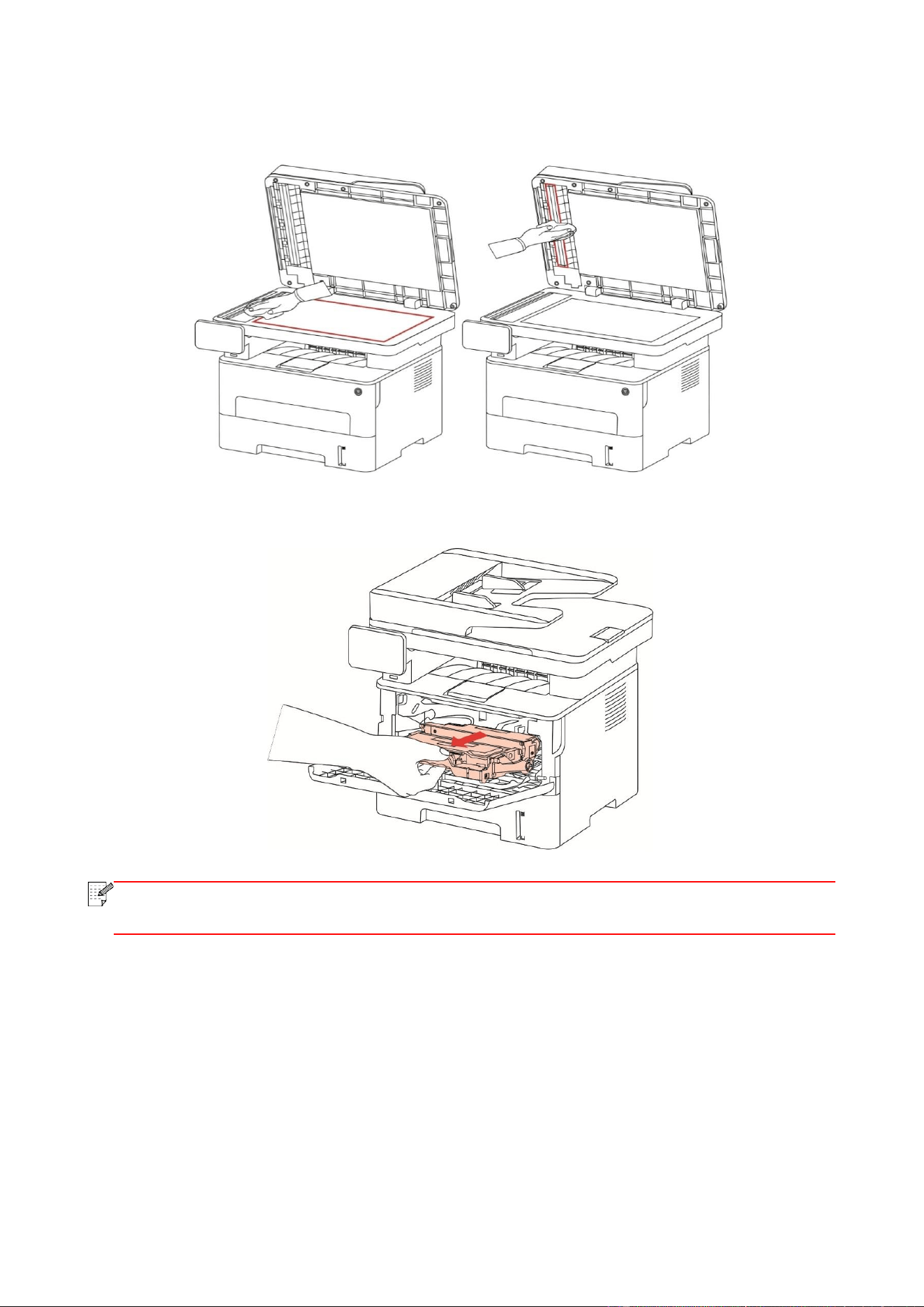
117
2. Lift the scanner cover, and gently wipe the glass platen and automatic duplex document feeder
CIS (D-CIS) with soft cloth.
3. Open the front cover and take the laser toner cartridge out along the track.
Note:
• When removing the toner cartridge, put the toner cartridge in a protective bag or wrap it
with thick paper to avoid direct light damaging the toner cartridge.
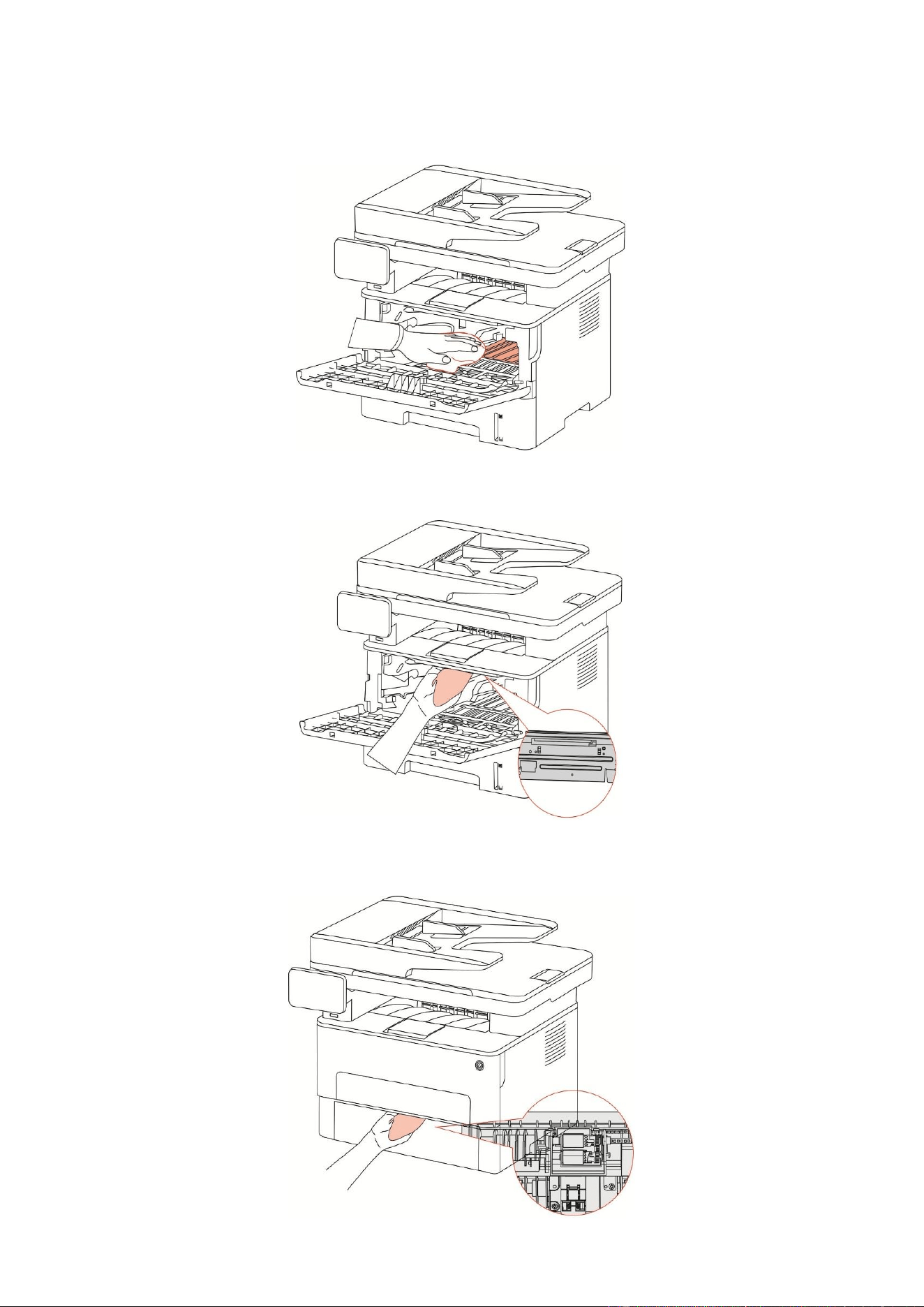
118
4. Clean the inside of the printer by gently wiping the shaded area, as shown in picture, with adry
and lint-free cloth.
5. Wipe the LSU lens of printer gently with dry lint cloth.
6. Open the auto feed tray and wipe the pickup roller gently with dry lint cloth.
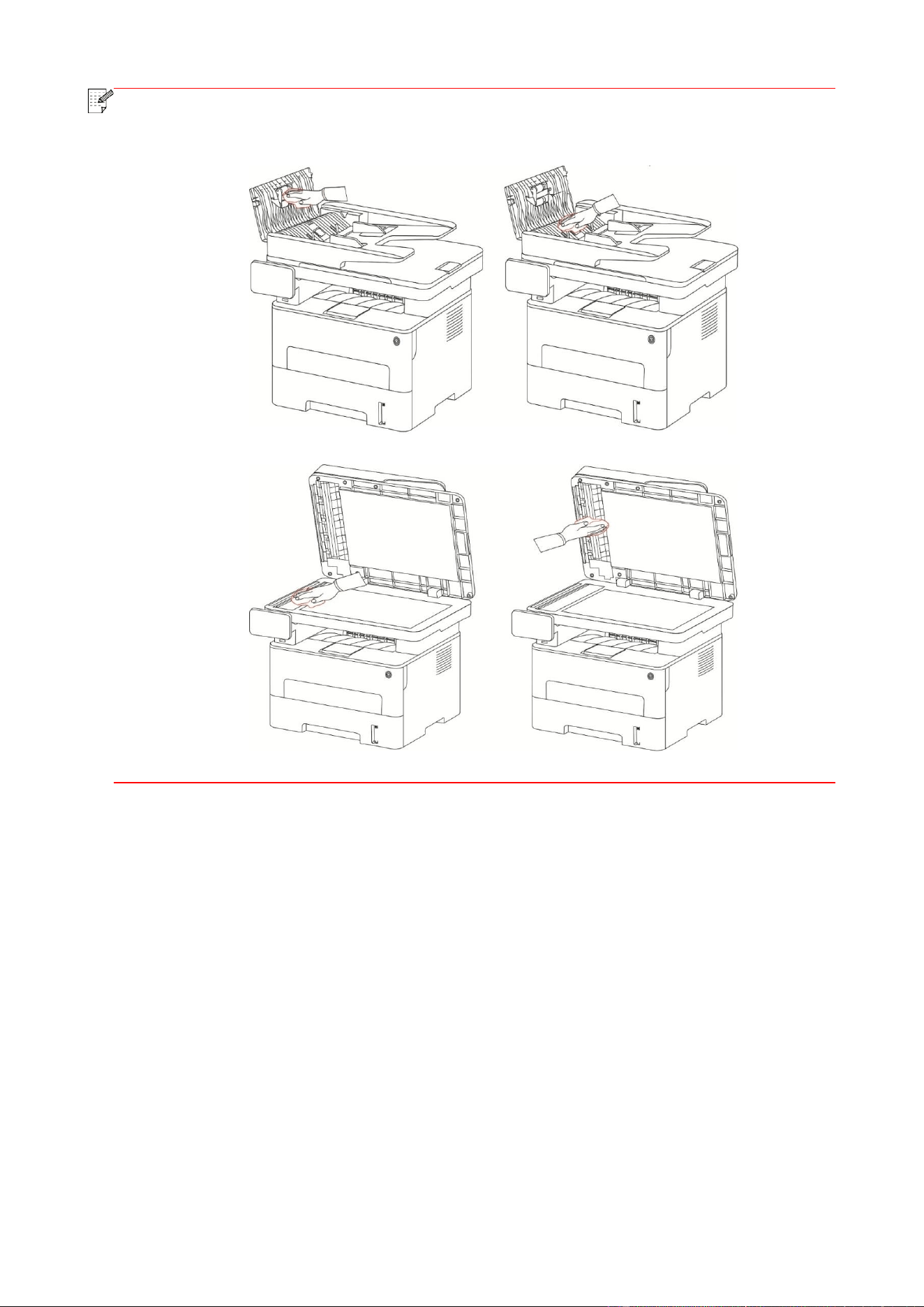
119
Note:
• The machine with the ADF should be regularly cleaned, removing dirt on the top cover of
the ADF. Please wipe the place as shown in figure with a soft cloth.
13.2. Toner cartridge and drum component maintenance
13.2.1. About toner cartridge and drum component component
1. Cartridge, use and maintenance of the drum assembly.
Please use the original toner cartridge for better printing quality.
Please pay attention to the following items while using the toner cartridge:
• Please keep the toner cartridge in a dry and dark place.
• Do not refill the toner cartridge without permission; otherwise, the damages caused will not be
included in the scope of warranty of the printer.
• Please place the toner cartridge in cool and dry places.
• Please do not place the toner cartridge near ignition sources, as the toner inside it is inflammable
and may cause fire.
• Please pay attention to toner leakage while it is taking out or disassembled. In case of toner
leakage, skin contact with toner or spattering into eyes or mouth, please wash it with clear water
immediately, or see a doctor if feeling unwell.
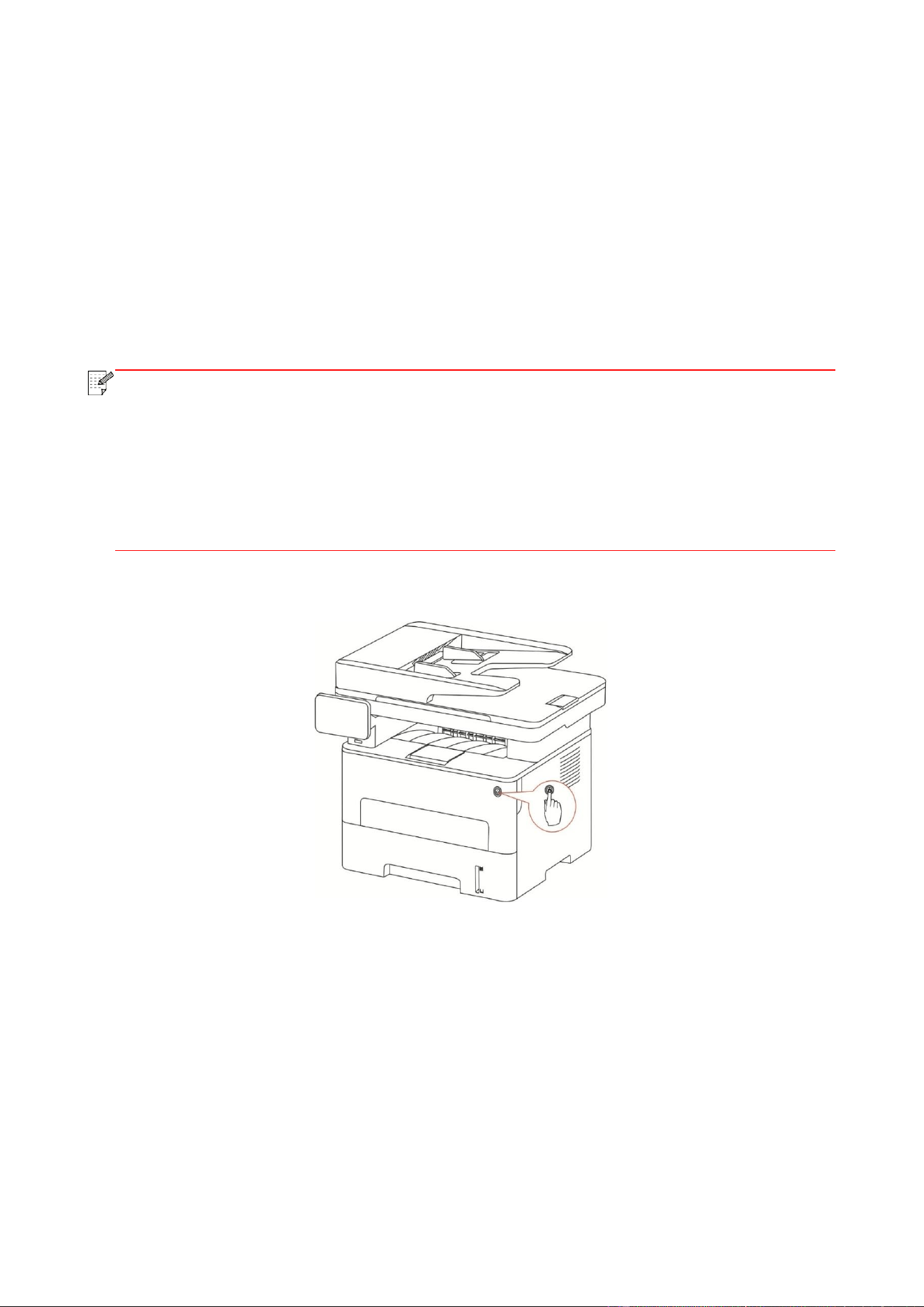
120
• When placing the cartridge, please stay away from children may contact area.
2. Service life of toner cartridge
• The service life of toner cartridge is depending on the toner quantity needed by printing.
• When a prompt that "The Toner Cartridge life Expired" appears on the display, it indicates its
service life expires. So please replace it.
3. Service life of drum component
• When a prompt that "The Drum Unit life Expired" appears on the display, it indicates its service life
expires. So please replace it.
13.2.2. Replace toner cartridge and drum component
Note:
Please pay attention to the following matters before replacing toner cartridge:
• Since there may be toner on the surface of toner cartridge, please pay attention while
taking it out to avoid spattering.
• Please place the toner cartridge taken out on paper to avoid large-scale spattering of
toner.
• When installing, do not touch the surface of the toner cartridge, so as to avoid
scratching it.
Toner cartridge replacement steps:
1. Power off the printer.
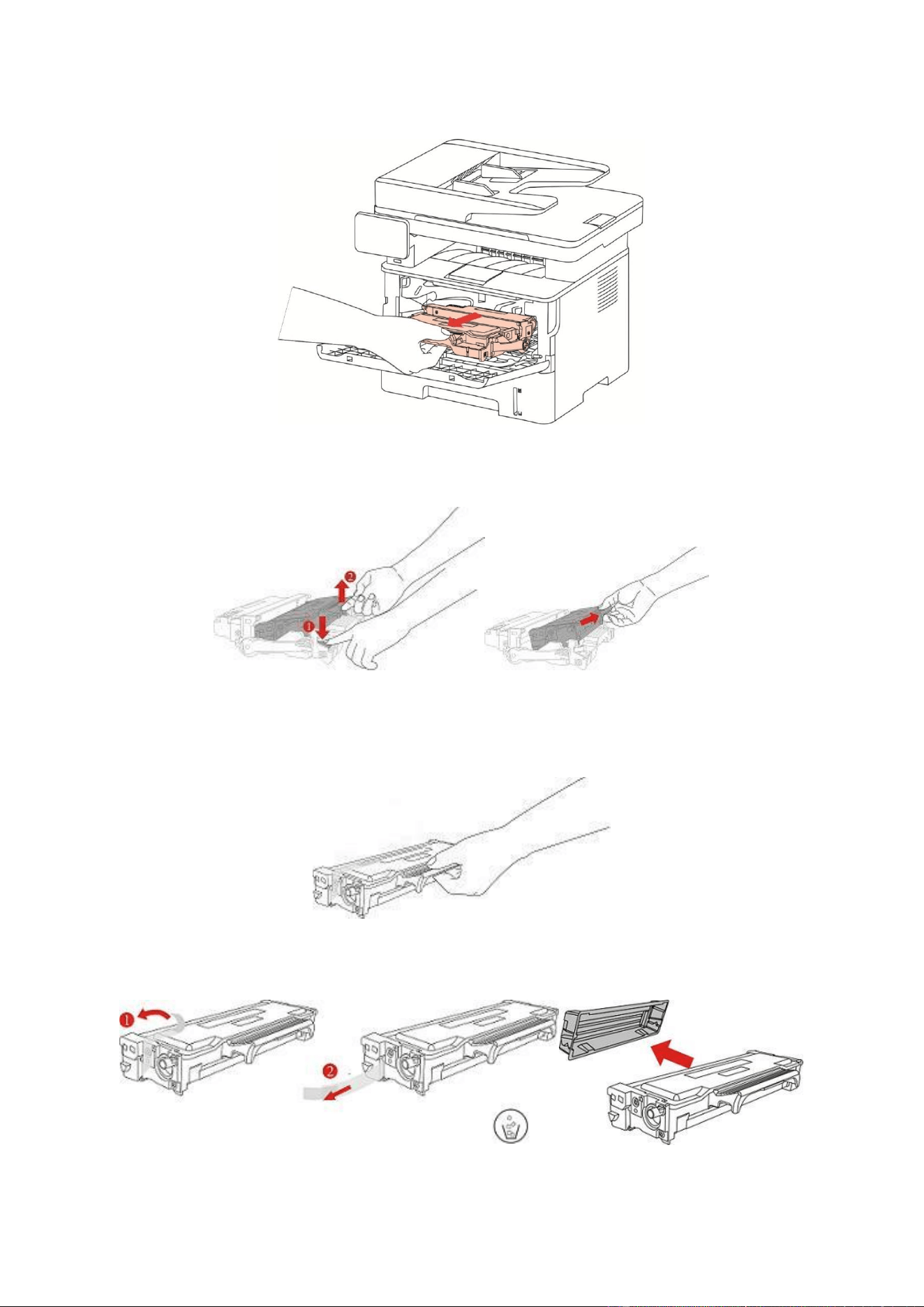
121
2. Open the front cover and then remove the laser toner cartridge along the guide rail.
3. Press the blue button on the left side of drum component with left hand and lift the toner
cartridge handle with right hand at the same time to take the toner cartridge out.
4. Open the package of the new toner cartridge and hold the toner cartridge handle to shake it left
and right for 5 – 6 times, so that the toner inside can be uniformly dispersed.
5. Pull the seal out and take the toner protection cover out.
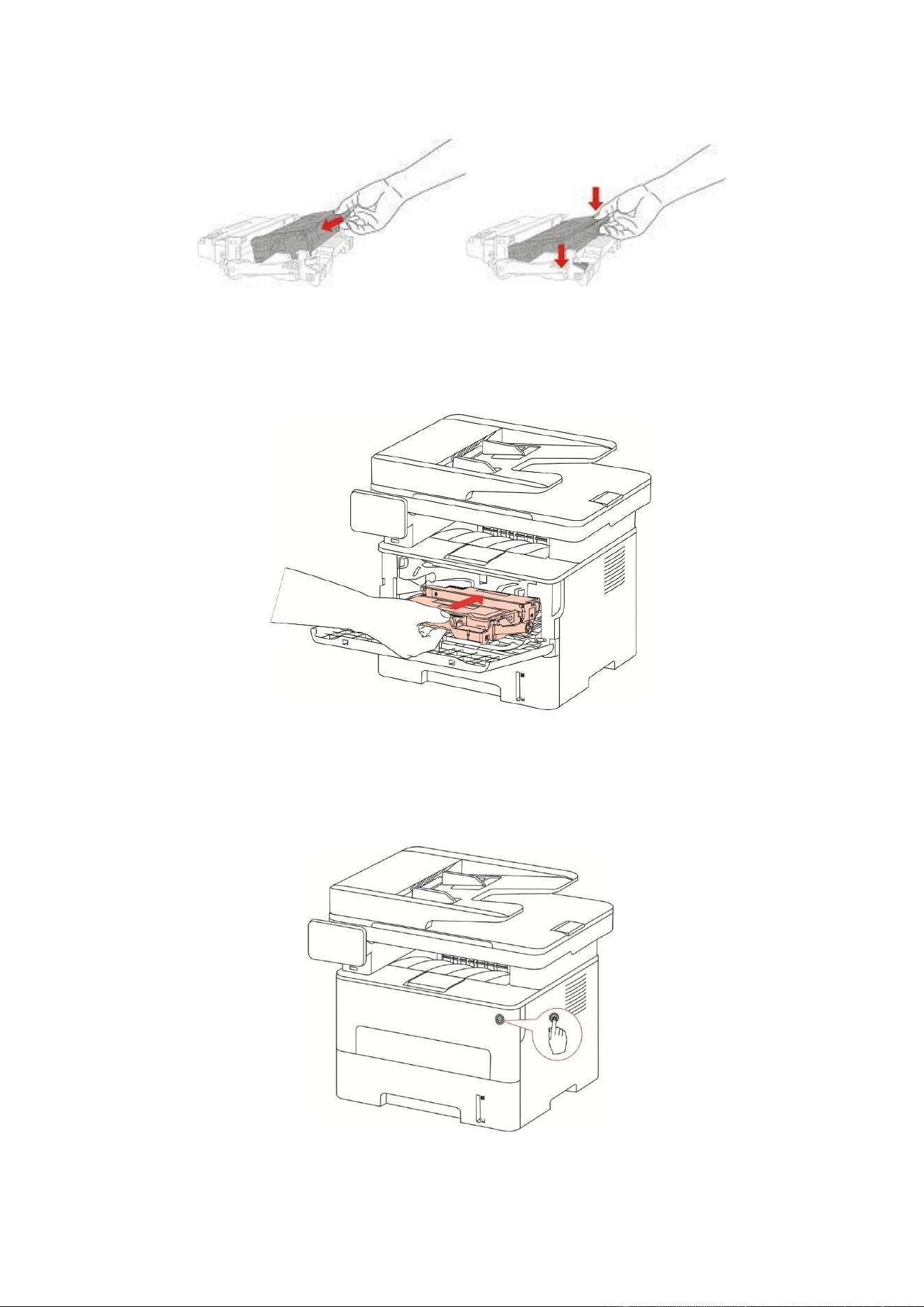
122
6. Install the drum component along the inner track to finish installing toner cartridge.
7. Take the drum component with toner cartridge installed and install it inside the printer along the
inner track of printer to finish installing.
8. Close the front cover.
Replace the drum assembly steps are as follows:
1. Power off the printer.
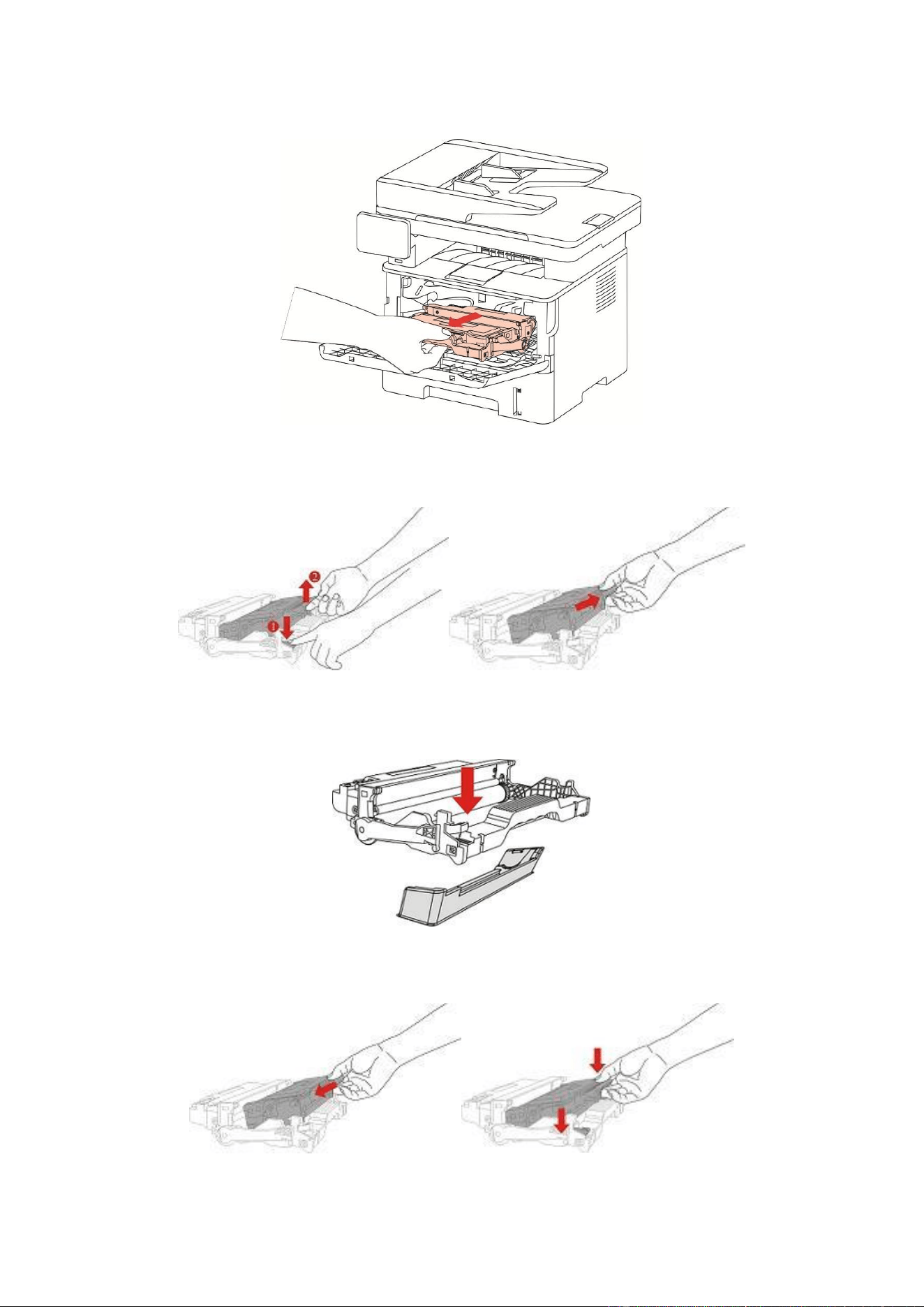
123
2. Open the front cover and take the laser toner cartridge out along the track.
3. Press the blue button on the left side of drum component with left hand and lift the toner
cartridge handle with right hand at the same time to take the toner cartridge out.
4. Open the package of new drum component, take the protection device of drum component, and put
the drum component on a horizontal table.
5. Install the drum component along the inner track to finish installing toner cartridge.
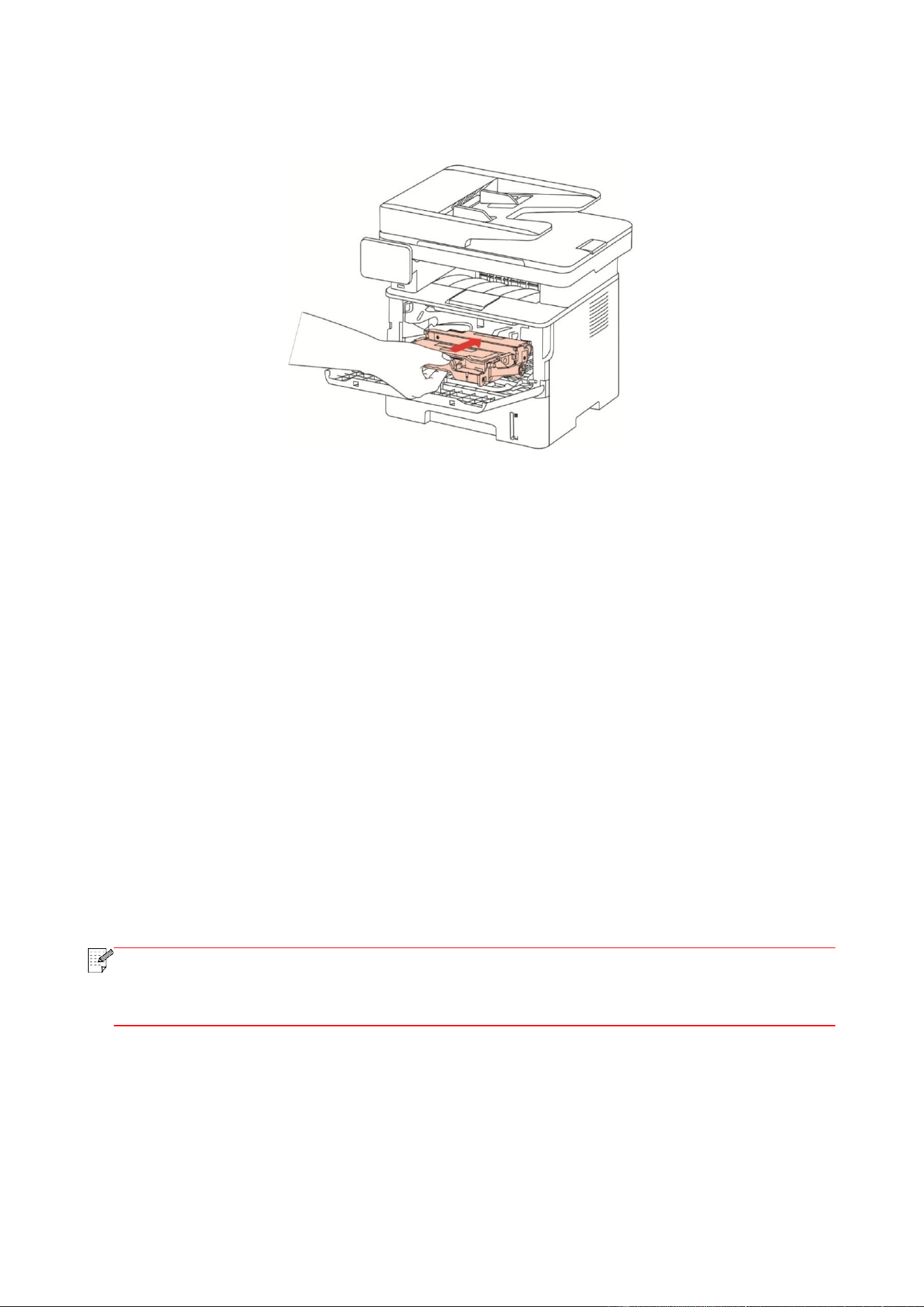
124
6. Take the drum component with toner cartridge installed and install it inside the printer along the
inner track of printer to finish installing.
7. Close the front cover.
14. Troubleshooting
Please read this section carefully. It may help you to solve common problems encountered during
the printing process. If the problems persist, please contact Pantum Aftersales Service Centre.
Prior to handling common problems, first check that:
• The power cord is connected correctly and the printer is powered on.
• All of the protective parts are removed.
• The toner cartridge is installed correctly.
• The paper is correctly loaded into the tray.
• The interface cable between the printer and the computer is connected correctly.
• The correct printer driver has been selected and installed properly.
• The computer port is properly configured and is connected to the correct printer port.
14.1. Cleaning Jammed Paper
14.1.1. Middle jam
Note:
• When removing the paper jam, please don’t touch immediately places labled with high
temperature warning in contact with internal components after opening the printer’s front
or rear cover, to prevent burns.
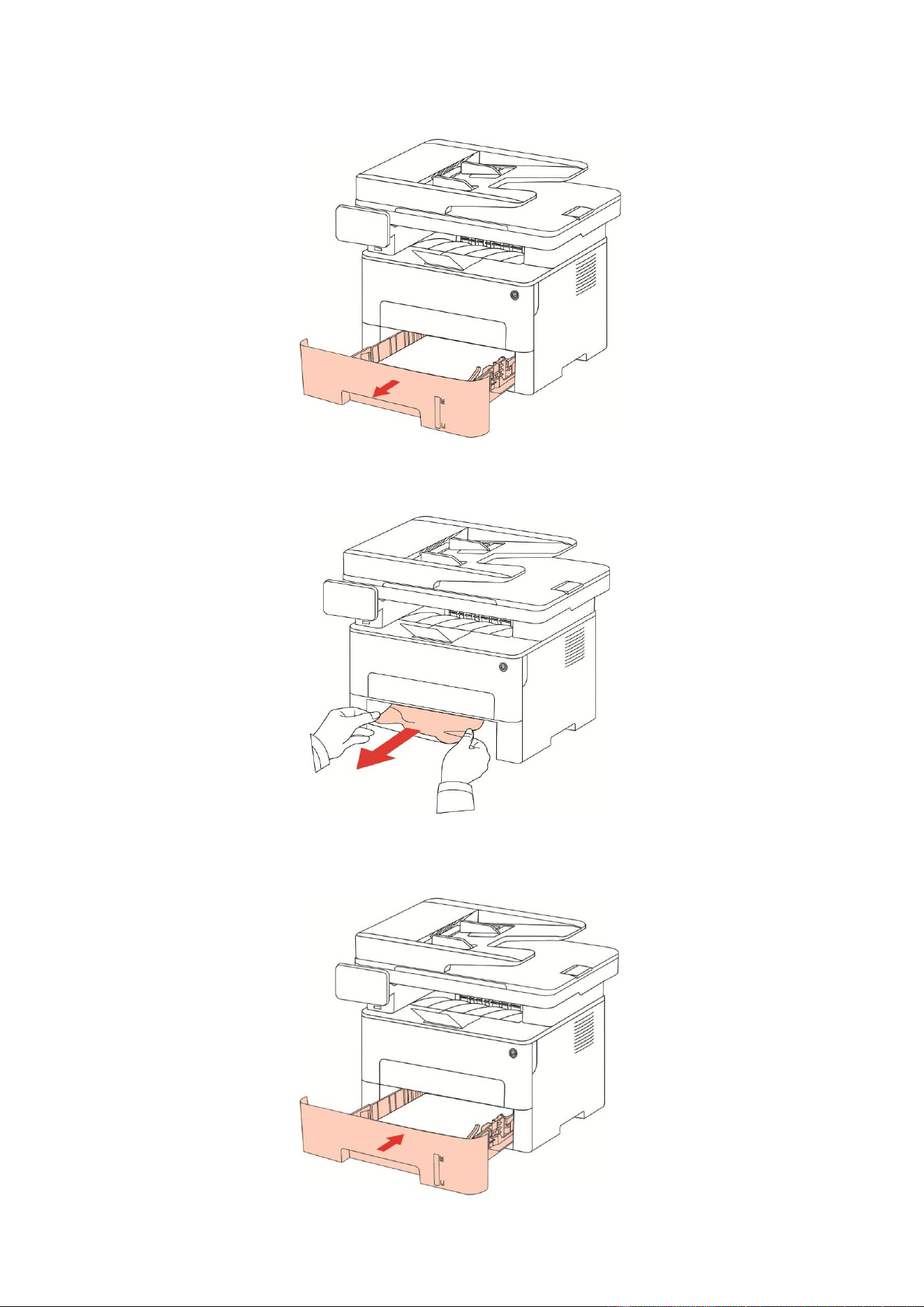
125
1. Pull paper tray out.
2. Gently pull the jammed paper out.
3. Install paper tray.
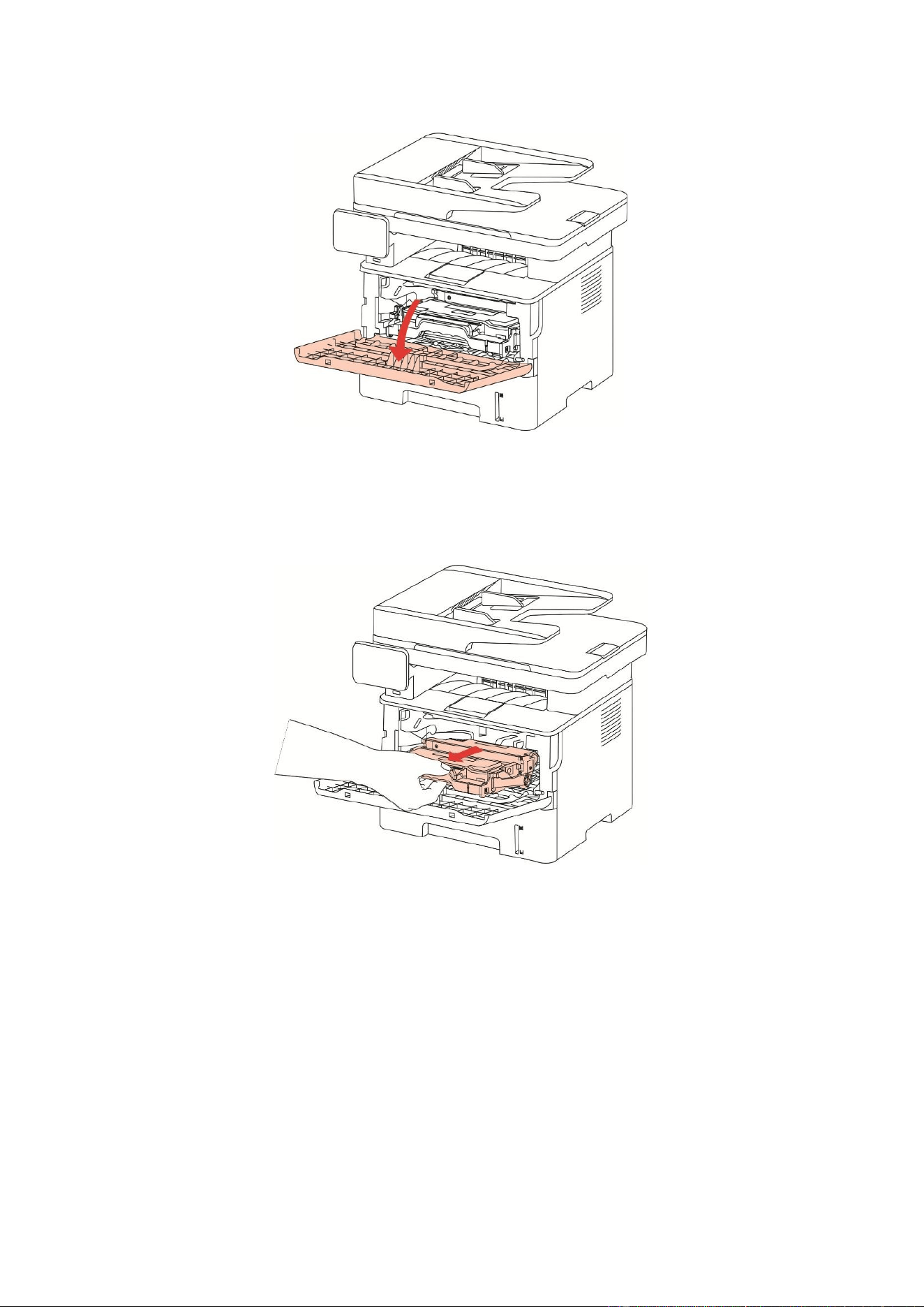
126
4. Open the front cover.
5. Take the laser toner cartridge out along the track. (For the purpose of preventing printing quality
from affecting by the exposure of photosensitive drum, please put the laser toner cartridge inside
the protection bag or warp it with thick paper).
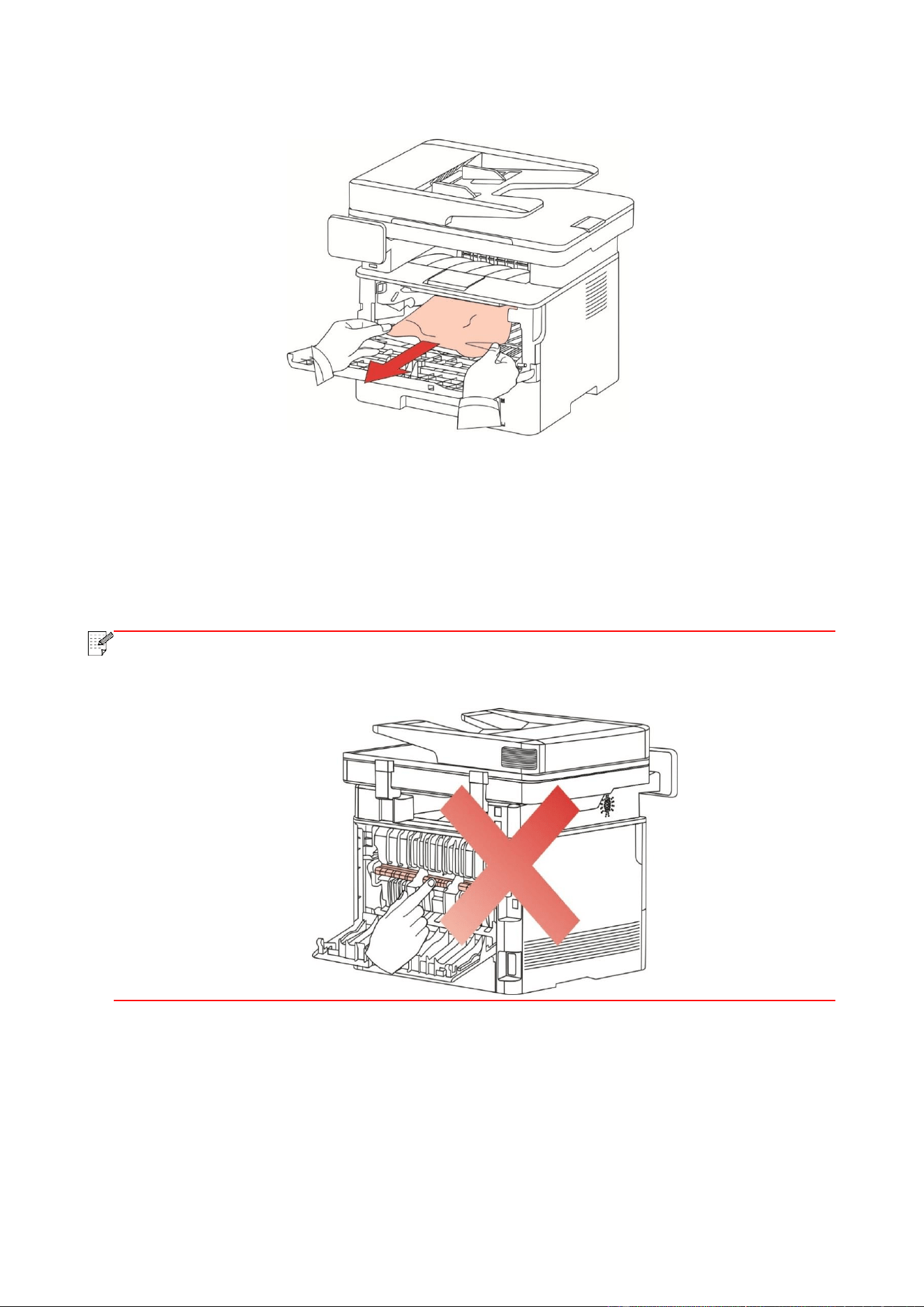
127
6. Gently pull the jammed paper out.
7. After taking out papers jammed, install the laser toner cartridge again and close the front cover,
then the printer will recover printing.
14.1.2. Paper Jam in the Fuser Unit
Note:
When papers jammed in fuser unit are taken out, please pay attention and do not touch
the shaded area shown below in order to avoid burns.
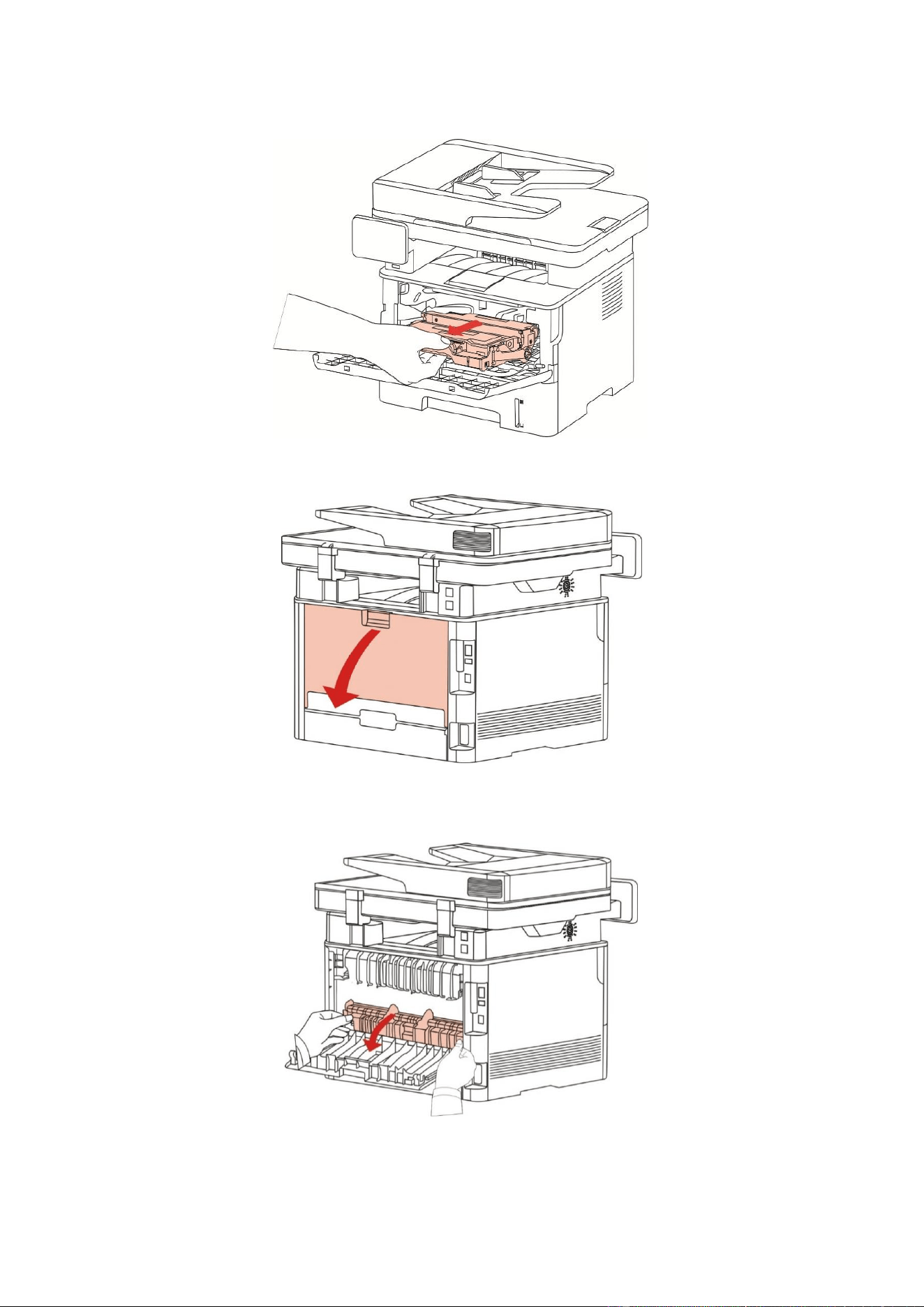
128
1. Open the front cover and then remove the laser toner cartridge along the guide rail.
2. Open the rear cover.
3. Open the fuser door using the handles on both sides.
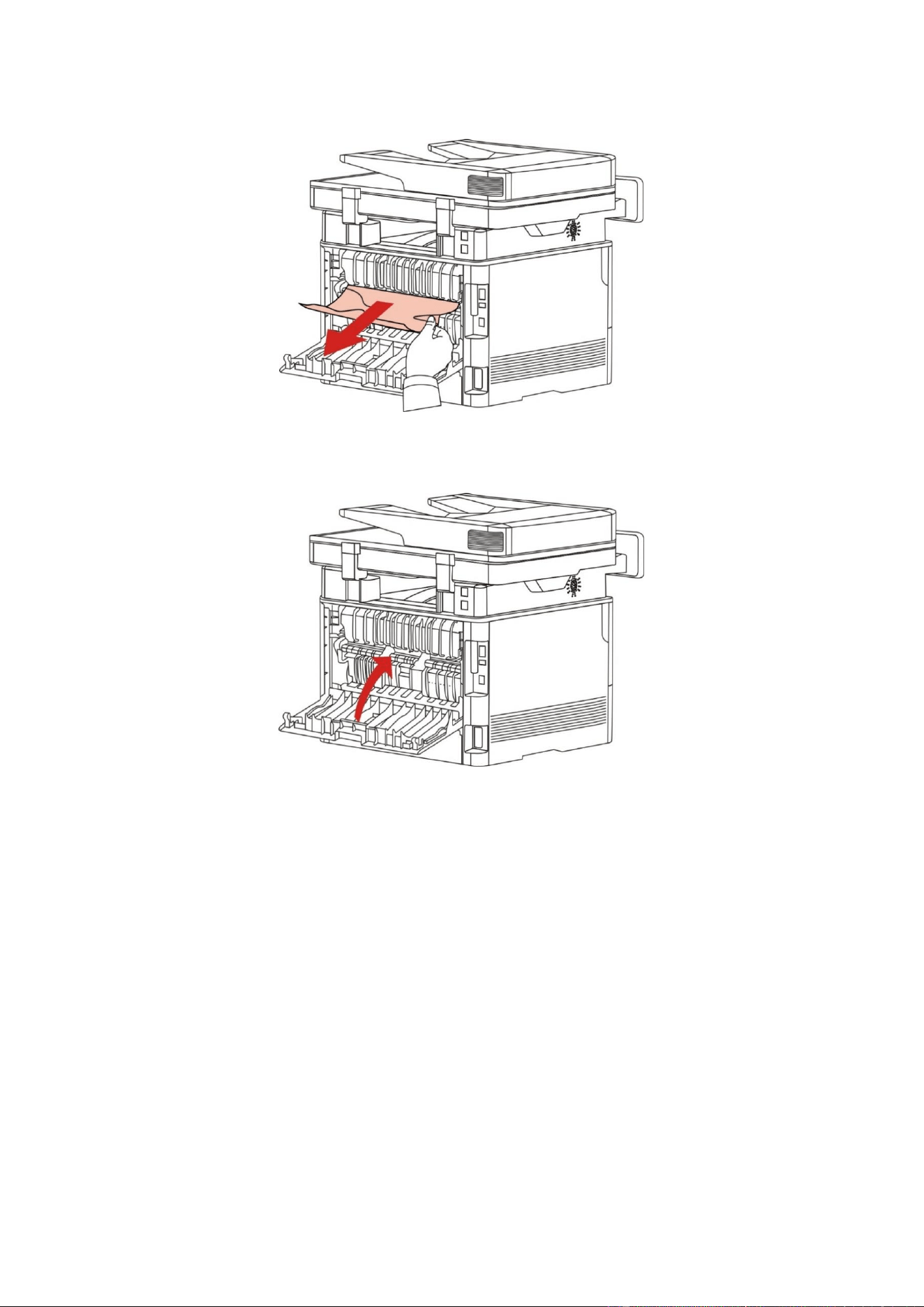
129
4. Gently pull the jammed paper out.
5. Close the back cover after removing the paper jammed.
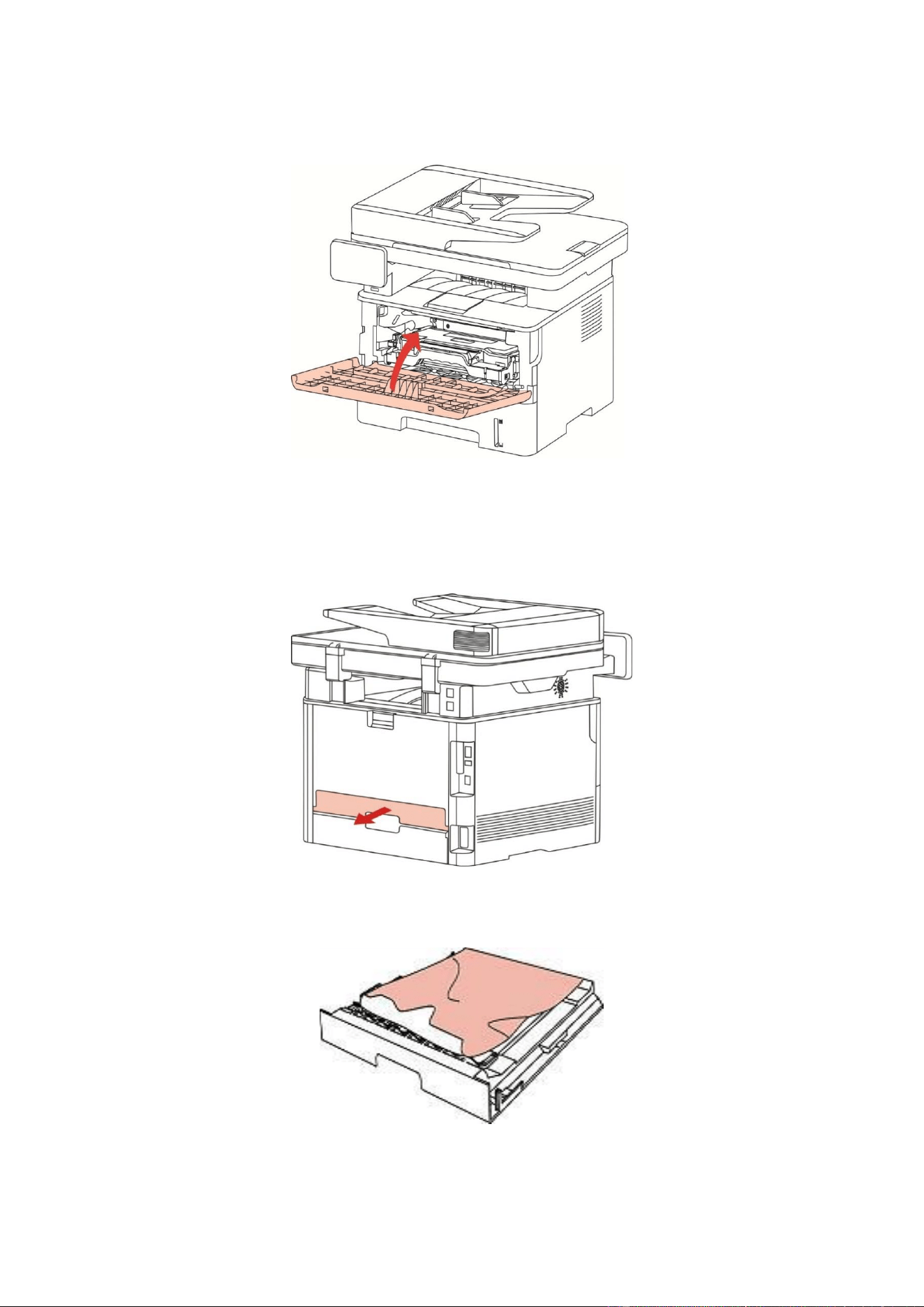
130
6. Install a new toner cartridge and then close the front cover; then, the printer will recover printing
automatically.
14.1.3. Duplex Unit Jam
1. Remove the duplex printing unit from the back of the printer.
2. Remove the jammed paper from the duplex unit.
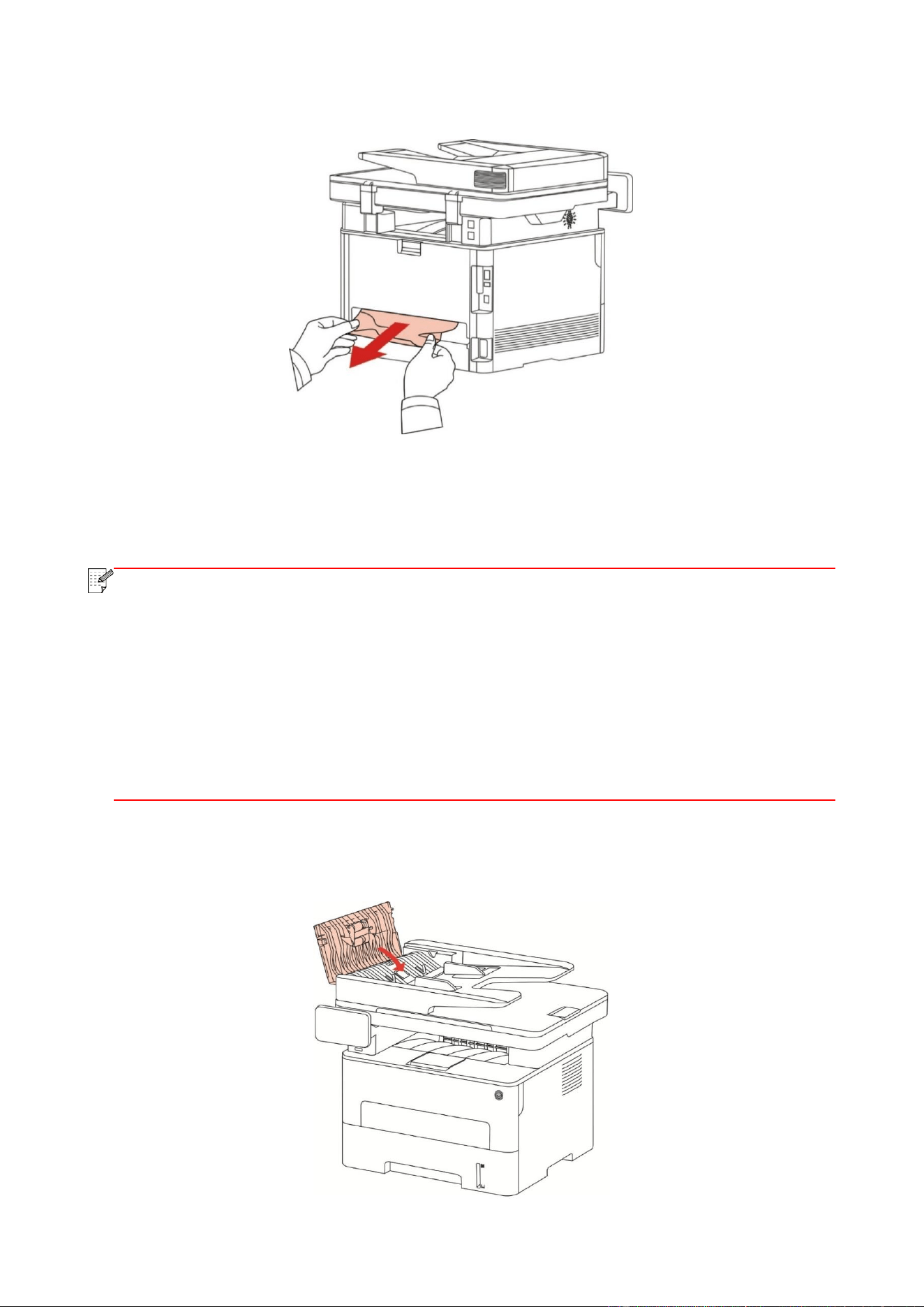
131
3. If the paper does not come out along with the duplex unit, open the tray and remove the jammed
paper directly from the bottom.
4. After taking papers jammed out, install the duplex unit back and inspect other parts to the
product. If it can be ensured that there are no jammed papers, open and close the front cover and
then the printer will recover printing automatically.
Note:
• After all papers jammed are taken out according to the above steps, close the front
cover and tidy the papers in paper tray, then the printer will recover to print automatically.
• If the printer still does not start printing, please check that all the jammed paper inside
the printer has been cleared.
• If you cannot remove the jammed paper yourself, please contact your local Pantum
authorized repair center or send the printer to the nearest Pantum authorized service
center for repair.
• Printer appearance may differ because of various models and functions, so the
schematic diagram is only for your reference.
14.1.4. A paper jam occurs on the automatic document feeder (ADF)
1. Open the ADF’s top cover.
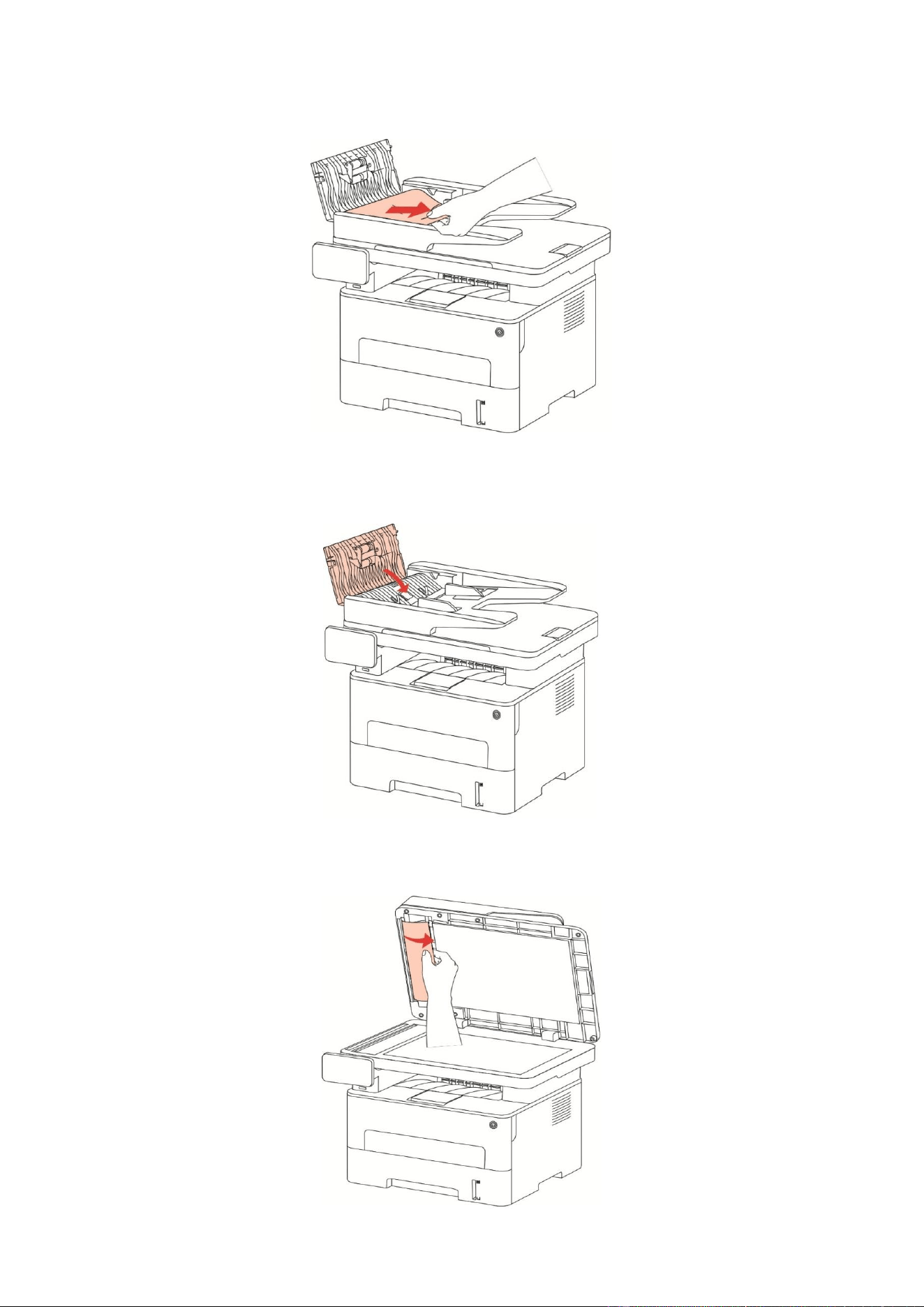
132
2. Remove the paper jammed from the ADF.
3. After removing the paper jamed, close the top cover and then the printer will be back to the ready
state.
4. If it is difficult to remove the paper jammed, please try to open the scanner cover and remove it
from the pressing block.

133
14.2. Software Failure
Problem
Solution
The printer icon does not appear in the
"Devices and Printers" folder.
Reinstall the printer driver. Ensure that the USB
interface cable and the power cord.
The printer is in Ready mode but it will not
perform any print job.
If the failure still exists after restarting the Make sure
the network cable of USB cable is connected
correctly.
Failed to install the driver
Check whether the print spooler service is enabled.
Check the power supply and the connection of the
printer.
The driver cannot be used if the IP address
of the printer has been changed
Modify the port IP address of the printer driver.
If the above method does not work, please reinstall
the printer driver.
It is recommended that a fixed IP address should be
set to the network printer.
In the DHCP network, it is recommended to bind the IP
address with the MAC address of the printer.
14.3. Error Message
Error Message
Cause
Measure
No Laser Toner Cartridge
Detected
The laser toner cartridge is
installed incorrectly or laser toner
cartridge is damaged.
The laser toner cartridge is installed
correctly or new laser toner cartridge
is replaced.
Toner Low (this prompt is
displayed together with
the standby picture
alternately.)
The toner in cartridge runs low.
Please replace with a new toner
cartridge.
As the toner is low, it is
not available to accept
the printing job (this
prompt is displayed
together with the standby
picture alternately.)
If the toner in cartridge runs low,
the printing of fax job received
cannot be executed. (Normal in
fax sending, file printing, copying
and scanning.)
Please replace with a new toner
cartridge or find out the "Low in
Toner, Continue to Print" option
among the fax receiving setting
options and then set it as "On" for
continuous printing.
(Note: once the printer detects that
the toner in cartridge doesn't run low
during booting or opening and closing
its cover, it will set the "Low in Toner,
Continue to Print" option enabled
before by user back to “Off”.)

134
Toner cartridge life
expired.
The toner in cartridge runs out.
Please replace with a new toner
cartridge.
Feed jam
The print paper is loaded
incorrectly. The paper is outside of
the specification range.
Please correctly load the print paper.
Printer paper jam
The print paper is loaded
incorrectly.
Please correctly load the print paper.
Scanner is Busy
With other scan jobs.
Please cancel the current scan job or
wait for the completion of other scan
jobs.
Scan failed
Scanner internal failure.
Please contact Pantum Customer
Service.
No paper in ADF
If you have selected ADF as the
scan source, this message
appears when you start a copy or
scan job without loading paper in
the ADF.
Please put in the original properly.
Paper jam occurred on
ADF
This prompt appears when there is
a feed jam or feed failure in
copying or scanning with the ADF.
Please remove the paper jam, arrange
well and put originals into the ADF for
scanning again.
14.4. Common Troubleshooting
14.4.1. Common Trouble
Trouble Type
Fault
phenomenon
Cause
Solution
Problems in
printing
Poor print
quality
See 14.4.2 Image Defects.
See 14.4.2 Image Defects.
Problems in
copying
Failed to copy
The scanner is damaged.
Please contact Pantum
Customer Service.
Copy Image
Abnormal
• The scanner is dirty or defective.
• The toner cartridge is dirty or
damaged.
• Clean the scanner.
• It is suggested to replace the
original toner cartridge.
Problems
with the
The printer does
not work
• Power cord of the device is not
properly connected.
• Ensure proper connection of
the power cord.
Note:
• If the problem persists, please contact the customer service center. See the Three
Guarantees certificate for contact details.

135
Printer
The cable between the computer
and the printer is not connected
properly.
Error in specifying the print port.
The printer is offline and User
Guide of Printer is checked.
The printer has not recovered from
an internal error, such as a paper
jam, paper empty, etc.
• Driver program of printer is not
installed correctly.
• The LCD screen prompts error
messages.
• Please disconnect the printer
cable and then connect it again.
• Please check printer settings
of the Windows to make sure
the printing job could be sent to
the correct port. If the
computer is equipped with
several ports, please be sure to
connect the printer to the
correct port.
• Please make sure the printer
is online without any
abnormality.
• Please remove errors to make
the printer return to normal.
• Please uninstall and then
reinstall the printer driver.
Online printing
does not work
The cable between the computer
and the printer is not connected
properly.
Driver program of printer is not
installed correctly.
• Printer internal failure.
• Please disconnect the printer
cable and then connect it again.
• Please uninstall and then
reinstall the printer driver.
Problems in
scanning
Scanning error
• Data cable of the device is not
properly connected.
• The scan driver is installed
incorrectly.
• The LCD screen prompts error
messages.
• Ensure proper connection of
the data cable.
• Reinstall the scan driver.
Problems
with Paper
Handling
Paper feed
failure
• The printer paper isn’t put
properly.
• The print media is beyond the
usage specification range.
• The pickup roller is dirty.
Too many papers in paper tray.
Please install printing medium
correctly; please print with
manual feed tray if special
printing medium is used to
print.
• Please use the print media
within the specification range.
• Please clean the pickup roller.
Take the excessive papers out
from paper tray; please print
with manual feed tray if special
printing medium is used to
print.
Paper Jam
Too many papers in paper tray.
Take the excessive papers out
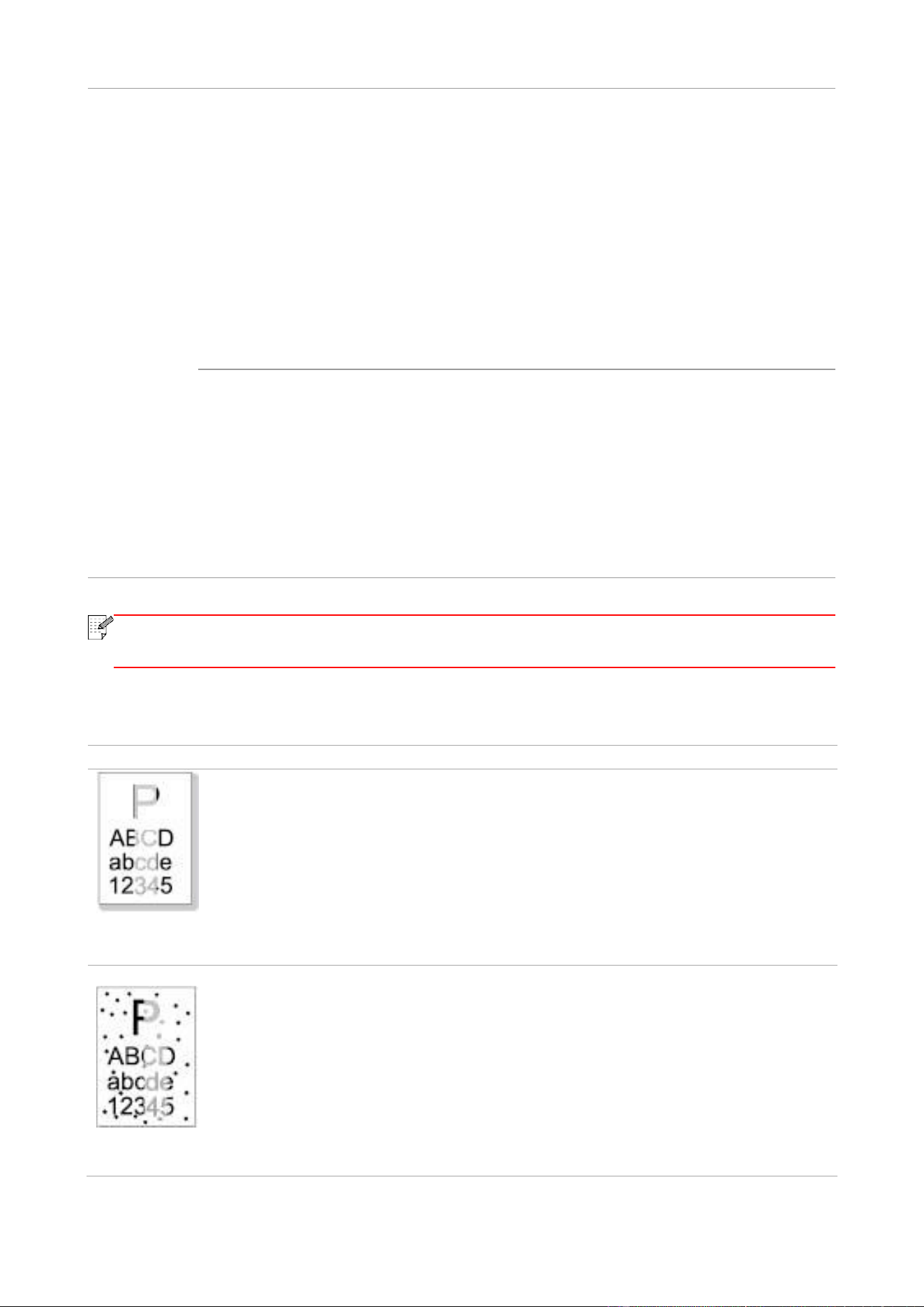
136
• The print media is beyond the
usage specification range.
• There is foreign matter in the
feed channel.
• The pickup roller is dirty.
• Internal parts failure.
from paper tray; please print
with manual feed tray if special
printing medium is used to
print.
Take the excessive papers out
from paper tray; please print
with manual feed tray if special
printing medium is used to
print.
• Clean the paper path.
• Please clean the pickup roller.
Print multipage
feed
• Excessive static electricity on the
print media.
• The print media is damp or sticks
together.
• Internal parts failure.
• Re-separate the print media to
eliminate some static
electricity. It is suggested that
you use the recommended print
media.
Separate the print media or use
better quality and dry print
media..
14.4.2. Image Defects
Problem
Cause
Solution
The printout is
whitish or light
• The print media does not meet the
usage specifications, for
example the media is damp or too rough.
• The resolution in the print program is set
too low, concentration setting is too low,
or toner saving mode is ticked.
• Toner cartridge is damaged.
• Toner is low.
• Please use proper print media within
the specification range.
• Set the resolution and concentration
setting of program, or cancel ticking the
save toner mode.
• It is suggested to replace the original
toner cartridge.
Toner spots
• Dirty toner cartridge or toner leakage.
• Toner cartridge is damaged.
• The print media that does not meet
usage specification is used. For example,
the media is damp or too rough.
• The paper path is dirty.
• If toner spots appear when copying and
scanning, the platen glass may be dirty.
• The scanner is dirty or damaged.
• It is suggested to replace the original
toner cartridge.
• Please use the print media within the
specification range.
• Clean the paper path.
• Clean the platen glass.
Note:
• If the problem persists, please contact the customer service center. See the Three
Guarantees certificate for contact details.
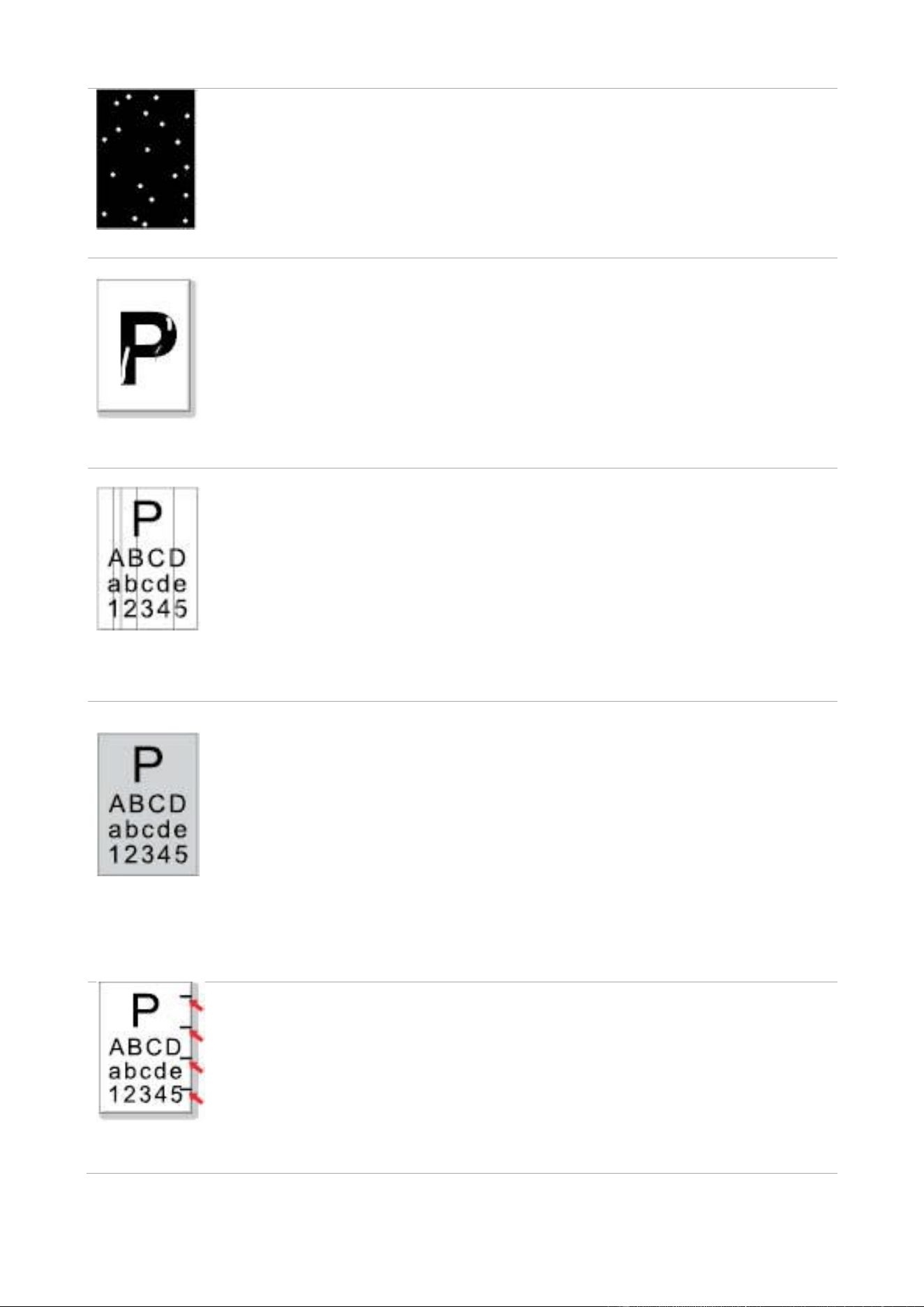
137
White spots
• The print media that does not meet
usage specification is used. For example,
the media is damp or too rough.
• The paper path is dirty.
• Inner damage of toner cartridge.
• The reflective glass of the laser inside
the printer is dirty.
• Please use the print media within the
specification range.
• Clean the paper path.
• It is suggested to replace the original
toner cartridge.
• Please clean the LSU lens.
Toner comes off
• The print media that does not meet
usage specification is used. For example,
the media is damp or too rough.
• The printing paper medium set and
paper medium placed are not consistent.
• The inside of the printer is dirty.
• Toner cartridge is damaged.
• The parts inside the printer are
damaged.
• Please use printing medium within the
specification scope, and use manual
feed tray for printing in case of special
medium.
• Please print with corresponding paper
medium.
• Clean the inside of the printer.
• It is suggested to replace the original
toner cartridge.
Black vertical
stripes
• Dirty toner cartridge.
• Damaged inner parts of toner cartridge.
• The reflective glass of the laser inside
the printer is dirty.
• The paper path is dirty.
• If black vertical stripes appear when
copying or scanning, the scanner or the
platen glass may be dirty.
• Scanner Light bulb has smudges.
• The scanner is damaged.
• Clean or replace toner cartridge
• Clean the mirror of the laser at the back
of the printer.
• Clean the feed path of printer.
• Clean the scanner or the platen glass.
Black
background(gray
background)
• The print media that does not meet
usage specification is used. For example,
the media is damp or too rough.
• Dirty toner cartridge
• Damaged inner parts of toner cartridge.
• The paper path is dirty.
• The transfer voltage inside the printer is
abnormal.
• Scanning exposure.
• If black background or gray background
appears when copying and scanning, the
platen glass may be dirty.
• Please use the print media within the
specification range.
• Clean or replace toner cartridge
• Clean the paper path inside the printer.
• Please close the cover on the
manuscript, and then carry out copying
and scanning.
• Clean the platen glass.
Cyclical traces
appear
• Dirty toner cartridge.
• Damaged inner parts of toner cartridge.
• The fuser component is damaged.
• Clean or replace toner cartridge
• Please contact customer services
center to replace to a new fuser
assembly.
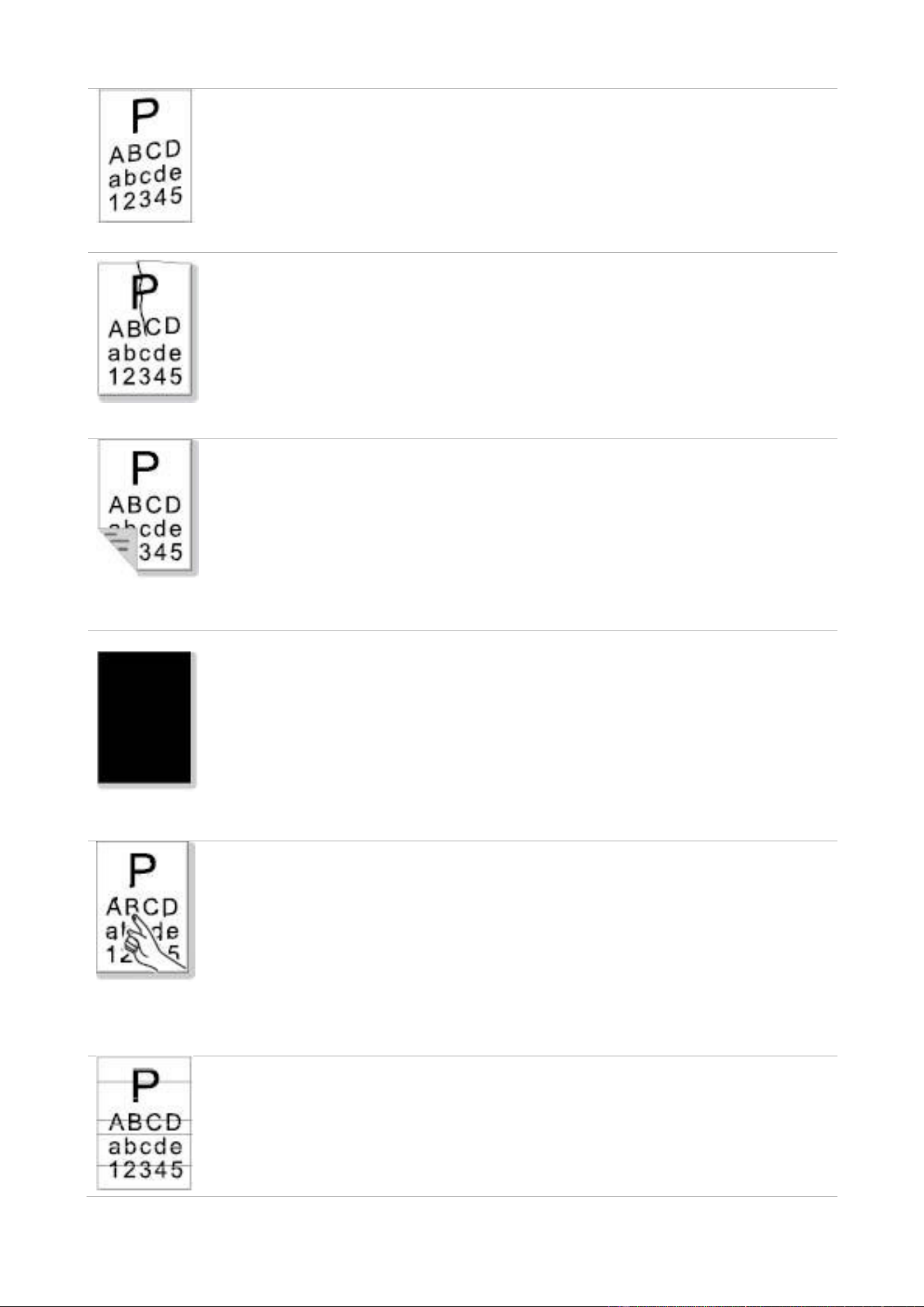
138
Skewed pages
• The printer paper isn’t put properly.
• The feed channel of the printer is dirty.
• Make sure the print paper is placed
correctly.
• Clean the paper path inside the printer.
Wrinkled paper
• The printer paper isn’t put properly.
• The print media does not meet the
usage specification.
• The feed channel of the printer is dirty.
• The fuser component is damaged.
• Make sure the print paper is placed
correctly.
• Please use print media within the
specification range.
• Clean the paper path inside the printer.
• Please contact customer services
center to replace to a new fuser
assembly.
The back of the
printout is dirty
• Dirty toner cartridge
• The transfer roller inside the printer is
dirty.
• The transfer voltage inside the printer is
abnormal.
• Clean or replace toner cartridge
• Clean the internal transfer part of the
printer.
Whole page dark
• Toner cartridge is improperly installed.
• Inner damage of toner cartridge.
• Abnormal internal charging of machine
or the toner cartridge is not charged.
• If all-black image appear when copying
and scanning, maybe it is scanning
exposure, and the cover on the
manuscript is not properly closed.
• The scanner is damaged.
• Install ink cartridge correctly.
• It is suggested to replace the original
toner cartridge.
• Please close the cover on the
manuscript, and then carry out copying
and scanning.
The toner does
not adhere to the
paper
• The print media that does not meet
usage specification is used. For example,
the media is damp or too rough.
• The inside of the printer is dirty.
• Toner cartridge is damaged.
• The parts inside the printer are
damaged.
• Please use printing medium within the
specification scope, and use manual
feed tray for printing in case of special
medium.
• Clean the inside of the printer.
• It is suggested to replace the original
toner cartridge.
• The toner cartridge is not installed
correctly.
• The toner cartridge may be damaged.
• The parts inside the printer are
damaged.
• Install ink cartridge correctly.
• It is suggested to replace the original
toner cartridge.

139
Horizontal stripes
Note:
• The faults above can be mitigated by cleaning or replacing the cartridge. If the problem
persists, please contact the customer service center. See the Three Guarantees
certificate for contact details.
14.5. Fax faults
Trouble Type
Fault phenomenon
Solution
Telephone line or
connection fault
The dialing tone cannot be heard.
• If you cannot hear the dialing tone after picking
up the receiver, please check the connection of
all telephone lines between the fax and the
wall-mounted socket.
• Use the telephone connecting another line to
test the wall-mounted socket; if there is no
dialing tone, please check the communication
line.
The printer cannot response in a
fax call automatically.
• Make sure it is not the "Telephone Mode" as
the receiving mode. (Please see Chapter 10.3.2
to set the receiving mode as "Fax Mode".)
Fax receiving
fault
The fax cannot be received
• Make sure the fax is set with the correct
receiving mode. (Please see Chapter 10.3.2 to
select the receiving mode.)
• If the telephone line is interfered, please try to
set it as VoIP in compatibility. (For compatibility
setting, please see Chapter 10.3.3)
The fax received is somewhat
blank or of poor quality
• The fax sending faxes may have a fault.
• The telephone line may have a fault due to
noise.
• Check the printer through copy.
• The toner cartridge comes to the end of its
expected service life. Please replace it. (Please
see Chapter 13.2.2 "Replace the Toner
Cartridge".)
The fax is well received but
cannot be printed
• Check if the toner in cartridge has run low.
Replace with a new toner cartridge and then
print.
• Find out the option of "Low in Toner, Continue
to Print" among receiving setting options and
then set it as On.
An external call is being handled.
• If the Telephone mode adopted, please press

140
Startup and then pick up the receiver
immediately.
• If answering the call with the extension
telephone, please input the 3-digit fax receiving
code (*90 by default). When the fax begins to
response, please hang up.
Fax sending fault
The dialing fails to be done
• Please check the connection of power cable.
• Please check the connection of telephone line.
• Change the (audio/pulse) settings. Please set
in the fax sending menu with the dialing way
supported for telephone line.
The printer is poor in transmitting
files
• Make one copy of original to check if the fax
scanner could work normally.
• Transmit with a higher resolution.
A prompt of "Communication
Failure" appears in printing the
fax confirmation report
• The telephone line may suffer from temporary
noise or electrostatic interference. Please send
the fax again.
• Please try to set as VoIP in compatibility and
then send again. (Please see Chapter 10.3.3 for
compatibility setting.)
If the problem still occurs, please check the
telephone line.

141
15. Product Specifications
Note:
• Specification values vary slightly from printers with different models with different
functions, and product specifications vary from different countries and regions.
• These values are based on the initial data. For more information about the latest
specifications, please visit: www.pantum.com.
15.1. Overview of the Specifications
Product Size (W*D*H)
415mm*360mm*352mm
Printer weight (excluding
powder box, drum module
and package)
About 10.54kg
Weight of printer (including
cartridge, drum and package)
About 13.71kg
Touch screen
Dimension: 3.5" capacitive touch screen
Resolution: 320*480, RGB565
Print Environment
Print temperature range:10-32℃
Print humidity range:20%RH~80%RH
Power Voltage
110V Model: AC100~127V, 50Hz/60Hz,9A
220V Model: AC220~240V, 50Hz/60Hz,4.5A
Noise (acoustic pressure
level)
Print/scan: ≤52dB(A)
Copy: ≤54dB(A)
Standby: ≤30dB(A)
Mute mode: ≤46 dB (A)
Enter network standby time:
5 minutes
Power Consumption
Standby: ≤ 55W
Shutdown: ≤ 0.5W
TEC: conforming to requirements of Energy StarV2.0 and Chinese
energy efficency rating
Operating System
Microsoft Windows XP/ Windows Vista/ Windows 7/ Windows 8/
Windows 8.1/ Windows 10/ Windows 11/ Windows Server 2003/
Windows Server 2008/ Windows Server 2012/ Windows Server 2012
R2/ Windows Server 2016/ Windows Server 2019
macOS 10.7/10.8/10.9/10.10/10.11/10.12/10.13
Linux (Ubuntu 12.04/ Ubuntu 14.04/ Ubuntu 16.04)
iOS 11.0-16.0
Android 6.0-12.0
HarmonyOS 2.0-3.0
Communication interface
Hi-speed USB 2.0

142
IEEE802.3 10Base-T/100Base-Tx
IEEE802.11b/g/n (support WPS)
15.2. Print Specifications
Print Speed
33ppm(A4)/35ppm(Letter)
Print Time of First Page
≤8.5sec
Print Language
PDL
15.3. Copy Specifications
Copy Speed
33cpm(A4)/35cpm(Letter)
FCOT
Flatbed <10 seconds
ADF <12 seconds
Maximum Pages for
Successive Print
99 pages
Zoom Ratio
25%~400%
Other Copy Functions
ID copy, bill copy, multi-in-one copy, clone copy.
15.4. Scan Specifications
Scan Type
Flatbed+ADF
Scanning speed
Duplex: 48ipm
Maximum Scan Size
Flatbed: 216×297mm
ADF: 216×356 mm
Chromoscan
Yes
Scan Output Function
Scan to E-mail, PC, FTP and USB

143
15.5. Fax specification
Fax Type
Black-and-white
Modem Speed
33.6Kbps
Fax Memory
650 pages
Encoding
MH/MR/MMR/JBIG
Compatibility
ITU-T sg3/ECM
Resolution
Standard, fine, super fine, picture
Other Fax Functions
PC-FAX (Send), Fax Filtering, Group Sending, Fax Forwarding, Speed Dial,
Group Dial, Delay Sending, Auto Redial, Auto Receive, Auto Shrink, Mobile
Fax
Environment
PSTN、PBX、VOIP
Company Name: Magnell Associate, Inc. ( DBA NEWEGG.COM )
Office address:17560 Rowland St. City of Industry, CA 91748
TEL: (626)271-9700
USA Only

144

